HC5UNI-21-MU - Headphones Gioteck - Free user manual and instructions
Find the device manual for free HC5UNI-21-MU Gioteck in PDF.


User questions about HC5UNI-21-MU Gioteck
0 question about this device. Answer the ones you know or ask your own.
Ask a new question about this device
Download the instructions for your Headphones in PDF format for free! Find your manual HC5UNI-21-MU - Gioteck and take your electronic device back in hand. On this page are published all the documents necessary for the use of your device. HC5UNI-21-MU by Gioteck.
USER MANUAL HC5UNI-21-MU Gioteck
Important : To help ensure risk-free operation please read these Operational and Safety Guidelines before use:

Before using the headset, turn the volume down to a mid-level or very low, then slowly adjust it to a comfortable level. Exposure to high volume sound levels may cause temporary or permanent damage to your hearing. You should always set your volume to moderate levels and avoid long exposure to high volume levels.
- Contains small parts. Not suitable for children under 7 years of age.
- Store in a dry & dust free area.
- Do not store in areas of extreme low (0°C) or high (40°C) temperatures.
- Avoid direct sunlight and heat sources.
- Do not allow the product to get wet or dirty; doing so may cause damage.
- Do not clean with benzene, paint thinner, acetone, alcohol, or other such solvents.
- Do not take the product apart; doing so will void your warranty and may cause electrical shock or damage to internal components.

Please help to conserve the environment by recycling the cardboard packaging of this product.
This product should NOT be disposed of in normal household waste. It should be disposed of separately. Please take it to an electrical waste collection point.
For help with the set-up or operation of this product please go to :
gioteck.com/contact-support
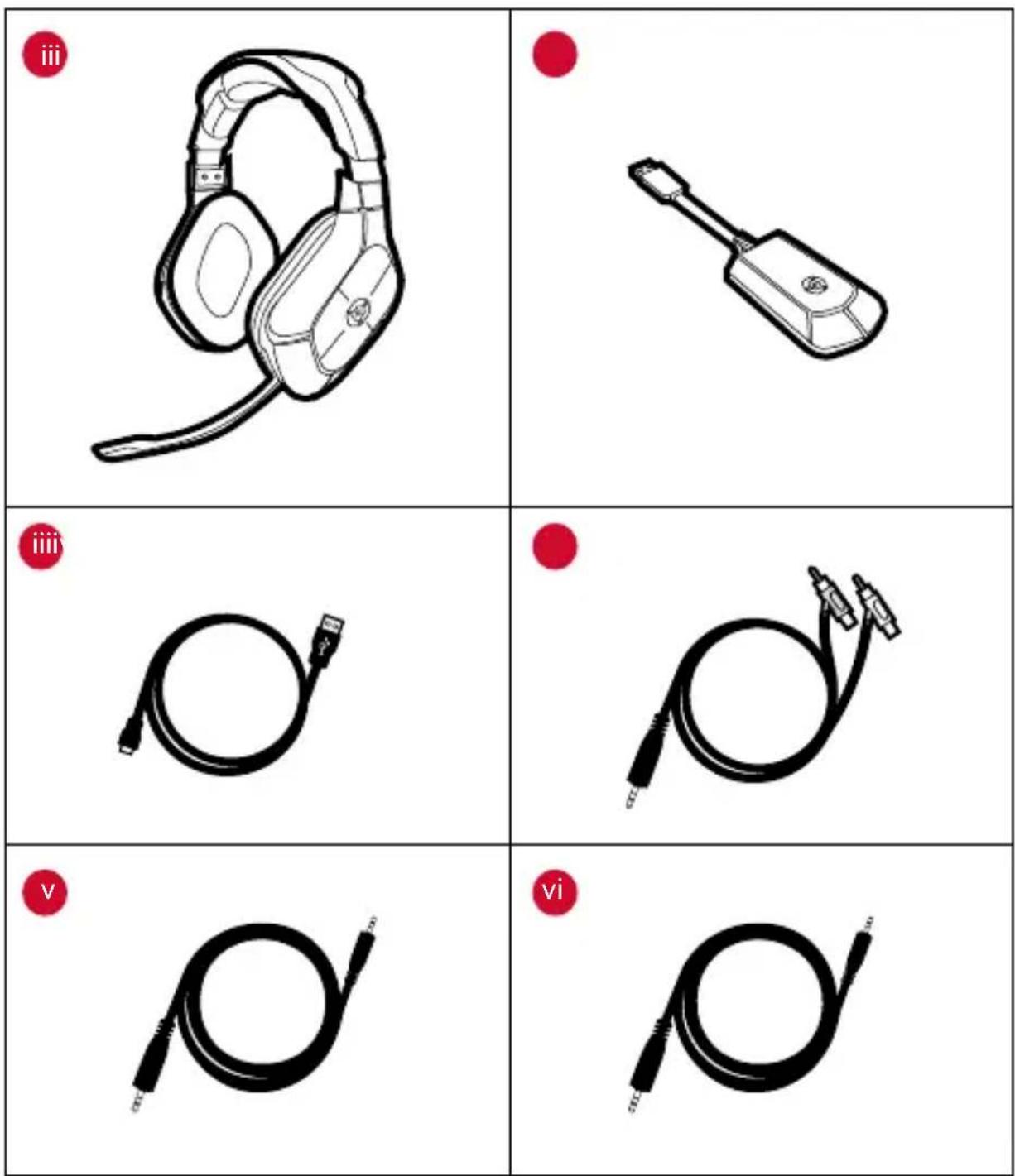
PARTS LIST
i] Headset
ii] Dongle
iii] USB Charging Cable
iv] RCA to Audio Cable
v] Xbox 360™ Cable (2.5-2.5mm Aux Cable)
vi] Xbox One™ Cable (2.5-3.5mm Aux Cable)
text_image
iii iii v viZ
PRODUCT DETAILS
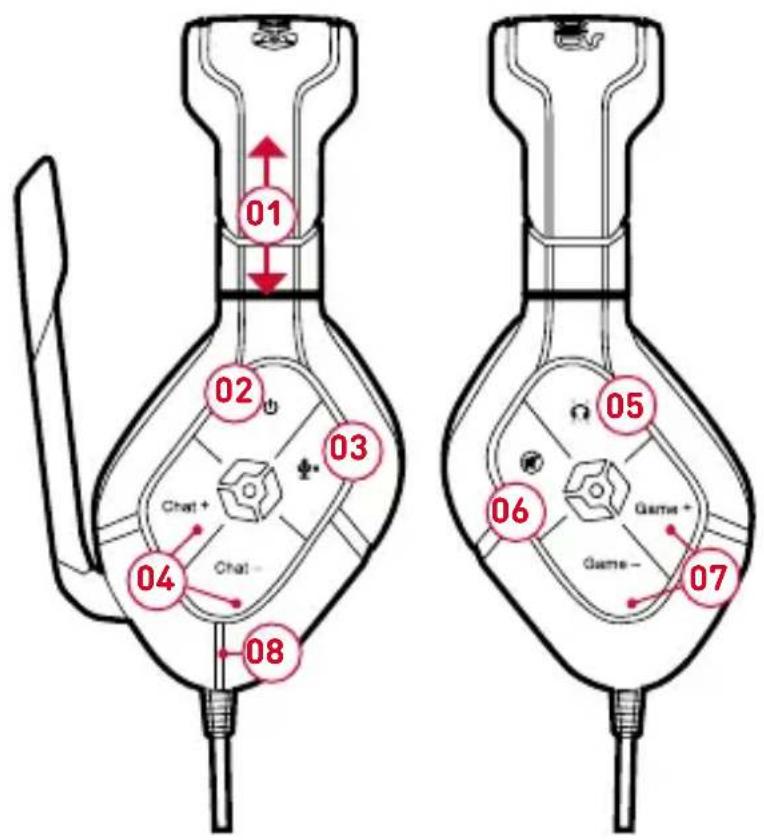
HEADSET
01 | Headband Adjusters
02 | Power Button
03 | Mic Mute
04 | Chat Volume -/+
05 | Bass Boost
06 | Speaker Mute
07 | Game Volume -/+
08 | LED Indicator
09 | Charging Port
10 | Xbox Chat Input
DONGLE
11 | LED Indicator
12 | Audio input
text_image
01 02 03 Chat+ Chat- 04 05 06 Game+ Game- 07 08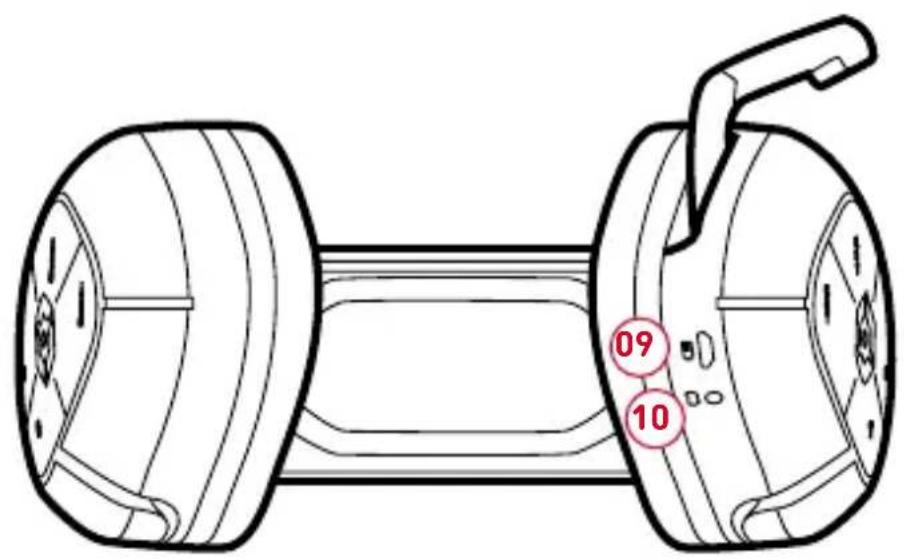
text_image
09 10
text_image
11 12 100 100QUICK SETUP
CHARGING
It is recommended to fully charge the headset before first use.
1] Connect the USB cable between the headset and your Console, PC or MAC.
2] The LED on the headset will turn ORANGE while charging and be OFF when fully charged. The headset will take approximately 4 hours to fully recharge from a drained state. The charging cycle will take longer if the headset is in use during charging.

A low battery (20 minutes remaining) will be indicated by the headset LED flashing continuously.
HOW TO PAIR YOUR DONGLE TO YOUR HEADSET
1] Connect the dongle into a USB port on your console, PC or Mac. The dongle LED will flash Red.
2] Turn the headset ON. The headset LED will flash RED.
3] Connection between the Dongle and headset has been successful if the Headset LED remain ON (solid red) and the Dongle LED remains ON (solid red).
4] Turn the headset OFF by pressing the Power Button until the headset LED will turn off.

Pairing should happen automatically. If this is unsuccessful, press and hold Game+ and Game- simultaneously for 2 seconds until the LED on the Headset and the Dongle remain ON (solid red). The headset should pair automatically on the next usage.
TV/MONITOR AUDIO OUT
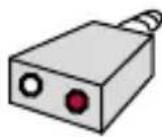
Not all TV/Monitors have Left & Right Audio Out. Look on the back of your TV/Monitor and see if it has a Headphones Out socket you can use instead. You can use the Headphones Out socket if you have a 3.5mm Stereo to Mono Adapter, or you will need to purchase one separately.
MUTE
Mic mute is indicated via LED on the USB dongle flashing 4 times a second.
BASS BOOST
Amplify the sound on your headset by pressing the bass boost button. This will simulate a wider range of sound.
WIRELESS RANGE
The headset is effective up to a distance of 10 metres.
1A) PS3™ SETUP
Use this setup if your TV has no HDMI
• See Page 4 on 'How to pair your dongle to your headset'
- Chat is via USB
• Game Sound via RCA
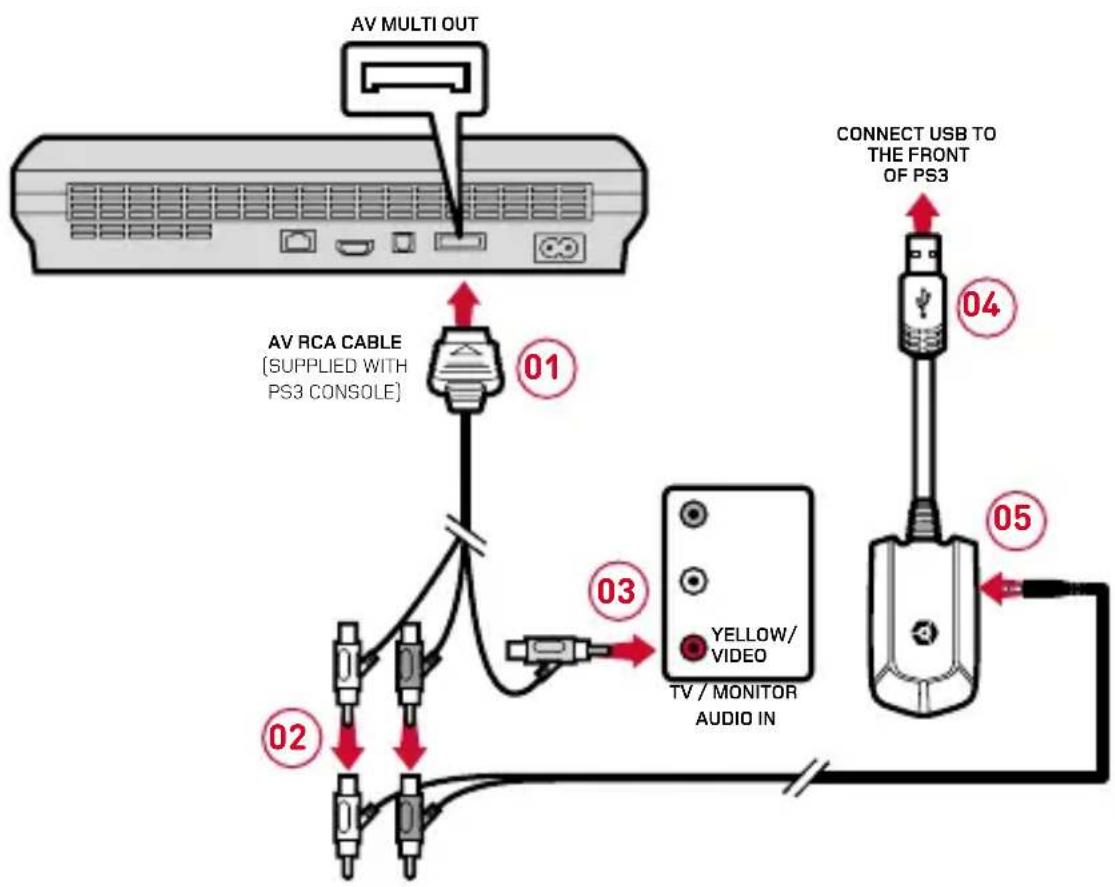
flowchart
graph TD
    A["AV MULTI OUT"] --> B["AV RCA CABLE (SUPPLIED WITH PS3 CONSOLE)"]
    B --> C["01"]
    B --> D["02"]
    B --> E["03"]
    E --> F["YELLOW/VIDEO TV/MONITOR AUDIO IN"]
    F --> G["04"]
    F --> H["05"]
    G --> I["CONNECT USB TO THE FRONT OF PS3"]
    H --> I
PS3™ CHAT
Settings > Accessory Settings > Audio Device Settings > Choose the HC5 Wireless Gaming Headset as INPUT & OUTPUT.
You may also want to increase/decrease the sensitivity of the microphone.
1B) PS3™ SETUP
Use this setup if your TV has HDMI and Audio Out
• See Page 4 on 'How to pair your dongle to your headset'
- Chat is via USB
• Game Sound via TV
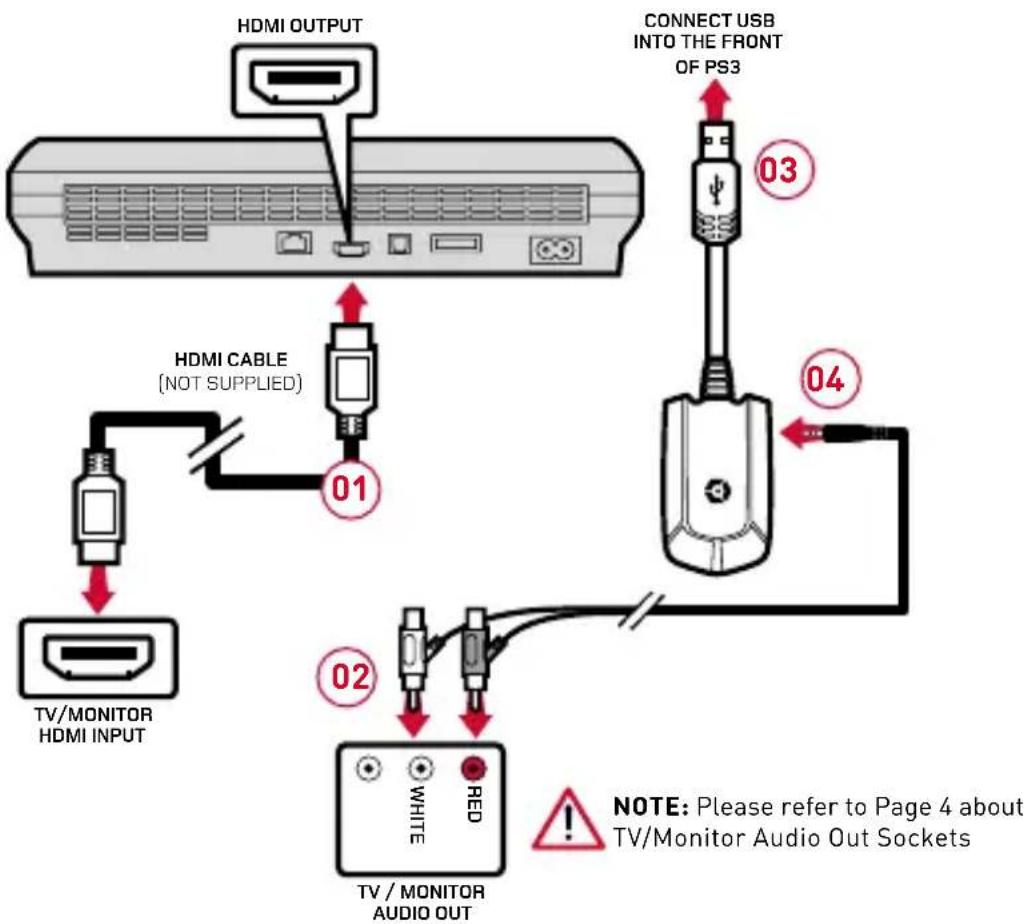
flowchart
graph TD
    A["TV/MONITOR HDMI INPUT"] --> B["HDMI CABLE (NOT SUPPLIED)"]
    B --> C["Connect USB INTO THE FRONT OF PS3"]
    C --> D["03"]
    C --> E["04"]
    B --> F["01"]
    B --> G["02"]
    G --> H["TV / MONITOR AUDIO OUT"]
    H --> I["WHITE"]
    H --> J["RED"]
    style A fill:#f9f,stroke:#333
    style B fill:#ccf,stroke:#333
    style C fill:#cfc,stroke:#333
    style D fill:#fcc,stroke:#333
    style E fill:#cff,stroke:#333
    style F fill:#ffc,stroke:#333
    style G fill:#cfc,stroke:#333
    style H fill:#fcc,stroke:#333
    style I fill:#fff,stroke:#333
PS3™ CHAT
Settings > Accessory Settings > Audio Device Settings > Choose the HC5 Wireless Gaming Headset as INPUT & OUTPUT.
You may also want to increase/decrease the sensitivity of the microphone.
Use this setup if your TV has No Audio Out
• See Page 4 on 'How to pair your dongle to your headset'
- Chat is via USB
• Game Sound via RCA

flowchart
graph TD
    A["HDMI OUTPUT AV MULTI OUT"] --> B["01"]
    A --> C["02"]
    A --> D["03"]
    E["TV/MONITOR HDMI INPUT"] --> F["01"]
    G["AV RCA CABLE (SUPPLIED WITH PS3 CONSOLE)"] --> H["02"]
    I["CONNECT USB INTO THE FRONT OF PS3"] --> J["04"]
    K["05"] --> L["05"]
PS3™ CHAT
Settings > Accessory Settings > Audio Device Settings > Choose the HC5 Wireless Gaming Headset as INPUT & OUTPUT.
You may also want to increase/decrease the sensitivity of the microphone.
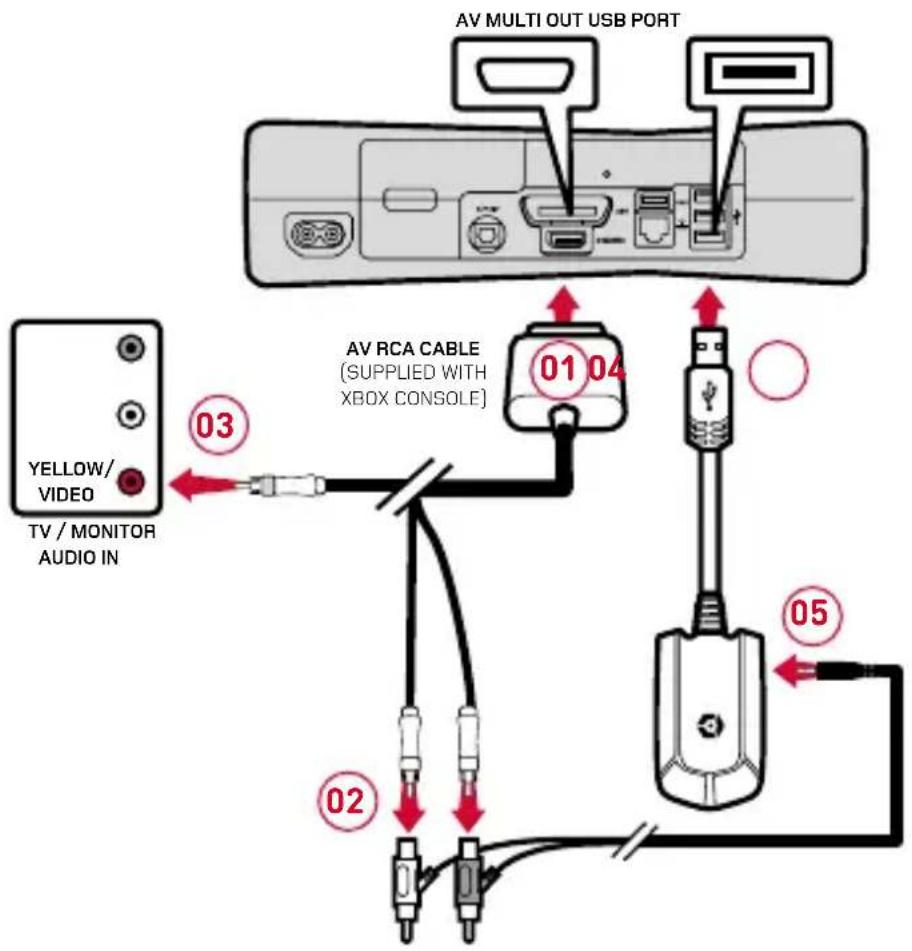
2A) XBOX 360™ SETUP
Use this setup if your TV has No HDMI Connection
• See Page 4 on 'How to pair your dongle to your headset'
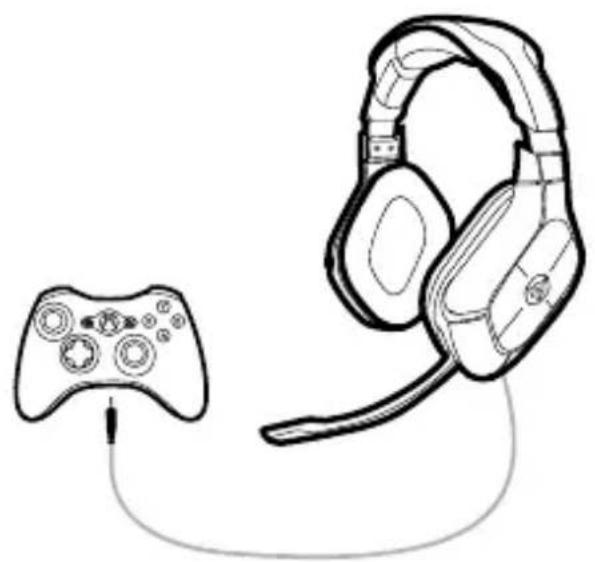
- Chat is via Controller
• Game Sound via RCA
text_image
AV MULTI OUT USB PORT AV RCA CABLE (SUPPLIED WITH XBOX CONSOLE) 01 04 03 YELLOW/ VIDEO TV / MONITOR AUDIO IN 02 05XBOX CHAT
1] Settings > Preferences > Voice > Voice Output > Play through Headset.
2] Test the microphone : Messages > Create New > Message > Choose the name of a friend > Add Voice > Do a test recording.
natural_image
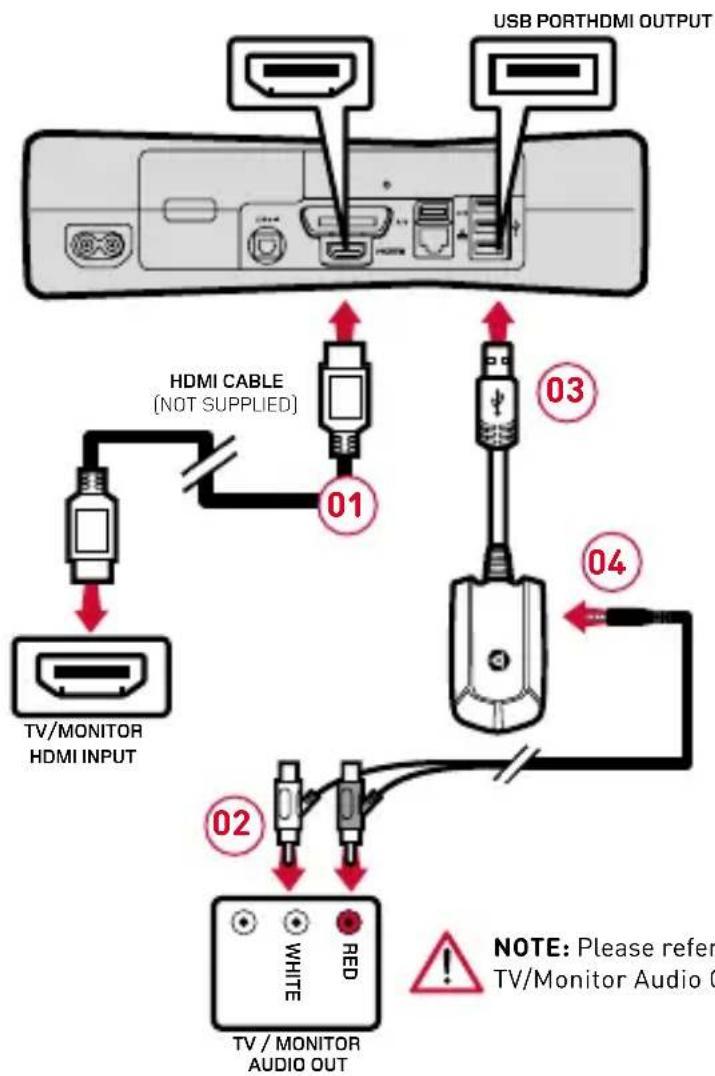
Line drawing of a game controller connected to a multi-head headset (no text or symbols)2B) XBOX 360 ^TM SETUP
Use this setup if your TV has HDMI and Audio Out
• See Page 4 on 'How to pair your dongle to your headset'
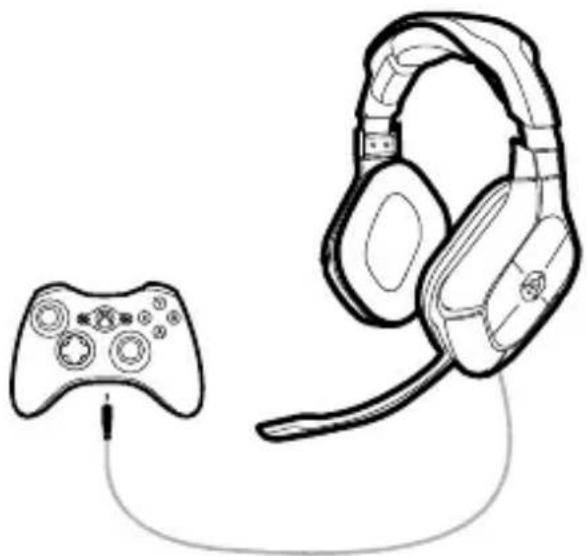
- Chat is via Controller
• Game Sound via TV
flowchart
graph TD
    A["USB PORTHDMI OUTPUT"] --> B["HDMI CABLE (NOT SUPPLIED)"]
    B --> C["01"]
    B --> D["03"]
    B --> E["04"]
    B --> F["02"]
    F --> G["TV/MONITOR AUDIO OUT"]
    H["TV/MONITOR HDMI INPUT"] --> I["2"]
    J["White"] --> K["Red"]
    L["Black"] --> M["Black"]
    N["Black"] --> O["Black"]
    P["Black"] --> Q["Black"]
    R["Black"] --> S["Black"]
    T["Black"] --> U["Black"]
    V["Black"] --> W["Black"]
    X["Black"] --> Y["Black"]
    Z["Black"] --> AA["Black"]
    AB["Black"] --> AC["Black"]
    AD["Black"] --> AE["Black"]
    AF["Black"] --> AG["Black"]
    AH["Black"] --> AI["Black"]
    AJ["Black"] --> AK["Black"]
    AL["Black"] --> AM["Black"]
    AN["Black"] --> AO["Black"]
    AP["Black"] --> AQ["Black"]
    AR["Black"] --> AS["Black"]
    AT["Black"] --> AU["Black"]
    AV["Black"] --> AW["Black"]
    AX["Black"] --> AY["Black"]
    AZ["Black"] --> BA["Black"]

NOTE: Please refer to Page 4 about TV/Monitor Audio Out Sockets
XBOX CHAT
1] Settings > Preferences > Voice > Voice Output > Play through Headset.
2] Test the microphone : Messages > Create New > Message > Choose the name of a friend > Add Voice > Do a test recording.
natural_image
Line drawing of a game controller connected to a headset via cable (no text or symbols)2C) XBOX 360™ SETUP
Use this setup if your TV has HDMI but No Audio Out
• See Page 4 on 'How to pair your dongle to your headset'
- Chat is via Controller
• Game Sound via RCA

IMPORTANT: Depending the age of your console, you may need to purchase the AV RCA Adapter for this setup. The AV cable supplied with some models of the Xbox 360™ does not allow for simultaneous use with a HDMI cable, as the shape of the AV connector covers the HDMI socket.
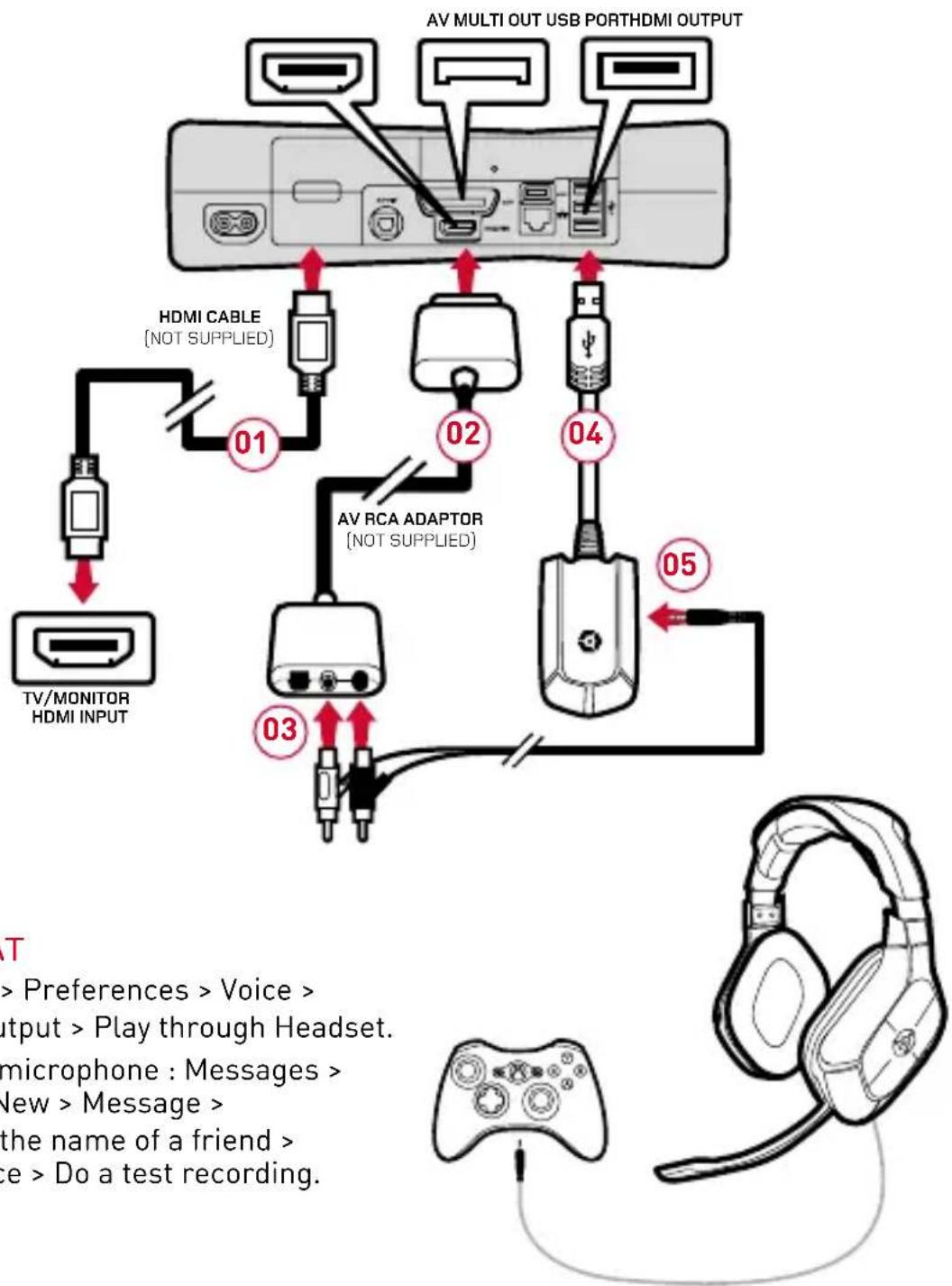
flowchart
graph TD
    A["TV/MONITOR HDMI INPUT"] --> B["01"]
    B --> C["HDMI CABLE (NOT SUPPLIED)"]
    C --> D["02"]
    D --> E["04"]
    E --> F["05"]
    F --> G["03"]
    G --> H["AV RCA ADAPTOR (NOT SUPPLIED)"]
    H --> I["04"]
    I --> J["05"]
    J --> K["05"]
    style A fill:#f9f,stroke:#333
    style K fill:#ccf,stroke:#333
    note right of A: > Preferences > Voice > Input > Play through Headset.
microphone : Messages > New > Message > the name of a friend > Use > Do a test recording.
AV MULTI OUT USB PORTHDMI OUTPUT
XBOX CHAT
1] Settings > Preferences > Voice > Voice Output > Play through Headset.
2] Test the microphone : Messages > Create New > Message > Choose the name of a friend > Add Voice > Do a test recording.
3A) PS4™ SETUP
Use this setup to have independent Game & Chat via headset controls.
• See Page 4 on 'How to pair your dongle to your headset'
- Chat is via USB
• Game Sound via TV
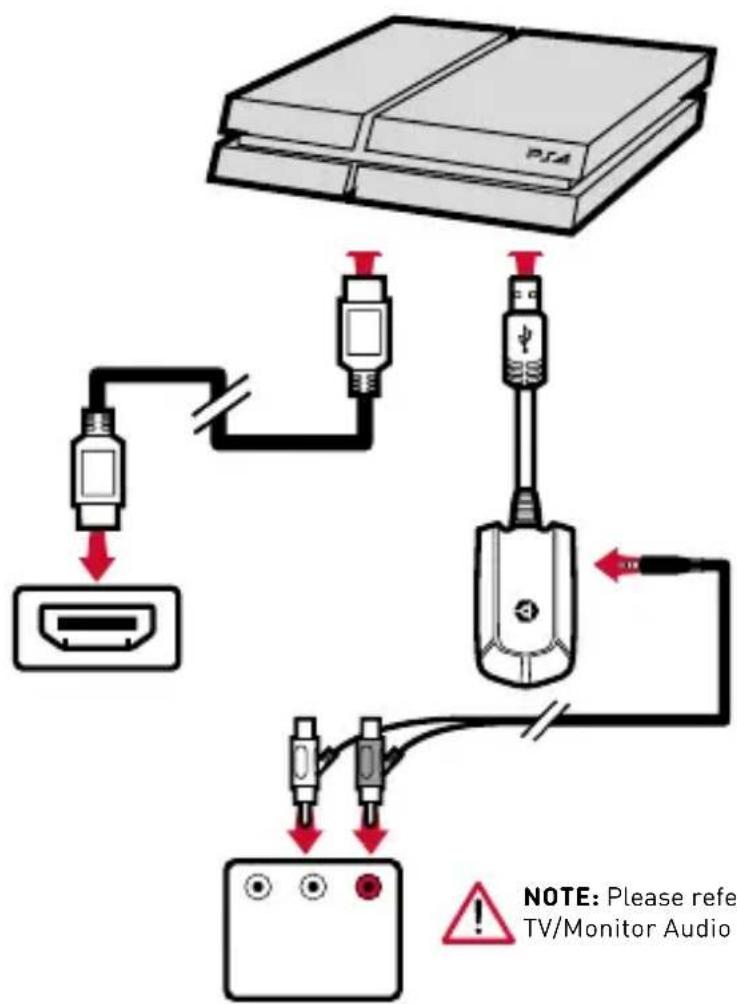
text_image
PSA NOTE: Please refer TV/Monitor AudioNOTE: Please refer to Page 4 about TV/Monitor Audio Out Sockets
The PS4 allows you to select which sound outputs via the controller: Settings > Devices > Audio Devices and set the headset to 'All Audio', adjust the volume on the headset and set the sensitivity of the microphone. Test the microphone's function and click on OK before leaving.
3B) PS4™ SETUP
Use this setup if your TV has No Audio Out
• See Page 4 on 'How to pair your dongle to your headset'
- Chat & Game Sound are via USB
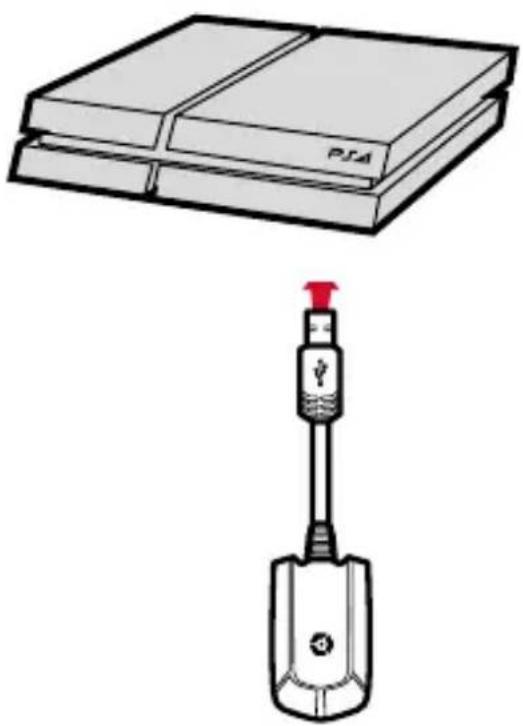
natural_image
Illustration of a handheld device connected to two stacked books (no text or symbols visible)- All sound transmits wirelessly to the headset via Chat volume controls.
- Separate chat/game sound is disabled
The PS4 allows you to select which sound outputs via the controller: Settings > Devices > Audio Devices and set the headset to 'All Audio', adjust the volume on the headset and set the sensitivity of the microphone. Test the microphone's function and click on OK before leaving.
4A) XBOX ONE™ SETUP
Use this setup if your TV has no Audio Out.
- The headset is not amplified in this setup
- Chat and Game Sound is via Controller
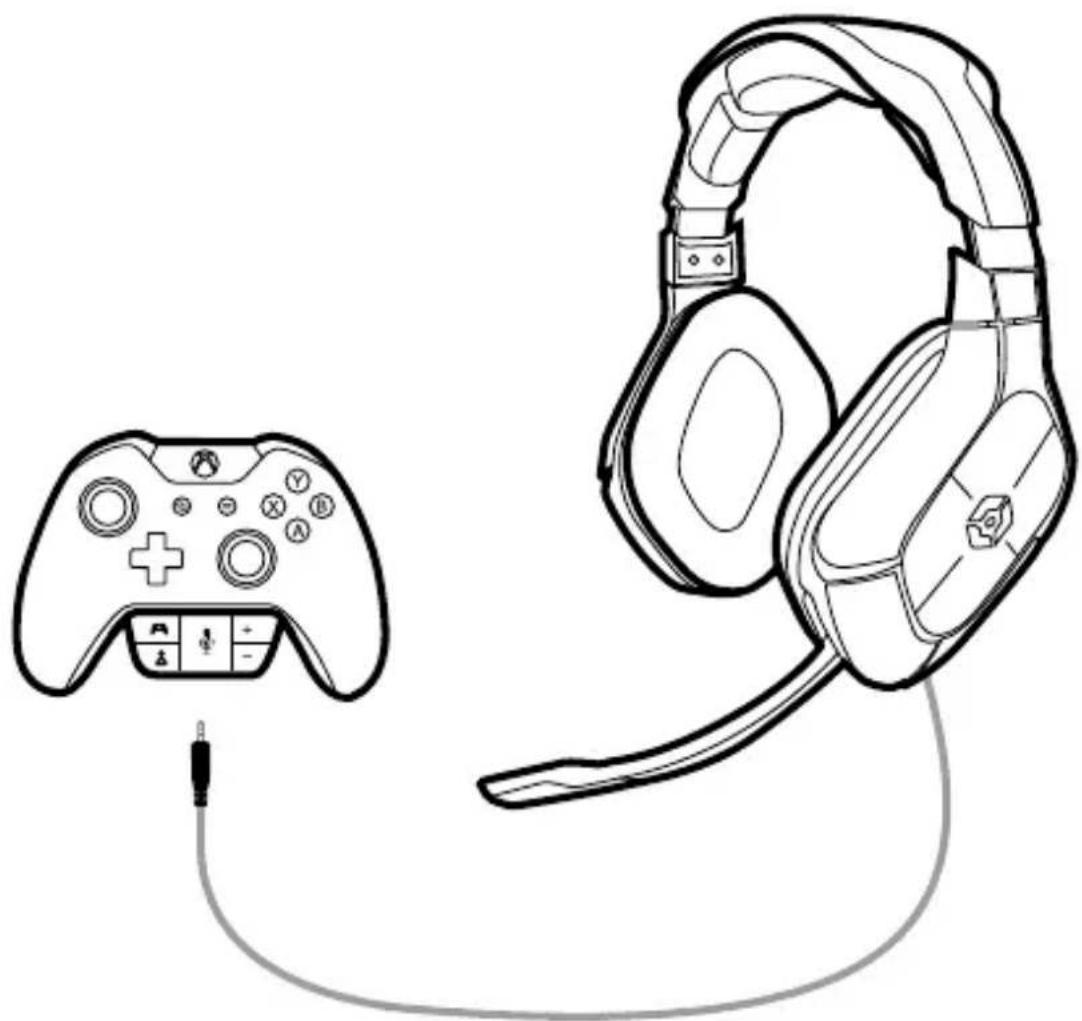
natural_image
Line drawing of a game controller and a headset connected by cable (no text or symbols)- Use the 2.5mm-3.5mm Xbox One™ Aux cable for this setup.
- Control game and chat sound independently via the Microsoft® Stereo Headset Adapter (sold separately).
- Do not be alarmed, the headset will not Power On, and the Dongle is not required.
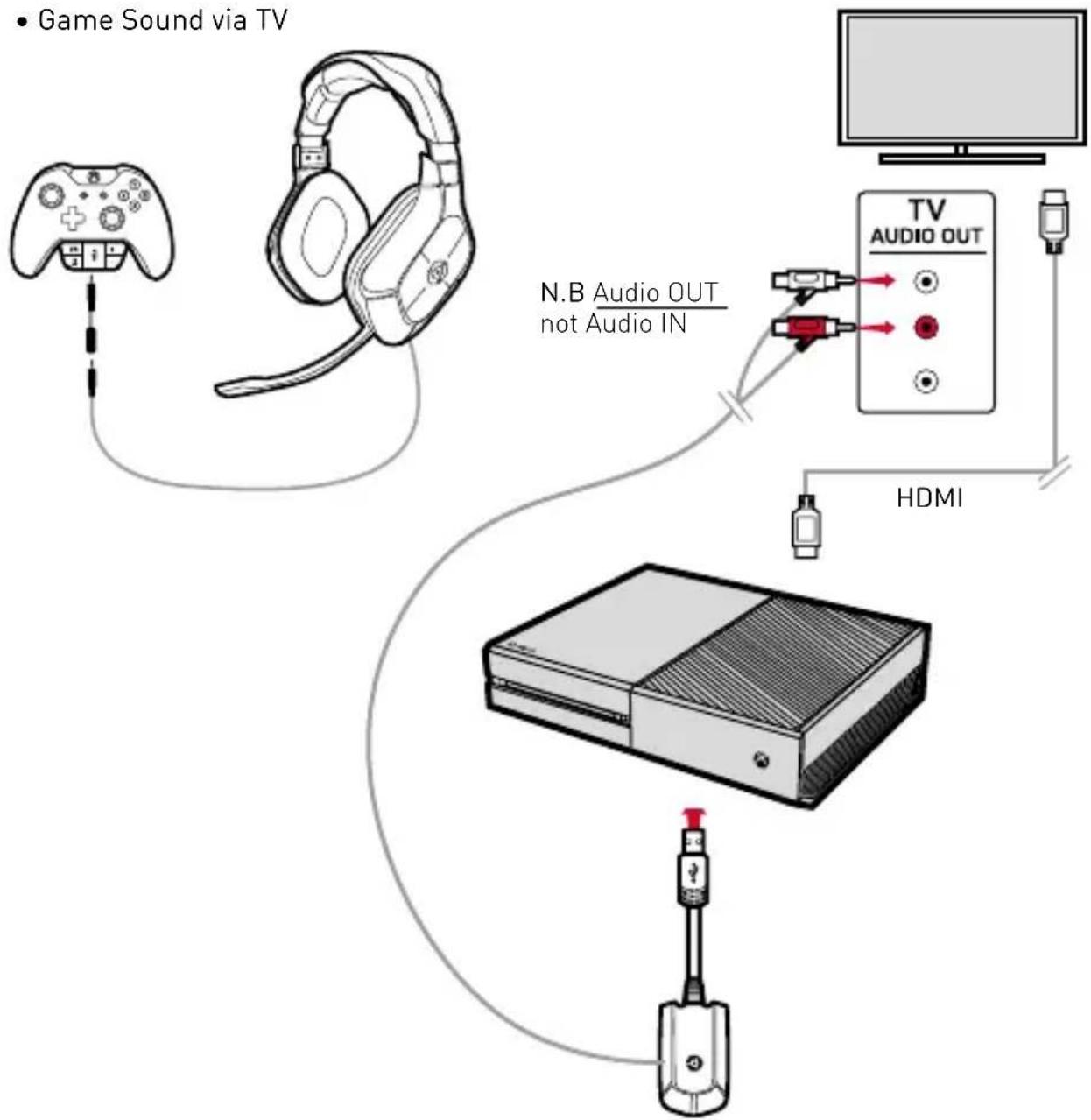
4B) XBOX ONE™ SETUP
Use this setup if your TV has Audio Out.
• See Page 4 on 'How to pair your dongle to your headset'
- Chat is via Controller
- Game Sound via TV
flowchart
graph TD
    A["Game Sound via TV"] --> B["Game Controller"]
    B --> C["Video Head"]
    C --> D["TV Audio Out"]
    D --> E["HDMI"]
    E --> F["Mobile Device"]
    G["N.B Audio OUT not Audio IN"] --> D
    H["User Interface"] --> D
- Use the 2.5mm-2.5mm Xbox 360^TM Aux cable between the Headset and Controller.
- You will need to turn Game sound OFF on your headset to avoid phasing (simultaneous game sound via controller and TV). Turn off Game Sound via the Microsoft® Stereo Headset Adapter (see Headset Adapter instructions).
- Benefits of this setup: User can control the chat & game volume independently via headset controls. Game sound will be louder and bass boost can be used.
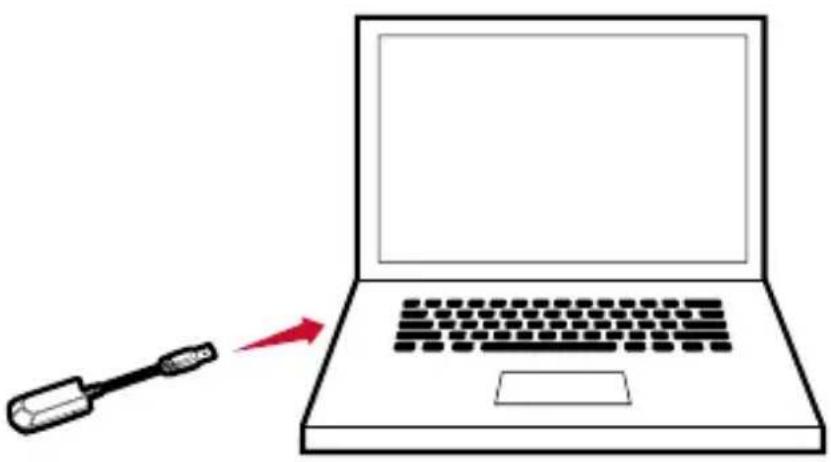
5) PC & MAC SETUP
PC
Sound > Start > Control Panel > Hardware and Sound > Manage Audio Devices.
On the Playback and Recording tabs select 'HC5 Wireless Gaming Headset' as default in the application you are using.
Mac
System Preferences > Sound.
Set Input and Output 'HC5 Wireless Gaming Headset'. Then select
'HC5 Wireless Gaming Headset' as default in the application you are using.
natural_image
Illustration of a laptop with a screwdriver pointing to its screen (no text or symbols)Independent Chat/Game controls are not available for the PC and Mac setup unless you buy 3rd party software.
Z
This product is covered by a one [1] year warranty. For full Terms and Conditions, and for Technical Assistance, go to : gioteck.com/contact-support
Australia only
This product is manufactured by GoodBetterBest ("GBB") of the United Kingdom. Our goods come with guarantees that cannot be excluded under the Australian Consumer Law. You are entitled to a replacement or refund for a major failure and for compensation for any other reasonably foreseeable loss or damage. You are also entitled to have the goods repaired or replaced if the goods fail to be of acceptable quality and the failure does not amount to a major failure. GBB warrants to the original consumer purchaser that the product will be free of defects in materials and/or workmanship for the length of time specified in the warranty period from the date of purchase, this being 1 Year, as set forth at : www.gioteck.com/contact-support
If a defect covered by this warranty occurs during the warranty period, GoodBetterBest at its option will repair or replace, at no charge, any part that GoodBetterBest determines to be defective. To make a warranty claim please contact GBB's Australian distributor, Turn Left Distribution at : helpdesk@turnleft.biz Turn Left Distribution is responsible for the servicing of warranty claims for purchases made in Australia. The purchaser will be required to bear the expense of sending the product back to the Australian distributor to claim the warranty. If you are unable to satisfactorily resolve your issue with the retailer, please contact GBB through its website at : www.gioteck.com/contact-support or alternatively, you can contact GBB directly at: GBB Limited, 103 Devonshire Business Centre, Works Road, Letchworth, SG6 1GJ, United Kingdom.
This warranty shall not apply if the product has been damaged by abuse, misuse, negligence, accident, modification, tampering or by any causes unrelated to defective materials and/or workmanship. Repair or replacement as provided under this warranty is GoodBetterBest exclusive prerogative. In order to obtain warranty services under certain circumstances (particularly when the retailer will not accept the return of the defective product), you may be required by GBB to return the product directly to GBB in the United Kingdom for inspection and evaluation, along with evidence of purchase (including the price paid and the date the item was purchased), for a determination of whether the warranty applies. If you have been asked by GBB to return the product to GBB in the United Kingdom, and the product is defective and covered under the applicable warranty period, GBB shall provide the appropriate warranty services. If the warranty does not apply (either due to misuse, damage, negligence, etc., or because the warranty period has expired), you may be charged to return the product to you (if you instruct us to do so). Any applicable implied warranties, including warranties or merchantability and fitness for a particular purpose are hereby limited to the length of time specified in the warranty periods below, beginning from the date of purchase and are subject to the conditions set forth in this limited warranty.
In no event shall GoodBetterBest be accountable for incidental damages resulting from the breach of any express or implied warranties. You may have different or additional legal rights, including longer warranty periods, which vary from jurisdiction to jurisdiction. Some jurisdictions do not allow certain limitations on how long an implied warranty lasts, so the above limitations may not apply to you. In addition, consumers have legal rights under applicable national legislation governing the sale of consumer goods. Such rights are not affected by the warranties set forth herein, except to the extent allowed by law.
LEGALS
This product complies with the following legal regulations. For further information go to www.gioteck.com
This device complies with Industry Canada RSS 210 standard(s). Operation is subject to the following two conditions: (1) this device may not cause interference, and (2) this device must accept any interference, including interference that may cause undesired operation of the device.
Caution: The user is cautioned that changes or modifications not expressly approved by the party responsible for compliance could void the user's authority to operate the equipment. This device complies with Part 15 of the FCC Rules. Operation is subject to the following two conditions: (1) this device may not cause harmful interference, and (2) this device must accept any interference received, including interference that may cause undesired operation. However, there is no guarantee that interference will not occur in a particular installation. The device and its antenna must not be co-located or operating in conjunction with any other antenna or Dongle. Gioteck are not responsible for any interference caused by un-authorized changes to this equipment. This equipment generates, uses, and can radiate radio frequency energy and, if not installed correctly, may cause harmful interference to radio communications. This equipment has been tested and found to comply with the limits for a Class B digital device, pursuant to part 15 of the FCC Rules. These limits are designed to provide reasonable protection against harmful interference in a residential installation. If this equipment does cause harmful interference to radio/television reception try the following:
- Reorient or relocate the receiving antenna.
- Increase the separation between the equipment and receiver.
- Connect the equipment into an outlet on a circuit different from that to which the receiver is connected.
- Consult the dealer or an experienced radio/TV technician for help. This equipment complies with FCC radiation exposure limits set forth for an uncontrolled environment. End user must follow the specific operating instructions for satisfying RF exposure compliance. This Dongle must not be co-located or operating in conjunction with any other antenna or Dongle.
Gioteck hereby declares that this product is in compliance with the essential requirements and other provisions of Directive 2004/108/EC and R&TTe 1999/5/EC. To view the full version of the Declaration of Conformity go online to : gioteck.com/declaration-of-conformity
Complies with IDA Standards DB100398