
Pro Slate 12 Kit - Tablet HP - Free user manual and instructions
Find the device manual for free Pro Slate 12 Kit HP in PDF.


| Product Type | Tablet |
| Brand | HP |
| Model | Pro Slate 12 Kit |
| Processor | Qualcomm APQ8074AB Quad Core 2.3 GHz |
| RAM | 2 GB |
| Storage | 32 GB eMMC + microSD up to 32 GB |
| Display | 12.3-inch LED UXGA UWVA BrightView Touchscreen (1600x1200) |
| Rear Camera | 8 MP full-frame HD |
| Front Camera | 2 MP full-frame HD |
| Battery | 37 WHr, 9.75 Ah Li-ion, USB-charging |
| Operating System | Android 4.4 (KitKat) |
| Wireless Connectivity | WLAN 802.11 a/b/g/n/ac, Bluetooth 4.0+LE |
| Ports | Micro USB 2.0, Micro SD, Micro SIM (optional), 3.5 mm audio, POGO connector |
| Sensors | Accelerometer, Ambient light, G-sensor |
| Audio | 7 microphones, 2 speakers |
| Dimensions (H x W x D) | 11.07 x 19.27 x 0.99 cm |
| Weight | 0.36 kg |
| Power Adapter | 10 W (5 V, 2 A) USB, optional 18 W POGO adapter |
| Included Accessories | Q-Pen, USB cable, power adapter |
| Serviceability | AC adapter and USB cable user-replaceable; internal parts by authorized service provider |
Frequently Asked Questions - Pro Slate 12 Kit HP
User questions about Pro Slate 12 Kit HP
0 question about this device. Answer the ones you know or ask your own.
Ask a new question about this device
Download the instructions for your Tablet in PDF format for free! Find your manual Pro Slate 12 Kit - HP and take your electronic device back in hand. On this page are published all the documents necessary for the use of your device. Pro Slate 12 Kit by HP.
USER MANUAL Pro Slate 12 Kit HP
HP Pro Slate 12 Tablet
Maintenance and Service Guide IMPORTANT! This document is intended for HP authorized service providers only.
© Copyright 2015 Hewlett-Packard Development Company, L.P.
Android is a trademark of Google, Inc. Bluetooth is a trademark owned by its proprietor and used by Hewlett-Packard Company under license. SD Logo is a trademark of its proprietor.
The information contained herein is subject to change without notice. The only warranties for HP products and services are set forth in the express warranty statements accompanying such products and services. Nothing herein should be construed as constituting an additional warranty. HP shall not be liable for technical or editorial errors or omissions contained herein.
First Edition: January 2015
Document Part Number: 782895-001
Product notice
This guide describes features that are common to most models. Some features may not be available on your tablet.
Software terms
By installing, copying, downloading, or otherwise using any software product preinstalled on this tablet, you agree to be bound by the terms of the HP End User License Agreement (EULA). If you do not accept these license terms, your sole remedy is to return the entire unused product (hardware and software) within 14 days for a refund subject to the refund policy of your place of purchase.
For any further information or to request a full refund of the tablet, please contact your local point of sale (the seller).
Safety warning notice
WARNING! To reduce the possibility of heat-related injuries or of overheating the device, do not place the device directly on your lap or obstruct the device air vents. Use the device only on a hard, flat surface. Do not allow another hard surface, such as an adjoining optional printer, or a soft surface, such as pillows or rugs or clothing, to block airflow. Also, do not allow the AC adapter to contact the skin or a soft surface, such as pillows or rugs or clothing, during operation. The device and the AC adapter comply with the user-accessible surface temperature limits defined by the International Standard for Safety of Information Technology Equipment (IEC 60950-1).
Table of contents
1 Product description .... 1 2 External component identification .... 2 3 Illustrated parts catalog .... 3
Locating the serial number and model number 3
Tablet major components 4
Miscellaneous parts 5
Sequential part number listing 6
4 HP Touchpoint Manager software 9 5 Removal and replacement preliminary requirements 10
Tools required 10
Service considerations 10
Plastic parts 10
Cables and connectors 10
Grounding guidelines 10
Electrostatic discharge damage 10
Packaging and transporting guidelines 12
Workstation guidelines 12
6 Removal and replacement procedures 14
Tablet component replacement procedures 14
Back cover 14
Battery 15
Rear-facing webcam 16
Front-facing webcam 17
Volume and power button board 19
Speakers 19
Antenna board 22
Connector board 24
System board 25
Docking charger 26
Outer ring 27
7 Specifications 29 8 Backing up and recovering your data 30
Updating apps, widgets, and the operating system 30
Back up and reset 30
Factory data reset 30
Resetting with the tablet turned on 30
Resetting with the tablet turned off 31
9 Power adapter requirements 32
Requirements for all countries 32
Requirements for specific countries and regions 32
10 Recycling 34
Index 35
1 Product description
| Category Description | |
| Product Name HP Pro Slate 12 Tablet | |
| Processor | Qualcomm APQ8074AB Quad Core, 2.3GHz with GPS for models without WWAN capability |
| Qualcomm APQ8074AB Quad Core, 2.3GHz without GPS for models with WWAN capability | |
| Panel 12.3 LED UXGA UWVA BrightView (1600x1200) Touchscreen display assembly | |
| Memory 2GB RAM memory, integrated onto system board | |
| Storage 32 GB eMMC, integrated onto system board | |
| Supports external Micro SD up to 32 GB | |
| Audio and video Seven microphones | |
| Two speakers | |
| 8.0 MP full-frame high-definition rear-facing webcamera | |
| 2.0 MP full-frame high-definition front-facing webcamera | |
| Supports MP3, Ogg, FLAC, AAC, and AMR audio formats | |
| Supports 3.5 mm headset only | |
| Sensor Accelerometer/G-sensor | |
| Wireless networking Integrated wireless option: WLAN 802.11 ac/a/b/g/n with one antenna | |
| Bluetooth®: 4.0+LE with Apt-X and security support required | |
| External expansion | Integrated micro SD Card Reader expandable to 32 GB |
| Ports | Audio: headphone/microphone combo jack, 3.5 mmMicro SD Card ReaderMicro USB 2.0 |
| Power requirements 9.75 Ah, USB-charging (includes cable) battery | |
| 10W, 2.0 type-b USB Type B Micro USB cable and localized cable plug support | |
| Operating system Preinstalled: AndroidTM4.4 | |
| Serviceability End user replaceable parts: | |
| AC adapterUSB cable | |
2 External component identification
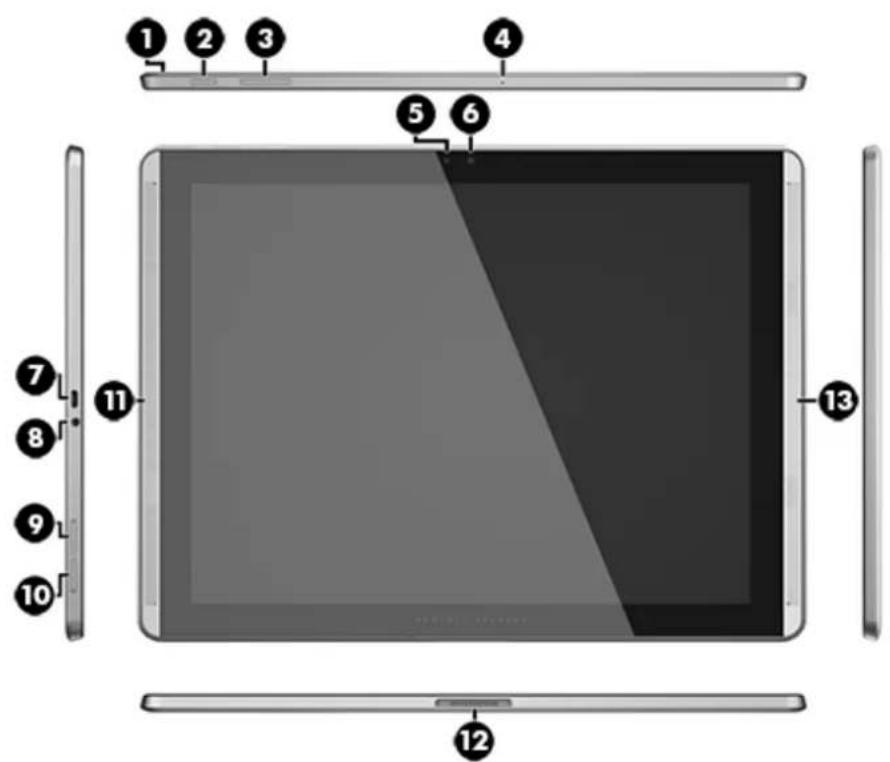
| Item Component Item Component | |||
| (1) Rear-facing webcam (8) Audio-out (headphone) | |||
| (2) | Power button | (9) | Micro SIM slot (select models only) |
| (3) | Volume control button | (10) | Micro SD Card Reader slot |
| (4) | Integrated microphone | (11) | Speaker |
| (5) | Ambient light sensor | (12) | 18 Watt POGO connector |
| (6) | Front-facing webcam | (13) | Speaker |
| (7) Micro USB 2.0 port | |||
3 Illustrated parts catalog
Locating the serial number and model number

NOTE: HP continually improves and changes product parts. For complete and current information on supported parts for your tablet, go to http://partsurfer.hp.com, select your country or region, and then follow the on-screen instructions.
The model number (1) and serial number (2) of your tablet are located on the back cover of the tablet. You may need the information when you travel internationally or when you contact support.

Tablet major components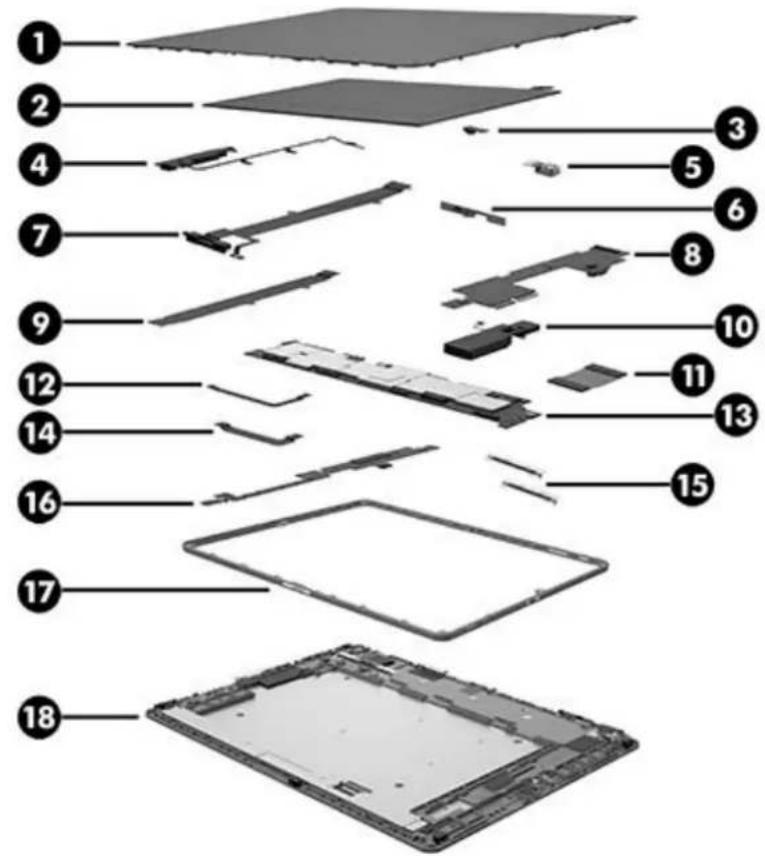
Item Component Spare part number
| (1) Back cover 795926-001 | ||
| (2) Battery, 9.75 Ah, USB-charging (includes cable), USB-charging (includes cable) | 799168-001 | |
| (3) Front-facing webcam (includes cable) 795936-001 | ||
| (4) Top speaker Kit (includes speaker and cables) 795933-001 | ||
| (5) Rear-facing webcam (includes cable) 795937-001 | ||
| (6) Volume and power button board 795935-001 | ||
| (7) Docking charger 808817-001 | ||
| (8) Connector board 795928-001 | ||
| (9) Display cable | ||
| (10) Bottom speaker Kit (includes speaker and cables) 795927-001 | ||
| (11) Main cable | ||
| (12) Antenna board cable | ||
| (13) System board | ||
| Item Component Spare part number | ||
| System board equipped with Qualcomm Snapdragon APQ8074 Quad core 2.3GHz Graphics Chipset, 2 GB RAM memory, and 32 GB eMMC hard drive for models without WWAN capability | 795930-001 | |
| System board equipped with Qualcomm Snapdragon APQ8074 Quad core 2.3GHz Graphics Chipset, 2 GB RAM memory, and 32 GB eMMC hard drive for models with WWAN capability | 800053-001 | |
| (14) Touch sensor cable | ||
| (15) Outer ring brackets | ||
| (16) Antenna board (includes antenna cable and transceiver) 795924-001 | ||
| For models with WWAN capability 795923-001 | ||
| For models without WWAN capability 808434-001 | ||
| (17) Outer ring | ||
| For models with WWAN capability 795934-001 | ||
| For models without WWAN capability 807960-001 | ||
| (18) 12.3 LED UXGA UWVA BrightView (1600x1200) Touchscreen display panel assembly | 795929-001 | |
Miscellaneous parts
| Component Spare part number | |
| 10W, 2.0 type-b USB adapter with Micro USB cable 743820-001 | |
| 10W, 2.0 type-b USB adapter with Micro USB cable and localized cable plug support | |
| For use only in Latin America 798685-001 | |
| For use only in Australia 798685-002 | |
| For use only in the United Kingdom | 798685-003 |
| For use only in India | 798685-005 |
| For use only in the People's Republic of China | 798685-006 |
| For use only in North America | 798685-008 |
| For use only in Europe | 798685-009 |
| For use only in Brazil | 795552-012 |
| For use only in S. Korea | 798685-014 |
| 18W POGO adapter | |
| For use only in Latin America 795552-001 | |
| For use only in Australia 795552-002 | |
| For use only in the United Kingdom | 795552-003 |
| For use only in India | 795552-005 |
| For use only in the People's Republic of China | 795552-006 |
| For use only in North America 795552-008 | |
| For use only in Europe 795552-009 | |
| For use only in Brazil 795552-012 | |
| For use only in S. Korea 795552-014 | |
| HP Pro Slate 12 equipped with Qualcomm Snapdragon APQ8074 Quad core 2.3GHz Graphics Chipset, 2GB RAM memory, and 32 GB eMMC hard drive without WWAN capability | 795930-001 |
| Not for use in the People's Republic of China 805899-001 | |
| For use only in the People's Republic of China 805900-001 | |
| For use only in North America 809056-001 | |
| HP Pro Slate 12 equipped with Qualcomm Snapdragon APQ8074 Quad core 2.3GHz Graphics Chipset, 2GB RAM memory, and 32 GB eMMC hard drive for models with WWAN capability | 800053-001 |
| Not for use in the People's Republic of China 805901-001 | |
| Plastics Kit 795931-001 | |
| Q-Pen 793490-001 | |
| Screw Kit 795932-001 | |
| WWAN module, ME906E LT4112 LTE/HPSA+ 791396-001 | |
Sequential part number listing
| Spare part number Description | |
| 743820-001 10W, 2.0 type-b USB adapter with Micro USB cable | |
| 791396-001 WWAN module, ME906E LT4112 LTE/HPSA+ | |
| 793490-001 Q-Pen | |
| 795552-001 18W POGO adapter for use only in Latin America | |
| 795552-002 18W POGO adapter for use only in Australia | |
| 795552-003 18W POGO adapter for use only in the United Kingdom | |
| 795552-005 18W POGO adapter for use only in India | |
| 795552-006 18W POGO adapter for use only in the People's Republic of China | |
| 795552-008 18W POGO adapter for use only in North America | |
| 795552-009 18W POGO adapter for use only in Europe | |
| 795552-012 18W POGO adapter for use only in Brazil | |
| 795552-014 18W POGO adapter for use only in S. Korea | |
| 795923-001 Antenna for models with WWAN capability | |
| 795924-001 Antenna board (includes WLAN antenna cable and transceiver) | |
| 795925-001 Audio jack | |
| 795926-001 Back cover | |
| 795927-001 Speaker Kit, Bottom speaker (includes speaker and cables) | |
| 795928-001 Connector board | |
| 795929-001 12.3 LED UXGA UWVA BrightView (1600x1200) Touchscreen display panel assembly | |
| 795930-001 | System board equipped with Qualcomm Snapdragon APQ8074 Quad core 2.3GHz Graphics Chipset, 2GB RAM memory, and 32 GB eMMC hard drive for models without WWAN capability |
| 795931-001 Plastics Kit | |
| 795932-001 Screw Kit | |
| 795933-001 Speaker Kit, Top speaker (includes speaker and cables) | |
| 795934-001 Outer ring for models with WWAN capability | |
| 795935-001 Volume and power button board | |
| 795936-001 Front-facing webcam (includes cable) | |
| 795937-001 Rear-facing webcam (includes cable) | |
| 798685-001 | 10W 2.0 type-b USB adapter with Micro USB cable and localized cable plug support for use in Latin America |
| 798685-002 10W 2.0 type-b USB adapter with Micro USB cable and localized cable plug support for use in Australia | |
| 798685-003 | 10W 2.0 type-b USB adapter with Micro USB cable and localized cable plug support for use in the United Kingdom |
| 798685-005 | 10W 2.0 type-b USB adapter with Micro USB cable and localized cable plug support for use in India |
| 798685-006 | 10W 2.0 type-b USB adapter with Micro USB cable and localized cable plug support for use in the People's Republic of China |
| 798685-008 | 10W 2.0 type-b USB adapter with Micro USB cable and localized cable plug support for use in North America |
| 798685-009 | 10W 2.0 type-b USB adapter with Micro USB cable and localized cable plug support for use in Europe |
| 798685-012 | 10W 2.0 type-b USB adapter with Micro USB cable and localized cable plug support for use in Brazil |
| 798685-014 10W 2.0 type-b USB adapter with Micro USB cable and localized cable plug support for use in S. Korea | |
| 799168-001 Battery, 2 Cell 37 WHr 9.75 Ah, USB-charging (includes cable), USB-charging (includes cable) | |
| 800053-001 | System board equipped with Qualcomm Snapdragon APQ8074 Quad core 2.3GHz Graphics Chipset, 2GB RAM memory, and 32 GB eMMC hard drive for models with WWAN capability |
| 805899-001 | HP Pro Slate 12 equipped with Qualcomm Snapdragon APQ8074 Quad core 2.3GHz Graphics Chipset, 2GB RAM memory, and 32 GB eMMC hard drive without WWAN capability, not for use in the People's Republic of China |
| 805900-001 | HP Pro Slate 12 equipped with Qualcomm Snapdragon APQ8074 Quad core 2.3GHz Graphics Chipset, 2GB RAM memory, and 32 GB eMMC hard drive without WWAN capability for use only in the People's Republic of China |
| 805901-001 | HP Pro Slate 12 equipped with Qualcomm Snapdragon APQ8074 Quad core 2.3GHz Graphics Chipset, 2GB RAM memory, and 32 GB eMMC hard drive without WWAN capability not for use in the People's Republic of China |
| 807960-001 Outer ring for models without WWAN capability | |
| 808086-001 Antenna (includes WLAN antenna cable and transceiver) | |
| 808087-001 USB sub board | |
| 808434-001 Antenna for models without WWAN capability | |
| 808817-001 Docking charger | |
| 809056-001 | HP Pro Slate 12 equipped with Qualcomm Snapdragon APQ8074 Quad core 2.3GHz Graphics Chipset, 2GB RAM memory, and 32 GB eMMC hard drive without WWAN capability for use only in North America |
4 HP Touchpoint Manager software
HP Touchpoint Manager (HPTM) is a complete cloud-based solution for managing devices. Select HP Android Slate tablets include persistent anti-theft technology that allows HP Touchpoint Manager to alert an IT administrator that the device might be stolen.
If a supported device is reset to its factory state while the device is enrolled with an HP Touchpoint Manager account, then an IT administrator is alerted that the device may have been stolen.
The IT administrator can then use the Lost Device Protection feature to locate, lock, sound an alarm, or erase data from the device (see http://www.hptouchpointmanager.com). If the device is recovered, then the device owner can launch HP Touchpoint Manager and sign in with their user-name and password to authenticate the device and release it from anti-theft mode.
5 Removal and replacement preliminary requirements
Tools required
You will need the following tools to complete the removal and replacement procedures:
• Magnetic screw driver - Torx 4 screw driver • Plastic case utility tool
Service considerations
The following sections include some of the considerations that you must keep in mind during disassembly and assembly procedures.

NOTE: As you remove each subassembly from the tablet, place the subassembly (and all accompanying screws) away from the work area to prevent damage.
Plastic parts

CAUTION: Using excessive force during disassembly and reassembly can damage plastic parts. Use care when handling the plastic parts. Apply pressure only at the points designated in the maintenance instructions.
Cables and connectors

CAUTION: When servicing the tablet, be sure that cables are placed in their proper locations during the reassembly process. Improper cable placement can damage the tablet.
Cables must be handled with extreme care to avoid damage. Apply only the tension required to unseat or seat the cables during removal and insertion. Handle cables by the connector whenever possible. In all cases, avoid bending, twisting, or tearing cables. Be sure that cables are routed in such a way that they cannot be caught or snagged by parts being removed or replaced. Handle flex cables with extreme care; these cables tear easily.
Grounding guidelines
Electrostatic discharge damage
Electronic components are sensitive to electrostatic discharge (ESD). Circuitry design and structure determine the degree of sensitivity. Networks built into many integrated circuits provide some protection, but in many cases, ESD contains enough power to alter device parameters or melt silicon junctions.
A discharge of static electricity from a finger or other conductor can destroy static-sensitive devices or microcircuitry. Even if the spark is neither felt nor heard, damage may have occurred.
An electronic device exposed to ESD may not be affected at all and can work perfectly throughout a normal cycle. Or the device may function normally for a while, then degrade in the internal layers, reducing its life expectancy.

CAUTION: To prevent damage to the tablet when you are removing or installing internal components, observe these precautions:
Keep components in their electrostatic-safe containers until you are ready to install them.
Before touching an electronic component, discharge static electricity by using the guidelines described in this section.
Avoid touching pins, leads, and circuitry. Handle electronic components as little as possible.
If you remove a component, place it in an electrostatic-safe container.
The following table shows how humidity affects the electrostatic voltage levels generated by different activities.

CAUTION: A product can be degraded by as little as 700V.
| Typical electrostatic voltage levels | |
| Relative humidity | |
| Event 10% 40% 55% | |
| Walking across carpet 35,000 V 15,000 V 7,500 V | |
| Walking across vinyl floor 12,000 V 5,000 V 3,000 V | |
| Motions of bench worker 6,000 V 800 V 400 V | |
| Removing DIPS from plastic tube | 2,000 V 700 V 400 V |
| Removing DIPS from vinyl tray | 11,500 V 4,000 V 2,000 V |
| Removing DIPS from Styrofoam | 14,500 V 5,000 V 3,500 V |
| Removing bubble pack from PCB | 26,500 V 20,000 V 7,000 V |
| Packing PCBs in foam-lined box | 21,000 V 11,000 V 5,000 V |
Packaging and transporting guidelines
Follow these grounding guidelines when packaging and transporting equipment:
• To avoid hand contact, transport products in static-safe tubes, bags, or boxes. - Protect ESD-sensitive parts and assemblies with conductive or approved containers or packaging. - Keep ESD-sensitive parts in their containers until the parts arrive at static-free workstations. - Place items on a grounded surface before removing items from their containers. • Always be properly grounded when touching a component or assembly. - Store reusable ESD-sensitive parts from assemblies in protective packaging or nonconductive foam. - Use transporters and conveyors made of antistatic belts and roller bushings. Be sure that mechanized equipment used for moving materials is wired to ground and that proper materials are selected to avoid static charging. When grounding is not possible, use an ionizer to dissipate electric charges.
Workstation guidelines
Follow these grounding workstation guidelines:
• Cover the workstation with approved static-shielding material. - Use a wrist strap connected to a properly grounded work surface and use properly grounded tools and equipment. • Use conductive field service tools, such as cutters, screw drivers, and vacuums. - When fixtures must directly contact dissipative surfaces, use fixtures made only of static-safe materials. - Keep the work area free of nonconductive materials, such as ordinary plastic assembly aids and Styrofoam. - Handle ESD-sensitive components, parts, and assemblies by the case or PCM laminate. Handle these items only at static-free workstations. - Avoid contact with pins, leads, or circuitry. • Turn off power and input signals before inserting or removing connectors or test equipment.
Equipment guidelines
Grounding equipment must include either a wrist strap or a foot strap at a grounded workstation.
- When seated, wear a wrist strap connected to a grounded system. Wrist straps are flexible straps with a minimum of one megohm ±10% resistance in the ground cords. To provide proper ground, wear a strap snugly against the skin at all times. On grounded mats with banana-plug connectors, use alligator clips to connect a wrist strap.
- When standing, use foot straps and a grounded floor mat. Foot straps (heel, toe, or boot straps) can be used at standing workstations and are compatible with most types of shoes or boots. On conductive floors or dissipative floor mats, use foot straps on both feet with a minimum of one megohm resistance between the operator and ground. To be effective, the conductive must be worn in contact with the skin.
The following grounding equipment is recommended to prevent electrostatic damage:
- Antistatic tape • Antistatic smocks, aprons, and sleeve protectors • Conductive bins and other assembly or soldering aids • Nonconductive foam • Conductive tabletop workstations with ground cords of one megohm resistance • Static-dissipative tables or floor mats with hard ties to the ground • Field service kits • Static awareness labels • Material-handling packages • Nonconductive plastic bags, tubes, or boxes • Metal tote boxes • Electrostatic voltage levels and protective materials
The following table lists the shielding protection provided by antistatic bags and floor mats.
Material Use Voltage protection level
| Antistatic plastics Bags 1,500 V |
| Carbon-loaded plastic Floor mats 7,500 V |
| Metallized laminate Floor mats 5,000 V |
6 Removal and replacement procedures
Tablet component replacement procedures
CAUTION: Tablet components described in this chapter should only be accessed by an authorized service provider. Accessing these parts can damage the tablet and void the warranty.
NOTE: HP continually improves and changes product parts. For complete and current information on supported parts for your tablet, go to http://partsurfer.hp.com, select your country or region, and then follow the on-screen instructions.
This chapter provides removal and replacement procedures for authorized service provider only parts.
There are as many as 15 screws that must be removed, replaced, and/or loosened when servicing the tablet. Make special note of each screw size and location during removal and replacement.
Back cover
Description Spare part number
Back cover 795926-001
Before disassembling the tablet, follow these steps:
- Turn off the tablet. If you are unsure whether the tablet is off, turn the tablet on, and then shut it down through the operating system.
- Disconnect the power from the tablet by unplugging the power adapter cord from the tablet.
- Disconnect all external devices from the tablet.
Remove the back cover:
CAUTION: Before turning the display panel assembly upside down, make sure the work surface is clear of tools, screws, and any other foreign objects. Failure to follow this caution can result in damage to the display panel assembly.
- Place the tablet on a flat surface, display panel side down, with the docking charger toward you.
- Remove eight Torx 4 screws (1).
- Use a wedge or a suction tool (2) to release the edge of the back cover from the display panel assembly.
- Remove the tape that secures the battery to the back cover.
- Lift the cover (3), and then remove the back cover (4).

Reverse this procedure to install the back cover.
Battery
Description Spare part number
Battery, 2 Cell 37 WHr. 9.75 Ah, USB-charging (includes cable) 799168-001
Before removing the battery, follow these steps:
- Turn off the tablet. If you are unsure whether the tablet is off, turn the tablet on, and then shut it down through the operating system.
- Disconnect the power from the tablet by unplugging the power adapter cord from the tablet.
- Disconnect all external devices from the tablet.
- Remove the back cover (see Back cover on page 14).
WARNING! To reduce potential safety issues, use only the battery provided with the tablet, a replacement battery provided by HP, or a compatible battery purchased from HP.
CAUTION: Removing a battery that is the sole power source for the tablet can cause loss of information. To prevent loss of information, save your work or shut down the tablet through the operating system before disconnecting and removing the battery.
Remove the battery:
NOTE: Disconnect the battery cable carefully; pulling too hard can break the system board connector.
- Disconnect the battery cable (1) from the system board.
- Release the battery tabs and tape holding the battery. NOTE: Be careful not to bend the battery as you lift it.

- Remove the battery (2).
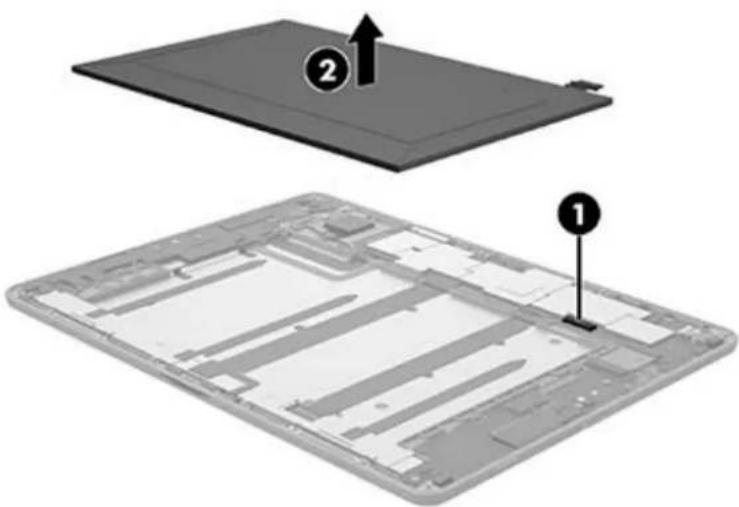
Reverse this procedure to install the battery.
Rear-facing webcam
Description Spare part number
Rear-facing webcam (includes cable) 795937-001
Before removing the rear-facing webcam, follow these steps:
- Turn off the tablet. If you are unsure whether the tablet is off, turn the tablet on, and then shut it down through the operating system.
- Disconnect the power from the tablet by unplugging the power adapter cord from the tablet.
- Disconnect all external devices from the tablet.
- Remove the back cover (see Back cover on page 14).
- Remove the battery (see Battery on page 15).
Remove the rear-facing webcam:
- Disconnect the rear-facing webcam cable (1) from the system board.
- Remove the rear-facing webcam (2) from the display panel assembly.
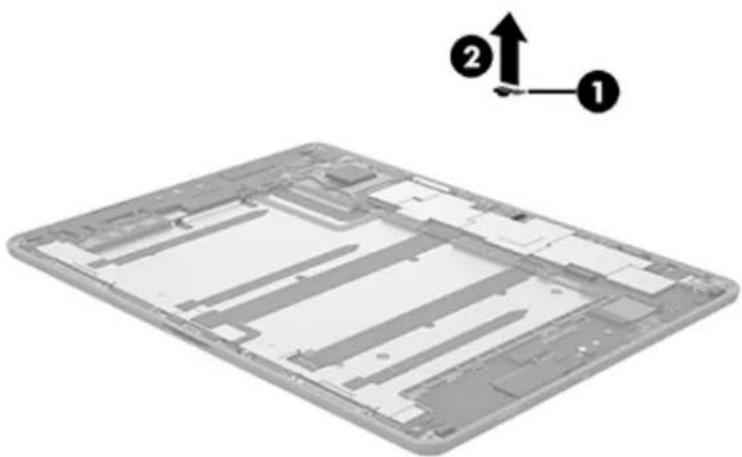
Reverse this procedure to install the rear-facing webcam.
Front-facing webcam
Description Spare part number
Front-facing webcam (includes cable) 795936-001
Before removing the front-facing webcam, follow these steps:
- Turn off the tablet. If you are unsure whether the tablet is off, turn the tablet on, and then shut it down through the operating system.
- Disconnect the power from the tablet by unplugging the power adapter cord from the tablet.
- Disconnect all external devices from the tablet.
- Remove the back cover (see Back cover on page 14).
- Remove the battery (see Battery on page 15).
- Remove the rear-facing webcam (see Rear-facing webcam on page 16).
Remove the front-facing webcam:
- Release the ZIF connector (1) to which the front-facing webcam cable is attached.
- Remove the front-facing webcam (2) from the display panel assembly.
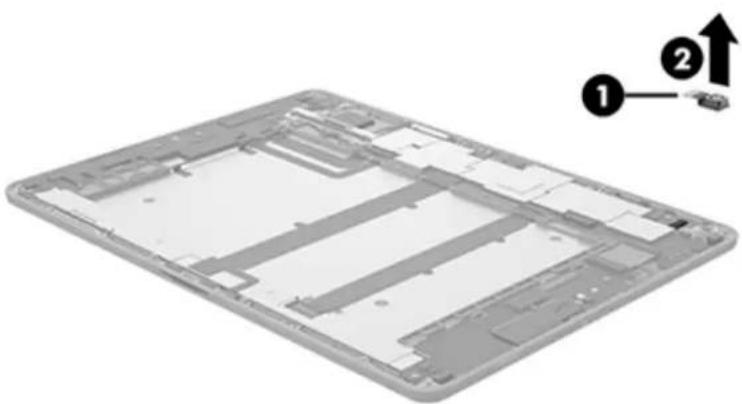
Reverse this procedure to install the front-facing webcam.
Volume and power button board
Description Spare part number
Volume and power button board 795935-001
Before removing the volume and power button board, follow these steps:
- Turn off the tablet. If you are unsure whether the tablet is off, turn the tablet on, and then shut it down through the operating system.
- Disconnect the power from the tablet by unplugging the power adapter cord from the tablet.
- Disconnect all external devices from the tablet.
- Remove the back cover (see Back cover on page 14).
- Remove the battery (see Battery on page 15).
- Remove the rear-facing webcam (see Rear-facing webcam on page 16).
- Remove the front-facing webcam (see Front-facing webcam on page 17).
▲ Remove the volume and power button board:
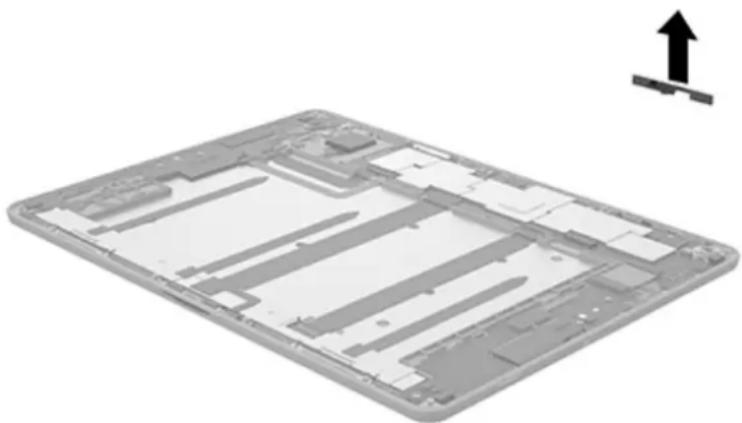
Reverse this procedure to install the volume and power button board.
Speakers
Description Spare part number
Top Speaker Kit (includes speaker and cables) 795933-001
Bottom Speaker Kit (includes speaker and cables) 795927-001
Before removing the speakers, follow these steps:
- Turn off the tablet. If you are unsure whether the tablet is off, turn the tablet on, and then shut it down through the operating system.
- Disconnect the power from the tablet by unplugging the power adapter cord from the tablet.
- Disconnect all external devices from the tablet.
- Remove the back cover (see Back cover on page 14).
- Remove the battery (see Battery on page 15).
- Remove the rear-facing webcam (see Rear-facing webcam on page 16).
- Remove the front-facing webcam (see Front-facing webcam on page 17).
- Remove the volume and power button board (see Volume and power button board on page 19).
Remove the top speaker:
- Disconnect the top speaker cable from the system board (1), and then carefully release the cable from the routing channels (2).
- Remove one Torx 4 screw from the rubber speaker protector (3).
- Remove the speaker (4).

Remove the bottom speaker:

Reverse this procedure to install the speakers.
Antenna board
Description Spare part number
Antenna (includes antenna cable and transceiver) 808086-001
For models with WWAN capability 795923-001
For models without WWAN capability 808434-001
Before removing the antenna board, follow these steps:
- Turn off the tablet. If you are unsure whether the tablet is off, turn the tablet on, and then shut it down through the operating system.
- Disconnect the power from the tablet by unplugging the power adapter cord from the tablet.
- Disconnect all external devices from the tablet.
- Remove the back cover (see Back cover on page 14).
- Remove the battery (see Battery on page 15).
- Remove the rear-facing webcam (see Rear-facing webcam on page 16).
- Remove the front-facing webcam (see Front-facing webcam on page 17).
- Remove the volume and power button board (see Volume and power button board on page 19).
- Remove the top and bottom speakers (see Speakers on page 19). Remove the antenna board:
- Disconnect the antenna board cable (1) from the system board, and then remove it (2).
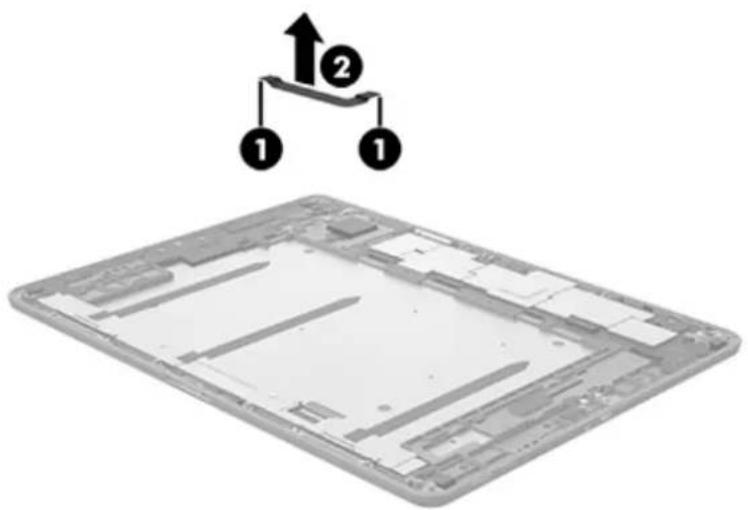
- Detach the antenna board (1) from the display panel assembly, and then remove it (2).
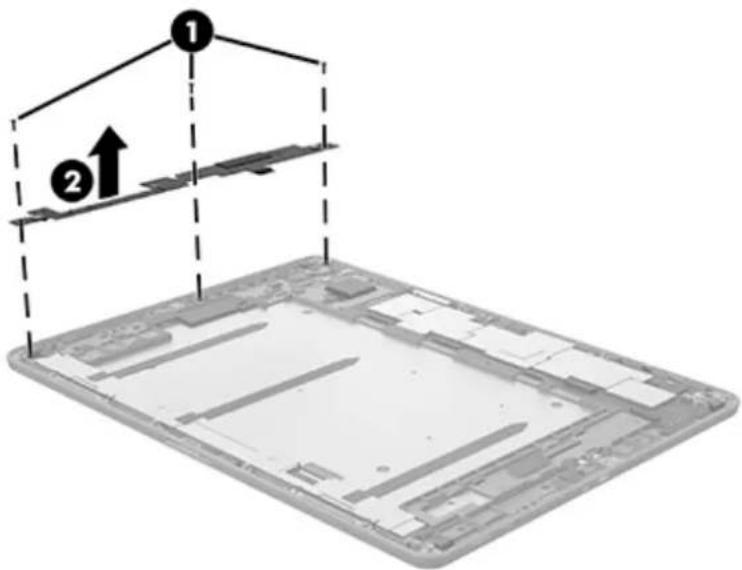
Reverse this procedure to install the antenna board.
Description Spare part number
Connector board 795928-001
Before removing the connector board, follow these steps:
- Turn off the tablet. If you are unsure whether the tablet is off, turn the tablet on, and then shut it down through the operating system.
- Disconnect the power from the tablet by unplugging the power adapter cord from the tablet.
- Disconnect all external devices from the tablet.
- Remove the back cover (see Back cover on page 14).
- Remove the battery (see Battery on page 15).
- Remove the rear-facing webcam (see Rear-facing webcam on page 16).
- Remove the front-facing webcam (see Front-facing webcam on page 17).
- Remove the volume and power button board (see Volume and power button board on page 19).
- Remove the top and bottom speakers (see Speakers on page 19).
- Remove the antenna board (see Antenna board on page 22).
Remove the connector board:
Remove three Torx 4 screws (1) from the display panel assembly, and then remove the connector board (2).
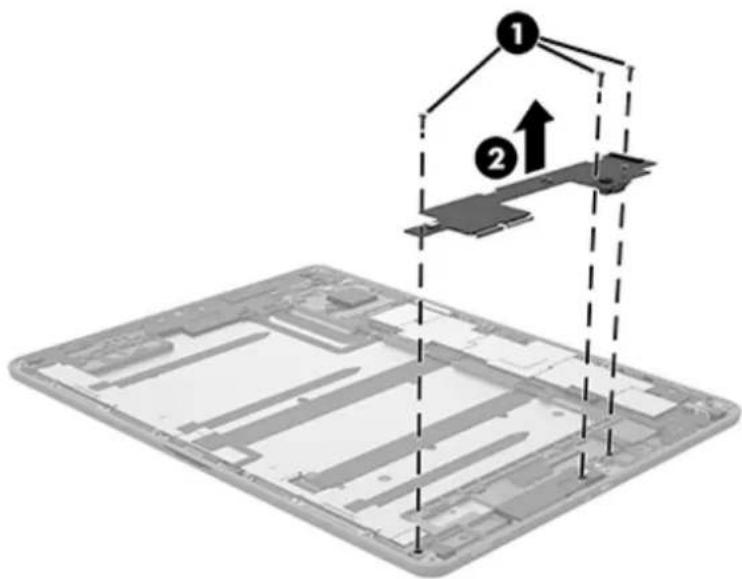
Reverse this procedure to install the connector board.
Description Spare part number
System board equipped with Qualcomm APQ8074AB, Quad Core, 2.3GHz with GPS and 32 GB eMMC hard drive for models without WWAN capability
System board equipped with Qualcomm APQ8074AB, Quad Core, 2.3GHz without GPS and 32 GB eMMC 800053-001 hard drive for models with WWAN capability
Before removing the system board, follow these steps:
- Turn off the tablet. If you are unsure whether the tablet is off, turn the tablet on, and then shut it down through the operating system.
- Disconnect the power from the tablet by unplugging the power adapter cord from the tablet.
- Disconnect all external devices from the tablet.
- Remove the back cover (see Back cover on page 14).
- Remove the battery (see Battery on page 15).
- Remove the rear-facing webcam (see Rear-facing webcam on page 16).
- Remove the front-facing webcam (see Front-facing webcam on page 17).
- Remove the volume and power button board (see Volume and power button board on page 19).
- Remove the top and bottom speakers (see Speakers on page 19).
- Remove the antenna board (see Antenna board on page 22).
- Remove the connector board (see Connector board on page 24).
Remove the system board:
- Release the system board ZIF connectors to which the following cables are connected, and then disconnect the following cables from the system board:
(1) Button board (2) Touch controller (3) Display panel graphics
- Remove the four Torx 4 screws (1) that secure the system board to the display panel assembly, and then remove the system board (2).
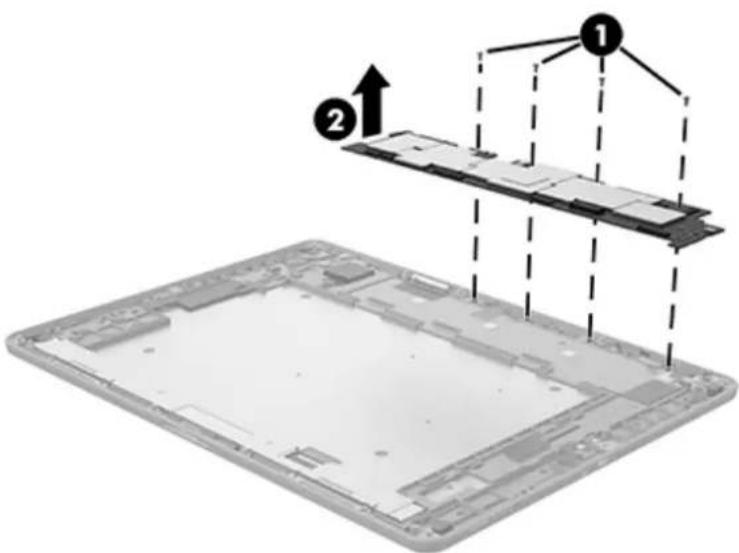
Reverse this procedure to install the system board.
Docking charger
Description Spare part number
Docking charger 808817-001
Before removing the docking charger, follow these steps:
- Turn off the tablet. If you are unsure whether the tablet is off, turn the tablet on, and then shut it down through the operating system.
- Disconnect the power from the tablet by unplugging the power adapter cord from the tablet.
- Disconnect all external devices from the tablet.
- Remove the back cover (see Back cover on page 14).
- Remove the battery (see Battery on page 15).
- Remove the rear-facing webcam (see Rear-facing webcam on page 16).
- Remove the front-facing webcam (see Front-facing webcam on page 17).
- Remove the volume and power button board (see Volume and power button board on page 19).
- Remove the top and bottom speakers (see Speakers on page 19).
- Remove the antenna board (see Antenna board on page 22).
- Remove the connector board (see Connector board on page 24).
- Remove the system board (see System board on page 25). Remove the docking charger:
▲ Release the docking charger (1) from the metal frame, and then remove it (2).

Reverse this procedure to install the docking charger.
Outer ring
Description Spare part number
Outer ring for models with WWAN capability 807960-001
Outer ring for models without WWAN capability 807960-001
- Turn off the tablet. If you are unsure whether the tablet is off, turn the tablet on, and then shut it down through the operating system.
- Disconnect the power from the tablet by unplugging the power adapter cord from the tablet.
- Disconnect all external devices from the tablet.
- Remove the back cover (see Back cover on page 14).
- Remove the battery (see Battery on page 15).
- Remove the rear-facing webcam (see Rear-facing webcam on page 16).
- Remove the front-facing webcam (see Front-facing webcam on page 17).
- Remove the volume and power button board (see Volume and power button board on page 19).
- Remove the top and bottom speakers (see Speakers on page 19).
- Remove the antenna board (see Antenna board on page 22).
- Remove the connector board (see Connector board on page 24).
- Remove the system board (see System board on page 25).
- Remove the docking charger (see Docking charger on page 26).
Remove the outer ring:
- Remove four Torx 4 screws (1), and then remove both metal brackets from the outer ring (2).

- Remove eight Torx 4 screws (1) from the outer ring, and then lift the outer ring (2) from the display assembly.

Reverse this procedure to install the outer ring.
7 Specifications
| Metric | U.S. | |
| Dimensions (portrait orientation) | ||
| Height 11.07 cm 4.36 in | ||
| Width 19.27 cm 7.59 in | ||
| Depth 0.99 cm 0.37 in | ||
| Weight (lowest weight configuration) 0.36 kg 0.79 lb | ||
| Input power | ||
| The tablet operates on DC power, which can be supplied by an AC or a DC power source. The AC power source must be rated at 100-240 V, 50/60 Hz, 0.3-1.0 A. | ||
| NOTE: The tablet can operate on DC power using an industry-standard micro-B USB cable. The HP 5V 2A adapter included with your tablet is recommended for charging the tablet. | ||
| Temperature | ||
| Operating 5°C to 35°C 41°F to 95°F | ||
| Nonoperating -20°C to 60°C -4°F to 140°F | ||
| Relative humidity (non-condensing) | ||
| Operating 10% to 90% | ||
| Nonoperating 5% to 95% | ||
| Maximum altitude (unpressurized) | ||
| Operating | -15 m to 3,048 m | -50 ft to 10,000 ft |
| Nonoperating | -15 m to 12,192 m | -50 ft to 40,000 ft |
| NOTE: Applicable product safety standards specify thermal limits for plastic surfaces. The device operates well within this range of temperatures. | ||
8 Backing up and recovering your data
Updating apps, widgets, and the operating system
HP recommends that you update your apps, widgets, and the operating system on a regular basis to the latest versions. Updates can resolve issues and bring new features and options to your tablet. Technology is always changing, and updating apps, widgets, and the operating system allows your tablet to run the latest technology available. For example, older apps and widgets might not work well with the most recent operating system.
If you download the latest versions of HP and third-party apps and widgets, the operating system will download system updates automatically and notify you when it is ready to install these updates. If you want to update the operating system manually, go to http://www.hp.com/support.
Back up and reset
HP strongly encourages that you periodically back up your personal data on your tablet to another computer, a dedicated storage device, or to the cloud using one of several commercially available solutions.
You can select preferences for backing up and restoring your data in case of loss.
- Touch
- Under PERSONAL, touch Back up & reset.
- Under BACKUP & RESTORE, select one or more of the following:
- Back up my data—Select the check box to enable backing up app data, wireless passwords, and other settings to Internet servers, or clear the check box to disable this feature.
- Backup account—Select an email account for backing up data.
- Automatic restore—Select the check box to enable backed up settings and data to be restored when an app is reinstalled, or clear the check box to disable this feature.
Factory data reset
Resetting with the tablet turned on
If the tablet starts normally, and if you are able to sign in to the owner account (the first account added to the device), follow the steps in this section.
To reset all settings and delete all data on the device:
- Touch
- Under PERSONAL, touch Back up & reset.
- Under PERSONAL DATA, select Factory data reset.
CAUTION: All data saved on your device is deleted when you perform a factory reset. All apps are uninstalled. It may be possible to restore data in your email account. Back up all important files with an external storage device or to the cloud using one of several commercially available solutions, before resetting the tablet.
- Touch Reset tablet.
- If you set a lock screen password for your tablet, enter your password when prompted.
- Touch Erase everything to begin the reset.
The tablet turns off. When the reset is complete, the tablet starts.
Resetting with the tablet turned off
If the tablet does not start normally, or if you do not remember the lock screen password, you can reset the tablet without turning it on.
CAUTION: All data saved on your device is deleted when you perform a factory reset. All apps are uninstalled, but it may be possible to restore data in your email account. Back up all important files with an external storage device or to the cloud using one of several commercially available solutions, before resetting the tablet. NOTE: The touch screen is disabled when the device is in recovery mode. Use the volume up (+) and volume down (-) buttons to navigate up or down in the recovery menu.
- Charge the tablet for at least half an hour, and then disconnect the AC adapter from the tablet.
- If a micro SD card is installed in the tablet, remove the memory card before resetting the tablet.
- With the tablet turned off, press and hold the power button, and then press the volume up (+) button at the same time.
- Press and hold the power button and the volume up (+) button for several seconds.
- When the Select Boot Mode appears, press the volume up (+) button to highlight Recovery, and then press the power button to select Recovery.
- Press and hold the power button, and then press the volume up (+) button once to enter Recovery mode.
- Press the volume down (-) button to highlight wipe data/factory reset, and then press the power button to begin the reset.
- Press the volume down (-) button to select Yes – delete all user data, and then press the power button.
A recovery system screen shows the reset process.
- When the screen displays the message Data wipe complete, press the volume down (-) button to highlight Reboot system now, and then press the power button to select.
The tablet will restart.
9 Power adapter requirements
The wide-range input feature of the tablet permits it to operate from any line voltage from 100 to 120 volts AC, or from 220 to 240 volts AC.
The 2-conductor power adapter included with the tablet meets the requirements for use in the country or region where the equipment is purchased.
Power adapters for use in other countries and regions must meet the requirements of the country or region where the tablet is used.
Requirements for all countries
The following requirements are applicable to all countries and regions:
The length of the adapter cord set must be at least 1.0 m (3.3 ft) and no more than 2.0 m (6.5 ft). - All power adapters must be approved by an acceptable accredited agency responsible for evaluation in the country or region where the adapter will be used.
Requirements for specific countries and regions
| Country/region Accredited agency | |
| Argentina IRAM | |
| Australia SAA | |
| Austria OVE | |
| Belgium CEBEC | |
| Brazil ABNT | |
| Canada CSA | |
| Chile IMQ | |
| Denmark DEMKO | |
| Finland FIMKO | |
| France UTE | |
| Germany VDE | |
| India ISI | |
| Israel SII | |
| Italy IMQ | |
| Japan JIS | |
| The Netherlands | KEMA |
| New Zealand | SANZ |
| Country/region Accredited agency |
| Norway NEMKO |
| The People's Republic of China CCC |
| Saudi Arabia SASO |
| Singapore PSB |
| South Africa SABS |
| South Korea KTL |
| Sweden SEMKO |
| Switzerland SEV |
| Taiwan BSMI |
| Thailand TISI |
| The United Kingdom ASTA |
| The United States UL |
10 Recycling
When a non-rechargeable or rechargeable battery has reached the end of its useful life, do not dispose of the battery in general household waste. Follow the local laws and regulations in your area for battery disposal.
HP encourages customers to recycle used electronic hardware, HP original print cartridges, and rechargeable batteries. For more information about recycling programs, see the HP Web site at http://www.hp.com/recycle.
Index
A
AC adapter, spare part numbers 6, 7
ambient light sensor, location 2
Antenna
spare part number 7
antenna
spare part number 6, 8
antenna board
removal 22
spare part number 5, 6, 22
audio jack
spare part number 6
audio, product description 1
audio-out jack 2
B
back cover
removal 14
spare part number 4, 7, 14
backup and recovery 30
battery
removal 15
spare part number 4, 7, 15
buttons
power 2
volume control 2
C
cables, service considerations 10
Card Reader slot, location 2
connector board
removal 24
spare part number 4, 7, 24
connectors, service considerations 10
D
display panel assembly, spare part number 5, 7
display panel, product description 1
docking charger
removal 26
spare 26
spare part number 4, 8
E
electrostatic discharge 10
equipment guidelines 13
external expansion, product description 1
F
factory data reset 30
front-facing webcam
location 2
removal 17
spare part number 4, 7, 17
G
grounding guidelines 10
guidelines
equipment 13
grounding 10
packaging 12
transporting 12
workstation 12
H
headphone jack 2
HP Touchpoint Manager 9
J
jacks
audio-out 2
headphone 2
M
mass storage device, product description 1
memory module, product description 1
microphone, location 2
microphone, product description 1
model name 1
0
operating system, product description 1
outer ring
removal 27
spare part number 5, 7, 27
P
packaging guidelines 12
plastic parts, service
considerations 10
plastics kit
spare part number 6, 7
ports
product description 1
USB 2.0 2
power adapter
set requirements 32
power adapter, spare part numbers 5
power button 2
power button board removal 19
spare part number 4, 7, 19
power requirements, product description 1
processor, product description 1
product description audio 1
display panel 1
external expansion 1
mass storage 1
memory module 1
microphone 1
operating system 1
ports 1
power requirements 1
processors 1
product name 1
sensor 1
serviceability 1
storage 1
video 1
wireless networking 1
product name 1
pWWAN module
spare part number 6
Q
Q-Pen
spare part number 6
R
rear-facing webcam
location 2
removal 16
spare part number 4, 7, 16
reset 30, 31
W
webcamera
location 2
removal 16, 17
spare part numbers 4, 7, 16, 17
wireless networking, product
description 1
workstation guidelines 12
WWAN module
spare part number 6
S
Screw Kit, spare part number 6, 7
sensor, product description 1
service considerations
cables 10
connectors 10
plastic parts 10
serviceability, product description 1
SIM slot, location 2
speaker
location 2
removal 19
spare part number 4, 7, 19
Speaker Kit, spare part number 4, 7, 19
storage, product description 1
system board
removal 25
spare part number 4, 5, 25
T
tablet
major components 4
spare part number 6, 7, 8
specifications 29
tools required 10
transporting guidelines 12
U
USB 2.0 port, location 2
USB sub board
spare part number 8
v
video, product description 1
volume button board
removal 19
spare part number 19
volume control buttons
location 2

- HP PRO SLATE 12 TABLET
- PRODUCT NOTICE
- SOFTWARE TERMS
- SAFETY WARNING NOTICE
- TABLE OF CONTENTS
- PRODUCT DESCRIPTION
- EXTERNAL COMPONENT IDENTIFICATION
- ILLUSTRATED PARTS CATALOG
- LOCATING THE SERIAL NUMBER AND MODEL NUMBER
- HP TOUCHPOINT MANAGER SOFTWARE
- REMOVAL AND REPLACEMENT PRELIMINARY REQUIREMENTS
- TOOLS REQUIRED
- SERVICE CONSIDERATIONS
- PLASTIC PARTS
- CABLES AND CONNECTORS
- GROUNDING GUIDELINES
- ELECTROSTATIC DISCHARGE DAMAGE
- PACKAGING AND TRANSPORTING GUIDELINES
- WORKSTATION GUIDELINES
- EQUIPMENT GUIDELINES
- REMOVAL AND REPLACEMENT PROCEDURES
- TABLET COMPONENT REPLACEMENT PROCEDURES
- BACK COVER
- BATTERY
- REAR-FACING WEBCAM
- FRONT-FACING WEBCAM
- VOLUME AND POWER BUTTON BOARD
- SPEAKERS
- ANTENNA BOARD
- DESCRIPTION SPARE PART NUMBER
- DOCKING CHARGER
- OUTER RING
- SPECIFICATIONS
- BACKING UP AND RECOVERING YOUR DATA
- UPDATING APPS, WIDGETS, AND THE OPERATING SYSTEM
- BACK UP AND RESET
- FACTORY DATA RESET
- RESETTING WITH THE TABLET TURNED ON
- RESETTING WITH THE TABLET TURNED OFF
- POWER ADAPTER REQUIREMENTS
- REQUIREMENTS FOR ALL COUNTRIES
- RECYCLING
- INDEX
- A
- B
- C
- D
- E
- F
- G
- H
- J
- M
- P
- Q
- R
- W
- S
- T
- U
- V
Brand : HP
Model : Pro Slate 12 Kit
Category : Tablet