
ZBX0HW69804 - Headphones TURTLE BEACH - Free user manual and instructions
Find the device manual for free ZBX0HW69804 TURTLE BEACH in PDF.


| Product Type | Gaming Headset |
| Brand | Turtle Beach |
| Model | ZBX0HW69804 (Titanfall Ear Force Atlas) |
| Compatible Platforms | Xbox One, Xbox 360, PC, Mobile devices |
| Speaker Diameter | 50 mm |
| Speaker Frequency Response | 20 Hz – 20 kHz |
| Microphone Frequency Response | 100 Hz – 10 kHz |
| Earcup Style | Around-ear (circumaural) |
| Sound Pressure Level | 120 dB @ 1 kHz |
| Total Harmonic Distortion | 1% |
| Headphone Cable Length | 3 feet (0.91 m) with stereo 3.5 mm plug |
| Weight | 10.6 oz (301 g) |
| Audio Connection (PC) | USB and stereo 3.5 mm |
| Audio/Mic Connection (Xbox One) | Xbox One Audio Adapter |
| Audio Connection (Xbox 360) | RCA (analog) |
| Mic Connection (PC) | USB |
| Amplifier Power | USB powered |
| Controls | Game/chat mix, volume, mic mute, bass boost (Xbox 360/PC), mic monitor |
| Microphone | Removable, high-quality condenser mic |
| Special Features | Twist-cup design, breathable mesh cushions, bass boost, mic monitor |
| Warranty | 1 year limited |
| Cleaning | Wipe with dry cloth; disconnect cables before transport |
Frequently Asked Questions - ZBX0HW69804 TURTLE BEACH
User questions about ZBX0HW69804 TURTLE BEACH
0 question about this device. Answer the ones you know or ask your own.
Ask a new question about this device
Download the instructions for your Headphones in PDF format for free! Find your manual ZBX0HW69804 - TURTLE BEACH and take your electronic device back in hand. On this page are published all the documents necessary for the use of your device. ZBX0HW69804 by TURTLE BEACH.
USER MANUAL ZBX0HW69804 TURTLE BEACH
natural_image
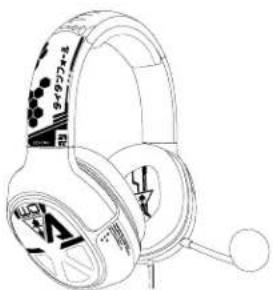
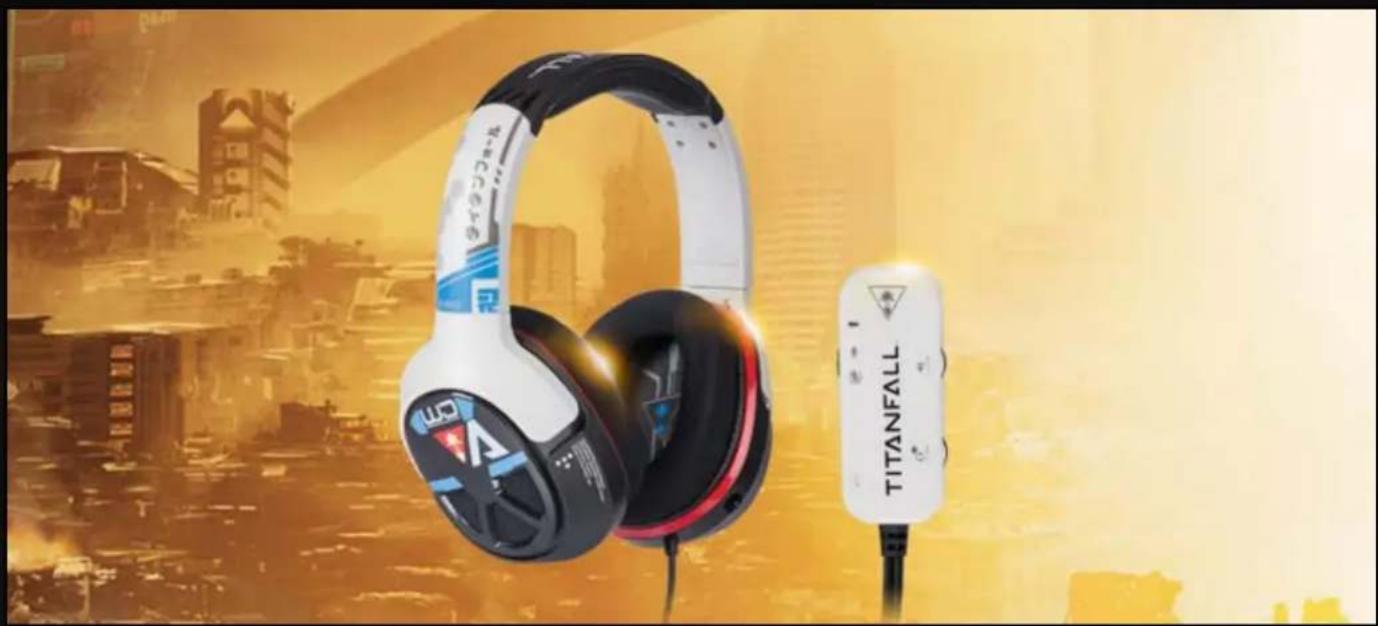
Exterior view of a modern white and blue headboard with 'TITANFALL' branding, displayed indoors (no signage on main subject)Congratulations on your purchase of the Titanfall™ Ear Force® Atlas headset from Turtle Beach. You'll enjoy powerful gaming audio and chat with Xbox 360 and Xbox One consoles as well as PCs and even mobile entertainment sources. Turtle Beach brings over 35 years of expertise to transforming your listening experience. Welcome to Turtle Beach!
In the Box
For our Knowledgebase and Technical Support please visit:
turtlebeach.com/support
natural_image
Line drawing of a pair of headphones with earphones and decorative logos (no text or symbols)A
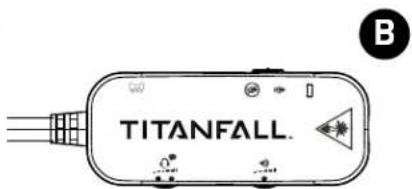
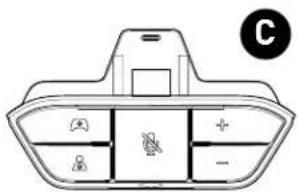
Titanfall Ear Force ATLAS Headset Xbox One Titan Airline Ear Operator ATLAS In-line Amplifier
natural_image
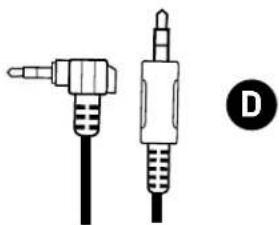
Two types of audio jack cables with connectors, one plain and one with a circular icon labeled D (no text or symbols on the cables themselves)Xbox 360 Chat Cable
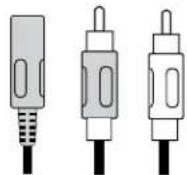
RCA Splitter Cable Turtle Beach Sticker
E

●

G
USB Micro Cable
natural_image
Product display featuring a white headboard with 'TITANFALL' branding and a black-and-white headset against a golden cityscape background (no readable text beyond branding)Table of Contents
About the Titanfall Ear Force Atlas Headset 5
Parts and Controls 6
Setup and Connections: Xbox One Consoles 7
Setup and Connections: Xbox 360 Consoles 9
Setup and Connections: PC 15
Setup and Connections: Mobile Sources 17
Specifications
18
Troubleshooting Tips 19
Important Safety Information 20
About the Titanfall Ear Force Atlas Headset
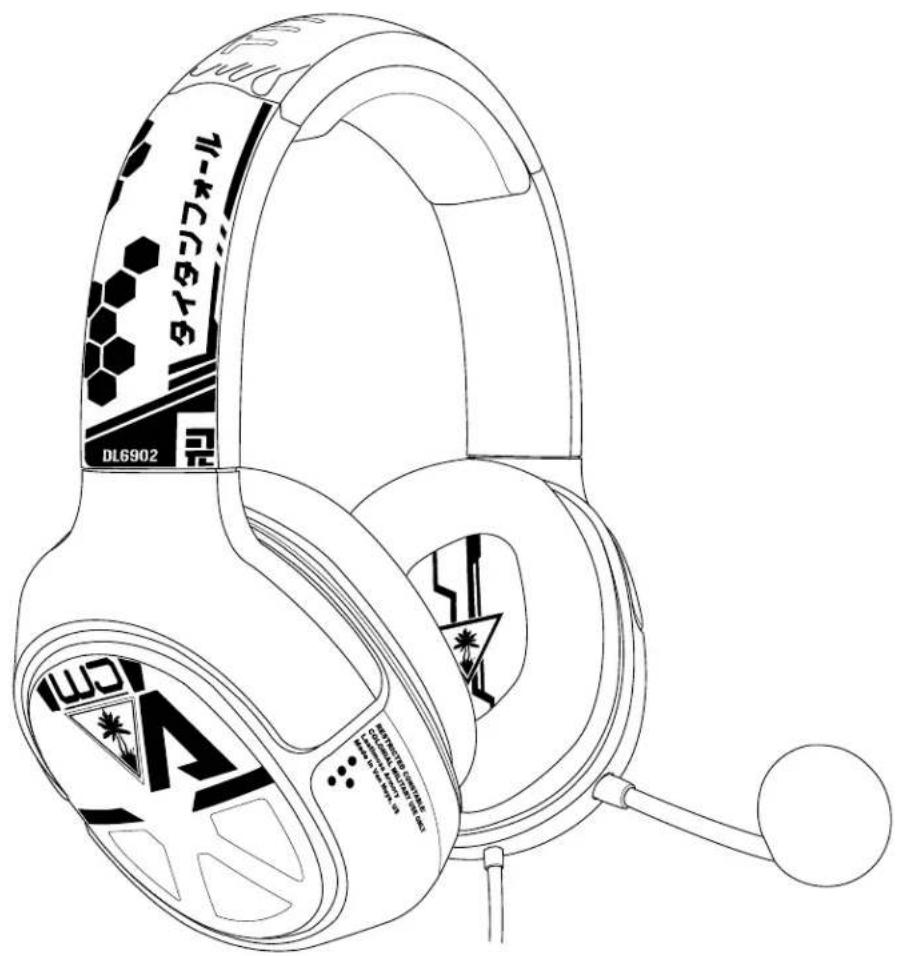
The Titanfall Ear Force Atlas unlocks the audio potential of Titanfall on every platform: Xbox One, Xbox 360 and PC. To get the most from your headset, please take a few moments to review this introduction.
Overview
Engage in fast-paced, vertical warfare with the Titanfall™ Ear Force® Atlas Official Gaming Headset. Feel every bone-jarring footfall of your massive Titan, pinpoint enemy locations and stay in clear communication with other pilots as you battle for control of the Frontier.
- Ready for Titanfall. Designed for Xbox One and compatible with Xbox 360 and PC to work with all versions of Titanfall.
- Customize your audio. Personalize game and chat mix volume, plus mic mute right at your fingertips.
- Be heard loud and clear. High-quality removable mic for chat on Xbox One, Skype, Xbox 360 and many other voice applications.
- Comfortable, twist-cup design. Breathable mesh cushions on the earcups rotate to flat for wearing around your neck.
- Mobile device compatibility. Take your headset with you for mobile gaming on phones, tables or other devices.
- Bass boost. Adds more depth and punch to the game audio (Xbox 360 and PC only).
- Mic monitor. Hear your own voice in the headset to avoid shouting.
- For Your Entertainment. The headset isn't just great for Titanfall. Enjoy your favorite movies and TV shows with superior sound. Then crank up your tunes from music services like Xbox Music, or Skype with friends!

natural_image
Line drawing of a multi-head headphones with hexagonal head cover and brand logo (no text or symbols on the device itself)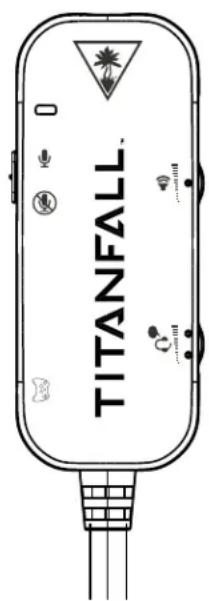
Parts and Controls
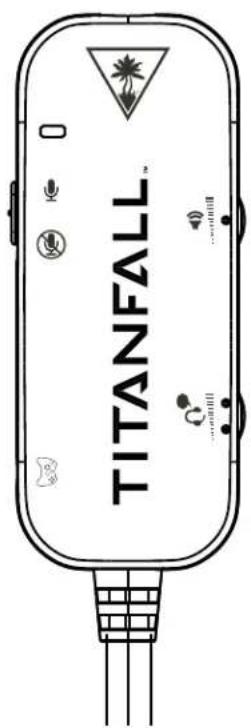
In-Line Amplifier (for Xbox 360 and PC)
Mic Status LED
Green = Mic On
Red = Mic Off
Mic Switch
Mic On
Mic Off
Xbox 360 Chat Jack
Connect the Xbox 360
chat cable here.
Always insert firmly.
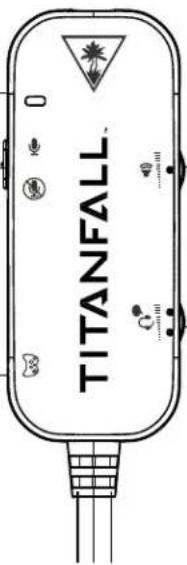
Game Volume
Adjusts the volume for game, music and other audio sources.
Chat Volume
Adjusts the volume for chat.
natural_image
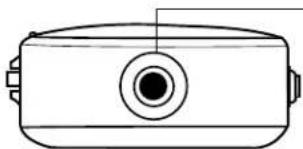
Technical line drawing of a mechanical component with a central circular feature and flanged ends (no text or symbols)Top View
Headset Jack
Connect the headset plug here.
Always insert firmly.
Xbox One Audio Adapter
Mic Mute
Press to turn off the microphone. Press again to turn it back on.
(LED will glow when muted)
Chat/Game Balance Buttons
Adjust the relative volume level to emphasize either Game (controller icon) or Chat (person icon).
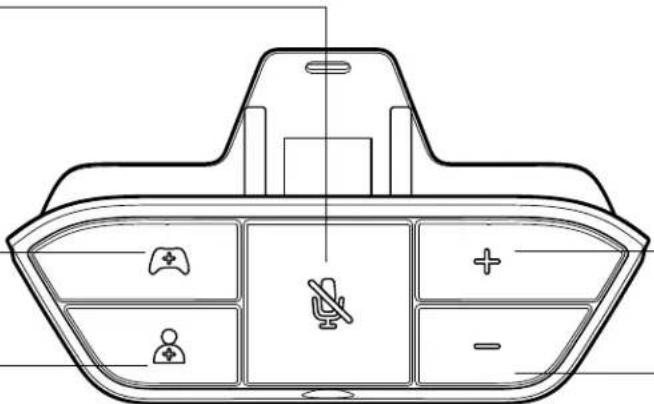
Volume Up
Press to increase overall game and chat volume.
Volume Down
Press to lower overall game and chat volume.
Headset Jack
Connect the headset plug here. Always insert firmly.
Setup and Connections: Xbox One Consoles
The Titanfall Ear Force Atlas headset is supplied with a convenient Xbox One Audio Adapter that plugs directly into the Xbox One controller (not supplied with the headset). The adapter places game volume, chat volume and mic mute controls right where your thumbs can operate them.
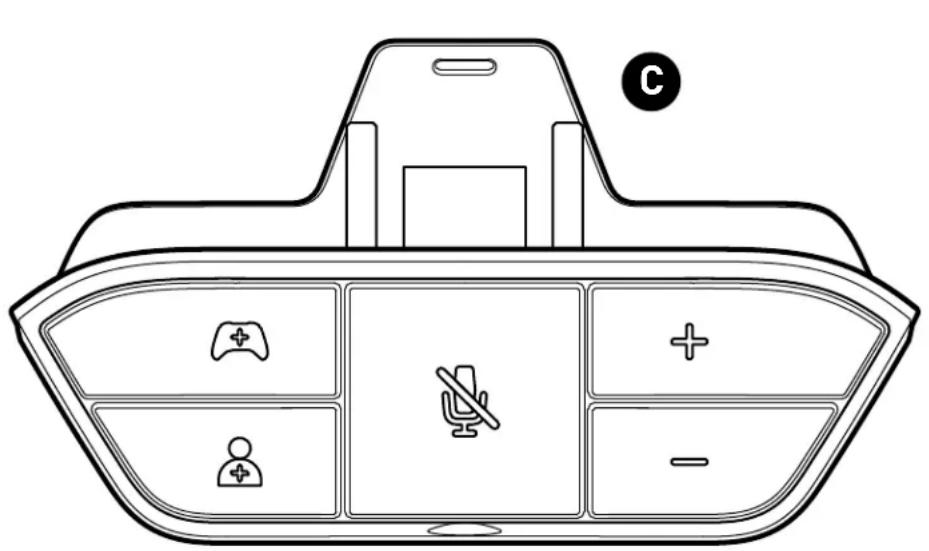
Xbox One™ Audio Adapter
natural_image
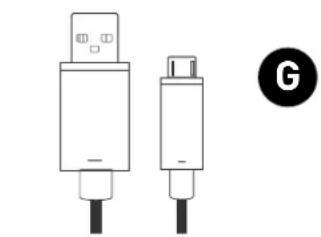
Diagram of two USB connectors with labeled terminals (no text or symbols on the devices themselves)USB Micro Cable
Updating the Xbox One controller firmware
To use the adapter with an Xbox One controller, you first need to update the controller firmware.
Perform the following steps.
- Confirm that your Xbox One console is powered on.
- Open the battery compartment on the back of the Xbox One controller and remove the batteries.
- Insert the Xbox One Audio Adapter into the Xbox One Controller.
- Insert the cable from your headset firmly into the headset jack of the Xbox One Audio Adapter.
- Plug the big end of the USB cable supplied with the Xbox One Controller into the USB port on the side of the console.
- Plug the small end of the USB cable into the top of the controller.
- Follow the on-screen instructions from your Xbox One console to update the firmware.
NOTE: Do not disconnect your controller or turn off your Xbox One console while the update is in progress. - When the update is complete, unplug the USB cable from the controller and replace the batteries.
- Press the Xbox button on the controller to turn it back on.
NOTE: Confirm that all connections are firmly inserted.
Setup and Connections: Xbox One Consoles
Connecting to the Xbox One controller
natural_image
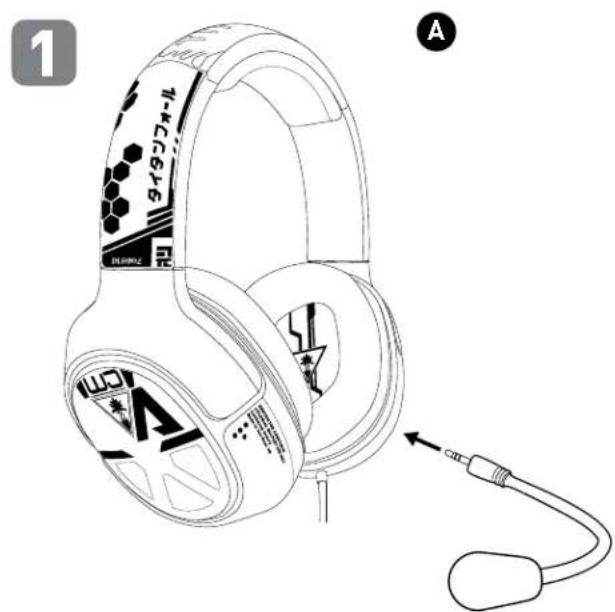
Line drawing of a multi-head headphones with decorative patterns and a cable connector (no text or symbols)- Insert the microphone boom plug into the jack on the left earcup of the headset.

- Insert the Xbox One Audio Adapter into the Xbox One Controller.
- Insert the cable from your headset into the headset jack of the Xbox One Audio Adapter.
NOTE: For reliable sound, confirm that all connections are firmly inserted.
Setup and Connections: Xbox 360 Consoles
The Titanfall Ear Force Atlas headset is packaged with an In-Line Amplifier, an Xbox 360 Chat Cable and an RCA Splitter Cable that provide connection to the Xbox 360 Console and Xbox 360 controller (not supplied with the headset). The In-Line Amplifier places game volume, chat volume and mic mute controls within easy reach. The In-Line Amplifier also provides bass boost.
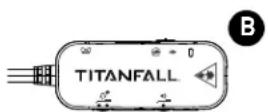
Titanfall Ear Force ATLAS
In-line Amplifier
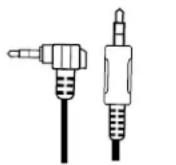
Xbox 360 Chat Cable
D

RCA Splitter Cable
Determine your Xbox 360 console type and connection type
Your method of connecting will depend on the specific type of Xbox 360 console you own (Original, Slim or E) and the method you're using to connect the console to your television (HDMI™ or RCA cable).
1. Identify your Xbox 360 console.
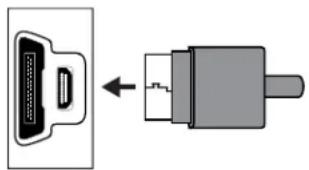
Xbox 360 Original and Slim consoles use a trapezoidal AV connector.
natural_image
Diagram showing a connector with a USB cable and its internal structure, no text or symbols present.Xbox 360 E consoles use a circular AV connector.

2. Identify the connection from your Xbox 360 console to your TV.
An HDMI connection to your TV uses a single plug for both Video and Audio.
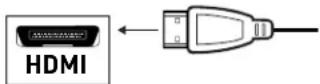
Composite and component video connections to your TV use three or more color-coded RCA plugs.

2. Identify the connection from your Xbox 360 console to your TV.
An HDMI connection to your TV uses a single plug for both Video and Audio.
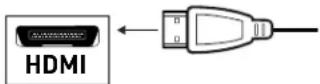
Composite and component video connections to your TV use three or more color-coded RCA plugs.
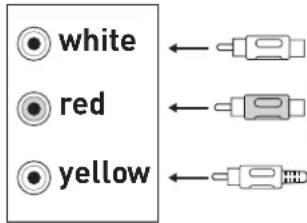
Go to page 10. Go to page 11. Go to page 12. Go to page 13.
Setup and Connections: Xbox 360 Consoles
Xbox 360 Original and Slim HDMI® Connections
- Insert the microphone boom plug into the jack on the left earcup of the headset.

flowchart
graph TD
    A["Insert the microphone boom plug into the jack on the left earcup of the headset."] --> B["HDMI"]
    B --> C["Xbox 360® Audio Adapter*"]
    C --> D["TITANFALL"]
    D --> E["USB"]
    E --> F["USB"]
    F --> G["Computer"]
    H["Device A"] --> I["Headset 1"]
    J["Device B"] --> K["Headset 2"]
    L["Device C"] --> M["Device D"]
    N["Device E"] --> O["Device F"]
    P["Device G"] --> Q["Device H"]
- Insert the cable from your headset into the headset jack of the In-Line Amplifier.
- Insert the Xbox 360 Audio Adapter, sold separately, into the multi-pin connector on the Xbox 360 console.
- Insert the Red and White RCA plugs of the RCA Splitter Cable, into the Red and White RCA jacks of the Xbox 360 Audio Adapter.
- Insert the 3.5 mm plug from the In-Line Amplifier into the 3.5 mm jack of RCA Splitter Cable.
- Insert the L-shaped 2.5 mm plug of the Xbox 360 Chat Cable into the chat jack of the Xbox 360 controller (not included).
- Insert the straight 2.5 mm plug of the Xbox 360 Chat Cable into the Xbox 360 Chat Jack of the In-Line Amplifier.
- Insert the USB plug of the In-Line Amplifier into a USB port of the Xbox 360 console. NOTE: For reliable sound, confirm that all connections are firmly inserted.
* Xbox 360 Original and Slim models require an Xbox 360 Audio Adapter, sold separately, when used with an HDMI connection. This adapter is available from turtlebeach.com.
* As an alternative, if your television has available RCA Audio Output jacks, you can use these to supply sound from the television to the headset. (Only use the television's Audio Output jacks. Audio Input jacks will not send sound to your headset.)
Setup and Connections: Xbox 360 Consoles
Xbox 360 Original and Slim RCA Connections
- Insert the microphone boom plug into the jack on the left earcup of the headset.

flowchart
graph TD
    A["Image Panel"] -->|USB| B["USB"]
    B --> C["White Audio Cable"]
    C --> D["Red Audio Cable"]
    D --> E["Yellow Audio Cable"]
    E --> F["White Audio Cable"]
    F --> G["Titanfall Headset"]
    G --> H["Audio Headset"]
    style A fill:#f9f,stroke:#333
    style H fill:#bbf,stroke:#333
    note1["Insert the microphone boom plug into the jack on the left earcup of the headset."
    (1)
    (2)
    (3)
    (4)
    (5)
    (6)
    (7)
    (8)
    (9)
    (10)
    (11)
    (12)
    (13)
    (14)
    (15)
    (16)
    (17)
    (18)
    (19)
    (20)
    (21)
    (22)
    (23)
    (24)
    (25)
    (26)
    (27)
    (28)
    (29)
    (30)
    (31)
    (32)
    (33)
    (34)
    (35)
    (36)
    (37)
    (38)
    (39)
    (40)
    (41)
    (42)
    (43)
    (44)
    (45)
    (46)
    (47)
    (48)
    (49)
    (50)
    (51)
    (52)
    (53)
    (54)
    (55)
    (56)
    (57)
    (58)
    (59)
    (60)
- Insert the cable from your headset into the headset jack of the In-Line Amplifier.
- Locate the Xbox 360 AV cable running from your console to the input panel of your television.
- Disconnect the Xbox 360 AV cable's Red and White RCA plugs from the Audio Inputs of your television.
- Insert the Xbox 360 AV cable's Red and White RCA plugs into the Red and White RCA jacks of the RCA Splitter Cable.
- Insert the Red and White RCA plugs of the Xbox 360 AV Cable into the back of the RCA Splitter cable connections. The Plugs should now be "piggybacked", red on red, white on white.
- Insert the 3.5 mm plug from the In-Line Amplifier into the 3.5 mm jack of RCA Splitter Cable.
- Insert the L-shaped 2.5 mm plug of the Xbox 360 Chat Cable into the chat jack of the Xbox 360 controller (not included).
- Insert the straight 2.5 mm plug of the Xbox 360 Chat Cable into a Xbox 360 Chat Jack of the In-Line Amplifier.
- Insert the USB plug of the In-Line Amplifier into a USB port of the Xbox 360 console. NOTE: For reliable sound, confirm that all connections are firmly inserted.
Setup and Connections: Xbox 360 Consoles
Xbox 360 E HDMI Connections
- Insert the microphone boom plug into the jack on the left earcup of the headset.

natural_image
Illustration of a pair of Alcati-branded headphones with ear labels and a cable, no text or symbols present.
flowchart
graph TD
    A["TV System"] -->|HDMI| B["Titanfall Device"]
    B -->|USB| C["USB"]
    C --> D["Device 1"]
    D --> E["Device 2"]
    E --> F["Device 3"]
    F --> G["Device 4"]
    G --> H["Device 5"]
    H --> I["Device 6"]
    I --> J["Device 7"]
    J --> K["Device 8"]
    K --> L["Device 9"]
    L --> M["Device 10"]
    M --> N["Device 11"]
    N --> O["Device 12"]
    O --> P["Device 13"]
    P --> Q["Device 14"]
    Q --> R["Device 15"]
    R --> S["Device 16"]
    S --> T["Device 17"]
    T --> U["Device 18"]
    U --> V["Device 19"]
    V --> W["Device 20"]
    W --> X["Device 21"]
    X --> Y["Device 22"]
    Y --> Z["Device 23"]
    Z --> AA["Device 24"]
    AA --> AB["Device 25"]
    AB --> AC["Device 26"]
    AC --> AD["Device 27"]
    AD --> AE["Device 28"]
    AE --> AF["Device 29"]
    AF --> AG["Device 30"]
- Insert the cable from your headset into the headset jack of the In-Line Amplifier.
- Insert the 3.5 mm plug from the In-Line Amplifier into the AV Output jack of the Xbox 360 console.
- Insert the L-shaped 2.5 mm plug of the Xbox 360 Chat Cable into the chat jack of the Xbox 360 controller (not included).
- Insert the straight 2.5 mm plug of the Xbox 360 Chat Cable into the Xbox 360 Chat Jack of the In-Line Amplifier.
- Insert the USB plug of the In-Line Amplifier into a USB port of the Xbox 360 console.
NOTE: For reliable sound, confirm that all connections are firmly inserted.
Setup and Connections: Xbox 360 Consoles
Xbox 360 E RCA Connections
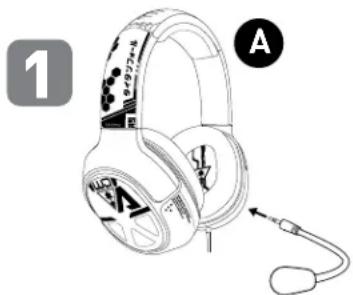
- Insert the microphone boom plug into the jack on the left earcup of the headset.

flowchart
graph TD
    A["White"] -->|white| B["Red"]
    C["Red"] -->|red| B
    D["yellow"] -->|yellow| B
    E["Titanfall"] -->|USB| F["AV"]
    G["Black Box"] --> H["USB"]
    I["Game Controller"] --> J["Handheld Device"]
    K["Headphones"] --> L["Computer"]
    M["Camera"] --> N["Play键盘"]
    O["Video Headset"] --> P["Play Console"]
    Q["Video Headset"] --> R["Play Console"]
    S["Video Headset"] --> T["Play Console"]
    U["Video Headset"] --> V["Play Console"]
    W["Video Headset"] --> X["Play Console"]
    Y["Video Headset"] --> Z["Play Console"]
    AA["Video Headset"] --> AB["Play Console"]
    AC["Video Headset"] --> AD["Play Console"]
    AE["Video Headset"] --> AF["Play Console"]
    AG["Video Headset"] --> AH["Play Console"]
    AI["Video Headset"] --> AJ["Play Console"]
    AK["Video Headset"] --> AL["Play Console"]
    AM["Video Headset"] --> AN["Play Console"]
    AO["Video Headset"] --> AP["Play Console"]
    AQ["Video Headset"] --> AR["Play Console"]
    AS["Video Headset"] --> AT["Play Console"]
    AU["Video Headset"] --> AV["Play Console"]
    AW["Video Headset"] --> AX["Play Console"]
    AY["Black Box"] --> AZ["USB"]
    BA["Xbox 360® AV Cable (Included with console)"] --> BB["USB"]
    BC["Titanfall"] --> BD["Titanfall"]
- Insert the cable from your headset into the headset jack of the In-Line Amplifier.
- Locate the Xbox 360 AV cable running from your console to the input panel of your television.
- Disconnect the Xbox 360 AV cable's Red and White RCA plugs from the Audio Inputs of your television.
- Insert the Xbox 360 AV cable's Red and White RCA plugs into the Red and White RCA jacks of the RCA Splitter Cable.
- Insert the Red and White RCA plugs of the Xbox 360 AV Cable into the back of the RCA Splitter cable connections. The Plugs should now be "piggybacked", red on red, white on white.
- Insert the 3.5 mm plug from the In-Line Amplifier into the 3.5 mm jack of RCA Splitter Cable.
- Insert the L-shaped 2.5 mm plug of the Xbox 360 Chat Cable into the chat jack of the Xbox 360 controller (not included).
- Insert the straight 2.5 mm plug of the Xbox 360 Chat Cable into the Xbox 360 Chat Jack of the In-Line Amplifier.
- Insert the USB plug of the In-Line Amplifier into a USB port of the Xbox 360 console. NOTE: For reliable sound, confirm that all connections are firmly inserted.
natural_image
Illustration of a pair of outdoor headphones with ear labels and accessories (no text or symbols on the devices themselves)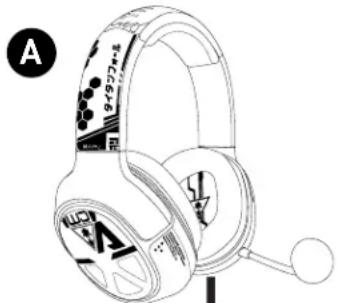
natural_image
Line drawing of a multi-band headphones with earbuds and headband (no text or symbols)Setup and Connections: Xbox 360 Consoles
Xbox 360 system settings
For proper operation, adjust the Voice settings on your Xbox 360 console.
- Press the Xbox 360 Guide button on your controller.
- In the on-screen menus, select Settings > Preferences > Voice
- Set Voice Volume to 10
- Set Game Volume to 10
- Set Voice Output to "Play Through Headset"
Voice
| Voice Volume | 10 |
| Game Volume | 10 |
| □ Mute Kinect | |
| Voice Output | |
| ● Play Through Headset | |
| ○ Play Through Speakers | |
| ○ Play Through Both | |
Setup and Connections: PC
The Titanfall Ear Force Atlas headset is supplied with an In-Line Amplifier that provides connection to your PC and places game volume, chat volume and mic mute controls within easy reach. The In-Line Amplifier also provides bass boost.
- Insert the microphone boom plug into the jack on the left earcup of the headset.

flowchart
graph TD
    A["Plug into the jack on the left earcup of the headset."] --> B["TITANFALL"]
    B --> C["Laptop with USB port"]
    D["Image 1"] --> E["Headphones with headphones"]
    F["Image 2"] --> G["Headphones with headphones"]
    H["Image 3"] --> I["Headphones with headphones"]
- Insert the cable from your headset into the headset jack of the In-Line Amplifier.
- Insert the 3.5 mm plug of the In-Line Amplifier into the headphone output of the PC.
- Insert the USB plug of the In-Line Amplifier into a USB port on the PC.
NOTE: After setup, games, music and general PC sound sources will be supplied through the headphone output of the PC and adjusted by the Game Volume control of the In-Line Amplifier.
NOTE: After setup, PC chat applications such as Skype, Vent, Google Hangout and others will be supplied through the USB port of the PC and adjusted by the Chat Volume control of the In-Line Amplifier.
Setup and Connections: PC
- With the PC powered up and running, right-click the speaker icon in your task bar and select "Playback Devices" from the pop-up menu.
(NOTE: Depending your operating system version, your screens may differ from the ones shown here; but the procedure remains the same.)
- Do NOT select "Turtle Beach ATLAS". Confirm that
"Speakers/Onboard Sound" or something similar is the default device. If necessary, right-click on
"Speakers/Onboard Sound" and select
"Set as Default Device" from the pop-up menu.
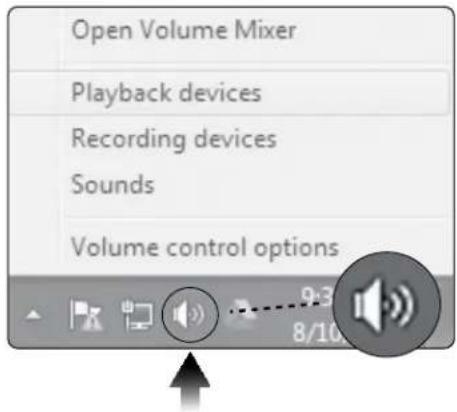

- Left click on the "Recording" tab.
- Right-click on "Microphone/Turtle Beach ATLAS/Ready" and select "Set as Default Device" from the pop-up menu.
- Click on the "OK" button to accept the changes and close the "Sound" dialog box.
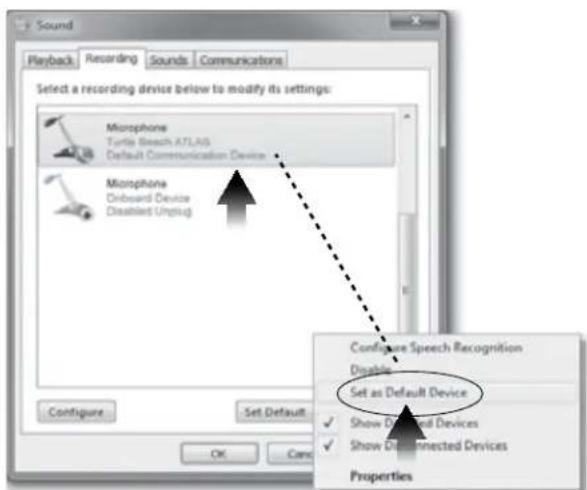
Setup and Connections: Mobile Sources

natural_image
Line drawing of a multi-head headphones with a cable connector, no text or symbols present- Insert the microphone boom plug into the jack on the left earcup of the headset.
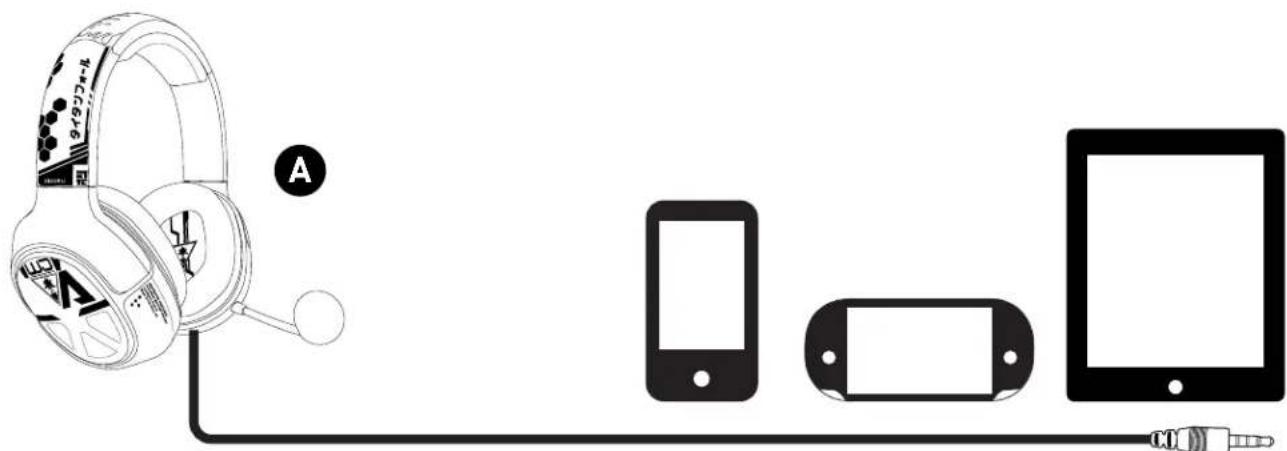
natural_image
Illustration of electronic devices including headphones, smartphones, and a tablet connected by cables (no text or symbols)- Insert the cable from your headset into the headphone jack of your mobile device. NOTE: For reliable sound, confirm that all connections are firmly inserted.
Specifications
- Speaker diameter: 50 mm
- Speaker frequency response: 20 Hz — 20 kHz
- Condenser microphone frequency response: 100 Hz — 10 kHz
- Earcup style: Around-ear
- Sound pressure level: 120 dB @ 1 kHz
- Total harmonic distortion: 1%
- Headphone cable: 3 feet (0.91 m) with stereo 3.5 mm plug
- Weight: 10.6 oz. (301 g)
- PC/Mac audio connection: USB and stereo 3.5 mm
- Xbox One audio/mic connection: Xbox One Audio Adapter
- Xbox 360 audio connection: RCA (analog)
- PC Mic connection: USB
- Amplifier power: USB
Troubleshooting Tips
No sound/low sound
| Possible cause Solution | |
| Volume control turned down •Press the Volume Up button on the Xbox One Audio Adapter. If necessary, press the Game button of the Chat/Game Balance. •Turn up the Game Volume Control on the In-Line Amplifier. •Confirm that the volume on the source component (game console, PC, mobile device) is turned up. | |
| Loose connector •Confirm that each plug is inserted firmly and fully. |
Microphone not working
| Possible cause Solution | |
| Microphone muted •Press the Mic Mute button on the Xbox OneAudio Adapter.•Slide the Mic Mute switch on the In-Line Amplifier to the Mic On position. Confirm that the Mic Status LED is green.•When using a PC, confirm that the headset is selected as the default Recording device.See page 16 for details. | |
| Mic boom loose •Confirm that the mic boom is fully inserted into the jack on the left earcup. | |
| Chat application configured incorrectly | •Review the setup procedures to confirm that your chat application is properly configured. |
No chat volume/low chat volume
| Possible cause Solution | |
| Chat volume control turned down •Press the Chat Button on the Chat/Game Mix of the Xbox One Audio Adapter.•Turn up the Chat Volume Control on the In-Line Amplifier. | |
| Loose connector •Confirm that each plug is inserted firmly and fully. |
If your issue is not resolved by these steps, please visit turtlebeach.com/support
Important Safety Information
To avoid potential damage to the device, always disconnect all cables before transporting it.
WARNING: Permanent hearing damage can occur if a headset is used at high volumes for extended periods of time, so it is important to keep the volume at a safe level. Over time, your ears adapt to loud volume levels, so a level that may not cause initial discomfort can still damage your hearing. If you experience ringing in your ears after listening with the headset, it means the volume is set too loud.
The louder the volume is set, the less time it takes to affect your hearing. So, please take care to listen at moderate levels.
- Before placing a headset on your ears, turn the volume down completely, then slowly increase it to a comfortable level.
- Turn down the volume if you can't hear people speaking near you.
- Avoid turning up the volume to block out noisy surroundings.
Regulatory Compliance Statements for the TitanFall Ear Force ATLAS Model
Federal Communications Commission (FCC) Compliance Notices
Class B Interference Statement
This equipment has been tested and found to comply with the limits for a Class B digital device, pursuant to Part 15, Subpart B of the FCC Rules. These limits are designed to provide reasonable protection against harmful interference in a residential installation. This equipment generates, uses, and can radiate radio frequency energy and, if not installed and used in accordance with the instructions, may cause harmful interference to radio communications. However, there is no guarantee that interference will not occur in a particular installation. If this equipment does cause harmful interference to radio or television reception, which can be determined by turning the equipment off and on, the user is encouraged to try to correct the interference by one or more of the following measures:
- Reorient or relocate the receiving antenna.
- Increase the separation between the equipment and receiver.
- Connect the equipment into an outlet on a circuit different from that to which the receiver is connected.
- Consult the dealer or an experienced radio/TV technician for help.
FCC Caution:
This device complies with Part 15 of the FCC Rules. Operation is subject to the following two conditions: (1) This device may not cause harmful interference, and (2) this device must accept any interference received, including interference that may cause undesired operation.
Canadian ICES Statements
Canadian Department of Communications Radio Interference Regulations
This digital apparatus does not exceed the Class B limits for radio-noise emissions from a digital apparatus as set out in the Radio Interference Regulations of the Canadian Department of Communications. This Class B digital apparatus complies with Canadian ICES-003.
European Union and European Fair Trade Association (EFTA) Regulatory Compliance
This equipment may be operated in the countries that comprise the member countries of the European Union and the European Fair Trade Association. These countries, listed below, are referred to as The European Community throughout this document:
AUSTRIA, BELGIUM, BULGARIA, CYPRUS, CZECH REPUBLIC, DENMARK, ESTONIA, FINLAND, FRANCE,, GERMANY, GREECE, HUNGARY, IRELAND, ITALY, LATVIA, LITHUANIA, LUXEMBOURG, MALTA, NETHERLANDS, POLAND, PORTUGAL, ROMANIA, SLOVAKIA, SLOVENIA, SPAIN, SWEDEN, UNITED KINGDOM, ICELAND, LICHTENSTEIN, NORWAY, SWITZERLAND
Declaration of Conformity
Marking by this symbol: CE
indicates compliance with the Essential Requirements of the EMC Directive of the European Union (2004/108/EC). This equipment meets the following conformance standards:
Safety: EN 60950-1: 2006 + A11: 2009 + A1: 2010 + A12: 2011 (T-Mark License)
Also Licensed for Standards:
IEC 60950-1: 2005 (2nd Edition) + Am 1: 2009 (CB Scheme Report/Certificate),
UL 60950-1: 2007 R12.11 (NRTL License),
CAN/CSA-C22.2 No. 60950-1-07 + A1: 2011 (SCC License)
EN 50332-1: 2000, EN 50332-2: 2003
Additional licenses issued for specific countries available on request
Emissions: EN 55022: 2010, CISPR: 2008
Immunity: EN 55024: 2010, EN 55024: 2010,
EN61000-4-2: (2008-12), EN61000-4-3: (2010-04), EN61000-4-4: (2011-03),
EN 61000-4-6: (2005), EN 61000-4-8: (2009-09)
These products are licensed, as required, for additional country specific standards for the International Marketplace. Additional issued licenses available upon request.
Environmental: Low Voltage Directive 2006/95/EC, RoHS 2011/65/EU, REACH 2006/1907/EC, WEEE 2012/19/EU, Packaging 94/62/EC
Warning!
This is a Class B product. In a domestic environment, this product may cause radio interference, in which case, the user may be required to take appropriate measures.
Achtung!
This symbol on the product or its packaging indicates that this product must not be disposed of with your other household waste. Instead, it is your responsibility to dispose of your waste equipment by handing it over to a designated collection point for the recycling of waste electrical and electronic equipment. The separate collection and recycling of your waste equipment at the time of disposal will help conserve natural resources and ensure that it is recycled in a manner that protects human health and the environment. For more information about where you can drop off your waste for recycling, please contact your local authority, or where you purchased your product.
Japan Compliance Statement
This is a Class B product based on the standard of the VCCI Council. If this is used near a radio or television receiver in a domestic environment, it may cause radio interference. Install and use the equipment according to the instruction manual.
Korean Compliance Statement
사용자안내문(B급)
(Broadcasting Communication Equipment for Home Use)
As an electromagnetic wave equipment for home use (Class B), this equipment is intended to use mainly for home use and may be used in all regions.
LIMITED ONE YEAR WARRANTY FOR TURTLE BEACH PRODUCTS:
Voyetra Turtle Beach, Inc. ("VTB") warrants to the original end-user purchaser ("Purchaser") that the retail Turtle Beach hardware product herein ("Product") will be free of defects in materials and workmanship for a period of one year from the date of purchase by the Purchaser ("Warranty Period"). Any Extended Warranty or Service Plans purchased through a Retail store are not honored by VTB. The Warranty refers to the repair/ replacement of a defective product during this period and not a refund.
This limited warranty is extended only to the original Purchaser of a new product, which was not sold "AS IS". It is not transferable or assignable to any subsequent purchaser. This limited warranty is applicable only in the country or territory where the Product was purchased from an authorized VTB retailer and does not apply to a Product that has been purchased as used or refurbished or was included as part of a non-VTB product.
WARRANTY SERVICE:
In the USA and CANADA Warranty Service is provided by our Turtle Beach USA offices and in all other Countries it is provided by our local International Distributors when available. Refurbished/Recertified products are sold on an AS IS basis with a 90-day Warranty or less in accordance with each vendor's policy.
VTB does not warrant uninterrupted or error-free operation of the Product and is under no obligation to support the Product for all computer operating systems or future versions of such operating systems.
If a defect should occur during the Warranty Period, Purchaser must contact VTB to obtain a Return Merchandise Authorization ("RMA") number on the basis of the dated purchase receipt. Purchaser will be responsible for shipping costs incurred in returning the defective Product to an authorized VTB service center, or to the repair facility located at VTB's corporate headquarters. VTB will not be responsible for other products or accessories included with the defective Product sent to VTB. The RMA number must be clearly indicated on the outside of the package. Packages without an RMA number will be refused by VTB or its representatives and returned to sender at the sender's expense.
In the event of a defect, Purchaser's sole and exclusive remedy, and VTB's sole liability, is expressly limited to the correction of the defect by adjustment, repair, or replacement of the Product at VTB's sole option and expense. VTB owns all Products it has replaced and all parts removed from repaired Products. VTB uses new and reconditioned parts made by various manufacturers in performing warranty repairs and building replacement products. If VTB repairs or replaces a product, the original Warranty Period is not extended, however, VTB warrants that repaired or replacement parts will be free from defects in material and workmanship for a period of thirty (30) days from the date of repair or replacement, or for the remainder of the Warranty Period, whichever is greater.
This warranty does not apply to any Product that has had its serial number altered, removed or defaced, or any Product damage caused by shipping, improper storage, accident, problems with electrical power, abuse, misuse, neglect, ordinary wear, acts of God (e.g. flood), failure to follow directions, improper maintenance, use not in accordance with product instructions, unauthorized modification or service of the Product or damage resulting from the use of the Product with hardware, software or other products not provided by or specifically recommended by VTB.
NOTES:
- Replacement Parts and accessories that are subject to “wear and tear” such as earpads, mic foam covers, talkback cables, etc. have a three (3) month Warranty.
- Replacement Parts for Discontinued Products are sold on an AS IS basis, they are not supported and come with a 30 day Warranty.
THIS LIMITED WARRANTY IS PURCHASER'S SOLE AND EXCLUSIVE REMEDY AND IS IN LIEU OF ALL OTHER WARRANTIES, EXPRESS OR IMPLIED. TO THE EXTENT PERMITTED BY APPLICABLE LAW, VTB HEREBY DISCLAIMS THE APPLICABILITY OF ANY IMPLIED WARRANTY OF MERCHANTABILITY, FITNESS FOR A PARTICULAR PURPOSE OR USE FOR THE PRODUCT. IF SUCH A DISCLAIMER IS PROHIBITED BY APPLICABLE LAW, THE IMPLIED WARRANTY IS LIMITED TO THE DURATION OF THE FOREGOING LIMITED WRITTEN WARRANTY.
IN NO EVENT SHALL VTB BE LIABLE FOR ANY INDIRECT, INCIDENTAL, SPECIAL, PUNITIVE OR CONSEQUENTIAL DAMAGES, OR DAMAGES, INCLUDING BUT NOT LIMITED TO ANY LOST PROFITS, DATA, OR LOSS OF USE, ANY THIRD PARTY CLAIMS, AND ANY INJURY TO PROPERTY OR BODILY INJURY (INCLUDING DEATH) TO ANY PERSON, ARISING FROM OR RELATING TO THE USE OF THIS PRODUCT OR ARISING FROM BREACH OF THE WARRANTY, BREACH OF CONTRACT, NEGLIGENCE, TORT, OR STRICT LIABILITY, EVEN IF VTB HAS BEEN ADVISED OF THE POSSIBILITY OF SUCH DAMAGES.
This warranty supersedes all prior agreements or understandings, oral or written, relating to the Product, and no representation, promise or condition not contained herein will modify these terms. Some states do not allow the exclusion or limitation of incidental or consequential damages, so the above exclusion or limitation may not apply to you. This warranty gives you specific legal rights. You may also have other rights, which vary from state to state. Any action or lawsuit for breach of warranty must be commenced within eighteen (18) months following the purchase of the Product.
EXCLUSIONS FROM LIMITED WARRANTY:
This Limited Warranty shall not apply and VTB has no liability under this Limited Warranty if the Turtle Beach Product:
- is used for commercial purposes such as "LAN, Call Centers" (including rental or lease);
- is modified or tampered with;
- is damaged by Acts of God, power surge, misuse, abuse, negligence, accident, wear and tear, mishandling, misapplication, or other causes unrelated to defective materials or workmanship;
- serial number is defaced, altered or removed;
- is not used in accordance with the documentation and use instructions; or
- is repaired, modified or altered by other than authorized repair centers.
- is no longer available because it was discarded.

TURTLE BEACH®
1 IN GAMING AUDIO

Watch Turtle Beach product training videos at: Product supp
youtube.com/TurtleBeachVideos

ranty information:
TurtleBeach.com/support
© 2014 Voyetra Turtle Beach, Inc. (VTB, Inc.) All rights reserved. Turtle Beach, the Turtle Beach Logo, Voyetra, and Ear Force, are either trademarks or registered trademarks of VTB, Inc. AUDIO ADVANTAGE is a trademark of Turtle Beach, Inc. © 2014 ELECTRONIC ARTS INC. Xbox One, Xbox, Xbox 360, and Xbox LIVE are registered trademarks of Microsoft Corporation. These services may not be available in some countries where this product is sold. All other trademarks are properties of their respective companies and are hereby acknowledged. Actual product appearance may differ from package imagery.
- In the Box
- Table of Contents
- About the Titanfall Ear Force Atlas Headset
- Overview
- Parts and Controls
- In-Line Amplifier (for Xbox 360 and PC)
- Mic Status LED
- Mic Switch
- Xbox 360 Chat Jack
- Game Volume
- Chat Volume
- Headset Jack
- Xbox One Audio Adapter
- Mic Mute
- Chat/Game Balance Buttons
- Volume Up
- Volume Down
- Setup and Connections: Xbox One Consoles
- Updating the Xbox One controller firmware
- Connecting to the Xbox One controller
- Setup and Connections: Xbox 360 Consoles
- Determine your Xbox 360 console type and connection type
- Identify your Xbox 360 console.
- Identify the connection from your Xbox 360 console to your TV.
- Xbox 360 Original and Slim HDMI® Connections
- Xbox 360 Original and Slim RCA Connections
- Xbox 360 E HDMI Connections
- Xbox 360 E RCA Connections
- Xbox 360 system settings
- Setup and Connections: PC
- Setup and Connections: Mobile Sources
- Specifications
- Troubleshooting Tips
- Important Safety Information
- Regulatory Compliance Statements for the TitanFall Ear Force ATLAS Model
- Federal Communications Commission (FCC) Compliance Notices
- Class B Interference Statement
- FCC Caution:
- Canadian ICES Statements
- European Union and European Fair Trade Association (EFTA) Regulatory Compliance
- Declaration of Conformity
- Warning!
- Achtung!
- Japan Compliance Statement
- Korean Compliance Statement
- LIMITED ONE YEAR WARRANTY FOR TURTLE BEACH PRODUCTS:
- WARRANTY SERVICE:
- NOTES:
- EXCLUSIONS FROM LIMITED WARRANTY:
- TURTLE BEACH®
- IN GAMING AUDIO
Brand : TURTLE BEACH
Model : ZBX0HW69804
Category : Headphones