PT-E-HIP-TX - Émetteur AV PureLink - Free user manual and instructions
Find the device manual for free PT-E-HIP-TX PureLink in PDF.


User questions about PT-E-HIP-TX PureLink
0 question about this device. Answer the ones you know or ask your own.
Ask a new question about this device
Download the instructions for your Émetteur AV in PDF format for free! Find your manual PT-E-HIP-TX - PureLink and take your electronic device back in hand. On this page are published all the documents necessary for the use of your device. PT-E-HIP-TX by PureLink.
USER MANUAL PT-E-HIP-TX PureLink
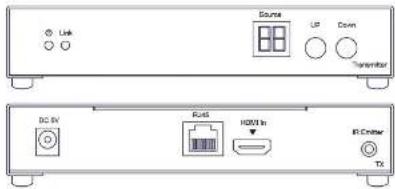
PT-E-HIP-TX | Transmitter
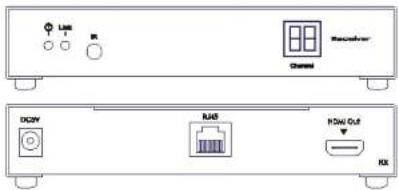
PT-E-HIP-RX | Receiver
ASKING FOR ASSISTANCE
Technical Support:
Telephone +49 5971 800 299 0
Fax +49 5971 800 299 99
Technical Support Hours:
9:00 AM to 6:00 PM Monday thru Friday.
Write To:
PureLink GmbH
Hovesaatstr. 6 48432 Rheine/ Deutschland
http://www.purelink.de
info@purelink.de
Notice:
Product Features and Specifications may change without notice. This can include software, hardware, accessories.
packaging and any accompanying documentation
Attention must be paid to specified network requirements for reliable system operation.
HDMI Cover Gigabit Extender with Push Button and LED Display is a statement under license to IPC Technology Inc.
ContentsPT-E-HIP | User Manual
-
Introduction
-
How It Connects
-
Features
-
Transmitter Unit Panel Layout
-
Transmitter Unit Panel Description
-
Receiver Unit Panel Layout
-
Receiver Unit Panel Description
-
Connecting and Operating the HDMI Over Gigabit Extender with Push Button and LED Display
-
Specification
-
Warranty

natural_image
Abstract blue curved lines on white background (no text or symbols)INTRODUCTION
The HDMI over Gigabit Ethernet Extender PT-E-HIP with IR sends HDMI signals over just one 100 Ohm Cat.6 cable-up to 100 metres away. The HDMI over Gigabit Extender supports HDMI 1.3b with Full HD 1080p resolution. DVI-D Computer video can also be transmitted with a DVI-to-HDMI cable or adaptor (Audio is not Included in a DVI-D signal). Maximum screen resolution and system performance is entirely dependent on the bandwidth and features made available to the HDMI over Gigabit Extender devices on the local Gigabit network. By using standard and widely available 100 Ohm Cat.6 cable wired to the 568A specification, the HDMI over Gigabit Extender makes HDMI signal networking easier than larger, more expensive HDMI copper cable and more robust than optical fiber cable.
HOW IT CONNECTS
Point to Point
The HDMI over Gigabit Ethernet Extender system consists of a Transmitter and a Receiver (sold separately). The HDMI source (set-top box, DVD/BluRay player, gaming console, etc.) connects to the Transmitter unit. The Receiver unit connects to the HDTV display in the same way. One 100 Ohm Cat.6 cable (up to 100 meters long) links the Transmitter and Receiver. Power is applied to the Transmitter and Receiver with 5V DC power supply (included). High Definition picture and Sound are then transmitted into the HDTV screen. HDMI Source Device can also be controlled remotely using the built-in IR repeater in the HDMI over Gigabit Ethernet Extender System at Receiver side.
Point to Multi-Point
The HDMI source (set-top box, DVD/BluRay player, gaming console, etc.) connects to a Transmitter unit via a high quality HDMI cable. 100 Ohm Cat.6 cables (each up to 100 metres in length) link the Transmitters and Receivers via a Gigabit Full Duplex network switch. The Receiver units connect to each of the HDTV displays via a high quality HDMI cable. Power is applied to the Transmitters and Receivers with 5V DC power supply (Included). High Definition picture and Sound are then transmitted into the HDTV screens, provided each receiver unit is set to the required source channel (remote control supplied). HDMI Source Devices can also be controlled remotely using the built-in IR repeater in the HDMI over Gigabit Ethernet Extender System at Receiver side.
Multi-Point to Multi-Point
The HDMI source devices (set-top boxes, DVDs/BluRay players, gaming consoles, etc.) each connect to a Transmitter unit (16 Max) via a high quality HDMI cable. 100 Ohm Cat.6 cables (each up to 100 metres in length) link the Transmitters and Receivers via a Gigabit Full Duplex network switch that must support IGMP functionality. The Receiver units connect to each of the HDTV displays via a high quality HDMI cable. Power is applied to the Transmitters and Receivers with 5V DC power supply (included). High Definition picture and Sound are then transmitted into the HDTV screens, provided each receiver unit is set to the required source channel (remote control supplied). HDMI Source Devices can also be controlled remotely using the built-in IR repeater In the HDMI over Gigabit Ethernet Extender System at Receiver side.
Note: The HDMI over Gigabit Extender is HDCP 2.0 compliant.
FEATURES
• Flexible extension of high-bandwidth HDMI 1.3b
• Audio and video are transmitted digitally over the 100Ohm Cat.6 cable for lower signal loss
• Single Link Range: 1080p/60 and 1920x1200.
• Compliant with HDMI 1.3b, HDCP 2.0 and DVI1.1 standards
• Supports digital video formats in 480p, 720p and 1080p
• Supports PCM 2 Ch audio
• Supports IR Pass thru function to control HDMI source devices (set-top box, DVD/BluRay player etc.) in Receiver by its IR remote control
- Select source Device via IR remote control provided
Transmitter Package Includes
(1) 1x PT-E-HIP-TX Transmitter
(2) 1x IR Emitter Cable
(3) 1x 5V DC Power Supply for Transmitter or Receiver
(4) 1x User Manual
Receiver Package Includes
(1) 1x PT-E-HIP-RX(Receiver
(2) 1x IR Receiver Cable
(3) 1x Remote Control
(4) 1x 5V DC Power Supply for Transmitter or Receiver
(5) 1x User Manual

natural_image
Abstract blue curved shape on white background (no text or symbols)TRANSMITTER UNIT PANEL LAYOUT
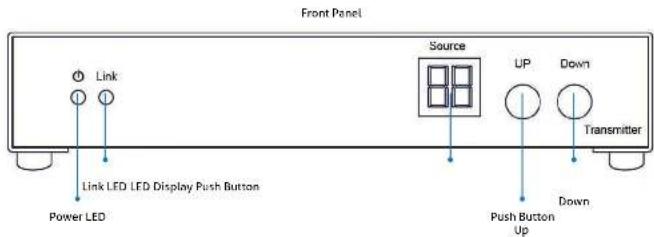
PT-E-HIP-TX | Transmitter
TRANSMITTER UNIT PANEL DESCRIPTION
1. Power LED
This LED indicator will activate once the included 5V DC power adapter has been properly connected between the Transmitter unit and a power socket. Note: the LED will blink during the initial power up time during which it is loading the device firmware.
2. Link LED
This LED indicator will flash once Cat 6. cable has been properly connected between the Transmitter and Receiver unit. Once both devices are connected and powered up this LED will stop flashing and stay on to indicate successful connection between Transmitter and Receiver.
3. Led Display
The LED Display is designed to give identity to transmitter and its input display. User can select identity from 1 to 16 via push buttons as indicated below.
4. Push Button - Up/Down
It is possible (when network bandwidth allows) to have up to 16 transmitters and corresponding source devices running at once. Push button up/down is designed to define which of these "channels" is to be used. System installers can change definition of source channel by pressing push button up/down.
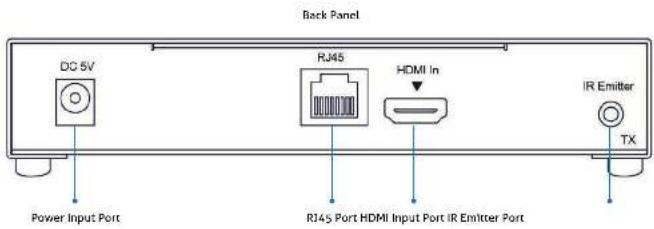
5. Power Input Port
Connect 5V DC power supply to this input port.
6. RJ45 Port
Connect a 100Ohm Cat.6 cable between this output port and the RJ45 input port on Receiver unit or Gigabit network switch.
Note: for best performance we encourage the use of Stranded CAT6A shielded cable STP (750Mhz), as a minimum though please ensure CAT6 UTP (550Mhz) cable is used or poor performance may result.
7. HDMI Input Port
Connect one HDMI cable between this port and HDMI output port of the source device (DVD, Set-top box, blue-ray DVD)
8. IR Emitter Port
Connect an IR Emitter Cable to this IR port and stick IR emitter module on the IR receiver zone of HDMI source (set-top box, DVD player and Blue ray DVD Player).
Insert the IR Emitter Cable to this IR port and place the connected IR emitter module on the IR receiver zone of HDMI source (set-top box, DVD player or BluRay Player). Note: Some devices are very particular about IR emitter placement; success can be achieved by experimenting with emitter location prior to adhering the emitter to the device.
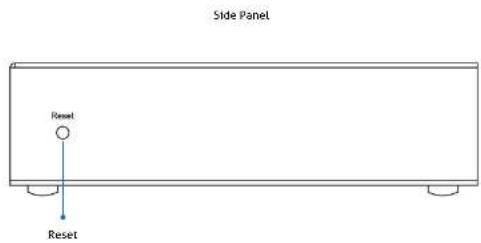
9. Reset
Please press this button once it has connecting problem.
Occasionally like many network devices (routers, modems etc) it may be necessary to reset the Transmitter. This can be done by using a small tool (eg: toothpick) to gently press and hold the reset switch for approximately 3 seconds. Upon releasing the switch the unit will reboot and restore its factory settings. Source channel settings will remain as previously set and normal function should resume shortly. Alternatively removing the Power Supply from the Power Input Port for approximately 5 minutes will achieve the same result.

natural_image
Abstract blue curved lines on white background (no text or symbols)RECEIVER UNIT PANEL LAYOUT
PT-E-HIP-RX | Receiver
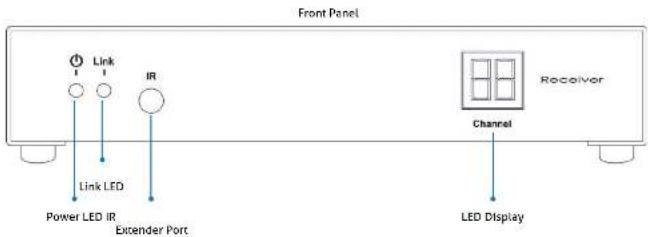
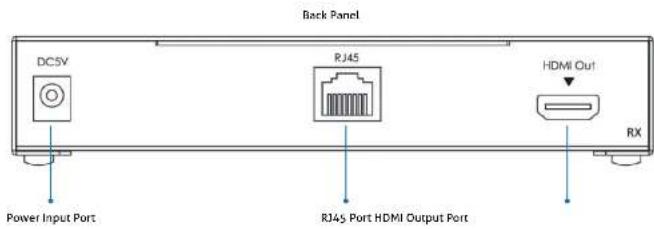
RECEIVER UNIT PANEL DESCRIPTION
1. Power LED
This LED indicator will activate once the included 5V DC power adapter has been properly connected between the Transmitter unit and a power socket. Note: the LED will blink during the initial power up time during which it is loading the device firmware.
2. Link LED
This LED indicator will flash once Cat 6. cable has been properly connected between the Transmitter and Receiver unit. Once both devices are connected and powered up this LED will stop flashing and stay on to indicate successful connection between Transmitter and Receiver.
3. IR Extender Port
Please connect the provided IR Receiver cable to this port. This allows the supplied remote control to function; the source device can now also be controlled from the location of this receiver unit by way of its original IR remote control or a universal type IR remote control.
4. LED Display
The LED Display is designed to identify which source device channel the receiver is set to display. User can select source channel via the provided remote control.
5. Power Input Port
Connect 5V DC power supply to this input port.
6. RJ45 Port
Connect a 100Ohm Cat.6 cable between this input port and the RJ4S output port from Transmitter unit or Gigabit network switch. Note: for best performance we encourage the use of Stranded CAT6A shielded cable STP (750Mhz), as a minimum though please ensure CAT6 UTP (550Mhz) cable is used or poor performance may result.
7. HDMI output port
Connect one HDMI cable between this output port and HDMI input port of HDTV display.
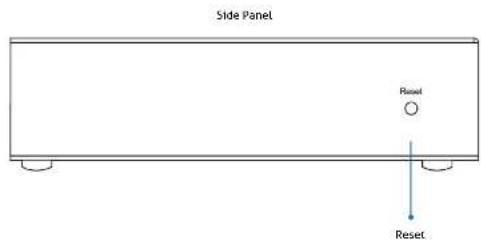
8. Reset
Please press this button once it has connecting problem.
Occasionally like many network devices (routers, modems etc) it may be necessary to reset the Transmitter. This can be done by using a small tool (eg: toothpick) to gently press and hold the reset switch for approximately 3 seconds. Upon releasing the switch the unit will reboot and restore its factory settings. Source channel settings will remain as previously set and normal function should resume shortly. Alternatively removing the Power Supply from the Power Input Port for approximately 5 minutes will achieve the same result.

natural_image
Abstract blue curved lines on white background (no text or symbols)REMOTE CONTROL
PANEL LAYOUT & DISCRIPTION
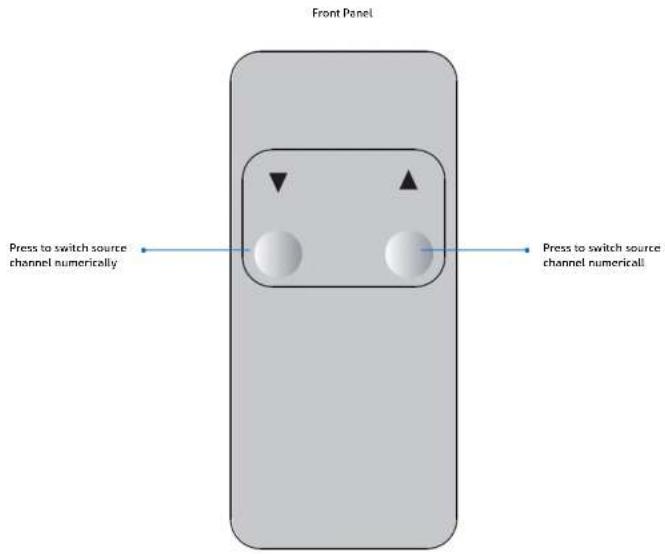
1. Downward Selection Button
This button allows user to switch to a lower source channel (from source 16 to source 1). Hold this button down to change quickly.
2. Upward Selection Button
This button allows user to switch to a higher source channel.
CONNECTING AND OPERATING
How to Connect HDMI Over Gigabit with Push Button and LED Display | One Source to One Display
- Connect one HDMI Cable between the HDMI output port of source device and the HDMI input port of Transmitter unit (3 Metres Max)
- Connect one HDMI Cable between the HDMI input port of display device and the HDMI output port of Receiver unit. (3 Metres Max)
- Connect one 100 Ohm Cat.6 cable between the RJ45 port of Transmitter unit and RJ45 port of Receiver unit. Note: CAT.6 is to be no longer than 100 meters in length and should not run parallel to mains power cables.
-
Connect 5V DC power supplies to both Transmitter and Receiver unit.
-
Power on the display device first and then the source device.
-
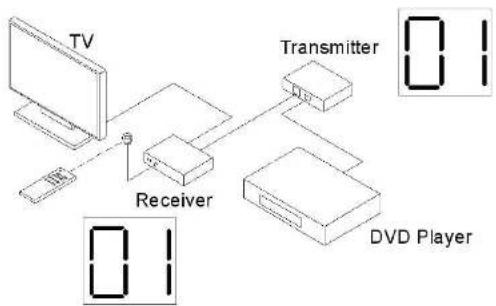
Use remote control to select the related channel that the dip switch has been set to on the transmitter. Please refer to Appendix A for the link diagram.
Note:
- IR Function is able to receive signal from the IR remote control of your source device and the remote control supplied with the Receiver unit.
Please refer to following diagram:
flowchart
graph TD
    TV["TV"] --> Receiver["Receiver"]
    Receiver --> Transmitter["Transmitter"]
    Transmitter --> DVD_Player["DVD Player"]
    Transmitter --> Display["Display Indicator 0.1"]

natural_image
Abstract blue curved lines on white background (no text or symbols)CONNECTING AND OPERATING
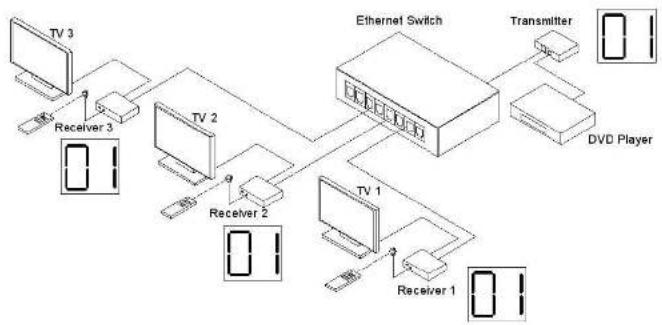
How to Connect HDMI Over Gigabit with Push Button and LED Display | One Source to Many Displays
- Connect one HDMI Cable between the HDMI output port of source device and the HDMI input port of Transmitter unit (3 Metres Max)
- Connect one HDMI Cable between the HDMI input port of display device and the HDMI output port of Receiver units. (3 Metres Max)
- Connect one 100 Ohm Cat.6 cable between the R745 port of transmitter and input port of a Full Duplex Gigabit Ethernet switch (consult your network specialist for advice on choosing a suitable Gigabit switch). Note: CAT.6 is to be no longer than 100 meters in length and should not run parallel to mains power cables.
- Connect one 100 Ohm Cat.6 cable between the output ports of the Full Duplex Gigabit Ethernet switch and RJ45 port of each Receiver unit. Note: CAT.6 is to be no longer than 100 meters in length and should not run parallel to mains power cables.
- Connect 5V DC power supplies to both Transmitter and Receiver unit.
- Power on the Display device first and then the source device.
- Use the supplied remote control to select the related channels that have been set to on the transmitters.
Note:
- IR Function is able to receive signal from the IR remote control of your source devices (or Universal Remote Control) and the remote control supplied with the Receiver unit.
- As the Transmitter units can support over 200 IP address for different receiver units, it can connect up to 200 Receiver units at once, this function however is completely limited by the Gigabit LAN's Bandwidth capacity. At times it may be necessary to reduce the output resolution of your source devices to compensate for lower than required bandwidth availability within the network.
One Source to Many Displays:
flowchart
graph TD
    A["TV 3"] --> B["Receiver 3"]
    B --> C["TV 2"]
    C --> D["Receiver 2"]
    D --> E["TV 1"]
    E --> F["Receiver 1"]
    F --> G["Transmitter"]
    G --> H["DVD Player"]
    C --> I["Ethernet Switch"]
    D --> I
    I --> J["Transmitter"]
CONNECTING AND OPERATING
How to Connect HDMI Over Gigabit with Push Button and LED Display | Many Sources to Many Displays
- Connect one HDMI Cable between the HDMI output port of source device and the HDMI input port of Transmitter unit (3 Metres Max)
- Connect one HDMI Cable between the HDMI input port of display device and the HDMI output port of Receiver unit. (3 Metres Max)
- Connect one 100 Ohm Cat.6 cable between the RJ45 port of each transmitter and the input ports of a Full Duplex Gigabit Ethernet switch (consult your network specialist for advice on choosing a suitable Gigabit switch). Note: CAT.6 is to be no longer than 100 meters in length and should not run parallel to mains power cables.
- Connect one 100 Ohm Cat.6 cable between the output ports of the Full Duplex Gigabit Ethernet switch and RJ45 port of each Receiver unit. Note: CAT.6 is to be no longer than 100 metres in length and should not run parallel to mains power cables.
- Connect 5V DC power supplies to all Transmitter units and Receiver units.
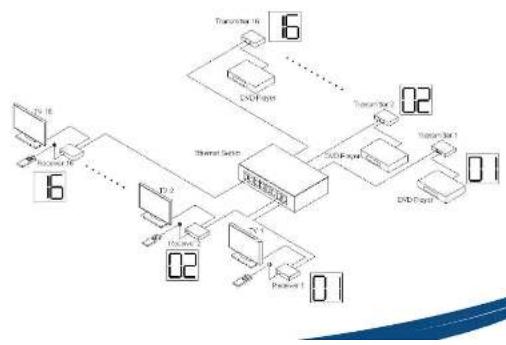
- Users can select a different source channel for each Transmitter by push button up/down on each transmitter unit. They can then select the required source device they would like to display on each screen by using the supplied remote control with each Receiver unit to select the associated channel. Allowing for dynamic selection of any of the connected source devices from any of the connected display devices.
Note:
- IR Function is able to receive signal from the IR remote control of your Source Device and the IR remote control Supplied with the Receiver unit.
- As the Transmitter units can support over 200 IP address for different receiver units, it can connect up to 200 Receiver units at once, this function however is completely limited by the Gigabit LAN's Bandwidth capacity. At times it may be necessary to reduce the output resolution of your source devices to compensate for lower than required bandwidth availability within the network.
- Users can connect at most 16 Transmitters to the system.
- Please note that the Ethernet switch should be a Full Duplex Gigabit Ethernet switch that supports IGMP functions.
Please refer to following diagram:
flowchart
graph TD
    A["Device 1"] --> B["Switch"]
    C["Device 2"] --> D["Switch"]
    E["Device 3"] --> F["Switch"]
    G["Device 4"] --> H["Switch"]
    I["Device 5"] --> J["Switch"]
    K["Device 6"] --> L["Switch"]
    M["Device 7"] --> N["Switch"]
    O["Device 8"] --> P["Switch"]
    Q["Device 9"] --> R["Switch"]
    S["Device 10"] --> T["Switch"]
    U["Device 11"] --> V["Switch"]
    W["Device 12"] --> X["Switch"]
    Y["Device 13"] --> Z["Switch"]
    AA["Device 14"] --> AB["Switch"]
    AC["Device 15"] --> AD["Switch"]
    AE["Device 16"] --> AF["Switch"]
    AG["Device 17"] --> AH["Switch"]
    AI["Device 18"] --> AJ["Switch"]
    AK["Device 19"] --> AL["Switch"]
    AM["Device 20"] --> AN["Switch"]
    AO["Device 21"] --> AP["Switch"]
    AQ["Device 22"] --> AR["Switch"]
    AS["Device 23"] --> AT["Switch"]
    AU["Device 24"] --> AV["Switch"]
    AW["Device 25"] --> AX["Switch"]
    AY["Device 10"] --> AZ["External Interface"]
    BA["Device 11"] --> BB["External Interface"]
    BC["Device 12"] --> BD["External Interface"]
    BE["Device 13"] --> BF["External Interface"]
    BG["Device 14"] --> BH["External Interface"]
    BI["Device 15"] --> BJ["External Interface"]
    BK["Device 16"] --> BL["External Interface"]
    BM["Device 17"] --> BN["External Interface"]
    BO["Device 18"] --> BP["External Interface"]
    BQ["Device 19"] --> BR["External Interface"]
    BS["Device 20"] --> BT["External Interface"]
    BU["Device 21"] --> BV["External Interface"]
    BW["Device 22"] --> BX["External Interface"]
    BY["Device 23"] --> BZ["External Interface"]
    CA["Device 24"] --> CB["External Interface"]
    CC["Device 25"] --> CD["External Interface"]
    CE["Device 26"] --> CF["External Interface"]
    CG["Device 27"] --> CH["External Interface"]
    CI["Device 28"] --> CJ["External Interface"]
SPECIFICATION
| SPECIFICATION | |
| Video Amplifier Bandwidth 225 MHz | |
| Video Output 1080p/60 and 1920x1200 max. res | |
| Input DDC Signal 5 Volts p-p (TTL); Input Video Signal: 1.2 Volts p-p | |
| HDMI Connector Type A, 19 Pin Female | |
| Link Connector R14S Shielded | |
| Power Supply 5V DC Power Consumption: 10 Watts max. | |
| Operating Temperature 0°C - 40°C | |
| PERFORMANCE | |
| Supported HD Resolutions 480p, 720p, 1080p | |
| Maximum Cable Range input: 3 Metres Max (HDMI Cable) Outputs: 100 Metres Max (Cat.6 Cable) | |
| Video Bandwidth 6.95Gbps | |
| Input Video Signal 1.2 Volts P-P | |
| Input DDC Signal 5.0 Volts P-P | |
| I/O CONNECTORS | |
| Transmitter | |
| Inputs | 1 HDMI-A 19PIN Socket |
| 1 5V DC Jack | |
| Outputs | 1 RJ45 Jack |
| 1 3.5mm Jack-IR Emitter | |
| Receiver | |
| Inputs | 1 RJ45 Jack |
| 1 IR Receiver Module | |
| 1 5V DC Jack | |
| Outputs | 1 HDMI-A 19PIN Socket |
| MECHNICAL | |
| Transmitter | |
| Dimensions (H-W-D) | 162.3x162.35x30mm |
| Weight | 0.7kg |
| Receiver | |
| Dimensions (H-W-D) | 162.3x162.35x30mm |
| Weight | 0.7kg |
| WARRANTY | |
| Limited Warranty | 1 Year Parts and Labor |
| ENVIRONMENTAL | |
| Operating Temperature +0 to +40°C (+32° to 104°F) | |
| Operating Humidity 10% to 85% (Non-condensing) | |
| Storage Temperature -20° to +60° (+20° to +140°F) | |
| Storage Humidity | 10% to 85% (Non-condensing) |
| REMOTE CONTROL | |
| Infrared | IR Remote (Front) |
| POWER REQUIREMENTS | |
| External Power Supply | 5VDC@2.5A |
| Power Consumption | 10 Watts (Max.) |
| SAFETY | |
| Certificate | FCC, CE, RoHS |
| Power Adapter | UL, CE, CSA, CEC, RoHS, SAA |
| ACCESSORIES | |
| AC Power Adapter X 1 | |
| IR Emitter Cable X 1 | |
| IR Receiver Cable X 1 | |
| Instruction Manual X 1 | |
WARRANTY
LIMITED WARRANTY – With the exceptions noted in the next paragraph and those required by Law, PureLink GmbH warrants the original purchaser that this device will be free from defects in materials and workmanship for a period of one year from the date of purchase. Should this product be proven defective within this warranty period, PureLink GmbH, at its discretion, will repair or replace this product free of charge. Any defective parts replaced become the property of PureLink GmbH. This warranty does not apply to those products which have been damaged due to accident, unauthorized alterations, improper repair, modifications, inadequate maintenance and care, or use in any manner for which the product was not originally intended. PureLink GmbH makes no other representation of warranty as to fitness for the purpose or merchantability or otherwise in respect of any of the products sold. The liability of PureLink GmbH with respect to any defective products will be limited to the repair or replacement of such products. In no event shall PureLink GmbH be responsible or liable for any damage arising from the use of such defective products whether such damages be direct, indirect, consequential or otherwise, and whether such damages are incurred by the reseller, end-user or any third party.
PureLink GmbH holds no responsibility for faults arising due to conditions outside of manufacturing faults, such as (but not limited to) connected equipment faults or poor network performance.

natural_image
Abstract blue curved lines on white background (no text or symbols)PureLink GmbH
Hovesaatstraße 6
D - 48432 Rheine
Germany
Telefon: 0049 (0)5971-800 299-0
Fax: 0049 (0)5971-800 299-99
E-mail: info@purelink.de
© 2013 PureLink GmbH. All rights reserved. All trade names are registered trademarks of
respective manufactures listed.
HDMI is a trademark of HDMI Licensing LLC.