
PFC Sinewave PR6000LCDRTXL5U - UPS CyberPower - Free user manual and instructions
Find the device manual for free PFC Sinewave PR6000LCDRTXL5U CyberPower in PDF.


| Product Type | Uninterruptible Power Supply (UPS) |
| Model | CyberPower PFC Sinewave PR6000LCDRTXL5U |
| Capacity (VA / Watts) | 6000 VA / 4500 W |
| Input Voltage (Nominal) | 208/220/230/240 V (Default: 208 V) |
| Input Voltage Range | 148 – 254 V (Default) |
| Output Voltage (On Battery) | Pure Sinewave, 208/220/230/240 V ±5% |
| Output Frequency (On Battery) | 50/60 Hz ±0.1 Hz |
| Transfer Time | 4 ms (typical) |
| Input Plug Type | NEMA L6-30P |
| Output Outlets | (3) NEMA L6-30R, (2) NEMA L6-20R |
| Surge Protection Rating | 2430 Joules |
| Battery Type | Sealed, maintenance-free lead-acid (Model RB1290X16) |
| Battery Recharge Time | 6 hours to 90% capacity |
| Battery User-Replaceable | Yes |
| Dimensions (L x W x H) | 25.25 x 17 x 8.75 in (640 x 430 x 222 mm) |
| Weight | 226 lbs (103 kg) |
| Operating Temperature | 32°F to 104°F (0°C to 40°C) |
| Operating Humidity | 0 – 95% (non-condensing) |
| Communication Ports | USB, Serial (2), EPO, SNMP/HTTP slot (optional) |
| Management Software | PowerPanel® Business Edition |
| Warranty (Product) | 3 years Limited |
| Connected Equipment Guarantee | $400,000 |
| Mounting Options | Rack mount (5U) or tower/vertical orientation |
Frequently Asked Questions - PFC Sinewave PR6000LCDRTXL5U CyberPower
User questions about PFC Sinewave PR6000LCDRTXL5U CyberPower
0 question about this device. Answer the ones you know or ask your own.
Ask a new question about this device
Download the instructions for your UPS in PDF format for free! Find your manual PFC Sinewave PR6000LCDRTXL5U - CyberPower and take your electronic device back in hand. On this page are published all the documents necessary for the use of your device. PFC Sinewave PR6000LCDRTXL5U by CyberPower.
USER MANUAL PFC Sinewave PR6000LCDRTXL5U CyberPower
Reliability. Quality. Value.
User's Manual
PR5000LCDRTXL5U/ PR6000LCDRTXL5U
IMPORTANT SAFETY INSTRUCTIONS
This manual contains important instructions. Please read and follow all instructions carefully during installation and operation of the unit. Read this manual thoroughly before attempting to unpack, install, or operate the UPS.
CAUTION! The UPS must be connected to a grounded AC power outlet with fuse or circuit breaker protection. DO NOT plug the UPS into an outlet that is not grounded. If you need to power-drain this equipment, turn off and unplug the unit.
CAUTION! The battery can power hazardous components inside the unit, even when the AC input power is disconnected.
CAUTION! The UPS should be near the connected equipment and easily accessible.
CAUTION! To prevent the risk of fire or electric shock, install in a temperature and humidity controlled indoor area, free of conductive contaminants. (Please see specifications for acceptable temperature and humidity range).
CAUTION! To avoid electrical shock, turn off the unit and unplug it from the AC power source before servicing the battery or installing a computer component.
CAUTION! Never install a UPS, or associated wiring or equipment, during a lightning storm.
CAUTION! When installing the equipment, ensure that the sum of the leakage current of the UPS and the connected equipment does not
exceed 3.5mA.
CAUTION! Do not unplug the unit from AC Power during operation, as this will invalidate the protective ground insulation.
CAUTION! DO NOT USE FOR MEDICAL OR LIFE SUPPORT EQUIPMENT! Under no circumstances this unit should be used for medical applications involving life support equipment and/or patient care.
CAUTION! DO NOT USE WITH OR NEAR AQUARIUMS! To reduce the risk of fire, do not use with or near aquariums. Condensation from the aquarium can come in contact with metal electrical contacts and cause the machine to short out.
DO NOT INSTALL THE UPS WHERE IT WOULD BE EXPOSED TO DIRECT SUNLIGHT OR NEAR A STRONG HEAT SOURCE!
UPS unit

Front panel
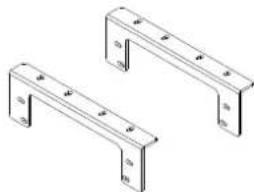
Rack mount ears (Stands) (2)
User's manual
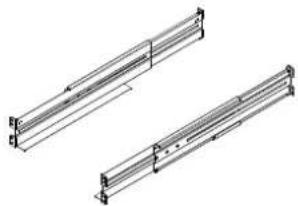
Rack mount rails (1 set – left and right sides)

Rack mount ear & rails screws (34)
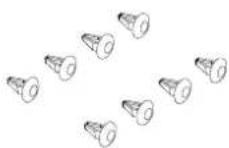
Screw hole dust covers (8)
Warranty registration card
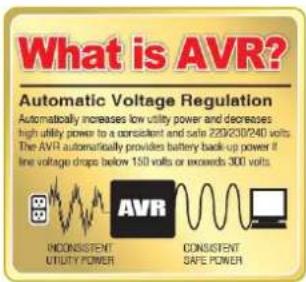
AUTOMATIC VOLTAGE REGULATOR(AVR)
The PR5000LCDRTXL5U/ PR6000LCDRTXL5U stabilizes damaging inconsistent utility power. The Automatic Voltage Regulator automatically regulates low or high voltages to keep equipment working at safe AC power levels (208/220/230/240V) without switching to battery. Your equipment operates normally when power problems, such as, shout brownouts and blackouts. The unit's powerful sealed lead-acid batteries will provide power during the incoming voltage drops below 131V or increases above 268V. (Default)
SYSTEM BLOCK DIAGRAM
![graph TD A["Input"] --> B["EMI Filter"] B --> C["Surge Suppressor"] C --> D["AVR"] D --> E["Output"] D --> F["Charger AC/DC"] F --> G["Battery"] G --> H["Inverter"] H --> E style A fill:#f9f,stroke:#333 style E fill:#ccf,stroke:#333 note1["Normal Mode\nBattery Mode"] --> A note2["Dotted arrow"] -->…](/content/2026/06/1185933/images/473c1ffcde97a48b67de9147354e27b3f1759cebc7af929c6da9f052238b44c0.jpg)
HARDWARE INSTALLATION GUIDE
- Battery charge loss may occur during shipping and storage. Before using the UPS, it's strongly recommended to charge batteries for twelve (12) hours typically to ensure that the batteries' maximum charge capacity is met. To recharge the batteries, simply plug the UPS into an AC outlet.
- When using the included software, connect either the serial or the USB cable between the computer and the corresponding port on the UPS. Note: If the USB port is used, the serial port will be disabled. They cannot be used simultaneously. The computer with the PowerPanel® Business Edition Agent software connects to the USB port or the Serial port on the UPS. It can control the operating schedule, battery test, outlet, etc. and obtain information on the UPS status. However, other computers with PowerPanel® Business Edition Client software can only obtain UPS status information via a LAN connection.
- With the UPS off and unplugged, connect your computer, monitor, and any externally powered data storage device (Hard drive, Tape drive, etc.) into the outlets. DO NOT plug a laser printer, copier, space heater, vacuum, paper shredder or other large electrical device into the UPS. The power demands of these devices will overload and possibly damage the unit.
- To protect a fax, telephone, modem line or network cable, connect the telephone or network cable from the wall jack outlet to the jack marked "IN" of the UPS. Then, connect a telephone cable or network cable from the jack marked "OUT" on the UPS to the modem, computer, telephone, fax machine, or network device.
- Press the power switch to turn the UPS on. The Power-On indicator light will illuminate. If an overload is detected, an audible alarm will sound and the UPS will emit one long beep. In order to reset it, turn the unit off and unplug some equipment from outlets. Make sure your equipment carry a load current within the unit's safe range, (refer to the technical specifications), and then turn the unit on.
-
Your UPS is equipped with an auto-charge feature. When the UPS is plugged into an AC outlet, the battery will automatically charge, even when the unit is switched off.
-
To maintain an optimal battery charge, leave the UPS plugged into an AC outlet at all times.
- Before storing the UPS for an extended period of time, turn the unit OFF. Then cover it and store it with the batteries fully charged. Recharge the batteries every three months to ensure good battery capacity and long battery life. Maintaining a good battery charge will help prevent possible damage to the unit from battery leakage.
- The unit has one Primary Serial Port (I), one Secondary Serial Port (II), and one USB port, (paired with the Primary Serial Port), to allow connection and communication between the unit and any attached computers. The Primary Serial Port (I) as well as its paired USB port allow for bi-directional communication among the UPS and the primary connected computer running the PowerPanel® Business Edition Agent software. The UPS can control the computer's shutdown in case of an emergency, and at the same time, the computer can monitor the UPS and alter its various programmable parameters. On the other hand, secondary Serial Port II, only allows the UPS to initiate the connected computer's graceful shutdown in case of an emergency.
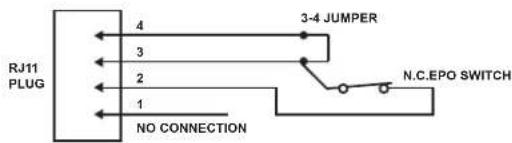
- EPO (Emergency Power Off) Port: Use the provided gray cable to connect to a special EPO contact switch. Follow the appropriate circuit diagram on page 4 to wire the cable to your EPO configuration. The EPO remote switch is a switch installed in an outside area, connected to the unit via an ordinary RJ-11 phone line. In case of an emergency, it can be used to immediately cut off power from the UPS unit.
- To avoid electrical shock, before hardwiring the UPS (in/out power cord), turn the unit OFF and disconnect the unit from utility power. The in/out power cord MUST be grounded.
FRONT/REAR PANEL DESCRIPTION
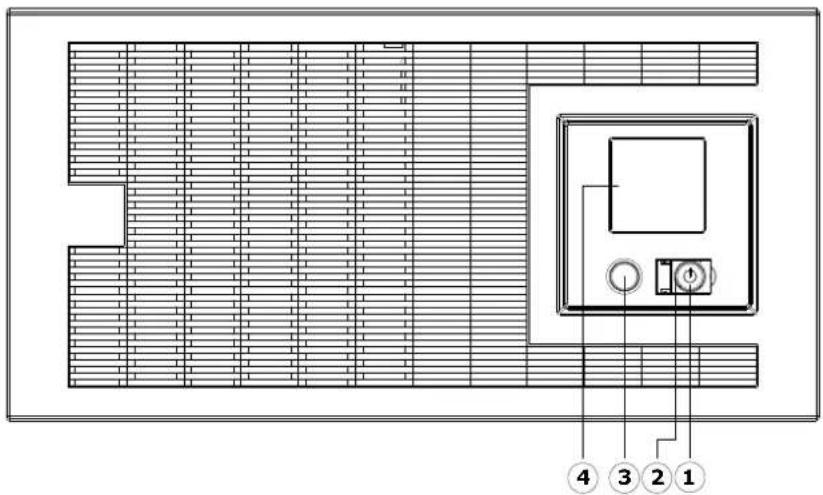
1. Power Switch
Master On/Off switch for the UPS.
2. Power on Indicator
Indicates the UPS is on and supplying power free of surges and spikes.
3. LCD Readout Toggle Button
Use to rotate through multiple screens of UPS status information.
4. Multifunction LCD Readout
An illuminated digital screen that displays the UPS power status information.
5. Battery Backup & Surge Protected Outlets
This unit provides a total of five outlets with battery backup and surge protection. They ensure that connected equipment will provide power to equipment over a period of time, during a power failure.
Critical /Non-Critical
It is possible to program the unit so that the outlet block marked as "Non-Critical", (3 ports), will stop the supplying to connected equipment after a certain period of time. This allows for additional runtime for the equipment connected on the outlets marked as "Critical", (2 port). This allows the creation of load priorities ensuring the critical equipment is given priority under specific circumstances.
6. Output Circuit Breaker
The circuit breaker serves to provide output overload and fault protection.
7. Input Circuit Breaker
The circuit breaker serves to provide input overload and fault protection.
8. Input Power Cord
Heavy-duty, extra long power cord.
9. SNMP/HTTP Network slot
Slot to install the optional SNMP card for remote network control and monitoring.
10. Serial Port I (Primary)
Serial port I provides bi-directional communication between the UPS and the computer. The UPS can control the computer's shutdown in case of an emergency, and at the same time, the computer can monitor the UPS and alter its various programmable parameters.
11. Serial Port II (Secondary)
Serial Port II allows the UPS to initiate a connected computer's graceful auto-shutdown in case of an emergency.

12. USB port to PC
This is a connectivity port allowing communication and control between the UPS and the connected computer. You should install the PowerPanel ® Business Edition Agent software on the PC/Server connected with the USB cord.

13. EPO (Emergency Power Off) Port*:
Allows for an emergency UPS Power-Off from a remote location.

OPTION 2: USER SUPPLIED NORMALLY CLOSED SWITCH
14. Surge Protected Communication Ports - RJ11/RJ45
These ports are used to protect standard RJ-45/RJ-11 based, (ADSL, LAN, Phone/Modem-Lines), and cabling systems from surges.
15. Extended Runtime (XL) Battery Pack Connector
Provides a connection for additional CyberPower XL Battery Packs: BPL48V75ART2U.
16. Ground Stud
Use the Ground Stud to ground the UPS.
HARDWARE INSTALLATION
These versatile UPS systems can be mounted in a rack mount or vertical /tower orientation. This versatility is especially important to growing organizations with changing needs that value having the option to position a UPS on a floor, or in a rack mount system. Please follow the instructions below for the respective mounting method.
SAFETY PRECAUTIONS
CAUTION! To prevent the risk of fire or electric shock, use only the supplied hardware to attach the mounting brackets.
RACKMOUNT INSTALLATION
*Note: Before the rack mount installation, the internal battery pack shall be removed first. Please refer to page 9 BATTERY INSTALLATION for more details.
Step 1: Rack mount ears installation
Attach the two rack mount ears to the UPS using the provided screws.

Step 2: Rack mount rail Installation
Ensure rack stability prior to installing devices in the rack.
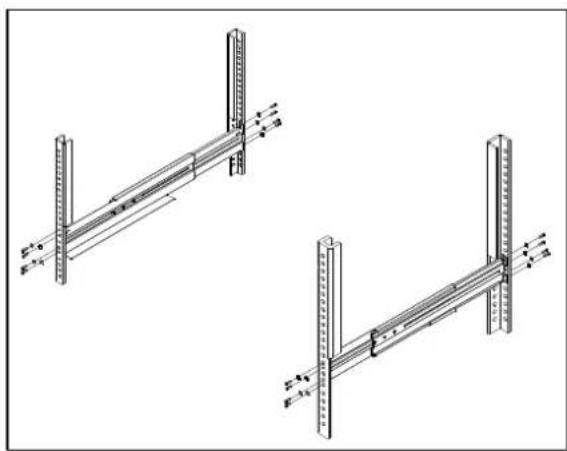
Attach the rack mount rails to your rack using fasteners that are designed for your rack system.
Step 3: Adjust rack mount rails to fit your rack

Take the rack mount rail inscribed with an "L" (Left) and attach it to the rear bracket of the rack mount rail using three (3) of the six (6) rack mount rail screws. Do not fully tighten the rack mount rail screws, as the rack mount rails will need to be adjusted to fit your rack. Once complete, perform the same steps for assembling the rack mount rail inscribed with an "R" (Right).
*Note: Now the internal battery pack can be installed. Please refer to page 9 BATTERY INSTALLATION for more details.
Step 4: Carefully align the front panel connector and latches with the PR5000LCDRTXL5U/ PR6000LCDRTXL5U
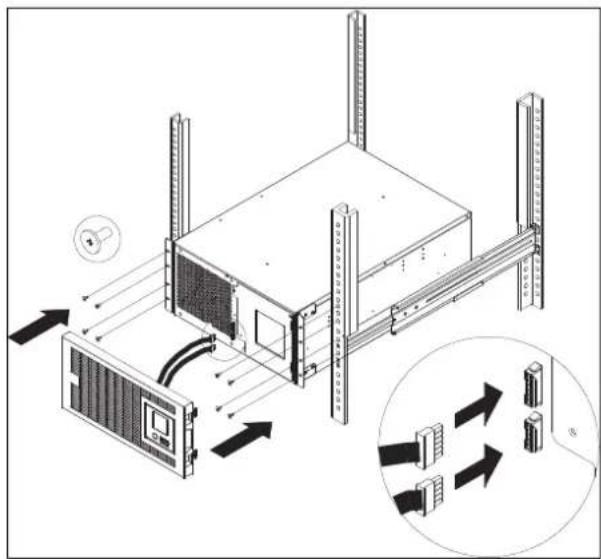
CAUTION! The UPS must be installed at the bottom of the rack system.
CAUTION! Do not lift the front panel when removing the UPS unit.
HARDWARE INSTALLATION
VERTICAZL/TOWER INSTALLATION
Step 1: Attach the base stands
Simply slide the base stands onto the bottom of the UPS, roughly 8-10" apart.
Step 2: Attach dust covers
Insert dust covers into the rack mount ear screw holes that are not being used.


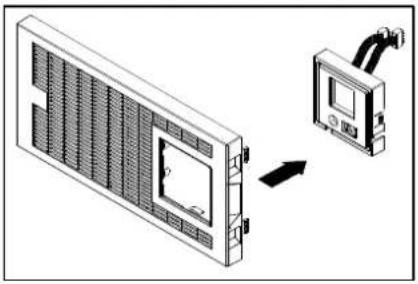
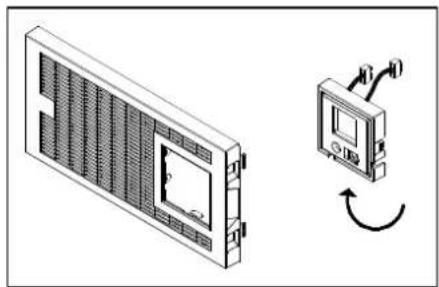
Step 3: Rotate the Multifunction LCD Readout
Separate the front panel and the UPS. Gently lift the LCD out. Rotate it to the preferred orientation. Reinstall the display for a tower configuration.

ELECTRICAL INSTALLATION
After completing the hardware installation of the UPS, you are now ready to plug in the UPS and attach your equipment.
SAFETY PRECAUTIONS
- CAUTION! - Installation environment should be in a temperature and humidity controlled indoor area free of conductive contaminants. Do not install this UPS where excessive moisture or heat is present (Please see specifications for acceptable temperature and humidity range)
- CAUTION! - Never install a UPS, or associated wiring or equipment, during a lightning storm.
- CAUTION! - Do not work alone under hazardous conditions.
- CAUTION! - To reduce the risk of electric shock, do not remove the top cover.
- CAUTION! - The battery can energize hazardous live parts inside even when the AC input power is disconnected.
MULTIFUNCTION LCD READOUT
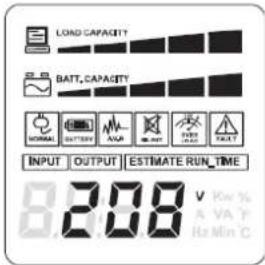
The multifunction LCD readout provides ready access to power/battery condition vitals, such as: Runtime, Load, Temperature, and much more.
The screen is also rotatable so the UPS can be used in either rack mount or vertical/tower orientation.
BASIC OPERATION

Select Button
Screen toggle – To toggle through the status screens press the Select button which is located directly next to the LCD.
Screen illumination— After 30 seconds of inactivity, the LCD backlight will automatically turn off to conserve energy. Keeping the LCD screen lit at all times is not an option on this UPS.
Select Button
- If the LCD screen is not lit pressing the Select button once will turn the LCD on. If the LCD screen is lit, then pressing the Select button once will toggle through the status screens.
- Pressing and holding the Select button for four (4) seconds while UPS is in Normal operation will initiate the Self Test.
- Pressing and holding the Select button for four (4) seconds while UPS is in Battery/Offline mode will activate Silent Mode on the UPS.
MAIN FEATURES
Load Level: The total load of the connected equipment shown in 20% increments.
Battery Capacity: The battery's current charge level shown in 20% increments.
Normal Icon: This icon appears when the UPS is working under normal conditions.
Silent icon: This icon appears when the UPS is in silent mode. During Silent mode, the unit's alarm does not sound until the Battery Capacity falls to < 20%.
Overload icon: This icon appears when the Battery/Surge outlets on the UPS are overloaded. The UPS will also sound an alarm at this point. To clear the overload, the total load of the connected equipment must be less than the unit's maximum capability. The easiest way to correct this problem is to remove noncritical equipment from the Battery/Surge outlets.
Fault icon: This icon appears if there is an internal problem with the UPS. Please contact Technical Support if this icon is lit.
Battery Icon: This icon appears when the UPS is operating using battery power. The UPS will also sound alarms (two short beeps followed by a pause) when this icon is lit. When the Battery Icon is lit and the Battery Capacity falls to 20% the frequency of the alarms will increase indicating that the UPS batteries are nearly out of power. If this occurs, it is recommended that you either restore AC power, or manually power down your equipment that may be negatively affected by sudden power loss.
Automatic Voltage Regulation (AVR) icon: This icon appears when the UPS is automatically correcting AC input line voltage without using battery power. This is a normal, automatic operation of your UPS, and no action is required. The AVR in this UPS continuously conditions the power to a nominal 208V output to connected equipment. In the event of a complete power loss, severe brownout, or over voltage, the UPS relies on its internal battery back up to supply a consistent 208V output.
TOGGLE SCREENS
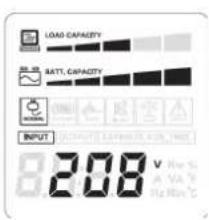
Input Voltage
The Input Voltage screen displays the AC voltage that the UPS system is receiving from the utility wall receptacle. This can be used as a diagnostic tool to identify poor quality input power. Units are listed in V (Volts).
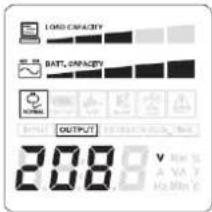
Output Voltage
The Output Voltage screen measures, the AC voltage that the UPS is providing to your connected equipment via the UPS outlets. Units are listed in V (Volts).
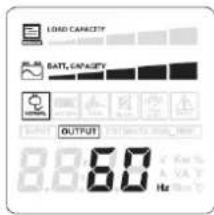
Output Frequency
The Output Frequency screen displays the current frequency at which the UPS is operating. Units are listed in Hz (Hertz).

Estimated Runtime
The Estimated Runtime Screen displays how many minutes of runtime can be expected of the UPS if it were to experience a power outage. Note: The number displayed may be less than actual runtimes for low loads.
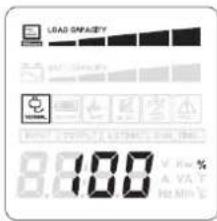
Load Capacity
Similar to the Load/Current Level screen, this displays the total load/current of the connected equipment expressed as a percentage (%).

Battery Capacity
The Battery Capacity screen displays the battery's current charge level and is expressed as a percentage (%) of the battery's total capacity of 100%.
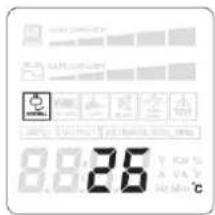
Temperature
The Temperature screen displays the internal temperature of the UPS in degrees Centigrade. Normal ranges are 0°C-40°C. If the temperature exceeds 40°C, additional methods should be implemented to cool the UPS (i.e. air conditioning, additional ventilation, isolation from other heat producing equipment, etc.).
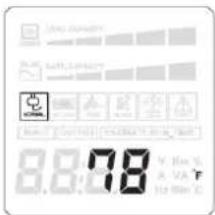
Temperature
The Temperature screen displays the internal temperature of the UPS in degrees Fahrenheit. Normal ranges are 32° F-104°F. If the temperature exceeds 104° F, additional methods should be implemented to cool the UPS (i.e. air conditioning, additional ventilation, isolation from other heat producing equipment, etc.)

Load
This displays the total load of the connected equipment.
MAINTENANCE
Storage
To store your UPS for an extended period, cover it and store with the battery fully charged. Recharge the battery every three months to ensure battery life.
Battery Replacement
Please read and follow the Safety Instructions before servicing the battery. Battery replacement should be performed by trained personnel who are familiar with the procedures and safety precautions.
Safety Precautions
- CAUTION! – Only use replacement batteries which are certified by CyberPower Systems. Use of incorrect battery type is an electrical hazard that could lead to explosion, fire, electrical shock, or short circuit.
-
CAUTION! – Batteries contain an electrical charge that could cause severe burns. Before servicing batteries, please remove any conductive materials such as jewelry, chains, wrist watches, and rings.
-
CAUTION! – Do not open or mutilate the batteries. Electrolyte fluid is harmful to the skin/eyes and may be toxic.
- CAUTION! – To avoid electrical shock, turn off and unplug the UPS from the wall receptacle before servicing the battery.
- CAUTION! – Only use tools with insulated handles. Do not lay tools or metal parts on top of UPS or battery terminals.
Replacement Batteries
Please refer to the Technical Specifications of the user manual for the model number of the correct replacement batteries. To purchase these batteries, log onto www.CPSww.com, or contact your local dealer.
Battery Disposal
Batteries are considered hazardous waste and must be disposed of properly. Contact your local government for more information about proper disposal and recycling of batteries. Do not dispose of batteries in a fire.
Battery Installation

①Remove the front panel.
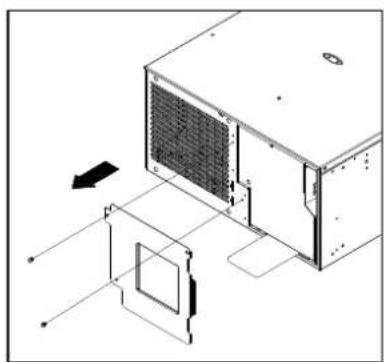
②Remove the retaining screws of the cable protection cover, and then remove the cover itself.
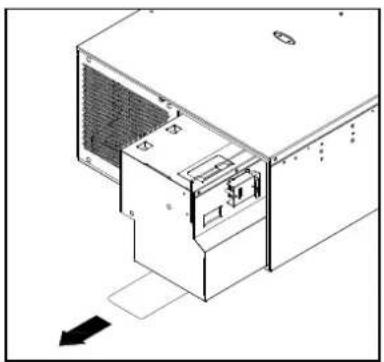
③ Pull the plastic sticker out slowly to remove the battery module.
![graph TD A["Device 1"] --> B["Add a memory unit"] B --> C["Output"]](/content/2026/06/1185933/images/81c5723795e4a8c97e0ed9aeb4fd7d92ea5779bd904da6faf837a01ac3130d43.jpg)
④ Put the new battery modules back into the compartment.
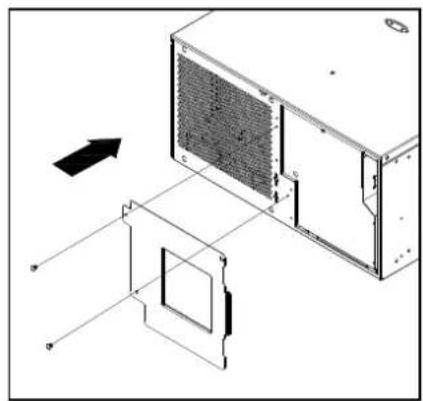
⑤ Tighten the screws and replace the cable protection cover and the front panel.
| Model | PR5000LCDRTXL5U PR6000LCDRTXL5U | ||
| Configuration | |||
| Capacity (VA) 5000VA | 6000VA | ||
| Capacity (Watts) 4000W | 4500W | ||
| Energy-saving Technology GreenPower UPSTM Bypass | |||
| Input | |||
| Nominal Input Voltage* 208/ 220/ 230/ 240V (Default: 208V) | |||
| Input Voltage Range* 148 – 254V (Default) | |||
| Input Adjustable Voltage Range* 131 – 268V (Default) | |||
| Frequency Range 50/60Hz +/- 3Hz | |||
| Input Plug Type NEMA L6-30P | |||
| Cold Start Yes | |||
| Output | |||
| UPS Outlets (3) NEMA L6-30R, (2) NEMA L6-20R | |||
| On Battery Output Voltage | Pure Sinewave, 208/ 220/ 230/ 240V +/- 5% | ||
| On Battery Output Frequency | 50/60Hz +/- 0.1Hz | ||
| Transfer Time (Typically) | 4ms | ||
| Overload Protection | On Utility: Circuit Breaker; On Battery: Internal Current Limiting | ||
| Data line Protection | |||
| Surge Protection 2430J | 2430J | ||
| Phone / Network Protection | RJ11/RJ45 (One In/One Out) | ||
| Battery | |||
| Battery Model | RB1290X16 | ||
| Sealed, Maintenance Free | Yes | ||
| User Replaceable | Yes | ||
| Recharge Time (Typically) | 6 hours 90% | ||
| Status Indicators | |||
| Indicator LEDs | Power On, LCD Display (Using Battery, AVR, Load Level, Battery Level) | ||
| Audible Alarms | On Battery, Low Battery, Overload | ||
| Environment | |||
| Operating Temperature | 32°F to 104°F (0°C to 40°C) | ||
| Operating Relative Humidity | 0 to 95% Non-Condensing | ||
| Management | |||
| On-Device Features | Self Test, Auto-Charge, Auto-Restart | ||
| Connectivity Ports | (1) USB, (2) Serial | ||
| SNMP/HTTP Capable | Yes [with optional RMCARD 205] | ||
| Software | |||
| Power Management Software | PowerPanel® Business Edition | ||
| Physical | |||
| Dimensions (LxWxH) | 25.25 x 17 x 8.75 (in) / 640 x 430 x 222 (mm) | ||
| Weight | 222 lbs / 101 kg | 226 lbs / 103 kg | |
| Safety | |||
| Conformance Approvals | UL1778, cUL107, FCC Part 15 Class A, CSA | ||
| Warranty | |||
| Product Warranty | 3 years Limited | ||
| Connected Equipment Guarantee | 400,000 | ||
*The Nominal Input Voltage and Input Adjustable Voltage Range can only be configured through software. Input Voltage Range and Input Adjustable Voltage Range will change when Nominal Input Voltage setting is changed. UPS firmware version must be 4.27 or above. Pressing and holding the LCD screen Select button for ten (10) seconds while UPS is in Normal operation will display the UPS firmware version.
| Problem Possible | Cause Solution | |
| Outlet does not provide power to equipment. | Circuit breaker has tripped due to an overload. | Turn the UPS off and unplug at least one piece of equipment. Wait 10 seconds, reset the circuit breaker by depressing the button, and then turn the UPS on. |
| Batteries are discharged Recharge the | unit for at least 4 hours | |
| Unit has been damaged by a surge or spike. | Contact CyberPower Systems about replacement batteries at tech@cpsww.com. | |
| Uncritical outlets have turned off automatically due to an overload. | Push the toggle button to make the uncritical outlets turn on. | |
| The UPS does not perform expected runtime. | Batteries are not fully charged. Recharge the batteries by leaving the UPS plugged in. | |
| Batteries are degraded. | Contact CyberPower Systems about replacement batteries at tech@cpsww.com. | |
| The UPS will not turn on. | The on/off switch is designed to prevent damage by rapidly turning it off and on. | Turn the UPS off. Wait 10 seconds and then turn the UPS on. |
| The unit is not connected to an AC outlet. | The unit must be connected to a 220/230/240V outlet. | |
| Batteries are worn out. | Contact CyberPower Systems about replacement batteries at tech@cpsww.com. | |
| Mechanical problem. Contact CyberPower Systems at tech@cpsww.com._ | ||
| PowerPanel® Business Edition is inactive. | The serial cable or USB cable is not connected. | Connect the cable to the UPS unit. You must use the cable that came with the unit. |
| The cable is connected to the wrong port. | Try another port of your computer. | |
| The unit is not providing battery power. | Shutdown your computer and turn the UPS off. Wait 10 seconds and turn the UPS back on. This should reset the unit. | |
| The serial cable is not the cable that was provided with the unit. | You must use the cable included with the unit for the software. | |
Additional troubleshooting information can be found at "Support" area of www.CPSww.com.
Product Registration
CyberPower requests that you complete and return the Warranty Registration Card enclosed with the Product or register the Product at its website (www.CPSww.com) to establish that you are the Initial Customer of the Product, and therefore entitled coverage under the Limited Warranty and the Connected Equipment Guarantee. (Registration is not required for coverage, but note: if you do not register your purchase, you will be required to provide proof of purchase.)
Limited Warranty and Connected Equipment Guarantee
Read the following terms and conditions carefully before using the CyberPower UPS (the "Product"). By using the Product you consent to be bound by and become a party to the terms and conditions of this Limited Warranty and Connected Equipment Guarantee (together referred to as this "Warranty"). If you do not agree to the terms and conditions of this Warranty, you should return the Product for a full refund prior to using it.
Who Is Providing This Warranty?
CyberPower Systems (USA), Inc. ("CyberPower") provides this Limited Warranty.
What Does This Warranty Cover?
This warranty covers defects in materials and workmanship in the Product under normal use and conditions. It also covers equipment that was connected to the Product and damaged because of the failure of the Product.
What Is The Period of Coverage?
This warranty covers the Product for three years and connected equipment for as long as you own the Product.
Who Is Covered?
This warranty only covers the original purchaser. Coverage ends if you sell or otherwise transfer the Product.
How Do You Get Service?
- Call us at (877) 297-6937 or write to us at Cyber Power Systems (USA), Inc., 4241 12th Ave. E., STE 400, Shakopee, MN 55379 or send us an e-mail message at claims@cpsww.com for instructions.
- When you contact CyberPower, identify the Product, the Purchase Date, and the item(s) of Connected Equipment. Have information on all applicable insurance or other resources of recovery/payment that are available to the Initial Customer and Request a Claim Number.
- You must provide a purchase receipt (or other proof of the original purchase) and provide a description of the defect.
- Pack and ship the product to CyberPower and, if requested, the item(s) of Connected Equipment, a repair cost estimate for the damage to the Connected Equipment, and all claim forms that CyberPower provides to you. Show the Claim Number on the shipping label or include it with the product. You must prepay all shipping costs, you are responsible for packaging and shipment, and you must pay the cost of the repair estimate.
How Long Do I Have To Make A Claim?
All claims must be made within ten days of the occurrence.
What Will We Do To Correct Problems?
CyberPower will inspect and examine the Product.
If the Product is defective in material or workmanship, CyberPower will repair or replace it at CyberPower's expense, or, if CyberPower is unable to or decides not to repair or replace the Product (if defective) within a reasonable time, CyberPower will refund to you the full purchase price you paid for the Product (purchase receipt showing price paid is required).
If it appears that our Product failed to protect any equipment plugged into it, we will also send you forms for making your claim for the connected equipment. We will repair or replace the equipment that was damaged because of the failure of our Product or pay you the fair market value (NOT REPLACEMENT COST) of the equipment at of the time of the damage. We will use Orion Blue Book, or another a third-party valuation guide, or eBay, craigslist, or other source to establish that amount. Our liability is limited to the Connected Equipment Guarantee amount as stated in the Technical Specifications section.
Who Pays For Shipping?
We pay when we send items to you; you pay when you send items to us.
What Are Some Things This Warranty Does Not Cover?
- This Warranty does not cover any software that was damaged or needs to be replaced due to the failure of the Product or any data that is lost as a result of the failure or the restoration of data or records, or the reinstallation of software.
- This Warranty does not cover or apply to: misuse, modification, operation or storage outside environmental limits of the Product or the equipment connected to it, nor for damage while in transit or in storage, nor if there has been improper operation or maintenance, or use with items not designed or intended for use with the Product, such as laser printers, appliances, aquariums, medical or life support devices, etc.
What Are The Limitations?
- This Warranty does not apply unless the Product and the equipment that was connected to it were connected to properly wired and grounded outlets (including compliance with electrical and safety codes of the most current electrical code), without the use of any adapters or other connectors.
- The Product must have been plugged directly into the power source and the equipment connected to the Product must be directly connected to the Product and not "daisy-chained" together in serial fashion with any extension cords, another Product or device similar to the Product, surge suppressor, or power tap. Any such installation voids the Limited Warranty.
- The Product and equipment connected to it must have been used properly in a suitable and proper environment and in conformance with any license, instruction manual, or warnings provided with the Product and the equipment connected to it.
- The Product must have been used at all times within the limitations on the Product's VA capacity.
Where Can I Get More Information?
For further information please feel free to contact CyberPower at Cyber Power Systems (USA), Inc. 4241 12th Ave E., STE 400, Shakopee, MN 55379; call us at (877) 297-6937; or send us an e-mail message at claims@cpsww.com.
Recycle Policy
CyberPower Systems encourages environmentally sound methods for disposal and recycling of its UPS products.
Please dispose and/or recycle your UPS and batteries in accordance to the local regulations of your state.
FREQUENTLY ASKED QUESTIONS (FAQs)
What types of equipment are NOT allowed to be plugged into the UPS?
Any device which exceeds the unit's VA/Watt rating should not be plugged into the UPS. High drain devices, medical equipment, and aquatic equipment also void the unit's warranty. Below is a list of other devices that also void the warranty.
- Laser printers
• Space heaters - Copiers
• Paper shredders - Vacuums
- Curling Irons
Can I increase the runtime by hooking up multiple UPS units in a row?
This configuration is called "daisy-chaining" and will void the UPS's warranty.
Can I hookup a surge strip to the UPS unit?
No. Surge strips cannot be installed before or after the UPS unit. Doing so will void the UPS's warranty. If you require additional outlets, upgrade your UPS to a model that has more outlets, or simply add an additional UPS to your existing configuration. If you need a longer input cord, you can purchase a UL certified extension cord that is rated for the respective current of the unit. This cord MUST be a single-outlet extension cord.
Should the cooling fan on my CyberPower UPS be running at all times?
No. The internal cooling fan will only run when it's required. CyberPower UPS systems utilize an internal thermal sensor which activates the fan when the temperature exceeds a certain threshold. When the UPS is running Online (off AC power), it is completely normal for the fan to not be running.
Do I have to have the UPS turned on in order for it to charge?
No. The UPS will charge the battery whether the unit is turned on or turned off.
My LCD screen shuts off after 15-30 seconds of inactivity. Is there a way to keep the LCD screen illuminated at all times?
No. The LCD display will only light up when the Select button is pressed. This extends the life of the LCD screen and is part of the energy saving design of our UPS systems.
NEED ADDITIONAL HELP?
Contact the Tech Support department with installation, troubleshooting, or general product questions.
CyberPower Technical Support
Phone: 1-877-297-6937
Email: tech@cpsww.com
Web: www.CPSww.com
Mail: 4241 12th Avenue E, Suite 400 Shakopee, MN 55379
Hours of Operation:
Monday – Friday, 8:00am – 5:00pm (CST)
SAFETY COMPLIANCE STATEMENT
FCC Compliance Statement
This device complies with part 15 of the FCC rules. Operation is subject to the following two conditions: (1) this device may not cause harmful interference, and (2) this device must accept any interference received, including interference that may cause undesired operation.
Note: This equipment has been tested and found to comply with the limits for a Class A digital device, pursuant to part 15 of the FCC Rules. These limits are designed to provide reasonable protection against harmful interference when the equipment is operated in a commercial environment. This equipment generates, uses, and can radiate radio frequency energy and, if not installed and used in accordance with the instruction manual, may cause harmful interference to radio communications. Operation of this equipment in a residential area is likely to cause harmful interference in which case the user will be required to correct the interference at his own expense.
Important: Changes or modifications not expressly approved by the party responsible for compliance could void the user's authority to operate the equipment.
Canadian Compliance Statement


- USER'S MANUAL
- PR5000LCDRTXL5U/ PR6000LCDRTXL5U
- IMPORTANT SAFETY INSTRUCTIONS
- AUTOMATIC VOLTAGE REGULATOR(AVR)
- SYSTEM BLOCK DIAGRAM
- HARDWARE INSTALLATION GUIDE
- FRONT/REAR PANEL DESCRIPTION
- POWER SWITCH
- POWER ON INDICATOR
- LCD READOUT TOGGLE BUTTON
- MULTIFUNCTION LCD READOUT
- BATTERY BACKUP & SURGE PROTECTED OUTLETS
- CRITICAL /NON-CRITICAL
- OUTPUT CIRCUIT BREAKER
- INPUT CIRCUIT BREAKER
- INPUT POWER CORD
- SNMP/HTTP NETWORK SLOT
- SERIAL PORT I (PRIMARY)
- SERIAL PORT II (SECONDARY)
- USB PORT TO PC
- EPO (EMERGENCY POWER OFF) PORT
- SURGE PROTECTED COMMUNICATION PORTS - RJ11/RJ45
- EXTENDED RUNTIME (XL) BATTERY PACK CONNECTOR
- GROUND STUD
- HARDWARE INSTALLATION
- SAFETY PRECAUTIONS
- RACKMOUNT INSTALLATION
- STEP 1: RACK MOUNT EARS INSTALLATION
- STEP 2: RACK MOUNT RAIL INSTALLATION
- VERTICAZL/TOWER INSTALLATION
- ELECTRICAL INSTALLATION
- BASIC OPERATION
- SELECT BUTTON
- MAIN FEATURES
- TOGGLE SCREENS
- INPUT VOLTAGE
- OUTPUT VOLTAGE
- OUTPUT FREQUENCY
- ESTIMATED RUNTIME
- LOAD CAPACITY
- BATTERY CAPACITY
- TEMPERATURE
- LOAD
- MAINTENANCE
- STORAGE
- BATTERY REPLACEMENT
- REPLACEMENT BATTERIES
- BATTERY DISPOSAL
- BATTERY INSTALLATION
- PRODUCT REGISTRATION
- LIMITED WARRANTY AND CONNECTED EQUIPMENT GUARANTEE
- WHO IS PROVIDING THIS WARRANTY
- WHAT DOES THIS WARRANTY COVER
- WHAT IS THE PERIOD OF COVERAGE
- WHO IS COVERED
- HOW DO YOU GET SERVICE
- HOW LONG DO I HAVE TO MAKE A CLAIM
- WHAT WILL WE DO TO CORRECT PROBLEMS
- WHO PAYS FOR SHIPPING
- WHAT ARE SOME THINGS THIS WARRANTY DOES NOT COVER
- WHAT ARE THE LIMITATIONS
- WHERE CAN I GET MORE INFORMATION
- RECYCLE POLICY
- FREQUENTLY ASKED QUESTIONS (FAQS)
- NEED ADDITIONAL HELP
- SAFETY COMPLIANCE STATEMENT
- FCC COMPLIANCE STATEMENT
- CANADIAN COMPLIANCE STATEMENT
Brand : CyberPower
Model : PFC Sinewave PR6000LCDRTXL5U
Category : UPS