Blast 4HX - Fan Ozone - Free user manual and instructions
Find the device manual for free Blast 4HX Ozone in PDF.


User questions about Blast 4HX Ozone
0 question about this device. Answer the ones you know or ask your own.
Ask a new question about this device
Download the instructions for your Fan in PDF format for free! Find your manual Blast 4HX - Ozone and take your electronic device back in hand. On this page are published all the documents necessary for the use of your device. Blast 4HX by Ozone.
USER MANUAL Blast 4HX Ozone
- Power indicator on inline controller (White LED).
- Mic. on/off Switch indicator (Red LED when mic. off).
- Compliant with USB 2.0.
- Compatible with XBOX 360, PlayStation 3 & 4, PC/MAC and other audio devices (RCA Adapter/pass thru cable).
- 2.5 mm input for XBOX 360 chat.
-
Independent game chat volume control.
-
Fully Compliant with USB Audio Device Class Specification Version 1.0, additional USB Driver is not needed for Windows 2000/XP/Vista and Mac 9.X or above Version.
BOX CONTENT
- Headphone with mic + inline controller with a USB connector.
- RCA Cable x 1
- 2.5mm Plug to 3.5mm Plug Cable x 1
INSTALLATION GUIDE
BLAST 4HX is compatible with PC, PS3, PS4 & XBOX 360.
- Select PC/Game mode via inline controller based on the device you want to connect with the headset: "PC" for a Windows® PC or Mac® / "Game" for a PS3®, PS4® or Xbox 360® console.
2. With PC/Mac®
Using the USB connector, plug the headset into any free USB port (the 3.5mm connector and both additional cables are not required for PC use). The device will be installed automatically and ready to use in a few seconds. Please note that the headset features an additional soundcard which must be configured in the system settings as the default device for audio playback and recording.
PC/MAC®
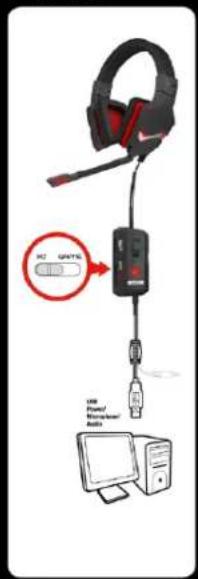
3. With Xbox 360®
A) Plug the headset's USB connector into any free USB port on your console.
B) Using the accompanying 2.5mm cable, connect the in-line remote to the headset socket on the Xbox 360® controller.
C) Use the accompanying phono/RCA adapter cable to connect the headset's 3.5mm connector to the phono/RCA audio outputs on the composite/component AV cable (supplied with the Xbox 360®).
D) If you'd also like to playback audio through the TV at the same time, plug the phono/RCA connectors on the adapter cable into the TV's audio input sockets. If using an HDMI® cable for video output, you can also connect the phono/RCA adapter cable using the HDMI® audio adapter.*
* Optional accessory

XBOX 360
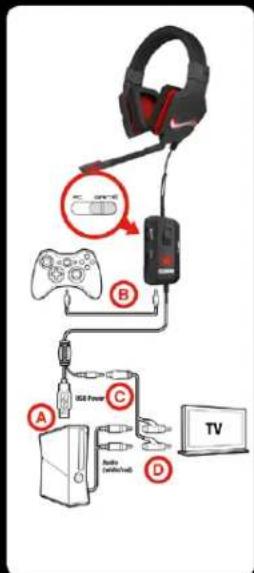
4. With PS3® / PS4®
A) Plug the headset's USB connector into any free USB port on your console.
B) Use the accompanying phono/RCA adapter cable to connect the headset's 3.5mm connector to the phono/RCA audio outputs on the AV cable (supplied with the PS3®).
C) If you'd like to simultaneously playback audio via the TV using HDMI®, enable the "Audio Multi- Output" option under the "Sound Settings" option. For simultaneous audio playback via the TV using the AV Cable, plug the adapter cable's phono/RCA plugs into the TV's audio input sockets. In the console menu, select "AV MULTI" ("Sound Settings" - "Audio Output Settings") as the audio output device for gaming audio, and then select "System Default Device" as the chat output device and "USB Headphone Set" as the audio input device (both under "Accessory Settings" - "Audio Device Settings").
PS4 & PS3
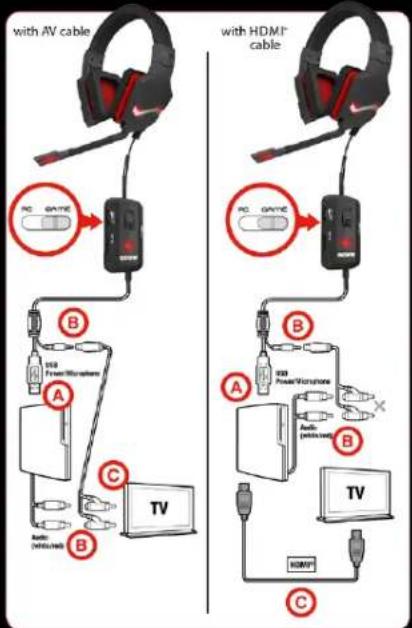
flowchart
graph TD
    A["AV Cable"] --> B["PC GAME"]
    B --> C["Video/Microphone"]
    C --> D["Audio (MOS/Limeth)"]
    D --> E["TV"]
    F["HDMI Cable"] --> G["PC GAME"]
    G --> H["Video/Microphone"]
    H --> I["Audio (Pulse/Hz)"]
    I --> J["TV"]
    J --> K["Audio (MOS/Limeth)"]
    K --> L["TV"]
    L --> M["HDMI"]
You can configure below settings through the inline controller:
- Adjust the speaker volume as needed (-/+).
- Mic. mute function: mute the mic with just one click and easily turn it back ON when required.
-
Switch between PC and Game mode: Select PC/Game mode via inline controller based on the device you want to connect with the headset: "PC" for a Windows® PC or Mac® / "Game" for a PS3®, PS4® or XBOX 360® console.
For full installation instructions please download Manual from our website (see page 1) -
Adjust voice chat volume (-/+) independently from the speaker volume.

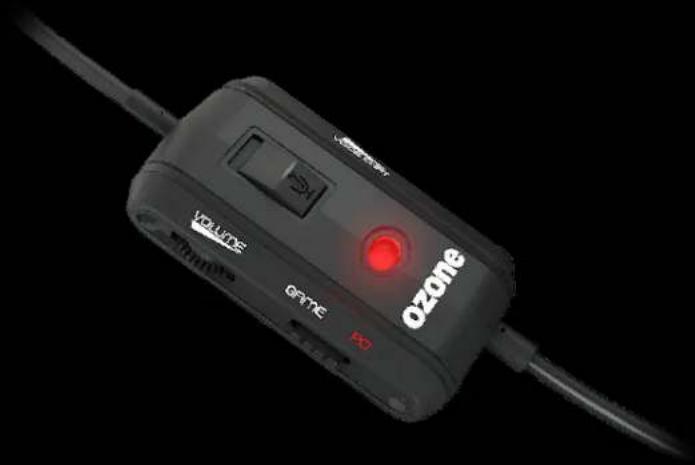
natural_image
Close-up of a black ozone device with a red Ozone indicator and control buttons, connected to a black cable (no readable text beyond branding)* LED indicator on controller: WHITE LED when POWER ON; RED LED when mic. MUTE
BLAST 4HX
natural_image
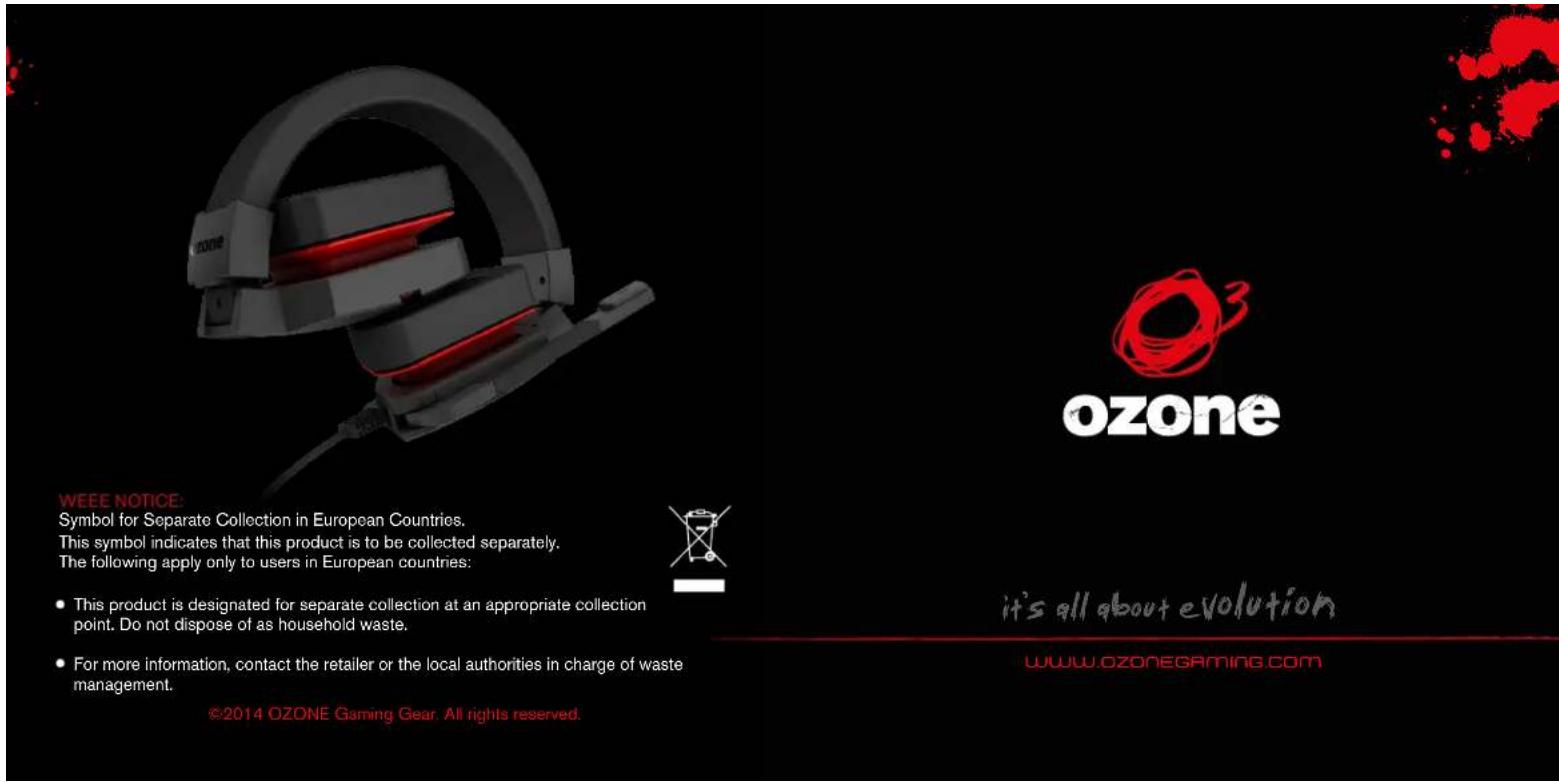
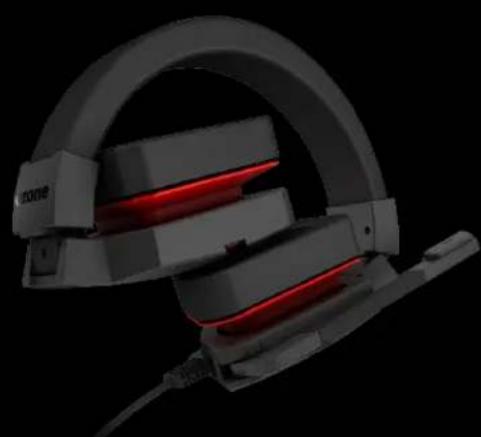
3D rendering of a black and red headboard with illuminated cable (no text or symbols visible)
ozone
WEEE NOTICE:
Symbol for Separate Collection in European Countries.
This symbol indicates that this product is to be collected separately.
The following apply only to users in European countries:

- This product is designated for separate collection at an appropriate collection point. Do not dispose of as household waste.
- For more information, contact the retailer or the local authorities in charge of waste management.
it's all about evolution
www.ozonegaming.com