L461-ID3250 - Suivi MITSUBISHI - Free user manual and instructions
Find the device manual for free L461-ID3250 MITSUBISHI in PDF.


User questions about L461-ID3250 MITSUBISHI
0 question about this device. Answer the ones you know or ask your own.
Ask a new question about this device
Download the instructions for your Suivi in PDF format for free! Find your manual L461-ID3250 - MITSUBISHI and take your electronic device back in hand. On this page are published all the documents necessary for the use of your device. L461-ID3250 by MITSUBISHI.
USER MANUAL L461-ID3250 MITSUBISHI
46" LCD Display Monitor
LDT46IV
USER'S MANUAL
BEDIENERHANDBUCH
MANUAL DEL USUARIO
MANUEL UTILISATEUR
MANUALE UTENTE
GEBRUIKERSHANDLEIDING
natural_image
Line drawing of a flat-screen TV or monitor frame with mounting feet (no text or symbols)Important Information.... English-2
Safety Precautions, Maintenance & Recommended Use .... English-4
Contents.... English-5
Parts Name and Functions .... English-6
Control Panel ...... English-6
Terminal Panel.... English-7
Wireless Remote Control .... English-8
Operating Range for the Remote Control.... English-9
Handling the remote control .... English-9
Setup Procedure ...... English-10
How to Mount and Attach Options to the LCD Monitor.... English-13
Connections ...... English-14
Wiring Diagram ...... English-14
Connecting a Personal Computer .... English-15
Connecting with Digital Interface Equipment ...... English-16
Connecting a DVD Player with component out.... English-17
Connecting to a Stereo Amplifier.... English-18
Basic Operation.... English-19
Power ON and OFF Modes ...... English-19
Power Indicator.... English-20
Using Power Management .... English-20
Selecting a video source .... English-20
Picture Size ...... English-20
Picture Mode .... English-20
Audio Source Switching .... English-20
Information OSD ...... English-21
OSD (On-Screen-Display) Controls.... English-22
PICTURE.... English-23
SCREEN...... English-24
AUDIO.... English-25
PICTURE IN PICTURE .... English-25
CONFIGURATION 1 ...... English-26
CONFIGURATION 2.... English-27
ADVANCED OPTION ...... English-28
NOTE ...... English-30
Controlling the LCD monitor via RS-232C Remote Control English-32
Features...... English-34
Troubleshooting.... English-35
Specifications English-37
Pin Assignment ...... English-38
DECLARATION OF CONFORMITY
This device complies with Part 15 of FCC Rules. Operation is subject to the following two conditions. (1) This device may not cause harmful interference, and (2) this device must accept any interference received, including interference that may cause undesired operation.
U.S. Responsible Party: Mitsubishi Digital Electronics America, Inc.
| Address: | 9351Irvine, | JeronimoCalifornia | Road,92618 | U.S.A. | |
| Tel. | No.: | +1 | - (949) | 465-6000 | |
| Type | of | Product: | Computer | Monitor | |
| Equipment | Classifi cation: Class B Peripheral | ||||
| Model: | LDT461V (DL660) | ||||

We hereby declare that the equipment specified above conforms to the technical standards as specified in the FCC Rules.
Windows is a registered trademark of Microsoft Corporation. All other brands and product names are trademarks or registered trademarks of their respective owners.
HDMI, the HDMI logo and High-Definition Multimedia Interface are trademarks or registered trademarks of HDMI Licensing LLC.
Canadian Department of Communications Compliance Statement
DOC: This Class B digital apparatus meets all requirements of the Canadian Interference-Causing Equipment Regulations.
C-UL: Bears the C-UL Mark and is in compliance with Canadian Safety Regulations according to CAN/CSA C22.2 No. 60950-1.
FCC Information
- Use the attached specified cables with the LDT461V (DL660) color monitor so as not to interfere with radio and television reception.
(1) Please use the supplied power cord or equivalent to ensure FCC compliance.
(2) Please use the supplied shielded video signal cable, 15-pin mini D-SUB to 15-pin mini D-SUB.
- This equipment has been tested and found to comply with the limits for a Class B digital device, pursuant to part 15 of the FCC Rules.
These limits are designed to provide reasonable protection against harmful interference in a residential installation. This equipment generates, uses, and can radiate radio frequency energy, and, if not installed and used in accordance with the instructions, may cause harmful interference to radio communications. However, there is no guarantee that interference will not occur in a particular installation. If this equipment does cause harmful interference to radio or television reception, which can be determined by turning the equipment off and on, the user is encouraged to try to correct the interference by one or more of the following measures:
• Reorient or relocate the receiving antenna.
- Increase the separation between the equipment and receiver.
- Connect the equipment into an outlet on a circuit different from that to which the receiver is connected.
- Consult your dealer or an experienced radio/TV technician for help.
If necessary, the user should contact the dealer or an experienced radio/television technician for additional suggestions.
The user may find the following booklet, prepared by the Federal Communications Commission, helpful: "How to Identify and Resolve Radio-TV Interference Problems." This booklet is available from the U.S. Government Printing Office,
Washington, D.C., 20402, Stock No. 004-000-00345-4.

WARNING

TO PREVENT FIRE OR SHOCK HAZARDS, DO NOT EXPOSE THIS UNIT TO RAIN OR MOISTURE. ALSO, DO NOT USE THIS UNIT'S POLARIZED PLUG WITH AN EXTENSION CORD RECEPTACLE OR OTHER OUTLETS UNLESS THE PRONGS CAN BE FULLY INSERTED.
REFRAIN FROM OPENING THE CABINET AS THERE ARE HIGH VOLTAGE COMPONENTS INSIDE.
REFER SERVICING TO QUALIFIED SERVICE PERSONNEL.

CAUTION
CAUTION

TO REDUCE THE RISK OF ELECTRIC SHOCK, MAKE SURE POWER CORD IS UNPLUGGED FROM WALL SOCKET. TO FULLY DISENGAGE THE POWER TO THE UNIT, PLEASE DISCONNECT THE POWER CORD FROM THE AC OUTLET. DO NOT REMOVE COVER (OR BACK). NO USER SERVICEABLE PARTS INSIDE. REFER SERVICING TO QUALIFIED SERVICE PERSONNEL.

This symbol warns user that uninsulated voltage within the unit may have sufficient magnitude to cause electric shock. Therefore, it is dangerous to make any kind of contact with any part inside this unit.

This symbol alerts the user that important literature concerning the operation and maintenance of this unit has been included. Therefore, it should be read carefully in order to avoid any problems.
CAUTION

This LCD Monitor uses a lamp that contains mercury. Disposal of the lamp or the LCD Monitor with the lamp may be regulated due to environmental considerations. For disposal or recycling information, please contact your local authorities or the Electronic Industries Alliance: www.eiae.org. (For US only).
Declaration
Declaration of the Manufacturer
We hereby certify that the color monitor LDT461V (DL660)
is in compliance with
Council Directive 73/23/EEC:
- EN 60950-1
Council Directive 89/336/EEC:
- EN 55022
- EN 61000-3-2
- EN 61000-3-3
- EN 55024
and marked with

Mitsubishi Electric Corporation
2-7-3, Marunouchi,
Chiyoda-Ku
Tokyo 100-8310, Japan
Declaration of the Manufacturer
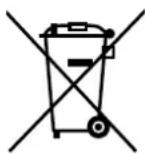
Note: This symbol mark is EU countries only.
This symbol mark is according to the directive 2002/96/EC Article 10 Information for users and Annex IV.
Your MITSUBISHI ELECTRIC product is designed and manufactured with high quality materials and components which can be recycled and reused.
This symbol means that electrical and electronic equipment, at their end-of-life, should
be disposed of separately from your household waste.
Please, dispose of this equipment at your local community waste collection/recycling center.
In the European Union there are separate collection systems for used electrical and electronic product.
Please, help us to conserve the environment we live in!
FOR OPTIMUM PERFORMANCE, PLEASE NOTE THE FOLLOWING WHEN SETTING UP AND USING THE LCD COLOR MONITOR:
- DO NOT REMOVE MONITOR BACK COVER. There are no user serviceable parts inside and opening or removing covers may expose you to dangerous shock hazards or other risks.
Refer all servicing to qualified service personnel.
- Do not spill any liquids into the cabinet or use your monitor near water.
- Do not insert objects of any kind into the cabinet slots, as they may touch dangerous voltage points, which can be harmful or fatal or may cause electric shock, fire or equipment failure.
- Do not place any heavy objects on the power cord.
Damage to the cord may cause shock or fire.
- Do not place this product on a sloping or unstable cart, stand or table, as the monitor may fall, causing serious damage to the monitor.
- When operating the LCD monitor with an AC 100-120V power supply in North America, use a power supply cord provided with this monitor.
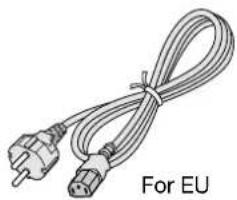
- When operating the LCD monitor with an AC 220-240V power supply in Europe, use a power supply cord provided with this monitor.
- In UK, use a BS-approved power cord with molded plug having a black (10A) fuse installed for use with this monitor.
If a power cord is not supplied with this monitor, please contact your supplier.
- When operating the LCD monitor with a 220-240V AC power supply in Australia, use the power cord provided with this monitor.
If a power cord is not supplied with this monitor, please contact your supplier.
- For all othercase, use a power cord that matches the AC voltage of the power outlet and has been approved by and complies with the safety standard of your particular country.
- Do not place any objects onto the monitor and do not use the monitor outdoors.
- The inside of the fluorescent tube located within the LCD monitor contains mercury. Please follow the laws or rules of your municipality to dispose of the tube properly.
- Do not bend power cord.
- Do not use monitor in high temperature, humid, dusty, or oily areas.
- If monitor or glass is broken, do not come in contact with the liquid crystal and handle with care.
- Allow adequate ventilation around the monitor, so that heat can properly dissipate. Do not block ventilated openings or place the monitor near a radiator or other heat sources.
Do not put anything on top of the monitor.
- The power cable connector is the primary means of detaching the system from the power supply. The monitor should be installed close to a power outlet, which is easily accessible.
- Handle with care when transporting. Save packaging for transporting.
- Please clean the holes of back cabinet to reject dirt and dust at least once a year because of set reliability.
- If using the cooling fan continuously, it's recommended to wipe holes a minimum of once a month.
- When installing the remote control batteries;
- Align the batteries according to the (+) and (-) indications inside the case.
- Align the (-) indication of the battery first inside the case.

CAUTION:
Immediately unplug your monitor from the wall outlet and refer servicing to qualified service personnel under the following conditions:
- When the power supply cord or plug is damaged.
- If liquid has been spilled, or objects have fallen into the monitor.
- If the monitor has been exposed to rain or water.
- If the monitor has been dropped or the cabinet damaged.
- If the monitor does not operate normally by following operating instructions.
Recommended Use
CAUTION:
- For optimum performance, allow 20 minutes for warm-up.
- Rest your eyes periodically by focusing on an object at least 5 feet away. Blink often.
- Position the monitor at a 90° angle to windows and other light sources to minimize glare and reflections.
- Clean the LCD monitor surface with a lint-free, non-abrasive cloth. Avoid using any cleaning solution or glass cleaner!
- Adjust the monitor's brightness, contrast and sharpness controls to enhance readability.
- Avoid displaying fixed patterns on the monitor for long periods of time to avoid image persistence (after image effects).
• Get regular eye checkups.
Ergonomics
To realize the maximum ergonomic benefits, we recommend the following:
- Use the preset Size and Position controls with standard signals.
- Use the preset Color Setting.
- Use non-interlaced signals.
- Do not use primary color blue on a dark background, as it is difficult to see and may produce eye fatigue due to insufficient contrast.
Your new LDT461V monitor box* should contain the following:
- LCD monitor
• Power Cord (3 m)
• Video Signal Cable (4 m) - User's Manual
• Wireless Remote Control and AAA Batteries - Clamper x 2 (To prevent from falling)
-
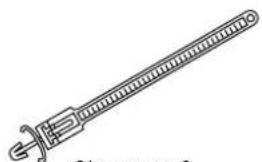
Clamper x 2 (For securing cables)
-
Screw for Clamper (To prevent from falling) x 2
- Main switch cover
- Screw for Main Switch cover x 2
- Cable Holder x 2
- Stand x 2
- Thumbscrew for stand x 4
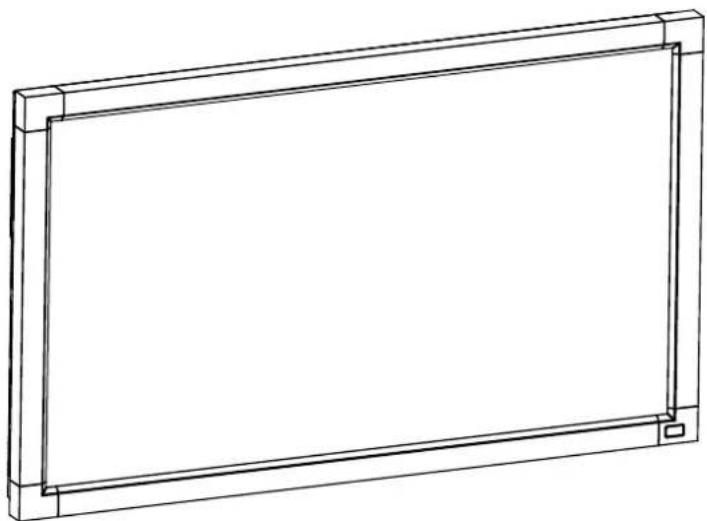
natural_image
Line drawing of a rectangular frame with rounded corners and a central blank space (no text or symbols)
User's Manual
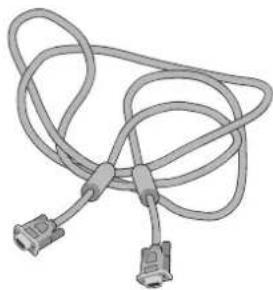
natural_image
Illustration of a coiled cable with two connectors (no text or symbols)Video Signal Cable (D-SUB to D-SUB Cable)

Screw for Main switch cover (3 x 6) x 2

Screw for Clamper (M4 x 8) x 2
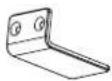
Main switch cover Cable Holder x 2

* The supplied power cord varies depending on destination.
natural_image
Coiled electrical plug and terminal connector labeled 'For EU' (no additional text or symbols)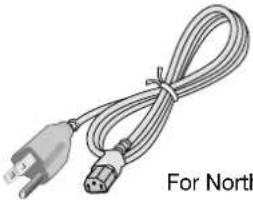
natural_image
Coiled cable with two connectors, labeled 'For North' at bottom (no other text or symbols)For North America
Power cord
* For all other case, use a power cord that matches the AC voltage of the power outlet and has been approved by and complies with the safety standard of your particular country.

Clamper x 2
(To prevent from falling)
natural_image
Line drawing of a mechanical tool or device with a handle and central shaft (no text or symbols)Clamper x 2 (For securing the power cord and HDMI cable)
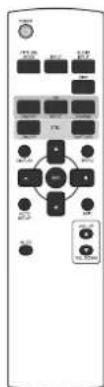
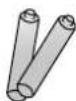
Wireless Remote Control and AAA Batteries
natural_image
Technical line drawing of a mechanical clamp or bracket assembly (no text or symbols)
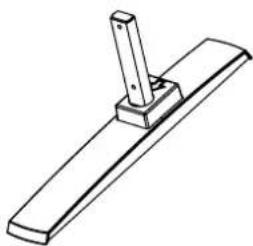
Thumbscrew for Stand x 4Stand x 2
* Remember to save your original box and packing material to transport or ship the monitor.
The following components are prepared as option.
- External Speakers
Control Panel

① POWER button (💡)
Switches the power on/off. See also page 19.
② MUTE button
Switches the audio mute ON/OFF.
③ INPUT button
Acts as SET button with OSD menu.
(Toggle switches between [RGB1], [RGB2], [RGB3], [RGB4], [DVD/HD], [VIDEO] and [VIDEO].)
④ PLUS (+) button
Acts as (+) button to increase the adjustment with OSD menu. Increase the audio output level when the OSD menu is turned off.
⑤ MINUS (-) button
Acts as (-) button to decrease the adjustment with OSD menu. Decreases the audio output level when the OSD menu is turned off.
⑥ UP (▲ button
Activates the OSD menu when the OSD menu is turned-off. Acts as ▲ button to move the highlighted area up to select the adjustment with OSD menu.
⑦ DOWN (▼ button
Activates the OSD menu when the OSD menu is turned-off. Acts as ▼ button to move the highlighted area down to select the adjustment with OSD menu.
⑧ EXIT button
Activates the OSD menu when the OSD menu is turned-off. Acts as EXIT button to move to previous menu with OSD menu.
⑨ Remote control sensor and Power indicator
Receives the signal from the remote control (when using the wireless remote control). See also page 9.
Glows green when the LCD monitor is in active and glows red when the LCD is in POWER OFF mode. When the LCD is in power save mode, it will glow both green and red. When SCHEDULE is enabled, it will blink green and glow red. See page 20. In the case of where a failure is detected, it will blink red.
⑩ Main Power Switch
On/Off Switch to turn main power on/off.
NOTE: Control Key Lock Mode
This control completely locks out access to all Control Key functions. To activate the control key lock function, press both of “▲” and “▼and hold down simultaneously for more than 3 seconds. To resume back to user mode, press both of “▲” and “▼and hold simultaneously for three (3) seconds.
Terminal Panel
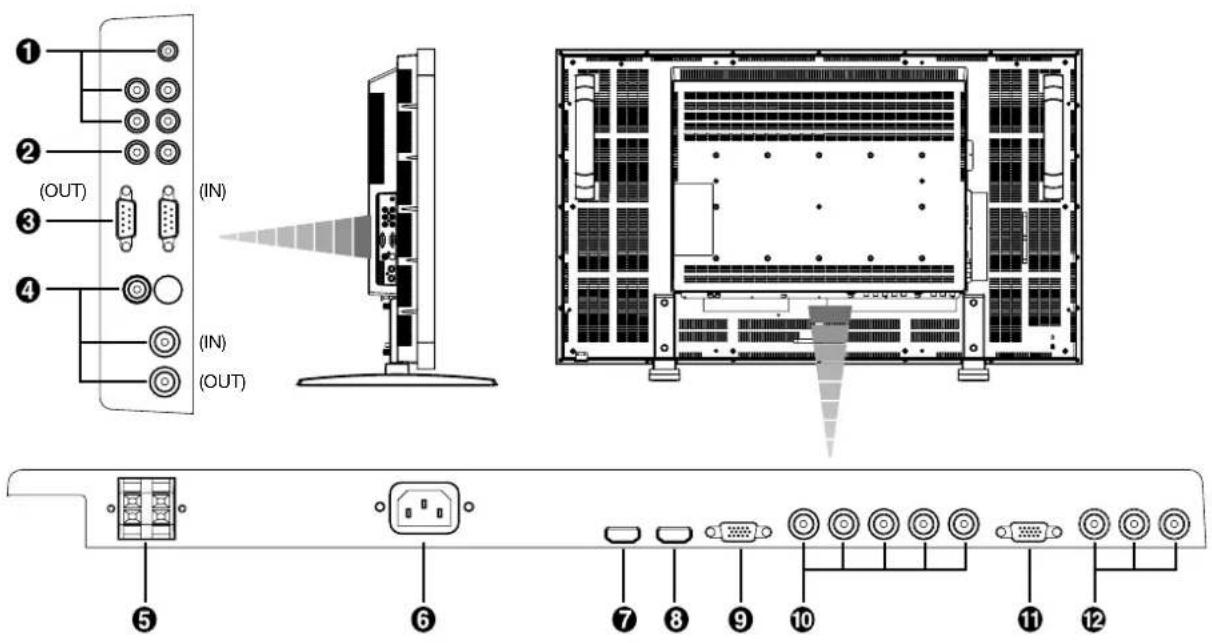
① AUDIO IN 1, 2, 3
To input audio signal from external equipment such as a computer, VCR or DVD player.
② AUDIO OUT
To output the audio signal from the AUDIO IN 1,2 and 3 jack.
③ EXTERNAL CONTROL (mini D-Sub 9 pin)
Connect the IN connector with the RS-232C OUT connector of the computer or a multi-connected LDT461V monitor. Connect the OUT connector with the RS-232C IN connector of LDT461V monitor.
④ VIDEO IN/OUT
VIDEO IN connector (BNC and RCA): To input a composite video signal. BNC and RCA are not available at the same time. (Use only one input).
VIDEO OUT connector (BNC): To output the composite video signal from VIDEO IN connector.
S-VIDEO IN connector (MINI DIN 4 pin): To input the S-video (Y/C separate signal).
⑤ EXTERNAL SPEAKER TERMINAL
To output the audio signal for external speakers from AUDIO 1, 2, 3 jack or HDMI.
⑥ AC IN connector
Connects with the supplied power cord.
⑦ RGB 1 IN (HDMI 1)
To input digital RGB signals from a computer.
* This connector does not support analog input. AUDIO is supported via HDMI.
⑧ RGB 2 IN (HDMI 2)
To input digital RGB signals from a computer.
* This connector does not support analog input. AUDIO is supported via HDMI.
⑨ RGB 3 IN (mini D-Sub 15 pin)
To input a analog RGB signals from a computer or other RGB equipment.
⑩ RGB 4 IN [R, G, B, H, V] (BNC)
To input the analog RGB signals from a computer or other RGB equipment.
⑪ RGB OUT (mini D-Sub 15 pin)
To output the signal from RGB 3 IN or 4 IN.
⑫ DVD/HD IN [Y, Pb/Cb, Pr/Cr] (BNC)
Connecting equipment such as a DVD player, HDTV device, or Laser disc player.
Wireless Remote Control
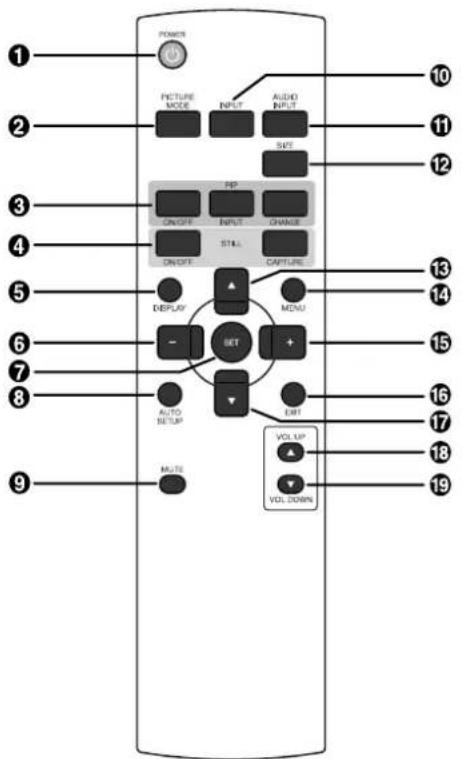
① POWER button
Switches the power on/off.
* If Power Indicator is not glowing, then no controls will work.
② PICTURE MODE button
Selects from picture mode, [HIGHBRIGHT], [STANDARD], [sRGB], [CINEMA]. See page 20.
HIGHBRIGHT: for moving image such as DVD
STANDARD: for images (Factory setting)
sRGB: for text based images
CINEMA: for movies.
③ PIP (Picture In Picture) button
ON/OFF button: PIP-ON/OFF. See page 25.
INPUT button: Select the "picture in picture" input signal.
CHANGE button: Replaces to the main picture and sub picture.
Note:
The "PIP" and "POP" modes do not function when the screen size is "CUSTOM" or "REAL".
④ STILL button
ON/OFF button: To switch the still picture mode on/off.
CAPTURE button: Updates the still picture.
⑤ DISPLAY button
To switch the information OSD on/off. See page 21.
⑥ MINUS button decrease
Acts as (-) button to decrease the adjustment with OSD menu. Small screen which adjusted "PIP" mode moves left.
⑦ SET button
Acts as SET button with OSD menu.
⑧ AUTO SETUP button
To enter the auto setup menu. See page 26.
⑨ MUTE button
To switch the mute function on/off.
⑩ INPUT button
Selects from input signal, [RGB1], [RGB2], [RGB3], [RGB4], [DVD/HD], [VIDEO] and [VIDEO].
⑪ AUDIO INPUT button
Press to change the audio source for each video source. The audio source is changed from [AUDIO1] to [AUDIO2], [AUDIO3] and [HDMI] in order. Note that you cannot select the audio source for [VIDEO] or [VIDEO]. [HDMI] is selectable only when the video source is [RGB 1] and [RGB 2].
⑫ SIZE button
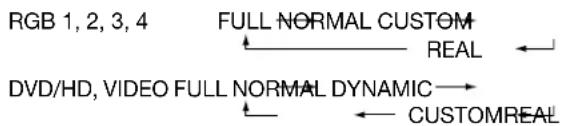
Selects picture size, [FULL], [NORMAL], [CUSTOM], [DYNAMIC] and [REAL]. See page 20.
⑬ UP button
Acts as ▲button to move the highlighted area up to select the adjustment with OSD menu.
Small screen which adjusted "PIP" mode moves up.
14 MENU button
To switch the menu mode on/off.
⑮ PLUS button increase
Acts as (+) button to increase the adjustment with OSD menu. Small screen which adjusted "PIP" mode moves right.
16 EXIT button
Turn to previous menu with OSD menu.
⑰ DOWN button
Acts as ▼button to move the highlighted area down to select the adjustment with OSD menu.
Small screen which adjusted "PIP" mode moves down.
18 VOLUME UP button
Increase the audio output level.
19 VOLUME DOWN button
Decrease the audio output level.
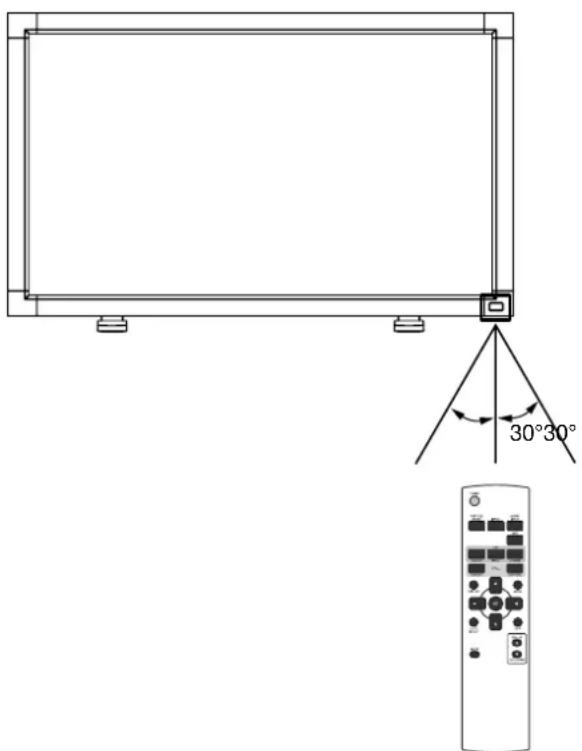
Operating Range for the Remote Control
Point the top of the remote control toward the LCD monitor's remote sensor during button operation.
Use the remote control within a distance of about 7 m/23 ft. from the front of the LCD monitor's remote control sensor and at a horizontal and vertical angle of within 30^ within a distance of about 3 m/10 ft.
Handling the remote control
* Do not subject to strong shock.
* Do not allow water or other liquid to splash the remote control. If the remote control gets wet, wipe it dry immediately.
* Avoid exposure to heat and steam.
* Other than to install the batteries, do not open the remote.
CAUTION:
Important, the remote control system may not function when direct sunlight or strong illumination strikes the remote control sensor of the LCD monitor, or when there is an object in the path.
1. Determine the installation location
CAUTION:
DO NOT ATTEMPT TO INSTALL THE LCD MONITOR BY YOURSELF.
Installing your LCD display must be done by a qualified technician. Contact your dealer for more information.
CAUTION:
MOVING OR INSTALLING THE LCD MONITOR MUST BE DONE BY TWO OR MORE PEOPLE.
Failure to follow this caution may result in injury if the LCD monitor falls.
CAUTION:
Do not mount or operate the display upside down, face up, or face down.
CAUTION:
Do not install the LCD monitor where it will be exposed to direct sunlight, as this will result in display defects.
CAUTION:
This LCD has a temperature sensor and cooling fan. If the LCD becomes too hot, the cooling fan will turn on automatically. If the LCD becomes overheated and the cooling fan is running, the "Caution" menu will appear. If the "Caution" menu appears, discontinue use and allow the unit to cool. When the LCD monitor is used in an enclosure or with protection on LCD surface, please check the inside temperature of monitor by "HEAT STATUS" (See page 29). The temperature is too hot than normal condition, please set "cooling fan" to ON on SCREEN SAVER function (See page 26).
IMPORTANT:
Lay the protective sheet, which was wrapped around the LCD monitor when it was packaged, beneath the LCD monitor so as not to scratch the panel.
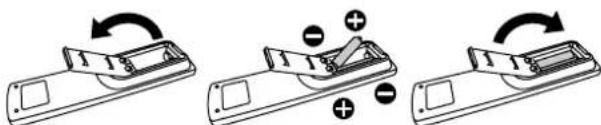
2. Install the remote control batteries
The remote control is powered by 1.5V AAA batteries.
To install or replace batteries:
- Press and slide to open the cover.
- Align the batteries according to the (+) and (−) indications inside the case.
- Replace the cover.
CAUTION:
Incorrect use of batteries can result in leaks or bursting. Be careful especially about the following points.
- Place "AAA" batteries matching the + and - signs on each battery to the + and - signs of the battery compartment.
- Do not mix battery types.
- Do not combine new batteries with used ones. It causes shorter battery life or leakage of batteries.
- Remove dead batteries immediately to prevent battery liquid from leaking into the battery compartment. Don't touch exposed battery acid, it cause damage to your skin.
NOTE:
If you do not intend to use the Remote Control for a long period, remove the batteries.
3. Connect external equipment (See page 14-18)
- To protect the connected equipment, turn off the main power before making connections.
• Refer to your equipment user manual.
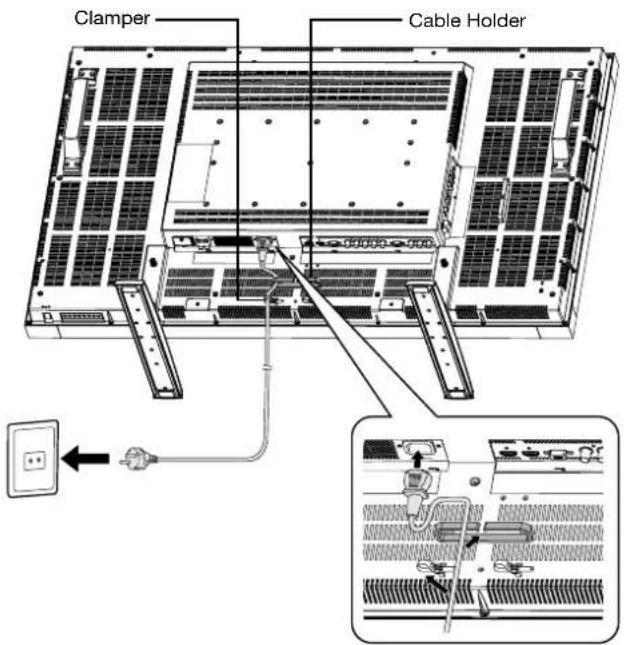
4. Connect the supplied power cord
- The power outlet socket should be installed as near to the equipment as possible, and should be easily accessible.
- Fully insert the prongs into the power outlet socket. Loose connection may cause noise.
NOTE:
Please refer to "Safety Precautions, Maintenance & Recommended Use" section of this manual for proper selection of AC power cord.
5. Switch on the power of all the attached external equipment
When connected with a computer, switch on the power of the computer first.
6. Operate the attached external equipment
Display the signal on the external equipment you wish.
7. Adjust the sound
Make adjustments when adjustment of the volume is required.
8. Adjust the screen (See pages 23-31)
Make adjustments when adjustment of the screen display position or distortion is required.
9. Adjust the image (See page 23-31)
Make adjustments when adjustment such as the brightness or contrast is required.
10. Recommended Adjustment
To reduce the risk of "image persistence", please adjust the following items based on the application being used. "POWER SAVE" (See page 26), "SCREEN SAVER" (See page 26), "SIDE BORDER COLOR"(See page 26), "DATE AND TIME" (See page 29), "SCHEDULE"(See page 29).
11. Installing and removing stands
How to install stands
- Please turn monitor off.
- After inserting stand in guide block, fasten Thumbscrews on both sides of the monitor.
NOTE:
Install the stands so that their longer portions come to the front.
How to remove the stands
- Spread the protective sheet on the flat surface, such as a desk.
- Place monitor on the protective sheet.
- Remove screws with a screwdriver and place them in a safe place for reuse.
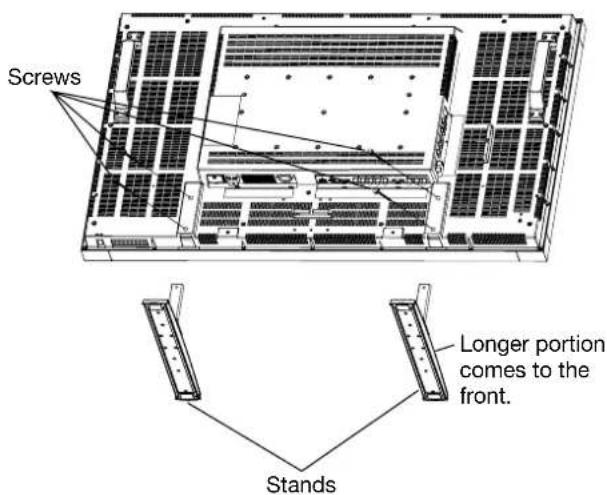
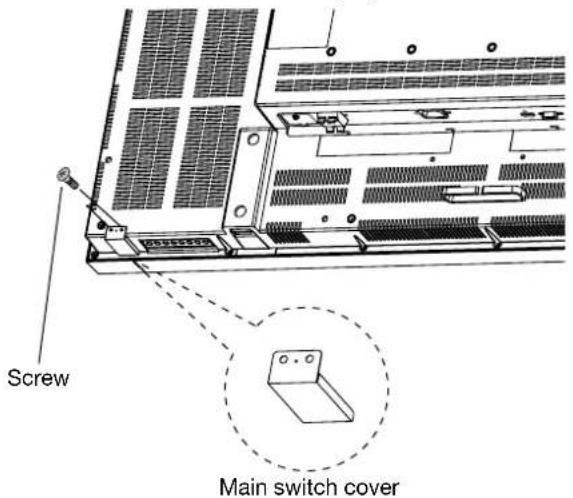
12. To prevent the main power switch from being changed
To prevent the ability to use the main power switch, please attach the main switch, which is enclosed as an accessory.
NOTE:
With the main power switch cover in place, the main power switch can not be turned off. Remove main power switch cover in order to switch off the display.
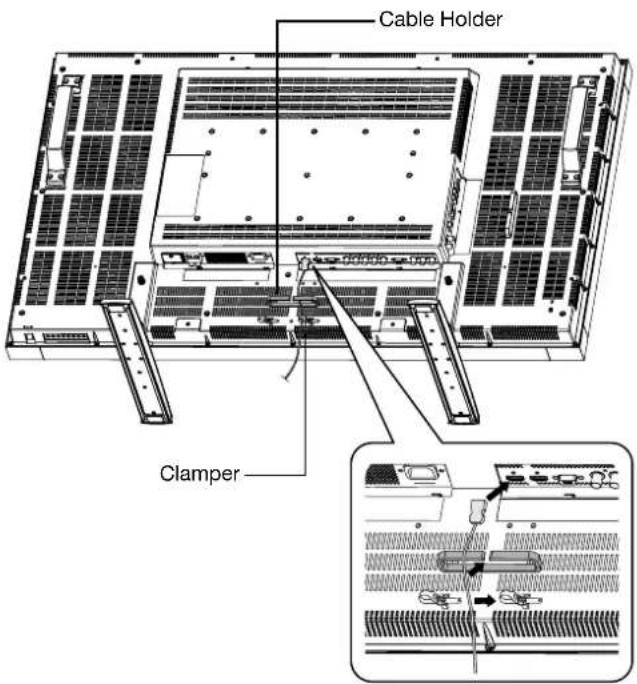
13. Connecting HDMI cable
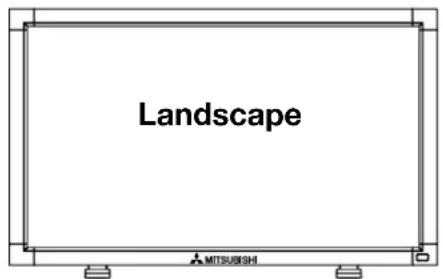
14. When LDT461V is installed in portrait position
Conditions
LDT461V can be installed in portrait position, under the following conditions:
Caution:
Portrait position is effective only when wall-mounted or ceiling-mounted.
The stands(legs) can not be fitted to the monitor in portrait position.
Placing the monitor in portrait position, will shorten the average life of the LCD backlight.
Operational Environment (Temperature) shall be limited, as shown below:
| Operational Temperature 5 - 35 °C / 41 - 95 °F | ||||
| Environment | Humidity | 20 | - | 80 |
%
(without
C
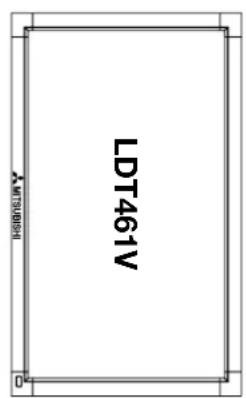
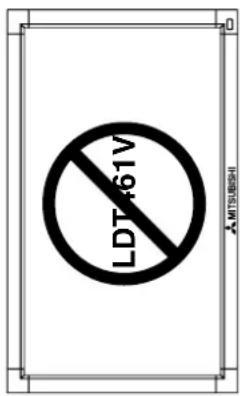
Please orientate the monitor in the direction shown below:
Do not place monitor in landscape in any other manner.
How to set-up
-
Remove the stands(legs).
-
The “MITSUBISHI” logo should be on the LEFT side when facing the monitor.
Remove the stands (legs).
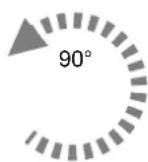
Clockwise
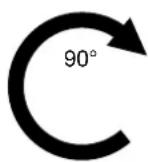
Counterclockwise
How to Mount and Attach Options to the LCD Monitor
You can attach mounting accessories to the LCD monitor in one of the following two ways:
1. In the upright position
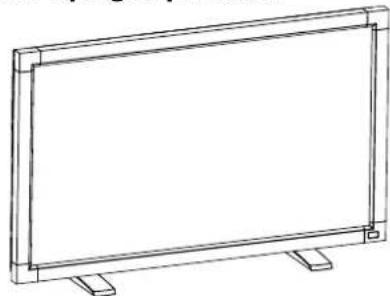
natural_image
Line drawing of a rectangular frame with mounting feet (no text or symbols)2. Lay the screen face down
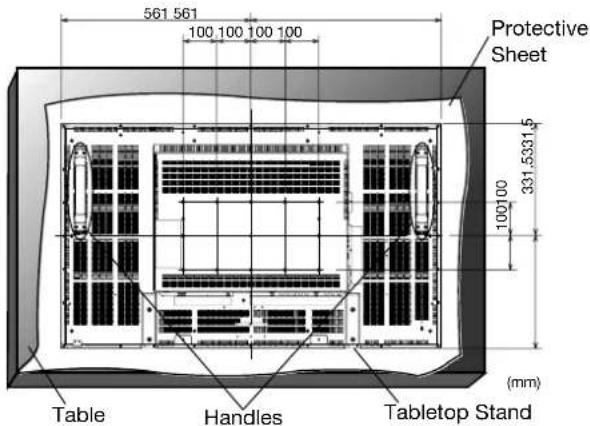
Lay the protective sheet on a table, which was wrapped around the monitor when it was packaged, beneath the screen surface so as not to scratch the screen face.
This device cannot be used or installed without the Tabletop Stand or other mounting accessory. Failure to follow correct mounting procedures could result in damage to the equipment or injury to the user or installer. Product warranty does not cover damage caused by improper installation.
Failure to follow these recommendations could result in voiding your warranty.
Use M6 mounting screws (having a length 10 mm longer than the thickness of the mounting bracket) and tighten them securely. (Recommended torque: 470 - 635N•cm). MITSUBISHI ELECTRIC recommends using mounting interface that comply with TÜV-GS and/or UL1678 standard in North America.
Caution:
For preventing the monitor from falling.
- Install the monitor with metal brackets for wall or ceiling installation (commercially available) on your own responsibility. For detailed procedures of installation, refer to the instructions of the metal brackets.
- To lessen the probability of injury and damage resulting from fall of the monitor in case of earthquake or other disaster, be sure to consult the bracket manufacturer for installation location.
- To lessen the risk of falling of the monitor, thread commercially available rope (having a load capacity at least 1960N (200kgf)) through the handles at the right and left of the monitor and secure the rope to the wall mount brackets or ceiling mount brackets.
- Do not sleep where the monitor may topple over or fall in case of an earthquake or other disaster.
3. Ventilation Requirements for enclosure mounting
To allow heat to disperse, leave space between surrounding objects as shown in the diagram below.
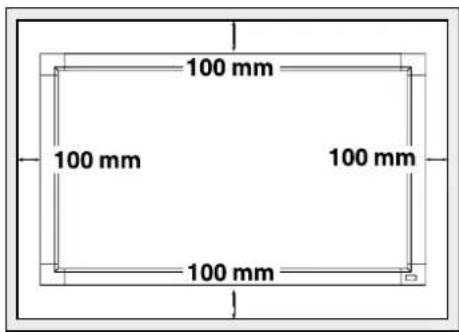
4. To avoid monitor from falling
Take measures to prevent the monitor from falling over in case of an earthquake or other disaster to lessen the probability of injury and damage resulting from fall.
As shown in the figure, secure the monitor to a solid wall or pillar using rope (commercially available) strong enough to bear the weight of the monitor. (LDT461V: approx. 34.6 kg) When you use screw hooks (commercially available), ring screw hooks, not C-shaped screw hooks (with opening), are recommended.
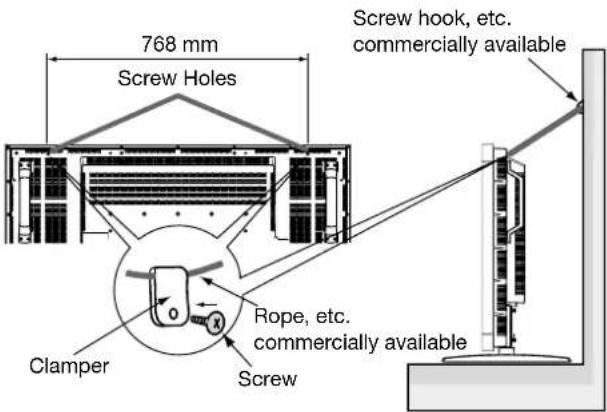
Caution:
- The effectiveness of preventing from falling substantially depends on the strength of brackets and base to which prevention device from falling is attached. When you cannot ensure sufficient strength, provide adequate reinforcement.
- Though the recommended prevention from falling is intended to lessen the probability of injury and damage, it doesn't assure its effectiveness against any kind of earthquake or disaster.
- Do not sleep where the monitor may topple over or fall in case of an earthquake or other disaster.
- Before moving the monitor, remove the rope that is securing the monitor. Failure to do so may result in injury or breakdown of the monitor.
Before making connections:
* First turn off the power of all the attached equipment and make connections.
* Refer to the user manual included with each separate piece of equipment.
Wiring Diagram
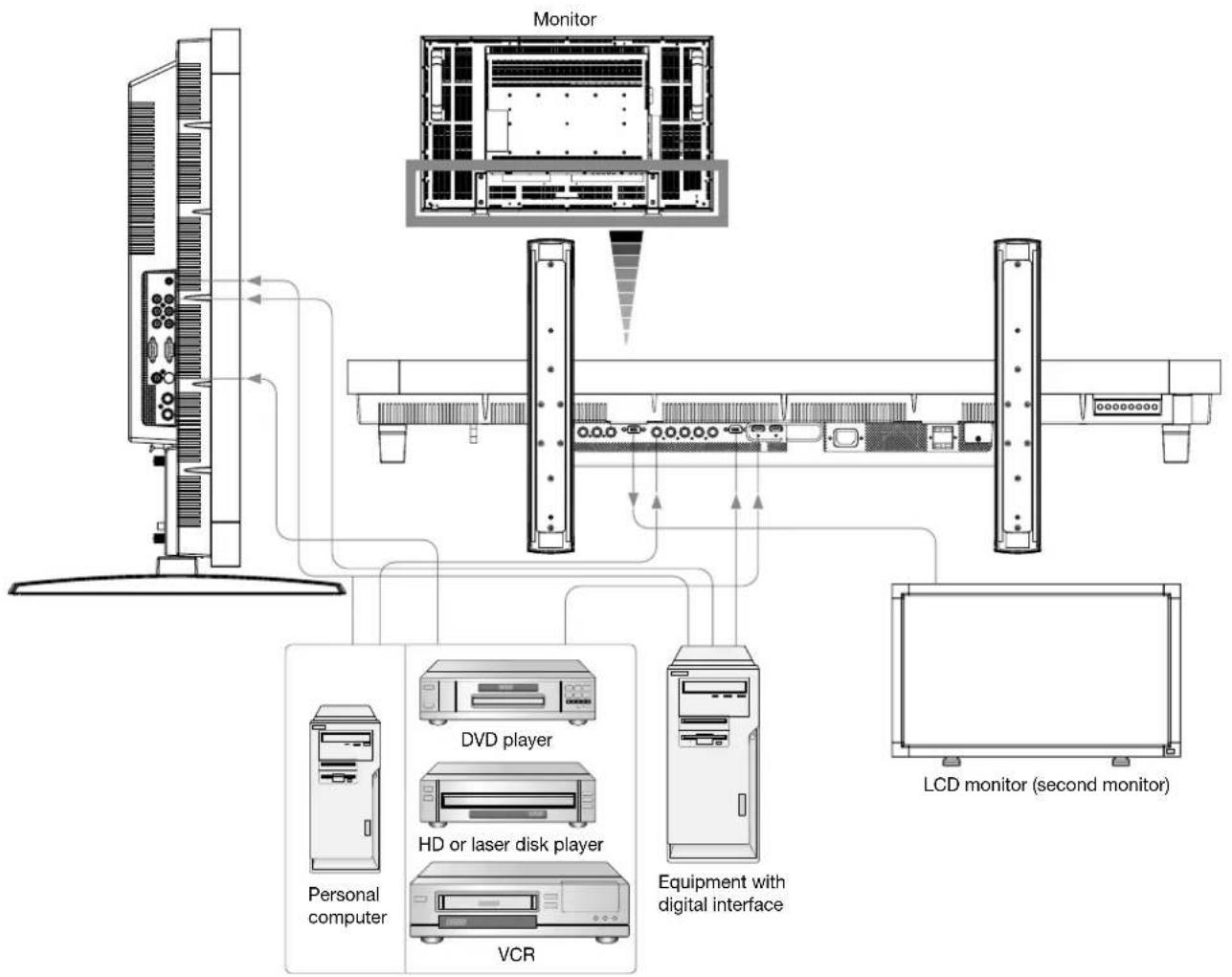
flowchart
graph TD
    A["Monitor"] --> B["Personal computer"]
    A --> C["DVD player"]
    A --> D["HD or laser disk player"]
    A --> E["VCR"]
    A --> F["Equipment with digital interface"]
    A --> G["LCD monitor (second monitor)"]
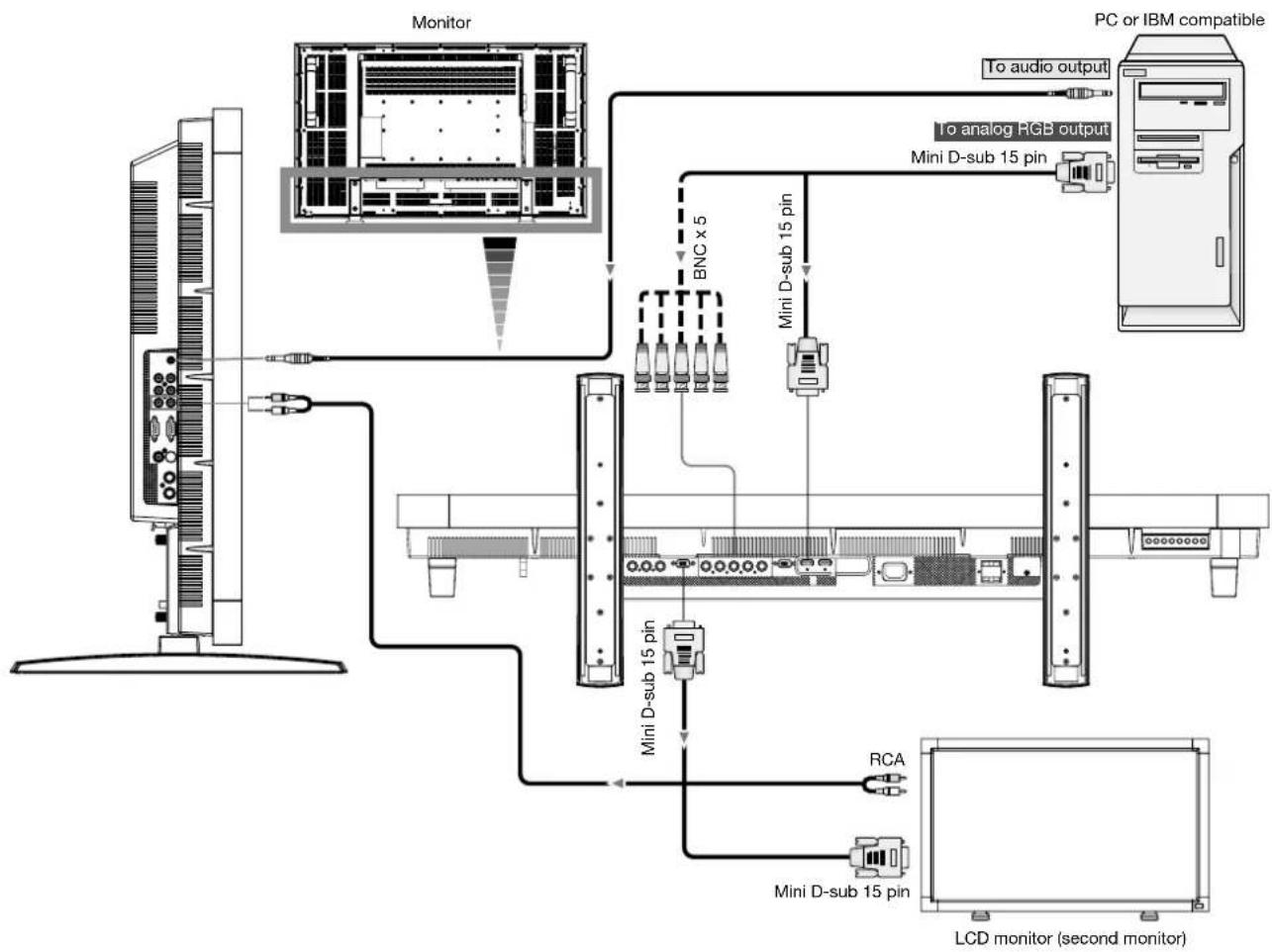
Connecting a Personal Computer
Connecting your computer to your LCD monitor will enable you to display your computer's screen image.
Some video cards may not display an image correctly.
Connect the LCD Monitor to a Personal Computer
- To connect the RGB 3 IN connector (mini D-sub 15 pin) on the LCD monitor, use the supplied PC - Video RGB signal cable (mini D-sub 15 pin to mini D-sub 15 pin).
- To connect the RGB 4 IN connector (BNC) on the LCD monitor, use a signal cable which is available separately (mini D-sub 15 pin to BNC x 5). Select RGB 4 from the INPUT button.
- When connecting one or more LCD monitors, use the RGB OUT connector (mini D-sub 15 pin).
- The AUDIO IN 1, 2, 3 or HDMI can be used for audio input. For connection, select AUDIO 1, 2, 3 or HDMI from the AUDIO INPUT button. You can select HDMI only when RGB 1 or 2 is selected.
- The AUDIO OUT jack outputs sound from the selected Audio input.
flowchart
graph TD
    A["Monitor"] -->|BNC x 5| B["Mini D-sub 15 pin"]
    A --> C["Mini D-sub 15 pin"]
    B --> D["LCD monitor (second monitor)"]
    C --> D
    E["PC or IBM compatible"] --> F["To audio output"]
    E --> G["To analog RGB output"]
    E --> H["Mini D-sub 15 pin"]
    E --> I["RCA"]
    E --> J["Mini D-sub 15 pin"]
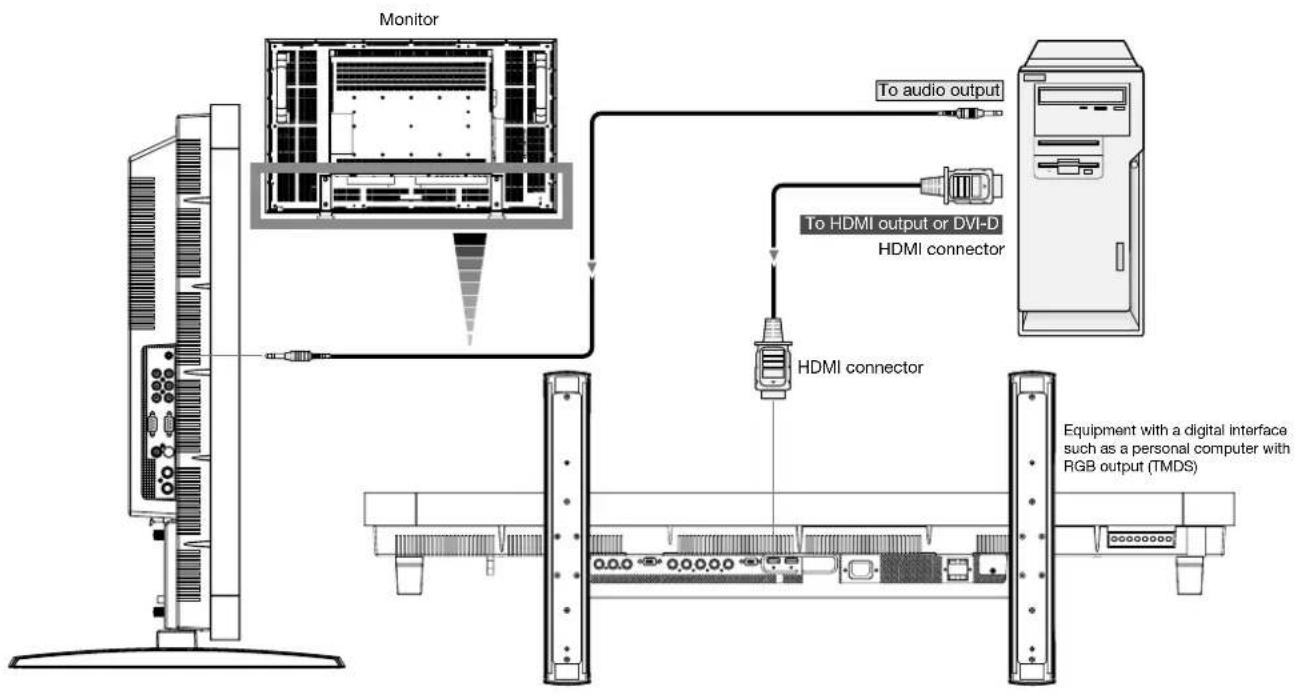
Connecting with Digital Interface Equipment
Connections can be made with equipment that is equipped with a digital interface compliant with the DVI (Digital Visual Interface) standard.
Connect the LCD Monitor to a Computer with a Digital Output
- The RGB 1, RGB 2 IN connector accepts a HDMI cable.
- The RGB 1, RGB 2 IN connector can connect to HDMI output or DVI-D output of PC.
- To maintain display quality, use a cable with a quality prescribed by DVI standards. (See 29 page "HDMI INPUT MODE")
- The AUDIO IN 1, 2, 3 or HDMI can be used for audio input. For connection, select AUDIO 1, 2, 3 or HDMI from the AUDIO INPUT button. You can select HDMI only when RGB 1 or 2 is selected.
- The signal input from HDMI connector cannot be output to the RGB OUT connector.
flowchart
graph TD
    A["Monitor"] --> B["To audio output"]
    A --> C["To HDMI output or DVI-D HDMI connector"]
    A --> D["HDMI connector"]
    D --> E["Equipment with a digital interface such as a personal computer with RGB output (TMDS)"]
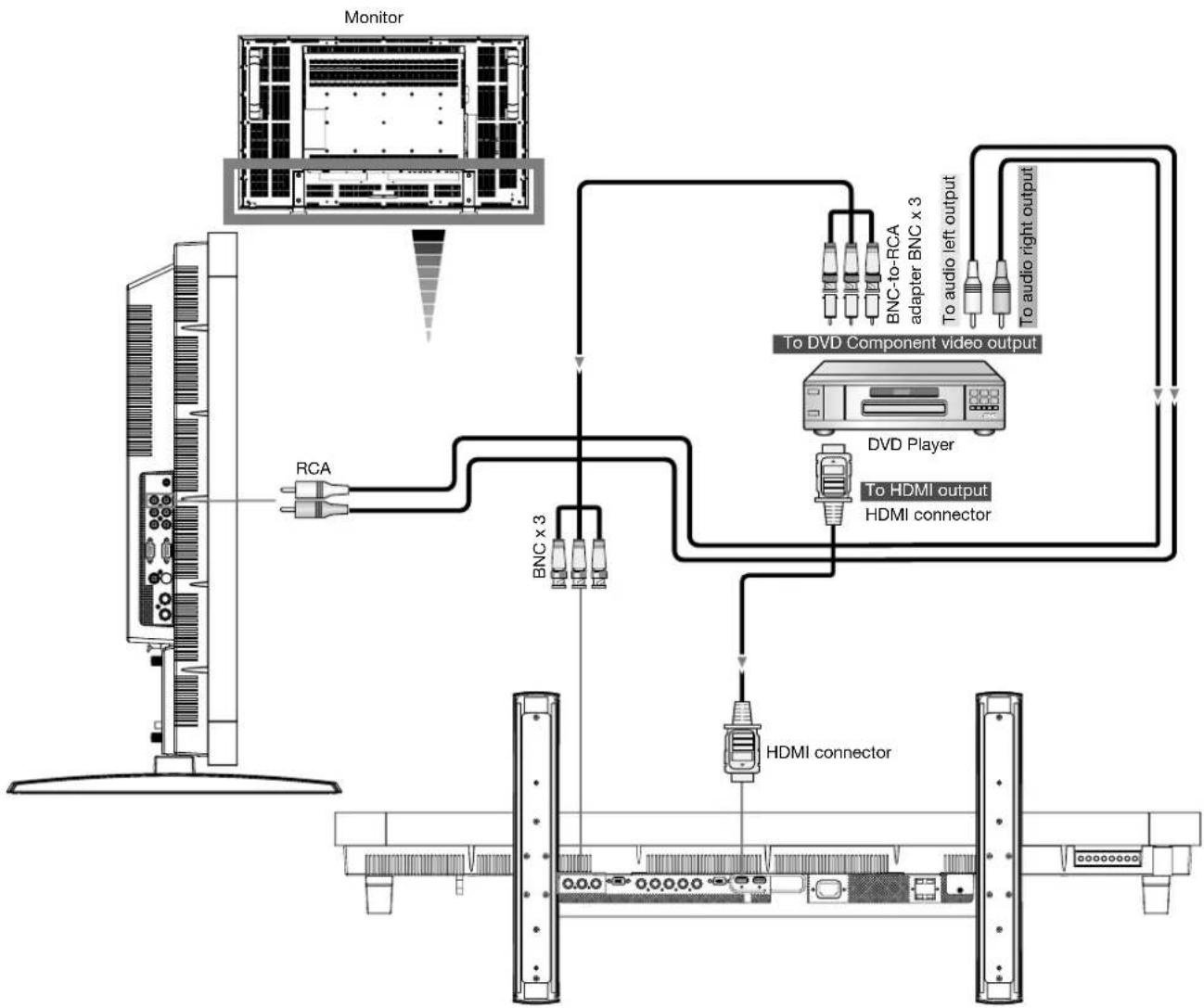
Connecting a DVD Player with component out
Connecting your DVD player to your LCD monitor will enable you to display DVD video.
Refer to your DVD player owner's manual for more information.
Connect the LCD Monitor to a DVD Player
- To connect the DVD/HD In connector (BNC) on the LCD monitor, use a separately available BNC connector cable. You will need a BNC-to-RCA adapter to connect a DVD player with an RCA pin jack to the BNC connector cable (not provided).
- The AUDIO IN 2 and 3 (both RCA) can be used for audio input. For connection, select [AUDIO 1], [AUDIO 2], [AUDIO 3] or [HDMI] from the AUDIO INPUT button. You can select HDMI only when RGB 1 or 2 is selected.
flowchart
graph TD
    A["Monitor"] --> B["RCA"]
    B --> C["BNC x 3"]
    C --> D["HDMI connector"]
    D --> E["To HDMI output"]
    D --> F["HDMI connector"]
    F --> G["To DVD Component video output"]
    G --> H["BNC-to-RCA adapter BNC x 3"]
    H --> I["To audio left output"]
    H --> J["To audio right output"]
Connecting to a Stereo Amplifier
You can connect your stereo amplifier to your LCD monitor. Refer to your amplifier owner's manual for more information.
Connect the LCD Monitor to a Stereo Amplifier
• Turn on the LCD monitor and the amplifier only after all connections have been made.
• Use an RCA cable to connect the AUDIO OUT connector (RCA) on the LCD monitor and the audio input on the amplifier.
- Do not reverse the audio left and right jacks.
- The AUDIO IN 2 and 3 (both RCA) can be used for audio input. For connection, select [AUIDO1], [AUDIO2], [AUDIO3] or [HDMI] from the AUDIO INPUT button. You can select HDMI only when RGB 1 or 2 is selected.
- The AUDIO OUT jack outputs sound from the selected Audio input.
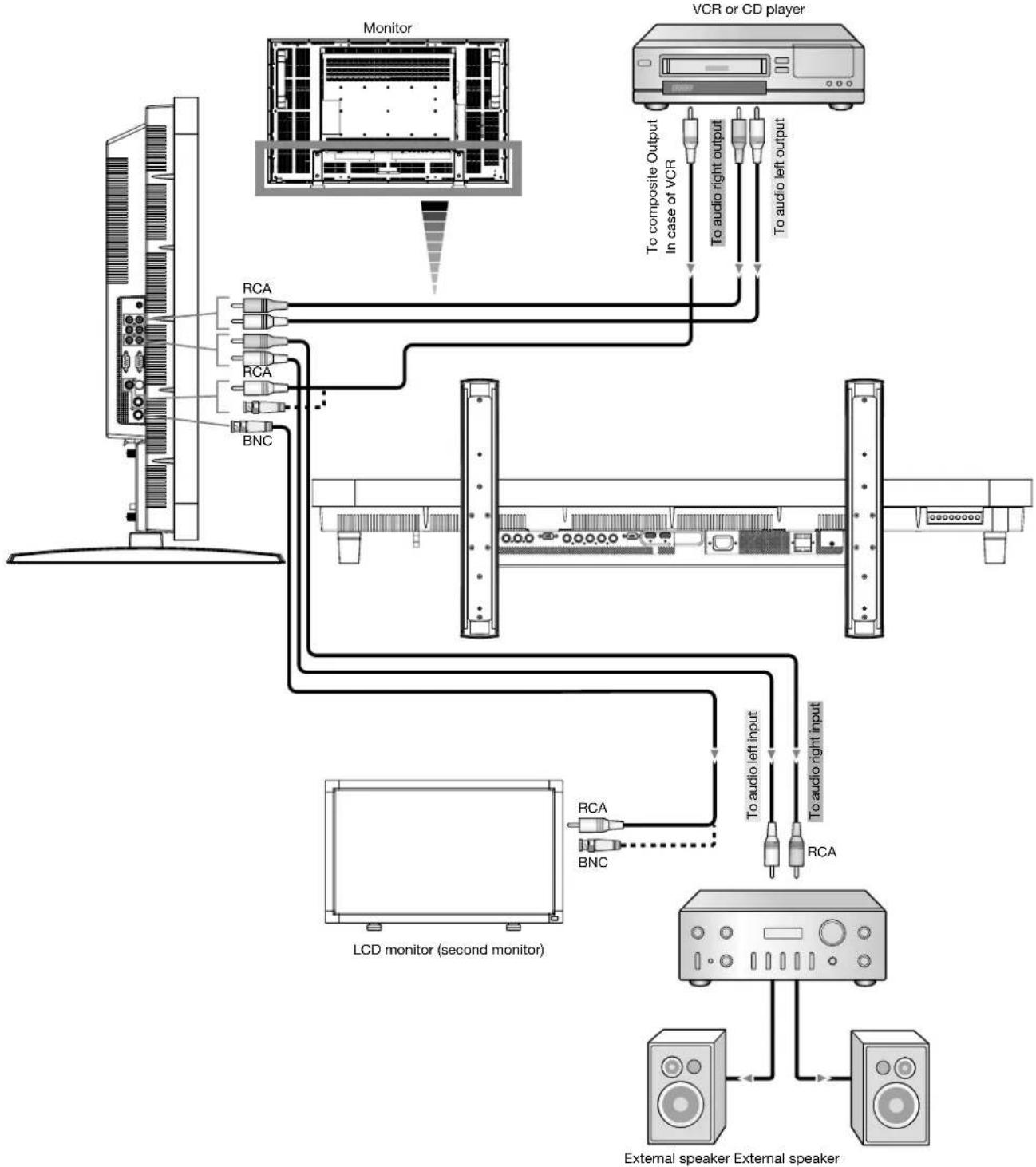
flowchart
graph TD
    A["Monitor"] -->|RCA| B["LCD monitor (second monitor)"]
    A -->|BNC| C["LCD monitor"]
    D["VCR or CD player"] -->|To composite Output in case of VCR| E["CD player"]
    D -->|To audio right output| F["CD player"]
    D -->|To audio left output| G["CD player"]
    E --> H["LCD monitor"]
    F --> I["LCD monitor"]
    G --> J["LCD monitor"]
    H --> K["External speaker External speaker"]
    I --> K
    J --> K
Power ON and OFF Modes
The LCD monitor power indicator will turn green while powered on or red in off mode. The monitor can be powered on or off using the following three options:
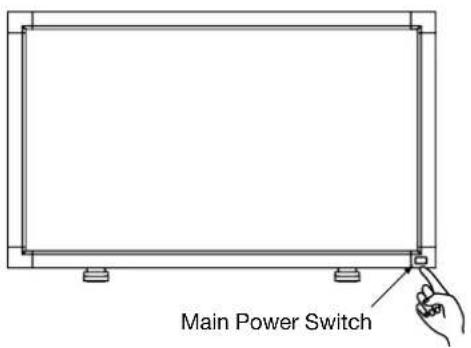
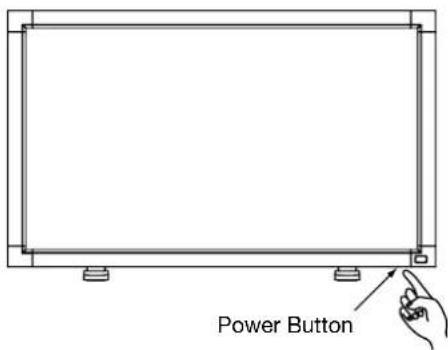
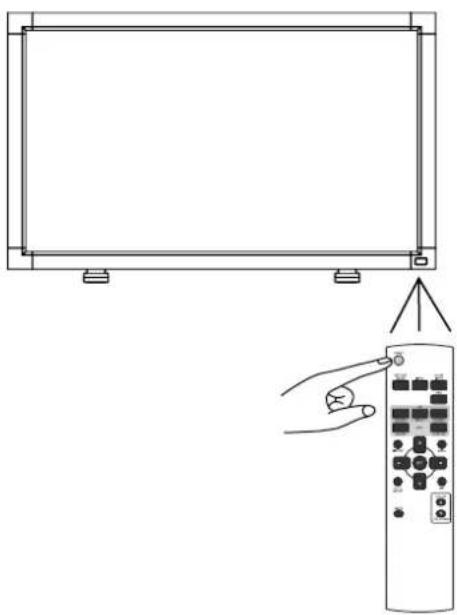
natural_image
Line drawing of a remote control with a hand pointing to the screen (no text or symbols)1. Pressing the Main Power Switch.
NOTE:
When the Main Power Switch is used to power off the LCD monitor, the remote control and the power button will not activate the on mode and both green and red power indicator turn off. Be sure to turn the Main Power Switch to the on mode before using these two options.
2. Pressing the power button.
NOTE:
Before pressing the power button, be sure to turn on the Main Power button on the LCD monitor.
3. Using the remote control.
NOTE:
Before operating the remote control, be sure to turn on the Main Power Switch on the LCD monitor.
Power Indicator
| Status | |
| Power ON Green | |
| Power OFF Red | |
| Power Standby when “SCHEDULE” is enable | Red OnGreen Blinking |
| Power Standby Red, Green | |
| Diagnosis(Detecting failure) | Red Blinking* See troubleshooting on page 35 |
Using Power Management
The LCD monitor follows the VESA approved DPM Power Management function.
The power management function is an energy saving function that automatically reduces the power consumption of the display when the keyboard or the mouse has not been used for a fixed period.
The power management feature on your new display has been set to the "ON" mode. This allows your display to enter a Power Saving Mode when no signal is applied. This could potentially increase the life and decrease the power consumption of the display.
Selecting a video source
To view a video source:
Use the input button to set [VIDEO].
Use the COLOR SYSTEM menu to set [AUTO], [NTSC], [PAL], [SECAM], [PAL60], [4.43NTSC], according to your video format.
Picture Size
| Signal Type | NORMAL SIZE R | recommended Size |
| 4:3 | 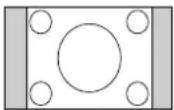 | NORMAL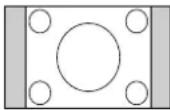 |
DYNAMIC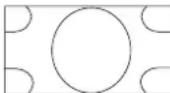 | ||
| Squeeze | 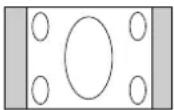 | FULL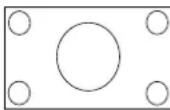 |
NORMAL: Display by the inputed signal aspect ratio by PC signal, or display in 4:3 aspect ratio at DVD/HD or VIDEO signal.
FULL: Display in entire screen.
DYNAMIC: Expand 4:3 pictures to the entire screen with non-linearity. (Some round image will be cut by expansion.)
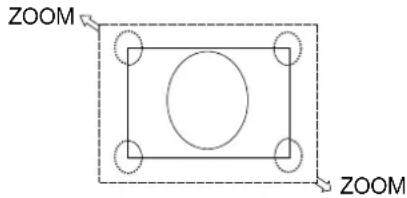
CUSTOM (ZOOM): Image can be expanded beyond the active display area. The image which is outside of active display area is not displayed.
REAL: Image will be displayed 1 by 1 pixel.
Picture Mode

flowchart
graph LR
    A["RGB 1, 2, 3, 4"] --> B["HIGHBRIGHT"]
    B --> C["STANDARD"]
    C --> D["sRGB"]
    E["DVD/HD, VIDEO"] --> F["HIGHBRIGHT"]
    F --> G["STANDARD"]
    G --> H["CINEMA"]
Audio Source Switching
You can switch the audio source using the AUDIO INPUT button.

Control Lock Mode
This function disables the operation buttons so that the adjustments you make are not changed when they are pressed.
To disable the buttons, press and hold down the ▲ and ▼ buttons together for at least 3 seconds.
To enable the buttons, press and hold down the ▲ and ▼ buttons together for at least 3 seconds again.
Information OSD
RGB1, 2, 3, 4
RGB3
1024 × 768
48kHz 60Hz
AUDIO : 1
SIZE : FULL
← Video Input mode
← Input signal Information
← Audio input mode
← Picture Size mode
DVD/HD
DVD/HD
AUDIO : 3
SIZE : FULL
← Video Input mode
← Audio input mode
← Picture Size mode
VIDEO, VIDEO
VIDEO
NTSC
AUDIO:3
SIZE : NORMAL
← Video Input mode
← Input Signal Colour System mode
[Figure]
Audio input mode
Picture Size mode
PIP or POP
Main:RGB3
Sub:VIDEO
RGB3
1024 × 768
48kHz 60Hz
AUDIO : 1
VIDEO
NTSC
SIZE : FULL
← Main picture Information
← Sub picture Information
← Main picture Information
OSD (On-Screen-Display) Controls
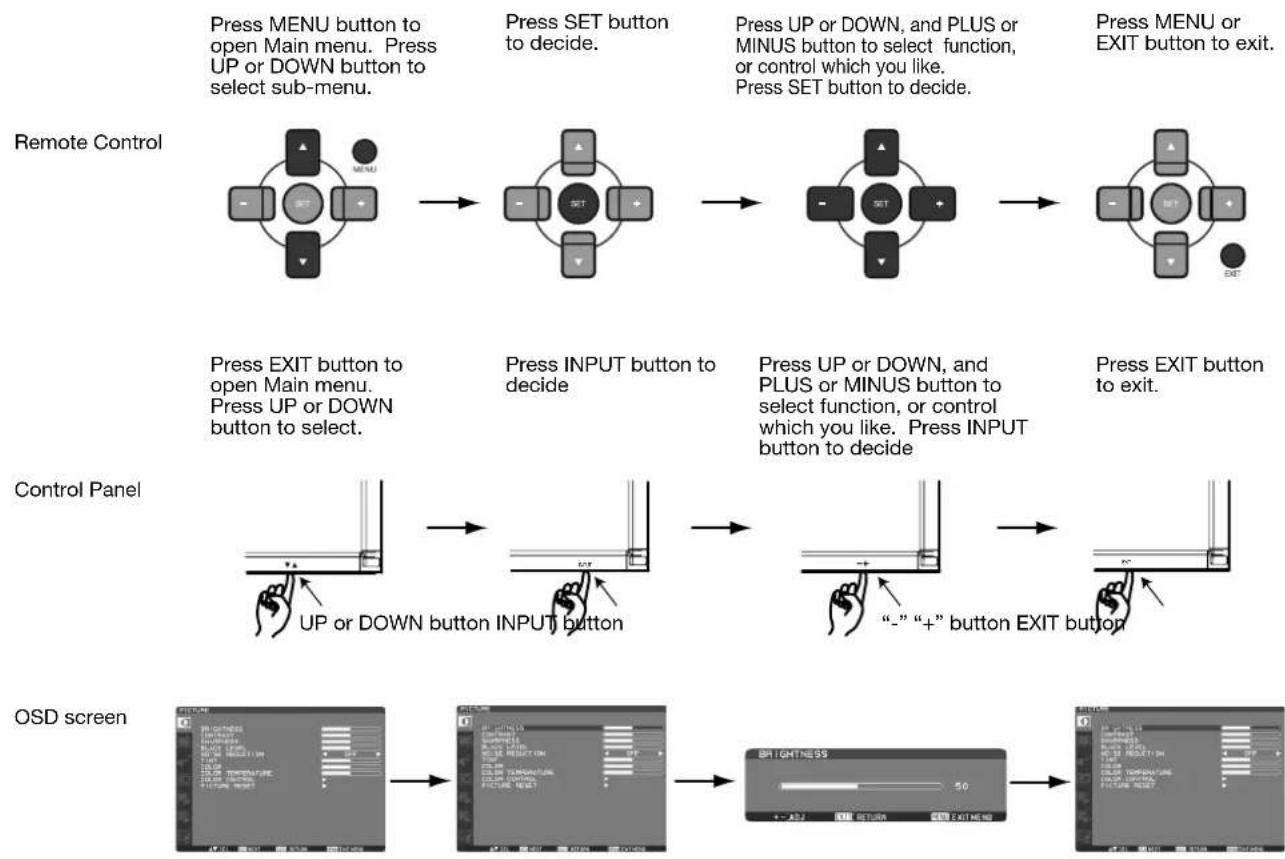
flowchart
graph TD
    A["Remote Control"] --> B["Press MENU button to open Main menu. Press UP or DOWN button to select sub-menu."]
    B --> C["Press SET button to decide."]
    C --> D["Press UP or DOWN, and PLUS or MINUS button to select function, or control which you like. Press SET button to decide."]
    D --> E["Press MENU or EXIT button to exit."]
    F["Control Panel"] --> G["Press EXIT button to open Main menu. Press UP or DOWN button to select."]
    G --> H["Press INPUT button to decide"]
    H --> I["Press UP or DOWN, and PLUS or MINUS button to select function, or control which you like. Press INPUT button to decide"]
    I --> J["Press EXIT button to exit."]
    K["OSD screen"] --> L["UP or DOWN button INPUT button"]
    L --> M[""-" "+" button EXIT button"]
    M --> N["50° 50° 50° 50° 50° 50° 50° 50° 50° 50° 50° 50° 50° 50° 50° 50° 50° 50° 50° 50° 50° 50° 50° 50° 50° 50°"]
Main-Menu
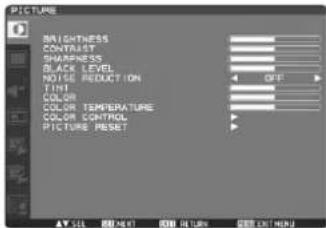
PICTURE
BRIGHTNESS
Adjusts the overall image and background screen brightness.
Press + button to increase brightness.
Press - button to decrease brightness.
CONTRAST
Adjusts the image brightness in relation to the input signal.
Press + button to increase contrast.
Press - button to decrease contrast.
SHARPNESS
This function is digitally capable to keep crisp image at any timings.
It is adjustable to get a distinct image or a soft one as you prefer and set independently for each picture mode.
Press + button to increase sharpness.
Press - button to decrease sharpness.
BLACK LEVEL
Adjusts the image brightness in relation to the background.
Press + button to increase black level.
Press - button to decrease black level.
NOTE: sRGB picture mode is standard and cannot be changed.
■ NOISE REDUCTION \*: INPUT VIDEO, VIDEO only
Adjusts the noise reduction level.
Press + button to increase reduction level.
Press - button to decrease reduction level.
TINT \* : INPUT RGB1, 2(HDMI INPUT MODE-HD), DVD/HD, VIDEO, VIDEO only
Adjust the tint of the screen.
Press + button the flesh tone color becomes greenish.
Press - button the flesh tone color becomes purplish.
■ COLOR \* : INPUT RGB1, 2(HDMI INPUT MODE-HD), DVD/HD, VIDEO, VIDEO only
Adjust the color of the screen.
Press + button to increase color depth.
Press - button to decrease color depth.
COLOR TEMPERATURE
Use to adjust the color temperature.
The image becomes reddish as the color temperature decreases, and it becomes bluish as the color temperature increases.
COLOR CONTROL
The color levels of red, green, and blue are adjusted by the color bars.
R: Red, G: Green, B: Blue
PICTURE RESET
Selecting Picture reset allows you to reset all OSD settings about PICTURE setting.
Select "Yes" and press "SET" button to restore to factory preset data.
Press "EXIT" button to cancel and then return to the previous menu.
Main-Menu
SCREEN
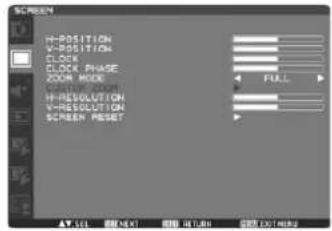
H POSITION
Controls Horizontal Image position within the display area of the LCD.
Press + button to move screen to right.
Press - button to move screen to left.
V POSITION
Controls Vertical Image position within the display area of the LCD.
Press + button to move screen to UP.
Press - button to move screen to DOWN.
■ CLOCK \* : INPUT RGB3,4 only
Press + button to expand the width of the image on the screen the right.
Press - button to narrow the width of the image on the screen the left.
■ CLOCK PHASE \*: INPUT RGB3,4 only
Improves focus, clarity and image stability by increasing or decreasing this setting.
ZOOM MODE
You can select "FULL", "NORMAL" and "CUSTOM" and "REAL". (INPUT RGB1/2/3/4 only) You can also select "FULL", "NORMAL" "DYNAMIC" and "CUSTOM" and "REAL". (INPUT DVD/HD, VIDEO, VIDEO only)
Selecting "DYNAMIC" will make the screen display panoramic with the expansion of the middle and outside of the screen changed. (The upper and the bottom of the image will be cut by expansion.)
Dynamic image is the same as FULL size image when HDTV signal is input.
Selecting "REAL" image will be displayed 1 by 1 pixel.
CUSTOM ZOOM
"CUSTOM ZOOM" will be selected when you select "CUSTOM" on the screen "ZOOM" mode.
ZOOM: expands the horizontal and the vertical size simultaneously.
HZOOM: expands the horizontal size only.
VZOOM: expands the vertical size only.
H POSITION: moves to the right with + button. moves to the left with - button.
V POSITION: moves up with + button. moves down with - button.
■ H RESOLUTION \* : INPUT RGB1,2,3,4 only
Adjusts the horizontal size by increasing or decreasing the setting.
Press + button to expand the width of the image on the screen.
Press - button to narrow the width of the image on the screen.
■ V RESOLUTION \* : INPUT RGB1,2,3,4 only
Adjusts the vertical size by increasing or decreasing the setting.
Press + button to expand the height of the image on the screen.
Press - button to narrow the height of the image on the screen.
■ SCREEN RESET
Selecting Screen reset allows you to reset all OSD settings from PICTURE setting.
Select "Yes" and press "SET" button to restore the factory preset data.
Press "EXIT" button to cancel and then return to the previous menu.
Main-Menu
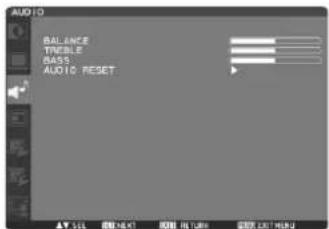
AUDIO
BALANCE
Adjust the balance of L/R volume.
Press + button to move the stereo sound image to right.
Sound of the left side will be small
Press - button to move the stereo sound image to left.
TREBLE
To accentuate or reduce the high frequency sound.
Press + button to increase TREBLE sound.
Press - button to decrease TREBLE sound.
BASS
To accentuate or reduce the low frequency sound.
Press + button to increase BASS sound.
Press - button to decrease BASS sound.
AUDIO RESET
Selecting Audio reset allows you to reset all OSD settings from AUDIO setting.
Select "YES" and press "SET" button to restore the factory preset.
Press "EXIT" button to cancel and then return to the previous menu.
Main-Menu
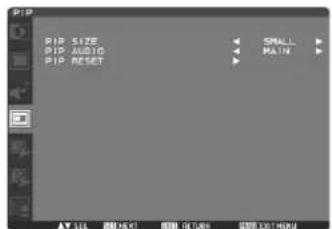
PIP (PICTURE IN PICTURE)
Note: The "PIP" and "POP" modes do not function when the screen size is "CUSTOM" or "REAL".
PIP SIZE
Selecting the size of picture inserted at the "Picture-in-Picture" (PIP) mode.
"Large", "Middle" and "Small" are available.
PIP AUDIO
Selecting the sound source in PIP mode.
When selecting "MAIN AUDIO", you will get the sound for the main picture and when selecting "PIP AUDIO".
you will get the sound for the picture instead.
PIP RESET
Selecting PIP Reset allows you to reset all OSD settings from PIP setting.
Select "Yes" and press "SET" button to restore the factory preset data.
Press "EXIT" button to cancel and then return to the previous menu.
Main-Menu
CONFIGURATION 1
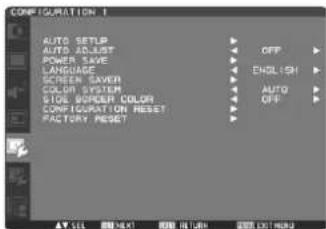
■ AUTO SETUP \* : INPUT RGB3,4 only
Press "SET" button to automatically adjust screen size, horizontal position, vertical position, clock, clock phase, white level and black level. Press "EXIT" button to cancel execution AUTO SETUP and then will return to the previous menu.
■ AUTO ADJUST ^: INPUT RGB3,4 only
Selecting the auto adjust ON/OFF. Selecting ON when changing the timing, the horizontal position, vertical position and clock-phase will adjust automatically.
POWER SAVE
Selecting RGB "ON", the monitor will go to power management mode when RGB1,2,3,4 sync is lost. Selecting VIDEO "ON", the monitor will go to power management mode after about 10 minutes delay from when DVD/HD and VIDEO input signal is lost.
LANGUAGE
OSD control menus are available in eight languages. (English, German, Spanish, French, Italian, Swedish, Chinese and Japanese)
SCREEN SAVER
Select "SCREEN SAVER" functions to reduce the risk of the "image persistence". GAMMA: The display gamma is changed and fixed when selected "ON". COOLING FAN: The built in cooling fan is always on when set "ON". BRIGHTNESS: The brightness is decreased when selected "ON". MOTION: Image is slightly expanded and moves 4 directions (UP, DOWN, RIGHT, LEFT) periodically (Need setting the time for movement). Movement area is approximately +/- 10mm from original position; Please locate the important information such as text within 90% area of screen image. See note (1) for this functions. PIP and STILL will be disabled when "MOTION" is active.
■ COLOR SYSTEM \* : INPUT VIDEO, VIDEO only
Selecting the Color System depends on your input video format. AUTO: NTSC, PAL, SECAM, PAL60 or 4.43 NTSC is automatically selected. NTSC: Specific selection of NTSC. PAL: Specific selection of PAL. SECAM: Specific selection of SECAM. PAL-60: Specific selection of PAL60. 4.43NTSC: Specific selection of 4.43 NTSC.
■ SIDE BORDER COLOR
Use to adjust the brightness of the black areas displayed on both sides of 4:3 image. OFF, 50, and 100 are selectable.
Selecting the CONFIGURATION RESET allows you to reset all configuration settings. Select "Yes" and press "SET" button to restore the factory preset data. Press "EXIT" button to cancel and return the previous menu.
FACTORY RESET
Selecting "YES" allows you to reset PICTURE, SCREEN, AUDIO, CONFIGURATION1,2 and ADVANCED OPTION will be back to factory settings (except LANGUAGE, DATE & TIME and SCHEDULE). Select "YES" and press "SET" button to restore the factory preset data. Press "EXIT" button to cancel and return the previous menu.
Main-Menu
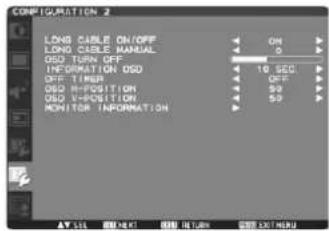
CONFIGURATION 2
■ LONG CABLE ON/OFF
Selects the LONG CABLE ON/OFF.
LONG CABLE MANUAL
Adjusts the LONG CABLE setting by increasing or decreasing the value. The preset choices are 0 to 100.
OSD TURN OFF
The OSD control menu will stay on as long as it is use. In the OSD Turn Off submenu, you can select how long the monitor waits after the last touch of a button to shut off the OSD control menu. The preset choices are 5 -120 seconds.
INFORMATION OSD
Selects the information OSD display or not. The information OSD will display when input signal or source change or warning message like as no-signal or out-of-range. A time between 1 to 10 seconds is available.
OFF TIMER
To select OFF TIMER mode ON/OFF. In the OFF TIMER menu, you can preset the monitor to automatically power down. A time between 1 to 24 hours is available. When the OFF TIMER is set, the SCHEDULE (see page 29) settings will be disabled.
OSD H POSITION
Adjusts the horizontal position of the OSD menu.
OSD V POSITION
Adjusts the vertical position of the OSD menu.
■ MONITOR INFORMATION
Indicates the model and serial number of your monitor.
Main-Menu
ADVANCED OPTION
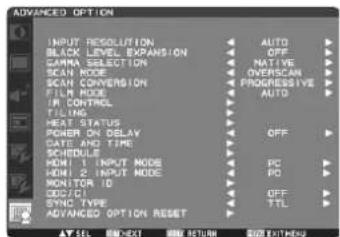
■ INPUT RESOLUTION \*: INPUT RGB3,4 only
Selects to decision of input signal about below timings, 1024x768, 1280x768 and 1360x768.
AUTO: Determines the resolution automatically.
1024x768: Determines the resolution as 1024x768
1280x768: Determines the resolution as 1280x768
1360x768: Determines the resolution as 1360x768
This function is available when POWER ON/OFF after setting.
Selects a level of black expansion.
In case of go under the black cut-off level, please adjust the "Black level" in moderation on OSD menu.
GAMMA SELECTION
Selects a display gamma.
2.2
2.4
S gamma
Native
NOTE: sRGB picture mode is standard and cannot be changed.
■ SCAN MODE \* : INPUT DVD/HD, VIDEO,VIDEO only
Changes the display area of the image.
OVERSCAN: Set to display area about 95%
UNDERSCAN: Set to display area about 100%
■ SCAN CONVERSION \*: INPUT DVD/HD, VIDEO, VIDEO only
Selects IP (Interlace to Progressive) converter function.
PROGRESSIVE: Enable the IP function, to convert interlace signal to progressive. Normally use this setting.
INTERLACE*: Disable the IP function.
*NOTE: This mode is better suited for motion pictures, but it increases chance of image retention.
■ FILM MODE \* : INPUT DVD/HD, VIDEO, VIDEO only
Selects Film mode function.
AUTO: Enable the Film mode function. This mode is better suited for movies, which is converted 24 Frames/sec source
to DVD Video. We recommend to select "PROGRESSIVE" in "SCAN CONVERSION".
OFF: Disable the Film mode function. This mode is better suited for Broadcasting or VCR source.
■ IR CONTROL
Selects the operation mode of the wireless remote controller when multiple LDT461V monitors are connected via RS-232C.
The item in this menu will become effective by pressing "SET" button on the selected item.
NORMAL: The monitor will be controlled normally by wireless remote controller.
PRIMARY: The first LDT461V monitor of those multi-connected via RS-232C is designated as PRIMARY.
SECONDARY: LDT461V monitors other than the first one multi-connected via RS-232C are designated as SECONDARY.
LOCK: Disable the monitor control by infrared wireless remote controller.
Keep pressing "DISPLAY" button during 5 sec or more, this setting will return to "NORMAL".
TILING
TILING demonstrates multiple screens. This feature provides a single large screen using up to 16 monitors. It will be able to divide up to 4 each H and V.
This requires you to feed the PC output into each of the monitors through a distributor.
H MONITORS: Select number of horizontal divide.
V MONITORS: Select number of vertical divide.
POSITION: Select a position to expand the screen.
FRAME COMP: Works in tandem with TILING to compensate for the width of the tile bezels in order to accurately display the image.
ENABLE: Select "YES", the monitor will expand the selected position.
PIP and STILL will be disabled when "TILING" is activated.
HEAT STATUS
Information of status for COOLING FAN, BRIGHTNESS and TEMPERATURE.
COOLING FAN comes to run when inside temperature is over a guaranteed limit.
In this case warning is displayed on the screen.
POWER ON DELAY
Adjusts the delay time from "standby" to "power on" mode.
"POWER ON DELAY" time is selectable from OFF, 2sec, 4sec, 6sec, 8sec, 10sec, 20sec, 30sec, 40sec and 50sec.
DATE AND TIME
Adjusts the current date and time for internal clock.
You should set this function when you use "SCHEDULE".
SCHEDULE
Programs the monitor's working schedule.
Schedule the power on and power off with hour and a day of the week. Also sets the input port.
This OSD can't remove except EXIT.
(see "NOTE 2" on page 30 for further information)
HDMI 1 INPUT MODE
Select "PC" when PC or other computer equipment is connected via HDMI.
Select "HD" when DVD player, which has HDMI output, is connected via HDMI.
(When AUDIO is set to HDMI, no sound is provided unless "HD" is selected.)
HDMI 2 INPUT MODE
Select "PC" when PC or other computer equipment is connected via HDMI.
Select "HD" when DVD player, which has HDMI output, is connected via HDMI.
(When AUDIO is set to HDMI, no sound is provided unless "HD" is selected.)
MONITOR ID
ID numbers for remote control are assigned to LDT461V monitors that are multi-connected via RS-232C.
ID numbers 1 to 26 are selectable.
DDC/CI
Use to turn ON or OFF the DDC/CI communication function. Select ON for normal use.
SYNC TYPE
Select "0.3V" for 0.3 Composite Sync.
Select "TTL" for TTL Sync.
■ ADVANCED OPTION RESET
Selecting ADVANCED OPTION reset allows you to reset all OSD settings from ADVANCED OPTION settings, except for DATE & TIME.
Select "YES" and press "SET" button to restore the factory preset data.
Press "EXIT" button to cancel and then return the previous menu.
NOTE 1: IMAGE PERSISTENCE
Please be aware that LCD Technology may experience a phenomena known as Image Persistence. Image Persistence occurs when residual or “ghost” image of a previous image remains visible on the screen. Unlike CRT monitors, LCD monitors’ image persistence is not permanent, but constant images being displayed for a long period of time should be avoided. To alleviate image persistence, turn off the monitor for as long as the previous image was displayed. For example, if an image was on the monitor for one hour and a residual image remains, the monitor should be turned off for one hour to erase the image.
As with all personal display devices, MITSUBISHI ELECTRIC recommends displaying moving images and using a moving screen saver at regular intervals whenever the screen is idle or turning off the monitor when not in use.
Please set "POWER SAVE", "SCREEN SAVER", "DATE &TIME" and "SCHEDULE" functions to further reduce the risk of Image persistence.
For long life use of Public Display
< Image Sticking of LCD Panel >
When LCD panel is operated continuously for long hours, a trace of electric charge remains near the electrode inside LCD, and residual or “ghost” image of previous image may be observed. (Image Persistence)
Image Persistence is not permanent, but when fixed image is displayed for long period, ionic impurities inside LCD are accumulated along the displayed image, and it is observed permanently. (Image Sticking)
For preventing the fast transition to Image Sticking, and for longer life usage of LCD, following are recommended.
- Fixed image should not be displayed for long period, and changed to another images with short cycle.
- When no use, please turn off the monitor by remote control, or use Power Management Function of monitor or use Schedule Function of monitor.
- Reducing the environmental temperature is effective for long life use.
When Protection board (glass, acryl) is installed over the LCD surface, enclosed into the box / wall, or stack the monitor, please utilize the temperature sensors inside monitor.
To reduce the environmental temperature, the monitor should be set Low Brightness or Cooling Fan "ON" by using Screen sever Function.
- Please use "Screen Saver Mode" of monitor.
NOTE 2: HOW TO SETUP SCHEDULE
Using the “SCHEDULE” function allows you to set up to seven different scheduled time intervals when the LCD Monitor will be activated.
You can select the time the monitor turns on and turns off, the day of week the monitor is activated, and which input source the monitor will use for each scheduled activation period. A check mark in the box next to the number of the schedule indicates that the selected schedule is in effect.
To select which schedule to set, use the up/down arrows to move the number (1 to 7) of the schedule.
Use the (+) and (-) buttons to move the cursor horizontally within the particular schedule. Use the (▲) and (▼) buttons to increase time and select input port. The "SET" button is used to make a selection.
If you create a schedule but do not want to use a power on time, select “--” in the “ON” time slot.
If you do not want to use a power off time select “--” in the OFF time slot.
If there is no input selected (“--” showing in the input spot) the input from the previous schedule will be used.
The selection of EVERY DAY within a schedule takes priority over other schedules that are set up to operate weekly.
When schedules are overlapping, scheduled Power ON time has priority over scheduled Power OFF time.
If there are two schedules programmed for the same time, then the highest numbered schedule has priority.
When the "OFF TIMER" (see page 27) is set, the "SCHEDULE" function is disabled.
NOTE 3: "PIP", "POP" and "SIDE BY SIDE"
The following table shows the combination of signal inputs under which the “PIP” and “POP” modes function. These modes do not function, however, when the screen size is “CUSTOM” or “REAL”.
Press the "PIP ON/OFF" buttons on the remote control to change between "PIP", "POP" and "SIDE BY SIDE" mode as shown in the diagram below.

flowchart
graph LR
    A["A_B"] --> B["A_B"]
    B --> C["A B"]
    C --> D["A B"]
    D --> E["A"]
    style A fill:#f9f,stroke:#333
    style B fill:#ccf,stroke:#333
    style C fill:#cfc,stroke:#333
    style D fill:#fcc,stroke:#333
    style E fill:#cff,stroke:#333
"PIP", "POP" mode resolution (Reference)
PIP SIZE ◀ SMALL ▷ : 320 dots X 240 dots
◀ MIDDLE ▷ : 480 dots X 320 dots
◀ LARGE ▷ : 640 dots X 480 dots
POP SIZE : 320 dots X 240 dots
< Remote control numbering function >
By connecting multiple LDT461V monitors using RS-232C cables, you can control any one monitor or all the monitors by one remote controller.
- Assign arbitrary ID number to each of multi-connected LDT461V monitors using MONITOR ID.
ID numbers 1 to 26 are selectable.
It is recommended to assign sequential ID numbers from 1 and up.
-
The remote control mode of the first LDT461V monitor is set to PRIMARY and those of the other monitors are set to SECONDARY.
-
When you direct the remote controller at the remote control signal sensor of the PRIMARY monitor and press the DISPLAY button on the remote controller, the ID selection OSD appears at the upper left of the screen.
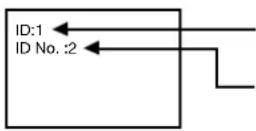
ID number of the currently viewed monitor
Select the ID number of the monitor you want to control using the +/- button on the remote controller.
The ID of the monitor you want to control is displayed at the upper left of its screen. By selecting ALL, you can control all the multi-connected monitors.
- Direct the remote controller at the remote control signal sensor of the PRIMARY monitor.
OSD appears on the monitor having the ID number you selected.
NOTE:
When the ID selection OSD is being displayed on the PRIMARY monitor, press the DISPLAY button on the remote controller again to cancel the ID selection OSD and then control the monitor you selected.
HINT:
If you set the remote control mode wrongly and remote control operation becomes unavailable, press any button on the control panel of the monitor to display the OSD screen and change the remote control mode using ADVANCED OPTION. By pressing and holding down the DISPLAY button on the remote control for 5 seconds or longer, the remote control mode is initialized to NORMAL.
This LCD monitor can be controlled by connecting a personal computer with a RS-232C terminal.
Functions that can be controlled by a personal computer are:
- Power ON or OFF
- Switching between input signals
Connection
LCD Monitor + PC

flowchart
graph TD
    A["PC"] --> B["RS-232C Cable"]
    B --> C["RS-232C Cable"]
    C --> D["RS-232C connector IN (See page 7)"]
    D --> E["RS-232C connector OUT"]
    E --> F["RS-232C connector IN"]
NOTE:
If your PC (IBM or IBM compatible) is equipped only with a 25-pin serial port connector, a 25-pin serial port adapter is required. Contact your dealer for details.
1) Interface
| PROTOCOL | RS-232C |
| BAUD RATE | 9600 [bps] |
| DATA LENGTH | 8 [bits] |
| PARITY BIT | NONE |
| STOP BIT | 1 [bits] |
| FLOW CONTROL | NONE |
This LCD monitor uses RXD, TXD and GND lines for RS-232C control.
For RS-232C cable, the reverse type cable should be used.
2) Control command diagram
The command is structured by the address code, function code, data code and end code. The length of the command is different for each function.
| Address code | Function code | Data code | End code | |
| HEX | 30h 30h | Function | Data | 0Dh |
| ASCII | ‘0’ ‘0’ | Function | Data |
[Address code] 30h 30h (In ASCII code, '0' '0') fi xed.
[Function code] A code of each fixed control move.
[Data code] A code of each fixed control data (number) and not always indicated.
[End code] 0Dh (In ASCII code, ' ←') fi xed.
3) Control sequence
(1) The command from a computer to the LCD monitor will be sent in 600 ms.
(2) The LCD monitor will send a return command 600 ms* after it has received and encoded. If the command isn't received correctly, the LCD monitor will not send the return command.
(3) The personal computer checks the command and confirms if the command, which has been sent, has been executed or not.
(4) This LCD monitor sends various codes other than return code. When having a control sequence by RS-232C, reject other codes from personal computers side.
* : The sending time of return command may delay depending on the condition (during changing of the input signal, etc.).
Example: Turn the power ON ( ' ' is for ASCII code)
| Sending commands from the PC | Status code from LCD monitor | Meaning |
| 30 30 21 0D '0' '0'!' []' | Command for POWER ON | |
| 30 30 21 0D '0' '0'!' []' | Command received (Command echoed back) |
4) Operation commands
The operation commands execute the basic operation setting of this LCD monitor.
It may not operate when changing the signal:
| Operation ASCII HEX | ||
| POWER ON ! 21h | ||
| POWER OFF " 22h | ||
| INPUT RGB 1 _r1 | 5Fh 72h | 31h |
| INPUT RGB 2 _r2 | 5Fh 72h | 32h |
| INPUT RGB 3 _r3 | 5Fh 72h | 33h |
| INPUT RGB 4 _r4 | 5Fh 72h | 34h |
| INPUT VIDEO _v1 | 5Fh 76h | 31h |
| INPUT DVD/HD _v2 | 5Fh 76h | 32h |
| INPUT S-VIDEO* | _v3 5Fh | 76h 33h |
- POWER OFF command should be operated over 1 minute after the power is turned on.
- POWER ON command should be operated over 1 minute after the power is turned off.
* S-VIDEO is SEPARATE only
5) Read command
Host computer sends the command without Data-code to monitor.
After receiving this command, the monitor returns the command with Data-code of current status to host computer.
< ex. > When Host computer ask Power status of monitor, the status of monitor is powered-on.
| Command from computer | Command from Monitor | Detail of command |
| 30 30 76 50 0D '0''0''v''P'[enter] | Ask about the power status of monitor | |
| 30 30 76 50 31 0D '0''0''v''P''1'[enter] | Monitor is powered-on. |
Structure of the Read-command
| ASCII | HEX | |||||
| Function | Data (Receive) | Function | Data (Receive) | |||
| POWER | ON | vP | 1 | 76 50 | 31 | |
| OFF(stand by) | vP | 0 | 76 50 | 30 | ||
| Input | RGB-1(HDMI1) | vl | r1 | 76 49 | 72 31 | |
| RGB-2(HDMI2) | vl | r2 | 76 49 | 72 32 | ||
| RGB-3(D-SUB) | vl | r3 | 76 49 | 72 33 | ||
| RGB-4(BNC) | vl | r4 | 76 49 | 72 34 | ||
| Video | vl | v1 | 76 49 | 76 31 | ||
| DVD/HD | vl | v2 | 76 49 | 76 32 | ||
| S-VIDEO | vl | v3 | 76 49 | 76 33 | ||
| Picture mode | HIGHBRIGHT | vM | p1 | 76 4D | 70 31 | |
| STANDARD | vM | p2 | 76 4D | 70 32 | ||
| Temperature of internal monitor | Around Main board | resolution 1 °C | tc1 | (ex.) +25 | 74 63 31 | 2B 20 32 35 |
| Around Power PCB | resolution 1 °C | tc2 | (ex.) +31 | 74 63 32 | 2B 20 33 31 | |
Reduced Footprint:
Provides the ideal solution for environments requiring superior image quality but with size and weight limitations. The monitor's small footprint and low weight allow it to be moved or transported easily from one location to another.
Color Control Systems:
Allows you to adjust the colors on your screen and customize the color accuracy of your monitor to a variety of standards.
sRGB Color Control:
A new optimized color management standard which allows for color matching on computer displays and other peripherals. The sRGB standard, which is based on a calibrated color space, allows for optimal color representation and backward compatibility with other common color standards.
OSD (On-Screen-Display) Controls:
Allow you to quickly and easily adjust all elements of your screen image via simple to use on-screen menus.
Plug and Play:
The Microsoft® solution with the Windows®95/98/Me/2000/XP operating system facilitates setup and installation by allowing the monitor to send its capabilities (such as screen size and resolutions supported) directly to your computer, automatically optimizing display performance.
Intelligent Power Manager System:
Provides innovative power-saving methods that allow the monitor to shift to a lower power consumption level when on but not in use, saving two-thirds of your monitor energy costs, reducing emissions and lowering the air conditioning costs of the workplace.
Multiple Frequency Technology:
Automatically adjusts monitor to the display card's scanning frequency, thus displaying the resolution required.
FullScan Capability:
Allows you to use the entire screen area in most resolutions, significantly expanding image size.
Wall Mounting Interface:
Allows for the monitor to be mounted on a wall or an arm using any third party compliant device. MITSUBISHI ELECTRIC recommends using mounting interface that comply with TÜV-GS and/or UL1678 standard in North America.
TILING, Frame compensation:
Demonstrates multiple screens with an accurate image and compensates for the bezel width.
ZOOM:
Expands the image individually for horizontal and vertical direction.
Self-diagnosis:
When an internal error should occur, a failure state will be indicated.
Automatic Long Cable Compensation:
Automatic long cable compensation prevents image quality degradation (color shift and dull signals) caused by long cable lengths.
No picture
- The signal cable should be completely connected to the display card/computer.
- The display card should be completely seated in its slot.
- Front Power Switch and computer power switch should be in the ON position.
- Check to make sure that a supported mode has been selected on the display card or system being used. (Please consult display card or system manual to change graphics mode.)
- Check the monitor and your display card with respect to compatibility and recommended settings.
- Check the signal cable connector for bent or pushed-in pins.
- If nothing is displayed on the screen when HDCP device is connected, reset the power of the device.
Power Button does not respond
- Unplug the power cord of the monitor from the AC outlet to turn off and reset the monitor.
Image persistence
- Please be aware that LCD Technology may experience a phenomenon known as Image Persistence. Image Persistence occurs when a residual or “ghost” image of a previous image remains visible on the screen. Unlike CRT monitors, LCD monitors’ image persistence is not permanent, but constant images being displayed for a long period of time should be avoided. To alleviate image persistence, turn off the monitor for as long as the previous image was displayed. For example, if an image was on the monitor for one hour and a residual image remains, the monitor should be turned off for one hour to erase the image.
NOTE:
As with all personal display devices, MITSUBISHI ELECTRIC recommends displaying moving images and using a moving screen saver at regular intervals whenever the screen is idle or turning off the monitor when not in use.
Image is unstable, unfocused or swimming is apparent
- Signal cable should be completely attached to the computer.
- Use the OSD Image Adjust controls to focus and adjust display by increasing or decreasing the fine adjustment. When the display mode is changed, the OSD Image Adjust settings may need to be re-adjusted.
- Check the monitor and your display card with respect to compatibility and recommended signal timings.
- If your text is garbled, change the video mode to non-interlace and use 60 Hz refresh rate.
Image of component signal is greenish
- Check to see if the DVD/HD input connector is selected.
LED on monitor is not lit (no green or red color can be seen)
- Power Switch should be in the ON position and power cord should be connected.
- Make certain the computer is not in a power-saving mode (touch the keyboard or mouse).
RED LED on monitor is blinking
- A certain failure might have occurred, please contact your nearest authorized MITSUBISHI ELECTRIC service facility.
Display image is not sized properly
- Use the OSD Image Adjust controls to increase or decrease the coarse adjustment.
- Check to make sure that a supported mode has been selected on the display card or system being used. (Please consult display card or system manual to change graphics mode.)
Selected resolution is not displayed properly
- Use OSD Display Mode to enter Information menu and confirm that the appropriate resolution has been selected. If not, select corresponding option.
No Sound
- Check to see if speaker cable is properly connected.
- Check to see if mute is activated.
- Check to see if volume is set at minimum.
Remote Control is not available
- Check the Remote Control's batteries status.
- Check if batteries are inserted correctly.
- Check if the Remote Control is pointing at the monitor's remote sensor.
"SCHEDULE"/"OFF TIMER" function is not working properly
- The "SCHEDULE" function will be disabled when the "OFF TIMER" is set.
- If the “OFF TIMER” function is enable and the power to the LCD monitor is turned off if the power supply is interrupted unexpectedly, then the “OFF TIMER” will be reset.
Stripe Noise
Either light vertical or horizontal stripes may appear, depending on the specific display pattern. This is no product fault or degradation.
"NO SIGNAL" is displayed on the screen
Image may not be displayed right after HDCP device is connected.
Specifications (LDT461V)
| Product Specifications | Analog Input | Digital Input | ||
| LCD Module | Diagonal: | 46" / 116.8 cm | ||
| Pixel Pitch: | 0.53025 mm | |||
| Resolution: | 1920 x 1080 dots | |||
| Color: | Over 16 million colors (depending on video card used) | |||
| Brightness: | 450 cd/m2 (typ.) | |||
| Contrast Ratio: | 1500:1 (typ.) | |||
| Response time: | 6 ms (typ. G to G) | |||
| View Angle: | Up and Down 176°, Left and Right 176° (typ.) @CR>10 | |||
| Design View Distance: | 1100 mm / 43.34 inches | |||
| Frequency | Horizontal: | 15.625 / 15.734, 31.5 - 91.1 kHz | ||
| Vertical: | 50.0 / 58.0 - 85.0 Hz | |||
| Pixel Clock | 13.5 -165.0 MHz | 25.0 -165.0 MHz | ||
| Viewable Size | 1018.08 x 572.67 mm / 40.1 x 22.5 inches | |||
| Input Signal | ||||
| PC-Input: | Video: | Analog RGB Video: 0.7 Vp-p | TMDS | |
| Input impedance 75 ohm | ||||
| Sync: | Separate HV sync: TTL level (Pos./Neg.), Sync-on-green, Composite Sync (0.3Vp-p) | |||
| Input Impedance 2.2K ohm | ||||
| Input-terminal: | BNC (R,G,B,H,V), 15 Pin Mini D-sub | HDMI | ||
| VIDEO | Input: | Composite: 1.0 Vp-p | ||
| Input impedance 75ohm BNC and RCA-PINJACK-INPUT | ||||
| Y/C Y: 1 Vp-p C: 0.286 Vp-p Input | ||||
| Impedance 75 ohm S-TERMINAL-INPUT | ||||
| Component: 1.0 / 0.7 Vp-p | ||||
| Input Impedance 75 ohm BNC-INPUT | ||||
| AUDIO | Input: | RCA PIN-JACK L/R INPUT x 2, STEREO Mini Jack INPUT x 1 | ||
| RS-232C: | In: | 9 Pin Mini D-sub | ||
| Output Signal | ||||
| PC-Output: | Video: | Analog RGB Video: 0.7 Vp-p with 75 ohm terminated | ||
| Sync: | Separate HV sync: TTL level (Pos./Neg.) | |||
| Output-terminal: | 15 Pin Mini D-sub | |||
| VIDEO | Output: | BNC-OUTPUT x 1, Composite 1.0 Vp-p with 75 ohm terminated | ||
| AUDIO | Output: | RCA PIN-JACK L/R OUTPUT x 1, 0.15 Vrms with 47k ohm terminated | ||
| Speaker | Output: | External Speaker Jack 7 W + 7 W (8 ohm) | ||
| RS-232C: | Out: | 9 Pin Mini D-sub | ||
| Resolutions Supported | 640 x 480 at 60 Hz to 85 Hz | |||
| 800 x 600 at 50 Hz, 60Hz to 85 Hz | ||||
| 1024 x 768 at 50 Hz, 60Hz to 85 Hz | ||||
| 1280 x 768 at 50 Hz, 60Hz to 85 Hz | ||||
| 1360 x 768 at 50 Hz, 60Hz to 85 Hz | ||||
| 1280 x 1024 at 60Hz to 85 Hz | ||||
| 1600 x 1200 at 60 Hz | ||||
| 1920 x 1080 at 60Hz* | ||||
| * Recommended Resolution | ||||
| NTSC,PAL,SECAM,4.43NTSC,PAL60 Component:480i,480p,720p,1080i,1080p | ||||
| Power Supply | 3.2 - 1.38 A @100 - 240 V AC, 50 / 60 Hz | |||
| Power Consumption | Max 285 W | |||
| Less than 5 W (Power button OFF/Main power switch ON) | ||||
| Operational Environment | Temperature: | Landscape: 5 - 40 °C / 41-104 °F, Portrait: 5 - 35 °C / 41 - 95 °F | ||
| Humidity: | 20 - 80 % (Without condensation) | |||
| Storage Environment | Temperature: | -20 - 60 °C / -4 - 140 °F | ||
| Humidity: | 10 - 90% (Without condensation)/90%-3.5%x(Temp-40°C) regarding over 40°C | |||
| Dimension | Net without stand: | 1122 mm (W) x 663 mm (H) x 136.3 mm (D) / 44.17" (W) x 26.1" (H) x 5.37" (D) | ||
| Net with stand: | 1122 mm (W) x 703.1 mm (H) x 404.7 mm (D) / 44.17" (W) x 27.68" (H) x 15.93" (D) | |||
| Gross: | 1285 mm (W) x 885 mm (H) x 275 mm (D) / 50.59" (W) x 37.84" (H) x 10.83" (D) | |||
| Weight | Net without stand: | 72.6 lbs / 33.0 kg (Approximately) | ||
| Net with stand: | 76.1 lbs / 34.6 kg (Approximately) | |||
| Gross: | 94.6 lbs / 43.0 kg | |||
| Wall mounting interface | 12 Holes (100 mm pitches) | |||
| Optional Multi-purpose Fix Mount | ||||
| Complied Regulatory and Guidelines | UL60950-1/C-UL/TUV-GS/EN60950-1/FCC-B/DOC-B/EN55022-B | |||
| EN55024/EN61000-3-2/EN61000-3-3/C-Tick/CE/BSMI/GOST/PSB | ||||
| Power Management | VESA DPM | |||
| Plug & Play | VESA DDC2B, DDC/CI | |||
| Accessories | User's Manual, Power Cord, Video Signal Cable, Remote Controller, AAA Battery x 2,Clamper x 2 (To prevent from falling), Clamper x 2 (For securing cables),Screw for Main switch cover x 2, Screw for CLAMPER x 2, Cable Holder x 2,Main switch cover, Stand x 2, Thumbscrew for stand x 4 | |||
Note: Technical specifications are subject to change without notice.
1) Analog RGB input (Mini D-SUB 15P): R G B 3
| Pin No Name | |
| 1 Video Signal Red | |
| 2 | Video Signal Green |
| 3 | Video Signal Blue |
| 4 | GND |
| 5 | DDC-GND |
| 6 | Red-GND |
| 7 | Green-GND |
| 8 | Blue-GND |
| 9 | +5V (DDC) |
| 10 | SYNC-GND |
| 11 | GND |
| 12 | DDC-SDA |
| 13 | H-SYNC |
| 14 | V-SYNC |
| 15 | DDC-SCL |
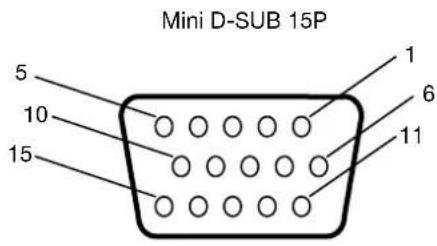
2) S-VIDEO input (MINI DIN 4P): VIDEO
| Pin No | Name |
| 1 | GND |
| 2 | GND |
| 3 | Y (Luminance) |
| 4 | C (Chroma) |
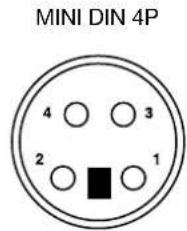
Information Technologies Group, 4299 14th Avenue, Markham, Ontario L3R 0J2,
Canada
Sales Phone :+1-(905) 475-7728
Fax :+1-(905) 475-7958
E-mail: projectors@mitsubishielectric.ca
Technical Phone :+1-(905) 475-7728
Fax :+1-(905) 475-7958
Customer Care
E-mail :support@mitsubishielectric.ca
MDEA (Mitsubishi Digital Electronics America, Inc.)
(Warranty Registration)
http://www.mitsubishi-presentations.com/
Presentation Products Division, 9351 Jeronimo Road, Irvine, CA 92618 U.S.A
Phone Main Line :+1-(949) 465-6000
Technical :+1-(888) 307-0309
Product Informatio :+1-(888) 307-0312
Technical Support
E-mail :tsupport@mdea.com
Europe
MEU-FRA (Mitsubishi Electric Europe B.V French Branch)
25, Boulevard des Bouvets 92 741, Nanterre CEDEX, France
Sales Phone :+33 (0)1 55-68-55-07
Fax :+33 (0)1 55-68-57-31
Technical Phone :+33 (0)1 55-68-56-42
Fax :+33 (0)1 55-68-57-31
MEU-GER (Mitsubishi Electric Europe B.V. German Branch)
http://www.mitsubishi-evs.de/
Gothaer Strasse 8, 40880 Ratingen, Germany
MEU-IR (Mitsubishi Electric Europe B.V. Irish Branch)
http://www.mitsubishi.ie/
Westgate Business Park, Ballymount, Dublin 24, Ireland
Sales Phone :+353-(0)1-4198844
Fax :+353-(0)1-4564422
Technical Phone :+353-(0)1-4198807
Fax :+353-(0)1-4198895
MEU-IT (Mitsubishi Electric Europe B.V. Italian Branch)
Agrate Brianza, Italy
Sales Phone :+39-(0)39-60531
Fax :+39-(0)39-6053214
E-mail:info.projector@it.mee.com
MEU-NL (Mitsubishi Electric Europe B.V. Benelux Branch)
http://www.MitsubishiElectric.nl
Sales Phone :+31-297-282461
Fax :+31-297-283936
E-mail :info@mitsubishi.nl
Phone:+31-297-282461
Fax :+31-297-283936
E-mail :info@mitsubishi.nl
MEU (MITSUBISHI ELECTRIC EUROPE B.V.)
http://www.mitsubishi-projector.ru/
Moscow Representative Office, 12/1 Goncharnaya St. 109240, Moscow, Russia
Sales Phone :+7 (095) 915 8602
Fax :+7 (095) 915 8603
MEU-SP (Mitsubishi Electric Europe B.V. Spanish Branch)
http://www.mitsubishielectric.es/
Ctra. de Rubi, 76-80, 08190 Sant Cugat del Valles, Barcelona, Spain
Sales Phone :+34-93.565.31.54
Fax :+34-93.589.43.88
E-mail:mitsubishi.profesional@sp.mee.com
Technical Phone :+34-93.586.27.51
Fax :+34-93.699.74.45
E-mail:mitsubishi.profesional@sp.mee.com
MEU-SWE (Mitsubishi Electric Europe B.V Scandinavian Branch)
Hammarbacken 14, Box 750, S-19127, Sollentuna, Sweden
Sales Phone :+46-(0)8-6251070
Fax :+46-(0)8-6251036
Technical Phone :+46-(0)8-6251052
Fax :+46-(0)8-6251036
MEU-UK (Mitsubishi Electric Europe)
http://www.mitsubishi.co.uk/evs/
Visual Information Systems Division, Travellers Lane, Hatfield, Hertfordshire, AL10 8XB
Sales Phone :+44 (1707) 278684
Fax :+44 (1707) 278541
E-mail :projector.info@meuk.mee.com
Technical Phone :+44 (870) 606 5008
Fax :+44 (1506) 431927
E-mail :projector.info@meuk.mee.com
Russia (Mitsubishi Electric Europe B.V Moscow Representative Office)
52, bldg.5, Kosmodamianskaya Nab, 113054, Moscow, Russian Federation
Sales Phone :+7 (095) 721 2070
Fax :+7 (095) 721 2071
Technical Phone :+7 (095) 721 2070
Fax :+7 (095) 721 2071