E536242 - SSD ELO - Free user manual and instructions
Find the device manual for free E536242 ELO in PDF.


User questions about E536242 ELO
0 question about this device. Answer the ones you know or ask your own.
Ask a new question about this device
Download the instructions for your SSD in PDF format for free! Find your manual E536242 - ELO and take your electronic device back in hand. On this page are published all the documents necessary for the use of your device. E536242 by ELO.
USER MANUAL E536242 ELO
Critical Issue: Installing SSDs on Touchcomputers & IDS Computer Modules: Systems with Microsoft Windows® 7 (or Windows XP/POSReady 2009)
Scenario
If you have ordered an SSD (Solid-State Drive) kit to either replace or supplement the factory-installed HDD (Hard Disk Drive) for your Elo TouchSystems Touchcomputer or IDS Computer Module, you need to take some VERY IMPORTANT steps before using it to ensure that it works properly and to prevent permanent and unrecoverable damage to the SSD.
Critical Action Needed:
By default, Windows 7 schedules weekly defragmentation of the HDD/SSD to occur. However, DEFRAGMENTING an SSD will damage and eventually destroy the device! After installing an SSD in a Windows system, as soon as the system is rebooted, you MUST IMMEDIATELY take the following steps to ensure that you do not permanently damage the SSD module:
- In Windows 7, go to: Start → All Programs → Accessories → System Tools → Task Scheduler (see below):

text_image
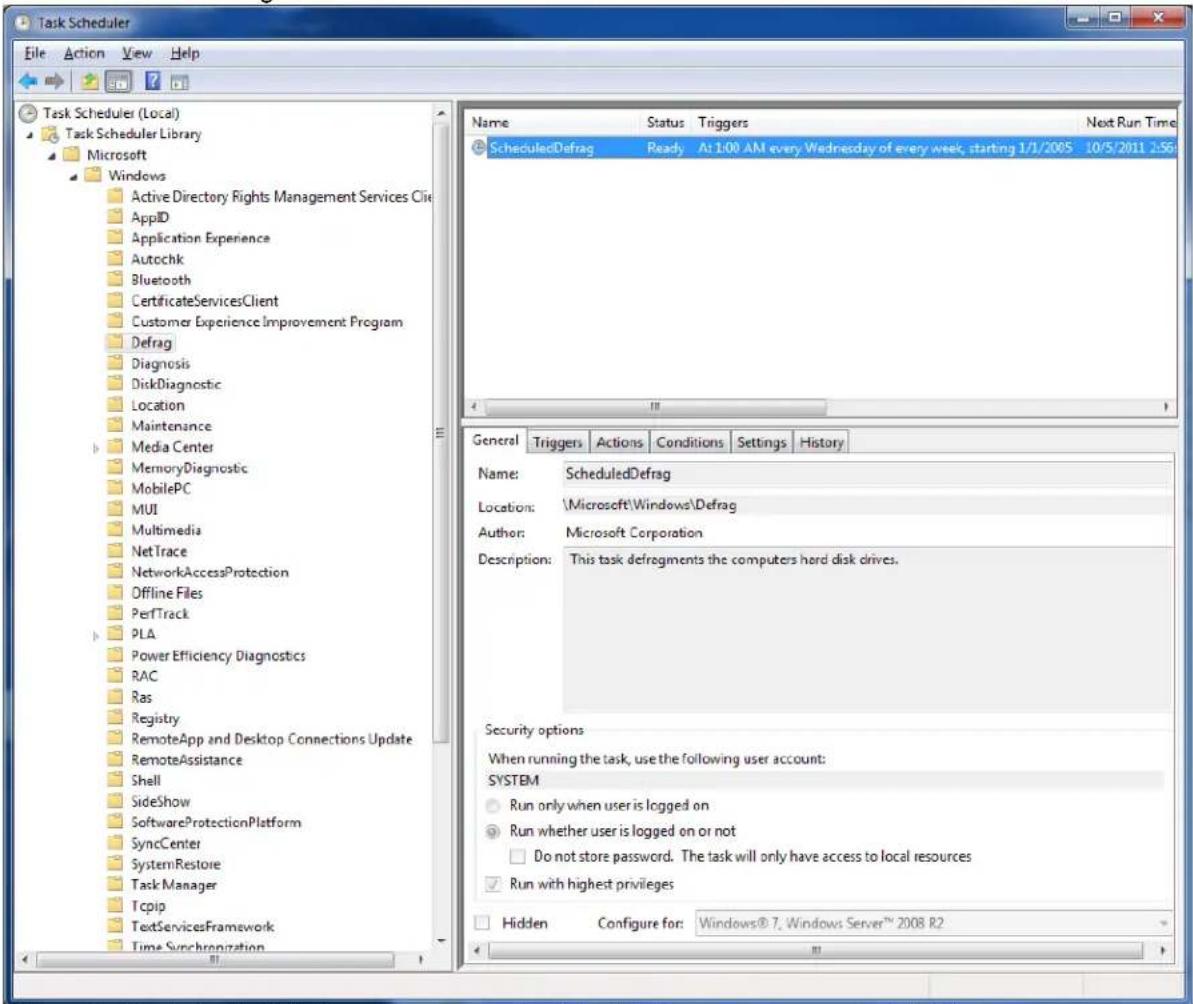
Ease of Access Entertainment System Tools Character Map Computer Control Panel Disk Cleanup Disk Defragmenter Internet Explorer (No Add-ons) Private Character Editor Remote Desktop Connection Resource Monitor System Information System Restore Task Scheduler Windows Easy Transfer Reports Windows Easy Schedule computer tasks to run automatically. Back Search programs and files Favorites Recent Items Computer Network Control Panel Devices and Printers Default Programs Administrative Tools Run... Shut down- On the left side, navigate to "Task Scheduler Library → Microsoft → Windows → Defrag" and look for the "ScheduledDefrag":
text_image
Task Scheduler File Action View Help Task Scheduler (Local) Task Scheduler Library Microsoft Windows Active Directory Rights Management Services Client AppID Application Experience Autochk Bluetooth CertificateServicesClient Customer Experience Improvement Program Defrag Diagnosis DiskDiagnostic Location Maintenance Media Center MemoryDiagnostic MobilePC MUI Multimedia NetTrace NetworkAccessProtection Offline Files PerfTrack PLA Power Efficiency Diagnostics RAC Ras Registry RemoteApp and Desktop Connections Update RemoteAssistance Shell SideShow SoftwareProtectionPlatform SyncCenter SystemRestore Task Manager Tcpip TextServicesFramework Time Synchronization Name Status Triggers Next Run Time ScheduledDefrag Ready At 1:00 AM every Wednesday of every week, starting 1/1/2005 10/5/2011 2:56 General Triggers Actions Conditions Settings History Name: ScheduledDefrag Locations: \Microsoft\Windows\Defrag Author: Microsoft Corporation Description:.This task defragments the computers hard disk drives. Security options When running the task, use the following user account: SYSTEM Run only when user is logged on Run whether user is logged on or not Do not store password. The task will only have access to local resources Run with highest privileges Hidden Configure for: Windows® 7, Windows Server™ 2008 R2Figure 1. By default, Windows 7 runs a scheduled defrag once a week at 1:00 a.m.
- You must then delete any automatically scheduled defragmentation for the SSD drive!
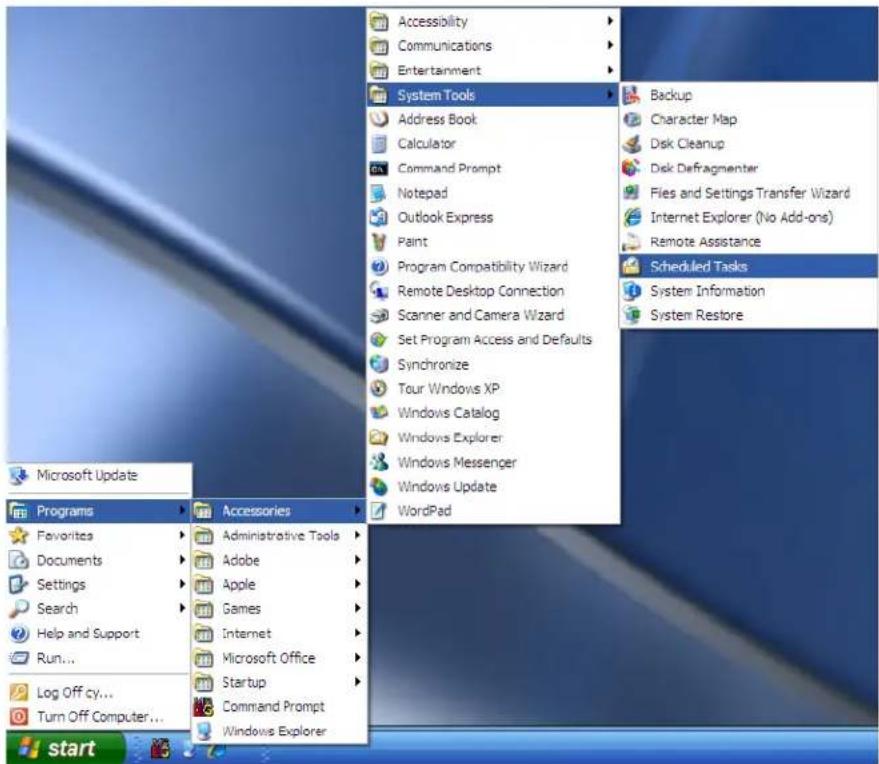
By default, Windows XP and Windows POSReady 2009 do NOT automatically schedule Disk Defragmentation. However, it is strongly recommended that you verify that there are no automatically scheduled occurrences of the DEFRAG program scheduled. To ensure there are no scheduled defragmentation tasks running in Windows XP or Windows POSReady 2009, the procedure is similar to Windows 7 (see below):
- In Windows XP or Windows POSReady 2009, go to: Start → All Programs → Accessories → System Tools → Task Scheduler (see figure below):
text_image
Microsoft Update Programs Favorites Documents Settings Search Help and Support Run... Log Off cy... Turn Off Computer... start Accessories Administrative Tools Adobe Apple Games Internet Microsoft Office Startup Command Prompt Windows Explorer Accessibility Communications Entertainment System Tools Address Book Calculator Command Prompt Notepad Outlook Express Paint Program Compatibility Wizard Remote Desktop Connection Scanner and Camera Wizard Set Program Access and Defaults Synchronize Tour Windows XP Windows Catalog Windows Explorer Windows Messenger Windows Update WordPad Backup Character Map Disk Cleanup Disk Defragmenter Fies and Settings Transfer Wizard Internet Explorer (No Add-ons) Remote Assistance Scheduled Tasks System Information System Restore- Now verify that there are NO scheduled tasks for DEFRAG (see below). If there are, delete/remove them and save your changes.

text_image
Scheduled Tasks File Edit View Favorites Tools Advanced Help Address Scheduled Tasks Go Name Schedule Next Run Time Last Run Time Stat Add Scheduled Task AppleSoftwareUpdate At 12:10 PM every ... 12:10:00 PM ... Never Other Places Control Panel My Documents Shared Documents My Network Places Details 2 objectsContacts
For more information please contact Elo Technical Support for your region for assistance: http://www.elotouch.com/Support/TechnicalSupport/tech.asp
North America
TE Touch Solutions
301 Constitution Drive
Menlo Park, CA 94025-1110
Toll 800-ELO-TOUCH
Tel 1-650-361-4800
customerservice@elotouch.com
www.elotouch.com
Europe
Tel +32 (0)16 35 21 00
Fax +32 (0)16 35 21 01
elosales@elotouch.com
www.elotouch.eu
Asia-Pacific
Tel +81 (45) 478-2161
Fax +81 (45) 478-2180
www.tps.co.jp
Latin America
Tel 305-717-6715
Fax 305-717-4909
www.elotouch.com.ar
www.elotouch.com.br
This document can be found online www.elotouch.com/support and search for "IMPORTANT REQUIREMENTS FOR SSD INSTALLATION". Pricing, specifications, and availability of Elo products may change without notice and no length of product life is specified or implied. Taxes and shipping charges are not included, vary, and are not subject to discount.
Elo TouchSystems, Elo TouchSystems (logo), TE Connectivity, TE Connectivity (logo), and TE (logo) are trademarks of the TE Connectivity Ltd. family of companies.