
502566 - Router Intellinet - Free user manual and instructions
Find the device manual for free 502566 Intellinet in PDF.


| Product Type | Wireless Router |
| Brand | Intellinet |
| Model | 502566 |
| Wireless Standard | IEEE 802.11n/g/b |
| Frequency Band | 2.4 GHz |
| Maximum Wireless Speed | 300 Mbps |
| WAN Ports | 1 x 10/100 Mbps RJ-45 |
| LAN Ports | 4 x 10/100 Mbps RJ-45 |
| Antenna Type | 2 x External Fixed Omnidirectional |
| Dimensions (W x D x H) | 6.7 x 4.7 x 1.2 inches (170 x 119 x 30 mm) |
| Weight | 8.8 oz (250 g) |
| Power Supply | DC 5V / 1A |
| Power Consumption | ≤ 5W |
| Security Features | WEP, WPA, WPA2, MAC Filtering, SPI Firewall |
| VPN Support | PPTP, L2TP, IPSec Pass-Through |
| Management | Web-based GUI, WPS Button |
| Operating Temperature | 32°F - 104°F (0°C - 40°C) |
| Humidity | 10% - 90% Non-condensing |
| Maintenance | Keep firmware updated; reboot periodically |
| Safety | Do not block ventilation holes; keep away from water |
| Spare Parts / Repairability | Contact Intellinet support or authorized resellers |
Frequently Asked Questions - 502566 Intellinet
User questions about 502566 Intellinet
0 question about this device. Answer the ones you know or ask your own.
Ask a new question about this device
Download the instructions for your Router in PDF format for free! Find your manual 502566 - Intellinet and take your electronic device back in hand. On this page are published all the documents necessary for the use of your device. 502566 by Intellinet.
USER MANUAL 502566 Intellinet
Wireless LAN, Health and Authorization for Use
Radio frequency electromagnetic energy is emitted from wireless LAN devices. The energy levels of these emissions, however, are far much less than the electromagnetic energy emissions from wireless devices like mobile phones. Wireless LAN devices are safe for use per frequency safety standards and recommendations. The use of wireless LAN devices may be restricted in some situations or environments; for example, aboard airplanes, in an explosive environment or in case the interference risk to other devices or services is perceived or identified as harmful.
In case the policy regarding the use of wireless LAN devices in specific organizations or environments (e.g., airports, hospitals, chemical/oil/gas industrial plants, private buildings) is not clear, please ask for authorization to use these devices prior to operating the equipment.
Regulatory Information/Disclaimers
Installation and use of this wireless LAN device must be in strict accordance with the instructions included in the user documentation provided with the product. Any changes or modifications made to this device that are not expressly approved by the manufacturer may void the user's authority to operate the equipment. The manufacturer is not responsible for any radio or television interference caused by unauthorized modification of this device or by any substitution or attachment. The manufacturer and its authorized resellers or distributors will assume no liability for any damage or violation of government regulations arising from any failure to comply with these guidelines.
USA-FCC (Federal Communications Commission) Statement
This device complies with Part 15 of FCC Rules. Operation is subject to the following two conditions:
- This device may not cause interference, and
- This device must accept any interference, including interference that may cause undesired operation of this device.
FCC Radio Frequency Exposure Statement
This wireless LAN radio device has been evaluated under FCC Bulletin OET 65 and found compliant to the requirements as set forth in CFR 47 Sections 2.1091, 2.1093 and 15.247 (b) (4) addressing RF exposure from radio frequency devices. The radiated output power of this wireless LAN device is far below the FCC radio frequency exposure limits. Nevertheless, this device shall be used in such a manner that the potential for human contact during normal operation is minimized.
In order to comply with RF exposure limits established in the ANSI C95.1 standards, the distance between the antennas and the user should not be less than 20 cm.
FCC Interference Statement
This equipment has been tested and found to comply with the limits for a Class B digital device, pursuant to Part 15 of the FCC Rules. These limits are designed to provide reasonable protection against harmful interference in a residential installation.
This equipment generates, uses and can radiate radio frequency energy. If not installed and used in accordance with the instructions, it may cause harmful interference to radio communications.
However, there is no guarantee that interference will not occur in a particular installation. If this equipment does cause harmful interference to radio or television reception, which can be determined by turning the equipment off and on, the user is encouraged to try and correct the interference by one or more of the following measures:
- Reorient or relocate the receiving antenna.
- Increase the distance between the equipment and the receiver.
- Connect the equipment to an outlet on a circuit other than that to which the receiver is connected.
- Consult the dealer or an experienced radio/TV technician for help.
Export Restrictions
This product or software contains encryption code that may not be exported or transferred from the United States or Canada without an approved U.S. Department of Commerce export license.
Safety Information
Your device contains a low-power transmitter. When the device transmits, it sends out a radio frequency (RF) signal.
CAUTION: To maintain compliance with the FCC's RF exposure guidelines, this equipment should be installed and operated with a minimum distance of 20 cm between the radiator and your body. Use only the supplied antenna. Any unauthorized antenna, modification or attachments could damage the transmitter and may violate FCC regulations.
The antenna(s) used for this transmitter must be installed to provide a separation distance of at least 20 cm from all persons and must not be co-located or operating in conjunction with any other antenna or transmitter.
CE Mark Warning
This is a Class B product. In a domestic environment, this product may cause radio interference, in which case the user may be required to take adequate measures.
Protection Requirements for Health and Safety - Article 3.1a
Testing has been conducted for electric safety according to EN 60950. This is considered relevant and sufficient.
Protection Requirements for Electromagnetic Compatibility - Article 3.1b
Testing has been conducted for electromagnetic compatibility according to EN 301 489-1, EN 301 489-17 and EN 55024. This is considered relevant and sufficient.
Effective Use of the Radio Spectrum - Article 3.2
Testing has been conducted for radio test suites according to EN 300 328-2. This is considered relevant and sufficient.
CE Countries Where the Product May Be Used Freely
Germany, United Kingdom, Italy, Spain, Belgium, The Netherlands, Portugal, Greece, Ireland, Denmark, Luxembourg, Austria, Finland, Sweden, Norway and Iceland. Also France, channels 10 through 13 only (law prohibits the use of other channels).

section
page
1. Introduction ......6
Applications....6
Features....7
2. Unpacking and Setup 8
Unpacking....8
Setup....8
3. Hardware Installation 9
Front Panel 9
Rear Panel 9
Hardware Connections 10
Connecting the router 10
Checking the installation 10
4. PC Network TCP/IP Settings 11
Windows 95/98/Me 11
Windows 2000 12
Windows XP 13
5. Configuration 14
Login to the Router through a Wireless LAN 14
Login to the Wireless Super G Router 14
Using the Web Browser 14
Setup Wizard....15
Advanced Configuration 20
LAN settings 20
Wireless 22
Status 25
Routing 28
Access 29
Management 35
Tools 37
6. Technical Specifications ....39
General 39
Physical and Environmental 39
About This Manual
Congratulations on purchasing the INTELLINET NETWORK SOLUTIONS™ Wireless Super G Router, Model 502566. This integrated access device combines Internet gateway functions with a wireless LAN and Fast Ethernet switch. It provides a complete solution for Internet surfing and office-resource sharing, and it is easy to configure and operate.
Purpose
This manual discusses how to install the Wireless Super G Router.
Overview of This Manual
INTRODUCTION — Describes the Wireless Super G Router and its features. UNPACKING AND SETUP — Helps you get started with basic installation.
IDENTIFYING EXTERNAL COMPONENTS — Describes the front panel, rear panel and LED indicators of the Wireless Super G Router.
CONNECTING THE ROUTER — Tells how you can connect the Wireless Super G Router to your xDSL/cable modem.
TECHNICAL SPECIFICATIONS — Lists the technical (general, physical and environmental) specifications of the Wireless Super G Router.
1. INTRODUCTION
With the explosive growth of the Internet, accessing information and services at any time — day or night — has become a standard requirement for most people. The era of the stand-alone PC is waning. Networking technology is moving out of the exclusive domain of corporations and into homes with at least two computers.
This integrated access device combines Internet gateway functions with a wireless LAN and Fast Ethernet switch. Designed for business and the home, it saves you the cost of installing a separate modem and ISP line for each computer while providing ready connection for the users, with or without the network wires.
Broadband network access is also gaining ground. However, allowing more than two computers to access the Internet at the same time means higher costs. Thus, there is a need to share one legal IP address over a single Internet connection to link the home with the Internet.
With the scarcity of IP addresses, the use of a shared Internet connection through an Internet sharing device can circumvent high network-access costs. All linked computers can make full use of broadband capabilities over such a device.
The INTELLINET NETWORK SOLUTIONS Wireless Super G Router not only comes equipped with a wide range of features, but also can be installed and configured right out of the box. This device supports a simple local area network (LAN) and Internet access share, offering great savings.
The LAN connects home computers while also allowing any of the computers to access the Internet, share resources or play online games — the basis of the family computing lifestyle.
APPLICATIONS
Broadband Internet access — Several computers can share one high-speed broadband connection, either wired or wireless (WLAN, LAN and WAN-Internet).
Resource sharing — Share resources such as printers, scanners and other peripherals.
File sharing — Exchange data/messages and distribute files while making good use of hard disk space.
Online gaming — Through the local area network, online gaming and e-commerce services can be easily set up.
Firewall — A built-in firewall function for security and anti-hack systems.
FEATURES
• High-speed data-transfer rate
• Supports NAT for sharing one IP address with all LAN/WLAN users
• Supports PPPoE and PPTP protocols for dial-up ADSL
• Supports 64/128-bit WEP encryption
• Supports WPA-PSK, WPA2-PSK, WPA, WPA2 security
• Supports DHCP server/client
• Supports UPnP (Universal Plug and Play)
• Supports virtual server mapping
• Supports packet filtering
• Supports protocol filtering
• Supports domain filtering
- Supports DNS
- Simple firewall protection
- Upgradeable firmware for future functions
- Simple settings using Setup Wizard
- Easy configuration via Web browser
2. UNPACKING AND SETUP
This section provides unpacking and setup information for the Wireless Super G Router.
UNPACKING
Open the box of the Wireless Super G Router and carefully unpack it. The box should contain the following items:
• One Wireless Super G Router, Model 502566
- One di-pole antenna
• One external power adapter
• One CD-ROM with this user manual
If any item is found missing or damaged, please contact your local reseller for replacement.
SETUP
The setup of the Wireless Super G Router can be performed properly using the following methods:
- The power outlet should be within 1.82 meters (6 feet) of the router.
- Visually inspect the DC power jack and make sure that it is fully secured to the power adapter.
- Make sure that there is proper heat dissipation from, and adequate ventilation around, the router. Do not place heavy objects on the router.
- Fix the direction of the antennas. Try to place the router in a position that can best cover your wireless network. Normally, the higher you place the antenna, the better the performance will be. The antenna's position enhances the receiving sensitivity.
3. HARDWARE INSTALLATION
FRONT PANEL
Front Panel

Power — This indicator lights green when the hub is receiving power; otherwise it is off.
Status — This indicator blinks green when the router is working. If it stays on or off, the router is not working.
WAN (Link/ACT) — This indicator lights green when the WAN port has been connected to an xDSL/cable modem successfully. It blinks green while the WAN port is transmitting or receiving data on the xDSL/cable modem.
WLAN (ACT) — This indicator lights green when there are wireless devices connected and transmitting data to the router.
Local Network (Link/ACT) — These indicators light green when the LAN ports have been connected successfully. They blink green while the LAN ports are accessing data.
REAR PANEL
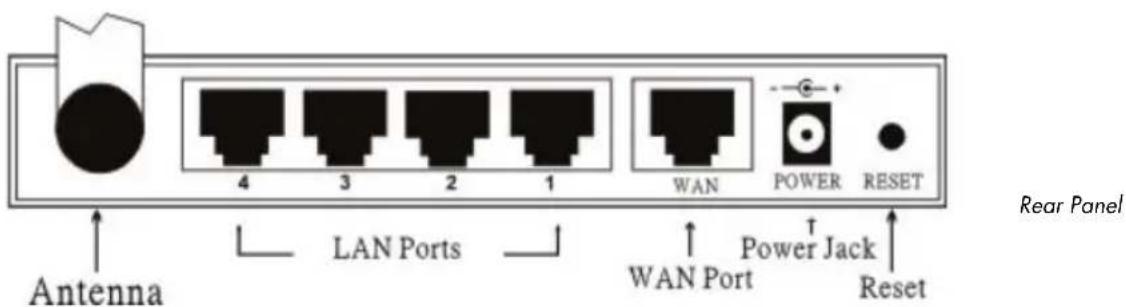
Antenna — There is one 2dBi gain antenna for wireless connection.
LAN (1-4) — Four RJ-45 10/100Mbps Auto-MDIX ports are for connecting to either 10Mbps or 100Mbps Ethernet connections.
WAN — There is an RJ-45 10/100Mbps Auto-MDIX port for the WAN that accommodates the xDSL/cable modem.
DC IN (POWER JACK) — Plug the power adapter into this power jack.
RESET — Use a pin-shaped item to push in to reset the device to factory default settings. It will be useful when the login password is forgotten; and will reset to default settings.
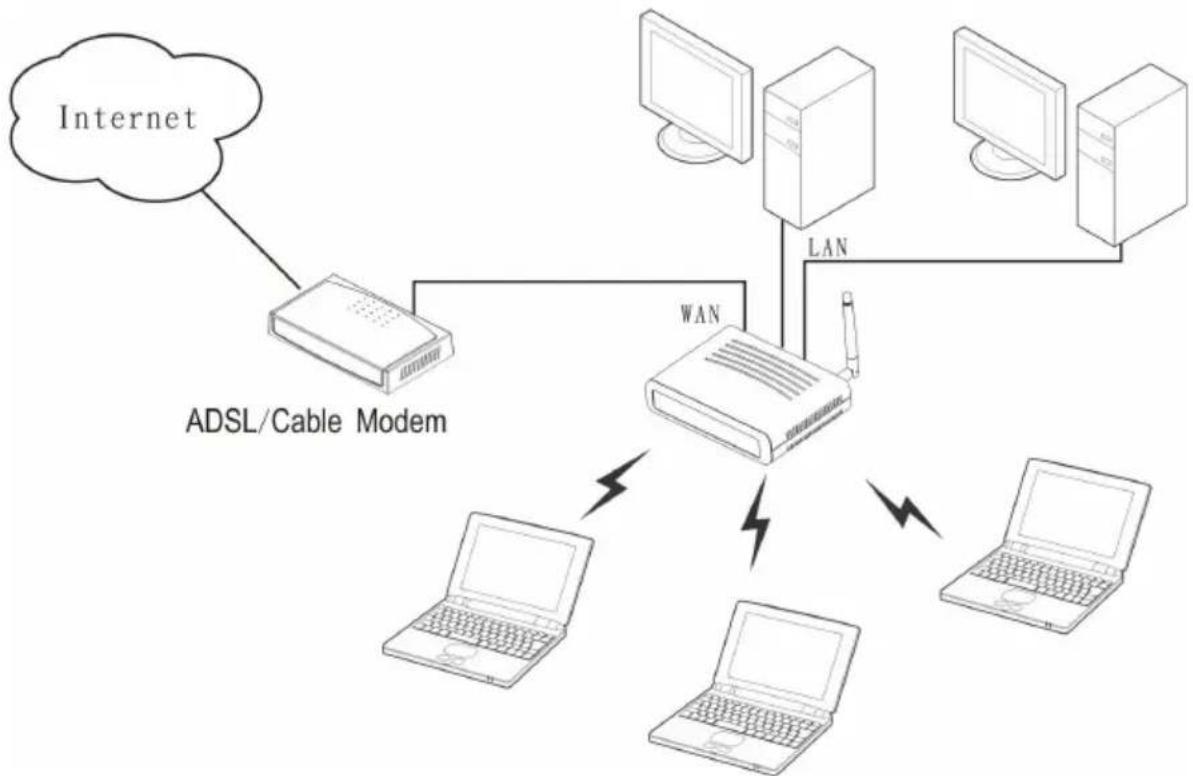
HARDWARE CONNECTIONS
flowchart
graph TD
    A["Internet"] --> B["ADSL/Cable Modem"]
    B --> C["WAN"]
    C --> D["Laptop"]
    C --> E["Laptop"]
    C --> F["Laptop"]
    C --> G["Laptop"]
    C --> H["Laptop"]
    C --> I["Laptop"]
    C --> J["Laptop"]
    C --> K["Laptop"]
    C --> L["Laptop"]
    C --> M["Laptop"]
    C --> N["Laptop"]
    C --> O["Laptop"]
    C --> P["Laptop"]
    C --> Q["Laptop"]
    C --> R["Laptop"]
    C --> S["Laptop"]
    C --> T["Laptop"]
Connecting the router
- Plug in one end of the network cable to the WAN port of the router.
- Plug in the other end of the network cable to the Ethernet port of the xDSL or cable modem.
- Use another network cable to connect to the Ethernet card on the computer system; the other end of the cable connects to the LAN port of the router. Since the Wireless Super G Router has four ports, you can connect up to four computers directly to the unit. You do not have to buy a switch to connect these computers since one Wireless Super G Router functions both as a connection-sharing unit and as a switch.
Checking the installation
The control LEDs of the router are clearly visible, and the status of the network link can be seen instantly:
- With the power source on, once the device is connected to the broadband modem, the Power, System, LAN, WLAN and WAN port LEDs of the router will light up, indicating a normal status.
- When the WAN is linked to the ADSL/cable modem, the WAN port's LED will light up.
- When the LAN is linked up to the computer system, the LAN port's LED will light up.
4. PC NETWORK TCP/IP SETTINGS
The network TCP/IP settings differ based on the computer's operating system (Win95/98/Me/NT/2000/XP) and are as follows.
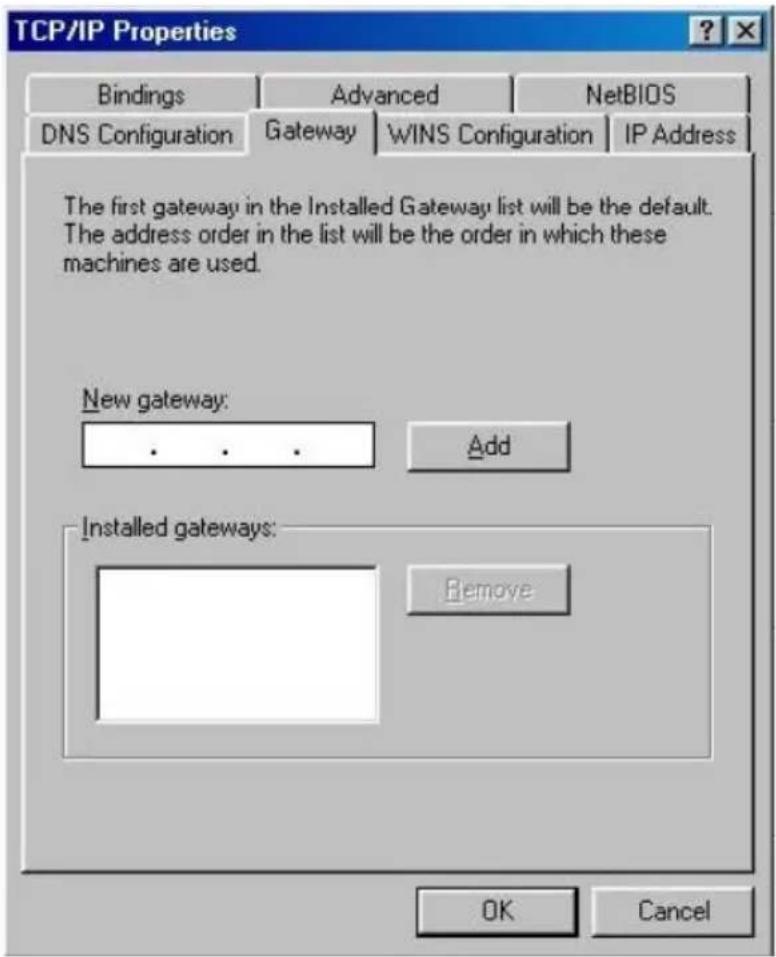
WINDOWS 95/98/Me
- Click on the "Network neighborhood" icon found on the desktop.
- Click the right mouse button and a context menu will be shown.
- Select "Properties" to enter the TCP/IP settings screen.
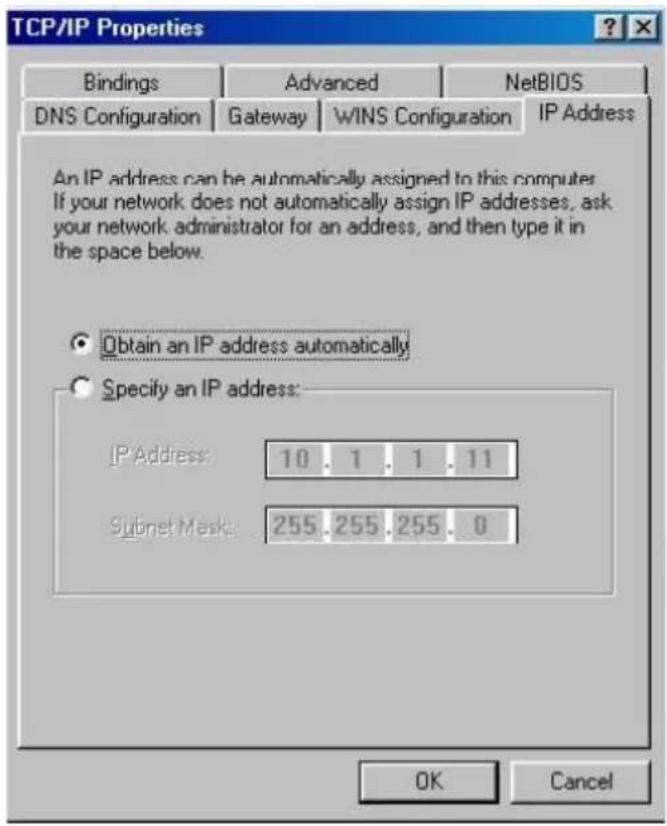
- Select "Obtain an IP address automatically" on the "IP Address" field.
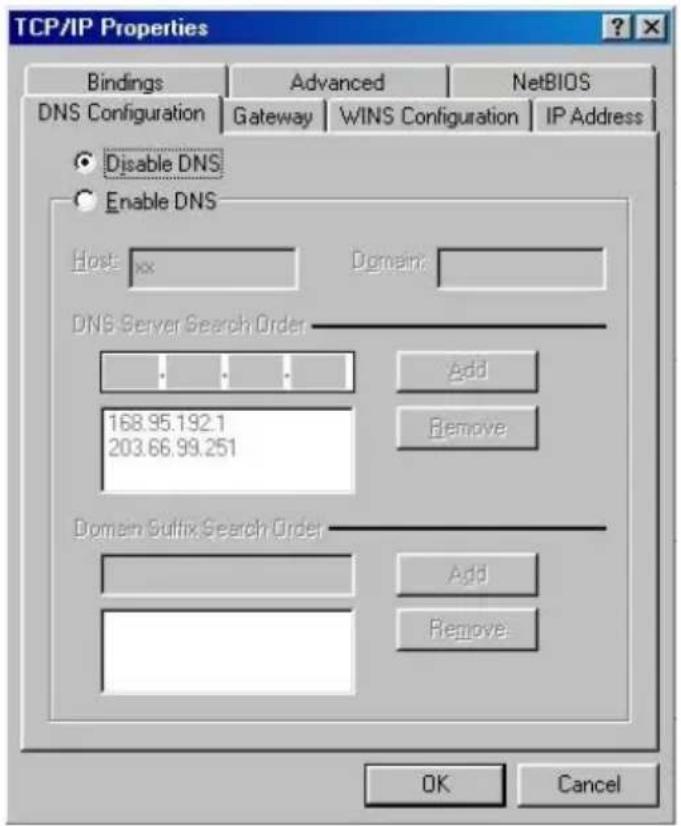
- Select "Disable DNS" in the "DNS Configuration" field.
- Select "None" for the "Gateway" field.
WINDOWS 2000/NT
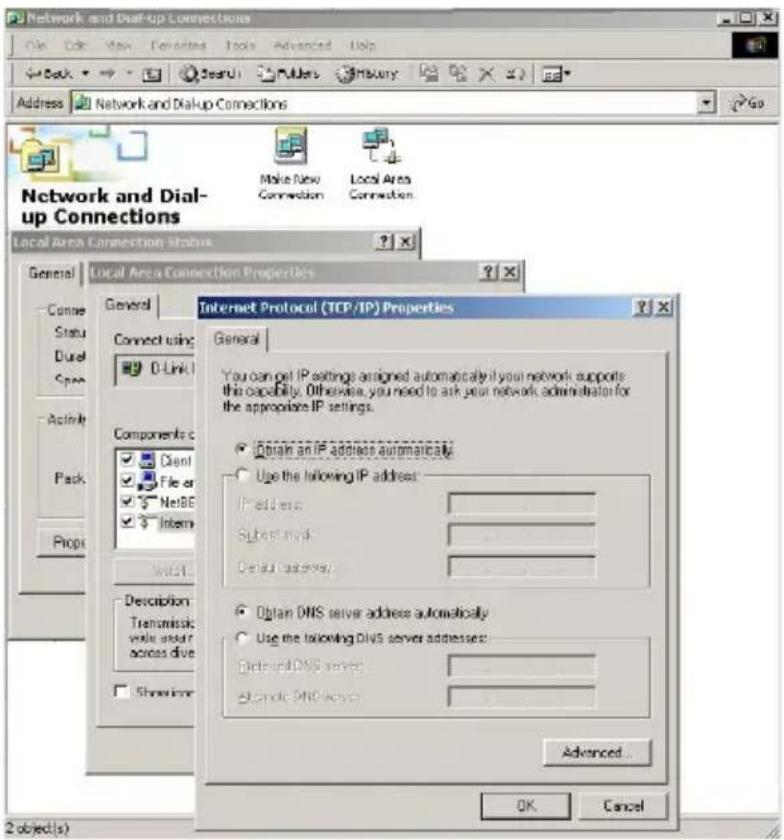
Double click on the "My computer" icon on the desktop. When the "My computer" window opens, open the "Control panel" and then the "Network dialup connection" applet. Double click on the "Local area network connection" icon. Select "Properties" to enter the TCP/IP setting window.
-
In the "Local area network status" window, click on "Properties."
-
In the "Local area network connection" window, first select the TCP/IP setting and then select "Properties."
-
Set both "IP address" and "DNS" to the Automatic configuration.
WINDOWS XP
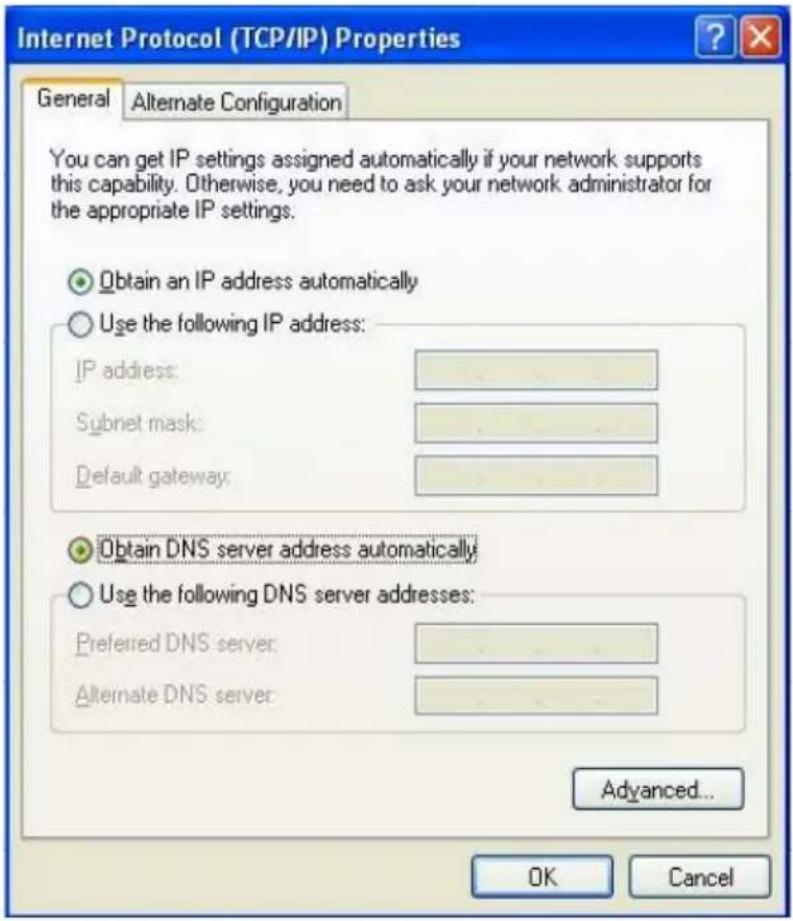
Point the cursor and right click on the "My Network Place" icon.
Select "Properties" to enter the TCP/IP setting window.
-
Set "IP address" to "Obtain an IP address automatically."
-
Set "DNS" to "Obtain DNS server address address automatically."
5. CONFIGURATION
First make sure that the network connections are functioning normally.
This Wireless Super G Router can be configured using Internet Explorer 5.0 or newer Web browser versions.
LOGIN TO THE ROUTER THROUGH A WIRELESS LAN
Before configuring the router through a WLAN, make sure that the SSID, Channel and WEP are set properly.
Following are the default settings used for the Wireless Super G Router:
- SSID: default
- Channel: 6
- Security: disable
LOGIN TO THE WIRELESS SUPER G ROUTER
Before you configure this device, make sure the host PC is set on the IP subnetwork that can be accessed by the xDSL/cable modem. For example, when the default network address of the xDSL/cable modem Ethernet interface is 192.168.1.x, then the host PC should be set at 192.168.1.xxx (where xxx is a number between 2 and 254) and the default subnet mask is 255.255.255.0.
USING THE WEB BROWSER
-
Open Internet Explorer 5.0 or above (or equivalent Internet browser).
-
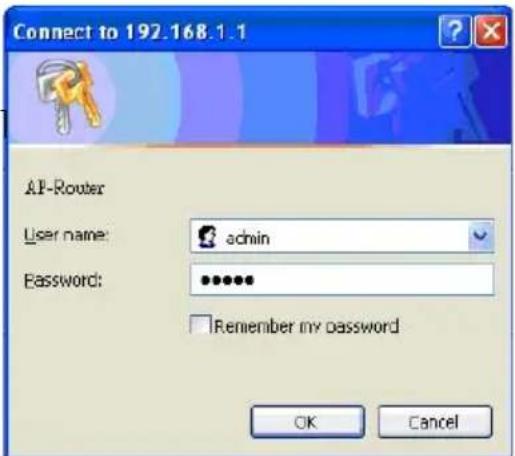
Enter the IP address http://192.168.1. (the factory-default IP address setting) to the URL Web address location.
-
When the following dialog box appears, enter the username and password to login to the main configuration window. The default username and password are "admin."
SETUP WIZARD
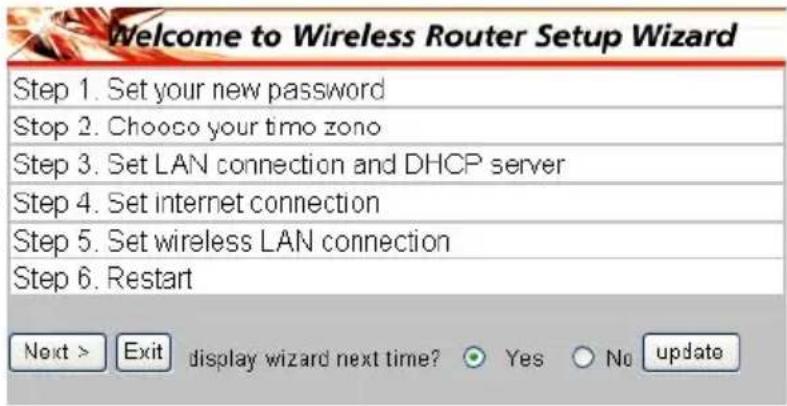
Setup Wizard is provided as the part of the Web configuration utility. You can get the wireless router configuration ready to run in six easy steps by clicking on the "Wizard" button on the function menu. The screen at the right will appear. Click "Next" to continue.
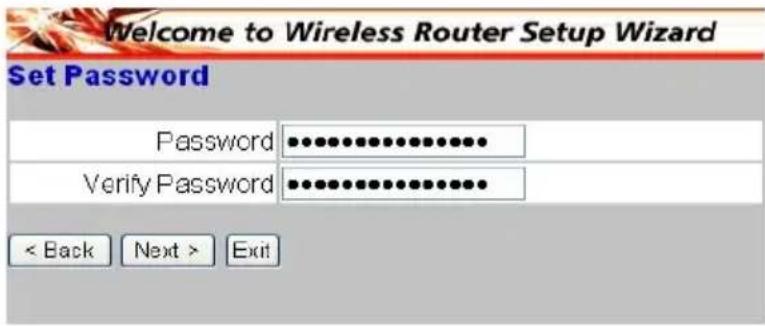
Step 1. Set your new password
You can set — and/or change — the password, then click "Next" to continue.
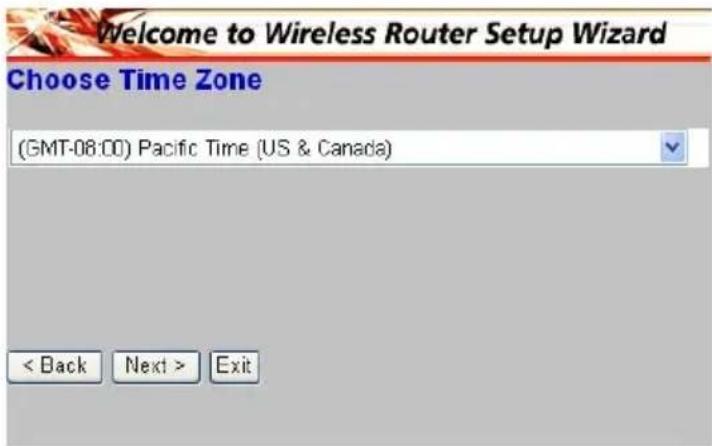
Step 2. Choose your time zone
Select the time zone from the drop-down list. Click "Next" to continue.
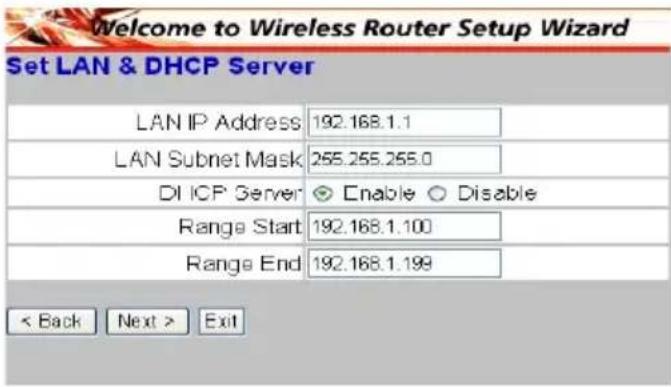
Step 3. Set the LAN connection and DHCP server
Set your (or the user's) IP address and mask.
The default IP is 192.168.1.1. If you want to enable DHCP (Dynamic Host Configuration Protocol), click "Enabled." When enabled, DHCP can assign IP addresses automatically. Assign the range of IP addresses in the fields of "Range start" and "Range end." Click "Next" to continue.
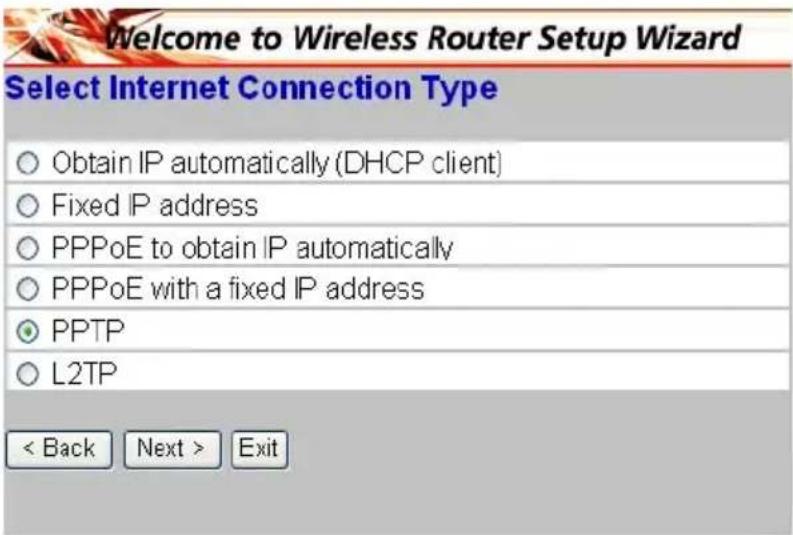
Step 4. Set the Internet connection
Select how the router will set up the Internet connection:
- Obtained IP automatically
- Fixed IP address
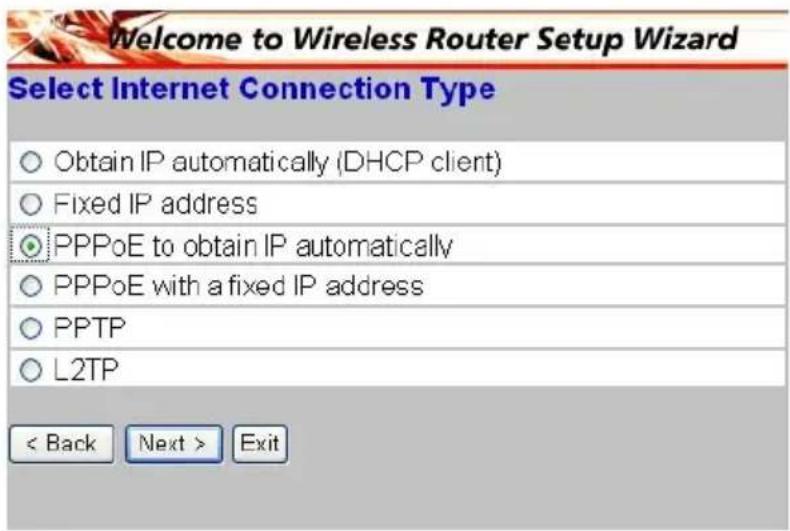
- PPPoE to obtain IP automatically
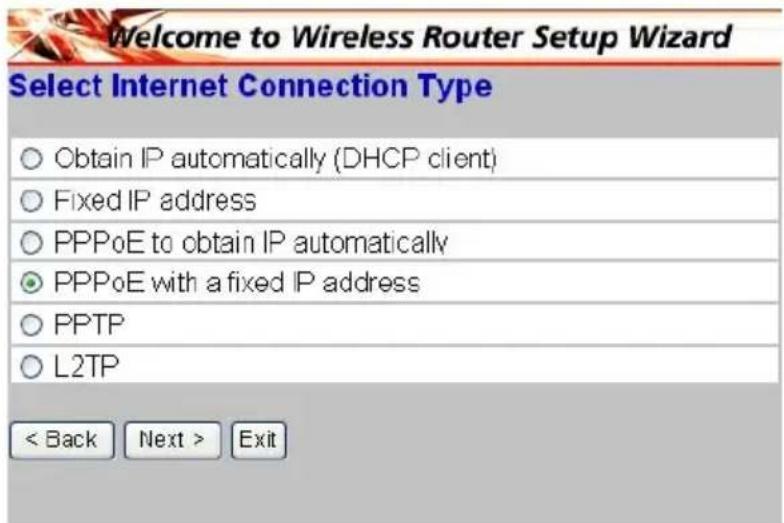
- PPPoE with a fixed IP address
• PPTP
Obtain IP automatically (DHCP client)
If you have enabled the DHCP server, choose "Obtain IP automatically (DHCP client)" to have the Wireless Super G Router assign IP addresses automatically.
Welcome to Wireless Router Setup Wizard
Select Internet Connection Type
Obtain IP automatically (DHCP client)
○ Fixed IP address
○ PPPoE to obtain IP automatically
○ PPPoE with a fixed IP address
○ PPTP
○ L2TP
< Back
Next >
Exit
Welcome to Wireless Router Setup Wizard
Select Internet Connection Type
○ Obtain IP automatically (DHCP client)
Fixed IP address
○ PPPoE to obtain IP automatically
○ PPPoE with a fixed IP address
○ PPTP
○ L2TP
< Back
Next >
Exit
Welcome to Wireless Router Setup Wizard
Set Fixed IP Address
WANIP Address 0.0.0.0
WAN Subnet Mask 0.0.0.0
WAN Gateway Address 0.0.0.0
DNS Server Address 1 0.0.0.0
DNS Server Address 20.0.0.0
DNS Server Address 3 0.0.0.0
< Back
Next >
Exit
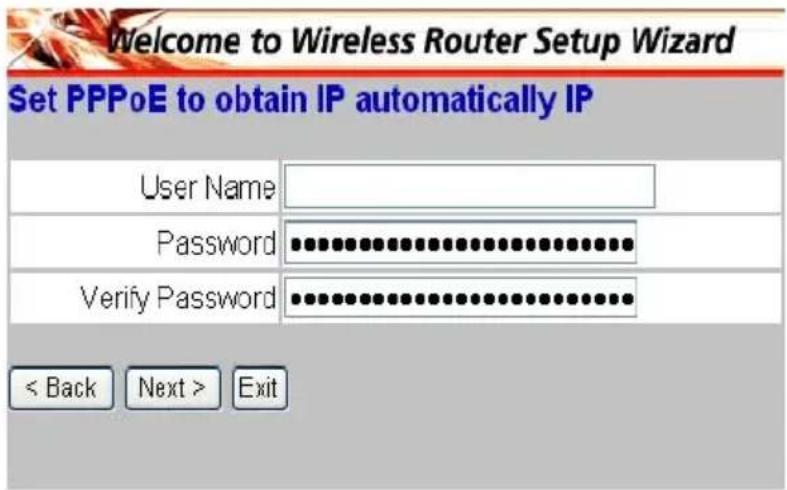
PPPoE to obtain IP automatically If connected to the Internet using a PPPoE (dial-up xDSL) modem, the ISP will provide a password and username, and then the ISP uses PPPoE. Choose this option and enter the required information.
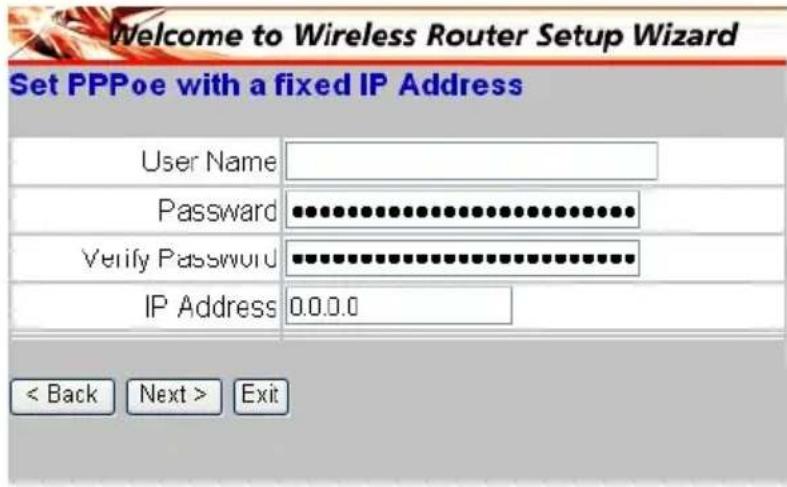
PPPoE with a fixed IP address If connected to the Internet using a PPPoE (dial-up xDSL) modem, the ISP will provide a password, a username and a fixed IP address. Choose this option and enter the required information.
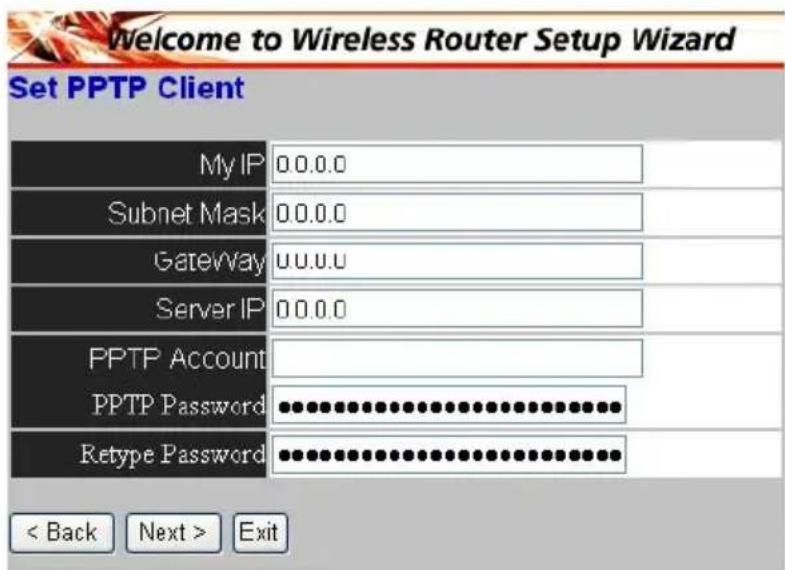
PPTP
If connected to the Internet using a PPTP (xDSL) modem, enter your IP address, subnet mask, gateway, server IP, PPTP account and PPTP password in the appropriate fields. If your ISP has provided you with a connection ID, enter it in the "Connection ID" field; otherwise, leave it as zero.
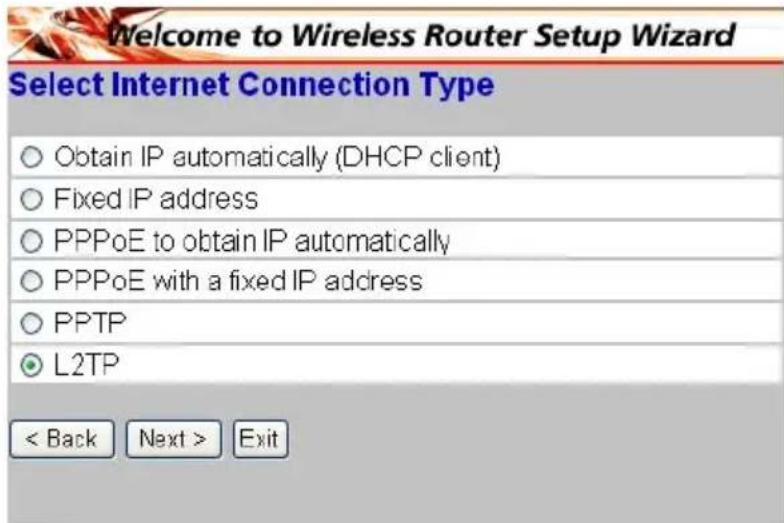
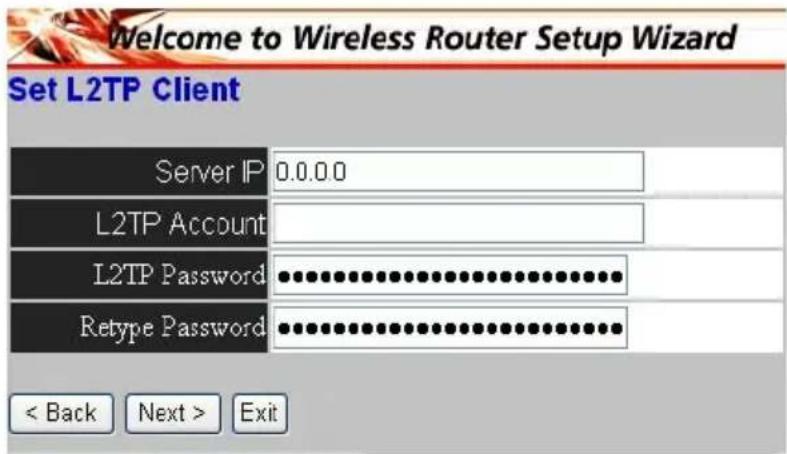
If connected to the Internet using an L2TP (dial-up xDSL) modem, the ISP will provide a server IP account and password. Choose this option and enter the required information.
Step 5. Set Wireless LAN connection
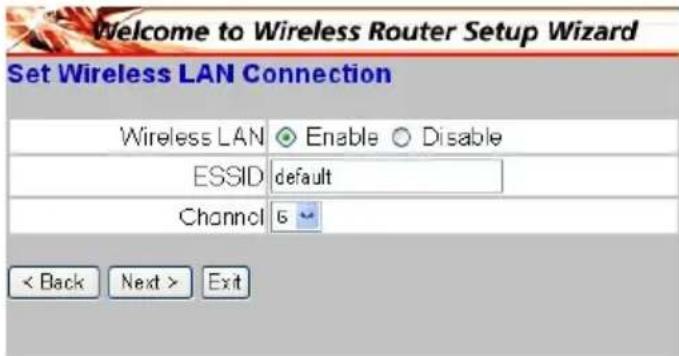
Click "Enable" to enable the wireless LAN, then type the ESSID in the text box and select a communications channel. The ESSID and channel must be the same as wireless devices attempting to communicate to the router.
Step 6. Setup completed
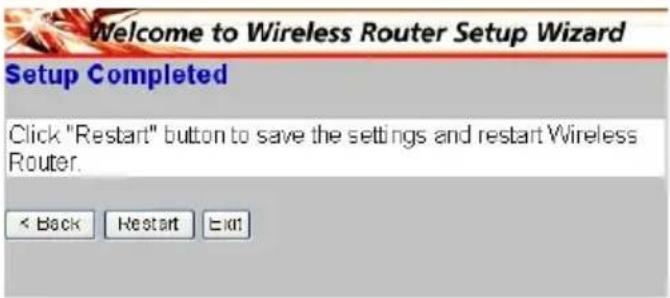
Setup Wizard is now completed. The new settings will be effective after the router is restarted. Click "Restart" to reboot the router. If you do not want to make any changes, click "Exit" to quit without any changes. You can go back to modify the setting by clicking "Back."
This screen enables you to configure the LAN & DHCP server; set WAN parameters; create administrator and user passwords; and set the local time, time zone and dynamic DNS.
LAN & DHCP server
This screen allows you to set LAN and DHCP properties, such as the hostname, IP address, subnet mask and domain name. LAN and DHCP profiles are listed
in the DHCP table at the bottom of the screen.
Hostname: Type the hostname in the text box. The hostname is required by some ISPs. The default hostname is "AP-Router."
IP Address: This is the IP address of the router. The default IP address is 192.168.1.1.
Subnet Mask: Type the subnet mask for the router in the text box. The default subnet mask is 255.255.255.0.
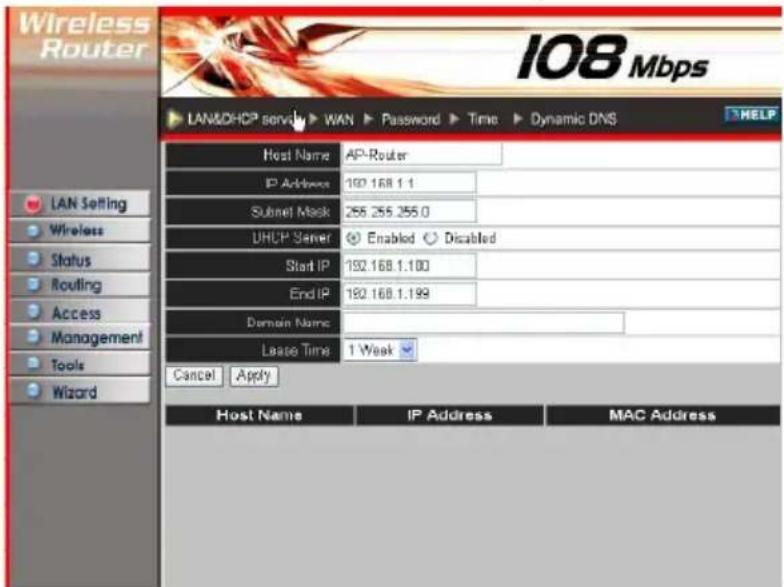
DHCP Server: Enables the DHCP server to allow the router to automatically assign IP addresses to devices connecting to the LAN. DHCP is enabled by default. All DHCP client computers are listed in the table at the bottom of the screen, providing the hostname, IP address and MAC address of the client.
Start IP: Type an IP address to serve as the start of the IP range that DHCP will use to assign IP addresses to all LAN devices connected to the router.
End IP: Type an IP address to serve as the end of the IP range that DHCP will use to assign IP addresses to all LAN devices connected to the router.
Domain Name: Type the local domain name of the network in the text box. This item is optional.
WAN
This screen enables the user to set up the router WAN connection; specify the IP address for the WAN; add DNS numbers; and enter the MAC address.
Connection Type: Select the connection type — either DHCP client, Fixed IP, PPPoE, PPTP or L2TP — from the drop-down list.
WAN IP: Select whether you want to specify an IP address manually or allow DHCP to obtain an IP address automatically. When "Specify IP" is selected, type the IP address, subnet mask and default gateway in the text boxes. Your ISP will provide this information.
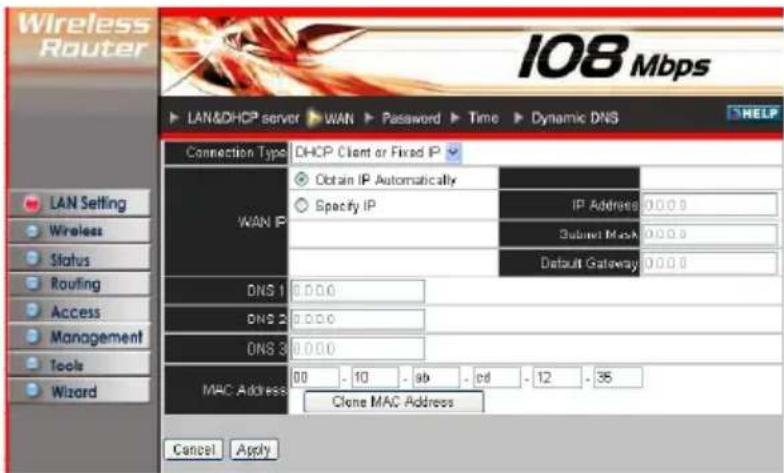
DNS 1/2/3: Type up to three DNS numbers in the text boxes. Your ISP will provide this information.
MAC Address: If required by your ISP, type the MAC address of the router WAN interface in this field.
Password
This screen enables you to set administrative and user passwords, which are
used to gain access to the router interface.
Administrator: Type the password the administrator will use to log in to the system. The password must be typed again for confirmation. The administrator has full control over the router's configuration.
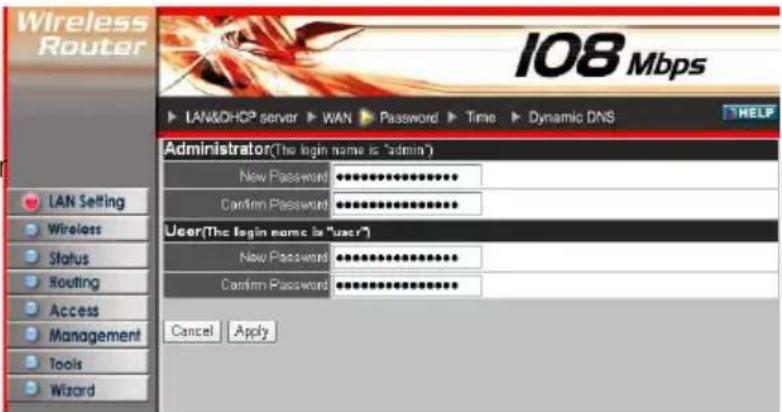
User: Type the password for the user to log in to the system. The password must be typed again for confirmation. The user account can only view the configuration, and cannot make any changes.
Time
This screen enables the user to set the time and date for the router's real-time clock; select the proper time zone; and enable or disable Daylight Saving.
Local Time: Displays the local time and date.
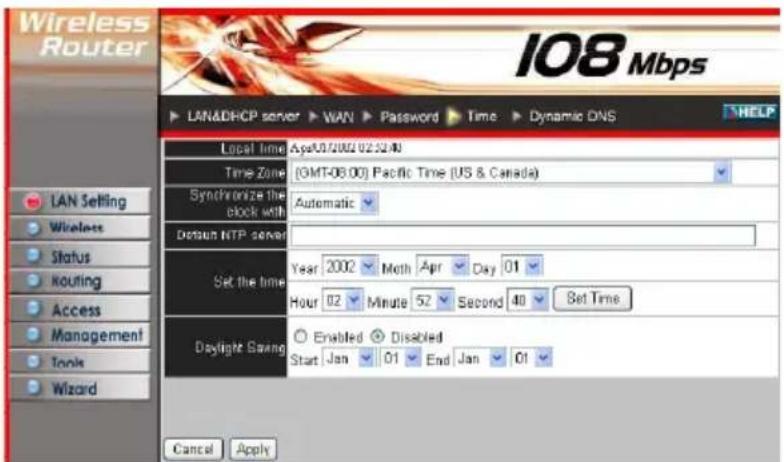
Default NTP server: The Simple Network Time Protocol (SNTP) server allows the Wireless Super G Router to synchronize the system clock to the global Internet through the SNTP server. Specify the NTP domain name or IP address in the text box.
Time Zone: Select the time zone from the drop-down list.
Daylight Saving: Enables the user to enable or disable Daylight Saving Time. When enabled, select the start and end date for Daylight Saving Time.
Dynamic DNS
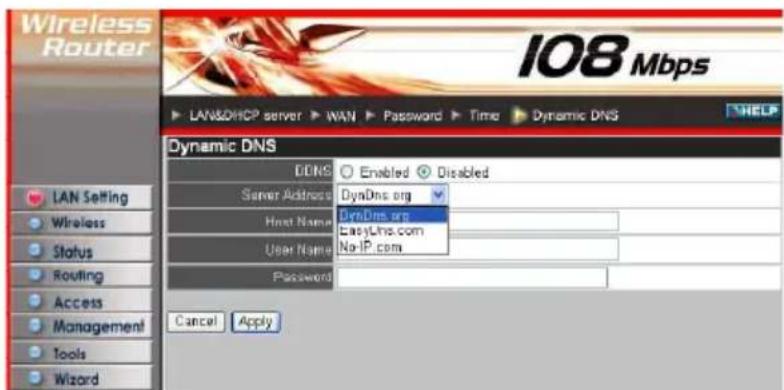
This tells the DDNS server what your current IP address is when you are online. You first need to register your preferred DNS on the DDNS providers. Then, select the DDNS address in the Server Address and fill in the related information in the below fields: Hostname, Usename and Password.
Wireless
This section enables the user to configure the wireless communications parameters for the Wireless Super G Router.
Basic
This screen allows the user to enable and disable the wireless LAN function; create an SSID; and select the channel for wireless communications. Enable/Disable: Enables and disables wireless LAN via the Wireless Super G Router.
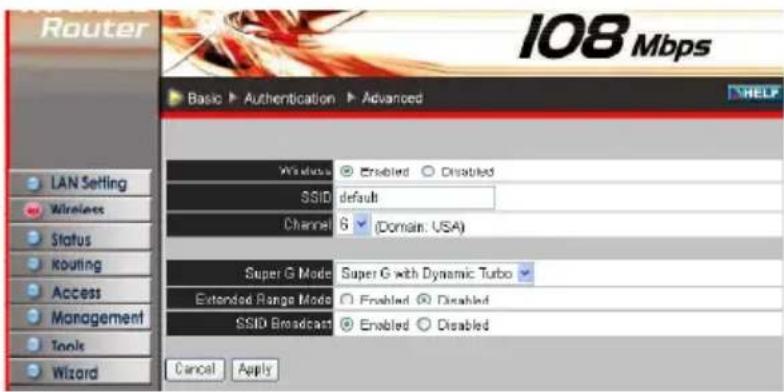
SSID: Type an SSID in the text box. The SSID of any wireless device must match the SSID typed here in order for the wireless device to access the LAN and WAN via the router.
Channel: Select a transmission channel for wireless communications. The channel of any wireless device must match the channel selected here in order for the wireless device to access the LAN and WAN via the router.
Super G mode: From the drop-down list, if you choose to use Super G to enhance the speed, there are three options on Super G mode: Super G without Turbo; Super G with Dynamic Turbo and Super G with Static Turbo. The Turbo mode indicates the combination of two channels to enhance the throughput. Super G without Turbo indicates that it is on Super G mode without the channel combination. Dynamic Turbo is able to automatically detect if any Super G-based product is available. If not, the connection is via "normal" G. Static Turbo means it will not go back to "normal" G once it starts. Extended Range Mode: Enables and disables the extended range of the router.
Authentication
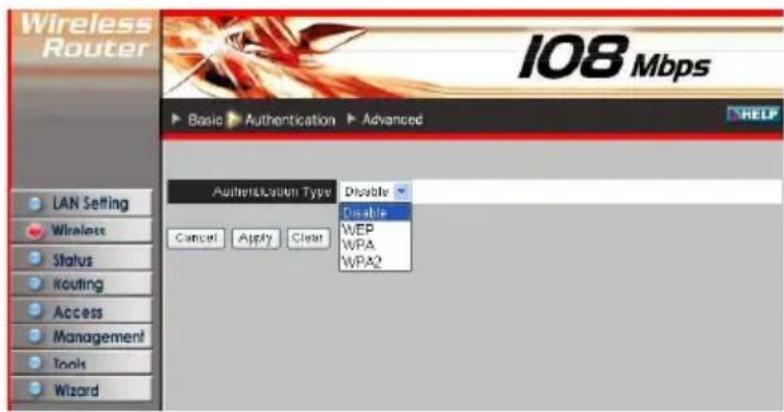
The Authentication Type default is set to Disable. There are four options: Disable, WEP, WPA and WPA2.
WEP Encryption WEP: Open System allows public access to the router via wireless communications; Shared Key requires the user to set a WEP key to exchange data with other wireless clients that have the same WEP key.
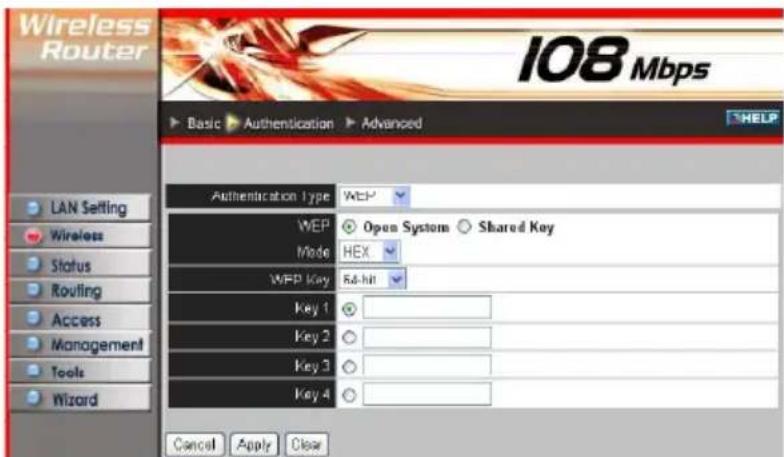
Mode: Select the key mode in ASCII or HEX.
WEP Encryption
WEP Key: Select the level of encryption from the drop-down list. The router supports 64- and 128-bit encryption.
Key 1 — Key 4: Enables the user to create an encryption scheme for wireless LAN transmissions. Manually enter a set of values for each key. Select a key to use by clicking the radio button next to the key. Click "Clear" to erase key values.
WPA/WPA2 Security
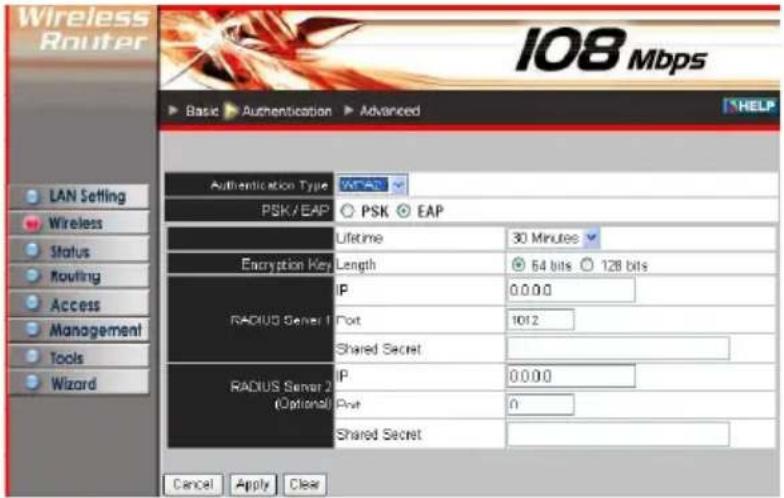
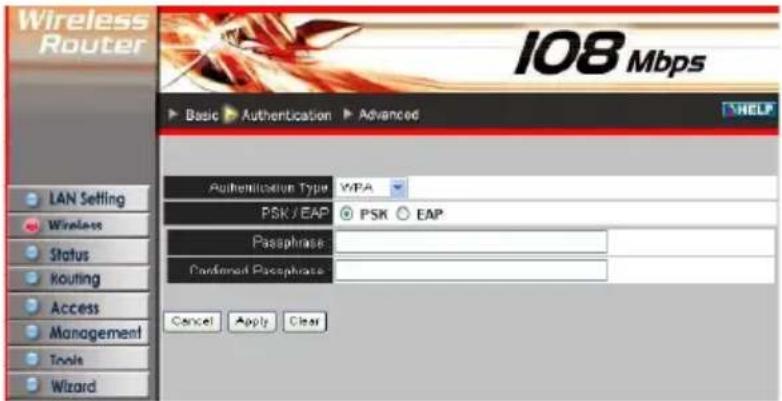
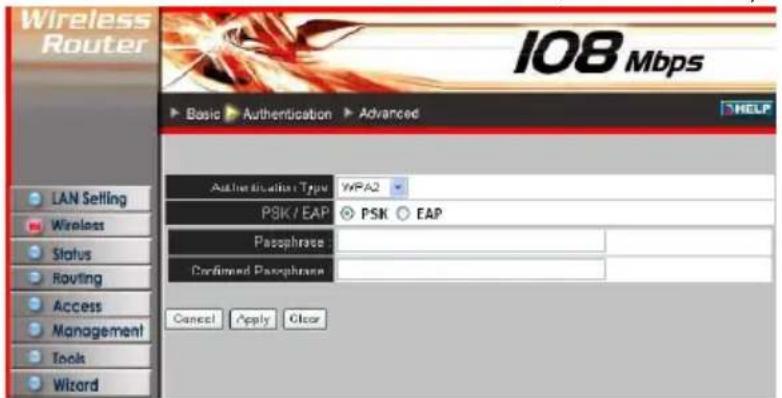
If WPA or WPA2 is selected, one of the following screens is shown. Set the length of the encryption key and the parameters for the RADIUS server.
Lifetime: Select the Lifetime of the Encryption Key (5 Minutes to 1 Day). As soon as the lifetime of the Encryption Key is over, the Encryption Key will be renewed by the RADIUS Server.
Encryption Key: Select the Encryption Key Length (64 bits or 128 bits) that you would like to use.
RADIUS Server:
- Enter the IP address, Port used and Shared Secret by the primary RADIUS Server.
- Enter the IP address, Port used and Shared Secret by the secondary RADIUS Server.
WPA-PSK/WPA2-PSK Security If WPA-PSK or WPA2-PSK is selected, set the PSK key in the Passphrase field. The length should be at least eight characters.
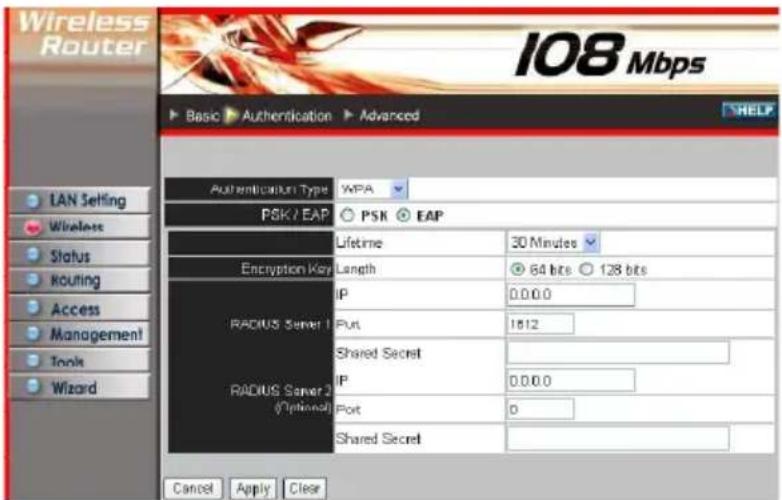
WPA/WPA2 Security
WPA-PSK/WPA2-PSK Security
Advanced
This screen enables the user to configure advanced wireless functions.
Beacon Interval: Type the beacon interval in the text box. You can specify a value from 1 to 1000. The default beacon interval is 100.
RTS Threshold: Type the RTS (Request-To-Send) threshold in the text box. This value stabilizes data flow. If data flow is irregular, choose values between 256 and 2432 until data flow is normalized.
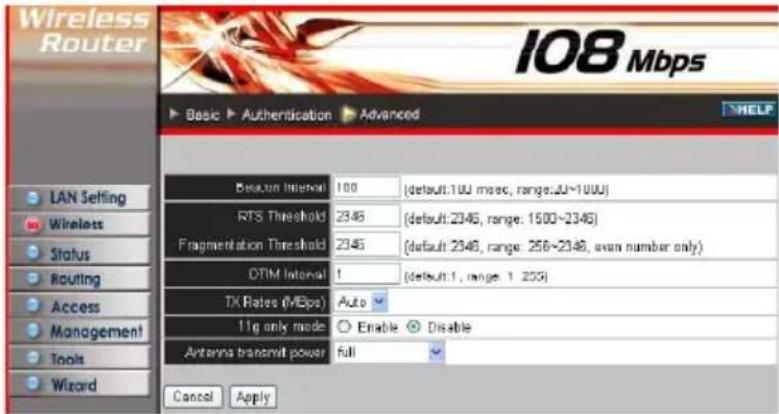
Fragmentation Threshold: Type the fragmentation threshold in the text box. If packet transfer error rates are high, choose values between 256 and 2432 until packet transfer rates are minimized. NOTE: Setting this fragmentation threshold value may diminish system performance.
DTIM Interval: Type a DTIM (Delivery Traffic Indication Message) interval in the text box. You can specify a value between 1 and 65535. The default value is 1.
TX Rates (Mbps): Select one of the wireless communications transfer rates, measured in megabytes per second, based on the speed of wireless adapters connected to the WLAN.
11g only mode: Selecting "Enable" allows only 802.11g WLAN client communication with the Wireless Super G Router.
Antenna Transmit Power: Adjust the power of the antenna transmission by selecting from the drop-down list.
Status
This selection enables user to view the status of the router LAN, Wireless and WAN connections, and view logs and statistics pertaining to connections and packet transfers.
Device Information
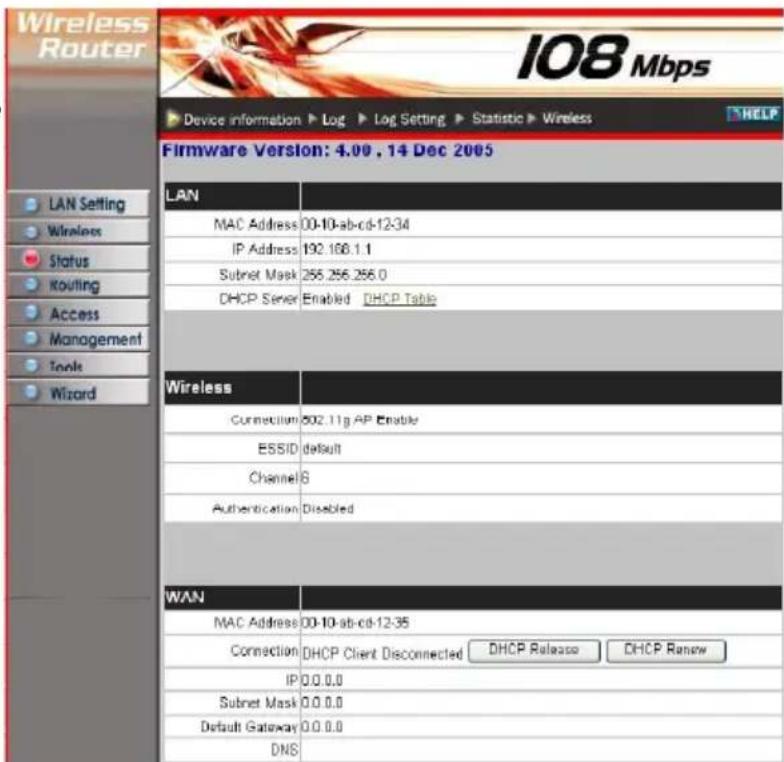
This screen enables the user to view the router's LAN, Wireless and WAN configurations.
Firmware Version: This area displays the latest version of the router firmware interface. After updating the firmware in Tools/Firmware, check this to ensure that the firmware was successfully updated.
LAN: This section displays the LAN interface configuration, including the MAC
address, IP address, subnet mask and DHCP server status. Click "DHCP Table" to view a list of client stations currently connected to the router LAN interface.
Wireless: This section displays the wireless configuration information, including the MAC address, Connection status, ESSID, Channel and Authentication type.
WAN: This section displays the WAN interface configuration, including the MAC address, Connection status, DHCP client status, IP address, Subnet mask, Default gateway and DNS.
Click "DHCP Release" to release all IP addresses assigned to client stations connected to the WAN via the router. Click "DHCP Renew" to reassign IP addresses to client stations connected to the WAN.
Log
This screen enables the user to view a running log of router system statistics, events and activities. The log displays up to 200 entries. Older entries are overwritten by new entries. The Log screen commands are as follows:
Click "First Page" to view the first page of the log.
Click "Last Page" to view the final page of the log.
Click "Previous Page" to view the page just before the current page.
Click "Next Page" to view the page just after the current page.
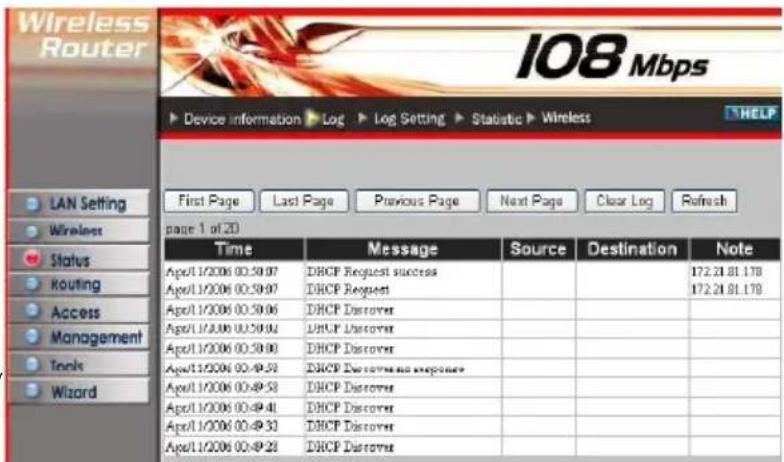
Click "Clear Log" to delete the contents of the log and begin a new log.
Click "Refresh" to renew log statistics.
Time: Displays the time and date that the log entry was created.
Message: Displays summary information about the log entry.
Source: Displays the source of the communication.
Destination: Displays the destination of the communication.
Note: Displays the IP address of the communication.
Log Setting
This screen enables the user to set router logging parameters.
SMTP Server: Type the SMTP server address for the email that the log will be sent to in the next field.
Send to: Type an email address for the log to be sent to. Click "Email Log Now" to immediately send the current log.
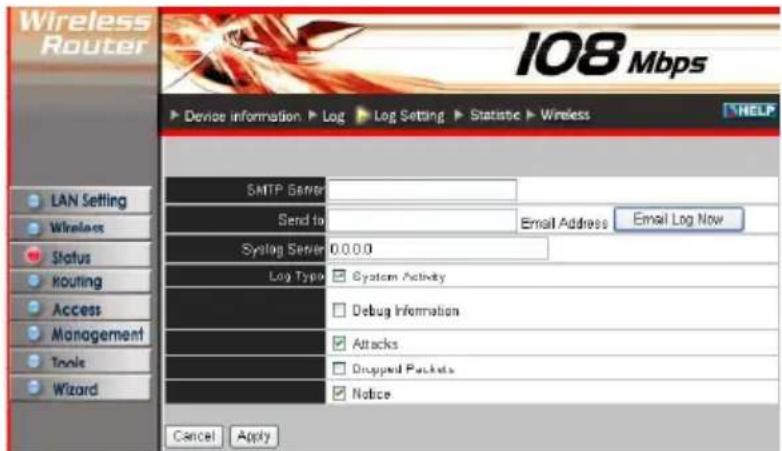
Syslog Server: Type the IP address of the Syslog Server if you want the router to listen and receive incoming Syslog messages.
Log Type: Enables the user to select what items will be included in the log:
- System Activity displays information related to router operation.
- Debug Information displays information related to errors and system malfunction.
- Attacks displays information about any malicious activity on the network.
- Dropped Packets displays information about packets that have not been transferred successfully.
- Notice displays important notices by the system administrator.
Statistic
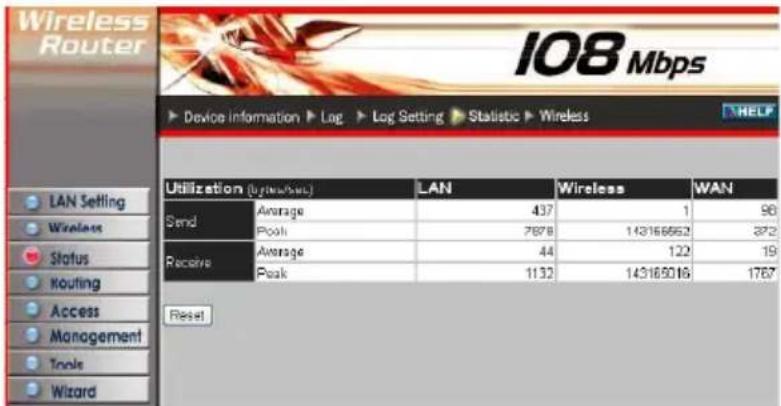
This screen displays a table that shows the rate of packet transmission via the router LAN, Wireless and WAN ports (in bytes per second).
Click "Reset" to erase all statistics and begin logging statistics again.
Wireless
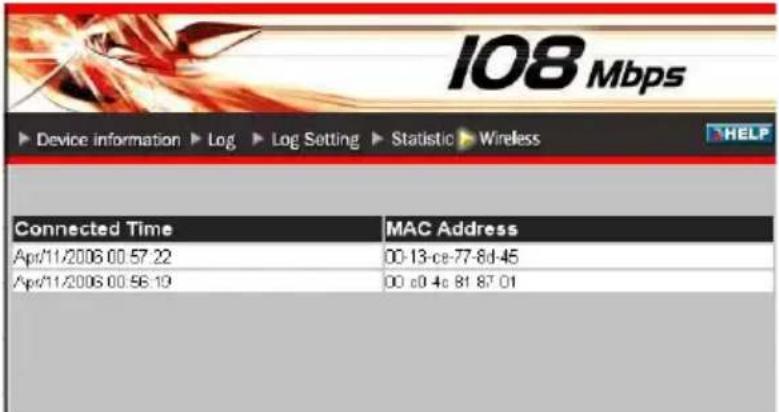
This screen enables the user to view information about wireless devices that are connected to the Wireless Super G Router.
Connected Time: Displays how long the wireless device has been connected to the LAN via the router.
MAC Address: Displays the device's wireless LAN interface MAC address.
Routing
This selection enables the user to set how the router forwards data: Static or Dynamic. Routing Table enables the user to view the information created by the router that displays the network interconnection topology.
Static
This enables the user to set parameters by which the router forwards data to its destination if the user's network has a static IP address.
Network Address: Type the static IP address being used to access the Internet. The ISP or network administrator provides this information.
Network Mask: Type the network (subnet) mask for the network. If a value isn't entered here, the network mask defaults to 255.255.255.255. As with Network Address, the ISP or network administrator provides this information.
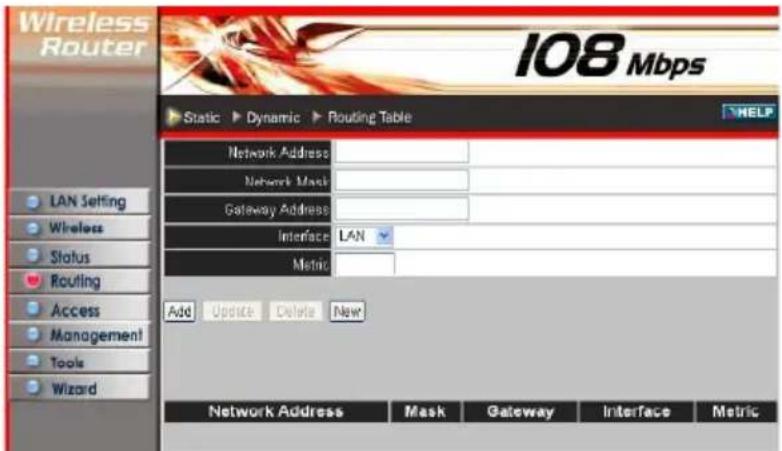
Gateway Address: Type the gateway address for the network. As with Network Address, the ISP or network administrator provides this information.
Interface: Select an interface — WAN or LAN — to connect to the Internet.
Metric: Select which metric to apply to this configuration.
Add: Click to add the configuration to the static IP address table at the bottom of the page.
Update: Select one of the entries in the static IP address table at the bottom of the page and, after changing parameters, click "Update" to confirm the changes.
Delete: Select one of the entries in the static IP address table at the bottom of the page and click "Delete" to remove the entry.
New: Click "New" to clear the text boxes and add required information to create a new entry.
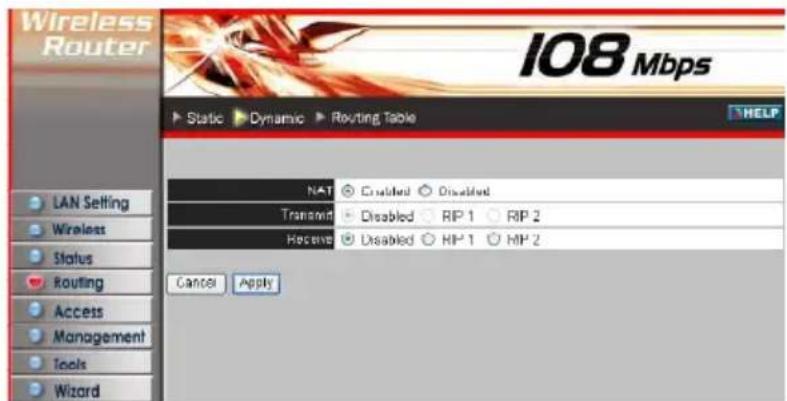
Dynamic
This screen enables the user to set NAT parameters.
NAT: Click the radio buttons to enable or disable the NAT function.
Transmit: Click the radio buttons to set the desired transmit parameters: Disabled, RIP 1 or RIP 2.
Receive: Click the radio buttons to set the desired receive parameters: Disabled, RIP 1 or RIP 2.
Routing Table
This screen enables the user to view the routing table for the router. The routing table is a database created by the router that displays the network interconnection topology.
Network Address: Displays the network IP address of the connected node.
Network Mask: Displays the network (subnet) mask of the connected node.
Gateway Address: Displays the gateway address of the connected node.
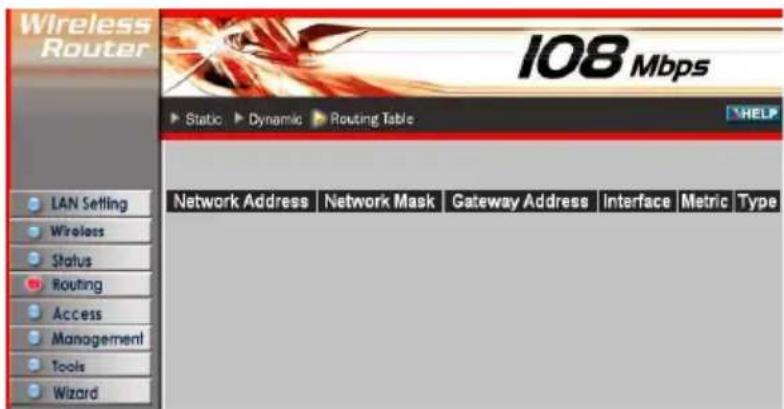
Interface: Displays whether the node is connected via a WAN or LAN.
Metric: Displays the metric of the connected node.
Type: Displays whether the node has a static or dynamic IP address.
Access
This page enables you to define access restrictions; set up protocol and IP filters; create virtual servers; define access for special applications, such as games; and set firewall rules.
Filters
Using filters denies or allows user access. There are five types of filters to select from: MAC Filters, URL Blocking, IP Filters, Protocol Filters and Domain Blocking.
MAC Filters
MAC Filter: Enables you to allow or deny Internet access to users within the LAN based on the MAC address of their network interface. Click the radio button next to Disabled to disable the MAC filter.
Disable: The function of the MAC filter is disabled.
Allow: Only allows computers with a MAC address listed in the MAC Table.
Deny: Allows all users Internet access except those with computers in the MAC Table.
MAC Table: Use this section to create a user profile in which Internet access is denied or allowed. The user profiles are listed in the table at the bottom of the page. Note: Click anywhere in the item. Once the line is selected, the fields automatically load the item's parameters, which you can then edit.
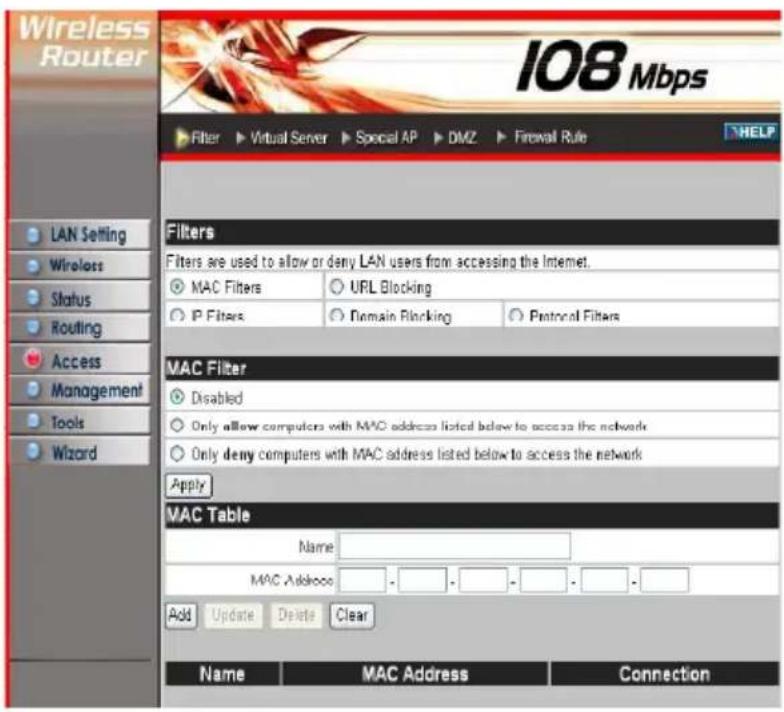

Name: Type the name of the user to be permitted/denied access.
MAC Address: Type the MAC address of the user's network interface.
Add: Click to add the user to the list at the bottom of the page.
Update: Click to update information if you have changed any of the fields.
Delete: Select a user from the table at the bottom of the screen and click "Delete" to remove the user profile.
New: Click to erase all fields and enter new information.
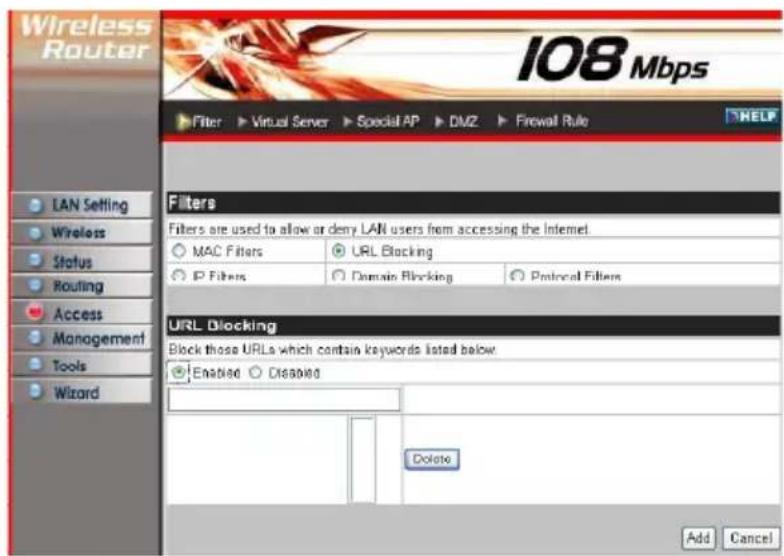
URL Blocking
You can enable URL Blocking to deny users from accessing the specified URL. Add those specified URLs in the text box.
IP Filters
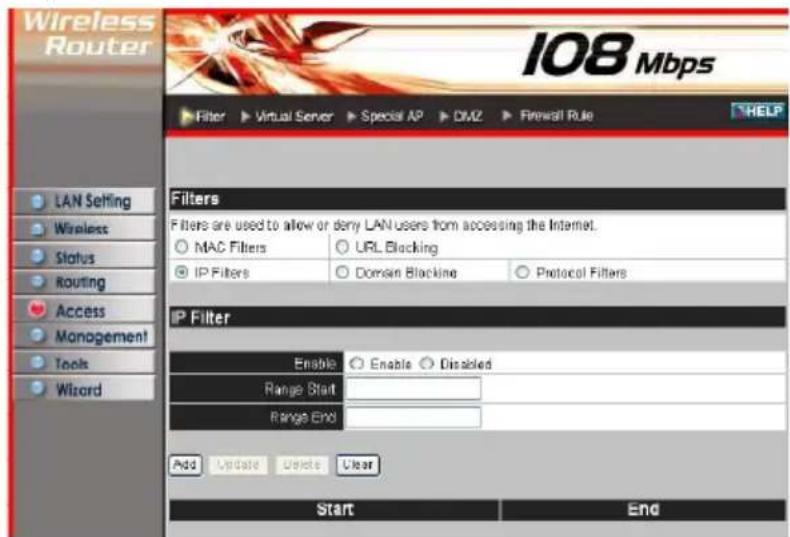
This screen enables you to define a minimum and maximum IP address range filter; all IP addresses falling in the range are not allowed Internet access. The IP filter profiles are listed in the table at the bottom of the page. Note: Click anywhere in the item. Once the line is selected, the fields automatically load the item's parameters, which you can edit.
Enable: Click to enable or disable the IP address filter.
Range Start: Type the minimum address for the IP range. IP addresses falling between this value and the Range End are not allowed to access the Internet.
Range End: Type the minimum address for the
IP range. IP addresses falling between this value and the Range Start are not allowed to access the Internet.
Add: Click to add the IP range to the table at the bottom of the screen.
Update: Click to update information for the range if you have selected a list item and have made changes.
Delete: Select a list item and click "Delete" to remove the item from the list.
New: Click to erase all fields and enter new information.
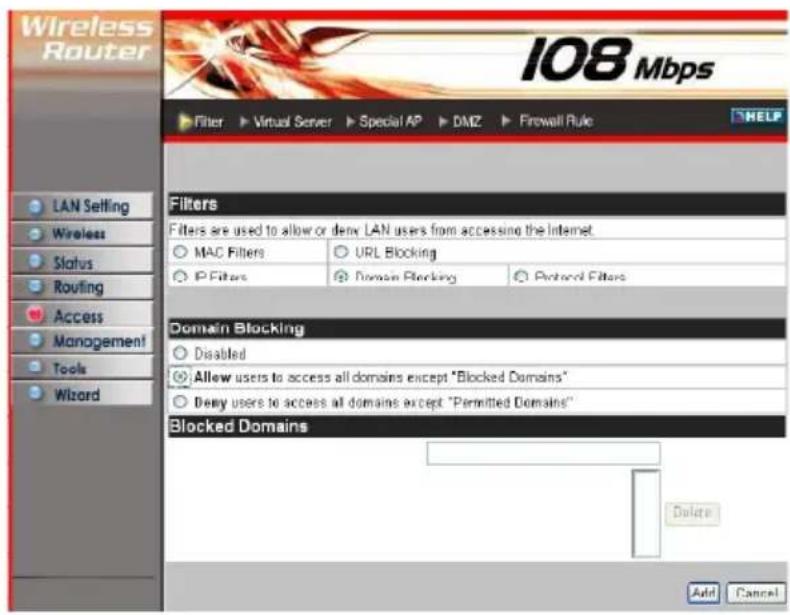
Domain Blocking You can specify the domains that allow users to access or deny by clicking one of the two items. Also, add the specified domains in the text box.
Protocol Filters
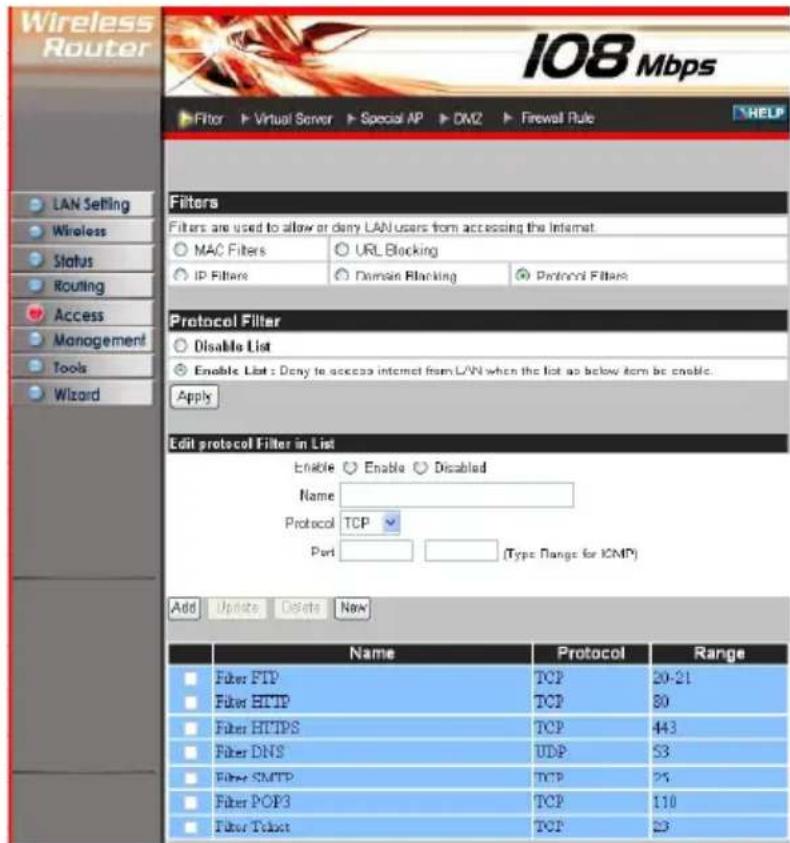
This screen enables you to allow and deny access based upon a communications protocol list you create. The protocol filter profiles are listed in the table at the bottom of the page.
Note: When selecting items in the table at the bottom, click anywhere in the item. The line is selected, and the fields automatically load the item's parameters, which you can then edit.
Virtual Server
This screen enables the user to create a virtual server via the router. If the router is set as a virtual server, remote users requesting Web or FTP services through the WAN are directed to local servers in the LAN. The router redirects the request via the protocol and port numbers to the correct LAN server. The Virtual Server profiles are listed in the table at the bottom of the page.
Note: When selecting items in the table at the bottom, click anywhere in the item. The line is selected, and the fields automatically load the item's parameters, which the user can then edit.
Enable: Click to enable or disable the virtual server.
Name: Type a descriptive name for the virtual server.
Protocol: Select a protocol (TCP or UDP) to use with the virtual server.
Private Port: Type the port number of the computer on the LAN that is being used to act as a virtual server.
Public Port: Type the port number on the WAN that will be used to provide ad
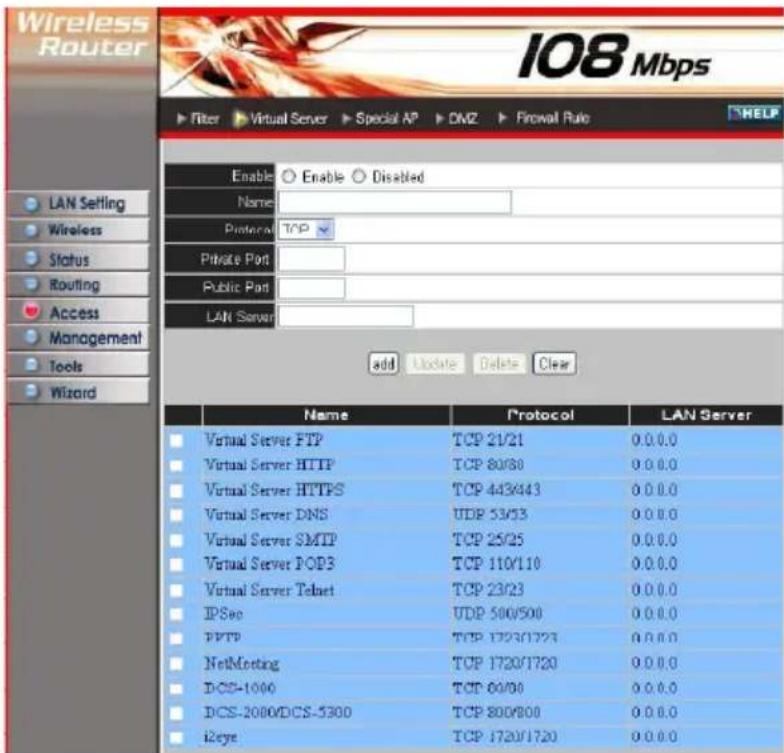
LAN Server: Type the LAN IP address that will be assigned to the virtual server.
Add: Click to add the virtual server to the table at the bottom of the screen.
Update: Click to update information for the virtual server if the user has selected a list item and has made changes.
Delete: Select a list item and click "Delete" to remove the item from the list.
New: Click to erase all fields and enter new information.
Special AP
This screen enables the user to specify special applications, such as games, that require multiple connections that are inhibited by NAT. The special applications profiles are listed in the table at the bottom of the page. Note: When selecting items in the table at the bottom, click anywhere in the item. The line is selected, and the fields automatically load the item's parameters, which the user can then edit.
Enable: Click to enable or disable the application profile. When the profile is enabled, users will be able to connect to the application via the router's WAN connection. Click "Disabled" on a profile to prevent users from accessing the application on the WAN.
Name: Type a descriptive name for the application.
Trigger: Defines the outgoing communication that determines whether the user has legitimate access to the application.
- Protocol: Select the protocol (TCP, UDP or ICMP) that can be used to access the application.
- Port Range: Type the port range to be used to access the application in the text boxes.
Incoming: Defines which incoming communications users are permitted to connect with.
- Protocol: Select the protocol (TCP, UDP or ICMP) that can be used by the incoming communication.
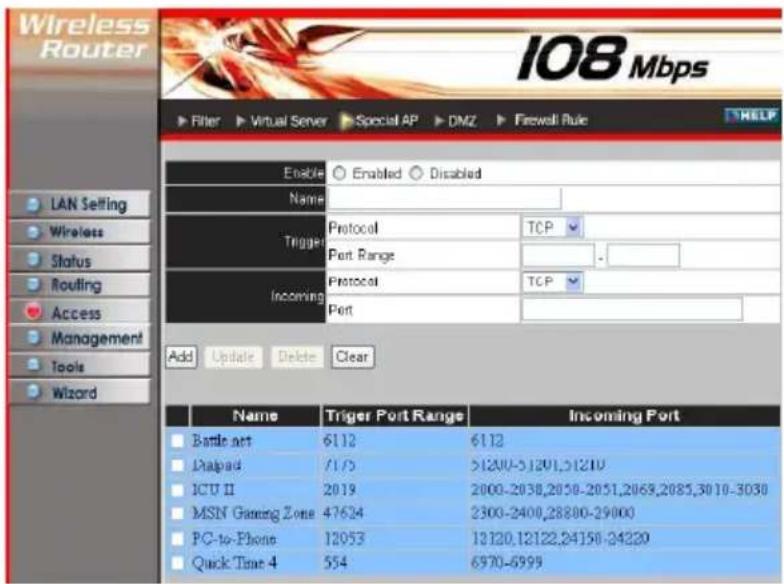
- Port: Type the port number that can be used for the incoming communication.
Add: Click to add the special application profile to the table at the bottom of the screen.
Update: Click to update information for the special application if the user has selected a list item and has made changes.
Delete: Select a list item and click "Delete" to remove the item from the list.
New: Click to erase all fields and enter new information.
DMZ
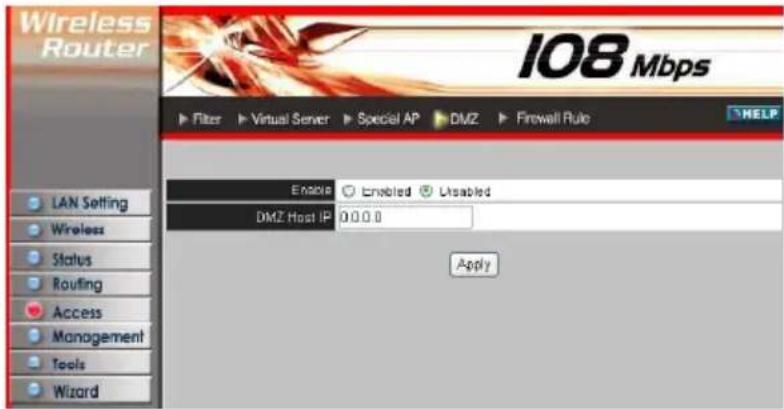
This screen enables the user to create a DMZ for those computers that cannot access Internet applications properly through the router and associated security settings. Note: Any adding of clients to the DMZ exposes the clients to security risks such as viruses and unauthorized access.
Enable: Click to enable or disable the DMZ.
DMZ Host IP: Type a host IP address for the DMZ. The computer with this IP address acts as a DMZ host with unlimited Internet access.
Apply: Click to save the settings.
Firewall Rule
This screen enables the user to set up the firewall. The router provides basic firewall functions by filtering all the packets that enter the router using a set of rules. The rules are in an order sequence list: the lower the rule number, the higher the priority the rule has.
Enable: Click to enable or disable the firewall rule profile.
Name: Type a descriptive name for the firewall rule profile.
Action: Select whether to allow or deny packets that conform to the rule.
Source: Defines the source of the incoming packet that the rule is applied to.
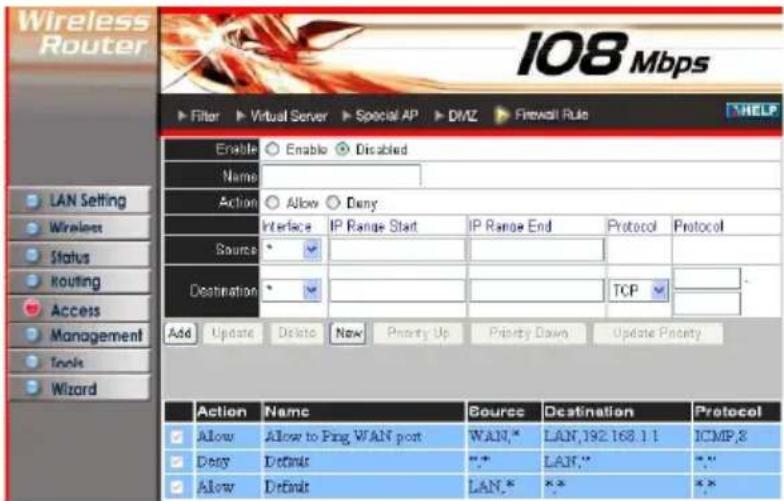
- Interface: Select which interface (WAN or LAN) the rule is applied to.
- IP Range Start: Type the start IP address that the rule is applied to.
- IP Range End: Type the end IP address that the rule is applied to.
Destination: Defines the destination of the incoming packet that the rule is applied to.
- Interface: Select which interface (WAN or LAN) the rule is applied to.
- IP Range Start: Type the start IP address that the rule is applied to.
- IP Range End: Type the end IP address that the rule is applied to.
- Protocol: Select the protocol (TCP, UDP or ICMP) of the destination.
- Port Range: Select the port range.
Add: Click to add the rule profile to the table at the bottom of the screen.
Update: Click to update information for the rule if user have selected a list item and have made changes.
Delete: Select a list item and click "Delete" to remove the item from the list.
New: Click to erase all fields and enter new information.
Priority Up: Select a rule from the list and click "Priority Up" to increase the priority of the rule.
Priority Down: Select a rule from the list and click "Priority Down" to decrease the priority of the rule.
Update Priority: After increasing or decreasing the priority of a rule, click "Update Priority" to save the changes.
Management
Management enables the user to set up the Simple Network Management Protocol (SNMP) and Remote Management features.
SNMP
This screen enables you to configure the SNMP.
Enabled/Disabled: Click to enable or disable the SNMP.
System Name: A name given to the router.
System Location: A description of the location of the router (normally, the DNS name).
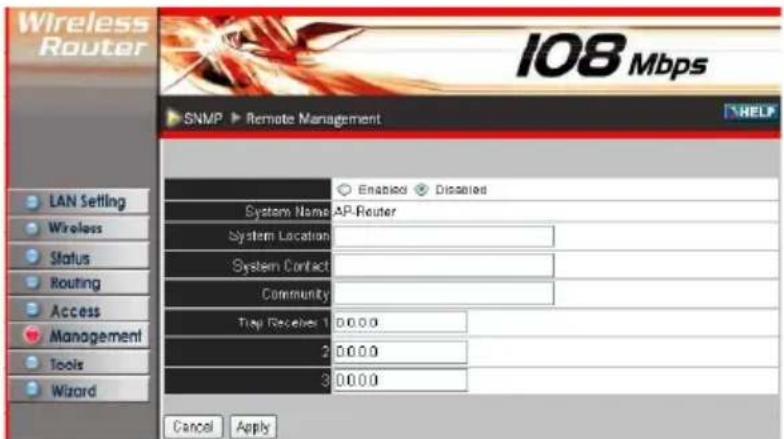
System Contact:
A description of the contact information for the person responsible for the router.
Community: The SNMP system name for exchanging SNMP community messages. The name can be used to limit SNMP messages passing through the network. The default name is "public."
Trap Receiver: Type the name of the destination PC that will receive trap messages.
Remote Management
This screen enables the user to set up remote management. Using remote management, the router can be configured through the WAN via a Web browser. A username and password are required to perform remote management.
HTTP: Enables the user to set up HTTP access for remote management.
Allow to Ping WAN Port: Type a range of router IP addresses that can be pinged from remote locations.
UPNP Enable: UPNP (or UPnP) is short for Universal Plug and Play, which is a
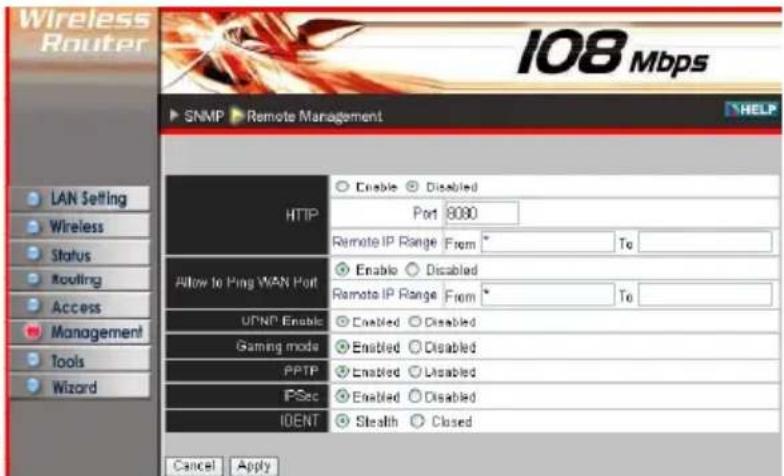
networking architecture that provides compatibility among networking equipment, software and peripherals. The Wireless Super G Router is a UPnP-enabled router and will only work with other UPnP devices/software. If the user does not want to use the UPnP functionality, selecting "Disabled" can disable it.
Gaming Mode: If the user is experiencing difficulties when playing online games or even certain applications that use voice data, the user may need to enable Gaming Mode for these applications to work correctly. When not
playing games or using these voice applications, it is recommended that Gaming Mode be disabled.
PPTP: Enables the user to set up PPTP access for remote management.
IPSec: Enables the user to set up IPSec access for remote management.
IDENT: The default is Stealth. This enables the user to set port 113 to Stealth.
Tools
This page enables the user to restart the system; save and load different settings as profiles; restore factory default settings; run a Setup Wizard to configure router settings; upgrade the firmware; and ping remote IP addresses.
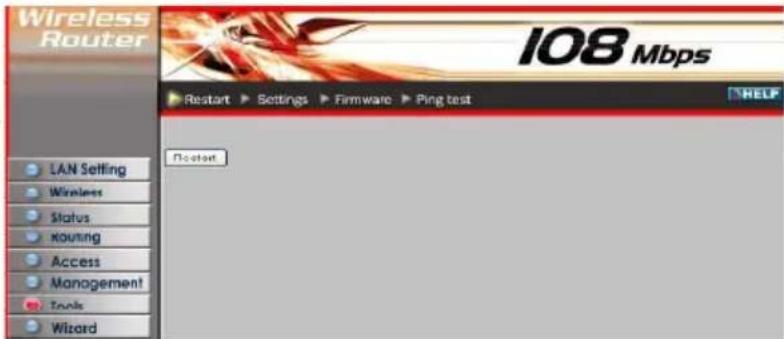
Restart
Click "Restart" to restart the system in the event the system is not performing correctly.
Settings
This screen enables user to save settings as a profile and load profiles for different circumstances. The user can also load the factory default settings, and run a Setup Wizard to configure the router and router interface.
Save Settings: Click "Save" to save the current configuration as a profile that can load when necessary.
Load Settings: Click "Browse" and go to the location of a stored profile. Click "Load" to load the profile's settings.
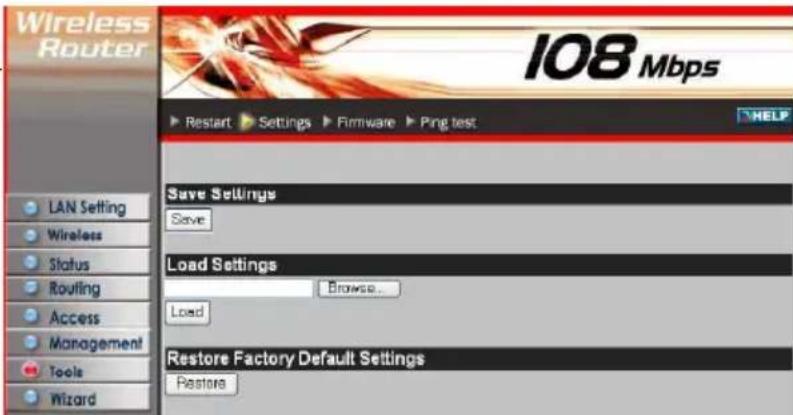
Restore Factory Default Settings: Click "Restore" to restore the default settings. All configuration changes will be lost.
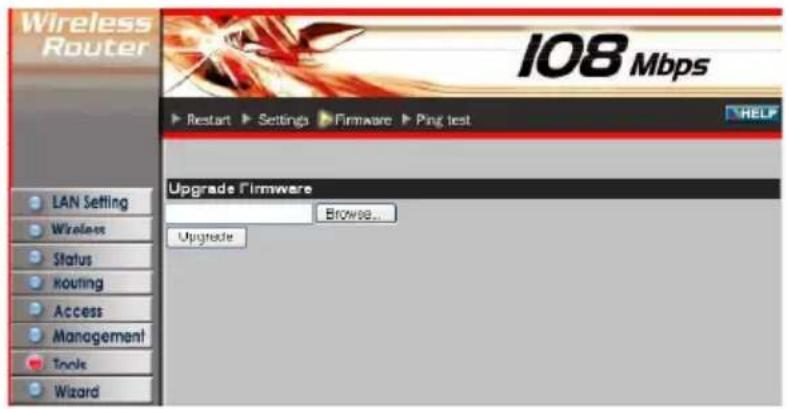
Firmware
This screen enables the user to keep the router firmware up to date. Follow the instructions below.
Download the latest firmware from the manufacturer's Web site, and save it to disk.
Click "Browse" and go to the location of the downloaded firmware file.
Select the file and click "Upgrade" to update the firmware to the latest release.
Ping Test
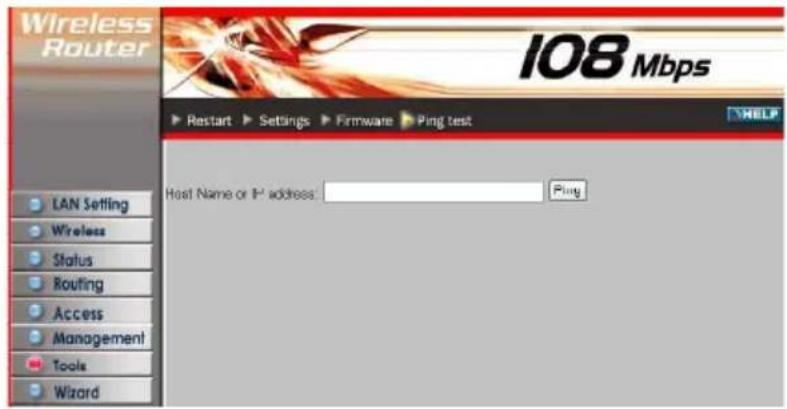
The ping test enables the user to determine whether an IP address or host is present on the Internet. Type the hostname or IP address in the text box and click "Ping."
6. TECHNICAL SPECIFICATIONS
| GENERAL | |
| Standards IEEE 802.3u 100BASE-TX Fast EthernetIEEE 802.11g; IEEE 802.11b | |
| Protocol CSMA/CD | |
| Radio Technology IEEE 802.11g Orthogonal Frequency DivisionModulation | |
| Data Transfer Rate 802.11b: 1, 2, 5.5, 11Mbps (auto sense)802.11g: 6, 9, 12, 18, 24, 36, 48, 54 Mbps (auto sense)Super-GTM: 108 MbpsEthernet: 10 Mbps (half-duplex), 20 Mbps (full-duplex)Fast Ethernet: 100 Mbps (half-duplex),200 Mbps (full-duplex) | |
| Topology | Star |
| Receiver Sensitivity11 Mbps: Typical -85 | 54 Mbps: Typical -70 dBm @ 10% PER (Packet Error RdBm @ 8% PER (Packet Error Rate) |
| TX Power13 dBm typically @ 802.11b | 13 dBm typically @ 802.11g |
| Network CablesEIA/TIA-568 100 Ohm STP (100 m)100BASE-TX: 2-pair UTP Cat. 5 (100 m),EIA/TIA-568 100 Ohm STP (100 m) | 10BASE-T: 2-pair UTP Cat. 3,4,5 (100 m),EIA/TIA-568 100 Ohm STP (100 m) |
| Frequency Range | 2412 – 2484 MHz ISM band (channels 1 – 14) |
| Modulation Schemes | DBPSK/DQPSK/CCK/OFDM |
| SecurityWPA2-PSK | 64/128-bits WEP Encryption; WPA, WPA-PSK, WPA2, |
| Channels1 – 14 channels (MKK) | 1 – 11 channels (FCC); 1 – 13 channels (ETSI);1 – 14 channels (MKK) |
| Number of PortsWAN: 1 x 10/100 Mbps Auto-MDIX Fast Ethernet port | LAN: 4 x 10/100 Mbps Auto-MDIX Fast Ethernet port |
| PHYSICAL AND ENVIRONMENTAL | |
| DC inputs | 5 VDC / 2.5 A |
| Power Consumption | 5 W (Max) |
| Temperature | Operating: 0° – 40°C; Storage: -10° – 70°C |
| Humidity | Operating: 10% – 90%; Storage: 5% – 90% |
| Dimensions | 147 x 115 x 35 mm (W x H x D) without antenna |
| EMI: | FCC Class B, CE Mark B |

INTELLINET™
NETWORK SOLUTIONS
BRINGING NETWORKS TO LIFE
www.intellinet-network.com
Are you completely satisfied with this product?
Please contact your INTELLINET NETWORK SOLUTIONS™ dealer with comments or questions.
Copyright © INTELLINET NETWORK SOLUTIONS
All products mentioned are trademarks or registered trademarks of their respective owners.


- Wireless LAN, Health and Authorization for Use
- Regulatory Information/Disclaimers
- USA-FCC (Federal Communications Commission) Statement
- FCC Radio Frequency Exposure Statement
- FCC Interference Statement
- Export Restrictions
- Safety Information
- CE Mark Warning
- Protection Requirements for Health and Safety - Article 3.1a
- Protection Requirements for Electromagnetic Compatibility - Article 3.1b
- Effective Use of the Radio Spectrum - Article 3.2
- CE Countries Where the Product May Be Used Freely
- Introduction ......6
- Unpacking and Setup 8
- Hardware Installation 9
- PC Network TCP/IP Settings 11
- Configuration 14
- Technical Specifications ....39
- About This Manual
- Purpose
- Overview of This Manual
- INTRODUCTION
- APPLICATIONS
- FEATURES
- UNPACKING AND SETUP
- UNPACKING
- SETUP
- HARDWARE INSTALLATION
- FRONT PANEL
- REAR PANEL
- HARDWARE CONNECTIONS
- Connecting the router
- Checking the installation
- PC NETWORK TCP/IP SETTINGS
- WINDOWS 95/98/Me
- WINDOWS 2000/NT
- WINDOWS XP
- CONFIGURATION
- LOGIN TO THE ROUTER THROUGH A WIRELESS LAN
- LOGIN TO THE WIRELESS SUPER G ROUTER
- USING THE WEB BROWSER
- SETUP WIZARD
- Step 1. Set your new password
- Step 2. Choose your time zone
- Step 3. Set the LAN connection and DHCP server
- Step 4. Set the Internet connection
- Welcome to Wireless Router Setup Wizard
- Select Internet Connection Type
- Set Fixed IP Address
- PPTP
- Step 5. Set Wireless LAN connection
- Step 6. Setup completed
- LAN & DHCP server
- WAN
- Password
- Time
- Dynamic DNS
- Wireless
- Basic
- Authentication
- RADIUS Server:
- Advanced
- Status
- Device Information
- Log
- Log Setting
- Statistic
- Routing
- Static
- Dynamic
- Routing Table
- Access
- Filters
- MAC Filters
- URL Blocking
- IP Filters
- Protocol Filters
- Virtual Server
- Special AP
- DMZ
- Firewall Rule
- Management
- SNMP
- Remote Management
- Tools
- Restart
- Settings
- Firmware
- Ping Test
- TECHNICAL SPECIFICATIONS
- INTELLINET™
Brand : Intellinet
Model : 502566
Category : Router