
CMX-5000 - Mixing deck PIONEER - Free user manual and instructions
Find the device manual for free CMX-5000 PIONEER in PDF.


| Product type | DJ mixing deck |
| Brand | Pioneer |
| Model | CMX-5000 |
| Dimensions (L x D x H) | 320 x 320 x 105 mm |
| Weight | 4.2 kg |
| Power supply | 100-240 V AC, 50/60 Hz |
| Power consumption | 30 W |
| Main functions | CD playback, pitch control, loop, jog, Master and headphone outputs |
| Maintenance and cleaning | Dust with a soft dry cloth. Clean the lens with a cotton swab. |
| Safety | Do not expose to moisture. Use on a stable surface. Disconnect before cleaning. |
| Spare parts and repairability | Accessories available: cables, replacement lenses. Repair by authorized center. |
| General information | User manual in French available online. Compliant with NMB-003 (Canada). |
Frequently Asked Questions - CMX-5000 PIONEER
User questions about CMX-5000 PIONEER
0 question about this device. Answer the ones you know or ask your own.
Ask a new question about this device
Download the instructions for your Mixing deck in PDF format for free! Find your manual CMX-5000 - PIONEER and take your electronic device back in hand. On this page are published all the documents necessary for the use of your device. CMX-5000 by PIONEER.
USER MANUAL CMX-5000 PIONEER
Operating Instructions
Thank you for buying this Pioneer product.
Please read through these operating instructions so you will know how to operate your model properly.
After you have finished reading the instructions, put them away in a safe place for future reference.
WARNING: TO PREVENT FIRE OR SHOCK HAZARD, DO NOT EXPOSE THIS APPLIANCE TO RAIN OR MOISTURE.
IMPORTANT
The lightning flash with arrowhead symbol, within an equilateral triangle, is intended to alert the user to the presence of uninsulated "dangerous voltage" within the product's enclosure that may be of sufficient magnitude to constitute a risk of electric shock to persons.
CAUTION
RISK OF ELECTRIC SHOCK DO NOT OPEN
CAUTION:
TO PREVENT THE RISK OF ELECTRIC SHOCK, DO NOT REMOVE COVER (OR BACK). NO USER-SERVICEABLE PARTS INSIDE. REFER SERVICING TO QUALIFIED SERVICE PERSONNEL.

The exclamation point within an equilateral triangle is intended to alert the user to the presence of important operating and maintenance (servicing) instructions in the literature accompanying the appliance.
IMPOTANT SAFETY INSTRUCTIONS
READ INSTRUCTIONS All the safety and operating instructions should be read before the product is operated.
REtain Instructions The safety and operating instructions should be retained for future reference.
HEED WARNINGS All warnings on the product and in the operating instructions should be adhered to.
FOLLOW INSTRUCTIONS — All operating and use instructions should be followed.
CLEANING — Unplug this product from the wall outlet before cleaning. The product should be cleaned only with a polishing cloth or a soft dry cloth. Never clean with furniture wax, benzine, insecticides or other volatile liquids since they may corrode the cabinet.
ATTACHMENTS — Do not use attachments not recommended by the product manufacturer as they may cause hazards.
WATER AND MOISTURE - Do not use this product near water - for example, near a bathtub, wash bowl, kitchen sink, or laundry tub; in a wet basement; or near a swimming pool; and the like.
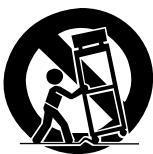
ACCESSORIES Do not place this product on an unstable cart, stand, tripod, bracket, or table. The product may fall, causing serious injury to a child or adult, and serious damage to the product. Use only with a cart, stand, tripod, bracket, or table recommended by the manufacturer, or sold with the product. Any mounting of the product should follow the manufacturer's instructions, and should use a mounting accessory recommended by the manufacturer.
CART A product and cart combination should be moved with care. Quick stops, excessive force, and uneven surfaces may cause the product and cart combination to overturn.
VENTILATION — Slots and openings in the cabinet are provided for ventilation and to ensure reliable operation of the product and to protect it from overheating, and these openings must not be blocked or covered. The openings should never be blocked by placing the product on a bed, sofa, rug, or other similar surface. This product should not be placed in a built-in installation such as a bookcase or rack unless proper ventilation is provided or the manufacturer's instructions have been adhered to.
POWER SOURCES This product should be operated only from the type of power source indicated on the marking label. If you are not sure of the type of power supply to your home, consult your product dealer or local power company.
LOCATION The appliance should be installed in a stable location.
NONUSE PERIODS - The power cord of the appliance should be unplugged from the outlet when left unused for a long period of time.
GROUNDING OR POLARIZATION
- If this product is equipped with a polarized alternating current line plug (a plug having one blade wider than the other), it will fit into the outlet only one way. This is a safety feature. If you are unable to insert the plug fully into the outlet, try reversing the plug. If the plug should still fail to fit, contact your electrician to replace your obsolete outlet. Do not defeat the safety purpose of the polarized plug.
- If this product is equipped with a three-wire grounding type plug, a plug having a third (grounding) pin, it will only fit into a grounding type power outlet. This is a safety feature. If you are unable to insert the plug into the outlet, contact your electrician to replace your obsolete outlet. Do not defeat the safety purpose of the grounding type plug.
POWER-CORD PROTECTION — Power-supply cords should be routed so that they are not likely to be walked on or pinched by items placed upon or against them, paying particular attention to cords at plugs, convenience receptacles, and the point where they exit from the product.
OUTDOOR ANTENNA GROUNDING — If an outside antenna or cable system is connected to the product, be sure the antenna or cable system is grounded so as to provide some protection against voltage surges and built-up static charges. Article 810 of the National Electrical Code, ANSI/NFPA 70, provides information with regard to proper grounding of the mast and supporting structure, grounding of the lead-in wire to an antenna discharge unit, size of grounding conductors, location of antenna-discharge unit, connection to grounding electrodes, and requirements for the grounding electrode. See Figure A.
LIGHTNING For added protection for this product during a lightning storm, or when it is left unattended and unused for long periods of time, unplug it from the wall outlet and disconnect the antenna or cable system. This will prevent damage to the product due to lightning and power-line surges.
POWER LINES — An outside antenna system should not be located in the vicinity of overhead power lines or other electric light or power circuits, or where it can fall into such power lines or circuits. When installing an outside antenna system, extreme care should be taken to keep from touching such power lines or circuits as contact with them might be fatal.
OVERLOADING - Do not overload wall outlets, extension cords, or integral convenience receptacles as this can result in a risk of fire or electric shock.
OBJECT AND LIQUID ENTRY — Never push objects of any kind into this product through openings as they may touch dangerous voltage points or short-out parts that could result in a fire or electric shock. Never spill liquid of any kind on the product.
SERVICING - Do not attempt to service this product yourself as opening or removing covers may expose you to dangerous voltage or other hazards. Refer all servicing to qualified service personnel.
DAMAGE REQUIRING SERVICE — Unplug this product from the wall outlet and refer servicing to qualified service personnel under the following conditions:
- When the power-supply cord or plug is damaged.
If liquid has been spilled, or objects have fallen into the product.
If the product has been exposed to rain or water.
- If the product does not operate normally by following the operating instructions. Adjust only those controls that are covered by the operating instructions as an improper adjustment of other controls may result in damage and will often require extensive work by a qualified technician to restore the product to its normal operation.
- If the product has been dropped or damaged in any way.
- When the product exhibits a distinct change in performance — this indicates a need for service.
REPLACEMENT PARTS - When replacement parts are required, be sure the service technician has used replacement parts specified by the manufacturer or have the same characteristics as the original part. Unauthorized substitutions may result in fire, electric shock, or other hazards.
SAFETY CHECK - Upon completion of any service or repairs to this product, ask the service technician to perform safety checks to determine that the product is in proper operating condition.
HEAT - The product should be situated away from heat sources such as radiators, heat registers, stoves, or other products (including amplifiers) that produce heat.
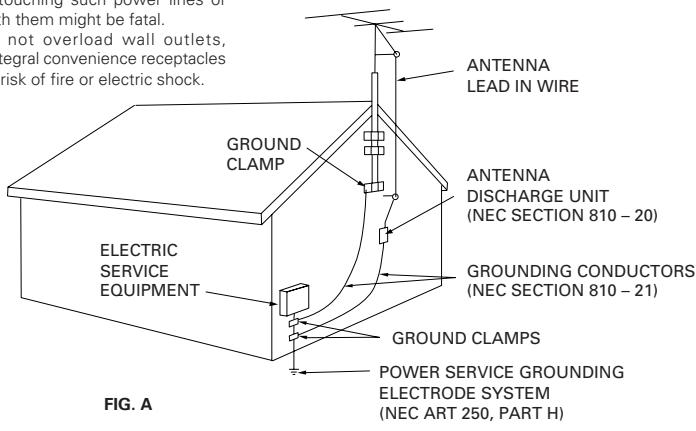
NEC-NATIONAL ELECTRICAL CODE
CAUTION
- Use of controls or adjustments or performance of procedures other than those specified herein may result in hazardous radiation exposure.
- The use of optical instruments with this product will increase eye hazard.
CAUTION: This product satisfies FCC regulations when shielded cables and connectors are used to connect the unit to other equipment. To prevent electromagnetic interference with electric appliances such as radios and televisions, use shielded cables and connectors for connections.
[For Canadian model]
CAUTION: TO PREVENT ELECTRIC SHOCK DO NOT USE THIS (POLARIZED) PLUG WITH AN EXTENSION CORD. RECEPTACLE OR OTHER OUTLET UNLESS THE BLADES CAN BE FULLY INSERTED TO PREVENT BLADE EXPOSURE.
ATTENTION: POUR PREVENIR LES SCHOCSELECTRIQUES NE PAS UTILISER CETTE FICHE POLARISEE AVEC UN PROLONGATEUR UNE PRISE DE COURANT OU UNE AUTRE SORTIE DE COURANT, SAUF SI LES LAMES PEUVENT ETRE INSEREES A FOND SANS EN LAISSER AUCUNE PARTIE A DECOUVERT.
IMPORTANT NOTICE
The serial number for this equipment is located on the rear panel. Please write this serial number on your enclosed warranty card and keep it in a secure area. This is for your security.
[For Canadian model]
This Class B digital apparatus complies with Canadian ICES-003.
Alteration or modifications carried out without appropriate authorization may invalidate the user's right to operate the equipment.
This equipment has been tested and found to comply with the limits for a Class B digital device, pursuant to Part 15 of the FCC Rules. These limits are designed to provide reasonable protection against harmful interference in a residential installation. This equipment generates, uses, and can radiate radio frequency energy and, if not installed and used in accordance with the instructions, may cause harmful interference to radio communications. However, there is no guarantee that interference will not occur in a particular installation. If this equipment does cause harmful interference to radio or television reception, which can be determined by turning the equipment off and on, the user is encouraged to try to correct the interference by one or more of the following measures:
- Reorient or relocate the receiving antenna.
- Increase the separation between the equipment and receiver.
- Connect the equipment into an outlet on a circuit different from that to which the receiver is connected.
- Consult the dealer or an experienced radio/TV technician for help.
![PIONEER CMX-5000 - [For Canadian model] - 1](/content/2025/01/118534/images/8e3a7774bf68be73ef5272ac4931c62e3815e102ee537707c35ba882f80ab8bd.jpg)
![PIONEER CMX-5000 - [For Canadian model] - 2](/content/2025/01/118534/images/33ba8fc43fbfd9383d6e13e1017158fffc3d9df441155225171670a4514118b9.jpg)
Dear Customer:
Selecting fine audio equipment such as the unit you've just purchased is only the start of your musical enjoyment. Now it's time to consider how you can maximize the fun and excitement your equipment offers. This manufacturer and the Electronic Industries Association's Consumer Electronics Group want you to get the most out of your equipment by playing it at a safe level. One that lets the sound come through loud and clear without annoying blaring or distortion-and, most importantly, without affecting your sensitive hearing.
Sound can be deceiving. Over time your hearing "comfort level" adapts to higher volumes of sound. So what sounds "normal" can actually be loud and harmful to your hearing. Guard against this by setting your equipment at a safe level BEFORE your hearing adapts.
To establish a safe level:
- Start your volume control at a low setting.
- Slowly increase the sound until you can hear it comfortably and clearly, and without distortion.
Once you have established a comfortable sound level:
- Set the dial and leave it there.
Taking a minute to do this now will help to prevent hearing damage or loss in the future. After all, we want you listening for a lifetime.
We Want You Listening For A Lifetime
Used wisely, your new sound equipment will provide a lifetime of fun and enjoyment. Since hearing damage from loud noise is often undetectable until it is too late, this manufacturer and the Electronic Industries Association's Consumer Electronics Group recommend you avoid prolonged exposure to excessive noise. This list of sound levels is included for your protection.
Decibel
Level Example
30 Quiet library,soft whispers
40 Living room, refrigerator, bedroom away from traffic
50 Light traffic, normal conversation, quiet office
60 Air conditioner at 20 feet, sewing machine
70 Vacuum cleaner, hair dryer, noisy restaurant
80 Average city traffic, garbage disposals, alarm clock at two feet.
THE FOLLOWING NOISES CAN BE DANGEROUS UNDER CONSTANT EXPOSURE
90 Subway, motorcycle, truck traffic, lawn mower
100 Garbage truck, chain saw, pneumatic drill
120 Rock band concert in front of speakers, thunderclap
140 Gunshot blast, jet plane
180 Rocket launching pad
Information courtesy of the Deafness Research Foundation.

CAUTIONS REGARDING HANDLING
Location
Install the player in a well-ventilated location where it will not be exposed to high temperatures or humidity.
Do not install the player in a location which is exposed to direct sunlight, or near stoves or radiators. Excessive heat can adversely affect the cabinet and internal components. Installation of the player in a damp or dusty environment may also result in a malfunction and can be hazardous. Avoid installation near cookers etc., where the player may be exposed to oily smoke, steam or heat.
Installation guidelines
- Placing and using the compact disc player for long periods on heat-generating sources such as amplifiers or near spotlights, etc. will affect product performance. Avoid placing the player on heat-generating sources.
- Install this compact disc player as far as possible away from tuners and TV sets. A compact disc player installed in close proximity to such equipment may cause noise or degradation of the picture.
- Noise may be noticeable when an indoor antenna is used. In such cases, make use of an outdoor antenna or turn off power to the compact disc player.
- When the unit is used in a loud-sound environment, e.g., near a speaker, sound skip may occur. Install the unit away from the speaker or reduce the listening volume.
- Place this unit on a level surface and a stable platform.
- Be sure the player, including its audio and power supply cords, does not touch vibrating materials. Any cause of vibration other than the insulators may cause the disc to skip. Take special care when using the player while it is installed in a carrying case.
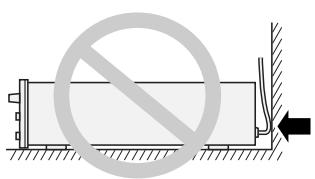
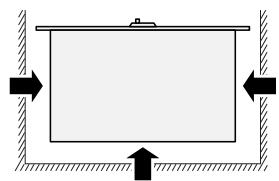
Do not place on or against vibrating materials!
Installing the CMX-5000 in an EIA rack
The screw holes on the front panel o the CMX-5000 are designed for use in attaching the unit to a 19-inch EIA rack.
- Remove the four legs on the unit before installing the unit in the rack.
- Use four 3/16-inch-diameter, 3/8-inch-length screws to attach to rack. (Screws not included with CMX-5000 CD player.)
Note
- Never place this CD player directly above a power amplifier, as the heat given off by the amplifier might result in damage to the unit. Placing the CD player directly above a power amplifier might also result in ham radio signals being picked up or in other types of interference.
- Always be sure to remove the CD player from its rack before shipping.
- When moving the CD player while still installed in its rack, exercise caution to avoid subjecting the player to shocks or vibration.
Cleaning the player
To clean the PLAYER wipe with a polishing or a soft, dry cloth. For stubborn dirt, moisten a soft cloth with a weak solution of neutral detergent (diluted in five to six parts water), wring the cloth well, and wipe away the dirt. Use a dry cloth to wipe the surface dry. Do not use volatile liquids such as benzene or thinner which will damage to the unit.
CD lens cleaner
The player's pickup lens should not become dirty in normal use. If for some reason, the lens becomes soiled and malfunctions, contact your nearest PIONEER authorized service center. Lens cleaners for CD players are commercially available, but special care should be exercised in their use as some may cause damage to the lens.
Storing discs
- Discs are made of the same kinds of plastic used for conventional analog audio records. Be careful not to allow discs to warp. Always store discs in their cases vertically, avoiding locations with high heat, humidity, or extremely low temperatures. Avoid leaving discs in cars; the interior of a car in direct sunlight can become extremely hot.
- Always read and abide by the precautionary notes listed on disc labels.
Condensation
When this unit is brought into a warm room from previously cold surroundings or when the room temperature rises sharply, condensation may form inside the unit and impair its performance. In such cases, allow the unit to stand for about an hour or raise the room temperature gradually.
Cleaning and handling compact discs
- The presence of fingerprints or smudges on the surface of the disc will not directly affect the recorded signals, but, depending on the degree of contamination, the brightness of the light reflected from the signal surfaces may be reduced causing degradation of sound quality. Always keep your discs clean by wiping them gently with a soft cloth from the inner edge toward the outer edge.
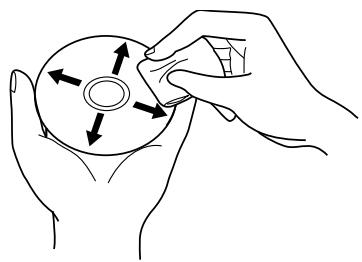
- If a disc becomes very dirty, dampen a soft cloth with water, (be sure to wring it out well) and wipe the away dirt gently. Remove any water drops with another soft, dry cloth.
-
Do not use record cleaning sprays or anti-static agents on discs. Never clean discs with benzene, thinner, or other volatile solvents or damage to the disc surface may result.
-
With this player, use only those discs which display the mark shown right (Optical audio digital discs).

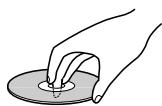
- When holding discs, do not touch their signal surfaces. Hold by the edges, or by one edge and the center hole.
- Do not affix gummed labels or tape to the disc surface. Also, do not scratch or damage the label.
- Discs rotate at high speeds inside the player. Do not use damaged, cracked or warped discs.
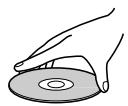
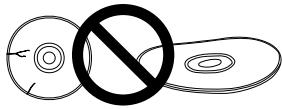
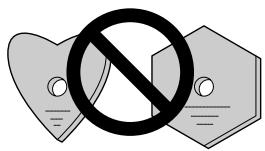
Do not play a CD with a special shape
Do not play a CD having other shape than a circular disc, such as heart shaped disc. Otherwise malfunction may occur.
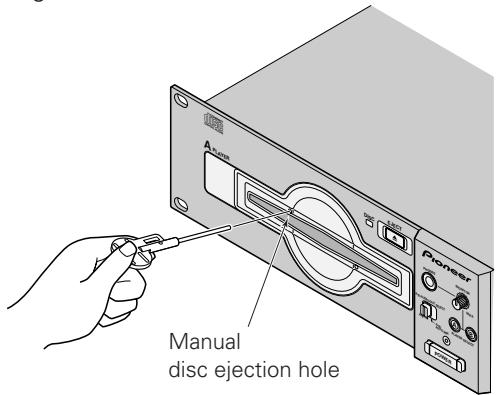
FORCED DISC EJECTION
If the EJECT button fails to work and it becomes impossible to eject a disc, the disc may be ejected by inserting the disc ejection pin in the manual disc ejection hole located on the front panel of the player.
Always be sure to observe the following points when manually ejecting discs.
① Be sure to turn off the power to the CD player and wait for 1 minute or more before ejecting the disc.
Manually ejecting a disc immediately after the power to the unit has been turned off may result in one of the following problems from occurring, and care should accordingly be taken never to eject discs immediately after the power has been turned off.
- The disc will still be spinning when it is ejected, thus resulting in cuts to the fingers or other forms of bodily injury.
- The disc clamps will spin in an unstable state, thus resulting in scratching of discs.
(2) Be sure to use only the disc ejection pin included with your CMX-5000 (i.e., never use a paper clip or any other object).
Inserting the disc ejection pin into the hole until it encounters resistance will cause the disc to be ejected some 5 to 10 millimeters from the insertion slot. The disc may then be removed by grasping it by hand and pulling.
CONTENTS
Read before use
Safety Instructions
CAUTIONS REGARDING HANDLING 4
SPECIFICATIONS 6
FEATURES 7
PANEL FACILITIES 8
Player 8
Remote control unit 8
CONNECTIONS 10
Basic operation
Auto cueing 12
Starting playback 12
Stopping playback 12
Pausing playback 12
Using the monitor switch buttons 12
Skipping tracks 13
Fast forward and rewind 13
Cueing point settings 13
Applications
SPECIAL DISC JOCKEY TECHNIQUES 14
Five ways of using the jog dial 14
Playing master tempos 14
Loop playback 14
MIXING (SEGUEING) DIFFERENT TRACKS 15
Manual mixing 15
Fader start playback 16
Useful cueing techniques 16
AUTO MIXING 17
Changing the next scheduled track 18
Audio output switch 18
Points to remember when using Auto Mixing 18
Appendix
TROUBLESHOOTING 19
Error message display 20
Cleaning the jog dial 20
SPECIFICATIONS
1. General
System Compact disc digital audio system
Discs used. Compact discs
Power requirements AC 120 V, 60 Hz
Power consumption 40 W
Operating temperature. +5^ to +35^ (+41^ to +95^)
Operating humidity. 5% to 85% (There should be no condensation of moisture.)
Weight
Remote controller 2.1 kg (4 lbs 10 oz)
Player 5.4 kg (11 lbs 15 oz)
Dimensions
Remote controller 482 (W) x 73 (D) x 132 (H) mm
18-31/32 (W) x 2-7/8 (D) x 5-3/16 (H) in.
Player 482 (W) x 268 (D) x 90 (H) mm
18-31/32 (W) x 10-9/16 (D) x 3-9/16 (H) in.
2. Audio section
Frequency response 4 Hz to 20 kHz
Signal-to-noise ratio 115 dB or more
Distortion rate 0.006%
3. Accessories
- Operating instructions 1
Audio cable 2
Control code 2 - Forced ejection pin 1
- Specialized connection cable for the remote controller .... 1
- Limited warranty 1
NOTE:
Specifications and design are subject to possible modification without notice.
FEATURES
The Pioneer CMX-5000 is a twin CD player designed for use by DJs which provides not only the features and performance required in a discotheque sound system in a CD player but also provides new features only possible in a CD player.
AUTO MIXING
With a new sensor system developed exclusively by Pioneer, the CMX-5000 can measure beat timing and the number of BPM and can automatically remix tracks in a specified order.
- Three playback modes
There are three playback modes: DISC mode, TRACK mode, and PROGRAM mode.
- Wide variety of different types of mixing
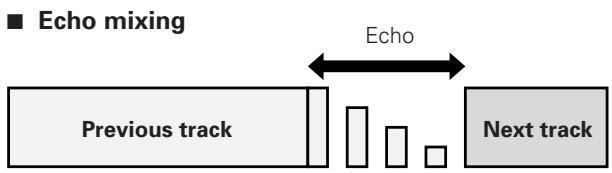
There are four different types of mixing: cut-in mixing, echo mixing, zip mixing, and cross-fade mixing. - Shortened playback time feature which can be used to shorten track playback time
CUEING
A wide variety of cueing capabilities
- Back cueing
The CMX-5000 comes with a CUE button which can be pressed after a track has begun to play to return to the cueing point and resume play from there.
- Auto cueing
Auto cueing may be used to automatically skip the silent portion at the head of each track and stand by just before the point where sound begins.
The PLAY button may then be pressed to instantaneously start the track.
- Cue point sampling
Cueing points may be stored in memory to make it possible to play back from that point from anywhere within a disc at the touch of a single button.
This feature is particularly useful for checking cueing points or for use as a sampler.
FADER START
DJ mixer fading can be used to quick starting or back cueing
The CMX-5000 can be connected to a separately-sold DJM-500, DJM-600, or DJM-300 mixer, and the mixer fading can be used to perform quick starting or back cueing.
HIGH QUALITY SOUND
With a legato link conversion feature which makes it possible to replay sound of high frequencies of over 20kHz which would be lost when recorded on CDs, the CMX-5000 eliminates the harshness found in high sound ranges on CDs to make it possible to produce sound near that of a true analog recording.
JOG DIAL
Large 100-mm dial which may be used to correct out-of-synch beats in much the same way as with an analog turntable
The jog dial may be lightly rotated by hand to search for the point from which you wish to begin playback in 1/75-second frame units. This jog dial may also be used to make searching even faster than ordinary searching or track searching.
MASTER TEMPO
Master tempo feature makes it possible to change the tempo of a song without changing intervals
While changing the tempo of a song on an analog player causes intervals to be changed as well, the CMX-5000 comes with a master tempo control feature that takes advantage of digital technology to make it possible to change the tempo of songs without changing intervals.
MULTI READ
The CMX-5000 comes with a multi-reading feature which makes it possible to play back both CD-R and CD-RW discs. (Note, however, that there may be times when it is impossible to play a disc due to special characteristics of the disc or the recorder used to burn the disc or because of dirt, soiling, or scratching of the disc.)
PLAYING ADDRESS
Bar graph display which makes it possible to gain an intuitive feel of the elapsed and remaining play time of a track in progress To make it possible to gain the same sort of intuitive feel of the elapsed and remaining play time as possible by looking at the position of a needle on an analog record, the CMX-5000 uses a bar graph display which makes it possible to gain an instantaneous visual feel of the elapsed and remaining play time of a track in progress. The length of a bar makes it possible to instantly check the current position and the display also flashes to provide a warning when it nears the end of a track.
QUICK START
A quick start button which may be pressed during a pause to start playback virtually instantaneously (delay time of less than 0.01 seconds)
While ordinary CD players require up to 0.3 seconds for playback to begin from a pause state, the CMX-5000 virtually eliminates this delay, thus making it possible to segue smoothly from one track to the next.
REAL TIME SEAMLESS LOOPING
Seamless looping feature which makes it possible to set the loop starting point in real time
Able to be used to easily specify and remove loop settings, this feature can be used to specify loop settings instantly while a track is playing as soon as one recognizes the point from which one wishes to start the loop. It is also possible to create a loop from just before the end of a track to keep the track from ending. The CMX-5000 also comes with a new adjustment mode which makes it possible to change the end point of a loop with the press of a single button, thus making looping easier to use than ever.
RELOOPING
Relooping feature which makes it possible to return to predefined loops as many times as desired
Pressing the RELOOP button after exiting from a loop causes the CD player to return to the currently defined loop and replay the loop again. And by learning how to turn reloading on and off in conjunction with the rhythm, the possibilities can be even further extended.
SLOT INSERTION
Slot mechanism which makes it possible to quickly insert, replace, and remove discs
Discs may be inserted directly into the CD player without first ejecting a disc tray or opening a door, thus making it possible to quickly play the opening bars of tracks.
TEMPO CONTROL
High-performance 60-mm slide control which makes it easy to change the tempo of songs
With a digital display which displays tempo controls in 0.1% units, the CMX-5000 makes it easier to more accurately control tempos.
- Tempo control range
The maximum variable range may be set to three levels at ± 6, ± 10 , or ± 16% of the original range, thus making it easier than ever before to perform tempo control.
W PROTECTION
In addition to an oil damper float mechanism which greatly reduces the possibility of skipping even if the player is subjected to shocks or vibrations from the floor or from rough handling during playback, the CMX-5000 also includes a new electronic anti-skipping mechanism to provide two levels of protection against skipping.
PANEL FACILITIES
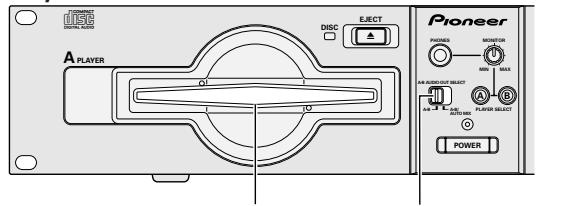
Player
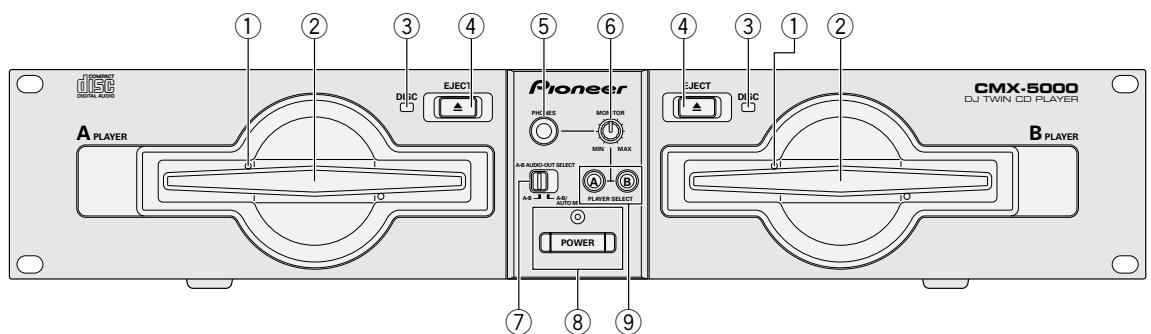
① Manual ejection hole (see p. 5)
② Disc insertion slot (see p. 11)
When using 3 inch/8 cm discs, discs must be inserted in the commercially available CD adapter before insertion.
③ Disc loading indicator (DISC)
This indicator flashes when a disc is being inserted into or ejected from the disc insertion slot and lights up when a disc has been inserted.
(4) Eject button (EJECT ▲)
Pressing this button while cueing is on standby or play is paused will eject the disc from the player.
⑤ Headphone jack (PHONES)
⑥ Headphone volume (MONITOR)
⑦ Audio output select switch (A/B AUDIO OUT SELECT)
Used to switch between A and B audio output. (see p. 18)
⑧ Power switch (POWER) and indicator
⑨ Monitor select button (PLAYER SELECT) (see p. 12)
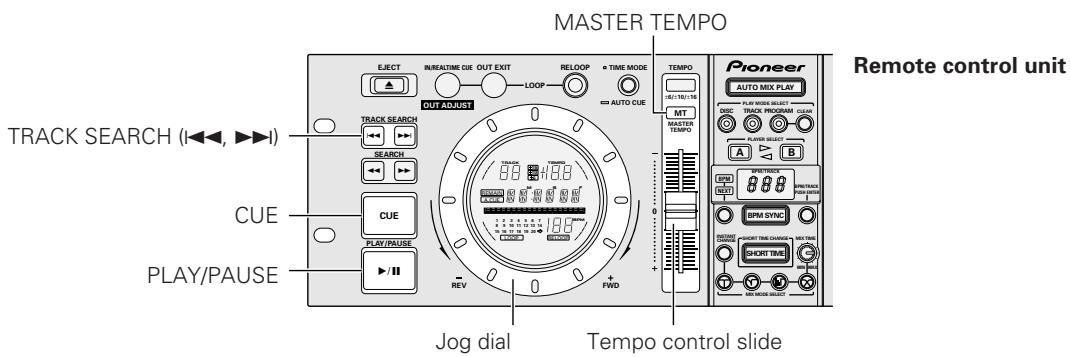
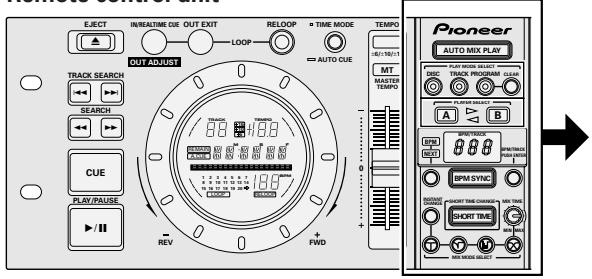
Remote control unit
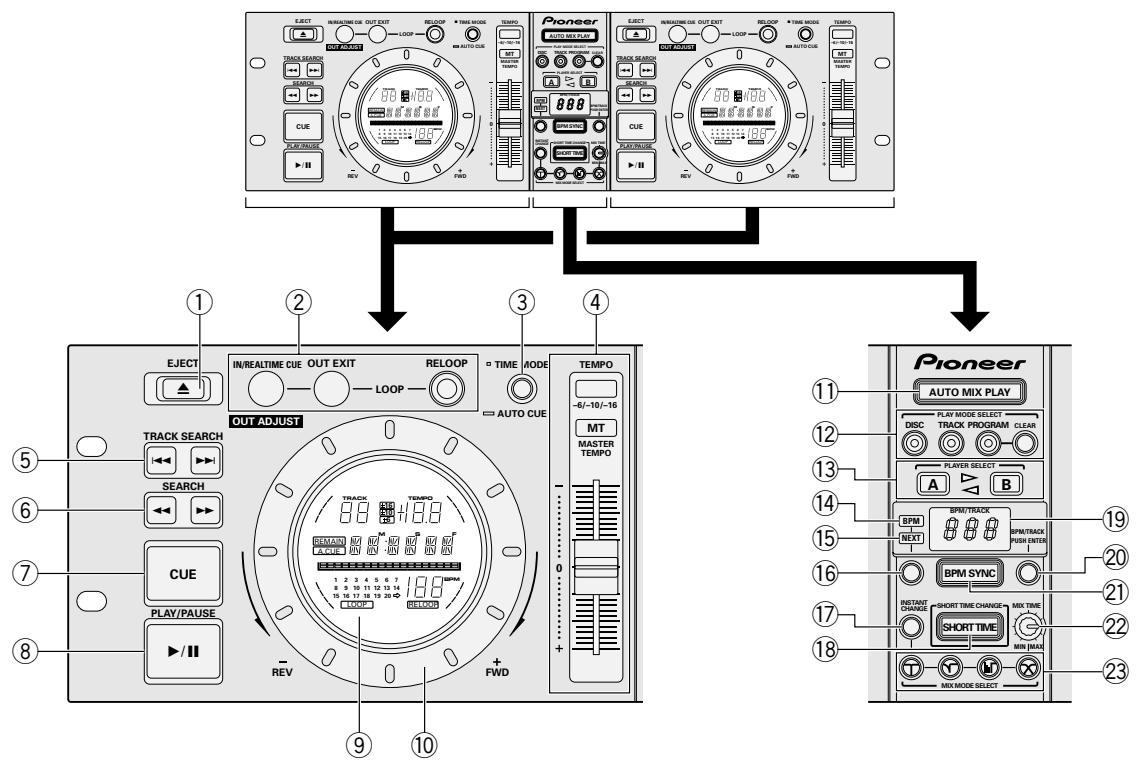
①Eject button (EJECT ▲)
② Loop control button (LOOP) (see p. 14)
③ Time mode/Auto cueing but (TIME MODE/AUTO CUE) TIME MODE:
Pressing this button causes the elapsed time and remaining time (REMAIN) of the current track to be displayed in succession on the time display of the display unit.
- When unit is first powered on, time displayed consists of remaining time.
AUTO CUE: (see p. 12)
- When unit is first powered on, auto cueing is set to on.
④ Tempo controls (TEMPO)
Tempo control range button (± 6, ± 10, ± 16) :
Pressing this button causes the variable range of the tempo adjustment knob to change each time the button is pressed.
- Variable range is set to ± 10% when power to the unit is first turned on.
Master tempo button (MASTER TEMPO) and indicator:
Pressing this button causes the master tempo feature to be powered on or off each time it is pressed.
Tempo control slide:
Moving this dial in the positive (+) direction away from the center position (normal playback tempo) causes the tempo to become faster, and moving it in the negative (-) direction causes the tempo to become slower.
⑤ Track search button (TRACK SEARCH | ▲ ▲, ▷ ▷ |) (see p. 13)
⑥ Search button (SEARCH , ) (see p. 13)
⑦ Cue button (CUE) and indicator
Cueing point settings (see p. 13, 16)
Cueing point sampler (see p. 16)
Back cueing (see p. 16)
Cueing point adjust (see p. 16)
⑧ Play/Pause button (PLAY / PAUSE II) and indicator (see p. 12)
⑨ Display
⑩ Jog dial (+ FWD/- REV) (see p. 14)
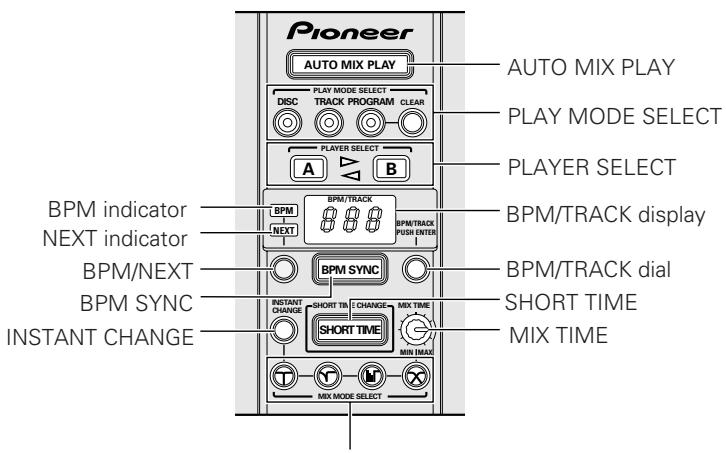
① Auto mix play button (AUTO MIX PLAY) and indicator (see p. 17)
Pressing this button causes auto mixing to be turned on or off each time it is pressed.
⑫ Play mode select button (PLAY MODE SELECT) (see p. 17)
This button is used to select the auto mixing play mode and to specify program settings.
Player select button (PLAYER SELECT) and indicator (see p. 17)
This button is used to select discs when using auto mixing.
⑭ BPM indicator (see p. 17)
15 NEXT indicator (see p. 17, 18)
16 BPM/NEXT button (see p. 17, 18)
⑦ Instant change button (INSTANT CHANGE) and indicator (see p. 18)
18 Short time change button (SHORT TIME) and indicator (see p. 18)
Pressing this button causes short time changing to be turned on or off each time it is pressed.
BPM/TRACK display (BPM/TRACK) (see p. 17)
This display is used to display the track number and BPM when using auto mixing or preprogrammed program settings.
② BPM/TRACK dial (BPM/TRACK, PUSH ENTER)
(see p. 17, 18)
This dial is used to switch between different BPM values when using BPM synchro playback and to select and confirm track numbers when playing in program mode.
- Press down on the dial after making a selection to confirm your choice. (Note that this does not include the switching of BPM settings.)
② BPM synchro button (BPM SYNC) (see p. 17)
When BPM SYNC is turned on (i.e., when the BPM SYNC button is lit), the tempo will be automatically changed so that the number of beats per minute matches between tracks mixing into each other. Pressing this button causes the BPM synchro count feature to be turned on or off each time it is pressed.
22 Mix time control dial (MIX TIME) (see p. 18)
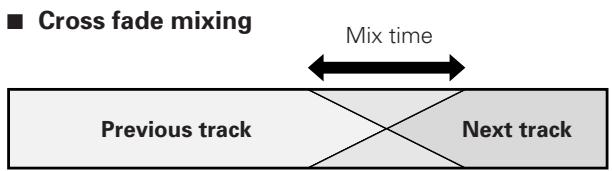
This dial is used to specify the mixing time when using the mix button to perform cross fade mixing.
23 Mix mode selection button (MIX MODE SELECT) and indicator (see p. 18)
This button is used to select cut-in, zip, echo or cross fade mixing as the type of mixing to be used when seguing between tracks.
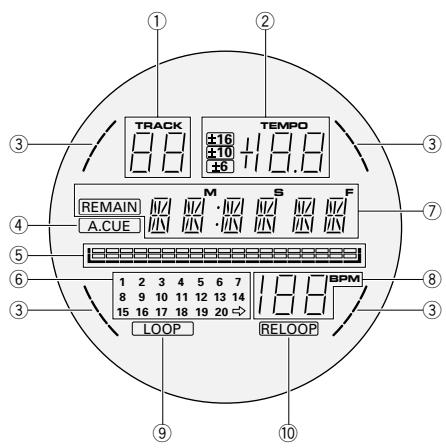
Display
① Track number display
Displays the track number of the track currently being played.
②Playback speed display
Tempo control range display (± 6, ± 10, ± 16)
Displays the variable range mode specified using the tempo control slide.
Tempo change rate display
Displays the rate of change of the tempo as specified using the tempo control slide.
③ Auto mixing playback player display
The display on the side of the player currently in operation will flash.
④ Auto cueing indicator (A. CUE)
Lights up when auto cueing is turned on.
⑤Playback position display
Used to display a full-scale bar graph for the track being played to make it possible to get an intuitive feel of the elapsed and remaining play time.
- Display as it appears when displaying elapsed time: All indicators unlit and then indicators light up in sequence from left
- Display as it appears when displaying remaining time: All indicators lit and then indicators are turned off in sequence from left
- Display as it appears when there are less than 30 seconds remaining in a track:
Slow flashing
- Display as it appears when there are less than 15 seconds remaining in a track:
Rapid flashing
⑥ Track number calendar display
The number corresponding to the track currently being played is lit. The right-facing arrow is lit for tracks with a track number of 21 or higher.
Programmed track numbers are lit, and the light for each number for tracks which have already been played are turned off once the tracks are played.
⑦ Time display
Used to display the elapsed playback time (when the remain indicator is unlit) or the remaining playback time (when the remain indicator is lit) of the current track in minutes (M), seconds (S), and frames (F). Note that the amount of time remaining is displayed by default when the power is first turned on.
BPM display
Used to display the number of BPM for the current track.
Note that depending on the track there may be times when the BPM counter is unable to count the number of BPM.
⑨ Looping indicator (LOOP)
Lights up when playing back in loop mode.
⑩ Relooping indicator (RELOOP)
Lights up when recording a loop.
CONNECTIONS
Before connecting or disconnecting any cables, be sure to first turn off the power switch and remove the power cord from its socket. Note that the connection provided with your CMX-5000 CD player come with a locking lever designed to prevent the cable from inadvertently becoming loose, and that it is necessary to press down on this lever to release the lock in order to disconnect the cable.
1. Connecting the player to the remote control unit
First connect the CD player to the remote control unit.
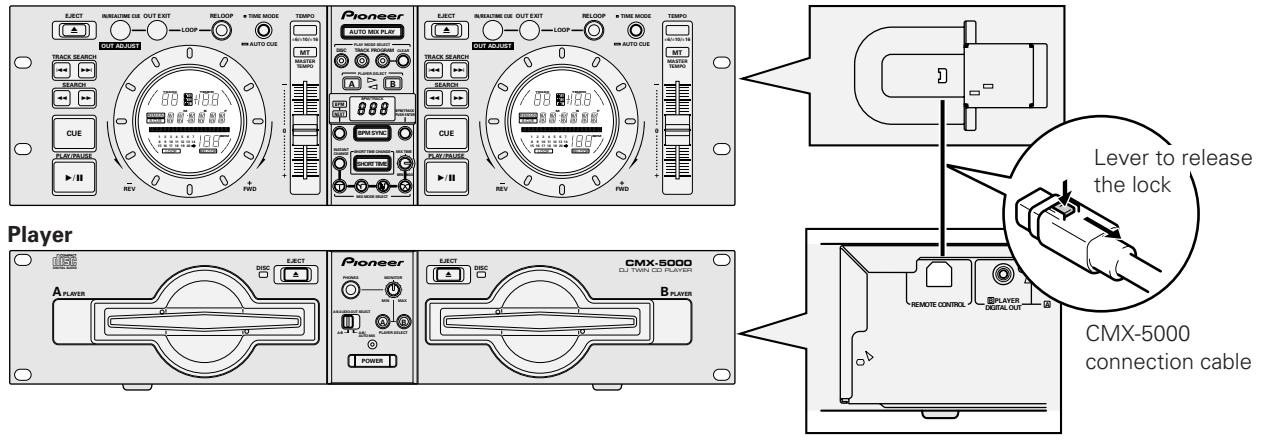
Remote control unit
2. Connecting the system to a DJ mixer (DJM-300, DJM-500, or DJM-600) (connecting audio output and control jack cables)
Using the audio cables provided with your CMX-5000 CD player system, insert the white plugs into the left (L) jacks and the red plugs into the right (R) jacks. Note that it is also possible to use the CMX-5000 control cord to control the CMX-5000 from a mixer to make it possible to use fader startup or back cueing. (This does not apply, however, during auto mixing playback.)
How to connect to a DJM-600 DJ mixer
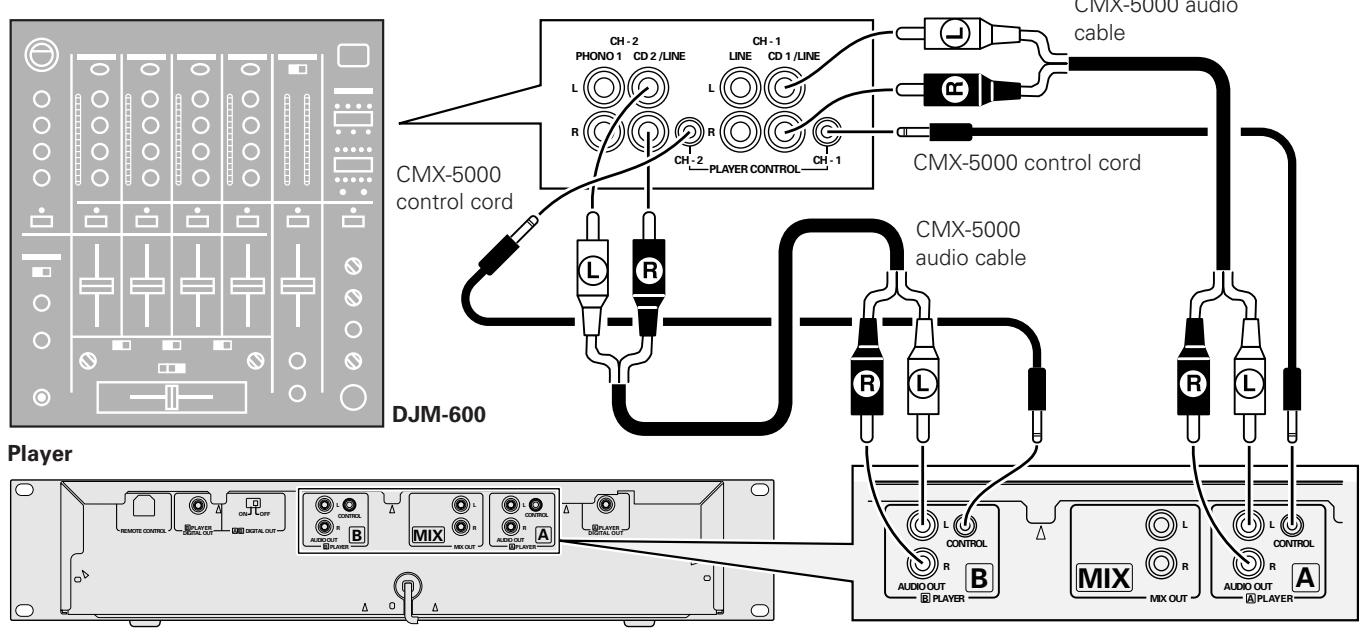
- When connecting to a DJM-300 or DJM-500 mixer, use the CMX-5000 audio cables to connect CD1 to A PLAYER and CD2 to B PLAYER as indicated in the diagram above.
3. Connecting the CMX-5000 to other devices
Connecting the CMX-5000 to other mixers
To connect the CMX-5000 to other mixers, connect the CMX-5000 AUDIO OUT jacks to the line input jacks or AUX jacks of the mixer. (Do not connect to PHONO jacks, as doing so would result in the sound being distorted and in being unable to obtain normal playback quality.)
Connecting the CMX-5000 to stereo amplifiers (when not using a DJ mixer)
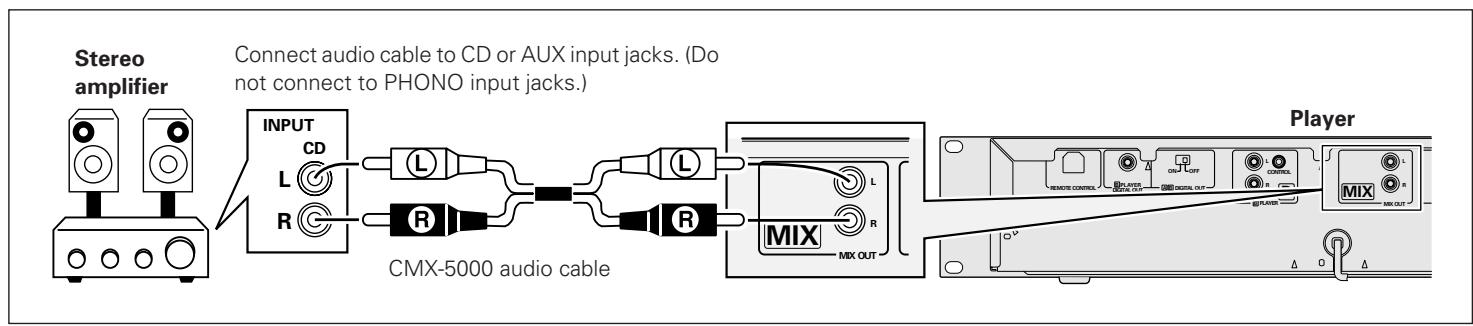
Connecting the CMX-5000 to devices with digital input jacks
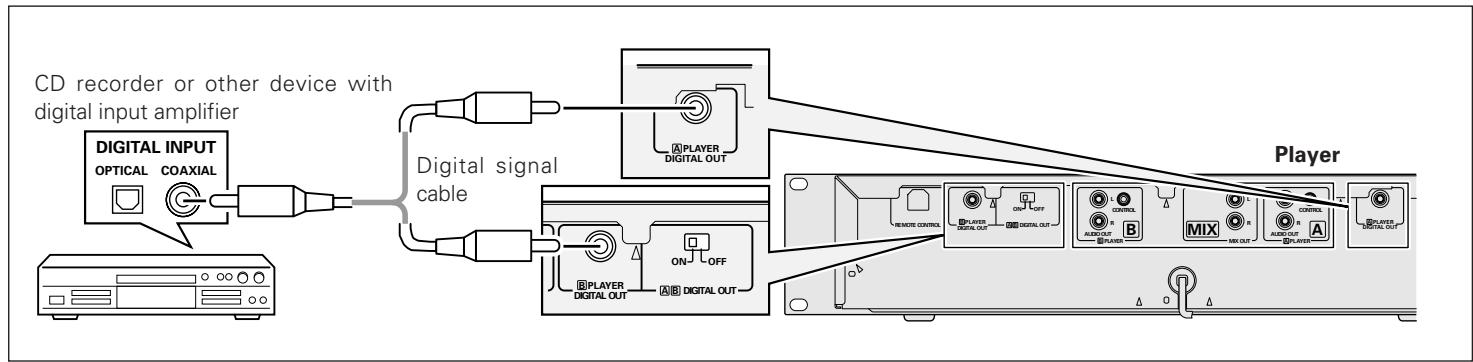
- When using the digital output jacks, the digital output switch (DIGITAL OUT) must be set to 'ON'. Note that it is impossible to use any of the DJ mixing or playback features (i.e., CUE, LOOP, RELOOP, TEMPO CONTROL, MASTER TEMPO, increase/reduce speed by the jog dial or AUTO MIX PLAY) when using digital output. Also note that when using digital output pausing results not in a start playback pause but in a silent pause instead.
4. Connecting the power cord
When all other cables have been connected, insert the plug of the power cord located on the rear panel of the CD player into a wall power socket or into an amplifier reserve power socket.
DISC LOADING/UNLOADING
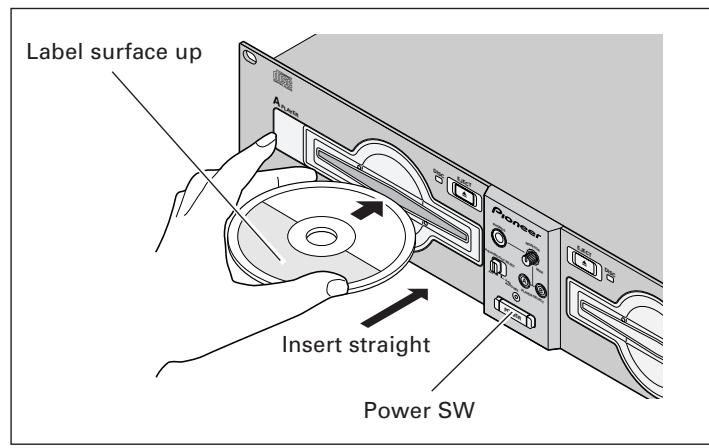
1. Press power switch on front of player to turn power on.
Do not force a disc into the unit when the power switch is set to OFF as this may damage the disc and the unit.
2. Insert a disc.
- Hold the disc with label surface upwards, and insert into the front panel disc insertion slot.
-
When playing an 3 inch/8 cm disc, place the disc in a commercially available CD adapter before inserting in the insertion slot.
-
Each insertion slot can only accommodate one disc at a time. Never attempt to load more than one disc at the same time, or attempt to load a second disc when one disc has already been loaded.
- When loading a disc, do not placing any twisting force on the disc, or try to force the disc into the slot. Also, do not attempt to interrupt or defeat the motion of the disc when the player begins to draw a disc into the slot or to eject a disc, since damage to the disc or player could occur.
3. During playback, press the PLAY/PAUSE button ( / ) or if a cue point has been specified press the CUE button to back-cue before pressing the EJECT button () to eject a disc
- When the EJECT button is pressed, disc rotation stops and the disc is ejected from the loading slot.
- If the disc fails to be ejected when the EJECT button is pressed, the accessory forced eject pin can be inserted into the front-panel's forced eject hole to eject the disc. (see p. 5)
CAUTION:
Do not attempt to press a disc back into the slot when the EJECT indicator appears. Pressing a disc back into the slot while the EJECT indicator appears may cause the player to stop. In this case, press the EJECT button again and wait until the EJECT indicator goes out before reinserting the disc.
DJ PLAYER OPERATION
Playing discs on Player A (Operation identical for Player B)
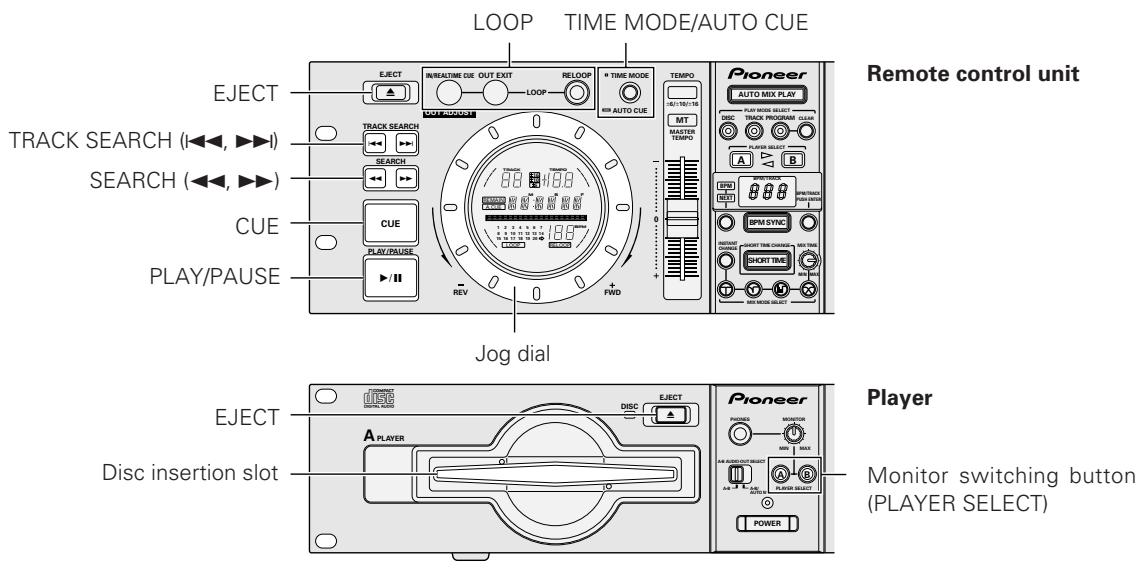
Auto cueing
Auto cueing is used to automatically specify the cueing point (see p. 13) to be used before sound actually begins to play when inserting a disc or when performing track searching.
- Turning auto cueing on and off
Pressing the TIME MODE/AUTO CUE button and holding it down for a second or more causes auto cueing to be alternately turned on and off.
When auto cueing is on, the auto cueing indicator (A. CUE) will be lit up.
- Auto cueing is automatically turned on when the power to the CMX-5000 is first turned on.
Starting playback
1. Insert a disc into Player A or Player B.
2. If auto cueing is on, press the PLAY/PAUSE button ( / ) .
- Wait for the CUE button indicator to light up before pressing the button. The silent portion at the beginning of the displayed track will be skipped and playback will begin instantaneously from the first bars of the track.
Once the first track has been played, the player will automatically search for the beginning of the next track to be played. The cueing indicator (CUE) will light up, the PLAY/ PAUSE button indicator will flash, and the player will then wait for the PLAY/PAUSE button ( / ) to be pressed before beginning playback of the next track.
3. If auto cueing is off, playback will begin automatically from the first track.
- When auto cueing is off, playback will continue after the first track has been played, with all subsequent tracks being played in sequence.
- When playback of the final track is complete, playback will automatically come to an end.
Stopping playback
During playback, press the PLAY/PAUSE button (▶/II) or if a cue point has been specified press the CUE button to back-cue before pressing the EJECT button (▲) to eject the disc.
- Playback will stop and the disc will be ejected.
- Note that the CMX-5000 does not come with a stop button.
- Pressing the EJECT button during playback has no effect.
Pausing playback
To pause playback, press the PLAY/PAUSE button ( / ) .
- The PLAY/PAUSE button indicator and cueing indicator (CUE) will flash and playback will pause.
- Pressing the PLAY/PAUSE button again will then cause the button indicator to light up and for playback to be resumed.
- Muted sound will continue to be output when in pause mode. To eliminate all sound, lower the audio mixer output level.
- If no operator whatsoever is performed for 80 minutes or more after pausing playback, the rotation of the disc will be automatically brought to a halt. Pressing the PLAY/PAUSE button at this time will then cause playback to be resumed.
Using the monitor switch buttons
The player on the side of the button which has been pressed will be selected, and the button which has been pressed will light up to indicate the selected player. Pressing the button again will cause the button to be unlit. Note that both players are selected by default at power-on time, thus resulting in mixed sound being output through both Player A and Player B.
Skipping tracks
■ Skipping tracks using the TRACK SEARCH button (▶▶,▶▶)
Press the forward or reverse TRACK SEARCH button (▶▶).
Each time the button is pressed, the player will skip to the next track in the specified direction. (To skip to the previous track while a track is being played, press the reverse TRACK SEARCH button (▶) two times in succession.)
- Pressing the forward or reverse TRACK SEARCH button (I▲, ▷■) and holding down on the button will cause multiple tracks to be skipped in succession. Holding down the button for two seconds or more will cause the forward/reverse skipping speed to increase.
- Pressing the reverse skip button (▶) at the beginning of the first track will cause the player to skip to the final track.
- Pressing the forward skip button (▶▶) from the last track will cause the player to skip to the first track (i.e., Track No. 1).
Super-fast track searching
Turn the jog dial while pressing either TRACK SEARCH button (I< , ).
- Turning the jog dial in the direction you wish to skip while pressing the forward or reverse TRACK SEARCH button (I▶, ▷▶I) will cause the player to enter high-speed skipping mode, with the speed being adjusted in accordance with the degree to which the jog dial is turned.
- Tracks will be skipped in the same direction as that in which the jog dial is rotated. The direction indicated by the TRACK SEARCH button actually pressed will be ignored.
- Releasing the TRACK SEARCH button causes the player to leave high-speed skipping mode.
Fast forward and rewind
Using the SEARCH button (←,▶) to fast forward or rewind
During playback, press the forward or reverse SEARCH button (, ) .
Pressing the forward SEARCH button () and keeping it pressed will cause the CD to fast-forward. Pressing the reverse SEARCH button () and keeping it pressed will cause the CD to rewind.
Super-fast searching
Turn the jog dial while pressing either SEARCH button (, ) .
- Turning the jog dial in the direction you wish to search while pressing the forward or reverse SEARCH button (, ) will cause the player to enter high-speed fast-forward or high-speed reverse mode.
- Tracks will be skipped in the same direction as that in which the jog dial is rotated. The direction indicated by the SEARCH button actually pressed will be ignored.
- Playback will resume when the jog dial is no longer being turned.
- Releasing the SEARCH button causes the player to leave high-speed skipping mode.
Cueing point settings
Once a cueing point has been stored in memory, it can be used to place the player in a state where it is ready to begin playback from the cueing point by pressing the CUE button.
■ Manual cueing
- During playback, press the PLAY/PAUSE button (▶/II) to pause playback at the point from which you wish to begin playback.
2. Search for the precise position of the cueing point.
Using frame numbers to specify cueing points
Cueing points may be specified in 1-frame units (where 75 frames are equivalent to 1 second).
Use the jog dial or the forward or reverse SEARCH button (▲▲, ▲▶) to advance to the desired frame. Rotating the jog dial once causes the player to advance or rewind 75 frames in the specified direction. Similarly, pressing the forward or reverse SEARCH button causes the player to advance or rewind 1 frame in the specified direction.
Listen to the sound at the current frame to determine the cueing point
Turn the jog dial slowly and then return it to just before the point from which you wish to begin playback. (The cueing point thus defined will consist of that point directly after the sound which can be heard during a cueing pause.)
-
Press the CUE button when you reach the desired frame number or hear the sound at the point from which you wish to begin cueing.
-
When the sound is muted and the cueing indicator (CUE) lights up, the cueing point will have been stored to memory.
Each time a new cueing point is stored to memory, the previous cueing point will be cleared from memory.
Real-time cueing
During playback, press the LOOP IN/REAL TIME CUE button at the desired cueing point.
This point will then be recorded as the new cueing point.
SPECIAL DISC JOCKEY TECHNIQUES
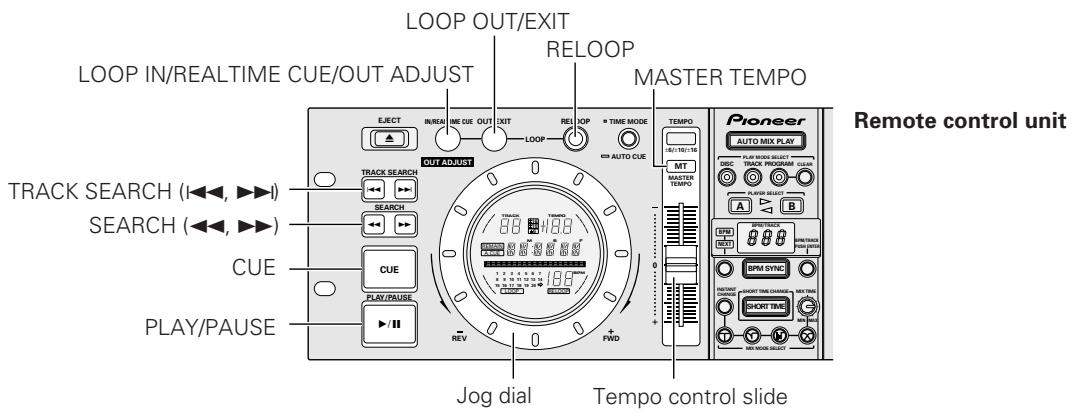
Five ways of using the jog dial
1. Using the jog dial during playback
- Rotating the jog dial during playback causes the speed to be accelerated (when rotated in the FWD+ direction) or slowed down (when rotated in the REV- direction) in accordance with the degree to which the dial is turned.
- Once the jog dial is no longer being turned, playback resumes at its original speed.
2. Using the jog dial while playback is being paused (Frame searching)
- Rotating the jog dial causes the player to begin searching in 1-frame units.
- Rotate the jog dial at a fixed speed in the FWD+ direction for playback at normal speed.
3. Rotating the jog dial after pressing the SEARCH button while waiting for cueing (Cueing point search)
Pressing either of the SEARCH button (▲, ▲) while waiting for cueing causes the player to enter cueing pause mode, and rotating the jog dial at this time causes the player to search for possible cueing points. Pressing the CUE button after the player has advanced or rewound to a new cueing point will then cause the new cueing point to be entered into memory.
4. Rotating the jog dial while pressing the SEARCH button during playback (Super-fast searching)
Rotating the jog dial in the direction you wish to search while pressing the forward or reverse SEARCH button (▲▲, ▲▶) will cause the player to enter high-speed search mode.
5. Rotating the jog dial while pressing the TRACK SEARCH button (Super-fast track searching)
Turning the jog dial in the direction you wish to search while pressing the forward or reverse TRACK SEARCH button (I▶,▶) will cause the player to enter high-speed track search mode, with the direction and speed of searching being adjusted in accordance with the direction and degree in which the jog dial is turned.
Playing master tempos
1. During playback, press the MASTER TEMPO button.
- The MASTER TEMPO button and the MT indicator on the display will light up.
2. Use the tempo control slide to change the playback speed.
- Note that changing the tempo changes neither the key nor pitch.
Loop playback
Defining a loop
- Press the PLAY/PAUSE button ( /II) to begin playback.
-
During playback, press the LOOP IN/REALTIME CUE button at the point from which you wish to start the loop.
-
Note that this operation need not be performed if a prerecorded cueing point is to be used as the start of the loop.
-
During playback, press the LOOP OUT/EXIT button at the point from which you wish to end the loop.
- Loop playback will begin, with playback looping from the loop start point to the loop end point.
Stopping loop playback
During loop playback, press the LOOP OUT/EXIT button or RELOOP button.
- Once this has been done, playback will continue in sequence from the loop end point without returning to the loop start point.
Changing the loop end point
-
During loop playback, press the LOOP IN button.
-
The loop end point time will be displayed on the display panel, the LOOP IN button will begin flashing rapidly, and the LOOP OUT/EXIT button will be unlit.
-
Press the forward or reverse SEARCH button (▲▲, ▲) or turn the JOG dial.
-
The loop end point will be shifted forward or backward in 1-frame units.
- Pressing the LOOP IN button or waiting for 30 seconds or longer will cause the player to exit from update loop input point mode and to resume loop playback.
■ Returning to loop playback
After loop playback has been stopped, press the RELOOP button during playback to return to loop playback.
- The player will return to the currently defined loop start point and begin loop playback (i.e., reloading) again from that point.
MIXING (SEGUEING) DIFFERENT TRACKS
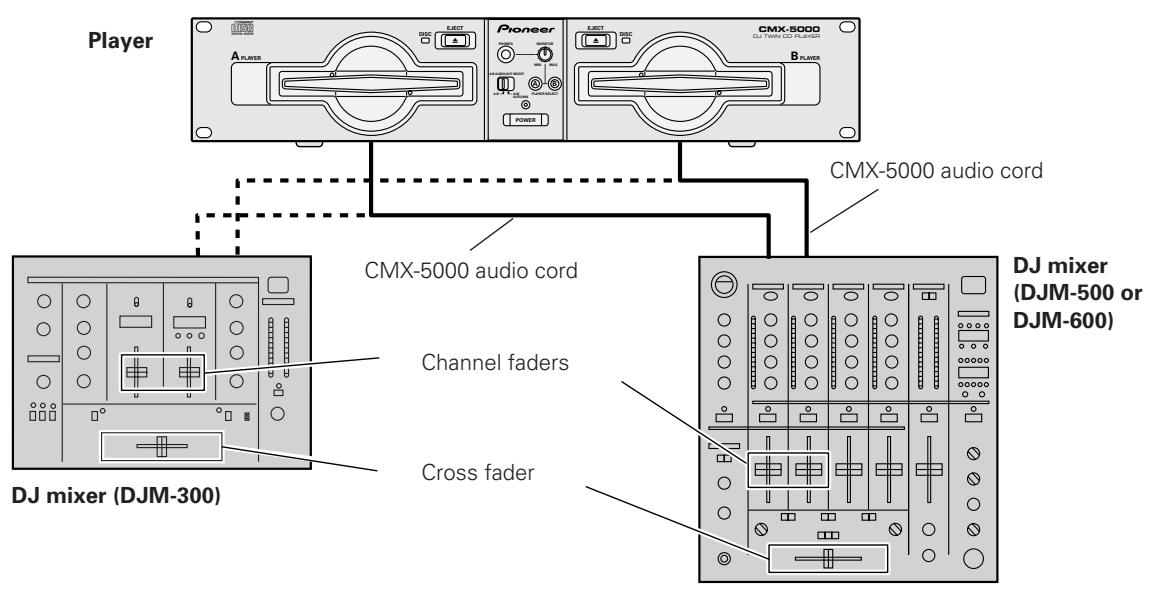
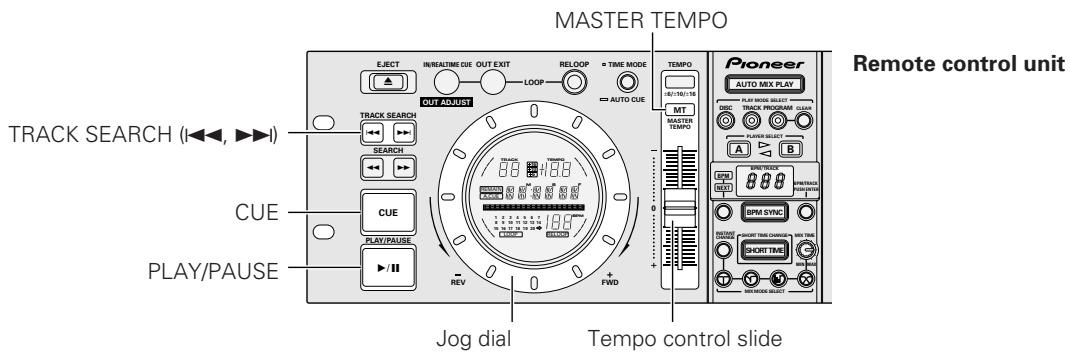
Manual mixing
Example:
In the example described below, track A (playing on Player A)-which is currently being played through the speakers using a DJM-300-is mixed together with track B (playing on Player B), the next track to be played.
- Connect Player A to the CH1 input port and Player B to the CH2 input port of the DJ mixer.
-
Raise the trim, channel faders, and master VR of the DJ mixer to the desired level so that sound is output from Player A.
-
Slide the cross fader control on the DJ mixer to the left (CH1 side).
Sound from track A will then be output from the speakers.
- Insert a disc into Player B.
- Press the forward or reverse TRACK SEARCH button (I I, I) on Player B to select track B.
- Press the PLAY/PAUSE button ( / ) . (Note that auto cueing must be turned on.)
- Use the DJ mixer MONITOR SELECTOR button to monitor CH2.
-
Turn the DJ mixer MONITOR LEVEL dial to output the sound from track B to the headphones.
-
Speaker output will come only from track A.
-
Listening to the sound from the headphones, cue to the opening of track B.
① Get player B ready for playback and then press the PLAY/ PAUSE button ( / ) near the desired cueing point.
- Player B will enter cueing pause mode.
② Turn the Player B jog dial to find the cueing point (i.e., the opening bar).
(3) Once the cueing point has been found, press the Player B CUE button.
- The sound will be muted and cueing will have been completed.
-
Listening to the sound from track A from the speakers, wait for the press the Player B PLAY/PAUSE button ( /II) .
-
Speaker output will come only from track A.
Sound from track B will be output to the headphones. -
Adjust the speed of track B to the speed (BPM= beats per minute) of track A.
Adjust the Player B tempo control slide so that the number of BPM displayed for track B is the same as the number of BPM displayed for track A.
- If you do not wish to change the pitch or key of track B, press the Player B MASTER TEMPO button before adjusting the tempo control slide.
- Once the number of BPM displayed for both tracks are the same, the tempo adjustment will have been finished.
10. Press the Player B Cue button.
- Player B will then enter standby mode at the cueing point.
11. Listening to the sound from track A from the speakers, wait for the correct timing and then press the Player B PLAY/PAUSE button ( / ) .
- Track B will then begin to play.
12. While checking the sound from the headphones, gradually shift the DJ mixer cross fader control to the right.
- The sound from track A coming from the speakers will become mixed with the sound from track B.
- When the DJ mixer cross fader control has been shifted all the way to the right, the segueing from track A to track B will have been completed.
Long mixed playback
As long as the number of BPM is the same, track A and track B may be cleanly mixed even with the cross fader control set in the middle.
Fader start playback
If the DJM-300, DJM-500, or DJM-600 cross fader start feature is used, step 11 above may be omitted, thus making it even easier to perform mixing. If the CROSS FADER control is also returned to its original position, it will cause the player to return to the state described in step 10, thus making it possible to perform cueing repeatedly.
Fader start playback
The provided control cable may be used to connect the control jack on the CMX-5000 to a control jack on a DJM-300, DJM-500, or DJM-600 mixer, thus making it possible to exit from cueing standby mode and to start playback immediately by raising the DJ mixer channel fader. The cross fader may also be used to perform fading starts on the player as well. The fader may also be returned to its original position to return the player to the cueing point (i.e., to perform back cueing). (This does not apply, however, during auto playback.) (See p. 10 for instructions on how to connect the player and mixer.)
Useful cueing techniques
Cueing (Cueing point settings)
- Follow the instructions provided on p. 13 to specify the desired cueing point.
-
Press the CUE button.
-
The player will return to the specified cueing point.
- Press the PLAY/PAUSE button ( /II)
- Playback will begin immediately from the specified cueing point.
- Checking cueing points (Cueing point sampler) After specifying a cueing point, press the CUE button.
- The sound at the specified cueing point will continue to play as long as the CUE button is pressed.
- Returning to a cueing point (Back cueing)
- During playback, press the CUE button.
- The player will return to the specified cueing point.
- Press the PLAY/PAUSE button ( /II)
- Playback will begin immediately from the specified cueing point.
Changing cueing points (Cueing point adjust)
-
During playback, press the CUE button.
-
The player will return to the currently specified cueing point.
-
Press the forward or reverse SEARCH button (▲, ▲).
-
The cueing point will be shifted forward or backward in 1-frame units.
- The cueing point may also be shifted forward or backward by pressing the forward or reverse SEARCH button (▲▲,▶▶) and then turning the jog dial.
3. Press the CUE button.
- The point where the CUE button is pressed will become the new cueing point.
AUTO MIXING
Remote control unit
Player
Disc insertion slot Audio output switch
MIX MODE SELECT
DISC mode
DISC mode is used to mix and replay the tracks on a disc in sequence and to mix and replay another disc when playback is complete.
■ TRACK mode
TRACK mode is used to mix playback from Player A and Player B, playing one track from each disc at a time in sequence.
1. Insert discs into Player A and Player B.
2. Press the PLAY MODE SELECT DISC or TRACK button.
3. Press the AUTO MIX PLAY button.
- To start playback from a specified track, use the PLAYER SELECT button to select the desired disc, push the TRACK SEARCH button on the player that is playing to select the track number, then press the AUTO MIX button.
■ PROGRAM mode
PROGRAM mode is used to produce mixed playback according to a pre-programmed sequence of tracks.
1. Insert discs into Player A and Player B.
2. Press the PLAY MODE SELECT PROGRAM button.
3. Press PLAYER SELECT button A or B to select the player in which the disc for which the program is to be entered has been inserted.
4. Turn the BPM/TRACK dial to select the track number.
- The BPM/TRACK display will appear as illustrated below.
Indicates that the disc in Player A has been selected
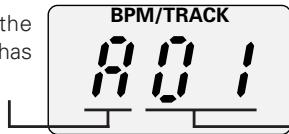
Indicates that track number 1 has been selected
5. Press the BPM/TRACK dial to confirm your selection.
6. Repeat steps 3 through 5 to enter other tracks into program memory.
7. Press the AUTO MIX PLAY button.
- New tracks may be entered into program memory during playback.
- Pressing the CLEAR button causes tracks to be erased from program memory in sequence from the last track entered.
- The number of tracks programmed into memory will be displayed on the display panel as, e.g., 'Step 01'.
- Up to a maximum of 50 program steps may be specified.
The program is completely cleared by the following operations.
① By canceling AUTO MIX PLAY
② By changing play mode to disc mode or track mode
③ By ejecting the disc for which the program has been entered
BPM SYNC
When BPM SYNC is turned on (i.e., when the BPM SYNC button is lit), the tempo will be automatically changed so that the number of beats per minute matches between tracks mixing into each other. This feature may be used to match the tempos of tracks to be mixed during auto mix playback.
1. Insert discs into Player A and Player B.
2. Specify the desired mixing mode and then start auto mix playback.
- The number of BPM of the first track to be played will be displayed on the BPM/TRACK display.
Changing the BPM
1. Press the BPM/NEXT button to switch to BPM. (The BPM indicator will light up.)
2. Turn the BPM/TRACK dial to specify the number of BPM.
- The variable range of the number of BPM is restricted to a range of ± 16% of the original tempo of a given track. Specifying a change of greater than ± 16% will cause the track to be played back at its original tempo.
- Note that there may be times when, depending on the track in question, it is impossible for the BPM counter to count the number of BPM.
SHORT TIME
When SHORT TIME CHANGE is turned on (i.e., when the SHORT TIME button is lit), the playback time of the current track is shortened and then mixing begins.
■ MIX MODE SELECT
Mix mode selection is used to select the type of segueing to be performed between tracks. There are four types of mixing which may be performed: cut-in, echo, zip or cross fade mixing. Once segueing has been performed, the currently specified mixing type is cleared from memory. If no mixing type is selected, the player will randomly select one of the four types.
- Trying to perform cross-fade mixing between two tracks located on the same disc will cause cut-in mixing to be performed instead.
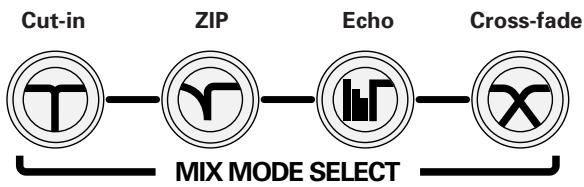
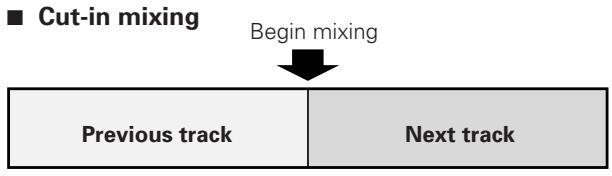
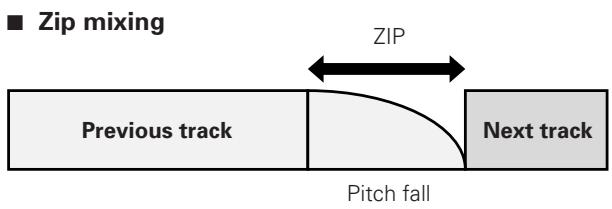
■ MIX TIME
Used to specify the amount of time of the mixing interval to be used when performing cross-fade mixing.
INSTANT CHANGE
Pressing INSTANT CHANGE causes the player to shift immediately into the next track.
- Note however that playback will not begin until the standby time (i.e., the time required for auto cueing and BPM detection) for the next track has elapsed.
Changing the next scheduled track
This technique may be used to change the next track to be mixed while playing back another track using auto mix playback.
Changing the next track when operating in DISC mode or TRACK mode
- Insert disc into player.
- Start auto mix playback. (See p. 17)
3. Press the BPM/NEXT button to switch to NEXT. (The NEXT indicator will light up.)
Indicates that thedisc in Player Ahas been selected
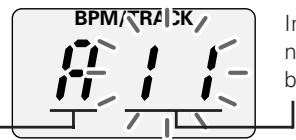
Indicates that track number 11 has been selected
- Press PLAYER SELECT button A or B in accordance with the player for which the next track is to be changed.
- Turn the BPM/TRACK dial to select the next track number.
-
Press the BPM/TRACK dial to confirm your selection.
-
Failing to press the BPM/TRACK dial will cause the specified change not to take effect and for the display to return to its original value.
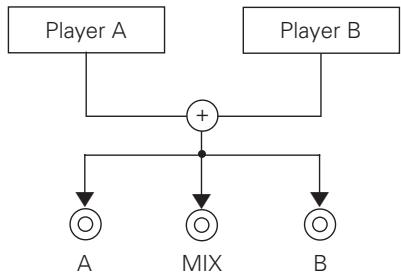
Audio output switch
This switch is used to specify the output to be transmitted to output jacks A and B of the three audio output jacks (A, B and MIX) available during auto mix playback.
Player A & B
Output sent directly to Player A and Player B.
- When the CMX-5000 has been connected to a DJ mixer as shown in the example on p. 10, the sound from the mixer from both A and B will be played back.
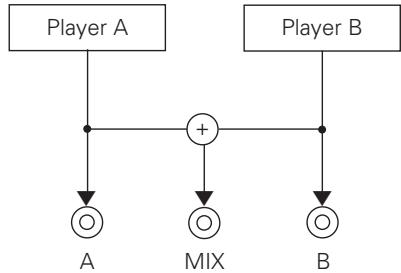
Player A/B & Auto Mix
The output from the audio output jacks will consist of automixing audio output only when playing in auto mixing mode.
- Monitoring of the next track during auto-mixing playback may be performed by using headphones connected to the CMX-5000 player.
Points to remember when using Auto Mixing
The following features can not be used during Auto Mix play.
- Fader start/back cue
- Functions controlled from the player side during playback, other than master tempo, TIME/REMAIN switching, tempo control range switching. But the tempo slider operates when BPM SYNC is off.
- Loop play, auto cue off, increase/reduce speed by the jog dial, tempo slider (when BPM SYNC is on) controlled from the player on the standby side.
- The INSTANT CHANGE feature will not work during the period of several seconds (the actual length of the time in question varies from track to track) which elapses from the time immediately after seguing to a new track to the time required to prepare to segue into the new track.
TROUBLESHOOTING
If you believe your CD player is failing to work properly, check the following troubleshooting table for tips. Sometimes simple mistakes in setup or operation may appear like serious problems. There are also times when the problem in question may be caused by something else other than your CD player, and at times like these you should check any other electronic devices being used at the same time.
If the problem in question continues to persist even after checking the troubleshooting table below and taking whatever corrective action is recommended, contact your nearest Pioneer Service Station or contact the store from which you purchased your player for further assistance.
| Description of problem | Possible cause of problem | Recommended action |
| A disc fails to be ejected even after the EJECT button has been pressed. | ●Power cord has not been plugged in. ●EJECT button is broken. | ●Plug in power cord. ●See p. 11. |
| Playback comes to a halt almost immediately after it begins. | ●Disc has been inserted upside down. ●Disc is dirty or covered with condensation. | ●Reinsert with label side facing upward. ●Wipe disc to remove dust or condensation. |
| No sound is output. | ●Power cord has come loose or has not been properly plugged in. ●Audio mixer is not working properly. ●Jacks or jack plugs are dirty. ●Player is currently in pause mode. | ●Plug in power cord properly. ●Check switch and volume settings on audio mixer. ●Wipe away dust or dirt and reinsert plugs. ●Press the PLAY/PAUSE button (▶II) to begin playback. |
| Sound is distorted or full of noise. | ●Output cord has not been properly plugged in. ●Jacks or jack plugs are dirty. ●Player is subject to noise from a nearby television set. | ●Connect output cord to line input jack of audio mixer. Do not connect to microphone jack. ●Wipe away dust or dirt and reinsert plugs. ●Turn off power to television set or move television set further away from CD player. |
| A large amount of noise is generated when playing back a certain disc or discs. Playback halts unexpectedly. | ●Disc is seriously warped or scratched. ●Disc is unusually dusty or dirty. | ●Replace with new disc. ●Wipe away dust or dirt from disc. |
| Track searching fails to halt with auto cueing turned on. | ●Track searching sometimes takes longer than expected when the length of silent portions between tracks is unusually long. ●If the length of a silent portion between two tracks is longer than 10 seconds in duration, the second track cannot be played back unless auto cueing is turned off. | ●Press the TIME MODE/AUTO CUE button and hold the button down for 1 second or longer to turn auto cueing off. |
| Back cueing fails to work when the CUE button is pressed during playback. | ●No cueing point has been defined. | ●Specify the desired cueing point. (See p. 16.) |
| Unable to produce loop playback by pressing the LOOP OUT/EXIT button. | ●No cueing point (i.e., starting point) has been defined. | ●Specify the desired cueing point. (See p. 16.) |
| Television pictures are distorted or noise appears in FM broadcasts. | ●Interference caused by CD player. | ●Turn off the power to the CD player or move the player further away from the radio or television set. |
| Disc is not rotating even though power has been turned on. | ●Disc rotation is automatically halted when no operation is performed for 80 minutes or longer when in pause mode. | ●Press the PLAY/PAUSE button (▶II) to begin playback. Alternatively, press the EJECT button (▲) to eject the disc. |
- There may be times when the CMX-5000 fails to operate properly as a result of static electricity or some other form of interference from an outside source. If any such problem occurs, turn off the power to the CMX-5000, wait for the currently inserted disc to come to a full stop, and then turn on the power again to see if that fixes the problem in question.
- The CMX-5000 cannot be used to replay partially-written CD-R or CD-RW discs.
- The CMX-5000 cannot be used to replay non-standard-shaped discs or any discs other than 5 inch/12 cm discs or 3 inch/8 cm discs which have been inserted into an 3 inch/8 cm disc adapter. (Note that attempting to replay such discs may result in damage or breakdown.)
- The BPM value measured by the CMX-5000 may differ from the BPM value recorded on a CD or from our DJ mixer, but this difference is a result of differences in the BPM value measurement method; not a result of a fault with the player.
Error message display
When the CMX-5000 CD player is unable to operate properly, an error code is displayed on the display panel. Check the error code displayed against the following table and take the recommended action to correct the error. If an error code other than any of the error codes listed in the table below is displayed or if the same error code is displayed even after corrective action has been taken, contact your nearest Pioneer Service Station or contact the store from which you purchased your player for assistance.
| Error Code | Error Type | Description | Possible cause and recommended action |
| E-7201 | TOC READ ERROR | Player unable to read TOC data after interval of 20 seconds. | Disc is cracked. →Recommended action: replace disc. |
| E-83 01 | PLAYER ERROR | Player unable to play back currently inserted disc. | Disc is soiled or dirty. →Recommended action: clean disc. |
| E-83 02 | |||
| E-83 03 | |||
| E-83 04 | |||
| E-91 01 | MECHANICAL TIME OUT | Mechanical operation has failed to complete within specified time interval. | Dust or some other form of foreign particles have found their way into disc insertion slot. →Recommended action: remove dust or other foreign particles. |
Cleaning the jog dial
To clean the PLAYER wipe with a polishing or a soft, dry cloth. For stubborn dirt, moisten a soft cloth with a weak solution of neutral detergent (diluted in five to six parts water), wring the cloth well, and wipe away the dirt. Use a dry cloth to wipe the surface dry. Applying alcohol, paint thinner, benzene, insecticides, or other stringent substances to the jog dial may cause the markings or finishing of the dial to peel or become discolored, and the use of any such substances should accordingly be avoided.
Should this product require service in the U.S.A. and you wish to locate the nearest Pioneer Authorized Independent Service Company, or if you wish to purchase replacement parts, operating instructions, service manuals, or accessories, please call the number shown below.
800-872-4159
Please do not ship your product to Pioneer without first calling the Customer Service Department at the above listed number for assistance.
PIONEER ELECTRONICS SERVICE, INC.
CUSTOMER SUPPORT DIVISION
P.O. BOX 1760, LONG BEACH,
For warranty information please see the Limited Warranty sheet included with your product.
Should this product require service in Canada, please contact a Pioneer Canadian Authorized Dealer to locate the nearest Pioneer Authorized Service Company in Canada.
Alternatively, please contact the Customer Service Department at the following address:
Pioneer Electronics of Canada, Inc.
300 Allstate Parkway
Markham, ON L3R 0P2
(905) 479-4411
For warranty information please see the Limited Warranty sheet included with your product.
Published by Pioneer Corporation.
Copyright © 1999 Pioneer Corporation.
All rights reserved.
- WARNING: TO PREVENT FIRE OR SHOCK HAZARD, DO NOT EXPOSE THIS APPLIANCE TO RAIN OR MOISTURE.
- IMPORTANT
- CAUTION
- RISK OF ELECTRIC SHOCK DO NOT OPEN
- IMPOTANT SAFETY INSTRUCTIONS
- GROUNDING OR POLARIZATION
- [For Canadian model]
- IMPORTANT NOTICE
- Dear Customer:
- To establish a safe level:
- Once you have established a comfortable sound level:
- We Want You Listening For A Lifetime
- Decibel
- Level Example
- THE FOLLOWING NOISES CAN BE DANGEROUS UNDER CONSTANT EXPOSURE
- CAUTIONS REGARDING HANDLING
- Location
- Installation guidelines
- Installing the CMX-5000 in an EIA rack
- Note
- Cleaning the player
- CD lens cleaner
- Storing discs
- Condensation
- Cleaning and handling compact discs
- Do not play a CD with a special shape
- FORCED DISC EJECTION
- CONTENTS
- Read before use
- Safety Instructions
- Basic operation
- Applications
- Appendix
- SPECIFICATIONS
- General
- Audio section
- Accessories
- NOTE:
- FEATURES
- AUTO MIXING
- - Three playback modes
- CUEING
- FADER START
- HIGH QUALITY SOUND
- JOG DIAL
- MASTER TEMPO
- MULTI READ
- PLAYING ADDRESS
- QUICK START
- REAL TIME SEAMLESS LOOPING
- RELOOPING
- SLOT INSERTION
- TEMPO CONTROL
- - Tempo control range
- W PROTECTION
- PANEL FACILITIES
- Player
- Remote control unit
- Tempo control slide:
- Display
- CONNECTIONS
- Connecting the player to the remote control unit
- Connecting the system to a DJ mixer (DJM-300, DJM-500, or DJM-600) (connecting audio output and control jack cables)
- Connecting the CMX-5000 to other devices
- Connecting the CMX-5000 to other mixers
- Connecting the CMX-5000 to stereo amplifiers (when not using a DJ mixer)
- Connecting the CMX-5000 to devices with digital input jacks
- Connecting the power cord
- DISC LOADING/UNLOADING
- Press power switch on front of player to turn power on.
- Insert a disc.
- During playback, press the PLAY/PAUSE button ( / ) or if a cue point has been specified press the CUE button to back-cue before pressing the EJECT button () to eject a disc
- CAUTION:
- DJ PLAYER OPERATION
- Auto cueing
- Starting playback
- Insert a disc into Player A or Player B.
- If auto cueing is on, press the PLAY/PAUSE button ( / ) .
- If auto cueing is off, playback will begin automatically from the first track.
- Stopping playback
- During playback, press the PLAY/PAUSE button (▶/II) or if a cue point has been specified press the CUE button to back-cue before pressing the EJECT button (▲) to eject the disc.
- Pausing playback
- To pause playback, press the PLAY/PAUSE button ( / ) .
- Using the monitor switch buttons
- Skipping tracks
- ■ Skipping tracks using the TRACK SEARCH button (▶▶,▶▶)
- Super-fast track searching
- Fast forward and rewind
- Using the SEARCH button (←,▶) to fast forward or rewind
- Super-fast searching
- Cueing point settings
- ■ Manual cueing
- Search for the precise position of the cueing point.
- Real-time cueing
- SPECIAL DISC JOCKEY TECHNIQUES
- Five ways of using the jog dial
- Using the jog dial during playback
- Using the jog dial while playback is being paused (Frame searching)
- Rotating the jog dial after pressing the SEARCH button while waiting for cueing (Cueing point search)
- Rotating the jog dial while pressing the SEARCH button during playback (Super-fast searching)
- Rotating the jog dial while pressing the TRACK SEARCH button (Super-fast track searching)
- Playing master tempos
- During playback, press the MASTER TEMPO button.
- Use the tempo control slide to change the playback speed.
- Loop playback
- Defining a loop
- Stopping loop playback
- Changing the loop end point
- ■ Returning to loop playback
- MIXING (SEGUEING) DIFFERENT TRACKS
- Manual mixing
- Example:
- Press the Player B Cue button.
- Listening to the sound from track A from the speakers, wait for the correct timing and then press the Player B PLAY/PAUSE button ( / ) .
- While checking the sound from the headphones, gradually shift the DJ mixer cross fader control to the right.
- Long mixed playback
- Fader start playback
- Useful cueing techniques
- Cueing (Cueing point settings)
- - Checking cueing points (Cueing point sampler) After specifying a cueing point, press the CUE button.
- - Returning to a cueing point (Back cueing)
- Changing cueing points (Cueing point adjust)
- Press the CUE button.
- DISC mode
- ■ TRACK mode
- Insert discs into Player A and Player B.
- Press the PLAY MODE SELECT DISC or TRACK button.
- Press the AUTO MIX PLAY button.
- ■ PROGRAM mode
- Press the PLAY MODE SELECT PROGRAM button.
- Press PLAYER SELECT button A or B to select the player in which the disc for which the program is to be entered has been inserted.
- Turn the BPM/TRACK dial to select the track number.
- Press the BPM/TRACK dial to confirm your selection.
- Repeat steps 3 through 5 to enter other tracks into program memory.
- Press the AUTO MIX PLAY button.
- The program is completely cleared by the following operations.
- BPM SYNC
- Specify the desired mixing mode and then start auto mix playback.
- Changing the BPM
- Press the BPM/NEXT button to switch to BPM. (The BPM indicator will light up.)
- Turn the BPM/TRACK dial to specify the number of BPM.
- SHORT TIME
- ■ MIX MODE SELECT
- ■ MIX TIME
- INSTANT CHANGE
- Changing the next scheduled track
- Changing the next track when operating in DISC mode or TRACK mode
- Press the BPM/NEXT button to switch to NEXT. (The NEXT indicator will light up.)
- Audio output switch
- Player A & B
- Player A/B & Auto Mix
- Points to remember when using Auto Mixing
- TROUBLESHOOTING
- Error message display
- Cleaning the jog dial
- 800-872-4159
- Pioneer Electronics of Canada, Inc.
Brand : PIONEER
Model : CMX-5000
Category : Mixing deck