
VZ-19RCR - Surveillance ViewZ - Free user manual and instructions
Find the device manual for free VZ-19RCR ViewZ in PDF.


| Product Type | Surveillance Monitor |
| Brand | ViewZ |
| Model | VZ-19RCR |
| Screen Size | 19 inches |
| Panel Type | LCD |
| Resolution | 1280 x 1024 (SXGA) |
| Aspect Ratio | 4:3 |
| Brightness | 300 cd/m² |
| Contrast Ratio | 1000:1 |
| Viewing Angle | 178° horizontal / 178° vertical |
| Input Connectors | BNC, VGA, DVI, Composite |
| Output Connectors | BNC loop-through, Audio |
| Power Supply | AC 100-240V, 50/60Hz |
| Power Consumption | ≤30W |
| Mounting | Rack-mountable (19-inch) |
| Dimensions (W x H x D) | 19" x 1.75" x 12" |
| Weight | 8.5 kg |
| Operating Temperature | 0°C to 40°C |
| Storage Temperature | -20°C to 60°C |
| Special Features | Metal chassis, front panel controls, OSD menu |
| Maintenance | Clean with soft dry cloth, avoid liquids |
| Safety | Use grounded outlet, do not cover vents |
| Spare Parts | Available from ViewZ authorized service centers |
| Repairability | Serviceable by qualified technicians only |
Frequently Asked Questions - VZ-19RCR ViewZ
User questions about VZ-19RCR ViewZ
0 question about this device. Answer the ones you know or ask your own.
Ask a new question about this device
Download the instructions for your Surveillance in PDF format for free! Find your manual VZ-19RCR - ViewZ and take your electronic device back in hand. On this page are published all the documents necessary for the use of your device. VZ-19RCR by ViewZ.
USER MANUAL VZ-19RCR ViewZ
natural_image
Blank film strip frame with no visible text, symbols, or markingsUSER MANUAL
CONTENTS
SAFETY INSTRUCTION 2 \~ 3
CAUTIONS 4
FCC RF INTERFERENCE STATEMENT 5
CONNECTING WITH EXTERNAL EQUIPMENT 6
REMOTE FUNCTIONS 7
CONTROLS AND FUNCTIONS 8 \~ 12
MOUNTING GUIDE 13
D-SUB CONNECTOR PIN ASSIGNMENTS 14
POWER MANAGEMENT 15
SPECIFICATIONS 16
TROUBLE SHOOTING GUIDE 17
This Monitor was
Manufactured by ISO 9001
Certified Factory
SAFETY INSTRUCTION
Important Safety Instruction
- Read these instructions.
- Keep these Instructions.
- Heed all warnings.
- Follow all instructions.
- Do not use this apparatus near water.
-
Clean only with dry cloth.
-
Do not block any ventilation openings. Install in accordance with the manufacturer's instructions.
-
Do not install near any heat sources such as radiators, heat registers, stoves, or other apparatus (including amplifiers) that produce heat.
-
Do not defeat the safety purpose of the polarized or grounding-type plug.
Apolarized plug has two blades with one wider than the other.
Agrounding type plug has two blades and a third grounding prong.
The wide blade or the third prong are provided for your safety.
If the provided plug does not fit into your outlet, consult an electrician for replacement of the bsolete outlet.
-
Protect the power cord from being walked on or pinched particularly at plugs, convenience receptacles and the point where they exit from the apparatus.
-
Only use attachment/accessories specified by the manufacturer.
-
Use only with the cart, stand, tripod, bracket or table specified by the manufacturer or
sold with the apparatus. When a cart is used, use caution when moving the cart/apparatus combination to avoid injury from tip-over.
-
Unplug this apparatus during lightning storms or when unused for long periods of time.
-
Refer all servicing to qualified service personnel. Servicing is required when the apparatus has been damaged in any way, such as power-supply cord or plug is damaged, liquid has been spilled or objects have fallen into the apparatus the apparatus has been exposed to rain or moisture does not operate normally or has been dropped.

SAFETY INSTRUCTION
- The apparatus shall not be exposed to dripping or splashing and that no objects filled with liquids, such as vases, shall be placed no the apparatus.
- Minimum distances(e.g. 10cm) around the apparatus for sufficient ventilation.
"WARNING – To reduce the risk of fire or electric shock, do not expose the apparatus to rain or moisture."
"The apparatus shall not be exposed to dripping or splashing and no objects filled with liquids, such as vases, shall be placed on the apparatus."
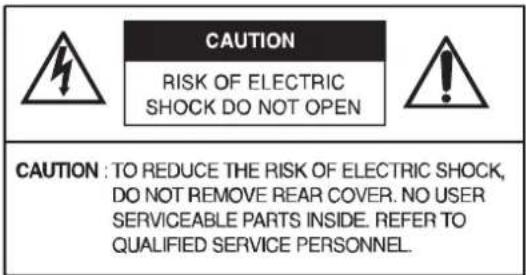
This symbol is intended to alert the user to the presence of uninsulated : dangerous voltage with in the product's enclosure that may be of sufficient magnitude to constitute a risk of electric shock to persons.

This symbol is intended to alert the user to the presence of important operating and maintenance(servicing) instructions in the literature accompanying the appliance.
CAUTIONS
CAUTION
The power supply cord is used as the main disconnect device, ensure that the socket-outlet is located/installed near the equipment and is easily accessible.
ATTENTION
POWER SUPPLY CORD IS USED AS MAIN POWER DISCONNECT DEVICE IN THIS PRODUCT. UNPLUG THIS PRODUCT FROM THE WALL OUTLET BEFORE REMOVING THE BACK COVER AND SERVICING
EMISSION CHARACTERISTICS TESTED BY SEMKO
THIS PRODUCT HAS BEEN TESTED AND HAS SHOWN COMPLIANCE WITH THE NATIONAL SPECIFICATIONS SUCH AS SWEDISH MPR 1990.10.(MPR II)
▶ NEVER REMOVE THE BACK COVER
Removal of the back cover should be carried out only by qualified personnel.
▶ DO NOT USE IN HOSTILE ENVIRONMENTS
To prevent shock or fire hazard, do not expose the unit to rain or moisture.
This unit is designed to be used in the office or home. Do not subject the unit to vibrations, dust of corrosive gases.
▶ KEEP IN A WELL VENTILATED PLACE
Ventilation holes are provided on the cabinet to prevent the temperature from rising.
Do not cover the unit or place anything on the top of unit.
▶ AVOID HEAT
Avoid placing the unit in direct sunshine or near a heating appliance.
▶ TO ELIMINATE EYE FATIGUE
Do not use the unit against a bright back ground and where sunlight or other light sources will shine directly on the monitor.
▶ BE CAREFUL OF HEAVY OBJECT
Neither the monitor itself nor any other heavy object should rest on the power cord.
Damage to a power cord can cause fire or electrical shock.
FCC RF
INTERFERENCE STATEMENT
NOTE
This equipment has been tested and found to comply with the limits for a Class A digital device, pursuant to Part 15 of the FCC Rules. These limits are designed to provide reasonable protection against harmful interference in a residential installation.
This equipment generates, uses and can radiate radio frequency energy and, if not installed and used in accordance with the instructions, may cause harmful interference to radio communications. However, there is no guarantee that interference will not occur in a particular installation.
If this equipment does cause harmful interference to radio or television reception which can be determined by turning the equipment off and on, the user is encouraged to try to correct the interference by one or more of the following measures.
- Reorient or relocate the receiving antenna.
- Increase the separation between the equipment and receiver.
- Consult the dealer or an experienced radio, TV technician for help.
- Only shielded interface cable should be used.
- Connect the equipment into an outlet on a circuit different from that to which the receiver is connected.
Finally, any changes or modifications to the equipment by the user not expressly approved by the grantee or manufacturer could void the users authority to operate such equipment.
▶ DOC COMPLIANCE NOTICE
This digital apparatus does not exceed the Class A limits for radio noise emissions from digital apparatus set out in the radio interference regulation of Canadian Department of communications.
CONNECTING WITH EXTERNAL EQUIPMENT
A. BOTTOM PANEL CONTROL

- PC STEREO IN
- S-VIDEO (Y/C) OUT
Y/C separated signal looping output
- S-VIDEO (Y/C) IN
Y/C separated signal input
- AUDIO L
Stereo Audio Signal Input, This input is for AV2
- AUDIO R
Stereo Audio Signal Input, This input is for AV1,S-VIDEO
- VIDEO 2(AV2) OUT
Video looping output for AV2
- VIDEO 2(AV2) IN
Composite signal Input for AV2
- VIDEO 1(AV1) OUT
Video looping output for AV1
- VIDEO 1(AV1) IN
Composite signal Input for AV1
- D-SUB IN
PC Signal Input
- DC 12V IN
REMOTE FUNCTIONS
B. REMOTE CONTROLLER(Optional)
1. POWER(∅)
Turns the power ON or OFF.
There will be a few seconds delay before the display appears.
2. SOURCE
Selects an input source.
3. APC (Auto Picture Control)
Selects a picture mode.
4. ACC (Auto Color Control)
Selects a color mode.
5. AV1
Select AV1 mode
6. AV2
Select AV2 mode
7. S-VIDEO
Select S-VODEO mode
8. PC
Select PC mode
9. AUTO
Auto geometry adjustment in PC Source.
10. MUTE
Mutes the sound.
11. MENU
Activates and exits the On Screen Display.
12. EXIT
Exits the On Screen Display.
13. VOL(◀ & ▶)
Increases or decreases the level of audio volume.
14. UP & DOWN
Moves upwards or downwards in OSD menu.
15. ENTER
Enters an OSD submenu or accepts your selection
16. INFO
Displays the information about input source.
17. STILL
Pauses the picture.

CONTROLS AND FUNCTIONS
C. FRONT & BOTTOM KEY CONTROL

1, 2. ◀ VOL ▶
Adjust menu settings. / Adjust the volume
3, 4. ▼ ▲
This button allows user to enter the sub-menu of the activated function when down key is pressed on the main menu.
5. SOURCE / SELECT
Select input source, and move the previous menu.
6. MENU / EXIT
Activates and exits the On Screen Display.
This button can also be used to move previous menu or status.
OSD MENU (MAIN) : Input Source, Screen, Audio, OSD, Color, Utility, Exit.
7. POWER ON/OFF( ⏻ / I)
Turns the power ON or OFF. There will be a few seconds delay before the display appears.
8. IR Sensor
Remote controller sensor.
9. POWER LED
The power LED(next to the power switch) lights with green when the power is turned ON. The power is turned off by pressing the power switch again and the power LED goes Red.
CONTROLS AND FUNCTIONS
OSD MENU DESCRIPTION
All picture, sound settings and setup for the monitor can be adjusted in the OSD menu.
(On Screen Display)
To adjust the OSD screen:
- Press the Menu button to enter the OSD menu.
- Press the ▲/▼ buttons to select the desired option. The selected option is highlighted.
- Press the ▶ button to enter the submenu for adjusting items.
- Change the value you wish to adjust by using the ▲/▼ buttons.
- Press the ◀ button to exit the submenu for adjusting items.
- Press the Menu button to exit the OSD menu.
A. Custom

| Option | Function | Value |
| Brightness | Adjusts brightness of the screen. | 0 ~ 100. |
| Contrast | Adjusts intensity of the image. | 0 ~ 100. |
| Color ^1) | Adjusts color of the picture. | 0 ~ 100. |
| Tint ^2) | Adjusts tint of the picture. | 0 ~ 100. |
| Sharpness ^1) | Adjusts sharpness of the picture. | 0 ~ 100. |
1) Unavailable in PC input.
2) Unavailable in PAL system.
CONTROLS AND FUNCTIONS
B. Picture/Sound
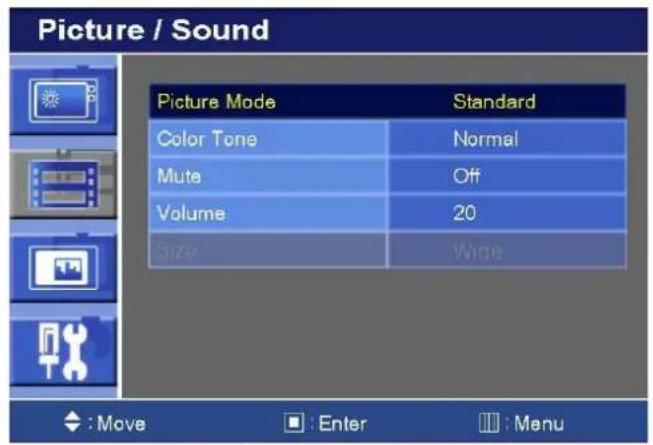
< AV1, AV2 & S-Video >
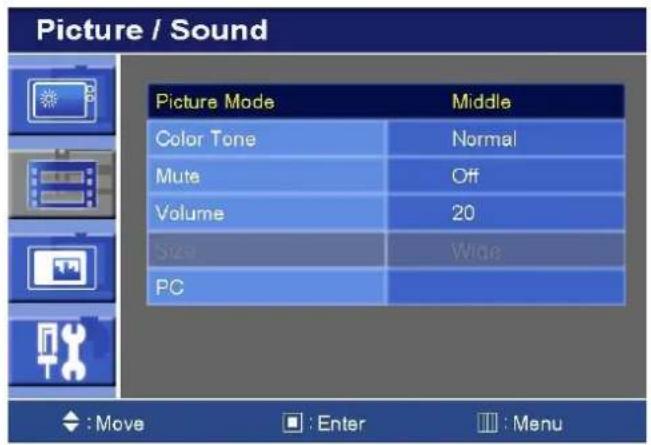
| Option | Function | Value |
| Picture Mode | Sets picture mode. | See table below. |
| Color Tone | Sets color tone. | See table below. |
| Mute | Mutes speaker sound. | Off or On. |
| Volume | Adjust the level of audio volume. | 0 ~ 100. |
| Size | Inactivated. | |
| PC^1) | See table below. | |
1) Unavailable in AV 1, AV2 & S-Video inputs.
Picture Mode (In AV1, AV2 & S-Video inputs)
| Custom | Applies user selected values (Brightness, Contrast, Tint and Sharpness). |
| Dynamic | Provides enhanced contrast and sharpness. |
| Standard | Provides standard contrast and sharpness. |
| Movie | Is recommended for viewing film-based content. |
| Mild | Reduces contras and sharpness. |
Picture Mode (In PC input)
| Custom | Applies user selected values (Brightness and Contrast). |
| High | Increases the contrast of picture. |
| Middle | Provides standard brightness and contrast. |
| Low | Decreases the brightness and contrast of picture. |
CONTROLS AND FUNCTIONS
Color Tone
| Custom^1) | To manually adjust the color tones(Red, Green and Blue). |
| Cool | Gives the white color a bluish tint. |
| Normal | Gives the white color a neutral tint. |
| Warm | Gives the white color a reddish tint. |
1) Unavailable in AV1, AV2 & S-Video.
PC
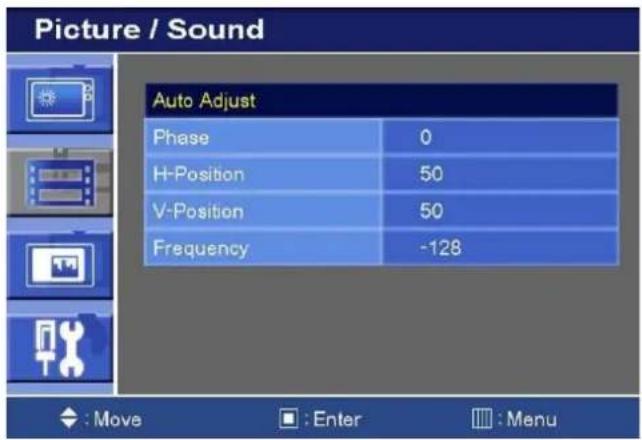
| Option | Function | Value |
| Auto Adjust | Auto geometry adjustment. | |
| Phase | Adjusts the number of horizontal picture elements. | 0 ~ 100. |
| H-Position | Adjusts the horizontally picture position. | 0 ~ 100. |
| V-Position | Adjusts the vertically picture position. | 0 ~ 100. |
| Frequency | Adjusts the vertical noise of screen image. | 0 ~ 100. |
CONTROLS AND FUNCTIONS
C. Setup

| Option | Function | Value |
| Reset | Resets the monitor settings to their factory default. | |
| Language | Sets the language of the OSD menu. | English, French, Deutsch, Italian, Spanish, Portuguese or Nederland. |
| OSD Tone | Changes background of monitor menus (e.g. input source & information). | Transparency or Blue. |
| Blue Screen | Displays a blue screen if the monitor receives no signal. | Off or On. |
| Key Lock ^1) | Locks all buttons of the monitor.Note: Use remote controller to unlock. | Off or On. |
1) How to unlock
① On the front key: Press the SOURCE/SELECT and MENU button at the same time over 3 seconds.
② On the Remote Controller: The Remote Controller operates well because the Key Lock function is only allowed for the front key of this product.
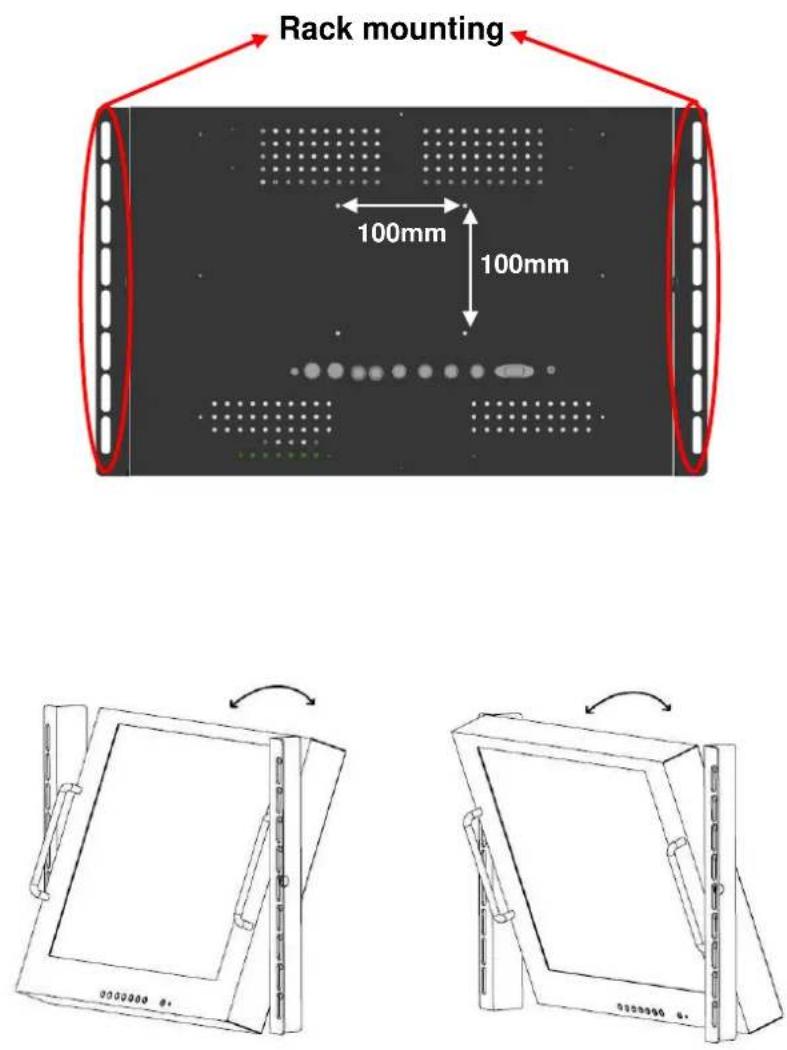
MOUNTING GUIDE
Wall mountable using two methods:
1) Using the both sides pre-cut holes to rack mounting.
2) Using the VESA standard wall mount design and the 100mm holes pattern on the back panel to install the LCD monitor to the wall.
D-SUB CONNECTOR
PIN ASSIGNMENTS
▶ PIN ASSIGNMENTS
- POWER CORD
- USER'S MANUAL
- PC cable
- Adaptor
- Remote Control
- Batteries
- Wall mount (Option)
- Rack mount (Option)
POWER MANAGEMENT
POWER CONSUMPTION
| Mode | 17” | 19” |
| On | < 36W | < 42W |
| Standby | < 1W | |
| Suspend | < 1W | |
| Active Off | < 1W | |
LED INDICATOR
The power management feature of the monitor is comprised of four stages:
On(Green), Standby, Suspend, Active off(Red on/off 1 sec) and Unsupported mode(Green).
| MODE | LED COLOR | MONITOR OPERATION |
| ON | GREEN | Normal Operation |
| STANDBY | AMBER | Screen blanks after preset idle timeAnd some electronic circuits or allCircuitry in the monitor shut down. |
| SUSPEND | ||
| ACTIVE OFF | ||
| UNSUPPORTED MODE | GREEN | Normal operation but the on screenDisplay will show error massage |
| POWER OFF | RED | Not Operation |
SPECIFICATIONS
| 15" | ||
| LCD-Type | 17" Diagonal AM-TFT(Active-Matrix) | 19" Diagonal AM-TFT(Active-Matrix) |
| Pixel pitch (mm): 0.264(H) x 0.264(V) | Pixel pitch (mm): 0.294(H) x 0.294(V) | |
| BRIGHTNESS: 250cd/m' (Typical) | BRIGHTNESS: 250cd/m' (Typical) | |
| CONTRAST RATIO: 1000:1(Typical) | CONTRAST RATIO: 800:1(Typical) | |
| RESPONSE TIME: 5ms(Typical) | RESPONSE TIME: 5ms(Typical) | |
| RESOLUTION (H x V) | 1280x1024@60Hz | |
| FREQUENCY | HORIZONTAL: 31~53kHzVERTICAL: 56~75Hz | |
| INPUT SIGNAL | VGA(RGB-PC) | |
| VIDEO (2ch input 1.0Vp-p, 75Ω terminated, loop-through out) | ||
| S-VIDEO(1ch input (Y/C), loop-through out) | ||
| AV(composite) Sound in | ||
| PC Stereo Sound | ||
| ACTIVE DISPLAY AREA(W x H) | 337.9mm x 270.3mm | 376.32mm x 301mm |
| PACKING DIMENSIONS(W x H x D) | 535mm x 480mm x 175mm | 535mm x 480mm x 175mm |
| WEIGHT | Net Weight : 6.0kg | Net Weight : 6.4kg |
| Gross Weight : 7.6kg | Gross Weight : 7.4kg | |
| ELECTRICAL RATINGS | DC 12V / 3A | DC 12V / 3.5A |
▶▶ NOTE :
Technical specifications are subject to change without notice.
TROUBLESHOOTING GUIDE
| TROUBLE | TROUBLESHOOTING TIP |
| No image on display screen | 1. Check that power cord of the Monitor have been connected securely into wall outlet or grounded extension cable or strip.2. Power switch should be in the ON position and LED is lt.3. Check that the Brightness and/or the Contrast adjustments of the Display have not been turned down to minimum levels. |
| "Going to Sleep" message on screen | 1. The signal cable should be completely connected to the video card/computer.2. The video card should be completely seated in its slot and the computer is switched ON. |
| Display image is not centered, too small or too large in PC mode | Push the down key in front side or Auto key in remote controller. |
| Vertical or Horizontal noise is present in the picture | Adjust Clock and Phase in the OSD. |
WEEE Symbols
Correct Disposal of This Product (Waste Electrical & Electronic Equipment)
(Applicable in the European Union and other European countries with separate collection systems)
This marking shown on the product or its literature, indicates that it should not be disposed with other household wastes at the end of its working life. To prevent possible harm to the environment or human health from uncontrolled waste disposal, please separate this from other types of wastes and recycle it responsibly to promote the sustainable reuse of material resources. Household users should contact either the retailer where they purchased this product, or their local government office, for details of where and how they can take this item for environmentally safe recycling. Business users should contact their supplier and check the terms and conditions of the purchase contract. This product should not be mixed with other commercial wastes for disposal.
MEMO
MEMO
MEMO


- CONTENTS
- SAFETY INSTRUCTION
- Important Safety Instruction
- CAUTIONS
- CAUTION
- ATTENTION
- EMISSION CHARACTERISTICS TESTED BY SEMKO
- ▶ NEVER REMOVE THE BACK COVER
- ▶ DO NOT USE IN HOSTILE ENVIRONMENTS
- ▶ KEEP IN A WELL VENTILATED PLACE
- ▶ AVOID HEAT
- ▶ TO ELIMINATE EYE FATIGUE
- ▶ BE CAREFUL OF HEAVY OBJECT
- FCC RF
- INTERFERENCE STATEMENT
- NOTE
- ▶ DOC COMPLIANCE NOTICE
- CONNECTING WITH EXTERNAL EQUIPMENT
- REMOTE FUNCTIONS
- REMOTE CONTROLLER(Optional)
- POWER(∅)
- SOURCE
- APC (Auto Picture Control)
- ACC (Auto Color Control)
- AV1
- AV2
- S-VIDEO
- PC
- AUTO
- MUTE
- MENU
- EXIT
- VOL(◀ & ▶)
- UP & DOWN
- ENTER
- INFO
- STILL
- CONTROLS AND FUNCTIONS
- FRONT & BOTTOM KEY CONTROL
- 1, 2. ◀ VOL ▶
- 3, 4. ▼ ▲
- SOURCE / SELECT
- MENU / EXIT
- POWER ON/OFF( ⏻ / I)
- IR Sensor
- POWER LED
- OSD MENU DESCRIPTION
- Custom
- 1) How to unlock
- MOUNTING GUIDE
- Wall mountable using two methods:
- D-SUB CONNECTOR
- PIN ASSIGNMENTS
- POWER MANAGEMENT
- LED INDICATOR
- SPECIFICATIONS
- ▶▶ NOTE :
- TROUBLESHOOTING GUIDE
- WEEE Symbols
- Correct Disposal of This Product (Waste Electrical & Electronic Equipment)
- MEMO
Brand : ViewZ
Model : VZ-19RCR
Category : Surveillance