E443709 - Workstation ELO - Free user manual and instructions
Find the device manual for free E443709 ELO in PDF.


User questions about E443709 ELO
0 question about this device. Answer the ones you know or ask your own.
Ask a new question about this device
Download the instructions for your Workstation in PDF format for free! Find your manual E443709 - ELO and take your electronic device back in hand. On this page are published all the documents necessary for the use of your device. E443709 by ELO.
USER MANUAL E443709 ELO
C-Series Touchcomputer for Healthcare Applications User Guide
C-Series LCD Multi-function Touchcomputer
[19" model shown]
TE Touch Solutions
C-Series Touchcomputer for Healthcare Applications User Guide
Multi-function Touchcomputer
Revision A
SW601689
1-800-ELOTOUCH (1-800-356-8682)
www.elotouch.com
Copyright © 2011 Tyco Electronics Corporation, a TE Connectivity Ltd. Company. All Rights Reserved.
No part of this publication may be reproduced, transmitted, transcribed, stored in a retrieval system, or translated into any language or computer language, in any form or by any means, including, but not limited to, electronic, magnetic, optical, chemical, manual, or otherwise without prior written permission of Tyco Electronics Corporation.
Disclaimer
The information in this document is subject to change without notice. Tyco Electronics Corporation and its Affiliates in the TE Touch Solutions business unit in the TE Connectivity Ltd. family of companies (collectively "TE") makes no representations or warranties with respect to the contents herein, and specifically disclaims any implied warranties of merchantability or fitness for a particular purpose. TE reserves the right to revise this publication and to make changes from time to time in the content hereof without obligation of TE to notify any person of such revisions or changes.
Trademark Acknowledgments
AccuTouch, Elo TouchSystems, Elo TouchSystems (logo), Elo, IntelliTouch, iTouch, TE Connectivity, TE connectivity (logo) and TE (logo) are trademarks. Windows is a trademark of Microsoft Corporation. Other product names mentioned herein may be trademarks or registered trademarks of their respective companies. TE claims no interest in trademarks other than its own.
Warnings and Cautions

Warning
- Danger - Explosion hazard. Do not use in the presence of flammable anesthetics and other flammable materials.
- To prevent fire or shock hazards, do not immerse the unit in water or expose it to rain or moisture.
- Do not use the unit with an extension cord receptacle or other outlets unless the prongs of the power cord can be fully inserted.
- RISK OF ELECTRICAL SHOCK - DO NOT OPEN. To reduce the risk of electrical shock, DO NOT remove the back of the equipment or open the enclosure. No user-serviceable parts are inside. Refer servicing to qualified field service engineers only.
- Uninsulated voltage within the unit may have sufficient magnitude to cause electrical shock.
Avoid contact with any part inside the unit.
- This device complies with the electromagnetic emission and immunity standards and is limited to the standards that are listed on pages 41 and 45. Other devices which are not designed to withstand emission levels as specified in the medical device standards may be susceptible to interference from this device. Subjecting the device to conditions beyond the rated performance capabilities may result in emissions in excess of the standard. If it is determined that this device produces electromagnetic or other interference it must be disconnected from power until the cause of the problem has been determined and resolved. If it is determined that this device is functioning improperly due to electromagnetic and other interference it must be disconnected from power until the cause of the problem has been determined and resolved.
- TE Touch Solutions recommends that after its useful life (or after sustaining unrepairable damage), customers dispose of the touchcomputer and its power supply in an environmentally sound manner. Acceptable methods include the reuse of parts or whole products and the recycling of products, components, and materials. Please consult and obey national state, and local laws and ordinances governing the safe disposal of electronic equipment.
Note that the fluorescent lamps inside this product contain mercury and must be recycled or disposed of according to local, state, or national laws. For more information, contact the Electronic Industries Alliance at www.eiae.org.
This product consists of devices that may contain mercury, which must be recycled or disposed of in accordance with local, state, or federal laws. (Within this system, the backlight lamps in the touchcomputer display contain mercury.)
- Power cord is used as a disconnection device. To de-energize equipment, disconnect the power cord.
- This unit must follow the national requirement and local state laws to dispose unit.
■ Before connecting the cables to your Elo touchcomputer, make sure all components are powered OFF.
- Only approved components complying with IEC60601-1 series can be connected to 19CX/22CX Touchcomputer for Healthcare Applications in Patient Environment. The use of ACCESSORY equipment not complying with the equivalent safety requirements of this equipment may lead to a reduced safety of the resulting system. Consideration relating to the choices of accessory equipment should include: Use of accessory in the patient environment. Evidence that the safety certification of the accessory has been performed in accordance to the appropriate IEC 60601-1 and/or IEC 60601-1-1 har monized national standard.
- For continued safety
- This unit only complies to the above standards if used with a medical grade power cord.
- A medical grade power supply, such as the one specified, is required for use in a medical application.
- Please do not touch the patient and the touchcomputer output connector at the same time.

Note:
- This symbol alerts the user to important information concerning the operation and maintenance of this unit, which should be read carefully to avoid problems.
• This symbol means DC Current.

- This symbol means ON/OFF stand-by switch.
Medical and Healthcare Application Disclaimer:
It is the sole responsibility of any person intending to commercialize, market or use any of TE Connectivity Ltd. or its family of companies ("TE") products for medical or healthcare applications to ensure that such product is adequate and appropriate for the person's intended use and complies with all applicable laws, regulations, codes and standards including but not limited to the European Union Medical Device Directive, United States Federal Food, Drug, and Cosmetic Act, regulations of the United States Food and Drug Administration (FDA), and for obtaining and maintaining any required regulatory approvals including but not limited to any required market clearances. TE has not sought nor received any rulings from the FDA or any other federal, state, or local government agency or notified body as to the safety, effectiveness or appropriateness of its product for such applications. Persons intending to evaluate or use TE's product for medical or healthcare purposes must rely on their own medical and legal judgment without any representation on the part of TE.

UL 63801-1 CANCSA CZ22 No.601.1
E342290 3ZT7
With respect to electrical shock, fire in accordance with UL60601-1 and CAN/CSA C22.2 No.
601.1
This touchcomputer is a Class I (GROUNDED) DEVICE.
These touchcomputers are classified NO APPLIED
PARTS EQUIPMENT. Protection against harmful
ingress of water:
INGRESS PROTECTION (IPX1)
This touchcomputer shall be classified as ORDINARY EQUIPMENT, not intended or evaluated for use in the presence of flammable anesthetic mixture with air, oxygen, or nitrous oxide.
Mode of Operation: CONTINUOUS OPERATION.
Environmental conditions for transport and storage
Temp.
Operating
0^ C to 35^ C
Storage / Transportation
-30^ to 60^
Humidity (non-condensing)
Operating 20% to 80%
Storage / Transportation 5% to 95%
Altitude
Operating 0 to 3,000m
Storage / Transportation 0 to 12,192m
19CX/22CX Touchcomputer for Healthcare Applications is intended for general use in hospital environment for data collection and display for reference. It shall not be used with life-supporting system
For full Product Specifications refer to Appendix C
Standards: EN 60601-1-2: 2007
The EMC limits and test methods are referred to the following
standards: Emission: Immunity
CISPR11:2003+A1:2004 IEC61000-4-2:2008 ED.2.0
+A2: 2006 (Group I, Class A) IEC61000-4-3:2006+A1:2007ED.3.0
CISPR 22: 2005+A1: 2005, Class A IEC 61000-4-4: 2004+A1:2010 ED.2.0
AS/NZS CISPR 22: 2006, Class A IEC 61000-4-5: 2005 ED.2.0
IEC 61000-3-2: 2005 IEC 610004-6: 2008 ED.3.0
+A1: 2008+A2: 2009, Class D IEC 61000-4-8: 2009 ED.2.0
IEC 61000-3-3: 2008 IEC 61000-4-11: 2004 ED.2.0
Guidance and manufacturer's declaration-electromagnetic immunity for all EQUIPMENT AND SYSTEMS
| Guidance and manufacturer's declaration-electromagnetic emissions | ||
| The 19CX/22CX Touchcomputer for Healthcare Applications is intended for use in the electromagnetic environment specified below. The customer or the user of the 19CX/22CX Touchcomputer for Healthcare Applications should assure that it is used in such an environment. | ||
| Emissions test | Compliance | Electromagnetic environment-guidelines |
| RF emissionsCISPR 11 | Group 1 | The 19CX/22CX Touchcomputer for Healthcare Applications uses RF energy only for its internal function. Therefore, its RF emissions are very low and are not likely to cause any interference in nearby electronic equipment. |
| RF emissionsCISPR11 | Class A | The 19CX/22CX Touchcomputer for Healthcare Applications is suitable for use in all establishments other than domestic and those directly connected to a low voltage power supply network which supplies buildings used for domestic purposes. |
| Harmonics emissionsIEC 61000-3-2 | Class D | |
| Voltage fluctuations/flicker emissionsIEC 61000-3-3 | Complies | |
Guidance and manufacturer's declaration-electromagnetic immunity for all EQUIPMENT AND SYSTEMS
| Guidance and manufacturer's declaration-electromagnetic immunity | |||
| The 19CX/22CX Touchcomputer for Healthcare Applications is intended for use in the electromagnetic environment specified below. The customer, or the user of the 19CX/22CX Touchcomputer for Healthcare Applications, should assure that it is used in such an environment. | |||
| Immunity Test Level | IEC 60601 | Compliance Level | Electromagnetic Environment-Guidelines |
| Electrostatic Discharge (ESD) IEC 61000-4-2 | ± 6 kV contact ± 8 kV air | ± 6 kV contact ± 8 kV air | Floors should be wood, concrete or ceramic tile. If floors are covered with synthetic material, the relative humidity should be at least 30%. |
| Electrical Fast Transient/Burst IEC 61000-4-4 | ± 2 kV for power supply lines ± 1 kV for input/output | ± 2 kV for power supply lines ± 1 kV for input/output | Mains power quality should be that of a typical commercial or hospital environment. |
| Surge IEC 61000-4-5 | ± 1 kV line(s) to line(s) ± 2 kV line(s) to earth | ± 1 kV line(s) to line(s) ± 2 kV line(s) to earth | Mains power quality should be that of a typical commercial or hospital |
| Voltage Dips, Short Interruption and Voltage Variations on Power Supply Input Lines IEC 61000-4-11 | <5% UT (>95% dip in UT) for 0.5 cycle 40% UT (60% dip in UT) for 5 cycles 70% UT (30% dip in UT) for 25 cycles <5% UT (>95% dip in UT) | <5% UT (>95% dip in UT) for 0.5 cycle 40% UT (60% dip in UT) for 5 cycles 70% UT (30% dip in UT) for 25 cycles <5% UT (>95% dip in UT) | Mains power quality should be that of a typical commercial or hospital environment. If the user of the 19CX/22CX Touchcomputer for Healthcare Applications requires continued operation during power mains interruptions, It is recommended that the 19CX/22CX Touchcomputer for Healthcare Applications be powered from an uninterruptible power supply or a battery. |
| Power Frequency (50/60 Hz) Magnetic Field IEC 61000-4-8 | 3 A/m | 3 A/m | Power frequency magnetic fields should be at levels characteristic of a typical location in a typical commercial or hospital environment. |
| NOTE UT is the A.C. mains voltage prior to application of the test level. | |||
Guidance and manufacturer's declaration-electromagnetic immunity for all EQUIPMENT AND SYSTEMS that are not LIFE-SUPPORTING
| Guidance and manufacturer's declaration-electromagnetic immunity | |||
| The 19CX/22CX Touchcomputer for Healthcare Applications is intended for use in the electromagnetic environment specified below. The user of the 19CX/22CX Touchcomputer for Healthcare Applications should assure that it is used in such an | |||
| Immunity Test | IEC 60601 Test Level | Compliance Level | Electromagnetic Environment-Guidelines |
| Conducted RF | 3 Vrms | 3 Vrms | Portable and mobile RF communications equipment should be used no closer to any part of the 19CX/22CX Touchcomputer for Healthcare Applications and should assure that it is used in such an environment, including cables, than the recommended separation distance calculated from the equation applicable to the frequency of the transmitter. Recommended separation distance d=1.2 d=1.2 80MHz to 800 MHz d=2.3 800 MHz to 2.5GHzwhere P is the maximum output power rating of the transmitter in watts (W) according to the transmitter manufacturer and d is the recommended separation distance in metres(m)Field strengths from fixed RF transmitters, as determined by an electromagnetic site survey ^1 , should be less than the compliance level in each frequency range ^2 .Interference may occur in the vicinity of equipment marked with the following symbol: |
| Radiated RF | 3 V/m | ||
| IEC 61000-4-3 | 80 MHz to 2.5 GHz | 3 Vrms | |
| NOTE 1: At 80 MHz and 800 MHz, the higher frequency range applies.NOTE 2: These guidelines may not apply in all situations. Electromagnetic propagation is affected by absorption and reflection from structures, objects and people. | |||
- Field strengths from fixed transmitters, such as base stations for radio (cellular/cordless) telephones and land mobile radios, amateur radio, AM and FM radio broadcast and TV broadcast cannot be predicted theoretically with accuracy. To assess the electromagnetic environment due to fixed RF transmitters, an electromagnetic site survey should be considered. If the measured field strength in the location in which the 19CX/22CX Touchcomputer for Healthcare Applications is used exceeds the applicable RF compliance level above, the 19CX/22CX Touchcomputer for Healthcare Applications should be observed to verify normal operation. If abnormal performance is observed, additional measures may be necessary, such as reorienting or relocating the 19CX/22CX Touchcomputer for Healthcare Applications.
| Recommended separation distances between portable and mobile RF communications equipment and the 19CX/22CX Touchcomputer for Healthcare Applications for all EQUIPMENT AND SYSTEMS that are not LIFE-SUPPORTING | |||
| The 19CX/22CX Touchcomputer for Healthcare Applications is intended for use in an electromagnetic environment in which radiated RF disturbances are controlled. The customer or the user of the 19CX/22CX Touchcomputer for Healthcare Applications can help prevent electromagnetic interference by maintaining a minimum distance between portable and mobile RF communications (equipment) and the 19CX/22CX Touchcomputer for Healthcare Applications as recommended below according to the maximum output power of the communications equipment. | |||
| Rated Maximum Output Power of Transmitter(W) | Separation Distance According to Frequency of Transmitter | ||
| 150 kHz to 80 MHz d=1.2 | 80MHz to 800 MHz d=1.2 | 800 MHz to 2.5 GHz d=2.3 | |
| 0.01 | 0.12 | 0.12 | 0.23 |
| 0.1 | 0.37 | 0.37 | 0.74 |
| 1 | 1.2 | 1.2 | 2.3 |
| 1 | 3 | . | 3 |
| 100 | 12 | 12 | 23 |
| For transmitters rated at a maximum output power not listed above, the recommended separation distanced in metres (m) can be estimated using the equation applicable to the frequency of the transmitter, where P is the maximum output power rating of the transmitter in watts (W) according to the transmitter manufacturer.NOTE 1: At 80 MHz and 800 MHz, the separation distance for the higher frequency range applies.NOTE 2: These guidelines may not apply in all situations. Electromagnetic propagation is affected by absorption and reflection from structures, objects and people. | |||
Table of Contents
Chapter 1: Setup....1
Unpacking Your Touchcomputer ....1
Adjusting the Display 2
Setting Up the Operating System 2
Calibrating the Touchscreen....7
Securing the Base....9
Chapter 2: Operation....10
On-Screen Display (OSD)....11
L.E.D. Functionality....13
Using the Input/Output Panel....14
Chapter 3: Options and Upgrades ...... 15
Adding Optional Peripherals .... 15
Magnetic Stripe Reader (MSR)....16
Customer Display....18
Fingerprint Reader (FPR) 19
Cash Drawer Port Card....20
Second VGA Port Card....21
Wireless Card 21
Second Hard Disk Drive....22
Solid State Drive 22
Modem Card 22
Parallel Port Card....23
RAID Controller Card....23
Webcam Kit....23
Elo POS Demo Software 24
Chapter 4: Safety and Maintenance....25
Safety....25
Care and Handling....26
Recovering the Operating System 27
Chapter 5: Technical Support....37
Technical Assistance 37
C-Series Touchcomputer for Healthcare Applications xiv
Regulatory Information....38
Warranty 41
Index......43
1
SETUP
This chapter discusses how to set up and test your touchcomputer. For information on peripheral options, refer to Chapter 3, "Options and Upgrades."
Unpacking Your Touchcomputer
Check that the following items are present and in good condition:

natural_image
Computer monitor displaying a blue background with a white logo (no readable text or symbols)Touchcomputer
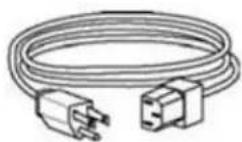
Power cable US/Canada
← AND →
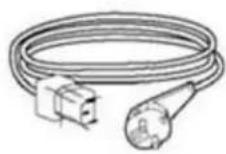
Power cable Europe
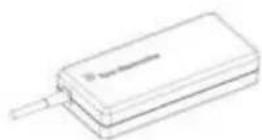
12VDC Medical Grade Power Supply Brick

Quick Install Guide
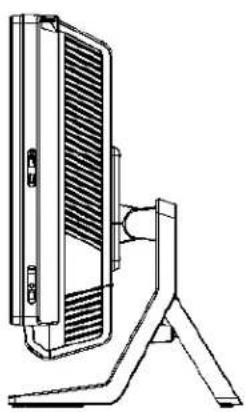
The display screen can be adjusted from 0 to 70 degrees, as shown below.
natural_image
Technical line drawing of a flat-screen TV or audio device with a stand (no text or symbols)0°

natural_image
Technical line drawing of a flat-screen display unit with 70-degree angle annotation (no text or symbols on the diagram itself)70°
CAUTION: To prevent tipping or dropping, be sure to hold the base when adjusting the display.
Setting Up the Operating System
If configured with an operating system, the initial setup of the operating system takes approximately 5-10 minutes. Additional time may be needed depending on touchcomputer hardware configurations and connected devices.
To set up the Microsoft Windows Operating System for the touchcomputer, turn on the touchcomputer by pressing the power button, and then follow the instructions on the screen.
Injecting the Languages (For Windows 7 OS OS Only)
Windows 7 OS OS Professional only allows the use of one language at one time. But you can use the Elo TouchSystems language injection tool to update your language preference. English is set as the default language, but you can change this language to suit your preferences.
- After the TE logo shows up, press F8 (frequently) to enter Advanced Boot Options.
- Select Repair your computer.
- Click Next → OK (Shall not have password) → Click Elo Touch System Tool.
- The following UI shall be presented.
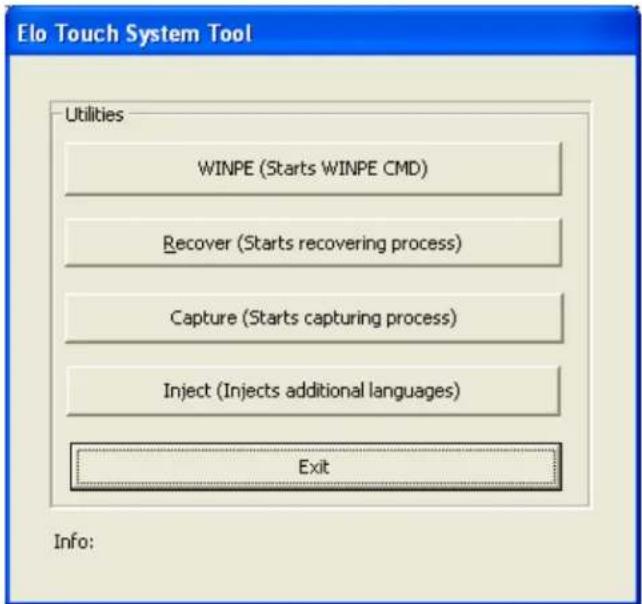
text_image
Elo Touch System Tool Utilities WINPE (Starts WINPE CMD) Recover (Starts recovering process) Capture (Starts capturing process) Inject (Injects additional languages) Exit Info:- Click Inject, and the following window will pop out.
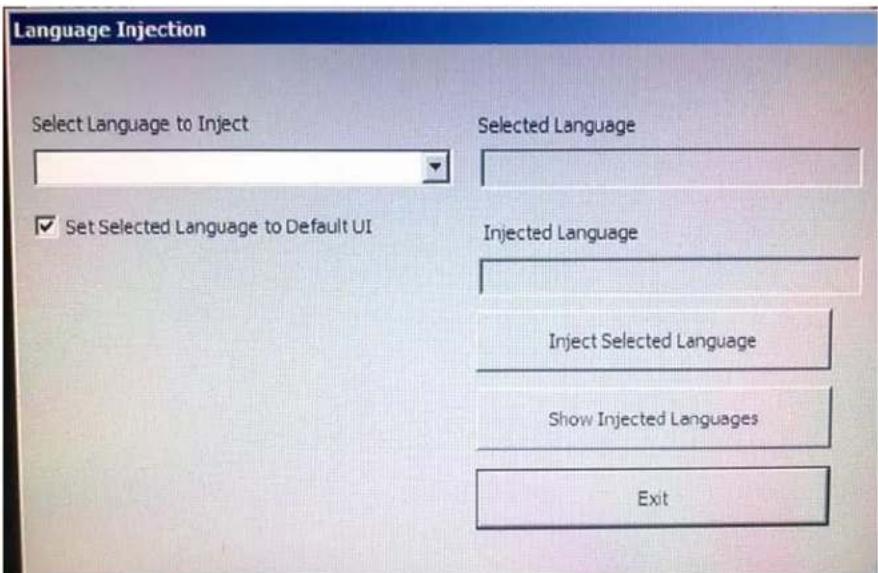
text_image
Language Injection Select Language to Inject Selected Language ✓ Set Selected Language to Default UI Injected Language Inject Selected Language Show Injected Languages Exit- Click the drop-down list and select the preference language.
- Click Inject Selected Language
- The following window shall be presented.
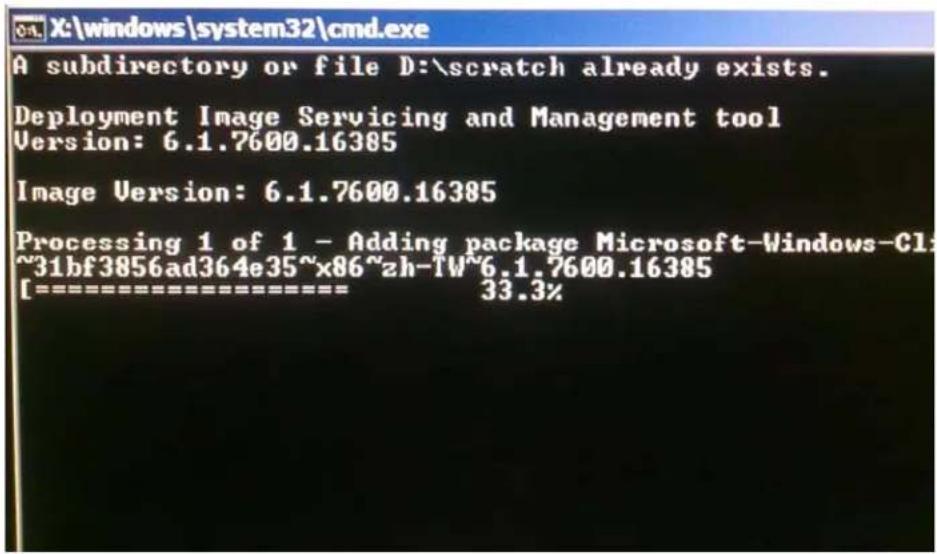
text_image
OAL X:\windows\system32\cmd.exe A subdirectory or file D:\scratch already exists. Deployment Image Servicing and Management tool Version: 6.1.7600.16385 Image Version: 6.1.7600.16385 Processing 1 of 1 - Adding package Microsoft-Windows-Cl ~31bf3856ad364e35~x86~zh-TW~6.1.7600.16385 [==================== 33.3%- After the language package is installed correctly, press any key to exit this window.
- Click Exit → Exit → Restart
Selecting the Region (For Windows 7 OS OS Only)
When the following window appears, you can change the country, time and currency, and keyboard layout of the touchcomputer.
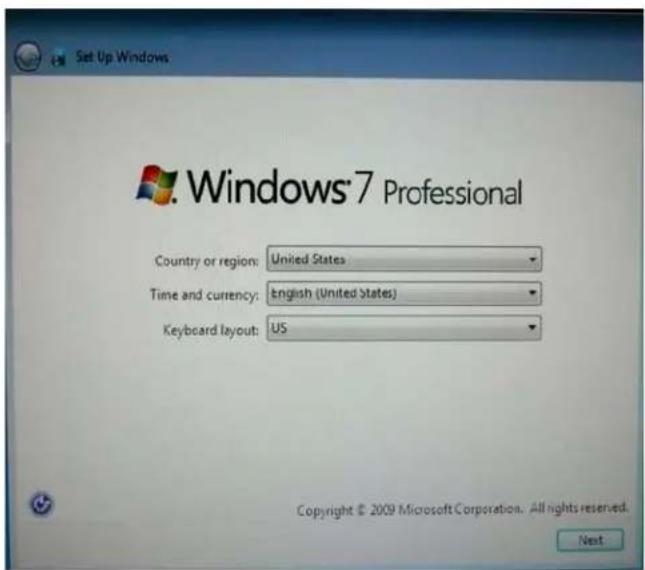
text_image
Set Up Windows Windows® 7 Professional Country or region: United States Time and currency: English (United States) Keyboard layout: US Copyright © 2009 Microsoft Corporation. All rights reserved. NextAfter making any changes, click Next to continue.
Choosing the Computer Name (For Windows 7 OS OS Only)
When the following window appears, you can choose a computer name of the touchcomputer.

text_image
Set Up Windows Windows® 7 Professional Choose a computer name to distinguish it on the network. Your user account is managed by your organization's system administrator. Type a computer name: PC Copyright © 2009 Microsoft Corporation. All rights reserved. NextAfter making any changes, click Next to continue.
Selecting the Update Options (For Windows 7 OS OS Only)
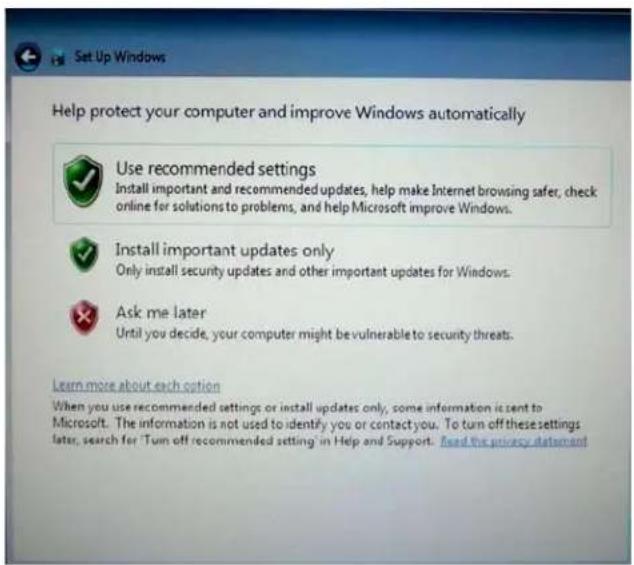
When the following window appears, you can select one of the update options of the touchcomputer. In general, you can choose Use recommended settings as your default option.
text_image
Set Up Windows Help protect your computer and improve Windows automatically Use recommended settings Install important and recommended updates, help make Internet browsing safer, check online for solutions to problems, and help Microsoft improve Windows. Install important updates only Only install security updates and other important updates for Windows. Ask me later Until you decide, your computer might be vulnerable to security threats. Learn more about each option When you use recommended settings or install updates only, some information is sent to Microsoft. The information is not used to identify you or contact you. To turn off these settings later, search for 'Turn off recommended setting' in Help and Support. Read the privacy statementAfter making any changes, click Next to continue.
Reviewing the Time and Date Settings (For Windows 7 OS Only)
When the following window appears, you can set up the time and date of the touchcomputer.

text_image
Set Up Windows Review your time and date settings Time zone: (UTC-08:00) Pacific Time(US & Canada) ✓ Automatically adjust clock for Daylight Saving Time Date: October, 2010 Su Mo Tu We Th Fr Sa 26 27 28 29 30 1 2 3 4 5 6 7 8 9 10 11 12 13 14 15 16 17 18 19 20 21 22 23 24 25 26 27 28 29 30 31 1 2 3 4 5 6 Time: 4:28:35 PM NextAfter making any changes, click Next to finish. Windows Setup completes the installation of the touchcomputer.
Calibrating the Touchscreen
The touchscreen is pre-calibrated for accurate touch response.
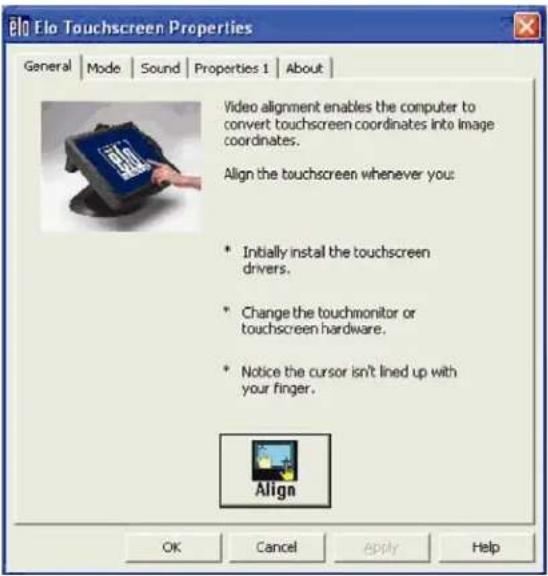
If for any reason the touchscreen needs to be recalibrated, right-click the Elo icon in the Taskbar and then click "Properties." The following window opens.
NOTE: Calibration is not applicable on APR touchscreen models.
text_image
Elo Touchscreen Properties General | Mode | Sound | Properties 1 | About | Video alignment enables the computer to convert touchscreen coordinates into image coordinates. Align the touchscreen whenever you: * Initially install the touchscreen drivers. * Change the touchscreen or touchscreen hardware. * Notice the cursor isn't lined up with your finger. Align OK Cancel Apply HelpClick the Align button. This launches the calibration program. The window shown below opens. Follow the instructions to calibrate the touchscreen.

text_image
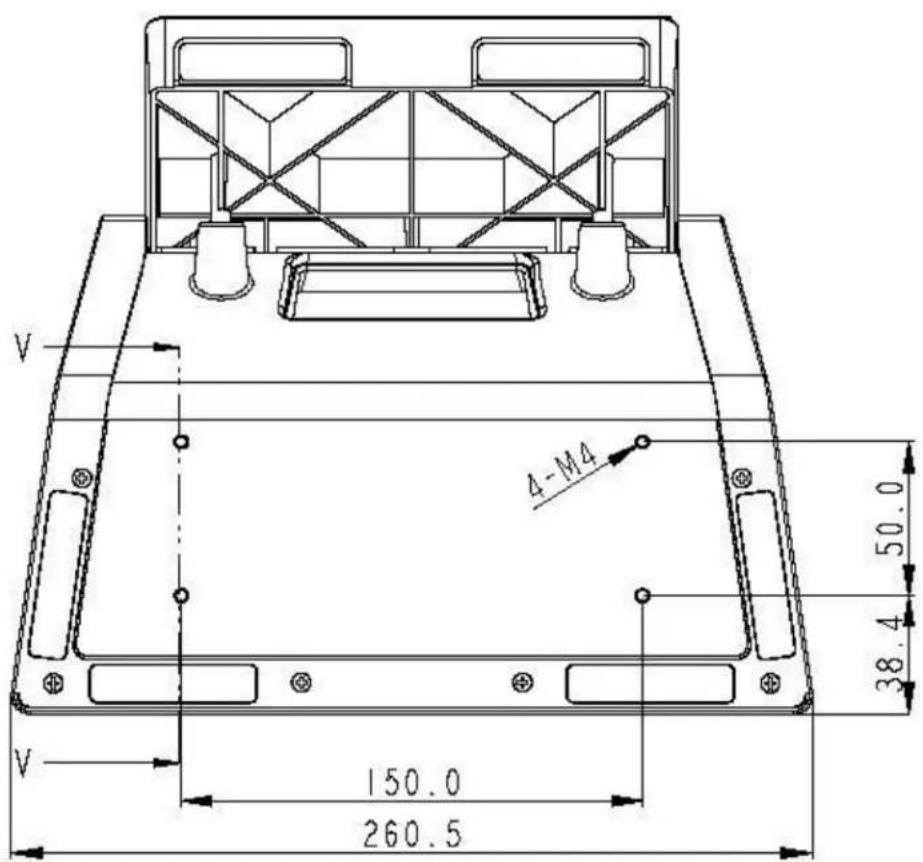
1 3 Touch the targets have a position of normal use. 4 2Use the four pretapped holes to secure the touchcomputer from below the mounting surface. The holes are designed to work with ISO metric M4 screws. Mounting screws are not included with the product but should be readily available at any hardware store. Refer to the figure below for the location of the holes. All dimensions are in millimeters.
Mounting Diagram
1)
text_image
V 4-M4 50.0 38.4 V 150.0 260.52
OPERATION
This chapter describes how to control the On-Screen Display (OSD), power buttons, and I/O panel.
All adjustments made to the OSD and power controls are automatically saved. User settings remain unchanged after powering off/on or in the case of a power failure.
text_image
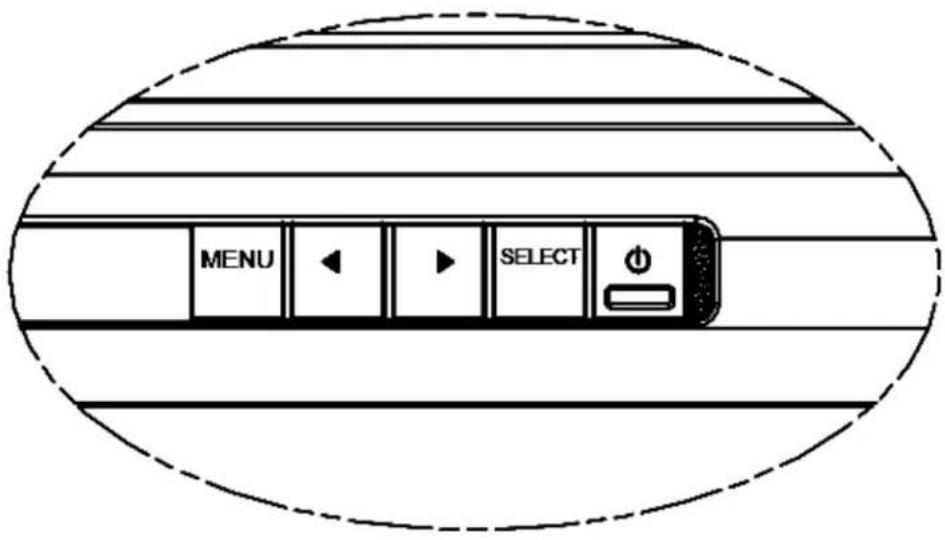
MENU SELECTOSD Menu
- To display the OSD Menu, press the Menu button.
Press the RIGHT button or LEFT button to toggle and the SELECT button to select from the different OSD sub-menus and functions.
- When the function you want to change is shown, press the SELECT button.
- To adjust the value of the function:
- Pressing the RIGHT button increases the value of the selected OSD control option.
- Pressing the LEFT button decreases the value of the selected OSD control option.
The OSD provides the following settings.
| Feature Description | |
| Auto adjust Automatically adjusts system clock. | |
| Brightness Adjust brightness and contrast.· Brightness: Adjusts the backlight of the monitor.· Contrast: Adjusts the maximum luminance level of the monitor. | |
| Image setting Adjusts H position, V position, clock, and phase.H position: Moves the screen horizontally right and left (1 pixel pitch increment).V position: Moves the screen vertically up and down (1 line increment).Clock: Adjusts the ratio of dividing frequency of the dot clock.Phase: Adjusts the phase of the dot clock. | |
| Color Sets color temperature (9300K, 7500K, 6500K, 5500K, or User Preset). | |
| OSD Adjusts H position, V position, and OSD timeout.H position: Adjusts the OSD menu screen position left or right.V position: Adjusts the OSD menu screen position up or down.Timeout: Adjusts the amount of time that the OSD menu is displayed. | |
| Language Changes language to English, French, Italian, German, Spanish, Japanese, Simplified Chinese, or Traditional Chinese. | |
| Recall Sets color recall and recall defaults. Restores original factory settings. | |
| Miscellaneous Adjusts sharpness, enables/disables DDC/CI function. | |
| Exit Exits the OSD. |
OSD and Power Button Control
The OSD menu and power button are enabled by default.
To enable or disable the OSD function:
- Simultaneously press Menu/Exit and the Left (<-) key for two seconds. A window appears displaying OSD ENABLE or OSD DISABLE.
- When the OSD is disabled, the OSD menu is not visible.
To enable or disable the power button (PWR) lock function:
-
Simultaneously press Menu/Exit and the Right (->) key for two seconds. A window appears displaying PWR ENABLE or PWR DISABLE.
-
When the power button lock feature is activated, the power button is disabled.
L.E.D. Functionality
The C-Series base has a LED indicating the state of the touchcomputer. The table below shows LED state and corresponding color.
| LED Color to Observer State | |
| Off No input power — Off mode | |
| Amber Input power present | - Off mode or hibernation |
| Amber/Green Input power present — Standby | |
| Green Input power present | — Power On |
To access the input/output (I/O) ports, remove the cable cover at the bottom of the unit. A security screw is included and may be used to secure the cable cover to the touchcomputer. Below are the I/O descriptions by model:
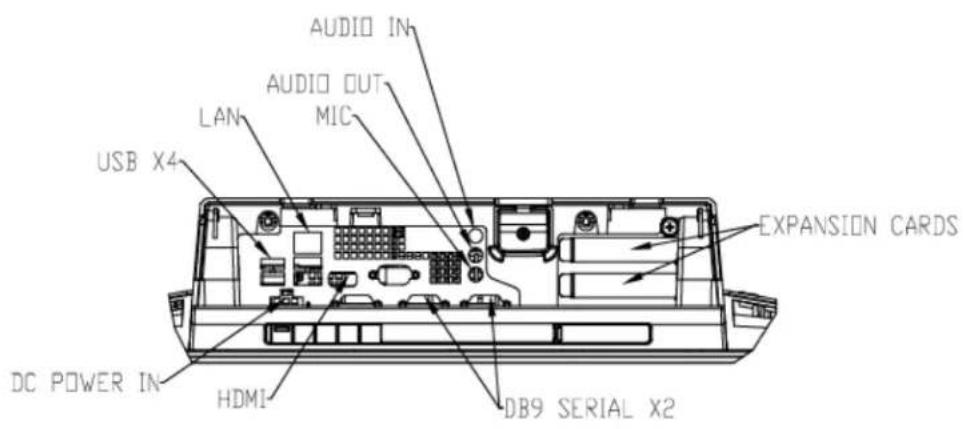
text_image
AUDIO IN AUDIO OUT MIC LAN USB X4 EXPANSION CARDS DC POWER IN HDMI DB9 SERIAL X2C3 models
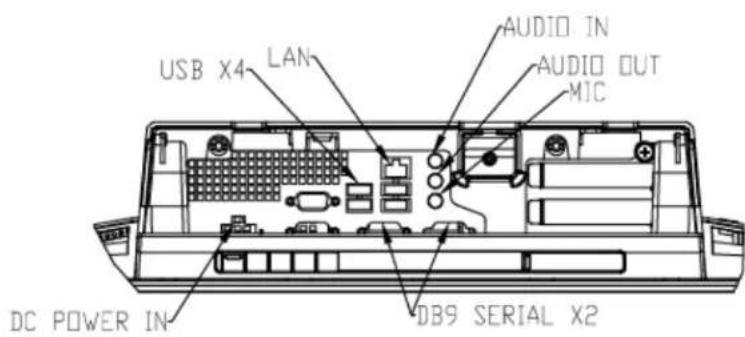
text_image
USB X4 LAN AUDIO IN AUDIO OUT MIC DC POWER IN DB9 SERIAL X2C2 models
Note: The DB9 Serial (COM) ports are defaulted (from left to right) COM3 and COM4
Note: As a safety precaution, always leave the cable cover door attached when the system is powered on.
Adding Optional Peripherals
When adding a peripheral, complete installation and setup instructions are provided with the field-installable kits. The following peripherals are available for purchase separately as field-installable kits:
• Magnetic stripe reader (MSR)*
- Customer display*
- Fingerprint reader (FPR)*
- Wireless adapter
• Cash Drawer Port Expansion Card
• Second VGA port expansion card**
• Second hard disk drive (HDD)
• Solid State Drive (SSD)
- RAID PCI-E***
- Modem PCI-E***
- Parallel Port PCI-E***
- Webcam Kit
* External Elo Peripheral ** Elo Expansion Card *** Elo PCI-E Expansion Card
Note: Software drivers and applications for all peripherals are located in the C:\EloTouchSystems directory of the touchcomputer.
Note: May install up to two (2) Elo Expansion Cards OR one (1) Elo Expansion Card + one (1) PCI-E Expansion Card
Note: Peripheral Kits may not meet Electrostatic Discharge (ESD) IEC 61000-4-2 for medical purposes (please consult specifications for each peripheral kit). All peripheral kits DO meet standard ITE ESD requirements.
Note: Peripherals may be available only in dark grey. Peripherals may be excluded from healthcare system certifications.
Magnetic Stripe Reader (MSR)
You can add a magnetic stripe reader (MSR) to the C-Series touchcomputer to any of the 4 mounting locations located on the display head top, bottom, left, and right. Software application and drivers can be found in the following directory or on www.elotouch.com
C:\EloTouchSystems\SetupFiles\Peripherals
The MSR is a USB 2.0 device that reads all three data stripes on standard credit cards or driver's licenses conforming to ISO/ANSI standards. The MSR has foreign language capability. The credit card is read by sliding the credit card forward or backward through the MSR, stripe side toward the display. The MSR is powered from the USB port; no external power is needed. The MSR features are:
- Reads up to 3 tracks of information
• Bi-directional swipe reading - Superior reading of high jitter, scratched, and worn MagStripe cards
- Reliable for over 1,000,000 card swipes
- Reads ISO7811, AAMVA, and most other card data formats
• PC software makes configuration changes easy - Swipe speeds from 3 to 60 inches per second
• Interfaces: USB-KB and USB-HID - Fully supports USB 2.0
• Part number: E545781
Testing the MSR
Testing in USB MSR Keyboard (KB) Emulation Mode
-
Open the Notepad application (click Start > Accessories > Notepad).
-
Slide the card through the MSR and verify that the data is displayed in the application window.
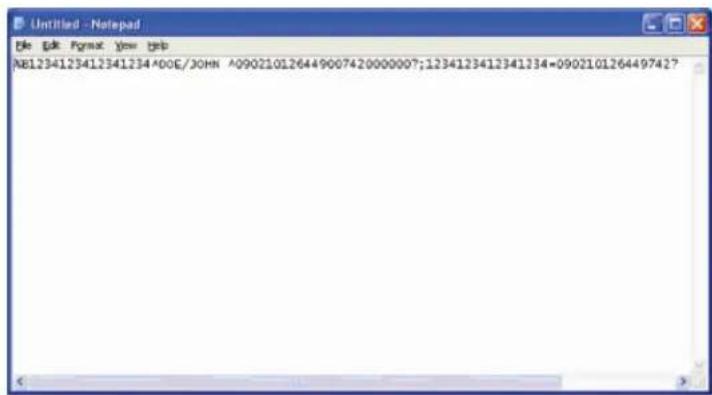
text_image
R81234123412341234*DOG/JOHN ^090210126449007420000007;1234123412341234=090210126449742?Testing in USB MSR Human Interface Device (HID) Mode
- Double-click the MagSwipe HID Demo icon to start the test application.
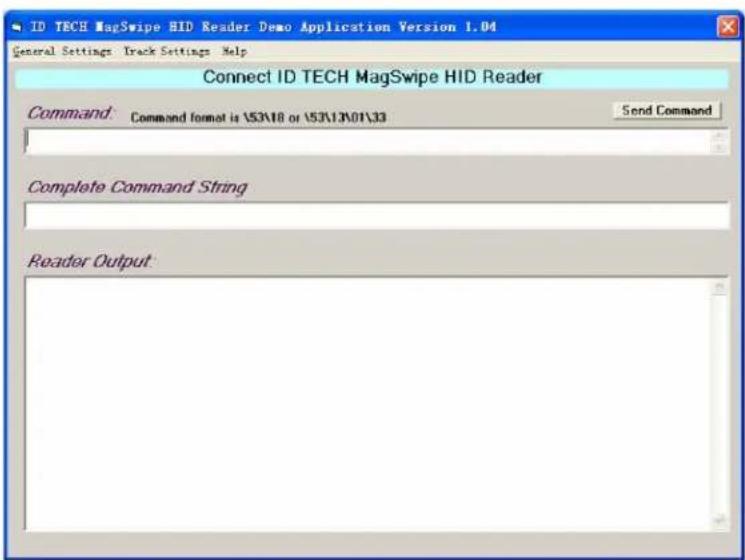
text_image
ID TECH MagSwipe HID Reader Demo Application Version 1.04 General Settings: Track Settings Help Connect ID TECH MagSwipe HID Reader Command: Command format is \53\18 or \53\13\01\33 Send Command Complete Command String Reader Output:- Slide a card through the MSR and verify that the data is displayed in the application window.

text_image
IDTECH MagSwipe HID Reader Reader Application Version 1.04 General Settings Track Settings Help IDTECH MagSwipe HID Reader IDTECH Format Command: Command format is \53\18 or \53\13\01\33 Send Command Complete Command String 102103101 Reader Output: Card Type is OTHER :4367422006630777817=37075207311020000?- If the card ID appears in the Reader Output window, the reader is functioning.
Customer Display
You can optionally add a customer display to the C-Series touchcomputer to any of the four mounting locations located on the display head top, bottom, left, and right of the touchcomputer. Software application and drivers can be found on www.elotouch.com
| Feature Description | |
| Display type Vacuum fluorescent display | |
| Display color Green | |
| Display pattern 5 x 7 dot matrix | |
| Brightness | 350-600 ^2 cd/m |
| Characters available 95 alphanumeric & 32 international characters | |
| Dot size (X x Y) 0.86 x 1.2 mm | |
| Font size 5.5(W) x 10.5(H) | |
| Character number 20 characters by 2 lines, for a 5 x 7 dot matrix font | |
| Interface | USB |
| Part number E879762 | |
You can add a fingerprint reader to the C-Series touchcomputer to any of the four mounting locations located on the display head top, bottom, left, and right. Software application and drivers can be found in the following directory or on www.elotouch.com
C:\EloTouchSystems\SetupFiles\Peripherals
The fingerprint reader is powered by the USB bus. The reader optically scans the fingerprint when the user touches the glowing window. Optical technology gives the highest quality fingerprint scans and reliability.
Fingerprint reader specifications are shown in the table below.
| Feature Specification | |
| Fingerprint reader DigitalPersona U.are.U | |
| Power supply 5.0VDC +/- 0.25V | |
| Current draw – scanning mode | 190 mA (typical) |
| Current draw – idle mode 140 mA (typical) | |
| Current draw – suspend mode | 1.5 mA (typical) |
| Image resolution 512 dpi | |
| Image color 8-bit gray level | |
| Scan capture size 14.6mm (nominal width) x 18.1mm (nominal length) | |
| Image capture speed 100 ms | |
| USB type 1.0, 1.1, or 2.0 | |
| Operating temperature 0 to 40°C | |
| Electrostatic discharge (ESD) Up to 15kV mounted in case | |
| Part number E375206 | |
Testing the FPR
-
Double-click the Fingerprint Reader Test icon to start the test application.
-
Place your finger on the fingerprint reader sensor and verify that the image of your fingerprint is displayed on the application window.
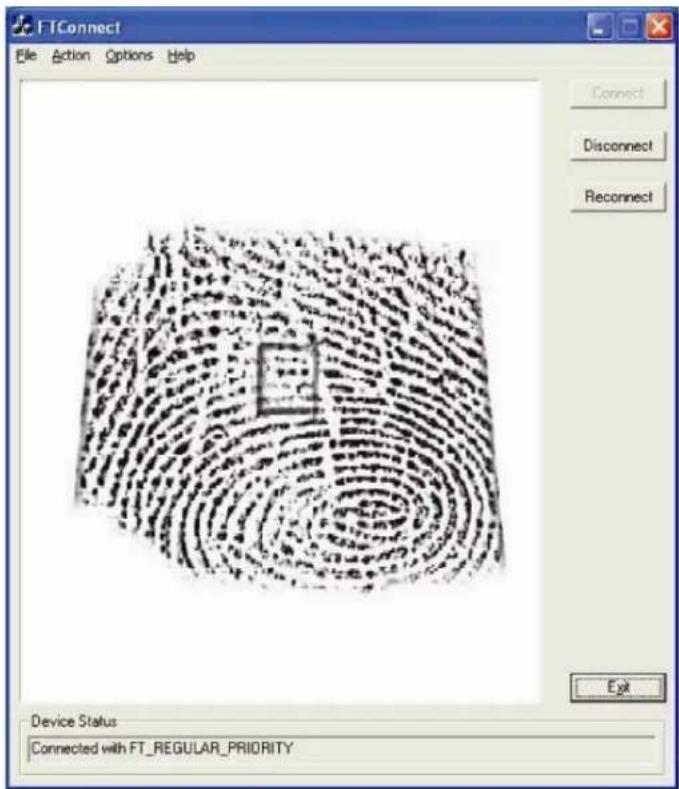
text_image
FTConnect File Action Options Help Connect Disconnect Reconnect Device Status Connected with FT_REGULAR_PRIORITYCash Drawer Port Card
A Cash Drawer Port Card can be installed in any available expansion slot. This card provides:
- 2 x 12V Powered USB ports
- 1 x 12V or 24V selectable cash drawer RJ11 port. The voltage setting can be set via jumper on the card prior to installing into the touchcomputer.
Test applications can be found in the following directory or on www.elotouch.com :
C:\EloTouchSystems\SetupFiles\Peripherals
Part number: E318237
A second VGA video card can be added to any available expansion slot. This card provides a VGA port to drive another VGA display. Software application and drivers can be found in the following directory or on www.elotouch.com
C:\EloTouchSystems\SetupFiles\Peripherals
Part number: E017487
Wireless Card
A wireless adapter can be installed as an option in the C-Series touchcomputer in the I/O area under the cable cover.
Typical specifications for the wireless card are:
- USB module
- Compliant to USB 2.0 industry standards
- IEEE 802.11b/g/n compliant
- RoHS compliant
• Part number: E249774
Testing the Wireless Card
To test the wireless card:
- From the desktop, click Start > Control Panel > Network Connections
- Double-click the Wireless Network Connections icon to display available networks and verify that the wireless network is detected.
NOTE: If a wireless network needs to be initialized, please see your system administrator.

text_image
Windows 网络管理器 Network will provide network details. Network Take network to... OK Choose a wireless network Select the network to access the connection to any other network Networks: Connect to a network (e.g. Windows 2.0) Connect to a network (e.g. Windows 1.0) Connect to a network (e.g. Windows 3.0) Connect to a network (e.g. Windows 4.0) Connect to a network (e.g. Windows 5.0) Connect to a network (e.g. Windows 6.0) Connect to a network (e.g. Windows 7.0) Connect to a network (e.g. Windows 8.0) Connect to a network (e.g. Windows 9.0) Connect to a network (e.g. Windows 10.0) Connect to a network (e.g. Windows 11.0) Connect to a network (e.g. Windows 12.0) Connect to a network (e.g. Windows 13.0) Connect to a network (e.g. Windows 14.0) Connect to a network (e.g. Windows 15.0) Connect to a network (e.g. Windows 16.0) Connect to a network (e.g. Windows 17.0) Connect to a network (e.g. Windows 18.0) Connect to a network (e.g. Windows 19.0) Connect to a network (e.g. Windows 20.0) Connect to a network (e.g. Windows 21.0) Connect to a network (e.g. Windows 22.0) Connect to a network (e.g. Windows 23.0) Connect to a network (e.g. Windows 24.0) Connect to a network (e.g. Windows 25.0) Connect to a network (e.g. Windows 26.0) Connect to a network (e.g. Windows 27.0) Connect to a network (e.g. Windows 28.0) Connect to a network (e.g. Windows 29.0) Connect to a network (e.g. Windows 30.0) Connect to a network (e.g. Windows 31.0) Connect to a network (e.g. Windows 32.0) Connect to a network (e.g. Windows 33.0) Connect to a network (e.g. Windows 34.0) Connect to a network (e.g. Windows 35.0) Connect to a network (e.g. Windows 36.0) Connect to a network (e.g. Windows 37.0) Connect to a network (e.g. Windows 38.0) Connect to a network (e.g. Windows 39.0) Connect to a network (e.g. Windows 40.0) Connect to a network (e.g. Windows 41.0) Connect to a network (e.g. Windows 42.0) Connect to a network (e.g. Windows 43.0) Connect to a network (e.g. Windows 44.0) Connect to a network (e.g. Windows 45.0) Connect to a network (e.g. Windows 46.0) Connect to a network (e.g. Windows 47.0) Connect to a network (e.g. Windows 48.0) Connect to a network (e.g. Windows 49.0) Connect to a network (e.g. Windows 50.0) Connect to a network (e.g. Windows 51.0) Connect to a network (e.g. Windows 52.0) Connect to a network (e.g. Windows 53.0) Connect to a network (e.g. Windows 54.0) Connect to a network (e.g. Windows 55.0) Connect to a network (e.g. Windows 56.0) Connect to a network (e.g. Windows 57.0) Connect to a network (e.g. Windows 58.0) Connect to a network (e.g. Windows 59.0) Connect to a network (e.g. Windows 60.0) Connect to a network (e.g. Windows 61.0) Connect to a network (e.g. Windows 62.0) Connect to a network (e.g. Windows 63.0) Connect to a network (e.g. Windows 64.0) Connect to a network (e.g. Windows 65.0) Connect to a network (e.g. Windows 66.0) Connect to a network (e.g. Windows 67.0) Connect to a network (e.g. Windows 68.0) Connect to a network (e.g. Windows 69.0) Connect to a network (e.g. Windows 70.0) Connect to a network (e.g. Windows 71.0) Connect to a network (e.g. Windows 72.0) Connect to a network (e.g. Windows 73.0) Connect to a network (e.g. Windows 74.0) Connect to a network (e.g. Windows 75.0) Connect to a network (e.g. Windows 76.0) Connect to a network (e.g. Windows 77.0) Connect to a network (e.g. Windows 78.0) Connect to a network (e.g. Windows 79.0) Connect to a network (e.g. Windows 80.0) Connect to a network (e.g. Windows 81.0) Connect to a network (e.g. Windows 82.0) Connect to a network (e.g. Windows 83.0) Connect to a network (e.g. Windows 84.0) Connect to a network (e.g. Windows 85.0) Connect to a network (e.g. Windows 86.0) Connect to a network (e.g. Windows 87.0) Connect to a network (e.g. Windows 88.0) Connect to a network (e.g. Windows 89.0) Connect to a network (e.g. Windows 90.0) Connect to a network (e.g. Windows 91.0) Connect to a network (e.g. Windows 92.0) Connect to a network (e.g. Windows 93.0) Connect to a network (e.g. Windows 94.0) Connect to a network (e.g. Windows 95.0) Connect to a network (e.g. Windows 96.0) Connect to a network (e.g. Windows 97.0) Connect to a network (e.g. Windows 98.0) Connect to a network (e.g. Windows 99.0) Connect to a network (e.g. Windows 100.)Second Hard Disk Drive
A second hard disk drive can be added via the second hard drive mounting kit. This addition provides extra data storage or can be used in conjunction with the RAID controller card for RAID functionality. This option occupies a single expansion slot.
Part number: E596876
Solid State Drive
A solid state drive can be added to (or used to replace) the original hard disk drive. This addition provides additional performance and is more mechanically reliability in harsh environments.
Part number: E112963
Modem Card
A modem card can be added to any expansion slot. This provides modem/fax functionality. Software drivers can be found in the following directory or on www.elotouch.com :
C:\EloTouchSystems\SetupFiles\Peripherals
Part number: E763313


C-Series Touchcomputer for Healthcare Applications User Guide 22
Note: To use this option ALSO requires the purchase and installation of the Elo PCI-E Expansion Card Option Kit, part number E827958.
Parallel Port Card
A parallel port card can be added to any Expansion slot. This option provides a parallel port for printer interfaces only. Software drivers can be found in the following directory or on www.elotouch.com :
C:\EloTouchSystems\SetupFiles\Peripherals
Part number: E368899
Note: To use this option ALSO requires the purchase and installation of the Elo PCI-E Expansion Card Option Kit, part number E827958.
RAID Controller Card
A RAID controller card can be added when used in conjunction with a second HDD kit to provide RAID 0 and 1 functionality. Software drivers can be found in the following directory or on www.elotouch.com:
C:\EloTouchSystems\SetupFiles\Peripherals
Part number: E383216
Note: To use this option ALSO requires the purchase and installation of the Elo PCI-E Expansion Card Option Kit, part number E827958.
Webcam Kit
An integrated webcam kit with a built-in microphone is available for the C-Series touchcomputer. The Webcam module is a USB-powered device that includes a 2.0 megapixel camera, with stereo microphones built in. This webcam is capable of 2.0MP video at 5fps. This webcam can run on the drivers that are already preset in Windows Vista and Windows 7 OS, and POSReady 2009. The built-in digital microphone for this webcam module is compliant with USB Audio Class 1.0. Webcam module specifications are shown in the table below:


| Feature Description | |
| 2.0MP Webcam w/2 x Digital Microphone | 2 Million Pixel Webcam Module |
| USB Type 1.0, 1.1 or 2.0 | |
| Video Resolution | 1600x1200, 1280x1024, 640x480, 352x388, 320x240, 176x144, 160x120 |
| Auto Frame Rate | 5fps max @ 2.0 megapixels (1600x1200); 24fps max @ VGA mode (640x480) |
| Field Of View (FOV) 66° | |
| Focus Range 40cm ~ Infinity | |
| Supported Operating Systems | Windows XP, Windows 7 OS, Windows Vista, POSReady 2009 |
| Part Number E454277 |
Elo POS Demo Software
POS demo software created by Elo TouchSystems is located on the desktop in the Demos folder.
SAFETY AND MAINTENANCE
Safety
Important information regarding the proper setup and maintenance of your touchcomputer:
- To reduce the risk of electric shock, follow all safety notices and never open the touchcomputer case.
- Turn off the product before cleaning (refer to “Care and Handling” on page 26 for proper cleaning methods).
- Your touchcomputer is equipped with a 3-wire, grounding power cord. The power cord plug only fits into a grounded outlet. Do not attempt to fit the plug into an outlet that has not been configured for this purpose. Do not use a damaged power cord. Only use the power cord that comes with your Elo TouchSystems touchcomputer. Use of an unauthorized power cord might invalidate your warranty.
- The slots located on the sides and top of the touchcomputer case are for ventilation. Do not block or insert anything inside the ventilation slots.
- It is important that your touchcomputer remains dry. Do not pour liquid into or onto your touchcomputer. If your touchcomputer becomes wet, do not attempt to repair it yourself. Contact TE Touch Solutions Customer Service for instructions.
- Guidance and manufacturer's declaration-electromagnetic immunity for all EQUIPMENT AND SYSTEMS reports are available upon request.
The following tips help keep your touchcomputer functioning at the optimal level.
Power down the unit and disconnect from the electrical mains prior to engaging in any cleaning activities.
Take care to ensure no leakage of solution into the system. IF ANY FLUID INGRESS INTO THE UNIT DURING CLEANING IS SUSPECTED, DO NOT POWER ON THE UNIT. Call the manufacturer at the contact numbers listed below to have your unit inspected by a qualified technician prior to powering on.
Careful application of dilute aqueous cleaning solutions (non-ammonia based) according to directions is recommended. Do not spray cleaning solution directly onto touchscreen; always use a cloth or towel that has been lightly pre-moistened with cleaning solution.
Do not use organic solvents (e.g., turpentine, varsol, benzene), abrasive cleansers or compressed air to clean touchscreen displays or touchcomputer.
For disinfection, careful application of alcohol-based disinfectants or branded commercially available quaternary ammonium compounds (e.g., PRO-SANTM brand, TB QuatTM brand, etc.) is recommended. Use as little as practicable to reduce the risk of fluid ingress into the unit.

natural_image
Cartoon illustration of seven anthropomorphic computer characters with expressive faces and dynamic poses, including a frowning face, a surprised face, and a sun (no text or symbols)Warning
This product consists of devices that might contain mercury, which must be recycled or disposed of in accordance with local, state, or federal laws. (Within this system, the backlight lamps in the touchcomputer display contain mercury.)
WEEE Directive

In the European Union, the Waste Electrical and Electronic Equipment (WEEE) directive label shown to the left indicates that this product should not be disposed of with household waste. It should be deposited at an appropriate facility for recovery and recycling.
Recovering the Operating System
If for any reason the touchcomputer's operating system and software need to be recovered, there are two ways you can recover your system:
i. For Windows 7 OS: Use the included image to recover the touchcomputer.
- After the TE logo shows up, press F8 (frequently) to enter Advanced Boot Options.
- Select Repair your computer
- Click Next → OK (Shall not have password) → Elo Touch System Tool
- The following UI shall be presented

text_image
Elo Touch System Tool Utilities WINPE (Starts WINPE CMD) Recover (Starts recovering process) Capture (Starts capturing process) Inject (Injects additional languages) Exit Info:- Click Recover → Start Recovery Process

text_image
Recovers Image Information Start Recovery Process Press "Start Recovery Process" to start automated recovery or "Exit Recovery Process" to exit automated recovery Embedded OS Windows POS Ready Windows 7 Professional Recovery ... Elapsed 00 00 00 ... Imaging percentage: 00 Imaging Scan: Imaging Progress:6. After finished, click Exit → Exit → Restart
ii. Use the recovery DVD to recover the touchcomputer. Recovery DVD's can be ordered if necessary from TE Touch Solutions customer service.
- Connect the USB DVD drive to the touchcomputer.
-
Place the recovery DVD in the DVD drive.
-
Press "F11" to enter Device Boot Menu and boot touchcomputer from DVD.
-
After entering the Elo Touch System Tool, click "WINPE" button.

text_image
Elo Touch System Tool Utilities WINPE (Starts WINPE CMD) Recover (Starts recovering process) Capture (Starts capturing process) Inject (Injects additional languages) Exit Info:- Once you see the "Command Prompt" window, type "win7" to start recovery process for Windows 7 OS.

text_image
Microsoft Windows [Version 6.1.7100] Copyright (c) 2009 Microsoft Corporation. All rights reserved. C:\Windows\system32>- Follow the on-screen instruction to complete recovery.
NOTE: All data is deleted during the recovery process. The user must back up files when necessary. TE Touch Solutions does not accept liability for lost data or software.
NOTE: If using Windows 7 OS and your hard disk is corrupts, you can request a Recovery DVD from TE Touch Solutions customer service.
NOTE: The end user must adhere to Microsoft's Licensing Agreement.
NOTE: After you recovered your touchcomputer by using the included image, the operating system might reassign your USB Serial Ports during the first bootup. You can follow the instructions below to reassign it manually.
• Instructions to reassign the USB Serial Port
- For Windows 7 OS, right click the "Computer" Click "Properties" "Device Manager".

text_image
Open Manage Map network drive... Disconnect network drive... Create shortcut Delete Rename Properties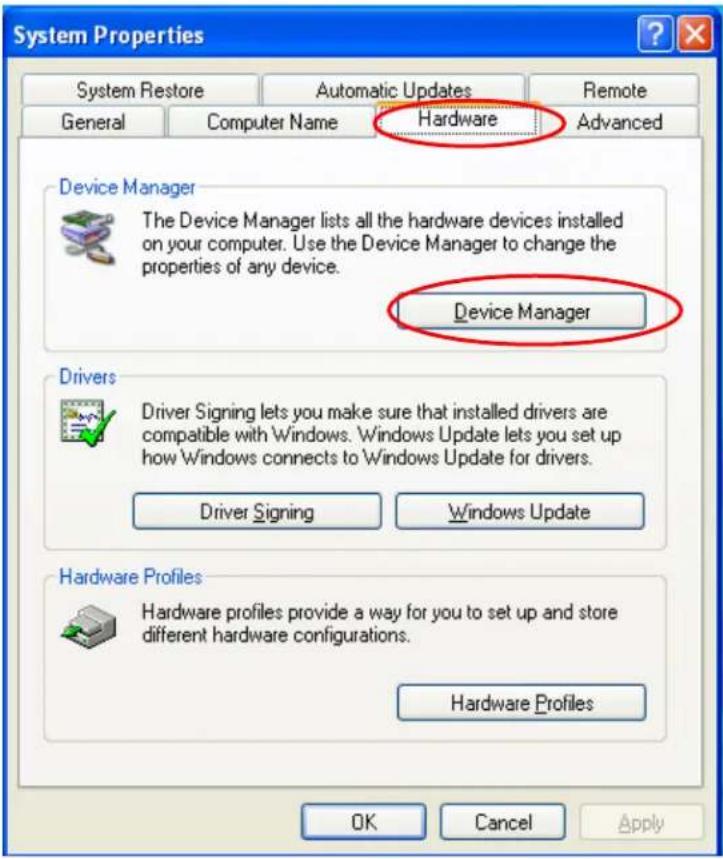
text_image
System Properties System Restore Automatic Updates Remote General Computer Name Hardware Advanced Device Manager The Device Manager lists all the hardware devices installed on your computer. Use the Device Manager to change the properties of any device. Device Manager Drivers Driver Signing lets you make sure that installed drivers are compatible with Windows. Windows Update lets you set up how Windows connects to Windows Update for drivers. Driver Signing Windows Update Hardware Profiles Hardware Profiles provide a way for you to set up and store different hardware configurations. Hardware Profiles OK Cancel Apply- Double click the "Ports (COM & LPT)" and check all of these "USB Serial Port" settings must be IDENTICAL as the following table.
| Description Location | |
| USB Serial Port (COM3) | On USB Serial Converter A |
| USB Serial Port (COM4) | On USB Serial Converter B |
- If you see a situation as below, it shows the operating system has reassigned these serial ports. You need to correct it manually.
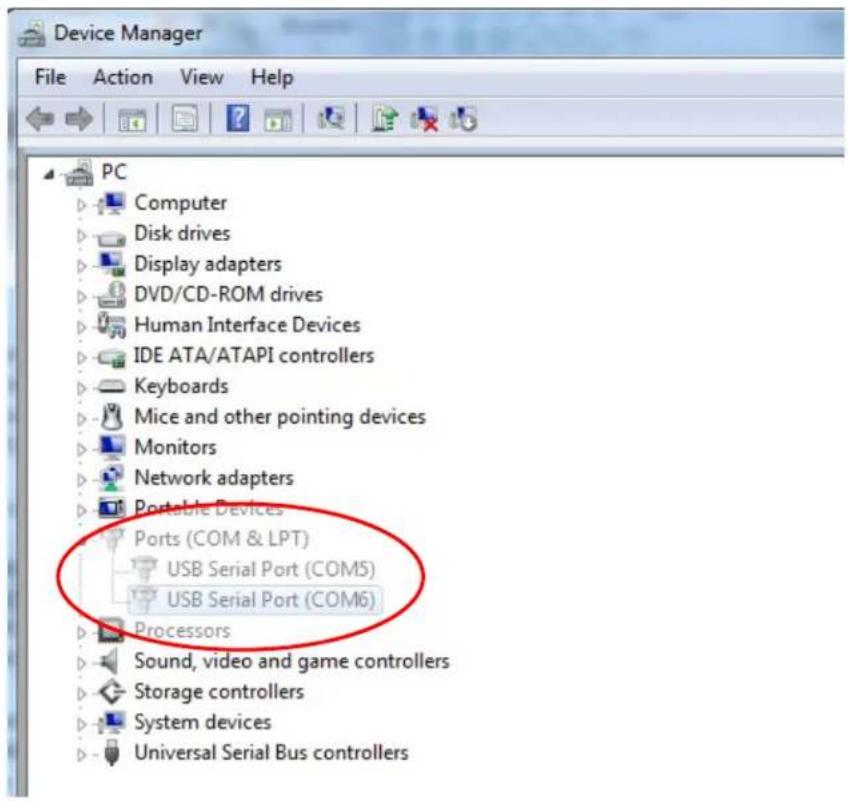
text_image
Device Manager File Action View Help PC Computer Disk drives Display adapters DVD/CD-ROM drives Human Interface Devices IDE ATA/ATAPI controllers Keyboards Mice and other pointing devices Monitors Network adapters Portable Devices Ports (COM & LPT) USB Serial Port (COM5) USB Serial Port (COM6) Processors Sound, video and game controllers Storage controllers System devices Universal Serial Bus controllersIn usual, even if the operating system reassigns these serial ports, they are still in order. In this case, you should change it as the following table.
| Original one | Change to |
| USB Serial Port (COM5) | USB Serial Port (COM3) |
| USB Serial Port (COM6) | USB Serial Port (COM4) |
Thus, the settings for these USB Serial Ports should begin at COM3 and end at COM4 in order.
- To correct it, please follow the instructions below:
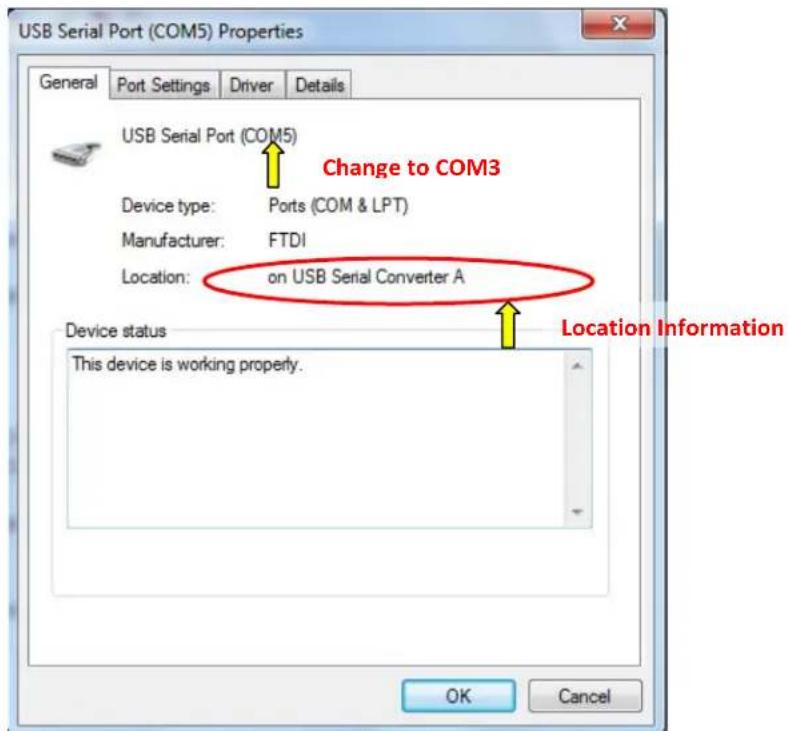
Double click the port you need to change. In this case, it is COM5.
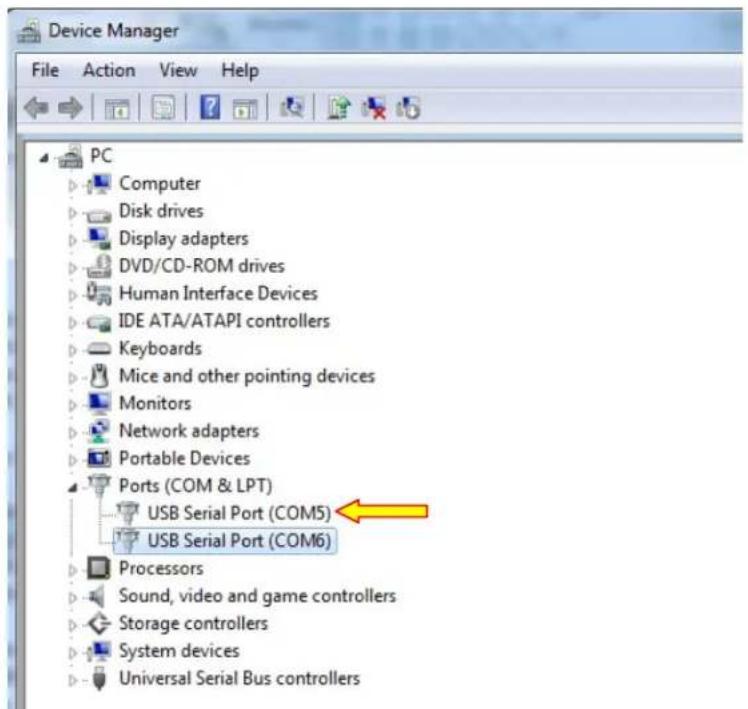
text_image
Device Manager File Action View Help PC Computer Disk drives Display adapters DVD/CD-ROM drives Human Interface Devices IDE ATA/ATAPI controllers Keyboards Mice and other pointing devices Monitors Network adapters Portable Devices Ports (COM & LPT) USB Serial Port (COM5) USB Serial Port (COM6) Processors Sound, video and game controllers Storage controllers System devices Universal Serial Bus controllersCOM5 is the 1 ^st port of these USB serial ports so the “Location:” should be “on USB Serial Converter A”. Please assign this serial port to COM3. (COM4 for the USB Serial Converter B).
text_image
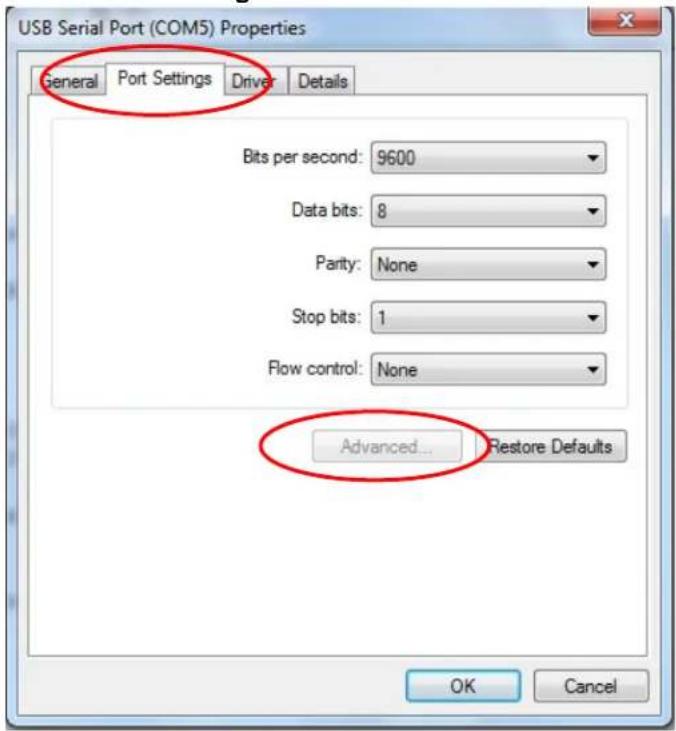
USB Serial Port (COM5) Properties General Port Settings Driver Details USB Serial Port (COM5) Device type: Ports (COM & LPT) Manufacturer: FTDI Location:,on USB Serial Converter A Device status This device is working properly. Change to COM3 Location Information OK CancelSelect "Port Settings" → Click "Advanced..."
text_image
USB Serial Port (COM5) Properties General Port Settings Driver Details Bits per second: 9600 Data bits: 8 Parity: None Stop bits: 1 Flow control: None Advanced... Restore Defaults OK CancelIn this case, select COM3 from the drop-down menu → click OK → OK back to the Device Manager.

text_image
USB Serial Port (COM5) Properties Advanced Settings for COM5 COM Port Number: COM5 COM1 COM2 COM3 COM4 COM5 COM6 (in use) COM7 COM8 COM9 COM10 COM11 COM12 COM13 COM14 COM15 COM16 COM17 COM18 COM19 COM20 COM21 COM22 COM23 COM24 COM25 COM26 COM27 COM28 COM29 COM30 USB Transfer Sizes Select lower settings to corre Select higher settings for fas Receive (Bytes): Transmit (Bytes): BM Options Select lower settings to corre Latency Timer (msec): Timeouts Minimum Read Timeout (msec) Minimum Write Timeout (msec) OK Cancel Defaults Miscellaneous Options Serial Enumerator ✓ Serial Printer ✓ Cancel If Power Off ✓ Event On Surprise Removal ✓ Set RTS On Close ✓ Disable Modem Ctrl At Startup ✓Follow the same steps to accomplish these settings for other ports.
After finished, right click on "Ports (COM & LPT)" and click Scan for hardware changes.

text_image
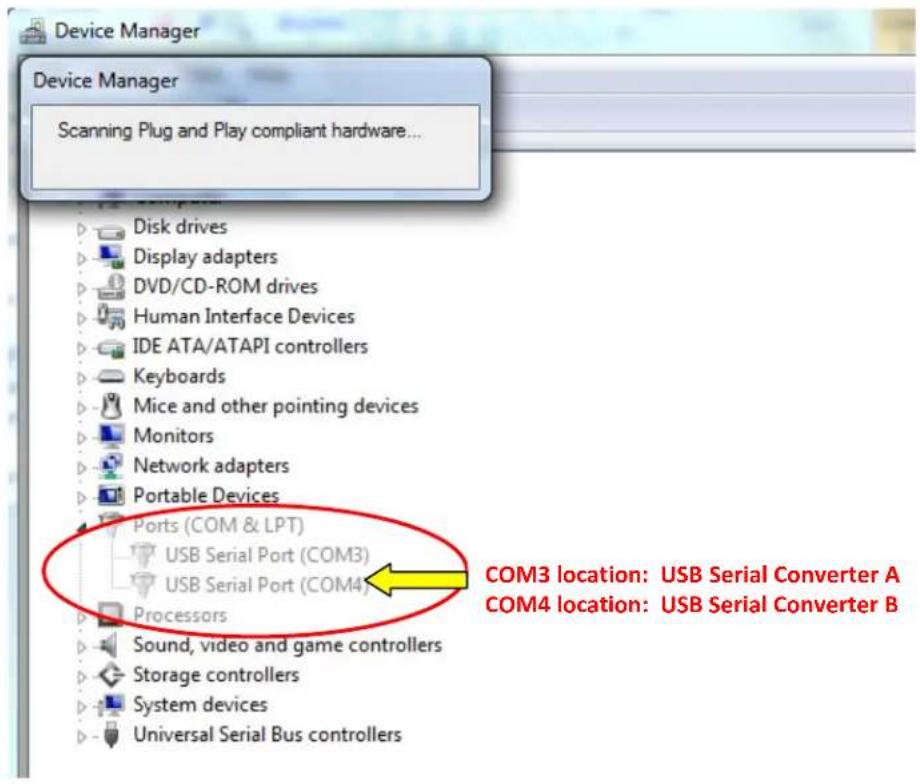
DVD/CD-ROM drives Human Interface Devices IDE ATA/ATAPI controllers Keyboards Mice and other pointing devices Monitors Network adapters Portable Devices Ports (COM & LPT) USB Serial Port USB Serial Port Processors Sound, video and game controllers Scan for hardware changes Properties- The outcome should be identical as the following diagram.
text_image
Device Manager Scanning Plug and Play compliant hardware... Disk drives Display adapters DVD/CD-ROM drives Human Interface Devices IDE ATA/ATAPI controllers Keyboards Mice and other pointing devices Monitors Network adapters Portable Devices Ports (COM & LPT) USB Serial Port (COM3) USB Serial Port (COM4) Processors Sound, video and game controllers Storage controllers System devices Universal Serial Bus controllers COM3 location: USB Serial Converter A COM4 location: USB Serial Converter BTechnical Assistance
There are three methods to obtain contact information for technical assistance on the touchcomputer:
- The web
- The phone
Using the Web
For technical support, go to www.elotouch.com/go/contactsupport.
For current Elo news, product updates, and announcements, or to register to receive our Touchcomputer newsletter, go to www.elotouch.com/go/news.
Using the Phone
For technical support, see the table at the end of the user guide for contact information.
I. Electrical Safety Information
A) Compliance is required with respect to the voltage, frequency, and current requirements indicated on the manufacturer's label. Connection to a different power source than those specified herein may result in improper operation, damage to the equipment, invalidation of warranty, or a fire hazard if the requirements are not followed.
B) There are no operator-serviceable parts inside this equipment. There are hazardous voltages generated by this equipment which constitute a safety hazard. Service should be provided only by a qualified service technician.
C) This equipment is provided with a detachable power cord which has an integral safety ground wire intended for connection to a grounded safety outlet.
1) Do not substitute the cord with other than the provided approved type. Under no circumstances should an adapter plug be used to connect to a 2-wire outlet as this will defeat the continuity of the grounding wire.
2) The equipment requires the use of the ground wire as a part of the safety certification. Modification or misuse can provide a shock hazard that can result in serious injury or death.
3) Contact a qualified electrician or the manufacturer if there are questions about the installation prior to connecting the equipment to main power.
II. Emissions and Immunity Information
A) Notice to Users in the United States: This equipment has been tested and found to comply with the limits for a Class A digital device, pursuant to Part 15 of FCC Rules. These limits are designed to provide reasonable protection against harmful interference in a residential or commercial installation. This equipment generates, uses, and can radiate radio frequency energy, and if not installed and used in accordance with the instructions, may cause harmful interference to radio communications.
B) Notice to Users in Canada: This equipment complies with the Class A limits for radio noise emissions from digital apparatus as established by the Radio Interference Regulations of Industry Canada.
C) Notice to Users in the European Union: Use only the provided power cords and interconnecting cabling provided with the equipment. Substitution of provided cords and cabling may compromise electrical safety or CE Mark Certification for emissions or immunity as required by the standards listed below. This Information Technology Equipment (ITE) is required to have a CE Mark on the manufacturer's label which means that the equipment has been tested to the Directives and Standards listed below:
This equipment has been tested to the requirements for the CE Mark as required by EMC Directive 2004/108/EC indicated in European Standard EN 55022 Class A and the Low Voltage Directive 2006/95/EC as indicated in European Standard EN 60601.
D) General Information to all Users: This equipment generates, uses, and can radiate radio frequency energy. If not installed and used according to this manual, the equipment may cause interference with radio and television communications. There is, however, no guarantee that interference will not occur in any particular installation due to site-specific factors.
1) In order to meet emission and immunity requirements, the user must observe the following:
a) Use only the provided I/O cables to connect this digital device with any computer.
b) To ensure compliance, use only the provided manufacturer's approved power cord.
c) The user is cautioned that changes or modifications to the equipment not expressly approved by the party responsible for compliance could void the user's authority to operate the equipment.
2) If this equipment appears to cause interference with radio or television reception, or any other device:
a) Verify as an emission source by turning the equipment off and on.
b) If you determine that this equipment is causing the interference, try to correct the interference by using one or more of the following measures:
i) Move the digital device away from the affected receiver.
ii) Reposition (turn) the digital device with respect to the affected receiver.
iii) Reorient the affected receiver's antenna.
iv) Plug the digital device into a different AC outlet so the digital device and the receiver are on different branch circuits.
v) Disconnect and remove any I/O cables that the digital device does not use. (Unterminated I/O cables are a potential source of high RF emission levels.)
vi) Plug the digital device into only a grounded outlet receptacle. Do not use AC adapter plugs. (Removing or cutting the line cord ground may increase RF emission levels and may also present a lethal shock hazard to the user.)
vii) If you need additional help, consult your dealer, manufacturer, or an experienced radio or television technician.
III. Agency Certifications
The following certifications have been issued for the touchcomputer:
| UL (UL 60601-1) cUL | (CAN/CSA-C22.2No. 601.1-M90) | TUV (EN 60601-1) |
| IPX1 FCC (Class A) | CE (Class A) | |
| VCCI (Class A) C-Tick | (Class A) CB (IEC 60601-1) | |
| Elo Declarations:RoHS., WEEE, CE |
Except as otherwise stated herein or in an order acknowledgment delivered to Buyer, Seller warrants to Buyer that the Product shall be free of defects in materials and workmanship. With the exception of the negotiated warranty periods; the warranty for the touchcomputer and components of the product is 3 years.
Seller makes no warranty regarding the model life of components. Seller's suppliers may at any time and from time to time make changes in the components delivered as Products or components. Buyer shall notify Seller in writing promptly (and in no case later than thirty (30) days after discovery) of the failure of any Product to conform to the warranty set forth above; shall describe in commercially reasonable detail in such notice the symptoms associated with such failure; and shall provide to Seller the opportunity to inspect such Products as installed, if possible. The notice must be received by Seller during the Warranty Period for such product, unless otherwise directed in writing by the Seller. Within thirty (30) days after submitting such notice, Buyer shall package the allegedly defective Product in its original shipping carton(s) or a functional equivalent and shall ship to Seller at Buyer's expense and risk.
Within a reasonable time after receipt of the allegedly defective Product and verification by Seller that the Product fails to meet the warranty set forth above, Seller shall correct such failure by, at Seller's options, either (i) modifying or repairing the Product or (ii) replacing the Product. Such modification, repair, or replacement and the return shipment of the Product with minimum insurance to Buyer shall be at Seller's expense. Buyer shall bear the risk of loss or damage in transit, and may insure the Product. Buyer shall reimburse Seller for transportation cost incurred for Product returned but not found by Seller to be defective.
Modification or repair, of Products may, at Seller's option, take place either at Seller's facilities or at Buyer's premises. If Seller is unable to modify, repair, or replace a Product to conform to the warranty set forth above, then Seller shall, at Seller's option, either refund to Buyer or credit to Buyer's account the purchase price of the Product less depreciation calculated on a straight-line basis over Seller's stated Warranty Period.
THESE REMEDIES SHALL BE THE BUYER'S EXCLUSIVE REMEDIES FOR BREACH OF WARRANTY. EXCEPT FOR THE EXPRESS WARRANTY SET FORTH ABOVE, SELLER GRANTS NO OTHER WARRANTIES, EXPRESS OR IMPLIED BY STATUTE OR OTHERWISE, REGARDING THE PRODUCTS, THEIR FITNESS FOR ANY PURPOSE, THEIR QUALITY, THEIR MERCHANTABILITY, THEIR NONINFRINGEMENT, OR OTHERWISE. NO EMPLOYEE OF SELLER OR ANY OTHER PARTY IS AUTHORIZED TO MAKE ANY WARRANTY FOR THE GOODS OTHER THAN THE WARRANTY SET FORTH HEREIN. SELLER'S LIABILITY UNDER THE WARRANTY SHALL BE LIMITED TO A REFUND OF THE PURCHASE PRICE OF THE PRODUCT. IN NO EVENT SHALL SELLER BE LIABLE FOR THE COST OF PROCUREMENT OR INSTALLATION OF SUBSTITUTE GOODS BY BUYER OR FOR ANY SPECIAL, CONSEQUENTIAL, INDIRECT, OR INCIDENTAL DAMAGES.
Buyer assumes the risk and agrees to indemnify Seller against and hold Seller harmless from all liability relating to (i) assessing the suitability for Buyer's intended use of the Products and of any system design or drawing and (ii) determining the compliance of Buyer's use of the Products with applicable laws, regulations, codes, and standards. Buyer retains and accepts full responsibility for all warranty and other claims relating to or arising from Buyer's products, which include or incorporate Products or components manufactured or supplied by Seller. Buyer is solely responsible for any and all representations and warranties regarding the Products made or authorized by Buyer. Buyer will indemnify Seller and hold Seller harmless from any liability, claims, loss, cost, or expenses (including reasonable attorney's fees) attributable to Buyer's products or representations or warranties concerning same.
INDEX
address, TE Touch Solutions, 45
base power status, 13
base, securing, 9
box contents, 1
cables
included, 1
calibration, 7
certifications, 40
contact information, 37
controls, location diagram, 10
customer display
overview, 18
specifications, 18
customer support, 37
display screen
adjusting, 2
email, TE Touch Solutions, 45
enabling or disabling power, 12
fingerprint reader (FPR)
overview, 19
specifications, 19
testing, 19
input/output (I/O) panel
accessing, 14
language selection, 3
LCD
adjusting, 2
LEDs
base, 13
location diagram, 10
magnetic stripe reader (MSR)
overview, 16
specifications, 16
testing, 17
maintenance
care and handling, 25
software, 27
mounting options, 9
on-screen display (OSD)
enabling or disabling menu, 12
menu settings, 11
operating system
recovering, 27
setting up, 2
operation, 10
options, adding, 15
peripherals
adding, 15
phone number, TE Touch Solutions, 37, 45
ports
accessing, 14
power
base, 13
enabling or disabling button lock, 12
regulatory information, 38
safety, 25
setup
display screen, 2
language selection, 3
mounting options, 9
operating system, 2
time zone selection, 5, 6, 7
touchscreen calibration, 7
unpacking, 1
software
demo, 24
recovery, 27
specifications
customer display, 18
fingerprint reader, 19
magnetic stripe reader", 16
wireless card, 21
technical support, 37
time zone selection, 5, 6, 7
touchscreen
calibrating, 7
care and handling, 26
upgrades, adding, 15
warranty, 41
website, TE Touch Solutions, 37, 45
WEEE directive, 27
wireless card
overview, 21
specifications, 21
testing, 21
www.elotouch.com
Get the latest...
• Product information
- Specifications
• News on upcoming events
- Press release
- Software drivers
- Touchcomputer Newsletter
Getting in Touch with Elo


TOUCH SOLUTIONS
To find out more about the extensive range of Elo touch solutions, vist www.elotouch.com or simply call the office nearest you:
North America
Tyco Electronics Corporation (TE
Touch Solutions Division)
301 Constitution Drive
Menlo Park, CA 94025
USA
Europe
Tyco Electronics Raychem
B.V.B.A.
(TE Touch Solutions Division)
Diestsesteenweg 692
B-3010 Kessel-Lo
Belgium
Asia-Pacific
Sun Hamada Bldg. 2F
1-19-20 ShinYokohama
Kanagawa 222-0033
Japan
(800) ELO-TOUCH
(800) 356-8682
Tel 650-361-4800
Fax 650-361-4747
customerservice@elotouch.com
Tel +32(0)(16)35 21 00
Fax +32(0)(16)35 21 01
elosales@elotouch.com
Tel +81(45)478-2161
Fax +81(45)478-2180
www.tps.co.jp