W900U - Network adapter Tenda - Free user manual and instructions
Find the device manual for free W900U Tenda in PDF.


User questions about W900U Tenda
0 question about this device. Answer the ones you know or ask your own.
Ask a new question about this device
Download the instructions for your Network adapter in PDF format for free! Find your manual W900U - Tenda and take your electronic device back in hand. On this page are published all the documents necessary for the use of your device. W900U by Tenda.
USER MANUAL W900U Tenda
natural_image
White portable device with a stick figure sketch and 'enda' branding (no readable text beyond branding)Wireless AC Dual-band USB Adapter
Copyright Statement
Tenda® is the registered trademark of Shenzhen Tenda Technology Co., Ltd. All the products and product names mentioned herein are the trademarks or registered trademarks of their respective holders. Copyright of the whole product as integration, including its accessories and software, belongs to Shenzhen Tenda Technology Co., Ltd. Without prior expressed written permission from Shenzhen Tenda Technology Co., Ltd, any individual or party is not allowed to copy, plagiarize, reproduce, or translate it into other languages.
All photos and product specifications mentioned in this manual are for references only. Upgrades of software and hardware may occur; Tenda reserves the right to revise this publication and to make changes in the content hereof without obligation to notify any person or organization of such revisions or changes. If you would like to know more about our product information, please visit our website at http://www.tendacn.com.
Table of Contents
Copyright Statement......2
Table of Contents......3
Chapter 1 Product Overview......5
1.1 Package Contents (For references only)....5
1.2 LED Overview....5
1.3 Key Features....5
1.4 Applications....6
1.5 Before Getting Started....6
1.6 Maintenance....7
Chapter 2 Installation Guide......8
2.1 Hardware Install 8
2.2 Software Install....9
Chapter 3 Use System Built-in Wireless Utility......15
3.1 Connect to a Wireless Network --Windows® XP....15
3.2 Connect to a Wireless Network --Windows® 7....18
3.3 Connect to a Wireless Network --Windows® 8....20
Chapter 4 Tenda UI Guide ....23
4.1 Frequency Band Setup 23
4.2 Wireless Connection....24
4.3 Wireless Status 26
4.4 Network Proile 27
4.5 WPS Settings....34
4.6 Help....45
Appendix 1 Conig TCP/IP settings on your PC......46
Appendix 2 Glossary ....53
Appendix 3 FAQs....56
Appendix 4 EMC Statement....58
Chapter 1 Product Overview
The Tenda W900U Wireless AC900 Dual Band Adapter based on IEEE 802.11ac technology delivers next generation WiFi speeds. The device enables multiple HD video streams throughout your home simultaneously. With speed up to 867Mbps (5G) + 300Mbps (2.4G) and dual band technology, the W900U effectively avoids interference, ensuring top WiFi speeds and reliable connections. Unique design makes it easy to use with both laptops and desktops. Plus, securing a wireless connection is fast and simple at a push of the WPS button. The W900U is perfect for upgrading your existing laptop or desktop to 802.11ac.
1.1 Package Contents (For references only)
➢ Tenda W900U Wireless AC900 Dual Band Adapter
▶ CD (with driver and user manual)
1.2 LED Overview
The adapter comes with a status LED, which displays:
a) a green light while identified and functioning properly.
b) a blue light while transferring data, which blinks faster at a higher speed (the higher the speed is, the faster it blinks).
1.3 Key Features
Automatically sense network and adjust transmission rate
➢ 20/40M for 2.4G; 20/40/80M for 5G
- Comes with 2 operating modes: Infrastructure and Ad-Hoc
Access secure networks using WEP, WPA or WPA2
Wi-Fi Protected Setup™ (WPS) for easy connection to a wireless network
Compatible with Windows XP, Vista, Windows7, Windows8 and more
1.4 Applications
The Tenda adapter delivers powerful, fast and reliable wireless access to your desktop or notebook computer.
It is ideal for use by or in:
corporate staff who want to stay connected to Internet while moving around
➢ ancient buildings, places rented or for temporary use where wiring is such a big mess, a huge cost or hard to reach
business or individual always in need of network topology changes
business or individual who wants to have a wireless network established fast and simple without the mess of wiring
1.5 Before Getting Started
Before installing and using this product, please peruse the entire user guide.
a) If you have a built-in wireless adapter, please disable it in Device Manager before installing this Tenda adapter.
b) Also, if you have previously installed a different manufacturer's
adapter or a different model Tenda adapter, make sure the software and driver are uninstalled before installing the new software. Some utilities may cause a conflict with the new software.
1.6 Maintenance
Observe the following to ensure the product continuously stays in good condition.
Keep the device away from humidity and water
➢ DO NOT expose the device to corrosive substances (such as acid and alkali, etc)
DO NOT expose the device to sunshine or other heat sources
Contact Tenda technical staff if you are running into problems that you are not able to solve
Chapter 2 Installation Guide
The CD that comes in the package includes both driver and software, which can be installed automatically. This section will walk you through the installation process.
Software install and operation instructions are illustrated in Windows® XP. If you have a different operating system, the screenshots on your computer will look similar to the following examples.
2.1 Hardware Install
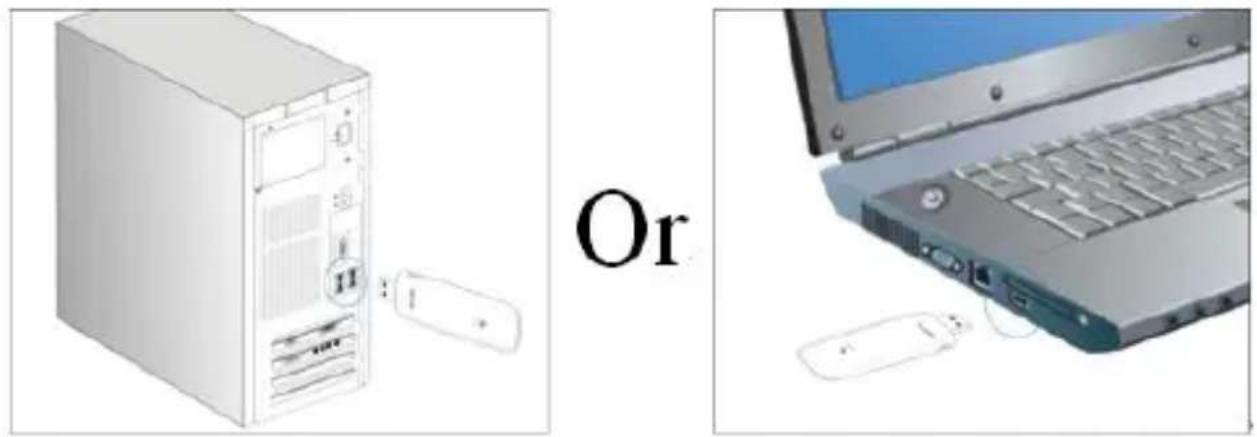
Turn on your computer and insert the Tenda adapter into an available USB port on your computer.
text_image
Or2.2 Software Install
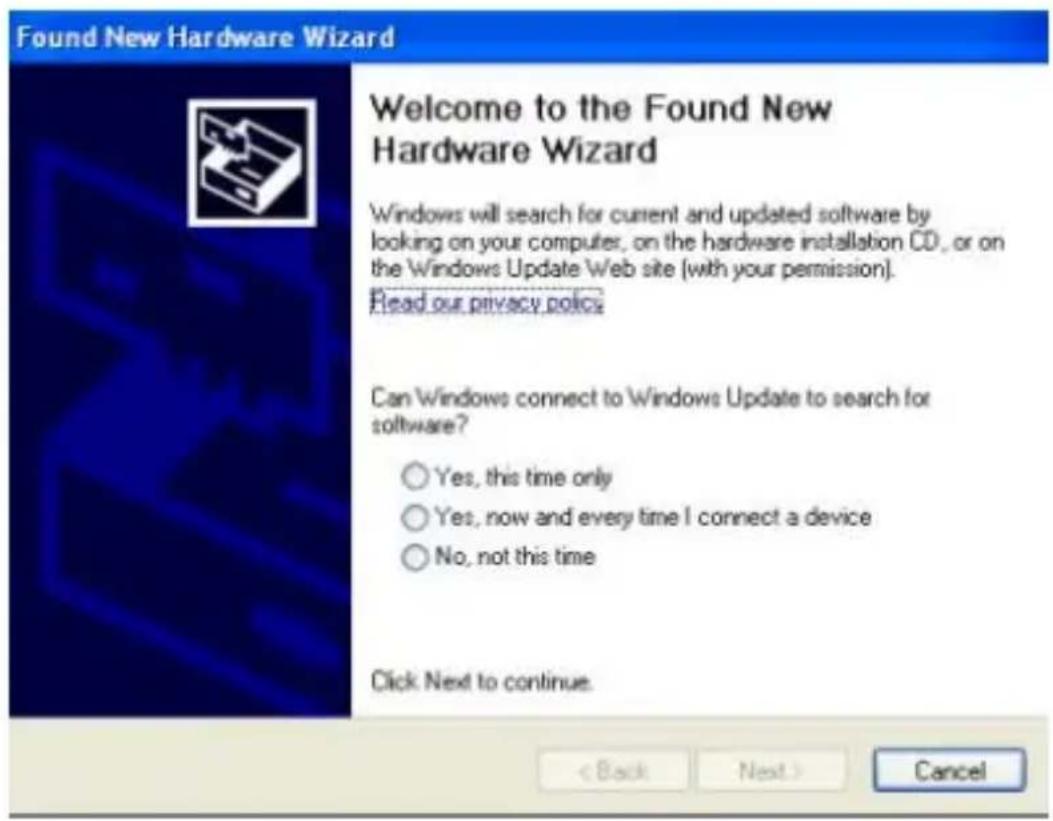
- If the Found New Hardware Wizard appears, click Cancel and then use the quick install CD to install the driver and software.
text_image
Found New Hardware Wizard Welcome to the Found New Hardware Wizard Windows will search for current and updated software by looking on your computer, on the hardware installation CD, or on the Windows Update Web site (with your permission). Read our privacy policy Can Windows connect to Windows Update to search for software? ○ Yes, this time only ○ Yes, now and every time I connect a device ○ No, not this time Click Next to continue. < Back Next > Cancel-
Insert the Tenda Driver CD in your PC's CD-ROM driver. If the CD Autorun function does not automatically start on your computer, double click Tenda.exe. When the autorun screen appears, click Run.
-
Select the language you want to use and click Next to continue.
-
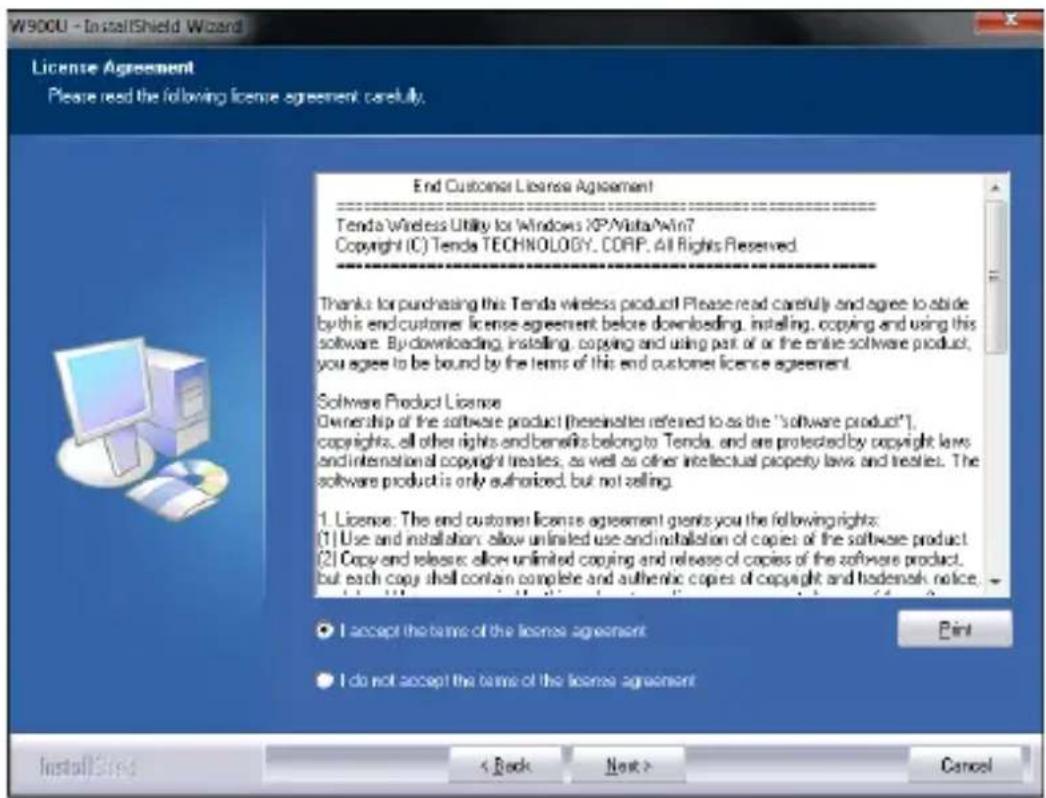
Check I accept the terms of the license agreement and then click Next.
text_image
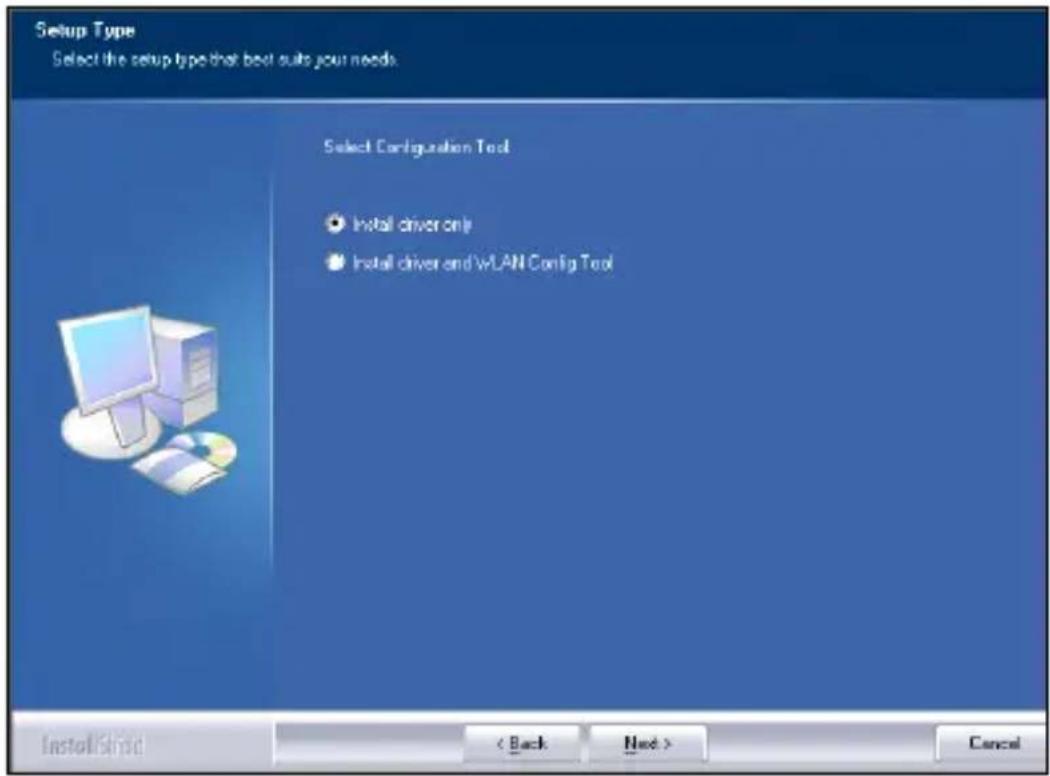
W900U - InstallShield Wizard License Agreement Please read the following license agreement carefully. End Customer License Agreement Tenda Wireless Utility for Windows XP/Vista/Win? Copyright (C) Tenda TECHNOLOGY, CORP. All Rights Reserved. Thanks for purchasing this Tenda wireless product. Please read carefully and agree to abide by this end customer license agreement before downloading, installing, copying and using this software. By downloading, installing, copying and using part or of the entire software product, you agree to be bound by the terms of this end customer license agreement. Software Product License Ownership of the software product (thereinities referred to as the "software product"), copyrights, all other rights and benefits belong to Tenda, and are protected by copyright laws and international copyright treaties, as well as other intellectual property laws and treaties. The software product is only authorized, but not selling. 1. License: The end customer license agreement grants you the following rights: (1) Use and installation: allow unlimited use and installation of copies of the software product. (2) Copy and release: allow unlimited copying and release of copies of the software product, but each copy shall contain complete and authentic copies of copyright and trademarks, notice. I accept the name of the license agreement I do not accept the name of the license agreement InstallShield < Back Next > Cancel- You can either install the standalone driver without Tenda adapter utility or install both driver and Tenda adapter utility.
text_image
Setup Type Select the setup type that best suits your needs. Select Configuration Tool • Install driver only • Install driver and WLAN Config Tool InstallShield < Back Next > CancelNote: If you wish to use Windows system built-in wireless utility, you can select the irst installation mode; however, if you want to use advanced features like WPS, you must also install the Tenda adapter utility.
- Click Install to install the driver.
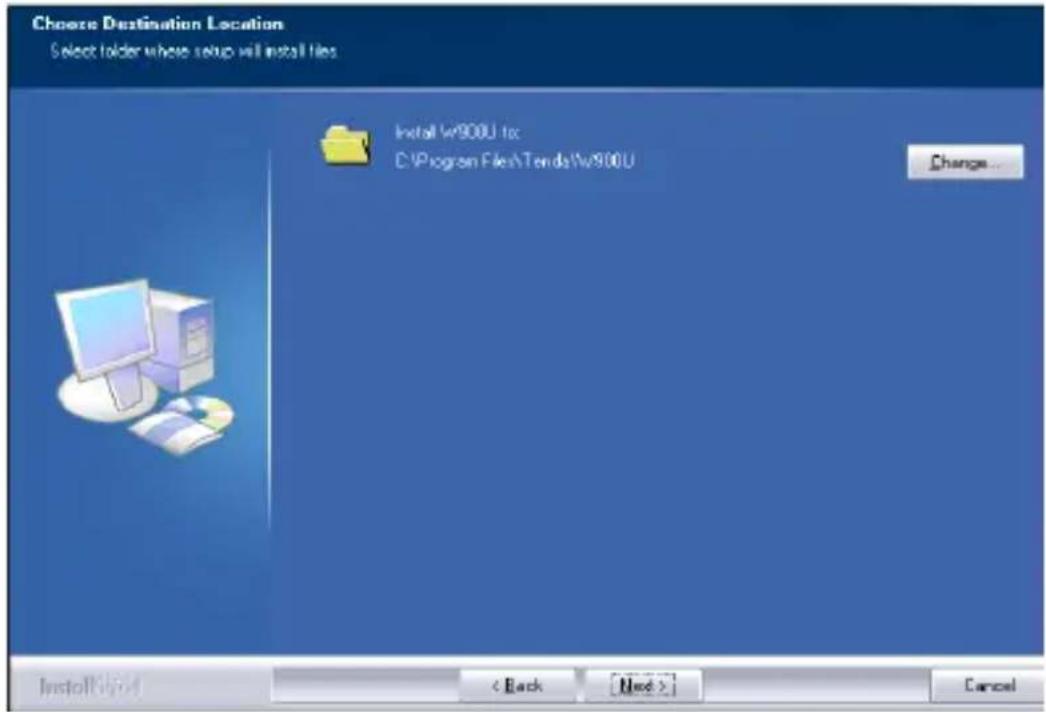
text_image
Choose Destination Location Select folder where setup will install files Install W900U to: C:\Program Files\Tends\W900U Change... Install saved < Back Next > Cancel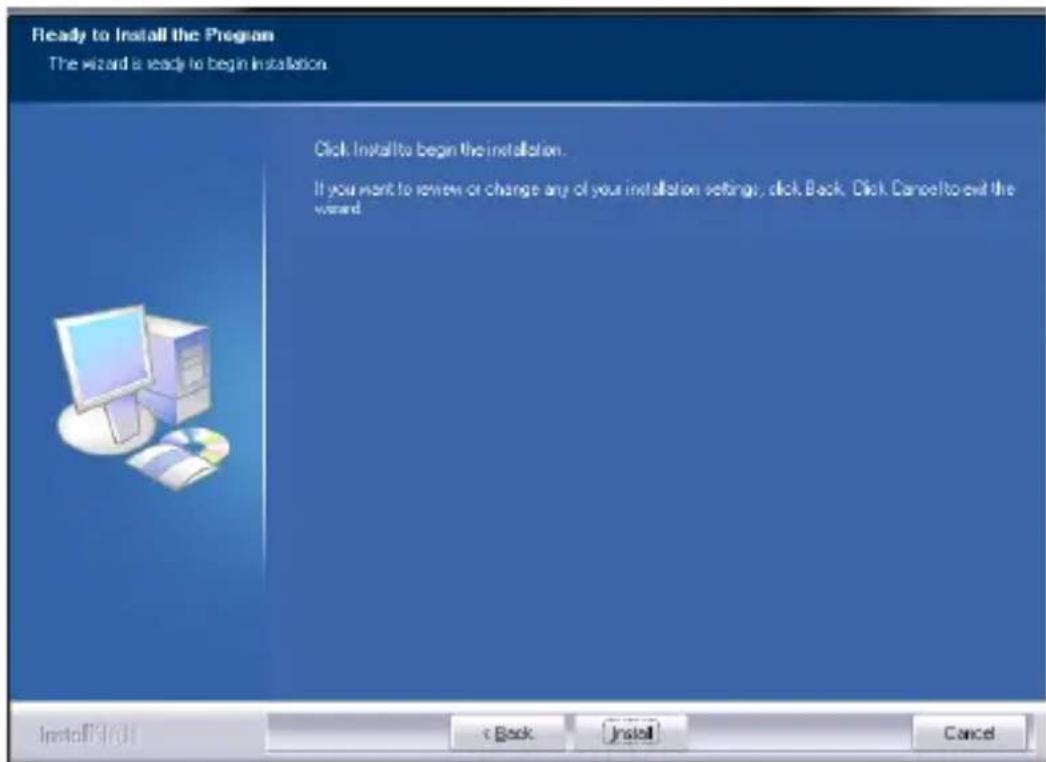
text_image
Ready to Install the Program The wizard is ready to begin installation. Click Install to begin the installation. If you want to review or change any of your installation settings, click Back. Click Cancel to exit the word.- Wait till the driver is completely auto-installed and then click Finish to exit.
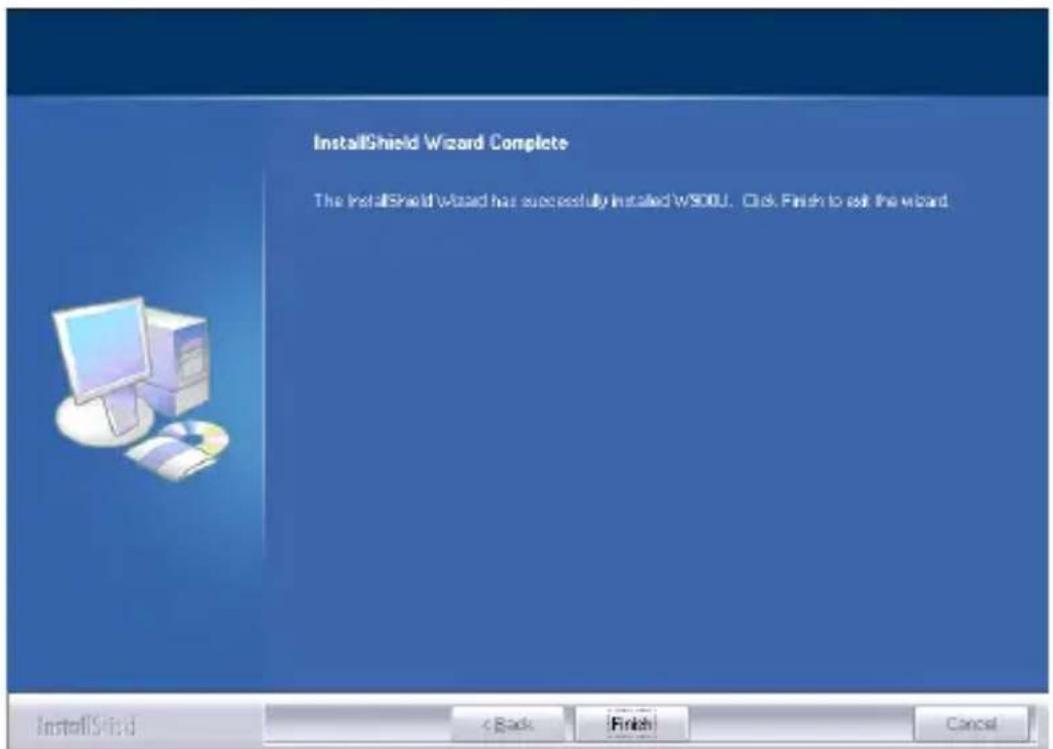
text_image
InstallShield Wizard Complete The InstallShield Wizard has successfully installed WS00U. Click Finish to sell the wizard.Chapter 3 Use System Built-in Wireless Utility
This section will walk you through the configuration process of connecting to a wireless network using your PC's OS built-in wireless utility.
To use Windows XP built-in wireless utility, you must irst enable the Wireless Zero Configuration service (enabled by default).
3.1 Connect to a Wireless Network --Windows® XP
- Right-click My Network Places from the desktop and select Properties.
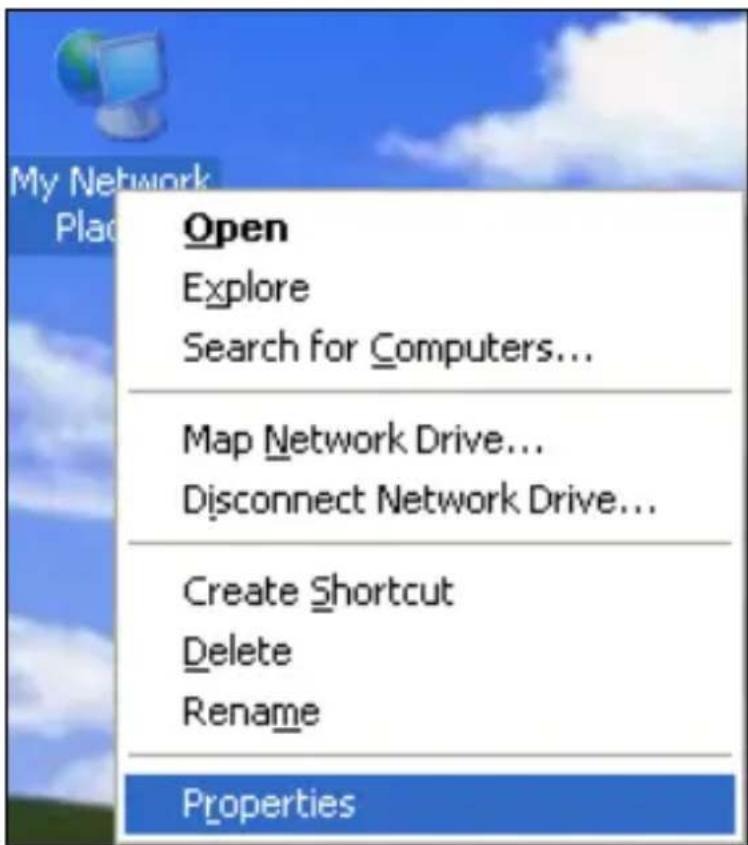
text_image
My Network Plac Open Explore Search for Computers... Map Network Drive... Disconnect Network Drive... Create Shortcut Delete Rename Properties- As seen below, Wireless Network Connection displays Not Connected. Right click Wireless Network Connection and select View Available Wireless Networks.
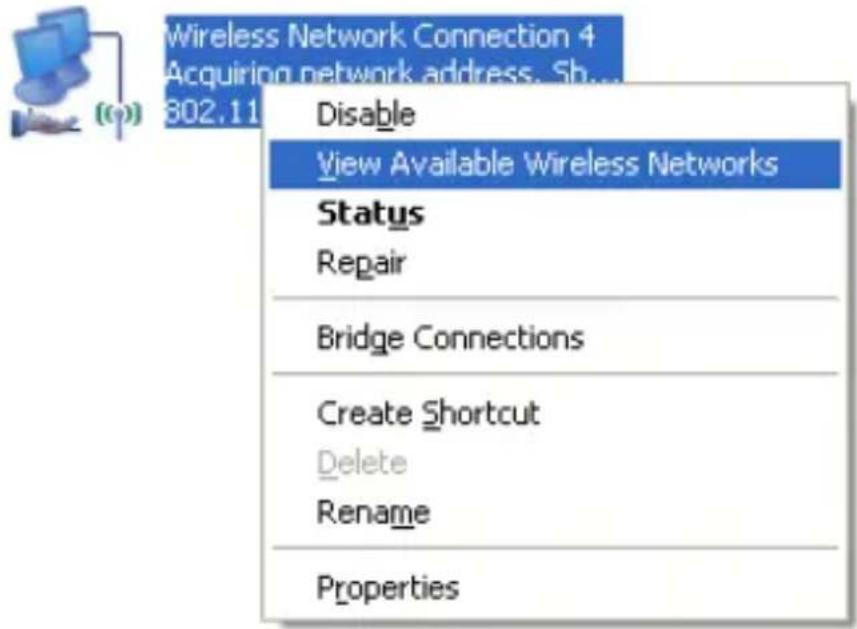
text_image
Wireless Network Connection 4 Acquiring network address. Sh... 802.11 Disable View Available Wireless Networks Status Repair Bridge Connections Create Shortcut Delete Rename Properties- The utility will display any available wireless networks in your area. If you don't see the network you wish to connect to, click the Refresh network list. Click on the network (SSID) you wish to connect to and click the Connect button or directly double click it. If you are prompted to provide a security key, simply enter it (case sensitive) exactly as it is on your wireless router or access point and then click Connect.
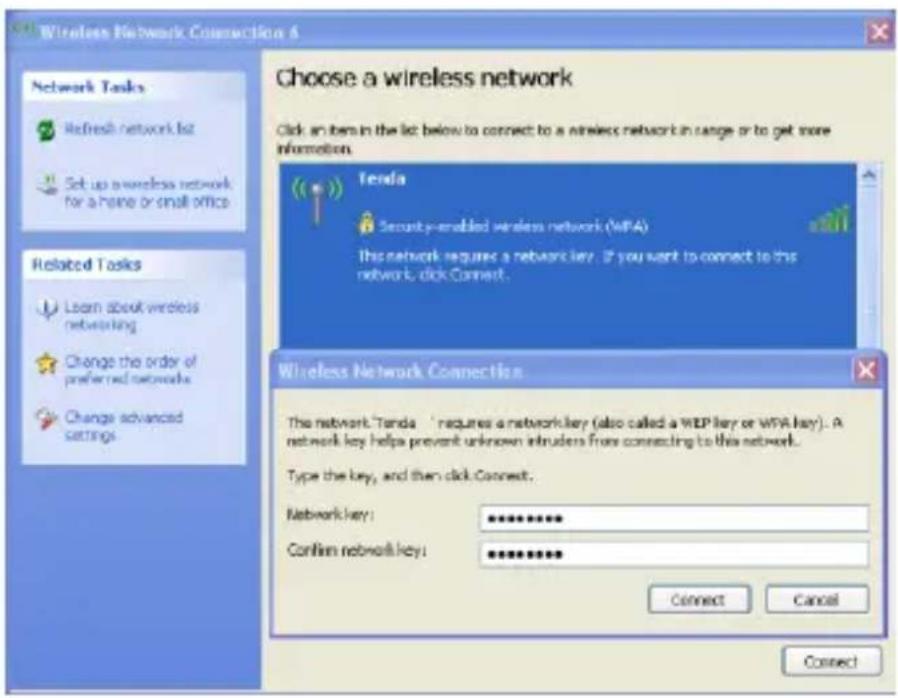
text_image
Wireless Network Connection 6 Network Tasks Refresh network list Set up wireless network for a phone or small office Related Tasks Learn about wireless networking Change the order of preferred networks Change advanced settings Choose a wireless network Click an item in the list below to connect to a wireless network in range or to get more information. Tenda Security-enabled wireless network (WPA) This network requires a network key. If you want to connect to this network, click Connect. Wireless Network Connection The network Tenda - 'requires a network key (also called a WEP key or WPA key). A network key helps prevent unknown intruders from connecting to this network. Type the key, and then click Connect. Network key: ************ Confirm network key: ************ Connect Cancel ConnectNote: If the network you selected is not encrypted, you will not see this dialog box requesting a security key.
- When this screen appears, you have successfully connected to your wireless network and can start suring Internet.
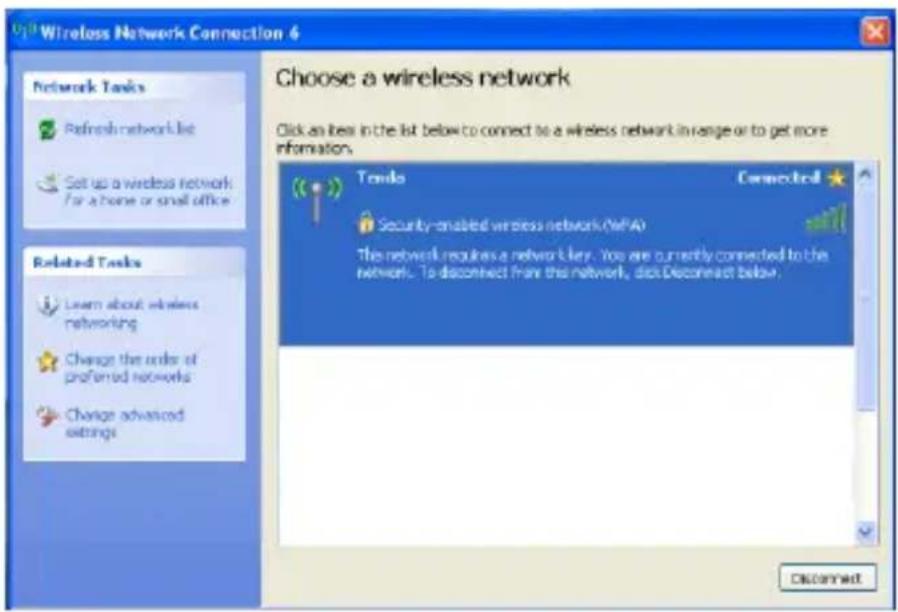
text_image
Wireless Network Connection 4 Choose a wireless network Click an item in the list below to connect to a wireless network in range or to get more information. Network Tasks Refresh network list Set up a wireless network For a home or small office Related Tasks Learn about wireless networking Change the order of preferred networks Change advanced settings Trade Connected Security-enabled wireless network (WiFi) The network requires a network key. You are currently connected to the network. To disconnect from this network, did Disconnect below. Disconnect3.2 Connect to a Wireless Network --Windows® 7
- Click the wireless icon in your system tray (lower-right corner). The utility will display any available wireless networks in your area. Click on a network (SSID) and click the Connect button or directly double-click it. If you don't ind the desired wireless network, click the refresh icon (upper-right corner) to update the list.
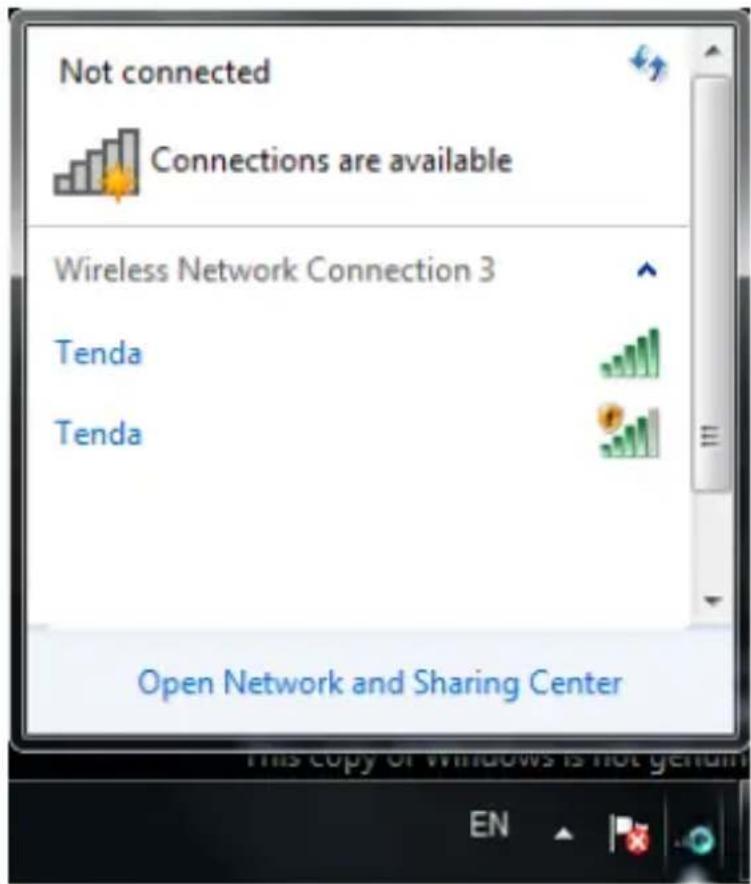
text_image
Not connected Connections are available Wireless Network Connection 3 Tenda Tenda Open Network and Sharing Center- If you are prompted to provide a security key, simply enter it exactly as it is on your wireless router or access point and then click OK.
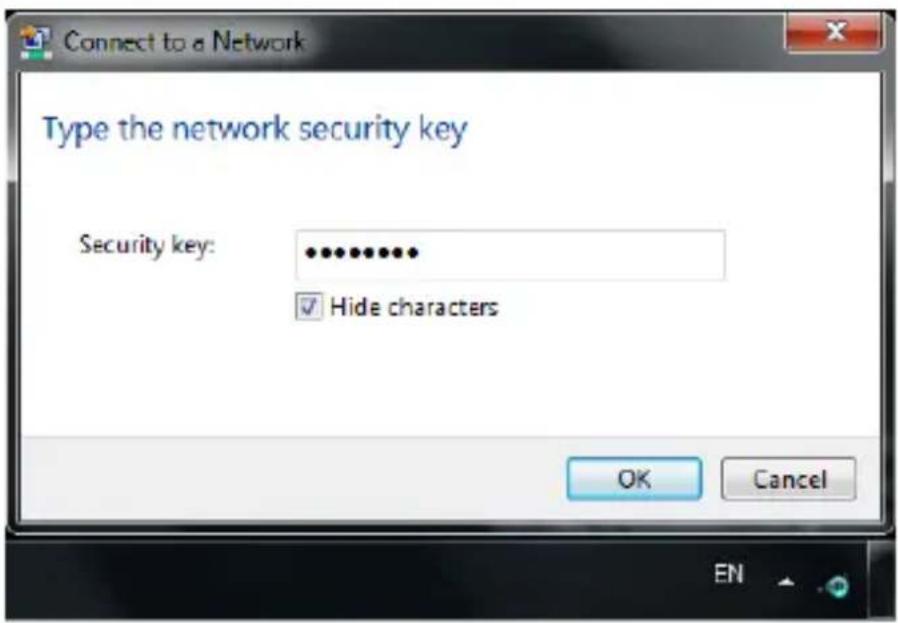
text_image
Connect to a Network Type the network security key Security key: •••••••••• ✓ Hide characters OK Cancel EN- When Connected appears next to the selected wireless network (SSID), you have successfully connected to it. To disconnect from it, view status, or change wireless properties, etc, simply right-click the SSID.
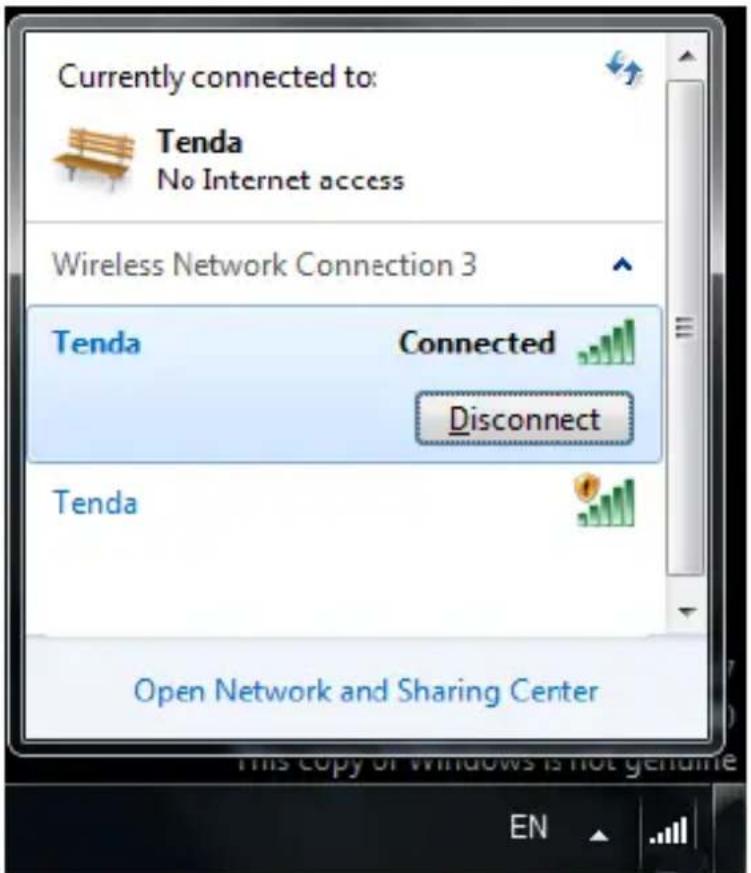
text_image
Currently connected to: Tenda No Internet access Wireless Network Connection 3 Tenda Connected Disconnect Tenda Open Network and Sharing Center3.3 Connect to a Wireless Network --Windows® 8
- Click the wireless icon in your system tray (lower-right corner). The utility will display any available wireless networks in your area. Click on a network (SSID) and click the Connect button or directly double-click it.
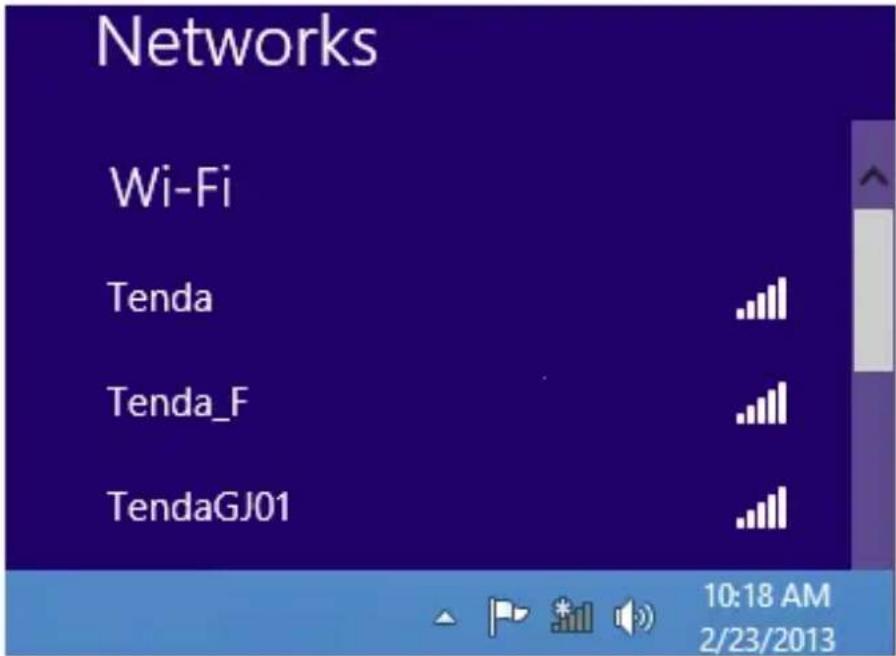
text_image
Networks Wi-Fi Tenda Tenda_F TendaGJ01 10:18 AM 2/23/2013- If you are prompted to provide a security key, simply enter it exactly as it is on your wireless router or access point and then click Next.

text_image
Networks Tenda Enter the network security key ...... Next Cancel- When Connected appears next to the selected wireless network (SSID), you have successfully connected to it.
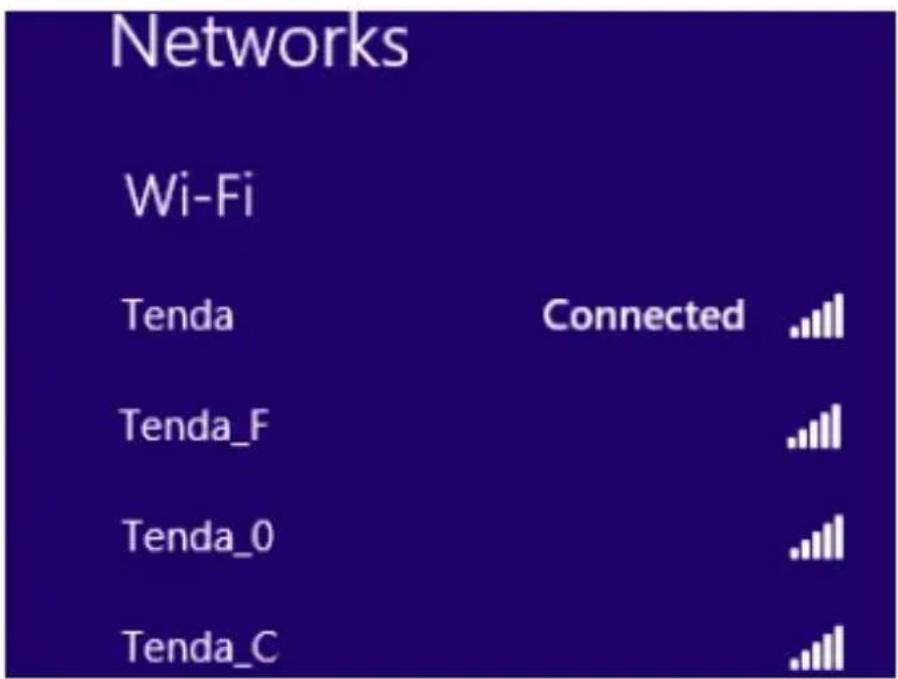
text_image
Networks Wi-Fi Tenda Connected . Tenda_F Tenda_0 Tenda_C
Note:
If the wireless router or AP you connect to via the wireless adapter does not have Internet access, then you will get a Restricted status and a yellow exclamation mark will appear in the wireless icon in your system tray (lower-right corner).
Chapter 4 Tenda UI Guide
If you select Install driver and Tenda WLAN Utility, then both of them will be installed on your PC.
All features on the adapter can be configured and implemented through the Tenda adapter utility (abbreviated to UI).
To start the Tenda UI, select Start->Tenda->W900U or directly click W900U shortcut from your desktop.
4.1 Frequency Band Setup
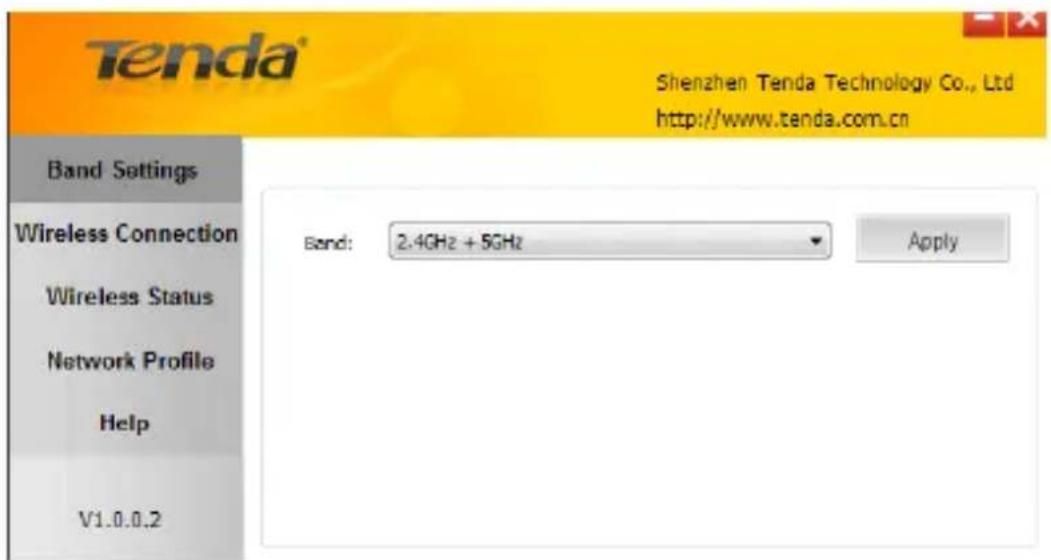
Here you can select the band for the adapter to operate on: 2.4G, 5G or concurrently both 2.4G and 5G.
text_image
Tenda® Shenzhen Tenda Technology Co., Ltd http://www.tenda.com.cn Band Settings Wireless Connection Wireless Status Network Profile Help V1.0.0.2 Band: 2.4GHz + 5GHz Apply4.2 Wireless Connection
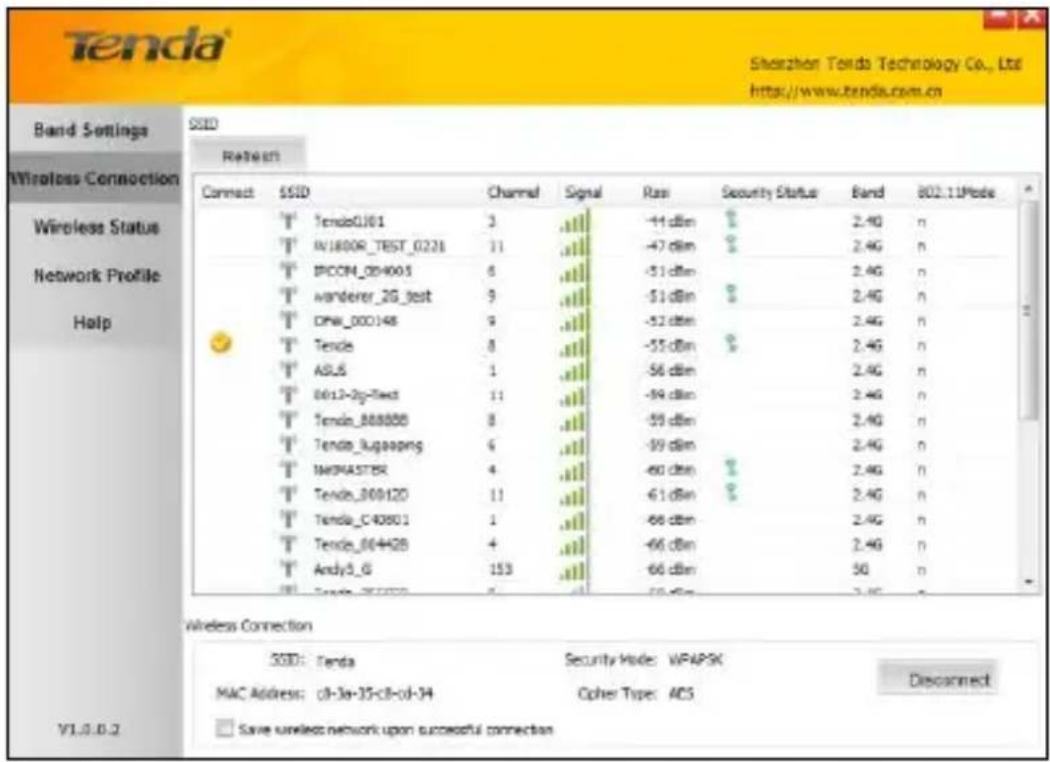
Wireless Connection displays all available wireless networks in the area and lets you see at a glance MAC address, channel, network mode (a/b/g/n), signal strength, authentication mode, encryption mode and/or WPS authentication of each AP. Also, you can select to connect to the desired wireless network.
Before connecting to a wireless network:
- Click Rescan to update the available wireless network list, select a desired wireless network and then click Connect.
text_image
Tenda Shenzhen Tenda Technology Co., Ltd http://www.tenda.com.cn Band Settings Wireless Connection Wireless Status Network Profile Help SSID Retreat Connect SSID Channel Signal Rate Security Status Band 802.11Mode T' TendoGJ01 3 . . . . -11 dbn ? 2.4G n T' IN800R_TEST_0221 11 . . . . -47 dbn ? 2.4G n T' IPCON_084005 6 . . . . -51 dbn ? 2.4G n T' wanderer_2G_test 9 . . . . -51 dbn ? 2.4G n T' DPW_000148 9 . . . . -52 dbn ? 2.4G n T' Tende 8 . . . . -55 dbn ? 2.4G n T' ASLS 1 . . . . -56 dbn ? 2.4G n T' 0612-2g-Tect 11 . . . . -59 dbn ? 2.4G n T' Tendo_888888 8 . . . . -59 dbn ? 2.4G n T' Tendo_Lugaoping 6 . . . . -59 dbn ? 2.4G n T' NEMASTER 4 . . . . -60 dbn ? 2.4G n T' Tendo_800120 11 . . . . -61 dbn ? 2.4G n T' Tendo_C40801 1 . . . . -66 dbn ? 2.4G n T' Tendo_864428 4 . . . . -66 dbn ? 2.4G n T' Andy3_G 153 . . . . -66 dbn ? 5Q n T' Tendo_877777 5 . . . . -59 dbn ? 2.4G n Wireless Connection SSID: Tenda Security Mode: WPAPSK MAC Address: cI-3a-35-cII-cII-34 Cother Type: ACS Disconnect Save wireless network upon successful connection- If you are prompted to provide a security key, simply enter it exactly as it is on the wireless router or access point you plan to connect to and then click Next.
Note: If you check Save wireless network upon successful connection, then, after the adapter connects to the network, it automatically saves the network connection information to a proile.
For detailed illustrations of authentication and encryption modes, see below:
WEP: Support 10 or 26 Hex characters; 5 or 13 ASCII characters.
WPA-PSK: Support 8\~63ASCII characters; 8\~64Hex characters.
WPA2-PSK: Support 8\~63 ASCII characters; 8\~64 Hex characters.
WPA-PSK/WPA2-PSK: Support 8\~63 ASCII characters; 8\~64 Hex characters.

Note:
Hex characters include numbers of 0\~9 and letters of a\~f. ASCII characters include any alphanumeric characters.
4.3 Wireless Status
After you have successfully connected to a wireless network, you can click Wireless Status to view details of the connection, including SSID, MAC address, authentication mode, encryption mode, channel, signal strength, transmission rate of the connected AP, IP address assigned to the adapter, subnet and TX/RX packet statistics, etc.
| SSID: Tenda | ||
| Signal Strength: 82% | MAC Address: c8-3a-35-c8-cd-34 | |
| Security Mode: WPAPSK | IP Address: 192.168.1.137 | |
| Cipher Type: AES | Subnet Mask: 255.255.255.0 | |
| Band: 2.4G | TX Packets: 393 | |
| Channel: 8 | RX Packets: 202 | |
| Rssi: -56 dBm | TX Bytes: 66068 | |
| Transmission Speed: 300.0 Mbps | RX Bytes: 44151 | |
4.4 Network Proile
Also, you can manually add a proile to connect to a specified wireless network. After the adapter joins the network, it automatically saves the network connection information to a proile, which can be used by adapter utility.
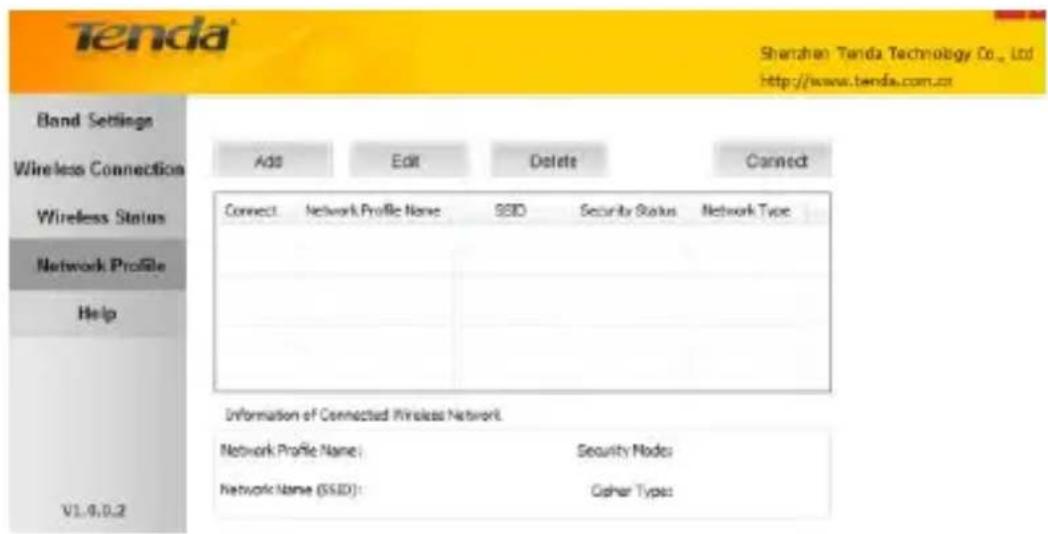
The next time you launch adapter utility, it will automatically connect to the network you previously joined if there's no change in the network information. If you wish to join a hidden network (A hidden network does not broadcast its SSID), you must add a proile to manually connect to it. Fields on screenshot are described below:
text_image
Tenda Shenzhen Tenda Technology Co., Ltd. http://www.tenda.com.cn Band Settings Wireless Connection Wireless Status Network Profile Help V1.0.0.2 Add Edit Delete Connect Connect Network Profile Name SSD Security Status Network Type Information of Connected Wireless Network Network Profile Name: Security Node: Network Name (SSID): Cipher Type:Add: Click to create a new wireless network proile.
Delete: Click to remove an existing proile.
Edit: Click to edit a current proile.
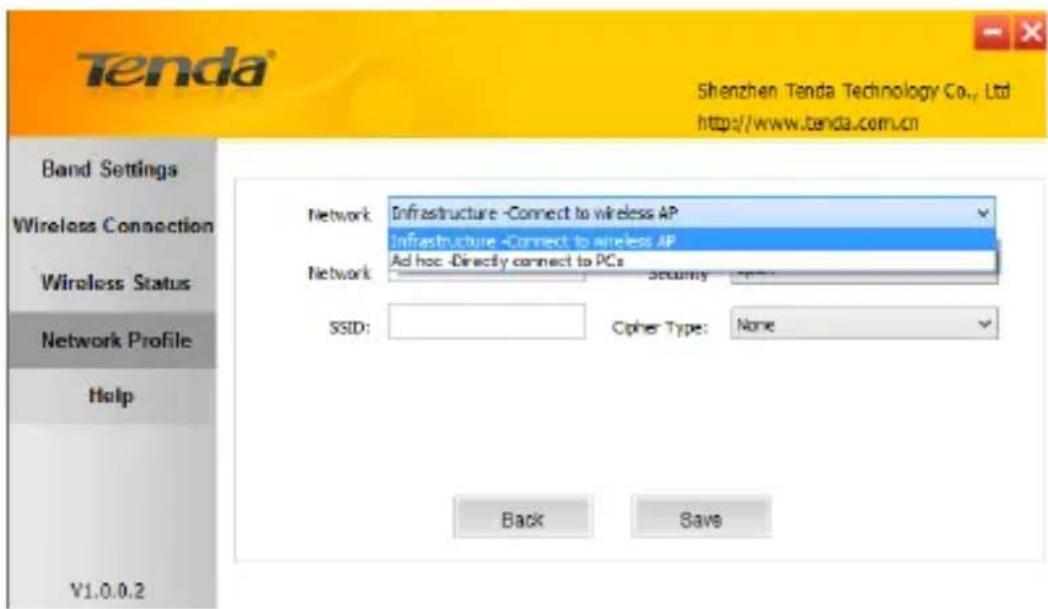
An 802.11 wireless adapter (WNIC) can operate in two modes known as infrastructure mode and ad hoc mode:
text_image
Tenda Shenzhen Tenda Technology Co., Ltd http://www.tenda.com.cn Band Settings Wireless Connection Wireless Status Network Profile Help V1.0.0.2 Network: Infrastructure -Connect to wireless AP Infrastructure -Connect to wireless AP Ad hoc -Directly connect to PCs Security SSID: Cipher Type: None Back SaveInfrastructure: In an infrastructure mode network the wireless adapter needs a wireless access point or a wireless router for communication. All wireless nodes in an infrastructure mode network connect to an access point or a wireless router.
Ad-hoc: A wireless ad hoc network does not rely on a preexisting infrastructure, such as routers in wired networks or access points in managed (infrastructure) wireless networks. It typically refers to any set of networks where all devices have equal status on a network and are free to associate with any other ad hoc network device in link range in peer to peer communication mode.
4.4.1 Proile Set Up for Infrastructure Mode
If you plan to connect your wireless adapter to an existing wireless AP or wireless router, please select the Infrastructure mode.
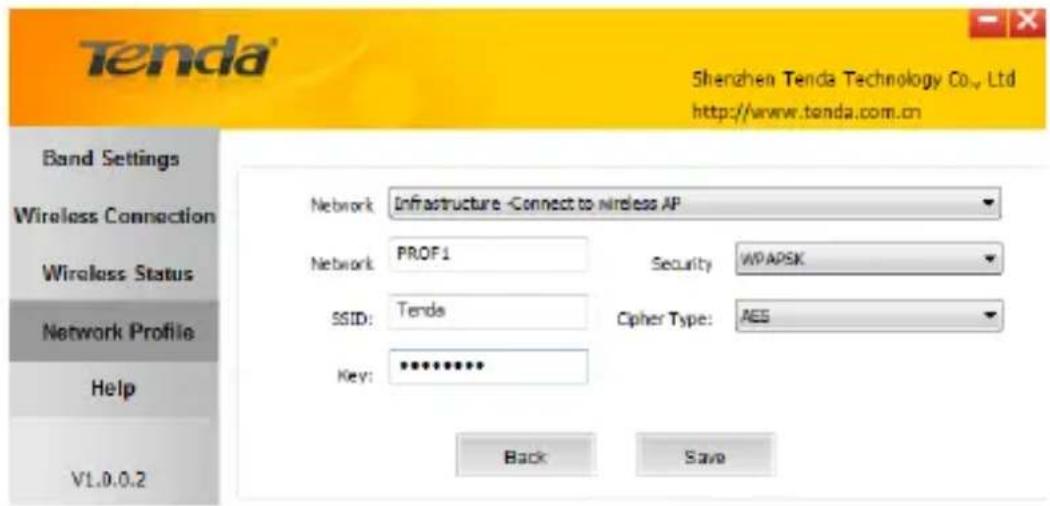
Setting up infrastructure mode for wireless connectivity is not that hard, all we need is to follow below instructions:
-
Click Add and select Infrastructure from the appearing dialog box appear.
-
Specify a proile name and the SSID (wireless network name) you wish to connect.
-
Specify the authentication mode and encryption mode, say, "WPA—PSK" and "AES".
-
Enter the security key and click Save.
text_image
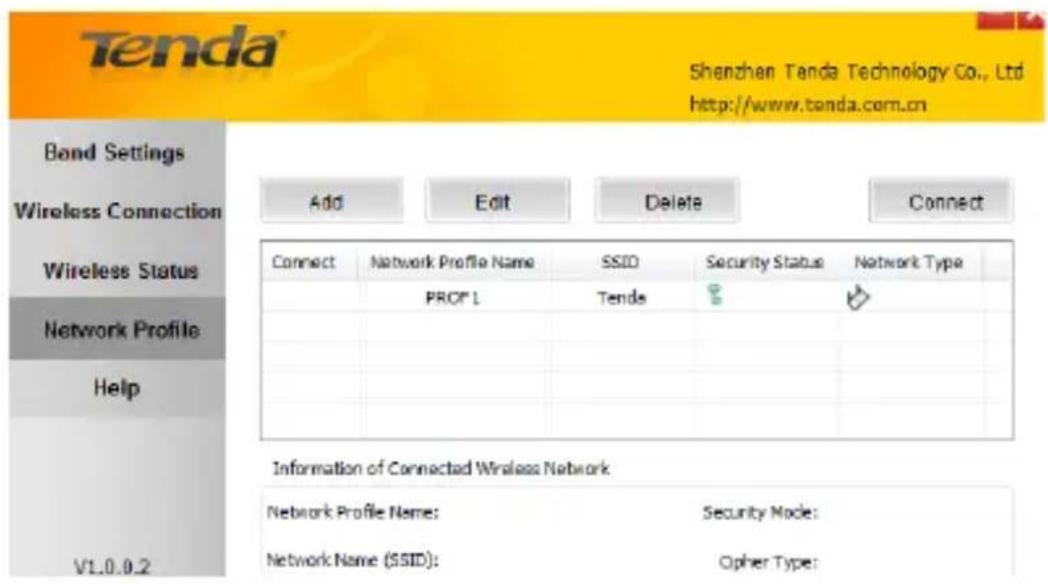
Tenda Shenzhen Tenda Technology Co., Ltd http://www.tenda.com.cn Band Settings Wireless Connection Wireless Status Network Profile Help V1.0.0.2 Network: Infrastructure -Connect to wireless AP Network: PROF1 Security WPAPSK SSID: Tends Cipher Type: AES Key: ********** Back SaveNow, you may see the added proile in the list. You can edit or delete it. By clicking Connect, you will soon connect to the wireless network specified in the proile.
text_image
Tenda Shenzhen Tenda Technology Co., Ltd http://www.tenda.com.cn Band Settings Wireless Connection Wireless Status Network Profile Help V1.0.0.2 Add Edit Delete Connect Connect Network Profile Name SSID Security Status Network Type PROF 1 Tends Information of Connected Wireless Network Network Profile Name: Security Mode: Network Name (SSID): Opher Type:
Note:
If you wish to join a hidden network (wireless AP or wireless router that does not broadcast its SSID), you must add a proile to manually connect to it.
4.4.2 Proile Set Up for Ad Hoc Mode
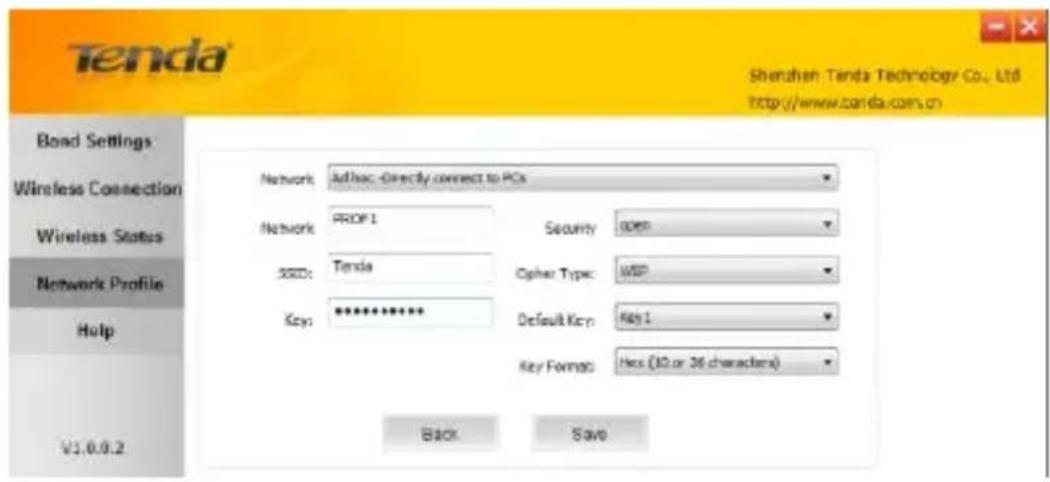
By using ad hoc mode for communication, each PC must have a wireless adapter for sharing resources. Setting up the Ad Hoc is easy. Simply follow below instructions:
-
Conigure a static IP address for each wireless adapter. All PCs on the Ad Hoc network must be configured with static IP addresses manually. For details, see appendix 1 hereof.
-
To add Ad Hoc proile:
a) Click Add and specify a SSID (wireless network name), say, "Tenda".
b) Select Ad Hoc as network type.
c) Select WEP and specify a WEP key.
text_image
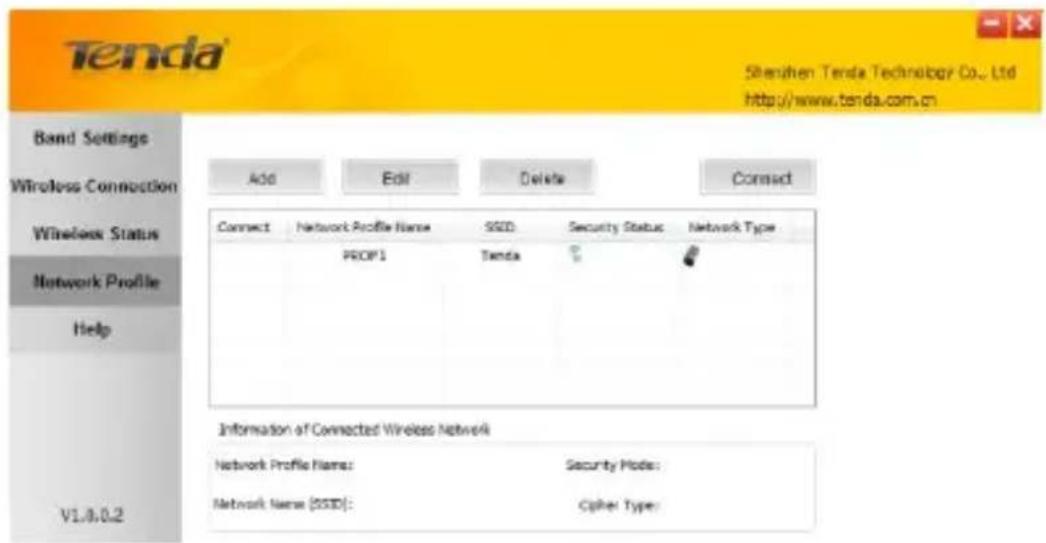
Tenda Shenzhen: Tenda Technology Co., Ltd. http://www.tenda.com.cn Bond Settings Wireless Connection Wireless Status Network Profile Help V1.0.0.2 Network: Adhoc, Directly connect to PCs Network PROF 1 Security PDF SSD: Tenda Cipher Type: WIP Key: ********* Default Key: Key 1 Key Format: Hex (10 or 26 characters) Back Saved) Click Save .and you will ind the proile in proile list.
e) Select it and click Connect.
text_image
Tenda Shenzhen Tenda Technology Co., Ltd http://www.tenda.com.cn Band Settings Wireless Connection Wireless Status Network Profile Help Add Edit Delete Connect Network Profile Name SSID: Security Status Network Type PROP1 Tenda Information of Connected Wireless Network Network Profile Name: Security Mode: Network Name (SSID): Cipher Type:f) Search the wireless network from devices on other nodes.
g) Double-click it, enter a security key if required and then click Connect.
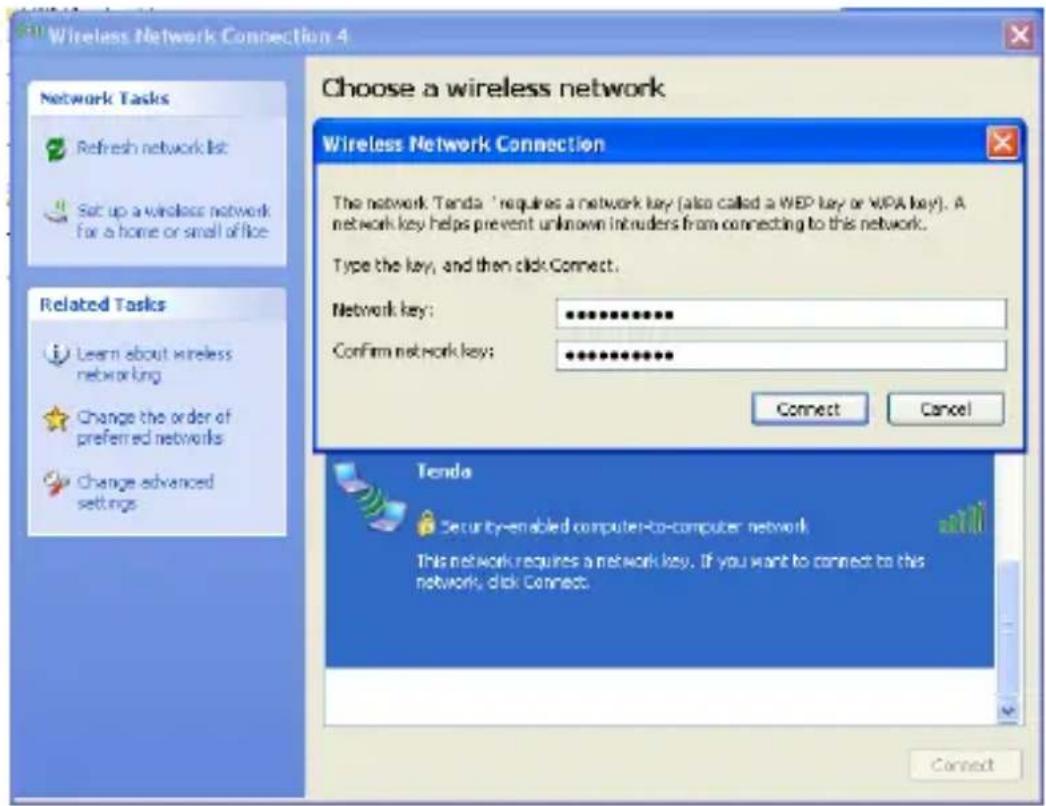
text_image
Wireless Network Connection 4 Choose a wireless network Wireless Network Connection The network Tenda - requires a network key (also called a WEP key or WPA key). A network key helps prevent unknown intruders from connecting to this network. Type the key, and then click Connect. Network key: ********** Confirm network key: ********** Connect Cancel Related Tasks Learn about wireless networking Change the order of preferred networks Change advanced settings Tenda Security-enabled computer-to-computer network This network requires a network key. If you want to connect to this network, click Connect.When below screen appears, you have successfully connected to it.
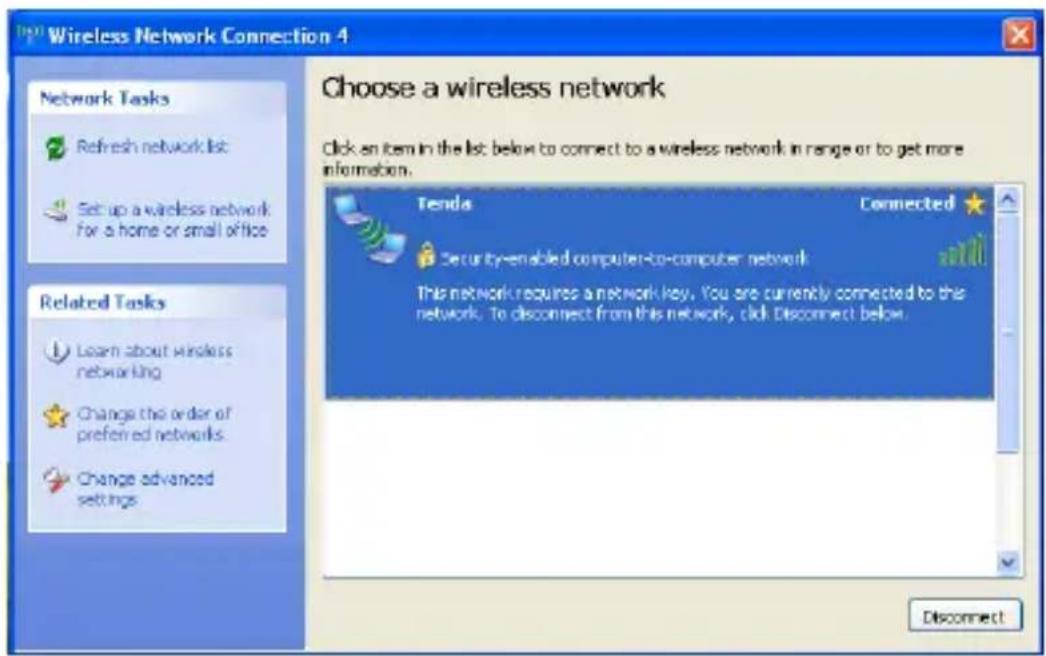
text_image
Wireless Network Connection 4 Choose a wireless network Click an item in the list below to connect to a wireless network in range or to get more information. Network Tasks Refresh network list Set up a wireless network for a home or small office Related Tasks Learn about wireless networking Change the order of preferred networks Change advanced settings Tenda Connected Security-enabled computer-to-computer network This network requires a network key. You are currently connected to this network. To disconnect from this network, click Disconnect below. Disconnect4.5 WPS Settings
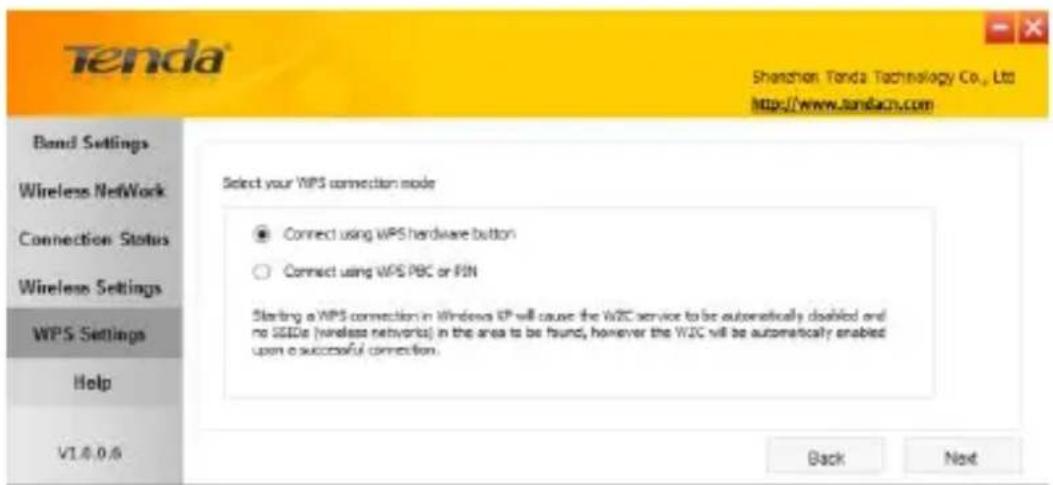
If your wireless network supports WPS, you can use WPS to join a wireless network. WPS can easily and quickly create secure wireless connections.
text_image
Tenda Shenzhen Tenda Technology Co., Ltd. http://www.tandacn.com Bond Settings Wireless NetWork Connection Status Wireless Settings WPS Settings Help V1.0.0.6 Select your WPS connection mode Connect using WPS hardware button Connect using WPS PBC or PIN Starting a WPS connection in Windows KP will cause the W2C service to be automatically disabled and no SEEIs (wireless networks) in the area to be found, however the W2C will be automatically enabled upon a successful connection. Back NextThere are two ways to join a wireless network using WPS:
Connect using WPS hardware button: Press the WPS button on the side of the adapter. This applies only to join a PBC encrypted wireless network;
Connect using WPS PBC or PIN: Join a wireless network from the Tenda adapter utility. This applies to both PBC and PIN encrypted wireless networks.
Follow instructions below:
4.5.1 To join a wireless network using WPS hardware button:
-
Enable WPS and PBC on your wireless router. (Press the WPS button on your wireless router or enable PBC from your router's management UI. For details, see the router's User Guide).
-
Run Tenda adapter UI and press and hold the WPS button on the side of the adapter for about 2 seconds.
-
When below screen appears, you have successfully connected to it.
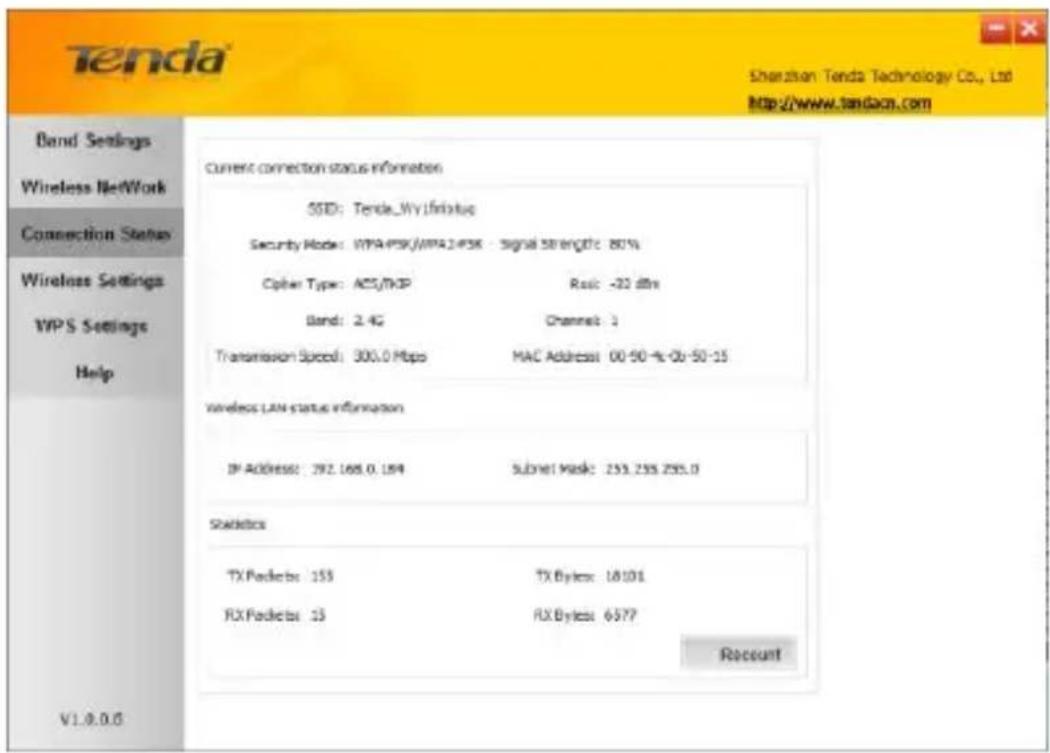
text_image
Tenda Sherizon Tenda Technology Co., Ltd http://www.tenda.com Band Settings Wireless Network Connection Status Wireless Settings WPS Settings Help Current connection status information SSID: Tenda_Wy1fstatus Security Mode: WPA-PSK/WPA2-PSK - Signal Strength: 80% Cipher Type: ACS/TKP Band: 2.4G Transmission Speed: 300.0 Mbps Wireless LAN status information IP Address: 292.168.0.184 Subnet Mask: 253.235.255.0 Statistics TX Packetto: 153 TX Bytes: 18101 FX Packetto: 13 FX Bytes: 6577 Account V1.0.0.04.5.2 To join a wireless network using WPS PBC or PIN from adapter's UI:
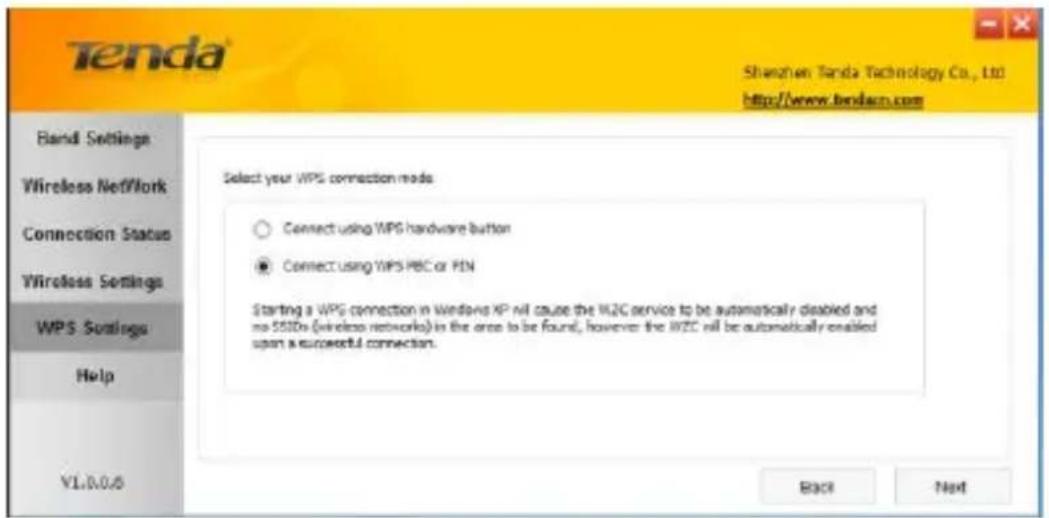
- To join a wireless network using WPS PBC from Tenda adapter UI: Select WPS Settings-> Connect using WPS PBC or PIN.
text_image
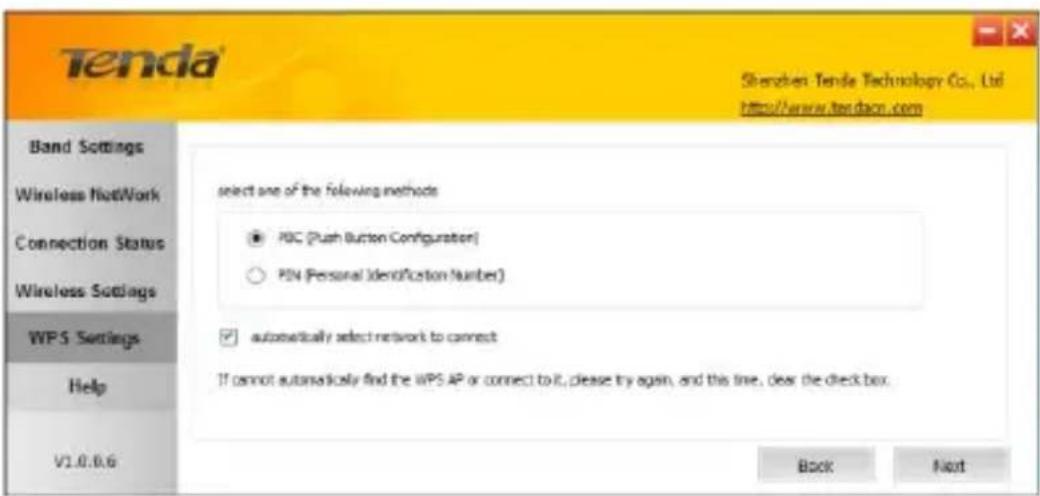
Shenzhen Tenda Technology Co., Ltd http://www.tenda.com Band Settings Wireless NetWork Connection Status Wireless Settings WPS Settings Help VL8.0.6 Select your WPS connection mode Connect using WPS hardware button Connect using WPS PBC or PIN Starting a WPS connection in Windows XP will cause the W2C service to be automatically disabled and no SSDs (wireless networks) in the area to be found, however the W2C will be automatically enabled upon a successful connection. Back NextClick Next and then select PBC.
text_image
Tenda Shenzhen Tende Technology Co., Ltd. http://www.tenda.com Band Settings select one of the following methods Wireless NetWork ● PDC (Push Button Configuration) ○ PIN (Personal Identification Number) Connection Status Wireless Settings WPS Settings ✓ automatically select network to connect Help If cannot automatically find the WPS AP or connect to it, please try again, and this line, dear the check box. V1.0.0.6 Back NextNote:
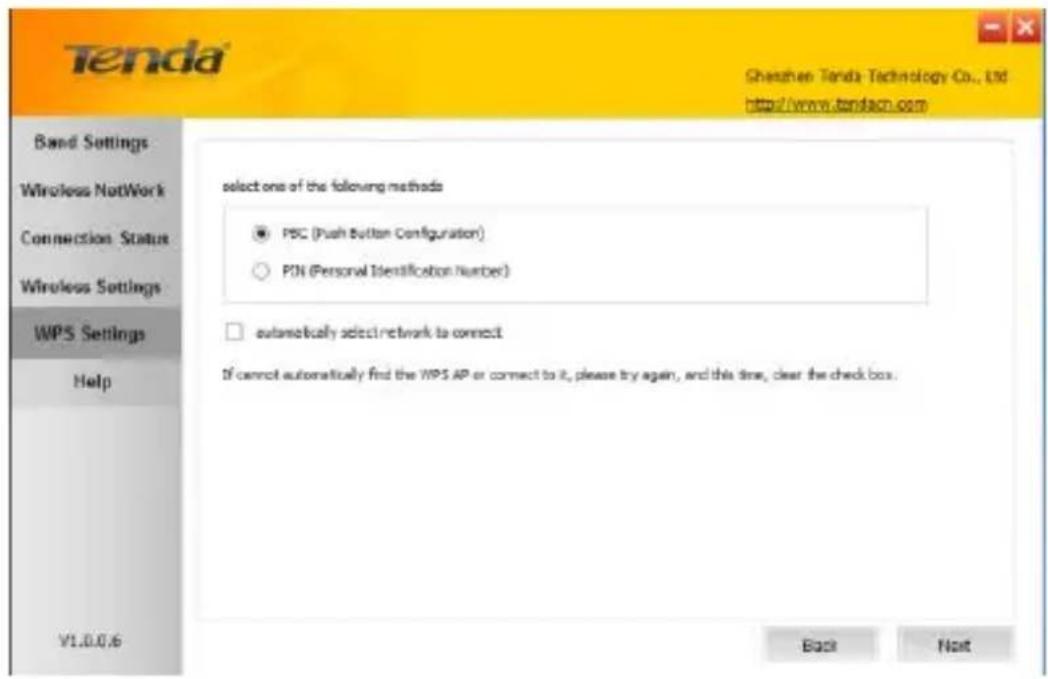
a) Automatically select network to connect: Automatically select a WPS-capable AP from searched results to join. This ield is checked by default. If this ield is left unchecked, you must manually select a WPS-capable AP to connect.
b) If you want to manually select the WPS-capable AP that you wish to join, leave this ield unchecked.
text_image
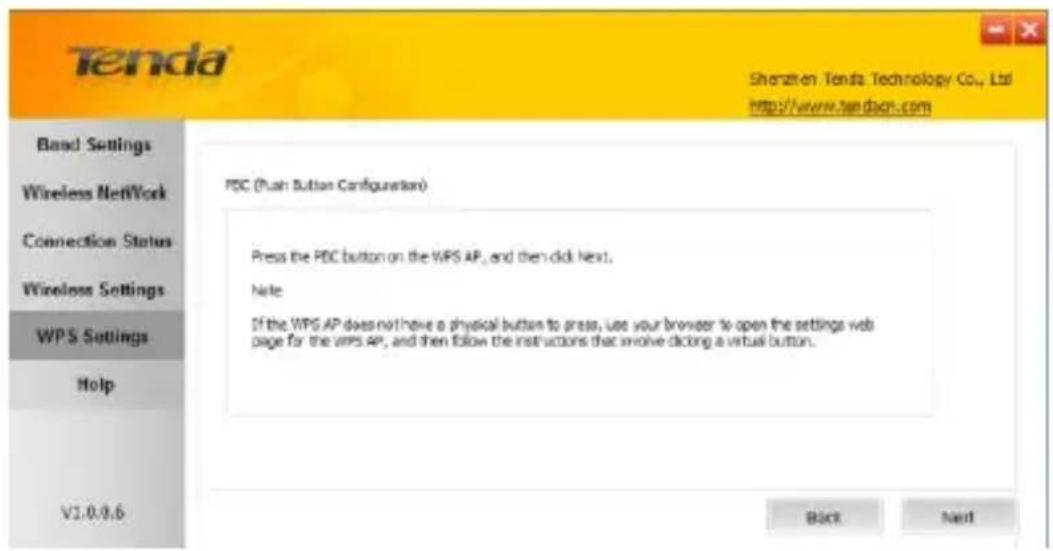
Tenda Shenzhen Tenda Technology Co., Ltd. http://www.tenda.com Band Settings Wireless Network Connection Status Wireless Settings WPS Settings Help V1.0.0.6 select one of the following methods ● PSC (Push Button Configuration) ○ PIN (Personal Identification Number) □ automatically select network to connect If cannot automatically find the WPS AP or connect to it, please try again, and this time, clear the check box. Back NextClick Next and follow onscreen WPS instructions to enable WPS-PBC on the AP.
text_image
Tenda Shenzhen Tenda Technology Co., Ltd http://www.tenda.com Band Settings Wireless NetWork Connection Status Wireless Settings WPS Settings Help V1.0.0.6 PBC (Push Button Configuration) Press the PBC button on the WPS AP, and then did next. Note: If the WPS AP does not have a physical button to press, use your browser to open the settings web page for the WPS AP, and then follow the instructions that involve clicking a virtual button. Back NextThen within 2 minutes, enable the WPS on your wireless router and click then Next.
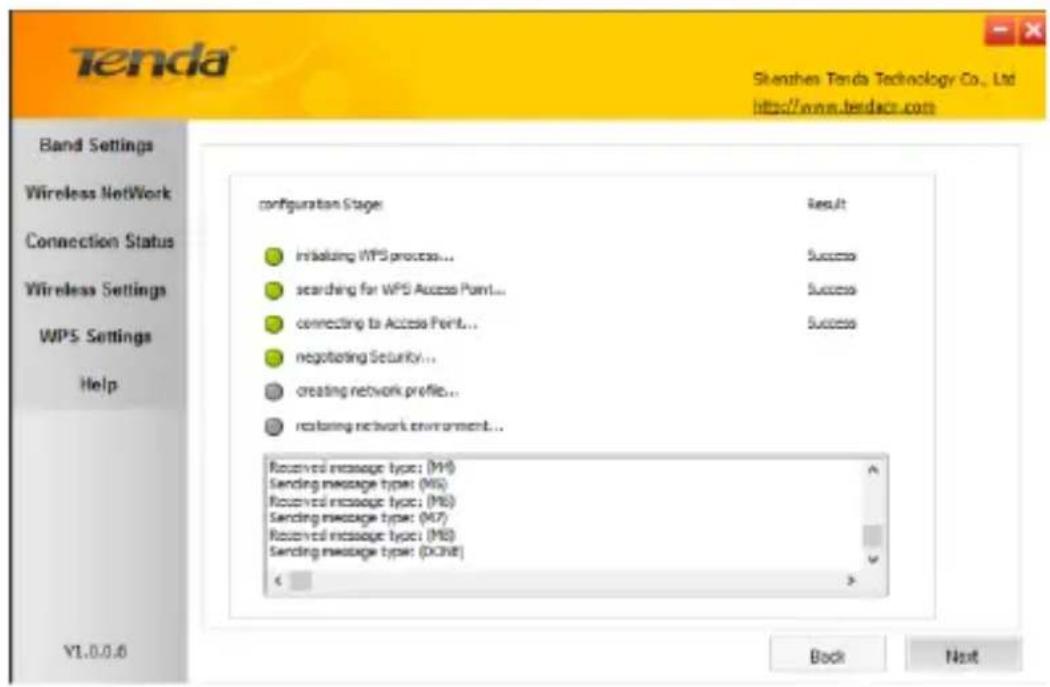
Negotiation Process:
text_image
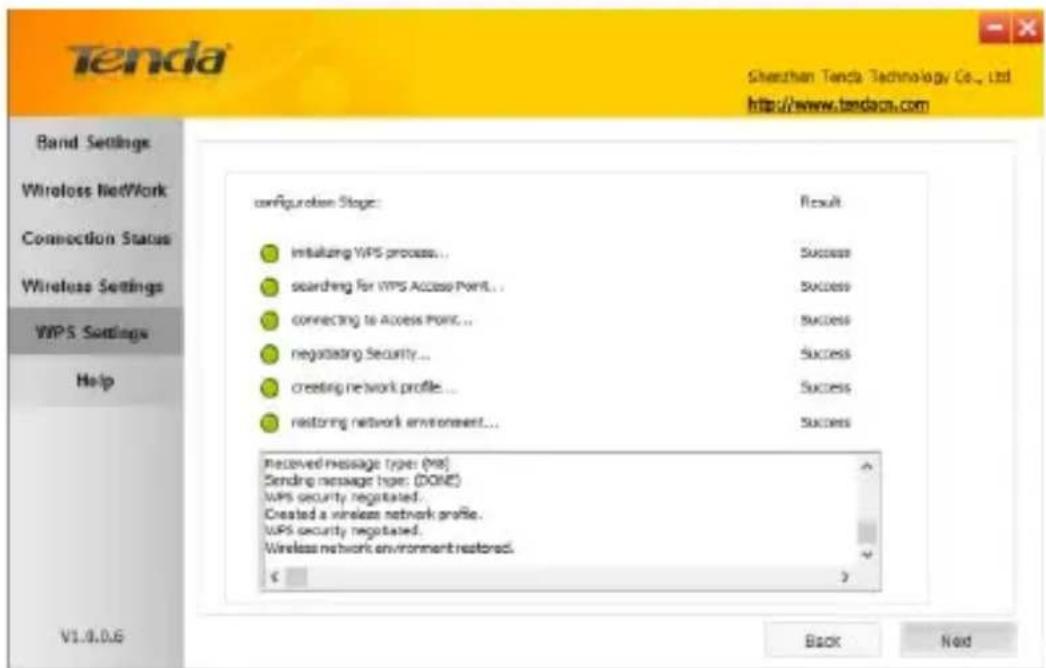
Tenda Skenzhen Tenda Technology Co., Ltd http://www.tenda.com Band Settings Wireless Network Connection Status Wireless Settings WPS Settings Help Configuration Stage: result ● Initiating WPS process... Success ● searching for WPS Access Point... Success ● connecting to Access Point... Success ● negotiating Security... creating network profile... ● restoring network environment... Received message type: (M1) Sending message type: (M2) Received message type: (M3) Sending message type: (M4) Received message type: (M5) Sending message type: (OKN) Back Next V1.0.0.6Negotiation Completed Successfully:
text_image
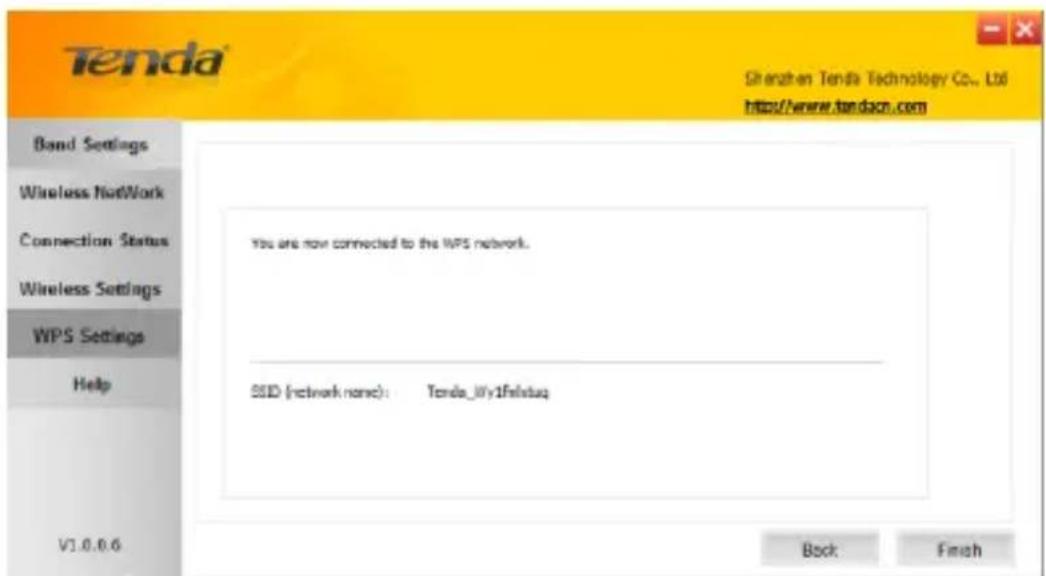
Tenda Sherban Tenda Technology Co., Ltd. http://www.tenda.com Band Settings Wireless Network Connection Status Wireless Settings WPS Settings Help Configuration Stage: Result ● Intaking WPS process... Success ● searching for WPS Access Point... Success ● connecting to Access Point... Success ● negotiating Security... Success ● creating network profile... Success ● restoring network environment... Success Received message type: (MS) Sending message type: (DONE) WPS security negotiated. Created a wireless network profile. WPS security negotiated. Wireless network environment restored. < Back Next V1.0.0.6Now, simply click Next and you will see the SSID of the wireless network you joined. The WPS-PBC connection is now completed.
text_image
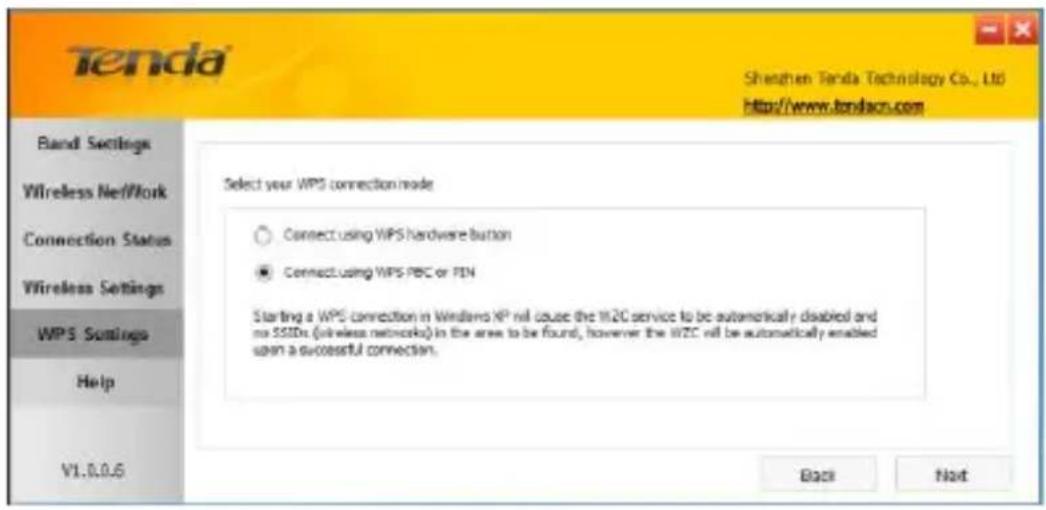
Tenda Shenzhen Tenda Technology Co., Ltd http://www.tenda.com Band Settings Wireless Network Connection Status Wireless Settings WPS Settings Help You are now connected to the WPS network. SSD (network name): Tenda_Ify1Finstaq V1.0.0.6 Back Finish- To join a wireless network using WPS PIN from Tenda adapter UI:
Select WPS Settings-> Connect using WPS PBC or PIN.
text_image
Tenda Shenzhen Tenda Technology Co., Ltd. http://www.tondacn.com Band Settings Wireless Network Connection Status Wireless Settings WPS Settings Help V1.0.0.6 Select your WPS connection mode Connect using WPS Hardware button Connect using WPS PBC or PEN Starting a WPS connection in Windows XP will cause the W2C service to be automatically disabled and no SSDs (wireless networks) in the area to be found, however the W2C will be automatically enabled upon a successful connection. Back NextClick Next and then select PIN.
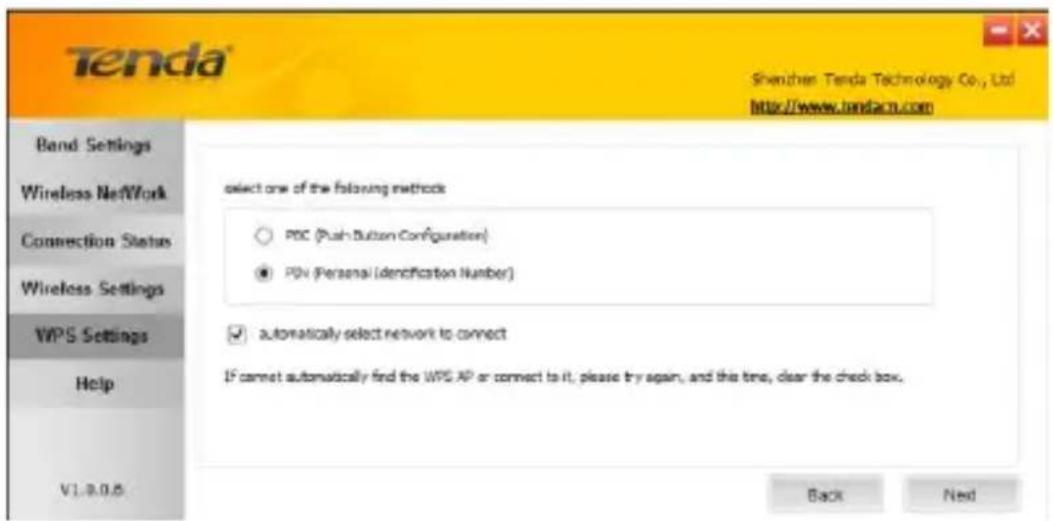
text_image
Tenda Shenzhen Tenda Technology Co., Ltd. http://www.tenda.com Band Settings Wireless Network Connection Status Wireless Settings WPS Settings Help V1.9.0.6 select one of the following methods ○ PSC (Push Button Configuration) ● PV (Personal Identification Number) ✓ automatically select network to connect If cannot automatically find the WPS AP or connect to it, please try again, and this time, clear the check box. Back NextClick Next and you will ind two available WPS-PIN modes:
- Enter a PIN into my Access Point or Registrar:
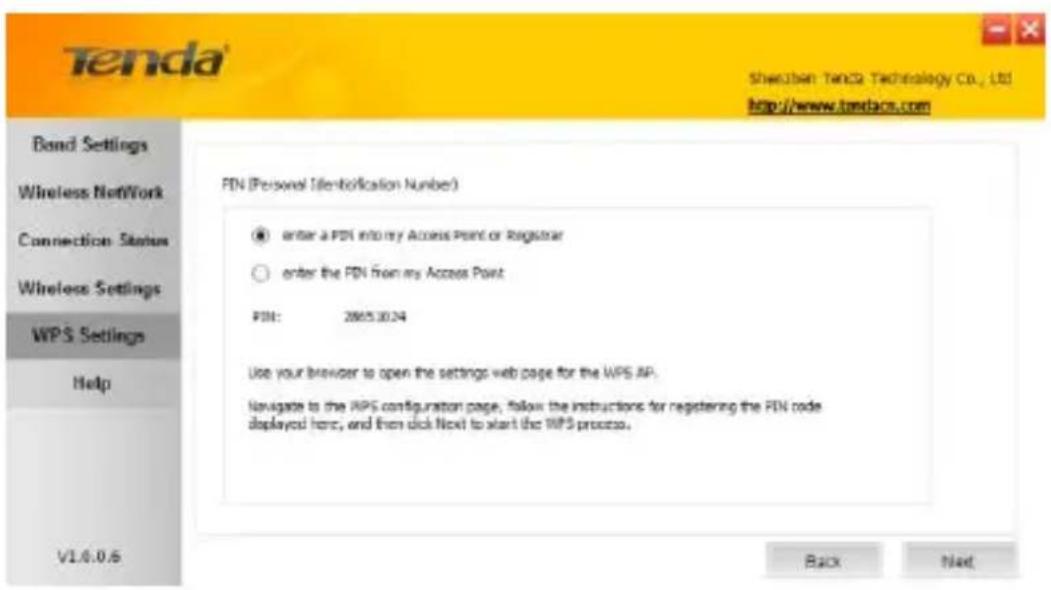
text_image
Tenda Shenzhen-Tenda Technology Co., Ltd. http://www.tenda.com Bond Settings Wireless Network Connection Status Wireless Settings WPS Settings Help V1.0.0.6 FDN (Personal Identification Number) ● enter a PDN into my Access Point or Registrar ○ enter the PDN from my Access Point PDN: 2865.30.24 Use your browser to open the settings web page for the WPS AP. Navigate to the WPS configuration page, follow the instructions for registering the PDN code displayed here, and then click Next to start the WPS process. Back NextFollow onscreen instructions to copy W900U's PIN to the wireless AP and enable WPS-PIN on the wireless AP.
For example: If you wish to connect to Tenda W1800R, simply copy the PIN to Tenda W1800R and enable WPS-PIN on the Tenda W1800R.
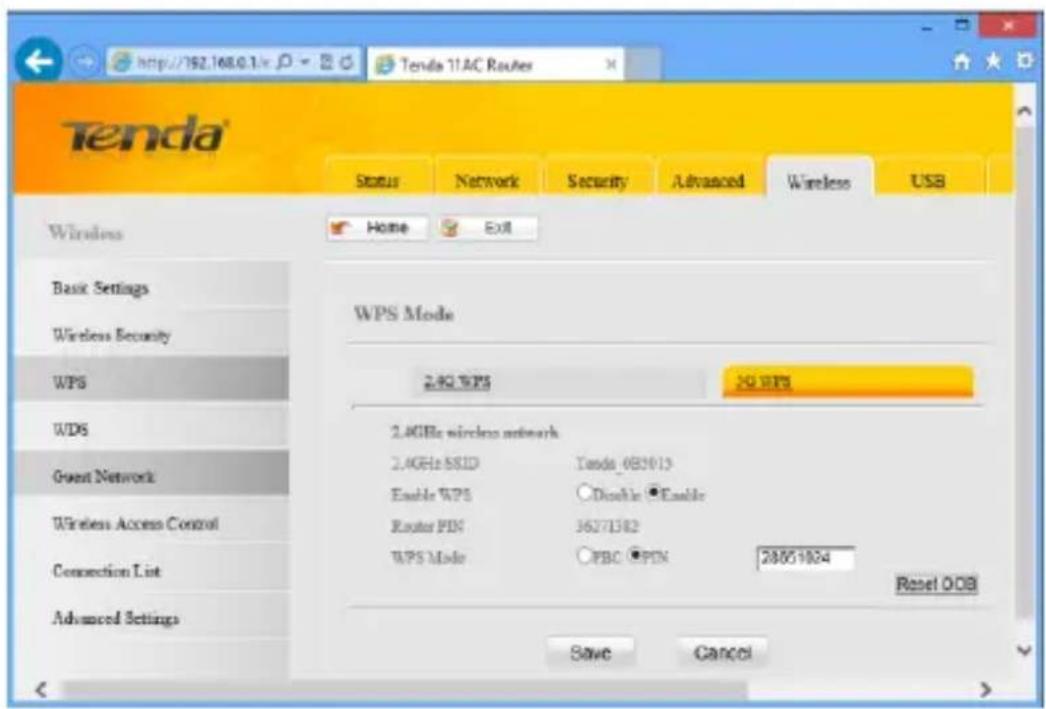
text_image
Tenda http://792.168.0.1/x Tenda 11.AC Routes Status Network Security Advanced Wireless USB Wireless Home Exit Basic Settings Wireless Security WPS WDS Giant Network Wireless Access Control Connection List Advanced Settings WPS Mode 2.4GHz WPS 25.8GHz 2.4GHz wireless network 2.4GHz SSD Tanda_083913 Enable WPS Disable Enable Router PIN 36271382 WPS Mode PBC PIN 28851924 Reset OOB Save Cancel2. Enter the PIN from my Access Point:
First, enable the WPS-PIN on the wireless AP to connect, say, Tenda W1800R.
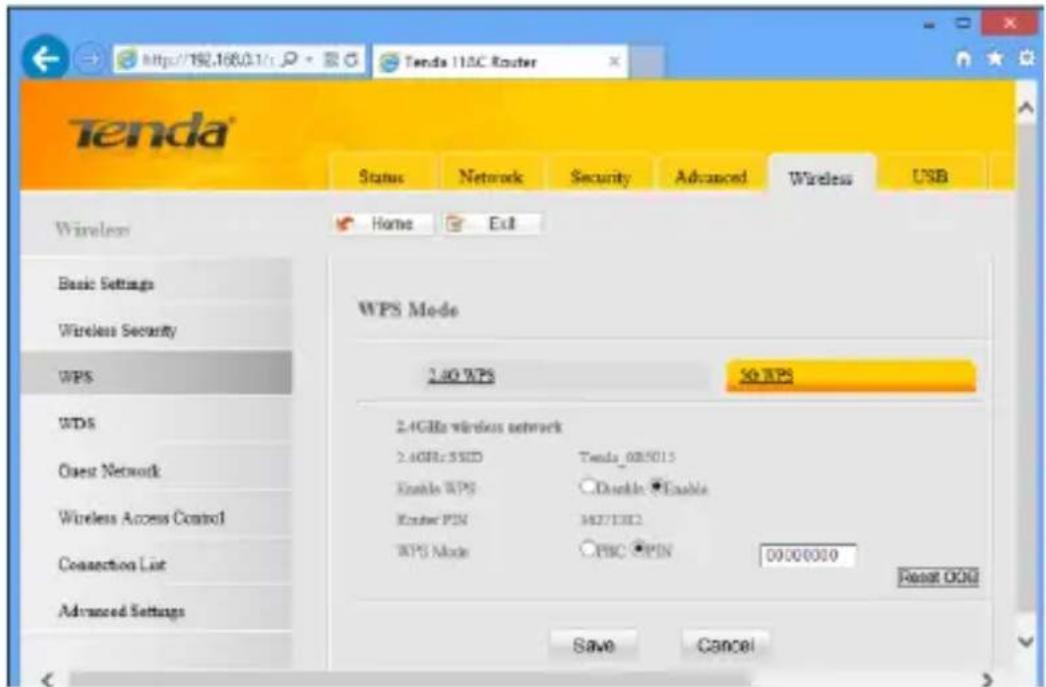
text_image
Tenda Status Network Security Advanced Wireless USB Wireless Home Exit WPS Mode 2.40 WPS 50 WPS 2.4GBs wireless network 2.4GHz: 550Ω Tenda_0085015 Enable WPS Enable Router PIN 34271362 WPS Mode PBC PIN 00000000 Reset OCH Advanced Settings Save CancelSecond, enter the wireless AP's PIN.
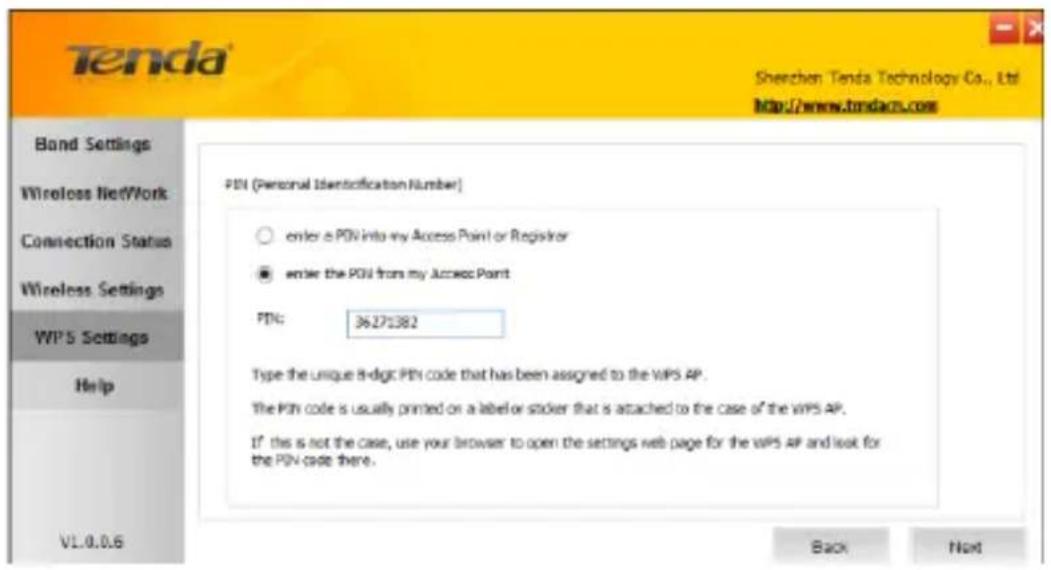
text_image
Tenda Sherchen Tenda Technology Co., Ltd. http://www.tendacs.com Bond Settings Wireless Network Connection Status Wireless Settings WiPS Settings Help VL.0.0.6 PDN (Personal Identification Number) ○ enter a PDN into my Access Point or Registrar ● enter the PDN from my Access Point PDN: 36271382 Type the unique B-digit PDN code that has been assigned to the WiPS AP. The PDN code is usually printed on a label or sticker that is attached to the case of the WiPS AP. If this is not the case, use your browser to open the settings web page for the WiPS AP and look for the PDN code there. Back NextAnd then click Next to start WPS-PIN negotiation.
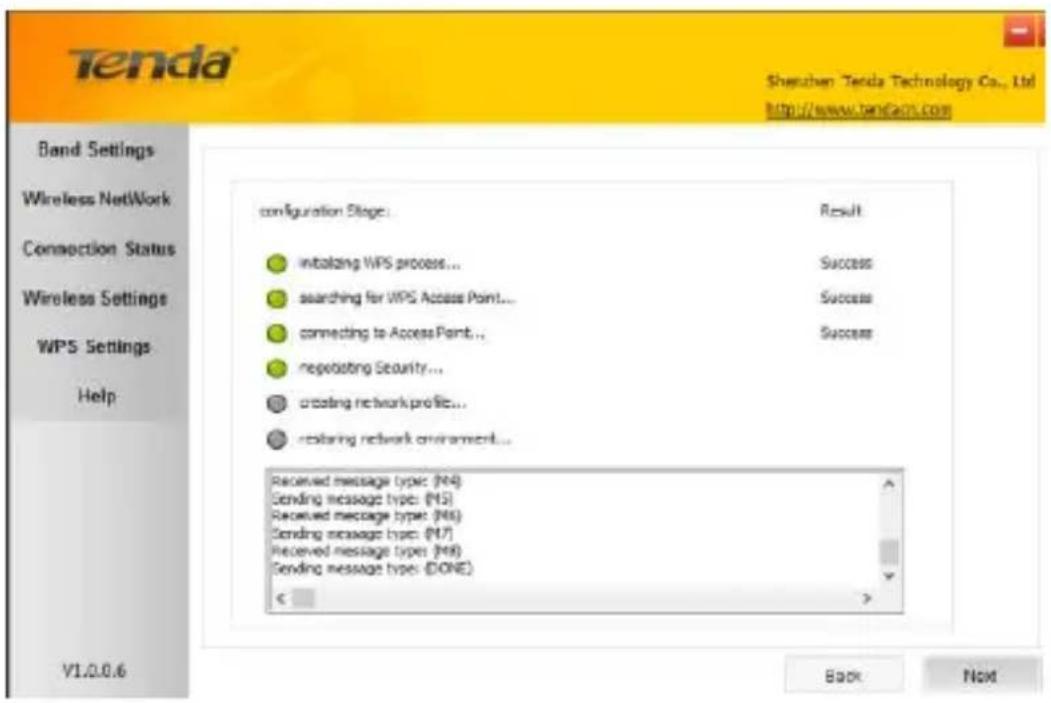
text_image
Tenda Shenzhen Tenda Technology Co., Ltd http://www.tenda.com Band Settings Wireless NetWork Connection Status Wireless Settings WPS Settings Help V1.0.0.6 configuration Stage: Result ● initiating WPS process... Success ● searching for WPS Access Point... Success ● connecting to Access Point... Success ● negotiating Security... ○ creating network profile... ● restoring network environment... Received message type: (N4) Sending message type: (N5) Received message type: (N6) Sending message type: (N7) Received message type: (N8) Sending message type: (DONE) Back NextNegotiation Completed:
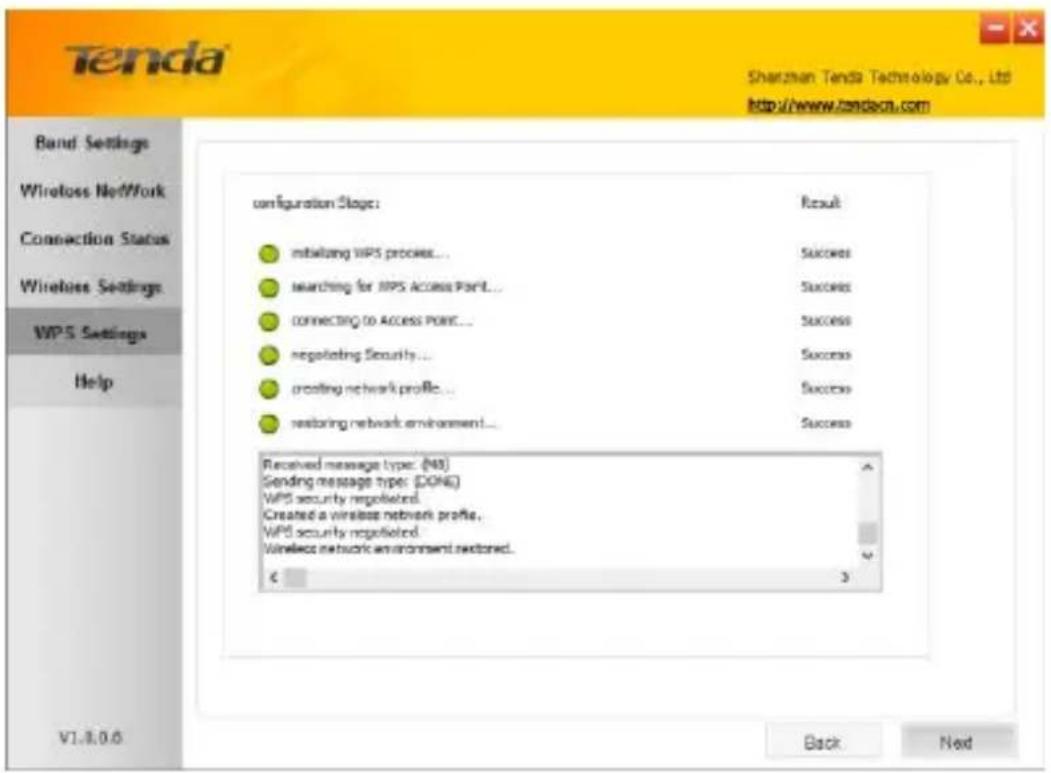
text_image
Tenda Shenzhen Tenda Technology Co., Ltd. http://www.tenda.com Band Settings Wireless Network Connection Status Wireless Settings WPS Settings Help configuration Stage: Result mitabilizing WPS process... Success searching for WPS Access Port... Success connecting to Access Point... Success negotiating Security... Success croasting network profile... Success restoring network environment... Success Received message type: (N8) Sending message type: (DONE) WPS security negotiated Created a wireless network profile, WPS security negotiated Wireless network environment restored. € 3 V1.8.0.6 Back NextNow, simply click Next and you will see the SSID of the wireless network you joined. The WPS-PIN connection is now completed.
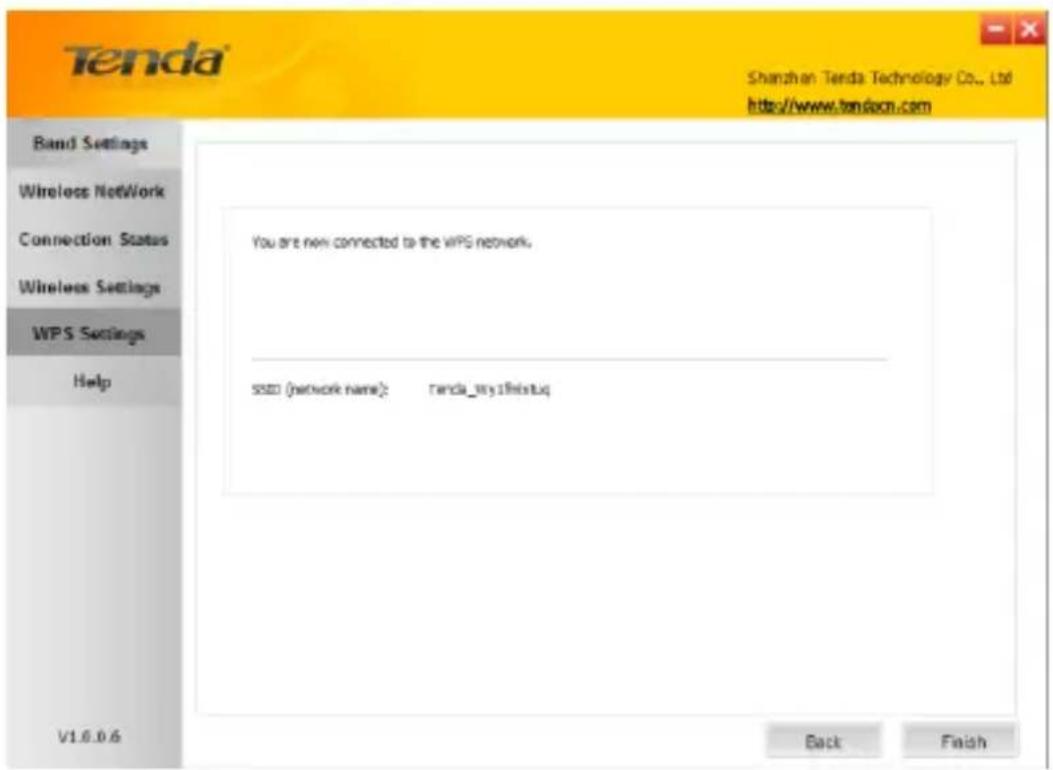
text_image
Tenda Shenzhen-Tenda Technology Co., Ltd http://www.tenda.com Band Settings Wireless Network Connection Status Wireless Settings WPS Settings Help You are new connected to the WPS network. SSZ (network name): renda_try1fhiustu Back Finish V1.6.0.64.6 Help
Click the Help button to display help.
Appendix 1 Conig TCP/IP settings on your PC
If you are using Windows XP, do as follows:
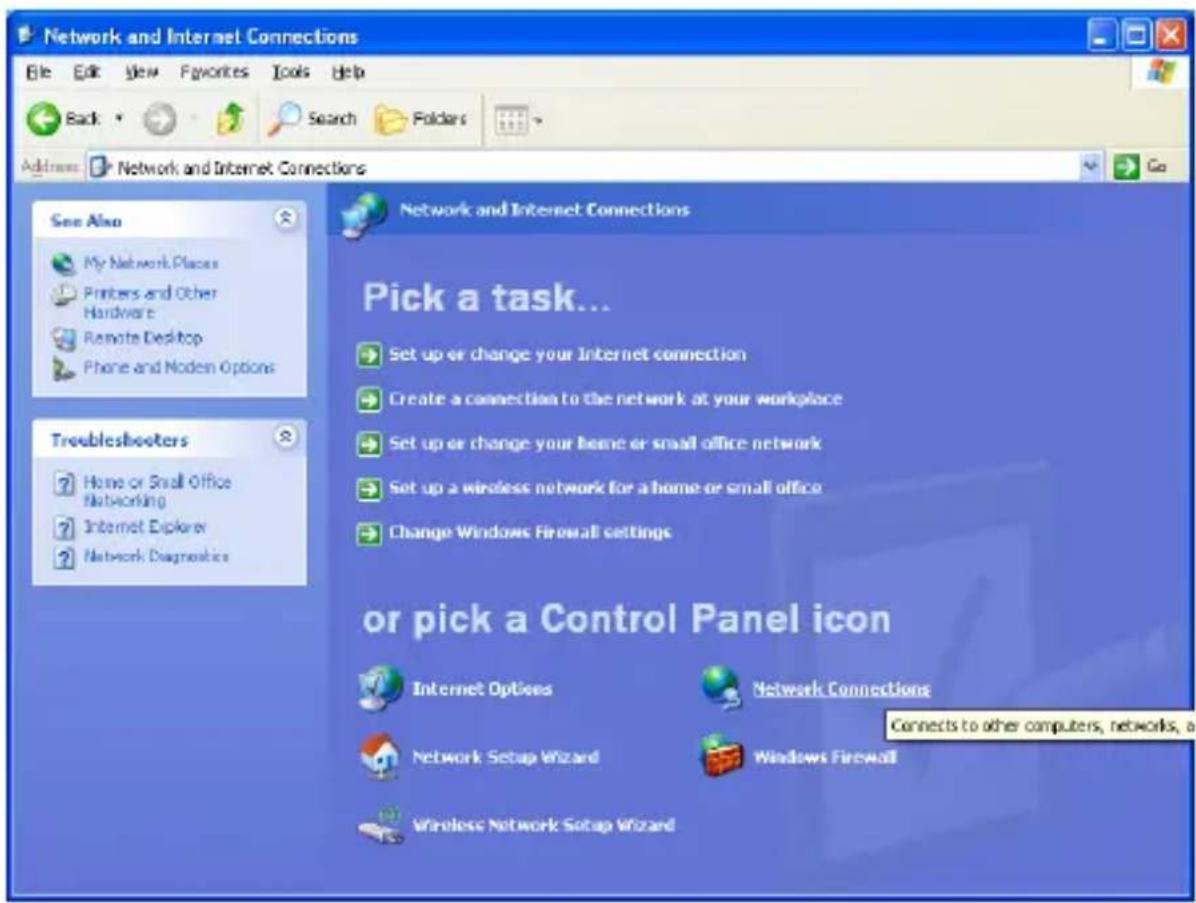
- Click Start > Control Panel > Network and Internet Connections > Network Connections.
text_image
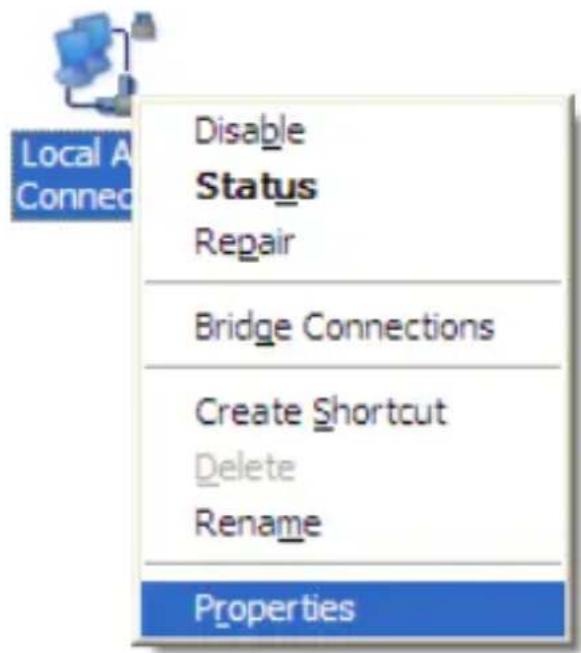
Network and Internet Connections File Edit View Favorites Tools Help Back Search Folders Address Network and Internet Connections See Also My Network Places Printers and Other Hardware Remote Desktop Phone and Noden Options Tribleshooters Home or Small Office Networking Internet Explorer Network Diagnostics Network and Internet Connections Pick a task... Set up or change your Internet connection Create a connection to the network at your workplace Set up or change your home or small office network Set up a wireless network for a home or small office Change Windows Firewall settings or pick a Control Panel icon Internet Options Network Connections Network Setup Wizard Windows Firewall Wireless Network Setup Wizard Connects to other computers, networks, a- Right-click on the Local Area Connection and select Properties.
text_image
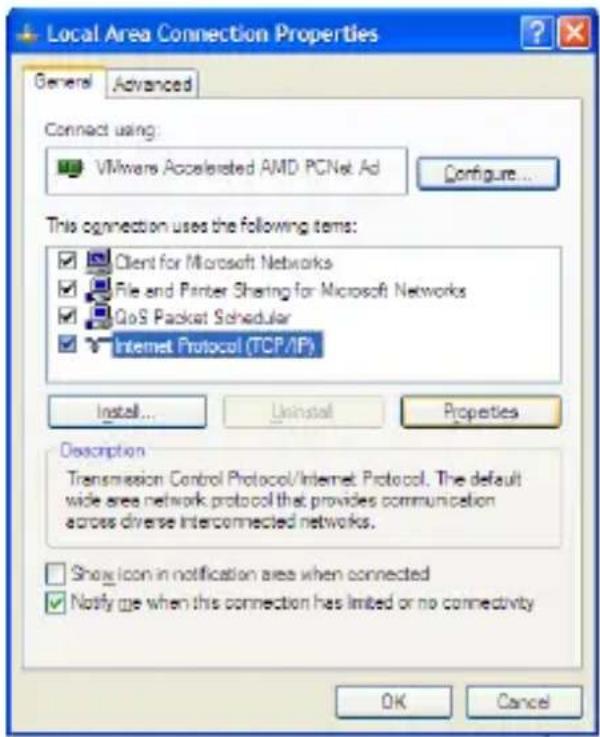
Local A Connec Disable Status Repair Bridge Connections Create Shortcut Delete Rename Properties- Select Internet Protocol (TCP/IP) and click Properties.
text_image
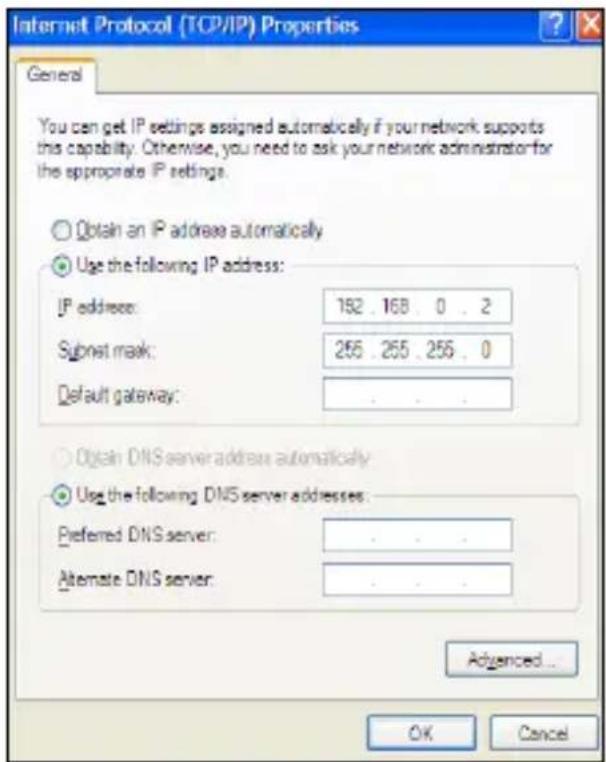
Local Area Connection Properties General Advanced Connect using: VMware Accelerated AMD PCNet Ad Configure... This connection uses the following items: Client for Microsoft Networks File and Printer Sharing for Microsoft Networks GoS Packet Scheduler Internet Protocol (TCP/IP) Install... Uninstall Properties Description Transmission Control Protocol/Internet Protocol. The default wide area network protocol that provides communication across diverse interconnected networks. Show icon in notification area when connected Notify me when this connection has limited or no connectivity OK Cancel4. Select "Use the following IP address".
IP address: Enter 192.168.0.xxx where xxx can be any number between 2 and 253).
Subnet mask: Enter 255.255.255.0
Click OK twice to save your settings.
text_image
Internet Protocol (TCP/IP) Properties General You can get IP settings assigned automatically if your network supports this capability. Otherwise, you need to ask your network administrator for the appropriate IP settings. Obtain an IP address automatically Use the following IP address: IP address: 192 . 168 . 0 . 2 Subnet mask: 255 . 255 . 255 . 0 Default gateway: Obtain DNS server address automatically Use the following DNS server addresses: Preferred DNS server: Alternate DNS server: Advanced... OK CancelIf you are using Windows 7, do as follows:
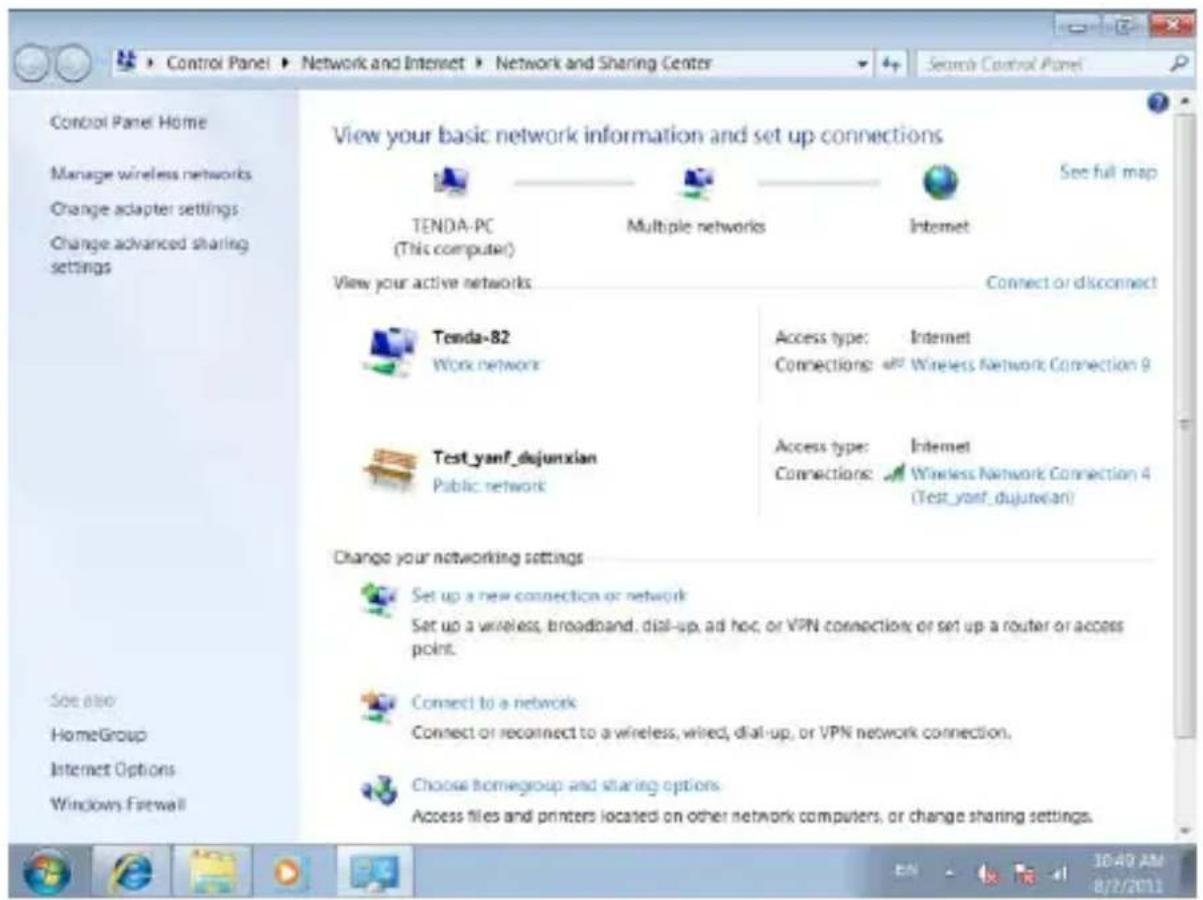
- Click on Start > Control Panel > Network and Internet > Network and Sharing Center.
text_image
Control Panel Home Manage wireless networks Change adapter settings Change advanced sharing settings View your basic network information and set up connections TENDA-PC (This computer) Multiple networks Internet See full map View your active networks Connect or disconnect Tenda-82 Work network Access type: Internet Connections: Wireless Network Connection 9 Test_yanf_dujunxian Public network Access type: Internet Connections: Wireless Network Connection 4 (Test_yanf_dujunxian) Change your networking settings Set up a new connection or network Set up a wireless, broadband, dial-up, ad hoc, or VPN connection or set up a router or access point. Connect to a network Connect or reconnect to a wireless, wired, dial-up, or VPN network connection, Choose homegroup and sharing options Access files and printers located on other network computers, or change sharing settings. See also HomeGroup Internet Options Windows Firewall2. Click "Change adapter settings".
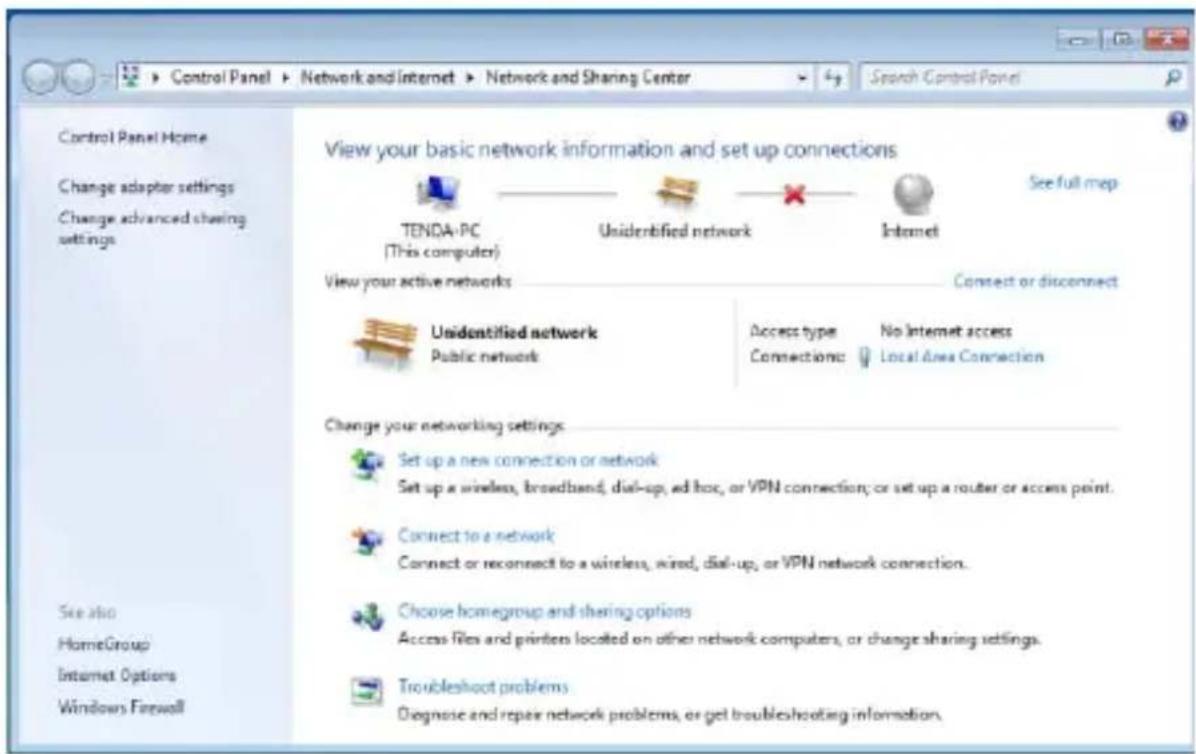
text_image
Control Panel Home Change adapter settings Change advanced sharing settings View your basic network information and set up connections TENDA-PC (This computer) Unidentified network Internet See full map View your active networks Connect or disconnect Unidentified network Public network Access type No Internet access Connections: Local Area Connection Change your networking settings Set up a new connection or network Set up a wireless, broadband, dial-up, ad hoc, or VPN connection; or set up a router or access point. Connect to a network Connect or reconnect to a wireless, wired, dial-up, or VPN network connection. Choose homegroup and sharing options Access files and printers located on other network computers, or change sharing settings. Troubleshoot problems Diagnose and repair network problems, or get troubleshooting information. See also HomeGroup Internet Options Windows Firewall3. Right-click on the Local Area Connection and select Properties.

text_image
Local Area Connection Unidentified networks Intel(R) PRO/1000 Disable Status Diagnose Bridge Connections Create Shortcut Delete Rename Properties- Select Internet Protocol Version 4 (TCP/IPv4) and click Properties or directly double-click on Internet Protocol Version 4 (TCP/IPv4).
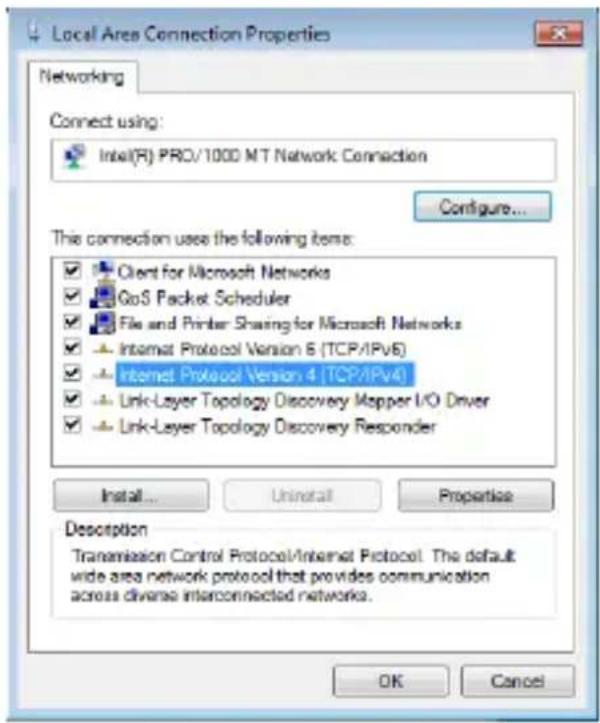
text_image
Local Area Connection Properties Networking Connect using: Intel(R) PRO/1000 MT Network Connection Configure... This connection uses the following items: Client for Microsoft Networks GoS Packet Scheduler File and Printer Sharing for Microsoft Networks Intmat Protocol Version 6 (TCP/IPv6) Internet Protocol Version 4 (TCP/IPv4) Link-Layer Topology Discovery Mapper I/O Driver Link-Layer Topology Discovery Responder Install... Uninstall Properties Description Transmission Control Protocol/Internet Protocol. The default wide area network protocol that provides communication across diverse interconnected networks. OK Cancel- Select "Use the following IP address".
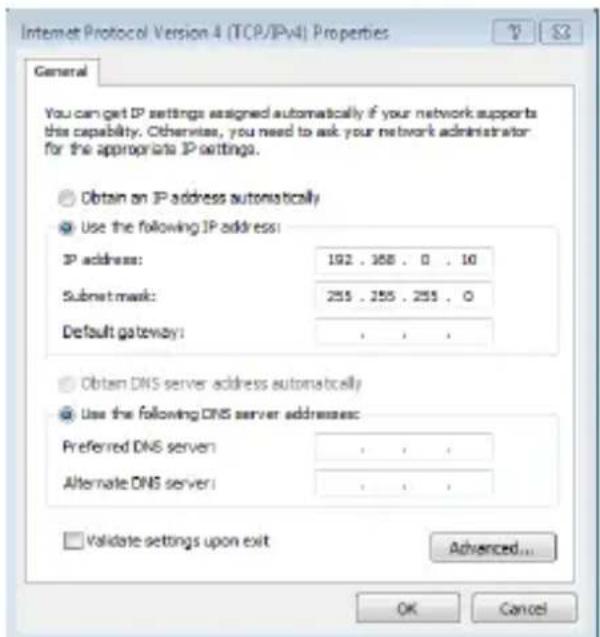
text_image
Internet Protocol Version 4 (TCP/IPv4) Properties General You can get IP settings assigned automatically if your network supports this capability. Otherwise, you need to ask your network administrator for the appropriate IP settings. Obtain an IP address automatically Use the following IP address: IP address: 192 . 358 . 0 . 10 Submit mask: 255 . 255 . 255 . 0 Default gateway: , , , . Obtain DNS server address automatically Use the following DNS server addresses: Preferred DNS server : , , , Alternate DNS server : , , , Validate settings upon exit Advanced... OK CancelIP address: Enter 192.168.0.xxx where xxx can be any number between 2 and 253).
Subnet mask: Enter 255.255.255.0
Click OK twice to save your settings.
Appendix 2 Glossary
802.11ac: IEEE 802.11ac is a wireless computer networking standard of 802.11, currently under development, providing high-throughput wireless local area networks on the 5 GHz band. Theoretically, this specification will enable multi-station WLAN throughput of at least 1 gigabit per second and a maximum single link throughput of at least 500 megabits per second (500 Mbit/s).
802.11a: 802.11a is an amendment to the IEEE 802.11 specification that added a higher data rate of up to 54 Mbit/s using the 5 GHz band.
802.11b: 802.11b, is an amendment to the IEEE 802.11 wireless networking specification that extends throughput up to 11 Mbit/s using the same 2.4 GHz band.
802.11e: 802.11e is an approved amendment to the IEEE 802.11 standard that deines a set of Quality of Service enhancements for wireless LAN applications through modifications to the Media Access Control (MAC) layer. The standard is considered of critical importance for delay-sensitive applications, such as Voice over Wireless LAN and streaming multimedia.
802.11g: 802.11g is an amendment to the IEEE 802.11 specification that extended throughput to up to 54 Mbit/s using the same 2.4 GHz band as 802.11b.
802.11h: 802.11h, refers to the amendment added to the IEEE 802.11 standard for Spectrum and Transmit Power Management Extensions. It solves problems like interference with satellites and radar using the same 5 GHz frequency band. It was originally designed to address European regulations but is now applicable in many other countries.
802.11i: 802.11i, implemented as WPA2, is an amendment to the original IEEE 802.11.
802.11j: 802.11j is an amendment to the IEEE 802.11 standard designed specially for Japanese market.
802.11n: 802.11n is an amendment to the IEEE 802.11 standard, which improves network throughput over the two previous standards—802.11a and 802.11g—with a significant increase in the maximum net data rate. 802.11n standardized support for multiple-input multiple-output and frame aggregation, and security improvements, among other features.
IEEE 802.15: IEEE 802.15 is a working group of the IEEE 802 standards committee which specifies Wireless Personal Area Network (WPAN) standards. It includes seven task groups. Task group one is based on Bluetooth technology.
IEEE 802.16: IEEE 802.16 is a series of Wireless Broadband standards authored by the Institute of Electrical and Electronics Engineers (IEEE). Although the 802.16 family of standards is officially called Wireless MAN in IEEE, it has been commercialized under the name “WiMAX” (from "Worldwide Interoperability for Microwave Access") by the WiMAX Forum industry alliance.
802.16a: 802.16a, also known as WiMAX, extends throughput up to 70Mbit/s transmission rate within the distance of 30 miles.
802.20: Delivers 1Mbit/s throughput for wireless MAN (Metropolitan area network).
IEEE 802.1X: IEEE 802.1X is an IEEE Standard for port-based Network Access Control (PNAC). It is part of the IEEE 802.1 group of networking protocols. It provides an authentication mechanism to devices wishing to
attach to a LAN or WLAN.IEEE 802.1X deines the encapsulation of the Extensible Authentication Protocol (EAP) over IEEE 802 which is known as "EAP over LAN" or EAPOL.
WEP: Wired Equivalent Privacy (WEP) is a security algorithm for IEEE 802.11 wireless networks. Introduced as part of the original 802.11 standard, its intention was to provide data confidentiality comparable to that of a traditional wired network.
WPA: Wi-Fi Protected Access (WPA) and Wi-Fi Protected Access II (WPA2) are two security protocols and security certification programs developed by the Wi-Fi Alliance to secure wireless computer networks. The Alliance deined these in response to serious weaknesses researchers had found in the previous system, WEP (Wired Equivalent Privacy) and intended as an intermediate solution to WEP insecurities.
RSN: The Wi-Fi Alliance refers to their approved, interoperable implementation of the full 802.11i as WPA2, also called RSN (Robust Security Network). RSN, based on 802.1x, is introduced to supersede the security specification, WPA.
Appendix 3 FAQs
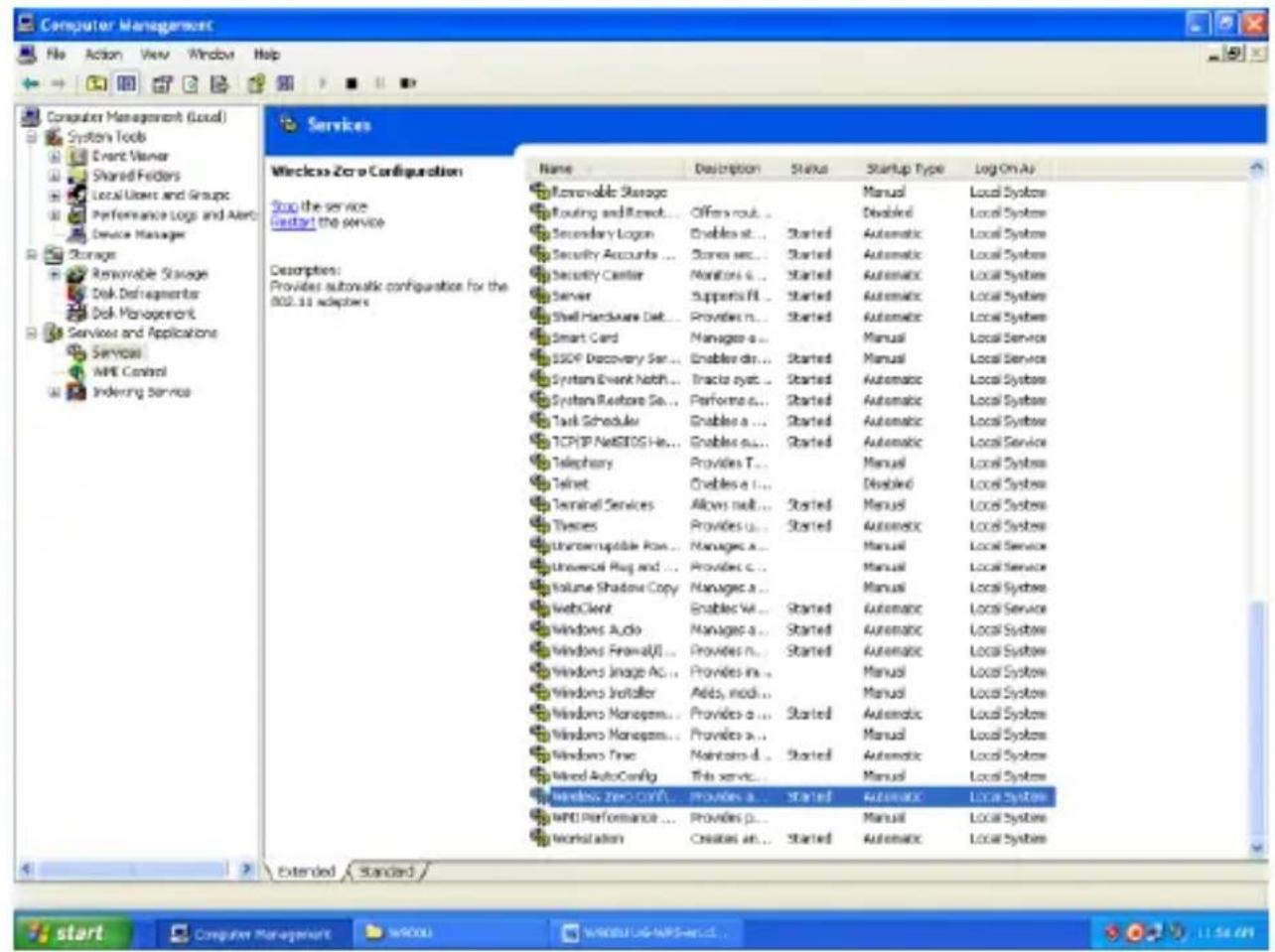
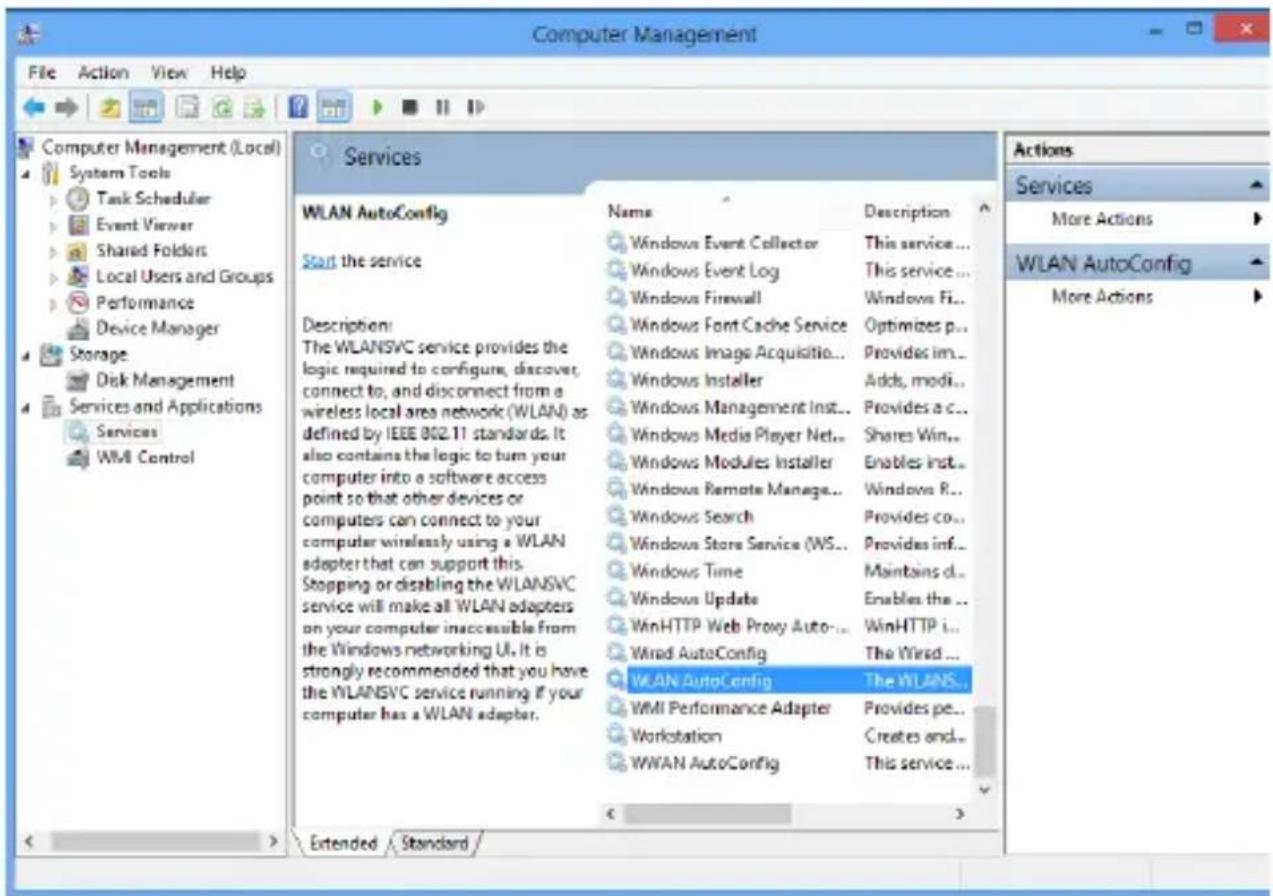
Q1: How do I enable the WZC (Wireless Zero Configuration) service in Windows XP or enable WAC (WLAN AutoConig) in Win dows 7/Win dows 8?
Step1. From your desktop, right-click My Computer and select Manage.
Step2. Select Services and Applications -> Services.
Step3. Double-click Wireless Zero Configuration/ WLAN AutoConig and then click Start on the appearing window or right click Wireless Zero Configuration/ WLAN AutoConig and select Start from the pop-up list.
text_image
Computer Management File Action View Window Help Computer Management (Local) System Tools Event Viewer Shared Folders Local Users and Groups Performance Logs and Alert Device Manager Storage Renewable Storage Disk Defragmenters Disk Management Services and Applications Services MHI Control Indexing Service Services Wireless Zero Configuration Stop the service Contact the service Descriptions: Provider automatic configuration for the 802.13 adapters Name Description Status Startup Type Log On As Automobile Storage Routing and Remote... Offers rout... Manual Local System Secondary Logon Enable a... Started Automatic Local System Security Accounts... Sensors sec... Started Automatic Local System Security Center Monitors a... Started Automatic Local System Server Suppers fit... Started Automatic Local System Shell Hardware Debt... Provides n... Started Automatic Local System Smart Card Managers a... Manual Local Service SSDP Discovery Ser... Enable dir... Started Manual Local Service System Event Notch... Traclia system... Started Automatic Local System System Restore Se... Perform a... Started Automatic Local System Tank Scheduler Enable a... Started Automatic Local System TCP/IP NetBIOS He... Enable a... Started Automatic Local Service Telephony Provides T... Manual Local System Telnet Enable a... Terminal Services Allows exit... Started Manual Local System Themes Provides u... Started Automatic Local System Shorteruptake Box... Nanages a... Manual Local Service Universal Plug and ... Provides c... Manual Local System Volume Shadow Copy Nanages a... Manual Local System WebClient Enable v... Started Automatic Local System Windows Audio Nanages a... Started Automatic Local System Windows Firewall... Provides n... Started Automatic Local System Windows Image Ac... Provides in... Manual Local System Windows Installer Aidcs modu... Manual Local System Windows Management... Provides a... Started Automatic Local System Windows Management... Provides a... Manual Local System Windows Time Naintors d... Started Automatic Local System Wired AutoConfig.This service... Manual Local System Wireless zero con't...Provides a... Started Automatic Local System WNT Performance ...Provides p... Manual Local System Workstation Creates an... Started Automatic Local System Extended Standard / start Computer Management wHOOU WINDUUG-APPS-wareL . . . . . . . . . . . . . . . . . . . . . . . . . . . . . . . . . . . . . . . . . . . . . . . . . . . ContinuingEnable WZC in Windows XP
text_image
Computer Management File Action View Help Computer Management (Local) System Tools Task Scheduler Event Viewer Shared Folders Local Users and Groups Performance Device Manager Storage Disk Management Services and Applications Services WMI Control Services WLAN AutoConfig Start the service Description: The WLANSVC service provides the logic required to configure, discover, connect to, and disconnect from a wireless local area network (WLAN) as defined by IEEE 802.11 standards. It also contains the logic to turn your computer into a software access point so that other devices or computers can connect to your computer wirelessly using a WLAN adapter that can support this. Stopping or disabling the WLANSVC service will make all WLAN adapters on your computer inaccessible from the Windows networking UI. It is strongly recommended that you have the WLANSVC service running if your computer has a WLAN adapter. Name Description Windows Event Collector This service... Windows Event Log This service... Windows Firewall Windows Fi... Windows Font Cache Service Optimizes p... Windows Image Acquisition... Provides im... Windows Installer Adds, modi... Windows Management Inst... Provides a c... Windows Media Player Net... Shares Win... Windows Modules Installer Enables Inst... Windows Remote Manage... Windows R... Provides co... Windows Search Provides inf... Windows Store Service (WS... Maintains d... Windows Time Enables the ... Windows Update WinHTTP Web Proxy Auto... WinHTTP i... Wired AutoConfig The Wired ... WLAN AutoConfig The WLANS... WMI Performance Adapter Provides pe... Workstation Creates and... WWAN AutoConfig This service... < > Extended / Standard / Actions Services More Actions WLAN AutoConfig More ActionsEnable WLAN AutoConig in Windows7
Q2: I followed instructions to install the driver but failed.
This can occur if you have already installed other manufacturer's adapter. Drivers of other manufacturer might cause a conflict with the new driver. Please irst uninstall it and then check to make sure that oem.inf ile is removed from C:\WINDOWS\inf.
Appendix 4 EMC Statement

CE Mark Warning
This is a Class B product in a domesc environment, this product may cause radio interference, in which case the user may be required to take adequate measures.
NOTE:
(1) The manufacturer is not responsible for any radio or TV interference caused by unauthorized modicaons to this equipment.
(2) To avoid unnecessary radiaon interference, it is recommended to use a shielded RJ45 cable.

FCC Statement
This equipment has been tested and found to comply with the limits for a Class B digital device, pursuant to part 15 of the FCC Rules. These limits are designed to provide reasonable protecon against harmful interference when the equipment is operate during a commercial environment. This equipment generates, uses, and can radiate radiofrequency energy and, if not installed and used in accordance with the instruction manual, may cause harmful interference to radio communications. Operation of this equipment in a residential area is likely to cause harmful interference in which case the user will be required to correct the interference at his own expense.
FCC Cauon: Any changes or modicaons not expressly approved by the party responsible for compliance could void the user's authority to operate
this equipment.
This device complies with part 15 of the FCC Rules.
Operaon is subject to the following two conditions:
(1) This device may not cause harmful interference, and (2) this device must accept any interference received, including interference that may cause undesired operaon.
The manufacturer is not responsible for any radio or TV interference caused by unauthorized modicaons to this equipment.
NOTE:
(1) The manufacturer is not responsible for any radio or TV interference caused by unauthorized modicaons to this equipment.
(2) To avoid unnecessary radiaon interference, it is recommended to use a shielded RJ45 cable.