MD-300SE - Digital decoder SITECOM - Free user manual and instructions
Find the device manual for free MD-300SE SITECOM in PDF.


User questions about MD-300SE SITECOM
0 question about this device. Answer the ones you know or ask your own.
Ask a new question about this device
Download the instructions for your Digital decoder in PDF format for free! Find your manual MD-300SE - SITECOM and take your electronic device back in hand. On this page are published all the documents necessary for the use of your device. MD-300SE by SITECOM.
USER MANUAL MD-300SE SITECOM
natural_image
Exterior view of a retro television (TV) device with two black antennas and a logo on the cover (no readable text or symbols beyond branding)PC on TV
Full Manual
Table of Contents
1 Introduction ...... 3
2 Cautions 4
3 Package content 5
4 Setup Possibilities 6
5 Quick start....8
6 Using PConTV software user interface....10
7 Controlling your computers 17
8 Web management....19
9 Frequently asked questions....25
10 Certifications 28
1 Introduction
Thank you for purchasing the MD-300 PConTV. The MD-300 PConTV is the first device that can show all content of your Windows as well as Mac computers on your TV wirelessly. You can easily control up to 8 computers with your mouse and/or keyboard.
You can share any content from your computers with your friends and family in your living room.
2 Cautions
This device's design and manufacturer has your safety in mind. In order to safely and effectively use this device, please read the following before usage.
Usage Cautions
The user should not modify this device. The environmental temperature should be within +0 \~ +40 degrees Celsius.
Power
The device's power voltage is DC 5V 2.5A.
When using this device, please connect the supplied AC adapter or AC adapter cable to the device's power jack. When placing the adapter cable, make sure it can not get damaged or be subject to pressure. To reduce the risk of electric shock, unplug the adapter first before cleaning it. Never connect the adapter to the device in a humid or dusty area. Do not replace the adapter or cable's wire or connector.
Repair
If the device has a problem, you should take it to an appointed repair centre and let the specialists do the device. Never repair the device yourself, you might damage the device or endanger yourself.
Disposing of the device
When you dispose of the device, be sure to dispose it appropriately. Some countries may regulate disposal of an electrical device, please consult with your local authority.
Others
When using this device, please do not let it come into contact with water or other liquids. If water is accidentally spilled on the device, please use a dry cloth to absorb the spillage. Electronic products are vulnerable, when using please avoid shaking or hitting the device, and do not press the buttons too hard.
- Do not let the device come into contact with water or other liquid.
- Do not disassemble the device, repair the device or change the design of the device, any damage done will not be included in the repair policy.
- Avoid hitting the device with a hard object, avoid shaking the device and stay away from magnetic fields.
- If during electrostatic discharge or a strong electromagnetic field the device will malfunction, unplug the power cable. The device will return to normal performance the next time it is powered on.
3 Package content
The following items are included in your PConTV package:
- PConTV device
- Quick Installation Guide
• 2 WiFi antennae
• Universal power adaptor - Installation CD
- User's Manual (on CD)
- Warranty Card

text_image
PC ON TV MirrorUp On/Off button
text_image
Ethernet USB Antenna HDMI Antenna Power4 Setup Possibilities
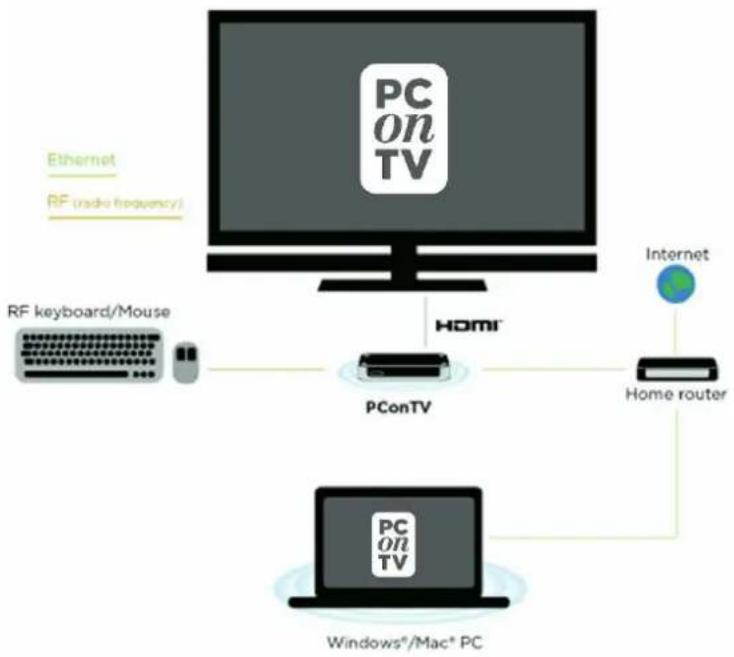
1. Ethernet setup (recommended): Optimal performance
Local client PC's and PConTV in full Ethernet setup.
flowchart
graph TD
    A["PC on TV"] -->|Ethernet RF radio frequency| B["RF keyboard/Mouse"]
    A -->|Internet| C["Home router"]
    A --> D["PConTV"]
    D --> E["Windows®/Mac® PC"]
    D --> F["Home"]
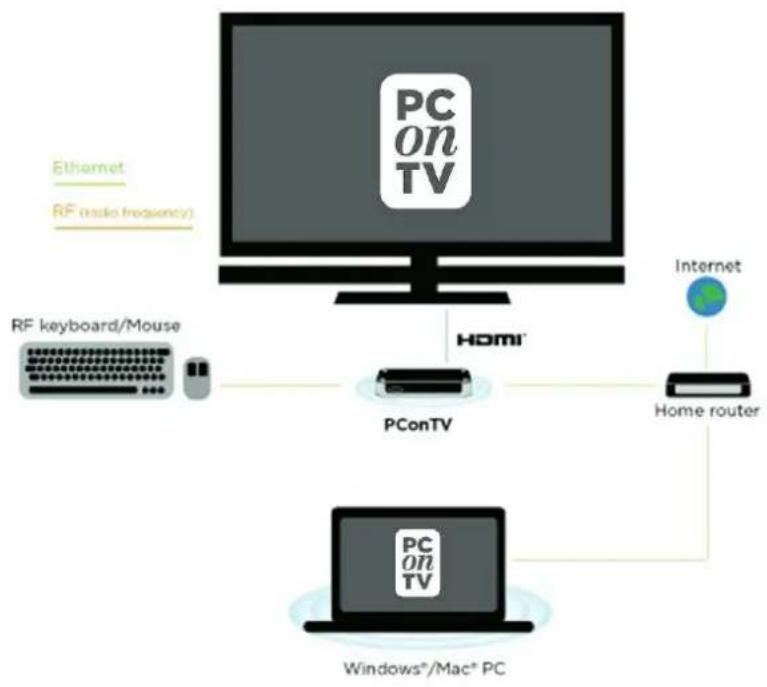
2. Homeplug power-line modem Setup: Optimal performance
Local client PC's and PConTV in Home Plug** setup.
flowchart
graph TD
    A["PC on TV"] -->|Ethernet| B["RF keyboard/Mouse"]
    A -->|RF (radio frequency)| C["PConTV"]
    A -->|Internet| D["Home router"]
    A --> E["Windows®/Mac® PC"]
    C --> F["Home Router"]
    D --> F
    E --> F
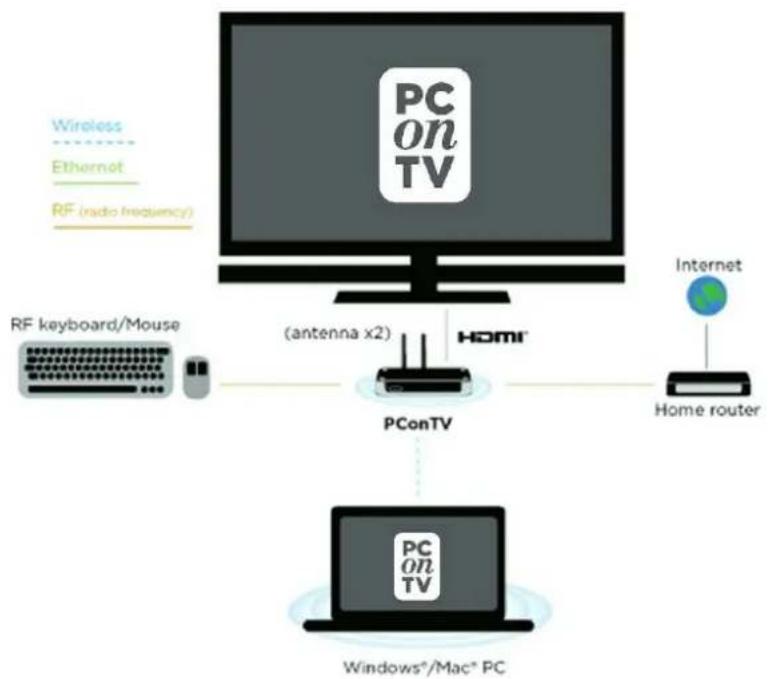
3. Partly wireless, Partly Ethernet Setup
Local client PC's wireless* and PConTV in Ethernet setup.
flowchart
graph TD
    A["PC on TV"] -->|Wireless\nEthernet\nRF (radio frequency)| B["RF keyboard/Mouse"]
    A -->|Internet| C["Home router"]
    A -->|PConTV (antenna x2)| D["PConTV"]
    D --> E["Windows*/Mac* PC"]
4. Wireless Setup
Local client PC's and PConTV in full wireless setup.*

flowchart
graph TD
    A["PC on TV"] --> B["PConTV"]
    B --> C["Home router"]
    B --> D["Internet"]
    E["RF keyboard/Mouse"] --> F["(antenna x2)"]
    G["Windows*/Mac* PC"] --> H["PC on TV"]
    I["Wireless"] --> J["Ethernet"]
    K["RF (radio frequency)"] --> L["RF keyboard/Mouse"]
* Performance depends on wireless performance of home ADSL or cable router.
** HomePlug devices sold separately.
5 Quick start
- Connect a HDMI cable to the PConTV, connect it to your HDMI input on your TV and turn on your TV.
- Connect the power adaptor to your PConTV, and plug it into a power outlet.
- Press the Power button on the PConTV to turn on the device.
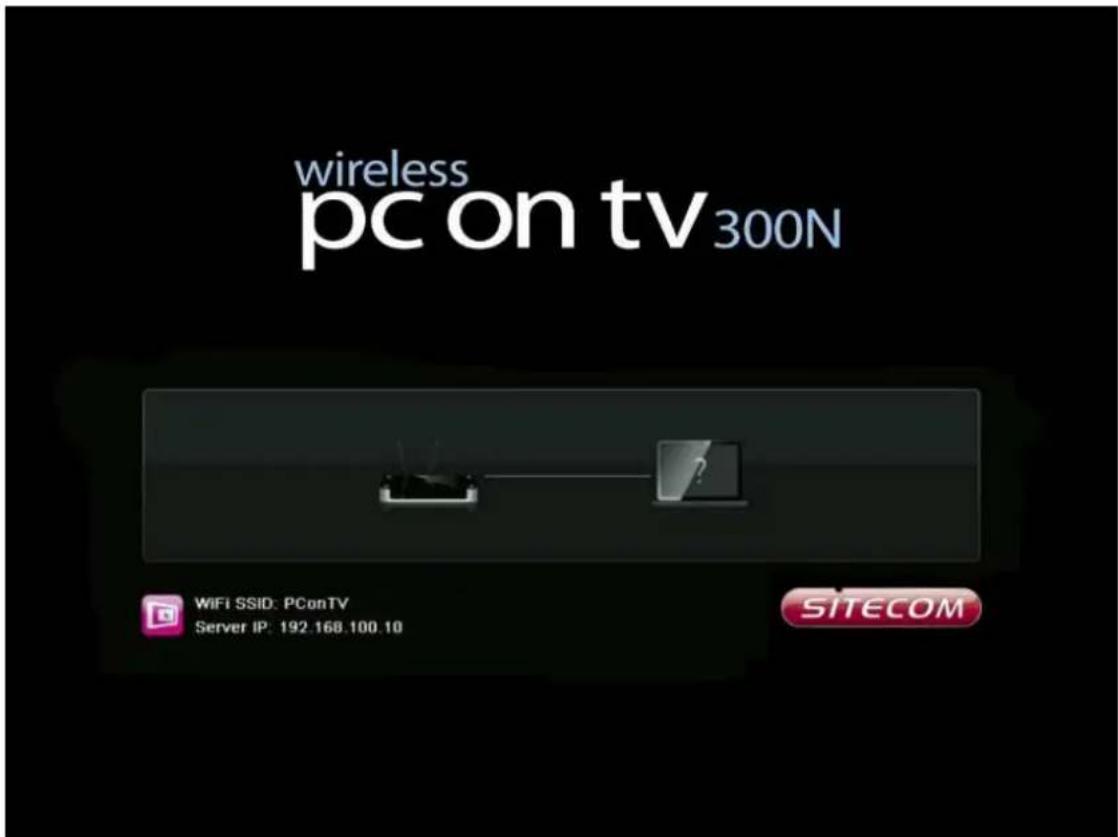
- The PConTV will be powered ON. The main menu shown below will be presented on your TV screen when the system is ready.
- The PConTV receives an IP address from your home router (See ethernet setup/wireless setup). This may take 30-40 seconds. The default IP address when the PConTV is not connected to a network is: 192.168.100.10.
text_image
wireless pc on tv 300N WiFi SSID: PConTV Server IP: 192.168.100.10 SITECOM- Insert the PConTV installation CD into your Windows or Mac Computer and follow the on-screen instructions to install the software.
- Find the PConTV icon (as shown below) in your 'Programs\PConTV' folder (on Windows) or 'Applications\PConTV' folder (on Mac) to launch the PConTV Software

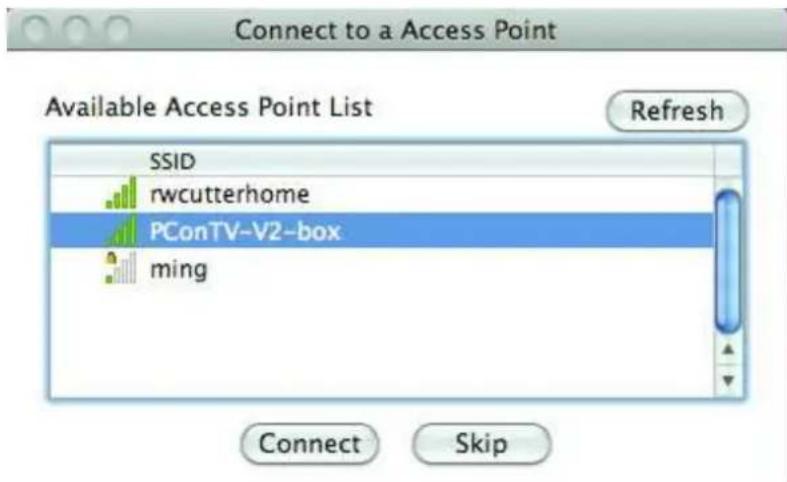
- Searching WiFi Access Point. Select your PConTV (default SSID is PConTV) from the list and click the Connect button.
text_image
Connect to a Access Point Available Access Point List Refresh SSID rwcutterhome PConTV-V2-box ming Connect Skip- Connect to selected access point.
- Connecting to PConTV server. If only one server is found, it will automatically connect to the server.

natural_image
Three connected devices: a laptop, a router, and a monitor (no text or symbols visible)- The application will temporarily adjust your Windows or Mac resolution for best projection result, and then project your screen to TV. You should see your Windows or Mac PC Desktop on the TV screen now.
- To quit a projection, click the
button on the PConTV software user interface (as shown below). Your screen resolution will be restored to the original one.

text_image
PCONTV- To begin a projection again, click the Play button again.
6 Using PConTV software user interface
After you have installed the PConTV software application from the installation CD to your PC ('s) you can run the PConTV software user interface to connect to the PConTV. If there is more than one PConTV active in the same network, the software will list the devices for you to choose.
Software activation
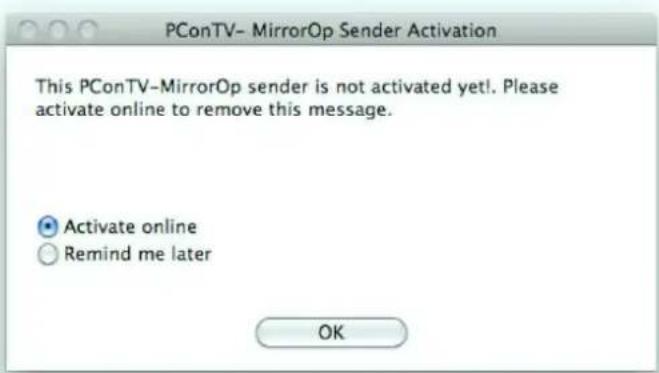
The first time you launch the PConTV Software user interface, you will see the activation reminder:
text_image
PConTV- MirrorOp Sender Activation This PConTV-MirrorOp sender is not activated yet!. Please activate online to remove this message. Activate online Remind me later OKSelect "Activate" or select "Remind me later" to postpone activation. In the activation dialog (as shown on the next page), enter your serial number and optional your email address and click "Activate now".

text_image
PConTV- MirrorOp Sender Activation Please enter your Activation key and e-mail (optional) below. Your Activation key can be found on the installation CD, or in the purchase confirmation email if you bought this product online. Please make sure your have an active internet connection and click "Activate now". Activation Key: E-mail (optional): Activate now Activate laterThe software will connect to the activation server to validate the software. When connection to the server is successful a message will appear which says that your software is activated, otherwise the message below will be shown. In this case connect your PC to the internet and try again.

text_image
Warning Your activation key is valid. Connection to server was not successful. Please try again later when your PC is connected to internet. YesEach activation key can be used to register on eight different PCs. If you have trouble activating your software, please contact customer service for assistance.
Video Mode vs. App Mode
On the PConTV software user interface you can find a switch button to operate two modes: Video Mode and App Mode.
Video Mode is designed to guarantee smooth video experiences. By default this mode performs with little latency between your Windows or Mac PC and the TV. However, if you move your mouse connected to the PConTV, it will automatically shorten the latency for better remote control. This mode is set as default which should work for most users and gives the best performance for showing video content from your PC on TV.

text_image
PCONTV Video ModeIf you carried out the optimal cabled network connection setup (as shown in chapter 2, setup 1) and prefer to use no latency mode (real-time mode) at all times, you can choose to drag the switch to App Mode.

text_image
PCONTV App modeMain Menu Bar (Task bar):
text_image
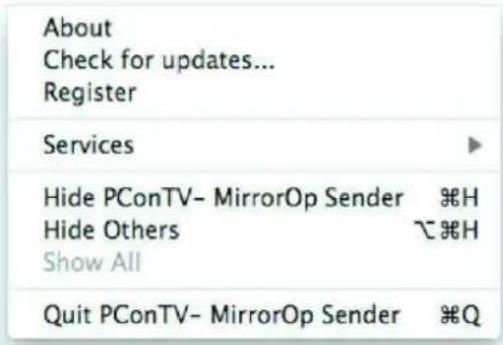
About Check for updates... Register Services Hide PConTV- MirrorOp Sender ⌘H Hide Others ⌘H Show All Quit PConTV- MirrorOp Sender ⌘QClick

text_image
PConTV- MirrorOp Sender 1.2.2.5Click
text_image
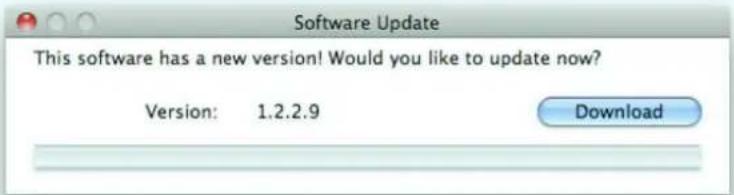
Software Update This software has a new version! Would you like to update now? Version: 1.2.2.9 DownloadUsing the PConTV software user interface pop-up Menu
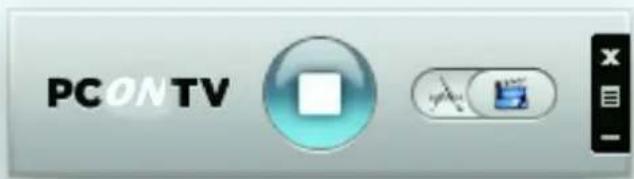
When the PConTV software is running, you can move your mouse cursor to the Menu button (to be found on the right edge of the PConTV software user interface).
text_image
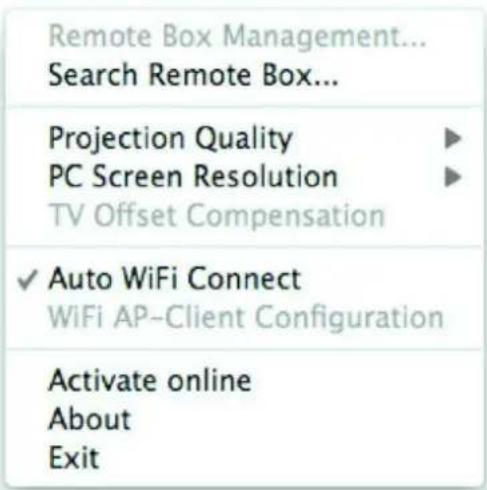
PCONTVClick on the Menu (as shown above) button to show the menu items.
text_image
Remote Box Management... Search Remote Box... Projection Quality ▶ PC Screen Resolution ▶ TV Offset Compensation ✓ Auto WiFi Connect WiFi AP-Client Configuration Activate online About ExitClick
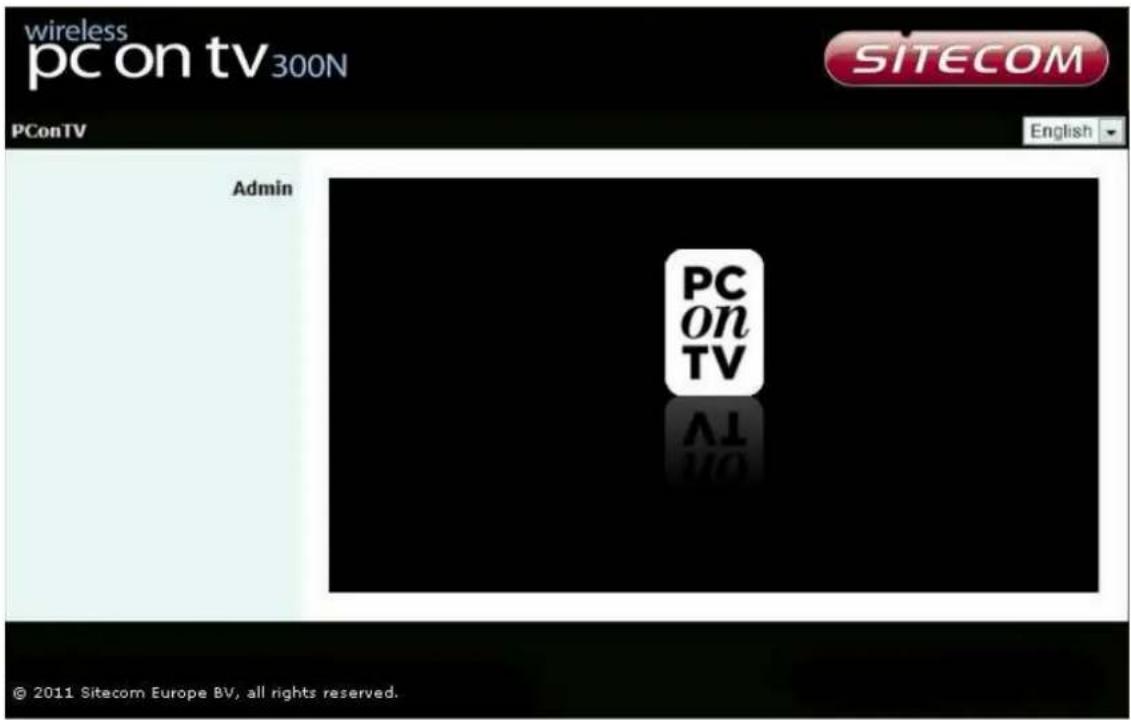
For more information on the web management, please refer to chapter 7 of this user manual.
text_image
wireless pc on tv 300N SITECOM PConTV English Admin PC on TV AL NO © 2011 Sitecom Europe BV, all rights reserved.Click
text_image
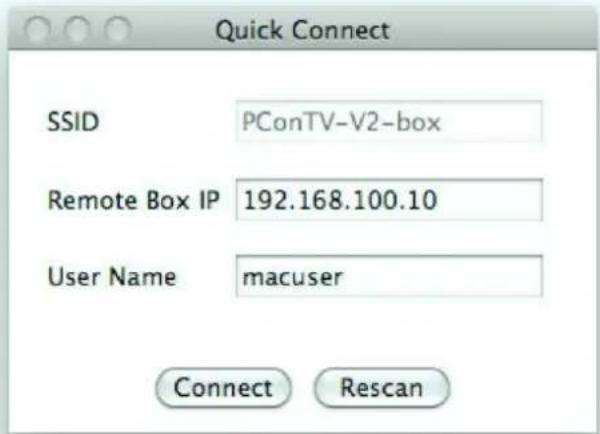
Quick Connect SSID PConTV-V2-box Remote Box IP 192.168.100.10 User Name macuser Connect RescanClick
√ Normal Best
Click
Large ✓ Middle Small
Click

text_image
TV Offset Compensation 0 Vertical Offset 250 200 150 100 50 0 Horizontal Offset 0 Horizontal Offset Draw the sliders to adjust offset to compensate for the Overscan of your TV. Click OK when you can see your entire Desktop on your TV. Apply CloseDrag the sliders to set the offset value. Click
Click
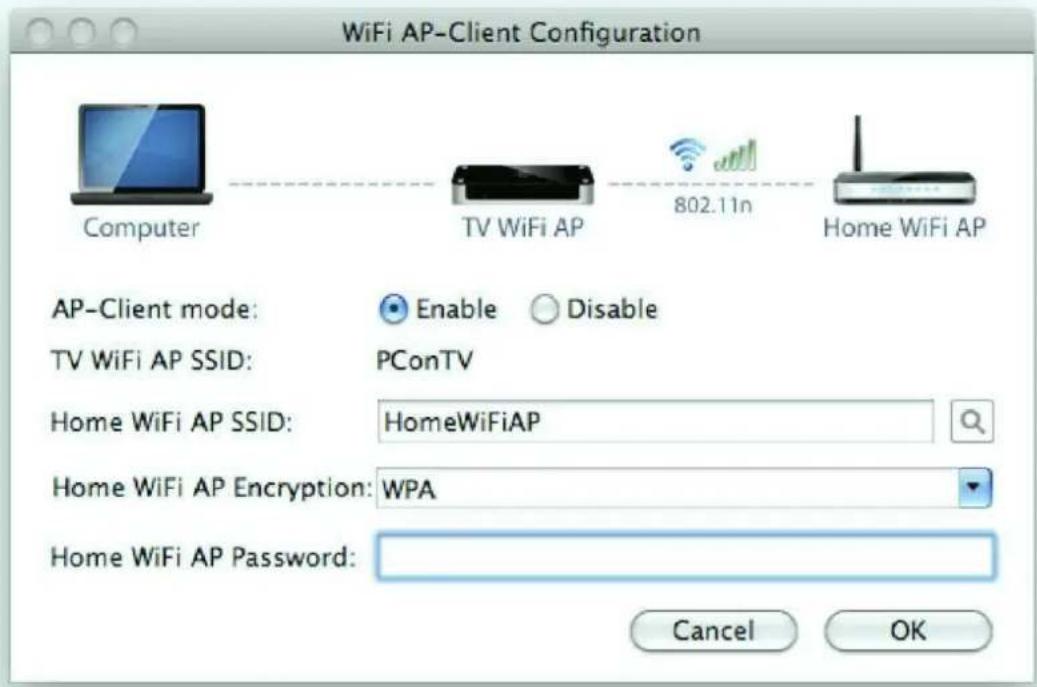
wireless performance will be depending on the strength of your Wireless module in your home router. Please make sure that the signal between your home router (N-type router recommended) and the PConTV device is good to ensure good performance.
text_image
WiFi AP-Client Configuration Computer TV WiFi AP 802.11n Home WiFi AP AP-Client mode: Enable Disable TV WiFi AP SSID: PConTV Home WiFi AP SSID: HomeWiFiAP Home WiFi AP Encryption: WPA Home WiFi AP Password: Cancel OKCheck the
When your router is set to only work with Static IP addresses you can configure the PConTV with a static IP address through the device management webpage under the tab Network Setup. When there is no IP addresses delivered to the PConTV (as presented in the lower left corner on the TV startup screen) the quality of signal of your home router may be too low. In this case try to setup the PConTV in a wired setup (using Ethernet cable or power line modem to connect to your home router). When the PConTV is wirelessly connected to your home router successfully you need to reconnect to the PConTV from the PConTV Software user interface using the same password as your home WiFi router when asked for a password.
7 Controlling your computers
Working with multiple computers
You can use the PConTV with more than one Windows or Mac computer. Just install the software on every computer you want to use, and then run the software on each computer. Connected computer names will be shown in the standby screen as shown in the following picture:

text_image
wireless pc on tv 300N 1) Alan 2) Benny 3) Chris 4) Dave 5) Eileen 6) Frank 7) Gary 8) Henry WiFi SSID: PConTV Server IP: 192.168.100.10 SITECOMUse a standard USB mouse or keyboard connected to the USB port on the PConTV to select which computer you want to control on TV.
Controlling your PC with USB mouse or keyboard
You can connect standard USB mouse or keyboard, to the USB port on the PConTV device, and then remotely operate your PC.

natural_image
Two electronic devices: a network switch and a black keyboard with ports, shown from different angles (no visible text or symbols)Once connected, the mouse or keyboard can be used to select a PC from the PC list above, and also to operate every PC when its screen is shown on TV. If you want to use a game controller for gaming, attach your controller directly to your laptop or PC.
Controlling your PC with Air Mouse Controller via iPhone®, iPod® Touch, iPad® or other touch gestured mobile device.
Search for an Air Mouse application in the App Store. Download a suitable program of your choice. Attach your mobile device using WiFi to the same network your PC and the PConTV are on and you can control your mouse or keyboard on TV using your mobile device.
8 Web management
Home page
Make sure your Windows or Mac PC is connected to the PConTV successfully.
Open your browser, and enter the IP address of your PConTV. (You can find the PConTV IP address on the TV screen when the PConTV is powered on and is presenting the startup screen in the lower left corner of this startup screen). The screen below will be shown in your browser. Choose your language in the upper right corner and click

text_image
wireless pc on tv 300N SITECOM PConTV English Admin PC on TV AL 2400 © 2011 Sitecom Europe BV, all rights reserved.Log in web admin
text_image
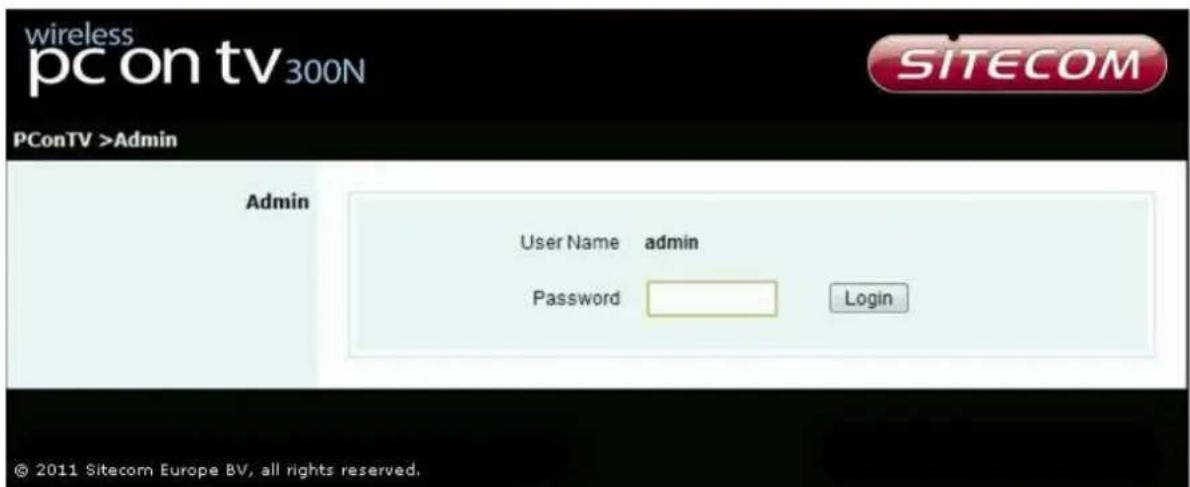
wireless pc on tv300N SITECOM PConTV >Admin Admin User Name admin Password Login © 2011 Sitecom Europe BV, all rights reserved.Click [Admin] and then enter the password to login to the web page. The default password is "admin".
System status

text_image
wireless pc on tv 300N SITECOM PConTV > Admin > System Status Logout # System Status Network Setup Change Passwords Reset to Default Firmware Update Reboot System Model Name PConTV Versions Firmware Version 0.0.1.5 Network Status IP Address 192.168.168.116 Subnet Mask 255.255.255.0 Default Gateway 192.168.168.251 Wireless MAC Address 70:71:BC:A9:DD:86 Wire MAC Address 00:12:5F:C8:59:33 Channel 2 Connection Status Projecting Status Waiting for Projecting Total Users 0 Current Output HDMI*** Click [System Status] to show current system status.
Model Name: Product model name
Versions:
◆ Firmware version: Product firmware version number.
Network Status:
◆ IP address: IP address of the PConTV device.
♦ Subnet Mask: subnet mask
◆ Default Gateway: default gateway
◆ Wire MAC address: wired network MAC address
Network setup

text_image
wireless pc on tv 300N SITECOM PConTV > Admin > Network Setup Logout »| System Status Network Setup Change Passwords Reset to Default Firmware Update Reboot System | IP Setup | Obtain an IP address automatically Use the following IP address | |||
| IP Address | 192 | 168 | 100 10 | ||
| Subnet Mask | 255 | 255 | 255 0 | ||
| Default Gateway | 192 | 168 | 100 10 | ||
| DNS Server | 192 | 168 | 100 10 | ||
| DHCP Server Setup | Auto Disable | ||||
| Start IP | 192 | 168 | 100 11 | ||
| End IP | 192 | 168 | 100 254 | ||
| Subnet Mask | 255 | 255 | 255 0 | ||
| Default Gateway | 192 | 168 | 100 10 | ||
| DNS Server | 192 | 168 | 100 10 | ||
| Wireless Setup | Wireless LAN Enable Disable | Embedded AP SSID PConTV -richard | |||
| Home WiFi AP Enable Disable | Home WiFi AP SSID PConTV | ||||
| Region | WORLDWIDE | ||||
| SSID Broadcast | Enable Disable | ||||
| Channel | Auto | ||||
| Encryption | Disable | ||||
| Key | |||||
| Apply Cancel | |||||
© 2011 Sitecom Europe BV, all rights reserved.
You can select "obtain IP address automatically" or "Use the following IP address"
◆ IP Address: The default value is 192.168.100.10 (not connected to any network).
♦ Subnet Mask: The default value is 255.255.255.0
◆ Default Gateway: The default value is 192.168.100.10
You can select "Auto" or "Disable". When "Auto" is selected, it will automatically disable DHCP on the PConTV when another DHCP server is detected, otherwise it will enable its DHCP service.
◆ Start IP: The start IP address of DHCP Server.
◆ End IP: The end IP address of DHCP Server.
◆ Wireless LAN: you can select "Enable" or "Disable"
◆ Region: default value is "Worldwide".
◆ SSID: SSID string, max. Length is 32 bytes.
◆ SSID Broadcast: you can select "Enable" or "Disable"
◆ Channel: to set fixed channel or Auto.
◆ Security: Open/WEP/WPA/WPA2
♦ Key: Security key of your choice.
Change passwords

text_image
wireless pc on tv 300N SITECOM PConTV > Admin > Change Passwords Logout » System Status Network Setup Change Passwords Reset to Default Firmware Update Admin Enter New Password Confirm New Password Apply Reboot System © 2011 Sitecom Europe BV, all rights reserved.*** Click [Change Password] button to change password value.
Reset to default

text_image
wireless pc on tv 300N SITECOM PConTV > Admin > Reset to Default Logout » System Status Network Setup Change Passwords Reset to Default Firmware Update Reboot System Reset to Default This will restore the device to the factory default settings. Apply © 2011 Sitecom Europe BV, all rights reserved.*** Click [Reset to Default] button to restore the factory default settings.
Firmware update
text_image
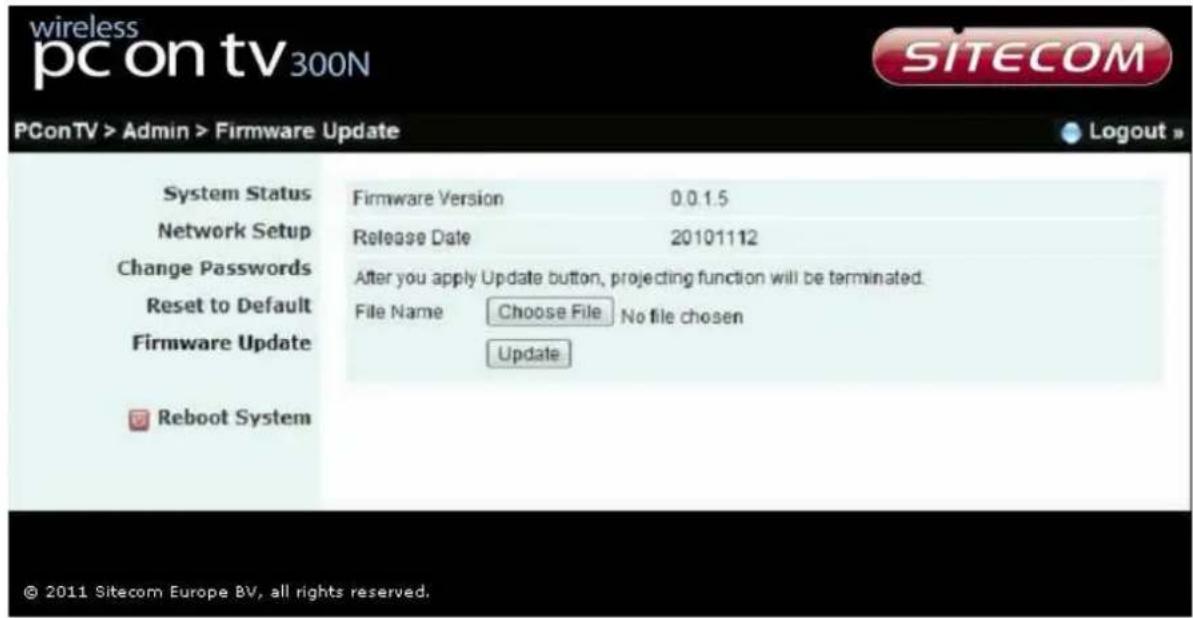
wireless pc on tv 300N SITECOM PConTV > Admin > Firmware Update Logout » System Status Firmware Version 0.0.1.5 Network Setup Release Date 20101112 Change Passwords After you apply Update button, projecting function will be terminated. Reset to Default File Name Choose File No file chosen Firmware Update Update Reboot System © 2011 Sitecom Europe BV, all rights reserved.*** Click [Firmware Update] button to upgrade firmware.
◆ Get the latest firmware.
◆ Click
♦ Click
The upgrade process will take about 5 minutes to complete. The PConTV device will reboot automatically when the process is completed.
!!!! Warning: Don't power off PConTV while the firmware upgrade is in progress, otherwise the PConTV device may be damaged and have to be returned to your vendor for repair!!!!
Reboot system
text_image
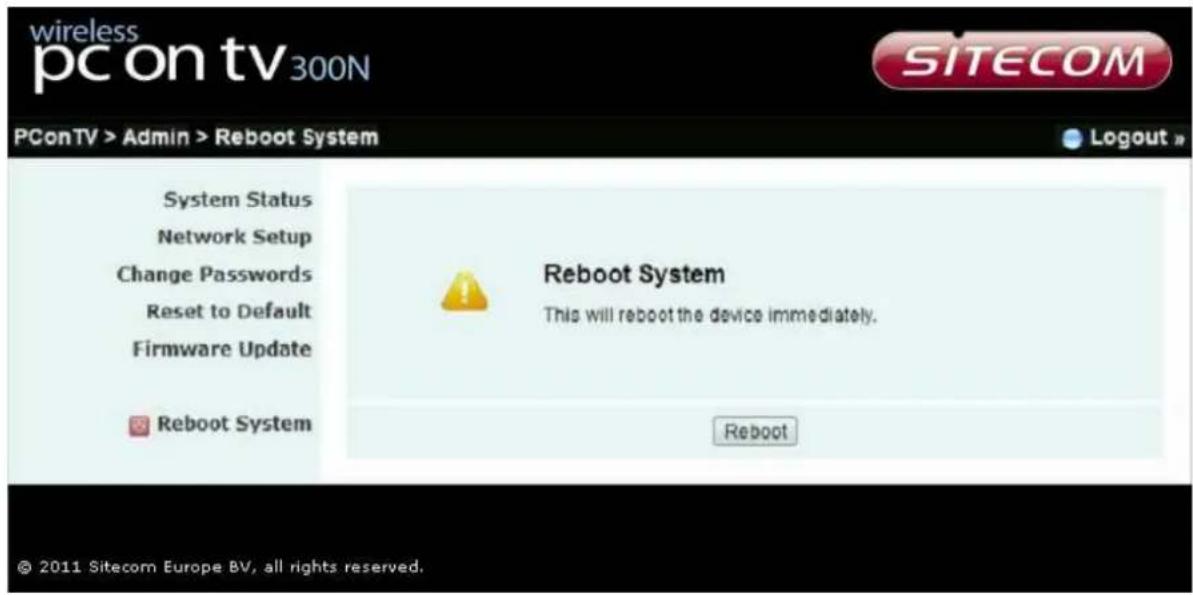
wireless pc on tv 300N SITECOM PConTV > Admin > Reboot System System Status Network Setup Change Passwords Reset to Default Firmware Update Reboot System Reboot System This will reboot the device immediately. Reboot © 2011 Sitecom Europe BV, all rights reserved.*** Click on [Reboot System] button to restart system.
Log out

text_image
wireless pc on tv 300N SITECOM PConTV > Admin > Reboot System System Status Network Setup Change Passwords Reset to Default Firmware Update Reboot System Reboot System This will reboot the device immediately. Reboot © 2011 Sitecom Europe BV, all rights reserved.*** Click on [Logout] button to return to home page.
9 Frequently asked questions
Q. My PC cannot connect to PConTV. What can I do?
A. Check the status shown on the projection panel.

-
If the left line is not connected, then your PC is not connected to any network. Please check your network connection.
-
If the left line is connected but the right line is disconnected, then no PConTV is found in the network you are connected to. The IP of your Windows or Mac PC should be in the same subnet as your PConTV device. The IP of PConTV can be found on the lower-left corner of TV screen (default IP is 192.168.100.10 if not connected to a network).
Q. My connection is broken during projection. What can I do?
A. There are several possible reasons to check:
-
Connection blocked by firewall or anti-virus software. Please add PConTV to the allowed programs (white list) of your anti-virus program and firewall.
-
Power saving policy decreased performance of wireless network. Please set your power saving to lowest and set performance to highest when performing projection to TV.
Q. My audio is broken on TV. What can I do?
A. There are several possible reasons to check:
- System is too busy. Close all other programs and try again.
- Network not fast enough. Check connection speed.
Q. I have no sound on my TV. What can I do?
A. There are several possible reasons to check:
- Volume too low. Turn the volume of your Windows or Mac PC to maximum value for remote watching, or use your TV remote to turn volume on.
- Your Mac player set audio output to another device. Check the audio output setting of your player to use default audio device or soundflower (2ch).
Q. My movie is not running smooth (frame rate too low). What is the reason?
A. There are several possible reasons to check:
- System not powerful enough. For Mac PC, a MacBook Pro or MacBook with dual core 2GHz CPU or above is required for video projection. For Windows PC, the
benchmark score measured during installation should be 4 stars or above for video projection.
-
System too busy. Close all other programs and try again.
-
Network not fast enough. Check connection speed. You may try lower screen resolution or projection quality to save bandwidth.
Q. The PC desktop edges are cut off my TV screen. What can I do?
A. Most TV's present overscan. The result will deliver a cut PC desktop to your TV screen. Please check for menu options on your TV such as scaling, fit-to-screen or aspect ratio to change overscan behavior, or use the TV Offset Compensation in PConTV Software user interface menu to compensate the overscan behavior.
Q. The aspect ratio on the TV is distorted. What can is the reason?
A. The projected image is identical to the screen of your Windows or Mac PC. However, due to different aspect ratio in different resolution settings on PC (4:3 or 16:9), the aspect ratio may be altered by the TV to fit to screen. Please look for options on your TV such as scaling, fit-to-screen or aspect ratio to change how the PC signal is fitted to TV, or change your PC resolution to the same aspect ratio as your TV screen (mostly 16:9 on new flat TVs). For example, select 1280 x 720 on your PC for original aspect ratio on a 16:9 flat TV.

text_image
4:3 on 16:9 TV
text_image
4:3 wide to 16:9 TV
text_image
16:9 on 4:3 TV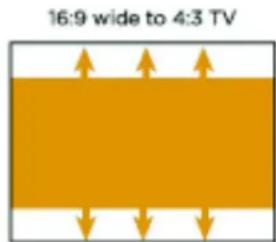
text_image
16:9 wide to 4:3 TVQ. The AP Client configuration is delivering no IP address to PConTV. What can I do?
A. There are several possible reasons to check:
-
Check the strength of your wireless home router (N-Type router recommended). When the quality of the wireless signal of your home router is too low it will not be able to deliver an IP address to PConTV.
-
Check if your home router is set to deliver automatically an IP address to any other client (DHCP mode)
-
If your home router is set-up to deliver static IP addresses only, you need to configure the PConTV to use a static IP address out of your network IP range. Open the PConTV web device management page and give the PConTV device a Static IP address which is part of your static home IP address range.
If the answers above do not work in your situation, try to setup the PConTV using Ethernet cables or HomePlug (sold separately) environment as show in chapter 3: Setup Possibilities.
Q. Which video player can be used best on my PC to work with PConTV?
A. The recommended video player we suggest you to use is VLC player. This player is capable to play all popular video formats. It is free to use and offers multi-platform software.
Q. Can I use a NAS (Network Attached Storage Device) in combination with PConTV?
A. Yes, you need at least one of your PC's projecting to PConTV. Through this PC you need to get connected to your NAS to be able to use your files on the NAS in order to project them on the TV.
10 Certifications
Safety European Union
EN60950-1 (CE-LVD)
EMI European Union (CE mark)
EN55022 Class B
EN61000-3-2
EN61000-3-3
North America
FCC Part 15 (Class B)
EMC European Union (CE mark)
EN55024
- Electrostatic Discharge EN61000-4-2
• Radiated RF immunity EN61000-4-3
• EFT/ Burst EN61000-4-4
• Surge EN61000-4-5
• Conducted Susceptibility EN61000-4-6
• Voltage Dips/Interruption EN61000-4-11
Wi-Fi WPA2
Power adapter European
ErP (2009/125/EC)
North America
Energy Start V

www.sitecom.com

FCC E!

Disclaimer:
- Apple®, iPod®, iPhone®, iPad®, Microsoft®, Windows®, Mac®, Intel®, AMD®, ATI®, VLC®, and nVidia® are registered marks of their respective company. None of these companies is related to this product not do they endorse the performance or compatibility of this product with their products.
- "HDMI, the HDMI Logo, and High-Definition Multimedia Interface are trademarks or registered trademarks of HDMI Licensing LLC in the United States and other countries."