CN-WR0212-S1 - Network adapter SIGMA - Free user manual and instructions
Find the device manual for free CN-WR0212-S1 SIGMA in PDF.


User questions about CN-WR0212-S1 SIGMA
0 question about this device. Answer the ones you know or ask your own.
Ask a new question about this device
Download the instructions for your Network adapter in PDF format for free! Find your manual CN-WR0212-S1 - SIGMA and take your electronic device back in hand. On this page are published all the documents necessary for the use of your device. CN-WR0212-S1 by SIGMA.
USER MANUAL CN-WR0212-S1 SIGMA
Introducing the Wireless-N USB-Pro Adapter
The Wireless-N USB-Pro Adapter is designed to connect your USB equipped desktop or laptop computer to your wireless network for fast internet access.
Features and Benefits
- Complies with 802.11n draft, 802.11g and 802.11b standards
• Supports QoS-WMM, WMM-PS
• Supports 64/128-bit WEP, WPA (TKIP with IEEE 802.1x), WPA2 (AES with IEEE 802.1x) functions for high level of security - Farther coverage, less dead spaces and higher throughput with MIMO technology
Serial Number Sticker
For future product return or exchange, this serial number is required. Please keep it for your reference.

natural_image
Empty rectangular frame with no text, symbols, or content inside
System Requirements
- Pentium ^ or equivalent computer with an available USB port (USB 2.0 recommended)
- Windows ^ 2000 / XP (32-/64-bit) / Server 2003 (32-/64-bit) / Vista (32-/64-bit)
Package Contents
• Wireless-N USB-Pro Adapter
• USB cable & software CD
- Quick Installation Guide
Layout
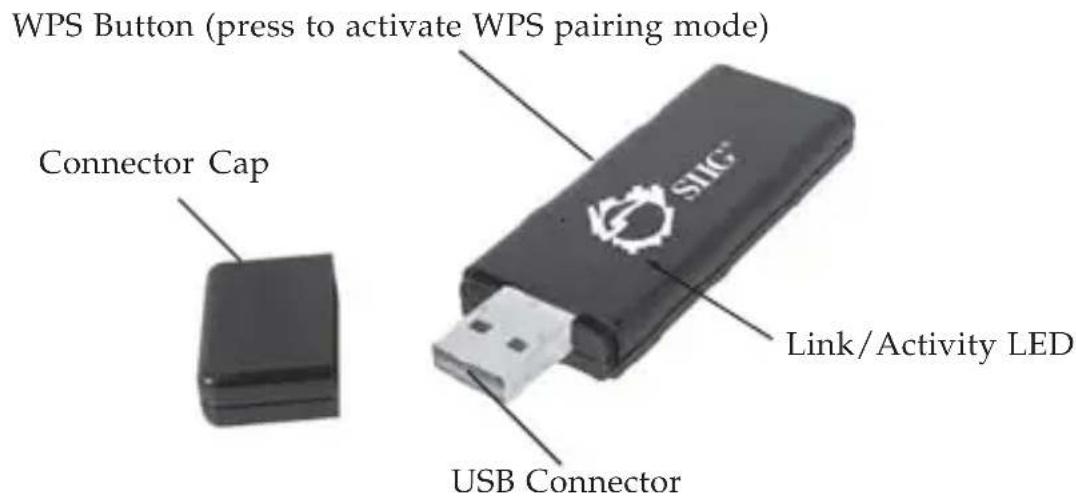
Figure 1: Layout
Link Activity LED
- On: Linked to a wireless access point/transferring data
• Off: No wireless activity
In order to keep the safety of users and your properties, please follow the following safety instructions.
-
This USB wireless network adapter is intended for indoor use only. DO NOT expose this network card to direct sun light, rain, or snow.
-
DO NOT put this network adapter at or near hot or humid places, like kitchen or bathroom. Also, do not leave this inside a hot car.
-
This network adapter is small enough to fit in a child's mouth, it could cause serious injury. This network adapter is small enough to cause a choking hazard to children. PLEASE KEEP THIS NETWORKCARD OUT OF THE REACH OF CHILDREN!
-
This network adapter will become warm when used for long periods of time (This is normal and is not a malfunction). DO NOT put the network card on paper, cloth, or other flammable objects after the network card has been used for a long time.
Hardware Installation
Insert the Wireless-N USB-Pro Adapter into an available USB port (USB 2.0 recommended) of your computer while computer is on.
Driver Installation
Windows 2000/XP/Server 2003
- At the Found New Hardware Wizard, click Cancel.
- Insert the driver CD, Click Start, Run. Type D:\USB\setup.exe, click OK. (Change D: to match your CD-ROM drive letter)
- Choose I accept the terms of the license agreement, then click Next.
- Choose Install driver and Ralink WLAN utility, then click Next.
- Choose Ralink Configuration Tool, then click Next.
Note: Skip this step and continue to step 6 if you have Windows 2000.
-
Click Install.
-
Click Finish. Restart your system to complete the installation.
Windows Vista™
- At the Found New Hardware window, click Cancel.
- Insert the driver CD. Click Start, in the Start Search box, type D:\USB\setup.exe, press Enter. (Change the D: to match your CD-ROM drive letter)
- Click Allow.
- Choose I accept the terms of the license agreement, then click Next.
- Choose Install driver and Ralink WLAN utility, then click Next.
- Click Install.
- Click Finish. Restart your system to complete the installation.
- A new icon will appear at lower-right corner of your computer desktop shown in Figure 2, you can put the mouse cursor on the icon, and the status of wireless card will be displayed as a popup balloon. When you want to configure your wireless connection, please right click on this icon, and a popup menu will appear. You can click Launch Config Utilities to start configuration program.
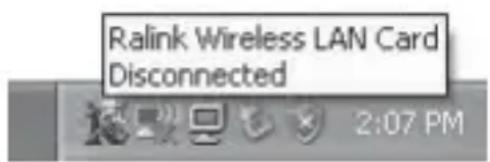
Figure 2
If you stopped config utility by Exit function, you will not be able to maintain the wireless link to the access point you wish to use. In this case, you can start config utility again by clicking Start, All Programs, Ralink Wireless, Ralink Wireless Utility.
Connecting to Wireless Access Point
After the driver is correctly installed, it will try to connect to any unencrypted wireless access point automatically. If you want to connect to a specific wireless access point, or the access point you wish to connect uses encryption, you have to configure the wireless network adapter and input required parameters, to get connected to the wireless access point you wish to connect. There are two ways you can configure your wireless network card to connect to wireless access point: using the Ralink configuration utility which comes with wireless card driver, and using built-in windows zero configuration utility.
Using Ralink Utility
Please follow the instructions to use Ralink configuration utility to connect to wireless access point.
- Right-click the Ralink configuration utility icon located at lower-right corner of computer desktop, then click Launch Config Utilities, shown in Figure 3 on the next page.
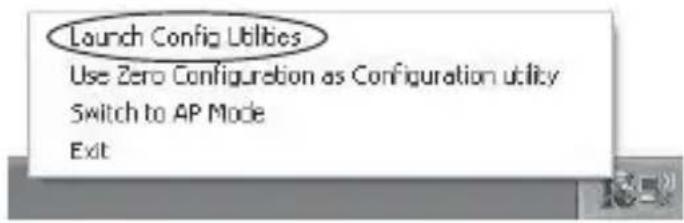
Figure 3
- Configuration utility will scan for all wireless access points automatically. Scan results will be displayed here, please check if the wireless access point with the SSID (the name of wireless access point) you preferred is shown in Figure 4. If the wireless access point you wish to connect does not show here, please click Rescan to try again, until the one you preferred is displayed. You may have to click Rescan several times before you can see the access point you wish to use. If you still can not see the access point you wish to use after clicking Rescan for more than five times, please move your computer closer to the location where the wireless access point is.
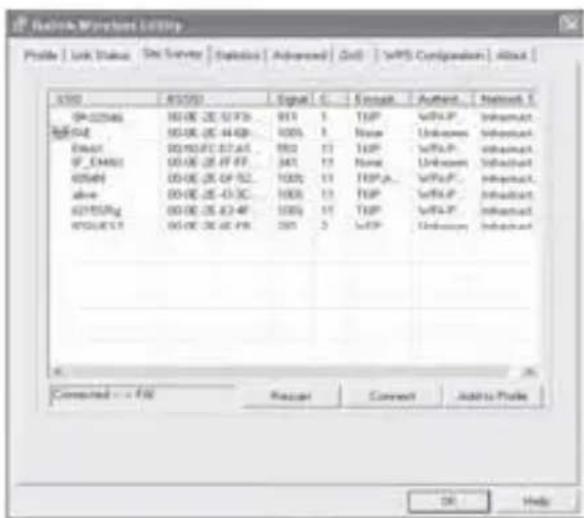
Figure 4
- Click the wireless access point or network device you wish to connect, it will be highlighted, then click Connect, shown in Figure 5 below.
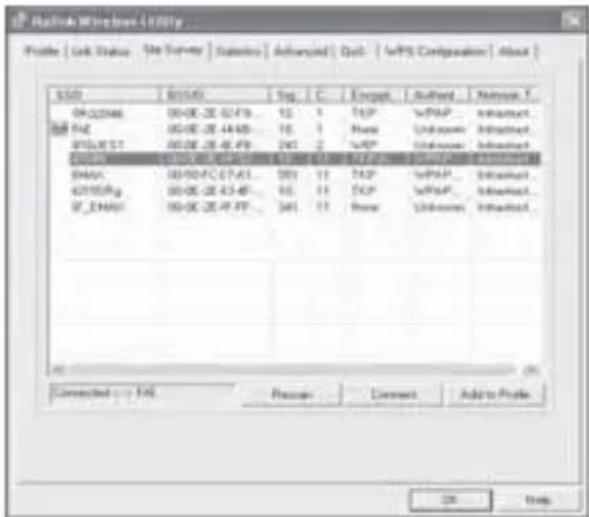
Figure 5
The non-encrypted access point (The Encryption filed indicate None) will connected within one minute. Please jump to step 5 on page 9 if the access point you selected enables encryption, otherwise proceed to next step.
- If the wireless access point does not have SSID, you'll be prompted to input it here. Please ask the owner of wireless access point and input the exact SSID here, then click OK when ready. If the SSID you provided here is wrong, you'll not be able to connect to this access point.
If the wireless access point you selected have SSID, please skip this step, shown in Figure 6.
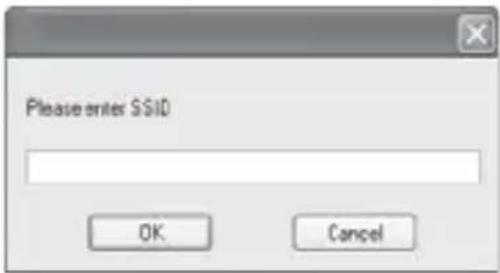
Figure 6
- If the wireless access point uses encryption, you have to input WEP passphrase or WPA preshared key. Shown on Figure 7, please ask the owner of the wireless access point to obtain the correct passphrase / preshared key and enter here, then click OK. If the value you inputted here is wrong, you will not be able to connect to this wireless access point. Authentication type is selected automatically, please don't change it.
If the access point you selected does not enable encryption and does not require authentication, please skip this step.
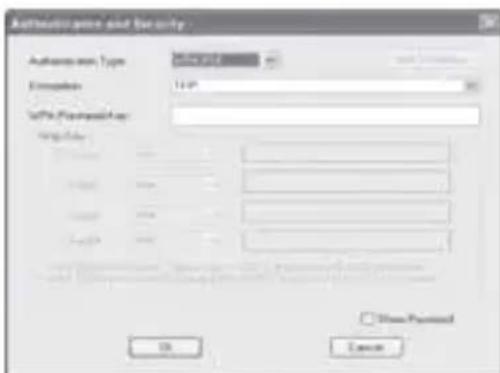
Figure 7
- You'll see Connected <-> SSID (SSID is the SSID of the wireless access point or wireless device you connected to) message displayed at lower-left corner of configuration utility, congratulations, you're successfully connected to the access point or wireless device you selected, shown in Figure 8.
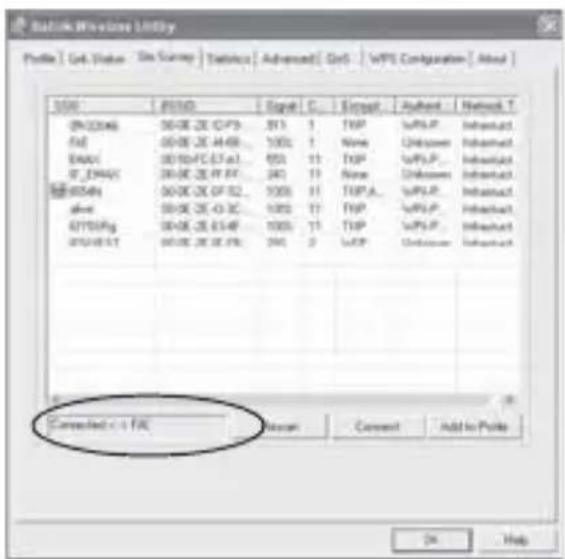
Figure 8
SSID: The Service Set IDentifier of wireless access point or other network device. You can think it as the name of access point of wireless device.
BSSID: The MAC address of wireless access point or other network device. Unlike SSID, BSSID of every access point or network device is unique, and will not be the same with others. So you can identify a single access point or wireless device from others by BSSID, if they all have the same SSID.
Signal: Shows the signal strength of access point or wireless device. Larger number means better radio strength.
Channel: Shows the channel number that access point or wireless device uses.
Encryption: Shows the encryption method that access point or wireless device uses. If the wireless access point does not enable encryption, you'll see None displayed here.
Authentication: Shows the authentication mode that access point or wireless device uses. If the wireless access point does not require authentication, you'll see Unknown displayed here.
Network Type: Shows the type of wireless connection. If it's a wireless access point, Infrastructure will be displayed here; if it's a computer or network device, AdHoc will be displayed here.
Note: Wireless access point (Infrastructure) is a network device which acts as a bridge, to let wired and wireless network devices communicate with each other.
AdHoc is another connection type. A computer or network device can establish a direct wireless link with other computer or network device directly, without the help of wireless access point.
Using Windows Zero Configuration
Windows XP and Vista has a built-in wireless network configuration utility called as Windows Zero Configuration (WZC). You can also use WZC to configure your wireless network adapter.
- Right-click Ralink configuration utility icon and select Use Zero Configuration as Configuration utility, shown in Figure 9.
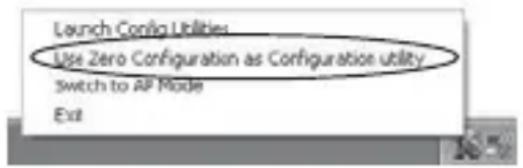
Figure 9
- Click Start, Control Panel, then click Network and Internet Connections.
- Click Network Connections.
- Right-click Wireless Network Connection (it may have a number as suffix if you have more than one wireless network card, please make sure you right click the Ralink 802.11n Wireless LAN Card), then select View Available Wireless Networks, shown in Figure 10 in the next page.
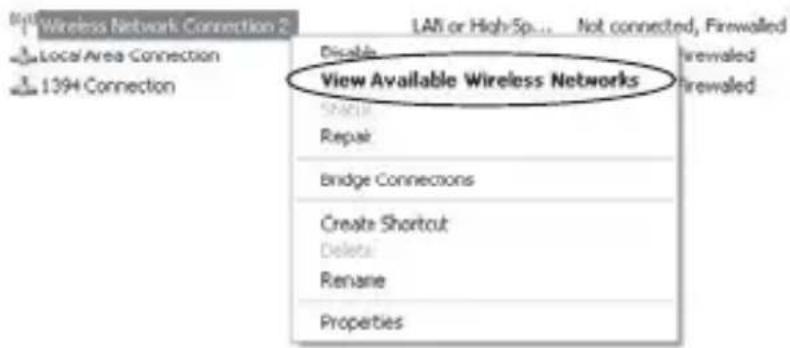
Figure 10
- All wireless access points in proximity will be displayed here. If the access point you want to use is not displayed here, please try to move your computer closer to the access point, or you can click Refresh network list to rescan access points. Click the access point you want to use if it's shown, then click Connect, shown in Figure 11.
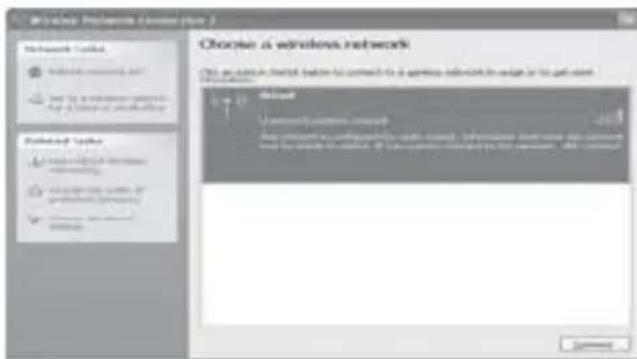
Figure 11
-
If the access point is protected by encryption, you have to input its security key or passphrase. It must match the encryption setting on the access point. If the access point you selected does not use encryption, you'll not be prompted for security key or passphrase
-
If you can see Connected message, the connection between your computer and wireless access point is successfully established.
Soft-AP Function
In addition to being a wireless client of other wireless access points, this wireless card can act as a wireless service provider. You can switch this wireless card's operating mode to AP mode to simulate the function of a real wireless access point by software, therefore, all other computers and wireless devices can connect to your computer wirelessly, even share the internet connection you have.
Switch to AP Mode and Basic Configuration
The operating mode of the wireless card is Station Mode (becoming a client of other wireless access points) by default. If you want to switch to AP mode, please right-click Ralink utility icon, and select Switch to AP Mode, shown in Figure 12.
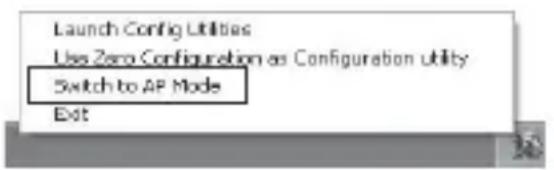
Figure 12
After you select Switch to AP Mode, the Ralink utility icon will indicate the wireless card is operating in AP mode now. If you want to switch the wireless card back to station mode (become a client of other wireless access points), click Switch to Station Mode.
Config
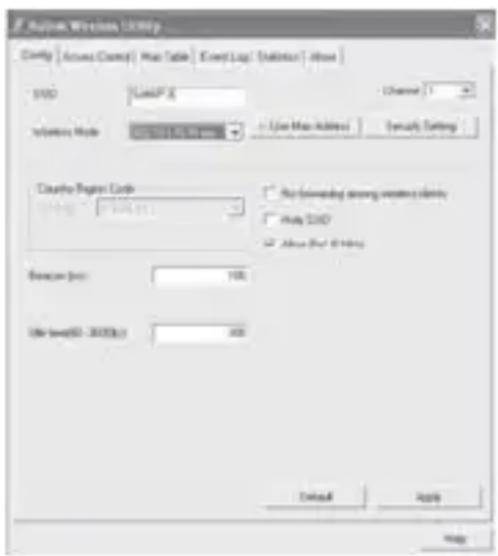
Figure 13
SSID: Please input the SSID (the name used to identify this wireless access point) here. Up to 32 numerical characters can be accepted here, excepting space.
TX Rate: Please select the data transfer rate here. The maximum TX rate you can select here depends on the wireless mode you're using. It's safe to select Auto to let wireless card select a proper TX rate according to the strength and quality of radio signal. When the wireless mode is set to 802.11 B/G/N Mix, TX Rate will be set to Auto and cannot be changed.
Channel: Please select the wireless channel you wish to use. The number of channels available here will vary depends on the setting of Country Region Code.
Wireless Mode: Please select the wireless operating mode. You can limit the type of wireless client to 802.11b or 802.11g only, or allow 802.11b/g, and 802.11b/g/n clients. It's safe to select 802.11 B/G/N mix to allow all kinds of wireless client to connect to your computer, unless you want to limit the type of wireless client allowed to connect to your computer.
Use Mac Address: Click this button to use the MAC address of the wireless card as SSID. A prefix of AP will be added.
Security Setting: Set the security options (wireless data encryption). Please refer to chapter 3-2 Security Settings for details.
Wireless Protection: Wireless protection will prevent data collision when there are both 802.11b and 802.11g clients. You can select Auto to let configuration utility to decide to use wireless protection or not. You can select ON or OFF to force the use of wireless protection or not.
Country Region Code: Available options are 0-7, which will affect the available wireless channels you can use, please see below.
0: FCC (US, Canada, and other countries uses FCC radio communication standards)
1: ETSI (Europe)
2: SPAIN
3: FRANCE
4: MKK
5: MKKI (TELEC)
6: ISRAEL (Channel 3 to 9)
7: ISRAEL (Channel 5 to 13)
Beacon(ms): You can define the time interval that a beacon signal should be send. Default value is 100. Do not modify this value unless you know what will be affected.
Idle Time: Select the idle time of your wireless network card. Default value is 300. Do not modify this value unless you know what will be affected.
No forwarding among wireless clients: Check this box and wireless clients will not be able to change sata with each other.
Hide SSID: Check this box and the SSID will not be broadcasted to the public. Your wireless clients must know the exact SSID to be able to connect to your computer. This option is useful to enhance security level.
Allow BW 40 MHz: Check this box to allow BW 40MHz capability.
Default: Click this button to restore all settings in this page back to default value.
Apply: Click this button to activate current settings.
Security Settings
This wireless card supports wireless encryption in AP mode, which will encrypt the data being transferred over the air to enhance data security level. It's recommended to enable data encryption unless you wish to open your computer (and its internet connection) to the public. When you click Security Setting in Ralink configuration utility, shown in Figure 14.
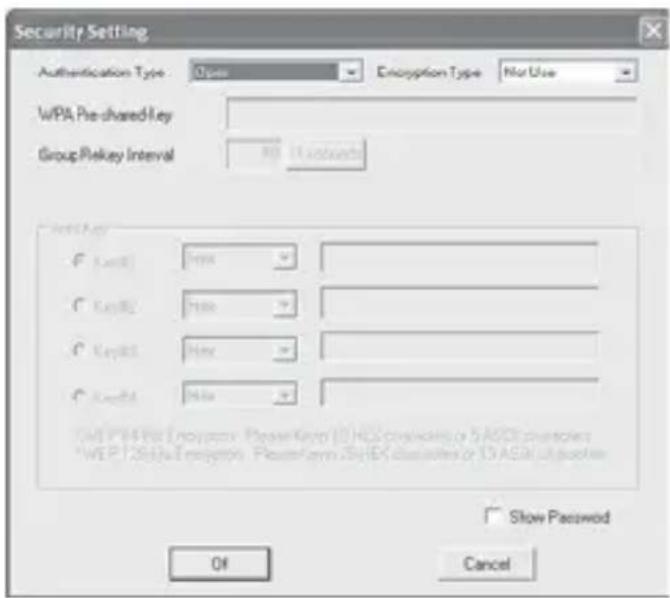
Figure 14
Authentication Type: Please select a wireless authentication type you wish to use. Available options are Open, Shared, WPA-PSK, WPA2-PSK, and WPA-PSK / WPA2-PSK. If you want to disable wireless data encryption, you must select Open or Shared.
Encryption Type: Please select an encryption mode. The available options in this setting item will vary depending on the authentication type you select. If you select Not Use, data will not be encrypted and people with some networking knowledge will be able to read the data you transfer with proper tool.
Note: WPA encryption is safer than WEP, however, some older wireless clients don't support WPA encryption.
WPA Pre-shared Key: Please input the WPA pre-shared key here. Only clients with the same pre-shared key you inputted here will be able to connect to your computer. This setting is only available when you select one of WPA encryptions.
Group Rekey Interval: You can specify the time interval to re-issue the key to your wireless clients here. You can click the button 10 seconds or Kpackets to change the unit of time interval (every 10 seconds or a thousand data packets times the value you specified in Group Rekey Interval field).
Wep Key #1\~#4: Please input the WEP encryption key here when you select WEP as encryption type. There are 2 types of WEP key: Hex (number 0 to 9, and ASCII characters A to F) and ASCII (all alphanumeric characters plus symbols). Please select the type of WEP key first, and then input the WEP key according to the type of WEP key you selected.
If you want to use WEP 64 bits encryption, please input 10 characters if you select HEX, or input 5 characters if you select ASCII; If you want to use WEP 128bit encryption, please input 26 characters if you select HEX, or input 13 characters if you select ASCII. 128 bit encryption is safer then 64 bit, but the data transfer speed will be slightly reduced.
Show Password: Check this box and the WPA pre shared key or WEP key you inputted will be shown, but not replaced by asterisk (*).
OK: Click this button to save changes you made in this page.
Cancel: Click this button to discard all changes you made in this window.
Access Control
If you're not going to open your computer and wireless resources to the public, you can use MAC address filtering function to enforce your access control policy, so only wireless clients with MAC address you defined by this function can be connected to your software access point.
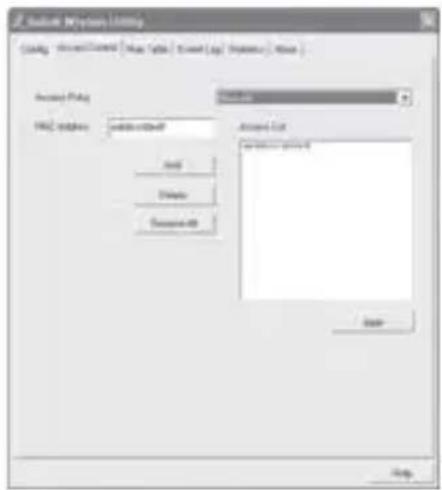
Figure 15
Access Policy: Select the policy type of your access rule:
Disable: Allow any wireless client with proper authentication settings to connect to this access point.
Allow All: Only allow wireless clients with MAC address listed here to connect to this access point. Reject All: Reject wireless clients with MAC address listed here to be connected to this access point.
MAC address: Input the MAC address of the wireless client you you wish to allow or reject here. No colon (:) or hyphen (-) required.
Add: Add the MAC address you inputted in MAC address field to the list.
Delete: Please select a MAC address from the list, then click Delete button to remove it.
Remove: Delete all MAC addresses in the list.
Apply: Save and apply changes you made.
Mac Table
Show the list all wireless clients connected to this access point, shown in Figure 16.
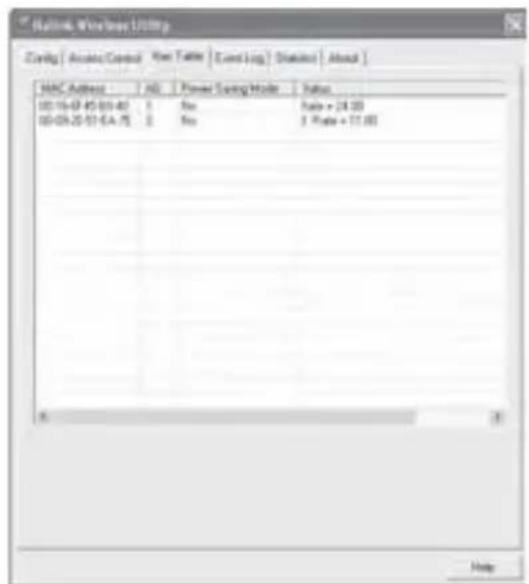
Figure 16
MAC Address: Displays the MAC address of this wireless client.
AID: The serial number of this wireless connection.
Power Saving Mode: Displays the capability of power-saving function of this wireless client.
Status: Displays additional information of this wireless connection, like current wireless operating mode and data transfer rate.
Event Log
This software access point will log all wireless-related activities as a log, shown in Figure 17.
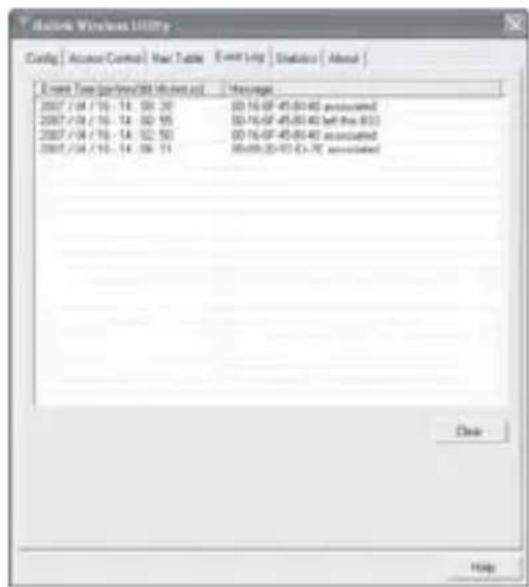
Figure 17
You can click Clear to remove all entries in the log.
Statistics
This page shows detailed information about how your software access point works, shown in Figure 18.
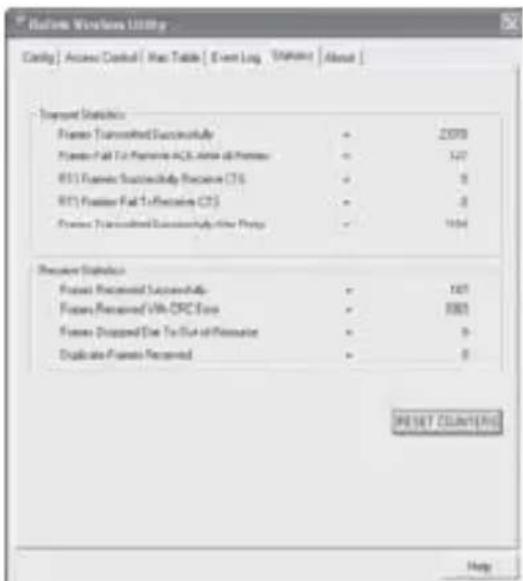
Figure 18
You can click RESET COUNTERS to reset all counters to zero.
Blank Page
Blank Page
Technical Support and Warranty
QUESTIONS? SIIG's Online Support has answers! Simply visit our web site at www.siig.com and click Support. Our online support database is updated daily with new drivers and solutions. Answers to your questions could be just a few clicks away. You can also submit questions online and a technical support analysts will promptly respond.
SIIG offers a 5-year manufacturer warranty with this product. Please see our web site for more warranty details. If you encounter any problems with this product, please follow the procedures below.
If it is within the store's return policy period, please return the product to the store where you purchased from. If your purchase has passed the store's return policy period, please follow these steps to have the product repaired or replaced.
Step 1: Submit your RMA request.
Go to www.siig.com, click Support, then RMA to submit a request to SIIG RMA. If the product is determined to be defective, an RMA number will be issued.
Step 2: After obtaining an RMA number, ship the product.
- Properly pack the product for shipping. All accessories that came with the original package must be included.
- Clearly write your RMA number on the top of the returned package. SIIG will refuse to accept any shipping package, and will not be responsible for a product returned without an RMA number posted on the outside of the shipping carton.
- You are responsible for the cost of shipping. Ship the product to the following address:
SIIG, Inc.
6078 Stewart Avenue
Fremont, CA 94538-3152, USA
RMA #:
- SIIG will ship the repaired or replaced product via Ground in the U.S. and International Economy outside of the U.S. at no cost to the customer.
Founded in 1985, SIIG, Inc. is a leading computer upgrade manufacturer of I/O connectivity products, including PCI & ISA serial and parallel ports, USB, Serial ATA & UltraATA controllers, FireWire (1394a/b), networking, sound cards, and other accessories. SIIG is the premier one-stop source of upgrades.
SIIG products offer comprehensive user manuals, many user-friendly features, and are backed by an extensive manufacturer warranty. High-quality control standards are evident by the overall ease of installation and compatibility of our products, as well as one of the lowest defective return rates in the industry. SIIG products can be found in computer retail stores, mail order catalogs, through major distributors, system integrators, and VARs in the Americas and the UK, and through e-commerce sites.
PRODUCT NAME
Wireless-N USB-Pro Adapter
FCC RULES: TESTED TO COMPLY WITH FCC PART 15, CLASS B OPERATING ENVIRONMENT: FOR HOME OR OFFICE USE
FCC COMPLIANCE STATEMENT:
This device complies with part 15 of the FCC Rules. Operation is subject to the following two conditions: (1) This device may not cause harmful interference, and (2) this device must accept any interference received, including interference that may cause undesired operation.
THE PARTY RESPONSIBLE FOR PRODUCT COMPLIANCE
SIIG, Inc.
6078 Stewart Avenue
Fremont, CA 94538-3152, USA
Ph: 510-657-8688
Wireless-N USB-Pro Adapter is a trademark of SIIG, Inc. SIIG and the SIIG logo are registered trademarks of SIIG, Inc. Microsoft, Windows and Windows Vista are either registered trademarks or trademarks of Microsoft Corporation in the United States and/or other contries. Pentium is a registered trademark of Intel Corporation. Other names used in this publication are for identification only and may be trademarks of their respective companies.
April, 2009
Copyright © 2009 by SIIG, Inc. All rights reserved.