AR-7211B - Router Edimax - Free user manual and instructions
Find the device manual for free AR-7211B Edimax in PDF.


User questions about AR-7211B Edimax
0 question about this device. Answer the ones you know or ask your own.
Ask a new question about this device
Download the instructions for your Router in PDF format for free! Find your manual AR-7211B - Edimax and take your electronic device back in hand. On this page are published all the documents necessary for the use of your device. AR-7211B by Edimax.
USER MANUAL AR-7211B Edimax
1WAN + 1LAN + 1USB ADSL Modem Router
AR-7211A / AR-7211B
User Manual
Version 1.0 / October, 2010
COPYRIGHT
Copyright © Edimax Technology Co., Ltd. all rights reserved. No part of this publicaon may be reproduced, transmied, transcribed, stored in a retrieval system, or translated into any language or computer language, in any form or by any means, electronic, mechanical, magnec, opcal, chemical, manual or otherwise, without the prior written permission from Edimax Technology Co., Ltd.
Edimax Technology Co., Ltd. makes no representaons or warranes, either expressed or implied, with respect to the contents hereof and specifically disclaims any warranes, merchantability, or tness for any parcular purpose. Any soware described in this manual is sold or licensed as is. Should the programs prove defecve following their purchase, the buyer (and not this company, its distributor, or its dealer) assumes the enre cost of all necessary servicing, repair, and any incidental or consequential damages resulting from any defect in the soware. Edimax Technology Co., Ltd. reserves the right to revise this publicaon and to make changes from me to me in the contents hereof without the obligaon to nofy any person of such revision or changes.
The product you have purchased and the setup screen may appear slightly dierent from those shown in this QIG. For more informaon about this product, please refer to the user manual on the CD-ROM. The soware and specicaons are subject to change without noce. Please visit our website www.edimax.com for updates. All brand and product names menoned in this manual are trademarks and/or registered trademarks of their respective holders.
Linux Open Source Code
Certain Edimax products include soware codes developed by third pares, which are subject to the GNU General Public License (GPL) or GNU Lesser General Public License (LGPL). Please see the GNU (www.gnu.org) website for the terms and conditions of each license.
The GNU GPL and GNU LGPL soware codes used in Edimax products are distributed without any warranty and are subject to the copyrights of their respective authors. The firmware files for this product can be found under the “Download” page at the Edimax website (www.edimax.com).
CONTENTS
CHAPTER I: INTRODUCTION....4
1-1 Package Contents ....6
1-2 Safety Informaon....6
1-3 LED and Interface Descripon 7
1-4 System Requirements....8
CHAPTER II: HARDWARE SETUP....9
CHAPTER III: WEB CONFIGURATION....10
3-1 Connecng to broadband router via web browser 10
3-2 Status 12
3-2-1 System 12
3-2-2 LAN....13
3-2-3 WAN....14
3-2-4 Stascs....15
3-2-4-1 Trac Stascs 15
3-2-4-2 DSL Stascs....16
3-2-5 ARP Table....17
3-3 Wizard....18
3-4 Network \ LAN ....20
3-4-1 LAN Sengs....20
3-4-2 DHCP Sengs....21
3-5 Network \ WAN 26
3-5-1 WAN Interface 26
3-5-2 ATM Sengs....28
3-5-3 ADSL Sengs....29
3-6 Service & Advance 30
3-6-1 DNS 30
3-6-1-1 DNS Server....30
3-6-1-2 DDNS 31
3-6-2 Firewall 32
3-6-2-1 IP/Port Filter 32
3-6-2-2 MAC Filter....33
3-6-2-3 URL Blocking....34
3-6-3 Firewall – II....35
3-6-3-1 Virtual Services....35
3-6-3-2 DMZ Sengs 36
3-6-4 Roung 37
3-6-4-1 RIP 37
3-6-4-2 Stac Route 38
3-6-5 IP QoS 39
3-6-6 Service --II....40
3-6-6-1 IGMP Proxy....40
3-6-6-2 UPNP....41
3-6-6-3 Advance \ Bridge 41
3-6-6-4 Port Mapping....42
3-6-6-5 SNMP 43
3-6-6-6 Service \ TR06....44
3-6-6-7 Service \ ACL....45
3-7 Admin....46
3-7-1 Commit/Reboot....46
3-7-2 Password....47
3-7-3 Backup/Restore 48
3-7-4 Firmware Upgrade....49
3-7-5 Time Zone 50
3-8 Diagnosc ....51
3-8-1 Ping 51
3-8-2 ATM Loopback....52
3-8-3 ADSL....52
3-8-4 Diagnosc ....53
APPENDIX A: USB SOFTWARE SETUP....54
APPENDIX B: ABBREVIATIONS....59
CHAPTER I: INTRODUCTION
Thank you for purchasing this Edimax product. This router is a cost-eece router, an ADSL2+ modem, and Ethernet network switch. You can surf the Internet and share the conncon through the router without invesng in other devices.
This router can support downstream transmission rates of up to 24Mbps and upstream transmission rates of up to 1Mbps. It supports PPPoA (RFC 2364 - PPP over ATM Adaptaon Layer 5), RFC 1483 encapsulaon over ATM (bridged or routed), PPP over Ethernet (RFC 2516), and IPoA (RFC1577) to establish a conncon with ISP. The product also supports VC-based and LLC-based mulplexing.
You can congregate the router by running the Setup Wizard in the CD-ROM provided in the package. The wizard provides quick setup for the Internet conncon, rmware upgrade and changing router's password. When you start the Setup Wizard, you will get the following Welcome screen. Please choose the language to start with and follow the easy steps in the Wizard. No instrucon for the Setup Wizard is given here.

Multi-languages Wizard
Multi-languages QIG
User Manual

Setup USB Driver
ΣDIMAX
NETWORKING VOLUME SCORE
www.edimax.com

natural_image
Row of eight white icons on black background, including globe, grid, key, download arrow, target, book, and running figure (no text or symbols)
text_image
English Nederlands Deutsch Français ItalianoEspañol Português Polski Český Magyar
Русский Romana Türkçe Slovensky
ΣDIMAX
NETWORKING PEOPLE TOGETHER
Routers
www.edimax.com
1-1 Package Contents
● One single port router
● One external splier
● One power adapter
● Two pieces of telephone lines(RJ-11, more than 1.8m)
● One piece of Ethernet cable(RJ-45, more than 1.8m)
● One piece of USB cable
● One copy of Quick Installaon Guide
● One copy of driver and ulity soware CD (oponal)
1-2 Safety Informaon
Follow these announcements below to protect the device from risks and damage caused by re or electric power.
- Use volume labels to mark the type of power.
- Use the power adapter packed within the device package.
- Pay aenon to the power load of the outlet or prolonged lines. An overburden power outlet or damaged lines and plugs may cause electric shock or re accident. Check the power cords regularly. If you nd any damage, replace it at once.
- Proper space le for heat radiaon is necessary to avoid any damage caused by overheang to the device. The long and thin holes on the Access Point are designed for heat radiaon to make sure the device works normally. Don’t cover these heat radiant holes.
- Do not put this device close to a place where a heat source exits or high temperature occurs. Avoid the device from direct sunshine.
- Do not put this device close to a place where is over damp or watery. Do not spill any uid on this device.
- Do not connect this device to any PC or electronic product, unless our customer engineer or your broadband provider instructs you to do this, because any wrong conncon may cause any power or re risk.
- Do not place this device on an unstable surface or support.
1-3 LED and Interface Descripon
Front Panel
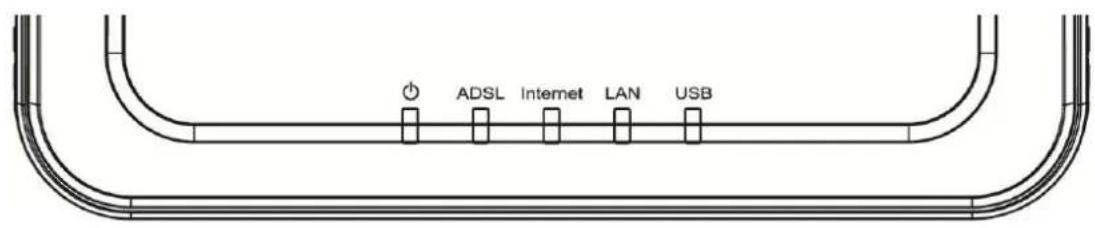
text_image
ADSL Internet LAN USB| LED | Color | Status | Descripon |
| Power | Green/Red | OFF | Device not powered |
| GREEN | Device correctly powered | ||
| RED | Device not correctly powered | ||
| RED BLINK | Upgrade rmware | ||
| ADSL | Green | OFF | Inial self-test failed |
| BLINK | Detecng ADSL | ||
| ON | Inial self-test complete | ||
| Internet | Green | OFF | Internet conncon not established |
| BLINK | Internet acvity (transferring data) | ||
| ON | Internet conncon established | ||
| LAN | Green | OFF | LAN port not connected |
| BLINK | LAN acvity (transferring data) | ||
| ON | LAN port connected | ||
| USB | Green | OFF | Inacve |
| ON | Acve |
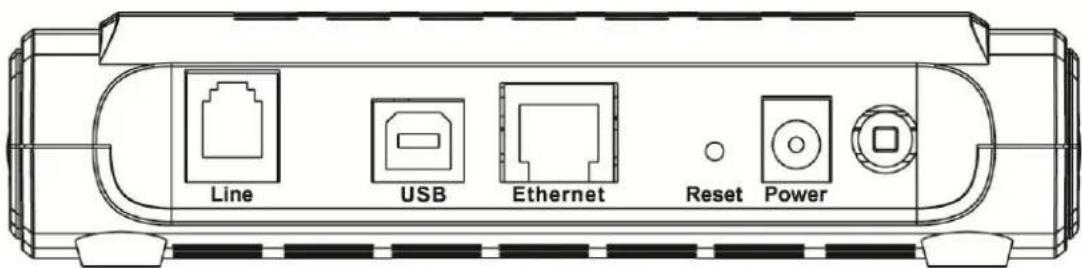
text_image
Line USB Ethernet Reset Power| Item | Usage |
| Line | Line RJ-11 port |
| Reset | Resets device to factory defaults(to restore factory defaults, push a paper clip into the hole when the device is powered and hold for over 5 seconds) |
| Ethernet | Ethernet RJ-45 port |
| ➊ | Power ON/OFF |
| PWR | Power connector(connects to DC12V 500mA power adapter) |
| USB | Connects to computer via USB cable(USB driver installaon required. See APPENDIX A for details.) |
1-4 System Requirements
First, make sure that you have prepared these following items to guarantee the router can work properly.
● Service subscripon
● An 10BaseT/100BaseT Ethernet card installed on your PC
● HUB or Switch (aached to several PCs through one of Ethernet interfaces on the device)
● Operang system: Windows 98SE, Windows 2000, Windows ME, or Windows XP
- Internet Explorer V5.0 or higher, or Netscape V4.0 or higher, or Firefox 1.5 or higher
CHAPTER II: HARDWARE SETUP

flowchart
graph TD
    A["ADSL service socket"] --> B["Splitter"]
    B --> C["Modem Phone"]
    C --> D["RJ-11"]
    D --> E["Phone"]
    D --> F["Phone"]
    G["RJ-45"] --> H["PC"]
    I["Power adapter"] --> J["Reset"]
    J --> K["Power"]
    style A fill:#f9f,stroke:#333
    style B fill:#ccf,stroke:#333
    style C fill:#cfc,stroke:#333
    style D fill:#fcc,stroke:#333
    style E fill:#cff,stroke:#333
    style F fill:#ffc,stroke:#333
    style G fill:#fcf,stroke:#333
    style H fill:#cff,stroke:#333
    style I fill:#ffc,stroke:#333
- Connect the "Line" port of the router and the "Modem" port of the splier with a telephone (RJ-11) cable.
- Connect the "Ethernet" port of the router to a computer via an Ethernet cable (MDI/MDIX).
- Plug the power adapter to a wall outlet and then connect the other end to the "Power" port of the router.
3-1 Connecng to broadband router via web browser
You can access the broadband router's web-based conguraon interface via any connected computer with a web browser (Internet Explorer 5.x or above, Firefox, Opera, or Safari).
- Please input "192.168.2.1" in the web browser's address bar and press "Enter".
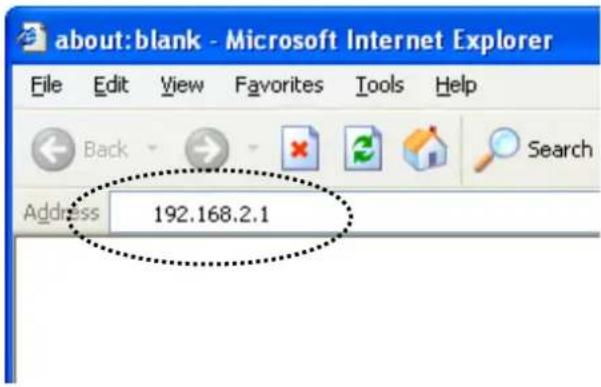
text_image
about:blank - Microsoft Internet Explorer File Edit View Favorites Tools Help Back Search Address 192.168.2.1- You should see the following authencaon window.
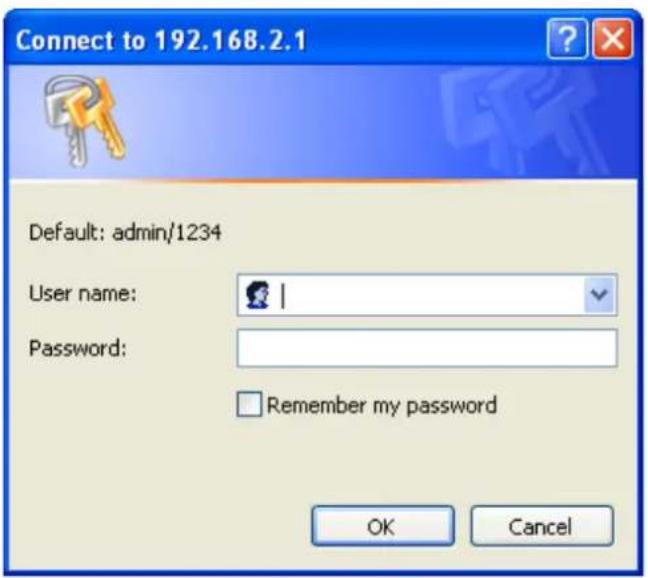
text_image
Connect to 192.168.2.1 Default: admin/1234 User name: Password: Remember my password OK CancelNOTE: If you cannot access the broadband router's web-based conguraon interface, the IP address you have input may be incorrect. If you have previously changed the router's IP address, please input the one you have designated.
- Please input "admin" in the "User name" eld and "1234" in the "Password" eld. Click the "OK" buon to enter the web conguraon interface.
| Status | Status Wizard Network Service Advance Admin Diagnostic | |||||
| System LAN WAN Port Mapping Statistics ARP Table | ||||||
| System | System Status This page shows the current status and some basic settings of the device. | |||||
| System | ||||||
| Device Name | AR-7211A | |||||
| Uptime (hh:mm:ss) | 00:07:01 | |||||
| Software Version | V2.1 | |||||
| DSP Version | 2.9.0.5a | |||||
| DSL | ||||||
| Operational Status | -- | |||||
| DSL Uptime (hh:mm:ss) | -- | |||||
| Upstream Speed | -- | |||||
| Downstream Speed | -- | |||||
3-2 Status
Click "Status" in the menu to open the sub-menu that contains 5 items: System, LAN, WAN, Stasc, and ARP Table.
3-2-1 System
Click "System" in the sub-menu to open the following screen. In this page, you can view the status and some basic sengs of this router, for example, Soware Version, DSL mode, Upstream Speed, Downstream Speed, Upme and so on.
| Status | Status Wizard Network Service Advance Admin Diagnostic | |||||
| System LAN WAN Port Mapping Statistics ARP Table | ||||||
| System | System Status This page shows the current status and some basic settings of the device. | |||||
| System | ||||||
| Device Name | AR-7211A | |||||
| Uptime (hh:mm:ss) | 00:07:01 | |||||
| Software Version | V2.1 | |||||
| DSP Version | 2.9.0.5a | |||||
| DSL | ||||||
| Operational Status | -- | |||||
| DSL Uptime (hh:mm:ss) | -- | |||||
| Upstream Speed | -- | |||||
| Downstream Speed | -- | |||||
3-2-2 LAN
Click "LAN" in the sub-menu to open the following screen. In this page, you can view the LAN IP, DHCP Server status, MAC Address and DHCP Client Table.
| LAN | Status Wizard Network Service Advance Admin Diagnostic | |||||
| System LAN WAN Port Mapping Statistics ARP Table | ||||||
| LAN | LAN Status This page shows basic LAN settings of the device. | |||||
| LAN Configuration | ||||||
| IP Address | 192.168.2.1 | |||||
| Subnet Mask | 255.255.255.0 | |||||
| DHCP Server | Enable | |||||
| MAC Address | 00:05:1D:03:04:05 | |||||
| DHCP Client Table | ||||||
| Name | IP Address | MAC Address | Expiry(s) | Type | ||
| OBMTEST | 192.168.2.2 | 00:1d:09:11:ca:cf | In 0 days 23:48:21 | Automatic | ||
| TinyHsiaoNBWIN7 | 192.168.2.3 | 00:22:19:fc:b8:6c | In 0 days 23:53:43 | Automatic | ||
3-2-3 WAN
Click "WAN" in the sub-menu to open the following screen. In this page, you can view basic status of WAN, Default Gateway, and DNS Server.

text_image
EDIMAX NETWORKING PEOPLE TOGETHER WAN Status Wizard Network Service Advance Admin Diagnostic System LAN WAN Port Mapping Statistics ARP Table WAN WAN Status This page shows some basic WAN settings. Interface VPI/VCI Encapsulation Default Route Protocol IP Address Gateway Status DNS Servers3-2-4 Stascs
Click "Stascs" in the sub-menu to open the menu in the le bar that contains two items: Trac Stascs and DSL Stascs.
3-2-4-1 Trac Stascs
Click "Trac Stasc" in the le bar to open the following screen. In this page, you can view the stascs of each network port.
| Statistics | Status | Wizard | Network | Service | Advance | Admin | Diagnostic |
| System | LAN | WAN | Port Mapping | Statistics | ARP Table | ||
| Traffic Statistics ADSL Statistics | Traffic Statistics This page shows the statistics of transmitted packets and received packets at each network interface. | ||||||
| Interface | Rx Packet | Rx Error | Rx Drop | Tx Packet | Tx Error | Tx Drop | |
| e1 | 1267 | 0 | 0 | 896 | 0 | 0 | |
| a0 | 0 | 0 | 0 | 0 | 0 | 0 | |
| a1 | 0 | 0 | 0 | 0 | 0 | 0 | |
| a2 | 0 | 0 | 0 | 0 | 0 | 0 | |
| a3 | 0 | 0 | 0 | 0 | 0 | 0 | |
| a4 | 0 | 0 | 0 | 0 | 0 | 0 | |
| a5 | 0 | 0 | 0 | 0 | 0 | 0 | |
| a6 | 0 | 0 | 0 | 0 | 0 | 0 | |
| a7 | 0 | 0 | 0 | 0 | 0 | 0 | |
| e2 | 0 | 0 | 0 | 0 | 0 | 0 | |
3-2-4-2 DSL Stascs
Click "DSL Stascs" in the le bar to open the following screen. In this page, you can view the ADSL line stascs, downstream rate, and upstream rate.
| ADSL Statistics | Status Wizard Network Service Advance Admin Diagnostic | |||||
| System LAN WAN Port Mapping Statistics ARP Table | ||||||
| Traffic Statistics ADSL Statistics | ADSL Statistics This page shows the ADSL settings of the device. | |||||
| ADSL Line Status ACTIVATING. | ||||||
| ADSL Mode -- | ||||||
| Upstream -- | ||||||
| Downstream -- | ||||||
| Attainable Up Rate -- | ||||||
| Attainable Down Rate -- | ||||||
| Attenuation Downstream(db) -- | ||||||
| Attenuation Upstream(db) -- | ||||||
| SNR Margin Downstream(db) -- | ||||||
| SNR Margin Upstream(db) -- | ||||||
| Vendor ID RETK | ||||||
| DSP Version 2.9.0.5a | ||||||
| CRC Errors -- | ||||||
| Upstream BER -- | ||||||
| Downstream BER -- | ||||||
| Up Output Power | ||||||
3-2-5 ARP Table
Click "ARP Table" in the sub-menu to open the following screen. In this page, you can view the table that shows a list of learned MAC addresses.
| ARP Table | Status Wizard Network Service Advance Admin Diagnostic | |||||
| System LAN WAN Port Mapping Statistics ARP Table | ||||||
| ARP Table | ARP Table This page shows current ARP entries by interrogating the current protocol data. | |||||
| IP Address | MAC Address | |||||
| 192.168.2.1 | 00:05:1D:03:04:05 | |||||
| 192.168.2.3 | 00:22:19:FC:B8:6C | |||||
| Refresh | ||||||
3-3 Wizard
The setup wizard enables speedy and accurate conguraon of your Internet conncon and other important parameters. The following seconds describe these various conguraon parameters. Whether you congregate these parameters or use the default ones, click “Next” to enable your Internet conncon.
When subscribing to a broadband service, you should be aware of the method by which you are connected to the Internet. Your physical WAN device can be either Ethernet, DSL, or both. Technical informaon regarding the properes of your Internet conncon should be provided by your Internet Service Provider (ISP). For example, your ISP should inform you whether you are connected to the Internet using a stac or dynamic IP address, or what protocols, such as PPPOA or PPPoE, you will be using to communicate over the Internet.
Click Wizard in the sub-menu to open the screen of Fig 3.3.1-1. In this page, and the Wizard will guide you to nish password/me/Internet connecos sengs.

text_image
EDIMAX NETWORKING PEOPLE TOGETHER Wizard Status Wizard Network Service Advance Admin Diagnostic Wizard Wizard The Wizard page guides you to configure the device step by step. After finishing the following steps, you will be online and free to enjoy high-speed Internet access. Step 1: Web Account Setup Step 2: Time Zone Setup Step 3: WAN Interface Setup Step 4: Configuration Saving Step 1: Web Account Setup Set a new account for accessing the Web server of the device. User Name: admin New Password: Confirmed Password: NextFig 3.3.1-1
Be sure to use the correct Virtual Path Idener (VPI) and Virtual Channel Idener (VCI) numbers assigned to you. The valid range for VPI is 0 to 255 and for VCI is 1 to 65535.
Then press Next, the Fig 3.3.1-2 screen will appear. In this page, you can select the WAN Connect Type and the encapsulaon method.

text_image
Step 3: WAN Interface Setup Set up the channel mode of WAN interface. PVC Setting: VPI: 0 (0-255) VCI: 0 (32- 65535) Encapsulation: LLC/SNAP VC-Mux Channel Mode: 1483 Bridged 1483 MER PPPoE PPPoA 1483 Routed PPP Settings: User Name: Password: Default Route: Enable Disable DNS Settings: Obtain DNS AutomaticallyFig 3.3.1-2
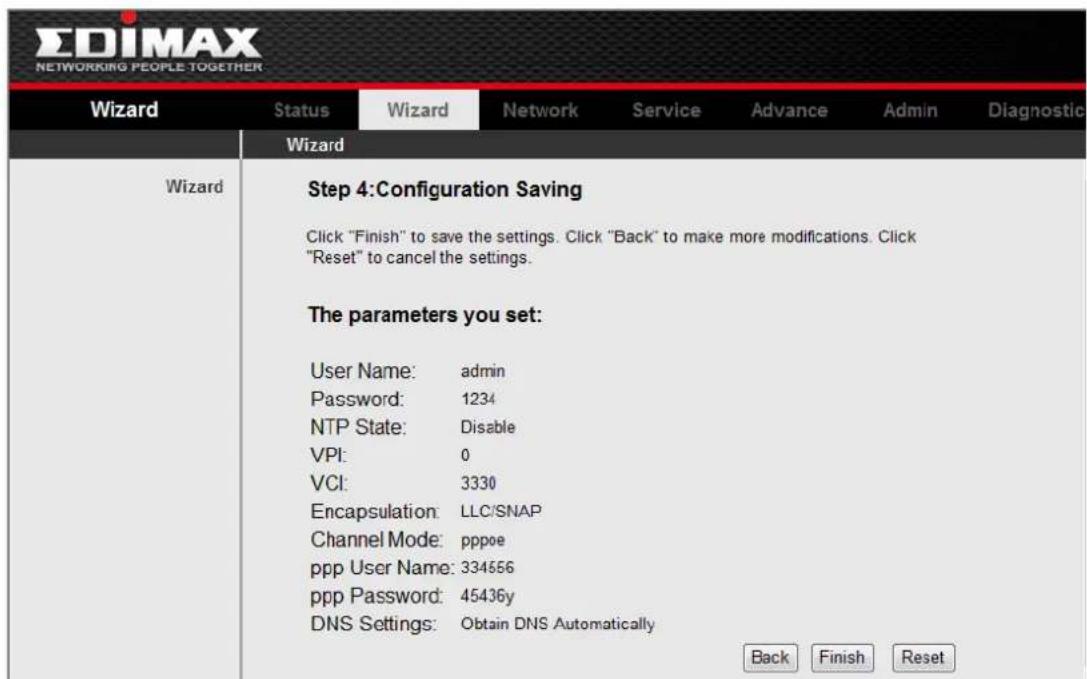
If you nish the sengs of this page, click Next, the screen appears as shown next.
text_image
EDIMAX NETWORKING PEOPLE TOGETHER Wizard Status Wizard Network Service Advance Admin Diagnostic Wizard Wizard Step 4:Configuration Saving Click "Finish" to save the settings. Click "Back" to make more modifications. Click "Reset" to cancel the settings. The parameters you set: User Name: adults Password: 1234 NTP State: Disable VPI: 0 VCI: 3330 Encapsulation: LLC/SNAP Channel Mode: pppoe ppp User Name: 334556 ppp Password: 45436y DNS Settings: Obtain DNS Automatically Back Finish ResetFig 3.3.1-3
3-4 Network \ LAN
Click LAN in the menu to open the sub-menu which contains 2 items: LAN Sengs and DHCP Sengs. You can use the LAN conguraon to dene an IP address for the DSL Router and congure the DHCP server.
3-4-1 LAN Sengs
On this screen you can change the device's IP address. The preset IP address is 192.168.1.1. This is the Private IP address of the DSL Router. This is the address under which the device can be reached in the local network. It can be freely assigned from the block of available addresses.
Click LAN Sengs in the sub-menu to open the screen of Fig 3.4.1. In this page you can cong the LAN network.

text_image
EDIMAX NETWORKING PEOPLE TOGETHER LAN IP Status Wizard Network Service Advance Admin Diagnostic LAN WAN LAN IP DHCP DHCP Static IP LAN Interface Setup This page is used to configure the LAN interface of the device, such as IP address and subnet mask. Interface Name: e1 IP Address: 192.168.2.1 Subnet Mask: 255.255.255.0 ✓ Secondary IP IP Address: 0.0.0.0 Subnet Mask: 0.0.0.0 IGMP Snooping: Disable Enable Apply ChangesFig 3.4.1
The following table describes the elds of this screen.
| Label | Descripon |
| IP Address | Input the IP of Local area network interface here. |
| Subnet Mask | We recommend that you use an address from a block that is reserved for private use. This address block is 192.168.1.1- 192.168.255.254 |
| Secondary IP | Select this checkbox to enable the secondary LAN IP. The two LAN IP must be in the dierent network. |
| Apply Changes | Click this buon to save the sengs of this page. |
3-4-2 DHCP Sengs
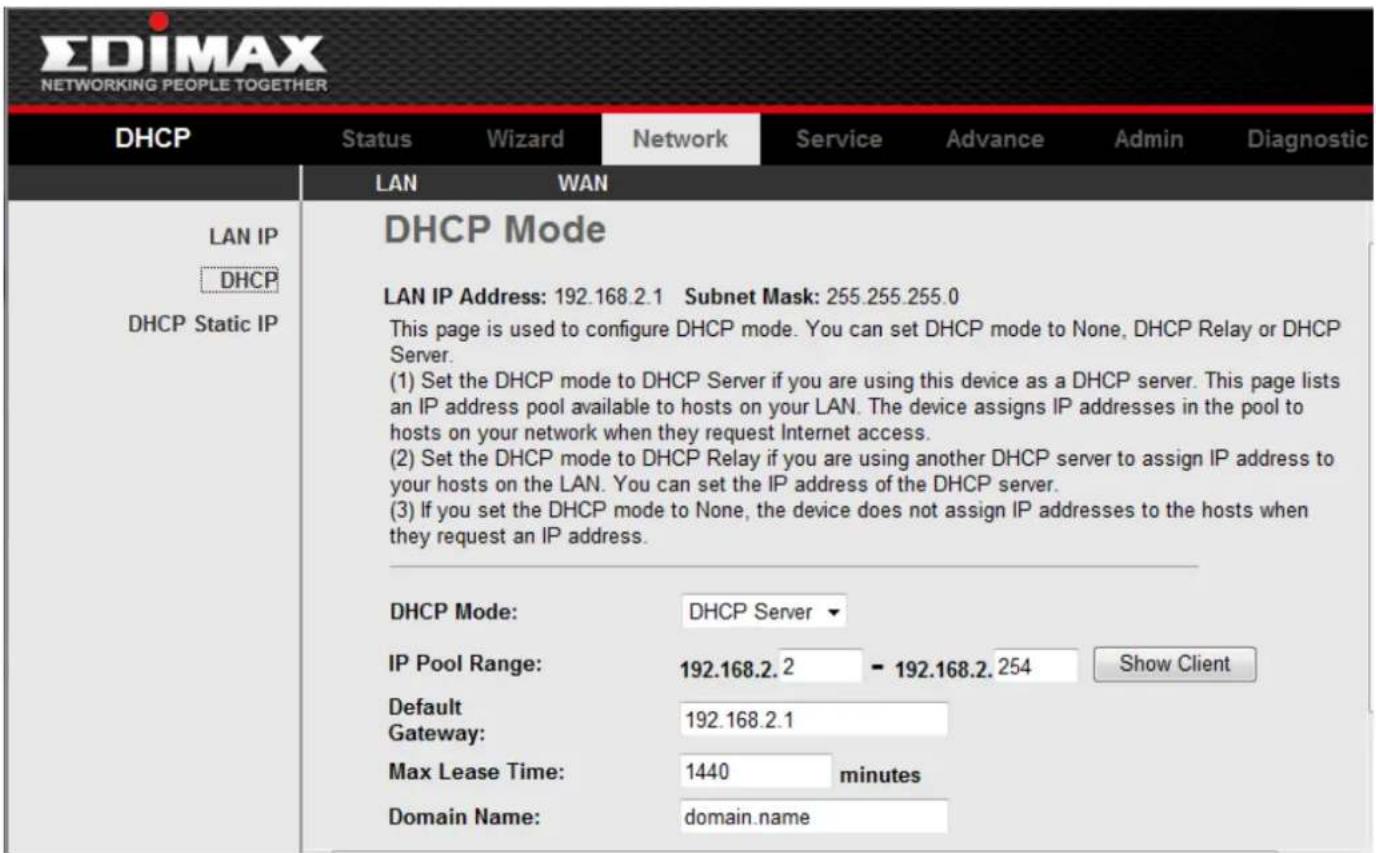
DHCP(Dynamic Host Conguraon Protocol) allows the individual client(computers) to obtain the TCP/IP conguraon at start-up from the centralize DHCP server. You can congregate this router as a DHCP server or disable it. DHCP server can assign IP address, an IP default gateway and DNS server to DHCP clients. This router can also act as a surrogate DHCP server(DHCP Proxy) where it relays IP address assignment from a actual real DHCP server to clients.
If the DHCP was disabled, the screen of Fig 3.4.2-1 appears. You can enable/disable DHCP Server or DHCP Proxy.
text_image
EDIMAX NETWORKING PEOPLE TOGETHER DHCP Status Wizard Network Service Advance Admin Diagnostic LAN WAN LAN IP DHCP DHCP Static IP DHCP Mode LAN IP Address: 192.168.2.1 Subnet Mask: 255.255.255.0 This page is used to configure DHCP mode. You can set DHCP mode to None, DHCP Relay or DHCP Server. (1) Set the DHCP mode to DHCP Server if you are using this device as a DHCP server. This page lists an IP address pool available to hosts on your LAN. The device assigns IP addresses in the pool to hosts on your network when they request Internet access. (2) Set the DHCP mode to DHCP Relay if you are using another DHCP server to assign IP address to your hosts on the LAN. You can set the IP address of the DHCP server. (3) If you set the DHCP mode to None, the device does not assign IP addresses to the hosts when they request an IP address. DHCP Mode: DHCP Server ▼ IP Pool Range: 192.168.2.2 - 192.168.2.254 Show Client Default Gateway: 192.168.2.1 Max Lease Time: 1440 minutes Domain Name: domain.nameFig 3.4.2-1
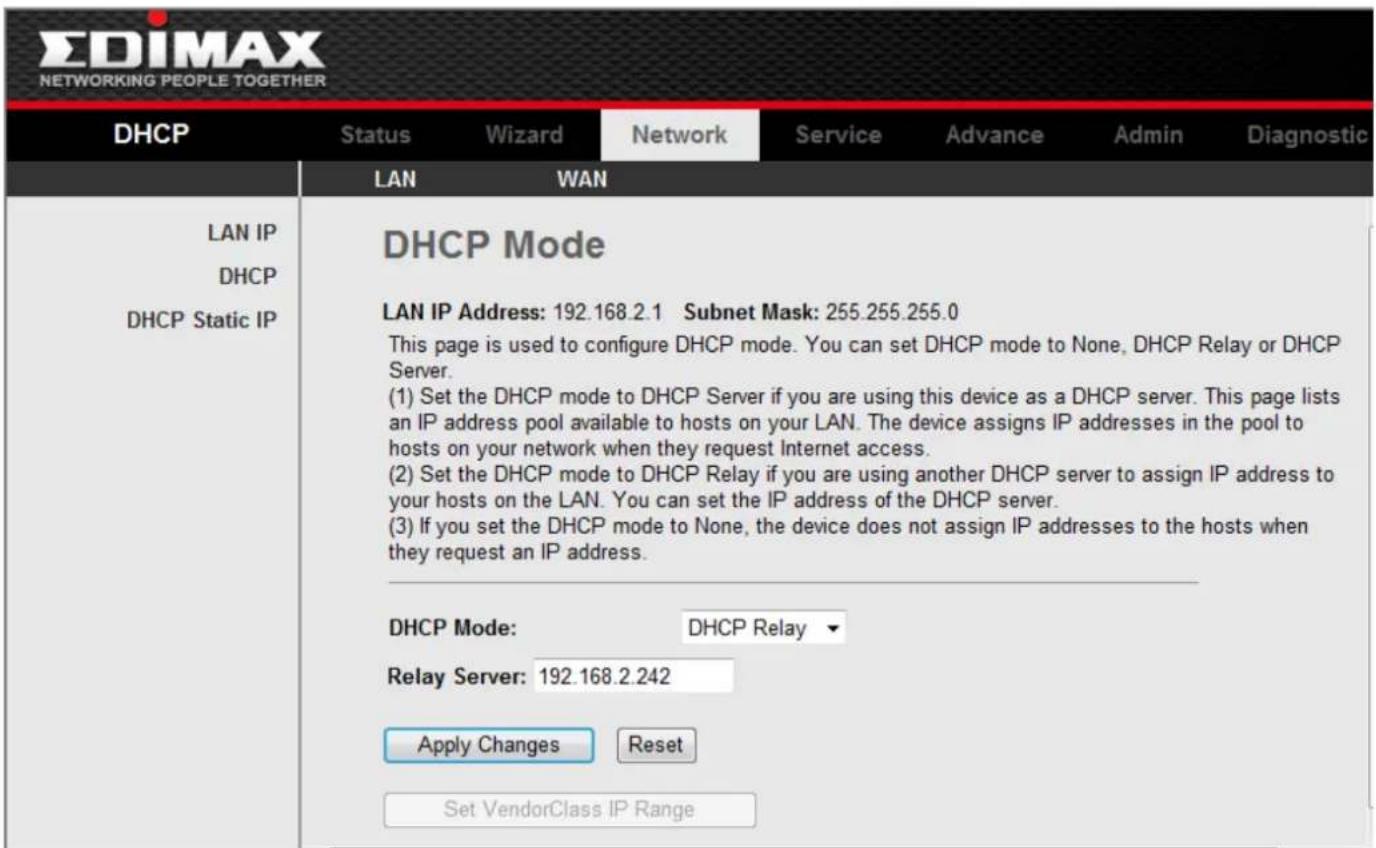
If you set to DHCP Proxy, the screen of Fig 3.4.2-2 appears.
text_image
EDIMAX NETWORKING PEOPLE TOGETHER DHCP Status Wizard Network Service Advance Admin Diagnostic LAN WAN LAN IP DHCP DHCP Static IP DHCP Mode LAN IP Address: 192.168.2.1 Subnet Mask: 255.255.255.0 This page is used to configure DHCP mode. You can set DHCP mode to None, DHCP Relay or DHCP Server. (1) Set the DHCP mode to DHCP Server if you are using this device as a DHCP server. This page lists an IP address pool available to hosts on your LAN. The device assigns IP addresses in the pool to hosts on your network when they request Internet access. (2) Set the DHCP mode to DHCP Relay if you are using another DHCP server to assign IP address to your hosts on the LAN. You can set the IP address of the DHCP server. (3) If you set the DHCP mode to None, the device does not assign IP addresses to the hosts when they request an IP address. DHCP Mode: DHCP Relay Relay Server: 192.168.2.242 Apply Changes Reset Set VendorClass IP RangeFig 3.4.2-2
The following table describes the elds of this screen.
| Label | Descripon |
| DHCP Proxy | If set to DHCP Proxy, your ROUTER acts a surrogate DHCP Server and relays the DHCP requests and reponses between the remote server and the client. |
| DHCP Server Address | Enter the IP address of the actual, remote DHCP server in this eld. |
| Apply Changes | Click this buon to save the changes of this page. |
If you set to DHCP Server, the screen of Fig3.4.2-3 appears as shown next.

text_image
DHCP Mode: DHCP Server IP Pool Range: 192.168.2.2 - 192.168.2.254 Show Client Default Gateway: 192.168.2.1 Max Lease Time: 1440 minutes Domain Name: domain.name Apply Changes Reset Set VendorClass IP RangeFig 3.4.2-3
The following table describes the elds in this screen.
| Label | Descripon |
| DHCP Server | If set to DHCP Server, your ROUTER can assign IP addresses, an IP default gateway and DNS Servers to Windows95, Windows NT and other systems that support the DHCP client. |
| IP Pool Range | This eld species the rst and the last of contiguous IP address of the IP address pool. |
| Show Client | Click this buon, the screen of Fig 3.5.2-4 appears, which shows the assigned IP address of the clients. |
| Max Lease Time | The Lease me determines the period for which the PCs retain the IP addresses assigned to them without changing them. |
| Domain Name | Input the domain name here if you know. If you leave this blank, the domain name obtained by DHCP from the ISP is used. While you must enter host name(System Name) on each individual computer, the domain name can be assigned from this router via DHCP server. |
| Gateway Address | Enter the IP default gateway of the IP address pool. |
| MAC-Base Assignment | Click this buon, the screen of Fig3.5.2-5 appears. This funcon allows you assign IP addresses on the LAN to specic individual computers based on their MAC address. |
| Apply Changes | Click this buon to save the changes of this page. |
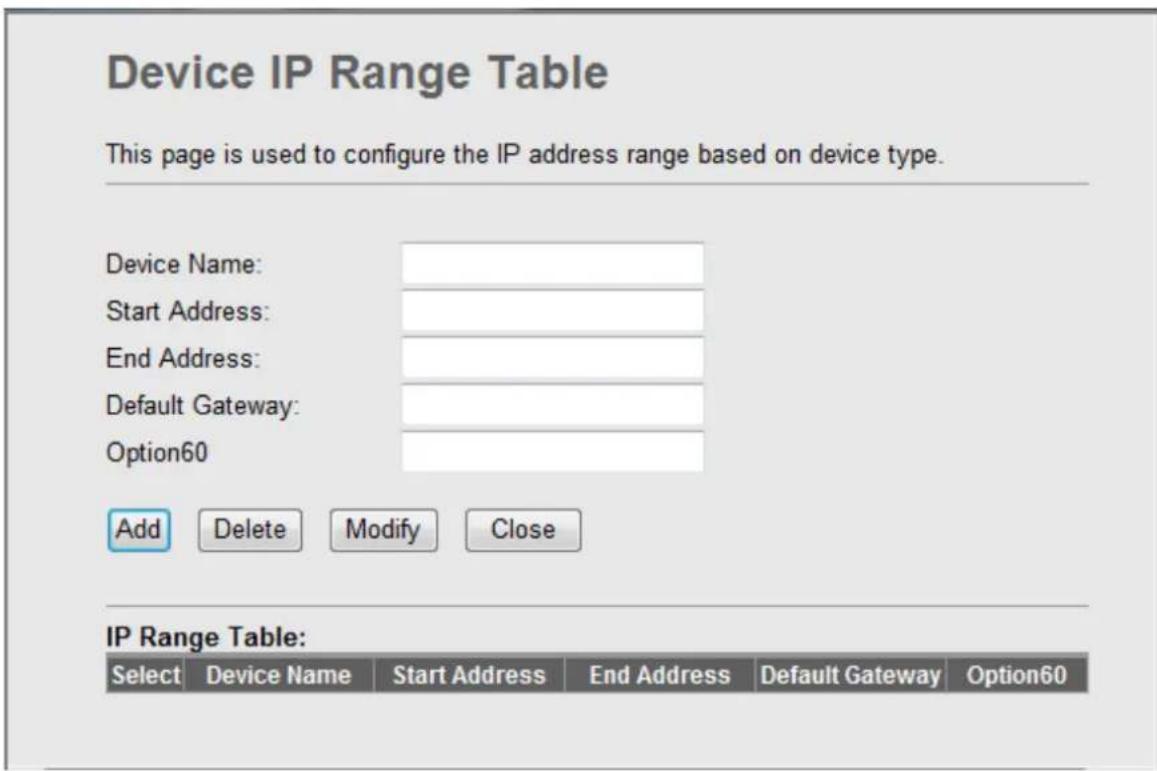
Click Show Client, the following window appears. In this window, you can view the IP address assigned to each DHCP client.
text_image
Device IP Range Table This page is used to configure the IP address range based on device type. Device Name: Start Address: End Address: Default Gateway: Option60 Add Delete Modify Close IP Range Table: Select Device Name Start Address End Address Default Gateway Option60Fig 3.4.2-4
The following table describes the elds in this screen.
| Label | Descripon |
| IP Address | This eld displays the IP address relave to the MAC address. |
| MAC Address | This eld displays the MAC(Media Access Control) address of the computer.Every Ethernet device has a unique MAC address. The MAC address is assigned at the factory and consists of six pairs of hexadecimal character, for example, 00-A0-C5-00-02-12. |
| Time Expired(s) | Here shows the lease me. The Lease me determines the period for which the PCs retain the IP addresses assigned to them without changing them. |
| Refresh | Click this buon to refresh the Acve DHCP Client Table. |
| Close | Click this buon to close this window. |
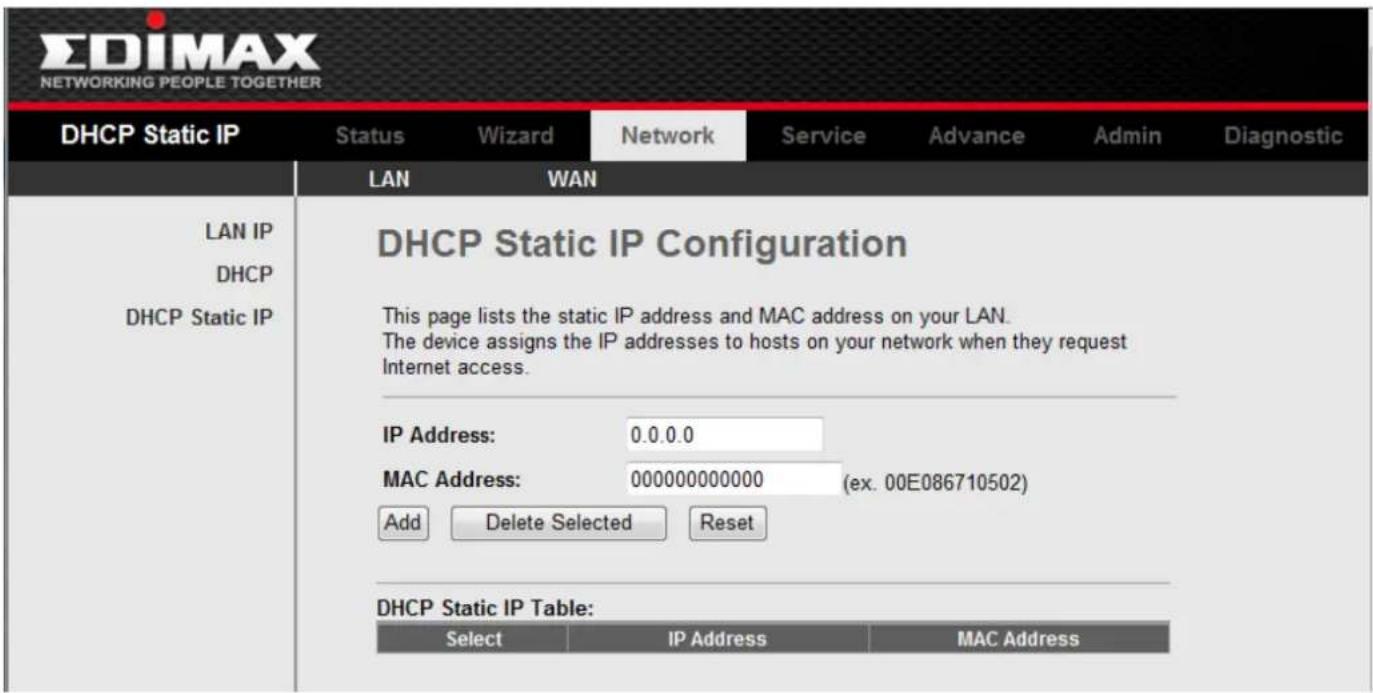
Click MAC-Base Assignment buon, the below window appears. In this page, you can assign IP addresses on the LAN to specific individual computers based on their MAC address.
text_image
EDIMAX NETWORKING PEOPLE TOGETHER DHCP Static IP Status Wizard Network Service Advance Admin Diagnostic LAN WAN LAN IP DHCP DHCP Static IP DHCP Static IP Configuration This page lists the static IP address and MAC address on your LAN. The device assigns the IP addresses to hosts on your network when they request Internet access. IP Address: 0.0.0.0 MAC Address: 000000000000 (ex. 00E086710502) Add Delete Selected Reset DHCP Static IP Table: Select IP Address MAC AddressFig 3.4.2-5
The following table describes the elds of this screen.
| Label | Descripon |
| Host MAC Address | Type the MAC address of a computer on your LAN |
| Assigned IP Address | This eld specics the IP of the IP address pool. |
| Assign IP | Click this buon aer entered Host MAC Address and Assigned IP Address, a row will be added in MAC-Base Assignment Table. |
| Modify Assigned IP | Select a row in MAC-Base Assignment Table, the MAC address and IP address will appears Host MAC Address and Assigned IP Address. Aer modified the MAC Address and IP Address, click this buon to save the changes. |
| Delete Assigned IP | Select a row in MAC-Base Assignment Table, then click this buon, this row will be deleted. |
| Close | Click this buon to close this window. |
| MAC-Base Assignment Table | This table shows the assigned IP address based on the MAC address. |
3-5 Network \ WAN
Click WAN Interface in the menu to open the sub-menu which contains 3 items: WAN Interface, ATM Sengs and ADSL Sengs.
3-5-1 WAN Interface
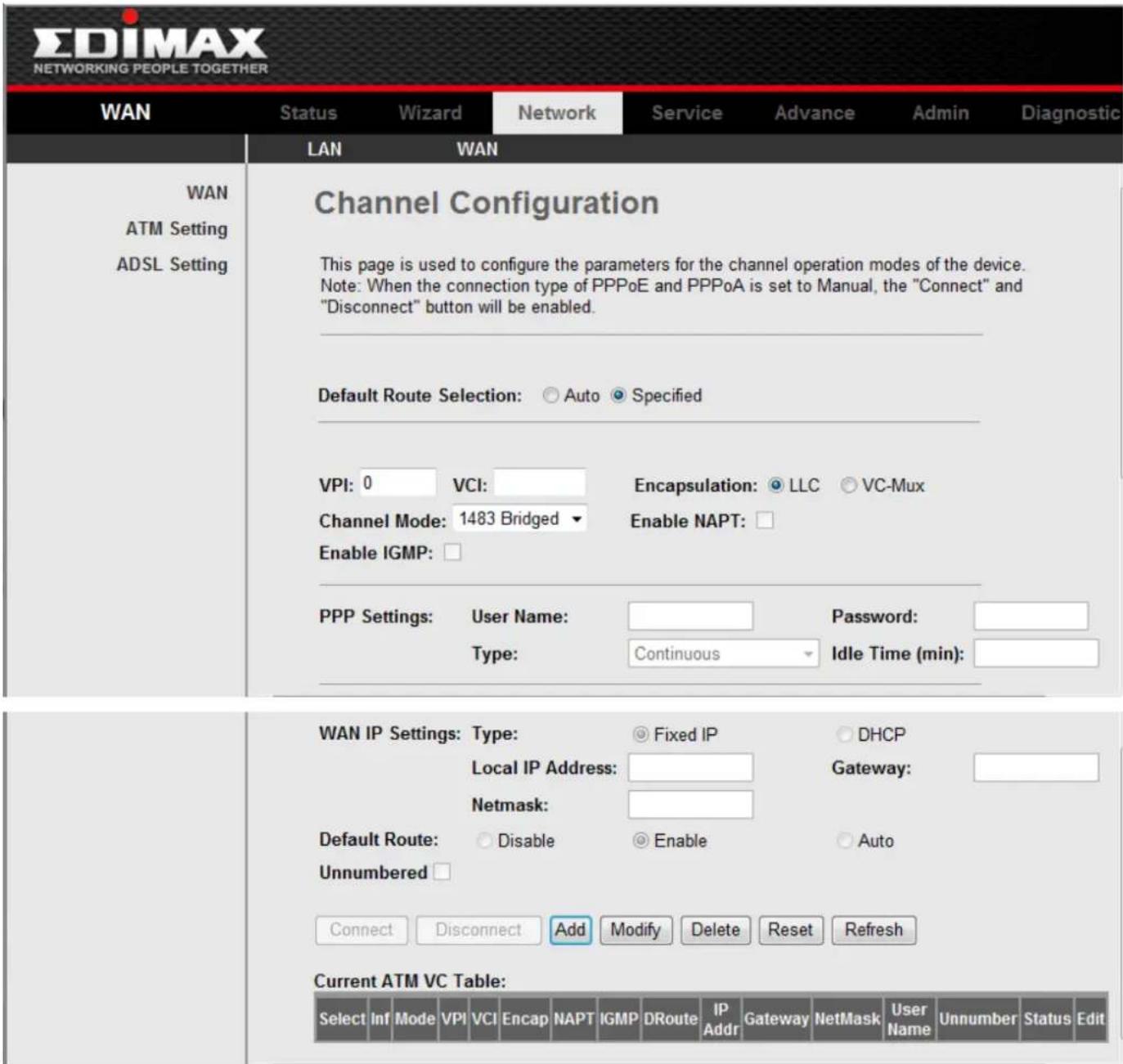
Click WAN Interface in the sub-menu to open the screen of Fig 3.5.1-1. In this page, you can congregate WAN Interface of your router.
text_image
EDIMAX NETWORKING PEOPLE TOGETHER WAN Status Wizard Network Service Advance Admin Diagnostic LAN WAN WAN ATM Setting ADSL Setting Channel Configuration This page is used to configure the parameters for the channel operation modes of the device. Note: When the connection type of PPPoE and PPPoA is set to Manual, the "Connect" and "Disconnect" button will be enabled. Default Route Selection: ○ Auto ● Specified VPI: 0 VCI: Encapsulation: ● LLC ○ VC-Mux Channel Mode: 1483 Bridged ▼ Enable NAPT: Enable IGMP: PPP Settings: User Name: Password: Type: Continuous▼ Idle Time (min): WAN IP Settings: Type: ● Fixed IP ○ DHCP Local IP Address: Gateway: Netmask: Default Route: ○ Disable ● Enable ○ Auto Unnumbered □ Connect Disconnect Add Modify Delete Reset Refresh Current ATM VC Table: Select Inf Mode VPI VCI Encap NAPT IGMP DRoute IP Addr Gateway NetMask User Name Unnumber Status EditFig 3.5.1-1
| Label | Descripon |
| VPI | (Virtual Path Idener) The virtual path between twopoints in an ATM network, and its valid value is from 0 to 255 |
| VCI | The virtual channel between two points in an ATM network, ranging from 32 to 65535 (1 to 31 are reserved for known protocols) |
| Encapsulaon | Choices are LLC and VC-Mux. |
| Channel Mode | There are ve choices: 1483 Bridged, 1483 MER, PPPoE, PPPoA and 1483 Routed. |
| Admin Status | If select Disable, this PVC will be unusable. |
| Enable NAPT | Select it to enable the NAPT funcons of the MODEM. If you are not to enable NAPT and intend the user of the MODEM to access the Internet normally, you must add a route on the uplink equipment; otherwise the access to the Internet will fail. Normally, it is required to enable NAPT. |
| PPP Sengs | |
| Login Name | The correct user name that your ISP has provided to you. |
| Password | The correct password that your ISP has provided to you |
| Connecon Type | The choices are Connuous, Connect on Demand and Manual. |
| Idle Time(min) | If select Connect on Demand, you need to input the idle meout me. Within the preset minutes, if the MODEM doesn't detect the ow of the user connuously, the MODEM will automacally disconnect the PPPOE conncon. |
| WAN IP Sengs | |
| Type | The choices are Fixed IP and Use DHCP. If set Fixed IP, you should enter the Local IP Address, Remote IP Address and Subnet Mask. If set Use DHCP, your MODEM will be a DHCP client, the WAN IP will be assigned by the remote DHCP server. |
| Local IP Address | This is the IP of WAN interface which is provided by your ISP. |
| Remote IP Address | This is the gateway IP which is provided by your ISP. |
| Subnet Mask | This is the Subnet Mask of the Local IP Address. |
| Unnumbered | Select this checkbox to enable IP Unnumbered funcon. |
| Default Route | |
| Add | Aer conguring the parameters of this page, click this buon then a new PVC will be added into Current ATMVC Table. |
| Modify | Select a PVC in the Current ATM VC Table, then modify the parameters of this PVC. When you nish, click this buon to apply the change of this PVC. |
| Delete Selected | Select a PVC in the Current ATM VC Table, then click this buon to delete this PVC. |
| Click this buon, the following screens will appear. In these pages, you can modify the PVCs' parameters. |
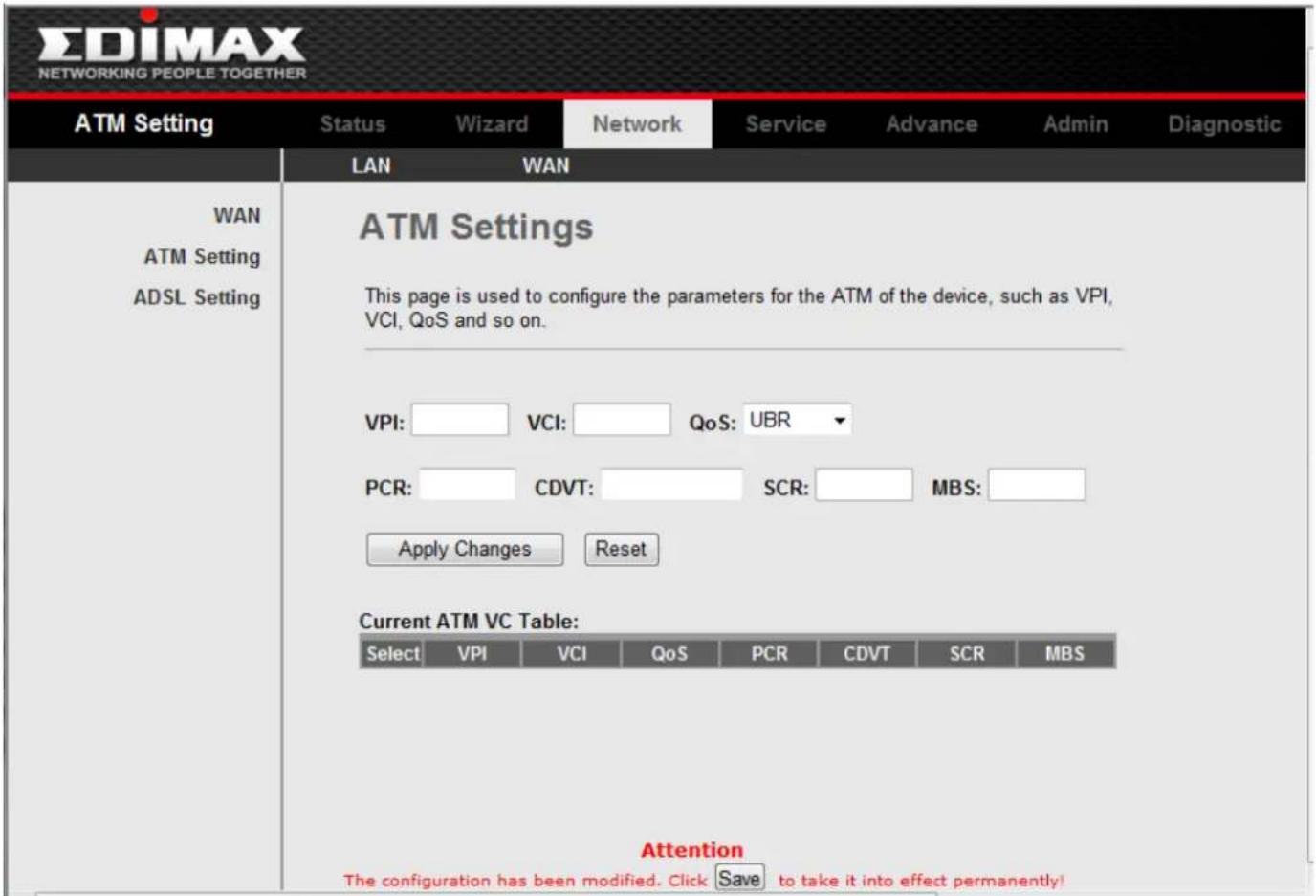
3-5-2 ATM Sengs
Click ATM Seng, the screen of Fig 3.5.1-3 will appear. In this page, you can congregate the parameters of the ATM for your ADSL router, include QoS type, PCR, CDVT, SCR and MBS.
text_image
EDIMAX NETWORKING PEOPLE TOGETHER ATM Setting Status Wizard Network Service Advance Admin Diagnostic LAN WAN WAN ATM Setting ADSL Setting ATM Settings This page is used to configure the parameters for the ATM of the device, such as VPI, VCI, QoS and so on. VPI: VCI: QoS: UBR PCR: CDVT: SCR: MBS: Apply Changes Reset Current ATM VC Table: Select VPI VCI QoS PCR CDVT SCR MBS Attention The configuration has been modified. Click Save,to take it into effect permanently!Fig 3.5.1-3
3-5-3 ADSL Sengs
Click ADSL Interface in the sub-menu to open the screen of Fig 3.5.2. In this page, you can select the DSL modulaon. Mostly, the user just need to remain this factory default seng. Our modem support these modulaons: G.Dmt, G.lite, T1.413, ADSL2, ADSL2+, AnnexL and AnnexM. The router will negotiate the modulaon mode with the DSLAM.
| ADSL Setting | Status | Wizard | Network | Service | Advance | Admin | Diagnostic |
| LAN | WAN | ||||||
| WAN ATM Setting ADSL Setting | ADSL Settings | ||||||
| This page is used to configure ADSL settings of the device. | |||||||
| ADSL Modulation: □G.Lite ✓G.Dmt ✓T1.413 ✓ADSL2 ✓ADSL2+ | |||||||
| AnnexL Option: ✓Enable | |||||||
| AnnexM Option: □Enable | |||||||
| ADSL Capability: ✓Bitswap Enable ✓SRA Enable | |||||||
| Attention The configuration has been modified. Click Save to take it into effect permanently! | |||||||
Fig 3.5.2
3-6 Service & Advance
Click Advance in the menu to open the sub-menu which contains 6 items: DNS, Firewall, Virtual Server, Roung, IP QOS, and Others.
3-6-1 DNS
Click DNS in the sub-menu to open the menu in the le bar, which contains two items:DNS Server and DDNS.
3-6-1-1 DNS Server
Short for Domain Name System (or Service or Server), an Internet service that translates domain names into IP addresses. Because domain names are alphabec, they're easier to remember. The Internet however, is really based on IP addresses. Every me you use a domain name, therefore, a DNS service must translate the name into the corresponding IP address. For example, the domain name www.example.com might translate to 198.105.232.4.
The DNS system is, in fact, its own network. If one DNS server doesn't know how to translate a particular domain name, it asks another one, and so on, unl the correct IP address is returned.
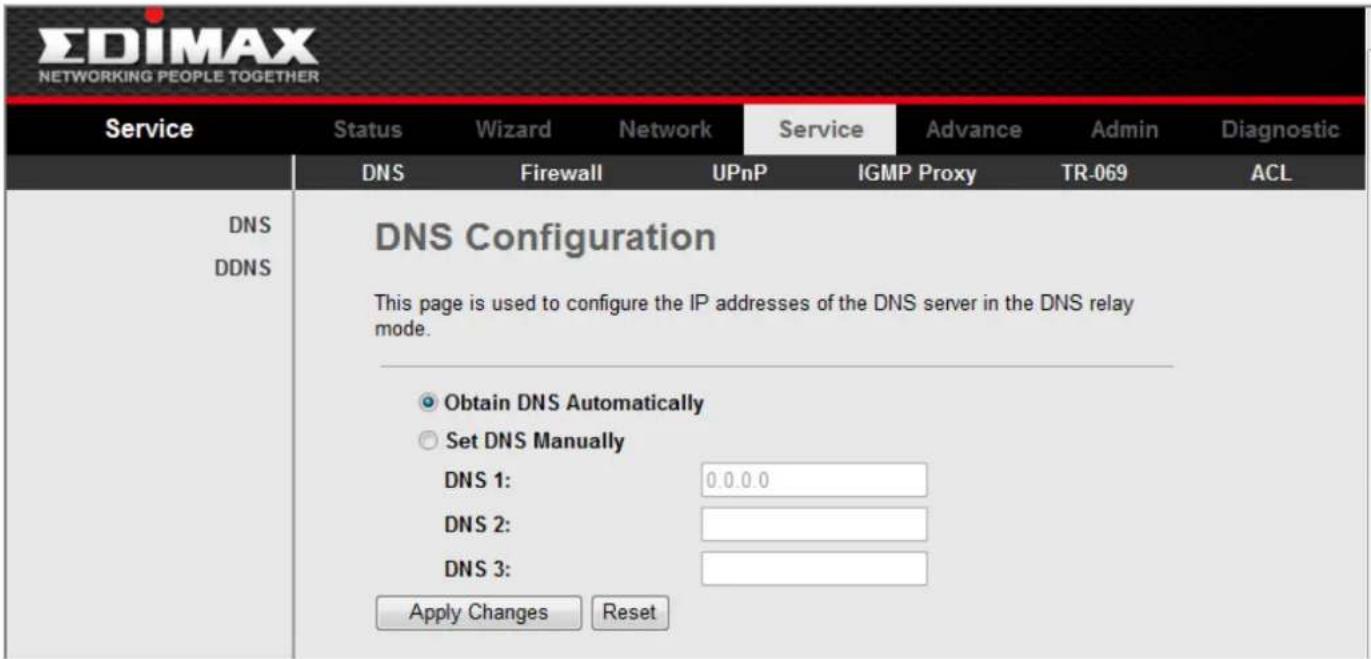
Click DNS Server in the le bar to open the screen of Fig 3.6.1.1.
text_image
EDIMAX NETWORKING PEOPLE TOGETHER Service Status Wizard Network Service Advance Admin Diagnostic DNS Firewall UPnP IGMP Proxy TR-069 ACL DNS DDNS DNS Configuration This page is used to configure the IP addresses of the DNS server in the DNS relay mode. Obtain DNS Automatically Set DNS Manually DNS 1: 0.0.0.0 DNS 2: DNS 3: Apply Changes ResetFig 3.6.1.1
| Label | Descripon |
| Aain DNS Automacally | When this checkbox is selected, this router will accept the rst received DNS assignment from one of the PPPoA, PPPoE or MER enabled PVC(s) during the conncon establishment. |
| Set DNS Manually | When this checkbox is selected, please enter the primary and oponal secondary DNS server IP addresses. |
| Apply Changes | Click this buon to save the sengs of this page. |
| Reset Selected | Click this buon to begin conguring this screen afresh. |
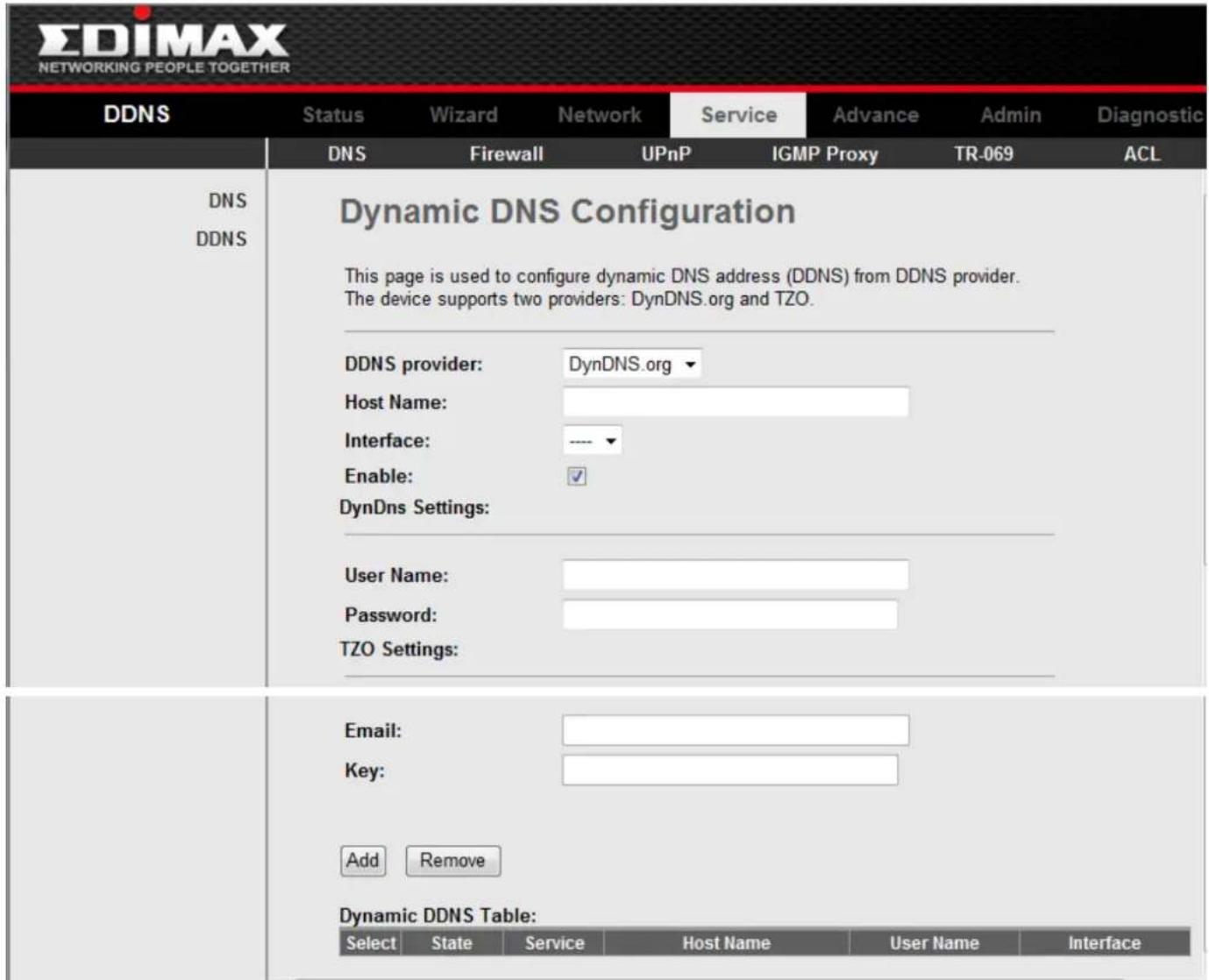
3-6-1-2 DDNS
Click DDNS in the le pane to open the screen of Fig 3.6.1.2.
text_image
EDIMAX NETWORKING PEOPLE TOGETHER DDNS Status Wizard Network Service Advance Admin Diagnostic DNS Firewall UPnP IGMP Proxy TR-069 ACL DNS DDNS Dynamic DNS Configuration This page is used to configure dynamic DNS address (DDNS) from DDNS provider. The device supports two providers: DynDNS.org and TZO. DDNS provider: DynDNS.org Host Name: Interface: ---- Enable: ✓ DynDns Settings: User Name: Password: TZO Settings: Email: Key: Add Remove Dynamic DDNS Table: Select State Service Host Name User Name InterfaceFig 3.6.1.2
3-6-2 Firewall
Click Firewall in the sub-menu to open the menu in the le bar, which contains three items:IP/Port Fileter, MAC Filter and URL Blocking.
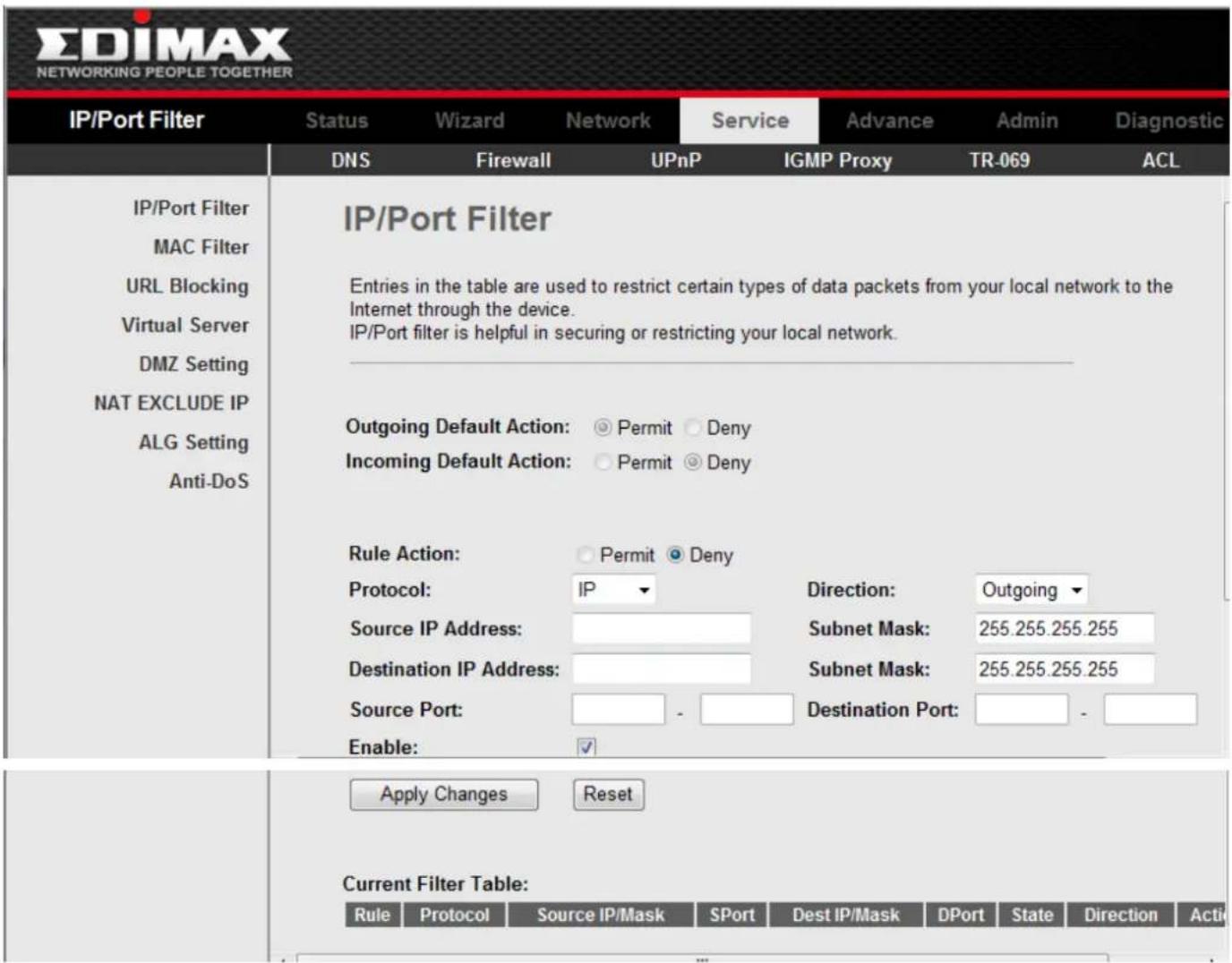
3-6-2-1 IP/Port Filter
Click IP/Port Filter in the le bar to open the screen of Fig 3.6.2.1. Entries in this table are used to restrict certain types of data packets through the Gateway. Use of such Iters can be helpful in securing or restricting your local network.
Click the buon Apply Changes to save the sengs of this page.
Click the buon Add to add a new rule of the IP\Port Filter.
text_image
EDIMAX NETWORKING PEOPLE TOGETHER IP/Port Filter Status Wizard Network Service Advance Admin Diagnostic DNS Firewall UPnP IGMP Proxy TR-069 ACL IP/Port Filter MAC Filter URL Blocking Virtual Server DMZ Setting NAT EXCLUDE IP ALG Setting Anti-DoS IP/Port Filter Entries in the table are used to restrict certain types of data packets from your local network to the Internet through the device. IP/Port filter is helpful in securing or restricting your local network. Outgoing Default Action: Permit Deny Incoming Default Action: Permit Deny Rule Action: Permit Deny Protocol: IP Direction: Outgoing Source IP Address: Subnet Mask: 255.255.255.255 Destination IP Address: Subnet Mask: 255.255.255.255 Source Port: - Destination Port: - Enable: Apply Changes Reset Current Filter Table: Rule Protocol Source IP/Mask SPort Dest IP/Mask DPort State Direction ActiFig 3.6.2.1
3-6-2-2 MAC Filter
Click MAC Filter in the le bar to open the screen of Fig 3.6.2.2. Entries in this table are used to restrict certain types of data packets from your local network to Internet through the Gateway. Use of such Iters can be helpful in securing or restricting your local network.
Click the buon Apply Changes to save the sengs of this page.
Click the buon Add to add a new rule of the MAC Filter.
| MAC Filter | Status | Wizard | Network | Service | Advance | Admin | Diagnostic |
| DNS | Firewall | UPnP | IGMP Proxy | TR-069 | ACL | ||
| IP/Port Filter MAC Filter URL Blocking Virtual Server DMZ Setting NAT EXCLUDE IP ALG Setting Anti-DoS | MAC Filter Entries in the table are used to restrict certain types of data packets from your local network to the Internet through the device. MAC filter is helpful in securing or restricting your local network. | ||||||
| Outgoing Default Policy | Deny | Allow | |||||
| Incoming Default Policy | Deny | Allow | |||||
| Apply | |||||||
| Direction: | Outgoing ▼ | ||||||
| Action: | Deny | Allow | |||||
| Source MAC Address: | (ex. 00E086710502) | ||||||
| Destination MAC Address: (ex. 00E086710502) Add Current MAC Filter Table: | |||||||
| Select | Direction | Source MAC Address | Destination MAC Address | Action | |||
| Delete | Delete All | ||||||
Fig 3.6.2.2
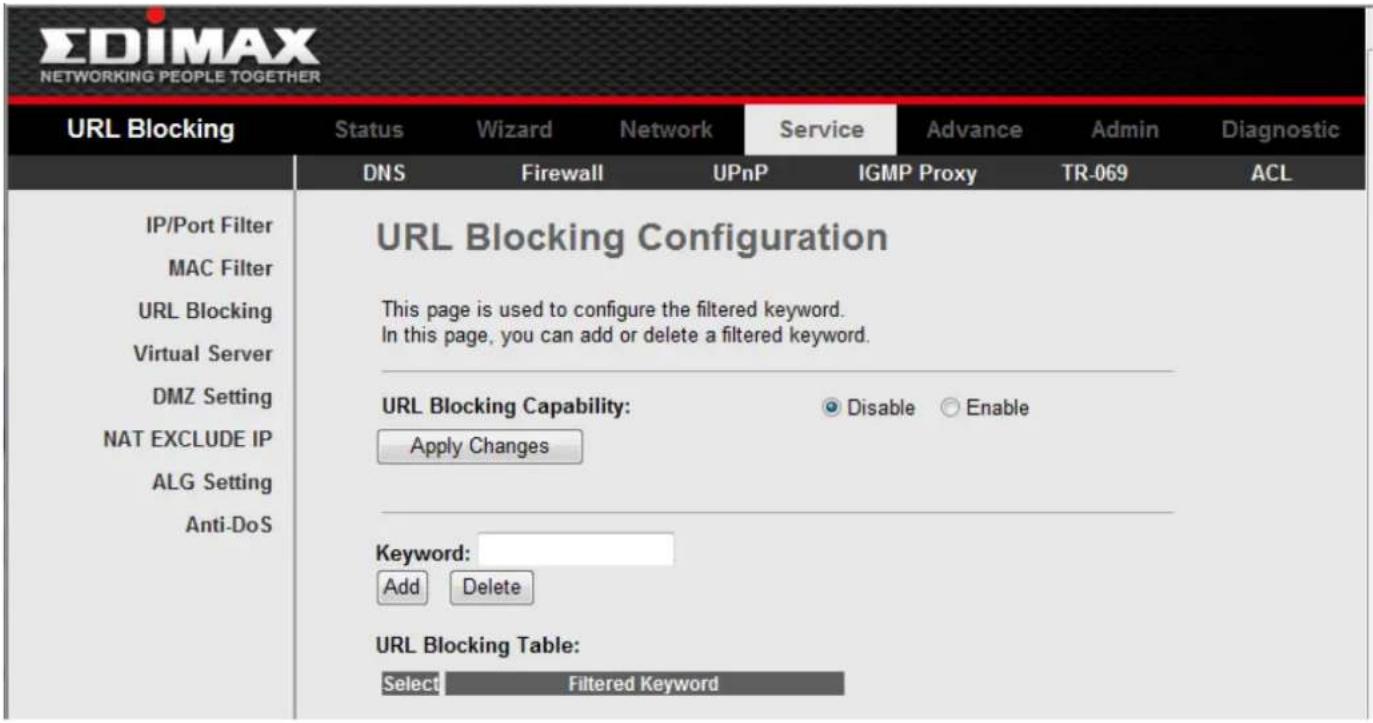
3-6-2-3 URL Blocking
Click URL Blocking in the le bar to open the screen of Fig 3.6.2.3. This page is used to congregate the Blocked FQDN(Such as tw.yahoo.com) and Itered keyword. Here you can add/delete FQDN and Itered keyword.
text_image
EDIMAX NETWORKING PEOPLE TOGETHER URL Blocking Status Wizard Network Service Advance Admin Diagnostic DNS Firewall UPnP IGMP Proxy TR-069 ACL IP/Port Filter MAC Filter URL Blocking Virtual Server DMZ Setting NAT EXCLUDE IP ALG Setting Anti-DoS URL Blocking Configuration This page is used to configure the filtered keyword. In this page, you can add or delete a filtered keyword. URL Blocking Capability: Apply Changes Disable Enable Keyword: Add Delete URL Blocking Table: Select Filtered KeywordFig 3.6.2.3
3-6-3 Firewall - II
Click Virtual Server in the sub-menu to open the menu in the le bar, which contains two items: Services and DMZ Sengs.
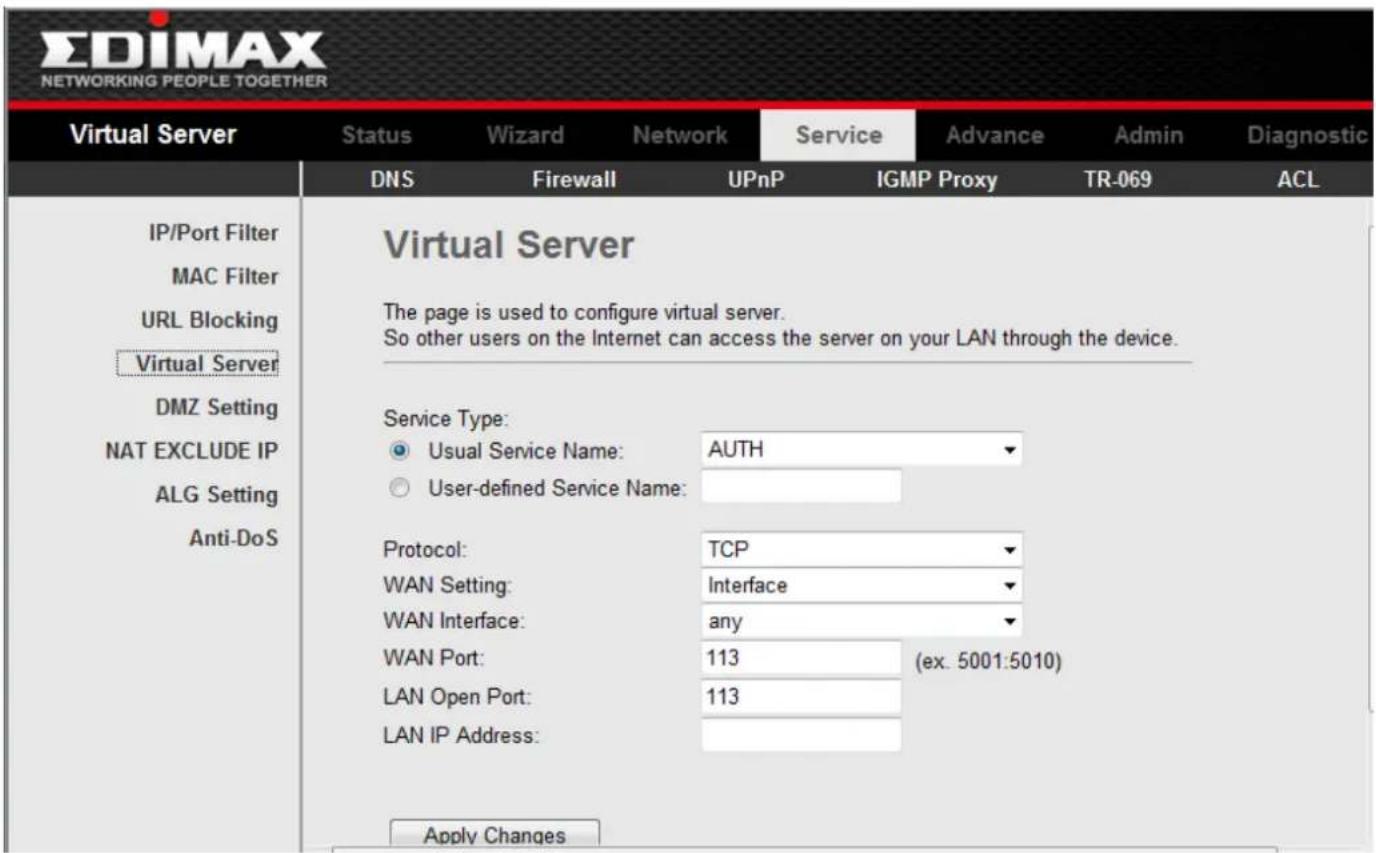
3-6-3-1 Virtual Services
Click Services in the le pane to open the screen of Fig 3.6.3.1. This page is used to enable the servers in the local network.
Click the buon Add to add a virtual server.
text_image
EDIMAX NETWORKING PEOPLE TOGETHER Virtual Server Status Wizard Network Service Advance Admin Diagnostic DNS Firewall UPnP IGMP Proxy/TR-069 ACL IP/Port Filter MAC Filter URL Blocking Virtual Server DMZ Setting NAT EXCLUDE IP ALG Setting Anti-DoS Virtual Server The page is used to configure virtual server. So other users on the Internet can access the server on your LAN through the device. Service Type: ● Usual Service Name: AUTH ○ User-defined Service Name: Protocol: TCP WAN Setting: Interface WAN Interface: any WAN Port: 113 (ex. 5001:5010) LAN Open Port: 113 LAN IP Address: Apply ChangesFig 3.6.3.1
3-6-3-2 DMZ Sengs
Click DMZ Sengs in the le bar to open the screen of Fig 3.6.3.2. A Demilitarized Zone is used to provide Internet services without sacrificing unauthorized access to its local private network. Typically, the DMZ host contains devices accessible to Internet trac, such as Web (HTTP) servers, FTP servers, SMTP (e-mail) servers and DNS servers.
Select the checkbox Enable DMZ to enable this funcon. Then input a IP Address of the DMZ host.
Click the buon Apply Changes to save the sengs of this page.

text_image
EDIMAX NETWORKING PEOPLE TOGETHER DMZ Setting Status Wizard Network Service Advance Admin Diagnostic DNS Firewall UPnP IGMP Proxy TR-069 ACL IP/Port Filter DMZ MAC Filter URL Blocking De-militarized military zone (DMZ) is used to provide Internet services without sacrificing unauthorized access to the local network. Virtual Server Typically, the DMZ host can be a device accessible to Internet traffic, such as a Web (HTTP ) server, a FTP server, a SMTP (Email) server or a DNS server. DMZ Setting NAT EXCLUDE IP ALG Setting Enable DMZ Anti-DoS DMZ Host IP Address:_ Apply Changes ResetFig 3.6.3.2
3-6-4 Roung
Click Roung in the sub-menu to open the menu in the le bar, which contains two items: RIP and Stac Route.
3-6-4-1 RIP
Click RIP in the le bar to open the screen of Fig 3.6.4.1. Enable the RIP if you are using this device as a RIP-enabled router to communicate with others using the Roung Informaon Protocol. This page is used to select the interfaces on your deviceis that use RIP, and the version of the protocol used.

text_image
EDIMAX NETWORKING PEOPLE TOGETHER RIP Status Wizard Network Service Advance Admin Diagnostic Bridge Setting Routing Port Mapping QoS SNMP Others Static Route RIP RIP Configuration Enable the Routing Information Protocol (RIP) if you are using this device as a RIP- enabled router to communicate with others by using RIP. Note: Before you enable RIP, ensure that remote control is enabled. RIP: Disable Enable Apply Changes Interface: br0 Receive Version: RIP1 Send Version: RIP1 Add Delete RIP Configuration List: Select Interface Receive Version Send VersionFig 3.6.4.1
3-6-4-2 Stac Route
Click Stac Route in the le bar to open the screen of Fig 3.6.4.2-1. This page is used to congregate the round informaon. Here you can add/delete IP routes.

text_image
EDIMAX NETWORKING PEOPLE TOGETHER Static Route Status Wizard Network Service Advance Admin Diagnostic Bridge Setting Routing Port Mapping QoS SNMP Others Static Route RIP Routing Configuration This page is used to configure the routing information. In this page, you can add or delete IP routes. Enable: ✓ Destination: Subnet Mask: Next Hop: Metric: 1 Interface: Add Route Update Delete Selected Show Routes Static Route Table: Select State Destination Subnet Mask Next Hop Metric InterfaceFig 3.6.4.2-1
3-6-5 IP QoS
Click IP QoS in the sub-menu to open the screen of Fig 3.6.5. Entries in this table are used to assign the precedence for each incoming packet based on physical LAN port, TCP/UDP port number, and source/desnaon IP address/subnet masks.
Click the buon Apply Changes to save the sengs of this page.

text_image
EDIMAX NETWORKING PEOPLE TOGETHER QoS Status Wizard Network Service Advance Admin Diagnostic Bridge Setting Routing Port Mapping QoS SNMP Others IP QoS IP QoS Entries in the table are used to assign the precedence for each incoming packet according to the specified policy. The procedure for configuring quality of service (QoS) is as follows: 1. Enable QoS. 2. Set traffic rule. 3. Assign the precedence or add marker for different stream. IP QoS: Disable Enable Apply QoS Policy: Stream based Schedule Mode: Strict prior QoS Rule List: Stream Rule Behavior Src IP Src Port Dest IP Dest Port Proto Phy Port Prior IP Preced IP ToS 802.1p WAN Itf Sel Delete Delete All Add RuleFig 3.6.5
3-6-6 Service --II
Click Others in the sub-menu to open the menu in the le bar, which contains four items: IGMP Proxy, UPNP, Bridge and IP PassThrough.
3-6-6-1 IGMP Proxy
Click IGMP Proxy in the le bar to open the screen of Fig 3.6.6.1. IGMP proxy enables the system to issue IGMP host messages on behalf of hosts that the system discovered through standard IGMP interfaces. The system acts as a proxy for its hosts aer you enable it.
Click Apply Changes to save the sengs of this page.

text_image
EDIMAX NETWORKING PEOPLE TOGETHER IGMP Proxy Status Wizard Network Service Advance Admin Diagnostic DNS Firewall UPnP IGMP Proxy TR-069 ACL IGMP Proxy IGMP Proxy Configuration IGMP proxy enables the system to issue IGMP host messages on behalf of hosts that the system discovered through standard IGMP interfaces. The system acts as a proxy for its hosts when you enable it by doing the follows: . Enable IGMP proxy on WAN interface (upstream), which connects to a router running IGMP. . Enable IGMP on LAN interface (downstream), which connects to its hosts. IGMP Proxy: Disable Enable Multicast Allowed: Disable Enable Robust Count: 2 Last Member Query Count: 2 Query Interval: 60 (seconds) Query Response Interval: 100 (*100ms) Group Leave Delay: 2000 (ms) Apply Changes UndoFig 3.6.6.1
3-6-6-2 UPNP
Click UPNP in the le bar to open the screen of Fig 3.6.6.2. This page is used to conjure UPnP. The system acts as a daemon aer you enable it.
Click Apply Changes to save the sengs of this page.

text_image
EDIMAX NETWORKING PEOPLE TOGETHER UPnP Status Wizard Network Service Advance Admin Diagnostic DNS Firewall UPnP IGMP Proxy TR-069 ACL UPnP UPnP Configuration This page is used to configure UPnP. The system acts as a daemon when you enable UPnP. UPnP: Disable Enable WAN Interface: Apply ChangesFig 3.6.6.2
3-6-6-3 Advance \ Bridge
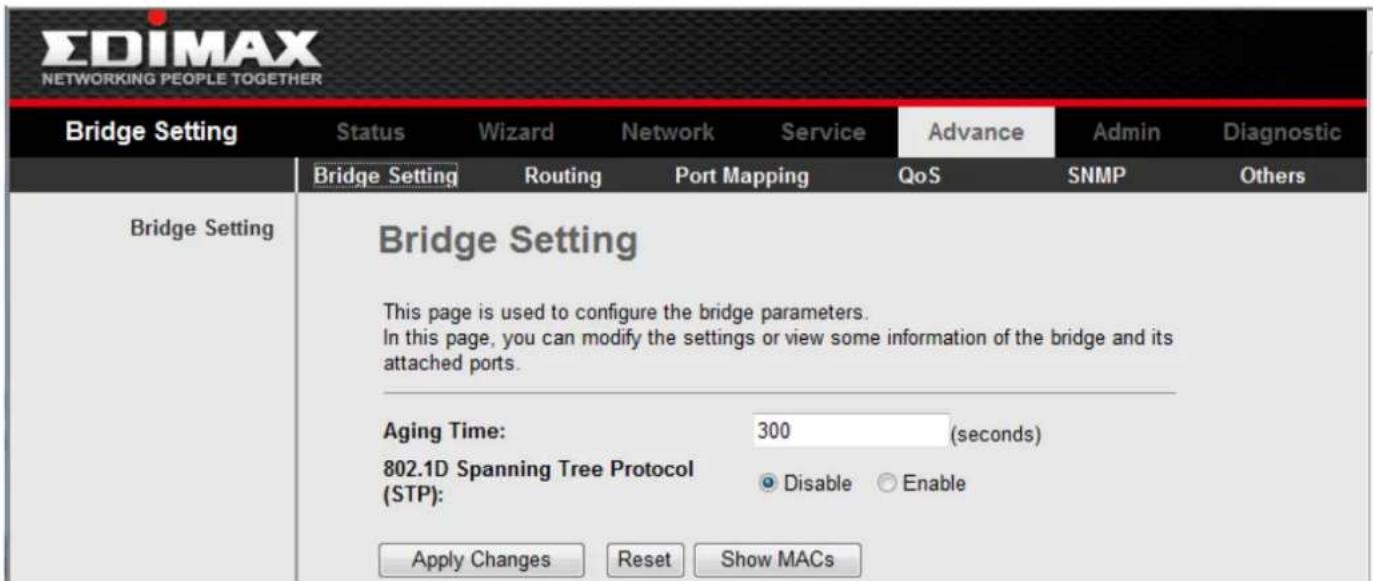
Click Bridge in the le bar to open the screen of Fig 3.6.6.3-1. This page is used to congregate the bridge parameters. Here you can change the sengs or view some informaon on the bridge and its aached ports.
text_image
EDIMAX NETWORKING PEOPLE TOGETHER Bridge Setting Status Wizard Network Service Advance Admin Diagnostic Bridge Setting Routing Port Mapping QoS SNMP Others Bridge Setting Bridge Setting This page is used to configure the bridge parameters. In this page, you can modify the settings or view some information of the bridge and its attached ports. Aging Time: 300 (seconds) 802.1D Spanning Tree Protocol (STP): Disable Enable Apply Changes Reset Show MACsFig 3.6.6.3-1
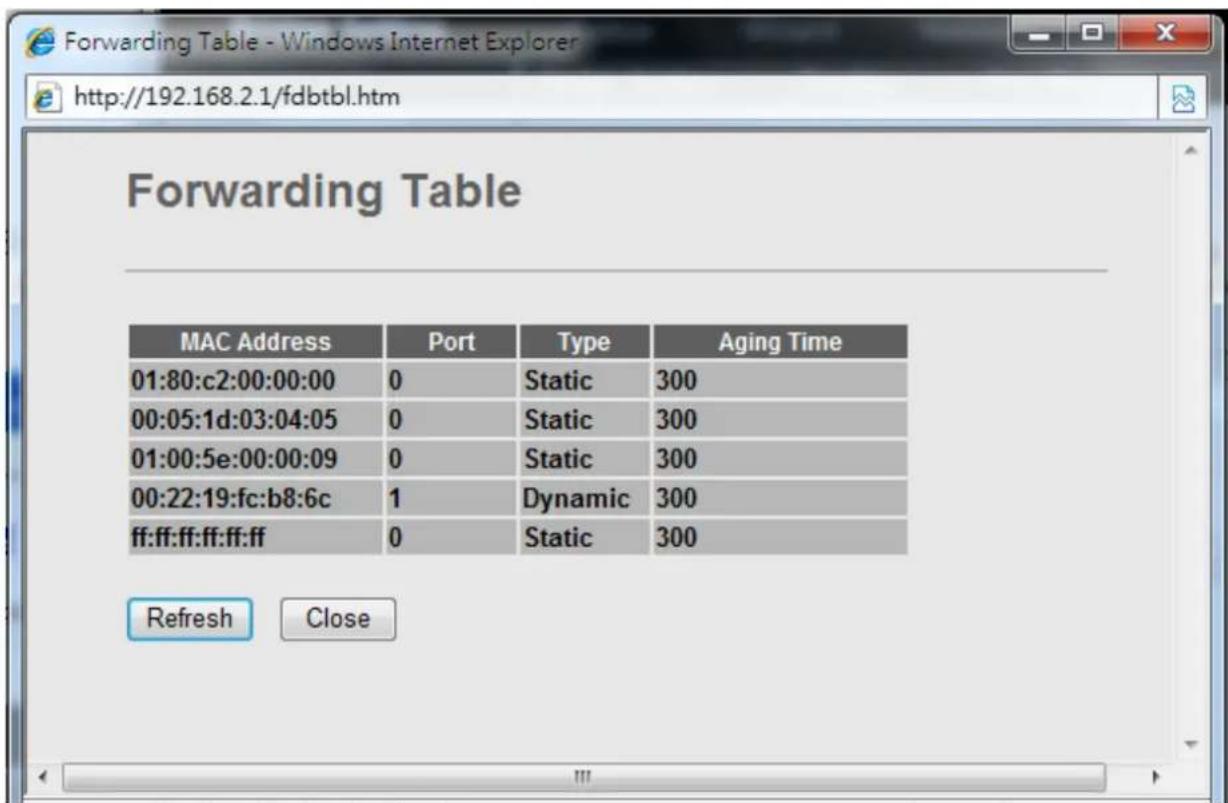
Click Show MACs buon in Fig 3.6.6.3-1, the below window will appear. This table shows a list of learned MAC addresses for this bridge.
text_image
Forwarding Table MAC Address Port Type Aging Time 01:80:c2:00:00:00 0 Static 300 00:05:1d:03:04:05 0 Static 300 01:00:5e:00:00:09 0 Static 300 00:22:19:fc:b8:6c 1 Dynamic 300 ff:ff:ff:ff:ff 0 Static 300 Refresh CloseFig 3.6.6.3-2
3-6-6-4 Port Mapping
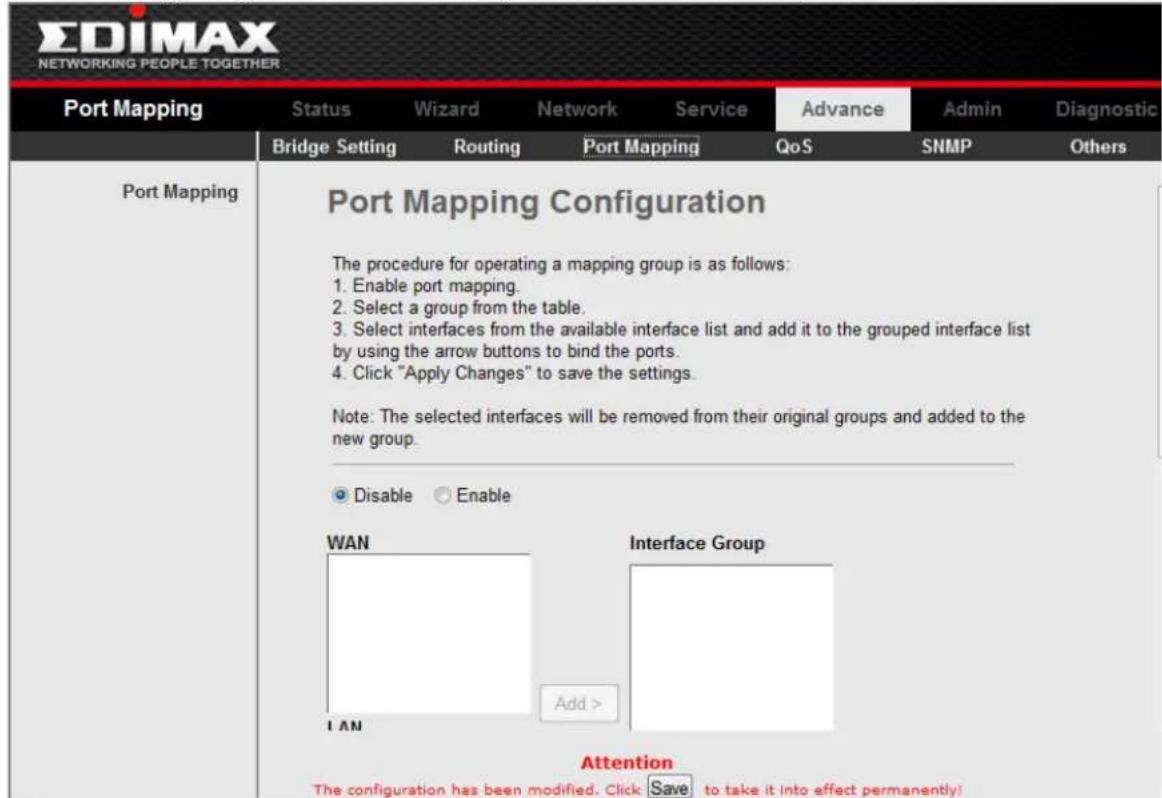
Click Port Mapping in the le bar to open the screen of Fig 3.6.6.4.
text_image
EDIMAX NETWORKING PEOPLE TOGETHER Port Mapping Status Wizard Network Service Advance Admin Diagnostic Bridge Setting Routing Port Mapping QoS SNMP Others Port Mapping Port Mapping Configuration The procedure for operating a mapping group is as follows: 1. Enable port mapping. 2. Select a group from the table. 3. Select interfaces from the available interface list and add it to the grouped interface list by using the arrow buttons to bind the ports. 4. Click "Apply Changes" to save the settings. Note: The selected interfaces will be removed from their original groups and added to the new group. Disable Enable WAN Interface Group Add > LAN Attention The configuration has been modified. Click Save to take it into effect permanently!Fig 3.6.6.4
3-6-6-5 SNMP
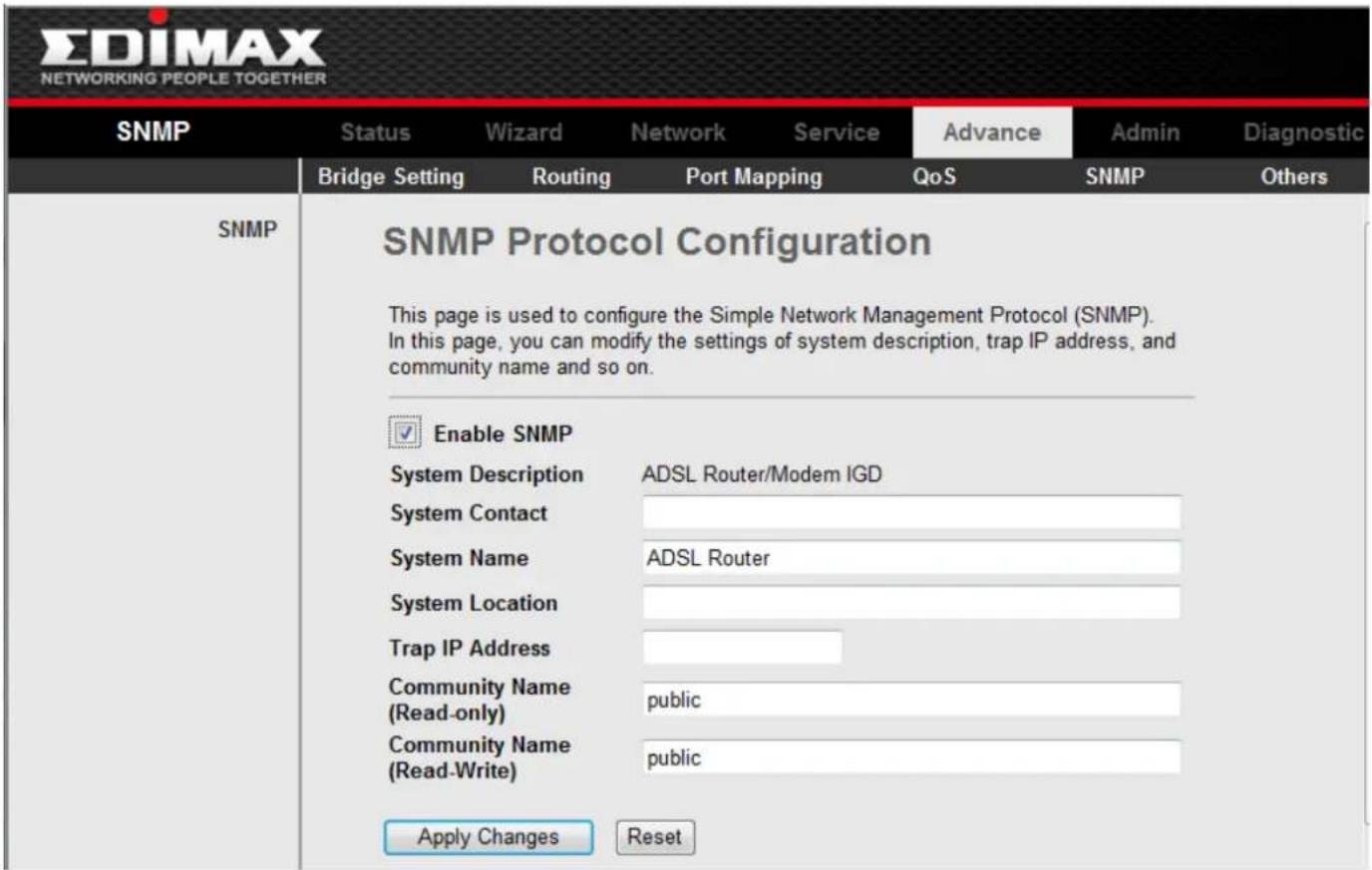
Click SNMP in the sub-menu to open the screen of Fig 3.7.7. In this page, you can set the SNMP parameters.
text_image
EDIMAX NETWORKING PEOPLE TOGETHER SNMP Status Wizard Network Service Advance Admin Diagnostic Bridge Setting Routing Port Mapping QoS SNMP Others SNMP SNMP Protocol Configuration This page is used to configure the Simple Network Management Protocol (SNMP). In this page, you can modify the settings of system description, trap IP address, and community name and so on. Enable SNMP System Description ADSL Router/Modem IGD System Contact System Name ADSL Router System Location Trap IP Address Community Name public (Read-only) Community Name public (Read-Write) Apply Changes ResetFig 3.7.7
| Label | Descripon |
| Trap IP Address | Input the Trap Host's IP here. The trap informaon will be sent to this host. |
| Community name(read-only) | The network administrators must use this password to read the informaon of this router. |
| Community name(write-only) | The network administrators must use this password to congregate the informaon of this router. |
| Apply Changes | Click this buon to save the sengs of this page. |
| Reset | Click this buon to begin conguring this screen afresh. |
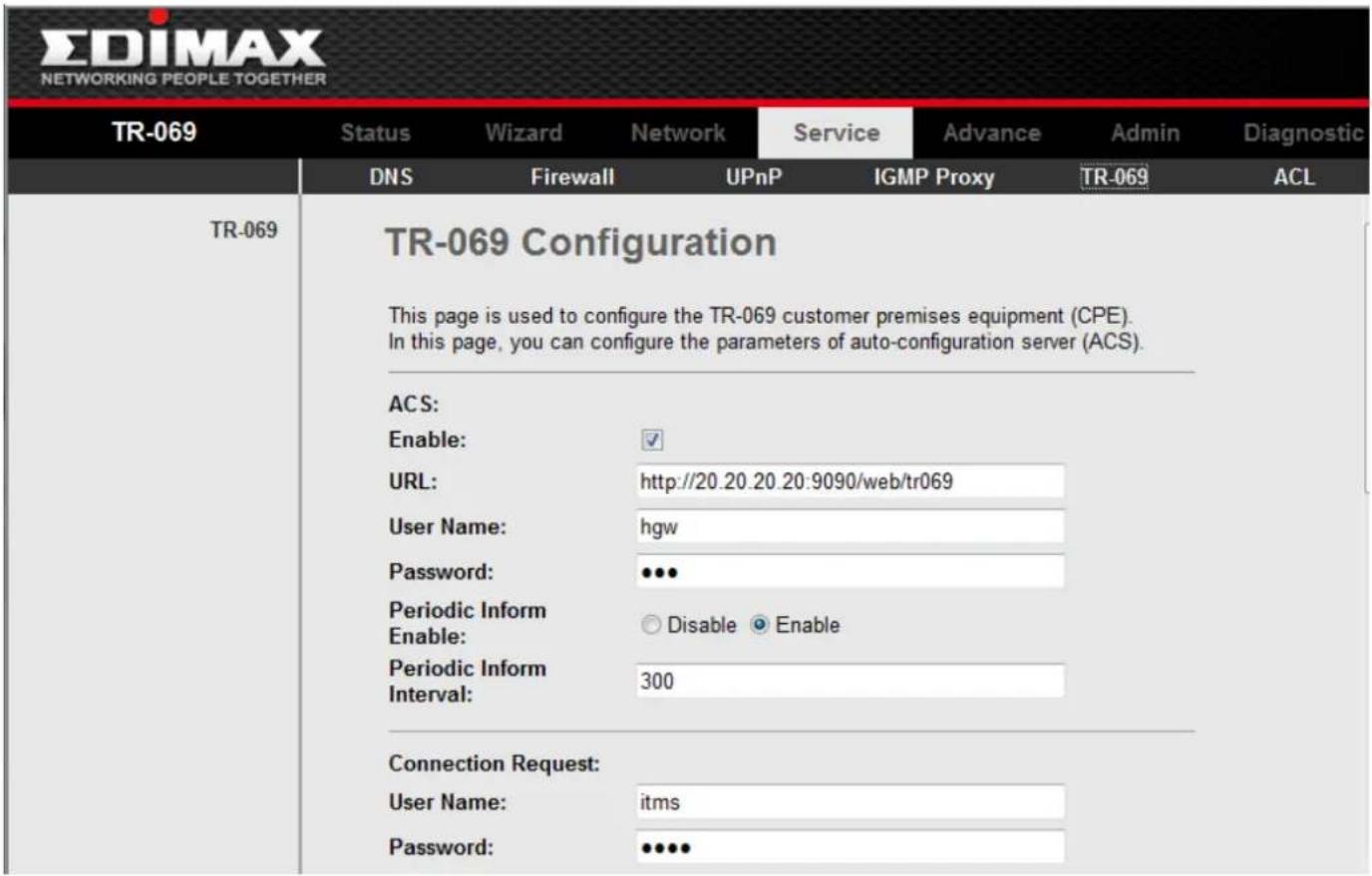
3-6-6-6 Service \ TR069
Click TR069 in the sub-menu to open the screen of Fig 3.7.8. In this page, you can congregate the TR-069 CPE.
text_image
EDIMAX NETWORKING PEOPLE TOGETHER TR-069 Status Wizard Network Service Advance Admin Diagnostic DNS Firewall UPnP IGMP Proxy TR-069 ACL TR-069 TR-069 Configuration This page is used to configure the TR-069 customer premises equipment (CPE). In this page, you can configure the parameters of auto-configuration server (ACS). ACS: Enable: ✓ URL: http://20.20.20.20:9090/web/tr069 User Name: hgw Password: •••• Periodic Inform Enable: ○ Disable ○ Enable Periodic Inform Interval: 300 Connection Request: User Name: itms Password: •••••Fig 3.7.8
3-6-6-7 Service \ ACL
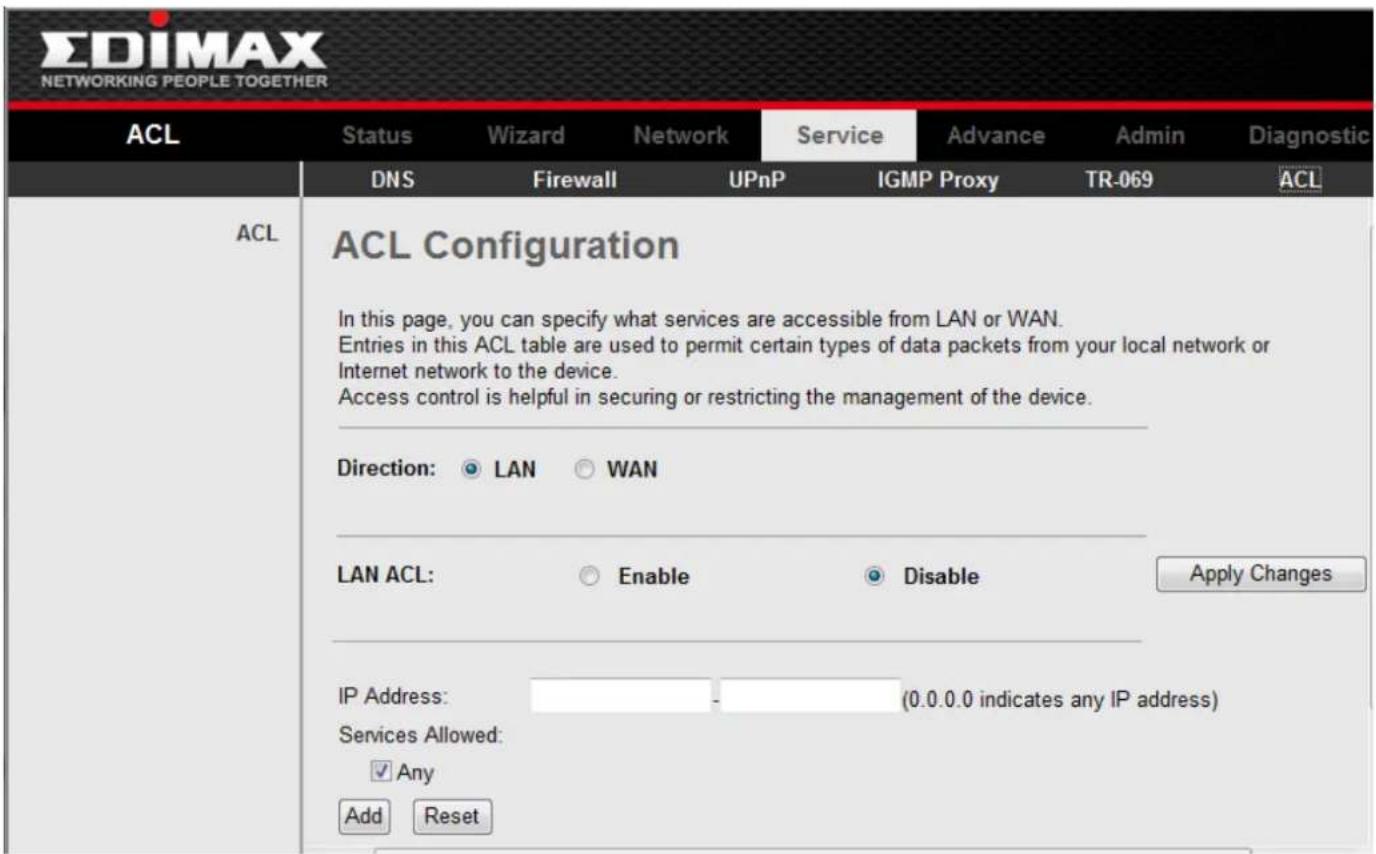
Click ACL in the sub-menu to open the screen of Fig 3.7.9. In this page, you can congregate the IP Address for Access Control List. If ACL enabled, only the eecve IP in ACL can access ADSL Router.
Step 1: If you want to enable ACL, please choose "Enable" then press "Apply Changes";
Step 2: Cong Access Control List;
Note: If you check "Enable" in ACL Capability, please make sure that your host IP is in ACL List before it takes eect
text_image
EDIMAX NETWORKING PEOPLE TOGETHER ACL Status Wizard Network Service Advance Admin Diagnostic DNS Firewall UPnP IGMP Proxy TR-069 ACL ACL ACL Configuration In this page, you can specify what services are accessible from LAN or WAN. Entries in this ACL table are used to permit certain types of data packets from your local network or Internet network to the device. Access control is helpful in securing or restricting the management of the device. Direction: LAN WAN LAN ACL: Enable Disable Apply Changes IP Address: - (0.0.0.0 indicates any IP address) Services Allowed: ✓ Any Add ResetFig 3.7.9
3-7 Admin
Click Admin in the menu to open the sub-menu which contains 9 items: Remote Access, Commit/Reboot, Password, Backup/Restore, Upgrade Firmware, Time Zone, SNMP ,TR069 and ACL.
3-7-1 Commit/Reboot
Click Commit/Reboot in the sub-menu to open the screen of Fig 3.7.2. In this page, you can set the router reboot to default sengs or set the router save the current sengs then reboot.

text_image
EDIMAX NETWORKING PEOPLE TOGETHER Admin Status Wizard Network Service Advance Admin Diagnostic Commit/Reboot Commit/Reboot This page is used to save the current configuration or restore to the factory default configuration. Reboot from: Save the current configuration RebootFig 3.7.2
| Label | Descripon |
| Restore to Factory Default Seng | Select this checkbox to reset router to default sengs. |
| Save Current Seng | Select this checkbox to save the current sengs and reboot router. |
| System Reboot | Click this buon to reboot the router according to the above opon. |
3-7-2 Password
Click Password in the sub-menu to open the screen of Fig 3.7.3. In this page, you can change the password of the user, include admin and user. The super user name and password are admin/admin as default, and the The common user name and password are user/user.

text_image
EDIMAX NETWORKING PEOPLE TOGETHER Password Status Wizard Network Service Advance Admin Diagnostic Commit/Reboot Upgrade System Log Password Time Zone Password Password Setup This page is used to set the password for accessing the Web server of the device. User Name: adults New Password: Confirmed Password: Restore to the Default Password: Apply Changes ResetFig 3.7.3
| Label | Descripon |
| User Name | Select the user name in the drop-down list box. The choices are admin and user. |
| Old Password | Aer selected the user name, input the old password of the user here. |
| New Password | Input the new password what you want to set of the user. |
| Conrmed Password | Input the new password again. |
| Apply Changes | Click this buon to save the sengs of this page. |
| Reset | Click this buon to begin conguring the password afresh. |
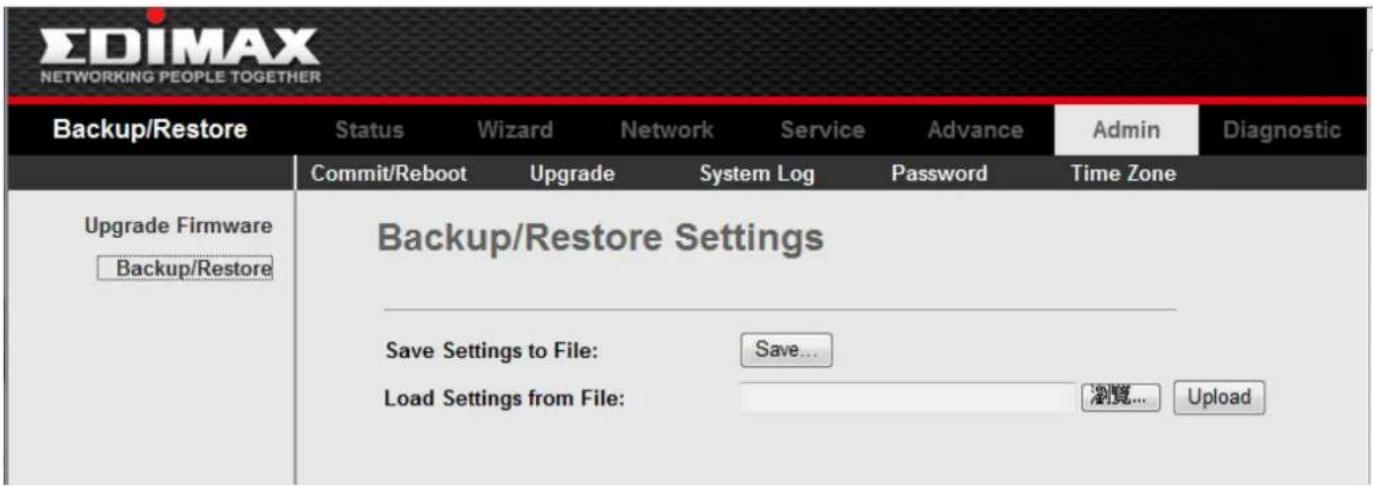
Click Backup/Restore in the sub-menu to open the screen of Fig 3.7.4. In this page, you can backup the current sengs to a le and restore the sengs from the le which was saved previously.
IMPORTANT! Do not turn o your router or press the Reset buon while these procedures are in progress.
text_image
EDIMAX NETWORKING PEOPLE TOGETHER Backup/Restore Status Wizard Network Service Advance Admin Diagnostic Commit/Reboot Upgrade System Log Password Time Zone Upgrade Firmware Backup/Restore Backup/Restore Settings Save Settings to File: Save... Load Settings from File: 浏览... UploadFig 3.7.4
| Label | Descripon |
| Save Sengs to File | Click the Save buon, then select the path and save the conguraon le of your router. |
| Load Sengs from File | Click the Browse buon to select the conguraon le. |
| Upload | Selected the conguraon le of router, click Upload buon to begin restore the router conguraon. |
3-7-4 Firmware Upgrade
Click Upgrade Firmware in the sub-menu to open the screen of Fig 3.7.5. In this page, you can upgrade the rmware of this router.
IMPORTANT! Do not turn o your router or press the Reset buon while this procedure is in progress.

text_image
EDIMAX NETWORKING PEOPLE TOGETHER Upgrade Firmware Status Wizard Network Service Advance Admin Diagnostic Commit/Reboot Upgrade System Log.Password Time Zone Upgrade Firmware Backup/Restore Upgrade Firmware This page is used to upgrade the firmware to a new version. System will reboot after the file is uploaded. Caution: Do not power off the device during uploading. Otherwise, it may crash the system. Select File: 浏览... Upload ResetFig 3.7.5
| Label | Descripon |
| Select File | Click theBrowsebuon to select the rmware le. |
| Upload | Selected the rmware le, clickUploadbuon to begin upgrading the rmware. |
| Reset | Click this buon to begin selecng the rmware le afresh. |
3-7-5 Time Zone
Click Time Zone in the sub-menu to open the screen of Fig 3.7.6. In this page, you can set the system me manually or get the system me from the me server.

text_image
EDIMAX NETWORKING PEOPLE TOGETHER Time Zone Status Wizard Network Service Advance Admin Diagnostic Commit/Reboot Upgrade System Log.Password Time Zone Time Zone System Time Configuration This page is used to configure the system time and Network Time Protocol (NTP) server. In this page, you can modify the settings or view some information of the system time and NTP parameters. System Time: 1970 year Jan month 1 day 1 hour 0 min 0 sec Apply Changes Reset NTP Configuration: State: Disable Enable Primary 192.43.244.18 Server: Secondary Server: Interval: Every 1 hours Time (GMT) Gambia, Liberia, Morocco, England Zone: GMT Thu Jan 1 1:0:0 1970 Time: Apply Changes Reset NTP Start: Get GMT TimeFig 3.7.6
| Label | Descripon |
| Refresh | Click this buon to refresh the system shown in the page. |
| Time Mode | If select Time Server, the router will get the system me from the me server. If select Manual, you should conjure the system me manually. |
| Enable SNTP Client Update | If select this checkbox, you can choose the correct SNTP Server which you want. |
| SNTP Server | Choose the SNTP Server here. |
| Time Zone | Select the Time Zone of in which area you are. |
| Apply Changes | Click this buon to save the sengs of this page. |
3-8 Diagnosc
Click Diagnosc in the menu to open the sub-menu which contains 4 items: Ping, ATM Loopback, ADSL and Diagnosc.
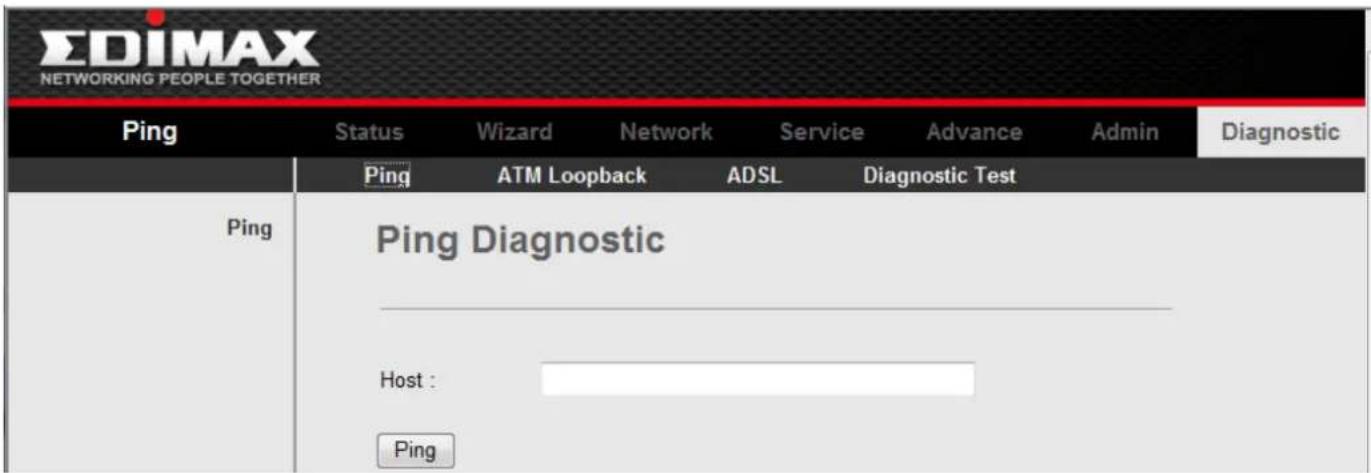
3-8-1 Ping
Click Ping in the sub-menu to open the screen of Fig 3.8.1.
text_image
EDIMAX NETWORKING PEOPLE TOGETHER Ping Status Wizard Network Service Advance Admin Diagnostic Ping ATM Loopback ADSL Diagnostic Test Ping Ping Diagnostic Host : PingFig 3.8.1
| Label | Descripon |
| Host Address | Enter the IP Address here. |
| Go! | Click this buon to begin to Ping the Host Address. |
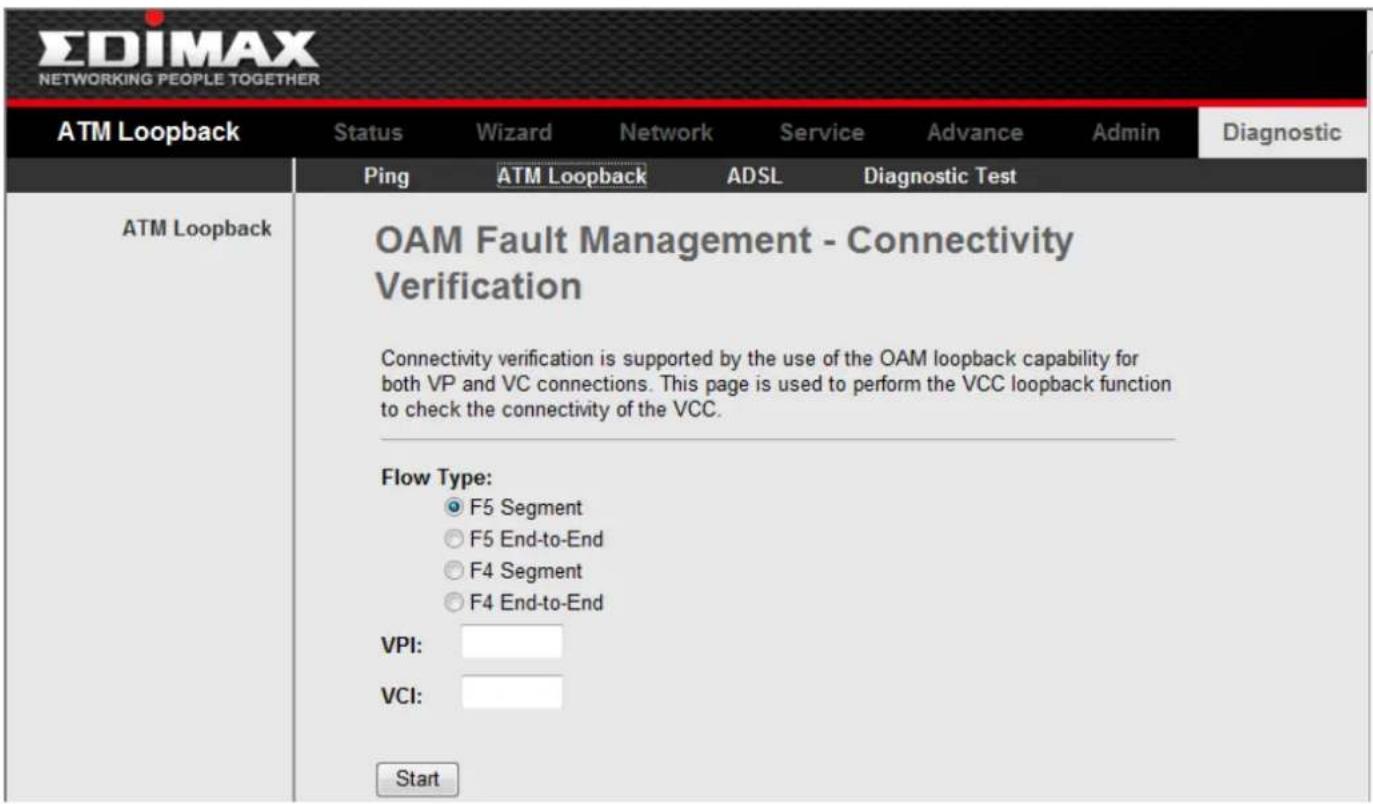
3-8-2 ATM Loopback
Click ATM Loopback in the sub-menu to open the screen of Fig 3.8.2. In this page, you can use VCC loopback funcon to check the connecvity of the VCC.
text_image
EDIMAX NETWORKING PEOPLE TOGETHER ATM Loopback Status Wizard Network Service Advance Admin Diagnostic Ping ATM Loopback ADSL Diagnostic Test ATM Loopback OAM Fault Management - Connectivity Verification Connectivity verification is supported by the use of the OAM loopback capability for both VP and VC connections. This page is used to perform the VCC loopback function to check the connectivity of the VCC. Flow Type: ● F5 Segment ○ F5 End-to-End ○ F4 Segment ○ F4 End-to-End VPI: VCI: StartFig 3.8.2
Go!: Click this buon to begin tesng.
3-8-3 ADSL
Click ADSL in the sub-menu to open the screen of Fig 3.8.3. This page is used for ADSL Tone Diagnoscs.
| ADSL | Status Wizard Network Service Advance Admin Diagnostic | |||||
| Ping ATM Loopback ADSL Diagnostic Test | ||||||
| ADSL | Diagnostic ADSL This page is used to diagnose the ADSL tone. | |||||
| Start | ||||||
| Downstream | Upstream | |||||
| Hlin Scale | ||||||
| Loop Attenuation(dB) | ||||||
| Signal Attenuation(dB) | ||||||
| SNR Margin(dB) | ||||||
| Attainable Rate(Kbps) | ||||||
| Output Power(dBm) | ||||||
| Tone Number H.Real H.Image SNR QLN Hlog | ||||||
| 0 | ||||||
| 1 | ||||||
| 2 | ||||||
| 3 | ||||||
| 4 | ||||||
Fig 3.8.3
Start: Click this buon to begin ADSL Tone Diagnoscs.
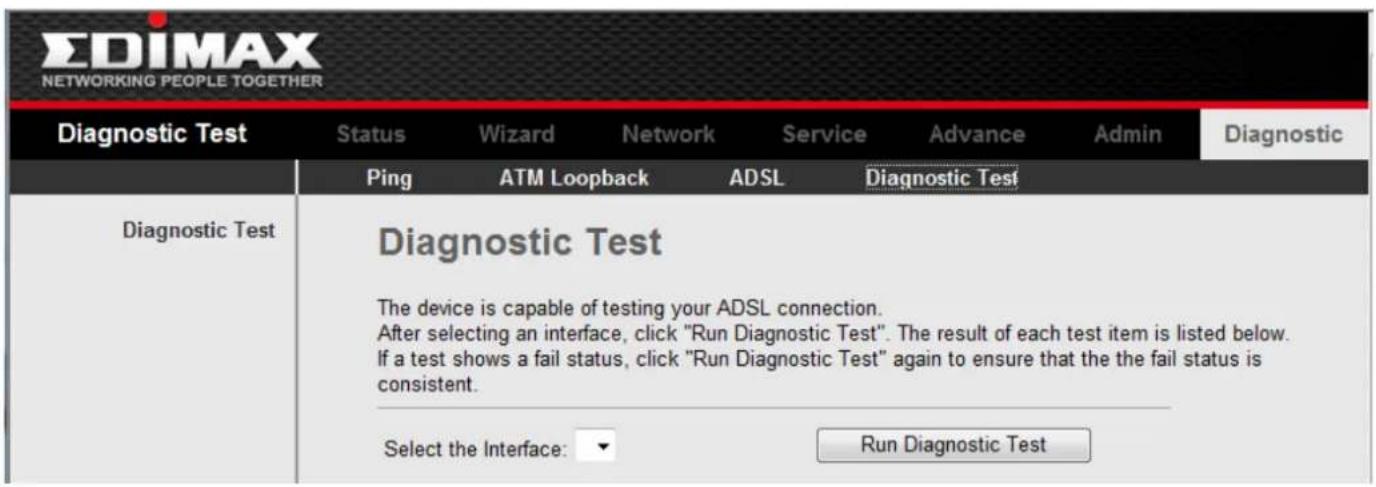
3-8-4 Diagnosc
Click Diagnosc in the sub-menu to open the screen of Fig 3.8.4. This page is used for tesng your DSL conncon.
text_image
EDIMAX NETWORKING PEOPLE TOGETHER Diagnostic Test Status Wizard Network Service Advance Admin Diagnostic Ping ATM Loopback ADSL Diagnostic Test Diagnostic Test Diagnostic Test The device is capable of testing your ADSL connection. After selecting an interface, click "Run Diagnostic Test". The result of each test item is listed below. If a test shows a fail status, click "Run Diagnostic Test" again to ensure that the the fail status is consistent. Select the Interface: ▼ Run Diagnostic TestFig 3.8.4
Run Diagnosc Test: Click this buon to begin tesng.
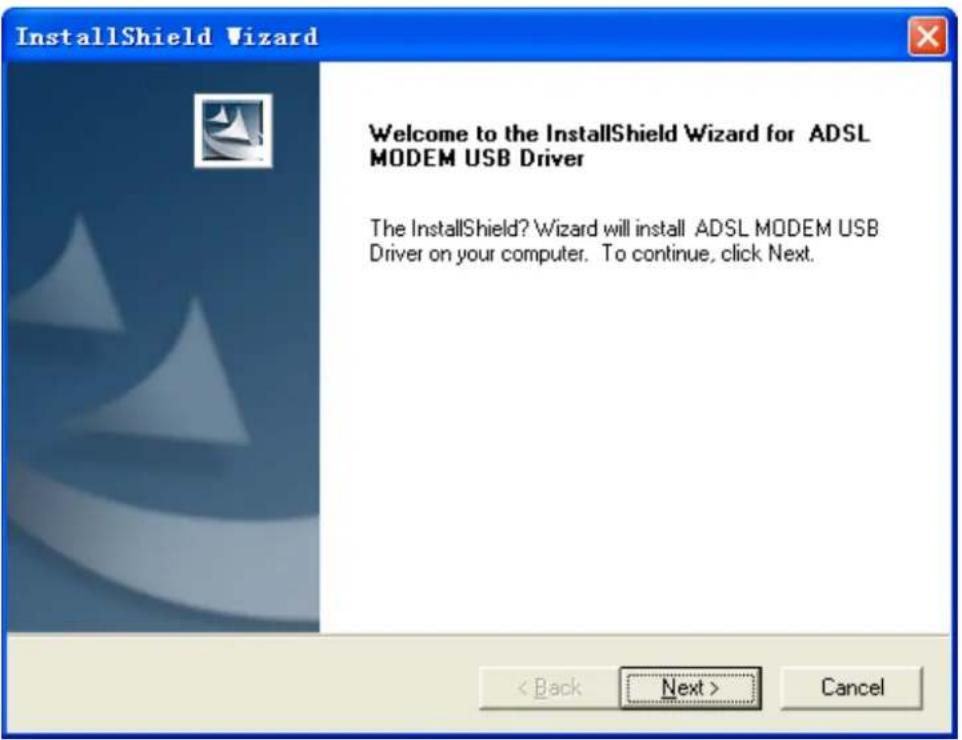
APPENDIX A: USB SOFTWARE SETUP
Execute Setup.exe to startup InstallShield Wizard, Fig A-1 will be shown:
text_image
InstallShield Wizard Welcome to the InstallShield Wizard for ADSL MODEM USB Driver The InstallShield? Wizard will install ADSL MODEM USB Driver on your computer. To continue, click Next. < Back Next > CancelFig A-1
Then press Next, the Fig A-2 screen will appear. This window shows the rate of progress.

text_image
InstallShield Wizard Setup Status ADSL MODEM USB Driver Setup is performing the requested operations. Installing: C:\WINDOWS\rndismpk.sys 72% InstallShield CancelFig A-2
Aer Setup nished, Fig A-3 will be shown: connect or disconnect your ADSL MODEM to PC as follow prompt.

text_image
Information The driver has been copied to the computer! To finish the installation, If your ADSL MODEM is not connected, please connect it now! If your ADSL MODEM is connected, please disconnect it first and then reconnect it. If it doesn't work, please reinstall the driver through running setup.exe in the driver cd and reset your ADSL MODEM. 确定Fig A-3
Before install driver program. You must conrm ADSL MODEM has been connected to computer via USB slot; Once the PC powers up, a new device will be will be detected by Windows . The computer will give a message nding new hardware. Fig A-4 will be shown.

text_image
Found New Hardware Wizard Welcome to the Found New Hardware Wizard Windows will search for current and updated software by looking on your computer, on the hardware installation CD, or on the Windows Update Web site (with your permission). Read our privacy policy. Can Windows connect to Windows Update to search for software? Yes, this time only Yes, now and every time I connect a device No, not this time Click Next to continue. < Back Next > CancelFig A-4
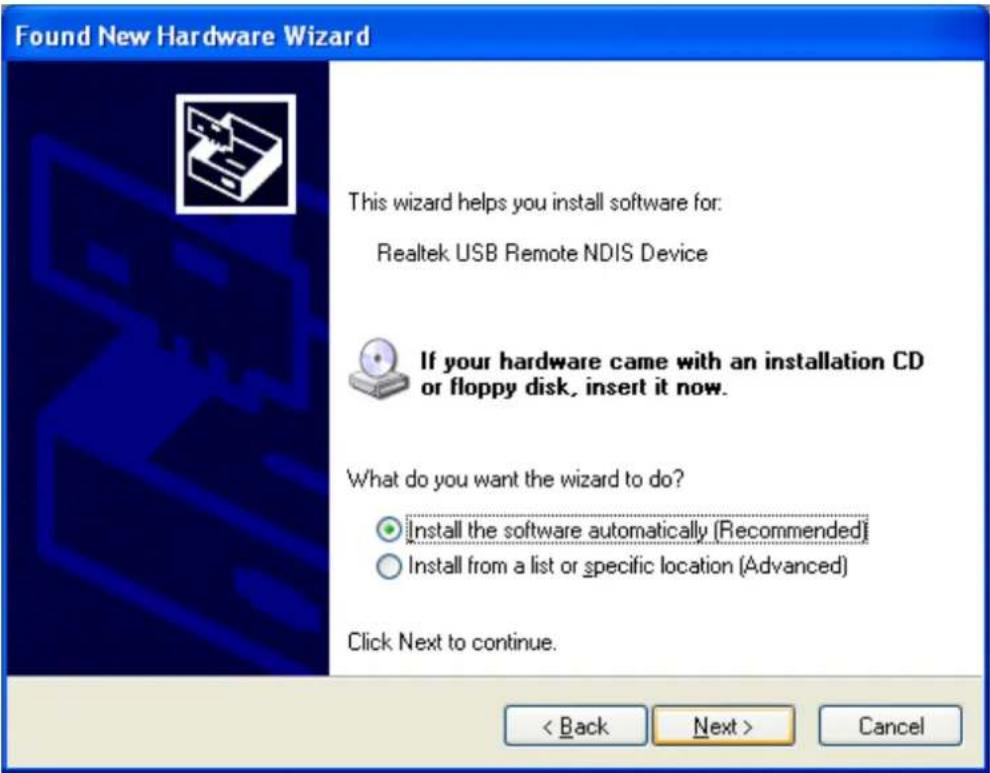
Select "No, not this me" and press "Next", Fig A-5 will be shown below:
text_image
Found New Hardware Wizard This wizard helps you install software for: Realtek USB Remote NDIS Device If your hardware came with an installation CD or floppy disk, insert it now. What do you want the wizard to do? Install the software automatically (Recommended) Install from a list or specific location (Advanced) Click Next to continue. < Back Next > CancelFig A-5
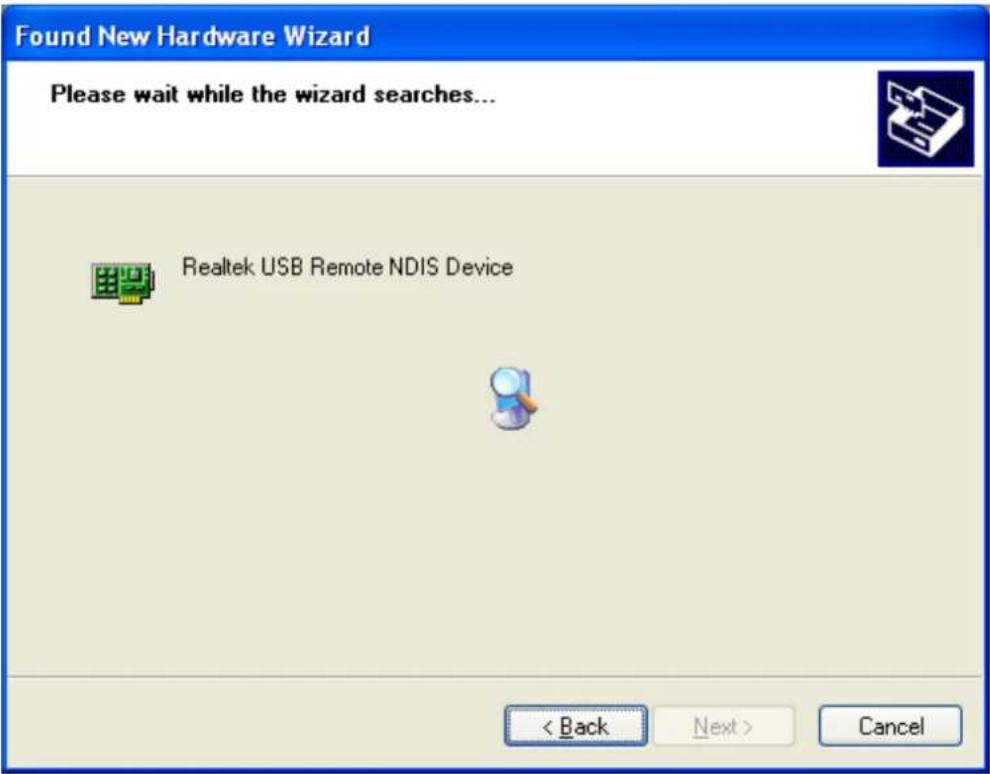
Select "Install the soware automacally (Recommended)" and then press "Next" buon, Windows will search and nd the USB driver and automacally install the driver. Fig A-6 will be shown:
text_image
Found New Hardware Wizard Please wait while the wizard searches... Realtek USB Remote NDIS Device < Back Next > CancelFig A-6
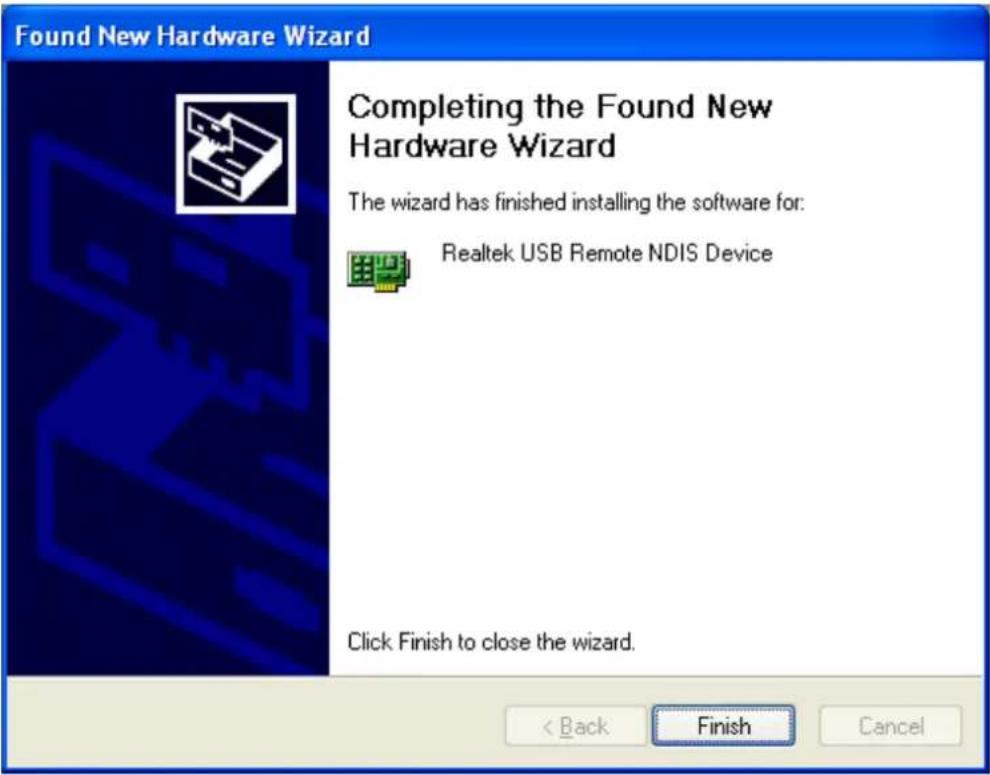
Wait for a few seconds, Fig A-7 will be shown and you press "Finish" buon to close the wizard, USB driver, installing is completely.
text_image
Found New Hardware Wizard Completing the Found New Hardware Wizard The wizard has finished installing the software for: Realtek USB Remote NDIS Device Click Finish to close the wizard. < Back Finish CancelFig A-7
APPENDIX B: ABBREVIATIONS
ADSL Asymmetric Digital Subscriber Line
ATM Asynchronous Transfer Mode
ATU C ATU at the central oce end (i.e., network operator)
ATU R ATU at the remote terminal end (i.e., CP)
BER Bit Error Rao
CO Central oce
CPE Customer Premises Equipment
CRC Cyclic Redundancy Check
DC Direct Current
DSL Digital Subscriber Line
HEC Header Error Control
IDFT Inverse Discrete Fourier Transform
LOF Loss-of-frame defect
LOS Loss-of-signal defect
MIB Management Informaon Base
Modem (MOdulator, DEModulator)
NMS Network Management System
OAM Operaons, Administraon and Maintenance
POTS Plain old telephone service
PSTN Public Switched Telephone Network
PVC Persist Virtual Circuit
QAM Quadrature Amplitude Modulaon
SNR Signal to Noise Rao
TP Twisted Pair
VPN Virtual Private Network

text_image
EDIMAX NETWORKING PEOPLE TOGETHEREDIMAX Technology Co., Ltd.
www.edimax.com