PiN 300 - Digital Personal Assistant NAVMAN - Free user manual and instructions
Find the device manual for free PiN 300 NAVMAN in PDF.


| Product Type | Digital Personal Assistant |
| Brand | Navman |
| Model | PiN 300 |
| Dimensions | Approx. 120 x 75 x 15 mm |
| Weight | Approx. 150 g |
| Power Source | Rechargeable Li-ion battery (included) |
| Charging | Via AC adapter or USB (if supported) |
| Display | Monochrome or color LCD (varies by revision) |
| Main Functions | Contacts, Calendar, Tasks, Notes, Calculator, Clock |
| Connectivity | IR port, optional serial/USB cable |
| Memory | Internal memory for data storage |
| Operating System | Proprietary OS |
| Input Method | Touchscreen or stylus (if applicable), physical buttons |
| Expansion | None or via proprietary slot (check manual) |
| Battery Life | Approx. 2-4 weeks standby, 10-20 hours active use |
| Setup & Usage | Follow quick start guide; synchronize with PC included software |
| Cleaning | Wipe gently with a soft, dry cloth. Avoid liquids. |
| Storage | Store in a cool, dry place away from direct sunlight. |
| General Information | Refer to the official manual for detailed instructions and safety warnings. |
Frequently Asked Questions - PiN 300 NAVMAN
User questions about PiN 300 NAVMAN
0 question about this device. Answer the ones you know or ask your own.
Ask a new question about this device
Download the instructions for your Digital Personal Assistant in PDF format for free! Find your manual PiN 300 - NAVMAN and take your electronic device back in hand. On this page are published all the documents necessary for the use of your device. PiN 300 by NAVMAN.
USER MANUAL PiN 300 NAVMAN
Charging the Battery 5
Installing SmartS on Your PiN from Memory Card ...... 6
Installing SmartS Desktop on Your Computer ..... 7
Accessing SmartS Desktop 7
Updating SmartS 7
Installing Maps Using SmartS Desktop 8
Turning Your PiN On and Off 9
Positioning Your PiN in a Vehicle 10
Main Menu Screen ....11
GPS Status 12
Navigating to Your Destination ....13
Viewing Your Route 15
Saving Favourites and Quick Navs ......17
Further Information ....18
Support Information ....20
This Quick Start Guide will help you get started with your PiN Pocket PC.
Whether you travel in your own country or overseas, the PiN with Smart™ will direct you to your destination without the need for map books and second-hand instructions.
The Smart map provides street level detail for door-to-door navigation, including Points of Interest (POIs) such as accommodation, railway stations and airports.
- Use this Quick Start Guide to install Smart☒ for the first time.
- Use the User's Manual for information on operating your PiN Pocket PC.
- Use the SmartS V3 for Pocket PC User Manual for information on operating Smart☒ (see page 18).
Safety First
The PiN Pocket PC user is responsible for observing safe driving practices. It is their responsibility to read the vehicle mount installation instructions carefully.
- Do not operate your PiN while driving.
- Do not place your PiN in a position that obstructs the driver's view, or interferes with the operation of air-bags or other vehicle safety equipment.
- For security, and to avoid overheating, do not leave your PiN in strong sunlight while your vehicle is unattended.
- Do not handle your PiN while it is hot — leave it to cool, away from heat sources.
Box Contents
Here's what you will find in the box. If anything is missing, contact Navman.
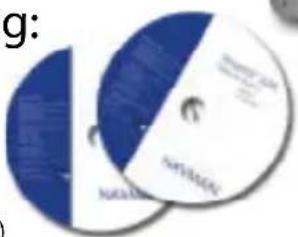
CD-ROMs including:
- SmartS™ Desktop
- Map data
- User Manual (PDF format)
• Adobe Acrobat Reader
• PiN Companion CD (incl. Microsoft ActiveSync)
NOTE: The number of disks may vary depending on the country of purchase.
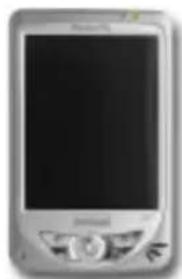
natural_image
Front view of a silver-colored electronic device with a black screen and control buttons (no visible text or symbols)PiN Pocket PC with GPS antenna
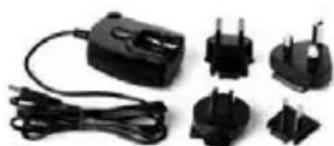
natural_image
Electrical power adapter with multiple socket plugs and cord (no visible text or labels)AC power adapter and plugs*
*Australia/NZ - Australia/NZ plug only
Mounting brackets
PDA Cradle
PDA Windshield Suction Mount

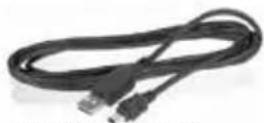
USB cable
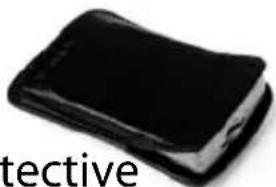
Protective carry case
natural_image
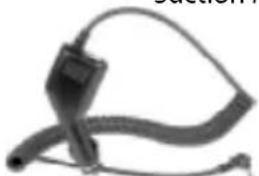
Close-up of a black electrical plug with coiled cable (no visible text or symbols)12V Vehicle power adaptor
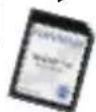
Memory Card
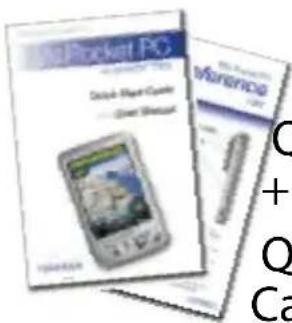
Quick Start Guide + User Manual
Quick Reference
Card
PiN Controls
For your safety, enter destination information before you start a journey. Do not operate the PiN while driving.
- Open the Main Menu by pushing the 4-way toggle

- Select Main Menu options using the touch screen.
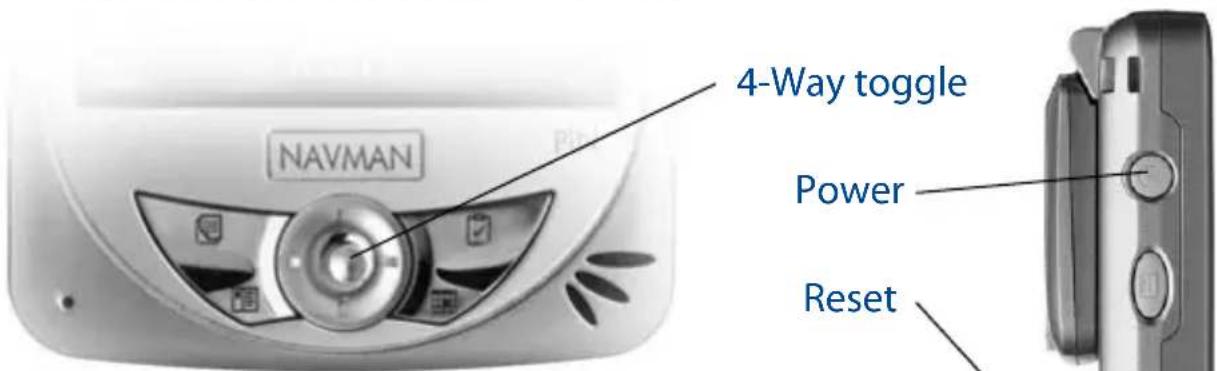
4-Way toggle
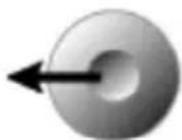
Opens the Main Menu screen.

Cycles through the Map, 3D Map, Next Instruction and Instruction List screens once a route has been calculated.
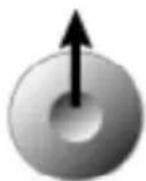
From the Map screen, enables you to zoom in to view less of the street map, but with more detail.
From the 3D Map screen, with the Information button set to Angle, enables you to increase the viewing angle.

From the Map screen, enables you to zoom out to view more of the street map, but with less detail.
From the 3D Map screen, with the Information button set to Angle, enables you to decrease the viewing angle.
Stylus

natural_image
Metal cylindrical tool with pointed tip and tapered ends (no visible text or markings)The stylus is your input device. Pull the stylus out of the slot and extend it for ease of use. Store it in the slot when not in use.
- Tap the Menu screens with the stylus to select
- Tap and hold the Map screen to display the Pop-up menu
- Tap and drag the screen with the stylus to navigate the Map and 3D Map screens.
Charging the Battery
Your PiN comes with a charged battery. Whenever possible, keep your PiN connected to a power source. Doing so keeps the battery charged.
The Charge Indicator is amber when the battery is charging. When the battery is fully charged, the Charge Indicator is green.
From AC Power
- Slide the plug on to the AC adapter.
- Connect the USB cable to the bottom of the PiN.
- Connect the AC adapter to the power connector on the USB cable.
- Plug the other end of the AC adapter into a wall outlet.
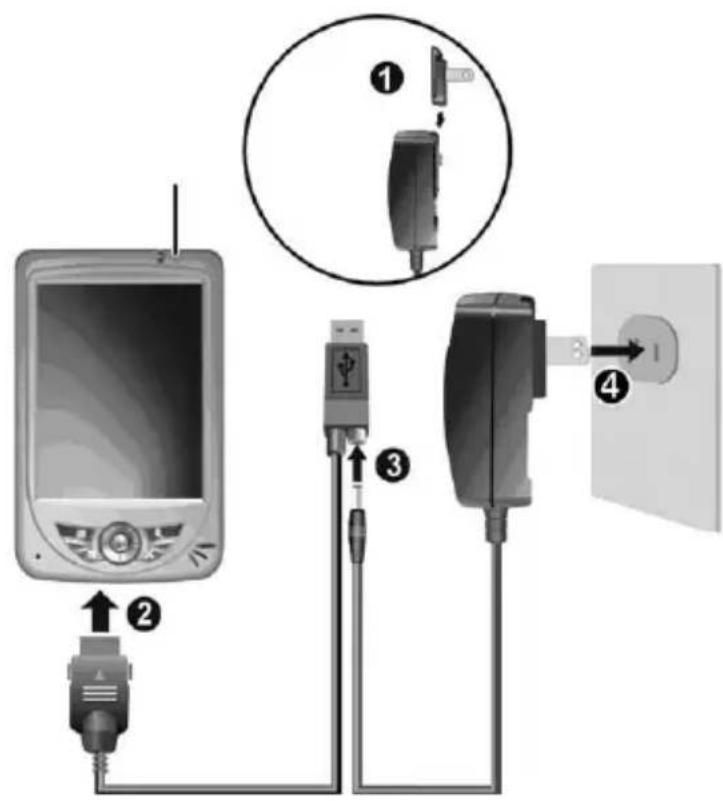
Do not disconnect your PiN from AC power until the battery is fully charged. This may take several hours.
From Vehicle Power
- Connect the vehicle power adapter to the bottom of the PiN.
- Plug the other end of the vehicle power adapter into the vehicle lighter socket.
Installing SmartS on Your PiN from Memory Card
Your PiN comes with a memory card containing essential files for installing and running SmartS.
European Users: The memory card contains a Basemap of Western Europe. The Basemap contains main roads and ferry routes of high national and international importance, providing you with Continuous Continental Navigation.
To navigate to a minor road, you must install the corresponding map from a SmartS Map CD using SmartS Desktop on your computer. See pages 7-8 for more information.
Australia and New Zealand Users: The memory card contains a complete map of either Australia or New Zealand.
Warning: If after installation any of the files on the memory card are deleted, you will need to reinstall SmartS from the enclosed SmartS Application CD using SmartS Desktop on your computer.
- Pull out the stylus and use it to switch the Battery Switch to the ON (down) position. Your PiN will turn on.
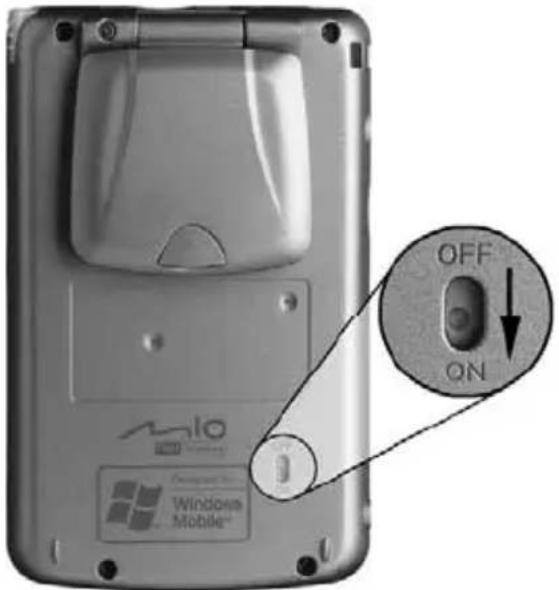
Warning: Switching the Battery Switch to OFF after installation is complete will return your PiN to factory settings, deleting SmartS and other data.
-
Complete the setup wizard to align the touch screen and select your time zone.
-
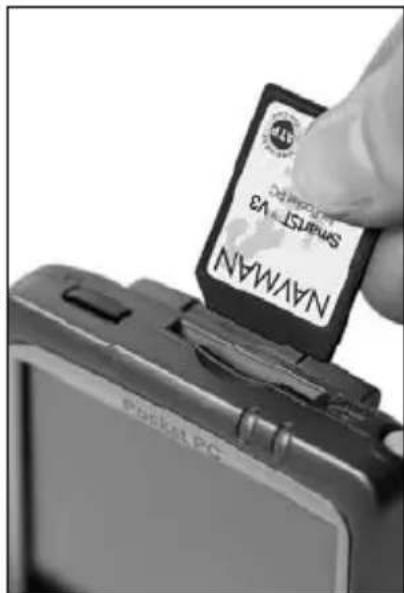
Gently insert the memory card in the SD/MMC slot with the label facing the front of the PiN and follow the prompts to install and activate SmartS.
-
Select your preferred language for SmartS from the drop-down box and tap Install.
- If you will be using SmartS after installing it, leave the memory card in the slot when prompted to remove it.
Installing SmartS Desktop on Your Computer
SmartS Desktop is used to download maps to your PiN, obtain software updates, manage Custom Points of Interest (POIs) and install Basemaps.
Microsoft ActiveSync ^® will be installed on your desktop computer as part of the installation process if it is not already installed.
Note: For Windows XP, install XP Service Pack 1 or higher before you install SmartS Desktop.
- Close all open programs on your computer.
- Insert the SmartS CD into your computer CD-ROM drive. The SmartS Desktop installer will start.
- If your computer does not automatically launch the CD, start the installation manually: Start > Run. Type d:\setupSSP_PPC.exe where d is the letter assigned to your CD-ROM drive. Click OK.
-
Follow the screen prompts to install Smart Desktop.
-
Select your preferred language for SmartS Desktop when prompted.
- Review and accept the License Agreement when prompted.
SmartS Desktop will open.
Accessing SmartS Desktop
Once SmartS Desktop has been installed, you can access it from the Start menu:
Start > Programs > Navman > SmartS Desktop
Updating SmartS
It is recommended that you regularly check the Navman website for software updates to the version of SmartS you are using:
-
Open SmartS Desktop: Start > Programs > Navman > SmartS Desktop
-
On the Setup menu, select Update software then Check for updates on the web. Your computer will connect to the Internet and display the Navman website.
- Download the update for your region to your computer, if available.
- On the Setup menu, select Update software then Update software on Pocket PC. Follow the prompts to update SmartS.
Installing Maps Using SmartS Desktop
Your PiN comes with a preactivated map. If you require an additional map, you must first purchase a Map Product Key from your Navman supplier. Use SmartS Desktop to activate your Map Product Key and install the required map.
Maps can be stored on SD or MMC memory cards directly from SmartS Desktop or via a memory card writer.
Install and Activate Maps on Your PiN
- Insert a memory card in your PiN if you will be installing more than one map.
- Connect your PiN to your computer using a USB cable, synchronisation cradle, or other device that came with your PiN.
- Microsoft ActiveSync® will synchronise with your PiN.
- Open SmartS Desktop: Start > Programs > Navman > SmartS Desktop.
- Insert a SmartS Map CD into your computer CD-ROM drive. The available maps will display.
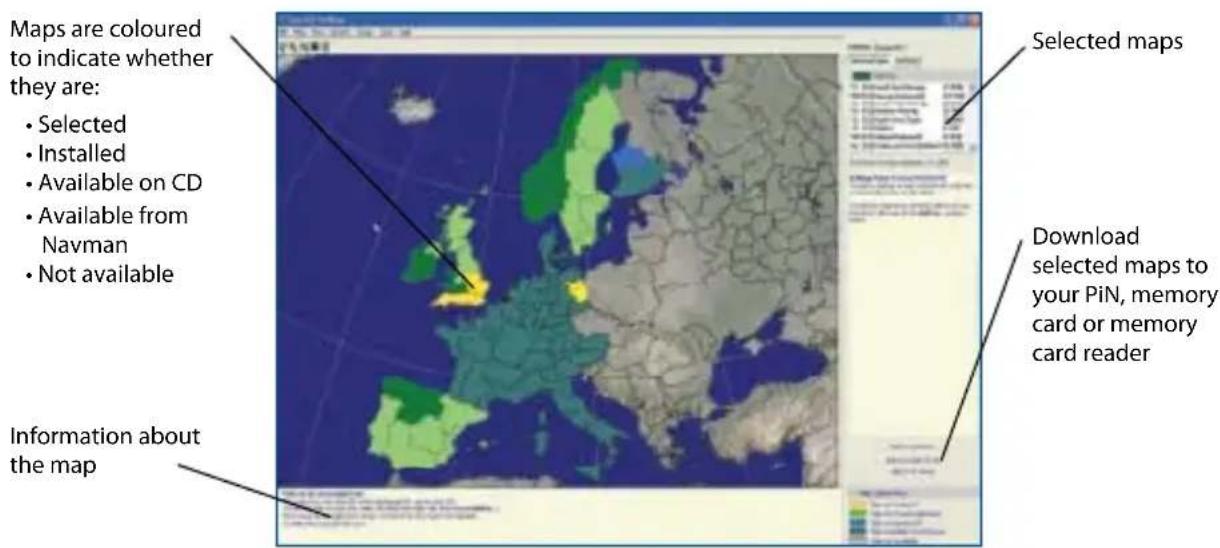
- Click the map you want to install to your PiN. Maps are of population areas and not of political areas such as counties or states. You may need to install multiple maps to cover the desired geographical area.
- If you have already activated a Map Product Key, or your PiN came with a pre-activated Map Product Key, the map will change colour to indicate it has been selected. Go to step 8, otherwise continue.
-
Follow the prompts to activate the Map Product Key.
-
Enter your Map Product Key.
- Your computer will connect to the Internet and activate your Map Product Key.
- You will be prompted to enter or update your contact details so Navman can advise you when updates are released.
-
Your computer will again connect to the Internet to confirm the activation of your Map Product Key.
-
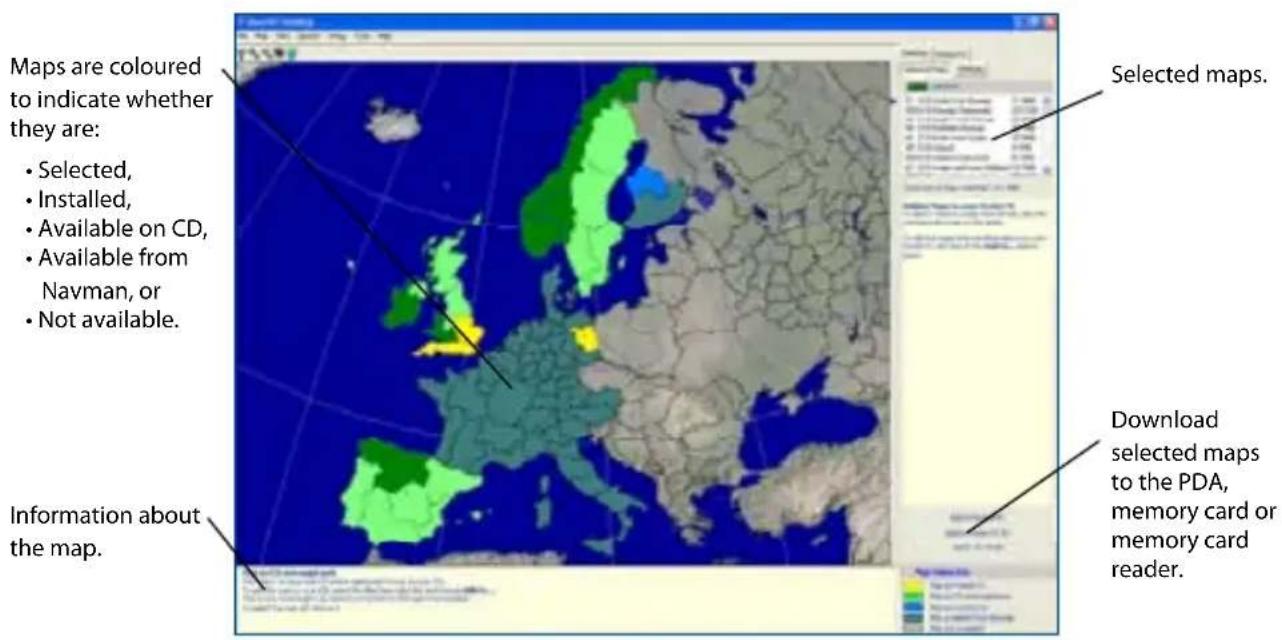
Click the map to install to your PiN. The map will change colour to indicate it has been selected. The map is listed in the Selected section of the Desktop Selected Maps tab.
- If you have another Map Product Key to activate, go to step 5.
- Click an Add to button to install all maps listed in the Selected section of the Desktop Selected Maps tab to your PiN, memory card or memory card reader.
Remove Maps from Your PiN
- If you will be removing a map from your memory card, insert the memory card in your PiN.
-
Open SmartS Desktop: Start > Programs > Navman > SmartS Desktop.
-
Open the Maps on Pocket PC section: Pocket PC tab > Maps on Pocket PC.
-
Click the map to be removed and select Remove from Pocket PC from the pop-up menu.
Turning your PiN On and Off
Use the Power button to turn your PiN on and off. When it is off, your PiN enters a suspended state and the system stops operating. When you turn your PiN on, it returns to the screen you were last viewing.
Turn PiN On
-
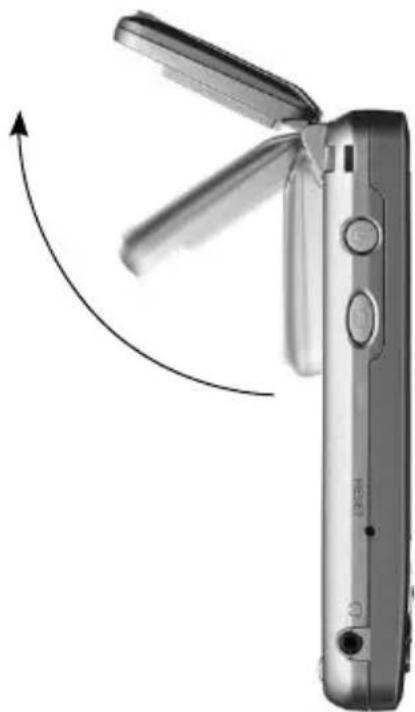
Gently pull the bottom of the GPS receiver away from the PiN. The receiver will lift out to a horizontal position to allow it to obtain a GPS fix.
-
Press the Power button.
Turn PiN Off
-
Press the Power button. The PiN will enter a suspended state and the screen will shut down. By default, the PiN will automatically enter a suspended state after three minutes of inactivity when operating on battery power.
-
Gently push the GPS receiver back toward the PiN. The receiver will click back into place.
natural_image
Illustration of a handheld device with open lid and curved arrow indicating rotation (no text or symbols)Reset PiN
Should your PiN not turn on or not respond, you can reset it to solve the problem. To reset your PiN, use the stylus to press the Reset button on the left side of the PiN.
Positioning Your PiN in a Vehicle
Before you begin, check if your vehicle is fitted with a heat-reflecting or heated windshield. If so, you will need to purchase an external antenna for your PiN to receive GPS signals.
There are several ways to position your PiN in a vehicle. Follow these instructions carefully.
- Do not place your PiN in a position that obstructs the driver's view, or interferes with the operation of air-bags or other vehicle safety equipment.
- For security and to avoid overheating, do not leave your PiN in an unattended vehicle, especially in strong sunlight.
- Do not use or handle your PiN when it is hot — leave it to cool out of direct sunlight.
Windshield Suction Mount
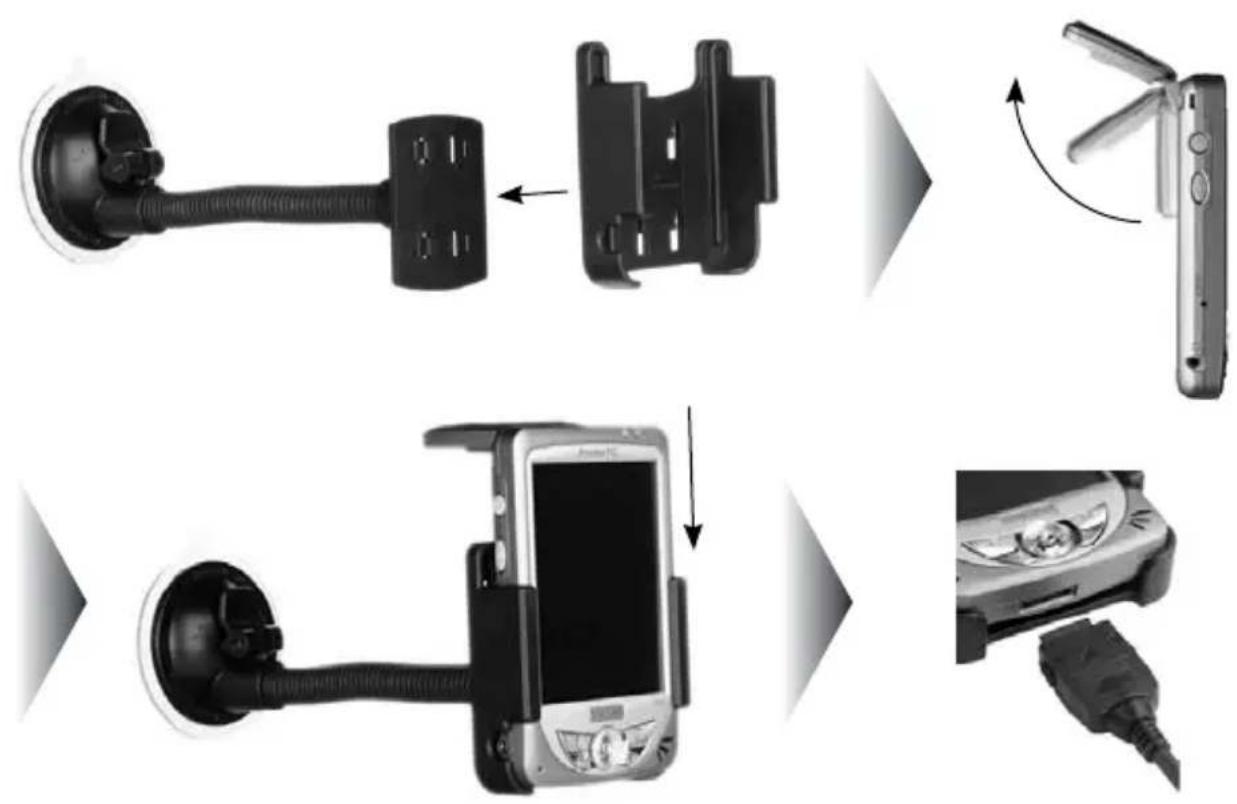
You can position your PiN on the inside of your vehicle windshield using the PDA windshield suction mount and PDA cradle:
- Attach the PDA cradle to the PDA windshield suction mount by inserting the four tabs at the end of the suction mount arm in the four slots on the cradle. Ensure that the Close arrow on the suction mount is pointed toward the top end of the cradle.
- Find a suitable position on your windscreen where the PDA will be clearly visible by the driver.
Warning: Do not mount your PiN in a way that interferes with airbags or other safety equipment. - Clean and dry the suction cup and the windshield. Do not touch either area after it is cleaned.
- Press the suction cup firmly to the window, then push the lever toward the window.
- Extend the GPS receiver into a horizontal position and slide your PiN into the PDA cradle.
- Bend the arm of the suction mount so that the PiN will be clearly visible to the driver.
- Plug the vehicle power adapter into the socket on the bottom of your PiN and the other end into the vehicle lighter socket.
To remove the PDA windshield suction mount from the windshield, pull the lever away from the window and gently lift the tab on the rim of the suction cup.
Main Menu Screen
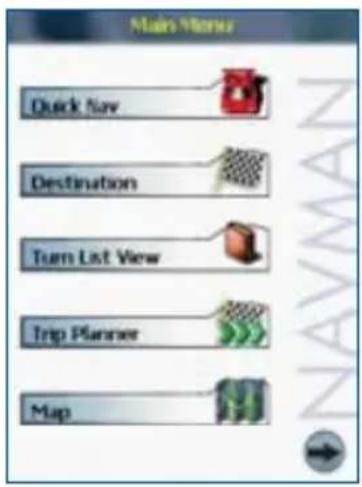
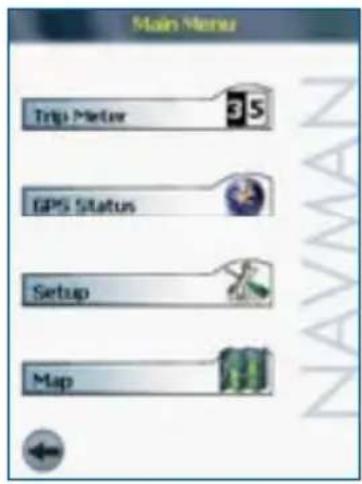
The Main Menu screen gives you access to all of SmartS's functions, including navigating to a destination.
- From the Map screen, push the 4-way toggle to open the Main Menu screen.
- Tap, to display more Main Menu options.
GPS Status
Signals are transmitted by Global Positioning System (GPS) satellites orbiting the Earth. This screen provides a visual representation of the information being received. Latitude and longitude are displayed, along with a North-pointing compass, the heading in degrees and ground speed. Satellites available are shown as segments.
From the Main Menu, tap , then GPS Status. The GPS Status screen will display:
- Yellow Segment — a satellite is being tracked but is not being used.
- Red Segment — a satellite is being used to determine a two-dimensional (2D) position fix.
- Green Segment — a satellite is being used to determine a three-dimensional (3D) position fix.
The circle under the satellite segments is green when there is a valid fix (2D or 3D), and red when there is no fix. While a 2D fix is sufficient to maintain a valid fix, a 3D fix is more accurate.
For more information on your GPS status, see the SmartS V3 for Pocket PC User Manual.
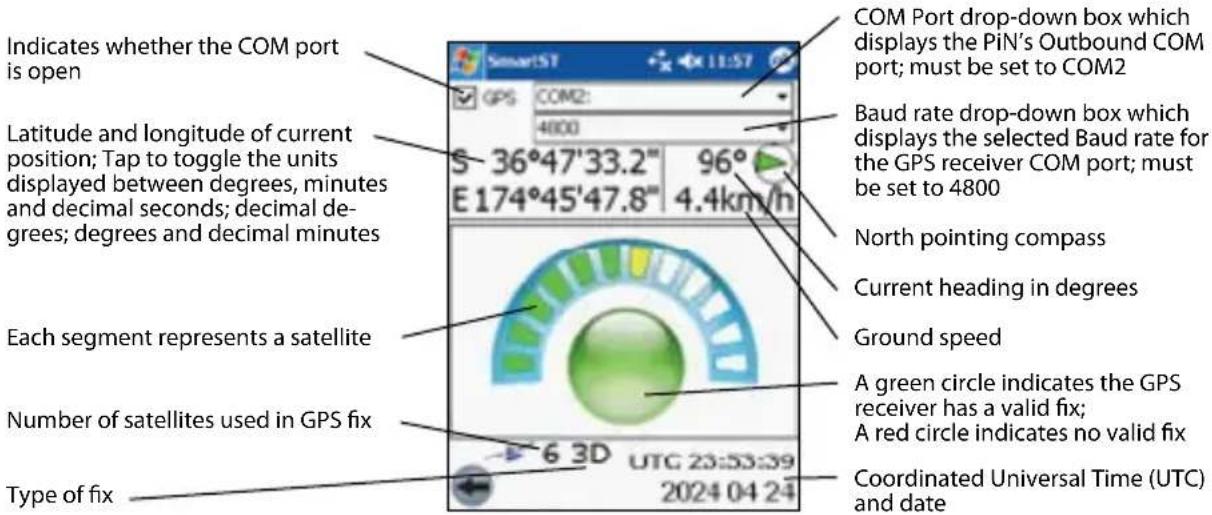
Getting a GPS Fix
- From the Map screen, push the 4-way toggle to open the Main Menu screen.
- Tap, then GPS Status to open the GPS Status screen.
- Tap the first drop-down box and selecCOM2 from the list that appears.
- Tap the second drop-down box and select a baud rate (speed) of 4800 from the list that appears.
- Tap the GPS checkbox to open the COM port. Your PiN will now obtain a GPS fix. A clear view of the sky is required.
- Tap to return to the Map screen.
Navigating to your Destination
You can navigate to a street, intersection, Point of Interest (POI), Pocket PC Contact, previously saved Favourite, Quick Nav, or a recently travelled destination.
Note: Depending on country of destination, one or more fields may be unavailable when selecting your destination.
For information on navigating to intersections, towns and recent destinations, see the SmartS V3 for Pocket PC User Manual.
Navigating to a Street Address
- From the Main Menu, tap Destination, then Address. The Destination Address screen will open.
![SmartST Destination Address Country UNITED KINGDOM Post Code Area GREENWICH, LONDON, ENGL Rural OLD DOVER ROAD, GREENWT House No 6.1 121 1 2 3 4 5 6 7 8 9 0 - = + Tab Q w e r t y u i o p [ ] CAP a s d f g h j k i ; * Shift z x c v b n m , . / + LTD 30 A 4 7 - -](/content/2026/06/1181794/images/4ca787fefdf018c5ad7d105e0b1b29ff19e576aae0efe555e81a7bf08d1418fa.jpg)
-
Select a country from the Country drop-down box.
-
Type and select the destination address:
-
To select a post code or zip code, type the up to five characters of the post code in the Post Code box, or the zip code in the Zip Code box. Select the post code or zip code from the list that displays.
Note: When navigating in the United Kingdom, type the post code with spaces, but without the last two letters.
• To select an area, type the name of a geographical location such as a town, city, state or county in the Area box. Select the area from the list that displays. - To select a road, type the name of a road in the Road box. Select the road from the list that displays.
-
To select a street number, type the street number in the House No box. Select the number from the list that displays.
-
Complete one of the following:
• To calculate and display the route to the address, tap . The 3D Map screen will open.
- To display the address without calculating the route, tap . The Map screen will open.
• To add the address as a favourite, tap .
Navigating to a Point Of Interest (POI)
A POI is a named site, feature, landmark or public venue. POIs are stored in Categories, such as parks and museums. POIs can be displayed as icons on a map.
- From the Main Menu, tap Destination, then Points of Interest. The Points of Interest screen will open.
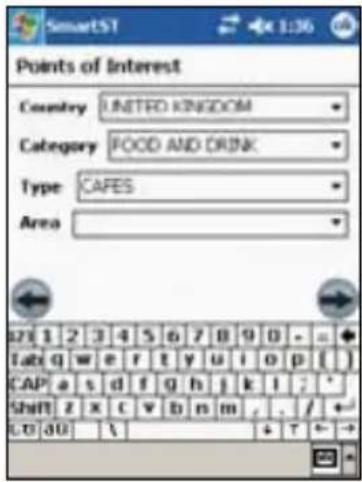
- Select a country from the Country drop-down box.
-
Type and select the POI search criteria:
-
Select a category of POI from the Category drop-down box.
- Select a type of POI from the Type drop-down box.
-
Type a geographical location, such as a town, city, state or county in the Area box. Select area from the list that displays.
-
Tap to open the Points of Interest Results screen displaying your search results.
-
Select a POI from the list of search results. Only the first 40 search results will display.
- If the list is long, begin typing the name of the POI in the Name box. The list of POIs will reduce to match your search.
- Complete one of the following:
• To calculate and display the route to the POI, tap . The 3D Map screen will open.
- To display the address without calculating the route, tap . The Map screen will open.
• To add the POI as a favourite, tap .

Navigating to Multiple Destination Points
You can use the Trip Planner to set multiple destination points for your trip. SmartS will calculate a route via each of these points in the specified order. Destination points can be added via the Trip Planner screen or by selecting Add to Trip from the Map pop-up menu.
- From the Main Menu, tap Trip Planner. The Trip Planner screen will display.
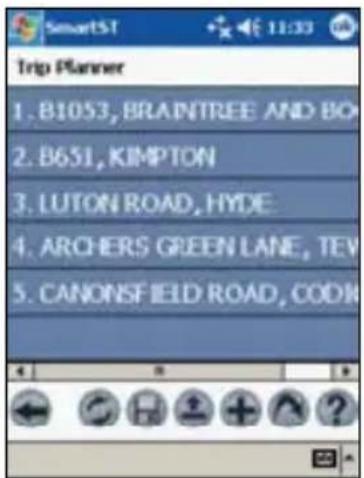
-
Tap . The Destination screen will open.
-
Tap Address. The Destination Address screen will open.
Note: You can also add destination points using intersections, Points of Interest, Favourites, your Pocket PC Contacts database and recent destinations.
-
Select a country from the Country drop-down box.
-
Type and select the destination address:
-
To select a post code or zip code, type up to five characters of the post code in the Post Code box, or the zip code in the Zip Code box. Select the post code or zip code from the list that displays.
Note: When navigating in the United Kingdom, type the post code with spaces, but without the last two letters.
• To select an area, type the name of a geographical location such as a town, city, state or county in the Area box. Select the area from the list that displays. - To select a road, type the name of a road in the Road box. Select the road from the list that displays.
-
To select a street number, type the street number in the House No box. Select the road from the list that displays.
-
Tap . The destination point is added to your trip.
• To add another destination point, go to step 4.
-
Tap to return to the Destination screen.
-
Tap to return to the Trip Planner screen.
-
To manage the destination points, tap and hold a point. The pop-up Trip Planner Menu will display.
• To move a point up, select Move Up.
• To move a point down, select Move Down.
• To delete a point, select Delete.
• To delete all points, select Clear All.
• To skip all prior destination points, select Skip To.
- To save the trip to your PiN or memory card:
• Tap . The Trip Save As screen will open.
- Type a name for the trip in the Name box.
- Select a folder from the Folder drop-down box in which to save the trip.
- Select a memory location from the Location box in which to save the folder and trip.
• Tap OK. The Trip Planner screen will reopen.
- Tap . The 3D Map screen will open. SmartS will calculate and display the trip.
Viewing your Route
Once a route has been calculated, there are several ways to view it. Cycle through the screens by pressing the right 4-way toggle button.
Map Screen
The Map screen is always oriented North and shows your current position and surrounding street names. If the route has been calculated, the route and all turns are highlighted.
- To view the Map screen, either press the 4-way toggle to cycle through the screens until the Map screen is displayed, or tap Map on the Main Menu.
- Zoom in and out using to zoom in and to zoom out.
- Navigate around the map by dragging the stylus across the screen.
- Tap and hold to access the Map pop-up menu.
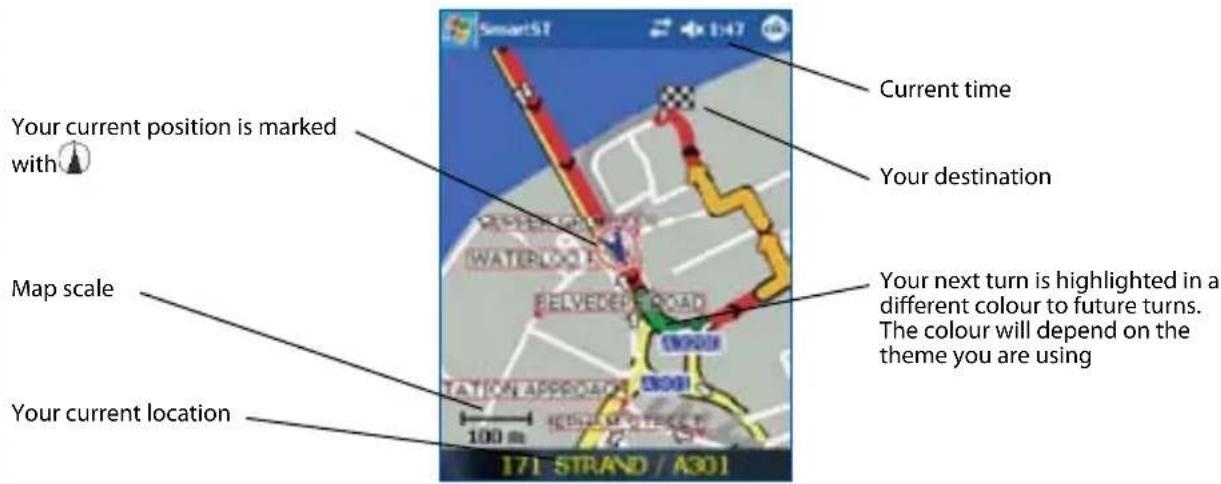
3D Map Screen
The 3D Map screen displays when a route is calculated, oriented to the travelling direction with an adjustable horizon.
- To view the 3D Map screen, either press the 4-way toggle to cycle through the screens until the 3D Map screen is displayed, or tap Map on the Main Menu.
- Zoom in and out using to zoom in and to zoom out.
- Change the viewing angle using to decrease the angle and to increase the angle when the Information button is set to Angle.
- Tap and hold to access the Map pop-up menu.
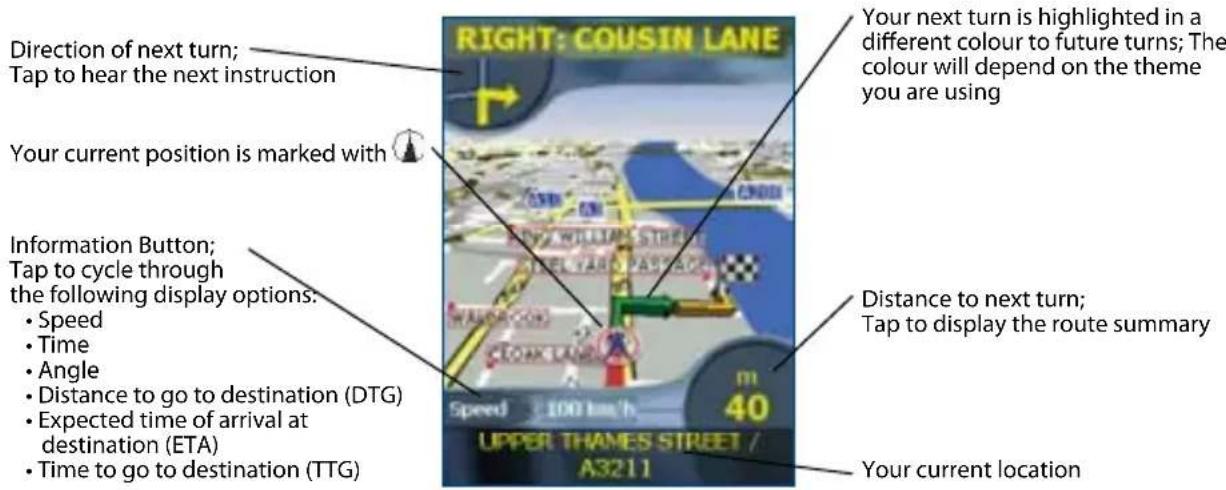
Next Instruction Screen
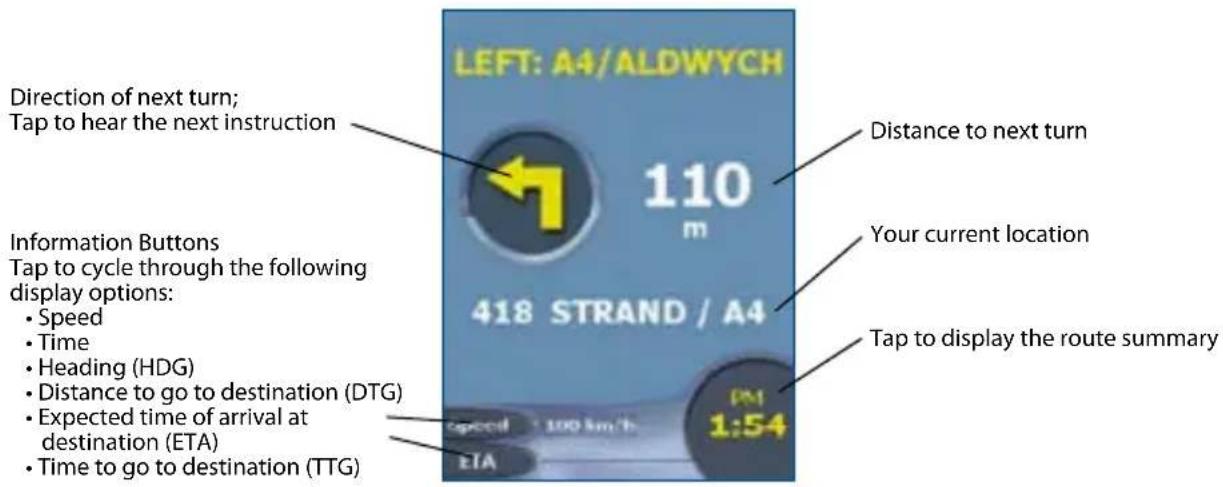
The Next Instruction screen displays information that you need for the next turn, the direction of the turn and the distance to the turn.
• To view the Next Instruction screen, either press the 4-way toggle to cycle through the screens until the Next Instruction screen is displayed, or tap Map on the Main Menu.
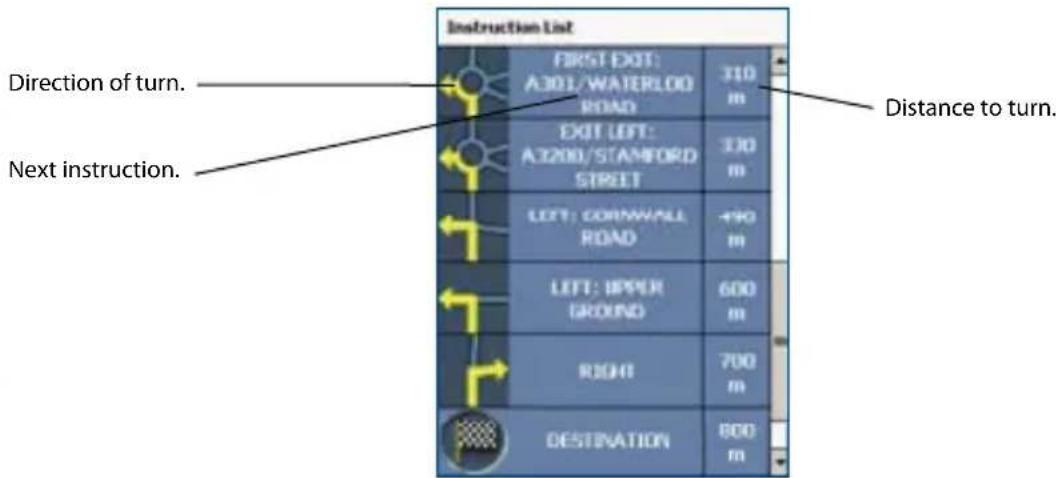
Instruction List Screen
The Instruction List screen displays a list of the remaining turns to your destination with the direction of the turn, the street name and the distance to the turn. The distance shown in the right column are measured between each turn and the destination. The next turn is highlighted.
- To view the Instruction List screen, press the 4-way toggle to cycle through the screens until the Instruction List screen is displayed.
- Scroll up and down the list of instructions using to scroll up and to scroll down.
- Tap and hold to access the Pictorial Intersections menu to select whether to display pictorial intersection icons or next turn icons.
Back-On-Track Automatic Rerouting
Your route is redirected if you make a wrong turn. The Rerouting symbol will display on the 3D Map and Next Instruction screens while the route recalculates.
Automatic rerouting is enabled on the Route screen.
For information on adjusting settings, see the SmartS V3 for Pocket PC User Manual.
Saving Favourites and Quick Navs
Favourites are used to access frequently used destinations without having to re-enter information.
You are able to save your three most frequently used Favourites as Quick Navs. Using a Quick Nav is the quickest and easiest way to set your destination. Quick Navs are accessed from the Quick Nav screen.
For more information on Favourites and Quick Navs, see the User Manual.
Saving a Favourite
- From the Main Menu, tap Destination, then Address.
Note: You can also add an Intersection or POI as a Favourite. - Select a country from the Country drop-down box.
-
Type and select the destination address:
-
Type the name of a geographical location such as a town, city, state or county in the Area box. Select the area from the list that displays.
- Type the name of a road in the Road box. Select the road from the list that displays.
-
Type the street number in the House No box. Select the road from the list that displays.
-
Tap . The favourite is saved with the name of the road.
Converting a Favourite to a Quick Nav
- From the Main Menu, tap Destination, then Favourites.
- Select the Favourite to convert to a Quick Nav.
- Tap 7. The Favourite Edit screen will display.
- In the Save as box, select a Quick Nav to save this favourite to.
- Tap to save the Quick Nav. The Favourite List screen will display.
Using Quick Navs
- From the Main Menu, tap Quick Nav.
- Tap your previously saved Quick Nav destination. The 3D Map screen will open. SmartS will calculate and display the route to the Quick Nav.
Using Favourites
- From the Main Menu, tap Destination, then Favourites.
- Select a Favourite from the list.
3. Select one of the following options:
• Displays the Routing Settings screen,
- Opens the Favourite Edit screen to edit the Favourite,
• X Deletes the Favourite,
• Displays the Favourite on the Map screen,
• Calculates the route to the Favourite and displays it on the 3D Map screen.
Further Information
For information on SmartS features not detailed in this Quick Start Guide, such as customising settings, installing SmartS Desktop, Basemaps and Custom Points of Interest (POIs), see the SmartS V3 for Pocket PC User Manual.
SmartS V3 for Pocket PC User Manual
The SmartS V3 for Pocket PC User Manual can be accessed from either:
• in the Docs folder on the Application Installer CD, or
- SmartS Desktop - Help > Read User Manual
Note: Adobe Acrobat Reader is required to view the SmartS V3 for Pocket PC User Manual.
Contents
- Introduction ...... 3
- Installing Smart S 4
- Smart S Desktop 5
- Installing Maps Using Smart S Desktop ...... 6
- Starting Smart S 7
- Controlling Smart S 8
- Main Menu Screen 9
- GPS Status ....10
- Setting your Destination 12
- Avoiding an Area ....17
- Viewing your Route ....18
- Map Screen Pop-up Menu 23
- Route Demonstrator....24
- Trip Meter 24
- Favourites and Quick Navs......25
- Settings 27
- Smart S Desktop Advanced Features ....33
- Continuous Continental Navigation ......35
- Improving Performance ....36
- Accessories ....37
1. Introduction
Whether you travel in your own country, or overseas, SmartS will direct you to your destination without the need for map books and second-hand instructions.
The Global Positioning System is available free of charge, at any time, and depending on your GPS receiver, may be accurate to within 5 m (15 ft). SmartS maps provide street level detail for door-to-door navigation, including Points Of Interest (POIs) such as accommodation, railway stations and airports.
Use this manual to help you install SmartS, learn how to operate it effectively and safely, and discover the range of features available to you.
GPS and GPS Signals
The Global Positioning System (GPS) is a network of satellites that transmit accurate time and position information worldwide. GPS receivers receive signals from these satellites, and use the information to determine an exact location.
GPS satellites orbit the Earth at around 12,000 miles. While a GPS receiver can detect signals from up to 12 satellites at any time, only three are needed to provide the two-dimensional position or "fix" (latitude and longitude) required for vehicle navigation systems. GPS data is available free of charge for any user.
SmartS is designed to use GPS information to find your current position, and calculate the best route to your desired destination using the available road maps. SmartS will then guide you with voice and visual commands to your destination using the continuous stream of GPS data to track your position.
Safety Notice
In a vehicle, it is your sole responsibility to place, secure, and use your PDA in a manner that will not cause accidents, personal injury or property damage. The user of this product is solely responsible for observing safe driving practices.
It is your sole responsibility to adhere to the following safety instructions at all times:
- Do not operate SmartS while driving
- Do not mount your GPS receiver or PDA in a way that interferes with airbags or other safety equipment
- Do not use or handle your GPS receiver or PDA when it is hot, leave it to cool out of direct sunlight.
Navman disclaim all liability for use of this product in a way that may cause accidents, damage or that may violate law.
2. Installing SmartS
Begin by installing SmartS Desktop on your computer. Then install and register SmartS on your PDA, activate and download the maps you require from SmartS Desktop. You will need an Internet connection to complete activation.
Note: Windows XP users, ensure XP Service Pack 1 or higher is installed before you install SmartS Desktop.
Step 1. Install Smart☒ Desktop on your Computer
- Close all open programs on your computer.
- Insert the SmartS CD into your computer CD-ROM drive. The SmartS Desktop installer will start.
-
If your computer does not automatically launch the CD, start the installation manually: Start > Run.
Type d:\setupSSP_PPC.exe where d is the letter assigned to your CD-ROM drive. Click OK. -
Follow the screen prompts to install Smart Desktop.
- Select your preferred language for SmartS Desktop when prompted.
- Review and accept the License Agreement when prompted.
SmartS Desktop will open. You are now ready to install and activate SmartS on your PDA.
Step 2. Install and Activate Smart☒ on your PDA
- Close all open programs on your PDA.
- Connect your PDA to your computer via MicrosoftActiveSync 3.5 or higher.
- Open SmartS Desktop if it is not already open: Start > Programs > Navman > SmartS Desktop.
- Follow the prompts to install SmartS on your PDA.
- SmartS must be installed on your PDA, not a memory card.
-
Follow the prompts to register online and activate SmartS on your PDA.
-
Review and accept the Privacy Notice when prompted.
- You will be prompted to enter your contact details so Navman can advise you when updates are released.
- Enter your SmartS Application Key.
- Your computer will connect to the Internet and activate your SmartS Application Key.
You are now ready to install a map to your PDA.
3. SmartS Desktop
SmartS Desktop is used to manage maps to and from your PDA, obtain software updates, manage Custom Points of Interest (POIs) and install Basemaps.
Accessing SmartS Desktop
Once SmartS Desktop has been installed, you can access it from the Start menu:
Start > Programs > Navman > SmartS Desktop
Updating SmartS
It is recommended that you regularly check the Navman website for software updates to the version of SmartS you are using:
- Open SmartS Desktop: Start > Programs > Navman > SmartS Desktop
- On the Setup menu, select Update software then Check for updates on the web. Your computer will connect to the Internet and display the Navman website.
- Download the update for your region to your computer, if available.
- On the Setup menu, select Update software then Update software on Pocket PC. Follow the prompts to update SmartS.
4. Installing Maps Using SmartS Desktop
SmartS comes with one Map Product Key that will allow you to install one map. If you require an additional map, you must first purchase an additional Map Product Key from your Navman supplier. Use SmartS Desktop to activate your Map Product Key and install the required map.
Install and Activate Maps on your PDA
- Insert a memory card in your PDA if you will be installing more than one map.
- Connect your PDA to your computer using a USB cable, synchronisation cradle, or other device that came with your PDA.
- Microsoft ActiveSync® will synchronise with your PDA.
- Open SmartS Desktop: Start > Programs > Navman > SmartS Desktop.
- Insert a SmartS Map CD into your computer CD-ROM drive. The available maps will display.
- Click the map you want to install to your PDA. Maps are of population areas and not of political areas such as counties or states. You may need to install multiple maps to cover the desired geographical area.
- If you have already activated a Map Product Key, or your PDA came with a pre-activated Map Product Key, the map will change colour to indicate it has been selected. Go to step 8, otherwise continue.
- Follow the prompts to activate the Map Product Key.
- Enter your Map Product Key.
- Your computer will connect to the Internet and activate your Map Product Key.
- You will be prompted to enter or update your contact details so Navman can advise you when updates are released.
- Your computer will again connect to the Internet to confirm the activation of your Map Product Key.
- Click the map to install to your PDA. The map will change colour to indicate it has been selected. The map is listed in the Selected section of the Desktop Selected Maps tab.
- If you have another Map Product Key to activate, go to step 5.
- Click an Add to button to install all maps listed in the Selected section of the Desktop Selected Maps tab to your PDA, memory card or memory card reader.
Remove Maps from your PDA
- If you will be removing a map from your memory card, insert the memory card in your PDA.
- Open SmartS Desktop: Start > Programs > Navman > SmartS Desktop.
- Open theMaps on Pocket PC section: Pocket PC tab > Maps on Pocket PC.
- Click the map to be removed and select Remove from Pocket PC from the pop-up menu.
5. Starting SmartS
By now, you have installed SmartS on your Pocket PC or memory card and mounted your GPS Receiver in your vehicle, if required. You are now ready to start SmartS and ensure that your Pocket PC and GPS receiver are communicating successfully.
-
Refer to your GPS receiver manual to establish a valid GPS communications link between your Pocket PC and GPS receiver.
-
Close all open programs on your Pocket PC to provide memory resources for SmartS.
Note: Tapping the ☑ or in the top right corner of an application does not usually close the application, but leaves it running in the background. To close all applications see your Pocket PC manual.
-
TapStart (a) to display the Start menu (see Figure One).
-
Tap Programs (b) on the Start menu.
-
On the Programs screen, tap the SmarST V3 (c) icon (see Figure Two).
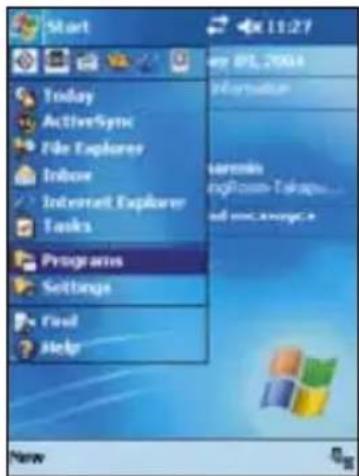
Figure One Figure Two
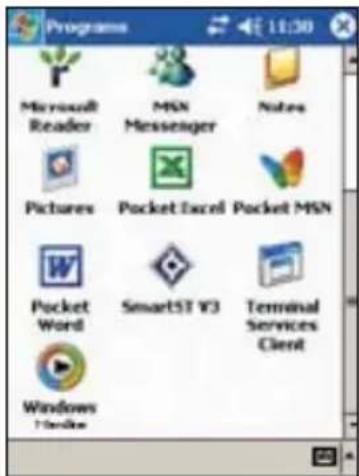
-
The Legal Notice screen will display. Read the legal notice and tap I Agree to confirm that you understand.
-
The Tutorial will display. Tap the button to move through the screens.
-
The Map screen will open. The message GPS Port Closed or Waiting for GPS will display until a GPS fix is obtained.
You are now ready to obtain a GPS fix.
6. Controlling SmartS
4-way Toggle
The appearance of the 4-way toggle differs between models of Pocket PC. It may be referred to as a navigation button or navigation stick; It may be a 5-way toggle. See your Pocket PC manual to identify the 4-way toggle.
Acer N30 Pocket PC - Configuring Hardware Buttons
The Acer N30 does not have a toggle. To use SmartS you must first assign Button 1 to
| Toggle Description | |
Left  | Opens the Main Menu screen. |
Right  | Cycles through the navigation screens once a route has been calculated:• Map screen• 3D Map screen• Next Instruction screen• Instruction List screen. |
Up  | From the Map screen, enables you to zoom in to view less of the street map, but with more detail.From the 3D Map screen, with the Information button set to Angle, enables you to increase the viewing angle. |
Down  | From the Map screen, enables you to zoom out to view more of the street map, but with less detail.From the 3D Map screen, with the Information button set to Angle, enables you to decrease the viewing angle. |
Touch Screen
Use the stylus with the Pocket PC touch screen to navigate and use the Main Menu options, set destination addresses and configure the GPS status. See your Pocket PC manual for information on using the stylus with the touch screen.
Tap and hold the stylus on the Map screen to activate the pop-up Map menu. See page 23 for information on the pop-up Map menu.
7. Main Menu Screen
The Main Menu screen gives you access to all of SmartS's functions, including navigating to a destination.
- From the Map screen, push the 4-way toggle to open the Main Menu screen.
- Tap, to display more Main Menu options.
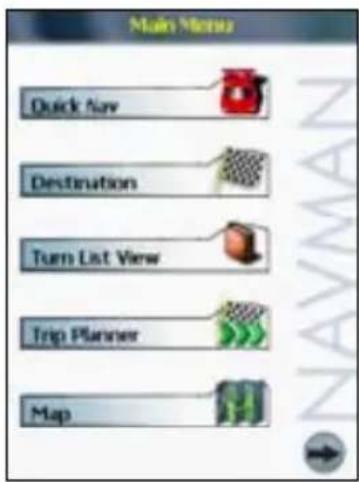
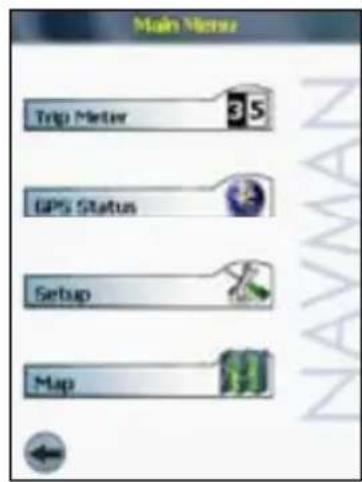
8. GPS Status
Signals are transmitted by Global Positioning System (GPS) satellites orbiting the Earth. This screen provides a visual representation of the information being received. Latitude and longitude are displayed, along with a North-pointing compass, the heading in degrees and ground speed. Satellites available are shown as segments.
From the Main Menu, tap, then GPS Status. The GPS Status screen will display:
- Yellow Segment — a satellite is being tracked but is not being used
- Red Segment — a satellite is being used to determine a two dimensional (2D) position fix.
- Green Segment — a satellite is being used to determine a three dimensional (3D) position fix.
The circle under the satellite segments is green when there is a valid fix (2D or 3D), and red when there is no fix. While a 2D fix is sufficient to maintain a valid fix, a 3D fix is more accurate.
Indicates whether the COM port is open.
Latitude and longitude of current position. Tap to toggle the units displayed between degrees, minutes and decimal seconds; decimal degrees; degrees and decimal minutes.
Each segment represents a satellite.
Number of satellites used in GPS fix
Type of fix
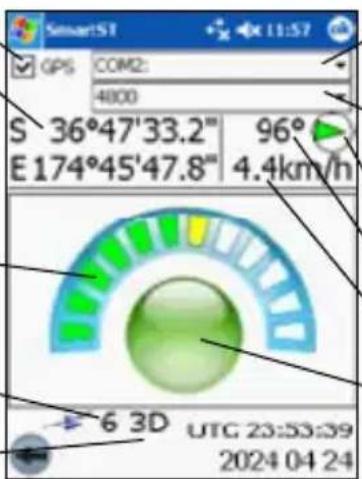
COM Port drop down box which displays the selected GPS receiver or COM port
Baud rate drop down box which displays the selected Baud rate for the GPS receiver COM port.
North pointing compass
Current heading in degrees
Ground speed
A green circle indicates the GPS Receiver has a valid fix; A red circle indicates no valid fix
Coordinated Universal Time (UTC) and date
Getting a GPS Fix
- From the Map screen, push the 4-way toggle to open the Main Menu screen.
- Tap, then GPS Status to open the GPS Status screen.
- Tap the first drop-down box and select the COM port for your GPS receiver from the list that appears. See your GPS receiver manual for the correct COM port.
- Tap the second drop-down box and select the baud rate (speed) for your GPS receiver from the list that appears. See your GPS receiver manual for the correct baud rate.
- Tap the GPS checkbox to open the COM port. Your Pocket PC will now obtain a GPS fix. A clear view of the sky is required.
- Tap to return to the Map screen.
GPS Status Messages
The GPS status messages are displayed on the Map, 3D Map, Next Instruction and GPS Status screens. These messages provide feedback on the status of the GPS receiver connection.
The following table explains the meaning of these messages and includes suggested actions.
| Status Message Meaning Suggested Action | ||
| GPS Port Closed | A GPS COM port has not been opened. | On the GPS Status screen, tap the GPS checkbox to open the COM port selected in the first drop-down box. |
| No GPS Data | A GPS COM Port has been opened but no GPS data is being received. | Ensure the GPS receiver is turned on and connected. |
| Waiting for GPS | A GPS COM Port has been opened, GPS data is being received, but a GPS position fix has not yet been established. | Ensure the GPS receiver has an unobscured view of the sky.If you are in a vehicle with athermic (heat reflecting) windows, you will require an external GPS antenna (sold separately). |
| GPS Lost | Your GPS fix has been lost. | Ensure the GPS receiver has an unobscured view of the sky. |
| No GPS Message | You have a valid GPS position fix and GPS data is being received. | No action required. You can navigate to your destination. |
9. Setting your Destination
Before you travel, you must specify a destination for SmartS to plan your route.
Note: Depending on the country of destination, one or more fields may not be available when selecting your destination.
To a Street Address
- From the Main Menu, tap Destination, then Address. The Destination Address screen will open.
![Destination Address Country UNITED KINGDOM Post Code Area GREENWITH, LONDON, ENGL Road OLD DOVER ROAD, GREENWITH House No 67 123 1 2 3 4 5 6 7 8 9 0 - = + Tab g w e r t y u i o p [ ] CAP a s d f g h j k l ? * Shift z x c v b n m _ / + L0 30 \ 4 T ← →](/content/2026/06/1181794/images/d727b57cfe0c3f6afaef35a7a27058818384c37f0616fd266103f94a71bf172b.jpg)
-
Select a country from the Country drop-down box.
-
Type and select the destination address:
• To select a post code or zip code, type up to five characters of the post code in the Post Code box, or the zip code in the Zip Code box. Select the post code or zip code from the list that displays. Note: When navigating in the United Kingdom, type the post code with spaces, but without the last two letters.
- To select an area, type the name of a geographical location such as a town, city, state or county in the Area box. Select the area from the list that displays.
- To select a road, type the name of a road in the Road box. Select the road from the list that displays.
- To select a house number, type the house number in the House No box. Select the number from the list that displays.
- Complete one of the following:
• To calculate and display the route to the address, tap . The 3D Map screen will open.
• To display the address without calculating the route, tap . The Map screen will open.
• To add the address as a favourite, tap.
To the Intersection of Two Streets
- From the Main Menu, tap Destination, then Intersection. The Destination Intersection screen will open.
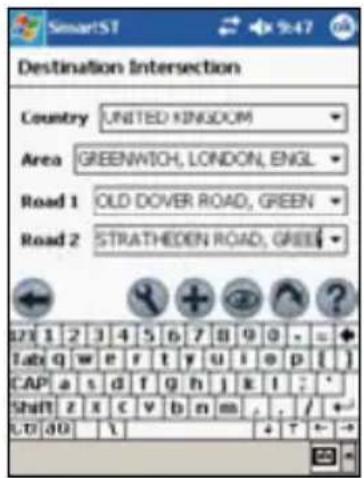
- Select a country from the Country drop-down box.
- Type and select the destination address:
• To select an area, type the name of a geographical location such as a town, city, state or county in the Area box. Select the area from the list that displays.
- Type the name of one of the intersecting roads in the Road 1 box. Select the road from the list that displays.
- Tap the Road 2 box. A list of roads that intersect with the road specified in the Road 1 box will display. Select a road from the list that displays.
- Complete one of the following:
• To calculate and display the route to the intersection, tap . The 3D Map screen will open.
• To display the address without calculating the route, tap. The Map screen will open.
• To add the intersection as a favourite, tap .
To a Point of Interest (POI)
A POI is a named site, feature, landmark or public venue. POIs are stored in Categories, such as parks and museums. POIs can be displayed as icons on a map.
Note: You can also navigate to a POI via the pop-up Map menu. See page 23.
- From the Main Menu, tap Destination, then Points of Interest. The Points of Interest screen will open.
![Points of Interest Country UNITED KINGDOM Category FOOD AND DRINK Type CAFES Area 123 1 2 3 4 5 6 7 8 9 0 - = - Lab q w e r t y u i o p [ ] CAP a s d f g h j k l ; * Shift z x c v b n m , . / + U O A O X 4 T →](/content/2026/06/1181794/images/7ec9975b34622c9ea63cf19cad3ceb362fd6630369d84b2049c33b8bcca2e9d5.jpg)
-
Select a country from the Country drop-down box.
-
Type and select the POI search criteria:
- Select a category of POI from the Category drop-down box.
- Select a type of POI from the Type drop-down box.
- Type the name of a geographical location such as a town, city, state or county in the Area box. Select the area from the list that displays.
-
Tap to open the Points of Interest Results screen displaying your search results.
-
Select a POI from the list of search results. Only the first 40 search results will display.
- If the list is long, begin typing the name of the POI in the Name box. The list of POIs will reduce to match your search.
- Complete one of the following:
• To calculate and display the route to the POI, tap. The 3D Map screen will open.
• To display the address without calculating the route, tap . The Map screen will open.
• To add the POI as a favourite, tap .
To a Destination using Pocket PC Contacts
Addresses stored in your Pocket PC Contacts database can be used to set a destination. The contact address must be applicable to an installed map.
- From the Main Menu, tap Destination, then Contact. The Find Contact screen will open.
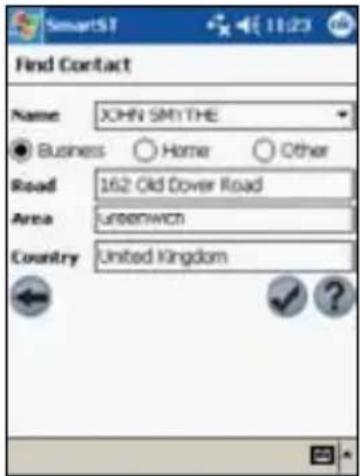
-
Type the name of your contact in the Name box. Select the contact name from the list that displays.
-
Tap either the Business, Home or Other option to display the correct address details of your contact.
-
Tap . The Destination Address screen will open.
-
Confirm that the correct details are displayed.
- If the details of the contact address are incorrect they will display in red. Type and select the correct details and tap Update. Your Pocket PC Contacts database will be updated.
- Complete one of the following:
• To calculate and display the route to the contact address, tap . The 3D Map screen will open.
• To display the address without calculating the route, tap . The Map screen will open.
To a Recent Destination
The last 20 routes are stored as recent destinations.
- From the Main Menu, tap Destination, then Recent. The Recent Destinations screen will open.
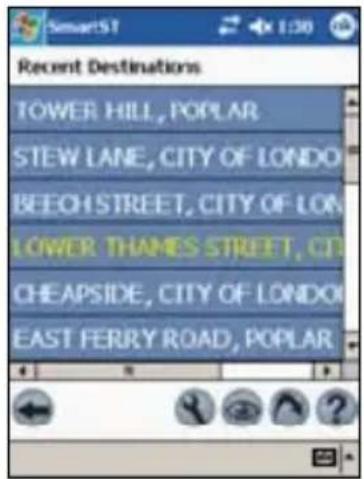
- Select a destination from the list.
- Complete one of the following:
• To calculate and display the route to the Recent Destination, tap . The 3D Map screen will open.
• To display the address without calculating the route, tap . The Map screen will open.
Multiple Destination Points with the Trip Planner
You can use the Trip Planner to set multiple destination points for your trip. SmartS will calculate a route via each of these points in the specified order. Destination points can be added via the Trip Planner screen or by selecting Add to Trip from the Map pop-up menu.
Creating a Trip
- From the Main Menu, tap Trip Planner. The Trip Planner screen will display.
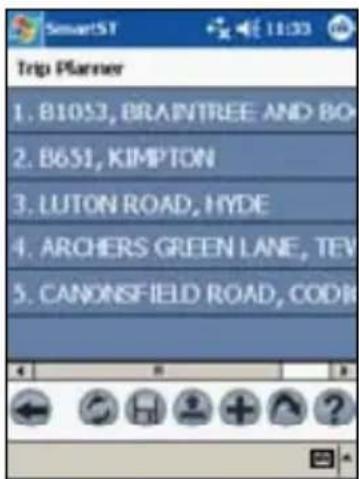
-
Tap to add a destination point. The Destination screen will open.
-
Tap Address. The Destination Address screen will open.
Note: You can also add destination points using Intersections, Points of Interest,
Favourites, your Pocket PC Contacts database and recent destinations.
-
Select a country from the Country drop-down box.
-
Type and select the destination address:
- To select a post code or zip code, type the up to five characters of the post code in the Post Code box, or the zip code in the Zip Code box. Select the post code or zip code from the list that displays.
Note: When navigating in the United Kingdom, type the post code with spaces, but without the last two letters.
- To select an area, type the name of a geographical location such as a town, city, state or county in the Area box. Select the area from the list that displays.
- To select a road, type the name of a road in the Road box. Select the road from the list that displays.
- To select a street number, type the street number in the House No box. Select the road from the list that displays.
- Tap . The destination point is added to your trip.
- To add another destination point, go to step 4.
-
Tap to return to the Destination screen.
-
Tap to return to the Trip Planner screen.
-
To manage the trip, tap and hold a point. The pop-up Trip Planner Menu will display.
• To move a point up, select Move Up.
- To move a point down, select Move Down.
• To delete a point, select Delete.
• To delete all points, select Clear All.
- To skip all prior destination points, select Skip To.
- To save the trip to your PDA or memory card:
- Tap. The Trip Save As screen will open.
- Type a name for the trip in the Name box.
- Select a folder from the Folder drop-down box in which to save the trip.
- Select a memory location from the Location box in which to save the folder and trip.
- Tap OK. The Trip Planner screen will reopen.
- Tap . The 3D Map screen will open. SmartS will calculate and display the trip.
Loading a Trip
-
From the Main Menu, tap Trip Planner. The Trip Planner screen will display.
-
Tap . The Trip Open screen will open.
-
Select the folder containing the trip to be loaded from the Folder drop-down box.
-
Tap the trip to be loaded from the list of trip (.trp) files. The Trip Planner screen will reopen.
- If you have a previous trip displayed on the Trip Planner screen, you will be prompted with the option to append the loaded trip to the displayed trip.
- Tap . The 3D Map screen will open. SmartS will calculate and display the trip.
Using the Map or 3D Map Screen to Plan a Route
You can plan a route directly from the Map or 3D Map screen using the pop-up Map menu. For more information on the pop-up Map Menu, see page 23.
- From the Main Menu, tap Map.
- Scroll the map by dragging the stylus and then lifting it off the map. Repeat until your destination is visible.
- Zoom in or out of the map as required to locate your destination using to zoom in and to zoom out.
- Tap and hold the road or POI icon that represents your destination. The pop-up Menu will display.
- Select Navigate to from the pop-up Map menu. SmartS will calculate and display the route to your destination.
10. Avoiding an Area
SmartS enables a route to be calculated that avoids a specified area on the map. Up to 10 Avoid Areas can be added per route. Avoid Areas are displayed as shaded areas.
Adding an Avoid Area
- From the Main Menu, tap Map.
- Tap and hold the area that you want to avoid.
- Select Add Avoid Area from the pop-up Map menu. An Avoid Area is displayed.
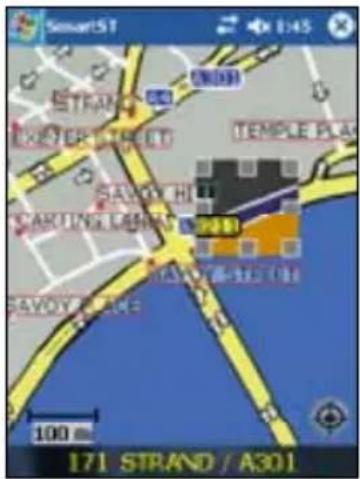
- Set the Avoid Area to the correct size and position.
• To position the Avoid Area, tap and drag it to the area you want to avoid.
- To size the Avoid Area, tap and drag the sizing boxes to the size required.
- Tap the Avoid Area to enable it.
Deleting an Avoid Area
- From the Main Menu, tap Map.
- Tap and hold the Avoid Area that you want to delete.
- Select Delete Avoid Area from the pop-up Map menu. The Avoid area is deleted.
Deleting all Avoid Areas
- From the Main Menu, tap Map.
- Tap and hold the Map screen outside of an Avoid Area.
- Select Clear Avoid Areas from the pop-up Map menu. All Avoid areas are deleted.
11. Viewing your Route
Once a route has been calculated, there are a number of ways to view it. Cycle through the screens by pressing the right 4-way toggle button.
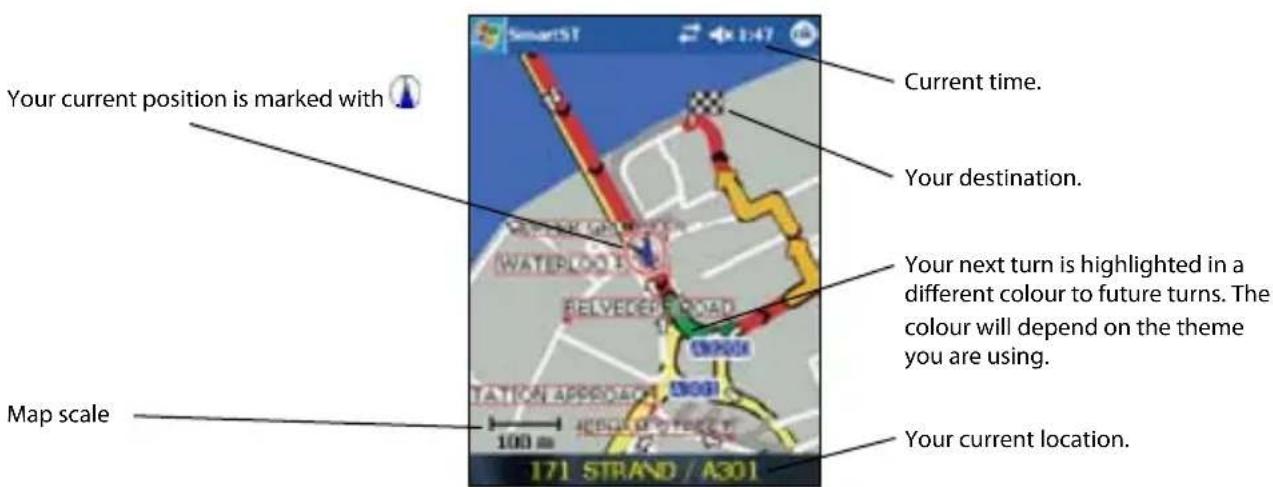
Map Screen
The Map screen is always oriented North, and shows your current position and surrounding street names. If the route has been calculated, the route and all turns are highlighted.
• To view the Map screen, either press the 4-way toggle to cycle through the screens until the Map screen is displayed, or tap Map on the Main Menu.
- Zoom in and out using to zoom in and to zoom out.
- Navigate around the map by dragging the stylus across the screen.
- Tap and hold to access the Map pop-up menu.
3D Map Screen
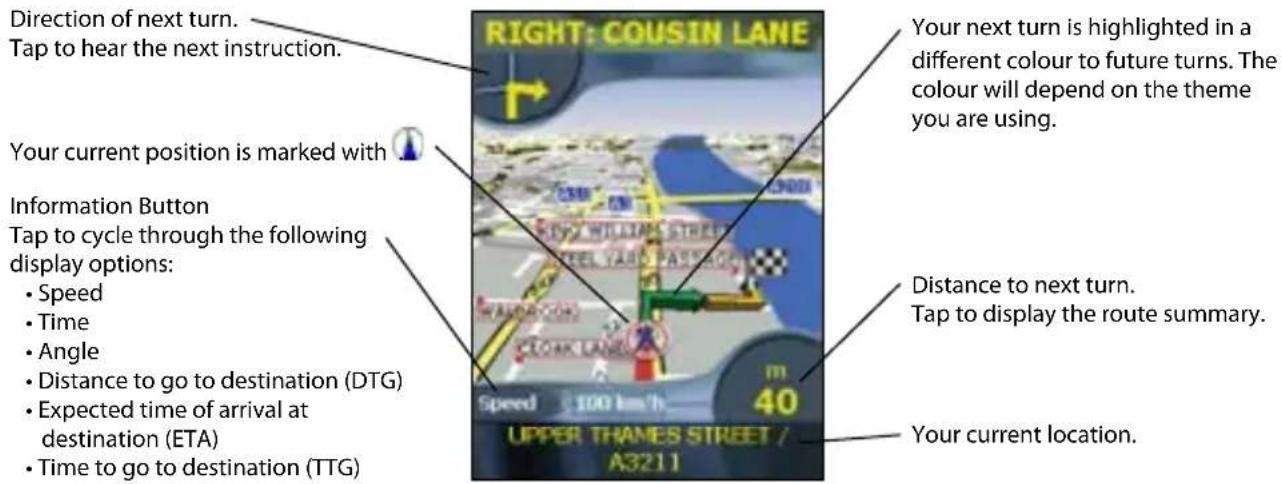
The 3D Map screen displays when a route is calculated, oriented to the travelling direction with an adjustable horizon.
• To view the 3D Map screen, either press the 4-way toggle to cycle through the screens until the 3D Map screen is displayed, or tap Map on the Main Menu.
- Zoom in and out using to zoom in and to zoom out.
- Change the viewing angle using to decrease the angle and to increase the angle when the Information button is set to Angle.
- Tap and hold to access the Map pop-up menu.
Next Instruction Screen
The Next Instruction screen displays information that you need for the next turn, the direction of the turn and the distance to the turn.
• To view the Next Instruction screen, either press the 4-way toggle to cycle through the screens until the Next Instruction screen is displayed, or tap Map on the Main Menu.
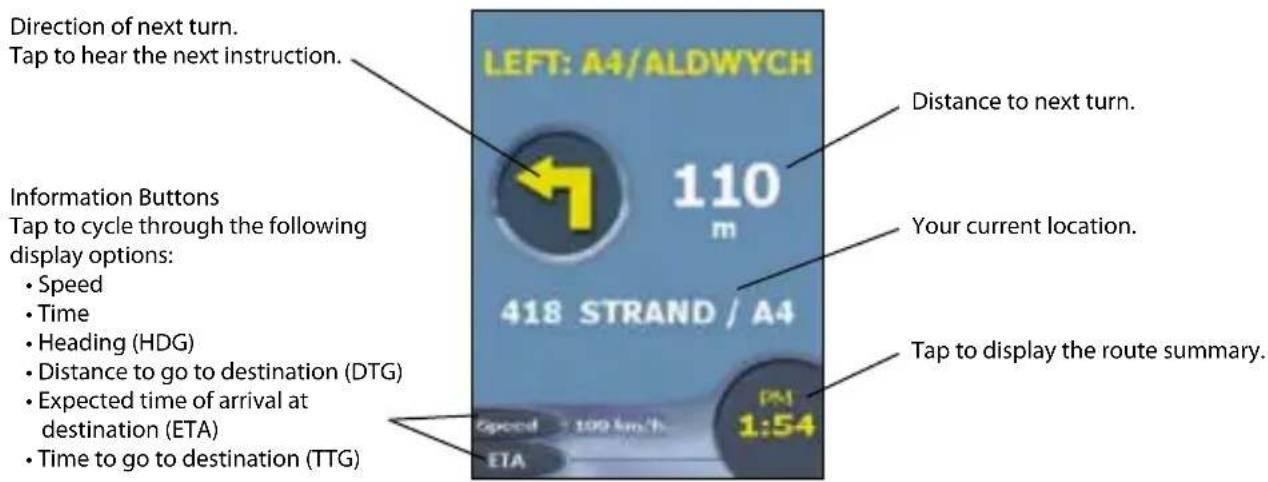
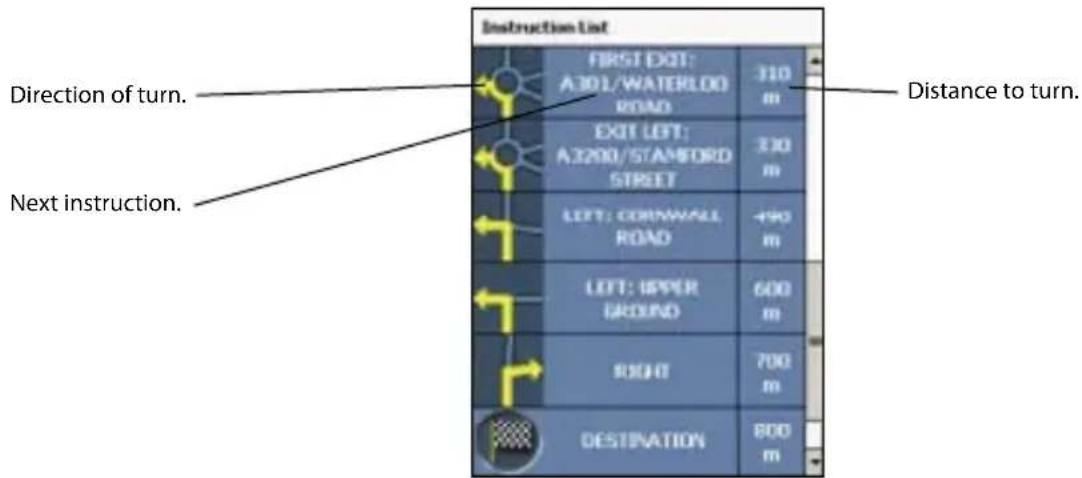
Instruction List Screen
The Instruction List screen displays a list of the remaining turns to your destination with the direction of the turn, the street name and the distance to the turn. Each distance shown in the righthand column represents the distance from your current location to that turn. The next turn is highlighted.
- To view the Instruction List screen, press the 4-way toggle to cycle through the screens until the Instruction List screen is displayed.
- Scroll up and down the list of instructions using to scroll up and to scroll down.
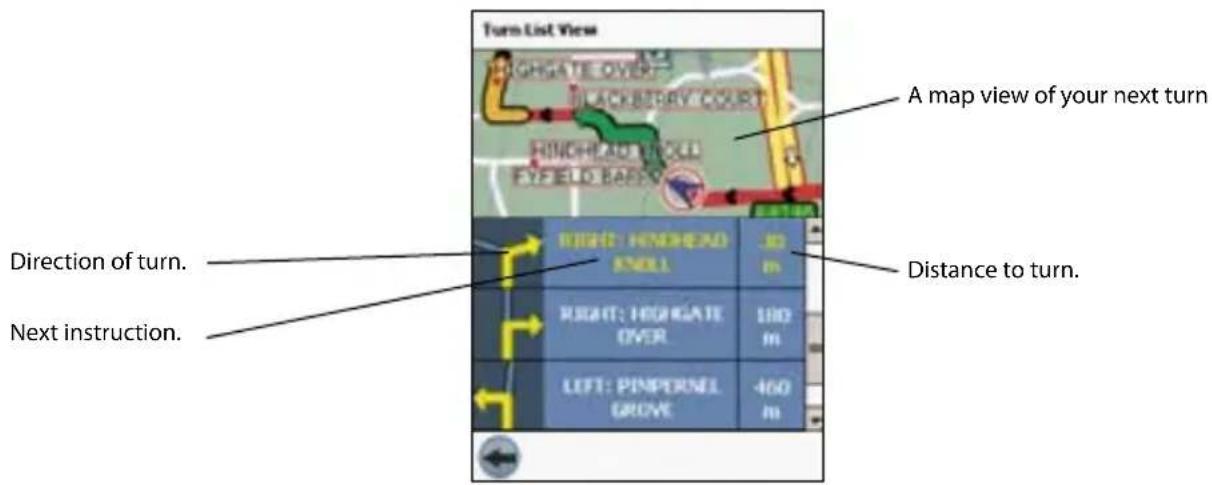
Turn List View Screen
The Turn List View screen displays a map view of your next turn in the top half of the screen, and a list of the remaining turns to your destination in the bottom half of the screen. Each distance shown in the righthand column represents the distance from your current location to that turn. The next turn is highlighted.
• To view theTurn List View screen tap Turn List View on the Main Menu.
- Scroll up and down the list of instructions using to scroll up and to scroll down.
- Tap an instruction to view the map for the turn in the top half of the screen.
Viewing the Route Summary
A summary of the calculated route can be displayed on the Map or 3D Map screen for five seconds.
The route summary includes:
- Departure street.
- Destination street.
- Distance of route.
• Time to go to destination (TTG).
• Distance to go to destination (DTG).
• Percentage of route completed (measured by distance).
To display the route summary:
- Tap and hold the Map or 3D Map screen.
- Select Route Summary from the Map pop-up menu. The route summary will display for five seconds.
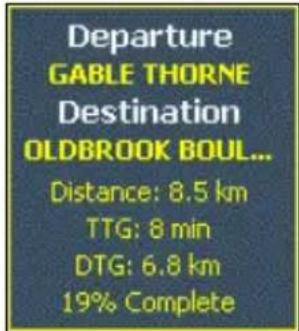
You can also display the route summary from the 3D Map and Next Instruction screens by tapping the lower-right corner of the screen.
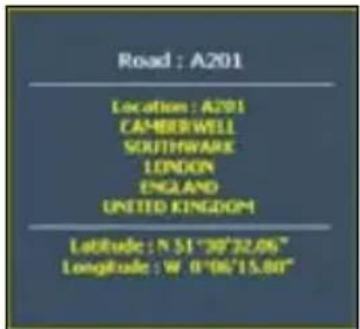
Viewing the Location Summary
A summary of a location can be displayed on the Map or 3D Map screen.
The location summary includes:
• Name of street, POI, Favourite or Quick Nav,
• Description of location
• Latitude and Longitude of location.
To display the location summary:
- Tap and hold the Map or 3D Map screen.
- Select the location name from the top of the Map pop-up menu. The location summary will display.
Back-On-Track™ Automatic Rerouting
Your route is recalculated if you make a wrong turn. The Rerouting symbol will display on the 3D Map and
Next Instruction screens while the route recalculates.
Automatic rerouting is set on the Route Settings screen.
12. Map Screen Pop-up Menu
The pop-up Map menu is displayed from the Map or 3D Map screens by tapping and holding a point on the screen.
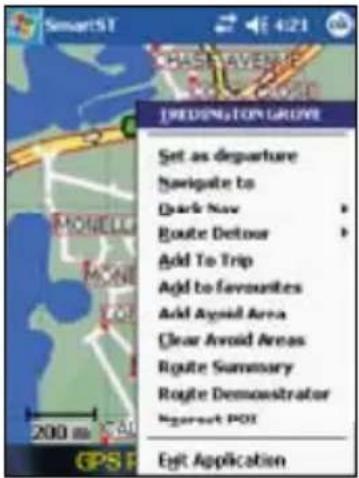
| Menu Option Description | |
| Location | The name of the road, POI, Favourite or Quick Nav.Select to display the location summary. |
| Set as departure Sets the | selected point as your departure point. |
| Navigate to | Sets the selected point as your destination point.SmartS will calculate and display the route to your destination. |
| Quick Nav Displays a list | of your Quick Navs. |
| Route Detour Reroutes | your route to avoid the next 1, 2, 5 or 10 kilometres or miles. |
| Add To Trip Adds the | lected point to your trip as a destination point. |
| Add to favourites Adds | the selected point to your Favourites. |
| Add Avoid Area Adds an | Avoid Area for you to size and locate. |
| Delete Avoid Area Deletes | es the selected Avoid Area. |
| Clear Avoid Areas Deletes | as all Avoid Areas. |
| Route Summary Displays | the route summary. |
| Route Demonstrator | Starts the Route Demonstrator, demonstrating navigation from your current position or departure point to your destination. |
| Nearest POI | Opens the Points of Interest screen. Select the POI to navigate to. |
| Exit Application | Exits SmartS. |
13. Route Demonstrator
The Route Demonstrator allows you to:
- Preview a route.
- Plan and view a route without a GPS fix, such as when you are inside a building.
Step 1. Select Departure Point
If you have a GPS fix, you do not need to select a departure point unless the demonstrated route is to start elsewhere.
- Find your departure point by scrolling the map with the stylus.
- Tap and hold the road or POI icon that represents your location.
- Select Set as departure from the pop-up Map menu.
Step 2. Select Destination Point
- Find your destination point by scrolling the map with the stylus.
- Tap and hold the road or POI icon that represents your destination.
- Select Navigate to from the pop-up Map menu. The 3D Map screen will display and the Route Simulator starts your route.
- If you have selected the Repeat Route Demonstrator check box on the Display Settings screen, the Route Demonstrator will repeat until you stop it.
Step 3. Activate Route Demonstrator
- From the Main Menu, tap Map.
- Tap and hold the Map screen.
- Select Route Demonstrator from the pop-up Map menu.
To Disable Route Demonstrator
- Tap and hold the Map screen.
- Deselect Route Demonstrator from the pop-up Map menu.
14. Trip Meter
The Trip Meter - Current Route screen is used to view the distance travelled, average speed, maximum speed, time taken and stationary time for your current trip.
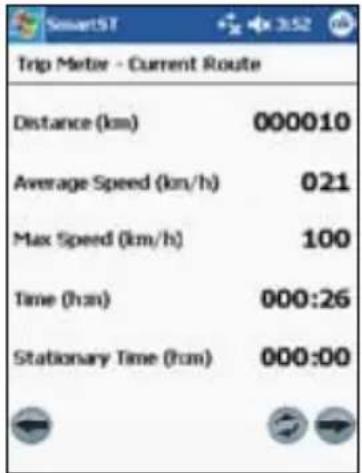
- From the Main Menu, tap , then Trip Meter. The Trip Meter - Current Route screen will open. The Trip Meter - Totals screen is used to view the distance travelled, average speed, maximum speed, time taken and stationary time for all of your trips to date, or since the trip meter was last reset.
- From the Trip Meter - Current Route screen, tap . The Trip Meter - Totals screen will open. Tap again to redisplay the Trip Meter - Current Route screen.
15. Favourites and Quick Navs
Favourites are used to access frequently used destinations without having to re-enter information. Favourites are accessed from the Favourite List screen.
You are able to save your three most frequently used Favourites as Quick Navs. Using a Quick Nav is the quickest and easiest way to set your destination. Quick Navs are accessed from the Quick Nav screen, or from the pop-up Map menu on the Map or 3D Map screens.
Saving a Favourite
- From the Main Menu, tap Destination, then Address.
Note: You can also add an Intersection or POI as a Favourite. - Select a country from the Country drop-down box.
-
Type and select the destination address:
-
To select an area, type the name of a geographical location such as a town, city, state or county in the Area box. Select the area from the list that displays.
- To select a road, type the name of a road in the Road box. Select the road from the list that displays.
-
To select a house number, type the house number in the House No box. Select the numbr from the list that displays.
-
Tap . The favourite is saved with the name of the road.
Converting a Favourite to a Quick Nav
- From the Main Menu, tap Destination, then Favourites.
- Select the Favourite to convert to a Quick Nav.
- Tap 1. The Favourite Edit screen will display.
- In the Save as box, select a Quick Nav to save this favourite to.
- Tap to save the Quick Nav. The Favourite List screen will display.
Editing a Favourite or Quick Nav
- From the Main Menu, tap Destination, then Favourites.
- Select the Favourite to edit.
- Tap 7. The Favourite Edit screen will display.
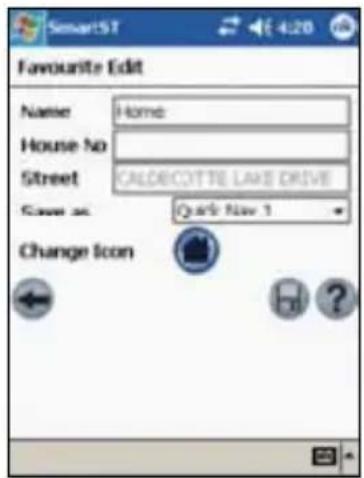
- In the Name box, type a name for the Quick Nav.
- To change the icon displayed on the Map and 3D Map screen:
a. Tap the Change Icon icon. The Favourite Change Icon screen will display.
b. Tap the icon you want for the Favourite.
- Tap to save the Quick Nav. The Favourite List screen will display.
Using Quick Navs
-
From the Main Menu, tap Quick Nav.
-
Tap your previously saved Quick Nav destination. The 3D Map screen will open. SmartS will calculate and display the route to the Quick Nav.
Using Favourites
- From the Main Menu, tap Destination, then Favourites.
- Select a Favourite from the list.
- Select one of the following options:
• - Displays the Routing Settings screen.
- Opens the Favourite Edit screen to edit the Favourite.
- Deletes the Favourite.
• - Displays the Favourite on the Map screen.
- Calculates the route to the Favourite and displays it on the 3D Map screen.
16. Settings
You can modify the following settings to suit your preferences:
Display Settings
- From the Main Menu, tap, Setup, then the Display tab. The Display Settings screen will open.
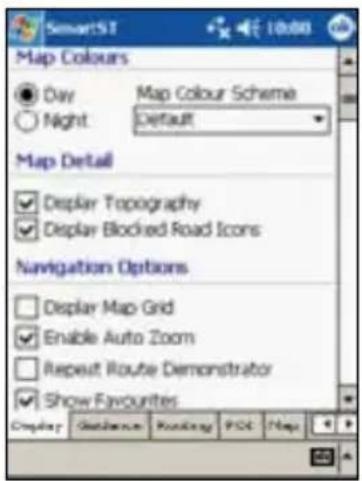
- Modify the settings as required:
• To improve screen contrast in light or dark conditions, select either Day or Night in the Map Colours section.
• To change the colour scheme of the Map screen, select your preferred colour scheme from the Map Colour Scheme drop-down box in the Map Colours section.
• To display a topographical map on the Map screen, select the Display Topography check box in the Map Detail section.
• To display No Entry icons on blocked roads on the Map screen, select the Display Blocked Road Icons check box in the Map Detail section.
• To display grid lines on the Map screen, select the Display Map Grid check box in the Navigation Options section.
• To enable auto-zoom when navigating to your destination, select the Enable Auto Zoom check box in the Navigation Options section. If selected, the Map and 3D Map screen will automatically zoom in or out depending on your speed to allow optimal view of your route.
• To enable the route demonstrator to be repeatedly played, select the Repeat Route Demonstrator check box in the Navigation Options section.
• To display favourites icons on the Map screen, select the Show Favourites check box in the Navigation Options section.
• To display the tutorial when starting SmartS, select the Show at Startup check box in the Tutorial section.
- Tap to accept these changes and open the Map screen.
Guidance Settings
- From the Main Menu, tap, Setup, then the Guidance tab. The Guidance Settings screen will open.
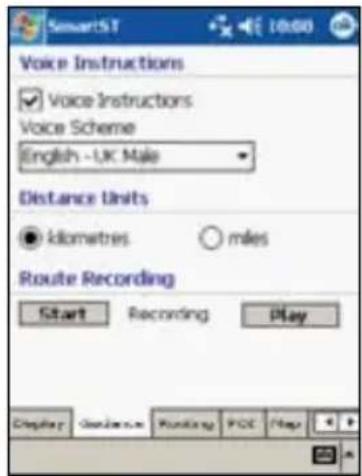
- Modify the settings as required:
• To enable voice guidance during navigation, select the Voice Instructions check box in the Voice Instructions section.
• To change the voice scheme used for voice guidance during navigation, select your preferred voice scheme from the Voice Scheme drop-down box in the Voice Instructions section.
• To change the units used to measure distance in SmartS, select either kilometres or miles, in the Distance Units section.
- Tap to accept these changes and open the Map screen.
Route Recording
Routes can be saved to your PDA or memory card for future reference.
To record a route, complete the following:
-
From the Main Menu, tap, Setup, then the Guidance tab. The Guidance Settings screen will open.
-
Tap Start in the Route Recording section to begin recording the route. The Route Recording Save As screen will open.
-
Type a name for the route in the Name box.
-
Select a folder from the Folder drop-down box in which to save the route recording.
-
Select a memory location from the Location box in which to save the folder and route recording.
-
Tap OK. The Guidance Settings screen will reopen.
-
Tap to open the Map screen.
-
Navigate to your destination.
-
From the Main Menu, tap Setup, then the Guidance tab. The Guidance Settings screen will open.
-
Tap Stop in the Route Recording section to stop recording the route.
-
Tap to open the Map screen.
To play a route recording, complete the following:
-
From the Main Menu, tap, Setup, then the Guidance tab. The Guidance Settings screen will open.
-
Tap Play in the Route Recording section to begin playing the route. The Route Recording Open screen will open.
-
Select the folder containing the route to be played from the Folder drop-down box.
-
Tap the route to be played from the list of recorded routes. The Routing screen will reopen.
-
Tap to open the Map screen. The route recording will be played.
-
From the Main Menu, tap Setup, then the Guidance tab. The Guidance Settings screen will open.
-
Tap Stop in the Route Recording section to stop playing the route
-
Tap to open the Map screen.
Route Settings
- From the Main Menu, tap, Setup, then the Routing tab. The Routing Settings screen will open.
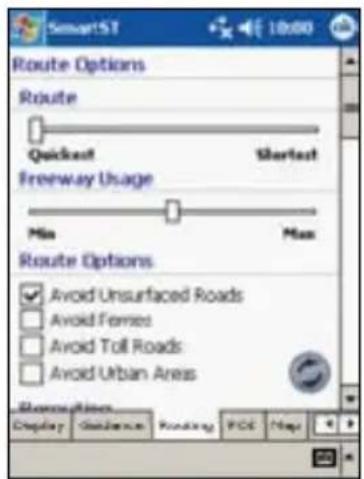
- Modify the settings as required:
- Move the Route slider towards Shortest for SmartS to give more weighting to the shortest distance when calculating a route; Move the Route slider towards Quickest for SmartS to give more weighting to the fastest time when calculating a route.
- Move the Freeway Usage slider towards Min for SmartS to use freeways less often when calculating a route; Move the Freeway Usage slider towards Max for SmartS to use freeways more often when calculating a route.
- To prevent unsurfaced roads from being included in the calculated route, select the Avoid Unsurfaced Roads check box in the Route Options section.
• To prevent ferries from being included in the calculated route, select the Avoid Ferries check box in the Route Options section.
• To prevent toll roads from being included in the calculated route, select the Avoid Toll Roads check box in the Route Options section.
• To prevent urban areas from being included in the calculated route, select the Avoid Urban Areas check box in the Route Options section.
- To enable Back on Track™ automatic rerouting, select the Automatic Rerouting check box in the Rerouting section. Automatic rerouting will update the calculated route if you take a wrong turn.
- Tap

cept these changes and open the Map screen.
Points of Interest (POI) Settings
Points Of Interest (POIs) in a region are grouped into Categories. This function allows you to select the categories you need. For example, you may be interested in entertainment venues only, and want to disable other POI categories such as schools.
- From the Main Menu, tap, Setup, then the POI tab. The Points of Interest Settings screen will open.
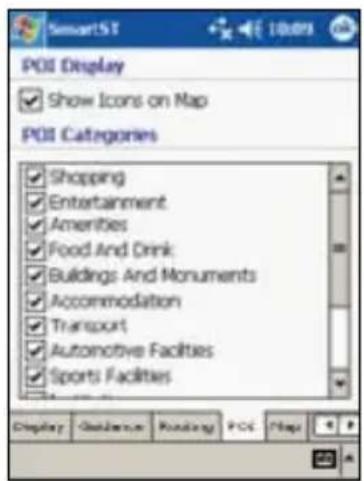
-
To enable POIs to be displayed on the Map screen, select the Show Icons on Map check box in the POI Display section.
-
Select or clear the appropriate check boxes in the POI Categories section until only those categories of POIs that you would like to display on the Map screen are selected.
-
Tap to accept these changes and open the Map screen.
Active Map Selection Settings
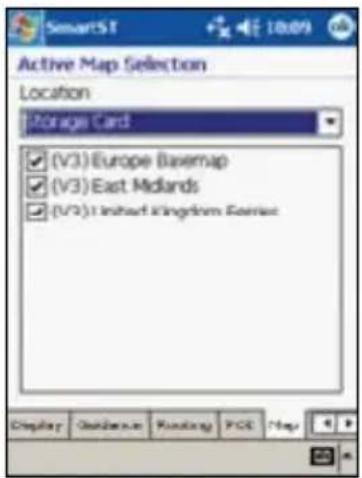
The Active Map Selection Settings screen allows you to specify which of the available maps are to be used. SmartS uses program memory to store map regions, so it is recommended that you only specify the map or maps that you currently require.
- From the Main Menu, tap, Setup, then the Maps tab. The Active Map Selection Settings screen will open.
-
Select a memory location from the Location drop-down box to display a list of the maps installed in each location.
-
Select or clear the appropriate check boxes until only those maps that you would like to use are selected.
-
If you have access to more than one memory location, go to step 2 and select another location.
-
Tap to accept these changes and open the Map screen.
Lists Settings
The Lists Settings screen allows you to export your favourites to a comma-delimited (.csv) file. Comma-delimited files can be accessed by most database systems.
To export your SmartS favourites to a comma-delimited file, complete the following:
-
From the Main Menu, tap, Setup, then the Lists tab. The Lists Settings screen will open.
-
Select the Favourites option.
-
TapExport to export your favourites to: My Device/My Documents/Navman/favourites.csv.
-
Tap to open the Map screen.
The List screen also allows you to delete all favourites, Quick Navs or recent destinations.
To delete your SmartS favourites, Quick Navs or recent destinations, complete the following:
-
From the Main Menu, tap, Setup, then the Lists tab. The Lists Settings screen will open.
-
Select either the Favourites, Quicknavs or Recents option.
-
TapClear to delete your favourites. Quick Navs or recent destinations.
-
Tap to open the Map screen.
Sound Settings
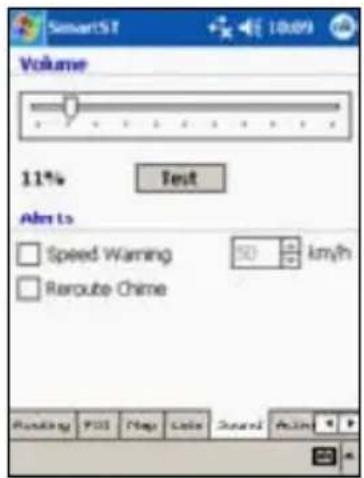
- From the Main Menu, tap, Setup, then the Sound tab. The Sound Settings screen will open.
- Modify the settings as required:
- Move the Volume slider to the right to increase volume; Move the Volume slider to the left to decrease volume. Tap Test to test the volume.
• To enable an audible warning when travelling over a specified speed, select the Speed Warning check box. Select or type the speed over which the warning is to sound.
- To enable an audible chime when Back-on-Track™ Automatic Rerouting is activated, select the Reroute Chime check box.
- Tap to accept these changes and open the Map screen.
Active Points of Interest (POI) Settings
Active POIs are custom POIs that are announced when in close proximity. Custom POIs are added from the SmartS Desktop POI Editor.
-
From the Main Menu, tap, Setup, then the Active POI tab. The Active POI Settings screen will open.
-
Select the custom POI to be configured from the POI drop-down box.
-
Select the Active check box to activate the POI.
-
Modify the settings for the selected POI as required:
- To enable a visual warning when the POI is in close proximity, select the Visual Warning check box in the Active POI Options section.
• To enable an audible chime when the POI is in close proximity, select the Sound Warning check box in the Active POI Options section.
- Select the distance from the POI at which the visual warning should display or the audible chime be heard, from the Distance box in the Active POI Options section.
- Select the time from the POI at which the visual warning should display or the audible chime be heard, from the Time box in the Active POI Options section.
- Tap to accept these changes and open the Map screen.
17. SmartS Desktop Advanced Features
Find a City or Town
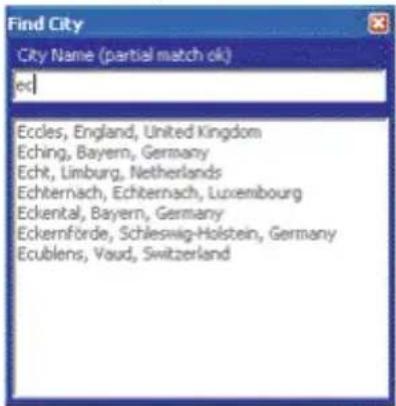
To search for a City or Town to verify the map region to be installed:
- From the Map menu, click Find City. The Find City window will open.
-
Type the name of the City or Town in the City Name box. The list of available Cities will reduce to match your search.
-
Double-click the name of the City or Town. The Desktop Map will rotate to center on the selected City or Town.
Map Colours and Textures
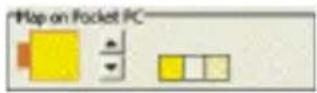
To access the Desktop Colours section: Desktop tab > Settings > Colours.
Adjust the settings to change the look of the map type.
| Colour Settings Description | |
 | Controls map colours. |
 | Displays the:• map border colour• map colour• map border width. |
 | Adjusts the map border width. |
 | Controls the map display:• solid colour,• no colour,• crosshatch texture. |
 | Controls geographic features displayed on the map. Features are only visible if the map has no colour or crosshatch texture. |
Map Layers
To conserve space on your PDA and memory card, you can choose map layers to install.
The layers you can choose from are:
- Points of Interest (POIs)
• Water, parks - Land contours.
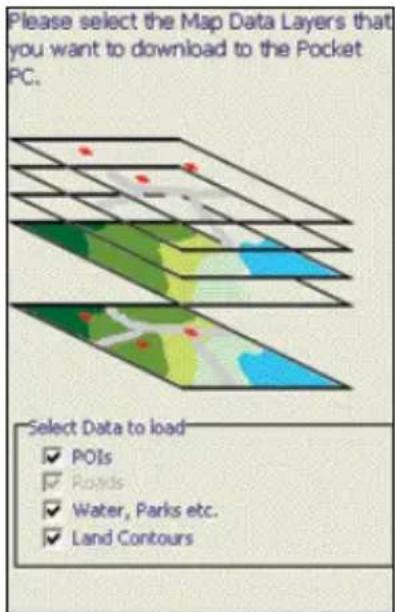
To access the Map Layers section: Desktop tab > Settings > Layers.
Select or clear each checkbox to indicate the layers to be installed with each map.
Points of Interest (POI) Editor
You can add custom Points of Interest (POIs) using the POI Editor. A maximum of 25 Custom POIs can be saved on your iCN. The Custom POI files are listed on the My POI screen. Custom POIs can be set to announce when in close proximity at the Select Active POI screen.
Step 1. Create a Custom POI File
-
Create a New POI File.
-
On the Map menu, click POIs. The POI Editor window will open.
- On the File menu of the POI Editor, click New Text File. The POI File Name window will open.
-
Type a name for the file in the File Name box and click OK. The file name can be up to eight characters with no spaces.
-
Add a POI to the POI File.
- On the Edit menu, click New. The POI Details window will open.
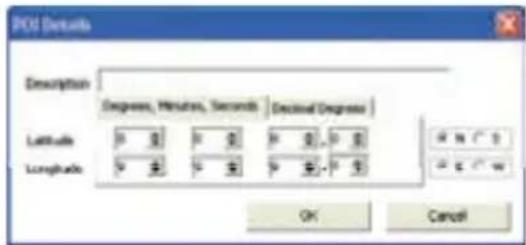
- Type a description for the POI in the Description box.
- On the Degrees, Minutes, Seconds tab, type or select the degree, minute and second of the POI latitude in the Latitude boxes.
-
On the Degrees, Minutes, Seconds tab, type or select the degree, minute and second of the POI longitude in the Longitude boxes.
-
Repeat step 2 until all POIs have been added to the POI file.
-
On the File menu, click Save. The POI file is saved.
Step 2. Save Custom POI File to your iCN
- On the File menu, click Save to Device. The POI Options window will open.
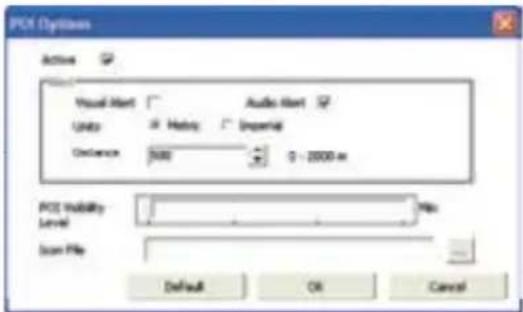
-
Modify the POI settings as required:
-
To activate the POI select the Active check box. If you do not activate the POI, you will only be able to configure the Importance and Icon File settings.
- To enable a visual warning when the POI is in close proximity, select the Visual Alert check box.
- To enable an audible chime when the POI is in close proximity, select the Audio Alert check box.
• To change the units used to measure distance for this POI, select the Metric or Imperial option. - Select the distance from the POI at which the visual warning should display or the audible chime is heard, from the Distance box.
- Move the POI Visibility Level slider left or right indicate the priority that the POI has where two or more POIs are in the same locale.
-
Type the path to the icon file to be used to represent the POI, in the Icon File box, or select the icon file from your local or network drive clicking .locating the file and clicking Open. The file must be a bitmap (.BMP) graphic with a minimum of 6x6 pixels and a maximum of 32x32 pixels.
-
Click OK and follow the prompts. The POI file is saved to the iCN.
- If you want to change the name of the file, edit the name for the file in the File Name box of the POI File Name window and click OK. The file name can be up to eight characters with no spaces.
Deleting a Custom POI File from your iCN
- On the Device menu, click Manage POI Files. The Manage POI Files window will open, displaying a list of custom POI files installed on your iCN.
- Click the File Name or Size of the POI file to delete.
- Click Delete. The file is removed from the list, but is not yet deleted.
- If you want to delete more than one file, go to step 2.
- Click OK and accept the changes. The selected file or files are deleted.
18. Continuous Continental Navigation
You can seamlessly navigate between installed maps without the need for installing all maps en route. This is achieved by using a Basemap. A Basemap is a map of a large area, such as West Europe or the United States, containing main roads that connect cities and towns. You can select a road or POI on the Basemap as your start point or destination.
Basemaps:
- contain roads and ferry connections of high national and international importance
- use less memory than would be necessary to install all equivalent detailed maps
- do not include smaller roads and have a reduced level of geographical detail.
You can add and remove Basemaps using the Basemap Installer.
Install Basemap
- Connect the PDA to your computer.
- Connect your PDA to your computer via Microsoft® ActiveSync® 3.5 or higher.
- Close all open programs on your PDA.
-
Open SmartS Desktop if it is not already open: Start > Programs > Navman > SmartS Desktop.
-
On the Map menu, click Basemaps. The Basemap Installer window will open.
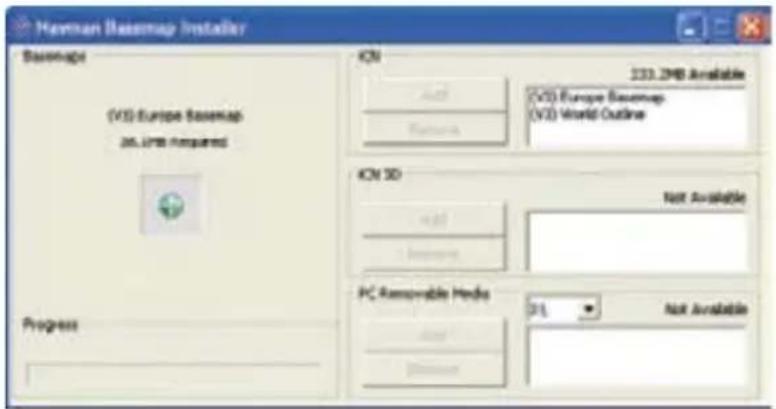
-
Select the Basemap to install.
-
Click the appropriate Add button to install the Basemap to the PDA, memory card or memory card reader.
Activate Basemap
- From the Main Menu, tap Setup, then the Maps tab. The Active Map Selection Settings screen will open.
- Select a memory location from the Location drop-down box to display a list of the maps installed in each location.
-
Select the check box of the Basemap you require.
-
Tap to accept the change and open the Map screen.
Remove Basemap
-
Connect the PDA to your computer.
-
Connect your PDA to your computer via Microsoft® ActiveSync® 3.5 or higher.
-
Close all open programs on your PDA.
-
Open SmartS Desktop if it is not already open: Start > Programs > Navman > SmartS Desktop.
-
On the Map menu, click Basemaps. The Basemap Installer window will open.
- Select the Basemap to remove.
19. Improving Performance
SmartS requires an amount of allocated program memory equal to about 10% of the size of the installed and active maps. Without enough allocated memory, you may receive an Out of Memory error.
Reducing Number of Active Maps
SmartS uses program memory to store maps, so it is recommended that you only specify the map or maps that you currently require. The Active Map Selection Settings screen allows you to specify which of the available maps are to be used. See page 30 for more information.
Increasing Allocation of Program Memory
SmartS requires an amount of allocated program memory equal to about 10% of the size of the installed and active maps.
- Tap Start to display the Start menu.
- Tap Settings on the Start menu.
- On the Settings screen, tap the System tab.
- Tap the Memory icon. The Memory screen will open.
- Move the slider to the left until you have enough program memory listed on the right. See your Pocket PC manual for more information.
20. Accessories
The following accessories are available for your PDA:
External Antenna
Required for vehicles with heated windshields, and to boost GPS performance in weak signal areas.
Memory Card Reader
Connects to your computer and allows you to download maps to SD or MMC memory cards. Downloading maps to a memory card via a memory card reader can be faster than via your PDA.
Software Product License
IMPORTANT - Please read carefully
NAVMAN (THE LICENSOR) IS WILLING TO LICENSE THE SMARTS SOFTWARE (THE SOFTWARE) TO YOU (THE CUSTOMER) ONLY IF YOU ACCEPT ALL THE TERMS OF THIS LICENCE. PLEASE READ THE TERMS CAREFULLY, BECAUSE USING THIS SOFTWARE WILL BE DEEMED TO BE YOUR ACCEPTANCE THAT YOU ARE USING IT ON THE FOLLOWING TERMS.
IF YOU DO NOT AGREE TO THE TERMS OF THIS LICENCE DO NOT INSTALL OR USE THE SOFTWARE AND RETURN THIS PRODUCT PROMPTLY, INCLUDING ALL PACKAGING AND WRITTEN MATERIALS, TO THE LICENSOR'S REPRESENTATIVE AND ANY AMOUNT YOU MAY HAVE PAID WILL BE REFUNDED TO YOU (LESS ANY DELIVERY AND HANDLING CHARGES).
- The Licensor grants to the Customer a non-exclusive licence to use: (a) one copy of the Software on one of the Customer's handheld devices; and (b) the accompanying materials, including any manuals contained in the Software (the Materials), in accordance with the terms and conditions of this Licence.
- Where the Customer uses the Software on a handheld or any other device (the Device) in a vehicle, the Customer must not place, secure or use the handheld device in a manner that may cause accidents, personal injury or property damage or in any way obstruct the visibility of the Customer. The Customer is solely responsible for observing safe driving practices and will not operate the Software while operating a vehicle.
- The copyright and all other intellectual property rights in the Software and Materials (including any enhancements or modifications) are vested in the Licensor. The Customer must not to rent, lease, reproduce, translate, adapt, vary, reverse-engineer or modify the Software or Materials nor communicate the same to any person other than in accordance with the terms of this Licence.
- The Customer may not copy the Software or Materials except that one copy of the Software may be made to the extent that such copying is necessary for the Customer's own backup purposes.
- Except for the warranty provided by the Licensor for the product that includes the Software the Licensor expressly excludes to the fullest extent permitted by law all representations or warranties, express or implied (except any which may not lawfully be excluded), including the implied warranties of merchantability and fitness for a particular purpose.
- The Licensor will not in any circumstances be liable under the law of tort, contract or otherwise for any indirect or consequential loss or damage, including any loss of profits, however caused, arising in connection with the use of, or inability to use, the Software.
If any limitation or exclusion or liability contained in this Licence is held to be invalid for any reason and the Licensor becomes liable for loss or damage that would otherwise have been excluded, that liability will be limited to the total amount actually paid by the Customer for the Software.
- The Licensor may terminate this Licence immediately if the Customer breaches any of its obligations under this Licence. Immediately following termination of this Licence the Customer must deliver to the Licensor's Representative, or destroy all copies of, the Software and Materials in whatever form possessed by the Customer.
Limited Warranty
IMPORTANT: The following terms and conditions may vary from country to country. Please check with Your Navman dealer from where You purchased the product.
Software Product
Navman warrants that (a) the software will perform substantially in accordance with the accompanying written materials for a period of 90 days from the date of purchase, and (b) any technical support provided by Navman or its approved Service Centres shall make commercially reasonable efforts to solve any problem or issues. Some countries, states and jurisdictions do not allow limitations on duration of an implied warranty,
so the above limitation of 90 days may not apply to You.
Limitation of Liability
To the fullest extent permitted by law, Navman will not be liable in any event, whether in tort (including negligence), contract or otherwise for any damage including loss of profits, any consequential, indirect or special damage, loss or injury of any kind suffered by You or any other person. Except as expressly set out in this warranty, Navman makes no other warranties, express or implied, including any implied warranties of merchantability and fitness for a particular purpose. If any limitation or exclusion or liability contained in this warranty is held to be invalid for any reason and Navman becomes liable for loss or damage that would otherwise have been excluded, such liability will be limited to the total amount actually paid by You for the product.
Support Compliance
Operation is subject to the following two conditions: (1) this device may not cause interference, and (2) this device must accept any interference, including interference that may cause undesired operation of the device.
Support Information
Support for
New Zealand:
Navman NZ Ltd
13-17 Kawana Street
Northcote
Auckland
New Zealand
Phone: 0800 GONAVMAN
pcnsupport.nz@navman.com
www.navman.com
Support for
Europe:
Navman Europe Limited
4G Gatwick House
Peeks Brook Lane
Horley, Surrey RH6 9ST
United Kingdom
Phone: (44) 1293-780-500
support@navman-europe.com
www.navman-europe.com
Support for
the US and Canada:
Navman USA Limited
27142 Burbank
Foothill Ranch
CA 92610
United States of America
Phone: 866-9-NAVMAN
support@navmanusa.com
www.navmanusa.com
Support for
Australia:
Navman Australia Pty. Ltd
PO Box 479
Gladesville
NSW2111
Australia
Phone: (02) 9879 9000
pcnsupport.aus@navman.com
www.navman.com
NAVMAN DISCLAIM ALL LIABILITY FOR ANY USE OF THIS PRODUCT IN A WAY THAT MAY CAUSE ACCIDENTS, DAMAGE OR VIOLATE THE LAW.
Copyright
© 2004 Navman NZ Limited. Navman is a registered trademark of Navman NZ Limited.
All rights reserved.
Microsoft Windows 98, ME, 2000 or XP, Microsoft Internet Explorer are registered trademarks of
Microsoft Corporation
SmartS ^TM , Drive-Away ^TM and Back-On-Track ^TM are trademarks of Navman NZ Limited.
All rights reserved..
Acrobat Reader is a registered trademark of Adobe Systems Incorporated. All rights reserved.
All other trademarks and registrations are the property of their respective owners.
Published in New Zealand
MN000300A / LF000013A