CKSE-112B - Keyboard Xuma - Free user manual and instructions
Find the device manual for free CKSE-112B Xuma in PDF.


| Product Type | Keyboard |
| Brand | Xuma |
| Model | CKSE-112B |
| Dimensions (approx.) | 450 x 150 x 30 mm |
| Weight (approx.) | 800 g |
| Connection Type | Wired USB |
| Key Switch Type | Membrane |
| Number of Keys | 104 keys (standard US layout) |
| Multimedia Keys | Yes (12 dedicated multimedia keys) |
| Compatibility | Windows, macOS, Linux |
| Power Supply | USB bus powered (5V, 100mA) |
| Cable Length (approx.) | 1.5 m |
| Functions | Standard typing, multimedia control, volume adjustment, sleep mode |
| Maintenance & Cleaning | Wipe with a soft, dry cloth. Do not use liquids or solvents. |
| Safety Precautions | Keep away from liquids and extreme temperatures. Avoid excessive force on keys. |
| Spare Parts & Repairability | Not user-serviceable. No spare parts available. Contact support for issues. |
| Environmental Information | RoHS compliant. Recycle according to local regulations. |
Frequently Asked Questions - CKSE-112B Xuma
User questions about CKSE-112B Xuma
0 question about this device. Answer the ones you know or ask your own.
Ask a new question about this device
Download the instructions for your Keyboard in PDF format for free! Find your manual CKSE-112B - Xuma and take your electronic device back in hand. On this page are published all the documents necessary for the use of your device. CKSE-112B by Xuma.
USER MANUAL CKSE-112B Xuma
natural_image
Abstract graphic with green gradient background and four icons: lock, car, phone, and headphones (no text or symbols)CKSE-112B
Bluetooth Silicone Keyboard Case
for new iPad and iPad 2
User Manual

Welcome2
Thank you for choosing Xuma.
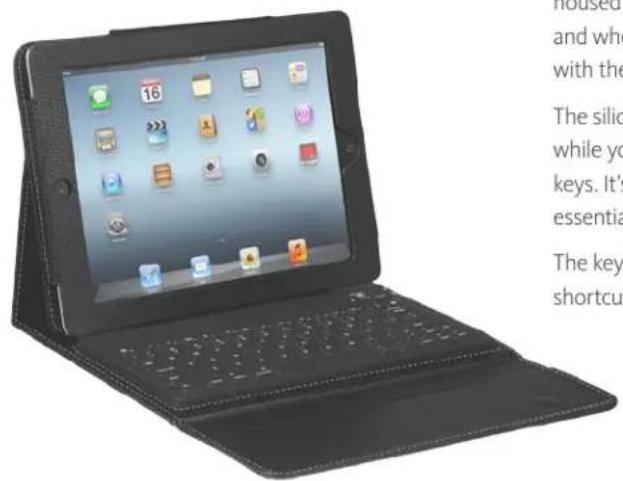
Congratulations on the purchase of your new Xuma Bluetooth Silicone Keyboard Case for the new iPad and iPad 2. This case features a Bluetooth silicone keyboard housed in a stylish, textured folio iPad case. You can store your iPad in the case, and when you're ready to type, just open the folio, prop up your iPad, and pair it with the keyboard.
The silicone keyboard's sealed, washable design makes it safe for you to eat over it while you work, so you don't have to worry about spills and crumbs damaging the keys. It's also ideal for medical environments where sterility and cleanliness are essential, and industrial workplaces that are prone to airborne dust and debris.
The keyboard charges via USB, features an ultraslim design, and boasts fourteen shortcut keys for optimum functionality.
text_image
Scanned text describing a tablet device with app icons and usage instructions
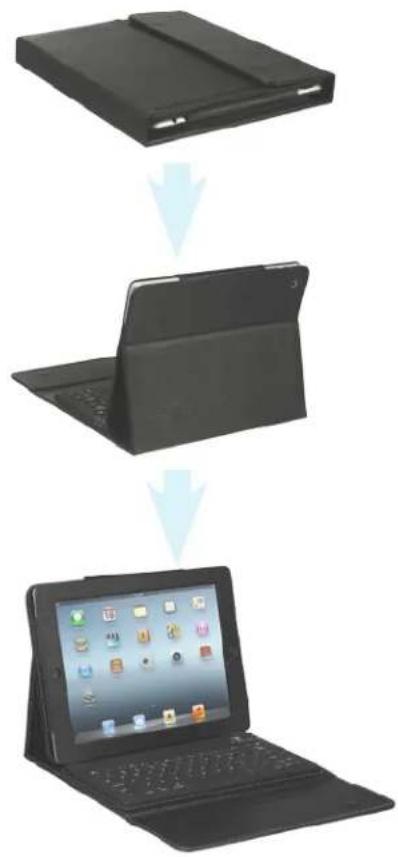
Here are some basic instructions to get you through the setup & synchronization process.
flowchart
graph TD
    A["Black Tablet with Cover"] --> B["Black Laptop with Screen"]
    B --> C["Table with Display and System"]
A. Box Contents
- Folio keyboard case
- USB charging cable
- User instruction manual (this booklet)
text_image
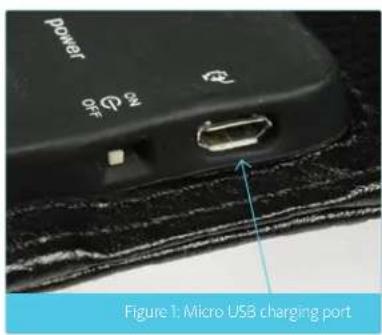
power 3.0Ω Figure 1: Micro USB charging portCharging
To charge the keyboard, use the included USB charging cable to connect it to your computer's USB port (Figure 1) or to a USB AC adapter (not included). The CHARGE light will glow when the unit is charging, and will turn off when it reaches a full charge. (Figure 2)

The CHARGE light will blink when battery power is low.

text_image
connect charge Power Figure 2: Charging light3Overview
Getting Started
- Pull out the tab from behind the iPad sleeve. Line up your iPad with the sleeve, making sure that the front and rear cameras line up with the corresponding holes in the iPad case.

natural_image
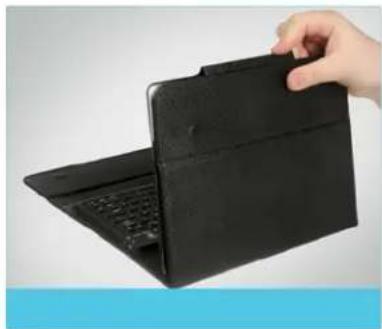
Hand holding a black plastic electronic device with visible traces (no text or symbols)- Insert the iPad into the sleeve (Figure 3), and secure it by fitting the tab between the iPad and the case (Figure 4).
natural_image
Hand holding a black hard drive case on a laptop keyboard (no visible text or symbols)-
To convert the case to a stand for viewing and working, open the folio so the iPad is at a right angle to the keyboard.
-
Pull the bottom of the iPad away from the case, so it rests securely on the area above the keyboard.
Pairing Up the Keyboard
- Turn on the keyboard by moving the power switch to the ON position. The Bluetooth light will briefly glow.
- To enter pairing mode and make your keyboard discoverable, press the CONNECT button. The Bluetooth light will blink in pairing mode.
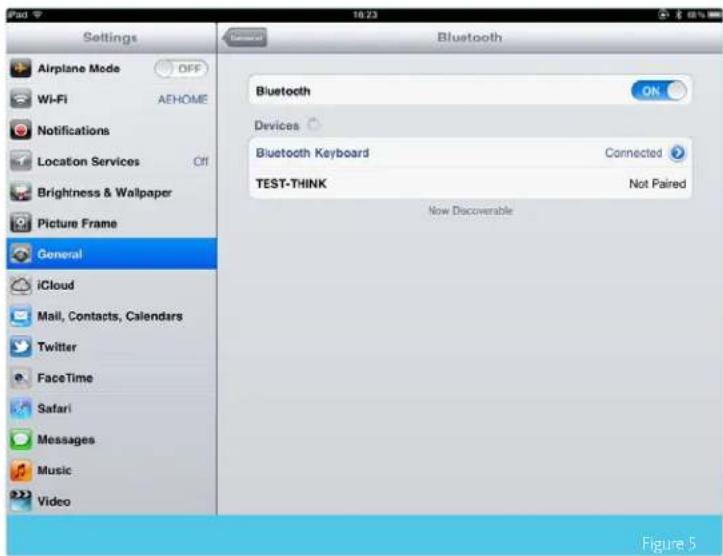
- On your iPad, select Settings > General > Bluetooth (Figure 5).
- Select ON to activate the iPad's Bluetooth feature. The iPad will automatically search for available Bluetooth devices.
- Select Bluetooth Keyboard from the list of discovered Bluetooth devices.
- Type in the four-digit code that appears onscreen and press ENTER.
text_image
Settings Airplane Mode OFF Wi-Fi AEHOME Notifications Location Services Off Brightness & Wallpaper Picture Frame General iCloud Mail, Contacts, Calendars Twitter FaceTime Safari Messages Music Video Bluetooth Bluetooth Devices Bluetooth Keyboard Connected TEST-THINK Not Paired Now Discoverable Figure 5
Once the initial setup is complete, your iPad will automatically recognize your Xuma keyboard for future use
6 Keyboard Functions
Shortcut Keys
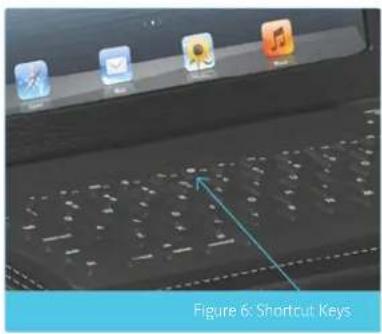
The shortcut keys are shortcuts to various functions on your iPad. They are located in the top row, directly above the number keys. (Figure 6)
text_image
Figure 6: Shortcut Keys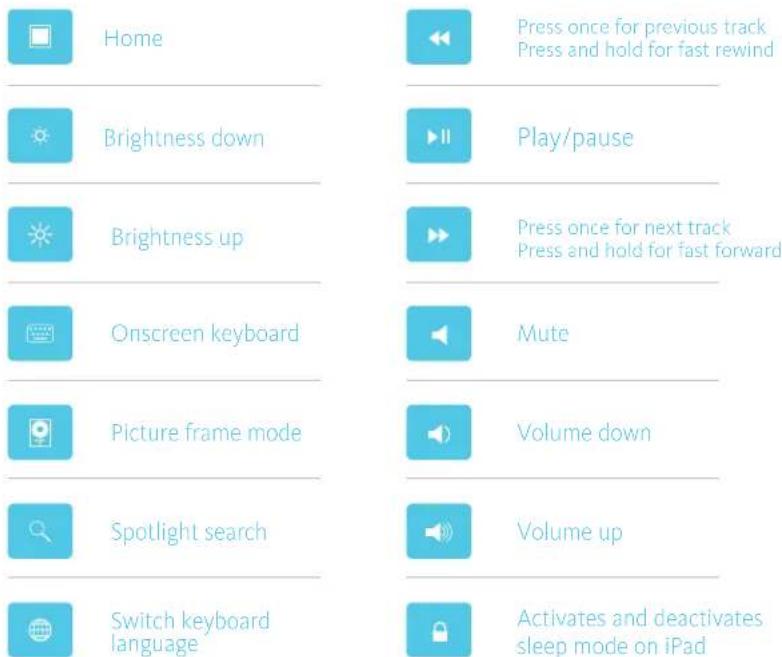
text_image
Home Brightness down Brightness up Onscreen keyboard Picture frame mode Spotlight search Switch keyboard language Press once for previous track Press and hold for fast rewind Play/pause Press once for next track Press and hold for fast forward Mute Volume down Volume up Activates and deactivates sleep mode on iPadSleep Mode
When the keyboard is inactive for fifteen minutes, it will enter sleep mode in order to conserve power. Press any key and wait for the keyboard to turn back on; it may take a few seconds.
Troubleshooting
Following are a few common problems that may arise during the operation of your Bluetooth wireless iPad Case, and basic troubleshooting solutions to avoid them.
| Problem Solution | |
| The keyboard does not respond. | Make sure that the wireless keyboard is turned on, and that the battery is charged. |
| The wireless keyboard is not pairing up with the iPad. | Make sure that the wireless keyboard and the iPad are turned on, and that their batteries are charged.Make sure the wireless keyboard is within operating distance of the iPad (33 feet, or 10 m).Make sure the iPad's Bluetooth setting is turned on.Make sure to select Bluetooth Keyboard on the iPad's list of discovered Bluetooth devices.If there are multiple Bluetooth Keyboards in the iPad's list of discovered Bluetooth devices, make sure to select the right one. |
| The keyboard will not charge. | Make sure the USB cable is properly connected to the wireless keyboard and the power source.If you are using a USB AC adapter (not included), make sure that it has an output of at least one ampere-hour (1 Ah), and that it is properly plugged into the power outlet. |
LiMiTeD One-YeAr WArrAnTY
Xuma provides a limited warranty that this product is free from defects in materials and workmanship to the original purchaser under normal use for a period of one (1) year from the original purchase date or thirty (30) days after replacement, whichever occurs later (the "Warranty Period"). Our responsibility with respect to this limited warranty shall be limited solely to repair or replacement, at its option, of any product which fails during normal consumer use.
To obtain warranty coverage during the Warranty Period, contact your place of purchase (“Seller”) to obtain a return merchandise authorization (“RMA”) number, and return to Seller the defective product along with proof of purchase and the RMA number.
This warranty does not extend to damage or failure which results from misuse, neglect, accident, alteration, abuse, improper installation or maintenance. EXCEPT AS PROVIDED HEREIN, XUMA MAKES NEITHER ANY EXPRESS WARRANTIES NOR ANY IMPLIED WARRANTIES, INCLUDING BUT NOT LIMITED TO ANY IMPLIED WARRANTY OF MERCHANTABILITY OR FITNESS FOR A PARTICULAR PURPOSE. This warranty provides you with specific legal rights, and you may also have additional rights which vary from state to state.
www.XumaJSA.com © Copyright 2012 Xuma