PrintPAD MC55/65/67 - Printer Datamax O'Neil - Free user manual and instructions
Find the device manual for free PrintPAD MC55/65/67 Datamax O'Neil in PDF.


User questions about PrintPAD MC55/65/67 Datamax O'Neil
0 question about this device. Answer the ones you know or ask your own.
Ask a new question about this device
Download the instructions for your Printer in PDF format for free! Find your manual PrintPAD MC55/65/67 - Datamax O'Neil and take your electronic device back in hand. On this page are published all the documents necessary for the use of your device. PrintPAD MC55/65/67 by Datamax O'Neil.
USER MANUAL PrintPAD MC55/65/67 Datamax O'Neil
PrintPad MC70 Printer Views.... 1
Open View.... 1
Closed View.... 1
Using Batteries: General Guidelines.... 2
Installing and/or Replacing Batteries 2
Charging the Batteries and Handheld Computer 4
Determining Battery Condition.... 6
Using a Handheld Computer (HHC) 7
Compatible Handheld Computers 7
Loading Paper 8
Printing a Self-Test....9
Configuring the Printer 10
Using the Printer Data Cables.... 10
Using Bluetooth 11
Bluetooth Parameters.... 11
PrintPad MC70 LEDs and Indicators...... 12
Power LEDs 12
Audio Indicators.... 13
Radio LED 14
Power LED.... 14
CardReader Audio Indicators.... 14
Using DEX/ UCS Capabilities.... 15
Using a CardReader.... 16
General Guidelines 16
CardReader Indicators.... 16
Using External Charging.... 17
Overview.... 17
Media Supplies.... 21
PrintPad MC70 Printer Views Open View
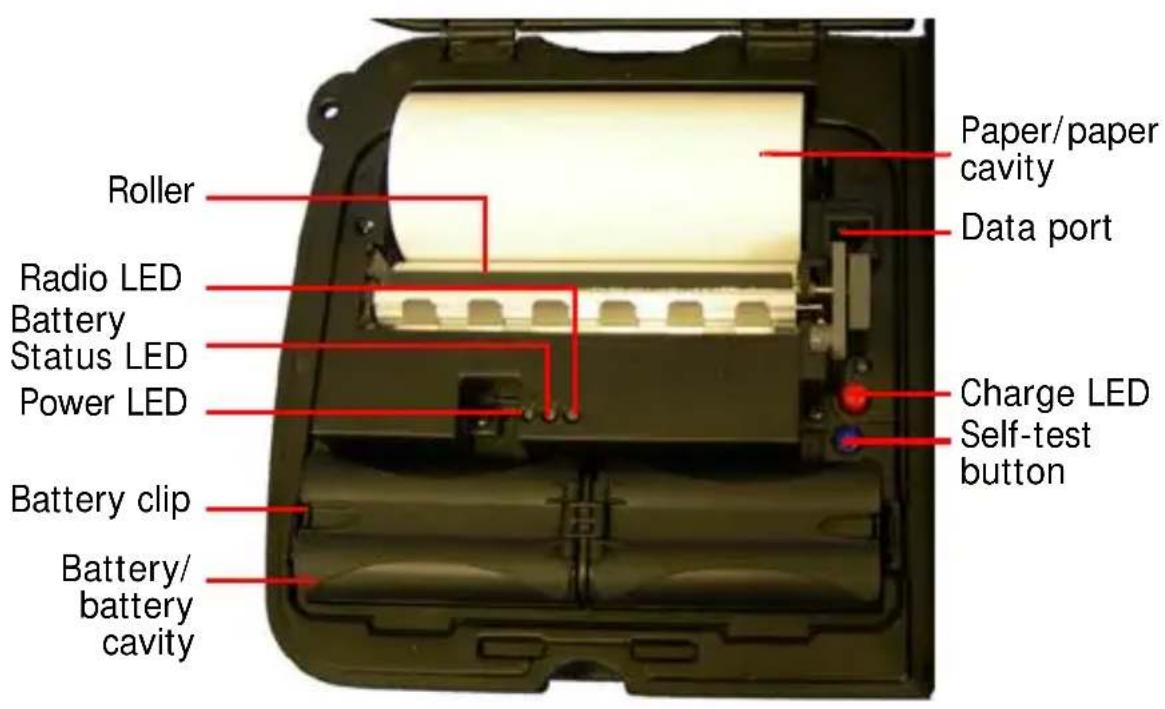
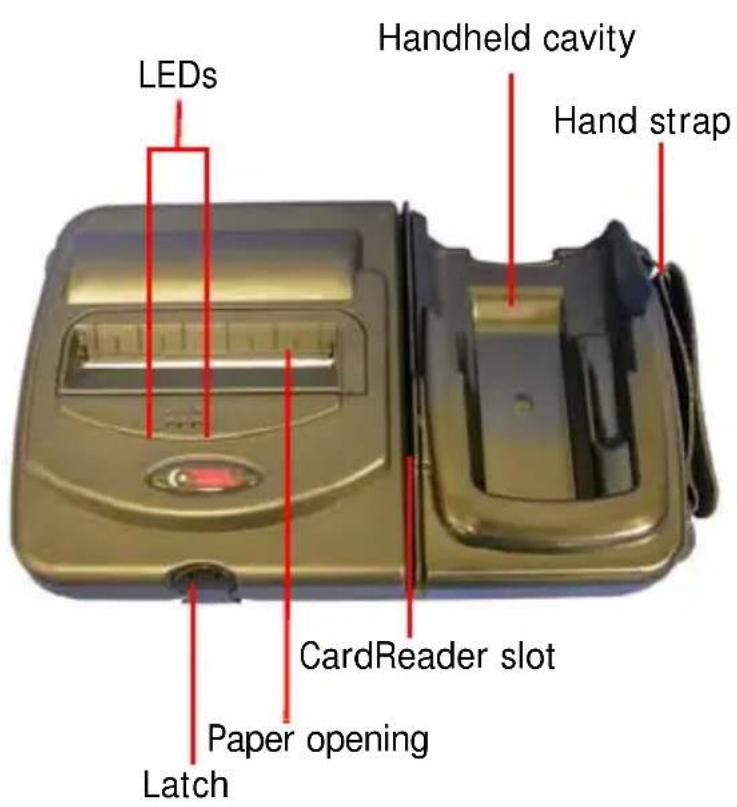
Closed View
Using Batteries: General Guidelines
■ The printer ships with two batteries installed, but they are not operational. Before operating the printer, remove the two red, battery isolator labels either by gently pulling the labels out, or by lifting the batteries up.
■ If you are storing your printer for a long period of time or shipping it, reinstall the battery isolator labels.
■ Both batteries must be installed for your printer to operate properly.
Installing and/ or Replacing Batteries
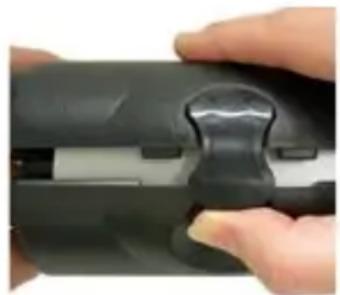
- Open the printer by unsnapping the latch on the front of the case (Figure 1).
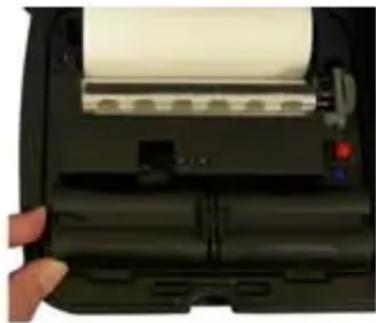
- Lift the battery cover up by pushing the retainer clip inward with your finger (Figure 2).
natural_image
Close-up of hands holding a black game controller with a scroll wheel (no visible text or symbols)Figure 1
natural_image
Close-up of a hand holding a black printer with paper roll and control panel (no visible text or symbols)Figure 2
-
Lift up the outside end of the battery to remove it.
-
Insert the new batteries. Verify the battery contacts are facing down and are facing the outside edge of the printer (Figure 3).
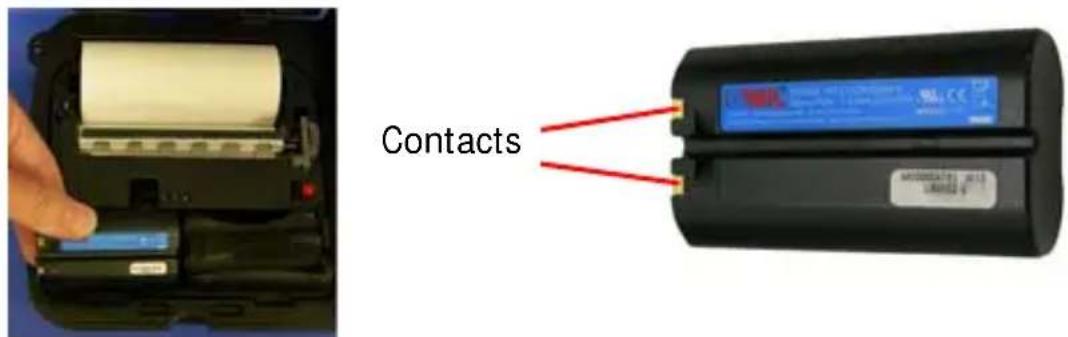
Figure 3
- Close the battery cover by snapping it into place.
Charging the Batteries and Handheld Computer
If the battery is low when the printer “wakes up,” the printer sounds three short beeps.
- Remove the red battery isolator labels, if necessary.
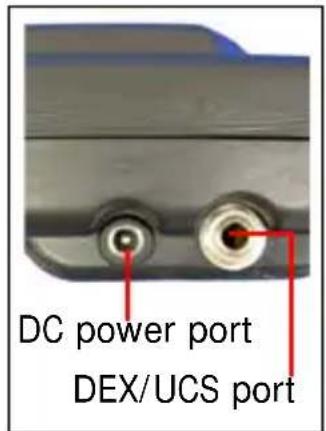
- Plug the power supply connector into the printer's external DC port. The DC port is located on the side of the printer's case (Figure 4).
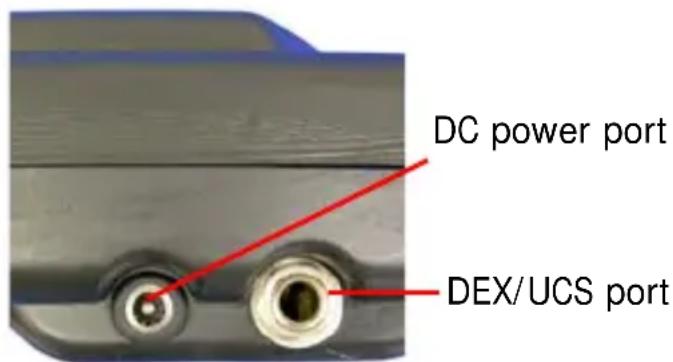
Figure 4
- Plug the adapter in an appropriate power source.
The Charge LED flashes red when charging and flashes green when fully charged. The Charge LED is visible when the printer's lid is open or closed. A complete charge takes approximately 7-9 hours. For more information on the Charge LEDs, see PrintPad MC70 LEDs and Indicators on page 12.
Caution: To obtain full battery capacity, a new battery must cycle through two to three charges. To restart a charge, unplug the power cord. Wait 30 seconds, then replug the power cord.
Note: The MC70 Handheld Computer will charge while power is plugged into the DC power port.
Caution: Do not plug DC power into the internal and external power ports at the same time.
Caution: Do not plug in either DC plug to power if using external charge contacts and they are powered.
Determining Battery Condition
You can determine the relative battery status by printing a self-test. For more information, see Printing a Self-Test on page 9 On the printout, “Battery Volt” varies between 6.8 and 8.4 volts.
Caution: There is a risk of explosion if the battery is replaced by an incorrect type. Dispose of used batteries according to the instructions.
Caution: The operating temperature of this portable printer is 50°C. However, the operating temperature when used with a Datamax-O'Neil power supply for charging the portable printer is limited to 40°C. Please charge the printer in a suitable location that meets this temperature requirement.
Caution: (For US/Canada) Please only use the Datamax-O'Neill part number 220240-100 power supply with this product.
Using a Handheld Computer (HHC)
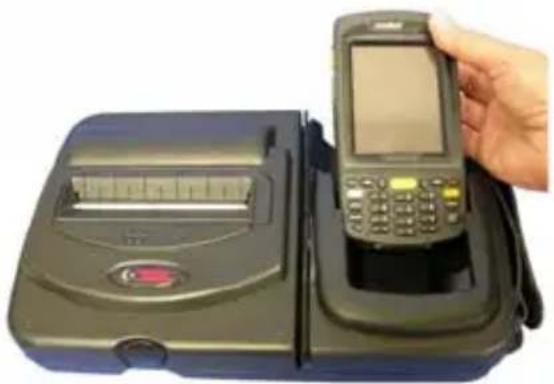
- Insert the handheld into the cavity by slightly rotating it into the side channels.
- Press down until the handheld is fully seated (Figure 5).
natural_image
Hand holding a handheld electronic device next to a black electronic device (no visible text or symbols)Figure 5
Compatible Handheld Computers
Note: The PrintPad MC70 is intended for use with UL Listed Accessory Handheld Computer Symbol Technologies MC70 series.
| Model 1x Battery | 2x Battery | |
| MC7004 yes yes | ||
| MC7090 yes yes | ||
| MC7094 yes yes |
Loading Paper
- Press a new roll of paper into the paper cavity. The end of the roll should exit from the bottom of the paper cavity and face the printer's roller (Figure 6). When properly installed, the roll of paper "latches" into place.

Figure 6
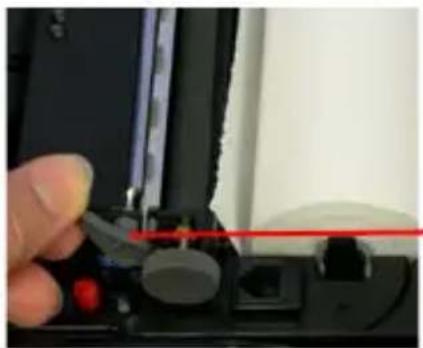
- Raise the printhead release lever until it is fully open. The lever clicks midway at the partially open position; however, do not stop here, continue to raise the lever until it is fully open (Figure 7).
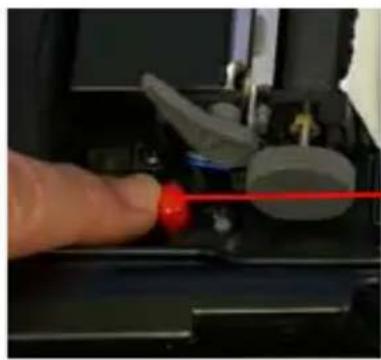
- Wake up the printer by momentarily pressing the red self-test button (Figure 8).
natural_image
Close-up of a hand holding a small electronic device with a red laser line extending from its tip (no visible text or symbols)Printhead
release
lever
natural_image
Close-up of a finger pressing a red screwdriver on a mechanical device (no visible text or symbols)Self-
test
button
Figure 7
Figure 8
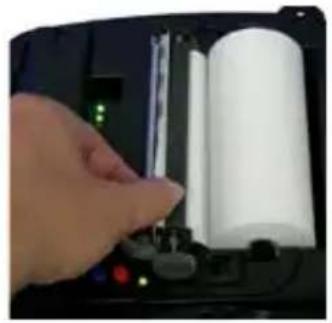
- Feed the end of the paper under the roller until the paper exits from the top of the printhead (Figure 9). The printer has an auto advance feature that will aid
moving the paper through the printer. Verify the paper exits straight.
- Lower the printhead release lever (Figure 10).
natural_image
Hand pressing down on a printer's side panel with a rolled paper sheet (no visible text or symbols)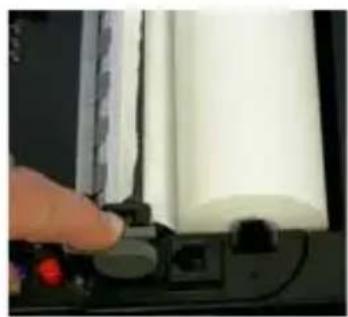
natural_image
Close-up of a finger pressing a button on a device with a white cylindrical component (no visible text or symbols)Figure 9 Figure 10
-
Feed the end of paper through opening in the printer's cover.
-
Remove any excess paper by grasping the top corner of the paper and pulling it up and away.
-
Close and latch the printer's cover.
Printing a Self-Test
-
Open the printer's cover.
-
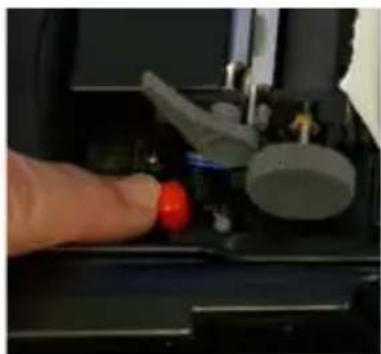
Press and hold the red self-test button until the printer starts to print (Figure 11).
natural_image
Close-up of a finger pressing a red button on a mechanical device (no visible text or symbols)Figure 11
- After printing starts, release the red self-test button.
Configuring the Printer
The printer has many configurable settings. To configure or upgrade firmware, download the Windows configuration program at www.datamax-oneil.com.
Using the Printer Data Cables
- Select the appropriate cable for use with the host and/or device you are using.
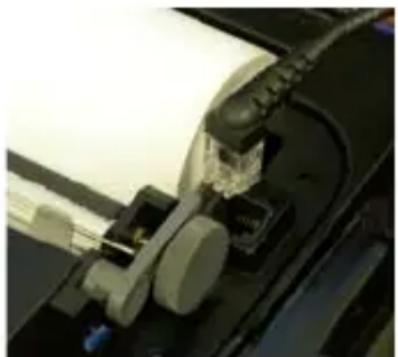
- Insert the plug into the printer's data port (Figure 12.
natural_image
Close-up of a mechanical device with a clamped component and internal components (no visible text or symbols)Figure 12
Note: Do not close the lid or damage will occur to the cable.
Using Bluetooth
Note: The following information applies to printers with Bluetooth capabilities.
Radio printers are configured with default factory settings. To determine your printer's radio configuration, print a self-test. (For more information, see Printing a Self-Test on page 9) If you have multiple printers, configure them specifically for use in your environment.
For proper system operation, set the following parameters on your printer and host computer:
Bluetooth Parameters
■ Device Name
■ Authentication
■ Bondable
■ Discoverable
■ Connectable
■ Encryption
Contact your network administrator to verify the proper radio settings for your environment.
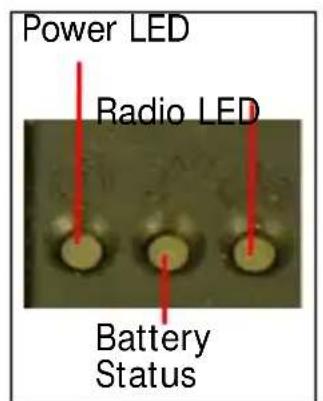
PrintPad MC70 LEDs and Indicators
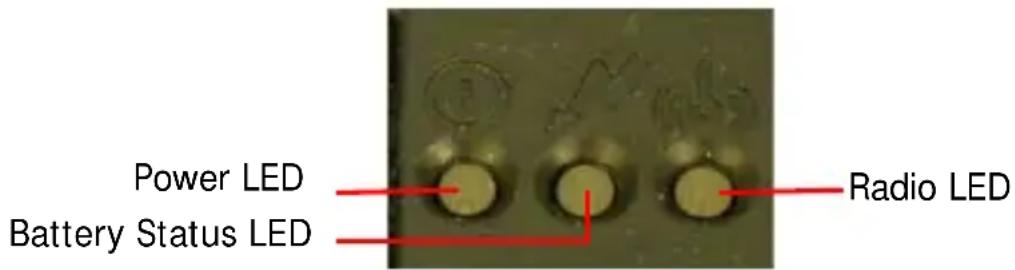
Power LEDs
| Battery Status LED | Description Action | |
| Red (solid): The battery has less than 5% power. | ·If A/C power is not plugged in, the printer will soon turn off. | ·Charge the battery. |
| ·If A/C power is plugged in, the LED flashes and charging is in progress. | ·None. Wait for the charge LED to turn green. | |
| Orange (solid): The battery has less than 25% power. | ·If A/C power is not plugged in, indicates the battery charge is low. | ·Charge the battery. |
| ·If A/C power is plugged in, the LED flashes and charging is in progress. | ·None. Wait for the charge LED to turn green. | |
| Green (solid): The battery is near, or at, full capacity. | ·If A/C power is not plugged in, the battery is well charged. | None. |
| ·If A/C power is plugged in, the LED is solid and charging is complete. | None. | |
| Red to orange flash - fast | Battery voltage is too high. Replace battery. | |
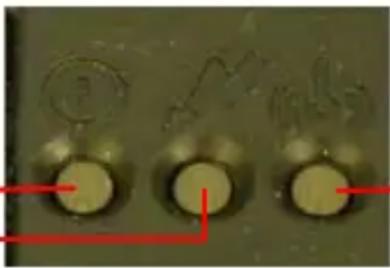
natural_image
Three circular objects with red measurement lines, no visible text or symbols| Orange flash - slow | Charge has timed out. Restart battery charge (battery may be bad). | |
| Orange flash - fast | Internal code error. Remove the battery, then re-connect A/C power. | |
| Orange, red, or green flash - fast | When the AC adapter is plugged into the printer's power port, the battery status LED flashes orange, red, or green (depending on the battery status LED color that is initially displayed) to indicate the AC adapter is plugged in. | None. |
Audio Indicators
| Beep(s) Description Action | ||||
| 1 | P | r | i | n t |
| 2 Out of paper. Install paper. | ||||
| 3 Low battery. Charge battery. | ||||
| 1 short RF power is on (when blue, RF power button is pressed and power was turned off). | None. | |||
| 2 short RF power is off (when blue, RF power button is pressed and power was turned on). | None. | |||
| 1 long Boot code is starting or restarting (when downloading new firmware). | Redownload firmware. | |||
| 8 short CRC error in firmware. | Redownload firmware. | |||
Radio LED
Radio LED
Blue flash - slow RF power is on and printer is asleep.
Blue flash - fast RF power is on and printer is awake.
Off RF power is off.
Power LED
Power LED Description
Off Printer is asleep.
Red flash Paper out.
Green Unit is awake.
CardReader Audio Indicators
Magnetic
Beep(s) Description Action
1 long Bad read. None.
2 short Good read. None.
Using DEX/ UCS Capabilities
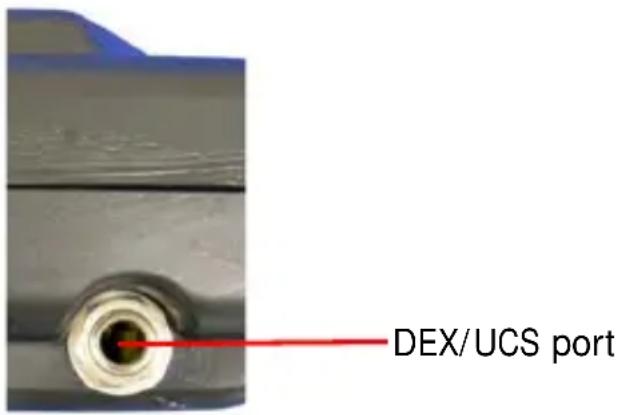
Figure 13
The direct exchange (DEX)/UCS port can only be used with the Datamax-O'Neil approved DEX cable (P/N 210237-xxx). When the DEX cable is plugged into the data port, the printer automatically turns off to allow data transfer between the MC70 and the DEX port. Remove the DEX cable to resume connection to the printer.
Note: Do not unplug the cable in the middle of a data transfer session.
Note: Your application needs to be programmed to communicate in the DEX/UCS language.
Using a CardReader
Note: The following information applies to printers with the CardReader option.
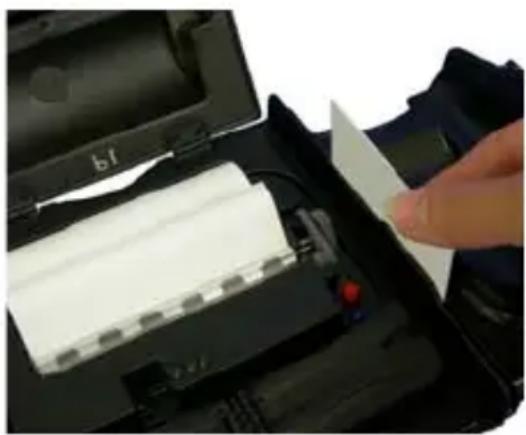
natural_image
Close-up of a hand inserting a white card into a printer's tray, with no visible text or symbols.Figure 14
General Guidelines
■ To wake up the CardReader, insert a card into the CardReader slot. One short beep indicates the CardReader/printer is awake.
■ If you are using a Magnetic CardReader, insert a card with the stripe facing away from the printer.
■ For information on CardReader LED indicators and audio indicators, see CardReader Indicators on page 16.
CardReader Indicators
Audio Indicators
Beep Description Action
1 long Bad read. Swipt card again.
2 short Good read. None.
Using External Charging
Note: The following information applies to printers installed with external charge capabilities.
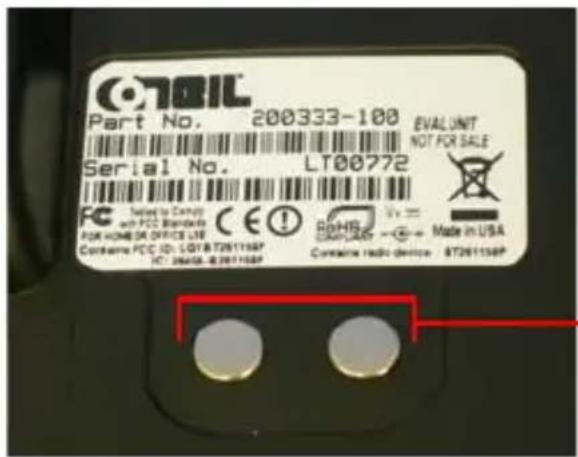
(2) Charging contact points
Figure 15
Overview
External charge-capable printers have two charging contact points located on the back of the printer's case (Figure 15).
External charge-capable printers can be used with various Datamax-O'Neil accessories, such as the truck mount bracket. When an external charge-capable printer is mounted to one of these accessories, the printer's batteries are automatically charged. For more information, see the instruction sheet(s) included with the accessories.
Warning: Use of any product not approved by Datamax-O'Neil for use with their printers could cause damage to the batteries and/or printer and will void the warranty.
Failure to observe the instructions and/or warnings specified in the documentation may result in damage to your printer. Datamax-O'Neil does not accept liability for resulting damages or injuries.
Agency Approvals

FCC Notice
This equipment has been tested and found to comply with the limits for a Class B digital device, pursuant to Part 15 of the FCC Rules. These limits are designed to provide reasonable protection against harmful interference in a residential installation.
This equipment generates, uses and can radiate radio frequency energy and, if not installed and used in accordance with the instructions, it may cause harmful interference to radio communications. However there is no guarantee that interference will not occur in a particular installation. If this equipment does cause harmful interference to radio or television reception, which can be determined by turning the equipment off and on, the user is encouraged to try to correct the interference by one or more of the following measures:
- Reorient or relocate the receiving antenna.
- Increase the separation between the equipment and receiver.
- Connect the equipment to an outlet on a circuit different from that to which the receiver is connected.
- Consult the dealer or an experienced radio/TV technician for help.

Applicable Directive
• 89/336/EEC, 73/23/EEC
Applicable Standards
• EN55022 (1998)
• EN55024 (1998)
• EN60950 (1992)


Copyright
This manual and any examples contained herein are provided “as is” and are subject to change without notice. Datamax-O’Neil makes no warranty of any kind with regard to this manual, including, but not limited to, the implied warranties of merchantability and fitness for a particular purpose. Datamax-O’Neil shall not be liable for any errors or for incidental or consequential damages in connection with the furnishing, performance, or use of this manual or the examples herein. This guide is copyrighted. All rights are reserved. This guide may not, in whole or in part, be reproduced, translated, stored in a retrieval system or transmitted in any form or by any means, electronic, mechanical, photographic, or otherwise, without the prior written consent of Datamax-O’Neil.
Media Supplies
Datamax-O'Neil offers seven certified grades of paper for use in the PrintPAD series of printers. Our certified supplies are guaranteed compatible — this important qualification means that rigorous performance and image life testing have been performed. Quality supplies are key to obtaining optimal image quality and print performance. Quality supplies are also the key to extending the life of the printer. Datamax-O'Neil strongly recommends using Datamax-O'Neil Certified Supplies only.
For more information, contact Datamax-O'Neil at (949) 458-6400.
Maintenance Supplies
We recommend that you follow a regular maintenance schedule using our cleaning card (or cleaning kit when using linerless labels). Datamax-O'Neil cleaning cards are designed to effectively remove dirt and other contaminants from the thermal printhead, rollers, and paper path...resulting in a clean, crisp image output — every time. Our cleaning kits remove any adhesive residue in addition to dirt and other contaminants.
For more information, contact Datamax-O'Neil at (949) 458-6400.
For more information
For information about using the printer, contact Datamax-O'Neil at (949) 458-0500, or visit www.datamax-oneil.com.