XM-2VRSU6201BT - Uncategorized Xomax - Free user manual and instructions
Find the device manual for free XM-2VRSU6201BT Xomax in PDF.


| Product Type | Car Multimedia Receiver with DVD, USB, SD, Bluetooth, Radio |
| Model | XM-2VRSU6201BT |
| Brand | Xomax |
| Display Type | 6.2-inch TFT LCD Wide Screen |
| Power Supply | DC 12V, 10A max |
| Audio Output | 2ch & 4ch Line Out (RCA) |
| Frequency Response | 20 Hz - 20 kHz |
| Signal-to-Noise Ratio | 90 dB (JIS) |
| Radio Bands | FM (87.5-108 MHz), AM (522-1620 kHz) with multiple region presets |
| Bluetooth Version | V1.2 Class 2 |
| Bluetooth Profiles | Headset, Handsfree, A2DP, AVRCP |
| USB Playback | MP3, WMA, JPEG, MP4 |
| SD Card Playback | MP3, WMA, JPEG, MP4 |
| Disc Support | DVD, CD, MP3, JPEG (Region 1-6) |
| Rear View Camera Input | Yes, with auto-switch when reversing |
| Steering Wheel Control | Yes, programmable (SWC) |
| RDS Functions | AF, TA, PTY, REG, PI Mute/Sound |
| Laser Class | Class 1 Laser Product |
| Safety Warning | Do not watch videos while driving; parking brake must be engaged for video display |
| Cleaning Instructions | Use a slightly damp soft cloth; avoid solvents like benzine, thinner, or alcohol |
| Installation Angle | Up to 30° from horizontal for optimal performance |
| Spare Parts / Repairs | Refer servicing to qualified personnel; use only recommended accessories |
Frequently Asked Questions - XM-2VRSU6201BT Xomax
User questions about XM-2VRSU6201BT Xomax
0 question about this device. Answer the ones you know or ask your own.
Ask a new question about this device
Download the instructions for your Uncategorized in PDF format for free! Find your manual XM-2VRSU6201BT - Xomax and take your electronic device back in hand. On this page are published all the documents necessary for the use of your device. XM-2VRSU6201BT by Xomax.
USER MANUAL XM-2VRSU6201BT Xomax
To ensure safety while driving
and to comply with laws,
drivers should not watch video or
operate the video device while driving.
Precaution.... 2
Safety Information.... 3
Installation 4
Electric Connection 6
Remote Control 7
Basic Operation 9
Main Menu Operation.... 9
Setting animation.... 9
Setting disc.... 9
Setting radio.... 10
Setting wallpaper.... 10
Setting BT.... 10
Version about.... 10
Setting time.... 10
Setting audio mode.... 11
Setting video mode.... 11
Setting OSD language.... 11
Setting illumination color.... 11
TFT display calibration. 12
Reset Factory Settings 12
Rear View Camera 12
Control Panel 13
Unit keys 13
Radio Operation.... 15
Listening to the radio 15
Storing and Listening to a memory station 15
Automatic Memory Storing & Program Scanning.... 16
RDS function.... 16
Basic Operation 18
Selecting Play Mode 18
On-Screen Display Function 18
BT Operation.... 20
AUX Operation 23
AV Operation.... 24
USB Operation 25
Card Operation 25
SWC Operation.... 26
Specification 27
Troubleshooting.... 28
THANK YOU FOR PURCHASING PALSANDSTORM MULTIMEDIA
Before operating the unit, read this manual thoroughly and keep it handy for future reference.
To avoid injury or accident, read the following precautions before installing and operating the unit.
ON INSTALLATION
- DO NOT install any receiver in locations where;
- it may obstruct the steering wheel and gearshift lever operations, as this may result in a traffic accident.
- it may obstruct the operation of safety devices such as air bags, as this may result in a fatal accident.
- it may obstruct visibility.
- DO NOT operate any receiver while manipulating the steering wheel, as this may result in a traffic accident.
- The driver must not watch the monitor while driving.
- IF THE DRIVER watches the monitor while driving, it may lead to carelessness and cause an accident.
- IF YOU NEED to operate the receive while driving, be sure to look ahead carefully or you may be involved in a traffic accident.
- IF THE PARKING BRAKE is not engaged. "ParkingBrake" flashes on the monitor, and no playback picture will be shown.
- This warning appears only when the parking brake wire is connected to the parking brake system built in the car ( refer to the electric connection)
ABOUT THE LIQUID CRYSTAL DISPLAY (LCD) PANEL
Do not press on the LCD panel on the unit as doing so can distort the picture or cause a malfunction. The picture may become unclear, or the LCD panel may be damaged.
NOTES ON CLEANING
-Clean the LCD panel with a slightly damp soft cloth.
-Do not use solvents such as benzine, thinner, commercially available cleaners or antistatic spray.
- Do not use alcohol to clean the screen.
If your car was parked in a cold or hot place, the picture may not be clear. The monitor is not damaged. The picture will become clear the temperature in your car becomes normal.
CAUTION:
THIS DIGITAL VIDEO PLAYER IS A CLASS I LASER PRODUCT. HOWEVER THIS DIGITAL VIDEO PLAYER USES A VISIBLE/INVISIBLE LASER BEAM WHICH COULD CAUSE.
HAZARDOUS RADIATION EXPOSURE IF DIRECTED. BE SURE TO OPERATE THE DIGITAL VIDEO PLAYER CORRECTLY AS INSTRUCTED. USE OF CONTROLS OR ADJUSTMENTS OR PERFORMANCE OF PROCEDURES OTHER THAN THOSE SPECIFIED HEREIN MAY RESULT IN HAZARDOUS RADIATION EXPOSURE.DO NOT OPEN COVERS AND DO NOT REPAIR YOURSELF. REFER SERVICING TO QUALIFIED PERSONNEL.
WARNING:
TO REDUCE THE RISK OF FIRE OR ELECTRIC SHOCK, DO NOT EXPOSE THIS EQUIPMENT TO RAIN OR MOISTURE.
TO REDUCE THE RISK OF FIRE OR ELECTRIC SHOCK, AND ANNOYING INTERFERENCE, USE ONLY THE RECOMMENDED ACCESSORIES.
THIS DEVICE IS INTENDED FOR CONTINUOUS OPERATION.
This product incorporates copyright protection technology that is protected by method claims of certain U.S. Patents and other intellectual property rights owned by Macrovision Corporation and other rights owners. Use of this copyright protection technology must be authorized by Macro vision Corporation, and is intended for home and other limited viewing uses only unless otherwise authorized by Macrovision Corporation. Reverse engineering or disassembly is prohibited.
REGION MANAGEMENT INFORMATION:
This Digital Video Player is designed and manufactured to respond to the Region Management Information that is recorded on a Digital Video disc. If the Region number described on the Digital Video disc does not correspond to the Region number of this Digital Video Player, this Digital Video Player cannot play this disc.
NOTES:
- Choose the mounting location where the unit will not interfere with the normal driving function of the driver.
- Before finally installing the unit, connect the wiring temporarily and make sure it is all connected up properly and the unit and the system work properly.
- Use only the parts included with the unit to ensure proper installation. The use of unauthorized parts can cause malfunctions.
- Consult with your nearest dealer if installation requires the drilling of holes or other modifications of the vehicle.
- Install the unit where it does not get in the driver's way and cannot injure the passenger if there is a sudden stop, like an emergency stop.
- Avoid installing the unit where it would be subject to high temperature, such as from direct sunlight, or from hot air, from the heater, or where it would be subject to dust, dirt or excessive vibration.
- If installation angle exceeds 30 from horizontal, the unit might not give its optimum performance.

DIN FRONT/REAR-MOUNT
This unit can be properly installed either from "Front"(conventional DIN Front-mount) or "Rear"(DIN Rear-mount installation, utilizing threaded screw holes at the sides of the unit chassis). For details, refer to the following illustrated installation methods.
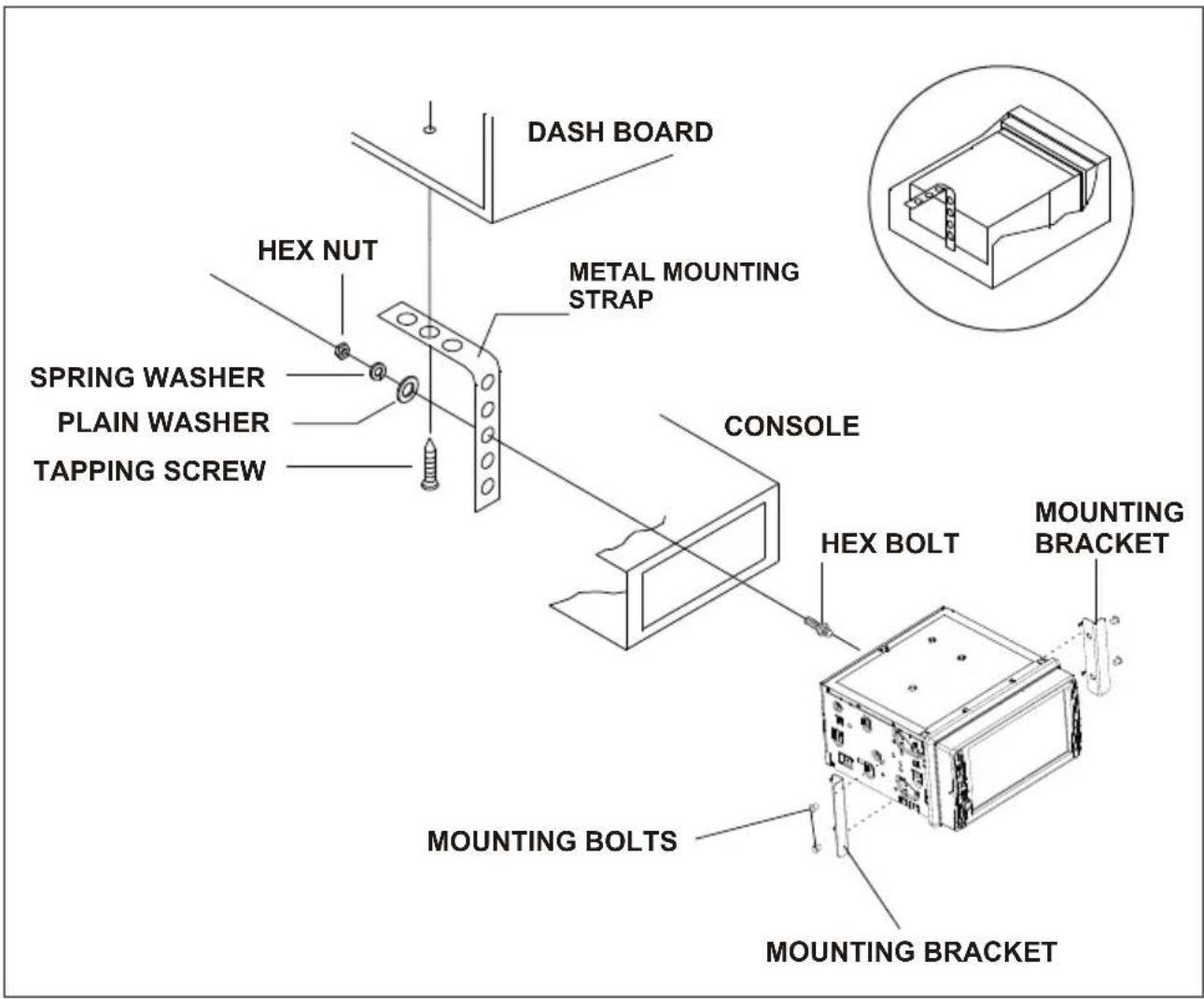
NOTE:
Don't attempt install the set by yourself, it should be installed by professional installer.
WIRING CONNECTION
![graph TD A["Radio Antenna Jack"] --> B["KEY 1 INPUT BROWN"] A --> C["KEY 2 INPUT WHITE"] A --> D["KEY GROUND BLACK"] A --> E["SUBWOOFER GREY"] A --> F["REAR CAMERA INPUT YELLOW"] A --> G["REAR CAMERA SWITCH PINK"] A --> H["PARKING BRAKE INPUT(-) LIGHT GREEN"] A --> I["VIDEO INPUT SOCKET"] A --> J["L…](/content/2026/06/1177640/images/e9765d047a98407bf32930343cb6c723b9e16d32910b76a54a2665c82c8899d2.jpg)
Note:
the ground connection cable (parking brake B-) must be connected in order for pictures to be played back to the monitor. If the cable has not been correctly connected, appears on the monitor. warning message
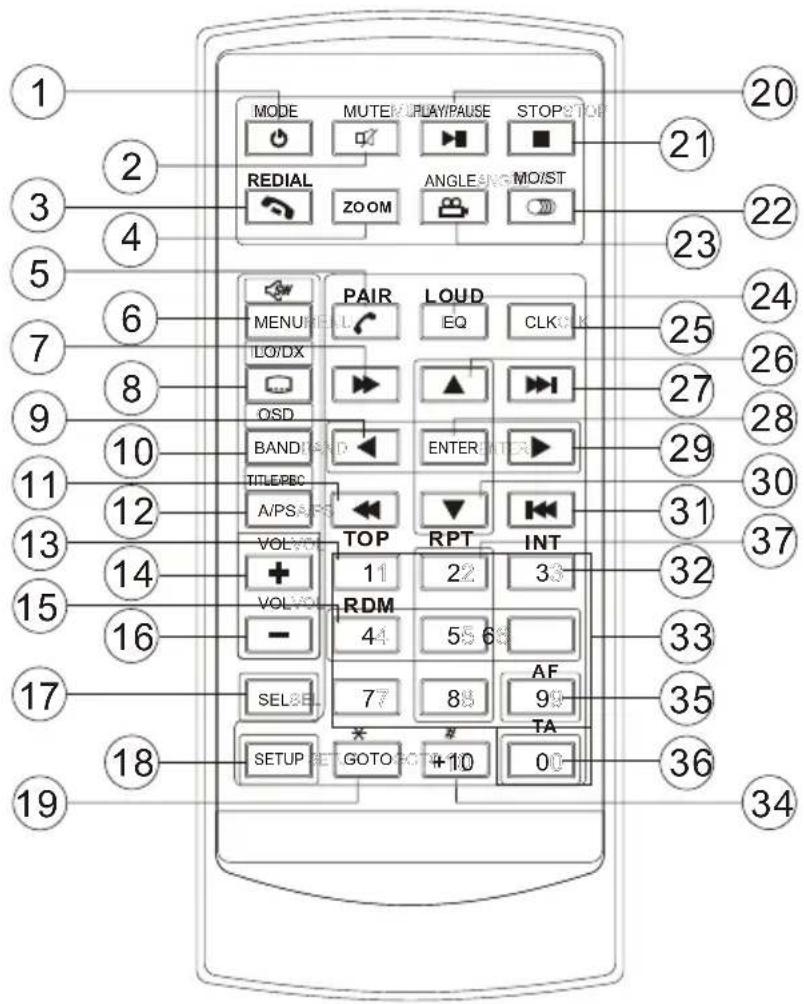
- POWER or MODE BUTTON
- MUTE BUTTON
- HANG UP or REDIAL BUTTON
- ZOOM BUTTON
- CALL or PAIR BUTTON
- MENU or SW BUTTON
-
BUTTON
- SUBTITLE or LO/DX BUTTON
- < BUTTON
- BANDTONSD
- << BUTTON
- A/PS or TITLE/PBCBUTTON
- TOP BUTTON
- VOL+ BUTTON
-
RDM BUTTON
-
VOL- BUTTON
- SEL BUTTON
- SETUP BUTTON
- GOTO or * BUTTON
-
|| BUTTON
- STOP BUTTON
- AUDIO or MO/ST BUTTON
- ANGLE BUTTON
- EQ or LOUD BUTTON
- CLK BUTTON
-
^ BUTTON
-
| BUTTON
- ENTER BUTTON
-
BUTTON
- V BUTTON
- |<< BUTTON
- INT BUTTON
- NUMBER(0\~9) BUTTON
- +10 or # BUTTON
- AF BUTTON
- TA BUTTON
- RPT BUTTON
Preparing the Remote Control
Inserting the Battery
-
First push to inside as the direction indicated by the arrow (See ①) And then Remove the battery holder as the direction indicated by the arrow (See ②).
-
Replace the battery Set a new battery property with (+)side up as illustrated (See ③).
-
Insert the battery holder. Push in the holder to the original position(See 4).

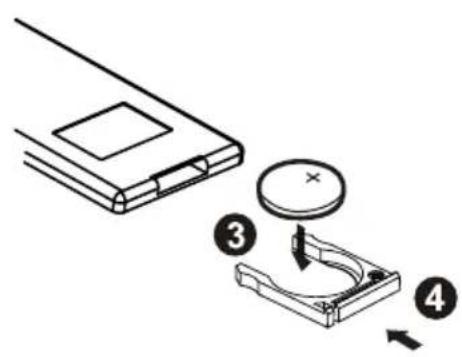
Using the Remote Control
Face the remote control towards the player front face IR mark (remote control signal receiver).
Operation angle: About 30 degree in each the direction of the front of the IR mark.
Note :
The lithium cell in the battery compartment of remote control has been secured for transport with a plastic initial use please remove this plastic so that the remote control is ready for operation.
Main Menu Operation
In many modes, touch the ← icon or touch the ↑ range to enter the main menu, the message like following as below.

- POWER icon
In any modes, touch the POWER icon to switch the unit off. The monitor will draw in automatically. - When the unit is power on, tap to turn off the display and the unit still work, tap anywhere of the display to turn on the display again.
- SETUP icon
Touch to enter the SETTING mode, the message will display as follow :
Touch the “ 🔍 ” section on the setting menu, touch the “ ↕ ↗ ranges to select the adjustment item, Touch the “ ↕ ↙ ” icon to return to the previous playback .

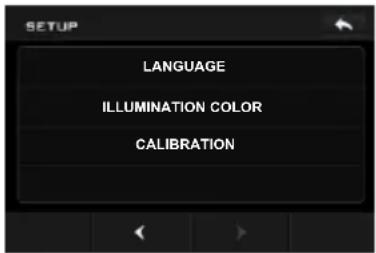
Setup interface 2
ADJUSTABLE ITEMS:
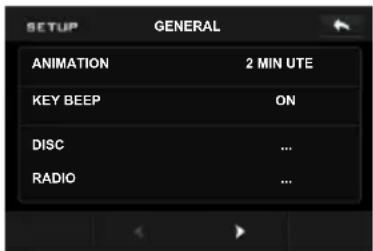
General setup interface1
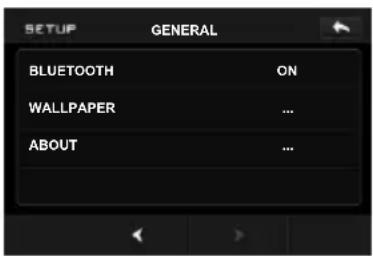
General setup interface2
ANIMATION
In RADIO mode, you can change the playing time of animation among of "OFF, 10S, 30S, 1M,90S, 2M, 3M and 4M".
Note:
Please set the playing time of the animation to “10S” for the first, when you turn the unit on.
KEY BEEP : ON or OFF.
Disc setup as follow:

FORMAT
This player is capable of playing discs recorded in either PAL or NTSC formats. Make the selection based on whether you are connecting the unit to a PAL TV or an NTSC TV. You can also set the unit to AUTO (auto select). The disadvantage to autoselect is that each time you turn the unit on it checks to see what kind of monitor is connected, which causes a small delay and some flickering of the display image which you may find unpleasant.
TV TYPE

This is to select the appropriate TV aspect (4:3 or 16:9) according to the connected TV set.
Normal/PS (For 4:3 TV)
Played back in the PAN & SCAN style. (If connected to wide-screen TV, the left and right edges are cut off.)
Normal/LB (For 4:3 TV)
Played back in LETTER BOX style.
(If connected to wide-screen TV, black bands appear at top and bottom of the screen.)
Wide (For 16:9 TV)
Select when a wide-screen TV set is connected.
RATING
Select to turn Parental Control on or off.
The factory default password is 0000.
(The password must be used to make changes to the Parental Control menu below.)
Key in "0000" and then turn to rating then you can setting as follow:
KID SAFE → G → PG → PG - 13
→ PG R → R → NC - 17 → ADULT
RADIO
ST/MONO: touch to select stereo or mono.
LOCAL: touch to select local or distant.
REGION: touch to select radio frequency.
BLUETOOTH
Touch to select the function on or off.
WALLPAPER
Touch to select wallpaper.
ABOUT
Touch to show the version information.
CLOCK SETUP
Touch the CLOCK to adjust the time and time format.

clock setup interface
AUDIO SETUP
Touch the audio to turn to audio quality adjustment.

audio setup interface1
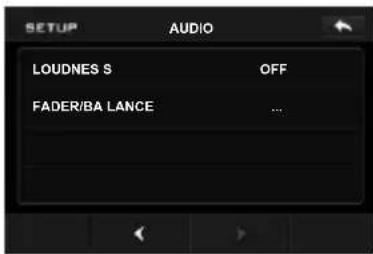
audio setup interface2
TREBLE: -7 to +7
Adjust treble level.
BASS: -7 to +7
Adjust bass level.
SUBWOOFER: touch to adjust subwoofer volume and frequency.
EQ: touch to select audio mode as follow: USER -> JAZZ -> CLASSIC -> POP -> ROCK
LOUDNESS: touch to select loudness effect as :OFF -> LOW -> MID -> HIGH
FADER/BALANCE:
BALANCE: R 0-10 to L 0-10
Adjust sound balance between left and right speakers.
FADE: F 0-10 to R 0-10
Adjust sound balance between front and rear speakers.
VIDEO SETUP

Video setup interface
COLOR: -20 to 20
Adjust the color for the picture-lighter or darker.
BRIGHTNESS: -20 to 20
Adjust if the picture is too bright or too dark.
CONTRAST: -20 to 20
Adjust the contrast of the bright and dark portion.
TINT: -20 to 20
Adjust the tint if the human skin color is unnatural.
-Adjustable when "NTSC" is selected for "NTSC/PAL".
LANGUAGE
Touch to select OSD language.
ILLUMINATION COLOR
Touch to select the backlight for all buttons. Tap auto icon the backlight change automatically.
CALIBRATION
Touch the arrow as show to calibration the display.
Reset Factory Settings
RESET button is placed on the housing and must be activated with either a ballpoint pen or thin metal object. The RESET button is to be activated for the following reasons:
A. Initial installation of the unit when all wiring is completed.
B. All the function buttons do not operate.
C. Error symbol on the display.

NOTE:
If RESET is selected, all memory data will be deleted, please re-adjust.
Rear View Camera
When connecting the rear view camera the mirror image of the rear view is automatically displayed on the monitor when you change the gear to the back position.
(Note: additional monitor can not display the image.)
UNIT KEYS
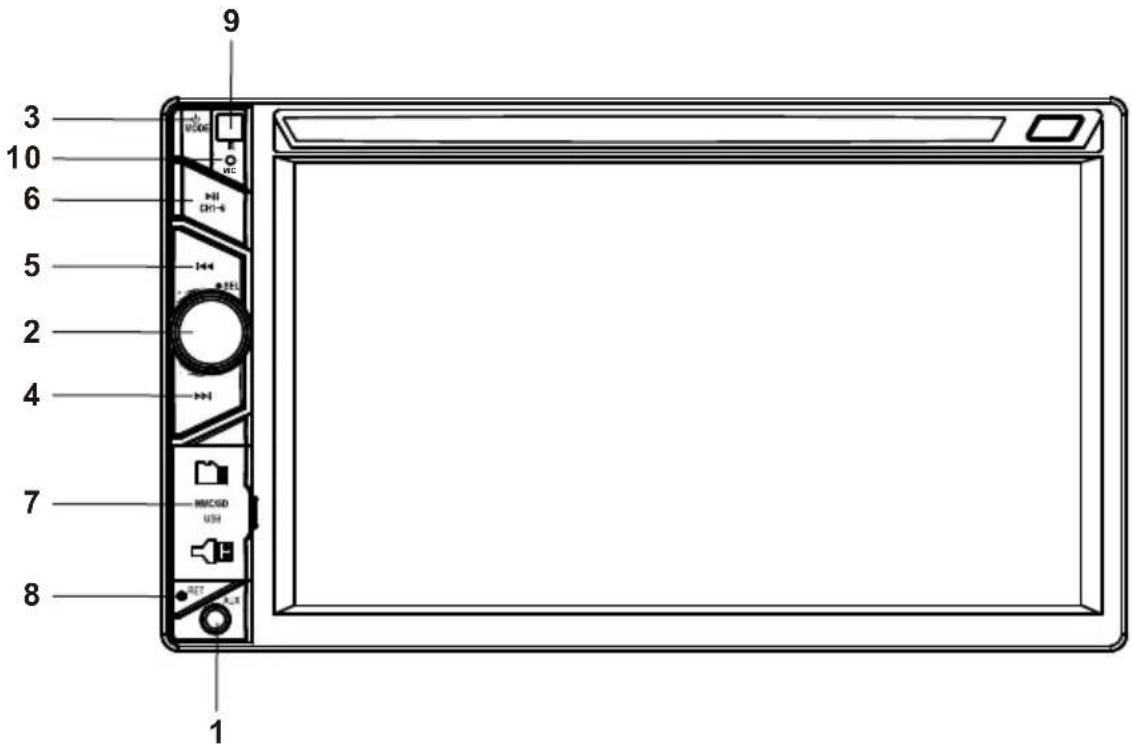
1. AUXILIARY INPUT JACK
Insert an external device to this AUX jack in order to have audio output of the device through the unit.
2. a6EVEBUKNONB
Irthmen@lmode, knob is used to increase or decrease the volume.
Press the SEL to switch between BASS, TREBLE, BALANCE, FADE, SWF VOL and SWF FRE.
After switching on the desired mode above, rotate VOL knob or press VOL+/VOL- buttons to set it.
Press and hold the SEL to turn to handsfree interface.
3. ⏻ /MODE BUTTON
In power off mode, press it to turn on the unit.
In power on mode, short press it repeatedly to select one mode of the RADIO, USB, CARD, AUX, AV and BT; long p to transmit off the unit.
4/5. >>| and |<< BUTTONS
In radio mode, long pressing |<< or >>| button can automatically search down or up for an available station beginning from the current frequency; Briefly pressing |<< or >>| button can manually search down or up for a your desired station beginning from the current frequency.
In media mode, pressing |<< or >>| button can play the previous or next track; continuously and long pressing |<< or >>| button can fast backwards or forwards at the following multiple of normal speed: x2, x4, x8, x20.
6. ▶ (PLAY/PAUSE) /CH 1-6 (RADIO PRESET)
A) In Media Playback Mode
Touch this button to pause playback, touch again to resume playback.
B) In Radio Mode
Touch repeatedly to preset station. With this system a total of 30 stations can be stored in the memory. Each band store up to six preset stations. The stations might be FM1, FM2, FM3, AM1 (MW1) and AM2 (MW2) band.
The operation as below:
-Store in Memory
Select the frequency band.
Touch repeatedly this range to select the desired memory key.
Select the station.
Keep the desired memory key touched in until the station is heard again after a brief interruption.
-Retrieve a preset station
Touch repeatedly to retrieve a station which had been stored in the memory in advance the chose number is shown on display.
7.CARD SLOT & USB PORT
Remove the cover for card and USB use.
8. RESET BUTTON
Press this button to return to factory settings.
9. IR sensor
10. MICROPHONE
RADIO OPERATION
Listening to Radio
Touch the RADIO ICON in home menu to enter the RADIO mode. In radio mode, tap 📄 icon that the display turn dark, tap twice turn dark more, tap thrice to turn off the display, and tap anywhere of the display to turn it on again.

Selecting The Frequency Band
Touch the screen of “BAND” section repeatedly to select the band, the message will show in turn:

When an FM stereo broadcast is hard to receive
Press ST/MO button on the remote control to select the MONO or STEREO mode.
Start Searching For a Station Manual Search
During Radio mode, briefly touch “▶” to increase frequency by one step of channel spacing.
Briefly touch “◀◀” to decrease frequency by one step of channel spacing.
Automatic Search
During Radio mode, touch and hold (for more than 2 seconds) either “<< />>” ICONS to start search for a radio station automatically.
To tune in strong-signal FM Station only (LO/DX function)
In radio mode, Press button on the remote control to select icon select LOC/DX mode of Local and Long-distance traffic news.
Storing and Listening to a Memory Station
Setting Memory
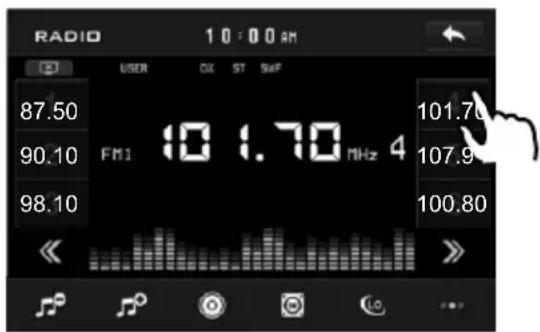
With this system, a total of 30 stations can be stored in the memory of six buttons. Each band stores up to six preset stations. The stations might be FM1, FM2, FM3, AM1(MW1), and AM2(MW2) band.
The operation is as below :
- Store in Memory
Select the frequency band
Select the station
Press and the station until it show the frequency band your select.
- Retrieve a preset station
Touch the 1-6 ranges briefly to retrieve a station which had been stored in the memory in advance the chose number is shown on display.
Automatic Memory Storing & Program Scanning

Automatic Preset Setup
In Radio Mode, touch and keep (for more than 2 'S) the screen of “☐” range to active automatic station storage.
The radio searches within the current frequency band, e.g. FM, for the stronger signal level until the search cycle has finished. The six strongest stations are then allocated to the corresponding storage locations. Then the station of the first storage location is set.
Scan Function
In Radio mode, briefly touch the “section on the touch screen, the radio briefly plays all the preset stations of the frequency band.
RDS FUNCTION
In home menu, then touch the "ICON to enter the set mode, the message in the display :

ADJUSTABLE ITEMS:
REGION SET
Touch to switch the region area as: EUROPE, USA, AMERICAN 1, AMERICAN 2 and OIRT.
REG FUNCTION
at certain times some stations divide up their programs into regional programs with varying content.
REG ON : the message "REG ON" will appears in the display for a few seconds. Note :
- the display capacity is limited. It is possible that in the double display mode some segments of the display are deleted. - the function REG ON prevents the radio from switching to alternative frequency which have a different regional program content.
REG OFF : the program identification(PI) of the regional program is ignored during the search for an alternative frequency (AF) or a program identification (PI).

Select RDS REGIONAL to turn RDS function on or off.
PI SET
Touch to change between PI MUTE and PI SOUND.
PI MUTE / PI SOUND
(only for radio operation)
If you are in an area where two program identifications (PI) overlap, you can select the option PI SOUND and
PI MUTE for playback of the sound.
Alternate switching of the program identification should be avoided.
PI SOUND :
If switching nevertheless occurs the sound of another station is heard for less than one second.
PI MUTE :
the sound of another station is suppressed.
TA Traffic Announcement
(Priority For Traffic Information)
In Radio mode, touch the cursor button to switch the TA function ON and OFF. When the TA function is activated, the TA symbol appears in the display. During radio operation in one FM frequency band the search for a traffic announcement station is started automatically (TA SEEK). If an FM station is being received which transmits the latest traffic announcements from time to time, the TP display lights up.
When the TA function is switched on, the FM traffic automatically interrupt CD operation (the word TRAFFIC appears in the display).
The volume level is increased to the minimum value for the transmission of traffic announcements.
After the traffic announcements has finished, the program that was previously running is resumed.
Interruption of the TA Function:
If you would like to interrupt the current traffic announcement, touch the TA section on screen briefly. This does switch off the TA mode.
AF FUNCTION
(Alternative Frequencies)
In Radio mode, touch the cursor button to switch the AF function ON and OFF.
AF is a function that works with the help of RDS (Radio Data System) and can only be used with FM stations. The radio searches in the background for the best frequency reception of the station that has been tuned into.
Touch the AF section on touch screen or swing and keep the SEL knob in the TA/AF direction for about 2 seconds, the AF function is activated. The AF symbol appears in the display.
When the AF function has been switched on, the radio continuously tests the signal strength of the AF frequency. The test interval for each AF frequency depends on the signal strength of the current station and varies from a few minutes in the case of weak signals. Whenever the new AF frequency is stronger than the station that is currently tuned in, the radio switched to this frequency for a short time for a short time and the message "NEW FREQUENCY" is displayed for one or two seconds.
PTY FUNCTION
In Radio mode, touch screen of "PTY" range to select the Program type.
PTY Selection of the program type besides the stations name, some FM stations also transmit information on the type of program. This information can be displayed by your car radio.
Examples of such types of program are : SPORT NEWS POP WEATHER .....
With PTY function you can specifically select stations transmitting a particular type of program. Touch the PTY on screen repeatedly to call up the PTY selection menu. The message “PTY SEEK” then appears briefly in the display. When PTY has been selected the radio start searching for corresponding PTY information and stops when the PTY information has been found, “NO PTY” appears in the display. If the PTY information being searched for no longer exists, the PTY function automatically switches to normal mode.
BASIC OPERATION
Pause (still picture)


Touch the “▶” section on touch screen during playback will stop play temporary, touch it again to return the normal playback.
Rapid Forward/Rapid Reverse

During media playback, touch the screen of “▶/◀” range the speed of rapid forward/reverse changes according to the disc as follow:


Skipping Track

During DISC playback, Touch the ▶/◀ section on the touch screen to skip to next/back one track.


Zoom Function

Touch the button repeatedly, the displayshow as “zoom 2, zoom 3, zoom 4, zoom 1/2 , zoom 1/3, zoom 1/4, zoom off.”
Use the direction keys ( ▲ ▼ ▶ ▶ on remote control to move the enlarged picture .
Note:
when the JPEG disc playback, in normal mode, you can use the cursor buttons to rotate the picture. Press UP to invert an image. Press DOWN to mirror an image. Press LEFT to rotate an image to left. Press RIGHT to rotate an image to right.
SELECTING PLAY MODES
During the Disc playback, select the "RPT, RDM, INT" to select your favour play mode.
1). REPEAT FUNCTION
FOR MP3 :
Tap the 📄 icon or press the RPT button on the remote control) to select REPEAT mode as follows :
![graph LR A["REPEAT ONE"] --> B["REP EAT FO LDER (or DIR)"] B --> C["REPEAT OFF"] C --> D["REPEAT ALL"]](/content/2026/06/1177640/images/b4cfc4be22c16d4ef114044c47e1e1fc9013bae8aefd856c980b504c72693a6c.jpg)
2). INTRO FUNCTION
FOR Digital Video/MP3 :
For Digital Video/MP3, press the INT button is not available.
3). RDM(RANDOM) FUNCTION
During media playback, touch screen of "XC" section (press the RDM button on the remote control to play in random. Each play mode the order is different. Touch it again to cancel this function.
Note : in random mode, the button is not available.
ON-SCREEN DISPLAY FUNCTION
During playback, touch the screen or press the OSD on the remote control, it will display the following as below :

Note: touch the screen or press the OSD on the remote control again to cancel the OSD information.
Touch Screen Operation
Example for Movie or PHOTO.
When it is on, it will display the information such as:

Search (GOTO)
For Movie/Photo:
Touch the screen as show or press the GOTO button on remote control;

the screen will display the following message :
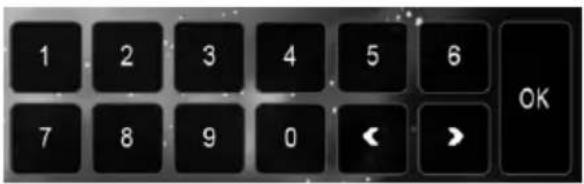
Touch the < I > to select the your adjustment item, then select the item your favour by touching the numeric buttons, then touch the OK button to confirm.
BT Operation
1. Pairing and Connecting
Prior to using the BT device named BC_HF_VG04 as a hands-free system for a BT-enabled mobile phone for the first time, you must pair and
connect them as follows:
Press the BT hands-free icon or press the pair button on the remote control to turn to BT mode as right:
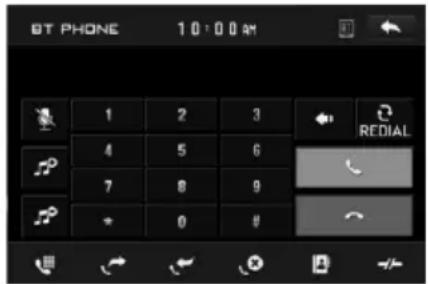
* During the use of the BT device named "BC_HF_VG04" as a hands-free system for a BT-enabled mobile phone; Switch on the BT mode of your mobile phone; then s B Elect the item to find a and enter it; B The dev finds the of the A/V system, the name
BC_HF_VG04 will be displayed, select it and enter it; then will pair and connect with the BT device BC_HF_VG04 of the car A/V system, Confirm it, then the frame of the BT logo will light all the time.
* Whishing pairing and ing connect , the audio of the mobile phone transfers to the camobile system whenever a call is made or received plays music .
2. BT PHONE
In power off mode, a incoming call or call out to wake up this unit and turn to BT hands-free mode, when the phone call ended the unit back to power off mode.
1) Make a call
(1) Dial with mobile phone directly;
(2) Dial with BT Phone, remote control, or on touch screen;
a. Touch the BT PHONE icon in home menu or touch the 📞 icon during playing to turn to BT PHONE interface, the icons function as follows:
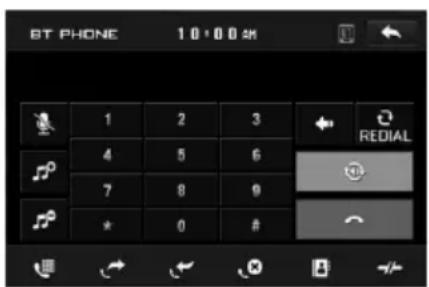
: Tap to mute the sound that the subscriber you dialed can't hear your vioce, tap again to return normal.
& : Same as VOL+ and VOL- or VOL knob.
: Tap to turn to dial interface.
: Tap to check the outgoing call.
: Tap to check the incoming call.
: Tap to check the missed call.
: Tap to turn to the contacts.
: During talk, tap to change the sound from the phone to the unit.
: Tap to do disconnection.
Tap a icon such as 📁 to show as follow:
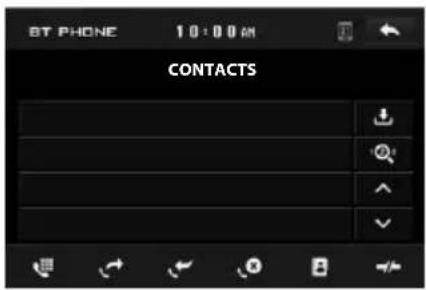
: Tap to download the contacts from your phone.
: Tap for phone number search.
& For page turning.
b. Use the number icons or buttons to input your desired phone number;
* When inputting a wrong digit, use ← icon or < button to delete it.
c. After finishing inputting, touch 📊 icon or press ↕ button on control panel to dial out.
2) Redial last dialed phone number
Touch 📄 icon or long press redial button on remote control to dial out the last dialed phone number.
3) Answer a call
During an incoming call, the incoming telephone number displays in the BT PHONE interface. If you want to receive it, touch 📞 icon or press ↻ button on remote control; if you want to reject it, touch 🔔 icon or press ↻ button on remote control.
4) Ending a call
4) Ending a call
When ending a call, touch icon or use button.
5) Switch the audio between the unit and your device
During phone talking using the BT hands-free system of the car A/V system, touch 📊 icon or press 🌐 button on remote control to switch the audio between the unit and your device.
6) Adjusting the volume during a call
Dalking phase/OL knob or VOL-a and M O l on or butson the adjust bottom de velte sound
* * / # icons and buttons
they perform as * / # buttons on mobile phone.
3. BT MUSIC
1) Touch BT MUSIC in home menu or pressing MODE button can pop up BT MUSIC interface as follows:
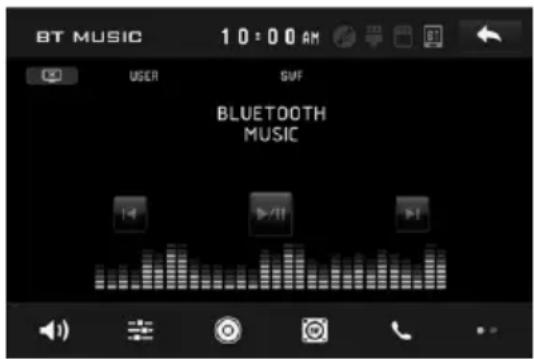


Mute function

To select the Equalizer mode

To decrease the volume level

To increase the volume level

Loudness Function

Subwoofer Function

Play/Pause the playing

To skip the next track

To skip the previous track

Tap to turn to BT PHONE mode. (After pairing and connecting a phone with BT function).
In BT music mode, tap icon that the display turn dark, tap twice turn dark more, tap thrice to turn off the display, and tap anywhere of the display to turn it on again.
2) Where your mobile phone with BT function to audio if it play, is paired and connected to the telephone will change into the car A/V system
The BT device of the car A/V system support A2DP, which enables the user to stream audio from their device.
3) The device of system so these icons support the AVRCP, BT Music interface except BT Music and their button responding panel or on remote control are available for audio/video playback of your mobile phone during playback. But no fast forward/backward functions for / icon, and the function of resume playback after pausing or stopping is available only for some mobile phone.
AUX Operation
On the front panel of this unit, there is an AUX IN jack, follow the diagram below to connect analogue replay devices(only for the Audio connect, if you want to connect the Video, please plug the
1). Please connect the external device with stereo jack (3.5mm) plug the Aux in socket.
AUX IN JACK FRONT PANEL

2). In radio mode, touch the screen of “◀” ICON to enter the main menu, touch the “AUX” ICON to enter the AUX IN mode.
In AUX mode, tap 📄icon that the display turn dark, tap twice turn dark more, tap thrice to turn off the display, and tap anywhere of the display to turn it on again.


AUX INTERFACE 1
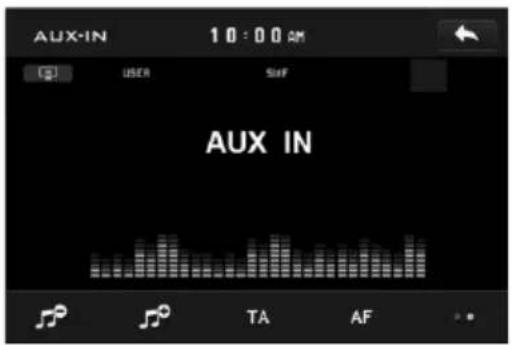
AUX INTERFACE 2
3). You now hear the sound from the external device played back through the loudspeakers.
The function of the icons as follow:
Tap to mute the sound.
Tap to select EQ as the same on the remote control.
Loudness Function.
Subwoofer Function.
Tap to adjust audio volume.
TA Turning pre-switching for traffic announcements on and off
AF Switching on and off an Alternative frequency
Tap to turn to BT PHONE mode. (after pairing and connecting a mobile phone with BT function).
AV Operation
Please plug the
Touch the AV IN icon to enter the AV IN mode.
In AV mode, tap 📄 icon that the display turn dark, tap twice turn dark more, tap thrice to turn off the display, and tap anywhere of the display to turn it on again.
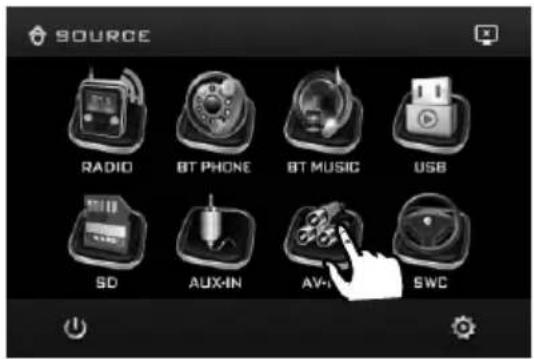


AV INTERFACE 1

AV INTERFACE 2
As the interface show, here is only the audio output, now tap the ▶ icon, the picture of the auxiliary input video show on the display and tap the display again to turn to audio mode.
Now you can watch the video from your External video equipment such as Digital Video players, computers, etc.
The function of the icons as follow:

Tap to mute the sound.

Tap to select EQ as the same on the remote control.

Loudness Function.

Subwoofer Function.


Tap to adjust audio volume.

Turning pre-switching for traffic announcements on and off

Switching on and off an Alternative frequency

Tap to turn to BT PHONE mode. (After pairing and connecting a mobile phone with BT function).
Note: To ensure safety while driving and to comply with lows, drivers should not watch video or operate the video device while driving.
Touch Screen Operation
USB OPERATION
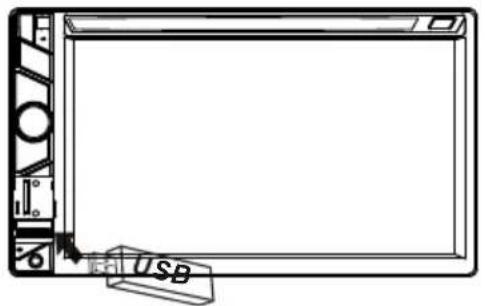
Following the diagram below, connect your USB device to the front panel USB port. If it is properly connected, the device will be mounted and start playing automatically. First, remove the cover.

1 Current type (highlighted bar).
2 Audio play mode select.
3 Picture play mode select.
4 Movie play mode select,
5 Current play track .
Card OPERATION
The unit can support playback MP3/WMA/JPEG/MP4 format which are stored on SD memory cards.
First, remove the cover.
Please read the following instructions before you start using a memory card. Inserting the card as follow:
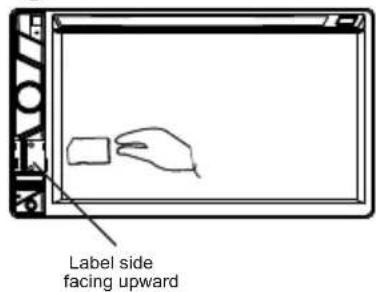
Insert a card, push in till heard a "CLICK".

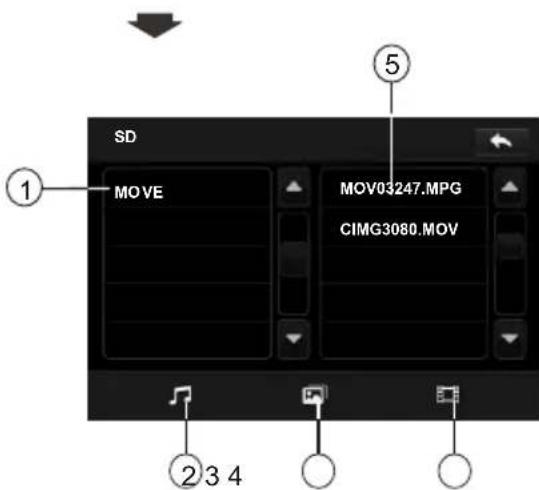
1 Current type (highlighted bar).
2 Audio play mode select.
3 Picture play mode select.
4 Movie play mode select,
5 Current play track .
STEERING WHEEL CONTROL
Touch the SWC icon as follow to turn to steering wheel control.

During setting, touch the turn to home menu.

Before operation, press the ✗ icon to cancel the original input that to set your favour.
There are 2 KEY for no more than 12 buttons to select.
For first time use this function, input a key (such as 0.38, 0.38 is a magnitude of voltage, according to your car) through the steering remote and show in button 1 position.


Then tap Assign and tap the button 1 and then select the icon as the picture show, the icon show in button 1 position. After selection tap confirm and back to home menu that means select finish.
The function of the icons as follow:

Touch to begin function save.

After selection touch to confirm operation.

Touch this icon to cancel the input and resume load.

High-z means high-impedance. Tap to reduce the magnitude of voltage. This key for avoid that voltage is too high that the car system can not differentiate the input key set for some car.

Low-z means low-impedance. Tap to increase the magnitude of voltage. This key for avoid that voltage is too low that the car system can not differentiate the input key set for some car.
General
Power Supply Requirement......DC 12V
Current consumption....10A MAX.
Audio
Signal Output....2ch&4ch line out
Frequency Response....20 Hz - 20 KHz
S/N Ratio....90 dB (JIS)
Wow and Flutter......Below measurable limits
TFT Monitor
Monitor Screen Size....6.2 Inch Wide
Color System....NTSC/PAL
USB/Card
Compatible Format.....MPEG4/IMAGE/MP3/WMA
Radio
FM
Frequency range......EUR (87.5 MHz - 108 MHz)
USA (87.5 MHz - 107.9MHz)
American 1 (87.5 MHz - 108MHz)
American 2 (87.5 MHz - 108MHz)
OIRT(88.1 MHz - 107.9MHz)
Usable sensitivity....15dBu
I.F Frequency....10.7 MHz
AM(MW)
Frequency.....EUR (522 KHz - 1620 KHz)
USA (530 KHz - 1710 KHz)
American 1(530 KHz - 1720 KHz)
American 2(520 KHz - 1600 KHz)
OITR (531 KHz - 1602 KHz)
Usable sensitivity....40dBu
I.F Frequency....450 Khz
TV
TV System....NTSC/PAL/SECAM
TV Sensitivity......45dB uV@CH25 in average
BT
BT specification.... V1.2 Class 2
BT profile supported.....Headset, Handsfree and A2DP & AVRCP profiles
Range of frequency.... 2.4GHz Spectrum
NOTE:
Specification and design are subject to modification, without notice, due to improvements in technology.
Before going through the check list, check wiring connection. If any of the problems persist after check list has been made, consult your nearest service dealer.
| SYMPTOM | CAUSE | SOLUTION |
| No power | The car ignition switch is not on | If the power supply is properly connected to the car accessory terminal,switch the ignition key to "ACC" |
| The fuse is blown | Replace the fuse | |
| Disc can not be loaded or ejected | Presence of disc inside the player. | Remove the disc in the player, then put a new one |
| Inserting the disc in reverse direction | Insert the compact disc with the label facing upward | |
| The disc is extremely dirty or defective | Clean the disc or try to play a new one | |
| Temperature inside the car is too high | Cool off or until the ambient temperature return to normal | |
| Video/image appears black-white | The color system is set incorrectly | Please switch to correct color system from menu |
| No video/image appears | The unit is not connected to the parking brake detection switch | Make proper connection according to wire connection “” |
| The parking brake is not engaged | For safety reasons no video/images are displayed while the vehicle is moving. Engaging the parking brake will cause images to be displayed. | |
| No color in picture | The disc format is not according to the TV-set used (PAL/NTSC) | Please choose a proper color system. |
| JPEG disc can not be played back | No JPEG files are recorded on the disc. | Change the disc |
| JPEG files are not recorded in a compliant format | Change the disc Record JPEG files using a compliant application | |
| Unit has become unresponsive | Unit has frozen up | Press the RESET button. Front panel is not properly fixed into its place |
| The radio does not work | The antenna cable is not connected | Insert the antenna cable firmly |
| The signals are too weak | Select a station manually |
- THANK YOU FOR PURCHASING PALSANDSTORM MULTIMEDIA
- ON INSTALLATION
- ABOUT THE LIQUID CRYSTAL DISPLAY (LCD) PANEL
- NOTES ON CLEANING
- CAUTION
- WARNING
- REGION MANAGEMENT INFORMATION
- NOTES
- DIN FRONT/REAR-MOUNT
- NOTE
- WIRING CONNECTION
- PREPARING THE REMOTE CONTROL
- INSERTING THE BATTERY
- USING THE REMOTE CONTROL
- MAIN MENU OPERATION
- ANIMATION
- FORMAT
- NORMAL/PS (FOR 4:3 TV)
- NORMAL/LB (FOR 4:3 TV)
- WIDE (FOR 16:9 TV)
- RATING
- RADIO
- BLUETOOTH
- WALLPAPER
- ABOUT
- CLOCK SETUP
- AUDIO SETUP
- COLOR: -20 TO 20
- BRIGHTNESS: -20 TO 20
- CONTRAST: -20 TO 20
- TINT: -20 TO 20
- LANGUAGE
- ILLUMINATION COLOR
- CALIBRATION
- RESET FACTORY SETTINGS
- REAR VIEW CAMERA
- UNIT KEYS
- AUXILIARY INPUT JACK
- A6EVEBUKNONB
- ⏻ /MODE BUTTON
- 4/5. >>| AND
- (PLAY/PAUSE) /CH 1-6 (RADIO PRESET)
- IN MEDIA PLAYBACK MODE
- IN RADIO MODE
- STORE IN MEMORY
- RETRIEVE A PRESET STATION
- 7.CARD SLOT & USB PORT
- RESET BUTTON
- IR SENSOR
- MICROPHONE
- RADIO OPERATION
- LISTENING TO RADIO
- SELECTING THE FREQUENCY BAND
- WHEN AN FM STEREO BROADCAST IS HARD TO RECEIVE
- START SEARCHING FOR A STATION MANUAL SEARCH
- AUTOMATIC SEARCH
- TO TUNE IN STRONG-SIGNAL FM STATION ONLY (LO/DX FUNCTION)
- STORING AND LISTENING TO A MEMORY STATION
- AUTOMATIC MEMORY STORING & PROGRAM SCANNING
- AUTOMATIC PRESET SETUP
- SCAN FUNCTION
- RDS FUNCTION
- ADJUSTABLE ITEMS
- REGION SET
- REG FUNCTION
- PI SET
- PI MUTE / PI SOUND
- (ONLY FOR RADIO OPERATION)
- PI SOUND
- PI MUTE
- TA TRAFFIC ANNOUNCEMENT
- INTERRUPTION OF THE TA FUNCTION
- AF FUNCTION
- PTY FUNCTION
- BASIC OPERATION
- PAUSE (STILL PICTURE)
- RAPID FORWARD/RAPID REVERSE
- SKIPPING TRACK
- ZOOM FUNCTION
- SELECTING PLAY MODES
- 1). REPEAT FUNCTION
- FOR MP3
- 2). INTRO FUNCTION
- FOR DIGITAL VIDEO/MP3
- 3). RDM(RANDOM) FUNCTION
- ON-SCREEN DISPLAY FUNCTION
- TOUCH SCREEN OPERATION
- SEARCH (GOTO)
- FOR MOVIE/PHOTO
- BT OPERATION
- PAIRING AND CONNECTING
- BT PHONE
- BT MUSIC
- AUX OPERATION
- AV OPERATION
- USB OPERATION
- CARD OPERATION
- STEERING WHEEL CONTROL
- GENERAL
- AUDIO
- TFT MONITOR
- USB/CARD
- FM
- AM(MW)
- TV
- BT
Brand : Xomax
Model : XM-2VRSU6201BT
Category : Uncategorized