HA5-FIBER - Audio/video converter AJA - Free user manual and instructions
Find the device manual for free HA5-FIBER AJA in PDF.


User questions about HA5-FIBER AJA
0 question about this device. Answer the ones you know or ask your own.
Ask a new question about this device
Download the instructions for your Audio/video converter in PDF format for free! Find your manual HA5-FIBER - AJA and take your electronic device back in hand. On this page are published all the documents necessary for the use of your device. HA5-FIBER by AJA.
USER MANUAL HA5-FIBER AJA
HA5-Fiber Mini-Converter HDMI to 3G-SDI over Fiber
Installation & Operation Guide
Version 1.0
Published: June 24, 2016
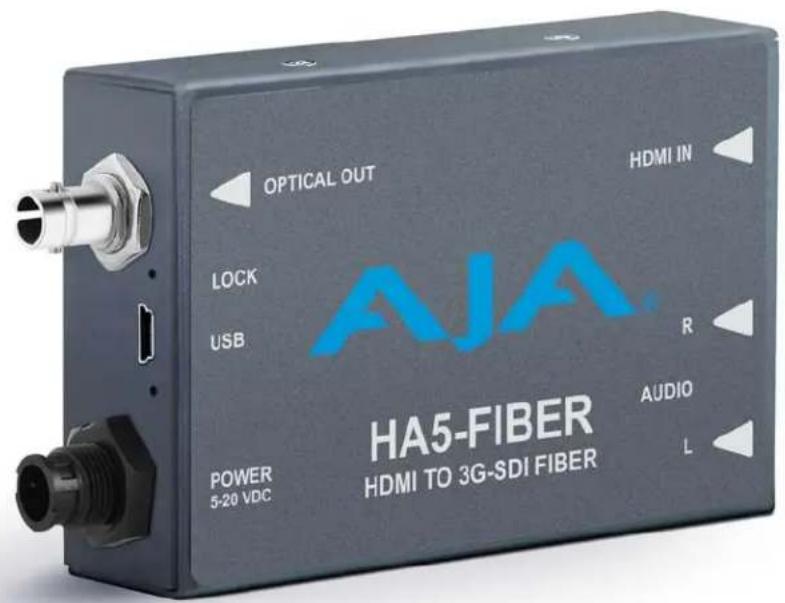
Table of Contents
Notices....4
Trademarks 4
Copyright 4
Contacting Support 4
Chapter 1: Introduction ....5
Overview.... 5
Features 5
Block Diagram.... 6
Audio 6
I/O Connections.... 6
User Controls....7
Mini-Config Control 7
Installation....7
Chapter 2: Operation....8
USB Control and Setup—Using AJA Mini-Config.... 8
Acquiring Mini-Config.... 8
Mini-Converter Documentation 8
Installing Mini-Config 8
PC Installation 8
Mac Installation.... 9
Running Mini-Config 10
PC Startup.... 10
Mac Startup 10
Saving Setups 10
Operating Mini-Config 11
Running Multiple Mini-Converters.... 11
Tabbed Screens.... 12
Input Screen 13
Output Screen 14
Audio Screen 15
Update Screen 16
Software Update Procedure 16
Info Screen.... 17
Appendix A: Specifications ....18
Input Formats 18
Output Formats 18
Video Input 18
Video Output 18
Audio Input 18
Audio Output 18
Optical Output 18
Size (w x d x h) 19
Weight.... 19
Power.... 19
Environment 19
Appendix B: Safety and Compliance....20
Federal Communications Commission (FCC) Compliance Notices 20
Class A Interference Statement ...... 20
FCC Caution 20
Canadian ICES Statement.... 20
European Union and European Free Trade Association (EFTA)
Regulatory Compliance.... 21
Declaration of Conformity.... 21
Recycling Notice 22
Korea KCC Compliance Statement 22
Taiwan Compliance Statement 22
Japanese Compliance Statement 23
Translated Warning and Caution Messages.... 23
Before Operation Please Read These Instructions 23
Warranty Information....32
Limited Warranty.... 32
Index....33
Trademarks
AJA^® and Because it matters. are registered trademarks of AJA Video Systems, Inc. for use with most AJA products. AJA^TM is a trademark of AJA Video Systems, Inc. for use with recorder, router, software and camera products. Because it matters. is a trademark of AJA Video Systems, Inc. for use with camera products.
CION®, Corvid Ultra®, Io®, Ki Pro®, KONA®, KUMO®, ROI® and T-Tap® are registered trademarks of AJA Video Systems, Inc.
AJA Control Room™, FiDO™, KiStor™, Science of the Beautiful™, TruScale™, TruZoom™, V2Analog™ and V2Digital™ are trademarks of AJA Video Systems, Inc.
AirPort, Apple, Apple logo, AppleShare, AppleTalk, FireWire, iPod, iPod touch, Mac, Macintosh and ProRes, are registered trademarks of Apple Inc. Final Cut Pro, QuickTime and QuickTime logo are trademarks of Apple Inc.
Avid, Avid DNxHD and Media Composer are registered trademarks of Avid Technology, Inc.
Adobe is a registered trademark of Adobe Systems Incorporated in the United States and/or other countries.
HDMI, the HDMI logo and High-Definition Multimedia Interface are trademarks or registered trademarks of HDMI Licensing, LLC.
DVI is a registered trademark of DDWG.
TASCAM is a registered trademark of TEAC Corporation.
Dolby and the double-D Dolby logo are registered trademarks of Dolby Laboratories Licensing Corporation.
All other trademarks are the property of their respective holders.
Copyright
Copyright © 2016 AJA Video Systems, Inc. All rights reserved. All information in this manual is subject to change without notice. No part of the document may be reproduced or transmitted in any form, or by any means, electronic or mechanical, including photocopying or recording, without the express written permission of AJA Video Systems, Inc.
Contacting Support
When calling for support, have all information at hand prior to calling. To contact AJA for sales or support, use any of the following methods:
Telephone: +1.530.271.3190
FAX:+1.530.271.3140
Web: http://www.aja.com
Support Email: support@aja.com
Sales Email: sales@aja.com
Chapter 1: Introduction
Overview
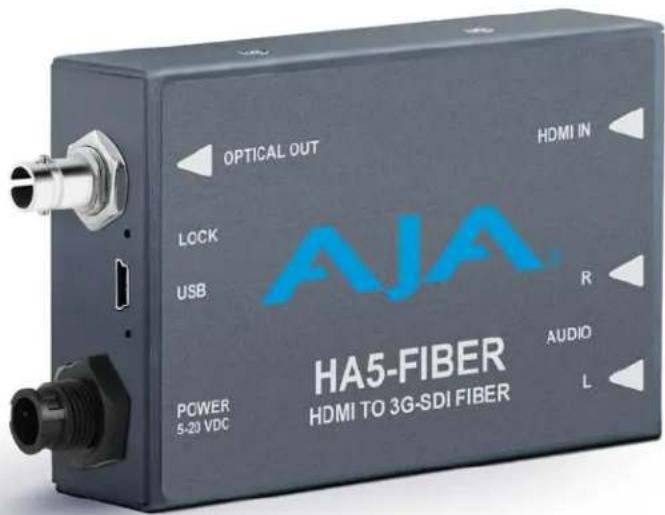
The HA5-Fiber converts HDMI to 3G, HD, or SD SDI over Fiber ST connector output. Up to eight channels of HDMI audio are embedded into the fiber output allowing a convenient single cable audio/video connection. Two external analog audio inputs can replace two of these embedded audio channels, if desired. The HA5-Fiber supports long HDMI cables on the input. The HA5-Fiber is useful for connecting HDMI cameras and other sources to SDI capture cards and equipment.
Features
- HDMI to 3G, HD, or SD SDI over Fiber ST connector output (see "Appendix A: Specifications on page 18" for a complete list of supported inputs).
• Full 10-bit Conversion
• Full HDMI support including embedded audio
• Equalized HDMI input supports long HDMI cables up to 30m - PLL clock filtering for low jitter SDI outputs
- Lock LED shows type of input source: SD (green), HD (red), or 3G (amber)
• Unbalanced analog audio input (2 RCA) - Accepts 8 channels of HDMI embedded audio
• Outputs 8 channels of SDI embedded audio (Channels 1-8 or 9-16)
• HDMI cable supplied - Uses universal input +5V power supply AJA model DWP-U-R1 (included)
NOTE: The HA5-Fiber will not pass HDMI video with HDCP copy protection.
Figure 1. HA5-Fiber Converter, Simplified Block Diagram
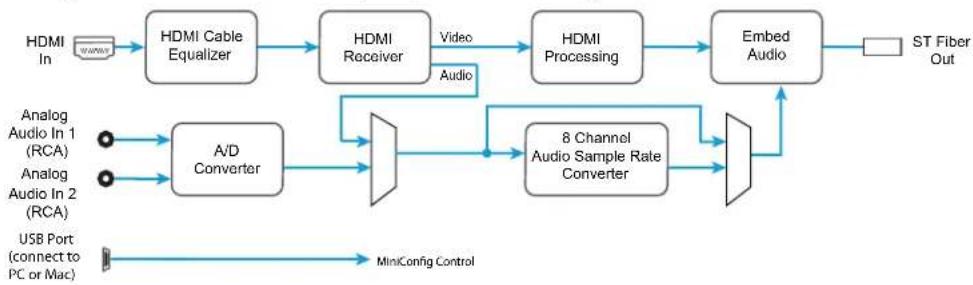
flowchart
graph LR
    A["HDMI In"] --> B["HDMI Cable Equalizer"]
    B --> C["HDMI Receiver"]
    C --> D["HDMI Processing"]
    D --> E["Embed Audio"]
    E --> F["ST Fiber Out"]
    G["Analog Audio In 1 (RCA)"] --> H["A/D Converter"]
    I["Analog Audio In 2 (RCA)"] --> H
    H --> J["8 Channel Audio Sample Rate Converter"]
    K["USB Port (connect to PC or Mac)"] --> L["MiniConfig Control"]
    C --> M["Video"]
    C --> N["Audio"]
    J --> O["Output"]
Audio
The HA5-Fiber converter supports 8 audio channels (4 stereo pairs) at 24-bit/48 KHz which it dis-embeds from HDMI and embeds into SDI. For proper embedding, audio must be synchronous to video. If audio is not synchronous with video or the sample rate is not 48 KHz, then Mini-Config must be used to set the Sample Rate Converter to convert audio to 24-bit/48 KHz and then synchronize it with input video before embedding.
I/O Connections
Figure 2. HA5-Fiber Converter
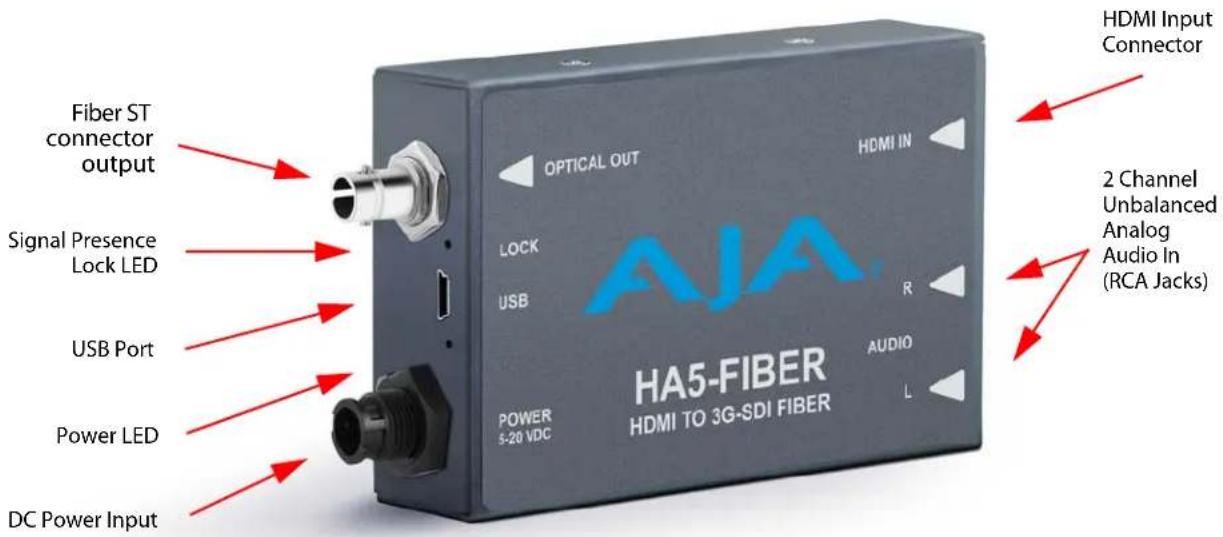
NOTE: The Lock LED indicates valid input video by color. Green is SD video, red is HD video, amber is 3G video, off is no input.
User Controls
Mini-Config Control
Auto controls configures the unit automatically to match the input and output video parameters. Advanced Mini-Config control supports setting the RGB video range, and adjusting audio input, conversion, and routing to embedded HDMI audio.
Configuration set via Mini-Config is stored in the HA5-Fiber unit through subsequent power cycles.
Installation
Typically, HA5-Fiber installation consists of the following steps:
- Ensure the converter is disconnected from power.
- Connect equipment to the converter HDMI input connector, the 3G, HD-SDI or SD-SDI over Fiber ST output connector, and the analog audio inputs (if used).
- Connect audio equipment to RCA connectors (optional)
- Apply power to the converter (AJA power supply included).
- The converter will now run using the default factory settings. If you wish to alter the factory settings, you'll need to:
• Install the AJA Mini-Config software on your computer - Attach the converter via USB
-
Make your changes using Mini-Config setup screens.
-
This process is detailed in "Chapter 2: Operation on page 8".
Chapter 2: Operation
USB Control and Setup—Using AJA Mini-Config
Your AJA Mini-Converter can be used right out of the box for some applications since it is designed to recognize inputs and perform standard actions automatically by default. However, to use its full capability, you must use AJA's Mini-Config software application for PCs and Macs. This same application can be used to update to new Mini-Converter software released by AJA.
Acquiring Mini-Config
AJA's Mini-Config application is available for download from the AJA website.
To download the latest Mini-Config package, which includes the Mini-Config application, Mini-Converter firmware, and documentation, go to:
https://www.aja.com/en/products/mini-converters/mini-config-software
Select either the Windows or Mac icon to download the desired version.
Mini-Converter Documentation
Included with the Mini-Config package is a complete set of documentation for all Mini-Converters supported by Mini-Config. A .PDF of the Installation and Operation Guide for the currently connected Mini-Converter can be accessed from the Mini-Config UI via the Help/Manual drop-down menu.
Documentation for all AJA Mini-Converters that use Mini-Config can also be accessed directly in the Mini-Config download package Documentation folder, and via the Documentation icon available on the Mac installer.
Documentation (and firmware) included with the Mini-Config application are the versions available at the time of distribution. However, Mini-Converter software, firmware and documentation are updated regularly, so newer versions may exist.
To download the latest documentation for an individual Mini-Converter, go to: https://www.aja.com/en/category/mini-converters
and navigate to the Support webpage of that Mini-Converter.
Installing Mini-Config
PC Installation To install Mini-Config on a Windows PC:
- Download the application from the AJA website (select the Windows icon on the Mini-Config Support webpage).
- Open the AJA_MiniConfig.zip file
- Double-click on the MiniInstaller.msi file.
- A Setup Wizard will guide you through the installation.
Figure 3. Mini-Config PC Setup Wizard
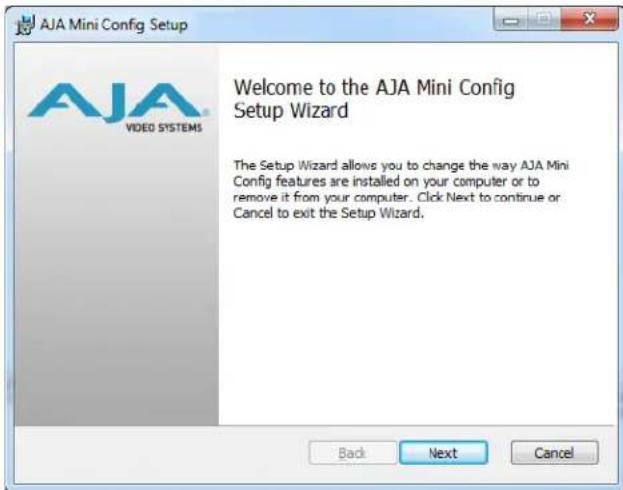
- Click Next to begin. Answer the questions in the subsequent dialogues. When finished, an AJA Mini-Config shortcut will be installed on the desktop, and you will be able to locate the Mini-Config application in the AJA folder in the Programs listing.
NOTE: If the Mini-Config application already exists on the PC, a different Setup Wizard appears.
Figure 4. Mini-Config Setup Wizard, Reinstallation
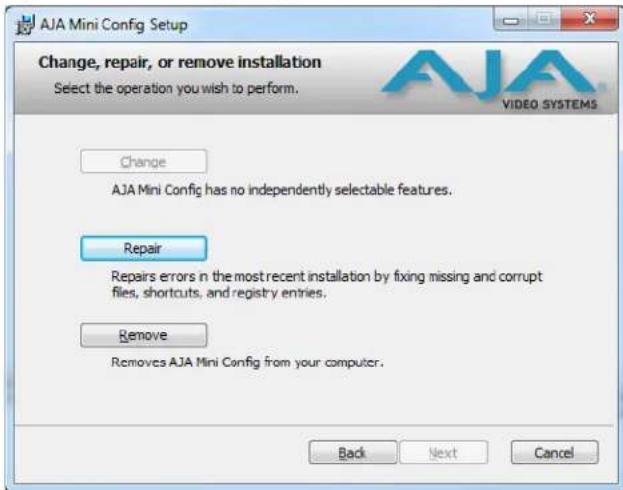
With this screen you can Repair (reinstall) or Remove (uninstall) Mini-Config on the PC.
Mac Installation To install the application on a Mac:
NOTE: Macintosh computers must be Intel-based (G5, G4 and earlier models will not work with Mini-Config).
- Download the application from the AJA website (select the Apple icon on the Mini-Config Support webpage).
- Open the AJA_MiniConfig folder.
- Double-click on the AJAMiniConfig.dmg file.
- Answer the prompt and a utility program will be launched.
Figure 5. Mini-Config Mac Installer
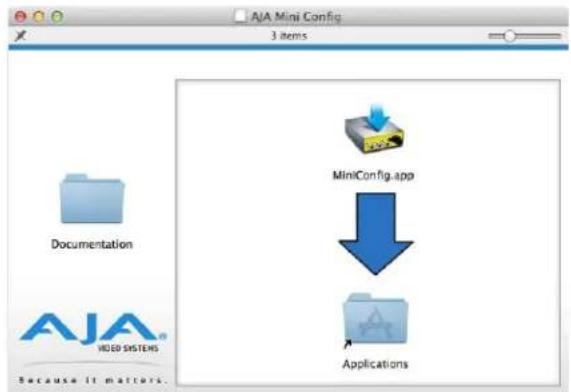
- To complete the installation drag the "MiniConfig.app" icon to the Applications folder.
Running Mini- Config
Connect the Mini-Converter to the PC or Mac via the supplied USB cable. Connect the external power supply (supplied) to the Mini-Converter.
PC Startup
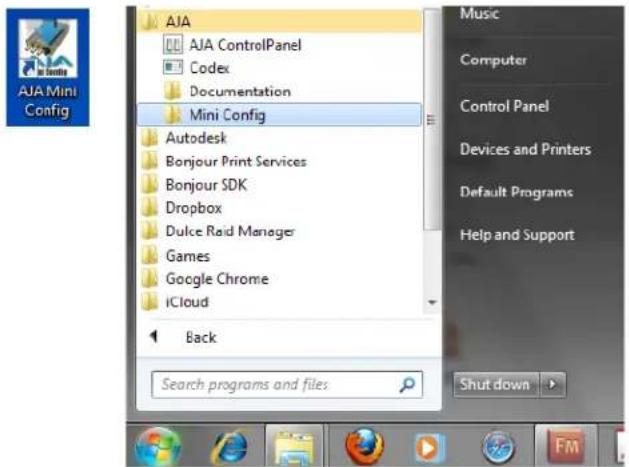
To run Mini-Config on a PC, double-click on the AJA Mini-Config icon on your desktop, or open the AJA folder in the program list and click on the AJA Mini-Config application located inside the Mini-Config folder.
Mac Startup
To run Mini-Config on a Mac, open the Applications folder and locate the AJA Mini-Config application. Double-click the application to launch it.
Saving Setups
A File drop down menu on the Mini-Config application bar allows you to save the current state of the Mini-Converter to a preset file for later recall.
| MiniConfig | File | Edit | Help |
| Open Preset... | %O | ||
| Save Preset As... | %S | ||
| Revert to Factory Settings | |||
| Refresh | %R | ||
Using this feature you can set up the converter for different applications, storing each configuration (Save Preset As...) with a unique name for easy recall (Open Preset...).
A Revert to Factory Settings menu item similarly allows you to change the settings back to AJA's factory defaults.
Operating Mini- Config
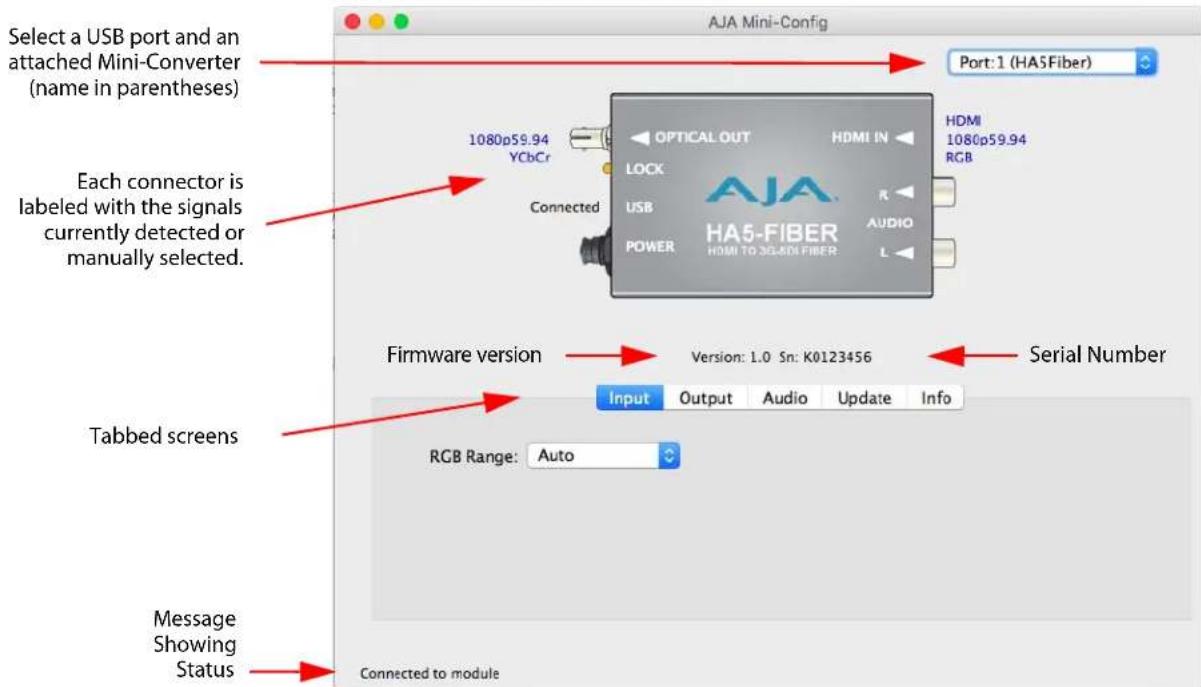
The Mini-Config application provides a graphic interface for viewing settings and updating software. It consists of an information area at the top that shows the available Mini-Converters attached to the computer via USB, with a graphical rendering of the selected Mini-Converter showing all the connectors and their current state.
Colored text next to the connectors indicates the signal type and what the MiniConverter is doing:
- Blue text indicates the values automatically selected
- Black text indicates values that you have manually selected
- Red text indicates the Mini-Converter is not detecting a signal, or cannot operate with the current user settings.
NOTE: Even if no output device is detected, the SDI connector text still shows the signal it is outputting.
NOTE: Configuration settings in red will change based on the attached output device as well as input signals. For improved accuracy and reliability, you should configure the Mini-Converter only when the target output device is attached and input signals are supplied at the inputs.
Screens are virtually the same on both PC and Mac, with subtle differences that reflect the general look of the platform environment.
Running Multiple Mini-Converters
Mini-Config can manage multiple AJA Mini-Converters connected via USB—even when they are of differing types. However it only connects to one at a time. You can choose which Mini-Converter you wish to control using the pulldown menu in the upper right hand corner. If you want to configure multiple Mini-Converters in parallel, you can do it by running multiple instances of the Mini-Config application and have each control a different Mini-Converter.
NOTE: During a Mini-Converter firmware update, only one Mini-Converter should be connected to the computer via USB.
Figure 6. Example Mini-Config Screen
NOTE: The Lock LED indicates valid input video by color. Green is SD video, red is HD video, amber is 3G video, off is no input.
Selecting a Mini-Converter with the pulldown menu causes this application to connect to the selected converter. The graphic of Mini-Converter and text below it provides:
- Type of converter
- Firmware version
- Serial number of the unit.
A status field at the bottom of the screen shows if your application is connected and communicating with the Mini-Converter.
When configuring the Mini-Converter, select it from the top pulldown, view the current settings and change any values. Making a change communicates that new value to the Mini-Converter's non-volatile memory.
Tabbed Screens
The Tabs delineate control screens with groups of controls for each type of task to be performed. The controls for the actual configuration parameters are specific to each Mini-Converter type. When you Click on any of the tab buttons, the pane below the tabs will change to match your tab selection. Any changes you make are immediately applied and will be saved, overwriting previous settings.
Input Screen
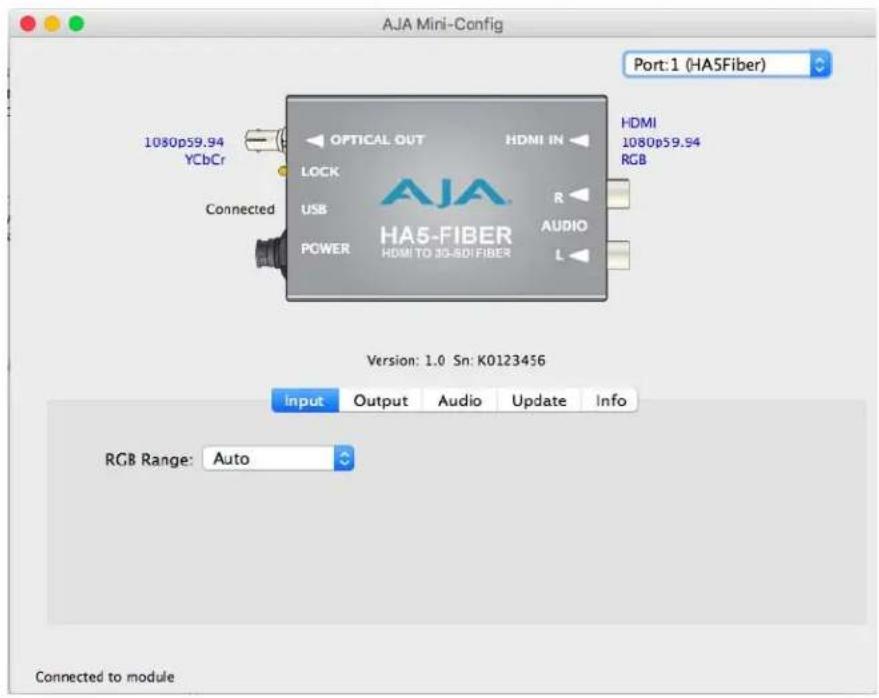
Click on the Input tab to view and make changes to the HA5-Fiber input settings.
RGB Range Selects the Input Video Color Range. Choose Auto, SMPTE or Full color range.
Output Screen
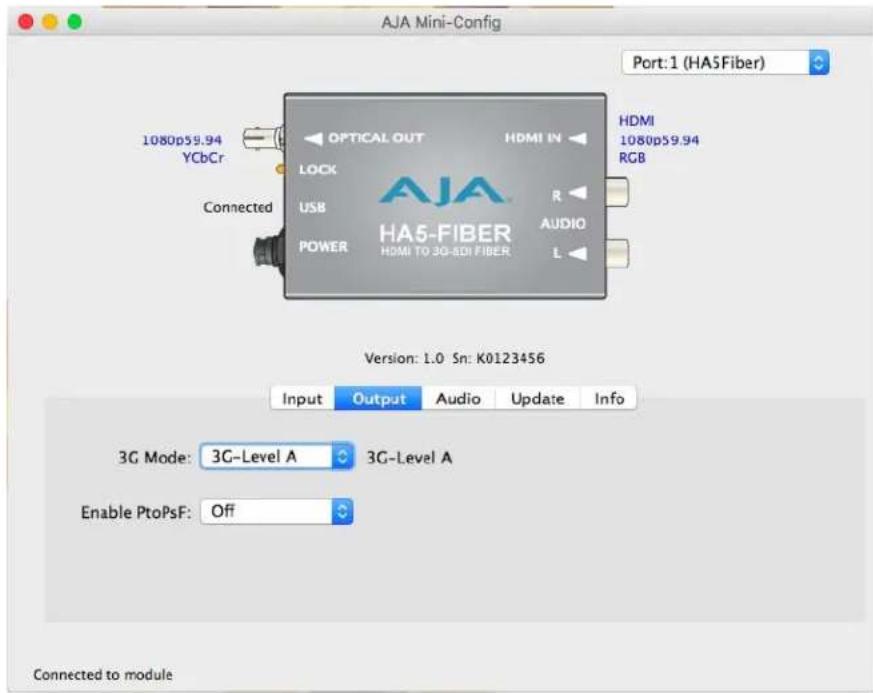
Click on the Output tab to view and make changes to the HA5-Fiber output settings.
3G Mode This control selects the type of 3G SDI output. Choose 3G-Level A or 3G-Level B.
NOTE: The 3G Mode parameter only has an effect if the output is 3G-SDI.
Enable PtoPsF This control selects whether progressive video is converted to PsF output.
NOTE: The Enable PtoPsF parameter only has an effect if the input is 1080p 23.98, 24, 25, 29.97, or 30.
Audio Screen
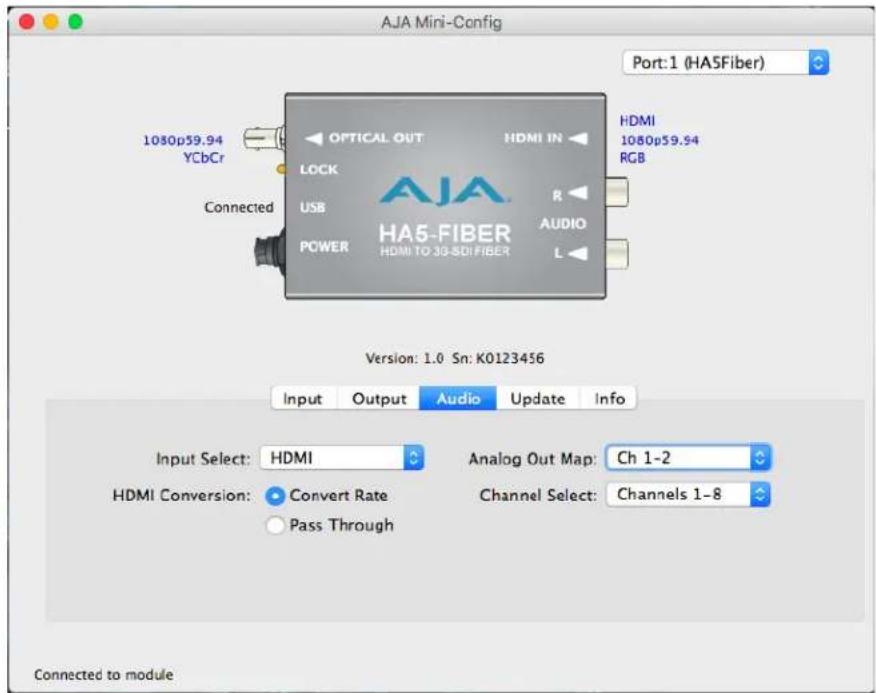
Click on the Audio tab to view and make changes to the HA5-Fiber audio settings.
NOTE: When using the DVI video protocol, no audio is output since that protocol is video only.
Input Select Choose what audio channels are routed to the SDI output.
- HDMI - Only the audio channels from the HDMI input are embedded.
- Analog - Only the two analog input channels are embedded. You can choose which of the embedded SDI channels will receive the analog audio, using the Analog Out Map and Channel Select settings. The other channels will be muted.
- Analog + HDMI - Both the analog inputs and HDMI audio are embedded. You can choose which of the HDMI channels will be replaced by the two analog audio inputs, using the Analog Out Map and Channel Select settings.
- None - No audio will be embedded. All channels are muted.
HDMI Conversion Choose the audio conversion to be performed on the incoming HDMI audio.
- Convert Rate - The HDMI audio will be converted, if necessary, to 24-bit/48 KHz audio.
- Pass Through - The HDMI audio will be passed to the SDI embedded audio channels without conversion.
Analog Out Map Permits selecting the pair of SDI embedded audio channels that will receive the analog audio from the RCA connectors. The audio pair replaced depends on the Channel Select setting below, and your choice of Ch 1-2 through Ch 7-8 that correspond to that set of embedded channels.
Channel Select Choose which set of 8 channels (4 pairs) of embedded audio the SDI output will carry. Select Channels 1-8 or Channels 9-16.
Update Screen
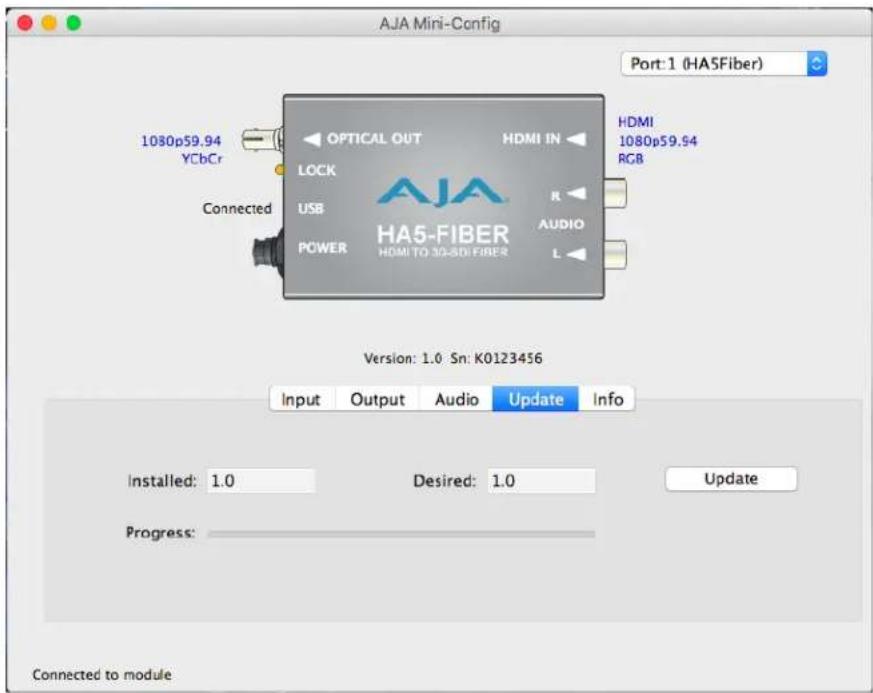
Use this Update screen to view the software version currently installed on the converter or install new software.
NOTE: When discussing Mini-Converters, "Firmware" is software that will be stored in the Mini-Converter's non-volatile memory and used when it is powered up. This is something different than the Mini-Config application software. The version numbers shown in the Update screen refer only to the firmware.
Installed: This field shows the version of the firmware currently installed inside the Mini-Converter.
Desired: This field shows the version of firmware embedded in the Mini-Config application which you can install into the Mini-Converter by clicking the Update button.
Update This button initiates a firmware update operation loading the "Desired" version of firmware into the Mini-Converter's non-volatile memory.
Progress: This indicator bar shows the progress of firmware installation.
Software Update Procedure
- Check the AJA website for new Mini-Config software for your Mini-Converter. If new software is found, download it and uncompress the file archive (zip). Here is the URL to use when checking:
http://www.aja.com/en/products/mini-converters/mini-config-software
-
Connect the Mini-Converter to a Mac or PC via a USB port on the computer and run the new Mini-Config software just downloaded.
-
Click on the Update tab.
-
Check the Installed version level against the Desired version level. If the Desired is newer, then click the Update button to download the new firmware to the MiniConverter; progress will be shown via the "Progress" thermometer bar.
Info Screen
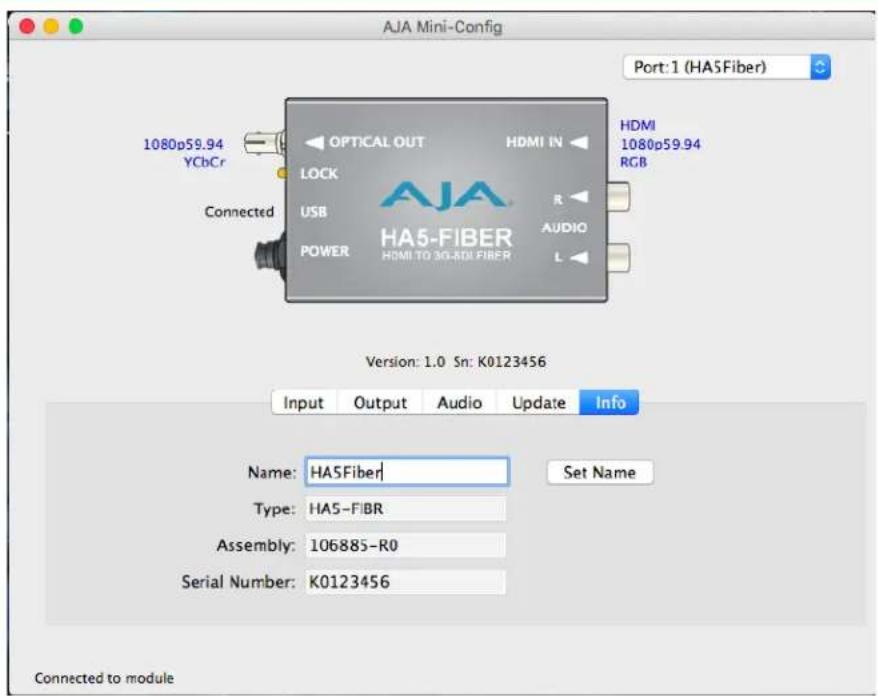
This screen provides basic information about the Mini-Converter. This information is mostly useful when calling AJA Support for service or technical support.
Name This field allows you to give your Mini-Converter a name. This may be useful if you have several Mini-Converters attached to a Mac/PC via USB so you can distinguish one of them easily (especially if they're the same model).
Type: This is the factory set model name of the Mini-Converter (HA5-Fiber).
Assembly: This is the factory assembly number.
Serial Number: This is the factory set unique serial number of your HA5-Fiber. If you ever call AJA Support for service, you may be asked for this number.
Appendix A: Specifications
Input Formats
• (HD) 1080p 23.98, 24, 25, 29.97, 30, 50, 59.94, 60
• (HD) 1080i 50, 59.94, 60
• (HD) 720p 50, 59.94, 60
• (SD) 576p 25
• (SD) 576i 25
• (SD) 480p 29.97
• (SD) 480i 29.97
NOTE: HDCP content not supported
Output Formats
• (HD) 1080i 25, 29.97, 30
• (HD) 1080p 23.98, 24, 25, 29.97, 30
• (HD) 1080p 50, 59.94, 60 - SMPTE 425-1 Level A mapping structure 1 (1920 x 1080 4:2:2 10-bit YCbCr)
• (HD) 720p 50, 59.94, 60
• (SD) 625i 25
• (SD) 525i 29.97
Video Input
• HDMI 1.4a with embedded audio, up to 8-Channels
Video Output
- Single mode optical fiber, ST connector supporting SMPTE-259/292/424 3G/HD/SD-SDI
Audio Input
• 2-Channel RCA style analog audio (-10dBu nominal)
Audio Output
- SDI embedded audio
Optical Output
• Wavelength: 1310nm
• Output Power: -2dBm typical
Size (w x d x h)
- 4.4'' × 2.4'' × 1.0'' (112mm × 61mm × 25mm)
Weight
· 0.3 lb (0.2 kg)
Power
- Uses AJA power supply model DWP-U-R1, included with purchase
• 100-240V, 50/60 Hz universal input
• +5V DC regulated, 4.5 watts
Environment
Safe Operating Temperature 0 to 40 degrees C (32 to 104 degrees F)
Safe Storage Temperature -40 to 60 degrees C (-40 to 140 degrees F) (Power OFF)
Operating Relative Humidity 10-90% noncondensing
Operating Altitude <3,000 meters (<10,000 feet)
Appendix B: Safety and Compliance
Federal Communications Commission (FCC) Compliance Notices
Class A Interference Statement
This equipment has been tested and found to comply with the limits for a Class A digital device, pursuant to Part 15, Subpart B of the FCC Rules. These limits are designed to provide reasonable protection against harmful interference in a residential installation. This equipment generates, uses, and can radiate radio frequency energy and, if not installed and used in accordance with the instructions, may cause harmful interference to radio communications. However, there is no guarantee that interference will not occur in a particular installation. If this equipment does cause harmful interference to radio or television reception, which can be determined by turning the equipment off and on, the user is encouraged to try to correct the interference by one or more of the following measures:
- Reorient or relocate the receiving antenna.
- Increase the separation between the equipment and receiver.
- Connect the equipment into an outlet on a circuit different from that to which the receiver is connected.
- Consult the dealer or an experienced radio/TV technician for help.
FCC Caution
This device complies with Part 15 of the FCC Rules. Operation is subject to the following two conditions: (1) This device may not cause harmful interference, and (2) this device must accept any interference received, including interference that may cause undesired operation.
Canadian ICES Statement
Canadian Department of Communications Radio Interference Regulations
This digital apparatus does not exceed the Class A limits for radio-noise emissions from a digital apparatus as set out in the Radio Interference Regulations of the Canadian Department of Communications. This Class A digital apparatus complies with Canadian ICES-003.
European Union and European Free Trade Association (EFTA) Regulatory Compliance
This equipment may be operated in the countries that comprise the member countries of the European Union and the European Free Trade Association. These countries, listed in the following paragraph, are referred to as The European Community throughout this document:
AUSTRIA, BELGIUM, BULGARIA, CYPRUS, CZECH REPUBLIC, DENMARK, ESTONIA, FINLAND, FRANCE, GERMANY, GREECE, HUNGARY, IRELAND, ITALY, LATVIA, LITHUANIA, LUXEMBOURG, MALTA, NETHERLANDS, POLAND, PORTUGAL, ROMANIA, SLOVAKIA, SLOVENIA, SPAIN, SWEDEN, UNITED KINGDOM, ICELAND, LICHTENSTEIN, NORWAY, SWITZERLAND
Declaration of Conformity
Marking by this symbol indicates compliance with the Essential Requirements of the EMC Directive of the European Union 2014/30/EU.

This equipment meets the following conformance standards:
Safety: EN 60065: 2002 + A1: 2006 + A11: 2008 + A2: 2010 + A12: 2011 (GS License)
IEC 60065: 2001 + A1: 2005 + A2: 2010 (CB Scheme Report/Certificate)
Additional licenses issued for specific countries available on request.
Emissions: EN 55032: 2012, EN 55022: 2010, CISPR22: 2008
EN 61000-3-2:2006 +A1:2009 +A2:2009, EN 61000-3-3:2008
Immunity: EN 55103-2: 2009
EN 61000-4-2: 2009, EN 61000-4-3: 2006 + A1:2008 + A2:2010,
EN 61000-4-4: 2004 + A1:2010, EN 61000-4-5: 2006, EN 61000-4-6: 2009,
EN 61000-4-11: 2004
Environments: E2, E3 and E4
Laser: EN 60825-1: 2007 and EN 60825-2: 2004 +A2: 2010,
CDRH Compliant Class 1 (TUV Cert No. 50135086)
Also Licensed for Standards: FDA 21 CFR 1040.10 and 1040.11
The product is also licensed for additional country specific standards as required for the International Marketplace.

Warning!
This is a Class A product. In a domestic environment, this product may cause radio interference, in which case, the user may be required to take appropriate measures.
This symbol on the product or its packaging indicates that this product must not be disposed of with your other household waste. Instead, it is your responsibility to dispose of your waste equipment by handing it over to a designated collection point for the recycling of waste electrical and electronic equipment. The separate collection and recycling of your waste equipment at the time of disposal will help conserve natural resources and ensure that it is recycled in a manner that protects human health and the environment. For more information about where you can drop off your waste for recycling, please contact your local authority, or where you purchased your product.
Korea KCC Compliance Statement
A급 기기 (업무용 방송통신기자재)
Class A (Broadcasting Communication Equipment for Office Use)
As an electromagnetic wave equipment for office use (Class A), this equipment is intended to use in other than home area. Sellers or users need to take note of this.
Taiwan Compliance Statement
警告使用者:
This is a Class A product based on the standard of the Bureau of Standards, Metrology and Inspection (BSMI) CNS 13438, Class A. In a domestic environment this product may cause radio interference in which case the user may be required to take adequate measures.
Japanese Compliance Statement
- Class A ITE
This is a Class A product based on the standard of the VCCI Council (VCCI V-3/2015.04). If this equipment is used in a domestic environment, radio interference may occur, in which case, the user may be required to take corrective actions.
Translated Warning and Caution Messages
The following caution statements, warning conventions, and warning messages apply to this product and manual.

Warning Symbol

Caution Symbol
Before Operation Please Read These Instructions

Warning!
Read and follow all warning notices and instructions marked on the product or included in the documentation.
Do not use this device near water and clean only with a dry cloth.
Do not block any ventilation openings. Install in accordance with the manufacturer's instructions.
Do not install near any heat sources such as radiators, heat registers, stoves, or other apparatus (including amplifiers) that produce heat.
Do not defeat the safety purpose of the polarized or grounding-type plug. A polarized plug has two blades with one wider than the other. A grounding type plug has two blades and a third grounding prong. The wide blade or the third prong are provided for your safety. If the provided plug does not fit into your outlet, consult an electrician for replacement of the obsolete outlet.
Since the Mains plug is used as the disconnection for the device, it must remain readily accessible and operable.
Protect the power cord from being walked on or pinched particularly at plugs, convenience receptacles, and the point where they exit from the device.
Unplug this device during lightning storms or when unused for long periods of time.
Refer all servicing to qualified service personnel. Servicing is required when the device has been damaged in any way, such as power-supply cord or plug is damaged, liquid has been spilled or objects have fallen into the device, the device has been exposed to rain or moisture, does not operate normally, or has been dropped.
Do not open the chassis. There are no user-serviceable parts inside. Opening the chassis will void the warranty unless performed by an AJA service center or licensed facility.
Disconnect the external AC power supply line cord(s) from the mains power before moving the unit.
Only use attachments and accessories specified and/or sold by the manufacturer.
HA5-Fiber devices require the use of "single mode 1310nm compatible" fiber optic cable.
Aviso!
CLASS 1 LASER PRODUCT

PRODUTO LASER DE CLASSE 1

PRODUITS LASER DE CLASSE 1

PRODOTTO LASER DI CLASSE 1

CLASE 1 LASER PRODUCTO

KLASSE 1 LASER- PRODUKT
Warning!
Active fiber-optic cables emit radiation invisible to the human eye. Do not look directly at the end of an active fiber-optic cable; the HA5-Fiber is a Class 1 Laser Product.
Advertência!
HA5-Fiber converters only operate with 5 VDC. Higher voltages can damage the unit. Older HA5-Fiber devices were incorrectly labeled with a 5-20 VDC range. The DWP-U-R1 power supply (included) provides the correct power.
Aviso!
AJA Video Systems, Inc. (AJA Video) warrants that this product will be free from defects in materials and workmanship for a period of five years from the date of purchase. If a product proves to be defective during this warranty period, AJA Video, at its option, will either repair the defective product without charge for parts and labor, or will provide a replacement in exchange for the defective product.
In order to obtain service under this warranty, you the Customer, must notify AJA Video of the defect before the expiration of the warranty period and make suitable arrangements for the performance of service. The Customer shall be responsible for packaging and shipping the defective product to a designated service center nominated by AJA Video, with shipping charges prepaid. AJA Video shall pay for the return of the product to the Customer if the shipment is to a location within the country in which the AJA Video service center is located. Customer shall be responsible for paying all shipping charges, insurance, duties, taxes, and any other charges for products returned to any other locations.
This warranty shall not apply to any defect, failure or damage caused by improper use or improper or inadequate maintenance and care. AJA Video shall not be obligated to furnish service under this warranty a) to repair damage resulting from attempts by personnel other than AJA Video representatives to install, repair or service the product, b) to repair damage resulting from improper use or connection to incompatible equipment, c) to repair any damage or malfunction caused by the use of non-AJA Video parts or supplies, or d) to service a product that has been modified or integrated with other products when the effect of such a modification or integration increases the time or difficulty of servicing the product.
THIS WARRANTY IS GIVEN BY AJA VIDEO IN LIEU OF ANY OTHER WARRANTIES, EXPRESS OR IMPLIED. AJA VIDEO AND ITS VENDORS DISCLAIM ANY IMPLIED WARRANTIES OF MERCHANTABILITY OR FITNESS FOR A PARTICULAR PURPOSE. AJA VIDEO'S RESPONSIBILITY TO REPAIR OR REPLACE DEFECTIVE PRODUCTS IS THE WHOLE AND EXCLUSIVE REMEDY PROVIDED TO THE CUSTOMER FOR ANY INDIRECT, SPECIAL, INCIDENTAL OR CONSEQUENTIAL DAMAGES IRRESPECTIVE OF WHETHER AJA VIDEO OR THE VENDOR HAS ADVANCE NOTICE OF THE POSSIBILITY OF SUCH DAMAGES.
Numerics
3G Mode setting 14
A
Analog
Input Select 15
Analog + HDMI
Input Select 15
Analog Out Map 15
Audio Screen 15
B
Block Diagram 6
C
Channel Select 15
Compliance Statements 20
Convert Rate
HDMI Conversion 15
D
Documentation
Downloading 8
Mini-Converter 8
E
Enable PtoPsF setting 14
F
Features 5
Fiber ST connector 5, 7
H
HDCP copy protection 5
HDMI
Input Select 15
HDMI Conversion setting 15
1
Info Screen 17
Input Screen 13
Input Select setting 15
M
Mini-Config
Acquiring 8
Installation on Mac 9
Installation on PC 8
Operation 11
Running Multiple Converters 11
Screen Description 12
Startup 10
Mini-Converter Documentation 8
N
None
Input Select 15
0
Output Screen 14
Overview 5
P
Pass Through
HDMI Conversion 15
R
RGB Range (input) setting 13
\$
Safety Statements 20
Software Update Procedure 16
Specifications 18
U
Update Screen 16
W
Warnings
Safety 20