TC-15DT2 - TV PANASONIC - Free user manual and instructions
Find the device manual for free TC-15DT2 PANASONIC in PDF.


| Product Type | Television |
| Brand | Panasonic |
| Model | TC-15DT2 |
| Screen Size | 15 inches (38 cm) diagonal |
| Display Technology | CRT (Cathode Ray Tube) |
| Aspect Ratio | 4:3 |
| Dimensions (W x H x D) | Approx. 400 x 350 x 350 mm |
| Weight | Approx. 10 kg |
| Power Consumption | Approx. 60 W (operating), <1 W (standby) |
| Power Supply | AC 120 V, 60 Hz (or 220-240 V, 50 Hz depending on region) |
| Input Connectors | RF antenna input, composite AV input (RCA), S-Video input |
| Output Connectors | Headphone jack (3.5 mm), audio output (RCA) |
| Tuner | Analog tuner (NTSC or PAL, region dependent) |
| Channel Coverage | VHF 2-13, UHF 14-69 (or similar) |
| Remote Control | Included (model EUR766800 or similar) |
| On-Screen Display (OSD) | Yes, multi-language support |
| Picture Adjustments | Brightness, contrast, color, sharpness, tint |
| Sound Features | Mono speaker, volume, mute, bass/treble |
| Cleaning Instructions | Use a soft, dry cloth; do not use liquid cleaners or abrasive materials |
| Safety Precautions | Unplug before cleaning; do not expose to moisture; avoid blocking ventilation |
| Spare Parts Availability | Remote control, power cord, user manual available from Panasonic service centers |
| Repairability | Serviceable by qualified technician; schematic diagram available |
Frequently Asked Questions - TC-15DT2 PANASONIC
User questions about TC-15DT2 PANASONIC
0 question about this device. Answer the ones you know or ask your own.
Ask a new question about this device
Download the instructions for your TV in PDF format for free! Find your manual TC-15DT2 - PANASONIC and take your electronic device back in hand. On this page are published all the documents necessary for the use of your device. TC-15DT2 by PANASONIC.
USER MANUAL TC-15DT2 PANASONIC
natural_image
Illustration of a desktop computer with monitor, keyboard, and remote control panel (no text or symbols)Panasonic®
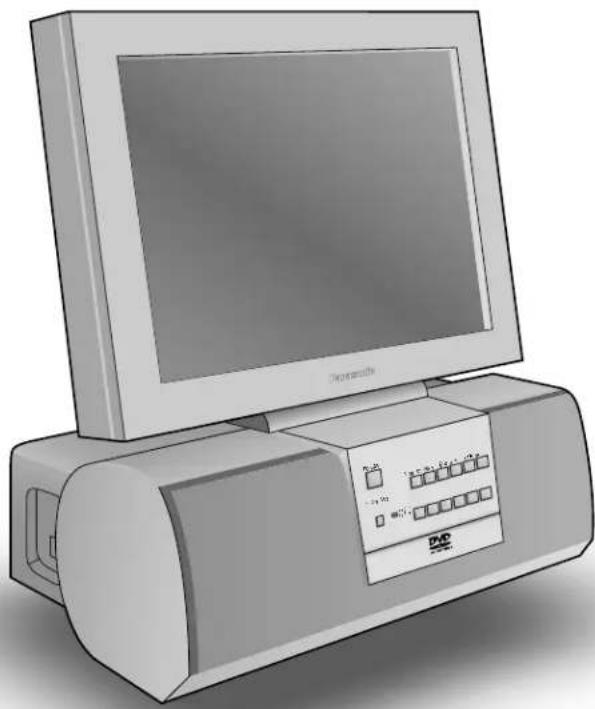
Combination 15.2" LCD
TV/DVD Player
Operating Instructions
Model No.
TC-15DT2
natural_image
Illustration of a vintage desktop computer with monitor and control panel (no visible text or symbols)| For assistance, please call : 1-800-211-PANA (7262)or send e-mail to : consumerproducts@panasonic.comor visit us at www.panasonic.com (U.S.A) |
| For assistance, please call : 787-750-4300 (Puerto Rico) |
This manual is divided into two parts, the "Install and TV Adjusts" and "DVD Operation Guide":
Install and TV Adjusts: Details on installation of the unit and adjustments to achieve optimum quality of the TV.
DVD Operation Guide: Details on operating instructions for playing disks such as DVDs and CDs.
Before connecting, operating or adjusting this product, please read these instructions completely. Please keep this manual for future reference.
Important Safety Instructions

WARNING
RISK OF ELECTRIC SHOCK DO NOT OPEN


The lightning flash with arrow-head within a triangle is intended to tell the user that parts inside the product are a risk of electric shock to persons.

The exclamation point within a triangle is intended to tell the user that important operating and servicing instructions are in the papers with the appliance.
Note to CATV System Installer: This reminder is provided to direct the CATV system installer's attention to Article 820–40 of the NEC that provides guidelines for proper grounding and, in particular, specifies that the cable ground shall be connected to the grounding system of the building, as close to the point of cable entry as practical.
Important Safety Instructions for LCD TV
1) Read these instructions and apply them with your LCD TV.
2) Keep these instructions.
3) Heed all warnings.
4) Follow all instructions.
5) Do not use this apparatus near water. For example: Avoid placing it near a bathtub, washbowl, kitchen sink, or laundry tub, in a wet basement, or near a swimming pool, etc.
6) Clean only with dry cloth. Unplug this LCD V from the wall outlet before cleaning. Do not use liquid or aerosol cleaners.
7) Do not block any ventilation openings. Install in accordance with the manufacturer's instructions.
Slots and openings in the cabinet and the back or bottom are provided for ventilation, and to insure reliable operation of the LCD TV and to protect it from overheating. These openings must not be blocked or covered. There should be at least 10 cm of space from these openings. The openings should never be blocked by placing the LCD TV on a bed, sofa, rug or other similar surface. This LCD TV should not be placed in a built-in installation such as a bookcase unless proper ventilation is provided.
8) Do not install near any heat sources such as radiators, heat registers, stoves, or other apparatus (including amplifiers) that produce heat.
9) Protect the power cord from being walked on or pinched particularly at plugs, convenience receptacles, and the point where they exit from the apparatus.
10) Only use attachments/accessories specified by the manufacturer. Otherwise if may cause hazards.
11) Use only with the cart, stand, tripod, bracket, or table specified by the manufacturer, or sold with the apparatus. When a cart is used, use caution when moving the cart/apparatus combination to avoid injure from tip-over.

12) Unplug this apparatus during lightning storms or when unused for long periods of time. This will prevent damage to the receiver due to lightning and power-line surges.
13) Refer all servicing to qualified service personnel. Servicing is required when the apparatus has been damaged in any way, such as power-supply cord or plug is damaged, liquid has been spilled or objects have fallen into the apparatus, the apparatus has been exposed to rain or moisture, does not operate normally, or has been dropped. Upon completion of any service or repairs to this LCD TV, ask the service technician to perform routine safety checks to determine that the television is in safe operating condition.
14) Operate only from the type of power source indicated on the marking label. If you are not sure of the type of power supplied to your home consult your television dealer or local power company.
15) Follow all warnings and instructions marked on the LCD TV.
16) Never push objects of any kind into this LCD TV through cabinet slots as they may touch dangerous voltage points or short out parts that could result in a fire or electric shock. Never spill liquid of any kind on the LCD TV.
Important Safety Instructions
17) If an outside antenna is connected to the television equipment, be sure the antenna system is grounded so as to provide some protection against voltage surges and built up static charges. In the U.S. Selection 810-21 of the National Electrical Code provides information with respect to proper grounding of the mast and supporting structure, grounding of the lead-in wire to an antenna discharge unit, size of grounding conductors, location of antenna discharge unit, connection to grounding electrodes, and requirements for the grounding electrode.
18) An outside antenna system should not be located in the vicinity of overhead power lines or other electric light or power circuits, or where it can fall into such power lines or circuits. When installing an outside antenna system extreme care should be taken to keep from touching such power lines or circuits as contact with them might be fatal.
EXAMPLE OF ANTENNA GROUNDING AS PER (NEC) NATIONAL ELECTRICAL CODE
ANTENNA
LEAD-IN WIRE
| GROUNDCLAMP | |
| ANTENNADISCHARGE UNIT(NEC SECTION 810-20) | |
| ELECTRIC SERVICE EQUIPMENT | GROUNDING CONDUCTORS(NEC SECTION 810-21) |
| GROUND CLAMPS | |
| POWER SERVICE GROUNDING ELECTRODE SYSTEM(NEC ART 250, PART H) |
19) Unplug this LCD TV from the wall outlet, and refer servicing to qualified service personnel under the following conditions:
a. When the power cord or plug is damaged or frayed.
b. If liquid has been spilled into the LCD TV.
c. If the LCD TV ha been exposed to rain or water.
d. If the LCD TV does not operate normally by following the operating instructions.
Adjust only those controls that are covered by the operating instructions as improper adjustment of other controls may result in damage and will often require extensive work by a qualified technician to restore the LCD TV to normal operation.
e. If the LCD TV has been dropped or the cabinet has been damaged.
f. When the LCD TV exhibits a distinct change in performance - this indicates a need for service.
20) When replacement parts are required, be sure the service technician to use replacement parts specified by the manufacture that have the same characteristics as the original part. Unauthorized substitutions may result in fire, electric shock, or other hazards.
21) WARNING: TO REDUCE THE RISK OF FIRE OR ELECTRIC SHOCK, DO NOT EXPOSE THIS APPARATUS TO RAIN OR MOISTURE.
22) CAUTION: TO PREVENT ELECTRIC SHOCK DO NOT USE THIS PLUG WITH A RECEPTACLE OR OTHER OUTLET UNLESS THE BLADES CAN BE FULLY INSERTED TO PREVENT BLADE EXPOSURE.
23) CAUTION: USE WITH OTHER STAND IS CABLE OF RESULTING IN INSTABILITY CAUSING POSSIBLE INJURY.
24) CAUTION: DANGER OF EXPLOSION IF BATTERY IS INCORRECTLY REPLACED. REPLACE ONLY WITH THE SAME OR EQUIVALENT TYPE.
NOTE: • This equipment is designed to operate in the U.S.A. and other countries where the broadcasting system and AC house current is exactly the same as in the U.S.A.
- The marking or retained image on the LCD panel resulting from fixed image use is not an operating defect and as such is not covered by Warranty. This product is not designed to display fixed image patterns for extended periods of time.
Important Information Regarding Use of Video Games, Computers, Caption or Other Fixed Image Displays.
The extended use of fixed image program material can cause a permanent "shadow image" on the LCD panel. This background image is viewable on normal programs in the form of a stationary fixed image. This type of irreversible LCD panel deterioration can be limited by observing the following steps:
A. Reduce the brightness/contrast setting to a minimum viewing level.
B. Do not display the fixed image for extended periods of time.
C. Turn the power off when not in actual use.
Dear Panasonic Customer
Welcome to the Panasonic family of customers.
We hope that you will have many years of enjoyment from your new 15.2" LCD TV with built in DVD player.
To obtain maximum benefit from your set, please read these Instructions before making any adjustments, and retain them for future reference.
Retain your purchase receipt also, and note down the model number and serial number of your set in the space provided on the rear cover of these instructions.
| For assistance, please call : 1-800-211-PANA (7262)or send e-mail to : consumerproducts@panasonic.comor visit us at www.panasonic.com (U.S.A) |
| For assistance, please call : 787-750-4300 (Puerto Rico) |
Federal Communication Commission Information
This equipment has been tested and found to comply with the limits for a TV Broadcast Receiver, pursuant to Part 15 of the FCC Rules. These limits are designed to provide reasonable protection against harmful interference in a residential installation. This equipment generates, uses and can radiate radio frequency energy and, if not installed and used in accordance with the instructions, may cause harmful interference to radio communications. If this equipment does cause or receive interference, which can be determined by turning equipment off and on, the user is encouraged to try to correct the interference by one of the following measures:
Reorient or relocate the TV antenna.
Increase the separation between TV and other equipment.
Connect TV into separate outlet from other equipment.
Consult the dealer or an experienced radio/TV technician for help.
FCC Caution: Any changes or modifications not expressly approved by the party responsible for compliance could void the user's authority to operate this equipment.
CAUTION:
COMBINATION 15.2 " LCD TV/DVD PLAYER IS A CLASS 1 LASER PRODUCT. HOWEVER THIS COMBINATION 15.2 " LCD TV/DVD PLAYER USES A VISIBLE LASER BEAM WHICH COULD CAUSE HAZARDOUS RADIATION EXPOSURE IF DIRECTED. BE SURE TO OPERATE THE COMBINATION 15.2 " LCD TV/DVD PLAYER CORRECTLY AS INSTRUCTED.

text_image
CLASS 1 LASER PRODUCTWHEN THIS COMBINATION 15.2" LCD TV/DVD PLAYER IS PLUGGED TO THE WALL OUTLET, DO NOT PLACE YOUR EYES CLOSE TO THE OPENING OF THE DISC TRAY AND OTHER OPENINGS TO LOOK INTO THE INSIDE OF THIS PLAYER.
USE OF CONTROLS OR ADJUSTMENTS OR PERFORMANCE OF PROCEDURES OTHER THAN THOSE SPECIFIED HEREIN MAY RESULT IN HAZARDOUS RADIATION EXPOSURE.
DO NOT OPEN COVERS AND DO NOT REPAIR YOURSELF. REFER SERVICING TO QUALIFIED PERSONNEL.
Table of Contents
Install and TV Adjusts (start from the next page)
Important Safety Instructions ....2
Federal Communication Commission Information .....4
Installation 6
Disc handling 6
Maintenance 7
SUPPLIED ACCESSORIES 7
Remote control battery installation....7
Connecting the Antenna Cable to the RF In Terminal ..... 8
Antenna / Cable Connection 8
How to connect the input terminals 10
How to connect the AV OUT Terminals 10
How to connect the 5.1ch SURROUND AUDIO OUT Terminals ....11
Connecting Headphones / Earphones 12
Connecting OPTICAL audio cable 12
Power ON / OFF ....13
How to Turn the Power On 13
Location of Controls 14
Flow Chart of TV menu 16
Tuning channels (Automatic channel programming)...... 18
Tuning channels (Manual channel programming) .....19
Playing a VCR or other peripheral equipment .....20
Setting condition to be displayed....21
Stoppage of the Tray action (Child lock)....22
ASPECT Controls....23
Adjusting screen position and size....24
Picture Adjustments ......25
Audio Adjustments ......27
Selecting STEREO/SAP/MONO....28
Closed Captions....29
Lock Feature....30
Customizing the VIDEO INPUT labels ....33
Adjusting unnatural video images (3D Y/C FILTER) .... 34
Automatically changing screen size for VIDEO INPUT modes .... 35
When the top and bottom of the screen noise (IMAGE ADJ.) ....35
Natural Color ....36
Noisy Picture ....36
DVD Operation Guide
Features of DVD on this Product ....38
Enjoying digital audio output from the digital audio output connector ....39
Location of Controls for DVD Operation ....40
Basic play 42
Recalling/clearing a marker 42
Stopping play 43
Skipping chapters or tracks ....44
Still picture (Pause) 44
Rapid advance (Rapid reverse) 44
Frame advance (Frame reverse) [DVD/Video CD] .....45
Slow-motion play [DVD/Video CD]......45
Cancelling playback control [Video CD] 45
General information about GUI screens ....46
Common procedures 46
Detailed descriptions of each GUI icon ....47
Screen for disc information (For DVD) 47
Screen for disc information (For Video CD/CD) .....48
Screen for player information 49
Shuttle screen 49
Repeat play 50
Repeat viewing (Listening)....50
Repeating sections between two specific points ( A-B repeat )..... 51
Storing markers in memory to be viewed (listened to) again ...51
Storing a marker in the memory ....51
Recalling / clearing a marker ....51
Program play [ Video CD / CD ]....52
Random play [Video CD / CD] 53
Changing audio soundtrack language [ DVD ] ......54
Changing subtitle language [ DVD ]......55
Viewing from another angle [ DVD ]......55
Initial settings ....56
Common procedures ....56
Selecting disc language [DVD]......57
Selecting rating level [DVD]......57
Selecting On-Screen Display menu language .....59
Selecting On-Screen Display Messages ....59
Selecting TV screen Aspect 60
Selecting digital output 61
Speaker setting 62
Other settings....66
Language code list 66
How images appear on your TV (aspect ratios of the screen) ..... 67
Troubleshooting 68
Maintenance 69
Specifications....70
Installation
Receiver Location
Locate for comfortable viewing. Avoid placing where sunlight or other bright light (including reflections) will fall on the screen. Use of some types of fluorescent lighting can reduce remote control transmitter range.
Adequate ventilation is essential to prevent internal component failure. Keep away from areas of excessive heat or moisture. To insure optimum picture do not position magnetic equipment (motors, fans, other speakers, etc.) nearby.
Optional External Equipment
The Video/Audio connection between components can be made with shielded video and audio cables. For best performance, Antenna cables should utilize 75 ohm coaxial shielded wire. Cables are available from your dealer or electronic supply store. Before you purchase any cables, be sure you know what type of output and input connectors your various components require. Also determine the length of cable you'll need.
For optimum quality picture
When the LCD is exposed to light from outdoors or lighting fixtures, high-contrast pictures may not be displayed clearly. Turn off florescent lamps near the LCD and place in a location not exposed to outdoor light.
Disc handling
Handling precautions
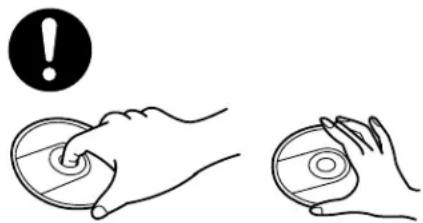
- Hold the disc by the edges so the surface will not be soiled with fingerprints. Fingerprints, dirt and scratches can cause skipping and distortion.(A):
- Do not write on the label side.
- Do not use record cleaning sprays, benzine, thinner, static electricity prevention liquids or any other solvent.
- Be careful not to drop or bend the disc.
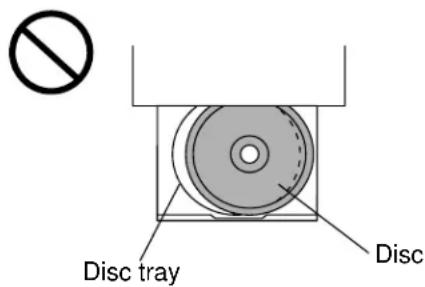
- Do not install more than 1 disc on the disc tray.
- Do not close the disc tray if the disc is not installed properly.(B)
- Store the disc in its case when not in use.
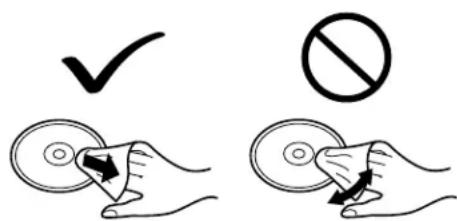
If the surface is soiled C
Wipe gently with a soft, damp (water only) cloth.
When wiping discs, always wipe from the center toward the outer edge. (If you wipe using a circular motion, circular scratches can occur, which will cause noise.)
If the disc is brought from a cold to a warm environment, moisture may form on the disc
Wipe with a soft, dry, lint-free cloth before using the disc.
Improper disc storage
You can damage discs if you store them in the following places:
- Areas exposed to direct sunlight
- Humid or dusty areas
- Areas directly exposed to a heat outlet or heating appliance
Discs which cannot be played with this player
- DVD with Region No. other than "1" or "ALL"
- DVD-ROM
- DVD-R/DVD-RAM
- CD-ROM
- VSD
- CDV
- CD-G
- CD-RW
- CVD+RW
- CDV
- SVCD
- Divx Video Disc etc.
- Do not try to play Photo CD or CD-R. (Data on the disc may be damaged.)
A
natural_image
Illustration of two hands holding a circular object with a warning symbol above (no text or labels)B
text_image
Disc tray DiscC
text_image
Diagram showing hand actions: checkmark and prohibition symbols with arrows indicating rotation or movementSUPPLIED ACCESSORIES
Check the accessories before installations.
- Operating Instruction book (TQBC0256)
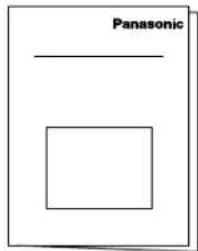
text_image
Panasonic- Warranty Card

• Service Center List

- Remote Control Transmitter (TNQE262)
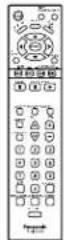
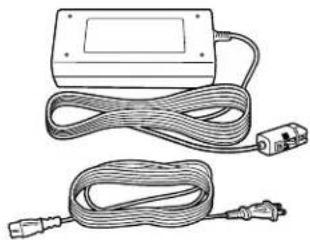
- AC Adaptor & AC Cord AC Adaptor: (N0JEHK000001) AC Cord: (K2CA2EA00005)
natural_image
Line drawing of a rectangular electronic device with coiled cables and two USB connectors (no text or symbols)- Battery for the Remote Control Transmitter (2 · AAA size)

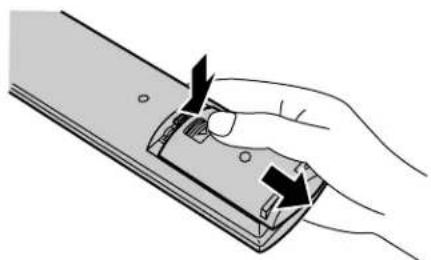
Remote control battery installation
Requires two AAA batteries.
-
Turn the transmitter face down. Remove top cover by pressing down on marking and sliding cover off in the direction indicated.
-
Install the batteries as shown in the battery compartment. (Polarity + or - must match the markings in the compartment).
-
Replace the cover and slide in reverse until the lock snaps.
natural_image
Illustration of a hand holding a mechanical component with arrows indicating force direction (no text or symbols)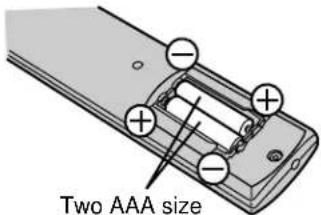
text_image
Two AAA size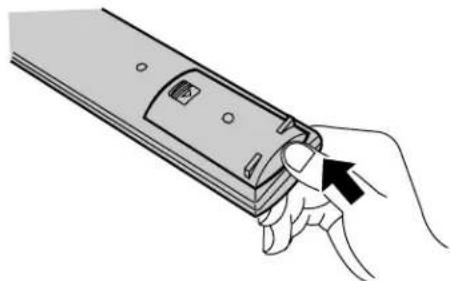
natural_image
Illustration of a hand inserting a device into a mobile phone (no text or symbols visible)Helpful Hint:
For frequent remote control users, replace old battery with Alkaline batteries for longer life.
⚠️ Precaution on battery use
Incorrect installation can cause battery leakage and corrosion that will damage the remote control transmitter.
Observe the following precautions:
- Batteries should always be replaced as a pair. Always use new batteries when replacing the old set.
- Do not combine a used battery with a new one.
- Do not mix battery types (example: "Zinc Carbon" with "Alkaline").
- Do not attempt to charge, short-circuit, disassemble, heat or burn used batteries.
- Battery replacement is necessary when remote control acts sporadically or stops operating this unit.
Connecting the Antenna Cable to the RF In Terminal
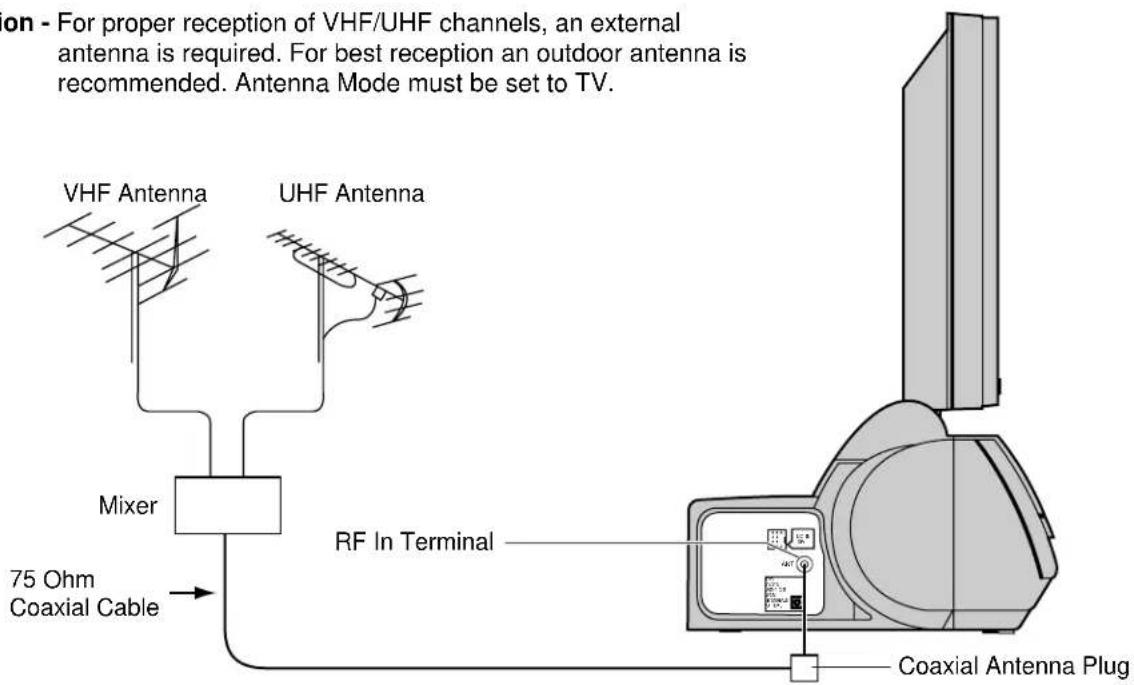
Antenna Connection - For proper reception of VHF/UHF channels, an external antenna is required. For best reception an outdoor antenna is recommended. Antenna Mode must be set to TV.
text_image
ion - For proper reception of VHF/UHF channels, an external antenna is required. For best reception an outdoor antenna is recommended. Antenna Mode must be set to TV. VHF Antenna UHF Antenna Mixer 75 Ohm Coaxial Cable RF In Terminal Coaxial Antenna PlugAntenna / Cable Connection
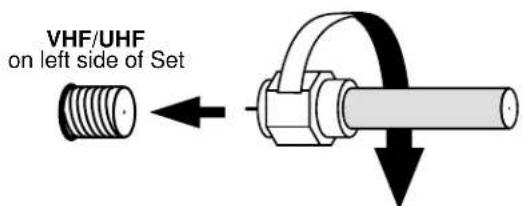
Incoming Cable From Home Antenna (75 Ohm)
text_image
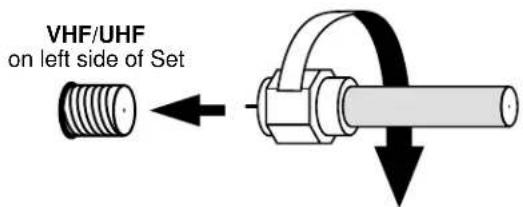
VHF/UHF on left side of SetIncoming 75 Ohm Cable (From Cable Company)
Cable Connection - For reception of cable channels (01 - 125) connect the cable supplied by your local cable company. Antenna Mode must be set to CABLE. (Refer to Antenna Mode section.)
text_image
VHF/UHF on left side of SetNote:
Certain cable systems offset some channels to reduce interference or have Premium (scrambled) channels. A cable converter box is required for proper reception. Check with your local Cable company for its compatibility requirements.
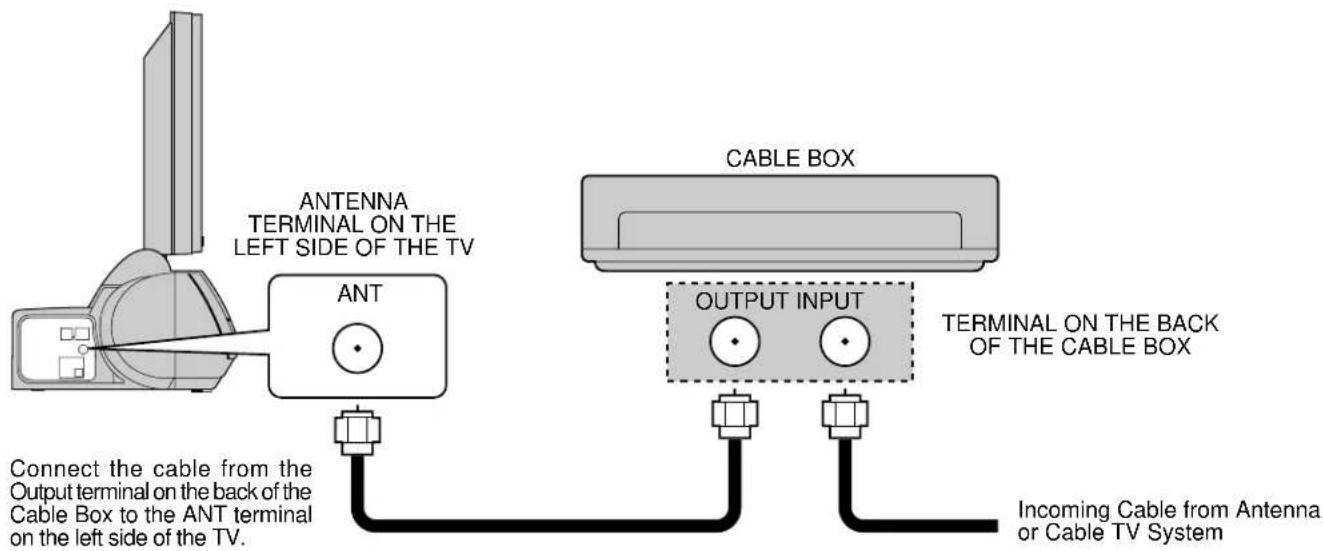
Antenna Connection (Cable Box, no VCR)
Use this configuration when connecting the TV to a cable TV system using a Cable Box.
text_image
ANTENNA TERMINAL ON THE LEFT SIDE OF THE TV CABLE BOX OUTPUT INPUT TERMINAL ON THE BACK OF THE CABLE BOX Connect the cable from the Output terminal on the back of the Cable Box to the ANT terminal on the left side of the TV. Incoming Cable from Antenna or Cable TV SystemAntenna Connection (Cable Box, and VCR)
Use this configuration when connecting the TV to a cable TV system using a Cable Box and VCR.
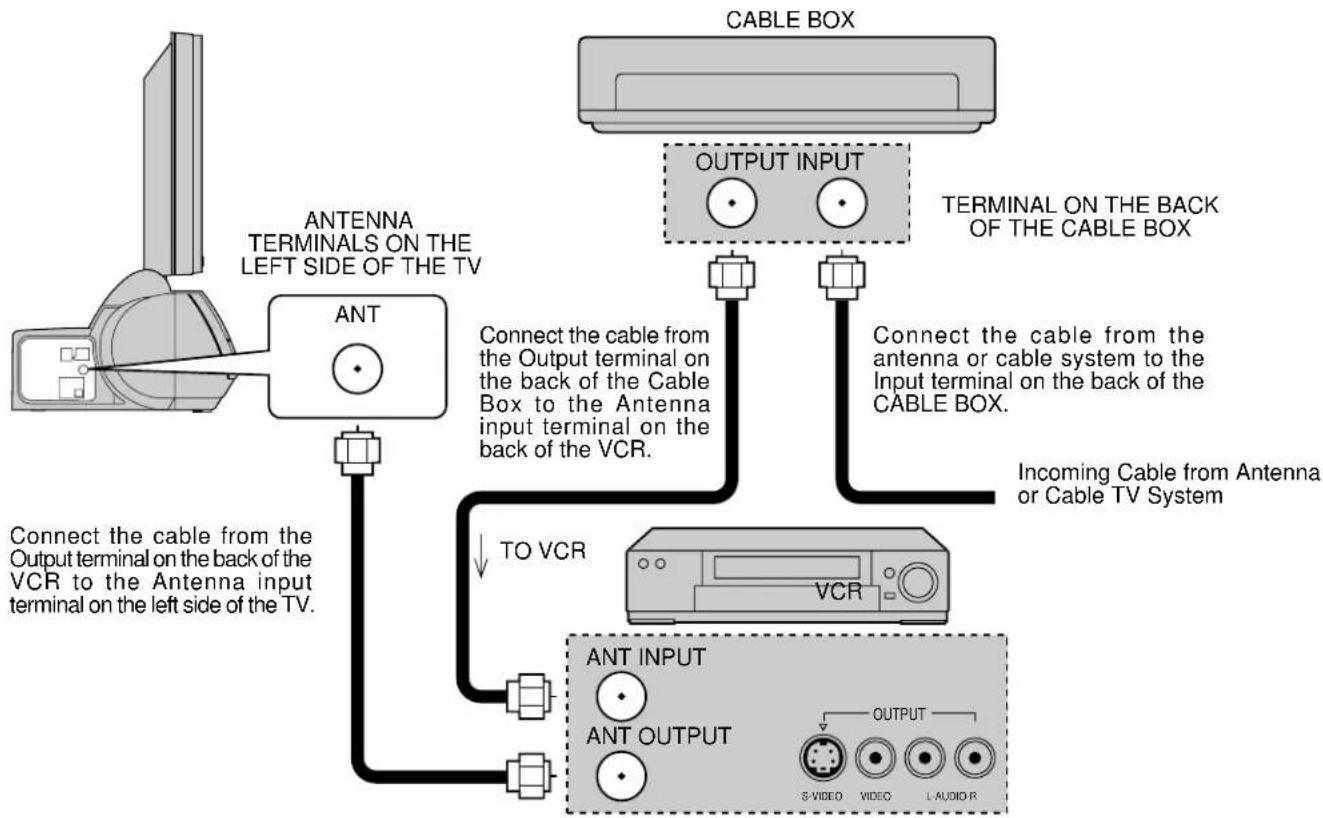
flowchart
graph TD
    A["Antenna"] -->|Connect the cable from the output terminal on the back of the VCR to the Antenna input terminal on the left side of the TV.| B["ANT"]
    B --> C["TO VCR"]
    C --> D["VCR"]
    D --> E["OUTPUT INPUT"]
    E --> F["CABLE BOX"]
    F --> G["TERMINAL ON THE BACK OF THE CABLE BOX"]
    G --> H["Connecting the cable from the antenna or cable system to the Input terminal on the back of the CABLE BOX."]
    H --> I["INPUT OUTPUT"]
    I --> J["ANT INPUT"]
    I --> K["ANT OUTPUT"]
    J --> L["S-VIDEO"]
    K --> M["VIDEO"]
    L --> N["L-AUDIO-R"]
    M --> N
Note: When the antenna cable is connected to the TV antenna terminal via a cable box or VCR, set the TV channel to CH3 or CH4, cable. This does not apply when signal is input from VIDEO INPUT.
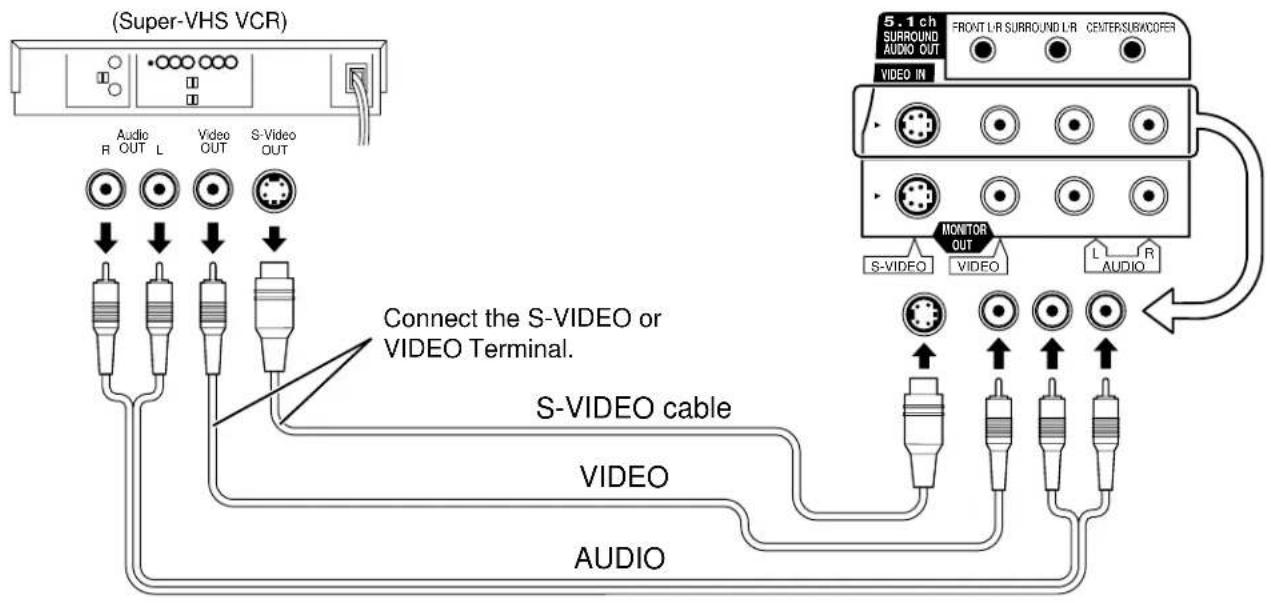
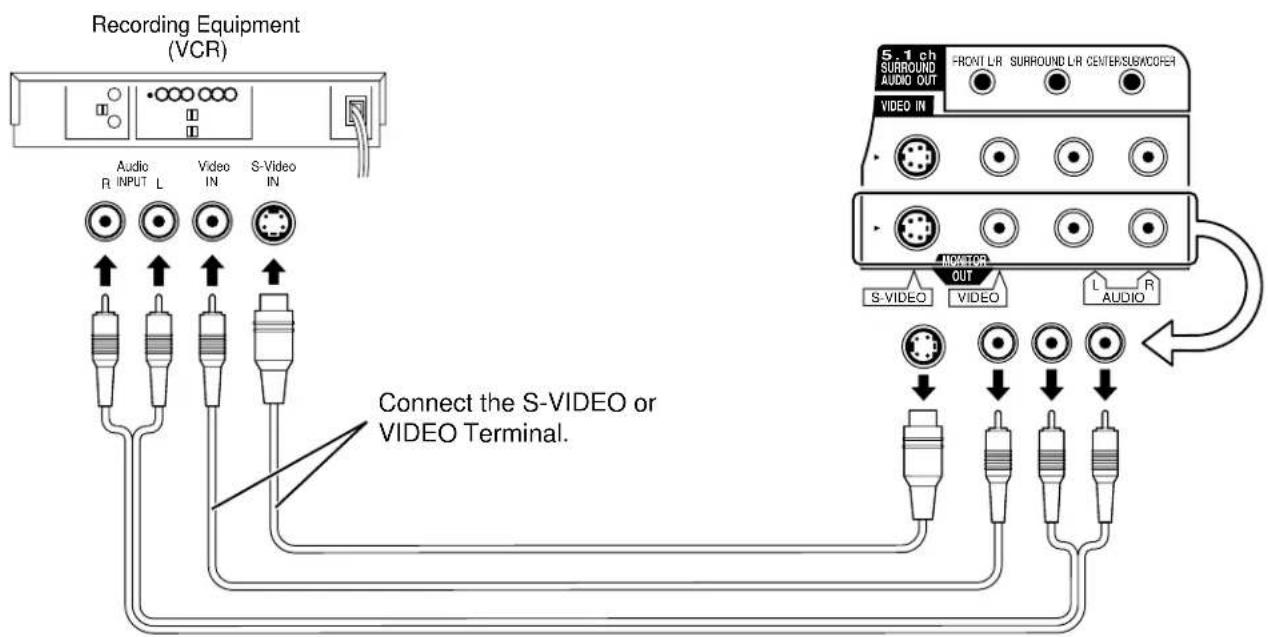
How to connect the input terminals
Connects VCRs and other peripheral equipment
text_image
(Super-VHS VCR) Audio R OUT L Video OUT S-Video OUT Connect the S-VIDEO or VIDEO Terminal. S-VIDEO cable VIDEO AUDIO 5.1 ch SURROUND AUDIO OUT VIDEO IN FRONT L-R SURROUND L-R CENTER/SURVACOFER MONITOR OUT S-VIDEO VIDEO L R AUDIOHow to connect the AV OUT Terminals
text_image
Recording Equipment (VCR) Audio R INPUT L Video IN S-Video IN Connect the S-VIDEO or VIDEO Terminal. 5.1 ch SURROUND AUDIO OUT VIDEO IN FROUNT L/R SURROUND L/R CENTER/SUB/ACOFER NODITOR OUT S-VIDEO VIDEO L AUDIONotes:
(1) When a monaural VCR is used, connect the monaural audio cable to the AUDIO-L (Left) terminal.
(2) When connecting video cables, priority is given to the S-Video cable when the S-Video input terminal and the video input terminal are connected at the same time.
How to connect the 5.1ch SURROUND AUDIO OUT Terminals
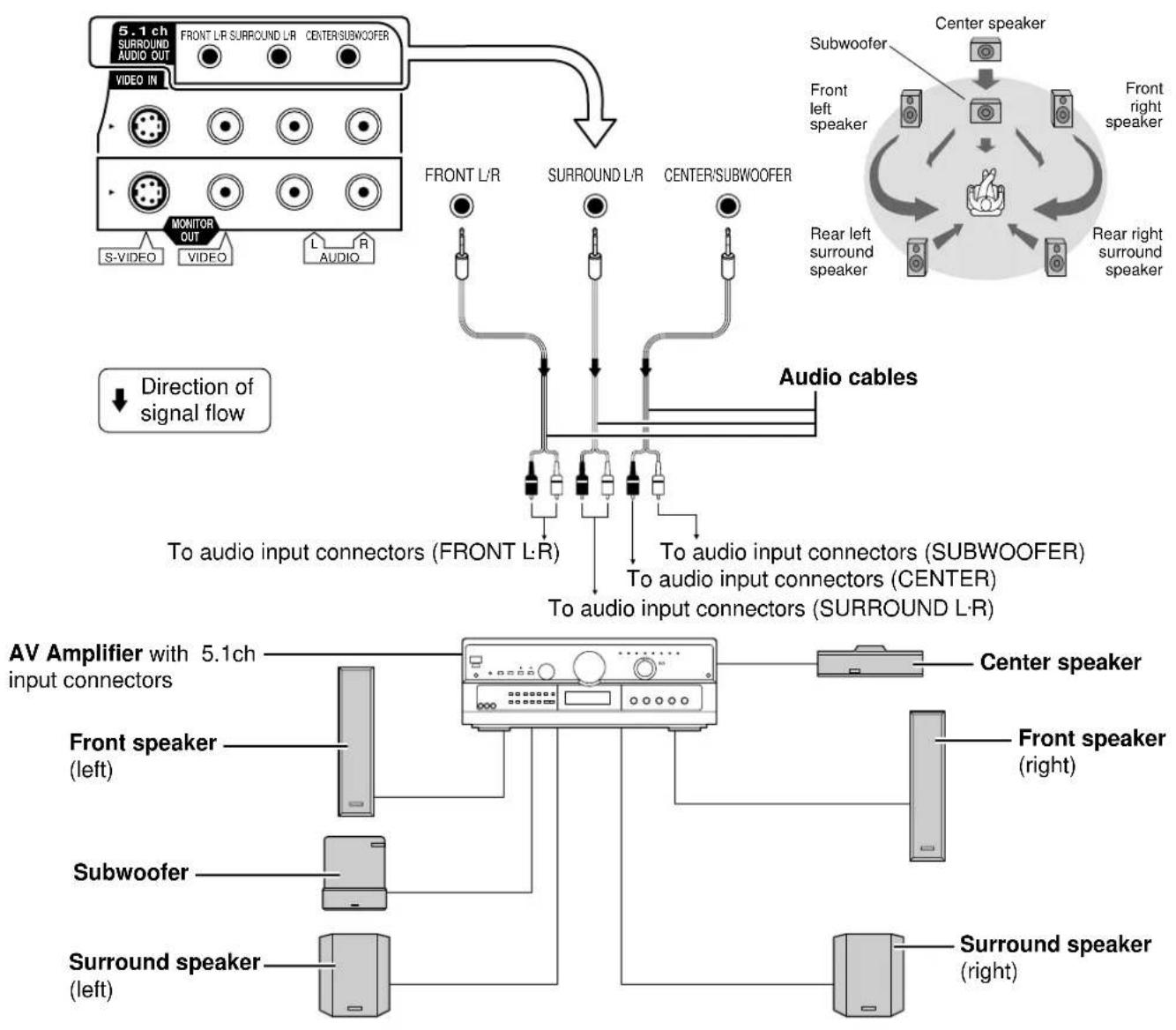
flowchart
graph TD
    A["5.1ch SURROUND AUDIO OUT"] --> B["VIDEO IN"]
    A --> C["S-VIDEO"]
    A --> D["VIDEO"]
    A --> E["L"]
    A --> F["R"]
    A --> G["AUDIO"]
    H["Direction of signal flow"] --> I["To audio input connectors (FRONT L-R)"]
    H --> J["To audio input connectors (SUBWOOFER)"]
    H --> K["To audio input connectors (CENTER)"]
    H --> L["To audio input connectors (SURROUND L-R)"]
    M["AV Amplifier with 5.1ch input connectors"] --> N["Front speaker (left)"]
    M --> O["Subwoofer"]
    M --> P["Surround speaker (left)"]
    Q["Audio cables"] --> R["Front left speaker"]
    Q --> S["Center subwoofer"]
    T["Center speaker"] --> U["Front right speaker"]
    T --> V["Rear left surround speaker"]
    T --> W["Rear right surround speaker"]
Notes:
- After connection is made, set the "7 Speaker Setting" (such as Yes/No and Large/Small) according to your speaker system. (Refer to "DVD Operating Guide")
- Turn Virtual Surround Sound (VSS) or Headphone VSS off if you are using more than just the two front speakers (see page 28). Sound will only come from the front speakers if VSS or Headphone VSS is turned on.
For your reference:
- This player can play CDs recorded in dts. When the player is connected to an AV amplifier with 5.1ch AUDIO OUT connectors, you can enjoy multi-channel audio of CDs recorded in dts as well as DVDs.
Connecting Headphones / Earphones
Connect headphones / earphones as follows.
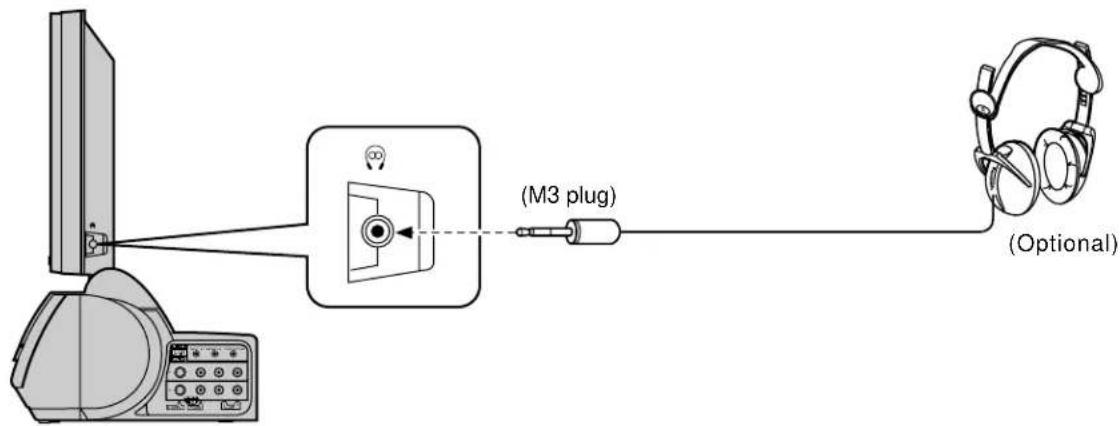
text_image
(M3 plug) (Optional)Connecting OPTICAL audio cable
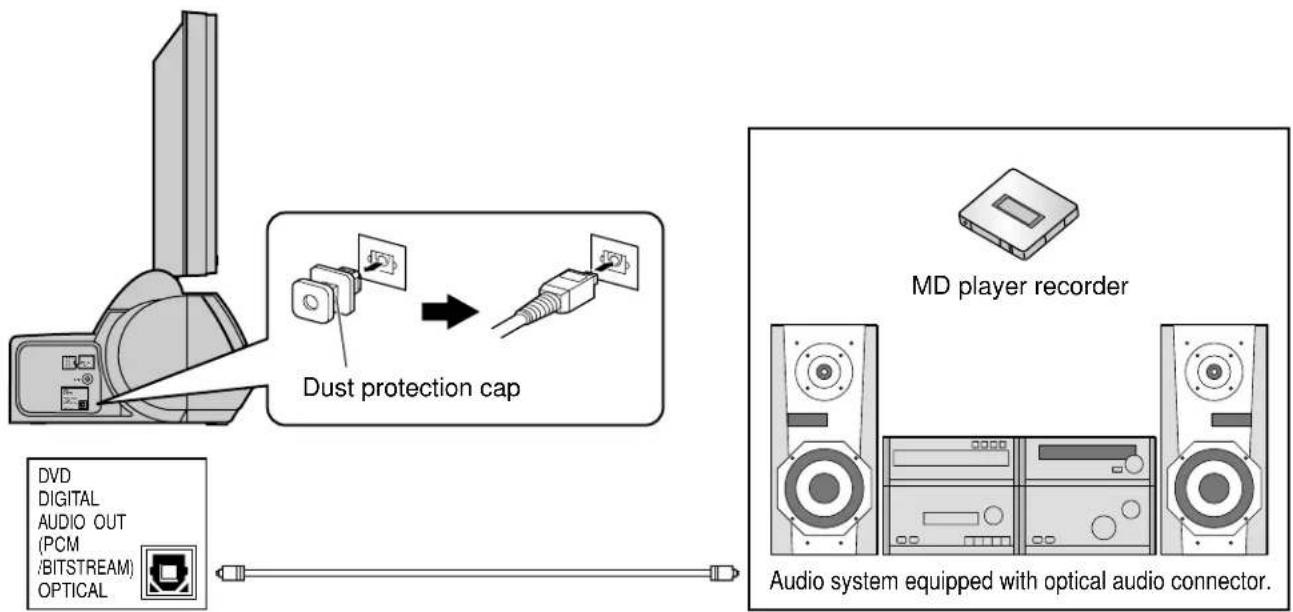
flowchart
graph TD
    A["User"] --> B["Dust protection cap"]
    B --> C["MD player recorder"]
    C --> D["Audio system equipped with optical audio connector."]
Refer to OPTICAL output for details on DVD Operating Guide.
Note:
When connecting the optical digital audio cable
- Remove the dust protection cap from the digital audio output connector and connect the cable firmly so that the configurations of both the cable and the connector match.
- Keep the dust protection cap and reattach when not using the connector.
Power ON / OFF
How to Turn the Power On
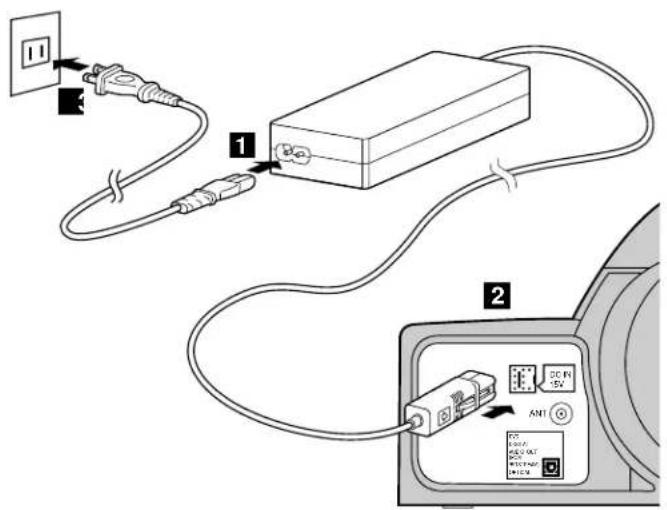
text_image
Diagram showing connections between a power outlet, a device labeled 1, and an electronic device labeled 2 with internal components like 35 Fi, 40V, and 50V.Connecting the Plug to the Wall Outlet
Push the POWER switch on the TV to turn the set on.
POWER-ON: Green
Example: The screen below is displayed for a while after the TV is turned on. (setting condition is an example.)
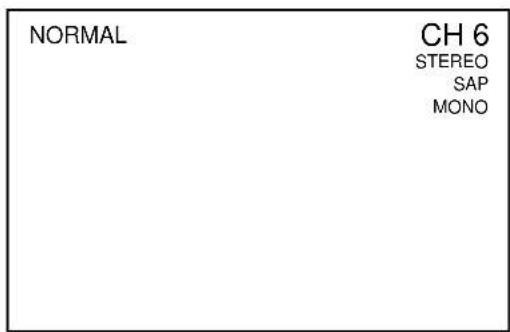
text_image
NORMAL CH 6 STEREO SAP MONO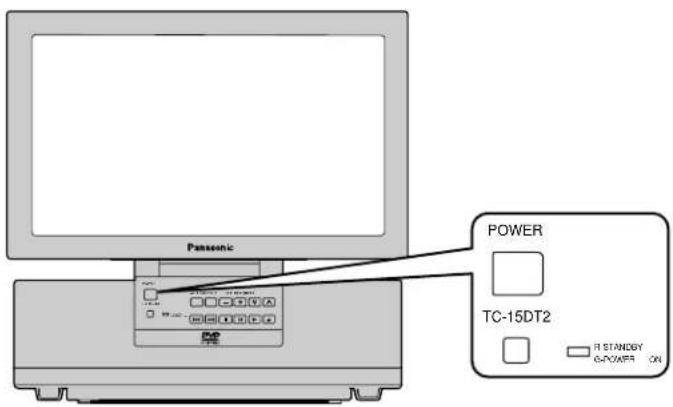
text_image
Panasonic POWER TC-15DT2 R STANDGY G-PVWFS ON
Press the POWER button on the remote control to turn the TV off: Red (standby)
Press the POWER button on the remote control to turn the TV on: Green
Turn the power to the TV set off by pressing the POWER switch on the TV when the TV is on or in standby mode.
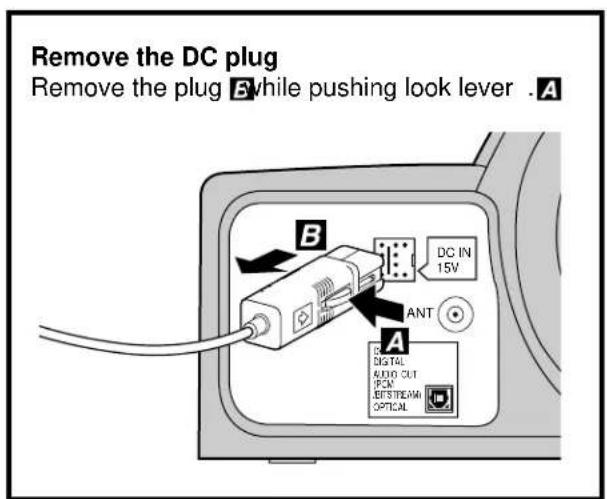
text_image
Remove the DC plug Remove the plug B while pushing look lever . A B DC IN 15V ANT A DIGITAL AUDIO CUT PCM EQT/STEAM OPTICAL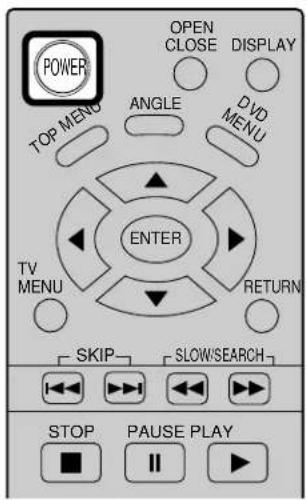
text_image
POWER TOP MENU ANGLE OPEN CLOSE DISPLAY DVD MENU ENTER TV MENU RETURN SKIP SLOW/SEARCH STOP PAUSE PLAYLocation of Controls
Controls on the TV
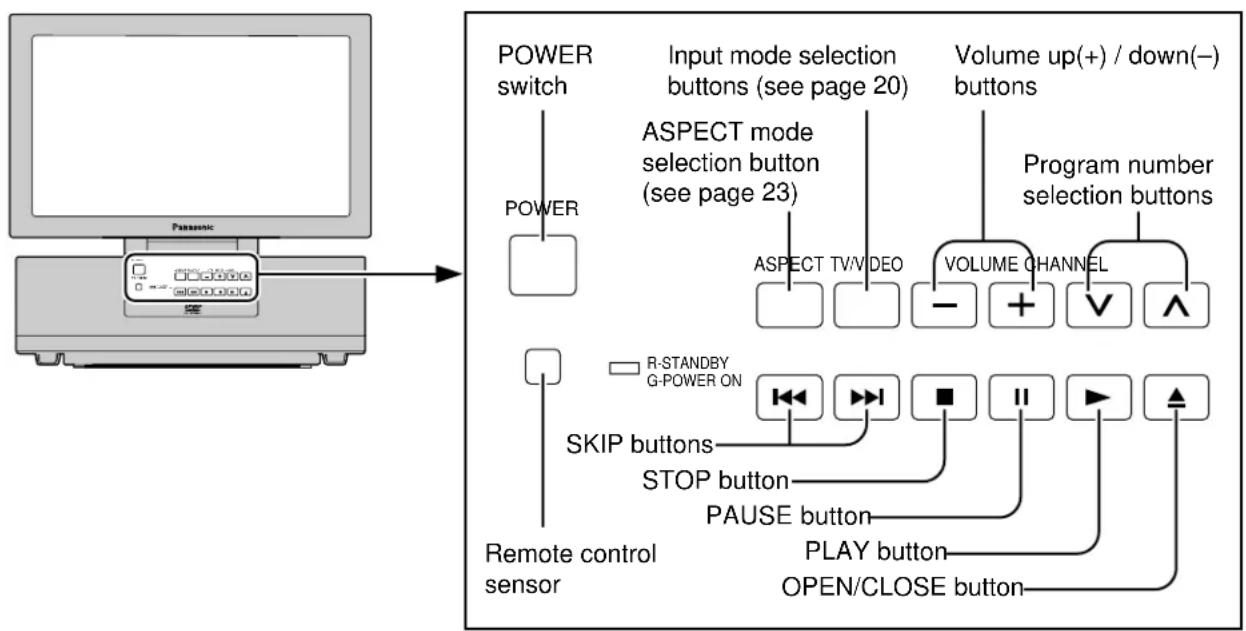
flowchart
graph TD
    A["Computer"] --> B["Power switch"]
    B --> C["POWER"]
    C --> D["ASPECT mode selection button (see page 23)"]
    D --> E["VOLUME CHANNEL"]
    E --> F["Program number selection buttons"]
    F --> G["VOLUME CHANNEL"]
    G --> H["OPEN/CLOSE button"]
    H --> I["PLAY button"]
    I --> J["STOP button"]
    J --> K["R-STANDBY G-POWER ON"]
    K --> L["Remote control sensor"]
    L --> M["ASKIP buttons"]
    M --> N["POWER"]
    style A fill:#f9f,stroke:#333
    style B fill:#ccf,stroke:#333
    style C fill:#cfc,stroke:#333
    style D fill:#fcc,stroke:#333
    style E fill:#cff,stroke:#333
    style F fill:#ffc,stroke:#333
    style G fill:#fcf,stroke:#333
    style H fill:#cff,stroke:#333
    style I fill:#ffc,stroke:#333
    style J fill:#cfc,stroke:#333
    style K fill:#fcc,stroke:#333
    style L fill:#ffc,stroke:#333
    style M fill:#cfc,stroke:#333
    style N fill:#fcc,stroke:#333
    style O fill:#ffc,stroke:#333
SLEEP timer button
The LCD TV may be preset to switch to stand-by after a fixed period. The setting changes to 30 minutes, 60 minutes, 90 minutes and 0 minutes (off timer cancelled) each time the button is pressed.
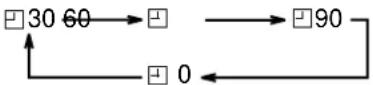
When three minutes remain, “☐ 3 ” will flash.
The off timer is cancelled if the main power turn off. Starting three minutes before the power is automatically turned off, the remaining time, 3 2 1 will blink on the screen.

SURROUND
text_image
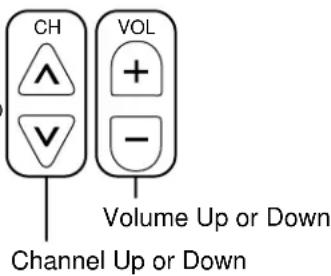
CH VOL + - Volume Up or Down Channel Up or DownSURROUND button
The benefits of surround are enormous. You can be completely enveloped in sound, just as if you were at a concert hall or cinema. (See page 28)
Valid during DVD mode
REPEAT MODE A-B REPEAT PLAY MODE
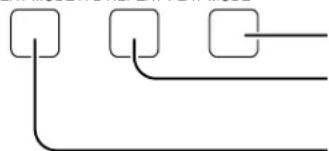
flowchart
graph TD
    A[" "] --> B[" "]
    B --> C[" "]
PLAY MODE button (See page 42)
A-B REPEAT button (See page 51)
Repeating selections between two specific points.
REPEAT button (See page 50)
text_image
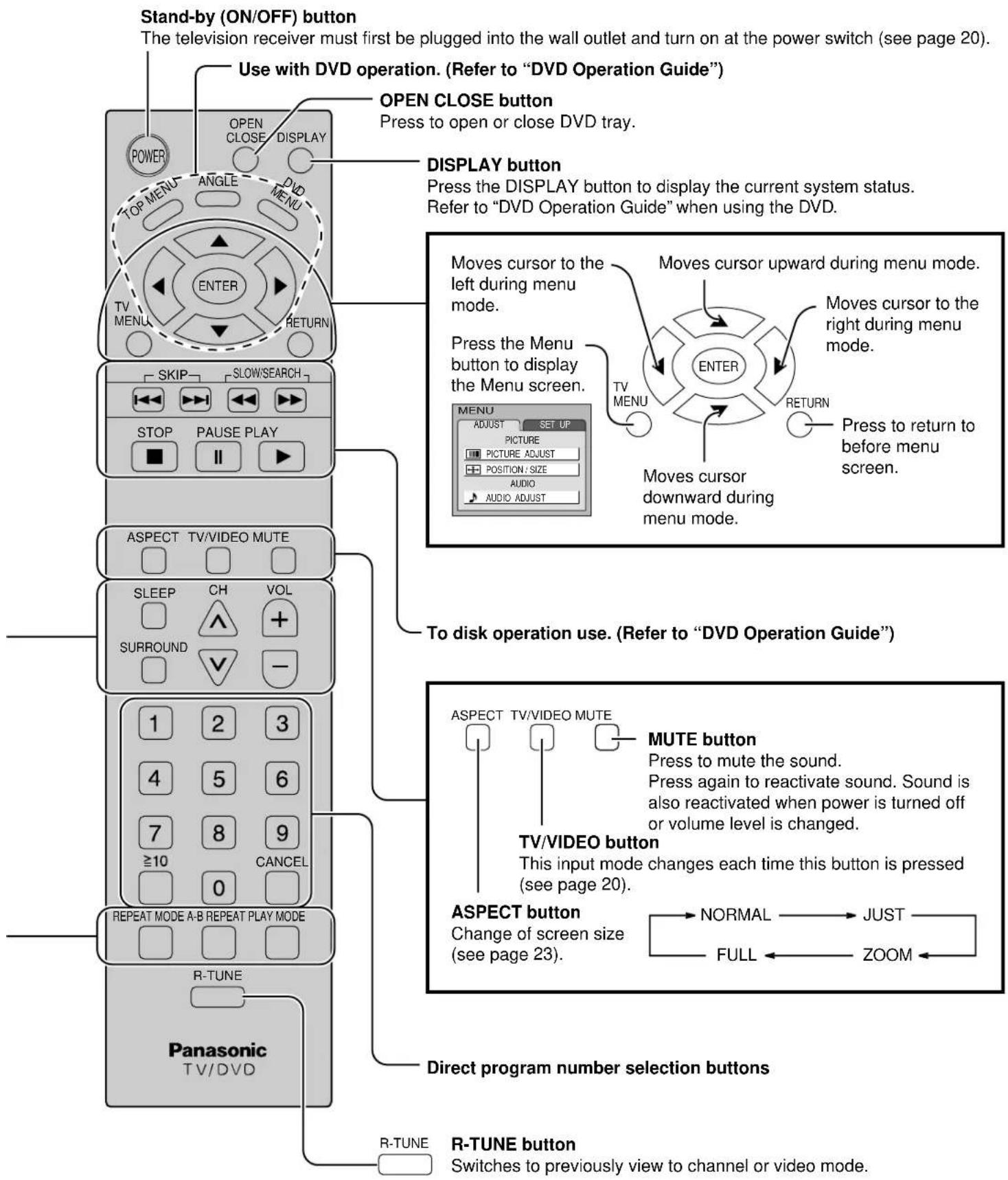
Stand-by (ON/OFF) button The television receiver must first be plugged into the wall outlet and turn on at the power switch (see page 20). Use with DVD operation. (Refer to "DVD Operation Guide") OPEN CLOSE button Press to open or close DVD tray. DISPLAY button Press the DISPLAY button to display the current system status. Refer to "DVD Operation Guide" when using the DVD. Moves cursor to the left during menu mode. Press the Menu button to display the Menu screen. Moves cursor upward during menu mode. Moves cursor to the right during menu mode. Moves cursor downward during menu mode. To disk operation use. (Refer to "DVD Operation Guide") ASPECT TV/VIDEO MUTE MUTE button Press to mute the sound. Press again to reactivate sound. Sound is also reactivated when power is turned off or volume level is changed. TV/VIDEO button This input mode changes each time this button is pressed (see page 20). ASPECT button Change of screen size (see page 23). R-TUNE Normal → JUST → FULL ← ZOOM ← Direct program number selection buttons R-TUNE button Switches to previously view to channel or video mode.Flow Chart of TV menu
1
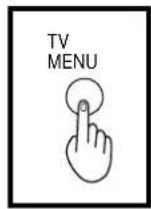
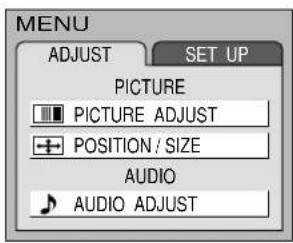
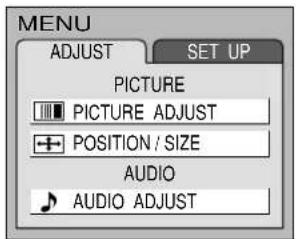
If the MENU button is pressed, the MENU screen will be displayed. If the MENU button is pressed once more while the menu screen is displayed, the MENU screen will be cleared.
text_image
MENU ADJUST SET UP PICTURE PICTURE ADJUST POSITION / SIZE AUDIO AUDIO ADJUST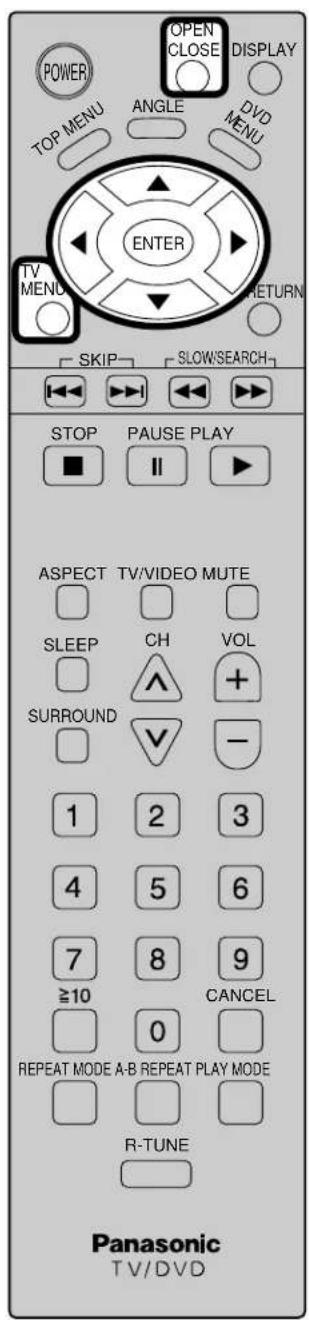
text_image
POWER TOP MENU ANGLE DVD MENU OPEN CLOSE DISPLAY ENTER TV MENU RETURN SKIP SLOW/SEARCH STOP PAUSE PLAY ■ II ASPECT TV/VIDEO MUTE SLEEP CH VOL SURROUND ^ + 1 2 3 4 5 6 7 8 9 ≥10 CANCEL 0 REPEAT MODE A-B REPEAT PLAY MODE R-TUNE Panasonic TV/DVD2
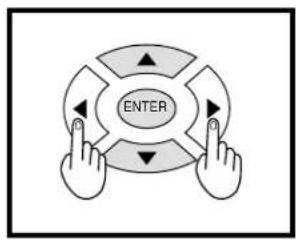
Select MENU desired by pushing Right "▶" button or Left "◀" button.
flowchart
graph TD
    A["↑"] --> B["ENTER"]
    C["↓"] --> B["ENTER"]
    D["↑"] --> B["ENTER"]
    E["↓"] --> B["ENTER"]
text_image
MENU ADJUST SET UP PICTURE PICTURE ADJUST POSITION / SIZE AUDIO AUDIO ADJUST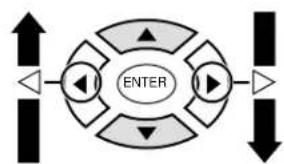
flowchart
graph TD
    A["↑"] --> B["◀"]
    B --> C["ENTER"]
    C --> D["▶"]
    D --> E["↓"]
    E --> F["■"]
    F --> G["■"]
    G --> H["■"]
    H --> I["■"]
    I --> J["■"]
    J --> K["■"]
    K --> L["■"]
    L --> M["■"]
    M --> N["■"]
    N --> O["■"]
    O --> P["■"]
    P --> Q["■"]
    Q --> R["■"]
    R --> S["■"]
    S --> T["■"]
    T --> U["■"]
    U --> V["■"]
    V --> W["■"]
    W --> X["■"]
    X --> Y["■"]
    Y --> Z["■"]
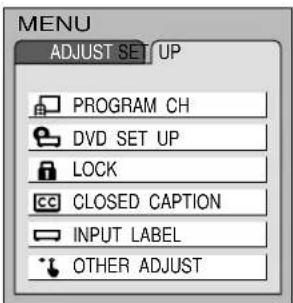
text_image
MENU ADJUST SET/UP PROGRAM CH DVD SET UP LOCK CLOSED CAPTION INPUT LABEL OTHER ADJUST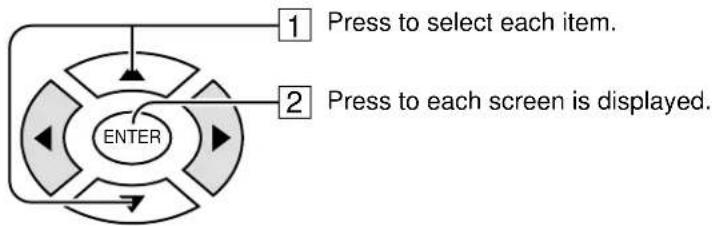
flowchart
graph TD
    A["1 Press to select each item."] --> B["2 Press to each screen is displayed."]
    B --> C["ENTER"]
    C --> D["Arrow pointing inward toward the center"]
    D --> E["Arrow pointing inward toward the center"]
Notes:
- Items displayed in light blue cannot be adjusted.
- Display color changes according to input settings. (Press the TV/VIDEO button to switch inputs.)
TO PICTURE ADJUST
menu
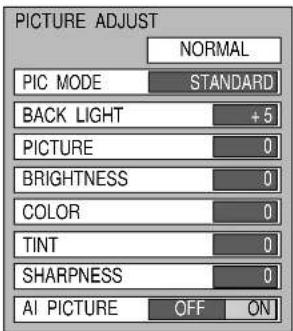
text_image
PICTURE ADJUST NORMAL PIC MODE STANDARD BACK LIGHT +5 PICTURE 0 BRIGHTNESS 0 COLOR 0 TINT 0 SHARPNESS 0 AI PICTURE OFF ON(See page 25)
TO POSITION/SIZE
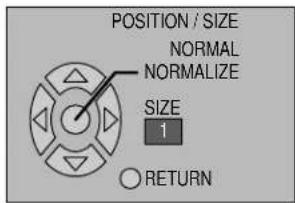
text_image
POSITION / SIZE NORMAL NORMALIZE SIZE 1 RETURN(See page 24)
TO AUDIO ADJUST
menu
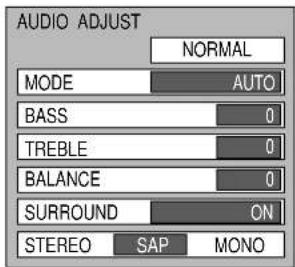
text_image
AUDIO ADJUST NORMAL MODE AUTO BASS 0 TREBLE 0 BALANCE 0 SURROUND ON STEREO SAP MONO(See page 27)
TO PROGRAM CHANNELS
adjust screen
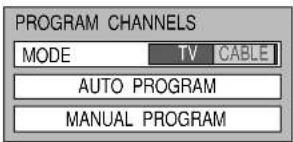
text_image
PROGRAM CHANNELS MODE TV CABLE AUTO PROGRAM MANUAL PROGRAM(See page 19)
TO DVD SET UP
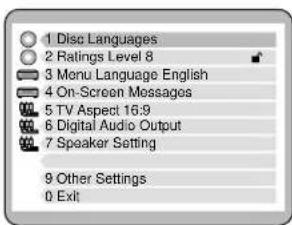
text_image
1 Disc Languages 2 Ratings Level 8 3 Monu Language English 4 On-Screen Messages 5 TV Aspect 16:9 6 Digital Audio Output 7 Speaker Setting 9 Other Settings 0 Exit(Refer to "DVD Operation Guide")
TO LOCK
selection screen
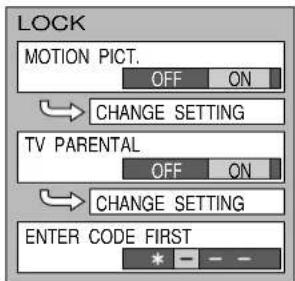
text_image
LOCK MOTION PICT. OFF ON CHANGE SETTING TV PARENTAL OFF ON CHANGE SETTING ENTER CODE FIRST * - - -(See page 30)
TO VIDEO INPUT LABEL
selection screen
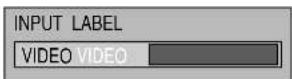
(See page 33)
TO CLOSED CAPTION
selection screen
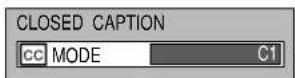
(See page 29)
TO OTHER ADJUST
screen
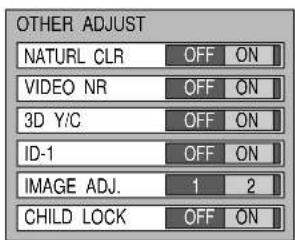
text_image
OTHER ADJUST NATURL CLR OFF ON VIDEO NR OFF ON 3D Y/C OFF ON ID-1 OFF ON IMAGE ADJ. 1 2 CHILD LOCK OFF ON(See page 34-36)
Tuning channels (Automatic channel programming)
Automatically searches and adds receivable channels in the installed area and/or CATV signals to the program.
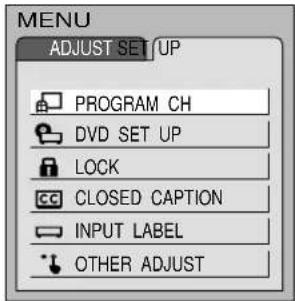
1 Press the TV MENU button to display the MENU screen and select SETUP.
flowchart
graph TD
    A["ENTER"] --> B["Arrow Left"]
    B --> C["Arrow Right"]
    C --> D["Arrow Down"]
    D --> E["Arrow Up"]
    E --> F["Arrow Left"]
    F --> G["Arrow Right"]
    G --> H["Arrow Down"]
    H --> I["Arrow Up"]
    I --> J["Arrow Left"]
    J --> K["Arrow Right"]
Press to select PROGRAM CHANNEL.
Press to display the PROGRAM CH.
text_image
MENU ADJUST SET UP PROGRAM CH DVD SET UP LOCK CLOSED CAPTION INPUT LABEL OTHER ADJUST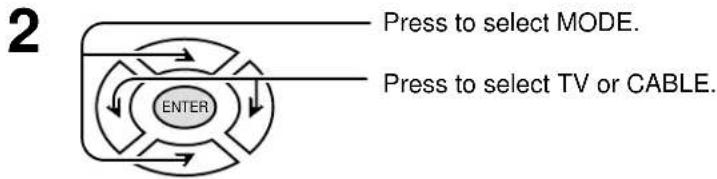
flowchart
graph TD
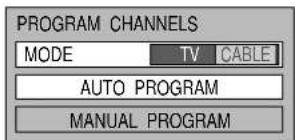
    A["Press to select MODE."] --> B["ENTER"]
    C["Press to select TV or CABLE."] --> B
    B --> D["Arrow pointing inward toward the center"]
text_image
PROGRAM CHANNELS MODE TV CABLE AUTO PROGRAM MANUAL PROGRAM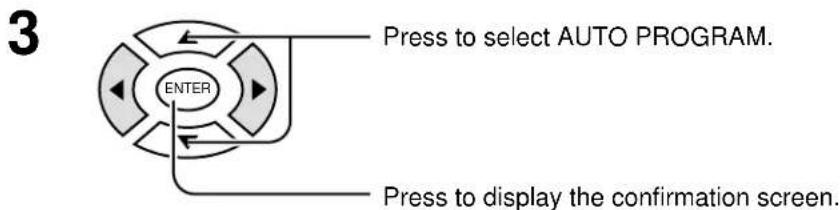
text_image
Press to select AUTO PROGRAM. ENTER Press to display the confirmation screen.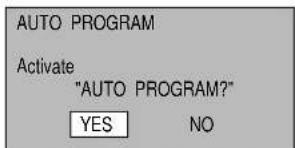
text_image
AUTO PROGRAM Activate "AUTO PROGRAM?" YES NO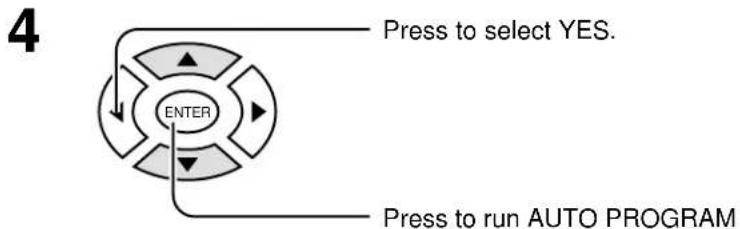
flowchart
graph TD
    A["ENTER"] -->|Press to select YES.| B["Press to run AUTO PROGRAM"]
    B --> C["Arrow pointing inward"]
text_image
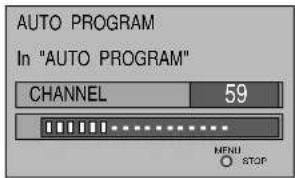
AUTO PROGRAM In "AUTO PROGRAM" CHANNEL 59 MENU STOPChannels will automatically advance until all channels have been scanned. Channel numbers with a video signal present will turn light blue. Which indicates it has been stored in the Channel Scan Memory.
5 Press the TV MENU button to exit the set up menu.
Notes:
- When buttons are pressed with AUTO PROGRAM running, the TV set will return to normal viewing. (Channel searched up to this point are added.)
- After AUTO PROGRAM is finished, the lowest channel number added will be received.
- When there are no receivable channels, channel 69 is displayed (channel 125 for cable TV).
Tuning channels (Manual channel programming)
Use this setting when changing setting of receiving channels or changing the channel display.
Turn the TV on and select the broadcast channel. Follow the steps on the previous page to display the PROGRAM CHANNEL screen.
Selecting the PROGRAM CHANNELS menu.
1 Press the TV MENU button to display the MENU screen and select SETUP.
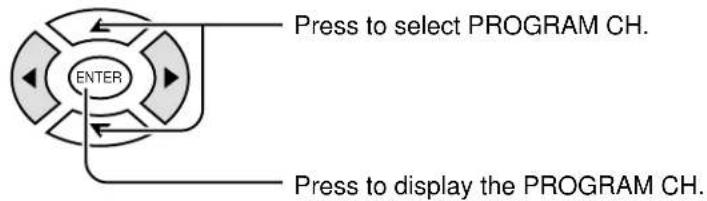
flowchart
graph TD
    A["ENTER"] --> B["Press to select PROGRAM CH."]
    A --> C["Press to display the PROGRAM CH."]
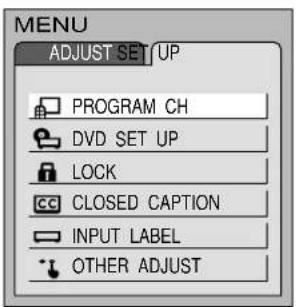
text_image
MENU ADJUST SET UP PROGRAM CH DVD SET UP LOCK CLOSED CAPTION INPUT LABEL OTHER ADJUST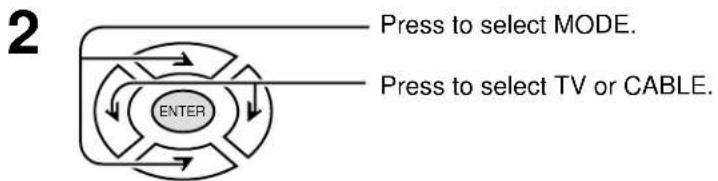
flowchart
graph TD
    A["ENTER"] --> B["Press to select MODE."]
    A --> C["Press to select TV or CABLE."]
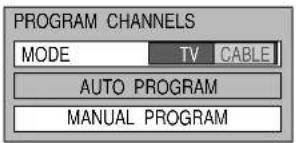
text_image
PROGRAM CHANNELS MODE TV CABLE AUTO PROGRAM MANUAL PROGRAM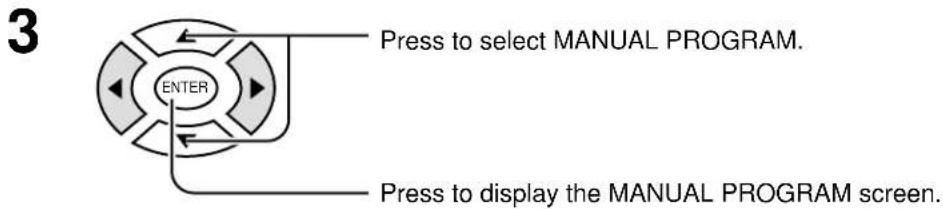
text_image
Press to select MANUAL PROGRAM. ENTER Press to display the MANUAL PROGRAM screen.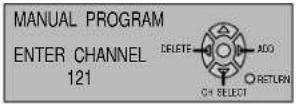
Adding or deleting channels

flowchart
graph TD
    A["ENTER"] --> B["Arrow Left"]
    B --> C["Arrow Right"]
    C --> D["Arrow Down"]
    D --> E["Arrow Up"]
    E --> F["Arrow Left"]
    F --> G["Arrow Right"]
    G --> H["Arrow Down"]
    H --> I["Arrow Up"]
    I --> J["Arrow Left"]
    J --> K["Arrow Right"]
    K --> L["Arrow Down"]
    L --> M["Arrow Up"]
    M --> N["Arrow Left"]
    N --> O["Arrow Right"]
    O --> P["Arrow Down"]
    P --> Q["Arrow Up"]
    Q --> R["Arrow Left"]
    R --> S["Arrow Right"]
    S --> T["Arrow Down"]
    T --> U["Arrow Up"]
    U --> V["Arrow Left"]
    V --> W["Arrow Right"]
    W --> X["Arrow Down"]
    X --> Y["Arrow Up"]
    Y --> Z["Arrow Left"]
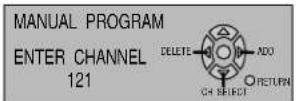
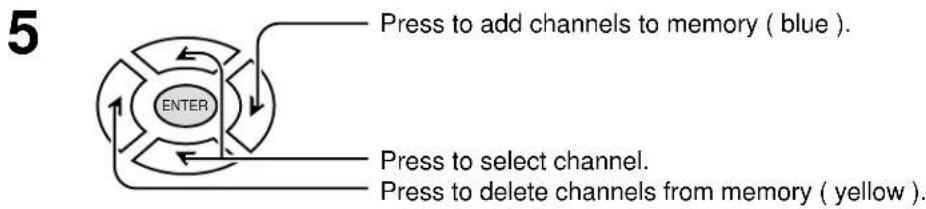
flowchart
graph TD
    A["ENTER"] -->|Press to add channels to memory (blue).| B["Blue"]
    A -->|Press to select channel.| C["Yellow"]
    A -->|Press to delete channels from memory (yellow).| D["Yellow"]
6 Repeat steps 4 and 5 to continue adding or deleting channels.
7 Press the TV MENU button to exit the set up menu.
Playing a VCR or other peripheral equipment
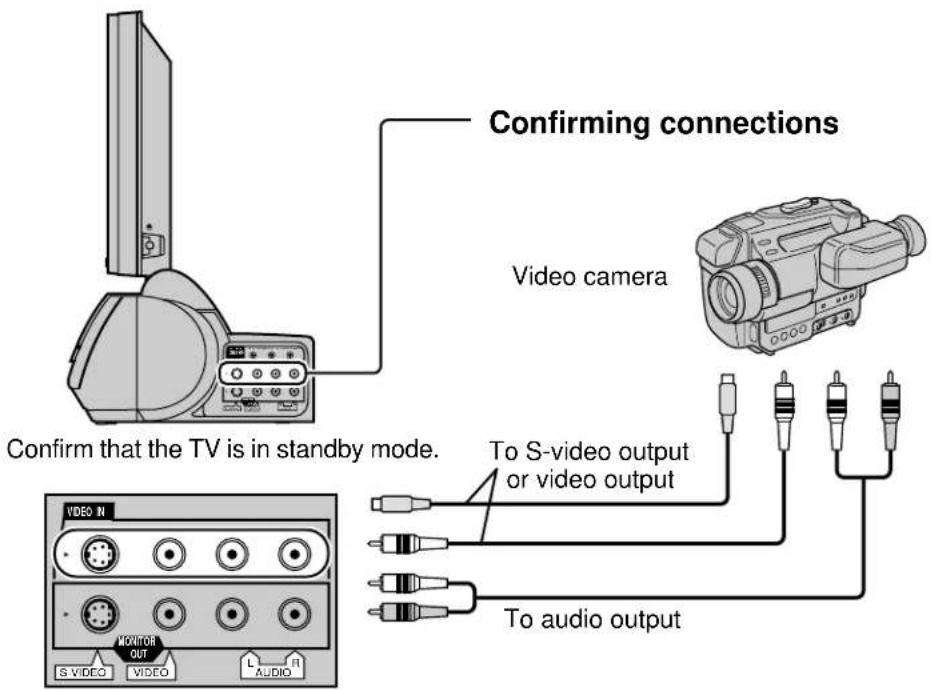
text_image
Confirming connections Video camera Confirm that the TV is in standby mode. To S-video output or video output To audio output
VCR
Laser Disk Player
DVD player
This equipment can also be connected to the rear terminals. See Connections for details.
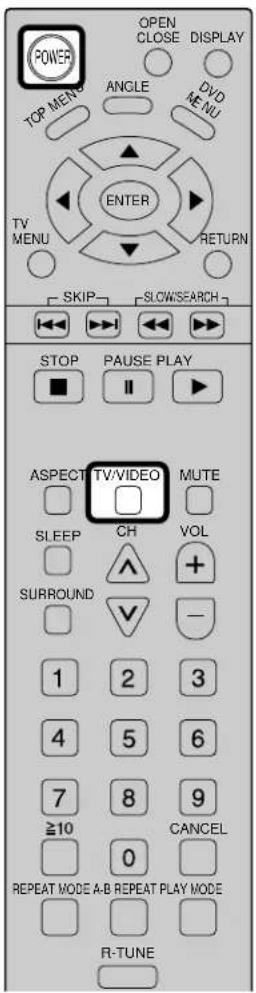
text_image
POWER OPEN CLOSE DISPLAY TOP MEN ANGLE DVD MENU ENTER TV MENU RETURN SKIP SLCWSEARCH STOP PAUSE PLAY ■ II ▶ ASPECT TV/VIDEO MUTE SLEEP CH VOL SURROUND + 1 2 3 4 5 6 7 8 9 ≥10 CANCEL 0 REPEAT MODE A-B REPEAT PLAY MODE R-TUNETurning the power on and switching input modes
1

Turn the TV on.
2

The input mode changes each time this button is pressed.
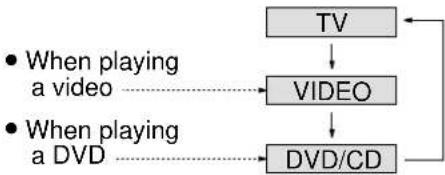
flowchart
graph TD
    A["When playing a video"] --> B["VIDEO"]
    C["When playing a DVD"] --> D["DVD/CD"]
    B --> E["TV"]
    D --> E
Note:
When the remote control is unavailable, input modes can also be switched on the TV set using the TV/VIDEO button.
3
Operate the connected equipment.
Setting condition to be displayed
DISPLAY (On-screen display)
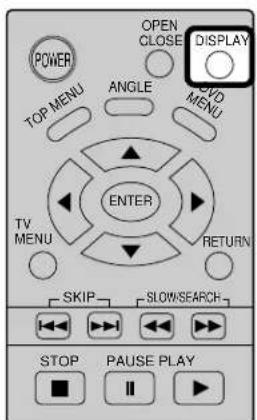
text_image
POWER TOP MENU ANGLE CVD MENU ENTER TV MENU RETURN SKIP SLOW/SEARCH STOP PAUSE PLAYDISPALY

Press this button to display channel number, off-timer remaining time, screen modes, and other settings. Display fades away into after about 3 seconds. Press this button again to delete channel number display.
Full Information
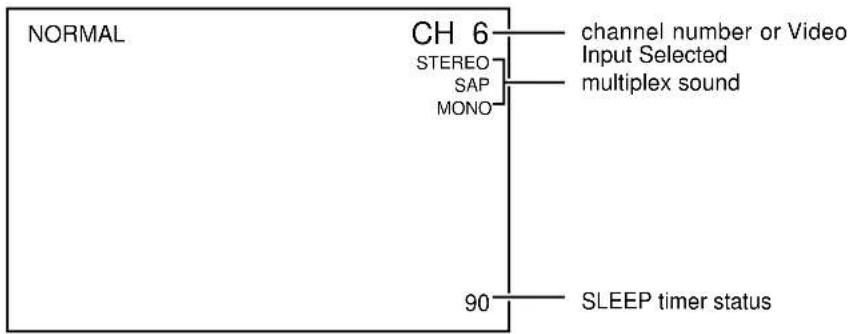
text_image
NORMAL CH 6 STEREO SAP MONO channel number or Video Input Selected multiplex sound 90 SLEEP timer statusThe GUI menu bar for DVD operation is displayed by pressing the DISPLAY button when the above screen is displayed.
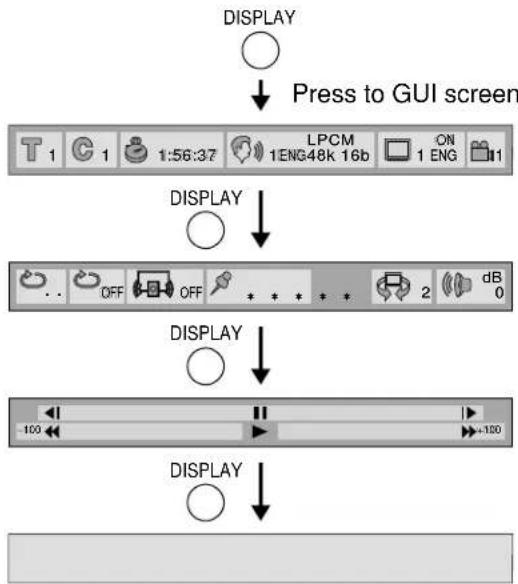
flowchart
graph TD
    A["DISPLAY"] --> B["Press to GUI screen"]
    B --> C["DISPLAY"]
    C --> D["OFF"]
    D --> E["OFF"]
    E --> F["LPCM 1ENG48k 16b ON 1 ENG 11"]
    F --> G["dB 0"]
    G --> H["DISPLAY"]
    H --> I["-100"]
    I --> J["+100"]
    J --> K["DISPLAY"]
The GUI screen changes everytime the DISPLAY button is pressed. (Refer to "DVD Operation Guide")
Stoppage of the Tray action (Child lock)
text_image
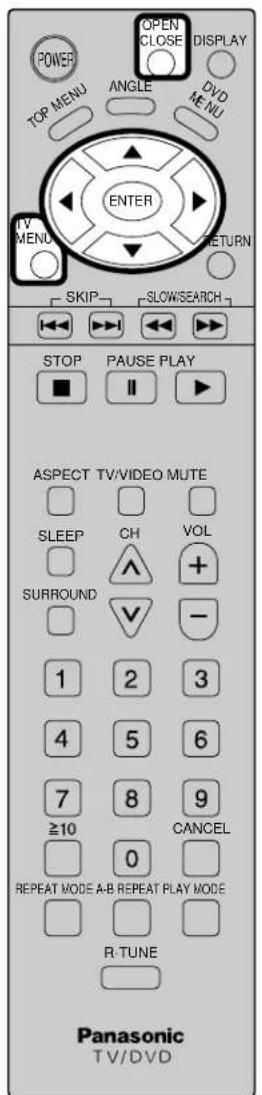
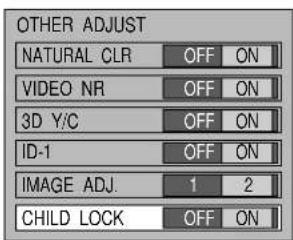
POWER OPEN CLOSE DISPLAY TOP MENU ANGLE DVD MENU ENTER TV MENU RETURN SKIP SLOW/SEARCH STOP PAUSE PLAY ■ II ▶ ASPECT TV/VIDEO MUTE SLEEP CH VOL SURROUND + 1 2 3 4 5 6 7 8 9 ≥10 CANCEL 0 REPEAT MODE A-B REPEAT PLAY MODE R-TUNE Panasonic TV/DVDThe DVD tray on the front can be locked to prevent young children slamming their fingers and to prevent debris from entering.
1 Press the TV MENU button to display the MENU screen and select SETUP.
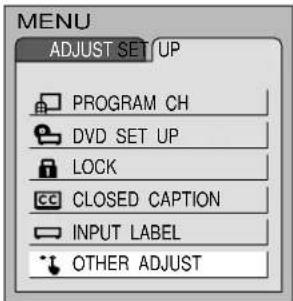
2 Press to select OTHER ADJUST.
flowchart
graph TD
    A["ENTER"] --> B["Arrow Left"]
    B --> C["Arrow Right"]
    C --> D["Arrow Down"]
    D --> E["Arrow Up"]
    E --> F["Arrow Left"]
    F --> G["Arrow Right"]
    G --> H["Arrow Down"]
    H --> I["Arrow Up"]
    I --> J["Arrow Left"]
    J --> K["Arrow Right"]
Press to display the OTHER ADJUST screen.
text_image
MENU ADJUST SET/UP PROGRAM CH DVD SET UP LOCK CLOSED CAPTION INPUT LABEL OTHER ADJUST3 Press to select CHILD LOCK.
flowchart
graph TD
    A["ENTER"] --> B["Process"]
    B --> C["End"]
Press to set.
text_image
OTHER ADJUST NATURAL CLR OFF ON VIDEO NR OFF ON 3D Y/C OFF ON ID-1 OFF ON IMAGE ADJ. 1 2 CHILD LOCK OFF ON
To end adjustment.
When the open close button is pressed when CHILD LOCK is ON, the below message is displayed and the tray will not open.
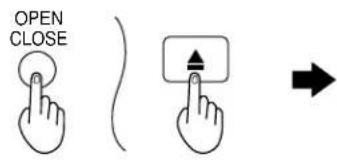
text_image
OPEN CLOSE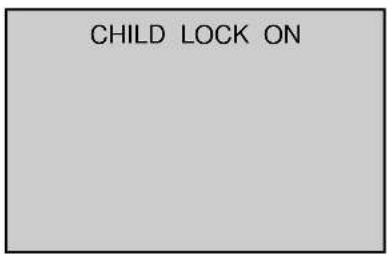
text_image
CHILD LOCK ONNote:
The settings are memorized even after power is turned OFF.
ASPECT Controls
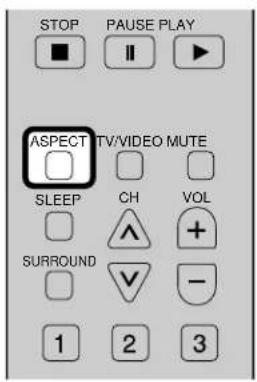
The LCD TV will allow you to enjoy viewing the picture at its maximum size, including wide screen cinema format picture.
text_image
STOP PAUSE PLAY ASPECT TV/VIDEO MUTE SLEEP CH VOL SURROUND - 1 2 3
ASPECT button
The aspect mode changes each time the ASPECT button is pressed.

flowchart
graph LR
    A["NORMAL"] --> B["JUST"]
    B --> C["ZOOM"]
    C --> D["FULL"]
| Mode | Picture | Explanation |
| NORMAL | 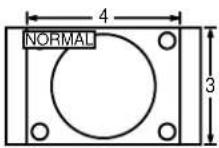 | NORMAL will display a 4:3 picture at its standard 4:3 size. |
| JUST | 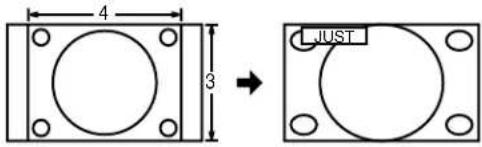 | JUST mode will display a 4:3 picture at maximum size but with aspect correction applied to the center of the screen so that elongation is only apparent at the left and right edges of the screen. The size of the picture will depend on the original signal. |
| ZOOM |  | ZOOM mode magnifies the central section of the picture. |
| FULL | 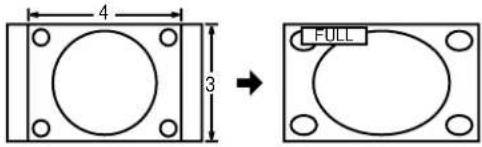 | FULL will display the picture at its maximum size but with sight elongation. |
Notes:
- When S1 is detected during S terminal connection, the screen size will change to FULL.
- When ID-1 signal on the broadcast wave is detected with ID-1 turned ON, the screen size changes to FULL or ZOOM.
Adjusting screen position and size
Adjusting screen
1
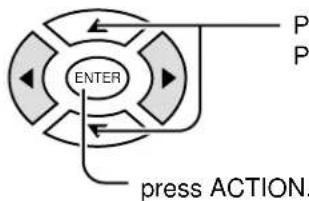
Press to select the screen mode to adjust.
2

Press to display the MENU screen.
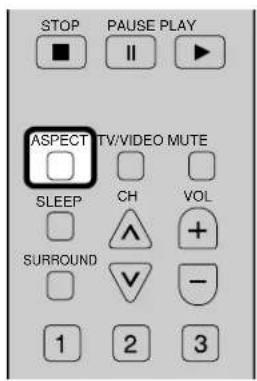
text_image
STOP PAUSE PLAY ■ ■ ■ ASPECT TV/VIDEO MUTE SLEEP CH VOL SURROUND ✓ - 1 2 3
Press to select ADJUST menu.
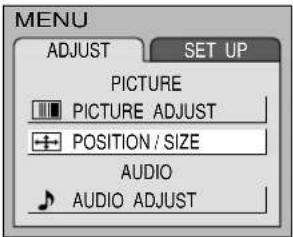
text_image
MENU ADJUST SET UP PICTURE PICTURE ADJUST POSITION / SIZE AUDIO AUDIO ADJUST
text_image
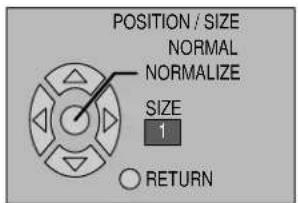
ENTER press ACTION.Press to select POSITION/SIZE and
text_image
POSITION / SIZE NORMAL NORMALIZE SIZE 1 RETURNSwitching screen width
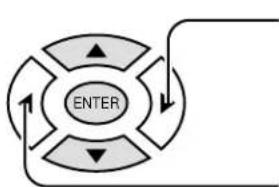
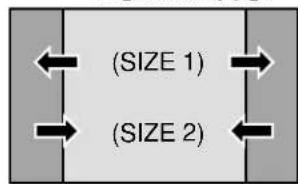
During NORMAL mode, if noise appears on the ends of the image in SIZE 1, switch to SIZE 2.
flowchart
graph TD
    A["ENTER"] --> B["Arrow 1"]
    A --> C["Arrow 2"]
    A --> D["Arrow 3"]
    A --> E["Arrow 4"]
Press to narrow (SIZE 2).
Press to widen (SIZE 1).
NORMAL JUST
text_image
(SIZE 1) (SIZE 2)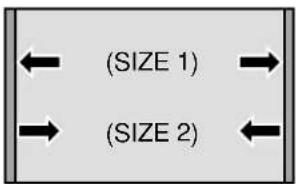
text_image
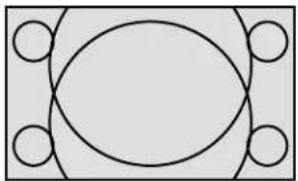
(SIZE 1) (SIZE 2)Moving Display images cut off from the screen
For ZOOM mode.

flowchart
graph TD
    A["ENTER"] --> B["Arrow 1"]
    B --> C["Arrow 2"]
    C --> D["Arrow 3"]
    D --> E["Arrow 4"]
    E --> A
Press to move image upwards.
Press to move image downwards.
natural_image
Geometric diagram with a central oval and four surrounding circles (no text or symbols)- To return to standard → ENTER
• To end adjustments → MENU (RETURN)
Notes:
- This TV is equipped with various screen modes. If a screen mode with a different aspect from the broadcast program is selected, image will appear differently. Select the proper screen mode with this in mind.
- Be careful when using this TV for commercial purposes or for public use, such as in cafes and hotels, for shrinking and enlarging images by using screen mode switching function (zoom, etc.) may violate copyright laws.
- Images displayed on a wide screen TV will be cut off or distorted at the edges, when viewing normal aspect images of 4:3 in ZOOM, JUST or FULL mode. Display in NORMAL mode to view the original image intended by the producer.
- The adjusted setting will be kept even when the TV is turned off.
- The signals output from the monitor output terminal on the right of the TV are not affected when the screen size and position are adjusted.
Picture Adjustments
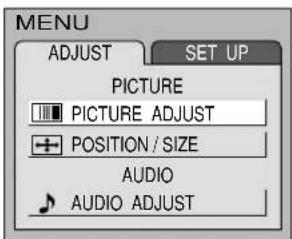
1 Press the TV MENU button to display the MENU screen and select ADJUST.

flowchart
graph TD
    A["ENTER"] --> B["Arrow Left"]
    B --> C["Arrow Right"]
    C --> D["Arrow Down"]
    D --> E["Arrow Up"]
    E --> F["Arrow Left"]
    F --> G["Arrow Right"]
    G --> H["Arrow Down"]
    H --> I["Arrow Up"]
    I --> J["Arrow Left"]
    J --> K["Arrow Right"]
Press to select to PICTURE ADJUST.
Press to display the PICTURE ADJUST screen.
text_image
MENU ADJUST SET UP PICTURE PICTURE ADJUST POSITION / SIZE AUDIO AUDIO ADJUST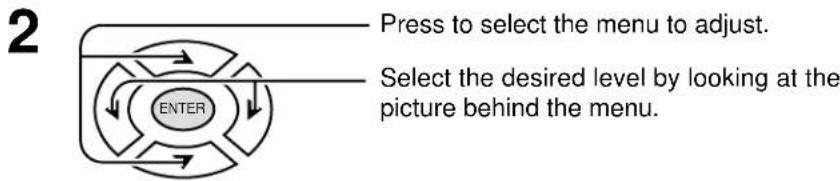
flowchart
graph TD
    A["Press to select the menu to adjust."] --> B["Select the desired level by looking at the picture behind the menu."]
    B --> C["ENTER"]
NORMAL is displayed at default.

text_image
PICTURE ADJUST NORMAL PIC MODE STANDARD BACK LIGHT +5 PICTURE 0 BRIGHTNESS 0 COLOR 0 TINT 0 SHARPNESS 0 AI PICTURE OFF ON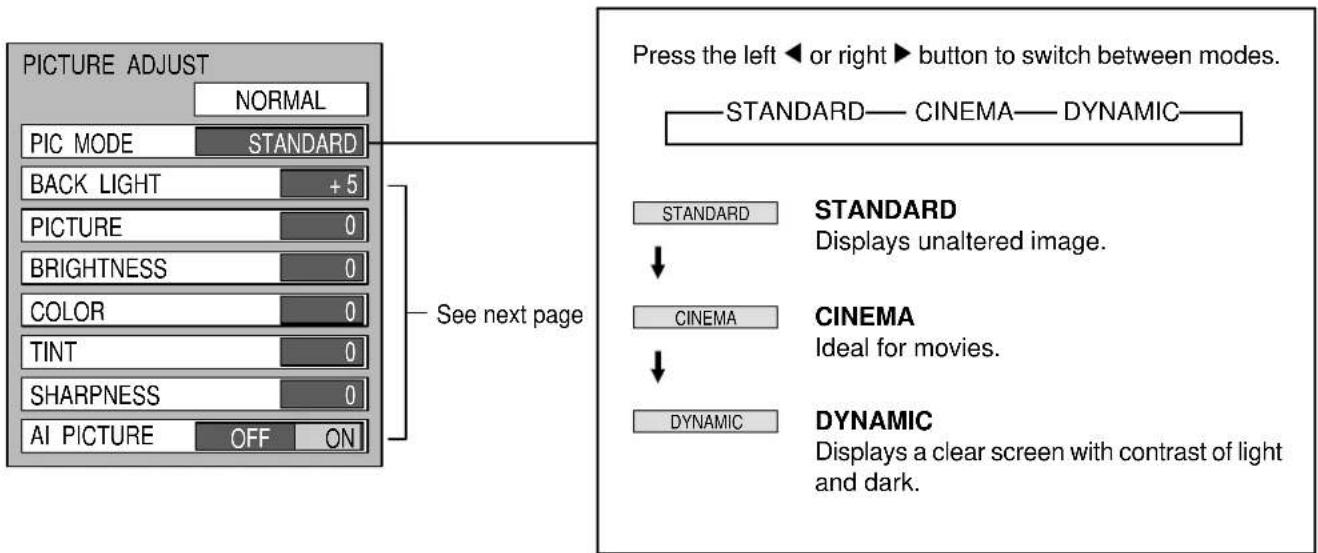
text_image
PICTURE ADJUST NORMAL PIC MODE STANDARD BACK LIGHT +5 PICTURE 0 BRIGHTNESS 0 COLOR 0 TINT 0 SHARPNESS 0 AI PICTURE OFF ON See next page Press the left ◀ or right ► button to switch between modes. STANDARD—CINEMA—DYNAMIC STANDARD Displays unaltered image. CINEMA Ideal for movies. DYNAMIC Displays a clear screen with contrast of light and dark.BACKLIGHT
Illuminance of the back light is adjusted.
PICTURE
Selects proper brightness and density for the room.
BRIGHTNESS
Adjusts for easier viewing of dark pictures such as night scenes and hair.
COLOR
Adjusts slightly to a lighter color.
TINT
Adjust for nice skin color.
SHARPNESS
Displays a sharp image.
AI PICTURE
Displays black and white colors clearer when turned ON.
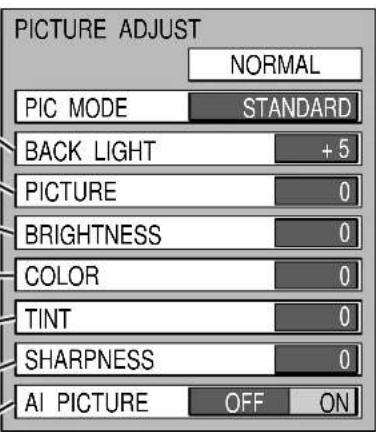
text_image
PICTURE ADJUST NORMAL PIC MODE STANDARD BACK LIGHT +5 PICTURE 0 BRIGHTNESS 0 COLOR 0 TINT 0 SHARPNESS 0 AI PICTURE OFF ON• To adjust each item, Press the up
▲ and down ▼ button and make adjustments using the left ◀ and ▶ right buttons.
- To reset to standard setting, →
Select NORMALIZE with the up ▲ and down ▼ buttons.
• To return to normal viewing →
Press ACTION.

Press TV MENU button.
Note:
There is little change when PICTURE is increased with a bright picture or reduced with a dark picture.
Audio Adjustments
1 Press the TV MENU button to display the MENU screen and select ADJUST.
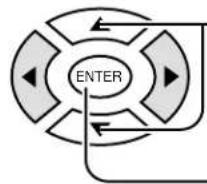
Press to select to AUDIO ADJUST.
Press to display the AUDIO ADJUST screen.
2
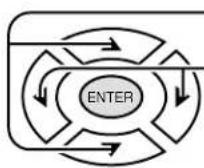
Press to select the menu to adjust each item.
Select the desired level by listening to the sound.
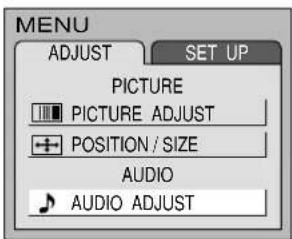
text_image
MENU ADJUST SET UP PICTURE PICTURE ADJUST POSITION / SIZE AUDIO AUDIO ADJUST
text_image
BASS Adjusts low sounds TREBLE Adjusts high sounds BALANCE Adjust left and right volumes AUDIO ADJUST NORMAL MODE AUTO BASS 0 TREBLE 0 BALANCE 0 SURROUND ON STEREO SAP MONO SURROUND To enjoy a concert hall effect, turn SURROUND to ON. During stereo sound or soft playing: Note: When VSS* is enabled during DVD mode, selections will rotate as follows: OFF→VSS1→VSS2 Selecting STEREO/ SAP/MONO. (See next page)AUTO

STANDARD

DYNAMIC

MUSIC 1

MUSIC 2
Auto
Automatically adjusts quiet sound and loud sound for ease of listening.
STANDARD
Emits the original sound.
DYNAMIC
Gives contrast to sound.
MUSIC 1
For programs consisting mainly of music. Enhances high sounds (around 4 kHz).
MUSIC 2
Enhances high sounds even more. (Recommended for those who have slight hearing deficiencies.)
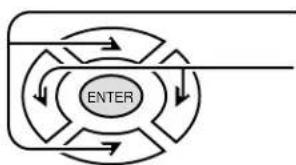
flowchart
graph TD
    A["ENTER"] --> B["Outer Ring"]
    B --> C["Inner Ring"]
    C --> D["Outer Ring"]
    D --> E["Inner Ring"]
    E --> F["Outer Ring"]
    F --> G["Inner Ring"]
    G --> H["Outer Ring"]
    H --> I["Inner Ring"]
    I --> J["Outer Ring"]
To reset to standard setting,
select NORMALIZE with the up ▲ and down ▼ buttons and press ENTER.
To adjust settings individually, press the AV up ▲ and down ▼ button to select the desired menu and adjust using the left ◀ and ▶ right buttons.
- To end adjustments →
TV MENU

Press TV MENU button.
Note:
* Virtual Surround Sound (VSS) (See page 11, 28)
Selecting STEREO/SAP/MONO
Press the TV MENU button to display the MENU screen and select AUDIO ADJUST screen.
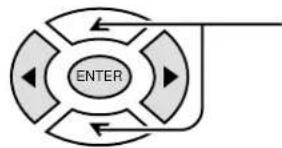
flowchart
graph TD
    A["ENTER"] --> B["Arrow 1"]
    A --> C["Arrow 2"]
    A --> D["Arrow 3"]
    A --> E["Arrow 4"]
Press to select STEREO/SAP/MONO.
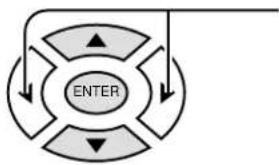
flowchart
graph TD
    A["ENTER"] --> B["Top Left"]
    A --> C["Top Right"]
    A --> D["Bottom Left"]
    A --> E["Bottom Right"]
    A --> F["Bottom Left"]
    style A fill:#ccc,stroke:#333
    style B fill:#ccc,stroke:#333
    style C fill:#ccc,stroke:#333
    style D fill:#ccc,stroke:#333
    style E fill:#ccc,stroke:#333
    style F fill:#ccc,stroke:#333
Press to select STEREO/SAP/MONO.
Red display : With signal
White display : No signal
: MONO
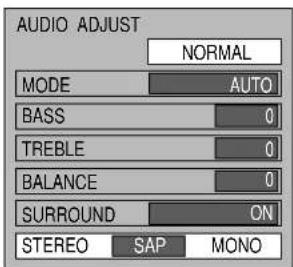
text_image
AUDIO ADJUST NORMAL MODE AUTO BASS 0 TREBLE 0 BALANCE 0 SURROUND ON STEREO SAP MONO

TV
MENU

Press to end.
Helpful Hints:
• STEREO - Two channel Audio reception.
- SAP - Second Audio Programming (typically used for bilingual audio).
• MONO - Use when stereo signal is weak.
SURROUND Control
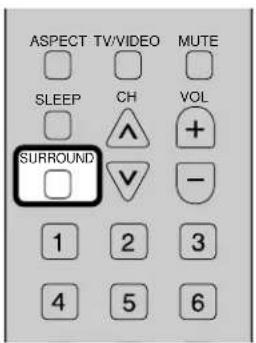
text_image
ASPECT TV/VIDEO MUTE SLEEP CH VOL SURROUND 1 2 3 4 5 6SURROUND

SURROUND Button
The benefits of surround are enormous. You can be completely enveloped in sound, just as if you were at a concert hall or cinema.
The surround setting switches on and off each time the SURROUND button is pressed.
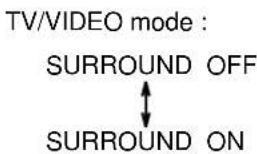
- The surround settings are memorized separately for each SOUND mode (AUTO, STANDARD).
- Even from the MENU screen the surround setting is possible.
Closed Captions
This unit has a built in decoder that provides a visual depiction of the audio portion of a television program in the form of written words across the screen (white or colored letters on a black background). It allows the viewer to read the dialogue of a television program or other information.
1 Press the TV MENU button to display the MENU screen and select SETUP.
flowchart
graph TD
    A["ENTER"] --> B["Arrow Left"]
    B --> C["Arrow Right"]
    C --> D["Arrow Down"]
    D --> E["Arrow Up"]
    E --> F["Arrow Left"]
    F --> G["Arrow Right"]
    G --> H["Arrow Down"]
    H --> I["Arrow Up"]
    I --> J["Arrow Left"]
    J --> K["Arrow Right"]
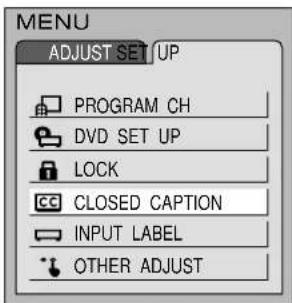
Press to select CLOSED CAPTION.
Press to display the CLOSED CAPTION screen.
text_image
MENU ADJUST SET UP PROGRAM CH DVD SET UP LOCK CLOSED CAPTION INPUT LABEL OTHER ADJUST2 CC Mode
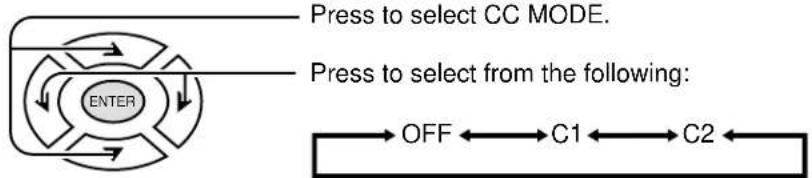
Activates the On-Screen Closed Caption feature. When activated this feature will remain on until OFF is selected in this menu.
flowchart
graph TD
    A["Press to select CC MODE."] --> B["ENTER"]
    B --> C["OFF"]
    C --> D["C1"]
    D --> E["C2"]
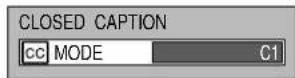
- CAPTION OFF - Recommended mode when Closed Caption is not being used.
- CAPTION C1 - For video related information that can be displayed (up to 4 lines of script strategically placed on the television screen so that it does not obstruct relevant parts of the picture).
- CAPTION C2 - Another mode used for video related information.
- To end adjustments →

Press TV MENU button.
Surround effects can be turned ON and OFF during TV/VIDEO mode but also switches as follows when DVDs with VSS signals are played:
DVD mode :
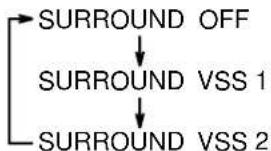
flowchart
graph TD
    A["SURROUND OFF"] --> B["SURROUND VSS 1"]
    B --> C["SURROUND VSS 2"]
When DVDs with VSS signals are played and Headphone VSS is selected for VSS of the GUI screen (see page 49), SURROUND display switches as follows:
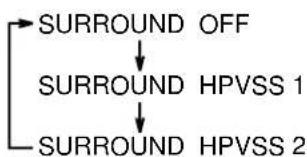
flowchart
graph TD
    A["SURROUND OFF"] --> B["SURROUND HPVSS 1"]
    B --> C["SURROUND HPVSS 2"]
Note:
See pages 46 to 49 for details on GUI.
Lock Feature
In the United States, the V-CHIP consists of two rating systems, which are MPAA (MOTION PICTURE) and TV PARENTAL GUIDELINES. Its function is to block programs by the rating data in the XDS data packets sent from broadcasting stations. The user can select which rating programs should be blocked by the LOCK MENU options.
Note: The V-CHIP. used in this unit model, is capable of selecting the U.S. ratings that are indicated in this manual.
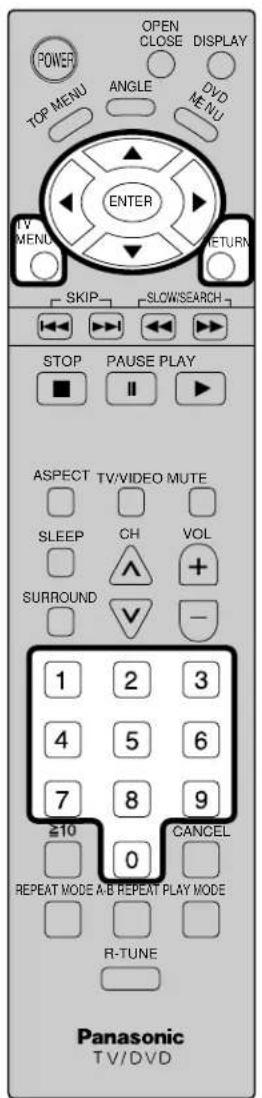
Press the TV MENU button to display the MENU screen and select SETUP.
text_image
POWER OPEN CLOSE DISPLAY TOP MENU ANGLE DVD MENU ENTER TV MENU RETURN SKIP SLOW/SEARCH STOP PAUSE PLAY ■ II ▶ ASPECT TV/VIDEO MUTE SLEEP CH VOL SURROUND + 1 2 3 4 5 6 7 8 9 ≥10 CANCEL 0 REPEAT MODE A/B REPEAT PLAY MODE R-TUNE Panasonic TV/DVD1
flowchart
graph TD
    A["ENTER"] --> B["Arrow Left"]
    B --> C["Arrow Right"]
    C --> D["Arrow Down"]
    D --> E["Arrow Up"]
    E --> F["Arrow Left"]
    F --> G["Arrow Right"]
    G --> H["Arrow Down"]
    H --> I["Arrow Up"]
    I --> J["Arrow Left"]
    J --> K["Arrow Right"]
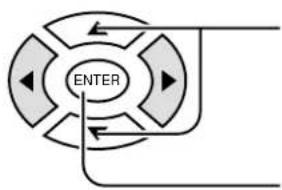
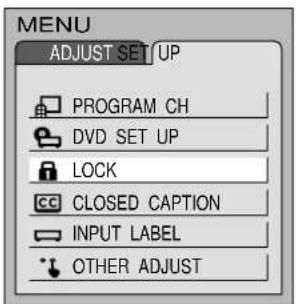
Press to select LOCK.
Press to display the LOCK screen.
text_image
MENU ADJUST SET UP PROGRAM CH DVD SET UP LOCK CLOSED CAPTION INPUT LABEL OTHER ADJUSTInput code
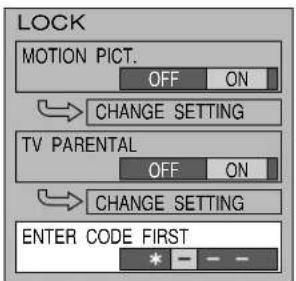
Enter any 4-digit number as a password. These numbers will be needed when deactivating the LOCK function.
text_image
LOCK MOTION PICT. OFF ON → CHANGE SETTING TV PARENTAL OFF ON → CHANGE SETTING ENTER CODE FIRST * - - -Note:
Use a code that is easy to remember or record it in a safe place.
2 Selecting broadcasts to lock.
flowchart
graph TD
    A["ENTER"] --> B["Arrow Left"]
    B --> C["Arrow Right"]
    C --> D["Arrow Down"]
    D --> E["Arrow Up"]
    E --> F["Arrow Left"]
    F --> G["Arrow Right"]
    G --> H["Arrow Down"]
    H --> I["Arrow Up"]
    I --> J["Arrow Left"]
    J --> K["Arrow Right"]
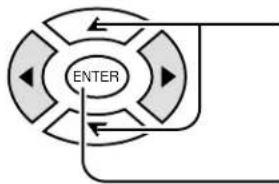
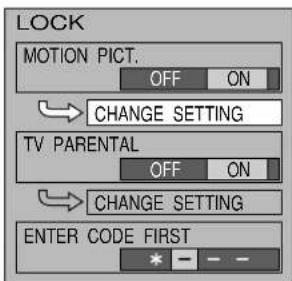
Press to select CHANGE SETTING (the menu following MOTION PICT. STATUS).
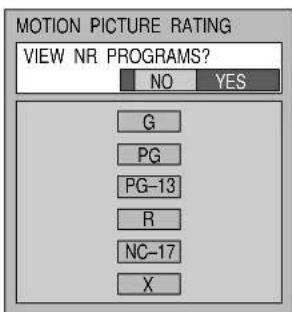
Press to display the MOTION PICTURE RATING screen.
text_image
LOCK MOTION PICT. OFF ON CHANGE SETTING TV PARENTAL OFF ON CHANGE SETTING ENTER CODE FIRST * - - -Press to select rating to lock.
flowchart
graph TD
    A["ENTER"] --> B["Arrow Left"]
    B --> C["Arrow Right"]
    C --> D["Arrow Down"]
    D --> E["Arrow Up"]
    E --> F["Arrow Left"]
    F --> G["Arrow Right"]
    G --> H["Arrow Down"]
    H --> I["Arrow Up"]
    I --> J["Arrow Left"]
    J --> K["Arrow Right"]
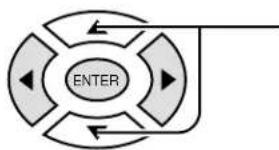
Press to select YES or NO.
flowchart
graph TD
    A["↑"] --> B["ENTER"]
    C["↓"] --> B
    D["▼"] --> B
    E["↓"] --> B
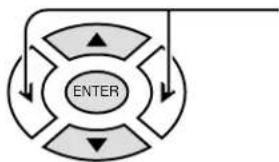
Rating (turns red when on)
G : General audience
PG : Parental guidance suggested
PG-13: Parental guidance needed under 13 years old
R : Restricted
NC17 : No one under 17 is admitted
X : Pornography

RETURN

Press to return to LOCK screen.
text_image
MOTION PICTURE RATING VIEW NR PROGRAMS? NO YES G PG PG-13 R NC-17 X4 Setting MOTION PICT..
Locking and unlocking the ratings selected above.
flowchart
graph TD
    A["ENTER"] --> B["Outer Ring"]
    B --> C["Inner Ring"]
    C --> D["Outer Ring"]
    D --> E["Inner Ring"]
    E --> F["Outer Ring"]
    F --> G["Inner Ring"]
    G --> H["Outer Ring"]
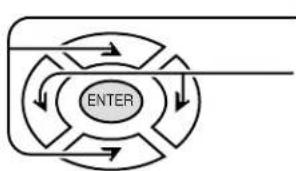
Press to select MOTION PICT..
Press to select ON or OFF.
text_image
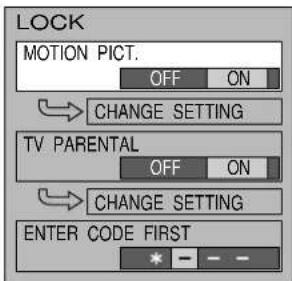
LOCK MOTION PICT. OFF ON CHANGE SETTING TV PARENTAL OFF ON CHANGE SETTING ENTER CODE FIRST * - - -ON : The broadcasts selected in the MOTION PICTURE RATING menu cannot be viewing.
OFF: LOCK is deactivated and any broadcast, regardless of the setting for MOTION PICTURE RATING, can be viewing.

TV
MENU

Press to set.
TV PARENTAL GUIDE
flowchart
graph TD
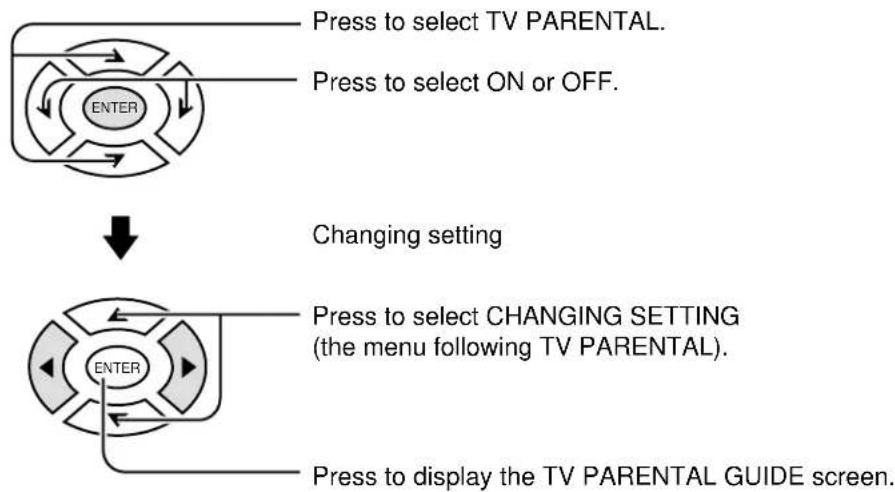
    A["Press to select TV PARENTAL."] --> B["Press to select ON or OFF."]
    B --> C["Changing setting"]
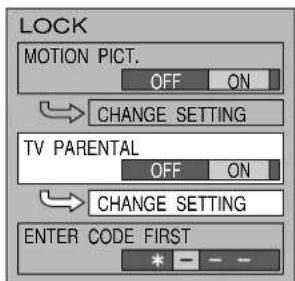
    C --> D["Press to select CHANGING SETTING (the menu following TV PARENTAL)."]
    D --> E["Press to display the TV PARENTAL GUIDE screen."]
Setting the TV PARENTAL PROGRAMS screen
VIEW NR PROGRAMS?
NO : Cannot view programs with NR signals.
YES : Can view programs with NR signal.
SETTING
BASIC : The up ▲ and down ▼ buttons change the selected title.
DETAILED : The cursor selecting the title can be moved to select options displayed on the right. The down ▼ buttons moves the cursor to the right if options are available. The up ▲ buttons moves the cursor to the left and if there are no options to the left, the cursor will move up.
text_image
LOCK MOTION PICT. OFF ON CHANGE SETTING TV PARENTAL OFF ON CHANGE SETTING ENTER CODE FIRST * - - -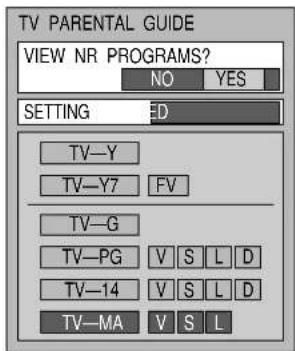
text_image
TV PARENTAL GUIDE VIEW NR PROGRAMS? NO YES SETTING ED TV-Y TV-Y7 FV TV-G TV-PG V S L D TV-14 V S L D TV-MA V S LLocking and unlocking
- When a title field is selected, all ratings below this rating are selected.
- When options within an option field are selected, ratings below this rating within the same field are selected.
-
Ratings displayed in green are unlocked and those displayed in red are blocked programs.
-
Ratings for children: These ratings are divided into ranks as follows.

text_image
TV-Y TV-YTV-Y7-TV-Y7 TV-Y7-FV-FV- Ratings for teenagers: These ratings are the same as the matrix system. This system is described in the below diagram. Ratings for all ages are on top and ratings for adults are on the bottom.
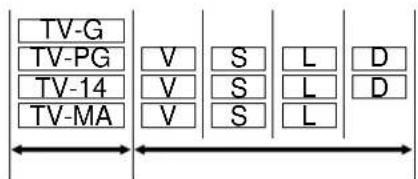
text_image
TV-G TV-PG TV-14 TV-MA V V V S S S L L L D D- To end adjustments →

Press TV MENU button.
Customizing the VIDEO INPUT labels
Display for each VIDEO INPUT can be changed to match with the connected device (VCR, DVD Player).
Example: When changing VIDEO to LD.
1 Press the TV MENU button to display the MENU screen and select SETUP.
text_image
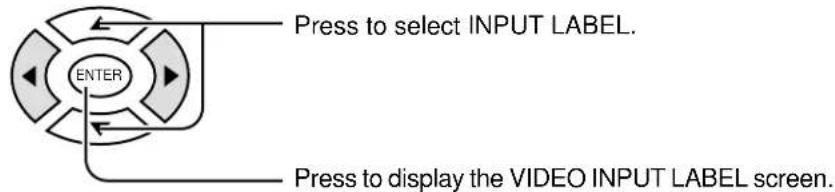
Press to select INPUT LABEL. ENTER Press to display the VIDEO INPUT LABEL screen.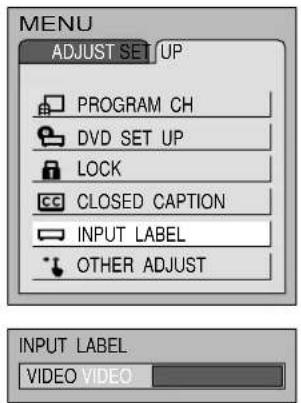
text_image
MENU ADJUST SET UP PROGRAM CH DVD SET UP LOCK CLOSED CAPTION INPUT LABEL OTHER ADJUST INPUT LABEL VIDEO VIDEO
flowchart
graph TD
    A["Start"] --> B{Press to change.}
    B --> C["Enter"]
    C --> D["Arrow Up Down"]
    C --> E["Arrow Down Up"]
    C --> F["Arrow Left Down"]
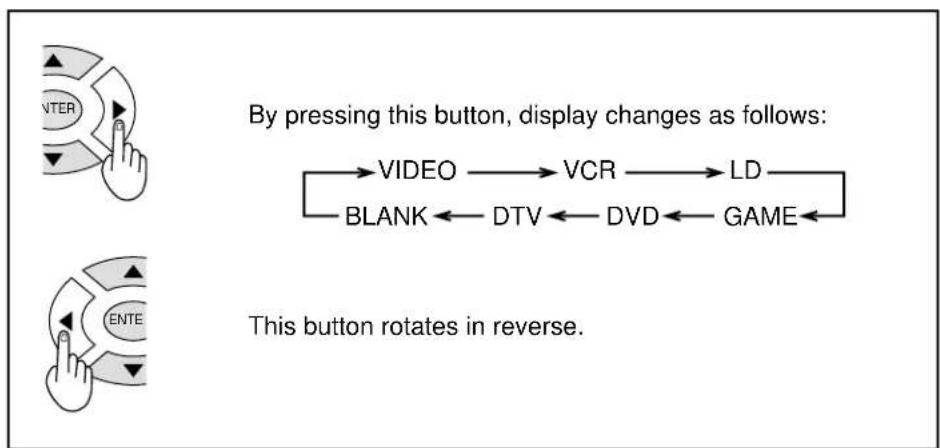
flowchart
graph LR
    A["ENTER"] --> B["VIDEO"]
    B --> C["VCR"]
    C --> D["LD"]
    D --> E["BLANK"]
    E --> F["DTV"]
    F --> G["DVD"]
    G --> H["GAME"]
    I["ENTER"] --> J["Ente"]
    J --> K["Rotates in reverse"]

Press to end.
Note: When DVD or DTV is selected for the change, images are adjusted to match each input signal.
Adjusting unnatural video images (3D Y/C FILTER)
Selecting the VIDEO menu
Press the TV MENU button to display the MENU screen and select SETUP.
text_image
Press to select OTHER ADJUST. ENTER Press to display the OTHER ADJUST screen.
text_image
MENU ADJUST SET UP PROGRAM CH DVD SET UP LOCK CLOSED CAPTION INPUT LABEL OTHER ADJUST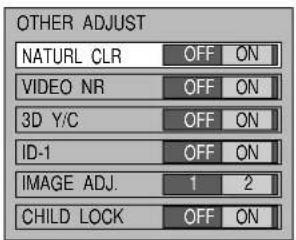
text_image
OTHER ADJUST NATURL CLR OFF ON VIDEO NR OFF ON 3D Y/C OFF ON ID-1 OFF ON IMAGE ADJ. 1 2 CHILD LOCK OFF ONSwitching to 3D Y/C FILTER
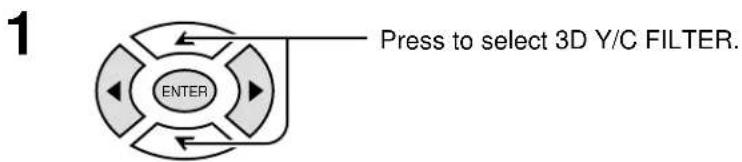
text_image
1 Press to select 3D Y/C FILTER. ENTER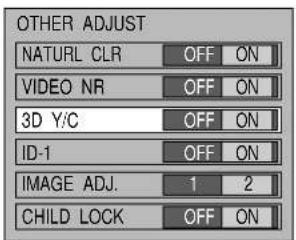
text_image
OTHER ADJUST NATURL CLR OFF ON VIDEO NR OFF ON 3D Y/C OFF ON ID-1 OFF ON IMAGE ADJ. 1 2 CHILD LOCK OFF ON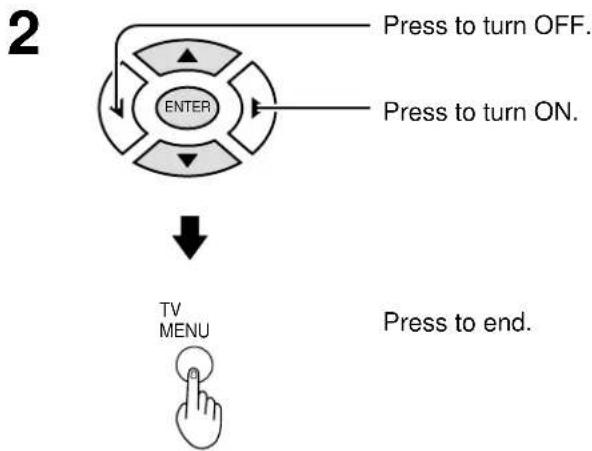
flowchart
graph TD
    A["Press to turn OFF."] --> B["ENTER"]
    C["Press to turn ON."] --> B
    B --> D["TV MENU"]
    D --> E["Press to end."]
Automatically changing screen size for VIDEO INPUT modes
If the received signal contains screen size specifications in VIDEO INPUT the screen size is automatically changed.
1 Press the MENU button to display the MENU screen and select SETUP.
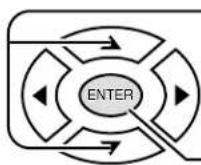
Press to select OTHER ADJUST.
Press to display the OTHER ADJUST screen.
2 Press to select ID-1 (Image Detection).
Press to set.
ON : When screen size specification signals are detected, screen size is automatically changed.
OFF: The screen size is not automatically changed. (Turn OFF if this function does not operate properly.)
Press to end.
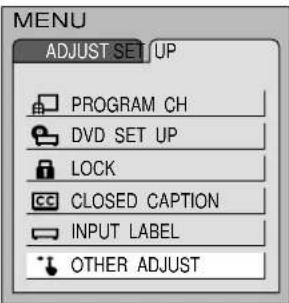
text_image
MENU ADJUST SET UP PROGRAM CH DVD SET UP LOCK CLOSED CAPTION INPUT LABEL OTHER ADJUST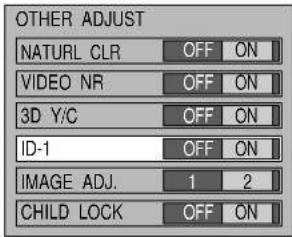
text_image
OTHER ADJUST NATURL CLR OFF ON VIDEO NR OFF ON 3D Y/C OFF ON ID-1 OFF ON IMAGE ADJ. 1 2 CHILD LOCK OFF ON
Note:
When ID-1 is detected and screen size is changed, FULL will be display.
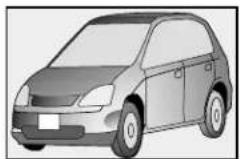
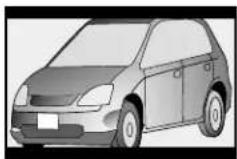
When the top and bottom of the screen noise (IMAGE ADJ.)
1 Press the MENU button to display the MENU screen and select SETUP.
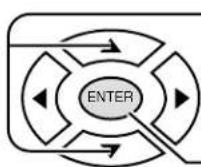
Press to select OTHER ADJUST.
Press to display the OTHER ADJUST screen.
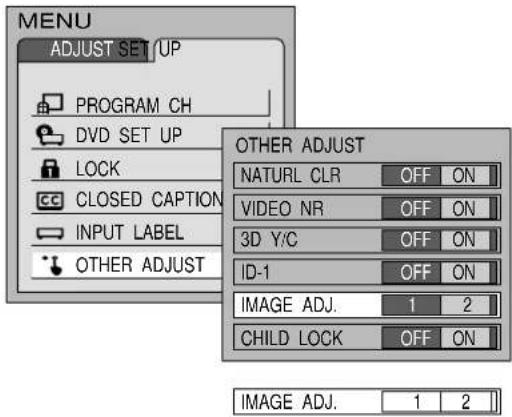
2 Press to select IMAGE ADJ.
Press to select IMAGE ADJ.
Press to select 2

Press to exit menu.
Notes:
- IMAGE ADJ. settings are stored for TV, VIDEO and DVD each.
- This setting will not change during ZOOM.
text_image
MENU ADJUST SET UP PROGRAM CH DVD SET UP LOCK CLOSED CAPTION INPUT LABEL OTHER ADJUST OTHER ADJUST NATURL CLR OFF ON VIDEO NR OFF ON 3D Y/C OFF ON ID-1 OFF ON IMAGE ADJ. 1 2 CHILD LOCK OFF ON IMAGE ADJ. 1 2(Example) 1 (Example) 2
Natural Color
1 Press the MENU button to display the MENU screen and select SETUP.
2 Press to select OTHER ADJUST.
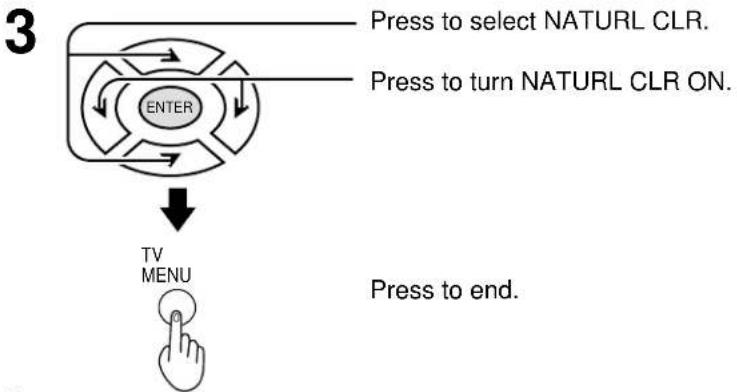
flowchart
graph TD
    A["Press to select NATURL CLR."] --> B["Press to turn NATURL CLR ON."]
    B --> C["ENTER"]
    C --> D["TV MENU"]
    D --> E["Press to end."]
Note: Not available for COMPONENT VIDEO.
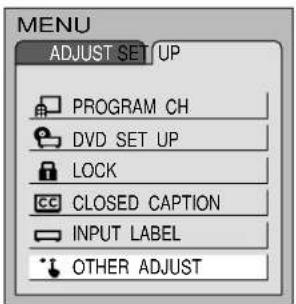
text_image
MENU ADJUST SET UP PROGRAM CH DVD SET UP LOCK CLOSED CAPTION INPUT LABEL OTHER ADJUST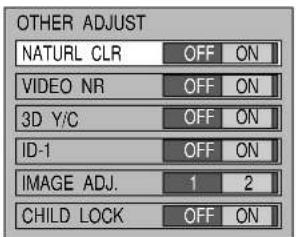
text_image
OTHER ADJUST NATURL CLR OFF ON VIDEO NR OFF ON 3D Y/C OFF ON ID-1 OFF ON IMAGE ADJ. 1 2 CHILD LOCK OFF ONNoisy Picture
Reduces roughness of pictures.
1 Press the TV MENU button to display the MENU screen and select SETUP. Reduces roughness of pictures.
2 Press to select OTHER ADJUST.
3 Press to select VIDEO NR.
3 Press to select VIDEO NR.
3 Press to select VIDEO NR.
3 Press to select VIDEO NR.
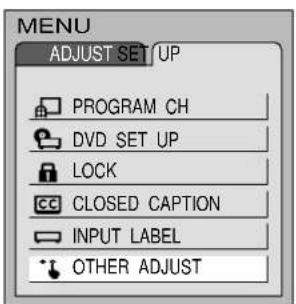
text_image
MENU ADJUST SET UP PROGRAM CH DVD SET UP LOCK CLOSED CAPTION INPUT LABEL OTHER ADJUST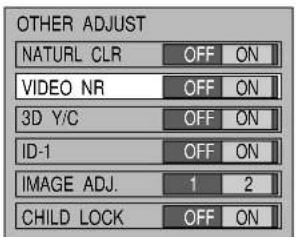
text_image
OTHER ADJUST NATURL CLR OFF ON VIDEO NR OFF ON 3D Y/C OFF ON ID-1 OFF ON IMAGE ADJ. 1 2 CHILD LOCK OFF ON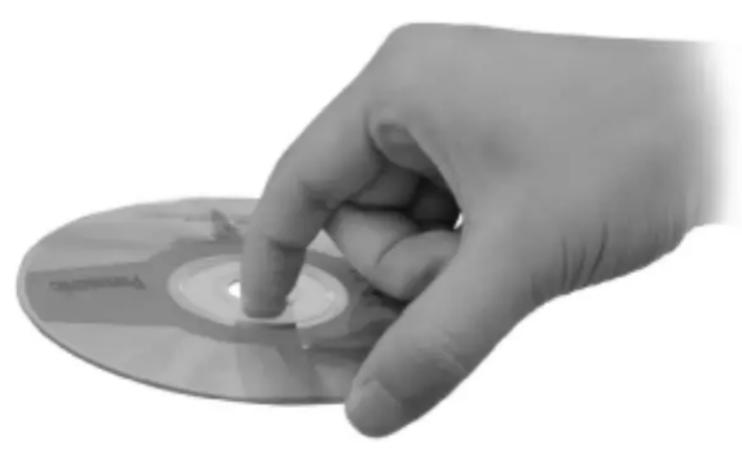
natural_image
Hand holding a CD or DVD disc with a finger pointing to its surface (no visible text or symbols)DVD Operation Guide
Features of DVD on this Product
High picture quality
• 10 bit video D/A converter
Reproduces fine images faithfully.
- An array of picture quality modes yielded by digital processing
Signal deterioration is kept to minimum by processing the data digitally.
This feature can be used to tailor picture quality for DVD playback.
High sound quality
• 96 kHz/24 bit audio D/A converter
This player enables 96 kHz/24 bit linear PCM signals, the highest specifications in DVD standards, to be reproduced faithfully. To support 96 kHz sampling/24 bit sound, the shaping noise of this multilevel digital sigma type D/A converter is kept flat up to 44 kHz, thus preventing the audio signals from being affected in any way. This means sound is reproduced faithfully.
- Advanced Dolby Digital/dts (digital theater systems) 5.1ch surround decoder (See pages 11 and 62.)
The advanced Dolby Digital /dts 5.1ch surround decoder incorporated in this player comes with speaker mode settings which support the low-range reproduction capability of the speakers, speaker level settings, delay time adjustment*, audio dynamic range suppression, and other features.
* Delay time adjustment is effective only for Dolby Digital DVDs (center and surround channels).
- Dolby Digital/dts (digital theater systems) digital output (See page 11.)
By connecting a Dolby Digital/dts decoder or an amplifier incorporating a Dolby Digital/dts decoder, you can enjoy high quality digital surround sound from Dolby Digital/dts discs.
Advanced Virtual Surround Sound (VSS) function (See page 28-29.)
Even when two front speakers are being used, simply press the VSS (Virtual Surround Sound) button during playback of a Dolby Digital DVD (2 channel or over) to provide a rear surround effect. This effect also works while listening with headphones. (This does not work with Karaoke DVDs. The effect depends on the kind of DVD used.)
Marker function (See page 51.)
This player can store a maximum of 5 positions in memory for convenient access.
Dialogue Enhancer (See pages 43 and 49.)
During playback of Dolby Digital/dts DVDs (2 channel or over) with the dialogue contained in the center channel, this function will boost the sound level of the center channel so that it is easier to hear the dialogue on movie software.
Graphical User Interface (GUI) screen (See page 46.)
By simply pressing the DISPLAY button on the remote control, information on the DVD/Video CD/CD player and disc can be displayed on the TV screen for easy identification. The player's operations and settings can be easily accessed by operating the joystick on the remote control while monitoring the TV screen. The color and position of the GUI screen can be changed.
Versatile DVD features
- Multi-audio function (See page 54.)
The audio soundtrack can be heard in up to 8 languages. (The number of languages depends on the software.)
- Multi-subtitle function (See page 55.)
Subtitles may be displayed in one of 32 languages. (The number of languages depends on the software.)
- Multi-angle function (See page 55.)
This function allows you to choose the camera angle of scenes shot from different angles. (Limited to DVDs recorded with multiple camera angles.)
- Parental lock function (See page 57.)
This function can prevent playback of DVD software which may be unsuitable for some audiences (especially for children). (Limited to DVDs encoded with specific rating level.)
Disc formats supported by this player
The player can playback discs bearing any of the following marks:

DVD
[8 cm disc/
12 cm disc]
NTSC

Video CD
[8 cm disc/
12 cm disc]
NTSC

CD
[8 cm disc/
12 cm disc]
Discs which cannot be played with this player
- DVD with Region No. other than "4" or "ALL"
- DVD-ROM - CDV
• DVD-R/DVD-RAM • CD-G
- CD-ROM - CD-RW
- VSD - DVD + RW etc.
- Do not try to play Photo CD or CD-R. (Data on the disc may be damaged.)
Region Management Information
This player is designed to respond to the Region Management Information recorded on DVDs. The region number of this player is "1". If the region number described on the DVD does not correspond to the region number of this player, this player cannot play this disc. This player will play DVDs made for "ALL" regions. This player will play DVDs marked with labels containing the region number "1" or "ALL":
Example:

or

Enjoying digital audio output from the digital audio output connector
Note when connecting the optical digital audio cable
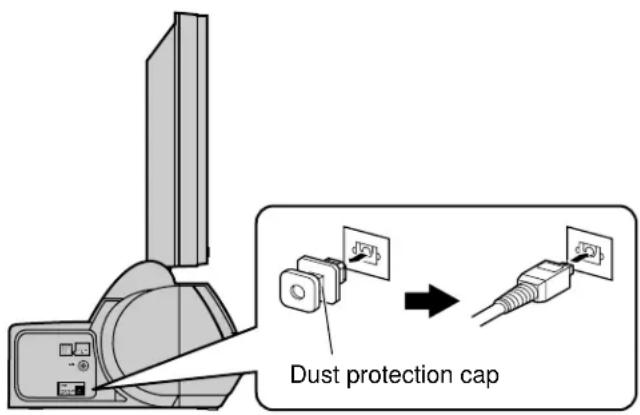
- Remove the dust protection cap from the optical digital audio output connector and connect the cable firmly so that the configurations of both the cable and the connector match.
- Keep the dust protection cap and reattach when not using the connector.
text_image
Dust protection capOptical/coaxial digital audio output connector
| Disc | Sound recording format | Optical/coaxial digital audio output from connector |
| DVD | Dolby Digital | Dolby Digital bitstream (1–5.1ch) or PCM (2ch) (48 kHz/16 bit)*1 *2 |
| Linear PCM (48/96 kHz 16/20/24 bit) | Linear PCM (2ch) (48 kHz sampling/16 bit only) or no output*1 | |
| dts | PCM (2ch) (48 kHz/16 bit)*2 or dts bitstream (1–5.1ch)*1 | |
| MPEG audio | PCM (2ch) (48 kHz/16 bit)*2 or MPEG audio bitstream (1–7.1ch)*1 | |
| Video CD | MPEG 1 | PCM (44.1 kHz sampling)*2 |
| CD | Linear PCM | Linear PCM (44.1 kHz sampling) |
| dts*3 | PCM (2ch) (44.1 kHz/16 bit)*2 or dts bitstream (1–5.1ch)*1 |
*1 The type of audio output from the connector can be selected by "7 Digital Audio Output" of the initial settings. (See page 61.)
* 2 Compressed sound converted to PCM will be output.
*3The settings and connections necessary to enjoy CDs recorded in dts are the same as for DVDs recorded in dts.
Note
- Some dts decoders which do not support DVD-dts interface may not work properly with the DVD/Video CD/CD player.
For your reference:
- Dolby Digital is a digital sound compression technique developed by the Dolby Laboratories, Inc. Supporting 5.1-channel surround sound, as well as stereo (2-channel) sound, this technique enables a large quantity of sound data to be efficiently recorded on a disc.
- The digital theater systems (dts) is a 5.1-channel surround sound system, which is widely used in movie theatres around the world. It allows the bit rate to be increased in order to provide good sound quality without excessively compressing the data.
- Linear PCM is a signal recording format used in a CD. While a CD is recorded in 44.1 kHz/16 bit, a DVD is recorded in 48 kHz/16 bit up to 96 kHz/24 bit.
- If you have a Dolby Pro Logic Surround decoder, you will obtain the full benefit of Pro Logic from the same DVD movies that provide full 5.1-channel Dolby Digital soundtracks, as well as from titles with the Dolby Surround mark.
- The digital audio output connector (optical) converts electrical signals into optical signals and transfers them to an amplifier. These optical signals are immune from electrical interference, and they also have minimal effect on other equipment.
Caution for the optional/coaxial digital audio output connector:
- Do not connect to the digital audio input of an amplifier that does not have Dolby Digital/dts/MPEG audio decoder.
- If such an amplifier should be connected to the player with "Bitstream" selected at the "2 Dolby digital", "3 DTS Digital Surround" (see page 61), any attempt to play DVDs (or CDs recorded in dts) may cause such a high level of noise that it may be harmful to your ears and damage your speakers.
• Video CDs and CDs can be played as they would normally be played.
Manufactured under license from Dolby Laboratories. "Dolby", "Pro Logic" and the double-D symbol are trademarks of Dolby Laboratories. Confidential Unpublished Works. © 1992-1997 Dolby Laboratories, Inc. All rights reserved.
Manufactured under license from Digital Theater Systems, Inc. "DTS" and "DTS Digital Surround" are trademarks of Digital Theater Systems, Inc. © 1996 Digital Theater Systems, Inc. All rights reserved.
Location of Controls for DVD Operation
text_image
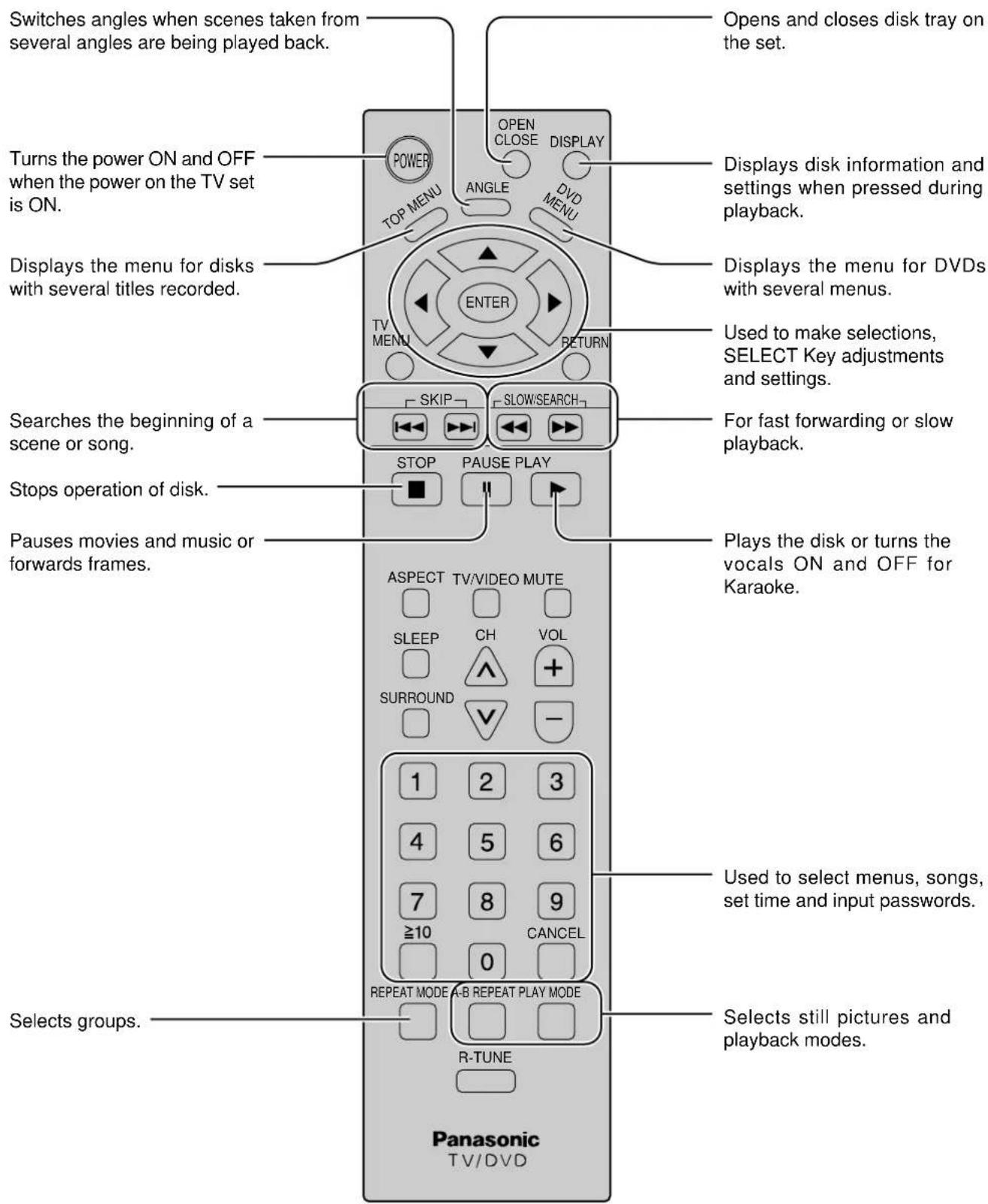
Switches angles when scenes taken from several angles are being played back. Turns the power ON and OFF when the power on the TV set is ON. Displays the menu for disks with several titles recorded. Searches the beginning of a scene or song. Stops operation of disk. Pauses movies and music or forwards frames. AsPECT TV/VIDEO MUTE SLEEP CH VOL SURROUND 1 2 3 4 5 6 7 8 9 ≥10 CANCEL 0 REPEAT MODE A-B REPEAT PLAY MODE R-TUNE Panasonic TV/DVD Opens and closes disk tray on the set. Displays disk information and settings when pressed during playback. Displays the menu for DVDs with several menus. Used to make selections, SELECT Key adjustments and settings. For fast forwarding or slow playback. Plays the disk or turns the vocals ON and OFF for Karaoke. Uses to select menus, songs, set time and input passwords. Selects still pictures and playback modes.Functions of front operation panel
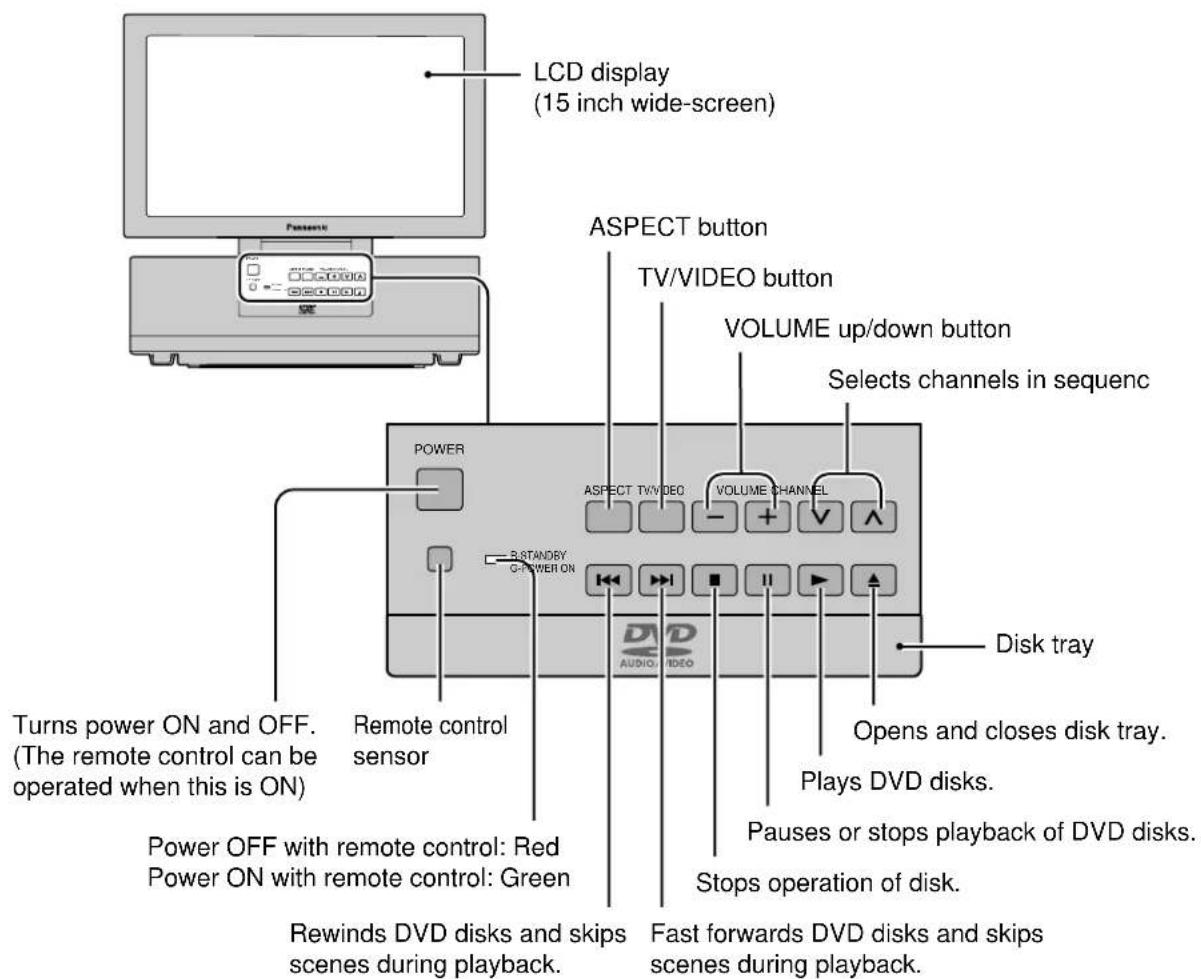
text_image
LCD display (15 inch wide-screen) ASPECT button TV/VIDEO button VOLUME up/down button Selects channels in sequenc Power ASPECT TV/VIDEO VOLUME CHANNEL R STANDRY G POWER ON Disk tray Turns power ON and OFF. (The remote control can be operated when this is ON) Remote control sensor Power OFF with remote control: Red Power ON with remote control: Green Rewinds DVD disks and skips scenes during playback. Fast forwards DVD disks and skips scenes during playback. Opens and closes disk tray. Plays DVD disks. Pauses or stops playback of DVD disks. Stops operation of disk.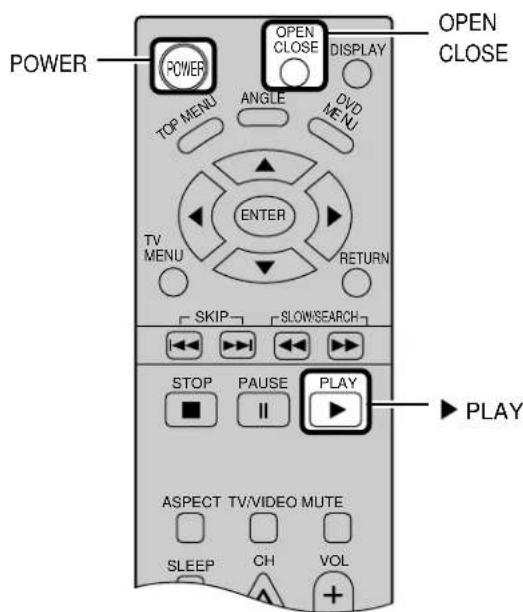
text_image
POWER TOP MENU POWER ANGLE OPEN CLOSE DISPLAY DVD MENU ENTER TV MENU RETURN SKIP SLOW/SEARCH STOP PAUSE PLAY II ASPECT TV/VIDEO MUTE SLEEP CH VOL OPEN CLOSE PLAY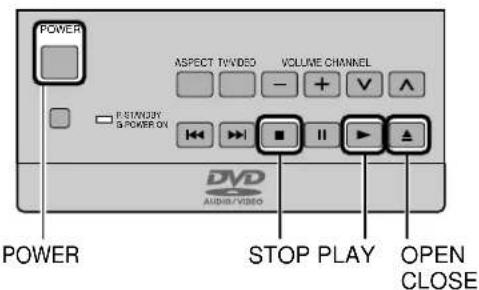
text_image
POWER ASPECT TV/VIDEO VOLUME CHANNEL P SINDUOY & POKER ON DVD AUDIO/VIDEO POWER STOP PLAY OPEN CLOSE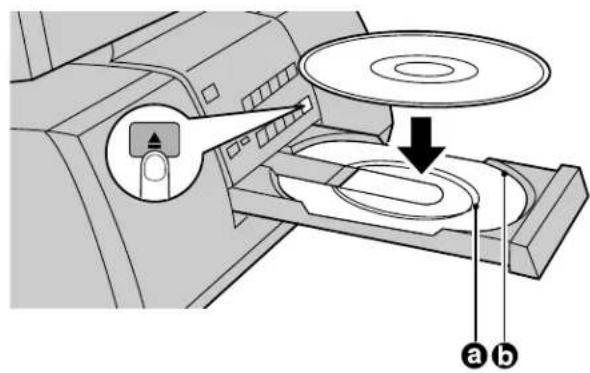
text_image
Diagram of a mechanical device with labeled parts and directional arrow, showing internal components and motion indicators.Basic play
Before enjoying DVD/Video CD/CD
The On-Screen menu language of your player has been factory preset to English.
You can change the menu language to French, Spanish. Refer to "Selecting On-Screen Display menu language" on page 59.
In the explanations given below it is assumed that English has been selected as the menu language.
Recalling/clearing a marker
1 Press POWER to switch on the power. (See page 20.)
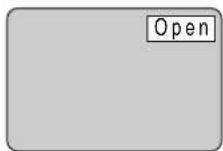
2 Press OPEN CLOSE to open the disc tray.
3 Place the disc on the disc tray with the label side to be played facing upwards.
(If the disc has a label)
Hold the disc without touching either of its surfaces, position it with the label side to be played facing upward, align it with the guides, and place it in position.
a 8 cm disc 12 cm disc
4 Press PLAY to displayed as follows.
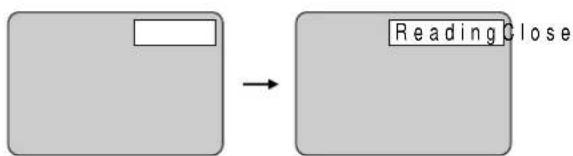
flowchart
graph LR
    A[" "] --> B["Reading Close"]
The disc tray is automatically closed and play begins.
- When the disc tray is closed by pressing OPEN CLOSE, press PLAY to start play.
- When a menu screen appears on the TV monitor
In the case of many movie DVDs, an interactive DVD or Video CD with playback control, a menu screen appears on the TV monitor.
Perform step 5 to start play.
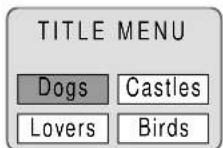
(Example of DVD)
5 Press SELECT (▲, ▼, ◀▶) button to select the item and press ENTER.

flowchart
graph LR
    A["TITLE MENU"] --> B["Birds of the world"]
    A --> C["Dogs Castles"]
    A --> D["Lovers Birds"]
Play of the selected item now begins.
While watching movies
- Raising dialogue volume
The volume for the dialogue can be raised by displaying the GUI screen (for player information) and setting "Dialogue Enhancer" to "ON". (See page 49.) This setting takes effect only for discs which are recorded with Dolby Digital/dts (2 channel or over) and with the dialogue contained in the center channel.
When the menu continues onto another screen
After step 4 on page 42, press SKIP (▶▶).
- To return to the previous menu screen Press SKIP (|◀◀) - Due to the design of some software titles, SKIP (|◀◀ ▶▶) may not always work. For operation, refer also to the jacket of the disc concerned.
Stopping play and returning to the menu screen
Press DVD MENU or TOP MENU.
Play is suspended, and the menu screen is displayed.
- The buttons may not work depending on the disc used.
After operation
When the player is not in use, remove the disc and press POWER to set the player to the standby mode.
What is playback control?
If a Video CD has "playback control" written on its disc or jacket, it means that particular scenes or information can be selected for viewing interactively with the TV monitor using the menu screen.
Note
- The disc continues to rotate while the menu is displayed even after the player has finished playing a particular item. When no further selections are to be played, be sure to press STOP to clear the menu display.
For your reference:
- When 📐 appears on the TV monitor when a button is pressed, the operation is prohibited by the player or disc.
Stopping play
Press STOP during play.
RESUME function
The player records the point where STOP was pressed during play. - Press PLAY again, and play will resume from this point. - When the tray is opened or STOP is pressed again, the RESUME function will be cleared.
This feature remains active if the player is set to the standby mode and then turned back ON.
Chapter review function (DVD only)
When PLAY is pressed while RESUME function the message shown on the right is briefly displayed.
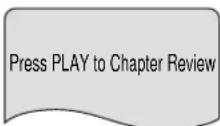
If PLAY is pressed again while the above message is displayed on the screen, the first few seconds of each chapter from the beginning of the title up to the point where operation was stopped will be played. This makes it possible to review previous chapters. Normal playback will commence from the point where operation was stopped.
Note
- Cancelling the RESUME function will also clear the chapter review function.
- The chapter review function may not work with some DVDs.
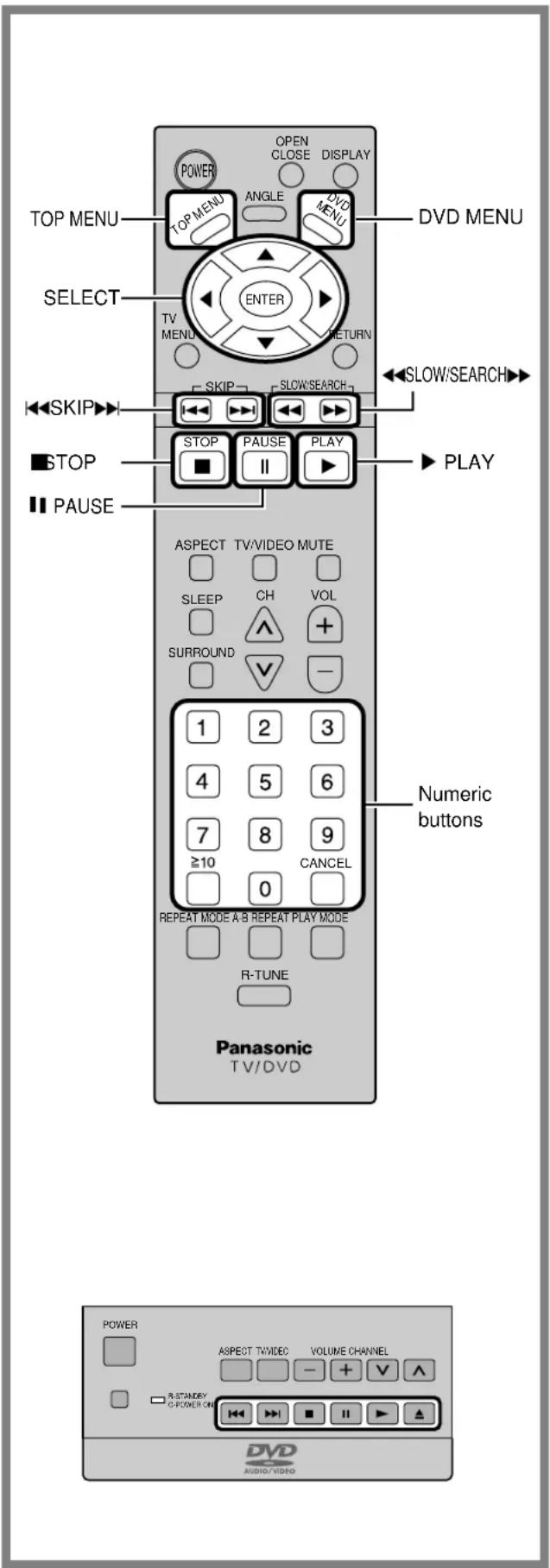
text_image
TOP MENU OPEN CLOSE DISPLAY TOP MENU ANGLE DVD MENU DVD MENU SELECT ENTER TV MENU RETURN SKIP SLOW/SEARCH SLOW/SEARCH STOP PAUSE PLAY ■ STOP ■ PAUSE ASPECT TV/VIDEO MUTE SLEEP CH VOL SURROUND + - 1 2 3 4 5 6 7 8 9 ≥10 CANCEL 0 REPEAT MODE A B REPEAT PLAY MODE R-TUNE Panasonic TV/DVD Numeric buttons POWER ASPECT TV/DVD VOLUME CHANNEL - + √ ∧ R-STANDEY C POWER ON DVD AUDIO/VIDEOSkipping chapters or tracks
Press SKIP (◀, ▶) during play.
With the remote control
On the TV SET
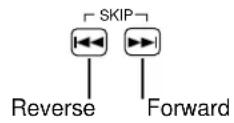
For your reference:
- A chapter (DVD) or a track (Video CD/CD) is skipped each time the button is pressed.
- When SKIP ( | pressed once midway through a chapter/track, play returns to the start of that chapter/track. When it is pressed again, a chapter/track is skipped each time the button is pressed.
- When SKIP (◀◀) is▶lessed during menu play of Video CDs with playback control, a menu screen may sometimes be recalled.
Still picture (Pause)
Press PAUSE(Ⅱ) during play.
•DVD/Video CD: The player will be placed in the still picture mode.
- CD: The player will be placed in the pause mode.
- Normal play is resumed when PLAY is pressed.
Rapid advance (Rapid reverse)
Press SLOW/SEARCH (◀◀ ▶▶) during play.
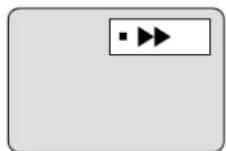
(Example)
- The speed of advance (reverse) is relatively slow at first. When the button is pressed again, the speed increases up to 5 steps.
- Normal play is resumed when PLAY is pressed.
For your reference:
- When SLOW/SEARCH (◀◀) is used during menu play of Video CDs with playback control, a menu screen may sometimes be recalled.
- For DVDs and Video CDs, audio will be heard during scanning (forward direction only) at the initial scan speed. (See page 64.) For CDs, audio will be heard during scanning at every scan speed (1 to 5). (For dts CDs, audio will not be heard at any speed.)
Frame advance (Frame reverse) [DVD/Video CD]
Press SELECT (◀, ▶) in the still picture mode.
(See page 44.)
◀ : Reverse ▶ : Forward
- The disc is advanced (reversed) by one frame each time the SELECT (◀ ▶ is pressed.
- When the SELECT (◀, ▶ is kept pressed, consecutive frame advance (reverse) works.
- Normal play is resumed when PLAY is pressed.
Note
- For Video CDs, frame reverse is not possible.
For your reference:
- Pressing PAUSE also activates frame advance.
- Whether the pictures are advanced by a "Frame" or "Field" is automatic. (See page 64)
Slow-motion play [DVD/ Video CD]
Press SLOW/SEARCH (◀◀, ▶▶) in the still picture mode. (See page 44.)
![PANASONIC TC-15DT2 - Slow-motion play [DVD/ Video CD] - 1](/content/2026/06/1166330/images/30bb6b6b005c430c22467bb5e3cb74ea48bfba14826eabaa474d60aa4604f2b5.jpg)
![PANASONIC TC-15DT2 - Slow-motion play [DVD/ Video CD] - 2](/content/2026/06/1166330/images/403c9204f8b5f8574e9402f980e9eb91d398556666bd9a19132922dafda5f15e.jpg)
natural_image
Simple gray rectangular shape with a play button icon and label '(Example)' below (no text or symbols on the shape itself)- The speed of slow-motion is slow at first. When the button is pressed again, the speed increases up to 5 steps.
- Normal play is resumed when PLAY is pressed.
Note
- For Video CDs, slow-motion playback in reverse direction is not possible.
Cancelling playback control [Video CD]
- Press STOP after the menu screen appears (after step 4 on page 42).
- Press the numeric buttons to select a track. (Play begins.)
- Refer to the jacket etc. of the disc concerned for the track numbers.
- Press "1" to start play from the beginning of the disc.
To return to menu play
Press STOP to stop playback and press DVD MENU.
Perform step 5 on page 43.
Using a TOP MENU [DVD]
Some movie discs may have two or more titles. If the disc has a title menu recorded on it, the TITLE button can be used to select the movie title. (The details of operation depend on the disc used.)
1 Press TOP MENU during play.
A list of the titles on the disc is now displayed.
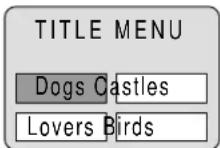
(Example)
- Pressing TITLE again resumes play from the scene when TITLE was first pressed.
2 Press SELECT (▲,▼,◀▶) button to select the item and press ENTER or PLAY.
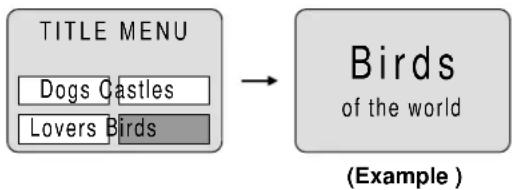
flowchart
graph LR
    A["TITLE MENU"] --> B["Birds of the world"]
    A --> C["Dogs Castles"]
    A --> D["Lovers Birds"]
The selected title now starts playing.
Using a DVD menu [DVD]
Some DVDs have unique menus. These menus can be for language selection, audio output selection and/or subtitle language selection, etc. Although the DVD menu's contents and operation differ from disc to disc, the following explains basic operation when this feature is used.
1 Press DVD MENU during play.
The DVD menu available on the disc is now displayed.
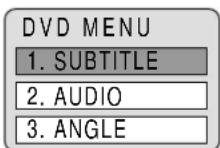
(Example)
- Pressing MENU again resumes play from the scene when MENU was first pressed.
2 Press SELECT (▲,▼,◀▶) button and press ENTER, or press the numeric buttons, to select the item.
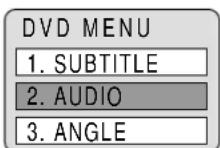
(Example)
The selected title now starts playing.
When the menu continues onto another screen
Repeat step 2.
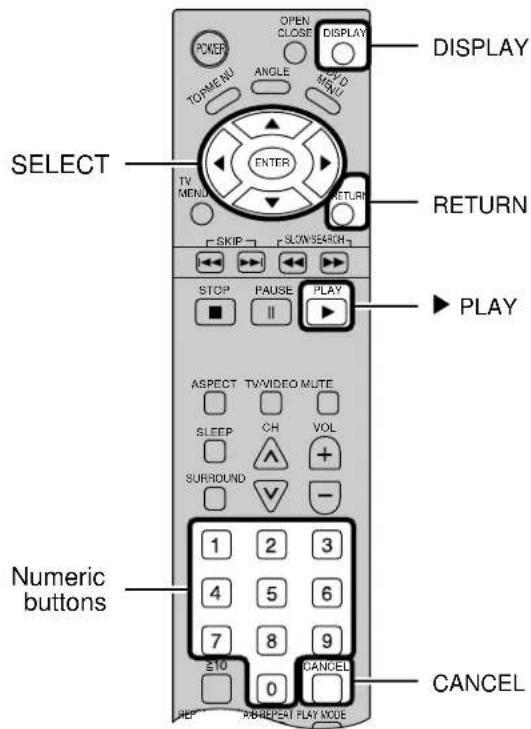
text_image
POWER TORMENU ANGLE MENU OPEN CLOSE DISPLAY DISPLAY SELECT TV MENU ENTER RETURN SLEEP SLON SEARCH STOP PAUSE PLAY PLAY ASPECT TVVIDEO MUTE SLEEP CH VOL SURROUND - Numeric buttons 1 2 3 4 5 6 7 8 9 ±10 0 CANCEL REPRETREPRET PLAY MODEA
DVD
Disc information
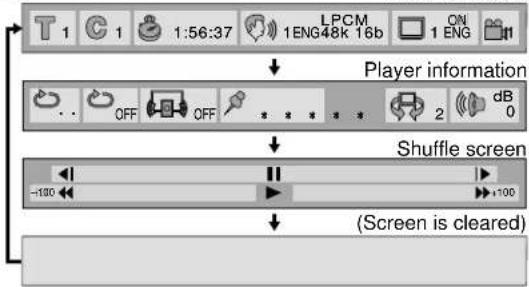
flowchart
graph TD
    A["Player information"] --> B["Shuffle screen"]
    B --> C["(Screen is cleared)"]
B
Video CD
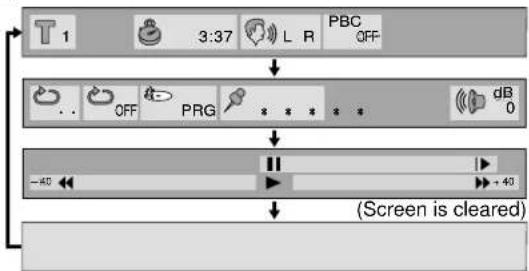
flowchart
graph TD
    A["T1"] --> B["3:37"]
    B --> C["L R"]
    C --> D["PBC OFF"]
    D --> E["PRG"]
    E --> F["dB 0"]
    F --> G["+40"]
    G --> H["(Screen is cleared)"]
C
CD
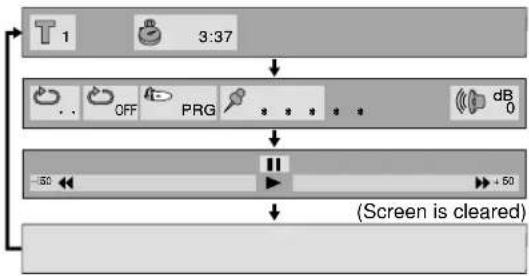
flowchart
graph TD
    A["T1"] --> B["3:37"]
    B --> C["OFF"]
    C --> D["PRG"]
    D --> E["dB 0"]
    E --> F["+50"]
    F --> G["(Screen is cleared)"]
General information about GUI screens
This player features GUI (Graphical User Interface) screens providing various functions. A "banner" will be displayed on the TV when DISPLAY button on the remote control is pressed. Operating the SELECT/ENTER button on the remote control will show disc information (title/chapter/track number, elapsed playing time, audio/subtitle language, and angle) and player information (repeat play, play mode, marker, picture mode, Virtual Surround Sound, master volume, etc.). Some icons allow the settings to be changed.
Common procedures
1 Press DISPLAY during play or in the stop mode.
Each time this button is pressed, the TV monitor changes as shown below.
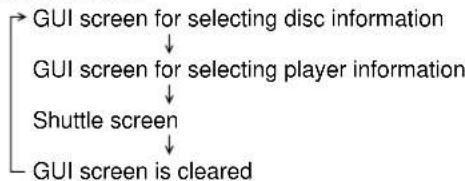
flowchart
graph TD
    A["GUI screen for selecting disc information"] --> B["GUI screen for selecting player information"]
    B --> C["Shuttle screen"]
    C --> D["GUI screen is cleared"]
- Some functions cannot be accessed from the stop mode.
2 Press the SELECT (◀, ▶) button to select the item.
- The currently selected item is indicated by the yellow frame on the GUI screen.
3 Press the SELECT (▲, ▼) button to select the setting.
- For some functions, the setting will be registered immediately; for others, ENTER or PLAY must be pressed.
- When numbers are displayed (e.g. title No.), the numeric buttons are also effective for setting instead of the SELECT (▲, ▼) button. When numbers are entered with numeric buttons, press ENTER to register the setting.
Press RETURN to clear the GUI screen.
Examples of GUI screens
See A and for detailed illustration.
The screens depend on the disc contents.
For your reference:
- The GUI screens may not be displayed when playing some kinds of DVD software.
- The color (blue, violet or green) of the GUI screen can be changed. (See page 59.)
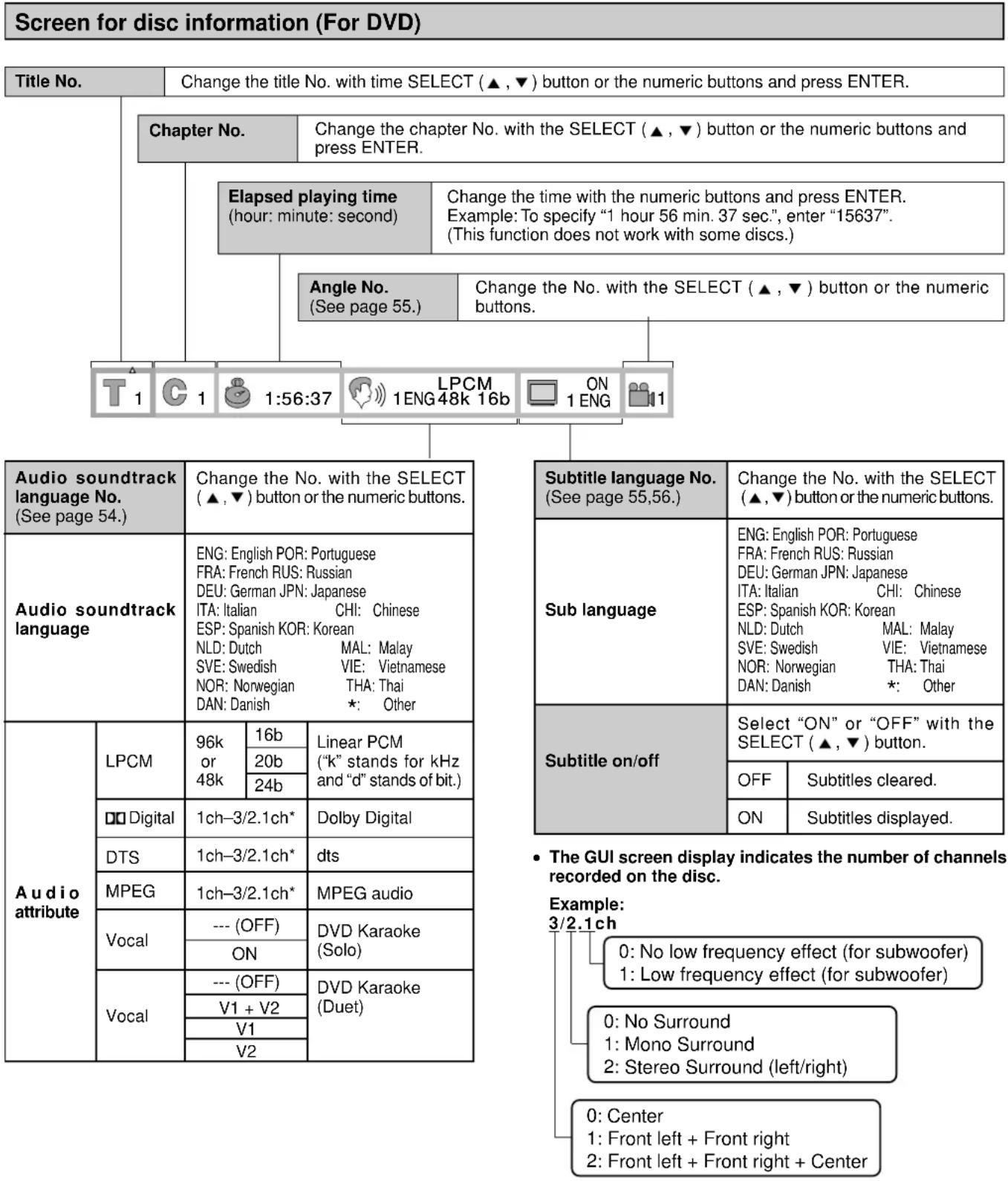
other
Screen for disc information (For DVD) | Title No. | Change the title No. with time SELECT (▲,▼) button or the numeric buttons and press ENTER.For your reference
- “▲,▼” around the icon means that the item can be changed with the SELECT (▲,▼) button.
Screen for disc information (For Video CD/CD)
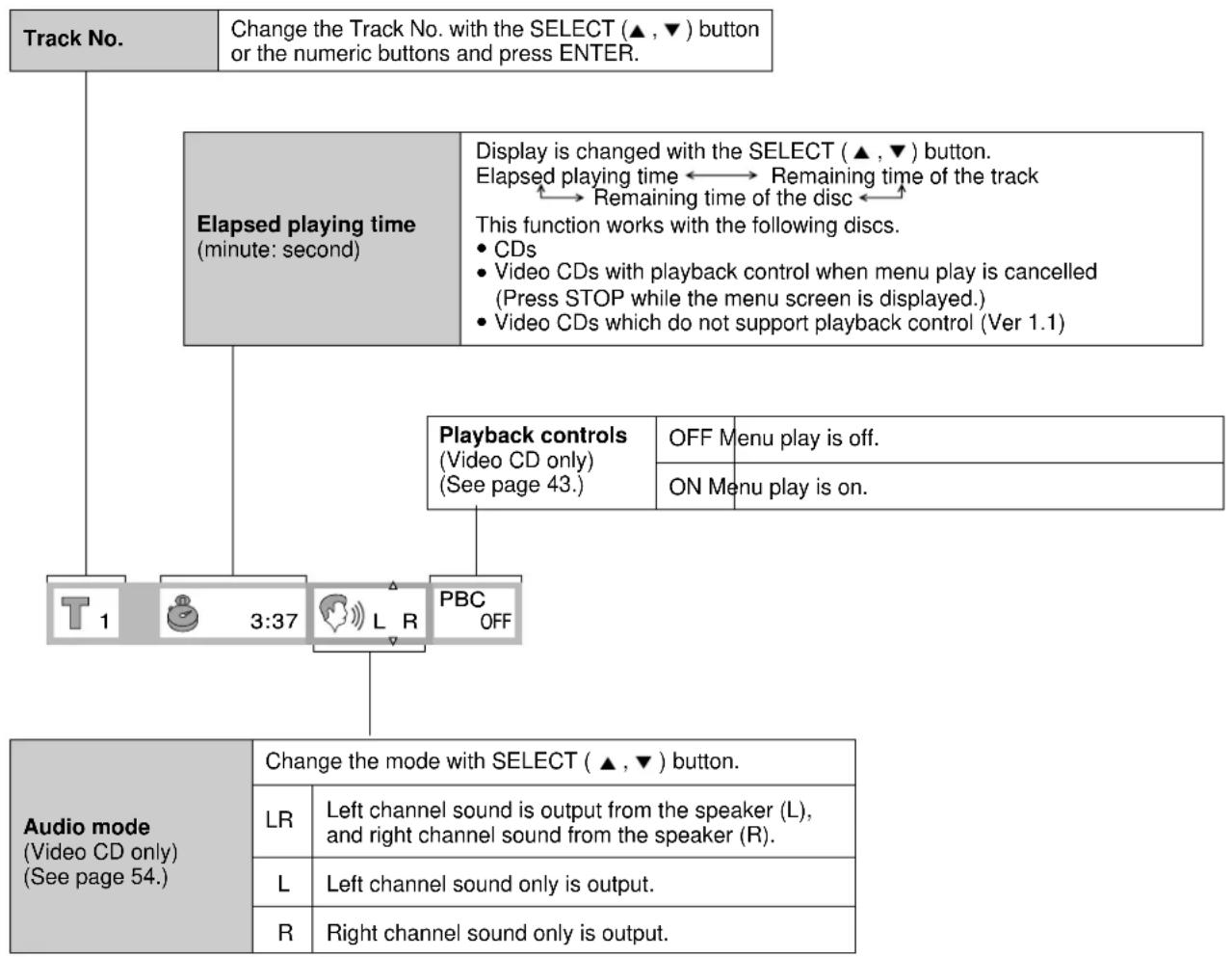
flowchart
graph TD
    A["Track No."] --> B["Change the Track No. with the SELECT (▲, ▼) button or the numeric buttons and press ENTER."]
    B --> C["Elapsed playing time (minute: second)"]
    C --> D["Display is changed with the SELECT (▲, ▼) button.<br>Elapsed playing time ←→ Remaining time of the track<br>←→ Remaining time of the disc ←→"]
    D --> E["This function works with the following discs.<br>• CDs<br>• Video CDs with playback control when menu play is cancelled<br>(Press STOP while the menu screen is displayed.)<br>• Video CDs which do not support playback control (Ver 1.1)"]
    E --> F["Playback controls<br>(Video CD only)<br>(See page 43.)"]
    F --> G["OFF Menu play is off."]
    F --> H["ON Menu play is on."]
    I["Audio mode<br>(Video CD only)<br>(See page 54.)"] --> J["Change the mode with SELECT (▲, ▼) button."]
    J --> K["LR"]
    K --> L["Left channel sound is output from the speaker (L), and right channel sound from the speaker (R)."]
    J --> M["L"]
    M --> N["Left channel sound only is output."]
    J --> O["R"]
    O --> P["Right channel sound only is output."]
Note
- Track No. and the elapsed playing time are not displayed during menu play of Video CDs with playback control.
- It is not possible to turn playback control ON or OFF using the GUI screen.
For your reference
- “▲,▼” around the icon means that the item can be changed with the SELECT (▲,▼) button.
Note
- Repeat play and marker functions do not work with an interactive DVD or during menu play of a Video CD with playback control.
- A-B repeat play does not work with an interactive DVD.
- It is not possible to change the play mode using the GUI screen.
- The master volume can be set and stored separately for DVD, Video CD and CD.
Shuttle screen

flowchart
graph TD
    A["Slow-motion play (Backward)"] --> B["Press the SELECT (◀) button. (DVD only)"]
    C["Still/Pause"] --> D["Press the SELECT (▲) button."]
    E["Slow-motion play (Forward)"] --> F["Press the SELECT (▶) button. (DVD/Video CD only)"]
    G["Rapid reverse"] --> H["Press the SELECT (◀) button."]
    I["Play"] --> J["Press the SELECT (▼) button."]
    K["Repaid advance"] --> L["Press the SELECT (▶) button."]
    B --> M["-100"]
    D --> N["+100"]
    F --> N
    H --> M
    J --> N
    L --> N
For your reference
• Each time the SELECT (◀, ▶) button is pressed, the speed of rapid reverse/advance and slow-motion play increases up to 5 steps.
- The figures appearing at both ends of the shuttle screen stand for the maximum speeds of rapid reverse and rapid advance.
(DVD: +100/-100, Video CD: +40/-40, CD: +50/-50)
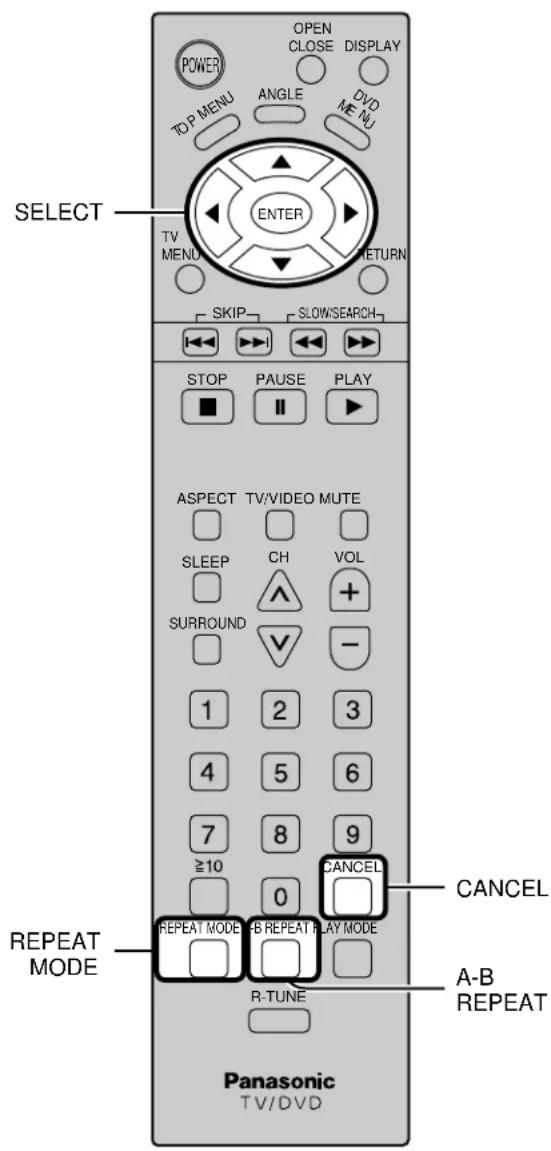
text_image
POWER OPEN CLOSE DISPLAY TOP MENU ANGLE DVD MENU ENTER TV MENU RETURN SKIP SLOW/SEARCH STOP PAUSE PLAY ■ ■ ▼ ▶ ▶ ▶ ASPECT TV/VIDEO MUTE SLEEP CH VOL SURROUND + 1 2 3 4 5 6 7 8 9 ≥10 CANCEL 0 REPEAT MODE A-B REPEAT PLAY MODE R-TUNE A-B REPEAT Panasonic TV/DVDRepeat play
Repeat viewing (Listening)
Press REPEAT MODE during play.
Each time this button is pressed, the TV monitor changes as shown below and the disc will repeat a chapter or title (DVD) or a track (Video CD/CD)
• DVD
Normal play
Repeat of chapter being played
Repeat of title being played
Cancel repeat mode (Normal play)
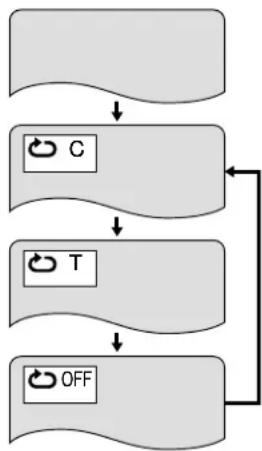
flowchart
graph TD
    A[" "] --> B["C"]
    B --> C["T"]
    C --> D["OFF"]
    D --> A
- Video CD / CD
Normal play
Repeat of track being played
Repeat of entire disc contents
Cancel repeat mode (Normal play)
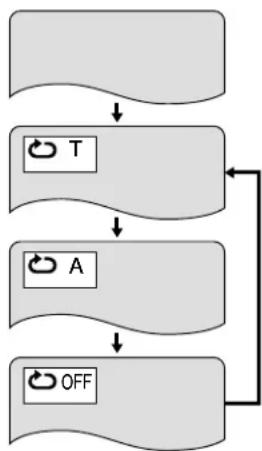
flowchart
graph TD
    A[" "] --> B["T"]
    B --> C["A"]
    C --> D["OFF"]
    D --> A
To return to normal play
Press REPEAT MODE until "OFF" is displayed.
Note
- Repeat play may not work correctly with some DVDs.
- Repeat play does not work with an interactive DVD or during menu play of a Video CD with playback control.
To enjoy program repeat play
If REPEAT MODE is pressed during program play (see page 52), the display changes as follows:
Program play
Repeat of programmed track being played
T PRG
Repeat of all programs
A PRG
Cancel repeat mode (Program play)
OFF PRG
To return to program play
Press REPEAT MODE until “ OFF ” is displayed.
Repeating sections between two specific points (A-B repeat)
1 Press A-B REPEAT during play at the point where repeat play is to start (A).
A·
2 Press A-B REPEAT at the point where repeat play is to be concluded (B).
A B
Repeat play of the section between points A and B starts.
To return to normal play
Press A-B REPEAT until “ •• ” is displayed.
Note
- A-B repeat play does not work with an interactive DVD.
- Some subtitles recorded around point A or B may fail to appear (DVD).
- A-B repeat play works only within a title (DVD) or a track (Video CD/CD).
For your reference:
- The end of a track or title is automatically determined as point B.
Storing markers in memory to be viewed (listened to) again
Storing a marker in the memory
1 Press the DISPLAY during play to display the Disk information.
2 Press SELECT( , ) button to select the marker item.
The marker screen appears on the TV monitor.
“ ” indicates no marker has
been stored yet.
3 Press SELECT during play at the starting point to be viewed (listened to) again.
Indicates "MARK 1" is stored in the memory. (If ENTER is pressed where any number is already displayed, the previous starting point will be replaced by the new one.)
- Press select ( ) key and press ENTER to store the next marker.
- Up to 5 markers can be stored in the memory.
- Press MARKER to clear the display.
Recalling / clearing a marker
1 Press the DISPLAY during play to display the Disk information.
2 Press SELECT ( , ) button to select the marker item. 1234.
3 Press SELECT ( , ) button to select the marker to be recalled/cleared. 1234
4 Press SELECT( ) button to recall a marker.
or
Press CANCEL to clear a marker.
Play resumes from the point corresponding to the selected marker.
or
The selected marker is cleared.
Note
- Some subtitles recorded around the marker may fail to appear. [DVD]
- These operations do not work with an interactive DVD or during menu play of a Video CD with playback control.
For your reference:
- All the markers are cleared when the player is set to the standby mode or turned off, or OPEN CLOSE is pressed.
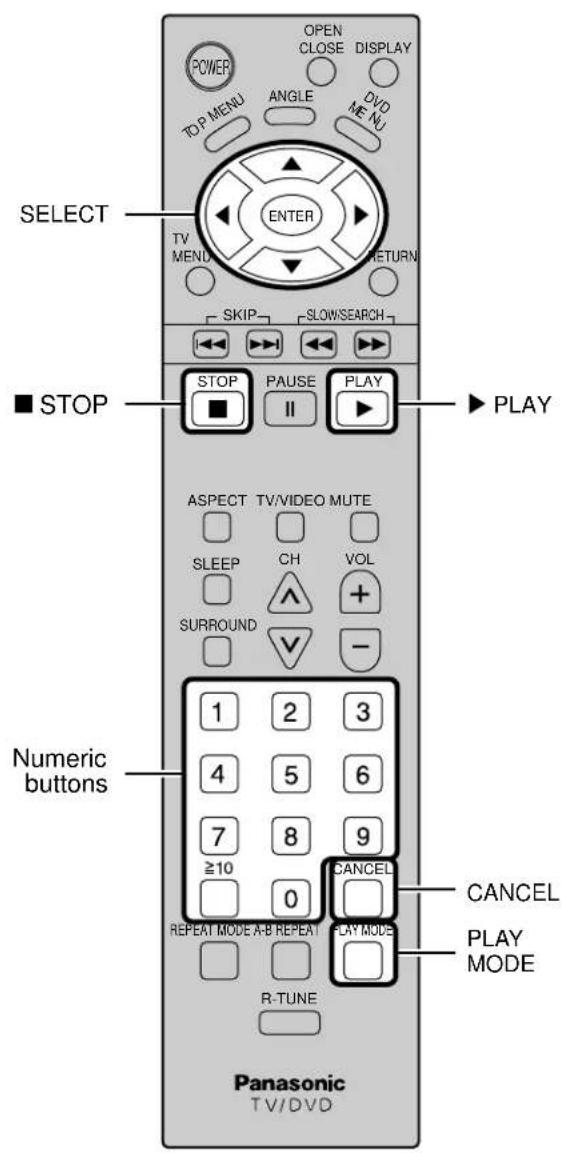
text_image
POWER TOP MENU OPEN CLOSE DISPLAY ANGLE DVD MENU ENTER TV MEND RETURN SKIP SLOW/SEARCH ■ STOP STOP PAUSE PLAY II PLAY ASPECT TV/VIDEO MUTE SLEEP CH VOL SURROUND - Numeric buttons 1 2 3 4 5 6 7 8 9 ≥10 0 CANCEL REPEAT MODE A-B REPEAT PLAY MODE R-TUNE CANCEL PLAY MODE Panasonic TV/DVDProgram play [ Video CD / CD ]
The player plays the tracks on the disc in an order you specify.
1 Press PLAY MODE in the stop mode.
The program playback screen appears on the TV monitor.
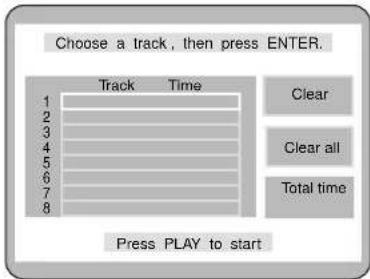
flowchart
graph TD
    A["Choose a track, then press ENTER."] --> B["Track Time"]
    B --> C["1"]
    B --> D["2"]
    B --> E["3"]
    B --> F["4"]
    B --> G["5"]
    B --> H["6"]
    B --> I["7"]
    B --> J["8"]
    C --> K["Clear"]
    D --> L["Clear all"]
    E --> M["Total time"]
    F --> N["Press PLAY to start"]
    G --> N
    H --> N
    I --> N
    J --> N
• To exit the screen
Press PLAY MODE twice.
2 Press ENTER and press SELECT (▲, ▼) button to select the track.
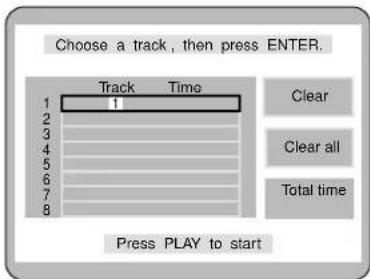
text_image
Choose a track, then press ENTER. Track Time 1 2 3 4 5 6 7 8 Clear Clear all Total time Press PLAY to start3 Press ENTER.
The selected track is stored in the memory.
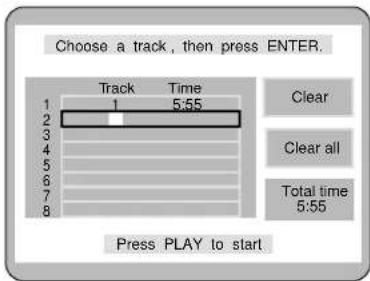
text_image
Choose a track, then press ENTER. Track Time 1 5:55 Clear Clear all Total time 5:55 Press PLAY to start- Repeat steps 2 and 3 to select another track.
- Up to 18 tracks can be programmed.
4 Press PLAY.
Play now begins in the programmed sequence.
After playback
Play stops after the last programmed track.
To return to normal play
- Press STOP. (Program play is suspended.)
- Press PLAY MODE twice.
- Press PLAY.
Normal play begins from the beginning of the disc.
- The program is retained in the memory.
Clearing the program
When the program playback screen is displayed.
• To clear the last program one by one
Move to "Clear last" and press SELECT.
(Pressing CANCEL on the remote control also clears the last program.)
• To clear the whole program
Move to "Clear all" and press SELECT.
(The program is also cleared when the player is set to the standby mode or turned off, or OPEN CLOSE is pressed.)
Random play [ Video CD / CD ]
The player plays the tracks on the disc in random order.
1 Press PLAY MODE twice in the stop mode.
The random playback screen appears on the TV monitor.
Random Playback
Press PLAY to start
• To exit the screen
Press PLAY MODE once.
2 Press PLAY.
Play now begins in random order.
After playback
Play stops and the random playback screen is displayed.
To return to normal play
- Press STOP. (Random play is suspended.)
- Press PLAY MODE once.
- Press PLAY.
Normal play begins from the beginning of the disc.
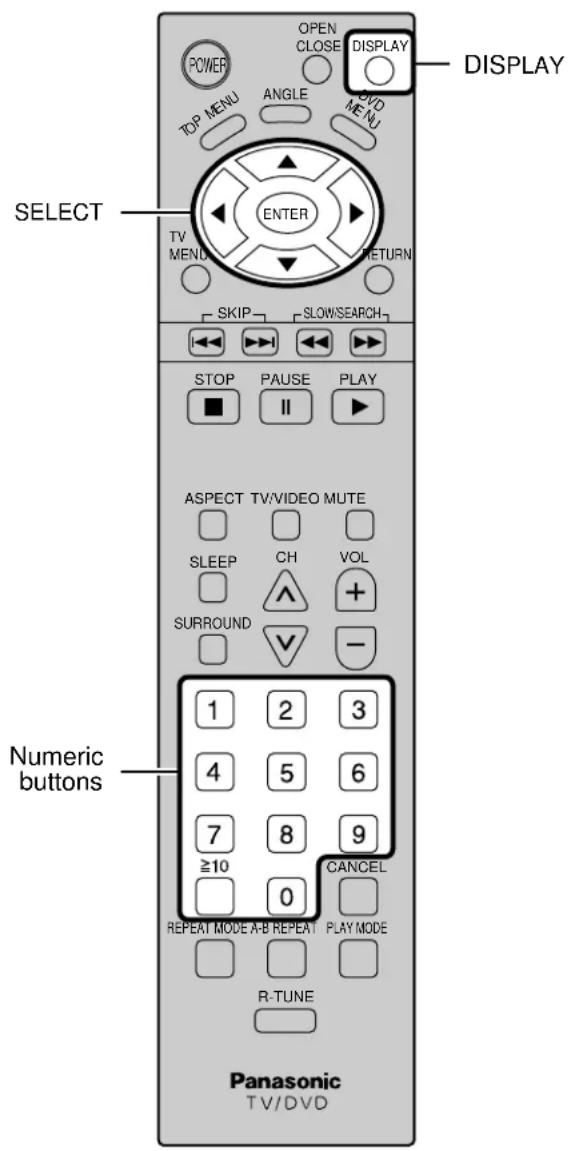
text_image
POWER OPEN CLOSE DISPLAY TOP MENU ANGLE DVD MENU ENTER TV MENU RETURN SKIP SLOW/SEARCH STOP PAUSE PLAY ■ II ASPECT TV/VIDEO MUTE SLEEP CH VOL SURROUND + - 1 2 3 4 5 6 7 8 9 ≥10 0 CANCEL REPEAT MODE A-B REPEAT PLAY MODE R-TUNE Panasonic TV/DVDChanging audio soundtrack language [DVD]
It is possible to change the audio soundtrack language to a different language from the one selected at the initial settings if available. (See page 57.)
This operation works only with discs on which multiple audio soundtrack languages are recorded.
1 Press DISPLAY during play to display the disk information.
The program playback screen appears on the TV monitor. - When no audio soundtrack is recorded, “—” will be displayed instead of the language number.
Number of the audio soundtrack language being played back
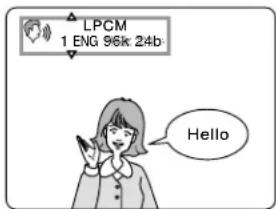
text_image
LPCM 1 ENG 96k 24b Hello2 Press SELECT (◀,▶) to select the AUDIO soundtrack.
3 Press SELECT (▲, ▼) to select the language.
Pressing the numeric buttons also changes the audio soundtrack language.
- Press DISPLAY or ENTER to clear the display.
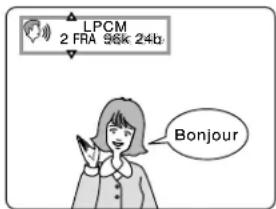
text_image
LPCM 2 FRA 98k 24h BonjourFor your reference:
- When the preferred language is not selected, even after press the SELECT (▲, ▼) button several times, it means that language is not available on the disc.
- When the power is turned on, or the disc is removed, the language heard is the one selected at the initial settings. If this language is not recorded on the disc, only the available language on the disc will be heard.
Changing subtitle language [DVD]
It is possible to change the subtitle language to a different language from the one selected at the initial settings if available. (See page 57.)
This operation works only with discs on which multiple subtitle languages are recorded.
1 Press DISPLAY button to display the player information.
- When no subtitles are recorded, “--” will be displayed instead of the language number.
Number of the audio soundtrack language being played back
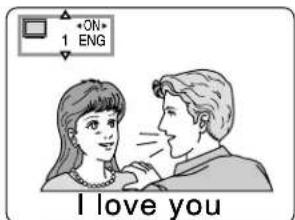
text_image
ON 1 ENG I love you2 Press SELECT (◀, ▶) to select SUBTITLE language item.
3 Press SELECT (▲, ▼) to select the language.
Pressing the numeric buttons also changes the subtitle language.
- Press SUBTITLE or ENTER to clear the display.
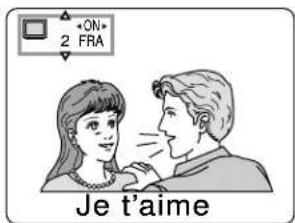
Press the SELECT (◀, ▶) to select ON or OFF at step 2.
For your reference:
- When the preferred language is not selected, even after press the SELECT (▲, ▼) several times, it means that language is not available on the disc.
- When the power is turned on, or the disc is removed, the language heard is the one selected at the initial settings. If this language is not recorded on the disc, only the available language on the disc will be heard.
Viewing from another angle [DVD]
Some DVDs contain scenes which have been shot simultaneously from a number of different angles. For these discs, the same scene can be viewed from these different angles with the ANGLE button. (The angles depend on the disc used.)
1 Press ANGLE during play.
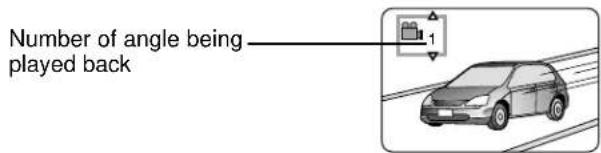
text_image
Number of angle being played back2 Press SELECT (▲,▼) to select the angle.
Pressing the numeric buttons also changes the angle.
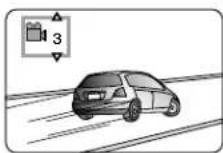
- Press ENTER to clear the display.
Note
- This function only works for titles having scenes recorded at different angles.
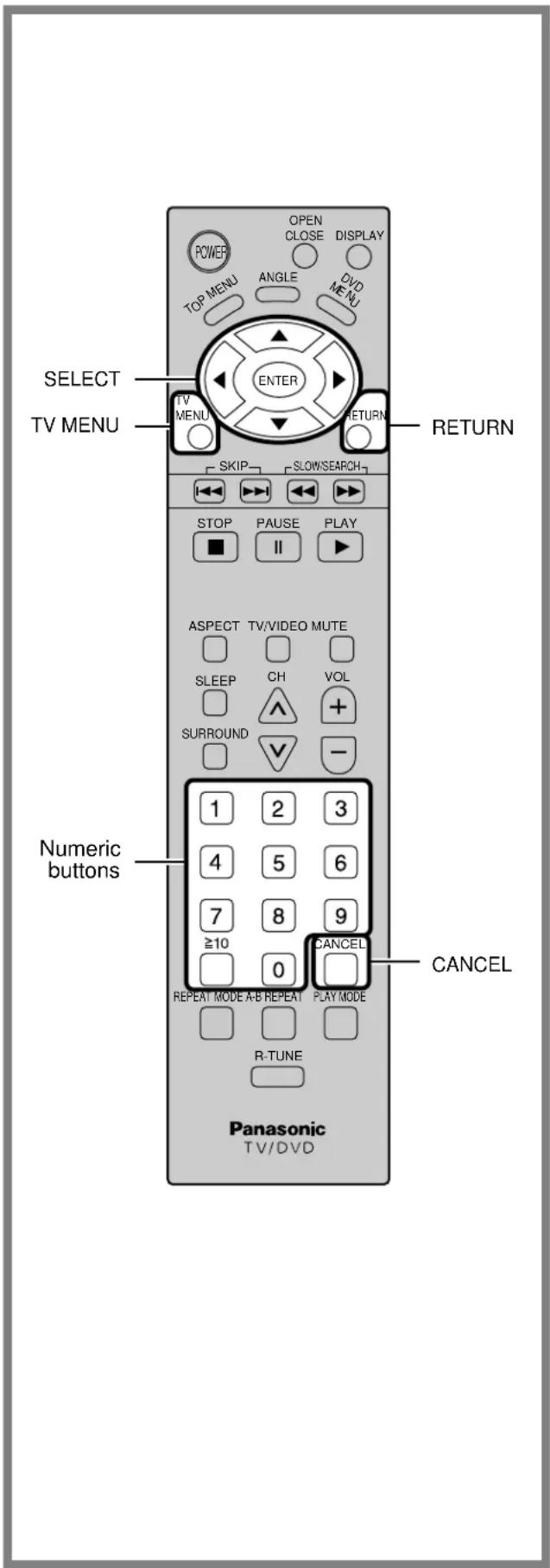
text_image
POWER OPEN CLOSE DISPLAY TOP MENU ANGLE DVD MENU SELECT TV MENU ENTER RETURN SKIP SLOW/SEARCH STOP PAUSE PLAY ■ II ▶ ASPECT TV/VIDEO MUTE SLEEP CH VOL SURROUND + 1 2 3 4 5 6 7 8 9 ≥10 0 CANCEL REPEAT MODE A-B REPEAT PLAY MODE R-TUNE CANCEL Panasonic TV/DVDInitial settings
Once the initial settings have been completed, the player can always be operated under the same conditions (especially DVDs). The settings will be retained in the memory, until the settings are changed, even after switching to standby mode.
Common procedures
1 Press TV MENU to display menu screen during stop mode.
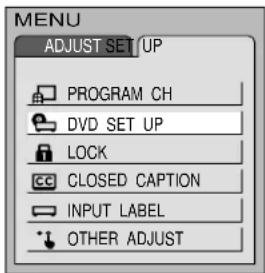
text_image
MENU ADJUST SET/UP PROGRAM CH DVD SET UP LOCK CLOSED CAPTION INPUT LABEL OTHER ADJUST2 Press SELECT (◀, ▶) to select SETUP.
3 Press SELECT (▲, ▼) to select DVD SETUP, and press ENTER.
Initial Setting menu
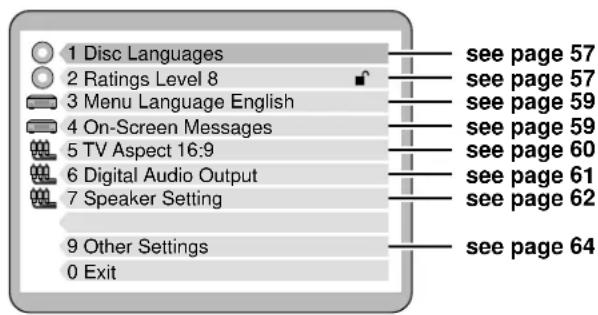
text_image
1 Disc Languages 2 Ratings Level 8 3 Menu Language English 4 On-Screen Messages 5 TV Aspect 16:9 6 Digital Audio Output 7 Speaker Setting 9 Other Settings 0 Exit see page 57 see page 57 see page 59 see page 59 see page 60 see page 61 see page 62 see page 644 Press SELECT (▲, ▼) to select the item and press ENTER.
Each screen for setting the value is displayed.
1 Disc Languages
2 Ratings
3 Menu Language
4 On-Screen Messages
5 TV Aspect
6 Digital Audio Output
7 Speaker Setting
9 Other Settings
To cancel during setup operation
Press RETURN or select "0". (The previous screen is displayed.)
To clear the initial settings screen
Press SELECT (▲, ▼) to select "0" and press ENTER. (Pressing TV MENU or RETURN also clears the initial settings screen.)
Note
- After the player is set to the "Lock All" setting in "2 Ratings", none of the initial settings, including "2 Ratings", can be changed if a DVD is left inside the player. In this case, remove the disc, and unlock the player.
For your reference:
- The numeric buttons can also be used instead of the SELECT (▲, ▼) button for selecting items or values. Pressing SELECT is not necessary.
Selecting disc language [DVD]
This is to select the audio soundtrack language, subtitle language and the language used in title menus or the DVD menus which will always be used for every disc to be played back.
1 At the initial settings screen (on page 56)
Press SELECT (▲, ▼) to select "1 Disc Languages" and press ENTER.
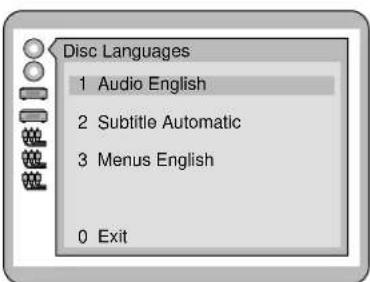
text_image
Disc Languages 1 Audio English 2 Subtitle Automatic 3 Menus English 0 Exit2 Press SELECT (▲, ▼) to Select the item and press ENTER.
1 Audio: To select the audio soundtrack language.
2 Subtitle: To select the subtitle language.
3 Menus: To select the language used in title menus or the DVD menus.
3 Press SELECT (▲,▼) to select the language and press ENTER.
When "1 Audio" is selected
1 English: English is selected. (Factory preset)
2 French / 3, Spanish:
The language is selected.
4 Original: The original language of each disc will be selected.
5 Other * * : Another language can be selected. (Refer to the language codes on page 66. Press CANCEL if an incorrect language code is entered.)
When "2 Subtitle" is selected
1 Automatic: Subtitle language will automatically be selected in accordance with the audio soundtrack language. (Factory preset)
- If the language selected for the "I Audio" is actually used during playback, the subtitles will not appear.
- If another language is used during playback, the subtitles will appear in the language selected at the setup "I Audio".
2 English / 3, French / 4, Spanish:
The language is selected. 5 Other * * : Another language can be selected. (Refer to the language codes on page 66. Press CANCEL if an incorrect language code is entered.)
When "3 Menus" is selected
1 English: English is selected. (Factory preset)
2 French /3, Spanish:
The language is selected.
4 Other * * : Another language of each disc will be selected. (Refer to the language codes on page 66. Press CANCEL if an incorrect language code is entered.)
The screen illustrated in step 1 is displayed. Select "0" with the SELECT (▲, ▼) button and press ENTER to return to the initial settings screen.
Also refer to "Common procedures" on page 56.
Note
- If the language selected is not available on the disc, the language designated by each disc will be selected.
Selecting rating level [DVD]
This is to disable the playing of some DVDs which are unsuitable for some audiences, for example, children.
- Some DVDs are encoded with a specific rating level. If the rating level of the disc is higher than that preset in the initial settings operation, playback of the disc will be prohibited.
1 At the initial settings screen (on page 56)
Press the SELECT (▲, ▼) button to select "2 Ratings" and press ENTER.
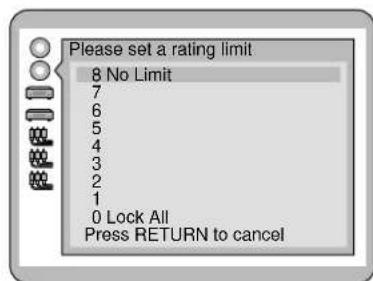
text_image
Please set a rating limit 8 No Limit 7 6 5 4 3 2 1 0 Lock All Press RETURN to cancel(Continued on the next page)
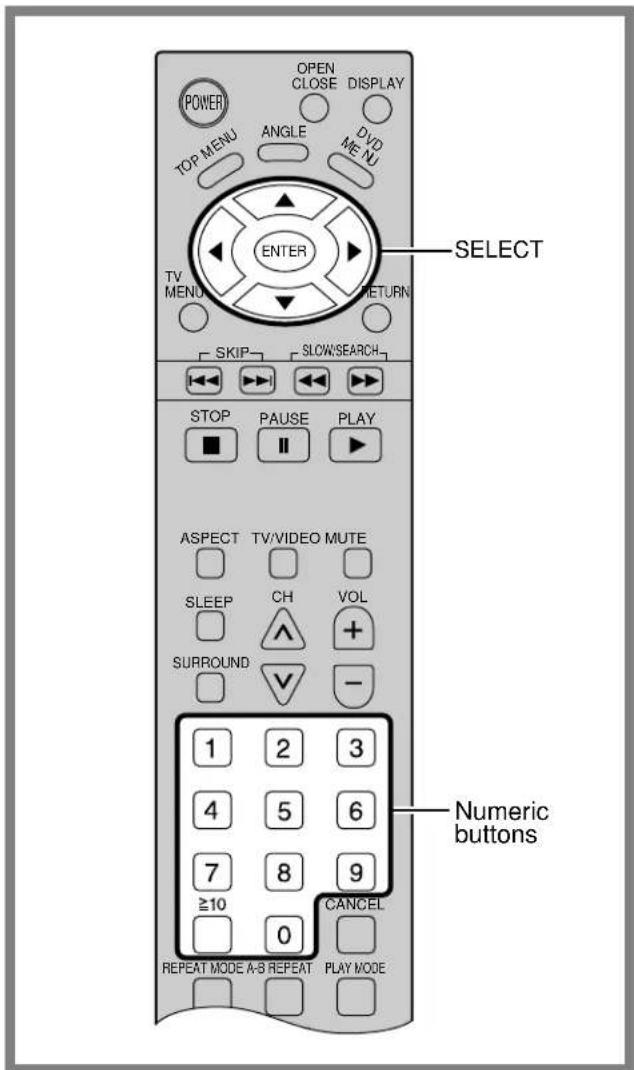
text_image
POWER OPEN CLOSE DISPLAY TOP MENU ANGLE DVD MENU ENTER TV MENU RETURN SKIP SLOW/SEARCH STOP PAUSE PLAY ■ II ▶ ASPECT TV/VIDEO MUTE SLEEP CH VOL SURROUND - 1 2 3 4 5 6 7 8 9 ≥10 0 CANCEL REPEAT MODE A-S REPEAT PLAY MODE2 Press the SELECT ( ▲ ▼ ) button to select the level and press ENTER.
Level 8: All DVDs can be played back.
(Factory preset)
Level 7 to 2: DVDs for general audiences/children
can be played back.
(DVDs for adults are prohibited.)
Level 1: DVDs for children can be played back.
(DVDs for adults/general audiences are prohibited.)
Level 0: Playback of all DVDs is prohibited (e.g.
to prohibit playback of DVDs for adults which are not encoded with rating level information).
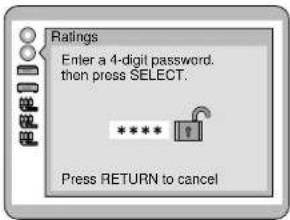
text_image
Ratings Enter a 4-digit password. then press SELECT. **** Press RETURN to cancel3 When level 7 or lower is selected Input a 4-digit password with the numeric buttons and press ENTER.
The lock symbol appears closed to show the rating is locked.
Example: "4343"
Do not forget your password.
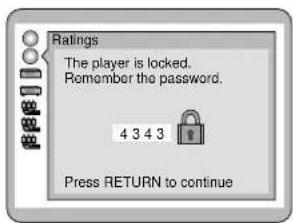
text_image
Ratings The player is locked. Remember the password. 4 3 4 3 Press RETURN to continue4 Press ENTER.
Setting is finished and the initial settings screen is displayed.
- The rating is locked. Any discs with a higher rating than the setting cannot be played back unless the password is entered.
When the player is locked
The following screen appears when "2 Ratings" is selected at the initial settings screen.
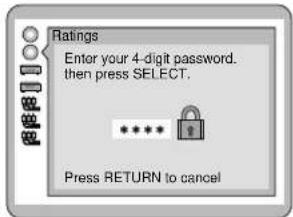
text_image
Ratings Enter your 4-digit password. then press SELECT. ***** Press RETURN to cancel- Input your 4-digit password and press ENTER.
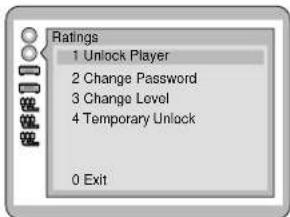
text_image
Ratings 1 Unlock Player 2 Change Password 3 Change Level 4 Temporary Unlock 0 Exit2. To unlock the player
Press "1" and then press ENTER.
To change the password
Press "2", enter a new 4-digit password and press ENTER, then press ENTER again.
To change the rating level Press "3", select a new level with the SELECT (▲, ▼) button, then press ENTER.
To unlock the player temporarily
Press "4" and then press ENTER.
- The rating is unlocked temporarily only for the current disc. The player is locked again when OPEN / CLOSE is pressed or the player is set to the standby mode.
To finish setting without changing the rating level Press "0".
Setting is finished and the initial settings screen is displayed.
Also refer to "Common procedures" on page 56.
Note
- Some discs may not be encoded with specific rating level information though its disc jacket says that it is for "adults". For those discs, the age restriction will not work.
Selecting On-Screen Display menu language
This is to select the language to be used in the On-Screen Display menus which the player will show on the TV monitor.
1 At the initial settings screen (on page 56) Press SELECT (▲, ▼) to Select "3 Menu Language" and press ENTER.
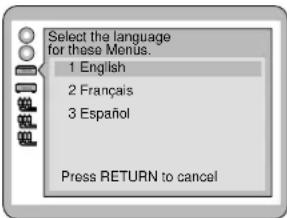
text_image
Select the language for these Menús. 1 English 2 Français 3 Español Press RETURN to cancel2 Press SELECT (▲, ▼) to Select the language and press ENTER.
1 English:
English is selected. (Factory preset)
2 Français / 3, Español :
The language is selected.
Setting is finished and the initial settings screen is displayed.
Also refer to "Common procedures" on page 56.
Selecting On-Screen Display Messages
You can select whether "Play", "Still" and other displays will be displayed or not, and the color and position of "Play", "Still" and other displays as well as GUI screens.
1 At the initial settings screen (on page 56) Press SELECT (▲, ▼) to select "4 On-Screen Messages" and press ENTER.
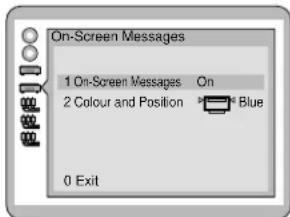
text_image
On-Screen Messages 1 On-Screen Messages On 2 Colour and Position Blue 0 Exit2 Press SELECT (▲, ▼) to select the setting and press ENTER.
When "1 On-Screen Messages" is selected
1 On: "Play", "Still" and other displays will always appear on the TV screen. (Factory preset)
2 Off: "Play", "Still" and other displays will not appear on the TV screen.
When "2 Color and Position" is selected The colors and positions are set as follows:
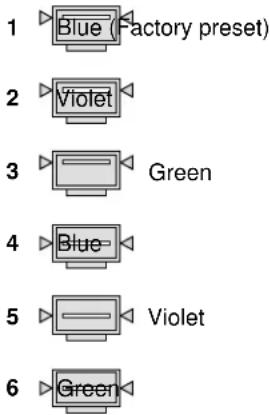
text_image
1 Blue (Factory preset) 2 Violet 3 Green 4 Blue 5 Violet 6 GreenThe screen illustrated in step 1 is displayed. Select "0" with the SELECT (▲, ▼) button and press ENTER to return to the initial settings screen.
Also refer to "Common procedures" on page 56.
For your reference:
- When ▶ is selected, "Play", "Still" and other displays
as well as GUI screens will be displayed at a little lower position than the factory setting. It is recommended to choose this setting if the screen is only partially displayed.
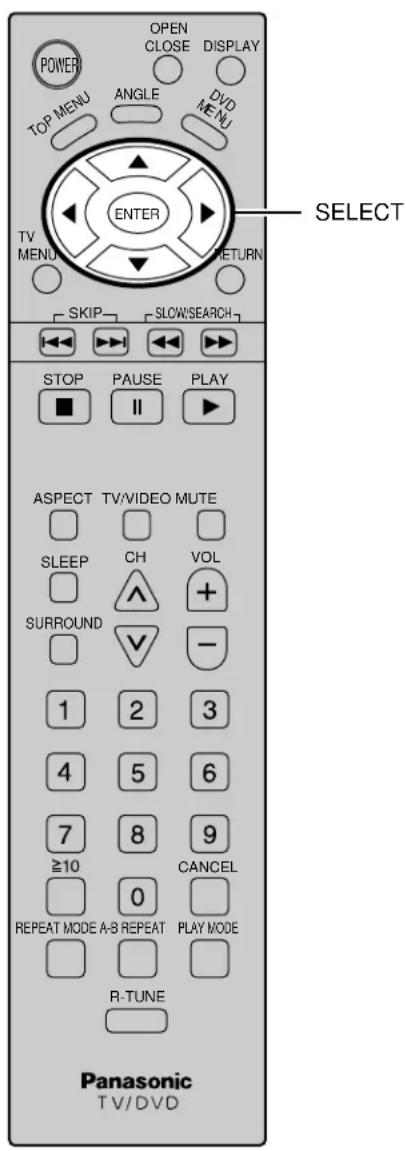
text_image
POWER OPEN CLOSE DISPLAY TOP MENU ANGLE DVD MENU ENTER TV MENU RETURN SKIP SLOW/SEARCH STOP PAUSE PLAY ■ II ▶ ASPECT TV/VIDEO MUTE SLEEP CH VOL SURROUND V - 1 2 3 4 5 6 7 8 9 ≥10 CANCEL REPEAT MODE A-B REPEAT PLAY MODE R-TUNE Panasonic TV/DVD SELECTSelecting TV screen Aspect
Select the TV aspect, conventional size screen (4:3) or wide-screen (16:9), when connecting to your TV set.
1 At the initial settings screen (on page 56)
Press SELECT (▲,▼) to Select "5 TV Aspect" and press ENTER.
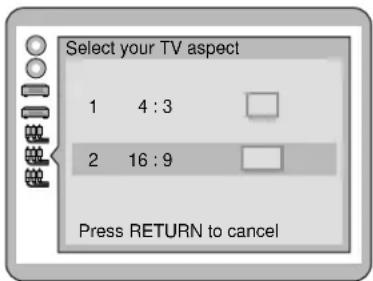
text_image
Select your TV aspect 1 4:3 2 16:9 Press RETURN to cancel2 Press SELECT (▲,▼) to select the TV aspect and press ENTER.
1 4:3:
Select when a conventional TV set is connected.
2 16:9:
Select when a wide-screen TV set is connected.
(Factory preset)
Setting is finished and the initial settings screen is displayed.
Also refer to "Common procedures" on page 56.
For your reference:
- For further details on the images which appear on the TV screen (aspect ratios of the screen), see page 67.
Selecting digital output
Select the digital output to be output from the optical/coaxial digital audio output connector of the player.
1 At the initial settings screen (on page 56) Press SELECT (▲, ▼) to select "6 Digital Audio Output" and press ENTER.
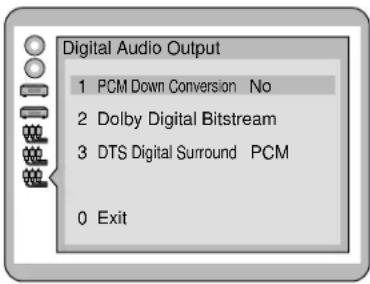
text_image
Digital Audio Output 1 PCM Down Conversion No 2 Dolby Digital Bitstream 3 DTS Digital Surround PCM 0 Exit2 Press SELECT (▲, ▼) to select the item and press ENTER.
1 PCM Down Conversion:
To select whether digital audio converted to 48 kHz/16 bit is output from the optical/coaxial digital audio output connector or no digital audio is output during playback of DVDs recorded in 96 kHz Linear PCM.
(If the DVD is recorded in 48 kHz Linear PCM, digital audio converted to 48 kHz/16 bit is output irrespective of the setting.)
2 Dolby Digital:
To select the signal format (Bitstream or PCM) to be output from the optical/coaxial digital audio output connector during playback of DVDs recorded in Dolby Digital.
3 DTS Digital Surround:
To select the signal format (PCM or Bitstream) to be output from the optical/coaxial digital audio output connector during playback of DVDs recorded in dts.
3 Press SELECT (▲, ▼) to select the setting and press ENTER.
When "1 PCM Down Conversion" is selected
1 NO: Digital audio of 48 kHz/16 bit is output during playback of DVDs recorded in 48 kHz Linear PCM. No digital audio is output during playback of DVDs recorded in 96 kHz Linear PCM. However, audio will be output using the original audio recording system if the DVD has not been copyright-protected. (Factory preset)
2 Yes: During playback of DVDs recorded in 48 kHz or 96 kHz Linear PCM, digital audio converted to 48 kHz/16 bit is output. (Digital output of PCM audio is restricted to 48 kHz/16 bit or below for copyright protection.)
When "2 Dolby Digital" is selected
1 Bitstream *1: Dolby Digital bitstream (1ch-2 PCM: 5.1ch) is output during playback of DVDs recorded in Dolby Digital. (Factory preset) Select this setting when the player is connected to a Dolby Digital decoder.
2 PCM: Digital audio converted to 48 kHz/16 bit PCM (2ch) is output during playback of DVDs recorded in Dolby Digital.
When "3 DTS Digital Surround" is selected
1 PCM: Digital audio converted to 48 kHz/16 bit PCM (2ch) is output during playback of DVDs recorded in dts. (Factory preset)
2 Bitstream *1: dts bitstream is output during playback of DVDs recorded in dts. Select this setting when the player is connected to a dts decoder.
The screen illustrated in step 1 is displayed. Select "0" with press SELECT (▲, ▼) button and press ENTER to return to the initial settings screen.
Also refer to "Common procedures" on page 56.
(Continued on the next page)
Recommended setting of "Digital Audio Output"
Make settings as shown in table below depending on the kind of equipment that is connected to the optical/coaxial digital audio output connector.
| Type of equipment to be connected | Recommended setting | ||
| 1 PCM Down Conversion | 2 Dolby Digital | 3 DTS Digital Surround | |
| No equipment is connected | No | Bitstream | PCM |
| Dolby Digital decoder | Yes*2 | Bitstream | PCM |
| Dolby Digital dts decoder | Yes*2 | Bitstream | Bitstream |
| Dolby Digital dts audio decoder | Yes*2 | Bitstream | Bitstream |
• Underlined items are factory preset.
* Do not connect to the digital audio input of an amplifier that does not have Dolby Digital/dts audio decoder: if such an amplifier should be connected to the player with "Bitstream" selected at the "2 Dolby Digital", "3 dts", any attempt to play DVDs (or CDs recorded in dts) may cause such a high level of noise that it may be harmful to your ears and damage speakers.
*296 kHz PCM sound is converted to 48 kHz 16 bit sound when this player is connected with an optical digital audio cable. Do the following if you wish to take advantage of high quality 96 kHz sound.
Select "1 No" and connect this player's audio output connector to an amplifier's audio input connector with the audio/video cable (included) or an audio cable (not included). Note that PCM, Dolby Digital, and dts signals will all be output in 2 channel, analog form.
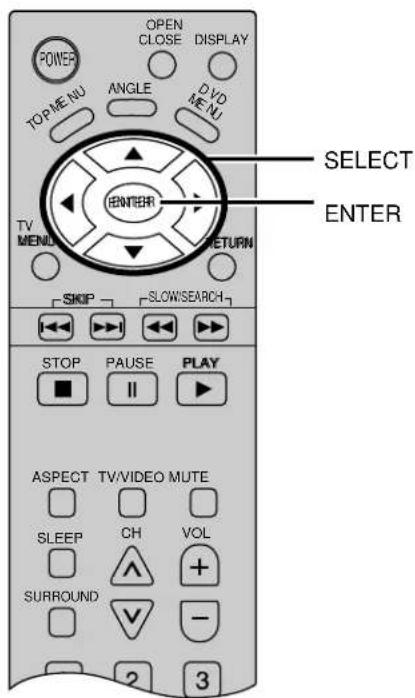
text_image
OPEN CLOSE DISPLAY POWER TOP MENU ANGLE DVD MENU ENTER TV MENU RETURN SKIP SLOW/SEARCH STOP PAUSE PLAY ■ ■ ■ ASPECT TV/VIDEO MUTE SLEEP CH VOL SURROUND + - 2 3 SELECT ENTERA
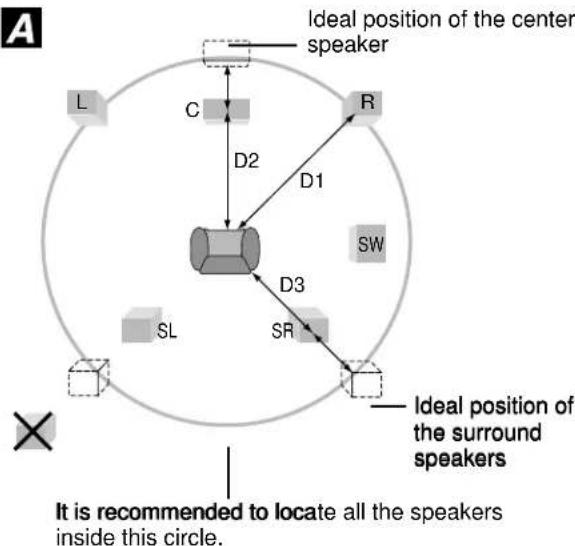
flowchart
graph TD
    A["Center Object"] -->|D1| B["Center Speaker"]
    A -->|D2| C["Center Speaker"]
    A -->|D3| D["Center Speaker"]
    A -->|SR| E["Center Speaker"]
    A -->|SW| F["Circular Center"]
    G["Ideal position of the center speaker"] --> H["Ideal position of the surround speakers"]
    I["It is recommended to locate all the speakers inside this circle."] --> A
B
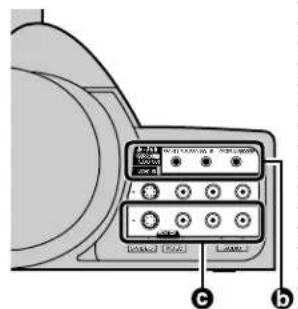
text_image
Diagram of a device control panel with labeled buttons and display screen showing status indicators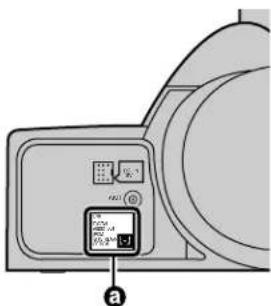
text_image
Diagram of a device panel with labeled ports and a digital display showing text and symbolsSpeaker setting
1 At the initial settings screen (on page 56)
Press SELECT (▲, ▼) to select "8 Speaker Setting" and press ENTER.
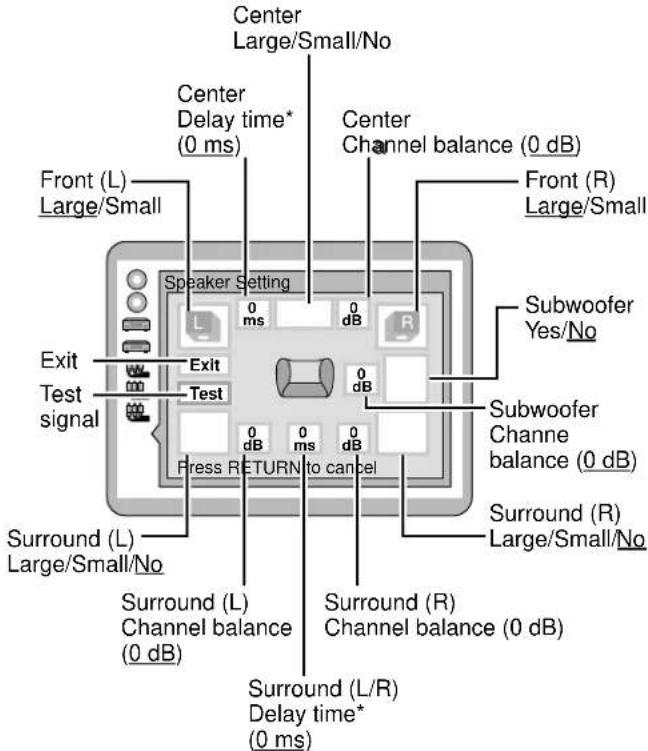
text_image
Center Large/Small/No Center Delay time* (0 ms) Center Channel balance (0 dB) Front (L) Large/Small Speaker Setting 0 ms 0 dB Exit Test signal Exit Test Press RETURN to cancel Subwoofer Yes/No Subwoofer Channe balance (0 dB) Surround (R) Large/Small/No Surround (L) Large/Small/No Surround (L) Channel balance (0 dB) Surround (R) Channel balance (0 dB) Surround (L/R) Delay time* (0 ms)- Underlined items are factory preset.
* Delay time adjustment is effective only for DVDs recorded in Dolby Digital.
2 Press SELECT (▲, ▼) to select the item and press ENTER.
3 Press SELECT (▲, ▼) to select the setting and press ENTER.
Speaker icons:
- If the speaker is connected, display the icon with press SELECT (▲, ▼) button and press ENTER.
- If the speaker supports low-frequency (under 100 Hz) reproduction, select the large icon. If the speaker does not support low-frequency reproduction, select the small icon. [When a subwoofer is not connected, be sure to select "Large" for the front speakers (L / R).]
In case of surround speaker (L)
No Large / Yes Small / Yes
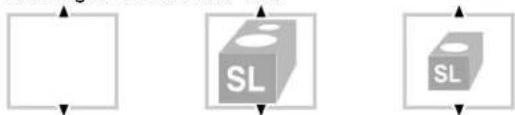
text_image
Diagram showing three labeled boxes with 'SL' and directional arrows, likely representing a conceptual or schematic layout.(Continued on the next page)
Delay time [only for Dolby Digital discs]
If the surround speakers or the center speaker can't be installed at an equal distance to the front speakers from the listening position, change the delay time to get better surround effect.
- When D2 or D3 is equal to or larger than D1, no setting is necessary. Otherwise, change the setting according to the table below.
| Speaker | Difference between D1 and D2 / D3 | Delay time |
| Centers approx. 50 cm 1.3 ms speaker approx. 100 cm 2.6 ms (D2) approx. 150 cm 3.9 ms approx. 200 cm 5.3 ms | ||
| Surround approx. 200 cm 5.3 ms speakers approx. 400 cm 10.6 ms (D3) approx. 600 cm 15.9 ms |
To adjust the channel balance using the test signal
- Select "Test" with press SELECT (▲, ▼, ◀, ▶), and then press ENTER. (Test signals will be output clockwise from each speaker except the subwoofer consecutively.)
- While listening to the test signal, press SELECT (▲, ▼) button to adjust the volume of each speaker until the test signal is heard at a similar level from all speakers.
- Press ENTER. (The test signals are stopped.)
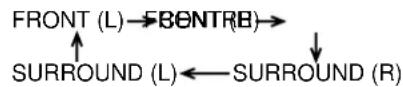
Note
- Test signal is not output from the subwoofer. Subwoofer volume should be adjusted to suit the material being
4 Press SELECT (▲, ▼, ◀▶) to select "Exit" and press ENTER.
Setting is finished and the initial settings screen is displayed.
Also refer to "Common procedures" on page 56.
Playing MPEG 2 multi-channel audio (B)
MPEG 2 multi-channel audio is output from the 5.1 channel output connectors (if you have set the center, surround and subwoofer speakers to "Yes" in "8 Speaker Setting", just as with Dolby Digital and dts.
If you are using 2 channel audio output connectors (c), the digital audio output connectors (when "1 PCM" is selected in "4 MPEG" in the digital audio output settings on page 61) (a), or the phones jack, however, then only the signals for the front speaker channels are output.
If you intend to use one of these types of terminals, go to "8 Speaker Setting" and set the center, surround, and subwoofer channels to "No".
Other settings
Compression of the sound's dynamic range and other special settings can be performed.
1 At the initial settings screen (on page 56)
Press SELECT (▲, ▼) to select "9 Other Settings" and press ENTER.
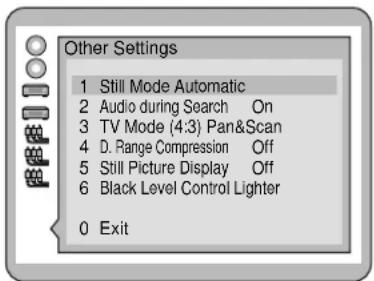
text_image
Other Settings 1 Still Mode Automatic 2 Audio during Search On 3 TV Mode (4:3) Pan&Scan 4 D. Range Compression Off 5 Still Picture Display Off 6 Black Level Control Lighter 0 Exit2 Press SELECT (▲, ▼) to select the item and press ENTER.
1 Still Mode:
Select either "Field still" or "Frame still" to prevent jittering or improve the video quality of small text or fine patterns in the still picture mode.
2 Audio during Search:
To select whether audio is heard during search (forward direction) at the initial scan speed or not.
3 TV Mode (4:3):
To select whether wide-screen video material will be played back in the pan and scan style or in the letterbox style on a conventional size TV.
4 D. (Dynamic) Range Compression:
To select the dynamic range during playback.
5 Still Picture Display:
To display the picture type, I, P or B in the still picture mode.
6 Black Level Control:
Adjusts the dark shades of the image in gradation.
3 Press SELECT (▲, ▼) to select the setting and press ENTER.
When "I Still Mode" is selected
1 Automatic: "Field still" and "Frame still" are automatically selected in the still picture mode. (Factory preset)
2 Field: "Field still" is always selected. Select this setting when jittering occurs when "I Automatic" is selected.
3 Frame: "Frame still" is always selected. Select this setting when small text or fine patterns cannot be seen clearly when "I Automatic" is selected.
When "2 Audio during Search" is selected
1 On: Audio will be heard during search at the initial scan speed. (Factory preset)
2 Off: Select this setting when audio during search at the initial scan speed is not desired.
When "3 TV Mode (4:3)" is selected
1 Pan & Scan: Wide-screen video material will be played back in the pan and scan style on a conventional size TV. (Factory preset)
• Video material not formatted in the pan and scan style will be played back in the letterbox style. (See page 67.)
2 Letterbox: Wide-screen video material will be played back in the letterbox style on a conventional size TV.
When "4 D. (Dynamic) Range Compression" is selected
1 Off: Normal audio range is selected. (Factory preset)
2 On: Select this setting to enjoy dynamic sound at low volume. Dynamic range is the difference in volume between the quietest and loudest sounds. Dynamic Compression limits level for listening at low volume. This is useful late at night. This function only works with Dolby Digital DVD.
When "5 Still Picture Display" is selected
1 Off: The picture type (I / P / B) will not be displayed on the TV screen in the still picture mode. (Factory preset)
2 On: The picture type (I/P/B) will be displayed on the TV screen in the still picture mode.
Since I-Picture features the best picture quality, it is recommended that the screen be frozen with I-Picture when the picture quality is to be adjusted.
When "6 Black Level Control" is selected
Adjusts the dark shades of the image in gradation
1 Lighter
2 Darker
The screen illustrated in step I is displayed. Select "0" with the SELECT (▲, ▼) button and press SELECT to return to the initial settings screen.
Also refer to "Common procedures" on page 56.
Note
- It is recommended that the "I PAL 60" is selected at the "6 NTSC Disc Output" when a PAL TV is connected; however, the images shown below will appear on the TV screen. Black bars appear at the top and bottom parts of the TV screen. (The picture may be compressed vertically.)
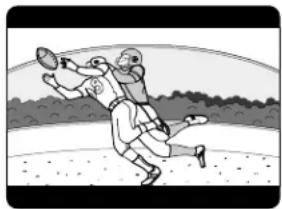
natural_image
Cartoon illustration of two baseball players in action, one throwing a ball and the other defending (no text or symbols)For your reference:
- When the "2 On" is selected at the "5 Still Picture Display", the following screen is displayed in the still picture mode;
text_image
Still (P)Example: P-Picture
- Field
Half of the video information (video signal) in a frame is called a field. With conventional TV systems, a signal frame (a single screen) consists of two fields.
- Field still
Only one field (half of the video information) is displayed on the TV screen, so the apparent resolution is low. However, there is no blurring on the screen.
- Frame
Individual images in a video or on the TV are called frames.
- Frame still
The two fields are displayed, alternately, on the TV screen, so the image is blurry. However, the image quality is better than field images.
• I/P/B
The MPEG 2 standard adopted for DVD uses the following 3 picture types for the coding of each picture (frame) on the TV screen.
I:I-Picture (Intra coded picture)
This is the standard picture type, and each picture is coded separately.
P:P-Picture (Predictive coded picture)
This picture type is computed on the basis of a past I-Picture or P-Picture.
B:B-Picture (Bidirectionally-predictive coded picture)
This picture type is computed by comparing the previous and subsequent I-Picture or P-Picture. It has the lowest volume of information.
General Picture type
Enter the appropriate code number for the initial settings "Audio", "Subtitle" and/or "Menus" (See page 57)
| Code | Language | Code | Language | Code | Language | Code | Language |
| 6565 | Afar | 7079 | Faroese | 7678 | Lingala | 8375 | Slovak |
| 6566 | Abkhazian | 7082 | French | 7679 | Laotian | 8376 | Slovenian |
| 6570 | Afrikaan | 7089 | Frisian | 7684 | Lithuanian | 8377 | Samoan |
| 6577 | Ameharic | 7165 | Irish | 7686 | Latvian, Lettish | 8378 | Shona |
| 6582 | Arabic | 7168 | Scots Gaelic | 7771 | Malagasy | 8379 | Somali |
| 6583 | Assamese | 7176 | Galician | 7773 | Maori | 8381 | Albanian |
| 6588 | Aymara | 7178 | Galician | 7775 | Macedonian | 8382 | Serbian |
| 6590 | Azerbaijani | 7185 | G ujarati | 7776 | Malayalam | 8385 | Sundanese |
| 6665 | Bashkir | 7265 | Hausa | 7778 | Mongolian | 8386 | Swedish |
| 6669 | Byelorssian | 7273 | Hindi | 7779 | Moldavian | 8387 | Swahili |
| 6671 | Bulgarian | 7282 | Croatianb | 7782 | Marathi | 8465 | Tamil |
| 6672 | Bihari | 7285 | Hungarian | 7783 | Malay | 8469 | Telugu |
| 6678 | Bengali; Bangla | 7289 | Armenian | 7784 | Maltese | 8471 | Taj i k |
| 6679 | Tibetan | 7365 | Interlingua | 7789 | Burmese | 8472 | Thai |
| 6682 | Breton | 7378 | Indonesian | 7865 | Nauru | 8473 | Tigrinya |
| 6765 | Catalan | 7383 | Icelandic | 7869 | Nepali | 8475 | Turkmen |
| 6779 | Corsican | 7384 | Italian | 7876 | Dutch | 8476 | Tagalog |
| 6783 | Czech | 7387 | Hebrew | 7879 | Norwegian | 8479 | Tonga |
| 6789 | Welsh | 7465 | Japanese | 7982 | Oriya | 8482 | Turkish |
| 6865 | Danish | 7473 | Yiddish | 8065 | Punjabi | 8484 | Tatar |
| 6869 | German | 7487 | Javanese | 8076 | Polish | 8487 | Tw i |
| 6890 | Bhutani | 7565 | Georgian | 8083 | Pashto, Pushto | 8575 | Ukrainian |
| 6976 | Greek | 7575 | Kazakh | 8084 | Portuguese | 8582 | Urdu |
| 6978 | English | 7576 | Greenlandic | 8185 | Quechua | 8590 | Uzbek |
| 6979 | Esperanto | 7577 | Cambodian | 8277 | Rhaeto-Rmance | 8673 | Vietnamese |
| 6983 | Spanish | 7578 | Kannada | 8279 | Romanian | 8679 | Volap k |
| 6984 | Estonian | 7579 | Korean | 8285 | Russian | 8779 | Wolof |
| 6985* | Basque | 7587 | Kashmiri | 8365 | Sanskrit | 8872 | Xhosa |
| 7065 | Persian | 7585 | Kurdish | 8368 | Sindhi | 8979 | Yoruba |
| 7073 | Finnish | 7589 | Ki rghiz | 8372 | Serbo-Croatian | 9072 | Chinese |
| 7074 | Fiji | 7665 | Latin | 8373 | Singhalese | 9085 | Zulu |
How images appear on your TV (aspect ratios of the screen)
The Images on the TV screen depend on the type of software and the TV set.
| Type of software | TV set (Screen mode) | |||
| 4:3 16:9 | (“FULL” mode) | 16:9 (“ZOOM” mode) | 16:9 (“AUTO” mode) | |
Wide-screen (pan and scan format)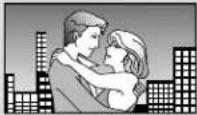 | Right and left edges are cut off.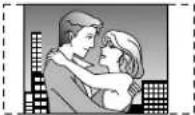 | Full screen Top and bottom 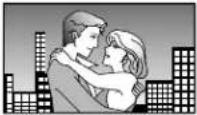 | edges are cut off.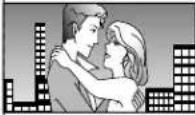 | Full screen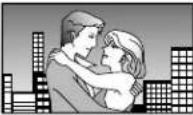 |
Wide-screen (pan and scan format)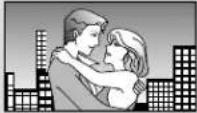 | Letterbox (with black bands at top and bottom)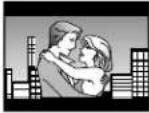 | |||
Software (4:3) | Full screen Screen horizontally enlarged |  | Top and bottom edges are cut off. | Full screen (with black bands at right and left) |
Software (4:3, Letterbox) | Letterbox (with black bands at top and bottom) | Screen horizontally enlarged (with black bands at top and bottom) | Full screen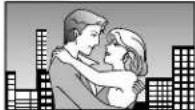 | Screen in which the picture at the far left and far right ends only is extended horizontally (with black bands at top and bottom)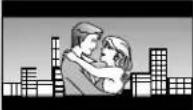 |
- The images which appear on the TV screen, and what each screen mode is called, depend on the manufacturer of the TV set and type of TV set. Consult the instruction manual provided with your TV set.
For your reference:
- Letterbox
Black bands are inserted at the top and bottom of the screen to fill in the gaps where the size of the picture is smaller than the screen.
- Pan and scan
Part of the wide-screen picture (either at both sides or one side of the screen) is automatically eliminated so that the picture fills the whole screen.
Troubleshooting
Before requesting service for this LCD/DVD combo, check the chart below for a possible cause of the problem you are experiencing. Some simple checks or a minor adjustment on your part may eliminate the problem and restore proper operation.
If you are in doubt about some of the check points, or it the remedies indicated in the chart do not solve the problem, consult your dealer for instructions.
| Symptoms (Common) | Checks | Page |
| Power does not turn ON | Is the power plug plugged in?Is the AC adapter plug securely connected to the unit?If the power does not turn on using the remote, check if the TV set is turned on. | -13 |
| Remote control does not function | Are the batteries dead or inserted incorrectly?Is the remote control sensor in direct light of florescent lamps or other strong sources of light? | 7- |
| Image shakesImage is not clear or no color | Is the antenna cable connected properly?When using a VCR and selecting channels on the TV, is the TV/VIDEO mode for the VCR set to TV? | 8, 920 |
| Image appears doubled or tripled. | Check cable signal, connections or wire. | - |
| A black stripe appears for a moment when changing channels using the VCR. | The image distorts when channels are changed. | - |
| Images disappear at the top and bottom of the screen | When using 16:9 image software, there is no picture at the top and bottom of the screen (cinema vision size software, etc.). | - |
| During ZOOM or JUST modes, the image is cut off at the top and bottom. | Has the screen position been changed?→ If so, adjust screen positioning. | - |
| Channel number remains displayed. | Press the DISPLAY button.During VIDEO input, channel number is displayed until an image is displayed. | 21 |
| Play fails to start even when PLAY is pressed.Play starts but then stops immediately. | Condensation has formed: wait about 1 to 2 hours for it to evaporate.This player cannot play discs other than DVDs, Video CD and CD.The disc may be dirty and may require cleaning.Ensure that the disc tis installed with the label of the side to be played facing upwards. | - |
| There may be red spots, blue spots and green spots on the screen. | This is a characteristic of liquid crystal panels and is not a problem. The liquid crystal panel is built with very high precision technology giving you fine picture details. Occasionally, a few non-active pixels may appear on the screen as a fixed point of blue, green, or red. Please note the this does not affect the performance of your LCD TV. | - |
| Symptoms (DVD) | Checks | Page |
| No subtitles. | Subtitles appear only with discs which contain them. | - |
| Alternative audio soundtrack (or subtitle) languages fail to be selected. | An alternative language is not selected with discs which do not contain more than one language.In the case of some discs, the alternative language cannot be selected.Try selecting it from the DVD menu if one is available. | -45 |
| Angle cannot be changed. | This function is dependent on software availability. Even if a disc has a number of angles recorded, these angles may be recorded for specific scenes only. | - |
| Play does not start even when title is selected. | Confirm the “2 Ratings” setting. | 57 |
| Audio soundtrack and/or subtitle language is not the one selected at the initial settings. | If the audio soundtrack and/or subtitle language does not exist on the disc, the language selected at the initial settings will not be seen/heard. | - |
| The menu is displayed in French (example). | The setup “3 Menus” of “1 Disc Languages” is set to French: select English. | 57 |
| No surround sound. | Choose the setting at “8 Speaker Setting” which matches our speaker system.No surround sound is output when the virtual surround effect is activated (“VSS 1”, “VSS 2”, “Headphone VSS 1” or “Headphone VSS 2”). Select “VSS OFF” or “Headphone VSS OFF”. | 6228-29 |
| Symptoms (Video CD) | Checks | Page |
| No menu play. | This function works only for Video CDs with playback control. | 43 |
Maintenance
Do not wipe the LCD with water
Clean the L CD using a dry soft cloth such as gauze. If the LCD is heavily soiled, apply OA cleaner for LCD panels to the cloth and wipe off gently. Do not use keton chemicals such as acetone, solvents such as xylen or toluene, or water.
Wipe the cabinet with a soft cloth
If the cabinet is heavily soiled, wipe with a well-wrung soft cloth dipped in kitchen cleanser (neutral) diluted with water.
Neutral detergent
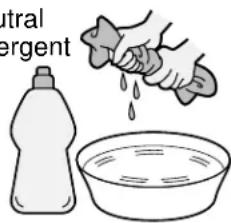
text_image
Central ergentCAUTION :
If water or similar substances get inside the monitor via the liquid crystal panel surface, a malfunction may result.
Specifications
| Power Source | AC 120 V, 60 Hz | |
| Power Consumption | Average use: 54 W (Maximum Current 3.62 A)Stand-by condition: 0.45 W | |
| LCD | TFT 15.2-inch, 16:9 aspect ratio, 854·480 dots, 409,920 pixel | |
| Screen Size | 13.19"(335 mm)(W)·7.4"(188 mm)(H)·15.12"(384 mm)(DIAGONAL) | |
| Channel Capability-181 | VHF-12:UHF-56:Cable-125 | |
| Sound | Speaker | 3"5/32(8 cm)·2 |
| Audio Output | 6 W [3 W + 3 W](10% THD) Power Frequency Response 35 Hz ~ 16 kHz | |
| Headphones | M3 (3.5 mm) Jack (16 Ω~32 Ω) | |
| FEAUTURES | DVD Player 3D Y/C FILTERCLOSED CAPTION V-Chip | |
| Disc Played | DVD-VIDEO/DVD-AUDIO disc COMPACT disc (CD-DA, VIDEO CD)12 cm single-sided, single-layer 12 cm disc12 cm single-sided, dual-layer 8 cm disc12 cm double-sided, single-layer8 cm single-sided, single-layer8 cm single-sided, dual-layer8 cm double-sided, single-layer | |
| Accessories Supplied | ||
| Remote control Transmitter | TNQE262 Battery: AAA (R03) Battery·2 | |
| AC Adaptor | AC Adaptor: N0JEHK000001 AC Cord: K2CA2EA00005 | |
| Operating Conditions | Temperature: 42°F - 95°F (5°-35°C)Humidity: 20% - 80% (non-condensing) | |
| Connection Terminals | ||
| VIDEO INPUT | S-VIDEO (Mini DIN 4Pin) Y: 1.0 Vp-p (75 Ω)C: 0.286 Vp-p (75 Ω)VIDEO (Pin Jack) 1.0 Vp-p (75 Ω)AUDIO L-R (Pin Jack·2)0.5 Vrms | |
| AUDIO OUT | 5.1 ch SURROUND AUDIO OUTFRONT L/R: STEREO M3 JACKSURROUND L/R: STEREO M3 JACKCENTER/SUBWOOFER: STEREO M3 JACK | |
| Dimensions(W·H·D) | 15.24"(387 mm)·14.69"(373 mm)·8.9"(226 mm) | |
| Weight (Mass) | approx. 21.19 lb. (approx. 9.6 kg) Net | |
Note
- Design and Specifications are subject to change without notice. Weight and Dimensions shown are approximate.
This product incorporates copyright protection technology that is protected by method claims of certain U.S. patents and other intellectual property rights owned by Macrovision Corporation and other rights owners. Use of this copyright protection technology must be authorized by Macrovision Corporation, and is intended for home and other limited viewing uses only unless otherwise authorized by Macrovision Corporation. Reverse engineering or disassembly is prohibited.
Customer' Record
The model number and serial number of this product can be found on its rear panel. You should note this serial number in the space provided below and retain this book, plus your purchase receipt, as a permanent record of your purchase to aid in identification in the event of theft or loss, and for Warranty Service purposes.
Model Number
TC-15DT2
Serial Number
Panasonic Consumer Electronics Company, Division of Matsushita Electric Corporation of America
One Panasonic Way Secaucus
New Jersey 07094
Panasonic Sales Company, Division of Matsushita Electric of Puerto Rico Inc. ("PSC")
Ave. 65 de Infanteria, Km 9.5
San Gabriel Industrial Park,
Carolina, Puerto Rico 00985