P5544 - Security Camera AXIS - Free user manual and instructions
Find the device manual for free P5544 AXIS in PDF.


User questions about P5544 AXIS
0 question about this device. Answer the ones you know or ask your own.
Ask a new question about this device
Download the instructions for your Security Camera in PDF format for free! Find your manual P5544 - AXIS and take your electronic device back in hand. On this page are published all the documents necessary for the use of your device. P5544 by AXIS.
USER MANUAL P5544 AXIS
This manual is intended for administrators and users of the AXIS P5544 PTZ Dome Network Camera, and is applicable to firmware 5.41 and later.Itincludesinstructionsforusingandmanagingtheproducton yournetwork.Previousexperienceofnetworkingwillbeofusewhen usingthisproduct.SomeknowledgeofUNIXorLinux-basedsystems may also be beneficial, for developing shell scripts and applications. LaterversionofthisdocumentwillbepostedtotheAxiswebsite, asrequired.Seealsotheproduct'sonlinehelp,availableviathe web-basedinterface.
Liability
Everycarehasbeentakeninthepreparationofthismanual.Please inform your local Axis office of any inaccuracies or omissions. Axis CommunicationsABcannotbeheldresponsibleforanytechnicalor typographicalerrorsandreservestherighttomakechangestothe productandmanualswithoutpriornotice.AxisCommunicationsAB makesnowarrantyofanykindwithregardtothematerialcontained withinthisdocument,including,butnotlimitedto,theimplied warranties of merchantability and fitness for a particular purpose. Axis Communications AB shall not be liable nor responsible for incidental or consequentialdamagesinconnectionwiththefurnishing,performance or use of this material. This product is only to be used for its intended purpose.
IntellectualPropertyRights
AxisABhasintellectualpropertyrightsrelatingtotechnologyembodied intheproductdescribedinthisdocument.Inparticular,andwithout limitation, these intellectual property rights may include one or more of the patents listed at http://www.axis.com/patent.htm and one or more additional patents or pending patent applications in the US and other countries.
Thisproductcontainslicensedthird-partysoftware.Seethemenuitem "About"intheproduct'suserinterfaceformoreinformation.
ThisproductcontainssourcecodecopyrightAppleComputer, Inc., under the terms of Apple Public Source Lice http://www.opensource.apple.com/apsl).Thesourcecodeisavailable from http://developer.apple.com/darwin/projects/bonjour/
EquipmentModifications
This equipment must be installed and used in strict accordance with the instructions given in the user documentation. This equipment contains no user-serviceable components. Unauthorized equipment changes or modifications will invalidate all applicable regulatory certifications and approvals.
TrademarkAcknowledgments
Apple, Boa, Bonjour, Ethernet, Internet Explorer, Linux, Microsoft, Mozilla, Real, SMPTE, QuickTime, UNIX, Windows, Windows Vista and W WWareregistered trademarksoftherespectiveholders. Java and all Java-based trademarksand logosaretrademarksorregiste red trademarksofOracle and/oritsaffiliates. UPnP ^TM isacertification markoftheUPnP ^TM ImplementersCorporation.
Electromagnetic Compatibility(EMC)
This equipment has been designed and tested to fulfill applicable standards for:
- Radio frequency emission when installed according to the instructionsandusedinitsintendedenvironment.
- Immunity to electrical and electromagnetic phenomena when installed according to the instructions and used in its intended environment.
USA
This equipment has been tested using a shielded network cable (STP) and found to comply with the limits for a Class B digital device, pursuant to part 15 of the FCC Rules. These limits are designed to provide reasonable protection against harmful interference in residential installation. This equipment generates, uses and can radiate radio frequency energy and, if not installed and used in accordance with the instructions, may cause harmful interference or radio communications. However, there is no guarantee that interference will not occur in particular installation. If this equipment does cause harmful interference or radio television reception, which can be determined by turning the equipment off and on, the user is encouraged to try to correct the interference by one or more of the following measures:
• Reorientorrelocatethereceivingantenna.
- Increase these separation between the equipment and receiver.
- Connect the equipment into an outlet on a circuit different from thattowhichthereceiverisconnected.
- Consult the dealer or an experienced radio/TV technician for help.
Canada
This Class B digital apparatus complies with Canadian ICES-003.
Europe
CE This digital equipment fulfills the requirements for RF emission according to the ClassBlimitofEN55022.
This product fulfills the requirements for immunity according to EN61000-6-1 residential, commercial and light-industry environments.
This product fulfills the requirements for immunity according to EN61000-6-2industrialenvironments.
This product fulfills the requirements for immunity according to EN 55024 office and commercial environments.
Australia/NewZealand
This digitalequipmentfulfillstherequirementsforRFemission according to the ClassBlimitofAS/NZSCISPR22.
Korea 2.0(see
The powersupply used with this product shall fulfill therequirements for Safety Extra Low Voltage and Limited Power Source according to EN/IEC/UL60950-1.
Support
Should you require any technical assistance, please contact your Axis reseller. If your questions cannot be answered immediately, your reseller will for award your queries through the appropriate channel to ensure a rapid response. If you are connected to the Internet, you can:
• download user documentation and software updates
• find answers to resolved problems in the FAQ database. Search byproduct, category, orphrase
• reportproblemstoAxissupportstaffbyloggingintoyourprivate supportarea
- chatwithAxissupportstaff(selectedcountriesonly)
- visitAxisSupportatwww.axis.com/techsup/
LearnMore!
VisitAxislearningcenterwww.axis.com/academyforusefultrainings, webinars,tutorialsandguides.
TableofContents
Hardware Overview 5
Connectors 5
LED Indicators 6
MidspanLEDIndicators 6
Accessing the Product 7
AccessfromaBrowser 7
AccessfromtheInternet 8
SettheRootPassword 8
TheLiveViewPage 9
Media Streams 13
HowtoStreamH.264 13
MJPEG 13
AXIS Media Control(AMC) 13
AlternativeMethodsofAccessingtheVideoStream 14
AccessingAudioStreams 15
Setting Up the Product 16
Basic Setup 16
Video and Audio 17
VideoStream 17
Stream Profiles 18
Camera Settings 19
Overlay 20
Privacy Mask 21
Audio Settings 21
Audio Clips 23
Live View Config 24
PTZ (Pan Tilt Zoom) 27
Preset Positions 27
Gatekeeper 27
Guard Tour 28
OSDIZones 28
Advanced 28
ControlQueue 29
Detectors 30
MotionDetection 30
Audio Detection 31
Applications 32
Events 33
Setting Upan Action Rule 34
Recipients 35
Schedules 35
Recurrences 35
Recordings 37
Recording List 37
Continuous Recording 37
System Options 39
Security 39
Date&Time 40
Network 41
Storage 45
Ports & Devices 47
Maintenance 47
Support 48
Advanced 49
Reset to Factory Default Settings 49
Multi-Connector Cable (sold separately) 50
Troubleshooting 52
CheckingtheFirmware 52
Upgrading the Firmware 52
Emergency Recovery Procedure 52
Symptoms, Possible Causes and Remedial Actions 53
TableofContents
Technical Specifications .... 57 Performance Considerations .... 59
HardwareOverview
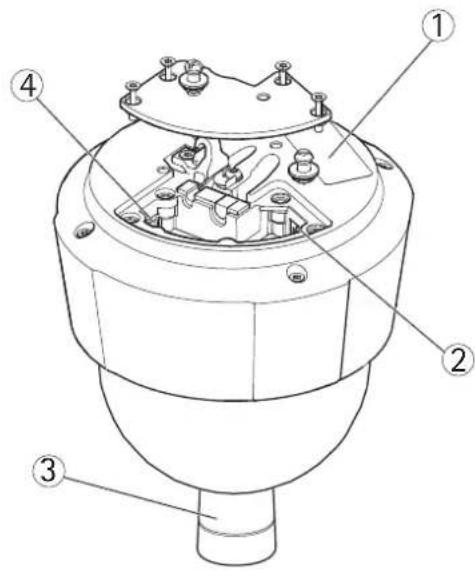
text_image
Technical diagram of a mechanical component with numbered parts labeled 1, 2, 3, and 4.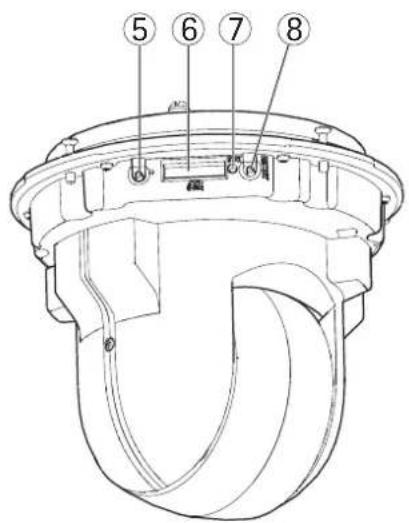
text_image
Technical diagram of a mechanical component with numbered parts labeled 5, 6, 7, and 81 Partnumber(P/N)&Serialnumber(S/N)
2 Networkconnector(PoE+)
3 Panopsislens
4 Multi-connector
5 Controlbutton
6 SDcardslot
7 StatusLEDindicator
8 Restartbutton
Connectors
For technical specifications, see page 57.
Network connector - RJ-45 Ethernet connector. Supports Power over Ethernet Plus (PoE+) IEEE 802.3at. Use the supplied midspan.
NOTICE
Due to local regulations or the environmental and electrical conditions in which the product is to be used, a shielded network cable (STP) may be appropriate or required. Any network cables that are routed in outdoor environments or similar shall be shielded(STP)andintendedfor their specific use. Make sure that the midspan is properly grounded. See Electromagnetic Compatibility(EMC)forregulatoryrequirements.
SD card slot - A standard or high-capacity SD card (not included) can be used for local recording with removable storage.
NOTICE
To prevent corruption of recordings, the SD card should be unmounted before removal. To unmount, go to Setup > System Options > Storage > SD Card and click Unmount.
Controlb utton-Thecontrolbuttonisusedfor:
- Connecting to an AXIS Video Hosting System service. See page 42. To connect, press and hold the button for about 1seconduntiltheStatusLEDflashesgreen.
HardwareOverview
- Connecting to AXIS Internet Dynamic DNS Service. See page 42. To connect, press and hold the button for about3seconds.
- Resetting the product to factory default settings. See page 49.
Restartbutton-Presstorestarttheproduct.
Multi-connector-Terminalconnectorforconnectingexternalequipment:
•Audioequipment
- Input/Output(I/O)devices
- AC/DCpowersupply
When connecting external equipment, a multi-connector cable (available from Axis) is required in order to maintain the product's IP rating, see Multi-Connector Cable (sold separately), on page 50.
LEDIndicators
| Color | Indication |
| Unlit | Connectionandnormaloperation |
| Amber | Steadyduringstartup.Flashesduringfirmwareupgrade. |
| Amber/red | Flashesamber/redifnetworkconnectionisunavailableorlost. |
| Red | Flashes red for firmware upgrade failure. |
| Green | Shows steady green for 10 seconds for normal operation after restart. |
MidspanLEDIndicators
| LED | Color | Indication |
| Port | Unlit | Nocameraconnected. |
| Green | Steadywhencameraconnected,normaloperation. | |
| Green, flashing | Slow flash when over current or short circuit condition on the port. | |
| Green,flashing | Fastflashwhen inputvoltageisoutofrangeorotherinternalerror. | |
| ACinput | Green | SteadywhenACpowerconnected. |
AccessingtheProduct
ToinstalltheAxisproduct, refertotheInstallationGuidesupplied with the product.
The product can be used with most operating systems and browsers. The recommended browsers are Internet Explorer with Windows, Safari with Macintosh and Firefox with other operating systems. See Technical Specifications, on page 57. To view streaming video in InternetExplorer, allow installation of AXISMediaControl(AMC) when prompted.
Note
- QuickTime ^TM is also supported for viewing H.264 streams and for audio.
- If your computer restricts the use of additional software components, the product can be configured to use a Java appletforviewingMotionJPEG.
AccessfromaBrowser
1.Startabrowser(InternetExplorer, Firefox, Safari).
2. Enter the IP address or host name of the Axis product in the browser's Location/Address field. To access the product from a Macintoshcomputer(MacOSX),clickontheBonjourtabandselecttheproductfromthedrop-downlist.
If you do not know the IP address, use AXIS IP Utility to locate the product on the network. For more information on how to discover and assign anIPaddress, refertotheInstallationGuide.
- Enter your user name and password. If this is the first time the product is accessed, the root password must first be configured; for instructions see Set the Root Password, on page 8.
- If this is the first time the product is accessed, the PTZ Calibration tool starts automatically. See PTZ Calibration, on page 47.
- The product'sLiveViewpageappearsinyourbrowser.
Note
The controls and layout of the Live View page may have been customized to meet specific installation requirements and user preferences. Consequently, some of the examples and functions featured here may differ from those displayed in yourownLiveViewpage.
AccessingtheProduct
text_image
AXIS P5544 PTZ Dome Network Camera Live View | Setup | Help PTZ Presets Video Audio Action Home Door North Table Door South Door East Door WestAccessfromthelnternet
Once connected, the Axis product is accessible on your local network (LAN). To access the product from the Internet you must configure your network router to allow incoming data traffic to the product. To do this, enable the NAT-traversalfeature, which will attempt to automatically configure the router to allow access to the product. This is enabled from Setup > System Options > Network>TCP/IPAdvanced.
For more information, please see NAT traversal (port mapping) for IPv4, on page 43. See also AXIS Internet Dynamic DNS Service at www.axiscam.netForTechnicalNotesonthisandothertopics,visittheAxisSupportwebatw www.axis.com/techsup
SettheRootPassword
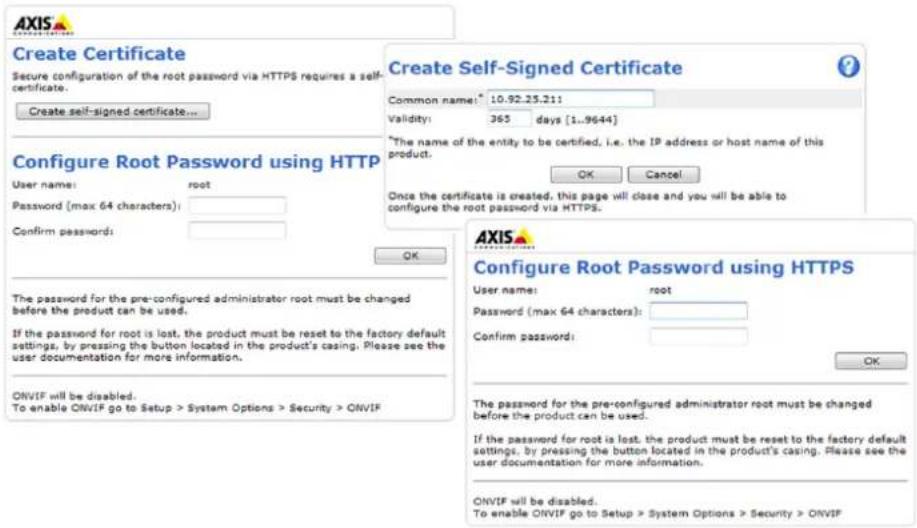
To gain access to the Axis product, you must set the password for the default administrator user root. This is done in the Configure Root Password dialog, which appears when the product is accessed for the first time.
To prevent network eavesdropping, the root password can be set via an encrypted HTTPS connection, which requires an HTTPS certificate. HTTPS (Hypertext Transfer Protocol over SSL) is a protocol used to encrypt traffic between web browsers and servers. The HTTPS certificate ensures encrypted exchange of information.
To set the password via a standard HTTP connection, enter it directly in the first dialog.
TosetthepasswordviaanencryptedHTTPSconnection,followthesesteps:
- Click Create self-signed certificate.
- Provide the requested information and click OK. The certificate is created and the password can now be set securely. All traffictoandfromtheproductisencryptedfromthispointon.
- Enter a password and then re-enter to confirm the spelling. Click OK. The password has now been configured.
Note
- T h efdult administrator user name root is permanent and cannot be deleted.
- If the password for root is lost, the product must be reset to the factory default settings. See Reset to Factory Default Settings, onpage49.
AccessingtheProduct
text_image
Create Certificate Secure configuration of the root password via HTTPS requires a self- certificate. Create self-signed certificate... Configure Root Password using HTTP User name: root Password (max 64 characters): Confirm passwords: OK The password for the pre-configured administrator root must be changed before the product can be used. If the password for root is lost, the product must be reset to the factory default settings, by pressing the button located in the product's casing. Please see the user documentation for more information. ONVIF will be disabled. To enable ONVIF go to Setup > System Options > Security > ONVIF Create Self-Signed Certificate Common name: 10.92.25.211 Validity: 365 days [1..9644] *The name of the entity to be certified, i.e. the IP address or host name of this product. Once the certificate is created, this page will close and you will be able to configure the root password via HTTPS. AXIS Configure Root Password using HTTPS User name: root Password (max 64 characters): Confirm password: OK The password for the pre-configured administrator root must be changed before the product can be used. If the password for root is lost, the product must be reset to the factory default settings, by pressing the button located in the product's casing. Please see the user documentation for more information. ONVIF will be disabled. To enable ONVIF go to Setup > System Options > Security > ONVIFTheLiveViewPage
TheLiveViewpagecanbeusedintwomodes:
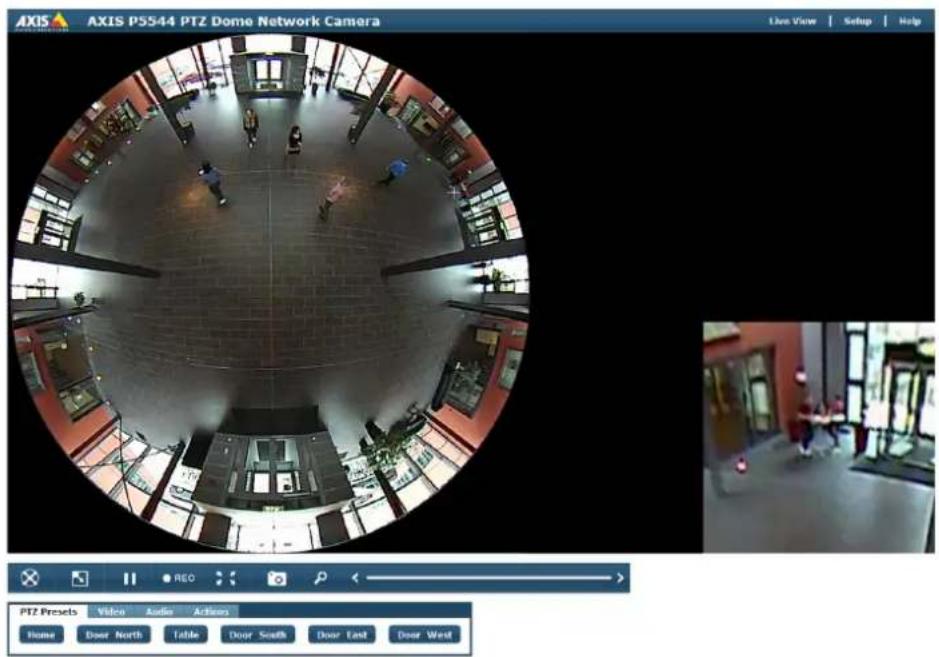
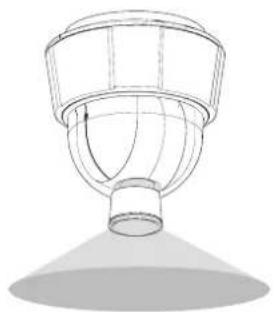
•Overviewmode-a360°panoramicoverview
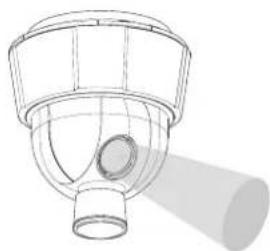
- Normal mode – standard camera view (not using the Panopsis lens). PTZ controls can be used.
ClickSetuptoopentheproduct'sSetuppages.
ClickHelptoopentheonlinehelp.
Note
Some Live View functions and controls are only available when using AXIS Media Control and Internet Explorer. See AXIS MediaControl(AMC), onpage 13.
OverviewMode
In Overview mode, the Live View page shows a 360° panoramic overview. The image is distorted, particularly around the edge. For a magnified, corrected view of a part of the image, move the mouse pointer — do not click — to the desired part in the Overview. Themagnified, corrected view is displayed into the Magnifier.
TogotoNormalmode, clickonthedesired position in the Overview to steer the camera to that position. Alternatively, use a joystick orclickintheimageanddrawarectanglearoundtheareatodisplayinNormalmode.
If preset positions are defined, Normal mode can also be opened by selecting a preset from the PTZ Presets tab. For more information about presets, see Preset Positions, on page 27.
AccessingtheProduct
natural_image
Technical line drawing of a conical lamp or reflector component (no text or symbols)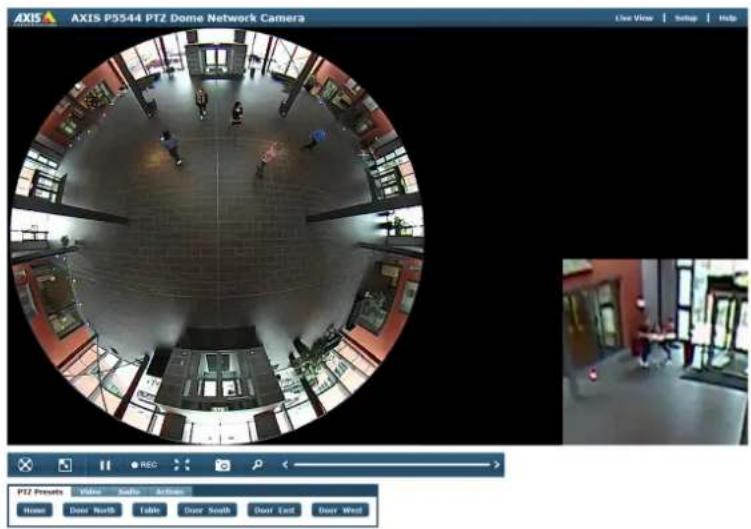
text_image
AXIS P55-44 PTZ Dome Network Camera Live View | Setup | Help PIZ Presents | Video | Audio | Active Home Door North Table Door South Door East Door WestNormalMode
In Normal mode, the camera is looking through the dome cover avoiding the Panopsis lens. The Live View page shows the camera view and an Overviewsnapshot.
Click in the Overview snapshot to quickly steer the camera view to a new position. The current position is indicated by the green circle. Alternatively, use the mouse or a joystick to pan and tilt in the camera view.
To zoom in and out, use the Zoom bar, rotate the mouse wheel or use a joystick. Normal mode also supports Area zoom. To zoom in, click in the image and draw a r rectangle around the area to be magnified. To zoom out, rotate the mouse wheel.
If preset positions are defined, the presets are shown as small circles in the Overview snapshot. Click on a preset position to steer the camera view to that position. Alternatively, presets can be selected from the PTZ Presets tab. For more information about presets, see Preset Positions, on page 27.
To go to Overview mode, click 8 or click in the circle in the center of the Overview snapshot.
natural_image
Technical line drawing of a mechanical component with a cylindrical shaft and flange (no text or symbols)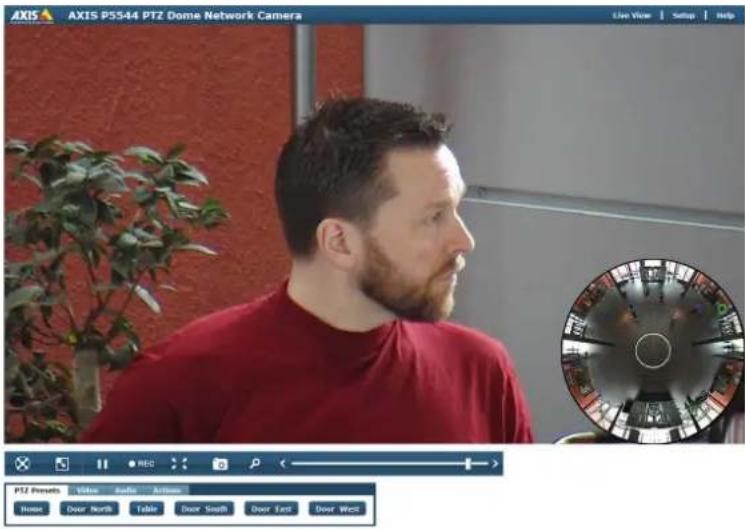
text_image
AXIS P5544 PTZ Dome Network Camera Live View | Setup | Help PTZ Prometh Video Audio Antenna Home Door North Table Door South Door East Door WestControlsontheLiveViewPage
TheviewertoolbarontheLiveViewpageprovidesthefollowingcontrols:

GotoOverviewmode.

Click the View size button to reduce the size of the displayed video.

Playalivemediastream.

Pausethelivemediastream.

Start recording the video stream. An ongoing recording is indicated by a red marker. To stop recording, click the button again. The recording is saved to the location specified in the AMC Control Panel.

Display video in Full-screen mode. Press ESC (Escape) on the computer keyboard to cancel full-screen mode.

Take a Snapshot of the video image. The image is saved to the location specified in the AMC Control Panel. Enable this button from Setup > Live View Config > Action Buttons.

Zoom bar — (Normal mode only) Use the slider to zoom in and out, or click on the arrowstozoominandoutinsteps.
The viewer toolbar can be disabled from Setup > Live View Config.
The following tabs contain additional settings:
PTZ Presets
Displays the available Preset Positions. A preset position is a predefined view that can be used to quickly steer the camera to a specific location. Click on a preset to go to that position. For more information, see PresetPositions,onpage27.
Video
Displays the available Stream Profiles. A stream profile is a set of pre-configured stream settings including resolution, compression, frame rate and overlay settings. Click on a profile to stream live video using that profile. For more information, see Stream Profiles, on page 18.
Audio
The Audio tab is displayed if audio is enabled. See Audio Controls, on page 11.
Actions
TheActionstabdisplays:
- Manualtriggerbuttons,seepage12.
- User-defined links, see page 25.
- Output buttons. These are used to control external devices connected to the Axis product's outputportsSeepage25.
If PTZ Control Queue is enabled, the time each user is in control of the PTZ functionality is limited. Click the buttons to enter or exit the queue. The PTZ Control Queue is set up under PTZ > Control Queue, see page 29.
Note
The Live View page can be customized to meet specific requirements and user preferences. If the Live View page has been customized, some of the functions and controls described here may differ from those displayed in your own Live View page.
AudioControls
The controls available from the Audio tab on the Live View page are used to control the speakers and microphone connected to the computer. The buttons are only visible when audio is enabled.
AccessingtheProduct

Microphone on and Microphone off. Click to mute or unmute the microphone. In Simplex — speaker only mode, the Microphone on and Talk buttons must both be active to send audio to the Axis product. Click either button to stopaudiotransmission.

Usetheslidertocontrolthevolumeofthemicrophone.

Speaker on and Speaker off. Click to turn the speakers on and off.

Usetheslidertocontrolthevolumeofthespeakers.
Half-duplexmode
The Talk/Listen button is used to switch between sending and receiving audio. The button can be configured from the AudiotabintheAMCControlpanel:
- Push-To-Talkmode: Clickandholdthebuttontotalk(sendaudio).Releasethebuttontolisten.
- Togglemode: Clickoncetoswitchbetweentalkingandlistening.
Simplex-speakeronlymode
To send audio, the Microphone on and Talk buttons must both be active. Click either button to stop audio transmission.
To open the AMC Control Panel, right-click in the image and select Settings.
To enable audio, go to Setup > Video & Audio > Video Stream. On the Audio tab, select Enable audio.
To change the audio mode and to control the speakers and microphone connected to the Axis product, go to Setup > Video &Audio>AudioSettings.
ManualTrigger
The Manual Trigger is used to trigger an action rule from the Live View page. The manual trigger can for example be used to validate actions during product installation and configuration.
In the Live View page, the manual trigger buttons are available from the Actions tab. Click Trigger on to start the action. Click Triggeroffstoptheaction.
Trigger on
Trigger off
Toconfigurethemanualtrigger:
- GotoSetup>Events.
- Click Add to add a new action rule.
- From the Trigger drop-down list, select Input Signal.
- From the second drop-down list, select Manual Trigger.
- Select the desired action and configure the other settings as required.
Formoreinformationaboutactionrules,seeEvents,onpage33.
ToshowthemanualtriggerbuttonsintheLiveViewpage:
- GotoSetup>LiveViewLayout.
- Under Action Buttons, select Show manual trigger button.
MediaStreams
The Axis product provides several audio and video stream formats. Your requirements and the properties of your network will determinethetypeyouuse.
The Live View page in the product provides access to H.264 and Motion JPEG video streams, audio streams and to the list of available stream profiles. Other applications and clients can access video and audio streams directly, without going via the Live View page.
HowtoStreamH.264
The video compression standard H.264 makes good use of bandwidth, and can provide high quality video streams at less than 1 Mbit/s.
Deciding which combination of protocols and methods to use depends on your viewing requirements, and on the properties of your network. The available options in AXISMediaControlare:
| UnicastRTP | Thisunicastmethod(RTPoverUDP)isused forliveunicastvideo,especiallywhenitis importanttoalwayshaveanup-to-datevideo stream,evenifsomeimagesaredropped. | Unicastingisusedforvideo-on-demand transmissionsothatthereisnovideotraffic onthenetworkuntilaclientconnectsand requeststhestream.Notethatthereareamaximumof20 simultaneousunicastconnections. |
| RTPoverRTSP | Thisunicastmethod(RTPtunneledoverRTSP) is useful as it is relatively simple to configure firewallstoallowRTSPtraffic. | |
| RTPoverRTSPoverHTTP | Thisunicastmethodcanbeusedtotraverse firewalls.Firewallsarecommonlyconfiguredto allowtheHTTPprotocol,thusallowingRTPto betunneled. | |
| MulticastRTP | Thismethod(RTPoverUDP)shouldbeusedforlivemulticastvideo.Thevideostreamisalways up-to-date,evenifsomeimagesaredropped.Multicasting provides the most efficient usage of bandwidth when there are large numbers of clientsviewingsimultaneously.Amulticastcannothewever,passanetworkrouterunlessthe router is configured to allow this. It is not possible to multicast over the Internet, for example. Notealsothatallmulticastviewerscountasoneunicastviewerinthemaximumtotalof20 simultaneousconnections. | |
AXIS Media Control negotiates with the Axis product to determine the transport protocol to use. The order of priority, listed in the AMC Control Panel, can be changed and the options disabled, to suit specific requirements.
Note
H.264 is licensed technology. The Axis product includes one H.264 viewing client license. Installing additional unlicensed copies of the client is prohibited. To purchase additional licenses, contact your Axis reseller.
MJPEG
This format uses standard JPEG still images for the video stream. These images are then displayed and updated at a rate sufficient to createstreamthatshowsconstantlyupdatedmotion.
The Motion JPEG stream uses considerable amounts of bandwidth, but provides excellent image quality and access to every image contained in the stream. The recommended method of accessing Motion JPEG live video from the Axis product is to use the AXIS MediaControlinInternetExplorerinWindows.
AXISMediaControl(AMC)
AXIS Media Control (AMC) in Internet Explorer in Windows is the recommended method of accessing live video from the Axis product.
MediaStreams
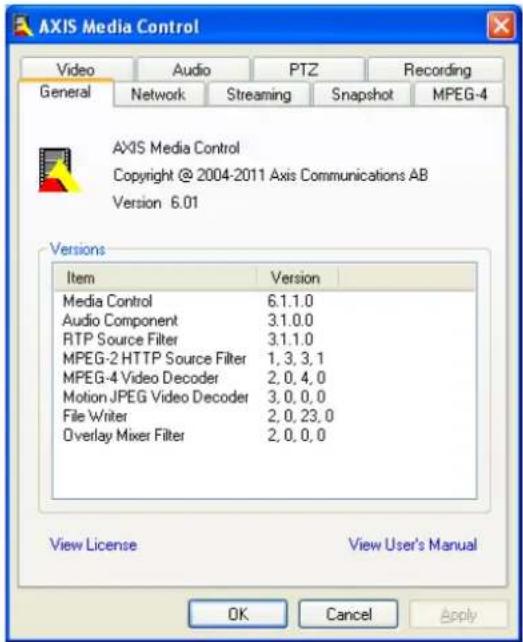
The AMC Control Panel can be used to configure various video and audio settings. Please see the AXIS Media Control User's Manualformoreinformation.
The AMC Control Panel is automatically installed on first use, after which it can be configured. Open the AMC Control Panel from:
- WindowsControlPanel(fromtheStartmenu)
• Alternatively, right-click the video image in Internet Explorer and click Settings.
text_image
AXIS Media Control Video Audio PTZ Recording General Network Streaming Snapshot MPEG-4 AXIS Media Control Copyright @ 2004-2011 Axis Communications AB Version 6.01 Versions Item Version Media Control 6.1.1.0 Audio Component 3.1.0.0 RTP Source Filter 3.1.1.0 MPEG-2 HTTP Source Filter 1, 3, 3, 1 MPEG-4 Video Decoder 2, 0, 4, 0 Motion JPEG Video Decoder 3, 0, 0, 0 File Writer 2, 0, 23, 0 Overlay Mixer Filter 2, 0, 0, 0 View License View User's Manual OK Cancel ApplyAlternativeMethodsofAccessingtheVideoStream
YoucanalsoaccessvideoandimagesfromtheAxisproductinthefollowingways:
- Motion JPEG server push (if supported by the client, Firefox, for example). This option maintains an open HTTP connection to the browser and sends data as and when required, for as long as required.
- Still JPEG images in a browser. Enter the path http://
/axis-cgi/jpg/image.cgi - Windows Media Player. This requires AXIS Media Control and the H.264 decoder to be installed. The following paths can be used:
-UnicastviaRTP:axrtpu://
-UnicastviaRTSP:axrtsp://
- Unicast via RTSP, tunneled via HTTP: axrtsphttp://
/axis-media/media.amp - M u l t i c a s t : axrtpm://
/axis-media/media.amp
- QuickTime TM.Thefollowingpathscanbeused:
-rtsp://
-rtsp://
Note
=IPaddress
•TheAxisproductsupportsQuickTime6.5.1andlater.- QuickTimeaddslatencytothevideostream.
- It may be possible to use other players to view the H.264 stream using the paths above, although Axis does not guarantee this.
AccessingAudioStreams
The Live View page provides access to audio through AXIS Media Control; in addition audio can be accessed in the following ways:
- VAPIX® Application Programming Interface (API) For more information, visit www.axis.com/developer
- Windows Media Player supports simplex audio. The following paths can be used:
- UnicastviaRTP:axrtpu://<ip>/axis-media/media.amp
- UnicastviaRTSP:axrtsp://<ip>/axis-media/media.amp
- UnicastviaRTSP,tunneledviaHTTP:axrtsphttp://<ip>/axis-media/media.amp
- M u l t i c a s t : axrtpm://<ip>/axis-media/media.amp
- QuickTime TM supportsG.711andAACaudioencoding.Thefollowingpathscanbeused:
-rtsp://<ip>/axis-media/media.amp
-rtsp://<ip>/axis-media/media.3gp
• T h e JavaappletsupportssimplexaudiowithG.711encoding.
SettingUptheProduct
The Axis product can be configured by users with administrator or operator rights. To open the product's Setup pages, click Setup in thetopright-handcorneroftheLiveViewpage.
- Administratorshaveunrestrictedaccesstoallsettings.
-OperatorshaveaccesstoallsettingsexceptSystemOptions
Seealsotheonlinehelp

BasicSetup
BasicSetupprovidesshortcutstothesettingsthat should be made before using the Axis product:
1.Users.Seepage39.
2.TCP/IP.Seepage41.
3. Date&Time.See page40.
4.VideoStream.Seepage17.
5.AudioSettings.Seepage21.
The Basic Setup menu can be disabled from System Options > Security > Users.
VideoandAudio
The video and audio settings can be used to optimize video and audio quality. You can configure the following:
•Videostreamsettings.Seepage17.
• Stream profiles. See page 18.
- Camerasettings.See page 19.
•Overlayimage.See page20.
- Privacy mask. See page21.
• Audiosettings.See page21.
• Audioclips.See page23.
VideoStream
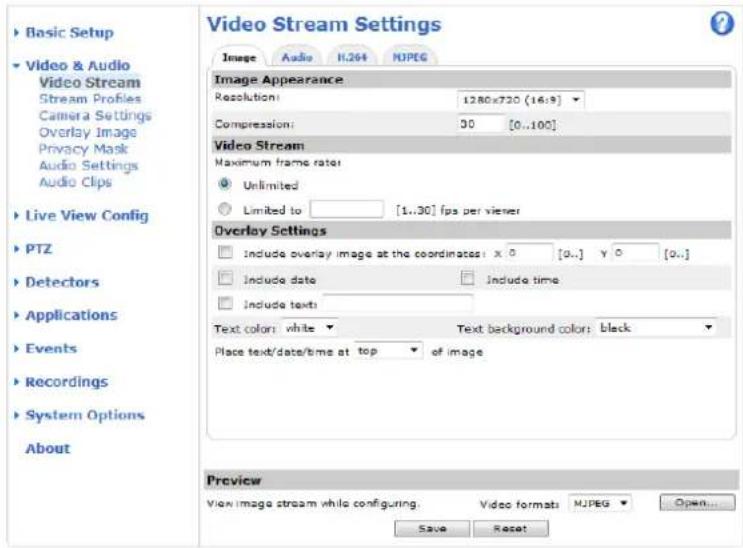
You can define the following video stream settings from Video & Audio > Video Stream:
- Image. See page18.
•H.264.See page 18.
• M J P E G . S e e page18.
text_image
Basic Setup Video & Audio Video Stream Stream Profiles Camera Settings Overlay Image Privacy Mask Audio Settings Audio Clips Live View Config PTZ Detectors Applications Events Recordings System Options About Video Stream Settings Image Audio H.264 MJPEG Image Appearance Resolution: 1280x720 (16:9) Compression: 30 [0..100] Video Stream Maximum frame rate: Unlimited Limited to [1..30] fps per viewer Overlay Settings Include overlay image at the coordinates: x 0 [0..] y 0 [0..] Include date Include time Include text: Text color: white Text background color: black Place text/date/time at top of image. Preview View image stream while configuring. Video formats MJPEG Open... Save ResetPixelCounter
The pixel counter shows the number of pixels in an area of the image. The pixel counter is useful in situations where there is a requirement that the image is a certain size, for example in face recognition.
Thepixelcountercanbeaccessedfrom:
- Video & Audio > Video Stream. Under Preview, click Open and select the Show pixel counter option to enable the rectangle in the image. Use the mouse to move and resize the rectangle, or enter the number of pixels in the Width and Height fields and click Apply.
- The Live View page in Internet Explorer in Windows. Right-click in the image and select Pixel counter. Use the mouse to move and resize the rectangle.
Image
The default image settings can be configured under Video & Audio > Video Stream. Select the Image tab.
The followingsettingsareavailable:
- Resolution.Selectthedefaultresolution.
- Compression. The compression level affects the image quality, bandwidth and file size of saved images; the lower the compression, the higher the image quality with higher bandwidth requirements and larger file sizes.
• Maximum frame rate. To avoid bandwidth problems, the frame rate allowed to each viewer can be limited.
• Overlay settings. See Overlay, on page 20.
ClickSavetoapplythenewsettings.
H.264
H.264, also known as MPEG-4 Part 10/AVC, is a video compression standard that provides high quality video streams at low bit rates. An H.264 video stream consists of different types of frames such as I-frames and P-frames. An I-frame is a complete image whereas P-framesonlycontainthedifferencesfrompreviousframes.
The GOV length is the number of frames between two consecutive I-frames. Increasing the GOV length may save considerably on bandwidth requirements in some cases, but may also have an adverse effect on image quality.
The bit rate can be set as Variable Bit Rate (VBR) or Constant Bit Rate (CBR). VBR adjusts the bit rate according to the image complexity, using up more bandwidth for increased activity in the image, and less for lower image activity. CBR allows you to set a fixed Target bit rate that consumes a predictable amount of bandwidth. As the bit rate would usually need to increase for increased imageactivity, but in this case cannot, framerate and image quality are affected. Enegatively. Topartly compensate forth this, it is possible to prioritize either frame rate or image quality. Not setting a priority means that frame rate and image quality are equally affected. You must save your settings before they cantake effect.
The current bit rate can be set to appear as text overlay. To do this, select the Include text check box option under Overlay Settings and enter the modifier #b in the field.
MJPEG
Sometimes the image size is large due to low light or complex scenery. Adjusting the maximum frame size helps to control the bandwidth and storage used by the Motion JPEG video stream in these situations. Setting the frame size to the Default setting provides consistently good image quality at the expense of increased bandwidth and storage usage in low light. Limiting the frame size optimizes bandwidth and storage usage, but may give poor image quality. To prevent increased bandwidth and storage usage, themaximumframes should be settoanoptimal value.
Stream Profiles
A stream profile is a set of pre-configured stream settings including resolution, compression, frame rate and overlay settings. Streamprofilescanbeused:
- When setting up recording using action rules, see Events, on page 33.
- When setting up a continuous recording, see Continuous Recording, on page 37.
- In the Live View page – select the stream profile from the Video tab.
Four pre-programmed stream profiles are available for quick set up. Each pre-programmed profile has a descriptive name, indicating its purpose. If required, the pre-programmed stream profiles can be modified and new customized stream profiles can be created.
To create a new profile or modify an existing profile, go to Setup > Video & Audio > Stream Profiles.
To select a default stream profile for the Live View page, go to Setup > Live View Config.
CameraSettings
The Video & Audio > Camera Settings page provides access to advanced image settings for the Axis product.
ImageAppearance
Increasing the Color level increases the color saturation. The value 100 gives maximum color saturation. The value 0 gives a blackandwhiteimage.
The image Brightness can be adjusted in the range 0–100, where a higher value produces a brighter image.
Increasing the Sharpness can increase bandwidth usage. A sharper image might increase image noise especially in low light conditions. Alowersetting reduces imagenoise, but the whole image will appear less sharp.
WhiteBalance
White balance is used to make colors in the image appear the same regardless of the color temperature of the light source. The Axis product can be set to automatically identify the light source and compensate for its color. Alternatively, select the type of light sourcefromthedrop-downlist.Foradescriptionofeachavailablesetting,seetheonlinehelp
WideDynamicRange
Wide dynamic range can improve the exposure when there is a considerable contrast between light and dark areas in the image. Enable WDR in intense backlight conditions. The different WDR settings adjust for various amounts of contrast in the image. Use a higher WDR number for a higher contrast. Disable WDR in low light conditions for optimal exposure.
ExposureSettings
Configure the exposure settings to suit the image quality requirements in relation to lighting, frame rate and bandwidth considerations.
Exposure control - These settings is used to adapt to the amount of light used. Automaticisthedefaultsettingscanbeusedinmost situations.Theshutterspeedisautomaticallysettoproduceoptimumimagequality.
Max exposure time - Select the maximum exposure time from the drop-down list. Increasing the exposure time will improve image quality, but decrease the frame rate. There may also be an increase in motion blur. Checking Allow slow shutter decreases theshutterspeedinlowlighttoimproveimagebri ghtness.
EnableBacklightcompensation-Enablethi soptionifabrightspotoflight,forexamplealightbulb,causesotherareasin theimagetoappeartoodark.
Exposure zones - This settings determines which part of the image is used to calculate the exposure. For most situations, the Auto setting can be used. For particular requirement, select a predefined area.
Max gain - Measured in decibels (dB), gain describes the amount of amplification applied to a signal, in this case the visual informationintheim age. A high level of amplification may provide a better image in very low light situations. A high gain will also increase the amount of image noise.
Day/Night
TheIRcutfi Iter prevents infrared (IR) light from reaching the image sensor. In poor lighting conditions, for example at night, or when using an IR lamp, set the IR cut filter to Off. This increases light sensitivity and allows the product to "see" infrared light. The imageisshowninblackandwhitewhentheIRcutfilterisoff.
If using automatic Exposure control, set the IR cut filter to Auto to automatically switch between On and Off according to the lighting conditions.
ImageSettings
Autofocus enabled - Automatic focusing is enabled by default. If the focus position is changed manually using the focus bar, autofocus will be disabled even if enabled here. In this case, use the PTZ control panel to enable autofocus, see . If required, the focus control can be disabled under PTZ > Advanced > Controls.
Image freeze on PTZ - Select All movements to freeze the image while the camera is moving during a pan, tilt or zoom operation. Once the camera reaches its new position, the view from that position is shown. Presets freezes the image only when the camera moves between preset positions.
Overlay
Overlays are used to provide extra information, for example for forensic video analysis or during product installation and configuration. Overlays are superimposed over the video stream.
An overlay text can display the current date and time, or a text string. When using a text string, modifiers can be used to display information such as the current bit rate or the current frame rate. For information about available modifiers, see File Naming & Date/TimeFormatsintheonlinehelp
Toenableoverlays:
- Go to Video & Audio > Video Stream and select the Image tab.
- To include an overlay image, select Include overlay image at the coordinates. The overlay image must first be uploaded to theAxisproduct, seeOverlayImage.
- To include date and time, select Include date and Include time.
- To include a text string, select Include text and enter the text in the field. Modifiers can be used, see File Naming & Date/TimeFormatsintheonlinehelp ?
- Select the text color, the text background color and the position of the overlay.
6.ClickSave.
To modify the date and time format, go to System Options > Date & Time. See Date & Time, on page 40.
Note
OverlayimagesandtransparenttextbackgroundsarenotavailableinOverviewmode.
OverlayImage
An overlay image is a static image superimposed over the video stream. The image, for example company logo, is used to provide extrainformationortomaskapartoftheimage.
The overlay image is displayed in Normal mode. The image is not available in Overview mode.
To use an overlay image, the image must first be uploaded to the Axis product:
- Go to Video & Audio > Overlay Image.
- Click Browse and browse to the file.
3.ClickUpload. - Select the imagetouse from the Use overlay imagelist.
5.ClickSave.
Todisplaytheoverlayimage:
- Go to Video & Audio > Video Stream and select the Image tab.
VideoandAudio
- Under Overlay Settings, select Include overlay image at the coordinates and enter the X and Y coordinates.
3.ClickSave.
Forinformationaboutsupportedimageformats,seetheonlinehelp

PrivacyMask
A privacy mask is an area of solid color that prohibits users from viewing parts of the monitored area. Privacy masks cannot be bypassed via the VAPIX® ApplicationProgrammingInterface(API).
Privacy masks are displayed in Normal mode. Overview mode always shows the whole monitored area.
The Privacy Mask List, Video & Audio > Privacy Mask, shows all the masks that are currently configured in the Axis product and indicates if they are enabled.
The Pan/Tilt/Zoom coordinates of the privacy mask are locked in their position. This means that regardless of the angle and zoom of the lens, the same place or object will be hidden. To define at what magnification the mask should be displayed, zoom to the desired level and click Set level.
You can add a new mask, re-size the mask with the mouse, choose a color for the mask, and give the mask a name.
Formoreinformation,seetheonlinehelp

Important
Adding many privacy masks may affect the product's performance.
AudioSettings
The audio functionality for each video stream is enabled under Video & Audio > Video Stream > Audio.
Note
A multi-connector cable (available from Axis; Multi-Connector Cable (sold separately)) is required when connecting external audioequipmenttotheAxisproduct.
AudioModes
TheAxisproductsupportsthefollowingaudiomodes:
Full duplex - Simultaneous two-way audio allowing the Axis product to transmit and receive audio at the same time. There is no echocancellation; if feedback loops appear, try moving themicrophone or the speaker.
Half-duplex - Audio can be transmitted to and from the Axis product but only in one direction at a time. To transmit audio using the Live View page, use the Talk and Listen buttons, see Audio Controls, on page 11.
Simplex — speaker only – Audio is transmitted from a client to the Axis product and can be played by a speaker connected to the product. To transmit audio using the Live View page, the Talk and Microphone on buttons must both be active, see Audio Controls,onpage11.
Simplex — microphone only - Audio captured by the product microphone is transmitted from the Axis product to one or more clients.
To set the audio mode, go to Video & Audio > Audio Settings and select the desired mode from the Audio mode drop-down list.
Audiolnput
An external microphone or a line source can be connected to the product's Audio-in connector. Configure the audio input settings under Video & Audio > Audio Settings.
Note
A multi-connector cable (available from Axis; Multi-Connector Cable (sold separately)) is required when connecting external audioequipmenttotheAxisproduct.
Source – Select Microphone for an external microphone or Line for a Line in device, e.g. an audio mixer for multiple microphones or amicrophonewithabuilt-inamplifier.
Microphone power – The Enable microphone power option provides DC power for an external microphone. Microphone power should only be used with microphones that have no battery. This setting should not be enabled when using a dynamic or battery powered microphone. Microphone power will not harm the microphone; if you are uncertain, try switching it off and on. To use a professional microphone requiring 48V phantom power, you need an external power supply and a balanced-unbalanced converter (audiotransformer)inbetween.
Input gain - Control the volume (dB Full Scale) of the audio input. If the sound is too low, choose a higher dB, to amplify the sound. If the sound is too high, choose a lower dB. The Level bar gives a visual representation of the audio signal level in dB relativetothefull-scaleinputlevel.
- Green—thesignalisatagoodlevel.
- Yellow—thesignalisbecomingdistorted.
- Red—thesignalisdistorted.
Encoding-Selectdigitalaudioencodingformat.
- AAC requires a license for both encoding and decoding. AAC is the least complicated and most widely used codec. If achieving the best possible audio quality is a priority, AAC is there recommended codectouse. An AAC license is included in the Axis product.
•G711
•G726
Sample rate - The number of times per second the sound is sampled. A higher sample rate will provide better audio quality, but also requires a greater bandwidth.
Bitrate-Settherequiredbitratedependingonthes electedencoding.Ahigherbitratewillgivebetteraudioquality.Alowerbit ratemayhavelatencyordelay,butwillrequirelessbandwidth.
Formoreinformationaboutthesesettings,pleaseetheonlinehelp

AudioOutput
An external speaker can be connected to the product's Audio-out connector (a built-in amplifier is required for this). The output can be connected to another amplifier with speakers. A stereo connector must be used for the audio out.
Configuretheaudioou tput settings under Video & Audio > Audio Settings.
Note
A multi-connector cable (available from Axis; Multi-Connector Cable (sold separately)) is required when connecting external audioequipmenttotheAxisproduct.
Output gain - Control the volume (dB Full Scale) of the line audio output. If the sound is too low, choose a higher dB. If the soundistoohigh,choosealowerdB.
VideoandAudio
AudioClips
An audio clip is a sound file that can be played when events occur. The audio clip must first be uploaded to the Axis product or recorded by a microphone connected to the product.
To add, download, modify or remove audio clips, go to Video & Audio > Audio Clips. For more information see the online help ?
To configure the Axis product to play audio clips when an event occurs, an action rule must be set up. For more information, see Events, onpage33.
Note
Audio clips cannot be used if the product's audio functionality is enabled. The audio functionality is enabled on the Audio tabunderVideo&Audio>VideoStream.
LiveViewConfig
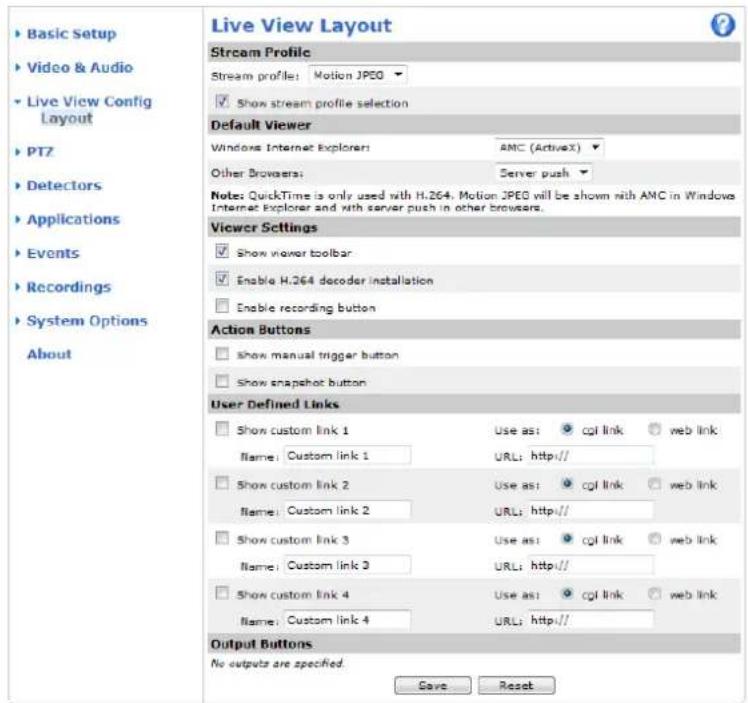
You can customize the Live View page and alter it to suit your requirements. It is possible to define the following features of theLiveView page.
• Stream Profile. See page 18.
- DefaultViewerforBrowser.Seepage24.
-ViewerSettings.Seepage25.
• Action Buttons. These are the buttons described in Controls on the Live View Page, on page 11.
• User Defined Links. See page 25.
- OutputButtons.Seepage25.
text_image
Live View Layout Stream Profile Stream profile: Motion JPEG ✓ Show stream profile selection Default Viewer Windows Internet Explorer: AMC (ActiveX) Other Browsers: Server push Note: QuickTime is only used with H.264, Motion JPEG will be shown with AMC in Windows Internet Explorer and with server push in other browsers. Viewer Settings ✓ Show viewer toolbar ✓ Enable H.264 decoder installation ✓ Enable recording button Action Buttons ✓ show manual trigger button ✓ show snapshot button User Defined Links ✓ Show custom link 1 Use as: cpl link web link Name: Custom link 1 URL: http:// ✓ Show custom link 2 Use as: cpl link web link Name: Custom link 2 URL: http:// ✓ Show custom link 3 Use as: cpl link web link Name: Custom link 3 URL: http:// ✓ Show custom link 4 Use as: cpl link web link Name: Custom link 4 URL: http:// Output Buttons No outputs are specified. Save ResetDefaultViewerforBrow sers
From Live View Config > Default Viewer select the default method for viewing video images in your browser. The product attempts to show the video images in the selected video format and viewer. If this is not possible, the product overrides the settings and selectsthebestavailablecombination.
Note
The Overview snapshot, see Normal Mode, on page 10, is only available when using AMC or Server Push.
| BrowserViewerDescription | ||
| WindowsInternetExplorer | AMC | RecommendedviewerinInternetExplorer(H.264/MotionJPEG) |
| QuickTime | H.264 | |
| Javaapplet | AslowerimagingalternativetoAMC(MotionJPEG).Requiresoneofthe followinginstalledontheclient:•JVM(J2SE)1.4.2orhigher•JRE(J2SE)5.0orhigher | |
| Still image | Displays still images only. Click the Refresh button in your browser to view a newimage | |
| Otherbrowsers | ServerPush | Recommendedviewerforotherbrowsers(MotionJPEG). |
| QuickTime | H.264 | |
| Javaapplet | AslowerimagingalternativetoServerPush(MotionJPEGonly). | |
| Still image | Displays still images only. Click the Refresh button in your browser to view a newimage |
For more information, please see the online help 📋.
ViewerSettings
To configure options for the viewer, go to Live View Config > Viewer Settings.
- Select Show viewer toolbar to display the viewer toolbar under the video image in the Live View page. See Controls ontheLiveViewPage,onpage11.
- H.264 decoder installation. The administrator can disable installation of the H.264 decoder included with AXIS Media Control. This is used to prevent installation of unlicensed copies. Further decoder licenses can be purchased from your Axisreseller.
- Select Enable recording button to enable recording from the Live View page. This button is available when using the AMC viewer. The recordings are saved to the location specified in the AMC Control Panel. See AXIS Media Control (AMC), onpage 13.
User Defined Links
To display user-defined links in the Live View page, select the Show custom link option, give the link a name and then enter the URL to link to. When defining a web link do not remove the 'http://" from the URL address. Custom links can be used to run scripts or activate external devices connected to the product, or they can link to a web page. Custom links defined as cgi links will run the script in the background, in a hidden frame. Defining the link as a web link will open the link in a new window.
In the Live View page, user-defined links are available from the Actions tab.
Output Buttons
External I/O devices connected to the Axis product's output ports can be controlled directly from the Live View page.
TodisplayoutputbuttonsintheLiveViewpage:
- Go to Setup > Live View Config.
-
Under Output Buttons, select the type of control to use:
-
Pulse activates the output for a defined period of time. The pulse time can be set from 1/100 second to 60 seconds.
- Active/Inactive displays two buttons, one or each action.
LiveViewConfig
In the Live View page, the buttons are displayed on the Actions tab.
To configure the active and inactive states, go to System Options > Ports & Devices > I/O Ports and set the port's Normal state.
FormoreinformationaboutI/Oports,seeI/OPorts,onpage47.
Note
A multi-connector cable (available from Axis) is required when connecting external I/O devices to the Axis product. See Multi-ConnectorCable(soldseparately),onpage50
PTZ(PanTiltZoom)
PresetPositions
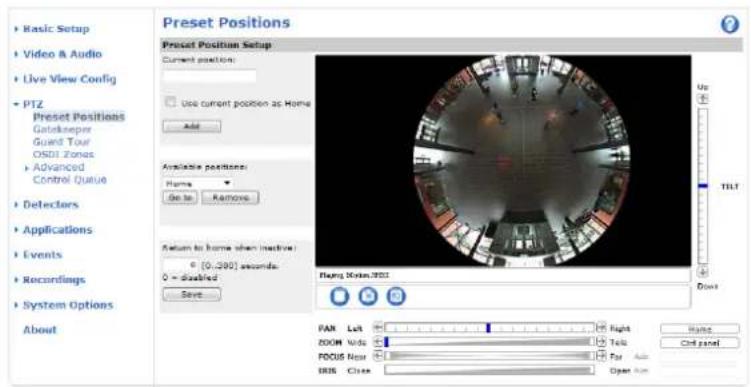
A preset position is a predefined view that can be used to quickly steer the camera to a specific location. Preset positions can be accessed in several ways:
- By selecting the preset from the PTZ Presets tab or the Overview snapshot in the Live View Page.
- Whensettingupactionrules.Seepage33.
- WhensettingupGuardTour.Seepage28.
- WhensettinguptheGatekeeper.Seepage27
Toaddapresetposition:
- GotoPTZ>PresetPositions.
- Usethepan, tilt and zoom control, tosteer the camera view to the desired position.
- Enter a descriptive name in the Current position field.
- If required, select UsecurrentpositionasHome.
- Click Add. The camera's position, iris and focus settings are saved as a preset position.
The default Home position is Overview mode, see page 9. To set a customized home position, select Use currentpositionasHome when adding a preset position. The user-defined home position will have (H) added, for example, Entrance (H). The default Home position, called "Home", willstillbeavailable.
The product can be configured to return to the Home position when the PTZ functionality has been inactive for a specified length of time. Enter the length of time in the Return to home when inactive field and click Save. Set the time to zero to prevent the product from automatically returning to the Home position.
To include the preset position name in the overlay text, go to Video & Audio, select Include overlay text and enter the modifier #P in the field. For more information about modifiers, see File Naming & Date/Time Formats in the online help
text_image
Basic Setup Video & Audio Live View Config PTZ Preset Positions Gatekeeper Guard Tour OSDI Zones Advanced Control Queue Detectors Applications Events Recordings System Options About Preset Positions Preset Position Setup Current position: Use current position as Home Add Available positions: Home Go to Remove Return to Home when inactive: [0-200] seconds 0 = Disabled Save Playing Rocket/3DSI Random PAN List Right Name Zoom Video Tells FOCUS Note For Auto IRIS Close Open RunGatekeeper
The Gatekeeper monitors an area such as an entrance gate. It can pan, tilt and zoom in, and take a snapshot of, for example, a face, triggered by movement in the area. The camera will then automatically return to the home position and continue to overview themonitoredarea.
To configure the Gatekeeper, follow the online instructions under PTZ > Gatekeeper.
GuardTour
A guard tour displays the video stream from different preset positions, one-by-one, in a predetermined order or at random and for configurable time periods. The enabled guard tour will keep running after the user has logged off or closed the browser.
Toaddaguardtour:
- Go to PTZ > Guard Tour and click Add.
2.Enteradescriptivename. - Specify the pause length between runs.
- Select an available preset position and click Apply.
- Specify the Move Speed.
- Specify theViewTimeinsecondsorminutes.
- Specify the View Order or select the Random view order option.
8.ClickSave.
To modify or remove guard tours, go to PTZ > Guard Tour, select the guard tour in the Guard Tour List and click Modify/Remove.
Formoreinformationseetheonlinehelp

Note
Thepausebetweeneuguardtourrunsmustbesettoatleast10minutes.
OSDIZones
On-Screen Direction Indicator (OSDI) zones can be included in the overlay text (see Overlay, on page 20) to aid the user to navigate the Axis product. Each OSDI zone is set up with coordinates and a descriptive name.
OSDI zones are set up under PTZ > OSDI Zones. The Axis product uses the coordinates of the center of the view to set the lower leftandupperrightzoneareas. First navigate to where you would like the lowermost left point of the OSDI zone to be located. Click Get to set the coordinates. Proceed to where the upper right point of zone should be located and click Get. Give the zone a descriptivenameandclickOK.
To include the name of the OSDI zone in the overlay text, go to Video & Audio < Video Stream < Overlay Settings. Check the Includetextboxa and enter the modifier #L in the field. For more information about modifiers, see File Naming & Date/Time
Formatsintheonlinehelp
Advanced
Limits
Define the pan, tilt, zoom and focus limits for the Axis product. Movements to the left and right, up and down, can be restricted to narrowtheareaundersurveillance.
Configure the near focus limit to avoid focusing on objects too close to the camera lens.
Move speed sets the speed of the camera's pan and tilt movements. The default setting is maximum speed.
PTZ(PanTiltZoom)
When using a joystick (or emulating one with the mouse) the Enable proportional speed setting can be used to reduce the maximum pan/tilt movement speed, i.e. the speed the camera view moves at when the joystick is pushed all the way out in any direction. This is usefulthentheviewiszoomedinonanobject.
When Enable Auto-flip is selected, the Axis product will simulate continuous pan movement in the same direction, i.e. the camera will panthefull360degrees, even though there is same mechanical stop at ±180 degrees.
When Enable movement prediction is selected, the Axis product will attempt to predict the new position in the pan movement, after compensating for the slight delay while the camera changes direction after an auto-flip. This is useful for tracking moving objects or personswhenusingthejoystickoremulatedjoystickmode.
Seetheonlinehelp
formoreinformation.
Controls
Panel Shortcut Command Buttons can be configured to provide direct access to commands issued via the VAPIX® Application Programming Interface. The buttons will be displayed in the PTZ control panel, which is available in the Live View page through theCtrlpanelbutton,see.
Deselect the options under Enable/Disable controls to disable the pan, tilt, zoom, focus and iris controls.
Note
Disabling PTZ controls will not affect preset positions. For example, if the tilt control is disabled, the product can still move to presetpositionsthatrequireatiltmovement.
ControlQueue
The administrator can set up a queue for PTZ controllers from PTZ > Control Queue. Once set up, the PTZ Control Queue buttons appear in the Live View page offering one viewer exclusive control for a limited period of time. Other users will be placed in queue.
A user who belongs to a group (see Users, on page 39) with a higher PTZ priority can go before other users in the queue and take control of the product. The order of priority is as follows:
- Administrator – An administrator takes over PTZ control regardless of who is first in queue. The administrator will be removed from the queue 60 seconds after the last PTZ control command.
- Event – The Axis product can be configured to go to a preset position when triggered by an alarm (see Events, on page 33). The event will immediately be placed first in the queue except when an administrator is in control.
- Operator — Same as administrator but with lower priority
- Guard Tour – A guard tour (see page 28) has PTZ control for an indefinite period of time. It may be overridden by an operator, event or administrator. The guard tour will resume when higher priority groups leave the queue.
- Viewer - Multiple viewers must wait for their turn. The viewer has 60 seconds PTZ control before control is passed ontothenextviewerinqueue.
Note
- TheadministratorcanenableanddisablePTZcontrolsforselectedusers.
- Toidentifydifferentusersintheviewergroup,cookiesmustbeenabledontheclient.
Detectors
MotionDetection
Motion detection is used to generate an alarm whenever movement starts or stops in the camera's field of view. The alarm is generated when the camera is in Overview Mode, that is, when using the Panopsis lens. See Overview Mode, on page 9.
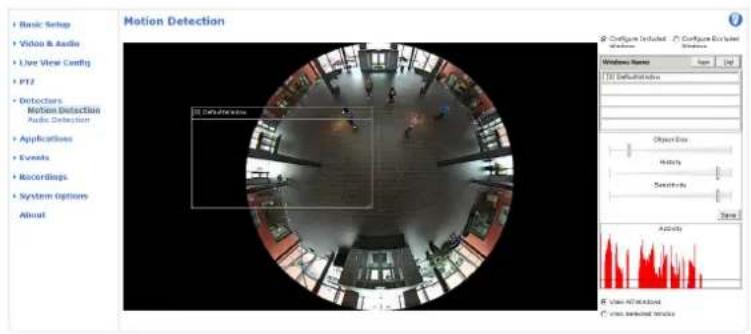
Motion detection is configured by defining up to 10 Include and Exclude windows:
- Include windows – define areas where motion should be detected
- Exclude windows – define areas within an Include window that should be ignored (areas outside Include windows are automatically ignored).
For instructions, see Set Up Motion Detection Windows, on page 30.
To control the number of motion detection alarms, the parameters Object Size, History and Sensitivity can be adjusted. See MotionDetectionParameters, onpage31.
Once motion detection windows are configured, the Axis product can be configured to perform actions when motion is detected. Possible actions include uploading images and start recording. For more information, see Setting Up an Action Rule, on page 34.
Note
Usingthemotiondetectionfeaturemaydecreasetheproduct'soverallperformance.
text_image
Motion Detection Basic Setup Video & Audio Live View Config PTZ Detectors Motion Detection Audio Detection Applications Events Recordings System Options About Configuration Included Configure Encoder Windows Name Size 100 TSS Definiations Object Size History Details Data Activity View NTWknot View Selected ToolsSetUpMotionDetectionWindows
To set up a motion detection Include Window, follow these instructions:
-
GotoDetectors > MotionDetection.
-
Select the Configure Included Windows option and click New. Select the new window in the list of windows and enter a descriptivename.
- Adjust the size (drag the bottom right-hand corner) and the position (click on the text at the top and drag to the desired position) of the window.
- Adjust the Object Size, History and Sensitivity profile sliders (see Motion Detection Parameters for details). Any detected motion within an active window is indicated by red peaks in the Activity window.
5.ClickSave.
To exclude parts of the include window, select the Configure Excluded Windows and position the exclude window within the includewindow.
To delete an include or exclude window, select the window in the list of windows and click Del.
MotionDetectionParameters
The parameters controlling motion detection are described in the table below:
| Parameter | ObjectSize | History | Sensitivity |
| Description | Objectsizerelativetowindow size. | Objectmemorylength. | Differenceinluminance betweenbackground and object. |
| Highlevel(100%) | Onlyverylargeobjectstrigger motiondetection. | Anobjectthatappearsin thewindowtriggersmotion detectionforalongtime beforeitisconsideredas non-moving. | Ordinarycoloredobjectson ordinarybackgroundstrigger motiondetection. |
| Mediumlevel(50%) | Alargedifferenceinluminance isrequiredtotriggermotion detection. | ||
| Lowlevel(0%) | Evenverysmallobjectstrigger motiondetection. | Anobjectthatappearsin thewindowtriggersmotion detectiononlyforaveryshort timebeforeitisconsideredas non-moving. | Onlyverybrightobjectson adarkbackgroundtrigger motiondetection. |
| Recommendedvalues | 5–15%60–90%75–95% | ||
| Defaultvalues | 15%90%90% |
Note
- To trigger on small objects or movements, use several small motion detection windows rather than one large window and selectalowobjectsize.
- To avoid triggering on small objects, select a high object size.
- IfnoobjectsshouldappearintheIncludeWindow,selectahighhistorylevel. triggeraslongastheobjectispresentinthewindow.
Thiswillcausemotiondetectionto
- To only detect flashing light, select a low sensitivity. In other cases high sensitivity is recommended.
AudioDetection
The Axis product can be configured to generate an alarm when audio rises above or falls below the threshold value. The threshold value can be set in the range 0–100 where 0 is the most sensitive and 100 the least sensitive.
- GotoDetectors>AudioDetection.
- SettheaudioalarmlevelandclickSave.
- Go to Events > Action Rules and set up an action rule, see Setting Up an Action Rule, on page 34.
Note
Amulti-connectorcable(availablefromAxis)isrequiredwhenconnectingexternalaudioequipmenttotheAxisproduct. SeeMulti -ConnectorCable(soldseparately),onpage50.
Detected audio is indicated by colored peaks in the Activity indicator. An event is triggered when detected audio rises above or falls below the threshold value, which is represented by the bar.
Applications
Applications
Third party applications can be uploaded to and installed on the Axis product. For information about available applications, downloads, trials and licenses, got www.axis.com/applications
To upload an application, go to Applications > Overview, click Browse to locate the file and then click Upload Package. Click on the uploaded application's name to open the menu options Settings, License and About. For configuration instructions, please refer to the documentation provided with the application.
Most applications need a license to run. To install the license, select the License menu option. If the product is connected to the Internet, Automatic Installation appears in the web page. If the product is not connected to the Internet, go to www.axis.com/applications to acquire a License key. You will need a license code and the product's serial number (found on the label and under System Options > Support > System Overview) to receive a license key.
Installed Applications lists installed applications with information about the version and the vendor, the status of the application (runningornotrunning), and informationaboutthelicense.
Use the Start and Stop buttons to start and stop the application.
To generate a log file for the application, select the application and click Log.
Note
Itisrecommendedtorunoneapplicationatatime.Avoidrunningapplicationswhenmotiondetectionisactive.
Events
The Axis product can be configured to perform actions when different events occur, for example, start a recording when motion is detected. The set of conditions that defines how and when the action is triggered is called an Action Rule.
Available Action Rule triggers and conditions include:
- Applications – use installed applications to trigger the rule, see Applications, on page 32.
-
Detectors
-
Audio Detection — trigger the rule when audio is detected, see Audio Detection, on page 31.
- Motion Detection – trigger the rule when motion is detected, see Motion Detection, on page 30.
- Hardware
- Fan — trigger the rule if the fan is malfunctioning. This can for example be used to send maintenance notifications.
- Network — trigger the rule if network connection is lost or restored. This can for example be used to start recordingtotheSDcard.
- Temperature — trigger the rule if the temperature falls outside or inside the operating range of the product. This can forexamplebeusedtosendmaintenancenotifications.
- InputSignal
- Digital Input Port — trigger the rule when an I/O port receives a signal from a connected device, see I/O Ports,onpage47.
- Manual Trigger — trigger the rule using the Manual Trigger buttons in the Live View page, see Manual Trigger, on page 12. This can for example be used to validate actions during product installation and configuration.
•PTZ
- Moving — trigger the rule when the camera view moves due to a PTZ operation. This can for example be used as an additional condition to prevent an action or retriggered by motion detection to record videowhile the cameraview moves duetoa PTZ operation.
- Preset Reached – trigger the rule when the camera stops at a preset position. This can be for example be used with the SendImagesactiontuploadimagesfromthepresetposition.
•Storage
Available — trigger the rule when the storage device is unmounted or removed. This can for example be usedtosen dmaintenancenotifications.
-Full— trigger the rule when the storage device is full. Under normal operation, the oldest recordings will be overwritten to prevent the storage device from becoming full.
-Locked - triggertheruleifthestoragedeviceislocked(writeprotected).
•System
- System Initializing – trigger the rule when the product is being started. This can for example be used to send a notificationwhentheproductrestarts.
•Time
- Recurrence — trigger the rule periodically, see Recurrences, on page 35. This can for example be used to upload animation every 5 minutes.
- Use Schedule — trigger the rule according to the selected schedule, see Schedules, on page 35.
Events
Availableactionsinclude:
- Day/Night Vision Mode – set day mode (IR cut filter on) or night mode (IR cut filter off).
- Output Port – activate an I/O port to control an external device.
- Play Audio Clip – see Audio Clips, on page 23.
•PTZControl
-PresetPosition—gotoapresetposition.
- Guard Tour – start a guard tour, see Guard Tour, on page 28.
- RecordVideo—recordvideotoaselectedstorage.
- SendImages— sendimagestoarecipient.
- Send Notifications – send a notification message to a recipient.
SettingUpanActionRule
An action rule defines the conditions that must be met for the product to perform an action, for example record video or send email notifications. If multiple conditions are defined, all must be met to trigger the action.
The following example describes how to set up an action rule to record video to a network share if there is movement in the camera's fieldofview.
Setupmotiondetectionandaddanetworkshare:
- Go to Detectors > Motion Detection and configure a motion detection window, see page 30
- Go to System Options > Storage and set up the network share, see page 46.
Setuptheactionrule:
- Go to Events > Action Rules and click Add.
- Select Enable rule and enter a descriptive name for the rule.
- Select Detectors from the Trigger drop-down list.
- Select Motion Detection from the drop-down list. Select the motion detection window to use.
- Optionally, select a Schedule and Additional conditions, see below.
- Under Actions, select Record Video from the Type drop-down list.
- Select a Stream profile and configure the Duration settings as described below.
- Select Network Share from the Storage drop-down list.
To add additional criteria, select the Additional conditions option and add additional triggers. To prevent an action from being triggered repeatedly, a Wait at least time can be set. Enter the time in hours, minutes and seconds, during which the trigger should be ignored before the action rule can be activated again.
The recording Duration of some actions can be set to include time immediately before and after the event. Select Pre-trigger time and/or Post-trigger time and enter the number of seconds. When While the rule is active is enabled and the action is triggered again during the post-trigger time, the recording time will be extended with another post-trigger time period.
Formoreinformation,seetheonlinehelp

Recipients
Recipients receive media files and notification messages. The following recipients are available:
| RecipientUsewithaction | |
| SendImagesSendNotification | |
| FTP | SendImages |
| HTTP | SendImagesSendNotification |
| NetworkShareSendImages | |
| TCPSendNotification |
Toaddarecipient:
- Go to Events > Recipients and click Add.
2.Enteradescriptivename
3.SelectarecipientType.
4.Entertheinformationneededfortherecipienttype.
5.ClickTesttotesttheconnectiontotherecipient.
6.ClickOK.
Schedules
Schedules can be used as action rule triggers or as additional conditions, for example to record video if motion is detected outside office hours. Use one of the predefined schedules or create a new schedule as described below.
Tocreateanewschedule:
- Go to Events > Schedules and click Add.
- Enter a descriptive name and the information needed for a daily, weekly, monthly or yearly schedule.
3.ClickOK.
To use the schedule in an Action Rule, select the schedule from the Schedule drop-down list in the Action Rule Setup page.
Recurrences
Recurrences are used to trigger Action Rules repeatedly, for example every 5 minutes or every hour.
Tosetuparecurrence:
- Go to Events > Recurrences and click Add.
2.Enteradescriptivenameandrecurrencepattern.
3.ClickOK.
To use the recurrence in an Action Rule, first select Time from the Trigger drop-down list in the Action Rule Setup page and thenselecttherecurrencefromtheseconddrop-downlist.
Events
To modify or remove recurrences, select the recurrence in the Recurrences List and click Modify or Remove.
Recordings
The Axis product can be configured to record video continuously or according to an action rule:
- Tostartacontinuousrecording,seepage37.
- Tosetupactionrules,seepage34.
• To access recordings, see Recording List, on page 37.
• To configure camera controlled storage, see Storage, on page 45.
RecordingList
Recorded videos are listed on the Recordings > List page. The list shows each recording's start date and time, duration and the event that triggered the recording.
Toplayordownloadarecording, followthesesteps:
- GotoRecordings>List.
- Selecttherecording.
-
Click Play to play the recording, or click Download to download the recording.
-
Use the filter to narrow the list of recordings. Enter the desired filter criteria and click Filter. Some filters may take alongtimetocomplete.
Multiple recordings can be downloaded at the same time. Select the recordings and click Download. The downloaded file is a zip file containing a minimum of three files, of which the Matroska (mkv) files are the actual recordings. The recordings are time-stamped withthedateandtimetheyweredownloaded(thatis,notthedatethe recordingsweremade).
Note
To play recordings in Windows Media Player, AXIS Matroska File Splitter must be installed. AXIS Matroska File Splitter can bedownloaded from www.axis.com/techsup/software
For detailed recording and video information, select a recording and click Properties.
Toremovearecording,selecttherecordingandclickRemove.
ContinuousRecording
The Axis product can be configured to continuously save video to a storage device. See Storage, on page 45 for more information about storage devices. To prevent the disk from becoming full, it is recommended to configure the disk to automatically remove oldrecordings.
Tostartacontinuousrecording,followthesesteps:
- GotoRecordings>Continuous.
2.SelectEnabled. - SelecttypeofstoragedevicefromtheDisklist.
- Select a Stream profile to use for continuous recordings.
5.ClickSavetosaveandstarttherecording.
Recordings
Note
If a new stream profile is selected while a recording is ongoing, the recording will be stopped and saved in the recording list and a new recording with the new stream profile will start. All previous continuous recordings will remain in the recording list until they are removed manually through automatic removal of recordings.
SystemOptions
Security
Users
User access control is enabled by default and can be configured under System Options > Security > Users. An administrator can set up other users by giving them user names and passwords. It is also possible to allow anonymous viewer login, which means that anybody may access theLiveViewpage.
Theuserlistdisplaysauthorizedusersandusergroups(accesslevels):
Viewer-AccesstotheLiveViewpage
Operator-AccesstotheLiveViewpageandtoallsettingsexceptSystemOptions
Administrator – Unrestricted access to all settings; can add, modify and remove other users.
Under HTTP/RTSP Password Settings, select the type of password to allow. You may need to allow unencrypted passwords if there are viewing clients that do not support encryption, or if you upgraded the firmware and existing clients support encryption but need to login again and be configured to use this functionality.
Under User Settings, select the Enable anonymous viewer login option to allow anonymous users access to the Live View page.
Select the Enable anonymous PTZ control login to allow anonymous users access to the PTZ controls.
Deselect the Enable Basic Setup option to hide the Basic Setup menu. Basic Setup provides quick access to settings that should be made before using the Axis product.
ONVIF
ONVIF (Open Network Video Interface Forum) is a global interface standard that makes it easier for end users, integrators, consultants, and manufacturers to take advantage of the possibilities offered by network video technology. ONVIF enables interoperability between different vendor products, increased flexibility, reduced cost and future-proof systems.
Bycreatingauseryouautomatically enable ONVIF communication. Use the user name and password with all ONVIF communication with the product. Formoreinformationseewww.onvif.org
IPAddressFilter
IP address filtering is enabled on the System Options > Security > IP Address Filter page. Once enabled, the listed IP address are allowedordeniedacces s to the Axis product. Select Allow or Deny from the list and click Apply to enable IP address filtering.
The administrator can add up to 256 IP address entries to the list (a single entry can contain multiple IP addresses).
HTTPS
The Axis product supports encrypted browsing using HTTPS. This is configured on the System Options > Security > HTTPS page.
A self-signed certificate can be used until a Certificate Authority-issued certificate has been obtained. Click Create self-signed certificate to install a self-signed certificate. Although self-signed certificates are free and offer some protection, true security is only implemented after the installation of a signed certificate issued by a Certificate Authority.
To obtain a signed certificate from an issuing Certificate Authority, click Create Certificate Request. When the signed certificate is returned, click Install signed certificate to import the certificate. The properties of any certificate request currently resident in the productor installed can be viewed by clicking Properties.
To enable HTTPS in the Axis product, the HTTPS Connection Policy must be set for each user group.
Formoreinformation,seetheonlinehelp

IEEE802.1X
IEEE 802.1X is a standard for port-based Network Admission Control providing secure authentication of wired and wireless network devices.IEEE802.1XisbasedonEAP(ExtensibleAuthenticationProtocol).
To access a network protected by IEEE 802.1X, devices must authenticate themselves. The authentication is performed by a third-party entity called an authentication server, typically a RADIUS server, examples of which are FreeRADIUS and Microsoft InternetAuthenticationService.
In Axis' implementation, the network device and the authentication server authenticate themselves with the help of digital certificates using EAP-TLS (Extensible Authentication Protocol - Transport Layer Security). The certificates are provided by an Certification Authority (CA). You need:
- a CA certificate to validate the identity of the authentication server
- a CA-signed client certificate and a private key to authenticate the network device.
ToallowthenetworkdevicetoaccessanetworkprotectedbyIEEE802.1X:
- Obtain a CA certificate, a client certificate and a client private key (contact your network administrator).
- Go to Setup > System Options > Security > IEEE 802.1X and upload the CA certificate, the client certificate and the clientprivatekey.
- Under Settings, select the EAPOL version, provide your EAP identity and private key password.
- ChecktheboxtoenableIEEE802.1XandclickSave.
Certificates
| CA Certificate | The CA certificate is used to validate the identity of the authentication server. Enter the path to the certificate directly, or locate the file using the Browse button. Then click Upload. To remove a certificate, click Remove. |
| Clientcertificate | The client certificate and private key are used to authenticate the network device. They can be uploaded as separate files or in one combined file (e.g. a PFX file or a PEM file). Use the Client private key field if uploading one combined file. For each file, enter the path to the file, or locate the file using the Browse button. Then click Upload. To remove a file, click Remove. |
| Clientprivatekey |
Settings
| EAPOLversion | Select the EAPOL version (1 or 2) as used in your network switch. |
| EAPidentity | Enter the user identity (maximum 16 characters) associated with your certificate. |
| Privatekeypassword | Enterthepassword(maximum 16characters)fortheprivatekey. |
| EnableIEEE802.1X | ChecktheboxtoenabletheIEEE802.1Xprotocol. |
AudioSupport
Select Enable audio support to allow clients to retrieve audio streams from the Axis product. For information on how to configure audio settings, see Audio Settings, on page 21.
Note
Deselecting this option will disable audio globally in the Axis product, for configured events and profiles with audio as well.
Date&Time
The Axis product's date and time settings are configured under System Options > Date & Time.
Current Server Time displays the current date and time (24h clock). The time can be displayed in 12h clock in the text overlay (see below).
SystemOptions
To change the date and time settings, select the preferred Time mode under New Server Time:
- Synchronize with computer time sets date and time according to the computer's clock. With this option, date and timearesetonceandwillnotbeupdatedautomatically.
- Synchronize with NTP Server obtains date and time from an NTP server. With this option, date and time settings are updated continuously. For information on NTP settings, see NTP Configuration, on page 42.
If using a host name for the NTP server, a DNS server must be configured. See DNS Configuration, on page 42. - Set manually allows you to manually set date and time.
If using an NTP server, select your Time zone from the drop-down list. If required, check Automatically adjust for daylight saving timechanges.
The Date & Time Format Used in Images is the date and time format displayed as a text overlay in the video stream. Use the predefined formats or see File Naming & Date/Time Formats in the online help for information on how to create custom date and time formats. To include date and time in the overlay text, go to Video & Audio and select Include date and Include time.
Network
BasicTCP/IPSettings
The Axis product supports IP version 4 and IP version 6. Both versions can be enabled simultaneously, and at least one version mustalwaysbeenabled.
IPv4AddressConfiguration
By default, the Axis product is set to use IPv4 (IP version 4) and to obtain the IP address automatically via DHCP. The IPv4 settings are configured under System Options > Network > TCP/IP > Basic.
DHCP (Dynamic Host Configuration Protocol) allows network administrators to centrally manage and automate the assignment of IP addresses. DHCP should only be enabled if using dynamic IP address notification, or if the DHCP can update a DNS server. It is then possible to access the Axis product by name (hostname).
If DHCP is enabled and the product cannot be accessed, run AXIS IP Utility to search the network for connected Axis products, or reset the product to the factory default settings (see page 49) and then perform the installation again.
To use a static IP address, check Use the following IP address and specify the IP address, subnet mask and default router.
IPv6AddressConfiguration
If IPv6 (IP version 6) is enabled, the Axis product will receive an IP address according to the configuration in the network router.
To enable IPv6, go to System Options > Network > TCP/IP > Basic. Other settings for IPv6 should be configured in the network router.
ARP/Ping
The IP address can be set using ARP and Ping. For instructions, see the product's Installation Guide.
ARP/Ping is enabled by default. To disable, uncheck the box under System Options > Network > TCP/IP > Basic.
The ARP/Ping service is automatically disabled two minutes after the product is started, or as soon as an IP address is set. To reset the IP address, the product must be restarted to activate ARP/Ping for an additional two minutes.
Pinging the product is still possible when this service is disabled.
SystemOptions
AXISVideoHostingSystem(AVHS)
AVHS used in conjunction with an AVHS service, provides easy and secure Internet access to live and recorded video accessible from any location. For more information and help to find a local AVHS Service Provider go to www.axis.com/hosting
AVHS is enabled by default. The settings are configured under System Options > Network > TCP IP > Basic.
One-click enabled - Press the product's control button (see Hardware Overview, on page 5) to connect to an AVHS service over the Internet. Once registered, Always will be enabled and the Axis product stays connected to the AVHS service. If the product is not registered within 24 hours from when the button is pressed, the product will disconnect from the AVHS service.
Always - The Axis product will constantly attempt to connect to the AVHS service over the Internet. Once registered the product will stay connected to the service. This option can be used when the product is already installed and it is not convenient to use the one-click installation.
AXISInternetDynamicDNSService
AXIS Internet Dynamic DNS Service assigns a host name for easy access to the product. For more information, see www.axiscam.net
To register the Axis product with AXIS Internet Dynamic DNS Service, go to System Options > Network > TCP/IP > Basic. Under Services, click the AXIS Internet Dynamic DNS Service Settings button (requires access to the Internet). The domain name currently registered at AXIS Internet Dynamic DNS service for the product can at any time be removed.
AdvancedTCP/IPSettings
DNSConfiguration
DNS (Domain Name Service) provides the translation of host names to IP addresses. The DNS settings are configured under System Options>Network>TCP/IP>Advanced.
Select Obtain DNS server address via DHCP to use the DNS settings provided by the DHCP server.
To make manual settings, select Use the following DNS server address and specify the following:
Domain name - Enter the domain(s) to search for the host name used by the Axis product. Multiple domains can be separated by semicolons. The host name is always the first part of a fully qualified domain name, for example, myserver is the host name in the fully qualified domain name myserver.mycompany.com where mycompany.com is the domain name.
Primary/Secondary DNS server - Enter the IP addresses of the primary and secondary DNS servers. The secondary DNS server is optionalandwillbeusediftheprimaryisunavailable.
NTPConfiguration
NTP (Network Time Protocol) is used to synchronize the clock times of devices in a network. The NTP settings are configured under SystemOptions>Network>TCP/IP>Advanced.
Select Obtain NTP server address via DHCP to use the NTP settings provided by the DHCP server.
To make manual settings, select Use the following NTP server address and enter the host name or IP address of the NTP server.
HostNameConfiguration
The Axis product can be accessed using a host name instead of an IP address. The host name is usually the same as the assigned DNS name. The host name is configured under System Options > Network > TCP/IP > Advanced.
Select Obtain host name via IPv4 DHCP to use host name provided by the DHCP server running on IPv4.
SelectUsethehostnametosetthehostnamemanually.
Select Enable dynamic DNS updates to dynamically update local DNS servers whenever the Axis product's IP address changes.
Formoreinformation,seetheonlinehelp ?
SystemOptions
Link-LocalIPv4Address
Link-Local Address is enabled by default and assigns the Axis product an additional IP address which can be used to access the product from other hosts on the same segment on the local network. The product can have a Link-Local IP and a static or DHCP-suppliedIPaddressatthesametime.
This function can be disabled under System Options > Network > TCP/IP > Advanced.
HTTP
The HTTP port used by the Axis product can be changed under System Options > Network > TCP/IP > Advanced. In addition to the defaultsetting, which is 80, any portion in the range 1024–65535 can be used.
HTTPS
The HTTPS port used by the Axis product can be changed under System Options > Network > TCP/IP > Advanced. In addition to the default setting, which is 443, any portion in the range 1024–65535 can be used.
To enable HTTPS, go to System Options > Security > HTTPS. For more information, see page 39.
NATtraversal(portmapping)forIPv4
A network router allows devices on a private network (LAN) to share a single connection to the Internet. This is done by forwarding network traffic from the private network to the "outside", that is, the Internet. Security on the private network (LAN) is increased since most routers are pre-configured to stop attempts to access the private network (LAN) from the public network (Internet).
Use NAT traversal when the Axis product is located on an intranet (LAN) and you wish to make it available from the other (WAN) side of a NAT router. With NAT traversal properly configured, all HTTP traffic to an external HTTP port in the NAT router is forwarded to the product.
NAT traversal is configured under System Options > Network > TCP/IP > Advanced.
Note
- For NAT traversal to work, this must be supported by the router. The router must also support UPnPTM.
- The router has many different names: "NAT router", "Network router", "Internet Gateway", "Broadband router", "Broadband sharing device" or "Home firewall" but the essential purpose of the device is the same.
Enable/Disable - When enabled, the Axis product attempts to configure port mapping in a NAT router on your network, using UPnPTM. NotethatUPnP ^TM must be enabled in the product (see System Options > Network > UPnP).
Use manually selected NAT router - Select this option to manually select a NAT router and enter the IP address for the router in the field. If no router is specified, the product automatically searches for NAT routers on your network. If more than one router is found, the defaultrouter is selected.
Alternative HTTP port - Select this option to manually define an external HTTP port. Enter the port number in the field. If no port is entered here, a port number is automatically selected when NAT traversal is enabled.
Note
- An alternative HTTP port can be used or be active even if NAT traversal is disabled. This is useful if your NAT router does not support UPnP and you need to manually configure port forwarding in the NAT router.
- If you attempt to an ually enter a port that is already in use, another available port is automatically selected.
- When the port is selected automatically it is displayed in this field. To change this, enter a new port number and click Save.
FTP
The FTP server running in the Axis product enables upload of new firmware, user applications, etc. The FTP server can be disabled under System Options > Network > TCP/IP > Advanced.
SystemOptions
Note
This FTP server has nothing to do with the product's ability to transfer images via FTP to other locations and servers.
RTSP
The RTSP server running in the Axis product allows a connecting client to start an H.264 stream. The RTSP port number can be changed under System Options > Network > TCP/IP > Advanced. The default port is 554.
Note
H.264videostreamswillnotbeavailableiftheRTSPserverisdisabled.
SOCKS
SOCKS is a networking proxy protocol. The Axis product can be configured to use a SOCKS server to reach networks on the other side of a firewall or proxy server. This functionality is useful if the Axis product is located on a local network behind a firewall, and notifications, uploads, alarms, etc need to be send to a destination outside the local network (for example the Internet).
SOCKS is configured under System Options > Network > SOCKS. For more information, see the online help
QoS(QualityofService)
QoS (Quality of Service) guarantees a certain level of a specified resource to selected traffic on a network. A QoS-aware network prioritizes network traffic and provides a greater network reliability by controlling the amount of bandwidth an application may use.
The QoS settings are configured under System Options > Network > QoS. Using DSCP (Differentiated Services Codepoint) values, the Axis product can mark the following types of traffic: live video, live audio, event/alarm traffic and management traffic.
Note
LiveaudioDSCPwillbeequaltolivevideoDSCPifH.264overRTSPisused.
SMTP(email)
To send email messages from the Axis product via SMTP (Simple Mail Transfer Protocol), an SMTP mail server must be set up. This is done under SystemOptions>Network>SMTP(email).
Enter the host names or IP addresses and port numbers for the primary and secondary mail servers in the fields provided. A From email address is also required. If the mail server requires authentication, check Use authentication to log in to this server and enter the necessary information.
SNMP
The Simple Network Management Protocol (SNMP) allows remote management of network devices. An SNMP community is the groupofdevicesandmanagementstati onrunningSNMP.Communitynamesareusedtoidentifygroups.
TheAxisproductcanbeconfigured to support SNMP on the System Options > Network > SNMP page.
Dependingonthelevelofsec urityrequired,selecttheversiononSNMPtouse.
SNMPv1/v2provide the lowest level of security. The community name can be specified as a password for read or read/write access to all supported SNMP devices. The default password for the Read community is public and the default password for the Writecommunityiswrite.
Note
IfHTTPSisenabled,SNMPv1andSNMPv2cshouldbedisabled.
Traps for SNMP v1/v2 are used by the Axis product to send messages to a management system on important events and status changes. Check Enable traps and enter the IP address where the trap message should be sent and the Trap community that should receive them message.
SystemOptions
The following traps are available:
• C o l d s t a r t
- War m s t a r t
- Link up
- Authenticationfailed
SNMP v3 provides encryption and secure passwords. To use traps with SNMP v3, an SNMP v3 management application is required.
To use SNMP v3, HTTPS must be enabled, see HTTPS, on page 39. To enable SNMP v3, check the box and provide the initial user password.
Note
The initial password can only be set once. If the password is lost, the Axis product must be reset to factory default, see ResettoFactoryDefaultSettings, onpage49.
UPnP ^TM
TheAxisproductincludessupportforUPnP ^TM . UPn ^TM isenabledbydefaultandtheproductisautomaticallydetectedbyoperating systemsandclientsthatsupportthisprotocol.
UPnP ^TM can be disabled under System Options > Network > UPnP ^TM .
RTP/H.264
The RTP port range and multicast settings are configured under System Options > Network > RTP.
The RTP port range defines the range of ports from which the video/audio ports are automaticallyselected.Formulticaststreams, onlycertain!Paddressesandportnumbersshouldbeused.
Select Always Multicast Video and/or Always Multicast Audio to start multicast streaming without opening an RTSP session.
Bonjour
The Axis product includes support for Bonjour. Bonjour is enabled by default and the product is automatically detected by operating systemsandclientsthatsupportthisprotocol.
BonjourcanbedisabledunderSystemOp tions>Network>Bonjour.
Storage
SDCard
NOTICE
Topreventcorruptionofrecordings,theSDcardshouldalwaysbeunmountedbeforeitisejected.
Important
To access the SD card, the top cover must be removed. After remounting the alignment of the lens may differ slightly and the PTZ mechanics should be recalibrated. Go to System Options > Maintenance and click Calibrate PTZ. For more information, see PTZ Calibration, on page 47.
The Axis product supports SD cards with the following file systems:
- ext4 — recommended due to its resilience against data loss if the card is ejected or if there is abrupt power loss. To access data stored on the card from the Windows operating system, a third-party ext4 driver or application is required.
- vFAT – most SD cards are pre-formatted with vFAT when purchased.
SystemOptions
If required, the SD card can be re-formatted to the desired file system. To format the SD card:
- Insert the SD card in the SD card slot.
- Go to System Options > Storage and click SD Card.
- Click Format and select the desired file system.
Note
During formatting any previous data stored on the disk will belost.
Mounting is done automatically when the card is inserted or when the product is started. A manual mount is only required if the cardhasbeenunmountedandnotejectedandre-inserted.
TounmounttheSDcard:
- Go to System Options > Storage and click SD Card.
2.ClickUnmount. - The card can now be removed.
The SD card is managed on the System Options > Storage page. Click SD Card to open Storage Management.
If the card's status shows as failed, click Check disk to see if the problem can be found and then try Repair. This option is only available for SD cards with ext4. For SD cards with vFAT, use a card reader or computer to troubleshoot the card.
To avoid filling the card, it is recommended to remove recordings continuously. Under Recording Settings, select Remove recordings older than and select then number of days or weeks.
To stop writing to the card and protect recordings from being removed, select Lock under Recording Settings.
NetworkShare
NetworkshareallowsyoutoaddnetworkstoragesuchasaNAS(Ne InternetFileSystem)andusethemforstorageofrecordings.
tworkAttachedStorage)oranyserverthatusesCIFS(Common
Toaddanetworkshare:
- GotoSystemOptions>Storage.
2.ClickNetworkShare. - Enter the IP address, DNS or Bonjour name to the host server in the Host field.
- Enter the name of the share in the Share field.
- If required, select The share requires login and enter the user name and password.
6.ClickConnect.
To clear all recordings and data from the Axis product's folder on the designated share, click Clear under Storage Tools.
To avoid filling the share, it is recommended to remove recordings continuously. Under Recording Settings, select Remove recordings older than and select the number of days or weeks.
To stop writing to the share and protect recordings from being removed, select Lock under Recording Settings.
Ports&Devices
I/OPorts
The Axis product provides four configurable input and output ports for connection of external devices. A multi-connector cable (available from Axis) is required when connecting external devices, see Multi-Connector Cable (sold separately), on page 50.
The I/O ports are configured under System Options > Ports & Devices > I/O Ports. Select the port direction (Input or Output). The ports can be given descriptive names and their Normal states can be configured as Open circuit or Grounded circuit.
PortStatus
The list on the System Options > Ports & Devices > Port Status page shows the status of the product's input and output ports.
Note
A multi-connector cable (available from Axis) is required when connecting I/O devices to the Axis product. See Multi-ConnectorCable(soldseparately),onpage50.
Maintenance
The Axis product provides several maintenance functions. These are available under System Options > Maintenance.
Click Restart to perform a correct restart if the Axis product is not behaving as expected. This will not affect any of the current settings.
Click Restore to reset most settings to the factory default values. The following settings are not affected:
•thebootprotocol(DHCPorstatic)
- thestaticIPaddress
- thedefaultrouter
- thesubnetmask
- the system time
•theIEEE802.1Xsettings
Click Default to reset all settings, including the IP address, to the factory default values. This button should be used with caution. The Axis product can also be reset to factory default using the control button, see Reset to Factory Default Settings, on page 49.
To test the product's PTZ mechanics, click Test under PTZ Status.
To calibrate the PTZ functionality, click Calibrate PTZ. See PTZ Calibration.
For information about firmware upgrade, see Upgrading the Firmware, on page 52.
PTZCalibration
The camera's PTZ mechanics must be calibrated before use. PTZ calibration aligns the overview mode and normal mode coordinate systems so that each point in the overview is mapped to the correct point in the normal mode image.
The PTZ Calibration tool starts automatically the first time the product is accessed. If required, PTZ calibration can also be accessed from SystemOptions>Maintenance.
Important
A new PTZ calibration is recommended if the top cover has been removed and remounted, for example when replacing the SDcard.
TocalibratethePTZmechanics:
SystemOptions
- Open PTZ Calibration from System Options > Maintenance.
- Usetherotatebuttonstoadjusttheimageorientation.
- Select an object inside the small circle and click on an easily identifiable point on that object.
- Clickonthesamepointonthesameobjectinthenormalmodeimage.
- Repeatsteps3 and 4 until PTZ calibration is finished.
Note
For an accurate calibration, it is important to click on the same point in steps 3 and 4 above. For example, if the object is a car and you clicked on the right headlight in step 3, make sure to click on the same headlight in step 4.
Support
SupportOverview
The System Options > Support > Support Overview page provides information on troubleshooting and contact information, should you require technical assistance.
See also Troubleshooting, on page 52.
SystemOverview
To get an overview of the Axis product's status and settings, go to System Options > Support > System Overview. Information that can be found here includes firmware version, IP address, network and security settings, event settings, image settings and recent log items. ManyofthecaptionsarelinkstotheproperSetuppage.
Logs&Reports
The System Options > Support > Logs & Reports page generates logs and reports useful for system analysis and troubleshooting. If contactingAxisSupport, pleaseprovideavalidServerReportwithyourquery.
SystemLog-Providesinformationaboutsystemevents.
Access Log - Lists all failed attempts to access the product. The Access Log can also be configured to list all connections to the product(seebelow).
Server Report – Provides information about the product status in a pop-up window. The Access Log is automatically included intheServerReport.
You can view or download the server report. Downloading the server report creates a .zip file that contains a complete server report text file in UTF-8 format. Select the Include snapshot with default image settings option to include a snapshot of the product'sLiveViewthatalsos hows the settings specified under Video Stream>Image>Image Appearance. The server report .zip file should alwaysbeincludedwhencontactingsupport.
Parameter List - Shows the product's parameters and their current settings. This may prove useful when troubleshooting or whencontactingAxisSupport.
ConnectionList-Listsallclientsthatarecurrentlyaccessingmediastreams.
Crash Report - Generates an archive with debugging information. The report takes several minutes to generate.
The log levels for the System Log and the Access Log are set under System Options > Support > Logs & Reports > Configuration. The Access Log can be configured to list all connections to the product (select Critical, Warnings & Info). If required, a different log level can be used when sending emails.
Advanced
Scripting
Scriptingallowsexperienceduserstocustomizeandusetheirownscripts.
NOTICE
Improper use may cause unexpected behavior and loss of contact with the Axis product.
Axis strongly recommends that you do not use this function unless you understand the consequences. Axis Support does not provide assistance for problems with customized scripts.
To open the Script Editor, go to System Options > Advanced > Scripting. It is recommended to create a backup file before customizing the scripts. If a script causes problems, reset the product to its factory default settings, see page 49.
Formoreinformation,seewww.axis.com/developer
FileUpload
Files, for example web pages and images, can be uploaded to the Axis product and used as custom settings. To upload a file, go toSystemOptions>Advanced>FileUpload.
Uploaded files are accessed through http://
PlainConfig
Plain Config is for advanced users with experience of Axis product configuration. Most parameters can be set and modified from this page.Helpisavailablefromthestandardhelppages.
To open Plain Config, go to System Options > Advanced > Plain Config.
ResettoFactoryDefaultSettings
Thiswillresetallparameters,includingtheIPaddress,tothefactorydefaultsettings:
- Press and hold the Control button and the Restart button at the same time (see Hardware Overview, on page 5).
- Release the Restart button but continue to hold down the Control button for about 15 seconds until the Status indicator flashesamber.
- ReleasetheControlbutton. The processiscompleteafterabout1 minute (when the Status indicator turns green). The product has been reset to the factory default settings. The default IP address is 192.168.0.90
- Re-assignthelPaddress.
It is also possible to reset parameters to factory default via the web interface. Go to Setup > System Options > Maintenance.
Multi-ConnectorCable(soldseparately)
When connecting external equipment to the Axis product, a multi-connector cable (available from Axis) is required in order to maintain the product's IP rating. The multi-connector cable can be purchased from your Axis reseller.
Connect the multi-connector cable to the product's multi-connector (see page 5). The cable provides the following connectors:
Note
See page 57 for technical specifications.
Power connector - 3-pin terminal block used for power input. See image below.
Audio in (pink) - 3.5 mm input for a mono microphone, or a line-in mono signal (left channel is used from a stereo signal).
Audio out (green) - 3.5 mm output for audio (line level) that can be connected to a public address (PA) system or an active speaker with a built-in amplifier. A pair of headphones can also be attached. A stereo connector must be used for the audio out.
I/O terminal connector - Use in applications for e.g. motion detection, event triggering, time lapse recording and alarm notifications. In addition to an auxiliary power and a GND pin, the I/O terminal connector provides the interface to:
- Digitaloutput—ForconnectingexternaldevicessuchasrelaysandLEDs. Connecteddevicescanbeactivatedbythe VAPIX® Application Programming Interface, output buttons on the Live View page or by an Action Rule. The output will show as active (shown under System Options > Port & Devices > Port Status) if the alarm device is activated.
- Digital input — An alarm input for connecting devices that can toggle between an open and closed circuit, for example: PIRs, door/window contacts, glass break detectors, etc. When a signal is received the state changes and the input becomes active (shown under System Options > Port & Devices > Port Status).
| Function | Pin | Notes | Specifications |
| GND | 1 | Ground | |
| 3.3VDCPower | 2 | Canbeusedtopowerauxiliaryequipment.Note:Thispincanonlybeusedaspowerout. | Maxload=250mA |
| Configurable (InputorOutput) | 3-6 | Digitalinput—ConnecttoGNDtoactivate,orleavefloating (unconnected)todeactivate. | 0 to +40 V DC |
| Digitaloutput—Internalconnectiontogroundwhen activated,floating(unconnected)whendeactivated.Ifused withanexternalrelay,adiodemustbeconnectedinparallel withtheload,forprotectionagainstvoltagetransients. | Maxload=100mAMaxvoltage=+40VDC |
Connectiondiagram:
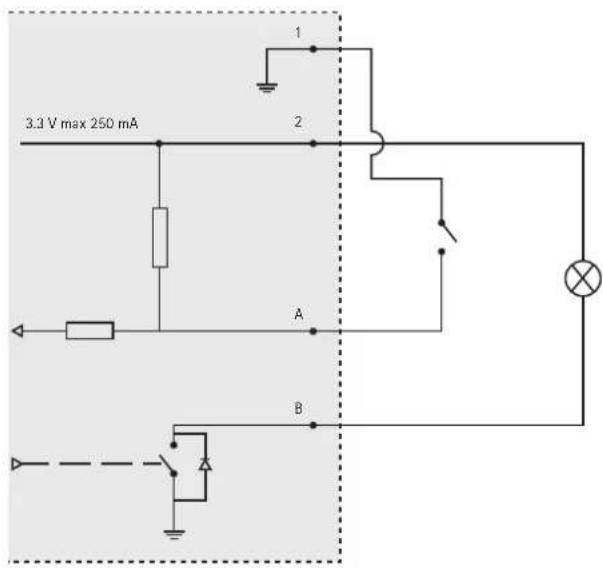
text_image
3.3 V max 250 mA 1 2 A BA I/Oconfiguredasinput
B I/Oconfiguredasoutput
I/Oconnector
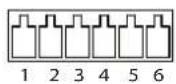
DCpowerinputACpowerinput
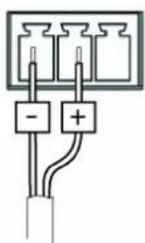
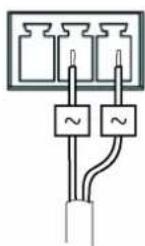
Troubleshooting
CheckingtheFirmware
Firmware is software that determines the functionality of network devices. One of your first actions when troubleshooting a problem should be to check the current firmware version. The latest version may contain a correction that fixes your particular problem. The current firmware version in the Axis product is displayed in the page Setup > Basic Setup and in Setup > About.
UpgradingtheFirmware
When you upgrade the product with the latest firmware from Axis website, the product receives the latest functionality available. Always read the upgrade instructions and release notes available with each new release, before upgrading the firmware.
Toupgrade, followtheseinstructions:
- Save the firmware file to your computer. The latest version of the firmware is available free of charge from Axis website atwww.axis.com/techsup
- Go to Setup > System Options > Maintenance in the products web pages.
- Under Upgrade Server, click Browse and locate the file on your computer. Click Upgrade.
After starting the upgrade process, always wait at least 5–10 minutes before restarting the product, even if you suspect the upgrade has failed.
AXISCameraManagementcanbeusedformultipleupgrades.Seewww.axis.comformoreinformation.
Note
- Your dealer reserves the right to charge for any repair attributable to faulty upgrade by the user.
- Preconfigured and customized settings are saved when the firmware is upgraded (providingthefeaturesareavailablein the new firmware) although this is not guaranteed by Axis Communications AB.
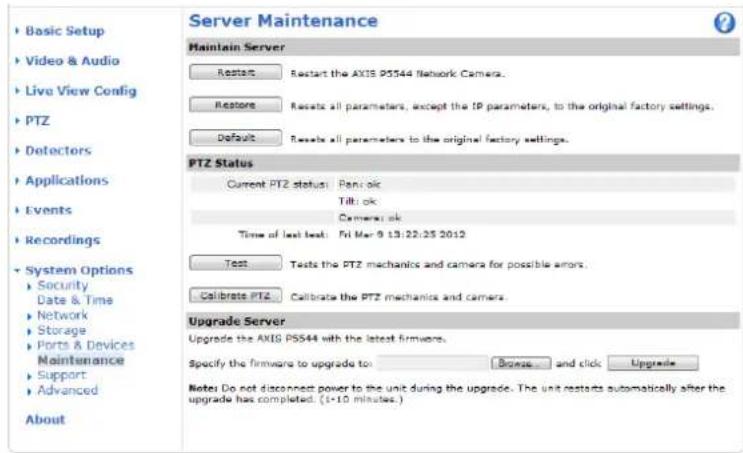
text_image
Server Maintenance Maintain Server Restart Restart the AXIS P5544 Network Camera. Restore Resets all parameters, except the IP parameters, to the original factory settings. Default Resets all parameters to the original factory settings. PTZ Status Current PTZ status: Panolic Tilt oik Camera oik Time of last beat: Fri Mar 9 13:22:25 2012 Test Tests the PTZ mechanics and camera for possible errors. Calibrate PTZ Calibrate the PTZ mechanics and camera. Upgrade Server Upgrade the AXIS P5544 with the latest firmware. Specify the firmware to upgrade to: Browse... and click Upgrade Note: Do not disconnect power to the unit during the upgrade. The unit restarts automatically after the upgrade has completed. (1-10 minutes.) AboutEmergencyRecoveryProcedure
If power or network connection is lost during the upgrade, the process fails and the product becomes unresponsive. Flashing red Status indicator indicates a failed upgrade. To recover the product, follow the steps below. The serial number is found on the product's label.
- In UNIX/Linux, typethefollowing from the commandline:
arp-s
Troubleshooting
ping-s408
In Windows, type the following from a command/DOS prompt (this may require that you run the command prompt as an administrator):
arp-s
ping-1408-t
-
If the product does not reply in 30 seconds, restart it and wait for a reply. Press CTRL + Ctstop Ping.
-
Open a browser and type in the product's IP address. In the page that appears, use the Browse button to select the upgrade file to use. Then click Load to restart the upgrade process.
- After the upgrade is complete (1–10 minutes), the product automatically restarts and shows a steady green on the Status indicator.
- Reinstall the product, referring to the Installation Guide.
If the emergency recovery procedure does not get the product up and running again, contact Axis support at www.axis.com/techsup/
Symptoms, Possible Causes and Remedial Actions
ProblemssettingthelPaddress
| WhenusingARP/Ping | Trytheinstallationagain.TheIPaddressmustbesetwithintwominutesafterpowerhasbeen appliedtotheproduct.EnsurethePinglengththissetto408.SeethelInstallationGuidefor detailedinstructions. |
| Theproductislocatedona differentsubnet | IfthelPaddressintendedfortheproductandthelPaddresssofthecomputerusedtoaccessthe productarelocatedondifferentsubnets,youwillnotbeabletosethelPaddress.Contactyour networkadministratortoobtainanIPaddress. |
| ThelPaddressisbeingused byanotherdevice | DisconnecttheAxisproductfromthenetwork.RunthePingcommand(inaCommand/DOS window,typepingandthelPaddresssoftheproduct:If you receive: Reply from: bytes=32; time=10... thismeansthatthelPaddressmayalreadybeinusebyanotherdeviceonthenetwork. Obtain a new IP address from the network administrator and reinstall the product.If you receive: Request timed out, this means that the IP address is available for usewiththeAxisproduct.Checkallcablingandreinstalltheproduct. |
| PossibleIPaddressconflict withanotherdeviceonthe samesubnet. | The static IP address in the Axis product is used before the DHCP server sets a dynamic address. This means that if the same default static IP address is also used by another device, there may beproblemsaccessingtheproduct. |
Theproductcannotbeaccessedfromabrowser
| Cannotlogin | WhenHTTPSisenabled,ensurethatthecorrectprotocol(HTTPorHTTPS)isusedwhenattempting to log in. You may need to manually type http or https in the browser’s address field.If the password for root is lost, the product must be reset to the factory default settings. See ResettoF actoryDefault Settings,on page49. |
| ThelPaddresshasbeen changedbyDHCP | Iftheproductandtheclientareonthesamenetwork,runAXISIPUtilitytolocatetheproduct.Identifytheproductusingitsmodelorserialnumber.MovetheAxisproducttoanisolatednetwork,ortoonewithnoDHCPorBOOTPserver.SetthelP address again, using AXIS IP Utility or ARP/Ping (see the Installation Guide). Open the Setup pages anddisabledDHCPintheTCP/IPsettings.Returntheproducttothemainnetwork.Theproduct nowhasafixedIPaddresssthatwillnotchange. |
| Certificateerrorwhenusing IEEE802.1X | Forauthenticationtoworkproperly,thedateandtimesettingsintheAxisproductshouldbe synchronized with an NTP server. See Date & Time, on page 40. |
Troubleshooting
Theproductisaccessiblelocallybutnotexternally
| Router configuration | To configure your router to allow incoming data traffic to the Axis product, enable the NAT-traversal feature which will attempt to automatically configure the router to allow access to the Axis product, see NAT traversal (port mapping) for IPv4, on page 43. The router must support UPnPTM. |
| Firewallprotection | Check the Internet firewall with your network administrator. |
| Defaultroutersrequired | Checkifyouneedtoconfiguretheroutersettings. |
| ProblemswiththeH.264format | |
| NoH.264displayedinthe client | CheckthattherelevantH.264connectionmethodsandcorrectinterfaceareenabledintheAMC Control Panel (streaming tab). See AXIS Media Control (AMC), on page 13.In the AMC Control Panel, select the H.264 tab and click Set to default H.264 decoder.Check that RTSP is enabled under System Options > Network > TCP/IP > Advanced. |
| NomulticastH.264 displayedintheclient | CheckwithyournetworkadministratorthatthemulticastaddressesusedbytheAxisproduct arevalidforyournetwork.Check with your network administrator to see if there is a firewall preventing viewing. |
| MulticastH.264only accessiblebylocalclients | Checkifyourroutersupportsmulticasting,orifteroutersettingsbetweentheclientandthe product need to be configured. The TTL (Time To Live) value may need to be increased. |
| PoorrenderingofH.264 images | Colordepthsetincorrectlyonclients.Setto16-bitor32-bitcolor.Iftextoverlaysareblurred,orifthereareotherrenderingproblems,youmayneedtoenable AdvancedVideoRenderingfromvtheVideotabintheAMCControlPanel.Ensurethatyourgraphicscardisusingthelatestdriver.Thelatestdriverscanusuallybe downloadedfromthemanufacturer'swebsite. |
| Colorsaturationisdifferent inH.264andMotionJPEG | Modify the settings for your graphics adapter. Refer to the adapter's documentation for more information. |
| Lowerframeratethan expected | Reducethenumberofapplicationsrunningontheclientcomputer.Limitthenumberofsimultaneousviewers.Check with the network administrator that there is enough bandwidth available.Check in the AMC Control Panel (H.264 tag) that video processing is NOT set to Decode only keyframes. Lowertheimageresolution. |
| Whydolnotgetmaximum framespersecond? | SeePerformanceConsiderations,onpage59.The maximum frames per second is dependent on the utility frequency (60/50 Hz) of the Axis product. See Technical Specifications, on page 57. |
| Imagedegeneration | Decrease the GOV length. Go to Video & Audio > Video Stream and select the H.264 tab tomodifytheGOVlength. |
Status indicator LED is flashing red and the product is inaccessible
| Afirmwareupgradehas beeninterruptedorthe firmwarehasotherwisebeen damaged | SeeEmergencyRecoveryProcedure,onpage52. |
Troubleshooting
Noimagesdisplayedonwebpage
| ProblemswithAXISMedia Control(InternetExplorer only) | ToenabletheupdatingofvideoimagesinInternetExplorer,setthebrowsertoallowActiveX controls. Also, make sure that AXIS Media Control is installed on your computer. |
| Installationofadditional ActiveXcomponent restrictedorprohibited | Configure the Axis product to use a Java applet for updating video images in Internet Explorer. Go to Setup > Live View Config and select Java applet under Default viewer. |
| Videoandimageproblems,general | |
| Imagetoodarkortoolight | Check the video stream and camera settings under Setup > Video & Audio > Video Stream and Setup>Video&Audio>CameraSettings. |
| Missing images in uploads | This can occur when trying to use a larger image buffer than is actually available. Try lowering theframerateortheuploadperiod. |
| Slow image update | Configuring pre-buffers, motion detection, high-resolution images or high frame rates will affect theperformanceoftheAxisproduct. |
| Poor performance | Poor performance may be caused by heavy network traffic, multiple users accessing the product, lowperformanceclients,useoffeatusssuchasmotiondetection,eventhandlingoruploaded applications. |
| PTZproblems | |
| Incorrectmappingbetween OverviewmodeandNormal mode | If the camera view does not move to the correct position in Normal mode when clicking an object in Overview mode, the PTZ calibration is inaccurate and should be redone. Go to System Options > Maintenance. See PTZ Calibration, on page 47. |
| Poorqualitysnapshotimages | |
| Screenincorrectly configured on your computer | Configure your screen to show at least 65000 colors, that is, at least 16 bits. Using only 16 or 256 colorswillproduceditheringartifactsintheimage. |
| Overlayimageisnotdisplayed | |
| Nooverlayimagein Overviewmode | TheoverlayimageisonlydisplayedinNormalmode. |
| Incorrectsizeorlocationof overlayimage | The overlay image may have been positioned incorrectly or may be too large. See Overlay Image Settingsintheonlinehelpformoreinformation. |
| Privacymaskisnotdisplayed | |
| NoprivacymaskinOverview mode | PrivacymasksareonlydisplayedinNormalmode. |
| Incorrectsizeorlocationof privacymask | Theprivacymaskmayhavebeenpositionedincorrectlyormaybetoolarge. |
| Browserfreezes | |
| Firefoxcansometimes freezeonaslowcompu ter | Lowertheimageresolution |
| Problemsuploadingfiles | |
| Limited space | There is only limited space available for the upload of your own files. Delete existing files to free upspace. |
Troubleshooting
MotionDetectiontriggersunexpectedly
| Changesinluminance | Motiondetectionisbasedonchangesinluminanceintheimage. Thismeansthatiftherearesuddenchangesinthelighting, motiondetectionmaytriggermistakenly. Lowerthesensitivity settingtoavoidproblemswithluminance. |
| Noaudio | |
| Incorrectsetup | Checkthesoundcardinthecomputer.Ensurethatmuteisnotselectedandthatthevolume settingsarecorrect. |
| Noaudioorverypooraudio quality | Check that Enable audio support is selected under Setup > System Options > Security > Audio Support.Check that the correct Audio Input source is selected under Setup > Video & Audio > Audio Settings. |
| Pooraudioquality | |
| CPUoverloaded | Reducethenumberoflistenersandviewers.Decreaseimageresolutionandcompression. |
| Unsynchronizedaudioand video | Synchronize the product's date and time settings with an NTP server. Go to Setup > System Options>Date&Time. |
| Distortedaudio | Check that the correct Audio Input source is selected under Setup > Video & Audio > Audio Settings. |
| Feedback loops | Feedback loops might appear in full-duplex mode. Try moving the microphone or the speaker, or usehalf-duplexmodeinstead. |
| Storageanddiskmanagementproblems | |
Videocannotberecorded CheckthattheSDcardisnotwriteprotected(thatis,readonly).
SDcardcannotbemountedReformattheSDcardandthenclickMount.
TechnicalSpecifications
| Function/group | Item | Specifications |
| Camera | Model | AXISP554450HzAXISP554460Hz |
| Imagesensor | 1/3"progressivescanCCD1.3megapixel | |
| Lens | pan/tilt/zoomlens(Normalmode):f=4.7-84.6mm,F1.6-2.8,autofocus,automatic day/nightHorizontalangleofview:55.2°-3.2°Wideanglelens(Overviewmode):f=2.7mmAngleofview:180° | |
| Minimum illumination | Color:0.74luxat30IREF1.6B/W:0.04luxat30IREF1.6 | |
| Shuttertime | 1/10000sto1/4s | |
| Pan/Tilt/Zoom | E-flip, Auto-flip, 100 preset positionsPan:360°(withAuto-flip),0.2°-300°/sTilt:180°,0.2°-300°/s18xopticalzoomand12xdigitalzoom,total216xzoom | |
| Video | Video compression | H.264(MPEG-4Part10/AVC,Baselineprofile)MotionJPEG |
| ResolutionsHDTV720p1280x720to320x180 | ||
| FramerateH.264 | Upto30/25fps(60/50Hz)inallresolutions | |
| Framerate MotionJPEG | Upto30/25fps(60/50Hz)inallresolutions | |
| Videostreaming | Multiple, individually configurable streams in H.264 and Motion JPEGControllableframerateandbandwidthVBR/CBRH.264 | |
| Pan/Tilt/Zoom functionalities | LimitedguardtourControlqueueOn-screendirectionalindicator | |
| Imagesettings | Compression, color, brightness, sharpness, white balance, exposure control, exposure zones, backlight compensation, fine tuning of behavior at low lightTextoverlayImagefreezeonPTZWidedynamicrangeManualshuttertimeNormalmode:Imageoverlay,3Dprivacymaks | |
| Audio | AudiostreamingTwo-way | |
| Audio compression | AACLC8kHz32kbit/s,16kHz64kbit/sG.711PCM8kHz64kbit/sG.726ADPCM8kHz32kbit/sor24kbit/sConfigurablebitrate | |
| Audio input/output | Requires multi-connector cable (sold separately) for external microphone input or line inputandlineoutput | |
TechnicalSpecifications
| Function/group | Item | Specifications |
| Network | Security | Password protection, IP address filtering, HTTPS encryption*, IEEE 802.1X network access control*,digestauthentication,useraccesslog*ThisproductincludessoftwaredevelopedbytheOpenSSLProjectforuseintheOpen SSLToolkit(www.openssl.org) |
| Supported protocols | IPv4/v6,HTTP,HTTPS*,SSL/TLS*,QoSLayer3DiffServ,FTP,SMTP,Bonjour,UPnP, SNMPv1/v2c/v3(MIB-II),DNS,DynDNS,NTP,RTSP,RTP,TCP,UDP,IGMP,RTCP,ICMP, DHCP,ARP,SOCKS*ThisproductincludessoftwaredevelopedbytheOpenSSLProjectforuseintheOpen SSLToolkit(www.openssl.org) | |
| System Integration | Application Programming Interface | OpenAPIforsoftwareintegration,includingVAPIX®andAXISCameraApplication PlatformfromAxisCommunications;specificationsavailableatwww.axis.com IncludestheONVIFspecificationavailableatwww.onvif.org SupportforAXISVideoHostingSystem(AVHS)withOne-ClickCameraConnection |
| Intelligentvideo | Audio detection, Advanced Gatekeeper, Support for AXIS Camera Application Platform enablinginstallationofadditionalapplicationsOverviewmode:Videomotiondetection | |
| Triggers | Intelligent video, digital input, manual trigger, PTZ preset, PTZ moving, network lost, temperature,edge storage status,systeminitializing | |
| Actions | Day/NightvisionmodePlayaudioclipOutputportPTZpresetGuardtourVideorecordingtoedge storageFileuploadviaFTP,HTTP,emailandnetworkshareNotificationviaemail,HTTPandTCPPre-andpostalarmvideobuffering | |
| Videoaccessfrom webbrowser | CameraliveviewVideorecordingtofile(ASF)CustomizableHTMLpagesWindows7,WindowsVista,WindowsXP,WindowsServer2008,WindowsServer2003 DirectX9corhigherForotheroperatingsystemsandbrowsers,seewww axis.com/techsup | |
| Management and maintenance | AXIS Camera Management tool on CD and web-based configurationFirmware upgrades over HTTP or FTP, firmware available on www-axis.com | |
| InstallationaidsPixel | counter | |
| General | Casing | IP51-rated,metalcasing(aluminum),PCcleardome |
| Processor, memory | 256MBRAM,128MBFlash | |
| Power | PoweroverEthernetPlus(PoE+)IEEE802.3at,max.30W20-24VAC,max.23.6VA24-34VDC,max.17WAXIST8123HighPoEMidspan1-port:100-240VAC,max.37W | |
| Connectors | RJ-45for10BASE-T/100BASE-TXPoEMulti-connector(cablesoldseparately)for:power in, 4 configurable alarm inputs and outputs, mic in (max 74 mVpp), line mono input(max6.2Vpp),linemonoo output(max2.8Vpp)toactivespeaker | |
| Edge storage | SD/SDHCmemorycardslot(cardnotincluded)Support for recording to network share (Network Attached Storage or file server). |
TechnicalSpecifications
| Function/group | Item | Specifications |
| Operating conditions | Temperature:0°Cto50°C(32°Fto122°F) Humidity20-80%RH(non-condensing) | |
| Approvals | EN55022ClassB,EN61000-3-2,EN61000-3-3,EN61000-6-1,EN61000-6-2,EN 55024, FCC Part 1 5 Sub part B Class B, ICES-003ClassB, VCCIClassB, C-tickAS/NZSCISPR22, KCCClassB, EN60950-1, IEC60721-4-3Class3K3,3M3,EN/IEC60068-2 IP51 Midspan:EN60950-1,GS,UL,cUL,CE,VCCI,CB,KCC | |
| Dimensions (HxWxD) | Camerawithhard-ceilingmount:235x183x183mm(9.3"x7.2"x7.2") Camerawithdrop-ceilingmount:235x238x238mm(9.3"x9.4"x9.4") | |
| Weight | Camera:1.9kg(4.2lb.) Camerawithdrop-ceilingmount:2.3kg(5.1lb.) | |
| Included accessories | AXIST8123HighPoEMidspan1-port,mountingkitforhardanddropceilings,Installation Guide, CD with recording software, installation and management tools, Windows decoder 1-userlicense | |
| Video management software(not included) | AXISCamera Station - Videomanagementsoftwareforviewing cameras Seewww.axis.com/products/video/software/formoresoftwareapplicationsviapartners | |
| Optional accessories | AXIST8310VideoSurveillanceControlBoard AXIST90Alluminators AXIST91AMountingAccessories Multi-connectorcableforAC/DCpower,I/Osandaudio |
gandreco
PerformanceConsiderations
When settings up your system, it is important to consider how various settings and situations will affect performance. Some factors affect the amount of bandwidth (the bit rate) required, others can affect the frame rate, and some affect both. If the load on the CPUreachesitsmaximum,thiswillalsoaf fecttheframerate.
The following factors are among the most important to consider:
- Highimageresolutionand/or lowercompressionlevelsresultinimagescontainingmoredata.Bandwidthaffected.
- Accessbylargenum bersofMotionJPEGand/orunicastH.264clients.Bandwidthaffected.
- Simultaneous viewing of different streams (resolution, compression) by different clients. Effect on frame rate and bandwidth.
- Accessing Motion JPEG and H.264 video streams simultaneously. Frame rate and bandwidth affected.
- Heavyusageofeventsettingsaffecttheproduct'sCPUload.Framerateaffected.
• Heavy network utilization due to poor infrastructure. Bandwidth affected. - Viewing on poorly performing client computers lowers perceived performance. Frame rate affected.