
PN114030 - Tablet BUSH - Free user manual and instructions
Find the device manual for free PN114030 BUSH in PDF.


| Type de produit | Tablette |
| Marque | Bush |
| Modèle | PN114030 |
| Taille d'écran | 10.1 pouces |
| Résolution d'écran | 1280 x 800 pixels (WXGA) |
| Processeur | Quad-core 1.3 GHz |
| Mémoire RAM | 2 Go |
| Stockage interne | 32 Go |
| Stockage extensible | Oui, jusqu'à 128 Go via microSD |
| Système d'exploitation | Android 10 (Go Edition) |
| Connectivité Wi-Fi | Wi-Fi 802.11 b/g/n |
| Bluetooth | Bluetooth 4.2 |
| Caméra avant | 2 MP |
| Caméra arrière | 5 MP |
| Batterie | Lithium-ion 5000 mAh |
| Autonomie | Jusqu'à 8 heures |
| Dimensions (L x l x H) | 240 x 160 x 8.5 mm |
| Poids | 480 g |
| Alimentation | Adaptateur secteur 5V/2A via micro USB |
| Capteurs | Accéléromètre |
| Haut-parleurs | Haut-parleur stéréo intégré |
| Prise casque | Oui, jack 3.5 mm |
| Nettoyage | Chiffon doux et sec ; ne pas utiliser de liquides |
| Sécurité | Ne pas exposer à l'humidité ou à des températures extrêmes |
| Pièces détachées/réparabilité | Batterie non amovible ; contacter un professionnel pour réparation |
Frequently Asked Questions - PN114030 BUSH
User questions about PN114030 BUSH
0 question about this device. Answer the ones you know or ask your own.
Ask a new question about this device
Download the instructions for your Tablet in PDF format for free! Find your manual PN114030 - BUSH and take your electronic device back in hand. On this page are published all the documents necessary for the use of your device. PN114030 by BUSH.
USER MANUAL PN114030 BUSH
natural_image
Illustration of a smartphone displaying a 68° app interface with geometric design, surrounded by abstract geometric shapes (no text or symbols on the device itself)PN114030 QSG COVER - Argos BUSH Windows Tablet 8inches 13052015.inkl. 1 20-May-15 12:37:15




Table of contents
Package contents....3
Description of the device....4
Getting started....6
Microsoft account....7
The Windows 8.1 interface.... 8
Connecting to a WiFi network....13
Getting familiar with Windows 8.1....14
Troubleshooting....22





Package contents
For more information, please consult the FAQs on http://windows.microsoft.com/en-gb/windows/tutorial. Make sure to read them before considering any product return.
As we are often updating and improving our products, your device's software may have a slightly different appearance or modified functionality than presented in this manual.
For more information, please consult the FAQs on argos.co.uk/bush. Make sure to read them before considering any product return.
The supplied items are designed only for your device and may not be compatible with other devices. Unapproved accessories may cause your device to malfunction.
natural_image
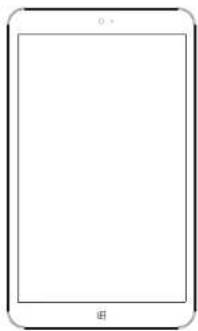
Blank tablet device with blank screen and base (no text or symbols)Bush 8" Windows tablet

Instruction manual

Warranty, Legal and Safety Information
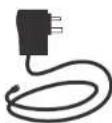
Micro-USB Charger
2
PN114030 QSG BOOK Argos BUSI Windows Tablet Sinches 20052015.indcl 2 3 21 May 15 09:39:17
3



Description of the device
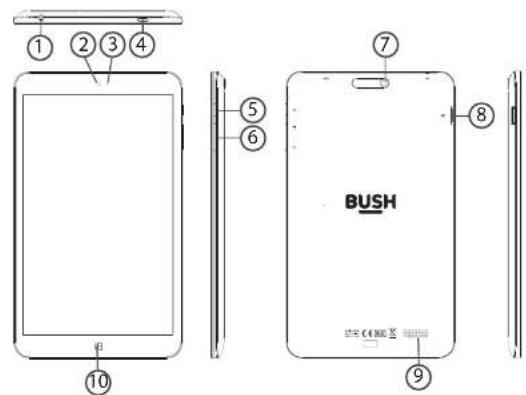
① Headphone jack
② Webcam
③ Charging light
④ Micro-USB port
⑤ ON/OFF button
⑥ Volume buttons
⑦ Camera
⑧ Micro-SD card slot
⑨ Loudspeakers
10 Windows button
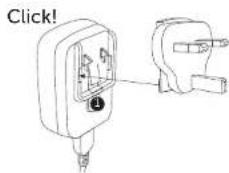
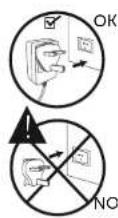
Charger assembly
Connect the USB cable to the charger body and to the Micro USB port of the tablet
Assembly: place the plug in the middle of the body and push it down until it 'clicks'.
Disassembly: press button 1 and push it up.
4
PN114030 QSG BOOK Argos BUSII Windows Tablet Sinches 20052015.indcl 4.5

21 May 15 09:39:17



Getting started
Before you switch on for the first time, ensure that:
- Your tablet is fully charged
- You have a good WiFi connection (ideally your usual WiFi zone)
- You have your WiFi name and password to hand.
Charging
Connect the supplied power cable to the power connector of the device and to a wall outlet. The charging light will be red until it's fully charged. You can use the device whilst on charge.
Turning the device on
Press the ON/OFF button for 2-3 seconds.
Initial setup
The first time you start up your device, the Windows Startup Screen will be the first screen displayed. Follow the on-screen instructions on each screen in order to properly install the operating system. We strongly recommend that you create a Microsoft account, so you can enjoy more features.
Microsoft account
A Microsoft account is an email address and password that you use to sign in to Windows. It's free and easy to set up, and you can do so with any email address you choose, or get a new email address (for example, you can use an Outlook.com, Gmail, or Yahoo! address for your Microsoft account.). With a Microsoft account, you can:
- get apps from the Windows Store
- back up all your important data and files using free cloud storage
- link your social networking accounts to the People app, and you'll see your friends' contact info and status updates in one place
Signing in with a Microsoft account
Swipe in from the right edge of the screen, tap Settings > Change PC settings > Accounts > Your account > Connect to a Microsoft account. You might be asked to verify your current password.
TIP: setting up other accounts
If more than one person uses your tablet, each person should have their own account. They can sign in and personalize the tablet with their own background colors, favorite apps, a separate email inbox, and more. If you have kids, you can also set up a child's account with extra security monitoring measures—with or without email—so that your kids see only what you want them to see on the PC.
6
PN111030 QSG BOOK - Argos BUSII Windows Tablet 8inches 20052015.indd 6-7 21-May-15 09:39:18

7



The Windows 8.1 interface
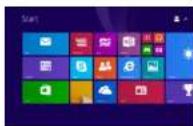
Start screen:
The Start screen is the launching pad to access your favourite apps and websites at a touch.
To access this screen, press the Windows button on the side of the tablet, or swipe in from the right edge of the screen and tap Start.
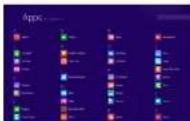
Swipe down to view all your apps.
You can customize your Start screen by swiping down from the edge of the screen for more options. You also have the ability to pin apps, contacts and more to keep them handy. For more information please see 'Getting familiar with Windows' page 14.
Windows charms
Swipe your finger from the right edge of the screen to the left.
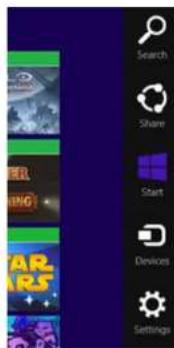
Search the web, within an app, or your tablet for apps, settings, files.
Share items (links, photos...).
This takes you to the Start screen or, if already on the Start screen, returns you to your last app.
Manages your hardware or a quick way to send files and info to other devices connected to your tablet (e.g. printer, phone, projector).
This allows you to have quick access to your tablet's settings (volume, brightness, connecting to the Internet, and more).
8
PN114030 QSG BOOK Argos BUSI Windows Tablet Sinches 20052015.indd 8 9 21 May 15 09:39:19

9



Using two apps side by side
On landscape mode, you can have two apps on a screen at a time. You can schedule meetings on your calendar while you respond to email, or record a lecture in class with Sound Recorder while you take notes in the desktop.
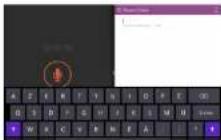
- Open an app that you'd like to use.
- Slide in from the top of the screen until an opening appears behind the app, then drag the app to the left or right side.
- Go back to Start and open a second app. It will appear next to the first app.
- To resize the apps, drag the divider between the apps.
Getting back to the desktop
There are a few ways to get back to the desktop from anywhere on your tablet. You can do any of the following:
- Open Start and then tap the desktop tile on the Start screen.
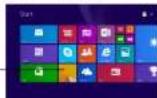
- Swipe in from the right edge of the screen, then tap Search. Enter 'desktop in the search box, and then tap Desktop in the results.
We have made Windows' parental control available for you from the desktop through the Family Safety shortcut icon. More information on this option page 18.
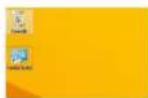
- Double tap to open icons on your desktop (similar to double right click with a mouse)
- Long-press to open more option (similar to right click with a mouse)




Connecting to a WiFi network
Turning the device off
In Shut Down Mode, no data will be saved and the tablet will boot to the operating system's main screen the next time it is turned on.
If you have entered data, either save it to the internal storage or to other storage media.
- Tap the Settings charm.
- Tap Power and then select Shut down.
Or press and hold the power button for about 2-10 seconds till the screen
'Slide to shut down your PC' appears and then slide down the screen to shut down the tablet.
WARNING: Make sure that you are in a WiFi zone.
Tap on Settings Windows charm

On the bottom right corner, tap on the Wifi signal icon

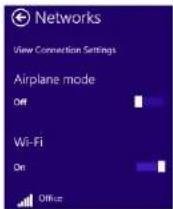
Make sure the Airplane mode is 'OFF' and the WiFi is 'ON'.
Touch the name of network you want to connect to, tap on Connect and enter a password if required.
TIPS:
- To get the correct WIFI password (or settings) for the network, contact the WIFI network provider.
- If you want to connect to this network every time it's in range, select the 'Connect automatically' check box.
12
PN114030 QSG BOOK Argos BUSH Windows Tablet Sinches 20052015.indd 12 13 21 May 15 09:39:20

13



Getting familiar with Windows 8.1
Start screen tiles customisation
Pinning icons
Press and hold the icon you want to move from your apps list until Pin to start appears. Tap Pin to start to copy the app icon to your Start screen.
Moving icons
If you want to move it, press and hold it and drag it to where you want it and drop it. Then tap the screen in a blank area to fix it.
Shrinking and unpinning icons
To shrink an icon, press and hold it and tap on Resize to select from different size options.
On-screen keyboard
The device has an on-screen keyboard that appears when you need it.
- Tap the screen in a place where text can be entered and the on-screen keyboard should appear.
- If you're in the desktop, tap the keyboard icon 📄 on the desktop taskbar (lower-right corner) to open the on-screen keyboard.
14
- To manually open the on-screen keyboard (without tapping an area where you can type), open the Settings charm, tap Keyboard > Touch keyboard and handwriting panel.
Switch between open apps
You can switch between open apps by swiping in from the left edge of the screen. You can keep swiping, and each time you'll switch to another app.
Lock screen
If you don't use the device for a few minutes, the screen turns off and locks. When this happens, press the Power button, then swipe up on the touch screen.

Add your email account
- Tap on the Mail tile from the Start screen.
- Choose the type of account you want to add, sign-in and then follow the on-screen instructions.
15





People: Add contacts
The People app is your universal address book. See contacts from all of your address books in one place, and get the latest updates from your friends. Also, sync contacts from your social networks. Get in touch with someone by sending email, calling, or posting to social media directly from the People app.
- Tap on the People tile from the Start screen.
- Choose the type of account you want to add, sign-in and then follow the on-screen instructions.

OneDrive: Your personal cloud
OneDrive is online storage that comes with your Microsoft account. It's like an extra hard drive that's available from any of the devices you use. When you save your documents, photos, and other files on OneDrive, they're available from any web-connected device (for example, your phone or computer).
- Tap on the OneDrive tile from the Start screen.
- Choose the type of account you want to add, sign-in and then follow the on-screen instructions.
Downloading new apps
You can download many other applications in the Windows Store: search and browse thousands of apps, all grouped into easy to find categories.
Transferring files to your tablet
From a USB device with a standard male USB connection, you will need to purchase a female USB to micro USB lead in order to connect it (e.g. USB card reader, USB connection from a camera etc.).
With a micro SD card, simply insert the card into the micro SD card slot. Via e-mail, simply add attachments to e-mail messages and send to your e-mail address.
Changing languages
Swipe in from the right edge of the screen, tap Settings > Change PC settings > Time and language > Region and language > Add a language. Tap on the language you want to add it to your language list, then Options > Download. The download process might take a while, depending on the size of the language pack.
Tap on Set as primary > Will be display language after next sign-in. Sign out of Windows, then sign back in.



Family Safety: keeping your kids safer with Windows ^TM parental control
You can create accounts for your kids and turn on Family Safety monitoring, choose the limits and permissions you want your kids to have on apps, games, websites, and even limit the amount of time they can spend on the device.
To turn on Family Safety, you – or at least one designated parent – need an administrator account; the kids you choose to monitor need a child's or a standard user account.
To create a new child's account
When you create a new account for your child, Family Safety is turned on automatically.
- Sign in to your device with an administrator account.
- Swipe in from the right edge of the screen, tap Settings > Change PC settings > Accounts > Other accounts > Add an account > Add a child's account link.
- Do one of the following:
- If your child already has an email address, enter it, tap Next, then follow the instructions.
• If you want to get a new email address for your child, tap Sign up for a new
email address and follow the instructions.
- If you want your child to sign in to this device only, tap Add a child's account without email, and follow the instructions.
To turn on Family Safety for an existing child's account
If your child already has a user account on your device, you can still turn on Family Safety and begin monitoring their activities.
- Swipe in from the right edge of the screen, tap Settings > Change PC settings > Accounts > Other accounts.
- Select the account you want to monitor with Family Safety, then tap Edit.
- If your child doesn't have a standard user account, see the previous To create a new child's account steps. In the Account type list, select Child > OK.
- Family Safety is only activated on the child's account.
To log off the account, from the Start screen on the top-right corner, tap on the account picture, then choose another account from the menu.
To turn off Family Safety for the account, go back to your administrator account. On the desktop, double tap on the Family Safety shortcut icon > Child's account > Off (under Family Safety)
Find more information on http://windows.microsoft.com/en-gb/windows-8/family-safety




Windows updates
The Windows operating system is constantly being updated and enhanced with functional additions and fixes for emerging security issues etc. When Windows asks you to update the operating system it is advised that you do so for your own benefit. When you first get your tablet there may be a large amount of updates that need to be downloaded and run. Please be patient with this update process, it may take a long time to complete.
You may prefer to leave your tablet switched on and connected to power and wifi to allow it to complete these all at once.
To prevent it going to sleep during this process go to Settings (swipe in from the right hand side of the screen, change PC settings, PC and devices, power and sleep. Leave the 'On battery power' setting but change the 'When plugged in, turn off after' settings to never.
Now set update and recovery as follows. Settings (swipe in from the right hand side of the screen, change PC settings, update and recovery, Windows
update. Check now. This will connect you to Microsoft's website and will offer you updates
You can also manage how you receive your updates in this menu option but we recommend that you leave this set to the default 'Install updates automatically'.
Windows 10
When Windows 10 is ready this may also be offered as a free upgrade to existing Windows users (for a period after its release). This download is going to be huge and is likely to take hours to complete. Disabling sleep in 'on power mode' as shown above, may be useful during this and any other very long download. At the end of the download you will need to restart for the updates to install.



Troubleshooting
If your device is frozen:
Press the ON/OFF button for at least 10 seconds to reset.
If your device doesn't turn on:
Charge your device then switch on normally.
If this does not work, press the ON/OFF button for at least 10 seconds to reset.
If you want to extend the life of your battery:
Decrease the screen brightness and turn off the wireless connections if not in
use.

If your device is functioning too slowly:
Close all apps which are not currently being used.
If your WiFi reception is poor:
Make sure you are not far from the WiFi hotspot.
Reset and redefine your connection parameters.
Contact your WiFi connection provider.
We suggest you to upgrade your router to a faster bit rate or to a dual band
type if not already. The most common problem with WiFi performance on
tablets and computers is poor signal strength and insufficient band width for multiple users from the router.
Check and install Windows updates in Control Panel > System and Security >
Windows Update.
If you want to restore your product (erase all your settings? forgotten password?)
- Tap on Settings Windows charm.
Tap on Change PC settings > Update and recovery > Recovery
From there you can Refresh your PC without affecting your files, or Remove everything and resinstall Windows.
This will erase all your settings and applications.
Recommended Accessories
Female USB to (male) micro USB connector – Very useful for connecting all your standard USB devices like card readers etc. and can be used with the supplied (male) USB to micro USB cable to connect your phone or other micro USB devices.
Mouse – You may find the detail level that Windows 8 offers hard to access without a mouse in some areas. Parts of the O/S such as Control Panel and programs such as spread sheets become far more productive with a mouse. You can adapt a normal mouse by buying a Female USB to micro USB connector or you can use a Bluetooth mouse.
For more information, please consult the FAQs on http://windows.microsoft.com/en-gb/windows/tutorial.
22
PN114030 QSG BOOK Argos BUSH Windows Tablet Sinches 20052015.indd 22 23 21 May 15 09:39:21

23



Bush Tablets Helpline
For detailed advice on this or any other issue concerning your Bush tablet you can consult with the technical support helpline – 0207 744 0346 or go to our FAQ on argos.co.uk/bush
National restrictions
This device is intended for home and office use in all EU countries (and other countries following the EU directive 1999/5/EC) without any limitation except for the countries mentioned below:
Country Restriction Reason/remark
Bulgaria None General authorization required for outdoor use and public serv
France Outdoor use limited
to 10 mW e.i.r.p
within the band
2454-2483.5 MHz
Military Radiolocation use. Refarming of the
2.4 GHz band has been ongoing in recent
years to allow current relaxed regulation. Full
implementation planned 2012
Italy None If used outside of own premises, general
authorization is required.
Luxembourg None General authorization required for network and
service supply (not for spectrum)
Norway Implemented This subsection does not apply for the
geographical aera within a radius of 20 km from
the centre of Ny-Alesund
Russian Federation None Only for indoor applications
Note: Frequency 2454-2483.5MHz are restricted to indoor use in France.
Argos declares that this device is in compliance with the essential
requirements and other relevant provisions of Directive 1999/5/EC
A copy of the declaration of conformity can be obtained from:
Argos Ltd
499-499 Avebury Boulevard
Milton Keynes, MK9 2NW
C€0681




www.argos.co.uk/bush
All brands and product names are registered trademarks and the property of their respective owners. Windows Media® and Windows® are trademarks or registered trademarks of Microsoft Corporation in the United States and/or other countries. Specifications are subject to change without notice. Errors or omissions excepted. Images and illustrations may not always match contents. All the information contained in this guide was correct at the time of publication.
Argos Limited © 2015. All rights reserved.
PN: 114030
- Table of contents
- Package contents
- Charger assembly
- Getting started
- Before you switch on for the first time, ensure that:
- Charging
- Turning the device on
- Initial setup
- Microsoft account
- Signing in with a Microsoft account
- TIP: setting up other accounts
- The Windows 8.1 interface
- Using two apps side by side
- Getting back to the desktop
- Connecting to a WiFi network
- Getting familiar with Windows 8.1
- People: Add contacts
- OneDrive: Your personal cloud
- Downloading new apps
- Transferring files to your tablet
- Changing languages
- Windows updates
- Windows 10
- Troubleshooting
- Bush Tablets Helpline
- National restrictions
- www.argos.co.uk/bush
Brand : BUSH
Model : PN114030
Category : Tablet