Aegis NetDock - Accessoires pour données Apricorn - Free user manual and instructions
Find the device manual for free Aegis NetDock Apricorn in PDF.


| Product Type | Network Attached Storage (NAS) Dock |
| Brand | Apricorn |
| Model | Aegis NetDock |
| Compatible Drives | 2.5" and 3.5" SATA HDD/SSD |
| Number of Bays | 1 |
| Interface | USB 3.2 Gen 1 (USB-A and USB-C), Gigabit Ethernet |
| Network Features | File sharing, FTP, DLNA media server, remote access |
| Security | 256-bit AES XTS hardware encryption with PIN keypad |
| Dimensions (W x D x H) | 5.5 x 5.5 x 1.9 inches (140 x 140 x 48 mm) |
| Weight | 1.1 lbs (500 g) |
| Power Supply | 12V DC, 3A external adapter |
| Power Consumption | 15W typical |
| Material | Aluminum chassis with rubber feet |
| Cooling | Passive (no fan) |
| Supported File Systems | NTFS, HFS+, exFAT, FAT32 (read/write) |
| LED Indicators | Power, network activity, drive access |
| Operating Temperature | 32°F to 104°F (0°C to 40°C) |
| Operating Humidity | 20% to 80% non-condensing |
| Maintenance | Keep dry, clean with soft cloth; no internal user-serviceable parts |
| Repairability | Drive is user-accessible and replaceable; electronics not repairable |
| Included Accessories | Power adapter, USB cable, Ethernet cable, quick start guide |
| Certifications | FCC, CE, RoHS |
Frequently Asked Questions - Aegis NetDock Apricorn
User questions about Aegis NetDock Apricorn
0 question about this device. Answer the ones you know or ask your own.
Ask a new question about this device
Download the instructions for your Accessoires pour données in PDF format for free! Find your manual Aegis NetDock - Apricorn and take your electronic device back in hand. On this page are published all the documents necessary for the use of your device. Aegis NetDock by Apricorn.
USER MANUAL Aegis NetDock Apricorn
natural_image
Red and black electronic device with ports and a logo, no visible text or symbols on the device bodyUser's Guide
Copyright © Apricorn, Inc. 2010. All rights reserved.
Windows is a registered trademark of Microsoft Corporation.
All other trademarks and copyrights referred to are the property of their respective owners.
Distribution of substantively modified versions of this document is prohibited without the explicit permission of the copyright holder.
Distribution of the work or derivative work in any standard (paper) book form for commercial purposes is prohibited unless prior permission is obtained from the copyright holder.
DOCUMENTATION IS PROVIDED AS IS AND ALL EXPRESS OR IMPLIED CONDITIONS, REPRESENTATIONS AND WARRANTIES, INCLUDING ANY IMPLIED WARRANTY OF MERCHANTABILITY, FITNESS FOR A PARTICULAR PURPOSE OR NON-INFRINGEMENT, ARE DISCLAIMED, EXCEPT TO THE EXTENT THAT SUCH DISCLAIMERS ARE HELD TO BE LEGALLY INVALID.
FCC Compliance Statements
This equipment has been tested and found to comply with the limits for a Class B digital device, pursuant to Part 15 of the FCC Rules. These limits are designed to provide reasonable protection against harmful interference in a residential installation. This equipment generates, uses and can radiate radio frequency energy and, if not installed and used in accordance with the instructions, may cause harmful interference to radio communications. However, there is no guarantee that interference will not occur in a particular installation. If this equipment does cause harmful interference to radio or television reception, which can be determined by turning the equipment off and on, the user is encouraged to try to correct the interference by one or more of the following measures:
Reorient or relocate the receiving antenna.
Increase the distance between the equipment and receiver.
Connect the equipment into an outlet on a circuit different from that to which the receiver is connected.
Consult the dealer or an experienced radio/TV technician for help.
CAUTION
CHANGE OR MODIFICATIONS NOT EXPRESSLY APPROVED BY PARTY RESPONSIBLE FOR COMPLIANCE COULD VOID THE USER AUTHORITY TO OPERATE THE EQUIPMENT.
TABLE OF CONTENTS
Package Contents 4
System Requirements 4
Aegis NetDock Connections 5
Hard Drive Installation 6
Initializing your Hard Drive 7
Partitioning / Formatting 8
Reformatting your Hard Drive for Windows 10
Reformatting your Hard Drive for Mac 11
Installing Software CD 13
Device Drivers for Windows 2000/XP/Vista/7 14
Copy files and folders to a CD (Windows) 17
"Drive is not Accessible" error 18
Disconnecting 19
Contacting Technical Support 20
RMA Policy 20
Warranty Conditions 21
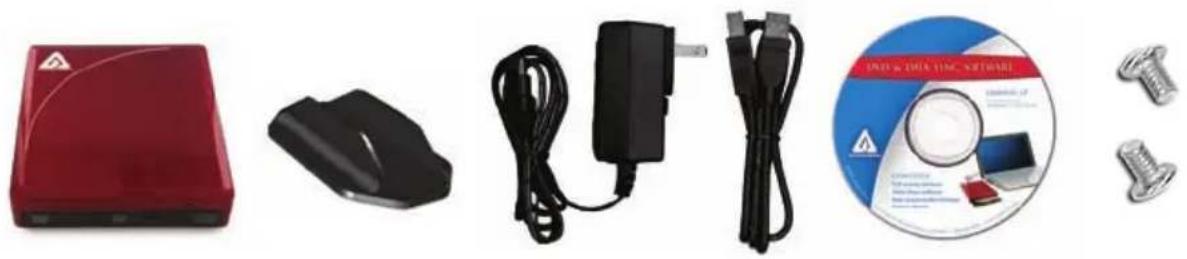
Package Contents
Aegis NetDock
Software CD:
Stand
BurnAware CD/DVD Burning Software•
AC Adapter
VLC Media Player•
USB Cable
MicroSoft SyncToy•
Hard Drive Screws
natural_image
Product display of a red electronic device, computer mouse, charging cable, and CD with accessories (no visible text or symbols)System Requirements
Hardware: 1 GHz Intel
® Pentium® or Atom™ processor
or equivalent
Apple
® G3 or later, Mac OS X 10.4 or later
256MB RAM
Available USB port
CD ROM or CD-RW drive
Operating systems:
Microsoft: Windows
^® 7, XP or Vista ^TM
Mac: OS 9.2 or higher
OS X 10.2 and later
PC Software: 200MB hard drive space for standard installation of software components
Included software is not necessary with the Mac
® OS;
Aegis NetDock hardware is compatible with Mac DVD / CD authoring software and media playing software
Connecting your Aegis NetDock
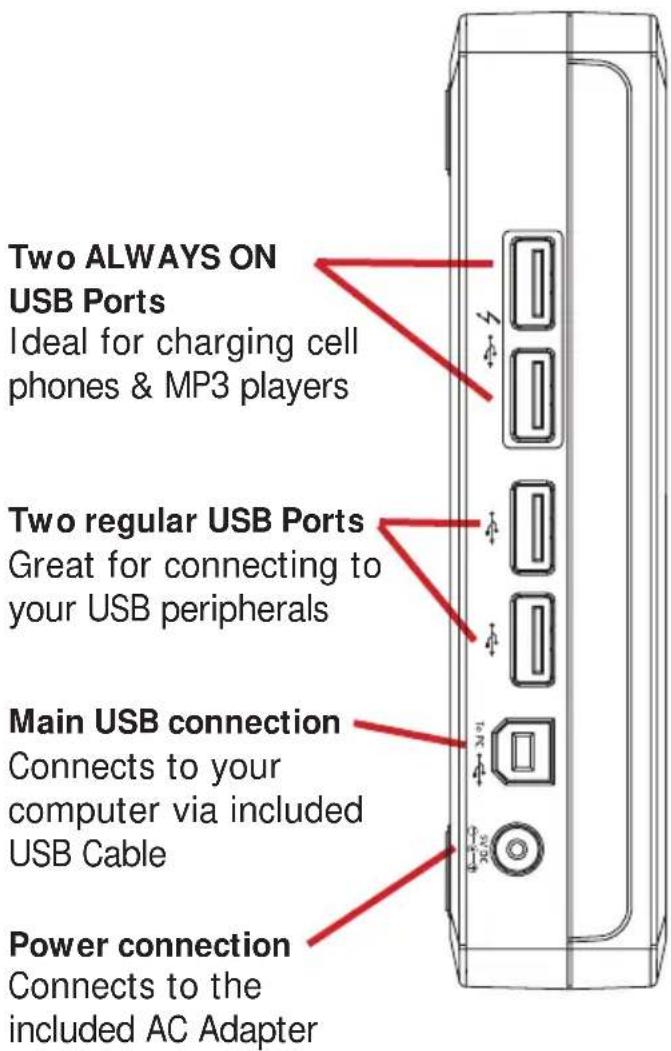
Perfect for connecting to all of your USB peripherals, the Aegis NetDock's 4-port USB Hub has two regular ports and two ALWAYS ON USB ports, ideal for charging cell phones or your MP3 player.
Auto "ON" and "OFF" Feature
The Aegis NetDock's power efficient design automatically powers the NetDock when connected to your computer and powers down when disconnected.
NOTE: The two ALWAYS ON ports remain powered even when the NetDock is powered down as long as the unit is receiving power from the included AC Adapter.
Hard Drive Installation
Whether you received your Aegis NetDock with or without a hard drive installed, the easy open design means that you can change out your hard drive in a snap.

Please make sure that the Aegis NetDock is not connected to the AC Adapter or your computer when attempting the below.
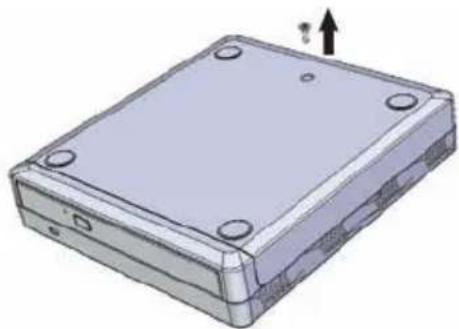
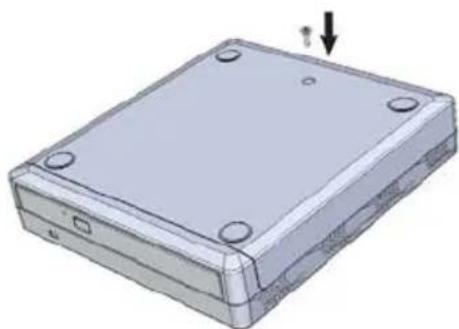
Step 1
Remove the single screw found on the back side of the case
natural_image
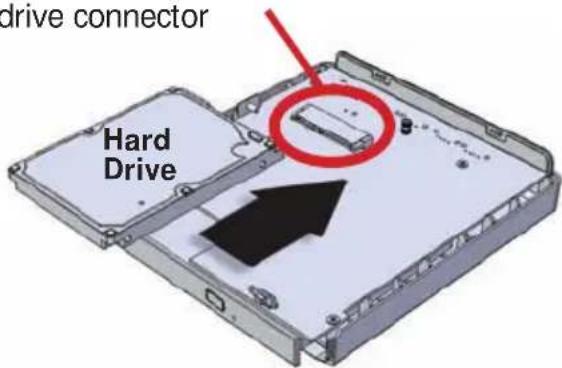
3D rendering of a rectangular electronic device with mounting holes and an upward arrow indicator (no text or symbols)Step 3
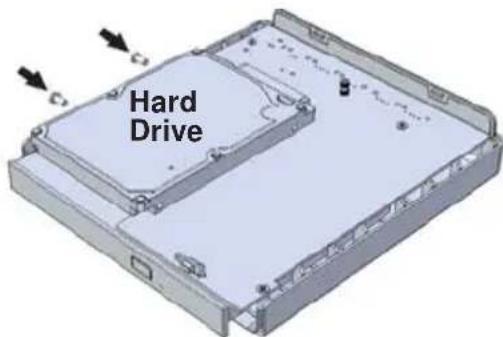
Insert the hard drive by sliding the drive to meet with the SATA hard drive connector
Step 5
Once the hard drive is secured, slide the top case back into place
natural_image
3D diagram of a computer drive chassis with an arrow indicating orientation (no text or symbols present)Important hard drive handling info
Discharge static electricity by • touching a grounded bare metal surface or grounding straps before handling the hard drive
Install hard drive on a non-• conductive or anti-static surface
Avoid direct contact with the circuit • card on the hard drive
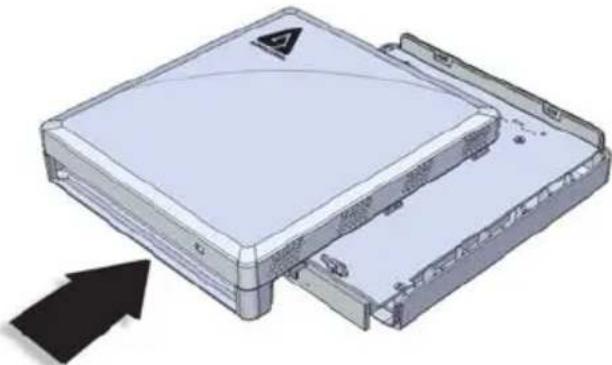
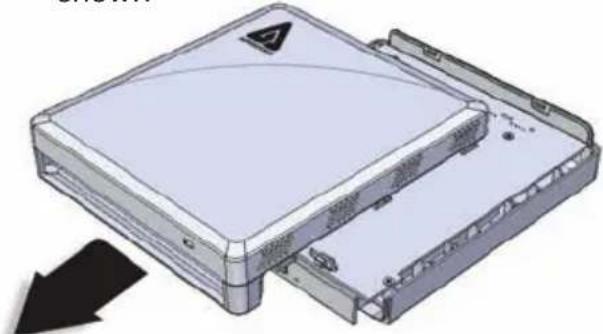
Step 2
Turn the NetDock over and slide the top case away from the bottom case as shown
natural_image
3D diagram of a computer drive chassis with a warning symbol on top panel (no text or labels)Step 4
Secure the hard drive using the included screws as shown below
Step 6
Once you have replaced the top case, turn the NetDock over and replace the screw
natural_image
3D rendering of a rectangular electronic device with mounting holes and a downward arrow indicator (no text or symbols)Initializing Your Hard Drive (self installed hard drives only)
- To initialize your hard drive, you will need to go to Disk Management in Windows. To get to Disk Management in Windows 2000, XP, Vista and 7, right click "My Computer" (2000, XP) or "Computer" (Vista, 7) and click on "Manage" in the list. If you purchased an Aegis NetDock that already has a hard drive, you do not need to use this section because the drive is already formatted for NTFS.
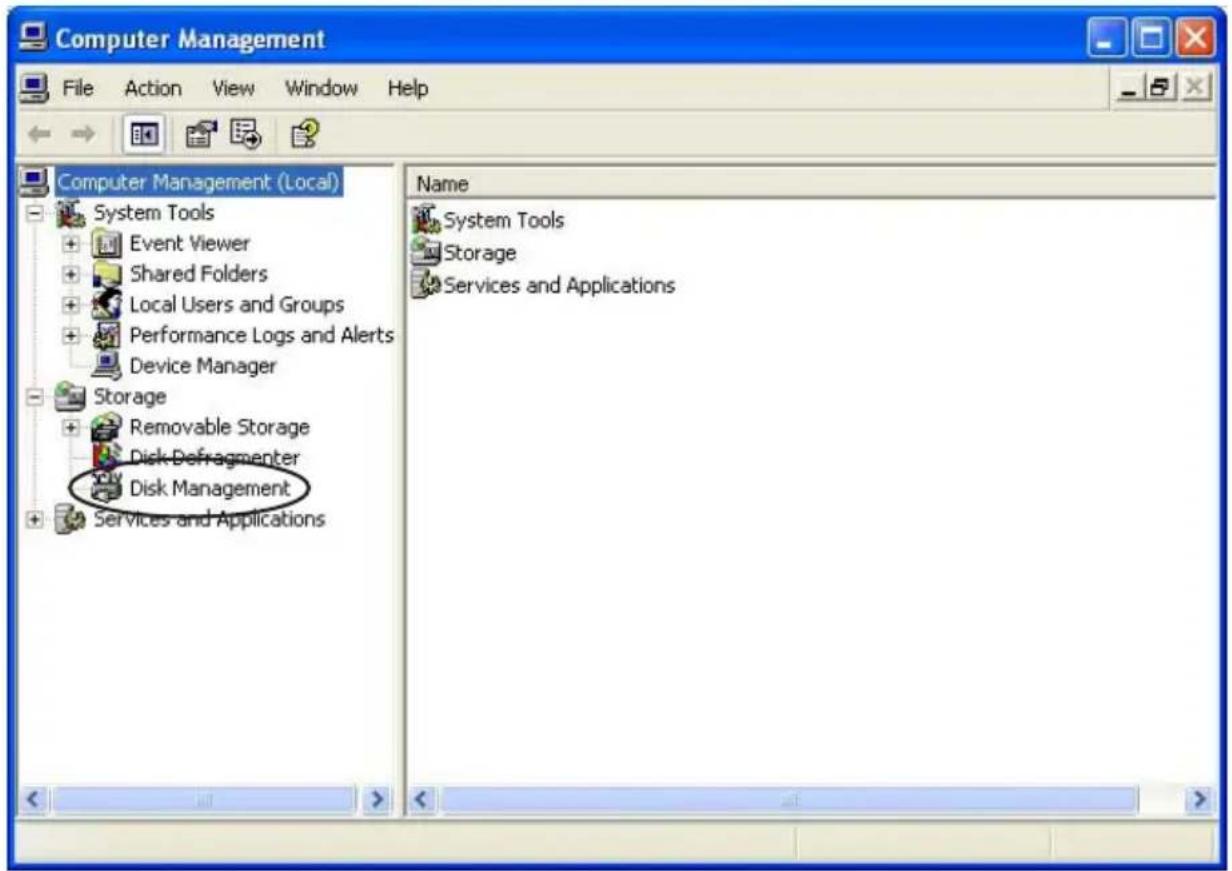
- Double-click on Computer Management.
- In Computer Management, you will find Disk Management under the Storage section. Double-click on Disk Management. Windows XP has a wizard to initialize new hard drives and may appear at this point. If the wizard does not appear, follow the remaining instructions.
- You will be able to easily identify the new drive in Disk Management. The drive will show up as Unknown and Unallocated with a red no entry sign on the disk number. If you do not see a red no entry sign on the disk number, skip to “Partitioning/ Formatting Your Hard Drive” in the next section.
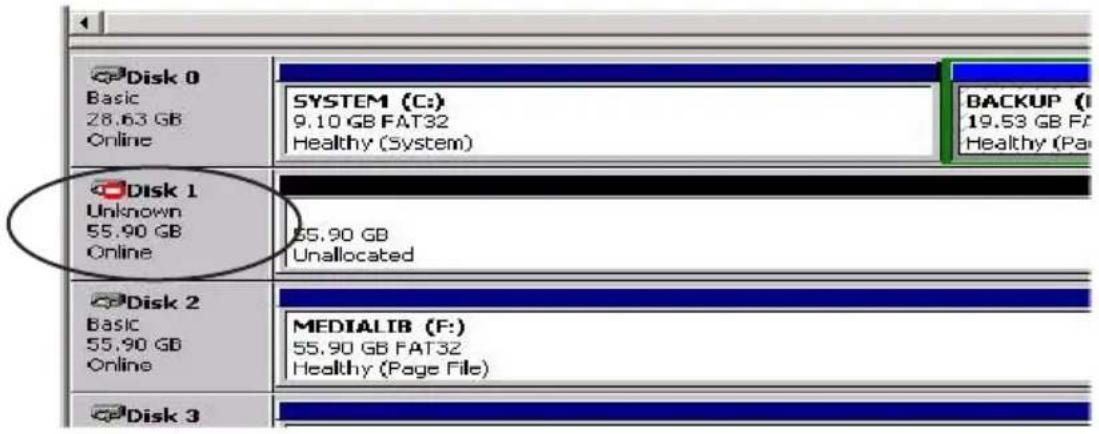
- Right click on the section to the left where the drive number and red no entry sign are located. Select Write Signature/ Initialize Disk
- There are two types of disk storage that you can choose from: basic and dynamic. Select Basic Storage if you want to create partitions and logical drives on the disk. Select Dynamic Storage if you want to create simple volumes (dynamic disks cannot access MS-DOS or Microsoft Windows 98 or earlier versions). If you need further information on disk storage, please go to the Microsoft website.
Partitioning/ Formatting Your Hard Drive
- Once you have selected your disk storage type, you will need to partition/
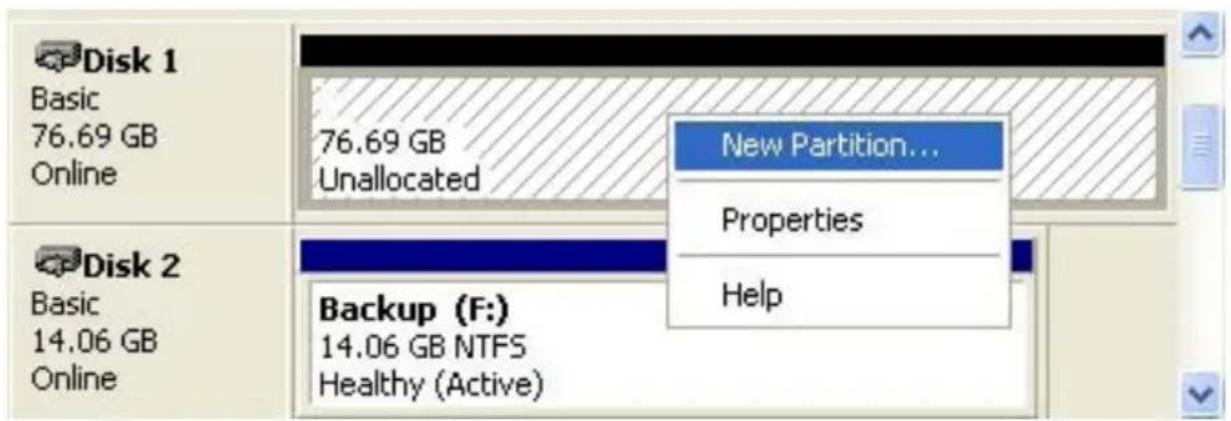
format your drive.
- Right click on the drive and select New Partition (2000, XP) or New Simple Volume (Vista, 7).
- A Partition Wizard will initiate. Click Next.
- Select Primary partition and click Next.
-
You will then need to decide on a partition size. Enter a partition size in the box provided. Click Next.
-
Select Assign a drive letter. Fill in the drive letter. Be sure to select a drive letter that is not in use. Click Next.
-
"Format this partition with the following settings" is selected by default.
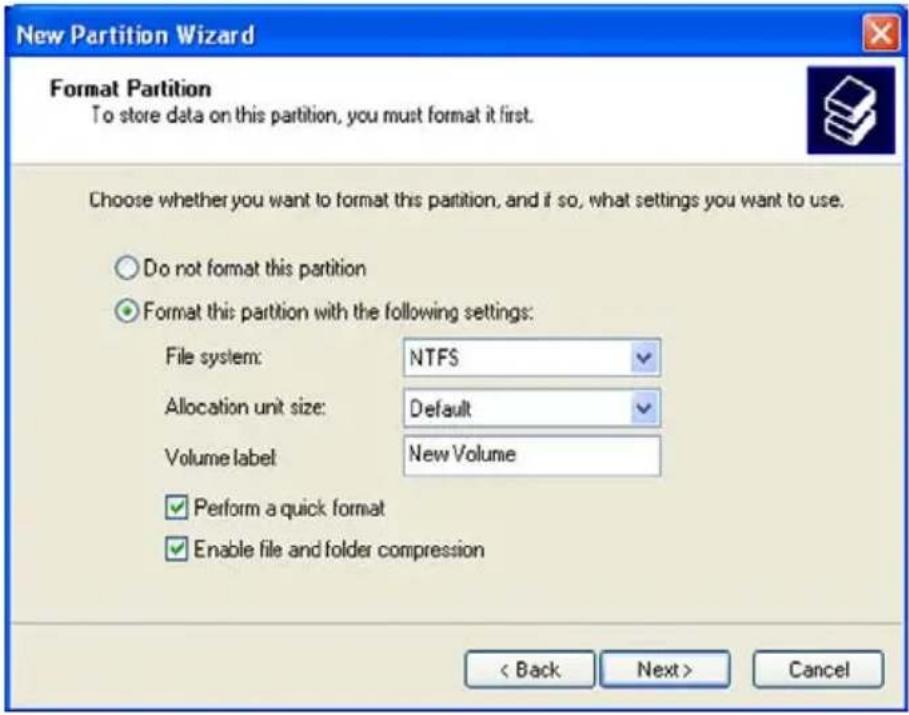
File System: NTFS is selected by default.
Allocation unit size: Accept the default size.
Volume Label: Choose a name that is meaningful to you.
Perform a Quick Format: Optional
Enabling Perform a Quick Format reduces the format time significantly. However a Quick Format is less thorough and does not scan for or mark bad sectors. If you are concerned about errors on your drive do not perform a quick format.
Enable file and folder compression: Optional
Selecting this feature gives you the option to use file and folder compression feature available to the NTFS files system.
- Click Next. You will have to wait a bit. When completed, the drive properties will be shown. You have completed partitioning and formatting your new hard drive. You can begin cloning or imaging (see relevant sections for instructions).
Reformatting Your Hard Drive for Mac
Your Aegis NetDock's hard drive is preformatted with the NTFS Windows File System and will need to be reformatted to work within the Mac OS.
To Reformat in OS 9.x:
Caution: This will destroy any data on the hard drive. Backup any data before you continue with the reformatting of the Aegis NetDock hard drive.
- Make sure the Aegis NetDock is plugged into the USB port.
- Disable the file exchange in the Extensions Manager.
a. From the Apple Menu, select Control Panel, then Extensions Manager.
b. From the list: uncheck the on/off button next to the File Exchange.
c. Click Restart.
Your Macintosh will restart and you will get the following message:
"This disk is unreadable by this computer Do you want to initialize the disk?"
- Enter Aegis NetDock into the Name box.
- From the drop down list, select Mac OS Extended and click the Initialize button. After the drive is initialized the drive named Aegis NetDock will appear on your desktop.
- To confirm that the Aegis NetDock hard drive is properly formatted, select the Aegis NetDock drive, then Select: File, Get Info, General Information. The drive should read Mac OS Extended.
- You can now enable the file exchange extension.
a. From the Apple Menu, select Control Panel, Extensions Manager.
b. Check the on/off box next to File Exchange.
c. Click Restart.
To Reformat in Mac OS 10:
Caution: This will destroy any data on the hard drive. Backup any data before you continue with the reformatting of the Aegis NetDock hard drive.
1 Make sure the Aegis NetDock is plugged into the USB port. The drive should appear as a drive on your desktop.
2. Open the "Applications" folder on your hard drive, go to the "Utilities" folder and select Disk Utilities.
3. Select the drive from the list:
a. A description of the drive appears in the window.
b. Connection bus should be USB 2.0.
-
Select the Erase tab on the top of the window.
-
From the volume format drop down list, select the Mac OS Extended.
-
Enter Aegis NetDock into the Name box.
-
Select the check box next to Install Mac OS 9 Drivers. This will allow you to see your Aegis NetDock hard drive if you boot to Mac OS 9.x
-
Click the Erase button: An alert will appear to confirm the erase process.
-
Click the Erase button to start the formatting process.
-
To confirm that the Aegis NetDock hard drive is properly formatted, Select the Aegis NetDock drive, then Select: File, Get Info. The format should read Mac OS Extended.
Installing the Software CD
The Aegis NetDock comes with three software downloads:
BurnAware CD/DVD Burning Software•
VLC Media Player•
Microsoft SyncToy•
Please note that the included software is compatible with PC only.
The included software is not necessary with Mac systems. The Aegis NetDock hardware is compatible with all Mac DVD/CD authoring software and media playing software
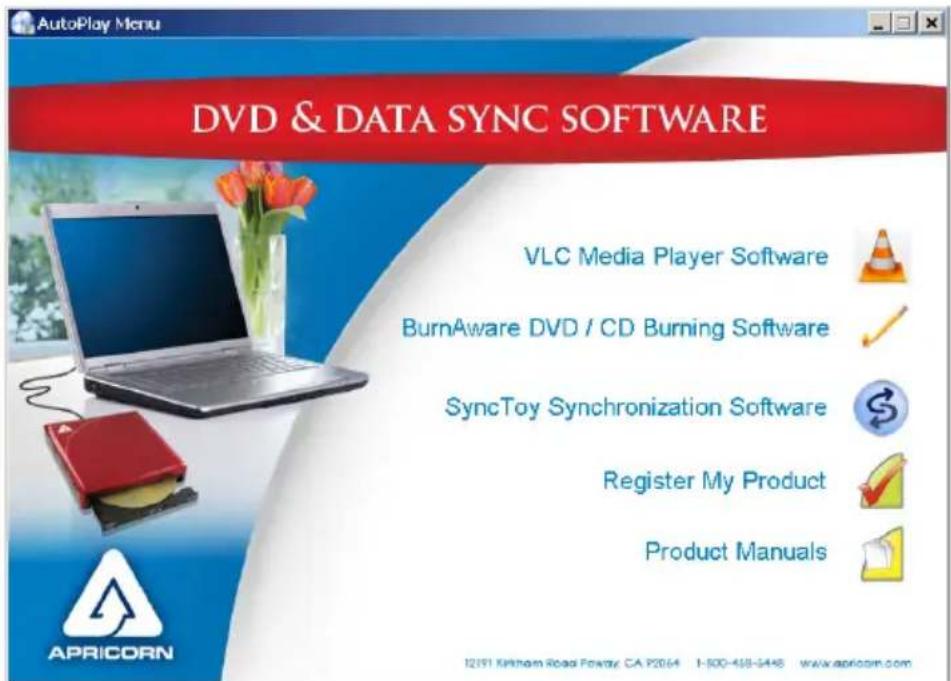
To install these programs, place the included software CD into your Aegis 1. NetDock.
A software launch window will popup. From here you can click on the 2. BurnAware, VLC or SyncToy options to download the programs to your computer or download the latest product manual.
Follow the installation prompts on each of the programs to install on 3. your computer
Device Drivers and Drive Letters for Windows
- Boot up your computer into Windows 2000/XP/Vista/7.
- Connect the Aegis NetDock integrated cable as described on the previous page
- Windows will automatically install its resident device driver (USB Mass Storage Device). After the installation, Aegis NetDock will appear under a new drive letter in 'My Computer' (2000/XP) or 'Computer' (Vista/7).
- If Aegis NetDock does not appear in 'My Computer' or does not work properly, right click on 'My Computer' and click on 'Manage' then under 'System Tools' you will click on 'Device Manager' and check whether the devices are installed as indicated below.
| Installed Device Drivers Location | |
| USB Mass Storage Device Installed | under 'Universal Serial Bus Controllers'. |
| Slimtype DVDRW Installed under 'DVD/CD-ROM drives' (the drive listed in the figure may differ from your Aegis NetDock drive). | |
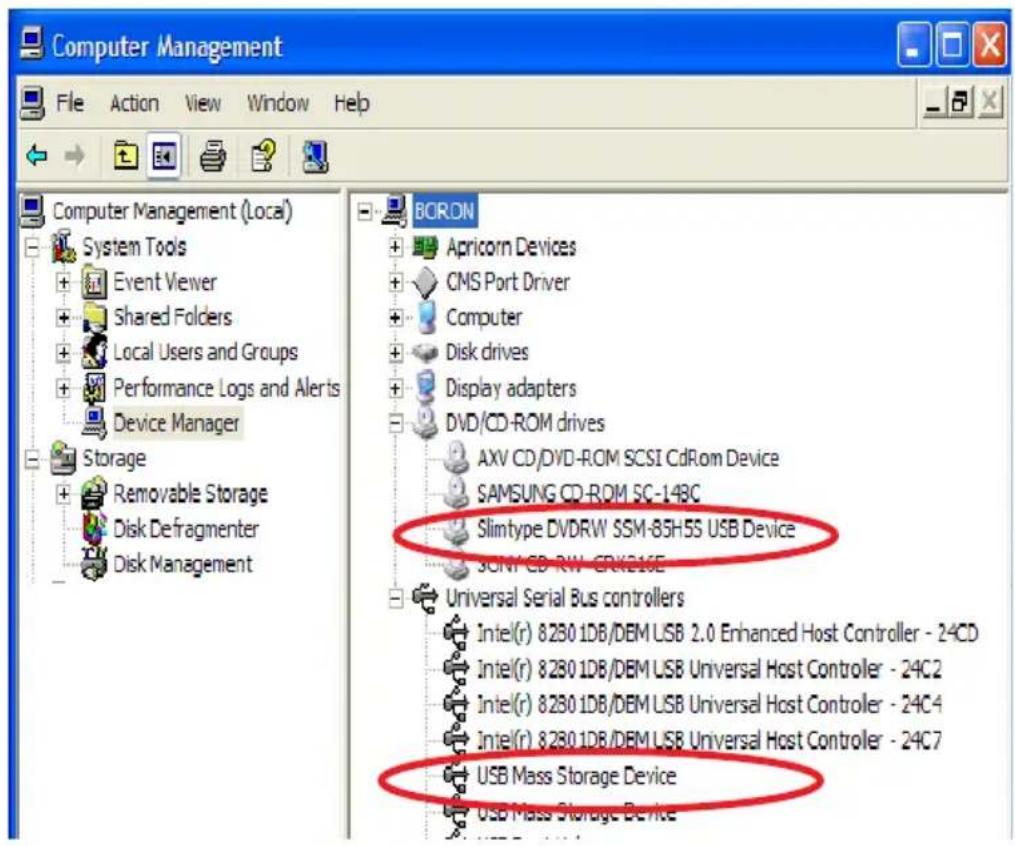
Device Drivers and Drive Letters for Windows
- If the 'Device Manager' entries are correct and Aegis NetDock still does not appear in 'My Computer', you may need to reassign the 'Drive Letter'. This is typically because you have mapped network drives and the Aegis NetDock has assigned the same 'Drive Letter' as one of the mapped drives.
- To reassign the drive letter right click on 'My Computer' and click on 'Manage' then under 'Storage' you will click on 'Disk Management'.
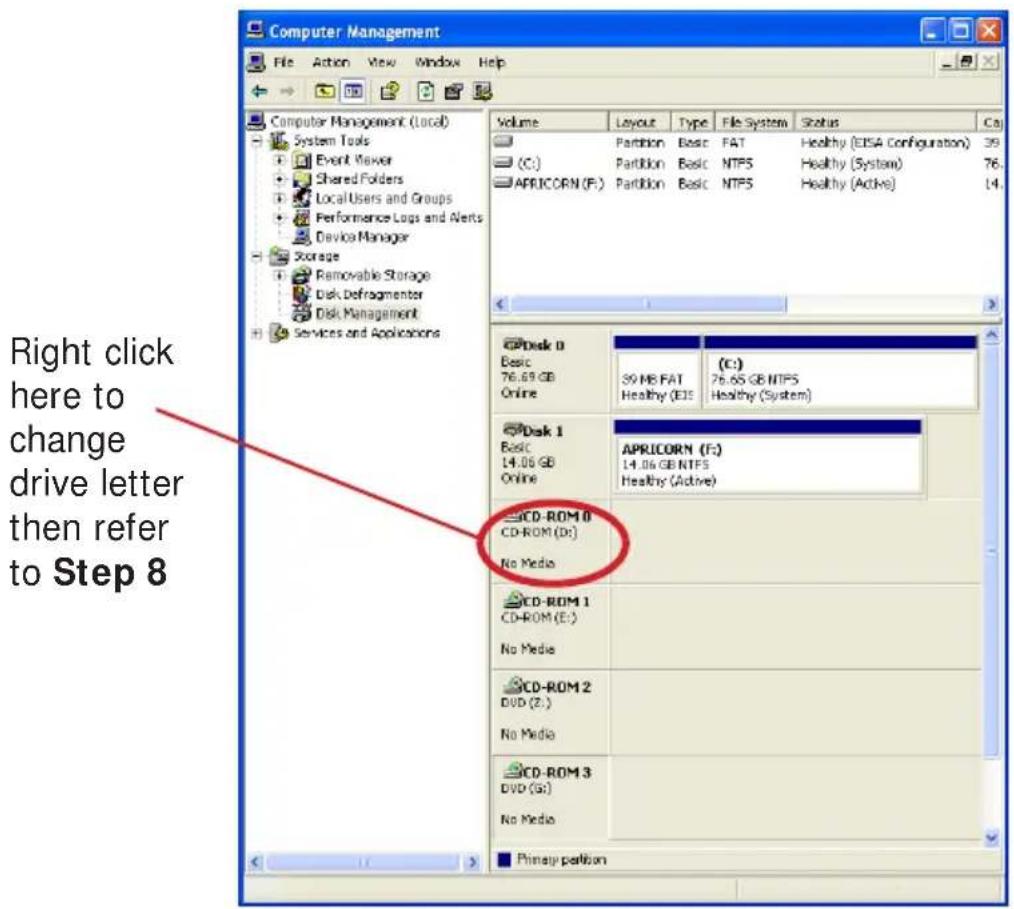
- On the lower half of the window scroll down to see the CD-ROM Drives listed in numerical order. You are looking for a CD-ROM with DVD and a duplicate drive letter or no drive letter at all.
Device Drivers and Drive Letters for Windows
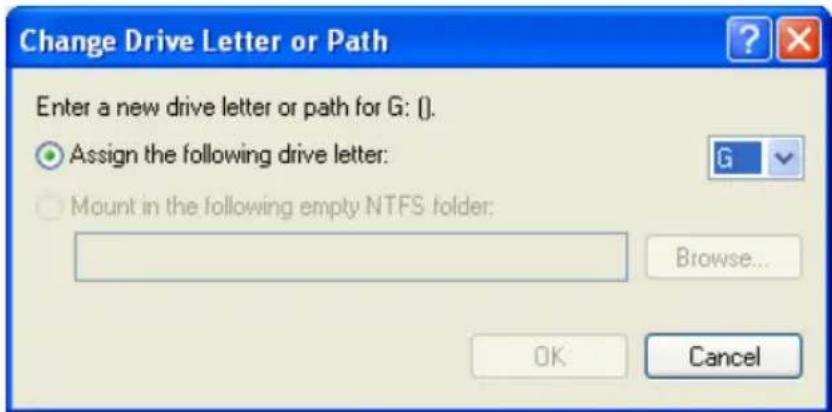
- Right click and open 'Change Drive Letters and Paths' dialog box.
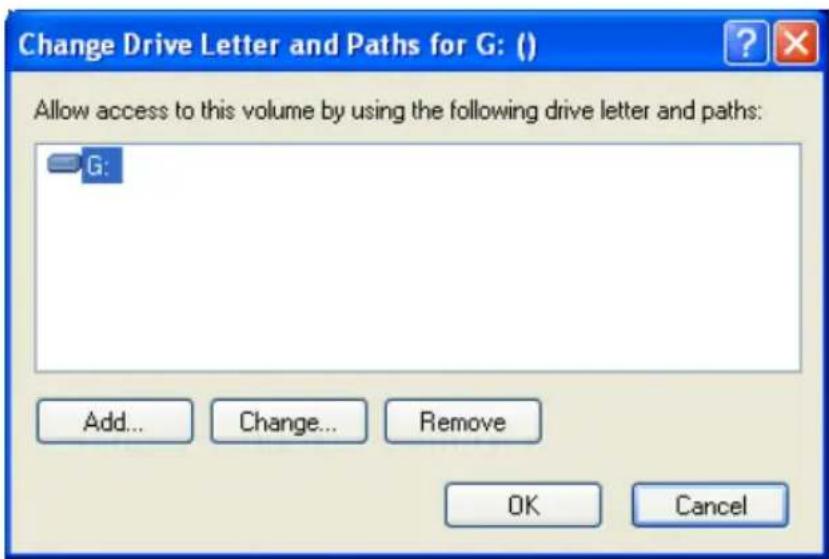
- Now click the down arrow next to the 'Drive Letter' to open the drop down menu and choose a new 'Drive Letter'. Make sure to choose a 'Drive Letter' that does not conflict with any of the mapped network drives. Click on the OK button to assign the new 'Drive Letter' and close all the windows.
-
Go to 'My Computer' to verify that Aegis NetDock appears.
-
You are now ready to start copying files and folders to the Aegis NetDock.
Copy files and folders to a CD (Windows) General Instructions
Note: If your are copying files to a DVD using the Windows 2000 or XP Operating System, you must use DVD buring software (such as the one provided).
- Insert a blank, writable CD into the CD recorder.
- Open My Computer.
- Click the files or folders you want to copy to the CD. To select more than one file, hold down the CTRL key while you click the files you want. Then, under File and Folder Tasks, click Copy this file, Copy this folder, or Copy the selected items. If the files are located in My Pictures, under Picture Tasks, click Copy to CD or Copy all items to CD, and then skip to step 5.
- In the Copy Items dialog box, click the CD recording drive, and then click Copy.
- In My Computer, double-click the CD recording drive. Windows displays a temporary area where the files are held before they are copied to the CD. Verify that the files and folders that you intend to copy to the CD appear under Files Ready to be Written to the CD.
- Under CD Writing Tasks, click Write these files to CD. Windows displays the CD Writing Wizard. Follow the instructions in the wizard.
Specific Instructions according to your Windows OS
There are many ways to burn CDs and DVDs. Most new operating systems have these features built into them. We also have included the BurnAware (Windows) utility in case your operating system does not have the ability to burn a DVD (such as with XP). Your computer may already have burning software installed that will work well with this drive. If this is the case, no additional software is needed to burn CDs or DVDs.
If you would like more detailed instructions on burning a disc with your specific operating system, please refer to the links below.
Windows 7
http://windows.microsoft.com/en-us/windows7/help/videos/burn-a-cd
Windows Vista/ XP
http://windows.microsoft.com/en-US/windows-vista/Burn-a-CD-or-DVD
http://windows.microsoft.com/en-US/windows-vista/Burn-a-CD-or-DVD-in-Windows-Media-Center
Mac OS X
http://support.apple.com/kb/HT1328
"DRIVE NOT ACCESSIBLE" ERROR
Firstly, check to make sure that your CD is in the right tray.
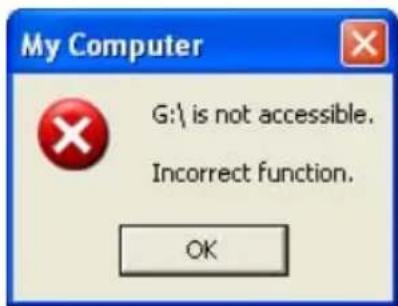
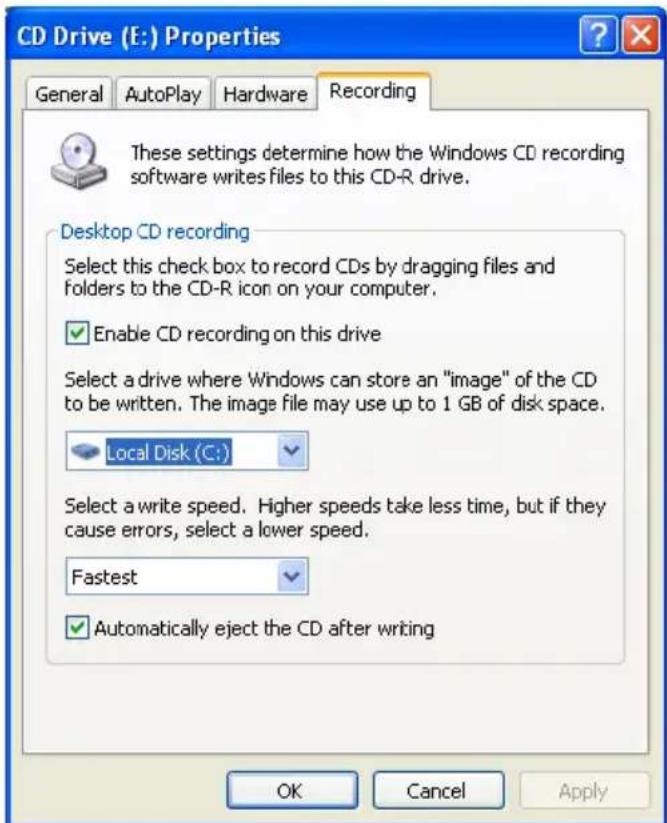
If you receive a “Drive Not Accessible” error when you try to access the Aegis NetDock in ‘My Computer’ or after trying to drag and drop files to you Aegis NetDock drive, you may need to enable CD Recording on this drive.
- Go to Start, My Computer and right click on the appropriate CD drive. (Both DVD's and CD's may show up as a CD drive in Windows)
- Scroll down and click on Properties to open the CD properties dialog box.
- Click on the Recording tab and check the enable recording on this drive check box.
- Click apply and OK to close the dialog box.
Now you should be able to drag and drop files to this drive.
Disconnecting
Windows 2000, XP, Vista and 7
1) Locate the system tray on your Windows Desktop (the system tray is the part of the taskbar that displays the date and time).
2) Click on the "Safely Remove Hardware" icon (2000, XP) or (Vista, 7) in the system tray. A dialog box will appear.

lease note that in Windows Vista and 7 the “Safely Remove Hardware” icon is different.
3) Click 'Safely Remove Mass Storage Device – Drive (D:) in the dialog box. (Your drive letter may differ).
4) Wait for few seconds until the system prompts 'The hard disk storage device can now be safely removed from the system." Click OK, and then unplug the Aegis NetDock.
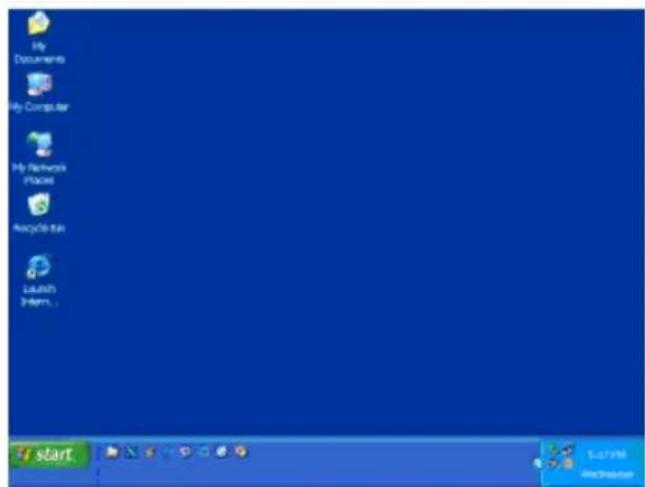
The "Safely Remove Hardware" button is located in the System Tray near the time clock
natural_image
Simple black arrow pointing left with a green checkmark and cloud on the right (no text or symbols)NOTE: To protect against unexpected data loss, Windows checks that all files on the drive are closed before allowing the USB device to be removed. If you receive an error message that says "The device cannot be stopped right now. Try stopping the device again later." Close all Windows and Programs that are using files from the drive, then repeat the procedure.
Contacting Technical Support
Apricorn provides the following helpful resources for you:
- Aegis NetDock User's Guide and Quick Start Guide
- Apricorn's Website (http://www.apricorn.com)
This gives you the ability to check for up-to-date information. - E-mail us at support@apricorn.com.
- Or call the Technical Support Department at 1-800-458-5448.
Apricorn's Technical Support Specialists are available from 8:00 a.m. to 5:00 p.m., Pacific Standard Time from Monday through Friday.
RMA Policy
An RMA (Return Merchandise Authorization) tracking number must be issued by Apricorn. If you need to return or replace your Aegis NetDock, Apricorn requires that you perform the following steps:
- Find your original receipt.
- Simply call Apricorn's technical support department with your Aegis NetDock part number and a description of the problem(s) you are experiencing.
- If the Apricorn representative finds cause for a return, they will issue an RMA number. Please write this number down.
- Fill out an RMA authorization form with your package. The RMA form is available on-line at http://www.apricorn.com/support/rma.php.
- Please send the prepaid package including RMA form and receipt to the following address, make sure the RMA# is written on the exterior of the package:
Apricorn
RMA# :
12191 Kirkham Road
Poway, CA 92064
The purchaser shall be responsible for any loss or damage to the returned product until it is received by Apricorn. Purchaser should consider obtaining insurance with respect to shipping the product.
Warranty Conditions
One - Year Warranty:
Apricorn offers a 1-year warranty on Aegis NetDock products against defects in materials and workmanship under normal use. The warranty period is effective from the date of purchase (validated by your original receipt) either directly from Apricorn or an authorized reseller.
Disclaimer and terms of the warranties:
THE WARRANTY BECOMES EFFECTIVE ON THE DATE OF PURCHASE AND MUST BE VERIFIED WITH YOUR SALES RECEIPT OR INVOICE DISPLAYING THE DATE OF PRODUCT PURCHASE.
APRICORN WILL, AT NO ADDITIONAL CHARGE, REPAIR OR REPLACE DEFECTIVE PARTS WITH NEW PARTS OR SERVICEABLE USED PARTS THAT ARE EQUIVALENT TO NEW IN PERFORMANCE. ALL EXCHANGED PARTS AND PRODUCTS REPLACED UNDER THIS WARRANTY WILL BECOME THE PROPERTY OF APRICORN.
THIS WARRANTY DOES NOT EXTEND TO ANY PRODUCT NOT PURCHASED DIRECTLY FROM APRICORN OR AN AUTHORIZE RESELLER OR TO ANY PRODUCT THAT HAS BEEN DAMAGED OR RENDERED DEFECTIVE: 1. AS A RESULT OF ACCIDENT, MISUSE, NEGLECT, ABUSE OR FAILURE AND/OR INABILITY TO FOLLOW THE WRITTEN INSTRUCTIONS PROVIDED IN THIS INSTRUCTION GUIDE: 2. BY THE USE OF PARTS NOT MANUFACTURED OR SOLD BY APRICORN; 3. BY MODIFICATION OF THE PRODUCT; OR 4. AS A RESULT OF SERVICE, ALTERNATION OR REPAIR BY ANYONE OTHER THAN APRICORN AND SHALL BE VOID. THIS WARRANTY DOES NOT COVER NORMAL WEAR AND TEAR.
NO OTHER WARRANTY, EITHER EXPRESS OR IMPLIED, INCLUDING ANY WARRANTY OR MERCHANTABILITY AND FITNESS FOR A PARTICULAR PURPOSE, HAS BEEN OR WILL BE MADE BY OR ON BEHALF OF APRICORN OR BY OPERATION OF LAW WITH RESPECT TO THE PRODUCT OR ITS INSTALLATION, USE, OPERATION, REPLACEMENT OR REPAIR.
APRICORN SHALL NOT BE LIABLE BY VIRTUE OF THIS WARRANTY, OR OTHERWISE, FOR ANY INCIDENTAL, SPECIAL OR CONSEQUENTIAL DAMAGE INCLUDING ANY LOSS OF DATA RESULTING FROM THE USE OR OPERATION OF THE PRODUCT, WHETHER OR NOT APRICORN WAS APPRISED OF THE POSSIBILITY OF SUCH DAMAGES.
Notes:

APRICORN
12191 Kirkham Road
Poway, CA, U.S.A. 92064
1-858-513-2000