Video Baby Monitor 7000 - Baby monitor British Telecom - Free user manual and instructions
Find the device manual for free Video Baby Monitor 7000 British Telecom in PDF.


User questions about Video Baby Monitor 7000 British Telecom
0 question about this device. Answer the ones you know or ask your own.
Ask a new question about this device
Download the instructions for your Baby monitor in PDF format for free! Find your manual Video Baby Monitor 7000 - British Telecom and take your electronic device back in hand. On this page are published all the documents necessary for the use of your device. Video Baby Monitor 7000 by British Telecom.
USER MANUAL Video Baby Monitor 7000 British Telecom
natural_image
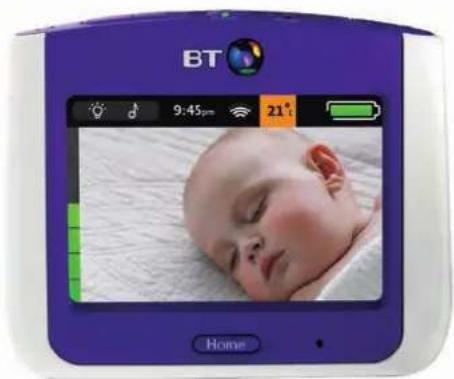
Two electronic devices: a purple BT device displaying a sleeping baby on screen and a white humanoid robot with a yellow beanie-like head, both without visible text or symbols.BT Video Baby Monitor 7000 User guide
Contents
Welcome 3
Getting set up ....4
Learn about your menu ....10
Learn about your Parent unit 12
Learn about your Baby unit ....13
Baby unit (camera) 14
Using the Night Light 16
Using Lullabies....18
Feed Timer....20
Temperature 22
Cry Alerts....25
Night vision....28
Settings....29
BT Help....31
Help and troubleshooting 33
Guarantee and returns....35
Important safety notices
- Your baby monitor is designed as just an aid. It isn't a substitute for responsible and proper adult supervision.
- Make sure all cables and units are out of your baby's reach – at least one metre away.
- Never cover either unit, put them in moist places or inside the cot, bed or playpen.
- If you travel abroad, check the voltage on your unit's plugs match the local power output.
- Only use the battery supplied for the Parent unit. If you need to replace it, contact our helpdesk.
- Do not take the product apart. If you need repairs, get in touch with our helpdesk.
- The Baby unit might get warm after it's been on for a while. Don't worry – this is normal, and it's perfectly safe.
Welcome
Thanks for buying this BT Baby Monitor.
You'll soon be able to relax knowing you can watch and listen to your baby's every breath, gurgle and wriggle.
But first things first. To get set up, just follow the steps over the page. Set-up only takes a few minutes.
Then, you can learn all about your monitor and how to use it from page 10.

Need some help? No problem – give us a call on 0808 100 6554*, or go to bt.com/producthelp. Once you've set things up, you can tap BT Help on your Parent unit to run through the set-up wizard again.
* Calls made from within the UK mainland are free. Mobile and international call costs may vary.
Getting set up
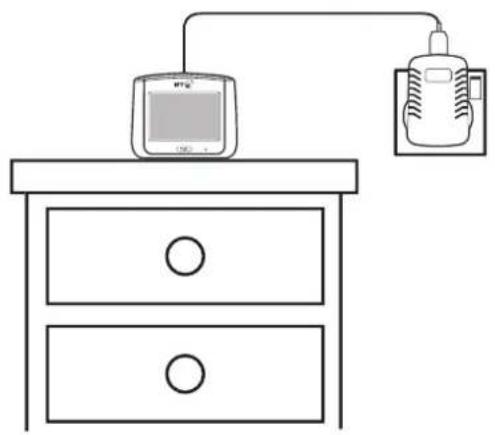
1 Place the Parent unit near a power socket in the room where you're going to be monitoring your baby most of the time. (Most people have their Parent unit on a bedside table).
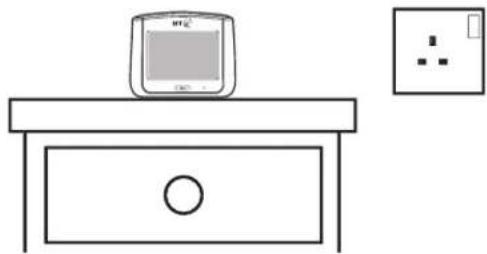
natural_image
Simple line drawing of a microwave oven on a drawer with an electrical outlet nearby (no text or symbols)2 Using one of your two micro USB cables, plug one end into the power plug.
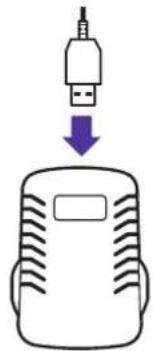
natural_image
Simple line drawing of a device with an attached plug and a downward arrow, no text or symbols present.When does near become too far?
The maximum range between your Parent and Baby units is about 300 metres outdoors and about 50 metres indoors. Thick walls and doors reduce the units' range and affect how they link to each other.
Tip
You can also charge your Parent unit using other micro USB cables. This can be handy when you're away from home with your baby.
Getting set up
3 Plug the other end into the Parent unit, then plug the power plug into the power socket and switch the power on.
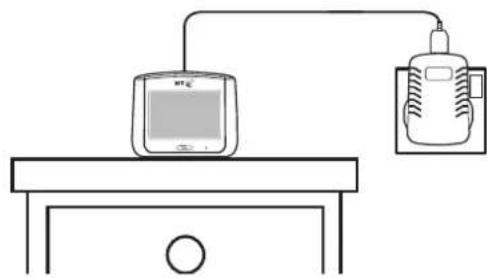
natural_image
Simple line drawing of a desktop computer setup with monitor and printer (no text or symbols)4 Pull the battery tab out of the Parent unit.
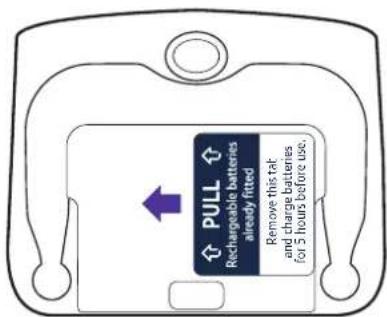
Tip
When your Parent unit charges while switched off, it turns itself off when fully charged. This means the battery icon goes off, too.
Getting set up
5 Leave the Parent unit to charge for at least five hours.
You can tell it's fully charged when the green battery icon on the screen is solid green.
natural_image
Simple line drawing of a two-down drawer setup with a monitor and a bag, no text or symbols present.Important note about batteries
A fully charged Parent unit will last about 6.5 hours with normal use. To speed up charging, charge the Parent unit when it's switched off. You can also charge the Parent unit and use it at the same time, but it'll charge more slowly and take longer to fully charge. If the Parent unit battery is low with only about 30 minutes' charge left, you'll hear an alert tone. If this happens, put the Parent unit back on charge if you want to keep monitoring your baby.
Getting set up
6 After the Parent unit has charged for five hours you're ready to set up your Baby unit (camera). To get the best performance, place your Baby unit between one and two metres away from your baby. If you like, you can also attach the unit to a wall. See page 33 for how to do this. Make sure there's enough slack in the power cable so the Baby unit can pan freely.
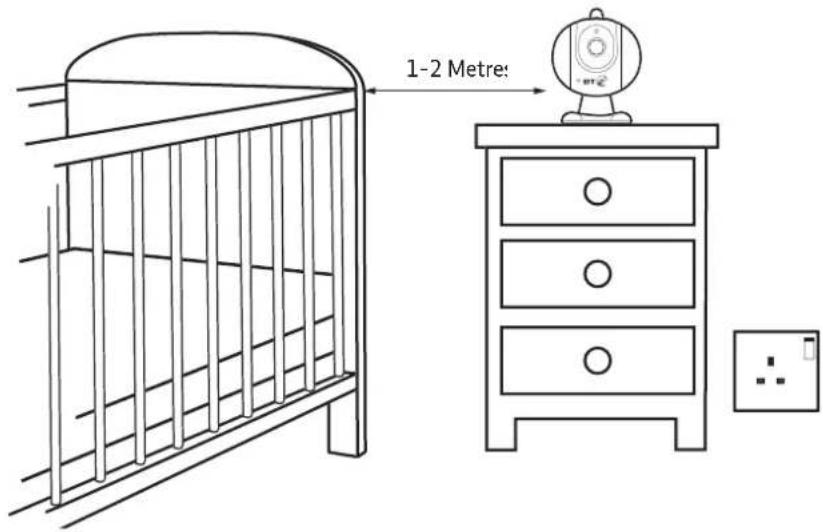
Tip
Point the Baby unit's camera to the centre of the mattress or playpen. You can always adjust this later.
Important note
The Baby unit might get warm after it's been on for a while. Don't worry – this is normal, and it's perfectly safe.
Getting set up
7 Using your other micro USB cable, plug one end into the power plug and the other end into the Baby unit. Plug the power plug into the power socket and switch the power on.
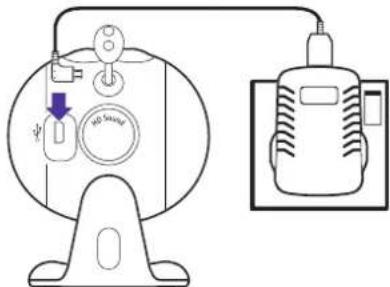
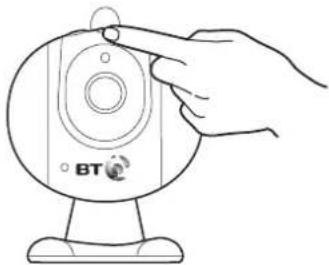
8 Press and hold the power button for a second or two. The link light will flash green and the nightlight will light on and off.
natural_image
Line drawing of a hand holding a BT-branded camera module (no text or symbols on the device itself)Important note about connections
If the Parent and Baby unit lose the link or connection between them, the link light will flash and the screen will say the link is lost, and is trying to reconnect. If after 30 seconds there's still no link, you'll hear an alert tone from the Parent unit. First, check on your baby and then follow the steps from step 7 again to set up the link again.
Getting set up
9 Press the power button to switch on your Parent unit. The Parent and Baby unit will link automatically and the Baby unit's link light will turn solid green.
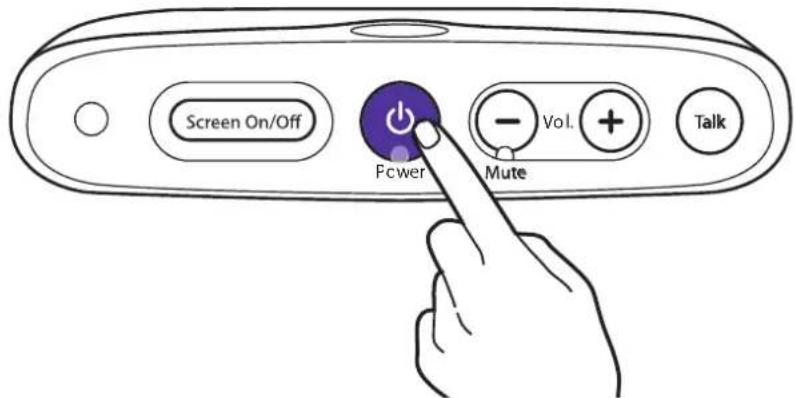
The first time you switch on your Parent unit, a set-up wizard asks you to set the time and then shows you all your baby monitor's features.
If you want, you can skip through the set-up wizard by tapping the screen or tapping Exit, when shown.
When you exit the set-up wizard, the Parent unit will show you the live view from the Baby unit and you're all set up!
Tip
If you ever want to watch the set-up wizard again, tap Menu and then BT Help, then Introduction.
Learn about your menu
Using your baby monitor
Signal strength This will show the strength of your connection between the Parent and Baby unit.
Quick access menu for Night Light and Lullabies More on page 16-19.
Time
You can set this in Settings. More on page 29.
Feed Timer
Set reminders for feeding time. More on page 20.
Temperature
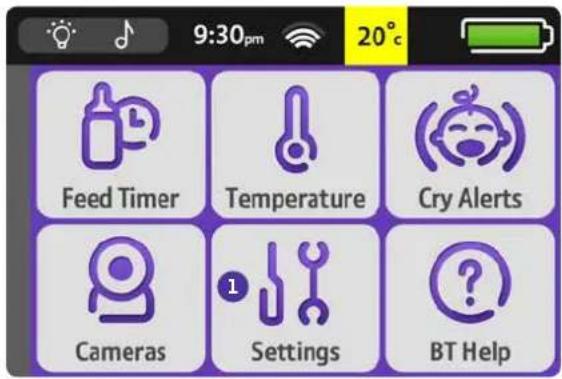
The temperature of the room the Baby unit is in. Get alerts on changes of temperature. More on page 22.
Baby unit (camera)
Name your camera or pair additional cameras. More on page 14.
Sound level indicator
you the level of noise in your baby's room.
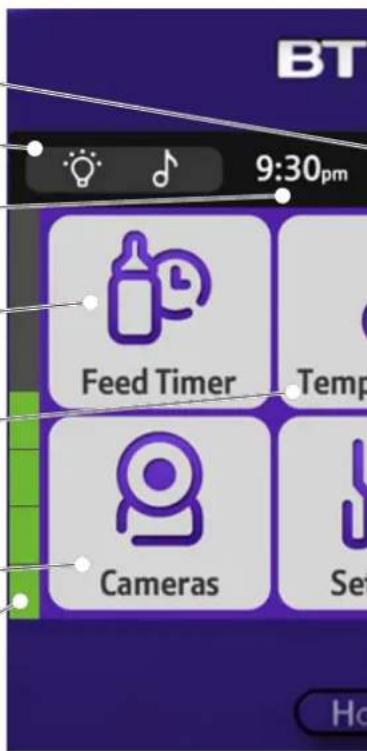
How do I leave the menu?
Press . From This is on the left of the screen and shows
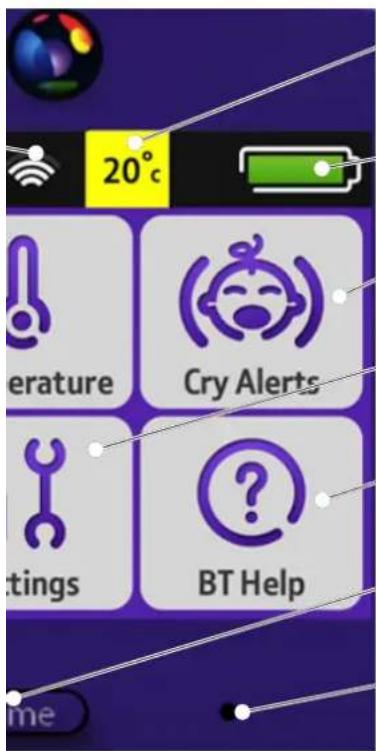
Temperature at Baby unit
This changes colour as the temperature changes – yellow is the optimum temperature, blue too cold, orange too warm and red too hot. More on page 22.
Battery level
More on page 6.
Cry Alerts
Hear when your baby's crying.
More on page 25.
Settings
Set tones, backlight and time.
More on page 29.
BT Help
See the set-up wizard, reset settings and how to get more help.
More on page 31.
Home
Returns to the live video from your Baby unit. Tap the screen anywhere to go to the menu.
Mic
Microphone – speak into this when you want to talk to your baby using the Baby unit. More on page 12.
Learn about your Parent unit
Screen On/Off
Press to turn your Parent unit screen on and off (sleep). Audio remains active when the screen is off.
Volume
Press ⬤ to increase or decrease volume. To mute, press ⬤ until the Mute light comes on. Remember, you won't hear your baby through the Parent unit if you mute the volume.
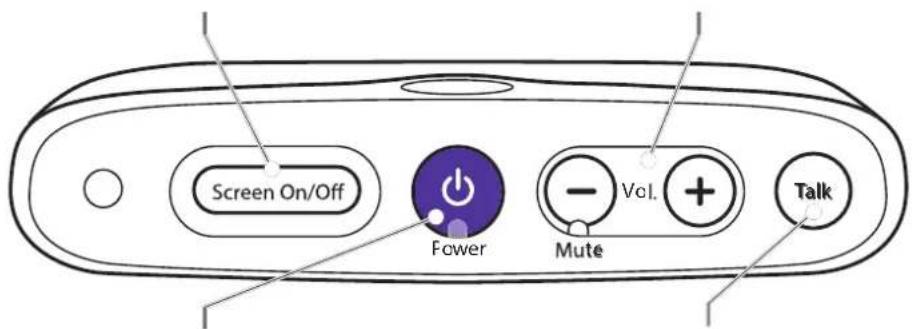
Power
Press and hold for a second to turn your Parent unit on and off.
Talk
Press and hold 🔒 to talk to your baby through the Parent unit.
Tips about talking
You can talk to your baby using the Parent unit. Hold or have the Parent unit about an arm's length away when using it to talk to your baby – and take care not to put your thumb over the microphone. And remember, while you're talking, you won't be able to hear your baby.
Learn about your Baby unit
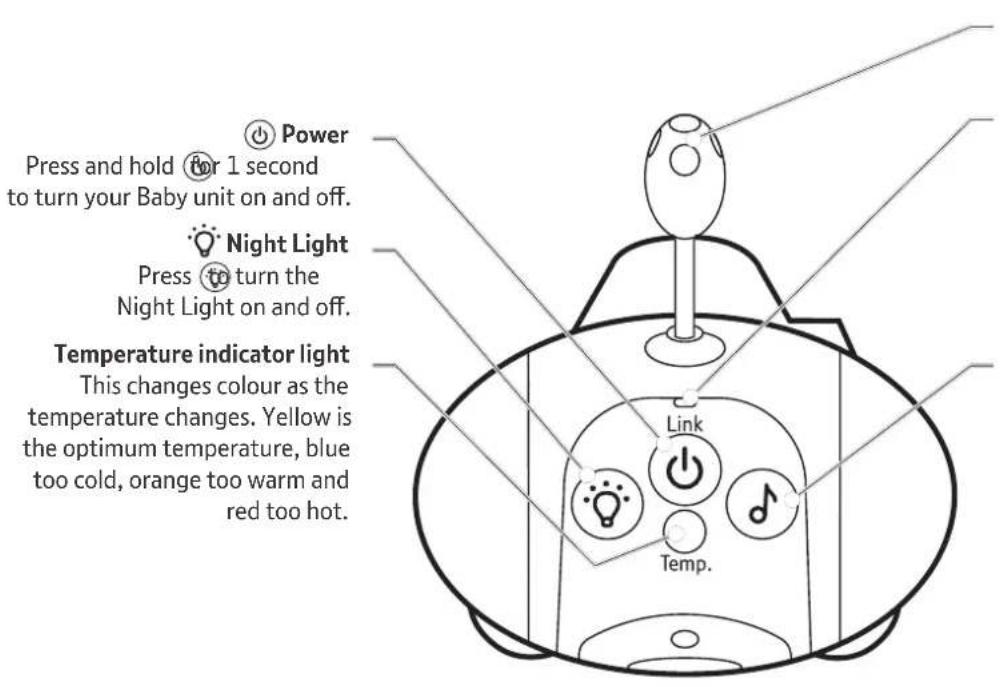
Temperature sensor
Link indicator light
This is solid green when the Parent and Baby units are linked. It flashes green when it's trying to link to a camera and flashes red when no camera is linked.
Lullabies
Press to turn the Lullabies on and off.
Baby unit (camera)
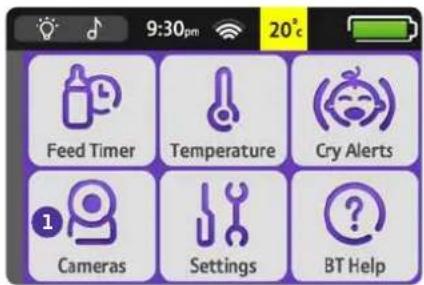
How to name your camera
1 To change your camera name, tap Cameras and then Rename?
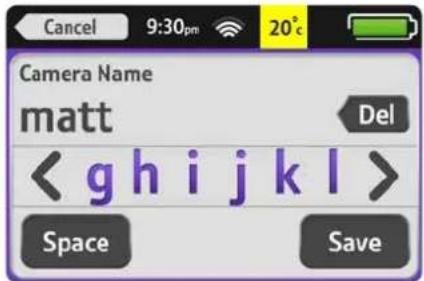
2 Enter your baby's name (up to eight characters) and tap Save.
Baby unit (camera)
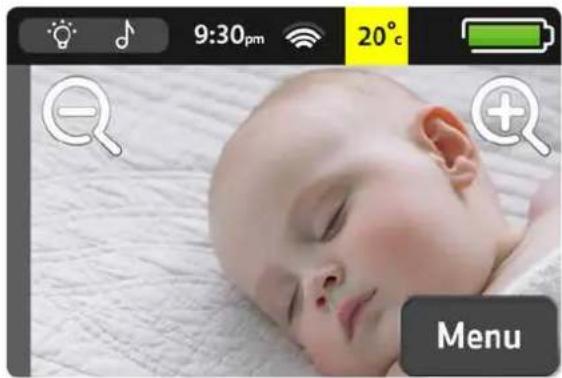
How to zoom your camera
To zoom a camera, tap the screen and the 📄 and will appear. Tap these to zoom in and out.
When zoomed in, the will appear. Tap these to move the view up, down, left or right.
natural_image
Close-up of a sleeping baby face with app icons and UI elements (no readable text or symbols)Using the Night Light
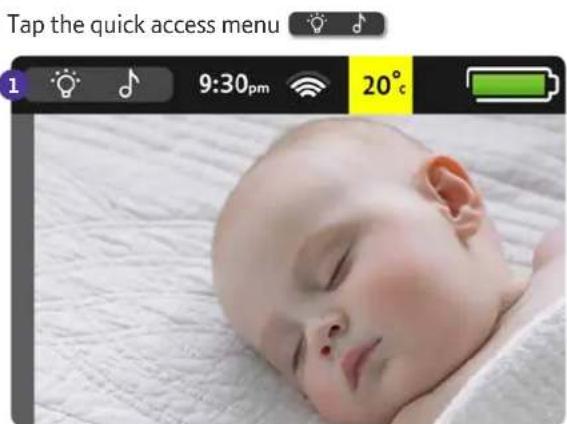
A gentle night light in your baby's room can give your baby comfort.

Using the Night Light
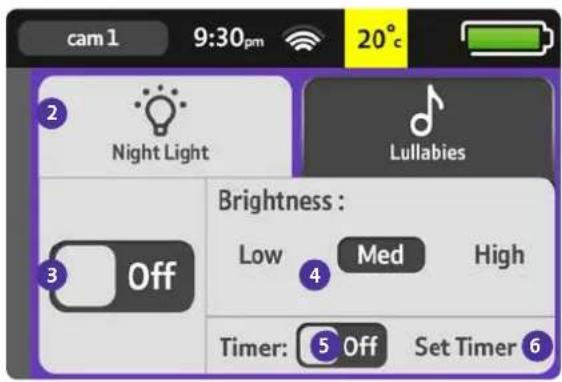
2 Choose the Night Light tab.
3 Tap to turn your Night Light on/off. (The 🎨 ll glow yellow on the quick access menu when you return to the home screen.)
4 There are three brightness settings for the Night Light. Tap how bright you want your Night Light.
5 Tap to turn the timer on/off.
6 Tap to set your timer. To choose how long the light stays on, press Set Timer and then tap + or -.
7 If you want to go back and adjust your Night Light's brightness, tap Hide Timer.
Tip
You can also turn the Night Light on/off on the Baby unit – just press the ⏻ button.
Tip
If you turn off your Baby unit, any Night Light settings will be saved on your Parent and Baby unit.
Using Lullabies
Music can entertain your baby or help them drift off to sleep. You can choose from: Lullabies, Classical, Nature Sounds and White Noise.
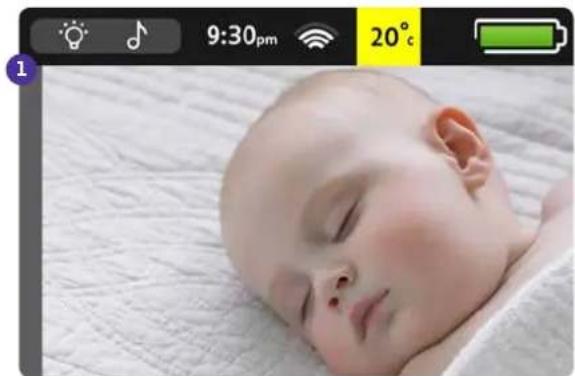
1 Tap the quick access menu
natural_image
Close-up photo of a sleeping baby on a textured white surface, captured in a mobile app interface (no text or symbols on the image itself)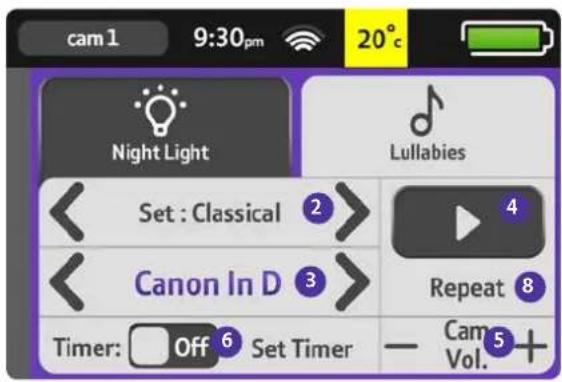
2 Tap either arrow to scroll and choose the type of music you want from lullaby, classical, nature or white noise.
3 Tap either arrow to choose the track to play.
4 Tap to play the track.
5 Tap to adjust the Baby unit (camera) volume.
6 Tap to turn the timer on/off. When on, you'll see a timer icon on the Lullabies tab and quick access menu.
7 Tap to set your timer. Then tap the + or - to set how long the music plays. You can change timer settings whilst a track is playing.
8 Tap to set the track to keep repeating. If the track isn't set to repeat, the other tracks within that type of music will play.
Tip
If you turn off your Baby unit, any lullaby settings will be saved on your Parent and Baby unit.
Tip
You can also turn Lullabies on and off on the Baby unit – just press the ⏰ button.
Feed Timer
How to set reminders for feeding time
Babies like regular feeding times and a bit of routine. Your handy baby monitor can remind you of feeding times.
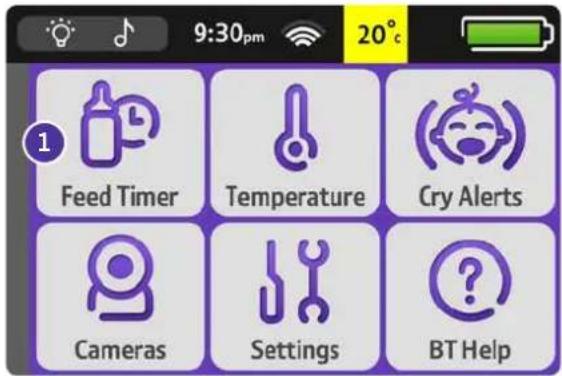
1 In Menu, tap feed Timer.
Tip
If you just start your feed timer without changing any settings, its default setting is to alert you in two hours. The maximum alert time you can set is for an alert in nine hours and 59 minutes.
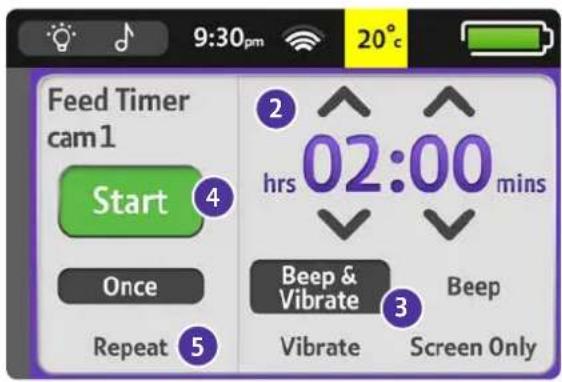
2 Tap when you want feed timer alerts.
3 Choose and tap the kind of alert you want
4 Tap Start. When your feed timer is on, the numbers showing the time glow green. You can also see a countdown to the next alert on the home screen.
5 Tap to set the timer to keep repeating and reminding you of the next feeding time.
You'll hear two beeps when the feed timer finishes. Tap the feed timer numbers on the home screen to dismiss this alert and take you to the feed timer menu. If you've set the timer to repeat, it'll restart timing automatically from the moment you dismiss the alert.
Important
If you turn off your Parent unit, you'll need to restart your feed timer when you turn it on again. Length and frequency settings for alerts aren't affected by turning off the Parent unit.
More than one alert?
You'll always see the latest alert on the screen. If you dismiss the latest alert, you'll then see any previous alert.
Temperature
How to change the temperature alert settings
Make sure your baby's room is at a comfortable temperature. Your handy baby monitor will let you know if it's getting too hot or too cold.
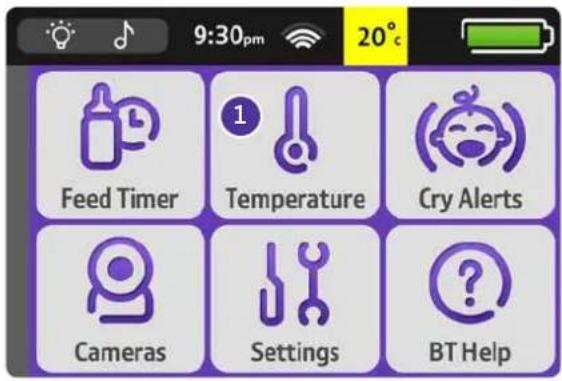
1 In Menu, tap Temperature.
Important
The Baby unit's thermometer is accurate to +/- 1°C.
Default settings
The Baby unit's default setting for temperature alerts is 15^ (and below) and 25^ (and above), based on UK Department of Health guidelines.
What happens if I reset the Parent unit?
All temperature displays and indicators will go back to default settings.
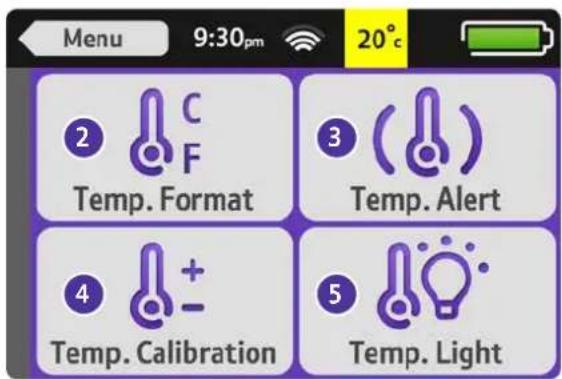
2 Tap if you want to change how you want your baby's room temperature displayed (i.e. in Celsius or Fahrenheit). Its default is Celsius.
3 Tap ( ) return off alerts or to set the kind of alert you want.
4 Tap if you want to adjust the temperature displayed. For example, you might want to do this if there's a slight difference in temperature between what's showing on the Parent unit and your central heating thermostat or other device.
5 Tap Temp Light if you want to turn the Baby unit's temperature indicator light on or off.
What happens if there's more than one alert?
You'll always see the latest alert on the screen. If you dismiss the latest alert, you'll then see any previous alert.
Note
If the alert is set to screen only, the screen will come on if the Parent unit is in sleep mode.
Temperature
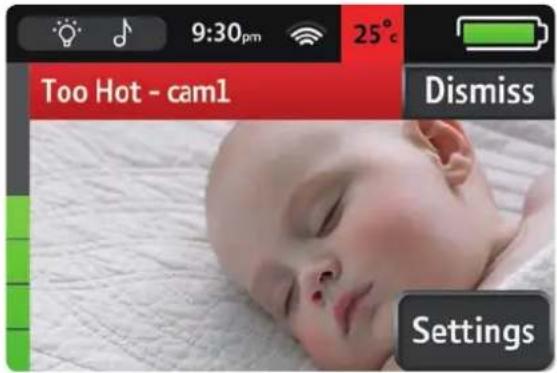
During an alert, tap Dismiss to stop it or Settings to change it.
Note
A Too Warm alert will stop automatically after 30 seconds.
Cry Alerts
How to know when your child is making a sound
Babies make all sorts of sounds, from gurgling and snuffling to chatting and crying. Cry alerts do exactly as they say. They won't alert you to every little snuffle, but only when your child is making a loud noise. A cry alert only sounds when the Parent unit is on mute.
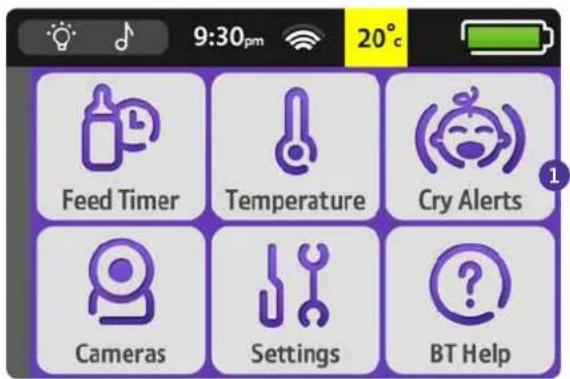
1 In Menu, tap Get Alerts.
Cry Alerts
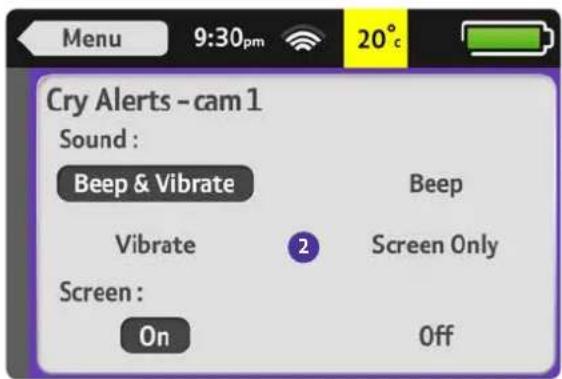
2 Tap the kind of alert you want.
Important
If the screen's off or in sleep mode, it'll come on when there's a cry alert. If your baby settles, a cry alert will stop automatically after 30 seconds.
What happens if there's more than one alert?
You'll always see the latest one on the screen. If you dismiss the latest alert you'll see the previous one.
Cry Alerts
During an alert, tap Dismiss to stop it or Settings to change it.
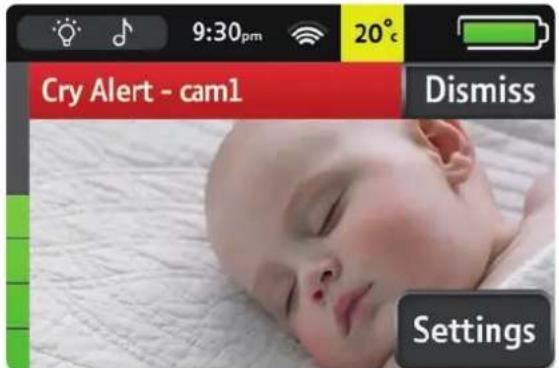
If the screen alert is set to off, press any button on the Parent unit to dismiss the alert.
Night vision
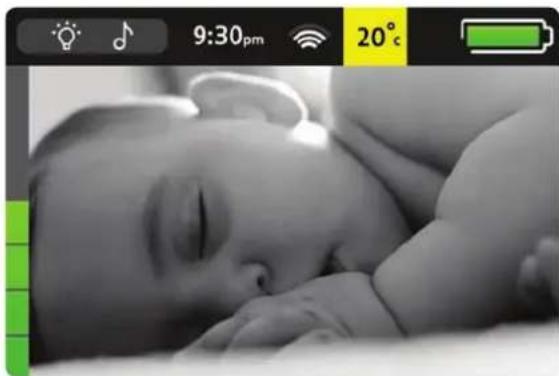
The Baby unit has a night vision mode that allows you to monitor your baby in dark rooms. The Baby unit has infra red LEDs that are invisible to your baby so they don't disturb or distract them.
The night vision mode will automatically turn on when the ambient light drops and the room becomes dark. The image will turn to a black and white image as shown below:
natural_image
Black-and-white photo of a sleeping baby with hands resting on the back, no visible text or symbolsThe night vision works best when the Baby unit is placed between 1 and 2 metres from your baby. Any further away and the image will not be as clear.
Settings
How to set key tones, backlight and time, and calibrate screen
All your main baby monitor settings are in one handy place on your Parent unit.
1 In Menu, tap Settings.
Settings
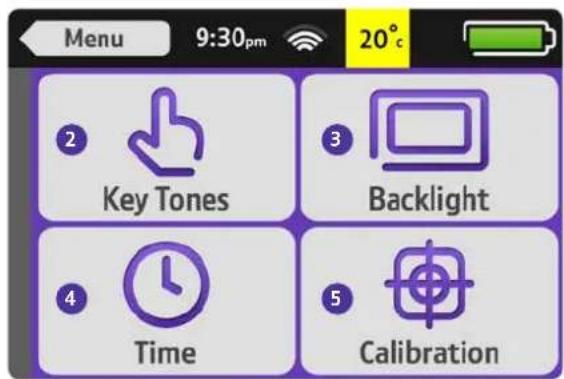
2 Tap to set the sound or vibration you'd like when you tap your screen.
3 Tap to set how bright you'd like your screen. The default setting is for the Parent unit to automatically adjust brightness depending on the ambient light. There are five different levels of brightness, if you want to set this manually.
4 Tap Time to set the time.
5 Tap Calibrating to calibrate your screen. (You'll see arrows around the screen when it needs calibrating, otherwise you shouldn't need to calibrate it.)
BT Help
How to see the set-up wizard, reset settings and get help
There's lots of help, if you need it.
1 In Menu, tap 📋 Help.
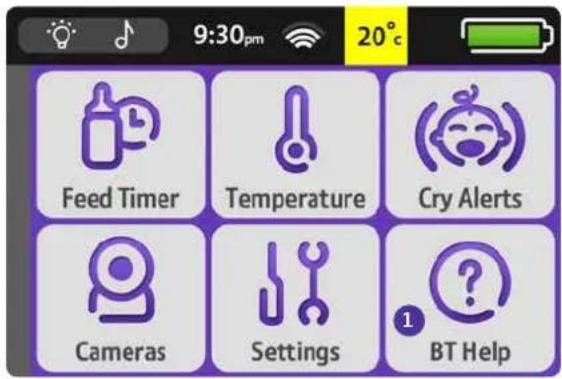
BT Help
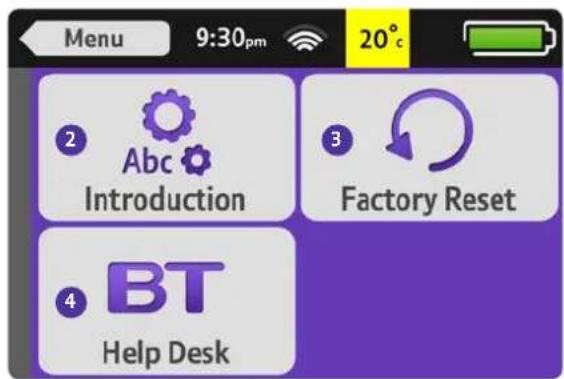
2 Tap to see the set-up wizard.
3 Tap to reset your Parent unit to its factory settings.
4 Tap BT for the help website address (bt.com/producthelp), free helpline and software version number (you might need this if you contact us).
Help and troubleshooting
If you have any problems setting up or using your baby monitor, see if these common questions can help.
How long does the Parent unit battery last?
A fully charged Parent unit will last about 6.5 hours with normal use. To speed up charging, charge the Parent unit when it's switched off. You can also charge the Parent unit and use it at the same time, but it'll charge slower and take longer to fully charge.
How do I replace the battery?
You should only use a Lithium 3.7V 2500mAh 9.25Wh battery from our helpdesk. Call us on 0808 100 6554* when you need to replace it. When you get it, take off the battery compartment cover and pull the tab inside to get the old battery out. Then insert your new battery and put the cover back on.
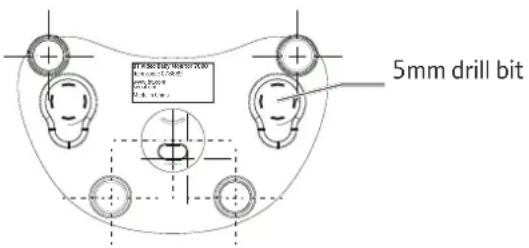
How do I attach my Baby unit to a wall?
You get some screws and plugs with your baby monitor.
Here's what to do.
- Make sure the wall can support the Baby unit.
- Make sure the power plug can reach the power socket.
- Check that you aren't drilling into any hidden wiring or plumbing. BT isn't responsible for any damage or injury caused while trying to wall mount your Baby unit.
- Use a pencil to mark where you want your Baby unit.
- Check the reception strength of the Baby unit and its camera angle before drilling two 5mm holes, 37mm apart.
My Parent/Baby unit isn't working. What should I do? Check that:
- power cables are plugged in and switched on at the wall socket
- batteries are installed correctly and fully charged
- the units are turned on
- the Parent unit isn't too far from the Baby unit(s) (large obstructions or other electrical devices might affect the signal between the Parent and Baby unit).
Sometimes unplugging the power cables, waiting about 20 seconds, and then plugging them back in can help. If you do this, you'll need to allow about a minute for Parent and Baby unit(s) to link.
My Parent/Baby unit is making a high-pitched noise. What should I do?
They might be too close together. Make sure they're at least 2–3 metres apart.
How do I reset my Parent unit?
In Menu, tap BT Help then tap Factory Reset.
How do I reset my Baby unit?
Within three seconds of the Baby unit starting, press and hold down the ⏻ and ⏻ buttons for about five seconds.
Why is my Parent unit beeping?
The Parent unit beeps when:
- your units aren't linking – see page 8.
- there's a problem with mains or battery power
- a crying alert is switched on – see page 25.
Still stuck?
Try bt.com/producthelp or call us on 0808 100 6554. Calls to this number made from within the UK mainland network are free. Mobile and international call costs may vary.
Guarantee and returns
Cleaning
Your BT Video Baby Monitor 7000 units have a durable plastic casing that should keep their colour and finish for many years. To clean, use only a soft cloth slightly dampened with water or a mild soap. Do not use too much water or cleaning solvents.
Guarantee
Your BT Video Baby Monitor 7000 is guaranteed for 12 months from the date you bought it. Subject to the terms listed below, the guarantee covers the repair of – or at BT's or its agent's discretion, the option to replace – the BT Video Baby Monitor 7000 or any part of it which is faulty or below standard, or as a result of inferior workmanship or materials. Products over 28 days old from the date of purchase may be replaced with a refurbished or repaired product.
The conditions of this guarantee are:
- the guarantee shall only apply to defects that occur within the 12-month guarantee period
• proof of purchase is needed - the equipment is returned to BT or its agent as instructed
- this guarantee doesn't cover the batteries and any faults or defects caused by accidents, misuse, fair wear and tear, neglect, tampering with the equipment, or any attempt at adjustment or repair other than through approved agents
- this guarantee doesn't affect your statutory rights.
Within the 12-month guarantee period
Before returning your equipment, please read Help and troubleshooting starting on page 33 or contact us on 0808 100 6554*. There's also more help at bt.com/producthelp.
In the unlikely event of a defect, we'll issue a Fault Reference Authorisation (FRA) number and instructions for replacement or repair. You'll need the FRA number when returning the product. This doesn't affect your statutory rights.
Outside of the 12-month guarantee period
If your equipment needs repair after the guarantee period or if you need technical assistance outside of the 12-month guarantee period, call BT's approved technical support agent, Discount Communications Ltd on 0800 980 8999.
Returning your product
If you call us and we can't fix your problem, we'll give you a Fault Reference Authorisation (FRA) number and ask you to return the equipment to where you bought it. If possible, please pack the equipment in its original packaging. Please remember to include all parts, including cables and batteries.
For guarantee purposes, proof of purchase is needed – so please keep your receipt.
How to recycle your equipment
Your baby monitor is classed as electrical or electronic equipment, so DO NOT put it in your normal rubbish bin.

It's all part of the Waste Electrical and Electronic Equipment (WEEE) Directive to recycle products in the best way – to be kinder to the planet, get rid of dangerous things more safely and bury less rubbish in the ground.
You should contact your retailer or supplier for advice on how to dispose of this product in an environmentally friendly way.
R&TTE
This product is intended for use in the UK.
This equipment complies with the essential requirements for the Radio Equipment and Telecommunications Terminal Equipment Directive 1999/5/EC.
Declaration of Conformance
Hereby, BT declares that this BT Video Baby Monitor 7000 is in compliance with the essential requirements and other relevant provisions of Directive 1999/5/EC.
The Declaration of Conformance can be found at bt.com/producthelp
User Guide formats
Call 0808 100 6554* to get this guide in Braille, large print and audio CD.
For a Better Future

We're always looking to make our products last longer and use less power, so we don't have such a big impact on the environment.
To find out about what we are doing, visit bt.com/betterfuture
Offices worldwide
The services described in this publication are subject to availability and may be modified from time to time. Services and equipment are provided subject to British Telecommunications plc's respective standard conditions of contract. Nothing in this publication forms any part of any contract.
© British Telecommunications plc 2014
Registered Office: 81 Newgate Street, London EC1A 7AJ
Registered in England No. 1800000
Printed in China.
Written and designed by The Art & Design Partnership and Muse Publishing.
08/14. Issue 3
* Calls to these numbers made from within the UK mainland network are free. Mobile and international call costs may vary.


Free Technical Help & Support*
0808 100 6554
bt.com/producthelp
Call us or go online if you have any
difficulties with your product