
Zepher 4 C2 - Monitor stand R-Go Tools - Free user manual and instructions
Find the device manual for free Zepher 4 C2 R-Go Tools in PDF.


| Product Type | Monitor Arm |
| Brand | R-Go Tools |
| Model | Zepher 4 C2 |
| Category | Single Monitor Arm |
| Mounting Type | Clamp (desktop) |
| Material | Aluminum and Steel |
| VESA Compatibility | 75x75, 100x100 |
| Height Adjustment | Yes, by sliding lower arm and tightening ring |
| Tilt Adjustment | Yes, via screws on VESA plate |
| Swivel | Yes, 360° rotation with Smart Stop |
| Smart Stop | Rotational stopper to limit arm movement |
| Color | Black |
| Package Contents | Base, pole, forearm, upper arm, head, VESA plate, hex key, screws |
| Assembly Required | Yes |
| Special Features | Ergonomic posture tips included |
| Recommended Setup | Screen at eye level, arm's length, directly in front |
| Cleaning | Wipe with damp cloth, avoid harsh chemicals |
| Weight Capacity | Up to 10 kg (estimated) |
| Warranty | 2 years (subject to registration) |
| Compatible with | Most monitors with VESA holes |
Frequently Asked Questions - Zepher 4 C2 R-Go Tools
User questions about Zepher 4 C2 R-Go Tools
0 question about this device. Answer the ones you know or ask your own.
Ask a new question about this device
Download the instructions for your Monitor stand in PDF format for free! Find your manual Zepher 4 C2 - R-Go Tools and take your electronic device back in hand. On this page are published all the documents necessary for the use of your device. Zepher 4 C2 by R-Go Tools.
USER MANUAL Zepher 4 C2 R-Go Tools
circular monitor arm
R-Go Caparo 4 D2 &
R-Go Zepher 4 C2
Tips for healthy screen use 3
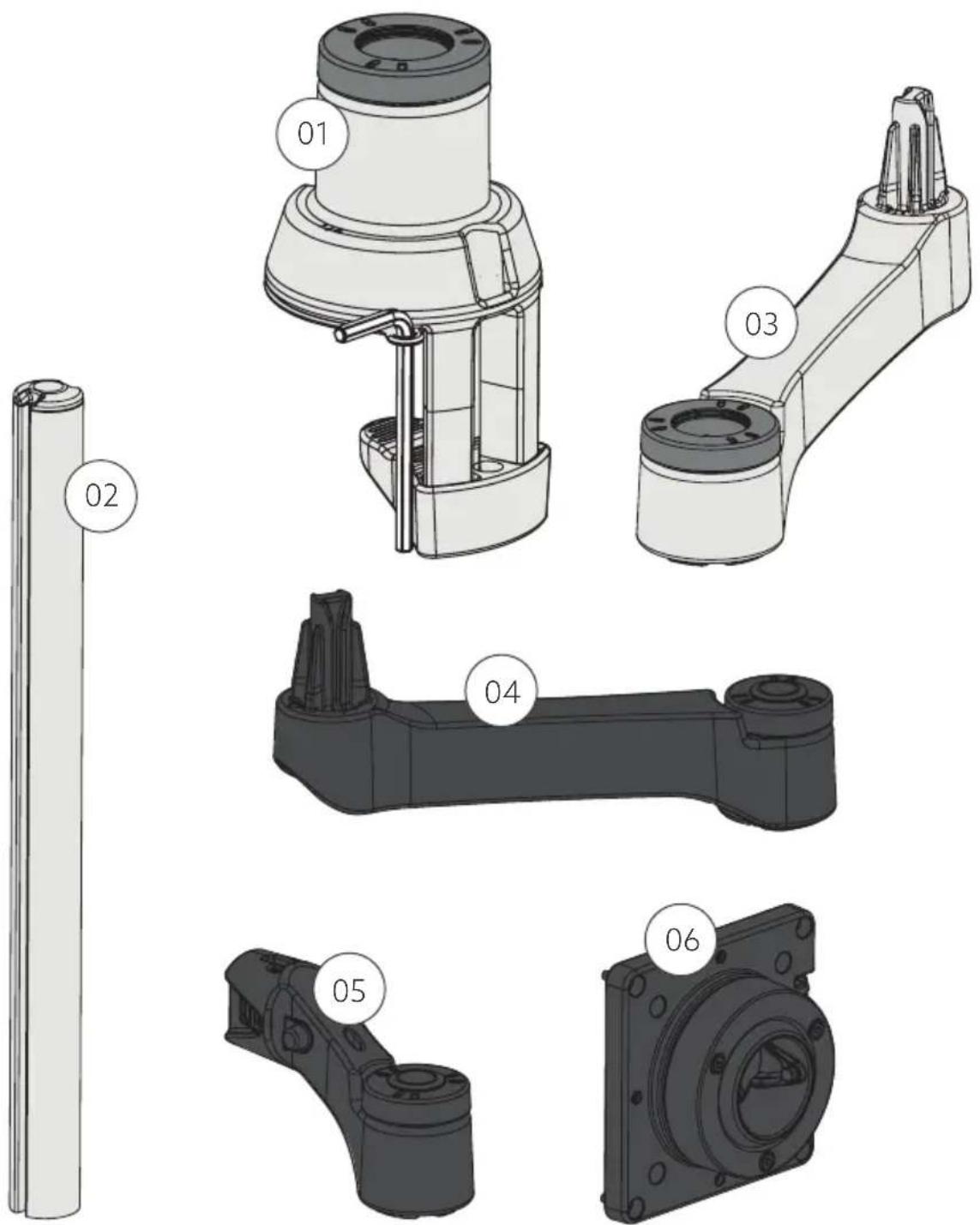
What's in the box?
Setup Single Monitor Arm
Smart Stop™
Setup Dual Monitor Arm

Watch How To Set Up
Your Monitor Arm
http://r-go.tools/monitor_arm

Did you know that a wrong set-up of your monitor has a negative effect on your working posture? You can easily get physical complaints, such as neckpain. Here some tips to create a healthy set-up:
- Place the top of your screen at eye level. You will automatically sit up straight.
- Place your screen at least at arm's length to give some relieve to your eyes.
- Place your screen directly in front of you. This way, you will adopt an straight posture while working.
To make maximum use of the depth of your desk, we recommend that you do not fix the base of the monitor arm in the middle, but position it approximately 45 cm out of the middle of the desktop.
Do you work with two monitors? We recommend to place the most frequently used screen right in front of you. The other (additional) screen should be placed directly next to it, at the same height, and pulled slightly towards you. This set-up ensures that you will sit straight most of your working day.
R-Go Caparo 4 D2 Single Monitor Arm
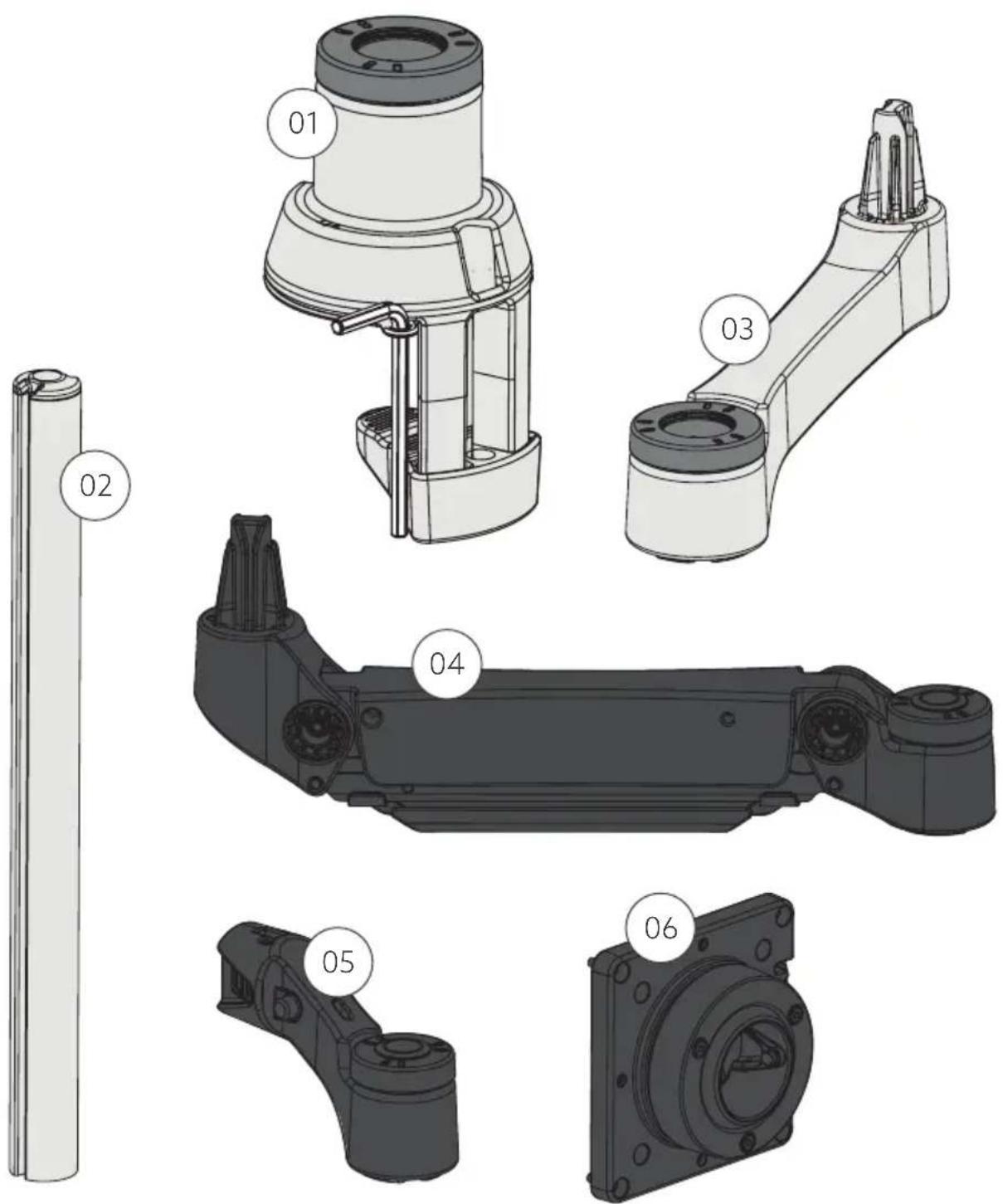
R-Go Zepher 4 C2 Single Monitor Arm
R-Go Caparo 4 D2 Dual Monitor Arm

R-Go Zepher 4 C2 Dual Monitor Arm
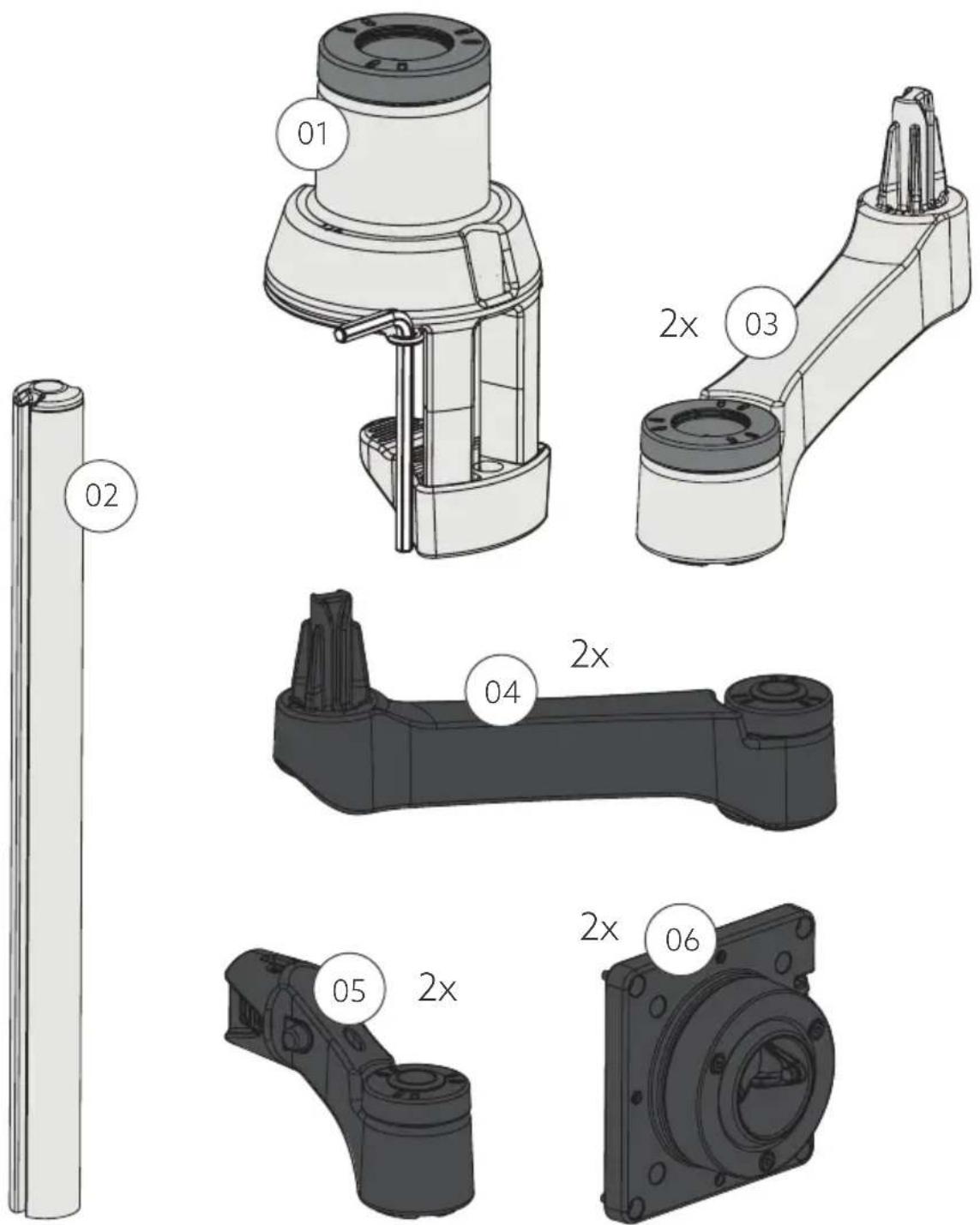
Single monitor arm
Step 1 Slide the base ① onto the desktop. Tighten the screw A with the hex key B.

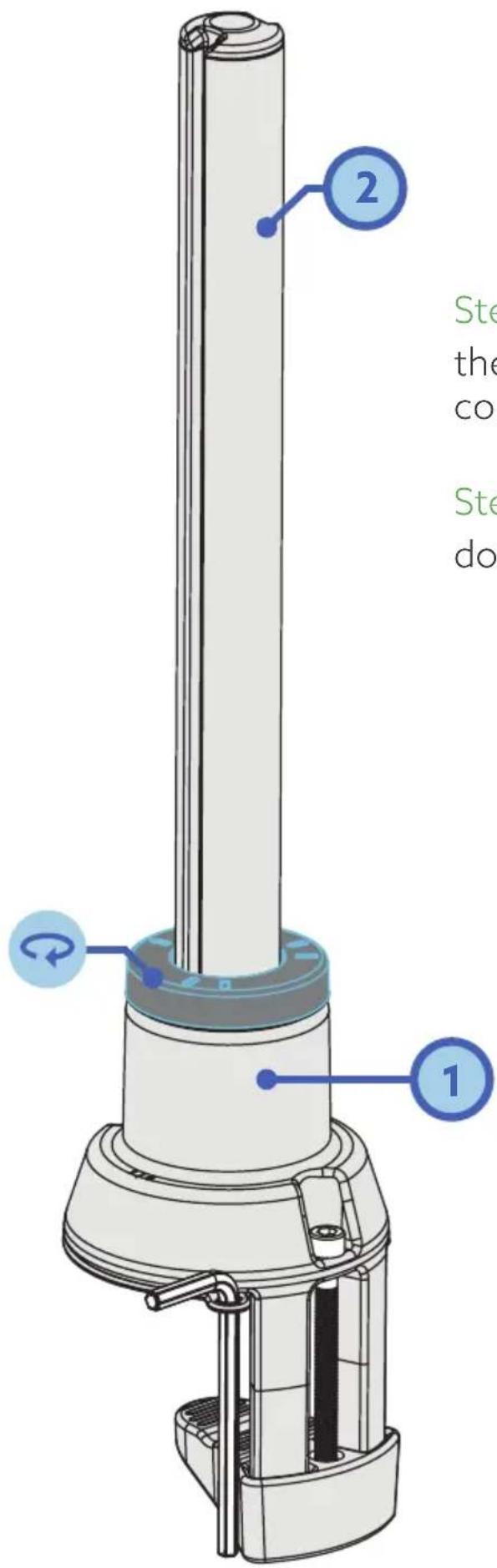
Step 2a Insert the pole ② into the base ① until you hear it make contact with the table.
Step 2b Keep the pole ② pressed down while tightening the ring
Create your own setup
*Smart Stop™: At the bottom of the ring there is a small arrow. This arrow indicates where the Smart StopTM is, i.e. where the arm stops rotating. It is important to have the arrow on the correct side (left or right), so that the arm stops rotating and for example does not bump into an acoustic screen (see p. 10 & 11 for setup).
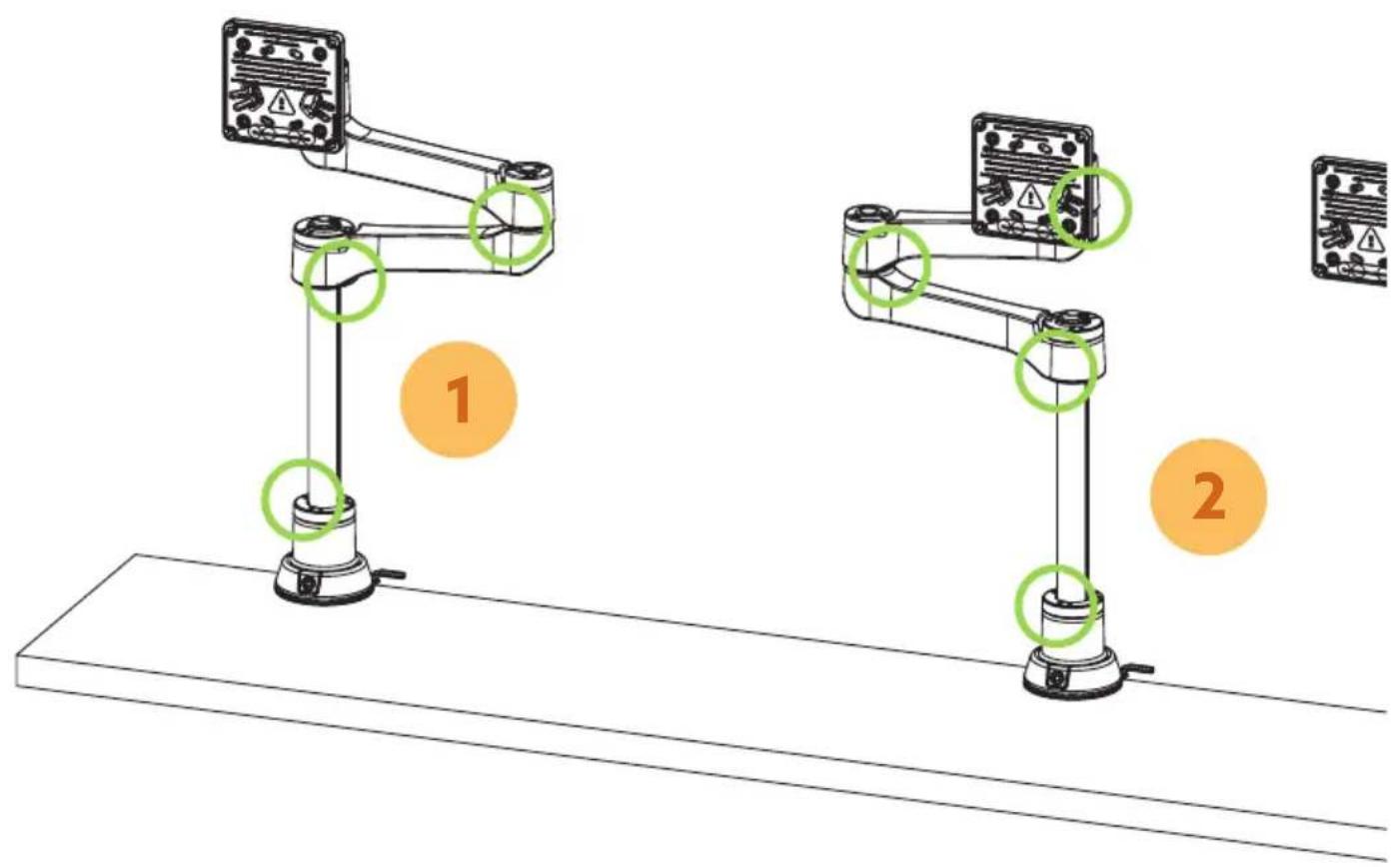
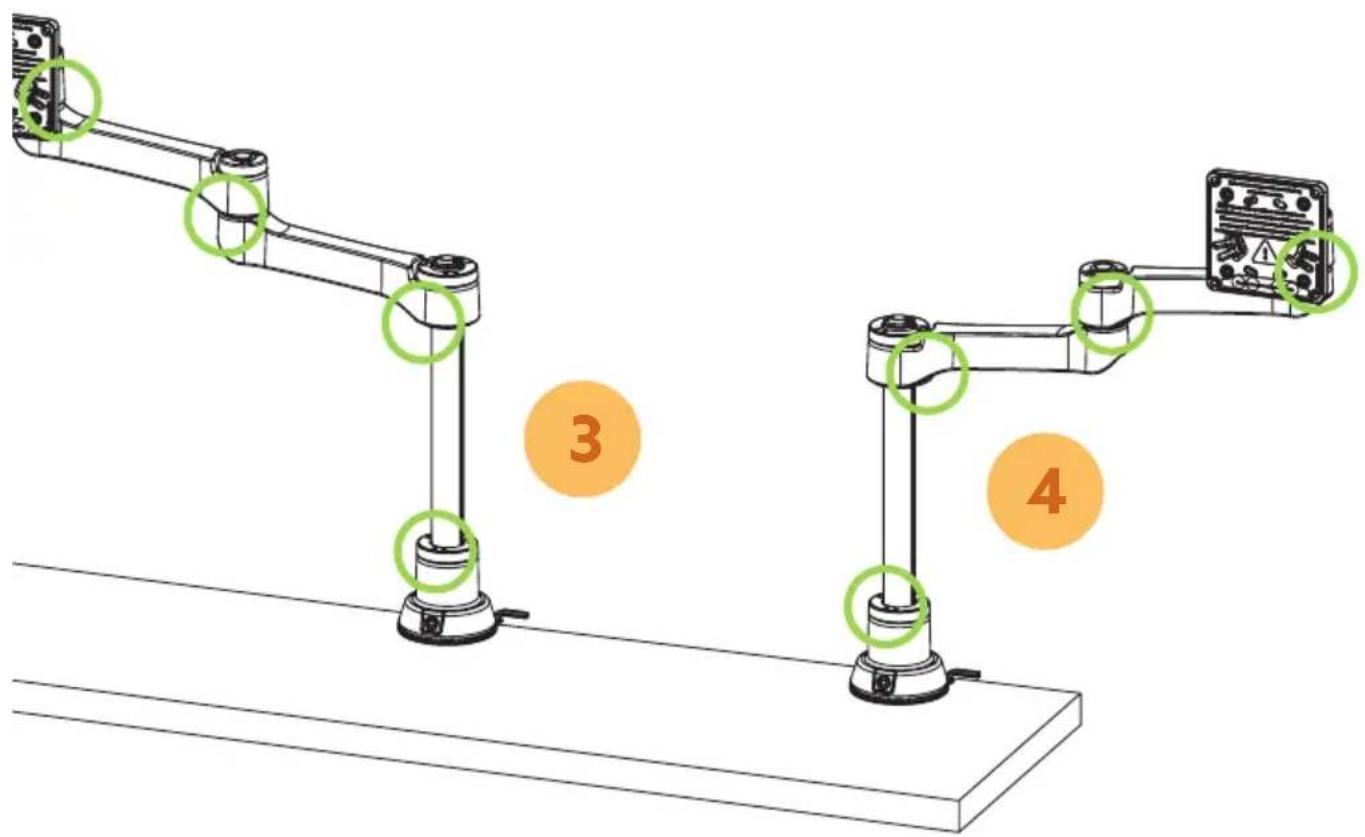
Step 3a
Choose which Smart StopTM setup you want (setup 1, 2, 3 or 4, see page 10-11).
Step 3b
Place the forearm ③ on the pole ②. Make sure the arrow points in the direction of the number of your chosen setup. See numbers on the base (1|4 or 2|3).
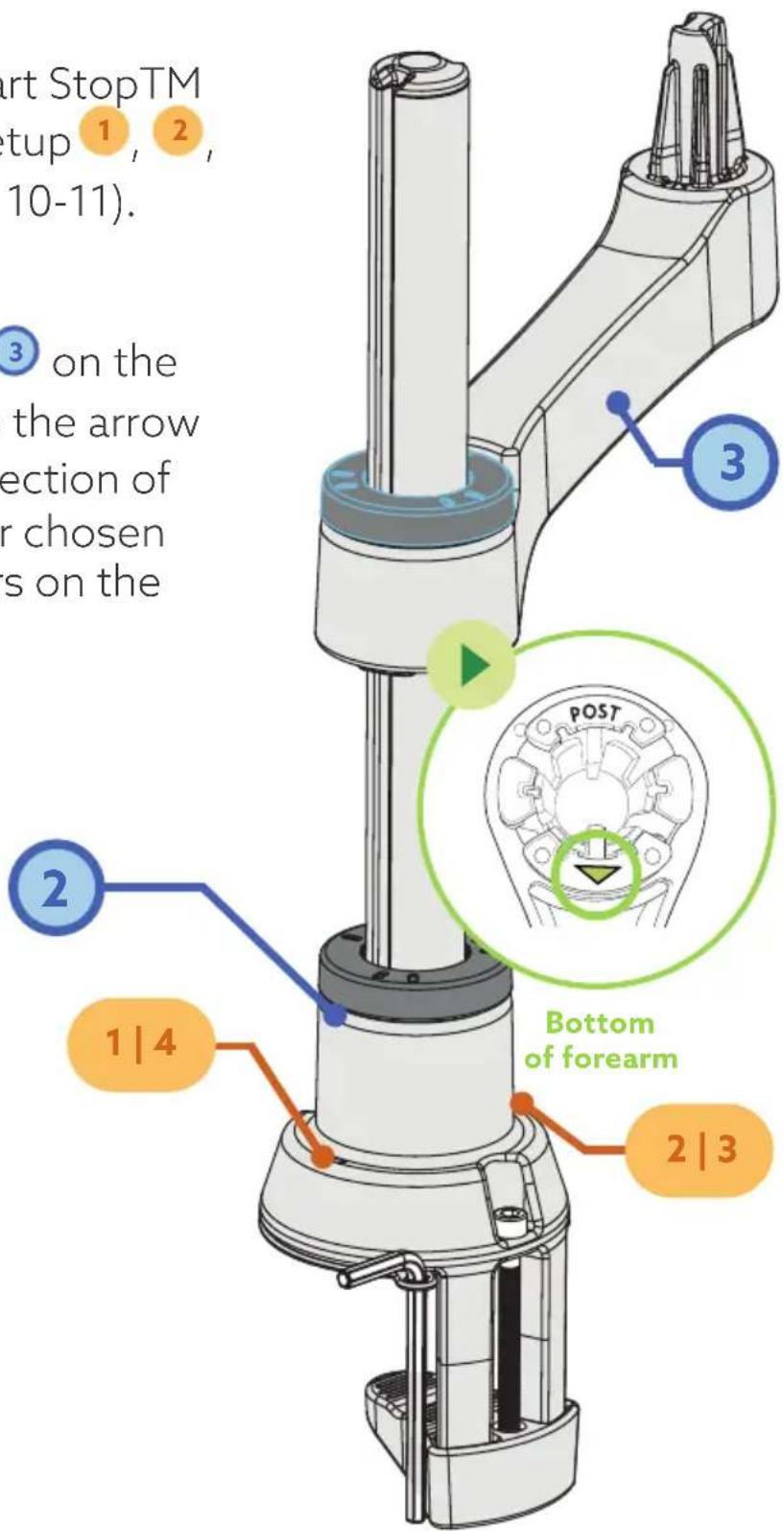

Step 4a
Place the upper arm ④ on the forearm ③. While doing so, make sure that the arrow
point in the direction of the number of your chosen setup. See numbers on the base (1|2 or 3|4).
Step 4b
Push the upper arm ④ down while tightening the ring .

Step 5a
Place the head ⑤ on the upper arm ④. Make sure that the arrow points in the direction of the arrow on the upper arm.
Step 5b
Press the head ⑤ down while tightening the ring
Step 6a
Attach the VESA plate 6 to the monitor using the enclosed hexagonal screws (see VESA plate). Use the enclosed hex key A to do this. Click the VESA plate 6 onto the head 5.
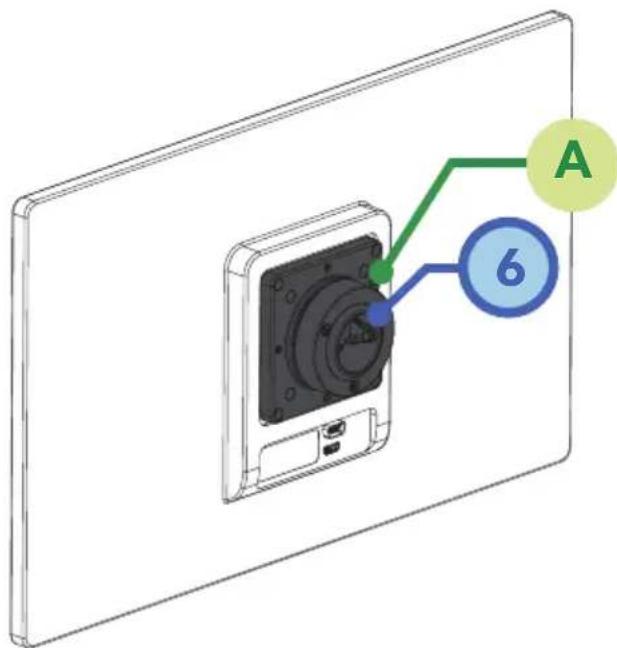
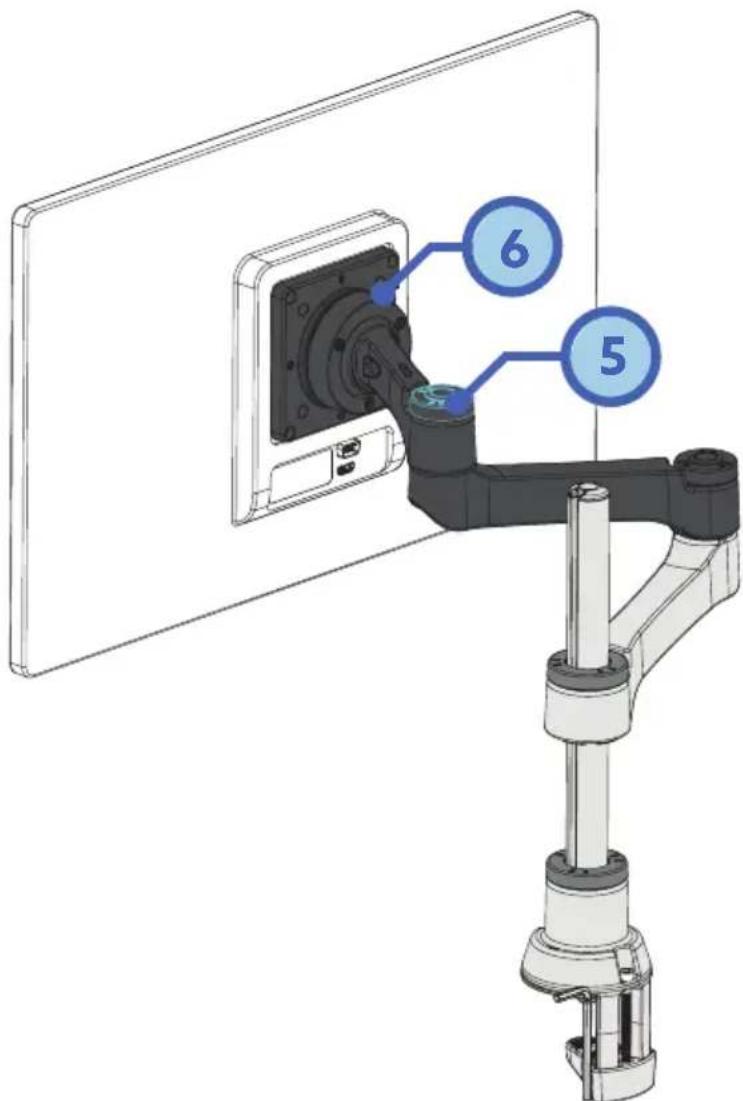
Step 6b
In order to straighten the monitor, you will find 3 screws at the back of the VESA plate 6 . The screws can be tightened with the enclosed hex key, so you can increase the resistance and straighten the monitor.
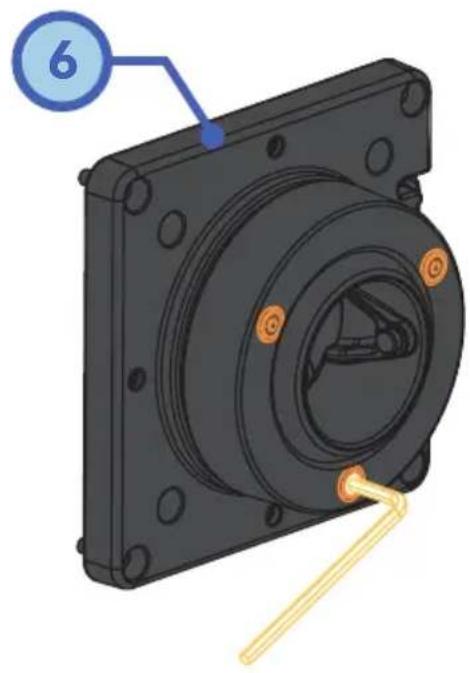
Step 6c (Only for R-Go Caparo 4 D2)
Depending on the weight of your monitor, you can increase or decrease the resistance of the gas spring arm (upper arm ④) by tightening the hexagonal screws. Use the enclosed hex key.

Step 6d (Only for R-Go Zepher 4 C2)
Set the arm at the correct height by sliding the lower arm on the pole. Then tighten the ring 🔒 on the lower arm.

Dual monitor arm
Install the first arm following step 1-6 and follow step 3-6 to install the extra arm.
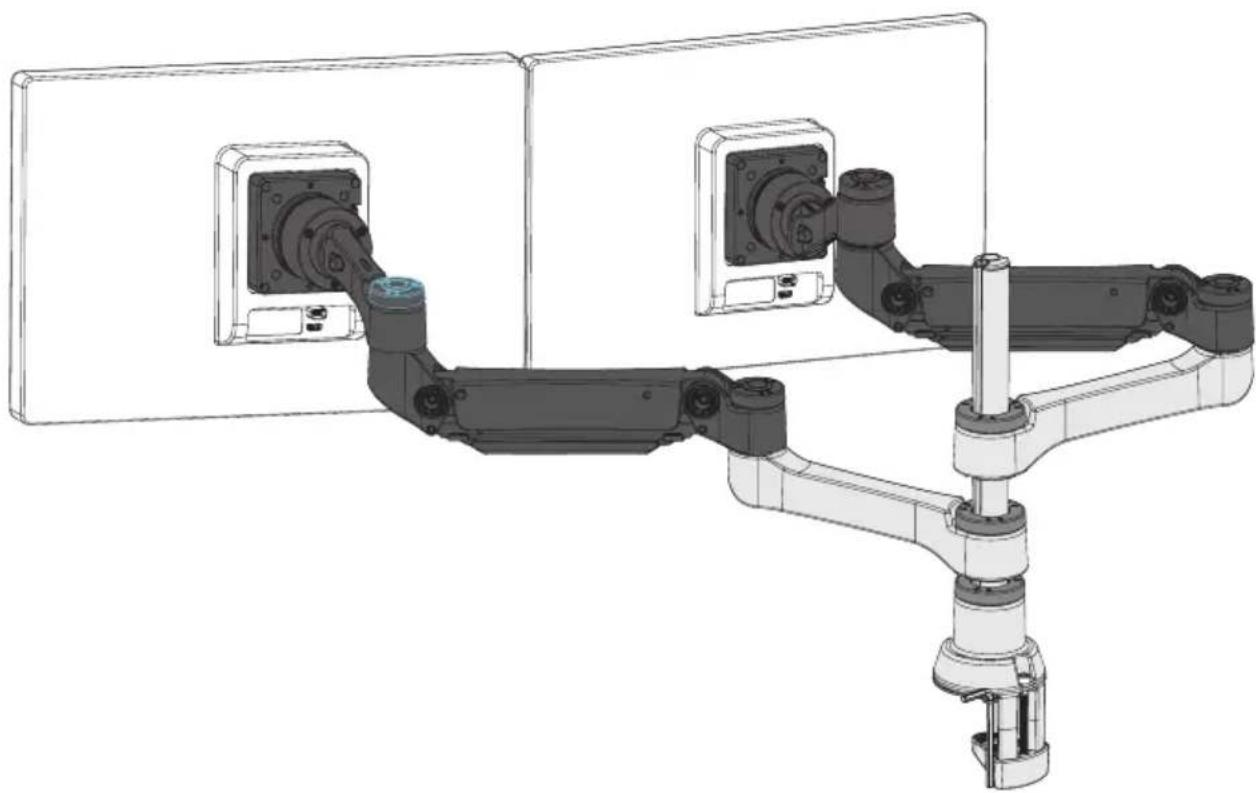


Brand : R-Go Tools
Model : Zepher 4 C2
Category : Monitor stand