Travelmate 5610 - Laptop ACER - Free user manual and instructions
Find the device manual for free Travelmate 5610 ACER in PDF.


User questions about Travelmate 5610 ACER
0 question about this device. Answer the ones you know or ask your own.
Ask a new question about this device
Download the instructions for your Laptop in PDF format for free! Find your manual Travelmate 5610 - ACER and take your electronic device back in hand. On this page are published all the documents necessary for the use of your device. Travelmate 5610 by ACER.
USER MANUAL Travelmate 5610 ACER
TravelMate 5610/5110 Series
User's Guide
Copyright © 2006. Acer Incorporated. All Rights Reserved.
TravelMate 5610/5110 Series User's Guide Original Issue: 02/2006
Changes may be made periodically to the information in this publication without obligation to notify any person of such revisions or changes. Such changes will be incorporated in new editions of this manual or supplementary documents and publications. This company makes no representations or warranties, either expressed or implied, with respect to the contents hereof and specifically disclaims the implied warranties of merchantability or fitness for a particular purpose.
Record the model number, serial number, purchase date and place of purchase information in the space provided below. The serial number and model number are recorded on the label affixed to your computer. All correspondence concerning your unit should include the serial number, model number and purchase information.
No part of this publication may be reproduced, stored in a retrieval system, or transmitted, in any form or by any means, electronically, mechanically, by photocopy, recording or otherwise, without the prior written permission of Acer Incorporated.
TravelMate 5610/5110 Series Notebook PC
Model number: ____
Serial number: ____
Date of purchase: ____
Place of purchase: ____
Acer and the Acer logo are registered trademarks of Acer Incorporated. Other companies' product names or trademarks are used herein for identification purposes only and belong to their respective companies.
Information for your safety and comfort
Safety instructions
Read these instructions carefully. Keep this document for future reference. Follow all warnings and instructions marked on the product.
Turning the product off before cleaning
Unplug this product from the wall outlet before cleaning. Do not use liquid cleaners or aerosol cleaners. Use a damp cloth for cleaning.
Warnings
- Do not use this product near water.
- Do not place this product on an unstable cart, stand or table. If the product falls, it could be seriously damaged.
- Slots and openings are provided for ventilation to ensure reliable operation of the product and to protect it from overheating. These openings must not be blocked or covered. The openings should never be blocked by placing the product on a bed, sofa, rug or other similar surface. This product should never be placed near or over a radiator or heat register, or in a built-in installation unless proper ventilation is provided.
- Never push objects of any kind into this product through cabinet slots as they may touch dangerous voltage points or short-out parts that could result in a fire or electric shock. Never spill liquid of any kind onto or into the product.
•To avoid damage of internal components and to prevent battery leakage, do not place the product on a vibrating surface.
Using electrical power
• This product should be operated from the type of power indicated on the marking label. If you are not sure of the type of power available, consult your dealer or local power company.
- Do not allow anything to rest on the power cord. Do not locate this product where people will walk on the cord.
- If an extension cord is used with this product, make sure that the total ampere rating of the equipment plugged into the extension cord does not exceed the extension cord ampere rating. Also, make sure that the total rating of all products plugged into the wall outlet does not exceed the fuse rating.
- Do not overload a power outlet, strip or receptacle by plugging in too many devices. The overall system load must not exceed 80% of the branch circuit rating. If power strips are used, the load should not exceed 80% of the power strip's input rating.
iv
- This product's AC adapter is equipped with a three-wire grounded plug. The plug only fits in a grounded power outlet. Make sure the power outlet is properly grounded before inserting the AC adapter plug. Do not insert the plug into a non-grounded power outlet. Contact your electrician for details.

Warning! The grounding pin is a safety feature. Using a power outlet that is not properly grounded may result in electric shock and/or injury.

Note: The grounding pin also provides good protection from unexpected noise produced by other nearby electrical devices that may interfere with the performance of this product.
- Use the product only with the supplied power supply cord set. If you need to replace the power cord set, make sure that the new power cord meets the following requirements: detachable type, UL listed/CSA certified, type SPT-2, rated 7 A 125 V minimum, VDE approved or its equivalent, 4.6 meters (15 feet) maximum length.
Product servicing
Do not attempt to service this product yourself, as opening or removing covers may expose you to dangerous voltage points or other risks. Refer all servicing to qualified service personnel.
Unplug this product from the wall outlet and refer servicing to qualified service personnel when:
• the power cord or plug is damaged, cut or frayed
- liquid was spilled into the product
•the product was exposed to rain or water
•the product has been dropped or the case has been damaged
•the product exhibits a distinct change in performance, indicating a need for service
•the product does not operate normally after following the operating instructions

Note: Adjust only those controls that are covered by the operating instructions, since improper adjustment of other controls may result in damage and will often require extensive work by a qualified technician to restore the product to normal condition.
Replacing the battery pack
The notebook uses lithium batteries. Replace the battery with the same type as that which came bundled with your product. Use of another battery may present a risk of fire or explosion.

Warning! Batteries may explode if not handled properly. Do not disassemble or dispose of them in fire. Keep them away from children. Follow local regulations when disposing of used batteries.
Telephone line safety
- Disconnect all telephone lines from the equipment when not in use and/or before servicing.
• To avoid the remote risk of electric shock from lightning, do not connect the telephone line to this equipment during lightning or thunderstorms.

Warning! For safety reasons, do not use non-compliant parts when adding or changing components. Consult your reseller for purchase options.
Disposal instructions
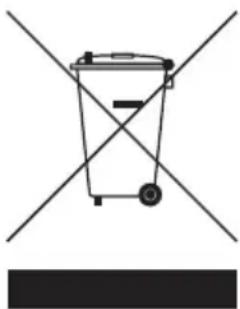
Do not throw this electronic device into the trash when discarding. To minimize pollution and ensure utmost protection of the global environment, please recycle. For more information on the Waste from Electrical and Electronics Equipment (WEEE) regulations, visit http://global.acer.com/about/environmental.htm.
natural_image
Simple line drawing of a trash bin with two crossed lines indicating no waste or restriction (no text or symbols)Mercury advisory
For projectors or electronic products containing an LCD/CRT monitor or display: Lamp(s) inside this product contain mercury and must be recycled or disposed of according to local, state or federal laws. For more information, contact the Electronic Industries Alliance at www.eiae.org. For lamp-specific disposal information, check www.lamprecycle.org.

vi
Tips and information for comfortable use
Computer users may complain of eyestrain and headaches after prolonged use. Users are also at risk of physical injury after long hours of working in front of a computer. Long work periods, bad posture, poor work habits, stress, inadequate working conditions, personal health and other factors greatly increase the risk of physical injury.
Incorrect computer usage may lead to carpal tunnel syndrome, tendonitis, tenosynovitis or other musculoskeletal disorders. The following symptoms may appear in the hands, wrists, arms, shoulders, neck or back:
- numbness, or a burning or tingling sensation
- aching, soreness or tenderness
• pain, swelling or throbbing
•stiffness or tightness
•coldness or weakness
If you have these symptoms, or any other recurring or persistent discomfort and/or pain related to computer use, consult a physician immediately and inform your company's health and safety department.
The following section provides tips for more comfortable computer use.
Finding your comfort zone
Find your comfort zone by adjusting the viewing angle of the monitor, using a footrest, or raising your sitting height to achieve maximum comfort. Observe the following tips:
•refrain from staying too long in one fixed posture
- avoid slouching forward and/or leaning backward
- stand up and walk around regularly to remove the strain on your leg muscles
•take short rests to relax your neck and shoulders
- avoid tensing your muscles or shrugging your shoulders
• install the external display, keyboard and mouse properly and within comfortable reach
• if you view your monitor more than your documents, place the display at the center of your desk to minimize neck strain
Taking care of your vision
Long viewing hours, wearing incorrect glasses or contact lenses, glare, excessive room lighting, poorly focused screens, very small typefaces and low-contrast displays could stress your eyes. The following sections provide suggestions on how to reduce eyestrain.
Eyes
•Rest your eyes frequently.
- Give your eyes regular breaks by looking away from the monitor and focusing on a distant point.
- Blink frequently to keep your eyes from drying out.
Display
- Keep your display clean.
- Keep your head at a higher level than the top edge of the display so your eyes point downward when looking at the middle of the display.
- Adjust the display brightness and/or contrast to a comfortable level for enhanced text readability and graphics clarity.
- Eliminate glare and reflections by:
- placing your display in such a way that the side faces the window or any light source
- minimizing room light by using drapes, shades or blinds
• using a task light
- changing the display's viewing angle
• using a glare-reduction filter
- using a display visor, such as a piece of cardboard extended from the display's top front edge
- Avoid adjusting your display to an awkward viewing angle.
- Avoid looking at bright light sources, such as open windows, for extended periods of time.
Developing good work habits
Develop the following work habits to make your computer use more relaxing and productive:
•Take short breaks regularly and often.
•Perform some stretching exercises.
- Breathe fresh air as often as possible.
•Exercise regularly and maintain a healthy body.

Warning! We do not recommend using the computer on a couch or bed. If this is unavoidable, work for only short periods, take breaks regularly, and do some stretching exercises.

Note: For more information, please refer to "Regulations and safety notices" on page 66 in the AcerSystem User's Guide.
viii
First things first
We would like to thank you for making an Acer notebook your choice for meeting your mobile computing needs.
Your guides
To help you use your Acer notebook, we have designed a set of guides:
First off, the Just for Starters... poster helps you get started with setting up your computer.
The printed User's Guide introduces you to the basic features and functions of your new computer. For more on how your computer can help you to be more productive, please refer to the AcerSystem User's Guide. This guide contains detailed information on such subjects as system utilities, data recovery, expansion options and troubleshooting. In addition it contains warranty information and the general regulations and safety notices for your notebook. It is available in Portable Document Format (PDF) and comes preloaded on your notebook. Follow these steps to access it:
1 Click on Start, All Programs, AcerSystem.
2 Click on AcerSystem User's Guide.
Note: Viewing the file requires Adobe Reader. If Adobe Reader is not installed on your computer, clicking on AcerSystem User's Guide will run the Adobe Reader setup program first. Follow the instructions on the screen to complete the installation. For instructions on how to use Adobe Reader, access the Help and Support menu.
Basic care and tips for using your computer
Turning your computer on and off
To turn on the computer, simply press and release the power button below the LCD screen beside the easy-launch buttons. See "Front view" on page 15 for the location of the power button.
To turn the power off, do any of the following:
- Use the Windows shutdown command
Click on Start, Turn Off Computer, then click on Turn Off.
- Use the power button
You can also shut down the computer by closing the display cover, or by pressing the sleep hotkey

Note: If you cannot power off the computer normally, press and hold the power button for more than four seconds to shut down the computer. If you turn off the computer and want to turn it on again, wait at least two seconds before powering up.
Taking care of your computer
Your computer will serve you well if you take care of it.
- Do not expose the computer to direct sunlight. Do not place it near sources of heat, such as a radiator.
- Do not expose the computer to temperatures below 0^ (32 °F) or above 50^ (122 °F).
- Do not subject the computer to magnetic fields.
- Do not expose the computer to rain or moisture.
- Do not spill water or any liquid on the computer.
- Do not subject the computer to heavy shock or vibration.
- Do not expose the computer to dust or dirt.
- Never place objects on top of the computer.
• Do not slam the computer display when you close it. - Never place the computer on uneven surfaces.
Taking care of your AC adapter
Here are some ways to take care of your AC adapter:
- Do not connect the adapter to any other device.
- Do not step on the power cord or place heavy objects on top of it. Carefully route the power cord and any cables away from foot traffic.
- When unplugging the power cord, do not pull on the cord itself but pull on the plug.
- The total ampere ratings of the equipment plugged in should not exceed the ampere rating of the cord if you are using an extension cord. Also, the total current rating of all equipment plugged into a single wall outlet should not exceed the fuse rating.
X
Taking care of your battery pack
Here are some ways to take care of your battery pack:
- Use only batteries of the same kind as replacements. Turn the power off before removing or replacing batteries.
• Do not tamper with batteries. Keep them away from children. - Dispose of used batteries according to local regulations. Recycle if possible.
Cleaning and servicing
When cleaning the computer, follow these steps:
1 Turn off the computer and remove the battery pack.
2 Disconnect the AC adapter.
3 Use a soft, moist cloth. Do not use liquid or aerosol cleaners.
If either of the following occurs:
•the computer has been dropped or the body has been damaged;
•the computer does not operate normally
please refer to "Frequently asked questions" on page 46.
Information for your safety and comfort iii
Safety instructions iii
Disposal instructions v
Tips and information for comfortable use vi
First things first viii
Your guides viii
Basic care and tips for using your computer viii
Turning your computer on and off viii
Taking care of your computer ix
Taking care of your AC adapter ix
Taking care of your battery pack x
Cleaning and servicing x
Acer Empowering Technology 1
Empowering Technology password 1
Acer eDataSecurity Management
(for selected models) 2
Acer eLock Management 3
Acer ePerformance Management 5
Acer eRecovery Management 6
Acer eSettings Management 8
Acer eNet Management
(for selected models) 9
Acer ePower Management 11
Acer ePresentation Management 14
Your Acer notebook tour 15
Front view 15
Closed front view 16
Left view 18
Right view 18
Rear view 19
Base view 20
Specifications 21
Indicators 26
Easy-launch buttons 27
Touchpad 28
Touchpad basics 28
Using the keyboard 30
Lock keys and embedded numeric keypad 30
Windows keys 31
Hotkeys 31
Special keys 33
Ejecting the optical (CD or DVD) drive tray 34
Using a computer security lock 34
Audio 35
Adjusting the volume 35
Acer OrbiCam 36
Launching the Acer OrbiCam 37
Changing the Acer OrbiCam settings 37
Capturing photos/videos 39
Using the Acer OrbiCam as webcam 39
Enabling the Acer VisageON
(for 1.3 megapixel camera models only) 40
Using the system utilities 43
Acer GridVista (dual-display compatible) 43
Launch Manager 44
Norton AntiVirus 45
Frequently asked questions 46
Requesting service 49
International Travelers Warranty (ITW) 49
Before you call 49
Taking your notebook PC with you 50
Disconnecting from the desktop 50
Moving around 50
Preparing the computer 50
What to bring to meetings 51
Taking the computer home 51
Preparing the computer 51
What to take with you 51
Special considerations 52
Setting up a home office 52
Traveling with the computer 52
Preparing the computer 52
What to take with you 52
Special considerations 53
Traveling internationally with the computer 53
Preparing the computer 53
What to bring with you 53
Special considerations 53
Securing your computer 54
Using a computer security lock 54
Using passwords 54
Entering passwords 55
Setting passwords 55
Expanding through options 56
Connectivity options 56
Fax/data modem 56
Built-in network feature 57
Universal Serial Bus (USB) 57
PC Card slot 58
Installing memory 59
BIOS utility 59
Boot sequence 59
Enable disk-to-disk recovery 60
Password 60
Using software 60
Playing DVD movies 60
Power management 61
Acer eRecovery Management 61
Create backup 62
Restore from backup 62
Create factory default image CD 63
Re-install bundled software without CD 63
Change password 64
Troubleshooting 65
Troubleshooting tips 65
Error messages 65
Regulations and safety notices 66
ENERGY STAR guidelines compliance 66
FCC notice 66
Modem notices 67
Laser compliance statement 70
LCD pixel statement 70
Macrovision copyright protection notice 70
Radio device regulatory notice 71
General 71
European Union (EU) 71
The FCC RF safety requirement 72
Canada — Low-power license-exempt radio
communication devices (RSS-210) 73
Federal Communications Comission
Declaration of Conformity 74
Declaration of Conformity for CE Marking 75
LCD panel ergonomic specifications 76
Index 77
Acer Empowering Technology
Acer's innovative Empowering Technology toolbar makes it easy for you to access frequently used functions and manage your new Acer computer. Displayed by default in the upper-right corner of your screen, it features the following handy utilities:
- Acer eDataSecurity Management protects data with passwords and advanced encryption algorithms (for selected models).
- Acer eLock Management limits access to external storage media.
- Acer ePerformance Management improves system performance by optimizing disk space, memory and registry settings.
- Acer eRecovery Management backs up and recovers data flexibly, reliably and completely.
- Acer eSettings Management accesses system information and adjusts settings easily.
- Acer eNet Management hooks up to location-based networks intelligently (for selected models).
- Acer ePower Management extends battery power via versatile usage profiles.
- Acer ePresentation Management connects to a projector and adjusts display settings conveniently.

text_image
Screenshot of a software toolbar with icons for data, battery, email, lock, gear, and navigationFor more information, right click on the Empowering Technology toolbar, then select the Help or Tutorial function.
Empowering Technology password
Before using Acer eLock Management and Acer eRecovery Management, you must initialize the Empowering Technology password. Right-click on the Empowering Technology toolbar and select "Password Setup" to do so. If you do not initialize the Empowering Technology password, you will be prompted to do so when running Acer eLock Management or Acer eRecovery Management for the first time.

Note: If you lose your password, there is no method to reset it except by reformatting your notebook or taking your notebook to an Acer Customer Service Center. Be sure to remember or write down your password.
Acer eDataSecurity Management (for selected models)
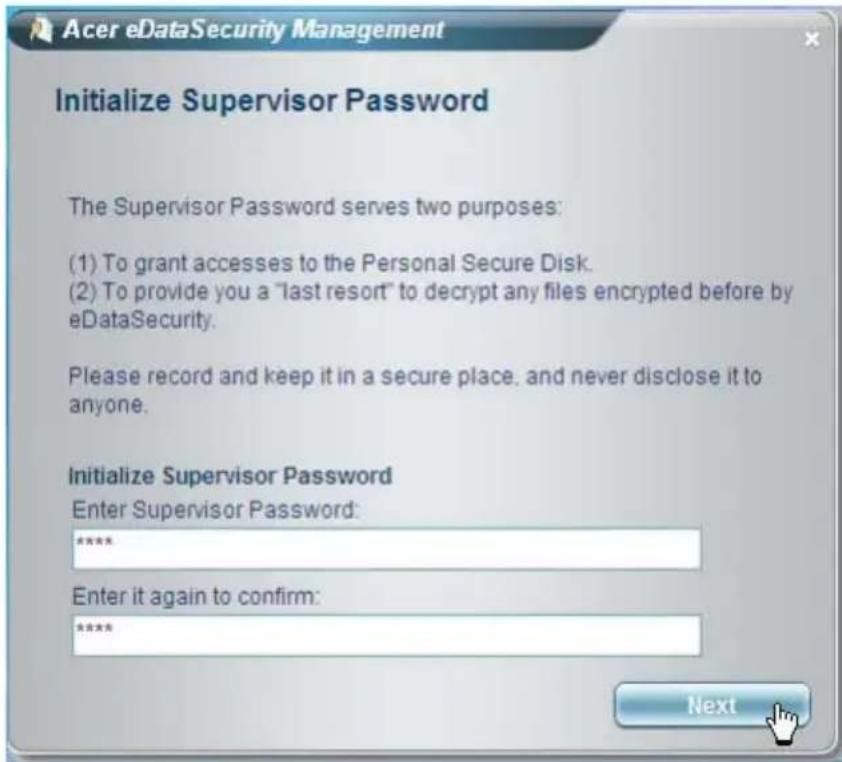
Acer eDataSecurity Management is a handy file encryption utility that protects your files from being accessed by unauthorized persons. It is conveniently integrated with Windows Explorer as a shell extension for quick and easy data encryption/decryption and also supports on-the-fly file encryption for MSN Messenger and Microsoft Outlook.
The Acer eDataSecurity Management setup wizard will prompt you for a supervisor password and default encryption. This encryption will be used to encrypt files by default, or you can choose to enter your own file-specific password when encrypting a file.

Note: The password used to encrypt a file is the unique key that the system needs to decrypt it. If you lose the password, the supervisor password is the only other key capable of decrypting the file. If you lose both passwords, there will be no way to decrypt your encrypted file! Be sure to safeguard all related passwords!
text_image
Acer eDataSecurity Management Initialize Supervisor Password The Supervisor Password serves two purposes: (1) To grant accesses to the Personal Secure Disk. (2) To provide you a "last resort" to decrypt any files encrypted before by eDataSecurity. Please record and keep it in a secure place, and never disclose it to anyone. Initialize Supervisor Password Enter Supervisor Password: **** Enter it again to confirm: **** Next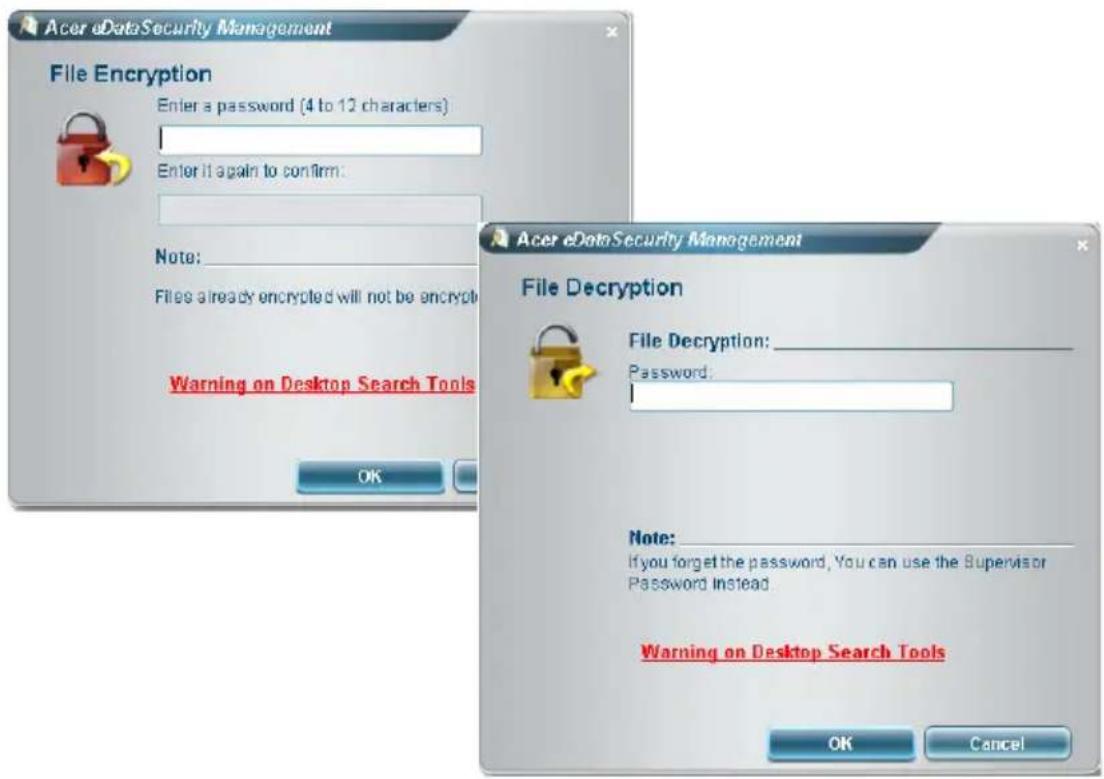
text_image
Acer eDataSecurity Management File Encryption Enter a password (4 to 12 characters) Enter it again to confirm: Note: Files already encrypted will not be encrypted Warning on Desktop Search Tools OK Acer eDataSecurity Management File Decryption File Decryption: _ Password: Note: If you forget the password, You can use the Supervisor Password Instead. Warning on Desktop Search Tools OK CancelAcer eLock Management

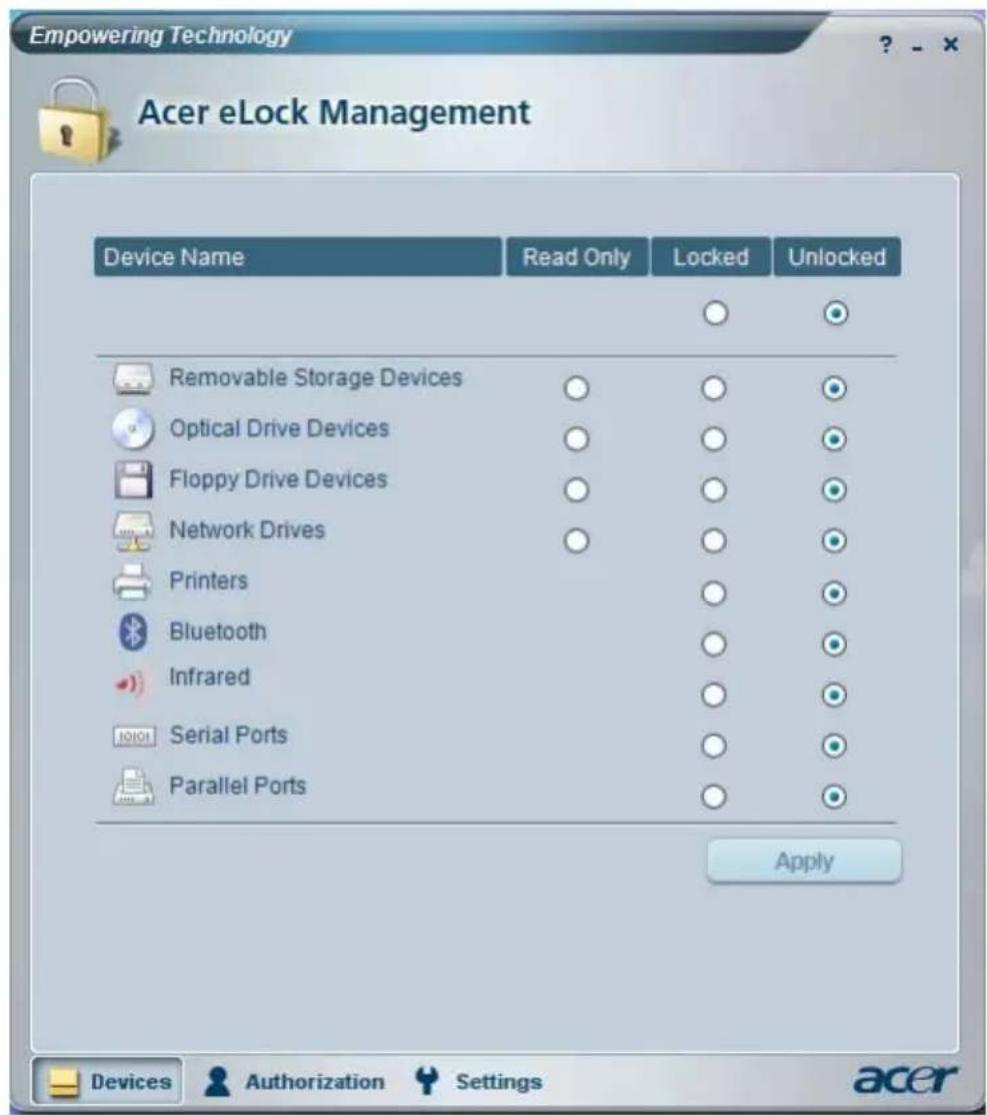
Acer eLock Management is a security utility that allows you to lock your removable data, optical and floppy drives to ensure that data can't be stolen while your notebook is unattended.
- Removable data devices — includes USB disk drives, USB pen drives, USB flash drives, USB MP3 drives, USB memory card readers, IEEE 1394 disk drives and any other removable disk drives that can be mounted as a file system when plugged into the system.
- Optical drive devices — includes any kind of CD-ROM or DVD-ROM drives.
- Floppy disk drives — 3.5-inch disks only.
• Interfaces — includes serial port, parallel port, infrared (IR), and Bluetooth.
To activate Acer eLock Management, a password must be set first. Once set, you can apply locks to any of the devices types. Lock(s) will immediately be set without any reboot necessary, and will remain locked after rebooting, until unlocked.

Note: If you lose your password, there is no method to reset it except by reformatting your notebook or taking your notebook to an Acer Customer Service Center. Be sure to remember or write down your password.
text_image
Empowering Technology Acer eLock Management Device Name Read Only Locked Unlocked Removable Storage Devices ○ ○ ○ Optical Drive Devices ○ ○ ○ Floppy Drive Devices ○ ○ ○ Network Drives ○ ○ ○ Printers ○ ○ Bluetooth ○ ○ Infrared ○ ○ Serial Ports ○ ○ Parallel Ports ○ ○ Apply Devices Authorization Settings acerAcer ePerformance Management

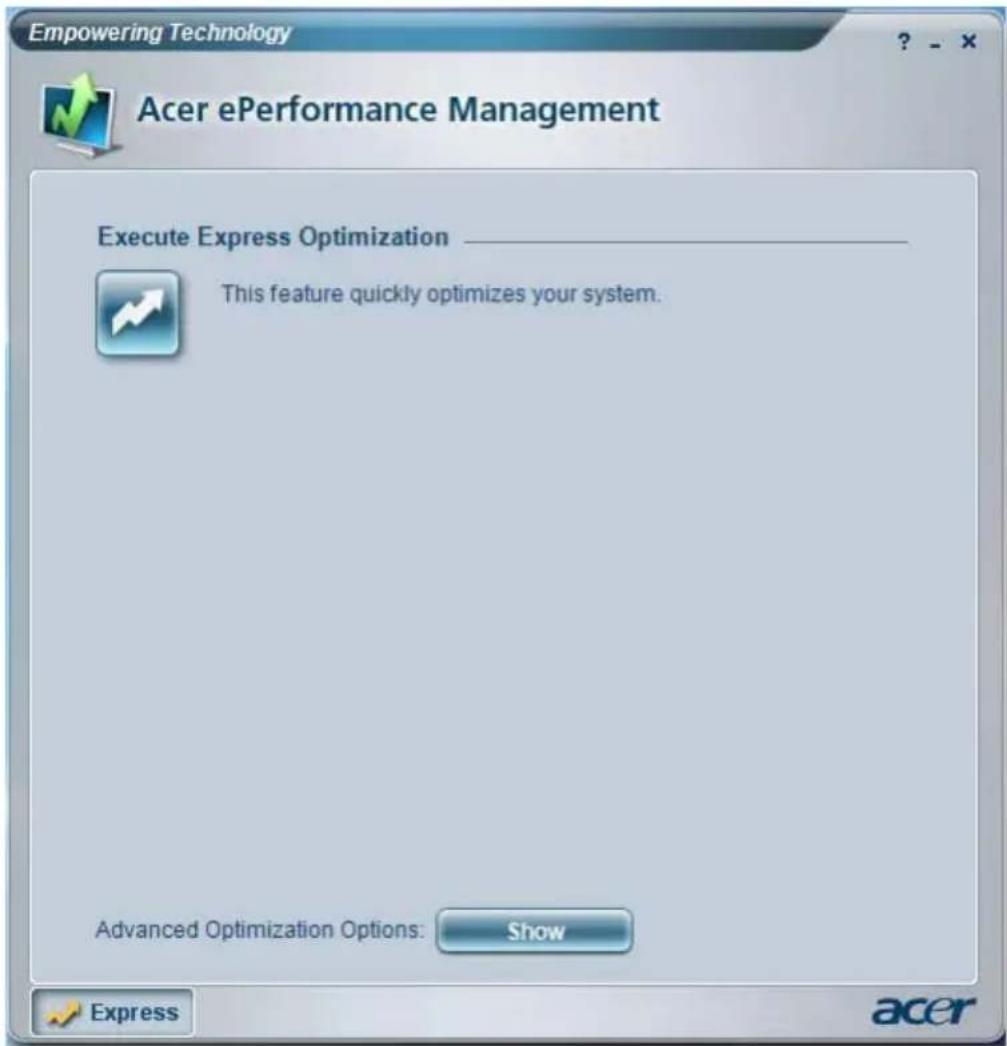
Acer ePerformance Management is a system optimization tool that boosts the performance of your Acer computer. It provides an express optimization method to release unused memory and disk space quickly. The user can also enable advanced options for full control over the following options:
• Memory optimization — releases unused memory and check usage.
- Disk optimization — removes unneeded items and files.
- Speed optimization — improves the usability and performance of your Windows XP system.
text_image
Empowering Technology Acer ePerformance Management Execute Express Optimization ____ This feature quickly optimizes your system. Advanced Optimization Options: Show Express acerAcer eRecovery Management

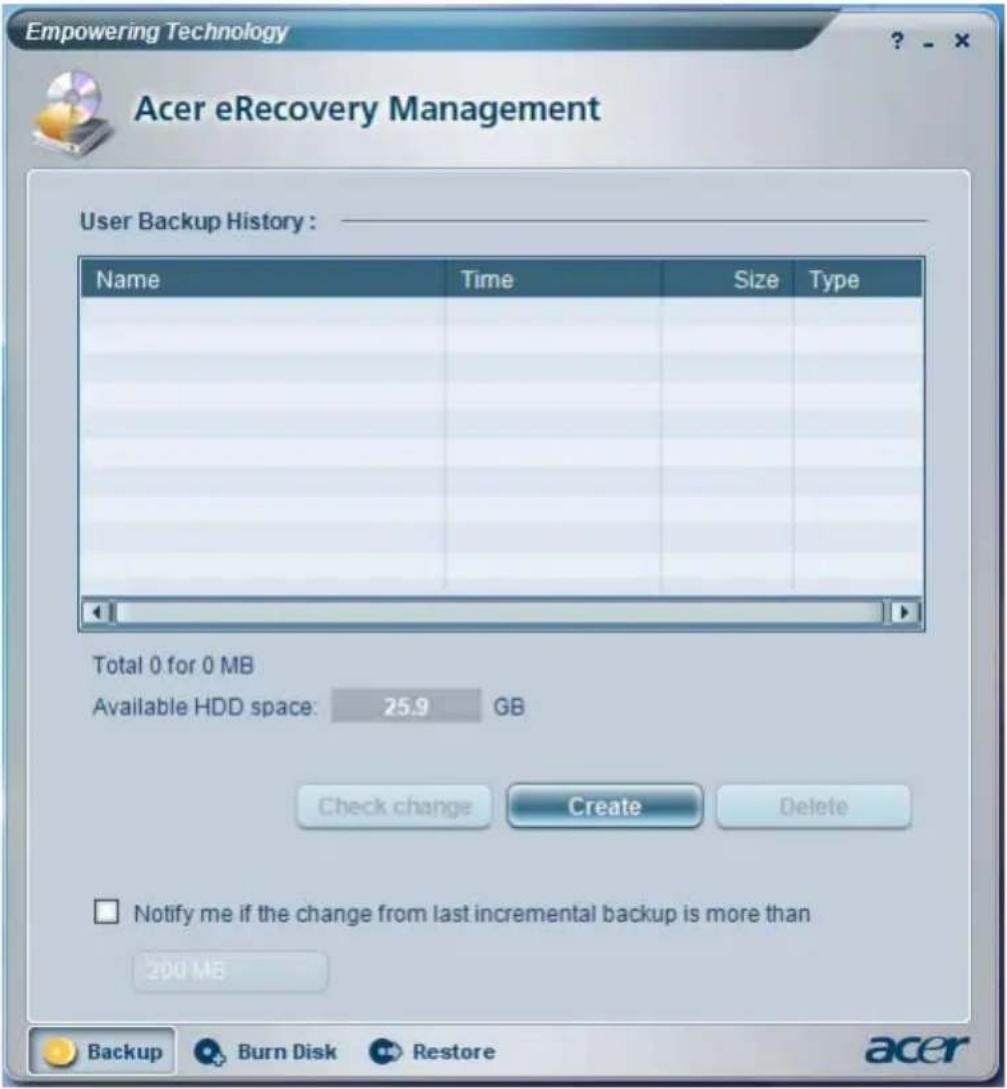
Acer eRecovery Management is a powerful utility that does away with the need for recovery disks provided by the manufacturer. The Acer eRecovery Management utility occupies space in a hidden partition on your system's hard drive. By default, user-created backups are stored on the D:\ drive.
Acer eRecovery Management provides you with:
-
Password protection.
• Recovery of applications and drivers.
• Image/data backup: -
Back up to HDD (set recovery point).
- Back up to CD/DVD.
• Image/data recovery tools:
- Recover from a hidden partition (factory defaults).
- Recover from the HDD (most recent user-defined recovery point).
• Recover from CD/DVD
text_image
Empowering Technology Acer eRecovery Management User Backup History : Name Time Size Type Total 0 for 0 MB Available HDD space: 25.9 GB Check change Create Delete Notify me if the change from last incremental backup is more than 200 MB Backup Burn Disk Restore acerFor more information, please refer to "Acer eRecovery Management" on page 61 in the AcerSystem User's Guide.

Note: If your computer did not come with a Recovery CD or System CD, please use Acer eRecovery Management's "System backup to optical disk" feature to burn a backup image to CD or DVD. To ensure the best results when recovering your system using a CD or Acer eRecovery Management, detach all peripherals (except the external Acer ODD, if your computer has one), including your Acer ezDock.
Acer eSettings Management

Acer eSettings Management allows you to inspect hardware specifications, change BIOS passwords or other Windows settings, and to monitor the system health status.
Acer eSettings Management also:
• Provides a simple graphical user interface for navigation.
• Displays general system status and advanced monitoring for power users on Acer computer.
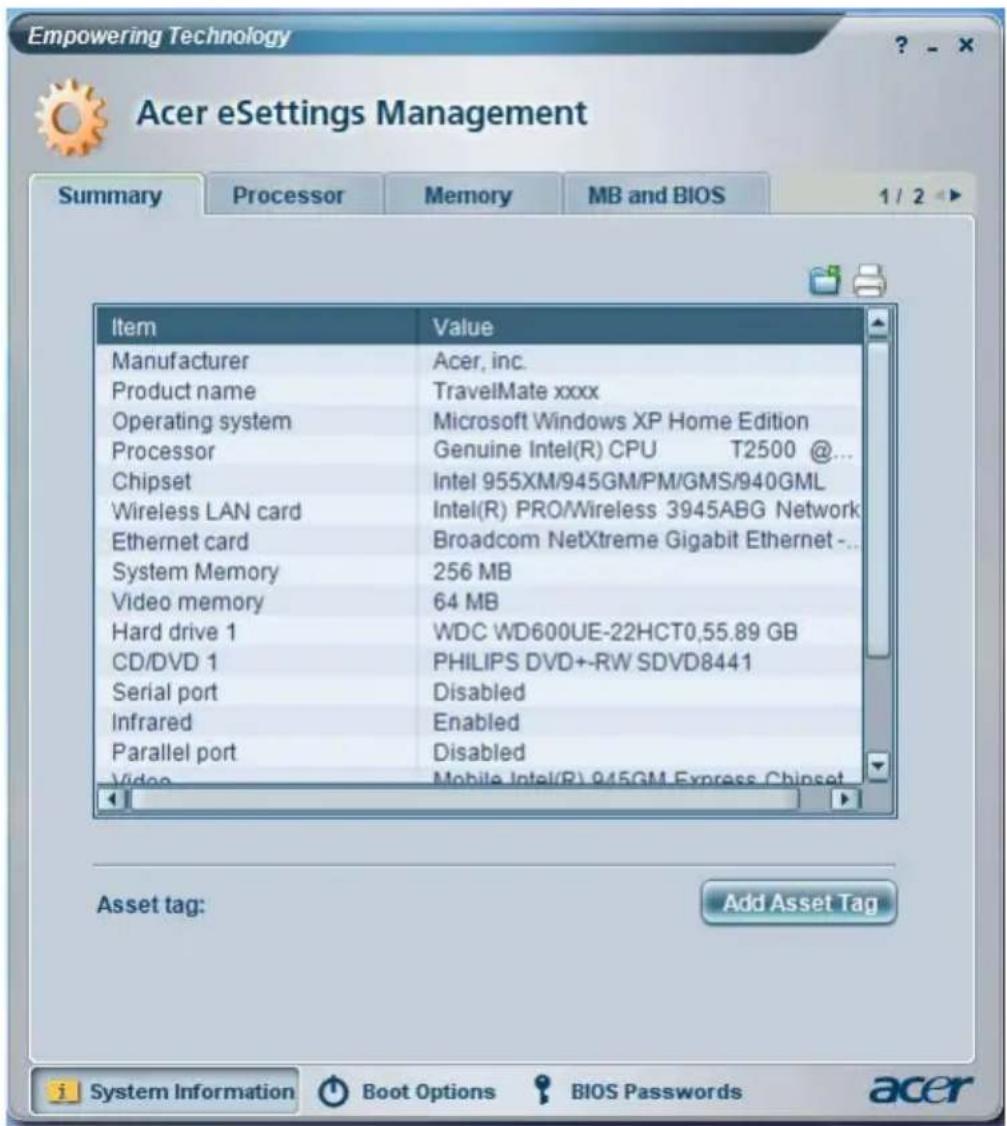
text_image
Empowering Technology Acer eSettings Management Summary Processor Memory MB and BIOS 1 / 2 ▶ Item Value Manufacturer Acer, inc. Product name TravelMate xxxx Operating system Microsoft Windows XP Home Edition Processor Genuine Intel(R) CPU T2500 @... Chipset:Intel 955XM/945GM/PM/GMS/940GML Wireless LAN card:Intel(R) PRO/Wireless 3945ABG Network Ethernet card Broadcom NetXtreme Gigabit Ethernet -... System Memory 256 MB Video memory 64 MB Hard drive 1 WDC WD600UE-22HCT0,55.89 GB CD/DVD 1 PHILIPS DVD+-RW SDVD8441 Serial port Disabled Infrared Enabled Parallel port Disabled Video Mobile Intel(R) 945GM Express Chipset Asset tag: Add Asset Tag i System Information Boot Options BIOS Passwords acerAcer eNet Management (for selected models)
Acer eNet Management helps you to quickly and easily connect to both wired and wireless networks in a variety of locations. To access this utility, either click on the "Acer eNet Management" icon on your notebook, or start the program from the Start menu. You also have the option to set Acer eNet Management to start automatically when you boot up your PC.
Acer eNet Management automatically detects the best settings for a new location, while offering you the freedom to manually adjust the settings to match your needs.
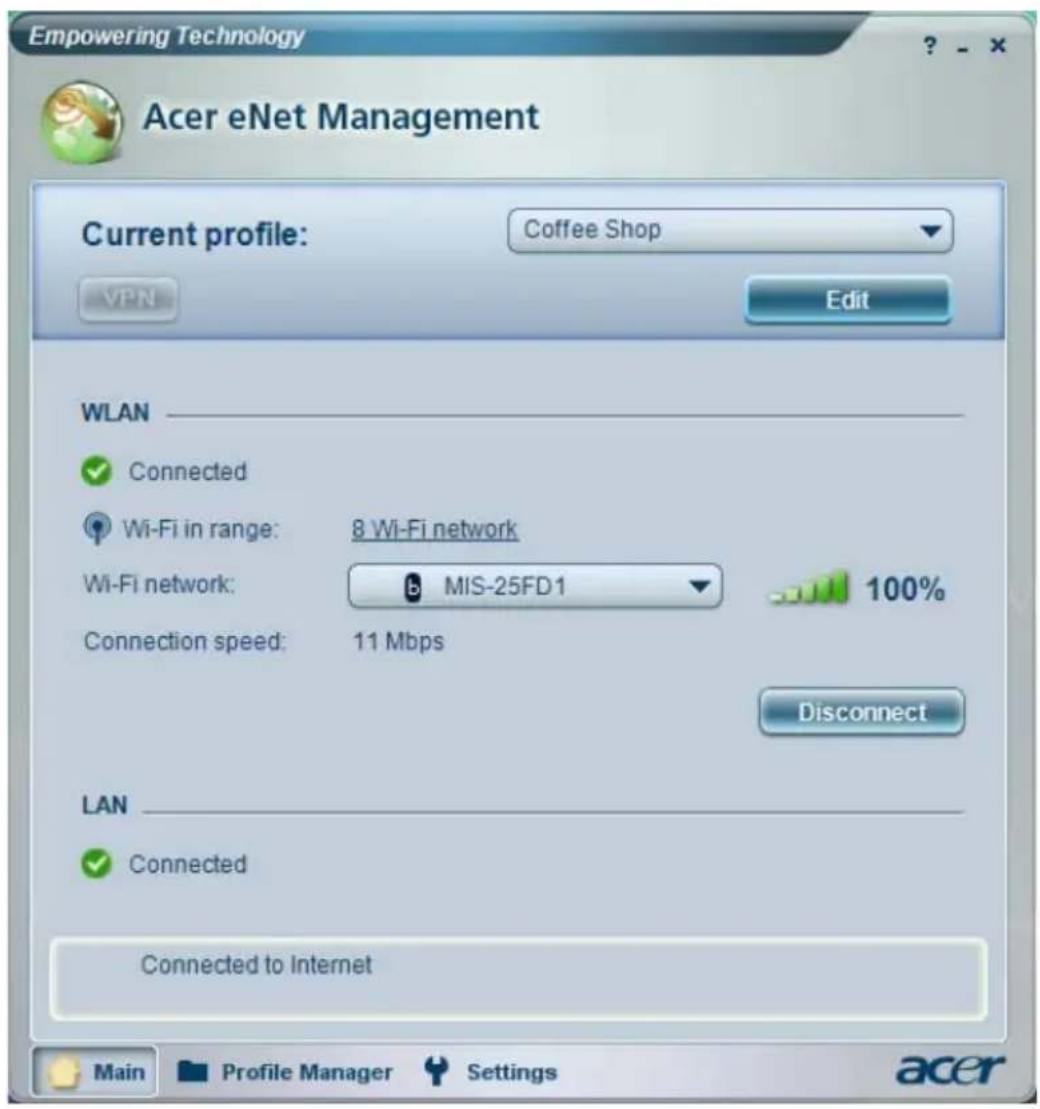
text_image
Empowering Technology Acer eNet Management Current profile: Coffee Shop VPN Edit WLAN ✓ Connected Wi-Fi in range: 8 Wi-Fi network Wi-Fi network: MIS-25FD1 100% Connection speed: 11 Mbps Disconnect LAN ✓ Connected Connected to Internet Main Profile Manager Settings acerAcer eNet Management can save network settings for a location to a profile, and automatically switch to the appropriate profile when you move from one location to another. Settings stored include network connection settings (IP and DNS settings, wireless AP details, etc.), as well as default printer settings. Security and safety concerns mean that Acer eNet Management does not store username and password information.
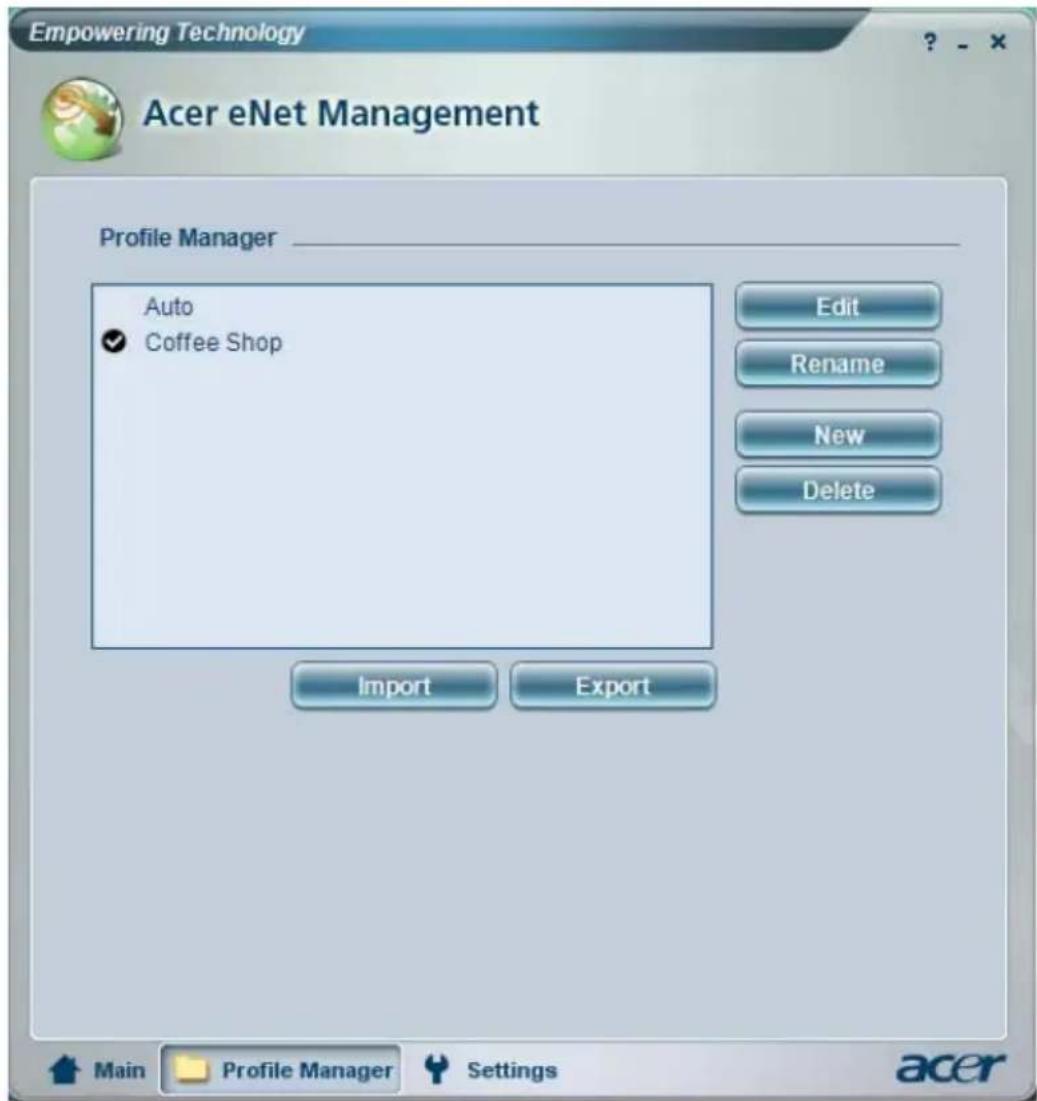
text_image
Empowering Technology Acer eNet Management Profile Manager Auto ✓ Coffee Shop Edit Rename New Delete Import Export Main Profile Manager Settings acerAcer ePower Management

Acer ePower Management features a straightforward user interface. To launch it, select Acer ePower Management from the Empowering Technology interface.
AC mode (Adapter mode)
The default setting is "Maximum Performance." You can adjust CPU speed, LCD brightness and other settings, or click on buttons to turn the following functions on/off: Wireless LAN, Bluetooth, CardBus, FireWire(1394), Wired LAN and Optical Device if supported.
DC mode (Battery mode)
There are four pre-defined profiles — Entertainment, Presentation, Word Processing, and Battery Life. You can also define up to three of your own.
To create a new power profile:
1 Change power settings as desired.
2 Click "Save as ..." to save to a new power profile.
3 Name the newly created profile.
4 Select whether this profile is for Adapter or Battery mode, then click "OK".
5 The new profile will appear in the profile list.
Battery status
For real-time battery life estimates based on current usage, refer to the panel in the upper half of the window..
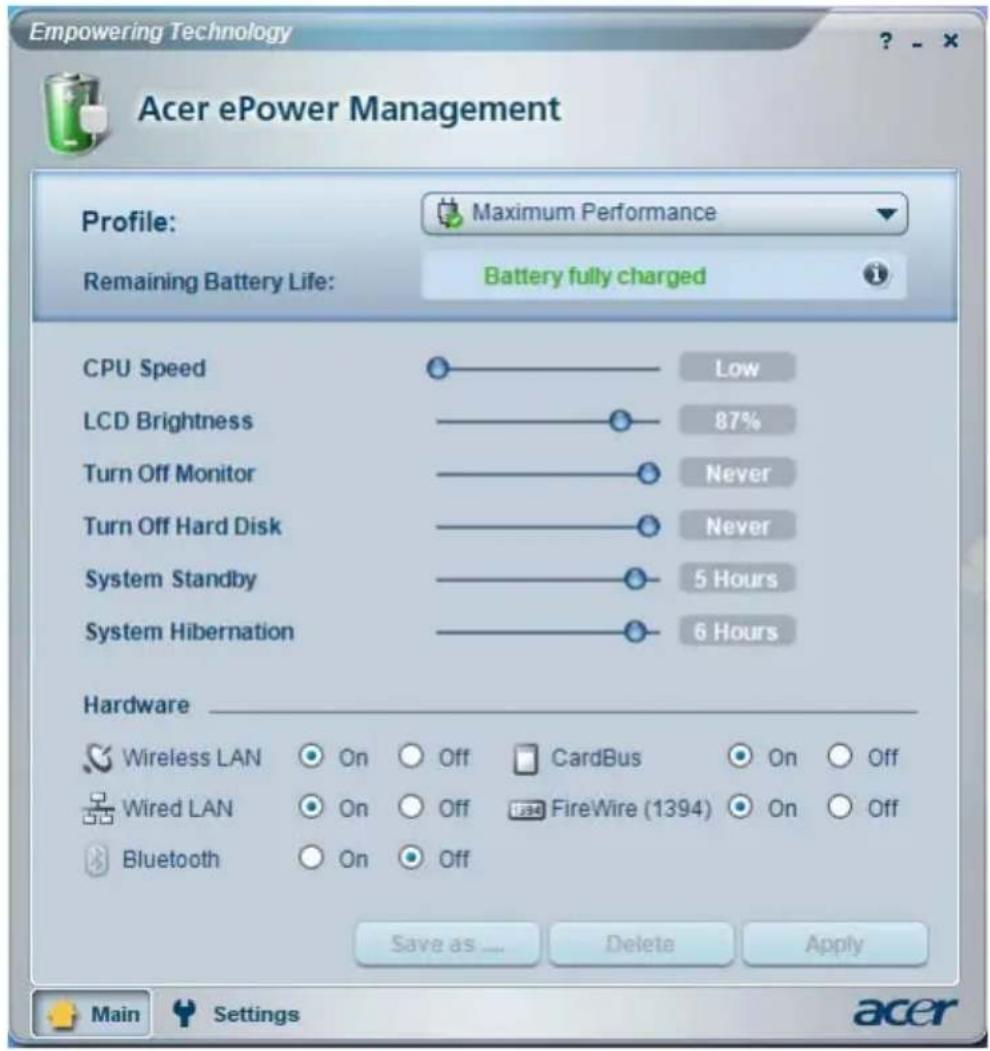
text_image
Empowering Technology Acer ePower Management Profile: Maximum Performance Remaining Battery Life: Battery fully charged CPU Speed Low LCD Brightness 87% Turn Off Monitor Never Turn Off Hard Disk Never System Standby 5 Hours System Hibernation 6 Hours Hardware Wireless LAN On Off CardBus On Off Wired LAN On Off FireWire (1394) On Off Bluetooth On Off Save as ... Delete Apply Main Settings acerFor additional options, click "Settings" to:
- Set alarms.
• Re-load factory defaults. - Select what actions to be taken when the cover is closed or the power button is pressed.
- Set passwords for accessing the system after Hibernation or Standby.
•View information about Acer ePower Management.
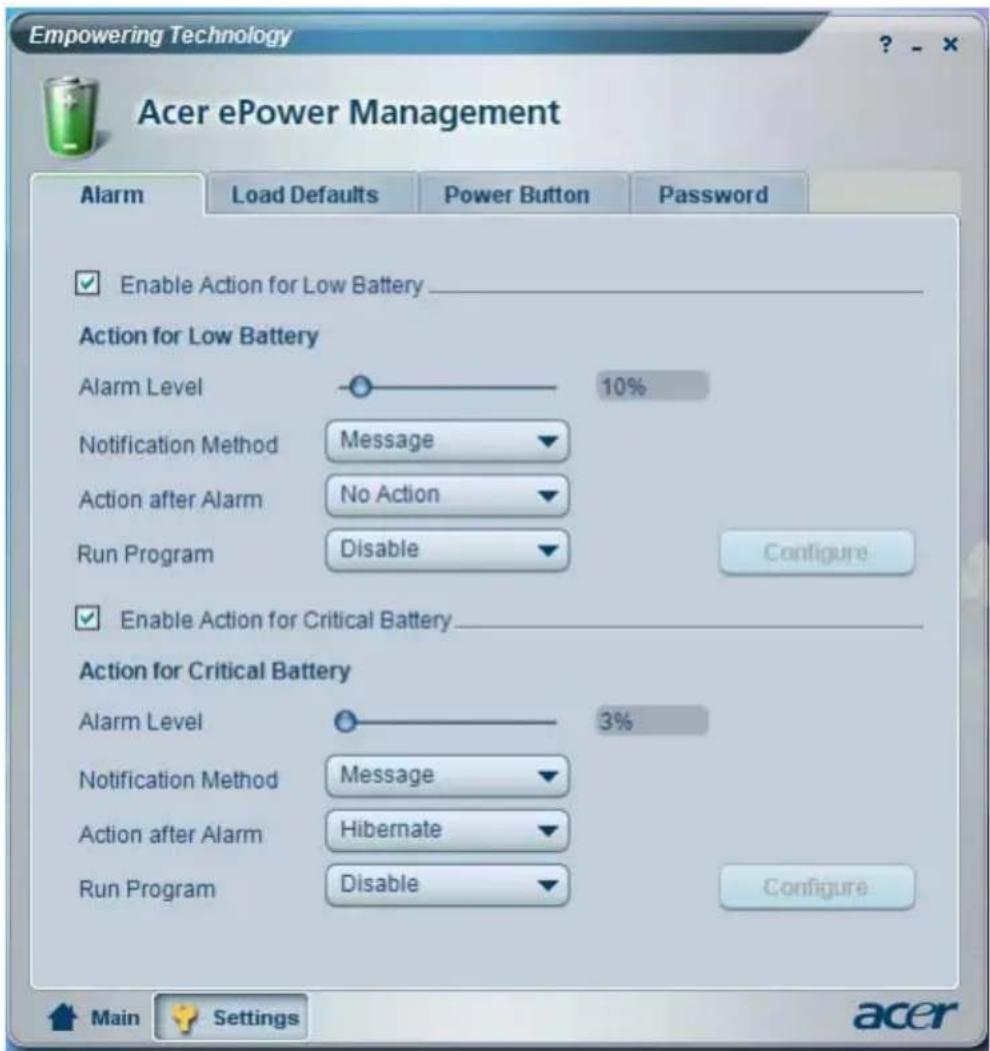
text_image
Empowering Technology Acer ePower Management AlarmLoad DefaultsPower ButtonPassword Enable Action for Low Battery Action for Low Battery Alarm Level 10% Notification Method Message Action after Alarm No Action Run Program Disable Configure Enable Action for Critical Battery Action for Critical Battery Alarm Level 3% Notification Method Message Action after Alarm Hibernate Run Program Disable Configure Main Settings acerAcer ePresentation Management

Acer ePresentation Management lets you project your computer's display to an external device or projector using the hot key: Fn + F5. If auto-detection hardware is implemented in the system and the external display supports it, your system display will be automatically switched out when an external display is connected to the system. For projectors and external devices that are not auto-detected, launch Acer ePresentation Management to choose an appropriate display setting.
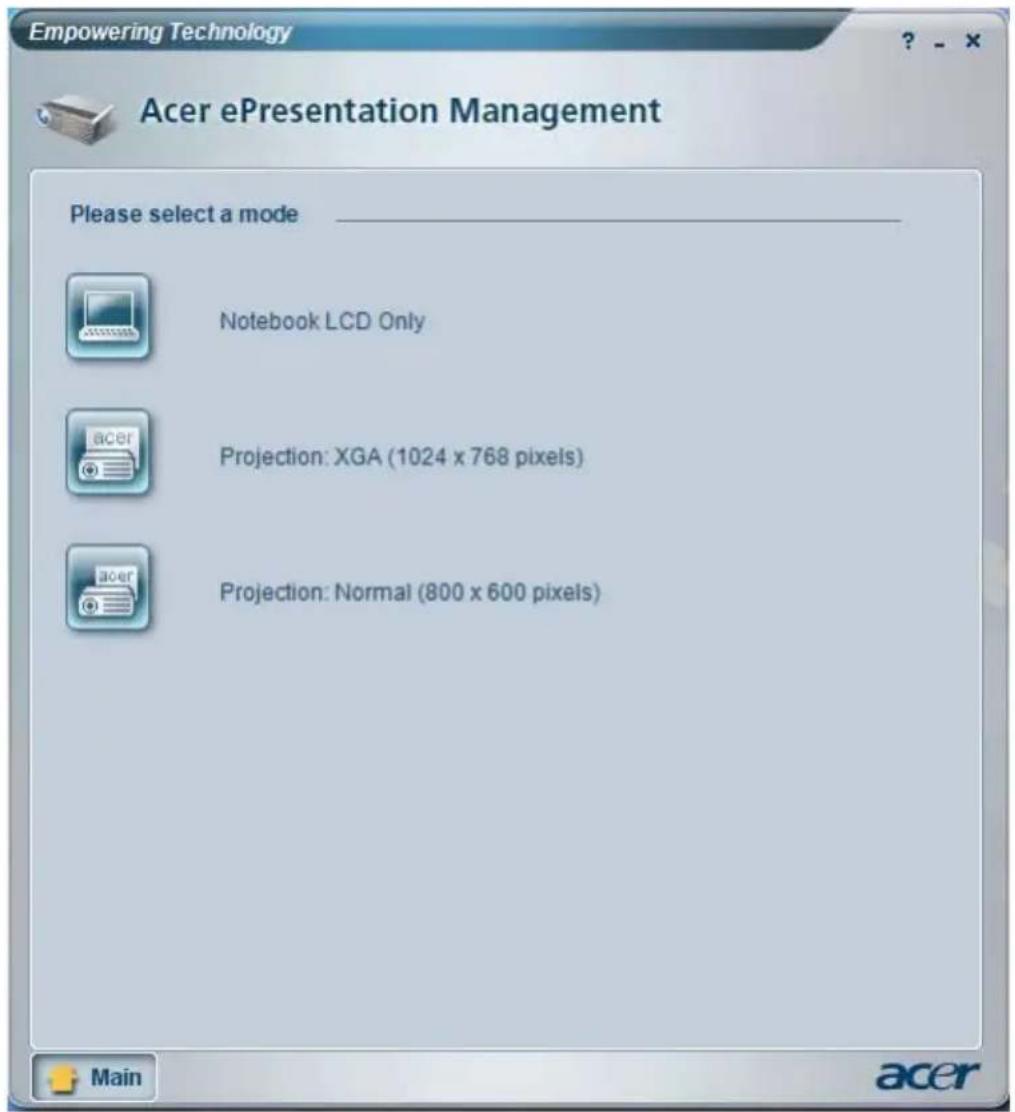
text_image
Empowering Technology Acer ePresentation Management Please select a mode ____ Notebook LCD Only Projection: XGA (1024 x 768 pixels) Projection: Normal (800 x 600 pixels)
Note: If the restored resolution is not correct after disconnecting a projector, or you need to use an external resolution that is not supported by Acer ePresentation Management, adjust your display settings using Display Properties or the utility provided by the graphics vendor.
Your Acer notebook tour
After setting up your computer as illustrated in the Just for Starters... poster, let us show you around your new Acer notebook.
Front view
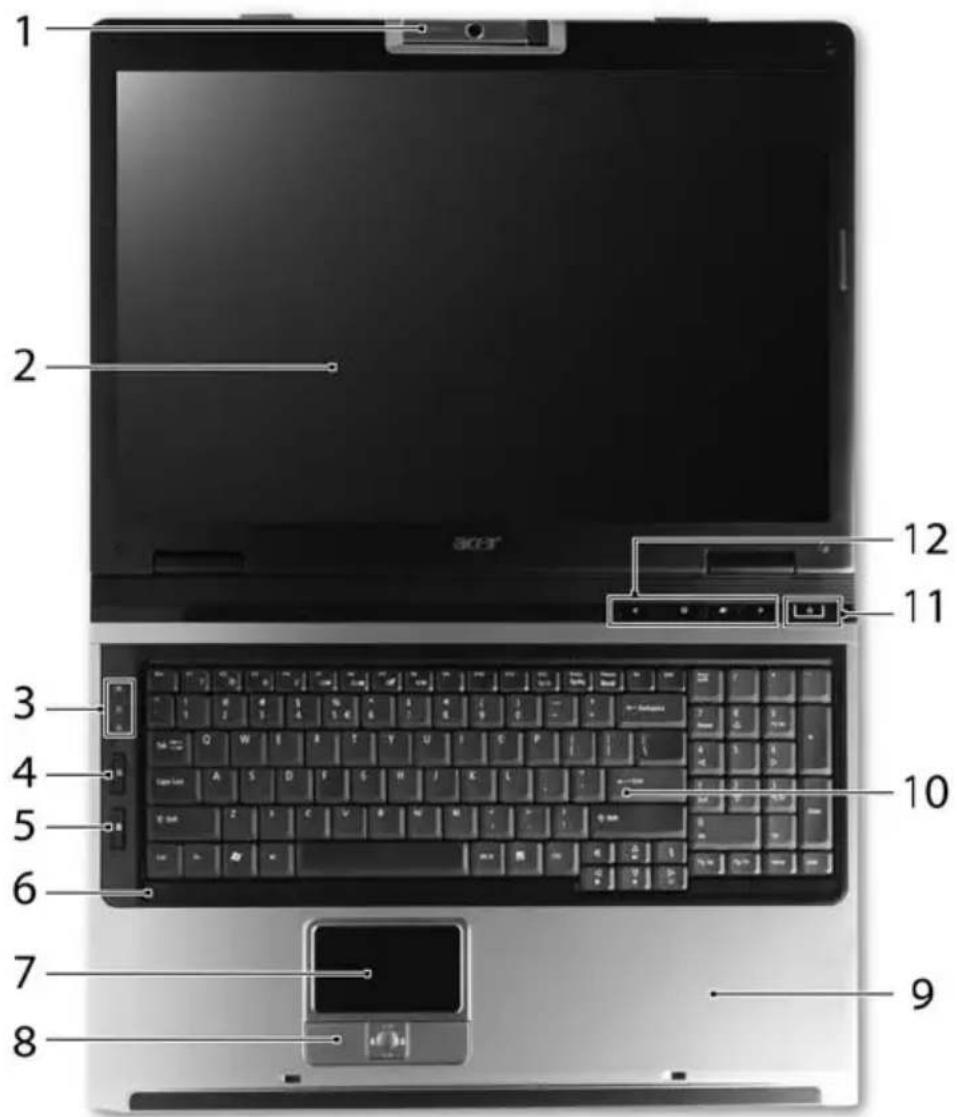
text_image
1 2 3 4 5 6 7 8 9 10 11 12# Icon Item Description
1 Built-in camera 1.3 megapixel or 310,000 pixel web camera for video communication (for selected models).
2 Display screen Also called Liquid-Crystal Display (LCD), displays computer output.
| # | Icon | Item | Description |
| 3 Status indicators Light-Emitting Diodes (LEDs) that light up to show the status of the computer's functions and components. | |||
4 Wi | communication button | Enable/disables the wireless function.Indicates the status of wireless LAN communication. | |
5  | B I communication button | Enable/disables the Bluetooth function.0Indicates the status of Bluetooth communication. | |
| 6 Microphone Internal microphone for sound recording. | |||
| 7 Touchpad Touch-sensitive pointing device which functions like a computer mouse. | |||
| 8 Click buttons (left, center and right) | The left and right buttons function like the left and right mouse buttons; the center button serves as a 4-way scroll button. | ||
| 9 Palmrest Comfortable support area for your hands when you use the computer. | |||
| 10 Keyboard For entering data into your computer. | |||
| 11 Power button Turns the computer on and off. | |||
| 12 Easy-launch buttons | Buttons for launching frequently used programs. See "Easy-launch buttons" on page 27 for more details. | ||
Closed front view
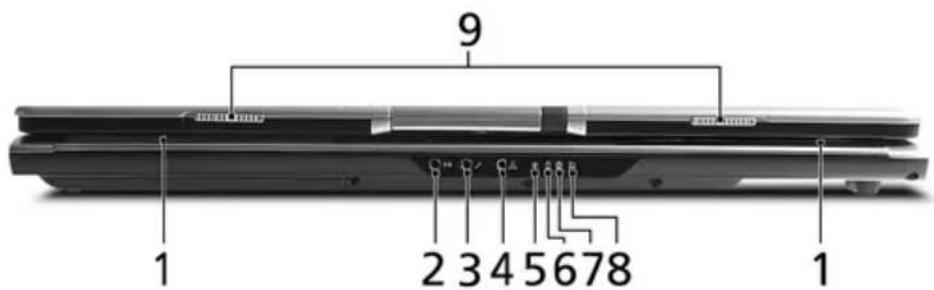
text_image
9 1 2 3 4 5 6 7 8 1# Icon Item Description
1 Speakers Left and right speakers deliver stereo audio output.
2 Line-in jack Accepts audio line-in devices (e.g., audio CD player, stereo walkman).
| # Icon Item Description | |||
| 3 Microphone-in jack Accepts input from external microphones. | |||
4 Headphones/speaker/ line-out jack with S/PDIF support line-out jack with S/PDIF support | Connects to audio line-out devices (e.g., speakers, headphones). | ||
| 5 Power indicator Indicates the computer's power status. | |||
| 6 Battery indicator Indicates the computer's battery status. | |||
7  | B I communication indicator | Indicates the status of Bluetooth o communication. | |
8 Will'  | communication indicator | Indicates the status of wireless LAN communication. | |
| 9 Latch Locks and releases the lid. | |||
Left view
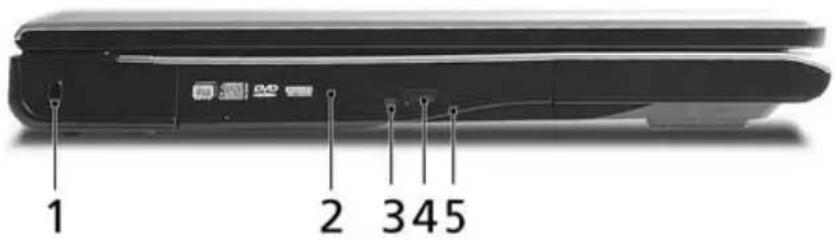
text_image
1 2 345Icon Item Description
| 1 Kensington lock slot | Connects to a Kensington-compatible computer security lock. |
| 2 Optical drive Internal optical drive; accepts CDs or DVDs (slot-load or tray-load depending on model). | |
| 3 Optical disk access indicator | Lights up when the optical drive is active (location depends on model). |
| 4 Optical drive eject button | Ejects the optical disk from the drive (location depends on model). |
| 5 Emergency eject hole | Ejects the optical drive tray when the computer is turned off (location depends on model). |
Right view
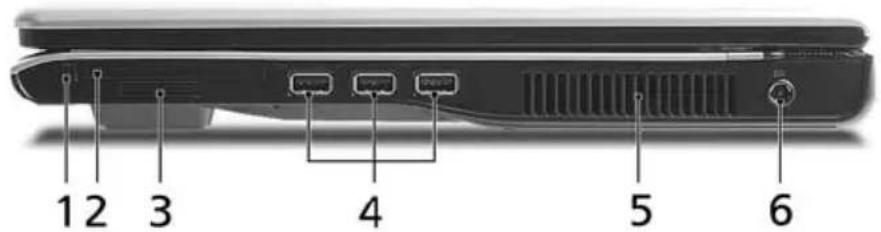
text_image
1 2 3 4 5 6Icon Item Description
| 1 PC Card slot eject button | Ejects the PC Card from the slot. |
2 PC Call  lot Accepts one Type II PC Card. lot Accepts one Type II PC Card. | |
# Icon Item Description
3 5-in-1 card reader Accepts Secure Digital (SD),

MultiMediaCard (MMC), Memory Stick (MS), Memory Stick PRO (MS PRO), xD-Picture Card (xD).
4 Three USB 2.0
Connect to USB 2.0 devices (e.g., USB mouse, USB camera).
5 Ventilation slots Enable the computer to stay cool, even after prolonged use.
6 DC-in jack Connects to an AC adapter.
Rear view
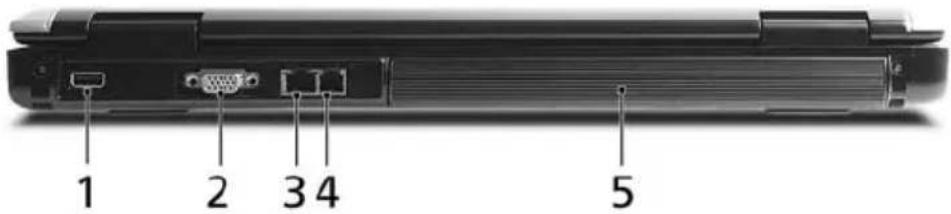
text_image
1 2 3 4 5# Icon Item Description
1 USB 2.0 port Connects to USB 2.0 devices (e.g., USB mouse, USB camera).
2 External display (VGA) port
Connects to a display device (e.g., external monitor, LCD projector).
3 Modem (RJ-11) port Connects to a phone line.

4 Ethernet (RJ-45) port
Connects to an Ethernet 10/100/1000-based network.
5 Battery Powers the computer.
Base view
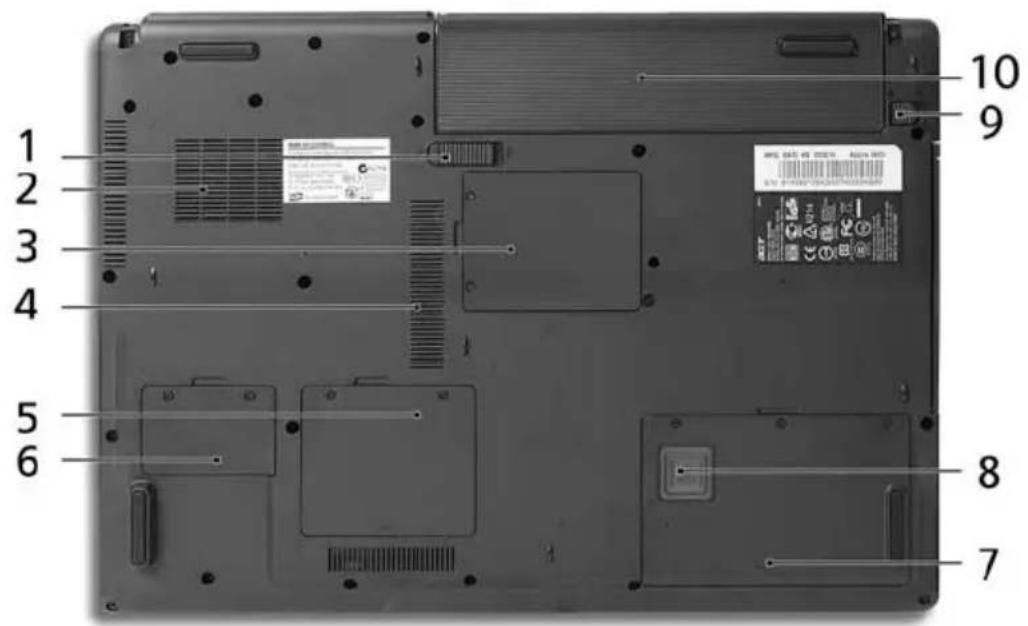
text_image
1 2 3 4 5 6 7 8 9 10Item Description
| 1 Battery release latch Releases the battery for removal. | |
| 2 Cooling fan Helps keep the computer cool.Note: Do not cover or obstruct the opening of the fan. | |
| 3 Mini PCI card bay Houses the computer's Mini PCI card. | |
| 4 Ventilation slots Enable the computer to stay cool, even after prolonged use. | |
| 5 Memory compartment Houses the computer's main memory. | |
| 6 PCI Express Mini Card bay Houses the computer's PCI Express Mini Card. | |
| 7 Hard disk bay Houses the computer's hard disk (secured with screws). | |
| 8 Acer DASP (Disk Anti-Shock Protection) | Protects the hard disk drive from shocks and bumps. |
| 9 Battery lock Locks the battery in position. | |
| 10 Battery bay Houses the computer's battery pack. | |
Specifications
| Operating system | •Windows® VistaTM Capable•Genuine Windows® XP Home Edition (Service Pack 2)•Genuine Windows® XP Professional (Service Pack 2) |
| Windows® VistaTM Capable PCs come with Windows® XP installed, and can be upgraded to Windows® VistaTM. For more information on Windows® VistaTM and how to upgrade, go to: Microsoft.com/ windowsvista. | |
| Platform TravelMate 5610 Series | |
| Intel® Centrino® Duo mobile technology, featuring:•Intel® CoreTM Duo processor T2300/T2400/T2500/ T2600 (2 MB L2 cache, 1.66/1.83/2/2.16 GHz, 667 MHz FSB)•Mobile Intel® 945PM/GM Express chipset•Intel® PRO/Wireless 3945ABG network connection (dual-band tri-mode 802.11a/b/g) Wi-Fi CERTIFIEDTM solution, supporting Acer SignalUpTM wireless technologyTravelMate 5110 Series•Intel® Celeron® M processor 410/420/430 (1 MB L2 cache, 1.46/1.60/1.73 GHz, 533 MHz FSB)•Mobile Intel® 940GML Express chipset•Acer InviLinkTM 802.11b/g Wi-Fi CERTIFIEDTM solution, supporting Acer SignalUpTM wireless technology | |
| System memory TravelMate 5610 Series | |
| •Up to 2 GB of DDR2 533/667 MHz memory, upgradeable to 4 GB using two soDIMM modules (dual-channel support)TravelMate 5110 Series•Up to 1 GB of DDR2 533 MHz memory, upgradeable to 2 GB using two soDIMM modules (dual-channel support) | |
| Display and graphics | •17.1" WXGA+ 200-nit high-brightness TFT LCD, 1440 x 900 pixel resolution, supporting simultaneous multi-window viewing via Acer GridVistaTM•NVIDIA® GeForce® Go 7300 up to 512 MB TurboCacheTM (256 MB of dedicated GDDR2 VRAM, 256 MB of shared system memory), supporting Microsoft® DirectX® 9.0, Shader Model 3.0, OpenEXR High Dynamic Range (HDR) technology, NVIDIA® PowerMizer® 6.0, PCI Express®, or•Mobile Intel® 945GM Express chipset with integrated 3D graphics, featuring Intel® Graphics Media Accelerator (GMA) 950, up to 224 MB of shared system memory, supporting Microsoft® DirectX® 9.0 and PCI Express® and dual independent displays•16.7 million colors•MPEG-2/DVD hardware-assisted capability TurboCacheTM memory allocation varies depending on configuration. TurboCacheTM memory allocation varies depending on configuration. |
| Storage subsystem | •80/100/120 GB or higher hard disk drive with Acer Disk Anti-Shock Protection (DASP)•Optical drive options:•DVD-Super Multi double-layer•DVD-Dual double-layer•DVD/CD-RW combo drive•5-in-1 card reader, supporting Secure Digital (SD), MultiMediaCard (MMC), Memory Stick® (MS), Memory Stick PROTM (MS PRO), xD-Picture CardTM (xD) |
| Dimensions and weight | •With Acer OrbiCamTM•400 (W) x 295 (D) x 31.4/39.9 (H) mm (15.75 x 11.61 x 1.24/1.57 inches)•3.81kg (8.39 lbs.) with 8-cell battery pack•3.68kg (8.10 lbs.) with 6-cell battery pack•Without Acer OrbiCamTM•400 (W) x 295 (D) x 31.4/39.9 (H) mm (15.75 x 11.61 x 1.24/1.57 inches)•3.79 kg (8.35 lbs.) with 8-cell battery pack•3.66 kg (8.06 lbs.) with 6-cell battery pack |
| Power subsystem | •ACPI 2.0 CPU power management standard: supports Standby and Hibernation power-saving modes•71 W 4800 mAh (8-cell) or 44 W 4000 mAh (6-cell) Li-ion battery pack•Acer QuicChargeTM technology:•80% charge in 1 hour•2-hour rapid charge system-off•2.5-hour charge-in-use•3-pin 90 W AC adapter |
| Input devices | •105-/106-key keyboard•Touchpad with 4-way scroll button•Four easy-launch buttons•Two LED-buttons: WLAN, Bluetooth® |
| Audio | •Audio system with two built-in speakers•Intel® High-Definition audio support•Sound Blaster ProTM and MS Sound compatible•S/PDIF (Sony/Philips Digital Interface) support for digital speakers•Built-in microphone |
| Communication | •Acer Video Conference featuring Voice and Video over Internet Protocol (VVoIP) support via Acer OrbiCamTM and optional Acer Bluetooth® VoIP phone•Acer OrbiCamTM integrated 1.3 megapixel or 310,000 pixel CMOS camera (for selected models), featuring:•225 degree ergonomic rotation•Acer VisageONTM technology (for 1.3 megapixel camera models only)•Acer PrimaLiteTM technology•Modem: 56K ITU V.92 with PTT approval; Wake-on-Ring ready•LAN: gigabit Ethernet; Wake-on-LAN ready•WPAN: Bluetooth® 2.0+EDR (Enhanced Data Rate)•WLAN: Intel® PRO/Wireless 3945ABG network connection (dual-band tri-mode 802.11a/b/g) Wi-Fi CERTIFIEDTM solution, supporting Acer SignalUpTM wireless technology (for TravelMate 5610 Series)•WLAN: integrated Acer InviLinkTM 802.11b/g Wi-Fi CERTIFIEDTM solution, supporting Acer SignalUpTM wireless technology (for TravelMate 5110 Series) |
| I/O interface | •PC Card slot (one Type II) |
| •Four USB 2.0 ports | |
| •External display (VGA) port | |
| •Headphones/speaker/line-out jack with S/PDIF support | |
| •Microphone-in jack | |
| •Line-in jack | |
| •Ethernet (RJ-45) port | |
| •Modem (RJ-11) port | |
| •DC-in jack for AC adapter | |
| Security | •Kensington lock slot |
| •BIOS user and supervisor passwords | |
| •Acer DASP+ including Acer DASP (Disk Anti-Shock Protection) | |
| Software | •Acer Empowering Technology |
| •Acer eDataSecurity Management (for selected models) | |
| •Acer eLock Management | |
| •Acer ePerformance Management | |
| •Acer eRecovery Management | |
| •Acer eSettings Management | |
| •Acer eNet Management (for selected models) | |
| •Acer ePower Management | |
| •Acer ePresentation Management | |
| •Acer GridVistaTM | |
| •Acer Launch Manager | |
| •Norton AntiVirusTM | |
| •Adobe® Reader® | |
| •CyberLink® PowerDVDTM | |
| •NTI CD-MakerTM | |
| Options and accessories | •Acer Bluetooth® VoIP phone |
| •512 MB, 1 or 2 GB DDR2 533/667 MHz soDIMM module | |
| •8-cell Li-ion battery pack | |
| •6-cell Li-ion battery pack | |
| •3-pin 90 W AC adapter | |
| •External USB floppy disk drive | |
| Environment | •Temperature:• Operating: 5 °C to 35 °C• Non-operating: -20 °C to 65 °C• Humidity (non-condensing):• Operating: 20% to 80%• Non-operating: 20% to 80% |
| System compliance | •Cisco Compatible Extensions (CCX)•Wi-Fi ®•ACPI•Mobile PC 2002•DMI 2.0 |
| Warranty One-year International Travelers Warranty (ITW) | |

Note: The specifications listed above are for reference only. The exact configuration of your PC depends on the model purchased.
Indicators
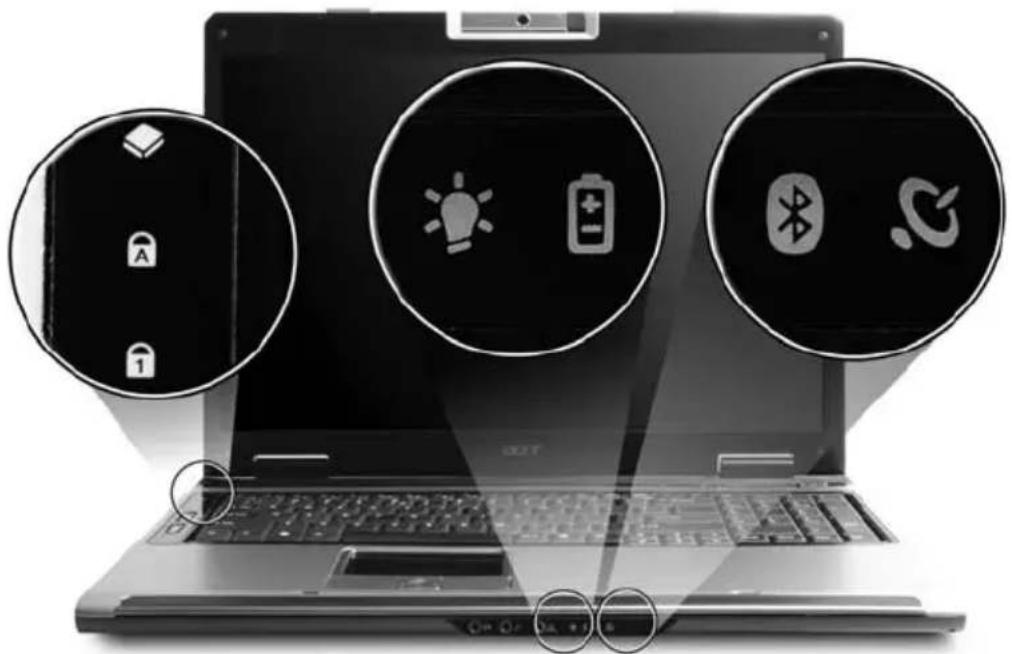
The computer has several easy-to-read status indicators:
natural_image
Laptop with three circular icons showing battery, lightbulb, and Bluetooth symbols (no text or labels)The front panel indicators are visible even when the computer cover is closed up.
| Icon Function Description | |
 | HDD Indicates when the hard disk drive is active. |
 | Caps Lock Lights up when Caps Lock is activated. |
 | Num Lock Lights up when Num Lock is activated. |
 | Power Indicates the computer's power status. |
| [3C7S] | Battery Indicates the computer's battery status. |
| [T72X] | Bluetooth Indicates the status of Bluetooth communication. |
| [3Y9S] | Wireless LAN Indicates the status of wireless LAN communication. |

- Charging: The light shows amber when the battery is charging.
- Fully charged: The light shows green when in AC mode.
Easy-launch buttons
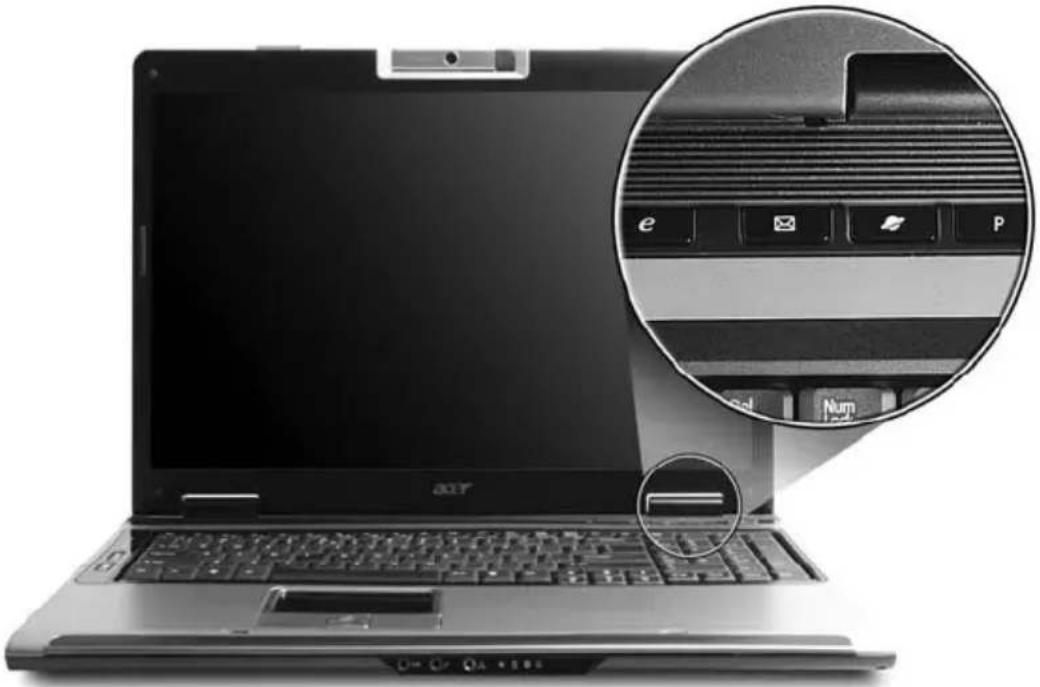
There are several conveniently located easy-launch buttons. They are: mail, Web browser, Empowering Key < > and one user-programmable button.
Press
natural_image
Laptop with keyboard and a magnified inset showing the keyboard key (no text or symbols visible)Easy-launch button Default application
| e | Acer Empowering Technology (user-programmable) |
| Mail Email application (user-programmable) | |
| Web browser Internet browser (user-programmable) | |
| P | User-programmable |
Touchpad
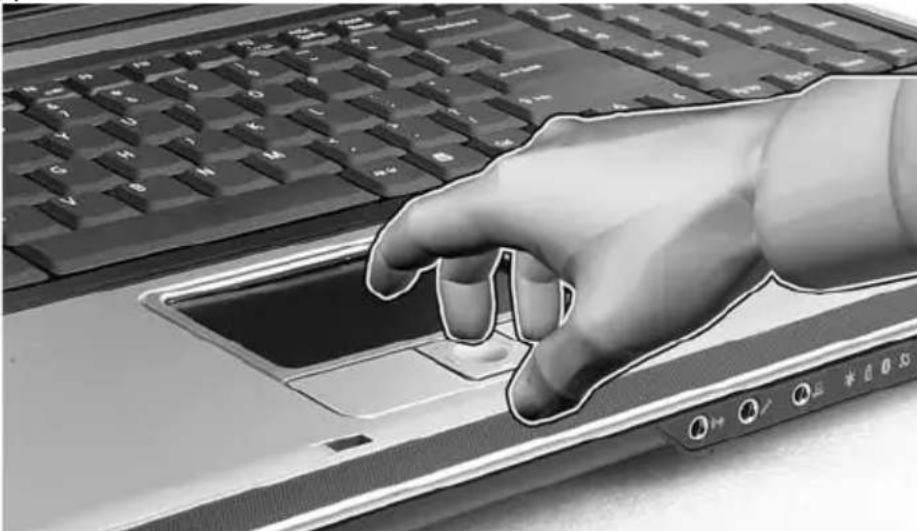
The built-in touchpad is a pointing device that senses movement on its surface. This means the cursor responds as you move your finger across the surface of the touchpad. The central location on the palmrest provides optimum comfort and support.
natural_image
Illustration of a hand interacting with a laptop keyboard, no text or symbols presentTouchpad basics
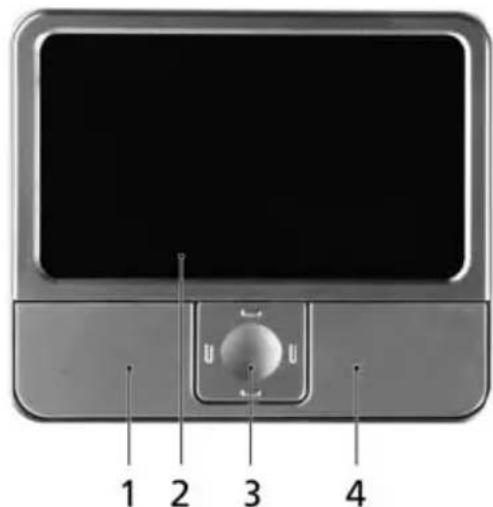
The following items show you how to use the touchpad:
text_image
1 2 3 4- Move your finger across the touchpad (2) to move the cursor.
- Press the left (1) and right (4) buttons located beneath the touchpad to perform selection and execution functions. These two buttons are similar to the left and right buttons on a mouse. Tapping on the touchpad is the same as clicking the left button.
• Use the 4-way scroll (3) button to scroll up or down and move left or right a page. This button mimics your cursor pressing on the right scroll bar of Windows applications.
| Function Left button (1) | Right button (4) | Main touchpad (2) | Center button (3) |
| Execute Quickly click twice. | Tap twice (at the same speed as double-clicking a mouse button). | ||
| Select Click once. Tap once. | |||
| Drag Click and hold, then use finger on the touchpad to drag the cursor. | Tap twice (at the same speed as double-clicking a mouse button); rest your finger on the touchpad on the second tap and drag the cursor. | ||
| Access context menu | Click once. | ||
| Scroll Click and | hold to move up/ down/left/ right. | ||

Note: When using the touchpad, keep it — and your fingers — dry and clean. The touchpad is sensitive to finger movement; hence, the lighter the touch, the better the response. Tapping harder will not increase the touchpad's responsiveness.

Note: By default, vertical and horizontal scrolling is enabled on your touchpad. It can be disabled under Mouse settings in Windows Control Panel.
Using the keyboard
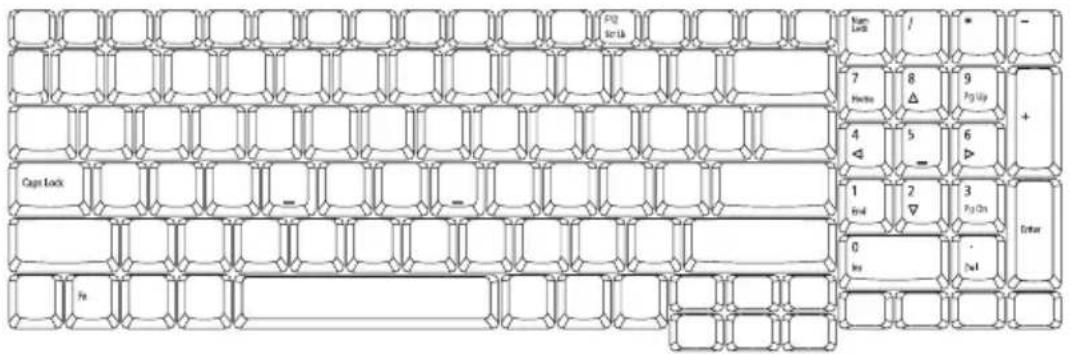
The keyboard has full-sized keys and an embedded numeric keypad, separate cursor, lock, Windows, function and special keys.
Lock keys and embedded numeric keypad
The keyboard has three lock keys which you can toggle on and off.
text_image
P2 Brk Cam Lock / * 7 8 9 Ferrer △ Pg Up + 4 5 6 ◀ - ▶ Cage Lock 1 2 3 End 0 Inv - 2+1 Enter PsLock key Description
Caps Lock When Caps Lock is on, all alphabetic characters typed are in uppercase.
| Num Lock When Num Lock is on, the right hand side numeric keypad is in numeric mode. The keys function as a calculator (complete with the arithmetic operators +, -, *, and /). When Num Lock is off, the keys assume cursor and other shortcut functions. | |
| Scroll Lock+Fn>+ | When Scroll Lock is on, the screen moves one line up or down when you press the up or down arrow keys respectively. Scroll Lock does not work with some applications. |
The embedded numeric keypad functions like a desktop numeric keypad. It is indicated by small characters located on the upper right corner of the keycaps. To simplify the keyboard legend, cursor-control key symbols are not printed on the keys.
| Desired access Num Lock on Num Lock off | ||
| Number keys on embedded keypad | Type numbers in a normal manner. | |
| Cursor-control keys on embedded keypad | Holdwhile using cursor-control keys. | Holdwhile using cursor-control keys. |
| Main keyboard keys | Holdwhile typing letters on embedded keypad. | Type the letters in a normal manner. |
Windows keys
The keyboard has two keys that perform Windows-specific functions.
Key Description

Windows key Pressed alone, this key has the same effect as clicking on the Windows Start button; it launches the Start menu. It can also be used with other keys to provide a variety of functions:
<->
< >
<> +
<✗>

Application key
This key has the same effect as clicking the right mouse button; it opens the application's context menu.
Hotkeys
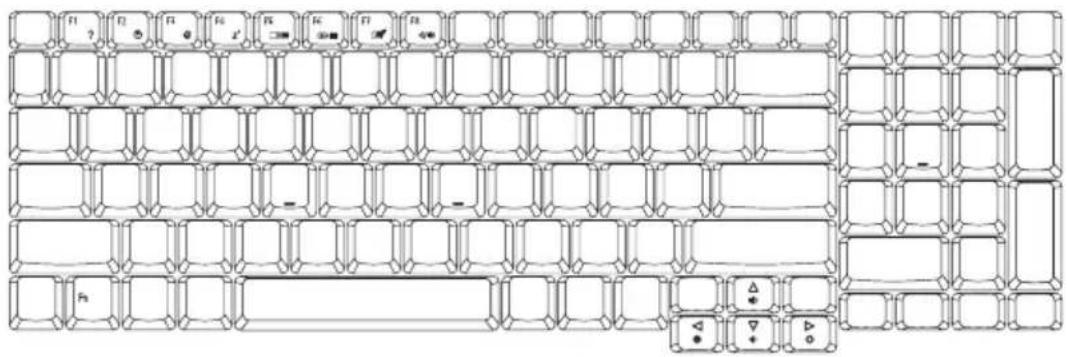
The computer employs hotkeys or key combinations to access most of the computer's controls like screen brightness, volume output and the BIOS utility. To activate hotkeys, press and hold the
text_image
Technical diagram of a multi-layered mechanical or electrical component with labeled pins and connection pointsHotkey Icon Function Description
+ <F2>Acere Power  | Settings Launches Acer eSettings in Acer Empowering Technology. See "Acer Empowering Technology" on page 1. | ||
+ <F3>Acere Power  | Management | Launches Acer ePower Management in Acer Empowering Technology. See "Acer Empowering Technology" on page 1. | |
| + <F4>Sleep Puts the computer in Sleep mode. | |||
+ <F5>Display toggle Switches display output  | between the display screen, external monitor (if connected) and both. | ||
| + <F6>Screen blank Turns the display screen backlight off to save power. Press any key to return. | |||
| + <F7>Touchpad toggle Turns the internal touchpad on and off. | |||
| + <F8>Speaker toggle Turns the speakers on and off. | |||
+ <↑>  | Volume up | Increases the sound volume. | |
+ <↓>  | Volume down | Decreases the sound volume. | |
| + <→> [TTYW] | Brightness up | Increases the screen brightness. | |
+ <←> Brightness down  | Decreases the screen brightness. | ||
Special keys
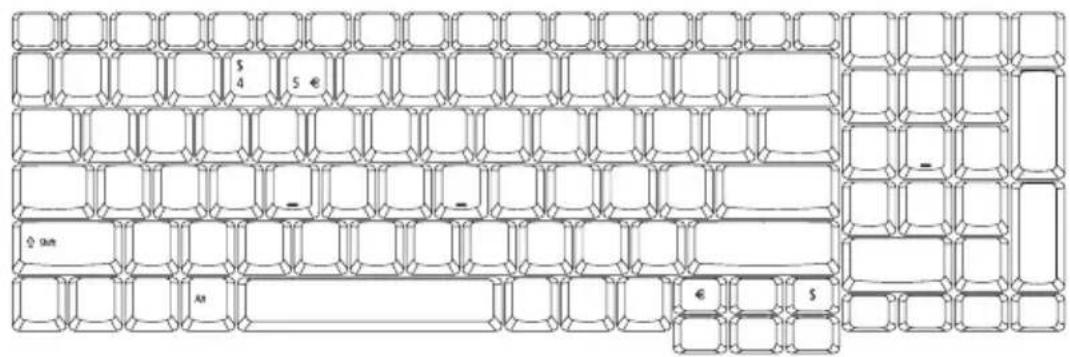
You can locate the Euro symbol and the US dollar sign at the upper-center and/or bottom-right of your keyboard.
text_image
S 4 5 € - - - - GSM A#1 € SThe Euro symbol
1 Open a text editor or word processor.
2 Either press <€> at the bottom-right of the keyboard, or hold

Note: Some fonts and software do not support the Euro symbol. Please refer to www.microsoft.com/typography/faq/faq12.htm for more information.
The US dollar sign
1 Open a text editor or word processor.
2 Either press < \$ > at the bottom-right of the keyboard, or hold

Note: This function varies according to the language settings.
Ejecting the optical (CD or DVD) drive tray
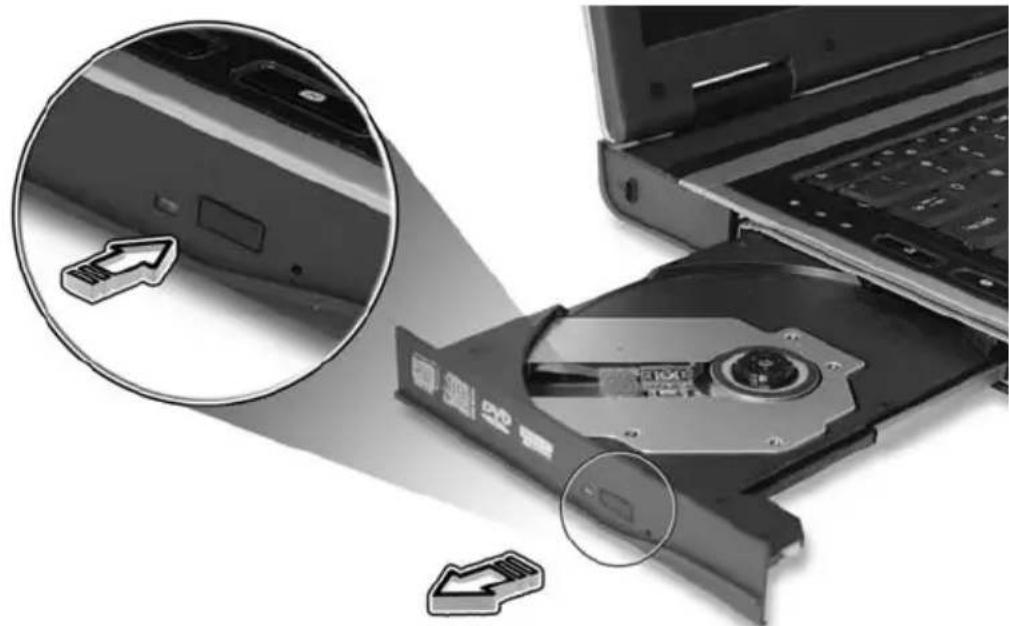
Press the drive eject button to eject the optical drive tray when the computer is on.
natural_image
Laptop with internal hard drive showing a close-up of its rear panel, no visible text or symbolsInsert a paper clip to the emergency eject hole to eject the optical drive tray when the computer is off.
Using a computer security lock
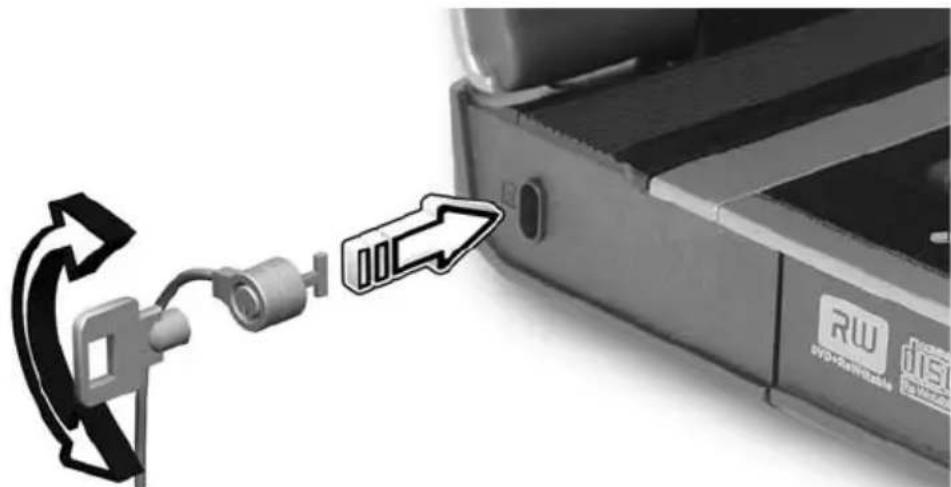
The notebook comes with a Kensington-compatible security slot for a security lock.
text_image
Diagram showing a cable connector connected to a device with an arrow indicating direction, labeled 'RW' and 'dri' on the device.Wrap the computer security lock cable around an immovable object such as a table or handle of a locked drawer. Insert the lock into the notch and turn the key to secure the lock. Keyless models are also available.
Audio
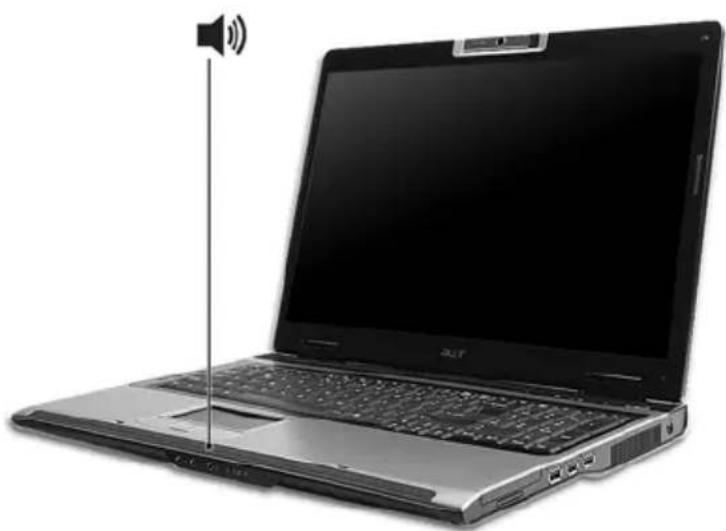
The computer comes with 32-bit Intel High-Definition audio, and built-in stereo speakers.
natural_image
Laptop with speaker icon and sound waves, no visible text or symbols on the device itselfAdjusting the volume
Use hotkeys to easily adjust the volume on your computer. See "Hotkeys" on page 31 for more information on adjusting the speaker volume.
Acer OrbiCam
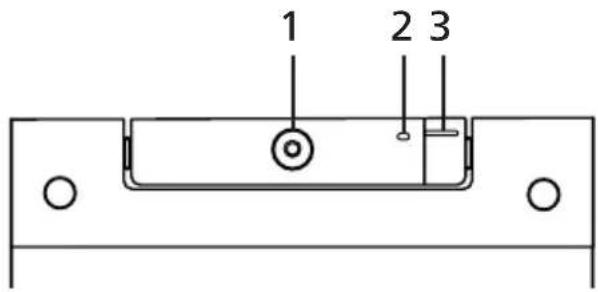
The Acer OrbiCam is a 1.3 megapixel or 310,000 pixel CMOS camera appropriately mounted on top of the LCD panel. The camera's 225-degree ergonomic rotation allows you to capture high-resolution photos or videos up front or at the back of the LCD panel. The Acer OrbiCam fully supports the Acer Video Conference technology so you transmit the best video conference quality over an Instant Messenger service.
Getting to know your Acer OrbiCam
text_image
1 2 3# Item
1 L e n s
2 Power indicator
3 Rubber grip (selected models only)
Rotating the Acer OrbiCam
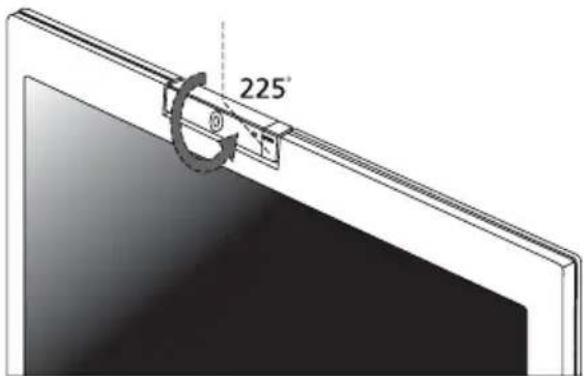
The Acer OrbiCam rotates 225 degrees counterclockwise to achieve the desired angle. Refer to the illustrations below.
text_image
225°
Note: DO NOT rotate the camera clockwise to prevent damage to the device.
For your convenience, the camera snaps to 45 degrees to match the position of your face in front or at the back of the LCD panel.
Launching the Acer OrbiCam
To launch the Acer OrbiCam, double-click on the Acer OrbiCam logo in the desktop.
OR
Click Start > All Programs > Acer > Acer OrbiCam. The Acer OrbiCam capture window appears.
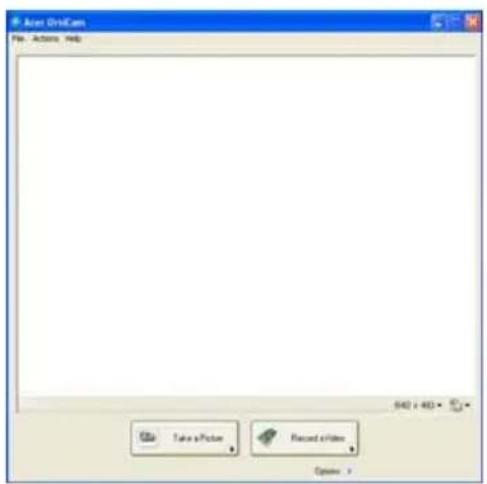
text_image
Accr DriveCam File Actions Help Take a Picture Record Video Options >Changing the Acer OrbiCam settings
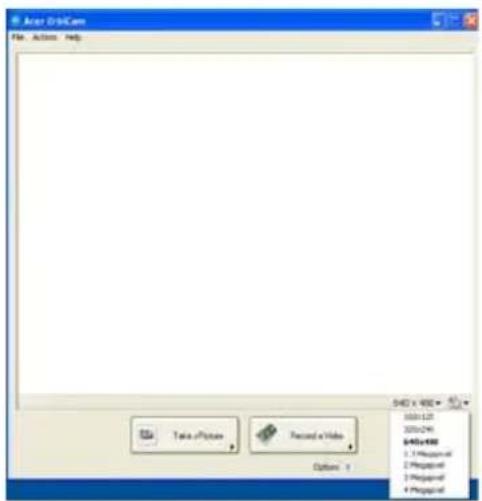
Resolution
To change the capture resolution, click the displayed resolution at the bottom right corner of the capture window, then select the desired resolution.

Note: Setting the camera resolution to 640 x 480 or larger does not change the capture window size.
text_image
Acme OilCam File Actions Help Take a Picture Record a Video SAMS x 400 320x125 320x296 645x488 1.1 Progsyl 2 Progsyl 3 Progsyl 4 ProgsylOptions
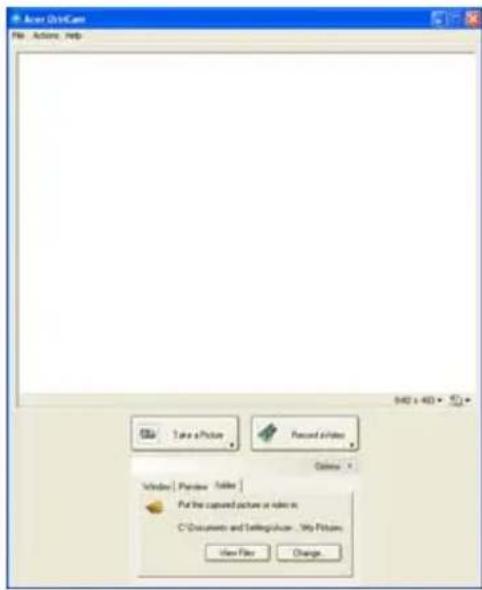
Click Options to display the Window, Preview, and Folder tabs. Use the options to change the capture window size, preview settings, and the folder for captured photos or videos.
text_image
Accr. OneScan File Actions Help Take a Picture Record Video Window Preview Table Put the captured picture or video in C:\Documents and Settings\ viewer... My Pictures View File ChangeCamera Settings
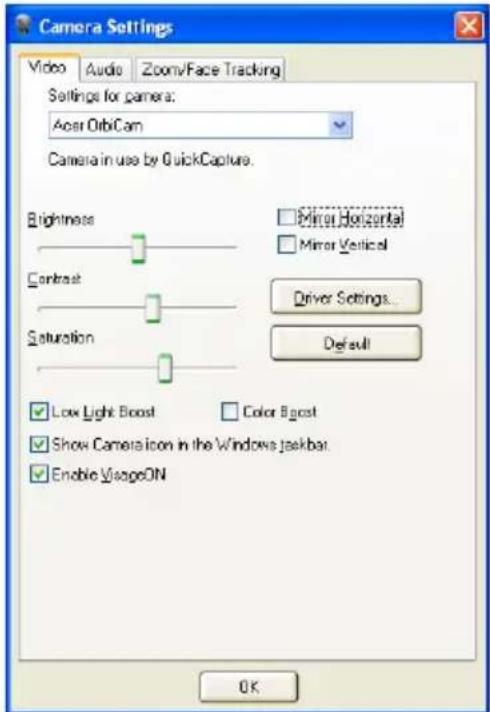
Basic settings
Click the Camera Settings icon on the bottom right corner of the capture display, then select Camera Settings from the pop-up menu. You can adjust the Video, Audio, and Zoom/Face tracking options from this window.
text_image
Camera Settings Video | Audio | Zoom/Face Tracking Settings for camera: Acer OdbCam Camera in use by QuickCapture. Brightness Contrast Saturation Mirror Horizontal Mirror Vertical Driver Settings... Default Low Light Boost Color Bigest Show Camera icon in the Windows taskbar Enable Navigation OKCapture settings
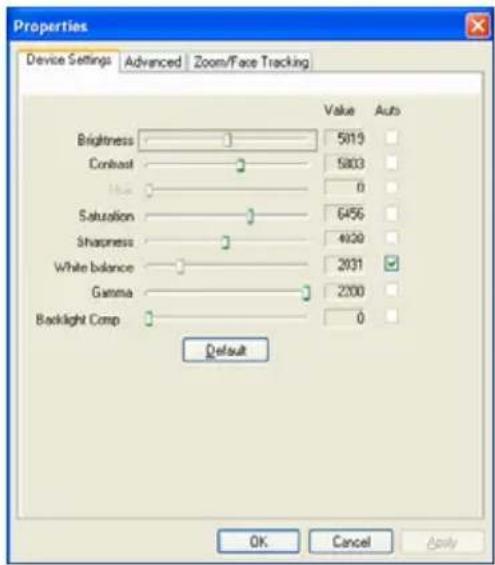
From the Camera Settings window, click the Driver Settings button. The Properties window appears.
text_image
Properties Device Settings Advanced Zoom/Face Tracking Brightness 5019 Contrast 5803 Hue 0 Saturation 6456 Sharpness 4920 White balance 2031 Gamma 2200 Backlight Comp 0 Default OK Cancel ApplyDevice Settings allows you to change the camera brightness, contrast, hue, saturation, sharpness, etc.
Advanced Settings allows you to activate gain control, implement image mirror, select image enhancements and anti-flicker settings, and turn on/off the camera indicator.
Zoom/Face Track Settings allows you to adjust the zoom level and turn the face-tracking feature on or off.
Capturing photos/videos
To capture a photo or a video clip, rotate the Acer OrbiCam to get the desired angle, then click the Take a Picture or Record a Video button. The Windows Picture and Fax Viewer or the Windows Media Player automatically launches to display/play a preview of the photo/video clip.

Note: By default, all photos and videos are saved in the My Pictures and My Videos folder.
Using the Acer OrbiCam as webcam
The Acer OrbiCam is automatically selected as the capture device of any Instant Messenger (IM) application. To use the Acer OrbiCam as a webcam, open the IM service, then select the video/webcam feature. You can now broadcast from your location to an IM partner anywhere in the world.
Enabling the Acer VisageON (for 1.3 megapixel camera models only)
The Acer VisageON technology comes with two features: Face tracking and Video effects (selected models only). The face tracking feature tracks your head movement and automatically centers your face in the capture window. The video effects feature allows you to select and apply an effect to your video transmissions.

Note: The face tracking feature is not capable of centering your face beyond the capture window frame. Minimal head movements are tracked more efficiently.
To enable the Acer VisageON:
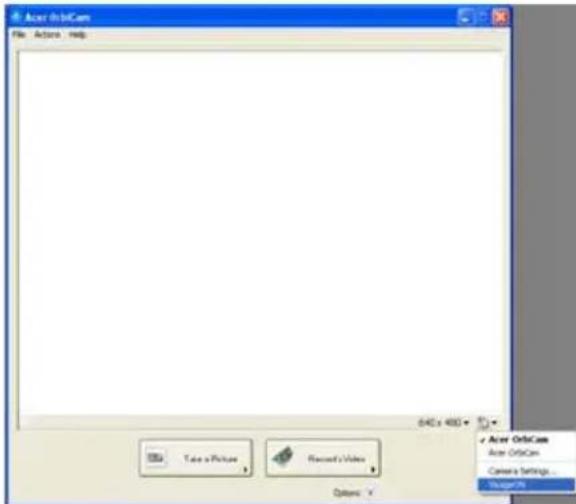
1 Right-click on this icon, then select VisageON from the pop-up menu.
text_image
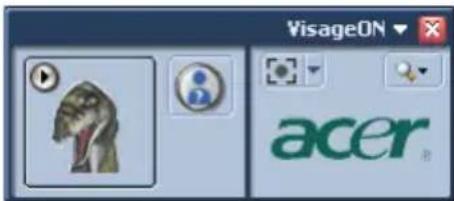
Acer OrbitCam File Actions Help Take a Picture Record's Video Options Acer OrbitCam Acer OrbitCam Camera Settings... Image/PSIThe VisageON window appears.
text_image
VisageON acer2 Select and apply a video effect from the left section of the VisageON window. Change the face tracking settings and options from the right section.
Using the face tracking feature
To use the face tracking feature:
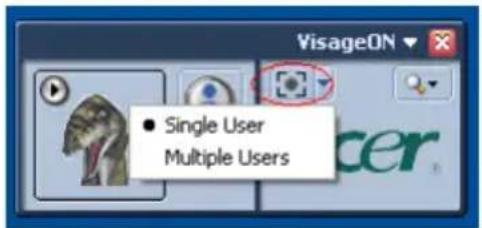
1 Click the left icon down arrow button, then select Single User or Multiple Users from the pop-up menu. For multiple users, the face tracking feature automatically centers all the users' face in the capture window, otherwise the utility centers the face of the user closest to the camera.
text_image
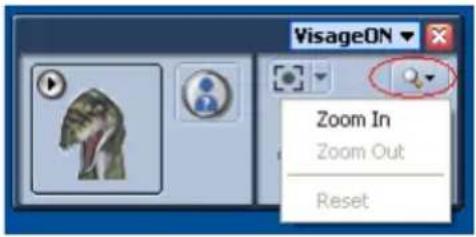
VisageON • Single User Multiple Users2 Click the right icon to zoom in/out or reset the current view.
text_image
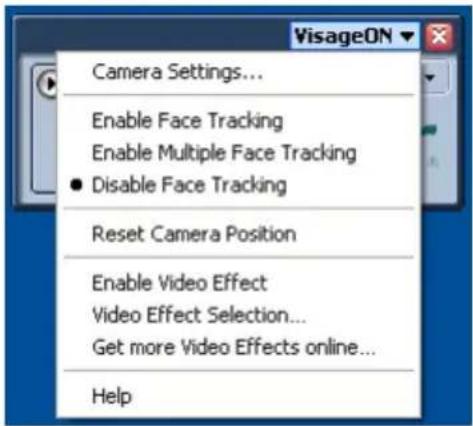
VisageON Zoom In Zoom Out Reset3 Click VisageON to display a pop-menu that allows configuration of the camera, face tracking and video effects settings.
text_image
VisageON Camera Settings... Enable Face Tracking Enable Multiple Face Tracking ● Disable Face Tracking Reset Camera Position Enable Video Effect Video Effect Selection... Get more Video Effects online... HelpUsing video effects (selected models only)
The Video Settings section allows you to select an avatar or accessory video effect from the list. To select an effect:
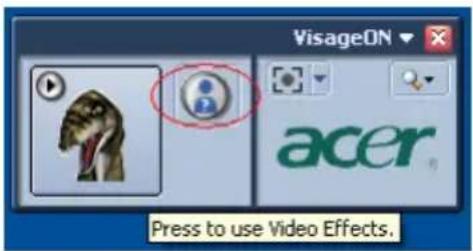
1 Click the encircled icon to display the available video effects. The Video Effect Selection window appears.
text_image
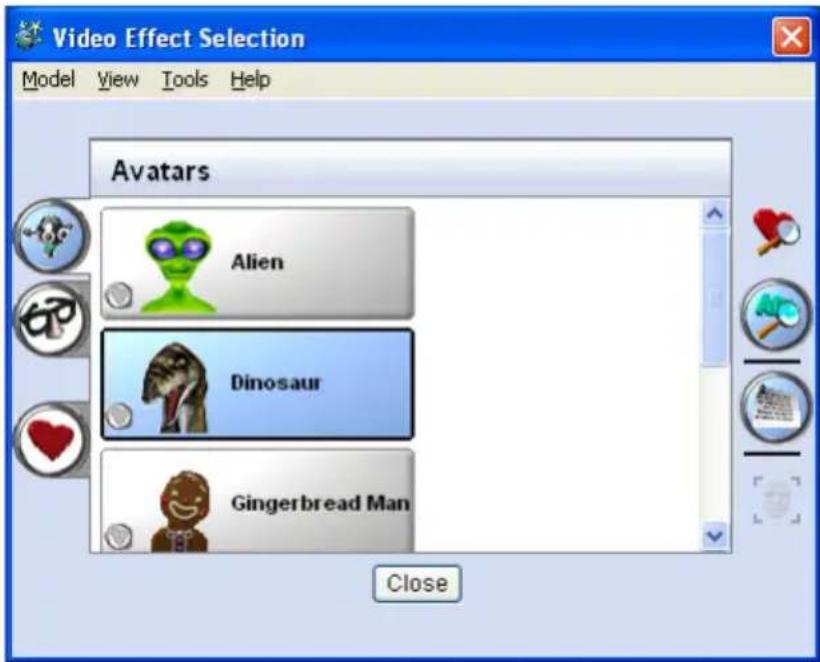
VisageON acer Press to use Video Effects,2 Click on a video effect to use. The selected effect appears in the video effects section of the VisageON window.
text_image
Video Effect Selection Model View Tools Help Avatars Alien Dinosaur Gingerbread Man Close
Note:
- When using avatars, you may have to calibrate the face points to achieve better tracking. Follow screen instructions from the VisageON window to continue.
- You may use video effects when using the camera for IM chat/video sessions or call conferences.
Using the system utilities

Note: The system utilities work under Microsoft Windows XP only.
Acer GridVista (dual-display compatible)

Note: This feature is only available on certain models.
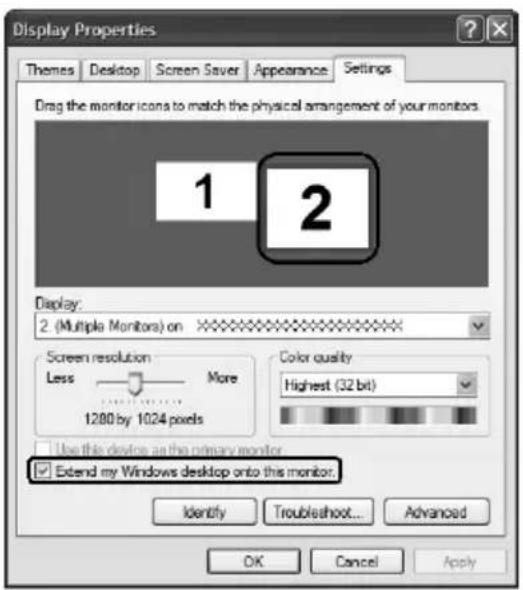
To enable the dual monitor feature of your notebook, first ensure that the second monitor is connected, then, select Start, Control Panel, Display and click on Settings. Select the secondary monitor (2) icon in the display box and then click the check box Extend my Windows desktop onto this monitor. Finally, click Apply to confirm the new settings and click OK to complete the process.
text_image
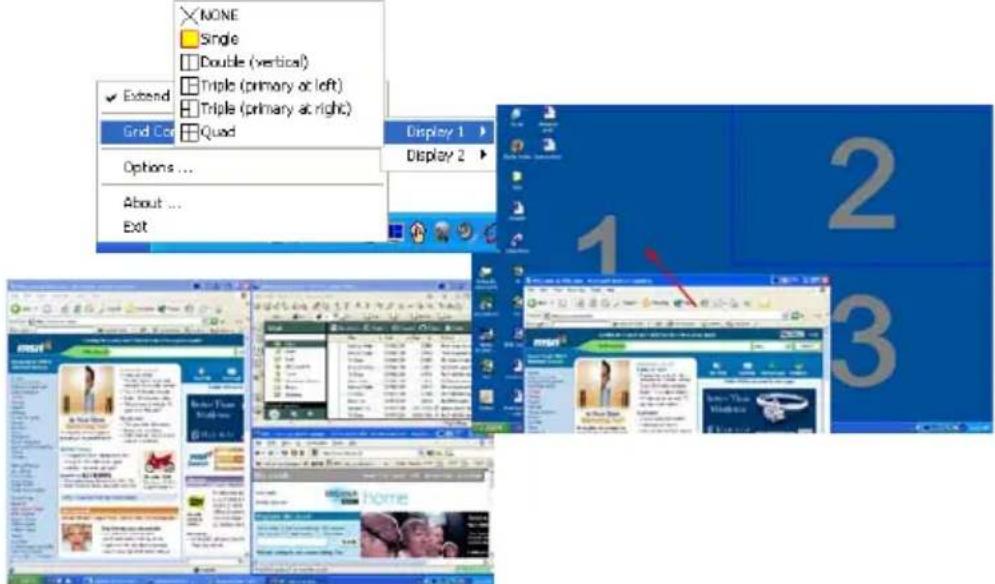
Display Properties Themes Desktop Screen Saver Appearance Settings Drag the monitor icons to match the physical arrangement of your monitors 1 2 Display: 2 (Multiple Monitors) on Screen resolution More Less 1280 by 1024 pixels Color quality Highest (32 bit) Use this device as the primary monitor Extend my Windows desktop onto this monitor. Identify Troubleshoot... Advanced OK Cancel ApplyAcer GridVista is a handy utility that offers four pre-defined display settings so you can view multiple windows on the same screen. To access this function, please go to Start, All Programs and click on Acer GridVista. You may choose any one of the four display settings indicated below:

Double (vertical), Triple (primary at left), Triple (primary at right), or Quad
Acer Gridvista is dual-display compatible, allowing two displays to be partitioned independently.
Acer GridVista is simple to set up:
1 Run Acer GridVista and select your preferred screen configuration for each display from the taskbar.
2 Drag and drop each window into the appropriate grid.
3 Enjoy the convenience of a well-organized desktop.
text_image
NONE Single Double (vertical) Triple (primary or left) Triple (primary at right) Quad Extend Grid Co Options ... About ... Exit Display 1 Display 2 1 2 3
Note: Please ensure that the resolution setting of your second monitor is set to the manufacturer's recommended value.
Launch Manager
text_image
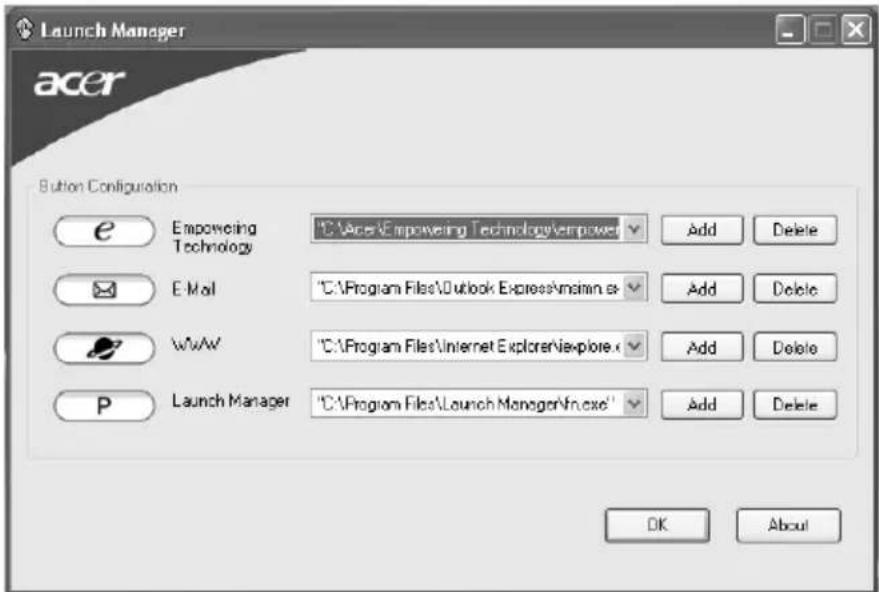
Launch Manager acer Button Configuration e Empowering Technology "C:\Acres\Empowering Technology\empower" Add Delete E-Mail "C:\Program Files\Outlook Express\admin.cs" Add Delete W/WW "C:\Program Files\Internet Explorer\explore.x" Add Delete P Launch Manager "C:\Program Files\Launch Manager\fn.exe" Add Delete OK AboutLaunch Manager allows you to set the four easy-launch buttons located above the keyboard. "Easy-launch buttons" on page 27 for the location of the easy-launch buttons.
You can access the Launch Manager by clicking on Start, All Programs, and then Launch Manager to start the application.
Norton AntiVirus
Norton AntiVirus is an anti-virus software that finds and repairs infected files, and protects against viruses to keep your computer data safe and secure.
How do I check for viruses?
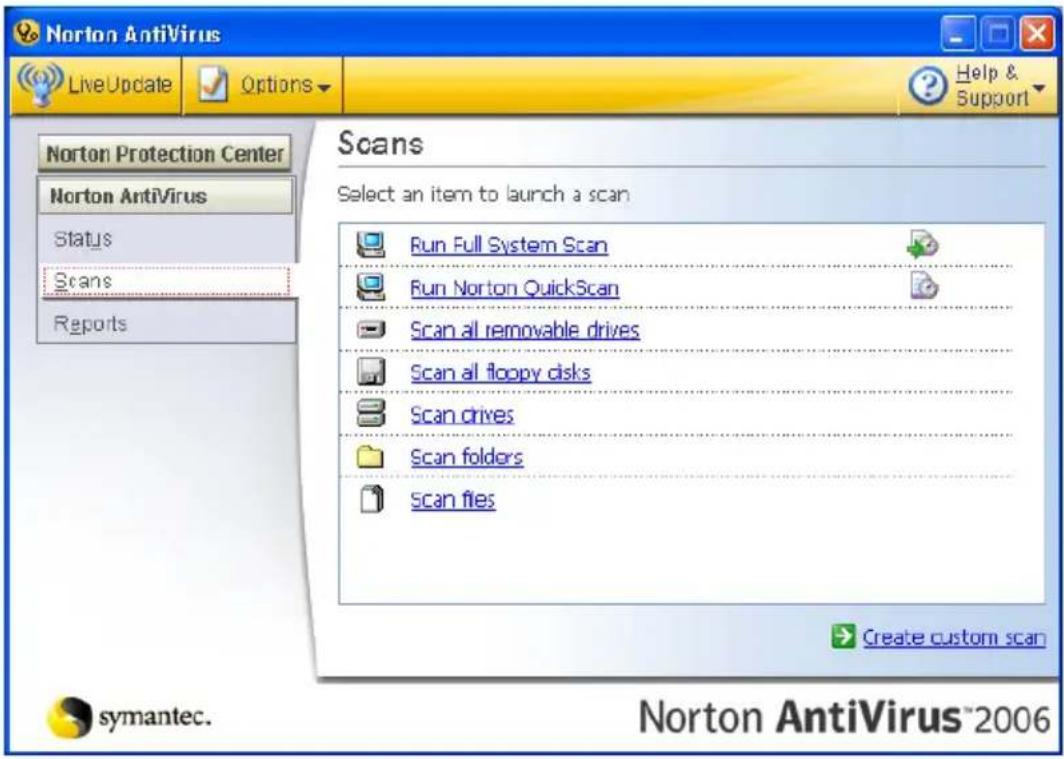
A Full System Scan scans all files on your computer. To perform a system scan:
1 Start Norton AntiVirus.
Double click on the Norton AntiVirus Icon on the desktop or click on the Start menu in the Windows taskbar, highlight Programs, and select Norton AntiVirus.
2 In the Norton AntiVirus main window, click Scans.
text_image
Norton AntiVirus LiveUpdate Options Help & Support Norton Protection Center Norton AntiVirus Status Scans Reports Scans Select an item to launch a scan Run Full System Scan Run Norton QuickScan Scan all removable drives Scan all floppy disks Scan drives Scan folders Scan files Create custom scan symantec. Norton AntiVirus®20063 In the Scans panel, click Run Full System Scan.
4 When the scan is complete, a scan summary appears. Click Finished.
You can schedule customized virus scans that run unattended on specific dates and times or at periodic intervals. If you are using the computer when the scheduled scan begins, it runs in the background so that you do not have to stop working.
For more information refer to the Norton AntiVirus Help menu.
Frequently asked questions
The following is a list of possible situations that may arise during the use of your computer. Easy solutions are provided for each one.
I turned on the power, but the computer does not start or boot up.
Look at the power indicator:
- If it is not lit, no power is being supplied to the computer. Check the following:
- If you are using on the battery, it may be low and unable to power the computer. Connect the AC adapter to recharge the battery pack.
- Make sure that the AC adapter is properly plugged into the computer and to the power outlet.
• If it is lit, check the following:
- Is a non-bootable (non-system) disk in the external USB floppy drive? Remove or replace it with a system disk and press to restart the system.
Nothing appears on the screen.
The computer's power management system automatically blanks the screen to save power. Press any key to turn the display back on.
If pressing a key does not turn the display back on, three things might be the cause:
- The brightness level might be too low. Press
+ <-> (increase) to adjust the brightness level. - The display device might be set to an external monitor. Press the display toggle hotkey
+ to toggle the display back to the computer. - If the Sleep indicator is lit, the computer is in Sleep mode. Press and release the power button to resume.
Image is not full-screen.
Each computer display has a different native resolution depending on the screen. If you set the resolution lower than this native resolution, the screen expands to fill the computer display. Right-click on your Windows desktop and select Properties to bring up the "Display Properties" dialog box. Then click on the Settings tab to make sure that the resolution is set to the appropriate resolution. Resolutions lower than the specified resolution are not full-screen on the computer or on an external monitor.
No audio is heard from the computer.
Check the following:
- The volume may be muted. In Windows, look at the volume control (speaker) icon on the taskbar. If it is crossed-out, click on the icon and deselect the Mute all option.
- The volume level may be too low. In Windows, look at the volume control icon on the taskbar. You can also use the volume control buttons to adjust the volume. See "Hotkeys" on page 31 for more detail.
- If headphones, earphones or external speakers are connected to the line-out port on the computer, the internal speakers automatically turn off.
I want to eject the optical drive tray without turning on the power.
There is a mechanical eject hole on the optical drive. Simply insert the tip of a pen or paperclip into the hole and push to eject the tray. (If your computer's optical drive is a slot-load model, it will not have an eject hole.)
The keyboard does not respond.
Try attaching an external keyboard to a USB port on the computer. If it works, contact your dealer or an authorized service center as the internal keyboard cable may be loose.
The printer does not work.
Check the following:
- Make sure that the printer is connected to a power outlet and that it is turned on.
- Make sure that the printer cable is connected securely to the computer's parallel port or a USB port and the corresponding port on the printer.
I want to set up my location to use the internal modem.
To properly use your communication software (e.g. HyperTerminal), you need to set up your location:
1 Click on Start, Settings, Control Panel.
2 Double-click on Phone and Modem Options.
3 Click on Dialing Rules and begin setting up your location.
Refer to the Windows manual.

Note: Please note, on first booting your notebook, that you can skip the Internet Connection setup, as it is not necessary to complete the installation of your Operating System. After the Operating System is set up, you can proceed with the Internet Connection setup.
I want to restore my computer to its original settings without recovery CDs.

Note: If your system is the multilingual version, the operating system and language you choose when you first turn on the system will be the only option for future recovery operations.
This recovery process helps you restore the C: drive with the original software content that is installed when you purchase your notebook. Follow the steps below to rebuild your C: drive. (Your C: drive will be reformatted and all data will be erased.) It is important to back up all data files before using this option.
Before performing a restore operation, please check the BIOS settings.
1 Check to see if Acer disk-to-disk recovery is enabled or not.
2 Make sure the D2D Recovery setting in Main is Enabled.
3 Exit the BIOS utility and save changes. The system will reboot.

Note: To activate the BIOS utility, press
To start the recovery process:
1 Restart the system.
2 While the Acer logo is showing, press
3 Refer to the onscreen instructions to perform system recovery.

Important! This feature occupies 4 to 5 GB in a hidden partition on your hard disk.
Requesting service
International Travelers Warranty (ITW)
Your computer is backed by an International Travelers Warranty (ITW) that gives you security and peace of mind when traveling. Our worldwide network of service centers are there to give you a helping hand.
An ITW passport comes with your computer. This passport contains all you need to know about the ITW program. A list of available, authorized service centers is in this handy booklet. Read this passport thoroughly.
Always have your ITW passport on hand, especially when you travel, to receive the benefits from our support centers. Place your proof-of-purchase in the flap located inside the front cover of the ITW passport.
If the country you are traveling in does not have an Acer-authorized ITW service site, you can still get in contact with our offices worldwide. Please consult http://global.acer.com.
Before you call
Please have the following information available when you call Acer for online service, and please be at your computer when you call. With your support, we can reduce the amount of time a call takes and help solve your problems efficiently. If there are error messages or beeps reported by your computer, write them down as they appear on the screen (or the number and sequence in the case of beeps).
You are required to provide the following information:
Name: ____
Address: ____
Telephone number: ____
Machine and model type: ____
Serial number: ____
Date of purchase: ____
Taking your notebook PC with you
This section gives you tips and hints to consider when moving around or traveling with your computer.
Disconnecting from the desktop
Follow these steps to disconnect your computer from external accessories:
1 Save any open files.
2 Remove any media, floppy disks or compact disks from the drive(s).
3 Shut down the computer.
4 Close the display cover.
5 Disconnect the cord from the AC adapter.
6 Disconnect the keyboard, pointing device, printer, external monitor and other external devices.
7 Disconnect the Kensington lock if you are using one to secure the computer.
Moving around
When you are just moving within short distances, for example, from your office desk to a meeting room.
Preparing the computer
Before moving the computer, close and latch the display cover to place it in Sleep mode. You can now safely take the computer anywhere you go within the building. To bring the computer out of Sleep mode, open the display; then press and release the power button.
If you are taking the computer to a client's office or a different building, you may choose to shut down the computer:
Click on Start, Turn Off Computer, then click on Turn Off (Windows XP).
Or:
You can put the computer in Sleep mode by pressing
When you are ready to use the computer again, unlatch and open the display; then press and release the power button.

Note: If the Sleep indicator is off, the computer has entered Hibernation mode and is turned off. If the power indicator is off but the Sleep indicator is on, the computer has entered Sleep mode. In both cases, press and release the power button to turn the computer back on. Note that the computer may enter Hibernation mode after being in Sleep mode for a period of time.
What to bring to meetings
If your meeting is relatively short, you probably do not need to bring anything with you other than your computer. If your meeting will be longer, or if your battery is not fully charged, you may want to bring the AC adapter with you to plug in your computer in the meeting room.
If the meeting room does not have an electrical outlet, reduce the drain on the battery by putting the computer in Sleep mode. Press
Taking the computer home
When you are moving from your office to your home or vice versa.
Preparing the computer
After disconnecting the computer from your desktop, follow these steps to prepare the computer for the trip home:
- Check that you have removed all media and compact disks from the drive(s). Failure to remove the media can damage the drive head.
- Pack the computer in a protective case that can prevent the computer from sliding around and cushion it if it should fall.

Caution: Avoid packing items next to the top cover of the computer. Pressure against the top cover can damage the screen.
What to take with you
Unless you have some items at home, take the following items with you:
• AC adapter and power cord
•The printed User's Guide
Special considerations
Follow these guidelines to protect your computer while traveling to and from work:
- Minimize the effects of temperature changes by keeping the computer with you.
• If you need to stop for an extended period of time and cannot carry the computer with you, leave the computer in the trunk of the car to avoid exposing the computer to excessive heat. - Changes in temperature and humidity can cause condensation. Allow the computer to return to room temperature, and inspect the screen for condensation before turning on the computer. If the temperature change is greater than 10^ (18 °F), allow the computer to come to room temperature slowly. If possible, leave the computer for 30 minutes in an environment with a temperature between outside and room temperature.
Setting up a home office
If you frequently work on your computer at home, you may want to purchase a second AC adapter for use at home. With a second AC adapter, you can avoid carrying the extra weight to and from home.
If you use your computer at home for significant periods of time, you might also want to add an external keyboard, monitor or mouse.
Traveling with the computer
When you are moving within a larger distance, for instance, from your office building to a client's office building or traveling locally.
Preparing the computer
Prepare the computer as if you were taking it home. Make sure that the battery in the computer is charged. Airport security may require you to turn on your computer when carrying it into the gate area.
What to take with you
Take the following items with you:
- AC adapter
- Spare, fully-charged battery pack(s)
• Additional printer driver files if you plan to use another printer
Special considerations
In addition to the guidelines for taking the computer home, follow these guidelines to protect your computer while traveling:
•Always take the computer as carry-on luggage.
- If possible, have the computer inspected by hand. Airport security X-ray machines are safe, but do not put the computer through a metal detector.
- Avoid exposing floppy disks to hand-held metal detectors.
Traveling internationally with the computer
When you are moving from country to country.
Preparing the computer
Prepare the computer as you would normally prepare it for traveling.
What to bring with you
Bring the following items with you:
- AC adapter
• Power cords that are appropriate for the country to which you are traveling - Spare, fully-charged battery packs
• Additional printer driver files if you plan to use another printer
•Proof of purchase, in case you need to show it to customs officials
• International Travelers Warranty passport
Special considerations
Follow the same special considerations as when traveling with the computer. In addition, these tips are useful when traveling internationally:
- When traveling in another country, check that the local AC voltage and the AC adapter power cord specifications are compatible. If not, purchase a power cord that is compatible with the local AC voltage. Do not use converter kits sold for appliances to power the computer.
- If you are using the modem, check if the modem and connector is compatible with the telecommunications system of the country you are traveling in.
Securing your computer
Your computer is a valuable investment that you need to take care of. Learn how to protect and take care of your computer.
Security features include hardware and software locks — a security notch and passwords.
Using a computer security lock
The notebook comes with a Kensington-compatible security slot for a security lock.
Wrap a computer security lock cable around an immovable object such as a table or handle of a locked drawer. Insert the lock into the notch and turn the key to secure the lock. Some keyless models are also available.
Using passwords
Passwords protect your computer from unauthorized access. Setting these passwords creates several different levels of protection for your computer and data:
- Supervisor Password prevents unauthorized entry into the BIOS utility. Once set, you must enter this password to gain access to the BIOS utility. See "BIOS utility" on page 59.
- User Password secures your computer against unauthorized use. Combine the use of this password with password checkpoints on boot-up and resume from Hibernation for maximum security.
- Password on Boot secures your computer against unauthorized use. Combine the use of this password with password checkpoints on boot-up and resume from Hibernation for maximum security.

Important! Do not forget your Supervisor Password! If you forget your password, please get in touch with your dealer or an authorized service center.
Entering passwords
When a password is set, a password prompt appears in the center of the display screen.
- When the Supervisor Password is set, a prompt appears when you press
to enter the BIOS utility at boot-up. - Type the Supervisor Password and press
to access the BIOS utility. If you enter the password incorrectly, a warning message appears. Try again and press . - When the User Password is set and the password on boot parameter is enabled, a prompt appears at boot-up.
- Type the User Password and press
to use the computer. If you enter the password incorrectly, a warning message appears. Try again and press .

Important! You have three chances to enter a password. If you fail to enter the password correctly after three tries, the system halts. Press and hold the power button for four seconds to shut down the computer. Then turn on the computer again, and try again.
Setting passwords
You can set passwords using the BIOS utility.
Expanding through options
Your notebook PC offers you a complete mobile computing experience.
Connectivity options
Ports allow you to connect peripheral devices to your computer as you would with a desktop PC. For instructions on how to connect different external devices to the computer, read the following section.
Fax/data modem
Your computer has a built-in V.92 56 Kbps fax/data modem.

Warning! This modem port is not compatible with digital phone lines. Plugging this modem into a digital phone line will damage the modem.
To use the fax/data modem port, connect a phone cable from the modem port to a telephone jack.
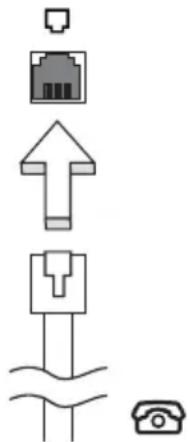
natural_image
Pure electrical circuit lines without any symbols
Warning! Please make sure that the cable you use is appropriate for the country in which you are working.
Built-in network feature
The built-in network feature allows you to connect your computer to an Ethernet-based network.
To use the network feature, connect an Ethernet cable from the Ethernet (RJ-45) port on the chassis of the computer to a network jack or hub on your network.
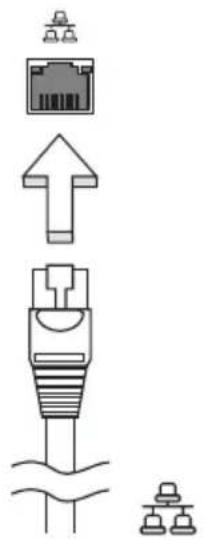
text_image
Diagram showing various types of connectors and socket symbols, including a resistor, socket, and cable connections.Universal Serial Bus (USB)
The USB 2.0 port is a high-speed serial bus which allows you to connect USB peripherals without taking up precious system resources.
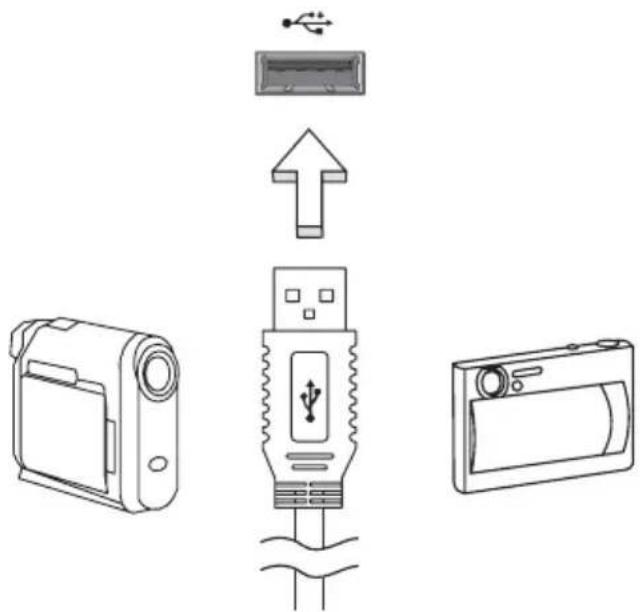
text_image
Diagram showing the internal structure of a device with labeled components including a USB connector, camera, and battery.PC Card slot
The Type II PC Card slot of the computer accepts PC Cards that enhance the usability and expandability of the computer. These cards should have a PC Card logo on them.
PC Cards (formerly PCMCIA) are add-on cards for portable computers, giving you expansion possibilities long afforded by desktop PCs. Popular PC Cards include flash, fax/data modem, wireless LAN and SCSI cards. CardBus improves on the 16-bit PC card technology by expanding the bandwidth to 32 bits.

Note: Refer to your card's manual for details on how to install and use the card, and its functions.
Inserting a PC Card
Insert the card into the slot and make the proper connections (e.g., network cable), if necessary. See your card manual for details.
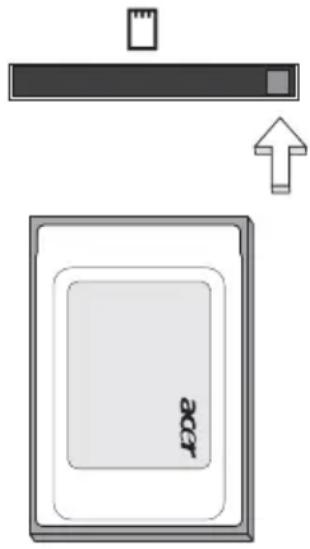
text_image
aerEjecting a PC Card
Before ejecting a PC Card:
1 Exit the application using the card.
2 Left-click on the PC Card icon on the taskbar and stop the card operation.
3 Press the slot eject button to pop out the eject button; then press it again to eject the card.
Installing memory
Follow these steps to install memory:
1 Turn off the computer, unplug the AC adapter (if connected) and remove the battery pack. Then turn the computer over to access its base.
2 Remove the screws from the memory cover; then lift up and remove the memory cover.
3 (a) Insert the memory module diagonally into the slot, then (b) gently press it down until it clicks into place.
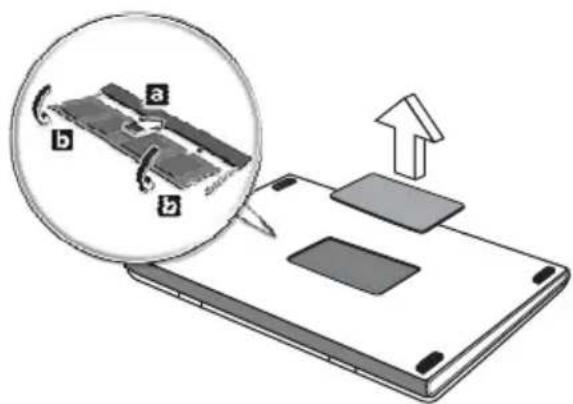
text_image
Diagram showing a device with labeled parts (a, b) and an upward arrow indicating motion or change, alongside a magnified inset of a device component.4 Replace the memory cover and secure it with the screw.
5 Reinstall the battery pack, and reconnect the AC adapter.
6 Turn on the computer.
The computer automatically detects and reconfigures the total memory size. Please consult a qualified technician or contact your local Acer dealer.
BIOS utility
The BIOS utility is a hardware configuration program built into your computer's BIOS.
Your computer is already properly configured and optimized, and you do not need to run this utility. However, if you encounter configuration problems, you may need to run it.
To activate the BIOS utility, press
Boot sequence
To set the boot sequence in the BIOS utility, activate the BIOS utility, then select Boot from the categories listed at the top of the screen.
Enable disk-to-disk recovery
To enable disk-to-disk recovery (hard disk recovery), activate the BIOS utility, then select Main from the categories listed at the top of the screen. Find D2D Recovery at the bottom of the screen and use the
Password
To set a password on boot, activate the BIOS utility, then select Security from the categories listed at the top of the screen. Find Password on boot: and use the
Using software
Playing DVD movies
When the DVD drive module is installed in the optical drive bay, you can play DVD movies on your computer.
1 Eject the DVD tray and insert a DVD movie disk; then close the DVD tray.

Important! When you launch the DVD player for the first time, the program asks you to enter the region code. DVD disks are divided into 6 regions. Once your DVD drive is set to a region code, it will play DVD disks of that region only. You can set the region code a maximum of five times (including the first time), after which the last region code set will remain permanent. Recovering your hard disk does not reset the number of times the region code has been set. Refer to the table below for DVD movie region code information.
2 The DVD movie will automatically play after a few seconds.
Region code Country or region
| 1 USA, Canada |
| 2 Europe, Middle East, South Africa, Japan |
| 3 Southeast Asia, Taiwan, South Korea |
| 4 Latin America, Australia, New Zealand |
| 5 Former USSR, parts of Africa, India |
| 6 People's Republic of China |

Note: To change the region code, insert a DVD movie of a different region into the DVD drive. Please refer to the online help for more information.
Power management
This computer has a built-in power management unit that monitors system activity. System activity refers to any activity involving one or more of the following devices: keyboard, mouse, hard disk, peripherals connected to the computer, and video memory. If no activity is detected for a period of time (called an inactivity timeout), the computer stops some or all of these devices in order to conserve energy.
This computer employs a power management scheme that supports the advanced configuration and power interface (ACPI), which allows for maximum power conservation and maximum performance at the same time. Windows handles all power-saving chores for your computer.
Acer eRecovery Management
Acer eRecovery Management is a tool to quickly backup and restore the system. You can create and save a backup of the current system configuration to hard disk, CD or DVD.
Acer eRecovery Management consists of the following functions:
1 Create backup
2 Restore from backup
3 Create factory default image CD, or burn bundled software to an application CD
4 Re-install bundled software without CD
5 Change Acer eRecovery Management password
This chapter will guide you through each process.

Note: This feature is only available on certain models. For systems that do not have a built-in optical disk burner, plug in an external USB or IEEE 1394-compatible optical disk burner before entering Acer eRecovery Management for optical disk-related tasks.

Note: Acer eRecovery Management requires a specific hard disk partitioning structure to function. If the system detects that the hard disk does not use this structure, Acer eRecovery Management functionality will be disabled.
Create backup
You can create and save backup images to hard disk, CD or DVD.
1 Boot to Windows XP
2 Press
3 Enter the password to proceed. The default password is six zeros.
4 In the Acer eRecovery Management window, select Recovery settings and click Next.
5 In the Recovery settings window, select Backup snapshot image and click Next.
6 Select the backup method.
a Use Backup to HDD to store the backup disk image on drive D:.
b Backup to optical device to store the backup image on CD or DVD.
7 After choosing the backup method, click Next.
Follow the instructions on screen to complete the process.
Restore from backup
You can restore backups previously created (as stated in the Create backup section) from hard disk, CD or DVD.
1 Boot to Windows XP.
2 Press
3 Enter the password to proceed. The default password is six zeros.
4 In the Acer eRecovery Management window, select Recovery actions and click Next.
5 Select the desired restore action and follow the onscreen instructions to complete the restore process.

Note: The "Restore C:" item is enabled only if there is a user backup stored on the hard disk (D:). Please refer to the Create backup section.
Create factory default image CD
When the System CD and Recovery CD are not available, you can create them by using this feature.
1 Boot to Windows XP.
2 Press
3 Enter the password to proceed. The default password is six zeros.
4 In the Acer eRecovery Management window, select Recovery settings and click Next.
5 In the Recovery settings window, select Burn image to disk and click Next.
6 In the Burn image to disk window, select 1. Factory default image or 2. Application CD and click Next.
7 Follow the instructions on screen to complete the process.

Note: Select 1. Factory default image when you want to burn a bootable disk that contains your computer's entire operating system as it was delivered to you from the factory. If you wish to have a disk that will allow you to browse the contents and install selected drivers and applications, select 2. Application CD — this disk will not be bootable.
Re-install bundled software without CD
Acer eRecovery Management stores pre-loaded software internally for easy driver and application re-installation.
1 Boot to Windows XP.
2 Press
3 Enter the password to proceed. The default password is six zeros.
4 In the Acer eRecovery Management window, select Recovery actions and click Next.
5 In the Recovery settings window, select Reinstall applications/drivers and click Next.
6 Select the desired driver/application and follow the instructions on screen to re-install.
At first launch, Acer eRecovery Management prepares all the needed software and may take few seconds to bring up the software content window.
Change password
Acer eRecovery Management and Acer disk-to-disk recovery are protected by a password that can be changed by the user. Follow the steps below to change the password in Acer eRecovery Management.
1 Boot to Windows XP.
2 Press
3 Enter the password to proceed. The default password is six zeros.
4 In the Acer eRecovery Management window, select Recovery settings and click Next.
5 In the Recovery settings window, select Password: Change Acer eRecovery Management password and click Next.
6 Follow the instructions on screen to complete the process.

Note: If the system crashes, and will not boot to Windows, you can run Acer disk-to-disk recovery to restore the factory default image under DOS mode.
Troubleshooting
This chapter shows you how to deal with common system problems.
Read it before calling a technician if a problem occurs. Solutions to more serious problems require opening up the computer. Do not attempt to open the computer yourself; contact your dealer or authorized service center for assistance.
Troubleshooting tips
This notebook PC incorporates an advanced design that delivers onscreen error message reports to help you solve problems.
If the system reports an error message or an error symptom occurs, see "Error messages" below. If the problem cannot be resolved, contact your dealer. See "Requesting service" on page 49.
Error messages
If you receive an error message, note the message and take the corrective action. The following table lists the error messages in alphabetical order together with the recommended course of action.
| Error messages Corrective action | |
| CMOS battery bad Contact your dealer or an authorized service center. | |
| CMOS checksum error Contact your dealer or an authorized service center. | |
| Disk boot failure Insert a system (bootable) disk into the floppy drive (A:), then pressto reboot. | |
| Equipment configuration error | Press(during POST) to enter the BIOS utility, then press Exit in the BIOS utility to reboot. |
| Hard disk 0 error Contact your dealer or an authorized service center. | |
| Hard disk 0 extended type error | Contact your dealer or an authorized service center. |
| I/O parity error Contact your dealer or an authorized service center. | |
| Keyboard error or no keyboard connected | Contact your dealer or an authorized service center. |
| Keyboard interface error | Contact your dealer or an authorized service center. |
| Memory size mismatch | Press(during POST) to enter the BIOS utility, then press Exit in the BIOS utility to reboot. |
If you still encounter problems after going through the corrective measures, please contact your dealer or an authorized service center for assistance. Some problems may be solved using the BIOS utility.
Regulations and safety notices
ENERGY STAR guidelines compliance
As an ENERGY STAR partner, Acer Inc. has determined that this product meets the ENERGY STAR guidelines for energy efficiency.
FCC notice
This device has been tested and found to comply with the limits for a Class B digital device pursuant to Part 15 of the FCC rules. These limits are designed to provide reasonable protection against harmful interference in a residential installation. This device generates, uses, and can radiate radio frequency energy and, if not installed and used in accordance with the instructions, may cause harmful interference to radio communications.
However, there is no guarantee that interference will not occur in a particular installation. If this device does cause harmful interference to radio or television reception, which can be determined by turning the device off and on, the user is encouraged to try to correct the interference by one or more of the following measures:
- Reorient or relocate the receiving antenna.
- Increase the separation between the device and receiver.
- Connect the device into an outlet on a circuit different from that to which the receiver is connected.
- Consult the dealer or an experienced radio/television technician for help.
Notice: Shielded cables
All connections to other computing devices must be made using shielded cables to maintain compliance with FCC regulations.
Notice: Peripheral devices
Only peripherals (input/output devices, terminals, printers, etc.) certified to comply with the Class B limits may be attached to this equipment. Operation with non-certified peripherals is likely to result in interference to radio and TV reception.
Caution
Changes or modifications not expressly approved by the manufacturer could void the user's authority, which is granted by the Federal Communications Commission, to operate this computer.
Operation conditions
This device complies with Part 15 of the FCC Rules. Operation is subject to the following two conditions: (1) this device may not cause harmful interference, and (2) this device must accept any interference received, including interference that may cause undesired operation.
Notice: Canadian users
This Class B digital apparatus complies with Canadian ICES-003.
Declaration of Conformity for EU countries
Hereby, Acer, declares that this notebook PC series is in compliance with the essential requirements and other relevant provisions of Directive 1999/5/EC. (Please visit http://global.acer.com/products/notebook/reg-nb/index.htm for complete documents.)
Compliant with Russian regulatory certification

ME61
Modem notices
Notice for USA
This equipment complies with Part 68 of the FCC rules. Located on the modem is a label that contains, among other information, the FCC Registration Number and Ringer Equivalence Number (REN) for this equipment. Upon request, you must provide this information to your telephone company.
If your telephone equipment causes harm to the telephone network, the telephone company may discontinue your service temporarily. If possible, they will notify you in advance. But, if advance notice is not practical, you will be notified as soon as possible. You will also be informed of your right to file a complaint with the FCC.
Your telephone company may make changes in its facilities, equipment, operations, or procedures that could affect the proper functioning of your equipment. If they do, you will be notified in advance to give you an opportunity to maintain uninterrupted telephone service.
If this equipment should fail to operate properly, disconnect the equipment from the phone line to determine if it is causing the problem. If the problem is with the equipment, discontinue use and contact your dealer or vendor.

Caution: To reduce the risk of fire, use only No. 26 AWG or larger UL Listed or CSA Certified Telecommunication Line Cord.
TBR 21
This equipment has been approved [Council Decision 98/482/EC - "TBR 21"] for single terminal connection to the Public Switched Telephone Network (PSTN). However, due to differences between the individual PSTNs provided in different countries, the approval does not, of itself, give an unconditional assurance of successful operation on every PSTN termination point. In the event of problems, you should contact your equipment supplier in the first instance.
List of applicable countries
EU member states as of May 2004 are: Belgium, Denmark, Germany, Greece, Spain, France, Ireland, Italy, Luxembourg, the Netherlands, Austria, Portugal, Finland, Sweden, United Kingdom Estonia, Latvia, Lithuania, Poland, Hungary, Czech Republic, Slovak Republic, Slovenia, Cyprus and Malta. Usage allowed in the countries of European Union, as well as Norway, Switzerland, Iceland and Liechtenstein. This device must be used in strict accordance with the regulations and constraints in the country of use. For further information, please contact local office in the country of use.
Notice for Australia
For safety reasons, only connect headsets with a telecommunications compliance label. This includes customer equipment previously labelled permitted or certified.
Notice for New Zealand
1 The grant of a Telepermit for any item of terminal equipment indicates only that Telecom has accepted that the item complies with minimum conditions for connection to its network. It indicates no endorsement of the product by Telecom, nor does it provide any sort of warranty. Above all, it provides no assurance that any item will work correctly in all respects with another item of Telepermitted equipment of a different make or model, nor does it imply that any product is compatible with all of Telecom's network services.
2 This equipment is not capable, under all operating conditions, of correct operation at the higher speeds for which it is designed. Telecom will accept no responsibility should difficulties arise in such circumstances.
3 Some parameters required for compliance with Telecom's Telepermit requirements are dependent on the equipment (PC) associated with this device. The associated equipment shall be set to operate within the following limits for compliance with Telecom's Specifications:
a There shall be no more than 10 call attempts to the same number within any 30 minute period for any single manual call initiation, and
b The equipment shall go on-hook for a period of not less than 30 seconds between the end of one attempt and the beginning of the next call attempt.
4 Some parameters required for compliance with Telecom's Telepermit requirements are dependent on the equipment (PC) associated with this device. In order to operate within the limits for compliance with Telecom's specifications, the associated equipment shall be set to ensure that automatic calls to different numbers are spaced such that there is not less than 5 seconds between the end of one call attempt and the beginning of another.
5 This equipment shall not be set up to make automatic calls to Telecom's 111 Emergency Service.
6 This device is equipped with pulse dialing while the Telecom standard is DTMF tone dialing. There is no guarantee that Telecom lines will always continue to support pulse dialing.
7 Use of pulse dialing, when this equipment is connected to the same line as other equipment, may give rise to bell tinkle or noise and may also cause a false answer condition. Should such problems occur, the user should NOT contact the telecom Fault Service.
8 This equipment may not provide for the effective hand-over of a call to another device connected to the same line.
9 Under power failure conditions this appliance may not operate. Please ensure that a separate telephone, not dependent on local power, is available for emergency use.
Laser compliance statement
The CD or DVD drive used with this computer is a laser product.
The CD or DVD drive's classification label (shown below) is located on the drive.
CLASS 1 LASER PRODUCT
CAUTION: INVISIBLE LASER RADIATION WHEN OPEN. AVOID EXPOSURE TO BEAM.
APPAREIL A LASER DE CLASSE 1 PRODUIT
LASERATTENTION: RADIATION DU FAISCEAU LASER INVISIBLE EN CAS
D'OUVERTURE. EVITTER TOUTE EXPOSITION AUX RAYONS.
LUOKAN 1 LASERLAITE LASER KLASSE 1
The LCD unit is produced with high-precision manufacturing techniques.
Nevertheless, some pixels may occasionally misfire or appear as black or red dots. This has no effect on the recorded image and does not constitute a malfunction.
Macrovision copyright protection notice
This product incorporates copyright protection technology that is protected by U.S. patents and other intellectual property rights. Use of this copyright protection technology must be authorized by Macrovision, and is intended for home and other limited viewing uses only unless otherwise authorized by Macrovision. Reverse engineering or disassembly is prohibited.
Radio device regulatory notice

Note: Below regulatory information is for models with wireless LAN and/or Bluetooth only.
General
This product complies with the radio frequency and safety standards of any country or region in which it has been approved for wireless use. Depending on configurations, this product may or may not contain wireless radio devices (such as wireless LAN and/or Bluetooth modules). Below information is for products with such devices.
European Union (EU)
This device complies with the essential requirements of the European Council Directives listed below:
73/23/EEC Low Voltage Directive
• EN 60950-1
89/336/EEC Electromagnetic Compatibility (EMC) Directive
• EN 55022
• EN 55024
• EN 61000-3-2/-3
99/5/EC Radio & Telecommunications Terminal Equipment (R&TTE) Directive
• Art.3.1a) EN 60950-1
• Art.3.1b) EN 301 489 -1/-17
• Art.3.2) EN 300 328-2
• Art.3.2) EN 301 893 *applies to 5 GHz only
CE! (for 5 GHz device)
List of applicable countries
EU member states as of May 2004 are: Belgium, Denmark, Germany, Greece, Spain, France, Ireland, Italy, Luxembourg, the Netherlands, Austria, Portugal, Finland, Sweden, United Kingdom Estonia, Latvia, Lithuania, Poland, Hungary, Czech Republic, Slovak Republic, Slovenia, Cyprus and Malta. Usage allowed in the countries of European Union, as well as Norway, Switzerland, Iceland and Liechtenstein. This device must be used in strict accordance with the regulations and constraints in the country of use. For further information, please contact local office in the country of use.
The FCC RF safety requirement
The radiated output power of the wireless LAN Mini PCI Card/ Mini Card and Bluetooth card is far below the FCC radio frequency exposure limits. Nevertheless, the notebook PC series shall be used in such a manner that the potential for human contact during normal operation is minimized as follows:
1 Users are requested to follow the RF safety instructions on wireless option devices that are included in the user's manual of each RF option device.

Caution: To comply with FCC RF exposure compliance requirements, a separation distance of at least 20 cm (8 inches) must be maintained between the antenna for the integrated wireless LAN Mini PCI Card/ Mini Card built in to the screen section and all persons.
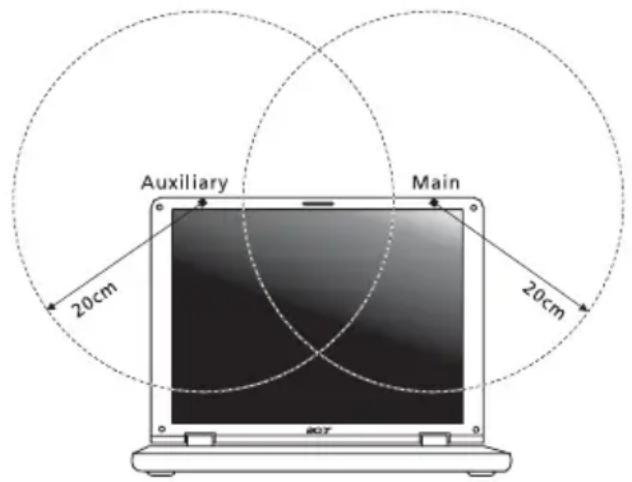
text_image
Auxiliary Main 20cm 20cm
Note: The Acer wireless Mini PCI Card/ Mini Card adapter implements a transmission diversity function. The function does not emit radio frequencies simultaneously from both antennas. One of the antennas is selected automatically or manually (by users) to ensure good quality radiocommunication.
2 This device is restricted to indoor use due to its operation in the 5.15 to 5.25 GHz frequency range. FCC requires this product to be used indoors for the frequency range 5.15 to 5.25 GHz to reduce the potential for harmful interference to co-channel Mobile Satellite systems.
3 High power radar are allocated as primary users of the 5.25 to 5.35 GHz and 5.65 to 5.85 GHz bands. These radar stations can cause interference with and/or damage this device.
4 An improper installation or unauthorized use may cause harmful interference to radio communications. Also any tampering of the internal antenna will void the FCC certification and your warranty.
Canada — Low-power license-exempt radio communication devices (RSS-210)
a Common information
Operation is subject to the following two conditions:
- This device may not cause interference, and
- This device must accept any interference, including interference that may cause undesired operation of the device.
b Operation in 2.4 GHz band
To prevent radio interference to the licensed service, this device is intended to be operated indoors and installation outdoors is subject to licensing.
c Operation in 5 GHz band
- The device for the band 5150-5250 MHz is only for indoor usage to reduce potential for harmful interference to co-channel Mobile Satellite systems.
- High power radars are allocated as primary users (meaning they have priority) of 5250-5350 MHz and 5650-5850 MHz and these radars could cause interference and/or damage to LELAN (Licence-Exempt Local Area Network) devices.
Federal Communications Commission Declaration of Conformity
This device complies with Part 15 of the FCC Rules. Operation is subject to the following two conditions: (1) This device may not cause harmful interference, and (2) This device must accept any interference received, including interference that may cause undesired operation.
The following local manufacturer/importer is responsible for this declaration:
Product name: Notebook PC
Model number: MS2195
Machine type: TravelMate 5610/5110
SKU number: TravelMate 561xxx/511xxx
$$ \left(" x" = 0 - 9, a - z, \text { or } A - Z\right) $$
Name of responsible party: Acer America Corporation
Address of responsible party: 2641 Orchard Parkway
San Jose, CA 95134
USA
Contact person: Mr. Young Kim
Tel: 408-922-2909
Fax: 408-922-2606
Declaration of Conformity for CE Marking
Name of manufacturer: Beijing Acer Information Co., Ltd.
Address of
Huade Building, No.18, ChuangYe Rd.
manufacturer:
ShangDi Zone, HaiDian District Beijing PRCE marking
Contact person: Mr. Easy Lai
Tel: 886-2-8691-3089
Fax: 886-2-8691-3000
Declares that product: Notebook PC
Trade name: Acer
Model number: MS2195
Machine type: TravelMate 5610/5110
SKU number: TravelMate 561xxx/511xxx ("x" = 0 - 9, a - z, or A - Z)
Is in compliance with the essential requirements and other relevant provisions of the following EC directives.
Reference no. Title
89/336/EEC Electromagnetic Compatibility (EMC directive)
73/23/EEC Low Voltage Directive (LVD)
1999/5/EC Radio & Telecommunications Terminal Equipment Directive (R&TTE)
The product specified above was tested conforming to the applicable Rules under the most accurate measurement standards possible, and all the necessary steps have been taken and are in force to assure that production units of the same product will continue to comply with these requirements.
Easy Lai
Easy Lai, Director
Regulation Center
Environment & Safety
02/2006
Date
LCD panel ergonomic specifications
| Design viewing distance 500 mm | |
| Design inclination angle 0.0° | |
| Design azimuth angle 90.0° | |
| Viewing direction range class Class IV | |
| Screen tilt angle 85.0° | |
| Design screen illuminance • Illuminance level:[250 + (250cosα)] lx where α = 85°• Color: Source D65 | |
| Reflection class of LCD panel(positive and negative polarity) | • Ordinary LCD: Class I• Protective or Acer CrystalBrite ^TM LCD:Class III |
| Image polarity Both | |
| Reference white:Pre-setting of luminance and color temperature @ 6500K (tested under BM7) | • Yn• u'n• v'n |
| Pixel fault class Class II | |
Index
A
AC adapter
caring for ix
audio 35
troubleshooting 47
B
battery pack
caring for x
BIOS utility 39, 59
brightness
hotkeys 32
C
caps lock 30
on indicator 26
care
AC adapter ix
battery pack x
computer ix
CD-ROM
ejecting manually 47
troubleshooting 47
cleaning
computer x
computer
caring for ix
cleaning x
disconnecting 50
features 15, 43
indicators 26
keyboards 30
moving around 50
on indicator 16, 17, 26
security 54
setting up a home office 52
taking home 51
traveling internationally 53
traveling on local trips 52
troubleshooting 65
turning off ix
connections
network 57
D
display
hotkeys 32
troubleshooting 46
DVD 60
DVD movies
playing 60
E
error messages 65
Euro 33
F
FAQ. See frequently-asked questions
frequently-asked questions 46
front view 16
H
Hibernation mode
hotkey 32
hotkeys 31
K
keyboard 30
embedded numeric keypad 30
hotkeys 31
lock keys 30
troubleshooting 47
Windows keys 31
L
left view 16
M
media access
on indicator 26
memory
installing 59
messages
error 65
modem 56
N
network 57
Notebook Manager
hotkey 32
num lock 30
on indicator 26
numeric keypad
embedded 30
P
password 54
types 54
PC Card 58
ejecting 58
inserting 58
ports 56
printer
troubleshooting 47
problems 46
CD-ROM 47
display 46
keyboard 47
printer 47
startup 46
troubleshooting 65
Q
questions
setting location for modem use 47
S
safety
CD or DVD 70
FCC notice 66
modem notices 67
scroll lock 30
security
keylock 34, 54
passwords 54
speakers
hotkey 32
troubleshooting 47
support
information 49
T
touchpad 28
hotkey 32
using 28-29
travel
international flights 53
local trips 52
troubleshooting 65
tips 65
U
universal serial bus 57
V
view
front 18
left 18
rear 19
right 18
W
Windows keys 31