
F02 - Digital piano YAMAHA - Free user manual and instructions
Find the device manual for free F02 YAMAHA in PDF.


| Product Type | Portable Digital Piano |
| Brand | YAMAHA |
| Model | F02 |
| Number of Keys | 88 keys (GHS weighted keyboard) |
| Maximum Polyphony | 64 notes |
| Voices | 10 voices (piano, organ, strings, etc.) |
| Pedals | 1 sustain pedal jack (sustain pedal included) |
| Metronome | Built-in with tempo adjustment |
| Speakers | 2 built-in speakers (6 W + 6 W) |
| Connectivity | Headphone jack, line out (stereo mini-jack), USB TO HOST, pedal input |
| Dimensions | Approx. 1326 mm (W) x 295 mm (D) x 154 mm (H) |
| Weight | Approx. 11.5 kg |
| Power Supply | 12 V DC power adapter (included) |
| Power Consumption | Approx. 8 W |
| Main Functions | Metronome, transposition, tuning, reverb, chorus, song recording |
| Maintenance and Cleaning | Wipe with a soft, dry cloth. Do not use solvents. |
| Safety | Do not expose to moisture, do not open the casing, use only the supplied adapter. |
| Spare Parts and Repairability | Contact an authorized Yamaha dealer for spare parts. Repair must be carried out by a qualified technician. |
| General Information | Warranty: 2 years (parts and labor) in the EEA and Switzerland. See manual for details. |
Frequently Asked Questions - F02 YAMAHA
User questions about F02 YAMAHA
0 question about this device. Answer the ones you know or ask your own.
Ask a new question about this device
Download the instructions for your Digital piano in PDF format for free! Find your manual F02 - YAMAHA and take your electronic device back in hand. On this page are published all the documents necessary for the use of your device. F02 by YAMAHA.
USER MANUAL F02 YAMAHA
Check your power supply —
Make sure that your local AC mains voltage matches the voltage specified on the name plate on the bottom panel. In some areas a voltage selector may be provided on the rear panel of the main keyboard unit near the power cord. Make sure that the voltage selector is set for the voltage in your area. The voltage selector is set at 240V when the unit is initially shipped. To change the setting use a "minus" screwdriver to rotate the selector dial so that the correct voltage appears next to the pointer on the panel.
For information on assembling the instrument, refer to the instructions at the end of this manual.
The model number, serial number, power requirements, etc., may be found on or near the name plate, which is at the bottom of the unit. You should note this serial number in the space provided below and retain this manual as a permanent record of your purchase to aid identification in the event of theft.
Model No.
Serial No.
(bottom_en_01)
The name plate is located on the bottom of the unit.
Information for Users on Collection and Disposal of Old Equipment
This symbol on the products, packaging, and/or accompanying documents means that used electrical and electronic products should not be mixed with general household waste.
For proper treatment, recovery and recycling of old products, please take them to applicable collection points, in accordance with your national legislation and the Directives 2002/96/EC.
By disposing of these products correctly, you will help to save valuable resources and prevent any potential negative effects on human health and the environment which could otherwise arise from inappropriate waste handling.
For more information about collection and recycling of old products, please contact your local municipality, your waste disposal service or the point of sale where you purchased the items.
[For business users in the European Union]
If you wish to discard electrical and electronic equipment, please contact your dealer or supplier for further information.
[Information on Disposal in other Countries outside the European Union]
This symbol is only valid in the European Union. If you wish to discard these items, please contact your local authorities or dealer and ask for the correct method of disposal.
(weee_eu_en_01)
Thank you for choosing the Yamaha Digital Piano.
In order to make the most of the performance potential and features of the instrument, please read the manuals thoroughly, and keep them in a handy place for later reference.
About the Manuals
This instrument has the following manuals.
Included Manuals

Owner's Manual (this book)
Explains how to use the instrument.
Online Manuals (PDF)

Computer-related Operations
Includes instructions on connecting this instrument to a computer.

MIDI Reference
Contains the MIDI Data Format and MIDI Implementation chart.

MIDI Basics
Contains basic explanations about MIDI.
To obtain these manuals, access the Yamaha Downloads website, select your country, enter "F02" in the Model Name box, then click [SEARCH].
Yamaha Downloads
http://download.yamaha.com/
Included Accessories
- Owner's Manual (this book)
- AC Power cord
- Bench
Online Member Product Registration*1
*1 You will need the PRODUCT ID on the sheet in order to fill out the User Registration form.
Contents
About the Manuals. 4
Included Accessories. 4
PRECAUTIONS 6
Main Features 9
Panel Controls and Terminals 10
Setting Up 12
Key Cover and Music Rest 12
Turning the Power On. 13
Using Headphones 13
Playing the Piano 14
Setting the Volume. 14
Intelligent Acoustic Control (IAC) 14
Using the Pedals. 15
Using the Metronome. 16
Changing the Keyboard Touch Sensitivity 17
Playing Various Musical Instrument Sounds (Voices) 18
Selecting a Voice. 18
Listening to the Voice Demo Songs. 18
Enhancing the Sound with Reverb. 19
String Resonance 19
Transposing the Pitch in Semitones 20
Fine-tuning the Pitch 20
Layering Two Voices (Dual Mode) 21
Splitting the Keyboard Range and Playing Two
Different Voices (Split Mode) 22
Playing Back Songs (BGM) 23
Songs Compatible with this Instrument. 23
Playing Back Songs. 24
Playing Back Songs in USB Flash Memory. 25
Recording Your Performance 26
Recording. 26
Deleting Recorded Performance Data. 27
Using a USB Flash Memory 28
Handling a USB Flash Memory 28
Copying a User Song in the Instrument to a USB
Flash Memory 30
Converting a User Song in the Instrument to an
Audio Song 31
Connections 32
Using an External Powered Speaker for Playback (AUX OUT [L/L+R] [R] Jacks). 32
Playing External Equipment with this Instrument's Speakers (AUX IN [L/L+R] [R] Jacks) 32
Connecting to a Computer ([USB TO HOST] Terminal) 33
Connecting External MIDI Devices (MIDI [IN] [OUT] Terminals) 33
Data Backup and Initialization 36
Backup Data Maintained When Power is Turned Off 36
Saving the Backup Data to a USB Flash Memory 36
Initializing the Settings 36
Appendix 37
Message List. 37
Troubleshooting 38
50 Piano Preset Songs (Classic & Jazz) List. 39
Voice Demo Song List. 40
Preset Voice List. 41
Assembly 42
Specifications 44
Index 45
Quick Operation Guide 49
PRECAUTIONS
PLEASE READ CAREFULLY BEFORE PROCEEDING
Please keep this manual in a safe and handy place for future reference.

WARNING
Always follow the basic precautions listed below to avoid the possibility of serious injury or even death from electrical shock, short-circuiting, damages, fire or other hazards. These precautions include, but are not limited to, the following:
Power supply/Power cord
- Do not place the power cord near heat sources such as heaters or radiators. Also, do not excessively bend or otherwise damage the cord, or place heavy objects on it.
- Only use the voltage specified as correct for the instrument. The required voltage is printed on the name plate of the instrument.
- Use only the supplied power cord/plug.
- Check the electric plug periodically and remove any dirt or dust which may have accumulated on it.
Do not open
- This instrument contains no user-serviceable parts. Do not open the instrument or attempt to disassemble or modify the internal components in any way. If it should appear to be malfunctioning, discontinue use immediately and have it inspected by qualified Yamaha service personnel.
Water warning
- Do not expose the instrument to rain, use it near water or in damp or wet conditions, place on it any containers (such as vases, bottles or glasses) containing liquids which might spill into any openings. If any liquid such as water seeps into the instrument, turn off the power immediately and unplug the power cord from the AC outlet. Then have the instrument inspected by qualified Yamaha service personnel.
- Never insert or remove an electric plug with wet hands.
Fire warning
- Do not put burning items, such as candles, on the unit.
A burning item may fall over and cause a fire.
If you notice any abnormality
-
When one of the following problems occur, immediately turn off the power switch and disconnect the electric plug from the outlet. Then have the device inspected by Yamaha service personnel.
-
The power cord or plug becomes frayed or damaged.
- It emits unusual smells or smoke.
- Some object has been dropped into the instrument.
- There is a sudden loss of sound during use of the instrument.
Always follow the basic precautions listed below to avoid the possibility of physical injury to you or others, or damage to the instrument or other property. These precautions include, but are not limited to, the following:
Power supply/Power cord
- Do not connect the instrument to an electrical outlet using a multiple-connector. Doing so can result in lower sound quality, or possibly cause overheating in the outlet.
- When removing the electric plug from the instrument or an outlet, always hold the plug itself and not the cord. Pulling by the cord can damage it.
- Remove the electric plug from the outlet when the instrument is not to be used for extended periods of time, or during electrical storms.
Assembly
- Read carefully the attached documentation explaining the assembly process. Failure to assemble the instrument in the proper sequence might result in damage to the instrument or even injury.
Location
- Do not place the instrument in an unstable position where it might accidentally fall over.
- When transporting or moving the instrument, always use two or more people. Attempting to lift the instrument by yourself may damage your back, result in other injury, or cause damage to the instrument itself.
- Before moving the instrument, remove all connected cables, to prevent damage to the cables or injury to anyone who might trip over them.
- When setting up the product, make sure that the AC outlet you are using is easily accessible. If some trouble or malfunction occurs, immediately turn off the power switch and disconnect the plug from the outlet. Even when the power switch is turned off, electricity is still flowing to the product at the minimum level. When you are not using the product for a long time, make sure to unplug the power cord from the wall AC outlet.
Connections
- Before connecting the instrument to other electronic components, turn off the power for all components. Before turning the power on or off for all components, set all volume levels to minimum.
- Be sure to set the volumes of all components at their minimum levels and gradually raise the volume controls while playing the instrument to set the desired listening level.
Handling caution
- Do not insert a finger or hand in any gaps on the key cover or instrument. Also take care that the key cover does not pinch your finger.
- Never insert or drop paper, metallic, or other objects into the gaps on the key cover, panel or keyboard. This could cause physical injury to you or others, damage to the instrument or other property, or operational failure.
- Do not rest your weight on, or place heavy objects on the instrument, and do not use excessive force on the buttons, switches or connectors.
- Do not use the instrument/device or headphones for a long period of time at a high or uncomfortable volume level, since this can cause permanent hearing loss. If you experience any hearing loss or ringing in the ears, consult a physician.
Using the bench (If included)
- Do not place the bench in an unstable position where it might accidentally fall over.
- Do not play carelessly with or stand on the bench. Using it as a tool or stepladder or for any other purpose might result in accident or injury.
- Only one person should sit on the bench at a time, in order to prevent the possibility of accident or injury.
- If the bench screws become loose due to extensive long-term use, tighten them periodically using the included tool.
- Keep special watch over any small children so that they don't fall off the rear of the bench. Since the bench does not have a backrest, unsupervised use may result in accident or injury.
Yamaha cannot be held responsible for damage caused by improper use or modifications to the instrument, or data that is lost or destroyed.
Always turn the power off when the instrument is not in use.
To avoid the possibility of malfunction/ damage to the product, damage to data, or damage to other property, follow the notices below.
■ Handling
- Do not use the instrument in the vicinity of a TV, radio, stereo equipment, mobile phone, or other electric devices. Otherwise, the instrument, TV, or radio may generate noise. When you use the instrument along with the application on your iPhone/iPad, we recommend that you set "Airplane Mode" to "ON" on your iPhone/iPad in order to avoid noise caused by communication.
- Do not expose the instrument to excessive dust or vibrations, or extreme cold or heat (such as in direct sunlight, near a heater, or in a car during the day) to prevent the possibility of panel disfiguration, damage to the internal components or unstable operation. (Verified operating temperature range: 5^ - 40^ , or 41^ - 104^ .)
- Do not place vinyl, plastic or rubber objects on the instrument, since this might discolor the panel or keyboard.
- Bumping the surface of the instrument with metal, porcelain, or other hard objects can cause the finish to crack or peel. Use caution.
Instrument / Bench Maintenance
To keep your digital piano in optimum condition, we recommend that you periodically follow the maintenance points below.
- When cleaning the instrument or bench, use a soft, dry or slightly damp cloth. Do not use paint thinners, solvents, cleaning fluids, or chemical-impregnated wiping cloths. Otherwise, it may become discolored or degraded.
- Gently remove dust and dirt with a soft cloth. Do not wipe too hard since small particles of dirt can scratch the instrument's finish. To keep the surface polished, apply commercially available piano polisher to a soft cloth and wipe the instrument's surface with it. Then, polish it with a separate cloth. Before using any piano polisher, make sure to read the instructions for proper usage.
- During extreme changes in temperature or humidity, condensation may occur and water may collect on the surface of the instrument. If water is left, the wooden parts may absorb the water and be damaged. Make sure to wipe any water off immediately with a soft cloth.
- As with an acoustic piano, pedals may become tarnished across the ages. When this occurs, polish the pedal with a compound designed for piano pedals. Before using the compound, make sure to read the instructions for proper usage.
Saving data
- Saved data may be lost due to malfunction or incorrect operation. Save important data to a USB flash memory (page 36).
- To further protect against data loss through the USB flash memory damage, we recommend that you save your important data onto two USB flash memories.
Information
About copyrights
- Copying of the commercially available musical data including but not limited to MIDI data and/or audio data is strictly prohibited except for your personal use.
- This product incorporates and bundles computer programs and contents in which Yamaha owns copyrights or with respect to which it has license to use others' copyrights. Such copyrighted materials include, without limitation, all computer software, style files, MIDI files, WAVE data, musical scores and sound recordings. Any unauthorized use of such programs and contents outside of personal use is not permitted under relevant laws. Any violation of copyright has legal consequences. DON'T MAKE, DISTRIBUTE OR USE ILLEGAL COPIES.
■ About functions/data bundled with the instrument
- Some of the preset songs have been edited for length or arrangement, and may not be exactly the same as the original.
About this manual
- The illustrations and displays as shown in this manual are for instructional purposes only, and may appear somewhat different from those on your instrument.
- The company names and product names in this manual are the trademarks or registered trademarks of their respective companies.
Tuning
- Unlike an acoustic piano, this instrument does not need to be tuned by an expert (although the pitch can be user-adjusted to match other instruments). This is because the pitch of digital instruments is always maintained perfectly.
Transporting
- If you move to another location, you can transport the instrument along with other belongings. You can move the unit as it is (assembled) or you can disassemble the unit down to the condition it was in when you first took it out of the box. Transport the keyboard horizontally. Do not lean it up against a wall or stand it up on its side. Do not subject the instrument to excessive vibration or shock. When transporting the assembled instrument, make sure all screws are properly tightened and have not been loosened by moving the instrument.
Stylish and sophisticated digital piano
The instrument combines true piano sound in a modern, attractive cabinet that evokes the beauty of a real acoustic grand piano — adding sophistication and musical expressiveness to your living space.
Real Grand Expression (RGE) sound engine
This new sound engine gives you the full playing response and expressive capability of a concert grand piano. In addition to providing smooth tonal changes that respond to your playing touch, it also features a Smooth Release function which clearly articulates staccato notes and produces the sound of lingering resonance when gently lifting your fingers from the keys — just like the soft damping action of real dampers. These effects capture the true essence of an acoustic grand piano to help you create and perform with authentic piano-like expression.
NW (Natural Wood) keyboard with synthetic ivory keytops and Linear Graded Hammer action
The instrument's keyboard has the luxurious feel of real ivory. The key surface is soft and slightly porous, giving the keys added grip and a natural friction that lets you play easily. The special Natural Wood keyboard uses real-wood white keys just as an actual grand piano. Moreover, Linear Graded Hammer provides an authentic action in which the lower keys are heavy in touch and the higher keys are light, with all the natural gradations in between. All in all, this gives you the performance functions and expressive power found only on grand pianos, including having repeated plays of the same note perfectly articulated, even when playing at high speed or with partial key release.
50 Classic & Jazz Piano Preset Songs
The instrument features 50 built-in piano preset songs, including both classic pieces and jazz standards. The preset songs are divided into scene categories, which correspond to a variety of favorite listening preferences and let you select your favorite songs according to the appropriate description.
For even wider song selection, simply connect a USB flash memory device to the instrument — and your favorite songs in MIDI format are ready to be played in random or sequence.
AudioPlayback fromUSBFlashMemory
Audio files (.wav) saved to a USB flash memory can be played back on the instrument.
Moreover, since you can save your performance as audio data to a USB flash memory device, it is possible to listen to your performance on portable music players, transferring the data by computer.
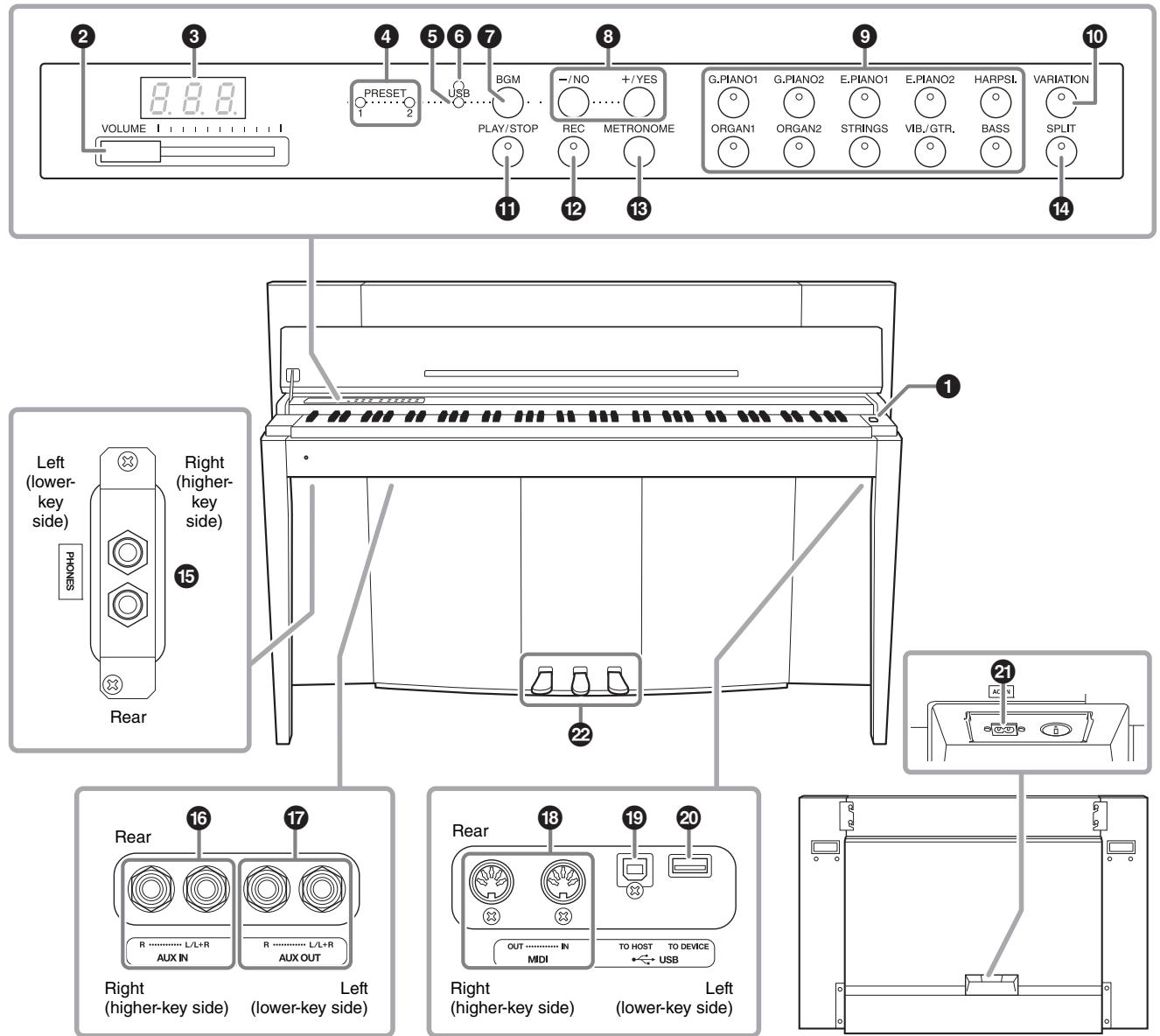
Shows the jacks as seen when viewed from below the instrument.
Rear panel
Display
Check the operation on the display of the top panel as you use the instrument. The display is normally hidden beneath the surface to maintain the elegant appearance of the instrument, and is visible only when a button is pressed or an operation is executed.
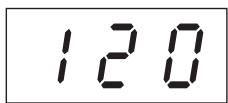
Tempo
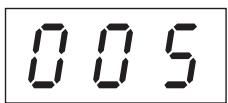
Song number (page 23)
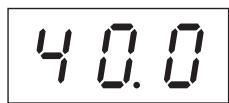
Parameter value
Various other messages and prompts are indicated with the three characters in the display. For details, refer to page 37.
1 [O] Power switch.... page 13
For turning the power on/off.
[VOLUME] slider... page 14
For adjusting the volume level using this slider.
Display.... page 10
NOTICE
Do not turn off the power to the instrument while flashing dashes appear in the display (indicating the operation is in process). Doing so may damage the data.
[PRESET 1]/[PRESET 2] lamp......page 23
When this is lit, you can listen to the 50 Piano Preset Songs (Classic & Jazz).
[USB] lamp.... page 23
When this is lit, you can listen to songs contained in USB flash memory.
[USB] access lamp pages 23, 28
Flashes in red while loading data from USB flash memory.
[BGM] button............pages 23, 24
Switches the BGM mode on and off for [PRESET 1]/[PRESET 2]/[USB].
[−/NO]/[+/YES] button
For setting values or performing file operations.
Voice buttons.. page 18
For selecting Voices.
10 [VARIATION] button ..... page 18
Lets you call up an alternate version of the selected Voice, with a different sound.
11 [PLAY/STOP] button......page 24
For starting/stopping song playback of the 50 Piano Preset Songs (Classic & Jazz), your recorded songs, or songs in USB flash memory.
[REC] button... page 26
For recording your keyboard performance.
[METRONOME] button ..... page 16
For using the metronome.
14 [SPLIT] button page 22
For playing different Voices on the left- and right-hand sections of the keyboard.
[PHONES] jacks... page 13
For connecting a set of standard stereo headphones.
16 AUX IN [L/L+R][R] jacks....page 32
The stereo outputs from another instrument can be connected to these jacks, allowing the sound of an external instrument to be reproduced via this instrument's speakers.
17 AUX OUT [L/L+R][R] jacks....page 32
These jacks let you connect this instrument to external powered speaker systems, for playing in larger venues at higher volumes.
18 MIDI [IN][OUT] terminals page 33
For connecting to a MIDI device, allowing you to take advantage of various MIDI functions.
[USB TO HOST] terminal....page 33
For connecting to a computer. For details, refer to "Computer-related Operations" (page 4).
NOTICE
Use an AB type USB cable of less than 3 meters. USB 3.0 cables cannot be used.
[USB TO DEVICE] terminal....page 28
For connecting to a USB flash memory device, allowing you to save your own recorded songs and to play back songs contained on the device.
[AC IN] connector.... page 13
For connecting the Power cord.
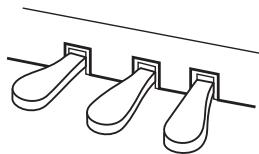
22 Pedals... page 15
For controlling expression and sustain, just as on an acoustic piano.
Key Cover and Music Rest
CAUTION
- Hold the cover with both hands when opening or closing it. Do not release it until it is fully opened or closed. Be careful to avoid catching fingers (yours or others, especially children's) between the cover and the unit.
- Do not place objects such as a piece of metal or paper on top of the key cover. Small objects placed on the key cover may fall inside the unit when the cover is opened and may be nearly impossible to remove. This could cause electric shock, short circuit, fire or other serious damage to the instrument.
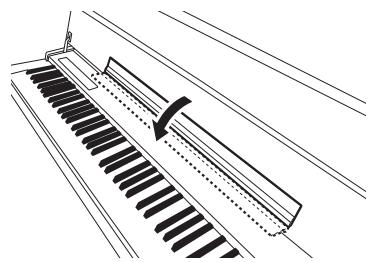
To open the key cover:
- Hold the front edge of the key cover top with both hands, then lift the key cover gently and fold it back.
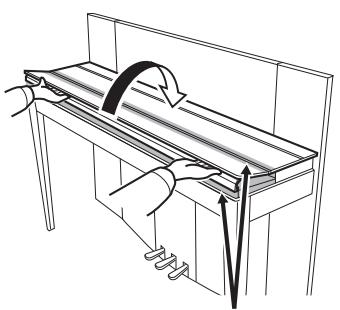
Be careful to avoid catching your fingers when opening or closing the cover.
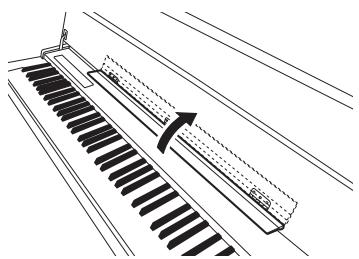
- Raise the folded cover and lean it against the front panel.
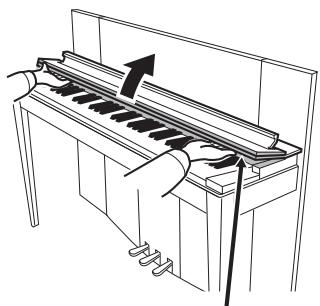
Be careful to avoid catching your fingers when opening or closing the cover.
- Unfold the music rest.
To close the key cover:
- If the music rest is unfolded, fold it back.
- Pull the cover down and toward yourself slowly.
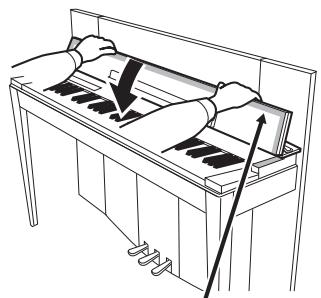
Be careful to avoid catching your fingers when opening or closing the cover.
- Unfold the cover and gently lower its front half.
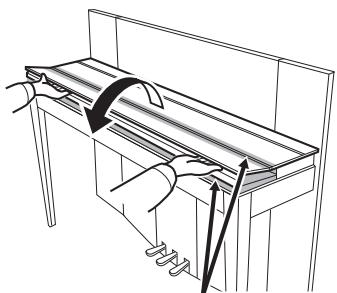
Be careful to avoid catching your fingers when opening or closing the cover.
Turning the Power On
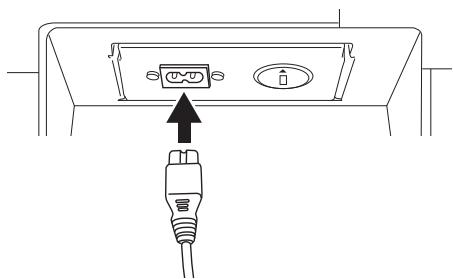
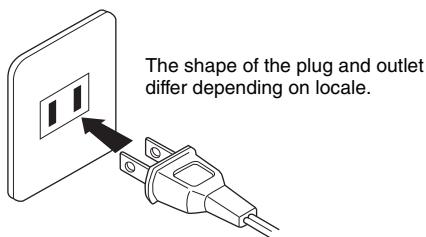
1. Connect the Power cord.
First insert the plug of the power cable into the AC connector on the instrument, then plug the other end of the cable into the proper AC outlet on the wall. In some areas a plug adaptor may be provided to match the pin configuration of the AC wall outlets in your area. For more information on connecting the power cord, refer to the assembly instructions on page 43.
1-1
1-2

WARNING
- Make sure your instrument is rated for the AC voltage supplied in the area in which it is to be used (voltage rating appears on the name plate on the bottom panel). In some areas, a voltage selector may be provided on the rear panel of the main keyboard unit near the AC IN. Make sure that the voltage selector is set for the voltage in your area. Connecting the unit to the wrong AC supply can cause serious damage to the internal circuitry and may even pose a shock hazard!
- Use only the AC power cord supplied with your instrument. If the supplied cord is lost or damaged and needs to be replaced, contact your Yamaha dealer. The use of an inappropriate replacement can pose a fire and shock hazard!
- The type of AC power cord provided with your instrument may be different depending on the country in which it is purchased. (In some areas a plug adaptor may be provided to match the pin configuration of the AC wall outlets in your area.) Do NOT modify the plug provided with your instrument. If the plug will not fit the outlet, have a proper outlet installed by a qualified electrician.
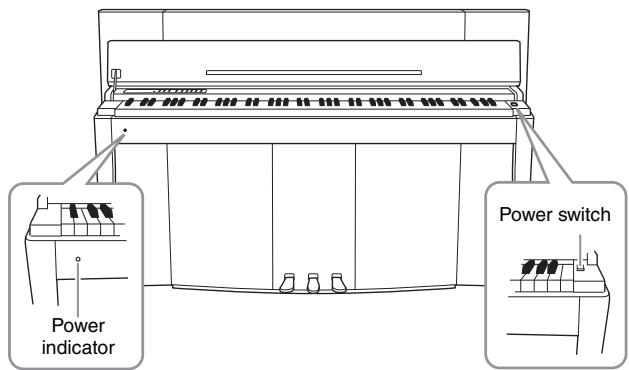
2. Turn the power on.
Press the [O] Power switch located on the right of the keyboard to turn the power on.
The Power indicator located below the left end of the keyboard lights up.
Power indicator
If you close the key cover without turning the power off, the Power indicator remains lit, indicating that the power is still on.
When you're ready to turn off the power, press the Power switch again.
The Power indicator turns off.

CAUTION
Even when the instrument is turned off, electricity is still flowing to the instrument at the minimum level. When you are not using the instrument for a long time or during electrical storms, make sure you unplug the AC power plug from the wall AC outlet.
Using Headphones
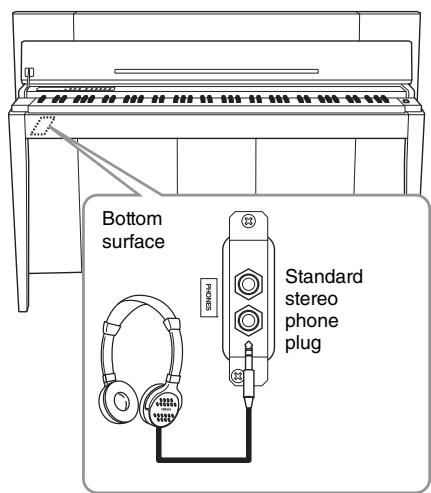
Connect a pair of headphones (option) to one of the [PHONES] jacks. Two [PHONES] jacks are provided. You can connect two sets of standard stereo headphones. If you are using only one pair of headphones, you can plug them into either of these jacks.

CAUTION
Do not use headphones at a high volume for an extended period of time. Doing so may cause hearing loss.
Setting the Volume
To adjust the volume, use the [VOLUME] slider located at the left of the panel. Play the keyboard to actually produce sound while you adjust the volume.
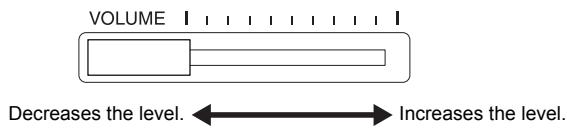
Adjusting the [VOLUME] slider also affects the output level of the [PHONES] jacks and the output level of the AUX OUT jack.
VOLUME:
The volume level of the entire keyboard sound.

CAUTION
Do not use this instrument at a high volume level for a long period of time, or your hearing may be damaged.
Intelligent Acoustic Control (IAC)
With this function, the sound quality of this instrument is automatically adjusted and controlled according to the overall volume. Even when the volume is low, this lets you hear both low sounds and high sounds clearly.
To turn on IAC:
While holding down [METRONOME], press the F6 key.
To turn off IAC:
While holding down [METRONOME], press the F#6 key.
To adjust IAC Depth:
While holding down [METRONOME], press one of the A5 - D#6 keys.
The higher the value, the more clear the sound of low and high ranges for softer volume levels.
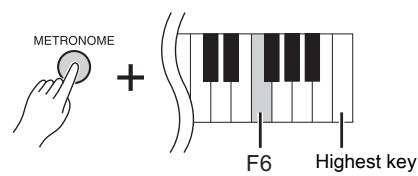
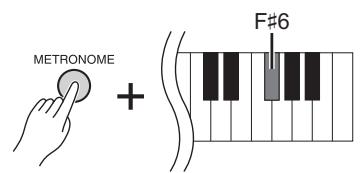
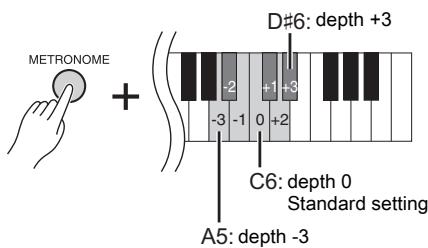
Default setting:
On
Setting range:
-3(A5)-+3(D#6)
Default setting:
0 (C6)
Using the Pedals
This instrument has three foot pedals: damper pedal (right), sostenuto pedal (center), and soft pedal (left) that produce a range of expressive effects similar to those produced by the pedals on an acoustic piano.
Damper (Right) Pedal
When this pedal is pressed, the sound is sustained, even when the keys are released. When this is used with one of the Grand Piano Voices, a special Damper Resonance effect (with Depth control; see below) is added, which effectively reproduces the rich, resonant sound of the soundboard, frame and cabinet of a real acoustic piano.
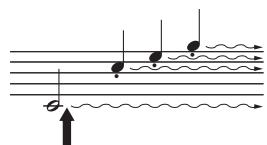
When you press the damper pedal here, the notes you play before you release the pedal have a longer sustain.
To set the Damper Resonance Depth
While holding down [VARIATION], press one of the C5 - A#5 keys.
(Refer to the Quick Operation Guide on page 49.)
Half-pedal function
This instrument also has a Half-pedal function which allows you to use half-damper techniques, in which the damper is pressed somewhere between all the way down and all the way up. In this half-damper state (on a real piano), the damper felts only partially mute the strings. The Half-pedal function on this instrument lets you delicately and expressively control the damper muting, and create subtle nuances in your performance. It also lets you finely control the point at which pressure on the pedal affects the damper muting.
GP Responsive Damper Pedal
The damper pedal of this instrument is a special GP Responsive Damper Pedal, which has been designed to provide enhanced tactile response. When pressed, it is much closer in feel to the pedal of an actual grand piano. It makes it easier to physically experience the half-pedal point and more easily apply the half-pedal effect than other pedals. Since the pressing sensation may vary depending on the situation, including the location where the instrument is installed, you should adjust the half-pedal point to the desired setting.
To set the Half-pedal Point
While holding down [METRONOME], press one of the A#3 - E4 keys.
(Refer to the Quick Operation Guide on page 49.)
Sostenuto (Center) Pedal
If you play a note or chord on the keyboard and press the sostenuto pedal while holding the note(s), the notes will sustain as long as the pedal is held. Organ and string Voices will continue to sound for as long as the sostenuto pedal is depressed. All subsequent notes will not sustain.
Soft (Left) Pedal
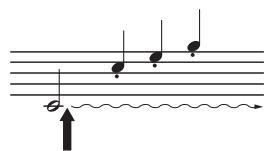
When you press the sostenuto pedal here while holding the note, the note will sustain as long as you hold the pedal.
The soft pedal reduces the volume and slightly changes the timbre of notes played while the pedal is pressed. The soft pedal will not affect notes that are already playing or sustaining when it is pressed. Press the pedal immediately before you play the target notes.
Setting range:
0(C5)-10(A#5)
Default setting:
Different for each Voice
NOTE
The pedals are covered with vinyl covers when shipped from the factory. For optimum use of the GP Responsive Damper Pedal, we recommend that you remove the cover from the damper pedal.
Setting range:
-2 (effective at shallow position) - 0 - 4 (effective at deep position)
Default setting:
0 (C4)
Using the Metronome
The metronome feature is convenient for practicing with an accurate tempo.
- Press [METRONOME] to start the Metronome.
- Press [METRONOME] to stop the Metronome.
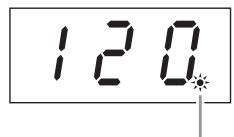
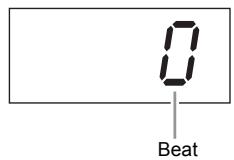
The beat indicator flashes at the current tempo.
To adjust the Tempo
Press [BGM] so that the [PRESET 1]/[PRESET 2]/[USB] lamp is turned off.
The Metronome tempo can be set by pressing [-/NO] or[+/YES].
The default setting can be recalled by pressing both [-/NO] and [+/YES] simultaneously.
To select a Beat
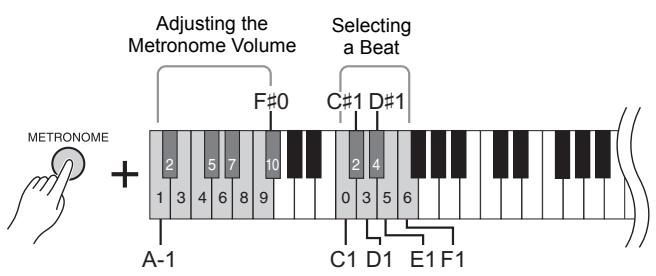
While holding down [METRONOME], press one of the C1 - F1 keys. The current setting appears on the display while both controls are held.
You can set the beat to 0, 2, 3, 4, 5 or 6. The first beat is accented with a bell sound and the rest with clicks. When the beat is set to "0," clicks sound on all beats.
To adjust the Volume
While holding down [METRONOME], press one of the keys between A-1 and F#0 to set the volume of the metronome. Pressing a higher key results in higher volume, while pressing a lower key results in lower volume.
Setting range:
5 to 500 beats per minute
Default setting:
120
NOTE
The default settings of tempo and beat for MIDI Songs differ depending on the selected Song.
When you play back a MIDI Song, the setting here will be canceled and the original tempo and the beat for that Song is called up.
Setting range:
0(C1),2(C#1)-6(F1)
Default setting:
0 (C1)
Setting range:
1(A-1)-10(F#0)
Default setting:
8 (E0)
Changing the Keyboard Touch Sensitivity
You can select four different Touch Sensitivity types (how the sound responds to the way you play the keys). Select one to match different playing styles and preferences.
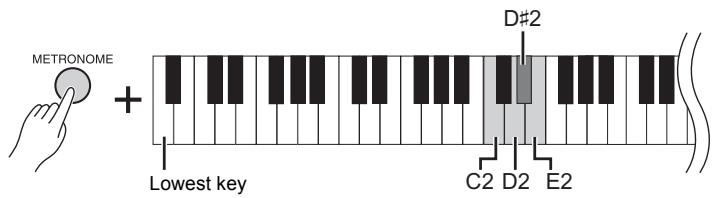
While holding down [METRONOME], press C2 or one of the D2 - E2 keys.
| Key | Display | Touch Sensitivity | Description |
| C2 | OFF | Fixed | The volume level does not change at all regardless of whether you play the keyboard soft or hard. |
| D2 | 1 | Soft | The volume level does not change much when you play the keyboard soft or hard. This lets you play relatively loudly, even with a soft touch. |
| D#2 | 2 | Medium | This is the standard piano touch response. |
| E2 | 3 | Hard | The volume level changes very widely from pianissimo to fortissimo to facilitate dynamic and dramatic expression. You have to hit the keys hard to produce a loud sound. It also gives you finer expressive control of soft sounds. |
NOTE
The Touch Sensitivity type is applied commonly to all Voices. However, the Touch Sensitivity settings may have little or no effect with certain Voices that are not normally responsive to keyboard dynamics. (Refer to "Preset Voice List" on page 41.)
Default setting
Medium (D#2)
In addition to the wonderfully realistic piano sounds, you can select and play other authentic musical instrument sounds (Voices), such as organ or stringed instruments.
Selecting a Voice
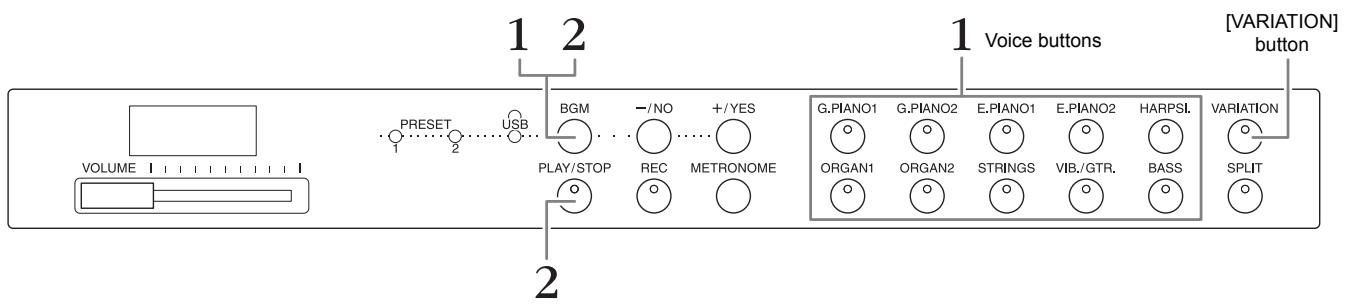
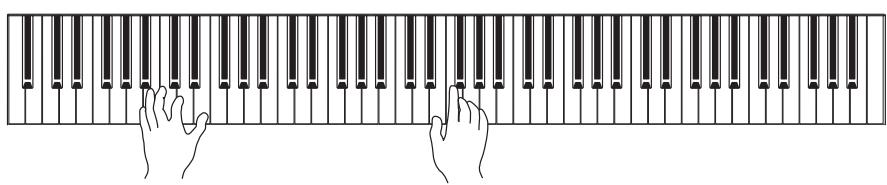
- Select the desired Voice by pressing one of the Voice buttons.
- Try playing the keyboard and listening to the sound.
[VARIATION]
Lets you call up an alternate version of the selected Voice. Pressing this button or the selected Voice button toggles the variation on and off. The lamp lights when [VARIATION] is enabled.
Listening to the Voice Demo Songs
To familiarize yourself with the characteristics of the Voices, listen to the Demo Songs for each Voice. For a list of the Voice Demo Songs, refer to page 40.
- While holding down [BGM], press one of the Voice buttons to start playback.
The Demo Song for the current Voice starts.
Starting with the selected Song, playback of the Demo Songs will continue. After the last Demo Song, the sequence then returns to the first one and repeats until you stop it. - Press [BGM] or [PLAY/STOP] to stop playback.
NOTE
Refer to "Preset Voice List" on page 41 for more information on the characteristics of each Voice.
NOTE
The Demo mode cannot be called up during Song recording (page 26).
NOTE
MIDI reception is not possible in the Demo mode. Demo Song data is not transmitted via the MIDI terminals.
NOTE
The tempo of Demo Songs cannot be adjusted. The default tempo of the selected Demo Song is automatically set and fixed during playback.
Enhancing the Sound with Reverb
This instrument features several Reverb Types that add extra depth and expression to the sound to create a realistic acoustic ambience. The appropriate Reverb Type and Depth are called up automatically when you select each of the Voices and Songs. This is why the Reverb Type need not be selected; however, you can change it if desired.
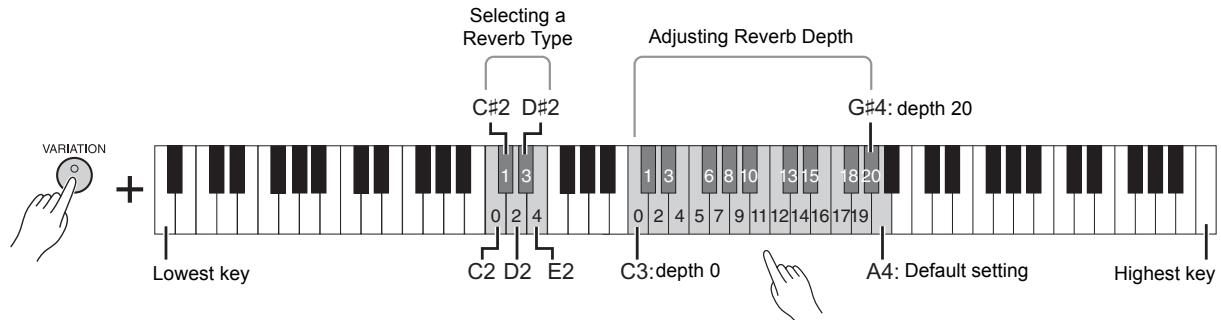
The depth value increases as you press higher keys.
To select a Reverb Type:
While holding down [VARIATION], press one of the C2 - E2 keys. The current Reverb Type setting appears on the display while both controls are held.
Reverb Type List
| Key | Display | Reverb Type | Descriptions |
| C2 | OFF | Off | No effect is applied. |
| C#2 | 1 | Room | Adds a continuous reverb effect to the sound, similar to the acoustic reverberation you would hear in a room. |
| D2 | 2 | Hall1 | For a larger reverb sound, use the Hall1 setting. This effect simulates the natural reverberation of a small-size concert hall. |
| D#2 | 3 | Hall2 | For a truly spacious reverb sound, use the Hall2 setting. This effect simulates the natural reverberation of a large concert hall. |
| E2 | 4 | Stage | Simulates the reverb of a stage environment. |
To adjust Reverb Depth:
While holding down [VARIATION], press one of the C3 - G#4 keys. The Depth value increases as you press higher keys.
While holding down [VARIATION], press the A4 key to set the Reverb Depth to the most suitable value for the current Voice. The current Reverb Depth setting appears on the display while both controls are held.
Default setting:
The default reverb type (including Off) and depth settings are different for each Voice.
Reverb Depth range:
0 (no effect) - 20 (maximum depth)
String Resonance
The String Resonance effect simulates the sympathetic vibration that occurs between the strings of an acoustic piano. For information on which Voices have the String Resonance effect applied, refer to "Preset Voice List" on page 41.
To set the String Resonance Depth
While holding down [VARIATION], press one of the C6 - A#6 keys. (Refer to the Quick Operation Guide on page 49.)
Setting range:
0 (no effect) - 10 (maximum depth)
Default setting:
5
Transposing the Pitch in Semitones
You can shift the pitch of the entire keyboard up or down in semitones in order to facilitate playing in difficult key signatures, or to easily match the pitch of the keyboard to the range of a singer or other instruments. For example, if +5 is selected, playing key C produces pitch F, letting you play a song of F major as though it were in C major.

To transpose the pitch down:
While holding down [METRONOME], press a key between F#2 (-6) and B2 (-1).
To transpose the pitch up:
While holding down [METRONOME], press a key between C#3 (+1) and F#3 (+6).
To restore the normal pitch:
While holding down [METRONOME], press the C3 key.
Fine-tuning the Pitch
You can fine-tune the pitch of the entire instrument in about 0.2Hz steps. This lets you finely adjust the keyboard pitch to precisely match that of other instruments or CD music.
To tune up (in about 0.2Hz steps):
Press and hold down the [BGM] and [METRONOME] simultaneously, and press [+ / YES]
To tune down (in about 0.2Hz steps):
Press and hold down the [BGM] and [METRONOME] simultaneously, and press [-/NO].
To restore default pitch:
Press and hold down the [BGM] and [METRONOME] simultaneously, and press [+/YES] and [-NO] simultaneously.
The current pitch setting appears on the display while the key combination is held.
Example: 440.2Hz
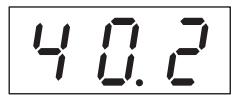
Hz (Hertz):
This unit of measurement refers to the frequency of a sound and represents the number of times a sound wave vibrates in a second.
Setting range:
414.8-466.8Hz
Default setting:
440.0 Hz
Layering Two Voices (Dual Mode)
You can layer two Voices and play them simultaneously to create a more richly textured sound.
1. Call up the Dual mode.
Press two Voice buttons at the same time. The Voice indicators of both selected Voices will light when the Dual mode is active.
Try playing the keyboard and listen to the resulting sound.
Voice 1/ Voice 2
According to the Voice numbering priority shown below, the lower value Voice number is designated as Voice 1, and the other Voice as Voice 2.
Voice numbering priority
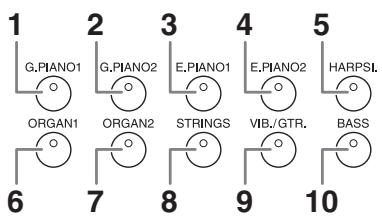
You can make the following settings for Voices 1 and 2 in Dual:
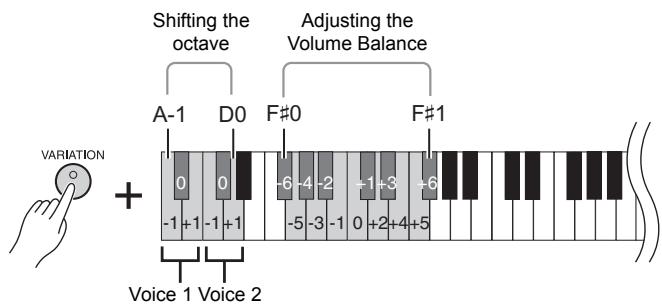
Shifting the Octave for each Voice (Octave Shift):
You can shift the pitch up and down in octave steps for Voice 1 and Voice 2 independently. Depending on which Voices you combine in Dual mode, the combination may sound better if one of the Voices is shifted up or down an octave. While holding down [VARIATION], press one of the A-1 - D0 keys.
Adjusting the Balance between two Voices:
You can finely adjust the balance between the two Voices, layering the two so that one Voice serves as the main sound and the other provides a subtle accent or a textured after-sound.
While holding down [VARIATION], press one of the F#0 - F#1 keys.
A setting of "0" produces an equal balance between two Voices. Settings below "0" increase the volume of Voice 2 while settings above "0" increase the volume of Voice1, in relation to the other.
2. Exit from the Dual mode.
To return to the normal single-Voice play mode, press any single Voice button.
NOTE
The Dual and Split (page 22) modes cannot be active at the same time.
[VARIATION] in Dual Mode
The [VARIATION] button's indicator lights if the variation is engaged for either or both of the Dual mode Voices. While Dual mode is called up, [VARIATION] can be used to turn the variation for both Voices on or off. To turn the variation on or off for only one of the Voices, hold the Voice button for the other Voice and press the button of the Voice for which you want to change the variation.
[REVERB] in Dual Mode
An optimum reverb type for the combination of Voices is assigned automatically.
Default setting of Octave and Balance:
Different for each Voice combination.
Splitting the Keyboard Range and Playing Two Different Voices (Split Mode)
Split mode enables you to play two different Voices on the keyboard — one with the left hand and another with the right hand. For example, you can play a bass part using the Bass Voice with the left hand, and a melody with the right hand.
1. Call up the Split mode.
Press [SPLIT] so that its indicator lights. The default setting (BASS) will be selected for the left-hand Voice at first.

- Specify the split point (the border between the right-and left-hand range). While simultaneously holding down [SPLIT], press the key to which you want to assign the split point. Alternately, while simultaneously holding down [SPLIT], press [-NO]/[+/YES] the necessary number of times to change the split point.
The name of the current split-point key appears on the display while [SPLIT] is held.
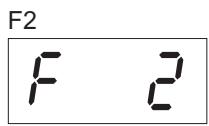
Example of split-point key display
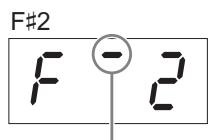
High bar indicates sharp note
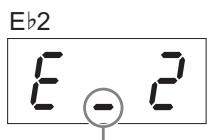
Low bar indicates flat note
3. Select a Voice for the right hand.
Press a Voice button.
To turn the variation on or off for the right-hand split Voice, press [VARIATION] or the currently selected Voice button.
4. Select a Voice for the left hand.
Press the corresponding Voice button while holding [SPLIT]. (The indicator of the Left Voice button will light while [SPLIT] is pressed.) To turn the variation on or off for the left-hand split Voice, hold [SPLIT] and press [VARIATION] or the currently selected Voice button. Try playing the keyboard and listen to the resulting sound.
You can make the following settings for right-and left-hand split Voice in Split:
Shifting the Octave for each Voice (Octave Shift):
You can shift the pitch up and down in octave steps for the right-hand split Voice and the left-hand split Voice independently. While holding down [VARIATION], press one of the A-1-D0 keys. (Refer to the Quick Operation Guide on page 49.)
Adjusting the Balance between two Voices:
While holding down [VARIATION], press one of the F#0 - F#1 keys. (Refer to the Quick Operation Guide on page 49.) Settings below "0" increase the volume of the left-hand split Voice while settings above "0" increase the volume of the right-hand split Voice, in relation to the other.
Damper Pedal Range
The Damper Pedal Range function determines whether the damper pedal affects the right Voice, the left Voice, or both the left and right Voices in Split mode. While holding down [METRONOME], press one of the G4, G#4, or A4 keys. (Refer to the Quick Operation Guide on page 49.)
5. Exit from the Split mode.
Press [SPLIT] again so that its indicator goes out.
NOTE
The Split and Dual (page 21) modes cannot be active at the same time.
NOTE
The left-hand Voice goes up to and includes the split-point key. The right-hand Voice sounds for keys above the split point.
Default setting of split-point
key:
F#2
NOTE
The default split point can be recalled by simultaneously holding down [SPLIT] and pressing both [-/NO] and + / YES together.
[VARIATION] in Split Mode
Normally, the Voice indicator of the right Voice lights in Split mode. [VARIATION] can be used to turn the variation for the right Voice on or off as required. While [SPLIT] is held, however, the Voice indicator of the left Voice lights. In this state [VARIATION] turns the variation for the left Voice on or off.
[REVERB] in Split Mode
An optimum reverb type for the split Voices is assigned automatically.
Setting range:
ALL (for both Voices)
1 (for the right Voice)
2 (for the left Voice)
Default setting:
1 (for the right Voice)
The BGM (background music) functions on this instrument lets you play back Songs contained in internal memory or USB memory connected to the [USB TO DEVICE] terminal. Songs for playback can be either MIDI or audio.
About MIDI Songs and Audio Songs
A MIDI Song is comprised of your keyboard performance information and is not a recording of the actual sound itself. The performance information refers to which keys are played, at what timing, and at what strength — just as in a musical score. Based on the recorded performance information, the tone generator of the instrument outputs the corresponding sound. A MIDI Song uses a small amount of data capacity in comparison to an audio Song, and allows you to easily change the event like a Voice.
An Audio Song is a recording of the performed sound itself. This data is recorded in the same way as that used in recording cassette tapes, or with voice recorders, etc. This data can be played with a portable music player, etc., allowing you to easily let other people hear your performance.
NOTE
For a general overview of MIDI and how you can effectively use it, refer to "MIDI Basics" (downloadable from the Yamaha website).
Songs Compatible with this Instrument
| BGM lamp | Song number | Descriptions |
| PRESET 1 | 001 - 030 | Piano Preset Songs (Classic) Piano Preset Songs (Classic) in the instrument. Refer to page 39 for the Song titles. |
| PRESET 2 | 001 - 020 | Piano Preset Songs (Jazz) Piano Preset Songs (Jazz) in the instrument. Refer to page 40 for the Song titles. |
| USB | A.00 - A.99* | User Songs in the USB flash memory (Audio) These are audio Songs saved to the USB flash memory by converting them from MIDI data (page 31). Up to 100 Songs (A.00 - A.99) can be played back. |
| U.00 - U.99* | User Songs in the USB flash memory (MIDI) MIDI Songs which have been recorded and stored to a USB flash memory by using the Record function (page 26). Up to 100 Songs (U.00 - U.99) can be played back. | |
| 001 - 400* | External Songs in the USB flash memory (MIDI/Audio) Commercially available MIDI/Audio Songs or MIDI Songs which have been edited on a computer, etc. and saved to the USB flash memory. Up to 400 Songs (001 - 400) can be played back. | |
| OFF | User Song in the instrument (MIDI) A MIDI Song which has been recorded to the instrument by using the Record function (page 26). One Song can be saved. |
- When data does not exist, the song number is not displayed.
BGM OFF
Pressing [BGM] turns off the [PRESET 1]/[PRESET 2]/[USB] lamps.
Press [PLAY/STOP] when all lamps are off, MIDI Song which has been recorded to the instrument is play back.
User Songs and External Songs
Songs recorded on this instrument are referred to as "User Songs" while Songs created in other ways or on other instruments are called "External Songs." In USB flash memory, Songs in the USER FILES folder are handled as User Songs while Songs in a location other than the USER FILES folder are handled as External Songs. When you record a Song to USB flash memory, a USER FILES folder is created automatically and the resulting User Song will be saved in this folder.
- SMF (Standard MIDI File) Formats 0 and 1
The SMF format is one of the most common and widely compatible MIDI formats used for storing sequence data. There are two variations: Format 0 and Format 1. A large number of MIDI devices are compatible with SMF Format 0, and most commercially available MIDI sequence data is provided in SMF Format 0. MIDI Songs recorded in this instrument are saved as SMF Format 0.
WAV format (.wav)
This is an audio file format commonly used by computers. This instrument can play 44.1kHz/16bit stereo WAV files. Audio Songs recorded on this instrument are saved in this format. The maximum amount of time for playing an audio Song is 80 minutes.
NOTE
The MIDI Song can be played on this instrument is the size of up to about 400KB per single Song.
Playing Back Songs
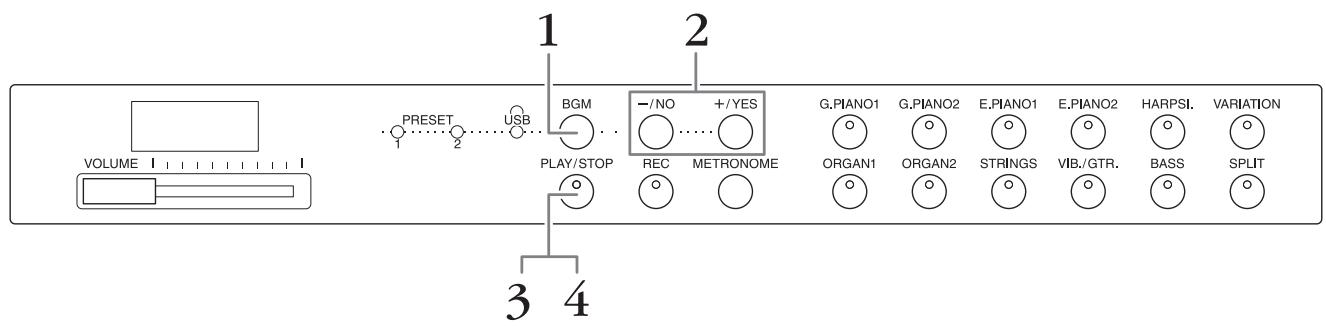
1. Press [BGM] to select a Song.
Refer to the table on page 23 for details on the Songs. [USB] can be selected only when a USB flash memory is connected.
2. Select a Song.
Press the [-/NO] and [+/YES] to select a Song number, Scene number, "rnd" or "ALL".
- rnd (random) Plays the Songs continuously in random order.
- ALL Plays all the Songs continuously in sequence.
- S.xx (scene) (xx: numerals)....Play all Preset Songs in each scene continuously, when the [PRESET 1] or [PRESET 2] is selected.
- XXX (Song number) .......Select a Song number and play only the selected Song. About the Song number, refer to page 23.
Scene
The 50 Piano Preset Songs (Classic & Jazz) have been divided into twenty three groups or categories, to match a variety of listening preferences and to let you select your favorite Songs based on a scene description. For instance, if you want to listen to some "Elegant" Songs, select scene number 4. The Songs that match that category will play sequentially. For a list of the 50 Piano Preset Songs (Classic & Jazz), see page 39.
NOTE
When you want to play a Song saved to a USB flash memory, read the section "Handling a USB Flash Memory" (page 28), then connect the USB flash memory to the [USB TO DEVICE] terminal.
NOTE
You can play the keyboard along with the Preset Songs. You can also change the Voice playing on the keyboard.
NOTE
The tempo of Piano Preset
Songs (Classic & Jazz) and
Songs in the USB flash memory cannot be adjusted. The default tempo is automatically selected whenever a new Song is selected.
NOTE
When you select a different Song (or a different Song is selected during chained playback), an appropriate Reverb Type will be selected accordingly.
3. Press [PLAY/STOP] to start playback.
The Song number which is being played is shown on the display.
You can change the Song while it is playing back by pressing [- / NO] / [+ / YES] .
4. Press [PLAY/STOP] to stop playback.
Playing Back Songs in USB Flash Memory
Adjusting the volume (only for Audio Songs)
The volume level of this instrument may be markedly different from that of a commercially available Audio Song or one recorded on another device. To adjust the volume of the Audio Song, hold down [BGM] and press one of the C0 - G1 keys (Refer to the Quick Operation Guide on page 49).
MIDI SongPlayback Channel
When playing back MIDI Songs containing Voices that are incompatible with this instrument (such as XG or GM Songs), the Voices may not sound as intended on the original. If such a case occurs, set the Song Play Channel to "1&2." By muting channels 3 to 16 via this setting, you may hear the original sound of the Song, as long as the piano sound is assigned to channels 1 and 2.
Play back only 1 and 2 (1&2)
While holding down [BGM], press the A#-1 key (refer to the Quick Operation Guide on page 49).
Play back all the channels (ALL)
While holding down [BGM], press the A-1 key (refer to the Quick Operation Guide on page 49).
Setting range:
1 (C0) - 20 (G1)
Default setting:
16 (D#1)
Default setting:
ALL
This instrument allows you to record one User Song (MIDI) to the instrument.
NOTE
MIDI Songs can be recorded, but audio Songs can only be created by converting from MIDI and saving them to USB flash memory.
Recording
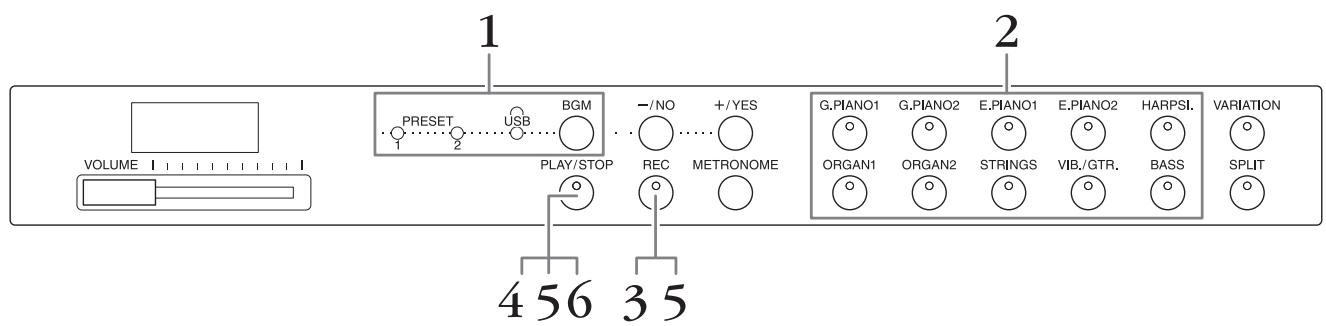
- Press [BGM], repeatedly if necessary, to make sure the [PRESET 1]/[PRESET 2]/[USB] lamps are turned off.
- Select the desired Voice and other parameters, such as beat, for recording.
Select a Voice by pressing one of the Voice buttons. If necessary, set other parameters, such as beat and reverb, in this step.
Turn on the metronome here, if desired, to keep proper time while recording.
- Press [REC] to call up the Record mode.
The [REC] lamp lights, and the [PLAY/STOP] lamp flashes according to the current tempo.
To cancel the recording, press [REC] again.
- Play a note on the keyboard, or press [PLAY/STOP] to start recording. While recording, the current measure number is shown on the display.

Measure number
- Press either [PLAY/STOP] or [REC] to stop recording.
When recording is stopped, dashes appear on the display in succession to indicate that the recorded data is being saved to the instrument as MIDI Song. After the data is saved, "End" will appear on the display for three seconds.
- Press [PLAY/STOP] to play back the recorded performance.
The measure number which is being played is shown on the display.
When playback is finished, the instrument automatically stops and locates the top of the Song. To stop playback in the middle of a Song, press the [PLAY/STOP] button.
NOTE
Record mode cannot be called up in the following situations.
- Demo Song mode (page 18)
- During Song playback (page 23)
During File operations (page 28)
NOTE
You can use the metronome while recording, although the metronome sound will not be recorded.
NOTICE
Recording new data will erase the existing data.
NOTE
The User Song cannot be saved to directly to a USB flash memory. After recording in the internal memory, save a User Song as MIDI Song or Audio Song to a USB Flash Memory (pages 30, 31).
Deleting Recorded Performance Data
- Press [REC] to call up the Record mode.
- Press [PLAY/STOP] to start recording.
- Press [PLAY/STOP] without playing the keyboard. The data previously recorded will be deleted.
This instrument features several functions which handle the Song files, as listed below.
- Playing Back Songs in USB Flash Memory (page 25)
- Copying a User Song in the Instrument to a USB Flash Memory (page 30)
- Converting a User Song in the Instrument to an Audio Song (page 31)
- Backing up Data to a USB Flash Memory (page 36)
Handling a USB Flash Memory
Precautions when using the [USB TO DEVICE] terminal
When connecting a USB device to the terminal, be sure to handle the USB device with care. Follow the important precautions below.
NOTE
For more information about the handling of USB devices, refer to the owner's manual of the USB device.
Compatible USB devices
- USB flash memory
The instrument does not necessarily support all commercially available USB devices. Yamaha cannot guarantee operation of USB devices that you purchase. Before purchasing a USB device for use with this instrument, please visit the following web page: http://download.yamaha.com/
NOTE
Other USB devices such as a computer keyboard or mouse cannot be used.
Connecting a USB device
When connecting a USB device to the [USB TO DEVICE] terminal, make sure that the connector on the device is appropriate and that it is connected in the proper direction.
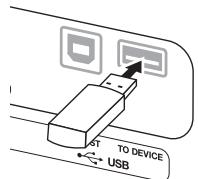
NOTICE
- Avoid connecting or disconnecting the USB device during playback/recording, file management (such as Save and Copy operations) or when accessing the USB device. Failure to do so may result in "freezing" of the operation of the instrument or corruption of the USB device and the data.
- When connecting then disconnecting the USB device (and vice versa), make sure to wait a few seconds between the two operations.
NOTE
When connecting a USB cable, make sure that the length is less than 3 meters.
Using USB Flash Memory
By connecting the instrument to a USB flash memory, you can save data you've created to the connected USB flash memory, as well as read data from the connected USB flash memory.
Number of USB flash memories that can be used
Only one USB flash memory device can be connected to the [USB TO DEVICE] terminal.
- Formatting USB flash memory
When a USB flash memory is connected, a message may appear prompting you to format the device. If so, execute the Format operation by the computer.
NOTICE
The Format operation deletes any previously existing data. Make sure that the USB flash memory you are formatting does not contain important data.
To protect your data (write-protect)
To prevent important data from being inadvertently erased, apply the write-protect provided with each USB flash memory. If you are saving data to the USB flash memory, make sure to disable write-protect.
Turning off the instrument
When turning off the instrument, make sure that the instrument is NOT accessing the USB flash memory by playback/recording or file management (such as during Save and Copy operations). Failure to do so may corrupt the USB flash memory and the data.
Song file management in a USB flash memory
Songs recorded in this instrument are called "User Songs" while Songs created outside this instrument are called "External Songs." In a USB flash memory, User Songs are saved in the "USER FILES" folder. External Songs are saved outside the "USER FILES" folder. However, User Songs are regarded as External Songs if the folder name is changed or the files are moved to outside the "USER FILES" folder by using a computer. If you organize the Song files in a USB flash memory by using computer, make sure to save the External Song files to the first, second or third level folder. Songs saved in a folder lower than the third level cannot be selected or played with this instrument.
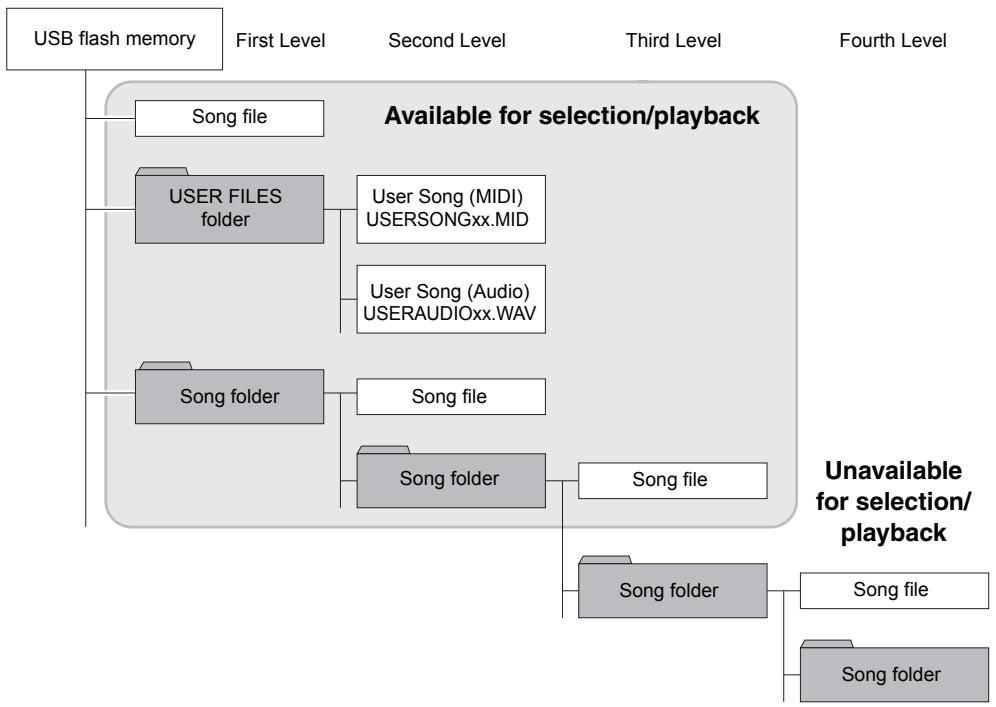
Character Code
If the song cannot be loaded, you may need to change the character code setting.
International
Files with western alphabetical names (including umlaut or diacritic marks) can be loaded; however, files with names in Japanese cannot be loaded. Turn the power on while holding the A-1 and A#-1 keys.
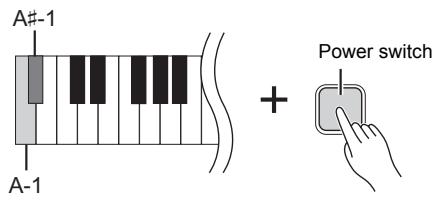
Japanese
Files with western alphabetical names and Japanese names can be loaded; however, file names including umlauts or diacritic marks cannot be loaded. Turn the power on while holding the A-1 and B-1 keys.
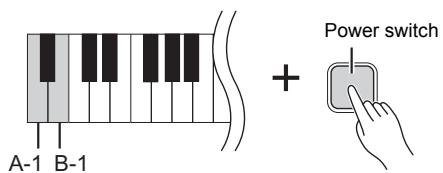
NOTE
For details on playing back Songs in USB Flash memory, refer to "Playing Back Songs (BGM)" (page 23).
NOTE
Use a computer to delete Songs in a USB flash memory.
NOTE
Up to 400 External Song files can be played on this instrument.
Default setting:
International
Copying a User Song in the Instrument to a USB Flash Memory
You can copy the User Song (MIDI) in the instrument (page 26) to a USB flash memory.
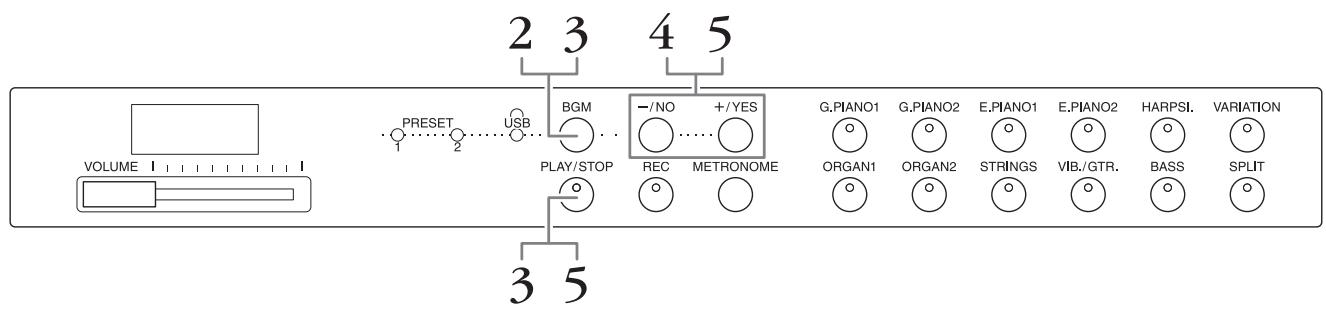
- Connect a USB flash memory to the [USB TO DEVICE] terminal.
- Press [BGM], repeatedly if necessary, to make sure the [PRESET 1]/[PRESET 2]/[USB] lamps are turned off.
- While holding down [BGM], press [PLAY/STOP]. A "CPy" indication briefly appears in the display, followed by the User Song number.
- Select a Song number as destination after copying.
Press [/NO]/[+/YES] to select the Song number (U.00 - U.99). When you select a Song number containing data, three dots (like "U.X.X.") are shown in the display. To overwrite the selected Song, go to step 5. To avoid overwriting, select another Song number then go to step 5.
To cancel the Copy operation, press [REC].
- Copy the Song.
Press [PLAY/STOP] to start the Copy operation. If an empty Song has been selected in step 4, press [+ / YES] . If a Song containing data is selected in step 4, press [+ / YES] twice. When the Copy operation is completed, "End" will appear in the display.
To cancel the Copy operation, press [-/NO] in response to "n y" or "n -y."
The User Song is saved as SMF format to the "USER FILES" folder in the USB flash memory, and the file is automatically named as "USERSONGxx.MID" (xx: numerals).
NOTE
If the "E01" message appears on the display, please check the following.
- Connect a USB flash memory to the [USB TO DEVICE] terminal.
- Press [BGM] to turn off the [PRESET 1]/[PRESET 2]/[USB] lamps.
- Make sure that recorded data of a User Song (MIDI) actually exists.
NOTICE
Do not turn off the power of the instrument or disconnect the USB flash memory when dashes appear in the display in succession. Doing so may corrupt the data on either or both devices.
Converting a User Song in the Instrument to an Audio Song
You can convert a User Song (MIDI) in the instrument (page 26) to an Audio Song, and then save it in a USB flash memory.
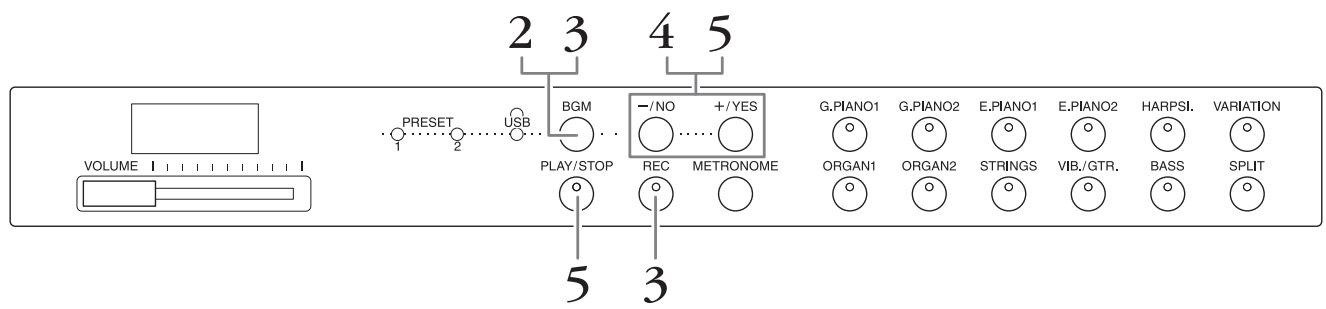
- Connect a USB flash memory to the [USB TO DEVICE] terminal.
- Press [BGM], repeatedly if necessary, to make sure the [PRESET 1]/[PRESET 2]/[USB] lamps are turned off.
- While holding down [BGM], press [REC].
An "AUd" indication briefly appears in the display, followed by the User Song number.
- Select a Song number as destination after conversion.
Press [-/NO]/[+/YES] to select the Song number (A.00 - A.99). When you select a Song number containing data, three dots (like "A.X.X.") are shown in the display. To overwrite the selected Song, go to step 5. To avoid overwriting, select another Song number then go to step 5.
To cancel the Conversion operation, press [REC].
- Execute conversion by playing back the User Song (MIDI).
Press [PLAY/STOP] to start the Conversion operation. If an empty Song has been selected in step 4, press [/YES]. If a Song containing data is selected in step 4, press [/YES] twice.
This operation starts playback and conversion from MIDI to audio. After starting playback (conversion), wait until playback ends. This is necessary because the MIDI Song is re-recorded in real time during playback to an audio Song. When the conversion is completed, "End" will appear in the display.
To cancel the Conversion operation, press [PLAY/STOP] or [REC]. "StP" will appear in the display.
The Audio Song is saved as WAV format to the "USER FILES" folder in the USB flash memory, and the file is automatically named as "USERAUDIOxx.WAV" (xx: numerals).
NOTICE
If you cancel audio conversion, data converted before cancelling is not saved. Keep in mind that existing data will be erased when you cancel overwriting.
NOTE
If the "E01" message appears on the display, please check the following.
- Connect a USB flash memory to the [USB TO DEVICE] terminal.
- Press [BGM] to turn off the [PRESET 1]/[PRESET 2]/[USB] lamps.
- Make sure that recorded data of a User Song (MIDI) actually exists.
NOTE
This operation allows you to record your keyboard performance and audio signals via the AUIX IN jack.
NOTICE
Do not turn off the power of the instrument or disconnect the USB flash memory when dashes appear in the display in succession. Doing so may corrupt the data on either or both devices.
Using an External Powered Speaker for Playback (AUX OUT [L/L+R] [R] Jacks)
These jacks let you connect this instrument to external powered speaker systems, for playing in larger venues at higher volume. The instrument's [VOLUME] setting will affect the sound that is output from the AUX OUT jacks.
![YAMAHA F02 - Using an External Powered Speaker for Playback (AUX OUT [L/L+R] [R] Jacks) - 1](/content/2025/01/115251/images/281996de68051d1bae0b63e5999bf7dbbee69a4adc23b90cb6f1255a2684e066.jpg)
NOTICE
When this instrument's AUX OUT jacks are connected to an external device, first turn on the power to the instrument, then to the external device. Reverse this order when you turn the power off. Otherwise, damage to the instrument and external device may occur.
NOTE
Use cables and plugs with no resistance.
NOTICE
When the AUX OUT jacks are connected to an external device, never connect the [AUX IN] jacks to the output jacks of the external device. Doing so could result in feedback (oscillation) that may damage both the devices.
NOTE
For a mono mixed output of the stereo signal, connect a cable to the [L / L + R] jack.
Playing External Equipment with this Instrument's Speakers (AUX IN [L/L+R] [R] Jacks)
The stereo outputs from another instrument can be connected to these jacks, allowing the sound of an external instrument to be reproduced via the this instrument's speakers.
![YAMAHA F02 - Playing External Equipment with this Instrument's Speakers (AUX IN [L/L+R] [R] Jacks) - 1](/content/2025/01/115251/images/6dd73ea7435f5e37860474c9691a0353439ac822b4d901d873c4c48379959969.jpg)
![YAMAHA F02 - Playing External Equipment with this Instrument's Speakers (AUX IN [L/L+R] [R] Jacks) - 2](/content/2025/01/115251/images/8b1df44fe8a5a94bedff26753e999502100919d58e6ebfc88bc3f8ef7b548213.jpg)
NOTE
Reverb is not applied to and does not affect the input signal from the AUX IN jacks.
NOTE
Use only the AUX IN [L / L + R] jack for connection with a mono device.
NOTICE
When this instrument's AUX IN jacks are connected to an external device, first turn on the power to the external device, then to the instrument. Reverse this order when you turn the power off. Otherwise, damage to the instrument and external device may occur.
Minimizing noise of the input sound via Noise Gate
By default, this instrument cuts unwanted noise from the input sound. However, this may result in wanted sounds also being cut, such as the soft decay sound of an acoustic guitar or piano. To avoid this, set the Noise Gate to off via the following operation.
Noise Gate on: While holding down [BGM], press the F6 key. (Refer to the Quick Operation Guide on page 49.)
Noise Gate off: While holding down [BGM], press the F#6 key. (Refer to the Quick Operation Guide on page 49.)
Default setting:
On
Connecting to a Computer ([USB TO HOST] Terminal)
By connecting a computer to the [USB TO HOST] terminal of this instrument by USB cable, you can transfer data between the instrument and the computer via MIDI, and take advantage of sophisticated computer music software. For details, refer to "Computer-related Operations" (downloadable from the Yamaha website).
![YAMAHA F02 - Connecting to a Computer ([USB TO HOST] Terminal) - 1](/content/2025/01/115251/images/593294635810ce1ded8d4bc5e726041865de7a26c274171bfddf5b53892d925a.jpg)
NOTICE
Use an AB type USB cable of less than 3 meters. USB 3.0 cables cannot be used.
Connecting External MIDI Devices (MIDI [IN] [OUT] Terminals)
By using the MIDI terminals and standard MIDI cables to connect external MIDI devices (keyboard, sequencer and computer, etc.), you can control a connected MIDI device from this instrument, or control this instrument from a connected MIDI device.
MIDI [IN] .......Receives MIDI messages from an external MIDI device.
MIDI [OUT] ....Transmits MIDI messages generated by this instrument to an external MIDI device.
![YAMAHA F02 - Connecting External MIDI Devices (MIDI [IN] [OUT] Terminals) - 1](/content/2025/01/115251/images/a9ff08d34d5e212d3ae0b60e802f34dac88a859c333bea7347b0dec503e17128.jpg)
NOTE
For a general overview of MIDI and how you can effectively use it, refer to "MIDI Basics" (downloadable from the Yamaha website)
NOTE
Since the MIDI data that can be transmitted or received varies depending on the type of MIDI device, check the "MIDI Implementation Chart" to find out what MIDI data and commands your devices can transmit or receive. Refer to the "MIDI Implementation Chart" in the MIDI Reference (downloadable from the Yamaha website).
NOTE
All MIDI settings described here will affect the MIDI signal in and out of the [USB TO HOST] terminal.
In any MIDI control setup, the MIDI channels (1 - 16 channels) of the transmitting and receiving equipment must be matched for proper data transfer.
To set the Transmit channel
While holding down [BGM], press one of the C2 - E3 keys. (Refer to the Quick Operation Guide on page 49.)
In Dual mode, Voice 1 data is transmitted on its specified channel. In Split mode, right Voice data is transmitted on its specified channel. In Dual mode, Voice 2 data is transmitted on the next greater channel number relative to the specified channel. In Split mode, left Voice data is transmitted on the next greater channel number relative to the specified channel. In either mode, no data is transmitted if the transmit channel is set to OFF.
To set the Receive Channel
While holding down [BGM], press one of the C4 - F5 keys. (Refer to the Quick Operation Guide on page 49.)
ALL
This allows simultaneous reception of different parts on all 16 MIDI channels, enabling this instrument to play multi-channel song data received from a sequencer or other external device.
1&2
This allows simultaneous reception on channels 1 and 2 only, enabling this instrument to play 1 and 2 channel song data received from a sequencer or other external device.
Local Control on/off
Normally, playing the keyboard will control the internal tone generator. This condition is enabled when Local Control is on. If you want to use the keyboard only for controlling an external MIDI instrument, turn off Local Control. With this setting, no sound of this instrument is produced, however the appropriate MIDI information is still transmitted via the MIDI OUT terminal when notes are played on the keyboard.
To turn Local Control on or off
While holding down [BGM], press the C6 key. (Refer to the Quick Operation Guide on page 49.) You can toggle Local Control on or off by pressing the C6 key.
Program Change on/off
Normally this instrument will respond to MIDI program change numbers received from an external keyboard or other MIDI device, causing the correspondingly numbered Voice to be selected on the corresponding channel (the keyboard Voice does not change). This instrument will normally also send a MIDI Program Change number whenever one of its Voices is selected, causing the correspondingly numbered Voice or program to be selected on the external MIDI device if the device is set up to receive and respond to MIDI Program Change numbers. This function makes it possible to cancel Program Change number reception and transmission so that Voices can be selected on the this instrument without affecting the external MIDI device.
To turn Program Change on or off
While holding down [BGM], press the C#6 key. (Refer to the Quick Operation Guide on page 49.) You can toggle Program Change on or off by pressing the C#6 key.
Setting range: 1-16, OFF (not transmitted)
Default setting:
1
NOTE
The data of Voice Demo songs or Piano preset songs (Classics & Jazz) is not transmitted via MIDI.
Setting range: ALL, 1&2 and 1-16
Default setting: ALL
NOTE
Program change and other like channel messages received will not affect the instrument's panel settings or the notes you play on the keyboard.
Setting range: On, Off
Default setting: On
Setting range: On, Off
Default setting: On
Control Change on/off
Normally this instrument will respond to MIDI Change data received from an external MIDI device or keyboard, causing the Voice on the corresponding channel to be affected by pedal and other "control" settings received from the controlling device (the keyboard Voice is not affected only when you select 1-16 channels on this instrument). This instrument also transmits MIDI Control Change information when the pedal or other appropriate controls are operated. This function makes it possible to cancel Control Change data reception and transmission so that, for example, this instrument's pedal and other controls can be operated without affecting an external MIDI device.
To turn Control Change on or off
While holding down [BGM], press the D6 key. (Refer to the Quick Operation Guide on page 49.) You can toggle Control Change on or off by pressing the D6 key.
NOTE
For information on Program Change numbers for each of the instrument's Voices, refer to the "MIDI Reference" (downloadable from the Yamaha website).
Setting range:
On, Off
Default setting:
On
Backup Data Maintained When Power is Turned Off
The following settings and data are maintained even if you turn the power off.
- Metronome Volume (page 16)
- Metronome Beat (page 16)
- Keyboard Touch Sensitivity (page 17)
Tuning (page 20) - Intelligent Acoustic Control Depth (page 14)
- Intelligent Acoustic Control On/Off (page 14)
-
User Song (MIDI) data (page 26)
-
Character code (page 29)
Audio SongPlaybackVolume (page25) - Half Pedal Point (page 15)
- String Resonance Depth (page 19)
AUX IN Noise Gate On/Off (page 33) - MIDI Song Playback Channel (page 25)
MIDI settings (pages 34, 35)
Saving the Backup Data to a USB Flash Memory
The Backup Data (listed above) can be saved to a USB flash memory as a single Backup file (extension: .bup). Also, the files saved in a USB flash memory can be loaded into this instrument.
Save
- Connect a USB flash memory.
- While holding down [REC], press [VARIATION].
The backup data (settings of this instrument and a User Song data in this instrument) are saved to a USB flash memory and the file is automatically named as "F02.bup."
If the USB flash memory contains a file with the same name as the one you are attempting to backup, the file will be overwritten.
Load
The backup data (the settings of the instrument and a User Song data in this instrument) saved to a USB flash memory is loaded into this instrument (restored to their original state). When the operation is complete, the instrument will be restarted automatically.
- Connect a USB flash memory.
- While holding down [REC], press [SPLIT].
NOTE
The "bUP" message appears on the display during saving the backup data.
NOTICE
During backup data saving/ loading, do not turn off the power. If you turn off the power during these operations, data will be lost.
NOTE
The "rSt" message appears on the display during loading the backup data.
NOTICE
Do not manually change the backup file name by using a computer; doing so will render the file unreadable.
Initializing the Settings
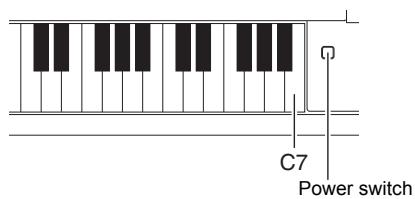
While holding the C7 key (right-most key on the keyboard), press the Power switch to turn the power on. This operation erases backup data in this instrument and restores the factory default settings. However, the User Song saved to this instrument is retained.
Message List
| Message | Meaning |
| CLr | Initializing the instrument to the default setting.NOTICEDo not turn off the power of the instrument when “CLr” appears in the display. Doing so may delete all Song data in the instrument, including external Songs (page 23). |
| con | Displayed when application software is started on a computer or other device connected to the instrument. When this message appears, you cannot operate the instrument. |
| E01 | Displayed when the character code (page 29) is not appropriate for the file name of the Song which you are selecting. Switch the character code. |
| Displayed when the data format is not compatible with this instrument, or the data has some other problems. This Song cannot be selected. | |
| Displayed when no USB flash memory can be found, or a problem has occurred in the USB flash memory.Disconnect and connect the device again, then execute the operation. If this message appears repeatedly even when there aren't any other likely problems, the USB flash memory may be damaged. | |
| Displayed when the backup data cannot be loaded. There is no backup data which can be loaded, or the data may be damaged. | |
| E02 | Indicates that the USB flash memory is protected. |
| E03 | Displayed when the memory of the USB flash memory becomes full, or the number of files and folders exceeds the system limit. |
| E04 | Displayed when conversion to audio, Audio Song playback or recording has failed. If you are using a USB flash memory to which data has already been stored or deleted a number of times, first make sure that the device does not contain important data, then format it by computer and connect to the instrument again. |
| EEE | A malfunction has occurred in the instrument. Contact your nearest Yamaha dealer or authorized distributor. |
| End | Displayed when the current operation is completed. |
| Enp | The memory of the instrument or the USB flash memory is running out. We recommend that you remove any unnecessary files (page 27) to ensure sufficient memory capacity. |
| FCL | Indicates that internal memory is being cleaned up. Panel settings and recorded Songs which have been stored to internal memory are being cleared, because the power has been turned off before the Save, Load or Convert operations were completed.NOTICEDo not turn off the power of the instrument when “FCL” appears in the display. |
| FUL | Since the memory of the instrument or the USB flash memory is insufficient, the operation could not be completed. If this message appears during recording, the performance data may not be recorded properly. |
| ny | Confirms whether each operation is executed or not. |
| ny | Reconfirms whether the overwriting or delete operation is executed or not. |
| Pro | Displayed when you try to write to a protected read-only file in the USB flash memory. Use a read-only file after cancelling the read-only setting. |
| StP | Displayed when conversion to audio operation has been cancelled. |
| UnF | Displayed when an unformatted USB flash memory is connected. First make sure that the device does not contain important data, then format it by computer. |
| Uoc | Communication with the USB flash memory has been shut down because of overcurrent to the USB flash memory. Disconnect the USB flash memory from the [USB TO DEVICE] terminal, then turn on the power of the instrument again. |
| UU1 | Communication with the USB flash memory has failed. Remove the USB flash memory and make the connection again. If the message appears even when the USB flash memory is connected properly, the USB flash memory may be damaged. |
| UU2 | This USB flash memory is not supported on this instrument, or too many USB flash memories may have been connected. Refer to “Handling a USB Flash Memory” (page 28) for information on the USB flash memory connection. |
To turn off the message, press [-/NO].
Troubleshooting
| Problem | Possible Cause and Solution |
| The instrument does not turn on. | The instrument has not been plugged in properly. Securely insert the female plug into the socket on the instrument, and the male plug into a proper AC outlet (page 13). |
| A click or pop is heard when the power is turned on or off. | This is normal when electrical current is being applied to the instrument. |
| Noise is heard from the speakers or headphones. | The noise may be due to interference caused by the use of a mobile phone in close proximity to this instrument. Turn off the mobile phone, or move it further away from this instrument |
| Noise is heard from the instrument's speakers or headphones when using the instrument with the application on iPhone/iPad. | When you use the instrument along with the application on your iPhone/iPad, we recommend that you set “Airplane Mode” to “ON” on your iPhone/iPad in order to avoid noise caused by communication. |
| The overall volume is low, or no sound is heard. | The volume is set too low. Set it to an appropriate level using the [VOLUME] slider (page 14). |
| Make sure a pair of headphones is not connected to the headphones jack (page 13). | |
| Make sure that Local Control is On (page 34). | |
| The damper pedal does not function as expected. | The damper pedal was pressed when the power was turned on. This is not a malfunction; release the pedal and press it again to reset the function. |
| Sound input to the AUX IN jacks is interrupted. | The output volume of the external device connected to this instrument is too low, resulting in the sound being cut off via the Noise Gate after it is input to this instrument. • Increase the output volume of the external device. The volume level reproduced via this instrument's speakers can be adjusted by using the [VOLUME] slider. • Set the Noise Gate to off (page 33). |
| The USB flash memory has hung up (stopped). | Refer to the Message List (page 37) in case a message is displayed. If this happens without any messages, the USB flash memory may be damaged. |
[PRESET 1] (Classic)
| Scene No. | Home Party | Morning | Upbeat | Elegant | Relaxing | Nighttime | Melancholy | Mood Music | Fantasy | Barque and Pre-romantic Music | Pre-romantic (Chopin) | Post-romantic | Modern French | |
| Song No. | Scene Title Song Name (Composer) | |||||||||||||
| 1 | Sonate, K.380, L.23 (D. Scarlatti) | 1 | 1 | |||||||||||
| 2 | Aria, Goldberg-Variationen, BWV.988 (J. S. Bach) | 1 | 1 | 2 | ||||||||||
| 3 | Sonate für Klavier Nr.5, K.283 (W. A. Mozart) | 2 | 1 | 3 | ||||||||||
| 4 | Sonate für Klavier Nr.12, K.332 (W. A. Mozart) | 1 | 3 | 2 | 4 | |||||||||
| 5 | Sonate für Klavier Nr.14 "Mondschein", op.27-2 (L. v. Beethoven) | 2 | 1 | 5 | ||||||||||
| 6 | Frühlingslied, op.62-6 (F. Mendelssohn) | 3 | 1 | 6 | ||||||||||
| 7 | Etude "Chanson de l'aireu", op.10-3 (F. F. Chopin) | 4 | 2 | 1 | 1 | |||||||||
| 8 | Etude "Aeolian Harp", op.25-1 (F. F. Chopin) | 5 | 3 | 2 | 2 | |||||||||
| 9 | Valse, op.64-2 (F. F. Chopin) | 3 | 3 | |||||||||||
| 10 | Valse, op.69-2 (F. F. Chopin) | 4 | 4 | |||||||||||
| 11 | Nocturne, op.9-1 (F. F. Chopin) | 5 | 3 | 5 | ||||||||||
| 12 | Nocturne, op.9-2 (F. F. Chopin) | 6 | 2 | 2 | 4 | 6 | ||||||||
| 13 | Träumerei, op.15-7 (R. Schumann) | 7 | 3 | 2 | 1 | 7 | ||||||||
| 14 | Consolation No.3 (F. Liszt) | 4 | 5 | 1 | ||||||||||
| 15 | Melody in F, op.3-1 (A. Rubinstein) | 8 | 3 | 2 | ||||||||||
| 16 | Humoresque, op.101-7 (A. Dvoák) | 9 | 4 | 2 | 3 | |||||||||
| 17 | Arietta, Lyriske småstykker I, op.12-1 (E. H. Grieg) | 10 | 5 | 3 | 3 | 4 | ||||||||
| 18 | Romance sans paroles, op.17-3 (G. Fauré) | 5 | 1 | |||||||||||
| 19 | Salut d'amour, op.12 (E. Elgar) | 11 | 4 | 4 | 6 | 5 | ||||||||
| 20 | To a wild rose, Woodland sketches, op.51-1 (E. A. MacDowell) | 6 | 4 | 4 | 6 | |||||||||
| 21 | Tango, España, op.165-2 (I. Albéniz) | 12 | 5 | 7 | 7 | |||||||||
| 22 | La fille aux cheveux de lin (C. A. Debussy) | 13 | 7 | 5 | 2 | |||||||||
| 23 | Arabesque 1 (C. A. Debussy) | 14 | 8 | 3 | ||||||||||
| 24 | Clair de lune (C. A. Debussy) | 15 | 8 | 4 | ||||||||||
| 25 | Réverie (C. A. Debussy) | 9 | 6 | 5 | ||||||||||
| 26 | Gymnopédie No.1 (E. Satie) | 10 | 7 | 6 | ||||||||||
| 27 | Je te veux (E. Satie) | 16 | 6 | 9 | 7 | |||||||||
| 28 | Pavane pour une infante défunte (M. Ravel) | 17 | 11 | 6 | 8 | |||||||||
| 29 | Menuet, Le tombeau de Couperin (M. Ravel) | 18 | 12 | 9 | ||||||||||
| 30 | A la manière de Borodine (M. Ravel) | 10 | 10 |
- The numbers below the Scene Title indicate the order of songs in each scene.
Some of the preset songs have been edited for length or arrangement, and may not be exactly the same as the original.
[PRESET 2] (Jazz)
| Scene No. | 1 | 2 | 3 | 4 | 5 | 6 | 7 | 8 | 9 | 10 | |
| Song No. | Scene Title Song Name (Composer) | Home Party | Daytime | Afternoon | Evening | Midnight | Elegant | Upbeat | Ballad | Innocent | Mood Music |
| 1 | Alfie (B. Bacharach) * | 1 | 1 | 1 | |||||||
| 2 | Besame Mucho (C. Velazquez) * | 1 | 1 | 1 | |||||||
| 3 | Bewitched (R. Rodgers) | 2 | 1 | 2 | 2 | ||||||
| 4 | Emily (J. Mandel) * | 2 | 1 | 3 | 1 | 2 | |||||
| 5 | Hey Jude (J. Lennon & P. McCartney) * | 3 | 2 | 3 | |||||||
| 6 | How Deep Is the Ocean (I. Berlin) * | 2 | 2 | ||||||||
| 7 | I Didn't Know What Time It Was (R. Rodgers) * | 3 | 3 | 3 | |||||||
| 8 | If I Should Lose You (L. Robin & R. Rainger) | 4 | 4 | ||||||||
| 9 | It Might As Well Be Spring (R. Rodgers) * | 4 | 4 | 4 | 5 | 3 | |||||
| 10 | It Never Entered My Mind (R. Rodgers) | 5 | 2 | 4 | |||||||
| 11 | Mona Lisa (J. Livingston & R. Evans) * | 5 | 5 | 6 | 1 | 3 | 5 | 4 | 3 | ||
| 12 | My Funny Valentine (R. Rodgers) * | 2 | 4 | ||||||||
| 13 | Never Let Me Go (J. Livingston & R. Evans) * | 3 | 6 | 5 | |||||||
| 14 | Norwegian Wood (J. Lennon & P. McCartney) * | 6 | 6 | 7 | 5 | ||||||
| 15 | On Green Dolphin Street (N. Washington & B. Kaper) * | 7 | 5 | 6 | |||||||
| 16 | Over the Rainbow (H. Arlen) * | 8 | 4 | 4 | 8 | 6 | |||||
| 17 | Smoke Gets in Your Eyes (J. Kern) * | 9 | 7 | 5 | 5 | 9 | |||||
| 18 | Stella by Starlight (V. Young) * | 10 | 6 | 8 | 6 | 7 | |||||
| 19 | The Nearness of You (H. Carmichael) * | 11 | 9 | 7 | 6 | 10 | 6 | ||||
| 20 | You Are Too Beautiful (R. Rodgers) | 7 | 10 | 7 | 7 |
- Performed by Shigeo Fukuda
- The numbers below the Scene Title indicate the order of songs in each scene.
Some of the preset songs have been edited for length or arrangement, and may not be exactly the same as the original.
Voice Demo Song List
| Voice Name | Title | Composer |
| G. PIANO 1 | Valse op.34-1 “Valse Brillante” | F. F. Chopin |
| HARPSI. | Concerto a cembalo obbligato, 2 violini, viola e continuo No.7, BWV.1058 | J. S. Bach |
| ORGAN 1 | Herr Christ, der einige Gottes-Sohn, BWV.601 | J. S. Bach |
The demonstration Songs listed above are short rearranged excerpts of the original compositions.
All other Songs are Yamaha originals (© 2013 Yamaha Corporation)
O:Yes
—: No
| Voice Name | Touch Response | Stereo Sampling | Key-Off Sampling | Sustain Sampling | String Resonance | Voice description |
| G.PIANO 1 | ○ | ○ | ○ | ○ | ○ | This sound was sampled from a concert grand piano. It uses different samples depending on the strength of your playing and produces smoother tonal changes. Even the tonal changes produced by the damper pedal and the subtle sounds of releasing a key are reproduced. The sympathetic vibration (string resonance) that occurs among the strings of an acoustic piano has also been simulated. Suitable not only for classical compositions but also for piano pieces of any style. |
| VARIATION | ○ | ○ | ○ | — | ○ | Mellow piano sound with gradual attack. Good for quiet and slow music. |
| G.PIANO 2 | ○ | ○ | — | — | — | Spacious and clear piano with bright reverb. Good for popular music. |
| VARIATION | ○ | ○ | ○ | ○ | ○ | Bright piano sound. Good for clear expression and cutting through the sound of other instruments in an ensemble. |
| E.PIANO 1 | ○ | — | — | — | — | An electronic piano sound created by FM synthesis. Extremely musical response with varying timbre according to keyboard dynamics. Good for standard popular music. |
| VARIATION | ○ | — | — | — | — | A synth-generated type electronic piano sound often heard in popular music. Used in the Dual mode it blends well with an acoustic piano Voice. |
| E.PIANO 2 | ○ | — | ○ | — | — | The sound of an electric piano using hammer-struck metallic tines. Soft tone when played lightly, and an aggressive tone when played hard. |
| VARIATION | ○ | — | — | — | — | A slightly different electric piano sound often heard in rock and popular music. |
| HARPSI. | — | ○ | ○ | — | — | The definitive instrument for baroque music. Since harpsichord uses plucked strings, there is no touch response. There is, however, a characteristic additional sound when the keys are released. |
| VARIATION | — | ○ | ○ | — | — | Mixes the same Voice an octave higher for a more brilliant tone. |
| ORGAN 1 | — | ○ | — | — | — | This is a typical pipe organ sound (8 feet + 4 feet + 2 feet). Good for sacred music from the Baroque period. |
| VARIATION | — | ○ | — | — | — | This is the organ's full coupler sound often associated with Bach's "Toccata and Fugue." |
| ORGAN 2 | — | — | — | — | — | The sound of a tonewheel type electric organ. Often heard in jazz and rock music. The rotary speed of the "ROTARY SP" effect can be switched by using the left pedal. |
| VARIATION | — | — | — | — | — | The sound of a tonewheel type electric organ without attacks. Select the normal or variation Voice depending on the tunes. The rotary speed of the "ROTARY SP" effect can be switched by using the left pedal. |
| STRINGS | ○ | ○ | — | — | — | Stereo-sampled, large-scale strings ensemble with realistic reverb. Try combining this Voice with piano in the Dual mode. |
| VARIATION | ○ | ○ | — | — | — | Spacious strings ensemble with a slow attack. Try combining this Voice with a piano or electric piano in the Dual mode. |
| VIB./GTR. | ○ | ○ | — | — | — | Vibraphone played with relatively soft mallets. The tone becomes more metallic the harder you play. |
| VARIATION | ○ | — | — | — | — | Warm and natural-sounding nylon guitar. Enjoy the quiet ambience of nylon strings. |
| BASS | ○ | — | — | — | — | An upright bass played fingerstyle. Ideal for jazz and Latin music. |
| VARIATION | ○ | — | — | — | — | Electric bass for a wide range of music styles, jazz, rock, popular, and more. |
Key-Off Sampling:
Samples of the very delicate noises that are produced when keys are released.
Sustain Sampling:
Samples of the resonance of the soundboard and strings when the damper pedal is pressed.
String Resonance:
Simulated string resonance sound.

CAUTION
- Assemble the stand on a hard and flat floor with ample space.
- Be careful not to confuse parts, and be sure to install all parts in the correct orientation. Please assemble the unit in accordance with the sequence given below.
Assembly should be carried out by at least two persons. - Be sure to use only the included screws of the specified sizes. Do not use any other screws. Use of incorrect screws can cause damage or malfunction of the product.
- Be sure to tighten all screws upon completing assembly of the unit.
- To disassemble the unit, reverse the assembly sequence given below.
Have a Phillips-head (+) screwdriver that will fit the screw size ready.

Remove all parts from the package and make sure you have all of the items. B, C, and D are in a separate packing carton.
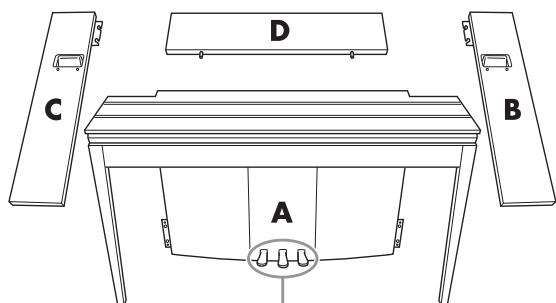
The pedals are covered with vinyl covers when shipped from the factory. For optimum use of the GP Responsive Damper Pedal, we recommend that you remove the cover from the damper pedal.
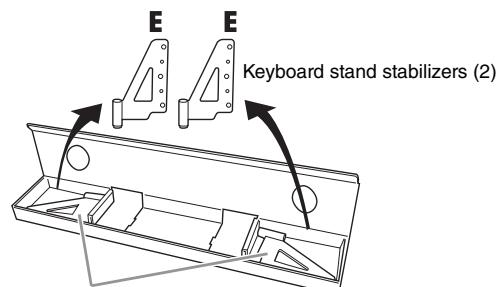
Included in the packing pads.
AC power cord
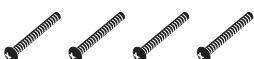
6× 45 mm long screws (4)
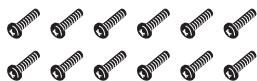
6× 14 mm short screws (12)
1. Insert part D.
Position part D so that the holes face away from the A. Then insert the projections on the panel into the holes on top of part A, as shown in the illustration.
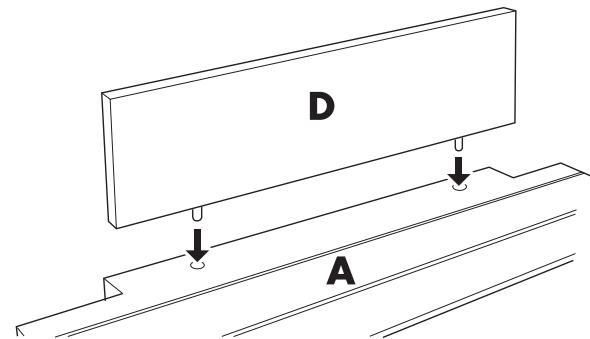
CAUTION
When part D is inserted in part A, do not apply pressure to part D from the front or rear. Doing so may break the projections extending from part D, allowing it to fall and be damaged.
2. Install parts B and C
1 Attach two short screws (6× 14 mm) to each edge of D using your fingers so that the screw threads project about 10mm from the surface. Make sure that the screws will not loosen and fall out of the holes.
2 Make sure that the screws you finger-tightened in step 1 have not loosened. Then position B's handhold toward the rear, and
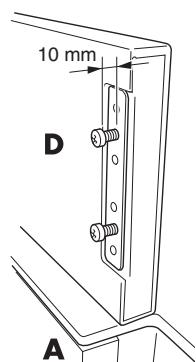
hook B's bracket onto the projecting screws as shown in the illustrations ②. When doing so, be careful that the bracket does not scratch D.
Align the holes located under the handhold on B with the holes on A, then tighten two long screws (6× 45mm) to secure B to A.
4 Lightly tighten two short screws (6× 14mm) into the bracket on the bottom of A to secure B to A.
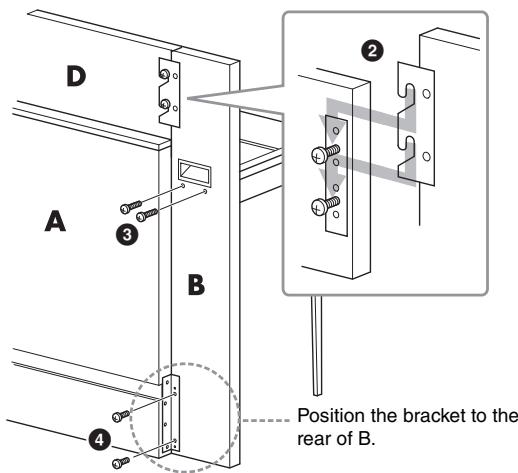
Follow the same steps to install part C.
3. Fasten B, C and D securely.
Tighten the screws securely in the order shown in the illustration. Be careful not to permit misaligned levels on the front surface, or a gap on the top surface of B, C and D.
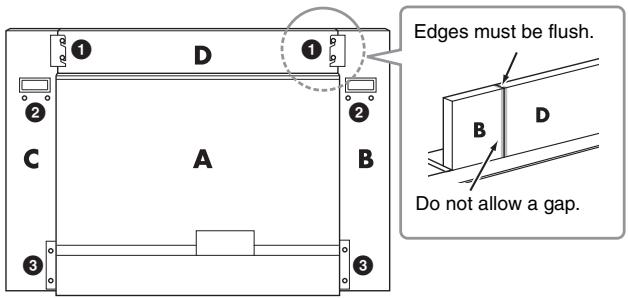
4. Attach part E.
Align the second and fourth holes on E with the bracket holes on the bottom of A, then secure the bracket using two short screws (6× 14mm)
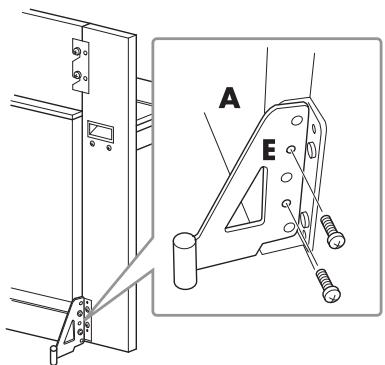
5. Connect the AC power cord.
Insert the AC power cord plug into the AC IN connector on the rear of A.
For models that feature a voltage selector:
Set the voltage selector to an appropriate voltage.
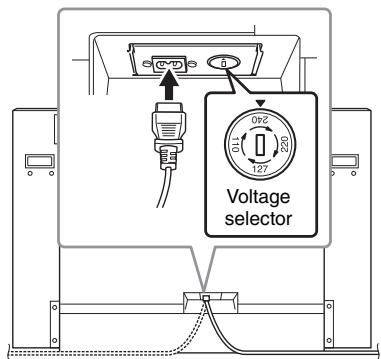
Voltage Selector
Before connecting the AC power cord, check the setting of the voltage selector which is provided in some areas. To set the selector for 110V, 127V, 220V or 240V main voltages, use a "minus" screwdriver to rotate the selector dial so that the correct voltage for your region appears next to the pointer on the panel. The voltage selector is set at 240V when the unit is initially shipped. After the proper voltage has been selected, connect the AC power cord to the AC IN and an AC wall outlet. A plug adaptor may be also provided in some areas to match the pin configuration of the AC wall outlets in your area.
WARNING
An improper voltage setting can cause serious damage to the instrument or result in improper operation.
After completing the assembly, please check the following.
- Are there any parts left over?
Review the assembly procedure and correct any errors. - Is the instrument clear of doors and other movable fixtures?
Move the instrument to an appropriate location. - Does the instrument make a rattling noise when you shake it?
Tighten all screws.
Be sure to install the fall-prevention brackets securely. - If the main unit creaks or is otherwise unsteady when you play on the keyboard, refer to the assembly diagrams and retighten all screws.
CAUTION
When you move the assembled instrument, be sure to grasp the handles and the bottom of the keyboard. Do not hold the key cover. Improper handling can result in damage to the instrument or personal injury.
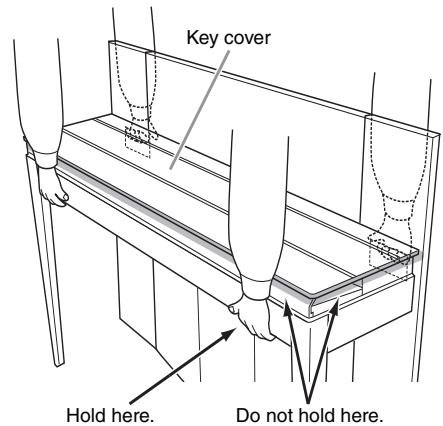
CAUTION
If the main unit creaks or is otherwise unsteady when you play on the keyboard, refer to the assembly diagrams and retighten all screws.
| Size/Weight | Dimensions (W x D x H) | 1427mm x 400mm x 995mm [56-3/16" x 15-3/4" x 39-3/16"] | |
| Dimensions with keyboard stand stabilizers (W x D x H) | 1427mm x 480mm x 995mm (56-3/16" x 18-15/16" x 39-3/16") | ||
| Weight | 78kg (171lbs., 15oz) | ||
| Control Interface | Keyboard | Number of Keys | 88 |
| Keyboard Type | NW (Natural Wood) with synthetic ivory keytops (with real-wood white keys) | ||
| 88-key Linear Graded Hammers | Yes | ||
| Touch Sensitivity | Hard/Medium/Soft/Fixed | ||
| Pedal | Number of Pedals | 3 | |
| Half Pedal | Yes (Damper) | ||
| GP Responsive Damper Pedal | Yes | ||
| Functions | Damper, Sostenuto, Soft | ||
| Cabinet | Key Cover Style | Folding | |
| Music Rest | Yes | ||
| Voices/Tone Generation | Tone Generation | Piano Sound | Real Grand Expression (RGE) |
| Piano Tone Generation Effects | Sustain Samples | Yes | |
| Key-off Samples | Yes | ||
| String Resonance | Yes | ||
| Smooth Release | Yes | ||
| Damper Resonance | Yes | ||
| Polyphony | Number of Polyphony (Max.) | 256 | |
| Preset | Number of Voices | 10x2 variations | |
| Effects | Type | Reverb | 4 |
| Songs (MIDI) | Preset | Number of Preset Songs | 50 Piano Preset Songs (Classic & Jazz), 10 Voice Demo Songs |
| Recording | Number of Song | 1 | |
| Number of Tracks | 1 | ||
| Data Capacity (max.) | approx. 400 KB/Song | ||
| Data Format | Recording | SMF (Format 0) | |
| Playback | SMF (Format 0 & 1) | ||
| Songs (Audio) | Length of Playback (max.) | 80 minutes/Song | |
| Data Format | .wav (44.1 kHz sample rate, 16-bit resolution, stereo) | ||
| Functions | Dual | Yes | |
| Split | Yes | ||
| Metronome | Yes | ||
| Tempo Range | 5 - 500 | ||
| Transpose | -6 to 0, 0 to +6 | ||
| Tuning | 414.8 - 440 - 466.8 Hz | ||
| Intelligent Acoustic Control | Yes | ||
| Storage | External Device | USB Flash Memory (optional) | |
| Connectivity | Headphones | ×2 | |
| MIDI | [IN][OUT] | ||
| AUX IN | [L/L+R][R] | ||
| AUX OUT | [L/L+R][R] | ||
| USB TO DEVICE | Yes | ||
| USB TO HOST | Yes | ||
| Sound System | Amplifiers | 45W × 2 | |
| Speakers | 16cm × 2, 5cm × 2 | ||
| Acoustic Optimizer | Yes | ||
| Accessories | Included Accessories | Owner's Manual, Bench, AC Power cord, Online Member Product Registration | |
| Optional Accessories (May not be available depending on your locale.) | • Stereo headphones (HPE-160) • MIDI Interface for iPhone/iPod touch/iPad (i-MX1) | ||
Specifications and descriptions in this Owner's Manual are for information purposes only. Yamaha Corp. reserves the right to change or modify products or specifications at any time without prior notice. Since specifications, equipment or options may not be the same in every locale, please check with your Yamaha dealer.
Index
Numerics
50 Piano Preset Songs (Classic & Jazz) List 39
A
Accessories 4
Assembly 42
Audio Song 23, 31
B
Back up 36
Beat 16
BGM 23
BGM OFF 23
C
Character Code 29
Computer 33
Computer-related Operations 4
Connections 32
Control Change 35
Convert 31
Copy 30
D
Damper Pedal Range 22
Damper Resonance 15
Delete (Recording data) 27
Display 10
Dual mode 21
E
External Song 23, 29
G
GP Responsive 15
H
Half-pedal 15
Headphones 13
1
Initialize 36
Intelligent Acoustic Control (IAC) 14
K
Key cover 12
L
Local Control 34
M
Maintenance 8
Message 37
Metronome 16
MIDI 33
MIDI Basics 4
MIDI receive channel 34
MIDI Reference 4
MIDI Song 23
MIDI transmit channel 34
Music rest 12
N
Noise Gate 33
0
Octave Shift (Dual) 21
Octave Shift (Split) 22
P
Pedals 15
Pitch 20
Power 13
Preset Song 23
Preset Voice List 41
Program Change 34
Q
Quick Operation Guide 49
R
Recording 26
Reverb 19
S
Scene 24
Song 23
SongPlaybackChannel 25
Specifications 44
Split mode 22
String Resonance 19
T
Tempo 16
Touch Sensitivity 17
Transpose 20
Troubleshooting 38
Tuning 8,20
U
USB flash memory 23, 25, 28
User Song 23, 26, 30, 31
V
[VARIATION] 18
Voice 18
Voice Demo 18
Voice Demo Song List 40
Volume 14
Volume (Audio Song) 25
Volume (Metronome) 16
- The followings are the titles, credits and copyright notices for seventeen (17) of the 50 Piano Preset Songs (Classic & Jazz) in this instrument:
- La liste suivante répertorie les titres, auteur et avis de droits d'auteur de dix-sept (17) morceaux parmi les 50 morceaux de piano préselectionnés (Classic & Jazz) sur l'instrument:
- A continuación se incluyen los títulos, fichas技术水平 y avisos de copyright de diecisiete (17) de las 50 melodías predefinidas para piano (clásica y jazz) de este instrumento:
- Nachfolgend die Titel, Credits und Hinweise zum Urheberrecht für siebzehn (17) der 50 Preset-Songs für Klavier (Klassik & Jazz) in thisem Instrument:
Alfie
Theme from the Paramount Picture ALFIE
Words by Hal David
Music by Burt Bacharach
Copyright © 1966 (Renewed 1994) by Famous Music LLC
International Copyright Secured All Rights Reserved
Bésame Mucho (Kiss Me Much)
Music and Spanish Words by Consuelo Velazquez
English Words by Sunny Skylar
Copyright © 1941, 1943 by Promotora Hispano Americana de Musica, S.A.
Copyrights Renewed
All Rights Administered by Peer International Corporation
International Copyright Secured All Rights Reserved
Bewitched
from PAL JOEY
Words by Lorenz Hart
Music by Richard Rodgers
Copyright © 1941 (Renewed) by Chappell & Co.
Rights for the Extended Renewal Term in the U.S. Controlled by
Williamson Music and WB Music Corp. o/b/o The Estate Of Lorenz Hart
International Copyright Secured All Rights Reserved
Hey Jude
Words and Music by John Lennon and Paul McCartney
Copyright © 1968 Sony/ATV Songs LLC
Copyright Renewed
All Rights Administered by Sony/ATV Music Publishing, 8 Music Square
West, Nashville, TN 37203
International Copyright Secured All Rights Reserved
How Deep Is The Ocean (How High Is The Sky)
Words and Music by Irving Berlin
Copyright © 1932 by Irving Berlin
Copyright Renewed
International Copyright Secured All Rights Reserved
I Didn't Know What Time It Was
from TOO MANY GIRLS
Words by Lorenz Hart
Music by Richard Rodgers
Copyright © 1939 (Renewed) by Chappell & Co.
Rights for the Extended Renewal Term in the U.S. Controlled by
Williamson Music and WB Music Corp. o/b/o The Estate Of Lorenz Hart
International Copyright Secured All Rights Reserved
If I Should Lose You
from the Paramount Picture ROSE OF THE RANCHO
Words and Music by Leo Robin and Ralph Rainger
Copyright © 1935 (Renewed 1962) by Famous Music LLC
International Copyright Secured All Rights Reserved
It Might As Well Be Spring
from STATE FAIR
Lyrics by Oscar Hammerstein II
Music by Richard Rodgers
Copyright © 1945 by WILLIAMSON MUSIC
Copyright Renewed
International Copyright Secured All Rights Reserved
It Never Entered My Mind
from HIGHER AND HIGHER
Words by Lorenz Hart
Music by Richard Rodgers
Copyright © 1940 (Renewed) by Chappell & Co.
Rights for the Extended Renewal Term in the U.S. Controlled by
Williamson Music and WB Music Corp. o/b/o The Estate Of Lorenz Hart
International Copyright Secured All Rights Reserved
Mona Lisa
from the Paramount Picture CAPTAIN CAREY, U.S.A.
Words and Music by Jay Livingston and Ray Evans
Copyright © 1949 (Renewed 1976) by Famous Music LLC
International Copyright Secured All Rights Reserved
My Funny Valentine
from BABES IN ARMS
Words by Lorenz Hart
Music by Richard Rodgers
Copyright © 1937 (Renewed) by Chappell & Co.
Rights for the Extended Renewal Term in the U.S. Controlled by
Williamson Music and WB Music Corp. o/b/o The Estate Of Lorenz Hart
International Copyright Secured All Rights Reserved
The Nearness Of You
from the Paramount Picture ROMANCE IN THE DARK
Words by Ned Washington
Music by Hoagy Carmichael
Copyright © 1937, 1940 (Renewed 1964, 1967) by Famous Music LLC
International Copyright Secured All Rights Reserved
Never Let Me Go
from the Paramount Picture THE SCARLET HOUR
Words and Music by Jay Livingston and Ray Evans
Copyright © 1956 (Renewed 1984) by Famous Music LLC
International Copyright Secured All Rights Reserved
Norwegian Wood (This Bird Has Flown)
Words and Music by John Lennon and Paul McCartney
Copyright © 1965 Sony/ATV Songs LLC
Copyright Renewed
All Rights Administered by Sony/ATV Music Publishing, 8 Music Square
West, Nashville, TN 37203
International Copyright Secured All Rights Reserved
Smoke Gets In Your Eyes
from ROBERTA
Words by Otto Harbach
Music by Jerome Kern
Copyright © 1933 UNIVERSAL - POLYGRAM INTERNATIONAL
PUBLISHING, INC.
Copyright Renewed
All Rights Reserved Used by Permission
Stella By Starlight
from the Paramount Picture THE UNINVITED
Words by Ned Washington
Music by Victor Young
Copyright © 1946 (Renewed 1973, 1974) by Famous Music LLC
International Copyright Secured All Rights Reserved
You Are Too Beautiful
from HALLELUJAH, I'M A BUM
Words by Lorenz Hart
Music by Richard Rodgers
Copyright © 1932 (Renewed) by Chappell & Co.
Rights for the Extended Renewal Term in the U.S. Controlled by
Williamson Music and WB Music Corp. o/b/o The Estate Of Lorenz Hart
International Copyright Secured All Rights Reserved
Composer's Name: Bronislaw Kaper 0372642
Owner's Name: EMI MUSIC PUBLISHING LTD
Composition Title: EMILY
Composer's Name: Johnny Mandel 0258202
Owner's Name: EMI MUSIC PUBLISHING LTD
Composition Title: OVER THE RAINBOW
Composer's Name: Harold Arlen 0286708
Owner's Name: EMI MUSIC PUBLISHING LTD
All Rights Reserved, Unauthorized copying, public performance and broadcasting are strictly prohibited.
Connecting the Plug and Cord
IMPORTANT. The wires in this mains lead are coloured in accordance with the following code:
BLUE : NEUTRAL
BROWN : LIVE
As the colours of the wires in the mains lead of this apparatus may not correspond with the coloured makings identifying the terminals in your plug proceed as follows:
The wire which is coloured BLUE must be connected to the terminal which is marked with the letter N or coloured BLACK.
The wire which is coloured BROWN must be connected to the terminal which is marked with the letter L or coloured RED.
Making sure that neither core is connected to the earth terminal of the three pin plug.
(2 wires)
While holding down the [BGM] /[METRONOME]/[VARIATION] button, press one of the highlighted keys shown below to set a parameter.
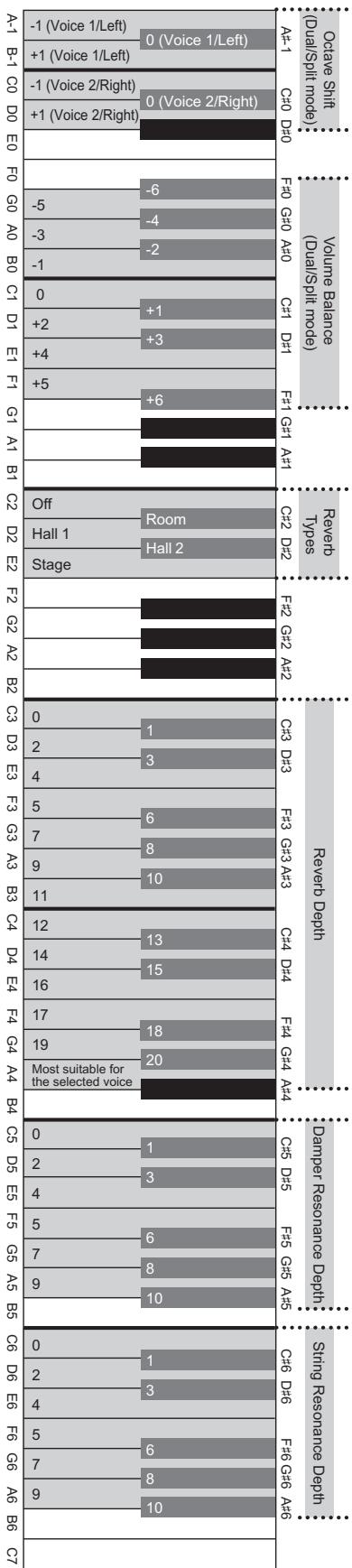
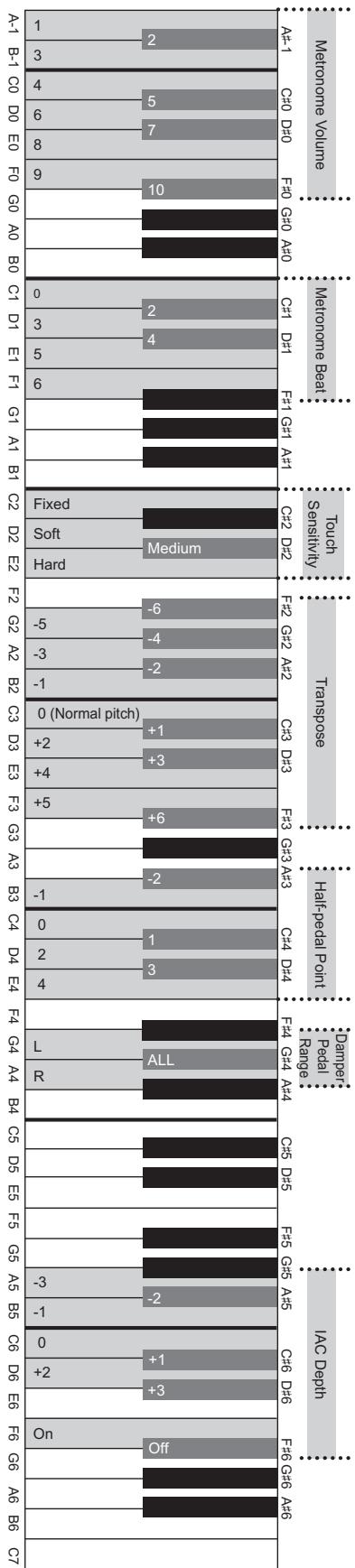
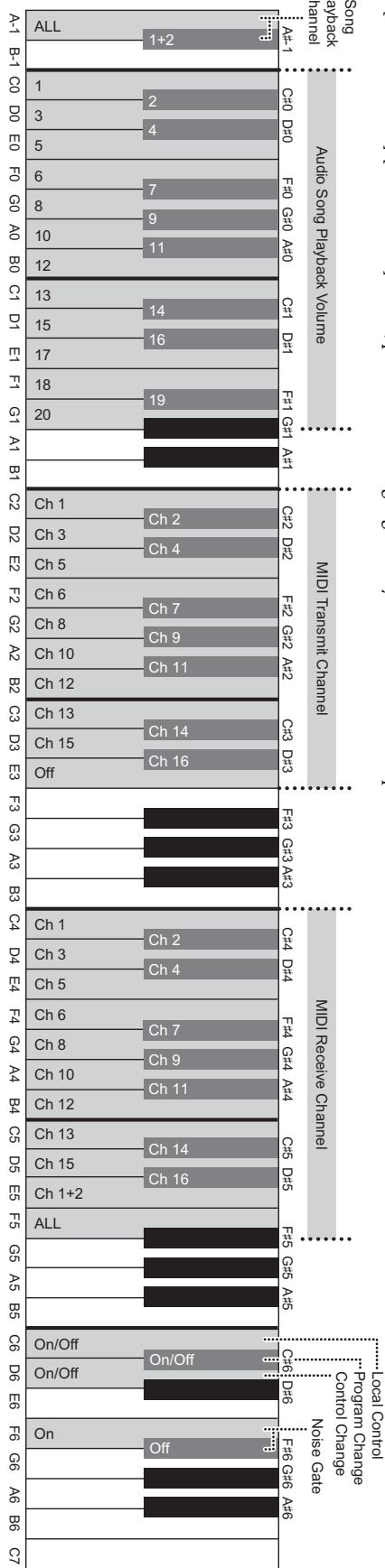
Important Notice: Guarantee Information for customers in European Economic Area (EEA) and Switzerland
For details of products, please contact your nearest Yamaha representative or the authorized distributor listed below.
Yamaha Canada Music Ltd.
135 Milner Avenue, Scarborough, Ontario,
M1S 3R1, Canada
Tel: 416-298-1311
U.S.A.
Yamaha Corporation of America
6600 Orangethorpe Ave., Buena Park, Calif. 90620,
U.S.A.
Tel: 714-522-9011
CENTRAL & SOUTH AMERICA
MEXICO
Yamaha de Mexico S.A. de C.V.
Col. San Jose Insurgentes, C.P. 03900,
Deleg. Benito Juarez, Mexico
Tel: 55-5804-0600
BRAZII
PANAMA AND OTHER LATIN
AMERICAN COUNTRIES/
CARIBBEAN COU
Yamaha Music Latin America, S.A.
Torre Banco General, Piso 7, Urbanizacion Marbella,
Sherbourne Drive, Tilbrook, Milton Keynes,
MK7 8BL, England
Tel: 01908-366700
GERMANY
Yamaha Music Europe GmbH
Siemensstraße 22-34, 25462 Rellingen, Germany
Tel: 04101-3030
Branch Switzerland in Zurich
Seefeldstrasse 94, 8008 Zurich, Switzerland
Tel: 044-387-8080
AUSTRIA
Yamaha Music Europe GmbH Branch Austria
Schleiergasse 20, A-1100 Wien, Austria
Tel: 01-60203900
CZECH REPUBLIC/HUNGARY/
ROMANIA/SLOVAKIA/SLOVENIA
Yamaha Music Europe GmbH
Branch Austria (Central Eastern Europe Office)
Schleiergasse 20, A-1100 Wien, Austria
Tel: 01-602039025
POLAND/LITHUANIA/LATVIA/ESTONIA
Yamaha Music Europe GmbH
Branch Poland Office
Yamaha Music Europe GmbH, Branch Italy
Viale Italia 88, 20020 Lainate (Milano), Italy
Tel: 02-935-771
SPAIN/PORTUGAL
Yamaha Music Europe GmbH Ibérica, Sucursal
en España
Ctra.de la Coruna km.17,200,28230
Las Rozas (Madrid), Spain
Tel: 91-639-8888
GREECE
Philippines Nakas S.A. The Music House
147 Skiathou Street, 112-55 Athens, Greece
Tel: 01-228 2160
SWEDEN
Yamaha Music Europe GmbH Germany filial
Scandinavia
J. A. Wettergrens Gata 1, Box 30053
S-400 43 Goteborg, Sweden
Tel: 031 89 34 00
DENMARK
Yamaha Music Europe GmbH, Tyskland - filial
Denmark
Generatorvej 6A, DK-2730 Herlev, Denmark
Tel: 44 92 49 00
FINLAND
F-Musiikki Oy
Kluuvikatu 6, P.O. Box 260,
SF-00101 Helsinki, Finland
Tel: 09 618511
NORWAY
Yamaha Music Europe GmbH Germany -
Norwegian Branch
Grini Næringspark 1, N-1345 Østerås, Norway
Tel: 67 16 77 70
ICELAND
Skifan HF
Skeifan 17 P.O. Box 8120, IS-128 Revkiavik, Iceland
Tel: 525 5000
RUSSIA
Yamaha Music (Russia)
Room 37, bld. 7, Kievskaya street, Moscow,
121059, Russia
Tel: 495 626 5005
OTHER EUROPEAN COUNTRIES
Yamaha Music Europe GmbH
Siemensstraße 22-34, 25462 Rellingen, Germany
Tel: +49-4101-3030
AFRICA
Yamaha Corporation,
Asia-Pacific Sales & Marketing Group
Nakazawa-cho 10-1, Naka-ku, Hamamatsu,
Japan 430-8650
Tel: +81-53-460-2313
MIDDLE EAST
TURKEY/CYPRUS
Yamaha Music Europe GmbH
Siemensstraße 22-34, 25462 Rellingen, Germany
Tel: 04101-3030
OTHER COUNTRIES
Yamaha Music Gulf FZE
LOB 16-513, P.O.Box 17328, Jubel Ali,
Dubai, United Arab Emirates
Tel: +971-4-881-5868
ASIA
THE PEOPLE'S REPUBLIC OF CHINA
Yamaha Music & Electronics (China) Co.,Ltd.
2F, Yunhedasha, 1818 Xinzha-lu, Jingan-qu,
Shanghai, China
Tel: 021-6247-2211
HONG KONG
Tom Lee Music Co., Ltd.
11/F., Silvercord Tower 1, 30 Canton Road,
Tsimshatsui, Kowloon, Hong Kong
Tel: 2737-7688
INDIA
Yamaha Music India Pvt. Ltd.
Spazedge building, Ground Floor, Tower A, Sector
47, Gurgaon- Sohna Road, Gurgaon, Haryana, India
Tel: 0124-485-3300
INDONESIA
PT. Yamaha Musik Indonesia (Distributor)
PT. Nusantik
Gedung Yamaha Music Center, Jalan Jend. Gatot
SubROTO Kav. 4, Jakarta 12930, Indonesia
Tel: 021-520-2577
KOREA
Yamaha Music Korea Ltd.
8F, 9F, Dongsung Bldg. 158-9 Samsung-Dong,
Kangnam-Gu, Seoul, Korea
Tel: 02-3467-3300
MALAYSIA
Yamaha Music (Malaysia) Sdn., Bhd.
Lot 8, Jalan Perbandaran, 47301 Kelana Jaya,
Petaling Jaya, Selangor, Malaysia
Tel: 03-78030900
PHILIPPINES
Yupangco Music Corporation
339 Gil J. Puyat Avenue, P.O. Box 885 MCPO,
Makati, Metro Manila, Philippines
Tel: 819-7551
SINGAPORE
Yamaha Music (Asia) PRIVATE LIMITED
Blk 202 Hougang Street 21, #02-00,
Singapore 530202, Singapore
Tel: 6747-4374
TAIWAN
Yamaha KHS Music Co., Ltd.
3F, #6, Sec.2, Nan Jing E. Rd. Taipei.
Taiwan 104, R.O.C.
Tel: 02-2511-8688
THAILAND
Siam Music Yamaha Co., Ltd.
4, 6, 15 and 16th floor, Siam Motors Building,
891/1 Rama 1 Road, Wangmai,
Pathumwan, Bangkok 10330, Thailand
Tel: 02-215-2622
OTHER ASIAN COUNTRIES
Yamaha Corporation,
Asia-Pacific Sales & Marketing Group
Nakazawa-cho 10-1, Naka-ku, Hamamatsu,
Japan 430-8650
Tel: +81-53-460-2313
OCEANIA
AUSTRALIA
Yamaha Music Australia Pty. Ltd.
Level 1, 99 Queensbridge Street, Southbank,
Victoria 3006, Australia
Tel: 3-9693-5111
NEW ZEALAND
Music Works LTD
P.O.BOX 6246 Wellesley,Auckland 4680
New Zealand
Tel: 9-634-0099
COUNTRIES AND TRUST
TERRITORIES IN PACIFIC OCEAN
Yamaha Corporation,
Asia-Pacific Sales & Marketing Group
Nakazawa-cho 10-1, Naka-ku, Hamamatsu,
Japan 430-8650
Tel: +81-53-460-2313

YAMAHA
Yamaha Global Site
http://www.yamaha.com/
Yamaha Downloads
http://download.yamaha.com/
- Model No.
- Serial No.
- Information for Users on Collection and Disposal of Old Equipment
- [For business users in the European Union]
- [Information on Disposal in other Countries outside the European Union]
- About the Manuals
- Included Manuals
- Online Manuals (PDF)
- Included Accessories
- Contents
- PRECAUTIONS
- PLEASE READ CAREFULLY BEFORE PROCEEDING
- WARNING
- Power supply/Power cord
- Do not open
- Water warning
- Fire warning
- If you notice any abnormality
- Always follow the basic precautions listed below to avoid the possibility of physical injury to you or others, or damage to the instrument or other property. These precautions include, but are not limited to, the following:
- Assembly
- Location
- Connections
- Handling caution
- Using the bench (If included)
- ■ Handling
- Instrument / Bench Maintenance
- Saving data
- Information
- About copyrights
- ■ About functions/data bundled with the instrument
- About this manual
- Tuning
- Transporting
- Stylish and sophisticated digital piano
- Real Grand Expression (RGE) sound engine
- NW (Natural Wood) keyboard with synthetic ivory keytops and Linear Graded Hammer action
- Classic & Jazz Piano Preset Songs
- AudioPlayback fromUSBFlashMemory
- Display
- NOTICE
- Key Cover and Music Rest
- CAUTION
- To open the key cover:
- To close the key cover:
- Turning the Power On
- Connect the Power cord.
- Turn the power on.
- Power indicator
- Using Headphones
- Setting the Volume
- VOLUME:
- Intelligent Acoustic Control (IAC)
- To turn on IAC:
- To turn off IAC:
- To adjust IAC Depth:
- Default setting:
- Setting range:
- Using the Pedals
- Damper (Right) Pedal
- To set the Damper Resonance Depth
- Half-pedal function
- GP Responsive Damper Pedal
- To set the Half-pedal Point
- Sostenuto (Center) Pedal
- Soft (Left) Pedal
- NOTE
- Using the Metronome
- To adjust the Tempo
- To select a Beat
- To adjust the Volume
- Changing the Keyboard Touch Sensitivity
- Default setting
- Selecting a Voice
- [VARIATION]
- Listening to the Voice Demo Songs
- Enhancing the Sound with Reverb
- To select a Reverb Type:
- To adjust Reverb Depth:
- Reverb Depth range:
- String Resonance
- To set the String Resonance Depth
- Transposing the Pitch in Semitones
- To transpose the pitch down:
- To transpose the pitch up:
- To restore the normal pitch:
- Fine-tuning the Pitch
- To tune up (in about 0.2Hz steps):
- To tune down (in about 0.2Hz steps):
- To restore default pitch:
- Hz (Hertz):
- Layering Two Voices (Dual Mode)
- Call up the Dual mode.
- Voice 1/ Voice 2
- Voice numbering priority
- Shifting the Octave for each Voice (Octave Shift):
- Adjusting the Balance between two Voices:
- Exit from the Dual mode.
- [VARIATION] in Dual Mode
- [REVERB] in Dual Mode
- Default setting of Octave and Balance:
- Splitting the Keyboard Range and Playing Two Different Voices (Split Mode)
- Call up the Split mode.
- Select a Voice for the right hand.
- Select a Voice for the left hand.
- Damper Pedal Range
- Exit from the Split mode.
- Default setting of split-point
- [VARIATION] in Split Mode
- [REVERB] in Split Mode
- About MIDI Songs and Audio Songs
- Songs Compatible with this Instrument
- BGM OFF
- User Songs and External Songs
- - SMF (Standard MIDI File) Formats 0 and 1
- WAV format (.wav)
- Playing Back Songs
- Press [BGM] to select a Song.
- Select a Song.
- Scene
- Press [PLAY/STOP] to start playback.
- Press [PLAY/STOP] to stop playback.
- Playing Back Songs in USB Flash Memory
- Adjusting the volume (only for Audio Songs)
- MIDI SongPlayback Channel
- Play back only 1 and 2 (1&2)
- Play back all the channels (ALL)
- Recording
- Deleting Recorded Performance Data
- Handling a USB Flash Memory
- Precautions when using the [USB TO DEVICE] terminal
- Compatible USB devices
- Connecting a USB device
- Using USB Flash Memory
- Number of USB flash memories that can be used
- - Formatting USB flash memory
- To protect your data (write-protect)
- Turning off the instrument
- Song file management in a USB flash memory
- Character Code
- International
- Japanese
- Copying a User Song in the Instrument to a USB Flash Memory
- Converting a User Song in the Instrument to an Audio Song
- Using an External Powered Speaker for Playback (AUX OUT [L/L+R] [R] Jacks)
- Playing External Equipment with this Instrument's Speakers (AUX IN [L/L+R] [R] Jacks)
- Minimizing noise of the input sound via Noise Gate
- Connecting to a Computer ([USB TO HOST] Terminal)
- Connecting External MIDI Devices (MIDI [IN] [OUT] Terminals)
- To set the Transmit channel
- To set the Receive Channel
- ALL
- 1&2
- Local Control on/off
- To turn Local Control on or off
- Program Change on/off
- To turn Program Change on or off
- Control Change on/off
- To turn Control Change on or off
- Backup Data Maintained When Power is Turned Off
- Saving the Backup Data to a USB Flash Memory
- Save
- Load
- Initializing the Settings
- Message List
- Troubleshooting
- Key-Off Sampling:
- Sustain Sampling:
- String Resonance:
- Insert part D.
- Install parts B and C
- Fasten B, C and D securely.
- Attach part E.
- Connect the AC power cord.
- Voltage Selector
- Index
- Numerics
- A
- B
- C
- D
- E
- G
- H
- 1
- K
- L
- M
- N
- 0
- P
- Q
- R
- S
- T
- U
- V
- Alfie
- Bésame Mucho (Kiss Me Much)
- Bewitched
- Hey Jude
- How Deep Is The Ocean (How High Is The Sky)
- I Didn't Know What Time It Was
- If I Should Lose You
- It Might As Well Be Spring
- It Never Entered My Mind
- Mona Lisa
- My Funny Valentine
- The Nearness Of You
- Never Let Me Go
- Norwegian Wood (This Bird Has Flown)
- Smoke Gets In Your Eyes
- Stella By Starlight
- You Are Too Beautiful
- Connecting the Plug and Cord
- Important Notice: Guarantee Information for customers in European Economic Area (EEA) and Switzerland
- U.S.A.
- CENTRAL & SOUTH AMERICA
- MEXICO
- BRAZII
- PANAMA AND OTHER LATIN
- AMERICAN COUNTRIES/
- CARIBBEAN COU
- GERMANY
- AUSTRIA
- CZECH REPUBLIC/HUNGARY/
- ROMANIA/SLOVAKIA/SLOVENIA
- POLAND/LITHUANIA/LATVIA/ESTONIA
- SPAIN/PORTUGAL
- GREECE
- SWEDEN
- DENMARK
- FINLAND
- NORWAY
- ICELAND
- RUSSIA
- OTHER EUROPEAN COUNTRIES
- AFRICA
- MIDDLE EAST
- TURKEY/CYPRUS
- OTHER COUNTRIES
- ASIA
- THE PEOPLE'S REPUBLIC OF CHINA
- HONG KONG
- INDIA
- INDONESIA
- KOREA
- MALAYSIA
- PHILIPPINES
- SINGAPORE
- TAIWAN
- THAILAND
- OTHER ASIAN COUNTRIES
- OCEANIA
- AUSTRALIA
- NEW ZEALAND
- COUNTRIES AND TRUST
- TERRITORIES IN PACIFIC OCEAN
- YAMAHA
Brand : YAMAHA
Model : F02
Category : Digital piano