LIFE X89003 (MD 86332) - Loudspeaker MEDION - Free user manual and instructions
Find the device manual for free LIFE X89003 (MD 86332) MEDION in PDF.


| Type of Product | Graphics Tablet |
| Brand | Medion |
| Model | LIFE X89003 (MD 86332) |
| Active Surface (Height x Width) | 9 x 12 inches |
| Maximum Resolution | 3048 lpi / 120 lpmm |
| Sensitivity | 512 Steps |
| Connectivity | USB |
| Pen Battery Type | 1 x AAA (1.5 V) |
| Mouse Battery Type | 1 x AAA (1.5 V) |
| System Requirements | PC/AT compatible, Pentium 200 MHz or higher, 32 MB RAM, 10 MB free HDD, CD-ROM drive, USB port |
| Supported Operating Systems | Windows 98SE/ME/2000/XP |
| Included Items | Graphics tablet, pen, wireless mouse, 2 AAA batteries, installation CD, user manual |
| Pen Buttons | 2 programmable buttons |
| Mouse Buttons | 3 programmable buttons |
| Operating Temperature | 41°F - 104°F (5°C - 40°C) |
| Operating Humidity | 20% - 80% (non-condensing) |
| Certifications | CE, FCC, VCCI |
| Warranty | 1 year limited warranty |
| Languages | English user manual |
Frequently Asked Questions - LIFE X89003 (MD 86332) MEDION
User questions about LIFE X89003 (MD 86332) MEDION
0 question about this device. Answer the ones you know or ask your own.
Ask a new question about this device
Download the instructions for your Loudspeaker in PDF format for free! Find your manual LIFE X89003 (MD 86332) - MEDION and take your electronic device back in hand. On this page are published all the documents necessary for the use of your device. LIFE X89003 (MD 86332) by MEDION.
USER MANUAL LIFE X89003 (MD 86332) MEDION
© 2004 Medion®. All rights reserved.
Trademarks:
Microsoft, MS-DOS and Windows are either registered trademarks or trademarks of Microsoft Corporation in the United States and/or other countries.
Intel and Pentium are trademarks or registered trademarks of Intel Corporation or its subsidiaries in the United States and other countries.
Other trademarks are property of their respective owners.
Artwork is for illustrative purposes only. Actual product appearance may vary. Medion can not be held liable for misprints or typos.
CONTENTS
Safety and Maintenance ....3
Ergonomics.... 4
Inventory 4
Technical data 5
System requirements .... 5
Usage 5
Getting Started....6
Insert the Battery into the pen....6
Insert the battery into the cordless mouse....6
Used batteries - waste disposal 7
Graphics tablet diagram....7
Installation of the graphics tablet 8
Driver installation 9
Installation of the applications 10
Uninstalling applications 11
Configuring the Graphics tablet.... 11
Calibrating the drawing pen 11
Customer service ....12
What to do in the event of problems.... 12
Basic hints.... 12
Troubleshooting 12
Technical Support.... 13
Additional Support.... 13
Warranty 14
SAFETY AND MAINTENANCE
Keep these instructions with your graphics tablet at all times. The proper set up, use and care can help extend the life of your graphics tablet. In the event that you transfer ownership of this device, please provide these instructions to the new owner.
Whenever you edit your data, make backup copies on an external data medium (e.g., floppy disks, CD). We not liable for loss of data and consequential damages.
→ This product is designed to run on a PC/AT (IBM-compatible) computer with a free USB-port.
→ Follow the safety instructions for the computer to which you are connecting the device.
⇒ Never open up the component housings. This might lead to a short-circuit or even a fire.
→ Never allow children to use electronic devices unsupervised. Children may not always correctly identify potential hazards.
→ Arrange the connection set so that no one can tread on or trip-over it.
This device should only be repaired by an authorized service partner. Please contact customer service if you have any technical problems.
Only a qualified engineer should perform upgrades and repairs. If you do not have the necessary qualifications, go to an appropriate Service Engineer. Please contact customer care if you are experiencing technical problems with this device.
Keep the device away from moisture and avoid dust, heat and direct sunlight. Ensure an ambient temperature that is suitable for office equipment.
Allow a clearance of at least 20 inches from sources of high-frequency and magnetic interference (TV, mobile telephone, infrared devices, loudspeaker cabinets, etc), in order to avoid malfunctions and loss of data. The clearance between the transmitter and the charging/slave station should be greater than 20 inches.
Position and operate this device only on a stable, flat and vibration-free surface.
Before cleaning the devices, remove the cable connection from the computer. Clean the devices and other components with a damp cloth. Do not use any solvents, corrosive or gaseous detergents.
When connecting additional or other components the EMC (electromagnetic compatibility) directives must be adhered to. Do not operate the mouse when it is in the charger. The devices are not intended for use in a heavy industry environment.
ERGONOMICS
Medical studies have shown that certain physical ailments and injuries are linked to prolonged and repetitive movements in an unsuitable working environment and to bad working habits. Take frequent breaks when using a computer. If you experience pain, numbness or tingling in your arms, wrists, hands or fingers, consult a medical doctor.
Remove the power plug of your computer from the power outlet and contact customer care:
- if the connections are grazed or damaged;
- if liquid has entered the device housing;
- if a device does not operate correctly;
- if a device is dropped or the housing damaged.
INVENTORY
Please check that these contents are complete and notify us within 14 days of purchase if any item is missing. The product you have purchased contains:
Graphics tablet with USB cable set
Pen*
Wireless mouse*
2 batteries (AAA, 1.5 V)
Installation and application software
This user manual
* ONLY for use with the Graphics tablet.
TECHNICAL DATA
| Active surfaces | 9 x 12 in. (height x width) |
| Maximum resolution 3048 | lpi / 120 lpmm |
| Sensitivity 512 Steps | |
| Connection USB | |
| Environment temperature | 41°F - 104°F |
| Humidity | 20% - 80% (non-condensing) |
| Mouse operating battery Microcells LR03 AAA type, 1.5V | |
| Pen operating battery Microcells LR03 AAA Type, 1.5V | |
| Certification CE, FCC, VCCI | CI.II |
SYSTEM REQUIREMENTS
| Computer PC/AT compatible computer | |
| Processor performance | Pentium class 200MHz or higher |
| Operating system Windows | ® 98SE/ME/2000/XP |
| RAM 32 MB, 64 MB or more | recommended |
| Hard disk storage at least 10 MB of free storage | |
| Installation | CD-ROM Drive |
| Connection | USB |
USAGE
With this Graphics tablet, new forms of graphics data input are available to you. The familiar ergonomics of the touch-sensitive pen allow you to draw directly into your Graphics program. You will be able to increase the efficiency of the input of your designs. Digitally, the drawing produced with the Graphics tablet, as always, can be further processed by specific digital imaging application software. The drawing pen has two buttons available, which can be programmed with the desired functions. The included cordless mouse offers you three programmable buttons for optimal functionality and control.
GETTING STARTED
INSERT THE BATTERY INTO THE PEN

- Turn the rear end of the pen counterclockwise, as you would with a ballpoint pen, and remove the rear end.
- Put one of the included batteries into the pen, (see above illustration). Make sure that the end of the battery marked with "+" appears at the pen top and that end marked with "-" points to the end of the rear contact spring
- Replace the rear end of the pen again and turn it clockwise to tighten.
INSERT THE BATTERY INTO THE CORDLESS MOUSE

natural_image
Two simple electrical components with battery symbols, one open and one closed, both without any text or labels.- Turn the mouse over and remove the battery compartment cover by using the small plastic tab (see arrow). Press carefully backwards and remove upwards.
- Put one of the included batteries into the battery compartment of the mouse, (see above illustration). Make sure that the end of the battery marked with "+" appears on the right side and the end marked with "-" points to the rear contact spring.
- Replace the battery compartment cover. It should lock into place.
USED BATTERIES - WASTE DISPOSAL
Important note: Batteries are toxic and must be properly disposed of. Replace the empty batteries only with the same or an equivalent battery type.
GRAPHICS TABLET DIAGRAM


natural_image
3D geometric shape resembling a truncated cone or funnel with a labeled point (6), no text or symbols present.
| Functioning elements | |
| 1 | Operating display |
| 2 | Function buttons |
| 3 | Active surface |
| 4 | Pen buttons |
| 5 | Sensitive pen point |
| 6 | Buttons of the remote mouse |
| Graphics tablet connection cables | |
| 7 | USB Connection |
INSTALLATION OF THE GRAPHICS TABLET
The following installation instructions are applicable to the Microsoft® Windows® operating system versions 98SE/ME/2000/XP. The installation is basically the same with all of these operating systems. Here are some tips to complete the installation successfully.
- Have ready the Installation CD for the Graphics tablet.
- Also have ready the Installation CD of your computer's operating system in case you need it.
- If you use Windows ® 2000 or XP, login with administrator rights in order to successfully install the driver and software.

During the installation procedure important files can be changed or even deleted. To avoid problems with using older files after installation, make sure you back up your hard disk and important files.
Note: If your operating system is configured so that the installation procedure accepts only signed drivers and software (the default) this information screen will appear:

Although the software lacks the digital signature it still works properly. Click on "Tell me why this testing is important" to get detailed information.
Confirm by clicking on "Continue Anyway".
DRIVER INSTALLATION
-
Follow the guidelines in the chapter "Safety and Maintenance" (from page 2).
-
Place the PC, the Graphics tablet, the pen and the mouse on your work surface so that you can work comfortably and safely with them.
-
Switch on the computer and all the connected peripherals (monitor, printer, external modem etc.), and wait until the operating system has been fully started.
-
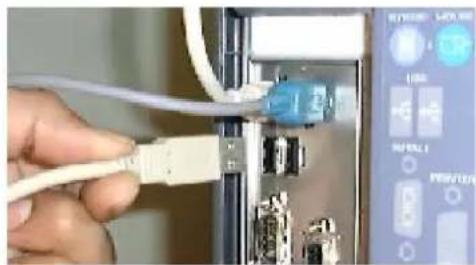
Locate a free USB port on your computer.
-
Connect the end of the USB cable (①) with a free USB port on your computer (②).
natural_image
Close-up of a hand inserting a white cable into a device panel with control buttons (no readable text)
-
The operating system should now recognise the Graphics tablet. The operating system may request that you insert its installation disc at this time.
-
After the operating system has recognized the USB device, insert the Graphics tablet Installation CD in order to start the software installation routine.
The green LED of the Graphics tablet (page 7, ①) shows the system is working correctly. If the mouse and/or the pen are near the Graphics tablet, the LED glows steadily. The LED blinks if the pen and/or mouse are not within reach. DO NOT use the mouse and the pen simultaneously.
Note: If the CD does not start automatically, it is likely that the CD Autorun function has been deactivated. Read the respective chapter in Windows Help on how to activate this function. What follows is an example of a manual installation without the CD Autorun function:
-
Click on Start and select the item Run... (Or hit + R to launch the corresponding dialog).
-
Now enter the letter of the CD-ROM drive followed by a colon and the program name setup:

-
Click on "OK".
-
Follow the instructions given by the setup program.
-
A window now appears with which you can start the driver's installation. Click on the USB Tablet Driver icon and follow the instructions on screen.
INSTALLATION OF THE APPLICATIONS
In order for you to be able to use your Graphics tablet optimally, we have enclosed application software.
-
If you have already installed the driver (see previous pages), you can now install the application software.
-
Select the required application from the program window of the CD. If the window is no longer visible, simply insert the CD again.
-
Follow the program's installation instructions.
-
After a successful installation, you can find the new programs in the Start menu under Programs. Restart the PC in order to fully complete the installation.
UNINSTALLING APPLICATIONS
In order to remove the installed software from your PC, follow the steps below:
- Click on

- Click on

- Finally, double click on the following icon:

Select the appropriate program from the list, start the uninstallation and follow the instructions on screen.
CONFIGURING THE GRAPHICS TABLET
Click on

Click on

Double click on the Pad 9570 icon in order to configure the Graphics tablet. You may need to click Switch to Classic View on the upper left portion of the screen in order to reveal the Pad 9570 icon.
This screen is where you can configure the individual buttons of the pen and mouse. You can also adjust the sensitivity of the Graphics tablet and choose a unit of measurement.
CALIBRATING THE DRAWING PEN
In order to improve the accuracy of your drawing pen, you should first make sure that it is properly calibrated with your Graphics tablet.
- Follow the instructions above to open the Graphics tablet configuration screen.
- Select the Control tab.
- Under Tracking Mode select Pen Absolute.
- Click once with the mouse in the grey box.
- Use the drawing pen to tap the top left corner of the Graphics tablet.
- Use the drawing pen to tap the bottom right corner of the Graphics tablet.
- Select OK.
WHAT TO DO IN THE EVENT OF PROBLEMS
BASIC HINTS
➢ Run the Windows® programs "Defrag" and "Scandisk" regularly to remove sources of error and increase system performance.
TROUBLESHOOTING
Start with a careful visual check of all cable links. If the indicator lights are not working, make sure that the power is reaching the computer and all attached peripherals.
Switch the computer off and check all cable connections. Once you have ascertained that the power supply is not at fault and all connections are intact, switch on the computer again.
➢ Check that the USB ports are active and correctly configured and that there are no resource conflicts with other devices. Please refer to your PC user manual on this point.
Have the batteries been inserted incorrectly or are they spent? Check the polarity (+/-) and exchange them for new ones if necessary.
➢ Follow the instructions on page 11 to calibrate your drawing pen and Graphics tablet.
TECHNICAL SUPPORT
This program has been extensively and successfully tested in our test laboratory with a number of different PC setups. It is nevertheless quite normal for the drivers to be updated from time to time. This means that problems of compatibility with other, as yet untested, components (programs, devices) may arise. Driver updates and the most up-to-date information on this product can be found at the following Internet address:

Internet: http://www.medion-usa.us
ADDITIONAL SUPPORT
Medion offers additional customer support information on our website, including a Knowledge Base and e-mail support. In addition, our friendly and professional call center staff are ready to help you via telephone. Before you call, however, please have the following information available:
- The model of your computer
- A list of all peripherals (e.g., printers, external mice) that are attached to the computer
- A list of the software that is installed on the computer
- The software that you were using when the issue occurred
- Any error messages that may have appeared
- Is the issue repeatable? Can you make it happen again?
- What troubleshooting steps have you taken before contacting customer support?
- If you have been given a customer number previously, please have this available.
This page is intentionally left blank.
WARRANTY
MEDION warrants to our customers that this product is free from defects in materials and workmanship as follows: for a period of one (1) year from the date of original purchase, defective parts or a defective product returned to a MEDION repair facility or a MEDION Authorized Service Facility ("ASF") for such product, as applicable, and proven to be defective upon inspection, will be exchanged for new or comparable rebuilt parts, or a refurbished product, as determined by the MEDION repair facility or the ASF.
Limited warranty repair or replacement shall not extend the original limited warranty period of the defective product. This limited warranty does not cover any supplies or accessories, including but not limited to: software, blank media, user-installed drives, etc.
EXCLUSIONS: this limited warranty does not apply, and you will have no remedy hereunder with respect to (a) products that have been modified, opened, repaired or otherwise altered, except by MEDION or an ASF, (b) products that have been damaged or destroyed after delivery to the customer, (c) any third party software, interfaces, parts, supplies, peripherals or other products or any defects resulting from use of the product in connection with such third party products, (d) defects resulting from improper or inadequate maintenance, calibration or site preparation, (e) defects resulting from any misuse, abuse, accident, neglect, negligence or any use other than in accordance with the handling or operating instructions provided by MEDION, (f) defects resulting from exposure to unusual physical or electrical stress or from any operation other than in accordance with the published environmental specifications for the product.
TO THE EXTENT ALLOWED UNDER APPLICABLE LAW, THE ABOVE WARRANTIES ARE EXCLUSIVE AND NO OTHER WARRANTY OR CONDITION, WHETHER WRITTEN OR ORAL, IS EXPRESSED OR IMPLIED AND MEDION SPECIFICALLY DISCLAIMS ANY IMPLIED WARRANTIES, INCLUDING ANY IMPLIED WARRANTY OF MERCHANTABILITY OR FITNESS FOR A PARTICULAR PURPOSE AND NO IMPLIED WARRANTY APPLIES TO THE PRODUCT AFTER THE APPLICABLE PERIOD OF THE EXPRESS LIMITED WARRANTY STATED ABOVE. Some countries, states or provinces do not allow exclusions or limitations on the duration of an implied warranty, so the above limitation or exclusion might not apply to you. This limited warranty gives you specific legal rights and you might also have other rights that vary from country to country, state to state, or province to province.
MEDION's limited warranty is valid in any country or locality where MEDION has a support presence for this product and where MEDION has marketed this product. The level of warranty service you receive may vary according to local standards. MEDION will not alter form, fit or function of the product to make it operate in a country for which it was never intended to function.
TO THE EXTENT ALLOWED UNDER APPLICABLE LAW, THE REMEDIES IN THIS LIMITED WARRANTY STATEMENT ARE YOUR SOLE AND EXCLUSIVE REMEDIES. EXCEPT AS INDICATED ABOVE, IN NO EVENT WILL MEDION OR ITS SUPPLIERS BE LIABLE FOR LOSS OF DATA OR FOR INDIRECT, SPECIAL, INCIDENTAL, CONSEQUENTIAL (INCLUDING LOST PROFIT OR DATA), OR OTHER DAMAGE, WHETHER BASED IN CONTRACT, TORT, OR OTHERWISE. IN NO EVENT SHALL RECOVERY OF ANY KIND AGAINST MEDION BE GREATER IN AMOUNT THAN THE
PURCHASE PRICE OF THE PRODUCT SOLD BY MEDION WHICH CAUSED THE ALLEGED DAMAGE. WITHOUT LIMITING THE FOREGOING, YOU ASSUME ALL RISK AND LIABILITY FOR LOSS, DAMAGE OR INJURY TO YOU AND YOUR PROPERTY AND TO OTHERS AND THEIR PROPERTY ARISING OUT OF USE OR MISUSE OF, OR INABILITY TO USE THE PRODUCT NOT CAUSED DIRECTLY BY THE NEGLIGENCE OF MEDION. Some countries, states or provinces do not allow the exclusion or limitation of incidental or consequential damages, so the above limitation or exclusion may not apply to you.
THE WARRANTY TERMS CONTAINED IN THIS STATEMENT, EXCEPT AS LAWFULLY PERMITTED, DO NOT EXCLUDE, RESTRICT OR MODIFY AND ARE IN ADDITION TO THE MANDATORY STATUTORY RIGHTS APPLICABLE TO THE SALE OF THIS PRODUCT TO YOU.
Please note the following:
Be sure to keep your purchase receipt in a safe place. MEDION, at its option, may require a copy of the receipt to validate the warranty period effective date (i.e. date of purchase). Warranty liability only applies to material or factory faults. It does not apply to damage due to breakage, for example, a crack in the housing. Our service includes unit exchange or send-in repair:
Unit Exchange
In locations where Unit Exchange is available, MEDION will send you a replacement unit. You must return the defective unit to MEDION (using the shipping carton that the new one came in.)
Send-In Repairs
In locations where Send-In Repair Service is available, repair service can be obtained by shipping your unit to the MEDION Repair Center. The unit will be repaired and returned to you.
For either Unit Exchange or Send-In Repairs, you must have an authorized RMA number from Medion support before shipping your defective product.
Replacement products may be either new or equivalent in performance to new. MEDION replacement or repaired products may contain remanufactured parts equivalent to new in performance or may have been subject to incidental use.
Out-of-Warranty Support
In addition to providing free technical support during the warranty period, MEDION is also available to support your product after the warranty period has ended. This out-of-warranty support will be provided on a fee basis.

- CONTENTS
- Safety and Maintenance ....3
- Getting Started....6
- Customer service ....12
- Warranty 14
- SAFETY AND MAINTENANCE
- ERGONOMICS
- INVENTORY
- USAGE
- GETTING STARTED
- INSERT THE BATTERY INTO THE PEN
- INSERT THE BATTERY INTO THE CORDLESS MOUSE
- USED BATTERIES - WASTE DISPOSAL
- INSTALLATION OF THE GRAPHICS TABLET
- DRIVER INSTALLATION
- INSTALLATION OF THE APPLICATIONS
- UNINSTALLING APPLICATIONS
- CONFIGURING THE GRAPHICS TABLET
- CALIBRATING THE DRAWING PEN
- WHAT TO DO IN THE EVENT OF PROBLEMS
- BASIC HINTS
- TROUBLESHOOTING
- TECHNICAL SUPPORT
- ADDITIONAL SUPPORT
- WARRANTY
Brand : MEDION
Model : LIFE X89003 (MD 86332)
Category : Loudspeaker