KE6940KIT01 - Switch ATEN - Free user manual and instructions
Find the device manual for free KE6940KIT01 ATEN in PDF.


User questions about KE6940KIT01 ATEN
0 question about this device. Answer the ones you know or ask your own.
Ask a new question about this device
Download the instructions for your Switch in PDF format for free! Find your manual KE6940KIT01 - ATEN and take your electronic device back in hand. On this page are published all the documents necessary for the use of your device. KE6940KIT01 by ATEN.
USER MANUAL KE6940KIT01 ATEN
natural_image
Exterior view of a black ATEN ATULSEN device with ports and control buttons (no readable text beyond branding)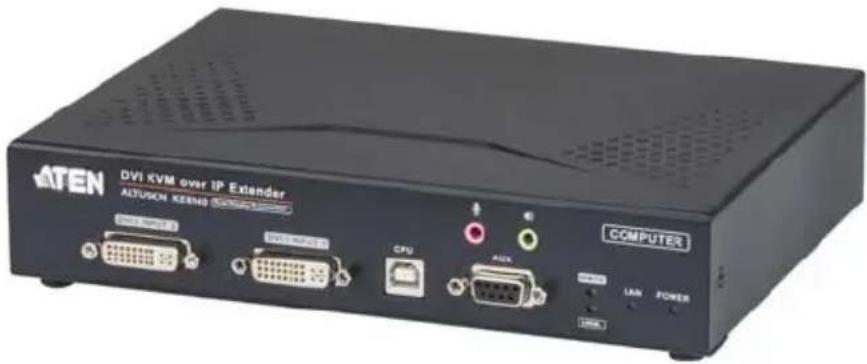
EMC Information
FEDERAL COMMUNICATIONS COMMISSION INTERFERENCE
STATEMENT: This equipment has been tested and found to comply with the limits for a Class A digital device, pursuant to Part 15 of the FCC Rules.
These limits are designed to provide reasonable protection against harmful interference when the equipment is operated in a commercial environment.
This equipment generates, uses, and can radiate radio frequency energy and, if not installed and used in accordance with the instruction manual, may cause harmful interference to radio communications. Operation of this equipment in a residential area is likely to cause harmful interference in which case the user will be required to correct the interference at his own expense.
The device complies with Part 15 of the FCC Rules. Operation is subject to the following two conditions: (1) this device may not cause harmful interference, and (2) this device must accept any interference received, including interference that may cause undesired operation.
FCC Caution: Any changes or modifications not expressly approved by the party responsible for compliance could void the user's authority to operate this equipment.
CE Warning: This is a class A product. In a domestic environment this product may cause radio interference in which case the user may be required to take adequate measures.
Suggestion: Shielded twisted pair (STP) cables must be used with the unit to ensure compliance with FCC & CE standards.
KCC Statement
This product is RoHS compliant.
SJ/T 11364-2006
The following contains information that relates to China.
Be sure to register your product at our online support center:
International http://eservice.aten.com
Telephone Support
For telephone support, call this number:
| International 886-2-86 | 92-6959 |
| China 86-10-5255-01 | 10 |
| Japan 81-3-5615-581 | 1 |
| Korea 82-2-467-6789 | |
| North America 1-888-999-ATEN ext 4988 | |
| United Kingdom 44-8-4481-58923 | |
User Notice
All information, documentation, and specifications contained in this manual are subject to change without prior notification by the manufacturer. The manufacturer makes no representations or warranties, either expressed or implied, with respect to the contents hereof and specifically disclaims any warranties as to merchantability or fitness for any particular purpose. Any of the manufacturer's software described in this manual is sold or licensed as is. Should the programs prove defective following their purchase, the buyer (and not the manufacturer, its distributor, or its dealer), assumes the entire cost of all necessary servicing, repair and any incidental or consequential damages resulting from any defect in the software.
The manufacturer of this system is not responsible for any radio and/or TV interference caused by unauthorized modifications to this device. It is the responsibility of the user to correct such interference.
The manufacturer is not responsible for any damage incurred in the operation of this system if the correct operational voltage setting was not selected prior to operation. PLEASE VERIFY THAT THE VOLTAGE SETTING IS CORRECT BEFORE USE.
Package Contents
Basic Package
The basic KE6900 / KE6940 package consists of:
1 KE6900T / KE6940T DVI KVM Over IP Extender
1 KE6900R / KE6940R DVI KVM Over IP Extender
2 Power Adapters
1 USB DVI-D KVM Cable (KE6900T/KE6940T only)
1 DVI-D Cable 2 m (KE6940T only)
1 Mounting Kits
1 User Instructions*
Check to make sure that all of the components are present and in good order. If anything is missing, or was damaged in shipping, contact your dealer.
Read this manual thoroughly and follow the installation and operation procedures carefully to prevent any damage to the KE6900 / KE6940 or to any other devices on the installation.
* Features may have been added to the KE6900 / KE6940 since this manual was published. Please visit our website to download the most up-to-date version.
Copyright © 2016 ATEN® International Co., Ltd.
Manual Date: 2016-06-01
Altusen and the Altusen logo are registered trademarks of ATEN International Co., Ltd. All rights reserved. All other brand names and trademarks are the registered property of their respective owners.
Contents
EMC Information....ii
SJ/T 11364-2006 .....iii
User Information .iv
Online Registration .....iv
Telephone Support .....iv
User Notice....iv
Package Contents v
Basic Package v
About This Manual ..... xii
Conventions....xiv
Product Information ....xiv
Chapter 1.
Introduction
Overview....1
Features 2
Requirements 3
Console....3
Computers. 3
Cables....3
Software 3
Operating Systems 4
Components 5
KE6900T (Transmitter) Front View 5
KE6900T (Transmitter) Rear View 6
KE6900R (Receiver) Front View. 7
KE6900R (Receiver) Rear View 8
KE6940T (Transmitter) Front View 9
KE6940T (Transmitter) Rear View 10
KE6940R (Receiver) Front View....11
KE6940R (Receiver) Rear View 12
Chapter 2.
Hardware Setup
Rack Mounting 13
Wall Mounting....15
Setting Up a Point-to-Point Installation....16
Point-to-Point Installation 1 of 2 .... 17
Point-to-Point Installation 2 of 2 .... 18
Setting Up a LAN Installation 19
Network Installation Diagram 1 of 2....21
Network Installation Diagram 2 of 2 .... 22
Network Configuration 23
Exit OSD 24
Default IP Addresses 24
KE6900 I/O Ports .....25
Chapter 3.
OSD Operation
Overview. 27
LED Display 27
Invoking the OSD 28
Microphone Hotkey 28
Touch Screen Calibration .....28
OSD Interface 29
User Station Configuration ....30
Network 30
Properties 31
System 33
Transmitter Configuration ....34
Network 34
Properties 35
System 38
User Preferences ....39
Connecting 40
Connections Page....41
List Mode 41
Array Mode 43
Profile / Video Wall Page. 44
Chapter 4.
Matrix Manager Software Installation
Overview....47
Download - Trial Version....47
Matrix Manager Install....49
Upgrading Trial Version ....52
Chapter 5.
Browser / Telnet Operation
Overview....53
Logging In....53
The Matrix Manager Main Page ....54
Web Components ....54
Tree View Considerations ....55
The Tab Bar ....56
Telnet....57
Configuration Menu....57
Main Menu....57
-
Network ....58
-
Properties .....58
-
System 59
Chapter 6.
Dashboard
Overview....61
Active Connections 62
Active Sessions....63
Online User Stations....64
Online Transmitters....65
Latest Events 66
Schedule 67
Chapter 7.
Device Management
Overview....69
User Stations 70
Adding a User Station....71
Configuring a User Station 72
Deleting a User Station....76
User Station Video Group. 77
Hardware Setup 77
Adding a User Station Video Group 78
Transmitters 80
Adding a Transmitter....81
Configuring a Transmitter 82
Deleting a Transmitter....86
Channel Connections 87
Channels. 88
Adding a Channel 89
Channel Groups 92
Adding a Channel Group. 92
Profiles 94
Adding a Profile. 95
Video Wall. 98
Video Wall Example 99
Adding a Video Wall 100
Chapter 8.
User Management
Overview....105
Users 106
Adding Users. 106
Modifying User Accounts 108
Deleting User Accounts....108
Groups 109
Creating Groups 109
Modifying Groups 110
Deleting Groups 110
Users and Groups. 111
Assigning Users to a Group From the User's Notebook .....111
Removing Users From a Group From the User's Notebook .....112
Assigning Users to a Group From the Group's Notebook. . . . . . . . 113
Removing Users From a Group From the Group's Notebook .....114
Device....115
Assigning Device Permissions From the User's Notebook .....115
Assigning Device Permissions From the Groups' Notebook. . . . . . .117
Profiles/Video Walls 118
Assigning Profile/Video Wall Permissions From the User's Notebook . . 118
Chapter 9.
System
Overview. 120
Global Settings 121
ANMS 124
Event Destination. 124
Authentication & Authorization. 126
Redundancy 129
Chapter 10.
Logs
Overview. 133
System Log. 134
Filter 136
Chapter 11.
Maintenance
Overview. 137
Firmware Upgrade 140
Firmware Upgrade Recovery ....141
Certificates 142
Private Certificate 142
Certificate Signing Request 143
Preferences. 145
Chapter 12.
Firmware Upgrade Utility
Preparation....147
Starting the Upgrade....148
Upgrade Succeeded....150
Firmware Upgrade Recovery 151
Chapter 13.
RS-232 Commands
Serial Control Protocol Commands 153
Configuring the Serial Port 153
Device/Profile Commands....153
Verification 153
Switch Port Command 154
Mute Command....158
Profile Command 160
EDID Command 162
Reset Command 164
RS-232 Command 165
OSD Command....168
List Command.... 169
Read Command 171
Set Command....175
Appendix
Safety Instructions 183
General 183
Rack Mounting 185
Technical Support. 186
International 186
North America....186
Specifications 187
Optional Rack Mounting 189
Dual Rack Mounting 189
Single Rack Mounting....192
IP Installer....194
Trusted Certificates....195
Overview....195
Self-Signed Private Certificates 196
Examples 196
Importing the Files....196
RS-232 Pin Assignments 197
Transmitter Front RS-232 Port 197
Multicast IP Address....198
KE Multicast Rule 198
Multicast IP Formula 198
If X is between 0 \~ 127 ..... 198
If X is between 128 \~ 192 ..... 199
If X is 192 or higher ..... 199
Keys to Network Performance 200
Build a Network Diagram....200
Other Factors....200
Choose a High Performance Switch .....202
Layer 2 or Layer 3 Switches .....202
Considerations 202
Number of ports....202
Stackable verse Standalone .....202
What Stackable Switches Can do:....203
Switch Specifications. 203
Configuring Switches and KE Devices .....204
KE transmitter Settings:....204
Limited Warranty. 205
About This Manual
This User Manual is provided to help you get the most from your KE6900 / KE6940 system. It covers all aspects of installation, configuration and operation. An overview of the information found in the manual is provided below.
Chapter 1, Introduction, introduces you to the KE6900 / KE6940 System. Its purpose, features and benefits are presented, and its front and back panel components are described.
Chapter 2, Hardware Setup, provides step-by-step instructions for setting up your installation, and explains some basic operation procedures.
Chapter 3, OSD Operation, explains the fundamental concepts involved in operating the KE6900 / KE6940 system, and provides a complete description of the On Screen Displays (OSDs) and how to work with them.
Chapter 4, Matrix Manager Software Installation, explains the administrative procedures that are required to download and install the Matrix Manager software.
Chapter 5, Browser / Telnet Operation, explains how to log in to the Matrix Manager with a web browser, and describes the features, functions, and how to work with the browser's interface.
Chapter 6, Dashboard, explains how to use the Matrix Manager's Dashboard tab to view connection, session, and device events.
Chapter 7, Device Management, explains how to add, configure, and organize the Transmitter and Receiver devices that will be managed over the network, as well as how to create Channels and Profiles for matrix connections.
Chapter 8, User Management, describes how to add, modify and delete user accounts; create user groups and assign users to them; specify access rights for users and groups; and specify user authentication.
Chapter 9, System, explains the Matrix Manager's global settings, and ANMS settings for LDAP/AD, RADIUS, and TACACS+ authentication and authorization.
Chapter 10, Logs, explains how to access, filter, and search the various logs that are kept by the Matrix Manager.
Chapter 11, Maintenance, explains how to use the Matrix Manager's Maintenance tab to backup, restore, upgrade firmware, install certificates, and set user preferences.
Chapter 12, Firmware Upgrade Utility, explains how to download and use the Firmware Upgrade Utility to install new firmware on the devices.
Chapter 13, RS-232 Commands, provides a complete list of the serial control protocol commands used when utilizing the RS-232 Serial Port so that an extra source device can be utilized in the installation.
An Appendix, at the end of the manual provides technical and troubleshooting information.
Conventions
This manual uses the following conventions:
Monospaced Indicates text that you should key in.
[] Indicates keys you should press. For example, [Enter] means to press the Enter key. If keys need to be chorded, they appear together in the same bracket with a plus sign between them: [Ctrl+Alt].
- Numbered lists represent procedures with sequential steps.
◆ Bullet lists provide information, but do not involve sequential steps.
→ Indicates selecting the option (on a menu or dialog box, for example), that comes next. For example, Start → Run means to open the Start menu, and then select Run.

Indicates critical information.
Product Information
For information about all ALTUSEN products and how they can help you connect without limits, visit ALTUSEN on the Web or contact an ALTUSEN Authorized Reseller. Visit ALTUSEN on the Web for a list of locations and telephone numbers:
| International http://www.aten.com |
| North America http://www.aten-usa.com |
Overview
The KE6900 / KE6940 DVI KVM Over IP Extender is an IP based matrix extender that allows access to a computer system from a remote USB KVM console anywhere over a LAN. The KE6900 series is a single view extender that supports one DVI display at each end. The KE6940 series is a dual view extender that supports two DVI displays at each end, allowing the video output to display across two monitors.
The KE6900 / KE6940 consists of a transmitter that connects to the computer and a receiver that provides console access from a separate location. The computer is accessed from the remote console via a standard TCP/IP network or direct Ethernet cable connection. This is perfect for any installation where you need to place the console where it is convenient, but you want the computer to reside in a secure location - away from the keyboard, mouse and display.
As a matrix extender it can connect one or more: computers-to-consoles in several ways: one-to-one (Extender mode), one-to-many (Splitter mode), many-to-one (Switch mode), or many-to-many (Matrix mode).
The KE6900 / KE6940 has a local On Screen Display (OSD) on the receiver to configure both units - for easy setup and operation. Using the transmitter and receiver over a standard TCP/IP network (optional) via Cat 5e/6 cable allows point-to-point, point-to-multipoint, and multipoint-to-multipoint administration without needing a KVM switch. Both the transmitter and receiver have RS-232 ports to connect to a serial terminal for configuration or serial devices such as touchscreens and barcode scanners.
The Matrix Manager® software provides advanced features for username and password authentication, auto-detection of devices on the same LAN segment, management of devices, and setup of Splitter, Switch, and Matrix modes. New security features also provide extra protection with remote login security, a username and password can be required when the receiver connects to the transmitter.
With the OSD, network access, RS-232 port, software administration, and Auto MDIX, the KE6900 / KE6940 is the most cost-effective and convenient way to get a full digital extension from anywhere on the LAN.
Features
- Remote KVM console access of computers over LAN or Ethernet cable connection
- Dual console operation – control your system from both the Transmitter and Receiver by USB keyboard, monitor, and mouse
- RS-232 serial portsallows you to connect to a serial terminal for configuration, and serial devices such as touchscreens and barcode scanners ^1
♦ Superior video quality – up to 1920 x 1200 @ 60 Hz; 24-bit color depth - Supports standard VGA resolutions from 640 x 480 to 1920 x 1200 at 60Hz
- OSD (On Screen Display) on the Receiver configures both units
◆ Supports Matrix Manager Web GUI administration ^2 - Matrix Manager Lite provides web GUI support for smaller installations ^3
◆ Remote login security
♦ DVI digital and analog monitor support
◆ Built-in ESD protection and surge protection
◆ Supports stereo speakers and microphone
◆ Auto-MDIX - automatically detects cable type
◆ Supports widescreen formats
◆ Supports High-Quality Video streaming
◆ Virtual Media Support
Hot pluggable - Rack Mountable
◆ Upgradeable firmware
Note: 1. RS-232 serial ports support Tx/Rx/CTS/RTS/DTR/DSR signals only.
-
The Matrix Manager web GUI can be updated from the CCKM page on our website: www.aten.com. To obtain a license for the full version of the software please contact your ATEN dealer.
-
The Matrix Manager Lite is a web GUI that supports up to 8 KE devices and can be downloaded for free after registering your product on the ATEN eService website (http://eservice.aten.com).
Requirements
Console
- (KE6900) One DVI compatible monitors capable of the highest possible resolution
- (KE6940) Two DVI compatible monitors capable of the highest possible resolution
A USB mouse
A USB keyboard
◆ Microphone and speakers
Computers
The following equipment must be installed on each computer that is to be connected to the system:
♦ (KE6900) One DVI port
♦ (KE6940) Two DVI ports
USB Type A port
◆ Audio ports
Cables
- For optimal signal integrity and to simplify the setup, we strongly recommend that you only use the high quality custom USB KVM Cable that is provided with this package.
Software
The minimum hardware and software requirements for the computer running the Matrix Manager software are:
◆ Processor: Intel or AMD processor 1 GHz or above
♦ RAM: 2GB or above
♦ HDD: 16GB or above
- Web browser
- Java Runtime Environment (JRE) 6 with update 11 or higher
♦ Operating System Requirements:
◆ Windows 2000, XP, Vista, 2003, 2008, 7 and 8.1
Linux (Ubuntu, CentOS, Fedora, SUSE)
Operating Systems
The KE69x0 supports the following operating systems which can display standard DVI/VGA signals:
| OS Version | ||
| Windows 2000 and higher | ||
| Linux RedHat | 6.0 and higher | |
| SUSE 8.2 and higher | ||
| Mandriva (Mandrake) 9.0 and higher | ||
| UNIX AIX 4.3 | and higher | |
| FreeBSD 3.51 and higher | ||
| Sun Solaris 8 and higher | ||
| Novell Netware | 5.0 and higher | |
| Mac OS 9 and higher | ||
Components
KE6900T (Transmitter) Front View
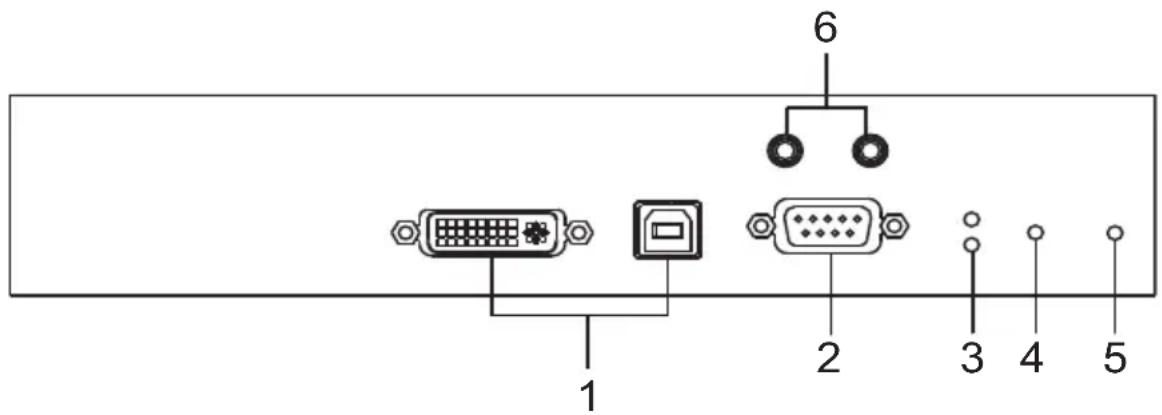
| No. | Component Description | |
| 1 | KVM Ports The USB KVM | cable supplied with the package that links the Transmitter to the computer plugs into these ports. |
| 2 | RS-232 Port This RS-232 | serial port is for connecting to the computer for serial control. |
| 3 | Remote / Local LED Lights | Green to indicate which side of the installation (Local or Remote) currently has KVM control of the computer. |
| 4 | LAN LED Lights to indicate | the network status:♦Lights green when connected to the LAN.♦Off when not connected to the LAN.♦Blinks green when the Ethernet connection is active |
| 5 | Power LED Lights blue to indicate the unit is turned on. | |
| 6 | Audio Ports These mini stereo ports are for the speakers (green) and microphone (pink). | |
KE6900T (Transmitter) Rear View
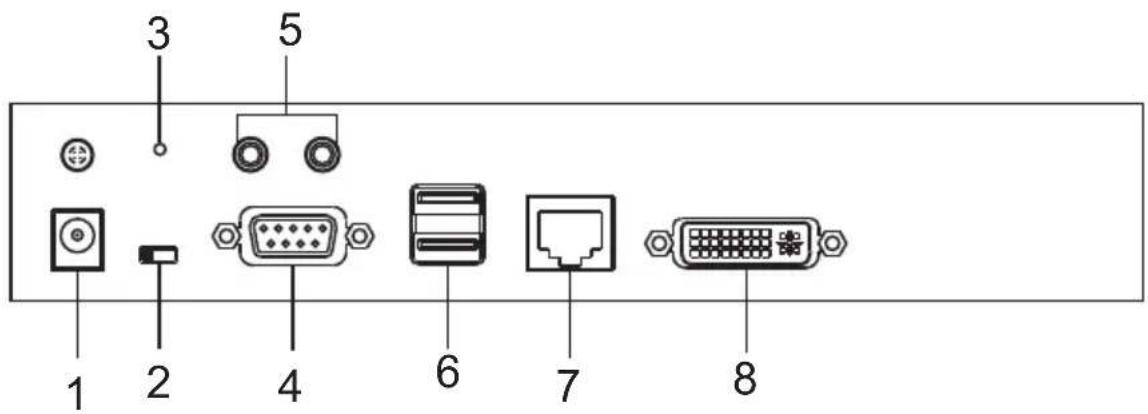
| No. | Component Description | |
| 1 | Power Jack The cable from the DC Power adapter connects here. | |
| 2 | Function Switch Use this slide switch to set the unit's mode to:Configure: The device is ready to configure.Local: Only the local Transmitter has KVM control of the computer. The Receiver's KVM access to the computer is locked.Auto: Shared (simultaneous) KVM control of the computer at the Transmitter and Receiver console. | |
| 3 | Reset This switch must be pushed with a thin object, such as the end of a paper clip.Press and release to reboot the device.Power off, hold reset then power on the device while pressing reset to recover from a firmware upgrade failure.Press and hold it in for more then three seconds resets the unit back to its factory default settings. | |
| 4 | RS-232 Port This RS-232 serial port is for connecting to a serial terminal. | |
| 5 | Audio Ports These mini stereo ports are for the speakers (green) and microphone (pink). | |
| 6 | Console Ports The unit's USB keyboard and USB mouse plug into these ports. | |
| 7 | LAN Port The cable that connects the unit to the LAN plugs in here. | |
| 8 | DVI-I Output The cable from the local DVI monitor plugs in here. | |
KE6900R (Receiver) Front View
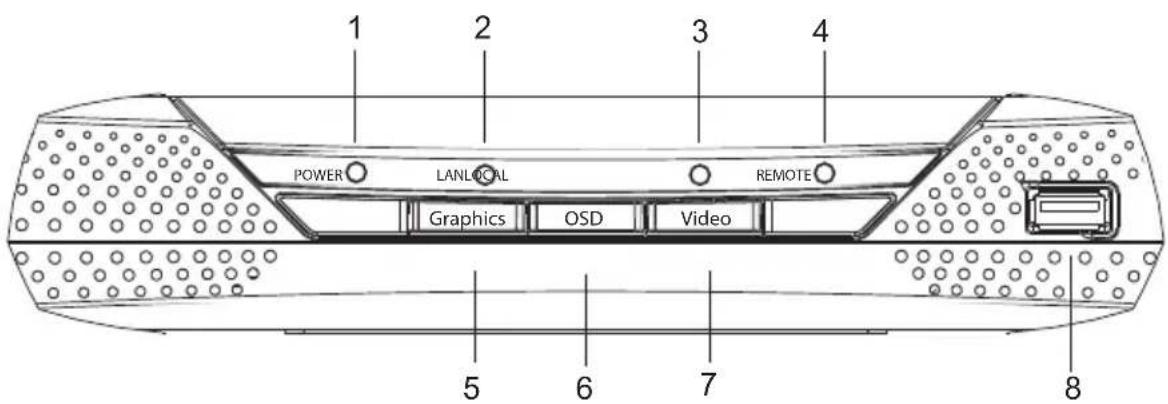
| No. | Component Description | |
| 1 | Power LED Lights blue to indicate the network status: | |
| 2 | LAN LED Lights to indicate Lights green when connected to the LAN.Off when not connected to the LAN.Blinks green when the Ethernet connection is active. | |
| 3 | Local LED Lights green to Indicate the Transmitter has KVM access of the computer. | |
| 4 | Remote LED Lights green to Indicate the Receiver has KVM access of the computer. | |
| 5 | Graphics Pushbutton Sets the displays image quality to the highest possible grade so that images are optimized. This toggle button turns off the Video Pushbutton option.Graphics mode is selected by default. | |
| 6 | OSD Pushbutton Use this pushbutton to open the OSD menu. | |
| 7 | Video Pushbutton Sets the displays image quality to a grade that is optimized for video playback. This toggle button turns off the Graphics Pushbutton option. | |
| 8 | USB Port Use this port for virtual media or a USB peripheral device.Note: When using a USB disk plugged into this port, see USB Mode, page 74. | |
KE6900R (Receiver) Rear View
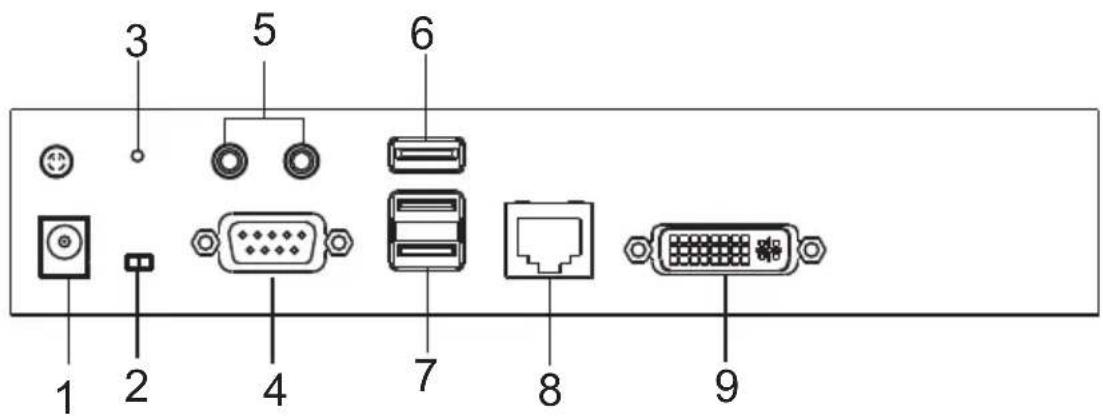
| No. | Component Description |
| 1 | Power Jack The cable from the DC Power adapter connects here. |
| 2 | Function Switch Use this slide switch to set the unit's mode:Extension: Sets the device to use the normal TX to RX extension mode.RS-232 Config: Sets the device so that you can configure it using a serial connection via the RS-232 port. |
| 3 | Reset This switch must be pushed with a thin object, such as the end of a paper clip.Press and release to reboot the device.Power off, hold reset then power on the device while pressing reset to recover from a firmware upgrade failure.Press and hold it in for more then three seconds resets the unit back to its factory default settings. |
| 4 | RS-232 Port This RS-232 serial port is for connecting to a serial terminal. |
| 5 | Audio Ports These mini stereo ports are for the local speakers (green) and microphone (pink). |
| 6 | USB Port Use this port for virtual media or a USB peripheral device.Note: When using a USB disk plugged into this port, see USB Mode, page 74. |
| 7 | Console Ports The unit's USB keyboard and USB mouse plug into these ports. When using a keyboard or mouse with special functions, see USB Mode, page 74 |
| 8 | LAN Port The cable that connects the unit to the LAN plugs in here. |
| 9 | DVI-I Output The cable from the local DVI monitor plugs in here. |
KE6940T (Transmitter) Front View
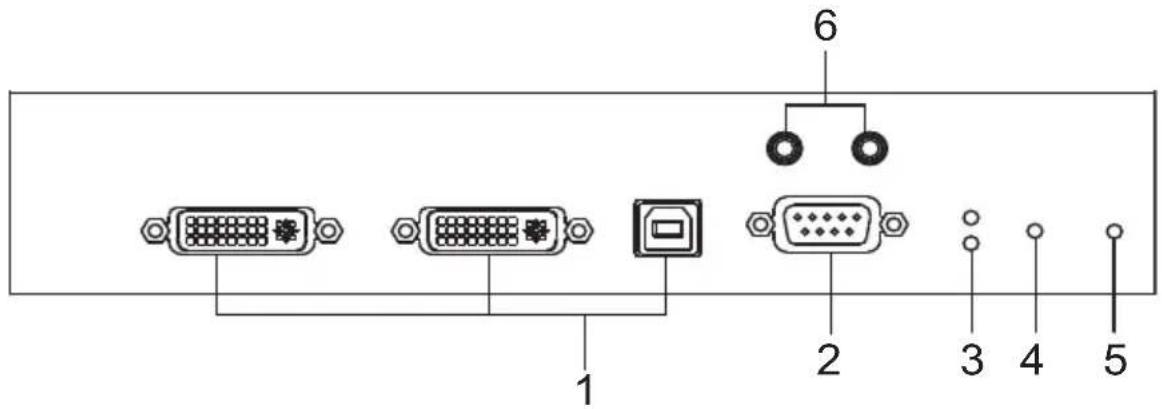
| No. | Component Description | |
| 1 | KVM Ports The USB KVM | cable supplied with the package that links the Transmitter to the computer plugs into these ports. |
| 2 | RS-232 Port This RS-232 | serial port is for connecting to the computer for serial control. |
| 3 | Remote / Local LED Lights | green to indicate which side of the installation (Local or Remote) has KVM control of the computer. |
| 4 | LAN LED Lights to indicate | the network status:♦Lights green when connected to the LAN.♦Off when not connected to the LAN.♦Blinks green when the Ethernet connection is active |
| 5 | Power LED Lights blue to | indicate the unit is turned on. |
| 6 | Audio Ports These mini ste | ereo ports are for the speakers (green) and microphone (pink). |
KE6940T (Transmitter) Rear View
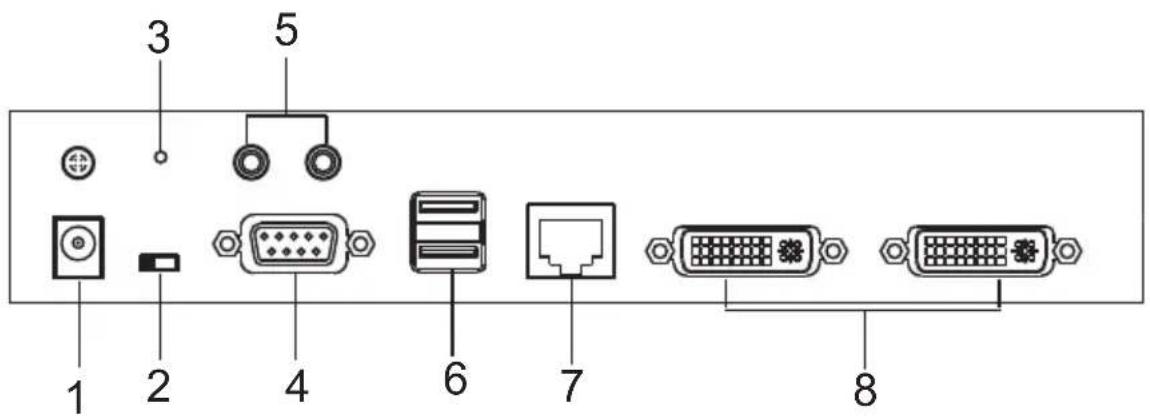
| No. | Component Description | |
| 1 | Power Jack The cable from the DC Power adapter connects here. | |
| 2 | Function Switch Use this slide switch to set the unit's mode to:Configure: The device is ready to configure.Local: Only the local Transmitter has KVM control of the computer. The Receiver's KVM access to the computer is locked.Auto: Shared (simultaneous) KVM control of the computer at the Transmitter and Receiver console. | |
| 3 | Reset This switch must be pushed with a thin object, such as the end of a paper clip.Press and release to reboot the device.Power off, hold reset then power on the device while pressing reset to recover from a firmware upgrade failure.Press and hold it in for more then three seconds resets the unit back to its factory default settings. | |
| 4 | RS-232 Port This RS-232 serial port is for connecting to a serial terminal. | |
| 5 | Audio Ports These mini stereo ports are for the local speakers (green) and microphone (pink). | |
| 6 | Console Ports The unit's USB keyboard and USB mouse plug into these ports. | |
| 7 | LAN Port The cable that connects the unit to the LAN plugs in here. | |
| 8 | DVI-I Output The cable from the local DVI monitor plugs in here. | |
KE6940R (Receiver) Front View
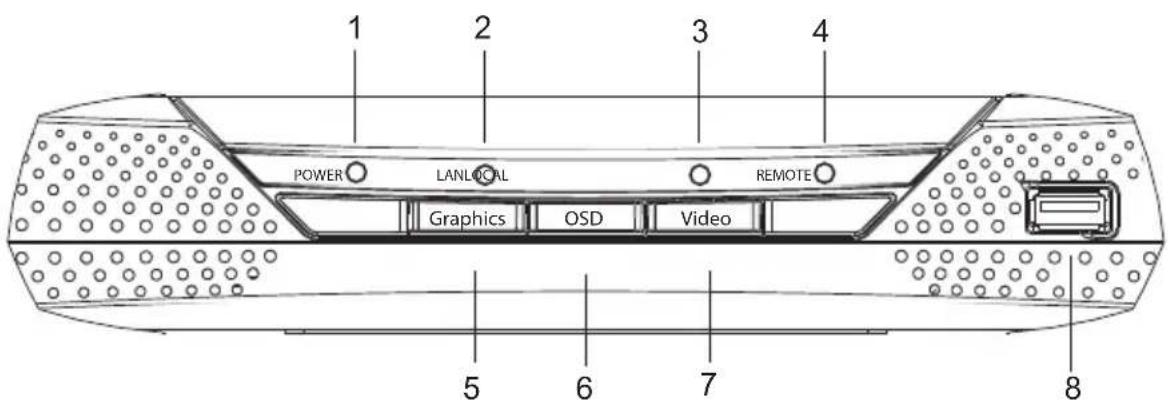
| No. | Component Description | |
| 1 | Power LED Lights blue to indicate the network status: | |
| 2 | LAN LED Lights to indicate the network status: | |
| 3 | Local LED Lights green to Indicate the Transmitter has KVM access of the computer. | |
| 4 | Remote LED Lights green to Indicate the Receiver has KVM access of the computer. | |
| 5 | Graphics Pushbutton Sets the displays image quality to the highest possible grade so that images are optimized. This toggle button turns off the Video Pushbutton option.Graphics mode is selected by default. | |
| 6 | OSD Pushbutton Use this pushbutton to open the OSD menu. | |
| 7 | Video Pushbutton Sets the displays image quality to a grade that is optimized for video playback. This toggle button turns off the Graphics Pushbutton option. | |
| 8 | USB port Use this port for virtual media or a USB peripheral device.Note: When using a USB disk plugged into this port, see USB Mode, page 74. | |
KE6940R (Receiver) Rear View
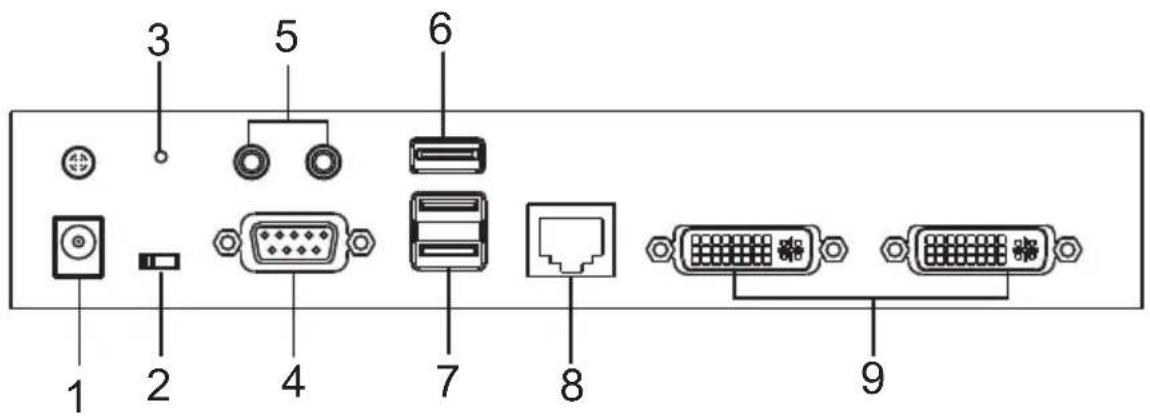
| No. | Component Description |
| 1 | Power Jack The cable from the DC Power adapter connects here. |
| 2 | Function Switch Use this slide switch to set the unit's mode:Extension: Sets the device to use the normal TX to RX extension mode.RS-232 Config: Sets the device so that you can configure it using a serial connection via the RS-232 port. |
| 3 | Reset This switch must be pushed with a thin object, such as the end of a paper clip.Press and release to reboot the device.Power off, hold reset then power on the device while pressing reset to recover from a firmware upgrade failure.Press and hold it in for more then three seconds resets the unit back to its factory default settings. |
| 4 | RS-232 Port This RS-232 serial port is for connecting to a serial terminal. |
| 5 | Audio Ports These mini stereo ports are for the local speakers (green) and microphone (pink). |
| 6 | USB Port Use this port for virtual media or a USB peripheral device.Note: When using a USB disk plugged into this port, see USB Mode, page 74. |
| 7 | Console Ports The unit's USB keyboard and USB mouse plug into these ports. |
| 8 | LAN Port The cable that connects the unit to the LAN plugs in here. |
| 9 | DVI-I Output The cable from the local DVI monitors plug in here. |
Chapter 2
Hardware Setup

-
Important safety information regarding the placement of this device is found on page 183. Please review it before proceeding.
-
Make sure that the power to all devices connected to the installation is turned off. You must unplug the power cords of any computers that have the Keyboard Power On function.
Rack Mounting
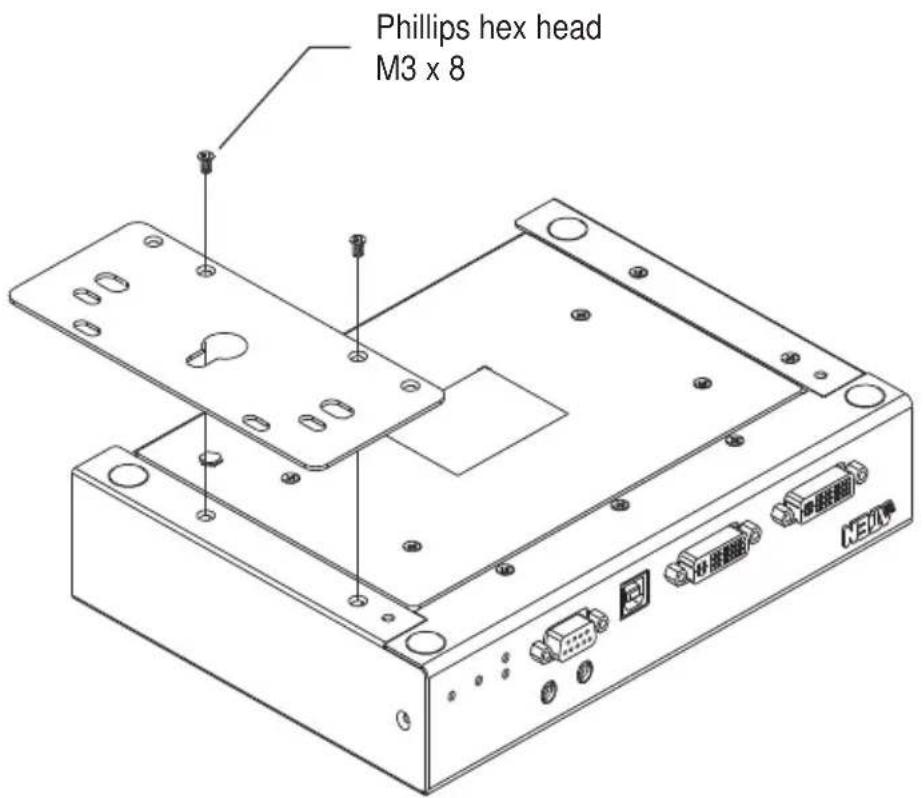
For convenience and flexibility, the Transmitter can be mounted on system racks. To rack mount a unit do the following:
- Using the screws provided in the Mounting Kit, screw the mounting bracket into the bottom of the Transmitter as show below:
- Screw the bracket into a convenient location on the rack.
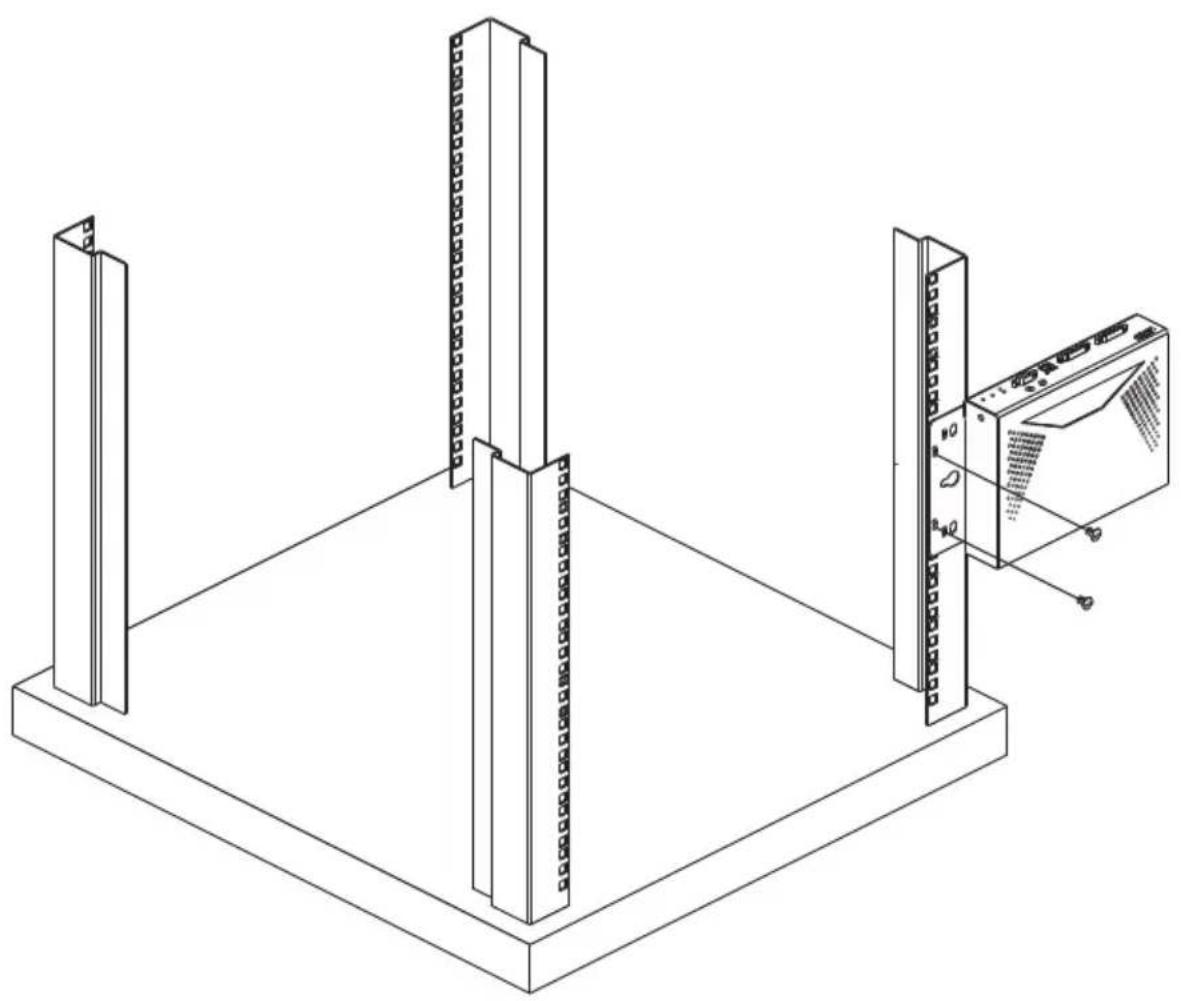
natural_image
Isometric line drawing of a microwave oven mounted on a base platform, with no text or symbols present.Note: These screws are not provided. We recommend that you use M5 x 12 Phillips Type I cross recessed type screws.
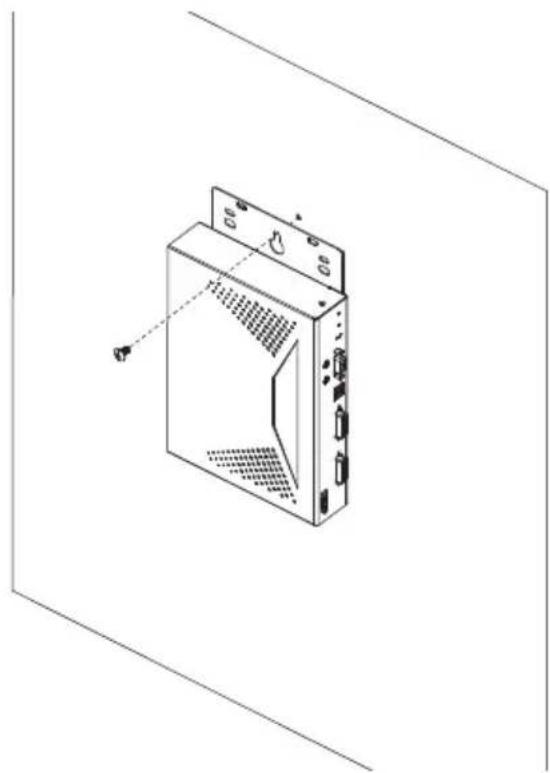
Wall Mounting
For convenience the Transmitter can be mounted to a wall.
- Using the screws provided in the Mounting Kit, screw the mounting bracket into the bottom of the Transmitter as show below:
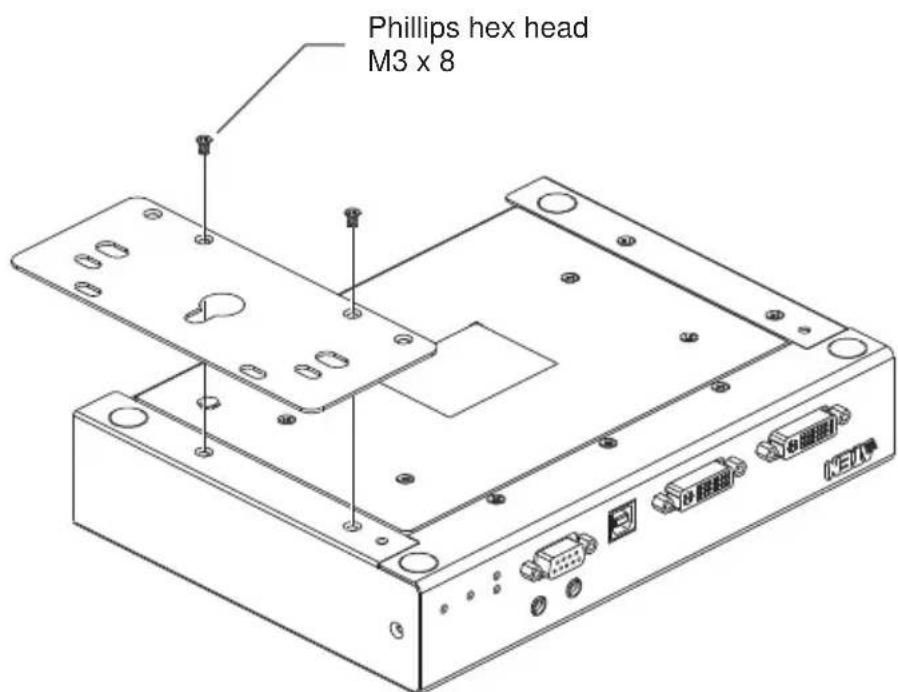
- Use the center hole to screw the bracket to a secure wall surface.
natural_image
Isometric line drawing of a computer tower case with ventilation slots and ports (no text or symbols)Setting Up a Point-to-Point Installation
Setting up the KE6900 / KE6940 system in a point-to-point configuration is simply a matter of plugging in the cables.
Note: In a point-to-point configuration, no administrator setup is necessary.
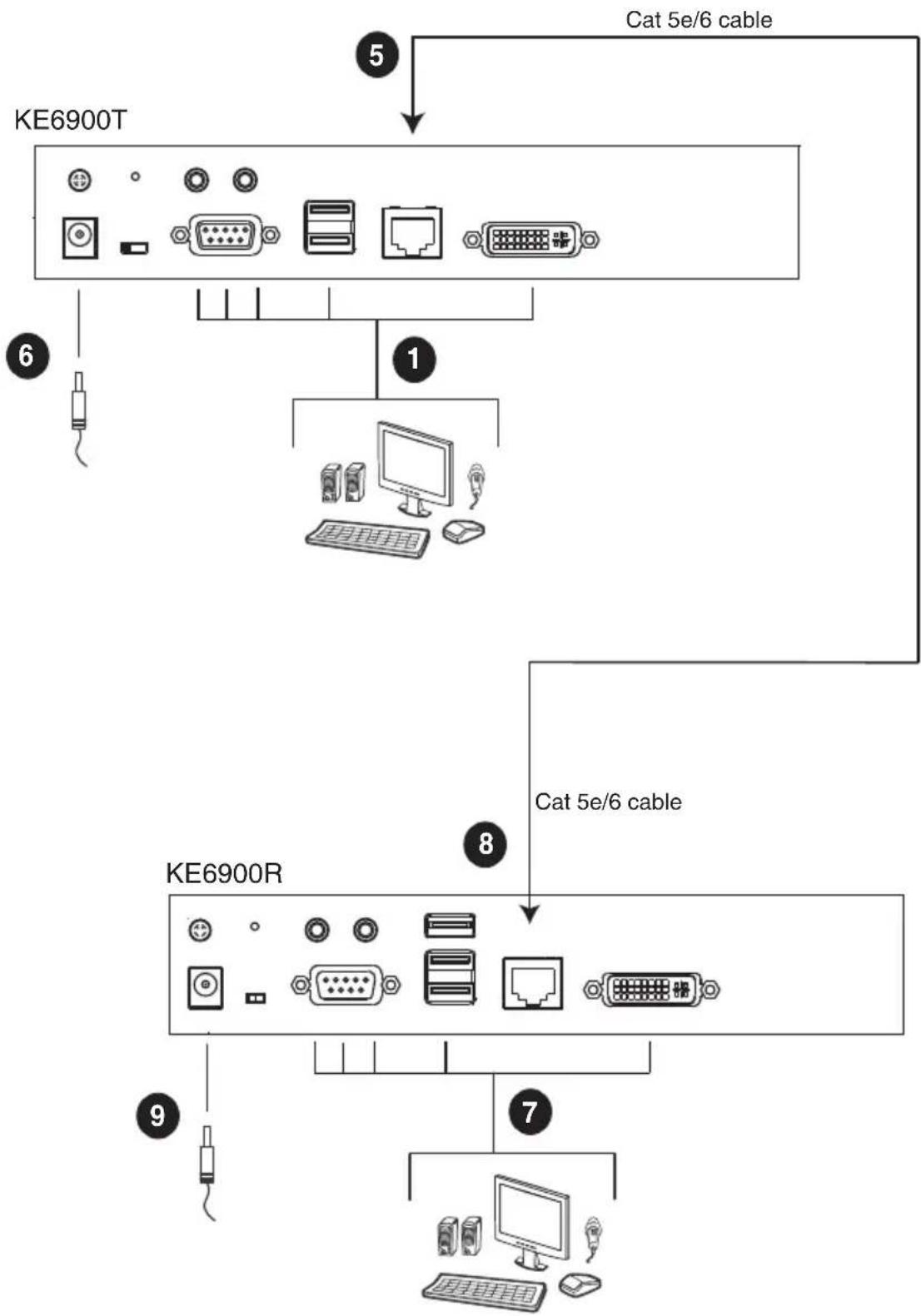
Make sure that all the equipment is powered off. Refer to the installation diagrams on the next two pages and do the following:
- On the Transmitter side, plug the mouse, keyboard, DVI monitor, microphone and speakers into the ports on the Console section of the KE6900T / KE6940T*. Each port is marked with an appropriate icon to indicate itself.
- Connect the USB KVM cable provided to the KVM Ports on the front of the KE6900T / KE6940T.
- Connect the other end of the USB KVM cable to the keyboard, video, mouse, speaker and microphone ports on the computer.
- For control of serial devices, connect the RS-232 serial port on the Transmitter to a serial port on the computer.
- Connect a Cat 5e/6 cable to the KE6900T / KE6940T's LAN port.
- Plug the power adapter into an AC source; and plug the other end into the KE6900T / KE6940T's Power Jack.
- On the Receiver side, plug the mouse, keyboard, DVI monitor, microphone, and speakers into the ports on the Console section of the KE6900R / KE6940R*.
- Connect the other end of the Cat 5e/6 cable to the KE6900R / KE6940R's LAN port.
- Plug the second power adapter into an AC source; and plug the other end into the KE6900R / KE6940R's Power Jack.
- Power on the computer.
Note: 1. If installing the KE6940 with two DVI monitors, connect the second DVI monitor via a DVI cable into the additional ports on the KE6940 and computer.
- A keyboard or mouse with special functions may need to use the USB ports for advanced features to work (see USB Mode, page 74).
Point-to-Point Installation 1 of 2
flowchart
graph TD
    A["KE6900T"] -->|Cat 5e/6 cable| B["Computer"]
    C["KE6900R"] -->|Cat 5e/6 cable| D["Computer"]
    E["KE6900T"] -->|6| F["Switch"]
    G["KE6900R"] -->|8| H["Switch"]
    I["KE6900T"] -->|1| J["Computer"]
    K["KE6900R"] -->|9| L["Switch"]
    M["KE6900T"] -->|7| N["Computer"]
    O["KE6900R"] -->|7| P["Switch"]
Note: The diagram above shows the KE6900T and KE6900R. The KE6940 installation is the same except that an additional DVI monitor can be connected at each end for a dual-view display setup.
Point-to-Point Installation 2 of 2
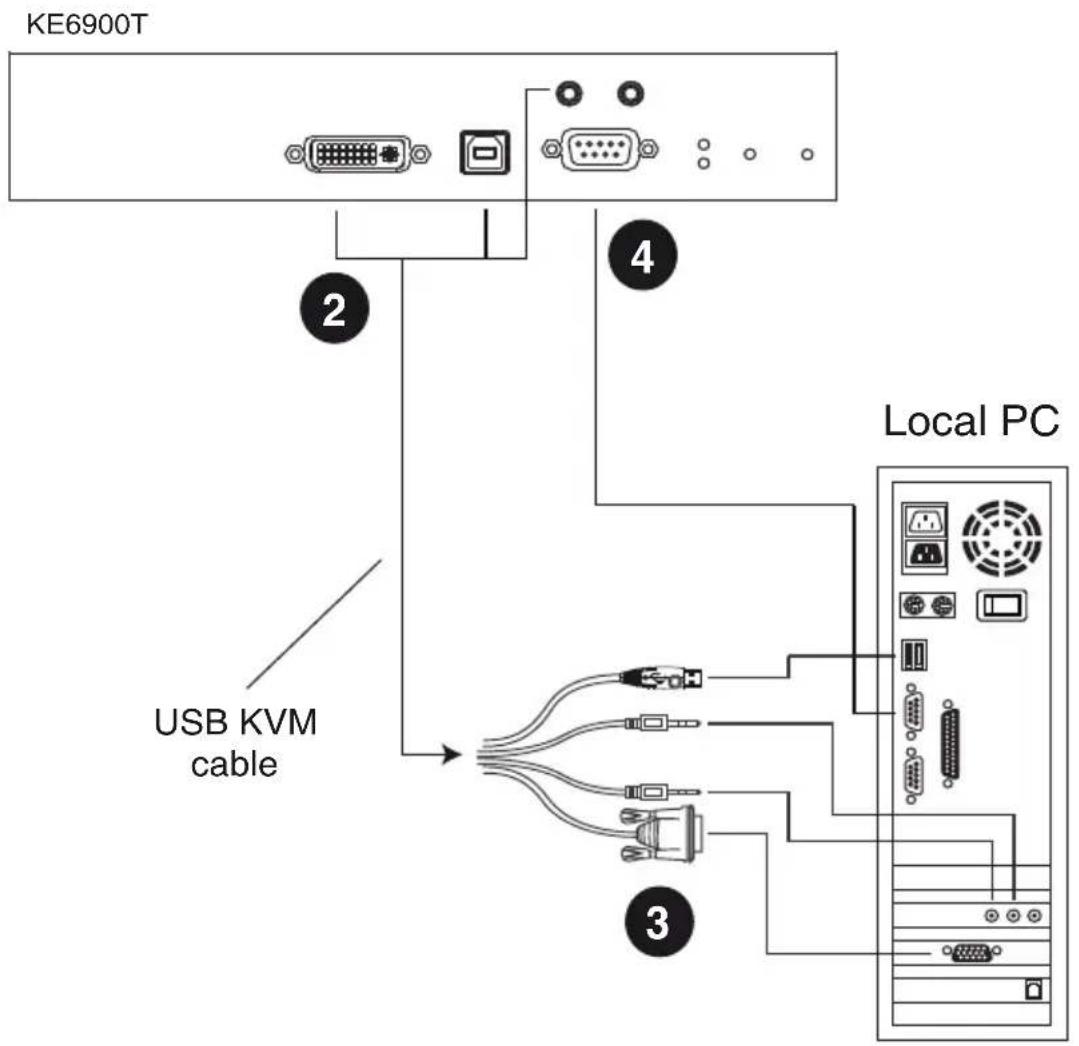
Note: The serial port on the Transmitter (shown above) connects to the computer; the serial port on the Receiver (not shown) connects to a serial device (optional).
Setting Up a LAN Installation
Setting up the units on a network allows point-to-point, point-to-multipoint, and multipoint-to-multipoint computer to console operation by connecting multiple KE6900 / KE6940 devices on the same TCP/IP LAN. Prior to setup we recommended laying out the plans for your KE installation using our performance guide, see Keys to Network Performance, page 200.
Note: 1. The units are preconfigured with factory-default network settings. If you install only one set of KE6900 / KE6940 units, you do not need to change these default network settings. See Default IP Addresses, page 24, for further details.
2. In a network setup with multiple units, each Transmitter and Receiver must be configured with a unique IP address. See Network Configuration, page 23, for further details.
3. We recommended using 1000Mbps Gigabit Ethernet switches (wire speeds, non-blocking with 1Gbps/1.5Mpps performance per port) between KE69xx devices installed on different LAN segments. 10/100Mbps switches might cause poor performance.
4. In multipoint configurations, the IGMP and flow control function of your network switches/hubs must be enabled to avoid the deterioration of data throughput. To ensure functionality use a layer 3 switch that supports IGMP queries.
5. If your network uses cascaded switches, please check to ensure the data throughput is sufficient.
6. To get the best performance, we suggest creating a private network for KE69xx devices, as they are bandwidth-intensive devices.
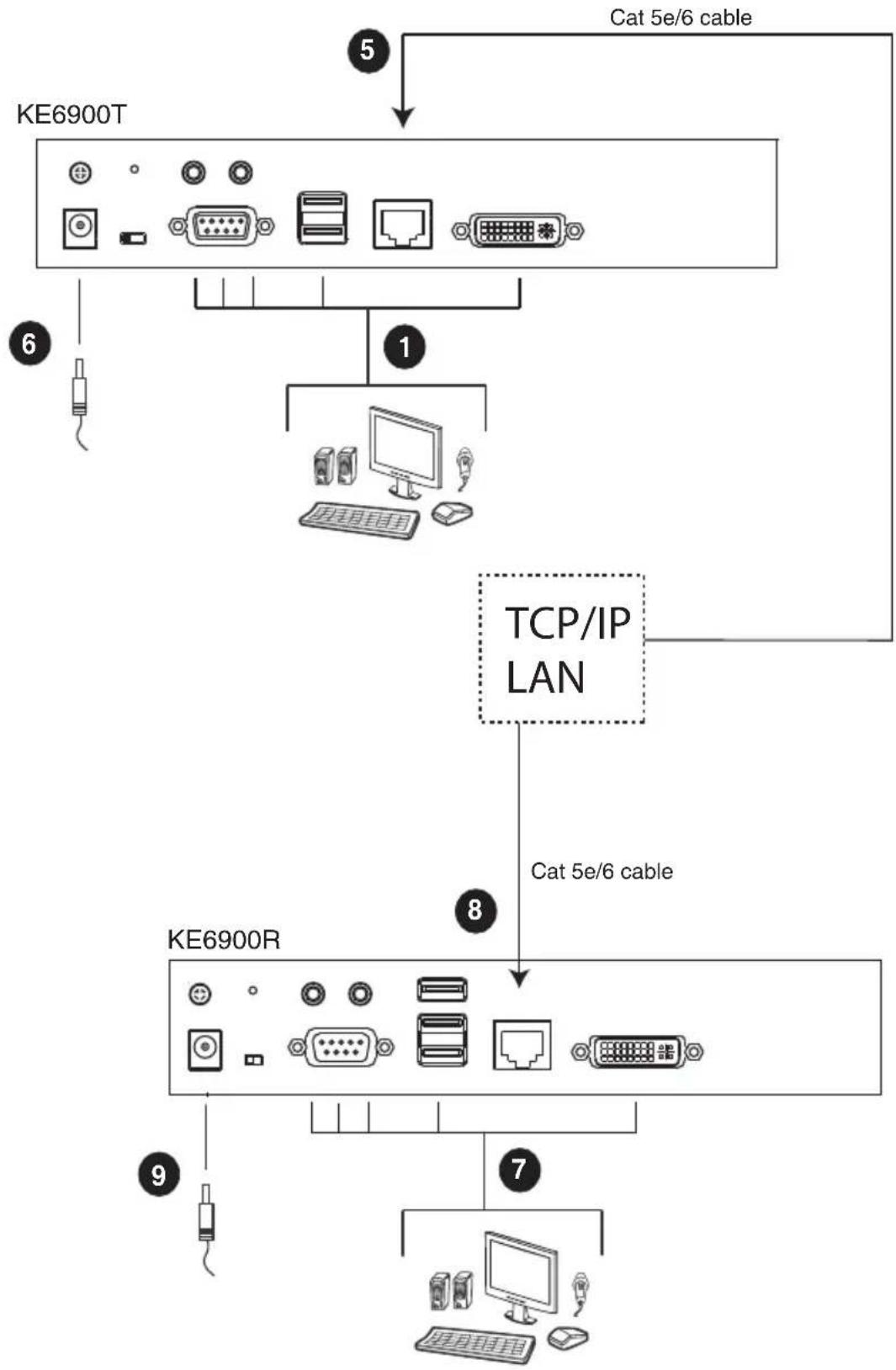
Make sure that all the equipment is powered off. Refer to the installation diagram on the following page, and do the following:
- On the Transmitter side, plug the mouse, keyboard, DVI monitor, microphone and speakers into the ports on the Console section of the KE6900T / KE6940T*. Each port is marked with an appropriate icon to indicate itself.
- Connect the USB KVM cable provided to the KVM Ports on the front of the KE6900T / KE6940T.
-
Connect the other end of the USB KVM cable to the keyboard, video, mouse, speaker and microphone ports on the computer.
-
For control of serial devices, connect the RS-232 serial port on the Transmitter to a serial port on the computer.
- Use a Cat 5e/6 cable to connect the KE6900T / KE6940T's LAN port to the local area TCP/IP network.
- Plug the power adapter into an AC source; and plug the other end into the KE6900T / KE6940T's Power Jack.
- On the Receiver side, plug the mouse, keyboard, DVI monitor, microphone, and speakers into the ports on the Console section of the KE6900R / KE6940R*.
- Use a Cat 5e/6 cable to connect the KE6900R / KE6940R's LAN port to the local area TCP/IP network.
- Plug the second power adapter into an AC source; and plug the other end into the KE6900R / KE6940R's Power Jack.
- Use the OSD on the Receiver to configure the network settings for both devices (See Network Configuration, page 23).
- Repeat these steps for each Transmitter and Receiver you wish to install on the network.
12.Power on the computer(s).
Note: 1. If installing the KE6940 with two DVI monitors, connect the second DVI monitor via a DVI cable into the additional ports on the KE6940 and computer. 2. A keyboard or mouse with special functions may need to use the USB ports for advanced features to work (see USB Mode, page 74).
Network Installation Diagram 1 of 2
flowchart
graph TD
    A["KE6900T"] -->|Cat 5e/6 cable| B["TCP/IP LAN"]
    A --> C["KE6900R"]
    C -->|Cat 5e/6 cable| D["TCP/IP LAN"]
    C --> E["KE6900R"]
    E --> F["Computer"]
    style A fill:#f9f,stroke:#333
    style B fill:#ccf,stroke:#333
    style C fill:#cfc,stroke:#333
    style D fill:#fcc,stroke:#333
    style E fill:#cff,stroke:#333
    style F fill:#ffc,stroke:#333
Note: The diagram above shows the KE6900T and KE6900R. The KE6940 installation is the same except that an additional DVI monitor can be connected at each end for a dual-view display setup.
Network Installation Diagram 2 of 2
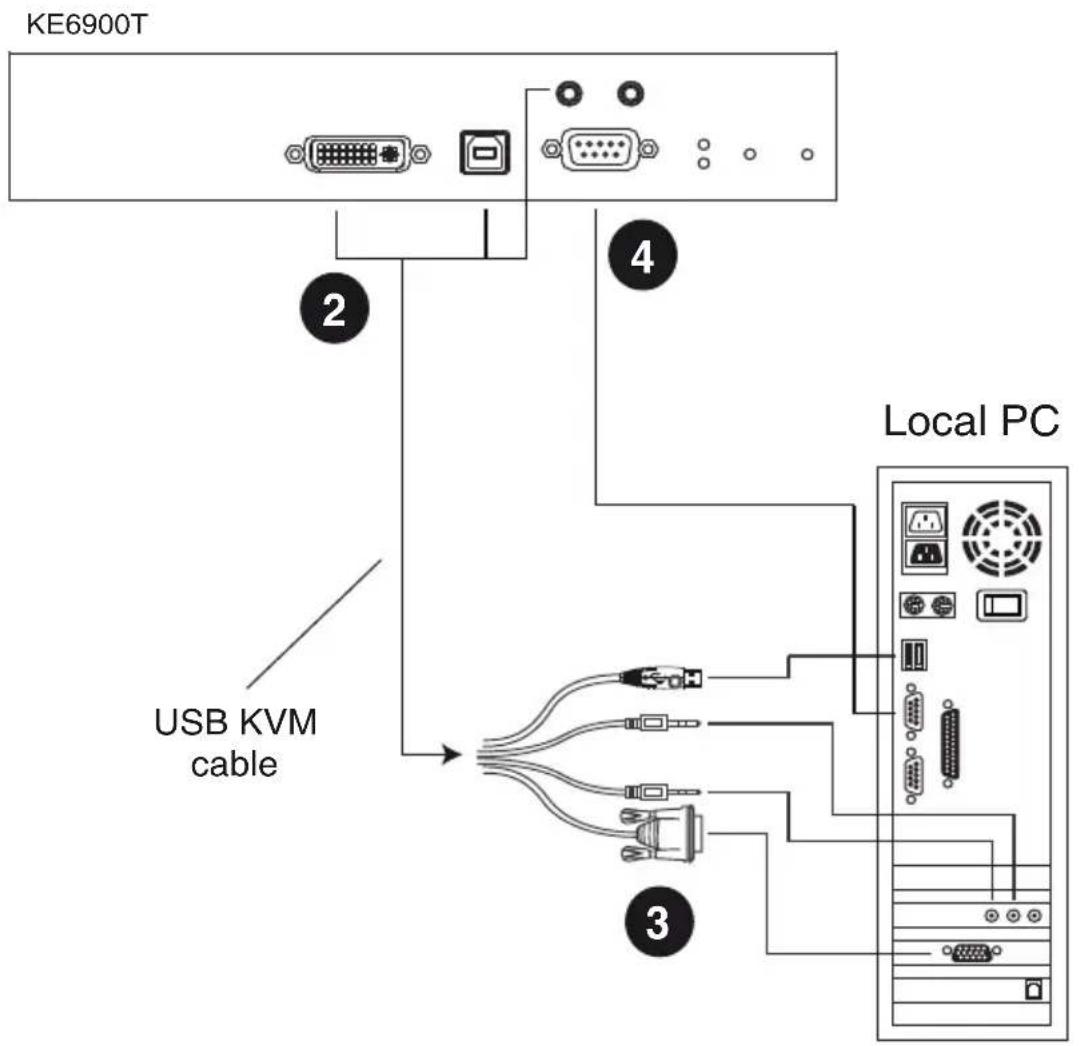
Note: The serial port on the Transmitter (shown above) connects to the computer; the serial port on the Receiver (not shown) connects to a serial device (optional).
Network Configuration
This section provides instructions to configure the network settings with a fixed IP address, subnet mask, and default gateway. To use the IP Installer to configure the IP address, see IP Installer, page 194.
Note: 1. Both devices are preconfigured with factory-default network settings. If you install only one set of KE6900 / KE6940 units, you do not need to change these default network settings. See Default IP Addresses, page 24, for further details.
2. In a network setup with multiple units, each KE6900T / KE6940T and KE6900R / KE6940R must be configured with a unique IP address. See Network Configuration, page 23, for further details.
3. We recommended using 1000Mbps Gigabit Ethernet switches (wire speeds, non-blocking with 1Gbps/1.5Mpps performance per port) between KE69xx devices installed on different LAN segments. 10/100Mbps switches might cause poor performance.
4. In multipoint configurations, the IGMP and flow control function of your network switches/hubs must be enabled to avoid the deterioration of data throughput. To ensure functionality use a layer 3 switch that supports IGMP queries.
5. If your network uses cascaded switches, please check to ensure the data throughput is sufficient.
6. To get the best performance, we suggest creating a private network for KE69xx devices, as they are bandwidth-intensive devices.
To configure the network settings, do the following:
- Setup the hardware and connect the Transmitter and Receiver to the local area network (See Setting Up a LAN Installation, page 19, for details).
- From the Receiver, tap the Scroll Lock key twice to invoke the OSD.
- Select the User Station or Transmitter from the sidebar menu.
- Enter the password and click Configure.
The default password is: password.
- From the Network tab select Set IP address manually and enter the following:
- IP Address– sets the IP address for the KE6900 / KE6940. Key in a valid unique IP address.
Note: See Default IP Addresses, page 24, for the preconfigured factory-default settings.
- Subnet Mask – sets the subnet mask for the KE6900 / KE6940. Key in a valid subnet mask value.
Note: The default setting is 255.255.255.0
- Default Gateway– sets the default gateway for the KE6900 / KE6940. Key in a valid default gateway.
6. Click Save.
Exit OSD
To exit the OSD, press [Esc] on the keyboard, click Logout; tap the Scroll Lock key twice; or return to the OSD main page and press the front panel OSD pushbutton (Receiver only).
At this point the Receiver can connect to the Transmitter to access the remote computer (see Connecting, page 40 for instructions).
Default IP Addresses
The preconfigured factory-default IP addresses for the KE6900 / KE6940 units are as follows:
KE6900T / KE6940T - 192.168.0.61
KE6900R / KE6940R - 192.168.0.60
KE6900 I/O Ports
The following table provides the I/O port use of KE6900 devices.
| Device Port Number | ||
| KE Manager (TCP) HTTP 80 | 80 | |
| HTTPS 8443 | ||
| Device TCP 9110 | ||
| CLI 9111 | ||
| Redundancy 9120 | ||
| Database Service 1527 | ||
| KE Manager (UDP) Port 9110 | 0 | |
| Broadcast 9000 | ||
| KE TX/RX Device (TCP) Manager | 9110 | |
| Service 9000 | ||
| Telnet 23 | ||
| SSH 22 | ||
| KE TX Device (TCP) | VM 9001 | |
| vUSB 9002 | ||
| Serial 9003 | ||
| USB Access Mode 9009 | ||
| KE RX Device (TCP) | CLI 9130 | |
| KE TX/RX Device (UDP) | Manager 9110 | |
| Service 9000 | ||
| Array Mode 9120 | ||
| Video 0xFE00(65024) - 0xFE03(65027) | ||
| Audio 0xFE04(65028) - 0xFE05(65029) | ||
This Page Intentionally Left Blank
Overview
This chapter provides instructions to configure and operate the KE6900 / KE6940 using the local On Screen Display (OSD). To configure the network settings with the OSD, see Network Configuration, page 23.
LED Display
Both the Transmitter and Receiver have front panel LEDs to indicate their operating and power status, as explained in the table below:
| LED Indication | |
| LAN | ♦ Lights green when connected to the LAN.♦ Off when not connected to the LAN.♦ Blinks green when the Ethernet connection is active. |
| Power | ♦ Lights blue when the unit is powered on.♦ OFF when power is off. |
| Local | ♦ Lights green to Indicate the Transmitter has KVM focus of the computer |
| Remote | ♦ Lights green to Indicate the Receiver has KVM focus of the computer. |
Invoking the OSD
The On Screen Display (OSD) is a keyboard/mouse-driven application on the receiver used to configure the transmitter and receiver settings. Once the receiver has discovered the transmitter over a network* or direct Ethernet cable connection, you can use the OSD on the receiver to configure the transmitter's settings.
To invoke the OSD, press the OSD pushbutton on the front of the receiver, or from the keyboard tap the Scroll Lock key twice. The OSD main page will appear (see OSD Interface, page 29).
To exit the OSD, press [Esc] on the keyboard; click Logout; tap the Scroll Lock key twice; or return to the OSD main page and press the OSD pushbutton on the front of the receiver. The OSD disappears and the computer desktop screen or the System Login prompt is displayed.
Note: 1. For the Receiver to discover the Transmitter over a network, both must be on the same subnet of the LAN.
2. To change the OSD hotkeys see page 39.
3. If the keyboard/mouse won't work when the OSD is invoked, see USB Mode, page 74.
Microphone Hotkey
You can switch microphone access between User Stations with a hotkey:
- Press and hold down [Num Lock].
- Press and release [-].
- Release [Num Lock].
- Press 1.
Press the Esc key to cancel.
Touch Screen Calibration
If you're using a touch screen monitor and the OSD appears off center, you can use the blinking + at each corner to adjust the position of the OSD.
OSD Interface
After you invoke the OSD, the main page appears:
Note: A password is required to enter the OSD. The default password is: password. For security purposes, we recommend you change this to something unique.
The OSD components are described in the table, below:
No. Item Description
1 User Station (Receiver) Select this radio button, enter a password, and click Configure to enter the User Station Configuration screen.
2 Transmitter Select this radio button, enter a password, and click Configure to enter the Transmitter Configuration screen. Note: Receiver must first discover the transmitter over the network for this option to be available.
3 User Preferences Select this radio button, enter a password, and click Configure to enter the User Preferences screen.
4 About About provides information regarding the OSD version.
5 Password Input the OSD password and click Configure to enter the selected configuration screen. See note for password.
6 Configure After entering a password, click Configure to enter the selected configuration screen.
7 Back to Video Clicking this button exits the OSD and returns you to the computer's video display.
User Station Configuration
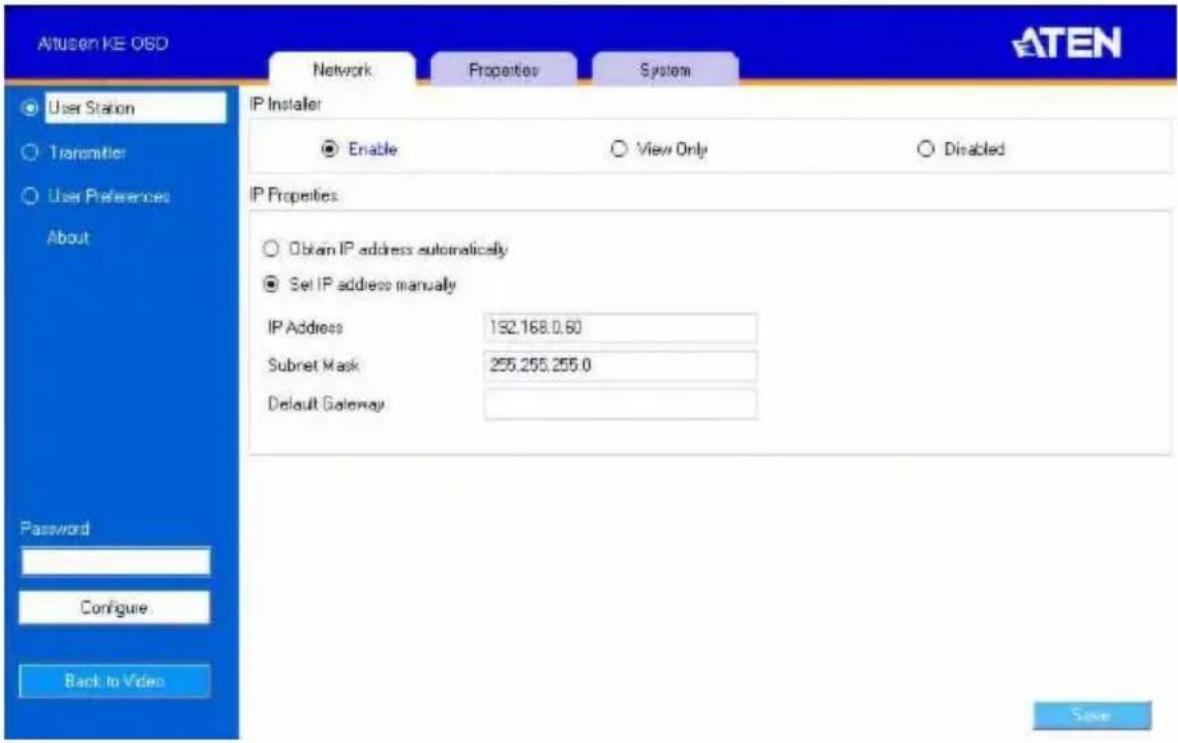
When you select the User Station radio button and click Configure to login, the Network tab appears:
Network
The Network tab allows you to configure the User Station's IP address settings:
| Item Description | |
| IP Installer The IP | Installer is an external Windows-based utility for assigning an IP address to the device. Click one of the radio buttons to select Enable, View Only, or Disable for the IP Installer utility. See IP Installer, page 194 for instructions.Note: For security, we strongly recommend that you set this to View Only or Disable after each use. |
| Network Configuration | For dynamic IP address assignment (DHCP), select the Obtain IP address automatically radio button.To specify a fixed IP Address, Subnet Mask, and Default Gateway select the Set IP address manually radio button and fill in the fields with values appropriate for your network.For help configuring network settings with the OSD, See Network Configuration, page 23. |
After entering the information, click Save.
Properties
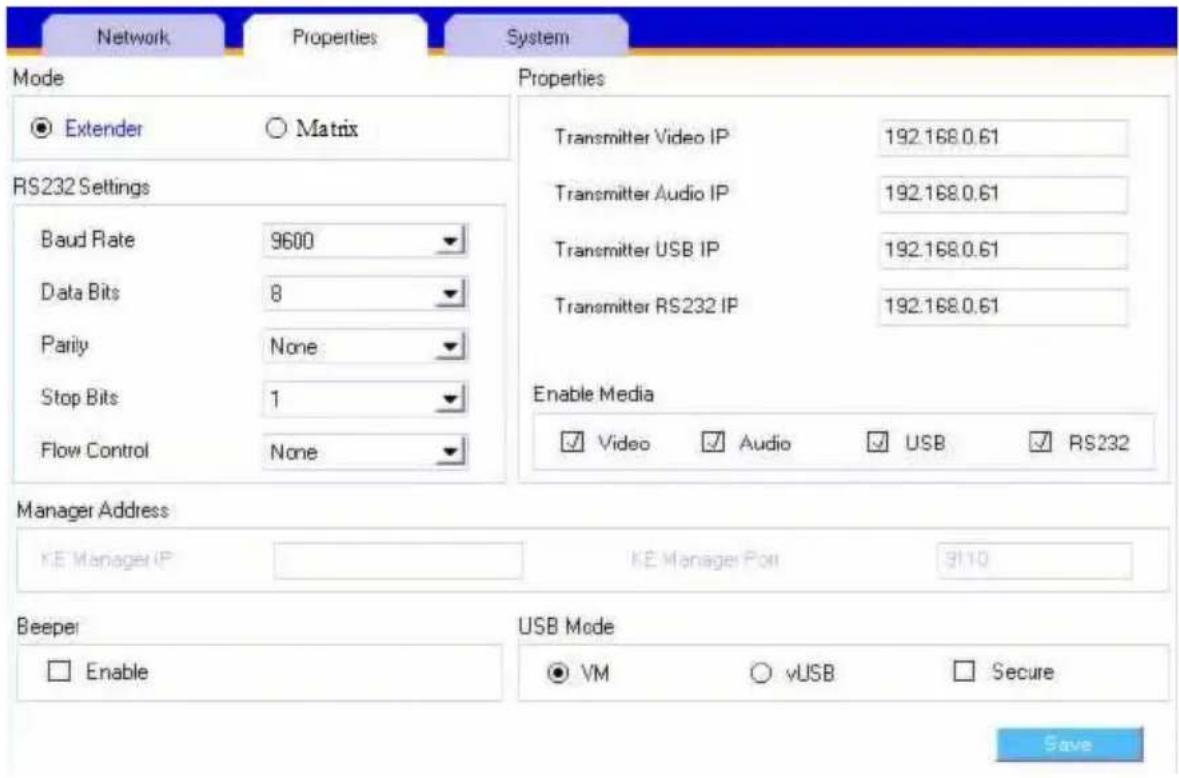
The Properties tab allows you to configure the User Station's extender settings:
| Item Description | |
| Mode | Select Extender mode for simple one-to-one (Transmitter to User Station) setups that are managed with the Receiver's OSD menu.Select Matrix mode to manage devices and connections from the Matrix Manager web GUI. This mode is for advanced administration of Transmitter to User Station connections.(See Channel Connections, page 87) |
| Properties | If you selected Extender mode (above) set the Transmitter IP address for the User Station's Video, Audio, USB, and RS232 source signals.If you selected Matrix mode (above) the Properties will be grayed out. Use Channels to configure the Transmitter connections. (See Channel Connections, page 87) |
| RS232 Settings C | Configure the serial device settings for the User Station. The default settings are: Baud Rate: 9600 Parity: None Data Bits: 8 bits Stop bits: 1 bit Flow Control: None |
| Enable Media Select which type of media the User Station can stream from Transmitters: Video, Audio, USB, and RS232. | |
| Manager Address | Set the IP address and Port number of the computer running the Matrix Manager software. The default port number is 9110. |
| Beeper Check this box to allow the User Station to beep when configuration changes are made to it. | |
| USB Mode Select the type of USB device you will connect to the USB ports: vUSB (generic USB device): Use this option to plug USB peripherals into the USB ports. This option also allows a keyboard and mouse with special functions to plug into the USB ports for console use. Use this only if the special functions of the keyboard or mouse are required but do not work when plugged into the console ports. When the keyboard and mouse are plugged into the USB ports, they will not work within the OSD menus. To work within the OSD menus, the keyboard and mouse must be plugged into the console ports. VM (Virtual Media): Only select this option if you are plugging a USB disk into the USB ports. This will give you the highest data transfer speeds but will not allow other USB devices plugged into the USB ports to work. Secure: Check this box to encrypt USB drives plugged into the USB ports. | |
After entering the information, click Save.
System
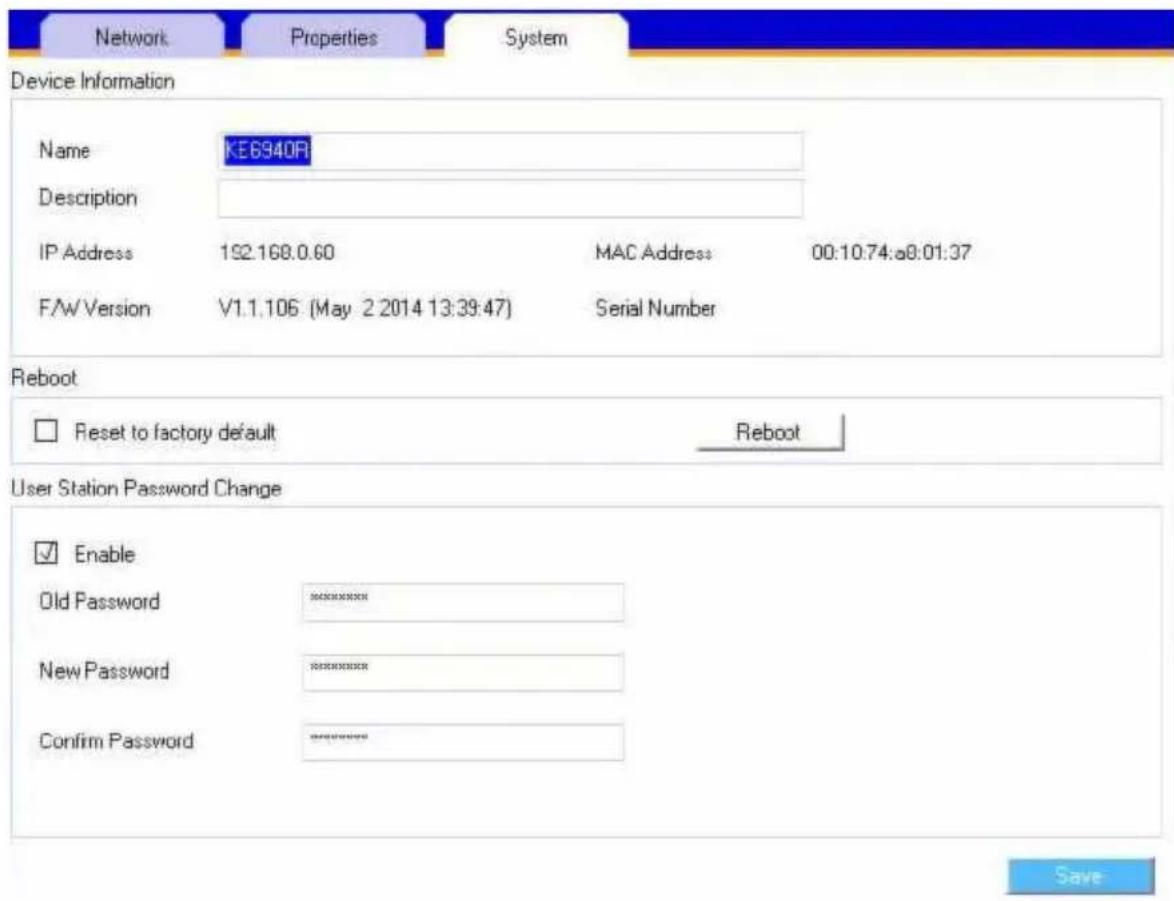
The System tab allows you to configure the User Station's general settings:
| Item Description | |
| Device Information | Enter the Name, Location, and Description of the User Station. It also displays the IP Address, MAC Address, F/W Version, Serial Number, and Model Number of the User Station. |
| Reboot | Check the box and click Reboot to reset the User Station's settings back to the factory default. All custom settings will be lost. |
| User Station Password Change | Check Enable to require a password for access to the User Station's OSD configuration screen. Enter the Old Password, enter a New Password, and confirm the new password in the Confirm Password box. |
After entering the information, click Save.
Transmitter Configuration
When you select the Transmitter radio button and click Configure to login, the Network tab appears:
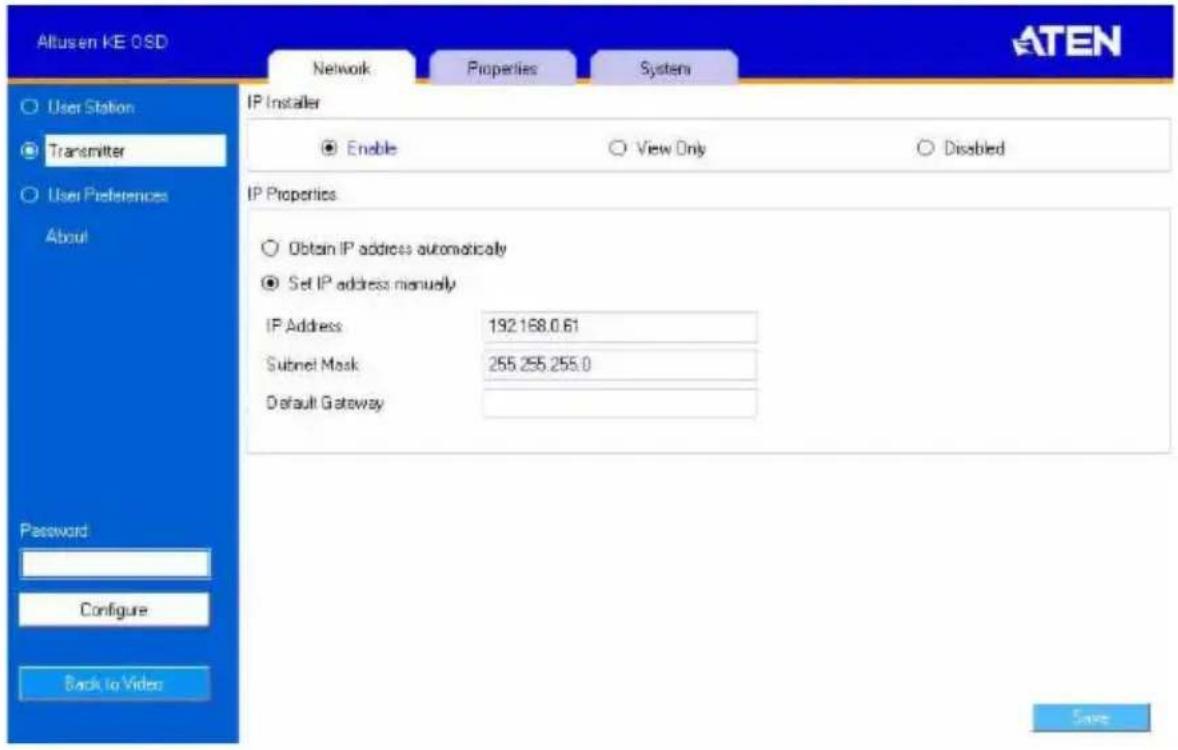
Network
The Network tab allows you to configure the Transmitter's IP address settings:
| Item Description | |
| IP Installer The IP | Installer is an external Windows-based utility for assigning an IP address to the device. Click one of the radio buttons to select Enable, View Only, or Disable for the IP Installer utility. See IP Installer, page 194 for instructions.Note: For security, we strongly recommend that you set this to View Only or Disable after each use. |
| Network Configuration | For dynamic IP address assignment (DHCP), select the Obtain IP address automatically radio button.To specify a fixed IP Address, Subnet Mask, and Default Gateway select the Set IP address manually radio button and fill in the fields with values appropriate for your network.For help configuring network settings with the OSD,See Network Configuration, page 23. |
After entering the information, click Save.
Properties
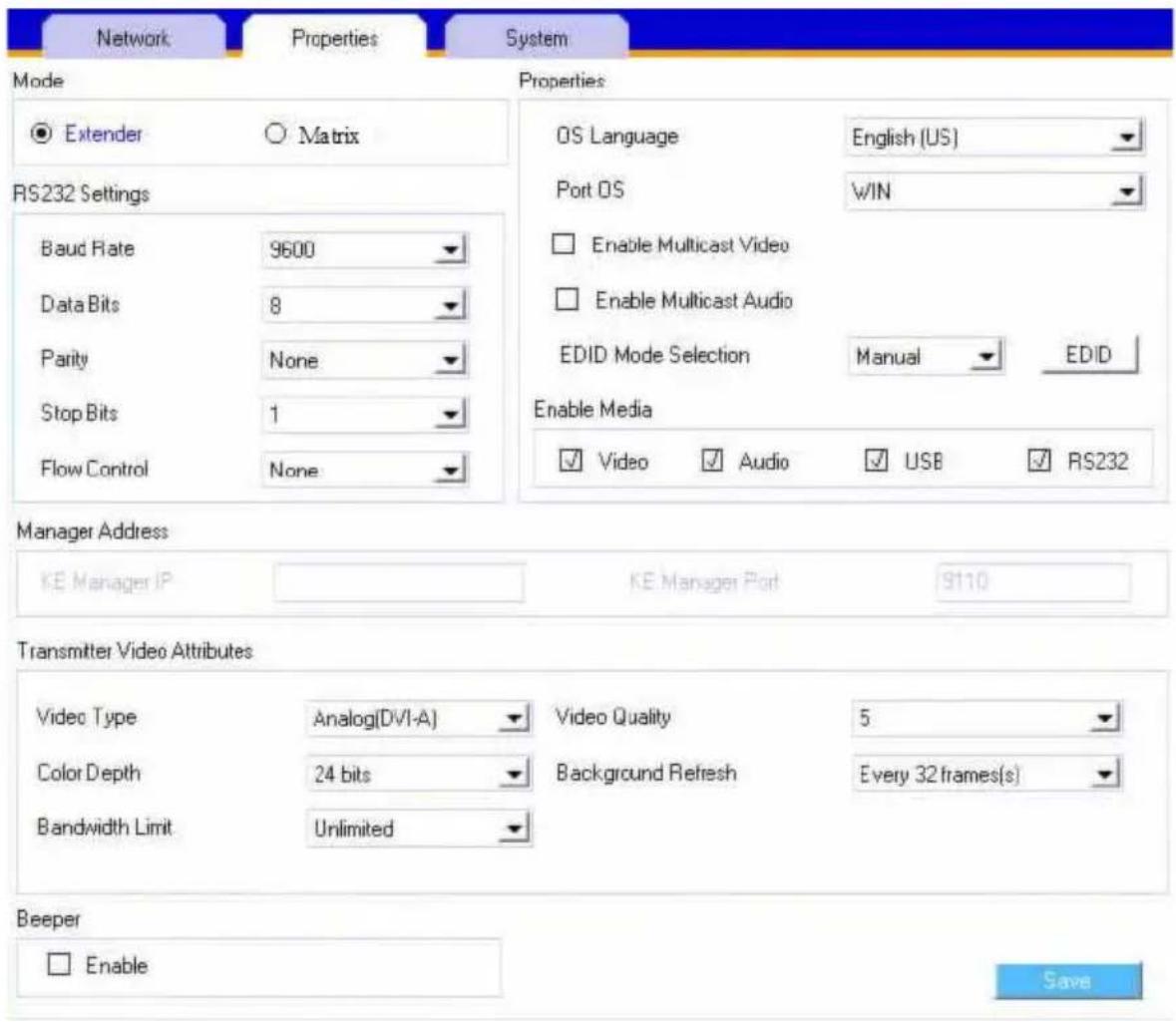
The Properties tab allows you to configure the Transmitter's extender settings:
| Item Description | |
| Mode | Select Extender mode for simple one-to-one (Transmitter to User Station) setups that are managed with the Receiver's OSD menu.Select Matrix mode to manage devices and connections from the Matrix Manager web GUI. This mode is for advanced administration of Transmitter to User Station connections.(See Channel Connections, page 87) |
| Properties | Port OS: Use the drop-down menu to select the operating system of the computer connected to the Transmitter.OS Language: Use the drop-down menu to select the operating system language of the computer connected to the Transmitter.Enable Multicast Video: Check this box to allow a broadcast of the Transmitter's video signal to be sent out to multiple User Stations.Enable Multicast Audio: Check this box to allow a broadcast of the Transmitter's audio signal to be sent out to multiple User Stations.EDID Mode Selection: EDID contains a display's basic information and is used by the source device to utilize the best resolution across different monitors. Select how you want the source device to acquire the display's EDID:Default: EDID is set to the default ATEN configuration.Auto: Checks the EDID of all connected displays and uses the best resolution for all displays.Manual: Manually set the EDID configuration from the Connections Page (see page 41).Remix: Checks the EDID of all connected displays and the source device uses the best common resolution for all displays. |
| Enable Media | Select which type of media the Transmitter can stream to User Stations: Video, Audio, USB, and RS232. |
| RS232 Settings Co | Configure the serial device settings for the Transmitter. The default settings are:Baud Rate: 9600Parity: NoneData Bits: 8 bitsStop bits: 1 bitFlow Control: None |
| Manager Address | Set the IP address and Port number of the computer running the Matrix Manager software. The default port number is 9110. |
| TransmitterVideo Attributes | To set the Transmitter's video settings:Video Type: Select the DVI video connector being used by the display: Digital (DVI-D) or Digital (DVI-I).Color Depth: Select the number of bits to use for the color depth: 24, 16, or 8. This is the number of bits used to describe the color of a single pixel. A bit depth determines the number of colors that can be displayed at one time.Bandwidth Limit: Select the maximum bandwidth that the Transmitter can use to transmit video over the network. A lower bandwidth setting transmits lower quality video; a higher bandwidth setting sends higher quality video but this can affect network speed.Video Quality: Select the video quality to use. 5 is the highest video quality, and 1 is the lowest video quality. Options are: 1~5.Background Refresh: Sets how often the Transmitter refreshes the background image on the connected display. Options are to refresh every 256,128, 64, 32,16, or 0 frames. |
| Beeper Check this | box to allow the device to beep every time a configuration change is made. |
| Occupy Timeout Set | Set a time threshold for devices whose Access Mode has been set to Occupy (see Allowed Access Mode, page 122). If there is no activity from the User Station occupying the port for the amount of time set here, the User Station is timed out and the port is released. The first User Station to send keyboard or mouse input after the port has been released gets to occupy the port. Input a value from 1 to 240 seconds. |
After entering the information, click Save.
System
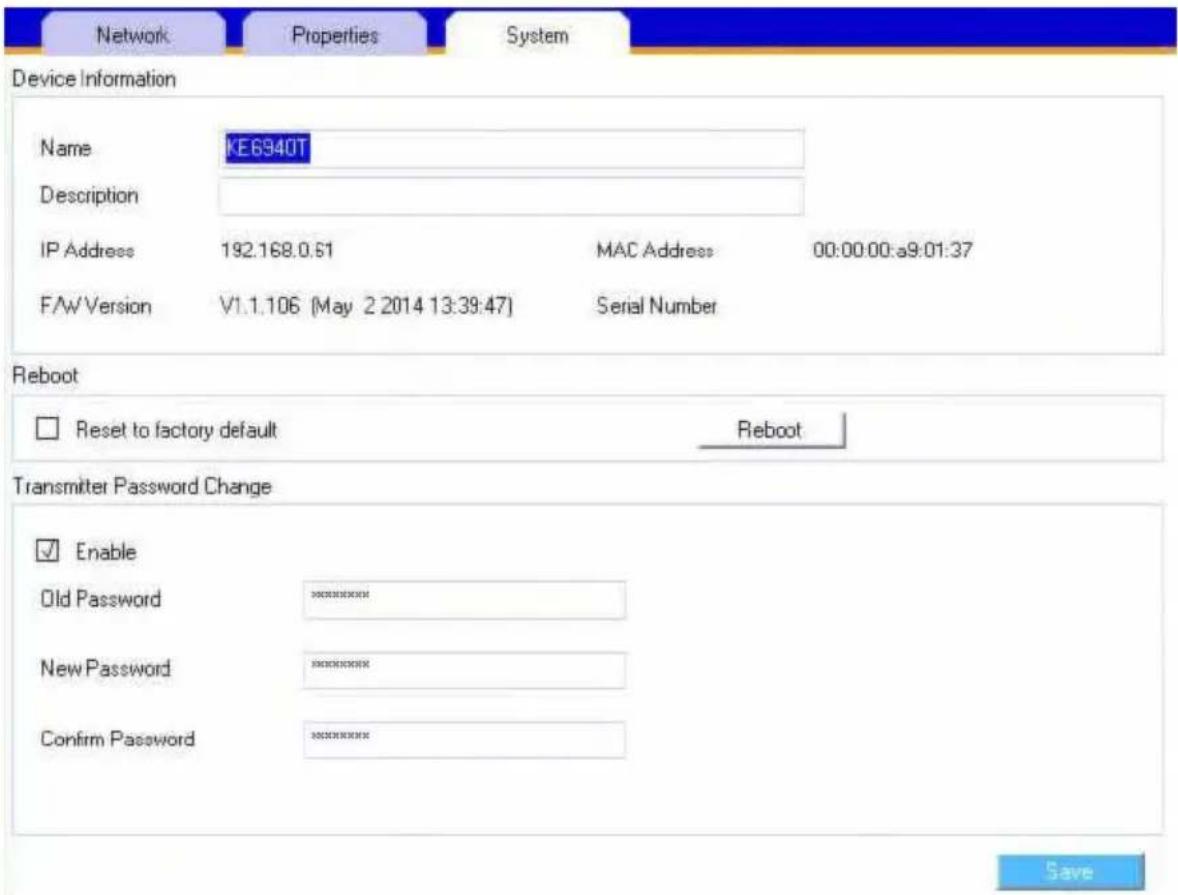
The System tab allows you to configure the Transmitter's general settings:
| Item Description | |
| Device Information | Enter the Name, Location, and Description of the Transmitter. It also displays the IP Address, MAC Address, F/W Version, Serial Number, and Model Number of the Transmitter. |
| Reboot | Check the box and click Reboot to reset the Transmitter's settings back to the factory default. All custom settings will be lost. |
| Transmitter Password Change | Check Enable to require a password for access to the Transmitter's OSD configuration screen. Enter the Old Password, enter a New Password, and confirm the new password in the Confirm Password box. |
After entering the information, click Save.
User Preferences
When you select the User Preferences radio button and click Configure to login, the configuration screen appears:
![User Station Transmitter User Preferences About User Password Change Old Password New Password Confirm Password OSD Settings OSD Language English OSD Hotkey [scroll lock][scroll lock] Logout Timeout 0,min (0-180) ✓ Disabled Screen Blanker 0,min (0-30) ✓ Disabled Password Configure Back to Video Save](/content/2026/06/1150998/images/42754f7b9a1be2f4c18caf9c471bd2f5ec0239bb83ab08ab524e9980116005c8.jpg)
| Item Description | |
| User Password Change | This section allows you to change the OSD password:1. Key in the old password in the Old password field.2. Key in the new password in the New password field.3. Key in the new password again in the Confirm password field. |
| OSD Language Click the drop-down menu to select the language you want to use for OSD sessions. Choices are: English, Chinese (Simplified), Chinese (Traditional), Japanese, Korean, Dutch, French, Spanish, Portuguese, and Russian. | |
| OSD Hotkey Select the hotkey combination to invoke the OSD screen. | |
| Logout Timeout If there is no user input for the amount of time set with this function, the user is automatically logged out of the OSD. A login is necessary before the OSD can be accessed again. | |
| Screen Blanker Set how many minutes the OSD waits when a session is idle before turning off the display. | |
When you have made your choices, Click Save.
Connecting
If the User Station is set to Extender mode, the video screen of the remote computer will appear automatically when you exit the OSD (press Esc to exit). In Matrix mode you will see the System Login screen, which provides access to the Connection Page by entering a username and password:
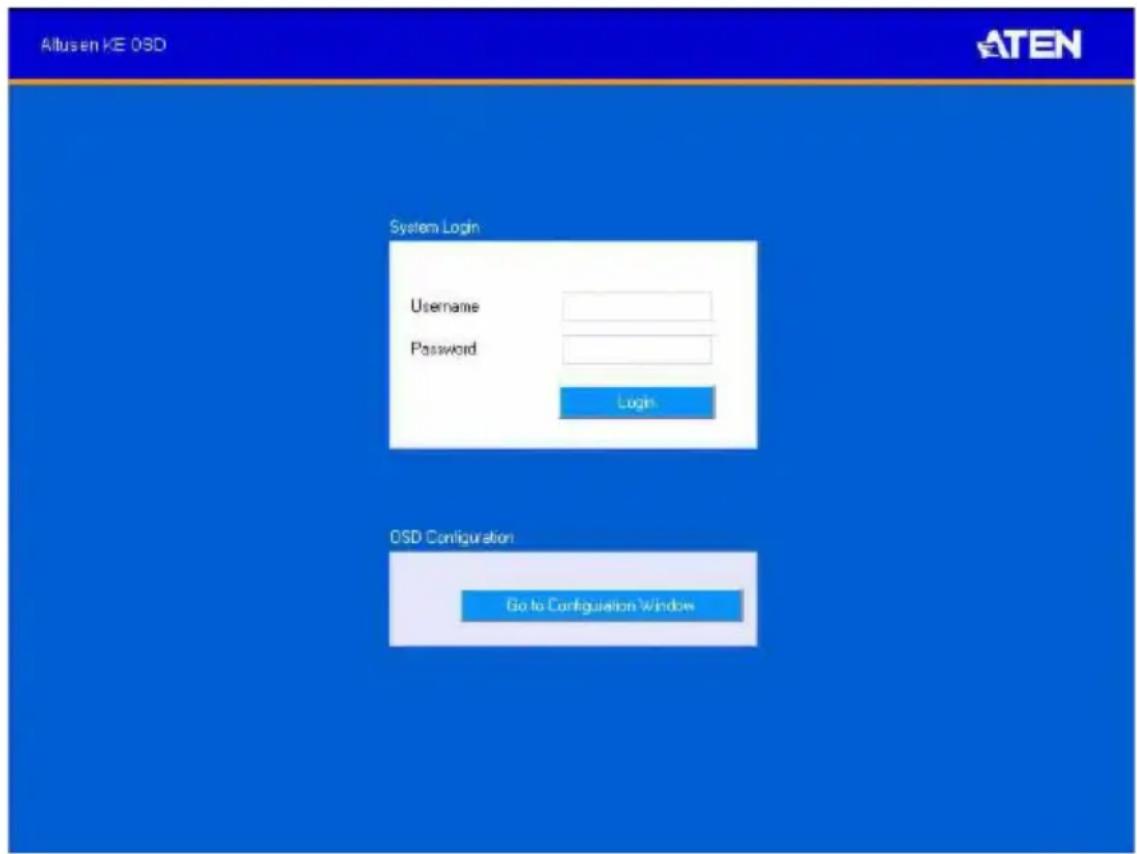
Note: 1. The administrator account can be used to log in for the first time.
Username: administrator | Password: password. For security purposes, we recommend you change this to something unique (see User Management, page 105).
2. If the User Station does not require a login, click Login to system (see Login Required, page 74).
3. For information about Extender and Desktop/Matrix modes see Mode, page 31.
After you login the Connection Page appears, as shown on the next page.
Connections Page
After you have successfully logged in the Connection Page appears:
List Mode
![Altusen KE OSD ATEN Connection Page 1 Profie Page 1 Channel Name Description Connect KE6940T 34 [NAUS] Exclusive Occupy Share View Only Exit KE6940T-2 [NAUS] Exclusive Occupy Share View Only Exit KE6900T 33 [NAUS] Exclusive Occupy Share View Only Exit KE6940T 35 [NAUS] Exclusive Occupy Share View Only Exit KE6940T 36 [NAUS] Exclusive Occupy Share View Only Exit KE6900T-2 [NAUS] Exclusive Occupy Share View Only Exit KE6940T [NAUS] Exclusive Occupy Share View Only Exit test08 [NAUS]null Exclusive Occupy Share View Only Exit << << >> >>1 Favorites Array Mode Logout Go to Configuration Window](/content/2026/06/1150998/images/2b189a04e25461882f62383abf8043548f5e1628f8891f2a55e5de6337e74d14.jpg)
The Connection Page components are described in the table, below:
| No. | Item Description | |
| 1 | Channel Name Lists the Channel | nel connections available for the User Station. A Channel is a defined connection to Transmitters, created in the Device Management tab of the Matrix Manager (seeChannels, page 88). |
| 2 | Description This field provides | a description of the Channel, entered when it was created. |
| No. | Item | Description |
| 3 | Connect To connect the User | Station to a Channel, click the access type:Exclusive:The first User Station to access the Channel has exclusive control over the Channel. No other User Stations can view the Channel. The Timeout function does not apply to this setting.Occupy:The first User Station to access the Channel has control over the Channel. However, additional User Stations may view the Channel's video display. If the User Station controlling the Channel is inactive for longer than the time set in the Timeout box, control is transferred to the first User Station to move the mouse or strike the keyboard.Share:Can simultaneously share control over the Channel. Input from the User Stations is placed in a queue and executed chronologically.View Only:User Station connects with view only access to the Channels video display. |
| 4 | Next Arrow Use these two buttons to navigate to the next pageor to the end of the list if there are more Channels available than can be seen on the page. | |
| 5 | Previous Arrow Use these two buttons to navigate to the previous page or to the beginning of the list if there are more Channels available than can be seen on the page. | |
| 6 | Favorites / All | Click Favorites to list only the Channels marked as favorites. Click All to list all Channels. Channels marked as favorites appear with a heart icon.To add/remove a Favorite, select a Channel and then right click with the mouse to select Add to Favorite or Remove from Favorite. |
| 7 | Array Mode Click to view the Channel connections with a video preview of each source. The list will be shown in groups of six at a time. A screens shot of the Array Mode is provided on the next page. | |
| 8 | List Mode Click to view the Channel connections in a list that can be sorted by name or with favorites listed first. Click the Channel Name heading to change the sort. | |
| 9 | Manual EDID If the EDID Model Selection on the Properties tab is set to Manual, the Manual EDID button appears here. Click Manual EDID to adjust the EDID setting locally. To set the EDID Mode to Manual, see Properties, page 36. | |
| 10 | Logout Click this button to log out of the Connection Page. | |
| 11 | Go to Configuration Window | Click this button to return to the main OSD screen. |
Array Mode
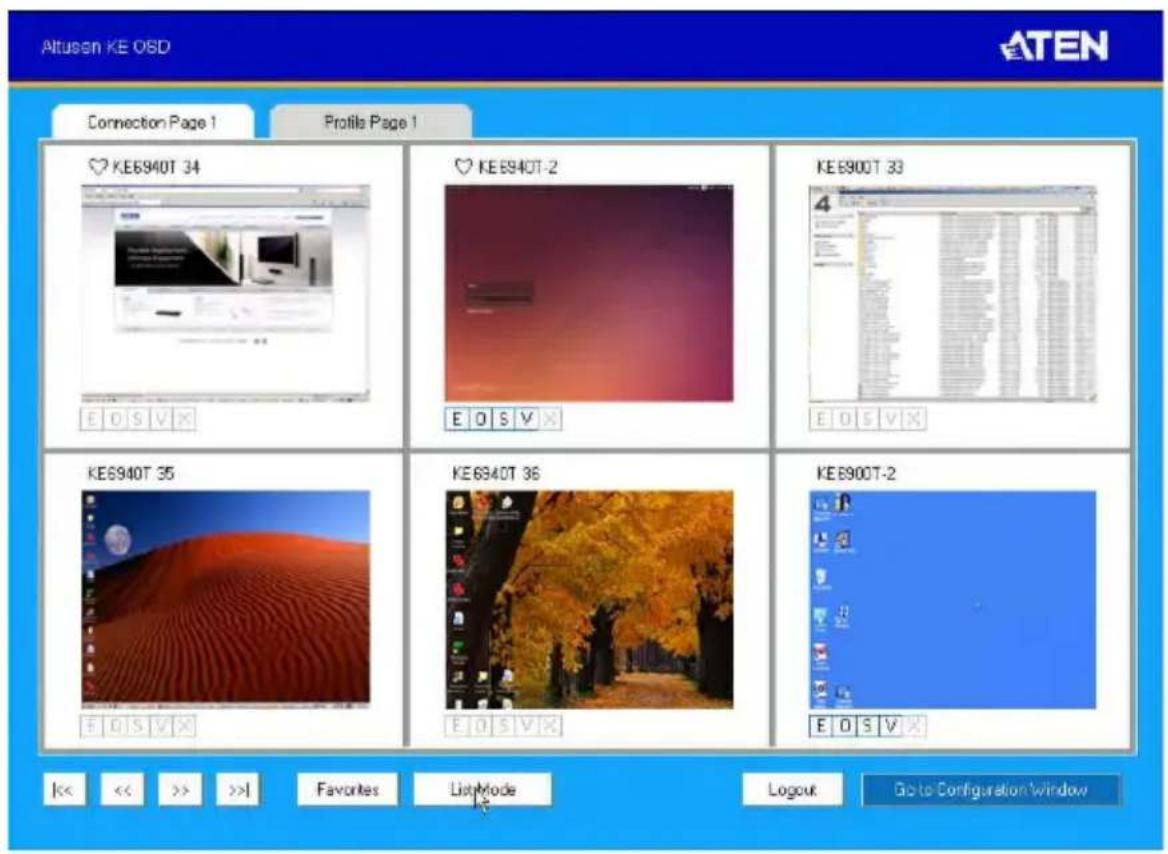
Profile / Video Wall Page
Click the Profile / Video Wall Page tab and the following screen appears:
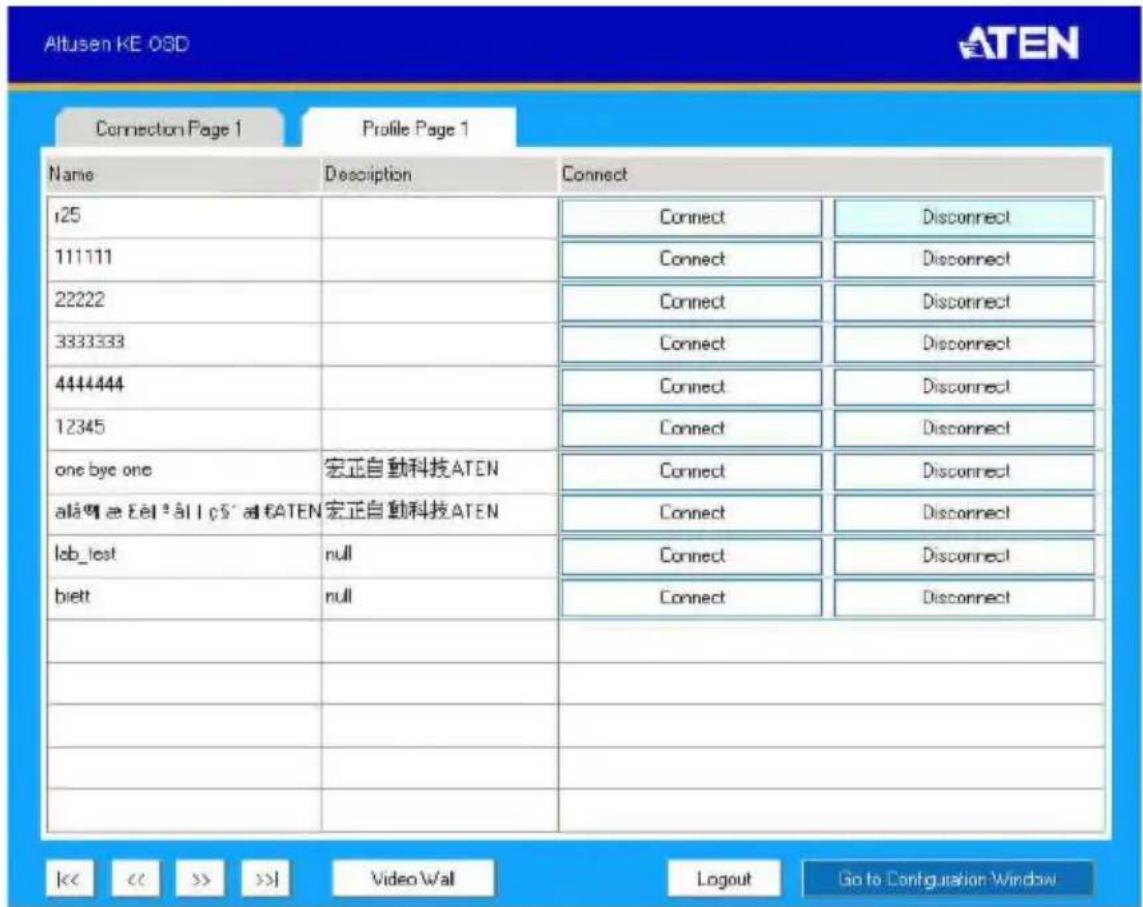
The Profile /Video Wall Page components are described in the table, below:
| No. | Item Description | |
| 1 | Name Lists the Profiles and Video Walls available. Profiles / Video Walls give User Stations access to Channels and allow you to push the connection. | |
| 2 | Description The field provides a description of the Profile/Video Wall that was entered when it was created. | |
| 3 | Connect Click Connect and the User Station will connect with the settings of that Profile or Video Wall (see Profiles, page 94 or Video Wall, page 98). | |
| 4 | Disconnect Click Disconnect to end the current Profile or Video Wall connection. | |
| 5 | Next Arrow Use these two buttons to navigate to the next page or to the end of the list if there are more Profiles/Video Walls available than can be seen on the page. | |
| 6 | Previous Arrow Use these two buttons to navigate to the previous page or to the beginning of the list if there are more Profiles/Video Walls available than can be seen on the page. | |
| 7 | Video Wall Click to view a list | of available Video Wall connections. Appears when the Profile button has been clicked. |
| 8 | Profile Click to view a list of available Profile connections. Appears when the Video Wall button has been clicked. | |
| 9 | Logout Click this button to log | out of the Connection Page. |
| 10 | Go to Configuration Window | Click this button to return to the main OSD screen. |
This Page Intentionally Left Blank
Matrix Manager Software Installation
Overview
The Matrix Manager is a browser based GUI that provides management of KE6900 / KE6940 devices over a network. You can download the Matrix Manager Lite version which is free and manages up to 8 KE devices, or purchase a full version of the Matrix Manager software. To purchase the full version contact your local authorized ATEN dealer. To download the free Matrix Manager Lite software, use the instructions below.
Download - Trial Version
To download the Matrix Manager Lite software, do the following:
- Visit our website and click Support → Go to ATEN eService.
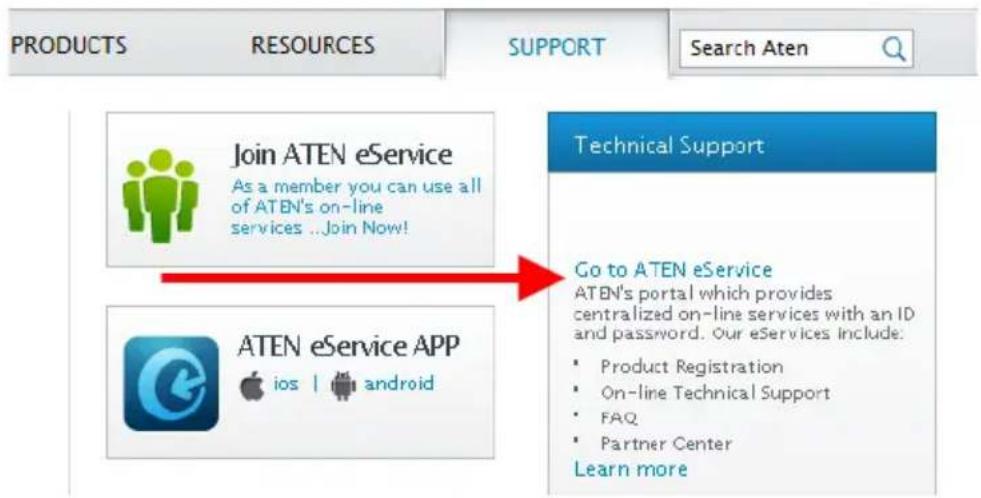
- Create an account and Sign In to ATEN eService.
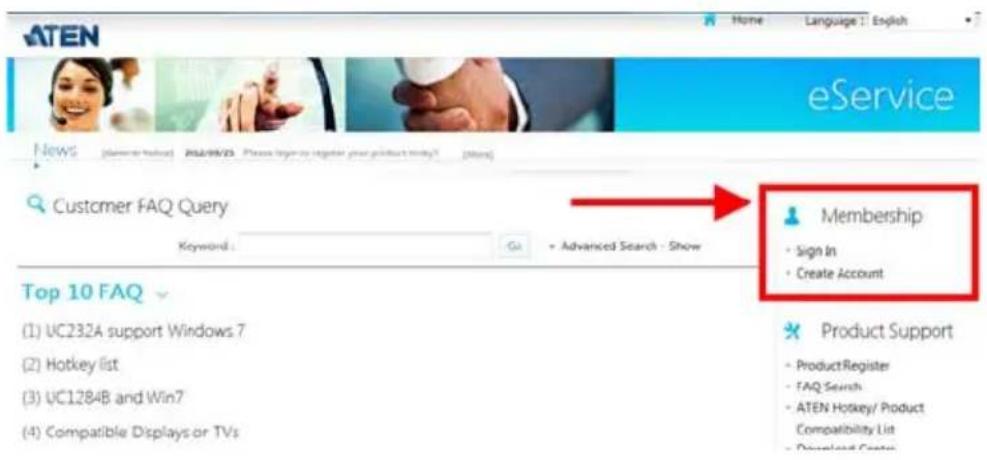
- Register the KE690x device(s) you have purchased.
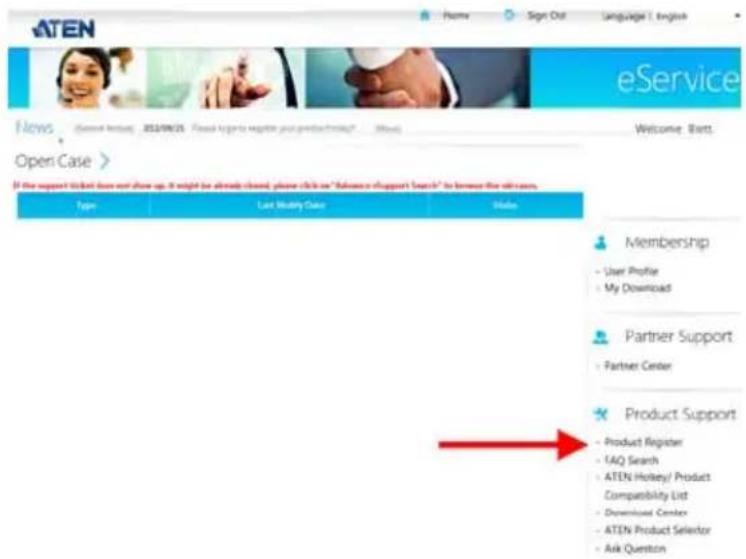
- After you have registered the KE device(s), click Trial Software Download.

| Serial Number | Model | Date of Purchase | Invoice / Shipping Document | Warranty Due Date | Action |
| 12345678901235 | KE6940 | 2015/10/20 |
Note: The trial version or “Matrix Manager Lite” includes full functions to setup and configure up to 8 KE6900 (transmitter/receiver) devices. The Matrix Manager Lite version will never expire. If you would like to purchase the official full version of the Matrix Manager software, please contact your ATEN reseller and see page 52.
- Click the software version you would like to download, then click Save.
| My Download > | ||
| FAQ Attachment Download | Trial Software Download | |
| File Title | Web Site | File Download |
| Matrix Manager Lite V1.2.113.011 (Linux version) | KB6900 Matrix Manager Lite V1.2.113.011 Ink (click download icon to download KE Matrix Manager Lite Linux version) | # |
| Matrix Manager Lite V1.2.113.011 (Windows version) | KB6900 Matrix Manager Lite V1.2.113.011 Ink (click download icon to download KE Matrix Manager Lite Windows version) | # |
- Unzip the Matrix_Manager_Lite.zip file and double click the *.exe file to start the installation.
- Follow the instructions on the next page to install the trial version of the software.
Matrix Manager Install
The following are instructions to install the full version of the Matrix Manager software. For software requirements, see Software, page 3.
- Insert the USB license key into a USB port on your computer.
- Double click the MatrixManagerSetup file to start the setup. When the Introduction screen appears, click Next.:
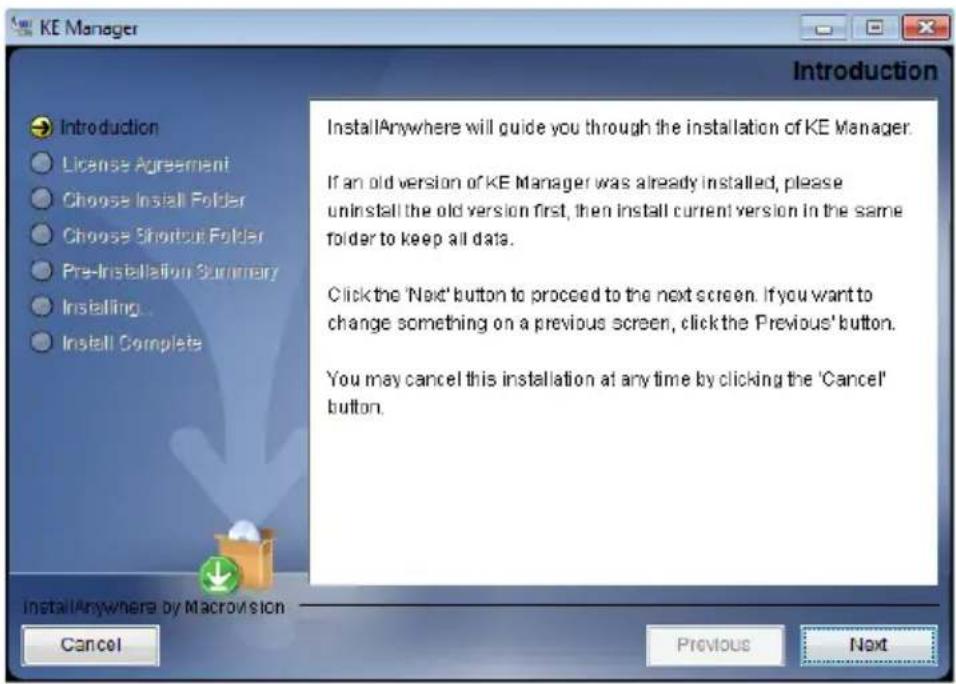
- The License Agreement appears:
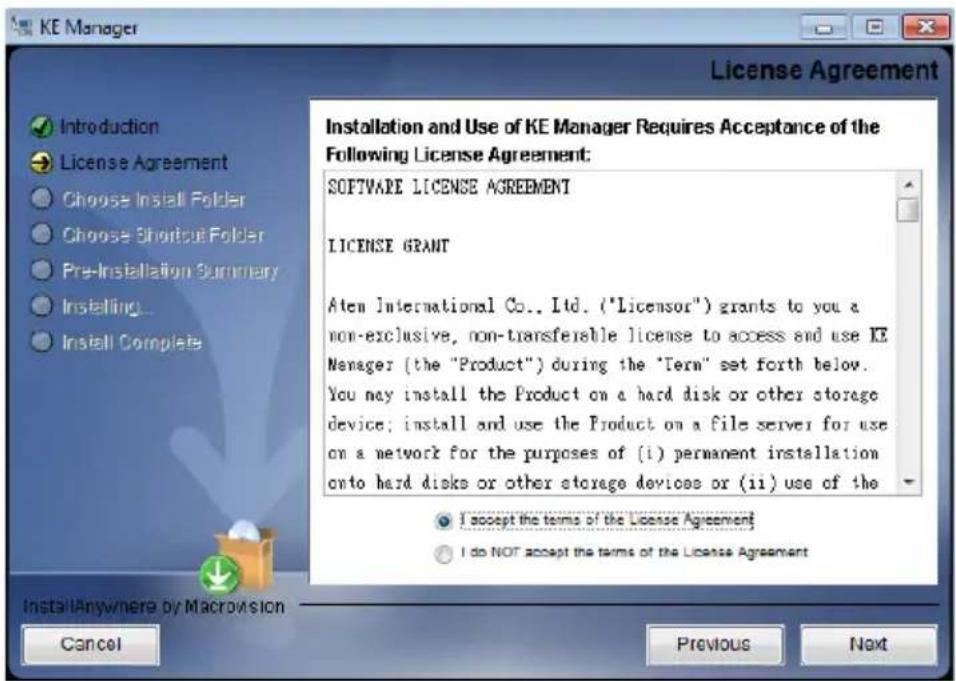
If you agree with the License Agreement, select I accept the terms of the license agreement, and click Next.
- The Choose Install Folder screen appears:
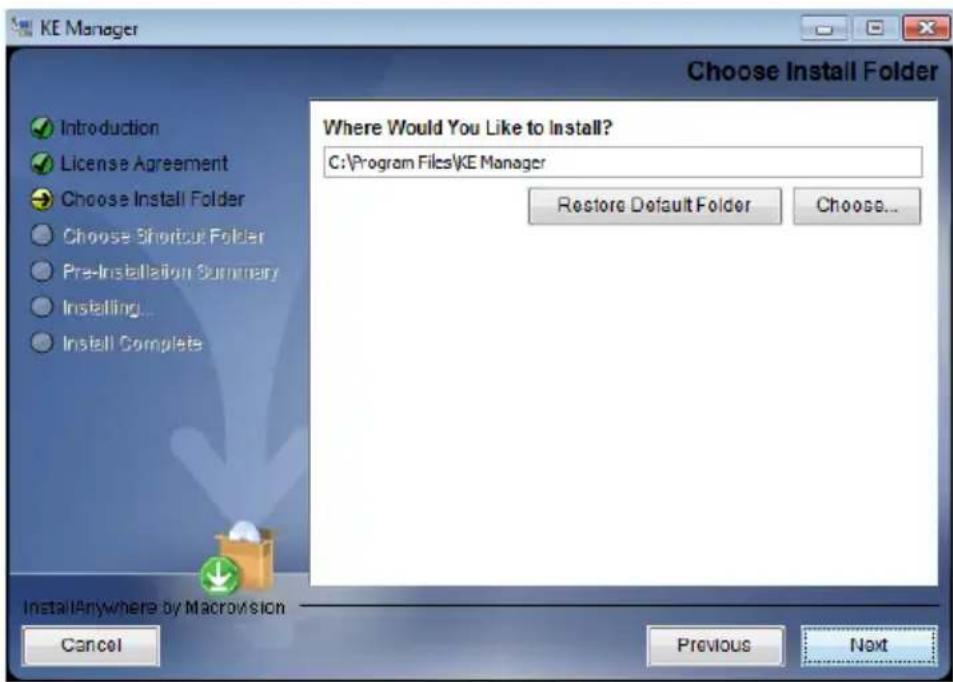
Select where you would like to install the program, and click Next.
- The Choose Shortcut Folder screen appears:
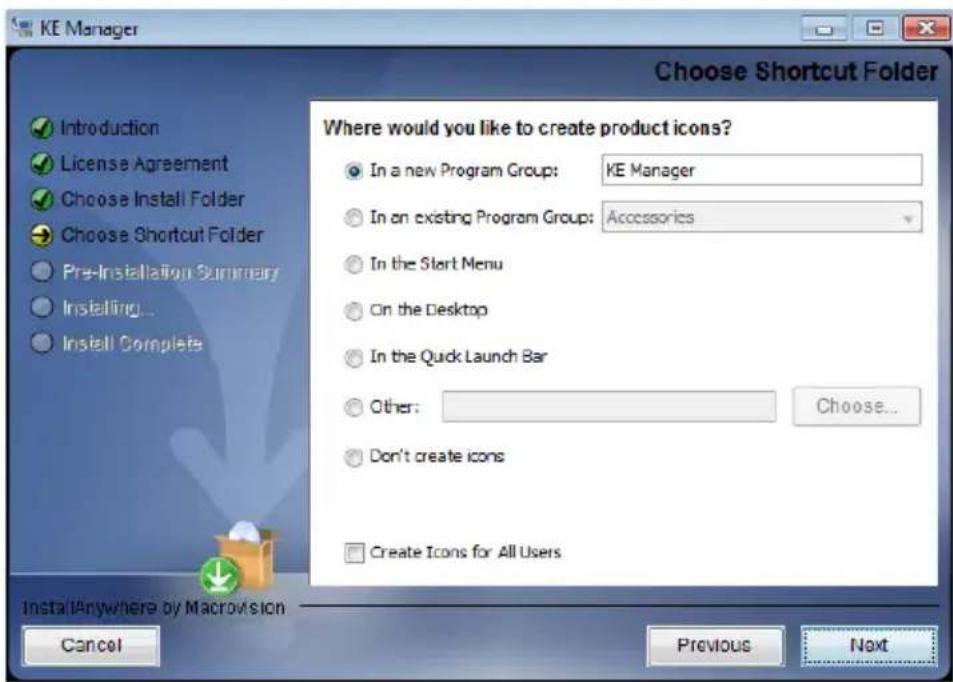
Select where to create shortcuts for the program by selecting the options provided, and click Next.
- The Pre-Installation Summary screen appears:
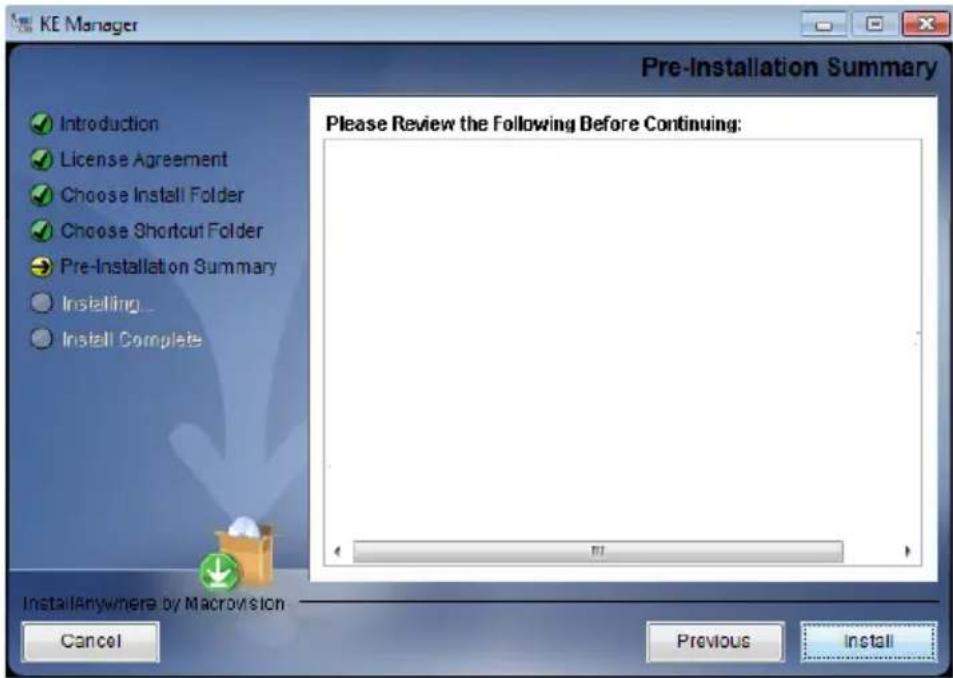
Confirm the settings you've selected. If you want to make a change click Previous to go back, or click Install to begin the software installation.
- When the process is done, the Install Complete screen appears:
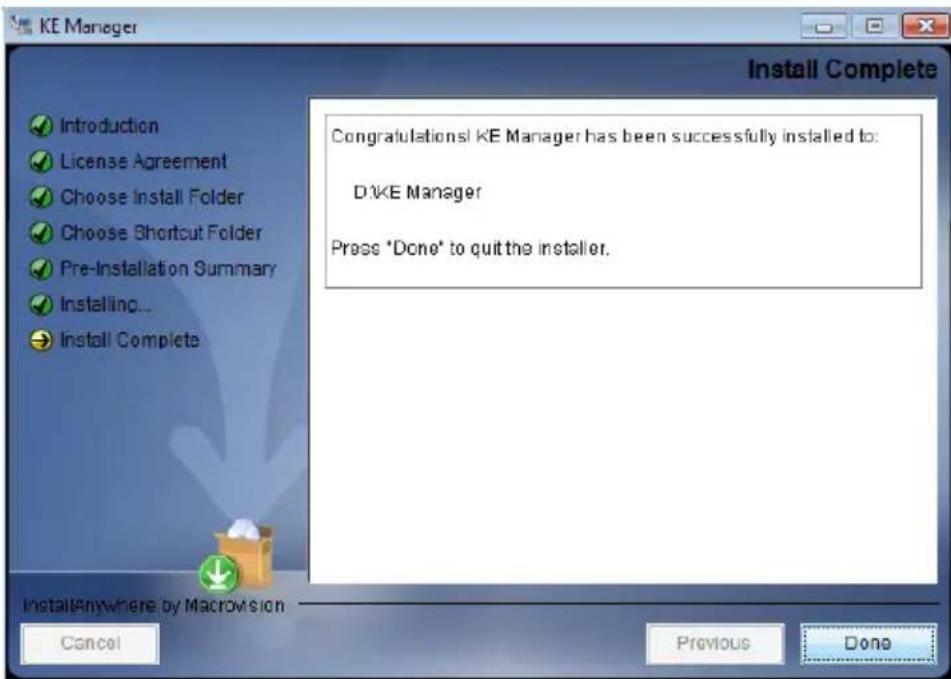
Click Done.
Note: If you are installing the Matrix Manager on a second computer for redundancy (see Redundancy, page 129) – remove the USB License key and plug it into the primary computer running the Matrix Manager software.
Upgrading Trial Version
After you purchase a license to upgrade the Matrix Manager Lite version to the full version of the Matrix Manger software, go to the System tab, and at the bottom of the Global Settings page, click Upgrade:
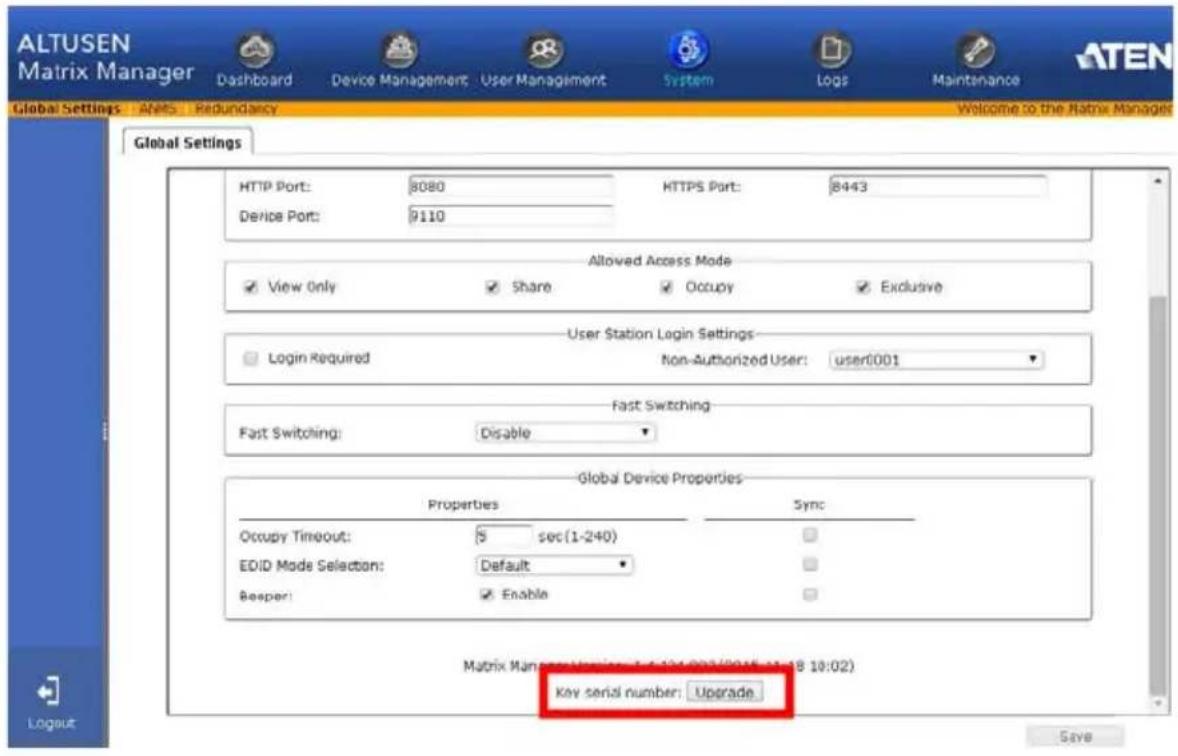
Overview
The Matrix Manager software can be accessed through most standard web browsers and via Telnet. Once users log in and are authenticated, the browser GUI comes up. The first section explains the login procedure and web browser components. The last section provides details for connecting via Telnet.
Logging In
To log into the Matrix Manager, do the following:
- Open the browser and specify the IP address of the computer installed with the Matrix Manager software, in the browser's URL location bar.
Note: If the administrator has configured the HTTP or HTTPS port setting as something other than the default, you must include http://or https:// before the IP address, and specify the port number along with the IP address. For example:
https://192.168.1.20:8443
Where 8443 is the https port number, or 8080 is the http port number, and a colon is inserted between it and the IP address.
- If a Security Alert box appears, accept the certificate – it can be trusted (See Trusted Certificates, page 195 for details). The Login page appears:
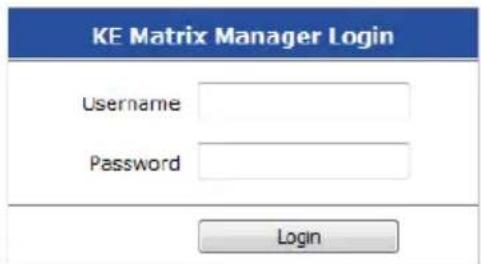
- Enter the Username and Password, and click Login.
Note: Only administrator accounts can be used to login. Username: administrator | Password: password. For security purposes, we recommend you change this to something unique.
The Matrix Manager Main Page
After you have successfully logged in, the web browser's main page appears:
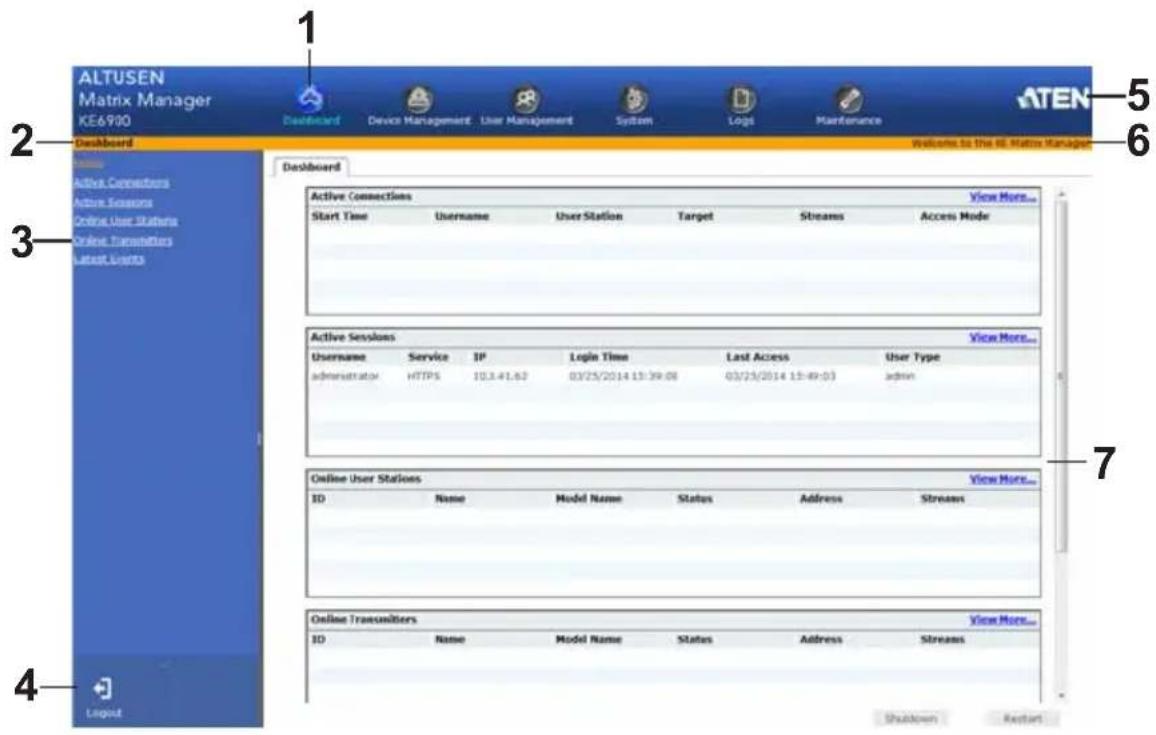
Web Components
The web components are described in the table, below:
| No. | Item Description | |
| 1 | Tab Bar The tab bar contains | the Matrix Manager's main operation categories: Dashboard, Device Management, User Management, System, Logs, and Maintenance. |
| 2 | Menu Bar The menu bar contains | operations operational sub-categories that pertain to the item selected in the tab bar. |
| 3 | Sidebar The Sidebar provides | a tree view and listing of items that relate to the various tab bar and menu bar selections. Clicking an item in the Sidebar brings up a page with the details that are relevant to it. |
| 4 | Logout Click this button to log | out of your Matrix Manager web session. |
| 5 | ATEN Logo Click this button to | open a new browser window that opens on the ATEN website. |
| 6 | Welcome Message | If this function is enabled (see Preferences, page 145) a welcome message displays here. |
| 7 | Interactive Display Panel This | is your main work area. The screens that appear reflect your menu choices and Sidebar item selection. |
Tree View Considerations
On some pages there will be a sidebar menu with options that can be expanded:
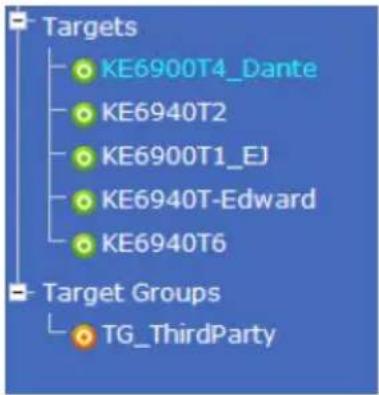
A plus (+) sign in front of an item means that there are additional items nested inside of it. Click the plus sign to expand the view and show the nested items.
- The plus sign changes to a minus sign (-)when an item is expanded. Click the minus sign to collapse the view and hide the nested items.
- For devices, if the device is on line, its icon is in green; if it is off line, its icon is orange.
The Tab Bar
The functions associated with each of the tabs are explained in the table below:
| Icon Function | |
 Dashboard Dashboard | Dashboard: The Dashboard is used to view information about current connections, sessions, and device events. The first page provides an overview and the sidebar provides a link to view details about each section. The Dashboard is discussed on page 61. |
 Device Management Device Management | Device Management: The Device Management page is used to configure and control the overall operation of the devices added to the Matrix Manager. Device Management is discussed on page 69. |
 User Management User Management | User Management: The User Management page is used to create and manage Users and Groups. It is also used to assign permissions to them. User Management is discussed on page 105. |
 System System | System: The System page is used to configure the Matrix Manager's global settings and setup ANMS authorization and authentication. The System page is discussed on page 120. |
 Logs Logs | Logs: The Log page displays the contents of the log file. The Log page is discussed on page 133. |
| [5BW6] Maintenance | Maintenance: The Maintenance page is used to install firmware; backup and restore configuration information, install certificates, and set preferences. The Maintenance page is discussed on page 137. |
Telnet
The KE6900 / KE6940 can be operated and configured via a remote terminal session using Telnet. This is a useful means for configuring devices when they are first setup and connected to the network.
To log into the KE6900 / KE6940 by means of a Telnet session, do the following:
- On your computer, open a terminal (command line) session.
- At the prompt, key in the KE6900 / KE6940's IP address in the following way:
telnet [IP address] - Press Enter. The login screen appears. At the login prompt, provide the Password.
Note: The default password for Telnet sessions is password.
Configuration Menu
Once a Telnet connection to the KE6900 / KE6940 is established, the device's text-based Configuration Menu comes up, allowing you to select options by entering a number on the following screens:
Main Menu

KE6900 User Station
User Station Configuration

- Network
- Properties
- System
Q. Logout
Select one:
1. Network
KE6900 User Station
Network Settings
-
IP Installer [Enabled]
-
DHCP [Disabled]
-
IP Address [172.17.17.34]
-
Subnet Mask [255.255.255.0]
-
Default Gateway [172.17.17.254]
Q. Exit
Select one:
2. Properties
KE6900 User Station
Device Properties
- Mode [Matrix]
- Transmitter Video IP Address [172.17.17.35]
- Transmitter Audio IP Address [172.17.17.35]
- Transmitter USB IP Address [172.17.17.35]
- Transmitter RS232 IP Address [172.17.17.35]
- UART Configuration
- Video [Enabled]
- Audio [Enabled]
- USB [Enabled]
- RS232 [Enabled]
- KE Manager IP [172.17.17.33]
- KE Manager Port [9110]
- Beeper [Enabled]
- USB Mode [VM]
- USB Secure Transmit [Disabled]
Q. Exit
Select one:
3. System
++++++++++++++
KE6900 User Station
System Setting
-
Device Name [KE6900R]
-
Device Description [Receiver1]
Device IP Address: 172.17.17.34
Device MAC Address: 00:10:74:A8:01:23
Device FW Version: V1.1.109
Device Serial Number:
-
Password [Enabled]
-
Change Password
-
System Reboot/Reset to Factory Default
Q. Exit
Select one:
This Page Intentionally Left Blank
Chapter 6
Dashboard
Overview
The Dashboard tab is used to view events about connections, sessions, online devices and schedules. The Home page provides an overview of the information provided in each section. The Sidebar provides a link to each section in the Dashboard.
The Dashboard opens on the Home page, as shown here:
![ALTUSEN Matrix Manager Dashboard Device Management User Management System Logs Maintenance ATEN Welcome to the Matrix Manager Dashboard Active Connections Active Sessions Online User Stations Online Parameters Latest Events Schedule Dashboard Last Ambulatory Status : [ Premry ] [ Working ] Active Connection View More... Channel Streames Access Mode User Station Username Start Time Operation KE6940T 36 VIAUIS Share KE6940R 25 administrator 08/12/2015 11:45:23 Disconnect KE6940T 36 VIAUIS Share KE6940R 26 administrator 08/12/2015 11:45:23 Disconnect KE6940T 36 VIAUIS Share KE6940R 24 administrator 08/12/2015 11:45:23 Disconnect KE6940T 36 VIAUIS Share KE6940R 23 administrator 08/12/2015 11:45:23 Disconnect Active Sessions View More... Username Service JP Login Time Last Access User Type administrator SSD 192.168.0.28 08/12/2015 09:34:39 08/12/2015 09:34:39 admin administrator SSD 192.168.0.26 08/12/2015 09:34:40 08/12/2015 09:34:40 admin administrator SSD 192.168.0.23 08/12/2015 09:34:41 08/12/2015 11:45:58 admin administrator SSD 192.168.0.24 08/12/2015 09:34:41 08/12/2015 09:34:41 admin administrator VTIPS 192.168.0.69 08/12/2015 09:37:06 34:09:26 admin Online User Stations View More... Name Model Name Address Streams KE6940R 23 KE6940R 192.168.0.2 VIAUIS 9 KE6940R 23 KE6940R 192.168.0.2 VIAUIS 3 KE6940R 25 KE6940R 192.168.0.2 VIAUIS 5 Online Transmitters View More... Name Model Name Address Streams KE6940T 33 KE6940T 192.168.0.3 VIAUIS 2 KE6940T 34 KE6940T 192.168.0.3 VIAUIS 4 KE6940T 36 KE6940T 192.168.0.3 VIAUIS 6 Shutdown Reset](/content/2026/06/1150998/images/ed1b156dc9ef42de55d36fe84ff76027e8845d2f505688b5430a6e9ff20f38bc.jpg)
At the bottom of the page, click Shutdown* to stop the KeManager service, or Restart to stop and restart the service. Both options will logout all user web sessions.
Note: Clicking Shutdown stops the KeManager service and web sessions will not be available until the KeManager service is restarted.
Active Connections
The Active Connections page lets an administrator see the active Channel connections (User Stations connected to Transmitters) and provides information about each of their sessions.
Connections
| Channel | Streams | Access Mode | User Station | Username | Start Time | Operation |
| KE6940T | V|A|U|S | Share | KE6940R 25 | administrator | 08/12/2015 11:45:23 | Disconnect |
| KE6940T | V|A|U|S | Share | KE6940R 26 | administrator | 08/12/2015 11:45:23 | Disconnect |
| KE6940T | V|A|U|S | Share | KE6940R 24 | administrator | 08/12/2015 11:45:23 | Disconnect |
| KE6940T | V|A|U|S | Share | KE6900R 23 | administrator | 08/12/2015 11:45:23 | Disconnect |
The meanings of the headings at the top of the page are straightforward.
- Channel refers to the defined Transmitter connection in use by the User Station.
- Streams refers to the type of source the connection is streaming: Video, Audio, USB, or Serial.
- Access Mode refers to the type of access (Exclusive, Occupy, Share, View only) that the User Station is connecting with.
- User Station refers to the Receiver that is being used to access the Channel connection.
- Username refers to the user that logged into the User Station to establish the connection.
- Start Time refers to the date/time the connection between the User Station and Transmitter began.
Operation provides a Disconnect button that allows you to disconnect the active connection.
Active Sessions
The Active Sessions page shows all of the users that are logged into Matrix Manager and OSD sessions and provides information concerning the “who, where and when” of each session. This page also gives the administrator the option of forcing a user logout by selecting the user and clicking Kill Session from the bottom of the page.
Sessions
| Select | Username | Service | IP | Login Time | Last Access | User Type |
| □ | administrator | OSD | 192.168.0.24 | 08/05/2015 13:28:59 | 08/05/2015 13:29:39 | admin |
| □ | administrator | OSD | 192.168.0.25 | 08/05/2015 13:29:02 | 08/05/2015 13:29:39 | admin |
| □ | administrator | OSD | 192.168.0.26 | 08/05/2015 13:45:17 | 08/05/2015 13:45:17 | admin |
| □ | administrator | OSD | 192.168.0.23 | 08/05/2015 15:26:27 | 08/05/2015 15:49:54 | admin |
| □ | administrator | HTTPS | 192.168.0.69 | 08/05/2015 16:14:36 | 08/07/2015 16:18:00 | admin |
The meanings of the headings at the top of the page are straightforward.
- Select allows you to check boxes and use the Kill Session button at the bottom of the page to force users to logout.
- Username refers to the user that logged into the User Station to establish the connection.
- Service refers to how the user logged into their session – via Matrix Manger or OSD.
- IP refers to the IP address of the device from which the user has logged in.
- Login Time refers to the date/time that the user logged into the Matrix Manager or OSD session.
- Last Access refers to the last time the user session was active and in use.
- User Type refers to the account type that the user is logged in with.
Online User Stations
The Online User Stations page lets the administrator see all of the Receivers that are currently available on the network and provides information about each device.
User Stations
| ID | Name | Model Name | Status | Address | Streams |
| 001074A801060000 | KE6940R 26 | KE6940R | On | 192.168.0.26 | V|A|U|S |
| 001074A801030000 | KE6900R 23 | KE6900R | On | 192.168.0.23 | V|A|U|S |
| 001074A801050000 | KE6940R 25 | KE6940R | On | 192.168.0.25 | V|A|U|S |
| 001074A801040000 | KE6940R 24 | KE6940R | On | 192.168.0.24 | V|A|U|S |
The meanings of the headings at the top of the page are straightforward.
- ID refers to the identification number assigned by the system.
- Name refers to the name entered on the User Stations System page.
◆ Model Name refers to the Receiver model number. - Status refers to the User Station’s online status.
- Address refers to the IP address of the User Station.
- Streams refers to the source type that the User Station is configured to stream: Video, Audio, USB, and Serial.
Online Transmitters
The Online Transmitters page lets the administrator see all of the Transmitters that are currently available on the network and provides information about each device.
Transmitters
| ID | Name | Model Name | Status | Address | Streams |
| 001074A801060000 | KE6940T 26 | KE6940T | On | 192.168.0.6 | V|A|U|S |
| 001074A801030000 | KE6900T 23 | KE6900T | On | 192.168.0.3 | V|A|U|S |
| 001074A801050000 | KE6940T 25 | KE6940T | On | 192.168.0.5 | V|A|U|S |
| 001074A801040000 | KE6940T 24 | KE6940T | On | 192.168.0.4 | V|A|U|S |
The meanings of the headings at the top of the page are straightforward.
ID refers to the identification number assigned by the system.
- Name refers to the name entered on the Transmitter's System page.
◆ Model Name refers to the Transmitter model number.
- Status refers to the Transmitter's online status.
- Address refers to the IP address of the Transmitter.
- Streams refers to the source type that the Transmitter is configured to stream: Video, Audio, USB, or Serial.
Latest Events
The Latest Events page lets the administrator see the most recent Dashboard events that relate to the current connections and sessions, and provides details about each.
Latest Events
| Time | User | Severity | Device | Log Information |
| 03/26/2014 14:03:35 | Information | Session created(Sessionid=**********10.3.41.62. | ||
| 03/26/2014 14:03:35 | administrator | Information | User login succeeded(username=administrator). | |
| 03/26/2014 14:02:06 | Error | Cannot find the KE authentication key. | ||
| 03/26/2014 13:40:19 | Information | Session created(Sessionid=**********10.3.41.62. | ||
| 03/26/2014 13:40:19 | administrator | Information | User login succeeded(username=administrator). | |
| 03/26/2014 13:18:38 | Error | Cannot find the KE authentication key. | ||
| 03/26/2014 12:35:42 | Error | Cannot find the KE authentication key. | ||
| 03/26/2014 12:00:43 | administrator | Information | User logout(username=administrator). | |
| 03/26/2014 12:00:43 | Information | Session terminated normally(Sessionid=**********). | ||
| 03/26/2014 12:00:43 | administrator | Information | User logout(username=administrator). | |
| 03/26/2014 11:56:12 | Information | Session created(Sessionid=**********10.3.41.62. | ||
| 03/26/2014 11:56:12 | administrator | Information | User login succeeded(username=administrator). | |
| 03/26/2014 11:52:23 | Error | Cannot find the KE authentication key. | ||
| 03/26/2014 11:51:39 | Error | System will reboot in 10 seconds. | ||
| 03/26/2014 11:51:34 | Information | Session created(Sessionid=**********10.3.41.62. | ||
| 03/26/2014 11:51:34 | administrator | Information | User login succeeded(username=administrator). | |
| 03/26/2014 11:49:02 | Error | Cannot find the KE authentication key. | ||
| 03/26/2014 11:47:19 | administrator | Information | User login succeeded(username=administrator). | |
| 03/26/2014 11:47:19 | Information | Session created(Sessionid=**********10.3.41.62. | ||
| 03/26/2014 11:47:11 | administrator | Information | User logout(username=administrator). | |
| 03/26/2014 11:47:11 | Information | Session terminated normally(Sessionid=**********). |
The meanings of the headings at the top of the page are straightforward.
- Time refers to the date and time that the event occurred.
- User refers to the username that the event relates to. If no username appears, the event is general system information.
- Severity refers to the event’s severity type: Information, Error, or Warning
◆ Device refers to the Transmitter or User Station that relates to the event. If no device is listed the event refers to the Matrix Manager. - Log Information provides detailed information about each event.
Schedule
The Schedule page lets the administrator see all of the Profiles and Video Walls that are scheduled to activate.
| Profile/Video Walls ≈ | Routine Type | Day | Start Date | End Date | Connect Time | Disconnect Time | Apply | Operation |
| 3 | Once | - | 2015-08-28 | 2015-08-28 | 00:00 | 01:00 | 08/28/201500:00:00 | Delete |
| 1 | Every 1 month(s) | 11 | 2015-08-28 | 2015-10-23 | 00:00 | 01:00 | 09/11/201500:00:00 | Delete |
| 7 | Every 1 week(s) | Sunday | 2015-08-27 | 2015-09-16 | 00:00 | 02:00 | 08/30/201500:00:00 | Delete |
The meanings of the headings at the top of the page are straightforward.
- Profiles/Video Walls refers to the ID number created for the Profile or Video Wall schedule.
- Routine Type refers to how often the Profile or Video Wall is scheduled to repeat.
Day refers to either the day of a week (Monday to Sunday) or a day of the month that the Profile or Video Wall is scheduled to run. - Start Date refers to the date that the Profiles or Video Wall is scheduled to start.
- End Date refers to the date that the Profile or Video Wall is scheduled to end.
- Connect Time refers to the time of day that the Profile or Video Wall is scheduled to make its connection(s).
- Disconnect Time refers to the time of day that the Profile or Video Wall is scheduled to disconnect its connection(s).
- Apply refers to the date and time when the Profile or Video Wall schedule was created.
Operation provides a Delete button that can be used to permanently delete the Profile or Video Wall schedule.
This Page Intentionally Left Blank
Chapter 7
Device Management
Overview
The Device Management tab contains five menu bar items: User Stations, Transmitters, Channels, Profiles and Video Wall. Each page provides a way to add, configure and schedule the Transmitters/Receivers connections. Before Transmitters and Receivers can be added they must be connected to the network and have an IP address.
The Device Management tab opens on the User Stations page, as shown here:
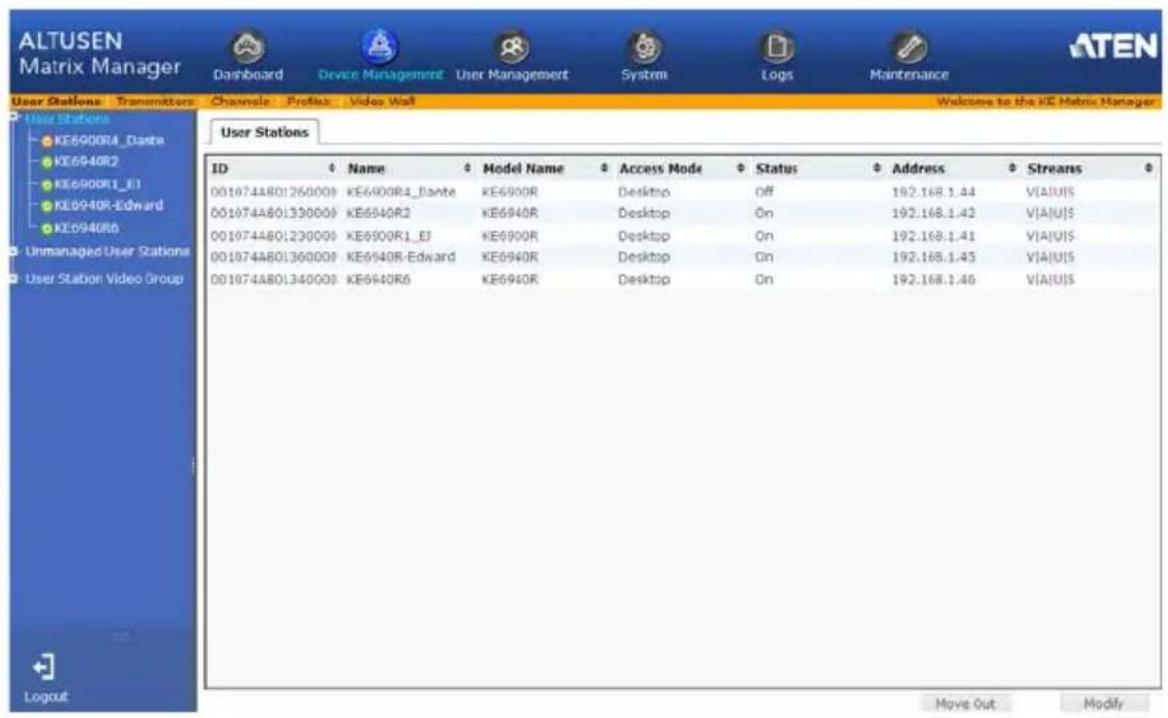
User Stations
The User Stations page allows you to add and configure Receivers. The Sidebar provides three menu options: User Stations, Unmanaged User Stations and User Station Video Group. User Stations are the Receivers that have been added to the Matrix Manager. Unmanaged User Stations are Receivers that have been found on the network but haven't been added to the Matrix Manager. To discover a Receiver, it must be connected to the network and have an IP address. User Station Video Group lists Transmitters that have been grouped to share the video from one computer.
Click User Stations from the menu bar and the following screen appears:
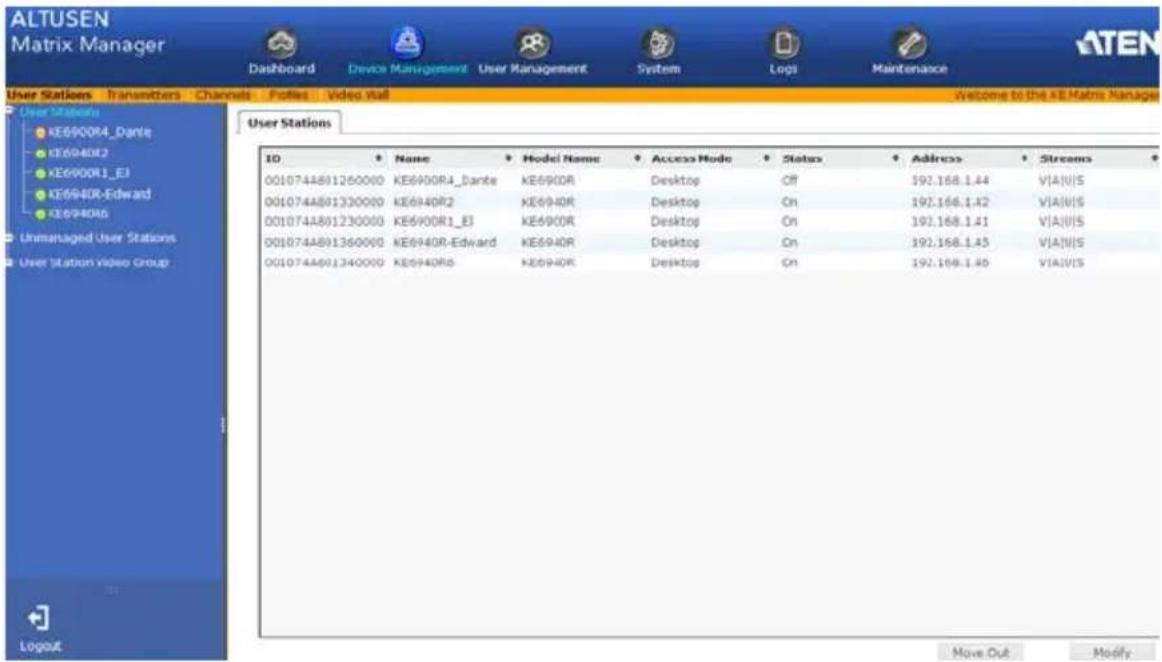
The main page provides an overview of each User Station. The Sidebar provides a link with a more detailed view of each.
The meanings of the headings at the top of the page are straightforward.
ID refers to the identification number assigned by the system.
- Name refers to the name entered on the User Stations's System page.
◆ Model Name refers to the Receiver model number.
- Access Mode refers to the User Station’s mode set in the Properties.
- Status refers to the User Station’s online status.
- Address refers to the IP address of the User Station.
- Streams refers to the source type that the User Station is configured to stream: Video, Audio, USB, and Serial.
Adding a User Station
To add a User Station, do the following:
- From Unmanaged User Stations, select a User Station and click Add in:
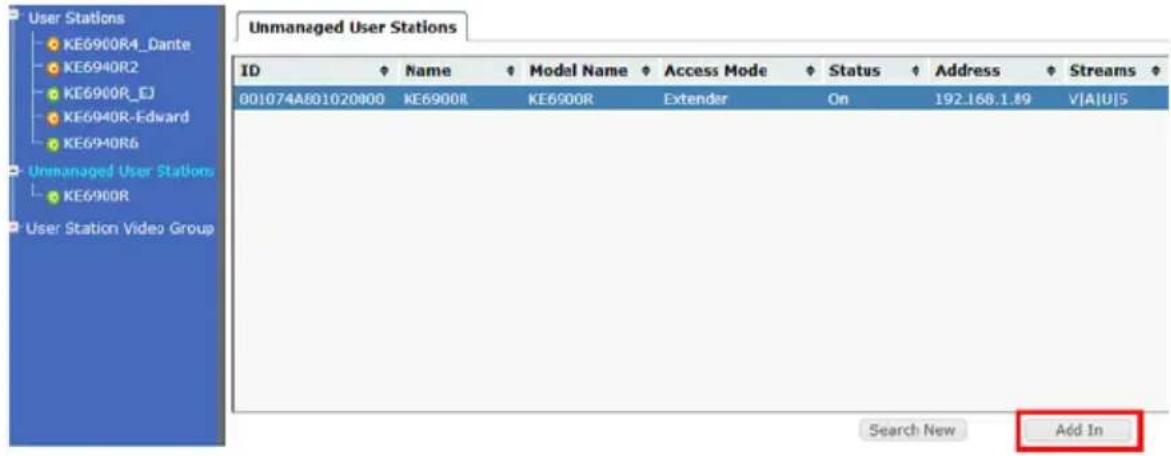
or click Search New:
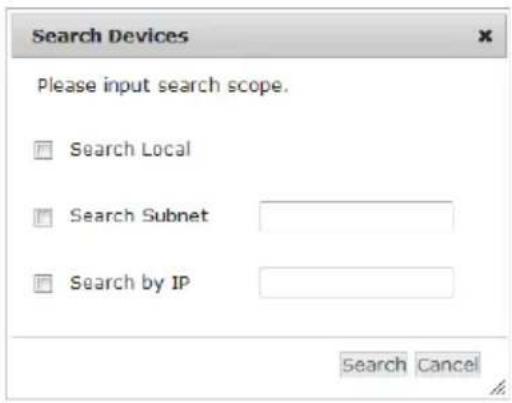
You can search for a device by Local, Subnet, or IP address. Select a scope, enter the information and click Search.
- Once added, the User Station appears on the User Stations main page and in Sidebar menu:
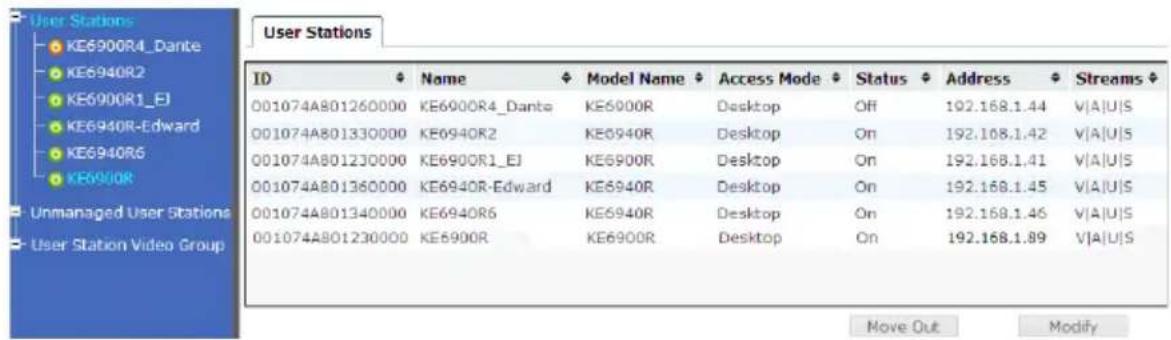
Configuring a User Station
A User Station's settings can be modified from the User Stations main page. Changes that are saved here are then updated on the Receiver across the network. To configure a User Station:
- Select a User Station and click Modify.
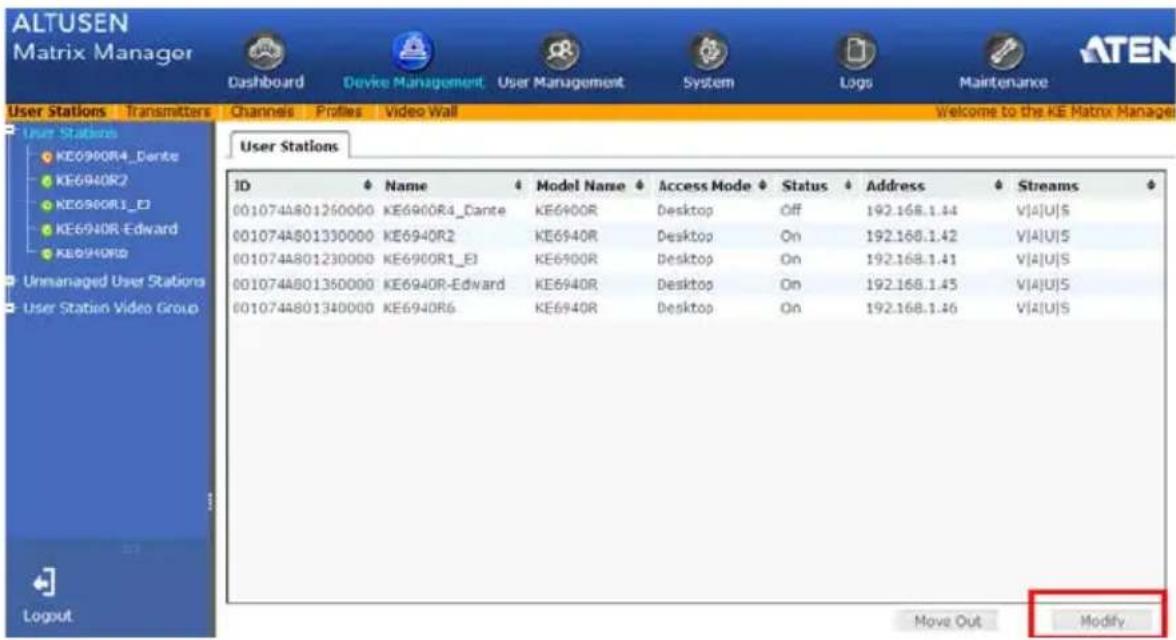
- The Network tab appears with the User Station's IP address settings:
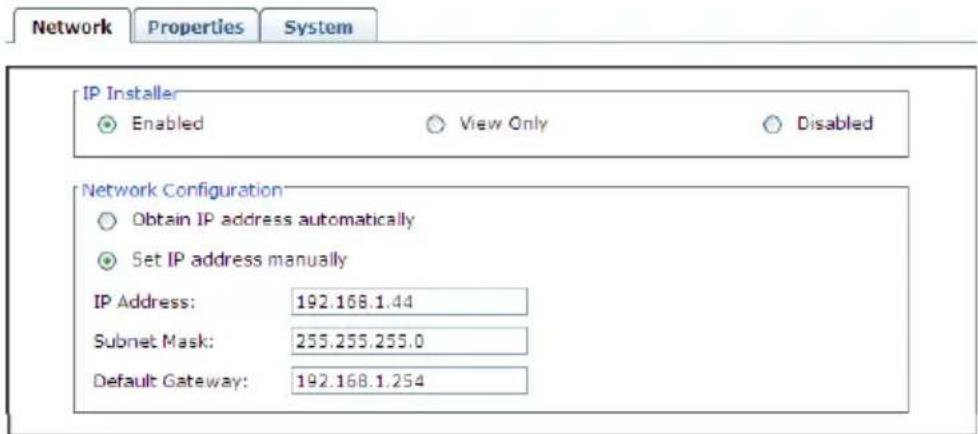
| Item Description | |
| IP Installer The IP | Installer is an external Windows-based utility for assigning IP addresses to the device. Click one of the radio buttons to select Enable, View Only, or Disable for the IP Installer utility. See IP Installer, page 194 for details.For security, we strongly recommend that you set this to View Only or Disable after each use. |
| Network Configuration | For dynamic IP address assignment, select the Obtain IP address automatically radio button.To specify a fixed IP Address, Subnet Mask, and Default Gateway select the Set IP address manually radio button and fill in the fields with values appropriate for your network.For information to configure the network settings locally on the device see Network Configuration, page 23. |
3. Click the Properties tab to configure the User Station's properties:
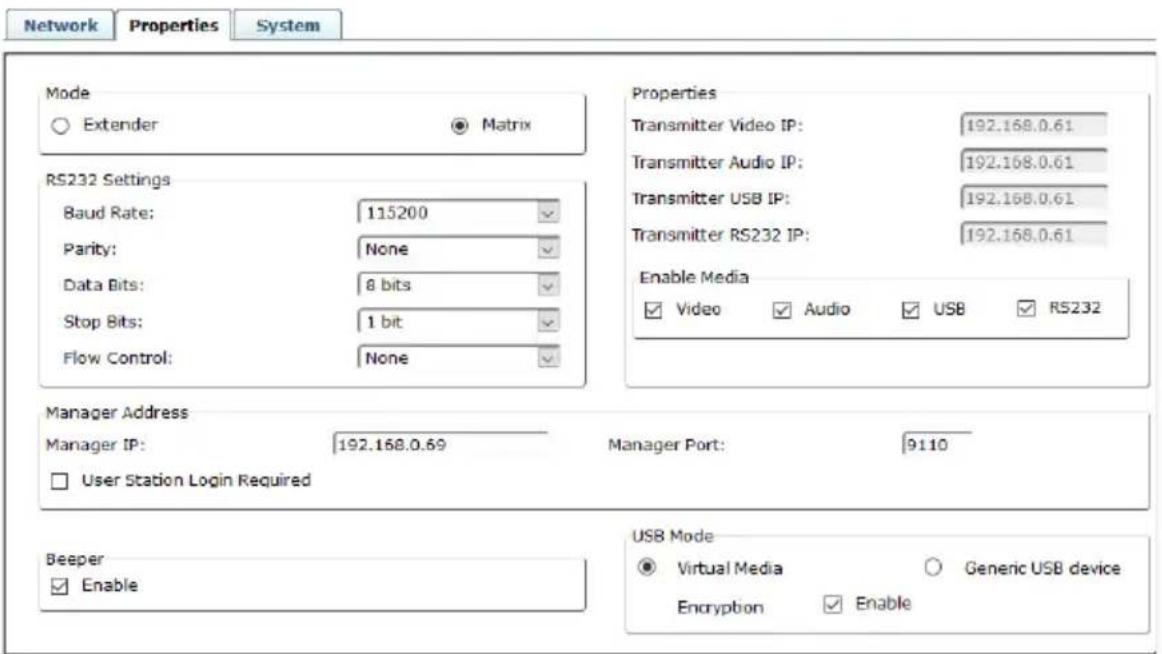
| Item Description | |
| Mode | Select Extender mode for simple one-to-one (Transmitter to User Station) setups that are managed mostly with the Receiver's OSD menu.Select Matrix mode to manage devices and connections from the Matrix Manager. This mode is for advanced setup and administration of Transmitter to User Station connections via the Matrix Manger browser UI. (See Channel Connections, page 87) |
| Properties | If you selected Extender mode (above) set the Transmitter IP address for the User Station's Video, Audio, USB, and RS232 source signals.If you selected Matrix mode (above) the Properties will be grayed out. Use Channels to configure the Transmitter connections. (See Channel Connections, page 87) |
| RS-232 Settings | Configure the settings for the serial device the User Station will be connecting to. The default settings are:Baud Rate: 9600Parity: NoneData Bits: 8 bitsStop bits: 1 bitFlow Control: None |
| Enable Media Select which source type the User Station can stream : Video, Audio, USB, and RS232. | |
| Manager Address | Set the IP address and Port number of the computer running the Matrix Manager software. The default port number is 9110. |
| Login Required Check this box to require a username and password on the User Station's OSD to access the Connection Page (see page 40).Note: WARNING! If you uncheck Login Required you must select an Anonymous User in Global Settings. Otherwise a system login error may occur on the User Station's OSD.(See User Station Login Settings, page 122) | |
| Beeper Check this box for the Receiver to beep when configuration changes are made. | |
| USB Mode Select | the type of USB device you will connect to the USB ports:VM (Virtual Media): Select this option only if you are plugging a USB disk drive (including USB HDD/optical disk) into the USB ports. This will give you the highest data transfer speeds but will not allow other USB devices to work when plugged into the USB ports.Generic USB device: Use this option to plug USB peripherals into the USB ports. This option also allows a keyboard and mouse with special functions to plug into the USB ports for console use. Use this only if the special functions of the keyboard or mouse are required but do not work when plugged into the console ports. When the keyboard and mouse are plugged into the USB ports, they will not work within the OSD menus. To work within the OSD menus, the keyboard and mouse must be plugged into the console ports.Encryption: Check this box to encrypt USB disk drives plugged into the USB ports. |
4. Click the System tab to configure the general settings:
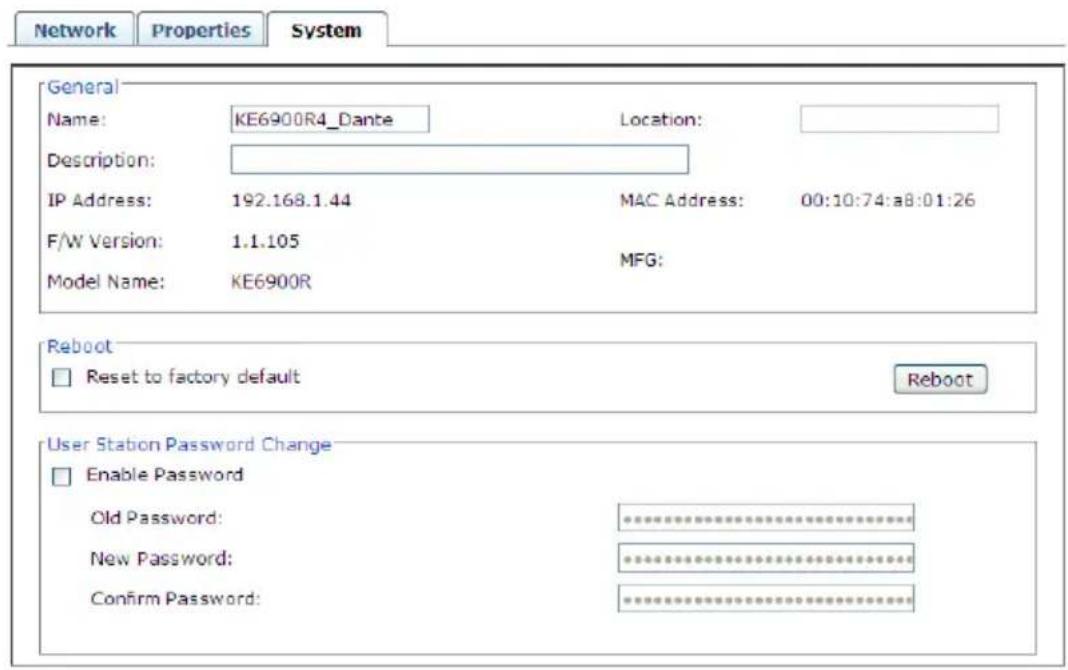
| Item Description | |
| General | Enter the Name, Location, and Description of the User Station. This section also displays the User Station's IP Address, F/W Version, Model Name, MAC Address and MFG*. Note: The MFG number (manufacturing number) is an internal serial number for our factory and technical support staff to identify products. This number does not affect any product's warranty. If your product needs after-sales services, you may provide the MFG Number to our sales or technical support staff to identify the product and model number. |
| Reboot | Check the box and click Reboot to reset the User Station's settings back to the factory default. All custom settings will be lost. |
| User Station Password Change | Check Enable to require a password to access the User Station's OSD configuration screens (see page 29). Enter the Old Password, enter a New Password, and confirm the new password in the Confirm Password box. |
5. After entering the information, click Save.
Deleting a User Station
To delete a User Station:
-
Select the User Station you want to delete.
-
Click Move Out.
The device list updates with the remaining User Stations. The User Station you deleted will appear on the Unmanaged User Stations main page and Sidebar menu.
User Station Video Group
Creating a User Station Video Group allows you to cascade up to four Transmitters connected to separate video cards on a computer and share the video with four or eight (dual display) User Stations with the first having keyboard and mouse access. The image below provides an example of the setup without the actual physical connections or possible device connections.
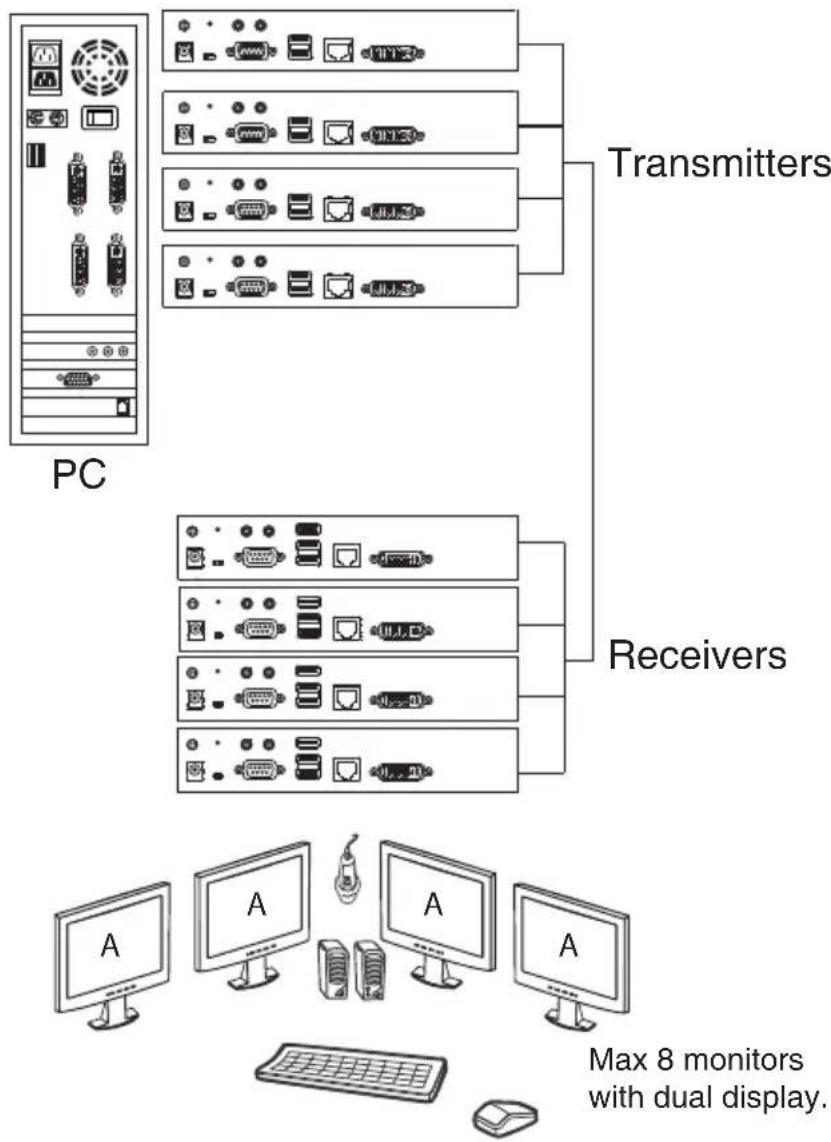
flowchart
graph TD
    A["PC"] --> B["Transmitters"]
    A --> C["Receivers"]
    D["A"] --> E["A"]
    F["A"] --> G["A"]
    H["A"] --> I["A"]
    J["Max 8 monitors with dual display."] --> K["Computer with monitor A"]
    L["Computer with mouse"] --> M["Computer with keyboard"]
Note: User Station Video Groups cannot be used with a Video Wall or Profile.
Hardware Setup
-
Connect each Transmitter to the network and to a DVI port on the computer.
-
Connect one Transmitter's - console & KVM ports to their respective device (keyboard/mouse/computer).
-
Setup the Receivers as you normally would. All Receivers can have a keyboard and mouse but only one (Video 1) can work on the computer for the group.
- Note the Receiver and Transmitter with keyboard and mouse access (to the computer) so they can be set in the User Station Video Group (as Video 1) and in the Channel (as KVM Transmitter).
Adding a User Station Video Group
- Add the User Stations (Adding a User Station, page 71) and Transmitters (Adding a Transmitter, page 81) to the Matrix Manager.
- On the left Sidebar select User Station Video Group.
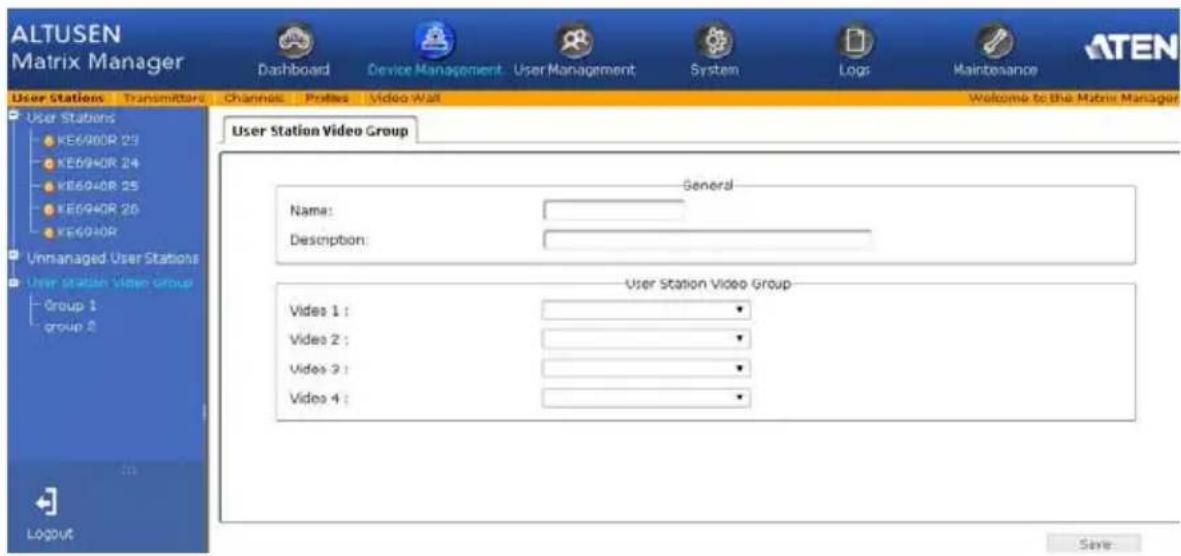
- Provide a Name and Description for the group.
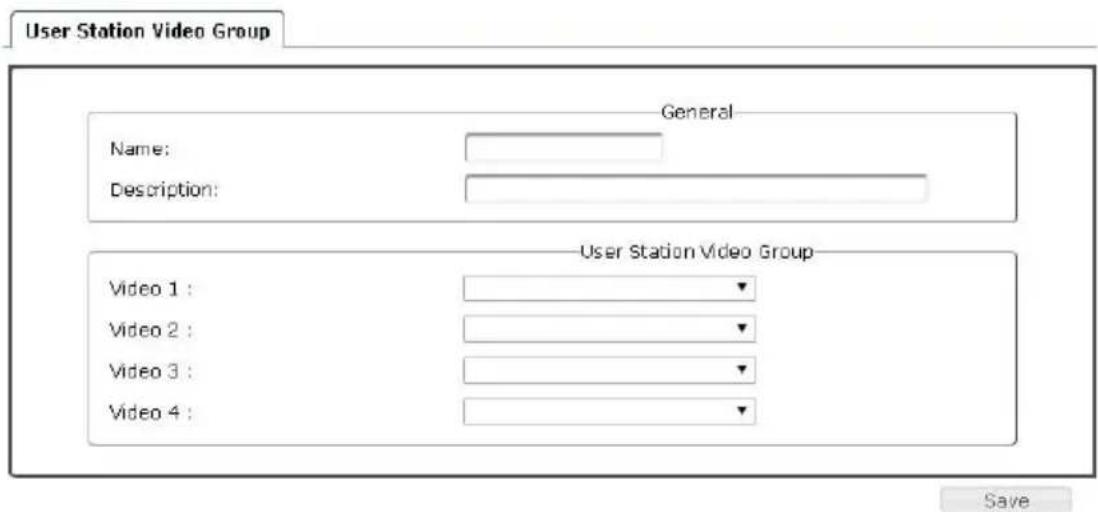
- Use the Video 1 drop-down menu to select the Receiver that will have keyboard and mouse access to the computer.
Note: All Receivers can switch KVM access to other Transmitters but only Video 1 has keyboard and mouse access to the computer for the group.
-
Use the Video 2, Video 3 and Video 4 drop-down menus to select the other Receivers for the group.
-
Click Save. The group appears in the Sidebar.
-
On the menu bar, go to Channels.
-
Add a new Channel.
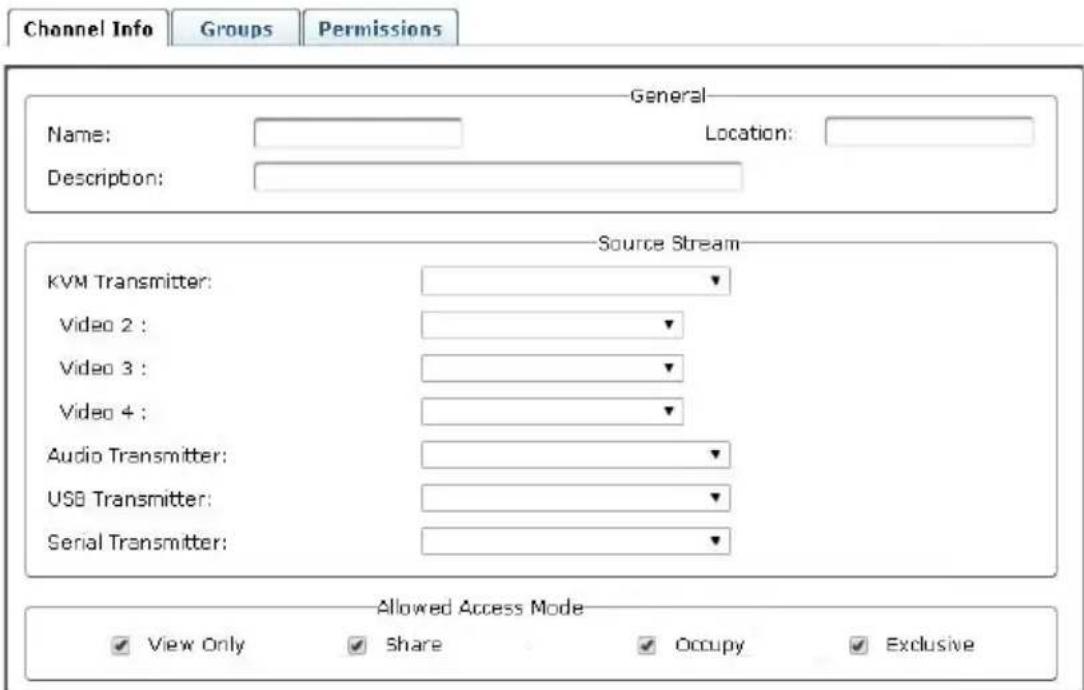
-
Set the Source Stream to map the Transmitters to the User Station Video Group Receivers, as such: KVM Transmitter → Video 1; Video 2 → Video 2; Video 3 → Video 3; Video 4 → Video 4.
-
Use the KVM Transmitter drop-down menu to select the Transmitter connected to the computer’s keyboard and mouse ports.
Use the Video 2, Video 3 and Video 4 drop-down menus to select the other Transmitters connected to the computer.
Use the Audio, USB and Serial drop-down menus to select the Transmitter for each source signal. The Transmitter selected sends the signal to the Receiver set with the same Video #. -
Configure the remaining Channel settings (see Adding a Channel, page 89).
-
Click Save.
Transmitters
The Transmitters page allows you to add, configure, and delete Transmitters. The Sidebar provides two options: Transmitters and Unmanaged
Transmitters. Unmanaged Transmitters are Transmitters on the network that haven't been added to the Matrix Manager. For the Matrix Manager to discover a Transmitter, it must be connected to the local network with an IP address.
Click Transmitters from the menu bar and the following screen appears:
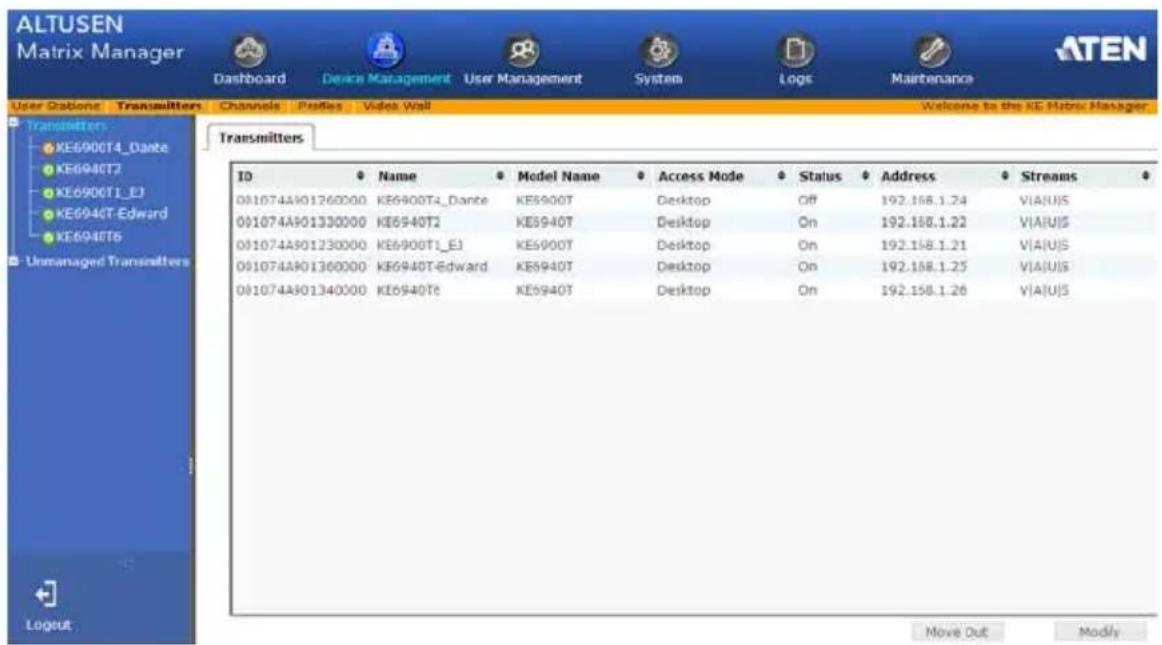
The main page provides an overview of each Transmitter. The Sidebar provides a link with a more detailed view of each.
The meanings of the headings at the top of the page are straightforward.
ID refers to the identification number assigned by the system.
- Name refers to the name entered on the Transmitter's System page.
- Model Name refers to the Transmitter's model number.
- Access Mode refers to the Transmitter's mode set in the Properties.
- Status refers to the Transmitter’s online status.
- Address refers to the IP address of the Transmitter.
- Streams refers to the source type that the Transmitter is configured to stream: Video, Audio, USB, or Serial.
Adding a Transmitter
To add a Transmitter, do the following:
- From Unmanaged Transmitters, select a Transmitter and click Add in:
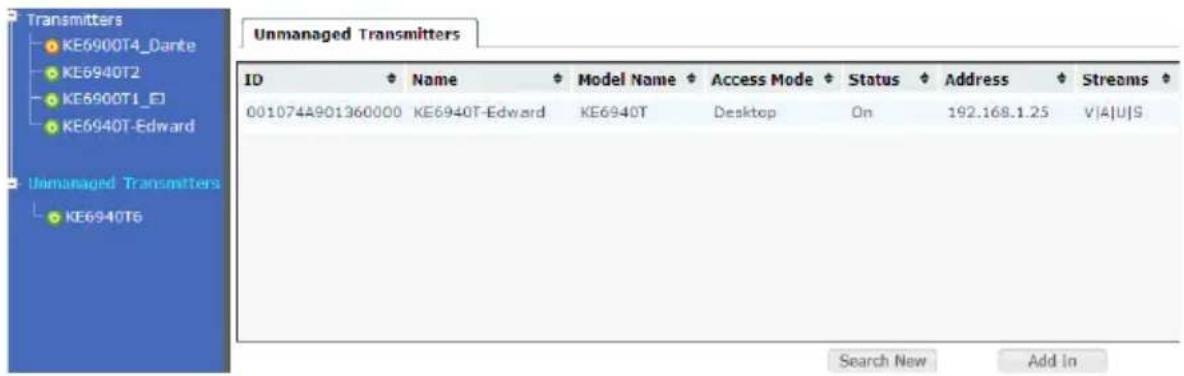
or click Search New:
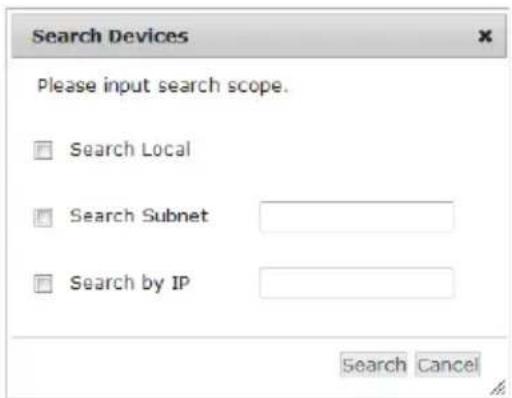
You can search for a device by Local, Subnet, or IP address. Select a scope, enter the information and click Search.
- Once added, the Transmitter appears on the Transmitters main page and Sidebar menu:
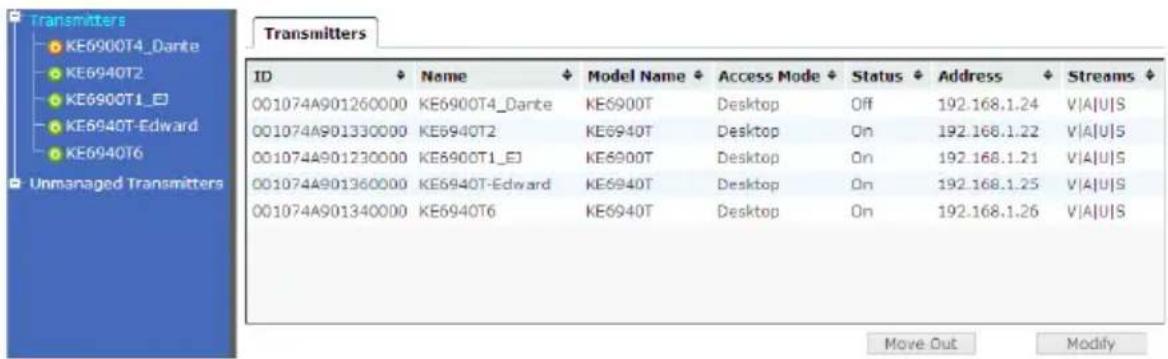
Configuring a Transmitter
A Transmitter's settings can be modified from the Transmitters main page. Changes that are saved are updated on the Transmitter device across the network. To configure a Transmitter:
1. Select a Transmitter and click Modify.
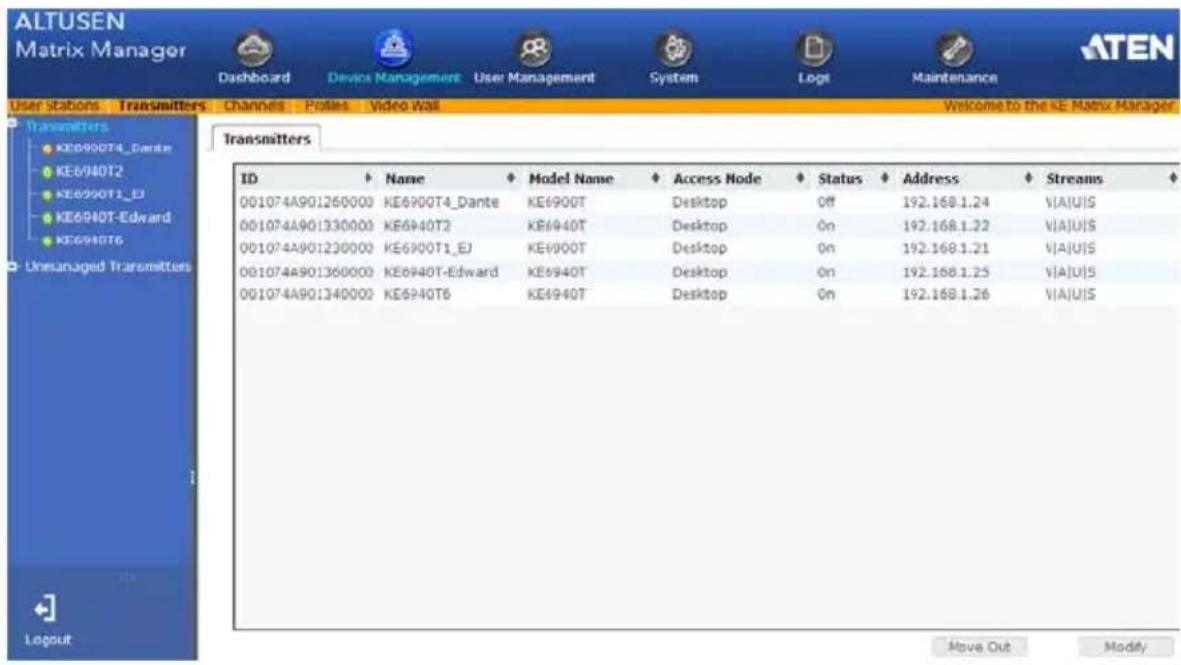
2. The Network tab appears with the Transmitter's IP address settings:
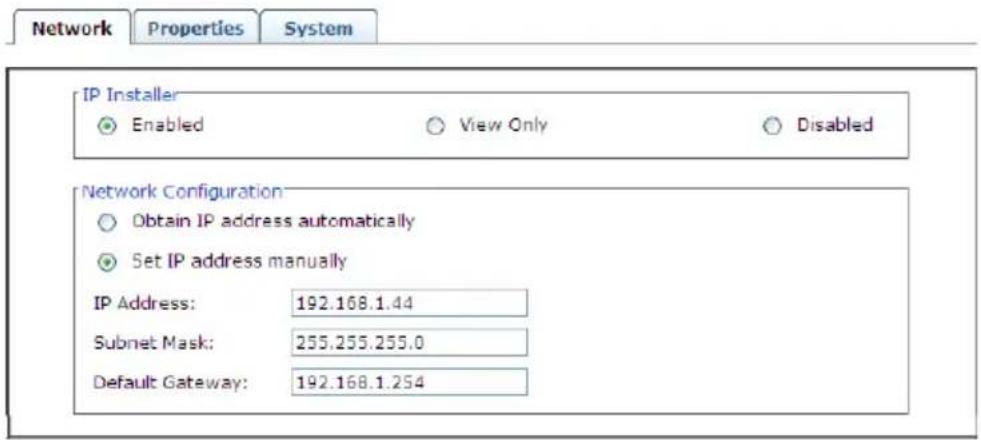
| Item Description | |
| IP Installer The IP | Installer is an external Windows-based utility for assigning IP addresses to the device. Click one of the radio buttons to select Enable, View Only, or Disable for the IP Installer utility. (See IP Installer, page 194)For security, we strongly recommend that you set this to View Only or Disable after each use. |
| Network Configuration | For dynamic IP address assignment, select the Obtain IP address automatically radio button.To specify a fixed IP Address, Subnet Mask, and Default Gateway, select the Set IP address manually radio button and fill in the fields with values appropriate for your network.For information to configure the network settings locally on the device see Network Configuration, page 23. |
- Click the Properties tab to configure the Transmitter's properties:
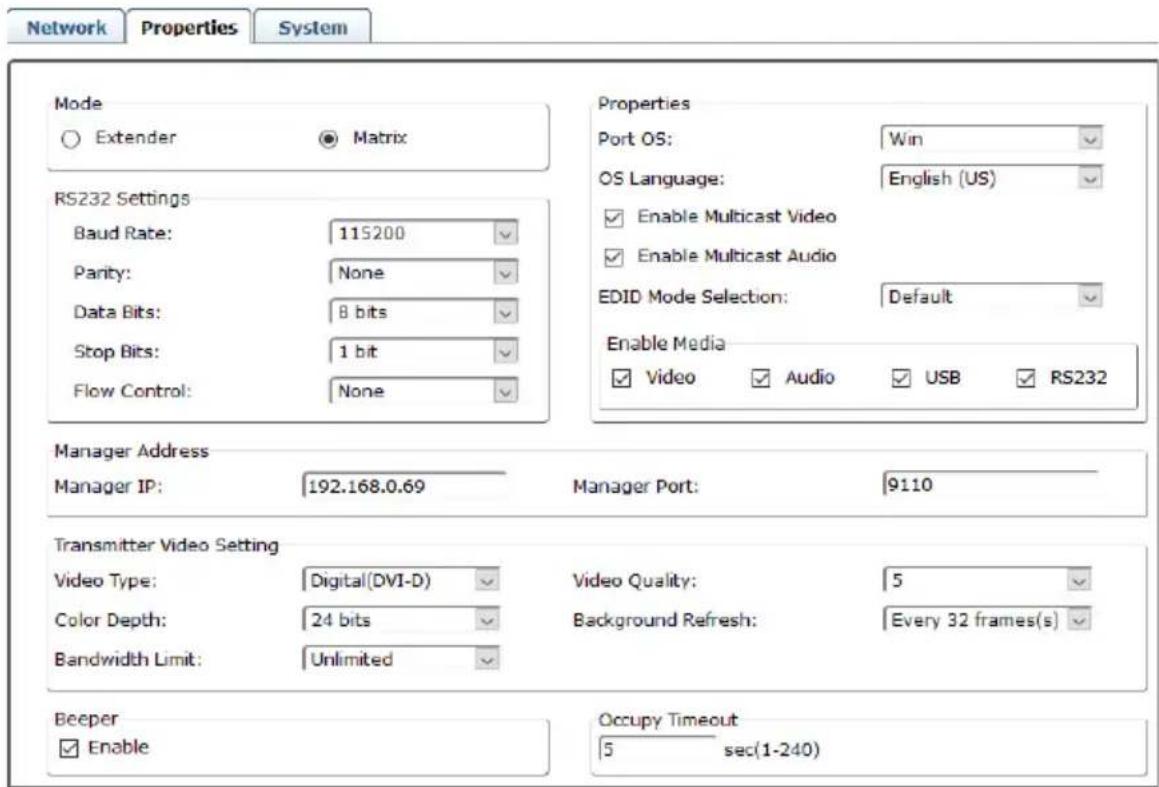
| Item Description | |
| Mode | Select Extender mode for simple one-to-one (Transmitter to User Station) setups that are managed with the Receiver's OSD menu.Select Matrix mode to manage devices and connections from the Matrix Manager. This mode is for advanced administration of Transmitter to User Station connections. (See Channel Connections, page 87) |
| Properties | Port OS: Use the drop-down menu to select the operating system of the computer connected to the Transmitter.OS Language: Use the drop-down menu to select the operating system language of the computer connected to the Transmitter.Enable Multicast Video: Check this box to allow a broadcast of the Transmitter's video signal to be sent to multiple User Stations.Enable Multicast Audio: Check this box to allow a broadcast of the Transmitter's audio signal to be sent to multiple User Stations.EDID Mode Selection: EDID contains a display's basic information and is used by the source device to utilize the best resolution across different monitors. Select how you want the source device to acquire the display's EDID:Default: EDID is set to the default ATEN configuration.Auto: Checks the EDID of all connected displays and uses the best resolution for all displays.Manual: Manually set the EDID configuration from the User Station's OSD (see Manual EDID, page 42).Remix: Checks the EDID of all connected displays and the source device uses the best common resolution for all displays. |
| Enable Media | Select which source type the Transmitter can stream: Video, Audio, USB and RS232. |
| RS232 Settings C | Configure the serial device settings for the Transmitter. The default settings are:Baud Rate: 9600Parity: NoneData Bits: 8 bitsStop bits: 1 bitFlow Control: None |
| Manager Address | Set the Manger IP address and Manager Port number of the computer running the Matrix Manager software. The default port number is 9110. |
| Transmitter Video Setting | These refer to the Transmitter's video settings:Video Type: Select the DVI video connector being used by the display: Digital (DVI-D) or Digital (DVI-I).Color Depth: Select the number of bits to use for the color depth: 24, 16, or 8. This is the number of bits used to describe the color of a single pixel. A bit depth determines the number of colors that can be displayed at one time.Bandwidth Limit: Select the maximum bandwidth that the Transmitter can use to transmit video over the network. A lower bandwidth transmits lower quality video; a higher bandwidth sends higher quality video but this can affect network speed.Video Quality: Select the video quality to use. 5 is the highest video quality, and 1 is the lowest video quality. Options are: 1~5.Background Refresh: Sets how often the Transmitter refreshes the background image on the connected display. Options are to refresh every 256,128, 64, 32,16, or 0 frames. |
| Beeper Check this | box for the Transmitter to beep when a configuration change is made. |
| Occupy Timeout Set | Set a time threshold for User Stations whose Access Mode has been set to Occupy If there is no activity from the User Station occupying the port for the amount of time set here, the User Station is timed out and the port is released. The first User Station to send keyboard or mouse input after the port has been released gets to occupy the port. Input a value from 1 to 240 seconds. |
4. Click the System tab configure the general settings:
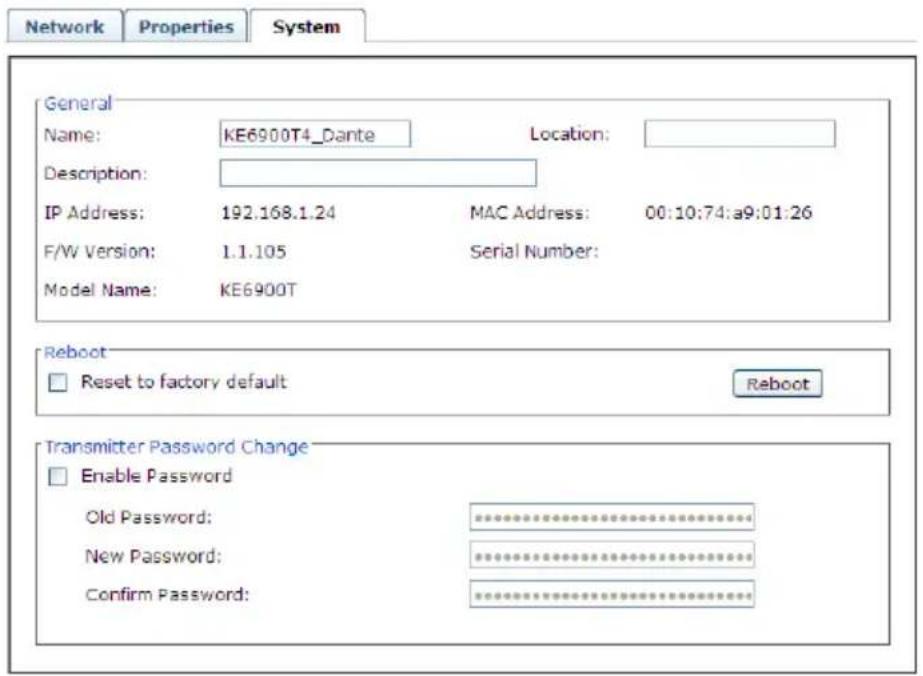
| Item Description | |
| General | Enter the Name, Location, and Description of the Transmitter. This section also displays the IP Address, MAC Address, F/W Version, Serial Number, and Model Number. |
| Reboot | Check the box and click Reboot to reset the Transmitter's settings back to the factory default. All custom settings will be lost. |
| Transmitter Password Change | Check Enable to require a password to access to the Transmitter's OSD configuration screens (see page 29). Enter the Old Password, enter a New Password, and confirm the new password in the Confirm Password box. |
- After entering the information, click Save.
Deleting a Transmitter
To delete a Transmitter:
-
Select the Transmitter you want to delete.
-
Click Move Out.
The device list updates with the remaining Transmitters. The Transmitter you deleted will appear on the Unmanaged Transmitters main page and Sidebar menu.
Channel Connections
With Channel connections a User Station can connect to multiple Transmitters, individually or simultaneously and stream the Video, Audio, USB, and Serial source from different Transmitters. For example: you can create a Channel that connects to four Transmitters to access a different source on each computer, as shown below:
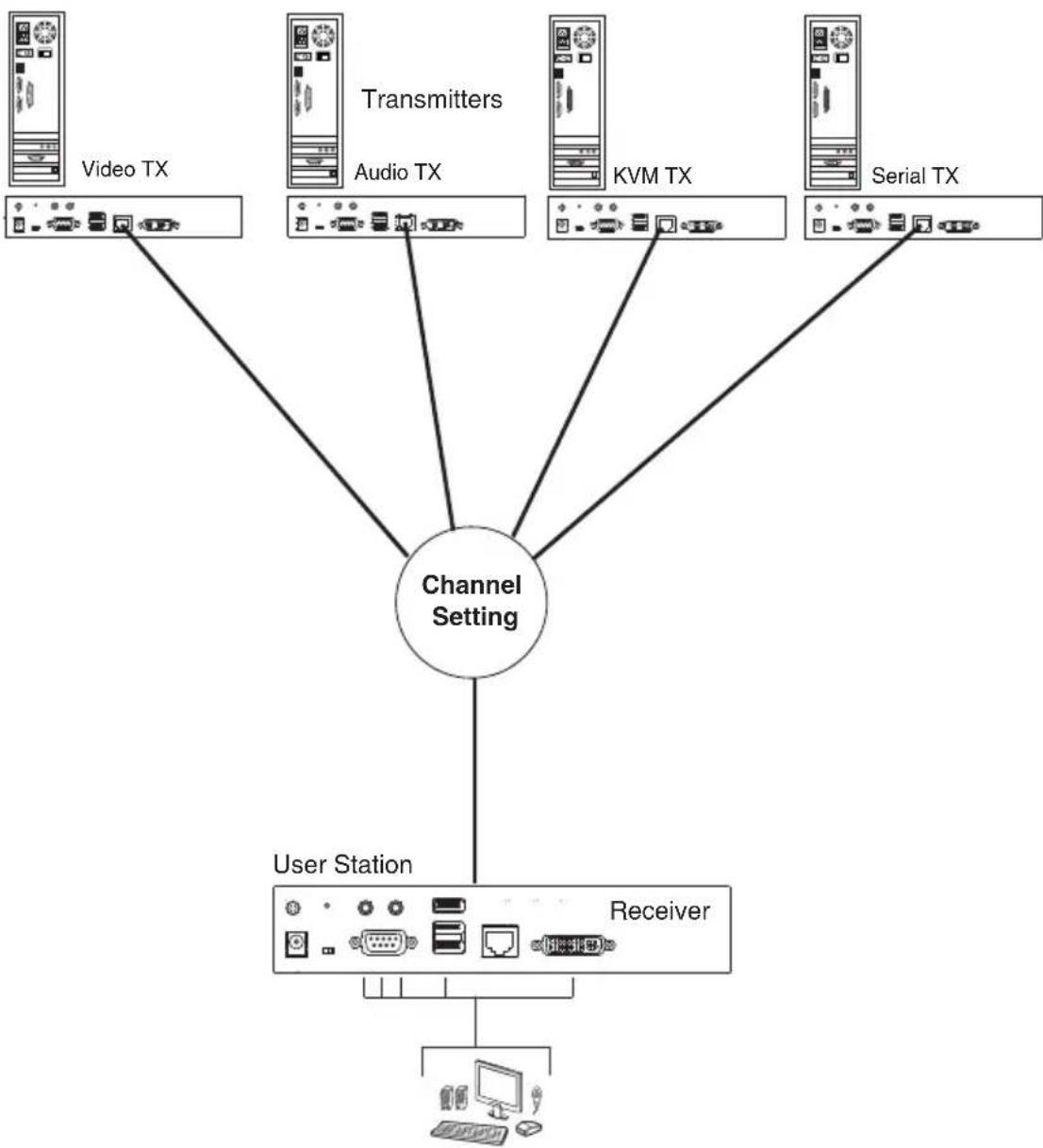
flowchart
graph TD
    A["User Station"] --> B["Channel Setting"]
    C["Receiver"] --> B
    D["Video TX"] --> B
    E["Transmitters Audio TX"] --> B
    F["KVM TX"] --> B
    G["Serial TX"] --> B
    B --> H["Computer"]
Create Channels to allow User Stations to connect to any Transmitters you have setup- individually or simultaneously. The Channel defines the connection to the sources. At the User Stations you can select the Channel connections you create. To setup Channels: first create a Channel that defines the connection, then create a Profile to give the User Station(s) access to the Channel. Instructions are provided on the pages that follow.
Channels
A Channel defines the Transmitter connections for a User Station. This allows a User Station to connect to different Transmitters and stream sources from different Transmitters, depending on how the Channel is defined. Once Channels are created you can select them from the User Station's Connection Page (see Connecting, page 40).
Click Channels from the menu bar and the following screen appears:
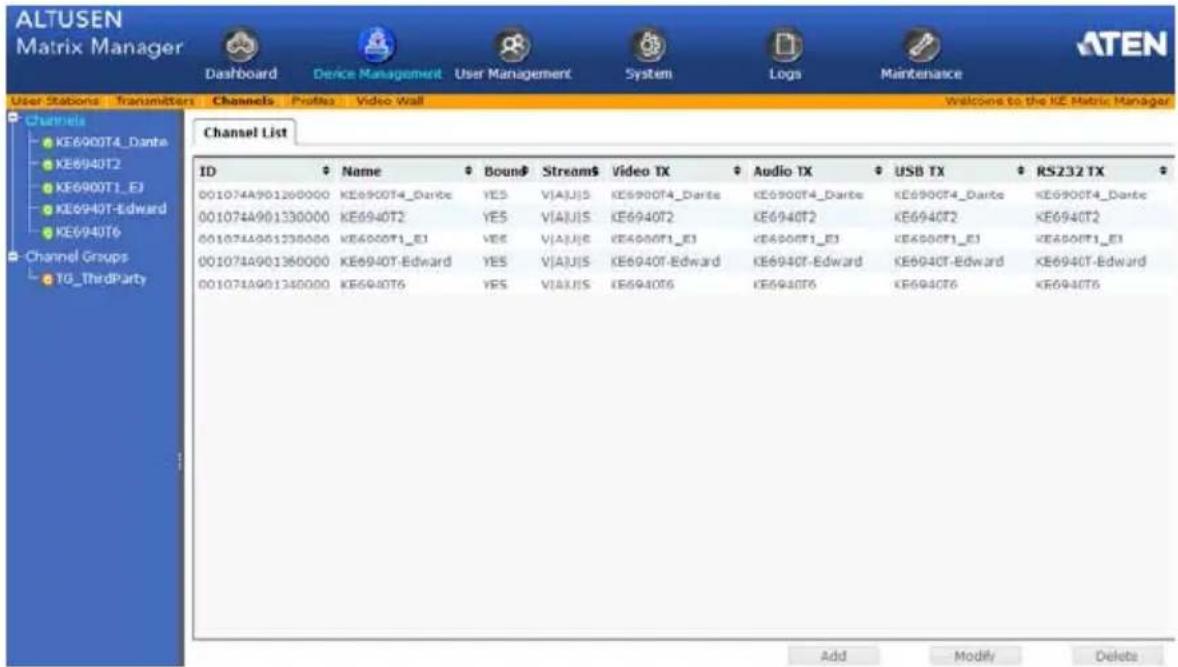
The main page provides an overview of each Channel. The Sidebar provides a link with a more detailed view of each.
The meanings of the headings at the top of the page are straightforward.
ID refers to the identification number assigned by the system.
- Name refers to the name entered on the Channel’s Info page.
Bound states whether the Channel's connections are all bound to the same Transmitter.
- Streams refers to the source type that the Channel is configured to stream: Video, Audio, USB, or Serial.
- Video TX, Audio TX, USB TX, RS232 TX lists the Transmitter's name for each source stream.
- Click Modify to change the selected Channel’s settings.
- Click Add to create a new Channel.
- Click Delete to remove the selected Channel.
Adding a Channel
To add a Channel, do the following:
- From the Channels main page, click Add:
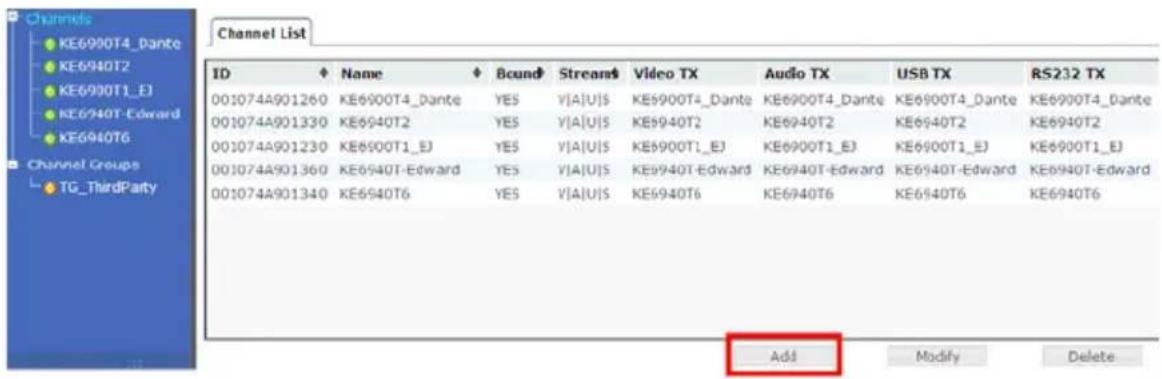
- The Channel Info tab appears with the general settings:
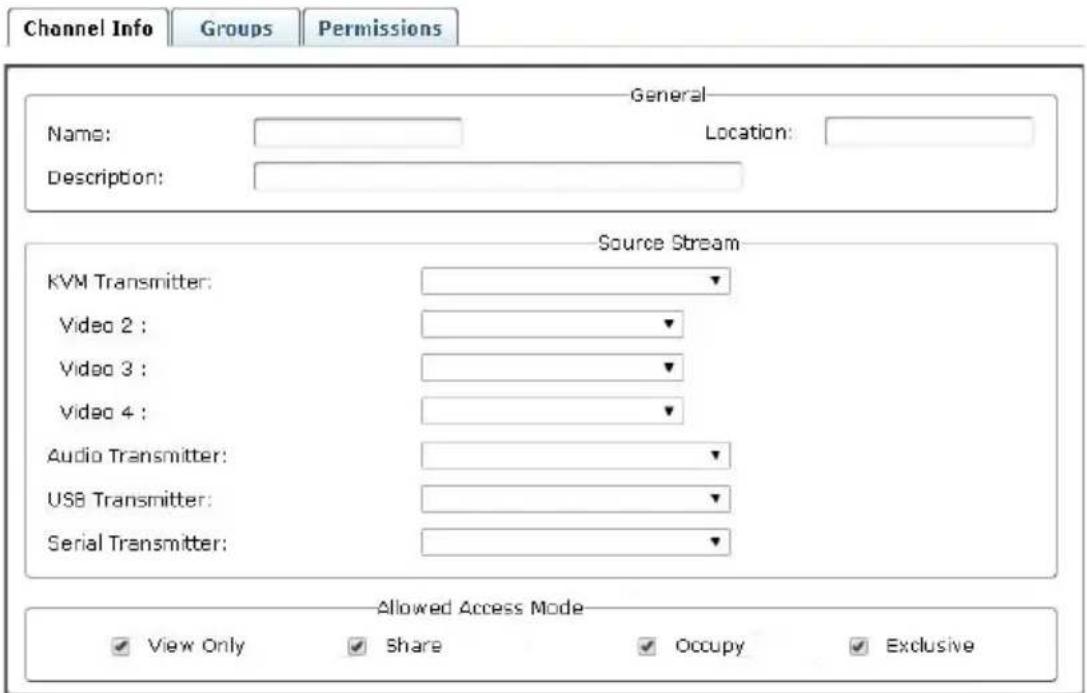
| Item Description | |
| General | Enter a Name, Location, and Description for the Channel. |
| Source Stream Use | the drop-down menu to select the Transmitter to use for each of the Channel's source stream: KVM (keyboard/video/mouse), Audio, USB, and Serial. |
| Allowed Access Mode | Check the box for the type of access mode you want to allow on this Channel. This defines how the Channel can be accessed when multiple users access it.View Only: Users only have view access to the Channel's video display.Share: Users simultaneously share control over the Channel.Input from the users is placed in a queue and executed chronologically.Occupy: The first user to access the Channel has control over the Channel. However, additional users may view the Channel's video display. If the user who controls the Channel is inactive for longer than the time set in the Timeout box (see Occupy Timeout, page 85), Channel control is transferred to the first user to move the mouse or strike the keyboard.Exclusive: The first user to access the Channel has exclusive control over the Channel. No other users can view the Channel. The Timeout function does not apply to Channels which have this setting. |
3. Click the Groups tab to add the Channel to Channel Groups:
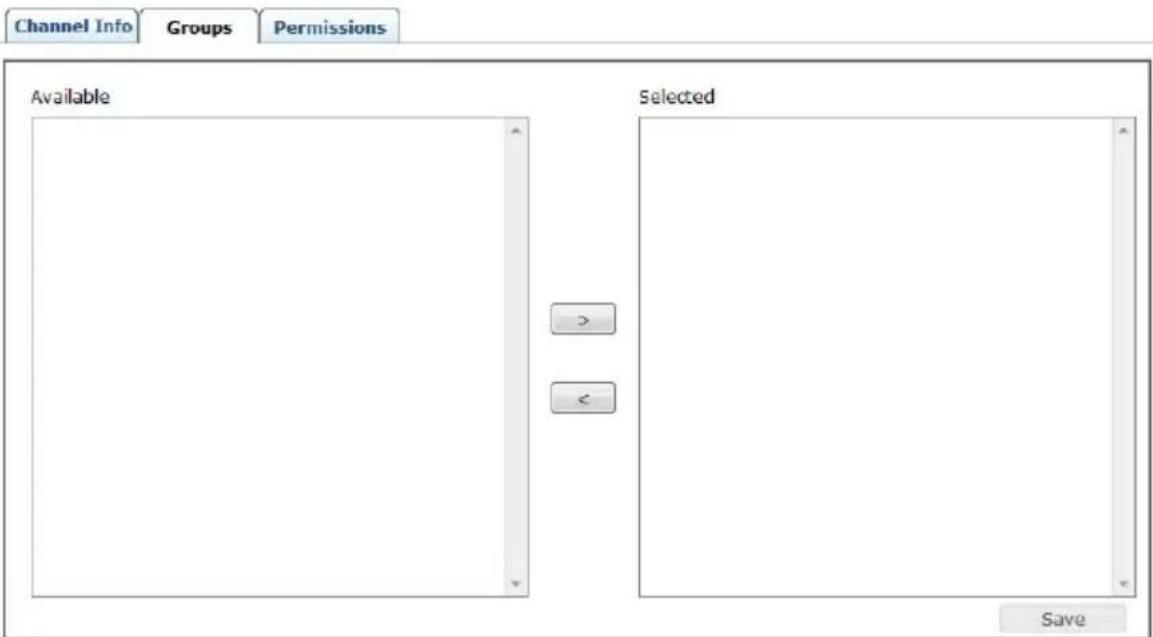
Select a Channel Group from the Selected column and use the left arrow to add the Channel to the group. Select a Channel Group from the Available column and use the right arrow to remove the Channel from the group. See Channel Groups, page 92 for details.
4. Click the Permissions tab to set the Channels access rights:
Channel Info Groups Permissions
| Users/Groups | View Only | Share | Occupy | Exclusive |
| ▼ Users | ||||
| ●radius001 | □ | □ | □ | □ |
| ●test | ☑ | □ | □ | □ |
| ●user002 | □ | □ | □ | □ |
| ●user003 | □ | □ | □ | □ |
| ▼ Groups | ||||
| GP_Test | □ | □ | □ | □ |
| GP_ThirdParty | ☑ | □ | □ | □ |
Save
| Item Description | |
| Users/Groups You | can assign individual access rights to Users and Groups for the Channel by checking the appropriate boxes:View Only: Only has view access to the Channel's video display.Share: Can simultaneously share control over the Channel.Input from the users is placed in a queue and executed chronologically.Occupy: The first user to access the Channel has control over the Channel. However, additional users may view the Channel's video display. If the user who controls the Channel is inactive for longer than the time set in the Timeout box (see Occupy Timeout, page 85), Channel control is transferred to the first user to move the mouse or strike the keyboard.Exclusive: The first user to access the Channel has exclusive control over the Channel. No other users can view the Channel.The Timeout function does not apply to Channels which have this setting. |
5. After entering the information, click Save.
Channel Groups
Channel Groups allow administrators to easily and efficiently manage users and Channels. Since Channel Group access rights apply to any Channel that is a member of the group, administrators need only set them once for the group, instead of having to set them for each Channel individually. Multiple groups can be defined to allow some users access to specific Channels, while restricting other users from accessing them.
Adding a Channel Group
To add a Channel Group, do the following:
- Select Channel Groups from the Channel Sidebar menu, and click Add:
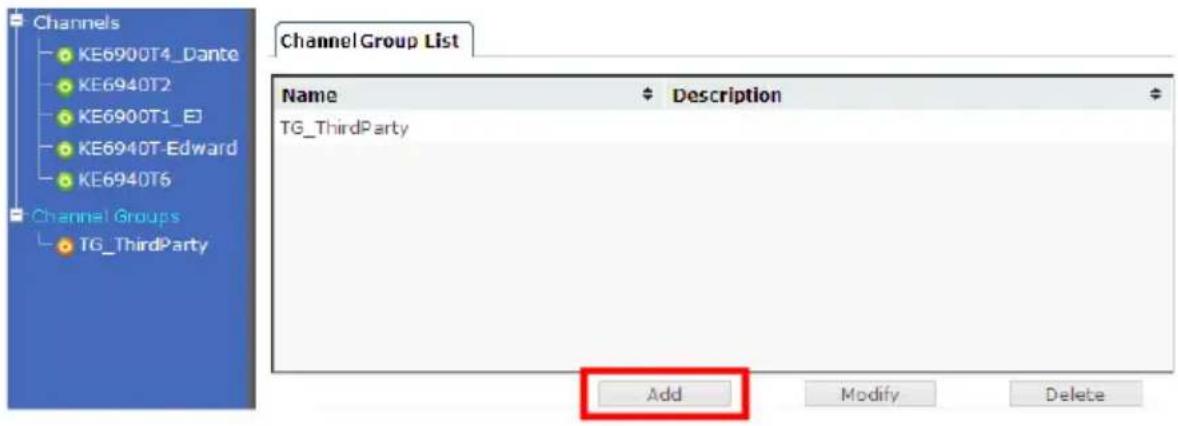
- The Channel Group tab appears with the general settings:
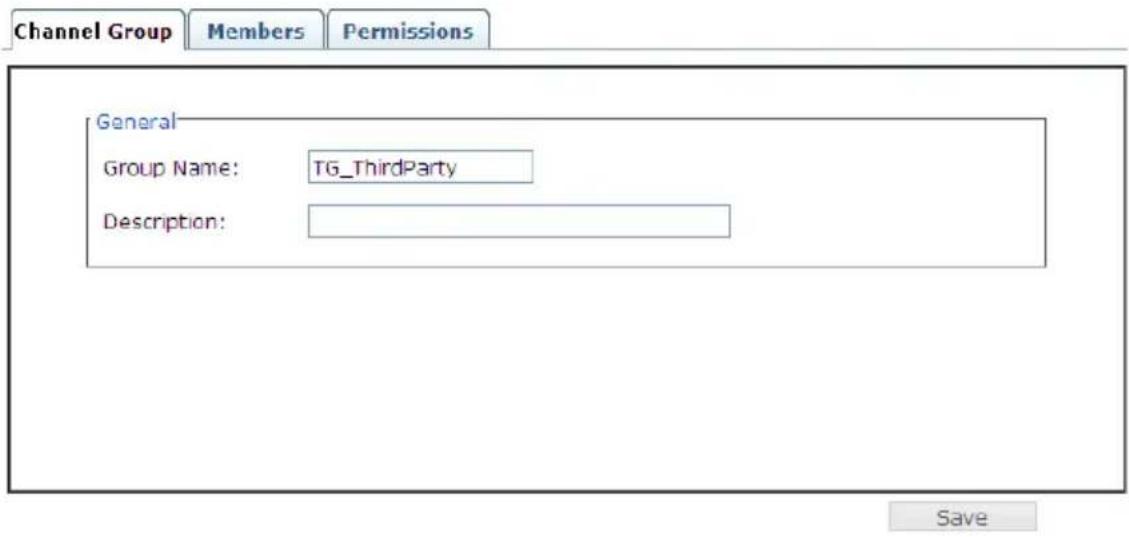
| Item Description | |
| General | Enter a Name and Description for the Channel Group. |
3. Click the Members tab to add Channels to the group:
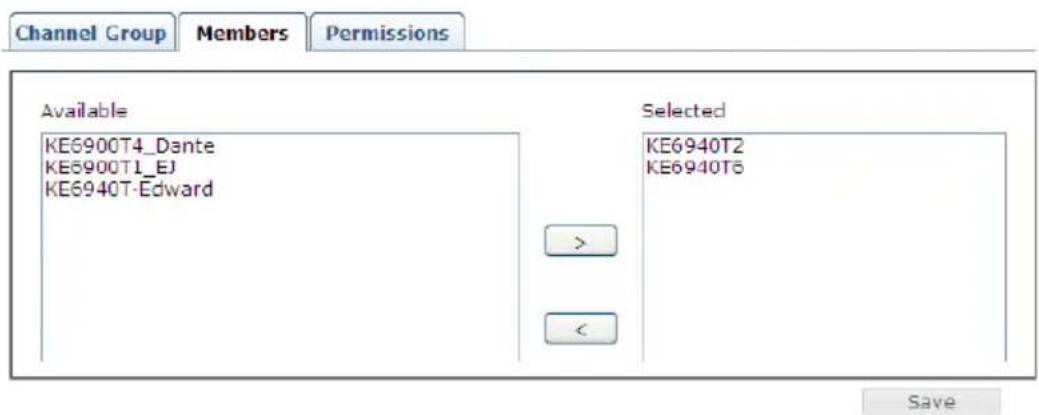
Select a Channel from the Selected column and use the left arrow to add it to the group. Select a Channel from the Available column and use the right arrow to remove it from the group.
4. Click the Permissions tab to set the group access rights:
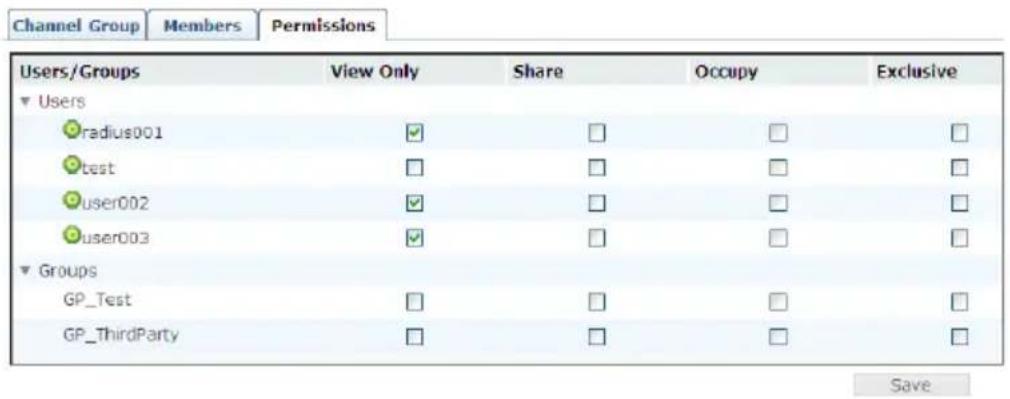
| Item Description | |
| Users/Groups | You can assign the access rights to Users and Groups for the Channel Group by checking the appropriate boxes:View Only: Has view access to the Channel video display.Share: Simultaneously share control of the Channel. Input from the users is placed in a queue and executed chronologically.Occupy: The first user to access the Channel has control over the Channel. However, additional users may view the Channel's video display. If the user who controls the Channel is inactive for longer than the time set in the Timeout box (see Occupy Timeout, page 85), Channel control is transferred to the first user to move the mouse or strike the keyboard.Exclusive: The first user to access the Channel has exclusive control. No other users can view the Channel. The Timeout function does not apply to Channels which have this setting. |
5. After entering the information, click Save.
Profiles
Profiles are created for Channels to allow User Station access to the connection. Create a Profile for a Channel and assign access for each User Station.
Click Profiles from the menu bar and the following screen appears:
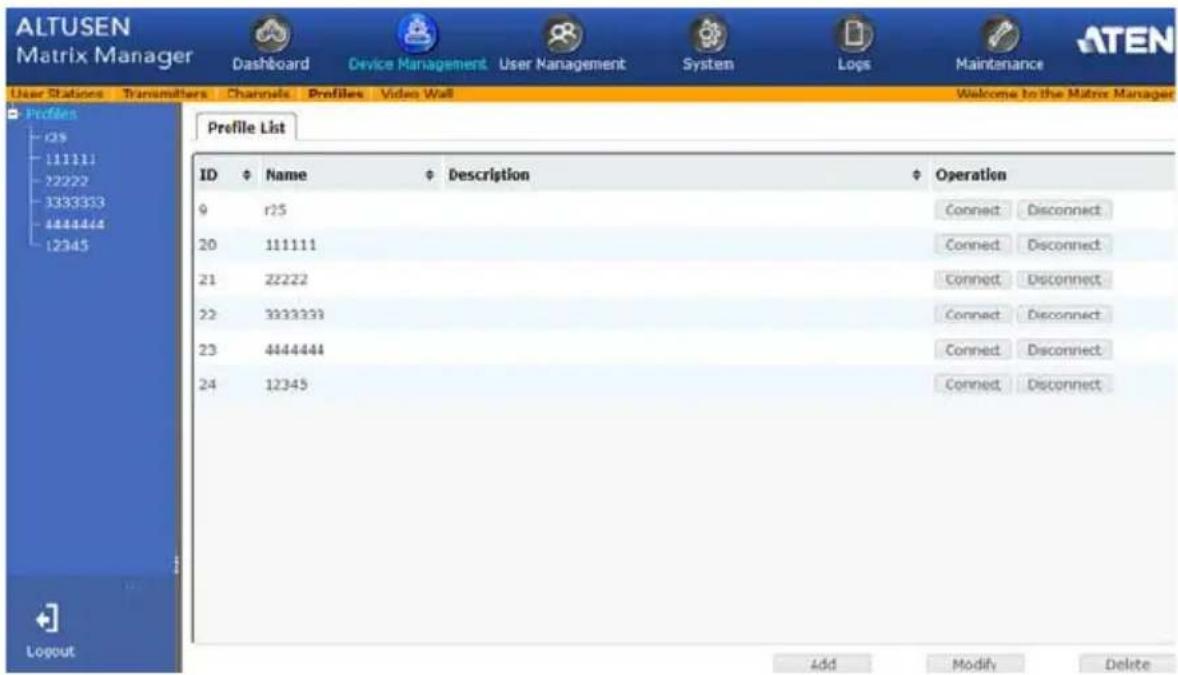
The main page provides an overview of each Profile. The Sidebar provides a link with a more detailed view of each Profile.
The meanings of the headings on the Profile List are straightforward.
ID refers to the identification number assigned by the system.
- Name refers to the name entered on the Profile’s Settings page.*
◆ Description refers to the description entered on the Profile’s Settings page.
Operation allows you to click Connect to send a Profile's settings to the Transmitters and User Stations, or Disconnect to remove a Profile's settings from the Transmitters and User Stations.
- Click Add to create a new Profile.
- Click Modify to change the selected Profile’s settings.
- Click Delete to remove the selected Profile.
Note: Profiles and Video Walls can not share the same name.
Adding a Profile
To add a Profile, do the following:
- From the Profile main page, click Add:
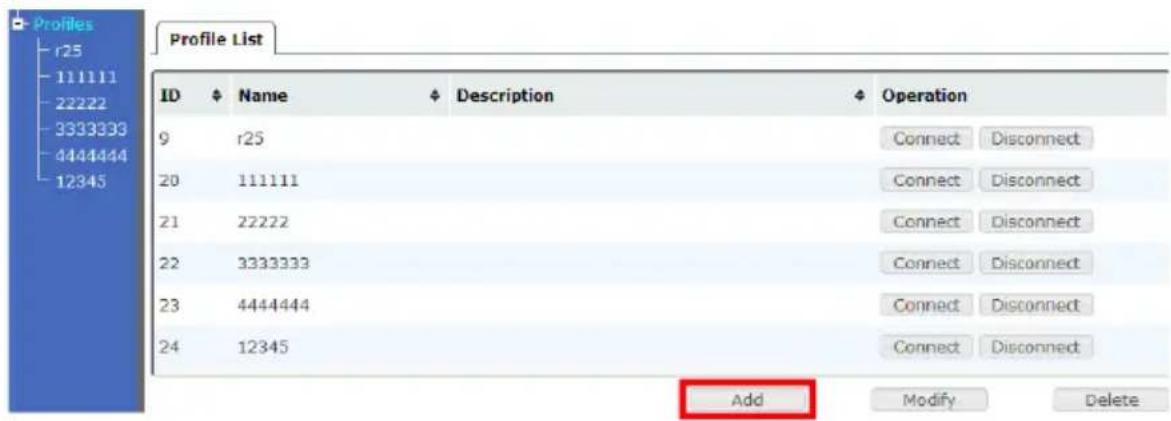
- The Profile Settings tab appears with the Profile and access settings:
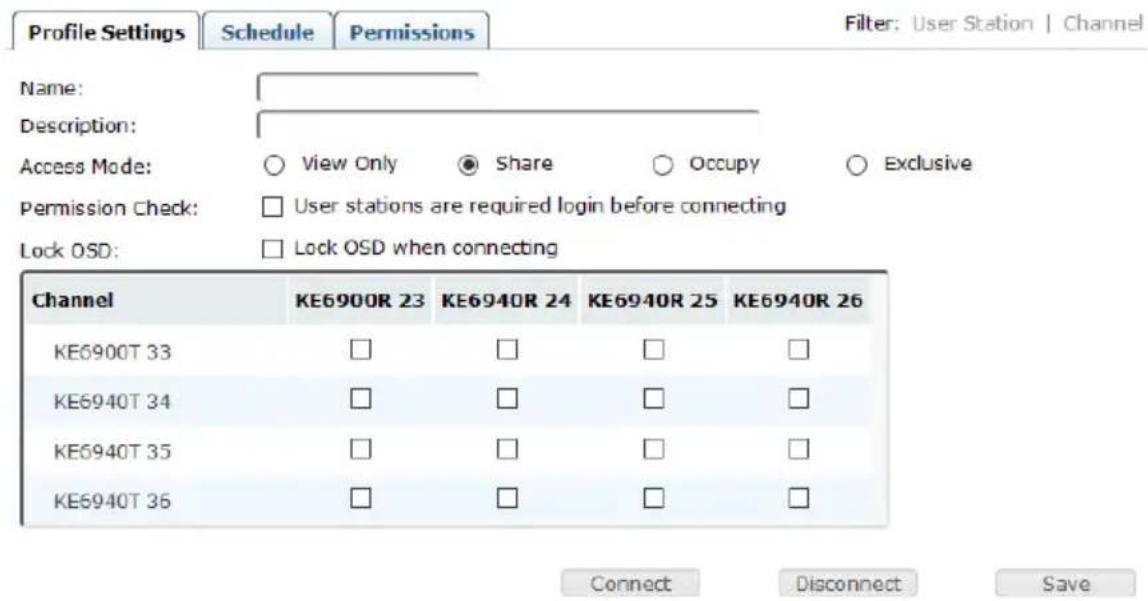
| Item Description | |
| Name/Description | Enter a Name and Description for the Channel. |
| Access Mode | This defines how the Channel in the Profile can be accessed by User Stations when multiple users access it.View Only: Users only have view access to the Channels video display.Share: Users simultaneously share control over the Channel. Input from the users is placed in a queue and executed chronologically.Occupy: The first user to access the Channel has control over the Channel. However, additional users may view the Channel's video display. If the user who controls the Channel is inactive for longer than the time set in the Timeout box (see Occupy Timeout, page 85), Channel control is transferred to the first user to move the mouse or strike the keyboard.Exclusive: The first user to access the Channel has exclusive control over the Channel. No other users can view the Channel. The Timeout function does not apply to Channels which have this setting. |
| Permission Check | Checking this box requires a user with access rights (permissions) to be logged into the User Station's OSD when the Profile attempts to connect. If a user is not logged into the OSD or the user account does not have permission to make the Profile connection, the connection fails and will not re-connect. |
| Lock OSD Check | Checking this box will lock the User Station's OSD so that it can not be invoked while the Profile is connected. All mouse/keyboard functions work on the computer but the OSD can not be accessed. |
| Channel This | table lists all the Channels and User Stations available.Checking a box enables the User Station to use the Channel connection, listed to the left. The Channel will appear on the User Station's Connection Page (See Connections Page, page 41), allowing you to connect to it. |
| Connect | Clicking Connect will send the Profile settings to the Transmitters and User Stations and will connect the devices accordingly. |
- Click the Schedule tab if you want to schedule a time for the Profile to connect. A pop-up window appears:
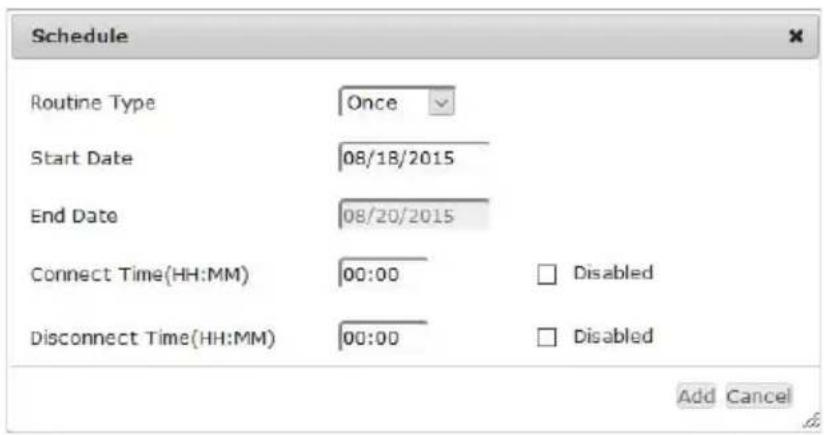
| Item Description | |
| Routine Type | Use the drop-down menu to select how often you would like the profile to run: Once, Daily, Weekly and Monthly. If you select Weekly/ Monthly an additional drop-down menu appears to select the Week Day/Month Day on which the profile will run. |
| Start Date Enter the date on which you want the schedule to begin running. | |
| End Date Enter the date on which you want the schedule to stop running. | |
| Connect Time | Enter the time of day that you want the profile to connect. |
| Disconnect Time | Enter the time of day that you want the profile to disconnect. |
| Every | If you select a Monthly or Weekly Routine Type, the Every box appears allowing you to enter how often you want the schedule to run. For example, every 2, 3 or 4 weeks/months. If you want to run the schedule once a week or once a month, leave the default entry of 1. |
- Click Add after you have configured the schedule.
- Click the Permissions tab to set the Profile's access rights:
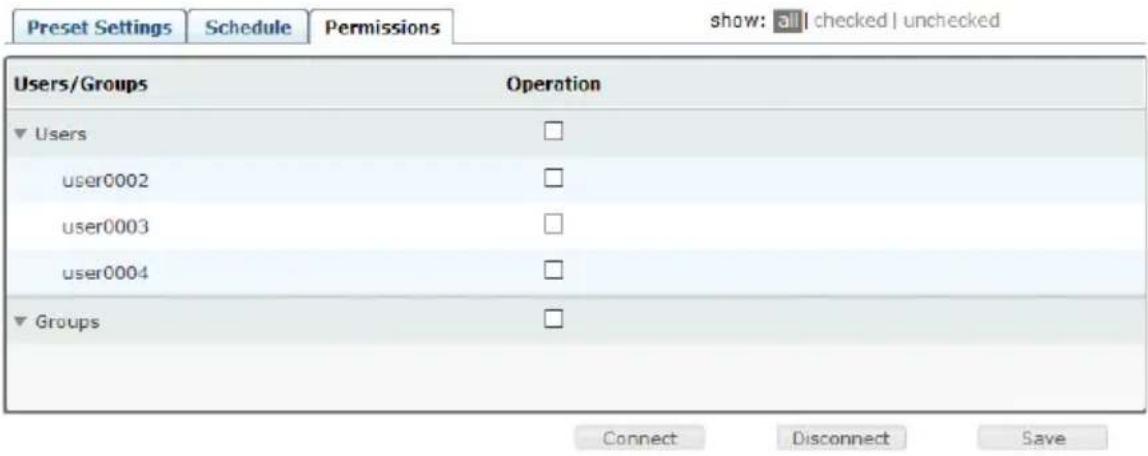
| Item Description | |
| Users You must assign access rights for the profile by selecting the Operation check box for the Users that you want to grant permission to allow the profile connections. | |
| Groups You must assign access rights for the profile by selecting the Operation check box for the Groups that you want to grant permission to allow the profile connections. |
- After entering the information, click Save.
Video Wall
The Video Wall settings allow you to create a video wall by selecting a Transmitter for a set of User Stations that will display video content as one screen. A video wall is considered a connection from a Transmitter to multiple User Stations. Therefore, each source (Transmitter) on a video wall needs a separate Video Wall setting created in the Matrix Manager.
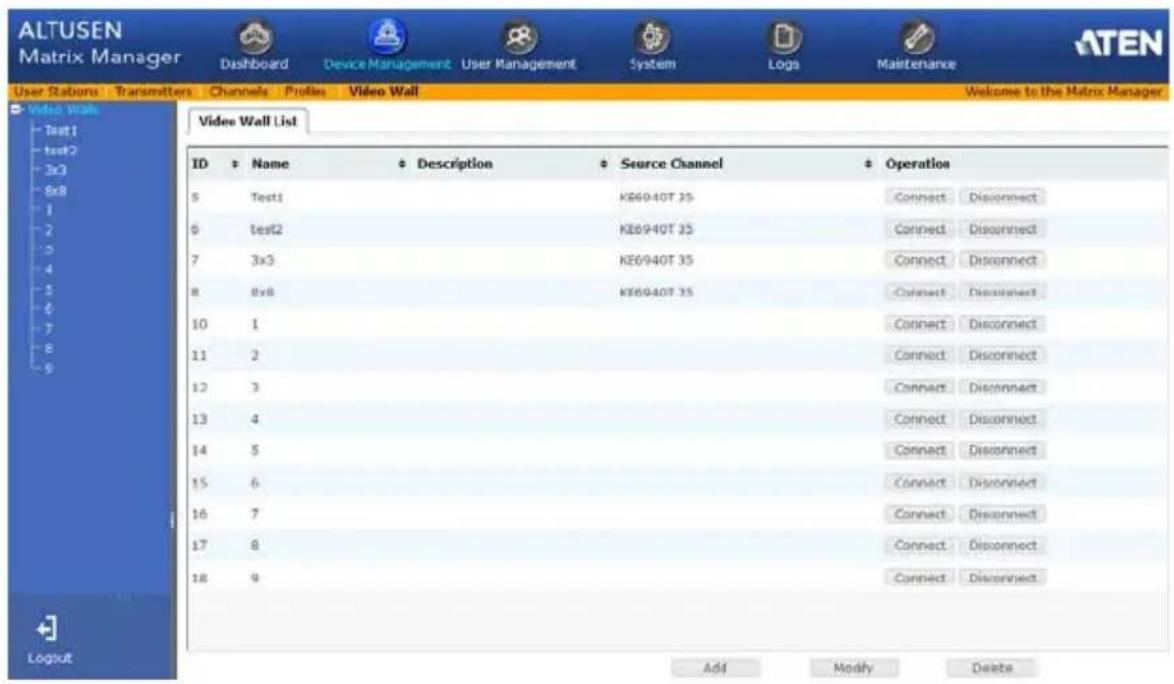
The main page provides an overview of each Video Wall.
The meanings of the headings on the Video Wall List are straightforward.
ID refers to the identification number assigned by the system.
- Name refers to the name entered on the Video Wall’s Settings page.*
- Description refers to the description entered on the Video Wall's Settings page.
Source Channel refers to the Transmitter selected for the User Stations.
Operation allows you to click Connect to send the settings to start the Video Wall connections. Use Disconnect to remove the Video Wall settings from the Transmitter and User Station(s).
- Click Add to create a new Video Wall.
- Click Modify to change the selected Video Wall's settings.
- Click Delete to remove the selected Profile.
Note: Profiles and Video Walls can not share the same name.
Video Wall Example
The diagram below shows a 3x3 video wall setup with three Transmitters (video sources) connected to nine User Stations. In this scenario, three Video Wall settings (A, B, C) need to be added to the Matrix Manger.
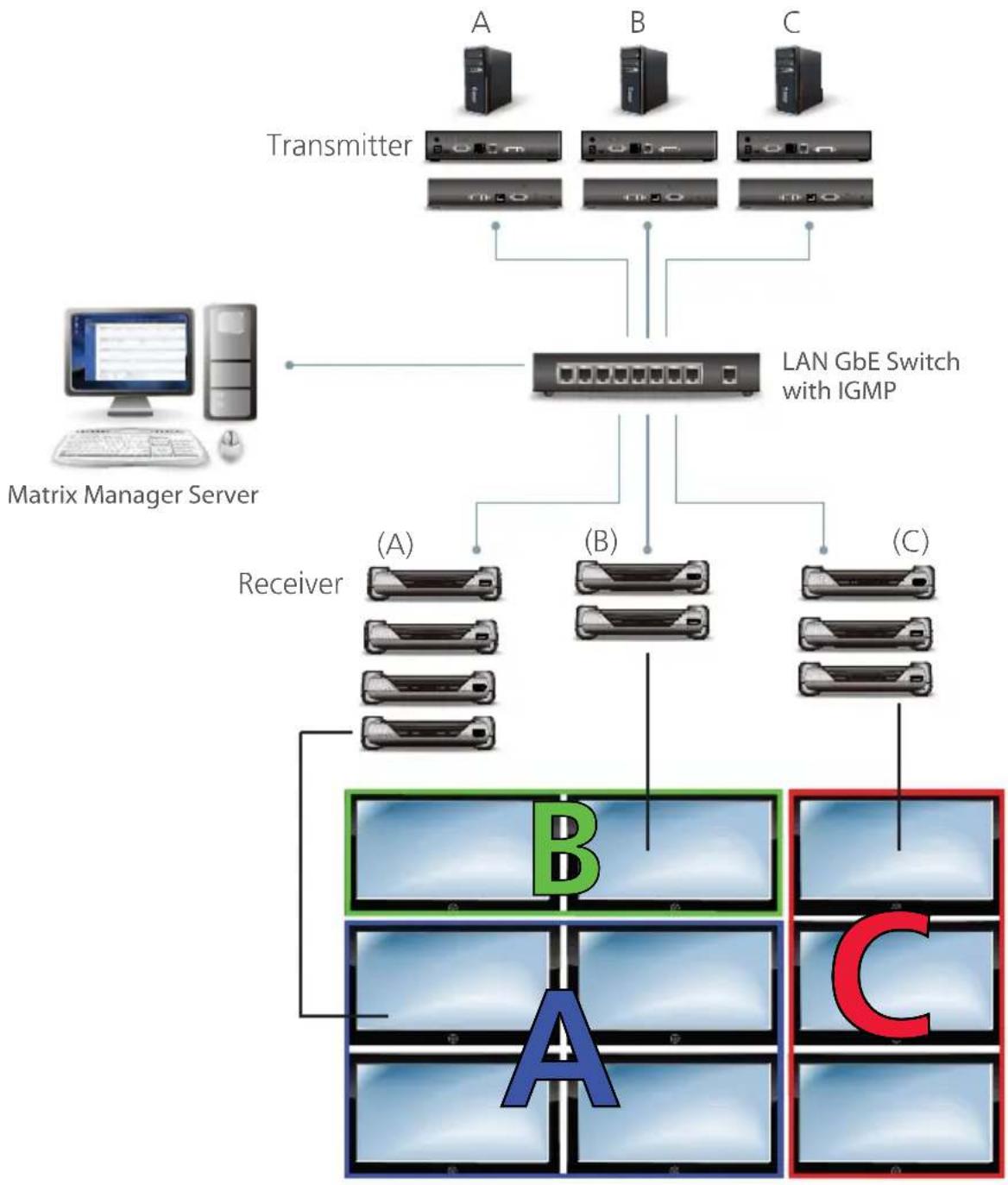
flowchart
graph TD
    A["Transmitter"] --> B["LAN GbE Switch with IGMP"]
    C["Matrix Manager Server"] --> B
    B --> D["Receiver"]
    D --> E["A"]
    D --> F["(B)"]
    D --> G["(C)"]
    E --> H["B"]
    E --> I["A"]
    E --> J["C"]
Adding a Video Wall
To add a Video Wall, do the following:
- From the Video Wall main page, click Add:
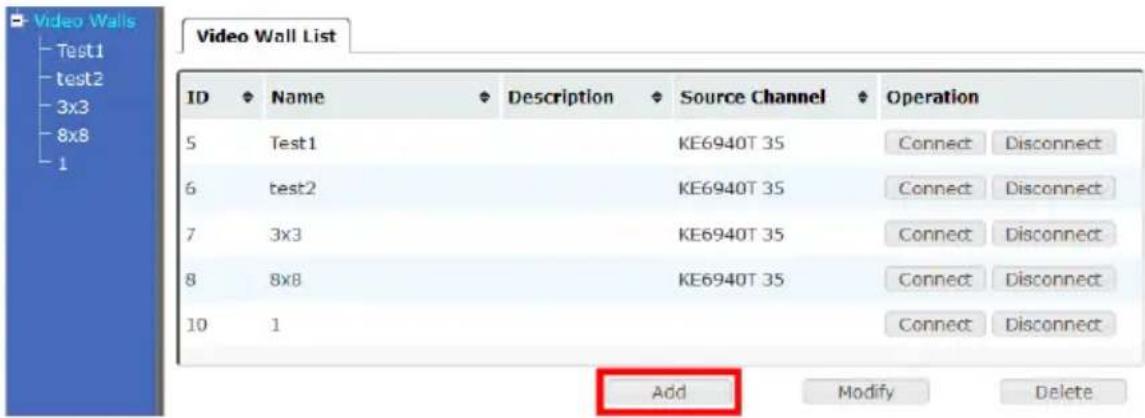
- The Video Wall Settings tab appears allowing you to configure the settings:
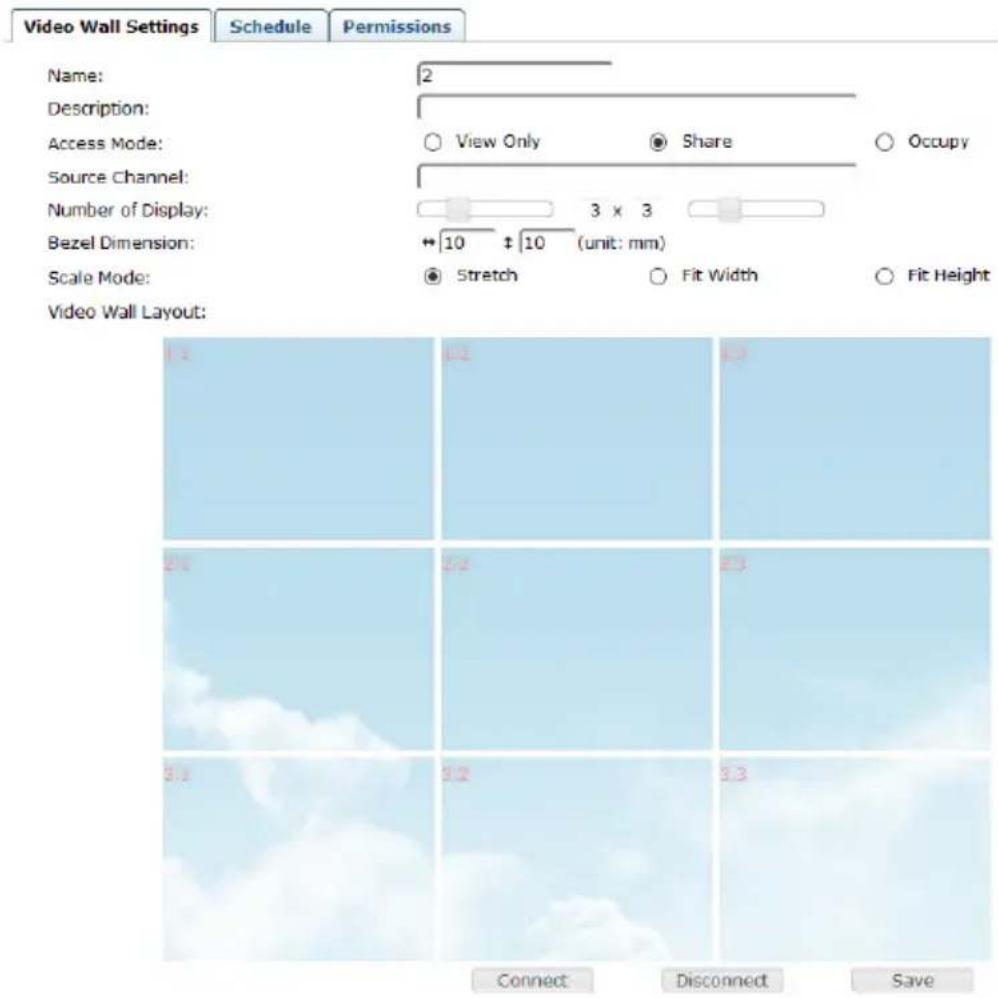
| Item Description | |
| Name/Description | Enter a Name and Description for the Video Wall. |
| Access Mode | This defines how the Source Channel (Transmitter) can be accessed by User Stations when multiple users attempt to access it.View Only:Users only have view access to the Source Channel video output.Share:Users simultaneously share control over the Source Channel. Input from the users is placed in a queue and executed chronologically.Occupy:The first user to access the Source Channel has control over it. However, additional users may view the Source Channel's video display. If the user who controls the Source Channel is inactive for longer than the time set in the Timeout box (see Occupy Timeout, page 85), control is transferred to the first user to move the mouse or strike the keyboard. |
| Source Channel | Click inside this box to bring up a list of Transmitters that can be select as the video source for the video wall, as shown below: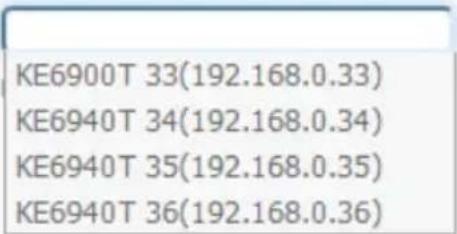 Note:For KE6940T devices, only the DVI-I Input 1 port can be used as the source channel. Note:For KE6940T devices, only the DVI-I Input 1 port can be used as the source channel. |
| Number of Displays | Use the two slide bars to set the number of vertical and horizontal displays for the video wall. |
| Bezel Dimension | Sets the vertical and horizontal line size between each display in the video wall. |
| Scale Mode Sets the scaling for the video output on the displays:♦ Stretch:fits the video on the entire display.♦ Fit Width:fits the video to the width of the display.♦ Fit Height:fits the video to the height of the display. | |
| Video Wall Layout | Click inside a box to bring up a list of User Stations that can be selected as the video output for that portion of the video wall. |
| Item Description |
| Connect Clicking Connect will send the Video Wall settings to the Transmitters and User Stations and will connect the devices accordingly. |
- Click the Schedule tab if you want to schedule a time for the video wall to connect. A pop-up window appears:
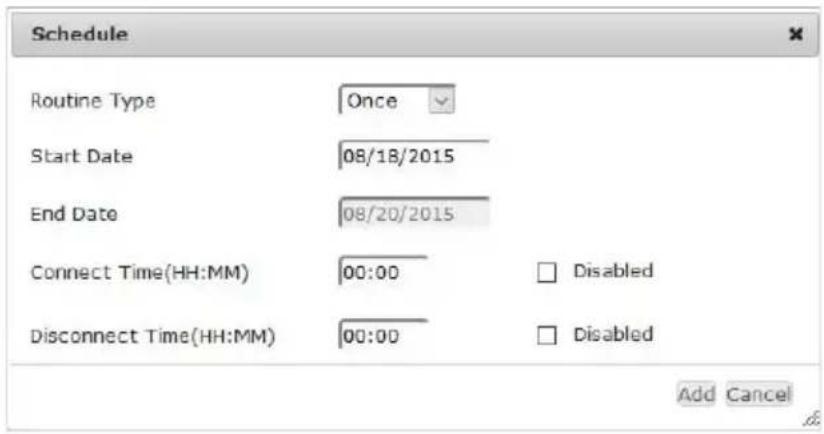
| Item Description | |
| Routine Type | Use the drop-down menu to select how often you would like the video wall to run: Once, Daily, Weekly and Monthly. If you select Weekly/ Monthly an additional drop-down menu appears to select the Week Day/Month Day on which the profile will run. |
| Start Date | Enter the date on which you want the schedule to begin running. |
| End Date | Enter the date on which you want the schedule to stop running. |
| Connect Time | Enter the time of day that you want the video wall to connect. |
| Disconnect Time | Enter the time of day that you want the video wall to disconnect. |
| Every | If you select a Monthly or Weekly Routine Type, the Every box appears allowing you to enter how often you want the schedule to run. For example, every 2, 3 or 4 weeks/months. If you want to run the schedule once a week or once a month, leave the default entry of 1. |
- Click Add after you have configured the schedule.
- Click the Permissions tab to set the Video Wall's access rights:
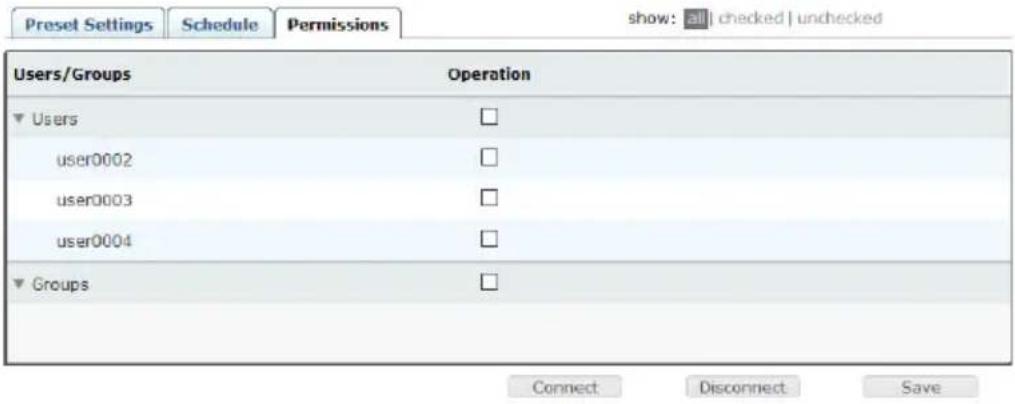
| Item Description | |
| Users You must assign access rights for the Video Wall by selecting the Operation check box for the Users that you want to grant permission to allow the connections. | |
| Groups You must assign access rights for the Video Wall by selecting the Operation check box for the Groups that you want to grant permission to allow the connections. |
- After entering the information, click Save.
This Page Intentionally Left Blank
Overview
User Management has two menu bar items used to create Accounts and Groups. The User Management tab opens on the Accounts page, as shown here:
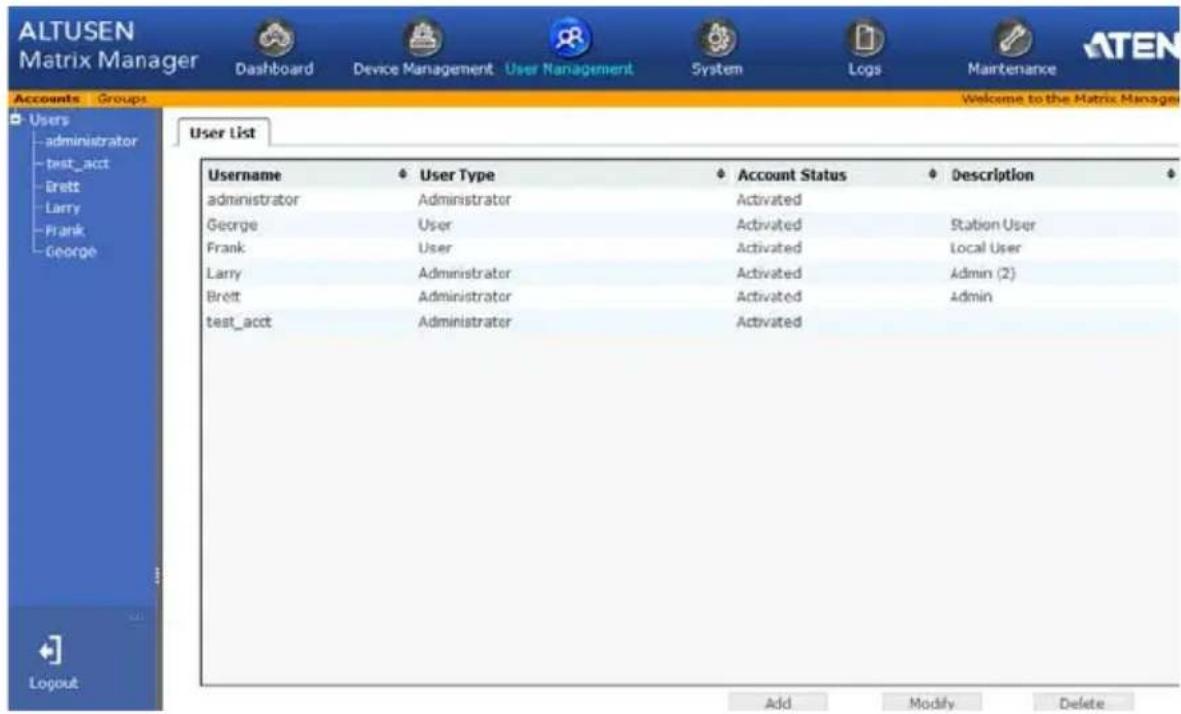
The page is organized into two main areas: the Sidebar at the left, and the large main panel at the right.
- Users and groups appear in the panel at the left of the page. The large panel at the right provides more detailed information at-a-glance for each.
There are menu bar entries for Accounts (Users) and Groups. Depending on the menu item selected, either Users or Groups are listed in the Sidebar.
- The sort order of the information displayed can be changed by clicking the main panel column headings.
- The buttons below the main panel are used to manage users and groups, as shown in the sections that follow.
Users
The Matrix Manager supports three types of user accounts, shown in the table bellow:
| User Type Role | |
| Administrator Access and | management of the Matrix Manager, including configuration and setting up of devices. Manage Users, Groups, Channels, Profiles and Video Walls. Configure personal working environments. |
| Super User Access User | Station to connect Channels and Profiles they have been given permission for. |
| User Access User Stations | to connect to Channels they have been given permission for. |
Adding Users
To add a user, do the following:
- Select Users in the Sidebar.
- Click Add at the bottom of the main page. The User tab opens:
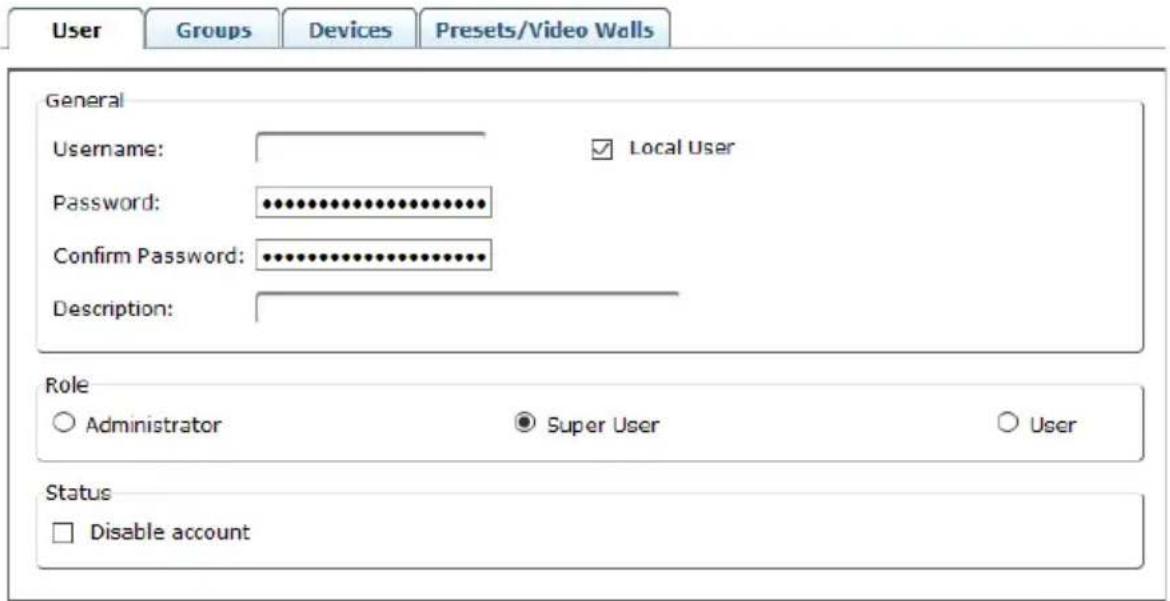
Save
Enter the required information in the fields provided. A description of each is given in the table below:
| Field Description | |
| Username From 1 to 16 characters are allowed depending on the Account Policy settings. | |
| Local User | Check the Local User box if the account is for logging in to the Matrix Manager or a User Station (Receiver).Uncheck the Local User box if the account is authenticated with a 3rd party external source, such as RADIUS, LDAP/AD, or TACACS+. See ANMS, page 124 for details. |
| Password From 0 to 1 | 6 characters are allowed depending on the Account Policy settings. |
| Confirm Password To | be sure there is no mistake in the password, you are asked to enter it again. The two entries must match. |
| Description Additional | information about the user that you may wish to include. |
| Role There are three | account categories: Administrator, Super User and User.The Administrators have full access to make changes within the Matrix Manager, which includes adding and removing Transmitters and Receivers, user accounts, preferences, and configuration settings.The Super Users have access to the OSD on User Stations and can connect Channels and Profiles.The Users can log in from User Stations to connect channels. |
| Status Status allows | you to control the user's account and access to the installation, as follows:Disable Account lets you suspend a user's account without actually deleting it, so that it can be easily reinstated in the future. |
- At this point you can assign the new user to a group by selecting the Groups tab – the Groups page is discussed on page 111. You can assign the user's Channels and Groups access rights by selecting the Devices tab – as discussed on page 115. You can assign the user's Profiles and Video Walls access rights by selecting the Profiles/Video Walls tab – as discussed on page 118.
Note: Optionally, you can skip this step now to add more users and create groups, and come back to it later.
-
When your selections have been made click Save.
-
When the Operation Succeeded message appears, click OK.
-
Click Users in the Sidebar to return to the main screen. The new user appears in the Sidebar list and in the main panel, as well.
-
The Sidebar Users list can expand and collapse. If the list is expanded, click the minus symbol (−) next to the Users icon to collapse it; if it is collapsed there is a plus symbol (+) next to the icon. Click the plus symbol to expand it.
- The icon for administrators is orange; the icon for users is green.
- The large main panel shows the user’s name; the description that was given when the account was created; and whether the account is currently active or has been disabled.
Modifying User Accounts
To modify a user account, do the following:
- In the Sidebar User list, click the user's name
-Or-
In the main panel, select the user's name
-
Click Modify.
-
In the User page that comes up, make your changes, then click Save.
Note: The User page is discussed on page 106; the Groups page is discussed on page 111, the Devices page is discussed on page 115.
Deleting User Accounts
To delete a user account do the following:
- In the main panel, select the user's name.
- Click Delete.
- Click OK.
Groups
Groups allow administrators to easily and efficiently manage users and devices. Since device access rights apply to anyone who is a member of the group, administrators need only set them once for the group, instead of having to set them for each user individually. Multiple groups can be defined to allow some users access to specific devices, while restricting other users from accessing them.
Creating Groups
To create a group, do the following:
- Select Groups on the menu bar.
- Click Add at the bottom of the main panel. The Group notebook opens, with the Group tab selected:
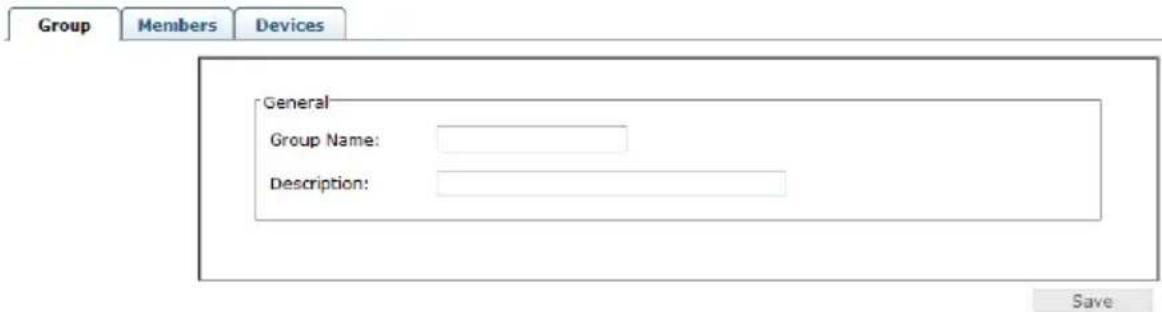
- Enter the required information in the appropriate fields. A description of each of the fields is given in the table below:
| Field Description | |
| Group Name A maximum of | 16 characters is allowed. |
| Description Additional information about the user that you may wish to include. A maximum of 63 characters is allowed. | |
-
At this point you can assign users to the group by selecting the Members tab – the Members page is discussed on page 113. You can also assign the group's Channels and Channel Groups access rights by selecting the Devices tab – the Devices page is discussed on page 115.
-
When your selections have been made click Save.
-
When the Operation Succeeded message appears, click OK.
-
Click Group in the Sidebar to return to the main screen. The new group appears in the Sidebar Group list and in the main panel.
-
The Sidebar Group list can expand and collapse. If the list is expanded, click the minus symbol (−) next to the Users icon to collapse it; if it is collapsed there is a plus symbol (+) next to the icon. Click the plus symbol to expand it.
- The large main panel shows the group’s name, and the description that was given when the group was created
Repeat the above procedure to add additional groups.
Note: You must perform Step 7 before attempting to add a new group, or else the new group you are creating will replace the group you just finished creating.
Modifying Groups
To modify a group, do the following:
- In the Sidebar Group list, click the group's name
- or -
In the main panel, select the group's name.
-
Click Modify.
-
In the Group notebook that comes up, make your changes, then click Save.
Note: The Group page is discussed on page 109; the Members page is discussed on page 113, The Devices page is discussed on page 115.
Deleting Groups
To delete a group do the following:
- In the Sidebar, click the Groups icon.
- In the main panel, select the group's name.
- Click Delete.
- Click OK.
Users and Groups
There are two ways to manage users and groups: from the Users notebook; and from the Group notebook.
Note: Before you can assign users to groups, you must first create them. See Adding Users, page 106 for details.
Assigning Users to a Group From the User's Notebook
To assign a user to a group from the User's notebook, do the following:
- In the Sidebar User list, click the user's name
- or -
In the main panel, select the user's name
- Click Modify.
- In the User notebook that comes up, select the Groups tab. A screen, similar to the one below, appears:
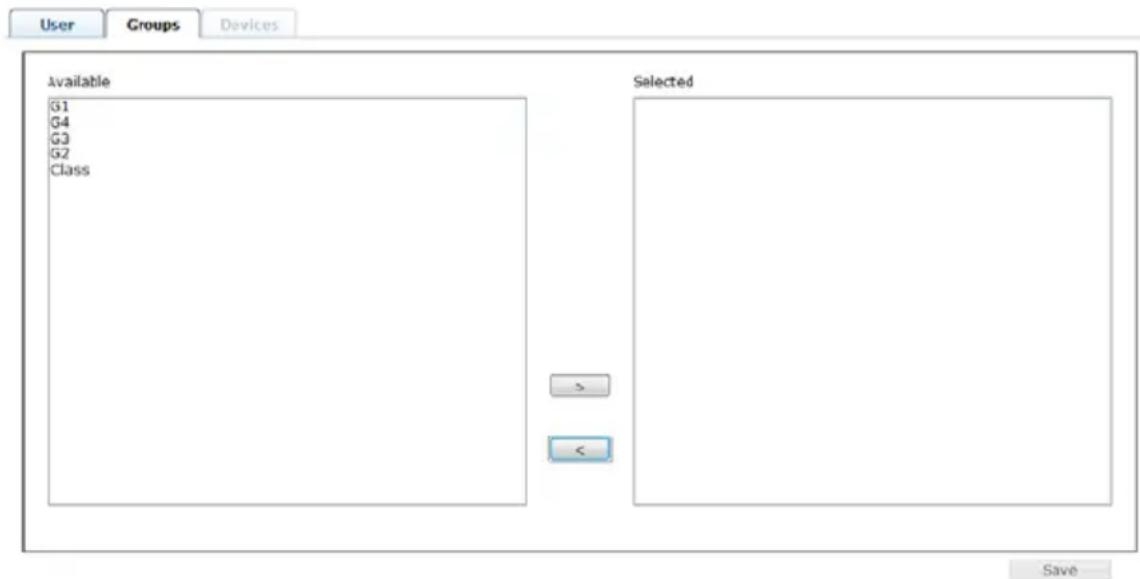
- In the Available column, select the group that you want the user to be in.
- Click the Right Arrow to put the group's name into the Selected column.
- Repeat the above for any other groups that you want the user to be in.
- Click Save when you are done.
Note: If a user has permissions in addition to the ones assigned to the group, the user keeps those permissions in addition to the group ones.
Removing Users From a Group From the User's Notebook
To remove a user from a group from the User's notebook, do the following:
- In the Sidebar User list, click the user's name
- or -
In the main panel, select the user's name.
- Click Modify.
- In the User notebook that comes up, select the Groups tab. A screen, similar to the one below, appears:
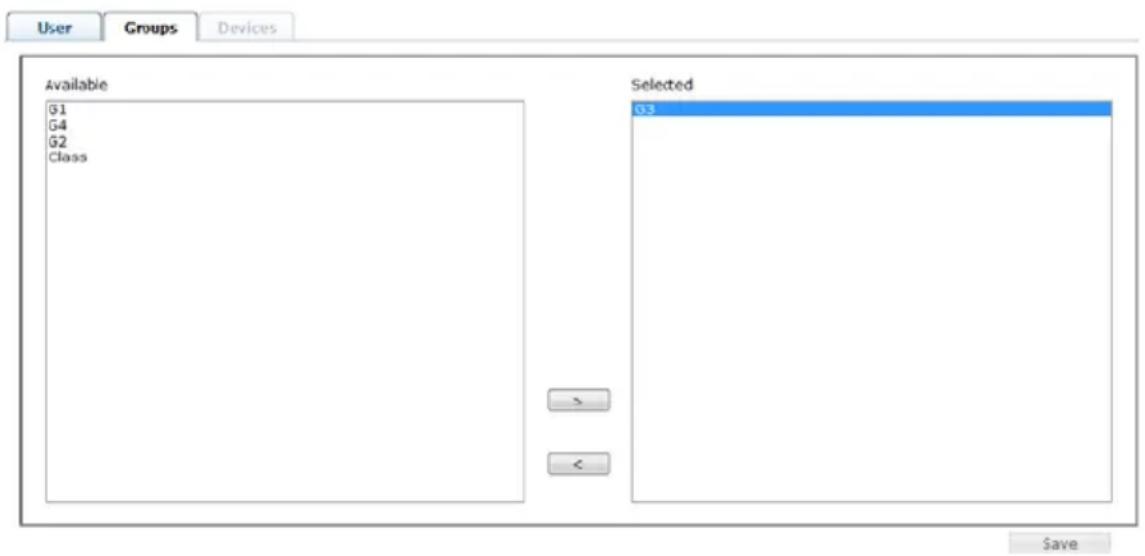
- In the Selected column, select the group that you want to remove the user from.
- Click the Left Arrow to remove the group's name from the Selected column. (It goes back into the Available column.)
- Repeat the above for any other groups that you want to remove the user from.
- Click Save when you are done.
Assigning Users to a Group From the Group's Notebook
To assign a user to a group from the Group notebook, do the following:
- In the Sidebar Group list, click the group's name
- or -
In the main panel, select the group's name.
- Click Modify.
- In the Group notebook that comes up, select the Members tab. A screen, similar to the one below, appears:
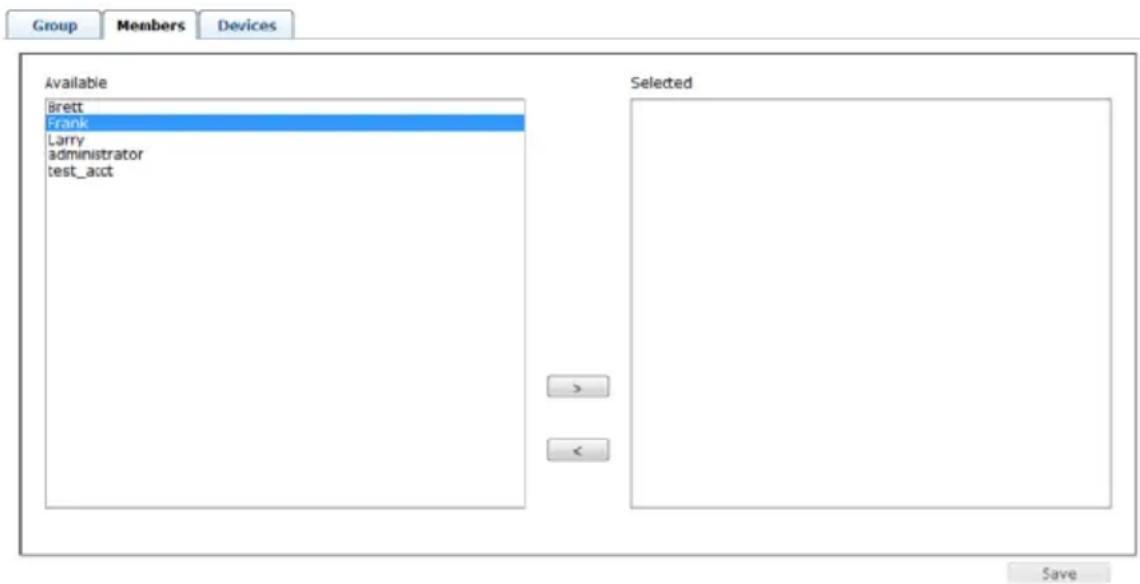
- In the Available column, select the user that you want to be a member of the group.
- Click the Right Arrow to put the user's name into the Selected column.
- Repeat the above for any other users that you want to be members of the group.
- Click Save when you are done.
Note: If a user has permissions in addition to the ones assigned to the group, the user keeps those permissions in addition to the group ones.
Removing Users From a Group From the Group's Notebook
To remove a user from a group from the Group's notebook, do the following:
- In the Sidebar Group list, click the group's name
- or -
In the main panel, select the group's name.
-
Click Modify.
-
In the Group notebook that comes up, select the Members tab. A screen, similar to the one below, appears:
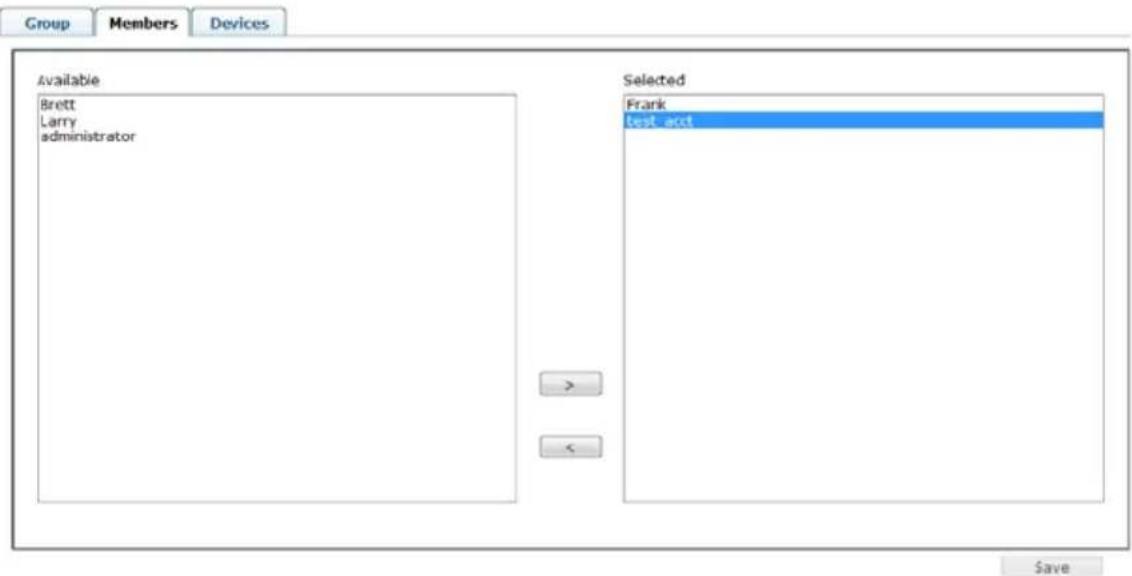
- In the Selected column, select the user that you want to remove from the group.
- Click the Left Arrow to remove the user's name from the Selected column. (It goes back into the Available column.)
- Repeat the above for any other users that you want to remove from the group.
- Click Save when you are done.
Device
You can assign Channel and Channel Group permissions from the Devices tab. For information on Channels and Channel Groups See Channels, page 88.
Assigning Device Permissions From the User's Notebook
To assign a device permissions to a user from the User's notebook, do the following:
- In the Sidebar User list, click the user's name
- or -
In the main panel, select the user's name.
-
Click Modify.
-
In the User notebook that comes up, select the Devices tab. A screen, similar to the one below, appears:
| User | Groups | Devices | Profiles/Video Walls | ||
| Channels/CGroups | View Only | Share | Occupy | Exclusive | |
| ▼ Channels | □ | □ | □ | □ | |
| KE6900T 33 | □ | □ | □ | □ | |
| KE6940T 34 | □ | □ | □ | □ | |
| KE6940T 36 | □ | □ | □ | □ | |
| KE6940T 35 | □ | □ | □ | □ | |
| ▼ Groups | □ | □ | □ | □ | |
- Make your permission settings for each device according to the information provided below:
| Field Description |
| Channels Lists the Channels which you can assign access rights to for the user. (See Channels, page 88 for details) |
| Groups Lists the Channel Groups which you can assign access rights to for the user. (See Channel Groups, page 92 for details) |
| Columns Check the boxes to apply access rights on the device for the user. This defines how the Channel can be accessed when multiple users access it.View Only: Users can only view the remote screen, and cannot perform operations on it.Share: Users simultaneously share control over the Channel. Input from the users is placed in a queue and executed chronologically.Occupy: The first user to access the Channel has control over the Channel. However, additional users may view the Channel's video display. If the user who controls the Channel is inactive for longer than the time set in the Timeout box, Channel control is transferred to the first user to move the mouse or strike the keyboard.Exclusive: The first user to access the Channel has exclusive control over the Channel. No other users can view the Channel. The Timeout function does not apply to Channels which have this setting. |
- When you have finished making your choices, click Save.
- In the confirmation popup that appears, click OK.
Assigning Device Permissions From the Groups' Notebook
To assign a device permissions to a Group of users, do the following:
- In the Sidebar Groups list, click the group's name
- or -
In the main panel, select the group's name.
- Click Modify.
- In the Groups notebook that comes up, select the Devices tab.
- The screen that comes up is the same one that appears in the User's notebook. The only difference is that whatever settings you make apply to all members of the group instead of just one individual member.
Make your device assignments according to the information described under Assigning Device Permissions From the User's Notebook, page 115.
Profiles/Video Walls
You can assign Profile and Video Wall permissions from the Profiles/Video Walls tab. For information on Profiles and Video Walls, see Profiles, page 94 or Video Wall, page 98.
Assigning Profile/Video Wall Permissions From the User's Notebook
To assign a Profile/Video Wall permission to a user from the User's notebook, do the following:
- In the Sidebar User list, click the user's name
-or-
In the main panel, select the user's name.
- Click Modify.
- In the User notebook that comes up, select the Profile/Video Wall tab. A screen, similar to the one below, appears:
| User | Groups | Devices | Profiles/Video Walls |
| Profiles/Video Walls | Operation |
| Profiles | |
| r25 | |
| 111111 | |
| 22222 | |
| 3333333 | |
| Video Walls | |
| Test1 | |
| test2 | |
| 3x3 | |
| 8x8 | |
| 1 |
Save
- Make your permission settings for each device according to the information provided below:
| Field Description | |
| Profiles/Video Walls | Lists the Profiles/Video Walls which you can assign access rights to for the user. (SeeChannels, page 88 for details) |
| Operation Put a check in the box to grant permission for the user to connect to Profiles/Video Walls. | |
- When you have finished making your choices, click Save.
Chapter 9 System
Overview
The System tab is used to configure the Matrix Manager's system settings and provides three menu bar items: Global Settings, ANMS and Redundancy. The System tab opens on the Global Settings page, as shown here:
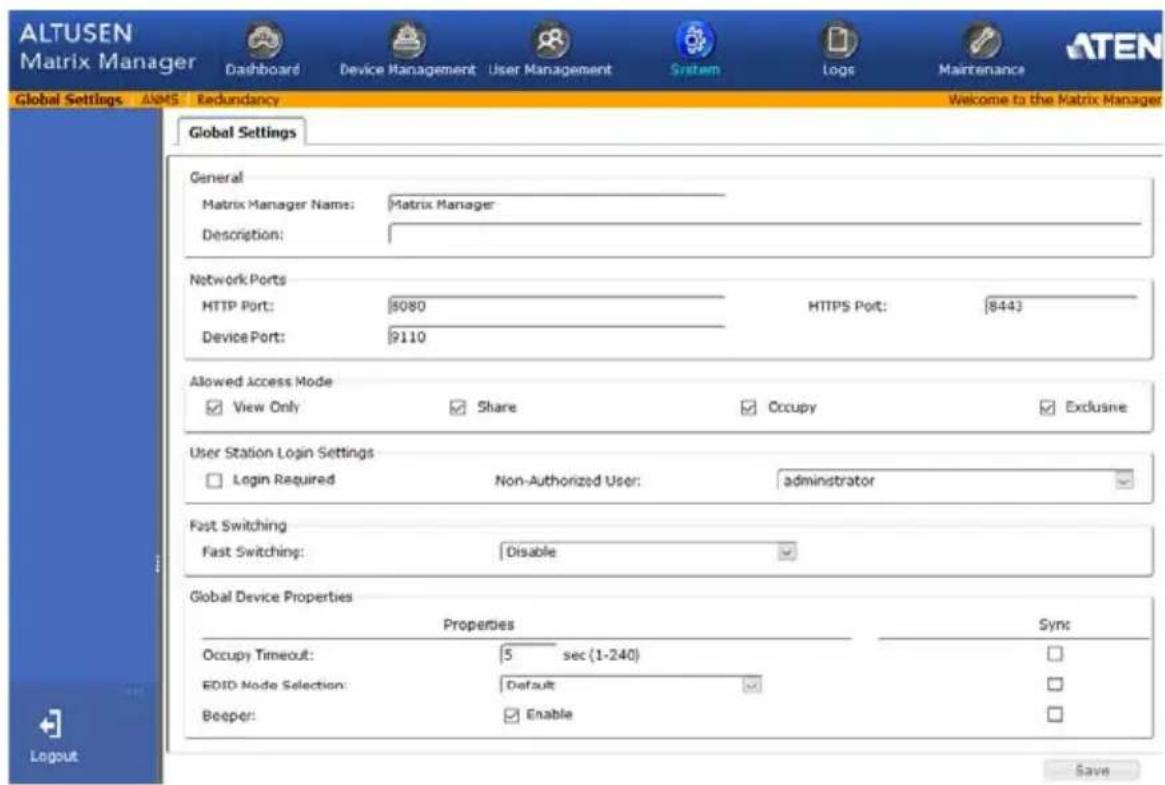
Global Settings
The Global Settings page lets an administrator change the default settings used for the Matrix Manager:
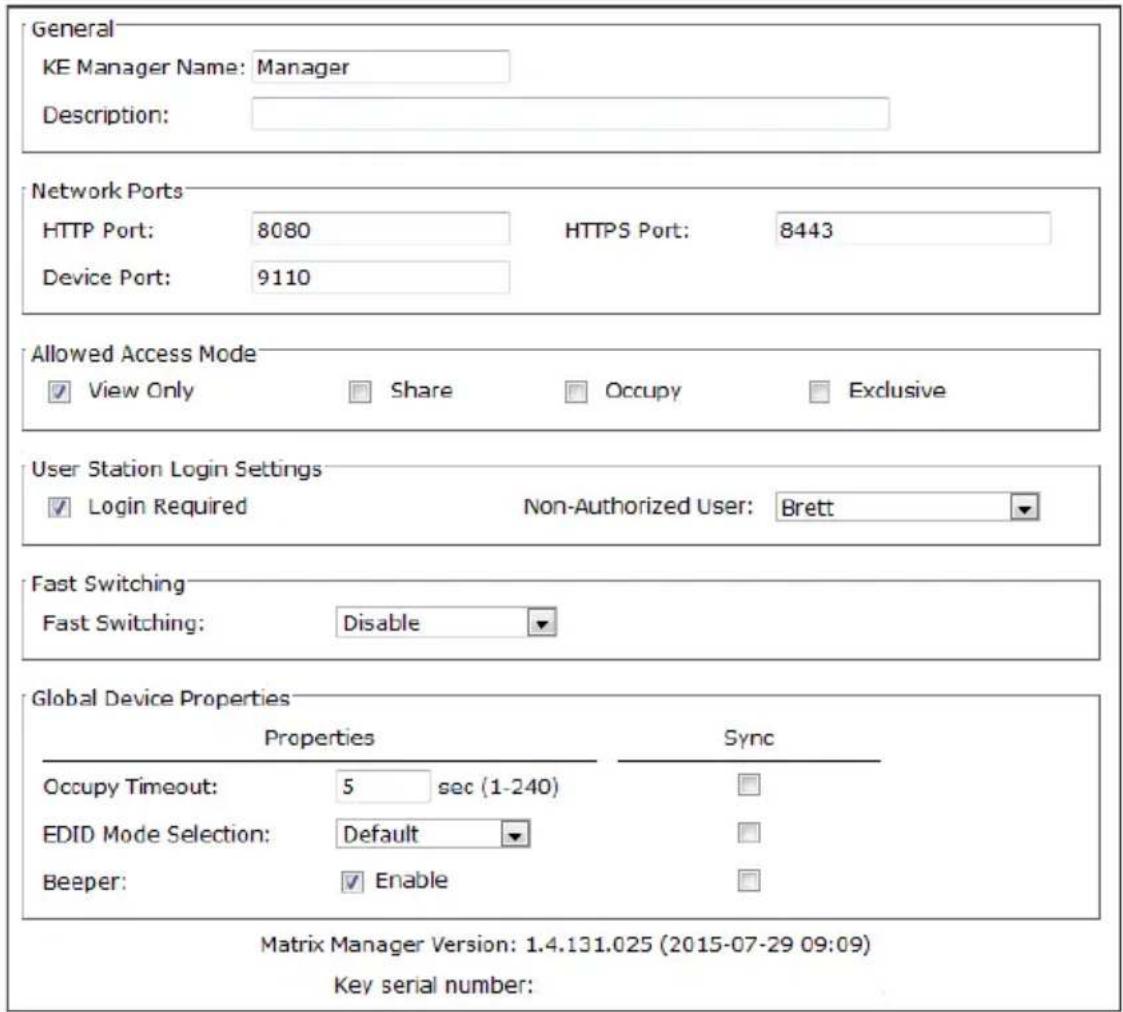
| Item Description | |
| General | Fill in aName and Descriptionfor the Matrix Manager. |
| Network Ports Use this setting to specify the service ports used to access the Matrix Manager:Device Port:This is the port number to configure on the Transmitter and User Station to access the Matrix Manager (see Manager Address, page 36 and Manager Address, page 32). The default is 9110.HTTP Port:This is the port number to use for a browser login. The default is 8080.HTTPS Port:This is the port number to use for a secure browser login. The default is 8443.Example: To access the Matrix Manager on a computer with an IP address of 192.168.0.100, using a secure browser login (https), enter:https://192.168.0.100:8443 | |
| Allowed Access Mode Select the default Access Mode for devices added to the Matrix Manager. This defines how the device can be accessed when multiple users log on.◆ View Only: Users can access the computer and view the screen, but cannot perform any operations on it.◆ Exclusive: The first user to connect to the Transmitter has exclusive control over the computer. No other users can view the computer. The Timeout function does not apply to devices that have this setting.◆ Occupy: The first user to connect to the Transmitter has control over the computer. However, additional users may view the computers video display. If the user who controls the computer is inactive for longer than the time set in the Timeout box, computer control is transferred to the next user to move the mouse or strike the keyboard.◆ Share: Users simultaneously share control over the computer. Input from the users is placed in a queue and executed chronologically. | |
| User Station Login Settings | This will be the User Station's default setting when they are added to the Matrix Manager. You can change this setting from the User Station's Properties.◆ Check Login Required to prompt users for a username and password at the User Station OSD before being able to access the Connections Page (see Connections Page, page 41). If you uncheck this, you must set the Non-Authorized User.◆ Non-Authorized User: If the Login Required box is not checked, select a user from the drop-down menu to use as the default profile to anonymously login to the User Station, in the background.Note: WARNING! If Login Required isn't checked and an Anonymous User isn't selected, a system login error will occur in the User Station OSD. |
| Fast Switching Allows you | to select the default resolution to use that gives you the ability to switch faster between User Station and Transmitter connections. If the monitor you are using does not support fast switching the video may not display correctly when this setting is enabled. |
| Global Device Properties | These settings allow you to set the default properties used by all devices:Occupy Timeout:Set the number of seconds for a user's session to be inactive before the access is released for use by another user, when using the Occupy Access Mode. This will be the default setting for Transmitters.EDID Mode Selection:Extended Display Identification Data (EDID) contains a display's basic information and is used by the source device to utilize the best resolution across different monitors. This will be the default setting for Transmitters. Select how you want the source device to acquire the display's EDID:Default:EDID is set to the ATEN default configuration.Auto:Checks the EDID of all connected displays and uses the best resolution for all displays.Manual:Manually set the EDID configuration from the User Station's OSD (see Manual EDID, page 42).Remix:Checks the EDID of all connected displays and the source device uses the best common resolution for all displays.Beeper:Check this box for the device to alert you with a sound when its first being accessed or when a configuration change is made.Use the Sync check box for each option above to push the setting change to the devices after you click Save. |
ANMS
The ANMS (Advanced Network Management Settings) page is used to set up login authentication and authorization management from external sources. It is organized as a notebook with two tabs – each with a series of related panels, as described below.
Event Destination
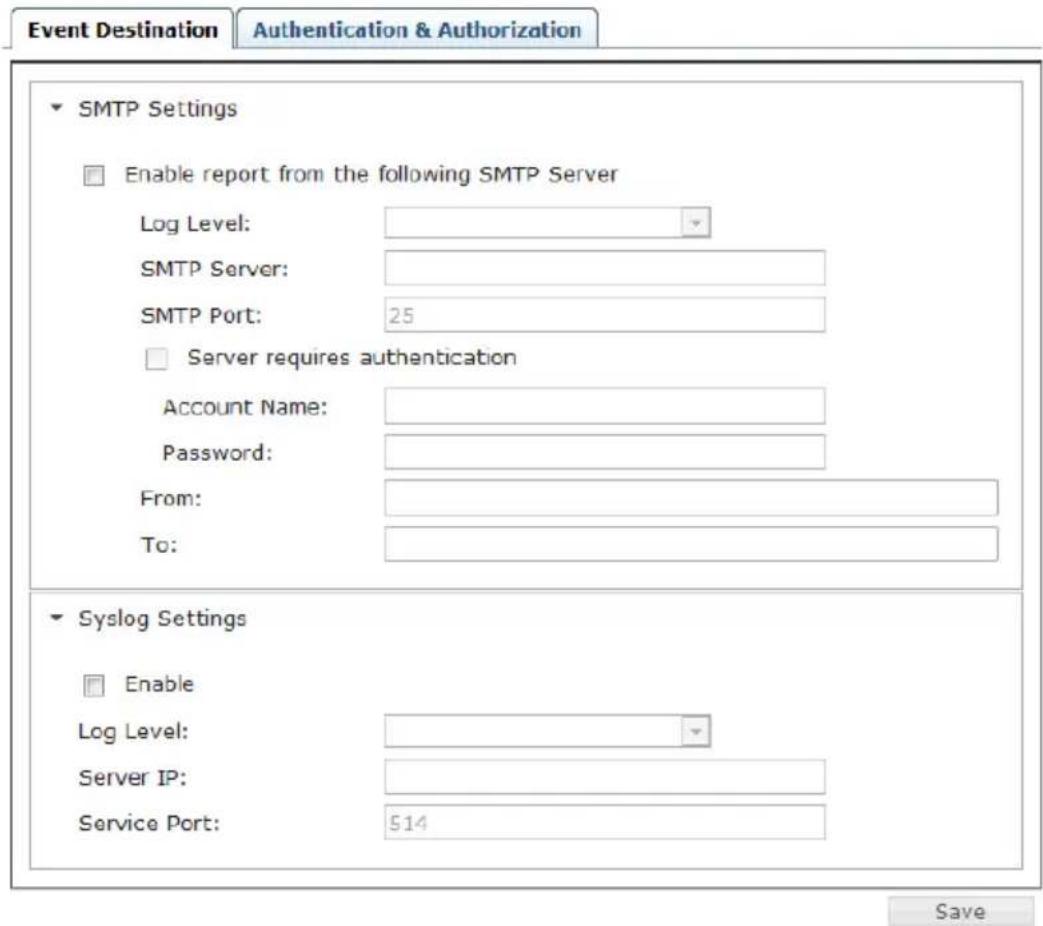
- SMTP Settings
To have the Matrix Manager email reports from the SMTP server to you, do the following:
- Enable the Enable report from the following SMTP Server, select the the Log Level (Information, Warning, or Error), and key in the SMTP Server IP address and SMTP Port.
- If your server requires authentication, check the Server requires authentication checkbox, and key in the appropriate information for the Account Name and Password fields.
- Key in the email address of where the report is being sent from in the From field.
| Note: | 1. Only one email address is allowed in the From field, and it cannot exceed 64 Bytes. |
| 2. 1 Byte = 1 English alphanumeric character. |
- Key in the email address (addresses) of where you want the SMTP reports sent to in the To field.
| Note: If you are sending the report to more than one email address, separate the addresses with a semicolon. The total cannot exceed 256 Bytes. |
- Click Save.
♦ Syslog Settings
To record all the events that take place on the Matrix Manager and write them to a Syslog server, do the following:
- Check Enable.
- Use the drop-down menu to select the Log Level (Information, Warning, or Error).
- Key in the Server IP address of the Syslog server.
- Key in the Service Port number. The valid port range is 1-65535.
- Click Save.
Authentication & Authorization
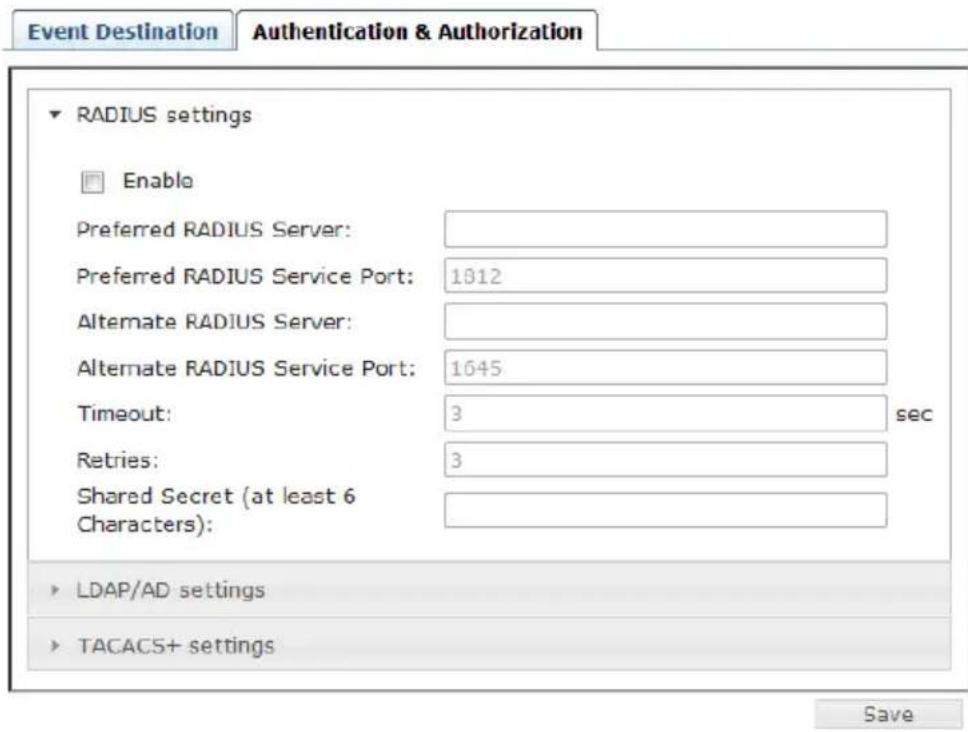
♦ RADIUS Settings
To allow authentication and authorization for the KE6900 / KE6940 through a RADIUS server, do the following:
- Check Enable.
- Fill in the IP addresses and service port of the Preferred RADIUS Server and Alternate RADIUS Server.
- In the Timeout field, set the time in seconds that the Matrix Manager waits for a RADIUS server reply before it times out.
- In the Retries field, set the number of allowed retries.
- In the Shared Secret field, key in the character string that you want to use for authentication between the Matrix Manager and the RADIUS Server. A minimum of 6 characters is required.
-
On the RADIUS server, Users can be authenticated with any of the following methods:
-
Set the entry for the user as su/xxxx
Where xxxx represents the Username given to the user when the account was created on the Matrix Manager. - Use the same Username on both the RADIUS server and the Matrix Manager.
- Use the same Group name on both the RADIUS server and the Matrix Manager.
- Use the same Username/Group name on both the RADIUS server and the Matrix Manager.
In each case, the user's access rights are the ones assigned that were assigned when the User of Group was created on the Matrix Manager.
◆ LDAP / AD Authentication and Authorization Settings:
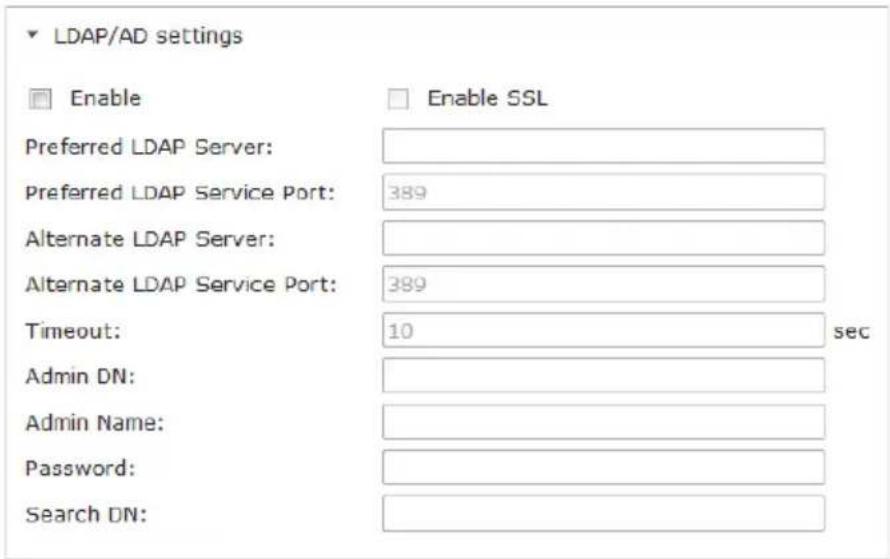
To allow authentication and authorization for the Matrix Manager via LDAP / AD, refer to the information in the table, below:
| Item Action | |
| Enable Put a check in the Enable checkbox to allow LDAP / AD authentication and authorization. | |
| Enable SSL Put a check in the Enable checkbox to allow SSL connections. | |
| LDAP Server IP and Port | Fill in the IP address and port number for the LDAP / AD server. ◆ You can use the IPv4 address, the IPv6 address or the domain name in the LDAP Server field. ◆ For LDAP, the default port number is 389. |
| Timeout Set the time | in seconds that the Matrix Manager waits for an LDAP / AD server reply before it times out. |
| Admin DN Consult the LDAP / AD administrator to ascertain the appropriate entry for this field. For example, the entry might look like this: ou=kn4132,dc=aten,dc=com | |
| Admin Name Key in the LDAP administrator's username. | |
| Password Key in the LDAP administrator's password. | |
| Search DN Set the distinguished name of the search base. This is the domain name where the search starts for user names. | |
On the LDAP / AD server, Users can be authenticated with any of the following methods:
- With MS Active Directory schema.
Note: If this method is used, the LDAP schema for MS Active Directory must be extended. Without schema – Only the Usernames used on the Matrix Manager are matched to the names on the LDAP / AD server. User privileges are the same as the ones configured in the Matrix Manger.
- Without schema – Only the Usernames used on the Matrix Manager are matched to the names on the LDAP server. User privileges are the same as the ones configured in the Matrix Manager.
- Without schema – Only Groups in AD are matched. User privileges are the ones configured for the groups he belongs to in the Matrix Manger.
- Without schema – Usernames and Groups in AD are matched. User privileges are the ones configured for the User and the Groups in the Matrix Manger.
♦ TACACS+ Settings:
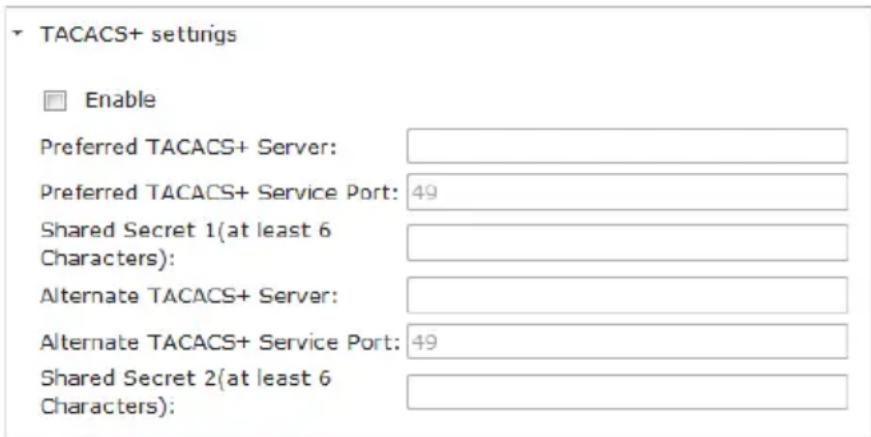
- Enable TACACS+ and enter the following information:
- Preferred TACACS+ Server
♦ Preferred TACACS+ Service Port
Shared Secret 1
Alternate TACACS+ Server
Alternate TACACS+ Service Port
Shared Secret 2
Redundancy
The Redundancy page sets up a second computer as backup in case the computer hosting the Matrix Manager goes off-line. If the Matrix Manager is off-line, the secondary computer will automatically take over operations, allowing all connections to continue without disruption – with only a brief period (30 seconds) when new connections can't be started. When the primary computer comes back online it retrieves the database with any changes from the secondary computer and re-takes all Matrix Manager operations.
To setup Redundancy, do the following:
-
Install the Matrix Manager on a second computer with the USB License key (see page 47).
-
Open the Matrix Manager and go to the System → Redundancy page.
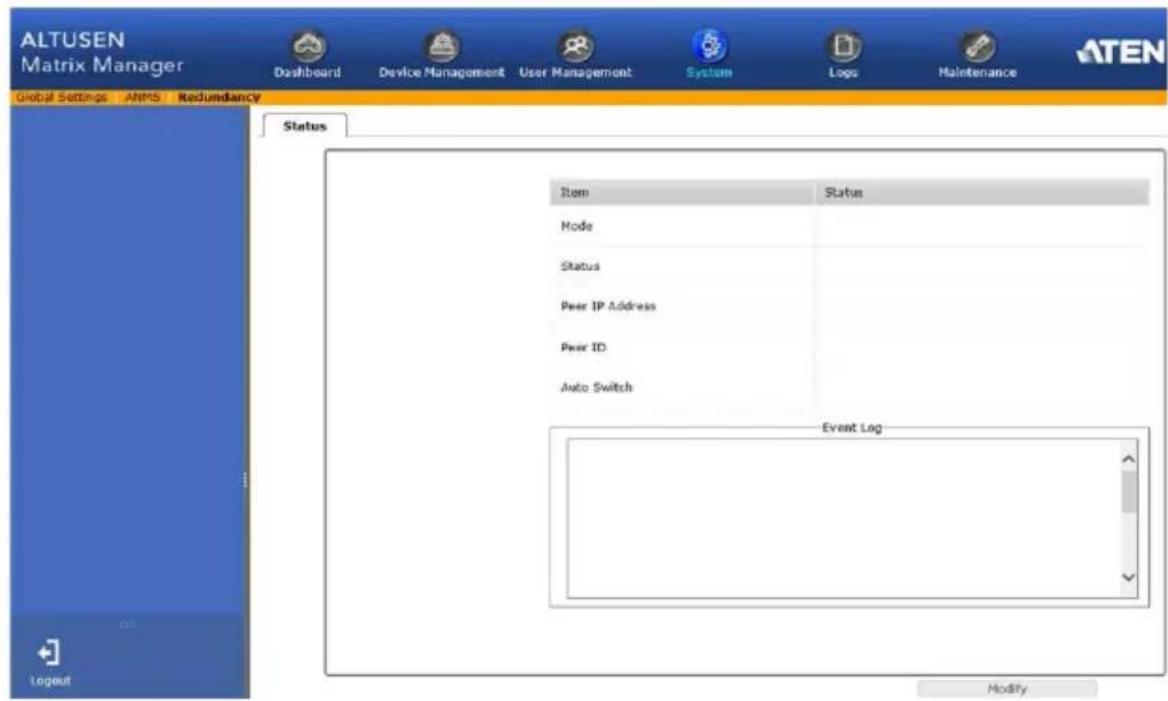
- Click Modify. The Status window appears:
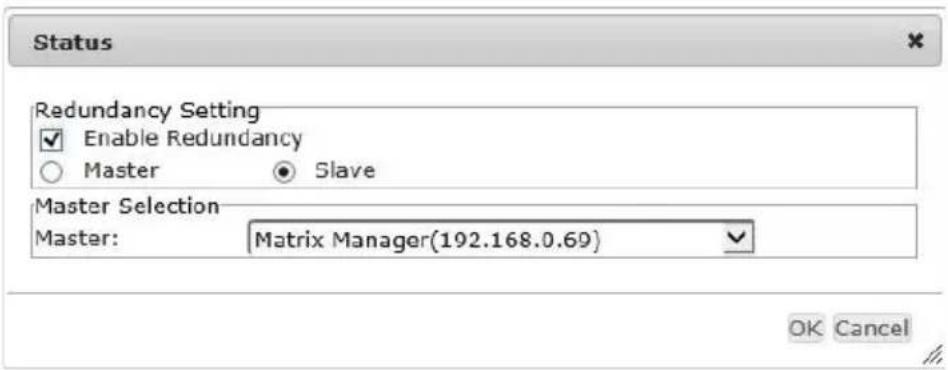
-
Check the Enable Redundancy box and select the Slave radio button.
-
Use the Master drop-down menu to select the primary computer's IP address.
- Click OK.
- This computer is now running in Standby mode, as identified in the orange status bar:
![ATEN Welcome to the Matrix Manager[Standby]](/content/2026/06/1150998/images/a04090f7d0062afad437a10536dc855e9d8552204cd4f9d984623adacded1026.jpg)
- Remove the USB License key and plug it into the primary computer running the Matrix Manager software.
- Open the Matrix Manager on the primary computer and go to the System → Redundancy page.
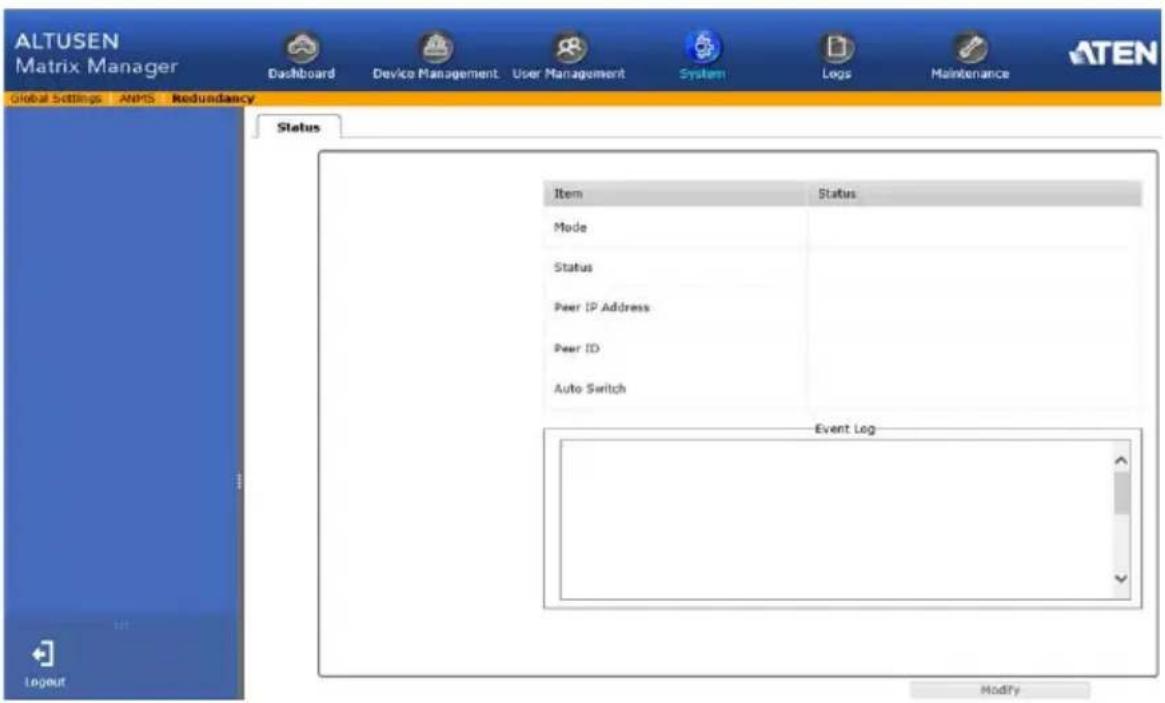
- Click Modify. The Status window appears:
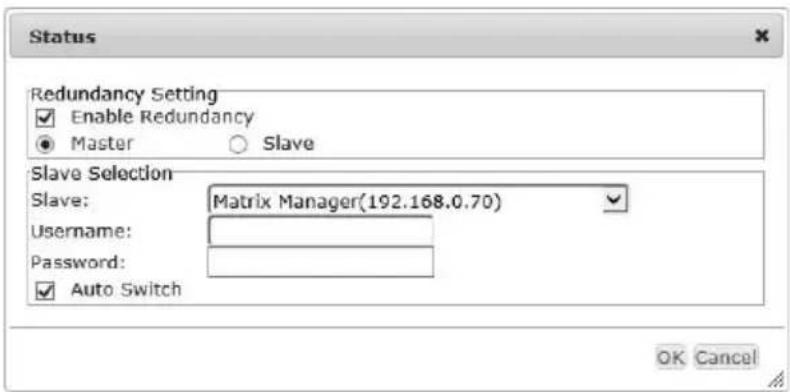
- Check the Enable Redundancy box and select the Master radio button.
- Use the Slave drop-down menu to select the secondary computer's IP address.
- Enter the Username and Password of the secondary computer's local administrator account.
- Check the Auto Switch box to automatically switch the Matrix Manager to the secondary computer when the primary computer is offline – and reverse the action when the primary computer is back online.
- Click OK.
- The Redundancy page provides information about the configuration.
| Item | Status |
| Mode | Master |
| Status | Working |
| Peer IP Address | 192.168.0.70 |
| Peer ID | 94DE80B750CD0000 |
| Auto Switch | YES |
| Event Log | |
| Tue Nov 18 2014 11:35:49 GMT+0800 (台北標準時間) KE Manager disconnected(ip=192.168.0.70). | |
| Tue Nov 18 2014 10:14:58 GMT+0800 (台北標準時間) KE Manager connected(ip=192.168.0.70). | |
| Tue Nov 18 2014 09:22:20 GMT+0800 (台北標準時間) KE Manager disconnected(ip=192.168.0.70). | |
| Tue Nov 18 2014 09:22:20 GMT+0800 (台北標準時間) KE Manager disconnected(ip=192.168.0.70). | |
| Tue Nov 18 2014 08:01:27 GMT+0800 (台北標準時間) KE Manager connected(ip=192.168.0.70). | |
| Tue Nov 18 2014 07:08:51 GMT+0800 (台北標準時間) KE Manager disconnected(ip=192.168.0.70). | |
| Item Action | |
| Mode Displays the role of the computer running the Matrix Manager software: Master (primary) or Slave (secondary). | |
| Status Displays Working for the computer currently managing the Matrix Manager database. Displays Standby when the computer is waiting as a backup and getting database updates from the primary computer running the Matrix Manager. | |
| Peer IP Address Displays the IP address of the computer configured to send (primary) or receive (secondary) the database updates for redundancy. | |
| Peer ID Displays the | MAC address of the computer configured to send (primary) or receive (secondary) the database updates for redundancy. |
| Auto Switch Displays | the Auto Switch (Yes/No) status. (Master only). |
| Event Log Displays the logs that provide information about the Matrix Manager's redundancy status. | |
Chapter 10 Logs
Overview
The Matrix Manager logs all the events that take place on it an stores them in a Log. The Logs tab opens on the System Log page, as shown here:
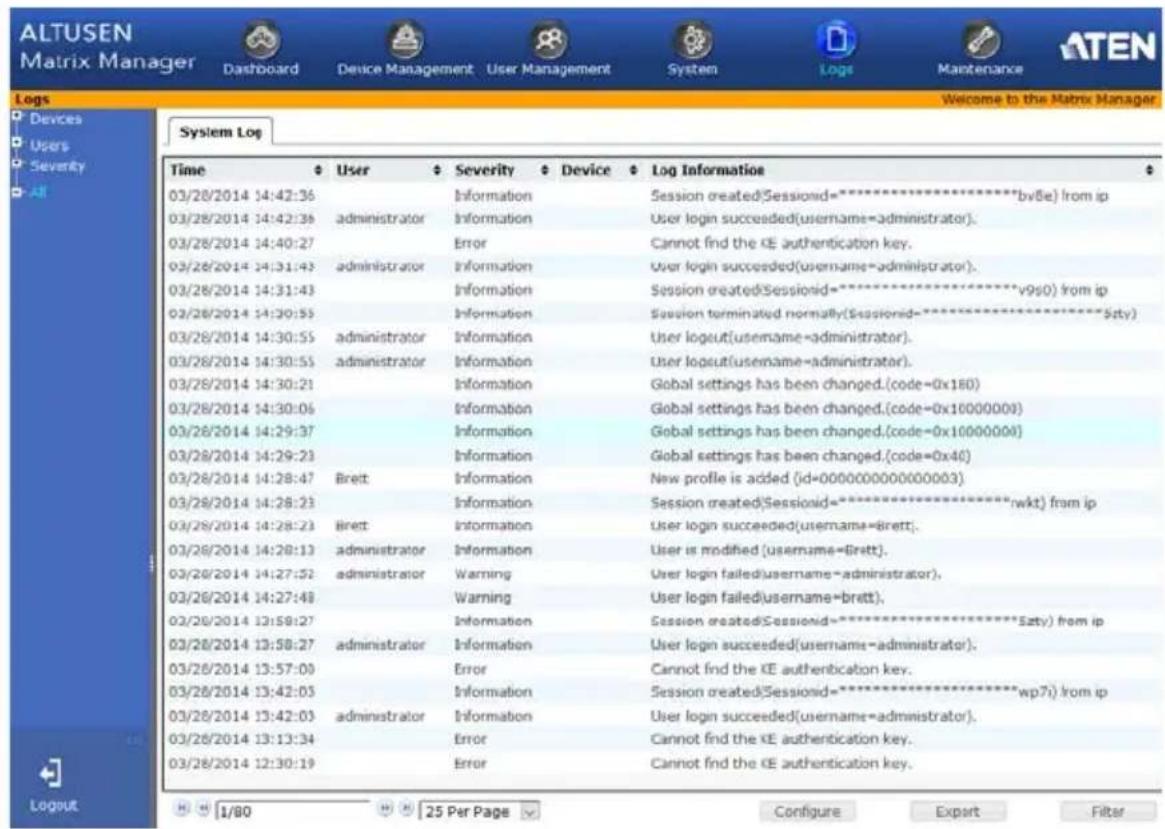
System Log
The System Log page displays events that take place on the Matrix Manager and provides a breakdown of the time, user, severity, device, and log information, for a description of each event. You can change the sort order of the display by clicking on the column headings.
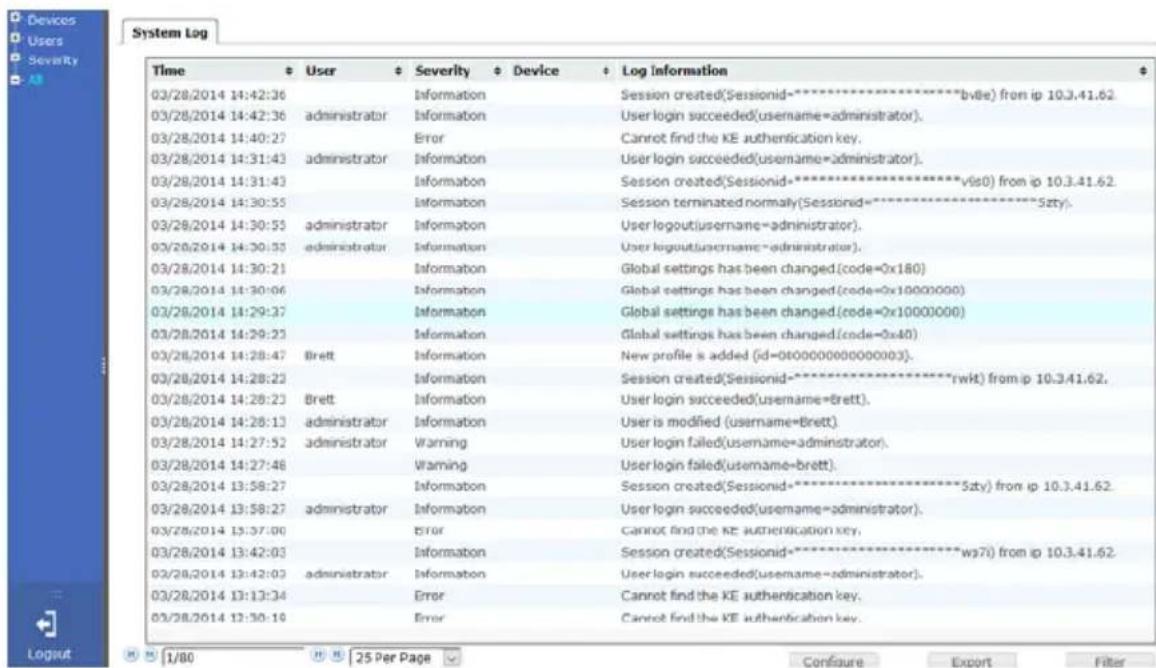
- The first four buttons on the lower row navigate through the pages of the listed events. The left takes you to the first page; the right takes you to the last page; the middle buttons move you backward or forward one page.
Note: These buttons are only active when there is a relevant action they can perform. For example, when there is more than one page of information and you are on the first page, the “move forward” and “last page” buttons are active, but the “move backward” and “first page” buttons are not.
- Clicking the plus sign (+) beside a category in the sidebar menu expands the event headings into subcategories. Selecting a subcategory allows you to view only the logs that relate to that choice.
- Clicking All from the sidebar returns you to the default view to display all events.
- In general, a blank page, indicates that there were no log events recorded for that category.
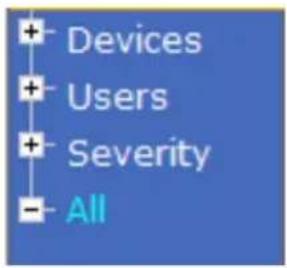
When the log file limit is reached, the oldest events get discarded as new events come in. The buttons at the bottom of the page are shown below and described in the tables below:

| Button Explanation | |
| Navigation Buttons The four | buttons on the lower row (left side) navigate through the pages of the listed events. The left takes you to the first page; the right takes you to the last page; the middle buttons move you backward or forward one page. |
| Drop-Down Menu Use this menu to select how many events you want to display per page. Available choices are 25, 50, and 100. | |

| Button Explanation | |
| Configure Clicking Configure | opens a pop-up window that allows you to set how many days or the number of records to record before over-writing old log files. Use the radio button to select By period (days) or By records and enter the number you wish to use. |
| Export | Clicking Export lets you save the contents of the log to a file on your computer. |
| Filter | Clicking Filter allows you to search for particular events by date or by specific words or strings, as described in the next section. |
Filter
Filter lets you narrow the log event display to ones that occurred at specific times; ones containing specific words or strings. When you access this function, the log filter dialog box appears at the bottom of the page:
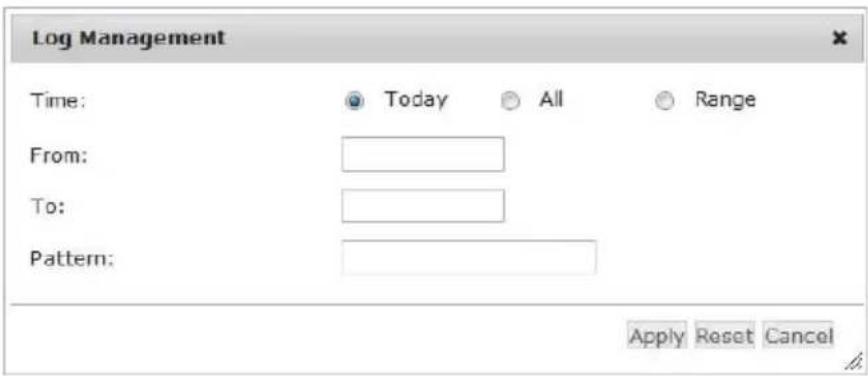
A description of the filter items is given in the table, below:
| Item Description | |
| Time This feature lets you filter for events that occurred at specific times, as follows:Today: Only the events for the current day are displayed.All: Displays all events.Range: Select a time frame of events. After selecting Range, click inside theFromandTotext box to bring up the calendar.◆From: Filters for events from a specific date and time to the present. Click inside theFrombox to bring up a calendar. Set the date and time that you want the filtering to start from. All events from the Start date/time to the present are displayed.◆To: Filters for events from a specific date and time to a specific date and time. Click inside theFrombox to bring up a calendar. First select theFrom(described above). | |
| Pattern Filters for a particular word or string. Key the word or string into theInformationtext box. Only events containing that word or string are displayed. Wildcards (? for single characters; * for multiple characters) and the keywordorare supported. E.g., h*ds would return hands and hoods; h?nd would return hand and hind, but not hard; h*ds or h*ks would return hands and hooks. | |
| Apply Click to apply the filter choices. | |
| Reset Click this button to clear the entries in the dialog box and start with a clean slate. | |
| Cancel Click this button to exit the log filter function. | |
Chapter 11
Maintenance
Overview
The Maintenance tab has four menu bar options: Backup/Restore, Firmware Upgrade, Certificates, and Preferences. When you click the Maintenance tab, it opens on the Backup/Restore page, as shown here:
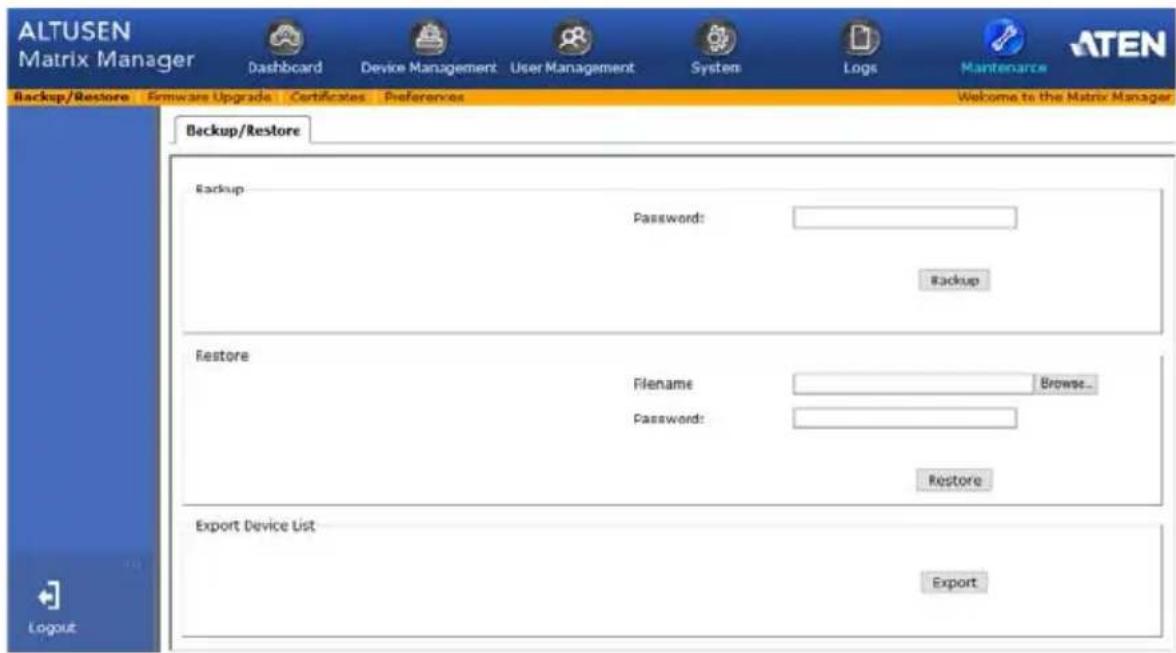
- Backup/Restore allows administrators to backup system configuration settings to a file, and restore configuration settings from previously saved files.
- Firmware Upgrade allows administrators to upgrade firmware for network connected devices.
- Certificates allow for enhanced security, the Private Certificate section allows you to use your own private encryption key and signed certificate.
- Preferences allows the user that is logged in to set individual preferences for their browser sessions.
Backup / Restore
When you click the Maintenance tab Matrix Manager, the Backup/Restore page is displayed. The page is divided into two main sections: Backup, and Restore:
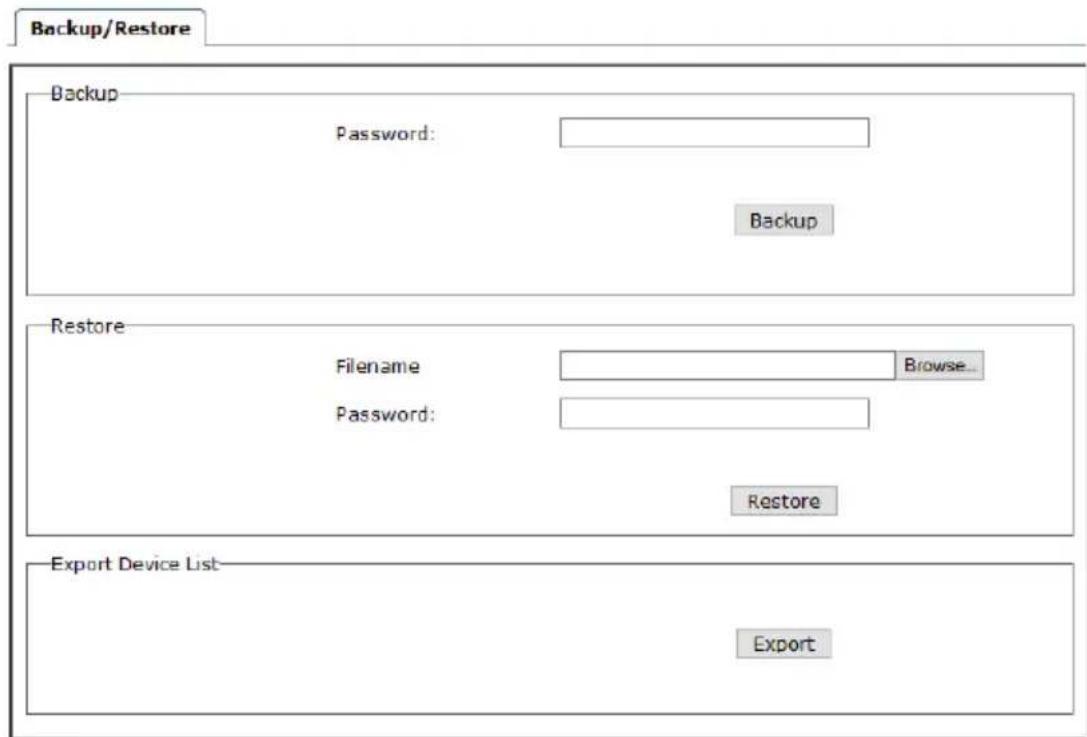
The operations to perform backup/restore procedures are described in the table below and in the section that follows:
| Procedure Operation | |
| Backup Backs up | the Matrix Manager configuration – including User Station, Transmitter, Channel, and Profile configurations; user and group accounts, user profiles, logs, and system settings. |
| Restore Deletes | the current User Station, Transmitter, Channel, and Profile configurations; user and group accounts, user profiles, logs, and system settings.; then restores those settings to the values that exist in the previously saved backup file. |
| Export Device List | Clicking Export allows you to save a file with a complete list of the devices added to the Matrix Manger. The file contains the ID, Name, Description and IP Address of each Transmitter and User Station. An Existing column also lists if the device is available: Yes, it exists and is available, or No, it is off-line or has been removed. |
Backup
To back up system configuration settings, do the following:
- (Optional) In the Backup panel, provide a password for the backup file.
Note: Providing a password is a security feature – if you provide a password, you will need to give the same password in order to restore the configuration settings from this file.
- Click Backup.
- In the dialog box that comes up, Click Save to save the configuration file (System.conf) to a location on your hard disk.
- Navigate to the directory where you want to save the file and click Save.
Restore
To restore system configuration settings, do the following:
- In the Restore panel, click Browse.
- Navigate to the directory where the backup file is located and select it.
- When you return to the Backup/Restore page enter the password you set when the backup file was created.
Note: If you did not set a password for the file, leave the field blank.
- Click Restore.
- Click OK to confirm that you want to restore the configuration data. When the Restore procedure is in process, a message stating that the Matrix Manager will restart will appear. After a short while the Matrix Manager closes and refreshes at the log in screen. When it comes back up the configuration settings that were restored from the backup file are in effect.
Firmware Upgrade
New firmware versions can be downloaded from our website as they become available. Check the website regularly, to find the latest upgrade packages.
Under Firmware Upgrade all KE6900/KE6940 devices that are discovered online are provided in a list allowing you to select which devices get upgraded.
To upgrade the firmware do the following:
- Go to our website and download the firmware upgrade package appropriate to your KE6900 / KE6940 device.
- Open your browser and log in to the Matrix Manager with an administrator's account.
- Click the Maintenance tab; select Firmware Upgrade on the menu bar. A confirmation dialog box may appear:
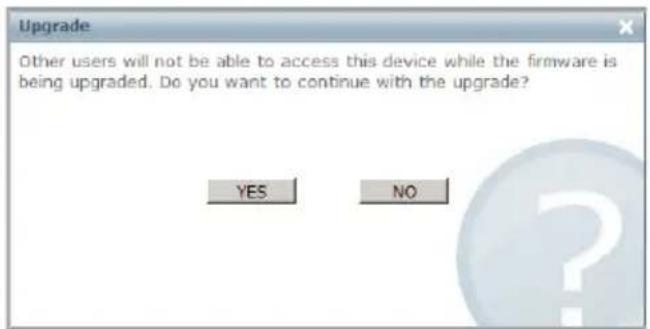
- Click Yes to continue. After a short while, the Firmware Upgrade page comes up:
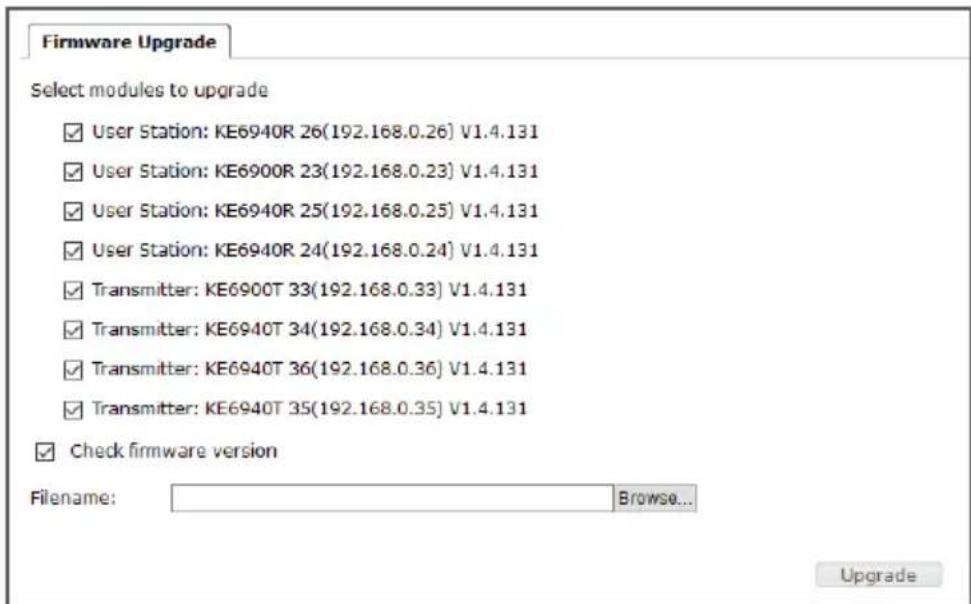
All the KE6900 / KE6940 devices that are capable of being upgraded are listed.
Note: Only online KE6900 / KE6940 devices show up in the list. Offline devices do not get upgraded.
- Make sure there is a check in the checkbox in front of the modules you want to upgrade. Uncheck the modules that you do not want to upgrade.
- Click Browse. Navigate to the directory where the firmware upgrade file is located and select it.
-
Enable or disable Check Firmware Version
-
If you enabled Check Firmware Version the current firmware level is compared with that of the upgrade file. If the current version is equal to or higher than the upgrade version, a popup message appears, to inform you of the situation and stops the upgrade procedure.
-
If you didn't enable Check Main Firmware Version, the upgrade file is installed without checking what its level is.
-
Click Upgrade to start the upgrade procedure. As the upgrade proceeds, progress information is shown on the screen. Once the upgrade completes successfully, the devices will reset.
-
Log in to the and check the firmware version to be sure it is the new one.
Firmware Upgrade Recovery
If the Upgrade Succeeded screen doesn't appear or the upgrade procedure is abnormally halted (due to computer crash, power failure, etc.), the device may become inoperable. If you find that the device does not work following a failed or interrupted upgrade, do the following
- Power off the KE6900 / KE6940.
- Press the Reset button, then power on the KE6900 / KE6940 while holding Reset.
- Hold Reset for 7 seconds after the device is powered on.
- The device will revert to a previous firmware version and recover from the failure.
- Upgrade the firmware to the most current version available.
Certificates
This page provides information about the Private Certificates:
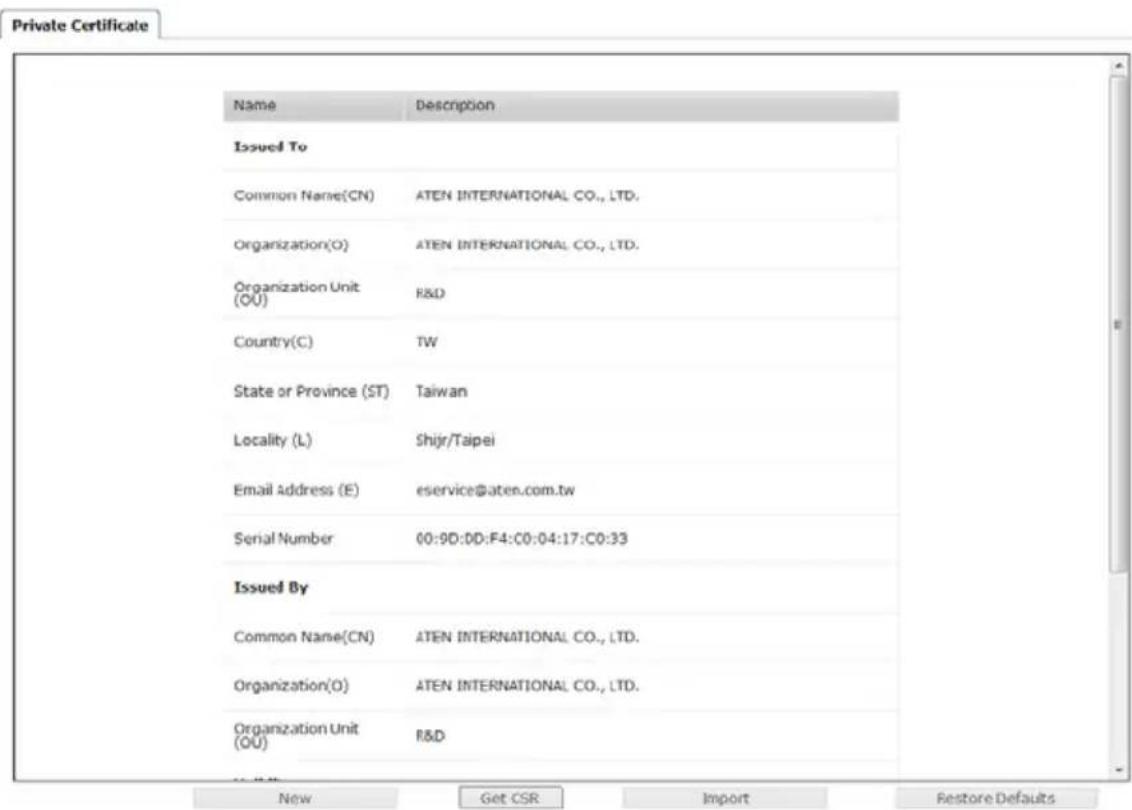
Private Certificate
When logging in over a secure (SSL) connection, a signed certificate is used to verify that the user is logging in to the intended site. For enhanced security, the Private Certificate section allows you to use your own private encryption key and signed certificate, rather than the default ATEN certificate.
There are two methods for establishing your private certificate: generating a self-signed certificate; and importing a third-party certificate authority (CA) signed certificate.
♦ Generating a Self-Signed Certificate
If you wish to create your own self-signed certificate, a free utility – openssl.exe – is available for download over the web. See Self-Signed Private Certificates, page 196 for details about using OpenSSL to generate your own private key and SSL certificate.
- Obtaining a CA Signed SSL Server Certificate
For the greatest security, we recommend using a third party certificate authority (CA) signed certificate. To obtain a third party signed certificate, go to a CA (Certificate Authority) website to apply for an SSL certificate.
After the CA sends you the certificate and private encryption key, save them to a convenient location on your computer.
- Importing the Private Certificate
To import the private certificate, do the following:
- Click Import from the bottom of the Private Certificate page, shown here:
| New | Get CSR | Import | Restore Defaults |
- Click Browse to the right of Certificate Filename; and browse to where your certificate file is located; and select it.
- Click Import to complete the procedure.
Note: Clicking Restore Defaults returns the device to using the default ATEN certificate.
Certificate Signing Request
The Certificate Signing Request (CSR) section provides an automated way of obtaining and installing a CA signed SSL server certificate.
| New | Get CSR | Import | Restore Defaults |
To perform this operation do the following:
- Click New. The following dialog box appears:
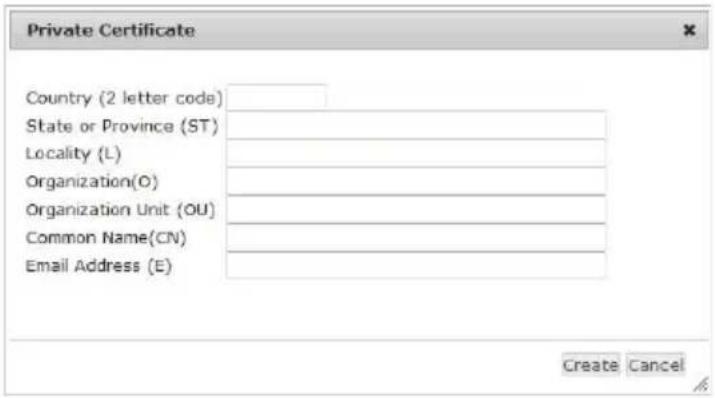
- Fill in the form – with entries that are valid for your site – according to the example information in the following table:
| Information Example | |
| Country (2 letter code) TW | |
| State or Province Taiwan | |
| Locality Taipei | |
| Organization Your Company, Ltd. | |
| Organization Unit Tech Department | |
| Common Name mycompany.com | Note: This must be the exact domain name of the site that you want the certificate to be valid for. If the site's domain name is www.mycompany.com, and you only specify mycompany.com, the certificate will not be valid. |
| Email Address administrator@yourcompany.com | |
- After filling in the form (all fields are required), click Create.
A self-signed certificate based on the information you just provided is now stored on the Matrix Manager.
- Click Get CSR, and save the certificate file (csr.cer) to a convenient location on your computer.
This is the file that you give to the third party CA to apply for their signed SSL certificate.
- After the CA sends you the certificate, save it to a convenient location on your computer. Click Import to locate the file; then click Import to store it on the Matrix Manager.
Note: When you upload the file, the Matrix Manager checks the file to make sure the specified information still matches. If it does, the file is accepted; if not, it is rejected.
If you want to remove the certificate (to replace it with a new one because of a domain name change, for example), simply click Restore Defaults.
Preferences
Users can set individual preferences for their browser sessions on the Preferences page. The Preferences page allows you to select options for the user that is currently logged in.
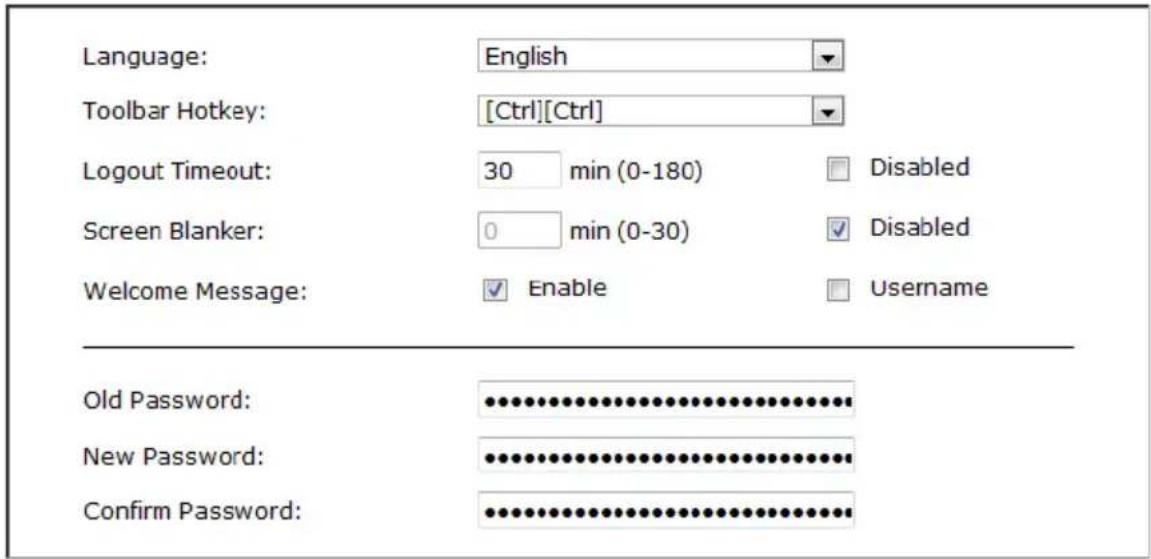
| Item Description | |
| Language Click the drop-down menu to select the language you want to use during sessions for this user. Choices are: English, Chinese (Simplified), Chinese (Traditional), Japanese, Korean, Dutch, French, Spanish, Portuguese, and Russian. | |
| Toolbar Hotkey Select the hotkey combination to call the Tool Bar function for this user. The Tool Bar is used when accessing the computer from the Transmitter or Receiver side. | |
| Logout Timeout If there is no user input for the amount of time set with this function, the user is automatically logged out. A login is necessary before the Matrix Manager can be accessed again. The default is 30 minutes. | |
| Screen Blanker Set how many minutes the KE6900 / KE6940 waits when a session is idle before turning off the display. | |
| Welcome Page If you want the Welcome Message to appear on screen when the user logs in, select Enable.If you want the user's Screen Name to appear with the Welcome Message, check the Username check box. | |
| Password This section allows you to change the user's password: | |
| 1. Key in your old password in the Old password field. | |
| 2. Key in your new password in the New password field. | |
| 3. Key in your new password again in the Confirm password field. | |
When you have made your choices, Click Save.
To use the original system set preferences, click Restore Defaults.
Chapter 12
Firmware Upgrade Utility
The Windows-based Firmware Upgrade Utility (FWUpgrade.exe) provides a smooth, automated process for upgrading the firmware. The Utility comes as part of a Firmware Upgrade Package that is specific for each device. New firmware upgrade packages are posted on our web site as new firmware revisions become available. Check the web site regularly to find the latest packages and information relating to them:
http://www.aten.com
Preparation
- From a computer that is not part of your installation go to our Internet support site and choose the model name that relates to your device KE6900 / KE6940 to get a list of available Firmware Upgrade Packages.
- Choose the Firmware Upgrade Package you want to install (usually the most recent), and download it to your computer.
- Be sure that the computer is connected to the same LAN segment as the KE6900 / KE6940 devices.
Starting the Upgrade
To upgrade your firmware:
- Run the downloaded Firmware Upgrade Package file - either by double clicking the file icon, or by opening a command line and entering the full path to it. The Firmware Upgrade Utility Welcome screen appears:
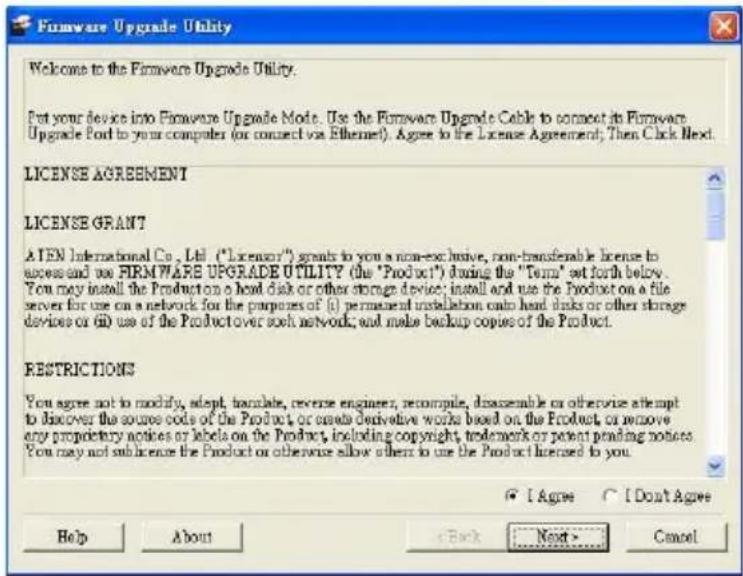
Note: The screens shown in this section are for reference only.
- Read the License Agreement (enable the I Agree radio button).
- Click Next. The Firmware Upgrade Utility main screen appears:
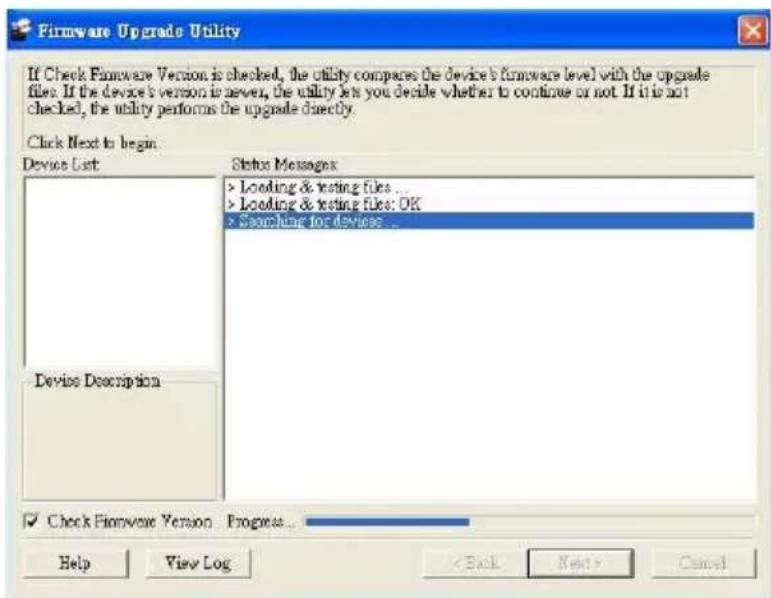
- The Utility inspects your installation. All the devices capable of being upgraded by the package are listed in the Select Master Device list.

- After you have made your device selection, Click OK and then Next to begin the upgrade.
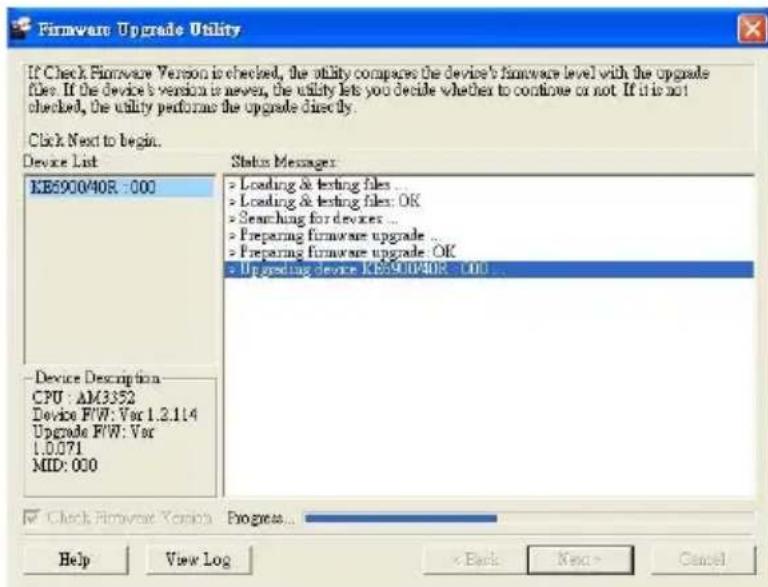
If you enabled Check Firmware Version, the Utility compares the device's firmware level with that of the upgrade files. If it finds that the device's version is higher than the upgrade version, it brings up a dialog box informing you of the situation and gives you the option to Continue or Cancel.
If you didn't enable Check Firmware Version, the Utility installs the upgrade files without checking whether they are a higher level, or not.
As the Upgrade proceeds status messages appear in the Status Messages panel, and the progress toward completion is shown on the Progress bar.
Upgrade Succeeded
After the upgrade has completed, a screen appears to inform you that the procedure was successful:
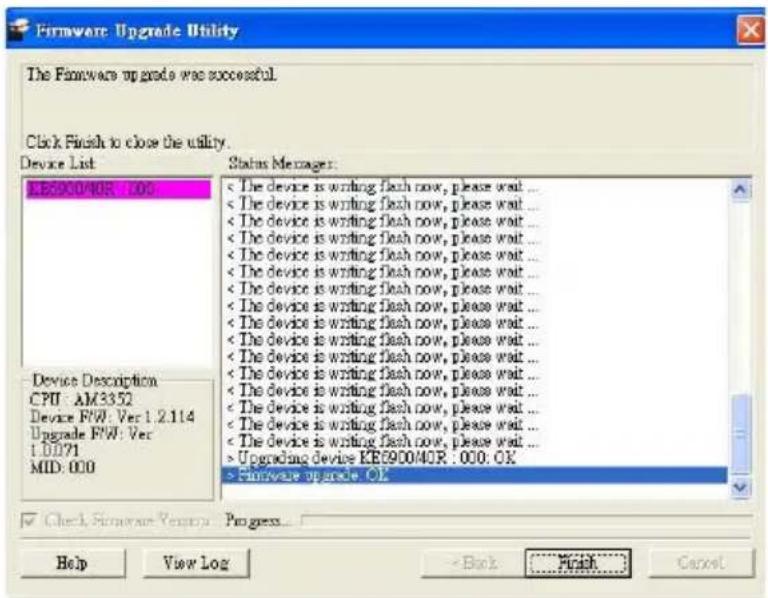
Firmware Upgrade Recovery
If the Upgrade Succeeded screen doesn't appear or the upgrade procedure is abnormally halted (due to computer crash, power failure, etc.), the device may become inoperable. If you find that the device does not work following a failed or interrupted upgrade, do the following
- Power off the KE6900 / KE6940.
- Press the Reset button, then power on the KE6900 / KE6940 while holding Reset.
- Hold Reset for 7 seconds after the device is powered on.
- The device will revert to a previous firmware version and recover from the failure.
- Upgrade the firmware to the most current version available.
This Page Intentionally Left Blank
Serial Control Protocol Commands
The KE6900 / KE6940's built-in bi-directional RS-232 serial interface allows system control via User Stations through a high-end controller or PC.
Configuring the Serial Port
The controller's serial port should be configured the same as the User Station's default configuration, as shown below:
| Baud Rate 9600 | |
| Data Bits 8 | |
| Parity None | |
| Stop Bits 1 | |
| Flow Control None | |
The User Station's Function Switch should be set to RS-232 Config (see page 12). Before executing RS-232 commands across a network you must install the Matrix Manager on a computer and ensure that it is online.
Device/Profile Commands
When typing a device or profile into a command string, you can enter the name by: IP address (device only), ID or @ with the list number in the command line interface. Use the list command to view device and profile information.
Verification
After sending a command, a verification message appears at the end of the command line. Use the echo command to identify a command by number:
- Command OK - the command is correct and performed successfully
- Command incorrect - the command has the wrong format and/or values.
- Echo Command - at the end of a command string, type: e1234 – where 1234 can be any number. The verification message returns with the echo number.
Switch Port Command
The formula for Switch Port commands is as follows:
Command + Output + Num1 + Input + Num2 + Mode + Stream + Connect + [Enter]
-
For example, if you want to switch the User Station's connection to Transmitter (192.168.0.20), type the following:
sw i192.168.0.20 [Enter] -
For example, if you want to disconnect the User Station from its Transmitter connections, type the following:
sw off [Enter]
- For example, if you want to connect User Station (192.168.0.99) to Transmitter (192.168.0.79) with exclusive access to stream video and audio, type the following:
sw o192.168.0.99 i192.168.0.79 exclusive video audio on [Enter]
- For example, to disconnect User Station (192.168.0.11) from the video stream and return it to the OSD menu, type the following:
sw o192.168.0.11 off [Enter]
- For example, to disconnect User Station (192.168.0.09) from the video stream and logout the OSD, type the following:
sw o192.168.0.09 logout [Enter]
- For example, to disconnect the User Station's USB stream, type the following:
sw usb off [Enter]
- For example, to switch the User Station to the 5th Transmitter listed in the command line interface, type the following:
sw i@5 exclusive all on [Enter]
- For example, to switch the User Station to the 7th Transmitter listed in the command line interface with echo command 4312, type the following:
sw i@7 exclusive all on e4312
- For example, to switch User Station (192.168.0.12) to the 14th Transmitter listed in the command line interface with occupy access to stream video audio and USB, type the following:
sw o192.168.0.12 i@14 occupy video audio usb on [Enter]
The following tables show the possible values for the Switch Port commands:
| Command Description | |
| sw Switch port command | |
| Output Description | |
| o Output port command (RX) | |
| Num1 Description | |
| xx Output port | |
| @zz List # | zz: 1~99To use the 4th User Station listed in the command line interface, type: o@4 |
| Input Description | |
| i Input command (TX) | |
| Num2 Description | |
| yy Input port | |
| @zz List # | zz: 1~99To use the 8th Transmitter listed in the command line interface, type: i@8 |
| Mode Description | |
| exclusive Sets the Access Mode to exclusive. | |
| share Sets the Access Mode to share. | |
| occupy Sets the Access Mode to occupy. | |
| viewonly Sets the Access Mode to view only. If the mode is omitted, view only is used by default. | |
| Stream Description | |
| video | Sets the video source stream |
| audio | Sets the audio source stream |
| serial | Sets the serial source stream |
| Stream | Description |
| usb Sets the USB source stream | |
| all Sets all source streams | |
| Connect Description | |
| on Connect | |
| off Disconnect | |
| logout Logout OSD | |
The following table lists the available Switch Port commands:
| Command | Output | Num1 | Input | Num2 | Mode | Stream | Connect | Description |
| sw o xx | i yy exclusive | video | audio serial usb all | on | Switch output xx to input yy with exclusive access to source(s).xx:User Station IDyy:Transmitter ID | |||
| sw o xx | i yy share | video | audio serial usb all | on | Switch output xx to input yy with share access to stream source(s).xx:User Station IDyy:Transmitter ID | |||
| sw o xx | i yy | occupy | video | audio serial usb all | on | Switch output xx to input yy with occupy access to stream source(s).xx:User Station IDyy:Transmitter ID | ||
| sw o xx | i yy | viewonly | video | audio serial usb all | on | Switch output xx to input yy with viewonly access to stream source(s).xx:User Station IDyy:Transmitter ID | ||
| sw o xx | off Switch output xx, disconnect streams, return to OSD menu.xx:User Station ID | |||||||
| sw o xx | logout Switch output xx, disconnect streams and logout from OSD menu.xx:User Station ID | |||||||
| sw | video audio serial usb all | off | Switch User Station stream(s) to disconnect. | |||||
| sw off | Switch User Station | disconnect streams, return to OSD menu. | ||||||
| sw i @zz exclusive | share occupy viewonly | video audio serial usb all | on Switch | Switch User Station to input @zz with [mode] access to stream source(s).zz: Transmitter # by order listed in the command line interface. | ||||
| sw o xx | i @zz exclusive | video | audio serial usb all | on Switch | switch output xx to input @zz with [mode] access to stream source(s).xx: User Station IDzz: Transmitter # by order listed in command line interface. | |||
Note: 1. Each command string can be separated with a space.
-
The Mode command string can be skipped and view only will be used by default.
-
Skip the Output and Num1 command strings to configure the local User Station.
Mute Command
The Mute command allows you to enable or disable the audio.
The formula for the Mute command is as follows:
$$ \text { Command } + \text { Output } + \text { Num1 } + \text { Control } + [ \text { Enter } ] $$
- For example, to turn mute off (audio on) for the User Station, type the following:
$$ \text { mute off } [ \text { Enter } ] $$
- For example, to turn mute on for User Station (192.168.0.11), type the following:
$$ \text { mute o192.168.0.11 on [Enter] } $$
- For example, to turn mute off for User Station (192.168.0.18), type the following:
$$ \text { mute o192.168.0.18 off [Enter] } $$
The following tables show the possible values for the Mute commands:
| Command Description | |
| mute Mute command | |
| Output Description | |
| o Output port command | |
| Num1 Description | |
| xx Output number | |
| Control Description | |
| on Mute on; audio disabled | |
| off Mute off; audio enabled (default) |
The following table lists the available Mute commands:
| Command Output Num1 Control Description | ||||
| mute o | xx | on | Turn mute on for output xxxx: User Station ID | |
| mute | o | xx | off | Turn mute off for output xxxx: User Station ID |
| Command | Output | Num1 | Control | Description |
| mute on Turn mute on for | User | Station | ||
| mute off Turn mute off for | User | Station | ||
Note: 1. Each command string can be separated with a space.
- The Control command string can be skipped and off will be used by default.
- Skip the Output and Num1 command strings to configure the local User Station.
Profile Command
The Profile command allows you to connect profiles and video walls.
The formula for Profile commands is as follows:
$$ \text { Command } + \text { Profile } + \text { Num1 } + \text { Control } + [ \text { Enter } ] $$
- For example, to connect profile 8 and lock the OSD menu, type the following:
$$ \mathrm{profilef8[Enter]} $$
- For example, to connect profile 4 with access to the OSD menu, type the following:
$$ \text { profile f4 release [Enter] } $$
- For example, to disconnect profile 12 and return to the User Station to the OSD menu, type the following:
$$ \text { profile f12 back [Enter] } $$
The following tables show the possible values for the Profile commands:
| Command Description | |
| profile Profile command | |
| Profile Description | |
| f Profile ID | |
| Num1 Description | |
| xx Profile | or Video Wall ID |
| xx: 1-99 | |
| Control Description | |
| lock Connect profile, lock access to OSD menu (default) | |
| release Connect profile, allow access to OSD menu | |
| back Disconnect profile, return User Station to OSD menu | |
The following table lists the available Profile commands:
| Command Profile Num1 Control Description | ||||
| profile f xx lock Connect profile xx, lock | OSD accessxx:1~99 | |||
| profile f xx release Connect profile xx, allow | OSD accessxx:1~99 | |||
| profile f xx back Disconnect profile xx | and return User Station to OSD menuxx: 1~99 | |||
Note: 1. Each command string can be separated with a space.
2. The Control command string can be skipped and lock will be used by default.
EDID Command
Extended Display Identification Data (EDID) is a data that contains a display's basic information and is used to communicate with the video source. The EDID commands allow you to change the EDID setting of a Transmitter.
The formula for the EDID command is as follows:
$$ \text { Command } + \text { Address } + \text { Number } + \text { Control } + [ \text { Enter } ] $$
- For example, if you want to configure device (192.168.0.3) to use the remix EDID mode, type the following:
$$ \text { edid a192.168.0.3 remix [Enter] } $$
The following tables show the possible values for the EDID commands:
| Command Description | |
| edid EDID command | |
| Address Description | |
| a Address command | |
| Number Description | |
| xx Address numberxx: User Station ID or IP address | |
| Control Description | |
| auto Checks | the EDID of all connected displays and uses the best resolution for all displays. |
| remix Checks | the EDID of all connected displays and the source device uses the best common resolution for all displays. |
| default Implements ATEN's default EDID.(default) | |
| manual Manually set the EDID configuration from the User Station's OSD (see Manual EDID, page 42). | |
The following table lists the available EDID commands:
| Command | Address | Number | Control | Enter | Description |
| edid | a | xx | auto | [Enter] | Set EDID of address xx to auto.xx: Device ID or IP Address |
| edid a xx | remix [Enter] | Set EDID | of address | xx to remix.xx: Device ID or IP Address | |
| edid a xx | default [Enter] | Set EDID | of address | xx to default.xx: Device ID or IP Address | |
| edid a xx | manual [Enter] | Set EDID | of address | xx to manual.xx: Device ID or IP Address |
Reset Command
The Reset command allows you to reset a device back to the default factory settings. Reset includes resetting the devices IP address.
The formula for the Reset command is as follows:
$$ \text { Command } + \text { Address } + \text { Number } + [ \text { Enter } ] $$
- For example, to reset device (192.168.0.95), type the following:
$$ \text { reset a192.168.0.95 [Enter] } $$
- For example, to reset the User Station, type the following:
$$ \text { reset } [ \text { Enter } ] $$
The following tables show the possible values for the Reset command:
| Command Description | |
| reset Reset command | |
| Address Description | |
| a Address command | |
| Number Description | |
| xx Address number | xx: User Station ID or IP address |
The following table lists the available Reset commands:
| Command Address Num | Enter Description | |
| reset a xx | [Enter] Reset address xx back to the factory default settings xx: Device ID or IP Address | |
| reset | [Enter] Resets the User Station settings |
Note: 1. Each command string can be separated with a space.
- Skip the Address and Number command strings to reset the local User Station.
RS-232 Command
The RS-232 command allows you to set the RS-232 settings for a device.
The formula for the RS-232 command is as follows:
Command + Address + Number + Baud Rate + Parity + Data Bit + Stop Bit + Flow Control [Enter]
- For example, to set device (192.168.0.33) with a baud rate of 38400, parity of none, data bit of 8, and stop bit of 1, type the following:
baud a192.168.0.33 38400 none 8 1 [Enter]
- For example, to set the local device with a baud rate of 19200, type the following:
baud 19200 [Enter]
The following tables show the possible values for the RS-232 command:
| Command Description | |
| baud RS-232 command | |
| Address Description | |
| a Address command | |
| Num1 Description | |
| xx Address number | xx: Device ID or IP address |
| Baud Rate Description | |
| 9600 Use 9600 baud rate | |
| 19200 Use 19200 baud rate | |
| 38400 Use 38400 baud rate | |
| 115200 Use 115200 baud rate | |
| Parity Description | |
| None Sets the parity to none | |
| Even Sets the parity to even | |
| Odd Sets the parity to odd | |
| Data Bit Description | |
| 5 Sets the data bit to 5 | |
| 6 Sets the data bit to 6 | |
| Data Bit Description | |
| 7 Sets the data bit to 7 | |
| 8 Sets the data bit to 8 | |
| Stop Bit Description | |
| 1 Sets the stop bit to 1 | |
| 2 Sets the stop bit to 2 | |
| Flow Control Description | |
| None Sets flow control to none | |
| Hardware Sets flow control to hardware | |
| Xon Sets flow control to Xon | |
| Xoff Sets flow control to Xoff | |
The following table lists the available Baud Rate commands:
| Command | Address | Num 1 | Baud Rate | Parity | Data Bit | Stop Bit | Flow Control | Description |
| baud a | xx 9600 | None | Even Odd | 5678 | 12 | None Hardware Xon/Xoff | Set address xx baud rate to 9600, with parity/ data bit/ stop bit / flow control setting | |
| baud a | xx 19200 | None | Even Odd | 5678 | 12 | None Hardware Xon/Xoff | Set address xx baud rate to 19200, with parity/ data bit/ stop bit / flow control setting | |
| baud a | xx 38400 | None | Even Odd | 5678 | 12 | None Hardware Xon/Xoff | Set address xx baud rate to 38400, with parity/ data bit/ stop bit / flow control setting | |
| baud a | xx 115200 | None | Even Odd | 5678 | 12 | None Hardware Xon/Xoff | Set address xx baud rate to 115200, with parity/ data bit/ stop bit / flow control setting | |
| baud | 9600 Set local device | baud rate to 9600 | ||||||
| baud | 19200 Set local device | baud rate to 19200 | ||||||
| baud | 38400 Set local device | baud rate to 38400 | ||||||
| baud | 115200 Set local device | baud rate to 115200 | ||||||
Note: 1. Each command string can be separated with a space.
2. The Baud Rate value is required but Parity, Data Bit and Stop Bit can be skipped and their setting will not change.
3. Skip the Address and Number command strings to configure the local device settings.
OSD Command
To enable or disable the On-Screen Display (OSD) menu for a User Station, use the following command:
$$ \text { Command } + \text { Output } + \text { Number } + \text { Control } + [ \text { Enter } ] $$
-
For example, to enable the OSD for User Station 192.168.0.51, type: osd o192.168.0.51 on [Enter]
-
For example, to disable the OSD for the local User Station, type: osd off [Enter]
The following tables show the possible values for the OSD command:
| Command Description | |
| osd OSD command | |
| Output Description | |
| o Output command | |
| Number Description | |
| xx Output number | xx: User Station ID or IP address |
| Control Description | |
| on Enable OSD functions | |
| off Disable OSD functions (default) | |
The following table lists the available OSD commands:
| Command | Output | Number | Control | Enter | Description |
| osd | o | xx | on | [Enter] Enable OSD functions for output xxx: User Station ID or IP address | |
| osd | o | xx | off | [Enter] Disable OSD functions for output xx off (default)xx: User Station ID or IP address | |
Note: 1. Each command string can be separated with a space.
- Skip the Output and Number command strings to configure the local User Station.
List Command
The List command allows you to retrieve information about users, settings and connections.
The formula for the List command is as follows:
$$ \text { Command } + \text { Output } + \text { Input } + \text { Number } + \text { Control [Enter] } $$
- For example, for a complete list of available channels, type the following: list channel [Enter]
- For example, for a complete list of available profiles, type the following: list profile [Enter]
- For example, to list all users logged into all OSD menus, type the following:
- list login [Enter]
- For example, to list the user logged into the OSD on User Station (192.168.0.44), type the following:
list o192.168.0.44 login [Enter]
- For example, for a complete list of available connections, type the following:
list connection [Enter]
- For example, to list the current connections on Transmitter (192.168.0.88), type the following:
list i192.168.0.88 connection [Enter]
The following tables show the possible values for the List command:
| Command Description | |
| list List command | |
| Output Description | |
| o Output command | |
| Input Description | |
| i Input command | |
| Number Description | |
| xx Output or Input number | |
| Control Description | |
| channel Lists information about the available channel(s) | |
| profile Lists information about the available profile and TV wall connections | |
| rx Lists information about the User Station | |
| login Lists information about users logged into to the OSD menu | |
| connection Lists information about a Transmitters current connections |
The following table lists the available List commands:
| Command | Output | Input | Number | Control | Description |
| list o xx | login | List output xx user | logged into OSD. | ||
| list o xx | rx | List output xx User | Station information | ||
| list | i | xx | connection | List input xxTransmitter information | |
| list | channel | List all available channel information | |||
| list | profile | List all available profile information | |||
| list | rx | List information about all User Stations | |||
| list | login | List information about all OSD logins | |||
| list | connection | List information about all connections |
Note: 1. Each command string can be separated with a space.
2. Skip the Output or Input and Number command strings to view the local User Station.
Read Command
The Read command allows you to retrieve the properties of a device.
The formula for the Read command is as follows:
$$ \text { Command } + \text { Output } + \text { Input } + \text { Number } + \text { Control [Enter] } $$
- For example, to read all of the local User Station's properties, type the following:
$$ \text { read all } [ \text { Enter } ] $$
- For example, to read all of User Station (192.168.0.19) device properties, type the following:
$$ \text { read o192.168.0.19 all [Enter] } $$
- For example, to read all of Transmitter (192.168.0.28) device properties, type the following:
$$ \text { read i192.168.0.28 all [Enter] } $$
- For example, to read the basic properties of User Station (192.168.0.61), type the following:
$$ \text { read o192.168.0.61 basic [Enter] } $$
- For example, to read the network properties of Transmitter (192.168.0.71), type the following:
$$ \text { read i192.168.0.71 network [Enter] } $$
The following tables show the possible values for the Read command:
| Command Description | |
| read Read command | |
| Output Description | |
| o Output command | |
| Input Description | |
| i Input command | |
| Number Description | |
| xx Output or Input number | |
| Control Description | |
| all Read all device properties | |
| Control | Description |
| basic Read basic properties | |
| network Read network properties | |
| ipsettings Read IP settings | |
| rs232 Read RS232 properties | |
| properties Read connection properties | |
| manager Read Matrix Manager properties | |
| streams Read enable media properties | |
| tx Read source stream IP properties (User Station) | |
| usbmode Read USB mode properties (User Station) | |
| multicast Read multicast properties (Transmitter) | |
| videoqtyadvanced Read advanced video properties (Transmitter) | |
| ossettings Read OS properties (Transmitter) | |
The following table lists the available Read commands:
| Command | Output | Input | Number | Control | Description |
| read | o | i | xx | all | Read output or input xx all device properties xx: Device ID or IP address |
| read | o | i | xx | basic | Read output or input xx basic properties xx: Device ID or IP address |
| read | o | i | xx | network | Read output or input xx network properties xx: Device ID or IP address |
| read | o | i | xx | ipsettings | Read output or input xx IP address properties xx: Device ID or IP address |
| read o i xx rs232 Read output or input xx | RS-232 propertiesxx: Device ID or IP address | ||||
| read o i xx properties | Read output or input xx | connection propertiesxx: Device ID or IP address | |||
| read o i xx manager | Read output or input xx | Matrix Manager IP and port propertiesxx: Device ID or IP address | |||
| read o i xx streams | Read output or input xx | enable media propertiesxx: Device ID or IP address | |||
| read o xx tx Read output xx source | stream IP address propertiesxx: User Station ID or IP address | ||||
| read o xx usbmode | Read output xx USB | mode propertiesxx: User Station ID or IP address | |||
| read | i | xx multicast Read input | put xx multicast propertiesxx: Transmitter ID or IP address | ||
| read | i | xx | videoqtyadvanced | Read input xx advanced video propertiesxx: Transmitter ID or IP address | |
| read | i | xx ossettings Read | input xx OS propertiesxx: Transmitter ID or IP address | ||
| read | all | Read all properties of local User Station | |||
| read basic | network ipsettings rs232 properties manager streams tx usbmode | Read [control] properties of local User Station. | |||
Note: 1. Each command string can be separated with a space.
2. Skip the Output or Input and Number command strings to read the local User Station properties.
Set Command
The Set command allows you to configure the properties of a device. Some settings require that both the device and Matrix Manger are online or the command will fail.
The formula for the Set command is as follows:
$$ \text { Command } + \text { Output } + \text { Input } + \text { Number } + \text { Control } + \text { Value } + [ \text { Enter } ] $$
- For example, to set the name of the local User Station to KE6940TX1, type the following:
$$ \text { set Name } = \text { KE6940TX1[Enter] } $$
- For example, to set the description of Transmitter (192.168.0.33) to KE Room B, type the following:
$$ \text { set o192.168.0.19 Description = KE Room B [Enter] } $$
- For example, to set the DHCP settings of Transmitter (192.168.0.28) to static, type the following:
$$ \text { set i192.168.0.28 dhcpFlag = STATIC [Enter] } $$
- For example, to set the IP settings of the local User Station to 192.168.0.2, type the following:
$$ \text { set ipAddr } = 1 9 2. 1 6 8. 0. 2 [ \text { Enter } ] $$
- For example, to set the Transmitter Video IP setting to 192.168.0.44 for User Station (192.168.0.56), type the following:
$$ \text { set o192.168.0.56 TxVideoIP = 192.168.0.44 [Enter] } $$
The following tables show the possible values for the Set command:
| Command Description | |
| set Set command | |
| Output Description | |
| o Output command | |
| Input Description | |
| i Input command | |
| Number Description | |
| xx Output or | Input numberxx: Device ID or IP address |
| Control Description | |
| Name Sets the device name | |
| Description Sets the device description | |
| iplnstallerFlag Sets the IP installer option | |
| dhcpFlag Sets the DHCP setting | |
| ipAddr Sets the IP address | |
| netmask Sets the subnet mask | |
| gw Sets the default gateway | |
| modeFlag Sets the device mode | |
| BaudRate Sets the baud rate setting | |
| Parity Sets the parity setting | |
| DataBit Sets the data bit setting | |
| StopBit Sets the stop bit setting | |
| FlowCtrl Sets the flow control setting | |
| TxVideoIP Sets the Transmitter video IP setting | |
| TxAudioIP Sets the Transmitter audio IP setting | |
| TxUSBIP Sets the Transmitter USB IP setting | |
| TxRSIP Sets the Transmitter RS-232 IP setting | |
| VideoEnFlag | Sets the (enable media) video source stream |
| AudioEnFlag | Sets the (enable media) audio source stream |
| USBEnFlag | Sets the (enable media) USB source stream |
| RSEnFlag | Sets the (enable media) RS232 source stream |
| ManagerIP | Sets the Matrix Manager IP |
| ManagerPort | Sets the Matrix Manager port |
| Beeper Sets the beeper | |
| RxVM Sets the USB mode setting | |
| USBSecure | Sets the USB encryption |
| PortOS Sets the port OS setting | |
| OSLanguage | Sets the OS language |
| videoMCastEn | Sets the enable multicast video setting |
| audioMCastEn | Sets the enable multicast audio setting |
| Control | Description |
| Edid Sets the | EDID mode selection setting |
| VideoType Sets | the video type setting |
| ColorDepth Sets | the color depth setting |
| BandwidthLimit Sets | the bandwidth limit setting |
| VideoQty Sets | the video quality setting |
| BGRefresh Sets | the background refresh setting |
| Beeper Sets | the beeper setting |
| OccupyTimeout Sets | the occupy timeout setting |
| Resolution Sets | the resolution setting |
| Value Description | |
| =yy Set value | to yyyy: Enter a value that corresponds to the control being used |
The following table lists the available Set commands:
| Command | Output | Input | Number | Control | Value | Description |
| Set | o | i | xx | Name | yy | Set output or input xx Name to yyxx: Device ID or IP addressyy: Name value |
| Set | o | i | xx | Description | yy | Set output or input xx Description to yyxx: Device ID or IP addressyy: Description value |
| SetSet o i | oxx dhcpFlag yy | iSet output | xxor input xx | iplInstallerFlag | yy | Set output or input xx ipInstallerFlag to yyxx: Device ID or IP addressyy: enable, viewonly, disabledhcpFlag to yyxx: Device ID or IP addressyy: dhcp, static |
| Set o i | xx ipAddr yy Set | output or | input xx | ipAddr to yyxx: Device ID or IP addressyy: IP address value | ||
| Set o i | xx netmask yy Set | output or | input xx | netmask to yyxx: Device ID or IP addressyy: Subnet mask value | ||
| Set o i | xx gw yy | Set output or input xx | gw to yyxx: Device ID or IP addressyy: Default gateway value | |||
| Set o i | xx modeFlag yy | Set output or input xx | modeFlag to yyxx: Device ID or IP addressyy: extender, matrix | |||
| Set o i | xx BaudRate yy | Set output or input xx | BaudRate to yyxx: Device ID or IP addressyy: 9600, 19200, 38400, 115200 | |||
| Set o i | xx Parity | yy Set output or input xx | Parity to yyxx: Device ID or IP addressyy: none, even, odd | |||
| Set o i | xx | DataBit | yy Set output or input xx | DataBit to yyxx: Device ID or IP addressyy: 5, 6, 7, 8 | ||
| Set o | xx StopBit yy Set output or input xx | StopBit to yyxx: Device ID or IP addressyy: 1, 1.5, 2 | ||||
| Set o | xx FlowCtrl yy Set output or input xx | FlowCtrl to yyxx: Device ID or IP addressyy: none, hardware, Xon, Xoff | ||||
| Set o | xx TxVideoIP yy Set output xx | TxVideoIP to yyxx: Device ID or IP addressyy: IP address value | ||||
| Set o | xx TxAudioIP yy Set output xx | TxAudioIP to yyxx: Device ID or IP addressyy: IP address value | ||||
| Set o | xx TxUSBIP yy Set output xx TxUSBIP | to yyxx: Device ID or IP addressyy: IP address value | ||||
| Set o | xx TxRSIP yy Set output xx TxRSIP | to yyxx: Device ID or IP addressyy: IP address value | ||||
| Set o | xx VideoEnFlag | yy Set output or input xx | VideoEnFlag to yyxx: Device ID or IP addressyy: enable, disable | |||
| Set o | xx AudioEnFlag | yy Set output or input xx | AudioEnFlag to yyxx: Device ID or IP addressyy: enable, disable | |||
| Set o i | xx USBEn | nFlag yy | Set output or input xx | USBEnFlag to yyxx: Device ID or IP addressyy: enable, disable | ||
| Set o i | xx RSEn | Flag yy | Set output or input xx | RSEnFlag to yyxx: Device ID or IP addressyy: enable, disable | ||
| Set o i | xx ManagerIP yy | Set output or input xx | ManagerIP to yyxx: Device ID or IP addressyy: Matrix Manager IP address | |||
| Set o i | xx ManagerPort | yy Set output or input xx | ManagerPort to yyxx: Device ID or IP addressyy: Matrix Manager port | |||
| Set o i | xx Beeper yy Set output or input xx | Beeper to yyxx: Device ID or IP addressyy: enable, disable | ||||
| Set o xx RxVM yy Set output xx RxVM to | yyxx: Device ID or IP addressyy: vm, vusb | |||||
| Set o xx USBSecure yy Set output xx | USBSecure to yyxx: Device ID or IP addressyy: on, off | |||||
| Set i xx | PortOS yy Set input xx PortOS to | yyxx: Device ID or IP addressyy: win, mac, sun, other | ||||
| Set i xx OSLanguage yy Set input xx | OSLanguage to yyxx: Device ID or IP addressyy: english, japanese, french, german, spanish, korean, chinese(traditional), english(uk), swedish, arabic, belgian, canadian-bilingual, french(canada), czech, danish, finnish, greek, hebrew, hungarian, international(iso), italian, latin american, dutch, norwegian, persian(farsi), polish, portuguese, russian, slovak, french (switzerland), german (switzerland), switzerland, reserved, turkish-q, reserved, serbo-croatian | |||||
| Set i xx videoM CastEn yy Set input xx | videoMCastEn to yyxx: Device ID or IP addressyy: enable, disable | |||||
| Set i xx audioM CastEn yy Set input xx | audioMCastEn to yyxx: Device ID or IP addressyy: enable, disable | |||||
| Set i xx Edid yy Set input xx Edid to yy | xx: Device ID or IP addressyy: default, auto, manual, remix | |||||
| Set i xx VideoType yy Set input xx VideoType | to yyxx: Device ID or IP addressyy: dvi-d, dvi-a | |||||
| Set i xx | ColorDepth yy Set input xx | ColorDepth | to yyxx: Device ID or IP addressyy: 8, 16, 24 | |||
| Set i xx | BandwidthLimit yy Set input xx | BandwidthLimit to yyxx: Device ID or IP addressyy: unlimited, 10, 20, 50, 100, 200, 500 | ||||
| Set i xx | VideoQty yy Set input xx | VideoQty | to yyxx: Device ID or IP addressyy: 1, 2, 3, 4, 5 | |||
| Set i xx | BGRefresh yy Set input xx | BGRefresh | to yyxx: Device ID or IP addressyy: off, 16, 32, 64, 128, 256 | |||
| Set i xx | OccupyTimeout yy Set input xx | OccupyTimeout to yyxx: Device ID or IP addressyy: 1~240 | ||||
| Set i xx | Resolution yy Set input xx | Resolution | to yyxx: Device ID or IP addressyy: 1920x1200, 1920x1080, 1680x1050, 1600x1200, 1600x900, 1440x900, 1400x1050, 1366x768, 1280x1024, 1280x960, 1280x720, 1152x864, 1024x768, 800x600, 720x400, 640x480 | |||
Safety Instructions
General
- This product is for indoor use only.
- Read all of these instructions. Save them for future reference.
◆ Follow all warnings and instructions marked on the device. - Do not place the device on any unstable surface (cart, stand, table, etc.). If the device falls, serious damage will result.
♦ Do not use the device near water. - Do not place the device near, or over, radiators or heat registers.
- The device cabinet is provided with slots and openings to allow for adequate ventilation. To ensure reliable operation, and to protect against overheating, these openings must never be blocked or covered.
- The device should never be placed on a soft surface (bed, sofa, rug, etc.) as this will block its ventilation openings. Likewise, the device should not be placed in a built-in enclosure unless adequate ventilation has been provided.
- Never spill liquid of any kind on the device.
- Unplug the device from the wall outlet before cleaning. Do not use liquid or aerosol cleaners. Use a damp cloth for cleaning.
- The device should be operated from the type of power source indicated on the marking label. If you are not sure of the type of power available, consult your dealer or local power company.
- The device is designed for IT power distribution systems with 230V phase-to-phase voltage.
- To prevent damage to your installation it is important that all devices are properly grounded.
- The device is equipped with a 3-wire grounding type plug. This is a safety feature. If you are unable to insert the plug into the outlet, contact your electrician to replace your obsolete outlet. Do not attempt to defeat the purpose of the grounding-type plug. Always follow your local/national wiring codes.
- Do not allow anything to rest on the power cord or cables. Route the power cord and cables so that they cannot be stepped on or tripped over.
If an extension cord is used with this device make sure that the total of the ampere ratings of all products used on this cord does not exceed the extension cord ampere rating. Make sure that the total of all products plugged into the wall outlet does not exceed 15 amperes.
- To help protect your system from sudden, transient increases and decreases in electrical power, use a surge suppressor, line conditioner, or uninterruptible power supply (UPS).
- Position system cables and power cables carefully; Be sure that nothing rests on any cables.
- Never push objects of any kind into or through cabinet slots. They may touch dangerous voltage points or short out parts resulting in a risk of fire or electrical shock.
- Do not attempt to service the device yourself. Refer all servicing to qualified service personnel.
- If the following conditions occur, unplug the device from the wall outlet and bring it to qualified service personnel for repair.
- The power cord or plug has become damaged or frayed.
♦ Liquid has been spilled into the device. - The device has been exposed to rain or water.
- The device has been dropped, or the cabinet has been damaged.
- The device exhibits a distinct change in performance, indicating a need for service.
- The device does not operate normally when the operating instructions are followed.
- Only adjust those controls that are covered in the operating instructions. Improper adjustment of other controls may result in damage that will require extensive work by a qualified technician to repair.
- Do not connect the RJ-11 connector marked “UPGRADE” to a public telecommunication network.
Rack Mounting
Before working on the rack, make sure that the stabilizers are secured to the rack, extended to the floor, and that the full weight of the rack rests on the floor. Install front and side stabilizers on a single rack or front stabilizers for joined multiple racks before working on the rack.
- Always load the rack from the bottom up, and load the heaviest item in the rack first.
- Make sure that the rack is level and stable before extending a device from the rack.
- Use caution when pressing the device rail release latches and sliding a device into or out of a rack; the slide rails can pinch your fingers.
- After a device is inserted into the rack, carefully extend the rail into a locking position, and then slide the device into the rack.
- Do not overload the AC supply branch circuit that provides power to the rack. The total rack load should not exceed 80 percent of the branch circuit rating.
- Make sure that all equipment used on the rack – including power strips and other electrical connectors – is properly grounded.
- Ensure that proper airflow is provided to devices in the rack.
- Ensure that the operating ambient temperature of the rack environment does not exceed the maximum ambient temperature specified for the equipment by the manufacturer.
- Do not step on or stand on any device when servicing other devices in a rack.
Technical Support
International
- For online technical support – including troubleshooting, documentation, and software updates: http://support.aten.com
- For telephone support, See Telephone Support, page iv:
North America
| Email Support support@aten-usa.com | ||
| Online Technical Support | Troubleshooting Documentation Software Updates | http://www.aten-usa.com/support |
| Telephone Support 1-888-999-ATEN | ext 4988 | |
When you contact us, please have the following information ready beforehand:
Product model number, serial number, and date of purchase.
- Your computer configuration, including operating system, revision level, expansion cards, and software.
◆ Any error messages displayed at the time the error occurred.
◆ The sequence of operations that led up to the error.
◆ Any other information you feel may be of help.
Specifications
| Function KE6900T KE6940T | |||
| Connectors Console Ports | Keyboard 1 x USB Type A Female (White) | ||
| Video 1 x DVI-I Female(White) | 2 x DVI-I Female(White) | ||
| Mouse 1 x USB Type A Female (White) | |||
| Speaker 1 x Mini Stereo Jack Female (Green) | |||
| Mic. 1 x Mini Stereo Jack Female (Pink) | |||
| RS-232 1 x DB-9 Male (Black) | |||
| KVM Ports | KB / Mouse USB Type B Female (White) | ||
| Speaker 1 x Mini Stereo Jack (Green) | |||
| Mic. 1 x Mini Stereo Jack (Pink) | |||
| Video 1 x DVI-I Female(White) | 2 x DVI-I Female(White) | ||
| RS-232 1 x DB-9 Female (Black) | |||
| Power 1 x DC Jack (Black) | |||
| LAN | 1 x RJ-45 Female (Black) | ||
| Switches | Console Selection / Config | 1 x Slide switch (Black)(Auto, Local, Config) | |
| Reset | 1 x Semi-recessed Pushbutton | ||
| LEDs LAN | 1 (Green / Orange) | ||
| Power | 1 x Blue | ||
| Local | 1 x Green | ||
| Remote | 1 x Green | ||
| Emulation | Keyboard / Mouse | USB | |
| Power Consumption | DC 5V | DC 5V | |
| Video | Up to 1920 x 1200 | ||
| Environment | Operating Temp. | 0–50°C | |
| Storage Temp | -20–60°C | ||
| Humidity | 0–95% RH, Non-condensing | ||
| Physical Properties | Housing | Metal | |
| Weight | 1.13 kg | 1.15 kg | |
| Dimensions(L x W x H) | 21.50 x 16.30 x 4.60 cm | ||
| Function KE6900R KE6940R | |||
| Connectors US | B Virtual Media 2 x USB Type A Female (White) | ||
| Console Ports | Keyboard 1 x USB Type A Female (White) | ||
| Video 1 x DVI-I Female(White) | 2 x DVI-I Female(White) | ||
| Mouse 1 x USB Type A Female (White) | |||
| Speaker 1 x Mini Stereo Jack Female (Green) | |||
| Mic. 1 x Mini Stereo Jack Female (Pink) | |||
| RS-232 1 x DB-9 Male (Black) | |||
| Power 1 x DC Jack (Black) | |||
| LAN 1 x RJ-45 Female (Black) | |||
| Switches OSD | 1 x Pushbutton | ||
| Video 1 x Pushbutton | |||
| Graphics | 1 x Pushbutton | ||
| Console Selection / Config | 1 x Slide switch (Black)(Auto, Config) | ||
| Reset | 1 x Semi-recessed Pushbutton | ||
| LEDs LAN | 1 (Green / Orange) | ||
| Power | 1 x Blue | ||
| Local | 1 x Green | ||
| Remote | 1 x Green | ||
| Emulation | Keyboard / Mouse | USB | |
| Power Consumption | DC 5V DC 5V | ||
| Video | Up to 1920 x 1200 | ||
| Environment | Operating Temp. | 0–50°C | |
| Storage Temp | -20–60°C | ||
| Humidity | 0–95% RH, Non-condensing | ||
| Physical Properties | Housing | Metal | |
| Weight | 1.25 kg 1.25 kg | ||
| Dimensions(L x W x H) | 22.80 x 17.10 x 55.00 cm | ||
Optional Rack Mounting
For convenience and flexibility, two optional rack mounting kits are available as shown in the following table:
| Mounting Type Model | |
| KE69 Dual Rack Mount Kit 2X-021G | |
| KE69 Single Rack Mount Kit 2X-031G |
Dual Rack Mounting
The 2X-021G Dual Rack Mounting Kit installs two KE6900 units side by side in 1U of server rack space.
- Remove four screws from the KE6900 units and then use the same screws to secure the units together with the link bracket.
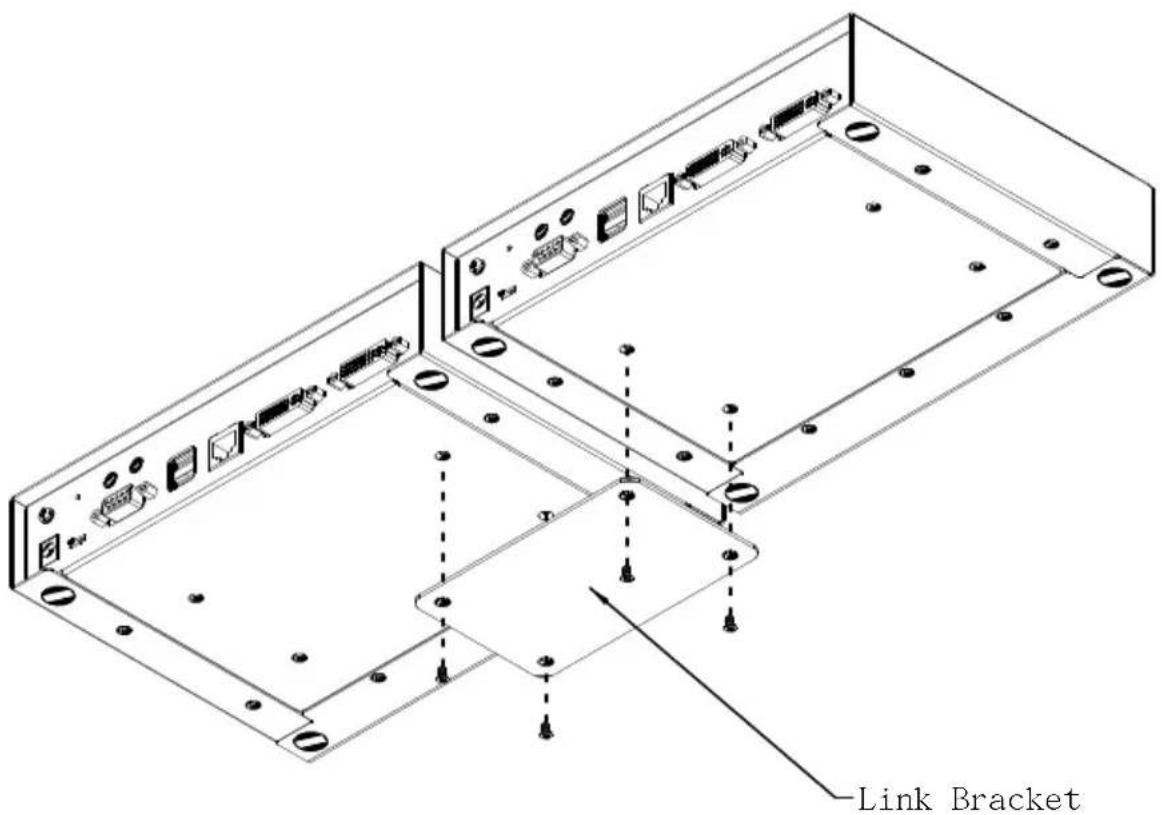
(Continues on next page.)
- Remove the bottom and side screw from each KE6900 unit.
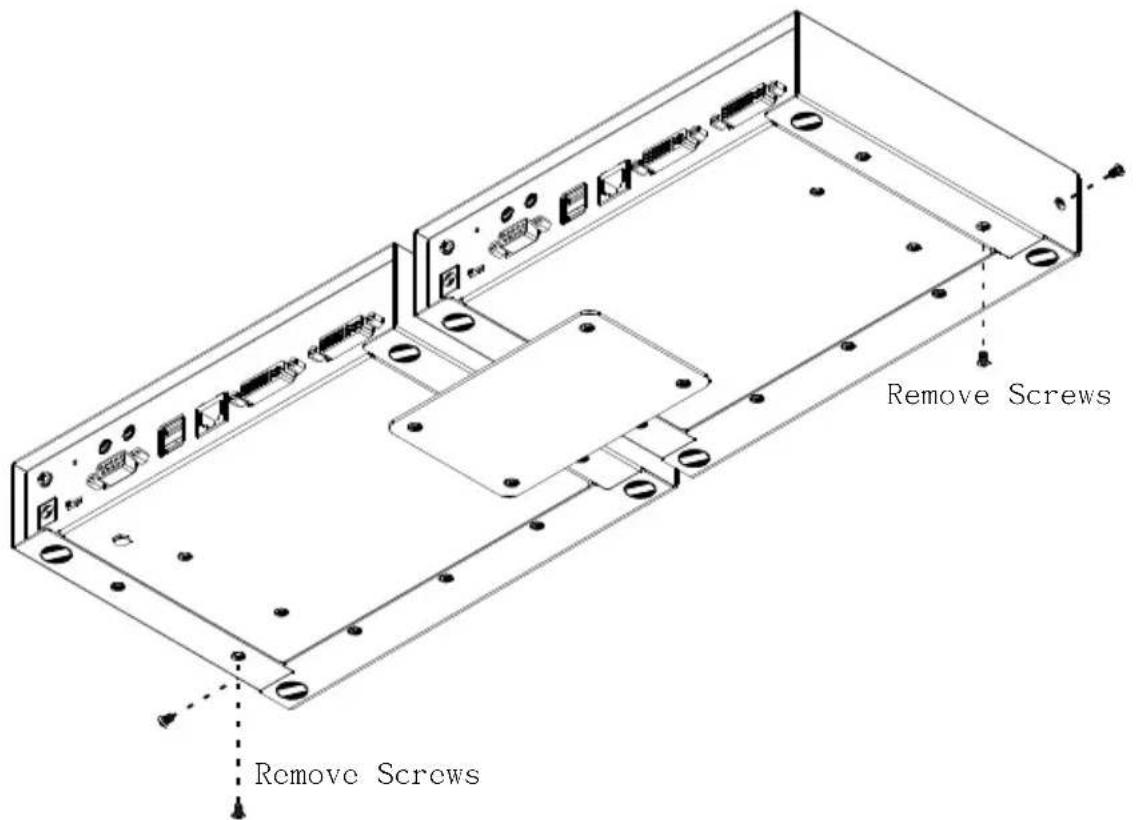
- Use the screws in step 2 to install the left and right mounting brackets.
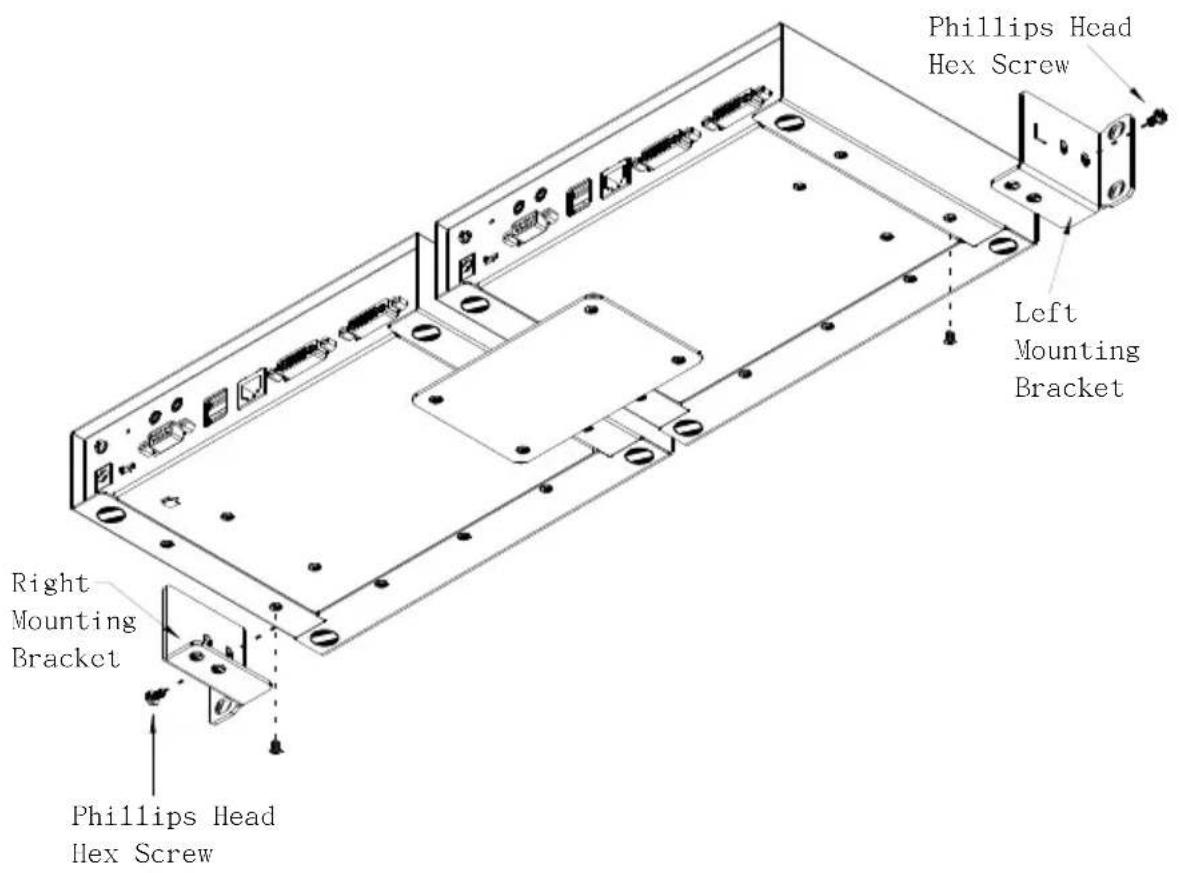
- Screw the mounting brackets to the rack.
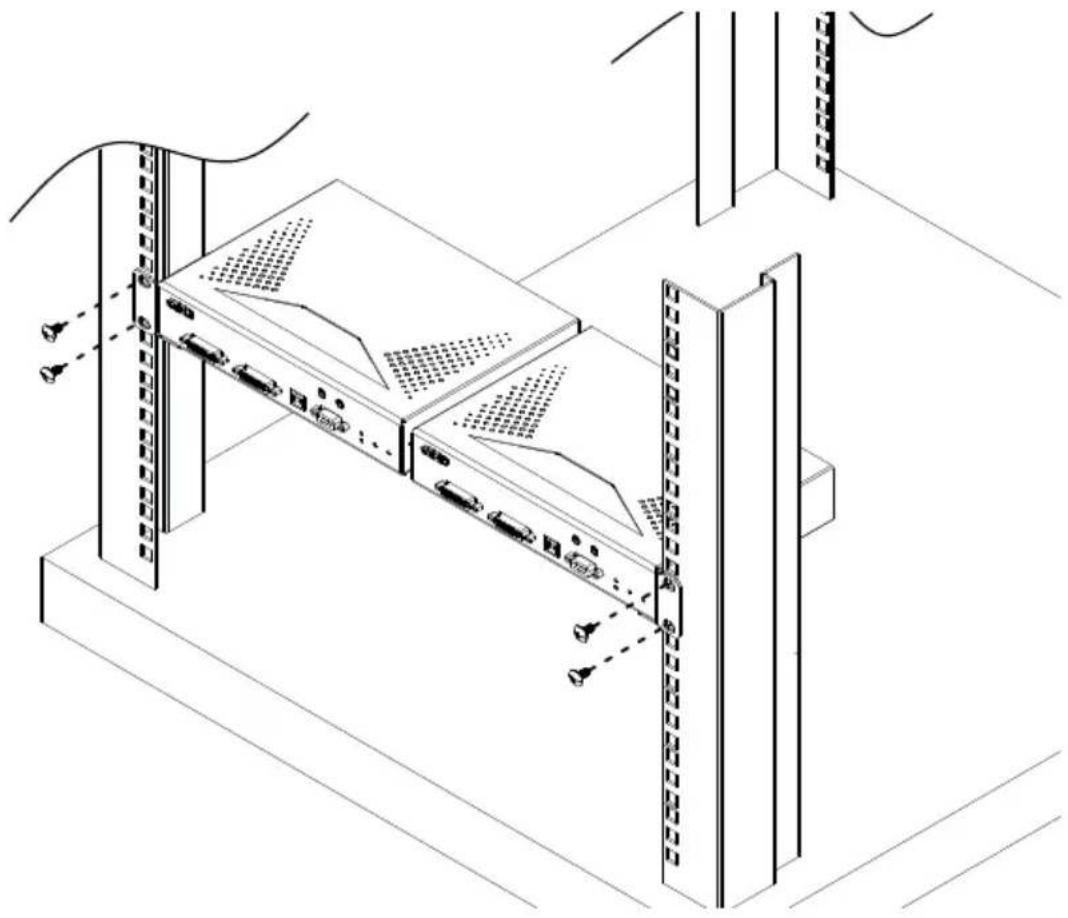
natural_image
Isometric line drawing of a server rack with ventilation ducts and connectors (no text or symbols)Single Rack Mounting
The 2X-031G Single Rack Mounting kit installs one KE6900 unit in 1U of server rack space.
- Remove the eight screws and plastic guards from the KE6900.
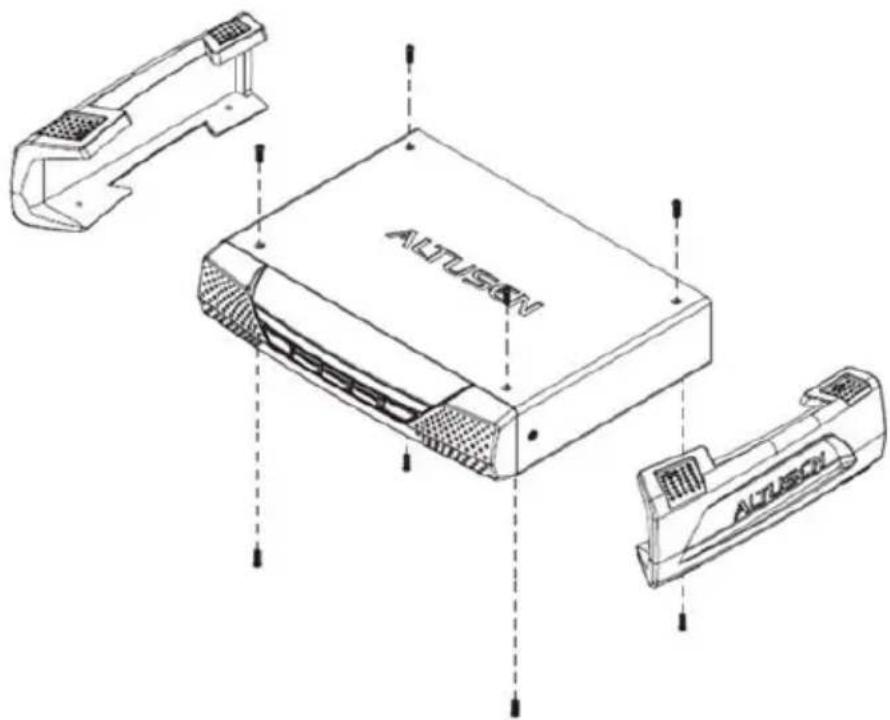
- Remove the bottom and side screws from the KE6900.
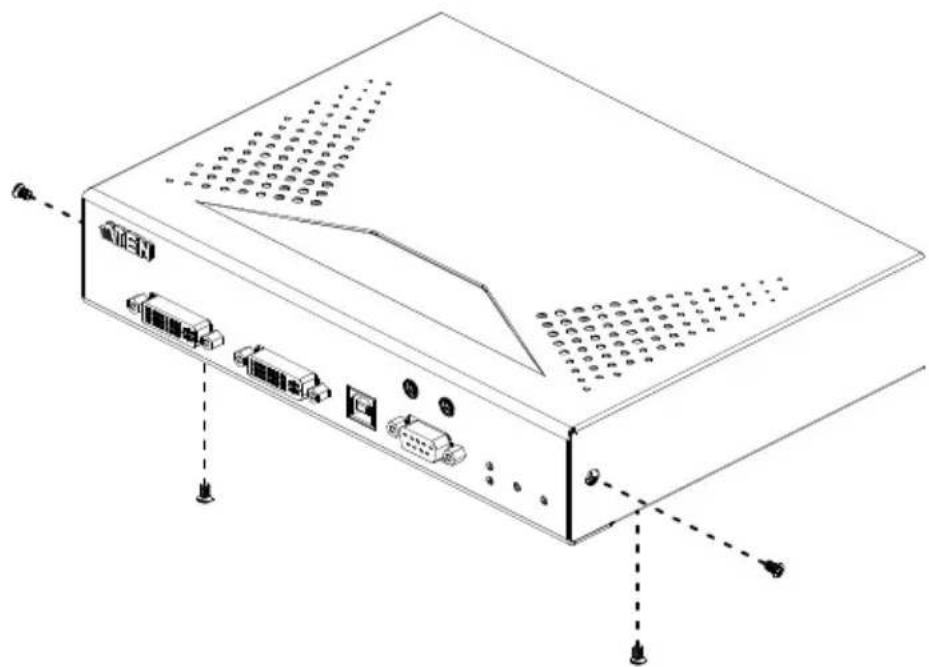
natural_image
Isometric line drawing of a server rack with ports and connectors (no text or symbols)- Use the screws in step 2 to install the right and left mounting brackets.
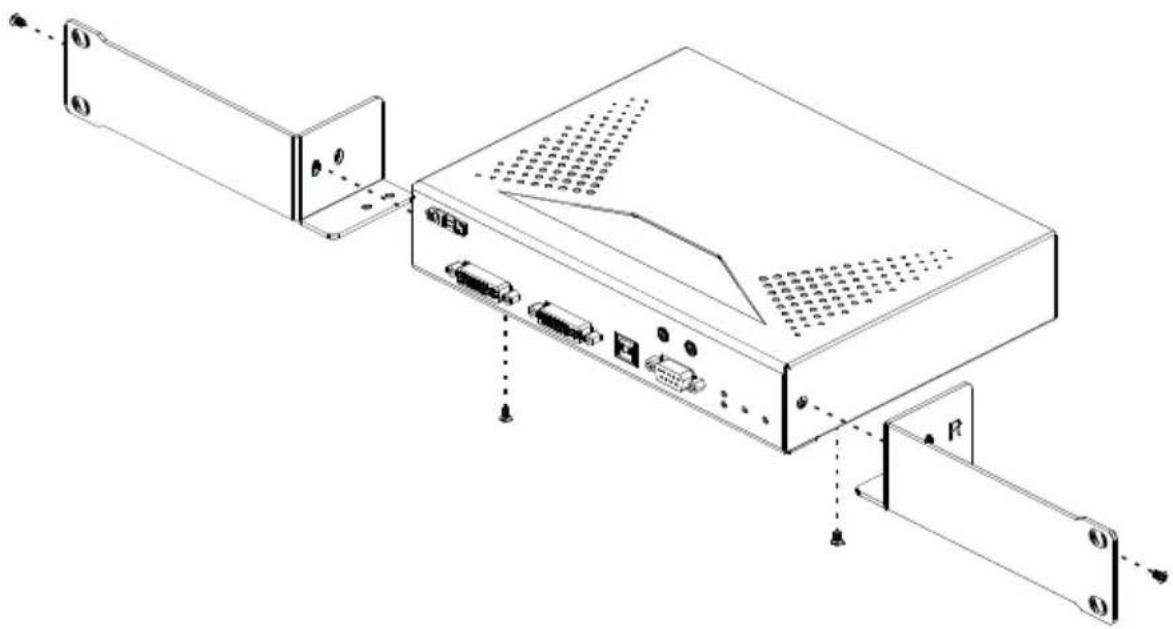
natural_image
Technical line drawing of an electronic device showing internal components and mounting points (no text or symbols)- Screw the mounting brackets to the rack.
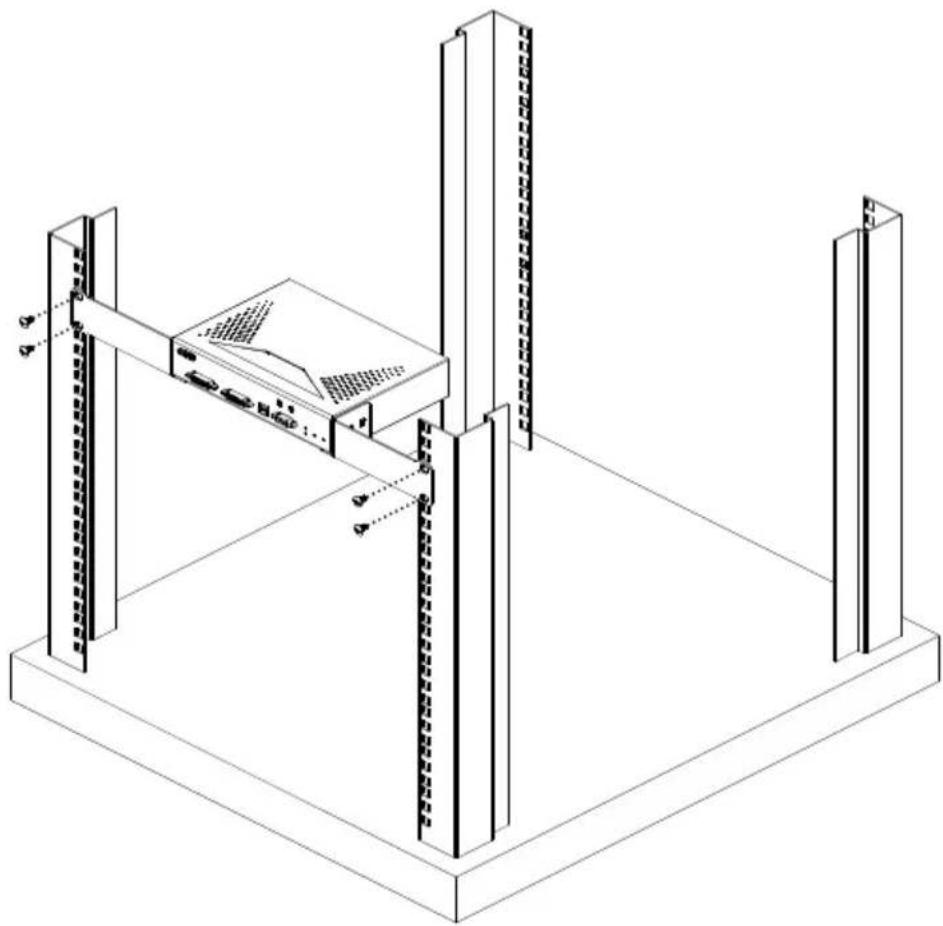
natural_image
Isometric line drawing of a server rack with vertical supports and a central device (no text or symbols)IP Installer
From a client computer running Windows, an IP address for a transmitter or receiver can be assigned with the IP Installer utility. The utility can be obtained from the Download area of our website or from the KE6900 product page on the Resources tab under Software & Driver. After downloading the utility to your client computer, do the following:
- Unzip the contents of IPInstaller.zip to a directory on your hard drive.
- Go to the directory that you unzipped the IPInstaller program to and run IPInstaller.exe. A dialog box similar to the one below appears:
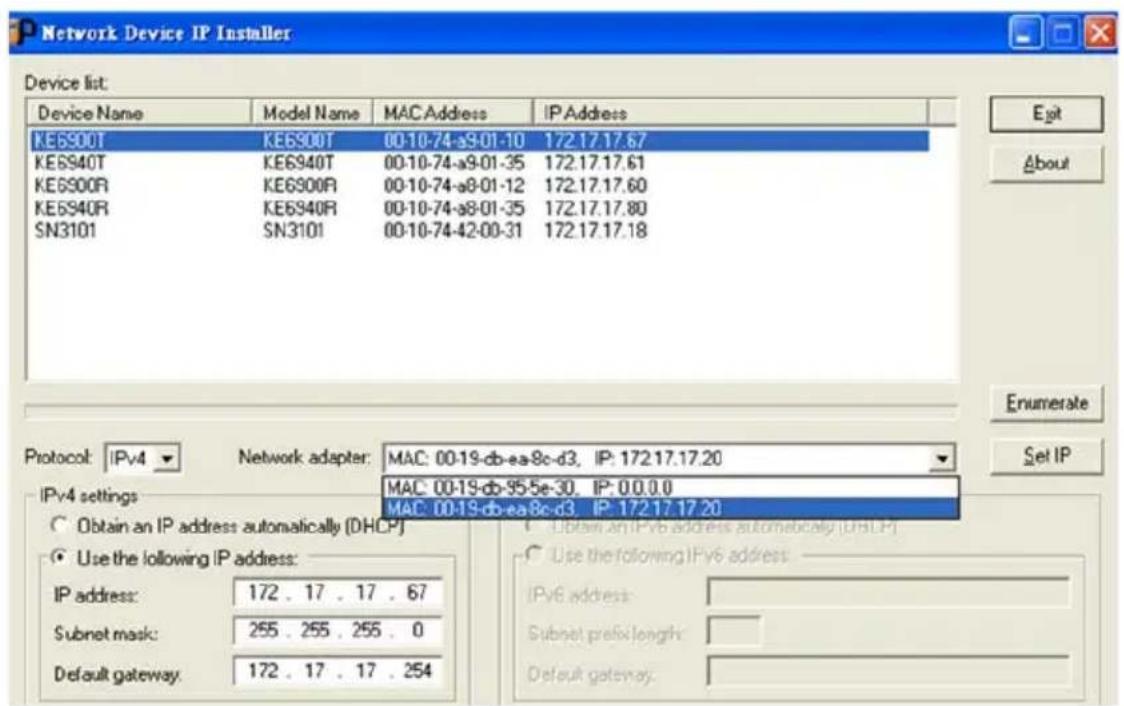
- Select the Transmitter or Receiver in the Device List.
Note: 1. If the list is empty, or your device doesn't appear, click Enumerate to refresh the Device List.
-
If there is more than one device in the list, use the MAC address to pick the one you want. The MAC address is located on the devices bottom panel.
-
Select either Obtain an IP address automatically (DHCP), or Specify an IP address. If you chose the latter, fill the IP Address, Subnet Mask, and Gateway fields with the information appropriate to your network.
- Click Set IP.
- After the IP address shows up in the Device List, click Exit.
Trusted Certificates
Overview
When you try to log in to the device from your browser, a Security Alert message appears to inform you that the device's certificate is not trusted, and asks if you want to proceed.
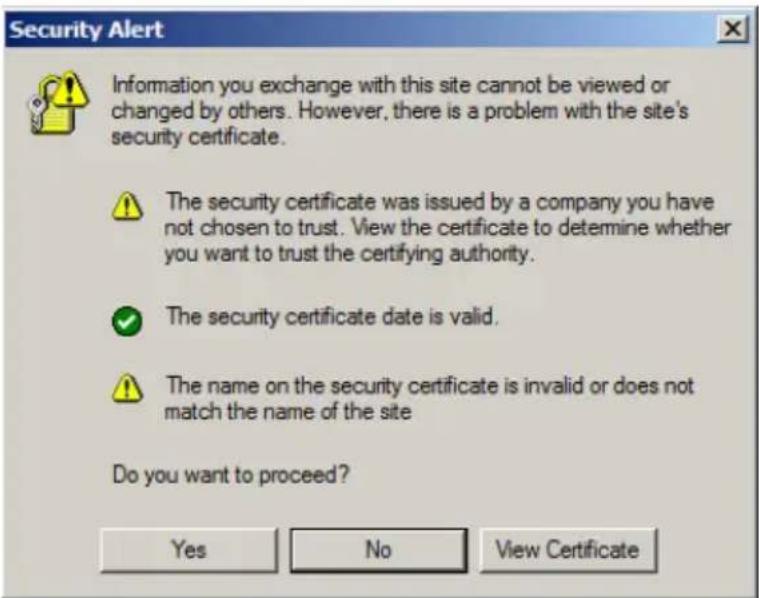
The certificate can be trusted, but the alert is triggered because the certificate's name is not found on the Microsoft list of Trusted Authorities. You can ignore the warning and click Yes to go on.
Self-Signed Private Certificates
If you wish to create your own self-signed encryption key and certificate, a free utility – openssl.exe – is available for download over the web at www.openssl.org. To create your private key and certificate do the following:
-
Go to the directory where you downloaded and extracted openssl.exe to.
-
Run openssl.exe with the following parameters:
openssl req -new -newkey rsa:1024 -days 3653 -nodes -x509 -keyout CA.key -out CA.cer -config openssl.cnf
Note: 1. The command should be entered all on one line (i.e., do not press [Enter] until all the parameters have been keyed in).
- If there are spaces in the input, surround the entry in quotes (e.g., "ATEN International").
To avoid having to input information during key generation the following additional parameters can be used:
/C /ST /L /O /OU /CN /emailAddress.
Examples
openssl req -new -newkey rsa:1024 -days 3653 -nodes -x509 -keyout CA.key -out CA.cer -config openssl.cnf -subj "/C=yourcountry/ST=yourstateorprovince/L=yourlocationor city/O=yourorganization/OU=yourorganizationalunit/CN=yourcommonname/emailAddress=name@yourcompany.com openssl req -new -newkey rsa:1024 -days 3653 -nodes -x509 -keyout CA.key -out CA.cer -config openssl.cnf -subj "/C=CA/ST=BC/L=Richmond/O=ATEN International/OU=ATEN /CN=ATEN/emailAddress=eservice@aten.com.tw
Importing the Files
After the openssl.exe program completes, two files – CA.key (the private key) and CA.cer (the self-signed SSL certificate) – are created in the directory that you ran the program from.
RS-232 Pin Assignments
Pin assignments for the Transmitter and Receiver's rear RS-232 port that is used for connecting to a serial terminal are given in the table, below:
| Pin Assignment | ||||
| 1 N/A None | 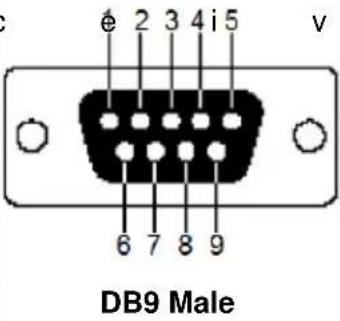 | |||
| 2 | R | X | D | |
| 3 TXD | Transmit Data | |||
| 4 DTR | Data Terminal Ready | |||
| 5 GND | Signal Ground | |||
| 6 DSR | Data Set Ready | |||
| 7 RTS | Request to Sent | |||
| 8 CTS | Clear to Sent | |||
| 9 N/A None | ||||
Transmitter Front RS-232 Port
Pin assignments for the Transmitter's front RS-232 port that is used for connecting to a computer for serial control are given in the table, below:
| Pin Assignment | ||||
| 1 N/A None | 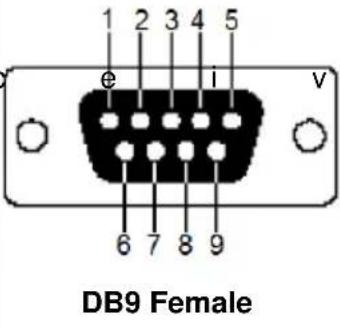 | |||
| 2 TXD Transmit Data | ||||
| 3 R X D R e | ||||
| 4 DSR Data Set Ready | ||||
| 5 GND Signal Ground | ||||
| 6 DTR Data Terminal Ready | ||||
| 7 CTS Clear to Sent | ||||
| 8 RTS Request to Sent | ||||
| 9 N/A None | ||||
e
e
Multicast IP Address
Multicasting helps to broadcast audio and video data from a transmitter to multiple user stations over a network. To setup up Multicasting on a network switch you must know the Audio and Video Multicast IP address which can be found on the KE Transmitter. To determine the default Multicast IP address set by the KE device use the instructions below. The Multicast IP addresses can be set manually using Telnet.
KE Multicast Rule
All Audio and Video Multicast IP addresses use the format: 230.X.Y.Z.
X.Y.Z relates to the Transmitter's IP address and 230 is always the first octet of a Multicast IP address. You use the Transmitter's IP address to find X and then use it to calculate the Audio and Video Multicast IP address.
Multicast IP Formula
To calculate the Audio and Video Multicast IP address, use the Transmitter's IP address to determine X and then use the appropriate table below to calculate the Multicast IP address for each data stream (audio/video).
Example:
Transmitter IP Address: 172.16.27.146; (172.X.Y.Z)
$$ \mathrm{X} = 1 6 $$
If X is between 0 127
| Transmitter IP X | VideoX + 128 | AudioX + 192 | MulticastVideo IPAddress | MulticastAudio IPAddress | |
| 172.16.27.146(example) | 16 | 6 + 128 = 144 | 16 + 192 = 208 | 230.144.27.146 | 230.208.27.146 |
| ___+ 128 = | ___+ 192 = | 230._.._. | 230._.._. | ||
| ___+ 128 = | ___+ 192 = | 230._.._. | 230._.._. | ||
| ___+ 128 = | ___+ 192 = | 230._.._. | 230._.._. |
If X is between 128 \~ 192
| Transmitter IP | X - 128 = A | Video A + 128 | Audio A + 192 | Multicast Video IP Address | Multicast Audio IP Address |
| 172.168.27.14 (example) | 168 - 128 = 40 | 40 + 128 = 168 | 40 + 192 = 232 | 230.168.27.14 | 230.232.27.14 |
| ____- 128 = | ____+ 128 = | ____+ 192 = | 230._._._. | 230._._._. | |
| ____- 128 = | ____+ 128 = | ____+ 192 = | 230._._._. | 230._._._. | |
| ____- 128 = | ____+ 128 = | ____+ 192 = | 230._._._. | 230._._._. |
If X is 192 or higher
| Transmitter IP | X - 192 = A | Video A + 128 | Audio A + 192 | Multicast Video IP Address | Multicast Audio IP Address |
| 172.200.27.14 (example) | 200 - 192 = 8 | 8 + 128 = 136 | 8 + 192 = 200 | 230.136.27.14 | 230.200.27.14 |
| ____- 192 = | ____+ 128 = | ____+ 192 = | 230._._._. | 230._._._. | |
| ____- 192 = | ____+ 128 = | ____+ 192 = | 230._._._. | 230._._._. | |
| ____- 192 = | ____+ 128 = | ____+ 192 = | 230._._._. | 230._._._. |
Keys to Network Performance
For optimum performance, the KE6900 requires high amounts of data to be transferred across a network; therefore we recommend the following strategies to setup the KE6900 devices. Using our suggestions will provide better performance and the highest video resolutions possible. Use each of the keys to ensure the best transmission of data and the highest throughput possible.
Build a Network Diagram
To build an effective KE installation, start by mapping out the layout. Create a diagram with the KE devices, computers and routers along with how they will be connected across the network. It also helps to write out how the devices will interact. Use this diagram as the frame work as you decide what devices to purchase and how to build the network effectively for the best data throughput.
Considerations:
- If possible, create a private network for the KE devices
◆ Use the same switch model throughout
◆ Use a flat cascaded layout
♦ Avoid a tree or pyramid structure - Limit cascades to two levels
◆ Install network switches near each other - Minimize the distance of connections
- Install Matrix Manger (CCKM) computer and KE devices on the same subnet
◆ Check the 3 Other Factors before installation
Other Factors
■ Choose the Right Cable
Always use Cat 5/6e Ethernet cable or higher installed by a professional between any two devices you are installing. We recommend using ATEN Brand Ethernet cable to ensure the quality. It’s best when installing KE devices to use brand new Ethernet cabling for each part of the installation to ensure the reliability of the data being transmitted. This is a key to getting the best uninterrupted video resolution across the network.
■ Determine the Distance
Distance is an important factor when setting up networks, with a shorter distance and fewer hops through routers, data can be transmitted more efficiently. So whenever possible decrease the distance and direct network traffic effectively between subnets that communicate with each other to increase the data throughput.
■ Ensure the Bandwidth
Ensuring the bandwidth ahead of time will guarantee performance before installing KE devices on a network. This will eliminate the primary cause of problems related to video quality and transmission of data. If the speed is right at all ends of your network, then the only other causes are derived from device failure or limits caused by a router, switch or device setting.
Sample Network Diagram

flowchart
graph TD
    subgraph_KE6900T["KE6900T"]
        PC1["PC"] -->|KVM port| KE6900T["KE6900T"]
        KE6900T -->|Console port| KE6900T
    end
    subgraph_KE6900R["KE6900R"]
        KE6900R1["KE6900R"] -->|Console port| KE6900R1
        KE6900R -->|Console port| KE6900R2["KE6900R"]
    end
    subgraph_KE6900T["KE6900T"]
        PC2["PC"] -->|KVM port| KE6900T2["KE6900T"]
        KE6900T2 -->|Console port| KE6900T2
    end
    subgraph_KE6900R["KE6900R"]
        KE6900R1 -->|Console port| KE6900R2
    end
    subgraph_KE6900T2["KE6900T"]
        PC3["PC"] -->|KVM port| KE6900T4["KE6900T"]
        KE6900T4 -->|Console port| KE6900T4
    end
    subgraph_KE6900R["KE6900R"]
        KE6900R1 -->|Console port| KE6900R4["KE6900R"]
    end
    subgraph_KE6900R2["KE6900R"]
        KE6900R1 -->|Console port| KE6900R4
    end
    subgraph_CECKM["CCKM"]
        KCM1["PC"] -->|KVM port| KE6900T2["Layer 3 Switch"]
        KCM2["PC"] -->|KVM port| KE6900T4["Layer 3 Switch"]
        KCM3["PC"] -->|KVM port| KE6900T2["Layer 3 Switch"]
        KCM4["PC"] -->|KVM port| KE6900T4["Layer 3 Switch"]
    end
Choose a High Performance Switch
A high performance network switch is the means of a successful KE setup. When choosing a network switch, first select the type:
Layer 2 or Layer 3 Switches
You'll need to determine whether you need a layer 2 or a layer 3 switch for your KE network. Layer 3 switches cost more than layer 2 switches because they are more complex and handle more network traffic. The best way to calculate which type of switch you need is to first determine if you will have a dedicated network for the KE devices or if the KE devices will be on a network that shares throughput with other network equipment such as computers, servers and printers. If they share the network with other devices its best to consider a layer 3 switch and use layer 2 switches exclusively for the KE device connections. For larger installations we recommend using Layer 3 switches. The major differences are:
Layer 3 Switch: IP addresses in packets are examined and intelligent forwarding decisions are made. On a larger network broken into subnets across long distances, a layer 3 switch becomes the best choice as they can improve network efficiency and provide better traffic flow. They are better at directing more traffic to different locations on a larger more complex network, and with layer two switches working below them.
Layer 2 Switch: Packets are examined and forwarded using only the MAC address. If you have a small central network, a layer 2 switch should do the job. If the network is exclusive and will only transmit the bandwidth of KE devices, layer 2 switches with the correct settings can get the job done effectively.
Considerations
Number of ports
Choose a switch that has enough ports to match the number of KE devices you will be installing. Switches typically come in 5, 8, 10, 16, 24, 28, 48, and 52-port configurations. If you are installing 13 KE transmitters and 13 KE receivers, you will need to purchase a switch with at least 28 ports.
Stackable verse Standalone
Stackable switches allow you to easily manage and configure ports spanning across multiple switches that the KE devices are connected through. This provides a centralized method to configure and troubleshoot the initial setup of
KE devices on a network which makes fine tuning the bandwidth, data throughput and video quality easier. Stackable switches can be configured to direct the KE transmissions between many units more specifically and effectively. Standalone switches provide the same configuration features as Stackable switches but they must be set individually.
Stackable switches provide an easy way to manage multiple switches, as one unit. For example, instead of configuring, managing, and troubleshooting 6 28-port switches individually, you can manage the six as if they are a single unit using Stackable Switches. The six switches (168 ports) function as a single switch and are managed from one web or GUI interface.
What Stackable Switches Can do:
- Create a link aggregation group with one port in one unit of the stack and another port of that group in another switch in the stack.
- Select a port on one switch in the stack and mirror the traffic to a switch port on another unit of the stack; thus copy the configuration to direct traffic more effectively between KE devices.
- Apply custom ACL security settings to any port on any switch in the stack.
- Stackable switches can be setup in a ring configuration, so that if a port or cable fails, the stack automatically routes around the failure, at microsecond speeds. Stackable Switches also allow you to add and remove stack “members” which are automatically updated and recognized as such.
Switch Specifications
The following specifications are recommended when choosing a layer 2 or layer 3 switch:
◆ 1000Mbps Gigabit Ethernet switches (1000Mbps or faster Ethernet ports)
◆ High bandwidth between switches, if possible using Fibre Channel
- Layer 3 switches that efficiently processes IGMP queries
IGMP Snooping v2 or v3
- Flow Control Functions
◆ Throughput of: Full Duplex, 1Gbps up- and down- stream speeds per port
◆ Performance of their most onerous tasks (e.g. IGMP snooping) with multiple dedicated processors (ASICS)
- Use the same switch make and model throughout each subnet
The maximum number of simultaneous ‘snoopable groups’ the switch can handle meets or exceeds the number of KE transmitters that will be used to create Channel groups
Configuring Switches and KE Devices
Configuring the switch correctly will pass data more efficiently, allowing a better stream across the network to each KE device. The following settings will help optimize your network traffic through a switch:
Enable IGMP Snooping on L2 switches
Enable IGMP Querier on the L3 switch
Enable IGMP Fast-Leave on all switches where KE units are directly connected
Enable Spanning Tree Protocol (STP) on all switches and enable Portfast exclusively on switch ports that have KE units connected
Pick an appropriate forwarding mode on all switches. Use Cut-through if available, or Store and Forward
KE transmitter Settings:
Adjust the KE transmitter settings one at a time, in small intervals, and view the images as you do, so that you can adjust to the positive or negative results and achieve the best quality and bandwidth possible
If the quality of color is important, set the Color Depth to 24 bits and manually adjust other settings until you are satisfied with the visual appearance
If moving video images are shown frequently, increase the Video Quality setting to the highest level and reduce the Bandwidth Limit and Color Depth setting.
When images on the screen are more often static, increase the Background Refresh and/or the Video Quality settings
Check that all KE units have been updated with the latest firmware version
Limited Warranty
ALTUSEN warrants this product against defects in material or workmanship for a period of one (1) year from the date of purchase. If this product proves to be defective, contact ALTUSEN's support department for repair or replacement of your unit. ALTUSEN will not issue a refund. Return requests can not be processed without the original proof of purchase.
When returning the product, you must ship the product in its original packaging or packaging that gives an equal degree of protection. Include your proof of purchase in the packaging and the RMA number clearly marked on the outside of the package.
This warranty becomes invalid if the factory-supplied serial number has been removed or altered on the product.
This warranty does not cover cosmetic damage or damage due to acts of God, accident, misuse, abuse, negligence or modification of any part of the product. This warranty does not cover damage due to improper operation or maintenance, connection to improper equipment, or attempted repair by anyone other than ALTUSEN. This warranty does not cover products sold AS IS or WITH FAULTS.
IN NO EVENT SHALL ALTUSEN'S LIABILITY EXCEED THE PRICE PAID FOR THE PRODUCT. FURTHER, ALTUSEN SHALL NOT BE RESPONSIBLE FOR DIRECT, INDIRECT, SPECIAL, INCIDENTAL OR CONSEQUENTIAL DAMAGES RESULTING FROM THE USE OF THE PRODUCT, ITS ACCOMPANYING SOFTWARE, OR ITS DOCUMENTATION. ALTUSEN SHALL NOT IN ANY WAY BE RESPONSIBLE FOR, WITHOUT LIMITATION, LOSS OF DATA, LOSS OF PROFITS, DOWNTIME, GOODWILL, DAMAGE OR REPLACEMENT OF EQUIPMENT OR PROPERTY, AND ANY EXPENSES FROM RECOVERY, PROGRAMMING, AND REPRODUCTION OF ANY PROGRAM OR DATA.
ALTUSEN makes no warranty or representation, expressed, implied, or statutory with respect to its products, contents or use of this documentation and all accompanying software, and specifically disclaims its quality, performance, merchantability, or fitness for any particular purpose.
ALTUSEN reserves the right to revise or update its product, software or documentation without obligation to notify any individual or entity of such revisions, or update.
For details about extended warranties, please contact one of our dedicated value added resellers.
This Page Intentionally Left Blank
Index
A
Adding a New Device, 71
Adding Users, 106
B
Screen Components, 54
User Interface, 29
Creating Groups, 109
D
Deleting a Device, 76, 86
Deleting groups, 110
Deleting user accounts, 108
Device Permissions
assigning, 115, 117, 118
F
Filter, 136
Firmware
upgrading, 137
Firmware Upgrade, 147
Firmware upgrade recovery, 141
G
Groups
assigning users, 111, 113
creating, 109
Deleting, 110
Managing, 109
Modifying, 110
removing users, 112, 114
L
Log, 133
filter, 136
M
Maintenance, 137
Managing Groups, 109
Managing Users, 106
Modifying groups, 110
Modifying user accounts, 108
O
Online
Registration, iv
P
Password
System administrator, 40, 53
Port Access
filter log, 136
Preferences, 145
Private Certificates, 196
R
Rack mounting, 13, 15
Requirements
Operating Systems, 4
OS Support, 4
RoHS, iii
S
Safety Instructions
General, 183
Rack Mounting, 185
Self-signed certificates, 196
SJ/T 11364-2006, iii
Specifications, 187
System administrator password, 40, 53
System Requirements Computers, 3
T
Tab bar, 56
Technical Support, 186
Telephone support, iv
Tree View, 55
Trusted Certificates, 195
U
Upgrade firmware, 137
User Interface, 29
Tab bar, 56
User Management, 105
User Notice, iv
User Preferences, 145
Users
Adding, 106
assigning to groups, 111, 113
Deleting, 108
Managing, 106
Modifying, 108
removing from groups, 112, 114
Users and Groups, 111