USER MANUAL NP-V80 YAMAHA
This product utilizes batteries or an external power supply (adapter). DO NOT connect this product to any power supply or adapter other than one described in the manual, on the name plate, or specifically recommended by Yamaha.
WARNING: Do not place this product in a position where anyone could walk on, trip over, or roll anything over power or connecting cords of any kind. The use of an extension cord is not recommended! If you must use an extension cord, the minimum wire size for a 25' cord (or less) is 18 AWG. NOTE: The smaller the AWG number, the larger the current handling capacity. For longer extension cords, consult a local electrician.
This product should be used only with the components supplied or; a cart, rack, or stand that is recommended by Yamaha. If a cart, etc., is used, please observe all safety markings and instructions that accompany the accessory product.
SPECIFICATIONS SUBJECT TO CHANGE:
The information contained in this manual is believed to be correct at the time of printing. However, Yamaha reserves the right to change or modify any of the specifications without notice or obligation to update existing units.
This product, either alone or in combination with an amplifier and headphones or speaker/s, may be capable of producing sound levels that could cause permanent hearing loss. DO NOT operate for long periods of time at a high volume level or at a level that is uncomfortable. If you experience any hearing loss or ringing in the ears, you should consult an audiologist.
IMPORTANT: The louder the sound, the shorter the time period before damage occurs.
Some Yamaha products may have benches and / or accessory mounting fixtures that are either supplied with the product or as optional accessories. Some of these items are designed to be dealer assembled or installed. Please make sure that benches are stable and any optional fixtures (where applicable) are well secured BEFORE using.
Benches supplied by Yamaha are designed for seating only. No other uses are recommended.
NOTICE:
Service charges incurred due to a lack of knowledge relating to how a function or effect works (when the unit is operating as designed) are not covered by the manufacturer's warranty, and are therefore the owners responsibility. Please study this manual carefully and consult your dealer before requesting service.
ENVIRONMENTAL ISSUES:
Yamaha strives to produce products that are both user safe and environmentally friendly. We sincerely believe that our products and the production methods used to produce them, meet these goals. In keeping with both the letter and the spirit of the law, we want you to be aware of the following:
Battery Notice:
This product MAY contain a small non-rechargeable battery which (if applicable) is soldered in place. The average life span of this type of battery is approximately five years. When replacement becomes necessary, contact a qualified service representative to perform the replacement.
This product may also use "household" type batteries. Some of these may be rechargeable. Make sure that the battery being charged is a rechargeable type and that the charger is intended for the battery being charged.
When installing batteries, never mix old batteries with new ones, and never mix different types of batteries. Batteries MUST be installed correctly. Mismatches or incorrect installation may result in overheating and battery case rupture.
Warning:
Do not attempt to disassemble, or incinerate any battery. Keep all batteries away from children. Dispose of used batteries promptly and as regulated by the laws in your area. Note: Check with any retailer of household type batteries in your area for battery disposal information.
Disposal Notice:
Should this product become damaged beyond repair, or for some reason its useful life is considered to be at an end, please observe all local, state, and federal regulations that relate to the disposal of products that contain lead, batteries, plastics, etc. If your dealer is unable to assist you, please contact Yamaha directly.
NAME PLATE LOCATION:
The name plate is located on the bottom of the product. The model number, serial number, power requirements, etc., are located on this plate. You should record the model number, serial number, and the date of purchase in the spaces provided below and retain this manual as a permanent record of your purchase.
Model
Serial No.
Purchase Date
PLEASE KEEP THIS MANUAL
92-BP (bottom)
1. IMPORTANT NOTICE: DO NOT MODIFY THIS UNIT!
This product, when installed as indicated in the instructions contained in this manual, meets FCC requirements. Modifications not expressly approved by Yamaha may void your authority, granted by the FCC, to use the product.
- IMPORTANT: When connecting this product to accessories and/or another product use only high quality shielded cables. Cable/s supplied with this product MUST be used. Follow all installation instructions. Failure to follow instructions could void your FCC authorization to use this product in the USA.
- NOTE: This product has been tested and found to comply with the requirements listed in FCC Regulations, Part 15 for Class "B" digital devices. Compliance with these requirements provides a reasonable level of assurance that your use of this product in a residential environment will not result in harmful interference with other electronic devices. This equipment generates/uses radio frequencies and, if not installed and used according to the instructions found in the users manual, may cause interference harmful to the operation of other electronic devices. Compliance with FCC regulations does
not guarantee that interference will not occur in all installations. If this product is found to be the source of interference, which can be determined by turning the unit "OFF" and "ON", please try to eliminate the problem by using one of the following measures:
Relocate either this product or the device that is being affected by the interference.
Utilize power outlets that are on different branch (circuit breaker or fuse) circuits or install AC line filter/s.
In the case of radio or TV interference, relocate/reorient the antenna. If the antenna lead-in is 300 ohm ribbon lead, change the lead-in to co-axial type cable.
If these corrective measures do not produce satisfactory results, please contact the local retailer authorized to distribute this type of product. If you can not locate the appropriate retailer, please contact Yamaha Corporation of America, Electronic Service Division, 6600 Orangethorpe Ave, Buena Park, CA90620
The above statements apply ONLY to those products distributed by Yamaha Corporation of America or its subsidiaries.
OBSERVERA!
The serial number of this product may be found on the bottom of the unit. You should note this serial number in the space provided below and retain this manual as a permanent record of your purchase to aid identification in the event of theft.
Model No.
Serial No.
(bottom)
Responsible Party : Yamaha Corporation of America
Address: 6600 Orangethorpe Ave., Buena Park, Calif. 90620
Telephone:714-522-9011
Type of Equipment : Digital Keyboard
Model Name: NP-V80/NP-V60
This device complies with Part 15 of the FCC Rules.
Operation is subject to the following two conditions:
1) this device may not cause harmful interference, and
2) this device must accept any interference received including interference that may cause undesired operation.
See user manual instructions if interference to radio reception is suspected.
- This applies only to products distributed by YAMAHA CORPORATION OF AMERICA.
(FCC DoC)
IMPORTANT NOTICE FOR THE UNITED KINGDOM
Connecting the Plug and Cord
IMPORTANT. The wires in this mains lead are coloured in accordance with the following code:
BLUE:NEUTRAL
BROWN: LIVE
As the colours of the wires in the mains lead of this apparatus may not correspond with the coloured makings identifying the terminals in your plug proceed as follows:
The wire which is coloured BLUE must be connected to the terminal which is marked with the letter N or coloured BLACK.
The wire which is coloured BROWN must be connected to the terminal which is marked with the letter L or coloured RED.
Making sure that neither core is connected to the earth terminal of the three pin plug.
- This applies only to products distributed by (2 wires) Yamaha Music U.K. Ltd.
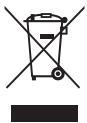
These symbols on the products, packaging, and/or accompanying documents mean that used electrical and electronic products and batteries should not be mixed with general household waste.
For proper treatment, recovery and recycling of old products and used batteries, please take them to applicable collection points, in accordance with your national legislation and the Directives 2002/96/EC and 2006/66/EC.

By disposing of these products and batteries correctly, you will help to save valuable resources and prevent any potential negative effects on human health and the environment which could otherwise arise from inappropriate waste handling.
For more information about collection and recycling of old products and batteries, please contact your local municipality, your waste disposal service or the point of sale where you purchased the items.

[For business users in the European Union]
If you wish to discard electrical and electronic equipment, please contact your dealer or supplier for further information.
[Information on Disposal in other Countries outside the European Union]
These symbols are only valid in the European Union. If you wish to discard these items, please contact your local authorities or dealer and ask for the correct method of disposal.
Note for the battery symbol (bottom two symbol examples):
This symbol might be used in combination with a chemical symbol. In this case it complies with the requirement set by the Directive for the chemical involved.
PRECAUTIONS
PLEASE READ CAREFULLY BEFORE PROCEEDING
- Please keep this manual in a safe place for future reference.

WARNING
Always follow the basic precautions listed below to avoid the possibility of serious injury or even death from electrical shock, short-circuiting, damages, fire or other hazards. These precautions include, but are not limited to, the following:
Power supply/AC power adaptor
- Do not place the power cord near heat sources such as heaters or radiators, and do not excessively bend or otherwise damage the cord, place heavy objects on it, or place it in a position where anyone could walk on, trip over, or roll anything over it.
- Only use the voltage specified as correct for the instrument. The required voltage is printed on the name plate of the instrument.
- Use the specified adaptor (page 97) only. Using the wrong adaptor can result in damage to the instrument or overheating.
- Check the electric plug periodically and remove any dirt or dust which may have accumulated on it.
Do not open
- This instrument contains no user-serviceable parts. Do not open the instrument or attempt to disassemble or modify the internal components in any way. If it should appear to be malfunctioning, discontinue use immediately and have it inspected by qualified Yamaha service personnel.
Water warning
- Do not expose the instrument to rain, use it near water or in damp or wet conditions, or place containers on it containing liquids which might spill into any openings. If any liquid such as water seeps into the instrument, turn off the power immediately and unplug the power cord from the AC outlet. Then have the instrument inspected by qualified Yamaha service personnel.
- Never insert or remove an electric plug with wet hands.
Fire warning
- Do not put burning items, such as candles, on the unit.
A burning item may fall over and cause a fire.
Battery
- Always replace all batteries at the same time. Do not use new batteries together with old ones.
- Do not mix battery types, such as alkaline batteries with manganese batteries, or batteries from different makers, or different types of batteries from the same maker, since this can cause overheating, fire, or battery fluid leakage.
- Do not tamper with or disassemble batteries.
- Do not dispose of batteries in fire.
- Do not attempt to recharge batteries that are not intended to be charged.
- Keep batteries away from children.
- If the batteries do leak, avoid contact with the leaked fluid. If the battery fluid should come in contact with your eyes, mouth, or skin, wash immediately with water and consult a doctor. Battery fluid is corrosive and may possibly cause loss of sight or chemical burns.
- Always make sure all batteries are inserted in conformity with the +/- polarity markings. Failure to do so might result in overheating, fire, or battery fluid leakage.
- When the batteries run out, or if the instrument is not to be used for a long time, remove the batteries from the instrument to prevent possible leakage of the battery fluid.
If you notice any abnormality
-
When one of the following problems occur, immediately turn off the power switch and disconnect the electric plug from the outlet. (If you are using batteries, remove all batteries from the instrument.) Then have the device inspected by Yamaha service personnel.
-
The power cord or plug becomes frayed or damaged.
- It emits unusual smells or smoke.
- Some object has been dropped into the instrument.
- There is a sudden loss of sound during use of the instrument.

CAUTION
Always follow the basic precautions listed below to avoid the possibility of physical injury to you or others, or damage to the instrument or other property. These precautions include, but are not limited to, the following:
Power supply/AC power adaptor
- Do not connect the instrument to an electrical outlet using a multiple-connector. Doing so can result in lower sound quality, or possibly cause overheating in the outlet.
- When removing the electric plug from the instrument or an outlet, always hold the plug itself and not the cord. Pulling by the cord can damage it.
- Remove the electric plug from the outlet when the instrument is not to be used for extended periods of time, or during electrical storms.
Location
- Do not place the instrument in an unstable position where it might accidentally fall over.
- Before moving the instrument, remove all connected cables.
- When setting up the product, make sure that the AC outlet you are using is easily accessible. If some trouble or malfunction occurs, immediately turn off the power switch and disconnect the plug from the outlet. Even when the power switch is turned off, electricity is still flowing to the product at the minimum level. When you are not using the product for a long time, make sure to unplug the power cord from the wall AC outlet.
- Use only the stand specified for the instrument. When attaching the stand or rack, use the provided screws only. Failure to do so could cause damage to the internal components or result in the instrument falling over.
Connections
- Before connecting the instrument to other electronic components, turn off the power for all components. Before turning the power on or off for all components, set all volume levels to minimum.
- Be sure to set the volumes of all components at their minimum levels and gradually raise the volume controls while playing the instrument to set the desired listening level.
Handling caution
- Do not insert a finger or hand in any gaps on the instrument.
- Never insert or drop paper, metallic, or other objects into the gaps on the panel or keyboard.
- Do not rest your weight on, or place heavy objects on the instrument, and do not use excessive force on the buttons, switches or connectors.
- Do not use the instrument/device or headphones for a long period of time at a high or uncomfortable volume level, since this can cause permanent hearing loss. If you experience any hearing loss or ringing in the ears, consult a physician.
Yamaha cannot be held responsible for damage caused by improper use or modifications to the instrument, or data that is lost or destroyed.
Always turn the power off when the instrument is not in use.
Even when the [ ] (Standby/On) switch is standby (the LCD backlight is off), electricity is still flowing to the instrument at the minimum level. When you are not using the instrument for a long time, make sure you unplug the power cord from the wall AC outlet.
Make sure to discard used batteries according to local regulations.
NOTICE
To avoid the possibility of damage to the product, data or other property, follow the notices below.
Handling and Maintenance
- Do not use the instrument in the vicinity of a TV, radio, stereo equipment, mobile phone, or other electric devices. Otherwise, the instrument, TV, or radio may generate noise.
- Do not expose the instrument to excessive dust or vibrations, or extreme cold or heat (such as in direct sunlight, near a heater, or in a car during the day) to prevent the possibility of panel disfiguration or damage to the internal components.
- Do not place vinyl, plastic or rubber objects on the instrument, since this might discolor the panel or keyboard.
- When cleaning the instrument, use a soft, dry cloth. Do not use paint thinners, solvents, cleaning fluids, or chemical-impregnated wiping cloths.
Saving data
- Some data items (page 50) are automatically saved as backup data in the internal memory even if you turn the power off. Saved data may be lost due to malfunction or incorrect operation. Save important data to a USB storage device (NP-V80 only)/or other external device such as a computer (page 88). (NP-V80 only) To protect against data loss through media damage, we recommend that you save your important data onto two USB storage devices/or other external device such as a computer.
- About copyrights
- Copying of the commercially available musical data including but not limited to MIDI data and/or audio data is strictly prohibited except for your personal use.
This product incorporates and bundles computer programs and contents in which Yamaha owns copyrights or with respect to which it has license to use others' copyrights. Such copyrighted materials include, without limitation, all computer software, style files, MIDI files, WAVE data, musical scores and sound recordings. Any unauthorized use of such programs and contents outside of personal use is not permitted under relevant laws. Any violation of copyright has legal consequences. DON'T MAKE, DISTRIBUTE OR USE ILLEGAL COPIES.
- About functions/data bundled with the instrument
- Some of the preset songs have been edited for length or arrangement, and may not be exactly the same as the original.
- About this manual
The ilustrations and LCD screens as shown in this manual are for instructional purposes only, and may appear somewhat different from those on your instrument.
- Windows is a registered trademark of Microsoft® Corporation in the United States and other countries.
- The company names and product names in this manual are the trademarks or registered trademarks of their respective companies.
Logos

GM System Level 1
"GM System Level 1" is an addition to the MIDI standard which ensures that any GM-compatible music data can be accurately played by any GM-compatible tone generator, regardless of manufacturer. The GM mark is affixed to all software and hardware products that support GM System Level.

XGlite
As its name implies, "XGlite" is a simplified version of Yamaha's high-quality XG tone generation format. Naturally, you can play back any XG song data using an XGlite tone generator. However, keep in mind that some songs may play back differently compared to the original data, due to the reduced set of control parameters and effects.

USB
USB is an abbreviation for Universal Serial Bus. It is a serial interface for connecting a computer with peripheral Devices. It allows "hot swapping" (connecting peripheral devices while the power to the computer is on).

STYLEFILE
The Style File Format is Yamaha's original style file format which uses a unique conversion system to provide high-quality automatic accompaniment based on a wide range of chord types.
This manual consists of four main sections: "Setting Up," "Quick Guide," "Reference," and "Appendix." Also, a separate "Data List" is provided.
Owner's Manual (this book)
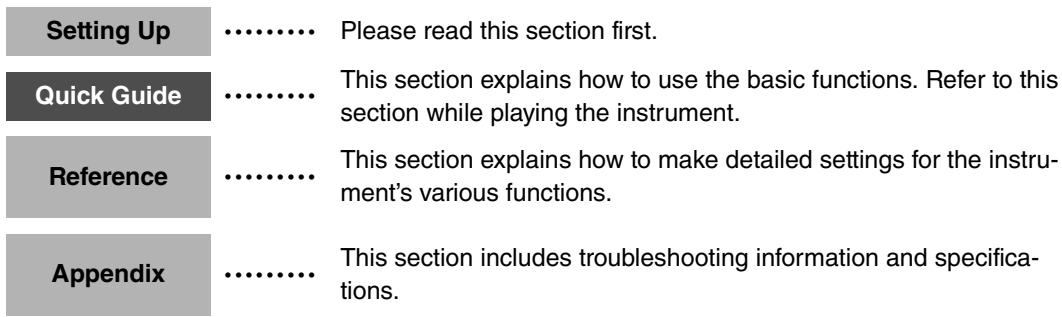
Data List
Voice List, MIDI Data Format, etc.
MIDI Reference
The MIDI Reference section contains MIDI related information. The MIDI Reference is available for downloading from the Yamaha Manual Library at: http://www.yamaha.co.jp/manual/
Included Accessories
The package includes the following items. Please check that you have them all.
- AC Power Adaptor
- May not be included depending on your particular area. Please check with your Yamaha dealer.
- Owner's Manual
Music rest
- Accessory CD-ROM
Footswitch (NP-V80 only)
Data List
- My Yamaha Product User Registration
* The PRODUCT ID on the sheet will be needed when you fill out the User Registration form.
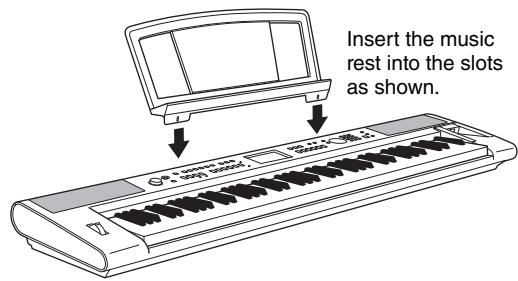
Music Rest
Graded Soft Touch keyboard
Just as on an actual piano, the lower keys are heavy in touch and the higher keys are light, with soft touch of digital keyboard for beginners.

Play a Variety of Instrument Voices
Page 16
The instrument voice that sounds when you play the keyboard can be changed to violin, flute, harp, or any of an extensive range of voices. You can change the mood of a song written for piano, for example, by using violin to play it instead. Experience a whole new world of musical variety.

Play Along with Styles
Page 23
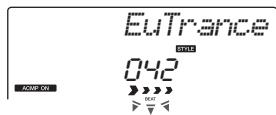
Want to play with full accompaniment? Try the auto-accompanyment Styles. The accompaniment styles provide the equivalent of a full backing band covering a wide variety of styles from waltzes to 8-beat to euro-trance ... and much more. Select a style that matches the music you want to play, or experiment with new styles to expand your musical horizons.
Using Songs
Page 26
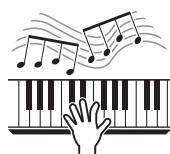
You can simply enjoy listening to the 30 internal songs, or use them with just about any of the many functions provided—the performance assistant technology feature, lessons, and more.
Arpeggio Function (NP-V80 only)
Page 20
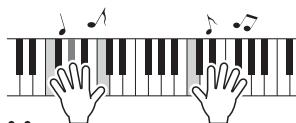
Similar to the arpeggio functions provided on some synthesizers, this function automatically produces arpeggios (broken chords) when you simply play the appropriate notes on the keyboard. A variety of arpeggios can be produced by changing your fingering or the arpeggio type.
About this Owner's Manual and Data List. 7
Included Accessories 7
Special Features 8
Setting Up
Setting Up 10
Power Requirements. 10
Connecting Headphones (PHONES/OUTPUT Jack).....11
Connecting a Footswitch or a Foot Pedal
(SUSTAIN Jack) 11
Turning the Power On 11
Panel Controls and Terminals 12
Basic Operation and Displays 14
Quick Guide
Try Playing a Variety of Instrument Voices 16
Select and Play a Voice--MAIN. 16
Play the Grand Piano Voice 17
Play Two Voices Simultaneously-DUAL 18
Play Different Voices with the Left and Right Hands
-SPLIT. 18
Using the Metronome 19
Creating Arpeggios (NP-V80 only) 20
Use the Arpeggio Function 20
Changing the Arpeggio type 21
Playing Styles 22
Select a Style Rhythm 22
Play Along with a Style 23
Playing Songs 26
Select and Listen to a Song 26
Select and Play Songs on a USB Flash Memory
(NP-V80 only) 28
Play Songs in Sequence 29
Song Fast Forward, Fast Reverse, and Pause 29
Reference
Select a Song For a Lesson 30
The Easy Way to Play Piano 34
Play Using the Music Database 40
Change a Song's Style 41
Record Your Own Performance 43
Memorize Your Favorite Panel Settings 48
Backup and Initialization 50
Backup 50
Initialization 50
Handy Performance Features 51
Adding Reverb 51
Adding Chorus 51
Panel Sustain 52
Pitch Controls (Transpose). 52
Pitch Controls (Tuning) 53
Setting the Metronome Time Signature. 53
Adjusting the Metronome Volume 54
PitchBend. 54
One Touch Setting 54
Select an EQ Setting for the Best Sound. 55
Auto Power Off Setup 55
Voice Settings 56
Voice Editing 56
Selecting a Dual Voice 57
Selecting a Split Voice 57
Touch Response Sensitivity (NP-V80) 58
Touch Response Sensitivity (NP-V60) 58
Harmony 59
Arpeggio Settings (NP-V80 only) 60
Controlling Arpeggio Volume with Keyboard Dynamics ...60
Synchronizing an arpeggio to a tempo of Style or Song ...60
Holding the arpeggio Playback 61
Style (Auto-accompaniment) Functions 62
Pattern Variation (Sections) 62
Changing the tempo of the Style. 64
Adjusting the Style Volume 64
Setting the Split Point 65
Tap Start 65
Play a Style with Chords but No Rhythm
(Stop Accompaniment) 66
Playing Styles Using the Entire Keyboard 66
Loading Style Files (NP-V60) 67
Looking Up Chords Using the Chord Dictionary 68
Song Settings 69
BGMPlayback 69
Random Song Playback 69
Changing the tempo of the Song 70
Song Volume 70
A-B Repeat 71
Muting Independent Song Tracks 71
Tap Start 72
Change the Melody Voice 72
The Functions 73
Selecting and Setting Functions 73
Saving and Loading Data (NP-V80 Only) 76
File Control Functions 76
Precautions when using the [USB TO DEVICE]
terminal 77
Using USB Storage Devices 77
Connecting to a Computer 84
Connecting a Personal Computer 84
Transferring Performance Data to and from a Computer...85
Transferring Data between the Computer and Instrument...86
Accessory CD-ROM Installation Guide 89
Important Notices about the CD-ROM 89
CD-ROM Contents 90
System Requirements. 91
Software Installation 91
Appendix
Troubleshooting 96
Specifications 97
Index 98
Be sure to do the following operations BEFORE turning on the power.
Power Requirements
Although the instrument will run either from an optional AC adaptor or batteries, Yamaha recommends use of an AC adaptor whenever possible. An AC adaptor is more environmentally friendly than batteries and does not deplete resources. USB flash memory save, delete, and format operations can only be performed on the NP-V80 when the instrument is being powered from an AC adapter. These operations cannot be performed using battery power.
Using an AC Power Adaptor

WARNING
- Use the specified adaptor (page 97). The use of other adaptors may result in irreparable damage to both the adaptor and the instrument.
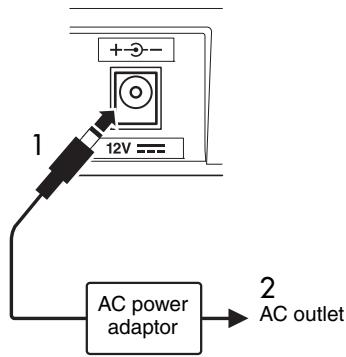
1 Connect the AC adaptor to the power supply jack.
2 Plug the AC adaptor into an AC outlet.

CAUTION
- Unplug the AC Power Adaptor when not using the instrument, or during electrical storms.
Using Batteries
1 Open the battery compartment cover located on the instrument's bottom panel.
2 Insert the six new batteries, being careful to follow the polarity markings on the inside of the compartment.
3 Replace the compartment cover, making sure that it locks firmly in place.
NOTE
- Connecting the AC power adaptor automatically supplies power from the adaptor and overrides battery power, even when batteries are installed.
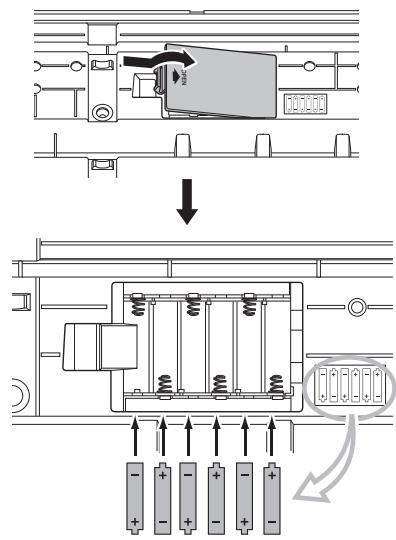
For battery operation the instrument requires six 1.5V "AA" size, LR6 or equivalent batteries. (Alkaline batteries are recommended.) When battery power becomes too low for proper operation, make sure to replace all batteries, following the precautions listed below. If necessary, also make sure to save all important User data (see pages 50, 88).

CAUTION
- Be sure to install the batteries in the same direction, maintaining the correct polarity (as shown). Incorrect battery installation may result in heat, fire and/or leaking of corrosive chemicals.
- When the batteries run down, replace them with a complete set of six new batteries. NEVER mix old and new batteries. Do not use different kinds of batteries (e.g. alkaline and manganese) at the same time.
- If the instrument will not be used for an extended period of time, remove the batteries to prevent possible fluid leakage.
NOTICE
- The use of alkaline batteries is recommended for this instrument. Other types of batteries may exhibit a sudden drop in power when the batteries are low, possibly resulting in a loss of flash memory data.
- Please use the power adaptor when transferring data to flash memory. Batteries (including rechargeable types) can be drained rapidly by this type of operation. If the batteries do become drained during a data transfer, both the data being transferred and the data currently in the transfer destination will be lost.
Make all necessary connections below BEFORE turning the power on.
Connecting Headphones (PHONES/OUTPUT Jack)
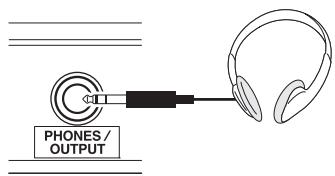
Any pair of stereo headphones with a 1/4" stereo phone plug can be plugged in here for convenient monitoring. The speakers are automatically shut off when a plug is inserted into this jack.
The PHONES/OUTPUT jack also functions as an external output. You can connect the PHONES/OUTPUT jack to a keyboard amplifier, stereo system, mixer, tape recorder, or other line-level audio device to send the instrument's output signal to that device.
WARNING
- Avoid listening with the headphones at high volume for long periods of time; doing so may not only result in ear fatigue, it may be damaging to your hearing.
CAUTION
- To prevent damage to the speakers, set the volume of the external devices at the minimum setting before connecting them. Failure to observe these cautions may result in electric shock or equipment damage. Also, be sure to set the volumes of all devices at their minimum levels and gradually raise the volume controls while playing the instrument to set the desired listening level.
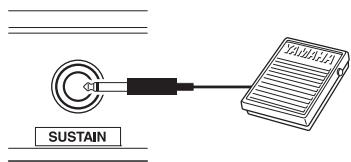
The SUSTAIN jack is for connecting the footswitch or foot pedal. The pedal functions in the same way as a damper pedal on an acoustic piano. Connect an included footswitch (NP-V80 only) or an optional
footswitch FC4/FC5 to this jack and press the pedal to sustain the sound. An optional FC3 foot pedal can also be connected to this jack.
If you connect an optional pedal of FC3, the half pedal function* can be used.
* half pedal function
While you playing the piano with SUSTAIN and if you need to delete the cloudy sound, release the foot from pedal to half position.
NOTE
- The sustain function does not affect split voices.
- Make sure that power is OFF when connecting or disconnecting the pedal.
- Do not press the pedal while turning the power on. Otherwise, the switch or pedal type (on/off) will be reversed.
Turning the Power On
The switch turns the power to the instrument on or standby. Turn down the volume by turning the [MASTER VOLUME] control to the left and press the switch to turn on the power. Press the switch again to turn the power standby.
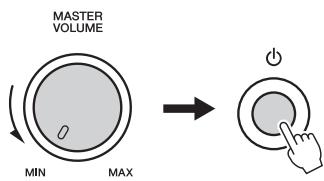
While playing the keyboard, adjust the volume level by using the [MASTER VOLUME] control.
CAUTION
- Even when the switch is standby, electricity is still flowing to the instrument at the minimum level. When you are not using the instrument for a long time, make sure you unplug the AC power adaptor from the wall AC outlet, and/ or remove the batteries from the instrument.
Front Panel
The panel illustrations shown in this owner's manual are taken from the NP-V80.
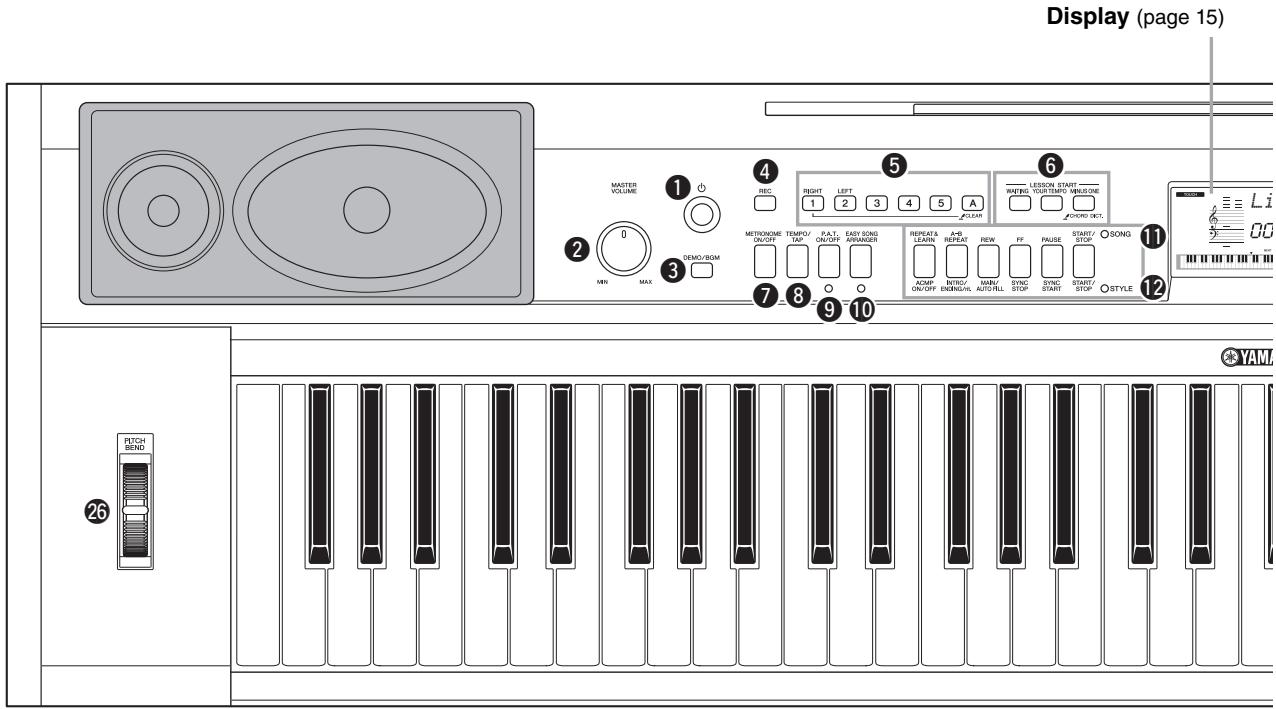
Front Panel
[Standby/On) switch.. page 11
2 [MASTER VOLUME] control... page 11
[DEMO/BGM] button page 29
4 [REC] button.. page 43
[1]–[5], [A] buttons ..... page 44 LESSON
[RIGHT] button.. page 30
[LEFT] button.. page 30
6 LESSON START
[WAITING] button....page 30
[YOUR TEMPO] button ..... page 32
[MINUS ONE] button.. page 33
[METRONOME ON/OFF] button..pages 19,53
[TEMPO/TAP] button.. pages 19, 64, 65, 70, 72
[9] [P.A.T. ON/OFF] button ..... page 35
[EASY SONG ARRANGER] button.....page 41
1 SONG
[REPEAT&LEARN] button......page 33
[A-B REPEAT] button ..... page 71
[REW] button page 29
[FF] button . page 29
[PAUSE] button.. page 29
[START/STOP] button.. page 27
STYLE
[ACMP ON/OFF] button.. page 23
[INTRO/ENDING/rit.] button .page 63
[MAIN/AUTO FILL] button . page 63
[SYNC STOP] button . page 63
[SYNC START] button.. page 62
[START/STOP] button......page 22
[SONG] button.. page 26
STYLE] button.. page 22
[VOICE] button page 16
[ MUSIC DATABASE] button......page 40
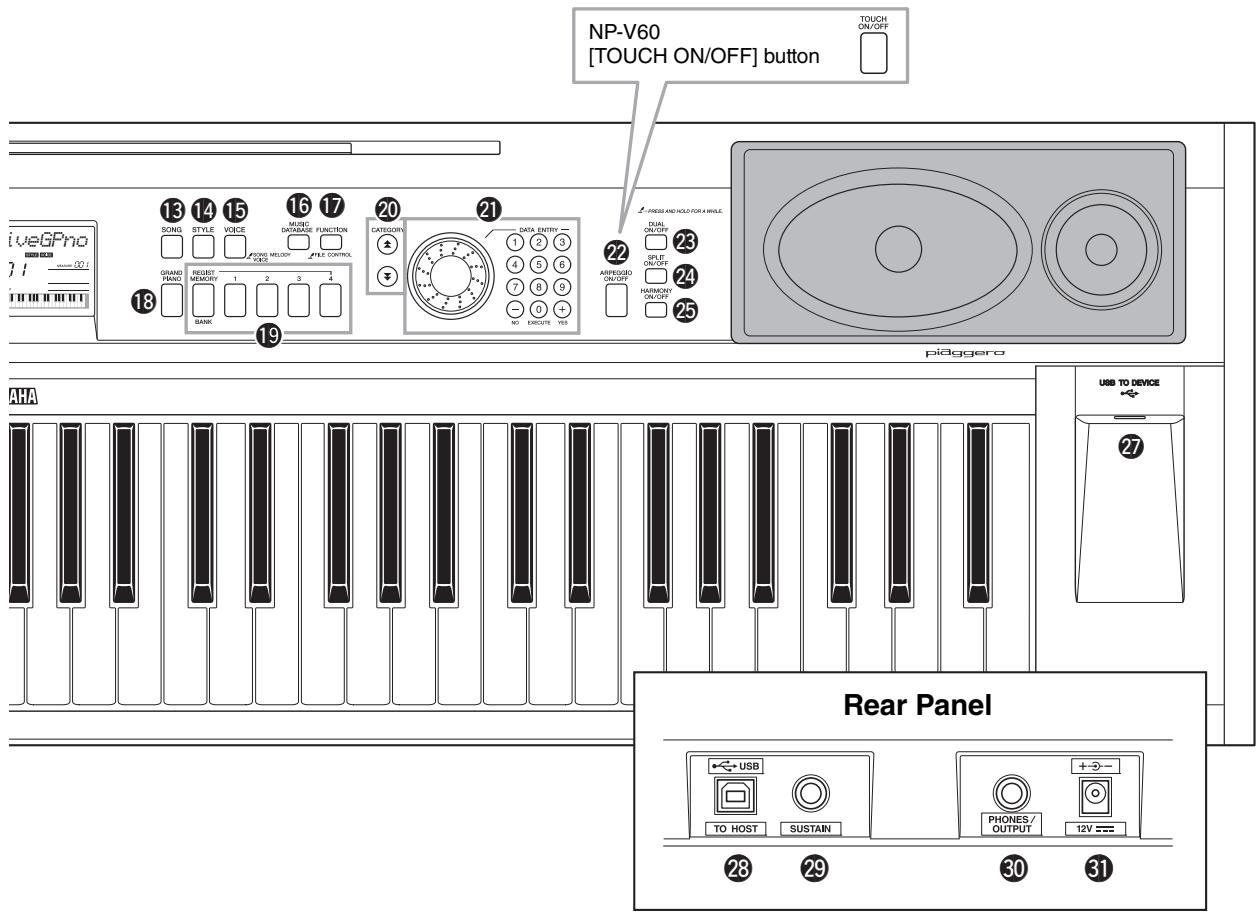
Rear Panel
[FUNCTION] button.. page 73
[GRAND PIANO] button.. page 17
REGIST [MEMORY/BANK], [1]-[4] buttons... page 48
20 CATEGORY [A] and [V] buttons pages 14, 73
DATA ENTRY Dial, Number buttons [0]-[9], [+] and [-] buttons... page 14
[ARPEGGIO ON/OFF] button (NP-V80 only) page 20 [TOUCH ON/OFF] button (NP-V60 only) page 58
[DUAL ON/OFF] button pages 18, 57
[PLIT ON/OFF] button............ pages 18, 57
[HARMONY ON/OFF] button ..... page 59
26 PITCH BEND wheel.. page 54
USB TO DEVICE terminal (NP-V80 only) page 76
USB TO HOST terminal page 84
SUSTAIN jack. page 11
PHONES/OUTPUT jack.. page 11
DC IN jack.. page 10
Basic Operation
Press a button to select a basic function: Voice, Style or Song. To change the instrument voice that sounds when you play the keyboard, press the [VOICE] button. If you want to play along with auto accompaniment, press the [STYLE] button. If you want to listen to a song, press the [SONG] button.
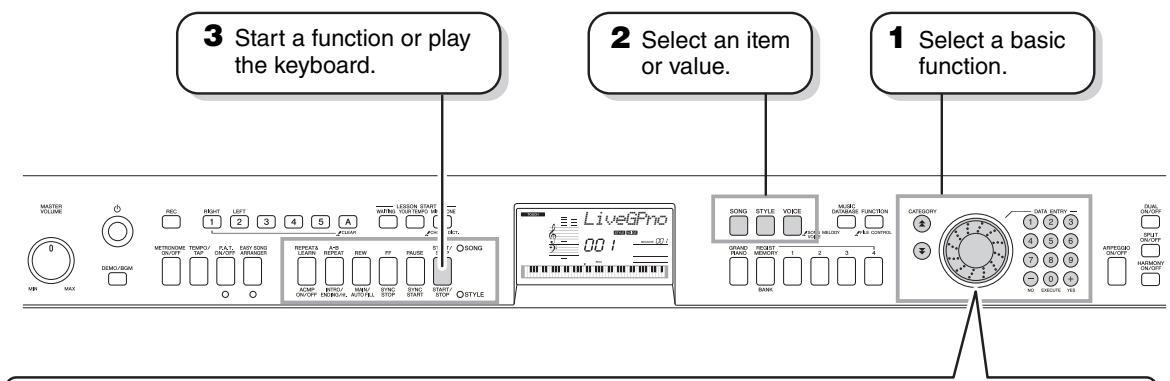
The number buttons can be used to directly enter a Song, Style or Voice number or parameter value.
For numbers that start with one or two zeroes, the first zeroes can be omitted.
Example:
Selecting Voice 003, Grand Piano.
![YAMAHA NP-V80 - Number buttons [0]-[9] - 1](/content/2025/01/115040/images/9353d59a715628f1ff9496ef1102a39e5ded2823dfd7a3e54bec9db76a12f762.jpg)
Press number buttons [0], [0], [3].
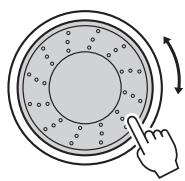
Dial
Rotate the dial clockwise to increase the value of the selected item, or counterclockwise to decrease its value. Rotate the dial continuously to continuously increase or decrease the value.
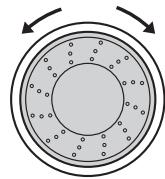
Decrease Increase
Press the ([+] button briefly to increase the value by 1, or press the [-] button briefly to decrease the value by 1.
Press and hold either button to continuously increase or decrease the value in the corresponding direction.
![YAMAHA NP-V80 - [+], [-] buttons - 1](/content/2025/01/115040/images/f88b7bfbf6b7235ed7d4f2cf2b8409571a9a2613c7acaa69382a85063a5e8ea7.jpg)
![YAMAHA NP-V80 - [+], [-] buttons - 2](/content/2025/01/115040/images/0fad584785337260216b2826b45988bea712a25b27ea0a49d6910dcfddc2c73e.jpg)
![YAMAHA NP-V80 - [+], [-] buttons - 3](/content/2025/01/115040/images/a4967a6684f1e9c7a4082be89baa27d47f27bc37df1fb7f2d83b391d57255d28.jpg)
![YAMAHA NP-V80 - [+], [-] buttons - 4](/content/2025/01/115040/images/83d0a21ce2238207d92f95ceefc02294230a4a9a88b1cce9dfd8b3318f93eb3d.jpg)
Press briefly Press briefly to decrease. to increase.
When selecting a song or style, you can use these buttons to jump to the first item in the next or previous category.
The CATEGORY [▲] and [▼] buttons can also be used to select function items sequentially after pressing the [FUNCTION] button.
![YAMAHA NP-V80 - CATEGORY [A] and [▼] buttons - 1](/content/2025/01/115040/images/429c50ebe3e3b3b0c347cab85a9f0c05a7c8857bcf403ef9fa8fad6ed96f427d.jpg)
Jump to the first item in the next or previous category.
![YAMAHA NP-V80 - CATEGORY [A] and [▼] buttons - 2](/content/2025/01/115040/images/608dbf9d06cc8b342bfae1250a330ae8b0b7230c855fd9399f6b028c5b883220.jpg)
The "Press & Hold" Symbol
Buttons having this indication can be used to call up an alternate function when the relevant button is pressed and held. Hold down this button until the function calls up.
When SONG is selected via the basic function buttons 1 above, the SONG indicator will light. When STYLE is selected the STYLE indicator will light. The corresponding labels above (SONG) or below (STYLE) the buttons then apply.
Display Items
The display shows all of the current basic settings: song, style, voice.
It also includes a range of indicators that show the on/off status of a range of functions.
Notation
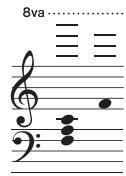
Displays the melody and chord notes of a song when the Song Lesson function is in use, or the notes of chords you specify when the Dictionary function is in use. At other times the notes you play on the keyboard are displayed.
8va
NOTE
- Any notes occurring below or above the staff are indicated by "8va" in the notation.
- For a few specific chords, not all notes may be shown in the notation section of the display. This is due to space limitations in the display.
BEAT number and MEASURE
Indicates the beat number in a measure during the Metronome function. Indicates the current measure during playback of a song or style, and the currently set Tempo value for the song or style. (pages 19, 45)
Chord Display
Indicates the name of the chord currently being played back, or the name of the chord being played on the keyboard. (page 23)
Track Display
Information related to the song tracks is shown here. (pages 29, 44, 71)

TOUCH
Indicates that Touch response is turned on. (page 58)
TOUCH
HARMONY
Indicates that Harmony is turned on. (page 59)
HARMONY
DUAL
Indicates that the Dual voice is turned on. (page 18)
DUAL
SPLIT
Indicates that the Split voice is turned on. (page 18)
SPLIT
ARPEGGIO (NP-V80 only)
Indicates that the Arpeggio is turned on. (page 20)
ARPEGGIO
Indicates that performance assistant technology is turned on. (page 33)
P.A.T.
ACMP ON
Indicates that Accompaniment is turned on. (page 23)
ACMP ON
SYNC STOP
Indicates that SYNC STOP is turned on. (page 63)
SYNC STOP
Beat Display
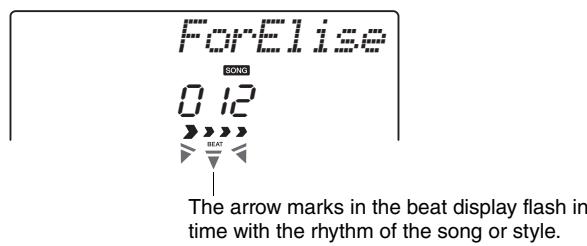
Indicates the current style or song beat with flashing arrows. (page 27)

Try Playing a Variety of Instrument Voices
In addition to piano, organ, and other "standard" keyboard instruments, this instrument has a large range of voices that includes guitar, bass, strings, sax, trumpet, drums and percussion, sound effects ... a wide variety of musical sounds.
Select and Play a Voice—MAIN
This procedure selects the main voice you will play on the keyboard.
The voice number and name will be displayed.
![YAMAHA NP-V80 - Press the [VOICE] button. - 1](/content/2025/01/115040/images/0df674b95c7c548f86deadd84d58e548a631747ea8f64a8b269f26a21b170baf.jpg)
2 Select the voice you want to play.
While watching the displayed voice name rotate the dial. The available voices will be selected and displayed in sequence. The voice selected here becomes the main voice.
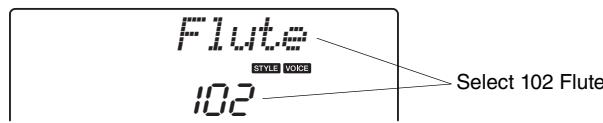
For this example select the "102 Flute" voice.
NOTE
- You can also select the voice using the CATEGORY [▲] and [▼] buttons after pressing the [VOICE] button. (page 14)
Preset Voice Types (NP-V80)
| 001–127 | Instrument Voices |
| 128–139 (Drum Kit) | Various drum and percussion sounds are assigned to individual keys, via which they can be played. Details on assigning instruments to keys are provided in the Drum Kit List of the separate Data List. |
Preset Voice Types (NP-V60)
| 001–116 | Instrument Voices |
| 117–128 (Drum Kit) | Various drum and percussion sounds are assigned to individual keys, via which they can be played. Details on assigning instruments to keys are provided in the Drum Kit List of the separate Data List. |
3 Play the keyboard.
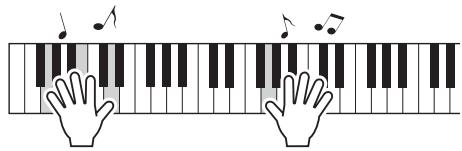
NOTE
Try selecting and playing a variety of voices.
Voice Settings (page 56)
Play the Grand Piano Voice
When you just want to play piano, all you have to do is press one convenient button.
Press the [GRAND PIANO] button.
The Grand Piano voice will be selected.
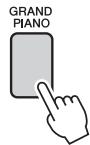
NOTE
- When you press the [GRAND PIANO] button all settings other than touch sensitivity are turned off. The dual and split voices will also be turned off, so only the Grand Piano voice will play over the entire keyboard.
Play Two Voices Simultaneously—DUAL
Once you press the [DUAL ON/OFF] button to turn the dual function on, a second voice will sound that will play in addition to the main voice when you play the keyboard. The second voice is known as the "dual" voice.
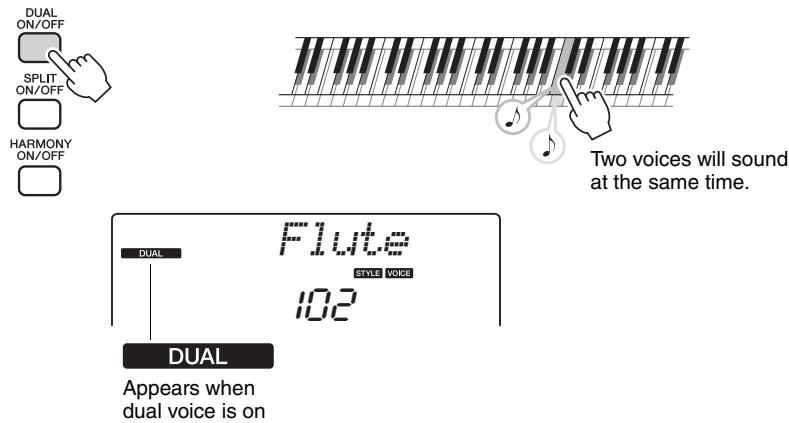
Press the button a second time to turn the dual voice function off. A suitable dual voice is automatically selected when you turn on this function, but you can easily select a different dual voice (page 57).
Play Different Voices with the Left and Right Hands—SPLIT
Once you press the [SPLIT ON/OFF] button to turn the split function on, you can play different voices to the left and right of the keyboard "split point". The main and dual voices can be played to the right of the split point, while the voice played to the left of the split point is known as the "split voice". The split point setting can be changed as required (page 65).
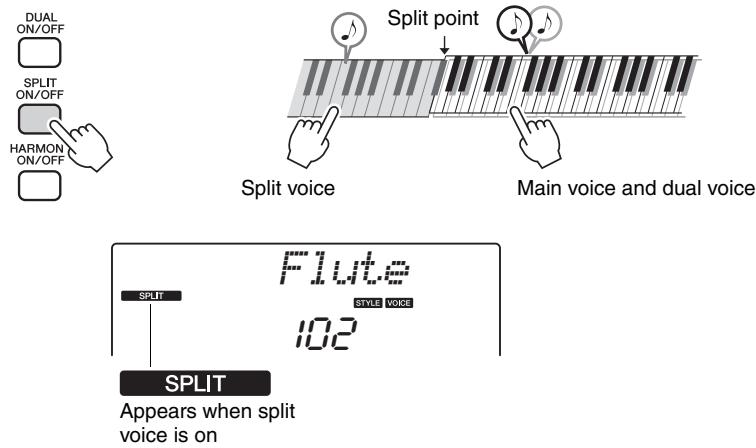
Press the button a second time to turn the split voice function off. A suitable split voice is automatically selected when you turn on this function, but you can easily select a different split voice (page 57).
Using the Metronome
The instrument features a built-in metronome (a device that keeps an accurate tempo) that is convenient for practicing.
Press the [METRONOME ON/OFF] button to start the metronome. To stop the metronome, press the [METRONOME ON/OFF] button again.

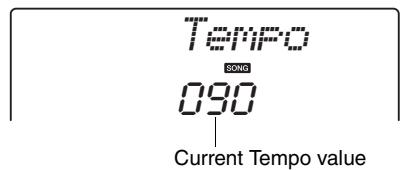
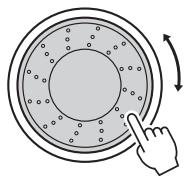
If you want to adjust the metronome tempo, press the [TEMPO/TAP] button to call up the Tempo setting in the display, then you can use the dial to set the tempo. You can also set the tempo using the number buttons on the front panel.
NOTE
- You can set the time signature (page 53).
You can set the time signature (page 53).
The arpeggio function lets you create arpeggios (broken chords) by simply playing the required notes on the keyboard. For example, you could play the notes of a triad—the root, third, and fifth—and the arpeggio function will automatically create a variety of interesting arpeggio-type phrases. By changing the arpeggio type and the notes you play it is possible to create a wide range of patterns and phrases that can be used for music production as well as performance.
Use the Arpeggio Function
The button lights when the Arpeggio function is on.
![YAMAHA NP-V80 - Press the [ARPEGGIO ON/OFF] button to turn the arpeggio function on. - 1](/content/2025/01/115040/images/e01a899766cd18faf85211496c1a89fb3319c2ebe17cb4cb4127a50e6ccfd887.jpg)
2 Play a note or notes on the keyboard to trigger Arpeggio playback.
The sound of the arpeggio produced will change according to the number of notes you play and the area of the keyboard you play in.
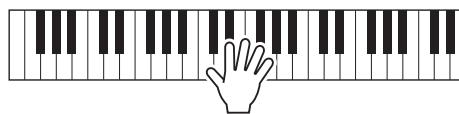
When the split function is on, the arpeggio applies to the split voice. The arpeggio applies to the main and dual voices when the split function is off. Arpeggios cannot be played using the split and main/dual voices simultaneously.
NOTE
- When an FC4 or FC5 footswitch is connected to the SUSTAIN jack is pressed, the Arpeggio will continue to play after the note is released (page 61).
Changing the Arpeggio type
The most suitable arpeggio type is automatically selected when you select a voice, but you can easily select any other arpeggio type.
"ARP Type" will appear in the display for a few seconds, then the name of the current arpeggio type will appear in the display.
![YAMAHA NP-V80 - Press and hold the [ARPEGGIO ON/OFF] button for longer than a second. - 1](/content/2025/01/115040/images/0eeeac6ab48a299bec91d91fddb40c91dfd22721d228158fe55336c75d78cde1.jpg)
![YAMAHA NP-V80 - Press and hold the [ARPEGGIO ON/OFF] button for longer than a second. - 2](/content/2025/01/115040/images/f91d9effac9534ae4dce2ce40b2dd46f3cd98153b4016d3e74ee2ccde89b5d5b.jpg)
2 Rotate the dial to select the desired arpeggio type.
A list of the available arpeggio types is provided in the Arpeggio List of the separate Data List.
You can save the instrument's settings at this point and then recall them at any time you want to repeat your performance (page 48). You can also record your performance (page 43). Please note that the arpeggio sound for the split voice cannot be recorded.
NOTE
- No arpeggio will sound if you turn the arpeggio function on while playing notes on the keyboard.
This instrument has an auto accompaniment feature that produces accompaniment (rhythm + bass + chords) in the style you choose to match chords you play with your left hand. You can select from 165 different styles on the NP-V80, or 160 different styles on the NP-V60.
In this section we'll learn how to use the auto accompaniment features.
Select a Style Rhythm
Most styles include a rhythm part. You can select from a wide variety of rhythmic types—rock, blues, Euro trance, and many, many more. Let's begin by listening to just the basic rhythm. The rhythm part is played using percussion instruments only.
The style number and name will appear in the display.
![YAMAHA NP-V80 - Press the [STYLE] button. - 1](/content/2025/01/115040/images/065d32279d62a6fdaa8ef0fa27e19493e3335df5e9b1f06fac20596d00d867f1.jpg)
2 Select a style.
Use the dial to select the style you want to use.
A list of all the available styles is provided in the Style List of the separate Data List.
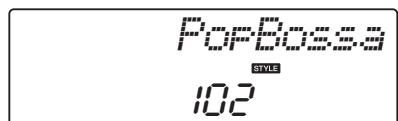
Press the [START/STOP] button a second time when you want to stop playback.
![YAMAHA NP-V80 - Press the [START/STOP] button. The style rhythm will start playing. - 1](/content/2025/01/115040/images/04232ed3f8fdb2f68bef499eb61ad6cd39c291d7490acaa7ec700c4a913c428a.jpg)
ACMP ON/OFF
![YAMAHA NP-V80 - Press the [START/STOP] button. The style rhythm will start playing. - 2](/content/2025/01/115040/images/2c8c05cd8039087f5912956b5a6aec84cefb4b50ff3bc6f41686fcc78e73c47d.jpg)
INTRO/ ENDING/rit.
![YAMAHA NP-V80 - Press the [START/STOP] button. The style rhythm will start playing. - 3](/content/2025/01/115040/images/13ee98de8ffe471d5a895dd48bc9f06da2d64d615e549c01458cd0fa62911357.jpg)
MAIN/ AUTO FILL
![YAMAHA NP-V80 - Press the [START/STOP] button. The style rhythm will start playing. - 4](/content/2025/01/115040/images/81d76dc68e0c5a918a0e50cc0b7ab9fbbd550fb3e37bd01b9b7938cb681c40f0.jpg)
SYNC STOP
![YAMAHA NP-V80 - Press the [START/STOP] button. The style rhythm will start playing. - 5](/content/2025/01/115040/images/417b474fe11b6b2b3bc44df0c96722ff71acd12bd9394655c93e3f5c2731f8bd.jpg)
SYNC START
![YAMAHA NP-V80 - Press the [START/STOP] button. The style rhythm will start playing. - 6](/content/2025/01/115040/images/64b3e8b74d054a30aa1f63e990355df619506b1ad4cde3290204789ac379c6d4.jpg)
START/ STOP
![YAMAHA NP-V80 - Press the [START/STOP] button. The style rhythm will start playing. - 7](/content/2025/01/115040/images/62f1436d7c23da9026a10a4c37bb3c8c81369dd989a14bbd789459c1c8befbe6.jpg)
STYLE
NOTE
- You can also use the style files provided on the supplied CD-ROM. Refer to page 81 for NP-V80 instructions, or page 67 for NP-V60 instructions.
NOTE
- The "Serenade" style in the Waltz category and all styles in the Pianist category styles have no rhythm part and therefore no rhythm will play if you use them for the above example. For these styles first turn auto accompaniment on as described on page 23, press the [START/STOP] button, and the accompaniment bass and chord parts will begin playing when you play a key to the left of the keyboard split point.
Play Along with a Style
You learned how to select a style rhythm on the preceding page.
Here we'll see how to add bass and chord accompaniment to the basic rhythm to produce a full, rich accompaniment that you can play along with.
For this example select the "153 PnoBoogi" style.
Pressing this button a second time will turn automatic accompani-ment off.
![YAMAHA NP-V80 - Turn automatic accompaniment on. Press the [ACMPON/OFF] button. - 1](/content/2025/01/115040/images/d1037d6e24620fb75014de81db62b7168c635b3094748e5150dce5859cbc65b3.jpg)
![YAMAHA NP-V80 - Turn automatic accompaniment on. Press the [ACMPON/OFF] button. - 2](/content/2025/01/115040/images/a5135ccf777956fbc3f8f2df9f60845937f88e6ccffe27dfa4264686037cd900.jpg)
This icon appears when automatic accompaniment is on.
When automatic accompaniment is on ...
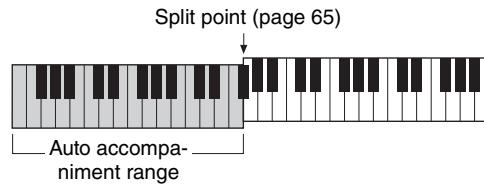
The area of the keyboard to the left of the split point (54 : F#2) becomes the "auto accompaniment range" and is used only for specifying the accompani-ment chords.
3 Turn sync start on. Press the SYNC START
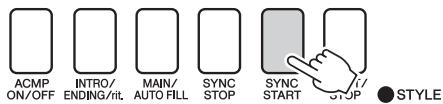
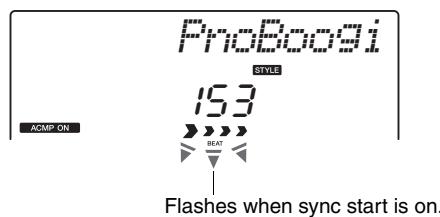
When sync start is on, the bass and chord accompaniment included in a style will start playing as soon as you play a note to left of the keyboard split point. Press the button a second time to turn the sync start function off.
4 Start playing. Style playbook will
Style playback will begin as soon as you play a chord in the accompaniment range of the keyboard. Try playing the chord progression shown below.

Chords (page 25)
- Looking Up Chords Using the Chord Dictionary (page 68)
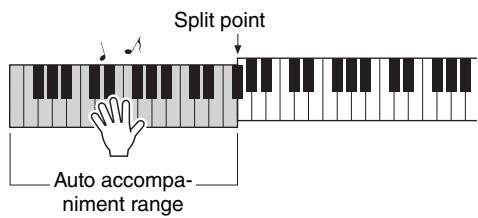
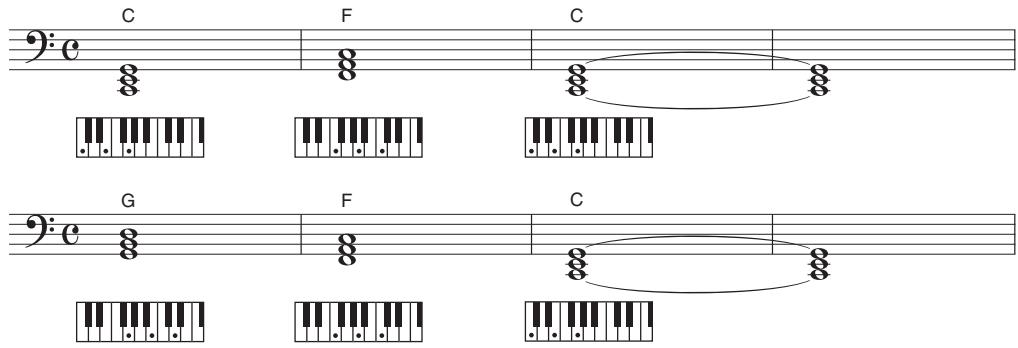
This is a simple-but-effective chord progression.
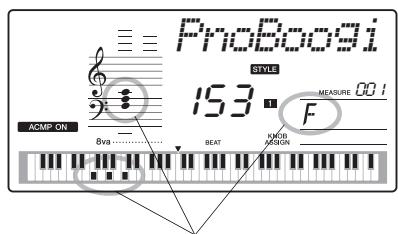
Indicates the chord currently being played in the accompaniment range of the keyboard.
5 Stop playing. Press the [STAP]
Press the [START/STOP] button to stop style playback when you're done.
![YAMAHA NP-V80 - Stop playing. Press the [STAP] - 1](/content/2025/01/115040/images/0144e4533dfa63864fca2fa7b50443b002478c97a6e07ecbea658358be577db7.jpg)
You can also stop playing by pressing the [INTRO/ENDING/rit.] button so that an appropriate ending pattern will play and then style playback will stop.
You can switch style "sections" to add variety to the accompaniment.
Refer to "Pattern Variation (Sections)" on page 62.
Chords
For users who are new to chords, this chart features common chords. Since there are many useful chords and many different ways to use them musically, refer to commercially available chord books for further details.
indicates the root note.
| Major | Minor | Seventh | Minor Seventh | Major Seventh |
| C | Cm | C7 | Cm7 | CM7 |
| ★ | ★ | ★ |
| D | Dm | D7 | Dm7 | DM7 |
| ★ | ★ | ★ |
| E | Em | E7 | Em7 | EM7 |
| ★ | ★ | ★ |
| F | Fm | F7 | Fm7 | FM7 |
| ★ | ★ | ★ |
| G | Gm | G7 | Gm7 | GM7 |
| ★ | ★ | ★ |
| A | Am | A7 | Am7 | AM7 |
| ★ | ★ | ★ |
| B | Bm | B7 | Bm7 | BM7 |
| ★ | ★ | ★ |
- Inversions can be used as well as in "root" position—with the following exceptions: m7, m7 5, 6, m6, sus4, aug, 7, 7 5, 6(9), sus2
- Inversion of the 7sus4 and m7(11) chords are not recognized if the notes are omitted.
- sus2 chords are indicated by the root name only.
Easy Chords
This method lets you easily play chords in the accompaniment range of the keyboard using only one, two, or three fingers.
For root "C"
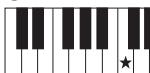
C
To play a major chord Press the root note () of the chord.
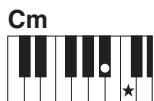
To play a minor chord Press the root note together with the nearest black key to the left of it.
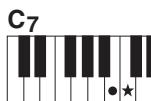
To play a seventh chord Press the root note together with the nearest white key to the left of it.
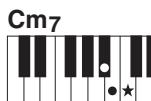
To play a minor seventh chord Press the root note together with the nearest white and black keys to the left of it (three keys altogether).
With this instrument the term "song" refers the data that makes up a piece of music. You can simply enjoy listening to the 30 internal songs, or use them with just about any of the many functions provided—the performance assistant technology feature, lessons, and more. The songs are organized by category.
In this section we'll learn how to select and play songs, and briefly describe the 30 songs provided.
Select and Listen to a Song
The song number and name will be displayed.
You can use the dial to select a different song.
![YAMAHA NP-V80 - Press the [SONG] button. The song number and name will be - 1](/content/2025/01/115040/images/cc450bf58bcd3a372644ecadb57549ba168b2f96449e3ebc097418980f2759dd.jpg)
![YAMAHA NP-V80 - Press the [SONG] button. The song number and name will be - 2](/content/2025/01/115040/images/f297e8f562eb80d025d69588762ee855f9fd0284bf1ddf9fdf1f76edd171e594.jpg)
The currently selected song and number are displayed
2 Select a song. Select a song after r
Select a song after referring to the Song List in the separate Data List.
Use the dial to select the song you want to listen to.
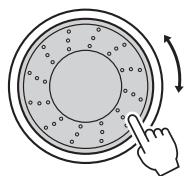
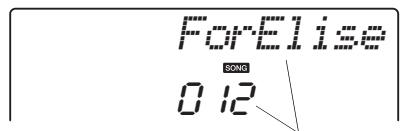
The song displayed here can be played
NOTE
- You can also play songs you have recorded yourself (User Songs) or songs that have been transferred to the instrument from a computer in the same way that you play the internal songs.
The songs are organized by category.
| Song No. | Category | Description |
| 001–003 | Main Demo | The songs in this category have been created to give you an idea of the advanced capabilities of this instrument. |
| 004–008 | Voice Demo | These songs features some of the instrument's many useful voices. |
| 009–011 | Function Demo | Use these songs to experience some of the instrument's advanced features: song number 9 for the easy song arranger, and songs 10 and 11 for the performance assistant technology feature. |
| 012–015 | Piano Solo | These piano solo pieces are ideally suited for use as lesson songs. |
| 016–020 | Piano Ensemble | A selection of piano ensemble songs that are also well suited for use as lesson songs. |
| 021–030 | Piano Accompaniment | When you need to practice backing (accompaniment) patterns, these are the songs to do it with. |
| 031–035 | User Song | Songs you record yourself. |
| 036– | Flash Memory | Songs stored on a USB flash memory plugged into the NP-V80, or songs transferred from a computer (pages 28, 87). |
3 Listen to the song. Press the [STAPT/STOP]
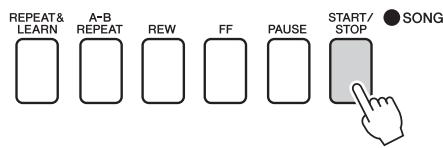
Press the [START/STOP] button to begin playback of the selected song.
You can stop playback at any time by pressing the [START/STOP] button again.
NOTE
Score data for the 30 internal songs are provided in the Songbook on the CD-ROM. The exceptions are songs 1-11 and 30. The scores for songs 9 to 11 are provided in the separate Data List.
Select and Play Songs on a USB Flash Memory (NP-V80 only)
MIDI songs stored on a USB flash memory connected to the instrument can be directly selected and played.
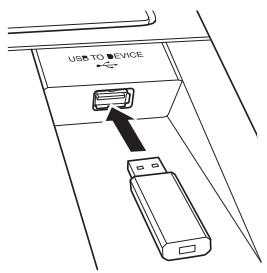
The procedure is exactly the same as that for selecting internal songs (page 26). Songs on a USB flash memory are numbered from 36 upward, so all you need to do is select song number 36 or higher.
NOTE
- Precautions when using the [USB TO DEVICE] terminal (page 77)
IMPORTANT
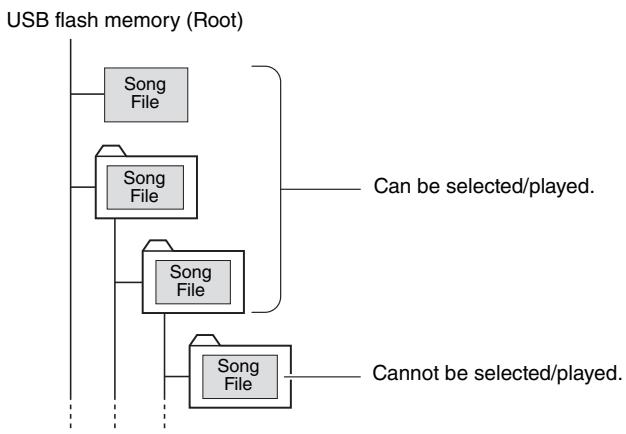
- In order to play data copied to a USB flash memory from a computer or other device, the data must be stored either in the USB flash memory's root directory or a first-level/second-level folder in the root directory. Data stored in third-level folders created inside a second-level folder cannot be selected and played by this instrument.
Song Title Display Language
File names containing Japanese katakana characters will be properly displayed if the instrument's display language is set to "Japanese". All display information other than file names will be displayed in English even if "Japanese" is selected. Kanji characters cannot be displayed. The display language can be set via the "Language" function (page 75).
Play Songs in Sequence
Press the [DEMO/BGM] button to play Songs 001-008 in sequence. Playback will repeat continuously, starting again from the first Song (001). You can stop playback at any time by pressing the [DEMO/BGM] button.
It is also possible to specify continuous playback of all internal songs, all songs transferred from a computer, or all MIDI songs on a USB flash memory connected to the instrument (page 69). This capability can be combined with the random playback function (page 69) for BGM type playback of any songs you like using the instrument's internal tone generator.
NOTE
- You can select a song by using the [+· ] button after pressing the [DEMO/BGM] button. The [-] button can be used to go back to the beginning of the selected song.
Song Fast Forward, Fast Reverse, and Pause
These are just like the transport controls on a cassette deck or CD player, letting you fast forward [FF], rewind [REW] and pause [PAUSE] playback of the song.
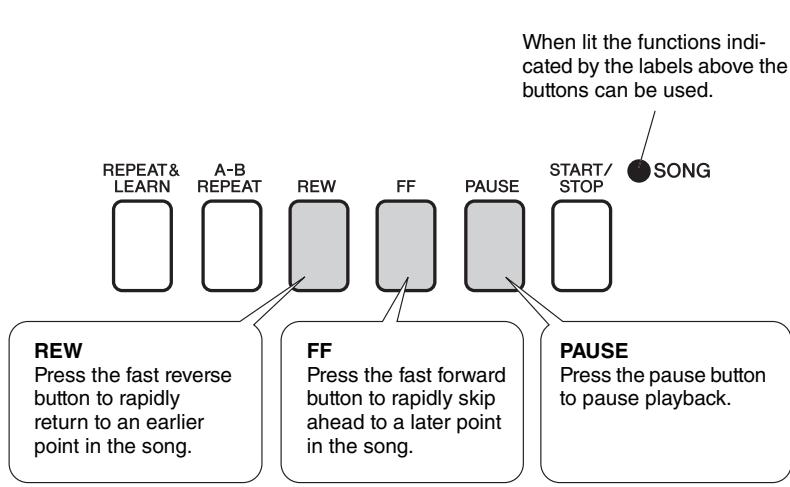
/NOTE
- When an A-B repeat range is specified the fast reverse and forward function will only work within that range.
Yamaha Education Suite
You can select song you like and use it for a left-hand, right-hand, or both-hands lesson. During the lesson you can play as slowly as you like, and you can even play wrong notes. Song playback will slow down to a speed you can handle. It's never too late to start learning!
The practice methods:
| Lesson 1—Waiting | → | Learn to play the correct notes. |
| Lesson 2—Your Tempo | → → | Learn to play the correct notes with the correct timing. |
| Lesson 3—Minus One | → → → | Learn to play the correct notes at the correct timing along with the song. |
Lesson 1—Waiting
In this lesson, try playing the correct notes. Play the note shown in the display. The song will wait until you play the right note.
1 Select a song for your lesson.
Select a song from the Piano Solo, Piano Ensemble category! For this example try selecting the "012 ForElise".
2 Turn off playback of the part you wish to practice.
The preset songs have separate left- and right-hand parts. The right-hand part is selected by the RIGHT button and the left-hand part is selected by the LEFT button. You can turn the left- and right-hand parts on or off as required in order to practice the corresponding part (the part that is turned off) on the keyboard. You can practice both parts when both the left- and right-parts are turned off.
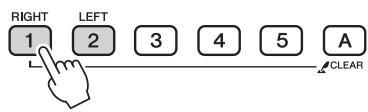
Pressing the part buttons toggles part playback on and off. Turn off playback of the part you wish to practice. When you press one of the buttons to turn playback off, the corresponding part indicator in the display turns off and playback of that part is muted.
(When you first select a song, both the "1" and "2" parts indicators will light, indicating that both parts are on.)
NOTE
Song numbers 10 and 11 are function demos for performance assistant. The lesson function cannot be used with them.
- You can also use songs (only SMF format 0) transferred from the computer and saved to flash memory. (pages 86-88)
- (NP-V80 only) You can also use songs (only SMF format 0) on a USB flash memory. (page 28)
NOTE
- You can turn parts on or off, even during playback.

3 Start Lesson 1.
Press the [Waiting] button to start Lesson 1.
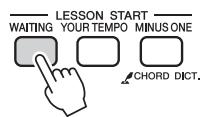
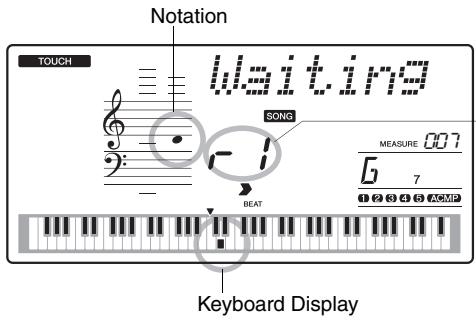
In this case "r I" indicate that right-hand lesson 1 has been selected.
Play the note shown in the display. When you play the correct note, the next note you need play is shown. The song will wait until you play the correct note.
4 Stop the Lesson mode.
You can stop the Lesson mode at any time by pressing the [START/STOP] button.
You can also stop the Lesson mode by pressing the [WAITING] button.
See How You've Done
Excellent.

Very Good

Good

OK

When the lesson song has played all the way through your performance will be evaluated in 4 levels: OK, Good, Very Good, or Excellent. "Excellent!" is the highest evaluation.
After the evaluation display has appeared, the lesson will start again from the beginning.
Once you've mastered Lesson 1, move on to Lesson 2.
NOTE
- The evaluation feature can be turned off via the FUNC-TION Grade item (page 75).
Lesson 2—Your Tempo
Learn to play the correct notes with the correct timing. Song playback tempo will vary to match the speed you are playing at. The song will slow down when you play wrong notes, so you can learn at your own pace.
1 Select the song and part you want to practice (steps 1 and 2 on page 30).
2 Start Lesson 2.
Press the [Your Tempo] button to start Lesson 2.
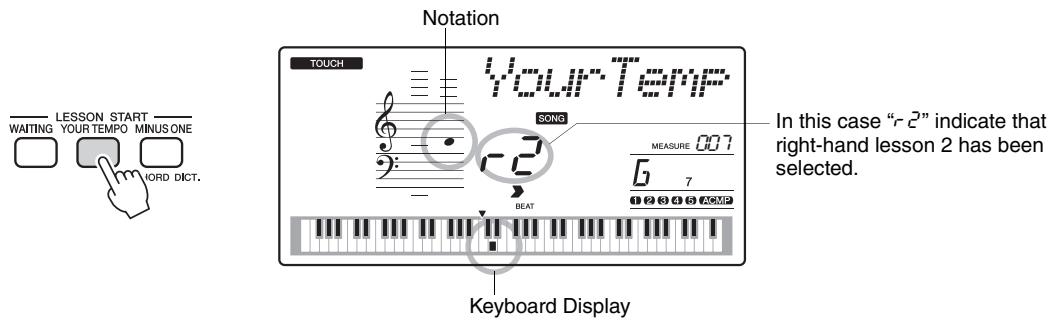
Play the note shown in the display. Try to play the notes at the correct timing. As you learn to play the right notes at the right timing the tempo will increase until eventually you'll be playing at the song's original tempo.
3 Stop the Lesson mode.
You can stop the Lesson mode at any time by pressing the [START/STOP] button.
You can also stop the Lesson mode by pressing the [YOUR TEMPO] button.
Once you've mastered Lesson 2, move on to Lesson 3.
Lesson 3—Minus One
Here's where you can perfect your technique.
The song will play at the normal tempo, minus the part you have chosen to play. Play along while listening to the song.
1 Select the song and part you want to practice (steps 1 and 2 on page 30).
2 Start Lesson 3.
Press the [Minus One] button to start Lesson 3.
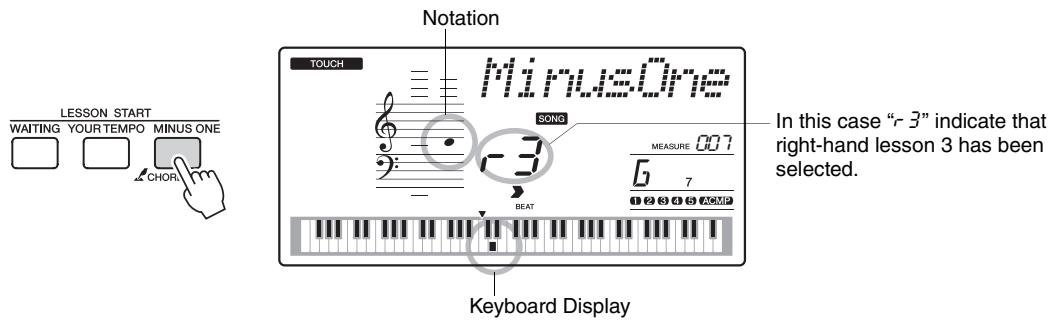
Play the note shown in the display.
3 Stop the Lesson mode.
You can stop the Lesson mode at any time by pressing the [START/STOP] button.
You can also stop the Lesson mode by pressing the [MINUS ONE] button.
Practice Makes Perfect—Repeat and Learn
Use this feature when you want to start again just ahead of a section on which you made a mistake, or to repeatedly practice a section you find difficult.
Press the [REPEAT&LEARN] button during a lesson.
The song location will move back four measures from the point at which you pressed the button, and playback will begin after a one-measure count-in. Playback will continue up to the point at which you pressed the [REPEAT&LEARN] button, and then jump back four measures and repeat again after a count-in. This process will repeat, so all you have to do is press the [REPEAT&LEARN] button when you make a mistake in order to repeat practice of that section until you get it right. Press the button again to return to the normal lesson mode.
NOTE
- You can change the number of measures the Repeat and learn function jumps back by pressing a number button [1]–[9] during repeat playback.
This instrument includes a performance assistant technology feature that lets you play along with a song and sound like a great pianist (even though you might be making lots of mistakes)! In fact, you can play any notes and still sound good!
So even if you can't play piano and can't read a note of music, you can have some musical fun. It's never too late to start learning!
Performance assistant technology offers two selectable types. Select the type that produces the best results for you.
- Chord............No matter where or what you play, the result will be musical, well-balanced sound. This type offers the greatest freedom, allowing you to play anything with both your left and right hands.
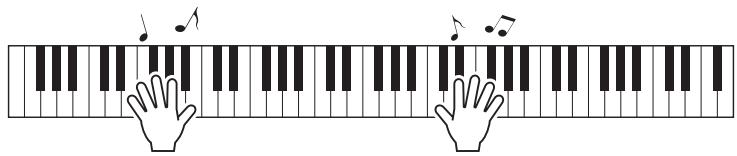
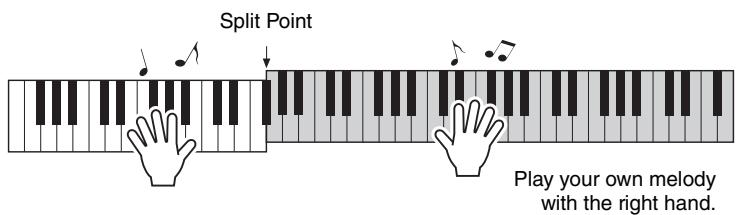
- Chord/Free............If you can play simple right-hand melodies but have trouble with left-hand chords, this is the type for you. The Chord type applies to only the left-hand section of the keyboard, allowing you to easily play chords to support the melody you are playing with your right hand.
CHORD Type—Play with Both Hands
Try out the performance assistant technology using the preset song "Ave Maria."
1 Select a song.
Press the [SONG] button, and the song number and name will be displayed. You can use the dial or other selection controls to select a different song.
For this example try selecting the "010 Ave Maria".

- Select and Listen to a Song (page 26)
The indicator lights when the performance assistant technology feature is on.
![YAMAHA NP-V80 - Press the [P.A.T. ON/OFF] button. - 1](/content/2025/01/115040/images/66dc358611300280708bb3eaf03683260d91b34e9375eed82dc904a3adf433f6.jpg)
3 Select the CHORD type.
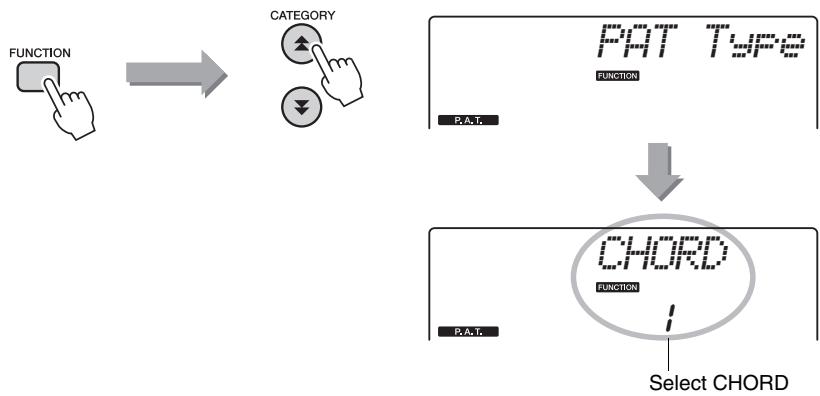
Press the [FUNCTION] button, then press the CATEGORY [▲] and [▼] buttons as many times as necessary to select the performance assistant technology item "PAT Type". "PAT Type" will appear in the display for a few seconds, then the currently selected performance assistant technology type will be displayed. Select the Chord type by using the dial.
![YAMAHA NP-V80 - Press the [START/STOP] button. - 1](/content/2025/01/115040/images/3b2cd547b78de5475411a2a97a42caea994548977e4892168d1d3da5bdda9406.jpg)
Song playback will begin.
The basic pattern will repeat. Listen to four measures while memorizing the basic pattern. It's your turn to play the part from the fifth measure.
5 Play on the keyboard.
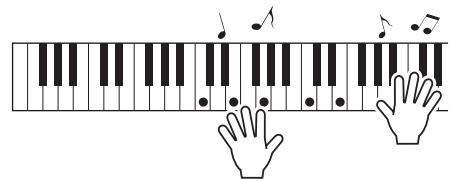
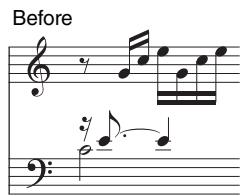
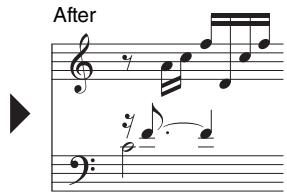
Play the score on the left along with the accompaniment using both hands. You can even play the same keys over and over: C, E, G, C, E, G, C, E. Performance assistant technology will make sure that the notes will come out as if they were played according to the score on the right. Keep playing, and performance assistant technology will continue to "correct" the notes that you play.
You can stop song playback at any time by pressing the [START/STOP] button.
NOTE
- The score for Ave Maria is provided in the separate Data List.
CHD/FREE Type—Applying the Chord Type to the Left Hand Only
Next try playing the Chopin Nocturne.
1 Select the song "011 Nocturne".
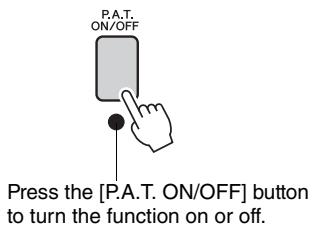
2 Press the [P.A.T. ON/OFF] button to turn the performance assistant technology feature on.
The indicator lights when the performance assistant technology feature is on.
3 Select the CHD/FREE type.
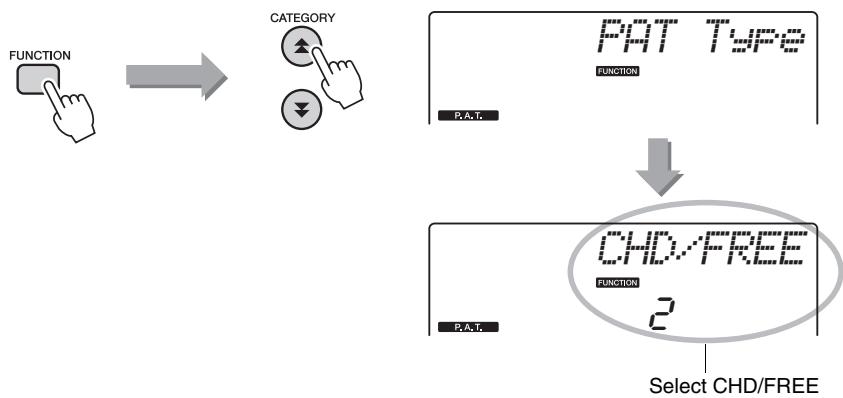
Press the [FUNCTION] button, then press the CATEGORY [▲] and [▼] buttons as many times as necessary to select the performance assistant technology item "PAT Type". "PAT Type" appears in the display for a few seconds, then the currently selected performance assistant technology type will be displayed. Select the CHD/FREE type by using the dial.
Song playback will begin. Listen to eight measures, then begin playing from the ninth measure.
![YAMAHA NP-V80 - Press the [START/STOP] button. - 1](/content/2025/01/115040/images/60832d84c7d89eb688e6461d7c934eb60efe16d093946cb1ca889eae2e3772d3.jpg)
5 Play on the keyboard.
Play the keys shown in the illustration. Keep playing F, A and C with your left hand and the correct notes will sound as the song proceeds. When you get used to playing the left hand part, refer to step 2 on the next page and try adding the right-hand part.
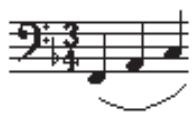
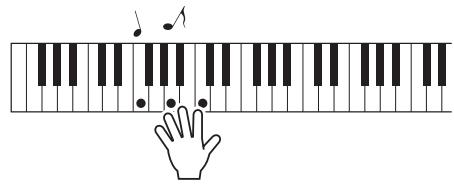
NOTE
The score for Nocturne is provided in the separate Data List.
Next try playing a different preset song.
The procedure is the same as steps 1-3 for playing Ave Maria (page 35). Select any song.
To use the performance assistant technology feature it is necessary to play a song that includes chord data.
Select a song that includes chord data, referring to the Song List in the separate Data List.
NOTE
Songs transferred to the instrument from a computer can also be used with the performance assistant technology as long as they include the required chord data. If a song includes the required data, the chords are shown on the right side of the display.
To begin, try to feel the rhythm of the song. Then, with your hands spread as shown in the illustration, simply play the keyboard alternately with your left and right hands (any notes will do).
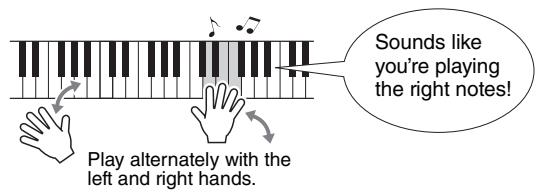
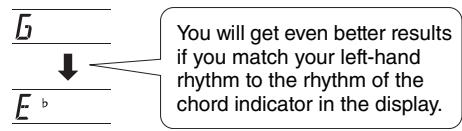
How does it sound? You'll get acceptable results no matter where you play thanks to performance assistant technology!
Next try the three playing methods illustrated below. Different ways of playing produce different results.
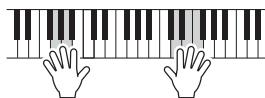
Play with the left and right hands at the same timing—type 1.
Play 3 notes at once with your right hand.
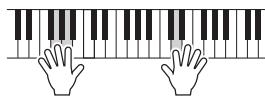
Play with the left and right hands at the same timing—type 2.
Play 1 note at a time with your right hand (for example: index finger middle finger ring finger).
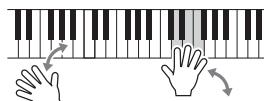
Play alternately with the left and right hands—type 3.
Play 3 notes at once with your right hand.
Once you get a feel for it, try playing chords with your left hand and a melody with your right ... or any other combination.
You want to play music in your favorite style, but you're not sure how to select the best voice and style for the type of music you want to play ... simply select the appropriate style from the Music Database. The panel settings will automatically be adjusted for the ideal combination of sounds and style!
![YAMAHA NP-V80 - Press the [MUSIC DATABASE] button. - 1](/content/2025/01/115040/images/368c7132d9667890fe061081027aec24648f8c6843c2d684c2aecb2a71b9d659.jpg)
![YAMAHA NP-V80 - Press the [MUSIC DATABASE] button. - 2](/content/2025/01/115040/images/a216a434f4661b8e85ae3f164956a2819909baeb6a766faed35a108b05fd8f20.jpg)
A Music Database name will appear in the display.
2 Select a Music Database.
Referring to the Music Database List in the separate Data List, use the dial to select a music database. Select one that matches the image of the song you intend to play.
For this example select the "162 Patrol".
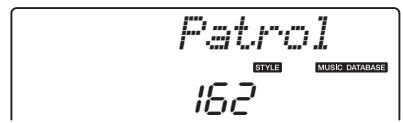
3 Play the chords with your left hand and melody with your right.
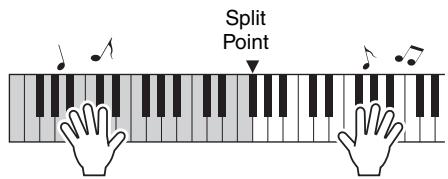
The jazz style will start playing when you play a left-hand chord to the left of the split point. Refer to page 25 for information about playing chords.
Press the [START/STOP] button to stop playback.
In addition to each song's default style, you can select any other style to play the song with the Easy Song Arranger feature. This means that you can play a song that is normally a ballad, for example, as a bossa nova, as a hip-hop tune, etc. You can create totally different arrangements by changing the style with which a song is played. You can also change the song's melody voice and the keyboard voice for a complete change of image.
Listen to the DEMO Song for Easy Song Arranger
The "Hallelujah Chorus" in the preset songs lets you experience the Easy Song Arranger. Playing it.
Press the [SONG] button, then select a "009 Hallelujah Chorus" by using the dial. Press the [START/STOP] button to play it.

As the song progresses, you will see only the style changes while the song remains the same.
Keep in mind that you can enjoy using Easy Song Arranger with other songs as well—any songs that include chord data.
NOTE
The score for "Hallelujah Chorus" is provided in the separate Data List.
Using the Easy Song Arranger
Try switching styles while the song plays back.
The indicator lights when the Easy Song Arranger function is on.
![YAMAHA NP-V80 - Press the [EASY SONG ARRANGER] button. - 1](/content/2025/01/115040/images/5c5ba86b64440991dfaa2f37e37b9af7d8284040146878f74ba870c37eb2cbec.jpg)
2 Select a Song.
Press the [SONG] button, then select the song you want to arrange. Select the songs that include the required chord data referring to the Song List in the separate Data List.
3 Listen to the song.
Press the [START/STOP] button to begin playback of the song. Move on to the next step while the song is playing.
NOTE
- When playing song numbers 010 and 021 to 030 while using the Easy Song Arranger, melody tracks will be automatically muted and no melody will sound. In order to hear the melody tracks you will need to press the track buttons [3] to [5].
4 Select a style.
Press the [STYLE] button and then rotate the dial to hear how the song sounds with different styles. As you select different styles the song will remain the same while only the styles change.
You can also press the [MAIN/AUTO FILL] button to change the style's main section.
Changing the Melody Voice
You can change the song's melody voice while the Easy Song Arranger is on.
Press the [VOICE] button once to display the name of the current melody voice. Use the dial to select a different voice, then press and hold the [VOICE] button for longer than a second. "SONG MELODY VOICE" will appear in the display for a few seconds, indicating that the newly selected voice has replaced the song's original melody voice.
NOTE
-
Because the Easy Song Arranger uses song data you can't specify chords by playing in the accompaniment range of the keyboard. The [ACMP ON/OFF] button will not function.
-
If the time signature of the song and style are different, the time signature of the song will be used.
If the song or style is being played back, first stop the playback, then turn the Easy Song Arranger function off.
The indicator will go out.
You can record up to 5 of your own performances and save them as user songs 031 through 035. The recorded song can be played back on the instrument.
Recording
![YAMAHA NP-V80 - Press the [REC] button. - 1](/content/2025/01/115040/images/6d09cc05bee0abe647598621c96aec06dfb5460b3e56bdc2ea0a891d6b2fbfc2.jpg)
NOTICE
- If all User Songs (Song numbers 031-035) contain recorded data, Song 031 will automatically be selected. In this case, you will record over and erase any previous data in Song 031, so be careful that you won't be erasing any material you want to keep!
NOTE
- Accompaniment cannot be turned on or off once the [REC] button is pressed.
You can turn off the Record mode by pressing the [REC] button again (Track 1 stop flashing).
2 Start recording.
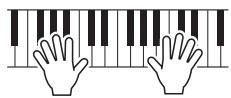
When you play the keyboard, recording will begin.
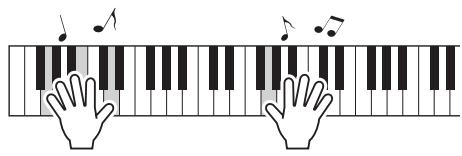
NOTE
- After you've selected the desired User Song for recording, you can select a Style to be recorded as well. To do this, press the [STYLE] button and select the Style number while the ACPI indication is on.
3 Stop recording.
Pressing the [START/STOP] button stops recording and writes the data to the User Song. (A "Writing!" message is shown.)
To playback the newly recorded performance, press the [START/STOP] button.
NOTICE
- Never attempt to turn the power off when a "Writing!" message is shown in the display. Doing so can damage the flash memory and result in a loss of data.
Recording to a specified track
Recordable Data
You can record up to a total of 6 tracks: 5 melody tracks and 1 style (chord) track. Each track can be recorded individually.
- Melody Track [1]–[5]. Record the melody parts.
- Style Track [A].......Records the chord part.
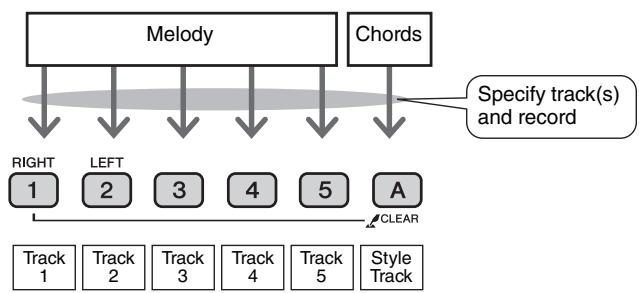
Track Mute
This instrument allows you to choose whether recorded tracks will play back while you are recording or playing back other tracks (page 71).
![YAMAHA NP-V80 - Press the [SONG] button, then use the dial to select the user song number (031-035) you want to record to. - 1](/content/2025/01/115040/images/1a22388e7d8e48ed528cf2bbad34398ed57ea15dc72281373806f99b2fe08d4f.jpg)
2 Select the track(s) you want to record to and confirm your selection on the display.
Record a Melody Track and the Accompaniment Track Together Press the melody track button [1]–[5] you want to record to while holding the [REC] button.
Next, press the [A] button while holding the [REC] button. The selected tracks will flash in the display.
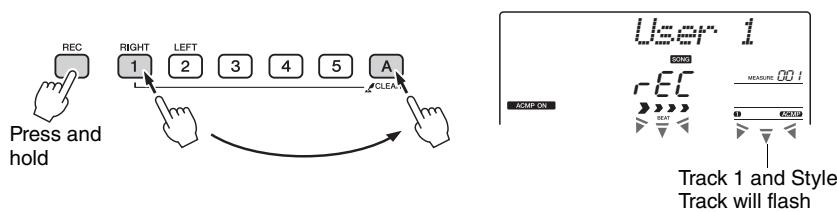
NOTE
- Up to approximately 10,000 notes can be recorded for the five user songs if you record only to the melody tracks. Up to approximately 5,500 chord changes can be recorded for the five user songs if you record only to the style track.
NOTICE
- If you record to a track that contains previously-recorded data the previous data will be overwritten and lost.
NOTE
- Style accompaniment is automatically turned on when you select the style track [A] for recording.
- Style accompaniment cannot turned on or off while recording is in progress.
Record a Melody track
Press the melody track button [1]–[5] you want to record to while holding the [REC] button.
The selected track will flash in the display.
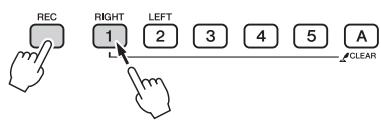
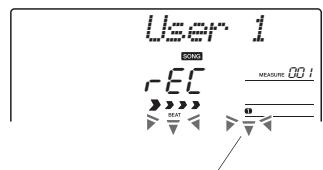
Track 1 will flash
NOTE
- If style accompaniment is on and track [A] has not yet been recorded, the style track [A] will automatically be selected for recording when a melody track is selected. If you only want to record a melody track, be sure to turn the style track [A] off.
To cancel recording to a selected track, press that track button a second time.
3 Recording will start when you play on the keyboard.
You can also start recording by pressing the [START/STOP] button. The current measure will be shown on the display during recording.

Recording starts
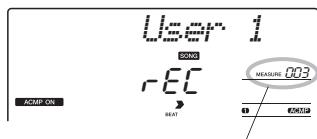
Current measure
![YAMAHA NP-V80 - Stop recording by pressing the [START/STOP] or [REC] button. - 1](/content/2025/01/115040/images/57744fd5aa5cd8f795c57537d6ac846d40e35a82a7714a720d85a6e05d6b03ff.jpg)
or
![YAMAHA NP-V80 - Stop recording by pressing the [START/STOP] or [REC] button. - 2](/content/2025/01/115040/images/5601fc2bee19127489ea8d17a821313720f9b21b85cee7d1653b4ddd1744fe93.jpg)
When recording stops the current measure number will return to 001 and the recorded track numbers in the display will light.
NOTE
- If the memory becomes full during recording a warning message will appear and recording will stop automatically. Use the song clear or track clear (page 47) function to delete unwanted data and make more room available for recording, then do the recording again.
NOTE
- If you want to record only the rhythm (percussion) part, press the [START/STOP] button to play just the rhythm, then add the section change by pressing the [INTO/ENDING/rit.] button or [MAIN/AUTO FILL] button.
To Record Other Tracks
Repeat steps 2 through 4 to record any of the remaining tracks. By selecting an unrecorded track—track buttons [1]–[5], [A]—you can record the new track while listening to previously recorded tracks (the playback tracks will appear in the display). You can also mute previously recorded tracks (the muted tracks will not appear in the display) while recording new tracks.
To Re-record a Track
Simple select the track you want to re-record for recording in the normal way.
The new material will overwrite the previous data.
5 When the recording is done ...
To playback the newly recorded performance, press the [START/STOP] button.
To Play Back a User Song
User songs are played back in the same way as regular songs (page 26).
1 Press the [SONG] button.
2 The current song number/name will be displayed—use the dial to select the user song (031-035) you want to play.
3 Press the [START/STOP] button to start playback.
Data Recording Limitations
- The split voice cannot be recorded.
- The following data are recorded at the beginning of the track. Changes made during the song will not be recorded. reverb type, chorus type, time signature, style number, style volume, tempo
Song Clear—Deleting User Songs
This function clears an entire user song (all tracks).
Press the [SONG] button, then select the user song (031-035) you want to clear.
2 Press and hold the track [1] button for longer than a second while holding the track [A] button.
A confirmation message will appear on the display.
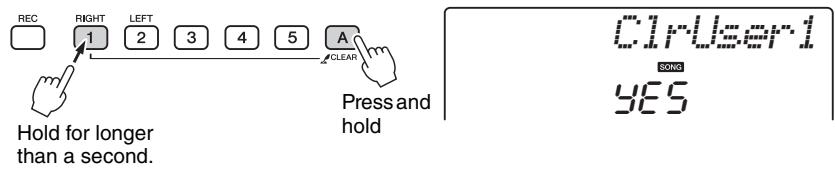
Press the [+ / YES] button.
A confirmation message will appear on the display.
You can cancel the clear operation by pressing the [-/NO] button.
4 Press the [+ / YES] button to clear the song.
The clear-in-progress message will appear briefly on the display while the song is being cleared.
Track Clear—Deleting a Specified Track from a User Song
This function lets you delete a specified track from a user song.
Press the [SONG] button, then select the user song (031-035) you want to clear.
2 Press and hold the track button ([1]–[5], [A]) corresponding to the track you want to clear for longer than a second.
A confirmation message will appear on the display.
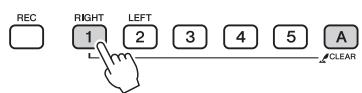
Hold for longer than a second.
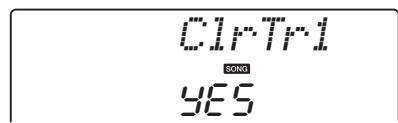
3 Press the [+ / YES] button.
A confirmation message will appear on the display.
You can cancel the clear operation by pressing the [-/NO] button.
4 Press the [+ / YES] button to clear the track.
The clear-in-progress message will appear briefly on the display while the track is being cleared.
NOTE
- If you only want to clear a specific track from a user song use the Track Clear function.
Memorize Your Favorite Panel Settings
This instrument has a Registration Memory feature that lets you save your favorite settings for easy recall whenever they're needed. Up to 32 complete setups can be saved (8 banks of four setups each).
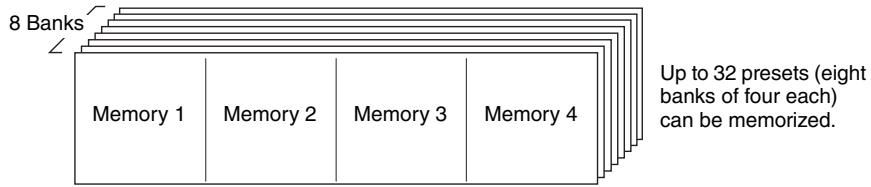
Saving to the Registration Memory
1 Set the panel controls as required—select a voice, accompaniment style, etc.
2 Press the [MEMORY/BANK] button. A bank number will appear in the display when you release the button.
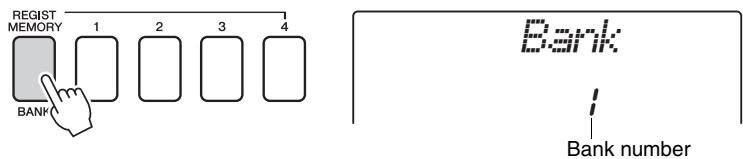
3 Use the dial or the [1]–[8] number buttons to select a bank number from 1 to 8.
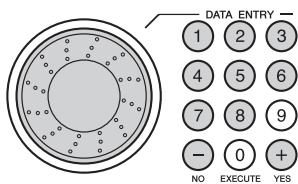
NOTE
- Data cannot be saved to the registration memory during song playback.
4 Press one of the REGIST MEMORY buttons [1] to [4] while holding the [MEMORY/BANK] button to store the current panel settings to the specified registration memory.
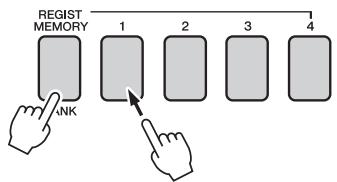
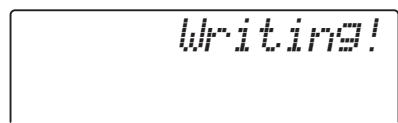
NOTICE
- If you select a Registration Memory number that already contains data, the previous data is deleted and overwritten by the new data.
NOTICE
- Do not turn off the power while saving settings to the registration memory, otherwise the data may be damaged or lost.
Recalling a Registration Memory
Press the [MEMORY/BANK] button. A bank number will appear in the display when you release the button.
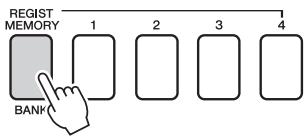
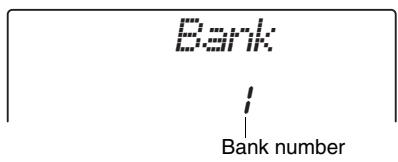
2 Use the dial or the [1]-[8] number buttons to select bank you want to recall.
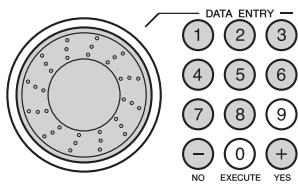
3 Press one of the REGIST MEMORY buttons [1] to [4] containing the settings you want to recall. The recalled REGIST MEMORY number appears in the display for a few seconds. The panel controls will be instantly set accordingly.
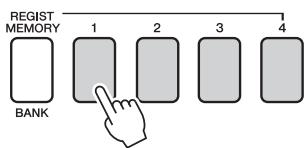
Settings That Can be Saved to the Registration Memory
Style settings*
Style number, Auto Accompaniment ON/OFF, Split Point, Style settings (Main A/B), Style Volume, Tempo
Voice settings
Main Voice setting (Voice number, Volume, Octave, Pan, Reverb Send Level, Chorus Send Level),
Dual Voice settings (Dual ON/OFF, Voice number, Volume, Octave, Pan, Reverb Send Level, Chorus Send Level,
Split Voice settings (Split ON/OFF, Voice number, Volume, Octave, Pan, Reverb Send Level, Chorus Send Level)
Effect settings
Reverb Type, Chorus Type, Panel Sustain
Arpeggio settings (NP-V80 only)
Arpeggio Type, Arpeggio ON/OFF, Arpeggio Quantize, Arpeggio Volume, Arpeggio Pedal
Harmony settings
Harmony ON/OFF, Harmony Type, Harmony Volume
Other settings
Transpose, Pitch Bend Range
- Style settings are not available for Registration Memory when using the Song features.
Backup
The following settings are always backed up, and are maintained even when the power is turned off. If you want to initialize the settings, use the Initialize operation "Backup Clear" as explained below.
The Backup Parameters
- User Songs
- Style Number 166(NP-V80), Style Number 161(NP-V60)
- Touch Response on/off
- Registration Memory
- FUNCTION Settings: Tuning, Split Point, Touch Sensitivity, Style Volume, Song Volume, Metronome Volume, Grade, Demo Group, Demo Play, Demo Cancel, Master EQ type
NOTE
- You can save the settings as backup data to your computer, by using the Musicsoft Downloader (MSD) software. Refer to the section "Transfer a backup file from the instrument to a computer" on page 88.
Initialization
This function erases all backup data in the instrument's flash memory and restores the initial default settings. The following initialization procedures are provided.
Backup Clear
To clear data backed up to the internal flash memory turn the power on by pressing the [O] (Standby/On) switch while holding the highest white key on the keyboard. The backed up data will be erased and the default values restored.
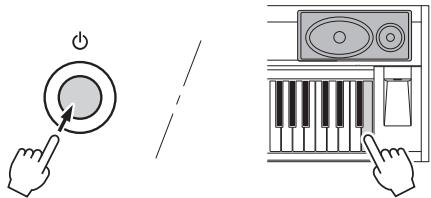
"Backup Clear" does not delete the files transferred from the computer. If you want to delete the files, see "Deleting Files" below.
Deleting Files
To clear song and style files that have been transferred to the internal flash memory from a computer, turn the power on by pressing the switch while simultaneously holding the highest white key on the keyboard and the three highest black keys.
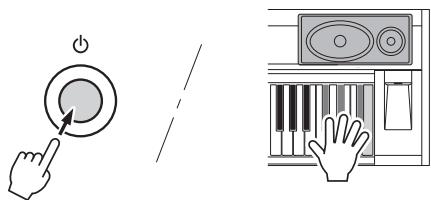
NOTICE
- When you execute the Flash Clear operation, data you have purchased will also be cleared. Be sure to save data you want to keep to a computer.
Adding Reverb
Reverb lets you play with a rich concert hall type ambience. When you select a style or song the optimum reverb type for the voice used is automatically selected. If you want to select a different reverb type, use the procedure described below.
![YAMAHA NP-V80 - Press the [FUNCTION] button. - 1](/content/2025/01/115040/images/70e7b2aedda178ddfda35a77bf8a573bd9790123d2e2b1dd97fbf7d775833c85.jpg)
"Reverb" will appear in the display for a few seconds, and the currently selected reverb type will be displayed.
![YAMAHA NP-V80 - Use the CATEGORY [A] and [▼] buttons to select "Reverb". - 1](/content/2025/01/115040/images/28731b04cede8dd7421f9fdbad0041b3be2170a90d41df12ae0ee2b159c679df.jpg)
3 Use the dial to select a reverb type.
You can check how the selected reverb type sounds by playing on the keyboard. Refer to the Effect Type List in the separate Data List for information about the available reverb types.
Adjusting the Reverb Send Level
You can individually adjust the amount of reverb that is applied to the main, dual, and split voices. (See page 74).
Adding Chorus
The chorus effect creates a thick sound that is similar to many of the same voices being played in unison. When you select a style or song the optimum chorus type for the voice used is automatically selected. If you want to select a different chorus type, use the procedure described below.
![YAMAHA NP-V80 - Press the [FUNCTION] button. - 1](/content/2025/01/115040/images/eeb15c6bc0c8956861a7f25310a25aede7820882b4e6e69281abf8ba5499ab4a.jpg)
"Chorus" will appear in the display for a few seconds, and the currently selected chorus type will be displayed.
![YAMAHA NP-V80 - Use the CATEGORY [A] and [Y] buttons to select "Chorus" - 1](/content/2025/01/115040/images/3dae8720b018105ab54ac58d4a0081fab9de23dcd271bb6ada47ebee7d36c952.jpg)
3 Use the dial to select a chorus type.
You can check how the selected chorus type sounds by playing on the keyboard. Refer to the Effect Type List in the separate Data List for information about the available chorus types.
Adjusting the Chorus Send Level
You can individually adjust the amount of chorus that is applied to the main, dual, and split voices. (See page 74).
Panel Sustain
This function adds sustain to the keyboard voices. Use it when you want to add sustain to the voices at all times, regardless of footswitch operation. The sustain function does not affect split voice.
![YAMAHA NP-V80 - Press the [FUNCTION] button. - 1](/content/2025/01/115040/images/4c3889268a0bc0bda2b5d3661a156678432aa11fa6777f2565c6f022d26a4342.jpg)
The current setting is displayed.
![YAMAHA NP-V80 - Use the CATEGORY [A] and [V] buttons to select "Sustain". - 1](/content/2025/01/115040/images/65787ab3ae7cbb0735e4fb1e96d77941b9e1c717ce59ca20ff658bc7369666e3.jpg)
3 Use the dial to turn panel sustain on or off.
Panel Sustain will be added to the notes you play on the keyboard when the Panel Sustain is on. To turn it off, select "oFF".
NOTE
- The sustain of some voices may not be markedly affected when the panel sustain function is turned on.
Pitch Controls (Transpose)
The overall pitch of the instrument can by shifted up or down by a maximum of 1 octave in semitone increments.
![YAMAHA NP-V80 - Press the [FUNCTION] button. - 1](/content/2025/01/115040/images/e9542b9ed5c90d55138b66ebc4254ea359095fcd5ef45c70afaaea2403a124b8.jpg)
![YAMAHA NP-V80 - Use the CATEGORY [A] and [▼] buttons to select the Transpose item. - 1](/content/2025/01/115040/images/aaffe947a05613deff430fe6b2aacb4a07f5e54c57c42fd5fbb53e23755ff3bf.jpg)
3 Use the dial to set the transpose value between -12 and +12 as required.
NOTE
- The pitch of Drum Kits voices cannot be changed.
Pitch Controls (Tuning)
The overall tuning of the instrument can by shifted up or down by a maximum of 100 cents in 1-cent increments (100 cents = 1 semitone).
Press the [FUNCTION] button.
2 Use the CATEGORY [A] and [▼] buttons to select the Tuning item.
Tuning
FUNCTION
000
3 Use the dial to set the tuning value between -100 and +100 as required.
NOTE
- The pitch of Drum Kits voices cannot be changed.
Setting the Metronome Time Signature
In this example we'll set up a 5/8 time signature.
Press and hold the [METRONOME ON/OFF] button for longer than a second to select the number of beats per measure function "TimesigN".
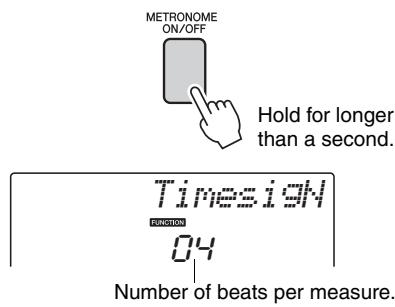
2 Use the dial to select the number of beats per measure.
A chime will sound on the first beat of each measure while the other beats will click. All beats will simply click with no chime at the beginning of each measure if you set this parameter to "00". The available range is from 0 through 60. Select 5 for this example.
NOTE
- The metronome time signature will synchronize to a style or song that is playing, so these parameters cannot be changed while a style or song is playing.
3 Press the CATEGORY [A] and [Y] buttons as many times as necessary to select the beat length function "TimesigD".
The currently selected beat length will be displayed.
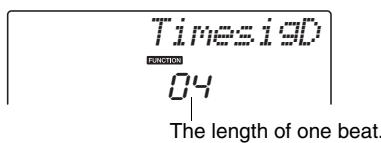
4 Use the dial to select the beat length.
Select the required length for each beat: 2, 4, 8, or 16 (half note, quarter note, eighth note, or 16th note). Select 8 for this example.
Adjusting the Metronome Volume
![YAMAHA NP-V80 - Press the [FUNCTION] button. - 1](/content/2025/01/115040/images/cda7c054fe7abc99a88e4e1adf8c419f527a8c4886420abccdba875585f81f46.jpg)
![YAMAHA NP-V80 - Use the CATEGORY [A] and [Y] buttons to select the Metronome Volume item. - 1](/content/2025/01/115040/images/57756653d9839f3ab24a8abbab9a841e61e053ac3841bd1555d908bdc53bca8c.jpg)
![YAMAHA NP-V80 - Use the CATEGORY [A] and [Y] buttons to select the Metronome Volume item. - 2](/content/2025/01/115040/images/cc53d489983aae17ad6c3755ff4e2baf0dc7883f10130af0520018274185a951.jpg)
3 Use the dial to set the metronome volume as required.
Pitch Bend
The pitch bend wheel can be used to add smooth pitch variations to notes you play on the keyboard. Roll the wheel upward to raise the pitch, or downward to lower the pitch. You can change the amount of pitch bend produced by the wheel, as described on page 74.
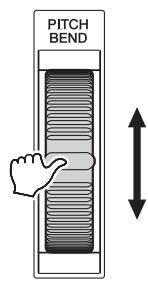
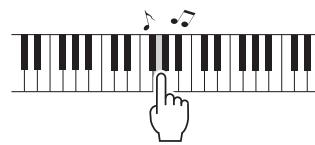
One Touch Setting
Sometimes selecting the ideal voice to play with a song or style can be confusing. The One Touch Setting feature automatically selects a well-balanced voice for you when you select a style or song. Simply select voice number "000" to activate this feature.
Select an EQ Setting for the Best Sound
Five different master equalizer (EQ) settings are provided to give you the best possible sound when listening through different reproduction systems—the instrument's internal speakers, headphones, or an external speaker system.
The currently selected function will appear in the display.
![YAMAHA NP-V80 - Press the [FUNCTION] button. - 1](/content/2025/01/115040/images/28b1758fb0cf9a880df7b5030a92fcd8f87f8b60c7795ca9e2f6dc93503c000e.jpg)
"MasterEQ" will appear in the display for a few seconds, then the currently selected EQ type will be displayed.
![YAMAHA NP-V80 - Press the CATEGORY [A] and [Y] buttons as many times as necessary to select the master EQ type function "MasterEQ". - 1](/content/2025/01/115040/images/76c1bdcc32ce1f786d93e11c7206ba1cd2c6a946653b1eb4a480771e6594c56e.jpg)
3 Use the dial to select the desired Master EQ setting.
Five settings are available: 1-5. Settings 1 and 2 are best for listening via the instrument's built-in speakers, setting 3 is for headphones, and settings 4 and 5 are ideal for listening via external speakers.
Auto Power Off Setup
The Auto Power Off function automatically turns the instrument's power off if it is not operated for a specified period of time. The amount of time that will elapse before the power is automatically turned off can be set from 5 to 30 minutes, in 5-minute increments.
1 Turn the power off, then press and hold the [O](Standby/On) switch until "AutoOff" appears on the display.
 switch until "AutoOff" appears on the display. - 1](/content/2025/01/115040/images/03757edae6936027574a990916a1129fd276056c5c03e1c48a7e21ef9dfdf590.jpg)
 switch until "AutoOff" appears on the display. - 2](/content/2025/01/115040/images/f4fb1e01dad2a11926d9ac07fe5362b80e530425d674d9fa737a2ed5200a3959.jpg)
2 Use the dial to select the desired Auto Power Off interval (05-30). Select "Off" if you want to disable the Auto Power Off function.
Voice Editing
Create original voices by editing the many available voice parameters. By editing the various parameters available you can create new voices that best suit your musical needs.
The currently selected function will appear in the display.
![YAMAHA NP-V80 - Press the [FUNCTION] button. - 1](/content/2025/01/115040/images/09342660d9eb9260563cec0be62019daf9a54fcac316eea01ff67b70eb35c848.jpg)
You can individually adjust the voice setting (Volume, Octave, Pan, Reverb Level, Chorus Level) that is applied to the main, dual, and split voices. Refer to the Functions on page 74 for details.
![YAMAHA NP-V80 - Press the CATEGORY [A] and [Y] buttons as many times as necessary to select the item you want to edit. - 1](/content/2025/01/115040/images/c92dbffecc62f91e7f6d800af5b53ebd37646f8fd328ef68d447d1e41d48ab4a.jpg)
3 Use the dial to set the value.
Edited parameters can be saved to registration memory (page 48). If you select a different keyboard voice the parameters will be reset and the ideal settings for the selected voice will be automatically recalled.
| Category | Setting | Display | Range/ Settings |
| Main Voice | Volume | M. Volume | 000-127 |
| Octave | M. Octave | -2+2 |
| Pan | M. Pan | 000 (left)-64 (center)-127 (right) |
| Reverb Level | M. Reverb | 000-127 |
| Chorus Level | M. Chorus | 000-127 |
| Dual Voice | Voice | D. Voice | 000-500 (NP-V80)000-489 (NP-V60) |
| Volume | D. Volume | 000-127 |
| Octave | D. Octave | -2+2 |
| Pan | D. Pan | 000 (left)-64 (center)-127 (right) |
| Reverb Level | D. Reverb | 000-127 |
| Chorus Level | D. Chorus | 000-127 |
| Split Voice | Voice | S. Voice | 000-500 (NP-V80)000-489 (NP-V60) |
| Volume | S. Volume | 000-127 |
| Octave | S. Octave | -2+2 |
| Pan | S. Pan | 000 (left)-64 (center)-127 (right) |
| Reverb Level | S. Reverb | 000-127 |
| Chorus Level | S. Chorus | 000-127 |
Selecting a Dual Voice
"D.VOIDe" will appear in the display for a few seconds, then the currently selected dual voice will be displayed.
![YAMAHA NP-V80 - Press and hold the [DUAL ON/OFF] button for longer than a second. - 1](/content/2025/01/115040/images/1a8ae5a90c1cedd0bfcf843a51eff04f7447a4308fbcdae697bdda7fe7437675.jpg)
![YAMAHA NP-V80 - Press and hold the [DUAL ON/OFF] button for longer than a second. - 2](/content/2025/01/115040/images/dacfe402b02a4c7db1c949fd7e80d4a1ccc9d2c48167394ca09169b832e24203.jpg)
![YAMAHA NP-V80 - Press and hold the [DUAL ON/OFF] button for longer than a second. - 3](/content/2025/01/115040/images/d5a5677b21b3a4d19052a4a34fcd9c791778878470a896caf526b601f24f407b.jpg)
The currently selected dual voice
2 Select the desired Dual Voice by using the dial.
Selecting a Split Voice
"S.Voice" will appear in the display for a few seconds, then the currently selected split voice will be displayed.
![YAMAHA NP-V80 - Press and hold the [SPLIT ON/OFF] button for longer than a second. - 1](/content/2025/01/115040/images/3a7f3bc4c94c16376730f1f68031e643587bc334435f1a430201170963d22339.jpg)
![YAMAHA NP-V80 - Press and hold the [SPLIT ON/OFF] button for longer than a second. - 2](/content/2025/01/115040/images/36f46a4daded9b0e924c585edfebbe66cf4be04a966aa34315d457afcbdac8b6.jpg)
![YAMAHA NP-V80 - Press and hold the [SPLIT ON/OFF] button for longer than a second. - 3](/content/2025/01/115040/images/283bd2178e8848879a85ba79f3b69776910e799291606fec965ab32f8e8eda7e.jpg)
2 Select the desired Split Voice by using the dial.
Touch Response Sensitivity (NP-V80)
You can adjust the keyboard's sensitivity to dynamics in four steps.
The currently selected function will appear in the display.
![YAMAHA NP-V80 - Press the [FUNCTION] button. - 1](/content/2025/01/115040/images/7629f32b06bfe4bb565ee19fee8cb3f677e0fca1f31c14c5ce6a1826c7fb780a.jpg)
"TouchSns" will appear in the display for a few seconds, and the currently selected touch sensitivity will be displayed.
![YAMAHA NP-V80 - Press the CATEGORY [A] and [Y] buttons as many times as necessary to select the Touch Sensitivity item "TouchSns". - 1](/content/2025/01/115040/images/6d757117c31fd6af2f81977c28f6daea90c273dff7960432206e0bccd52a7cbf.jpg)
3 Use the dial in response to keyboard dynamics to select a touch sensitivity setting between 1 and 4.
Higher values produce greater (easier) volume variation in response to keyboard dynamics—i.e. greater sensitivity. When touch sensitivity is set to 4 (Off), all notes will be played at the same volume no matter how hard or softly you play the keys.
NOTE
- The initial default touch sensitivity setting is "2".
Touch Response Sensitivity (NP-V60)
When touch response is on you can adjust the keyboard's sensitivity to dynamics in three steps.
The [TOUCH ON/OFF] button alternately turns touch response on and off.
The touch response icon will appear in the display when touch response is on.
![YAMAHA NP-V80 - Press the [TOUCH ON/OFF] button to turn touch response on. - 1](/content/2025/01/115040/images/9484a8dda5a012766413c6584bf84606fdd5e419d4e236bc365470d5f303afa8.jpg)
![YAMAHA NP-V80 - Press the [TOUCH ON/OFF] button to turn touch response on. - 2](/content/2025/01/115040/images/34e7d00932c7326b14a1ce42ee2db94e0b39f69af2a502d8881669ac4c273f82.jpg)
TOUCH Touch response icon
When touch response is set to off, all notes will be played at the same volume no matter how hard or softly you play the keys.
"TouchSns" will appear in the display for a few seconds, and the currently selected touch sensitivity will be displayed.
![YAMAHA NP-V80 - Press and hold the [TOUCH ON/OFF] button for longer than a second so that the Touch Sensitivity item appears. - 1](/content/2025/01/115040/images/852a43f88beb2b3b737e9831ed125354797cc7da1942a4e8a7ecba208221af7d.jpg)
Hold for longer than a second.
![YAMAHA NP-V80 - Press and hold the [TOUCH ON/OFF] button for longer than a second so that the Touch Sensitivity item appears. - 2](/content/2025/01/115040/images/1d1a0ce07477d029422a861d48e4986c1d9191fa78e8a11f38118718cf411108.jpg)
![YAMAHA NP-V80 - Press and hold the [TOUCH ON/OFF] button for longer than a second so that the Touch Sensitivity item appears. - 3](/content/2025/01/115040/images/bbf1acda97d488edec34f4e93e022e6588122abe928cce43306a72acb013dd24.jpg)
Touch Sensitivity
3 Use the dial in response to keyboard dynamics to select a touch sensitivity setting between 1 and 3.
Higher values produce greater (easier) volume variation in response to keyboard dynamics—i.e. greater sensitivity.
NOTE
- The initial default touch sensitivity setting is "2".
Harmony
This feature adds harmony notes to the main voice.
To turn Harmony off, press the [HARMONY ON/OFF] button again.
![YAMAHA NP-V80 - Press the [HARMONY ON/OFF] button to turn Harmony feature on. - 1](/content/2025/01/115040/images/9f9478efd32bfd47bbf94c2320b4285ea34d76f50f68ebe34ce8950e187df0be.jpg)
![YAMAHA NP-V80 - Press the [HARMONY ON/OFF] button to turn Harmony feature on. - 2](/content/2025/01/115040/images/628d3c234159892ccc833e5748b2e4597ba9d4c256a222f1e1995b60529bae1b.jpg)
HARMONY When harmony is on the harmony icon will appear in the display.
When you press the [HARMONY ON/OFF] button to turn this feature on, the appropriate harmony type for the currently selected main voice is automatically selected.
"HarmType" will appear in the display for a few seconds, and the currently selected harmony type will be displayed. Use the dial to select a different harmony type.
![YAMAHA NP-V80 - Press and hold the [HARMONY ON/OFF] button for longer than a second so that the Harmony Type item appears. - 1](/content/2025/01/115040/images/4a369579cdc88b010f14fb61c88d1819ee3792baf3ce4e95df96de3d7ec04b71.jpg)
3 Use the dial to select a harmony type. Refer to the Effect Type List in the separate Data List for information about the available harmony types. Try playing the keyboard with the harmony function. The effect and operation of each Harmony Type is different—refer to the below section "How to sound each Harmony Type" as well as the Effect Type List for details.
![YAMAHA NP-V80 - Press and hold the [HARMONY ON/OFF] button for longer than a second so that the Harmony Type item appears. - 2](/content/2025/01/115040/images/fe4aa3a6c9d3754e77b57ab9f830a6c9456f0794d46d358cbc0284ec0b738715.jpg)
NOTE
- The harmony notes can be added only to the Main Voice, not to Dual or Split Voices.
- The keys left of the Split Point of the keyboard produce no harmony notes when the auto accompaniment is on (ACMP ON is lit).
How to sound each Harmony Type
Harmony type 01 to 05
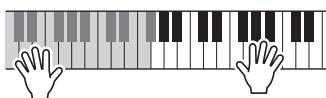
Press the right-hand keys while playing chords in the auto accompaniment range of the keyboard when the Auto Accompaniment is on (page 23).
- Harmony type 06 to 12 (Trill)
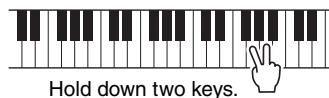
- Harmony type 13 to 19 (Tremolo)
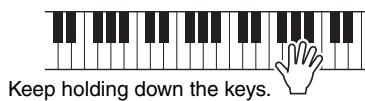
Harmony type 20 to 26 (Echo)
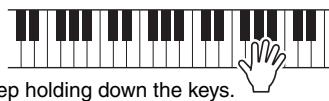
You can adjust the Harmony Volume in the Function Settings (page 75).
Controlling Arpeggio Volume with Keyboard Dynamics
![YAMAHA NP-V80 - Press the [FUNCTION] button. - 1](/content/2025/01/115040/images/63a5857c54c994fa3fd07aad0d4f8dabb487dba1145d6432547a8ab794c08fc5.jpg)
"ARP Velo" will appear in the display for a few seconds, then the currently selected arpeggio velocity setting will be displayed.
![YAMAHA NP-V80 - Press the CATEGORY [A] and [Y] buttons as many times as necessary to select the arpeggio velocity function "ARP Velo". - 1](/content/2025/01/115040/images/f0b4cd2d57fecb50d7261c49e607217ad8c3f0ec8dec62e9536fc6602df7d661.jpg)
3 Use the dial to select "2 Thru".
When "1 Original" is selected the arpeggio volume is the same regardless of changes in keyboard velocity.
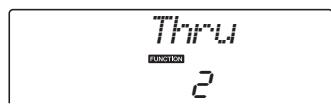
Synchronizing an arpeggio to a tempo of Style or Song
Adjust the arpeggio quantization to synchronize the arpeggio to a Style or Song.
![YAMAHA NP-V80 - Press the [FUNCTION] button. - 1](/content/2025/01/115040/images/11809cb3a9fdbd6f5af1cacc20430de0ff38d76d97ef69c8c5925c66a8c6ada4.jpg)
"Quantize" will appear in the display for a few seconds, then the currently selected Quantize value will be displayed.
![YAMAHA NP-V80 - Press the CATEGORY [A] and [Y] buttons as many times as necessary to select the "Quantize". - 1](/content/2025/01/115040/images/5fabd3d904f81b497638cba0cd35b06bcc5312818736ecd10ed24631991fa387.jpg)
3 Use the dial to select the appropriate quantize value (1/8, 1/16 or OFF) as required.
A setting of "1/8" will align off-beat notes to the nearest 4th note, a setting of "1/16" will align off-beat notes to the nearest 8th note, and a setting of "OFF" will result in no quantization.
The default arpeggio quantize setting depends on the arpeggio type.
Holding the arpeggio Playback
Arpeggio playback can be made to continue after the note has been released by pressing a footswitch connected to the SUSTAIN jack. Arpeggio playback will stop when the footswitch is released. Connect a footswitch (page 11), then assign the function to the footswitch as per the instructions below.
![YAMAHA NP-V80 - Press the [FUNCTION] button. - 1](/content/2025/01/115040/images/19be2845f7376ce52ec1802e3ec2e15126c6984d01c47be9ca391132e42cd719.jpg)
"Pdl Func" will appear in the display for a few seconds, then the currently selected function assigned to the footswitch will be displayed.
![YAMAHA NP-V80 - Press the CATEGORY [A] and [Y] buttons as many times as necessary to select "Pdl Func". - 1](/content/2025/01/115040/images/33707cce0d35df6236a01a7fc5a3eeec9e2c98e61e79a15d5e8fc89c476e93dc.jpg)
3 Use the dial to select "Arp Hold".
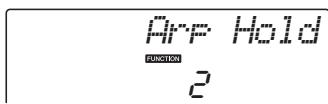
If you want to restore the footswitch function to sustain, select "Sustain". If you want to use both hold and sustain functions, select "Hold+Sus". The sustain function affects the main and dual voices only. Split voices will not be affected.
Style (Auto-accompaniment) Functions
Basic operation of the Style (auto-accompanyment) feature is described on page 22 of the Quick Guide.
Here are some other ways you can play the styles, the style volume adjustment procedure, and more.
Pattern Variation (Sections)
The instrument features a wide variety of style "sections" that allow you to vary the arrangement of the accompaniment to match the song you are playing.
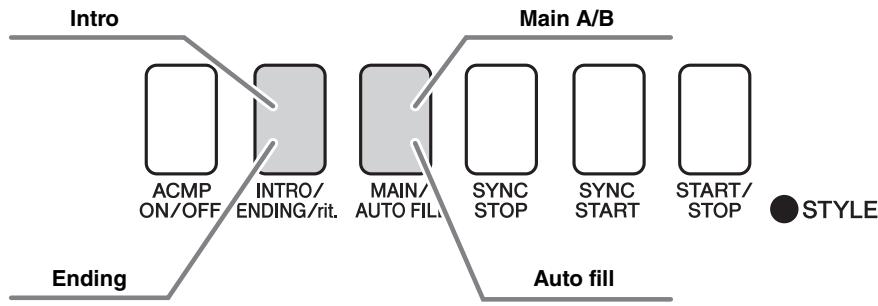
INTRO section
This is used for the beginning of the Song. When the intro finishes playing, accompaniment shifts to the main section. The length of the intro (in measures) differs depending on the selected Style.
MAIN section
This is used for playing the main part of the Song. It plays a main accompaniment pattern, and repeats indefinitely until another section's button is pressed. There are two variations on the basic pattern (A and B), and the Style playback sound changes harmonically based on the chords you play with your left hand.
Fill-in section
This is automatically added before changing to section A or B.
ENDING section
This is used for the ending of the Song. When the ending is finished, the auto accompaniment stops automatically. The length of the ending (in measures) differs depending on the selected Style.
Press the [STYLE] button and then select a style.
2 Press the [ACMP ON/OFF] button to turn auto accompaniment on.
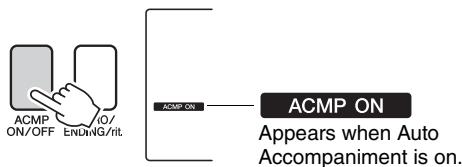
3 Press the [SYNC START] button to turn synchro start on.

ACMP ON/OFF

INTRO/INDING/rit.

MAIN/ AUTO FILL

SYNC STOP
START
STYLE


Beat arrows will flash
when the synchro start standby mod
is engaged
Synchro Start
When the synchro start standby mode is engaged, style playback will begin as soon as you play a chord in the accompaniment range of the keyboard. You can disengage the synchro-start standby mode by pressing the [SYNC START] button again.
4 Press the [MAIN/AUTO FILL] button.
![YAMAHA NP-V80 - Press the [MAIN/AUTO FILL] button. - 1](/content/2025/01/115040/images/53ca79f9de12657c2ed8838db865e8d554e0b943a332fbc9bd464cc4ef8ee25f.jpg)
ACMP
ON/OFI
![YAMAHA NP-V80 - Press the [MAIN/AUTO FILL] button. - 2](/content/2025/01/115040/images/993cb409e436f39b852ea6695d9e8bd695ac436c0032a9865ec983e1064f8208.jpg)
INTRO/ ENDING/rit.
![YAMAHA NP-V80 - Press the [MAIN/AUTO FILL] button. - 3](/content/2025/01/115040/images/7dc1a36f2885eedd2f65a2a6154ec36331b3fe113957a0954bf3f8aa71305b32.jpg)
MAIN/ AUTO FILL
![YAMAHA NP-V80 - Press the [MAIN/AUTO FILL] button. - 4](/content/2025/01/115040/images/dea37a6b75fd27b9666d18ad64b462aae80bea12847a99ba9c35e6bf9132010c.jpg)
SYNC START
![YAMAHA NP-V80 - Press the [MAIN/AUTO FILL] button. - 5](/content/2025/01/115040/images/29280f2e8e5dda045f9bafe06b3bf232705e3fff29174f1fc9c6aef40e827725.jpg)
START/ STOP
![YAMAHA NP-V80 - Press the [MAIN/AUTO FILL] button. - 6](/content/2025/01/115040/images/a7c34b0a3d1585521d0f853404c3f0746705923449df26e85babe1c9e15a2b5a.jpg)
The name of the selected section—MAIN A or MAIN B—will be displayed.
![YAMAHA NP-V80 - Press the [INTRO/ENDING/rit.] button. - 1](/content/2025/01/115040/images/304c610d7150088d529021f35f8ea12abd99160fffba31618036d5bf75598723.jpg)
ACMP ON/OFI
![YAMAHA NP-V80 - Press the [INTRO/ENDING/rit.] button. - 2](/content/2025/01/115040/images/274d0504539e7a7e98659baf676f21d76d6e1b3809ed807ebb9d3ff13f4ab364.jpg)
INTRO/ ENDING/rit. FILL
![YAMAHA NP-V80 - Press the [INTRO/ENDING/rit.] button. - 3](/content/2025/01/115040/images/420725319c8b013af1c61c0f2b802c2f457c87e2a0830483707b915bf6d4726f.jpg)
SYNC 3 STOP S
![YAMAHA NP-V80 - Press the [INTRO/ENDING/rit.] button. - 4](/content/2025/01/115040/images/3f225725943e0bd7609a180cd830b59d2f24e0c874d519cac334d6b8423d1e5c.jpg)
SYNC START
![YAMAHA NP-V80 - Press the [INTRO/ENDING/rit.] button. - 5](/content/2025/01/115040/images/3ae1040885674056e7f5c198768b27714ed3ed3a78af5af5d7c9e39d5fba2a7c.jpg)
START/ STOP
![YAMAHA NP-V80 - Press the [INTRO/ENDING/rit.] button. - 6](/content/2025/01/115040/images/bd4b6171246c764beb1f7a7c0461ba8243b6c3d447731342f7798016b637a04c.jpg)
You're now ready to play the intro.
As soon as you play a chord with your left hand, the Intro of the selected Style starts.
For this example, play a C major chord (as shown below). For information on how to enter chords, see "Chords" on page 25.
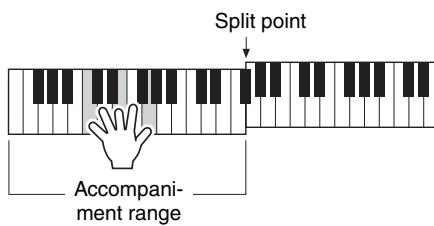
7 Press the [MAIN/AUTO FILL] button.
![YAMAHA NP-V80 - Press the [MAIN/AUTO FILL] button. - 1](/content/2025/01/115040/images/a2e06e482186dcc52fbc9a03464205f7ddb638ad5adf0d724b4e1e2795fb5910.jpg)
ACMP
ON/OFF
![YAMAHA NP-V80 - Press the [MAIN/AUTO FILL] button. - 2](/content/2025/01/115040/images/ab58c37f7bc02e79d5c6e674dfe72ff4cc49bff0f51a847b876791e37511b8f1.jpg)
INTRO/
ENDING/rit.
![YAMAHA NP-V80 - Press the [MAIN/AUTO FILL] button. - 3](/content/2025/01/115040/images/70836a85c45f62c0e0048e881eb3992eb670027e769b12978efa59c09af89c81.jpg)
MAIN/ AUTO FILL
![YAMAHA NP-V80 - Press the [MAIN/AUTO FILL] button. - 4](/content/2025/01/115040/images/4085c72f91b06fd6f2788f174421232f8732a4c55eff0cb51e50569235b1fcd8.jpg)
SYNC START
![YAMAHA NP-V80 - Press the [MAIN/AUTO FILL] button. - 5](/content/2025/01/115040/images/e05627d1393ec130abab93584b8160216bbb323ea78b97cda8582c02d65db664.jpg)
START/ STOP
![YAMAHA NP-V80 - Press the [MAIN/AUTO FILL] button. - 6](/content/2025/01/115040/images/063866a0f506dcadb1dc2ca1b2598db74a0f7c248b78bce53b3927778d37f0c5.jpg)
When the fill-in is finished, it leads smoothly into the selected main section A/B.
![YAMAHA NP-V80 - Press the [INTRO/ENDING/rit.] button. - 1](/content/2025/01/115040/images/999dd4829480486ce90f9e3c94d6154023d9015169ed4fb52d65e0f2fee0fb6a.jpg)
ACMP ON/OFF
![YAMAHA NP-V80 - Press the [INTRO/ENDING/rit.] button. - 2](/content/2025/01/115040/images/b95ee1c333456c813dda348b2706277eff9498c8ee9d4b3bd90775aba0aa5411.jpg)
![YAMAHA NP-V80 - Press the [INTRO/ENDING/rit.] button. - 3](/content/2025/01/115040/images/e3ebe2089cb088117c9ab072aa56395312b5532b0fc457168eb12d45714e4387.jpg)
SYNC STOP
![YAMAHA NP-V80 - Press the [INTRO/ENDING/rit.] button. - 4](/content/2025/01/115040/images/a4f19b1a8a363ece127a41ddcb7f18e6617cffb7cbd534525f05c6422110d4d4.jpg)
SYNC START
![YAMAHA NP-V80 - Press the [INTRO/ENDING/rit.] button. - 5](/content/2025/01/115040/images/c1fe486c858bac27dbcad124f7be6c8db07ff31cd7da72e415cdb228f0aa01ec.jpg)
START STOP
ENDING
STYLE
This switches to the ending section.
When the ending is finished, the auto accompani-ment stops automatically. You can have the ending gradually slow down (ritardando) by pressing the [INTRO/ENDING/rit.] button again while the ending is playing back.
Synchro Stop
When this function is selected the accompaniment style will only play while you are playing chords in the accompaniment range of the keyboard. Style playback will stop when you release the keys. To turn the function on, press the [SYNC STOP] button.
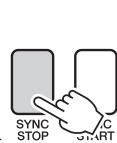
SYNC STOP
Appears when the synchro-stop function is engaged.

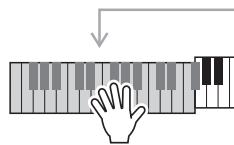
The style will play while you are playing the keys

Style playback will stop when you release the keys
Changing the tempo of the Style
Styles can be played at any tempo you desire—fast or slow.
![YAMAHA NP-V80 - Press the [TEMPO/TAP] button to call up the Tempo setting in the display after selecting a Style. - 1](/content/2025/01/115040/images/d48ec7b9b8d4bb5527058713898c16de7ca6ea4aa6ce678a283a68a708ed585e.jpg)
2 Use the dial to select a tempo from 011 to 280 quarter-note beats per minute.
Press the [+] and [-] buttons simultaneously to instantly reset the value to the default tempo of a Style.
You can change the tempo during style playback by pressing the [TEMPO/TAP] button just twice.
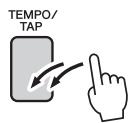
Adjusting the Style Volume
Press the [STYLE] button to engage the style function.
![YAMAHA NP-V80 - Press the [FUNCTION] button. - 1](/content/2025/01/115040/images/536d0d41f7aceff737dea2680ffe79eee59dcff1e86ee9f7e3a91378a4b59784.jpg)
![YAMAHA NP-V80 - Use the CATEGORY [A] and [▼] buttons to select the Style Volume item. - 1](/content/2025/01/115040/images/0d4fad865b5c7b457a953d9c778231bab8f67b327b5fc513ac58fd69dca693bb.jpg)
![YAMAHA NP-V80 - Use the CATEGORY [A] and [▼] buttons to select the Style Volume item. - 2](/content/2025/01/115040/images/a32414bfca39955da486d64011bd9249e0b06fcf7fc25d5ff3e9f854fb82953f.jpg)
3 Use the dial to set the style volume between 000 and 127.
Setting the Split Point
The initial default split point is key number 54 (the F#2 key), but you can change it to another key using the procedure described below.
Press the [STYLE] button.
2 Press and hold the [ACMP ON/OFF] for longer than a second so that the Split point item appears.
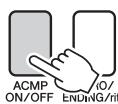

Hold for longer than a second.
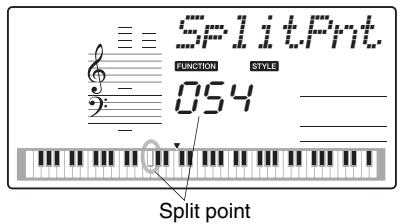
3 Use the dial to set the split point to any key from E0(028) through G6(103).
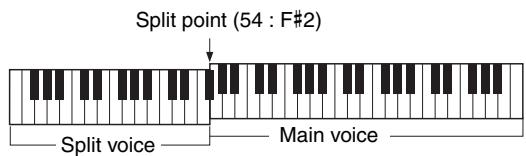
NOTE
- When you change the split point the auto-accompany-ment split point also changes.
- The split point cannot be changed during a song lesson.
NOTE
- You can also access the Split Point item by pressing the [FUNCTION] button and using the CATEGORY [▲] and [▼] buttons to locate the item (page 74).
Tap Start
You can start the style by simply tapping the [TEMPO/TAP] button at the required tempo—4 times for time signatures in 4, and three times for time signatures in 3. You can change the tempo during style playback by pressing the button just twice.
Play a Style with Chords but No Rhythm (Stop Accompaniment)
When auto accompaniment is on (the ACPI ON icon is showing) and Synchro Start is off, you can play chords in the left-hand accompaniment range of the keyboard while the style is stopped and still hear the accompaniment chords. This is "Stop Accompaniment", and any of the chord fingerings recognized by the instrument can be used (page 25).
Press the [STYLE] button to engage the style function, then press the [ACMP ON/OFF] button to turn the auto accompani-ment on.
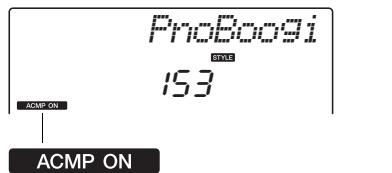
Appears when auto accompaniment is on

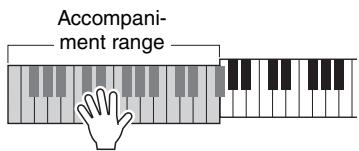
Playing Styles Using the Entire Keyboard
In "Play Along with a Style" on page 23 we described a method of playing styles in which chords were detected only to the left of the keyboard split point. By making the settings described below, however, chord detection for style accompaniment occurs over the entire range of the keyboard, allowing for even more dynamic style performance. In this mode only chords played in the normal way (page 25) can be detected.
![YAMAHA NP-V80 - Press the [FUNCTION] button. - 1](/content/2025/01/115040/images/6f5a443822ec80159f2ed0e542094128c8a61204b8c5d70b21fc4cf159b9a586.jpg)
"ChdFing" will appear in the display for a few seconds, then the currently selected Chord Fingering type will be displayed.
![YAMAHA NP-V80 - Use the CATEGORY [A] and [Y] buttons to select the function "Chord Fingering". - 1](/content/2025/01/115040/images/d871fb03ae4f03534d5d9bb74e2764fff88185947a3fb63828dcd682cdd26a1f.jpg)
ChDFiing
FUNCTION
3 Use the dial to select 2 "FullKbd".
Fu11Kbd
Loading Style Files (NP-V60)
This instrument features 160 internal styles, but other styles, such as those provided on the CD-ROM and others that can be obtained from the internet (only styles with the ".sty" suffix), can be loaded into style number 161 and used in the same way as the internal styles.
In order to use the style file load function, the file must already have been transferred from the computer to the instrument. The procedure for transferring files from a computer to the instrument is described on page 86 ("Transferring Data between the Computer and Instrument").
The procedure described below loads a style file that has already been transferred from a computer to the instrument into style number 161.
The currently selected function will appear in the display
![YAMAHA NP-V80 - Press the [FUNCTION] button. - 1](/content/2025/01/115040/images/b2c4ea32e9c0f8f460f07d42b47dac335a634cf2480f1b7560f7d79c17755869.jpg)
![YAMAHA NP-V80 - Press the CATEGORY [A] and [Y] buttons as many times as necessary to select the style file load function "Sff Load". - 1](/content/2025/01/115040/images/85ad52f5f85e54db0116fb86686ca568097b3dc0a51fcf009aa8fc7cd0a4cfb1.jpg)
After about 2 seconds the name of a loadable style file will appear in the display.
If multiple loadable style files have been transferred to the instrument, you can use the dial or the [+] and [-] buttons to select the other files in sequence (100 files max.).
3 Execute the load operation.
With the name of the style file you want to load shown in the display, press the number [0] button.
![YAMAHA NP-V80 - A confirmation message for the load operation will appear. Press the [+ / YES] button to actually load the file. - 1](/content/2025/01/115040/images/45f5d887e051c63332a51087d4d43c6960b0f3457ffd73987d224ca9e7d542f2.jpg)
Looking Up Chords Using the Chord Dictionary
The Dictionary function is essentially a built-in "chord book" that shows you the individual notes of chords. It is ideal when you know the name of a certain chord and want to quickly learn how to play it.
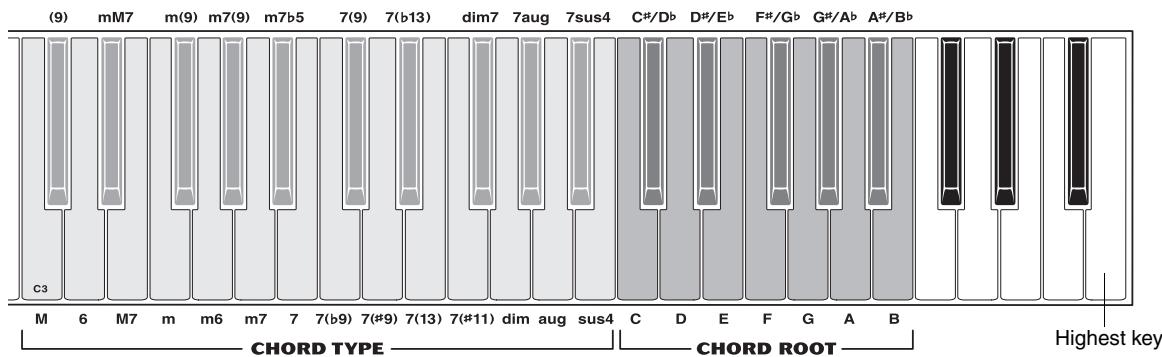
![YAMAHA NP-V80 - Press and hold the [MINUS ONE] button for longer than a second. - 1](/content/2025/01/115040/images/abd45e5c2dbc6920e6cdf5113d91928406b4debfc056fe00e809d041254ea162.jpg)
2 As an example, we'll learn how to play a GM7 (G major seventh) chord. Referring to the illustration, press the G key in the CHORD ROOT area (no sound will be produced). The root note you set is shown in the display.
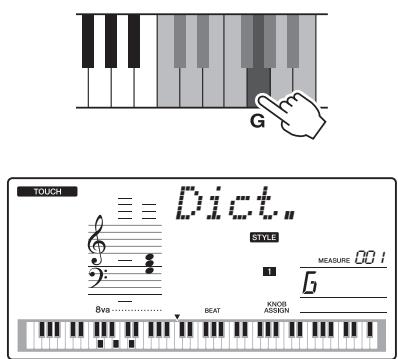
3 Referring to the illustration, press the M7 (major seventh) key in the CHORD TYPE area (no sound will be produced). The notes you should play for the specified chord (root note and chord type) are shown in the display, both as notation and in the keyboard diagram.
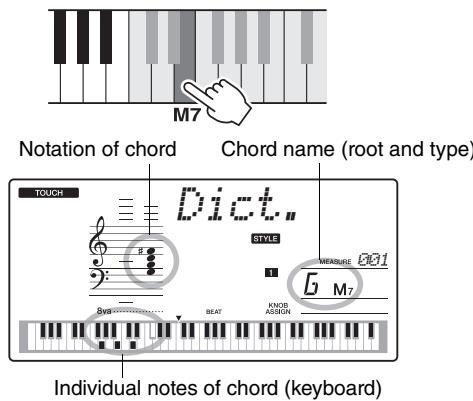
To call up possible inversions of the chord, press the [+]/[-] buttons.
NOTE
- About major chords: Simple major chords are usually indicated only by the root note. For example, "C" refers to C major. However, when specifying major chords here, make sure to select "M" (major) after pressing the root note.
Try playing a chord in the auto accompaniment section of the keyboard, checking the indications in the display. When you've played the chord properly, a bell sound signals your success and the chord name in the display flash.
BGM Playback
With the default setting only a few of the internal songs are played back and repeated when the [DEMO/ BGM] button is pressed. This setting can be changed so that all internal songs are played, or all songs transferred to the instrument from a computer are played. Five playback group settings are provided. Simply select the one that suits your needs.
"DemoGrp" will appear in the display for a few seconds, then the currently selected repeat playback target will be displayed.
![YAMAHA NP-V80 - Press and hold the [DEMO/BGM] button for longer than a second. - 1](/content/2025/01/115040/images/515e163df9c18ac4acffc90fe01494791d53d040782b056616b25b32628e2b7f.jpg)
Hold for longer than a second.
![YAMAHA NP-V80 - Press and hold the [DEMO/BGM] button for longer than a second. - 2](/content/2025/01/115040/images/ace109fef4c62141bb0aee87182f941f5053fd91a1dda71cacccf3a8c3aa955d.jpg)
2 Use the dial to select a repeat playback group from the table below.
| Demo | Preset songs 001–008 |
| Preset | All preset songs |
| User | All User songs |
| Download | All songs transferred from a computer |
| USB
(NP-V80 only) | All songs stored on a USB flash memory connected to the instrument. |
Random SongPlayback
The random play mode causes the songs in the group selected for BGM playback to be played back in random order.
![YAMAHA NP-V80 - Press the [FUNCTION] button. - 1](/content/2025/01/115040/images/996037f34be0565e5596bb50784aae41bd7d7444b94274c850efc0e11c1e25ad.jpg)
"PlayMode" will appear in the display for a few seconds, then the currently selected repeat playback mode will be displayed.
![YAMAHA NP-V80 - Press the CATEGORY [A] and [Y] buttons as many times as necessary to select "PlayMode". - 1](/content/2025/01/115040/images/94c9964ae253b4ad1de8eee2f45494066a3c5e07fe03a32d6d59194fd3380cee.jpg)
F1aMbode
FUNCTION
You cannot select the repeat playback mode when "Demo" is selected as the repeat playback group.
3 Use the dial to select "Random"
If you want to restore the normal playback mode, select "Normal".
Changing the tempo of the Song
Songs can be played at any tempo you desire—fast or slow.
![YAMAHA NP-V80 - Press the [TEMPO/TAP] button to call up the Tempo setting in the display after selecting a Song. - 1](/content/2025/01/115040/images/35d227e7b132fbb3942a2fc4012e6b862c8e36c752c4123ba810b14493f8d22a.jpg)
2 Use the dial to select a tempo from 011 to 280 quarter-note beats per minute.
Press the [+] and [-] buttons simultaneously to instantly reset the value to the default tempo of a Song.
You can change the tempo during song playback by pressing the [TEMPO/TAP] button just twice.
Song Volume
Press the [FUNCTION] button.
![YAMAHA NP-V80 - Use the CATEGORY [A] and [▼] buttons to select the Song Volume item. - 1](/content/2025/01/115040/images/e37845c53e3074ede0054e84bf5db596db94ec1e9db3609067ab05fab08a0205.jpg)
3 Use the dial to set the song volume between 000 and 127.
NOTE : Song volume can be adjusted while a song is selected.
A-B Repeat
You can specify a section of a song—"A" is the start point and "B" is the end point—for repeat playback.
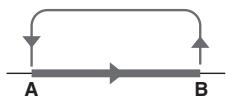
1 Play the song (page 26) and press the [A-B REPEAT] button at the beginning of the section you want to repeat (the “A” point).
2 Press the [A-B REPEAT] button a second time at the end of the section you want to repeat (the “B” point).
3 The specified A-B section of the song will now play repeatedly.
You can stop repeat playback at any time by pressing the [A-B REPEAT] button.
NOTE
- The repeat start and end points can be specified in one-measure increments.
- The current measure number is shown in the display during playback.
- If you want to set the start point "A" at the very beginning of the song press the [A-B REPEAT] button before starting playback of the song.
Muting Independent Song Tracks
Each "track" of a song plays a different part of the song—melody, percussion, accompaniment, etc. You can mute individual tracks and play the muted part on the keyboard yourself, or simply mute tracks other than the ones you want to listen to.
To mute a track, press the appropriate track button (TRACK [1]–[5], [A]) button. Press the same button a second time to disengage track muting.
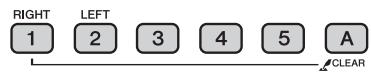
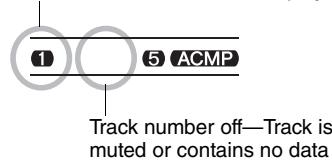
Track number on—Track will playback
Tap Start
You can start the song by simply tapping the [TEMPO/TAP] button at the required tempo—4 times for time signatures in 4, and three times for time signatures in 3. You can change the tempo during song playback by pressing the button just twice.
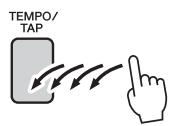
Change the Melody Voice
You can change a song's melody voice to any other voice you prefer.
NOTE
- You cannot change the melody voice of a user song.
1 Select the song and play it.
2 Rotate the dial to select the voice you want to listen to after pressing the [VOICE] button.
3 Press the [VOICE] button for longer than a second.
"SONG MELODY VOICE" appears in the display for a few seconds, indicating that the voice selected in step #2 has replaced the song's original melody voice.
old for longer than a second.
SONG MEL
The "Functions" provide access to a range of detailed instrument parameters for tuning, setting the split point, and adjusting the voices and effects. Take a look at the function list starting on the opposite page.
When you locate a function you want to set up, simply select the function's display name (shown to the right of the function name in the list) and adjust as required.
Selecting and Setting Functions
Find the function you want to set in the list that begins on pages 74, 75.
2 Press the [FUNCTION] button.
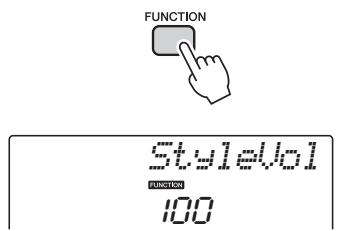
3 Select a function.
Press the CATEGORY [A] and [Y] buttons as many times as necessary until the function's display name appears in the display.
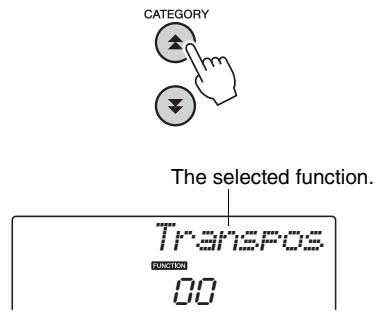
4 Use the dial, the [+] and [-] buttons, or the [0]-[9] number buttons to set the selected function as required.
In some cases the [+] button will initiate execution of the selected function, and the [-] will cancel the selection.
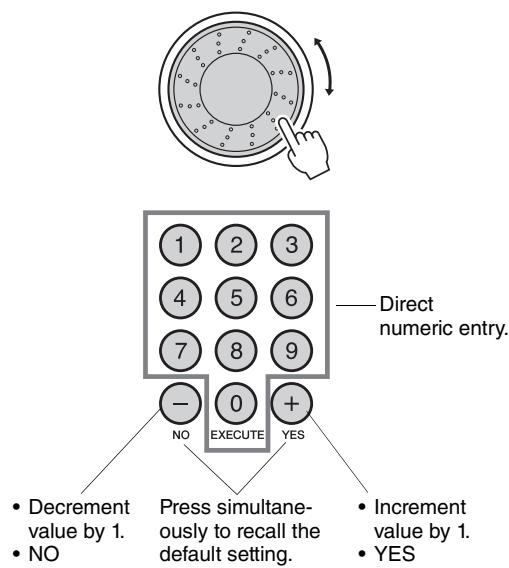
Some Function settings are stored in memory as soon as they are changed. See "The Backup Parameters" on page 50 for information on the function settings that are stored on the instrument.
To restore all initial factor default settings perform the "Backup Clear" procedure described in the "Initialization" section on page 50.
Function Setting List
| Category | Settings | Display | Range/Settings | Description |
| Volume | Style Volume | StyleVol | 000-127 | Determines the volume of the Style. |
| Song Volume | SongVol | 000-127 | Determines the volume of the Song. |
| Overall | Transpose | Transpos | -12-12 | Determines the pitch of the instrument by semitone increments. |
| Tuning | Tuning | -100-100 | Sets the pitch of the instrument's sound in 1-cent increments. |
| Pitch Bend Range | PBRange | 01-12 | Sets the pitch bend range in semitone increments. |
| Split Point | SplitPnt | 028-103(E0-G6) | Determines the highest key for the Split voice and sets the Split "point"-in other words, the key that separates the Split (lower) and Main (upper) voices. The Split Point setting and Accompaniment Split Point setting are automatically set to the same value. |
| Touch Sensitivity | TouchSns | 1(Soft),2(Medium),3(Hard),4(Off)(NP-V80 only) | When Touch Response is on, this determines the sensitivity of the feature. |
| Fingering Chord | ChdFing | 1(Multi),2(FullKbd) | Sets the chord detection mode. In the Multi Finger mode both standard chords and easy chords played to the left of the split point are detected. In the Full Keyboard mode standard chords played anywhere on the keyboard will be detected, and the notes played will be sound as well. |
| Main Voice | Volume | M.Volume | 000-127 | Determines the volume of the Main voice. |
| Octave | M.Octave | -2+2 | Determines the octave range for the Main voice. |
| Pan | M.Pan | 000 (left)-64 (center)-127 (right) | Determines the pan position of the Main voice in the stereo image. The value "0" results in the sound being panned full left; the value "127" results in the sound being panned full right. |
| Reverb Level | M.Reverb | 000-127 | Determines how much of the Main voice's signal is sent to the Reverb effect. |
| Chorus Level | M.Chorus | 000-127 | Determines how much of the Main voice's signal is sent to the Chorus effect. |
| Dual Voice | Voice | D.Voice | 000-500(NP-V80)000-489(NP-V60) | Selects the Dual voice. |
| Volume | D.Volume | 000-127 | Determines the volume of the Dual voice. |
| Octave | D.Octave | -2+2 | Determines the octave range for the Dual voice. |
| Pan | D.Pan | 000 (left)-64 (center)-127 (right) | Determines the pan position of the Dual voice in the stereo image. The value "0" results in the sound being panned full left; the value "127" results in the sound being panned full right. |
| Reverb Level | D.Reverb | 000-127 | Determines how much of the Dual voice's signal is sent to the Reverb effect. |
| Chorus Level | D.Chorus | 000-127 | Determines how much of the Dual voice's signal is sent to the Chorus effect. |
| Split Voice | Voice | S.Voice | 000-500(NP-V80)000-489(NP-V60) | Selects the Split voice. |
| Volume | S.Volume | 000-127 | Determines the volume of the Split voice. |
| Octave | S.Octave | -2+2 | Determines the octave range for the Split voice. |
| Pan | S.Pan | 000 (left)-64 (center)-127 (right) | Determines the pan position of the Split voice in the stereo image. The value "0" results in the sound being panned full left; the value "127" results in the sound being panned full right. |
| Reverb Level | S.Reverb | 000-127 | Determines how much of the Split voice's signal is sent to the Reverb effect. |
| Chorus Level | S.Chorus | 000-127 | Determines how much of the Split voice's signal is sent to the Chorus effect. |
| Effect | Reverb Type | Reverb | 01-10 | Determines the Reverb type, including off (10). |
| Chorus Type | Chorus | 01-05 | Determines the Chorus type, including off (05). |
| Panel Sustain | Sustain | ON/OFF | Determines whether or not panel sustain is always applied to the MAIN/DUAL voices. Panel sustain is applied continuously when ON, or not applied when OFF. |
| Master EQ Type | MasterEQ | Speaker1,Speaker2,Headphone,Line Out1,Line Out2 | Sets the equalizer applied to the speaker output for optimum sound in different listening situations. |
| Harmony | Harmony Type | HarnType | 01-26 | Determines the Harmony type. |
| Harmony Volume | HarnVol | 000-127 | Determines the volume of the Harmony effect. |
| Arpeggio (NP-V80 only) | Arpeggio Type | ARP Type | 01-50 | Determines the Arpeggio type. |
| Arpeggio Velocity | ARP Uelo | 1 (Original), 2 (Thru) | Sets the velocity mode for arpeggio playback. |
| Arpeggio Quan-tize | Quantize | OFF, 1/8, 1/16 | Synchronizes arpeggio playback to a Style or Song. |
| Arpeggio Pedal | Pd1 Func | 1(Sustain)/2(Arp Hold)/3(Hold+Sus) | Determines the pedal function in the arpeggio mode. |
| PAT | Performance assistant technol-ogy Type | PAT Type | CHORD(1), CHD/FREE(2) | Determines the performance assistant technology type. |
| Style File Load (NP-V60) | Style File Load | Sff Load | 001-nnn | Loads a Style file. |
| PC | PC mode | PC mode | PC1/PC2/OFF | Optimizes the MIDI settings when you connect to a computer. |
| MIDI | Local On/Off | Local | ON/OFF | Determines whether the instrument's keyboard controls the internal tone generator (ON) or not (OFF). |
| External Clock | ExtClock | ON/OFF | Determines whether the instrument synchronizes to the inter- nal clock (OFF) or an external clock (ON). |
| Keyboard Out | KbdOut | ON/OFF | Determines whether keyboard performance data of the instru- ment is transmitted (ON) or not (OFF). |
| Style Out | StyleOut | ON/OFF | Determines whether Style data is transmitted (ON) via USB TO HOST or not (OFF) during Style playback. |
| Song Out | SongOut | ON/OFF | Determines whether User Song is transmitted (ON) via USB TO HOST or not (OFF) during Song playback. |
| Initial Send | InitSend | YES/NO | Lets you send the data of the panel settings to a computer. Press [+YES] to send, or press [-/NO] to cancel. |
| Metronome | Time Signature Numerator | TimesignN | 00-60 | Determines the time signature of the Metronome. |
| Time Signature Denominator | TimesigD | Half note, Quarter note, Eighth note, Sixteenth note | Sets the length of each metronome beat. |
| Metronome Vol-ume | MtrUol | 000-127 | Determines the volume of the Metronome. |
| Lesson | Lesson Track (R) | R-Part | GuideTrack 1-16, OFF | Determines the guide track number for your right hand lesson. The setting is only effective for songs in SMF format 0 trans- ferred from a computer, or songs stored on a USB flash mem- ory connected to the instrument. |
| Lesson Track (L) | L-Part | GuideTrack 1-16, OFF | Determines the guide track number for your left hand lesson. The setting is only effective for songs in SMF format 0 trans- ferred from a computer, or songs stored on a USB flash mem- ory connected to the instrument. |
| Grade | Grade | ON/OFF | Determines whether the Grade function is on or off. |
| Demo | Demo Group | DemoGrp | 1(Demo)/ 2(Preset)/ 3(User)/ 4(Download) | Determines the repeat playback group. |
| Demo Playmode | PlayMode | 1(Normal)/2(Ran- dom) | Determines the repeat playback mode. |
| Demo Cancel | D-Cancel | ON/OFF | Determines whether Demo cancel is enabled or not. When this is set to ON, the Demo Song will not play, even if the [DEMO/ BGM] button is pressed. |
| Power Save | Auto Power Off | AutoOff | OFF, 5-30 | Specifies the time that will elapse before the instrument's power is automatically turned off. |
| Language (NP-V80 only) | Language | Language | Japanese/English | Sets the file name display language. |
USB flash memory is a memory medium used for storing data. When a USB flash memory is inserted in this instrument's USB TO DEVICE terminal, registered settings can be saved from or loaded into the instrument. In this section we'll look at the procedures for setting up and formatting USB flash memory devices, as well as for saving and loading data to and from them. Before using a USB device, read through the "Precautions when using the USB TO DEVICE terminal" section on page 77.
File Control Functions
1 Connect a USB flash memory to the USB TO DEVICE terminal, being careful to insert it with the proper orientation.
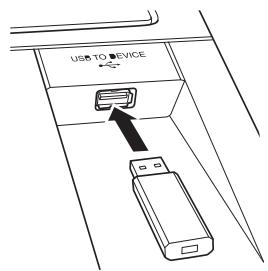
2 Wait for confirmation that the USB flash memory has been properly mounted.
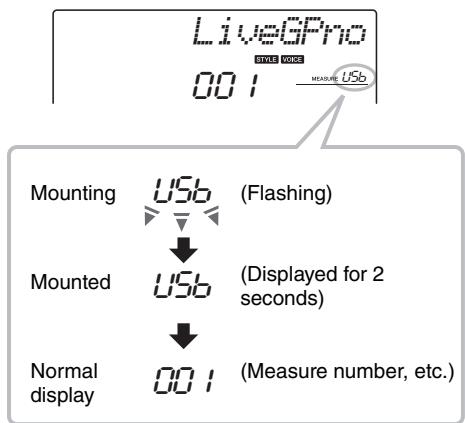
3 The file control function mode.
Press and hold the [FUNCTION] button until the display changes. When the display changes you will be able to access the file control functions.
Hold for more than 3 seconds
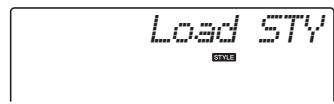
If the file control functions are accessed while an unformatted USB flash memory is connected to the instrument, the "Format" function will automatically be selected.
Use the category [] and [] buttons to select one of the file control functions listed below.
| File control function | Reference page |
| Format | 78 |
| Saving User Files | 79 |
| Saving User Songs as SMF Files | 80 |
| Loading User Files | 81 |
| Loading Style Files | 81 |
| Deleting User Files | 82 |
| Deleting SMF Song Files | 82 |
| Exit | 83 |
To exit from the file control function mode press the [VOICE], [STYLE], [SONG], [FUNCTION], or [GRAND PIANO] button. You can also exit from the file control function mode by selecting "EXIT" from the menu and pressing the [0] button (page 83).
Precautions when using the [USB TO DEVICE] terminal
This instrument features a built-in [USB TO DEVICE] terminal. When connecting a USB device to the terminal, be sure to handle the USB device with care. Follow the important precautions below.
NOTE
- For more information about the handling of USB devices, refer to the owner's manual of the USB device.
Compatible USB devices
- USB storage devices (flash memory and floppy disk drive)
The instrument does not necessarily support all commercially available USB devices. Yamaha cannot guarantee operation of USB devices that you purchase. Before purchasing a USB device for use with this instrument, please visit the following web page: http://music.yamaha.com/download/
NOTE
- Other USB devices such as a computer keyboard or mouse cannot be used.
Connecting USB device
- When connecting a USB device to the [USB TO DEVICE] terminal, make sure that the connector on the device is appropriate and that it is connected in the proper direction.
- Though the instrument supports the USB 1.1 standard, you can connect and use a USB 2.0 storage device with the instrument. However, note that the transfer speed is that of USB 1.1.
Using USB Storage Devices
By connecting the instrument to a USB storage device, you can save data you've created to the connected device, as well as read data from the connected device.
NOTE
- Although CD-R/RW drives can be used to read data to the instrument, they cannot be used for saving data.
The number of USB storage device to be used
Only one USB storage devices can be connected to the [USB TO DEVICE] terminal.
When a USB storage device is connected or media is inserted, a message may appear prompting you to format the device/media. If so, execute the Format operation (page 78).
NOTICE
- The format operation overwrites any previously existing data. Make sure that the media you are formatting does not contain important data.
To protect your data (write-protect)
To prevent important data from being inadvertently erased, apply the write-protect provided with each storage device or media. If you are saving data to the USB storage device, make sure to disable write-protect.
Connecting/removing USB storage device
Before removing the media from the device, make sure that the instrument is not accessing data (such as in the Save and Delete operations).
NOTICE
- Avoid frequently turning the power on/off to the USB storage device, or connecting/disconnecting the device too often. Doing so may result in the operation of the instrument "freezing" or hanging up. While the instrument is accessing data (such as during Save, Delete, Load and Format operations) or is mounting the USB storage device (shortly after the connection), do NOT unplug the USB connector, do NOT remove the media from the device, and do NOT turn the power off to either device. Doing so may corrupt the data on either or both devices.
This section describes operation of the file control functions after you have engaged the file control function mode.
Messages may appear on the display during file control procedures to aid in smooth operation. Refer to the Message List on page 83 for details.
NOTE
- No sound will be produced if the keyboard is played while the file control display is showing, and only buttons related to file control operations will be active.
NOTE
- The file control display will not appear during:
- Style or song playback.
- Lessons.
- USB flash memory read operations.
Basic File Operation
If multiple files are available for selection, use the dial to select the desired file.
Press the [0] button to confirm the selection. The [0] button also executes the selected function. The [-] button cancels the selected function.
- Cancel
- Confirm file selection
- Execute
USB flash memory devices must be properly formatted before they can be used with this instrument.
NOTICE
- If a USB flash memory that contains data is formatted as described below, the data will be erased. Make sure that a USB flash memory to be formatted contains no important data before carrying out the formatting procedure.
USB flash memory save, delete, and format operations can only be performed when the instrument is being powered from an AC adapter. These operations cannot be performed using battery power.
Press the category [▲] or [▼] button as many times as necessary until the "Format?" function appears.
Format?
Press the [0] button. A confirmation message will appear. Press the [0] button a second time to execute the Format operation, or press the [-] button to cancel the operation.
NOTICE
- The Format operation cannot be cancelled during execution. Never turn off the power or disconnect the USB flash memory during formatting.
Wait until a message indicating completion of the formatting operation appears.
Saving User Files
"User files" containing 5 user songs, style 166, and the registration memory can be saved to USB flash memory. User files have a ".usr" file extension (the extension does not appear on the instrument's display).
USB flash memory save, delete, and format operations can only be performed when the instrument is being powered from an AC adapter. These operations cannot be performed using battery power.
1 Select the Save User File function.
Press the category [▲] or [▼] button as many times as necessary until the "Save USR" function appears.
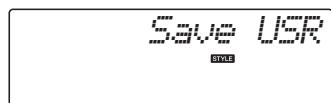
STYLE
2 Specify the target user file.
When the [0] button is pressed "USERxxx" will automatically be specified as the target user file ("xxx" will be a number). If the automatically specified file is satisfactory, press the [0] button. The dial can be used to select a different target file (USER001-USER100) if desired before pressing the [0] button.
USER001
Overwriting Existing Files
If a file that already contains data is selected as the target user file, an overwrite confirmation message will appear.
3 Save the user file.
A confirmation message will appear. Press the [0] button to execute the save operation, or press the [-] button to cancel the operation.
User files will be saved in a folder labeled "USER FILES" which will automatically be created on the USB flash memory.
NOTICE
- The save operation cannot be cancelled during execution. Never turn off the power or disconnect the USB flash memory during a save operation.
Wait until a message indicating completion of the save operation appears.
4 Exit from the file control function mode.
Press the [VOICE], [STYLE], [SONG], [FUNCTION], or [GRAND PIANO] button.
NOTE
- The amount of time required to save the file may vary depending on the condition of the USB flash memory used.
Saving User Songs as SMF Files
User songs can be converted to SMF (Standard MIDI File) format and saved to a USB flash memory.
NOTE
- See page 86 for information on SMF (Standard MIDI File) files.
USB flash memory save, delete, and format operations can only be performed when the instrument is being powered from an AC adapter. These operations cannot be performed using battery power.
1 Select the Save SMF File function.
Press the category [▲] or [▼] button as many times as necessary until the "Save SMF" function appears.
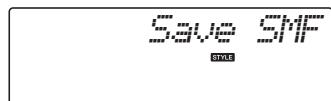
When the [0] button is pressed a user song name will be displayed: "User 1", for example. If the displayed user song is the one you want to convert, press the [0] button. The dial can be used to select a different user song (User 1-5) prior to pressing the [0] button. The target user song name will be automatically displayed.
User 1
3 Specify the target user song.
If the automatically specified target user song is satisfactory, press the [0] button. The dial can be used to select a different target user song (SONG001-100) if desired before pressing the [0] button.
SONG001
Overwriting Existing Song
If a song that already contains data is selected as the target user song, an overwrite confirmation message will appear.
4 Save the user song.
A confirmation message will appear. Press the [0] button to execute the save operation, or press the [-] button to cancel the operation.
User songs will be saved in a folder labeled
"USER FILES" which will automatically be created on the USB flash memory.
NOTICE
- The save operation cannot be cancelled during execution. Never turn off the power or disconnect the USB flash memory during a save operation.
Wait until a message indicating completion of the save operation appears.
5 Exit from the file control function mode.
Press the [VOICE], [STYLE], [SONG], [FUNCTION], or [GRAND PIANO] button.
NOTE
- The amount of time required to save the file may vary depending on the condition of the USB flash memory used.
Loading User Files
User files saved to USB flash memory can be loaded into the instrument's memory as required.
NOTICE
- When a user file is loaded the instrument's 5 user songs, style 166, and registration memory will be overwritten. Save important data you want to keep to a separate USB flash memory before loading a user file.
1 Select the Load User File function.
Press the category [▲] or [▼] button as many times as necessary until the "Load USR" function appears.
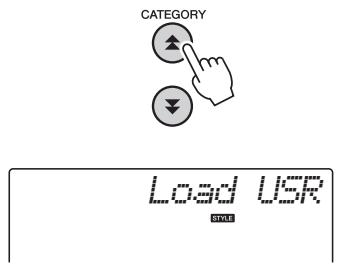
2 Select the user file to be loaded.
When the [0] button is pressed user files located on the USB flash memory will be displayed as "USERxxx" ("xxx" will be a number). If the initially selected file is the one you want to load, press the [0] button. If multiple user files are available the dial can be used to select a different user file before pressing the [0] button. The user file to be loaded must be located inside the "USER FILES" folder on the USB flash memory. Files located outside that folder will not be recognized.
3 Load the user file.
A confirmation message will appear. Press the [0] button to execute the load operation, or press the [-] button to cancel the operation.
NOTICE
- The load operation cannot be cancelled during execution. Never turn off the power or disconnect the USB flash memory during a save operation.
Wait until a message indicating completion of the load operation appears.
4 Exit from the file control function mode.
Press the [VOICE], [STYLE], [SONG], [FUNCTION], or [GRAND PIANO] button.
Loading Style Files
A style loaded into style number 166 from either a USB flash memory or the instrument's internal memory can be used in the same way as the internal styles. If the style is to be loaded from the instrument's internal memory, the style file must first be transferred to the internal memory from a computer (page 87).
NOTICE
- When a style file is loaded, style 166 will be overwritten.
1 Select the Load Style function.
Press the category [▲] or [▼] button as many times as necessary until the "Load STY" function appears.
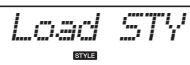
2 Select the style file to be loaded.
When the [0] button is pressed style files located on the USB flash memory or in the instrument's internal memory will be displayed. If the initially selected file is the one you want to load, press the [0] button. If multiple files are available the dial can be used to select a different style file before pressing the [0] button (100 files max.).
Style files to be loaded from USB flash memory must be located in the flash memory's root directory.
3 Load the style file.
A confirmation message will appear. Press the [0] button to execute the load operation, or press the [-] button to cancel the operation.
NOTICE
- The load operation cannot be cancelled during execution. Never turn off the power or disconnect the USB flash memory during a save operation.
Wait until a message indicating completion of the load operation appears.
4 Exit from the file control function mode.
Press the [VOICE], [STYLE], [SONG], [FUNCTION], or [GRAND PIANO] button.
Deleting User Files
This procedure deletes user files from a USB flash memory.
USB flash memory save, delete, and format operations can only be performed when the instrument is being powered from an AC adapter. These operations cannot be performed using battery power.
1 Select the Delete User File function.
Press the category [▲] or [▼] button as many times as necessary until the "Del USR" function appears.
De1 USR
2 Specify the user file to be deleted.
When the [0] button is pressed user files located on the USB flash memory will be displayed as "USERxxx" ("xxx" will be a number). If the initially selected file is the one you want to delete, press the [0] button. If multiple user files are available the dial can be used to select a different user file before pressing the [0] button.
The user file to be deleted must be located inside the "USER FILES" folder on the USB flash memory. Files located outside that folder will not be recognized.
3 Delete the user file.
A confirmation message will appear. Press the [0] button to execute the delete operation, or press the [-] button to cancel the operation.
NOTICE
- The delete operation cannot be cancelled during execution. Never turn off the power or disconnect the USB flash memory during a save operation.
Wait until a message indicating completion of the delete operation appears.
4 Exit from the file control function mode.
Press the [VOICE], [STYLE], [SONG], [FUNCTION], or [GRAND PIANO] button.
Deleting SMF Song Files
This procedure deletes SMF song files that were created on this instrument from a USB flash memory.
USB flash memory save, delete, and format operations can only be performed when the instrument is being powered from an AC adapter. These operations cannot be performed using battery power.
1 Select the Delete SMF File function.
Press the category [▲] or [▼] button as many times as necessary until the "Del SMF" function appears.
De1 SNF
2 Specify the SMF file to be deleted.
When the [0] button is pressed SMF song files located on the USB flash memory will be displayed as "SONGxxx" ("xxx" will be a number). If the initially selected file is the one you want to delete, press the [0] button. If multiple SMF song files are available the dial can be used to select a different user file before pressing the [0] button. The SMF song file to be deleted must be located inside the "USER FILES" folder on the USB flash memory. Files located outside that folder will not be recognized. Also, the file name must be "SONGxxx", where "xxx" is a number.
3 Delete the SMF song file.
A confirmation message will appear. Press the [0] button to execute the delete operation, or press the [-] button to cancel the operation.
NOTICE
- The delete operation cannot be cancelled during execution. Never turn off the power or disconnect the USB flash memory during a save operation.
Wait until a message indicating completion of the delete operation appears.
4 Exit from the file control function mode.
Press the [VOICE], [STYLE], [SONG], [FUNCTION], or [GRAND PIANO] button.
Exit From the File Control Function Mode
To exit from the file control function mode press the [VOICE], [STYLE], [SONG], [FUNCTION], or [GRAND PIANO] button.
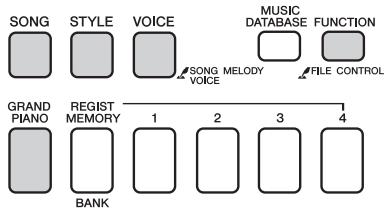
You can also exit from the file control function mode as follows:
1 Select the Exit item.
Press the category [▲] or [▼] button as many times as necessary until "Exit?" appears.
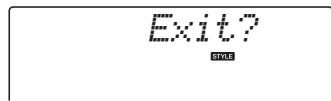
2 Exit.
Press the [0] button to exit from the file control function mode.
| Message | Comment |
| Can't use | Indicates that the file control function is cur- rently unavailable since the media is being accessed. |
| Complet. | Indicates the specified job completion such as data saving and transmission. |
| Data Err | Displayed when the user song contains illegal data. |
| Disk Ful | Displayed when saving data cannot be exe-cuted since the media memory becomes full. |
| Error | Displayed when a file error or operational error occurs. |
| File Ful | Indicates that SMF songs cannot be displayed since the total number of files exceeds the capacity. |
| no data | There is no data to save in the flash memory. |
| no file | There is no file to load or delete from the media. |
| ΔUR | Communication with the USB device has been shut down because of the overcurrent to the USB device. Disconnect the device from the [USB TO DEVICE] terminal, then turn on the power of the instrument. |
| Protect | Displayed when trying to save or delete data on a protected media, or format a protected media. Set protect to off and try again. |
| Unformat | Displayed when connecting an unformatted media. |
| UseAdpt | USB flash memory save, delete, and format operations cannot be performed when the instrument is being powered from battery. Use an AC adaptor. |
This instrument can be connected to a computer to allow transfer of MIDI data or a file.
Connecting a Personal Computer
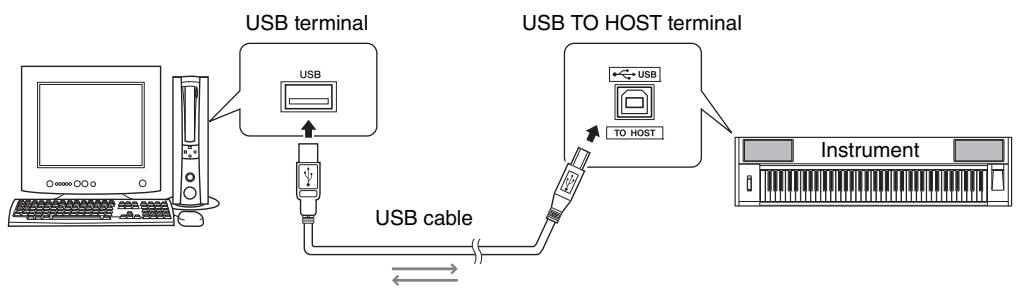
MIDI Basics
If you want to know more about MIDI and how to use it, refer to this introductory book. MIDI Basics is available for downloading from the Yamaha Manual Library at:
In order to be able to communicate with and use instruments connected to your computer, the appropriate driver software must be properly installed on your computer. The USB-MIDI driver allows sequence software and similar applications on your computer to transmit and receive MIDI data to and from MIDI devices via a USB cable. The USB-MIDI driver is included on the CD-ROM. Installation of the USB-MIDI driver is described on page 91.

CAUTION
- Connect the instrument to external equipment only after turning off power for all devices. Then, turn on the power, first to the instrument, then to the connected external equipment. Reverse this order when you turn the power off.
Precautions when using the USB TO HOST terminal
When connecting the computer to the USB TO HOST terminal, make sure to observe the following points. Failing to do so risks freezing the computer and corrupting or losing the data. If the computer or the instrument freezes, restart the application software or the computer OS, or turn the power to the instrument off then on again.
- Use an AB type USB cable of less than about 3 meters.
- Before connecting the computer to the USB TO HOST terminal, exit from any power-saving mode of the computer (such as suspended, sleep, standby).
- Before turning on the power to the instrument, connect the computer to the USB TO HOST terminal.
-
Execute the following before turning the power to the instrument on/off or plugging/unplugging the USB cable to/from the USB TO HOST terminal.
-
Quit any open application software on the computer.
-
Make sure that data is not being transmitted from the instrument. (Data is transmitted whenever you play on the keyboard or play back a song, etc.)
-
While the computer is connected to the instrument, you should wait for six seconds or more between these operations: (1) when turning the power of the instrument off then on again, or (2) when alternately connecting/disconnecting the USB cable.
By connecting the instrument to a computer, the instrument's performance data can be used on the computer, and performance data from the computer can be played on the instrument.
MIDI settings
These settings pertain to performance data transmission and reception.
| Item | Display | Range/ Settings | Description |
| Local | Local | ON/OFF | Local control determines whether or not notes played on the instrument are sounded by its internal tone generator system: the internal tone generator is active when local control is on, and inactive when local control is off. |
| External Clock | ExtClock | ON/OFF | These settings determine whether the instrument is synchronized to its own internal clock (OFF), or to a clock signal from an external device (ON). |
| Keyboard Out | KbdOut | ON/OFF | These settings determine whether keyboard performance data of the instrument is transmitted (ON) or not (OFF). |
| Style Out | StyleOut | ON/OFF | These settings determine whether Style data is transmitted (ON) or not (OFF) during Style playback. |
| Song Out | SongOut | ON/OFF | These settings determine whether User Song is transmitted (ON) or not (OFF) during Song playback. |
If you can't get any sound out of the instrument, this may be the most likely cause.
If External Clock is ON and no clock signal is being received from an external device, the song, style, and metronome functions will not start.
Press the [FUNCTION] button.
2 Use the CATEGORY [A] and [Y] buttons to select the item you want to change its value.
3 Use the dial to select ON or OFF.
PC Mode
A number of MIDI settings need to be made when you want to transfer performance data between the computer and the instrument. The PC Mode item can conveniently make multiple settings for you in one operation. Three settings are available: PC1, PC2, and OFF.
This setting is not necessary when transferring song or backup files between the computer and the instrument.
- Set the PC mode to PC2 when using Digital Music Notebook.
| PC1 | PC2* | OFF |
| Local | OFF | OFF | ON |
| External Clock | ON | OFF | OFF |
| Song Out | OFF | OFF | OFF |
| Style Out | OFF | OFF | OFF |
| Keyboard Out | OFF | ON | ON |
Press the [FUNCTION] button.
2 Press the CATEGORY [A] and [Y] buttons as many times as necessary to select the PC mode item "PC Mode".
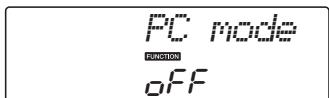
3 Use the dial to select PC1, PC2, or OFF.
NOTE
- Although User Songs can be transmitted from the instrument by using the Song Out function, Preset Song data cannot be transmitted in this way.
Initial Send
This function lets you send the panel setup data to a computer. Before you record performance data to a sequencer application running on your computer, it is a good idea to first send and record the panel setup data before the actual performance data.
![YAMAHA NP-V80 - Press the [FUNCTION] button. - 1](/content/2025/01/115040/images/8397b7a53706dec5bbc51a35eabea17601de6dd9478303624993e29dc50c144c.jpg)
![YAMAHA NP-V80 - Use the CATEGORY [A] and [Y] buttons to select the Initial Send item. - 1](/content/2025/01/115040/images/27b948c4cab2a340828cb44c5f945e3ac214b3ff494e7637979e18401694ccd9.jpg)
![YAMAHA NP-V80 - Use the CATEGORY [A] and [Y] buttons to select the Initial Send item. - 2](/content/2025/01/115040/images/85e0acfbcfb583115c97f810320f3b30b59e28ee0328d148807d480720b2adad.jpg)
3 Press [+ / YES] to send, or press [-/NO] to cancel.
![YAMAHA NP-V80 - Press [+ / YES] to send, or press [-/NO] to cancel. - 1](/content/2025/01/115040/images/dee24ba7dcd535fa88e730efc7dc499cb6823febcd3efb6473ea0892aa5dd9f8.jpg)
Transferring Data between the Computer and Instrument
Song and Style files residing on a computer or the supplied CD-ROM, can be transferred to the instrument. Backup files can also be transferred from the instrument to the computer and back.
In order to transfer files between your computer and the instrument you will need to install the Musicsoft Downloader application and the USB-MIDI Driver included on the Accessory CD-ROM on your computer. Refer to the Accessory CD-ROM Installation Guide on page 89 for installation details.
Data that can be transferred from a computer to this instrument.
Data Capacity: 1.5MB
512 files total for the Song and Style
Data Format
Song: (.mid) SMF format 0/1
Style: (.sty)
Backup File: 10PK6.BUP(NP-V80)
10PK5.BUP(NP-V60)
What is SMF (Standard MIDI File)?
The SMF (Standard MIDI File) format is one of the most common and widely compatible sequence formats used for storing sequence data. There are two variations: Format 0 and Format 1. A large number of MIDI devices are compatible with SMF Format 0, and most commercially available MIDI sequence data is provided in SMF Format 0.
With the Musicsoft Downloader You Can.
- Transfer files from the computer to the instrument's flash memory.
refer to the procedure described on page 87. The procedure for transferring songs included on the Accessory CD-ROM from your computer to the instrument is given as an example.
- Backup files can be transferred from the instrument to a computer and back.
refer to the procedure described on page 88.
- Use the Musicsoft Downloader application with Internet Explorer 5.5 or higher.
Use Musicsoft Downloader To Transfer Songs From the Accessory CD-ROM To the Instrument's flash memory
NOTE
- If a song or style is being played, stop playback before proceeding.
Install the Musicsoft Downloader and USB-MIDI driver to your computer, then connect the computer and the instrument (page 84).
2 Insert the included CD-ROM into the CD-ROM drive.
3 Double-click the Musicsoft Downloader shortcut icon that is created on the desktop.
This will launch the Musicsoft Downloader application and the main window will appear.
NOTE
- The instrument cannot be operated while the Musicsoft Downloader is running.
4 Click the "Add File" button and the Add File window will appear.
5 Click the button to the right of "Look in" and select the CD-ROM drive from the drop-down menu that appears. Double-click the "SampleData" Folder on the window. Select the file from the "Song-Data" Folder you want to transfer to the instrument, and click "Open".
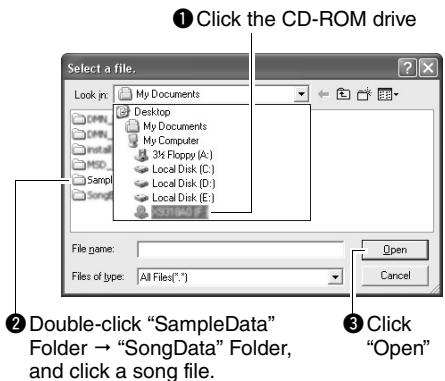
At this point you can select a Style file on the computer or CD-ROM and transfer it to the instrument in the same way as a song file.
6 A copy of the selected MIDI song file will appear in the "List of files stored temporarily" at the top of the window.
The memory medium will also be displayed at the bottom of the window to specify the destination for the transfer. Click the "Electronic Musical Instruments", and then "Flash memory."
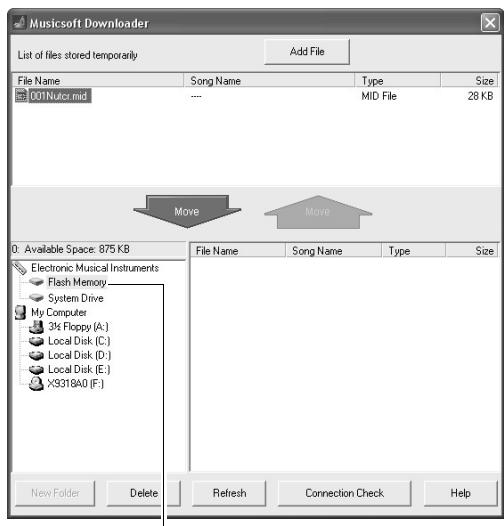
1 Click the "Electronic Musical Instruments," and then "Flash Memory"
7 After selecting the file in the "List of files stored temporarily", click the downward [Move] button and a confirmation message will appear. Click [OK] and the song will be transferred from the "List of files stored temporarily" to the instrument's memory.
8 Close the window to end the Musicsoft Downloader.
NOTE
- End the Musicsoft Downloader to playback the file transferred from your computer.

A style file stored in flash memory must first be loaded into style number 166 on the NP-V80 or style number 161 on the NP-V60 via the Load Style File function before it can be played. Refer to page 81 for NP-V80 details, or to page 67 for NP-V60 details.
NOTICE
- Do not unplug the USB cable during a data transfer. Not only will the data not be transferred and saved, but operation of the memory media may become unstable and its contents may disappear completely when the power is turned on or off.
NOTICE
- Store data can be lost due to equipment malfunction or improper operation. For safety we recommend that you keep a copy of all important data stored on your computer.
- We recommend that you use a power adaptor rather than batteries when transferring data. The data can be corrupted if the batteries fail during the transfer.
To Use transferred Songs For Lessons...
When using songs (only SMF format 0) transferred from a computer for lessons you can specify which channels are to be played back as the right-hand and left-hand parts.
Press the [SONG] button and select the song (036-) residing in flash memory for which you want to set the guide track.
2 Press the [FUNCTION] button.
3 Use the CATEGORY [▲] and [▼] buttons to select the R-Part or L-Part item.
4 Use the dial to select the channel you want to play back as the specified right- or left-hand part.
The default settings are channel 1 for the right-hand part and channel 2 for the left-hand part.
Transfer a backup file from the instrument to a computer
You can use the Musicsoft Downloader to transfer "Backup Files" containing backup data (page 50), including the five User Songs stored on the instrument, to a computer. If you click "Electronic Musical Instruments" in the Musicsoft Downloader display, and then "System Drive", a file named "10PK6.BUP(NP-V80), 10PK5.BUP(NP-V60)" will appear in the lower right corner of the Musicsoft Downloader display. This is the backup file. For details about how to transmit backup file using the Musicsoft Downloader application, refer to the Online help "Transferring Data Between the Computer and Instrument (for unprotected data)" in the application.
NOTICE
- The backup data, including the five User Songs is transmitted/received as a single file. As a result, all backup data will be overwritten every time you transmit or receive. Keep this in mind when transferring data.
NOTICE
- Do not rename the backup file on the computer. If you do so, it will not be recognized when transferred to the instrument.
SPECIALNOTICES
- The software and this manual are the exclusive copyrights of Yamaha Corporation.
- Use of the software and this manual is governed by the license agreement which the purchaser fully agrees to upon breaking the seal of the software packaging. (Please read carefully the Software Licensing Agreement on page 95 before installing the application.)
- Copying of the software or reproduction of this manual in whole or in part by any means is expressly forbidden without the written consent of the manufacturer.
- Yamaha makes no representations or warranties with regard to the use of the software and documentation and cannot be held responsible for the results of the use of this manual and the software.
- This disk containing the software is not meant for use with an audio/visual system (CD player, DVD player, etc.). Do not attempt to use the disk on equipment other than a computer.
- The screen displays as illustrated in this manual are for instructional purposes, and may appear somewhat different from the screens which appear on your computer.
- Software such as the USB-MIDI driver may be revised and updated without prior notice. Make sure to check and download the latest version of the software from the following site. http://music.yamaha.com/download/
- Future upgrades of application and system software and any changes in specifications and functions will be announced separately.
Important Notices about the CD-ROM
Data Types
This CD-ROM includes application software. Please refer to page 91 for software installation instructions.

CAUTION
- Do not attempt to play this CD-ROM on equipment other than a computer. The result high-volume noise can potentially cause hearing damage or damage your equipment.
Operating System (OS)
The applications in this CD-ROM are provided in versions for Windows operating systems.
CD-ROM Contents
When the included CD-ROM is inserted into the CD-ROM drive, the following start window will appear automatically. (If the start window does not appear automatically, open the "My computer" folder and double click "Start.exe" in the CD-ROM drive.)
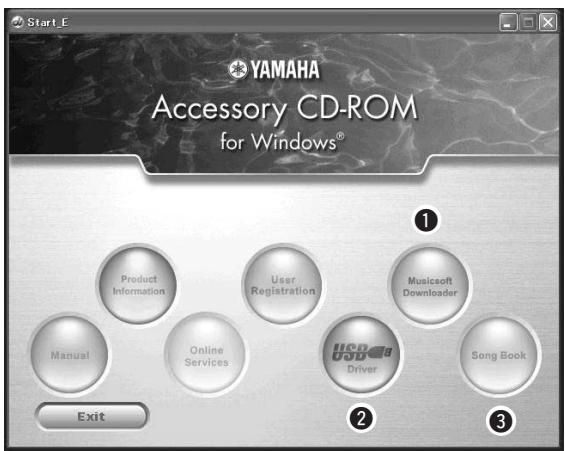
| Folder Name | Application / Data Name | Contents |
| 1 | MSD_ | Musicsoft Downloader | This application can be used to download MIDI song data from the Internet and transfer it from the computer to the instrument's memory. Refer to page 93 for installation instructions. |
| 2 | USBdrv32_ | USB-MIDI Driver (for 32-bit version Windows 2000/XP/Vista/7) | This driver software is necessary to connect MIDI devices to your computer via USB. Refer to page 91 for installation instructions. |
| USBdrv64_ | USB-MIDI Driver (for 64-bit version Windows XP/Vista/7) |
| 3 | SongBook | Song Book | Includes score data for the 30 internal songs provided on the instrument as well as 70 MIDI songs provided on the CD-ROM. The exceptions are songs 1–11 and 30. The scores for songs 9–11 are provided in the separate Data List. |
| SampleData | SongData | MIDI 70 songs | These songs, styles, or data can be transferred to the instrument and played or used with the instrument's functions. |
| StyleData | 5 style files |
| MDB | 5 Music Database data |
In order to view PDF scores, you will need to install Adobe Reader in your computer.
Adobe Reader can be downloaded free at the Adobe website.
System Requirements
| Data | OS | Computer | Memory | Hard Disk | Display |
| Musicsoft Downloader | Windows 2000/XP Home Edition/XP Professional/Vista* Only 32-bit is supported. Windows 7 | 233 MHz or higher; Intel Pentium/Celeron Proces-sor family(500 MHz or higher is re-commended) | 64 MB or more(256 MB or more is recommended) | 128 MB or more(at least 512 MB of free space is recommended) | 800 x 600HighColor(16-bit) |
| USB Driver for Windows | Windows XP Professional(SP2/SP3)/XP Home Edi-tion (SP2/SP3)/2000 (SP4) | 166 MHz or higher; Intel Core/Pentium/Celeron processor | 32 MB or more(64 MB or more is recommended) | 10 MB or more | — |
| Windows XP Professionalx64 Edition (SP2) | Intel 64 compatible pro-cessor | 256 MB or more | 10 MB or more | — |
| Windows Vista (SP0/SP1/SP2) | 800 MHz or higher; Intel Core/Pentium/Celeron processor or Intel 64 com-patible processor | 512 MB or more | 10 MB or more | — |
| Windows 7 | 1.4 GHz or higher; Intel Core/Pentium/Celeron processor or Intel 64 com-patible processor | 1 GB or more (32-bit)/2 GB or more(64-bit) | 10 MB or more | — |
Software Installation
If you have any problems with the installation, refer to the troubleshooting section on page 93.
NOTE
- The example displays shown in this guide are in English.
Installing / Updating the USB-MIDI Driver
In order to be able to communicate with and use MIDI instruments connected to your computer, the appropriate driver software must be properly installed on your computer.
The USB-MIDI driver allows sequence software and similar applications on your computer to transmit and receive MIDI data to and from instruments via a USB cable.
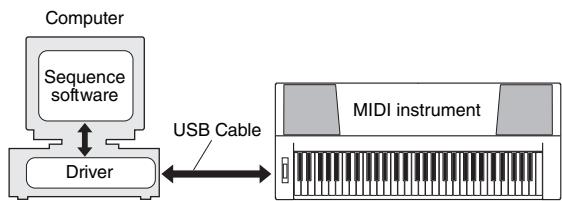
Follow the steps below to install (or update) the USB-MIDI driver.
1 Disconnect all USB devices from the computer except for the mouse and computer keyboard.
2 Start the computer and use the "Administrator" account to log on to Windows.
Close all applications and windows that are open.
3 Insert the Accessory CD-ROM into your computer's CD-ROM drive.
4 Turn off the power of the instrument.
5 Connect the USB connector of the computer to the USB connector of the MIDI instrument with a standard USB cable.
NOTE
- Do not use a USB hub for connecting multiple USB devices.
NOTE
- If you are using several MIDI instruments with USB connection at the same time, connect all the instruments to the computer and turn on the power for all of them, then perform the following installation procedure.
6 Turn on the power of the instrument(s).
7 When the "Found New Hardware Wizard" window appears, click [Cancel].
NOTE
- On some computers, it may take a few minutes before this screen appears.
NOTE
- This screen will not appear on Windows 7. When the message "Device driver software was not successfully installed" appears, continue the installation procedure.
NOTE
- This screen will not appear if you are updating the USB-MIDI driver from the previous version. Continue the installation procedure.
8 Open the following folder from the CD-ROM drive in your "My Computer" folder, and double click "setup.exe."
- For users of 32 bit version Windows 2000/XP/Vista/7: "USBdrv32_
-
For users of 64 bit version Windows XP/Vista/7: "USBdrv64_
-
Select [Start] menu → [Control Panel] → [System] to check the system. (Windows XP: "x64 Edition" appears on the 64 bit version, and does not appear on the 32 bit version.)
9 When the "File Download" window appears, click [Run] or [Open].
The "Preparing to install" window appears. The next window will appear after finishing this preparation.
NOTE
- The messages that appear in this window may differ somewhat depending on your browser.
NOTE
- (Windows XP) If the "Security Warning" window appears, click [Run].
NOTE
- (Windows Vista/7) If the "User Account Control" window appears, click [Continue] or [Yes].
10 When the "Welcome to the InstallShield Wizard for Yamaha USB-MIDI Driver" window appears, click [Next].
If the warning message below appears during the installation, click [Yes], [Continue Anyway], or [Install].
![YAMAHA NP-V80 - When the "Welcome to the InstallShield Wizard for Yamaha USB-MIDI Driver" window appears, click [Next]. - 1](/content/2025/01/115040/images/34538d869894dc056caf7aabf63998975ffb2b0db358cd13a58f52deb82c45fd.jpg)
Windows 2000
![YAMAHA NP-V80 - When the "Welcome to the InstallShield Wizard for Yamaha USB-MIDI Driver" window appears, click [Next]. - 2](/content/2025/01/115040/images/cb5dae467cca18755b8b4c19a0020569c80ef5d17c647c9a2d3d5f36d99a7297.jpg)
Windows XP
![YAMAHA NP-V80 - When the "Welcome to the InstallShield Wizard for Yamaha USB-MIDI Driver" window appears, click [Next]. - 3](/content/2025/01/115040/images/8d1d1c43837c06caae43b03dee746b3d7f5a04a9a3782bc5a94a674d5f938f28.jpg)
Windows Vista/7
When a message appears indicating that the driver has been successfully installed, click [Finish].
NOTE
- On some computers, it may take a few minutes before this screen appears.
12 When a window appears prompting you to restart the computer, do so.
Restart the computer by following the on-screen directions.
NOTE
- This display will not appear when using Windows XP x64/Vista/7. No restart is necessary.
Checking the version of the driver
Open the "Control Panel" and double-click the "Yamaha USB-MIDI Driver" icon.
A window appears and the driver version is indicated in the lower left of the window.
NOTE
- When using Windows XP x64/Vista/7, double-click the "Yamaha USB-MIDI Driver (WDM)" icon.
Installing the Musicsoft Downloader
IMPORTANT
- You will need to log on with administrator (root) privileges in order to install Musicsoft Downloader on a computer running Windows 2000, XP; Vista or 7.
Insert the Accessory CD-ROM into your computer's CD-ROM drive.
The start window will appear automatically showing software applications.
NOTE
- If the start window does not appear automatically, open the "My Computer" folder and double click "Start.exe" in the CD-ROM drive. Then, proceed to step 2 below.
2 Click [Musicsoft Downloader].
For Musicsoft Downloader operating instructions see the Help menu: launch the Musicsoft Downloader application and click "Help".
- You can obtain the latest version of the Musicsoft Downloader at the following web site. http://music.yamaha.com/download/
IMPORTANT
- Only Musicsoft Downloader can be used to transfer files between this instrument and a computer. No other file transfer application can be used.
Troubleshooting
The driver cannot be installed.
- Is the USB cable connected correctly?
Check the USB cable connection. Disconnect the USB cable, then connect it again.
- Is the USB function enabled on your computer?
When you connect the instrument to the computer for the first time, if the "Add (Found) New Hardware Wizard" or the "Found New Hardware" window does not appear, the USB function on the computer may be disabled. Perform the following steps.
1 Select [Control Panel]* [System] [Hardware] [Device Manager] (for Windows 2000/XP), or select [Control Panel] [Device Manager] (for Windows Vista/7).
- Classic View only in Windows XP.
2 Make sure that no “!” or “x” marks appear at “Universal serial bus controller” or “USB Root Hub”. If you see an “!” or “x” mark, the USB controller is disabled.
- Is any unknown device registered?
If driver installation fails, the instrument will be marked as an "Unknown device", and you will not be able to install the driver. Delete the "Unknown device" by following the steps below.
1 Select [Control Panel]* [System] [Hardware] [Device Manager] (for Windows 2000/XP), or select [Control Panel] [Device Manager] (for Windows Vista/7).
* Classic View only in Windows XP.
2 Look for "Other devices" in the menu "View devices by type".
3 If you find "Other devices", double-click it to extend the tree to look for "Unknown device". If one appears, select it and click the [Remove] button.
4 Remove the USB cable from the instrument, and make the connection again.
5 Install the driver again. (pages 91-92)
When controlling the instrument from your computer via USB, the instrument does not operate correctly or no sound is heard.
- Did you install the driver? (page 91)
- Is the USB cable connected correctly?
- Are the volume settings of the instrument, playback device, and application program set to the appropriate levels?
- Have you selected an appropriate port in the sequence software?
- Are you using the latest USB MIDI driver? The latest driver can be downloaded from the following web site.
http://music.yamaha.com/download/
Playback response is delayed.
- Does your computer satisfy the system requirements?
- Is any other application or device driver running?
Cannot suspend or resume the computer correctly.
- Do not suspend the computer while the MIDI application is running.
If you are using Windows 2000, you may not be able to suspend/resume normally, depending on the particular environment (USB Host Controller, etc.). Even so, simply disconnecting and connecting the USB cable will allow you to use the instrument functions again.
How can I remove the software?
[Windows 2000/XP]
1 Disconnect all USB devices from the computer except for the mouse and keyboard.
2 Start the computer and log on to the Administrator account.
Exit from any open applications and close all open windows.
3 From the [Start] menu, select ([Settings] [Control Panel] [Add or Remove Programs] to display the Add or Remove Programs panel.
4 Click "Change or Remove Programs" located in the upper left, then select "Yamaha USB-MIDI Driver" or "Yamaha Musicsoft Downloader" from the list in the right panel.
5 Click [Remove].
A dialog box appears. Follow the instructions to remove the software.
[Windows Vista/7]
1 Disconnect all USB devices from the computer except for the mouse and keyboard.
2 Start the computer and log on to the Administrator account.
Exit from any open applications and close all open windows.
3 From the [Start] menu, select the [Control Panel] [Programs and Features] or [Uninstall a program] to display the "Uninstall or change a program" window.
4 Select "Yamaha USB-MIDI Driver" or "Yamaha Musicsoft Downloader" from the list.
5 Click [Uninstall].
If the "User Account Control" window appears, click [Allow] or [Continue].
A dialog box appears. Follow the instructions to remove the software.
ATTENTION SOFTWARE LICENSE AGREEMENT
PLEASE READ THIS SOFTWARE LICENSE AGREEMENT ("AGREEMENT") CAREFULLY BEFORE USING THIS SOFTWARE. YOU ARE ONLY PERMITTED TO USE THIS SOFTWARE PURSUANT TO THE TERMS AND CONDITIONS OF THIS AGREEMENT. THIS AGREEMENT IS BETWEEN YOU (AS AN INDIVIDUAL OR LEGAL ENTITY) AND YAMAHA CORPORATION ("YAMAHA").
BY BREAKING THE SEAL OF THIS PACKAGE YOU ARE AGREEING TO BE BOUND BY THE TERMS OF THIS LICENSE. IF YOU DO NOT AGREE WITH THE TERMS, DO NOT INSTALL, COPY, OR OTHERWISE USE THIS SOFTWARE.
1. GRANT OF LICENSE AND COPYRIGHT
Yamaha hereby grants you the right to use one copy of the software program(s) and data ("SOFTWARE") accompanying this Agreement. The term SOFTWARE shall encompass any updates to the accompanying software and data. The SOFTWARE is owned by Yamaha and/or Yamaha's licensor(s), and is protected by relevant copyright laws and all applicable treaty provisions. While you are entitled to claim ownership of the data created with the use of SOFTWARE, the SOFTWARE will continue to be protected under relevant copyrights.
- You may use the SOFTWARE on a single computer.
- You may make one copy of the SOFTWARE in machine-readable form for backup purposes only, if the SOFTWARE is on media where such backup copy is permitted. On the backup copy, you must reproduce Yamaha's copyright notice and any other proprietary legends that were on the original copy of the SOFTWARE.
- You may permanently transfer to a third party all your rights in the SOFTWARE, provided that you do not retain any copies and the recipient reads and agrees to the terms of this Agreement.
2. RESTRICTIONS
- You may not engage in reverse engineering, disassembly, decompilation or otherwise deriving a source code form of the SOFTWARE by any method whatsoever.
- You may not reproduce, modify, change, rent, lease, or distribute the SOFTWARE in whole or in part, or create derivative works of the SOFTWARE.
- You may not electronically transmit the SOFTWARE from one computer to another or share the SOFTWARE in a network with other computers.
- You may not use the SOFTWARE to distribute illegal data or data that violates public policy.
- You may not initiate services based on the use of the SOFTWARE without permission by Yamaha Corporation.
Copyrighted data, including but not limited to MIDI data for songs, obtained by means of the SOFTWARE, are subject to the following restrictions which you must observe.
- Data received by means of the SOFTWARE may not be used for any commercial purposes without permission of the copyright owner.
- Data received by means of the SOFTWARE may not be duplicated, transferred, or distributed, or played back or performed for listeners in public without permission of the copyright owner.
- The encryption of data received by means of the SOFTWARE may not be removed nor may the electronic watermark be modified without permission of the copyright owner.
3. TERMINATION
This Agreement becomes effective on the day that you receive the SOFTWARE and remains effective until terminated. If any copyright law or provisions of this Agreement is violated, the Agreement shall terminate automatically and immediately without notice from Yamaha. Upon such termination, you must immediately destroy the licensed SOFTWARE, any accompanying written documents and all copies thereof.
As to SOFTWARE sold on tangible media, Yamaha warrants that the tangible media on which the SOFTWARE is recorded will be free from defects in materials and workmanship under normal use for a period of fourteen (14) days from the date of receipt, as evidenced by a copy of the receipt. Yamaha's entire liability and your exclusive remedy will be replacement of the defective media if it is returned to Yamaha or an authorized Yamaha dealer within fourteen days with a copy of the receipt. Yamaha is not responsible for replacing media damaged by accident, abuse or misapplication. TO THE FULLEST EXTENT PERMITTED BY LAW, YAMAHA EXPRESSLY DISCLAIMS ANY IMPLIED WARRANTY ON THE TANGIBLE MEDIA, INCLUDING THE IMPLIED WARRANTY OF MERCHANTABILITY AND FITNESS FOR A PARTICULAR PURPOSE.
5. DISCLAIMER OF WARRANTY ON SOFTWARE
You expressly acknowledge and agree that use of the SOFTWARE is at your sole risk. The SOFTWARE and related documentation are provided "AS IS" and without warranty of any kind. NOTWITHSTANDING ANY OTHER PROVISION OF THIS AGREEMENT, YAMAHA EXPRESSLY DISCLAIMS ALL WARRANTYES AS TO THE SOFTWARE, EXPRESS, AND IMPLIED, INCLUDING BUT NOT LIMITED TO THE IMPLIED WARRANTYES OF MERCHANTABILITY, FITNESS FOR A PARTICULAR PURPOSE AND NON-INFRINGEMENT OF THIRD PARTY RIGHTS. SPECIFICALLY, BUT WITHOUT LIMITING THE FOREIGNING, YAMAHA DOES NOT WARRANTY THAT THE SOFTWARE WILL MEET YOUR REQUIREMENTS, THAT THE OPERATION OF THE SOFTWARE WILL BE UNINTERRUPTED OR ERROR-FREE, OR THAT DEFECTS IN THE SOFTWARE WILL BE CORRECTED.
6. LIMITATION OF LIABILITY
YAMAHA'S ENTIRE OBLIGATION HEREUNDER SHALL BE TO PERMIT USE OF THE SOFTWARE UNDER THE TERMS HEREOF. IN NO EVENT SHALL YAMAHA BE LIABLE TO YOU OR ANY OTHER PERSON FOR ANY DAMAGES, INCLUDING, WITHOUT LIMITATION, ANY DIRECT, INDIRECT, INCIDENTAL OR CONSEQUENTIAL DAMAGES, EXPENSES, LOST PROFITS, LOST DATA OR OTHER DAMAGES ASING OUT OF THE USE, MISUSE OR INABILITY TO USE THE SOFTWARE, EVEN IF YAMAHA OR AN AUTHORIZED DEALER HAS BEEN ADVISED OF THE POSSIBILITY OF SUCH DAMAGES. In no event shall Yamaha's total liability to you for all damages, losses and causes of action (whether in contract, tort or otherwise) exceed the amount paid for the SOFTWARE.
7. THIRD PARTY SOFTWARE
Third party software and data ("THIRD PARTY SOFTWARE") may be attached to the SOFTWARE. If, in the written materials or the electronic data accompanying the Software, Yamaha identifies any software and data as THIRD PARTY SOFTWARE, you acknowledge and agree that you must abide by the provisions of any Agreement provided with the THIRD PARTY SOFTWARE and that the party providing the THIRD PARTY SOFTWARE is responsible for any warranty or liability related to or arising from the THIRD PARTY SOFTWARE. Yamaha is not responsible in any way for the THIRD PARTY SOFTWARE or your use thereof.
- Yamaha provides no express warranties as to the THIRD PARTY SOFTWARE. IN ADDITION, YAMAHA EXPRESSLY DISCLAIMS ALL IMPLIED WARRANTYES, INCLUDING BUT NOT LIMITED TO THE IMPLIED WARRANTY OF MERCHANTABILITY AND FITNESS FOR A PARTICULAR PURPOSE, as to the THIRD PARTY SOFTWARE.
- Yamaha shall not provide you with any service or maintenance as to the THIRD PARTY SOFTWARE.
- Yamaha is not liable to you or any other person for any damages, including, without limitation, any direct, indirect, incidental or consequential damages, expenses, lost profits, lost data or other damages arising out of the use, misuse or inability to use the THIRD PARTY SOFTWARE.
8. GENERAL
This Agreement shall be interpreted according to and governed by Japanese law without reference to principles of conflict of laws. Any dispute or procedure shall be heard before the Tokyo District Court in Japan. If for any reason a court of competent jurisdiction finds any portion of this Agreement to be unenforceable, the remainder of this Agreement shall continue in full force and effect.
9. COMPLETE AGREEMENT
This Agreement constitutes the entire agreement between the parties with respect to use of the SOFTWARE and any accompanying written materials and supersedes all prior or contemporaneous understandings or agreements, written or oral, regarding the subject matter of this Agreement. No amendment or revision of this Agreement will be binding unless in writing and signed by a fully authorized representative of Yamaha.
| Problem | Possible Cause and Solution |
| When the instrument is turned on or off, a popping sound is temporarily produced. | This is normal and indicates that the instrument is receiving electrical power. |
| When using a mobile phone, noise is produced. | Using a mobile phone in close proximity to the instrument may produce interference. To prevent this, turn off the mobile phone or use it further away from the instrument. |
| There is no sound even when the keyboard is played or when a song or style is being played back. | Check that nothing is connected to the PHONES/OUTPUT jack on the rear panel. When a set of headphones is plugged into this jack, no sound is output. |
| Check the Local Control on/off. (See page 85.) |
| Playing keys in the right hand area of the keyboard does not produce any sound. | When using the Dictionary function (page 68), the keys in the right hand area are used only for entering the chord root and type. |
| The volume is too soft.The sound quality is poor.The rhythm stops unexpectedly or will not play.The recorded data of the song, etc. does not play correctly.The LCD display suddenly goes dark, and all panel settings are reset. | The batteries are low or dead. Replace all six batteries with completely new ones, or use the optional AC adaptor. |
| The style or song does not play back when the [START/STOP] button is pressed. | Is External Clock set to ON? Make sure External Clock is set to OFF; refer to “External Clock” on page 85. |
| The style does not sound properly. | Make sure that the Style Volume (page 64) is set to an appropriate level. |
| Is the split point set at an appropriate key for the cords you are playing? Set the split point at an appropriate key (page 65).Is the “ACMP ON” indicator showing in the display? If it is not showing press the [ACMP ON/OFF] button so that it does show. |
| No rhythm accompaniment plays when the [START/STOP] button is pressed after selecting the “Serenade” style in the Waltz category and all styles in the Pianist category. | This is not a malfunction. The “Serenade” style in the Waltz category and all styles in the Pianist category styles have no rhythm parts, so no rhythm will play. The other parts will begin playing when you play a chord in the accompaniment range of the keyboard if style playback is turned on. |
| Not all of the voices seem to sound, or the sound seems to be cut off. | The instrument is polyphonic up to a maximum of 32 notes. If the Dual voice or Split voice is being used and a style or song is playing back at the same time, some notes/sounds may be omitted (or “stolen”) from the accompaniment or song. |
| Some notes don’t sound when playing multiple notes simultaneously on the keyboard, or some notes don’t sound when playing areggios. | You have exceeded 32 simultaneous notes, which is the maximum polyphony (the maximum number of notes that can be played simultaneously) of the instrument. The instrument will play normally as long as no more than 32 notes are being played at once, both on the keyboard and by any automatic playback functions. |
| The footswitch (for sustain) seems to produce the opposite effect. For example, pressing the footswitch cuts off the sound and releasing it sustains the sounds. | The polarity of the footswitch is reversed. Make sure that the footswitch plug is properly connected to the SUSTAIN jack before turning on the power. |
| The sound of the voice changes from note to note. | This is normal. The AWM tone generation method uses multiple recordings (samples) of an instrument across the range of the keyboard; thus, the actual sound of the voice may be slightly different from note to note. |
| The wrong notes sound when the keyboard is played. | Perhaps the performance assistant technology is turned on. Press the [P.A.T. ON/OFF] button to turn it off. |
| The ACPI ON indicator does not appear when the [ACMP ON/OFF] button is pressed. | Always press the [STYLE] button first when you are going to use any style-related function. |
| The USB device does not respond. | Disconnect the device from the [USB TO DEVICE] terminal, then turn on the power of the instrument. |
| The file name of a file transferred to the instrument's flash memory or a file on a USB flash memory connected to the instrument is not displayed. | The number of file names that can be shown on the display is limited to 500 for song files and 100 for style files. Please limit the number of files accordingly. |
Keyboards
- 76 box type keys (E0-G6), with Touch Response.
Display
Setup
- STANDBY/ON
- MASTER VOLUME: MIN-MAX
Realtime Control
Voice
- (NP-V80) 127 panel voices + 12 drum/SFX kits + 361 XGlite voices
- (NP-V60) 116 panel voices + 12 drum/SFX kits + 361 XGlite voices
- Polyphony: 32
DUAL
SPLIT
Style
NP-V80: 165 Preset style+External Files NP-V60: 160 Preset style+External Files
- Style Control: ACMP ON/OFF, SYNC STOP, SYNC START, START/STOP, INTRO/ENDING/rit., MAIN/AUTO FILL
- Fingering: Multi Finger
- Style Volume
Music Database
305
Education Feature
- Dictionary
- Lesson 1-3, Repeat & Learn
Registration Memory
Function
VOLUME: Style Volume, Song Volume
- OVERALL: Tuning, Transpose, Split Point, Touch Sensitivity, Pitch Bend Range
MAIN VOICE: Volume, Octave, Pan, Reverb Level, Chorus Level
DUAL VOICE: Voice, Volume, Octave, Pan, Reverb Level, Chorus Level
- SPLIT VOICE: Voice, Volume, Octave, Pan, Reverb Level, Chorus Level
- EFFECT: Reverb Type, Chorus Type, Master EQ Type
HARMONY: Harmony Type, Harmony Volume
- ARPEGGIO (NP-V80 only): Arpeggio Type, Arpeggio Velocity, Arpeggio Quantize, Arpeggio Pedal
- SFF Load (NP-V60):
- Style File Load
- Performance assistant technology: Performance assistant technology type
- PC: PC Mode
- MIDI: Local On/Off, External Clock, Initial Send, Keyboard Out, Style Out, Song Out
- METRONOME: Time Signature Numerator, Time Signature Denominator, Metronome Volume
LESSON: Lesson Track (R), Lesson Track (L), Grade DEMO: Demo Group, Demo Play, Demo Cancel
- POWER SAVE
LANGUAGE
Effects
- Reverb: 9 types
- Chorus: 4 types
Harmony: 26 types
Arpeggio: 50 types
Song
30 Preset Songs + 5 User Songs + Accessory CD-ROM Songs (70)
Song Clear, Track Clear
Song Volume
Song Control: REPEAT&LEARN, A-B REPEAT, PAUSE, REW. FF, START/STOP
Recording
Song
User Song:
Recording Tracks:
5 Songs
1,2,3,4,5,STYLE
MIDI
-
Local On/Off
-
Keyboard Out
-
Initial Send
Style Out
External Clock
Song Out
Auxiliary jacks
PHONES/OUTPUT, DC IN, USB, SUSTAIN, USB TO DEVICE
Amplifier
Speakers
NP-V80: (12cm x 6cm) x 2 + 5cm x 2
NP-V60: (12cm× 6cm)× 2
Power Supply
Adaptor:
Users within U.S.: PA-150 or an equivalent Others: PA-5D, PA-150 or an equivalent
- Batteries:
Six "AA" size, LR6 or equivalent batteries
Dimensions (W x D x H)
NP-V80: 1264 x 312 x 111mm (49-3/4" x 12-5/16" x 4-3/8")
NP-V60: 1228 x 312 x 111mm (48-3/8" x 12-5/16" x 4-3/8")
Weight
NP-V80:7.1kg (15 lbs. 10 oz.)
NP-V60: 6.3kg (13 lbs. 14 oz.)
* Not including batteries
Supplied Accessories
Optional Accessories
Users within U.S.: PA-150 or an equivalent
Others: PA-5D, PA-150 or an equivalent
Footswitch:
FC4/FC5
L-2C/L-2L
HPE-150/30
Footpedal:
FC3
- Specifications and descriptions in this owner's manual are for information purposes only. Yamaha Corp. reserves the right to change or modify products or specifications at any time without prior notice. Since specifications, equipment or options may not be the same in every locale, please check with your Yamaha dealer.
A
A-B Repeat 71
Accessories 7
ACMP 23
Arpeggio 20
Arpeggio Pedal 61
Arpeggio Quantize 60
Arpeggio Type 21
Arpeggio Velocity 60
Auto Accompaniment Range 23
Auto-Accompaniment 22,62
B
Backup 50,88
Bank 48
C
Channel 88
Chord 24-25,68
Chord Dictionary 68
Chorus 51
Chorus Level 74
Computer 84
D
Default Setting 73
Delete (SMF Song) 82
Delete (Songs transferred from a computer) 50
Delete (User File) 82
Delete (User Song) 47
Demo 29
Demo Cancel 75
Demo Group 69
Demo Play Mode 69
Display 15
Drum Kit 16
Dual Voice 18, 57
E
Easy Song Arranger 41
Effect 51
Ending 62
ExternalClock 85
F
Fast-Forward (FF) 29
File Control 76
Fill 62
Flash Memory 26,87
Footswitch 11, 61
Format (USB Flash Memory) 78
Function 73-75
G
Grade 31
H
Harmony 59
Harmony Volume 75
Headphones 11
1
Initial Send 86
Initialization 50
Intro 62
K
Keyboard Out 85
L
Lesson 30
Load (Style File) 67,81
Load (User File) 81
Local 85
L-Part 88
M
Main (Section) 62
Main Voice 16
Master EQ Type 55
Measure 15
Melody Voice 72
Metronome 19, 53
MIDI 84
Music Database 40
Music Rest 7
Mute 71
N
Notation 15
0
Octave 56
One Touch Setting 54
P
Pan 56
Part (Right, Left) 30
PC Mode 85
Performance assistant technology 35
Pitch Bend 54
Pitch Bend Range 74
Power Adaptor 10
Preset Song 26
R
Recording 43
Registration Memory 48
Repeat 33, 71
Reverb 51
Reverb Level 74
Rewind (REW) 29
R-Part 88
s
Save (Backup File) 50,88
Save (Panel Setting) 48
Save (SMF Song) 80
Save (User File) 79
Section 62
SMF (Standard MIDI File) 86
Song 26
Song Clear 47
Song Out 85
Split Point 18, 65
Split Voice 18,57
Style 22,62
Style File 67
Style Out 85
Style Tempo 64
Sustain (Footswitch) 11, 61
Synchro Start 23,62
Synchro Stop 63
T
Tap Start 65, 72
Tempo (Metronome) 19
Tempo (Song) 70
Tempo (Style) 64
Time Signature (Denominator) 53
Time Signature (Numerator) 53
Touch Response 58
Touch Sensitivity 58
Track 44
Track Clear 47
Transfer 86-88
Transpose 52
Troubleshooting (Installation) 93
Troubleshooting (Instrument) 96
Tuning 53
U
USB 84
USB-MIDI Driver 91
User Song 43
V
Voice 16,56
Volume (Dual Voice) 56
Volume (Main Voice) 56
Volume (master) 11
Volume (Song) 70
Volume (Split Voice) 56
Volume (Style) 64
X
XGlite 6

YAMAHA
LIMITED 1-YEAR WARRANTY ON
PORTABLE KEYBOARD
(NP, PSR-E, YPG AND YPT SERIES)
Thank you for selecting a Yamaha product. Yamaha products are designed and manufactured to provide a high level of defect-free performance. Yamaha Corporation of America ("Yamaha") is proud of the experience and craftsmanship that goes into each and every Yamaha product. Yamaha sells its products through a network of reputable, specially authorized dealers and is pleased to offer you, the Original Owner, the following Limited Warranty, which applies only to products that have been (1) directly purchased from Yamaha's authorized dealers in the fifty states of the USA and District of Columbia (the "Warranted Area") and (2) used exclusively in the Warranted Area. Yamaha suggests that you read the Limited Warranty thoroughly, and invites you to contact your authorized Yamaha dealer or Yamaha Customer Service if you have any questions.
Coverage: Yamaha will, at its option, repair or replace the product covered by this warranty if it becomes defective, malfunctions or otherwise fails to conform with this warranty under normal use and service during the term of this warranty, without charge for labor or materials. Repairs may be performed using new or refurbished parts that meet or exceed Yamaha specifications for new parts. If Yamaha elects to replace the product, the replacement may be a reconditioned unit. You will be responsible for any installation or removal charges and for any initial shipping charges if the product(s) must be shipped for warranty service. However, Yamaha will pay the return shipping charges to any destination within the USA if the repairs are covered by the warranty. This warranty does not cover (a) damage, deterioration or malfunction resulting from accident, negligence, misuse, abuse, improper installation or operation or failure to follow instructions according to the Owner's Manual for this product; any shipment of the product (claims must be presented to the carrier); repair or attempted repair by anyone other than Yamaha or an authorized Yamaha Service Center; (b) any unit which has been altered or on which the serial number has been defaced, modified or removed; (c) normal wear and any periodic maintenance; (d) deterioration due to perspiration, corrosive atmosphere or other external causes such as extremes in temperature or humidity; (e) damages attributable to power line surge or related electrical abnormalities, lightning damage or acts of God; or (f) RFI/EMI (Interference/ noise) caused by improper grounding or the improper use of either certified or uncertified equipment, if applicable. Any evidence of alteration, erasing or forgery of proof-of-purchase documents will cause this warranty to be void. This warranty covers only the Original Owner and is not transferable.
In Order to Obtain Warranty Service: Warranty service will only be provided for defective products within the Warranted Area. Contact your local authorized Yamaha dealer who will advise you of the procedures to be followed. If this is not successful, contact Yamaha at the address, telephone number or website shown below. Yamaha may request that you send the defective product to a local authorized Yamaha Servicer or authorize return of the defective product to Yamaha for repair. If you are uncertain as to whether a dealer has been authorized by Yamaha, please contact Yamaha's Service Department at the number shown below, or check Yamaha's website at www.Yamaha.com. Product(s) shipped for service should be packed securely and must be accompanied by a detailed explanation of the problem(s) requiring service, together with the original or a machine reproduction of the bill of sale or other dated, proof-of-purchase document describing the product, as evidence of warranty coverage. Should any product submitted for warranty service be found ineligible therefore, an estimate of repair cost will be furnished and the repair will be accomplished only if requested by you and upon receipt of payment or acceptable arrangement for payment.
Limitation of Implied Warranties and Exclusion of Damages: ANY IMPLIED WARRANTY, INCLUDING WARRANTY OF MERCHANTABILITY AND FITNESS FOR A PARTICULAR PURPOSE SHALL BE LIMITED IN DURATION TO THE APPLICABLE PERIOD OF TIME SET FORTH ABOVE. YAMAHASHALL NOT BE RESPONSIBLE FOR INCIDENTAL OR CONSEQUENTIAL DAMAGES OR FOR DAMAGES BASED UPON INCONVENIENCE, LOSS OF USE, DAMAGE TO ANY OTHER EQUIPMENT OR OTHER ITEMS AT THE SITE OF USE OR INTERRUPTION OF PERFORMANCES OR ANY CONSEQUENCES. YAMAHAS LIABILITY FOR ANY DEFECTIVE PRODUCT IS LIMITED TO REPAIR OR REPLACEMENT OF THE PRODUCT, AT YAMAHAS OPTION. SOME STATES DO NOT ALLOW LIMITATIONS ON HOW LONG AN IMPLIED WARRANTY LASTS OR THE EXCLUSION OR LIMITATION OF INCIDENTAL OR CONSEQUENTIAL DAMAGES, SO THE ABOVE LIMITATION OR EXCLUSION MAY NOT APPLY TO YOU. This Warranty gives you specific legal rights, and you may also have other rights which vary from state to state. This is the only express warranty applicable to the product specified herein; Yamaha neither assumes nor authorizes anyone to assume for it any other express warranty.
If you have any questions about service received or if you need assistance in locating an authorized Yamaha Servicer, please contact:

YAMAHA
CUSTOMER SERVICE
Yamaha Corporation of America
6600 Orangethorpe Avenue, Buena Park, California 90620-1373
Telephone: 800-854-1569
www.yamaha.com
Do not return any product to the above address without a written Return Authorization issued by Yamaha.
©2009 Yamaha Corporation of America. Effective: 11/01/09
| Important Notice: Guarantee Information for customers in EEA* and Switzerland For detailed guarantee information about this Yamaha product, and Pan-EEA* and Switzerland warranty service, please either visit the website address below (Printable file is available at our website) or contact the Yamaha representative office for your country (next page). * EEA: European Economic Area |
| Wichtiger Hinweis: Garantie-Information für Kunden in der EWR* und der SchweizFür ähnere Garantie-Information über diesen Produkt von Yamaha, sowie über den Pan- EWR* und Schweizer Garantieservice, besuchen Sieitte entweder die folgenden angegebene Internetadresse (eine druckfähige Version befindet sich auch auf unserer Seite), oder wenden Sie sich an den für Ihr Land zuständigen Yamaha-Vertrieb (nachste Seite). *EWR: Europäischer Wirtschaftswraum |
| Remarque importante: informations de garantie pour les clients de l'EE et la SuissePour des informations plus détaillées sur la garantie de ce produit Yamaha et sur le service de garantie applicable dans l'ensemble de l'EE ainsi qu'en Suisse, consultez notre site Web à l'adresse ci-dessous (le fjichier imprimable est disponible sur notre site Web) ou contactez directement Yamaha dans vos pays de résidence (page suivante). * EEE : Espace Economique Européen |
| Belangrijk mededeling: Garantie-informatie pour klanten in de EER* en ZwitzerlandVoor gedetailleerde garantie-informatie over dit Yamaha-product en de garantieservice in heel de EER* en Zwitzerland, gaat u waar de onderstaande website (u vinden een afdrukbaar bestand op once website) of neemt u contact op met de vertegenwoordig van Yamaha in uw land (volgende paginga). * EER: Europese Economische Ruimte |
| Aviso importante: información sobre la garantía para los clients del EEE* y SuizaPara una información detallada sobre este producto Yamaha y sobre el soporte de garantía en la zona EEE* y Suiza, visite la direccion web que se incluye más bajo (la version del archivo para imprintir esta disponible en{nuestro situ web) o póngase encontacto con el representante de Yamaha en su pays (págrina singular). * EEE: Espacio Económico Europeo |
| Avviso importante: informazioni sulla garanzia per i clienti residenti nell'EEA* e in SvizzeraPer informazioni dettagliate sulla garanzia relativa a quello prodotto Yamaha e Assistenza in garanzia nei paesi EEA* e in Svizzera, potete consultrare il site Web all'indirizzo riportato di seguito (é disponible il file in formato stampabile) oppure contattare l'ufficio di rappresentanza locale della Yamaha (pageina seguente). * EEA: Area Economica Europea |
| Aviso importante: informações sobre as garantias para clienteles da AEE* e da SuiraPara obter uma informação pormenorizada sobre este produits da Yamaha e sobre o服务于 de garantia na AEE* e na Suira, visite o site a seguir (o arquivo para impressão está disponível nonoxsite) ou entre em contacto com o escritório de representation da Yamaha no seu pays (proxima págrina). * AEE: Àrea Econômica Europeia |
| Σημαντίκη συμειώς: Πλροροφίες ευγύσης για τοῦ τέλάτε σουν ΕΟΧ* και ΕλβείαIΓα λεπομείς πλροροφίες ευγύσης χετίκα με το παρόν προίουν τός ΦγΑΜΑ και τήν καλίμη ευγύσης σε ἀλες τέχως του ΕΟΧ και τήν ΕλβείαI, επιδέρετεί την παράκαιω Μιθουελίδα (Ekτιμιωίμιμορρίεναι δίαθεδιμι Θτυν Μιθουελίδα μας) η ατεύθυνείτε θεν αντρομίωτεία Στι Φγαροσεισκ (ετόμενη σελίδα). * EOX: Eupωταιćóς Οίκουρικός Κχύρος |
| Viktigt: Garantiinformation für kunder i EES-området* och SchweizFür detailerad information omenna Yamahaproduktsamgariservizio i hela EES-området* och Schweiz kan du antingen besöka nedanständende webaddress (en utskriffsvanlig fil finns på webplatsen) eller kontakte Yamaha officiella representing i ditt land (nasta sida). * EES: Europeiska Ekonomiska Samarbetsområdet |
| Viktig merknad: Garantiinformationjörkunder i EOS* og Sveits Detaljert garantiinformationjörkunder om dette Yamaha-produktet og garantiservice for—hele EOS-området* og Sveits kan fás enten ved á besøke nettadenrissen forutskriffsversjon finnes på väre nettsditerllerkontakte Yamaha-kontoret i landet der du bor (neste side). *EOS: Det europeiske ökonomiske samarbeidsområdet |
| Vigttig oplysning: Garantioplyssnanger til kunder i EØ* og SchweizDe kan:Finde detailerede garantiplyssnanger om dette Yamaha-produkt og den félles garantiserviceordnung for EØ* (og Schweiz) ved at besøge det websted, der er angivet nedenfor (der findenes en fil, som kan udskrives, på vores websted), ellser ved at kontakte Yamahas nationale reprentationskontor i det land, Ivror De bor (næste side). * EØ: Det Europäiske Økonomiske Omrade |
Yamaha Representative Offices in Europe
| AUSTRIA
Yamaha Music Europe GmbH
Branch Austria
Schleiergasse 20, A-1100 Wien Austria
Tel: +43 (0)1 602 03900
Fax: +43 (0)1 602 039051
Tel: +358 (0)9 618511
Fax: +358 (0)9 61851385 | FINLAND
(For Musical Instrument)
F - Musiikki OY
Kaisaniemenkatu 7, PL260
00101 Helsinki, Finland
Tel: +358 (0)9 618511
Fax: +358 (0)9 61851385 | ICELAND
(For Musical Instrument)
HLJODFAERAHUSID EHF
Sidumula 20
108 Reykjavík, Iceland
Tel: +354 525 50 50
Fax: +354 568 65 14 | LUXEMBOURG
Yamaha Music Europe
Branch Benelux
Clarissenhof 5b NL, 4133 AB. Vianen
The Netherlands
Tel: +31 (0)347 358040
Fax: +31 (0)347 358060 | SLOVAKIA
Yamaha Music Europe GmbH
Branch Austria (Central and Eastern Europe)
Schleiergasse 20, A-1100 Wien Austria
Tel: +43 (0)1 602 03900
Fax: +43 (0)1 602 039051 |
| BELGIUM
Yamaha Music Europe
Branch Benelux
Clarissenhof 5b NL, 4133 AB. Vianen
The Netherlands
Tel: +31 (0)347 358040
Fax: +31 (0)347 358060 | (For Pro Audio)
Yamaha Scandinavia AB
JA Wettergrens gata 1
Västra Frölunda, Sweden
(Box 300 53, 400 43 Goteborg
Sweden - Postal Address)
Tel: +46 (0)31 893400
Fax: +46 (0)31 454026 | (For Pro Audio)
Yamaha Scandinavia AB
JA Wettergrens gata 1
Västra Frölunda, Sweden
(Box 300 53, 400 43 Goteborg
Sweden - Postal Address)
Tel: +46 (0)31 893400
Fax: +46 (0)31 454026 | MALTA
Olympus Music Ltd.
The Emporium, Level 3, St. Louis Street
Msida MSD06
Tel: +356 (0)2133 2093
Fax: +356 (0)2133 2144 | SLOVENIA
Yamaha Music Europe GmbH
Branch Austria (Central and Eastern Europe)
Schleiergasse 20, A-1100 Wien Austria
Tel: +43 (0)1 602 03900
Fax: +43 (0)1 602 039051 |
| BULGARIA
Yamaha Music Europe GmbH
Branch Austria (Central and Eastern Europe)
Schleiergasse 20, A-1100 Wien Austria
Tel: +43 (0)1 602 03900
Fax: +43 (0)1 602 039051 | FRANCE
Yamaha Musique France
Zone d'activité de Pariest
7, rue Ambroise Croizat
77183 Croissy-Beaubourg, France
(B.P. 70, 77312 Marne la Vallée Cedex 2
France-Adresse postale)
Tel: +33 (0)1 64 61 4000
Fax: +33 (0)1 64 61 4079 | IRELAND (REPUBLIC OF IRELAND)
Yamaha Music UK Ltd.
Sherbourne Drive
Tilbrook, Milton Keynes MK7 8BL
United Kingdom
Tel: +353 (0)1526 2449
Fax: +44 (0)1908 369278 | NETHERLANDS
Yamaha Music Europe
Branch Benelux
Clarissenhof 5b NL, 4133 AB. Vianen
The Netherlands
Tel: +31 (0)347 358040
Fax: +31 (0)347 358060 | SPAIN
Yamaha Música Ibérica, S.A.U.
Ctra. de la Coruna km.17, 200
28230 Las Rozas de Madrid, Spain
Tel: +34 902 39 8888
Fax: +34 91 638 4660 |
| CYPRUS
NAKAS Music Cyprus Ltd.
31C Nikis Ave., 1086 Nicosia
Tel: +357 (0)22 510 477
Fax: +357 (0)22 511 080 | GERMANY
Yamaha Music Europe GmbH
Siemensstr 22-34
D-25462 Rellingen, b. Hamburg, Germany
Tel: +49 (0)4101 3030
Fax: +49 (0)4101 303 7702 | ITALY
Yamaha Musica Italia s.p.a.
Viale Italia 88
20020, Lainate (Milano), Italy
Tel: +39 (0)02 93577 1
Fax: +39 (0)02 937 0956 | NORWAY
YS Oslo Liaison Office
(Yamaha Scandinavia AB Filial Norway)
Grini Naeringspark 1
1361 Osteras, Norway
Tel: +47 67 16 77 70
Fax: +47 67 16 77 79 | SWITZERLAND
Yamaha Music Europe GmbH, Rellingen, Branch Switzerland in Zurich
Seefeldstrasse 94, CH-8008
Zürich, Switzerland
Tel: +41 (0)44 3878080
Fax: +41 (0)44 3833918 |
| CZECH REPUBLIC
Yamaha Music Europe GmbH
Branch Austria (Central and Eastern Europe)
Schleiergasse 20, A-1100 Wien Austria
Tel: +43 (0)1 602 03900
Fax: +43 (0)1 602 039051 | GREECE
PH. Nakas S.A.Music House/Service
19 KM Leoforas Lavriou
19002 Pneaia / Attiki, Greece
Tel: +30 (0)210 6686260
Fax: +30 (0)210 6686269 | LATVIA
Yamaha Music Europe GmbH
Sp. z o.o. Oddzial w Polsce
(Branch Poland)
ul. 17 Szymczna 56
PL-02-146 Warszawa Poland
Tel: +48 (0)22 500 29 25
Fax: +48 (0)22 500 29 30 | POLAND
YAMAHA Music Europe GmbH
Sp. z o.o. Oddzial w Polsce
ul. 17 Szymczna 56
02-146 WARSZAWA/POLSKA
Tel: +48 (0)22 500 29 25
Fax: +48 (0)22 500 29 30 | UNITED KINGDOM
Yamaha Music UK Ltd.
Sherbourne Drive
Tilbrook, Milton Keynes MK7 8BL
United Kingdom
Tel: +44 (0)870 4445575
Fax: +44 (0)1908 369278 |
| ESTONIA
Yamaha Music Europe GmbH
Sp. z o.o. Oddzial w Polsce
(Branch Poland)
ul. 17 Szymczna 56 | HUNGARY
Yamaha Music Europe GmbH
Branch Austria (Central and Eastern Europe)
Schleiergasse 20, A-1100 Wien Austria
Tel: +43 (0)1 602 03900
Fax: +43 (0)1 602 039051 | LIECHTENSTEIN
Yamaha Music Europe GmbH, Rellingen,
Branch Switzerland in Zurich
Seefeldstrasse 94, CH-8008
Zürich, Switzerland
Tel: +41 (0)44 3878080
Fax: +41 (0)44 3833918 | ROMANIA
Yamaha Música Ibérica, S.A.U.
Sucursal Portuguesa
Rua Alfredo da Silva
2610-016 Amadora, Portugal
Tel: +351 214 704 330
Fax: +351 214 718 220 | |
| ESTONIA
Yamaha Music Europe GmbH
Sp. z o.o. Oddzial w Polsce
(Branch Poland)
ul. 17 Szymczna 56 | LITHUANIA
Yamaha Music Europe GmbH
Sp. z o.o. Oddzial w Polsce
(Branch Poland)
ul. 17 Szymczna 56
PL-02-146 Warszawa Poland
Tel: +48 (0)22 500 29 25
Fax: +48 (0)22 500 29 30 | | | |
NORTH AMERICA
CANADA
Yamaha Canada Music Ltd.
135 Milner Avenue, Scarborough, Ontario,
M1S 3R1, Canada
Tel: 416-298-1311
U.S.A.
Yamaha Corporation of America
6600 Orangethorpe Ave., Buena Park, Calif. 90620,
U.S.A.
Tel: 714-522-9011
CENTRAL & SOUTH AMERICA
MEXICO
Yamaha de Mexico S.A. de C.V.
Calz.Javier Rojo Gomez #1149
Col. Guadalupe del Moral
C.P.09300, Mexico,D.F.,Mexico
Tel: 55-5804-0600
BRAZIL
PANAMA AND OTHER LATIN
AMERICAN COUNTRIES/
CARIBBEAN COUNTER
Yamaha Music Latin America, S.A.
Torre Banco General, Piso 7, Urbanizacion Marbella,
Sherbourne Drive, Tilbrook, Milton Keynes,
MK7 8BL, England
Tel: 01908-366700
GERMANY
Yamaha Music Europe GmbH
Siemensstraße 22-34, 25462 Rellingen, Germany
Tel: 04101-3030
Branch Switzerland in Zurich
Seefeldstrasse 94, 8008 Zurich, Switzerland
Tel: 01-383 3990
AUSTRIA
Yamaha Music Europe GmbH Branch Austria
Schleiergasse 20, A-1100 Wien, Austria
Tel: 01-60203900
CZECH REPUBLIC/SLOVAKIA/
HUNGARY/SLOVENIA
Yamaha Music Europe GmbH Branch Austria
Schleiergasse 20, A-1100 Wien, Austria
Tel: 01-602039025
POLAND/LITHUANIA/LATVIA/ESTO
NIA
Yamaha Music Europe GmbH
147 Skiathou Street, 112-55 Athens, Greece
Tel: 01-228 2160
SWEDEN
Yamaha Scandinavia AB
J. A. Wettergrens Gata 1, Box 30053
S-400 43 Göteborg, Sweden
Tel: 031 89 34 00
DENMARK
YS Copenhagen Liaison Office
Generatorvej 6A, DK-2730 Herlev, Denmark
Tel: 44 92 49 00
FINLAND
F-Musiikki Oy
Kluuvikatu 6, P.O. Box 260,
SF-00101 Helsinki, Finland
Tel: 09 618511
NORWAY
Yamaha Music (Russia)
Office 4015, entrance 2, 21/5 Kuznetskii
Most street, Moscow, 107996, Russia
Tel: 495 626 0660
OTHER EUROPEAN COUNTRIES
Yamaha Music Europe GmbH
Siemensstraße 22-34, 25462 Rellingen, Germany
Tel: +49-4101-3030
AFRICA
Yamaha Corporation,
Asia-Pacific Music Marketing Group
Nakazawa-cho 10-1, Naka-ku, Hamamatsu,
Japan 430-8650
Tel: +81-53-460-2312
MIDDLE EAST
TURKEY/CYPRUS
Yamaha Music Europe GmbH
Siemensstraße 22-34, 25462 Rellingen, Germany
Tel: 04101-3030
OTHER COUNTRIES
Yamaha Music Gulf FZE
LOB 16-513, P.O.Box 17328, Jubel Ali,
Dubai, United Arab Emirates
Tel: +971-4-881-5868
ASIA
THE PEOPLE'S REPUBLIC OF CHINA
Yamaha Music & Electronics (China) Co., Ltd.
2F, Yunhedasha, 1818 Xinzha-lu, Jingan-qu,
Shanghai, China
Tel: 021-6247-2211
HONG KONG
Tom Lee Music Co., Ltd.
11/F., Silvercord Tower 1, 30 Canton Road,
Tsimshatsui, Kowloon, Hong Kong
Tel: 2737-7688
INDIA
Yamaha Music India Pvt. Ltd.
5F Ambience Corporate Tower Ambience Mall Complex
Ambience Island, NH-8, Gurgaon-122001, Haryana, India
Tel: 0124-466-5551
INDONESIA
PT. Yamaha Music Indonesia (Distributor)
PT. Nusantik
Gedung Yamaha Music Center, Jalan Jend. Gatot
SubROTO Kav. 4, Jakarta 12930, Indonesia
Tel: 21-520-2577
KOREA
Yamaha Music Korea Ltd.
8F, 9F, Dongsung Bldg. 158-9 Samsung-Dong,
Kangnam-Gu, Seoul, Korea
Tel: 080-004-0022
MALAYSIA
Yamaha Music Malaysia, Sdn., Bhd.
Lot 8, Jalan Perbandaran, 47301 Kelana Jaya,
Petaling Jaya, Selangor, Malaysia
Tel: 3-78030900
PHILIPPINES
Yupangco Music Corporation
339 Gil J. Puyat Avenue, P.O. Box 885 MCPO,
Makati, Metro Manila, Philippines
Tel: 819-7551
SINGAPORE
Yamaha Music Asia Pte., Ltd.
03-11 A-Z Building
140 Paya Lebor Road, Singapore 409015
Tel: 747-4374
TAIWAN
Yamaha KHS Music Co., Ltd.
3F, #6, Sec.2, Nan Jing E. Rd. Taipei.
Taiwan 104, R.O.C.
Tel: 02-2511-8688
THAILAND
Siam Music Yamaha Co., Ltd.
4, 6, 15 and 16th floor, Siam Motors Building,
891/1 Rama 1 Road, Wangmai,
Pathumwan, Bangkok 10330, Thailand
Tel: 02-215-2626
OTHER ASIAN COUNTRIES
Yamaha Corporation,
Asia-Pacific Music Marketing Group
Nakazawa-cho 10-1, Naka-ku, Hamamatsu,
Japan 430-8650
Tel: +81-53-460-2317
OCEANIA
AUSTRALIA
Yamaha Music Australia Pty. Ltd.
Level 1, 99 Queensbridge Street, Southbank,
Victoria 3006, Australia
Tel: 3-9693-5111
NEW ZEALAND
Music Works LTD
P.O.BOX 6246 Wellesley,Auckland 4680
New Zealand
Tel: 9-634-0099
COUNTRIES AND TRUST
TERRITORIES IN PACIFIC OCEAN
Yamaha Corporation,
Asia-Pacific Music Marketing Group
Nakazawa-cho 10-1, Naka-ku, Hamamatsu,
Japan 430-8650
Tel: +81-53-460-2312

YAMAHA
Yamaha Home Keyboards Home Page
http://music.yamaha.com/homekeyboard/
Yamaha Manual Library
http://www.yamaha.co.jp/manual/