DM225 - Postage meter PITNEY BOWES - Free user manual and instructions
Find the device manual for free DM225 PITNEY BOWES in PDF.


User questions about DM225 PITNEY BOWES
0 question about this device. Answer the ones you know or ask your own.
Ask a new question about this device
Download the instructions for your Postage meter in PDF format for free! Find your manual DM225 - PITNEY BOWES and take your electronic device back in hand. On this page are published all the documents necessary for the use of your device. DM225 by PITNEY BOWES.
USER MANUAL DM225 PITNEY BOWES
©2011 Pitney Bowes Inc. All rights reserved. This book may not be reproduced in whole or in part in any fashion or stored in a retrieval system of any type or transmitted by any means, elec tron i cal ly or mechanically, without the express, written permission of Pitney Bowes.
We have made every reasonable effort to ensure the accuracy and usefulness of this manual; however, we cannot assume responsibility for errors or omissions or liability for the misuse or misapplication of our products.
Due to our continuing program of product improvement, equipment and material specifications as well as performance features are subject to change without notice. Your digital mailing system may not have some of the features described in this book. Available features vary, depending on the model of your mailing system, installed options, system software level, and how your system is set up.
E-Z Seal, Postage By Phone, Purchase Power, and PC Meter Connect are trademarks or registered trademarks of Pitney Bowes Inc. EN ER GY STAR is a registered trademark of the United States Environmental Protection Agency. USPS is a registered trademark of the United States Postal Service. Windows is a trademark of Microsoft Corporation.
Declaration of Conformity According to FCC Rules Part 2, Paragraph 2.1077
This device complies with Part 15 of the FCC Rules. Operation is subject to the following two conditions: (1) this device may not cause harmful interference, and (2) this device must accept any interference received, including interference that may cause undesired operation. Responsible party: Pitney Bowes, 1 Elmcroft Rd., Stamford, CT 06926-0700.
Note for all models: This equipment has been tested and found to comply with the limits for a Class B digital device, pursuant to part 15 of the FCC rules. These limits are designed to provide reasonable protection against interference in a residential installation. This equipment generates, uses, and can radiate radio frequency energy and, if not installed and used in accordance with the instruction manual, may cause interference to radio communications. However, there is no guarantee that interference will not occur in a particular installation. If this equipment does cause interference to radio or television reception, which can be determined by turning the equipment off and on, the user is encouraged to try to correct the interference by one or more of the following measures:
- Reorient or relocate the receiving antenna.
- Increase the separation between the equipment and receiver.
- Connect the equipment into an outlet on a circuit different from that to which the receiver is connected.
- Consult the dealer or an experienced radio/TV technician for help.

CAUTION: Changes or modifications to this equipment not expressly approved by the party responsible for compliance could void the user's authority to operate the equipment.
Shielded I/O and USB cables must be used with this equipment to ensure compliance with the limits. Use of unshielded cables is prohibited.
Servicing
This equipment is not intended to be serviceable. Please refer to the warranty information if problems occur. Failed units will be returned to the Pitney Bowes U.S. Service Center. For reference purposes, the Pitney Bowes U.S. Service Center contact address is: Pitney Bowes Inc., 1 Elmcroft Road, Stamford, CT, 06926-0700. All inquiries can be done by calling 1-800 522-0020 and following the telephone prompts. Customer Service Representatives are available Monday through Friday, 8:00 AM - 8:00 PM ET.
FCC Part 68 Compliance of the Modem
This equipment complies with Part 68 of the FCC rules and the requirements adopted by the ACTA. On the bottom of this equipment is a label that contains, among other information, a product identifier in the format US:AAAEQ##TXXXX. If requested, this number must be provided to the telephone company.
This equipment is designed to be connected to a Facility Interface Code 02LS2 network with RJ11C network interface.
A plug and jack used to connect this equipment to the premises wiring and telephone network must comply with the applicable FCC Part 68 rules and requirements adopted by the ACTA. A compliant telephone cord and modular plug is provided with this product. It is designed to be connected to a compatible modular jack that is also compliant. See installation instructions for details.
The ringer equivalence number (REN) is used to determine the number of devices that may be connected to a telephone line. Excessive RENs on a telephone line may result in the devices not ringing in response to an incoming call. In most but not all areas, the sum of RENs should not exceed five (5.0). To be certain of the number of devices that may be connected to a line, as determined by the total RENs, contact the local telephone company. The REN for this product is part of the product identifier that has the format US:AAAEQ##TXXXX. The digits represented by ## are the REN without a decimal point (for example, these models are 10 which is a REN of 1.0).
If this equipment causes harm to the telephone network, the telephone company will notify you in advance that temporary discontinuance of service may be required. But if advance notice isn't practical, the telephone company will notify you as soon as possible. Also, you will be advised of your right to file a complaint with the FCC if you believe it is necessary.
The telephone company may make changes in its facilities, equipment, operations, or procedures that could affect the operation of the equipment. If this happens the telephone company will provide advance notice in order for you to make necessary modifications to maintain uninterrupted service.
If trouble is experienced with this equipment, please contact Pitney Bowes, 1 Elmcroft Rd., Stamford, CT 06926-0700, for repair or warranty information (also see Servicing section above). If the equipment is causing harm to the telephone network, the telephone company may request that you disconnect the equipment until the problem is resolved. This equipment is not intended to be repaired by the customer (user).
Connection to party-line service is subject to state tariffs. Contact the state public utility commission, public service commission, or corporation commission for information.
If the installation site has specially wired alarm equipment connected to the telephone line, ensure the installation of this mailing machine does not disable the alarm equipment. If you have questions about what will disable alarm equipment, consult your telephone company or a qualified installer.
Industry Canada
This product meets the applicable Industry Canada technical specifications. The Ringer Equivalence Number (REN) is an indication of the maximum number of devices allowed to be connected to a telephone interface. The Ringer Equivalence Number (REN) of this terminal equipment is 1.0. The termination on an interface may consist of any combination of devices subject only to the requirement that the sum of the RENs of all devices does not exceed fi ve.
The abbreviation, IC, before the registration number signifies that registration was performed based on a Declaration of Conformity indicating that Industry Canada technical specifications were met. It does not imply that Industry Canada approved the equipment.
Pitney Bowes Contact List
Machine Identification
Product Name: DM100i Digital Mailing System Model Number: P700
Product Name: DM125 Digital Mailing System Model Number: PR00
Product Name: DM200L Digital Mailing System Model Number: P7L1
Product Name: DM225 Digital Mailing System Model Number: PRL1
Resources
To obtain product help through tutorials, troubleshooting pages, downloads, chat, and forums, go to:
DM100i: http://www.pb.com/support/DM100
DM125: http://www.pb.com/support/DM125
DM200L: http://www.pb.com/support/DM200
DM225: http://www.pb.com/support/DM225
To order PB supplies and accessories, go to: http://www.pb.com and click on Supplies OR order by phone at 1-800-243-7824 (M-F 8:00 AM to 8:00 PM E.T.)
To view a list of your equipment, pay invoices online, or you have questions about your Postage-by-Phone account go to: http://www.pb.com and click on My Account
For questions about your account or the product, call the Pitney Bowes Customer Care Center at 1-800-522-0020 (M-F 8:00 AM to 8:00 PM E.T.).
To contact the United Stated Postal Service® (USPS), visit: http://www.USPS.com
Table of Contents
1 • Introduction
What's in this Guide 1-1
About Your Digital Mailing System 1-2
Postal Requirements 1-3
Sections of the Meter Stamp 1-4
What is IntelliLink™? 1-4
About Constant Connection (LAN Network Connectivity) ..... 1-5
About PC Meter Connect™ Desktop Application 1-5
Other Sources of Information 1-6
Important Safety Notes 1-6
2 • Getting to Know Your System
Parts of the Machine 2-2
Control Panel 2-4
Connections on Back of Machine (DM100i/DM200L) 2-6
Connections on Back of Machine (DM125/DM225) 2-7
3 · Running Mail
Home Screen 3-1
Checking Funds (Postage) Availability in Machine 3-1
At a PC Using PC Meter Connect™(Enhanced Version) 3-1
At Mailing Machine 3-2
Printing a \$0.00 Meter Test Print 3-2
Selecting An Account to Track Postage (Optional) 3-3
Applying Postage 3-4
Keying In the Postage Directly 3-5
Entering Weight Manually 3-6
Using the Weighing Platform (Scale) 3-7
Using Differential Weighing 3-8
Using the Batch Count 3-10
Viewing (Checking) the Batch Count 3-10
Printing the Batch Count 3-11
Clearing the Batch Count 3-11
4 · Printing Options
Printing Options Overview 4-1
Sections of the Meter Stamp 4-1
Printing a \$0.00 Meter Stamp 4-2
Auto-Advance of Printed Date for the Meter Stamp 4-2
Manually Changing Printed Date for the Meter Stamp 4-2
At a PC Using PC Meter Connect™(Enhanced Version) 4-3
At Mailing Machine 4-4
Setting the Machine to Today's Date 4-4
Bypass All Printing and Only Seal the Envelope 4-5
Omitting/Restoring Day or Date on the Meter Stamp 4-6
Adding/Removing a Postal Inscription to Meter Stamp 4-7
At a PC Using PC Meter Connect™(Enhanced Version) 4-7
At Mailing Machine 4-8
Adding/Removing an Envelope Ad to the Meter Stamp 4-9
At a PC Using PC Meter Connect™(Enhanced Version) 4-9
At Mailing Machine 4-10
Printing the Date and Time Only (no meter stamp) .....4-11
Printing Ad, Date, and Time Only (no meter stamp) 4-12
Adjusting Horizontal Print Position of Meter Stamp 4-13
5 · Normal and Custom Presets
What is a Preset? 5-1
Why Should I Use Presets? 5-1
Why Should I Always Include a USPS® "Class" in my Preset? 5-1
Normal Preset 5-2
Viewing the Values of the Normal Preset 5-3
At a PC Using PC Meter Connect™(Enhanced Ver.) .. 5-3
At Mailing Machine 5-4
Defining New Values for the Normal Preset 5-5
Custom Presets 5-6
Selecting a Custom Preset 5-7
At a PC Using PC Meter Connect™(Enhanced Ver.) .. 5-7
At Mailing Machine 5-7
Defining a New Custom Preset 5-8
Viewing the Values of a Custom Preset 5-9
At a PC Using PC Meter Connect™(Enhanced Ver.) .. 5-9
At Mailing Machine 5-10
Editing a Custom Preset Name ....5-11
Deleting a Custom Preset 5-11
6 • Adding Postage/Connecting to Data Center
Postage and Your Machine 6-1
Establishing Communications Between Your Machine and the
Pitney Bowes Data Center 6-1
Downloads from the Data Center to Your Machine 6-2
Using a LAN Network to Establish Communications with the
Data Center [DM125/DM225] 6-5
Using PC Meter Connect™ to Establish Communications with the
Data Center 6-6
Using Analog Phone Line to Establish Communications with the
Data Center 6-7
Checking Funds (Postage) Availability in Machine 6-8
At a PC Using PC Meter Connect™(Enhanced Version) 6-8
At Mailing Machine 6-8
Checking Your Postage by Phone® Account Balance 6-9
At a PC Using PC Meter Connect™(Enhanced Version) 6-9
At Mailing Machine 6-9
Adding Postage 6-10
At a PC Using PC Meter Connect™(Enhanced Version)6-10
At Mailing Machine 6-12
Printing a Funds (Postage) Report 6-13
Performing USPS Meter Inspection 6-14
At a PC Using PC Meter Connect™(Enhanced Version)6-14
At Mailing Machine 6-14
Downloading Files or Updating System 6-15
Settings for Connecting to the Data Center 6-16
Phone Parameters (for analog line to Data Center) ......6-17
LAN Settings (for LAN Internet to Data Center; DM125/
DM225 only) 6-20
Firewall Settings (for PC connections to Data Center) .... 6-21
Distributor Values (for both analog line and PC
connections to Data Center) 6-22
7 · System Options
System Options Overview 7-1
Basic Options 7-2
Advancing the Printed Date for the Meter Stamp 7-2
At a PC Using PC Meter Connect™(Enhanced Ver.) ... 7-3
At Mailing Machine 7-4
Set Meter Stamp to Today's Date 7-5
Adjusting the Contrast of the Display 7-5
Turning Features (Already Installed) On and Off 7-6
Setting the Date, Time, and Timeouts 7-7
Setting Postage Values (Funds Warnings) 7-13
Setting the High Value Warning 7-13
At a PC Using PC Meter Connect™(Enhanced Ver.). 7-13
At Mailing Machine 7-14
Setting the Low Funds Warning 7-15
At a PC Using PC Meter Connect™(Enhanced Ver.). 7-15
At Mailing Machine 7-15
Changing the Lock Codes and Passwords 7-16
Setting Scale Options 7-18
Advanced Options 7-22
Change Language 7-23
Barcode Scanner 7-23
Meter Withdrawal (Withdrawing Postage Funds) 7-24
Run Install Mode 7-26
8 · Standard Accounting (Optional)
Standard Accounting Overview 8-1
Activating/Setting Up Standard Accounting Option 8-2
Turning On Standard Accounting 8-4
Turning Off Standard Accounting 8-5
Turning On Account Passwords (Globally) 8-6
Turning Off Account Passwords (Globally) 8-7
Creating an Account 8-8
Editing Account Names and Setting Up Passwords 8-9
Selecting an Account 8-11
Displaying Account Totals 8-12
Printing a Single Account Report 8-13
Printing a Multi-Account Summary Report 8-14
At a PC Using PC Meter Connect™(Enhanced Version) ..8-14
At Mailing Machine 8-15
Clearing an Account 8-16
Clearing all Accounts 8-17
Deleting an Account 8-18
9 · Reports
Overview of Reports 9-1
Printing a Report 9-2
Printing on an Envelope or Tape Strip 9-2
Printing to an Attached Printer 9-2
Register Report (Funds Report) 9-3
Add Postage Report 9-4
Single Accounts Report (Standard Accounting) 9-5
Multi-Account Summary Report (Standard Accounting) ...... 9-6
At a PC Using PC Meter Connect™(Enhanced Version) 9-7
At Mailing Machine 9-7
Account List Report (Standard Accounting) 9-8
System Setup Report 9-8
Special Services Report (USPS® Confirmation Services) ...... 9-9
Rates Summary Report 9-10
Configuration Report 9-11
Error Report 9-12
10 · Maintenance
Messages Indicating Ink Cartridge Replacement 10-1
Messages Indicating Ink Waste Tank Replacement 10-1
Printing a \$0.00 Meter Stamp 10-1
Replacing the Ink Cartridge 10-2
Filling the Moistener 10-4
Maintaining the Moistener 10-5
Removing and Cleaning the Moistener Brush 10-5
Removing/Cleaning the Moistener Wick and Holder ..... 10-7
Replacing the Print Head 10-8
Running Print Tests 10-12
Test Print 10-13
Purge 10-14
Replacement of Print Head or Cartridge 10-15
11 · Troubleshooting
Getting Help 11-1
Messages on LCD Display 11-1
Blank Display 11-1
Display Problems (display hard to read) 11-2
Feeding Problems (stalled envelopes) 11-2
Printing Problems 11-3
Moistening Problems (envelopes don't seal) 11-4
Problems Connecting to the Data Center via Analog Line .....11-5
Problems Connecting to the Data Center via LAN 11-6
Problems Connecting to the Data Center via the PC .....11-6
Accidentally Printing the Wrong Postage 11-10
Viewing System Configuration Levels 11-11
12 · Supplies and Options
Supplies and Accessories 12-1
Options....12-1
Integrated Weighing Platform (Scale) 12-1
Moistener....12-1
Standard Accounting 12-1
Electronic USPS® Confirmation Services 12-2
Postal Inscriptions/Advertisements 12-2
Appendix A • PC Meter Connect™ Desktop Application
Appendix B • How to Enter Text
Appendix C · Glossary
Appendix D · Specifications
Index
1 • Introduction
What's in this Guide
| Section Description | |
| Chapter 1Introduction | Describes the key features of your mail ing system. It also includes important safety notes. |
| Chapter 2Getting to KnowYour System | Explains the purpose and shows the lo ca tion of each control and ma chine feature. Please read this sec tion carefully. It provides a foun da tion for the instructions in later sections of this book. |
| Chapter 3Running Mail | Explains how to process mail. The op er a tions covered here are the ones you'll use most often. |
| Chapter 4Printing Options | Explains your printing options for incoming and outgoing mail. |
| Chapter 5Normal andCustom Presets | Explains the Normal and Custom Presets feature for saving commonly-used settings on your machine |
| Chapter 6Adding Postage/Connecting toData Center | Explains how to connect your system to the Pitney Bowes Data Center so you can add postage and down-load the latest postal rates and updates to your mailing system |
| Chapter 7System Options | Provides step-by-step instructions for cus tom iz ing sys-tem operation to suit your own needs |
| Chapter 8Accounting | Provides instructions for setting up the op tion al standard accounting feature. |
| Chapter 9Reports | Provides a description of reports you can print on your system |
| Chapter 10Maintenance | Explains how to check print quality and take care of the ink cartridge and moistener. |
| Chapter 11Troubleshooting | Explains how to fix common problems and tells you know what error messages mean. |
| Chapter 12Supplies/Options | Lists the supplies and options that add to the ver sa til i ty of your mailing machine. |
| Appendix APC MeterConnectTM | Discusses PC Meter ConnectTM, which allows high-speed Internet connection to the Data Center as well as convenient access to machine settings from your PC. |
| Appendix BEntering Text | Explains how you enter text for postal codes, presets and special characters. |
| Appendix CGlossary | Explains terms unique to the world of mail ing |
| Appendix DSpecifications | Pro vides material and equipment spec i fi ca tions |
About Your Digital Mailing System
Your digital mailing system's advanced features include:
• Space-saving, compact footprint
- ENERGY STARqualified design lowers operating costs and helps preserve the environment
- Large, easy-to-read display shows system status and prompts you through setup operations
- Semi-automatic envelope feeding, transport, and auto-eject
• Automatic date advance
- Keyboard-selectable envelope ads and inscriptions
- Convenient, one-button postage-adding via Postage By Phone®
- Stacker neatly stacks finished envelopes
- Ink jet printer provides clear, crisp imprints
- Integrated weighing platform weighs mail pieces (optional)
- Integrated rating feature calculates correct postage
- Date and time stamp for use on incoming mail or on sensitive documents
- Optional accounting feature tracks postage costs by department
• Full report printing capability provides hard-copy records of your postage transactions
- In-line moistener wets envelopes for sealing (optional)
- Ability to electronically download postage and system updates quickly to your machine.
- USB communication port which allows you to do postage refills/system updates quickly and conveniently from your PC via the PC Meter Connect™ application.
Postal Requirements
The meter on your mailing machine is licensed by the United States Postal Service (USPS®) and you must follow some basic requirements.
- Mail must have the correct date and postage amount in the meter stamp (indicia).
- Metered mail must bear the ZIP Code location of the post office where the postage meter (mailing machine) is registered.
- If you move to another ZIP Code location, you must update the ZIP Code by calling our Customer Care Center (see page v).
- The USPS® requires a postal inspection of your machine every 120 days. This postal inspection requirement can be automatically met by connecting to the Pitney Bowes Data Center to check your Postage By Phone® meter payment account balance or to add postage to your mailing machine.
NOTE: If the interval between inspections is more than 90 days, your machine's dis play prompts "Connection Due." If the interval be tween inspections is more than 120 days, the dis play prompts "Connection Required By Post." At this point, you won't be able to use your mailing system until your system is inspected (i.e., connected to the Data Center). In either case, to sat is fy the postal inspection requirement, simply:
- Follow the prompts on the "Connection Due" or "Connection Required By Post" screens or
- Press Add Postage and select "Check PBP Account Balance" (which will not decrease or change the funds in your account).
- Tape sheets are used to apply postage on mail pieces that are too thick or too large to run through your machine. These sheets must conform to postal spec i fi ca tions. For best performance, we recommend Pit ney Bowes tape sheets (see Chapter 12, Sup-plies and page v for ordering information).
Sections of the Meter Stamp
These are the sections that make up the meter stamp printed on your mail piece.
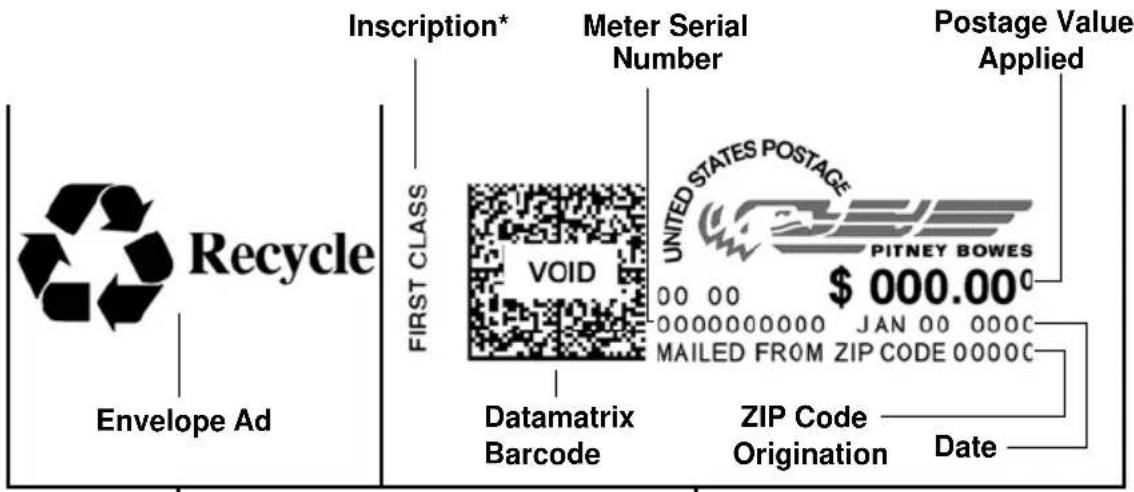
Optional Printing Required Printing
*required only for certain classes of mail
What is IntelliLink™?
Your mailing system takes full ad van tage of IntelliLink™, your digital gateway to an entire suite of ser vic es and information that can move your mail more ef fi cient ly and enhance your business performance. IntelliLink™ technology gives you the ability to:
Add postage funds conveniently
You can add funds to your machine electronically via Pitney Bowes Postage By Phone® (requires analog phone line, a Windows PC with Internet connection, or a LAN Internet connection (DM125/DM225 only).
Download Postal Rate Updates
The latest postal rates can be downloaded precisely when you need them.
Use USPS® Confirmation Services
You can take advantage of special services offered by the USPS® such as Delivery Confirmation, Signature Confirmation, and Certified Mail if you have this optional feature.
Add Features On Demand
You can easily download envelope ads, postal inscriptions, and optional features such as departmental ac count ing.
Keep Your System Current
Electronic download capability means you'll always have the latest version of your machine's operating system.
About Constant Connection (LAN Network) [DM125 and DM225]
Constant Connection is an option that allows you to connect your DM125 or DM225 machine to the Pitney Bowes Data Center via a LAN network that has Internet access. Constant Connection's high-speed connectivity eliminates the need for an analog line and provides faster transmission speed when connecting through your local network.
To use, plug one end of the Ethernet cable (supplied) to your Internet LAN network port and the other end to the USB adapter which plugs into the USB port on the back of the machine (see also Chapter 6, Adding Postage). You may leave this connected on a permanent basis; hence the name "constant connection".
About PC Meter Connect ^TM Desktop Application
PC Meter Connect is another high-speed connectivity option that eliminates the need for an analog line. Similar to Constant Connection, PC Meter Connect™ enables your mailing machine to connect to the Internet but it does so via a Windows PC having an Internet connection.
You simply download the PC Meter Connect™ software from the Pitney Bowes website (see page v), install it onto a PC with an internet connection (broadband, DSL, network, etc.), and connect a USB cable between your mailing machine and the PC. See Appendix A - PC Meter Connect™ Desktop Application for more information.
Before installing the PC Meter Connect™ software, make sure your PC meets these minimum requirements:
- Windows® 2000, Windows XP (32-bit or 64-bit), Windows Vista (32-bit or 64-bit), or Windows 7 (32-bit or 64-bit) operating systems with the latest service packs (Mac OS is not supported).
• 1.2 GHz processor - 512 MB of RAM
• administrative rights to install software - an Internet connection.
There are two versions of PC Meter Connect™ documented in this guide, Basic for DM100i/DM200L, and Enhanced for DM125/DM225.
DM100i/DM200L Basic Version
This version allows your mailing machine to communicate to the Data Center for postage downloads and rate/system updates via a PC with internet access. All functions are performed at the mailing machine.
About PC Meter Connect ^TM Desktop Application
DM125/DM225 Enhanced Version
Besides the Basic features, the Enhanced version lets you, from your PC:
- walk through the entire installation process of your mailing machine (if that is the method you choose when first installing)
• see status messages (such as "low funds") from your machine
• see or print your postage refill history - set machine settings, such as date and time, printing options, presets, etc.
- run accounting reports
The Enhanced version also includes links from your PC to:
• demos to walk you through common procedures
• online support for your system
- the Pitney Bowes Online Store, which provides an easy and convenient way to order ink cartridges, E-Z Seal®, envelopes, and other supplies for your system.
See Appendix A - PC Meter Connect ^TM Desktop Application for more info.

NOTE: Topic headings in this manual that refer to a PC Meter Connect™ Enhanced feature will be listed in green text.
Other Sources of Information
Other sources of information for your machine include:
- The Quick Reference Guide has con densed versions of many of the topics covered in this book.
- The Pitney Bowes Contact List on page v. which provides helpful websites and phone numbers.
Important Safety Notes
Follow the normal safety precautions for all of fice equipment.
- Please read all instructions before you attempt to operate the system. Save these in struc tions for future use.
- Use only Pitney Bowes-approved supplies, in particular aerosol dusters. Improper storage and use of aerosol dusters or flammable aerosol dusters can cause an explosive-like condition that could result in personal injury and/or property damage. Never use aerosol dusters labeled flammable and always read instructions and safety precautions on the duster label.
Important Safety Notes
- Use the power cord supplied with the machine and plug it into a properly ground ed wall outlet that's lo cat ed near the machine and easily accessible. Failure to properly ground the machine can result in severe per son al injury and/or fire.
- The power cord wall plug is the primary means of dis con nect ing the machine from the AC supply. The unit is on whenever it is plugged into a live re cep ta cle, even though the operator display may be blank.
- Place the mailing machine base close to an easily ac ces si ble wall out let. DO NOT use a wall outlet con trolled by a wall switch or one that is shared with oth er equipment.
- Do not use an adapter plug on the line cord or wall out let.
- Do not remove the ground pin from the line cord.
- Make sure the area in front of the wall outlet into which the machine is plugged is free from ob struc tion.
- DO NOT route the power cord over sharp edges or trap it between pieces of fur ni ture. Make sure there is no strain on the power cord.
- To reduce the risk of fire or electrical shock, DO NOT attempt to re move covers or disassemble the control panel or its base. The cab i net encloses hazardous parts. If you should drop or otherwise dam age the unit, call Pitney Bowes.
- Use only Pitney Bowes approved ink, tape strips, and cleaners. To obtain Material Safety Data Sheets (MSDS) for OSHA requirements, please go to www.pb.com/msds. When prompted, enter the product name, manufacturer, the Pitney Bowes MSDS Number, or reorder number of the item you are interested in.
- Keep fingers, long hair, jewelry and loose clothing away from moving parts at all times.
- Avoid touching moving parts or materials while the machine is in use. Before clearing a stall (jam), be sure machine mechanisms come to a complete stop.
- To prevent overheating, do not cover the machine.
- When removing stalled material, avoid using too much force to protect against minor personal injury and dam age to the equipment.
- Use the equipment only for its intended purpose.
• Always follow the specific occupational safety and health standards prescribed for your workplace.
Important Safety Notes

CAUTION: In case of an ink spill, leaking ink or excessive ink accumulation, im me di ate ly dis con nect the power cord from the wall plug and contact Pitney Bowes. All inquiries can be done by calling 1-800 522-0020 and following the telephone prompts. Customer Service Representatives are available Monday through Friday, 8:00 AM - 8:00 PM ET.
Note for California Customers Only
The battery in this product contains perchlorate material. California requires perchlorate-containing products to be accompanied by the following notice: Perchlorate Material - special handling may apply.
See: http://www.dtsc.ca.gov/hazardouswaste/perchlorate/
Important Telephone Safety Instructions
The machine connects directly to an a log tele phone lines. For your protection, basic safety pre cautions should always be followed to reduce the risk of fire, elec tric shock, and injury to persons. These safety pre cautions include:

WARNING: To reduce the risk of fire, use only the 26 AWG telecommunication line cord supplied with your mailing machine.
- Never install telephone wiring during a lightning storm.
- Disconnect the system's telephone line during a light ning storm.
- Avoid using a telephone or equipment that connects to a telephone line during an electrical storm; there may be a remote risk of electrical shock from lightning.
- Do not use the telephone or equipment connected to the telephone to report a gas leak if the telephone is in the vicinity of the leak.
- Never install telephone jacks in wet locations.
- Do not use this product near water, for example, near a bath tub, wash bowl, kitchen sink or laundry tub, in a wet basement or near a swimming pool.
- Never touch uninsulated telephone wires or terminals unless the telephone line has been disconnected at the network interface.
2 • Getting to Know Your System
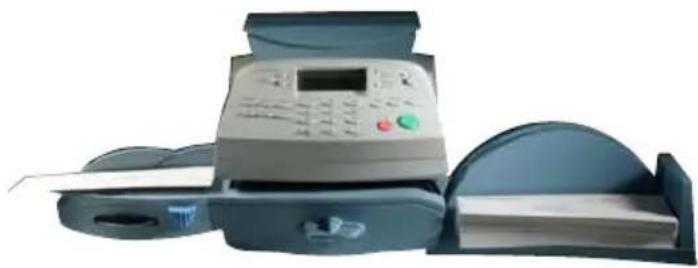
natural_image
Exterior view of a printer with paper feed and control panel (no visible text or symbols)DM100i
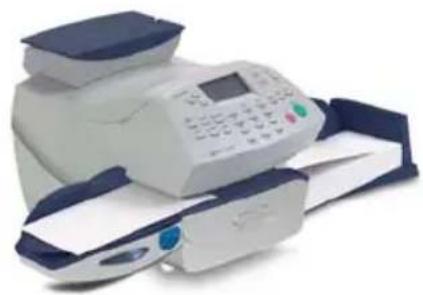
natural_image
Medical scanner device with digital display and control panel (no visible text or symbols)DM125
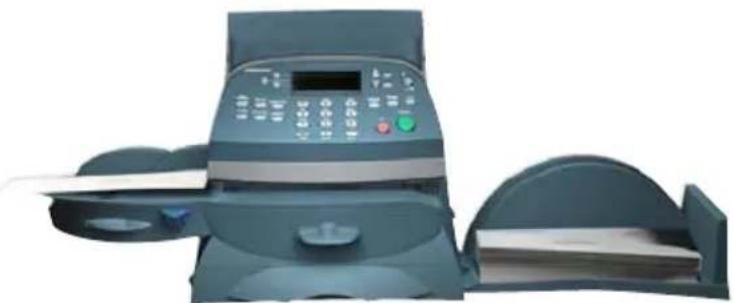
natural_image
Exterior view of a digital payment machine with control panel and open base (no visible text or symbols)DM200L
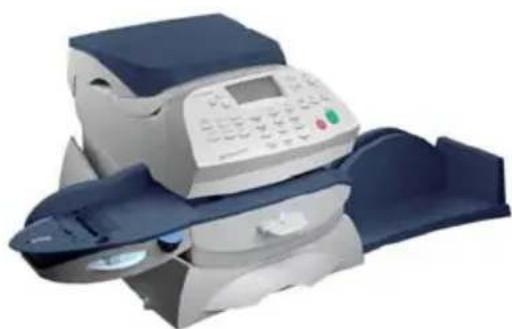
natural_image
Medical scanner device with digital display and control panel (no visible text or symbols)DM225
Parts of the Machine
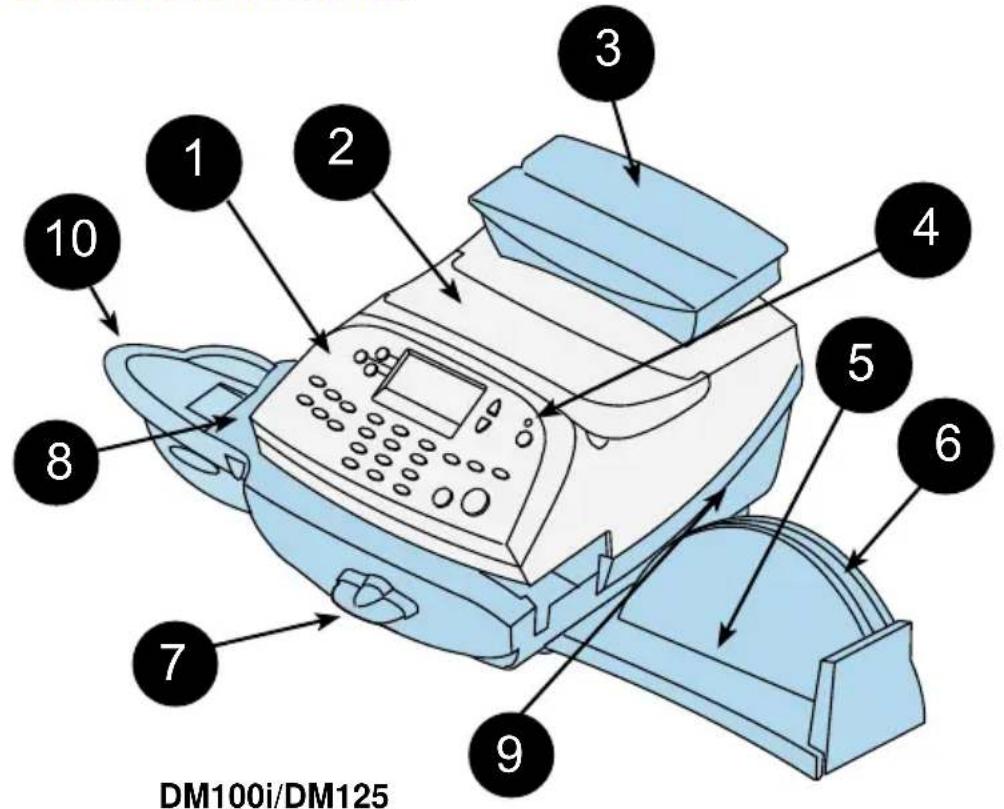
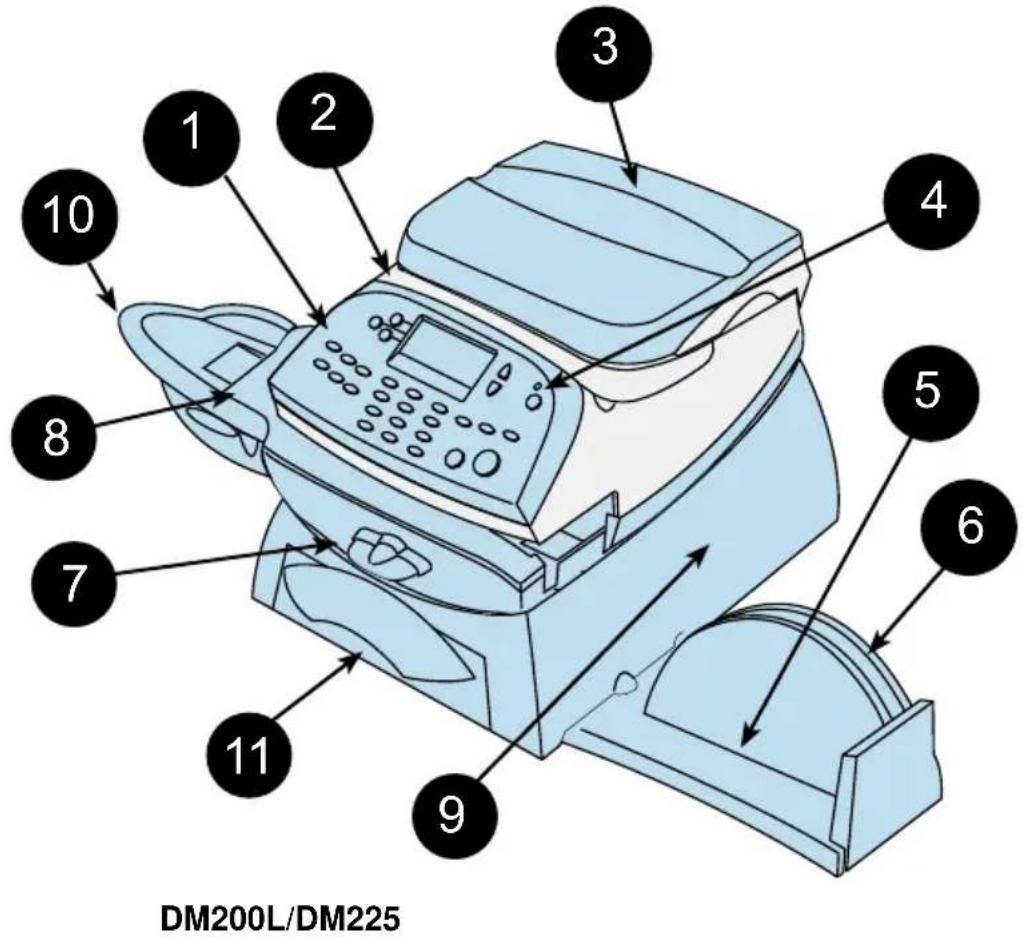
Parts of the Machine
| Item | Part Description | |
| 1 | Control Panel Allows you to enter and set up information on your machine (see next page for details) | |
| 2 | Top Cover Opens up to allow replacement of the ink cartridge (see Chapter 10, Maintenance) | |
| 3 | Weighing Platform (optional) | Allows you to weigh a mail piece (your system can then calculate postage based on the service selected) |
| 4 | LED Lights green when your system is on; lights amber when your system is in "sleep" mode | |
| 5 | Stacker Tray Allows the neat stacking of finished mail pieces | |
| 6 | Utility Slot Allows you store the Quick Reference Guide, tape strips, etc. for easy access. | |
| 7 | Transport Release Lever (two position) | Home - transport rollers engaged for processing mail (normal)Released - trans port rollers disengaged so you can clear a stalled mail pieceNOTE: The machine won't process mail when the lever is left in the released position. |
| 8 | Feed Deck Supports your envelope, post card or tape sheet as it passes under the printer mechanism | |
| 9 | Ink Waste Tank (DM125/DM225 only, partially hidden in figure) | Collects ink waste. Can slide out for maintenance. |
| 10 | Moistener (optional) | Applies sealing fluid to the envelope flap (you can seal envelopes or leave them unsealed, depending on how you feed them) |
| 11 | Storage Drawer (DM200L/DM225 only) | Holds your USPS® Confirmation Services and USPS® Return Receipt labels when used |
Control Panel
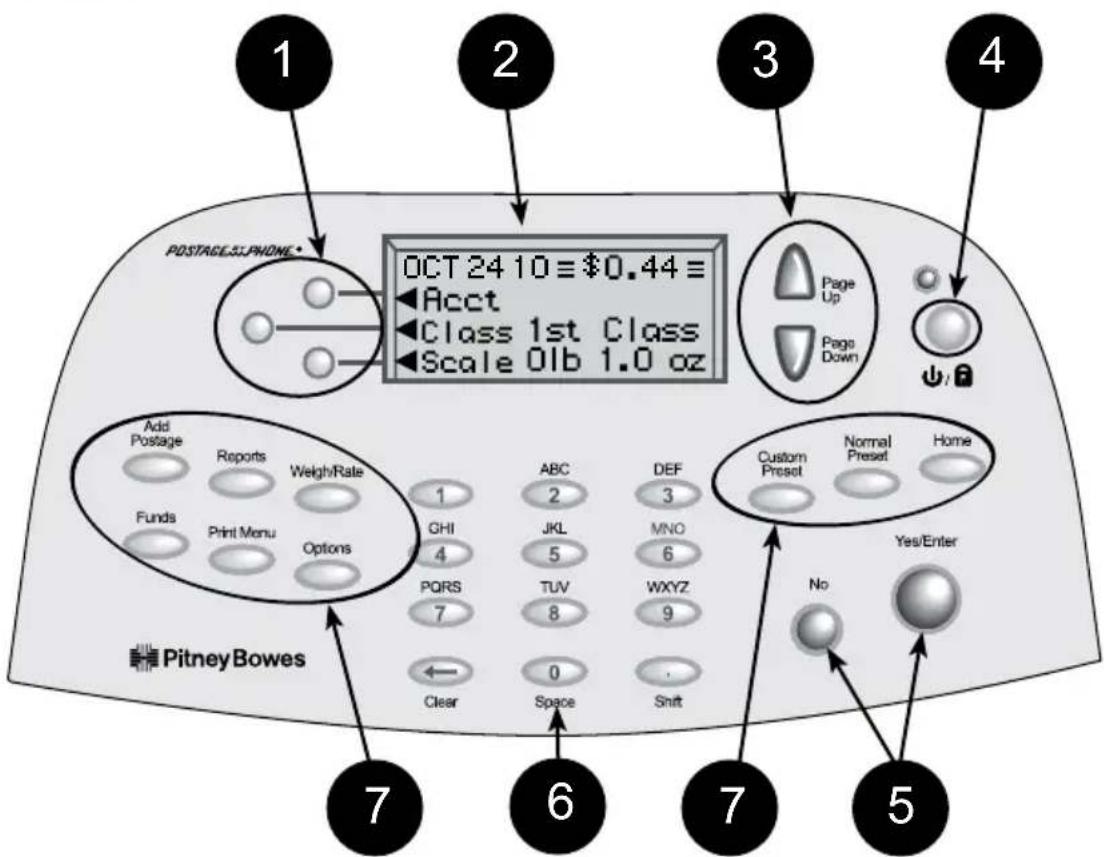
| Item | Part/Key Description | |
| 1 | Screen Selection Keys | Allows you to select an option (◀) on the screen with the corresponding key |
| 2 | LCD Display Shows the current status of your system and prompts you through all operations | |
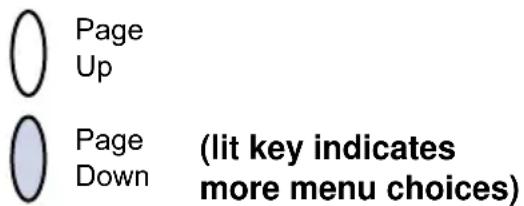
| 3 | Page Up/Page Down (Scroll Keys) | Allows you to scroll up and down through menu choices (when lit, it indicates more choices) |
| 4 | Lock/Power Key Allows you to power up or power down machine. If the lock code feature has been enabled, you can either power down the machine or put the machine into lock-down mode. In lock-down mode, access to the machine requires entering a four-digit lock code. | |
| 5 | Yes/Enter and No Keys | Allows you to confirm an operation or answer “Yes” or "No" to a prompt (the Yes key also functions as the Enter key for data entry) |
| 6 | Alpha/Numeric Keypad | Allows you to type in numbers and letters for account names, postage values, and other information (see Appendix A, How to Enter Text) |
Control Panel
| Item | Part/Key Description |
| 7 | Feature Keys Allows you quick access to the key features on the system: |
| Home Takes you back to the Home (date/postage) screen | |
| Normal Preset Allows you to recall settings that contain the most commonly printed postage value you use in your home or office (see Chapter 5, Normal and Custom Presets) | |
| Custom Preset Allows you access to up to five or ten custom settings that you can assign values such as postage amount, ad, account number, etc. (see Chapter 5, Normal and Custom Presets) | |
| Funds Allows you to check your postage funds and number of mail pieces processed (see Chapter 6, Adding Postage) | |
| Add Postage Allows you to add (refill) postage funds to your machine conveniently (see Chapter 6, Adding Postage) | |
| Reports Allows you to generate reports for postage, accounting, and other types of data (see Chapter 9, Reports) | |
| Weigh/Rate Allows you to weigh and calculate postage based on service selected (see Chapter 3, Running Mail) | |
| Options Allows you to access system setup information such as date, time, postage, accounts, passwords, etc. (see Chapter 7, System Options) | |
| Print Menu Allows you access to all the information printed on a mail piece such as date, time, postage, ad, inscriptions, etc. (see Chapter 3, Running Mail) | |
| IMPORTANT: When you press one of the Feature keys, any entry in the preceding screen is lost unless you have first pressed the Yes/Enter key to confirm the entry. For example, if you entered an account name on one screen and then immediately pressed another Feature key, the account name will not be recorded by the system. |
Connections on Back of Machine (DM100i/DM200L)
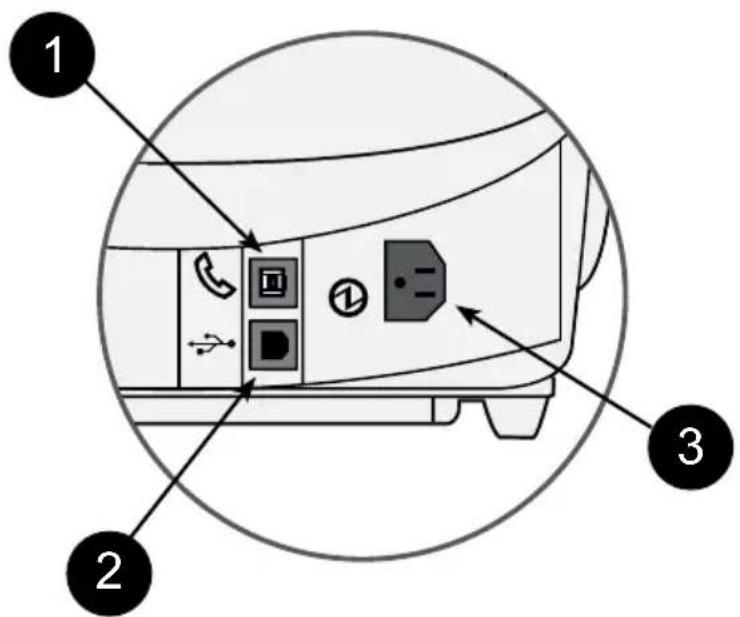
| Item | Part Description | |
| 1 | Phone Jack | Allows you to connect to an analog phone line via a standard RJ-11 phone plug (supplied) so you can connect to the Pitney Bowes Data Center (see Chapter 6, Adding Postage) |
| 2 | USB Port (type B peripheral port) | Used to connect to:• the Pitney Bowes Data Center via a USB cable connected to a Windows PC that has Internet access (known as PC Meter ConnectTM desktop application). See Chapter 6, Adding Postage or Appendix A for more information.• Data Exchange (optional software product), which allows you to transfer Standard Accounting data from your mailing machine to your PC |
| 3 | Power Input | Connects to AC power cord (supplied) |
Connections on Back of Machine (DM125/DM225)
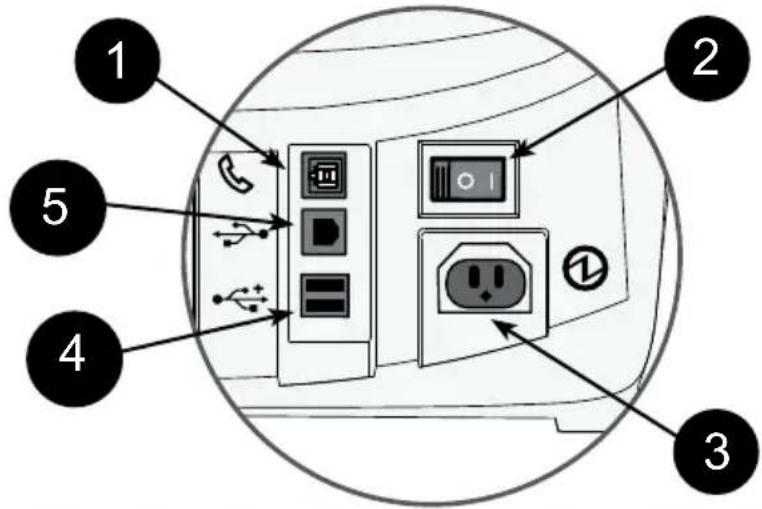
| Item | Part Description | |
| 1 | Phone Jack | Allows you to connect to an analog phone line via a standard RJ-11 phone plug (supplied) so you can connect to the Pitney Bowes Data Center (see Chapter 6, Adding Postage) |
| 2 | Power Switch | Turns power On or Off to the machine |
| 3 | Power Input | Connects to AC power cord (supplied) |
| 4 | USB Port (type A host port) | Used to connect:• to the Pitney Bowes Data Center via LAN Internet using a USB to LAN network adapter (known as Con-stant Conection; see Chapter 6, Adding Postage)• an external printer to print report data• a scanner for scanning barcodes applied to certain USPS Confirmation Services on mail pieces• an external weighing platform (scale)• a USB flash drive to store accounting data for high-end accounting systems (e.g., InViewTM) |
| 5 | USB Port (type B peripheral port) | Used to connect to:• the Pitney Bowes Data Center via a USB cable connected to a Windows PC that has Internet access (known as PC Meter ConnectTM desktop application). See Chapter 6, Adding Postage or Appendix A for more information.• Data Exchange via a PC (optional software product), which allows you to transfer Standard Accounting data from your machine to your PC |
This page was put in as a placeholder so you can print this guide in a duplex (double-sided) mode while keeping the proper page positions.
3 · Running Mail
Home Screen
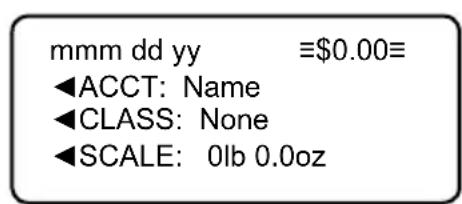
When you power up your system, the Home screen ap pears on the operating display. If your sys tem has been set up to require a lock code or password, you are prompted to enter it.
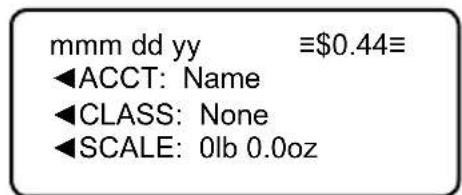
A typical Home screen is shown below (your screen may vary slightly depending on the options you may have on your machine):
NOTE: Topic headings in this manual that refer to a PC Meter Connect™ Enhanced feature will be listed in green text.
Checking Funds (Postage) Availability in Machine
At a PC Using PC Meter Connect™ (Enhanced Version)
At the Postage tab (which is the default tab that displays when you first launch the program), the postage in the machine is displayed under the "Current Meter Balance" section.
NOTE: If you are accessing features from PC Meter Connect™ (Enhanced version), please keep in mind the following:
- If the machine is in "sleep" mode, accessing a feature from the Main Window will "awaken" the system.
- Once in an awaken state, the machine must be at the "Home" screen (ready to print postage) to use features found on the Postage, Updates, and My Meter tabs on the Main Window. Otherwise, a "meter is busy" message displays on the PC. This condition can happen, for example, if you have the Accounting option set up on the system and the machine is waiting for someone to select an account for printing postage.
Checking Funds (Postage) Availability in Machine At Mailing Machine
- Press Funds.
- The funds left, used, and pieces processed display.
| FUNDS | |
| Available | 204.94 |
| Used | 17.06 |
| Total Pieces | 40 |
Available – the amount of funds (postage) left in your meter Used – the total of all postage ever used in the meter
Total Pieces – the total number of mail pieces run through the meter that had postage applied
- Press Clear (back arrow key) or Home to return to Home screen.
Printing a \$0.00 Meter Test Print
Periodically, you may want to conduct a test print to determine if your print mechanism is operating correctly. One way to do this is to print a \$0.00 indicia so as not to waste postage. At the Home screen, simply press Zero, then press Yes/Enter, and slide an envelope (or tape sheet) through the machine.
The other way is to run the test print option from the menu (see Chapter 10, Maintenance, "Test Print" section).
Selecting an Account to Track Postage (Optional)
If the accounting feature has been turned on, you need to select an account to track postage before you process mail. See Chapter 8, Standard Accounting, for information on setting up this feature.
- From Home screen, press the selection key next to ACCT: line to display the Accounts menu.
- Select "Select an account"
ACCOUNTS
◀Select an account
◄Create an account
◀ Delete an account
- The "Select an Account" screen displays (a sample is shown below). Press Page Down to see more choices (if lit). To select an account:
SELECT AN ACCOUNT
◀ (Use keypad)
◀0 - None
◀1 - Sales
A. You may either key in the first digit of the account number if you know it and press Yes/Enter, OR
B. Use the appropriate selection key next to the arrow.
- If a password has been assigned to this account, you will be prompted to enter one. Key in the 4-digit password if necessary.
- You return to the Home screen with the name of the account listed (the example below shows "Sales" as the account chosen).
mmm dd yy ≡\$0.00
ACCT: Sales
◀CLASS: None
SCALE: 0lb 0.0oz
Applying Postage
There are several ways you can apply postage using your mailing system:
• Key in the postage directly from the keyboard when you already know the amount
- Enter the weight of the mail piece manually and have the system calculate the postage amount using the system's internal rating feature
- Place the mail piece on the integrated weighing platform and have the system calculate the weight and then postage amount using the system's internal rating feature
Each method is described in its own section that follows.
NOTE 1: Use tape sheets to apply postage for large pieces and parcels that can't be run through the machine (see Chapter 12, Supplies and Options for ordering tape sheets). Feed the tape sheets into the machine the same way you would feed an envelope. Apply the postage tape sheets on the mail piece or parcel.
NOTE 2: The system allows you to enter either a ZIP code or a Zone number for those USPS® classes and services that require a destination entry (e.g., Priority class over 1 lb.). When prompted to enter a destination in these cases, you may either key in the one-digit Zone number (0-8) and select "This is a Zone" or key in the 5-digit ZIP code and select "This is a ZIP Code".
Applying Postage
Keying In the Postage Directly
-
From the Home screen, enter the post age using the nu mer ic keys. Do not enter the decimal point.
-
Press Yes/Enter to confirm the amount.
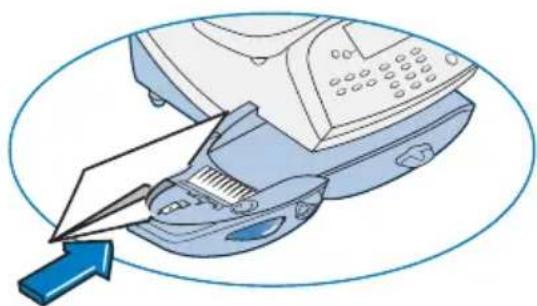
- If using the moistener, place flap along moistener and move towards the right.
natural_image
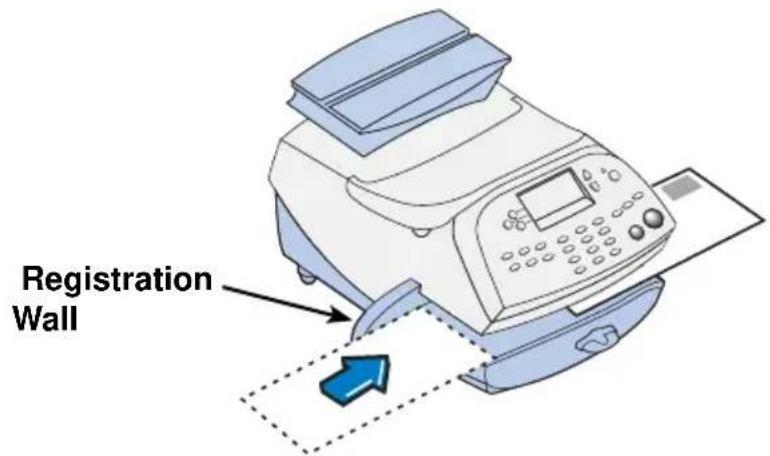
Illustration of a sewing machine needle cutting into a flat blade, with a blue arrow pointing to the blade (no text or symbols present)- Place the envelope up against the registration wall of the sys tem and slide it to the right until the sys tem grasps it. The system prints the meter stamp and ejects the envelope/tape sheet
Applying Postage
Entering Weight Manually
This procedure can be used when you already know the weight of a mail piece and you are not using the integrated weighing platform.
- Press Weigh/Rate.
- Select "Enter Manual Weight".
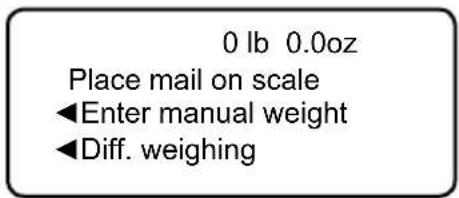
- Key in pounds and select "Set Pounds" (maximum is 70 lbs.).
- Key in ounces and select "Set oz and Continue".
- Select the desired class by pressing the key next to the class name (use the scroll keys to see additional classes).
- If there is no value next to the class name, more information is needed. Follow the prompts for the options and/or services available for this class of service. The last screen is usually "Services" and lists special services such as COD and Insurance.
NOTE: If you are unsure if a particular class is valid for your mail piece, call your local post office or visit www.usps.com.
-
Select "Done" when finished entering all the class options and fees.
-
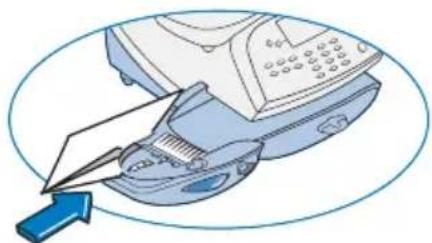
If using the moistener, place flap along moistener and move towards the right.
-
Place the envelope up against the registration wall of the sys tem and slide it to the right until the sys tem grasps it. The system prints the meter stamp and ejects the envelope/ tape sheet.
natural_image
Illustration of a computer with a blue arrow pointing to the screen (no text or symbols present)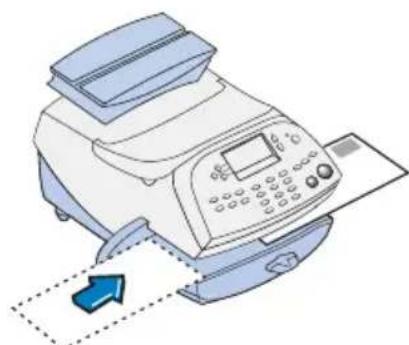
natural_image
Illustration of a printer with a paper feed and a blue arrow indicating print direction (no text or symbols present)Applying Postage
Using the Weighing Platform (Scale)
-
Make sure scale is activated (you will see "0lb. and 0.0oz" next to the "Scale" on the display). See Chapter 7, System Options to turn your scale on if necessary.
-
Place mail piece on scale. The weight of the mail piece will appear on the top-line of the display and valid classes and rates for this weight are displayed.
| 0 lb 2.3 oz | |
| 1st Class | 2.67 |
| Priority | 3.85 |
| Pkg Service |
- Select the desired class by pressing the key next to the class name (use the scroll keys to see additional classes).
NOTE: If you are unsure if a particular class is valid for your mail piece, call your local post office or visit www.usps.com.
-
If there is no value next to the class name, more information is needed. Follow the prompts for the options and/or services available for this class of service. The last screen shows "Services" and lists special services such as COD and Insurance.
-
Select "Done" when finished entering all the class options and fees.
-
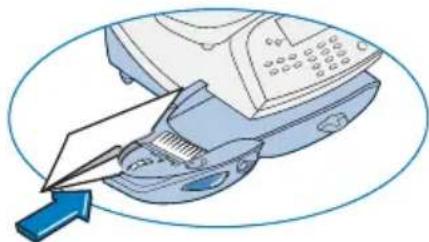
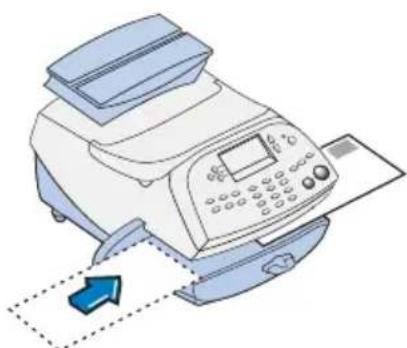
If using the moistener, place flap along moistener and move towards the right.
natural_image
Illustration of a hand inserting into a device with a blue arrow pointing to it (no text or symbols present)- Place the envelope up against the registration wall of the sys tem and slide it to the right until the sys tem grasps it. The system prints the meter stamp and ejects the envelope/ tape sheet.
natural_image
Illustration of a printer with a paper feed and a blue arrow indicating print (no text or symbols present)Applying Postage
Using Differential Weighing
Differential weighing is an optional feature that allows you to place multiple items on the scale, remove one item at a time, rate that item, and put postage on it. This is repeated until you have finished all of the items on the scale. This procedure is usually done when you have multiple mail pieces with different weights but all using the same class for rating.
- Press Weigh/Rate.
- Select "Diff. weighing".
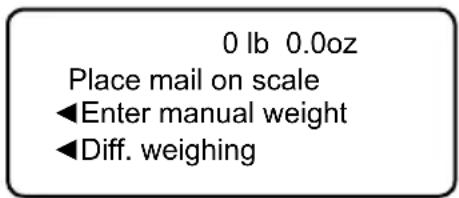
- Place all items on the scale.
- Select the desired class by pressing the key next to the class name (use the scroll keys to see additional classes).
- If there is no value next to the class name, more information is needed. Follow the prompts for the options and/or services available for this class of service. The last screen is usually "Services" and lists special services such as COD and Insurance.
NOTE: If you are unsure if a particular class is valid for your mail piece, call your local post office or visit www.usps.com.
- Select "Done" when finished entering all the class options and fees.
- Remove one item from the scale.
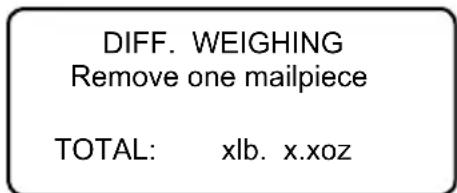
- A ready to print postage screen displays, which includes the rating class you've chosen and piece weight of the item removed.
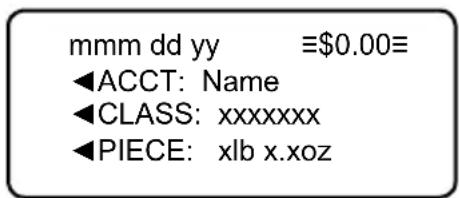
Applying Postage Using Differential Weighing (cont'd)
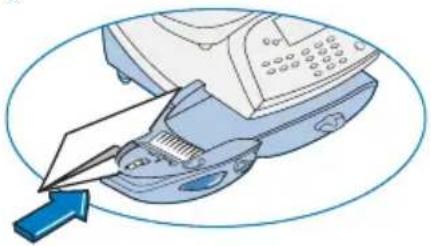
- If using the moistener, place flap along moistener and move towards the right.
natural_image
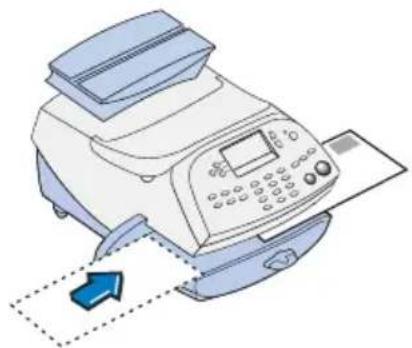
Illustration of a hairdryer with a blue arrow pointing to the tip (no text or symbols present)- Place the envelope up against the registration wall of the sys tem and slide it to the right until the sys tem grasps it. The system prints the meter stamp and ejects the envelope/tape sheet.
natural_image
Illustration of a printer with a paper feeding into a paper (no text or symbols visible)- The same screen from Step 7 appears.
DIFF. WEIGHING
Remove one mailpiece
TOTAL: xlb. x.xoz
Repeat steps 7 -10 for each item that needs postage.
- When you have removed the last item from the scale, the "LAST ITEM" screen displays.
LAST ITEM
◀Rate this item
◀Exit Diff. Weighing
Continue
Rate this item – select this option if you want to rate the last piece removed. A ready to print postage screen displays. Follow Steps 8-11 above. The Home screen displays when you are done.
Exit Diff. Weighing – select this option if you want to exit this mode without rating the last item. The Home screen displays.
Continue – select this option if you want to continue rating more items with the same rate. A "Place mail on scale" screen displays. Follow Steps 7-11 above to continue.
Checking and Clearing the Batch Count
Your system has the ability to keep track of batches of mail if desired. You may use this feature to track the amount of mail going out per day, per week, per month, etc. The system stores the postage value and piece count in for ma tion in a "batch register". You can view and print the batch register values at any time. You can also clear/ reset the batch register to zero when necessary.
Viewing (Checking) the Batch Count
- Press Funds.
- Press Page Down.
- The display shows the batch information (a sample screen is shown below).
Ct I Sum \$222.00
Batch Value \$11.65
Batch Count 3
◀Clear batch values
Batch Count – the number of mail pieces that had postage applied since the last time the batch count was cleared
Batch Value – the amount of postage applied since the last time the batch value was cleared
- Press Clear (back arrow key) or press Home to return to the Home screen.
Checking and Clearing the Batch Count
Printing the Batch Count
- Press Funds.
- Press Page Down twice and select "Print Funds Report".
- At the "Please insert envelope or tape sheet to print report" prompt, place the envelope/tape sheet up against the back wall of the sys tem and slide it to the right until the sys tem grasps it. The Funds Reports is printed and the envelope/tape strip is ejected.
| Funds Report | Used: 464.270 | JAN 07 089:55P | |
| Available:000.000 | Batch Count: 733 | ||
| Total Pieces: 735 | Batch Value: 464.270 | ||
| Control Sum:464.270 | PBP Serial No.: 0011969 | ||
Used – the total of all postage ever used in the meter
Available – the amount of postage left in the meter
Total Pieces – the total number of mail pieces run through the meter that had postage applied
Control Sum – the total of all postage refills for the meter. It equals the amount Used plus Available funds. This is a postal requirement that verifies an accurate accounting of postage in your meter.
Batch Count – the number of mail pieces that had postage applied since the last time the batch count was cleared
Batch Value – the amount of postage applied since the last time the batch value was cleared
PBP Serial No. – serial number of this meter (normally meter number)
- Press Home to return to the Home screen.
Clearing the Batch Count
IMPORTANT: Make sure you really want to clear the batch count; once you do, you can't re store the data.
- Press Funds.
- Press Page Down and select "Clear batch values".
- At the "Confirm Clear" prompt, press Yes/Enter to confirm. The batch value and batch piece registers return to zero
- Press Home to return to the Home screen.
This page was put in as a placeholder so you can print this guide in a duplex (double-sided) mode while keeping the proper page positions.
4 • Printing Options
Printing Options Overview
There are various printing options available when processing mail through your machine. Refer to the table below.
| Printing Option | Used for Outgoing Mail | Used for Incoming Mail |
| Print a normal meter stamp (postage indicia) X | ||
| Manually changing printed date for meter stamp X | ||
| Bypass all printing and only seal the envelope X | ||
| Omit day or date when printing a meter stamp X | ||
| Add a postal inscription to the meter stamp X | ||
| Add an envelope advertisement to the meter stamp X | ||
| Adjust horizontal print position of the meter stamp X | ||
| Print the time and date only (no meter stamp) X | ||
| Print an ad, time and date only (no meter stamp) X |
NOTE: Topic headings in this manual that refer to a PC Meter Connect™ Enhanced feature will be listed in green text.
Sections of the Meter Stamp
These are the sections that make up the meter stamp printed on your mail piece.
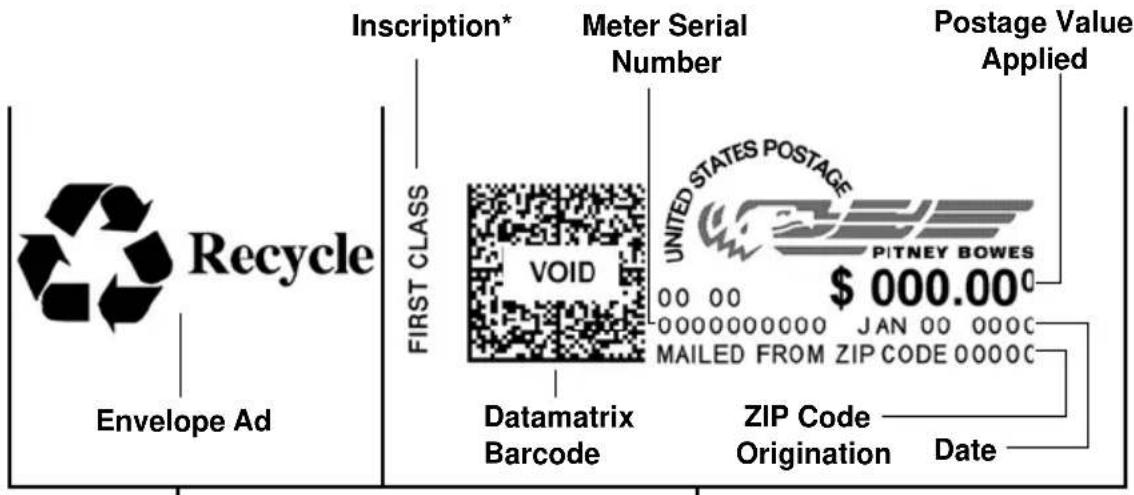
Optional Printing Required Printing
*required only for certain classes of mail
Printing a \$0.00 Meter Stamp
Periodically, you may want to conduct a test print to determine if your print mechanism is operating correctly. One way to do this is to print a \$0.00 indicia so as not to waste postage. At the Home screen, simply press Zero, then press Yes/Enter, and slide an envelope (or tape sheet) through the machine.
The other way is to run the test print option from the menu (see Chapter 10, Maintenance, "Test Print" section).
Auto-Advance of Printed Date for the Meter Stamp
The system is set from the factory to automatically advance the printed date on the meter stamp (as well as its internally held date) when the system time reaches 12:00 AM. However, you may change the time of day when the auto-advance of the date occurs (see Chapter 7, System Options for more information).
Manually Changing Printed Date for the Meter Stamp
You may want to advance the date printed on the meter stamp if it is after normal business hours and you want to prepare outgoing mail for a future business day's mailing.
IMPORTANT:
- You can advance the date up to 30 days from the current date.
- Changing the printed date does not change the machine's internally held date.
- You can always return the printed date to the current date.
- You cannot change the printed date to a date earlier than the machine's internally held date (in an effort to "backdate" the mail).
- Accounting data is posted on the actual date the mail piece is run (per the internal clock/calendar in the mailing system), not by the date printed on the meter stamp.
Manually Changing Printed Date for the Meter Stamp
At PC Using PC Meter Connect™ (Enhanced Version)
- At the My Meter tab, select Meter Settings.
- Select Date and Time.
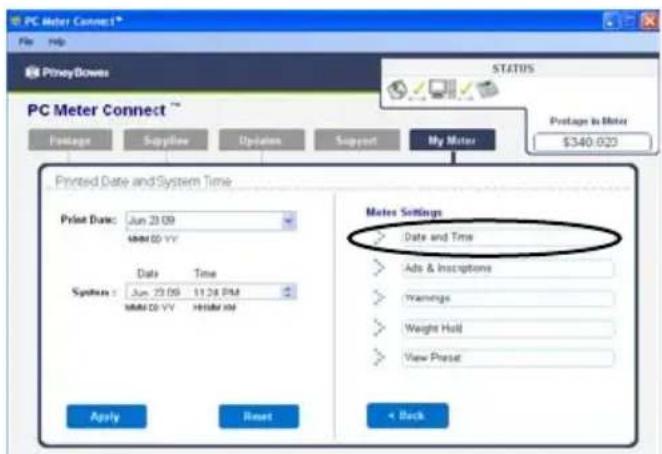
- In the Print Date field, access the dropdown calendar. Use the < or > keys to select the month, then click on the day you want to print on your meter stamp.
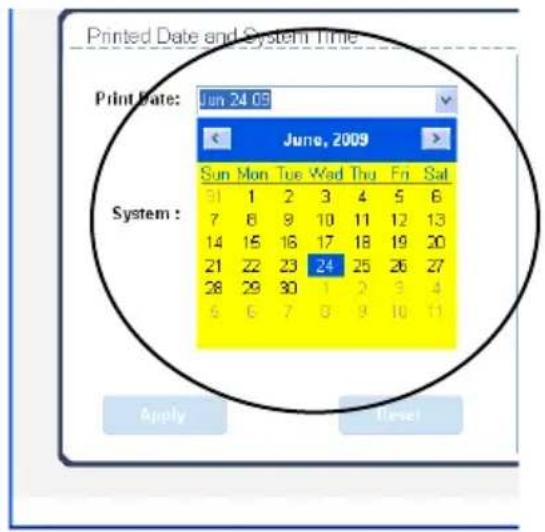
- Click Apply. A confirmation screen displays the new date. Click OK.
- To set the date on your mail back to the current date, repeat steps 1-4 and select today's date.
Manually Changing Printed Date for the Meter Stamp
At PC Using PC Meter Connect™ (Enhanced Version)
NOTE: If you are accessing features from PC Meter Connect™ (Enhanced version), please keep in mind the following:
- If the machine is in "sleep" mode, accessing a feature from the Main Window will "awaken" the mailing system.
- Once in an awaken state, the machine must be at the "Home" screen (ready to print postage) to use features found on the Postage, Updates, and My Meter tabs on the Main Window. Otherwise, a "meter is busy" message displays on the PC. This condition can happen, for example, if you have the Accounting option set up on the system and the machine is waiting for someone to select an account for printing postage.
At Mailing Machine
- Press Options.
-
Select "Advance the date".
-
Displays current date in MM DD YY format. You may either:
A. Select "Add one day" to advance date one day for each pressing of the key.
B. Key in a number (in US from 1-30) representing the number of days you want to advance the date, then select "Add x days (1-30)".
-
Select "Continue". The new date now shows in the Home screen.
-
To set the date on your mail back to the current date, press Options and select "Set to todays date". You will be returned to the Home screen with the current (today's) date set.
Setting the Machine to Today's Date
- Press Options.
- Select "Set to todays date". You will be returned to the Home screen with the current (today's) date set.
Bypass All Printing and Only Seal the Envelope
If using the moistener with pre-addressed envelopes, you can set up your mailing system to seal envelopes with out printing a meter stamp on them.
- Press Print Menu.
- Select "Seal Only".
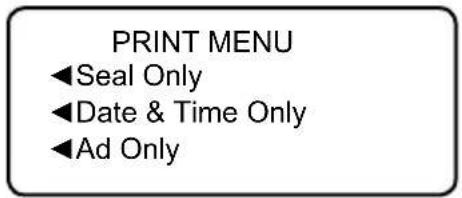
The "Seal Only- No Printing" screen ap pears.
- Place flap along moistener and move towards the right.
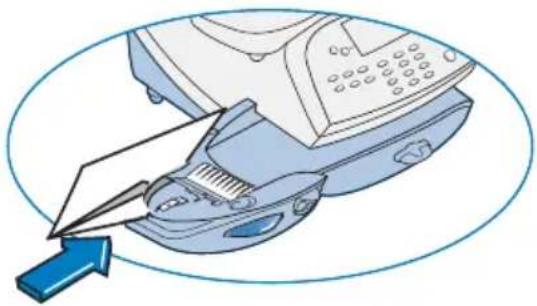
natural_image
Illustration of a washing machine with a blue arrow pointing to the handle (no text or symbols present)- Slide the envelope to the right until the system takes hold of it. The system seals and ejects the piece.
- Select "Exit Seal Only" when finished to return to the Home screen.
Omitting/Restoring Day or Date on the Meter Stamp
For most mailings, you normally print the date as part of the meter stamp. However, for certain classes of mail, you may want to turn off the date. Call your local post office or visit www.usps.com for further information.
- Press Print Menu.
- Press Page Down and select "Omit day/date/other".
PRINT MENU
Ad, Date & Time
◀Omit day/date/other
◀ Horiz. print pos
- Select either "Omit the day" or "Omit the date".
◀Omit the day
◀Omit the date
- You will return to the Home Screen and either the day or date will not display or print on the meter stamp.
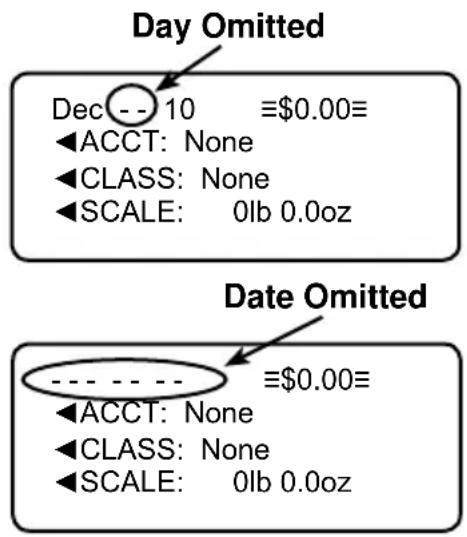
NOTE: If you want to restore the day or date, do Steps 1 and 2 above, but select "Restore the day" or "Restore the date which will now display in Step 3.
Adding/Removing a Postal Inscription to Meter Stamp
IMPORTANT:
The postal inscription that prints on the meter stamp is a separate setting from the postal class you have chosen to rate your mail piece. The two normally should match for your mail piece. However, changing one on your machine does NOT automatically change the other. You need to change each in their separate settings (see Chapter 3, Running Mailing for changing the postal class for rating).
At a PC Using PC Meter Connect™ (Enhanced Version)
- At the My Meter tab, select Meter Settings.
- Select Ads & Inscriptions.
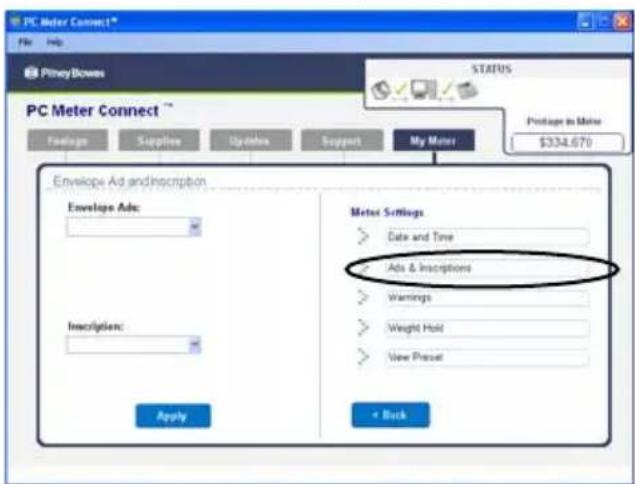
- In the Inscription field, use the dropdown list to select the desired inscription, or select the blank option to remove an inscription. If you've chosen an inscription, the inscription displays on the screen.
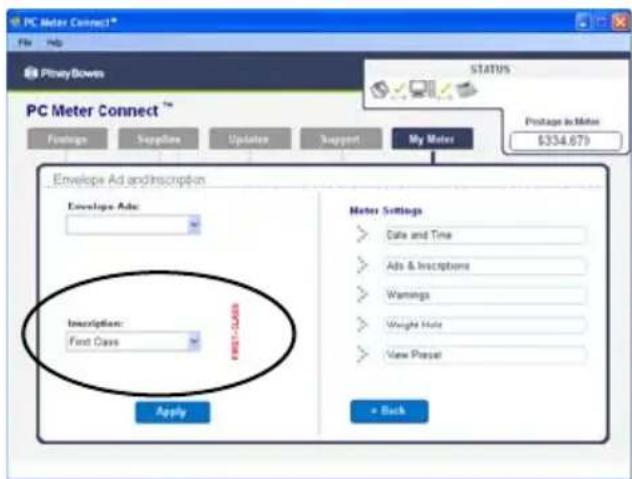
- Click Apply.
Adding/Removing a Postal Inscription to Meter Stamp
At Mailing Machine
- From Home screen, press Page Down to second screen and select "Insc."
AD: None
Insc: None
- Select "Select an Inscript".
- You may either:
A. Key in the inscription number and press Yes/Enter.
B. Scroll through inscriptions and then select the inscription.
- You return to the Home screen with the name of the inscription listed on the second screen.
Downloading a Postal Inscription into Your Machine
Your system comes pre-loaded with certain postal inscriptions. If you want another postal inscription, contact Pitney Bowes (see page v). Inscriptions can be purchased and downloaded directly into your mailing system.
NOTE: Your inscription must be purchased and the machine must be connected to Pitney Bowes Data Center for this download procedure.
- From Home screen, press Page Down to second screen and select "Insc."
- Select "Install an Inscript.".
- Select "Connect now". The system connects to the Pitney Bowes Data Center (this may take a few moments). Various screens display, letting you know the status of the process.
- After connection is made and the download has completed, a message stating so displays. Select "OK".
- You return to the Home screen. Follow the procedure "Adding/Removing a Postal Inscription to the Meter Stamp" above to select your new inscription.
Adding/Removing an Envelope Ad to the Meter Stamp
At a PC Using PC Meter Connect™ (Enhanced Version)
- At the My Meter tab, select Meter Settings.
- Select Ads & Inscriptions.
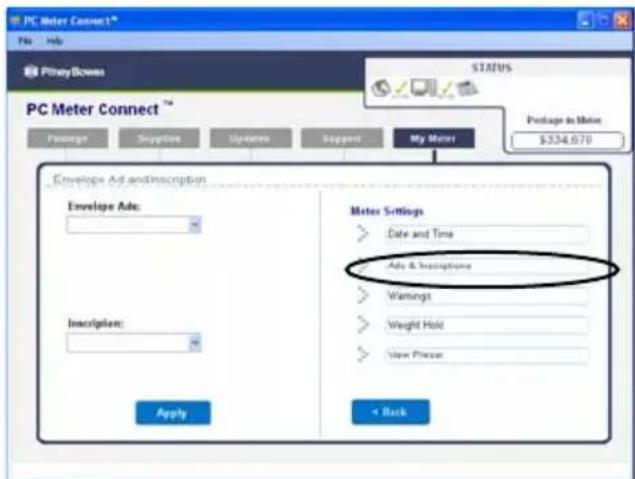
- In the Envelope Ads field, use the dropdown list to select the desired Ad, or select the blank option to remove an ad. If you've chosen an ad, the ad displays on the screen.
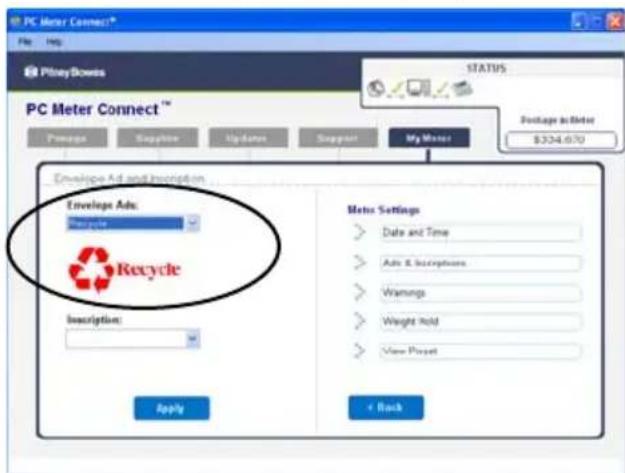
- Click Apply.
NOTE: The machine must be at the "Home" screen before the changes can be applied.
Adding/Removing an Envelope Ad to the Meter Stamp
At Mailing Machine
- From Home screen, press Page Down to second screen and select "AD:".
AD: None
Insc: None
- Select "Select an Ad".
- You may either:
A. Key in the ad number and press Yes/Enter.
B. Scroll through ads and then select the ad.
- You return to the Home screen with the name of the account listed on the second screen.
Downloading an Envelope Ad into Your Machine
Your system comes pre-loaded with several envelope ads. If you want another envelope ad, contact Pitney Bowes (see page v). Ready-made items can be purchased and downloaded directly into your mailing system. We can also work with you to create custom ads.
NOTE: Your ad must be purchased and the machine must be connected to Pitney Bowes Data Center for this download procedure.
- From Home screen, press Page Down to second screen and select "AD."
- Select "Install an Ad".
- Select "Connect now". The system connects to the Pitney Bowes Data Center (this may take a few moments). Various screens display, letting you know the status of the process.
- After connection is made and the download has completed, a message stating so displays. Select "OK".
- You return to the Home screen. Follow the procedure "Adding/Removing an Envelope Ad to the Meter Stamp" above to select your new ad.
Printing the Date and Time Only (no meter stamp)
You may want to use this feature to time-stamp incoming mail or sensitive documents.
- Press Print Menu.
- Select "Date & Time Only".
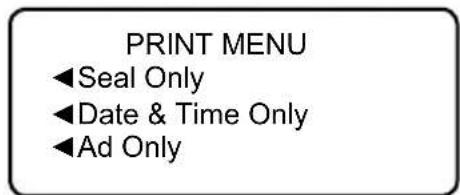
The "Date and Time Only - No Postage Printing" screen appears.
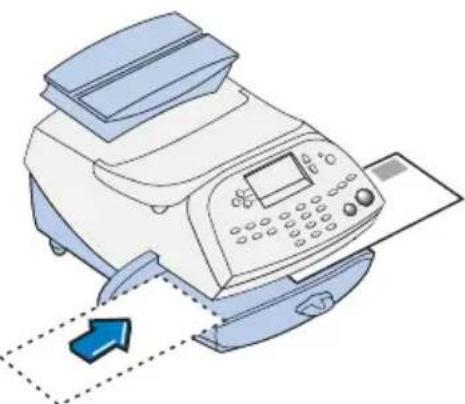
- Place the envelope up against the registration wall of the sys tem and slide it to the right until the sys tem grasps it. The system prints the time and date and ejects the envelope/ tape sheet.
NOTE: Make sure you orient the mail piece so the date and time prints on a blank section of the mail piece.
natural_image
Illustration of a printer with a paper feeding into a printer (no text or symbols visible)- Select "Exit Date and Time" when finished to return to the Home screen.
Printing an Ad, Date, and Time Only (no meter stamp)
You may want to use this feature in conjunction with selecting the "Received" envelope ad to time-stamp incoming mail or sensitive documents.
-
Press Print Menu.
-
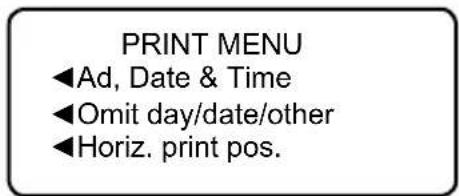
Press Page Down and select "Ad, Date & Time".
-
The "Print Ad, Date & Time" screen ap pears.
-
If you have already an envelope ad set as part of your meter stamp, that ad is listed on the display next to the "Ad" selection. If this is the correct ad, continue with step 4.
-
If you need to change the ad, or select one if none was chosen, select "Ad", then select "Select an Ad". Choose an ad from the list provided. You return to the "Print Ad, Date & Time" screen.
-
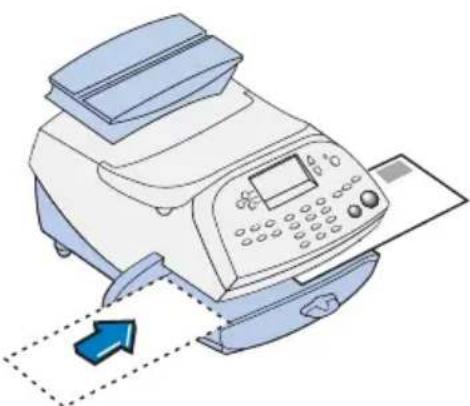
Place the envelope up against the registration wall of the sys tem and slide it to the right until the sys tem grasps it. The system prints the ad, time and date, and ejects the envelope/tape sheet.
NOTE: Make sure you orient the mail piece so the date and time prints on a blank section of the mail piece.
natural_image
Illustration of a printer with a paper plane and a blue arrow indicating print direction (no text or symbols present)- Select "Exit Ad Date & Time" when finished to return to the Home screen.
Adjusting Horizontal Print Position of Meter Stamp
You may need to adjust slightly the left/right print position of the meter stamp on a mail piece.
- Press Print Menu.
- Press Page Down and select "Horiz. print pos."
PRINT MENU
Ad, Date & Time
◀Omit day/date/other
◀ Horiz. print pos.
- Key in the print distance from the right edge of the envelope to the meter stamp (from 3-24 mm).
- Press Yes/Enter to return to the Print Menu.
This page was put in as a placeholder so you can print this guide in a duplex (double-sided) mode while keeping the proper page positions.
5 • Normal and Custom Presets
What is a Preset?
A preset is very similar to a “shortcut” on your computer. It recalls a setting that already contains the postage class, the postage value, fees for special service such as Delivery Confirmation, and possibly other values.
Your machine has two types of presets, Normal and Custom; and they actually work the same way. The Normal Preset is simply the "most frequently used" preset, and contains the values that always appear on your machine when it is first powered on or after it awakens from a "sleep" mode. Generally, Custom Presets contain more postal parameters than the Normal Preset, and are used less frequently.
Why Should I Use Presets?
Presets save you time. You don't have to concern yourself with individually selecting the class, special services, etc. – all that information is automatically contained in the preset.
The Normal preset is generally set to the most commonly printed postage value you use in your home or office. Many of our customers choose to set the Normal preset for First Class Letter, since that is the cost of mailing a 1-ounce, First Class letter.
Why Should I Always Include a USPS® “Class” in my Preset?
The advantage of including a Class as part of your Preset is that anytime there is a USPS® rate change, when you download the new rates into your mailing system, your Preset will automatically be updated with the new rate, if applicable. If there is no Class associated with your Preset, the system has no way of knowing which value to update.
NOTE: Topic headings in this manual that refer to a PC Meter Connect™ Enhanced feature will be listed in green text.
Normal Preset
Normal Preset comes pre-configured. You can change these settings by re-defining new values (vs. editing existing values) by following the "Defining New Values for the Normal Preset" procedure later in this chapter.
IMPORTANT:
- To invoke the Normal Preset values, press Normal Preset.
- You cannot delete the Normal Preset, but you can define new values for the Normal Preset based on the current condition of the machine.
- You cannot modify the name of the Normal Preset.
- You cannot assign an account to the Normal Preset (if you have enabled the accounting feature).
- The Normal preset must include a class.
- The machine reverts to the Normal Preset values:
- when the machine is first turned on
- when the machine "wakes up" after sleep mode
- When a rate change become effective, always check the postage values assigned to all presets to make sure that they comply with the new rates.
Normal Preset
Viewing the Values of the Normal Preset
At a PC Using PC Meter Connect™ (Enhanced Version)
- Select the My Meter tab.
- Click Meter Settings.
- Click on "View Preset".
- At the Preset field, use the dropdown menu to view or select the Normal preset.
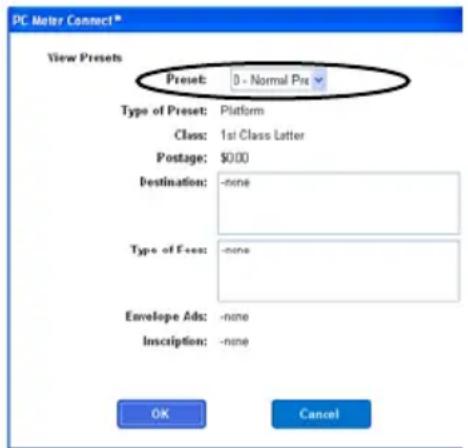
View Presets Screen from PC Meter Connect™
- Click OK (to accept the new choice) or Cancel (to leave the old choice).
NOTE: If you are accessing features from PC Meter Connect™ (Enhanced version), please keep in mind the following:
- If the system is in "sleep" mode, accessing a feature from the Main Window will "awaken" the machine.
- Once in an awaken state, the machine must be at the "Home" screen (ready to print postage) to use features found on the Postage, Updates, and My Meter tabs on the Main Window. Otherwise, a "meter is busy" message displays on the PC. This condition can happen, for example, if you have the Accounting option set up on the system and the machine is waiting for someone to select an account for printing postage.
Normal Preset
Viewing the Values of the Normal Preset (cont'd)
At Meter
- Press Custom Preset.
-
Press Page Down.
-
Select "View Preset". The display lists all presets.
-
Select "Normal Preset" (it should be the first preset on the list). The first screen of defined values for Normal Preset is listed. Press Page Down to see the remainder of the defined values.
NOTE: The number of screens and the values displayed may vary, depending on the options used for your preset and the options installed on your machine.
0-Normal Preset
Postage: \$0.00
Class: 1st Cl Ltr
Ad: None
0-Normal Preset
Insc: None
Date print: Yes
Mode Key In
0-Normal Preset
Horiz Pos: 9
- When you press Page Down to the last screen, you have a choice:
0-Normal Preset
◀Select this preset
Continue
A. If you want to use the Normal Preset as is, select "Select this preset". You return to the Home screen with the Normal Preset chosen (using the values just shown).
B. Select "Continue" to return to the View a Preset screen.
Normal Preset
Defining New Values for the Normal Preset
To define new values (change the settings) for the Normal preset:
- Establish the proper settings on the machine (such as 1st Class letter, No Ad, etc.) that you want the preset to contain.
- Press Custom Preset.
- Select "Define Normal Preset".
- You will be prompted if all current values are correct:
A. If you press Yes/Enter, the new values are saved and you return to the Custom Presets menu.
B. If you press No, the system will display the current values.
Press Page Down to see the remainder of the current values.
NOTE: The number of screens and the values displayed may vary, depending on the options used for your preset and the options installed on your machine.
Current Values
Postage: \$0.44
Class: 1st Cl Ltr
Ad: None
Current Values
Insc: None
Date print: Yes
Mode Key In
Current Values
Horiz Pos: 9
Current Values
Continue
- Select "Continue" at the last screen to return to the first screen in step 4, and save the current values as the Normal preset, or press Home to return to the Home screen to establish the proper settings (see step 1).
Custom Presets
The machine can store up to 10 Custom Presets. Press Custom Preset to access the Customer Preset menu:
CUSTOM PRESETS
◀Select Preset
◀Defi ne New Preset
◀Defi ne Normal Preset
CUSTOM PRESETS
◀View Preset
◀ Delete Preset
◄Edit Preset Name
IMPORTANT:
- There is no option to "edit" a custom preset, but you can define a new custom preset based on the current condition of the machine (and then delete your old custom preset).
- Preset postage values are subject to the high value warning feature. This feature warns you when you manually key in a post age val ue that is higher than your typical value (see Chapter 7, System Options) to help pre vent you from ac ci den tal ly printing an incorrect post age val ue.
- When a rate change becomes effective, always check the postage values assigned to all presets to make sure that they comply with the new rates.
Custom Presets
Selecting a Custom Preset
At a PC Using PC Meter Connect™ (Enhanced Version)
- Select the My Meter tab.
- Click Meter Settings.
- Click on "View Preset".
- At the Preset field, use the dropdown menu to select the preset desired.
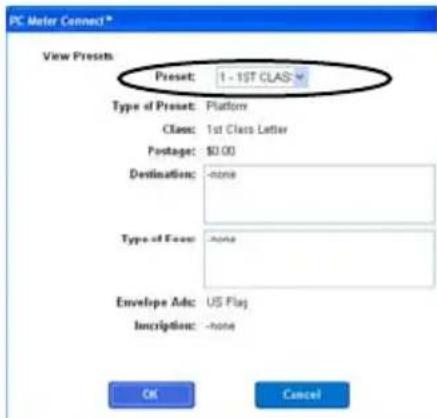
View Presets Screen from PC Meter Connect™
- Click OK (to accept the new choice) or Cancel (to leave the old choice).
At Meter
- Press Custom Preset.
- Select "Select Preset". The display lists all presets created on your system. A sample list is shown below.
SELECT CUSTOM PRESET
◀1 Preset 1 First Class
◀2 Preset 2 Parcels
◀3 Preset 3 Priority
- Press Page Down to see additional choices (if available).
- Select the preset you want to use. You return to the Home screen with the preset values chosen.
Custom Presets
Defining a New Custom Preset
To define (create) a new Custom Preset:
- Establish the proper settings on the machine (such as No Ad, \$0.44, etc.) that you want the preset to contain.
- Press Custom Preset.
- Select "Define New Preset".
- You will be prompted if all current values are correct.
A. If you press Yes/Enter, the system will prompt for the name of this preset. Key in a name for the pre set. It can be up to twelve alpha/nu mer ic char ac ters long. To access alpha characters, repeatedly press the appropriate number key until the desired character displays. When finished, select "OK". The new values are saved and you return to the Custom Preset menu.
B. If you press No, the system will display the current values. Press Page Down to see the remainder of the defined values.
NOTE: The number of screens and the values displayed may vary, depending on the options used for your preset and the options installed on your machine.
Current Values
Postage: \$0.44
Class 1st CI Ltr
Ad: None
Current Values
Insc: None
Date print: Yes
Mode Key In
Current Values
Horiz Pos: 9
Current Values
Continue
- Select "Continue" at the last screen to return to the correct values prompt in Step 4, or press Home to return to the Home screen.
Custom Presets
Viewing the Values of a Custom Preset
At a PC Using PC Meter Connect™ (Enhanced Version)
- Select the My Meter tab.
- Click Meter Settings.
- Click on "View Preset".
- At the Preset field, use the dropdown menu to select the preset desired.
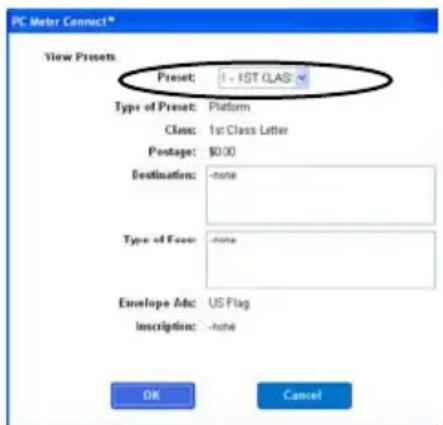
View Presets Screen from PC Meter Connect™
- Click OK (to accept the new choice) or Cancel (to leave the old choice).
Custom Presets
Viewing the Values of a Custom Preset (cont'd)
At Meter
- Press Custom Preset.
- Press Page Down.
- Select "View Preset". The display lists all presets.
- Select the preset you want to view. The first screen of defined values for the Custom Preset is listed. Press Page Down to see the remainder of the defined values.
NOTE: The number of screens and the values displayed may vary, depending on the options used for your preset and the options installed on your machine.
1-Preset 1 First Class
Postage: \$0.44
Class: 1st Cl Ltr
Ad: None
1-Preset 1 First Class
Insc: None
Date print: Yes
Mode Key In
1-Preset 1 First Class
Horiz Pos: 9
- When you press Page Down to the last screen, you have a choice:
1-Preset 1 First Class
◀Select this preset
Continue
A. If you want to use this Custom Preset as is, select "Select this preset". You return to the Home screen with this Custom Preset chosen (using the values just shown).
B. Select "Continue" to return to the View a Preset screen.
Custom Presets
Editing a Custom Preset Name
You may change the name of a preset if you want.
- Press Custom Preset.
- Press Page Down and select "Edit Preset Name".
- The display lists all the Custom Presets. Select the preset you want to edit.
- The system will prompt for the new name of this preset. Key in the new name for this pre set. It can be up to twelve alpha/nu mer- ic char ac ters long. To access alpha characters, repeatedly press the appropriate number key until the desired character displays.
- When finished, select "OK". You return to the Custom Preset menu.
- Press Home to return to the Home screen.
Deleting a Custom Preset
Deleting a preset removes all the values assigned to it and removes it from the Preset Menu.
IMPORTANT: Once you delete a preset, its values are gone. You can't recover a deleted preset.
- Press Custom Preset.
- Press Page Down and select "Delete Preset". The display lists all presets.
- Select the preset you want to delete.
- At the prompt to clear the Preset, press Yes/Enter. The preset is deleted.
- The system confirms that the preset has been deleted. Select "Continue". You return to the Custom Preset menu.
- Press Home to return to the Home screen.
This page was put in as a placeholder so you can print this guide in a duplex (double-sided) mode while keeping the proper page positions.
6 • Adding Postage/Connecting to Data Center
Postage and Your Machine
Postage is stored internally in your meter. When you need to add more, you simply establish communications between your meter and the Pitney Bowes Data Center, and specify the amount of postage you wish to download. The postage is electronically transferred to your meter from your Pitney Bowes Postage By Phone® meter payment account.
You must establish a Pitney Bowes Postage By Phone® meter payment account and have funds available in it before you can download the funds (for postage) to your meter. There are several ways you can arrange to have funds put in your Postage By Phone® meter payment account (send in a check, direct withdrawal, establish credit, etc.). See the Pitney Bowes Contact List on page v to call for further information.
NOTE: Topic headings in this manual that refer to a PC Meter Connect™ Enhanced feature will be listed in green text.
Establishing Communications Between Your Machine and the Pitney Bowes Data Center
You can establish communications between your mailing system and the Pitney Bowes Data Center in three ways:
- Connect your mailing system to a LAN network that has Internet access. This is known as "Constant Connection" (see page 6-5). [DM125/DM225 models only]
- Install the PC Meter Connect ^TM software on a Windows PC that has Internet access and connect a USB cable between your machine and the PC (see page 6-6, and also Appendix A - PC Meter Connect ^TM ).
- Connect the mailing system to an analog phone line (see page 6-7) if you do not have Internet access via a LAN network or a PC.
NOTE: Postage refills, system upgrades and rates downloads will typically be much faster using an Internet connection.
IMPORTANT:
For printing postage, the machine does not have to be connected to the Pitney Bowes Data Center. However, we recommended you keep your machine in a "ready-to-connect" state to the Pitney Bowes Data Center on a permanent basis (using any one of the above connection methods).
Downloads from the Data Center to Your Machine
When you connect to the Pitney Bowes Data Center to add postage or perform other transactions, the Data Center may activate other downloads while the machine is connected. If some type of system/postal update or download is available, a message stating so displays.
- If a download is not mandatory, you will be prompted with either "Get Update now" or "Skip; Get later". Select the one that makes sense to you at that time.
- If a download is mandatory, only "Get Update now" displays and you must perform the download.
After the download has completed, a message stating so displays.
- If you need to reboot the system, the prompt "Restart now" displays. Select this to restart the system.
- If no rebooting is necessary, simply select "Continue" to return to the Home screen.
IMPORTANT:
While the system is processing a download from the Pitney Bowes Data Center, do not disconnect the analog phone line, USB cable, or power from the machine.
Wait until the system has finished processing before disconnecting the machine. You will know this has occurred when the machine's Home screen showing postage and date displays.
The following downloads/activities may occur when your system is connected to the Pitney Bowes Data Center:
System Update
If there this an important update to your system, you will be notified that a required update is necessary.
Envelope Ads/ Postal Inscriptions
If you ordered new envelope advertisements or postal inscriptions, you will be notified that you can perform a download to obtain these.
Downloads from the Data Center to Your Machine
Upload Pending Electronic USPS® Confirmation Service Records
If you are using the optional USPS® Confirmation Services feature, your services records can be uploaded to USPS® for processing. See Pitney Bowes publication SV61156 for more information on this optional feature. Visit our website (see page v) and enter "SV61156" in the search box on the home page to locate and view this document.
Postal/ZIP Code Update
If the Postal Code on record at the Pitney Bowes Data Center does not match the Postal/ZIP Code of your system, the code will be down load ed into your system. (When a system is moved to a new Postal Code, the Data Center en ters the new code into the record. The system is up dat ed when a con nec tion is made to the Data Center.)
Postal Inspection
The USPS® requires a postal inspection of your machine every 120 days. This postal inspection requirement can be automatically met by connecting to the Pitney Bowes Data Center to check your Post-age By Phone® meter payment account balance or to add postage to your mailing machine.

NOTE: If the interval between inspections is more than 90 days, your machine's dis play prompts "Connection Due." If the interval be tween inspections is more than 120 days, the dis play prompts "Connection Required By Post." At this point, you won't be able to use your mailing system until your system is inspected (i.e., connected to the Data Center). In either case, to sat is fy the postal inspection requirement, simply:
- Follow the prompts on the "Connection Due" or "Connection Required By Post" screens or
- Press Add Postage and select "Check PBP Account Balance" (which will not decrease or change the funds in your account).
Downloads from the Data Center to Your Machine
Postal Rate Update
Postal rates change periodically by the USPS®. If new rates are available, you can download them quickly and easily directly from the Pitney Bowes Data Center. The new rates are normally available for download at least seven days before the effective date. The prices will automatically change on the effective date.
NOTE: It is best to download the update prior to the effective date because on the effective date, the download servers may be running slow due to high volume.
The display tells you when a Rate Change up date is com plete. It also tells you if the up date is im me di ate or takes effect at a later date by listing the new date.
NOTE: If you decide to take the update and the rates go into effect in the future, you will not be printing postage at the new rates until the effective date is reached.
If the rate for a First Class let ter has changed and is ef fec tive im med ate ly, a screen dis plays showing the present preset post age and asks you if you want to re set the nor mal pre set post age. Press Yes/En ter. A screen displays for you to en ter the new rate.
NOTE: When a Rate Change update takes place, it may also affect other pre sets you have set in your mailing machine. You must check all your presets to insure that they con form to the new rates. See Chapter 5, Normal and Custom Presets for instructions on changing pre set values.
As part of downloading the new rates, we recommend that you print the last rates update report (see figure below) when prompted.
| Last Rates Update | System will begin using new rates on the date effective. | |||
| Description | Version | Effective | Meter No.: 3231234 | |
| Zip/Zone | C .01 | DEC 06 07 | Page 1 of 1 | |
| US Rates | F .02 | MAY 12 08 | ||
| Downloaded: | MAY 10 08 11:59A | Printed: | MAY 10 08 12:05P | |
Description - the specific type of rate that is affected
Version - the alpha-numeric identifier used for this rate
Effective Date – the date the new rate takes effect
Meter No. – the serial number of this meter
Downloaded – the date and time the new rates were downloaded into the machine
Printed – the date and time this report was printed
Using a LAN Network (Constant Connection) to Establish Communications with the Data Center [DM125/DM225]
Constant Connection is an option that allows you to connect your DM125 or DM225 machine to the Pitney Bowes Data Center via a LAN network that has Internet access. Constant Connection's high-speed connectivity eliminates the need for an analog line and provides faster transmission speed when connecting through your local network.
To use, plug one end of the Ethernet cable (supplied) to your Internet LAN network port and the other end to the USB adapter which plugs into either one of the two USB "A" ports on the back bottom of the machine (see figure below).
You may leave this connected on a permanent basis; hence the name "constant connection".
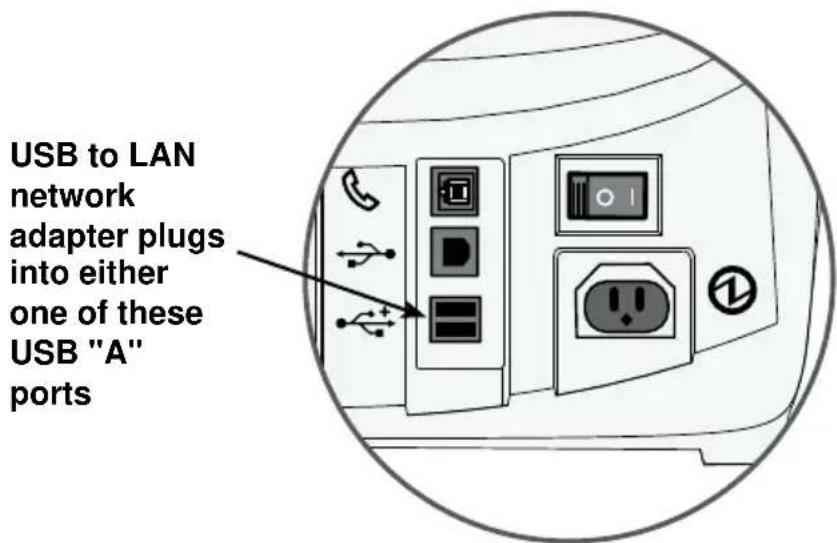
DM125/DM225 Back of Machine
Using PC Meter Connect™ Desktop Application to Establish Communications with the Data Center
NOTE: For information on installing and using this feature on your PC, see Appendix A - PC Meter Connect™.
Once installed, all you need to do is verify that the PC Meter Connect™ icon is in the system tray (this indicates it is running), and that there is no red "X" on the icon (which indicates the mailing machine is not detected by the application).
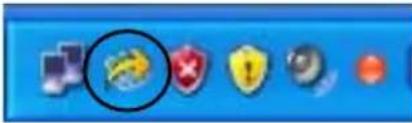
natural_image
Blue computer monitor with icons for security, privacy, and other items (no readable text or symbols)Icon in System Tray
NOTE: If the PC Meter Connect™ software was not running for some reason (you'll know this when you don't see the PC Meter Connect™ icon in the system tray), double clicking on the desktop icon will restart the software. Alternately, you may click on the Start button > All Programs > Pitney Bowes > PC Meter Connect. A PC Meter Connect™ icon will then appear in system tray.
Desktop Shortcut Icon
If you connect or disconnect your machine from the PC, messages display from the PC Meter Connect™ icon in the system tray:
- "Meter Not Connected" displays when you disconnect your machine from the PC. The red "x" stays on the icon thereafter.
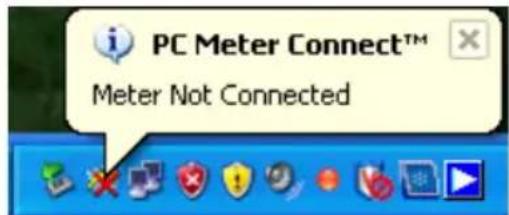
- "Meter detected" displays when you connect your machine to the PC (after it had been disconnected). The red "x" disappears.
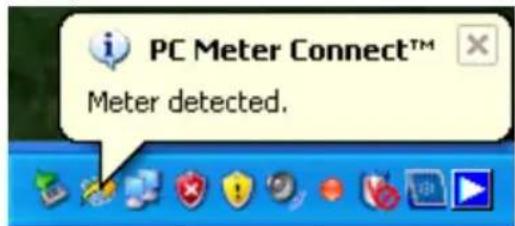
Using Analog Phone Line to Establish Communications with the Data Center
If you do not have a Windows PC available with Internet access, you may establish communications to the Pitney Bowes Data Center using an analog phone line. The following are usually analog phone lines:
- Fax lines
• Residential phone lines
• Lines used by modems or credit card readers
Plug the telephone line (supplied) into the con nec tor on the back of the machine (see Chapter 2, Getting to Know Your System). Use a dedicated analog phone line if possible (one that is not shared with other devices) to avoid possible issues.
NOTE: Postage refills, system upgrades and rates downloads will typically be much faster using an Internet connection.
IMPORTANT:
- Phone systems installed in some businesses are not analog and may damage your system. If you are unsure about your phone line, contact your telephone company or local network administrator.
- If you have a DSL line and want to connect your machine using the analog phone jack on the back of the machine, you should install a DSL filter obtained from your DSL provider before connecting the system.
- While the system is processing a download from the Pitney Bowes Data Center, do not disconnect the analog phone line, USB cable, or power from the machine. Wait until the system's main screen showing postage and date displays before disconnecting and moving the machine.
- PC Meter Connect™ is a much faster method to perform postage refills and system downloads than using an analog phone connection.
- If you want to use the PC Meter Connect™ method of connecting to the Data Center, unplug the analog phone line from the back of the machine, then connect the USB cable between your machine and your PC.
Checking Funds (Postage) Availability in Machine
At a PC Using PC Meter Connect ^TM (Enhanced Version)
At the Postage tab (which is the default tab that displays when you first launch the program), the postage in the meter is displayed under the "Current Meter Balance" section.
NOTE: If you are accessing features from PC Meter Connect™ (Enhanced version), please keep in mind the following:
- If the system is in "sleep" mode, accessing a feature from the Main Window will "awaken" the machine.
- Once in an awaken state, the machine must be at the "Home" screen (ready to print postage) to use features found on the Postage, Updates, and My Meter tabs on the Main Window. Otherwise, a "meter is busy" message displays on the PC. This condition can happen, for example, if you have the Accounting option set up on the system and the machine is waiting for someone to select an account for printing postage.
At Mailing Machine
- Press Funds.
- The funds left, used, and pieces processed display.
| FUNDS | |
| Available | 204.94 |
| Used | 17.06 |
| Total Pieces | 40 |
Available – the amount of funds (postage) left in your meter Used – the total of all postage ever used in the meter Total Pieces – the total number of mail pieces run through the meter that had postage applied
- Press Clear (back arrow key) or Home to return to Home screen.
Checking Your Account Balance in the Postage By Phone® System
NOTE: The Postage By Phone® ac count balance represents the funds in your account, not the amount in your meter. Also, your system must be connected to the Pitney Bowes Data Center to view this balance.
Other items that display with your Postage By Phone balance include:
Prepaid – the amount you have prepaid in your Postage By Phone® ac count balance (by sending in a check, using your credit card, etc.)
Other – the amount you have on credit on your Postage By Phone® ac count balance (by signing up to one of the various Pitney Bowes credit programs such as Purchase Power, etc.)
At a PC Using PC Meter Connect™ (Enhanced Version)
At the Postage tab (which is the default tab that displays when you first launch the program), view "Account Balance at Pitney Bowes".
At Mailing Machine
- Make sure your machine can make connection to the Data Center.
- Press Add Postage.
- Select "Check PBP balance".
ADD POSTAGE TO METER
◀ Add \$xx
◀Add another amount
◀Check PBP balance
- The system connects to the Pitney Bowes Data Center (this may take a few moments). Various screens displays, letting you know the status of the process.
- The Prepaid and Other balances displays. Press No.
PBP Balance
Prepaid \$xxx
Other \$xxx
Add postage? (yes or no)
If there are no updates for your system, you will return to the Home screen. If there are updates available, the display notifies you of this fact.
Adding Postage
You can add postage to your machine any time you need to, as long as you have enough funds in your Postage By Phone® ac count and your system is connected to the Pitney Bowes Data Center.
At a PC Using PC Meter Connect™ (Enhanced Version)
- At the Postage tab, click on Add Postage to Meter.
- Enter in the amount you desire, or choose one of the pre-set amounts for quicker selection. Click Confirm to continue.
- A status bar displays, letting you know the progress of the transaction. After the postage has been downloaded into your meter, you have choice to print a receipt from your PC:
A. To bypass the printing of the receipt, click Skip.
B. To print, click Print Receipt. The Refill Receipt screen displays.
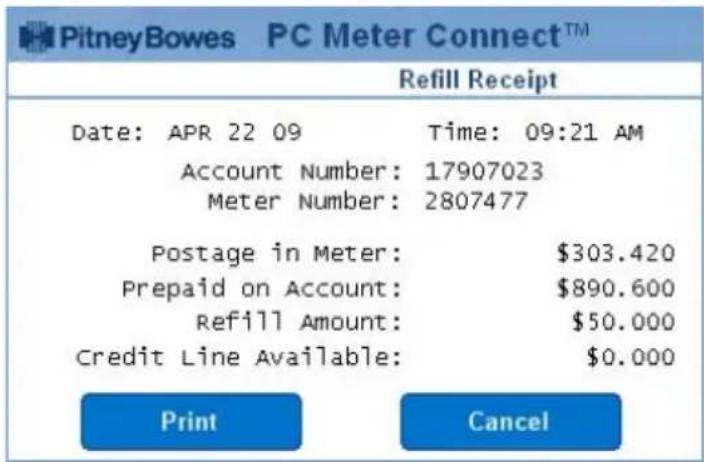
Refill Receipt from PC Meter Connect™
C. Click Print to continue. The receipt prints at your PC printer. Click Done when finished.
Postage in Meter - amount of postage (funds) in your meter.
Prepaid on Account - amount you have left in your Postage By Phone® system ac count of those funds you paid for in advance (by sending in a check, direct withdrawal, etc.)
Credit Line Available - amount you have left in your Postage By Phone® system ac count of those funds you established as credit with Pitney Bowes (such as Purchase Power®, etc.).
Refill Amount - amount of your refill.
Account No. - your Postage By Phone® system account number. Meter No. - your meter serial number (on record with the USPS) which is printed on the meter stamp.
Adding Postage
At Mailing Machine
- Make sure your machine can make connection to the Data Center.
- Press Add Postage.
- You may select "Add \$xx" to add the amount shown.
OR
Select "Add another amount". Key in the amount, in whole dollars, that you want to add and select "Continue".
ADD POSTAGE TO METER
◀ Add \$xx
◀Add another amount
◀Check PBP balance
NOTE 1: The minimum amount of postage you can add is \$1.
NOTE 2: The amount shown in the "Add \$xx" selection line represents the amount of postage you added the last time.
- The system connects to the Pitney Bowes Data Center (this may take a few moments). Various screens display, letting you know the status of the process.
- The Transfer Successful screen displays.
TRANSFER SUCCESSFUL
Added \$xx
Available \$xx
Receipt? (Yes or No)
Added – the amount of the postage downloaded into the meter.
Available – the amount of postage available to use in the meter. This represents any balance you had in the meter before adding postage, plus the refill amount.
Adding Postage
At Mailing Machine (cont'd)
- If a receipt is desired, press Yes/Enter and insert envelope/tape sheet through machine (see sample below) OR press No or Home to return to the Home Screen.
| Refill Receipt | Refill: OCT 23 08 11:38A | Account No: 17907023 |
| Refill Amount: 100.000 | Meter No.: 3167354 | |
| Funds Available in Meter:115.000 | OCT 23 08 11:38A | |
| Prepaid: 935.780 | ||
| Additional Funds Available:000.000 |
Refill – the date and time the new postage was added to your machine
Refill Amount – the amount of the new postage you downloaded into your machine
Funds Available in Meter – the amount of postage available to use in the meter. This represents any balance you had in the meter before adding postage, plus the refill amount.
Prepaid – the amount you have prepaid in your Postage By Phone® ac count balance (by sending in a check, using your credit card, etc.)
Additional Funds Available – the amount you have on credit on your Postage By Phone® ac count balance (by signing up to one of the various Pitney Bowes credit programs such as Purchase Power, etc.)
Account No. – your Postage By Phone® ac count number Meter No. – the serial number of this meter
Printing a Funds (Postage) Report
(only accessible at the mailing machine)
A funds report allows you to print a record of how much postage has been used and how much is remaining in the machine.
- Press Funds.
- Press Page Down to the third screen.
◀Check PBP balance
◀Print Funds Report
- Select "Print Funds Report".
- At the insert envelope or tape sheet prompt, insert an envelope or tape sheet into the machine. The machine prints the funds report (see sample below).
- Press Clear (back arrow key) or Home to return to Home screen.
| Funds Report | Used: 464.270 | JAN 07 089:55P | |
| Available:000.000 | Batch Count: 733 | ||
| Total Pieces: 735 | Batch Value: 464.270 | ||
| Control Sum:464.270 | PBP Serial No.: 0011969 | ||
Used – the total of all postage ever used in the meter
Available – the amount of postage left in the meter
Total Pieces – the total number of mail pieces run through the meter that had postage applied
Control Sum – the total of all postage refills for the meter and equals the amount Used plus Available. This is a postal requirement that verifies an accurate accounting of the postage in your meter.
Batch Count – the number of mail pieces that had postage applied since the last time the batch count was cleared
Batch Value – the amount of postage applied since the last time the batch value was cleared
PBP Serial No. – serial number of this meter (normally meter number)
Performing USPS Meter Inspection
At a PC Using PC Meter Connect™ (Enhanced Version)
Select the Updates tab, then click on "Perform Meter Inspection" After several moments, a Meter Inspection Completed screen displays. Click OK.
At Mailing Machine
Even though this procedure is the same as checking your Postage By Phone account balance, it satisfies the USPS® inspection requirements.
- Make sure your machine can make connection to the Data Center.
- Press Add Postage.
- Select "Check PBP balance".
ADD POSTAGE TO METER
◀ Add \$xx
◀ Add another amount
◀Check PBP balance
- The system connects to the Pitney Bowes Data Center (this may take a few moments). Various screens displays, letting you know the status of the process.
- The Prepaid and Other balances displays. Press No.
PBP Balance
Prepaid \$xxx
Other \$xxx
Add postage? (yes or no)
If there are no updates for your system, you will return to the Home screen. If there are updates available, the display notifies you of this fact.
Downloading Files or Updating System
Use this option when you need to manually:
- Restart an interrupted download
- Download postal inscriptions, envelope ads, system updates, rate updates, or updating PC Meter Connect™ software
NOTE: Your system must be connected to the Pitney Bowes Data Center to download files or update the system.
At a PC Using PC Meter Connect™ (Enhanced Version)
Select the Updates tab, then click on Update Software. The program will check and inform you if you need any updates. When prompted, click Continue. When it is finished, click Done.
At Mailing Machine
- Make sure your machine can make connection to the Data Center.
- Press Options.
- Press Page Down to the third screen.
- Select "Connect-Data Center".
OPTIONS
◀Postage Values
◀LockCode/Passwords
◄Connect-Data Center
- Select "Uploads & Downloads".
DATA CENTER
◀Uploads & Downloads
◀Phone Parameters
◀Distributor Values
- The system connects to the Pitney Bowes Data Center (this may take a few moments). Various screens display, letting you know the status of the process.
Settings for Connecting to the Data Center
You can modify the settings on your machine that are used to connect to the Pitney Bowes Data Center. These include analog phone line settings (tone or pulse, dial prefix, etc.), firewall settings, and distributor settings. The Data Center menu choices are:
- Uploads and Downloads
- Phone Parameters (affects analog phone connections to Data Center)
• LAN Settings (affects PC Internet connections to Data Center) - Firewall settings (affects PC Internet connections to Data Center)
- Distributor Values (affects both analog phone line and PC internet connections to Data Center)
DATA CENTER
◀Uploads and Downloads
◀Phone Parameters
◄LAN Settings
DATA CENTER
◀Firewall Settings
◀Distributor Values
IMPORTANT: For Data Center settings so marked in this manual, do not change the settings un less directed to do so by your Pitney Bowes representative.
Uploads and Downloads
Use this feature to connect to the Pitney Bowes Data Center for system downloads, new updates, etc. See Downloading Files or Updating System on preceding page for procedure.
Settings for Connecting to the Data Center
Phone Parameters (for analog line connection to Data Center)
This menu option allows you to modify the phone con nec tion settings on your machine (tone or pulse, dial prefix, etc.) when using an analog phone line to connect to the Pitney Bowes Data Center.
PHONE PARAMETERS
◀Tone/Pulse
◀Dialing Prefix x
◄Change PbP Number
PHONE PARAMETERS
◄Change Local Number
Modem Parameters
Selecting Tone/Pulse
Use this to tell the system whether you have a tone or pulse type phone.
- Press Options.
- Press Page Down twice.
- Select "Connect-Data Center".
- Select "Phone Parameters".
- Select "Tone/Pulse".
- Select Tone or Pulse, whichever is appropriate. The display shows the new setting.
- Press Clear (back arrow key) to return to Data Center menu.
- Press Clear (back arrow key) to return to Options menu.
Entering the Dial Prefix
Use this if you need to dial a prefix number (like 9) to get an out side line.
- Press Options.
- Press Page Down twice.
- Select "Connect-Data Center".
- Select "Phone Parameters".
- Select "Dialing Prefix".
- Key in the prefix number you want (such as a "9").
- Select "OK". You return to the Data Center menu.
- Press Clear (back arrow key) to return to Options menu.
Settings for Connecting to the Data Center Phone Parameters (cont'd)
Change Postage By Phone® (PbP) Number
NOTE: Use this if you need to change the alternate number the machine uses to contact Postage By Phone®, but do so only if you are directed to by a Pitney Bowes agent.
- Press Options.
- Press Page Down twice.
- Select "Connect-Data Center".
- Select "Phone Parameters"
- Select "Change PbP Number".
- A warning that you should only change this number if instructed to by Pitney Bowes displays. Press Yes/Enter to continue, or No to return to the Data Center menu.
- Press Clear (back arrow key) to delete the existing phone number.
- Key in the new phone number (excluding prefix).
- Select "OK". You return to the Data Center menu.
- Press Clear (back arrow key) to return to Options menu.
Change Local Number
NOTE: The system uses this local number first to contact Postage By Phone®. If it doesn't succeed, it tries connecting using the alternate Postage By Phone® number in the option above. If you need to change the local number for connecting to Postage By Phone®, only do if you are directed to by a Pitney Bowes agent.
- Press Options.
- Press Page Down twice.
- Select "Connect-Data Center".
- Select "Phone Parameters"
- Select "Change Local Number".
- A warning that you should only change this number if instructed to by Pitney Bowes displays. Press Yes/Enter to continue, or No to return to the Data Center menu.
- Press Clear (back arrow key) to delete the existing phone number.
- Key in the new local phone number (excluding prefix).
- Select "OK". You return to the Data Center menu.
- Press Clear (back arrow key) to return to Options menu.
Settings for Connecting to the Data Center
Phone Parameters (cont'd)
Change Modem Parameters
NOTE: Use this if you need to change the modem settings used to dial into the Pitney Bowes Data Center, but do so only if you are directed to by a Pitney Bowes representative
- Press Options.
- Press Page Down twice.
- Select "Connect-Data Center".
- Select "Phone Parameters".
- Press Page Down
- Select "Modem Parameters". The Modem Parameters menu displays.
MODEM PARAMETERS
Modem init String
◀Skip Dial Tone
Modem Speed
A. Modem init String - A warning displays telling you that you should only change this number if instructed to by Pitney Bowes. Press Yes/Enter to continue or No to return to the menu. Key in the new modem parameters (they will contain both alpha and numeric characters) as given by your Pitney Bowes agent.
B. Skip Dial Tone - This option (rarely used) allows the system to start dialing to the Data Center without waiting for a dial tone for phone systems that don't use a dial tone.
C. Modem Speed - This option allows you to lower the connection speed (56000, 33600, 14400, 9600 and 2400 bits per second) of the machine's modem. This is normally used when the phone line is noisy and/or the machine is experiencing dropped connections to the Data Center (redials and disconnects).
-
If you make a change, select "Set New Value". A message that the new parameter has been updated displays. Select "Continue" to return to the Phone Parameters menu.
-
Press Clear (back arrow key) twice to return to Options menu.
Settings for Connecting to the Data Center
LAN Settings (affects LAN PC Internet connections to Data Center for DM125/DM225 only)
This menu option allows you to modify the IP address when using an Internet connection via Local Area Network (LAN) to connect to the Pitney Bowes Data Center. See also Troubleshooting section of Appendix A - PC Meter Connect ^TM for more information on Internet settings.
To access LAN settings:
- Press Options.
- Press Page Down twice.
-
Select "Connect-Data Center".
-
Select "LAN Settings". The Local Area Network screen displays.
Local Area Network
◀Get IP : Auto IP :0.0.0.0 Sub: 0.0.0.0
Local Area Network Gwy :0.0.0.0 MAC:00120e22aa3c
A. Get IP - you can select whether you want the machine to automatically select an Internet Protocol (IP) address to connect to the Internet (Auto) or if you want to manually enter an IP address to connect to the Internet (Manual).
If set to Auto, values for IP, Sub, and Gwy are set to 0.0.0.0.
If set to Manual, you are prompted to enter IP, subnet, and gateway addresses (see below). Follow the screen directions.
B. IP - IP address being used if IP address was manually entered.
C. Sub - the subnet address used for the IP address if IP address was manually entered
D. Gwy - the gateway address used for the IP address if IP address was manually entered
E. MAC - the specific address (ID) of the machine LAN card (this can't be changed)
- After you accept your choices, you return the LAN menu. Press Clear (back arrow key) to return to Options menu.
Settings for Connecting to the Data Center
Firewall Settings (affects PC Internet connections to Data Center)
This menu option allows you to modify the firewall settings when using an Internet connection via LAN to connect to the Pitney Bowes Data Center. Further information on Internet settings can be found in the Troubleshooting section of Appendix A - PC Meter Connect ^TM .
To access the firewall settings:
- Press Options.
- Press Page Down twice.
- Select "Connect-Data Center".
- Select "Firewall Settings".
- The following selections appear.
A. Ping - press the soft key next to this selection to toggle between "Enabled" or "Disabled".
If you enable Ping, then your mailing system will respond to electronic inquiries (pings) from external hosts. These inquiries are generally used by external systems to determine if your system is accessible. If you reply to a Ping, you will return your mailing system's IP address to the requesting host.
B. Trust - Press the soft key next to this selection to see the choices:
None – No external hosts have been verified as trustworthy/secure and you cannot communicate externally.
All _All external computer system will be considered trustworthy, and will be allowed to contact your mailing system through your firewall.
Trusted Host Only – Only those computer systems that you have specifically identified (by supplying their IP address) will be allowed to communicate with your system.
Press the soft key next to the desired selection to choose it.
- After you make you choices, you return the Firewall menu. Press Clear (back arrow key) to return to Options menu.
Settings for Connecting to the Data Center
Distributor Values (affects both analog line and PC internet connections to Data Center)
This option allows you to modify the parameters that your machine uses to connect to the Pitney Bowes Data Center. A brief description of each parameter is provided on the next page.
IMPORTANT: Do not change the Distributor Values un less directed to do so by your Pitney Bowes representative.
To access the Distributor Values:
- Press Options.
- Press Page Down twice.
- Select "Connect-Data Center".
-
Select "Distributor Values".
-
Select the parameter you want to modify from the list appearing in the display. Use Page Down if needed to access your choice.
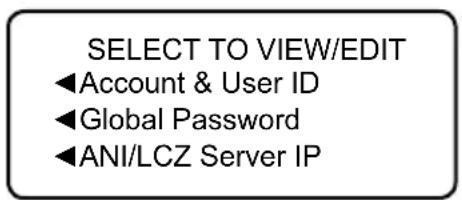
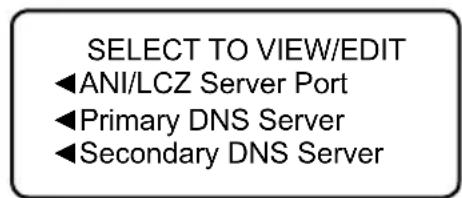
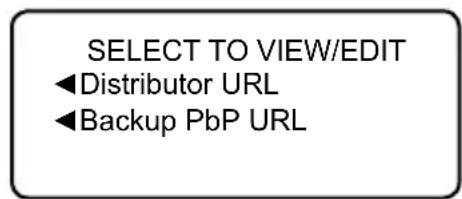
- A warning message displays that reminds you that entering a wrong value may result in errors connecting to the Data Center. If you want to continue, press Yes/Enter; otherwise, press No to return to the Select to View/Edit menu.
Settings for Connecting to the Data Center
Distributor Values (cont'd)
- Key in a new entry for that parameter (some entries may require alpha-numeric characters). When finished, either select "Restore Default" (if you made a mistake or changed your mind) or "Set the new value" (if you are satisfied with your new entry).
- If you have changed a parameter, a message confirming the new setting displays. If you selected "Restore Default", a message informing you that the parameter has been set to the original Factory setting displays. In either case, select "Continue" to return to the Select to View/Edit menu.
- Press Clear (back arrow key) to return to Options menu.
Account and User ID
This is the account number and the user ID that your sys tem uses to dial into the internet service provider (ISP) that allows you to connect to Pitney Bowes.
Global Password
This is the password your system uses to dial into your internet service provider.
ANI/LCZ Server IP
This is the internet address of the Automatic Number Iden ti fi ca tion (ANI)/Least Cost Zone (LCZ) server that iden ti fies your system and routes your call to a zone that en sures the lowest cost for the connection.
ANI/LCZ Server Port
The server port number identifies the port number on the ANI/LCZ server to which your system connects.
Primary DNS Server
This is the internet address of the Pitney Bowes primary domain name server (DNS). The domain name server con verts your system name to its IP address.
Secondary DNS Server
This is the internet address of the Pitney Bowes sec ond ary domain name server (DNS).
Distributor URL
The Universal Resource Locator (URL) of the web page to which your system connects.
Backup PbP URL
The Universal Resource Locator (URL) of the backup web page to which your system connects.
This page was put in as a placeholder so you can print this guide in a duplex (double-sided) mode while keeping the proper page positions.
7 · System Options
System Options Overview
System options allow you to customize the machine settings for the way you run your mail and add security to those features that are sensitive to your organization. Because of the many options available, the options are categorized into "Basic" and "Advanced".
Basic options include:
- Advancing the printed date for the meter stamp
- Setting the machine to the current (today's) date
- Adjusting the Contrast (of the display)
- Turning Features On or Off (if installed on machine)
- Setting Date, Time, and Timeouts
- Setting Postage Values (Funds Warnings)
- Setting Lock Code and Passwords
- Scale Options (accessed from the Home screen)
- Checking and Clearing the Batch Count (see Chapter 3, Running Mail)
- Connecting to Data Center settings (see Chapter 6- Adding Postage/Connecting to Data Center)
Most of the basic system options are accessed by pressing Options and selecting your choice from the menu as shown below.
OPTIONS
◀Advance the date
◀Set to todays date
Adjust the Contrast
OPTIONS
◀Turn items ON/OFF
◀Time and Timeouts
◀Postage Values
OPTIONS
◀LockCode/Passwords
◄Connect-Data Center
◀Advanced Features
NOTE: Topic headings in this manual that refer to a PC Meter Connect™ Enhanced feature will be listed in green text.
System Options Overview
Advanced options include:
- Manage USP ^ Confirmation Delivery Records. See Pitney Bowes publication SV61156 for more information on this optional feature. Visit our website (see page v) and enter "SV61156" in the search box on the home page to view this document.
- Barcode Scanner (used to enter and track USPS special services on certain mail pieces with the above optional feature)
- Maintenance Mode (see Chapter 10, Maintenance)
- Change Language
- Meter Withdrawal (for withdrawing postage funds)
- Run Install Mode (for special purposes only)
The advanced options are accessed by pressing Options and selecting "Advanced Features", which displays a menu of options:
ADVANCED FEATURES
◄Manage Conf Records
◀Barcode Scanner
◀Maintenance mode
ADVANCED FEATURES
◄Change Language
◀Meter Withdrawal
◀Run Install Mode
Basic Options
Advancing the Printed Date for the Meter Stamp
You may want to advance the date printed on the meter stamp if it is after normal business hours and you want to prepare outgoing mail for a future business day's mailing.
IMPORTANT:
- You can advance the date up to 30 days from the current date.
- Changing the printed date does not change the machine's internally held date.
- You can always return the printed date to the current date.
- You cannot change the printed date to a date earlier than the machine's internally held date (in an effort to "backdate" the mail).
- Accounting data is posted on the actual date the mail piece is run (per the internal clock/calendar in the mailing system), not by the date printed on the meter stamp.
Basic Options
Advancing the Printed Date for the Meter Stamp (cont'd)
At PC Using PC Meter Connect™ (Enhanced Version)
- At the My Meter tab, select Meter Settings.
- Select Date and Time.
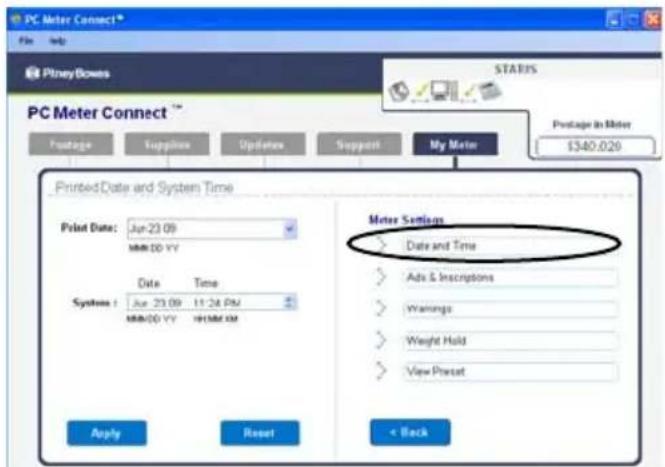
- In the Print Date field, access the dropdown calendar. Use the < or > keys to select the month, then click on the day you want to print on your meter stamp.
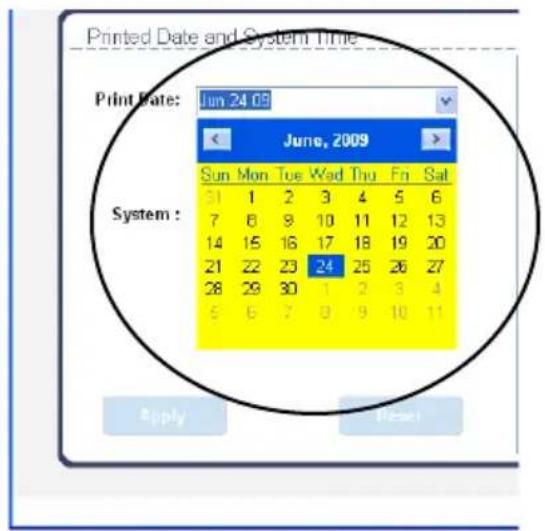
- Click Apply. A confirmation screen displays the new date. Click OK.
- To set the date on your mail back to the current date, repeat steps 1-4 and select today's date.
Basic Options
Advancing the Printed Date for the Meter Stamp (cont'd)
At PC Using PC Meter Connect™ (Enhanced Version)
NOTE: If you are accessing features from PC Meter Connect™ (Enhanced version), please keep in mind the following:
- If the system is in "sleep" mode, accessing a feature from the Main Window will "awaken" the machine.
- Once in an awaken state, the machine must be at the "Home" screen (ready to print postage) to use features found on the Postage, Updates, and My Meter tabs on the Main Window. Otherwise, a "meter is busy" message displays on the PC. This condition can happen, for example, if you have the Accounting option set up on the system and the machine is waiting for someone to select an account for printing postage.
At Mailing Machine
- Press Options.
-
Select "Advance the date".
-
Displays current date in MMM DD YY format (for US). You may either:
- Select "Add one day" to advance date one day for each pressing of the key. OR
- Key in a number (in US from 1-30) representing the number of days you want to advance the date, then select "Add x days (1-30)".
-
Select "Continue". The new date now shows in the Home screen.
-
To set the date on your mail back to the current date, press Options and select "Set to todays date". You will be returned to the Home screen with the current (today's) date set.
Basic Options
Set Meter Stamp to Today's Date
- Press Options.
- Select "Set to todays date". You will be returned to the Home screen with the current (today's) date set.
Adjusting the Contrast of the Display
- Press Options.
- Select "Adjust the Contrast".
- Select "Increase Contrast" or "Decrease Contrast" to change the contrast level as necessary.
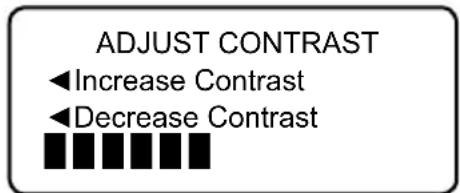
- Press Clear (back arrow key) or Yes/Enter to return to the Options menu.
Basic Options
Turning Features (Already Installed) On and Off
You can turn on and off features that you have already purchased and downloaded into your machine. For turning on or off the scale (if purchased), see Setting Scale Options later in this chapter.
- Press Options.
- Press Page Down.
- Select "Turn items ON/OFF".
- Depending on the options purchased, you may have one or more features listed. The screen below represents all the possible features that you can turn on or off on the machine.
TURN FEATURES ON/OFF
Accounting
Account Passwords
◀Auto Rating
TURN FEATURES ON/OFF
◀Scale Stabilizer
-
Select the feature you want to turn on or off. You will be prompted to turn the feature ON or OFF, depending on the current state of the machine. Options listed below may or may not be available on your machine.
-
Accounting - this turns on or off an accounting option (if purchased). For Standard Accounting, see Chapter 8, Standard Accounting). For INVIEW™ accounting, see the INVIEW™ Accounting for DM125/DM225 Operator Guide (SV62371).
- Accounting Passwords - this turns on or off the requirement for operators (globally) to enter passwords when choosing a departmental account if accounting passwords are set up. See Chapter 8, Standard Accounting for procedure,
- Auto-Rating - this turns on or off the auto-rating feature, which calculates the postage amount for a mail piece based on the weight, the class, and services selected.
Basic Options
Turning Features (Already Installed) On and Off (cont'd)
- Special Services - this allows you to customize prompts for the USPS® Confirmation Services feature. Items include:
Prompt Receipt - turns on or off the prompt to print a receipt after uploading your USPS® Confirmation Services records
Upload Records - turns on or off the prompt to upload your USPS® Confirmation Services records
Records Warning - turns on or off the prompt that notifies you when a specified number of USPS® Confirmation Services records has been reached in your system. Key in a number between 1 and 200, and press Yes/Enter.
- Preset Class Lookup - this turns on or off the prompt for a class when you are saving a preset that has no class listed (also known as "key-in postage").
- Scale Stabilizer - this turns on or off the scale stabilizer feature, which minimizes reactions to scale vibrations. You may use this feature in environments where there is blowing on the scale, accidental bumps to the scale or machine, or dropping of mail onto the scale or machine.
- Depending on the features chosen, you may need to press Clear (back arrow key) to return to the Options Menu.
Basic Options
Setting the Date, Time, and Timeouts
You can change the system date/time, set the date/time to day light savings time, change the time at which your sys tem advances the date/time to the next day, and set the amount of time your sys tem can re main in active be fore re vert ing to the nor mal preset values.
TIME & TIMEOUTS
Normal Preset
◀ Sleep Mode
◀Autodate Advance
TIME & TIMEOUTS
◄Correct Drift
◀Daylight Saving
Setting the Time for Machine to Revert to Normal Preset
The normal preset is a set of values (postage, ad, ac count and so on) that your machine display au to mat i cal ly returns to after a set period of time. You can set the amount of time the display takes before it re verts to the normal preset.
- Press Options.
- Press Page Down.
- Select "Time and Timeouts".
- Select "Normal Preset"
- Key in the amount of minutes (from 1-240) be fore the system re turns to the normal pre set.
- Select "OK". The display returns to Time and Timeouts menu.
- Press Clear (back arrow key) to return to Options Menu.
Basic Options
Setting the Date, Time, and Timeouts (cont'd)
Setting ENERGY STAR® Sleep Mode Activation Time
You can set the amount of time the machine waits until entering "sleep mode". When the machine is in sleep mode, the display is blank and you can't process mail. You awaken the machine by merely pressing any button on the control panel.
- Press Options.
- Press Page Down.
- Select "Time and Timeouts".
- Select "Sleep Mode"
- Key in the amount of minutes (from 1-240) be fore the system goes into sleep mode.
- Select "OK". The display returns to Time and Timeouts menu.
- Press Clear (back arrow key) to return to Options menu.
Standby Mode for DM125/DM225 Models—In order to reach the lowest use of power while still plugged into an outlet, the switch on the back of the machine may be toggled "off". Before resuming power to the machine, the switch will need to be switched to the "on" position.
Basic Options
Setting the Date, Time, and Timeouts (cont'd)
Setting Autodate Advance
The feature is factory set to 12:00 AM. This means that at 12:00 AM, the system advances the date of the meter stamp to the new date.
You can set the system to advance the date of the meter stamp at 12:00 PM (afternoon) instead. With this setting, it allows you to meter mail in the afternoon for the next day's mailing mail if your mail is sent out in the morning.
- Press Options.
- Press Page Down.
- Select "Time and Timeouts".
- Select "Autodate advance".
- The following selections appear.
A. Switch AM/PM Use the soft key next to this selection to toggle between "AM or "PM". Select "Continue".
B. Disable - Use the soft key next to this selection to disable the feature and return to using 12:00 AM as the time when the machine advances the date of the meter stamp.
-
The display returns to Time and Timeouts menu.
-
Press Clear (back arrow key) to return to Options menu.
Basic Options
Setting the Date, Time, and Timeouts (cont'd)
Correct Drift
Sometimes, the time on the machine may need to be corrected due to internal "drift" or the activation of Daylight Saving Time.
- Press Options.
- Press Page Down.
- Select "Time and Timeouts".
- Press Page Down.
- Select "Correct Drift".
- You have your choice of adding or subtracting minutes from the current time displayed.
ADJUST THE TIME
Currently: 5:52 PM
◀ Add 1-120 min
◀Subtract 1-120 min
A. To add minutes:
- Select "Add 1-120 min" to add minutes.
- Key in the number of minutes you need to add and select "Continue".
B. To subtract minutes:
-
Select "Add 1-120 min" to subtract minutes.
• Key in the number of minutes you need to subtract and select "Continue". -
The display returns to Time and Timeouts menu.
- Press Clear (back arrow key) to return to Options menu.
Setting Daylight Savings Time
- Press Options.
- Press Page Down.
- Select "Time and Timeouts".
- Press Page Down.
- Select "Daylight Saving". The display shows the current setting.
- Select "Enable" to use Daylight Saving Time, or select "Disable" if you don't use Daylight Saving Time. Your selected setting is saved and the display returns to the Time and Timeouts menu.
- Press Clear (back arrow key) to return to Options menu.
Basic Options
Setting the Date, Time, and Timeouts (cont'd)
Setting System Time
NOTE: You cannot change the system time to a date earlier than the actual date, and you can advance the time to the next day's date only.
At a PC Using PC Meter Connect™ (Enhanced Version)
- At the My Meter tab, select Meter Settings.
- Select Date and Time.
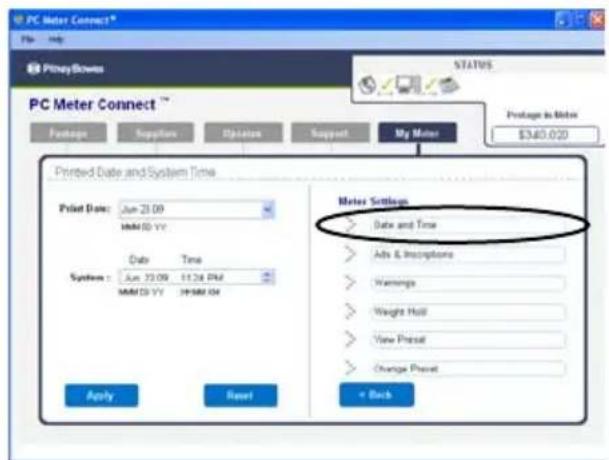
- In the system field, place your cursor over the day, hour or minute and use the ^ or v keys to select the time/date of your machine.

- Click Apply. A confirmation screen displays the new time. Click OK.
Basic Options
Setting Postage Values ( Funds Warnings)
You can specify values so that when your postage funds drop below a certain level, or if you try to enter too much postage for a piece of mail, the system displays a warning.
Setting the High Value Warning
You can have the machine warn you when you manually key in a post age val ue that is higher than a maximum amount that you specify. This fea ture helps prevent you from ac ci den tal ly print ing a postage val ue that's more than you need.

NOTE: This warning does not display for postage amounts determined by the internal rating feature.
At a PC Using PC Meter Connect™ (Enhanced Version)
- Select the My Meter tab
- Click Meter Settings.
- Click Warnings.
- At the High Value Warning field, enter a value up to \$99.000 for which you want the system to prompt you for high warning.
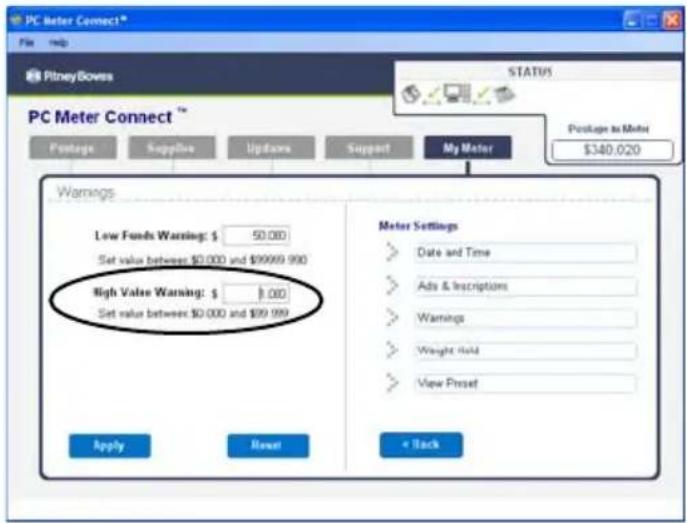
- Click Apply.
Basic Options
Setting Postage Values ( Funds Warnings) (cont'd)
Setting the High Value Warning (cont'd)
At Mailing Machine
- Press Options.
- Press Page Down.
- Select "Postage Values".
- Select "High postage amount".
SET POSTAGE VALUES
◀High postage amount
◀Low funds amount
-
Key in the value you want, including the digits to the right of the decimal point if you want a fractional value like .75 or \$1.50. Select "OK".
-
Press Clear (back arrow key) to return to Options menu.
Basic Options
Setting Postage Values ( Funds Warnings) (cont'd)
Setting the Low Funds Warning
You can set up the system so that when the postage remaining reach es a certain level, the system will remind you to add postage.
At a PC Using PC Meter Connect™ (Enhanced Version)
- Select the My Meter tab
- Click Meter Settings.
- Click Warnings.
- At the Low Funds Warning field, enter a value up to \$9999.990 for which you want the system to prompt you for low funds warning.
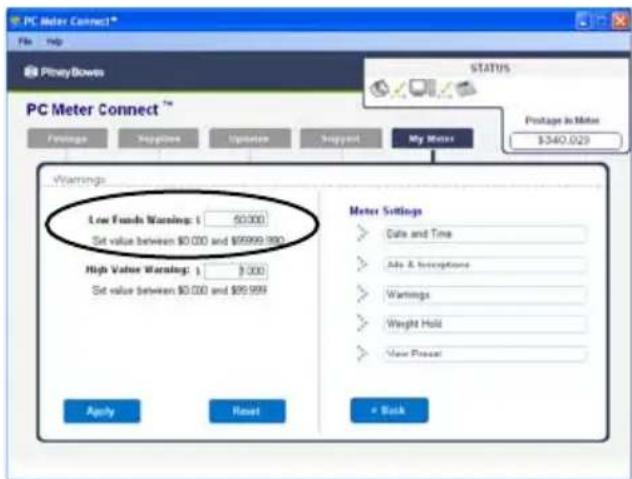
- Click Apply.
At Mailing Machine
- Press Options.
- Press Page Down.
- Select "Postage Values".
- Select "Low funds amount".
- Key in the amount you want (in whole dollars only). Select "OK".
- Press Clear (back arrow key) to return to Options menu.
Basic Options
Changing the Lock Codes and Passwords
Setting/Disabling the Lock Code
The Lock Code feature prevents unauthorized access to your mailing system. If you establish a lock code, then a user will need to enter the Lock Code after:
- you power-up the machine
- the machine has entered sleep mode and you need to awaken it
-
you press the Lock/Power key and choose "Lock the meter", and you want to access the machine
-
Press Options.
-
Press Page Down twice.
-
Select "LockCode/Passwords".
-
Select "Meter Lock Code". If there is an existing lock code, you are prompted to key in the 4-digit code.
PASSWORDS
◀Meter Lock Code
◀Supervisor Password
- You then have a choice to either disable the lock code (if present) or change (or establish) the lock code.
Meter Lock Options
◀Disable Lock Code
◄Change Lock Code
A. To disable the lock code:
Select "Disable Lock Code". At the "Meter Lock Code has been disabled" message, select "Continue".
B. To change or establish the lock code:
Select "Change Lock Code". At the prompt, type in a new lock code (4 digits) and select "Continue". Re-enter the new lock code again to confirm and select "Continue". At the "Meter Lock Code has been enabled" message, select "Continue".
- Press Clear (back arrow key) to return to Options menu.
Basic Options
Changing the Lock Codes and Passwords (cont'd)
Setting/Disabling the Supervisor Password
A Supervisor password can be used to prevent unauthorized account changes within the Departmental Accounting feature. If you establish a Supervisor password, a user will need to enter this password to add, edit, or delete Departmental Accounts; and for clearing Departmental Account totals.
NOTE: You need to set up a Supervisor password also if you want to enable Account passwords (see Chapter 8, Standard Accounting).
- Press Options.
- Press Page Down twice.
- Select "LockCode/Passwords".
- Select "Su per vi sor Password" If there is an existing supervisor password, you are prompted to key in the 4-digit code.
PASSWORDS
◀Meter Lock Code
◀Supervisor Password
- You then have a choice to either disable the password (if present) or change (or establish) the password.
Supervisor Options
◀Disable password
◄Change password
A. To disable the password:
Select "Disable Password". At the "Supervisor Password has been disabled" message, select "Continue".
B. To change or establish the password:
Select "Change password". At the prompt, type in a new password (4 digits) and select "Continue". Re-enter the new password again to confirm and select "Continue". At the "Supervisor Password has been enabled" message, select "Continue".
- Press Clear (back arrow key) to return to Options menu.
Basic Options
Setting Scale Options (if optional scale was purchased)
There are several options you can set with your scale such as zeroing the weight on the scale, turning the scale on/off, viewing metric weights, and saving/changing class or ZIP settings when weight changes on your scale. Most of the scale options are accessed by pressing the selection key next to SCALE: line at the Home screen.
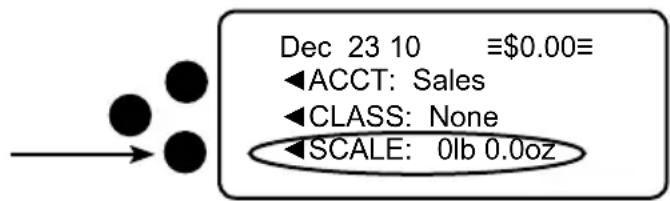
The Scale Options menu choices are:
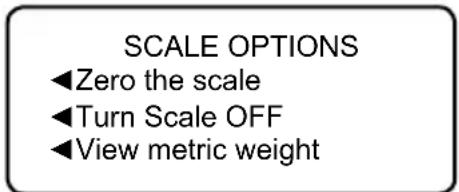
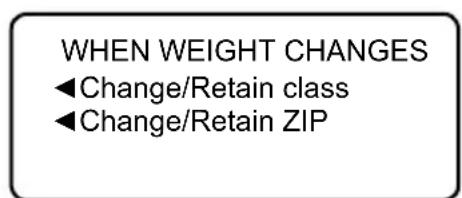
Zeroing the Scale
You can reset the scale to zero to lessen the chance of accidentally printing the wrong postage.
At a Using PC Meter Connect™
Select the My Meter tab, then click Reset Scale To Zero. A "Scale Has Been Recalibrated" message displays.
At Mailing Machine
- At the Home screen, press the selection key next to SCALE: line.
- Select "Zero the scale".
- The scale will zero out the weight and you return to the Home screen.
Basic Options
Setting Scale Options (cont'd)
Turning Scale On or Off
You may turn on and off the scale function as necessary.
- At the Home screen, press the selection key next to SCALE: line.
- Select "Turn Scale OFF (or ON)".
- You return to the Home screen with either the scale on or off.
Scale Turned On Screen
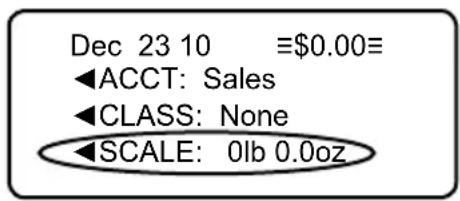
Scale Turned Off Screen

Viewing Metric Weight
You may view the weight currently displayed on the scale in grams.
- At the Home screen, press the selection key next to SCALE: line.
- Select "View metric weight".
- The current weight displays in grams.
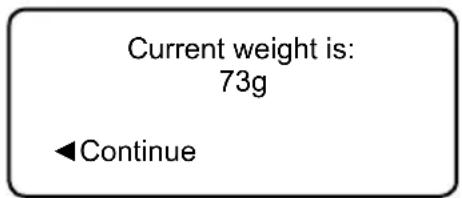
- Select "Continue" to return to the Home screen.
Basic Options
Setting Scale Options (cont'd)
Setting Weight Change Options
You can set how the scale reacts regarding the class of service or ZIP code when the weight changes.
- At the Home screen, press the selection key next to SCALE: line.
- Press Page Down.
- You have a choice to set the class setting or ZIP setting.
WHEN WEIGHT CHANGES
◀Change/Retain class
◄Change/Retain ZIP
A. To change Class settings, select "Change/Retain class". Select either change class or retain class when weight changes. The current condition is listed at the bottom of the screen.
WHEN WEIGHT CHANGES
◄Change Class
◀Retain Class
(Currently Change)
B. To change ZIP settings, select "Change/Retain ZIP". Select either change ZIP or retain ZIP when weight changes. The current condition is listed at the bottom of the screen.
WHEN WEIGHT CHANGES
◄Change ZIP
◄Retain ZIP
(Currently Change)
- Press Clear (back arrow key) to return to the Home screen.
Basic Options
Setting Scale Options (cont'd)
Setting Class Change Options
You can set how the scale reacts regarding the ZIP code when the class changes.
- At the Home screen, press the selection key next to SCALE: line.
- Press Page Down twice.
- Select "Change/Retain ZIP".
WHEN CLASS CHANGES
◄Change/Retain ZIP
- Select either change ZIP or retain ZIP when class changes. The current condition is listed at the bottom of the screen.
WHEN CLASS CHANGES
◄Change ZIP
◄Retain ZIP
(Currently Change)
- Press Clear (back arrow key) to return to the Home screen.
Enabling Scale Stabilizing
In a typical office environment, you may encounter ventilation systems occasionally blowing on the scale, accidental bumps to the scale and/or platform, and people dropping mail onto the platform. This could result in unstable weight readings and frequent scale re-zero operations. You can minimize these disturbances by enabling the scale stabilizing feature. Enabling this feature could cause a slight delay in scale response.
- Press Options.
- Press Page Down.
- Select "Turn items ON/OFF."
- Press Page Down.
- Select "Scale Stabilizer".
- The current setting (YES or NO) is listed on the screen. Follow the prompt to change the setting.
- Press Clear (back arrow key) to return to the Home screen.
Advanced Options
Advanced options allow you access to features that are used very infrequently such as maintenance mode, system withdrawal, etc. The Advanced Feature menu includes:
- Manage USPConfirmation Delivery Records (refer to Pitney Bowes publication SV61156 for information on this optional feature). Visit our website (see page v) and enter "SV61156" in the search box on the home page to locate and view this document.
- Barcode Scanner (used to enter and track USPS special services on certain mail pieces with the above optional feature)
- Maintenance Mode (refer to Chapter 10, Maintenance for information on this option)
- Change Language
- Meter Withdrawal (for withdrawing postage funds from your system and for taking your system out of service)
- Run Install Mode
ADVANCED FEATURES
◄Manage Conf Records
◀Barcode Scanner
◀Maintenance mode
ADVANCED FEATURES
◄Change Language
◀Meter Withdrawal
◀Run Install Mode
Advanced Options
Change Language
The machine is capable of displaying all screens, operator prompts, and options in either English or Spanish (Español). English is the default language when the machine is initially powered up. To change the screens to Spanish (or back to English when Español is selected):
- Press Options.
- Press Page Down twice.
- Select "Advanced Features".
- Press Page Down once.
- Select "Change Language".
- Select the desired language, English or Español
Your system will return to the first Advanced Features screen in the new language. To return to the Main screen press Home. The language you selected will remain in effect until it is changed again.
Barcode Scanner
This option allows you to set how the optional barcode scanner interprets data read from the barcode label attached to mail pieces that have a USPS Confirmation Services feature applied on them.
- Press Options.
- Press Page Down twice.
- Select "Advanced Features".
- Select "Barcode Scanner".
- The following selections appear.
A. Default - Use the soft key next to this selection to toggle between "E-Service" or "ZIP". This determines how the scanner interprets the data being scanned – as either an E-service code or a ZIP code – when entering USPS Confirmation services records into your mailing machine.
B. Auto-Enter - Use the soft key next to this selection to toggle between "OFF" or "ON". This determines if the system automatically advances to the next screen after scanning a post code or barcode label, without having to press the softkey to continue to the next screen. If the setting is off, you have to manually press the softkey to continue to the next screen.
Advanced Options
Meter Withdrawal (Withdrawing Postage Funds)
For a meter withdrawal, you need to move the remaining balance of postage from your system into your Postage By Phone® Account. Normally this is done if you are no longer going to use the machine.
NOTE 1: Contact Pitney Bowes first before withdrawing funds.
NOTE 2: Machine must be connected to the Data Center.
- Press Options.
- Press Page Down to the third screen.
- Select "Advanced Features".
OPTIONS
◀LockCode/Passwords
◄Connect-Data Center
◀Advanced Features
- Press Page Down to the second screen.
- Select "Meter Withdrawal".
ADVANCED FEATURES
◀Maintenance mode
◄Change Language
◀Meter Withdrawal
- Select "Transfer all funds from meter to PBP account".
REMOVE FUNDS
◀Transfer all funds from meter to PBP account
Advanced Options
Meter Withdrawal (Withdrawing Postage Funds) (cont'd)
- The system connects into the Pitney Bowes Data Center (this may take a few moments). Various screens displays, letting you know the status of the process.
- The Transfer Successful screen displays. Select "Continue".
TRANSFER SUCCESSFUL
Funds moved to PBP
account \$xxx.xx
Continue
- At the prompt "Print Funds Report?", press Yes/Enter and insert envelope/tape sheet through machine (see sample below) OR simply press Home. "Out of Service" appears on the display.
| Funds Report | Used: 464.270 | JAN 07 089:55P | |
| Available:000.000 | Batch Count: 733 | ||
| Total Pieces: 735 | Batch Value: 464.270 | ||
| Control Sum:464.270 | PBP Serial No.: 0011969 | ||
NOTE: "Available" should show a zero (\$000.000) dollar amount.
Advanced Options
Run Install Mode
Running “Install Mode” allows you to review, and change if desired, most of the values that were selected when the machine was first installed via the procedure in the Quick Install Guide. If you no longer have a copy of the Quick Install Guide (AWxxxx), you can download one from our website (see page v for support information).
NOTE: Do not run this option unless directed to do so by your Pitney Bowes representative.
To run the install mode:
- Press Options.
- Press Page Down twice
- Select "Advanced Features".
- Press Page Down once
- Select "Run Install Mode".
At this point you will be presented the option to select a language, which is the first step of the install procedure. Simply follow the screen prompts until you reach the “Installation Successful” screen.
Select "OK" and you will be returned to the main screen with your new values active.
8 · Standard Accounting (Option)
Standard Accounting Overview
An accounting feature on a mailing system allows you to track your postage costs by categories. These categories can represent whatever makes sense to your organization - departments, people, locations, projects, etc. Tracking your mailing expenses by category allows you to manage and budget your postal costs in a more efficient manner.
The standard accounting feature (optional) allows you to store the following in for ma tion for each ac count:
- A name up to 12 alphanumeric characters long.
- An account number.
- The item total. This is the total number of pieces of mail charged to an account since it was last cleared.
- The value total. This is the total amount of postage charged to an account since it was last cleared.
- An account password (if set up)
The maintenance of your accounts is done through programs on the Accounts menu (below), accessible by pressing the selection key next to ACCT: line at the Home screen (if the feature is activated).
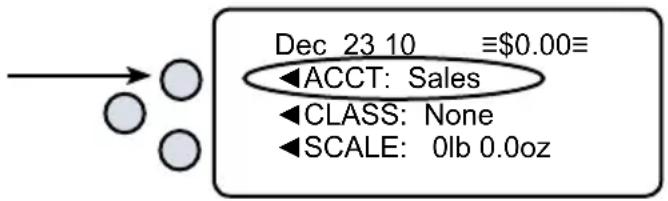
Each Accounts menu option is discussed in this chapter.
ACCOUNTS
◀Select an account
◀Create an account
◀ Delete an account
ACCOUNTS
◀ Edit an account
◀Display acct totals
◀Clear an account
ACCOUNTS
◀Clear all accounts
◀Turn accounting OFF
Acct Passwords
Activating/Setting Up Standard Accounting
Use the table below to step you through the process of setting up standard accounting (assuming you purchased it). The table covers the entire "life cycle" of an account, from creation to deletion.
| Step | Action Description/Procedure | |
| 1 | Turn On Accounting Feature | Turns on the Accounting feature. This is necessary before you can create accounts.1. Press Options.2. Press Page Down.3. Select "Turn items ON/OFF.4. Select "Accounting".5. Select "Turn Accounting ON". |
| 2 | Create a Supervisor Password | If you establish a Supervisor password, a user will need to enter this password to add, edit, or delete Departmental Accounts; and for clearing Departmental Account totals. Also, you need to set up a Supervisor password before you can enable Account passwords. If you don't need this option, or you don't need passwords, you can skip to step 4.1. Press Options.2. Press Page Down twice.3. Select "LockCode/Passwords".4. Select "Su per vi sor Password".5. At the prompt, type in a password (4 digits) and select "Continue". Re-enter the new password again to confirm and select "Continue".6. At the "Supervisor Password has been enabled" message, select "Continue". |
| 3 | Turn On Accounting Passwords Option | Turns on the requirement for all operators to enter passwords when choosing an account (if a password has been established for an account).1. From Home screen, press the selection key next to ACCT: line to display the Accounts menu.2. Press Page Down twice and select "Acct Passwords".3. Select "Turn Passwords ON". You return back to the Accounts menu. |
Activating/Setting Up Standard Accounting
| Step | Action Description/Procedure | |
| 4 | Create Account | Sets up your account name (and password if desired). See Creating an Account later in this chapter for procedure. |
| 5 | Maintain (Edit) Account | Allows you to change the name and/or password of an account. See Editing Account Names and Passwords later in this chapter for procedure. |
| 6 | Select Account | Allows you to choose the specific account for recording postage.1. From Home screen, press the selection key next to ACCT: line.2. Select "Select an account".3. Press Page Down to see more choices (if lit). Select an account.i NOTE: If a password has been assigned to this account, you will be prompted to enter one. Key in the 4-digit password if necessary.4. You return to the Home screen with the name of the account listed below the date and amount line. |
| 7 | View/Print Account Totals | Allows you to see the accumulated totals for this account.For viewing totals, see Displaying Account Totals later in this chapter for procedure.For printing totals, see Printing a Single Account Report or Printing a Multi-Account Summary Report later in this chapter for procedure. |
| 8 | Clear Accounts | Allows you to clear the postage totals on accounts (for example, at the beginning of a new fiscal year)For a single account, see Clearing an Account later in this chapter for procedure.For all accounts, see Clearing all Accounts later in this chapter for procedure. |
| 9 | Delete Accounts | Allows you to delete an account. See Deleting an Account later in this chapter for procedure.i NOTE: Make sure you really want to delete an ac count. Once you do, the account in for ma-tion is gone. |
Turning On Standard Accounting
You need to turn on the standard accounting feature in order to track postage by account.
- At the home screen, press Options.
- Press Page Down and select "Turn items ON/OFF".
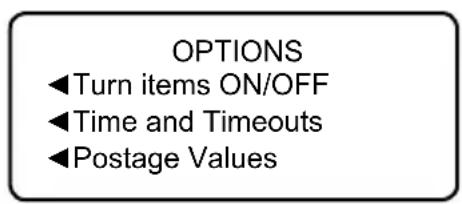
- Select "Accounting".
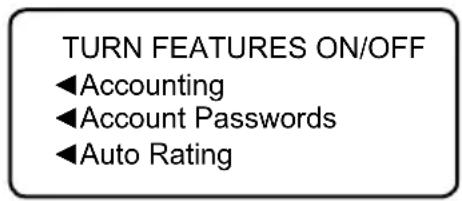
- Select "Standard Acct.". If the supervisor password has been enabled, you are prompted to enter it. Key in the 4-digit password and select "Continue".
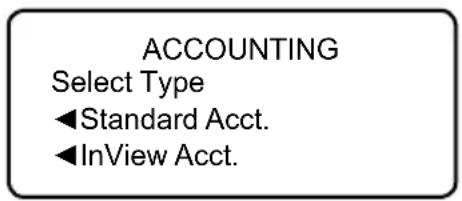
NOTE: If you want to enable inView Accounting, you must have purchased that option. See Svxxxx for information on setting up InView Accounting.
-
The next screen shown depends on your machine settings:
-
If no accounts have been established, you are prompted to create an account. Follow the "Creating an Account" procedure later in this chapter, starting at step 2.
- If accounts have been established already, the following screen displays. Select "Select an account".
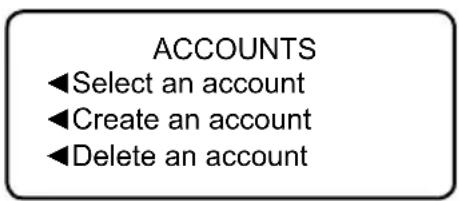
Turning On Standard Accounting
- The "Select an Account" screen displays (a sample is shown below). Press Page Down to see more choices (if lit). To select an account:
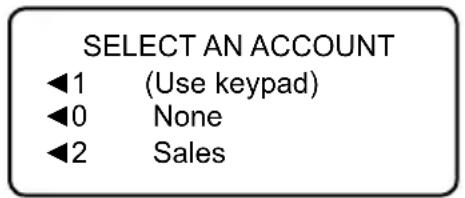
A. You may either key in the first digit of the account number if you know it and press Yes/Enter, OR
B. Use the appropriate selection key next to the display.
- You return to the Home screen with the name of the account listed (the example below shows "Sales" as the account chosen).
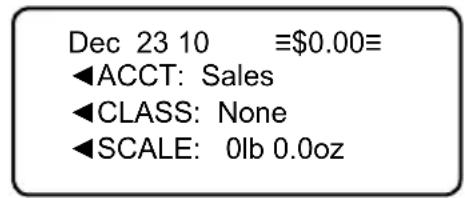
Turning Off Standard Accounting
You can temporarily turn off standard accounting whenever you wish.
NOTE: You will not be tracking postage by account when this feature is turned off.
- From Home screen, press the selection key next to ACCT: line to display the Accounts menu.
- Press Page Down twice and select "Turn accounting OFF". If a Supervisor password has been enabled, you are prompted to enter one. Key in the 4-digit password if necessary.
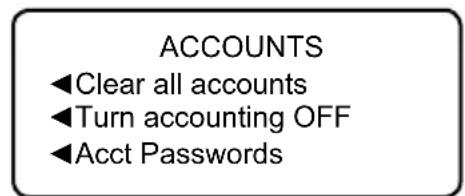
- You return to the Home screen with no account displayed (see example below).
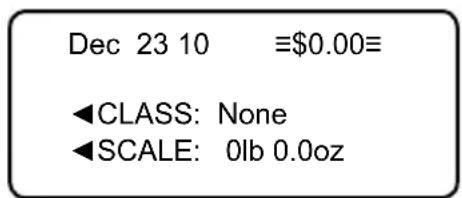
Turning On Account Passwords (Globally)
You can turn on the requirement for all operators to enter passwords when choosing an account.
NOTE 1: You need to set up a Supervisor password (see Chapter 7, System Options) before you can enable Account passwords.
NOTE 2: You need to establish a password for each account to complete the process.
-
From Home screen, press the selection key next to ACCT: line to display the Accounts menu.
-
Press Page Down twice and select "Acct Passwords".
ACCOUNTS
◀Clear all accounts
◀Turn accounting OFF
Acct Passwords
- Select "Turn Passwords ON". You return back to the Accounts menu.
- Select "Select an account".
- The "Select an Account" screen displays (a sample is shown below). Press Page Down to see more choices (if lit). To select an account:
SELECT AN ACCOUNT
◀1 (Use keypad)
◀0 None
◀2 Sales
A. You may either key in the first digit of the account number if you know it and press Yes/Enter, OR
B. Use the appropriate selection key next to the display.
- You return to the Home screen with the name of the account listed (the example below shows "Sales" as the account chosen).
Dec 23 10 ≡\$0.00
ACCT: Sales
CLASS: None
SCALE: 0lb 0.0oz
- Continue with "Creating an Account" later in this chapter to set up accounts with passwords.
Turning Off Account Passwords (Globally)
You can turn off the requirement for operators to enter passwords (if passwords are set up) when choosing an account.
- From Home screen, press the selection key next to ACCT: line to display the Accounts menu.
- Press Page Down twice and select "Acct Passwords".
ACCOUNTS
◀Clear all accounts
◀Turn accounting OFF
Acct Passwords
- Select "Turn Passwords OFF".
- You are prompted to enter the Supervisor password. Key in the 4-digit password. You return back to the Accounts menu.
- Press Clear (back arrow key) or Home to return to the Home screen.
Creating an Account
You need to create an account before you can use the standard accounting feature to track postage.
-
From Home screen, press the selection key next to ACCT: line to display the Accounts menu.
-
Select "Create an account". If a Supervisor password has been enabled, you are prompted to enter one. Key in the 4-digit password if necessary.
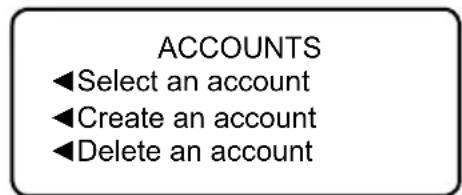
-
If the supervisor password has been enabled, you are prompted to enter it. Key in the 4-digit password and select "Continue".
-
The system will prompt for the name of this account. Key in a name for the account. It can be up to twelve alpha/nu mer ic char ac ters long. To access alpha characters, tap the appropriate number key until the desired character displays. When finished, select "Continue".
-
If a passwords have been enabled for accounts, you will be prompted to enter one.
A. Key in the 4-digit password and select "Continue".
B. At the confirmation password prompt, re-enter the new password and select "Set".
- At the prompt to create another account, either:
A. Press Yes/Enter and go back to Step 3 to enter another account OR
B. Press No to continue. You return to the Accounts menu.
- Press Clear (back arrow key) or Home to return to the Home screen.
Editing Account Names and Setting Up Passwords
You can edit an account name and establish passwords for each account if you wish.
-
From Home screen, press the selection key next to ACCT: line to display the Accounts menu.
-
Press Page Down and select "Edit an account".
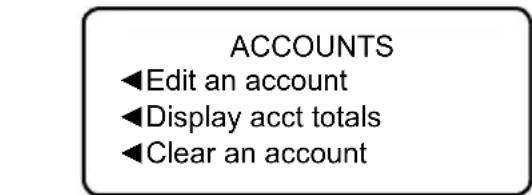
-
If the supervisor password has been enabled, you are prompted to enter it. Key in the 4-digit password and select "Continue".
-
The "Edit an Account" screen displays (a sample is shown below). Press Page Down to see more choices (if lit). To select an account:
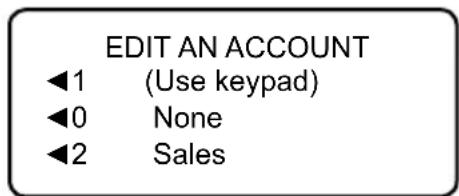
A. You may either key in the first digit of the account number if you know it and press Yes/Enter, OR B. Use the appropriate selection key next to the display.
- If a password has been assigned to this account, you will be prompted to enter one. Key in the 4-digit password and select "Continue".
Editing Account Names and Setting Up Passwords
- After the account is selected, you have a choice to edit the account name or edit the account password (if the account password option has been turned on).
Edit Account Name option
A. If you select "Edit acct. name", the system prompts you for the new name. Key in a new name for the account. It can be up to twelve alpha/nu mer ic char ac ters long. To access alpha characters, tap the appropriate number key until the desired character displays.
B. Select "OK" when done.
C. You are prompted if you want to change the account password also. If you select "Yes", continue with Step B from Edit Account Password Option below; otherwise, you return to the "Edit an Account" screen
Edit Account Password option
A. If you select "Edit acct. password", the system confirms you want to change the password. Press Yes/Enter.
B. The system prompts you for the new password. Key in the new 4-digit password.
C. Select "Continue" when done.
D. At the confirmation password prompt, re-enter the new password.
E. Select "Set". You return to the "Edit an Account" screen.
- Press Clear (back arrow key) three times or Home (once) to return to the Home screen.
Selecting an Account
You need to select an account to track postage when using Departmental Accounting.
- From Home screen, press the selection key next to ACCT: line to display the Accounts menu.
- Select "Select an account"
ACCOUNTS
◀Select an account
◀Create an account
◀ Delete an account
- The "Select an Account" screen displays (a sample is shown below). Press Page Down to see more choices (if lit). To select an account:
SELECT AN ACCOUNT
◀1 (Use keypad)
◀0 None
◀2 Sales
A. You may either key in the first digit of the account number if you know it and press Yes/Enter, OR
B. Use the appropriate selection key next to the display.
- If a password has been assigned to this account, you will be prompted to enter one. Key in the 4-digit password if necessary.
- You return to the Home screen with the name of the account listed (the example below shows "Sales" as the account chosen).
Dec 23 10 ≡\$0.00
ACCT: Sales
◀CLASS: None
SCALE: 0lb 0.0oz
Displaying Account Totals
You can view your account totals anytime using this option.
- From Home screen, press the selection key next to ACCT: line to display the Accounts menu.
- Press Page Down and select "Display acct totals"
ACCOUNTS
◀ Edit an account
◀Display acct totals
◀Clear an account
- The "Display an Account" screen displays (a sample is shown below). Press Page Down to see more choices (if lit). To select an account:
DISPLAY AN ACCOUNT
◀1 (Use keypad)
◀0 None
◀2 Sales
A. You may either key in the first digit of the account number if you know it and press Yes/Enter, OR
B. Use the appropriate selection key next to the display.
- The account number, name, pieces, and value of the postage used displays. Select "Continue".
2 - SALES
Value \$0.00
Pieces 0
Continue
- You have a choice to either clear the account, view another account, or exit.
A. Select "Clear this account" if you want to clear account totals. If your system has been set up to require a supervisor or account password, you are prompted to enter it. The "Clear an Account" screen displays and you continue with Step 3 from Clearing an Account on the next page.
B. Select "View another acct" and go back to Step 3 to enter another account to view.
C. Follow the prompts to exit this screen if you are finished.
- You return back to the Accounts menu. Press Clear (back arrow key) or Home to return to the Home screen.
Printing a Single Account Report
This report provides the postage amount and number of pieces applied for a single account (if the Departmental Accounting feature is set up on your system).
- Press Reports.
- Select "Printable report".
- Select "Single Accounts Rpt".
- Key in an account.
- When prompted, insert tape sheet or envelope into machine. The report is printed and you return back to the Printable reports menu.
- Press Clear (back arrow key) to return to Report type menu or press Home to return to the Home screen.
| Account Report | Account Name: SALES | 0000011969JAN 28 0811 : 01A |
| Acct Number: 1 | ||
| Pieces: 5 | ||
| Postage: 001 . 480 |
Printing a Multi-Account Summary Report
This report provides the postage amount and number of pieces applied for all of your accounts, listed individually (if the Departmental Accounting feature is set up on your system).
At a PC Using PC Meter Connect™ (Enhanced Version)
- At the My Meter tab, click on Account Reports.
- An Accounting Report panel displays on the left, listing all of the accounts with the number of pieces and postage used for each.
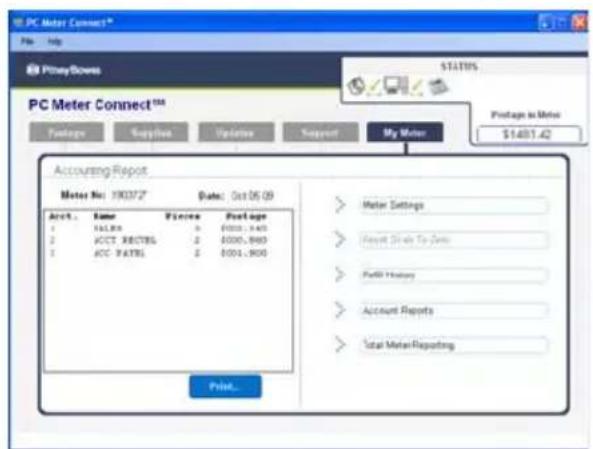
- If you would like a printed version, click Print. An Account Report screen displays. Click Print to continue (or Cancel if you change you mind).
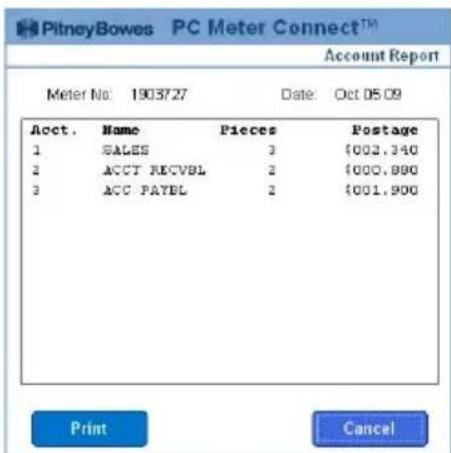
- Select the printer to use from the list provided in Windows. The report is printed and you return to the Accounting Report screen.
Printing a Multi-Account Summary Report
At a PC Using PC Meter Connect™ (Enhanced Version) cont'd
NOTE: If you are accessing features from PC Meter Connect™ (Enhanced version), please keep in mind the following:
- If the system is in "sleep" mode, accessing a feature from the Main Window will "awaken" the machine.
- Once in an awaken state, the machine must be at the "Home" screen (ready to print postage) to use features found on the Postage, Updates, and My Meter tabs on the Main Window. Otherwise, a "meter is busy" message displays on the PC. This condition can happen, for example, if you have the Accounting option set up on the system and the machine is waiting for someone to select an account for printing postage.
At Mailng Machine
- Press Reports.
- Select "Printable report".
- Select "Multi Acct Summary".
- When prompted, insert tape sheet or envelope into machine. The report is printed and the system returns back to the Printable reports menu.
NOTE: If it is a multi-page report, you will be prompted to insert another envelope/tape sheet.
- Press Clear (back arrow key) to return to Report type menu or press Home to return to the Home screen.
| Accounts Summary | Account No. | Pieces | Postage | 0000011969 |
| 1 | 5 | 001.480 | JAN 15 08 | |
| 2 | 4 | 001.480 | 11:04A | |
| page 1 of 1 |
Clearing an Account
You can clear the postage totals on an account when necessary.
IMPORTANT: Make sure you really want to clear an ac count. Once you do, the account in for ma tion is gone.
- From Home screen, press the selection key next to ACCT: line to display the Accounts menu.
- Press Page Down and select "Clear an account". If a Supervisor password has been enabled, you are prompted to enter one. Key in the 4-digit password if necessary.
ACCOUNTS
◀Edit an account
◀Display acct totals
◀Clear an account
- The "Clear an Account" screen displays (a sample is shown below). Press Page Down to see more choices (if lit). To select an account:
CLEAR AN ACCOUNT
◀1 (Use keypad)
◀2 Sales
◀3 Engineering
A. You may either key in the first digit of the account number if you know it and press Yes/Enter, OR
B. Use the appropriate selection key next to the display.
-
At the confirm clear prompt, press Yes/Enter (or No if you change your mind). The account is cleared and you return back to the Accounts menu.
-
Press Clear (back arrow key) or Home to return to the Home screen.
Clearing All Accounts
You can clear the postage totals on all accounts (for example, at the beginning of a new fiscal year) with this option.
IMPORTANT: Make sure you really want to clear all ac counts.
Once you do, the account in for ma tion is gone.
- From Home screen, press the selection key next to ACCT: line to display the Accounts menu.
- Press Page Down twice and select "Clear all accounts". If a Supervisor password has been enabled, you are prompted to enter one. Key in the 4-digit password if necessary.
ACCOUNTS
◀Clear all accounts
◀Turn accounting OFF
Acct Passwords
- At the confirm clear prompt, press Yes/Enter (or No if you change your mind). All the accounts are cleared and you return back to the Accounts menu.
- Press Clear (back arrow key) or Home to return to the Home screen.
Deleting an Account
You can delete an account, but make sure you really want to because you cannot get the information associated with that account back after it has been deleted.
IMPORTANT: Make sure your really want to delete an ac count. Once you do, the account in for ma tion is gone.
- From the Home screen, press the selection key next to ACCT: line to display the Accounts menu.
- Select "Delete an account". If a Supervisor password has been enabled, you are prompted to enter one. Key in the 4-digit password if necessary.
ACCOUNTS
◀Select an account
◀Create an account
◀ Delete an account
- The "Delete an Account" screen displays (a sample is shown below). Press Page Down to see more choices (if lit). To select an account:
DELETE AN ACCOUNT
◀1 (Use keypad)
◀2 Sales
◀3 Engineering
A. You may either key in the first digit of the account number if you know it and press Yes/Enter, OR B. Use the appropriate selection key next to the display.
- At the confirmation prompt to delete the account selected, press Yes/Enter to delete (or No if you change your mind).
- In either case, you return to the Accounts menu screen. Press Clear (back arrow key) or Home to return to the Home screen.
9 · Reports
Overview of Reports
Your system allows you to print reports for funds usage, postage refills, postage tracked by account, and other valuable data. The reports are accessed by pressing Reports.
NOTE: Some reports can be printed on an envelope or tape strip; others require an optional attached printer (laser).
The available reports may include:
- Add Postage Report
• Single Account Report
• Multi-Account Summary Report
• Account List Report (can only be printed on a laser printer)
• Special Services Report - Register (Funds) Report
- Configuration Report
- System Setup Report (can only be printed on a laser printer)
- Error Report
- Rates Summary Report
NOTE: The number of reports may vary, depending on the options installed on your machine.
REPORTS
◀ Add Postage Report
◀Single Account Rpt.
◀Multi Acct Summary
REPORTS
Account List Report
◀Special Services
Register Report
REPORTS
◀Configuration Rpt.
◀System Setup Report
◀Error Report
REPORTS
Rates Summary Rpt.
Printing a Report
The report printing options available to you will depend on the type of report you have selected.
Printing on an Envelope or Tape Strip
- Press Menu.
- Select "Reports".
- Select the appropriate report from the list. You may need to press the down arrow key to view additional reports.
NOTE: If it have an attached printer, but want to print on an envelope or tape strip, select "Mailing Machine" when prompted.
Place the envelope up against the back wall of the sys tem and slide it to the right until the sys tem grasps it.
NOTE: If it is a multi-page report, you will be prompted to insert another envelope.
-
You will be prompted to print another report once printing is complete.
-
Select "Yes" to print an additional report.
- Select "No" to return to the Home screen.
Printing to an Attached Printer
- Press Menu.
- Select "Reports".
- Select the appropriate report from the list. You may need to press the green down arrow key to view additional reports.
- When prompted, select "Attached Printer".
- A message will appear indicating the report will be printed to the attached printer. Select "Return to Report Menu" to continue.
Register Report (Funds Report)
This report lists the postage used, postage available, pieces processed, and other information about your machine usage.
- Press Reports.
- Select "Printable report".
-
Select "Register Report".
-
When prompted, insert tape sheet or envelope into machine. The report is printed and the system returns back to the Printable reports menu.
-
Press Clear (back arrow key) to return to Report type menu or press Home to return to the Home screen.
| Funds Report | Used: 464.270 | JAN 07 089:55P | |
| Available:000.000 | Batch Count: 733 | ||
| Total Pieces: 735 | Batch Value: 464.270 | ||
| Control Sum:464.270 | PBP Serial No.: 0011969 | ||
Used – the total of all postage ever used in the meter
Available – the amount of postage left in the meter
Total Pieces – the total number of mail pieces run through the meter that had postage applied
Control Sum – the total of all postage refills for the meter and equals the amount Used plus Available. This is a postal requirement that verifies an accurate accounting of the postage in your meter.
Batch Count – the number of mail pieces that had postage applied since the last time the batch count was cleared
Batch Value – the amount of postage applied since the last time the batch value was cleared
PBP Serial No. – serial number of this meter (normally meter number)
Add Postage Report
This report lists the last five postage refills.
- Press Reports.
- Select "Printable report".
- Select "Add Postage Report".
- When prompted, insert tape sheet or envelope into machine. The report is printed and the system returns back to the Printable reports menu.
- Press Clear (back arrow key) to return to Report type menu or press Home to return to the Home screen.
| Last 5 Refills | Date of Refill Time Refill Amount | Acct No.: 99999999 | ||||
| JAN | 28 | 08 | 8:32A | 025.000 | Meter No.: 0011969 | |
| JAN | 06 | 08 | 8:15A | 275.000 | Printed: JAN 28 08 | |
| DEC | 10 | 07 | 7:47A | 300.000 | ||
| NOV | 17 | 07 | 7:53A | 146.000 | ||
Date of Refill – the date of refill
Time – the time of refill
Refill Amount – amount of refill
Account No. – your Postage By Phone® system account number
Meter No. – serial number of this meter (normally meter number)
Printed – the date the report was printed
Single Accounts Report (Standard Accounting)
This report provides the postage amount and number of pieces applied for a single account (if the Departmental Accounting feature is set up on your system).
- Press Reports.
- Select "Printable report".
- Select "Single Accounts Rpt".
- Key in an account.
- When prompted, insert tape sheet or envelope into machine. The report is printed and the system returns back to the Printable reports menu.
- Press Clear (back arrow key) to return to Report type menu or press Home to return to the Home screen.
| Account Report | Account Name: SALES | 0000011969JAN 28 0811 : 01A |
| Acct Number: 1 | ||
| Pieces: 5 | ||
| Postage: 001.480 |
Multi-Account Summary Report (Standard Accounting)
This report provides the postage amount and number of pieces applied for all of your accounts, listed individually (if the Departmental Accounting feature is set up on your system).
At a PC Using PC Meter Connect™ (Enhanced Version)
- At the My Meter tab, click on Account Reports.
- An Accounting Report panel displays on the left, listing all of the accounts with the number of pieces and postage used for each.
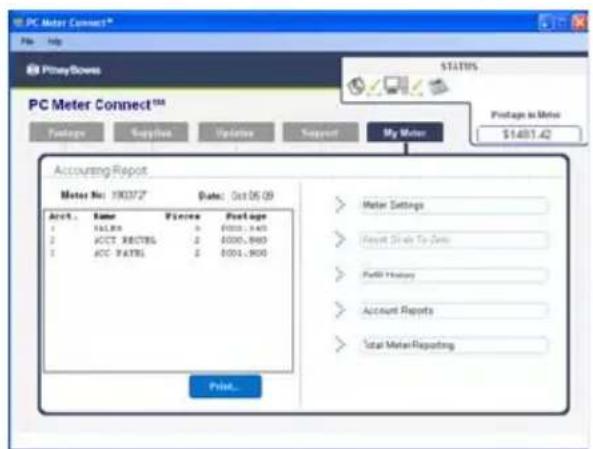
- If you would like a printed version, click Print. An Account Report screen displays. Click Print to continue (or Cancel if you change you mind).
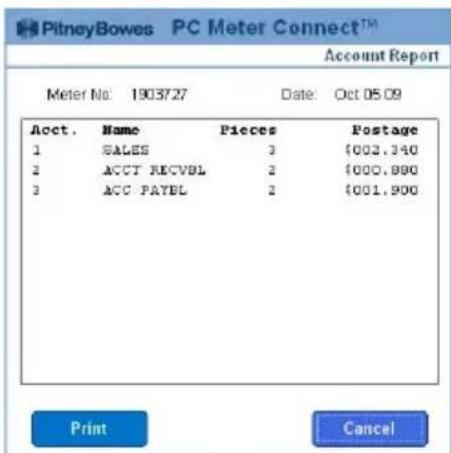
- Select the printer to use from the list provided in Windows. The report is printed and you return to the Accounting Report screen.
Multi-Account Summary Report (Standard Accounting)
At a PC Using PC Meter Connect™ (Enhanced Version) cont'd
NOTE: If you are accessing features from PC Meter Connect™ (Enhanced version), please keep in mind the following:
- If the system is in "sleep" mode, accessing a feature from the Main Window will "awaken" the machine.
- Once in an awaken state, the machine must be at the "Home" screen (ready to print postage) to use features found on the Postage, Updates, and My Meter tabs on the Main Window. Otherwise, a "meter is busy" message displays on the PC. This condition can happen, for example, if you have the Accounting option set up on the system and the machine is waiting for someone to select an account for printing postage.
At Mailing Machine
- Press Reports.
- Select "Printable report".
- Select "Multi Acct Summary".
- When prompted, insert tape sheet or envelope into machine. The report is printed and the system returns back to the Printable reports menu.
NOTE: If it is a multi-page report, you will be prompted to insert another envelope/tape sheet.
- Press Clear (back arrow key) to return to Report type menu or press Home to return to the Home screen.
| Accounts Summary | Account No. | Pieces | Postage | 0000011969 | |
| 1 | 5 | 001.480 | JAN 15 08 | ||
| 2 | 4 | 001.480 | 11:04A | ||
| page 1 of 1 |
Account List Report (Standard Accounting)
This is a laser printed report only that provides the postage amount and number of pieces applied to all of your accounts (if the Departmental Accounting feature is set up on your system).
- Press Reports.
- Select "Printable report".
- Select "Account List Report".
- When prompted, make sure the laser printed is connected to your machine, then select "Continue"
- The report is printed and you to return to Report type menu.
System Setup Report
The System Setup Report is laser printed report only that gives you comprehensive information about your total mailing machine. The entire report must be printed on an attached printer. It provides information on:
- Serial Numbers
- System Versions
• Funds and Piece Information - Warning Values
- Time Settings
- Advertisements
- Inscriptions
- Accounting Set Up
- Modem Set Up
- Scale Settings
-
Presets
-
Press Reports.
- Select "Printable report".
- Select "System Setup Report".
- When prompted, make sure the laser printed is connected to your machine, then select "Continue"
- The report is printed and you to return to Report type menu.
Special Services Report (USP®Confirmation Services)
This report is used in conjunction with the optional USPS® Confirmation Services feature and provides a list of the last 20 mail pieces (by barcode number) that had one of the USPS® Confirmation Services applied to them.
- Press Reports.
- Select "Printable report".
- Select "Special Services".
- When prompted, insert tape sheet or envelope into machine. The report is printed and the system returns back to the Printable reports menu.
NOTE: If it is a multi-page report, you will be prompted to insert another envelope/tape sheet.
- Press Clear (back arrow key) to return to Report type menu or press Home to return to the Home screen.
| Confirmation Services | Barcode | Postage | ZIP | Uploaded |
| 1234567890 | 001.480 | 06484 | JAN 11 08 | |
| 2345678901 | 001.480 | 06902 | JAN 12 08 | |
| Printed: JAN 28 08 12 : 17P | page 1 of 1 | |||
Barcode – the barcode number entered when applying the Confirmation Service to a particular mail piece
Postage – the total amount of postage applied to this mail piece ZIP – the delivery ZIP code of the mail piece
Uploaded – the date this USPS® Confirmation Services record was uploaded to the Pitney Bowes (and later) USPS® data center Printed – the date and time this report was printed
Rates Summary Report
This report provides a summary of the rate files that are currently active in your system. You can print this as a way to confirm that you have received the latest rates.
- Press Reports.
- Select "Printable report".
- Press Page Down once
-
Select "Rates Summary Rpt".
-
When prompted, insert tape sheet or envelope into machine. The report is printed and the system returns back to the Printable reports menu.
NOTE: If it is a multi-page report, you will be prompted to insert another envelope/tape sheet.
- Press Clear (back arrow key) to return to Report type menu, or press Home to return to the main screen.
| Rates Summary | Description | Version | Effective | Active | Meter No.: |
| P7US002 | B.01 | JAN 13 08 | Yes | 2699901 | |
| P7US001 | B.04 | JAN 13 08 | Yes | ||
| JAN 28 089:25Apage 1 of 1 |
Description – the specific type of rate
Version - the alpha-numeric identifier used for this rate
Effective Date – the date the rate takes effect
Active – indicates if the rate is active ("Yes" or No")
Meter No. – the serial number of this meter
Configuration Report
This report lists configuration information about your machine and Postage By Phone® account. It is generally a report you will not have to access unless your Pitney Bowes Customer Service Representative requests that you print it out.
- Press Reports.
- Select "Printable report".
- Select "Configuration Report".
- When prompted, insert tape sheet or envelope into machine. The report is printed and the system returns back to the Printable reports menu.
- Press Clear (back arrow key) to return to Report type menu or press Home to return to the Home screen.
| Cfg Report | PBP Serial No: 0011969 | PSD: 09.00.00 | SEP 28 089 : 25A |
| PBP Account: 99999999 | UIC: 16 .02 | ||
| PSD Ser. # 4C46000000007E4C | Rate Mgr: 04 .02 | PCN: P700 | |
| PrtHd No.: 50000104 | PHS: 1 .11 | SMR: 000 | |
| Printer Ser.#: 999999999 | Platform: D1.01 |
Error Report
This report provides a history of error codes that your machine has encountered. It is generally a report you will not have to access unless your Pitney Bowes Customer Service Representative requests that you print it out.
- Press Reports.
- Select "Printable report".
-
Select "Error Report".
-
When prompted, insert tape sheet or envelope into machine. The report is printed and the system returns back to the Printable reports menu.
NOTE: If it is a multi-page report, you will be prompted to insert another envelope/tape sheet.
- Press Clear (back arrow key) to return to Report type menu or press Home to return to the Home screen.
| Error Report | Error Date Time Identifier Count | 0011969 | |||||||
| JAN | 10 | 08 | 04 : 25P | 1879 | 001 | JAN 28 08 | |||
| DEC | 22 | 07 | 11 : 47A | 0802 | 008 | 9: 25A | |||
| SEP | 08 | 07 | 03 : 08A | 010E | 004 | ||||
| JUL | 01 | 07 | 09 : 36A | 1848 | 000 | ||||
| JUN | 18 | 07 | 12 : 52A | Oaff | 000 | page 1 of 1 | |||
10 · Maintenance
Messages Indicating Ink Cartridge Replacement
NOTE: We recommend that you keep a spare ink cartridge on hand at all times.
Your actual ink usage will vary, depending on whether you routinely print ads, how many pieces of mail you print a day and other factors.
The machine display tells you when the ink supply is low or exhausted with the following messages:
"Low Ink"
Replace the ink cartridge soon. You can print about an other 300 impressions or leave the system run ning for six days without printing. If you don't have a re placement cartridge on hand, you should order one now. See Chapter 12, Supplies and Options for part numbers to order this item.
"Ink Out"
Replace the ink cartridge immediately. The ink supply is gone; you won't be able to print postage in this condition.
IMPORTANT: Have a spare the ink cartridge available as soon as you see the "Low Ink" alert.
Messages Indicating Ink Waste Tank Replacement
"Waste Tank - Tank is nearly full"
The waste ink tank is nearly full. Call the Supplies number at Pitney Bowes (see page v) and order a waste ink pad replacement kit (52F-B). You will be able to print postage in this condition, but only for a limited time.
"Waste Tank Full!"
The waste ink tank is full. If you haven't already, call the Supplies number for Pitney Bowes and order a waste ink pad replacement kit (see above). You will not be able to print postage in this condition.
Printing a \$0.00 Meter Stamp
If you want to check the ink imprint (meter stamp) on your machine, you can generate a \$0.00 meter stamp for this purpose. At the Home screen, simply press Zero, then Yes/Enter, and slide an envelope (or tape sheet) through the machine.
Replacing the Ink Cartridge
-
If you have a DM200L/DM225L, remove the weighing platform by lifting it straight up.
-
Open the top cover. A "Top Cover Open" message displays.
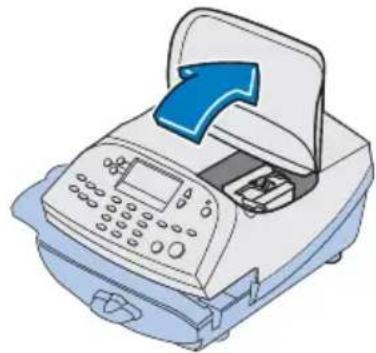
natural_image
Illustration of a printer with an open lid and a blue upward arrow indicating upload or export (no text or symbols present)-
Select "Replace Ink Tank" to continue (if you don't want to change the ink cartridge at this time, simply close the top cover). The message "Moving ink tank to replacement position" displays.
-
Unlatch and flip open the ink cartridge guard.
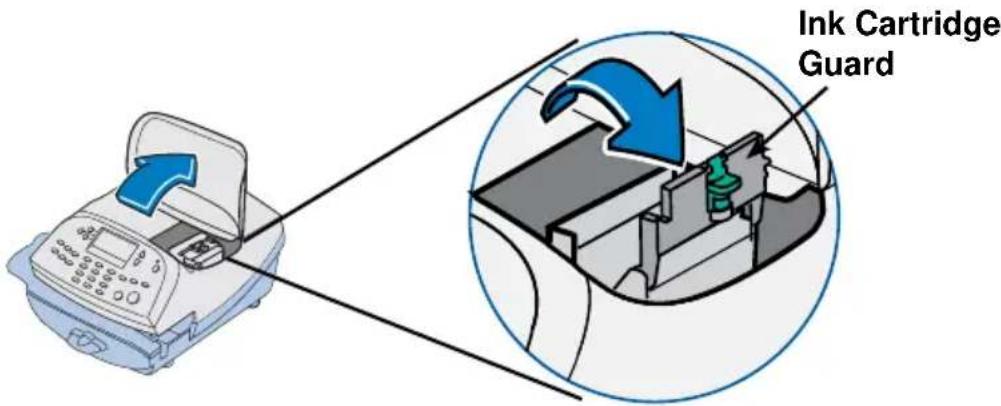
- Lift up and remove old ink cartridge and discard.
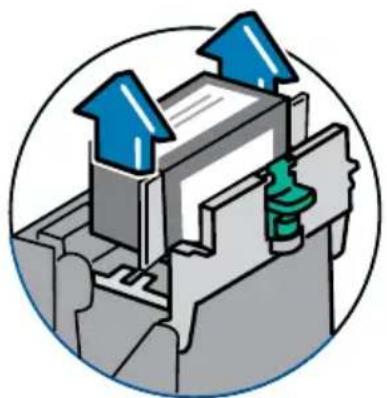
natural_image
Cross-sectional diagram of a mechanical assembly with blue arrows indicating upward motion (no text or symbols)Replacing the Ink Cartridge
- Remove tape on bottom of new ink tank cartridge.

natural_image
Illustration of a file drawer with a blue arrow indicating direction (no text or symbols)- Lower the ink cartridge into the cavity (the label on the top of the cartridge should face the front of your system). The ridges on either side of the cartridge will slide into the grooves.
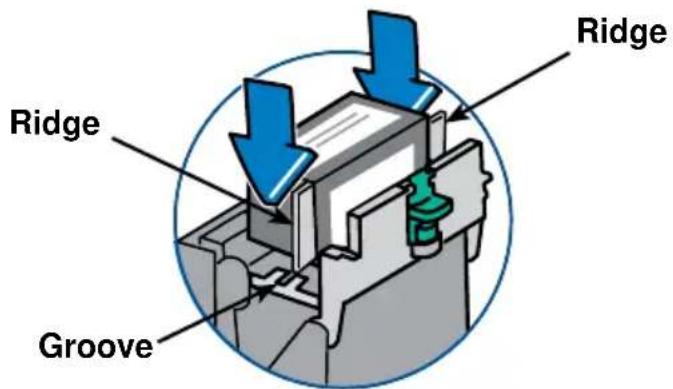
- Close the ink cartridge guard and click to secure.
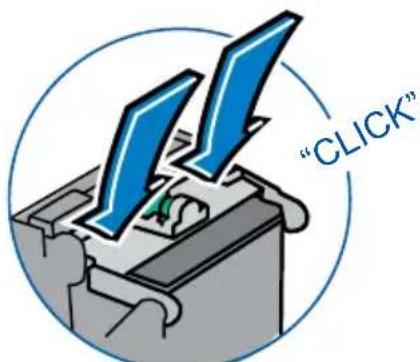
- Close the cover. The system automatically starts an ink initialization process and in a few moments returns you to the Home screen.
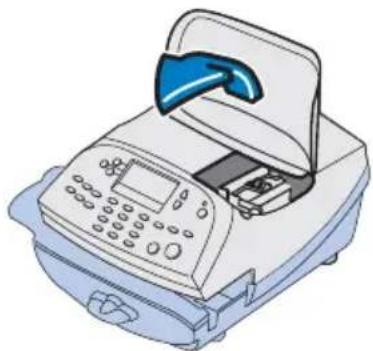
natural_image
Illustration of a printer with a blue cover and control panel (no text or symbols)Filling the Moistener
Refer to the following procedure to refill the moistener.
- Check the moist en er tank to see how much sealing so lu tion is left.
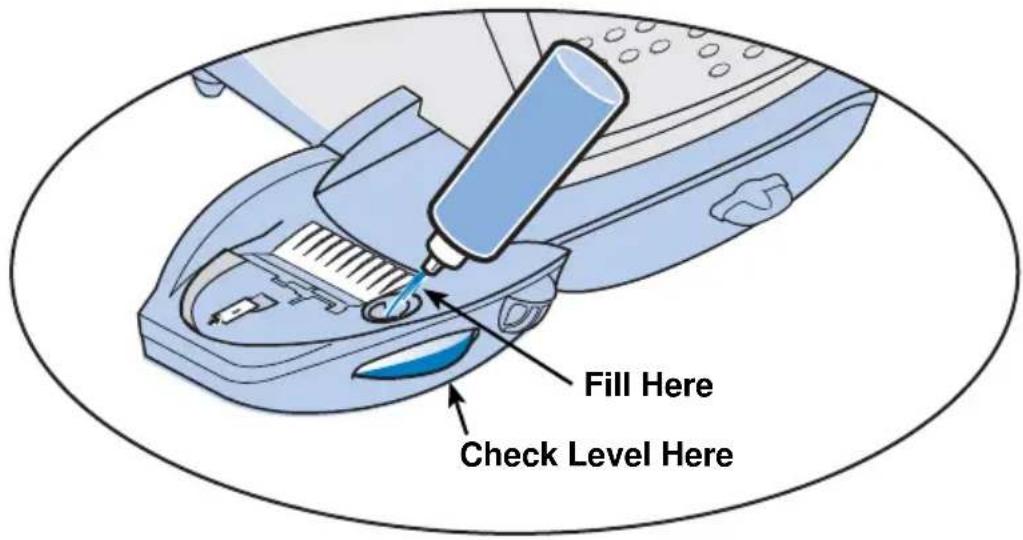
-
Add enough E-Z Seal ^® to bring the sealant level up to the bottom of the fill hole. We rec om mend E-Z Seal be cause it helps keep your moist en er clean and im proves sealing ef fi cien cy. See Chapter 12, Supplies and Options for part numbers to order this item.
-
If the tank was empy, al low 30 min utes for the moist en er brush and wick to get com plete ly wet.
IMPORTANT: Do not overfill the moistener tank.
Maintaining the Moistener
If you notice incomplete or poor sealing and the moistener tank is full, you may need to clean the moist en er brush or wick. If seal qual- ity doesn't im prove af ter clean ing, you can replace the moistener brush or wick as need ed.
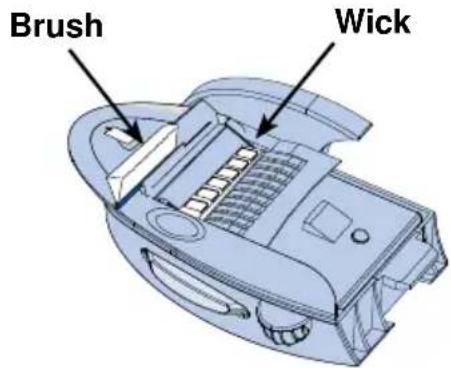
See Chapter 12, Supplies and Options for part numbers to order these items for your machine.
Removing and Cleaning the Moistener Brush
- Push down on the blue re lease lever on the moistener.
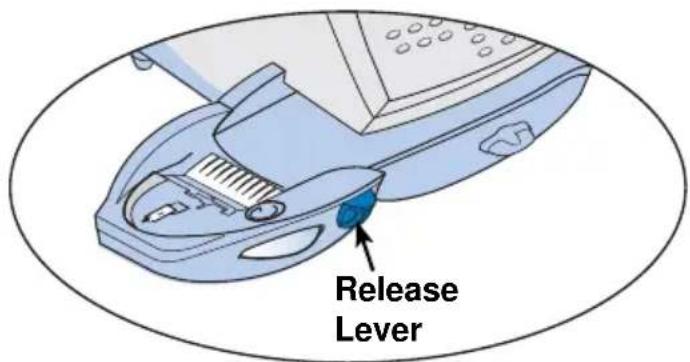
- Pull the moistener straight out to the left.
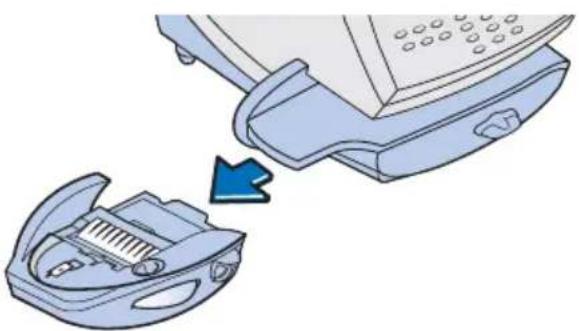
natural_image
Illustration of a printer's internal structure showing a plastic component being inserted into a plastic holder (no text or symbols present)Maintaining the Moistener
Removing and Cleaning the Moistener Brush (cont'd)
- Open the hinged brush holder.
- Grasp the bristles and slide the brush out of the hinged brush hold er, toward the front of the moistener tank.
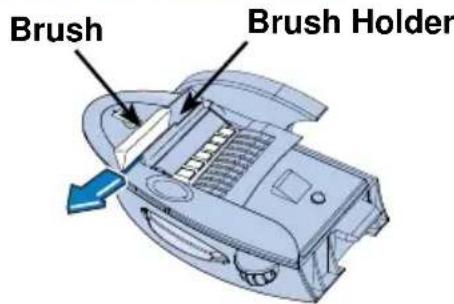
- Clean the brush in plain water, and rinse thoroughly. Blot the brush with a paper towel to remove excess water
- Position the brush as shown at right so its bottom edge is under the mounting tabs.
- Slide the brush back toward the rear of the moistener.
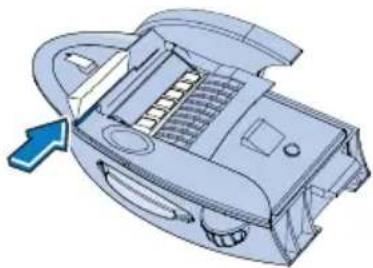
natural_image
3D diagram of a mechanical device with internal components and a blue arrow indicating direction (no text or symbols)NOTE: At this point, if you need to clean the wick and holder, go to" Removing and Cleaning the Moistener Wick and Holder" procedure on the next page. Otherwise, just continue with step 8.
- Reinstall the moistener. Push down on the blue re lease lever on the moistener.
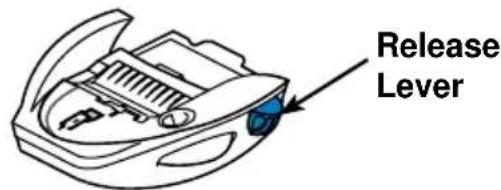
- Slide the moistener back onto the machine. You should hear a click as it engages.
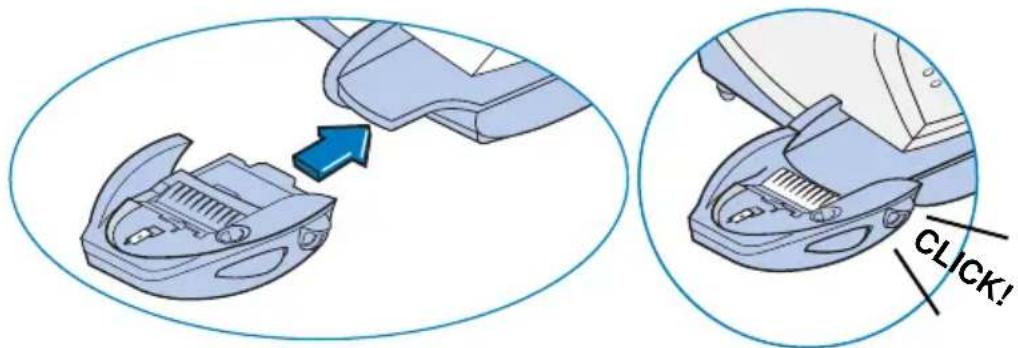
Maintaining the Moistener
Removing and Cleaning the Moistener Wick and Holder
NOTE: This procedure assumes you have done steps 1 to 7 from the previous "Removing and Cleaning the Moistener Brush" section.
- Pull up and remove the holder and wick from the moistener as shown here.
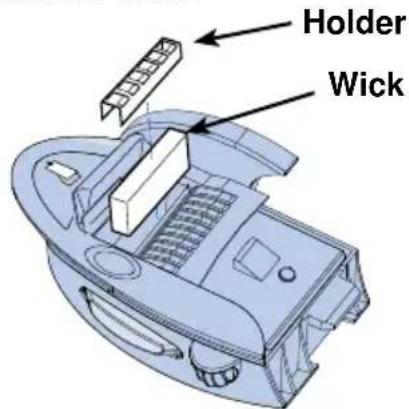
- Separate wick from metal holder, clean the wick in plain water, and rinse thoroughly. Blot the wick with a paper towel to remove excess water
- Place the wick back in the hold er.
- Reinstall the wick and holder assembly into moistener. Be sure to seat the holder against the top of the wick.
- Reinstall the moistener. Push down on the blue re lease lever on the moistener.
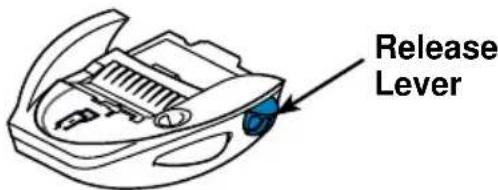
- Slide the moistener back onto the machine. You should hear a click as it engages.
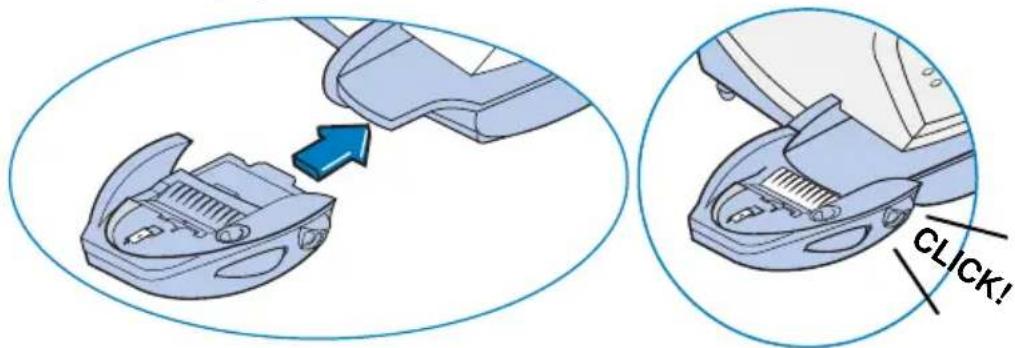
Replacing the Print Head
- If you have a DM200L/DM225L, remove the weighing platform by lifting it straight up.
- Open the top cover. A "Top Cover Open" message displays.
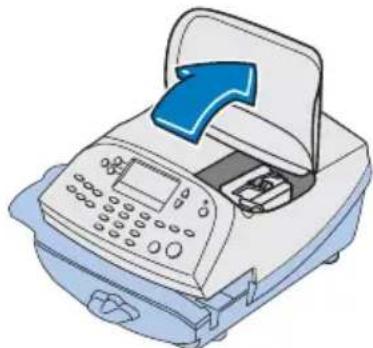
natural_image
Illustration of a printer with an open lid and a blue upward arrow indicating upload or export (no text or symbols present)-
Select "Replace Ink Tank" to continue (if you don't want to change the print head at this time, simply close the top cover). The message "Moving ink tank to replacement position" displays.
-
Unlatch the ink cartridge guard by sliding the green lever to the right and flipping the guard open.
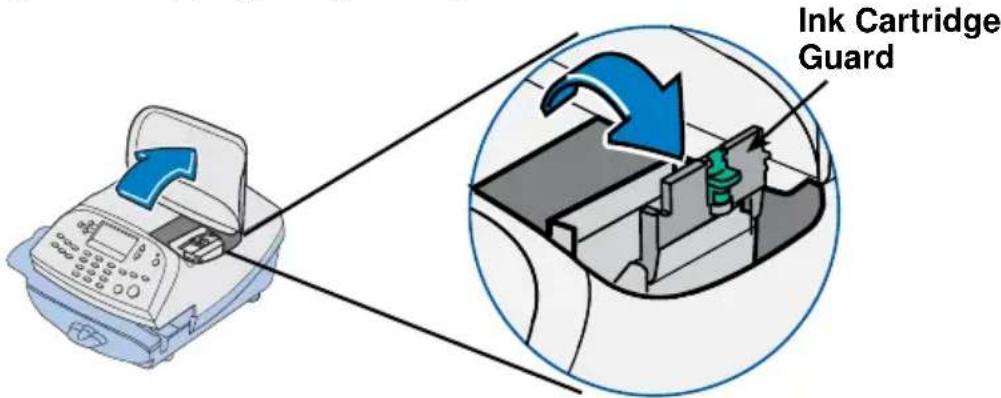
- Lift up and remove ink cartridge.
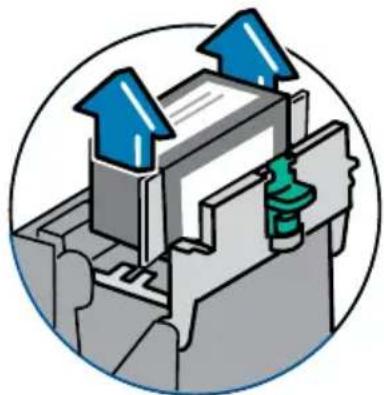
natural_image
Cross-sectional diagram of a mechanical assembly with blue and green arrows indicating direction (no text or symbols)Replacing the Print Head
- Squeeze in on the two gray tabs on either side of the print head so that they slide toward each other.
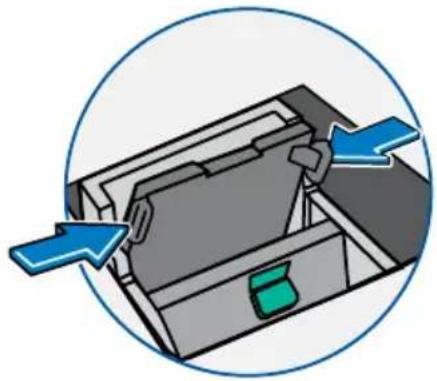
natural_image
Diagram of a device being inserted into a drawer, showing blue arrows indicating direction (no text or symbols present)- While squeezing, lift and tilt the print head to the right toward the space for the ink cartridge. The print head should come up out of the machine.
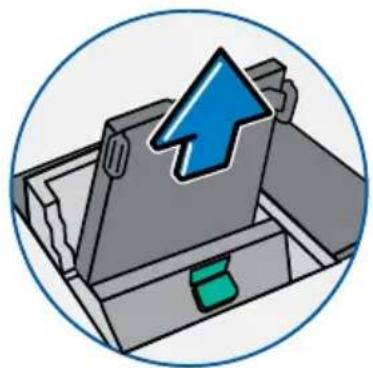
natural_image
Illustration of a file organizer with a blue upward arrow pointing to the top panel (no text or symbols present)- Remove the print head from packaging.
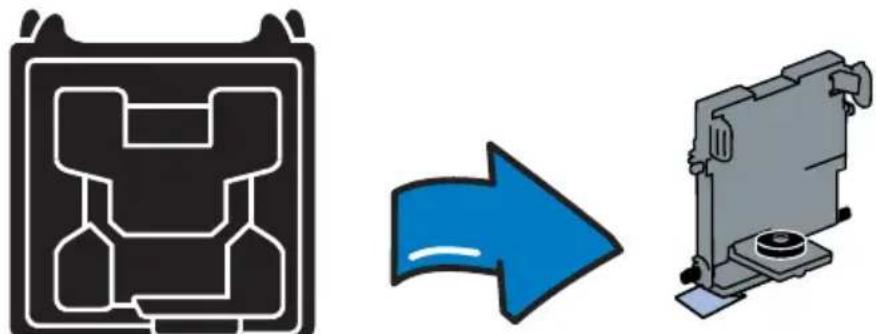
natural_image
Diagram showing a device icon with internal circuit layout and a blue arrow pointing to its exterior view (no text or symbols)Replacing the Print Head
- Remove the protective tape or the black cap from the bottom of the replacement print head.
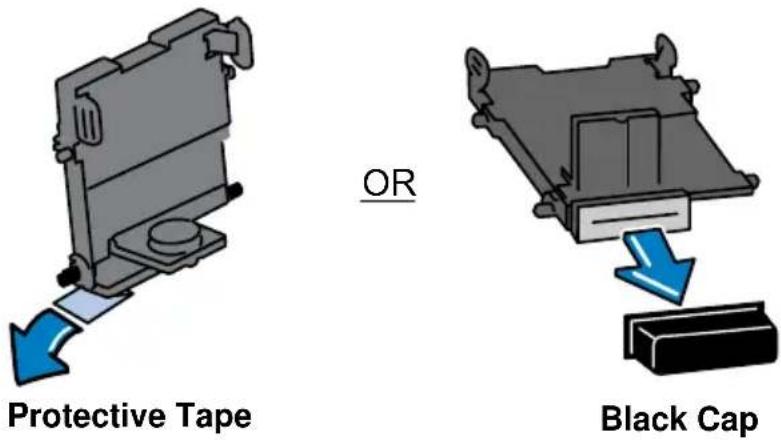
- Squeeze the two gray tabs on either side of the new print head and slightly angle the print head while pushing the print head flush against the wall.
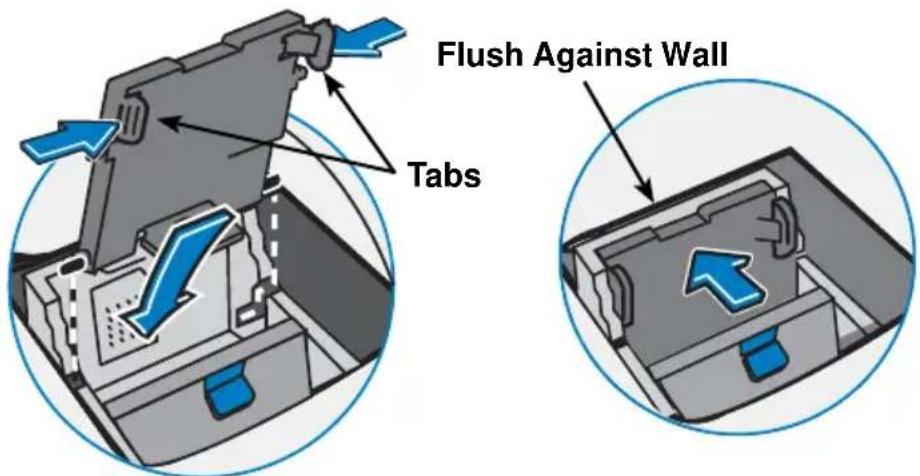
- If you are using the same ink cartridge you removed in Step 5, continue with step 12.
Otherwise, if you are putting in a new ink cartridge, remove tape on bottom of new ink tank cartridge.

natural_image
Illustration of a rectangular box with a blue arrow pointing to it, no text or symbols present.Replacing the Print Head
- Lower the ink cartridge into the cavity (the label on the top of the cartridge should face the front of your system). The ridges on either side of the cartridge will slide into the grooves.
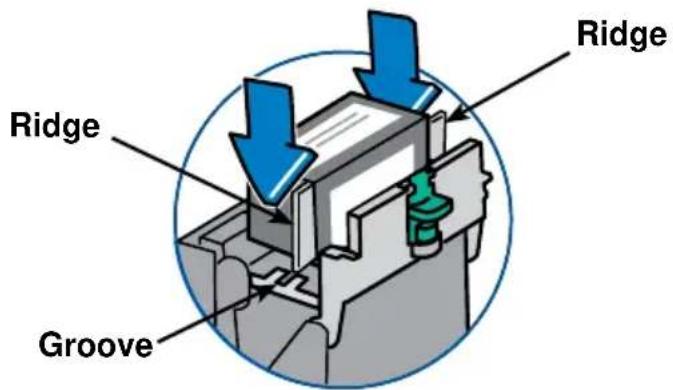
- Close the ink cartridge guard and click to secure.
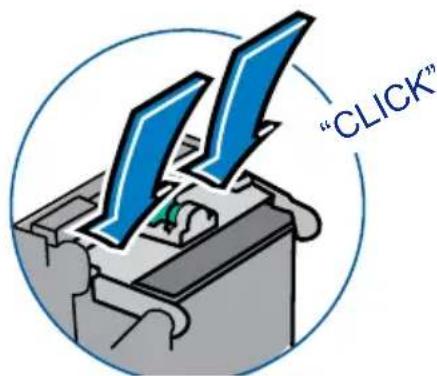
- Close the cover. The system automatically recognizes the new cartridge and in a few moments returns you to the Home screen.
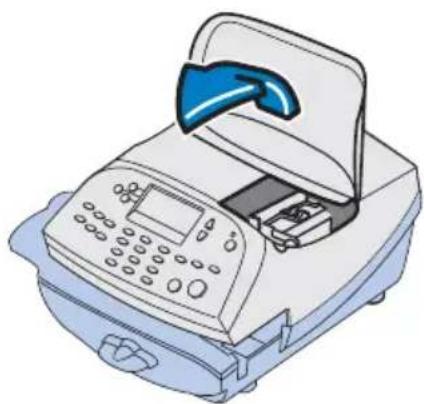
natural_image
Illustration of a medical device with a blue arrow pointing to the lid (no text or symbols visible)Running Print Tests
The system has several tests that let you check print performance and help you determine printing problems.
These tests are accessible by pressing Options, pressing Page Down to the third screen, and selecting "Advance Features".
OPTIONS
◀Advance the date
◀Set to todays date
Adjust the Contrast
OPTIONS
◀Turn items ON/OFF
◀Time and Timeouts
◀Postage Values
OPTIONS
◄LockCode/Passwords
Connect-Data Center
Advanced Features
Once you are in Advanced features, select "Maintenance Mode".
ADVANCED FEATURES
◄Manage Conf Records
◀Maintenance mode
Intra BMC ZIPS
Once you are in Maintenance menu, select "Printer maintenance".
MAINTENANCE
◀Printer maintenance
◀View system Info
The PM Maintenance menu displays.
PM MAINTENANCE
◀Test Print
◀Purge
Replacement
Running Print Tests
Test Print
The test print allows you to print a test pattern to see if the print head is functioning properly or you have enough ink in the cartridge.
- Press Options.
- Press Page Down twice.
- Select "Advanced Features".
- Select "Maintenance mode".
- Select "Printer maintenance".
- Select "Test Print".
- When prompted, insert an envelope through the machine.
- You are prompted if the test pattern is OK.
A. If yes, press Yes and you return to the PM Maintenance menu.
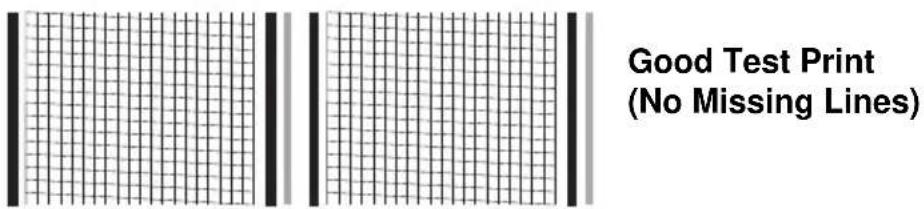
B. If no, press No and the system executes a purge. This may take a few moments. When finished, you return to the PM Maintenance menu.
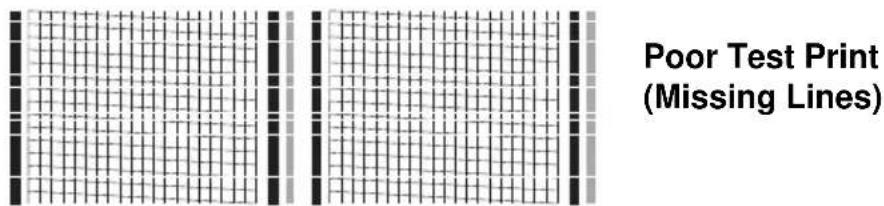
- Press Home or Clear (back arrow key) 4 times to return to the Home screen.
NOTE: If the system continues to print poor test prints, you should replace your ink cartridge (see "Replacing the Ink Cartridge" earlier this chapter) and then perform another test print (see above).
If the ink cartridge replacement does not resolve the issue, contact Pitney Bowes (see page v).
Running Print Tests
Purge
The test print allows you to purge the print heads in an effort to fix a printing problem
- Press Options.
- Press Page Down twice.
- Select "Advanced Features".
- Select "Maintenance mode".
- Select "Printer maintenance".
-
Select "Purge".
-
You have a choice of 4 purges to use. Normally selecting "Purge A" is sufficient to purge the system, unless directed by a Pitney Bowes agent to do otherwise.
PURGE
◀Purge A
◀Purge B
◀Purge C
- The system executes a purge. This may take a few moments. When finished, you return to the Purge screen.
- Press Clear (back arrow key) 5 times to return to the Home screen.
Running Print Tests
Replacement of Print Head or Cartridge
This option steps you through the procedure to replace either the print head or ink tank (cartridge).
NOTE: See "Replacing the Ink Cartridge" or "Replacing the Print Head" at the beginning of this chapter which explains these procedures in detail using figures.
- Press Options.
- Press Page Down twice.
- Select "Advanced Features".
- Select "Maintenance mode".
- Select "Printer maintenance".
- Select "Replacement".
- You have a choice to replace the print head or ink tank (cartridge)
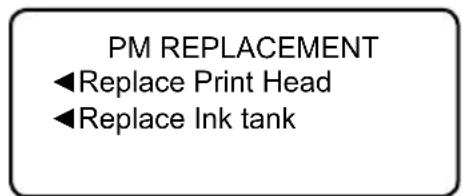
The steps for each are the same, the only difference is with the maintenance the system performs.
- You are prompted to open the top cover.
- After the cover is opened and the print head moves into replacement position, you are prompted to replace the print head or ink tank.
Ink Tank - Follow steps on pages 10-2 through 10-3 for instructions.
Print Head - Follow steps on pages 10-8 through 10-11 for instructions.
- After replacing the print head and closing the cover, the machine resets and you return to the Home screen.
This page was put in as a placeholder so you can print this guide in a duplex (double-sided) mode while keeping the proper page positions.
11 • Troubleshooting
Getting Help
There may be times when you need help to solve a problem, or you may want more in for ma tion about how your mail ing system works. Pitney Bowes provides several information resources. See page v for our web and phone support information.
Before you contact us, please read the troubleshooting information in this chapter In many cases, it can help you resolve the problem. Also, you can often restore normal operation by powering down the unit and then powering it on. On the DM100i and DM200L, this is done by disconnecting the power cord and reconnecting it. On the DM125 and DM225, simply use the power switch on the rear of the unit.
If you need to call, please have the following in for ma tion at hand:
- Model Identification: See page v and Chapter 2, Getting to Know Your System
- Serial number: See the back of the system.
- Nature of problem: What happens and when does it happen? Did the machine display an error message?
- The steps you've already taken to solve the problem and the results.
Messages on the LCD Display
From time to time your system will display an alert or error message. An alert tells you that something needs at ten tion; an error message usually tells you about a system con di tion you can fix. In rare in- stances you may have to call for service or assistance (see page v).
Blank Display
| Symptom Cause Solution | ||
| Power lamp is not lit on the machine | No power coming into machine | Check that:• Power switch, located above the power receptacle on the backside of the machine, is turned on.• power cord is plugged into both mailing machine base and wall outlet• power cord is not connected to a switched wall outlet, power strip, or surge protector |
| Power lamp is yellow on the machine | Machine in sleep mode | Press any key to "awaken" it. |
Display Problems (display hard to read)
The display contrast needs adjustment.
- Press Options.
- Select "Adjust the Contrast".
- Select "Increase Contrast" or "Decrease Contrast" to change the contrast level as necessary.
- Press Home to return to the Home screen.
Feeding Problems (stalled envelopes)
- Move transport release lever 1/4 turn to the right (clockwise) to the "released" position (vertical).
- Carefully pull envelope out from right.
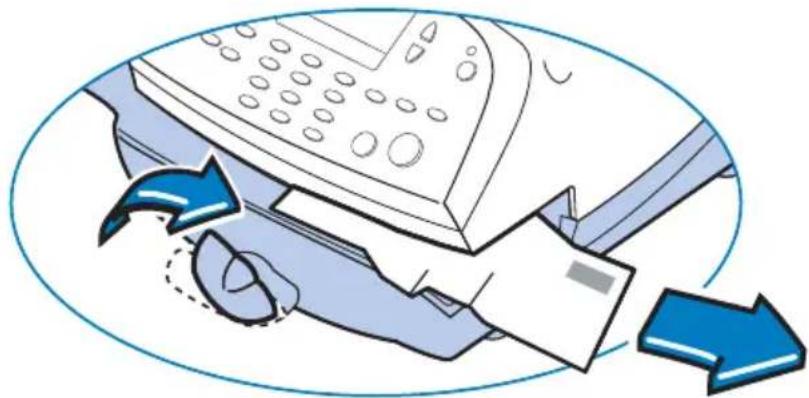
natural_image
Illustration of a printer with a paper, showing a hand pressing down and a blue arrow indicating compression or disassembly (no text or symbols present)- Make sure deck is clear of pa per frag ments.
- Move transport release lever 1/4 turn to the left (counter-clockwise) back to the "home" position (horizontal).
NOTE: To avoid stalled (jammed) envelopes:
• Make sure your envelopes meet our published specifications. See Appendix D, Specifications.
- Feed envelopes correctly. See the instructions in Chapter 3, Running Mail. Don't try to feed oversize envelopes through the machine. Use tape strips instead.
Printing Problems
| Symptom Cause | Solution | |
| Machine won't print | Machine is in seal-only mode | This mode disables printing. Press Home to return to Home screen and resume printing. |
| Meter Stamp is incomplete or streaked; poor print quality | Ink cartridge needs replacing | Replace ink cartridge. See the in struc tions in Chapter 10, Maintenance. |
| Print nozzles clogged | Perform a print purge in an effort to fix the printing problem (see procedure below) | |
| "Waste Tank Full!" message | Waste ink tank is full | Call Pitney Bowes (see page v). You will not be able to print postage in this condition. |
| "Waste Tank - Tank is nearly full" message | Waste ink tank is nearly full | Call Pitney Bowes (see page v). You will be able to print postage in this condition, but only for a limited time. |
Print Purge Procedure
- Press Options.
- Press Page Down twice.
- Select "Advanced Features".
- Select "Maintenance mode".
- Select "Printer maintenance".
-
Select "Purge".
-
You have a choice of four purges to use. Normally selecting "Purge A" is sufficient to purge the system, unless directed by a Pitney Bowes agent to do otherwise.
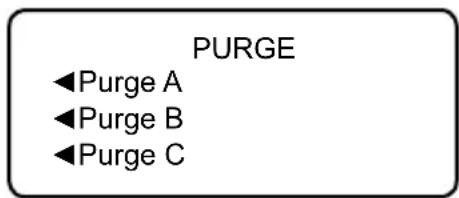
- The system executes a purge. This may take a few moments. When finished, you return to the Purge screen.
- Press Clear (back arrow key) five times to return to the Home screen.
NOTE: If printer maintenance fails to correct the problem, call Pitney Bowes (see page v).
Moistening Problems (envelopes don't seal)
| Symptom Solution | |
| Incorrect feeding Make sure you slide the envelope flap under the blue edge of the feed deck. If you don't, the moistener can't wet the flap. | |
| Low sealant level Check | the sight glass on the left side of the moistener tank. If the sealant level is low, add E-Z Seal® solution until it reaches the bottom of the fill hole. See the in struc tions in Chapter 10, Maintenance. |
| Dry moistener brush Try | wetting the moistener brush. If the brush drys out quickly, replace the moistener wick as explained in Chapter 10, Maintenance. |
| Dirty moistener brush Remove the moistener brush. Clean it in plain water and rinse thoroughly (see Chapter 10, Maintenance) | |
| Worn moistener brush Re | replace the moistener brush (see Chapter 10, Maintenance) |
NOTE: See Chapter 12, Supplies and Options for part numbers for replacement brushes and E-Z Seal® solution. See page v for contact information.
Problems Connecting to the Data Center via Analog Line
| Symptom Solution | |
| Improper phone line or phone line not connected to machine | Make sure you've connected your machine to a dedicated an a log phone line (the same type you connect your home phone to). If you are using a DSL line, you should use a DSL filter obtained from your DSL provider.Make sure the phone line con nec tors are firmly seated in their re cep ta cles.Try using the PC Meter ConnectTM method to communicate with the Data Center if an internet PC is available (see Chapter 6, Adding Postage/Connecting to the Data Center). |
| Incorrect setup of system options | Go to the Chapter 7, System Options, and check the following:Does your phone system require you to dial a pre fix number to get an out side phone line? Make sure to include this in the setup if needed.Is the dial method correct? You have to tell the machine if your phone uses a pulse or tone for dial ing. |
Problems Connecting to Data Center via LAN Network
| Symptom Solution | |
| Machine may not be connected to LAN Internet Connection | Make sure you've connected your machine to a working LAN Internet connection. Contact your network administrator if you suspect issues with your LAN network.Make sure the LAN internet cable USB Internet adapter con nec tors are firmly seated in their recep ta clesMake sure the adapter lights are lit to show an active connection.Ensure that no phone cord is connected to the mailing machine when the LAN is installed.If LAN internet connectivity is not available, disconnect the USB network adapter and LAN internet cable from the USB port. Connect via a USB cable connected to a PC having PC Meter ConnectTM or via analog phone line using the analog phone cable to the phone port (see Chapter 6, Adding Postage/Connecting to the Data Center). |
Problems Connecting to the Data Center via the PC
You cannot access www.pitneybowes.ca from your PC using Internet Explorer
Contact your IT administrator for any special setup needed to enable your PC and Internet Explorer to access the Internet.
Problems Connecting to the Data Center via the PC
You can access www.pb.com using Internet Explorer but PC Meter Connect™ cannot detect the Internet
(see also "Troubleshooting" in Appendix A - PC Meter Connect ^TM .)
- Right click on the PC Meter Connect ^TM tray icon and select "Internet Settings...".
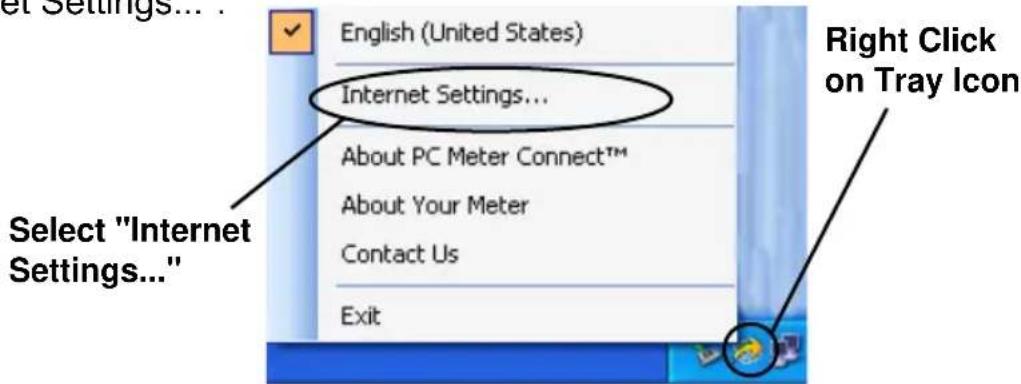
- At the Internet Settings configuration screen, do either of the following:
Solution A - Set your PC Meter Connect™ to use the same settings that Internet Explorer uses to connect to the Internet. Choose "Use Internet Explorer proxy settings" under Proxy Address Assignment (see screen below) and click OK.
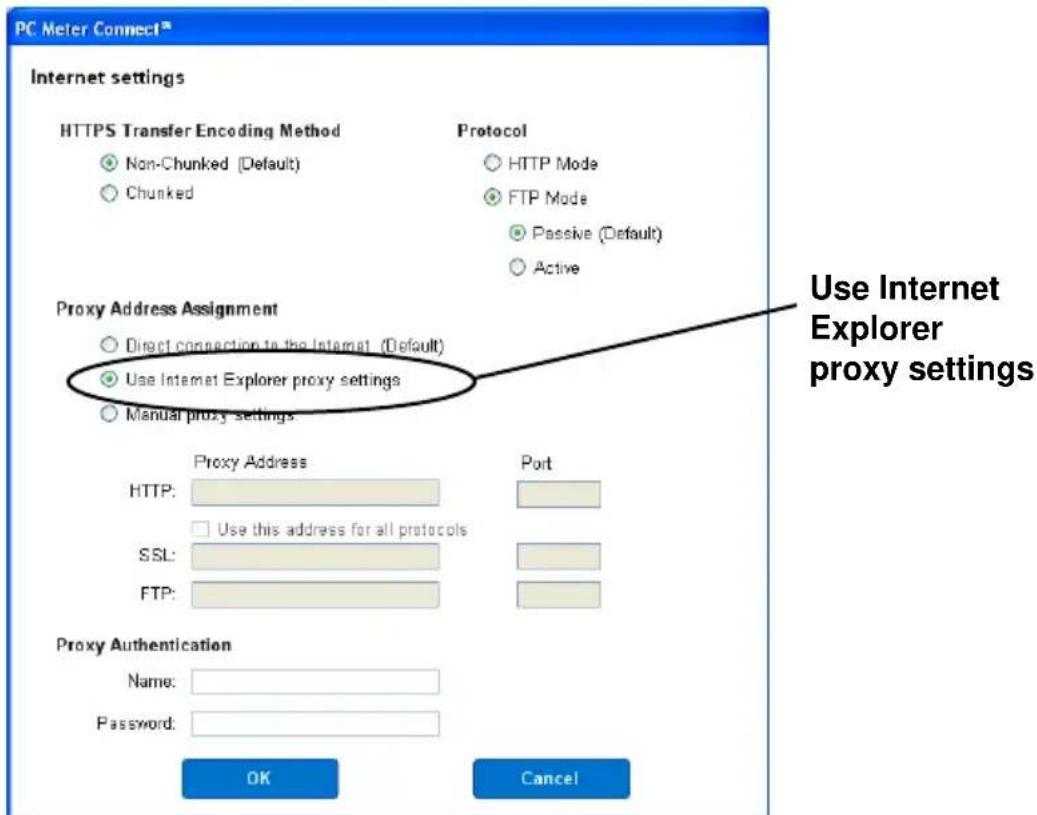
Internet Settings Screen in PC Meter Connect™
continued->
Problems Connecting to the Data Center via the PC
You can access www.pitneybowes.ca using Internet Explorer but PC Meter Connect™ cannot detect the Internet (cont.)
Solution B - Enter your own network's Proxy Address and Authentication settings (if used). Contact your IT administrator for these settings. Click "Manual proxy settings", and enter the proxy settings and proxy authentication (if used) provided by your IT administrator (see screen below). Click OK.
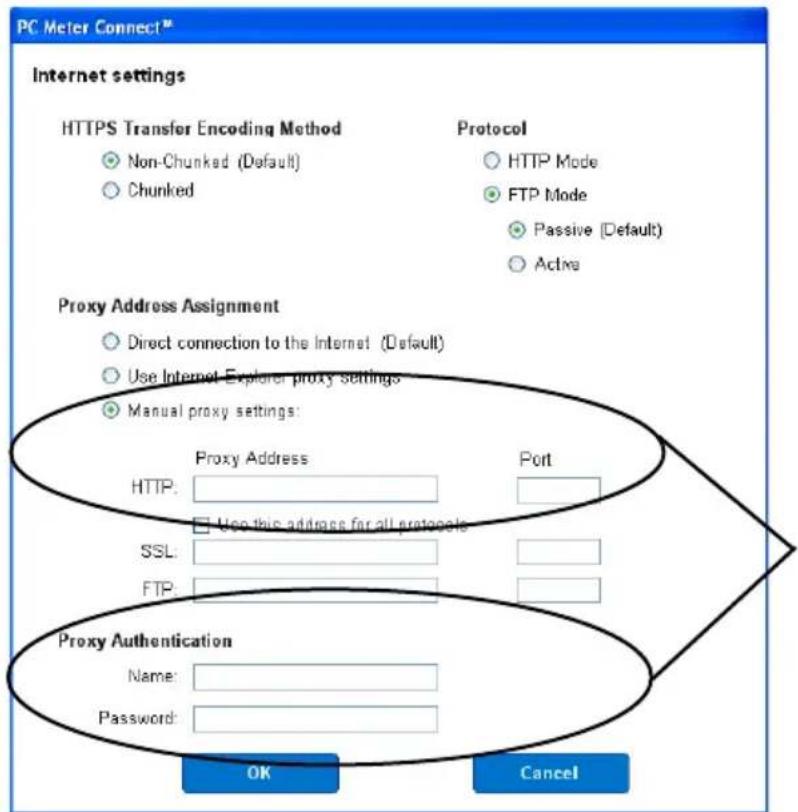
Use "Manual proxy settings" (and "Proxy Authentication", if used)
Internet Settings Screen in PC Meter Connect™
Problems Connecting to the Data Center via the PC
You can access www.pitneybowes.ca using Internet Explorer but you are having problems downloading files to your meter. (see also "Troubleshooting" in Appendix A - PC Meter Connect™.)
- Right click on the PC Meter Connect ^TM tray icon and select "Internet Settings".
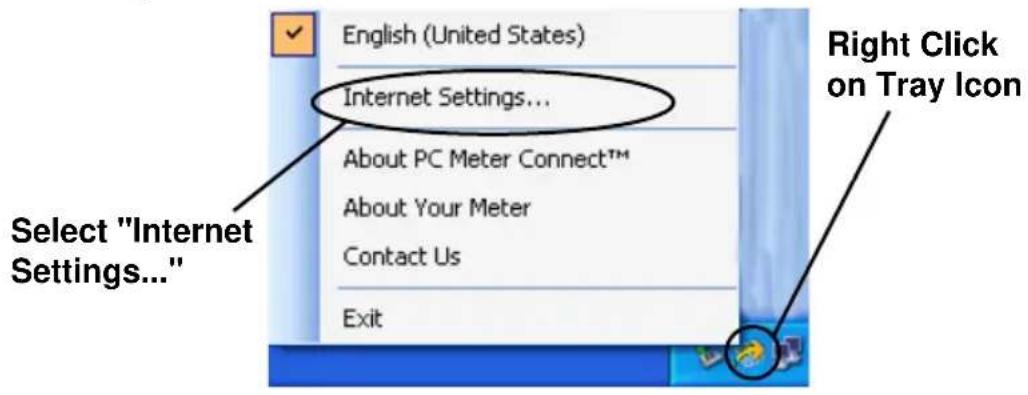
- At the Internet Settings configuration screen, choose "Active" for FTP Mode (see screen below) and click OK.
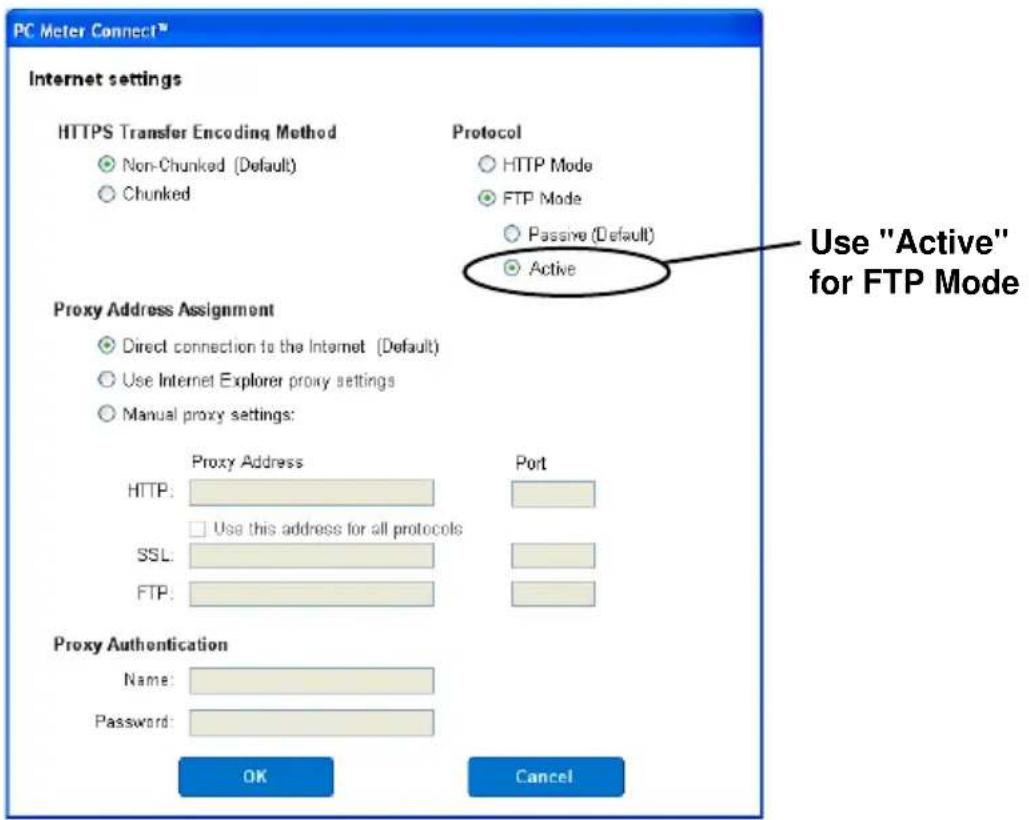
Internet Settings Screen in PC Meter Connect™
Accidentally Printing the Wrong Postage
Once you have printed a meter stamp, the postage funds have been “used up” by the machine, even if the printing is illegible. That’s why it is so important to make sure the correct value is shown on the machine before inserting the mail piece or tape sheet, and that you do not let the ink level get too low. We recommend you always keep a spare ink cartridge on hand just for this reason.
If you would like a refund, you can go in person to the Post Office where you meter is registered (i.e., the ZIP Code of your meter stamp) within 60 days of the meter stamp date. You will need to bring the specific meter stamps as proof for your claim (they must be legible) and complete form 3533 “Application and Voucher for Refund of Postage, Fees, and Services”.
NOTE: If your application for refund is accepted, the USPS® will refund 90% of the original meter stamp amount.
IMPORTANT: To help prevent you from ac ci den tal ly print ing a post-age val ue that's more than you need, you can have your machine warn you when you manually key in a post age val ue that is higher than the values you typically use. This setting is known as the high value warning (see Chapter 7 - System Options to set this option). The high warning value feature is effective when you manually key in the postage value, but does not function if the internal rating feature is used.
Viewing System Configuration Levels
Sometimes in an effort to fix your problem over the phone, a Pitney Bowes agent may request you to look up the system level that is on your machine. Follow these steps to do this:
- Press Options.
- Press Page Down twice.
- Select "Advanced Features".
- Select "Maintenance mode".
-
Select "View system info".
-
There are various screens of information available about your machine. Press Page Down to scroll through all the screens if needed.
| INTERNAL INFORMATION | ||
| IND | SN: | xxxxxxxxx |
| PBI | SN: | xxxxxxxxx |
| UIC | Ver: | xx.xx.xx |
| INTERNAL INFORMATION | |
| PCN Ver: | xxxx |
| TREE Ver: | xxxx |
| LANG Ver: | xxxx |
| INTERNAL INFORMATION | |
| PM Ver: | xx.xx.xx |
| PHS Ver: | x.xx |
| ASIC Ver: | x.xx |
| INTERNAL INFORMATION | |
| ScaleVer: | xxxx |
| Prot Ver: | xxxx |
| Low Ver: | xxxx |
| INTERNAL INFORMATION | ||
| LCD | Ver: | x.xx |
| PSD | Ver: | xx.xx.xx |
| RM | Ver: | xx.xx |
| INTERNAL INFORMATION | |
| Scale SN: | xxxx |
| INTERNAL INFORMATION | |
| RATE Eff: | xxxxxxxxx |
| UIC Sum: | xxxxxxxxxx |
| RM Sum: | xxxxx |
- Press Clear (back arrow key) four times to return to the Home screen.
This page was put in as a placeholder so you can print this guide in a duplex (double-sided) mode while keeping the proper page positions.
12 • Supplies and Options
Supplies
| Description Number | |
| Ink Cartridge, Red Fluorescent 793-5 | |
| Moistener Brush/ Wick Assembly 946-1 | |
| Waste Ink Pad Replacement Kit (DM125/DM225) | 52F-B |
| Double Tape Sheets—50 612-9 | |
| Double Tape Sheets—300 620-9 | |
| E-Z Seal® 4-Ounce Flip Top Bottles—4 601-9 | |
| E-Z Seal® 16-Ounce Bottles—4 601-0 |
Refer to Pitney Bowes Contact List on page v for web addresses and phone numbers to order supplies.
Options
Pitney Bowes offers a number of flexible options so you can tailor your mailing system to meet your exact needs today, and expand it as your business grows tomorrow. Contact your Pitney Bowes Sales Representative for more information (see page v in the front of this guide for web addresses and phone numbers).
Integrated Weighing Platform (Scale)
The weighing platform allows you to accurately weigh mail and packages. You can select from either a 5 lb. or a 10 lb. capacity scale. See Chapter 3, Running Mail for details on using the weighing platform.
Moistener
The moistener applies sealing fluid to the envelope flap. You can seal envelopes or leave them unsealed, depending on how you feed them. See Chapter 3, Running Mail for details.
Standard Accounting
The Standard Accounting feature tracks post age costs for departmental accounts. Depending on your model, you can order up to 50 accounts for your machine. See Chapter 8, Standard Accounting for details.
Options
Electronic USPS® Confirmation Services
This option allows you to get discounted fees from USPS® for selected services. See Pitney Bowes publication SV61156 for more information on this feature. Visit our website (see page v) and enter "SV61156" in the search box on the home page to locate and view this document
Postal Inscriptions/Advertisements
Your system comes pre-loaded with several envelope ads and postal inscriptions. These give your mail a professional ap pear ance and can turn your mailings into a powerful pro mo tion al tool. Pitney Bowes can also provide additional envelope adds and inscriptions if your needs require it, up to a total of 20 ads and 20 inscriptions.
Op tion al inscriptions and ads are convenient to add because they are done as system downloads via the Pitney Bowes Data Center.
Appendix A • PC Meter Connect™ Desktop Application
About PC Meter Connect ^TM Desktop Application
PC Meter Connect desktop application is a high-speed connectivity option that eliminates the need for an analog line. Similar to Constant Connection (LAN Connection), PC Meter Connect™ enables your system to connect to the Internet but it does so via a Windows PC having an Internet connection.
You simply download the PC Meter Connect™ software from the Pitney Bowes website (see page v), install it onto a PC with an internet connection (broadband, DSL, network, etc.), and connect a USB cable between your machine and the PC.
There are two versions of PC Meter Connect™ documented in this guide, Basic for DM100i/DM200L, and Enhanced for DM125/DM225.
DM100i/DM200L Basic Version
This version allows your machine to communicate to the Data Center for postage downloads and rate/system updates via a PC with internet access. All functions are performed at the machine.
DM125/DM225 Enhanced Version
Besides the Basic features, the Enhanced version lets you, from your PC:
- walk through the entire installation process of your machine (if that is the method you choose when first installing)
• see status messages (such as "low funds") from the machine
• see or print your postage refill history - set machine settings, such as date and time, printing options, presets, etc.
- run accounting reports
The Enhanced version also includes links from your PC to:
• demos to walk you through common procedures
• online support for your system
- the Pitney Bowes Online Store, which provides an easy and convenient way to order ink cartridges, E-Z Seal®, envelopes, and other supplies for your system.

NOTE: Topic headings in this manual that refer to a PC Meter Connect™ Enhanced feature will be listed in green text.
Installation Requirements
Before installing the PC Meter Connect™ software, make sure your PC meets these minimum requirements:
- Windows® 2000, Windows XP (32-bit or 64-bit), Windows Vista (32-bit or 64-bit), or Windows 7 (32-bit or 64-bit) operating systems with the latest service packs. Mac OS is not supported.
• 1.2 GHz processor and 512 MB of RAM
• administrative rights to install software - an Internet connection
Installation
Download the PC Meter Connect™ software from the Pitney Bowes model-specific support website (see page v) to your PC with Internet access. Locate the USB cable supplied with your mailing machine and follow these instructions:
- Do not connect the USB cable to your PC or your machine yet. Do not connect the power to your mailing machine yet.
You will be prompted at the proper times to do these during the install.
- Double-click on the install file that you downloaded to your PC.
- The install program automatically starts. Follow the prompts on screen.
- When installation is complete, a PC Meter Connect ^™ icon will be installed on your desktop and an icon will reside on your PC's system tray, usually in the lower right corner of the screen (see figures below).
Desktop
Shortcut Icon
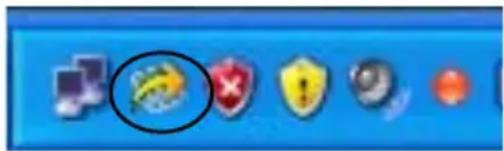
natural_image
Blue desktop toolbar with icons for computer, security, and other items (no readable text or symbols)Icon in System Tray
- To make sure you are running the latest version of the software, launch the application, select Updates tab, then select Update Software.
Access/Launching the Application
The program is loaded in the background automatically when you boot up your computer. You will know this by seeing the PC Meter Connect™ icon in the system tray.

NOTE: If the PC Meter Connect™ software was not running for some reason (you'll know this when you don't see the PC Meter Connect™ icon in the system tray), double clicking on the desktop icon will restart the software. Alternately, you may click on the Start button > All Programs > Pitney Bowes > PC Meter Connect. A PC Meter Connect™ icon will then appear in system tray.
If you connect or disconnect your machine from the PC, messages display from the PC Meter Connect™ icon in the system tray:
- "Meter Not Connected" displays when you disconnect your machine from the PC. The red "x" stays on the icon thereafter.
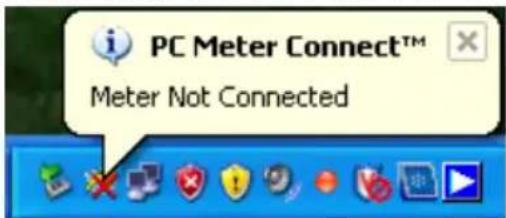
- "Meter detected" displays when you connect your machine to the PC (after it had been disconnected). The red "x" disappears.
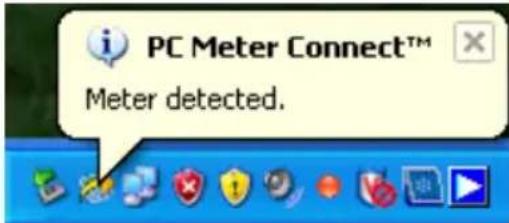
To access more features of the program, review the following pages.
Accessing Features from the System Tray Icon (Basic Version)
If you right-click on PC Meter Connect™ icon in the system tray, you can access several options for the PC Meter Connect™ Basic software.
![Update PC Meter Connect Internet Settings... About PC Meter Connect About Your Meter[Meter Detected] Contact Us Exit](/content/2026/06/1149572/images/b783b8b136a61710027402cebb93ae32b6815eb4bc65f4cafa0b0245e41feefb.jpg)
Options Screen for Basic PC Meter Connect™
Right Click on PC Meter Connect™ Icon in System Tray
| Option Description | |
| Update PC Meter ConnectTM | Connects you to a Pitney Bowes website for the latest version of the PC Meter ConnectTM software |
| Internet Settings... | Allows you to change your Internet settings for best operation with PC Meter ConnectTM (see Troubleshooting section later in this chapter for more details) |
| About PC Meter ConnectTM | Lists the PC Meter ConnectTM software version |
| About Your Meter D | Displays whether or not the machine is connected to your PC. |
| Contact Us Provides | email and phone number information to contact Pitney Bowes |
| Exit Exits the program | (to restart, simply click on the PC Meter ConnectTM desktop icon) |
Accessing Features from the System Tray Icon (Enhanced Version)
If you right-click on PC Meter Connect™ icon in the system tray, you can access several options of the PC Meter Connect™ Enhanced software. These are in addition to the Main Window features described on the following pages.
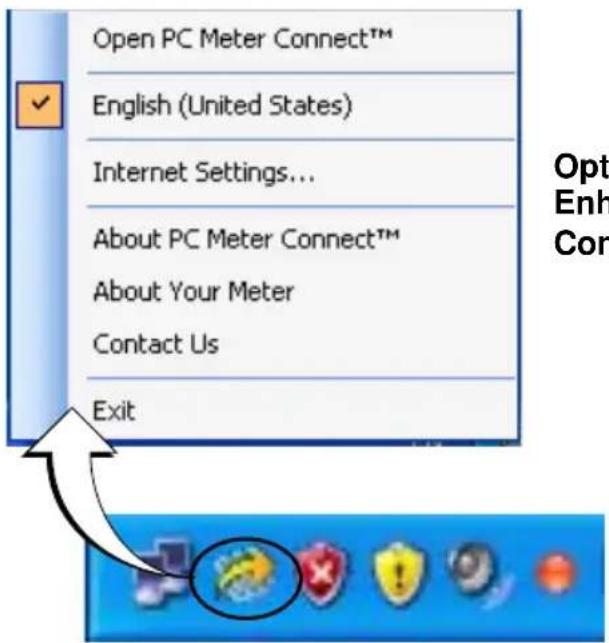
Options Screen for Enhanced PC Meter Connect™
Right Click on PC Meter Connect™ Icon in System Tray
| Option Description | |
| Open PC Meter ConnectTM | Launches main window of PC Meter ConnectTM (see next pages) |
| English (United States) | Indicates language selected when program was installed |
| Internet Settings... | Allows you to change your Internet settings for best operation with PC Meter ConnectTM (see Troubleshooting section later in this chapter for more details) |
| About PC Meter ConnectTM | Lists the PC Meter ConnectTM software version. It also allows you to send the software logs to Pitney Bowes support for troubleshooting purposes. |
| About Your Meter P | Provides the model, serial number, and other information about your machine |
| Contact Us Provides | email and phone number information to contact Pitney Bowes |
| Exit Exits the program | (to restart, simply click on the PC Meter ConnectTM desktop icon) |
PC Connect Main Window (Enhanced Version)
Once you double-click the desktop icon or the system tray icon, the PC Meter Connect™ Main window displays (see figure below). PC Meter Connect™ connects to the Data Center and provides the postage amount in your machine, your Postage-By-Phone account balance, your Purchase Power balance, and lists any updates needed.
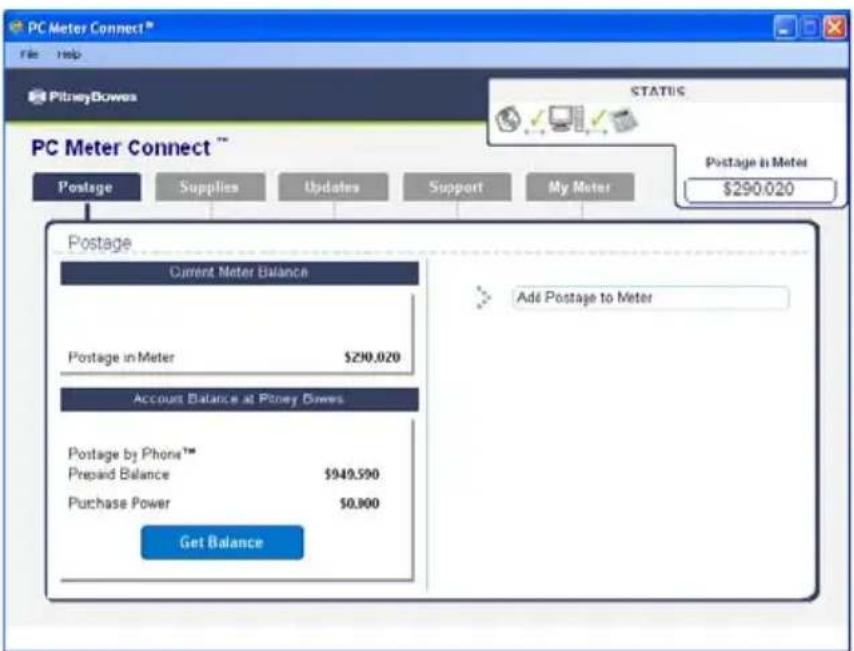
PC Meter Connect™ Main Window (after Connecting to Data Center)
An explanation of the features and the tabs accessible from the PC Meter Connect™ Main Window are provided on the following pages.

NOTE: If you are accessing features from PC Meter Connect™ (Enhanced version), please keep in mind the following:
- If the system is in "sleep" mode, accessing a feature from the Main Window will "awaken" the machine.
- Once in an awaken state, the machine must be at the "Home" screen (ready to print postage) to use features found on the Postage, Updates, and My Meter tabs on the Main Window. Otherwise, a "meter is busy" message displays on the PC. This condition can happen, for example, if you have the Accounting option set up on the system and the machine is waiting for someone to select an account for printing postage.
PC Connect Main Window (Enhanced Version)
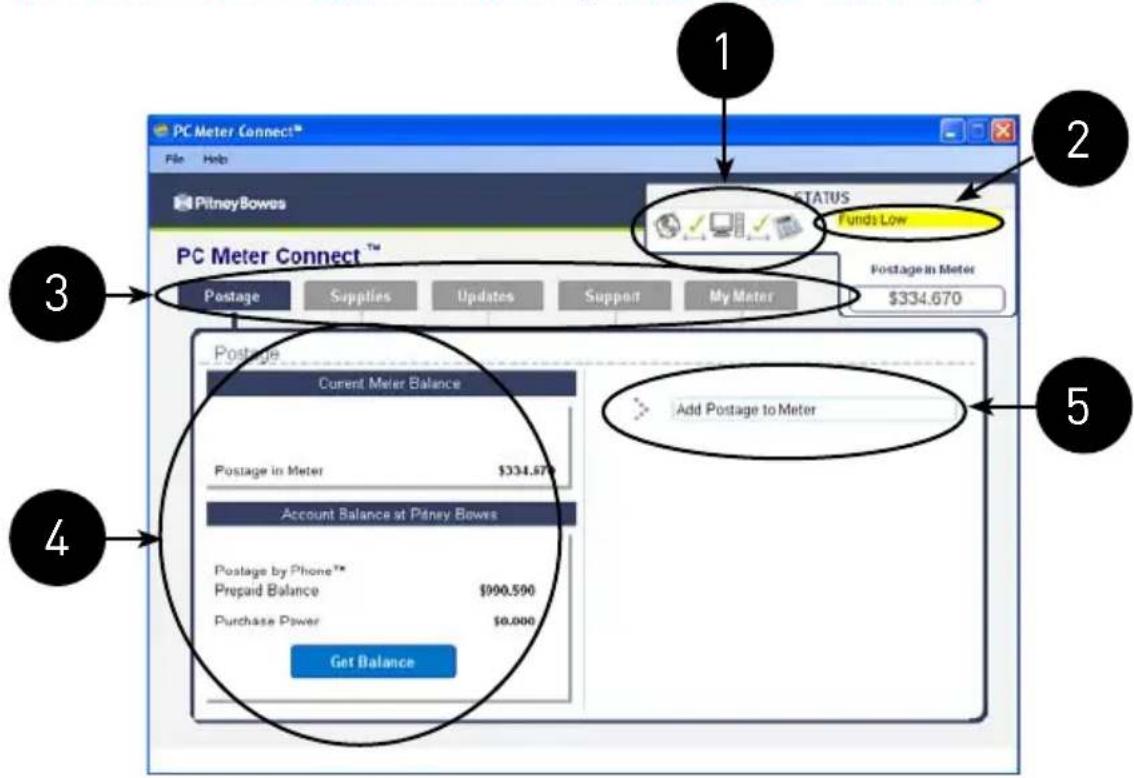
PC Meter Connect™ Main Window
- Connection Status—indicates whether your PC can communicate with the Internet and to your mailing machine. A green check indicates a good connection, while a red X means the devices can not communicate.
Internet
PC
Machine

flowchart
graph LR
    A[" globe"] --> B[" computer monitor "]
    B --> C[" calculator "]
    style A fill:#f9f,stroke:#333
    style B fill:#ccf,stroke:#333
    style C fill:#cfc,stroke:#333
Good communications
Internet
PC
Machine

PC not communicating with machine

PC not communicating with Internet
Internet
PC
MachineInternet

PC not communicating with Internet or machine
PC Connect Main Window (Enhanced Version)
- Messages from Meter—displays status messages (such as "Funds Low") to help you keep your machine up and running.
- Feature Tabs (described in detail on the following pages)—allows access to the features of the software:
Postage - for refilling postage and checking meter balances
Supplies - for ordering ink cartridges, E-Z Seal®, envelopes, and other supplies for your machine from the Pitney Bowes website
Updates - for downloading updates for your machine, updates to PC Meter Connect desktop application, postal inscriptions/envelope ads, perform USPS inspections and rate updates
Support - provides links to online help, product demos, a PDF of this User Guide, online support, and FAQs.
My Meter - allows you to set machine settings, such as date and time, printing options, presets, etc.
- Support Information—displays the supporting data for the functions of the feature tab. For example, under the Postage tab, this screen displays funds (postage) available in your system in your Postage-by-Phone® account balance, and in your Purchase Power balance.
- Task Panel—lists the tasks you can run from this feature tab. Click on the link to perform the task you want (such as "Add Postage to Meter").
Feature Tabs (Enhanced Version)
Postage
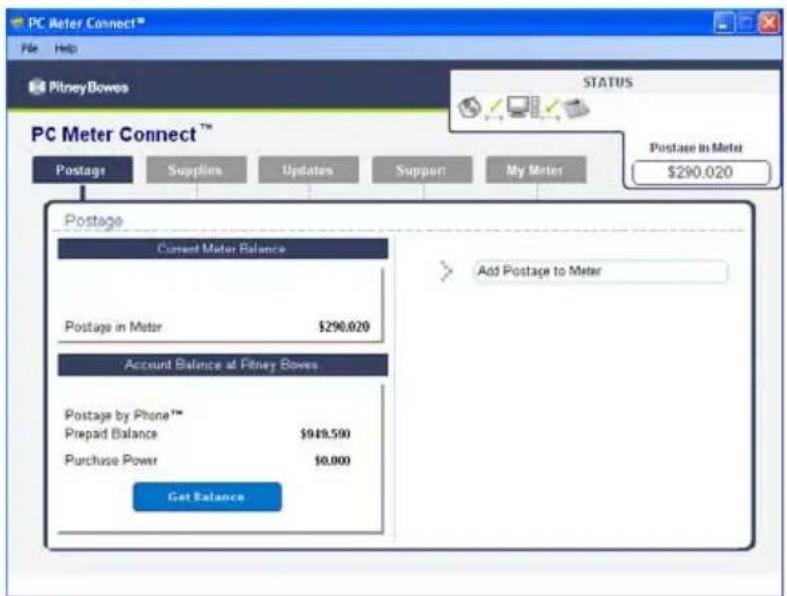
Postage Tab - Main Screen
Support Information
Provides the postage amount in your system your Postage-By-Phone balance, and your Purchase Power balance.
Task Panel
Allows you to add postage to your meter. Simply:
- Click on Add Postage to Meter.
2 Select either the amount your used for your last refill or one of the predetermined amounts. (You can also enter another amount and click Enter).
- Click Continue to proceed with the refill (or Cancel if you changed your mind).
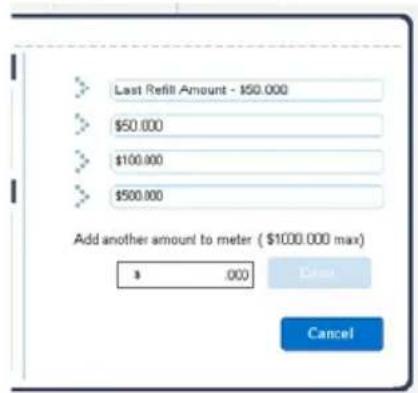
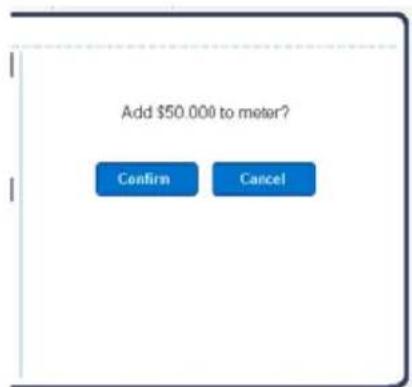
Feature Tabs (Enhanced Version)
Supplies
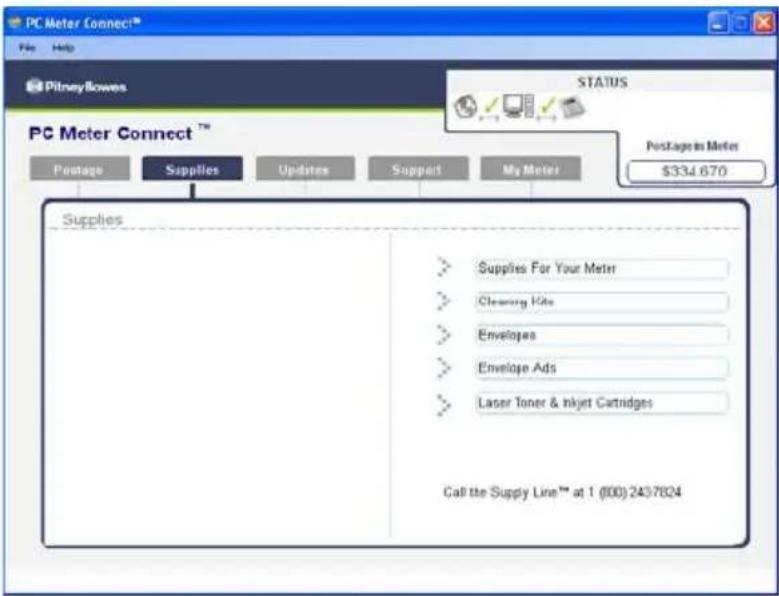
Supplies Tab - Main Screen
Task Panel
Provides links to the Pitney Bowes support website to order:
- Supplies
- Cleaning Kits
- Envelopes
- Envelope Ads
- Laser Toner and Ink Cartridges
Feature Tabs (Enhanced Version)
Updates
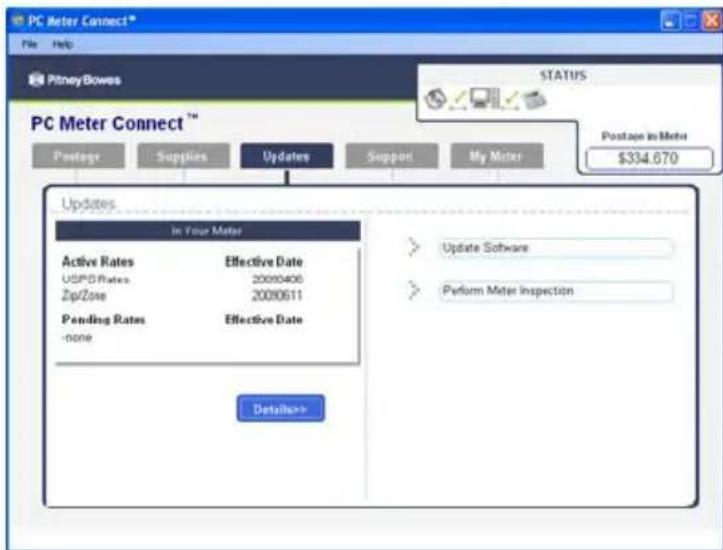
Updates Tab - Summary Mode Screen
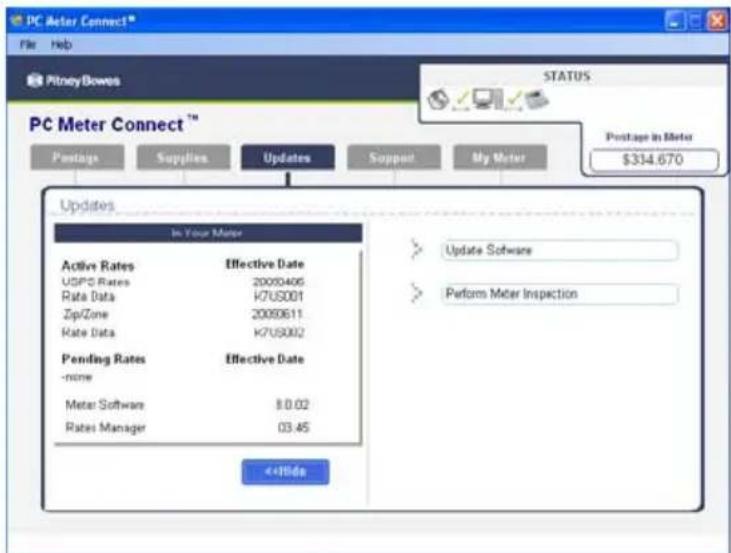
Updates Tab - Detail Mode Screen
Support Information
Provides the rate version information stored in your system, in either a summary or detail mode.
Task Panel
Allows you to connect to the Pitney Bowes Data Center and:
- update the mailing system
• perform a meter inspection
Feature Tabs (Enhanced Version)
Support
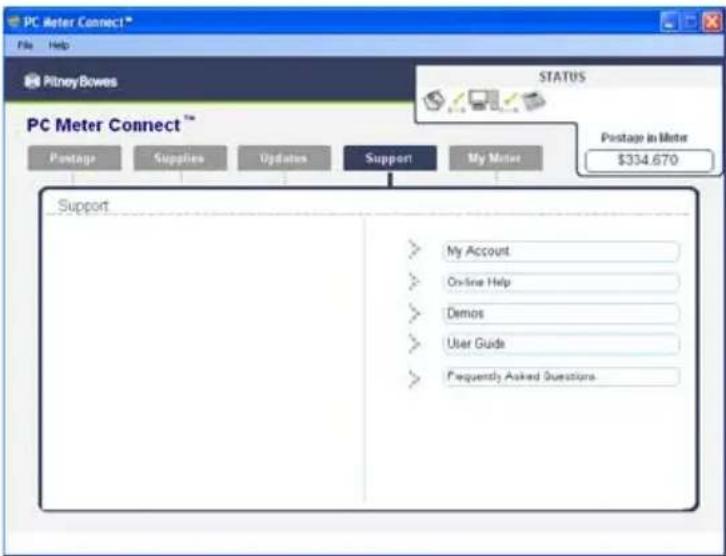
Support Tab - Main Screen
Task Panel
Provides links to the Pitney Bowes support website for:
• My Account
- On-line Help
• Demonstrations (Demos) about your machine
- PDF of this guide
• Frequently Asked Questions (FAQs)
Feature Tabs (Enhanced Version)
My Meter
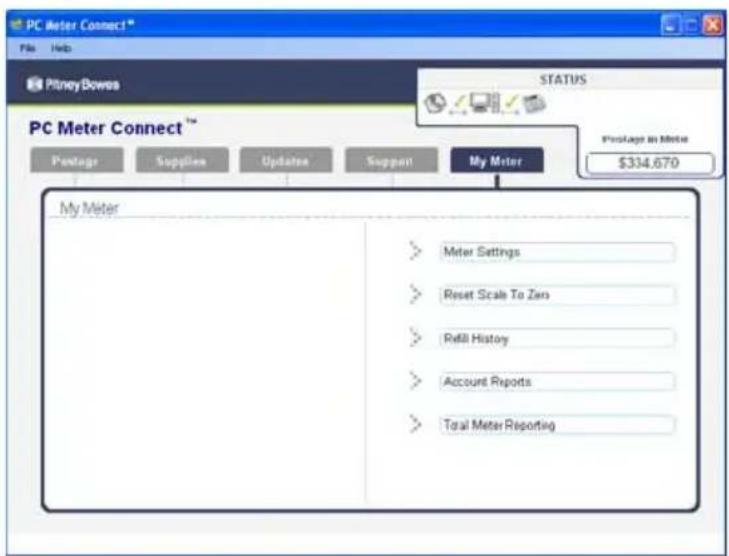
My Meter - Main Screen
Task Panel
Allows you to access to machine features such as:
- machine settings (date, time, preset, etc.). See next pages for details.
- resetting the scale to zero (see Chapter 7 - System Options)
- a postage refill history, either onscreen or by printing a report (see Chapter 9 - Reports)
- viewing or printing accounting reports (see Chapter 8 - Standard Accounting)
- link to INVIEW™ Total Meter Reporting on the Pitney Bowes website (if you have purchased that optional feature)
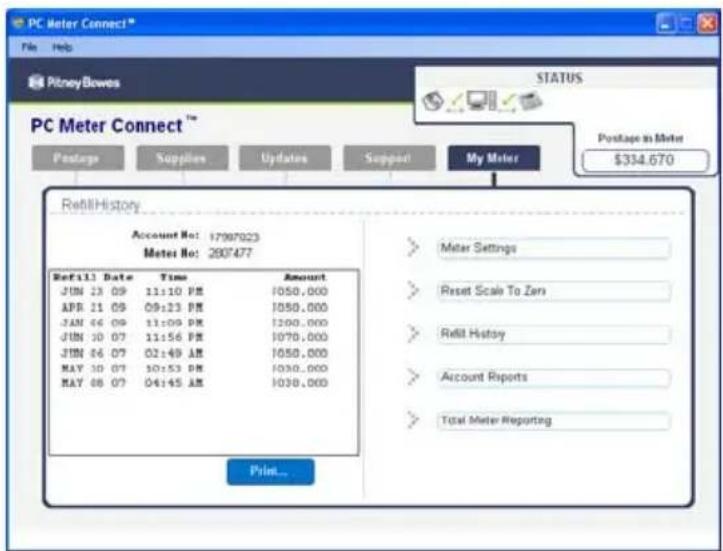
My Meter - Refill History Screen
Feature Tabs (Enhanced Version)
My Meter (cont'd)
Task Panel
The Meter Settings screen (see below) provides access to these additional machine features:
• Date and Time (see Chapter 4 - Printing Options)
- Ads and Inscriptions (see Chapter 4 - Printing Options)
- Warnings (see Chapter 7 - System Options)
• Weight Hold (not implemented on this model)
• View Preset (see Chapter 5 - Normal and Custom Presets)
- Change Preset (see Chapter 5 - Normal and Custom Presets)
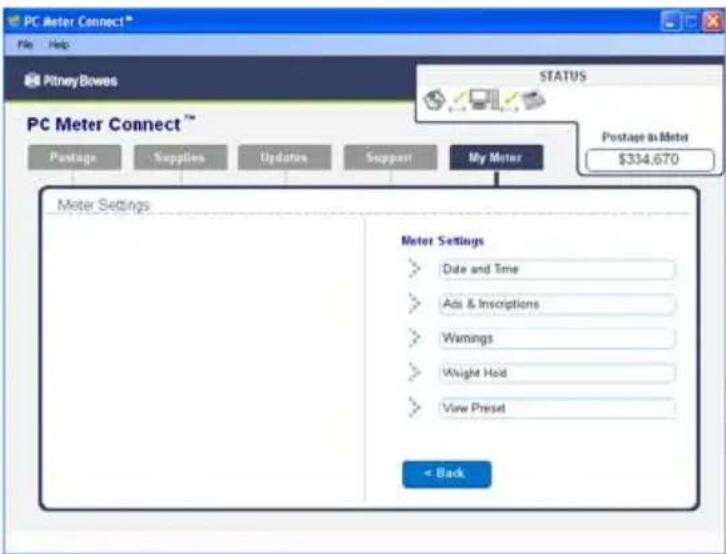
My Meter - Meter Settings Main Screen
Date and Time
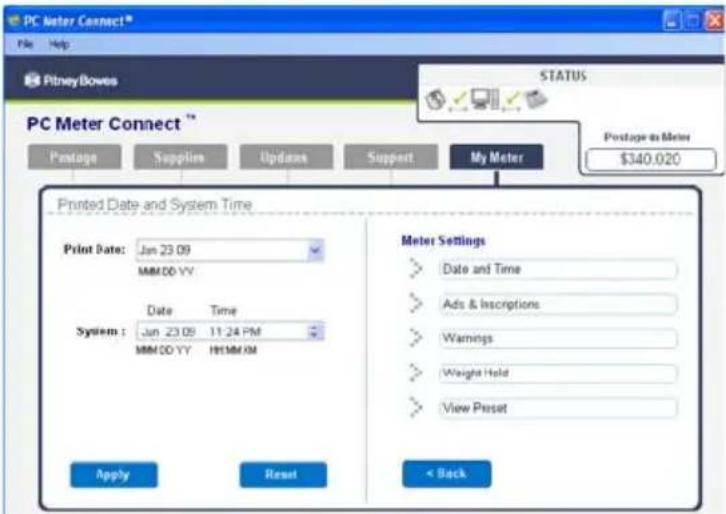
My Meter - Meter Settings Screen - Date and Time
Feature Tabs (Enhanced Version)
My Meter (cont'd)
Task Panel
Ads & Inscriptions
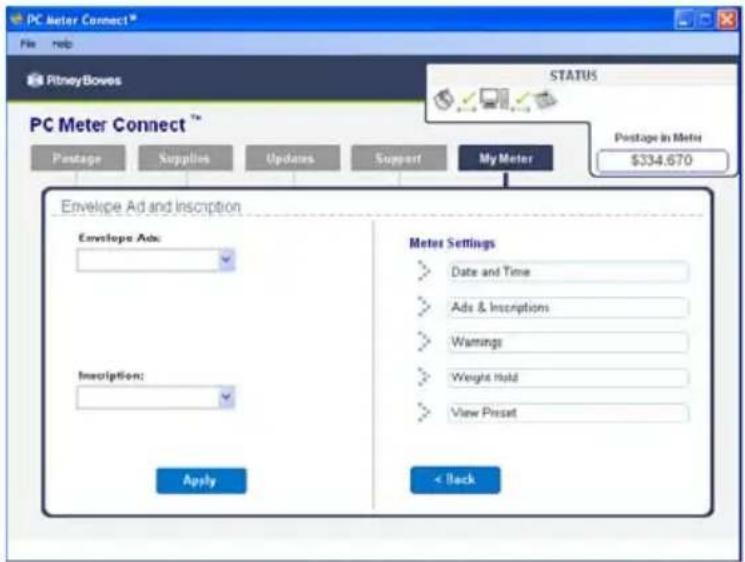
My Meter - Meter Settings Screen - Ads & Inscriptions (None Chosen)
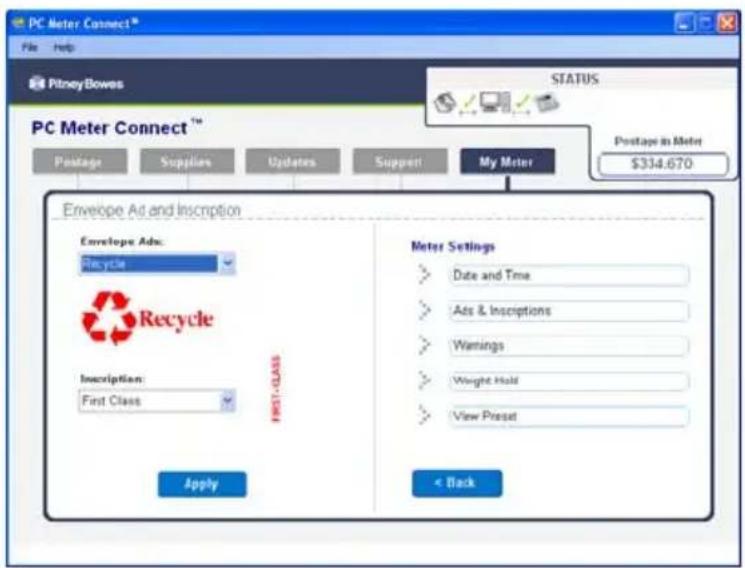
My Meter - Meter Settings Screen - Ads & Inscriptions (Chosen)
Feature Tabs (Enhanced Version)
My Meter (cont'd)
Task Panel
Warnings
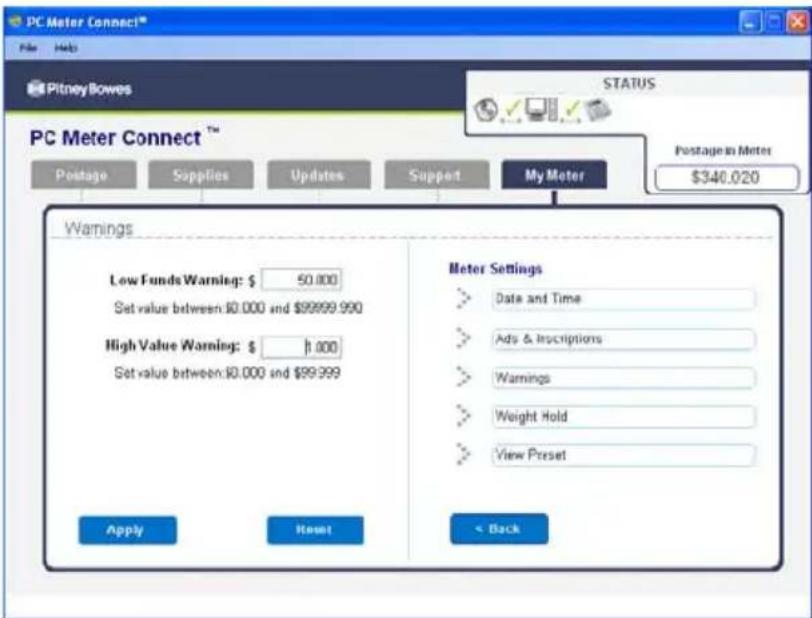
My Meter - Meter Settings - Warnings Screen
Task Panel
View Preset
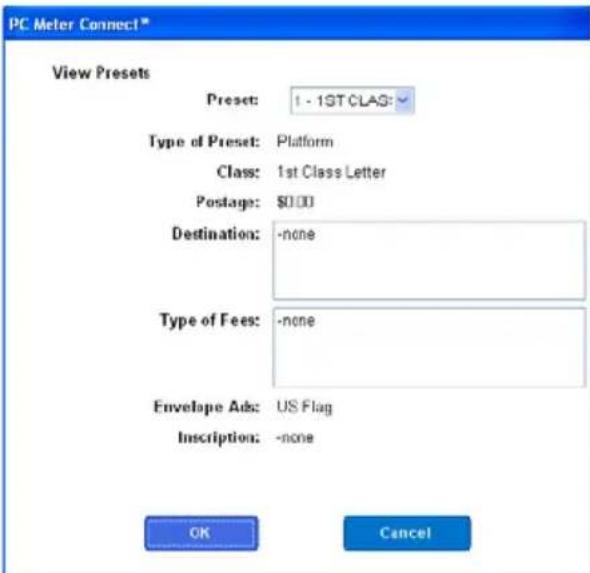
My Meter - Meter Settings Screen - View Preset
Troubleshooting
IMPORTANT:
- When using PC Meter Connect™, disconnect the analog line to your mailing machine.
- If you want to use the analog phone line method of connecting to the Data Center, unplug the USB cable from the back of the machine, then connect the analog phone line.
- If you have virus checking/firewall software installed on your PC (e.g., Norton, McAfee, etc.), please check your settings to ensure that FTP downloads are allowed. If FTP downloads are restricted, this will interfere with your machine downloading information from the Pitney Bowes Data Center when using PC Meter Connect™. If necessary, contact your network/IT administrator to confirm the proper settings.
- If you install PC Meter Connect™ on a PC with other Pitney Bowes applications, you will need to exit PC Meter Connect™ before you can use the other Pitney Bowes applications. Simply right-click on the PC Meter Connect™ icon in the system tray and select Exit to exit PC Meter Connect™. To restart PC Meter Connect™, just double-click on the PC Meter Connect™ desktop icon.
Displaying PC Meter Connect™ Icon on System Tray
If you minimize or close the PC Meter Connect™ window, the application will still be running in the background as indicated by the icon in the system tray. If you cannot see the PC Meter Connect™ icon in the system tray and you want to verify that the program is running, follow these steps to display all icons on your system tray.
- On your desktop taskbar (usually located on the bottom of your screen, although it may be moved to any side of your screen), right click on a blank area.

Blank Area of Desktop Taskbar
- Click on Properties from the list of choices that displays.
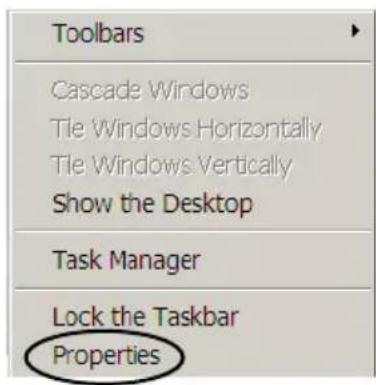
- At the Taskbar and Start Menu Properties window, on the Taskbar tab, verify that the Hide inactive icons field is unchecked (blank). If necessary, click to uncheck it. Click OK to finish.
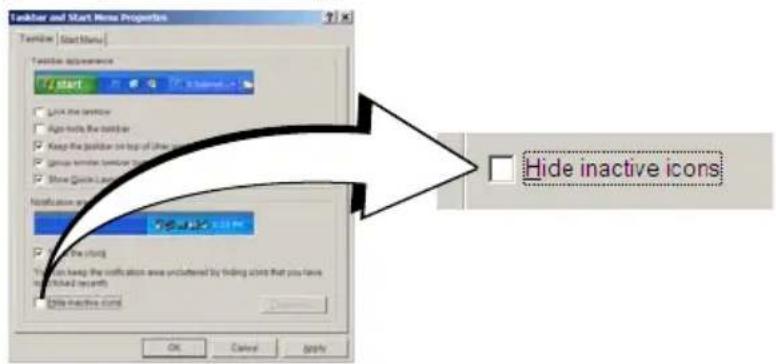
- If you see the PC Meter Connect™ icon in the system tray, you know the program is running. If you need to start the application, simply double-click the PC Meter Connect™ desktop icon (see figures on previous page).
Problems Connecting to the Data Center via the PC
You cannot access www.pb.com from your PC using Internet Explorer
Contact your IT administrator for any special setup needed to enable your PC and Internet Explorer to access the Internet.
Problems Connecting to the Data Center via the PC
You can access www.pb.com using Internet Explorer but PC Meter Connect™ cannot detect the Internet.
- Right click on the PC Meter Connect™ tray icon and select "Internet Settings...".
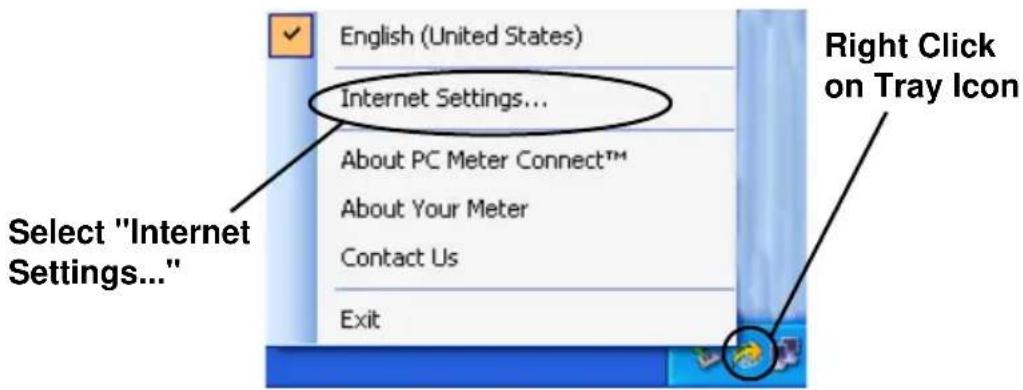
- At the Internet Settings configuration screen, do either of the following: Solution A - Set your PC Meter Connect™ to use the same settings that Internet Explorer uses to connect to the Internet. Choose "Use Internet Explorer proxy settings" under Proxy Address Assignment (see screen below) and click OK.
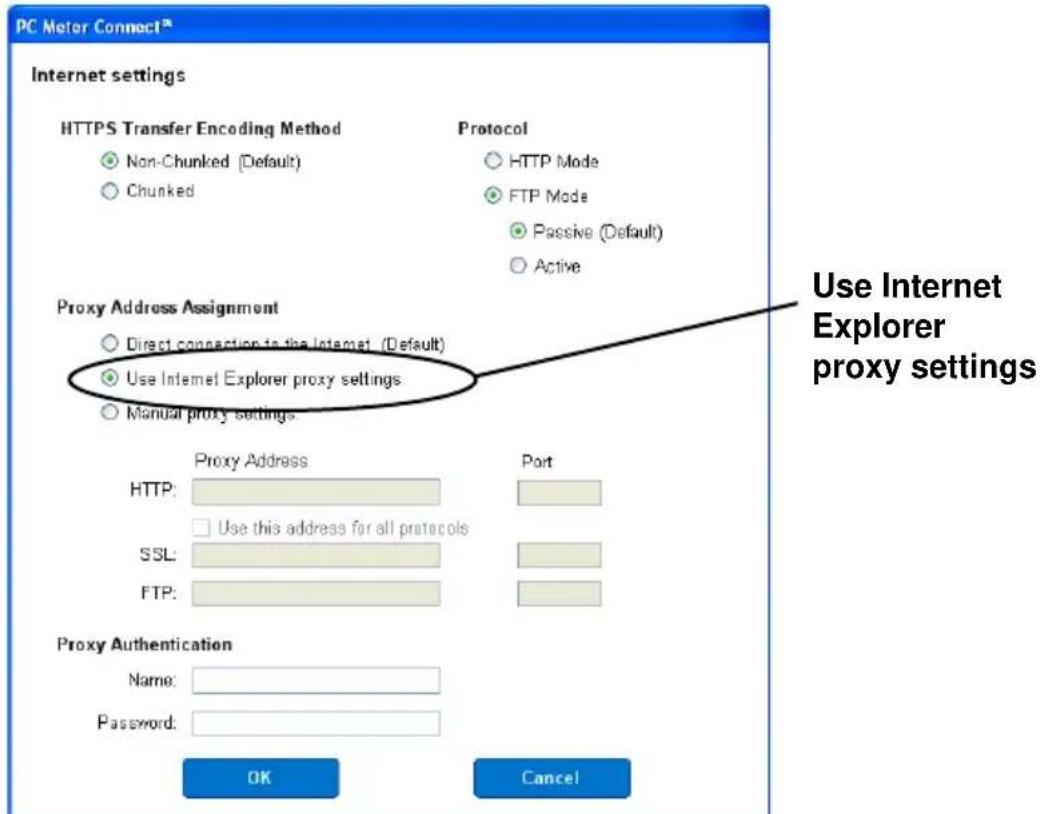
Internet Settings Screen in PC Meter Connect™
continued->
Problems Connecting to the Data Center via the PC
You can access www.pb.com using Internet Explorer but PC Meter Connect™ cannot detect the Internet (continued)
Solution B - Enter your own network's Proxy Address and Authentication settings (if used). Contact your IT administrator for these settings. Click "Manual proxy settings", and enter the proxy settings and proxy authentication (if used) provided by your IT administrator (see screen below). Click OK.
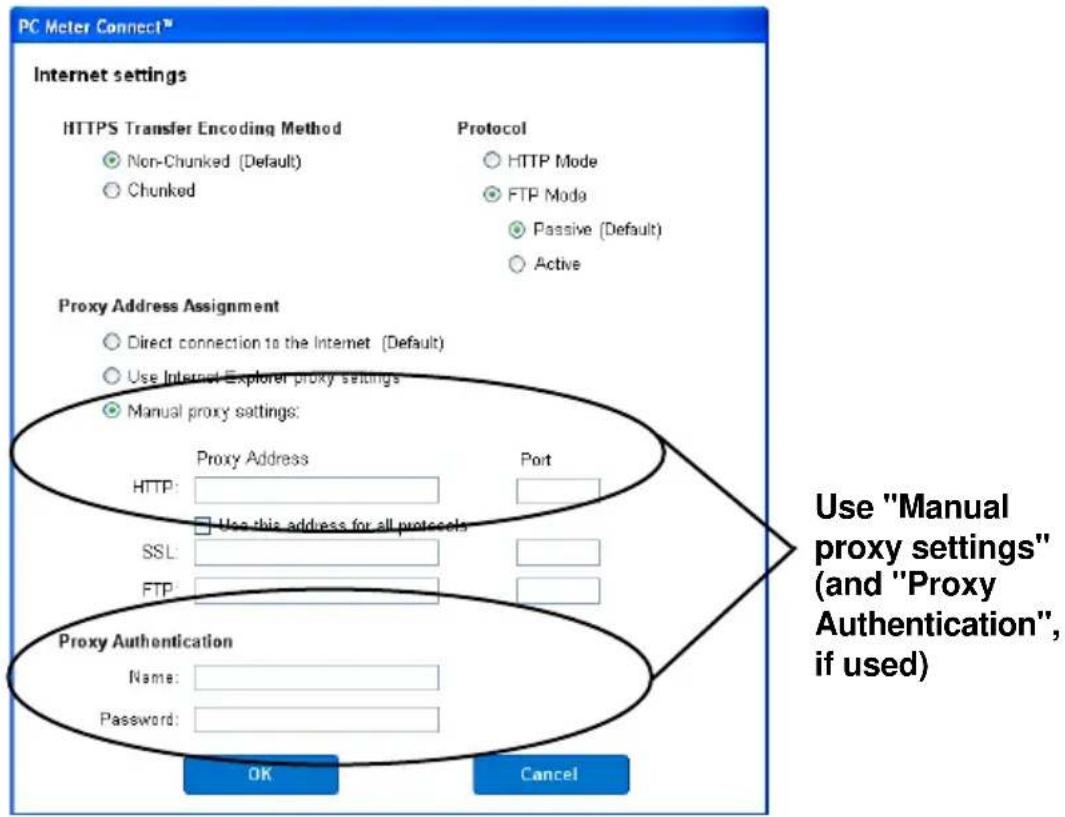
Internet Settings Screen in PC Meter Connect™
Problems Connecting to the Data Center via the PC
You can access www.pb.com using Internet Explorer but you are having problems downloading files to your machine.
- Right click on the PC Meter Connect™ tray icon and select "Internet Settings...".
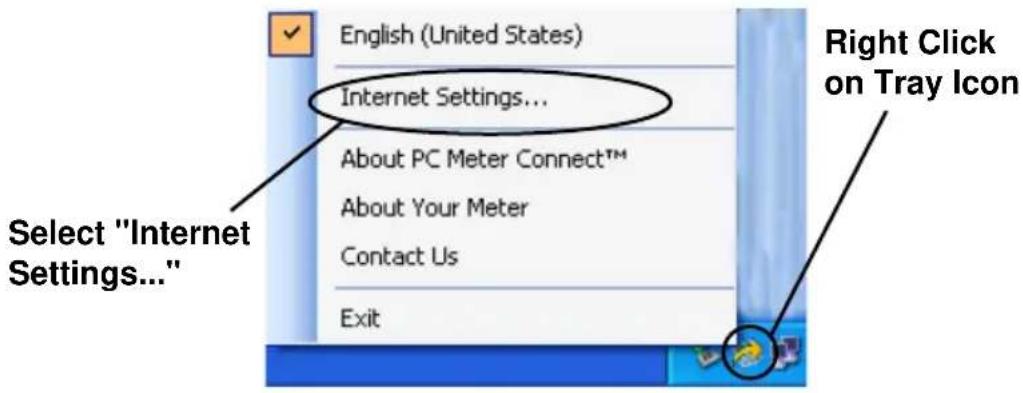
- At the Internet Settings configuration screen, choose "Active" for FTP Mode (see screen below) and click OK.
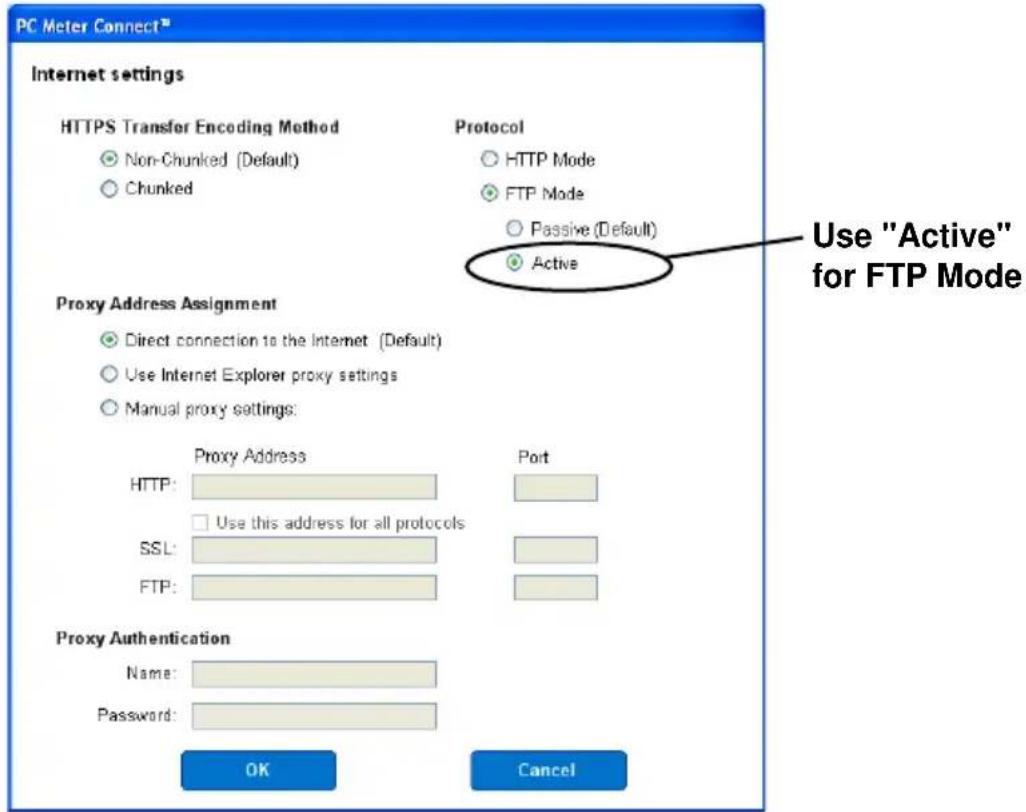
Internet Settings Screen in PC Meter Connect™
Appendix B · How to Enter Text
When is Text Entry Used?
Text is entered for these functions:
• International mail (selecting a country)
- Entering Canada and UK Postal Codes
- Naming a Custom Preset
- Naming an Account in the Departmental Accounting feature
How is Text Entry Done?
Text entry is done via the numeric keypad in a fashion similar to current cell phone text entry. Each key, 2 through 9, has three or four letters displayed above it.
There is no dedicated key to switch between alpha and numeric mode. On those screens (and only those screens) where either an alpha or numeric character may be entered (e.g. preset names, postal codes, account names), press a numeric key to cycle through the 4 possibilities for that key. For example, pressing the "2" numeric key cycles through "2" - "A" - "B" - "C". Extended character sets are provided for foreign markets on a country-by-country basis. In those cases, a numeric key may be pressed more than four times to cycle through the complete character set associated with a key.
Postal Codes
In postal codes, all alpha characters are uppercase. For non-US postal codes that follow a fixed format of alpha and numeric characters, only the appropriate alpha or numeric in each specific position is allowed.
Custom Preset Names and Account Names
For Preset names, and Account names, the first letter of the first word automatically defaults to uppercase.
If you wish to enter two consecutive alpha characters that are located on the same numeric key (such as “DE”), you must wait for the cursor to automatically move right to the second character’s position before entering the second character. There is about a 1-second delay following an alpha entry before the cursor moves one position to the right.
Special Characters
Special characters are accessed by repeatedly pressing the "1" key. Special characters include:
| Symbol Name |
| , Comma |
| * Asterisk |
| . Period |
| : Colon |
| $ Dollar sign |
| - Minus sign (dash) |
| ? Question mark |
| / Forward slash |
| \ Back slash |
| ( Open parenthesis |
| ) Close parenthesis |
| ! Exclamation point |
| @ “At” sign |
| + Plus sign |
| # Number sign |
| ^ Carrot |
| = Equals |
| & Ampersand |
| % Percent |
| _ Underscore |
| " Quotation mark |
The zero (0) key on the keypad functions as the space key. The word "Space" is printed on the machine to indicate this.
The decimal point key (.) functions as the Shift key. The word “Shift” is printed on the machine to indicate this. This key toggles between “all uppercase letters” and “all lowercase letters.” The current mode is presented on line 4 of the display. ABC to indicate the uppercase mode, or abc to indicate the lowercase mode.
Appendix C · Glossary
Account—set up when using the Standard Accounting option. An account can be an organization, person, department (e.g., “Sales”), or project to which postage is charged. You can assign a unique name to each. The machine stores the total postage used and the number of mail pieces processed for each account. The total number of accounts available on your machine depends on the option purchased.
Advertisement, Envelope—An advertising message that appears next to the machine's meter stamp. You can choose from an array of standard and custom ads.
Analog Line—a "standard" phone line supplied by the phone company. You use an analog phone line when you connect to the Pitney Bowes Data Center using your machine's modem. Analog phone lines are usually Fax lines, residential phone lines, and lines used by modems or credit card readers. See also Digital Line
Default—A value or setting the machine automatically uses unless you change it. As delivered, your machine has fac to ry-set defaults or “normal” settings. You may change these if you wish.
Digital Line—a type of line used on digital phone systems (so called PBX systems). Many PBX manufacturers have designed phone systems that deliver much more current to the phone than does a "standard" analog phone line supplied by the phone company. As a result, if you connect your machine's modem to a PBX digital line, thinking that it's an analog line, you could damage your modem with too much current and not even know it.
Home Screen—The machine display that shows your current selections. It indicates that you're ready to print post age.
Inspection—The process of examining the postage usage through the machine to assure accurate postal funds ac counting. Your machine is subject to remote in spec tion when ever you add postage to it. If you haven't re filled your machine for 90 days, the dis play shows the mes sage "Connection Due". If you haven't re filled it for 120 days, you'll see "Connection Required By Post".
To do an inspection, simply add postage or connect to the Data Center.
IntelliLink®—A Pitney Bowes technology that allows you to download machine features, postal rates, and sys tem updates via a digital link.
Lock Code—A four-digit code that can be set up which acts as a pass word to gain access to the machine after it powers up or after it is awakened from a sleep mode.
Meter Stamp—The imprint produced by the machine (machine stamp or indicia). Depending on your settings, it may include:
- The indicia (includes the postage amount, date, ZIP code, etc.)
- An advertisement, which is an optional part of the machine stamp that lets you convey your own special message to the mail recipient.
Modem—a device on your machine for connecting to the Pitney Bowes Data Center over a standard (analog) telephone line. This modem should NOT be connected to a digital line (as is used on most PBX systems in offices).
Origin Postal Code—The Postal Code assigned to your city or town. Mail processed on your machine must be posted from a location in your Postal Code area.
PC Meter Connect™—a small desktop software application you install on your PC to allow your machine to connect to the Pitney Bowes Data Center through your PC's Internet connection rather than over a standard telephone line. Postage refills and system updates can be completed efficiently and much quicker via the Internet.
Postage-By-Phone®—A service available through Pitney Bowes that allows you to buy postage and check ac count status via a phone line or the Internet. It also permits convenient postal inspection.
Presets—A custom machine setting you can call up instantly at the push of a button. You can assign each pre set a num ber of values, depending on the postage mode you're in, how your machine is set up and what options are in stalled. A preset will always have a name and postage amount, and could also have an ac count, ad, class of ser vice, operating mode and other val ues assigned to it.
Serial Number—The serial number found on the rear of the machine.
Sleep Mode—An energy-saving feature of your machine that clears the display after a certain period of idle time. Press ing any key wakes up the display.
Standby Mode (DM125/DM225 only) – The lowest power consumption mode that may persist for an indefinite time when the product is connected to an outlet and switched "off" at the back of the machine. Standby is the product's minimum power mode.
Supervisor Password—A four-digit code that can be set up to protect unauthorized users from changing accounts when using the Standard Accounting feature.
Tape Sheets—A sheet of self-adhering paper which you print postage on and apply to a piece of mail or package that is too big or thick to be processed through the machine.
Appendix D • Specifications
Equipment
| Size DM100i/DM200L | Base Model 8.5" (215 mm) H x 13.6" (345 mm) W x 15.8" (401 mm) DWith Scale 8.9" (226 mm) H x 13.6" (345 mm) W x 15.8" (401 mm) DWith Scale and Moistener 8.9" (226 mm) H x 18.5" (470 mm) W x 15.8" (401 mm) DDM125/DM225Base Model 9.7" (246 mm) H x 13.6" (345 mm) W x 15.8" (401 mm) DWith Scale 10.1" (257 mm) H x 13.6" (345 mm) W x 15.8" (401 mm) DWith Scale and Moistener 10.1" (257 mm) H x 18.5" (470 mm) W x 15.8" (401 mm) D |
| Weight DM100i /DM125i | 15 lbs. (6.8 kg)DM200L/DM225L 16 lbs. (7.3 kg) |
| Power Requirements | 100-240 VAC, 50/60Hz. 1.0A |
| Ports DM100i/DM200L | 1 USB Slave, 1 RJ-11DM125/DM225 2 USB Host, 1 USB Slave, 1 RJ-11 |
| Operating Temp. 40°F | (4°C) to 108°F (42°C) |
| Sound Level Machine | noise is less than 70dba in accordance with EN ISO 7779, and ANSI 12.10. |
| LCD Display 4 lines, 20 characters long | |
| Throughput DM100i Up | up to 30 letters per minuteDM125 Up to 35 letters per minuteDM200L Up to 40 letters per minuteDM225 Up to 45 letters per minuteActual through put will vary, depending on the ma te-ri al used, ma chine condition, use of moistener, etc. |
| Print Resolution 600 x | 400 dpi |
| Print Image Area At le | ast 1" (25.4 mm) x 6-5/8" (170 mm) |
| Ink Cartridge Life Up | to 3,000 impressions without an envelope ad.Actual ink yields vary with usage, graphics printed and environmental conditions. |
| Tape Sheets | Self-adhesive type, dual tape sheets for use on mail pieces that are too thick/ large to run in machine. |
| Envelope Ads | Up to 20 (internally held) |
| Postal Inscriptions | Up to 20 (internally held) |
| Maximum Imprint | $99.999 |
Material (see also figure below)
| Minimum Size 5" x 3" (127 mm x 76 mm) |
| Maximum Size 15" x 13" (381 x 330 mm) |
| Minimum Flap Depth 7/8" (22 mm) |
| Maximum Flap Depth 3" (76 mm) |
| Minimum Thickness 0.007" (0.18 mm) |
| Maximum Thickness 3/8" (9.5 mm) |
| Maximum Stack Height for Mail 2.5" (60 mm) |
IMPORTANT: For best results, always make sure your material conforms to these specifications.
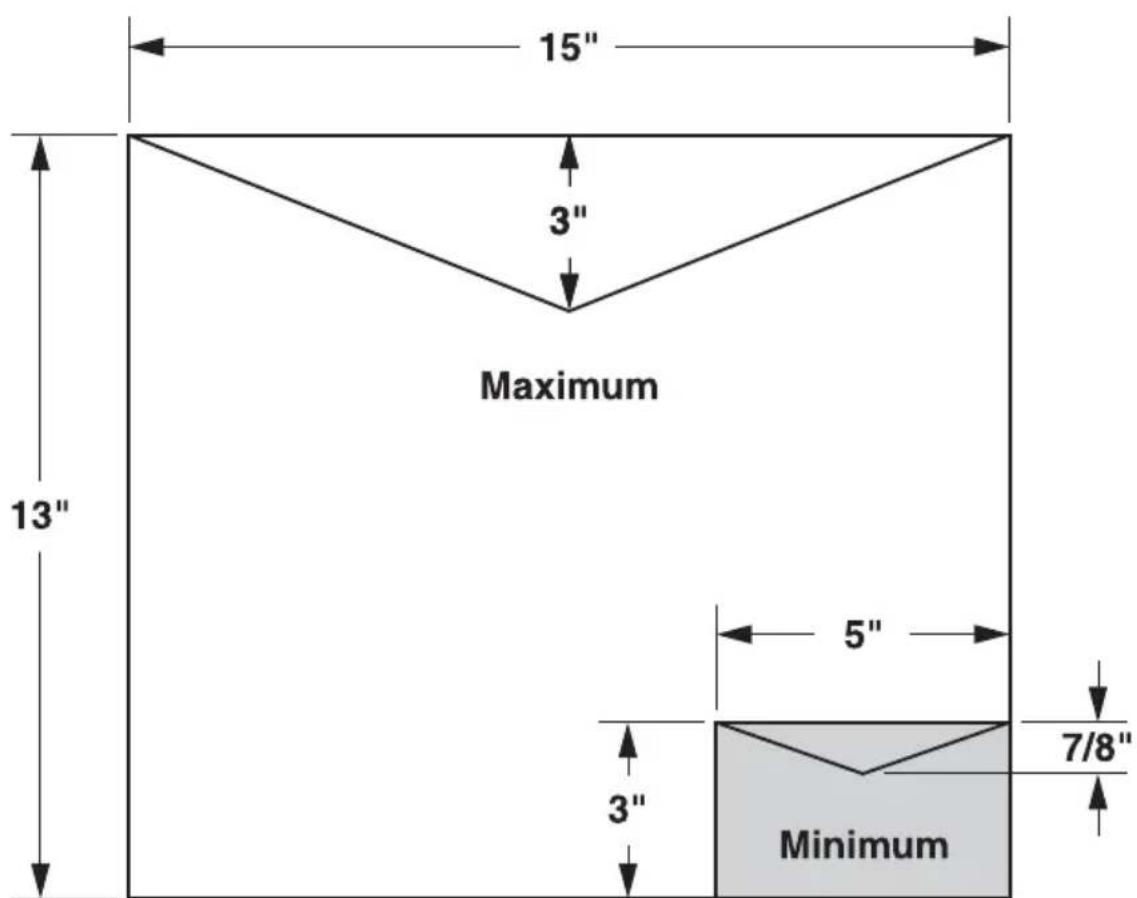
Index
A
Accounting, Standard
Activating/Setting Up Standard Accounting (List of Steps) 8-2
Clearing All Accounts 8-17
Clearing One Account 8-16
Creating an Account 8-8
Deleting an Account 8-18
Displaying Totals 8-12
Editing Account Names and Setting Up Passwords 8-9
Printing a Multi-Account Summary Report 8-14
Printing a Single Account Report 8-13
Selecting an Account to Track Postage 8-11
Standard Accounting Overview 8-1
Turning Off Account Passwords (Globally) 8-7
Turning Off Standard Accounting 8-5
Turning On Account Passwords (Globally) 8-6
Turning On/Off 7-6
Turning On Standard Accounting 8-4
Account List Report (Accounting) 9-8
Account No., Refi II Receipt Listing 6-10
Adding Funds (Postage)
To your machine 6-10
To your Postage-By-Phone Account 6-1
Add Postage Report 9-4
Advertisement, Envelope
Downloading 4-10, 6-2
Glossary Entry C-1
Printing 4-9, 4-10
Analog Phone Line
Establish communications to data center 6-7
Glossary Entry C-1
Applying Postage
Entering Weight Manually 3-6
Keying In the Postage Directly 3-5
Overview 3-4
Using Differential Weighing 3-8
Using the Weighing Platform (Scale) 3-7
Auto-Advance of Printed Date
Effects on Meter Stamp 4-2
Setting 7-10
Auto-Rating, Turning On/Off 7-6
B
Barcode Scanner, Configuration with Machine 7-23
Batch Count
Checking/Viewing 3-10
Clearing 3-11
Printing 3-11
C
Change Language 7-23
Checking Account Balance in Postage by Phone® System 6-9
Checking Funds (Postage) Availability in Machine 6-8
Class
Preset Class Lookup Feature, ON or OFF 7-7
Selecting When Rating Mail 3-6, 3-7, 3-8
Setting Class Change Options 7-21
Setting Weight Change Options 7-20, 7-21
Communications, Establishing Between Your Machine and Data Center
Analog Phone Line 6-7
LAN Network (Constant Connection) 6-5
Overview 6-1
PC Meter Connect™ 6-6
Configuration Levels of Machine, Viewing 11-11
Configuration Report, Machine Levels 9-11
Confir rmation Services Records Report (USPS) 9-9
Connecting to Data Center.See Data Center (Pitney Bowes)
Connections on Back of Machine
DM100i/DM200L 2-6
DM125/DM225 2-7
Constant Connection (LAN Network) 1-5, 6-5
Contrast, Adjusting of LCD Dispaly 7-5
Control Panel
Description 2-4
Figure 2-4
Location 2-3
Credit Line Available, Refi II Receipt Listing 6-10
Custom Presets.See Presets
D
Data Center (Pitney Bowes)
Connecting via Analog Phone Line 6-7
Connecting via LAN Network (Constant Connection) 6-5
Connecting via PC Meter Connect™ 6-6
Settings Used for Connecting 6-16
Data Center, Problems Connecting
via Analog Line 6-17, 11-5
via LAN network 6-20, 11-6
via the PC 6-21, 11-7, A-19
Date
Auto-advance of date 4-2, 4-3, 4-4, 7-10
Manually changing printed date 4-2, 4-3, 4-4
Omitting/Restoring on Meter Stamp 4-6
Daylight Savings, Setting 7-11
Default
Glossary Entry C-1
Dial Prefix, Settings 6-17
Digital Line
Glossary Entry C-1
Display, Adjusting Contrast 7-5
Display Problems
Blank 11-1
Hard to Read 11-2
Distributor Values, Setting 6-22
Documentation (Sources of Information) 1-6
Downloads from the Data Center to Your Machine
Downloading Files or Updating System 6-2, 6-15, 6-16
Envelope Ads/Postal Inscriptions 6-2
Overview 6-2
Postal Inspection 6-3
Postal Rate Update 6-4
Postal/ZIP Code Update 6-3
System/Software Update 6-2
Upload Pending Electronic USPS Confirmation Service Records 6-3
Drift (for Time), Correcting 7-11
E
Enter/Yes Key 2-4
Envelope
Feeding Problems 11-2
Proper Feeding 3-5, 3-6
Sealing Only 4-5
Envelope Ad, Using and Downloading 4-9, 4-10
Envelope Specifications D-2
Equipment Specifications D-1
Error Report 9-12
Establishing Communications Between Your Machine and Pitney Bowes Data Center 6-1
External printer 2-7
External weighing platform 2-7
E-Z Seal®
Filling Moistener 10-4
Order Number 12-1
F
Feature Keys 2-4
Features of System, Overview 1-2
Feed Deck 2-3
Feeding Problems 11-2
Figures of All Models 2-1
Firewall Settings, Connecting to Data Center 6-21
Firmware, Viewing Level of 11-11
Funds (Postage)
Adding to Machine 6-10
Checking account balance in Postage by Phone® System 6-9
Checking in Machine 3-1, 3-2, 6-8
Report Printing 6-13
Setting Warnings 7-13, 7-14, 7-15
Withdrawing 7-24
Funds Report (Register Report) 9-3
G
Glossary C-1
H
Help, Getting 11-1
High value Warning, Explanation and Setting 7-13
Home Screen 3-1
Glossary Entry C-1
I
Illustration, of mailing systems 2-1, 2-2
Indicia.See Meter Stamp (see also "Printing")
Ink Cartridge
Messages Indicating Replacement 10-1
Order Number 12-1
Replacing 10-2
Ink Out, Message 10-1
Ink Waste Tank
Location 2-3
Messages Indicating Replacement 10-1
Inspections, Postal
Fulfi lling USPS requirements 6-14
Glossary Entry C-1
Installation Procedure, PC Meter Connect A-2
Installation Requirements, PC Meter Connect 1-5, A-2
Install Mode, Run 7-26
IntelliLink® 1-4
Glossary Entry C-1
L
Language, Change 7-23
LAN Network (Constant Connection)
Establish Communications with Data Center 6-5
LAN Settings 6-20
LCD Display
Location and Use 2-4
Troubleshooting 11-1
LED, Location 2-3
Lock Code
Glossary Entry C-1
Setting 7-16, 7-17
Using at the Home Screen 3-1
Lock/Power Key 2-4
Low Funds Warning 7-15
Low Ink, Message 10-1
M
Machine Settings.See System Options
Manually Changing Printed Date for the Meter Stamp 4-2
Manually Entering Weight 3-6
Material Specifications D-2
Messages Indicating Ink Cartridge Replacement 10-1
Messages Indicating Waste Ink Tank Replacement 10-1
Messages on the LCD Display 11-1
Meter Serial Number, Location on Refi II Receipt 6-10
Meter Stamp (see also "Printing")
Figure showing sections of 1-4, 4-1
Glossary Entry C-2
Manually changing printed date 4-1
Printing a \$0.00 Meter Stamp 4-2
Meter Withdrawal (Withdrawing Postage Funds) 7-24
Metric Weight, Viewing 7-19
Model Number v
Modem
Glossary Entry C-2
Settings 6-19
Moistener
Brush, Order Number 12-1
Description/Location 2-3
Filling 10-4
Maintaining 10-5
Problems (envelopes don't seal) 11-4
Removing and Cleaning the Moistener Brush 10-5
Removing and Cleaning the Moistener Wick and Holder 10-7
Wick, Order Number 12-1
Multi-Account Summary Report (Standard Accounting) 9-6
N
No Key, Location of 2-4
Normal Preset.See Presets
0
Options.See Machine Settings
Origin Postal Code
Glossary Entry C-2
Overview, of Manual 1-1
P
Page Up/Page Down keys 2-6, 2-7
Parts of the Machine
Descriptions 2-3
Figures 2-2
Passwords
Access On the Home Screen 3-1
Setting/Disabling Lock Code 7-16
Setting/Disabling Supervisor Password 7-17
Setting Up for Standard Accounts 8-9
Turning Off Account Passwords (Globally) 8-7
Turning On Account Passwords (Globally) 8-6
PC Meter Connect
Accessing Features from System Tray Icon (Basic Version) A-4
Accessing Features from System Tray Icon (Enhanced Version) A-5
Access/Launching the Application A-3
Basic Version (DM100i/DM200L) 1-5, A-1
Connection Status Icons A-7
Displaying PC Meter Connect™ Icon on System Tray A-18
Enhanced Version (DM125/DM225) 1-6, A-1
Establish communications to data center 6-6
Features Overview (Basic & Enhanced) 1-5, 1-6, A-1
Installation Procedure A-2
Installation Requirements 1-5, A-2
Main Window A-6, A-7
Messages from Meter A-8
My Meter Tab A-13
Postage Tab A-9
Problems Connecting to the Data Center via the PC A-19
Problems (not Data Center related) A-17
Supplies Tab A-10
Support Information A-8
Support Tab A-12
Task Panel A-8
Updates Tab A-11
Phone Jack, Analog Line 2-6, 2-7
Phone Line, Analog Settings 6-17, 6-18, 6-19
Postage
Adding funds (postage) to your Postage By Phone® account 6-1
Adding to Machine 6-10
Applying 3-4
Checking Funds in machine 3-1, 3-2, 6-8
Connecting to Data Center to Add 6-1
Definition of Postage in Meter on Report 6-10
How it is Stored in Your Meter 6-1
How to Check Account Balance in Postage by Phone® System 6-9
Keying in Postage Directly 3-5
Minimum Amount for Adding to machine 6-11
Printing a Funds (Postage) Report 6-12
Printing a Receipt After Downloading 6-13
Setting Funds Warning 7-13, 7-14, 7-15
Tracking by Selecting an Account 3-3
Withdrawing Funds 7-24
Postage-By-Phone®
Changing Phone Number 6-18
Checking your account balance 6-9
Glossary Entry C-2
Postal Class, Setting a matching inscription 4-7
Postal Inscription
Downloading 4-8, 6-2
Printing 4-1, 4-7, 4-8
Postal Inspection 6-14
Postal Requirements 1-3
Power Key 2-4, 2-7
Power Receptacle
DM100i/DM200L 2-6
DM125/DM225 2-7
Power Switch (DM125/DM225) 2-7
Preset Class Lookup, ON or OFF 7-7
Presets
Custom, Defining New 5-8
Custom, Deleting 5-11
Custom, Description 5-6
Custom, Editing Preset Name 5-11
Custom, Selecting 5-7
Custom, Viewing the Values 5-9, 5-10
Glossary Entry C-2
Key Location 2-5
Normal Preset, Default Time Setting 7-8
Normal Preset - Defining New Values 5-5
Normal Preset - Description 5-2
Normal Preset - Viewing the Values 5-3
What is a Preset 5-1
Why Should I Always Include a USPS® “Class” 5-1
Why Should I Use Presets 5-1
Print Head
Purge 10-14
Replacing 10-8, 10-15
Test Print 10-13
Printing
Adding/Removing an Envelope Ad to the Meter Stamp 4-9, 4-10
Adding/Removing a Postal Inscription to Meter Stamp 4-7, 4-8
Adjusting Horizontal Print Position of Meter Stamp 4-13
Auto-Advance of Printed Date 4-2
Bypass all Printing and Only Seal the Envelope 4-5
Manually Changing Printed Date for the Meter Stamp 4-2, 4-3, 4-4
Omitting/Restoring Day or Date on the Meter Stamp 4-6
Printing a \$0.00 Meter Stamp 4-2, 10-1
Printing an Ad, Date, and Time Only (no meter stamp) 4-12
Printing a Report on Envelope/Tape Sheet 9-2
Printing a Report to an Attached Printer 9-2
Printing Options Overview 4-1
Printing the Date and Time Only (no meter stamp) 4-11
Print Tests 10-12
Problems 11-3
Purge, Prnt Head 10-14
Print Purge 10-14
Problems
Accidentally Printing the Wrong Postage 11-10
Connecting to Data Center via Analog Line 6-7, 11-5
Connecting to Data Center via LAN Network 6-20, 11-6, A-20
Connecting to Data Center via PC 6-21, A-19
Feeding 11-2
LCD Display 11-2
Moistening 11-4
Printing 11-3
Product Name v
R
Rates Summary Report 9-10
Refill Amount, Refill Receipt Listing 6-10
Register Report (Funds Report) 6-13, 9-3
Registration Wall 3-5
Replacing the Ink Cartridge 10-2
Replacing the Print Head 10-8
Reports
Account List Report (Standard Accounting) 9-8
Add Postage Report (Refi II) 9-4
Configuration Report 9-11
Confir rmation Services Report 9-9
Error Report 9-12
Funds (Register) Report 9-3
Multi-Account Report (Standard Accounting) 8-14, 9-6
Overview 9-1
Printing on an Envelope or Tape Strip 9-2
Printing to an Attached Printer 9-2
Rates Summary Report 9-10
Single Account Report (Standard Accounting) 8-13, 9-5
Special Services Report (USPS® Confirmation Services) 9-9
System Setup Report 9-8
Requirements
Postal, for Your Machine 1-3
Run Install Mode 7-26
S
Safety Notes 1-6
Safety, Telephone 1-8
Scale
Differential Weighing 3-8, 3-9
Location 2-3
Scale Stabilizer, ON or OFF 7-7
Setting Options 7-18, 7-19, 7-20, 7-21
Turning On/Off 7-19
Used in Applying Postage 3-7
Viewing Metric Weight 7-19
Zeroing the Scale 7-18
Screen Selection Keys, Location of 2-4
Seal Only Mode 4-5
Security.See Passwords
Serial Number
Glossary Entry C-2
Services, Special, Used during rating 3-6
Settings, Machine.See System Options
Single Accounts Report (Standard Accounting) 9-5
Sleep Mode 7-9
Glossary Entry C-2
Software/System Configuration, Viewing Levels of 11-11
Sources of Information 1-6
Special Characters, Text Entry B-2
Special Services Report (USPS® Confirmation Services) 9-9
Special Services (USPS), Conf i guration for 7-7
Specifications
Equipment D-1
Material D-2
Stacker Tray 2-3
Standard Accounting.See Accounting, Standard
Storage Drawer (DM200L/DM225 only) 2-3
Supervisor Password, Setting/Disabling 7-17
Supplies 12-1
Ordering v
System Configuration Levels, Viewing 11-11
System Options (Machine Settings)
Adjusting the Contrast of the Display 7-5
Advanced Options Overview 7-22
Advancing the Printed Date for the Meter Stamp 7-2
Barcode Scanner 7-23
Basic Options Overview 7-1
Change Language 7-23
Changing the Lock Codes and Passwords 7-16
Dial Prefix x 6-17
Distributor Values (connecting to Data Center) 6-22, 6-23
Meter Withdrawal (Withdrawing Postage Funds) 7-24
Modem 6-19
Overview 7-1
Phone Connection Settings 6-17, 6-18, 6-19
Purchasable Features on Machine 12-1, 12-2
Run Install Mode 7-26
Set Meter Stamp to Today's Date 7-5
Setting Postage Values (Funds Warnings) 7-13
Setting Scale Options 7-18
Settings for Connecting to the Data Center 6-16
Setting the Date, Time, and Timeouts 7-8
Tone/Pulse 6-17
Turning Features (Already Installed) On and Off 7-6
Zeroing the Scale 7-18
System Setup Report 9-8
T
Tape Sheets
Glossary Entry C-2
Order Number 12-1
Use in Applying Postage 3-4
Telephone (Analog Line)
Phone Parameters for Connecting to Data Center 6-17
Telephone, Safety 1-8
Test Print, Printing \$0.00 Meter Stamp 3-2, 10-13
Tests, Print Head 10-12
Text Entry
How to Enter B-1
Special Characters B-2
When it is used B-1
Time
Correcting Drift 7-11
Part of printing with Date on Meter Stamp 4-11, 4-12
Setting Daylight Savings 7-11
Setting System Time 7-12
Timeouts
for Normal Preset to Appear 7-8
Sleep Mode 7-9
Top Cover 2-2
Transport Release Lever 2-3
Troubleshooting.See Problems
U
United States Postal Service
Website v
USB Ports
DM100i/DM200L 2-6
DM125/DM225 2-7
USPS Meter Inspection, Perform 6-14
USPS Special Services, Conf i guration For 7-7
Utility Slot 2-3
W
Warnings, Ink Related 10-1
Weighing.See also Scale
Auto-rating with scale 3-7
Differential Weighing 3-8, 3-9
Entering Weight Manually 3-6
Platform Description/Location 2-3
Setting Options 7-20
Weighing Platform.See also Scale
Location 2-3
Wick/Brush Assembly, Order Number 12-1
Y
Yes/Enter Key 2-4
1 Elmcroft Road
Stamford, Connecticut 06926-0700
www.pitneybowes.com
PB Form SV62276 Rev. D 6/11
© 2011 Pitney Bowes Inc.
All Rights Reserved