Pick your language and provide your email: we'll send you a specifically translated version.
This manual is not available in your language
User questions about SEC-CAM901 KONIG
0 question about this device. Answer the ones you know or ask your own.
Ask a new question about this device
No questions yet. Be the first to ask one.
Download the instructions for your Surveillance Camera in PDF format for free! Find your manual SEC-CAM901 -
KONIG and take your electronic device back in hand. On this page are published all the documents necessary for the use of your device. SEC-CAM901 by KONIG.
USER MANUAL SEC-CAM901 KONIG
text_image
KÖNIG
ELECTRONIC
SEC-CAM901
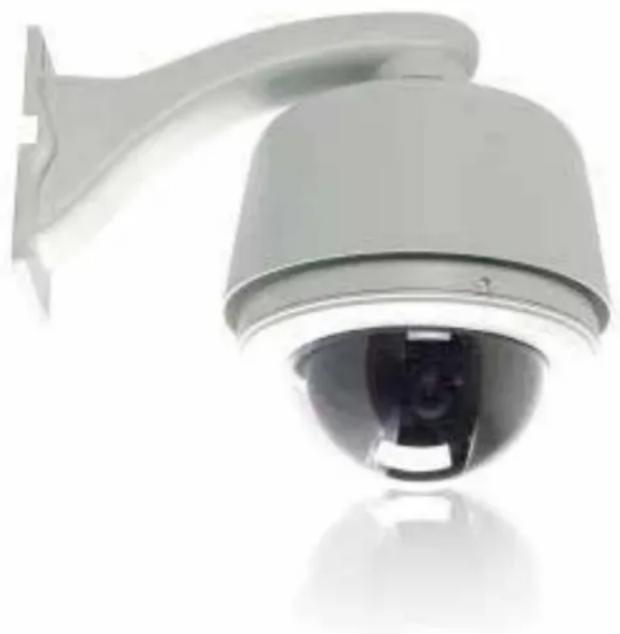
SPEED DOME CAMERA
intelligent operating manual
natural_image
Close-up of a security camera with a mounted sensor array (no visible text or symbols)
manual
Note::
- Read this manual carefully before installation and operation. Keep it handy for later reference.
◆ Multiple Integrated Camera/Optics Packages
◆ Graceful outlook, Vandal proof available
◆ System preheat in low temperature environment
◆ Programmable Multi-protocol
◆ 360° continuous pan, 180° Tilt “Auto Flip”
◆ 4 tours(27 presets/tour), 4 patterns, 4 cruise
◆ 8 titled zones
◆ Port for Software up-grade
◆ Built-in Alarm, 7 Inputs/2 Outputs
◆ Built-in Surge and Lightning Protection
◆ Speed Amplify to fit different control keyboard
◆ Auto Running Memory Against Power Outage
◆ Auto Running Resume after Manual Operation
◆ On-Screen display for compass and tilt angle, System and environment temperature, fan status
natural_image
Close-up of a security camera with a mounted lens and antenna (no visible text or symbols)
Dome Drive Unit
◆ 360° continuous pan, 180° Tilt “Auto Flip”
◆ Discreet Liner with Sealed Fixed Bubble
◆ 220 presets, ±0.1° preset accuracy
◆ 300°/s Pan/Tilt Preset Speed
◆ 4 tours max. 27 presets/tour
◆ 4 patterns, 4 cruises, 8 titled zones
◆ OSD Menu password protection
◆ Built-in alarm, 7 input/2 output
◆ Multiple RS485 protocol/Coaxial
◆ Locations of Labels and On-Screen Displays
◆ Software Up-gradable
◆ FIFO alarm priority levels
◆ Alarm driven Pattern, preset etc.
◆ Position Resume After Alarm
◆ Variable Cruise Speed 0.1-150°/sec
◆ OSD Menu for Programmable Functions
◆ Proportional Pan/Tilt Speed
◆ Vertical Tilt Unobstructed 0° to -90°
◆ Auto Running Memory Against Power Outage
◆ Auto Running Resume after Manual Operation
◆ System preheat before camera power on
◆ On-Screen display for compass and tilt angle, System and environment temperature, fan status
Electrical
◆ Input Voltage 16-30 VAC; 24 VAC nominal
◆ Input Power 10 VA nominal (w/o heater)
◆ 45 VA nominal (with heater)
◆ Fuse 1.25A
◆ Auxiliary Outputs 2 Alarm Inputs 7
◆ Built-in Surge Protection
◆ Limited Lightning Protection
General
Construction
Back Box & Housing
Die-cast Aluminum
Dome Drive
Aluminum, thermo plastic
Bubble
Acrylic/Poly Carbon
Environment
Operating Temperature
Model Absolute Max Sustained Max Absolute Min Sustained Min
In-Ceiling Indoor 32° to 122°F (0° to 50°C)
Standard Pendant 113°F (45°C) 95°F (35°C) -4°F (-20°C) 14°F (-10°C)
Environmental Mount
140°F (60°C)
122°F (50°C)
-60°F (-51°C)
-50°F (-45°C)
Note:
1. Assume no wind chill factor
2. Prevents icing at sustained minimum of -50°F (-45°C)
3. De-ices 0.1 inch (2.5 mm) within 3 hours after power-up
manual
Camera/Optics
Image Sensor 1/4” Super HAD
Resolution
480TVL
Lens 22X f=3.6~79.2mm
Digital Zoom
22X10
Angle of View
47°~2.2°
Sync system
Internal/external
Min. Illumination
0.25Lux
S/N Ratio
>48db
Iris
Auto/Manual
White Balance
Auto/Manual
Gain
Auto
AE Control
Auto
BLC
On/Off
Privacy Mask
No
Focusing system
Auto
Video Output
1.0±0.2Vp-p
DECLARATION
This equipment generates, uses, and can radiate radio frequency energy and, if not installed and used in accordance with the instruction manual, may cause harmful interference to radio communications. Operation of this equipment in a residential area is likely to cause harmful interference in which case the user will be required to correct the interference at the user's own expense.
■ PRECAUTIONS:
Only qualified and experienced person can carry out the installation. In many countries and areas licensed personnel is required
◆ Always take safety codes into consideration during installation.
Use reliable tools only, poor quality tools may cause damage to both human and property
Check the strength of all item onsite that are related to installation in advance. It is recommended that the stand of dome be 8 times stronger than the weight of the dome and its accessories.
◆ Keep all the original dome package materials in case of future repacking and transportation.
- Choose and install speed dome according to environment requirement (Refer to the Product Features). This product conforms to IP66 standard as specified in “Housing Protection Classification (IP code)”.
■ WARNINGS:
Avoid installing this speed dome in hazardous places where inflammable or explosive materials are stored or used.
- Indoor dome is not designed for outdoor environment.
◆ This speed dome runs on 24v AC.
◆ Connect to power only after completing installation.
◆ Disassemble can only be carried out by qualified personnel.
◆ Use soft towel to clean the down cover when necessary. Avoid using caustic detergent.
◆ Avoid aiming camera to strong light.
manual
INSTALLATION PREPATATION
■ TOOL LIST:
Following tools may be needed for the installation:
Screws and nuts
Philips screw driver
Standard screw driver
Wire scissors
Ladder
Drill
Saw.
CABLE:
Video Coaxial Cable
75 Ω impedance,
Solid copper wire,
95% braided copper shield.
Check the max transmission distance referring to the chart below.
Model
Distance
RG 59/U 750ft(229m)
RG 6/U 1,000ft(305m)
RG 16/U 1,5000ft(457m)
RS485 Cable
0.56mm (24AWG) twisted pair wire
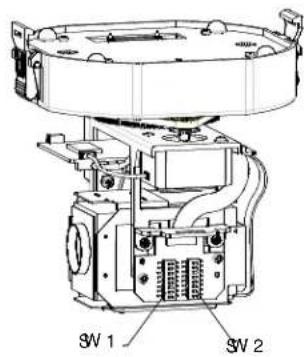
■ DIP SWITCH SETTING
See appendix I :
Protocol and Baud rate
Dome address
Video cable type
Resistor jumper
Alarm output method
◆
manual
MOUNT TYPE
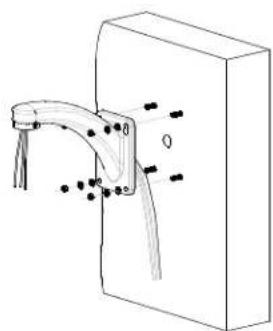
■WALL MOUNT
natural_image
Line drawing of a security camera with mounted sensor and antenna (no text or symbols)
manual
INSTALLATION GUIDE
WALLMOUNT
Check carefully to make sure the wall is firm and does not peel off. It is required that the wall can withstand 8 times weight of the dome set.
Mark mounting position
Use bracket to mark the mounting position on wall
text_image
Technical drawing of a mechanical component with dimension annotations including R80 and Ø10
Release the connection board。
Unscrew to release the circuit board on connection board
text_image
Technical diagram of a dome-shaped structure with labeled components and annotations
5 Connect cables.
Plug cables into corresponding sockets on circuit board. Reinstall the circuit board and turn on the power. The red LED is on if connections are correct. Turn off the power after checking.
NOTE: Names of the interfaces are marked on terminal block or PCB. Connect cables as picture shows. Make sure power is off before connecting.
Install bracket.
Conduct all cables through the hole of bracket, and fix bracket on the wall
natural_image
Diagram of a mechanical or structural assembly with no visible text, numbers, or symbols
Install housing
Conduct cables through the hole on top of the housing. Align the fast connector to bracket and fix with 2 M5 screws.
NOTE: Apply water-proof tape to the thread in the case of outdoor dome.
Set dome ID, bard rate and protocol by configuring DIP switches (see APPENDIX I). Remove the packing sponges.
manual
text_image
Video
(视频)
Radio/Video
(RS405接口)
Power
(电源)
Alarm
(报警)
text_image
SW 1
SW 2
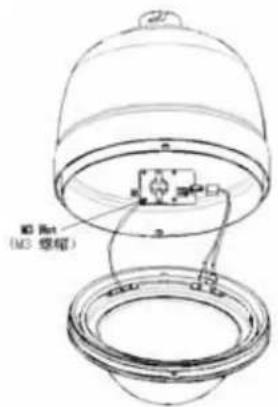
Down cover preliminary installation.
Attach the safety chain with a M3 nut as picture shows.
NOTE: Plug the heater wiring into socket on heater in the case of outdoor dome
text_image
M3 Ret
(M3 缩缩)
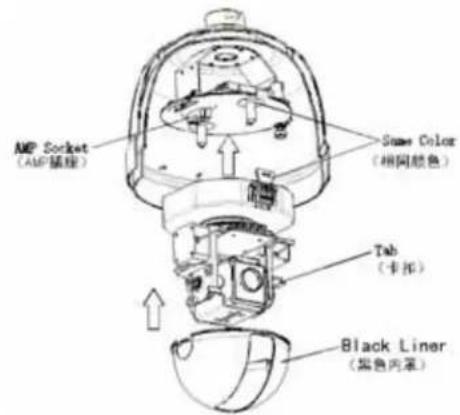
Install black liner and Pan/Tilt Module. Push the black liner into the two tabs. Install the pan/tilt module with two clips, match color of AMP sockets. Gently push the module upward until hearing the click.
NOTE: Remove the lens cover
text_image
AMP Socket
(AMP插座)
Name Color
(相同颜色)
Tab
(卡扣)
Black Liner
(黑色内罩)
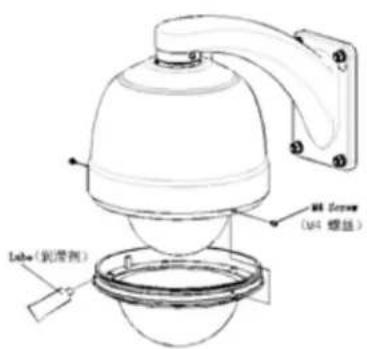
Install down cover
Unscrew the two M4 screw on down cover ring. Push up the down cover into the housing and then fasten down cover with two M4 screws.
NOTE: Apply lube to the O-ring in the case of outdoor dome
text_image
M1 Screw
(M4 螺盖)
Labs (轮廓侧)
manual
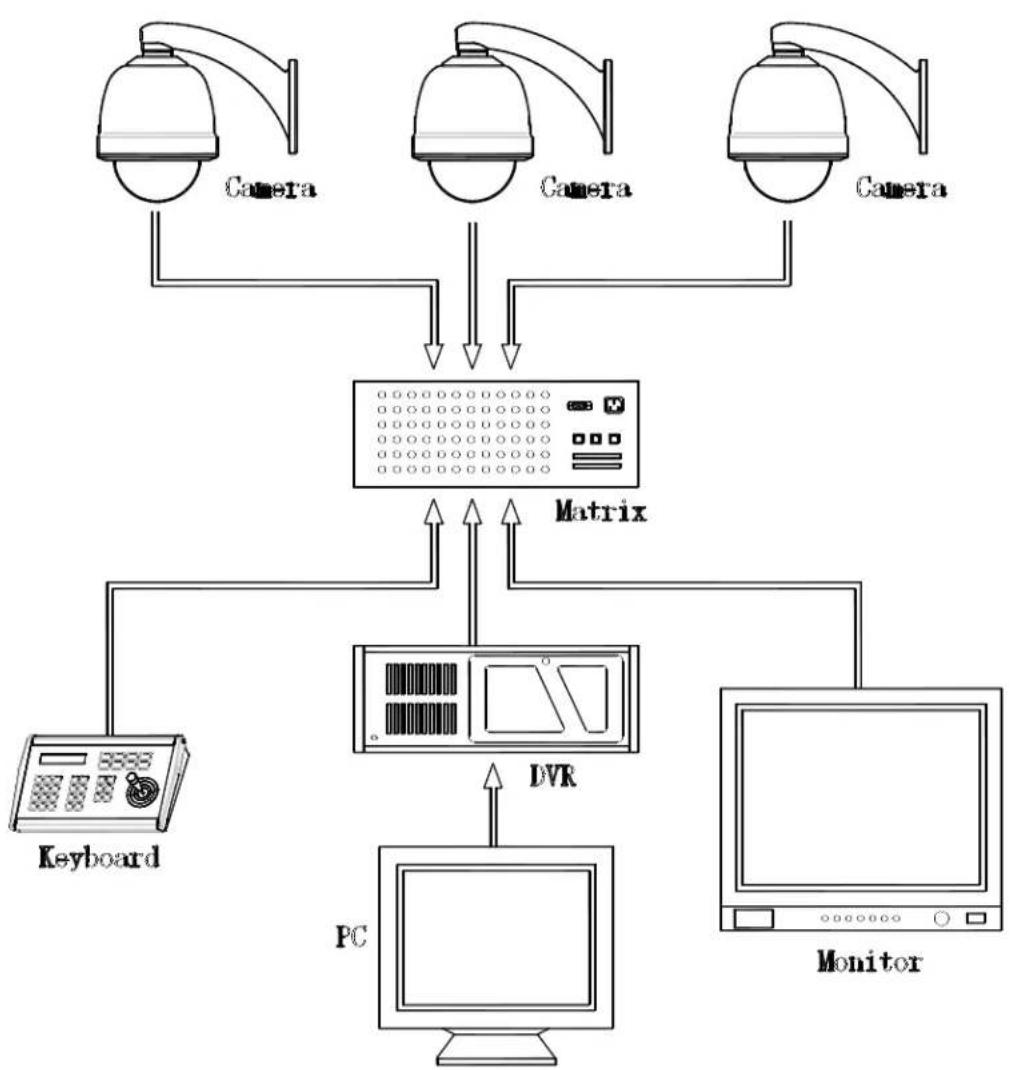
SYSTEM CONNECTION
flowchart
graph TD
    A["Camera"] --> C["Matrix"]
    B["Camera"] --> C["Matrix"]
    D["Camera"] --> C["Matrix"]
    E["Keyboard"] --> C["Matrix"]
    F["DVR"] --> G["PC"]
    H["Monitor"] --> G["PC"]
    C --> I["Computer"]
    style C fill:#f9f,stroke:#333
    style G fill:#ccf,stroke:#333
manual
Speed dome can be driven through combination of hot keys on a keyboard controller. It can also be driven through OSD menu. OSD menu can be activated by preset #95 call or double calling preset 1 (call twice within 5 seconds). Preset calling can be done through a keyboard controller or any other device (e.g. a computer) that can send proper command to the speed dome.
OSD menu operations are specified as follow:
■ PREHEATING SCREEN
When power on the dome and system temperature is under -15C/5F, following screen shows up:
Outer Temp :-030C/-022F
System Temp: -020C/-004F
Fan Speed :6480rpm
System Under -15C/5F
System Heating Up
Please Wait.....
System heats up till the system temperature is above -15C/5F. System starts to boot up after heating up finishes.
◆ < Outer Temp >
Environment temperature XXC/XXF C:
System inner temperature
◆ < Fan Speed >
The rotating speed of fan.
■BOOT-UP SCREEN
When power on or restart the dome, the boot up information will display on screen and then the dome will conduct self-testing. "System booting up..." will show on the screen until "boot-up success" shows up. The whole boot up process lasts about 40 seconds. This screen display disappears once the dome receives any effective command.
Protocol : Ernitec
Baud Rate : 4800BPS
Camera ID : 001
Camera S/N : 8888888888
Model : ----
Version : 1.20
Outer Temp :022C/071F
Dome control baud rate.
◆
The dome ID address set by dip-switch or keyboard. (See APPENDX I)
◆
Camera serial number。
◆
Speed dome model number.
◆
Hardware and software version.
Protocol : Ernitec
Baud Rate : 4800BPS
Camera ID : 001
Camera S/N : 8888888888
Model : ----
Version : 1.20
Outer Temp :022C/071F
◆ Display the dome's main menu on your monitor by calling preset 95 or calling preset 1 twice within 5 seconds.
Note: For third party keyboard controller please read manuals. As command to a preset may not be the same among different manufacturers.
◆ In case password protection is in effect, user needs to input the correct 6-bit password to enter the OSD menu. (Default password is 123456).
◆ To enter password, move the joystick up or down to select number (0-9), move the joystick left or right to choose password digit. If the input password is wrong, the password input window will disappear.
manual
minute without any operation. All the settings will be saved automatically to protect against power outage.
MENU OPERATION
■ SELECTING ITEM
In the main menu, the cursor flashes on the left side. Move the joystick up or down to point to the desired item. And then, move the joystick right to select the item.
Select an item to enter its sub menu or run a specific function or change its value or edit its title.
■ CHANGING VALUES
Move the joystick up or down to change the value, move the joystick left to save the setting and exit. In the case of multiple digits value, move left or right to select digits, move up or down to change value, move left to save the setting and exit.
Note: To increase the value changing speed, hold the joystick up or down for more than 10 seconds.
For example: In order to change BLC LEVEL, please follow these steps:
Call preset 95 or call preset 1 twice within 5 seconds to access the Main Menu.
System Info
Lens
Camera
Pan/Tilt
Auto Running
Alarm
Exit
Move the joystick down to point the cursor to , move the joystick right to select it. Select BLC MODE in the same way
White Blance: Auto
BLC Mode
Back
NOTE: Here-in-after menu paths are written in the following format:
$$
\begin{array}{l}\text {< Main Menu > } \rightarrow \text {< Camera > } \rightarrow \text {< BLC Mode > } \rightarrow\\text {< BLC Level > }\end{array}
$$
The option blinks. Move the joystick up or down to change the option, move the joystick left to save the changing.
BLC Level: off Back
When finished, select to return to upper menu.
manual
SYSTEM INFO
■ SYSTEM INFO
→
Site Info
Display Setup
Bootup Screen
Password
Set Default
System Reboot
Back
SYSTEM INFO includes following settings.
◆
Dome ID, name, broadcast address.
◆ Screen display.
◆
Display boot-up information.
◆
Change password.
◆
Restore factory default settings.
◆
Reboot dome system.
■ SYSTEM INFO
→ →
Site ID: 007
Name: 0000000000
Broadcast Add: 255
Back
shows the current dome's ID. Each dome has its unique ID. ID ranges from 001 to 254.
NOTE: can be set by menu only when DIP switch is set to programmable ID.
Move the cursor to and then move the joystick right to enter dome ID setting, sub-menu as follow.
Site S/N :8888899999
Input S/N:0000000000
Move the cursor to and then move the joystick right, input the serial number according to the , and then turn the joystick left to exit setting. Point cursor to , and turn joystick right to exit. Finally, turn joystick up or down to select desired ID number. When finished, move the joystick left to save the settings.
is the title of the dome. Assigning a name to a dome helps user to remember which dome it is. is used to set broadcast ID number. The ID functions the same as dome's site ID, default setting is 255. The dome responds to commands sent to either ID. Refer to to learn how to set broadcast address)
Select BACK to return to upper menu.
■DISPLAY SETUP
→ →
Site Name: On
Preset Title: On
Cruise Title: On
Pattern Name: On
Zoom: On
Orientation: On
Zone Name: On
Back
By switch on and off user can choose the items to display on screen when the dome is running.
◆
Choose to display site name.
◆
Choose to display cruise title when the dome is cruise.
◆
Choose to display preset title when calling preset.
◆
Choose to display pattern title when the dome is replaying pattern sequences
Choose display the current zoom times。
◆
Choose to display the current lens pointing
manual
Choose to display the current zone title
◆ Select to return to upper menu
■ BOOT-UP SCREEN
→ →
Protocol : Ernitec
Camera ID : 001
Baud Rate : 9600bps
Protocol : Default
Model : ......
Version : 1.20
Outer Temp :022C/071F
System Tem:027C/080F
Fan Speed :6480rpm
Call Preset 1 To Back
Boot-up info displays summary information of the dome. Values are fixed in this sub-menu. Refer to "Boot-up Info" to check the item. Call preset 1 to return to upper menu.
■ PASSWORD
→ →
Input Password:*****
Confirm
:*****
PSWD Protection: On Back
◆
Move joystick right to enter submenu.
Old Password:\*\*\*\*\*
Back
\- < Old Password >
Enter the old password.
\- < Back >
If old password is correct, cursor goes back behind , so that new password can be input. If old Password is not correct, cursor goes back to front of . Password can not be changed in this case.
◆
When and only when new password is entered, user can get to this menu item. If password is not the same as entered the first time, it remains unchanged..
◆
Switch on and off the password protection.
to access main menu or save preset through keyboard.
NOTE: The dome's default password is 123456. Contact the supplier for the master password if forget the password after changing.
Select BACK to return to upper menu
■ SET DEFAULT
→ →
Site Info
Display Setup
Initial Information
Password
Set Default
System Reboot
Back
Select to restore factory default settings.
List of Default Settings:
Item
Default
Value
Zoom Speed
High
Digital Zoom Off
AI/AF Resume Mode
Both
AF Resume Time 005
AF Resume Time 005
Iris ALC 084
Iris PIC 016
Day/Night
Auto
all display config
Off
Frame Limit 1/25
Shutter
Off
Exposure
Off
White Balance Auto
BLC Level 000
Speed Amplify
Off
Proportional P/T
On
Pswd Protection
Off
Park Time
Off
Park Action
Off
Arm/Disarm
Disarm
Reset Delay
004
■ SYSTEM REBOOT
→ →
Site Info
Display Setup
Initial Information
Password
Set Default
manual
Back
Select to reboot the dome.
Settings will not change after restarting
LENS PARAMETERS
→
Digital Zoom : Off
Joystick AF/AI : Both
AF Resume Time: 005
AI Resume Time : 005
Iris ALC Value : 042
Day/Night : Auto
Back
DIGITAL ZOOM
→ →
Digital zoom magnify the picture by duplicating pixels. The picture is enlarged but the resolution remains unchanged.
[Off] Turn off digital zoom (Default setting)
JOYSTICK AF/AI
→ →
Set automatic restore mode. When the joystick moves, the selected function will be triggered.
Options are:
[Both] Joystick movement triggers both auto focus and auto iris (default).
[Focus] Joystick movement triggers auto focus only.
[Iris] Joystick movement triggers auto iris only.
[None] Joystick movement triggers none of the functions.
■ AF RESUME TIME
→ →
automatically adjusts the focus to get the clear image.
Focus can also be manually controlled by keyboard or matrix. For manual operation details, please refer to keyboard or matrix operation manual.
This item sets the time to restore auto focus after focus is manually changed. The default setting is 005.
[Off] Never restore auto focus after switch to manual.
[001-255] The dome will start auto focus that number of seconds after user manually adjust focus.
NOTE: The camera may not be able to auto focus in the following circumstances:
◆ Target is not in the center of image.
◆ Near and far targets in the same picture can not be both clear.
◆ Target is a strong light object. Such as spot light etc.
◆ Target is behind the glass with water drop or dust.
◆ Target moves too fast.
◆ Large area target such as wall.
◆ Target is too dark or vague.
◆ is set None or
is set [Iris], and Auto Focus is set to [off].
AI RESUME TIME
→ →
Light goes through iris and reach CCD to form an image. Larger iris lets more light goes through and the image will be brighter. Iris can be controlled automatically or manually. For manual operation detail, please refer to keyboard or matrix manual.
[Off] Never restore auto iris after switch to manual.
001-255 The dome will start auto iris that number of seconds after user manually adjust iris.
manual
→ →
Set the iris average level control value. The value could be 000\~255. Default value: 23X color/mono camera: 084
CAMERA PARAMETERS
→
White Balance: Auto BLC Mode Back
■ WHITE BALANCE
→ →
White balance is normally compensated for by the automatic white balance gain control. In some lighting conditions, user may want to manually adjust the red and blue settings for optimal viewing. The setting options are: [AUTO] Auto white balance (default setting). [MANUAL] Manually set the red and blue values. Move the joystick right to enter the manual setting. The following window will appear.
WB-R : 000
WB-B : 000
Back
【R Gain (000-255)】 Adjust RED color depth。
【B Gain (000-255)】 Adjust BLUE color depth。
BLC MODE
→ →
R Gain (000-255), Adjust RED color depth.
B Gain (000-255), Adjust BLUE color depth.
If the backlight is bright, the objects in the center of the picture may appear dark. The dome can auto adjust the brightness of the whole image according to the brightness of center point. Thus backlight compensation can increase the brightness of the objects in the center of the picture.
If the backlight is too dark, the object on the center of the picture may appear dark. So, backlight compensation can decrease the brightness of the object.
Select BLC MODE and the editing menu will pop up.
[000] Disable backlight compensation function.
001-255 Choose different backlight compensation mode. Create value means more backlight.
NOTE: Keep the default value is strongly recommended..
BLC Level: 000 Back
■ AUTO STOP TIME
→ →
For some particular protocols, the dome will not stop moving even there is no operation on joystick. This menu item sets the time after which the dome receives last control command.
[Off] Disable this function (default setting) [001\~255] The time (unit: 50ms) that dome will stop moving without receiving any commands.
■ SPEED AMPLIFY
→ →
Some protocols' controlling speed is much lower, set [Speed Amplify] to accelerate domes movement. Options are as below:
[Off] Disable this function (default setting) [01 × 32 ×] Times greater than original speed.
■ PROPORTIONAL P/T
→ →
The dome moves at a speed of certain degree per second. Objects on screen move much faster in wide scope than in tele-scope. Even too faster in some case. This function decreases the dome movement speed while zooming in.
[On] Enable (default setting)
[Off] Disable
SET NORTH
manual
joystick to position north
When select , following menu will pop out.
[Back] Select it to back to main menu.
NOTE: Be better to set geographic north.
AUTO RUNNING
→
System Info Lens
Camera
Pan/Tilt
Auto Running
Alarm
Exit
PRESET
→ →
Preset
Tour
Pattern
Cruise
Zone
Park Time: Off
Park Action: Off
Back
“Preset” is the point that user save for frequent use. A “preset” saves both direction and zoom parameter, the camera will quickly and precisely go and zoom to a specific point if a “preset” is called. E.g. If you often want to watch the door, you can set the point of door as a “preset”, then you can survey the door simply by calling the “preset”.
NOTE: 220 presets can be set.
: Display current preset number, the value ranges from 001 to 220. Move joystick up or down to select desired number.
: To set current preset title. Move the joystick right to enter <Title>, and then move joystick right to desired bit and move the joystick up or down to select desired letter.
Preset Number : 001
Title: PRE1
Set Current
Test Current
Auto Stop Time: Off
Speed Amplify: Off
Proportional P/T: Off
Set North
Back
Remove Current Back
NOTE: You can edit 16 bits of letters at most. If you are not familiar with the editing, please refer to "Operation Instruction".
SETTING Select this item to set the preset position and zoom. The following menu will pop up when < Set Current > is selected
Call Preset 1 To Confirm......
Move to the desired position and zoom to a suitable level, call preset 1 to save the current preset.
< Remove Current> Select it to delete the preset with the number and title display above. <Back> Select it to back to upper menu.
<h1 id="tour">TOUR</h1>
<Main Menu> → <Auto Running> → <Tour>
Tour Number : 001
Dwell: 001
Edit
Test
Run
Back
A “tour” is a sequence of presets. When running a tour the camera moves from preset to preset and dwell for specific time for each preset. It is useful if you need to repeat switching among a number of presets. E.g. A shopping mall has several entrances. A tour can automatically loop the position of each entrance.
NOTE: 4 tours can be set in the system. Each tour can contain up to 27 presets and the dwell time for each preset is independent.
<Tour Number.> shows current tour number.
V-1.... 001 004
<h1 id="manual-3">manual</h1>
each preset. Value ranges from 0\~99. For example, DEFAULT DWELL: 001, all presets' dwell time is set as 1 second, but user can still set independent dwell time for each preset in <Edit> menu.
<Edit> Edit presets and corresponding dwell time in a tour as follows.
<table><tr><td>Preset-Dwell</td></tr><tr><td>001-001 002-004 003-002</td></tr><tr><td>004-001 000-001 000-001</td></tr><tr><td>000-001 000-001 000-001</td></tr><tr><td>000-001 000-001 000-001</td></tr><tr><td>000-001 000-001 000-001</td></tr><tr><td>000-001 000-001 000-001</td></tr></table>
Item format is Preset number-Dwell time
For example 003-02 means go to preset 003 and dwell for 2 seconds. Move joystick left or right to select editing item. Move up or down to change value.
In the above example the tour starts from preset 1 dwells for 1 second, then goes to preset 2 dwell for 5 seconds, then preset 3 for 2 seconds and finally preset 4 for 1 second.
<Save and Back> Save the tour and exit
<Cancel and Back> Quit without saving
NOTE: When a preset dwell time is set 0, system will skip that preset. System will consider preset 0 as the end of a tour.
NOTE: No delete function applied to tour, edit it again to replace the previous data.
<Test>: To run the current tour once. Use this function to check the tour.
<Run>: To run the current tour continuously. System will loop the tour.
<Back>: Back to upper menu.
<h1 id="cruise">CRUISE</h1>
<Main Menu> → <Auto Running> → <Cruise>
<table><tr><td>Cruise Number: 001Left PositionRight PositionDefault Speed: 001RunBack</td></tr></table>
NOTE: Camera pans only.
NOTE: Zoom to desired level then run auto scan, the camera will keep that zoom.
This speed dome has max. 4 cruise lines.
<Cruise Number>
Display the current auto scan number. Values are 001\~004. Move joystick right then up or down to select values.
<Left Position>
Set the position of site A.
Following menu will pop up.
Call Preset 1 To Confirm.....
Move the camera to the desired position and call preset 1 to save.
<Right Position> set another site's position. Set it in the same way as <Left Position>
<Cruise Speed> Set the scanning speed (camera movement speed). Value ranges from 001 to 255, the greater number represents the higher speed. Move joystick right to select, up or down to change the value.
<Run> Start the current auto scan (001\~004)
<Back> Back to upper menu.
<h1 id="pattern">PATTERN</h1>
<Main Menu>→ <Auto Running> → <Pattern>
Pattern Number: 001
Record
Test
Run
Back
Pattern is a replay of recording of irregular pan/tilt/zoom operation. It is useful when repeating variable speed movement of the pan/tilt/zoom.
Note: There can be as many as 4 patterns recorded, each not more than 3 minutes.
<Pattern Number:> Display pattern number, value options are 001\~004.
<h1 id="manual-4">manual</h1>
<Record> Record pattern
<Test> Test recorded pattern
<Run> Run Pattern until other command received
<Back> Back to upper level menu
When getting into <Record> following menu pop up.
Call preset 1 To
Confirm ......
X/100
Record
User can operate dome doing pan/tilt/zoom as needed. The system records the operation. To end recording user can call preset 1 to confirm. The current pattern recording is finished.
<h1 id="zone">ZONE</h1>
<Main Menu> → <Auto Running> → <Zone>
Zone Number: 001
Title: 00000000000000
Left Limit
Right Limit
Remove Current
Pan Speed: 001
Run
Back
A zone is an area between two points. User can set a zone and scan it automatically.
<Zone> is similar to <Cruise> except user can assign a title for a ZONE. Whenever the camera moves into the zone, the title will display on the screen to alert the operator.
NOTE: Camera scans horizontally only. User can set up to 8 zones.
◆ <Zone Number.>
Display current zone number. Values are 001\~008. Pan right then tilt up or down to select desired value.
◆ <Title>
Set the zone title. Select the desired letter or number. Repeat above procedure to complete the title editing.
Set the position of the first point. The following picture shows the setting menu.
Call Preset 1 To Confirm......
<Speed> Set the scanning speed (camera movement speed). Value ranges from 001 to 255, the greater number represents the higher speed. Pan right to select, tilt up or down to change value.
RUN To start scanning the current zone (001\~008).
BACK Back to upper menu level.
◆ <Pan Speed>
Setup pan speed
<h1 id="park-time">PARK TIME</h1>
<Main Menu> → <Auto Running>
Preset
Tour
Pattern
Cruise
Zone
Park Time: Off
Park Action: Off
Back
This function let the system automatically run an assigned function after a specific period of idle time. For example: the dome is running a tour and an operator breaks the tour to do other work, the dome can automatically carry on the tour within a period of time after the operator stops his operation.
◆ <Park Time>
Park time means a period of idle time without any operation.
The values includes: OFF, 001\~255.
[Off]: Disable this function.
[001\~255]: Auto run a function after the number seconds of idle time.
◆ <Park Action>
Park action refers to the function that system will automatically run when park time is up.
The function could be:
<h1 id="manual-5">manual</h1>
[Pre 001\~220] Call preset 001\~220
[Scan 001\~004] Run auto scan 001\~004
[Tour 001\~004] Run tour 001\~004
[Pat 001\~004] Run pattern 001\~004
Preset
Tour
Pattern
Cruise
Zone
Park Time: 010
Park Action: Pat 001
Back
In this example, system will run Preset-8 after 38 seconds of idle time
<h1 id="alarm">ALARM</h1>
<Main Menu> → <Privacy Mask>
Alarm in 1: Off
Alarm in 2: Off
Alarm in 3: Off
Alarm in 4: Off
Alarm in 5: Off
Alarm in 6: Off
Alarm in 7: Off
Relay 1: Off
Relay 2: Off
Arm/Disarm: Disarm
Interval<S>: 004
Back
This model of speed dome has 7 alarm input channels and 2 output. Alarm input signal can come from other devices such as infrared detector and alarm output signal can go to light and DVR etc.
◆ <Alarm in 1 \~ Alarm in 7>
Channel 1 has the highest priority and channel 7 has the lowest priority. Set the alarm input and the dome's corresponding action. Following options are applicable.
[Off] Disable the alarm input (default)
[Pre 001\~220] Call preset 001\~220
[Scan 001\~004] Run auto scan 001\~004
[Tour 001\~004] Run tour 001\~004
[Pat 001\~004] Run pattern 001\~004
NOTE: There are two alarm output methods: NO and NC, refer to Appendix I for setting details.
For example:
Alarm in 1 : Pre. 001
11:05:00
manual
Alarm in 4 : Tour 001
Alarm in 5 : Off
Alarm in 6 : Off
Alarm in 7 : Off
Relay 1 : Off
Relay 2 : Off
Arm/Disarm: Arm
Interval <S>: 004
Back
In this example, when the first alarm is activated, the dome will run preset-100; when the second alarm is activated, the doom will run pattern-3; when the third alarm is activated, the doom will run scan-2; When the fourth alarm is activated, the doom will run tour-1.
ALARM OUT 1,2 Alarm out relays the alarm input signal to other devices. e.g. light and DVR. Change the option to switch the alarm output ON or OFF. Default setting is OFF
◆ <Arm/Disarm>
Arm or disarm the alarm system and show the status.
◆ <Interval>
Set the time after which the alarm will be reset. Values are in second unit, default setting is 4.
[001\~255] Reset within the number of seconds.
◆ <Back>
Back to main menu.
manual
<h1 id="appendix-i-dip-switch-settings">APPENDIX I: DIP SWITCH SETTINGS</h1>
This is the guides for setting protocol, baud rate, dome address, video cable type, resistor jumper and alarm output.
◆ ◆ DIP Switches' position
The corresponding Dip-switches' positions are shown below:
:

<details>
<summary>text_image</summary>
Reset Button
Red LED Green LED
</details>
◆ ◆ Protocol and baud rate setting
SW1 is for protocol and baud rate settings. Bits 1\~6 of SW1 are for protocol setting and bits 7\~8 are for baud rate setting as shown in the chart below
Default setting is 4800 bps.
<table><tr><td rowspan="2">Baud Rate</td><td colspan="8">Switch Digits</td></tr><tr><td>1</td><td>2</td><td>3</td><td>4</td><td>5</td><td>6</td><td>7</td><td>8</td></tr><tr><td>2400</td><td></td><td></td><td></td><td></td><td></td><td></td><td>OFF</td><td>OFF</td></tr><tr><td>4800</td><td></td><td></td><td></td><td></td><td></td><td></td><td>ON</td><td>OFF</td></tr><tr><td>9600</td><td></td><td></td><td></td><td></td><td></td><td></td><td>OFF</td><td>ON</td></tr><tr><td>19200</td><td></td><td></td><td></td><td></td><td></td><td></td><td>ON</td><td>ON</td></tr></table>
◆ ◆ Reset Button
This button is for resetting the dome after changing the dipswitch setting. The new setting works only after reboot finishes.
◆ ◆ Led
Flashing green light means control commands reach the dome. Red light is on when effective command
This model of speed dome supports multi-protocol. The set-ting chart is shown below.
<table><tr><td rowspan="2" colspan="2">Protocol</td><td colspan="8">Switch</td></tr><tr><td>1</td><td>2</td><td>3</td><td>4</td><td>5</td><td>6</td><td>7</td><td>8</td></tr><tr><td>E</td><td>R</td><td>N</td><td>I</td><td>T</td><td>E</td><td>C</td><td></td><td></td><td></td></tr><tr><td colspan="2">YAAN</td><td>ON</td><td></td><td></td><td></td><td></td><td></td><td></td><td></td></tr><tr><td>A</td><td>L</td><td>E</td><td>C</td><td></td><td></td><td></td><td>O</td><td>N</td><td></td></tr><tr><td colspan="2">PELCO_PD</td><td>ON</td><td>ON</td><td></td><td></td><td></td><td></td><td></td><td></td></tr><tr><td colspan="2">PELCO_C</td><td></td><td></td><td>ON</td><td></td><td></td><td></td><td></td><td></td></tr><tr><td colspan="2">VCL</td><td>ON</td><td></td><td>ON</td><td></td><td></td><td></td><td></td><td></td></tr><tr><td colspan="2">MOLYNX</td><td></td><td>ON</td><td>ON</td><td></td><td></td><td></td><td></td><td></td></tr><tr><td colspan="2">VICON</td><td>ON</td><td>ON</td><td>ON</td><td></td><td></td><td></td><td></td><td></td></tr><tr><td colspan="2">DIAMOND</td><td></td><td></td><td></td><td>ON</td><td></td><td></td><td></td><td></td></tr><tr><td colspan="2">KALATEL</td><td>ON</td><td></td><td></td><td>ON</td><td></td><td></td><td></td><td></td></tr><tr><td colspan="2">HUNDA</td><td></td><td>ON</td><td></td><td>ON</td><td></td><td></td><td></td><td></td></tr><tr><td colspan="2">LILIN</td><td>ON</td><td>ON</td><td></td><td>ON</td><td></td><td></td><td></td><td></td></tr><tr><td colspan="2">SANTACHI</td><td></td><td></td><td>ON</td><td>ON</td><td></td><td></td><td></td><td></td></tr><tr><td colspan="2">PELCO_PDC</td><td>ON</td><td></td><td>ON</td><td>ON</td><td></td><td></td><td></td><td></td></tr><tr><td colspan="2">UNIVISIONV1*</td><td></td><td>ON</td><td>ON</td><td>ON</td><td></td><td></td><td></td><td></td></tr><tr><td colspan="2">UNIVISIONV2*</td><td>ON</td><td>ON</td><td>ON</td><td>ON</td><td></td><td></td><td></td><td></td></tr><tr><td colspan="2">AD*</td><td></td><td></td><td></td><td></td><td>ON</td><td></td><td></td><td></td></tr><tr><td colspan="2">ADT</td><td>ON</td><td></td><td></td><td></td><td>ON</td><td></td><td></td><td></td></tr><tr><td colspan="2">PANASONIC</td><td></td><td>ON</td><td></td><td></td><td>ON</td><td></td><td></td><td></td></tr><tr><td colspan="2">PHILIPS*</td><td>X</td><td>X</td><td>X</td><td>X</td><td>X</td><td>ON</td><td></td><td></td></tr><tr><td>R</td><td>c</td><td>s</td><td>c</td><td>r</td><td>v</td><td>c</td><td>d</td><td>4</td><td></td></tr><tr><td>R</td><td>c</td><td>s</td><td>c</td><td>r</td><td>v</td><td>c</td><td>d</td><td>5</td><td></td></tr><tr><td>R</td><td>e</td><td>s</td><td>e</td><td>r</td><td>v</td><td>e</td><td>d</td><td>6</td><td></td></tr><tr><td>R</td><td>c</td><td>s</td><td>c</td><td>r</td><td>v</td><td>c</td><td>d</td><td>7</td><td></td></tr><tr><td>R</td><td>e</td><td>s</td><td>e</td><td>r</td><td>v</td><td>e</td><td>d</td><td>8</td><td></td></tr><tr><td>R</td><td>c</td><td>s</td><td>c</td><td>r</td><td>v</td><td>c</td><td>d</td><td>9</td><td></td></tr><tr><td>R</td><td>e</td><td>s</td><td>e</td><td>r</td><td>v</td><td>c</td><td>d</td><td>1</td><td>0</td></tr><tr><td>R</td><td>c</td><td>s</td><td>c</td><td>r</td><td>v</td><td>c</td><td>d</td><td>1</td><td>1</td></tr><tr><td>R</td><td>e</td><td>s</td><td>e</td><td>r</td><td>v</td><td>e</td><td>d</td><td>1</td><td>2</td></tr><tr><td>R</td><td>c</td><td>s</td><td>c</td><td>r</td><td>v</td><td>c</td><td>d</td><td>1</td><td>3</td></tr><tr><td>R</td><td>e</td><td>s</td><td>e</td><td>r</td><td>v</td><td>e</td><td>d</td><td>1</td><td>4</td></tr><tr><td colspan="2">Reserved 15</td><td></td><td></td><td></td><td></td><td></td><td></td><td></td><td></td></tr></table>
Num1
<h1 id="manual-6">manual</h1>
<h1 id="dome-address-setting">◆ ◆ Dome address setting</h1>
The control commands contain target dome's ID. The dome only reacts to the command sent to its own address or broadcast address.
Each dome should be assigned an address. Four kinds of IDs are applicable for domes:
1. Hard ID:
Hard ID is set via DIP SW2 can not be changed from OSD menu. Hard ID ranges from 1 to 254.
2. Programmable ID:
Set all 8bits of SW2 to ON to activate soft address. Input 10-bit camera SN number,
and then set dome ID by controller (The dome SN number can be found on the side of the camera or on the package and user manual.).
3. Broadcast ID:
Broadcast ID is programmable.
When broadcast ID is available, all domes connected to the control bus will react to the command. The default broadcast ID is 255.
SW2 is for dome ID setting. The setting is strictly according to binary system. If you are not familiar with binary system please look up the address setting chart.
manual
4. Address setting chart
<table><tr><td>ID</td><td>B1</td><td>B2</td><td>B3</td><td>B4</td><td>B5</td><td>B6</td><td>B7</td><td>B8</td></tr><tr><td>1</td><td></td><td>O</td><td>N</td><td></td><td></td><td></td><td></td><td></td></tr><tr><td>2</td><td></td><td>ON</td><td></td><td></td><td></td><td></td><td></td><td></td></tr><tr><td>3</td><td>ON</td><td></td><td>ON</td><td></td><td></td><td></td><td></td><td></td></tr><tr><td>4</td><td></td><td></td><td>ON</td><td></td><td></td><td></td><td></td><td></td></tr><tr><td>5</td><td>ON</td><td></td><td>ON</td><td></td><td></td><td></td><td></td><td></td></tr><tr><td>6</td><td></td><td colspan="2">ON</td><td>ON</td><td></td><td></td><td></td><td></td></tr><tr><td>7</td><td>ON</td><td>ON</td><td>ON</td><td></td><td></td><td></td><td></td><td></td></tr><tr><td>8</td><td></td><td></td><td></td><td>ON</td><td></td><td></td><td></td><td></td></tr><tr><td>9</td><td>ON</td><td></td><td></td><td>ON</td><td></td><td></td><td></td><td></td></tr><tr><td>10</td><td></td><td colspan="2">ON</td><td>ON</td><td></td><td></td><td></td><td></td></tr><tr><td>11</td><td>ON</td><td>ON</td><td></td><td>ON</td><td></td><td></td><td></td><td></td></tr><tr><td>12</td><td></td><td></td><td></td><td>ON</td><td>ON</td><td></td><td></td><td></td></tr><tr><td>13</td><td>ON</td><td></td><td>ON</td><td>ON</td><td></td><td></td><td></td><td></td></tr><tr><td>14</td><td></td><td>ON</td><td>ON</td><td>ON</td><td></td><td></td><td></td><td></td></tr><tr><td>15</td><td>ON</td><td>ON</td><td>ON</td><td>ON</td><td></td><td></td><td></td><td></td></tr><tr><td>16</td><td></td><td></td><td></td><td></td><td>ON</td><td></td><td></td><td></td></tr><tr><td>17</td><td>ON</td><td></td><td></td><td></td><td></td><td>ON</td><td></td><td></td></tr><tr><td>18</td><td></td><td colspan="2">ON</td><td></td><td></td><td>ON</td><td></td><td></td></tr><tr><td>19</td><td>ON</td><td>ON</td><td></td><td></td><td></td><td>ON</td><td></td><td></td></tr><tr><td>20</td><td></td><td></td><td></td><td>ON</td><td></td><td>ON</td><td></td><td></td></tr><tr><td>21</td><td>ON</td><td></td><td>ON</td><td></td><td>ON</td><td></td><td></td><td></td></tr><tr><td>22</td><td></td><td colspan="2">ON</td><td>ON</td><td></td><td>ON</td><td></td><td></td></tr><tr><td>23</td><td>ON</td><td>ON</td><td>ON</td><td></td><td>ON</td><td></td><td></td><td></td></tr><tr><td>24</td><td></td><td></td><td></td><td>ON</td><td></td><td>ON</td><td></td><td></td></tr><tr><td>25</td><td>ON</td><td></td><td></td><td colspan="2">ON</td><td>ON</td><td></td><td></td></tr><tr><td>26</td><td></td><td colspan="2">ON</td><td colspan="2">ON</td><td>ON</td><td></td><td></td></tr><tr><td>27</td><td>ON</td><td>ON</td><td></td><td colspan="2">ON</td><td>ON</td><td></td><td></td></tr><tr><td>28</td><td></td><td></td><td>ON</td><td>ON</td><td>ON</td><td></td><td></td><td></td></tr><tr><td>29</td><td>ON</td><td></td><td>ON</td><td colspan="2">ON</td><td>ON</td><td></td><td></td></tr><tr><td>30</td><td></td><td>ON</td><td>ON</td><td colspan="2">ON</td><td>ON</td><td></td><td></td></tr><tr><td>31</td><td>ON</td><td>ON</td><td>ON</td><td colspan="2">ON</td><td>ON</td><td></td><td></td></tr><tr><td>3</td><td>2</td><td></td><td></td><td></td><td></td><td></td><td></td><td>O</td></tr><tr><td>33</td><td>ON</td><td></td><td></td><td></td><td></td><td>ON</td><td></td><td></td></tr><tr><td>34</td><td></td><td colspan="2">ON</td><td></td><td></td><td></td><td colspan="2">ON</td></tr><tr><td>35</td><td>ON</td><td colspan="2">ON</td><td></td><td></td><td></td><td colspan="2">ON</td></tr><tr><td>36</td><td></td><td></td><td></td><td>ON</td><td></td><td></td><td colspan="2">ON</td></tr><tr><td>37</td><td>ON</td><td></td><td>ON</td><td></td><td></td><td>ON</td><td></td><td></td></tr><tr><td>38</td><td></td><td colspan="2">ON</td><td>ON</td><td></td><td></td><td colspan="2">ON</td></tr><tr><td>39</td><td>ON</td><td>ON</td><td>ON</td><td></td><td></td><td>ON</td><td></td><td></td></tr><tr><td>40</td><td></td><td></td><td></td><td></td><td colspan="2">ON</td><td colspan="2">ON</td></tr><tr><td>41</td><td>ON</td><td></td><td></td><td colspan="2">ON</td><td>ON</td><td></td><td></td></tr><tr><td>42</td><td></td><td colspan="2">ON</td><td colspan="2">ON</td><td>ON</td><td></td><td></td></tr><tr><td>43</td><td>ON</td><td>ON</td><td></td><td colspan="2">ON</td><td>ON</td><td></td><td></td></tr><tr><td>44</td><td></td><td></td><td></td><td>ON</td><td>ON</td><td></td><td>ON</td><td></td></tr><tr><td>45</td><td>ON</td><td></td><td>ON</td><td>ON</td><td></td><td>ON</td><td></td><td></td></tr><tr><td>46</td><td></td><td colspan="2">ON</td><td>ON</td><td>ON</td><td></td><td>ON</td><td></td></tr><tr><td>47</td><td>ON</td><td>ON</td><td>ON</td><td>ON</td><td></td><td>ON</td><td></td><td></td></tr><tr><td>48</td><td></td><td></td><td></td><td></td><td>ON</td><td></td><td>ON</td><td></td></tr><tr><td>49</td><td>ON</td><td></td><td></td><td></td><td colspan="2">ON</td><td>ON</td><td></td></tr><tr><td>50</td><td></td><td colspan="2">ON</td><td></td><td></td><td>ON</td><td>ON</td><td></td></tr><tr><td>51</td><td>ON</td><td colspan="2">ON</td><td></td><td></td><td>ON</td><td>ON</td><td></td></tr><tr><td>Soft Add</td><td>ON</td><td>ON</td><td>ON</td><td>ON</td><td>ON</td><td>ON</td><td>ON</td><td>ON</td></tr></table>
<table><tr><td>ID</td><td>B1</td><td>B2</td><td>B3</td><td>B4</td><td>B5</td><td>B6</td><td>B7</td><td>B8</td></tr><tr><td>52</td><td></td><td></td><td colspan="2">ON</td><td>ON</td><td>ON</td><td></td><td></td></tr><tr><td>53</td><td>ON</td><td></td><td>ON</td><td></td><td>ON</td><td>ON</td><td></td><td></td></tr><tr><td>54</td><td></td><td>ON</td><td>ON</td><td></td><td>ON</td><td>ON</td><td></td><td></td></tr><tr><td>55</td><td>ON</td><td>ON</td><td>ON</td><td></td><td>ON</td><td>ON</td><td></td><td></td></tr><tr><td>56</td><td></td><td></td><td></td><td>ON</td><td colspan="2">ON</td><td>ON</td><td></td></tr><tr><td>57</td><td>ON</td><td></td><td></td><td>ON</td><td colspan="2">ON</td><td>ON</td><td></td></tr><tr><td>58</td><td></td><td>ON</td><td></td><td>ON</td><td>ON</td><td>ON</td><td></td><td></td></tr><tr><td>59</td><td>ON</td><td>ON</td><td></td><td>ON</td><td>ON</td><td>ON</td><td></td><td></td></tr><tr><td>60</td><td></td><td></td><td>ON</td><td>ON</td><td>ON</td><td>ON</td><td></td><td></td></tr><tr><td>61</td><td>ON</td><td></td><td>ON</td><td>ON</td><td>ON</td><td>ON</td><td></td><td></td></tr><tr><td>62</td><td></td><td>ON</td><td>ON</td><td>ON</td><td>ON</td><td>ON</td><td></td><td></td></tr><tr><td>63</td><td>ON</td><td>ON</td><td>ON</td><td>ON</td><td>ON</td><td>ON</td><td></td><td></td></tr><tr><td>6</td><td>4</td><td></td><td></td><td></td><td></td><td></td><td></td><td>ON</td></tr><tr><td>65</td><td>ON</td><td></td><td></td><td></td><td></td><td></td><td>ON</td><td></td></tr><tr><td>66</td><td></td><td>ON</td><td></td><td></td><td></td><td></td><td></td><td>ON</td></tr><tr><td>67</td><td>ON</td><td>ON</td><td></td><td></td><td></td><td></td><td>ON</td><td></td></tr><tr><td>68</td><td></td><td></td><td colspan="2">ON</td><td></td><td></td><td></td><td>ON</td></tr><tr><td>69</td><td>ON</td><td></td><td>ON</td><td></td><td></td><td></td><td colspan="2">ON</td></tr><tr><td>70</td><td></td><td>ON</td><td>ON</td><td></td><td></td><td></td><td colspan="2">ON</td></tr><tr><td>71</td><td>ON</td><td>ON</td><td>ON</td><td></td><td></td><td></td><td>ON</td><td></td></tr><tr><td>72</td><td></td><td></td><td></td><td>ON</td><td></td><td></td><td colspan="2">ON</td></tr><tr><td>73</td><td>ON</td><td></td><td></td><td colspan="2">ON</td><td></td><td></td><td>ON</td></tr><tr><td>74</td><td></td><td>ON</td><td></td><td>ON</td><td></td><td></td><td colspan="2">ON</td></tr><tr><td>75</td><td>ON</td><td>ON</td><td></td><td>ON</td><td></td><td></td><td colspan="2">ON</td></tr><tr><td>76</td><td></td><td></td><td>ON</td><td colspan="2">ON</td><td></td><td></td><td>ON</td></tr><tr><td>77</td><td>ON</td><td></td><td>ON</td><td>ON</td><td></td><td></td><td colspan="2">ON</td></tr><tr><td>78</td><td></td><td>ON</td><td>ON</td><td>ON</td><td></td><td></td><td colspan="2">ON</td></tr><tr><td>79</td><td>ON</td><td>ON</td><td>ON</td><td>ON</td><td></td><td></td><td>ON</td><td></td></tr><tr><td>80</td><td></td><td></td><td></td><td></td><td>ON</td><td></td><td colspan="2">ON</td></tr><tr><td>81</td><td>ON</td><td></td><td></td><td></td><td></td><td>ON</td><td></td><td>ON</td></tr><tr><td>82</td><td></td><td>ON</td><td></td><td></td><td colspan="2">ON</td><td colspan="2">ON</td></tr><tr><td>83</td><td>ON</td><td>ON</td><td></td><td></td><td colspan="2">ON</td><td colspan="2">ON</td></tr><tr><td>84</td><td></td><td></td><td colspan="2">ON</td><td colspan="2">ON</td><td colspan="2">ON</td></tr><tr><td>85</td><td>ON</td><td></td><td>ON</td><td></td><td>ON</td><td></td><td>ON</td><td></td></tr><tr><td>86</td><td></td><td>ON</td><td>ON</td><td></td><td>ON</td><td></td><td>ON</td><td></td></tr><tr><td>87</td><td>ON</td><td>ON</td><td>ON</td><td></td><td>ON</td><td></td><td>ON</td><td></td></tr><tr><td>88</td><td></td><td></td><td></td><td></td><td>ON</td><td>ON</td><td></td><td>ON</td></tr><tr><td>89</td><td>ON</td><td></td><td></td><td>ON</td><td colspan="2">ON</td><td colspan="2">ON</td></tr><tr><td>90</td><td></td><td>ON</td><td></td><td>ON</td><td colspan="2">ON</td><td colspan="2">ON</td></tr><tr><td>91</td><td>ON</td><td>ON</td><td></td><td>ON</td><td colspan="2">ON</td><td colspan="2">ON</td></tr><tr><td>92</td><td></td><td></td><td>ON</td><td>ON</td><td colspan="2">ON</td><td colspan="2">ON</td></tr><tr><td>93</td><td>ON</td><td></td><td>ON</td><td>ON</td><td colspan="2">ON</td><td colspan="2">ON</td></tr><tr><td>94</td><td></td><td>ON</td><td>ON</td><td>ON</td><td colspan="2">ON</td><td colspan="2">ON</td></tr><tr><td>95</td><td>ON</td><td>ON</td><td>ON</td><td>ON</td><td colspan="2">ON</td><td colspan="2">ON</td></tr><tr><td>96</td><td></td><td></td><td></td><td></td><td></td><td>ON</td><td></td><td>ON</td></tr><tr><td>97</td><td>ON</td><td></td><td></td><td></td><td></td><td>ON</td><td></td><td>ON</td></tr><tr><td>98</td><td></td><td>ON</td><td></td><td></td><td></td><td></td><td>ON</td><td>ON</td></tr><tr><td>99</td><td>ON</td><td>ON</td><td></td><td></td><td></td><td colspan="2">ON</td><td>ON</td></tr><tr><td>100</td><td></td><td></td><td colspan="2">ON</td><td></td><td></td><td>ON</td><td>ON</td></tr><tr><td>101</td><td>ON</td><td></td><td>ON</td><td></td><td></td><td colspan="2">ON</td><td>ON</td></tr><tr><td>102</td><td></td><td>ON</td><td>ON</td><td></td><td></td><td></td><td>ON</td><td>ON</td></tr><tr><td>Soft...</td><td>ON</td><td>ON</td><td>ON</td><td>ON</td><td>ON</td><td>ON</td><td>ON</td><td>ON</td></tr></table>
manual
<table><tr><td>ID</td><td>B1</td><td>B2</td><td>B3</td><td>B4</td><td>B5</td><td>B6</td><td>B7</td><td>B8</td></tr><tr><td>103</td><td>ON</td><td>ON</td><td>ON</td><td></td><td></td><td>ON</td><td>ON</td><td></td></tr><tr><td>104</td><td></td><td></td><td></td><td></td><td>ON</td><td></td><td>ON</td><td>ON</td></tr><tr><td>105</td><td>ON</td><td></td><td></td><td>ON</td><td></td><td>ON</td><td>ON</td><td></td></tr><tr><td>106</td><td></td><td>ON</td><td></td><td>ON</td><td></td><td>ON</td><td>ON</td><td></td></tr><tr><td>107</td><td>ON</td><td>ON</td><td></td><td>ON</td><td></td><td>ON</td><td>ON</td><td></td></tr><tr><td>108</td><td></td><td></td><td></td><td>ON</td><td>ON</td><td></td><td>ON</td><td>ON</td></tr><tr><td>109</td><td>ON</td><td></td><td>ON</td><td>ON</td><td></td><td>ON</td><td>ON</td><td></td></tr><tr><td>110</td><td></td><td>ON</td><td>ON</td><td>ON</td><td></td><td>ON</td><td>ON</td><td></td></tr><tr><td>111</td><td>ON</td><td>ON</td><td>ON</td><td>ON</td><td></td><td>ON</td><td>ON</td><td></td></tr><tr><td>112</td><td></td><td></td><td></td><td></td><td>ON</td><td>ON</td><td>ON</td><td></td></tr><tr><td>113</td><td>ON</td><td></td><td></td><td></td><td>ON</td><td>ON</td><td>ON</td><td></td></tr><tr><td>114</td><td></td><td>ON</td><td></td><td></td><td>ON</td><td>ON</td><td>ON</td><td></td></tr><tr><td>115</td><td>ON</td><td>ON</td><td></td><td></td><td>ON</td><td>ON</td><td>ON</td><td></td></tr><tr><td>116</td><td></td><td></td><td></td><td>ON</td><td></td><td>ON</td><td>ON</td><td></td></tr><tr><td>117</td><td>ON</td><td></td><td>ON</td><td></td><td>ON</td><td>ON</td><td>ON</td><td></td></tr><tr><td>118</td><td></td><td>ON</td><td>ON</td><td></td><td>ON</td><td>ON</td><td>ON</td><td></td></tr><tr><td>119</td><td>ON</td><td>ON</td><td>ON</td><td></td><td>ON</td><td>ON</td><td>ON</td><td></td></tr><tr><td>120</td><td></td><td></td><td></td><td>ON</td><td>ON</td><td>ON</td><td></td><td></td></tr><tr><td>121</td><td>ON</td><td></td><td></td><td>ON</td><td>ON</td><td>ON</td><td></td><td></td></tr><tr><td>122</td><td></td><td>ON</td><td></td><td>ON</td><td>ON</td><td>ON</td><td></td><td></td></tr><tr><td>123</td><td>ON</td><td>ON</td><td></td><td>ON</td><td>ON</td><td>ON</td><td></td><td></td></tr><tr><td>124</td><td></td><td></td><td>ON</td><td>ON</td><td>ON</td><td>ON</td><td></td><td></td></tr><tr><td>125</td><td>ON</td><td></td><td></td><td>ON</td><td>ON</td><td>ON</td><td></td><td></td></tr><tr><td>126</td><td></td><td>ON</td><td>ON</td><td>ON</td><td>ON</td><td>ON</td><td></td><td></td></tr><tr><td>127</td><td>ON</td><td>ON</td><td>ON</td><td>ON</td><td>ON</td><td>ON</td><td></td><td></td></tr><tr><td>128</td><td></td><td></td><td></td><td></td><td></td><td></td><td></td><td></td></tr><tr><td>129</td><td>ON</td><td></td><td></td><td></td><td></td><td></td><td></td><td></td></tr><tr><td>130</td><td></td><td>ON</td><td></td><td></td><td></td><td></td><td></td><td></td></tr><tr><td>131</td><td>ON</td><td></td><td>ON</td><td></td><td></td><td></td><td></td><td></td></tr><tr><td>132</td><td></td><td></td><td>ON</td><td></td><td></td><td></td><td></td><td></td></tr><tr><td>133</td><td>ON</td><td></td><td>ON</td><td></td><td></td><td></td><td></td><td></td></tr><tr><td>134</td><td></td><td>ON</td><td></td><td>ON</td><td></td><td></td><td></td><td></td></tr><tr><td>135</td><td>ON</td><td></td><td>ON</td><td></td><td></td><td></td><td></td><td></td></tr><tr><td>136</td><td></td><td></td><td></td><td>ON</td><td></td><td></td><td></td><td></td></tr><tr><td>137</td><td>ON</td><td></td><td></td><td>ON</td><td></td><td></td><td></td><td></td></tr><tr><td>138</td><td></td><td>ON</td><td></td><td>ON</td><td></td><td></td><td></td><td></td></tr><tr><td>139</td><td>ON</td><td>ON</td><td></td><td>ON</td><td></td><td></td><td></td><td></td></tr><tr><td>140</td><td></td><td></td><td>ON</td><td></td><td>ON</td><td></td><td></td><td></td></tr><tr><td>141</td><td>ON</td><td></td><td>ON</td><td>ON</td><td></td><td></td><td></td><td></td></tr><tr><td>142</td><td></td><td>ON</td><td>ON</td><td>ON</td><td></td><td></td><td></td><td></td></tr><tr><td>143</td><td>ON</td><td>ON</td><td>ON</td><td></td><td></td><td></td><td></td><td></td></tr><tr><td>144</td><td></td><td></td><td></td><td>ON</td><td></td><td></td><td></td><td></td></tr><tr><td>145</td><td>ON</td><td></td><td></td><td></td><td>ON</td><td></td><td></td><td></td></tr><tr><td>146</td><td></td><td>ON</td><td></td><td></td><td>ON</td><td></td><td></td><td></td></tr><tr><td>147</td><td>ON</td><td>ON</td><td></td><td></td><td>ON</td><td></td><td></td><td></td></tr><tr><td>148</td><td></td><td></td><td></td><td>ON</td><td></td><td></td><td></td><td></td></tr><tr><td>149</td><td>ON</td><td></td><td>ON</td><td></td><td></td><td></td><td></td><td></td></tr><tr><td>150</td><td></td><td>ON</td><td>ON</td><td></td><td>ON</td><td></td><td></td><td></td></tr><tr><td>151</td><td>ON</td><td>ON</td><td>ON</td><td></td><td>ON</td><td></td><td></td><td></td></tr><tr><td>152</td><td></td><td></td><td></td><td>ON</td><td>ON</td><td></td><td></td><td></td></tr><tr><td>153</td><td>ON</td><td></td><td></td><td>ON</td><td>ON</td><td></td><td></td><td></td></tr><tr><td>154</td><td></td><td>ON</td><td></td><td>ON</td><td>ON</td><td></td><td></td><td></td></tr><tr><td rowspan="3">Soft Add</td><td rowspan="3">ON</td><td rowspan="3">ON</td><td rowspan="3">ON</td><td rowspan="3">ON</td><td rowspan="3">ON</td><td rowspan="3">ON</td><td rowspan="3"></td><td rowspan="3"></td></tr><tr></tr><tr></tr></table>
manual
<table><tr><td>ID</td><td>B1</td><td>B2</td><td>B3</td><td>B4</td><td>B5</td><td>B6</td><td>B7</td><td>B8</td></tr><tr><td>207</td><td>ON</td><td>ON</td><td>ON</td><td>ON</td><td></td><td></td><td>ON</td><td>ON</td></tr><tr><td>208</td><td></td><td></td><td></td><td></td><td></td><td></td><td>ON</td><td></td></tr><tr><td>209</td><td>ON</td><td></td><td></td><td></td><td></td><td>ON</td><td></td><td>ON</td></tr><tr><td>210</td><td></td><td colspan="2">ON</td><td></td><td></td><td>ON</td><td></td><td>ON</td></tr><tr><td>211</td><td>ON</td><td colspan="2">ON</td><td></td><td></td><td>ON</td><td></td><td>ON</td></tr><tr><td>212</td><td></td><td></td><td></td><td>ON</td><td></td><td>ON</td><td></td><td>ON</td></tr><tr><td>213</td><td>ON</td><td></td><td>ON</td><td></td><td>ON</td><td></td><td>ON</td><td>ON</td></tr><tr><td>214</td><td></td><td colspan="2">ON</td><td>ON</td><td></td><td>ON</td><td></td><td>ON</td></tr><tr><td>215</td><td>ON</td><td colspan="2">ON</td><td>ON</td><td></td><td>ON</td><td></td><td>ON</td></tr><tr><td>216</td><td></td><td></td><td></td><td></td><td>ON</td><td>ON</td><td></td><td></td></tr><tr><td>217</td><td>ON</td><td></td><td></td><td colspan="2">ON</td><td>ON</td><td></td><td>ON</td></tr><tr><td>218</td><td></td><td colspan="2">ON</td><td colspan="2">ON</td><td>ON</td><td></td><td>ON</td></tr><tr><td>219</td><td>ON</td><td colspan="2">ON</td><td colspan="2">ON</td><td>ON</td><td></td><td>ON</td></tr><tr><td>220</td><td></td><td></td><td>ON</td><td>ON</td><td>ON</td><td></td><td>ON</td><td>ON</td></tr><tr><td>221</td><td>ON</td><td></td><td>ON</td><td>ON</td><td>ON</td><td></td><td>ON</td><td></td></tr><tr><td>222</td><td></td><td colspan="2">ON</td><td>ON</td><td>ON</td><td>ON</td><td></td><td>ON</td></tr><tr><td>223</td><td>ON</td><td>ON</td><td>ON</td><td>ON</td><td>ON</td><td></td><td>ON</td><td>ON</td></tr><tr><td>224</td><td></td><td></td><td></td><td></td><td></td><td>ON</td><td></td><td>ON</td></tr><tr><td>225</td><td>ON</td><td></td><td></td><td></td><td></td><td></td><td>ON</td><td>ON</td></tr><tr><td>226</td><td></td><td colspan="2">ON</td><td></td><td></td><td></td><td>ON</td><td>ON</td></tr><tr><td>227</td><td>ON</td><td colspan="2">ON</td><td></td><td></td><td>ON</td><td>ON</td><td>ON</td></tr><tr><td>228</td><td></td><td></td><td colspan="2">ON</td><td></td><td></td><td>ON</td><td>ON</td></tr><tr><td>229</td><td>ON</td><td></td><td>ON</td><td></td><td></td><td>ON</td><td></td><td>ON</td></tr><tr><td>230</td><td></td><td colspan="2">ON</td><td>ON</td><td></td><td></td><td>ON</td><td>ON</td></tr><tr><td>Soft Add</td><td>ON</td><td>ON</td><td>ON</td><td>ON</td><td>ON</td><td>ON</td><td>ON</td><td>ON</td></tr></table>
<table><tr><td>ID</td><td>B1</td><td>B2</td><td>B3</td><td>B4</td><td>B5</td><td>B6</td><td>B7</td><td>B8</td></tr><tr><td>231</td><td>ON</td><td>ON</td><td>ON</td><td></td><td></td><td>ON</td><td>ON</td><td>ON</td></tr><tr><td>230N</td><td></td><td></td><td></td><td></td><td>ON</td><td></td><td>ON</td><td>ON</td></tr><tr><td>ON233</td><td>ON</td><td></td><td></td><td>ON</td><td></td><td>ON</td><td></td><td>ON</td></tr><tr><td>ON234</td><td></td><td>ON</td><td></td><td>ON</td><td></td><td>ON</td><td></td><td>ON</td></tr><tr><td>ON 235</td><td>ON</td><td>ON</td><td></td><td>ON</td><td></td><td>ON</td><td>ON</td><td></td></tr><tr><td>ON236</td><td></td><td></td><td>ON</td><td>ON</td><td></td><td>ON</td><td>ON</td><td>ON</td></tr><tr><td>237</td><td>ON</td><td></td><td>ON</td><td>ON</td><td></td><td>ON</td><td>ON</td><td>ON</td></tr><tr><td>ON 238</td><td></td><td>ON</td><td></td><td>ON</td><td>ON</td><td></td><td>ON</td><td>ON</td></tr><tr><td>239</td><td>ON</td><td>ON</td><td>ON</td><td>ON</td><td></td><td>ON</td><td>ON</td><td>ON</td></tr><tr><td>240N</td><td></td><td></td><td></td><td></td><td>ON</td><td>ON</td><td>ON</td><td>ON</td></tr><tr><td>ON 241</td><td>ON</td><td></td><td></td><td></td><td>ON</td><td>ON</td><td>ON</td><td>ON</td></tr><tr><td>ON 242</td><td></td><td>ON</td><td></td><td></td><td>ON</td><td>ON</td><td>ON</td><td>ON</td></tr><tr><td>ON 243</td><td>ON</td><td>ON</td><td></td><td></td><td>ON</td><td>ON</td><td>ON</td><td>ON</td></tr><tr><td>244</td><td></td><td></td><td>ON</td><td></td><td>ON</td><td>ON</td><td>ON</td><td>ON</td></tr><tr><td>ON 245</td><td>ON</td><td></td><td>ON</td><td></td><td>ON</td><td>ON</td><td>ON</td><td>ON</td></tr><tr><td>ON46</td><td></td><td>ON</td><td></td><td>ON</td><td></td><td>ON</td><td>ON</td><td>ON</td></tr><tr><td>247</td><td>ON</td><td>ON</td><td>ON</td><td></td><td>ON</td><td>ON</td><td>ON</td><td>ON</td></tr><tr><td>ON248</td><td></td><td></td><td></td><td>ON</td><td>ON</td><td>ON</td><td>ON</td><td>ON</td></tr><tr><td>249N</td><td>ON</td><td></td><td></td><td>ON</td><td>ON</td><td>ON</td><td>ON</td><td>ON</td></tr><tr><td>250N</td><td></td><td>ON</td><td></td><td>ON</td><td>ON</td><td>ON</td><td>ON</td><td>ON</td></tr><tr><td>251</td><td>ON</td><td>ON</td><td></td><td>ON</td><td>ON</td><td>ON</td><td>ON</td><td>ON</td></tr><tr><td>252N</td><td></td><td></td><td>ON</td><td>ON</td><td>ON</td><td>ON</td><td>ON</td><td>ON</td></tr><tr><td>ON 253</td><td>ON</td><td></td><td>ON</td><td>ON</td><td>ON</td><td>ON</td><td>ON</td><td>ON</td></tr><tr><td>ON</td><td></td><td>ON</td><td>ON</td><td>ON</td><td>ON</td><td>ON</td><td>ON</td><td>ON</td></tr><tr><td>Soft Add</td><td>ON</td><td>ON</td><td>ON</td><td>ON</td><td>ON</td><td>ON</td><td>ON</td><td>ON</td></tr></table>
<h1 id="resistor-jumper-setting">◆ Resistor jumper setting</h1>
RS485 bus needs two 120Ω\_ resistors at both ends. Set on the 120Ω\_ resistors of the two devices (keyboard or dome) in the farthest distant on RS485 bus. Default setting is OFF.
When choosing the first and second pins in JP2, the 120 , termination resistor is connected.
When choosing the second and third pins in JP2, the termination resistor is unconnected.

<details>
<summary>text_image</summary>
1 2 2 3
NO NC
</details>
<h1 id="alarm-output-method-setting">◆ Alarm output method setting</h1>
There are two alarm output methods: NO and NC. NO means normal state is open circuit, the circuit will be closed when an alarm comes in. NC means the contrary.
When choosing the first and second pins in JP4 and JP5, the alarm output state is NO. When choosing the second and third pins in JP4 and JP5, the alarm output state is NC. Factory default is NO.(refer to following picture)”。

<details>
<summary>text_image</summary>
1 2
ON
2 3
OFF
</details>
manual
<h1 id="appendix-ii">APPENDIX II:</h1>
<h1 id="wire-diameter-transmission-chart">WIRE DIAMETER & TRANSMISSION CHART</h1>
The transmission distance listed below are farthest ones recommended for each given wire diameter when the 24V AC voltage loss ratio is below 10% (for equipment powered by AC, the allowed maximum voltage voltage loss ratio is 10%).
For example, a set of equipment with nominal power as 80VA, installed 35 feet (10m) away from transformer, needs a wire with a minimum diameter of 0.8000mm.
<table><tr><td></td><td colspan="2">0. 8000</td><td colspan="2">1. 000</td><td colspan="2">1. 250</td><td colspan="2">2. 000</td></tr><tr><td>10</td><td>283%</td><td>86&</td><td>451%</td><td>137&</td><td>716%</td><td>218&</td><td>1811%</td><td>551&</td></tr><tr><td>20</td><td>141%</td><td>42&</td><td>225%</td><td>68&</td><td>358%</td><td>109&</td><td>905%</td><td>275&</td></tr><tr><td>30</td><td>94%</td><td>28&</td><td>150%</td><td>45&</td><td>238%</td><td>72&</td><td>603%</td><td>183&</td></tr><tr><td>40</td><td>70%</td><td>21&</td><td>112%</td><td>34&</td><td>179%</td><td>54&</td><td>452%</td><td>137&</td></tr><tr><td>50</td><td>56%</td><td>17&</td><td>90%</td><td>27&</td><td>143%</td><td>43&</td><td>362%</td><td>110&</td></tr><tr><td>60</td><td>47%</td><td>14&</td><td>75%</td><td>22&</td><td>119%</td><td>36&</td><td>301%</td><td>91&</td></tr><tr><td>70</td><td>40%</td><td>12&</td><td>64%</td><td>19&</td><td>102%</td><td>31&</td><td>%258</td><td>&78</td></tr><tr><td>80</td><td>35%</td><td>10&</td><td>56%</td><td>17&</td><td>89%</td><td>27&</td><td>226%</td><td>68&</td></tr><tr><td>90</td><td>31%</td><td>9&</td><td>50%</td><td>15&</td><td>79%</td><td>24&</td><td>201%</td><td>61&</td></tr><tr><td>100</td><td>28%</td><td>8&</td><td>45%</td><td>13&</td><td>71%</td><td>21&</td><td>181%</td><td>55&</td></tr><tr><td>110</td><td>%25</td><td>&7</td><td>41%</td><td>12&</td><td>65%</td><td>19&</td><td>164%</td><td>49&</td></tr><tr><td>120</td><td>23%</td><td>7&</td><td>37%</td><td>11&</td><td>59%</td><td>17&</td><td>%150</td><td>&45</td></tr><tr><td>130</td><td>21%</td><td>6&</td><td>34%</td><td>10&</td><td>55%</td><td>16&</td><td>139%</td><td>42&</td></tr><tr><td>140</td><td>20%</td><td>6&</td><td>32%</td><td>9&</td><td>51%</td><td>15&</td><td>129%</td><td>39&</td></tr><tr><td>150</td><td>18%</td><td>5&</td><td>30%</td><td>9&</td><td>47%</td><td>14&</td><td>120%</td><td>36&</td></tr><tr><td>160</td><td>%17</td><td>&5</td><td>28%</td><td>8&</td><td>44%</td><td>13&</td><td>113%</td><td>34&</td></tr><tr><td>170</td><td>16%</td><td>4&</td><td>26%</td><td>7&</td><td>42%</td><td>12&</td><td>%106</td><td>&32</td></tr><tr><td>180</td><td>15%</td><td>4&</td><td>25%</td><td>7&</td><td>39%</td><td>11&</td><td>%100</td><td>&30</td></tr><tr><td>190</td><td>14%</td><td>4&</td><td>23%</td><td>7&</td><td>37%</td><td>11&</td><td>%95</td><td>&28</td></tr><tr><td>200</td><td>14%</td><td>4%</td><td>22%</td><td>6&</td><td>35%</td><td>10&</td><td>90%</td><td>27&</td></tr></table>
manual
<h1 id="appendix-iii-rs485-bus-basic-knowledge">APPENDIX III: RS485 BUS BASIC KNOWLEDGE</h1>
<h1 id="1-basic-property">1 Basic Property</h1>
RS485 Bus is specified by RS485 standards. It is of half-duplex data transmission cables with characteristic impedance as 120. The maximum load capacity is 32 effective loads (including main controller and controlled equipment).
<h1 id="2-transmission-distance">2 Transmission Distance</h1>
For 0.56mm (24AWG) twisted pair wires as data transmission cable, the maximum theoretical transmitting distances are as follows
<table><tr><td>Baud Rate</td><td>Max. Transmit Distance</td></tr><tr><td>2400BPS</td><td>1200m</td></tr><tr><td>4800BPS</td><td>1000m</td></tr><tr><td>9600BPS</td><td>800m</td></tr></table>
In case of thinner cables, or installs the dome in an environment with strong electromagnetic interference, or connects large number of equipment to the RS485 Bus, the maximum transmitting distance will be decreased.
<h1 id="3-connection-and-termination-resistor">3 Connection and termination resistor</h1>
3-1 The RS485 standards require daisy-chain connection between the equipment. There must be termination resistors with 120 ohm impedance at both ends of the connection (refer to following pictures). Please refer to following picture for simple connection. "D" should not exceed 7m

<details>
<summary>flowchart</summary>
<pre><code class="language-mermaid">graph LR
A["120Ω"] --> B["1#"]
A --> C["2#"]
A --> D["3#"]
A --> E["4#"]
A --> F["..."]
A --> G["120Ω"]
style A fill:#f9f,stroke:#333
style G fill:#f9f,stroke:#333
</code></pre>
</details>

<details>
<summary>text_image</summary>
A+
D
B-
Main controller
A+
B-
1#
2#
3#
31#
</details>

<details>
<summary>text_image</summary>
ON O FF
2 31 2
</details>
<h1 id="4-best-practice">4 Best Practice</h1>
In some circumstances user adopts a star configuration in practical connection. The termination resistors must be connected to the two equipment that are farthest away from each other, such as equipment 1# and 15# in the following picture.
As the star configuration is not in conformity with the requirements of RS485 standards, problems such as signal reflections, lower anti-interference performance arise when the cables are long in the connection.
The reliability of control signals is decreased with the phenomena that the dome does not respond to or just responds at intervals to the controller, or does continuous operation without stop (refer to following picture).

<details>
<summary>flowchart</summary>
<pre><code class="language-mermaid">graph TD
A["6 Main Controller"] --> B["1#"]
A --> C["32#"]
A --> D["15#"]
</code></pre>
</details>
5 RS485
<table><tr><td>Trouble</td><td>Possible Cause</td><td>Solution</td></tr><tr><td>Dome can do self-testing but cannot be controlled.</td><td>1. The address and baud rate settings of dome are not in conformity with those of controller.2. The + and - connection of RS485 Bus is incorrect.3. Wiring is not fully seated.4. There is breakage in the middle section of the RS485 Bus</td><td>1. Change the address and baud rate of controller or dome.2. Correct the connection.3. Make sure the connections are fully seated.</td></tr></table>
manual
<table><tr><td>The dome can be controlled but the operation is not smooth</td><td>1. The RS485 Bus line is not in good contact with the connectors.2. One wire of the RS485 Bus is broken.3. The dome is very far away from controller.4. There are too many domes connected in the system.</td><td>1. Secure the connection.2. Replace RS485 Bus wires.3. Add termination resistors to the system.4. Install RS485 distributor.</td></tr></table>
<h1 id="appendix-iv">APPENDIX IV:</h1>
<h1 id="trouble-shooting">TROUBLE SHOOTING</h1>
<table><tr><td>Problem</td><td>Cause Solution</td><td></td></tr><tr><td>No movements, no video after power on</td><td>Red LED on circuit board is off: The is no AC power connected to the PCB Board. There is a power outage or problem of the transformer. Camera module is not correctly connected. Output Voltage of transformer is too low. The power board is not working.</td><td>Check the power connection and outlet make sure they are working properly. Check power supply and transformer to see is they are working properly. Check all power related cable. Examine the power on the dome side making sure it is above 16 V.</td></tr><tr><td>Self-test is ok but dome can not be controlled</td><td>Wrong dip switch setting; Control cable reversely connected or disconnected</td><td>Set the dip switch correctly according to operation manual. Check the control cable, making sure it is correctly and firmly connected.</td></tr><tr><td>Fan speed under 1000 rps</td><td colspan="2">Fan not firmly connected Connect fan correctly. If speed is still under 1000 rpm, please contact dealer to replace the fan</td></tr><tr><td>Blurred picture</td><td>Dome in manual focus mode or bubble is stained</td><td>Set focus to auto mode. Clear the bubble</td></tr></table>
manual
<h1 id="appendix-v-lightning-proof-surge-signal-proof">APPENDIX V: LIGHTNING PROOF & SURGE SIGNAL PROOF</h1>
The product adopts TVS lightning proof technology to prevent from damage by lightning strike below 1500 W and impulse signals such as surge.
But it is also necessary to abide by the following precautions to ensure electrical safety based on practical circumstances:
Keep the communication cables at least 50 meters away from high voltage equipment or cables.
Make outdoor cable laying-out under eaves as possible as you can.
In open area shield cables in steel tube and conduct a single point ground to the tube. Trolley wire is forbidden in such circumstances.
In strong thunderstorm or high faradic zone (such as high voltage transformer substation), extra strong lightning proof equipment must be installed.
Take the building lightning proof requirements into account to design the lightning proof and grounding of outdoor equipment and cable laying-out in accordance with the national and industrial standards.
The system must be grounded with equal potentials. The earth ground connection must satisfy the anti-interference and electrical safety requirements and must not short-circuited with high voltage electricity net. When the system is grounded separately, the resistance of down conductor should be +4 Ω and the sectional

<details>
<summary>text_image</summary>
Video cable
lighting conductor
Communication
cable lighting
conductor
Power cable
lighting conductor
Lighting rod
45°
The distance of
down conductor
should be ≤4 Ω
Shield Steel tube
The done must be
installed with in the
45° angle area
under the lighting
rod with the vertical
line as the bisector.
</details>
manual
<h1 id="appendix-vi-warranty">APPENDIX VI: WARRANTY</h1>
<h1 id="1-scope">1. Scope</h1>
The factory warrants its dome camera products to be free from defect in materials and workmanship for a period of one year from the date of purchase. During this period the factory will repair or replace components of the product which proves to be defective.
The factory warrants the repaired and replaced components for a period of 90 days from the date of dispatching repaired
products. Defects of products caused by Force Majeure (such as war, earthquake, lightning strike and so on), abuse, non-standard operation, change of construction, normal wear or accident are void of warranty.
Factory assumes no risk and shall be subject to no liability for damages or loss resulting from the specific use or application made of the products. Factory's liability for any claim, whether based on breach of contract, negligence, infringement of any rights of any party or product liability, relating to the products shall not exceed the price paid by the distributor to the factory.
In no event will factory be liable for any
special, incidental or consequential damages however caused, whether by the negligence of the factory or otherwise.
For defective products exceeding the warranty period, the factory assures the user a lifetime payable service
<h1 id="2-products-information">2. Products Information</h1>
Should a product require service during the warranty period, please contact the factory to request an RAN number and ship the product to factory with the following information:
Product mode and serial number; Date of purchase, purchase order number, sales confirmation number and invoice number; Detailed description of defect or malfunction.
If there is a dispute regarding the warranty of a product which does not fall under the warranty conditions stated above, please include a written explanation with the product when returned.
Other manuals KONIG
Discover other manuals and user guides for the brand KONIG
💬 Hi! I'm your manual assistant.I know your KONIG SEC-CAM901.
How can I help you? (use, settings, error codes, maintenance, explaining a step from the manual, etc.)💡 Examples :
• How do I use it ?
• Error code E3 ?
• How do I clean it ?