Q18-ABBP-CC - Monitor Lilliput - Free user manual and instructions
Find the device manual for free Q18-ABBP-CC Lilliput in PDF.


| Product Type | Studio / Broadcast Monitor |
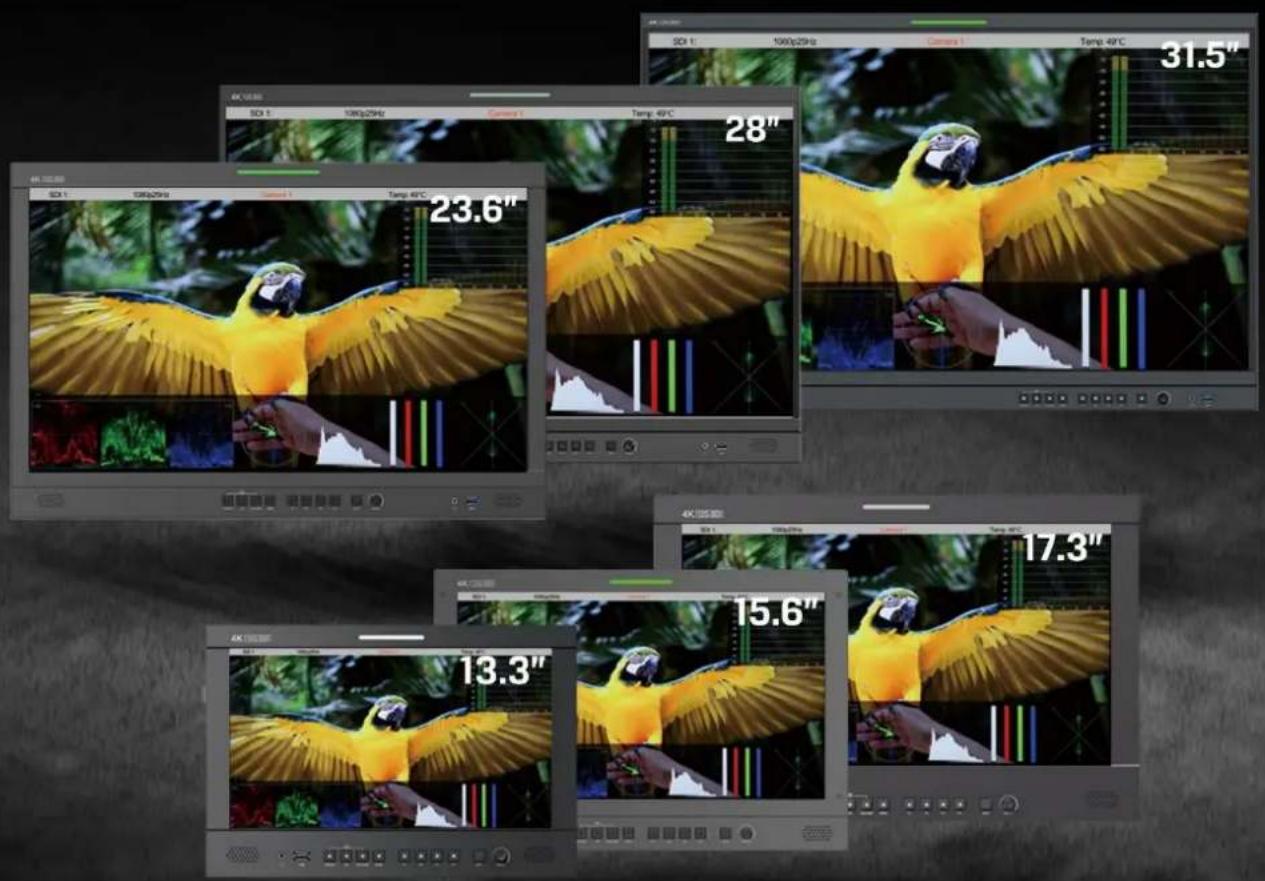
| Available Panel Sizes | 13.3", 15.6", 17.3", 23.6", 28", 31.5" |
| Resolution | 3840×2160 (4K UHD) |
| Brightness | 300–400 cd/m² (depending on size) |
| Contrast Ratio | 1000:1 to 1300:1 (depending on size) |
| Viewing Angle | 170°–178° both H/V (depending on size) |
| Video Inputs | 12G-SDI ×2, 3G-SDI ×2, HDMI 2.0, SFP (optional), GPI, RS422, LAN |
| Video Outputs | 12G-SDI ×2, 3G-SDI ×2, HDMI 2.0, RS422, Earphone jack |
| Power Input | DC 12–24V (4-pin XLR or battery plate) |
| Power Consumption | ≤31.5W to ≤74W (depending on size) |
| Weight (without accessories) | 2.4 kg to 13.0 kg (depending on size) |
| Quad Split Multiview | Supports up to 4 inputs (SDI/HDMI/SFP) in quad mode |
| HDR Support | ST 2084 (PQ) and Hybrid Log Gamma (HLG) |
| Gamma Selection | 1.8, 2.0, 2.2, 2.35, 2.4, 2.6, 2.8 |
| Color Gamut | Native, SMPTE-C, Rec709, EBU, BT2020, DCI-P3 (on some sizes) |
| 3D LUT Support | Up to 33×33×33 cube files via USB |
| Waveform/Vector/Histogram | Yes, with multiple modes (Y, YCbCr, RGB, Multi) |
| Peaking | Adjustable level (1-100) with color options (Red, Green, Blue, White, Black) |
| False Color | Default, Spectrum, ARRI, RED exposure assist |
| Audio Monitoring | Level meter, audio vector, 8ch (HDMI) / 16ch (SDI) |
| Remote Control | GPI, RS422 (Default/TSL V3.1), LAN (10/100) |
| Cleaning Instructions | Use a clean, soft cloth; no chemical solutions |
| Safety Precautions | Do not block vents; unplug during thunderstorms; use only supplied adapter |
| Accessories Included | 15V DC adapter, VESA mount bracket, V-mount/Anton Bauer plate, base bracket, 8GB USB drive |
Frequently Asked Questions - Q18-ABBP-CC Lilliput
User questions about Q18-ABBP-CC Lilliput
0 question about this device. Answer the ones you know or ask your own.
Ask a new question about this device
Download the instructions for your Monitor in PDF format for free! Find your manual Q18-ABBP-CC - Lilliput and take your electronic device back in hand. On this page are published all the documents necessary for the use of your device. Q18-ABBP-CC by Lilliput.
USER MANUAL Q18-ABBP-CC Lilliput
Studio / Broadcast Monitor
13.3"/15.6"/17.3"/23.6"/28"/31.5 3840×2160 Resolution, features with quad split multiview
User Guide
Contents
Important Safety Instructions: 2
Precaution: 2
- Main Features....3
- Production Description .... 4
2.1 Front Panel 4
2.2 Rear Panel 5
- Menu Setting 8
3.1 Shortcut keys....8
3.2 MENU Operations....9
- Product Parameters....26
- Accessories 26
- Trouble Shooting 27
Appendix 1: 3D LUT Loading....28
Appendix 2: Remote Terminal Instructions ....30
Important Safety Instructions:
- Please read User Guide before using this product.
- Please keep User Guide for future reference.
- Please read the precaution to prevent possible danger and loss of property.
Precaution:
- Please do not place the display screen towards the ground.
- Please avoid heavy impact or drop onto the ground.
- Please do not use chemical solutions to clean this product. Please wipe with a clean soft cloth to maintain the brightness of the surface.
- Please do not block any vent hole.
- Please follow the instructions and trouble-shootings to adjust the product. Other improper adjustment may result in damage. Any further adjustment must be performed or conducted by a qualified technician.
- Please unplug the power and remove the battery if long-term no-use, or thunder weather.
1. Main Features
● Support standard 12G-SDI input interface (x2), 3G-SDI input interface (x2), and support Single-Link, Dual-Link and Quad-Link signals.
● Support HDMI 2.0/ 1.4 inputs and loop outputs.
● Support SFP input, optical module for optional.
● Support Quad Split Multiview
- Input signals support up to 3840x2160 60/ 59.94/ 50/ 30/ 29.97/ 25/ 24/ 23.98p and 4096x2160 60/ 59.94/ 50/ 48/ 47.95/ 30/ 29.97/ 25/ 24/ 23.98p; Signal loop out.
● 12 bits data processing and 12 bits data buffering
● Monitor control via GPI/ RS422/ LAN.
- Customized Menu Knob.
● Support customized various waveform mode: Waveform/ Vector/ Histogram/ Audio Vector/ Level Met
● HDR (High Dynamic Range) display supporting ST 2084/ Hybrid Log Gamma.
● Gamma selection: 1.8-2.8.
- Custom 3D LUT file load through USB.
● Gamut supporting SMPTE-C/ Rec709/ EBU.
● Color Space/ HDR/Gamma / Camera Log comparison with original (side by side).
● Color Temperature: 3200K/ 5500K/ 6500K/ 7500K/ 9300K/ User.
● False Color: Default/ Spectrum/ ARRI/ RED.
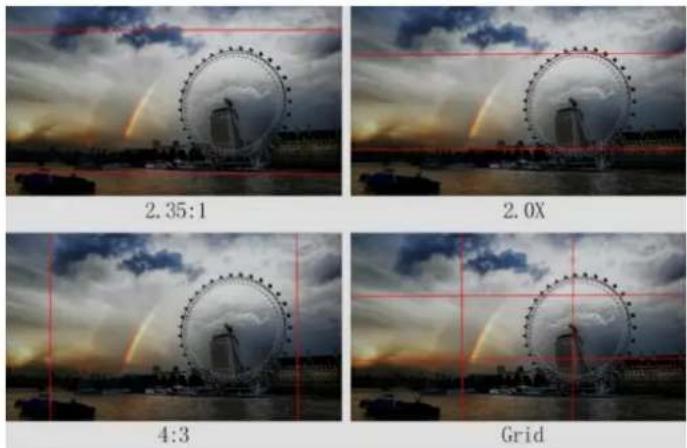
● Aspect Marker (16:9/ 1.85:1/ 2.35:1/ 4:3/ 3:2/ 2.0X/ 2.0X MAG/ Grid/ User).
● Aspect (Full/ 16:9/ 1.85:1/ 2.35:1/ 4:3/ 3:2/ 2.0X/ 2.0X MAG).
● Audio: supporting Audio Vector, Level Meter, (HDMI supporting 8 channels/ SDI supporting 16 channels)
● Time Code: LTC/ VITC.
● UMD display: White/ Red/ Green/ Blue/ Yellow/ Cyan/ Magenta text color for optional.
● Color Bar Mode: Rec601/ Rec709/ BT2020.
● Check Field: Red/ Green/ Blue/ Mono.
- Zoom at any position and at different scale.
● Peaking (Red/ Green/ Blue/ White/ Black).
● Tally (Red/ Green/ Yellow).
2. Production Description
2.1 Front Panel
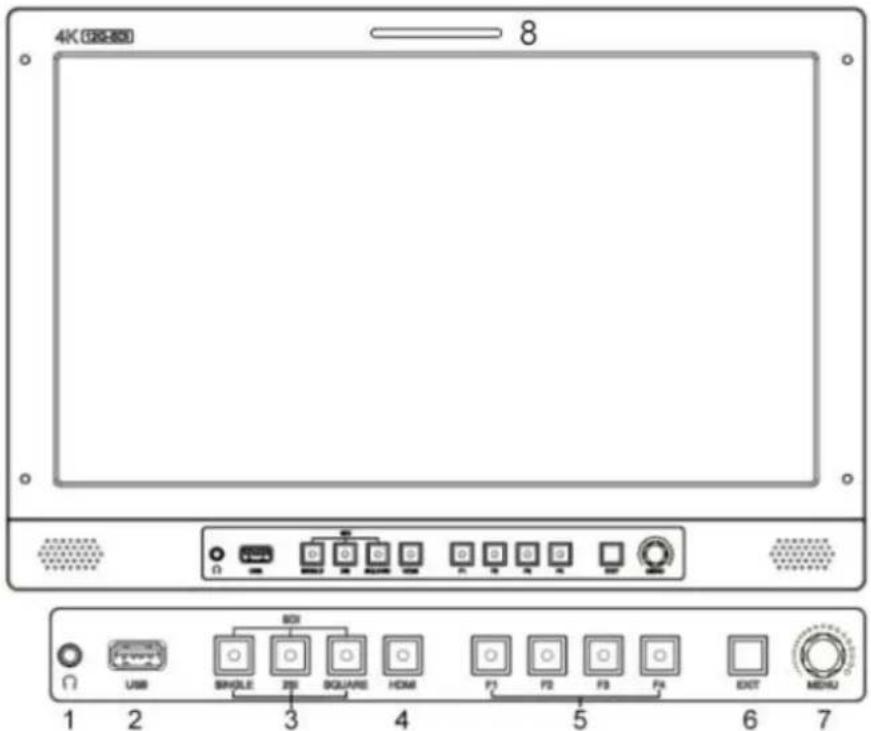
1) Earphone Jack
2) USB (For 3D LUT load and software update)
3) SDI Buttons
- Single Button/ Lamp: SDI1/ SDI2/ SDI3/ SDI4/ SFP signal input.
-MV1 Input Button (Quad Mode): SDI1/SDI2/SDI3/SDI4/SFP/HDMI signal input. - 2SI Button/ Lamp
-MV2 Input Button (Quad Mode): SDI1/SDI2/SDI3/SDI4/SFP/HDMI signal input. - Square Button/ Lamp
-MV3 Input Button (Quad Mode):SDI1/SDI2/SDI3/SDI4/SFP/HDMI signal input
4) HDMI Button/ Lamp
-MV4 Input Button (Quad Mode):SDI1/SDI2/SDI3/SDI4/SFP/HDMI signal input
5) F1/ F2/ F3/ F4 Button and Lamp
Assigned function by factory as follow:
- [F1]: Peaking - [F3]: Waveform
- [F2]: Level Meter - [F4]: Color Space
6) Exit Button
Under Quad Mode: Display the signal input status
7) Menu Knob
8) TALLY (indicator light)
2.2 Rear Panel
2.2.1 Interfaces
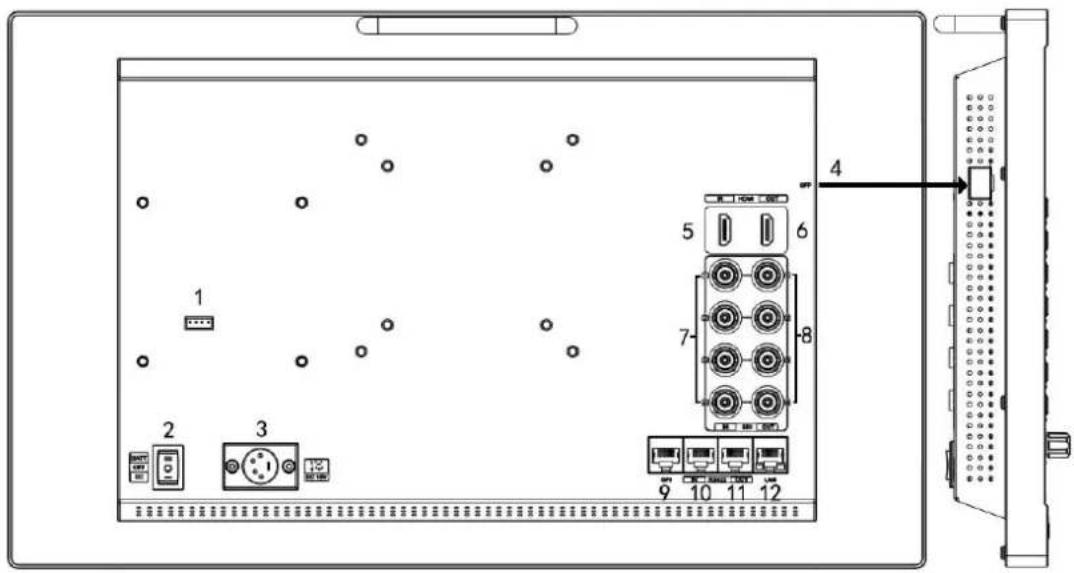
1) 4pin power input for V-mount/ Anton Bauer mount battery plate.
2) Power Switch: "O" is power off, "II" is battery power supply, "I" is DC power supply.
3) Power IN: 4-pin XLR DC.
4) SFP Input
5) HDMI 2.0 Input
6) HDMI 2.0 Output
7) SDI Input
- 12G-SDI Input *2
- 3G-SDI Input *2
8) SDI Output
- 12G-SDI Output *2
- 3G-SDI Output *2
9) GPI Input (RJ45, 8-pin): See Page 22 GPI 1-8.
10) RS422 Input (RJ45, 8-pin): Supporting the default and TSL V3.1 protocols to control Monitor. Follow this instructions about this port.
| PIN Number | Instruction |
| PIN 1 | Y |
| PIN 2 | Z |
| PIN 3 | A |
| PIN 4 | NC |
| PIN 5 | NC |
| PIN 6 | B |
| PIN 7 | NC |
| PIN 8 | GND |
11) RS422 Output (RJ45, 8-pin): Supporting the default and TSL V3.1 protocols to control Monitor. The instructions about the port is as above.
12) LAN (10/ 100) Input (RJ45): Supporting the default protocol to control Monitor.
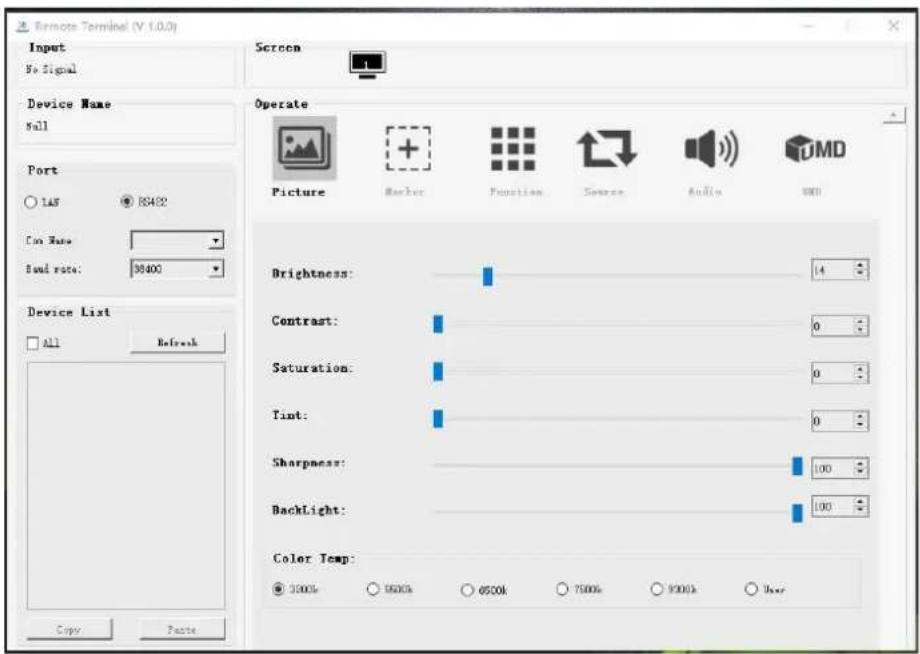
Note: The "RemoteTerminal.exe" as default protocol to control Monitor.
2.2.2 Standard VESA
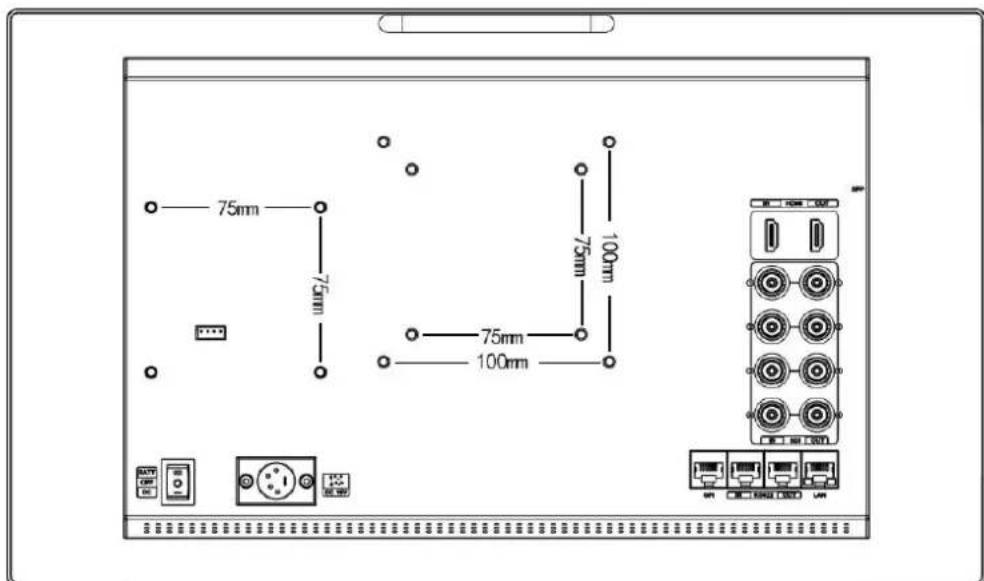
- Standard 75mm*75mm is used for external battery (V-mount/ Anton Bauer mount battery).
- Standard 75mm*75mm and 100mm*100mm, can be used for external hanging bracket.
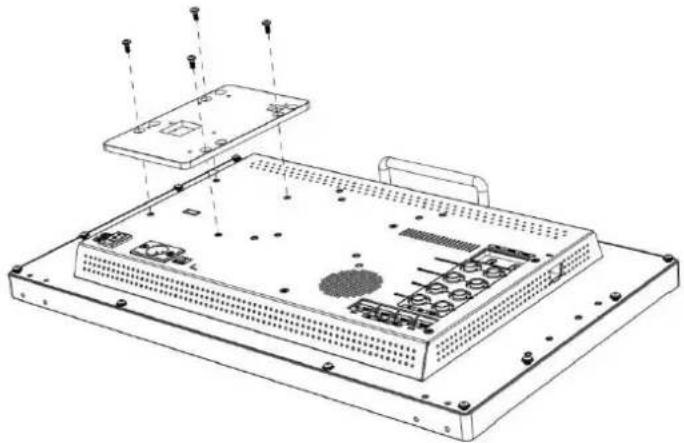
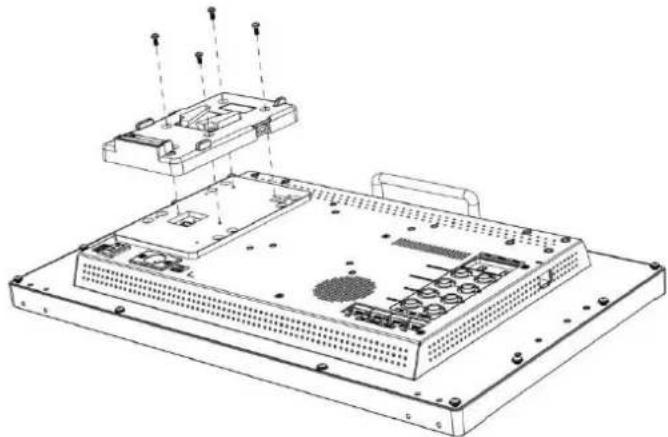
Process of Installing Battery Plate:
- Install the plate base before installing the battery plate.
natural_image
Technical line drawing of an electronic device chassis with mounting brackets and internal components (no text or symbols)- Standard with V-mount battery plate: Referring to the following pictures for installation process and GP-L130AB type battery.
natural_image
Technical line drawing of an electronic device chassis with internal components and mounting holes (no text or symbols)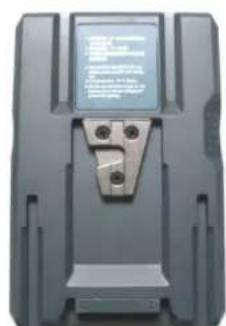
natural_image
Close-up of a black electronic device casing with a metallic clip and three screws (no visible text or symbols)GP-L130AB
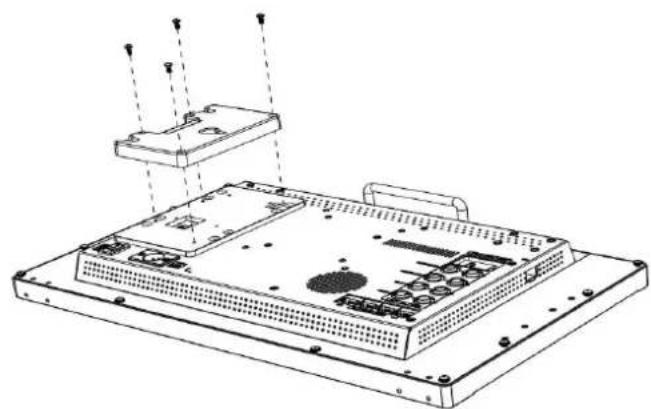
- Optional Anton Bauer battery plate. Referring to the following pictures for installation process and GP-L130B type battery.
natural_image
Technical line drawing of a server rack with ventilation slots and mounting bracket (no text or symbols)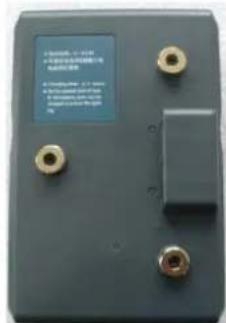
Before setting the functions, please make sure the device is connected correctly.
3.1 Shortcut keys
3.1.1 Menu Knob
● Power on the monitor, press Menu Knob to display OSD, and select options as the following sequence via rotating it: PICTURE/ MARKER/ FUNCTION/ WAVEFORM/ AUDIO/ REMOTE/ SYSTEM.
- Press Menu Knob to enter the desired function, rotate it to change the value/ option, and press Men Knob or Exit again to confirm the changes.
- Functions of Menu Knob can be customized: [Back Light], [Brightness], [Contrast], [Saturation], [Tint], [Sharpness], [Volume], [Peaking Level]. After setting the Knob's customized function, rotating it can display the function, and rotating it again can adjust the value. Press it to switch to the next option turn. Default option: [Volume].
3.1.2 F1-F2-F3-F4 Buttons:
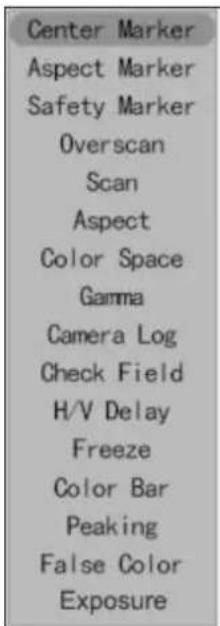
- Long press any F1-F2-F3-F4 buttons for 3-5 seconds to pop up shortcut menu screen. As shown in Figure. Select option via rotating the Menu Knob, and s default via pressing the Knob, then press Exit button to exit shortcut setting The customized function will be remembered by F1/F2 buttons.
● Functions of F1-F2-F3-F4 buttons can also be customized: [Center Marker], [A Marker], [Safety Marker], [Overscan], [Scan], [Aspect], [Color Space], [Gamma], [Camera Log], [Check Field], [H/V Delay], [Freeze], [Color Bar], [Peaking], [Fals Color], [Exposure], [Histogram], [Waveform], [Vector], [Time Code], [Mute], [Le Meter], [Audio Vector] and [MV Mode].
● Default function: F1: [Peaking] F2: [Waveform].
F3: [Level Meter] F4: [Color Space].
3.2 MENU Operations
3.2.1 PICTURE
SDI Mode HDMI Mode
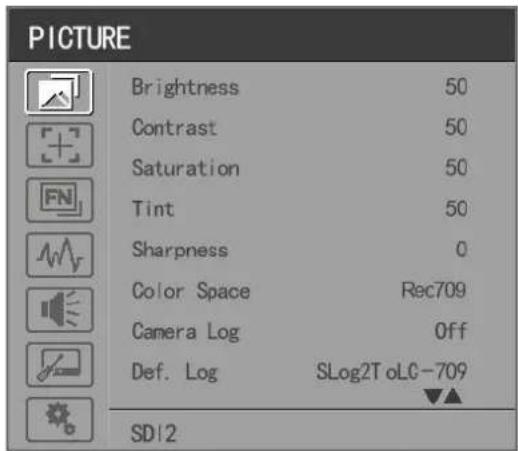
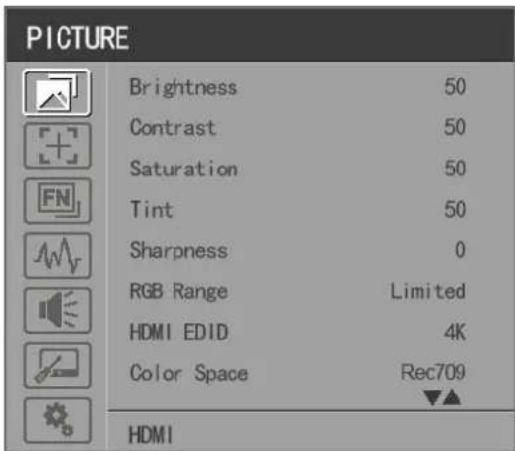
- Brightness
Control the degree of brightness between 0-100.
- Contrast
Control contrast ratio between 0-100.
- Saturation
Adjust the color intensity between 0-100.
Tint
Adjust tint between 0-100.
- Sharpness
Control sharpness of the image between 0-100.
- RGB Range
Use this item to choose the RGB range of the HDMI input: [Full], [Limited].
- HDMI EDID
Select the HDMI EDID from between [4K] and [2K]. This item enables PC or other devices to recognize the property of this monitor and makes the images look excellent on the screen.
- Color Space
Select the display gamut from among [Native], [SMPTE-C], [Rec709], [EBU], [BT2020].
Note: for the 17.3inch and 31.5 inch monitor, the gamut can be selected among of [DCI-P3], [Native]
[SMPTE-C], [Rec709], [EBU] and [BT2020].
- Camera Log
Use this item to choose one of the camera Log modes:
- [Off]: Turn off Camera Log.
- [Def. Log]: Use this item to choose one of the Camera Log modes as the following sequence: [SLog2ToLC-709], [SLog2ToLC-709TA], [SLog2ToSLog2-709], [SLog2ToCine+709], [SLog3ToLC-709], [SLog3ToLC-709TA], [SLog3ToSLog2-709], [SLog3ToCine+709], [ArriLogCTo709], [ArriLogCToP3DCI], [CLogToV709], [VLogToV709], [JLog To709], [JLogTo709HLG], [JLogTo709PQ], [Z7 NLogTo709], [D780 NLog To709].
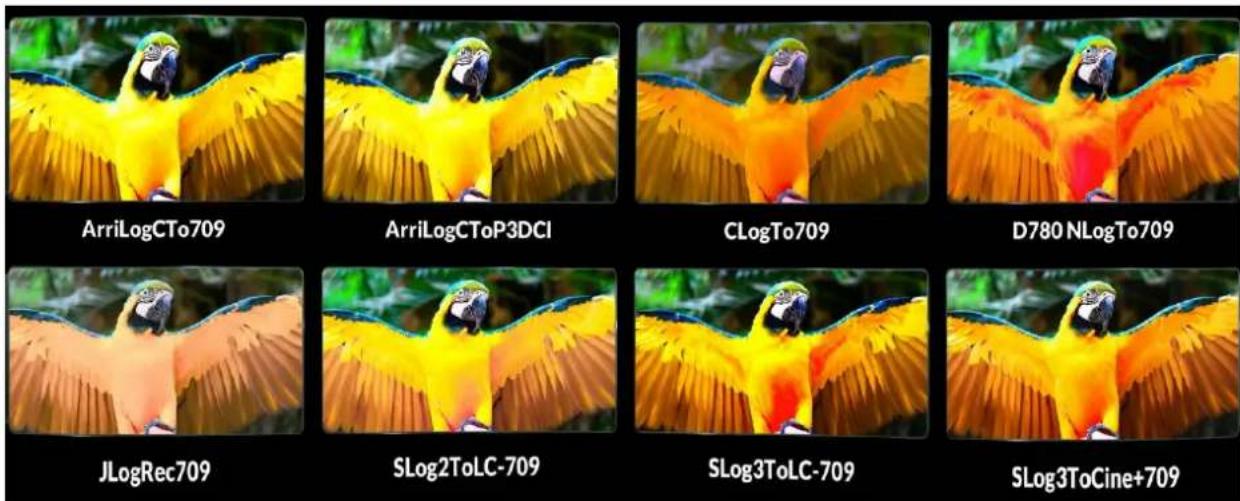
- [User Log]: Use this item to choose one of the User Log modes (1-6). Please install the User Log following steps:
The User Log must be named with. cube in the suffix. Please note: the device only supports the format of User Log: 17x17x17 / 33x33x33; Data order is BGR; Table order is BGR. If the format does not use the requirement, please use tool "Lut Tool.exe" to transform it. Naming the User Log as
User1-User6.cube, then copy the user Log into USB flash disk. Insert the USB flash disk to the device the User Log is saved to the device automatically at the first time. If the User Log is not loaded for first time, the device will pop up a prompt message, please choose whether to update or not.
- Gamma
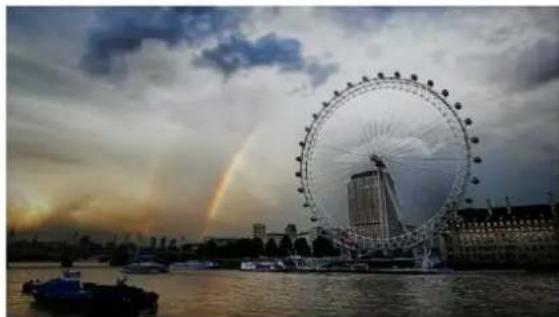
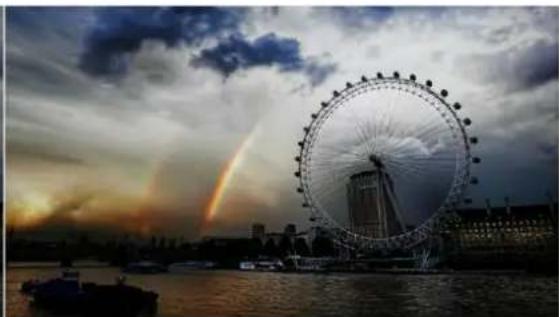
Use this item to choose the display Gamma: [Off], [1.8], [2.0], [2.2], [2.35], [2.4], [2.6], [2.8].
natural_image
Sunset over the Cape of London featuring a large Ferris wheel and a rainbow arching through water, with boats on the river below (no visible text or symbols)Gamma 1.8
natural_image
Sunset over a cityscape featuring a large Ferris wheel and a rainbow arching over water, with boats on the river (no visible text or symbols)Gamma 2.8
Note: Gamma mode can be only activated while HDR function closed.
HDR
Use this item to choose one of the HDR presets: [Off], [ST 2084 300], [ST 2084 1000], [ST 2084 1000] [HLG].
- Back Light Mode
Adjust the level of the back light from 0 to 100.
- Color Temp.
Use this item to choose one of the color temperature presets: [3200K], [5500K], [6500K], [7500K], [9300K], [User].
Note: Only available under [User] mode to adjust R/G/B Gain and Offset.
R/G/B Gain
Adjust the R/G/B Gain of the current Color Temperature from 0 to 255. Default value: 128.
R/G/B Offset
Adjust the R/G/B Offset of the current Color Temperature from 0 to 511. Default value: 256.
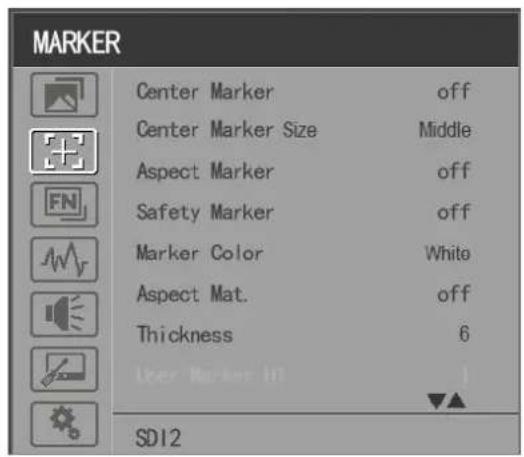
3.2.2 MARKER
- Center Marker
Select [On] to display the center marker "+" and [Off] not to display it.
● Center Marker Size
When [Center Marker] is activated, its size can be selected. [Small], [Middle] and [Large] are for optimal. Default option: [Middle].
- Aspect Marker
Select the aspect ratio of the marker: [Off], [16:9], [1.85:1], [2.35:1], [4:3], [3:2], [2.0X], [2.0X MAG], [Grid], [User].
- Safety Marker
- Select [Off] not to display the safety marker. When this item is used with the aspect marker, it is in aspect marker. When [Aspect Marker] is selected as [User], the safety marker does not be changed. - Select the size of the safety markers: [95%], [93%], [90%], [88%], [85%], [80%].
Note: When [Aspect Marker] is selected as [Grid], the safety marker cannot be displayed.
- Marker Color
Select the color of marker displayed on the screen: [Red], [Green], [Blue], [White], [Black].
- Aspect Mat.
When activated, it can be selected from 1-7 (Step value is 1).

Thickness
Adjust the thickness of all the marker lines from 1-15 (Step value is 1).
User Marker
H1/H2: Adjust the position of vertical markers from 1 to 3840 (Step value is 1).
V1/V2: Adjust the position of horizontal markers from 1 to 2160 (Step value is 1).
Note: User maker only in [Aspect Maker]- [User] mode available.
Note: The Marker function is not available in Quad Mode.
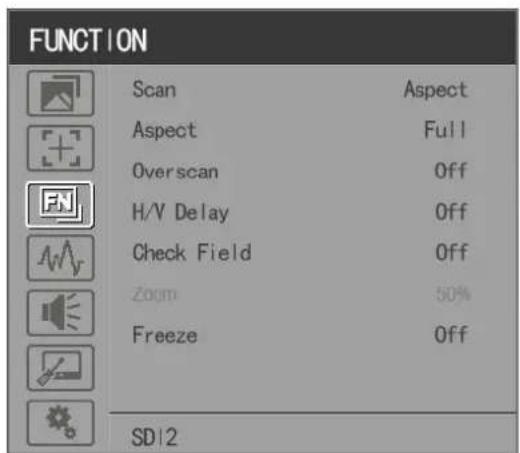
3.2.3 FUNCTION
MV Mode: Off、Quad
MV1 Source: SDI1/SDI2/SDI3/SDI4/SFP/HDMI signal input
MV2 Source: SDI1/SDI2/SDI3/SDI4/SFP/HDMI signal input
MV3 Source: SDI1/SDI2/SDI3/SDI4/SFP/HDMI signal input
MV4 Source: SDI1/SDI2/SDI3/SDI4/SFP/HDMI signal input
Frame Line Color: Off, 2, 4, 6, 8, 10, 12, 14
MV1 Frame Line Color: White, Red, Green, Blue, Yellow, Cyan, Magenta
MV2 Frame Line Color: White, Red, Green, Blue, Yellow, Cyan, Magenta
MV3 Frame Line Color: White, Red, Green, Blue, Yellow, Cyan, Magenta
MV4 Frame Line Color: White, Red, Green, Blue, Yellow, Cyan, Magenta
Scan
Adjust the scan mode among [Aspect], [Pixel To Pixel], [Zoom].
Note: Aspect and overscan functions only can be adjusted only under [Aspect] mode. Both of them cannot
be adjusted in [Zoom] and [Pixel To Pixel] modes.
Note: The Scan function is not available in Quad Mode.
- Aspect
Select the aspect of the image among [Full], [16:9], [1.85:1], [2.35:1], [4:3], [3:2], [2.0X], [2.0X MAG].
natural_image
Sunset over a cityscape with a large Ferris wheel and distant buildings under a cloudy sky (no text or symbols visible)2.0X
natural_image
Sunset over a water feature with a large Ferris wheel and a rainbow arching in the sky (no text or symbols visible)2.0X MAG
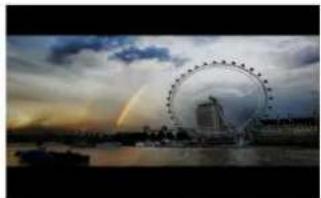
natural_image
Sunset over a river with a large Ferris wheel in the background, no visible text or symbols2.35:1
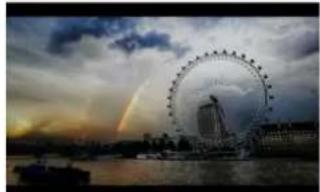
natural_image
Sunset over a river with a large Ferris wheel and a rainbow arching in the sky (no text or symbols visible)1.85:1
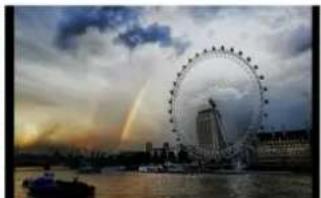
natural_image
Sunset over the Cape of London with a large Ferris wheel and a rainbow arching through the water (no visible text or symbols)3:2
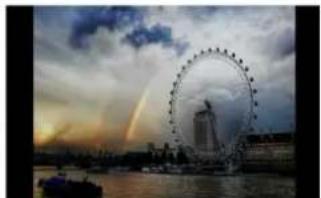
natural_image
Sunset over a cityscape with a large Ferris wheel and a rainbow arching through the water (no visible text or symbols)4:3
Note: The Aspect function is not available in Quad Mode.
- Overscan
Use this item to activate or deactivate overscan.
Note: The Overscan function is not available in Quad Mode.
H/V Delay
Select one of the H/V modes: [OFF], [H], [V], [H/V]. When H/V Delay on, the blanking portions of the input signal will be displayed horizontally and vertically.
Note: The H/V Delay function is not available in Quad Mode.
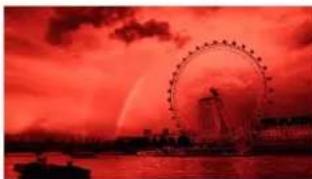
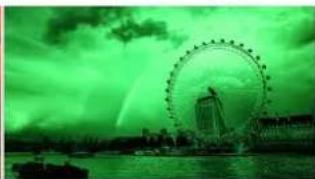
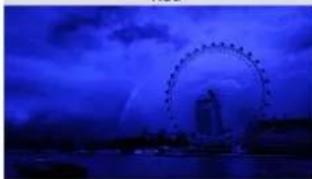
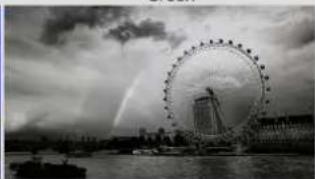
- Check Field
Select one of check field modes: [Off], [Red], [Green], [Blue], [Mono].
natural_image
Sunset over a river with a large Ferris wheel in the background (no text or symbols visible)Red
natural_image
Faint green circular Ferris wheel over water with city skyline in background (no text or symbols visible)Green
natural_image
Nighttime cityscape featuring a large Ferris wheel and a distant skyscraper under a dramatic blue sky (no text or symbols visible)Blue
natural_image
Black-and-white photo of the London Frigate in Paris with a large Ferris wheel and city skyline under cloudy skies (no text or symbols visible)Mono
- Zoom
Select zoom scale from 10% to 90% (Step value is 10%).
When you select [Scan] as [Zoom], any part of the enlarged image can be displayed on the screen the Menu Knob.
Note: The Zoom function is not available in Quad Mode.
- Freeze
Choose [On] to capture one frame of current image on the screen, and choose [Off] to close freeze function.
Note: The Freeze function is not available in Quad Mode.
3.2.4 WAVEFORM
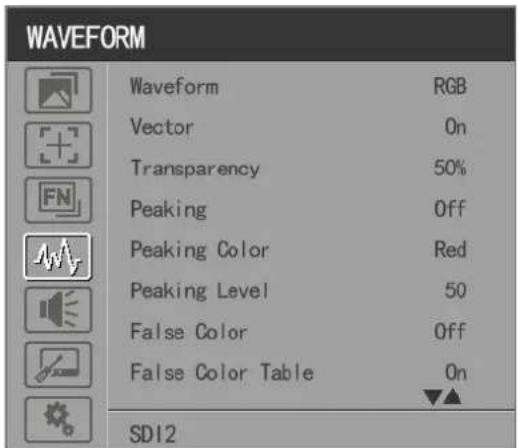
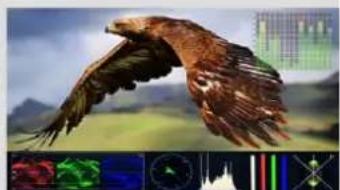
- Waveform
Use this item to activate or deactivate Waveform. Select the waveform mode from among [Multi], [YCbCr], [RGB].
- [Multi]: Display waveform, histogram, audio vector, vector, and level meter simultaneously.
- [Y]: Display Y Waveform.
- [YCbCr]: Display YCbCr Waveform.
- [RGB]: Display R/G/B Waveform.
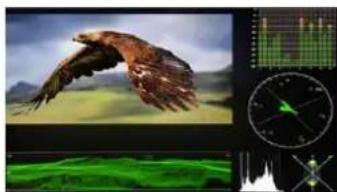
natural_image
Composite image showing a bird in flight over green landscape, overlaid with a financial chart and radar dial (no readable text or symbols)Multi
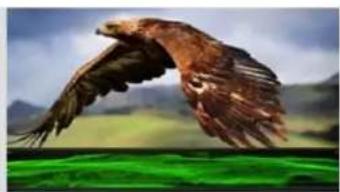
natural_image
Illustration of a bird in flight over green ground with mountain background (no text or symbols)Y
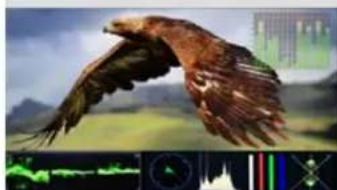
natural_image
Illustration of a bird in flight with landscape background and overlaid digital interface elements (no readable text or symbols)YCbCr
natural_image
Illustration of a bird in flight with landscape background and multiple colored circular overlays (no text or symbols)RGB
Note: The Waveform function is not available in Quad Mode.
- Vector
Use this item to activate or deactivate Vector.
Note: The Vector function is not available in Quad Mode.
- Transparency
Adjustment of transparency can support waveform, vector, histogram, audio vector, level meter. Transparency can be selected from among [off], [25%], and [50%].
- [Off]: The background of waveform is shown at black.
- [25%]: The background of waveform is shown at 25% intensity.
- [50%]: The background of waveform is shown at 50% intensity.
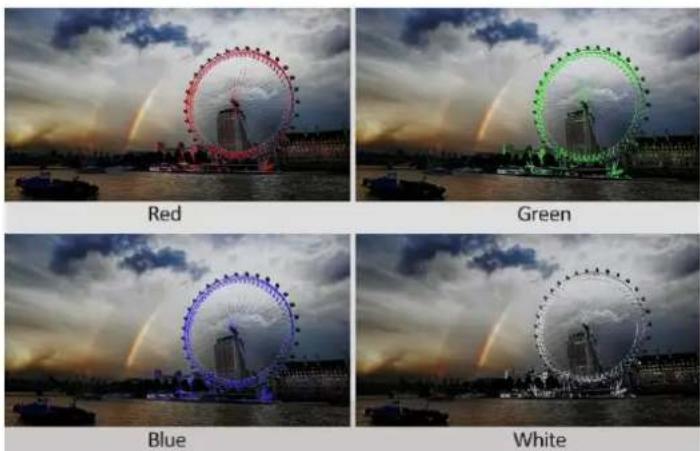
- Peaking
Use this item to activate or deactivate the peaking function.
- Peaking Color
Select one of the peaking colors: [Red], [Green], [Blue], [White], [Black].
- Peaking Level
Use this item to adjust the level of peaking from 1-100. The higher peaking level is, the more obvious peaking effect is.
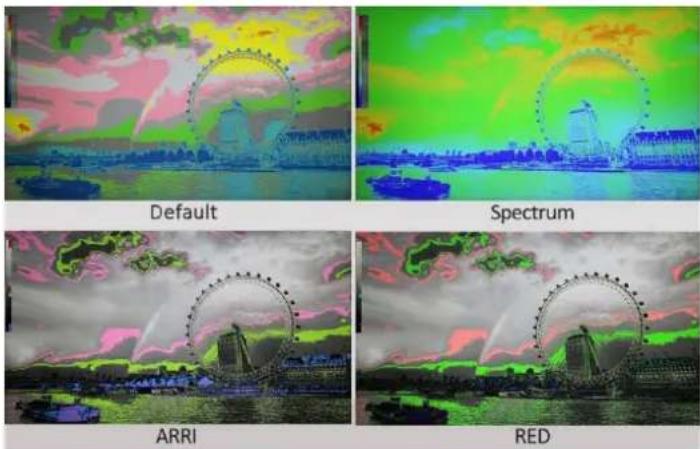
- False Color
Use this item to activate or deactivate the false color function.
When activated, [Default], [Spectrum], [ARRI], [RED] are for optional.
- False Color Table
Use this item to activate or deactivate the false color table. The range of the false color table is between 0-100 IRE.
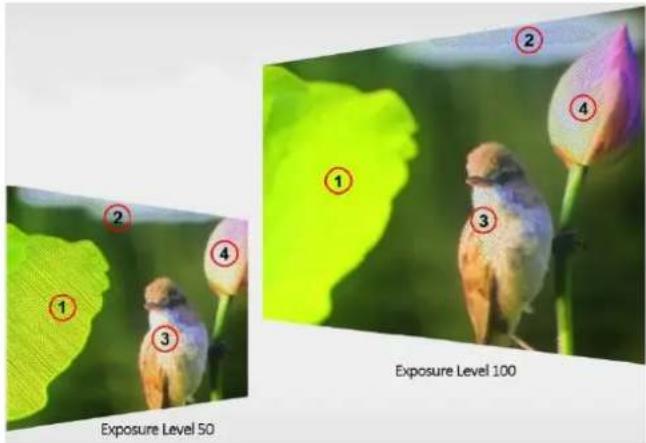
- Exposure
Use this item to activate or deactivate the exposure function.
When activated, exposure works if the input signal exceeds the designated exposure level.
- Exposure Level
Use this item to adjust the level of exposure between 50-100 IRE.
- Histogram
Use this item to activate or deactivate histogram. When activated, [Y], [RGB], [Color] are for optiona
- [Y]: Display Y histogram.
- [RGB]: Display RGB mixed histogram.
- [Color], Display RGB separated histogram.
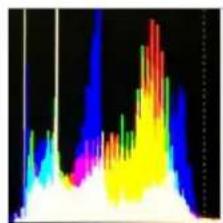
natural_image
Abstract color gradient pattern with no text or symbolsRGB
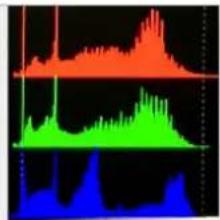
area
| Time | Red Area | Green Area | Blue Area | |------|----------|------------|-----------| | 0 | 0 | 0 | 0 | | 1 | 0 | 0 | 0 | | 2 | 0 | 0 | 0 | | 3 | 0 | 0 | 0 | | 4 | 0 | 0 | 0 | | 5 | 0 | 0 | 0 | | 6 | 0 | 0 | 0 | | 7 | 0 | 0 | 0 | | 8 | 0 | 0 | 0 | | 9 | 0 | 0 | 0 | | 10 | 0 | 0 | 0 | | 11 | 0 | 0 | 0 | | 12 | 0 | 0 | 0 | | 13 | 0 | 0 | 0 | | 14 | 0 | 0 | 0 | | 15 | 0 | 0 | 0 | | 16 | 0 | 0 | 0 | | 17 | 0 | 0 | 0 | | 18 | 0 | 0 | 0 | | 19 | 0 | 0 | 0 | | 20 | 0 | 0 | 0 | | 21 | 0 | 0 | 0 | | 22 | 0 | 0 | 0 | | 23 | 0 | 0 | 0 | | 24 | 0 | 0 | 0 | | 25 | 0 | 0 | 0 | | 26 | 0 | 0 | 0 | | 27 | 0 | 0 | 0 | | 28 | 0 | 0 | 0 | | 29 | 0 | 0 | 0 | | 30 | 0 | 0 | 0 | | 31 | 0 | 0 | 0 | | 32 | 0 | 0 | 0 | | 33 | 0 | 0 | 0 | | 34 | 0 | 0 | 0 | | 35 | 0 | 0 | 0 | | 36 | 0 | 0 | 0 | | 37 | 0 | 0 | 0 | | 38 | 0 | 0 | 0 | | 39 | 0 | 0 | 0 | | 40 | 0 | 0 | 0 | | 41 | 0 | 0 | 0 | | 42 | 0 | 0 | 0 | | 43 | 0 | 0 | 0 | | 44 | 0 | 0 | 0 | | 45 | 0 | 0 | 0 | | 46 | 0 | 0 | 0 | | 47 | 0 | 0 | 0 | | 48 | 0 | 0 | 0 | | 49 | 0 | 0 | 0 | | 50 | 0 | 0 | 0 | | ... (repeated) for 'Red' to 'Blue' (repeated) to 'Orange' to 'Green' to 'Blue' (repeated) to 'Orange' to 'Blue' (repeated) to 'Orange' to 'Blue')Color
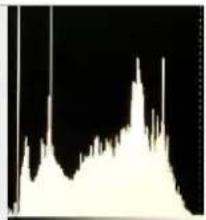
natural_image
Abstract black and white graphic with sharp peaks and valleys (no text or symbols)Y
Note: The Histogram function is not available in Quad Mode.
- Time Code
Use this item to activate or deactivate the Time Code. When activated, [LTC], [VITC] are for optional
Note: Time code is only available under SDI mode.
3.2.5 AUDIO

Volume
Adjust the volume among 0-100.
● Audio Source: SDI1/SDI2/SDI3/SDI4/SFP/HDMI
Note: The Audio Source is only available under Quad mode.
- Level Meter
Select whether to activate or deactivate level meter.
Note: Default as on under [Waveform]-[Multi] function.
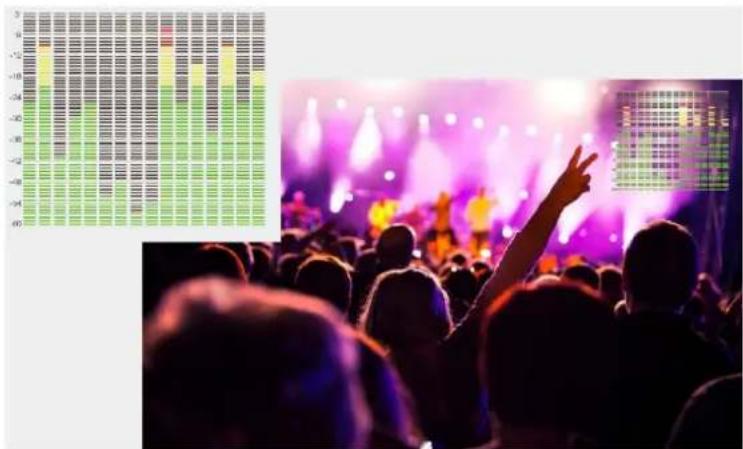
bar
| Category | Value | |---|---| | Bar Chart | 0 | | Line Chart | 0 |- Audio Vector
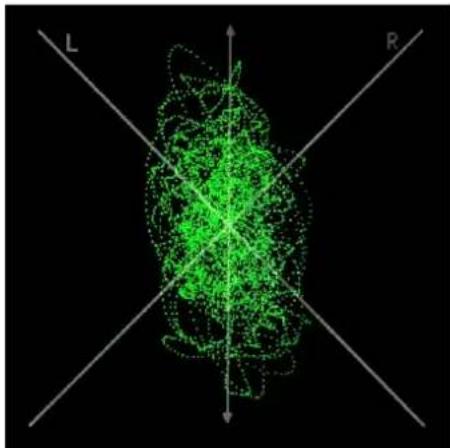
Select whether to activate or deactivate audio vector. Audio phase can be monitored by the audio vector.
natural_image
Green fluorescent molecular structure with labeled axes L and R, no readable text or symbolsNote: The Audio Vector is not available under Quad mode.
- Vector Ch.
In HDMI mode, select the vector channels from among [Ch1&Ch2], [Ch3&Ch4], [Ch5&Ch6], and [Ch7&Ch8].
In SDI mode, select the Vector Channels from among [Ch1&Ch2], [Ch3&Ch4], [Ch5&Ch6], [Ch7&Ch8], [Ch9&Ch10], [Ch11&Ch12], [Ch13&Ch14], and [Ch15&Ch16].
Note: The Vector Ch is not available under Quad mode.
● Audio Left/Right Out
In HDMI mode, select one of the audio channel from among 1-8.
In SDI mode, select one of the audio channel from among 1-16.
Note: The Audio Left/Right Out is not available under Quad mode.
3.2.6 REMOTE
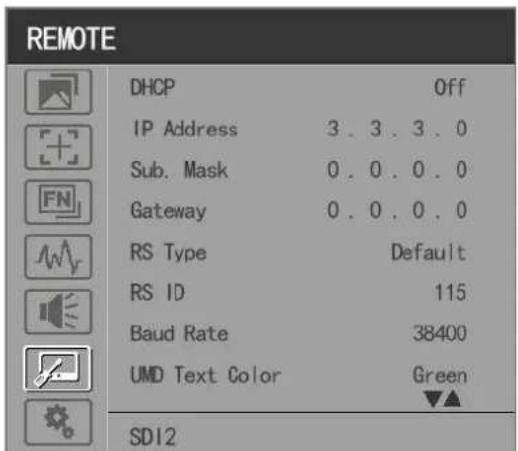
DHCP
- [On]: The monitor will automatically get an IP address from network for remote control via various programs.
- [Off]: Manually configure IP address.
IP Address
Manually configure IP address: xxx.xxx.xxx.xxx
Note: When [DHCP] on, IP address cannot be manually set.
- Sub net Mask
Manually configure Sub net Mask: xxx.xxx.xxx.xxx
Note: When [DHCP] on, Sub net Mask cannot be manually set.
- Gateway
Manually configure Gateway: xxx.xxx.xxx.xxx
Note: When [DHCP] on, Gateway cannot be manually set.
- RS Type
Select RS type: [Default], [TSL V3.1].
Default software connection as below,
RS ID
Set the ID of RS422 communication. The valid address range is between 1-126.
Note: ID must be unique in a RS422 network.
● Baud Rate
Select one of RS422 Baud Rate: [19200], [38400], [57600].
Note: Set the same Baud Rate in PC's monitoring software.
Note: The Baud Rate is not available under Quad mode.
UMD
● UMD 1: Off, On
● UMD 1 Text Color: White, Red, Green, Blue, Yellow, Cyan, Magenta
- UMD 2: Off, On
● UMD 2 Text Color: White, Red, Green, Blue, Yellow, Cyan, Magenta
● UMD 3: Off, On
● UMD 3 Text Color: White, Red, Green, Blue, Yellow, Cyan, Magenta
- UMD 4: Off, On
● UMD 4 Text Color: White, Red, Green, Blue, Yellow, Cyan, Magenta
- GPI 1-8
| PIN Number | GPI | Settable Values |
| 1 | 1 | Single/ 2SI/ SQUAREHDMICenter Marker |
| 2 | 2 | |
| 3 | 3 | 16:9 Marker/ 1.85:1 Marker/ 2.35:1 Marker/ 4:3 Marker/ 3:2 Marker/ 2.0X Marker/ 2.0X MAG Marker/ Grid |
| 4 | 4 | SA 95%/ SA 93%/ SA 90%/ SA 88%/ SA 85%/ SA Pixel To Pixel |
| 5 | 5 | |
| 6 | 6 | Blue OnlyH/V DelayPeakingFalse ColorExposureMuteLevel MeterAudio VectorTally Red/ Tally Green |
| 7 | 7 | Power |
| 8 | Gnd | GND |
[Pin Assignment]
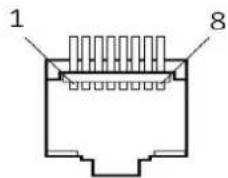
The GPI function is activated when the GPI pin is connected with the ground, an closed when it is disconnected from the ground. Connect to GPI to control the monitor remotely.
3.2.7. SYSTEM
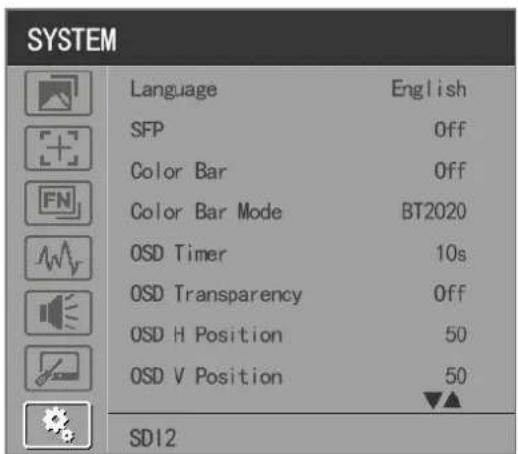
- Language
Option: [Chinese], [English].
SFP
Option: [On], [Off].
When the SFP on, SFP signal input can be selected via SDI-Single button on the front panel.
- Color Bar
Turn on/off color bar. When the color bar on, it can be selected: [100%], [75%].
Note: The Color Bar Mode is not available under Quad mode.
● Color Bar Mode
Option: [Rec601], [Rec709], [BT2020] color space.
Note: The Color Bar is not available under Quad mode.
- OSD Timer
Option: [10s], [20s], [30s].
- OSD Transparency
Turn on/off OSD transparency. When OSD Transparency on, option: [25%], [50%].
- OSD H Position
Option: 0-100. Default: 50.
- OSD V Position
Option: 0-100. Default: 50.
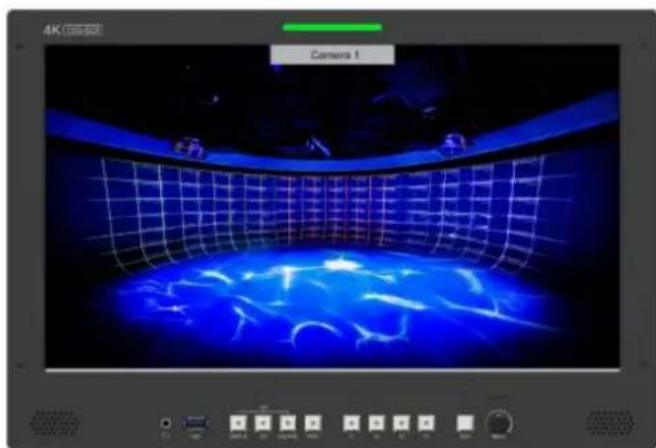
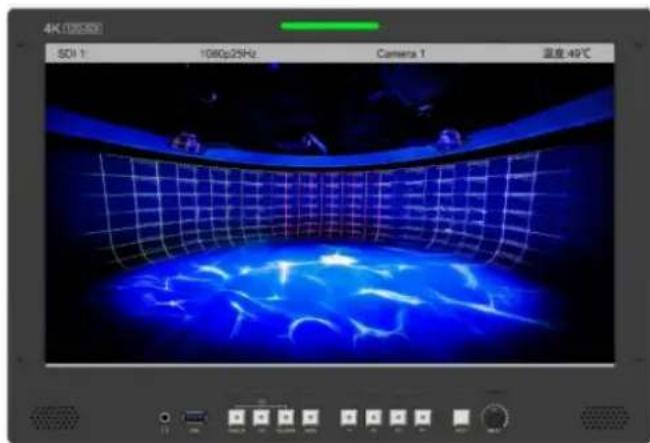
- Info. Windows
Option: [Off], [Standard], [Full]. Default: [Off].
- [Standard]: It supports UMD display. As show in the picture below,
natural_image
Interior view of a futuristic VR simulation center with glowing blue lighting and grid panels (no readable text or symbols)- [Full]: it can support signal input, UMD and internal temperature display. As shown in the following picture,
natural_image
Interior view of a curved room with blue LED lighting and illuminated floor, no visible text or symbols- UMD feature in the info. windows:
Support user UMD input data on screen, ASCII: 0x20\~0x7e
Support display up to 16 characters that are input by TSL protocol V3.1 on the screen.
Note: The Info. Windows is not available under Quad mode.
● Info. Windows transparency
Select to turn on/off info. Windows transparency, option: [Off], [25%], [50%]. Default: [Off]. Note: It is not available under Quad mode.
● Info. Windows H/V Position
The option range: 0-100.
Note: When [Info. Window] is selected as [Standard], its position can be adjusted freely. When [Info. Window] is selected as [Full], its vertical position can be adjusted freely.
Fan
Option: [Auto], [On], [Off]. Default: [Auto].
- [Auto]: The monitor will automatically turn on/off the fan according to the setting value of fan au temp.
Note: It is not available under Quad mode.
Knob
Customized Knob function, custom option: [Brightness], [Contrast], [Saturation], [Tint], [Sharpness], [Volume], [Peaking Level], and [Back light]. Default: [Volume]. Please refer to 3.1.1 for Knob specific operation instructions.
- Color Calibration
Select [On] or [Off].
If the device needs to be calibrated color, please operate as following:
- Connect the device with the PC via HDMI interface.
● Make sure the device and color calibration equipment to work more than 30 minutes. - After the previous step, activate the Color Calibration function of the device and color calibration software to calibrate the color (See the document “CMS Color Calibration Process” for details).
- It will generate a document "Rec709.cube" after calibrated, then copy this document to USB flash disk.
- Insert the USB flash disk to the device and save the document. This document "Rec709.cube" w be found under Color Space Option.
Note: It is not available under Quad mode.
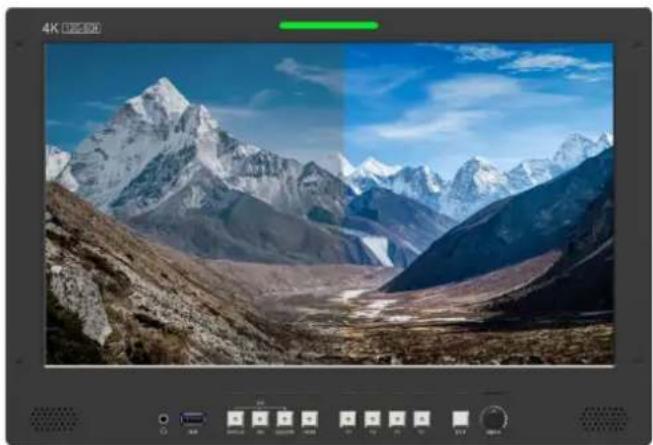
- Comparison En
Use this setting to activate or deactivate the Comparison En function.
When activated, the screen displays the comparison of Original image and customized image, as shown,
natural_image
Scenic mountain landscape with snow-capped peaks and rocky terrain under a blue sky (no text or symbols visible)Option: [Off], [Gamma/HDR], [Color Space], [Camera Log]. Default: [Off].
Note: It is not available under Quad mode.
- Reset
Select the Reset option, press the Menu knob to automatically reset.
4. Product Parameters
| Panel | 13.3" | 15.6" | 17.3" | 23.6" | 28" | 31.5" |
| Resolution | 3840×2160 | |||||
| Brightness | 300 cd/m2 | 330 cd/m2 | 400 cd/m2 | 300cd/m2 | 300cd/m2 | 350cd/m2 |
| Contrast | 1000:1 | 1000:1 | 1200:1 | 1000:1 | 1000:1 | 1300:1 |
| Viewing Angle | 178°/178°(H/V) | 176°/176°(H/V) | 170°/170°(H/V) | 178°/178°(H/V) | 178°/178°(H/V) | 178°/178°(H/V) |
| Input | 12G-SDI*2, 3G-SDI*2, HDMI 2.0, GPI, RS422, LAN, USB,SFP | |||||
| Output | 12G-SDI*2, 3G-SDI*2, HDMI 2.0, RS422, Earphone jack | |||||
| Power In | DC 12-24V | |||||
| Power Consumption | ≤31.5W | ≤32.5W | ≤34.5W | ≤54W | ≤60W | ≤74W |
| Operating Temperature | 0~50°C | 0~40°C | 0~50°C | 0~40°C | 0~40°C | 0~40°C |
| Storage Temperature | -20~60°C | -20~60°C | -20~60°C | -20~60°C | -20~60°C | -20~60°C |
| Dimensions (LWD) | 340×233×46 mm | 393×267×51.4 mm | 434×294×46 mm | 567×376.4×45.7 mm | 638×414.3×54.4 mm | 717.5×454.7×47.4 mm |
| Weight | 2.4KG | 2.9kg | 2.9kg | 7.4kg | 8.6kg | 13.0kg |
5. Accessories

natural_image
Five electronic components and a terminal block, shown in separate rows (no text or symbols visible)- Standard:
1) 15V DC Adapter 1p c
2) VESA Mount Plate Bracket 1pc
3) V-mount (or Anton Bauer Mount) 1pc
4) Base Bracket 1 pair
5) 8GB USB flash drive (User guide and software included) 1pc

natural_image
Five grayscale product photos showing different electronic components or devices, no visible text or symbols.- Optional:
6) SFP Optical Fiber Module 1 pc
7) Gimbal Bracket (13.3", 15.6", 17.3") 1 pc
8) Rack Mount Bracket(13.3",15.6",17.3",23.6",28") 1 pc
9) Carrying Case+Sunshade(15.6",17.3",23.6",28") 1 pc
10) Acrylic Screen Protector(15.6") 1 pc
6. Trouble Shooting
1) Only black-and-white display:
Check whether the color saturation is properly setup or not.
2) Power on but no pictures:
Check whether the cables of SDI and HDMI are correctly connected or not. Please use the standard power adapter coming with the product package. Improper power input may cause damage.
3) Wrong or abnormal colors:
Check whether the cables are correctly and properly connected or not. Broken or loose pins of the cables may cause a bad connection.
4) When on the picture shows size error:
Press “MENU → FUNCTION → Overscan” to zoom in/out pictures automatically when receiving HDMI signals.
5) Other problems:
Please press "MENU" button and choose "MENU→SYSTEM→Reset→On".
Note: Due to constant effort to improve products and product features, specifications may change without notice.
Appendix 1: 3D LUT Loading
3D LUT supports upload color calibration document and User Log via USB flash disk.
- Format Requirement
- LUT format Type: .cube 3D Size: 17x17x17/33x33x33 Data Order: BGR Table Order: BGR
- USB flash disk version USB: 2.0 System: FAT32 Size: <16G
- LUT formatColor calibration document: Rec709. cube - User Log: User1. cube-User6.cube
● LUT Format conversion
Please convert LUT format according to the following steps.
Note: For Mac users, please copy the "mac OS" file to Mac, then click and follow the steps below.
● Activate Lut converter
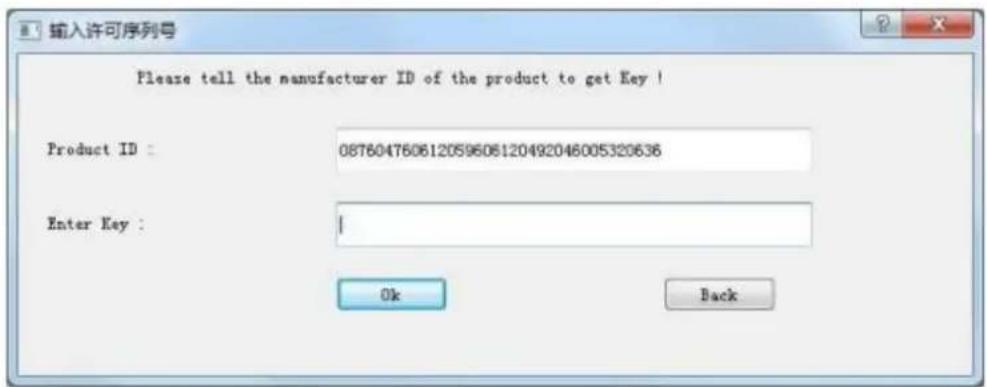
One individual Product ID for one computer. Please send the ID number to Sales to get an Enter Key. Then the computer gets the permission of the Lut Tool after input the Enter Key.
● LightSpace CMS software user demo
- Activate LUT Tool.exe.
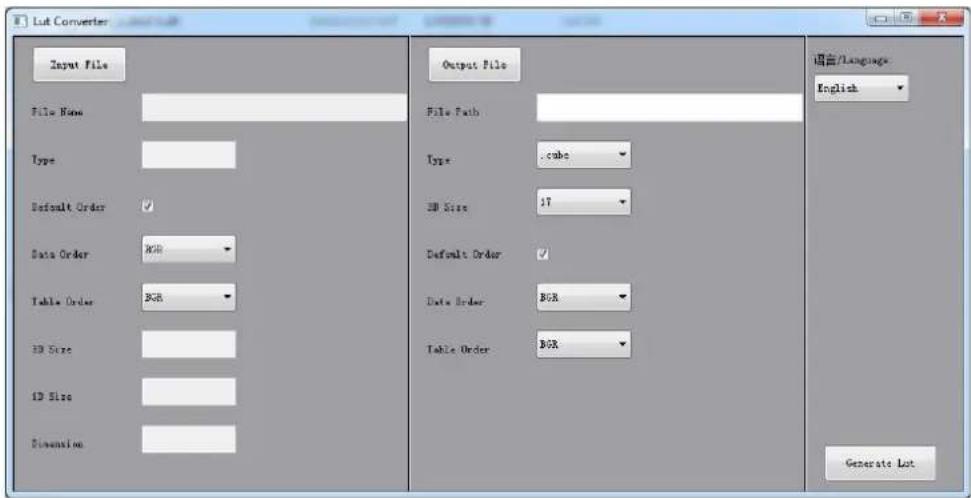
- Click Input File, then select *LUT.
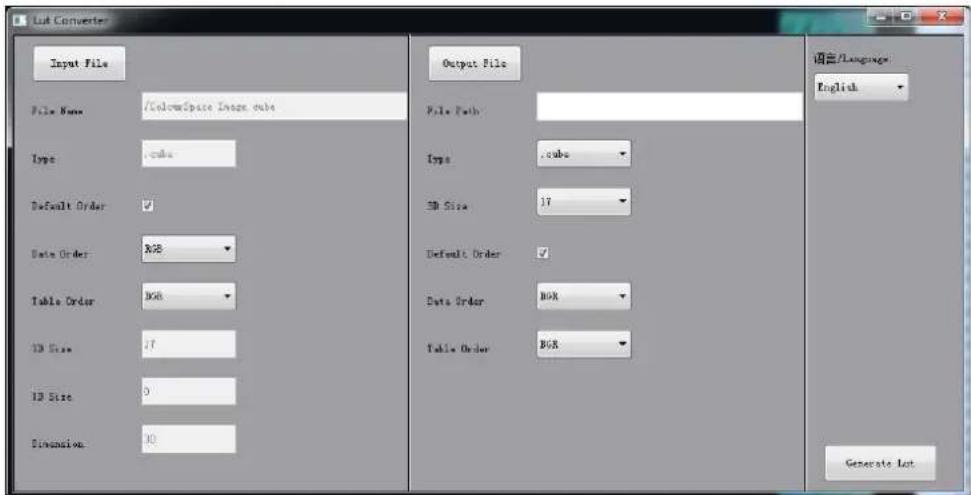
- Click Output File, choose the file name.
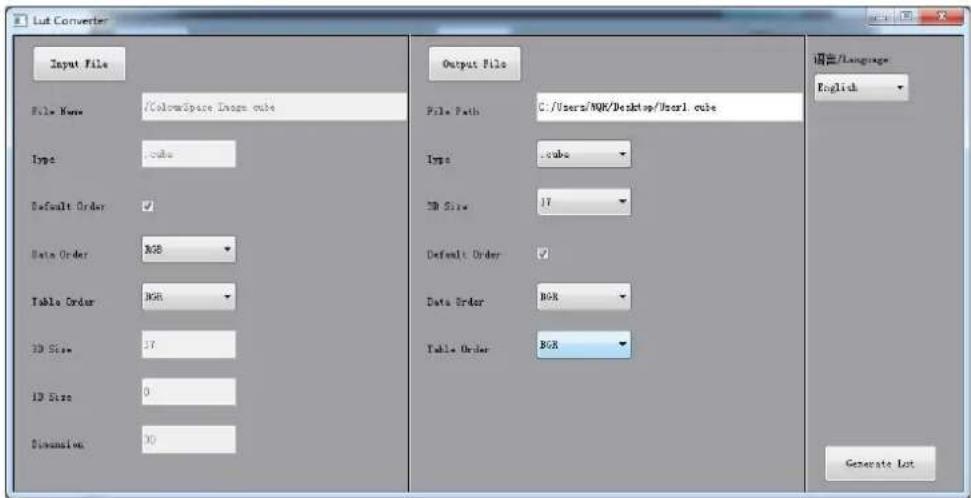
- Click Generate Lut button to finish.
- USB Loading
Copy the needed files to the root directory of the USB flash disk. Plug the USB flash disk into USB port the device after power on. Click “Yes” on the pop-up prompt window (If the device doesn’t pop-up the prompt window, please check the LUT document name or the USB flash disk version), then press Menu button to update automatically. It will pop-up a prompt message if the update completed.
Appendix 2: Remote Terminal Instructions
Remotely control the device by Remote Terminal application.
● Home Screen
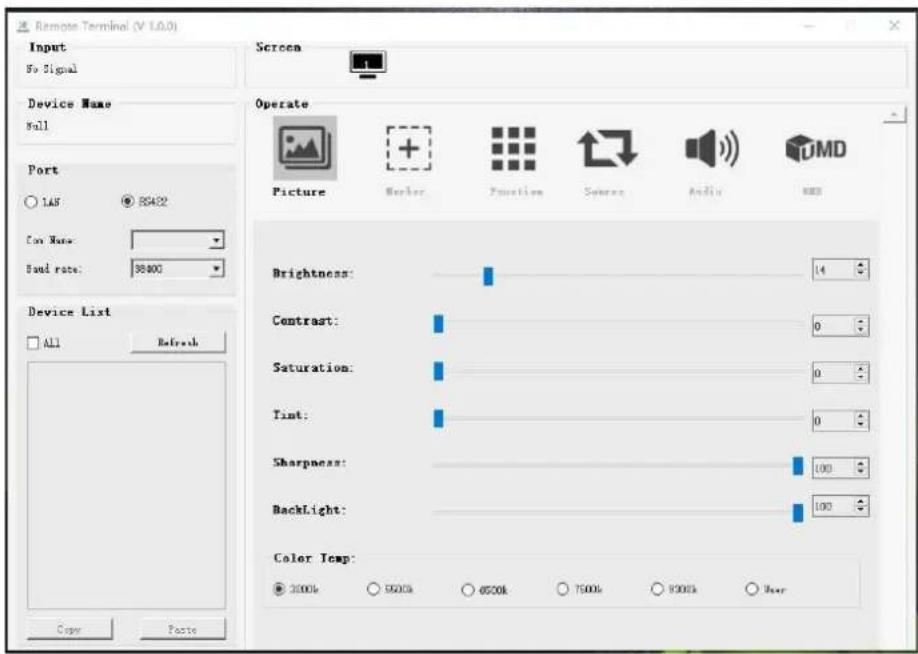
Picture: The home screen of the application
- Input: Display the signal format of the connected device. For example, there is “No Signal” when no device is connected or no signal is input.
● Device Name: Display the Model No. of the connected device. - Port: Select the connection way of the port when connecting a device, and support "RS422" or "LAN" communication protocol.
● Device List: Display all of the found peripheral device. - Screen: Display the number of screens for the selected device and the current screen index.
- Operate: Operate the items for the device.
● Control Screen: The control rules for the device.
- Function
- Port Selection: Select the specific connection port according to the device interface and click "RS422" or "LAN" to switch. When RS422 selected, it needs to further set the COM name and baud rate. For baud rate, it needs to be adapted to the baud rate of the connected device.
- Device Search: Click "Refresh" button to search devices after configuring the port. There are all the found devices in the device list after a successful search.
- Screen Choice: The “Screen” shows the number of the screens for the current device. For the device with multiple screens, use left mouse button to click the screen icon to select the corresponding screen for operation; use right mouse button to click the screen icon to copy the screen.
● Device Control: Click the icons of [Picture], [Marker], [Function], [Source], [Audio] and [UMD] to switch the control page of the corresponding function.
- Activate "All": Simultaneously control all of the devices in the device list if there is two or more devices with the same model after activating "All".
● Device Copy Function: If there are two or more devices with the same model in the device list, click one of them and click "Copy" button to copy the source device, and then click the target device and click "Paste" button to copy the configuration of the source device to the target one.
- User Guide
- Contents
- Important Safety Instructions:
- Precaution:
- Main Features
- Production Description
- Front Panel
- Rear Panel
- Interfaces
- Standard VESA
- Process of Installing Battery Plate:
- Shortcut keys
- Menu Knob
- F1-F2-F3-F4 Buttons:
- MENU Operations
- PICTURE
- - Camera Log
- - Gamma
- HDR
- - Back Light Mode
- - Color Temp.
- R/G/B Gain
- R/G/B Offset
- MARKER
- Thickness
- User Marker
- FUNCTION
- Scan
- - Aspect
- - Overscan
- H/V Delay
- - Check Field
- - Zoom
- - Freeze
- WAVEFORM
- - Waveform
- - Vector
- - Transparency
- - Peaking
- - Peaking Color
- - Peaking Level
- - False Color
- - False Color Table
- - Exposure
- - Exposure Level
- - Histogram
- - Time Code
- AUDIO
- Volume
- - Level Meter
- - Audio Vector
- - Vector Ch.
- ● Audio Left/Right Out
- REMOTE
- DHCP
- IP Address
- - Sub net Mask
- - Gateway
- - RS Type
- RS ID
- ● Baud Rate
- SYSTEM
- - Language
- SFP
- - Color Bar
- ● Color Bar Mode
- - OSD Timer
- - OSD Transparency
- - OSD H Position
- - OSD V Position
- - Info. Windows
- ● Info. Windows transparency
- ● Info. Windows H/V Position
- Fan
- Knob
- - Color Calibration
- - Comparison En
- - Reset
- Product Parameters
- Accessories
- - Standard:
- - Optional:
- Trouble Shooting
- Appendix 1: 3D LUT Loading
- - Format Requirement
- ● LUT Format conversion
- - USB Loading
- Appendix 2: Remote Terminal Instructions
- ● Home Screen
- - Function
Brand : Lilliput
Model : Q18-ABBP-CC
Category : Monitor