QuickPresent Air - Computer accessory Kindermann - Free user manual and instructions
Find the device manual for free QuickPresent Air Kindermann in PDF.


User questions about QuickPresent Air Kindermann
0 question about this device. Answer the ones you know or ask your own.
Ask a new question about this device
Download the instructions for your Computer accessory in PDF format for free! Find your manual QuickPresent Air - Kindermann and take your electronic device back in hand. On this page are published all the documents necessary for the use of your device. QuickPresent Air by Kindermann.
USER MANUAL QuickPresent Air Kindermann
Wireless tabletop presentation solution
QuickPresent air
QuickPresent air Lite
Ref no. 7488000400, 7488000405
Installation and user manual

natural_image
Circular electronic device with black top and gold connectors, no visible text or symbols on bodyGB
10.2019

Safety instructions
Please read this manual carefully and keep it for later reference.
- When connected to the mains, Kindermann QuickPresent air may only be operated at safety extra-low voltage via the corresponding power pack.
- Store and use the product only in dry, dust-free, enclosed rooms in a building.
- The product is not suited for being used in open spaces.
- The product must not be dropped, thrown or subjected to mechanical shocks.
• Install the device in a sufficiently ventilated place. - Do not use liquids or diluting agents for cleaning. Use a clean and dry cloth for cleaning the device. (Disconnect the device from the mains before cleaning!)
- If the device is not used for a longer period of time, the power supply must be disconnected.
- Do not charge the battery for a longer time if the device is not used*.
- After a longer storage time and prior to first commissioning, it may be necessary to charge and discharge the batteries repeatedly until they achieve their full capacity*.
- Batteries provide optimum power when operated at a room temperature of 20^ ± 5^^* .
- The supplied battery cannot be replaced by the user. Please contact the Kindermann service for any queries regarding the battery*.
- The use of unsuitable accessories may cause damage or malfunction.
Intended use
Kindermann QuickPresent air is a HDMI-based selector switch for video and audio signals.
Any use other than that described in this manual is not permitted.
Please observe the safety instructions.
1. Overview
Kindermann QuickPresent air is a state-of-the-art tabletop presentation solution in a design enclosure for switching up to three personal HDMI laptops plus one further mobile device (iOS, Android tablet, smartphone) and displaying their contents on a central display or projector.
The HDMI sources are connected via three smooth-running cable retractors.
The video signal is transmitted from the meeting table to the display device via virtually zero-latency wireless technology. No driver installation is required.
The incorporated battery* ensures up to 7 hours of operation without having to connect QuickPresent air to the mains.
Intuitive operation via five illuminated buttons ensures the easy and reliable selection of an image source for presentation.
The current version of the manual can be downloaded on the website at https://www.kindermann.de.
Table of contents
- Overview 2
1.1 Scope of supply 4
1.2 Functional diagram 5
- Device description 6
2.1 QuickPresent air / Lite (transmitter): Ports and buttons 6
2.1.1 LOGO backlight 7
2.1.2 Button backlight 8
2.1.3 Device configuration via DIP switch (5) 9
2.2 60 GHz HDMI receiver: Ports and button ....10
2.3 Setting the receiver ....10
- QuickPresent air - quick start guide ....11
3.1 Pairing the base station with a 60 GHz receiver ....12
3.2 How to connect mobile devices (Android and iOS)....12
3.3 How to connect mobile devices (Windows)....13
- Operation with battery power* 14
- Firmware update for WIFI receiver ....15
- Care and maintenance 16
6.1. Replacing/removing the battery* 16
6.2 Replacing cable HDMI retractors ....17
- Technical data of QuickPresent air / Lite 18
- Resolutions and frame rates, video and audio formats 19 - 22
- Troubleshooting ....23
1.1 Scope of supply

natural_image
Circular device with black top and gold connectors, labeled '1' at bottom (no visible text or symbols on device body)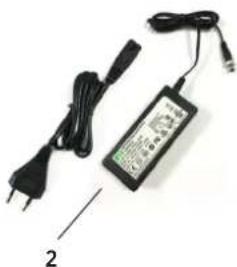
natural_image
Electric charger with black cable and power plug, labeled with number 2 (no visible text or symbols on device body)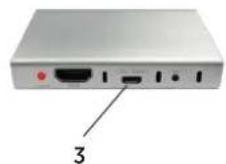

natural_image
Two electronic devices: a black USB charger and a black cable with connector (no visible text or symbols)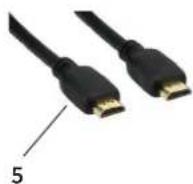
| No. | Article Description | |
| 1 | QuickPresent air / Lite | 4x HDMI switch with 60GHz transmitter, 3 HDMI inputs via cable retractors (0.9m); video WLAN input; integrated power bank*. |
| 2 | QuickPresent air power pack Universal power pack for 100 – 240 VAC, 12 VDC 3A mains voltage; including low voltage switch. | |
| 3 | 60 GHz wireless HDMI receiver With HDMI output for connecting an output device. | |
| 4 | Power pack for receiver | Universal power pack for 100 – 240 VAC, 5 VDC 1.5A or 2A mains voltage; including USB port. |
| 5 | HDMI connecting cable 2m, for connecting 1 or 3 with the display / projector. | |
A user manual in German and English is enclosed to the product.
1.1 Optionally available accessories:
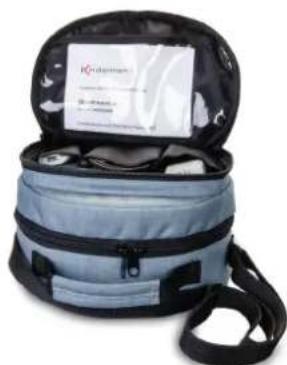
QuickPresent air carrier bag (ref. no. 7488000401)
Suitable carrier bag with accessory compartment for all supplied parts
natural_image
Open medical bag with medical equipment and a label (no readable text or symbols)1.2 Functional diagram
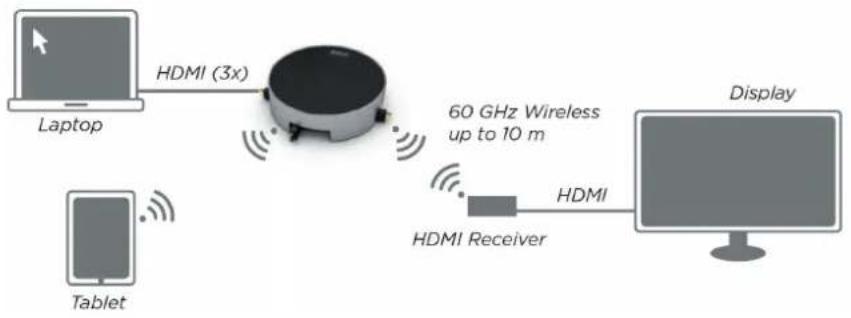
flowchart
graph LR
    A["Laptop"] -->|HDMI (3x)| B((CPU))
    C["Tablet"] -->|Signal| B
    B -->|60 GHz Wireless up to 10 m| D["Display"]
    B -->|HDMI Receiver| E["Computer"]
Main features
- Elegantly designed tabletop unit.
- Simple plug-and-play commissioning.
- No driver or software installation required.
- Cable retractor system for three HDMI inputs integrated in the tabletop enclosure.
- Intuitive operation via four illuminated touch-sensitive Show-Me buttons.
- Input source switched automatically or manually.
• Each input is activated by a touch of the respective touch-sensitive button. - Contents of the mobile device (iOS, Android) streamed via AirPlay, Miracast.
- Wireless transmission of the active HDMI signal up to 1080p/60Hz to the display device at a frequency range of 60 GHz (wireless HD standard). Zero-latency, uncompressed transmission of video and audio.
- Integrated 60GHz transmitter incorporated in the QuickPresent air tabletop device, receiver is connected to the display device.
• Transmission range subject to a direct line-of-sight up to 15m max. - Up to 4K/30Hz via local HDMI output.
• Additional HDMI output for wired transmission, in case of larger distances or obstacles to be bridged. - Analogue audio decoupling via 3.5mm jack socket at QuickPresent air.
- The DIP switch can be used for various device settings:
→ WHD (60GHz) transmitter On/Offs
→ WiFi Hotspot On/Off
→ EDID-Management
→ Automatic or manual switching of the inputs
→ Standby timer
- Rechargeable incorporated powerful battery for wireless operation up to 7 hours, with battery status display*.
- Kit including a tabletop unit and a radio receiver with HDMI output.
- Carrier bag for mobile use provided as an accessory.
* The scope of supply for QuickPresent Air Lite does not include batteries
2. Device description
2.1 QuickPresent air / Lite (transmitter): ports and buttons

text_image
d buttons 1a 1b 2 1 3 4 5 6 7 8 1| No. | Article Description | |
| 1 | HDMI port Cable retractor system, cables can be pulled out to a length of 90cm and are locked in 4 locking positions | |
| 1a | Touch-sensitive button for HDMI input | Manual switching of the 3 HDMI inputs, active input has a blue backlight; it flashes if the source is not active. |
| 1b | Touch-sensitive button for mobile device | Manual switching to WLAN input. |
| 2 | Touch-sensitive button and LOGO backlight, battery status display | Red battery status display; LED flashes if the remaining power is approximately 10% or less* |
| 3 | Local HDMI output | Allows for the connection of a playback device via HDMI cable in parallel / as an alternative to the 60GHz transmission path. |
| 4 | Local audio output Allows for playback via external AUDIO amplifiers or headsets. | |
| 5 | 8-way DIP switch Possible settings | → EDID→ Automatic/manual input selection→ WLAN On/Off→ 60 GHz On/Off→ Standby timer |
| 6 | Micro-USB | For the firmware update of QuickPresent air and for charging external devices such as mobile phones |
| 7 | DC 12V/3A power pack port | Voltage supply and charging the battery*. |
| 8 | Push-button switch Device ON/OFF | |
2.1.1. LOGO backlight
The multi-colour backlight provides information on the current status of the 60GHz transmission and is also used as battery status display*.
Kindermann
QuickPresent air
| Nr. System status Description | ||
| 1 | Permanent white | Normal operating condition, 60GHz transmitter and receiver are connected and have established a video/audio connection. |
| 2 | Slowly flashes white (approx. 1sec) 60GHz | transmitter is not connected or is switched off,e.g. due to the missing video signal at the selected input. |
| 3 | Rapidly flashes white (approx. 1/5sec) | 60GHz transmitter is being connected. |
| 4 | Dark / shortly flashes green STANDBY mode or switched off. | |
| 5 | Permanent red* Battery status < 30%, remaining operating time approximately 1.5 hours (depending on type of use). | |
| 6 | Slowly flashes red* Batteries are almost empty / must be charged soon. | |
| 7 | Shortly flashes blue,then flashes white | The touch-sensitive button of the logo has been actuated:the 60GHz transmitter is searching for new receivers. |
Remark:
No. 5 + 6 only apply to battery operation*.
Minimum recommendable charging time is approx. 4 hours.
The charging status is calculated from the operating time and the operating status of the wireless transmitter.
Attention:
In this context, only discharge is calculated! The actual charging status is not recorded.
Therefore, the device assumes with every charging cycle that the battery is full and calculates its discharge during use.
2.1.2. Button backlight
natural_image
Simple white circle centered on a dark gray background (no text or symbols)| No. System status Description | ||
| 1 | Permanent blue | Input selected and supporting source connected. Video signal available at the QuickPresent air tabletop device. |
| 2 | Slowly flashes blue (1sec) | HDMI input selected but no supporting source connected or no video signal available. |
| 3 | Dark Not selected or device switched off | |
2.1.3. Device configuration via DIP switch (5)

text_image
ON 1 2 3 4 5 6 7 8Use an object (e.g. pen) to set the DIP switches 1 to 8 to "ON" ("top" in arrow direction) or
"OFF" (bottom switch position) according to the following table as desired.
All switches in the drawing are set to "OFF".
| No. System status Description | ||
| DIP 1 | Auto/manual | 0 = standard; auto: If an active HDMI input is identified in QP air, it is automatically activated (exemption: WiFi hotspot).1 = manual: Touch the “touch-sensitive button” of the desired input to activate this input (button backlight flashes if no suitable signal has been identified). |
| DIP 2 | Empty 0 = standard | |
| DIP 3 | WLAN frequency | 0 = standard; to switch the WLAN hotspot from 2.4GHz to 5GHz, briefly turn this switch to 1 and then back to 0 (The hotspot will then restart in a different frequency band). Also for running a firmware update of the WIFI hotspot. |
| DIP 4 | Power supplyWLAN stick | 0 = standard; always ON1 = OFF, in order to save power (it may take up to 1 minute to start the hotspot) |
| DIP 5 | Power supply60-GHz transmitter | 0 = standard; always ON1 = OFF, in order to save power (only local HDMI output can be used) |
| DIP 6 | Empty 0 = standard | |
| DIP 7 | EDID - Information(Includes monitor data) | 00 = standard; transmits the EDID signal from the playback monitor at the receiver (60GHz) to the HDMI inputs (1)01 = preferably 1080p (setting also for 4k display).10 = preferably 720p11 = transmits the EDID signal from the playback monitor at the HDMI output (3) to the HDMI inputs (1) |
2.2. 60 GHz HDMI receiver: ports and button

text_image
12345 Link HDMI Local Request USB| No. Denomination Description | |
| 1 LED display Slowly flashes red: transmitter is being searched | |
| Rapidly flashes red: transmitter and receiver are being connected | |
| Permanent red: audio/video connection active | |
| Dark: standby | |
| 2 HDMI output Connect a playback device via a HDMI cable | |
| 3 5V power pack port Voltage supply via micro-USB | |
| 4 “Key” push-button Switches the receiver to the teaching mode for transmitters | |
| 5 USB power pack with cable DC 5V/1,5A or 2A | |
2.3. Setting the receiver
Connect the 60GHz receiver to a socket using the corresponding 5V power pack.
Connect the HDMI output of the receiver with a monitor or an appropriate projector using the HDMI cable.
IMPORTANT NOTE:
Wireless HD (WiHD) uses the 60GHz range for wireless, uncompressed HDMI transmission. In the EU, a frequency range from 57 to 66GHz is enabled for use.
The advantages are high bandwidths, low signal latency and low susceptibility caused by other wireless devices (WLAN etc.).
However, high frequency cannot overcome walls etc.; the transmission range in the air is restricted to about 15m.
For a maximum transmission range, it is recommendable to position base station and receiver in the same room facing each other in a direct line-of-sight.
Closed cabinets, larger obstacles or shielding metal enclosures will attenuate the signal and reduce the maximum transmission range.
3. QuickPresent air - quick start guide
Before using QuickPresent air for the first time in battery mode, it must be connected to the mains and the battery must be fully charged*. Otherwise, you can use the device with the supplied 12V power pack connected to a socket. Press the push-button (8); the LOGO backlight goes on. Pull out one of the three HDMI retractors to the desired length.
Remark:
The cable retractors avoid cable mess. The cable can be pulled out to a length of up to 0.9m and locked in four locking positions. Slightly pull the cable again to release it and have it automatically recoiled. Please do not pull the cable beyond the cable stop with force and do not let it spring back in an uncontrolled manner. This may damage the spring mechanism.
Connect the HDMI cable with a laptop, Blu-ray player, etc.
Make sure that the output resolution corresponds to a supported video format (see chapter 8).
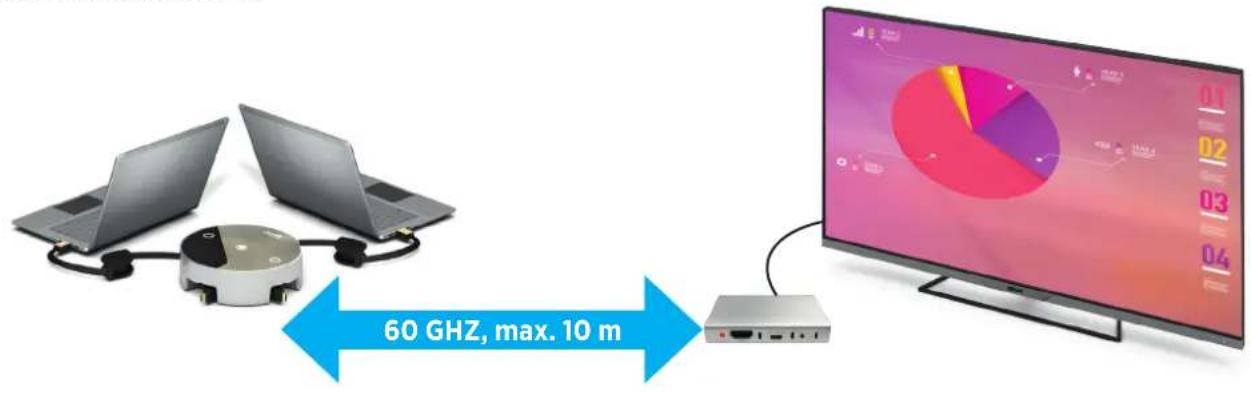
flowchart
graph LR
    A["Laptop 1"] -->|60 GHz, max. 10 m| B["Laptop 2"]
    B --> C["Monitor"]
    C --> D["Display: Pie Chart with Percentage Values 01-04"]
The signal sources are either switched automatically or by pressing the corresponding touch-sensitive button on the device. The currently activated input is indicated by the blue button light. If automatic switching is activated, the input with the last available signal is selected.
Together with the audio signal, the video signal is wirelessly transmitted to the receiver on the 60GHz frequency band (wireless HD [WiHD]). In addition, the audio signal is decoupled at the jack output (4) for an analogue external amplifier or for active speakers. The local HDMI output (3) can be used to directly connect a playback device to QuickPresent air via a HDMI cable.
Note:
The display build-up between transmitter and receiver may take between 1 and 30 seconds (depending on the end device).
The 60GHz antenna is located in the QuickPresent air below the LOGO and oriented towards the terminal strip. For maximum transmission range, transmitter and receiver should face each other.
3.1. Pairing the base station with a 60GHz receiver
In deenergized state, the receiver remains paired with the base station. New kits are paired in the factory.
There are two options to restart this pairing (an active image source must be selected first):
Touch the Kindermann logo of QuickPresent air for approx. 3 seconds; this will set any switched-on receiver within transmission range to pairing mode.
(The Kindermann logo will shortly be blue; this process will take approx. 30 sec).
You can switch to QuickPresent air transmitters already paired with the receiver by pressing the "Key" push-button on the receiver.
In both cases, the white logo on the base station and the red LED of the receiver will start flashing, at first slowly, then rapidly.
Remark:
A QuickPresent air transmitter can only be paired with one single receiver at a time. However, each receiver can save the identifiers of two QuickPresent air transmitters. By pressing the push-button (key) on the receiver, you can switch between the active transmitters (an image must be available at the input).
How to connect mobile devices (Android and iOS)
Connect your mobile device with the WLAN of the QuickPresent air (SSID and password are displayed in the GUI). The transmission options (without additional app) depend on the end device:
Mobile devices with Apple AirPlay:
Using Apple AirPlay, you can stream the screen content to the base device.
On iOS devices (iOS4.3 or higher), wipe from bottom to top to display the control centre.
In the control centre, click on the symbol for your Apple device and select the target "DONGLE-xxxxxxx" (SSID of QuickPresent air) to start the transmission of the desktop.
Mobile devices with Google Android:
On Android 5 or higher devices, the transmission function can be found at different places in the "Settings" menu, depending on the Android version and manufacturer. In most cases, it is necessary to set the dongle to 5GHz (see page 8, DIP3).
Only then, the menu item for transmission to an external display is available since it is dynamically displayed depending on the function of the connected network. Now click on the target "DONGLE--xxxxxxx" (SSID of QuickPresent air) in the device list to transmit your contents.
Please contact the device manufacturer for further information.
Remark:
This function is not supported by all device-specific Android versions.
3.3. How to connect mobile devices (Windows)
1. Connecting mobile devices with Microsoft Windows using an app:
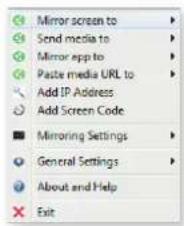
If you want to use devices with Windows operating system which are in the same network as the WIFI dongle, 'AirPinPCTransmitter' freeware can be used. It can be downloaded from our web shop under the article number of QuickPresent air.
After having installed the freeware, add the WIFI stick of QuickPresent air by clicking on 'Add IP address' and confirm it:
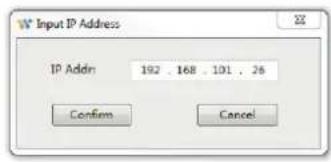
text_image
W Input IP Address IP Addr: 192 . 168 . 101 . 26 Confirm CancelNow you can mirror your screen content on the WIFI stick of QuickPresent air.
text_image
Mirror screen to Send media to Mirror app to Paste media URL to Add IP Address Add Screen Code Mirroring Settings General Settings About and Help ExitThe playback of media files is also possible by using the right mouse button on the desired file "DLNA Play to".

text_image
Play Controller 00:00:00/0-1-5-For controlling of e.g. films, access "Show Play Controller" in the menu at the top.
Remark:
If you have embedded your QuickPresent air into an existing WLAN by WLAN configuration, your QuickPresent air can also be connected with computers which are connected by LAN in the same network and transmit contents using this app.
2. Connecting mobile devices with Microsoft Windows using the system function (Win10):
In Windows 10, click on the "Windows logo" -> "Settings" -> "Devices". Open the connected devices and then click on "New device".
From the list of available devices, select the target "DONGLE--xxxxxxx". After a short while, transmission to QuickPresent air will start.
3. Connecting mobile devices with Microsoft Windows using the system function (Win8):
In Windows 8, click on "Devices" -> "Projects". Add a wireless display and then select the target "DONGLE-xxxxxxx".
* The scope of supply for QuickPresent Air Lite does not include batteries
4. Operation in battery mode\*
Before using QuickPresent air for the first time in battery mode, it must be connected to the mains, and the battery must be fully charged.
In normal use, a fully charged battery will offer an operating time of about 7 hours at full power.
The discharge time of batteries also depends on whether WLAN stick and 60GHz transmitter are active. The total charging time is approx. 4 hours.
LOGO backlight as battery charge status display\*.
The multi-colour LOGO backlight is also used as charge status display*, see chapter 2.1.1.
Important recommendations for a long battery life:
- Fully charge the battery before first use.
- Try to avoid permanent charging.
- Due to self-discharge, the battery must be charged every 12 months at the latest. The battery must not be completely discharged in storage.
- The battery has a lifetime of up to approx. 1000 cycles.
- Operate the battery at room temperature. High temperatures exceeding 40^ during operation should be avoided.
- To ensure a long battery life, deep discharge should also be avoided.
- If the device is not used for a longer time, it should not be completely charged. If the device is stored for a longer time, the battery should be half full and stored at cool temperatures.
- In battery mode, always press the POWER push-button to switch off QuickPresent air whenever it is not being used.
Note:
As soon as the external power pack is connected, the internal memory for battery charge is reset to 100%. Therefore, the battery should always be charged until it is full.
If the last charging cycle was too short (e.g. only a few minutes), the battery will be fully discharged without any warning on the display.
5. Firmware update for WIFI receiver
The manufacturer of the integrated WIFI hotspot regularly offers updates of his firmware including safety patches and improvements. To install the update, please proceed as follows:
- QuickPresent air must be connected to the mains because it must not be switched off during the update.
-
For the update, QuickPresent air must be connected to the internet. If this is not yet the case, please proceed as follows:
a. Connect a WLAN device with the WLAN of QuickPresent air and access the start IP displayed in the browser (factory setting: 192.168.49.1).
b. In the top item (WLAN), click on "Scan". The search for available local networks is started.
Select a network which has access to the internet and enter the password of the network.
c. Now the hotspot is restarted and registered in this WLAN. After a short while, a message in red indicating available updates (if a newer version of the firmware is available) appears on the display of the home page. -
In order to run an available update, please shortly switch DIP switch 3 to "ON" or "1" and immediately back to "OFF" or "0". This will download and immediately run the update.
Note:
Do not operate or switch off the device during the update. Do not disconnect the device from power supply. Depending on the network speed, updates may take up to 30 minutes.
6. Care and maintenance
- Clean the surface of the system with a soft and dry cloth.
- Do not use sprays. Do not use dilution agents, chemicals and detergents containing alcohol, ammoniac or polishing agents.
• The ingress of humidity must absolutely be avoided.
• Always remove cables by pulling on the plug - never on the cable.
• Installations with cables under mechanical tension must be avoided.
natural_image
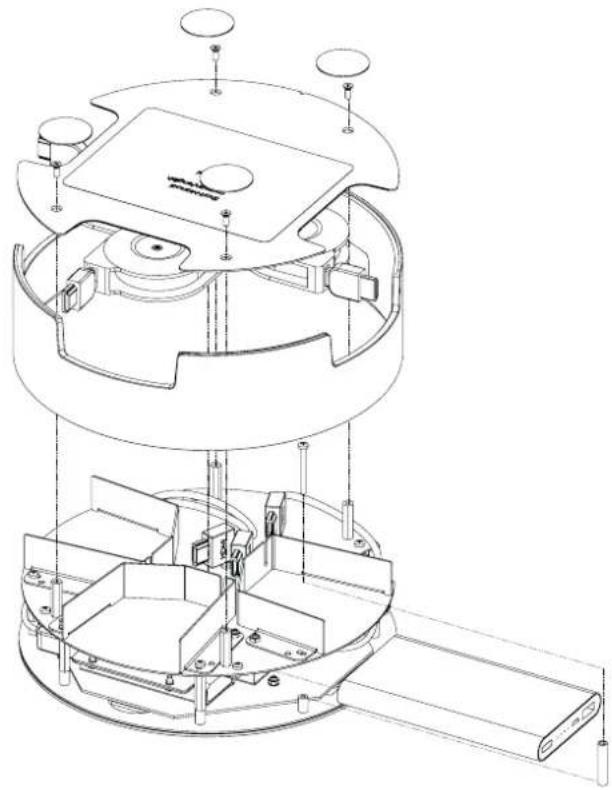
Technical line drawing of a mechanical assembly with internal components and mounting holes (no text or symbols)6.2 Replacing cable HDMI retractors
The incorporated cable retractors have a typical lifetime of approx. 3000 cycles.
If video transmission is not possible via HDMI cable, please at first check the correct connection of the cable to the source or whether the problem remains with another HDMI cable.
In case of defects or cable break, the cable retractor can be replaced.
(Spare part number: 628 300).

text_image
628 3007. Technical data QuickPresent air / Lite
| Video inputs | |
| Video input cable 3x HDMI type A connector with cable retractor, self-retracting, length: 0.85m | |
| Video input WLAN | 1x input for streaming the contents of smartphones, tablets via AirPlay, Miracast |
| WiFi frequency 2.4GHz/5GHz band automatic, IEEE 802.1ln | |
| Compatibility From Android 5 any iOS with Airplay support (iOS4.3 or higher) | |
| Data encryption AES WPA PSK, WPA2 PSK | |
| Video input resolution VESA, FullHD (2K/60Hz, 4/4/4), maximum resolution 4K/30Hz, 4/4/4 | |
| Video outputs | |
| Wireless video output 1 x wireless 60GHz, virtually zero-latency transmission (<5 msec) | |
| Video conformity Wireless HD version 1.1 | |
| Video resolution 480i / 576i to 1080p/60Hz 4:4:4; 4K/30Hz via local HDMI output | |
| Video output resolution HDMI 1.4b/2.0; HDCP 1.4 / 2.2 | |
| Transmission range | Up to 10m within a room in a direct line-of sight between transmitter and receiver, devices facing each other. The antenna is located in the QuickPresent air below the logo, and the main emission angle is oriented towards the terminal strip. |
| Further interfaces | |
| HDMI-OUT 1x HDMI type A socket, for wired transmission to the playback device | |
| AUDIO-OUT 1x 3.5mm jack | |
| Features | |
| Operation | Touch-sensitive button with blue LED feedback for active input ("SHOW-me") |
| Operation with battery* | |
| Power bank | 10,000mAh 3.85V, lithium-polymer battery, including management system with various safety features |
| Operating time (fully charged) | Approx. 7 hours (with 60GHz + active WLAN stick), approx. 14 hours without 60GHz |
| Charging time | At least 4 hours |
| Battery status display | LOGO backlight LEDs: Permanent red: < 30%; Flashing red: battery must soon be charged |
| Dimensions and weight | |
| Sizes | Transmitter: 22 x 6 cm (DxH) Receiver: 85 x 50 x 25 mm (LxWxH) |
| Weight (Lite version) | Transmitter: 2.1 kg / Transmitter Lite version: 1.9 kg / Receiver: 0.4 kg |
| Temperature range | |
| Operation | 10 to +40°C |
| Storage | 0 to +50°C |
| Air humidity | 20% to 90% relative air humidity, not condensing |
| Voltage supply | |
| Voltage | QuickPresent air: 12 VDC 3A 60 GHz receiver: 5VDC 1.5A or 2A |
| Power consumption | 12V DC max. 3A (Lite version 1.5A max.) Power pack: primary 110 - 240VAC 50/60Hz, 1.3A max |
8. Resolutions and frame rates, video and audio formats
Resolutions and frame rates 60GHz Lokal HDMI
| Resolution Frequenzy 8 Bit 10 & 12 Bit 8Bit 10, 12 & 16 Bit | ||||
| 480i 59,94 | ||||
| 480p 59,94 | ||||
| 480p 60 | ||||
| 576i 50 | ||||
| 576p 50 | ||||
| 720p 50 | ||||
| 720p 59,94 | ||||
| 720p 60 | ||||
| 1080i 50 | ||||
| 1080i 59,94 | ||||
| 1080i | 60 | |||
| 1080p | 23,97 | |||
| 1080p | 24 | |||
| 1080p | 50 | |||
| 1080p | 59,94 | |||
| 1080p | 60 | |||
| 640x480 | 59,94 | |||
| 800x600 | 60 | |||
| 1024x768 | 60 | |||
| 1280x768 | 60 | |||
| 1280x960 | 60 | |||
| 1280x1024 | 60 | |||
| 1360x768 | 60 | |||
| 1400x1050 | 60 | |||
| 1600x1200 | 60 | |||
| 1920x1200 | 60 | |||
| 3840x2160 | 23,96 | |||
| 3840x2160 | 24 | |||
| 3840x2161 | 25 | |||
| 3840x2162 | 29,87 | |||
| 3840x2163 | 30 | |||
| 3840x2164 | 50 | |||
| 3840x2165 | 59,9 | |||
| 3840x2166 | 60 | |||
| 4096x2160 | 23,97 | |||
| 4096x2161 | 24 | |||
| 4096x2162 | 25 | |||
| 4096x2163 | 29,97 | |||
| 4096x2164 | 30 | |||

Recommended

Not recommended or possible
* The scope of supply for QuickPresent Air Lite does not include batteries
- Resolutions and frame rates, video and audio formats
| No. Resolution Refresh Rate (Hz) Colour depth (8,10,12 bits) 3D CEA Code | |||||
| 1 640 x 480p (VGA) 60 RGB: 8-bit only N vesa | |||||
| 2 720 x 480p 60 RGB: 8/10/12, Y444:8/10/12, Y422: 8-bit only | N 2,3 | ||||
| 3 1280 x 720p | 60 RGB: 8/10/12, Y444:8/10/12, Y422: 8-bit only | N | 4 | ||
| 4 1920 x 1080i | 60 RGB: 8/10/12, Y444:8/10/12, Y422: 8-bit only | N | 5 | ||
| 5 | 720(1440) x 480i | 60 | RGB: 8/10/12, Y444:8/10/12, Y422: 8-bit only | N 6,7 | |
| 6 | 1920 x 1080p | 60 | RGB, Y444, Y422: 8-bit only | N | 16 |
| 7 | 720 x 576p | 50 | RGB: 8/10/12, Y444:8/10/12, Y422: 8-bit only | N | 17, 18 |
| 8 | 1280 x 720p | 50 | RGB: 8/10/12, Y444:8/10/12, Y422: 8-bit only | N | 19 |
| 9 1920 x 1080i | 50 RGB: 8/10/12, Y444:8/10/12, Y422: 8-bit only | N | 20 | ||
| 10 | 720(1440) x 576i | 50 | RGB: 8/10/12, Y444:8/10/12, Y422: 8-bit only | N | 21, 22 |
| 11 | 1920 x 1080p | 50 | RGB, Y444, Y422: 8-bit only | N | 31 |
| 12 | 1920 x 1080p | 24 | RGB: 8/10/12, Y444:8/10/12, Y422: 8-bit only | N | 32 |
| 13 | 1280 x 720p | 120 | RGB: 8/10/12, Y444:8/10/12, Y422: 8-bit only | N | 47 |
| 14 | 1920 x 1080p | 48 | RGB, Y444, Y422: 8-bit only | N | - |
| 15 | 1921 x 1080p | 24 | RGB, Y444, Y422: 8-bit only | Frame Packing | - |
- Resolutions and frame rates, video and audio formats
| No. Resolution Refresh Rate (Hz) Colour depth (8,10,12 bits) 3D CEA Code | |||||
| 16 1280 x 720p 60 RGB, Y444, Y422: | 8-bit only | Frame Packing - | |||
| 17 1280 x 720p 50 RGB, Y444, Y422: | 8-bit only | Frame Packing - | |||
| 18 1281 x 720p 60 RGB, Y444, Y422: | 8-bit only | Top to Bottom 4 | |||
| 19 1920 x 1080i 60 RGB, Y444, Y422: | 8-bit only | Side by Side | 5 | ||
| 20 | 1280 x 720p 50 | RGB, Y444, Y422: | 8-bit only | Top to Bottom | 19 |
| 21 1920 x 1080i | 50 RGB, Y444, Y422: | 8-bit only | Side by Side | 20 | |
| 22 | 1920 x 1080p | 24 | RGB, Y444, Y422:8-bit only | Top to Bottom | 32 |
| 23 1280 x 720p 60 RGB, Y444, Y422: | 8-bit only | Side by Side | 4 | ||
| 24 1280 x 720p 50 | RGB, Y444, Y422: | 8-bit only | Side by Side | 19 | |
| 25 | 1024 x 768 (XGA) | 60 | RGB: 8-bit only | N | vesa |
| 26 | 1280 x 1024 (SXGA) | 60 | RGB: 8-bit only | N | vesa |
| 27 1680 x 1050(WSXGA+) | 60 | RGB: 8-bit only | N | vesa | |
| 28 | 1920 x 1200 (WUXGA) | 60 | RGB: 8-bit only | N | vesa |
| 29 | 800 x 600 (SVGA) | 60 | RGB: 8-bit only | N | vesa |
| 30 | 848 x 480 (WVGA) | 60 | RGB: 8-bit only | N | vesa |
* The scope of supply for QuickPresent Air Lite does not include batteries
- Resolutions and frame rates, video and audio formats
| Format f s (kHz) Ch Speaker HDMI f s (kHz) Comment | |||||
| LPCM 32 2 --- | |||||
| LPCM 44,1 2 --- | |||||
| LPCM 48 2 --- | |||||
| LPCM 88,2 | 2 --- | ||||
| LPCM 96 2 --- | |||||
| LPCM | 176,4 | 2 --- | |||
| LPCM | 192 | 2 | - | - | - |
| LPCM 32 6 --- | |||||
| LPCM 44,1 6 | --- | ||||
| LPCM 48 6 | --- | ||||
| LPCM 88,2 | 6 | --- | |||
| LPCM 96 6 | --- | ||||
| LPCM 32 8 | --- | ||||
| LPCM 44,1 8 | --- | ||||
| LPCM 48 8 | --- | ||||
| LPCM 88,2 | 8 | --- | |||
| LPCM 96 8 | --- | ||||
| SPDIF | 32 6 --- | ||||
| SPDIF 44,1 6 | --- | ||||
| SPDIF | 48 6 | --- | |||
| SPDIF | 88,2 | 6 | - | - | - |
| SPDIF | 96 6 | --- | |||
| SPDIF | 32 | 8 | - | - | - |
| SPDIF 44,1 8 --- | |||||
| SPDIF | 48 8 | --- | |||
| SPDIF | 88,2 | 8 | - | - | - |
| SPDIF | 96 8 | --- | |||
| Dolby Digital | 48 | 2 | L, R | 48 | - |
| Dolby Digital | 48 | 05. Jan | L, R, C, LFE,Ls, Rs | 48 | - |
| Dolby Digital Plus | 48 | 2 | L, R | 192 | - |
| Dolby Digital Plus | 48 | 05. Jan | L, R, C, LFE,Ls, Rs | 192 | - |
| Dolby Digital Plus | 48 | 06. Jan | L, R, C, LFE,Ls, Rs, Cs | 192 | - |
| Dolby Digital Plus | 48 | 07. Jan | L, R, LFE,Lsr, Rsr | 192 | - |
| Dolby TrueHD | 48 | 05. Jan | L, R, C, LFE,Ls, Rs | 768 | HBR |
| Dolby TrueHD | 48 | 06. Jan | L, R, C, LFE,Ls, Rs, Cs | 768 | HBR |
| Dolby TrueHD | 48 | 07. Jan | L, R, C, LFE,Ls, Rs, Lsr, Rsr | 768 | HBR |
| Dolby TrueHD | 96 | 05. Jan | L, R, C, LFE,Ls, Rs | 768 | HBR |
| Dolby TrueHD | 96 | 06. Jan | L, R, C, LFE,Ls, Rs, Cs | 768 | HBR |
* The scope of supply for QuickPresent Air Lite does not include batteries
9. Troubleshooting
This is a list of basic problems and their possible causes which may occur when using QuickPresent air. Please apply the provided solutions. If the problem cannot be solved, please contact your dealer.
| Problem Cause Solution | ||
| No video transmission via WHD | 1. Transmitter not paired with receiver2. Distance between 60GHz receiver too large / obstacles between transmitter and receiver3. No video signal available at input of QuickPresent air4. 60GHz receiver not supplied with current (at least 2A) | 1. Pair transmitter with receiver according to instructions2. Ensure direct line-of-sight and correct distance between transmitter and receiver3. Check video source and input selection4. Use correct USB voltage source (at least 2A) |
| Transmitted video is disrupted, fails 1. | Distance of 60Ghz transmission path between transmitter and receiver too large2. HDMI cable defective 2. Replace HDMI cable | 1. Ensure direct line-of-sight and correct distance between transmitter and receiver- use local HDMI output instead of transmission path |
| Device automatically switches to other inputs | Automatic input selection is enabled Reset DIP switch | |
| Transmission of mobile devices not possible | 1. Mobile device is not connected with WLAN of QuickPresent air(Mind the frequency! Not all mobile devices support 5GHz.)2. WLAN of QuickPresent air is deactivated | 1. Connect mobile device with WLAN of QuickPresent air(If necessary, reset hotspot to 2.4GHz - see 2.1.2)2. Activate WLAN of QuickPresent air via DIP switch (see 2.1.2) |
| Video signal connected via HDMI is identified (blue push-button) but not transmitted | EDID handshake between receiver connected via WHD and QuickPresent air cannot be established. Red LED at receiver flashes. | Select video/audio resolution supported by WHD kit (see table above) |

Quickpresent Receiver
The complete text of the EU Declaration of Conformity is provided at the following internet address:
Kindermann GmbH hereby declares that the QuickPresent air radio system complies with the EU Directive 2014/53 / EU.
QuickPresent air is restricted for indoor use when operating in 5GHz band.
| For indoor use ONLY, when operating In 5 GHz-band ! | |||||||
| AT BE | BG CH CY | CZ DE | |||||
| DK EE | EL ES FI | FR HR | |||||
| HU IE | IS IT LI LT | LU | |||||
| LV MT | NL NO PL | PT RO | |||||
| SE SI | SK TR UK | ||||||
2.4 GHz band: Channels 1, 2, 3, 4, 5, 6, 7, 8, 9, 10, 11;
5GHz band: Channels: 36, 40, 44, 48;
Bandwidth: 20MHz
Transmission power: 20dBm max (100mW), dynamically controlled
7488 000 400 / 7488 000 405 GB 2019-10 / 842 198
Subject to changes
Printed in Germany