Twist 455 - Phone BELGACOM - Free user manual and instructions
Find the device manual for free Twist 455 BELGACOM in PDF.


| Product Type | Cordless Phone (DECT) |
| Brand | Belgacom |
| Model | Twist 455 |
| Color | Black (typical) |
| Handset Dimensions | Approx. 160 x 50 x 30 mm |
| Base Station Dimensions | Approx. 120 x 80 x 60 mm |
| Handset Weight | Approx. 130 g |
| Base Station Weight | Approx. 150 g |
| Power Supply | AC adapter 230 V, 50 Hz |
| Battery Type | NiMH rechargeable, 2x AAA |
| Standby Time | Up to 100 hours |
| Talk Time | Up to 10 hours |
| Display | Backlit LCD |
| Phonebook Capacity | Up to 100 entries |
| Caller ID | Yes |
| Handsfree Speakerphone | Yes |
| Redial | Last number redial |
| Ringer Tones | Multiple selectable |
| Volume Control | Yes |
| Intercom | Yes (between handsets) |
| Registration | Up to 4 handsets |
| Cleaning Instructions | Wipe with dry cloth; do not use solvents |
| Safety | Use only supplied adapter; keep away from water |
| Repairability | Contact authorized service center |
Frequently Asked Questions - Twist 455 BELGACOM
User questions about Twist 455 BELGACOM
0 question about this device. Answer the ones you know or ask your own.
Ask a new question about this device
Download the instructions for your Phone in PDF format for free! Find your manual Twist 455 - BELGACOM and take your electronic device back in hand. On this page are published all the documents necessary for the use of your device. Twist 455 by BELGACOM.
USER MANUAL Twist 455 BELGACOM
Thank you for purchasing a DECT telephone; we appreciate your trust in us.
This product was manufactured with the utmost care, should you encounter any difficulties during its use, we recommend that you refer to this user guide.
For your comfort and safety, we ask that you read the following paragraph carefully:
Recommendations and safety instructions

Your DECT telephone must not be installed in a humid room (wash room, bathroom, laundry room, kitchen, etc.) unless it is 1.50 m away from a water point, or outside. Your telephone must be operated at temperatures ranging from 5°C to 45°C.

Only use the supplied power adapter, connect it to the base socket according to the installation instructions provided in this booklet and the indications on the identification label affixed to it (voltage, current, electric network frequency) ^(1) . As a precaution, in case of danger, the mains adapters act as a disconnecting mechanism for the 230V power supply. They should be placed near the device and should be easily accessible.

This telephone was designed for use on the public switched telephone network (PSTN). In case of a problem you must first contact your reseller. Only use the supplied telephone cord.

To avoid damaging your handset, only use certified rechargeable AAA batteries, never use non rechargeable batteries. Insert the batteries in the handset battery compartment respecting polarity.

For your personal safety, never place your handset on the base without the batteries, or without the battery cover, you could get an electric shock.

At the end of their useful life, batteries must be disposed of according to the recycling instructions presented in this booklet.

Your DECT telephone has an inside radio range of about 50 metres and up to 300 metres in open space. The immediate presence of metal parts (of a television for example), or of any electric appliance may result in range reduction.

Some sensitive medical equipment and safety equipment may be affected by the radio-frequency transmissions of your telephone. In all cases, we ask that you respect the safety recommendations.
The CE marking certifies that the product meets the essential requirements of Directive 1999/5/CE of the European Parliament and of the Council pertaining to microwave radio equipment and telecommunication terminal equipment, for the safety and health of users, for electromagnetic interference. Furthermore, it efficiently uses the frequency spectrum attributed to ground and spatial communication to prevent damaging interference.
This equipment does not function in the case of an electric network shutdown: for emergency calls, it is recommended to use another unit during power cuts ^(2) .
(1) : With the exception of IT scheme installations defined in the EN60950 standard. (2) : In that case, use a self-contained cord telephone.


natural_image
Pure geometric lines and symbols without any text, numbers, or labels

LU Handset Twist 455 UK.book Page 1 Jcudi, 22. avril 2004 4:56 16


CONTENTS
Your telephone 1
Unpacking
Your desk charger 1
Your handset 2
Connection
4
Getting started 6
Making a call 7
Belgacom smart services 7
Services when not in communication 7
Receiving a call 9
During a call 9
Handstree
9
Ending a call 10
Personal registering of your handset
on a base 10
Your phonebook 12
Viewing the phonebook 12
Creating an entry 13
Using a phonebook entry to place a call 14
Searching for a contact 14
Performing a quick search 14
Performing a refined search 15
Editing an entry 15
Deleting an entry 16
Call log 17
Viewing the received and dialed call log 17
Calling the last number dialed (Redial) 18
Calling a number listed in the dialed and
received call log 18
Viewing the events log 19
Other Functions 20
Accessories 20
Security 20
Settings 20
Appendix 21
Care and Maintenance 21
Problems 21
Features 22
Guarantee terms 23
Guarantee 23

natural_image
Pure electrical circuit lines without any symbols

The Twist 455 additional handset can also be registered with a comptable bases for simple telephone functions in compliance with the European GAP standard.
Unpacking
Place the box in front of you, open it and make sure it contains the following items:
- one handset,
• one battery compartment cover,
• three rechargeable batteries, - this user guide.
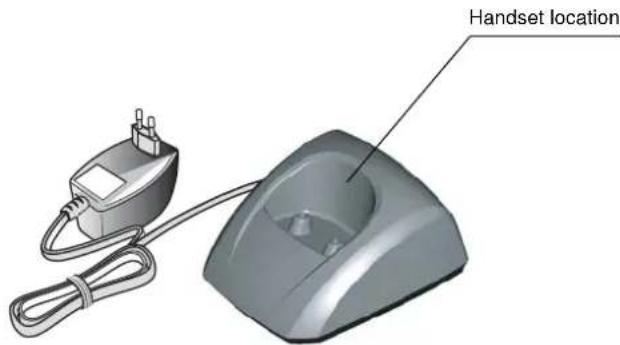
- a desk charger fitted with its power supply unit,
Your desk charger



1



YOUR TELEPHONE
Your handset
With its user-friendly design, you will appreciate how easy it is to hold and its quality during conversations.
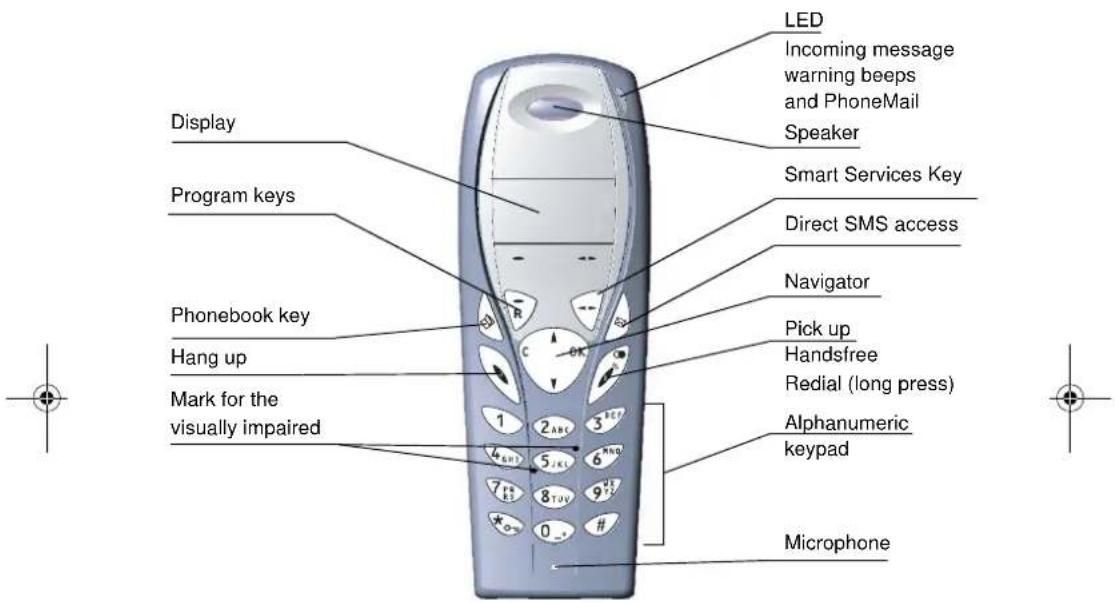
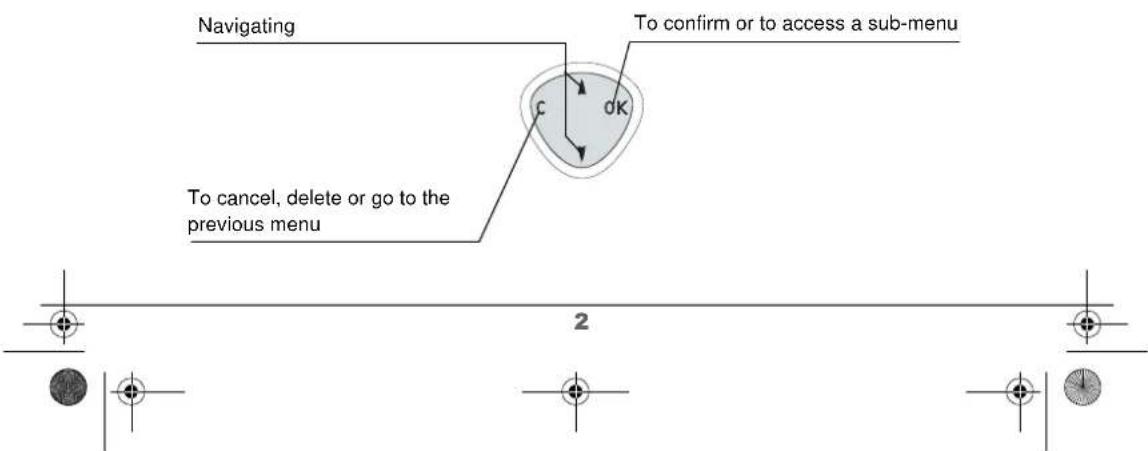
The navigator key, a rapid selection tool.


Menu icons


When the battery charge icon is at minimum, le niveau de la fonction Mains-Libres descend au niveau 4, the hands-free function is turned off until the battery is recharged.

YOUR TELEPHONE
Connection

Before making any connections, please refer to the safety instructions presented at the beginning of this user guide.
Starting your desk charger
Put the support where you want it and connect the power lead to the mains plug.
Handset set-up
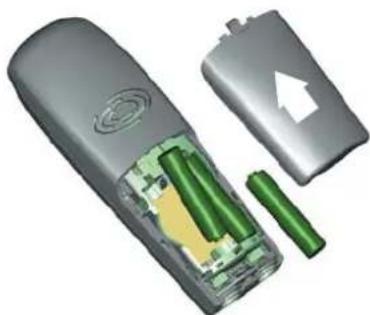
Insert the batteries making sure to respect the polarity. Place the cover back on the handset by pushing upwards until it is completely closed.
Remove the protective film on the screen, place the handset on the base to fully charge the batteries.
The charging icon appears on the screen, it indicates the charging status. Once the icon is full, your batteries are charged.
natural_image
3D cutaway view of a mobile phone showing battery pack, green internal components, and external casing (no text or symbols)
Only use certified rechargeable batteries. For optimal battery charge, leave the handset on the base for at least 12 hours during initial use. During charging, the batteries may heat up, this is quite normal and without risk.



Replacing the batteries
Rechargeable batteries must be used with your handset. Proceed as follows:
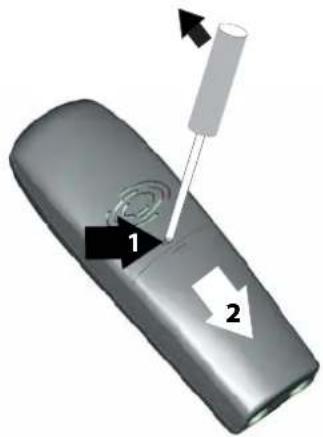
Take the handset and turn it around so that the battery compartment is accessible.
Insert a sharp object (pen, paper clip...) perpendicularly in hole 1 as shown in the illustration and lift it upwards, the battery cover opens, slide it downwards as shown in 2 and insert the batteries making sure to respect the polarity.
Place the cover back on the handset by pushing upwards until it is completely closed.
natural_image
3D illustration of a remote control device with labeled parts (1 and 2), no text or symbols present.


GETTING STARTED
GETTING STARTED
To use your additional handset on the public telephone network from your base, you must register and match it with a base compatible with the European GAP standard.
Get the user brochure on the base to which you want to register your additional handset and find the paragraph concerning the registering of an additional handset.
| ENGLISH | ||
| Return | F | Valid |
The language selection screen is displayed. Press ▲ or ▼ until the desired language is displayed. Validate with Confirm ⚙️.
To register a new handset to a base you must:
- put the handset in registration mode,
- put the base in registration mode.
Once this is done, the registration (mutual recognition of the base and the new handset) will be done automatically (registration can take a few seconds).
Take the handset to be registered:
On the navigator key 📋, press ▲ or ▼ until the SETTINGS screen is displayed, press OK to confirm.
| SET HANDSET | ||
| Return | + | Valid |
| REGISTRATION | ||
| Return | + | Valid |
| REGISTER HS? | ||
| No | ■ | Yes |
Select ADVANCED SET. using ▲ or ▼. Press Valid ⚫.
Select SET HANDSET using ▲ or ▼. Press Valid ⚡.
Select REGISTRATION. Press Valid
Press Yes to put the handset in registration mode.
The handset enters the registration mode.
On the base:
Put the base to which you want to register the handset in registration mode:
- Press on the button on the base for a few seconds.
The green light blinks rapidly, the base is in registration mode.

GETTING STARTED
0123456789 Record ■ Call
The new handset and the base are mutually searching for each other. The registration may take several seconds.
Once the handset is registered, the handset automatically exits the registration mode et lets you know the registration is done.

You can also set your base to the registration mode using a handset already registered by selecting the Registration function in the menu SETTINGS/ADVANCED SET/SET BASE.
Making a call
Enter the number of your contact using the keypad keys.
If you enter an invalid digit, press C on the navigator key 📋 to erase the incorrect digit. Press the green key 📋 on your handset to make the call.
You can also make a call by:
- Pressing the green key to access the line.
- Dialing your contact's number.
To add a pause, press 0 until the symbol "/" is displayed.

Belgacom smart services
Your handset makes Comfort™ services simpler to use. Certain services are pre-programmed in the direct access key or from the OPER. SERVICES menu.
They can be accessed when you are not in communication (ring back if busy, etc.) or during communication (three party conversation, call transfer, etc.).
Services when not in communication
When not in communication, press key BGC or from the OPER. SERVICES menu select using ▲ or ▼ the function that you want to activate from those found in the following list and press Valid.
1919 - Know the last call that entered and was not answered, with possibility of direct dialling of this number.
0123456789 Record ■ Call

1918 Return Valid
7



natural_image
Pure geometric lines and symbols without any text, numbers, or labelsGETTING STARTED

FORWARD ON (*21*) - Activation of forward call function: enter a number of your choice, then press ⚠.
FORWARD OFF (#21#) - Deactivation of forward call function.
NO REPLY ON (*61*) - Activation of forward call in case of no answer function: enter a number of your choice, then press 📋
NO REPLY OFF (#61#) - Deactivation of forward call in case of no answer function.
FW. BUSY ON (*67*) - Activation of forward call in case of line busy function: enter a number of your choice, then press 🙏
FW. BUSY OFF (#67#) - Deactivation of forward call in case of line busy function.
2 CALL ON (*43#) - Activation of 2 Call signal.
2 CALL OFF (#43#) - Deactivation of 2 Call signal.
FIXED CA ON (*53*) - Activation of fixed call function: enter an emergency number of your choice, then press
FIXED CA Off (#53#) - Deactivation of fixed call function.
Ring back Off (#37#) - Deactivate the Belgacom Ring Back service.
ANON. ON (*31*) - Activation of refuse display of your number for next call: enter this number, then press
ANON. OFF (#31*) - Deactivation of refuse display of your number for next call: enter this number, then press 📋
PHONEMAIL (1230) - Listen to messages left by your callers by means of the answering machine Phonemail™.

After each service activation or deactivation, wait for the confirmation tone (quick intermittent tone), then hang up by pressing the 🔒 key.
Using a password is not possible.


GETTING STARTED
- - - - - - - - - -
Receiving a call
When you receive a call your telephone rings. If you have subscribed to a "Caller display" service, the caller's information appears on the screen (unless your caller has enabled the anonymous mode), otherwise the "----" screen is displayed.
Pick up by pressing the green key or . To turn off the ringer, press the red key or .
At the end of the conversation, press the red key
During a call
During a call, numerous options are accessible by pressing Menu 📄.
Select the desired option in the following list:
- HANDSFREE: to activate the handset speaker.
- CALL TRANSFER: to transfer the call to another handset.
- SECOND CALL: to make a second call.
- PHONEBOOK: to access the phonebook.
- CALLS: to access the call log.
- SECRET: to mute the handset microphone.
- OPER. SERVICES: to access the Belgacom services.
Handsfree
While having a conversation with your contact, you can enable the handset. Press Menu 📋
▶ HANDSFREE Return Activ.
Select HANDSFREE. Press Activ.

When pressing the green key While engaged in a conversation you automatically activate the handsfree mode of the handset, by pressing it again you deactivate the handsfree mode.
HANDSFREE ACTIVATED
The message HANDSFREE ACTIVATED appears on the screen. Increase or decrease the audio volume using ▲ or ▼.
9

natural_image
Pure geometric lines and symbols without any text, numbers, or labelsGETTING STARTED
Ending a call
At the end of the conversation, pres the red key

Personal registering of your handset on a base
To register a new handset to a base you must:
- put the handset in registration mode,
- put the base in registration mode.
Once this is done, the registration (mutual recognition of the base and the new handset) will be done automatically (registration can take a few seconds).
On the navigator key 📊, press ▲ or ▼ until the SETTINGS screen is displayed, press OK to confirm.
Select ADVANCED SET using ▲ or ▼. Press Valid ⚠️.
Select SET HANDSET using ▲ or ▼. Press Valid 🙏.
Select PERSON.REGISTR using ▲ or ▼, Press Valid ⚡.
Select the required base number. Press Valid
Delete the current base name using C key (if necessary).
Enter the new name, press Valid
Enter the base code. Press Valid
The handset enters the registration mode, "HANSDSET IN REGISTR.MODE" is displayed on the screen.
Put the base to which you want to register the handset in registration mode:
Once the handset is registered, select the required handset number. Press Valid ⚙️.
| SET HANDSET | ||
| Return | Valid | |
| PERSON.REGISTR | ||
| Return | H | Valid |
| 1 | ||
| Return | B | Valid |
| BASE 1 | ||
| Return | Valid | |
| ACCESS CODE: |
| < Enter code > |
| HANDSET 2 | ||
| Return | Valid | |





GETTING STARTED
On the base:
Put the base to which you want to register the handset in registration mode:
- For the Twist 455, press on the button on the base for a few seconds.
- For other base stations, refer to their user guides.
The green light blinks rapidly, the base is in registration mode.
The new handset and the base are mutually searching for each other. The registration may take several seconds.
Once the handset is registered, the handset automatically exits the registration mode et lets you know the registration is done.

You can also set your base to the registration mode using a handset already registered by selecting the Registration function in the menu SETTINGS/ADVANCED SET/SET BASE.

YOUR PHONEBOOK
YOUR PHONEBOOK
You can store 40 phonebook entries in your phonebook.
Each phonebook entry can contain the name of your contact which can be a maximum of 12 characters long (spaces included), your contact's telephone number up to 24 digits and an icon identifying the type of number (work, home, mobile...).
You can associate a unique ring tone to each entry and thus create your own call groups. (To do so, you must activate the call display service on your handset; contact your service provider to find out about this service.)
Viewing the phonebook
On the navigator key 📋, press ▲ or ▼ until the PHONEBOOK screen is displayed, press Valid ⚡ (you can also use 🔒 to directly access your phonebook).
The list of phonebook entries organised in alphabetical order appears.

The first time you access your phonebook, only the New element appears in the list.
Select the entry you want to view using ▲ or ▼. Once you have selected it, press OK ⚙.

You can call the number that is associated to the entry directly by pressing the green key
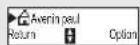
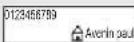
Once the entry appears on the screen, press --to display all of the available actions that can be executed via the phonebook entry:
VIEW: to view the entry data.
- CALL: to call the number associated to the entry.
- EDIT: to edit the entry (name, number, icon).
- SEARCH: to search for another entry.
- RING TONE: to assign a unique ring tone to your handset that will be used each time this number calls you (caller display service mandatory)
- SEND SMS: to send an SMS to a number associated to the entry.
- ADD NUMBER: to enter a new number for the same name.
YOUR PHONEBOOK
- NEW ENTRY: to create a new entry in the phonebook.
- DELETE: to delete the entry from your phonebook.
Select the action you wish to perform using ▲ or ▼. Press Valid ⚠️.
To exit the phonebook, press the red key

Creating an entry
Alphanumeric keypad key correspondence.

1 A, B, C, a, b, c, 2


D, E, F, d, e, f, 3 G, H, l, g, h, i, 4

J, K, L, j, k, l, 5 M, N, O, m, n, o, 6

P, Q, R, S, p, q, r, s, 7 T, U, V, t, u, v, 8

W, X, Y, Z, w, x, y, z, 9 special characters

space, 0, /, +, @, -, \$, &, % # , " .! ? ' () _
To enter text press successively on the desired key until the letter is displayed on the screen.
On the navigator key 📋, press ▲ or ▼ until the PHONEBOOK screen
is displayed, press Valid 📄.

| <New> | |
| Return | Valid |
| NEW NAME? | |
| Enter name> | |
| NEW NUMBER? |
| <Enter number> |
| HOME | ||
| Return | H | Valid |
Select New. Press Valid
The name input screen appears.
Using the keypad keys, enter the name of your contact by pressing successively on the corresponding keys. In case of a mistake, press C to erase one character at a time.
Once you are done making your changes, press Valid ⚠.
The number input screen appears.
Now, enter the name of your contact using the keypad keys. In case of a mistake, press C to delete one character at a time.
Once you are done making your changes, press Valid ⚠.
Select an icon for this number, using ▲ or ▼ to specify the type of number:

YOUR PHONEBOOK

HOME

MOBILE

WORK

FAX
Once the icon is selected, press Valid

A new entry is created. It appears in the phonebook list. The name of this entry corresponds to the beginning of your contact's name which is preceded by a type icon.
Using a phonebook entry to place a call
On the navigator key 📋, press ▲ or ▼ until the PHONEBOOK screen is displayed, press Valid 🎨.
The list of alphabetical phonebook entries appears.
Select your contact using ▲ or ▼. Press the green key to make the call.
Your telephone displays the number called and automatically dials it.
Searching for a contact
When referring to your phonebook, you can search for a contact by:
- navigating through the list using ▲, ▼,
• using quick search,
• using refined search.
Performing a quick search
Access your phonebook list, press successively on the keypad key which corresponds to the first letter of the name you are searching.
Once the first letter of the name is displayed, wait a moment.
The phonebook selects the first name in the list that starts with the selected letter.
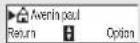
Press ▲ or ▼ to select the specific entry that you wish to view or call, press OK to confirm.
14






YOUR PHONEBOOK
Performing a refined search
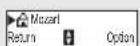
In the phonebook menu, press Option

Select SEARCH using ▲ or ▼. Press Valid

Using the keypad, enter the first two letters of the contact you are searching for.
The phonebook positions itself to the entry which comes closest to those two characters.
Press ▲ or ▼ to select the specific entry that you wish to view or call, press OK to confirm.
Editing an entry
To edit a phonebook entry (change the name, the number and/or the number type icon), enter the phonebook, select the entry you want to edit and press Option 📂.
Select EDIT using ▲ or ▼. Press Valid

You enter the name input screen. The cursor is at the end of the name.
• The information is accurate. Press Valid

- To correct the name, press C on the navigator key 🤗 to delete characters. Make your corrections using the keypad keys by pressing successively on the corresponding keys. Once you are finished, press Valid 🤗
| SEARCH | ||
| Return | H | Valid |
| SEARCH ALPHA?Enter char.> |
| EDIT | ||
| Return | Valid | |
| Even in pau | |
| Return | Valid |
| 0123456789 | |
| Return | Valid |
| HOME | ||
| Return | H | Valid |
You enter the name input screen. The cursor is at the end of the number.
• The information is accurate. Press Valid

- To correct the number, press C on the navigator key 📋 to delete the numbers. Enter the new number and press Valid ⚡️.

Select the icon according to the type of number entered using ▲ or ▼. Press Valid ⚫.
To exit the menu, press the red key


LU Handset Twist 455 UK.book Page 16 Jcudi, 22. avril 2004 4:56 16
YOUR PHONEBOOK




Deleting an entry
To delete an entry, enter the phonebook, select the entry and press
Option ...
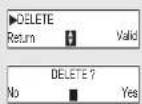
Select DELETE using ▲ or ▼. Press Valid ⚡.
A confirmation screen asks you if you wish to delete the entry.
- If you do not wish to delete the entry, press No
- To delete the entry, press Yes ⚠. The entry is deleted from the phonebook.
To exit the menu, press the red key



16





CALL LOG
CALL LOG
This menu enables you to view the call or event lists of your telephone.
The dialed call log presents the calls you made.
The received call log presents the calls you received.
The event log groups together all the new events that took place in your absence:
• reception of an SMS,
• calls received during your absence,
- Messages saved in PhoneMail.
Viewing the received and dialed call log
On the navigator key

press ▲ or ▼ until the CALLS screen is
displayed, press Valid ...
Choose INCOMING CALLS or OUTGOING CALLS, using ▲ or ▼. Press
Valid :
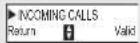
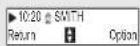
The presentation screen for the last call received or dialed appears.
This screen presents the following information :
- Complete name of your correspondent for received calls (if you have subscribed to the "caller name" or the "caller number" service and that the name associated with the number is registered in your directory; For a dialled call if the name is registered in the directory).
- The telephone number for a received call (if you have subscribed for "caller number", the date, the time and the duration rounded up to neares minute.
To view the previous calls, use ▲ or ▼. The calls are organized in chronological order, from the most recent call to the oldest call.
By pressing Option ⚠, a list of various executable actions appears:
- VIEW: To view the selected call again.
- CALL: To call the number.
- DELETE: To delete the call currently viewed.
- STORE NUMBER: To store the name and number in the phonebook.
- SEND SMS: To send an SMS to your contact.
- DELETE ALL: To delete all calls.
To return to the call view screen, press Return .
To exit the menu, press the red key






CALL LOG
Calling the last number dialed (Redial)
Your telephone has a shortcut key that can be used to automatically redial the last number dialed.
From the idle screen, press and hold the green key until the Call log screen appears. Release, the last dialed number appears. Press the green key again. The number is dialed automatically.

You can view the other dialed calls by pressing ▲ or ▼ on the navigator key 🌐
Calling a number listed in the dialed and received call log
On the navigator key 📋, press ▲ or ▼ until the CALLS screen is displayed, press Valid 🌐
Select OUTGOING CALLS or INCOMING CALLS, using ▲ or ▼. Press Valid
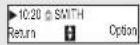
The presentation screen for the last call received or dialed appears. Use ▲ or ▼ to locate the contact you wish to call. The calls are organized in chronological order, from the most recent call to the oldest call.
Once the call is displayed on the screen, press the green key. The number is dialed automatically.





CALL LOG
NEW EVENTS
Viewing the events log
If one or more new events occurred during your absence, the information screen "NEW EVENTS" appears.
- If you do not wish to view the event log at this time, press.
• To view the event log, press .

Once the event log has been viewed, the information screen disappears. You can however view it again via the "CALLS" menu
A summary screen appears. It informs you as to the various events that took place during your absence:
• the new SMS received.
• the calls received during your absence,
- Messages saved in PhoneMail.
Choose the event using ▲ or ▼. Press Valid ⚡.
The event appears on the screen.


19





OTHER FUNCTIONS
OTHER FUNCTIONS
Accessories
This menu offers you numerous additional functionalities:
- adjust, enable or disable the wke-up feature.
- adjust, enable or disable the timer,
- adjust, enable or disable the birthday reminder,
- use a handset to monitor a room.
Security
This menu enables you to change or customise the security parameters of your telephone. You can:
- lock the keypad,
• programme an emergency number, - modify the base code,
- define the call time limit,
- define forbidden prefixes,
• authorise or deny communication to a number of handsets,
Settings
This menu is used to customize the adjustment parameters of your handset and your base. You can:
- modify the languages displayed on the screen,
• program function keys, - modify the date and time, adjust the contrast,
- enable or disable automatic hang-up and off-hook,
- enable or disable the silence mode.
- modify the current tone,
- enable or disable key pad beeping.
• to manage the handset, the base and the line.



20





APPENDIX
Care and Maintenance
Use a slightly damp cloth to wipe the base and handset, do not use a dry cloth as this may cause electrostatic charges.
Problems
Refer to the table presented below in case of an operational malfunction:
| Problems Remedies | |
| The desk charger does not charge | Make sure that :• the power adapter is properly connected to a power socket.• your fuse and circuit-breaker are in working order and that the power socket is powered. |
| The handset display is blank Make | sure the batteries are properly installed.Place the handset on the base and fully charge the batteries.As time goes by, you may notice a slight decrease in battery performance. Use your handset until the battery is fully discharged, and then charge it for at least 12 hours.If these precautionary measures do not resolve this issue, replacement batteries are available from Belgacom. |
| The handset does not ring during an incoming call | Make sure that the telephone is properly connected and that you have a dial tone.Make sure your telephone is not set to silent mode (see chapter entitled Ring Tones). |
| No radio link between the handset and base | Make sure the handset is registered by moving closer to the base, if it is registered correctly, the handset screen should display its own handset number. Otherwise, register the handset to the base. See “Personal registering of your handset on a base”, page 10. |
| You obtain a “busy” dial tone for each dialed number | Make sure no one else is using another handset (if the intrusion mode is deactivated).Make sure that the dial mode (tone or pulse dialing) is compatible with your telephone line or your automatic branch exchange.Make sure your time limit has not run out (if activated).Make sure you are not on call restriction (if activated) |
| You cannot send or receive SMSs | Make sure you have subscribed to a caller display service.Contact Belgacom to check if the SMS service is activated on your line.Make sure that the server number is 1717 for transmissions and 0717 for reception.Have you provided your contacts with the right terminal number? |


FEATURES
| Functions Default settings Functions Default settings | |||
| ACCESSORIES Beeps All active | |||
| Alarm clock Off SETTINGS | |||
| Timer Off Program keys | Silence/ | Oper. Services | |
| SECURITY Date/Time 00:00 // 01/01/03 | |||
| Keypad lock Off Auto Hang up Off | |||
| Emergency Off Auto Pick up Off | |||
| RING TONES Language User choice | |||
| Ringer (Ext/Int) Ring 2 / | Ring 3 Handset name Handset -2- | ||
| Silent mode | Off | ||

| Telephone features | |||
| Number of channels | 120 | Charging time | 12 hours |
| Radio frequency band | 1,88 - 1,90 GHz | Autonomy | |
| Duplex mode | TDMA standby time | 240 hours | |
| Spacing between | 1,728 MHz | talk time | 15 hours |
| Bit rate | 1152 Kbit/s Handset range | ||
| Modulation | GFSK | open space | up to 300 m |
| Vocoding | ADPCM inside building up to 50 m | ||
| Transmitting power | 250 mW Handset dimensions140 140 x 51 x 30 mm | ||
| Base operating voltage | 230 V , 50/60 Hz | Handset weight 152 g | |

All of this data is provided to you for information purposes only. Belgacom reserves the right to make any changes without notice.

GUARANTEE
Guarantee terms
The Equipment you have bought has been carefully selected by Belgacom and is covered by a two-year warranty on spare parts and labor in the event of any material or manufacturing defect, unless otherwise specified. The warranty shall be valid from the date on which the equipment is collected or delivered.
If you have any problems with the equipment, you should take it to a Teleboutique or to one of our authorized agents, in its entirety and in its original packaging, or in packaging providing the same degree of protection, together with the original receipt. The addresses for our Teleboutiques and authorized agents are given in the Information Section of the White Pages.
Your equipment will be repaired or replaced free of charge, on presentation of the receipt, in the event of any material or manufacturing defect.
Belgacom alone shall determine what repairs and/or replacements are necessary. The warranty on the repaired or replaced equipment shall end on the date on which the original warranty on the purchased equipment expires, but shall not be less than 3 months.
The warranty shall not apply:
- damage of any kind that does not predate the sale;
- any damage, faults or defects attributable to the Customer or to causes unrelated to the Equipment: lightning, power surges, humidity, accidental damage, improper use or poor maintenance, failure to comply with the instructions in the user manual, and force majeure;
- the repair or replacement of movable parts (cords, wires, plugs, aerials, etc.), consumables (cells, batteries, paper, ink, etc.) needing regular replacement and the supply of cleaning products.
The warranty shall not apply:
- to any changes or repairs to the terminal Equipment undertaken by the Customer himself/herself or through the services of persons not designated by Belgacom;
- if the Customer removes or tampers with the manufacturer's serial numbers and/or brand names on the terminal Equipment.
Belgacom shall not be liable for any indirect or immaterial loss sustained by the Customer as a result of the malfunctioning of the terminal Equipment, such as any loss of production, revenue or contracts.
The General Terms and Conditions for the Sale of Terminal Equipment can be obtained on request from any Belgacom service available to the public or at www.belgacom.be
belgacom
BELGACOM under public law