HomeDock Deluxe - Audio accessory DLO - Free user manual and instructions
Find the device manual for free HomeDock Deluxe DLO in PDF.


| Product Type | Docking Station with Remote Control |
| Brand | DLO |
| Model | HomeDock Deluxe |
| Compatibility | iPod (30-pin) and iPhone (30-pin) |
| Dimensions | Approx. 8 x 6 x 3 inches (20 x 15 x 8 cm) |
| Weight | Approx. 1.5 lbs (680 g) |
| Power Supply | AC Adapter (supplied) |
| Battery Backup | User-replaceable CR2032 battery (for clock) |
| Audio Output | Stereo speakers (2 x 2W) and 3.5 mm headphone jack |
| Charging Function | Charges iPod/iPhone while docked |
| Alarm Clock | Dual alarm with snooze, wake to iPod or buzzer |
| FM Radio | Built-in FM tuner with presets |
| Remote Control | Infrared remote for basic functions |
| Display | LED display with time, alarm info |
| Sync Capability | Sync with PC via USB (using dock’s USB pass-through) |
| Material | Plastic with silver finish |
| Cleaning | Wipe with soft, dry cloth; avoid liquids |
| Safety Warning | Use only supplied AC adapter; do not expose to water |
| Spare Parts Availability | Remote and AC adapter available separately |
| Warranty | 1 year limited warranty |
Frequently Asked Questions - HomeDock Deluxe DLO
User questions about HomeDock Deluxe DLO
0 question about this device. Answer the ones you know or ask your own.
Ask a new question about this device
Download the instructions for your Audio accessory in PDF format for free! Find your manual HomeDock Deluxe - DLO and take your electronic device back in hand. On this page are published all the documents necessary for the use of your device. HomeDock Deluxe by DLO.
USER MANUAL HomeDock Deluxe DLO
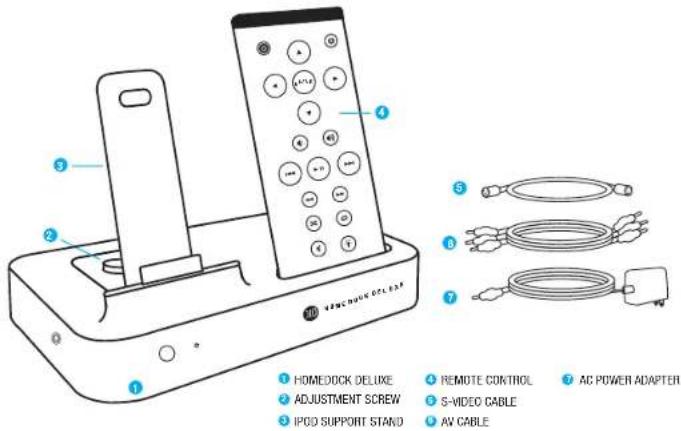
Included in the Box 5
Setting Up HomeDock Deluxe 6
Connecting Your iPod ?
HomeDock Deluxe Remote Control 10
HomeDock Deluxe Features 12
On-TV Navigation 12
Using the My Jukebox Feature 14
HomeDock Settings 16
HomeDock Deluxe Color Themes 16
Screen Savers 17
Viewing Photos on TV 22
Additional Usage 24
Using HomeDock Deluxe with Powered Speakers 24
Using HomeDock Deluxe with Other Digital Audio Devices 24
Switching Between NTSC and PAL 25
Tips + Troubleshooting 26
Tech Specs 28
Service + Support 29
Warranty/FCC Statement/Safety Instructions 30
© 2007 Digital Lifestyle Outfitters
The CLG logo, Digital Lifestyle Outfitters & HomeDock
Decile 31s trademarks of Digital Lifestyle Quenters. End is a trademark of Angle Inc. registered in the U.S.
and other countries. All Rights Reserved
Printed in China M-95800-070120-D
2 | DLO HOMEDOCK DELUXE USER MANUAL
Getting Started
Included in the Box
Congratulations on your purchase of the DLO HomeDock Deluxe for iPod with On-TV Navigation, the iPod dock that lets you enjoy your iPod Music, Videos, and more on the big screen TV in your living room. Connecting HomeDock Deluxe to your home entertainment center is a snap.
We'll get you started in three easy steps:
STEP 1 - Assemble your HomeDock Deluxe
Attach the HomeDock Deluxe iPod Support Stand and make the proper power, audio and video connections to your Home Entertainment Center. See Setting Up HomeDock Deluxe [pg.6]
STEP 2 - Connect your iPod and adjust the HomeDock Deluxe iPod Support Stand Adjust the HomeDock Deluxe iPod Support Stand to fit your particular iPod. See Connecting your iPod [pg.9]
STEP 3 - Power up, browse your iPod and play
Turn On HomeDock Deluxe, browse and select a Song or a Video using the Remote Control and press Enter Button or Right Nav Button to play. See Remote Control Functions [pg.11]
NOTE: For detailed information on setting up your HomeDock Deluxe see Setting Up HomeDock Deluxe [pg.6].
A | DLO HOMEDOCK DELUXE USER MANUAL | 5
Setting Up HomeDock Deluxe
Assembling Your DLO HomeDock Deluxe
- Remove the adjustment screw on top surface of the HomeDock Deluxe.
- Fit the iPod Support Stand into the cavity. Be sure to line up the iPod Support Stand's cutout slot with the Adjustment Screw on the HomeDock.
- Tighten the iPod Support Stand's Adjustment Screw to secure the Stand in place. Do not over-tighten the Adjustment Screw.
Connecting HomeDock Deluxe
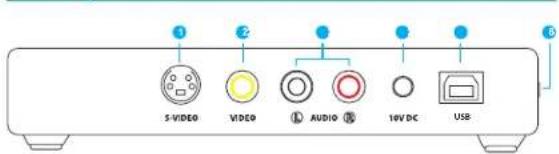
① S-VIDEO OUTPUT
② COMPOSITE VIDEO RCA OUTPUT
AUDIO RCA OUTPUT AC POWER INPUT
USB CONNECTION
AUXILIARY LINE-LEVEL AUDIO INPUT
For best performance, we recommend you connect the HomeDock Deluxe to your TV using the included S-Video cable, and then to your home stereo receiver using the included AV cable (L and R, white and red audio only).
6 | DLO HOMEDOCK DELUXE USER MANUAL
However, there are several optional ways you can connect HomeDock Deluxe to your existing Home Entertainment Center:
- Connect Audio and Video to your TV, although your iPod Music will only play through your TV's speakers
- Connect to a receiver that will automatically choose your video source
- Connect just to your home stereo. See NOTE on [pg. 8]
Basic Connection of HomeDock Deluxe to Your Home Stereo and TV
- Plug the included AC power adapter into the back of the HomeDock Deluxe base, and the other end into any available AC power outlet.
- Plug the included AV Cable into the back of the HomeDock Deluxe base. Be sure to match the color on the AV plugs fired, white and yellow with the corresponding jack color or output type. For S-Video, connect the S-Video cable to the corresponding output on the back of the HomeDock Deluxe base.
- Plug the other end of the AV Cable into the corresponding jacks of any available input on your home stereo receiver and/or TV. Yellow plug = Video, White plug = Left Audio and Red plug = Right Audio.
- For S-Video, plug the other end of the S-Video cable into the S-Video jack on your TV, and connect the White and Red AV Audio cables to the corresponding jacks on your home stereo and/or TV.
- Using your HomeDock Deluxe Remote Control, turn on your HomeDock Deluxe. Also turn on your home stereo and/or TV to then select the correct input for the HomeDock Deluxe.
Connecting Your iPod
NOTE: If you are using the HomeDock Deluxe with just your home stereo connected, be sure to switch to iPod Mode by pressing the Mode Button on your HomeDock Deluxe Remote
Control. This will allow you to control your iPod with the Remote Control, and to select and play Music through your home stereo or even a powered-speaker setup without having a TV connected. See Remote Control Functions [pg.11]
Adjusting HomeDock Deluxe to Fit Your iPod
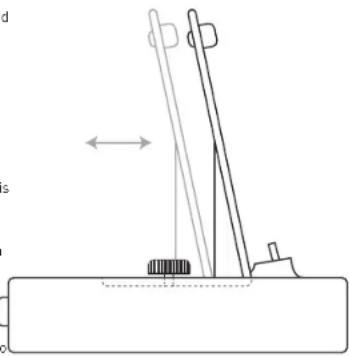
The HomeDock Deluxe can fit any dockable iPod. The first time you use your iPod, and if you ever use another size iPod, you should adjust the HomeDock's iPod Support Stand to accommodate your particular iPod. Follow these steps to do so:
- Loosen the Adjustment Screw and slide the iPod Support Stand as far back as it can go.
- Connect your iPod by carefully lowering it onto the iPod dock connector of the HomeDock Deluxe.
- Slide the iPod Support Stand toward the iPod until the iPod is gently resting against the iPod Support Stand Pad. The back of the iPod should be parallel with the iPod Support Stand and not leaning more forward or backward.
- Tighten the Adjustment Screw to keep it in place.
natural_image
Diagram of a mechanical lever system with weights and a central pivot, no text or symbols presentHomeDock Deluxe Remote Control
Using Your HomeDock Deluxe Remote Control
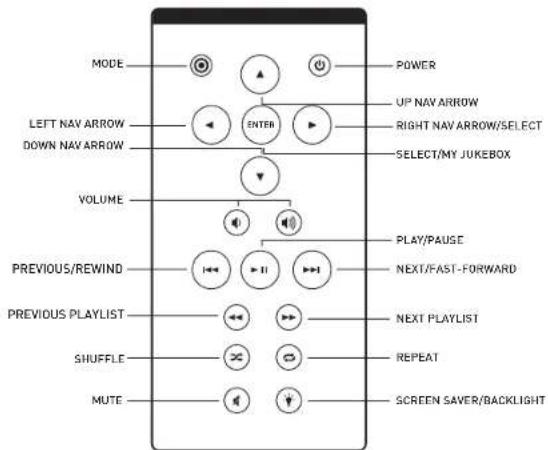
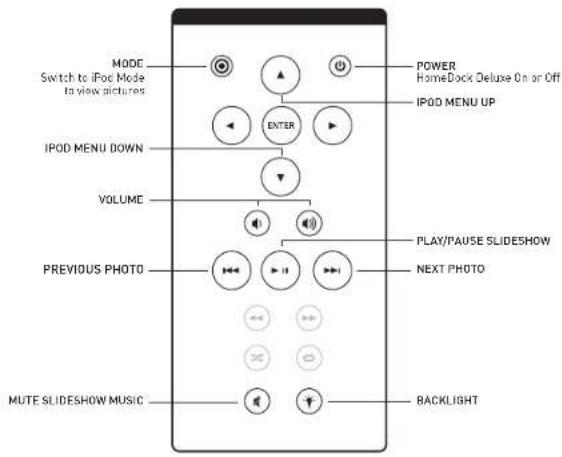
The HomeDock Deluxe lets you enjoy your iPod Music through your home stereo and TV. You can either select your Music directly from your iPod (iPod Model) when connected to just your stereo. Or switch to On-TV Navigation Mode to view, navigate and select your Music or Videos using HomeDock Deluxe's sleek On-TV Navigation. Refer to the diagram on the opposite page for more information about the HomeDock Deluxe Remote Control.
Remote Control Functions
On-TV Navigation
To Select Music or Videos Using On-TV Navigation
Use On-TV Navigation Mode to control and display your iPod's Music and Videos, including Playlists, TV Shows, Movies, Albums, Artists, Songs, Podcasts, etc. You can also choose your own Color Themes and Screen Savers to customize your HomeDock Deluxe. To navigate through the categories of your Music or Video:
- Select Music or Videos from the Main Menu Screen
- Select the category of Music or Video you would like to view: Playlists, Movies, TV Shows, Artists, Albums, Songs, Podcasts, etc.
- Scroll up or down to select the particular Song or Video you would like to play. Then with the song highlighted, press the Enter Button or hit the Right Nav Arrow Button.
From the Main Menu Screen, you can also go immediately to your iPod's Playlists and choose one to listen to. You can even choose Shuffle Songs to play songs randomly from your library.
Any time a track is playing from your iPod using the HomeDock Deluxe, the current track info is displayed at the top of your TV screen with Album Art (if available). The HomeDock Deluxe also displays a track countdown timer, the track progress bar, the name of your iPod, as well as Album and Playlist (if applicable) information.
Controlling Your Music or Videos in On-TV Navigation Mode or iPod Mode
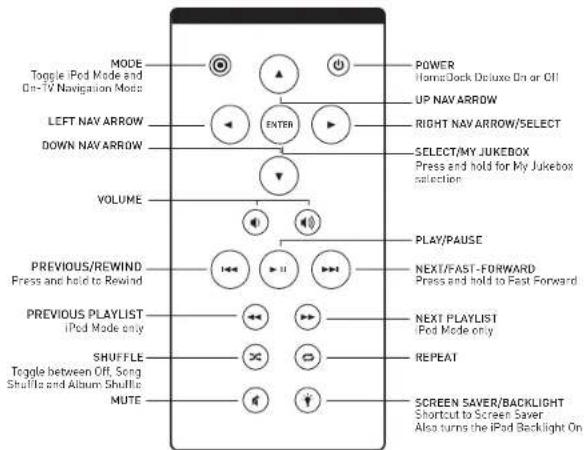
Enjoying Your Music
Using the My Jukebox Feature
The HomeDock Deluxe gives you the option of creating your own Playlists from your iPod directly on your TV. You can select these on-the-fly Playlists using the My Jukebox feature on the Main Menu Screen. Here's how:
- Select any Song from a playlist, artist or album. Then, press and hold the Enter Button on your Remote Control.
- When the Highlight Bar blinks, the song selection has been copied to your My Jukebox Playlist on the Main Menu Screen.
- After you have selected as many items as you want for your My Jukebox Playlist, you may navigate back to the Main Menu Screen to play selections from My Jukebox.
- To clear your My Jukebox Playlist, simply select Clear List and hold. NOTE: My Jukebox will not save a Playlist after an iPod is disconnected or if the HomeDock Deluxe is powered off.
Playlists
You can scroll through your iPod Playlists on your TV with the HomeDock Deluxe Remote Control. Playlists are a great way to organize your Music for a party, to fit a mood, or for easy recall.
Shuffle Songs
Select Shuffle Songs on the Main Menu Screen, and the HomeDock Deluxe will immediately begin playing your entire Music Library in Shuffle Mode.
HomeDock Settings
HomeDock Deluxe Color Themes
The HomeDock Deluxe has 12 amazing color themes that let you customize your iPad viewing experience. You can match your HomeDock Deluxe TV interface to your iPod, your room's décor, or even your mood. Just go to HomeDock Settings/Color Themes and select the one that's right for you.


16 DLO HOMEDOCK DELUXE USER MANUAL
Screen Savers
The HomeDock Deluxe has several different Screen Savers to choose from. They are great for customizing your iPod experience as well as preventing burn-in on certain televisions. Selected Screen Savers include:
- Now Playing
Displays Album Art (if available) and track progress as well as song information
- Album Art
Displays Album Art (if available) that repositions every few seconds
- Status Bar
Displays a simplified version of the Main Status Bar
- Black Screen
Displays small info with Album Art (if available) on bottom left of screen for a moment, then fades to black
- Various Visualizations
Displays visualization patterns that are coordinated with current musical selection
Screen Saver Time
10 secs, 2 mins, 5 mins, 10 mins or never
Screen Savers on the HomeDock Deluxe can be set to come on at different intervals or never. Just select the desired timing for your Screen Saver under HomeDock Settings/Screen Saver Time. TIP: You may also start up a Screen Saver manually at any time by simply pressing the Screen Saver Button on your Remote Control.
Language
The HomeDock Deluxe has 10 available languages. Select yours from the HomeDock Settings/Language.
Available Languages:
English, Spanish, French, German, Italian, Dutch, Simplified & Traditional Chinese, Japanese, Korean
Displaying Album Art
The HomeDock Deluxe will display your iPod Album Art (if available) for the currently-playing track on your TV. You can view your Album Art (if available) in several ways:
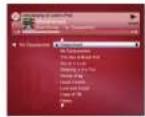
- Whenever a selection is playing, the HomeDock Deluxe displays the Album Art (if available) in the left corner of the Status Bar. Sometimes Album Art (if available) may take a moment to load.
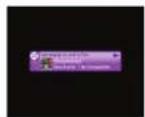
- Several Screens like Now Playing, Album Art and Status Bar feature Album Art (if available). HomeDock Deluxe will automatically update Album Art (if available) when the next track begins playing.
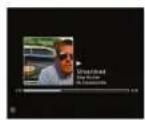
- Select Now Playing from HomeDock Deluxe's Main Menu to display Album Art (if available) and song information.
Things to Understand About iPod Album Art
- The maximum size of Album Art (if available) available is 200 x 200 pixels from iPod with Video. The maximum Album Art (if available) size for iPod nano is 100 x 100 pixels.
- It can take several seconds to load artwork from your iPod. While the larger 200 x 200 pixel artwork is loading, the HomeDock Deluxe will display smaller Album Art lif available.
NOTE: You will see a Please Wait message if you attempt to use the Remote while your iPod is delivering Album Art to your HomeDock Deluxe.
- If your current selection does not have any Album Art, or if the Album Art is unavailable, the HomeDock Deluxe will display the icon below instead of Album Art.
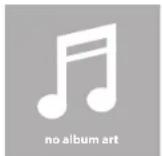
NOTE: 4th Generation Color iPods do not currently support external display of Album Art
Viewing Photos on TV
Viewing Photos on TV with the HomeDock Deluxe
Family vacation slideshows are back with the HomeDock Deluxe!
To view pictures from your photo-compatible iPod, follow these easy steps:
- Dock your iPod onto your HomeDock Deluxe (make sure it's in iPod Model. NOTE: To view photos and Photo Slideshows on your TV, you must first select iPod Mode by pressing the Mode Button on the top left of your HomeDock Deluxe Remote Control. You will then navigate your iPod Photo Library directly on your iPod with the HomeDock Deluxe Remote Control.
- Navigate, select and play a Slideshow from your iPod. NOTE: Be sure to select On under TV Out within Slideshow Settings on your iPod menu. You can use the Remote Control's Nav Arrow Buttons to make your selections.
- Control functions such as Play/Pause, Next Slide, Previous Slide and more from the comfort of your couch with the HomeDock Deluxe Remote Control. Refer to the diagram on the opposite page to learn how to direct your photo slideshows using the HomeDock Deluxe Remote Control.
NOTE: Unfortunately, the iPod nano does not currently support external play-back of its internal photos. However, all music functions, including On-TV Navigation, work great with the iPod nano. If you have questions or need help setting up your iPod for Photos and Slideshows, please visit Apple Support at www.apple.com/support/ipod.
Controlling Your Photos in iPod Mode
Additional Usage
Using HomeDock Deluxe with Powered Speakers
- Plug the included AC power adapter into the back of the HomeDock Deluxe base, then into any available AC power outlet.
- Connect an RCA-to-mini Audio Adapter (available separately) to the Left and Right Outputs on the back of your HomeDock Deluxe.
- Using a mini-to-mini cable (included with most powered speakers), connect your HomeDeck Deluxe to the Input on the powered speakers.
- Using your HomeDock Deluxe Remote Control, turn on your HomeDock Deluxe. Also turn on your powered speakers.
Using HomeDock Deluxe with other Digital Audio Devices
The HomeDock Deluxe will also play the audio from other MP3 players, laptops or any digital device through your home stereo via the Aux-In Jack. However, the HomeDock Deluxe does not support On-TV Navigation with its Aux-In Jack engaged. You can control volume with the Remote Control, while making selections directly on the device.
Switching Between NTSC and PAL
The HomeDock Deluxe's default broadcast format is NTSC. However, it is PAL compatible too. If you have a TV that is formatted for PAL and your iPod's TV signal is set for PAL, simply select the PAL setting in HomeDock Settings.
To toggle between NTSC and PAL settings, follow the steps below:
NTSC to PAL
- Be sure you are on the Main Menu Screen NOTE: Your iPod must be removed from the HomeDock Deluxe.
- Press the Left Arrow Button once, then the Down Arrow Button once. Repeat. This will switch your video output from NTSC to PAL.
PAL to NTSC
-
Be sure you are on the Main Menu Screen NOTE: Your iPod must be removed from the HomeDock Deluxe.
-
Press the Left Arrow Button once, then the Up Arrow Button once. Repeat. This will switch your video output from PAL to NTSC.
Tips + Troubleshooting
Do I have to use a TV with the HomeDock Deluxe?
No. The only time you need a TV is to view Videos or Photos from a Video or Photo compatible iPod or for On-TV Navigation of your Music or Videos. With all other uses, the HomeDock Deluxe is a music-based, remote controlled home docking system for your iPod that requires nothing but a stereo or powered speakers to play your iPod's Music. Simply switch to iPod Mode by pressing the Mode Button on your HomeDock Deluxe Remote Control, and you can control your iPod without On-TV Navigation.
Of course, to get the most out of your HomeDock Deluxe, you should connect it to a TV and home stereo. Remember, in order to use On-TV Navigation to select your Music and Videos, you have to connect your HomeDock Deluxe to your TV.
My HomeDock Deluxe isn't working, what's wrong?
First, be sure that your HomeDock Deluxe is powered on. Next, make sure that you are in the desired mode - On-TV Navigation Mode or iPod Mode. To change modes, simply push the Mode Button on your Remote Control. See Remote Control Functions [pg.11]
My Music or Video sounds a little distorted and fuzzy.
Adjust Volume for the best sound quality.
If your iPod's Music through your HomeDock Deluxe sounds unusually low or noisy, be sure that your HomeDock Deluxe's volume is set at an adequate level. The balance of volume between your HomeDock Deluxe and Stereo/TV can affect the audio quality significantly.
26 | DLO HOMEDOCK DELUXE USER MANUAL | 27
I've selected a photo slideshow to play on my TV, but it's only playing on my iPod screen.
On your iPod, check to see that your TV Out setting under Video/Slideshow Settings is set to either Ask or On. Your Video or Slideshow will not play on your TV unless you select TV On when prompted by your iPod in the Ask setting, or you have selected On under TV Out in Video Settings. Your iPod arrives in the Ask setting, so you will have to select TV On each time you start up a Video or Photo Slideshow unless you change your iPod Settings. Remember, iPod nano does not support external photo slideshows. For more information see the NOTE on [pg.20]
The HomeDock Deluxe sometimes seems to have a lag time before it displays my iPod's content like album art or song information Why?
The response delay time, if any, is usually the HomeDock Deluxe waiting for information from the iPod. Hard-drive based iPods like the 5G iPod with video take longer than flash-based iPods like the iPod nano. How long it takes depends on how much content is on if iPod and what information is being requested. For instance, when you've selected a screen saver on the HomeDock Deluxe that displays "large" Album Art 200 x 200 pixels, (if available), it can take up to 20 seconds for the iPod to access that art work. See Things to Understand About iPod Album Art [pg.20] for more information.
Why does the HomeDock Deluxe Remote use IR and not RF?
Like most DVD Players, Receivers and TVs - the HomeDock Deluxe is intended for the home entertainment center / living room use and therefore uses the industry standard IR technology for its remote control. This also ensures compatibility with many learning remotes that let you consolidate all your various remotes into one.
Tech Specs
Service + Support
Inputs/Outputs
Left/Right Audio: analog audio output
Video: composite video output:
S-Video: separated analog video output
Auxiliary In jack
Power Adapter Input: 100-240VAC, 47-63 Hz
Power Adapter Output: 10VDC, 1.5 amps max
USB-A: standard universal serial bus, USB 2.0
Remote Control
Battery: 3V, type CR2032 or equivalent
Television Video Format
NTSC/PAL (software switchable)
iPod Models Supported
MUSIC COMPATIBILITY:
All Dockable iPods (excluding 3G iPod)
- 5G iPod with Video [30GB, 60GB, 80GB]
• 2nd Gen iPod nano [2GB, 4GB, 8GB]
• 1st Gen iPod nano (1GB, 2GB, 4GB)
• 4G iPod with Click Wheel
(20GB, 30GB, 40GB, 60GB, U2)
- 4G iPod with Color Display
(20GB, 30GB, 40GB, 60GB, U2)
PICTURE COMPATIBILITY
All iPods with Color Display (excluding iPod nano)
- 5G iPod with Video [30GB, 60GB, 80GB]
• 4G iPod with Color Display
(20GB, 30GB, 40GB, 60GB, U2)
VIDEO COMPATIBILITY:
All iPods with Video capability
• 5G iPod with Video |30GB, 60GB, 80GB|
NOTE: Apple iPod models listed as of March 2007
For more information, updates and tips, please visit our website at www.clo.com and click Support.
Warranty
FCC Statement
Digital Lifestyle Outfitters Limited Manufacturer's Warranty
What This Warranty Covers. DLO (Digital Lifestyle Duffillers) warrants this product against defects in materials and workmanship. This Limited warranty applies only to products manufactured by or for DLO.
What This Warranty Does Not Cover. This warranty does not apply to damage caused by: lal accident, abuse, misuse, misapplication, ordinary wear, improper maintenance, failure to follow instructions, or products not manufactured by or for DLO; and [bl] aftermarket services (including upgrades and expansions).
How Long This Warranty Lasts. This warranty lasts for a period of ninety [90] days from the date of original retail purchase.
What DLO Will Do. If a defect exists, DLO will exchange the product, at its option, with a product that is now or has been manufactured from raw or servicable used parts and that is at least functionally equivalent to the original product. DLO will warrant a replacement product against defects in materials and workmanship for a period of ninety (90) days from the date at replacement.
How To Get Service. In order to be eligible for this warranty, you MUST register your purchase at www.dlo.com/register within thirty (30) days of purchasing this product. If you believe that this product is defective in materials or workmanship, please e-mail customerservice@dlo.com with a brief description of the problem, for further instructions.
No Change To Warranty. No DLD resaller, agent or employee is authorized to make any modification, extension, or addition to this warranty.
How State Law Applies. This warranty gives you specific legal rights, and you also may have other rights that vary from state to state, or country.
Restrictions On Implied Warranties. All implied warranties, including, without limitation, warranties of merchantability and fitness for a particular purpose, are limited in duration to the duration of this warranty. Some states do not allow limitations on how long an implied warranty lasts, so the above limitation may not apply to you.
Restrictions On Damages. DLO is not responsible for direct, special, incidental or consequential damages resulting from any breach of warranty or condition or under any other legal theory including, without limitation, lost profits; downtime; goodwill; damage to or replacement of equipment and property; failure to maintain the confidentiality of data stored on the product; and any costs of recovering, reprogramming or reproducing any program or data stored in or used with products manufactured by or for DLO. Some states and countries do not allow the exclusion or limitation of incidental or consequential damages, so the above limitation or exclusion may not apply to you
W1000-050803-B.
Federal Communications Commission Interference Statement
This device complies with Part 15 of the FCC rules. Operation is subject to the following two conditions: (1) This device may not cause harmful interference, and [2] this device must accept any interference received, including interference that may cause undesired operation.
CAUTION: Changes or modifications not expressly approved by the party responsible for compliance could void the user's authority to operate the equipment
Safety Instructions
IMPORTANT

The lightning firm with snowhead symbol with an epidermal shape, is intended to adopt the year in the presence of oilseeded "big-poor village" within the product's law known that may be of a full time magnitude to constitute a dire of electric shock to persons.
CAUTION TO PREVENT THE RISK OF ELECTRIC GENDER, DO NOT REMOVE COOPERATION SAGEL. NO OTHER SERVICEABLE PARTS INSIDE. REFER SERVICING TO QUALIFIED SERVICE PERSONNEL.

The exclamation point within an equivalent triangle is intended to shift the user to the presence of important operating and maintenance following instructions for the literature accompanying the appliance.
IMPORTANT SAFETY INSTRUCTIONS READ BEFORE OPERATING EQUIPMENT
- Please be sure to read these instructions.
2 Please heed all warnings. - Do not use this apparatus near water.
- Clean only with dry cloth.
- Install in accordance with the manual's instructions.
Do not install near any heat sources such as radiators, heat registers, stoves, or other apparatus (including amplifiers) that produce heat. - Protect the power card from being pinched particularly at plugs, convenience receptacles, and the point where they exit from the apparatus.
- Only use attachments, accessories or cables specified by the manufacturer.
- Refer all servicing to DLO customer service personnel.
WARNING: To reduce the risk of fire or electric shock, this apparatus should not be exposed to rain or moisture and objects filled with liquids, such as vases, should not be placed on or near this device.

natural_image
Completely black image with no visible content, text, or symbols.
Thanks for purchasing the DLO HomeDock Deluxe where your iPod lives - at home.
DIGITAL LIFESTYLE OUT FITTERS • VISIT US AT WWW.DLO.COM • ©2007 DIGITAL LIFESTYLE OUTFITTERS