StreaMaster - Media player Niagara - Free user manual and instructions
Find the device manual for free StreaMaster Niagara in PDF.


User questions about StreaMaster Niagara
0 question about this device. Answer the ones you know or ask your own.
Ask a new question about this device
Download the instructions for your Media player in PDF format for free! Find your manual StreaMaster - Niagara and take your electronic device back in hand. On this page are published all the documents necessary for the use of your device. StreaMaster by Niagara.
USER MANUAL StreaMaster Niagara
Niagara Video Corporation
StreaMaster Products
Operations Manual
June 26, 2016
Hardware
US2 (dual tuner)
US-8 and DT-8 (8 tuner ATSC/QAM/DVB-T/DVB-C)
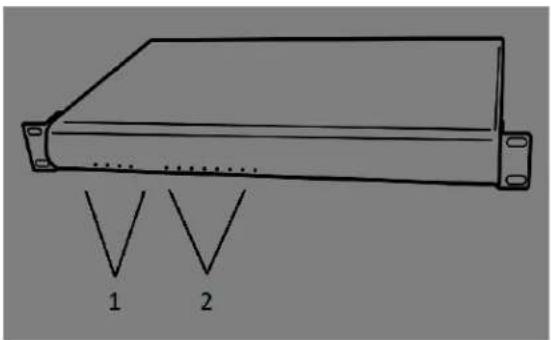
natural_image
Simple line drawing of a rectangular electronic device with two labeled pins (1 and 2) below it, no text or symbols present.- Power/Network
- Tuner
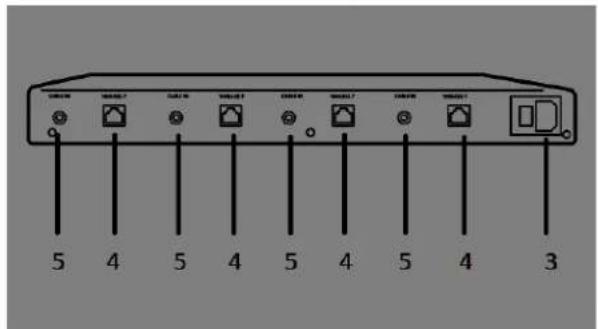
- Power
- Ethernet
- Coax in (ATSC/QAM/DVB-T/C)
HDRack (6 tuner CableCARD)
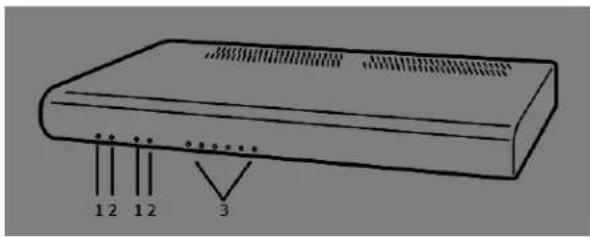
natural_image
Line drawing of a rectangular electronic device with labeled ports (no text or symbols beyond numbers)- Power/Network LED
- CableCARD LED
- Tuner LEDs
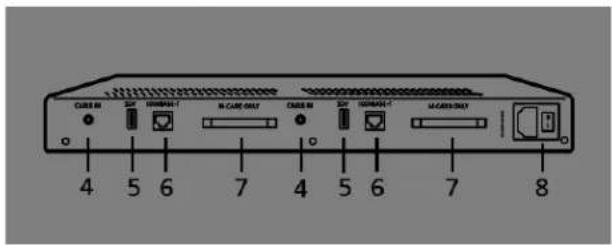
- Coax in (digital cable)
- USB (for tuning adapter)
- Ethernet
- M-CARD
- Power
Power
All devices should be used with the included power supply (dual-tuner models) or standard power cable (1 RU models).
Ethernet
Connect the Ethernet port(s) to a network switch. On models with multiple ports, all ports must be connected in order for all tuners to be accessible. A single port can be directly connected to the network interface on a PC to access that specific device. All ports are auto-crossover so a standard Ethernet cable can be used for direct connections.
Additional Tools and Software
Software Installation
The latest drivers, code, and firmware can be found on the Niagara Video website:
http://www.niagara-video.com/downloads
Windows
Download and install the latest Windows release of the software.
The Setup wizard is optional.
When the installation process is complete it is recommended that the HDHomeRun program directory be added to the PATH so that the hdhomerun_config utility can be run from a cmd prompt. The default program directory is “C:\Program Files\Silicondust\HDHomeRun TECH”
Linux/\*BSD/Solaris
Download and extract the libhdhomerun archive.
Run "make" to compile hdhomerun_config (systems that use a non-GNU make by default may need to install and use "gmake" instead).
Copy hdhomerun_config to /usr/local/bin
Using the Command Line Configuration Utility (hdhomerun\_config)
Open a command prompt or terminal window and change directory to the HDHomeRun installation directory: "C:\Program Files\Silicondust\HDHomeRun TECH"
The list of supported commands can be obtained by running hdhomerun_config without any parameters:
hdhomerun_config discover
hdhomerun_config <id> get help
hdhomerun_config <id> get <item>
hdhomerun_config <id> set <item> <value>
hdhomerun_config <id> scan <tuner> [<filename>]
hdhomerun_config <id> save <tuner> <filename>
hdhomerun_config <id> upgrade <filename>
Discover devices on the network
The discover command will find devices that are on the same subnet as the host:
hdhomerun_config discover
Sending commands to a specific device
The “
hdhomerun_config <device id> get help
hdhomerun_config <ip address> get help
To address by Device ID the device must be on the same subnet as the host.
A Device ID of FFFFFFFF can be used as a wild card for the first device found on the network. Do not use this syntax if there are multiple devices on the network, as the device used will be random based on discovery order, which may change between commands.
Supported Commands
The get/set options supported by a specific device can be queried using the get help command:
hdhomerun_config
Example output:
/card/status Get status of CableCARD (6CC only)
/oob/channel <modulation>:<freq> Get/set out of band channel (6CC only)
/oob/debug Get out of band channel debug info (6CC only)
/oob/status Get out of band channel status info (6CC only)
/sys/boot <config> Get/set boot configuration
/sys/copyright Get copyright information
/sys/debug Get/set system debug information
/sys/features Get system feature information
/sys/hwmodel Get system hardware model string
/sys/ipaddr dhcp;"><ip> <mask> <gw> <dns>" Get/set system IP address
/sys/model Get/set model string
/sys/restart <resource> Restart device/component
/sys/version Get firmware version
/tuner<n>/channel <modulation>:<freq|ch> Get/set channel
/tuner<n>/channelmap <channelmap> Get/set channelmap
/tuner<n>/debug Get tuner debug information
/tuner<n>/filter "0x<nnnn>-0x<nnnn> [...] " Get/set tuner PID filter
/tuner<n>/lockkey Get/set tuner locking
/tuner<n>/plotsample Get raw plotsample data from tuner
/tuner<n>/program <program number> Get/set MPEG program
/tuner<n>/streaminfo Get list of programs on current channel
/tuner<n>/status Get tuner status
/tuner<n>/target <ip>:<port> Get/set stream target
/tuner<n>/vchannel <vchannel> Get/set virtual channel number (6CC only)
/tuner<n>/vstatus Get/set subscription/protection status (6CC only)
Channel scan
To run a channel scan:
Format: hdhomerun_config <id> scan /tuner<n> [log filename]
Example: hdhomerun_config FFFFFFFF scan /tuner0 scan0.log
This command will scan all channels on the selected channel map plus any additional channel maps associated with the selected channel map. All standard modulation types for the selected channel map are tested.
When a digital channel is found it will identify the programs on the channel.
The log filename is optional; if included it will log to the given filename.
Tuning a physical channel
To set a channel use the set channel command:
Format: hdhomerun_config <id> set /tuner<n>/channel <modulation>:<frequency>
Format: hdhomerun_config <id> set /tuner<n>/channel <modulation>:<channel>
Example: hdhomerun_config FFFFFFFF set /tuner0/channel auto:651000000
Example: hdhomerun_config FFFFFFFF set /tuner0/channel auto:60
To auto-detect the modulation type use “auto” for the modulation.
Supported modulation types can be queried with the get sys-features command:
hdhomerun_config <id> get /sys/features
To stop the tuner set the channel to none:
Format: hdhomerun_config <id> set /tuner<n>/channel none
Example: hdhomerun_config FFFFFFFF set /tuner0/channel none
Tuning a virtual channel (TECH3-6CC-3x2 only)
To set a virtual channel use the set vchannel command:
Format: hdhomerun_config <id> set /tuner<n>/vchannel <virtual channel>
Example: hdhomerun_config FFFFFFFF set /tuner0/vchannel 702
To stop the tuner set the vchannel to none:
Format: hdhomerun_config <id> set /tuner<n>/vchannel none
Example: hdhomerun_config FFFFFFFF set /tuner0/vchannel none
Checking the signal strength
The basic signal information can be obtained by using the get status command:
Format: hdhomerun_config <id> get /tuner<n>/status
Example: hdhomerun_config FFFFFFFF get /tuner0/status
Example output:
ch=qam:33 lock=qam256 ss=83(-10dBmV) snq=90(29dB) seq=100 bps=38807712 pps=0
- ch = channel requested
- lock = actual modulation detected
- ss = signal strength.
- snq = signal to noise quality (MER).
- seq = symbol error quality (based on the number of uncorrectable digital errors detected).
- bps = raw channel bits per second.
- pps = packets per second sent through the network.
More advanced information can be obtained by using the get debug command:
Format: hdhomerun_config <device id> get /tuner<n>/debug
Example: hdhomerun_config FFFFFFFF get /tuner0/debug
Example output:
tun: ch=qam:33 lock=qam256 ss=84 snq=88 seq=100 dbg=22081-6930
dev: resync=0 overflow=0
ts: bps=38809216 ut=94 te=0 miss=0 crc=0
flt: bps=38809216
net: pps=0 err=0 stop=0
Each line contains a prefix to indicate the type of data, followed by the values.
- tun = tuner status
- see above section
- dev = device status
- ts = transport stream
○ bps = bits per second - ut = utilization percentage (100% is filled to capacity)
-
te = transport error counter (uncorrectable reception error)
○ miss = missed packet counter (jump in sequence numbers)
○ crc = crc error counter -
flt = results after pid filtering
○ bps = bits per second
- net = network status
○ pps = packets per second
- err = packets or TS frames dropped before transmission.
- stop = reason for stopping the stream
The counters are reset to zero upon a channel change, but may indicate a small number of errors caused before the tuner locks on the channel. As a result, diagnostics should be based on the change in values over time, and not the initial values. Detecting the programs on a physical channel:
The device will detect the programs (sub-channels). Use the get streaminfo command to query the detected programs:
Format: hdhomerun_config <id> get /tuner<n>/streaminfo
Example: hdhomerun_config FFFFFFFF get /tuner0/channel streaminfo
The output format is:
<program number>: <virtual major>.<virtual minor> [<name>] [(<flags>)]
Example output:
3: 20.1 KBWB-HD
4: 20.4 AZTECA
Digital cable does not always provide the channel name or virtual channel number:
1: 0.0
2: 0.0 (encrypted)
3: 0.0 (control)
It may take several seconds after setting the channel for the stream information to be fully populated (depending on how long the channel takes to lock and how often the stream information is sent by the broadcaster/cable provider).
Filtering by program (sub-channel)
The products support automatic PID filtering by program number or virtual channel number:
Format: hdhomerun_config <id> set /tuner<n>/program <program number>
    hdhomerun_config <id> set /tuner<n>/program <virtual channel number>

Example: hdhomerun_config FFFFFFFF set /tuner0/program 3
    hdhomerun_config FFFFFFFF set /tuner0/program 11.2
When filtering by program the MPEG TS tables are generated by the device. The result is a valid single-program transport stream.
The program filter is cleared when a set channel or a set filter command is received.
Advanced: By default the PAT and PMT are generated. To also generate a ATSC-style TVCT use:
hdhomerun_config <id> set /tuner<n>/program "<program number> tvct_from_pmt=<virtual major>.<virtual minor>(<name>)
Example: hdhomerun_config <id> set /tuner0/program "3 tvct_from_pmt=11.2(TEST)"
Filtering by PID
The product also supports arbitrary hardware PID filtering:
Format: hdhomerun_config <id> set /tuner<n>/filter <filter>
Example: hdhomerun_config FFFFFFFF set /tuner0/filter "0x0000-0x1FFF"
hdhomerun_config FFFFFFFF set /tuner0/filter "0x0000 0x0030-0x0033 0x1FFB"
When filtering by PID the stream is filtered but otherwise unmodified.
The filter is cleared to pass-all (0x0000-0x1FFF) when a set channel command is received.
Saving a stream
The hdhomerun_config command can be used to automate the process of saving to the local filesystem:
Format: hdhomerun_config <id> save /tuner<n> <filename>
Example: hdhomerun_config FFFFFFFF save /tuner0 capture.ts
While saving the stream, a single period “.” will be displayed every second. Errors will be indicated by a letter.
Example output:
......n......n......ts......
-- Video statistics --
23323 packets recieved, 2 network errors, 1 transport errors, 1 sequence errors
Advanced: A filename of “null” indicates no file should be created, allowing the use of the save command as a diagnostic tool.
Advanced: “-” may be used as a filename to indicate standard output, allowing the save command to be used as a pipe on supported platforms.
Example: hdhomerun_config FFFFFFFF save /tuner0 - | vlc -
Streaming to a target machine
Set the target IP address and port number using the set target command:
Format: hdhomerun_config <id> set /tuner<n>/target udp://<ip>:<port>
Format: hdhomerun_config <id> set /tuner<n>/target rtp://<ip>:<port>
Example: hdhomerun_config FFFFFFFF set /tuner0/target udp://192.168.1.100:5000
Example: hdhomerun_config FFFFFFFF set /tuner0/target rtp://192.168.1.100:5000
The target machine must be listening on the given UDP port. The product will automatically clear the target if an ICMP port unreachable message is received when sending to a unicast address. To override this, add no_clear to the target.
Format: hdhomerun_config <id> set /tuner<n>/target "udp://<ip>:<port> no_clear"
Format: hdhomerun_config <id> set /tuner<n>/target "rtp://<ip>:<port> no_clear"
Example: hdhomerun_config FFFFFFFF set /tuner0/target "udp://192.168.1.100:5000 no_clear"
Example: hdhomerun_config FFFFFFFF set /tuner0/target "rtp://192.168.1.100:5000 no_clear"
A global broadcast (255.255.255.255), subnet broadcast, or multicast target can be specified however care must be taken to ensure that the traffic will not cause problems with other devices on the network. If the local network is bridged to a wireless network then the AP will typically transmit at a low broadcast speed saturating the wireless network.
The time-to-live (TTL) defaults to 64. To configure a lower TTL use the following format (quotes required):
Format: hdhomerun_config <id> set /tuner<n>/target "udp://<ip>:<port> ttl=<n>"
Format: hdhomerun_config <id> set /tuner<n>/target "rtp://<ip>:<port> ttl=<n>"
Example: hdhomerun_config FFFFFFFF set /tuner0/target "udp://192.168.1.100:5000 ttl=8"
Example: hdhomerun_config FFFFFFFF set /tuner0/target "rtp://192.168.1.100:5000 ttl=8"
Example: Streaming to VLC
Run VLC: Media, Open Network Stream. Select UDP/RTP. Specify port 5000.
Discover the device:
hdhomerun_config discover
Run a channel scan:
hdhomerun_config FFFFFFFF scan /tuner0 scan0.log
Set the physical channel:
hdhomerun_config FFFFFFFF set /tuner0/channel auto:651000000
Check sub-programs:
hdhomerun_config FFFFFFFF get /tuner0/streaminfo
Select a sub-program:
hdhomerun_config FFFFFFFF set /tuner0/program 3
Set the target:
hdhomerun_config FFFFFFFF set /tuner0/target udp://<ip address of pc>:5000
HTTP Streaming
The various models can be used to stream via HTTP (unicast only) to VLC or other clients.
Format: http://
Lineup file
The units support virtual channel lineup information transmitted by the cable provider and received via the CableCARD. This is available in XML and JSON format.
http://
Datacast operation
TECH3 units support Datacast TCP/IP over OTA broadcast. Datacasting often provides news, weather, traffic, stock market, and other information which may or may not relate to the program[s] it is carried with. An electronic program guide is usually included. Datacast TCP-IP packets are reassembled and then routed to the LAN port.
Example:
Discover the device:
hdhomerun_config discover
Set the physical channel:
hdhomerun_config FFFFFFFF set /tuner0/channel auto:651000000
Set the datacast PID:
hdhomerun config FFFFFFFF set /tuner0/filter 0x0A00
Set the target:
hdhomerun_config FFFFFFFF set /tuner0/target datacast
Using /sys/boot
The /sys/boot variable allows the TECH3 unit to automatically set variables at startup, allowing you to preserve settings across power outages or simply set the power on defaults.
The syntax for the /sys/boot consists of multiple lines of text; a variable name followed by a single space and then the value: (there should not be any space before the variable name)
<variable1> <value of variable1>
<variable2> <value of variable2>
...
<variableN> <value of variableN>
Example (save as boot.txt):
/tuner0/channelmap us-cable
/tuner0/channel 103
/tuner0/program 4
To store the configuration to the device:
Format: hdhomerun_config <id> set /sys/boot - < filename
Example: hdhomerun_config FFFFFFFF set /sys/boot - < boot.txt
Changes will be applied the next boot; to execute the new /sys/boot immediately:
Format: hdhomerun_config <id> execute
Example: hdhomerun_config FFFFFFFF execute
Static IP assignment
A static IP address can be configured using the following command (the quotes are required as shown):
Format: hdhomerun_config <old ip> set /sys/ipaddr "<new ip><subnet><gateway>"
Example: hdhomerun_config 169.254.34.98 set /sys/ipaddr "10.10.20.43 255.255.255.0 10.10.20.1"
Note: The TECH requires a gateway when used to stream multicast, even if on the same subnet.
Reverting to DHCP
The TECH3 can be configured for DHCP operation (default) using the following command:
Format: hdhomerun_config <old ip> set /sys/ipaddr dhcp
Example: hdhomerun_config 169.254.34.98 set /sys/ipaddr dhcp
Setting the channel map
The channel map is a non-volatile configuration option that is used to set the channel to frequency table, to configure the channel scan table, and to optimize the auto-modulation detection.
GUI: The channel map can be set for each tuner by running HDHomeRun Config (GUI).
Command line: The channel map can be set for each tuner using the following command:
Format: hdhomerun_config
Channel maps supported by US hardware:
| Name | Description | Location |
| us-bcast | Digital Antenna (ATSC). | US, Canada |
| us-cable | Digital Cable - Normal frequency layout. | US, Canada |
| us-hrc | Digital Cable - HRC frequency layout. | US, Canada |
| us-irc | Digital Cable - IRC frequency layout. | US, Canada |
Channel maps supported by EU hardware:
| Name | Description | Location |
| au-bcast | Digital Antenna (Australia). | Australia |
| au-cable | Digital Cable (Australia). | Australia |
| eu-bcast | Digital Antenna (Europe). | Europe, New Zealand |
| eu-cable | Digital Cable (Europe). | Europe, New Zealand |
| tw-bcast | Digital Antenna (Taiwan). | Taiwan |
| tw-cable | Digital Cable (Taiwan). | Taiwan |
Multicast
All products support UDP and RTp multicast streaming.
1) Using HDHomeRun Config GUI or hdhomerun_config choose a desired channel and program number for each tuner. In this example we will use channel 19 program 3 on tuner 0 and channel 30 program 1 on tuner 1.
2) Choose a multicast IP address for each stream. As a general rule the multicast address should be in the range of 239.255.0.0 to 239.255.255.255. In this example we will use 239.255.1.1 and 239.255.1.2
3) Choose a destination (client) port number. The port should be outside the well-known ports range (we recommend 50000+) and should be unique for each stream. In this example we will use 59001 and 59002.
4) Write the boot script (text file):
/tuner0/channelmap us-bcast
/tuner0/channel 19
/tuner0/program 3
/tuner0/target rtp://239.255.1.1:59001 ttl=64
/tuner1/channelmap us-bcast
/tuner1/channel 30
/tuner1/program 1
/tuner1/target rtp://239.255.1.2:59002 ttl=64
5) Write the boot script to the device:
hdhomerun_config 10010003 set /sys/boot - < boot.txt
6) Execute the boot script:
hdhomerun_config 10010003 execute
7) Check the tuner status and target for each tuner. The packets-per-second "pps" number should be non-zero indicating that the device is sending the stream.
hdhomerun_config 10010003 get /tuner0/debug
hdhomerun_config 10010003 get /tuner0/target
hdhomerun_config 10010003 get /tuner1/debug
hdhomerun_config 10010003 get /tuner1/target
Example Boot Script Configurations
Tuning 2 ATSC channels and streaming to multicast addresses using RTP:
/tuner0/channelmap us-bcast
/tuner0/channel 31
/tuner0/program 3
/tuner0/target rtp://239.255.1.1:59001
/tuner1/channelmap us-bcast
/tuner1/channel 8
/tuner1/program 1
/tuner1/target rtp://239.255.1.2:59002
Tuning 3 digital cable channels using a CableCARD and streaming to multicast addresses using RTP:
/tuner0/vchannel 702
/tuner0/target rtp://239.255.1.1:59001
/tuner1/vchannel 740
/tuner1/target rtp://239.255.1.2:59002
/tuner2/vchannel 771
/tuner1/target rtp://239.255.1.3:59003
Tuning 2 DVB-T channels in Australia and streaming to multicast addresses using UDP:
/tuner0/channelmap au-bcast
/tuner0/channel 5
/tuner0/program 20121
/tuner0/target udp://239.255.1.1:59001
/tuner1/channelmap au-bcast
/tuner1/channel 44
/tuner1/program 28753
/tuner1/target udp://239.255.1.2:59002
Tuning 2 DVB-C channels in Europe and streaming to a single PC, ignoring rejection messages from the PC due to a closed port:
/tuner0/channelmap eu-cable
/tuner0/channel 646
/tuner0/program 231
/tuner0/target udp://192.168.0.22:59001 no_clear
/tuner1/channelmap eu-cable
/tuner1/channel 770
/tuner1/program 24112
/tuner1/target udp://192.168.0.22:59002 no_clear
VideoLAN VLC
VideoLAN VLC is a third party video player suitable playing unicast and multicast for use with the TECH3:
http://www.videolan.org/vlc/
Using VLC
- Run VLC and select Media, Open Network.
- Set the protocol to RTP.
- Set the address to 239.255.1.1 and the port to 59001.
- Click play.
TSReader
TSReader is a third party Transport Stream analyzer for Windows that works with the products:
http://www.coolstf.com/tsreader/
FCC Notice:
This device complies with part 15 of the FCC Rules. Operation is subject to the condition that this device does not cause harmful interference.
Note: This equipment has been tested and found to comply with the limits for a Class B digital device, pursuant to part 15 of the FCC Rules. These limits are designed to provide reasonable protection against harmful interference in a residential installation. This equipment generates, uses and can radiate radio frequency energy and, if not installed and used in accordance with the instructions, may cause harmful interference to radio communications. However, there is no guarantee that interference will not occur in a particular installation. If this equipment does cause harmful interference to radio or television reception, which can be determined by turning the equipment off and on, the user is encouraged to try to correct the interference by one or more of the following measures:
—Reorient or relocate the receiving antenna.
—Increase the separation between the equipment and receiver.
—Connect the equipment into an outlet on a circuit different from that to which the receiver is connected.
—Consult the dealer or an experienced radio/TV technician for help.
FCC Notice (1RU models):
This device complies with Part 15 of the FCC Rules. Operation is subject to the following two conditions: 1) This device may not cause harmful interference. 2) This device must accept any interference received, including interference that may cause undesired operation.
This product has been tested and found to comply with the limits for a Class A digital device pursuant to Part 15 of the FCC Rules. These limits are designed to provide reasonable protection against harmful interference when the equipment is operated in a commercial environment. This product generates, uses, and can radiate radio frequency energy and, if not installed and used in accordance with the manufacturer's instruction manual, may cause harmful interference with radio communications. Operation of this product in a residential area is likely to cause harmful interference, in which case you will be required to correct the interference at your own expense.