Trident A 8SD-217EU - Desktop computer MSI - Free user manual and instructions
Find the device manual for free Trident A 8SD-217EU MSI in PDF.


| Product Type | Desktop Computer |
| Brand | MSI |
| Model | Trident A 8SD-217EU |
| Processor | Intel Core i7-8700 (6 cores, up to 4.6 GHz) |
| Graphics | NVIDIA GeForce GTX 1060 6GB GDDR5 |
| Memory | 8GB DDR4 (2 x 4GB), expandable up to 32GB |
| Storage | 128GB M.2 SSD + 1TB 2.5" HDD (7200 RPM) |
| Optical Drive | None (external optional) |
| Dimensions (W x D x H) | 10.24 x 13.78 x 5.2 inches (260 x 350 x 132 mm) |
| Weight | Approx. 14.3 lbs (6.5 kg) |
| Power Supply | 350W external power adapter |
| Operating System | Windows 10 Home (64-bit) |
| Connectivity | Wi-Fi 802.11ac, Bluetooth 4.2, Gigabit LAN |
| Front Ports | 2x USB 3.0, 1x USB 2.0, 1x Mic, 1x Headphone |
| Rear Ports | 4x USB 3.0, 2x USB 2.0, HDMI, DisplayPort, DVI, 3x Audio jacks |
| Main Functions | Gaming, VR-ready, multimedia, office productivity |
| Cleaning | Use dry cloth; avoid liquids; periodic dust removal with compressed air |
| Safety | Do not block vents; keep away from heat sources; use grounded outlet |
| Spare Parts & Repairability | Upgradeable RAM and storage; power adapter available; contact MSI support |
| Environmental | Operating temp: 0-35°C; storage temp: -20-60°C |
Frequently Asked Questions - Trident A 8SD-217EU MSI
User questions about Trident A 8SD-217EU MSI
0 question about this device. Answer the ones you know or ask your own.
Ask a new question about this device
Download the instructions for your Desktop computer in PDF format for free! Find your manual Trident A 8SD-217EU - MSI and take your electronic device back in hand. On this page are published all the documents necessary for the use of your device. Trident A 8SD-217EU by MSI.
USER MANUAL Trident A 8SD-217EU MSI
Copyright Notice......iii
Trademarks......iii
Revision ....iii
Upgrade and Warranty....iv
Acquisition of Replaceable Parts ....iv
Technical Support....iv
Green Product Features....iv
Environmental Policy v
Chemical Substances Information ...... v
Battery Information...... v
Safety Instructions....vi
CE Conformity......viii
FCC-B Radio Frequency Interference Statement......viii
WEEE Statement....ix
RoHS Statement ix
1. Overview ...... 1-1
Packing Contents 1-2
System Overview 1-3
2. Getting Started....2-1
Safety & Comfort Tips....2-2
Hardware Setup 2-3
3. System Operations 3-1
Power Management....3-2
Network Connection (Windows 10)....3-4
System Recovery (Windows 10)....3-7
System Recovery (F3 Hotkey Recovery) (Optional) 3-11
Copyright Notice
The material in this document is the intellectual property of MICRO-STAR INTERNATIONAL. We take every care in the preparation of this document, but no guarantee is given as to the correctness of its contents. Our products are under continual improvement and we reserve the right to make changes without notice.
Trademarks
All trademarks are the properties of their respective owners.
Revision
Revision
Date
V1.0
2018/10
Upgrade and Warranty
Please note that certain components preinstalled in the product may be upgradable or replaceable by user's request. For any further information about the product users purchased, please contact the local dealer. Do not attempt to upgrade or replace any component of the product if you are not an authorized dealer or service center, since it may cause the warranty void. It is strongly recommended that you contact the authorized dealer or service center for any upgrade or replace service.
Acquisition of Replaceable Parts
Please be noticed that the acquisition of replaceable parts (or compatible ones) of the product users purchased in certain countries or territories may be fulfilled by the manufacturer within 5 years at most since the product has been discontinued, depending on the official regulations declared at the time. Please contact the manufacturer via http://www.msi.com/support/ for the detailed information about the acquisition of spare parts.
Technical Support
If a problem arises with your system and no solution can be obtained from the user's manual, please contact your place of purchase or local distributor. Alternatively, please try the following help resources for further guidance. Visit the MSI website for technical guide, BIOS updates, driver updates and other information via http://www.msi.com/support/
Green Product Features
- Reduced energy consumption during use and stand-by
Limited use of substances harmful to the environment and health - Easily dismantled and recycled
- Reduced use of natural resources by encouraging recycling
- Extended product lifetime through easy upgrades
☐ Reduced solid waste production through take-back policy
Environmental Policy
The product has been designed to enable proper reuse of parts and recycling and should not be thrown away at its end of life.
Users should contact the local authorized point of collection for recycling and disposing of their end-of-life products.
Visit the MSI website and locate a nearby distributor for further recycling information.
Users may also reach us at gpcontdev@msi.com for information regarding proper Disposal, Take-back, Recycling, and Disassembly of MSI products.

Chemical Substances Information
In compliance with chemical substances regulations, such as the EU REACH Regulation (Regulation EC No. 1907/2006 of the European Parliament and the Council), MSI provides the information of chemical substances in products at:
http://www.msi.com/html/popup/csr/evmtprtt_pcm.html
Battery Information

European Union:
Batteries, battery packs, and accumulators should not be disposed of as unsorted household waste. Please use the public collection system to return, recycle, or treat them in compliance with the local regulations.

Taiwan:
For better environmental protection, waste batteries should be collected separately for recycling or special disposal.
廢電池請回收
California, USA:
The button cell battery may contain perchlorate material and requires special handling when recycled or disposed of in California.
For further information please visit:
http://www.dtsc.ca.gov/hazardouswaste/perchlorate/
Danger of explosion if battery is incorrectly replaced. Replace only with the same or equivalent type recommended by the manufacturer.
Safety Instructions

Read the safety instructions carefully and thoroughly.
All cautions and warnings on the equipment or user's manual should be noted.

Keep the User's Guide that comes with the package for future reference.

Keep this equipment away from humidity and high temperature.
Lay this equipment on a reliable flat surface before setting it up.
Make sure that the power voltage is within its safety range and has been adjusted properly to the value of 100\~240V before connecting the equipment to the power outlet. Do not disable the protective earth pin from the plug. The equipment must be connected to an earthed mains socket-outlet.
Always unplug the AC power cord before installing any add-on card or module to the equipment.
Always disconnect the AC power cord or switch the wall socket off if the equipment would be left unused for a certain time to achieve zero energy consumption.
Power Rating
» 450W: 100-240V\~, 50-60Hz, 6-2.5A (Option 1)
» 650W: 100-240V\~, 47-63Hz, 10-5A (Option 2)

The ventilator on the enclosure is used for air convection and to prevent the equipment from overheating. Do not cover the ventilator.

Do not leave the equipment in an unconditioned environment with a storage temperature above 60^ C ( 140^ F) or below 0^ C ( 32^ F), which may damage the equipment.
NOTE: The maximum operating temperature is around 40^ C.

Never pour any liquid into the opening that could damage or cause electrical shock.
Place the power cord in a way that people are unlikely to step on it. Do not place anything on the power cord.
When installing the coaxial cable to the TV Tuner, it is necessary to ensure that the metal shield is reliably connected to protective earthing system of the building.
Cable distribution system should be grounded (earthed) in accordance with ANSI/NFPA 70, the National Electrical Code (NEC), in particular Section 820.93, Grounding of Outer Conductive Shield of a Coaxial Cable.
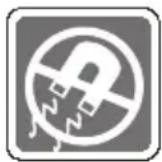
Always keep the strong magnetic or electrical objects away from the equipment.

If any of the following situations arises, get the equipment checked by service personnel:
The power cord or plug is damaged.
- Liquid has penetrated into the equipment.
The equipment has been exposed to moisture.
The equipment does not work well or you can not get it work according to user's manual.
The equipment has dropped and damaged.
The equipment has obvious sign of breakage.
- The optical storage devices are classified as CLASS 1 LASER PRODUCT. Use of controls or adjustments or performance of procedures other than those specified is prohibited.
- Do not touch the lens inside the drive.
CE Conformity
Hereby, Micro-Star International CO., LTD declares that this device is in compliance with the essential safety requirements and other relevant provisions set out in the European Directive.

FCC-B Radio Frequency Interference Statement
This equipment has been tested and found to comply with the limits for a Class B digital device, pursuant to Part 15 of the FCC Rules. These limits are designed to provide reasonable protection against

harmful interference in a residential installation. This equipment generates, uses and can radiate radio frequency energy and, if not installed and used in accordance with the instruction manual, may cause harmful interference to radio communications.
However, there is no guarantee that interference will not occur in a particular installation. If this equipment does cause harmful interference to radio or television reception, which can be determined by turning the equipment off and on, the user is encouraged to try to correct the interference by one or more of the measures listed below:
■ Reorient or relocate the receiving antenna.
■ Increase the separation between the equipment and receiver.
■ Connect the equipment into an outlet on a circuit different from that to which the receiver is connected.
■ Consult the dealer or an experienced radio/television technician for help.
Notice 1
The changes or modifications not expressly approved by the party responsible for compliance could void the user's authority to operate the equipment.
Notice 2
Shielded interface cables and AC power cord, if any, must be used in order to comply with the emission limits.
This device complies with Part 15 of the FCC Rules. Operation is subject to the following two conditions:
- this device may not cause harmful interference, and
- this device must accept any interference received, including interference that may cause undesired operation.
MSI Computer Corp.
901 Canada Court, City of Industry, CA 91748, USA
(626)913-0828
www.msi.com
WEEE Statement
Under the European Union (“EU”) Directive on Waste Electrical and Electronic Equipment, Directive 2002/96/EC, which takes effect on August 13, 2005, products of “electrical and electronic equipment” cannot be discarded as municipal waste anymore and manufacturers of covered electronic equipment will be obligated to take back such products at the end of their useful life.

RoHS Statement
Japan JIS C 0950 Material Declaration
A Japanese regulatory requirement, defined by specification JIS C 0950, mandates that manufacturers provide material declarations for certain categories of electronic products offered for sale after July 1, 2006.
http://www.msi.com/html/ popup/csr/cemm_jp.html
http://tw.msi.com/html/popup/csr_tw/cemm_jp.html
India RoHS
This product complies with the "India E-waste (Management and Handling) Rule 2011" and prohibits use of lead, mercury, hexavalent chromium, polybrominated biphenyls or polybrominated diphenyl ethers in concentrations exceeding 0.1 weight % and 0.01 weight % for cadmium, except for the exemptions set in Schedule 2 of the Rule.
Turkey EEE regulation
Conforms to the EEE Regulations of the Republic Of Turkey
Ukraine restriction of hazardous substances
The equipment complies with requirements of the Technical Regulation, approved by the Resolution of Cabinet of Ministry of Ukraine as of December 3, 2008 № 1057, in terms of restrictions for the use of certain dangerous substances in electrical and electronic equipment.
Vietnam RoHS
As from December 1, 2012, all products manufactured by MSI comply with Circular 30/2011/TT-BCT temporarily regulating the permitted limits for a number of hazardous substances in electronic and electric products.
1
Overview
Congratulations on purchasing the Trident Personal Computer. This system is your best PC choice. The feature packed platform also gives you an exciting PC experience.
Packing Contents
Personal Computer
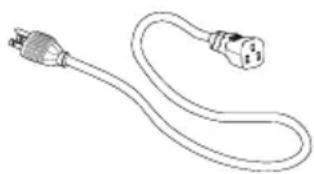
natural_image
Line drawing of an electrical outlet with two leads (no text or symbols)Power Cord
User Manual & Quick Guide (Optional)
text_image
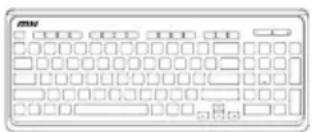
Scanned image of a standard computer keyboard layout with standard icons and function keysKeyboard (Optional)
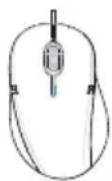
Mouse
(Optional)
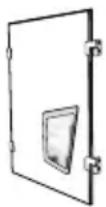
Tempered Glass Side Panel with Lock Mechanism (Optional)
* Please contact us immediately if any of the items is damaged or missing.
* The illustrations are for reference only and your packing contents may slightly vary depending on the model you purchased.
System Overview
text_image
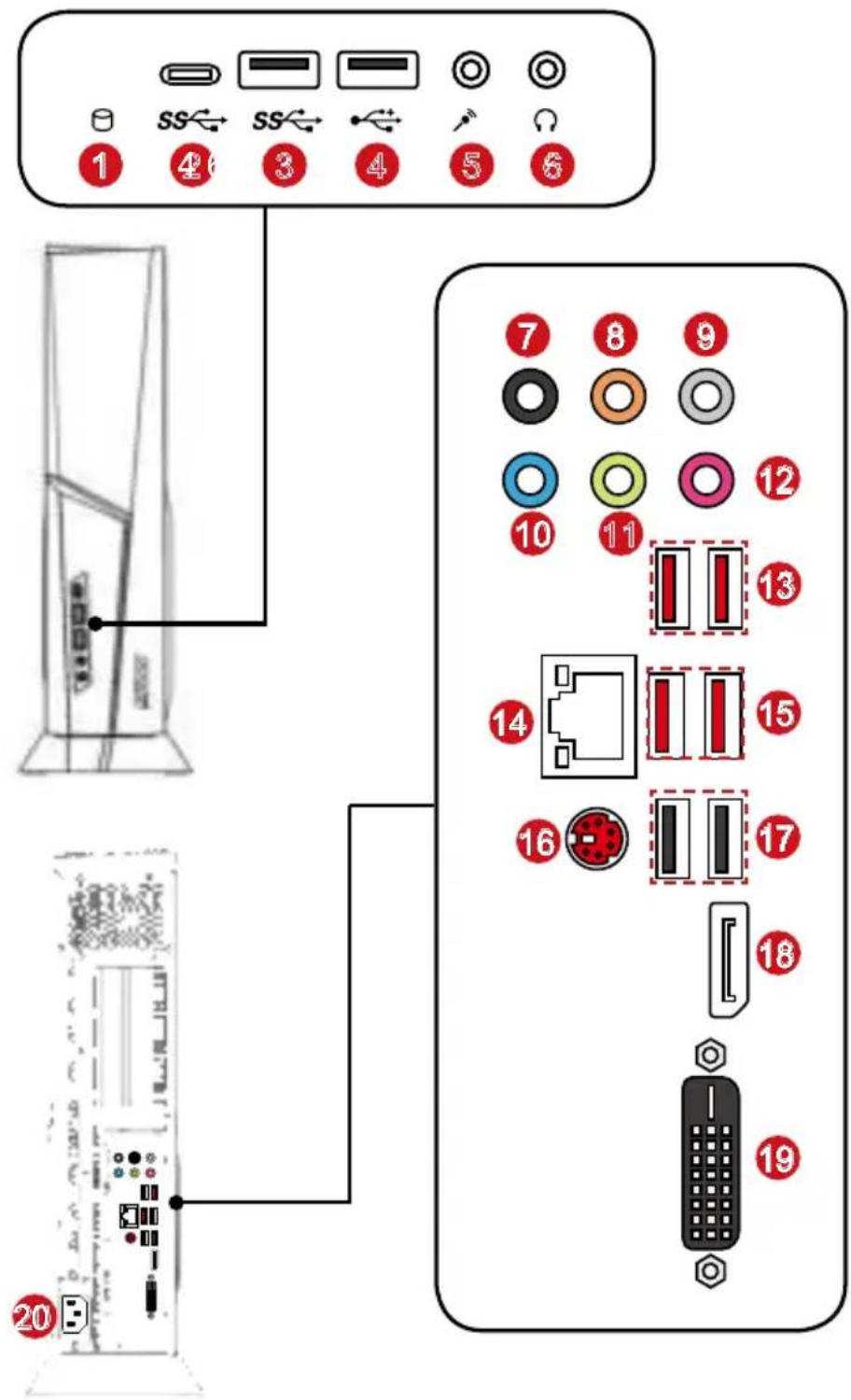
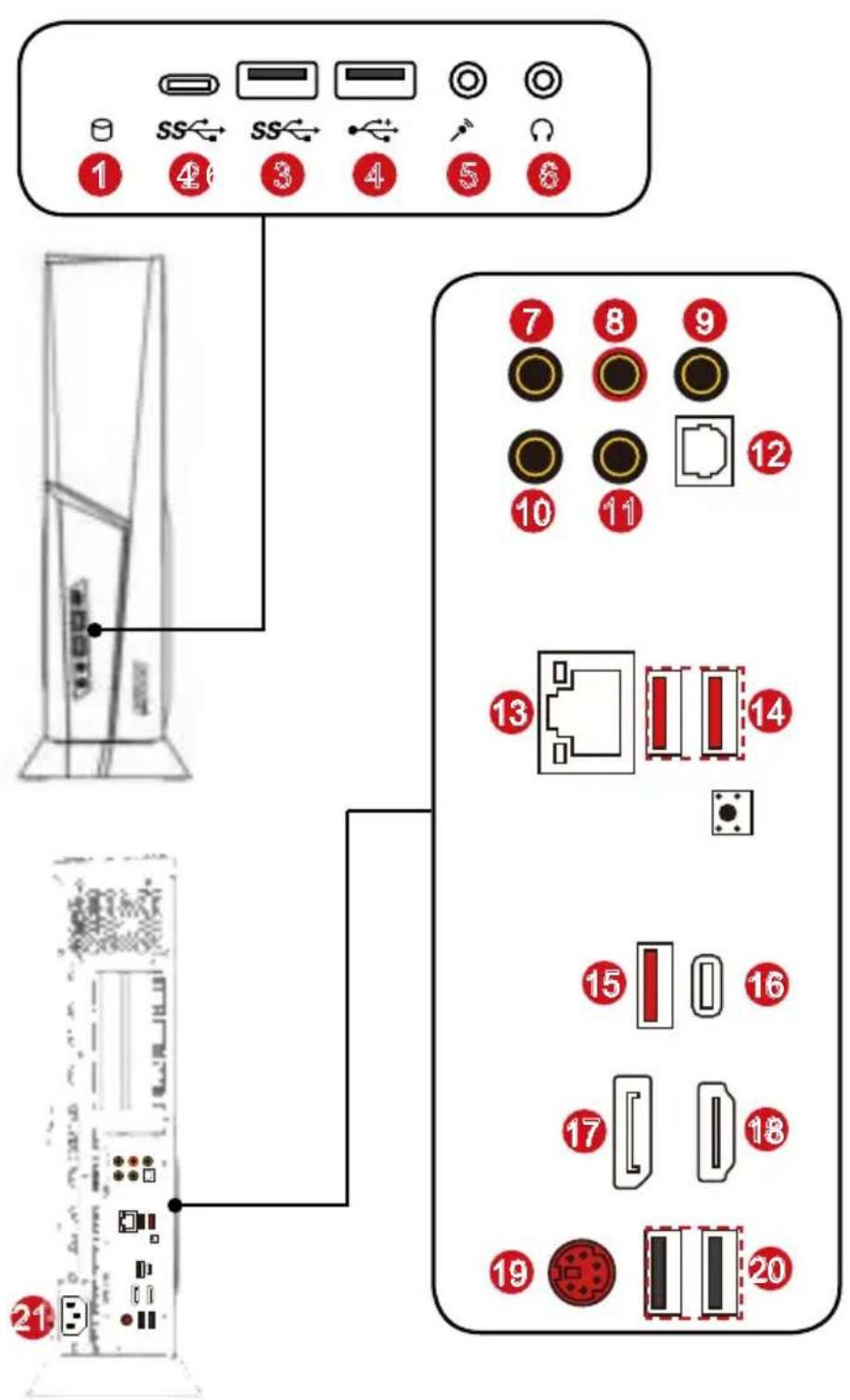
1 4 3 4 5 6 7 8 9 10 11 12 13 14 15 16 17 18 19 20 BTrident A B926 (B360)
1
Drive Activity Indicator
LED blinks when the system is accessing the internal storage drives.
USB 3.1 Gen 1 Port (Type C)
2
USB 3.1 Gen 1, the SuperSpeed USB, delivers up to 5Gbps high-speed data transfer for various devices, such as storage devices, hard drives, video cameras, etc.
The slim and sleek USB Type C connector features reversible plug orientation and up to 5V/3A power supply for external devices.
3
USB 3.1 Gen 1 Port
USB 3.1 Gen 1, the SuperSpeed USB, delivers up to 5Gbps high-speed data transfer for various devices, such as storage devices, hard drives, video cameras, etc.
4
USB 2.0 Port
The USB (Universal Serial Bus) port is for attaching USB devices such as keyboard, mouse, or other USB-compatible devices. It supports up to 480Mbit/s (Hi-Speed) data transfer rate.
5
Microphone Jack
This connector is provided for microphones.
6
Headphone Jack
This connector is provided for headphones or speakers.
7
RS-Out
Rear-Surround Out in 4/5.1/7.1 channel mode.
8
CS-Out
Center/ Subwoofer Out in 5.1/7.1 channel mode.
9
SS-Out
Side surround sound line out in 7.1 channel mode.
10
Line-In
Used for connecting external audio outputting devices.
11
Line-Out
Used as a connector for speakers or headphones.

Mic
Used as a connector for a miicrophone.

USB 3.1 Gen 2 Port
USB 3.1 Gen 2, the SuperSpeed USB 10Gbps, delivers high-speed data transfer for various devices, such as storage devices, hard drives, video cameras, etc.
LAN Jack
The standard RJ-45 LAN jack is provided for connection to the Local Area Network (LAN). You can connect a network cable to it.
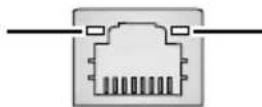
Green/ OrangeYellow

| LED Color | LED State Condition | |
| Yellow Off | LAN link is not established. | |
| On (steady state) | LAN link is established. | |
| On (blinking) The computer is communicating with another computer on the LAN. | ||
| Green Off | 10 Mbit/sec data rate is selected. | |
| On 100 Mbit/sec data rate is selected. | ||
| Orange On | 1000 Mbit/sec data rate is selected. | |

USB 3.1 Gen 1 Port

PS/2 ^® Keyboard / Mouse Port
The PS/2 ^® keyboard / Mouse DIN connector for PS/2 ^® keyboard / Mouse.

USB 2.0 Port

DisplayPort
DisplayPort is a digital display interface standard. This connector is used to connect a monitor with DisplayPort inputs.

DVI-D Port
The DVI-D (Digital Visual Interface-Digital) connector allows you to connect a LCD monitor. It provides a high-speed digital interconnection between the computer and its display device.
Important
High-speed devices are recommended for USB 3.1 ports whereas low-speed devices, such as mouse or keyboard, are suggested to be plugged into the USB 2.0 ports.
text_image
1 2 3 4 5 6 7 8 9 10 11 12 13 14 15 16 17 18 19 20 21Trident X B926 (Z370)
1
Drive Activity Indicator
LED blinks when the system is accessing the internal storage drives.
USB 3.1 Gen 1 Port (Type C)
2
USB 3.1 Gen 1, the SuperSpeed USB, delivers up to 5Gbps high-speed data transfer for various devices, such as storage devices, hard drives, video cameras, etc.
The slim and sleek USB Type C connector features reversible plug orientation and up to 5V/3A power supply for external devices.
3
USB 3.1 Gen 1 Port
USB 3.1 Gen 1, the SuperSpeed USB, delivers up to 5Gbps high-speed data transfer for various devices, such as storage devices, hard drives, video cameras, etc.
4
USB 2.0 Port
The USB (Universal Serial Bus) port is for attaching USB devices such as keyboard, mouse, or other USB-compatible devices. It supports up to 480Mbit/s (Hi-Speed) data transfer rate.
5
Microphone Jack
This connector is provided for microphones.
6
Headphone Jack
This connector is provided for headphones or speakers.
7
Line-In
Used for connecting external audio outputting devices.
8
Line-Out
Used as a connector for speakers or headphones.
9
Mic
Used as a connector for a miicrophone.
10
CS-Out
Center/ Subwoofer Out in 5.1/7.1 channel mode.
11
RS-Out
Rear-Surround Out in 4/5.1/7.1 channel mode.
S/PDIF-Out

This S/PDIF (Sony & Philips Digital Interconnect Format) connector is provided for digital audio transmission to external speakers through an optical fiber cable.
LAN Jack
The standard RJ-45 LAN jack is provided for connection to the Local Area Network (LAN). You can connect a network cable to it.
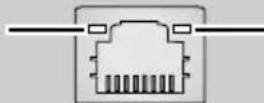
Green/ OrangeYellow

| LED Color | LED State Condition | |
| Yellow Off | LAN link is not established. | |
| On (steady state) | LAN link is established. | |
| On (blinking) The computer is communicating with another computer on the LAN. | ||
| Green Off | 10 Mbit/sec data rate is selected. | |
| On 100 Mbit/sec data rate is selected. | ||
| Orange On | 1000 Mbit/sec data rate is selected. | |

USB 3.1 Gen 1 Port
USB 3.1 Gen 2 Port

USB 3.1 Gen 2, the SuperSpeed USB 10Gbps, delivers high-speed data transfer for various devices, such as storage devices, hard drives, video cameras, etc.

USB 3.1 Gen 2 Port (Type C)
USB 3.1 Gen 2, the SuperSpeed USB 10Gbps, delivers high-speed data transfer for various devices, such as storage devices, hard drives, video cameras, etc.
The slim and sleek USB Type C connector features reversible plug orientation and up to 5V/3A power supply for external devices.

DisplayPort
DisplayPort is a digital display interface standard. This connector is used to connect a monitor with DisplayPort inputs.
HDMI-Out Port


The High-Definition Multimedia Interface (HDMI) is an all-digital audio/video interface capable of transmitting uncompressed streams. HDMI supports all TV format, including standard, enhanced, or high-definition video, plus multi-channel digital audio on a single cable.

PS/2® Keyboard / Mouse Port
The PS/2 ^® keyboard / Mouse DIN connector for PS/2 ^® keyboard / Mouse.

USB 2.0 Port

Power Jack
Power supplied through this jack supplies power to your system.
Important
High-speed devices are recommended for USB 3.1 ports whereas low-speed devices, such as mouse or keyboard, are suggested to be plugged into the USB 2.0 ports.
text_image
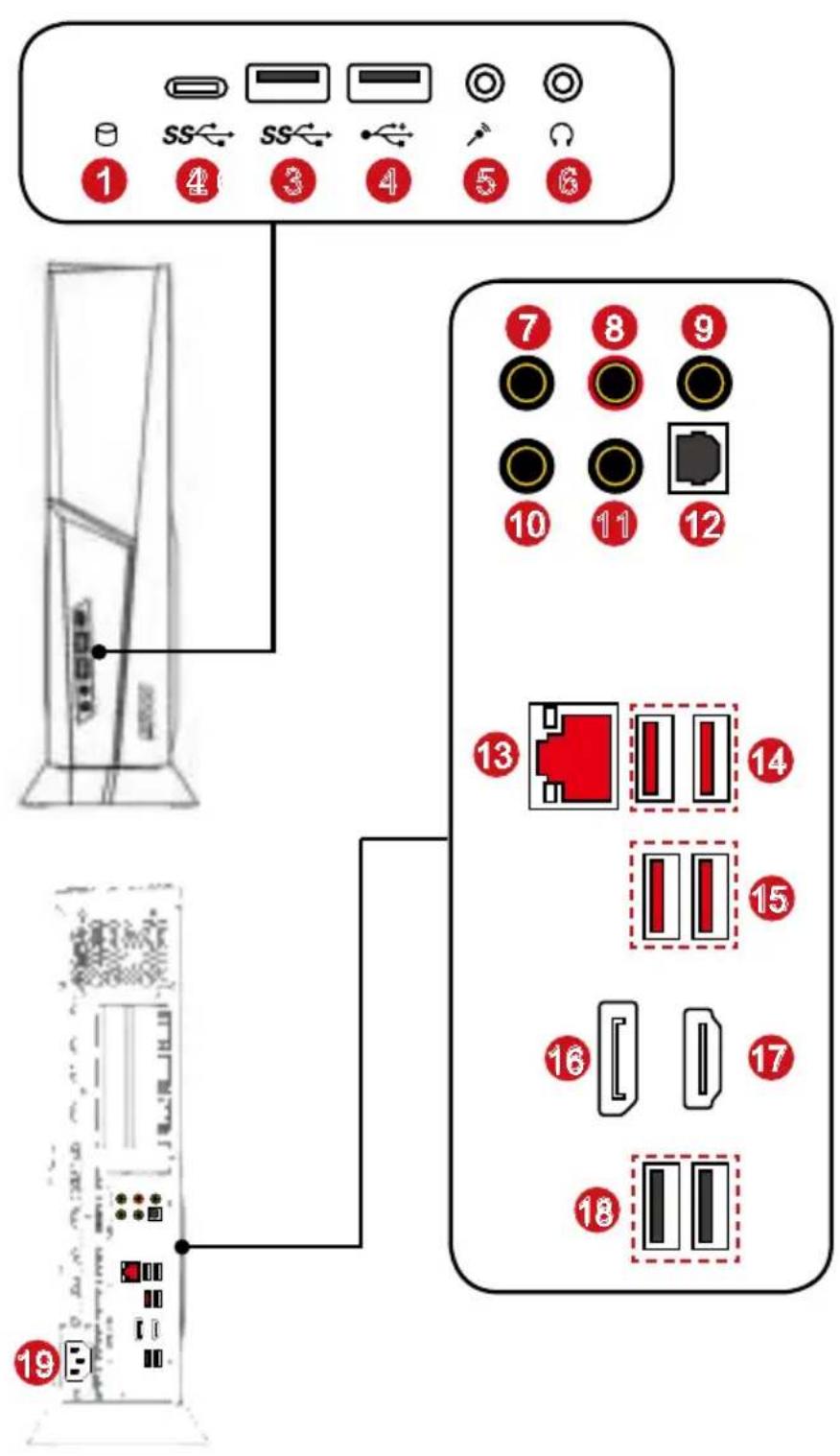
1 2 3 4 5 6 7 8 9 10 11 12 13 14 15 16 17 18 19 BTrident X B926 (Z390)
1
Drive Activity Indicator
LED blinks when the system is accessing the internal storage drives.
USB 3.1 Gen 1 Port (Type C)
2
USB 3.1 Gen 1, the SuperSpeed USB, delivers up to 5Gbps high-speed data transfer for various devices, such as storage devices, hard drives, video cameras, etc.
The slim and sleek USB Type C connector features reversible plug orientation and up to 5V/3A power supply for external devices.
3
USB 3.1 Gen 1 Port
USB 3.1 Gen 1, the SuperSpeed USB, delivers up to 5Gbps high-speed data transfer for various devices, such as storage devices, hard drives, video cameras, etc.
USB 2.0 Port
4
The USB (Universal Serial Bus) port is for attaching USB devices such as keyboard, mouse, or other USB-compatible devices. It supports up to 480Mbit/s (Hi-Speed) data transfer rate.
5
Microphone Jack
This connector is provided for microphones.
6
Headphone Jack
This connector is provided for headphones or speakers.
7
Line-In
Used for connecting external audio outputting devices.
8
Line-Out
Used as a connector for speakers or headphones.
9
Mic
Used as a connector for a miicrophone.
10
CS-Out
Center/ Subwoofer Out in 5.1/7.1 channel mode.
11
RS-Out
Rear-Surround Out in 4/5.1/7.1 channel mode
S/PDIF-Out

This S/PDIF (Sony & Philips Digital Interconnect Format) connector is provided for digital audio transmission to external speakers through an optical fiber cable.
LAN Jack
The standard RJ-45 LAN jack is provided for connection to the Local Area Network (LAN). You can connect a network cable to it.
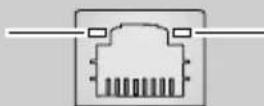
Green/ OrangeYellow

| LED Color | LED State Condition | |
| Yellow Off | LAN link is not established. | |
| On (steady state) | LAN link is established. | |
| On (blinking) The computer is communicating with another computer on the LAN. | ||
| Green Off | 10 Mbit/sec data rate is selected. | |
| On 100 Mbit/sec data rate is selected. | ||
| Orange On | 1000 Mbit/sec data rate is selected. | |
USB 3.1 Gen 2 Port

USB 3.1 Gen 2, the SuperSpeed USB 10Gbps, delivers high-speed data transfer for various devices, such as storage devices, hard drives, video cameras, etc.

USB 3.1 Gen 1 Port

DisplayPort
DisplayPort is a digital display interface standard. This connector is used to connect a monitor with DisplayPort inputs.

HDMI-Out Port

The High-Definition Multimedia Interface (HDMI) is an all-digital audio/video interface capable of transmitting uncompressed streams. HDMI supports all TV format, including standard, enhanced, or high-definition video, plus multi-channel digital audio on a single cable.

USB 2.0 Port
Important
High-speed devices are recommended for USB 3.1 ports whereas low-speed devices, such as mouse or keyboard, are suggested to be plugged into the USB 2.0 ports.
▶ Upper Side View

text_image
Diagram showing two labeled components (1 and 2) of a mechanical or electronic component with layered structure and connection points.
Ventilator
The ventilator on the enclosure is used for air convection and to prevent the equipment from overheating. Do not cover the ventilator.

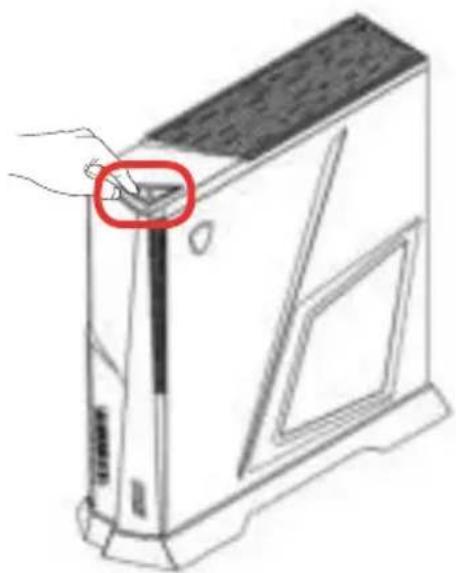
Power Button
Press the power button to turn the system on and off.
| > |
2
Getting Started
Safety & Comfort Tips
Choosing a good workspace is important if you have to work with your PC for a long period of time.
- Your work area should have enough illumination.
- Choose the proper desk and chair and adjust their height to fit your posture when operating.
- When sitting on the chair, sit straight and keep a good posture. Adjust the chair's back (if available) to support your back comfortably.
- Place you feet flat and naturally on the floor, so that your knees and elbows have the proper position (about 90-degree) when operating.
- Put your hands on the desk naturally to support your wrists.
- Avoid using your PC in a place where discomfort may occur (such as on the bed).
- The Personal Computer System is an electrical device. Please treat it with great care to avoid personal injury.
Hardware Setup
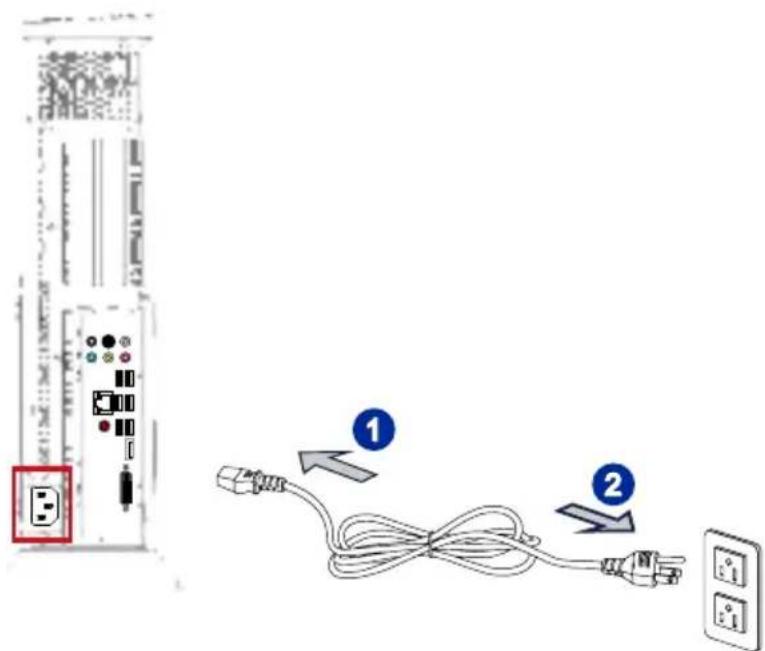
Connecting the AC Power and Power On
- Connect the power cord to the system and electrical outlet.
text_image
Diagram showing cable connection to a device with labeled components and connection points- Press the power button to power on the system.
natural_image
Line drawing of a desktop computer tower with a hand pointing to its screen (no text or symbols present)Important
When unplugging the AC power cord, always hold the connector part of the cord. Never pull the cord directly.
| > |
3
System Operations
This chapter provides you with essential information on system operations.
Important
All information is subject to change without prior notice.
Power Management
Power management of personal computers (PCs) and monitors has the potential to save significant amounts of electricity as well as deliver environmental benefits.
To be energy efficient, turn off your display or set your PC to sleep mode after a period of user inactivity.
Power Management in Windows 10
■ [Power Options] in Windows OS allow you to control the power management features of your display, hard drive, and battery. Right-click [Start], select [Control Panel] from the list and then click [System and Security].
Adjust your computer's settings

System and Security
Review your computer's status
Save backup copies of your files with File History
Select [Power Options] and choose a power plan that suits your personal needs. You may also fine-tune the settings by clicking [Change plan settings].
■ The Shut Down Computer menu presents the options of Sleep (S3/S4) & Shut Down (S5) for rapid and easy management of your system power.
Power Management through ENERGY STAR qualified monitors
The power management feature allows the computer to initiate a low-power or "Sleep" mode after a period of user inactivity. When used with an external ENERGY STAR qualified monitor, this feature also supports similar power management features of the monitor. To take advantage of these potential energy savings, the power management feature has been preset to behave in the following ways when the system is operating on A

ENERGY STAR
■ Turn off the display after 10 minutes
■ Initiate Sleep after 30 minutes
Waking the System Up
The computer shall be able to wake up from power saving mode in response to a command from any of the following:
■ the power button,
■ the network (Wake On LAN),
■ the mouse,
■ the keyboard.

Energy Saving Tips:
■ Turn off the monitor by pressing the monitor power button after a period of user inactivity.
- Tune the settings in Power Options under Windows OS to optimize your PC's power management.
- Install power saving software to manage your PC's energy consumption.
■ Always disconnect the AC power cord or switch the wall socket off if your PC would be left unused for a certain time to achieve zero energy consumption.
Network Connection (Windows 10)
Wired Network
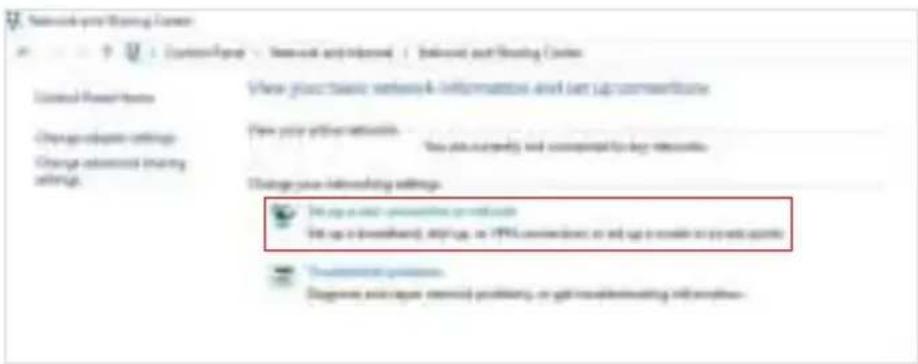
- Right-click [Start] select [Network Connections] from the list.
- Select [Ethernet] and then [Network and Sharing Center].

- Select [Set up a new connection or network].
text_image
Network-based sharing tool Custom-Group Network and related Inbound and Sharing Tools Custom Power tools Change aggregate settings Change advanced sharing Settings New your existing networks You are currently and completely by key alternatives Change your following settings Set up as initial parameters or networks Set up as broadband, http://p/p connections, or end up to create or update accounts Treatment options Diagnose and require external positioning, or get back when connecting with platforms-
Choose [Connect to the Internet] and click [Next].
-
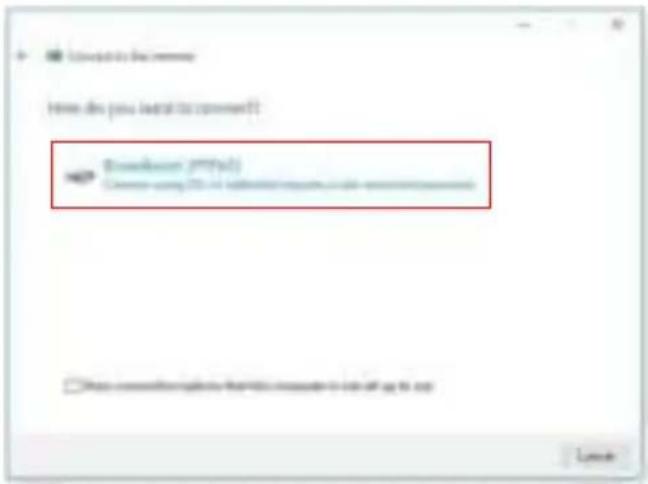
Select [Broadband (PPPoE)] to connect using DSL or cable that requires a user name and password.
text_image
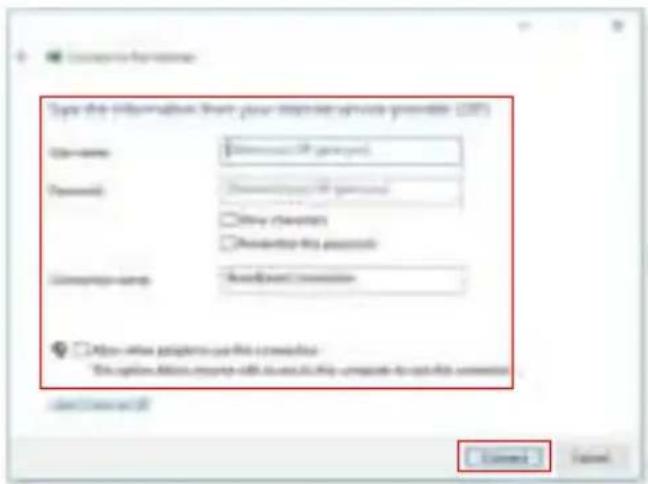
Browse from PPTM Browse from PPTM to download or install the content.- Type the information from your Internet Service Provider (ISP) and click [Connect] to establish your LAN connection.
text_image
Enter information from your internet service provider (IIP) Name: Password: Device type: Device type: Computer setup: Address connection Allow -write programs to this connection This option allows us to use this file to prepare to opt this connection Close Next 20 Browse Finish> Wireless Network
- Go to [Start] , click [Settings] and select [Network and Internet].
- A list of available WLAN connections pops up. Choose a connection from the list.
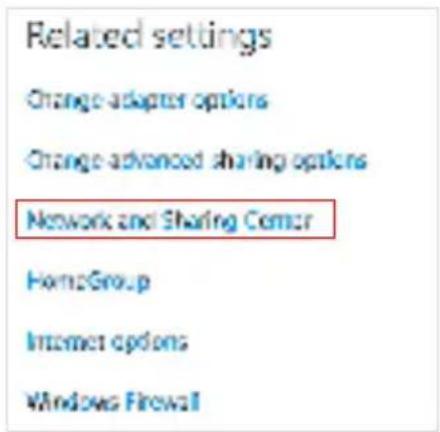
- To establish a new connection, select [Network and Sharing Center].
text_image
Related settings Orange adapter options Orange advanced sharing options Network and Sharing Center HomeGroup Internet options Windows Firewall- Select [Set up a new connection or network].
- Followingly, choose [Manually connect to a wireless network] and click [Next] to continue.
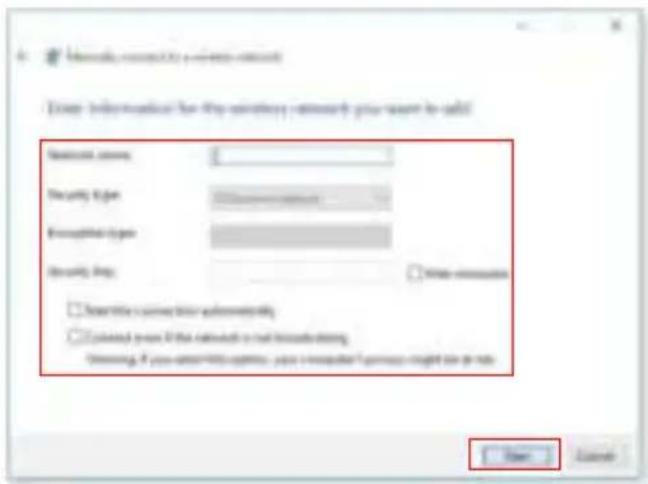
- Enter information for the wireless network you intend to add and click [Next] to proceed.
text_image
Networks access to a network outlet Show information for any existing network your want to add Networks name: Security Type: Exceptional Type: Security Type: ■ Make consensus ■ Select the connection times automatically ■ Construct means if the network is read from or write it. □ Ordering, if you want to access options, save or update your names caught up or click OK Cancel- A new WLAN connection has been made.
System Recovery (Windows 10)
The purposes for using the System Recovery Function may include:
- Restore the system back to the initial status of original manufacturer's default settings.
■ When some errors have occurred to the operating system in use.
■ When the operating system is affected by virus and is not able to work normally.
■ When you want to install the OS with other built-in languages.
Before using the System Recovery Function, please back up the important data saved on your system drive to other storage devices.
If the following solution fails to recover your system, please contact the authorized local distributor or service center for further assistance.
Reset this PC
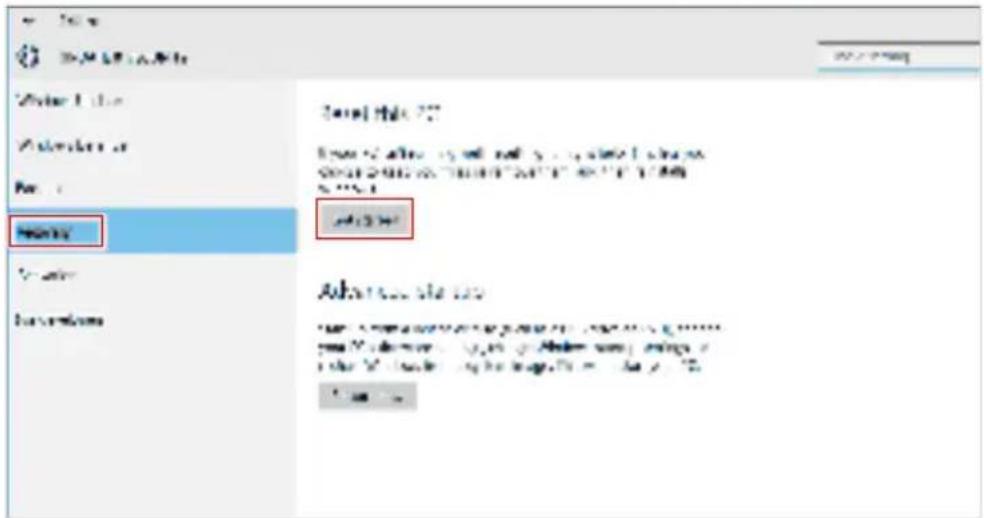
- Go to [Start] , click [Settings] and select [Update and security].
- Select [Recovery] and click [Get started] under [Reset this PC] to start the system recovery.
text_image
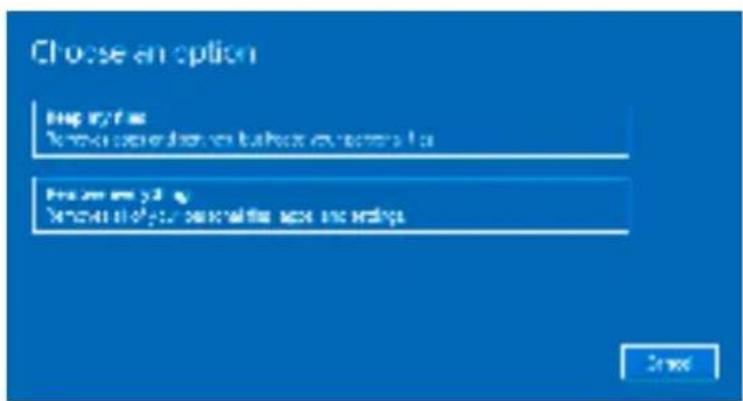
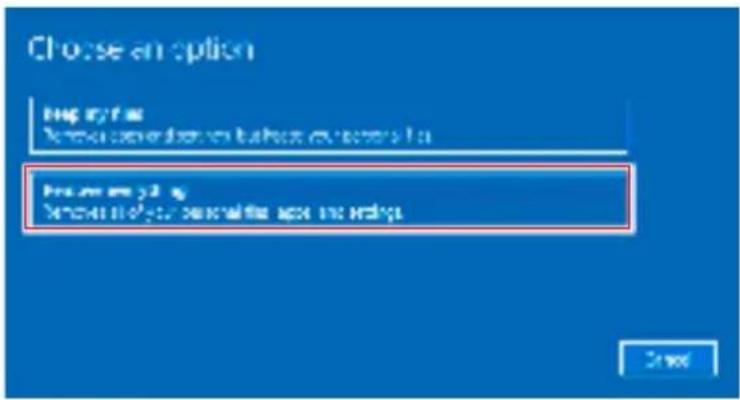
Add Add the Add the Add the Add the Add the Add the Add the Add the Add the Add the Add the Add the Add the Add the Add the Add the Add the Add the Add the Add the Add the Add the Add the Add the Add the Add the Add the Add the Add the Add the Add the Add the Add the Add the- The [Choose an option] screen pops up. Choose between [Keep my files] and [Remove everything].
text_image
Choose an option File Path: My name: my name My name: my name| Reset this PC | Keep my files | ||
| Remove everything | Only the drive where Windows is installed | Just remove my files | |
| Remove files and clean the drive | |||
| All drives | Just remove my files | ||
| Remove files and clean the drive | |||
Keep my files
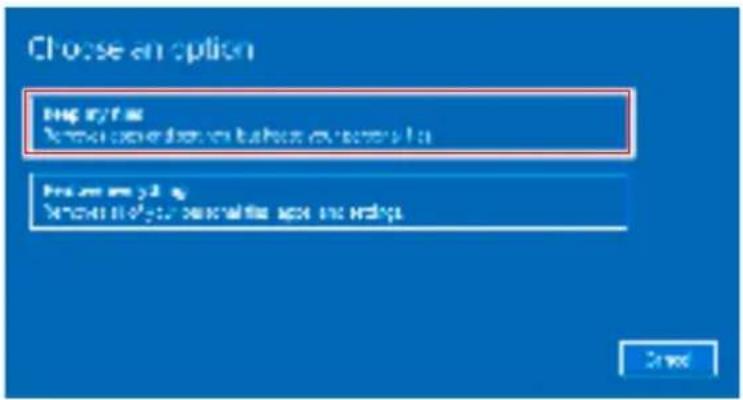
- Select [Keep my files].
text_image
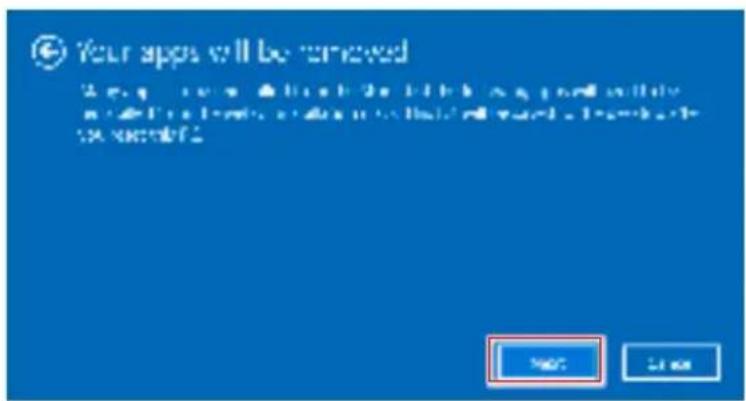
Choose an option OK OK Cancel OK OK OK Cancel OK- The [Your apps will be removed] screen shows a list of apps that will need to be reinstalled from the web or installation discs. Click [Next] to continue.
text_image
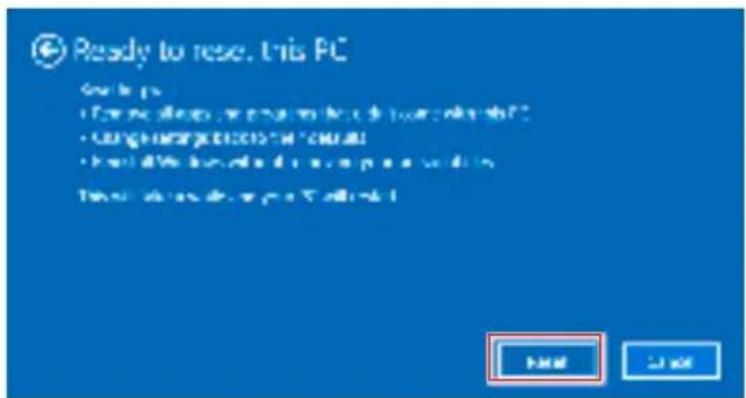
Your apps will be removed 2. You will access to Web as your app within You will access to Web as your app without OK Cancel- The next screen will show the changes to be made during the process. Click [Reset] to start the system reset.
text_image
Ready to reset. This PC Help • Get PC sleep, save it to be a new PC. • Get home to get this PC's 'OK' (a) • Get the next PC to save this PC. This PC is not closed! OK CancelRemove everything
- Select [Remove everything].
text_image
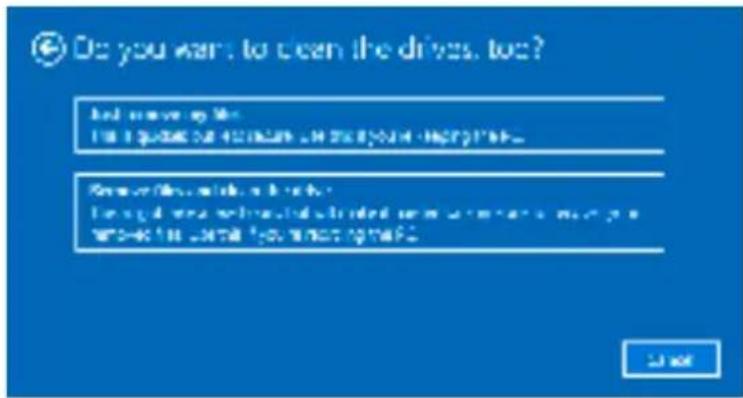
Choose an option OK OK OK OK OK OK OK- If you have multiple hard drives, a screen will pop up, asking you to choose between [Only the drive where Windows is installed] and [All drives].
- Then select between [Just remove my files] and [Remove files and clean the drive].
text_image
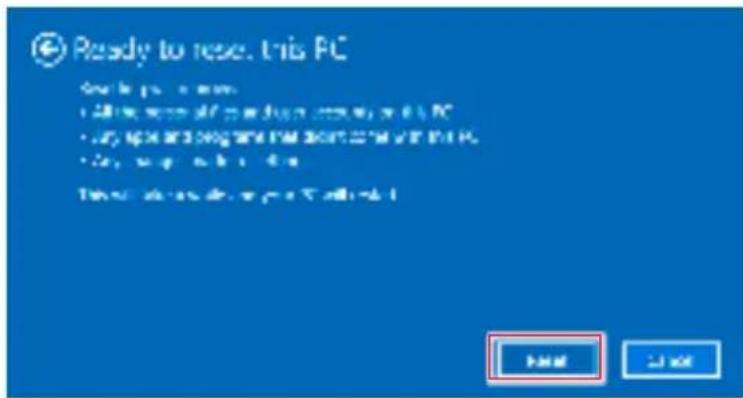
Do you want to clean the drives, too? I'll move up it. The I group will take your home. You can't get your home? You can't get your home? You can't get your home? You can't get your home? You can't get your home? You can't get your home? You can't get your home? You can't get your home? You can't get your home? You can't get your home? You can't get your home? You can't get your home? You can't get your home? You can't get your home? You can't get your home? You cannot get your home? You cannot get your home? You cannot get your home? You cannot get your home? You cannot get your home? You cannot get your home? You cannot get your home? You cannot get your home? You cannot get your home? You cannot get your home? You cannot get your home? You cannot get your home? You cannot get your home? You cannot get your home? You cannot get your home? You cannot get your home? You cannot get your home?- The next screen will show the changes to be made during the process. Click [Reset] to start the system reset.
text_image
Ready to reset this PC Help us your computer access to PC • Yes, OK, Cancel • No, OK, Cancel New: 123.5.2017(Optional)
▶ Precautions for Using the System Recovery Function
- If your hard drive and system encountered non-recoverable problems, please use the F3 Hotkey recovery from the Hard Drive first to perform the System Recover Function.
- Before using the System Recovery Function, please backup the important data saved on your system drive to other storage devices.
▶ Recovering the system with the F3 Hotkey
Follow the instructions below to continue:
- Restart the PC.
- Press the F3 hotkey on the keyboard promptly when the MSI greeting appears on the display.
- On the "Choose an Option" screen, tap "Troubleshoot".
- On the "Troubleshoot" screen, tap "Restore MSI factory" to reset the system to the default settings.
- On the "RECOVERY SYSTEM" screen, tap "System Partition Recovery".
- Follow the on-screen instructions to continue and complete the Recovery Function.
| > |