
QM2328001 - Monitor Qian - Free user manual and instructions
Find the device manual for free QM2328001 Qian in PDF.


| Product Type | LED Monitor |
| Brand | Qian |
| Model | QM2328001 |
| Screen Size | Multiple sizes available (18.5" to 31.5") |
| Brightness | 200-250 cd/m² (depending on size) |
| Color Depth | 16.7 million colors |
| Maximum Resolution | 1920 x 1080 pixels (Full HD) |
| Horizontal Frequency | 30-80 kHz |
| Vertical Frequency | 55-75 Hz |
| Power Input | AC 100-240V, 50/60Hz |
| Signal Inputs | VGA, DVI, HDMI |
| OSD Languages | English, French, German, Simplified Chinese, Italian, Spanish, Portuguese, Turkish, Polish, Dutch, Russian, Korean |
| Preset Modes | Standard, Text, Game, Movie, EyeSaver |
| Special Features | DCR (Dynamic Contrast Ratio), Auto Adjust, Aspect Ratio control (Auto, Wide, 4:3) |
| Operating Temperature | 0°C to 40°C |
| Storage Temperature | -20°C to 60°C |
| Cleaning Instructions | Unplug before cleaning; use slightly damp cloth; no alcohol or ammonia |
| Safety Notes | Do not block ventilation; do not place near heat sources; do not insert objects; do not open back panel |
| Included Accessories | Signal cord, power cable, warranty card, user manual; optional audio cable and HDMI cable |
| Power Indicator | Blue/green: power on and signal normal; flashing: no input signal |
Frequently Asked Questions - QM2328001 Qian
User questions about QM2328001 Qian
0 question about this device. Answer the ones you know or ask your own.
Ask a new question about this device
Download the instructions for your Monitor in PDF format for free! Find your manual QM2328001 - Qian and take your electronic device back in hand. On this page are published all the documents necessary for the use of your device. QM2328001 by Qian.
USER MANUAL QM2328001 Qian
Safety Precautions and Maintenance
- Unplug the monitor before cleaning it with a slightly damp cloth.
- Wiping the screen with a dry cloth is recommendable, and only during the power has been switched off.
- Do not use alcohol or ammonia-based liquids.
- This monitor is designed with ventilation holes on the cabinet back, please do not cover them or block it.
- Also avoid placing the monitor near the electric heater or heater, including in an enclosed room with no ventilations.
- Please do not insert any matter or spray any liquid on it.
- Please do not position the monitor on unsafe space, if it falls, it may be damaged and may hurt the user.
- Unplug the monitor if it is not going to be in use for an extended period of time.
- Please do not put heavy items on the monitor, or electric cord.
- Please do not open the monitor back panel because the monitor contained high voltage current.
Contents
- A signal cord
- A power cable
- A warranty card
• A user manual instruction
• An audio cable(option)
• A HDMI cable(option)
Features:
• 16.7M high quality image colors with a slightly damp cloth.
- Smart image screen setting – OSD with simple layout and easy selection
• Smart control interfaces for easy settings
- Auto function; when no settings are set, it will auto-adjust to optimum settings
Basic setup
a) Insert the HDMI cable (signal cord) to the PC graphic card (signal input).
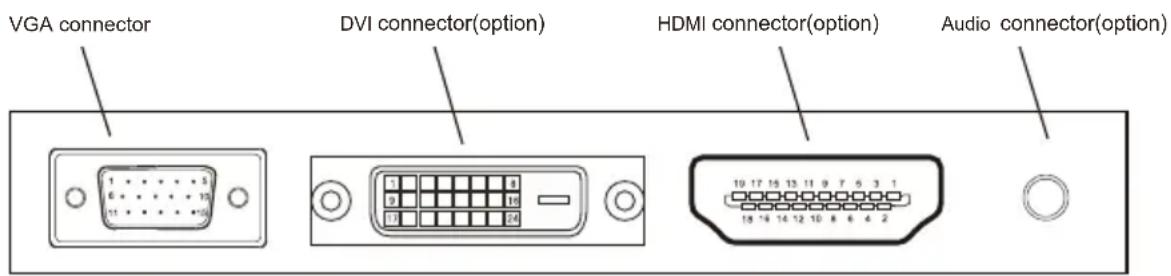
the final ones will be based on the mass goods
b) The monitor has a wide power voltage range; it can be used on AC 100-240 50/60Hz power supply.
c) Connect the power cable to the Monitor power socket and to the power source in the room.
d) Turn on the power source supply.
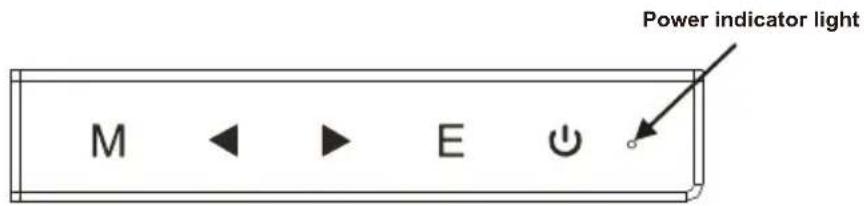
e) To switch on the monitor, press the power control on/off key (first button from the bottom at the rear panel.)
Power indicator light
- Blue (green) light indicates the power is on.
- Blue (green) light indicates the signal is operating normally.
- Blue (green) flash indicates there is no input signal.
Screen image setups
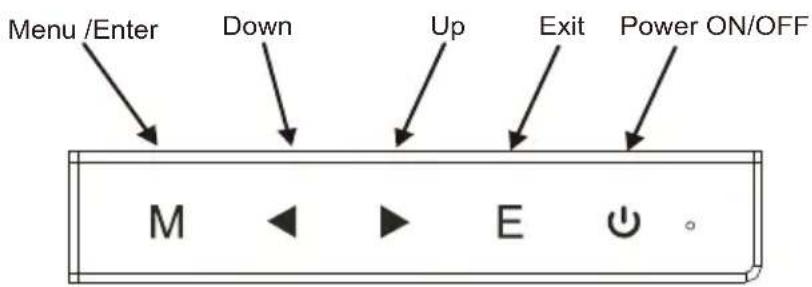
- The Control panel at the rear have five keys to adjust the monitor settings with the aid of the Onscreen Display
The control panel buttons:
- Menu /Enter: Shows main choice menus
- Down: Adjust the options - move down or lower /Hot key (option)
- Up: Adjust the options - move up or higher /Hot key (option)
- EXIT: Exit main menu, or when no menus - auto adjust
• Power ON/OFF button
Adjustment settings
| Main menu item | Main menu icon | Submenu item | Sub-submenu item | Description |
| BRIGHTNESS |  | BRIGHTNESS | None | Adjusts display brightness |
| CONTRAST | None | Adjusts display contrast ratio | ||
| ECO | STANDARD N | Normal use mode | ||
| TEXT | Text application mode | |||
| GAME | Game application mode | |||
| MOVIE | Movie playing application mode | |||
| EyeSaver | Optimize settings to reduce eye strain | |||
| DCR | ON Enables DCR | |||
| OFF | Disables DCR | |||
| IMAGE |  | H.POSITION | None | Adjusts the picture horizontal position |
| V.POSITION | None | Adjusts the picture vertical position | ||
| CLOCK | None | Adjusts the picture clock to reduce the vertical noise | ||
| PHASE | None | Adjusts the picture phase to reduce the horizontal noise | ||
| ASPECT | AUTO | Auto checks and adjusts the image display aspect ratio | ||
| WIDE | Adjusts the image aspect ratio as wide-screen mode | |||
| 4:3 | Adjusts the image aspect ratio as 4:3 mode | |||
| COLOR TEMP. |  | COLOR TEMP. | WARM | Set as warm color temperature |
| COOL | Set as cold color temperature | |||
| USER | Set as user color temperature | |||
| RED | None | Finely tunes red color temperature | ||
| GREEN | None | Finely tunes green color temperature | ||
| BLUE | None | Finely tunes blue color temperature | ||
| OSD SETTING |  | LANGUAGE None | Selects the language displayed by OSD menu (English, French, German, Simplified Chinese, Italian, Spanish, Portuguese, Turkish, Polish,Dutch, Russian,Korean) | |
| OSD H.POS. None | Adjusts OSD horizontal position | |||
| OSD V.POS. None | Adjusts OSD vertical position | |||
| OSD TIMER | None | Adjusts OSD display time | ||
| TRANSPARENCY | None | Adjusts OSD transparency | ||
| RESET |  | IMAGE AUTO ADJUST | None | Auto adjusts the horizontal/vertical position, focus and clock of the image |
| COLOR AUTO ADJUST | None | Adjusts white balance | ||
| RESET | None | Restore to factory setting | ||
| AUTO POWERDOWN | None | Select energy-saving, automatic shutdown | ||
| MISC |  | HOTKEY TYPE | ECO+DCR | Any selected item is Hotkey. The first two are available for all models; ASP+ECO is only available for wide-screen model; SOU +VOL is respectively used to switch input signal and adjust the volume. |
| BRI +CON | ||||
| ASP+ECO | ||||
| SOU+VOL | ||||
| SIGNAL SOURCE | VGA | VGA (analog) signal input | ||
| DVI | DVI (digital) signal input | |||
| HDMI | HDMI signal input | |||
| MUTE | ON | Sound OFF | ||
| OFF | Sound ON (only available for the model with audio | |||
| VOLUME | None | Adjusts speaker volume (only available for the model with audio) | ||
Note: For VOLUME function, please ensure the audio is connected to the sound card of the computer or to the output source of any media player with 3.5mm stereo socket.
Troubleshooting
1. No Image on Screen
a) Check if the power button has been switched on
b) Verify the brightness and contrast of the monitor is within the normal setting.
c) Check if the power indicator is flashing. If so this indicates that the monitor is not receiving the input signal.
d) If the signal indicator is notebook or laptop, make sure that the signal has been switched to screen mode.
2. Non-focus Image
a) Check if the image signal cable is inserted properly (upright position).
3. Flash Screen
a) The power is insufficient to connect the monitor or too weak.
b) To avoid magnetic field around the monitor, do not place these devices close to it. Such as speakers, fluorescence lightings, AC transformer, table fan, and etc.
c) By pressing the Exit key, the Auto Adjust Image function will automatically apply optimizes settings to the display.
4. Wrong or Unusual Colour
a) If red, green, blue, or any of the colour disappears, check to see if the signal cord is connected properly. If the plug is loosely connected it might cause bad connection.
b) Try connecting to another PC for comparison.
5. The Whole Screen Appear Up and Down H-rolling Scan
a) Make sure that the input signal frequency is within 55 – 76Hz.
b) Re-tighten the signal cable.
6. How to Clean the Monitor
a) Make sure that the monitor power has been switched off.
b) Do not spray any liquid on the screen or the plastic panel directly.
7. When Cleaning the Screen
a) Use clean, soft no fur materials to clean the screen.
b) If it is still dirty, do add a little of non-ammonia liquid and non-alcohol glass cleanser to clean the screen.
8. When Cleaning the Plastic Panel
a) Use soft dry cloth
b) To add a little of non-ammonia liquid and non-alcohol of non-abrasion cleanser to clean surface if it is still unclean.
Compatible Resolutions
| "91 seireS W seireS W"5.81 | |||||
| Resolution | H-Frequency (KHz) | V-Frequency (Hz) | Resolution | H-Frequency (KHz) | V-Frequency (Hz) |
| 720×400 | 31.47 | 70.0 | 720×400 | 31.47 | 70.0 |
| 640×480 | 31.47 | 60.0 | 640×480 | 31.47 | 60.0 |
| 640×480 | 37.86 | 72.8 | 640×480 | 37.86 | 72.8 |
| 640×480 | 37.50 | 75.0 | 640×480 | 37.50 | 75.0 |
| 800×600 | 37.87 | 60.0 | 800×600 | 37.87 | 60.0 |
| 800×600 | 48.07 | 72.0 | 800×600 | 48.07 | 72.0 |
| 800×600 | 46.87 | 75.0 | 800×600 | 46.87 | 75.0 |
| 1024×768 | 48.36 | 60.0 | 1024×768 | 48.36 | 60.0 |
| 1024×768 | 56.48 | 70.0 | 1024×768 | 56.48 | 70.0 |
| 1024×768 | 60.02 | 75.0 | 1024×768 | 60.02 | 75.0 |
| 1360×768 | 47.4 | 60.0 | 1280×1024 | 63.98 | 60.0 |
| 1366×768 | 47.85 | 60.0 | 1280×1024 | 79.97 | 75.0 |
| 1440×900 | 55.47 | 60.0 | |||
| 1440×900 | 55.94 | 60.0 | |||
| 19.5"/20" W Series | ||
| Resolution | H-Frequency (KHz) | V-Frequency (Hz) |
| 720×400 | 31.47 | 70.0 |
| 640×480 | 31.47 | 60.0 |
| 640×480 | 37.86 | 72.8 |
| 640×480 | 37.50 | 75.0 |
| 800×600 | 37.87 | 60.0 |
| 800×600 | 48.07 | 72.0 |
| 800×600 | 46.87 | 75.0 |
| 1024×768 | 48.36 | 60.0 |
| 1024×768 | 56.48 | 70.0 |
| 1024×768 | 60.02 | 75.0 |
| 1280×1024 | 63.98 | 60.0 |
| 1280×1024 | 79.97 | 75.0 |
| 1600×900 | 60.00 | 60.0 |
| 22” W Series | ||
| Resolution | H-Frequency (KHz) V-Frequency (Hz) | |
| 720×400 | 31.47 | 70.0 |
| 640×480 | 31.47 | 60.0 |
| 640×480 | 37.86 | 72.8 |
| 640×480 | 37.50 | 75.0 |
| 800×600 | 37.87 | 60.0 |
| 800×600 | 48.07 | 72.0 |
| 800×600 | 46.87 | 75.0 |
| 1024×768 | 48.36 | 60.0 |
| 1024×768 | 56.48 | 70.0 |
| 1024×768 | 60.02 | 75.0 |
| 1280×1024 | 63.98 | 60.0 |
| 1280×1024 | 79.97 | 75.0 |
| 1440×900 | 55.47 | 60.0 |
| 1440×900 | 55.94 | 60.0 |
| 1680×1050 | 64.67 | 60.0 |
| 1680×1050 | 65.29 | 60.0 |
| 21.5"/23"/23.6"/23.8"/27"/31.5" W Series | ||
| Resolution H-Frequency (KHz) V-Frequency (Hz) | ||
| 720×400 | 31.47 70.0 | |
| 640×480 | 31.47 | 60.0 |
| 640×480 | 37.86 | 72.8 |
| 640×480 | 37.50 | 75.0 |
| 800×600 | 37.87 | 60.0 |
| 800×600 | 48.07 | 72.0 |
| 800×600 | 46.87 | 75.0 |
| 1024×768 | 48.36 | 60.0 |
| 1024×768 | 56.48 | 70.0 |
| 1024×768 | 60.02 | 75.0 |
| 1280×1024 | 63.98 | 60.0 |
| 1280×1024 | 79.97 | 75.0 |
| 1440×900 | 55.47 | 60.0 |
| 1440×900 | 55.94 | 60.0 |
| 1680×1050 | 64.67 | 60.0 |
| 1680×1050 | 65.29 | 60.0 |
| 1920×1080 | 67.50 | 60.0 |
| 24” W Series | ||
| Resolution H-Frequency (KHz) V-Frequency (Hz) | ||
| 640×480 31.47 | 60.0 | |
| 800×600 | 37.87 60.0 | |
| 1024×768 | 48.36 | 60.0 |
| 1280×1024 | 63.98 | 60.0 |
| 1440×900 | 55.47 | 60.0 |
| 1440×900 | 55.94 | 60.0 |
| 1680×1050 | 64.70 | 60.0 |
| 1680×1050 | 65.20 | 60.0 |
| 1920×1200 | 74.00 | 60.0 |
| 26” W Series | ||
| Resolution H-Frequency (KHz) V-Frequency (Hz) | ||
| 640×480 31.47 | 60.0 | |
| 800×600 | 37.87 60.0 | |
| 1024×768 | 48.36 | 60.0 |
| 1280×1024 | 63.98 | 60.0 |
| 1440×900 | 55.47 | 60.0 |
| 1440×900 | 55.94 | 60.0 |
| 1680×1050 | 64.70 | 60.0 |
| 1680×1050 | 65.20 | 60.0 |
| 1920×1080 | 67.50 | 60.0 |
SPECIFICATIONS:
| Dimension | 18.5"W | 19"W | 19.5"/20"W | 21.5"W | 22"W |
| Brightness | 200cd/m^2 | 200cd/m^2 | 200cd/m^2 | 200cd/m^2 | 200cd/m^2 |
| Color | 16.7M 16.7M | 16.7M 16.7M | 16.7M 16.7M | ||
| Resolutions | 1360x768 pixels | 1440x900 pixels | 1600x900 pixels | 1920x1080 pixels | 1680x1050 pixels |
| H-frequency | 30~60KHz | 30~80KHz | 30~80KHz | 30~80KHz | 30~80KHz |
| V-frequency | 55~75Hz | 55~75Hz | 55~75Hz | 55~75Hz | 55~75Hz |
| Power input | AC 100V - 240V 50/60HZ | ||||
| Environment | Operation Temp: 0° - 40°CHumidity:Less than 80%Storage Temp: -20° - 60°C | ||||
| Dimension | 23"W | 23.6"/23.8"W | 24"W | 26"W | 27"W | 31.5"W |
| Brightness | 200cd/m^2 | 200cd/m^2 | 250cd/m^2 | 250cd/m^2 | 250cd/m^2 | 250cd/m^2 |
| Color 16. | 7M 16.7M | 16.7M 16.7M | 16.7M | 16.7M | ||
| Resolutions | 1920x1080 pixels | 1920x1080 pixels | 1920x1080 pixels | 1920x1080 pixels | 1920x1080 pixels | 1920x1080 pixels |
| H-frequency | 30~80KHz | 30~80KHz | 30~80KHz | 30~80KHz | 30~80KHz | 30~80KHz |
| V-frequency | 55~75Hz | 55~75Hz | 58~61Hz | 55~63Hz | 55~75Hz | 55~75Hz |
| Power input | AC 100V - 240V 50/60HZ | |||||
| Environment | Operation Temp: 0° - 40°CHumidity: Less than 80%Storage Temp: -20° - 60°C | |||||
NOTES: These specifications are for reference only; please refer to final products specifications found on the giftbox.
-end-

natural_image
Two abstract blue-toned shapes with no visible text or symbolsLED MONITOR

- Safety Precautions and Maintenance
- Contents
- Features:
- Basic setup
- Power indicator light
- Screen image setups
- Note: For VOLUME function, please ensure the audio is connected to the sound card of the computer or to the output source of any media player with 3.5mm stereo socket.
- Troubleshooting
- No Image on Screen
- Non-focus Image
- Flash Screen
- Wrong or Unusual Colour
- The Whole Screen Appear Up and Down H-rolling Scan
- How to Clean the Monitor
- When Cleaning the Screen
- When Cleaning the Plastic Panel
Brand : Qian
Model : QM2328001
Category : Monitor