
DECT 3080 - Phone UNIDEN - Free user manual and instructions
Find the device manual for free DECT 3080 UNIDEN in PDF.


| Product Type | DECT Cordless Phone |
| Brand | Uniden |
| Model | DECT 3080 |
| Frequency Band | 1.9 GHz (DECT 6.0) |
| Range (Indoor) | Up to 50 m |
| Range (Outdoor) | Up to 300 m |
| Talk Time | Up to 10 hours |
| Standby Time | Up to 100 hours |
| Handset Weight | 130 g |
| Base Station Weight | 100 g |
| Handset Dimensions (H x W x D) | 16 x 5 x 2 cm |
| Base Station Dimensions | 12 x 8 x 5 cm |
| Power Supply | AC adapter 9V DC |
| Battery Type | Ni-MH 2.4V 400 mAh |
| Main Functions | Caller ID, Call Waiting, Speed Dial (10 numbers), Redial, Mute, Handsfree Speakerphone |
| Display | Backlit LCD with date and time |
| Number of Handsets Supported | Up to 4 handsets |
| Maintenance | Clean with a soft dry cloth; do not use liquids or abrasive cleaners. |
| Safety Precautions | Use only the supplied AC adapter; avoid exposure to moisture or extreme temperatures. |
| Spare Parts Available | Replacement batteries, charging cradle, AC adapter |
| Reparability | Battery easily replaceable; other repairs by authorized service. |
| General Information | DECT 3080 is a reliable cordless phone for home or office use with excellent voice clarity and security. |
Frequently Asked Questions - DECT 3080 UNIDEN
User questions about DECT 3080 UNIDEN
0 question about this device. Answer the ones you know or ask your own.
Ask a new question about this device
Download the instructions for your Phone in PDF format for free! Find your manual DECT 3080 - UNIDEN and take your electronic device back in hand. On this page are published all the documents necessary for the use of your device. DECT 3080 by UNIDEN.
USER MANUAL DECT 3080 UNIDEN
natural_image
Black and white photo of a UNiden 3.02 phone with digital display and control buttons (no readable text or symbols on device body)Table of Contents
Welcome 4
Accessibility 4
Installing the Phone .... 5
Choosing the Best Location 5
Installing the Battery 6
Connecting the AC adapter 7
To the base 7
To the charging cradle (for multi-handset packs only) 7
Charging the Handset 8
Connecting to the Phone Line 9
Testing the Connection.... 10
Changing the dial mode 11
Installing the Belt Clip 11
Expanding Your Phone 12
Adding accessory handsets ....12
Registering accessory handsets ....12
Using Multiple Bases 13
Registering the handset to another base ..... 13
Selecting the base 14
Getting to Know Your New Phone 15
Features 15
Answering system features 15
Terminology Used in this Manual 16
Manual Conventions 16
Parts of the Handset 17
Parts of the Base 18
Using the Interface 19
Reading the Handset Display 19
Using the Four-way Function Key 20
Using the Handset Menu 20
Entering Text from Your Handset.... 21
Basic Setup 22
Selecting a Language 22
Setting the Day & Time 22
Activating Personal Settings 23
Activating the Key Touch Tone.... 23
Setting Up the Phonebook 24
Creating Phonebook Entries 24
Finding a Phonebook Entry 25
Editing an Existing Phonebook Entry 26
Storing Caller ID or Redial Numbers in the Phonebook 26
Deleting a Single Phonebook Entry 26
Deleting all Phonebook Entries 27
Copying Phonebook Entries to Another Handset .... 27
Customizing Your Handsets 28
Changing the Handset Banner 28
Selecting a Ringer Tone 28
Activating AutoTalk 29
Activating Any Key Answer 29
Color Scheme 29
Wallpaper 30
Adjusting the Display (LCD Contrast) 30
Using Your Phone 31
Making a Call from the Phonebook 32
Chain dialing from the phonebook 32
Switching to the Handset Speakerphone During a Call 32
Using Caller ID, Call Waiting, and Redial Lists ..... 33
Using the Caller ID List 33
Making a Call from a Caller ID Record 33
Seven-digit dialing 34
Deleting Caller ID Numbers 34
Using Call Waiting 35
Redialing a Number 35
Deleting a Redial Record 35
Adjusting the Ringer, Earpiece and Speaker Volume 36
Adjusting the Ringer Volume 36
Muting the Ringer (One call only) 36
Adjusting the Earpiece Volume 36
Adjusting the Speaker Volume 37
Adjusting the Audio Tone....37
Finding a Lost Handset 38
Using Hold, Conference and Transfer 38
Placing a Call on Hold 38
Conferencing 38
Transferring a Call.... 39
Answering a transferred call 39
Using Special Features 40
Privacy Mode 40
Using the Intercom 40
Making an intercom page 40
Answering an intercom page 41
Muting the Microphone 41
Tone Dialing Switch Over 41
Using a Voice Mail Service 42
Resetting the voice message waiting indicator ..42
Installing the Optional Headset 42
Setting Up the Answering System 43
Recording a Personal Greeting ....43
Selecting a Greeting 43
Deleting Your Personal Greeting ....44
Selecting the Language for Announcements ..... 44
Setting the Number of Rings 45
Setting the Record Time (or Announce only) 45
Activating the Message Alert 46
Activating the Base Call Screen ....46
Using the Answering System 47
Turning Your Answering System On and Off......47
Reviewing Messages 48
Screening Calls 49
Turning Off the Message Alert Tone.... 49
Operating the Answering System While You Are Away from Home 49
Setting a security code or Personal Identification Number (PIN) 49
Dialing in to your answering system 49
Maintenance 51
Specifications 51
Battery Information ....51
Battery life 51
Low battery alert 52
Cleaning the charging contacts .... 52
Battery replacement and handling 52
Power Failures ....52
Troubleshooting 53
Common Issues ....53
Resetting the Handset 55
Resetting the Handset Without the Base .....56
Changing the Line Mode for Multiple Extensions ....57
Traveling Out of Range 57
Liquid Damage 58
Precautions! 59
Rechargeable Nickel-Metal-Hydride Battery Warning 59
Important Safety Instructions 59
The FCC Wants You To Know 60
Radio interference 61
Cordless telephone privacy 61
I.C. Notice 61
Terminal equipment.... 61
Radio equipment 61
One Year Limited Warranty 62
Index. 63
Remote Operation Card 65
Welcome
Thank you for purchasing a Uniden Multi-Handset phone.
Note: Illustrations in this manual are used for explanation purposes. Some illustrations in this manual may differ from the actual unit.
As an Energy Star® Partner, Uniden has determined that this product or product models meets the Energy Star® guidelines for energy efficiency. Energy Star® is a U.S. registered mark.
Uniden is a registered trademark of Uniden America Corporation.

Accessibility
Uniden provides a customer service hotline for accessibility questions. If you have a disability and need customer service assistance or if you have any questions about how Uniden's products can accommodate persons with disabilities, please call the accessibility voice/TTY line: 1-800-874-9314.
Our customer care hours as well as accessibility information can be found on our website, www.uniden.com, under the “Accessibility” link. If your call is received outside of our business hours, you can leave us a message and we will call you back.
May be covered under one or more of the following U.S. patents:
4,797,916 5,426,690 5,491,745 5,493,605 5,533,010 5,574,727 5,581,598 5,650,790
5,660,269 5,663,981 5,671,248 5,717,312 5,732,355 5,754,407 5,758,289 5,768,345
5.787.356 5.794.152 5.801.466 5.825.161 5.864.619 5.893.034 5.912.968 5.915.227
5.929.598 5.930.720 5.960.358 5.987.330 6.044.281 6.070.082 6.076.052 6.125.277
6,253,088 6,314,278 6,321,068 6,418,209 6,618,015 6,671,315 6,714,630 6,782,098
6,788,920 6,788,953 6,839,550 6,889,184 6,901,271 6,907,094 6,914,940 6,940,867
6,953,118 7,023,176 7,030,819 7,146,160 7,203,307 7,206,403
Other patents pending.
Installing the Phone
Choosing the Best Location
When choosing a location for your new phone, here are some important guidelines you should consider:
PLACE YOUR BASE
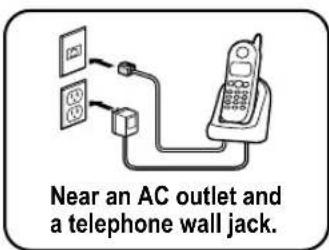
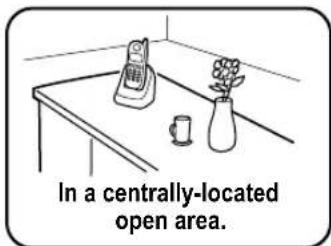
TRY TO AVOID
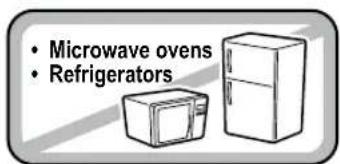
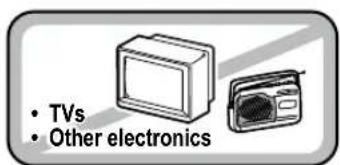

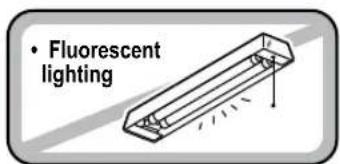
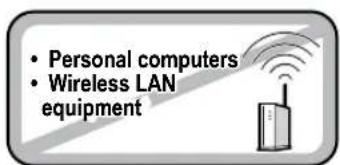

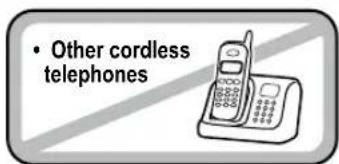
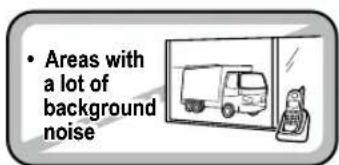

Notes: For maximum range:
- Keep both the base and handset antennas free of obstruction.
- When the handset is not in use, place the handset in an upright position.
- Metal and reinforced concrete may affect cordless telephone performance.
Installing the Battery
Use only the Uniden BT-1011 rechargeable battery pack supplied with your cordless telephone.
Locatethebatterypack, batterycoverandthe handset.
Battery pack
Lineuptheredandblackwireson thebatterypackconnectorwith thestickerinthehandset'sbattery compartment.
Pushthebatterypack connectorinfirmly.(You shouldhearitclickinto place.)Gentlytugonthe batterywirestomake suretheconnectionis secure.
Battery cover
Placethecoveroverthe batterycompartment andslideitupinto place.
Handset
Connecting the AC adapter
To the base
To avoid risk of fire and shock, only use the Uniden PS-0009 AC adapter with the base.
① Connect the AC adapter to the DC IN 9V jack on the bottom of the base.
Don't put any power cord where it people might trip over it or step on it. If a power cord becomes chafed or worn out, it can create a fire or electrical hazard.
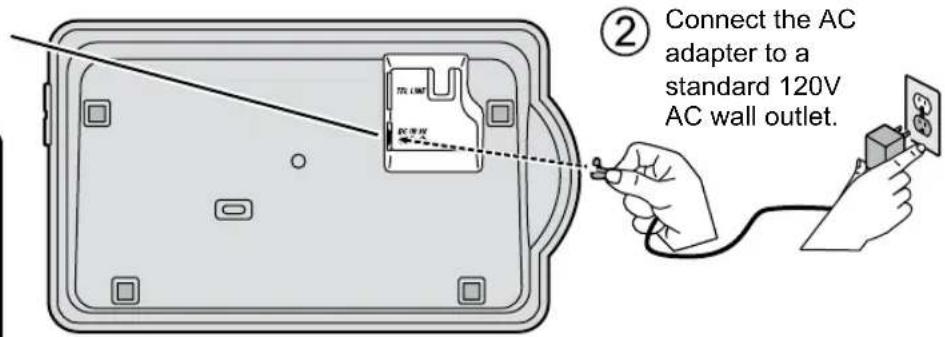
To the charging cradle (for multi-handset packs only)
Use only the Uniden PS-0007 AC adapter with the charging cradle.

Charging the Handset
① Place the handset in the base cradle with the display facing forward.
② If you have an accessory handset, place it in the charging cradle with the display facing forward.
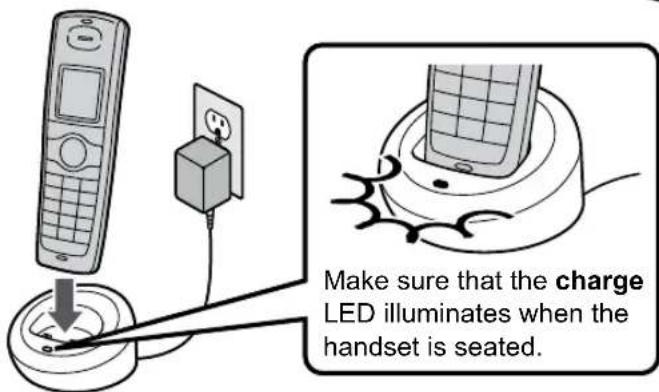
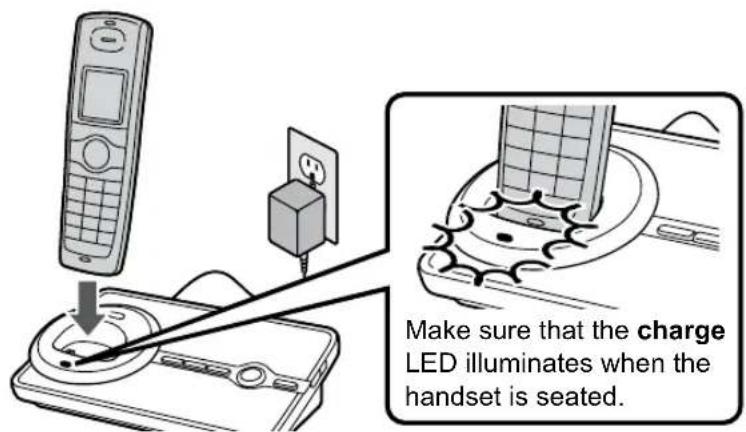
? What if the charge LED doesn't light up?
- Reseat the handset; make sure the contacts on the bottom of the handset are lined up with the contacts in the cradle.
- Check the AC adapter connection.
■ Make sure you are not using an outlet that's controlled by a wall switch.
③ Charge your handset at least 15 to 20 hours before plugging into the phone line.
Connecting to the Phone Line
Make sure that the battery pack is fully charged.
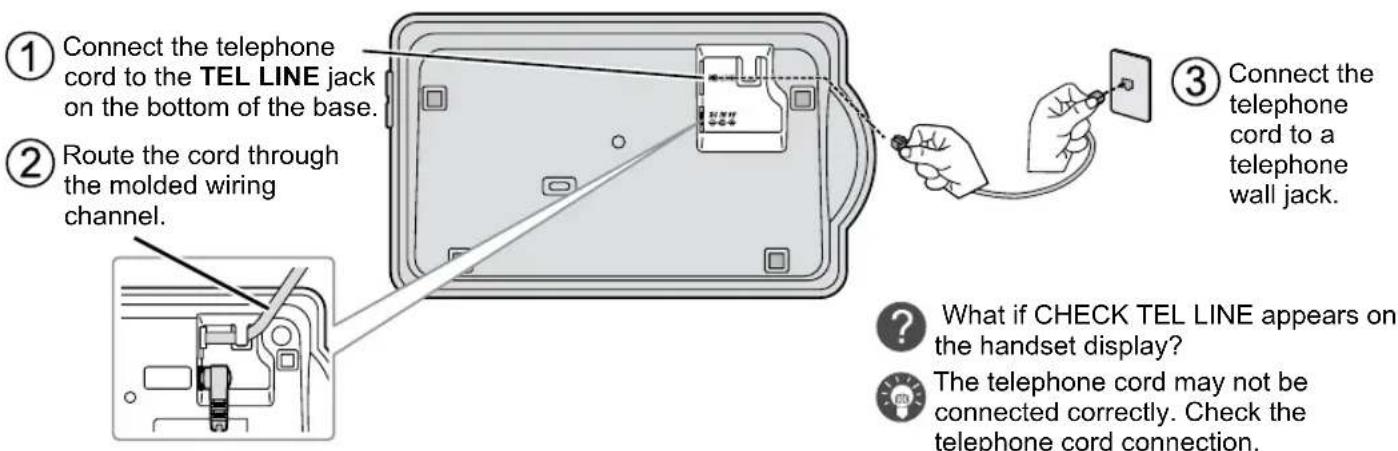
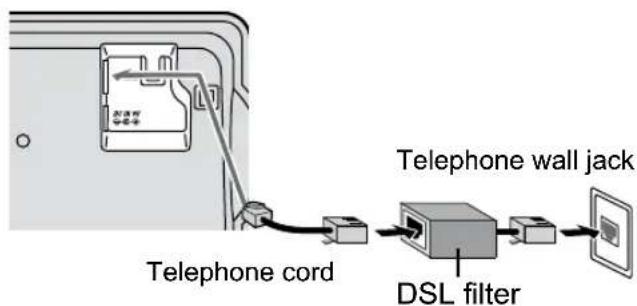
① Connect the telephone cord to the TEL LINE jack on the bottom of the base.
② Route the cord through the molded wiring channel.
③ Connect the telephone cord to a telephone wall jack.
What if CHECK TEL LINE appears on the handset display?
The telephone cord may not be connected correctly. Check the telephone cord connection.
What if CHECK TEL LINE appears on the handset display?
Do you have DSL or any high-speed Internet service delivered through your phone line?
Try putting a DSL filter between the base and the wall jack. Without a filter, telephone-line-based Internet services can interfere with standard phones.
Testing the Connection
① Pick up the handset from the cradle and press [/flash]. You should hear a dial tone, and the display should show TALK.

What if I can't hear a dial tone?

Check the telephone cord connection on the base.

What if the display doesn't show TALK?

- Check the battery pack connection in the handset.
- Make sure the battery pack is fully charged.
- Make sure the AC adapter cord is securely connected to the DC IN 9V jack and a standard power outlet.
- Try resetting the handset (see page 55).

Make a quick test call, and then press [] to hang up.

What if there is a lot of static?

Check the sources of interference described in Choosing the Best Location (see page 5): is the base near any of those?

What if the call doesn't go through?

Try changing the dialing mode (see the next section).
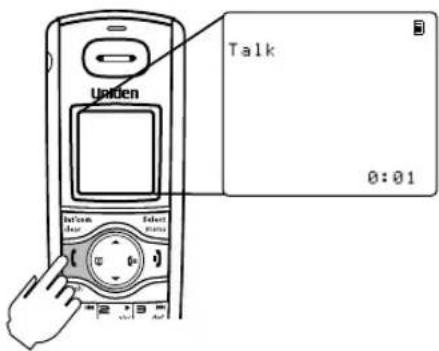
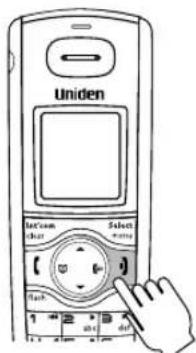
Note: Make sure you can get a dial tone on any accessory handsets that were packaged with your phone.
Changing the dial mode
Your phone can communicate with the telephone network in two different ways: tone dialing or pulse dialing. These days, most base networks use a method called tone dialing, so your phone comes programmed for tone dialing. If your phone company uses pulse dialing, you will need to change your phone's dial mode. If you don't get a dial tone or can't connect to the telephone network, please follow the steps below to modify your phone's settings:
1) Press [Select/menu].
2) Select the GLOBAL SETUP menu, and then the DIAL MODE submenu.
3) Scroll [▼] to highlight PULSE.
4) Press [Select/menu]. You will hear a confirmation tone.
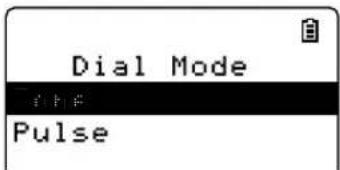
If you ever need to change the dial mode back to tone dialing, follow the same procedure, but select TONE in step 2.
Installing the Belt Clip
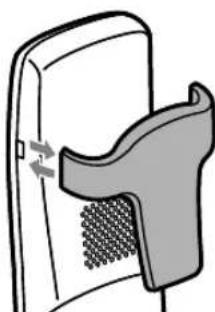
Insert the tabs on the sides of the belt clip into the holes on either side of the handset. Press the belt clip down until it clicks into place. (Tug on the clip to make sure it's secure.)
To remove the belt clip, gently pull the tabs out of the holes, then slide the belt clip off of the handset.
natural_image
Diagram of a medical device with a mesh insert and arrow indicating force or movement (no text or symbols)Expanding Your Phone
Adding accessory handsets
Your phone supports a total of six cordless handsets, including any that were supplied with your phone. You can now place a fully-featured cordless handset anywhere AC power is available to connect the charging cradle.
- Your phone is compatible with the following Uniden DECT6.0 accessory handsets: DCX200, DCX300 and DWX207. (Please visit our website at www.uniden.com for the most up-to-date list of compatible handsets.)
- For instructions on connecting the charging cradle, see page 7.
- If you purchase any accessory handsets separately, you must register the handsets to the base before you can use them. (Accessory handsets that come packaged with a base are already registered to that base.)
Registering accessory handsets
When charged, registered handsets display a handset ID number.
Handsets that have not been registered display as shown.
To register a DCX300 accessory handset:
1) Charge the handset for 15-20 hours.
2) Place the handset in the base cradle for about thirty seconds. HANDSET REGISTERING will appear in the LCD.
3) When the handset has registered to the base, the LCD will display REGISTRATION COMPLETE then show the handset ID number.
If the display shows REGISTRATION FAILED, repeat the process again.
To register a DCX200 or DWX207 accessory handset:
1) Charge the handset for 15-20 hours.
2) Disconnect the base AC adapter. Then press and hold [find] while you reconnect the adapter. Keep pressing [find] until the charge LED starts to blink.
3) On the handset, press and hold [#] until the handset beeps and displays HANDSET REGISTERING.
4) When the handset has registered to the base, the LCD will display REGISTRATION COMPLETE then show the handset ID number.
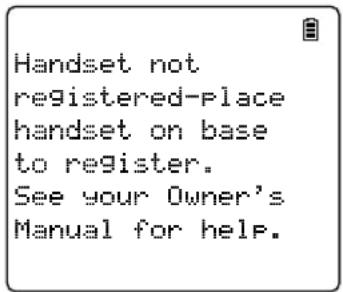
If the display shows REGISTRATION FAILED, repeat the process again.
Note: If a handset has ever been registered to a base, reset the handset before you register it to a new base (see Resetting the Handset on page 55). Or to use multiple bases, see the next section.
Using Multiple Bases
The handsets supplied with your phone (or any DCX300 accessory handsets) can be registered to a total of four different bases. Compatible bases include the DECT2060, DECT2080, DECT2085, DECT2088, and DECT3080 models. Once your handset is registered to more than one base, you can set the handset to search automatically the available base, or you can select manually which base the handset should connect to (for example, if you have one base with an answering machine, you can tell the handset to connect that base to check messages).
Note: To confirm how many bases the handset is registered to, open the SELECT BASE submenu (follow the step 1 of Selecting the base on page 14). Press [1] to close the list and return to standby.
Registering the handset to another base
1) Make sure the handset battery is fully charged.
2) To register a handset to DECT2060, DECT2080 or DECT3080 base:
- Disconnect the base AC adapter. Then press and hold [find hs] or [find] while you reconnect the adapter. Keep pressing [find hs] or [find] until the charge LED starts to blink.
To register a handset to DECT2085 or DECT2088 base:
- With the phone in standby, press [Menu/Select] on the base. Move the cursor to select the REGISTER HANDSET menu, and then press [Menu/Select]. HANDSET REGISTERING will appear.
3) On the handset, press [Select/menu]. Select the REGISTER BASE menu. HANDSET REGISTERING will appear in the display. (After step 2, you have thirty seconds to complete this step 3 before the system returns to standby.)
4) Wait approximately thirty seconds. "REGISTRATION COMPLETE" will be displayed to indicate the handset has been registered to the base and a handset ID will be automatically assigned.
If the display shows REGISTRATION FAILED, repeat the process again.
Selecting the base
When your handset is registered to another base, it will automatically connect to the base. A base ID (that is for the handset only) will be assigned in the order of registration. You can either select a base you want to use manually, or set to AUTO. If you set to AUTO, when the handset comes out of range, it searches automatically the available base in order of base ID.
1) With the phone in standby, press[Select/menu]. Select the HANDSET SETUP menu, and then the SELECT BASE submenu.
2) Move the cursor to select the base you want to connect to, or choose AUTO to have the handset automatically select the base.
3) Press [Select/menu]. SEARCHING will appear in the display.
4) When the base is found, the handset will return to standby. If the base is not found, "SEARCHING" continues to appear. You can repeat the procedure listed above to return back to the original connection or to find the different base.
Note: You cannot change bases during a call.
Getting to Know Your New Phone
Features
• 1.9GHz DECT6.0 expandable system
- Expands up to 6 handsets
- Integrated digital answering system
- Caller ID/Call Waiting
- Advanced phonebook features on each handset:
- Store 70 phonebook entries
- Alphabetical search
- Personalized ring by party
- Personalized LCD color scheme by party.
- Transfer single listing or entire phonebook
- Store 30 Caller ID numbers on each handset
- Speakerphone on handset
• 10 ringer options (5 tones/ 5 polyphonic melodies) - Last 5 number redial
- Bilingual menu displays (for US models: English and Spanish, for Canadian models: English and French)
- Call transfer
- Conferencing
- Intercom
Answering system features
• Digital tapeless recording
- Up to 14 minutes of recording time
- Call screening
- Personal or pre-recorded outgoing messages
- Bilingual voice prompts (for US models: English and Spanish, for Canadian models: English and French)
• Day and time announcement
- Remote message retrieval
- Toll saver
- Message alert
• Records up to 59 messages
Terminology Used in this Manual
| Accessory Handsets | Additional handsets that can register to the base, allowing you to add handsets without connecting another phone line. This base supports a total of six cordless handsets; see page 12 for compatible handsets. |
| Base | The main part of the phone that connects to your phone line and lets you make and receive calls. |
| Charging cradle | A cradle that comes with an accessory handset and charges the handset battery pack.It connects to power but does not connect to a phone line. |
| CID | Caller ID is available from your telephone provider and is offered to users on a subscription basis.With this service, you will be able to see the incoming caller information such as name and phone number. |
| CID/CW or CIDCW | Caller ID with Call Waiting is available by subscription from your telephone provider.With this service, you will be able to view incoming caller information while on a call with another user. |
| Global Settings | Any settings that apply to all registered handsets and the base.These features are available by selecting “GLOBAL SETUP” or “DAY & TIME” in the handset menu. Only one handset can change global settings at a time, and you have to make sure the phone is not currently being used. If you have multiple bases, the different bases have each global settings; select the base before changing the global setting (see Selecting the Base on page 14). |
| Standby | The handset and the base are not in use. (It doesn’t matter whether the handset is in the cradle: the [/flash] or [▪]h)asn’t been pressed, and there is no dial tone.) |
| Station Any registered handset or the base. | |
| Talk | A dial tone has been enabled, so you can dial and carry on a conversation with an outside party. |
Manual Conventions
This manual uses several different type styles to help you distinguish between different parts of the phone:
- Bold text with "[]" indicates a key or button on the phone
- ALL CAPITALS indicates text on the display, such as menu options, prompts, and confirmation messages
- lower case bold text indicates a status light on the phone
- ALL CAPITALS BOLD indicates a connection jack on the base or charging cradle
Parts of the Handset
![new message LED Earpiece Display (LCD) [Int'com/clear] key (intercom/clear) [ ] key (phonebook/left) [ (/flash] key (talk/flash) Select menu Int com clear 1 2 3 4 5 6 7 8 9 * tone oper Twelve-key dial pad [#] key [ ] key [ /pause] key (redial/pause) [ /mute] key (messages/mute microphone Charging contacts](/content/2026/06/1146801/images/46d3e2b757f6a8bde9e21ab70dfcca1d936a59e0d225bba0921281bf4b31a40b.jpg)
Parts of the Base
![[find] key (find handset) message counter LED [+] key (volume up) [-] key (volume down) [▶]key ( play/stop ) [▶]key (skip) [◀]key (repeat) Speaker Charging contacts on charge LED [Ø] key (delete) [on] key (answering system on/off)](/content/2026/06/1146801/images/9393e8c7f11fffbfa98c87b9f6aaccdb7e074e723d991cfbf72c953cdbb320a4.jpg)
Using the Interface Reading the Handset Display
In standby
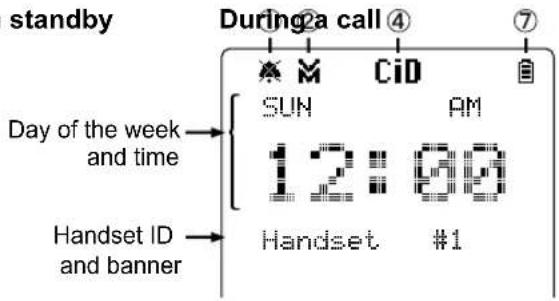
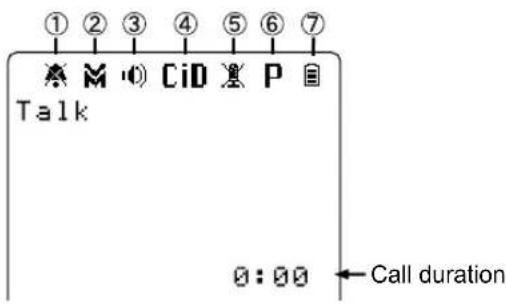
| 1 | The ringer off icon indicates that the ringer is turned off. | |
| 2 | The voice mail icon appears when you have messages waiting at your service provider voice mail box. | |
| 3 | The speaker icon appears when the speaker phone is in use. | |
| 4 | CiD | The CID icon appears when you have new Caller ID records. |
| 5 | The mute icon appears while the microphone is muted. | |
| 6 | P | The privacy icon appears when the Privacy Mode is turned on. |
| 7 |  | The battery icon indicates the handset battery status: full, medium, low, and empty. |
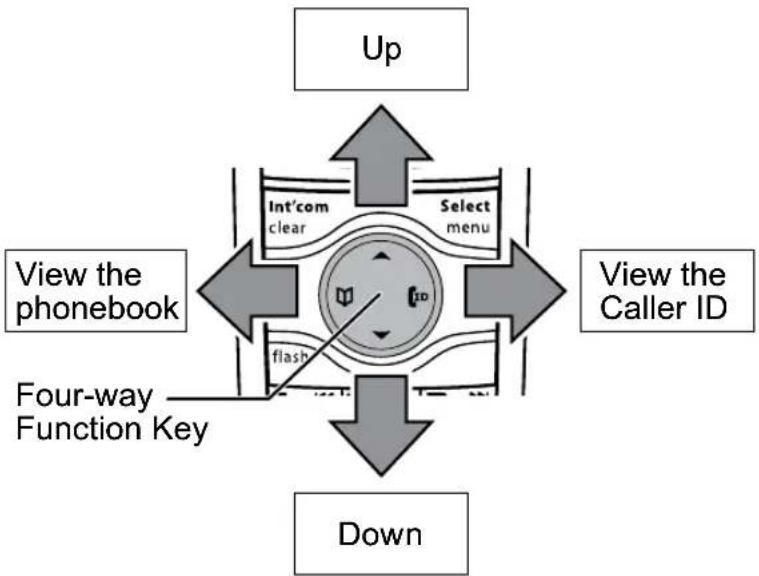
Using the Four-way Function Key
Your handset has a four-way function key that allows you to move the cursor or pointer on the display and access the most commonly used features at the touch of a button. By moving this key to the left, you open the phonebook. Move the key to the right to access Caller ID information. To use this four-way key, place your thumb over the key and move to the four positions to get the feel of how it moves and operates.
flowchart
graph TD
    A["View the phonebook"] --> B["Four-way Function Key"]
    B --> C["Select menu"]
    C --> D["Up"]
    D --> E["Down"]
    E --> A
    style A fill:#f9f,stroke:#333
    style B fill:#ccf,stroke:#333
    style C fill:#cfc,stroke:#333
    style D fill:#fcc,stroke:#333
    style E fill:#ffc,stroke:#333
Using the Handset Menu
• To open the menu, press the [Select/menu] key.
- The option currently highlighted appears in reversed out text. Use [↗] on the four-way function key to highlight the next upper option and [▼] to highlight the next lower option.
• To select the highlighted option, press [Select/menu].
- To go back to the previous screen, press [left] on the four-way function key.
• To exit the menu, press [1].
- If you don't press any keys for thirty seconds, the phone will time out and exit the menu.
- For ANSW. SETUP, GLOBAL SETUP and DAY & TIME menu options, make sure the line is not in use and the handsets are within range of the base.
Entering Text from Your Handset
You can use the number keypad on your handset to enter text by referring to the letters printed on each number key. When you press the number key in a text entry field, the phone displays the first letter printed on the number key. Press the number key twice to display the second letter and three times to display the third. Capital letters are displayed first, then lower case letters, and then the number on the key.
If two letters in a row use the same number key, enter the first letter, then use [right] on the four-way function key to move the cursor to the next position to enter the second letter.
For example, to enter the word "Movies":
1) Press [6] once to enter M.
2) Use [right] on the four-way function key to move the cursor to the right.
3) Press [6] six times to enter o.
4) Press [8] six times to enter v.
5) Press [4] six times to enter i.
6) Press [3] five times to enter e.
7) Press [7] eight times to enter s.
8) Press [Select/menu] to end your text entry.
| Number of times key is pressed | |||||||||
| keys | 1 | 2 | 3 | 4 | 5 | 6 | 7 | 8 | 9 |
| 1 | 1 | ||||||||
| 2 abc | A | B | C | a | b | c | 2 | ||
| 3 def | D | E | F | d | e | f | 3 | ||
| 4 ghi | G | H | I | g | h | i | 4 | ||
| 5 jkl | J | K | L | j | k | l | 5 | ||
| 6 mno | M | N | O | n | n | o | 6 | ||
| 7 pqrs | P | Q | R | S | P | q | r | s | 7 |
| 8 tuv | T | U | V | t | u | v | 8 | ||
| 9 wxyz | W | X | Y | Z | w | x | y | z | 9 |
| 0 oper | & | ( ) | < | > | / | (blank) | - | - | |
| . | , | : | ? | ! | @ | ' | " | * | |
| # | @ | ||||||||
If you make a mistake while entering a name, use [right] or [left] on the four-way function key to move the cursor to the incorrect character. Press [Int'com/clear] to erase the wrong character, and then enter the correct character. To delete all characters, press and hold [Int'com/clear].
Note: If you would like to quickly change the case (small/capital) of the letter entered, press [*tone].
Basic Setup
Selecting a Language
Each handset supports two languages: English and Spanish for US models or English and French for Canadian models. Once you select a language, the menus on the handset will display in that language. The default language is English.
1) Press [Select/menu].
2) Select the HANDSET SETUP menu, and then the HANDSET LANGUAGE submenu.
3) Move the cursor to choose a language.
for US models: Choose ENGLISH or ESPAÑOL (Spanish).
for Canadian models: Choose ENGLISH or FRANÇAIS (French).
4) Press [Select/menu]. You will hear a confirmation tone.
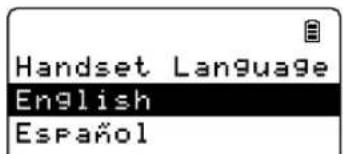
for US models
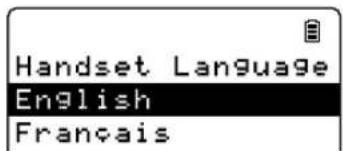
for Canadian models
Setting the Day & Time
If you do not set the clock on your answering system, your messages may not have the correct time and day stamp.
1) Press [Select/menu].
2) Move the cursor to DAY & TIME and press [Select/menu].
3) Use [▲] and [▼] to select the day of the week, and press [Select/menu].
4) Use the number keypad ([0] through [9]) to enter the hour and minutes.
5) Use [▲] and [▼] to select AM or PM, and press [Select/menu]. You hear a confirmation tone.
![Day & Time SUN 12:00 AM [↑/↓/Select]](/content/2026/06/1146801/images/e7fd060d70930a2b6511a19253e77b6501fd21043181555f5a0167f80a6ae101.jpg)
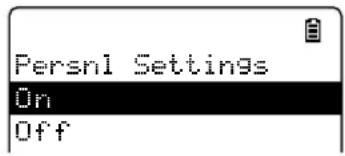
Activating Personal Settings
You can assign special ringer tones to anyone in your phonebook. When your phone gets a call, it looks up the Caller ID information in your phonebook. If you've assigned a personal ringer and color to that number, the phone uses it so you know who is calling. To turn the personal ringing on or off, follow these steps:
1) Press [Select/menu].
2) Select the HANDSET SETUP menu, and then the PERSNL SETTINGS submenu.
3) Move the cursor to select ON or OFF.
4) Press [Select/menu]. You will hear a confirmation tone.
Activating the Key Touch Tone
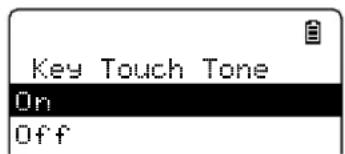
Key Touch Tone is the tone your keypad makes when keys are pressed. You can turn this tone on or off.
1) Press [Select/menu].
2) Select the HANDSET SETUP menu, and then the KEY TOUCH TONE submenu.
3) Move the cursor to select ON or OFF.
4) Press [Select/menu]. You will hear a confirmation tone.
Setting Up the Phonebook
Each handset has its own separate phonebook that holds up to seventy names and numbers. When a handset's phonebook is full, the handset beeps and shows MEMORY FULL on the display. You cannot add any names and numbers in that handset's phonebook until you delete some of the existing ones.
You can also use the phonebook entries to store a group of numbers (up to twenty digits) that you may need to enter once your call connects. This is referred to as chain dialing. (See Chain dialing from the phonebook on page 32.)
Creating Phonebook Entries
To store names and numbers in your phonebook, please follow these steps:
1) With the phone in standby, press [ ] (on the left side of the four-way key).
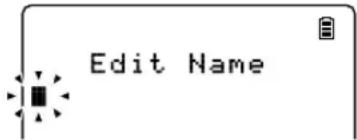
2) To create a new phonebook entry, press [Select/menu]. Select the CREATE NEW menu. EDIT NAME appears.
3) Enter the name for this entry (EDIT NAME).
Use the keypad to enter a name for this entry; the name can contain up to sixteen characters. (See Entering Text from Your Handset on page 21 for instructions on entering text.) If you do not want to enter a name for this entry, your phone will store this entry as
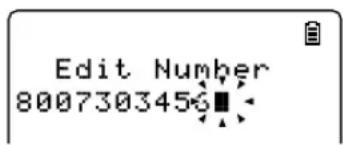
4) Enter the number for this entry (EDIT NUMBER).
Once you have stored a name, EDIT NUMBER appears next. Use the number keypad to enter the phone number; the phone number can contain up to twenty digits. If you need the phone to pause between digits when it's dialing (for example, to enter an extension or an access code), press [Pause] to insert a two-second pause. You will see a P in the display.
You can also use more than one pause together if two seconds is not long enough. Each pause counts as one digit. Press [Select/menu] when you are finished.
5) Assign a personal ring tone for this entry (PERSONAL RING).
You can attach a special ring tone to each phonebook entry; the phone will use this ring tone when this person calls. Use [▲] and [▼] to select one of the ten different ring tone options (see Selecting a Ringer Tone on page 28 for a complete list of ring tones). As you scroll through the tones, you will hear a sample of each tone (unless the handset ringer volume is set to off). When you hear the ring tone you want to use, press [Select/menu]. If you do not want to use a personal ring tone for this phonebook entry, choose NO SELECTION; the phone will use your standard ring tone setting.
6) Assign a personal display color for this entry (PERSONAL COLOR).
You can attach a color scheme to each phonebook entry; the display will use this color when this person calls. Use [▲] and [▼] to select one of the seven different color scheme options. As you scroll through the options, you will see each color scheme on the display. When you see the color scheme you want to use, press [Select/menu]. If you do not want to use a color scheme for this phonebook entry, choose NO SELECTION; the phone will use your standard color scheme setting.
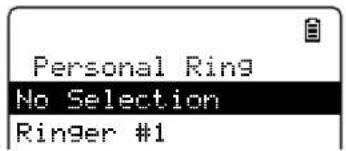
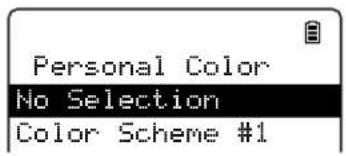
7) You will hear a tone confirming that the new entry has been stored, and DONE! appears in the display.
Finding a Phonebook Entry
Press [▼] to open the phonebook. Phonebook entries are stored in alphabetical order. To scroll through the phonebook from A to Z, press [▼]. To scroll trough the phonebook from Z to A press [▲].
You can also use the letters on the number keys to jump to a name that starts with that letter. For example, to search for an entry beginning with the letter M, press [6] once. The phonebook jumps to the first entry that begins with the letter you entered; you can then use [▲] and [▼] to scroll to other entries.
To close the phonebook and return to standby, press[1]. If you are looking up a phonebook entry during a call and want to close the phonebook, press [1] again instead of [2].
Editing an Existing Phonebook Entry
1) With the phone in standby, press [to open the phonebook.
2) Find the entry you want to edit and press [Select/menu].
3) Select EDIT. Follow the steps for Creating Phonebook Entries on page 24. If you do not wish to change the information at any step, simply press [Select/menu] to go to the next step.
Storing Caller ID or Redial Numbers in the Phonebook
You can store Caller ID records or redial numbers in the phonebook so you can use them later. Go to the Caller ID or redial list and select the number you want to store. (If the Caller ID information did not include the number, then you will not be able to store it.)
1) With the phone in standby, press[[ID] to open the Caller ID list or [D/pause] to open the redial list.
2) Use [▲] and [▼] to scroll through the Caller ID records or redial numbers. When you come to the information you want to store, press [Select/menu].
Note: If you need to add (or delete) a "1" to the beginning of the Caller ID phone number, press [*/tone] (see page 33). If you need to add (or delete) the stored area code to the Caller ID phone number, p[#] (see page 34).
3) Select STORE INTO PB. EDIT NAME appears. If the phone number is already stored in memory, you will hear a beep, and THIS DATA IS ALREADY SAVED! appears in the display. The number will not be stored.
4) Continue by following the steps for Creating Phonebook Entries on page 24.
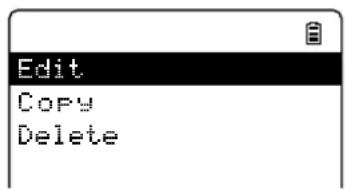
Deleting a Single Phonebook Entry
1) With the phone in standby, press [ ]
2) Find the entry that you want to delete and press [Select/menu].
3) Select DELETE. DELETE ENTRY? appears in the display.
4) Move the cursor to select YES.
5) Press [Select/menu]. You will hear a confirmation tone, and DELETED! appears in the display.
Deleting all Phonebook Entries
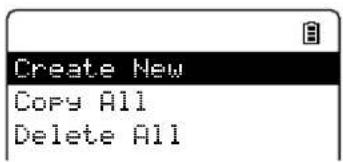
1) With the phone in standby, press [ ]
2) Press [Select/menu], and then select DELETE ALL. DELETE ALL? appears in the display.
3) Move the cursor to select YES.
4) Press [Select/menu]. You will hear a confirmation tone, and DELETED! appears in the display.
Copying Phonebook Entries to Another Handset
If you have more than one handset, you can transfer phonebook entries from one handset to another without having to re-enter names and numbers. You can transfer one phonebook entry at a time or all phonebook entries at once.
1) With the phone in standby, press [ ]
2) To copy one entry, find the phonebook entry you want to copy. Press [Select/menu], and then select COPY. To copy all entries, press [Select/menu], and then select COPY ALL.
3) Move the cursor to select the handset which you want to transfer the entries to and then press [Select/menu]. If you select COPY ALL, ARE YOU SURE? appears on the display screen. Move the cursor to select YES, and then press [Select/menu].
4) The phonebook entries will be transferred to the designated handset. During the copy process, the receiving handset shows RECEIVING and the ID of the sending handset.
5) When the transfer is completed, DONE! appears on the handset.
Notes: • The handsets must be currently connected to the same base (see page 14).
- If the handset you want to transfer to already has seventy entries in its phonebook, you will hear a beep, and NOT ENOUGH MEMORY IN RECEIVING UNIT appears on the display.
- If the selected handset is out of range or data transfer is cancelled, UNAVAILABLE appears in the display. Phonebook listings will not be transferred.
Customizing Your Handsets
All of the following options are set separately for each handset, so you can customize a handset for each room in your house.
Changing the Handset Banner
Each handset will display a banner name once it is registered to the base. The default banner is Handset #1, Handset #2, etc. You can change the name your phone displays by changing the banner display. If you have more than one handset, the banner name identifies your handset.
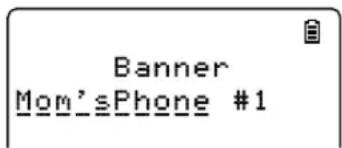
1) Press [Select/menu].
2) Select the HANDSET SETUP menu, and then the BANNER submenu.
3) Use the keypad to enter or edit the banner name. (See Entering Text from Your Phone on page 21 for detailed instructions on entering text.)
4) Press [Select/menu]. You will hear a confirmation tone.
Note: When you have multiple bases and even if the handset ID is changed when you switch to a different base, the handset will keep the banner name.
Selecting a Ringer Tone
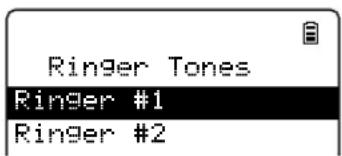
You may choose from five melodies or five tones for your phone's primary ring tone. Each handset can use a different ring tone or melody.
1) Press [Select/menu].
2) Select the HANDSET SETUP menu, and then the RINGER TONES submenu.
3) Move the cursor to select a ringer tone. As each ringer tone is highlighted, you will hear a sample (unless the handset ringer volume is set to off).
4) When you hear the tone you want to use, press [Select/menu]. You will hear a confirmation tone.
Activating AutoTalk
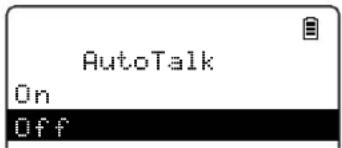
AutoTalk allows you to answer the phone simply by picking up the handset from the cradle. You do not have to press a button to answer the call.
1) Press [Select/menu].
2) Select the HANDSET SETUP menu, and then the AUTOTALK submenu.
3) Move the cursor to select ON or OFF.
4) Press [Select/menu]. You will hear a confirmation tone.
Activating Any Key Answer
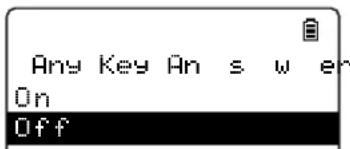
Any Key Answer allows you to answer the phone by pressing any key on the twelve-key dial pad.
1) Press [Select/menu].
2) Select the HANDSET SETUP menu, and then the ANY KEY ANSWER submenu.
3) Move the cursor to select ON or OFF.
4) Press [Select/menu]. You will hear a confirmation tone.
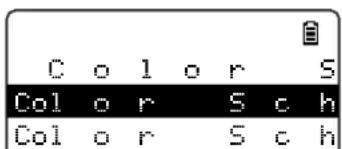
Color Scheme
You can change the color of your phone's display. There are seven different colors to choose from.
1) Press [Select/menu].
2) Select the HANDSET SETUP menu, and then the COLOR SCHEME submenu.
3) Move the cursor to select a color scheme. As you scroll through the options, you will see each color scheme on the display.
4) When you see the color scheme you want to use, press [Select/menu]. You will hear a confirmation tone.
Wallpaper
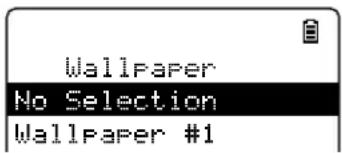
Your phone has four wallpapers to choose from.
1) Press [Select/menu].
2) Select the HANDSET SETUP menu, and then the WALLPAPER submenu.
3) Move the cursor to select a wall paper. As you scroll through the options, you will see each wallpaper on the display. If you do not want to use a wallpaper, choose NO SELECTION.
4) Press [Select/menu]. You will hear a confirmation tone.
Adjusting the Display (LCD Contrast)
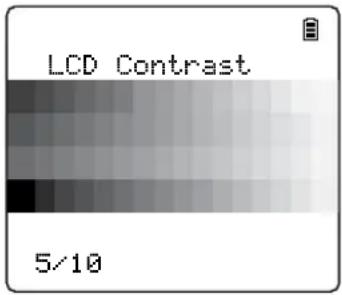
LCD Contrast adjusts the handset display brightness. Choose from one of the ten levels for optimum viewing.
1) Press [Select/menu].
2) Select the HANDSET SETUP, and then the LCD CONTRAST submenu.
3) Use [▲] or [▼] to adjust the contrast of the display.
4) Press [Select/menu]. You will hear a confirmation tone.
Using Your Phone
| From a cordless handset From a handset speakerphone | ||
| Making a call | 1) Pick up the handset from the cradle.2) Press [/flash].3) Listen for the dial tone.4) Dial the number.OR1) Pick up the handset from the cradle.2) Dial the number.3) Press [/flash]. | 1) Pick up the handset from the cradle.2) Press [▪] )3) Listen for the dial tone.4) Dial the number.OR1) Pick up the handset from the cradle.2) Dial the number.3) Press [▪] ) |
| Answering a call | 1) Pick up the handset. (If AutoTalk is on, the phone will answer when you pick up the handset from the cradle.)2) Press [/flash]. (If Any Key Answer is on, you can also press any key on the dial pad.) | 1) Pick up the handset.2) Press [▪] ) |
| Hanging up | Press [ ] or return the handset to the cradle. | |
Making a Call from the Phonebook
1) With the phone in standby, press [I] to open the phonebook.
2) Find the phonebook entry you want to call (see Finding a Phonebook Entry on page 25).
3) Press [[/flash] or [■]] to dial the number.
Note: You can also press [/flash] or [■] before you open the phonebook. Find the phone number you want to dial, and then press [Select/menu].
Chain dialing from the phonebook
If you often have to enter a series of digits or a code number during a call, you can save that code number to a phonebook entry. When your call connects, just use the phonebook to transmit the saved code number. (This is referred to as chain dialing.)
1) Enter the code number (up to twenty digits) into the phonebook (see Creating Phonebook Entries on page 24). Be sure to enter the code number into the phonebook exactly as you would enter it during a call.
2) During a call, when you hear the prompt that tells you to enter the code number, press [ ]
3) Use [▲] or [▼] to select the phonebook entry that contains the digits you want to send.
4) Press [Select/menu]. The phone sends the digits of the code number exactly as you saved them in the phonebook entry.
Switching to the Handset Speakerphone During a Call
To switch a normal call to the speakerphone, press [▶] on the handset. To switch from a speakerphone call to a normal call, press [▶]
Using Caller ID, Call Waiting, and Redial Lists
If you subscribe to Caller ID service from your phone company, your phone will show you the caller's phone number and name (if available) whenever a call comes in. If you subscribe to Caller ID on Call Waiting, the phone will also show you the name and the number of any call that comes in while you're on the line.
Using the Caller ID List
You can store up to thirty Caller ID numbers in each handset. Caller ID records are stored from newest to oldest. Once your Caller ID list is full, the oldest record will be automatically deleted when a new call is received. When you have new Caller ID records (that is, records you have not reviewed yet), [i] appears on the display. To open the Caller ID list, press [on the right side of the four-way key). The phone will show the latest record. Use [▲] and [▼] to scroll through the list. (New records have an asterisk next to the received time.)
CiD

12/21 12:00PM *
John Smith
214-555-1234
Making a Call from a Caller ID Record
1) With the phone in standby, press 📄 to open the Caller ID list.
2) Use [▲] and [▼] to find the Caller ID record you want to dial.
3) If you need to add (or delete) a "1" to the beginning of the displayed phone number, press [*/tone].
4) Press [[/flash] or [■]] to dial the number.
Note: You can also press [/flash] or [■■■] before you open the caller ID list. Find the phone number you want to dial, and then press [Select/menu].

What's this "add or delete a 1" about?

- Any phone number in the Caller ID records might (or might not!) have a “1” at the front, depending on how different phone companies send the Caller ID information.
- The phone dials the number exactly as it appears in the Caller ID record.
- If the phone number is a long distance or toll call, but the Caller ID record does not have a "1" in front of the number, press [*/tone] to add it. If the phone number is a local or non-toll call, but the Caller ID record has a "1" in front of the number, press[*/tone] to delete it.
Seven-digit dialing
If you can make a local call by dialing only seven digits instead of ten, you can tell the phone to hide your local area code in the Caller ID list; any calls from outside your area code will show all ten digits. This setting applies to the base and all handsets currently connected to the same base.
To program your local area code:
1) Press [Select/menu].
2) Select the GLOBAL SETUP menu, and then the AREA CODE submenu.
3) Use the number keypad ([0] through [9]) to enter a three-digit area code. If an area code has already been stored, it appears in the display. Press [Int'com/clear] to delete the stored code, and then enter a new one.
4) Press [Select/menu]. You will hear a confirmation tone.
Note: If you have multiple bases, select the base before programming the area code (see page 14).
- The phone uses the stored area code as a filter. When a call comes in, the phone compares the incoming area code to the code programmed on the phone. If the two codes match, the handset hides the area code in the Caller ID list.
- When you are reviewing the Caller ID list, you can show the hidden area code by pressing [#]. Press [#] again to hide the area code.
- When you dial from a Caller ID record or store a Caller ID record in the phonebook, the phone dials or stores the digits exactly as they appear on the display. If you need to use ten digits, be sure to press [#] to show the area code before you dial or store the number. (See page 26 to store a Caller ID record in the phonebook.)
Deleting Caller ID Numbers
To delete only one Caller ID number, press [[ID] when the phone is in standby, and then find the number you want to delete. Press [Select/menu] and select DELETE ENTRY. When the phone asks you to confirm, select YES.
To delete all the Caller ID numbers, press [[ID]] when the phone is in standby. Press [Select/menu] and select DELETE ALL. When the phone asks you to confirm, select YES.
Notes: • When you delete a Caller ID number, you delete it permanently.
- Caller ID numbers are stored separately in each handset. Deleting a record from one handset will not delete the record from any other handsets.
Using Call Waiting
If you have Call Waiting service and a second call comes in when you are on the phone, a call waiting tone will sound. Press [[/flash] to accept the waiting call. There is a short pause, and then you will hear the new caller. To return to the original caller, press [[/flash].
Note: You must subscribe to Call Waiting service for this feature to operate. Not all features are available in all areas.
Redialing a Number
You can quickly redial the last five numbers dialed on each handset.
1) With the phone in standby, press the [/pause] to open the redial list.
2) Use [▲] and [▼] or [D/pause] to scroll through the redial list.
3) When you find the number you want to dial, press [/flash] or [▶▶▶].
Notes: • If the number exceeds 32 digits, only the first 32 digits are retained in redial memory.
- If the redial memory is empty, EMPTY appears in the display and you will hear a beep.
- You can also press [[/flash] or [▪]) before you open the redial list. Find the phone number you want to dial, and then press [Select/menu].
Deleting a Redial Record
If you want to delete a phone number from the redial list, follow the steps below:
1) With the phone in standby, press [/pause].
2) Use [▲] and [▼] to scroll through the redial list.
3) When you find the redial number you want to delete, press [Select/menu] and select DELETE ENTRY.
4) When the phone asks you to confirm, select YES. The redial number is deleted.
| CID | |
| Talk | |
| 12/21 12:00PM | |
| John Smith | |
| 214-555-1234 | |
| 3:08 | |
Adjusting the Ringer, Earpiece and Speaker Volume
Adjusting the Ringer Volume
You can choose from four ringer volume settings (off, low, medium, and high) separately on each handset or the base.
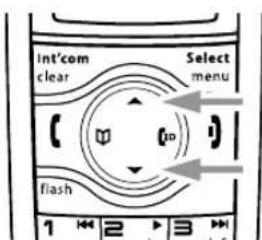
1) With the phone in standby, press [▲] or [▼] on the handset or press [+] or [-] on the base. The station sounds the ringer at that level.
2) Use [▲] on the handset or [+] on the base to make the ringer volume louder. Use [▼] on the handset or [-] on the base to make it softer or turn it completely off.
3) When you hear the ringer volume level you want to use, stop pressing keys. The station will use the new ringer volume starting with the next incoming call.
Note: If you set the ringer volume to OFF, the station won't ring. Other stations will ring according to their individual settings.
Muting the Ringer (One call only)
While the phone is ringing, press [☐/mute] or [☐] on the handset or [▶/■] on the base to mute the ringer for this call. The phone will ring again on the next call. (The handset must be off the cradle to mute the ringer.)
Adjusting the Earpiece Volume
You can choose from six volume levels for the handset earpiece. To adjust the earpiece volume while on a call, press [▲] (to make it louder) or [▼] (to make it softer). The handset display shows the current volume level for the earpiece.
Adjusting the Speaker Volume
Handset Speaker:
You can choose from six volume levels for the handset speaker while on a speakerphone call or when the handset is accessing the answering system. To adjust the handset speaker volume, press[▲] (to make it louder) or [▼] (to make it softer). The handset display shows the current volume level for the handset speaker.
Note: The handset earpiece and the handset speaker have separate volume settings.
Base Speaker:
You can choose from ten volume levels for the base speaker when the answering system announces or plays a message. To adjust the base speaker volume, press [+] (to make it louder) or [-] (to make it softer).
Adjusting the Audio Tone
If you aren't satisfied with the audio quality of your phone, you can adjust the Audio Tone of the earpiece while on a call. Your phone gives you three audio tone options: low, natural and high; the default setting, Natural Tone, is recommended for hearing aid users. Audio tone adjustments only apply to the earpiece, not the speakerphone.
To adjust the audio tone:
1) While on a call, press [Select/menu].
2) Move the cursor to select AUDIO TONE, and then press [Select/menu].
3) Move the cursor to select desired option (HIGH TONE, NATURAL TONE, or LOW TONE), and then press [Select/menu]. Selected option appears in the display for two seconds, and then the display returns to normal.
Finding a Lost Handset
To locate a misplaced handset, press [find] on the base when the phone is in standby. The handsets connected to the paging base will beep for one minute, and PAGING appears on the handset display. To cancel paging, press [find] again or any key on the found handset.
Note: Handsets that are not currently connected to this base will not be paged.
Using Hold, Conference and Transfer
Placing a Call on Hold
1) During a call, press [Int'com/clear] to place the caller on hold. If you leave a caller on hold for more than ten seconds, the display screen will read, LINE ON HOLD.
2) To return to the party on hold, press [[/flash] or [▶]). The phone will return to the holding party.
Notes: • You can only place a caller on hold for five minutes. Once five minutes has passed, that party's line will be disconnected and the phone will return to standby.
- While a call is on hold, Call Waiting and CID on Call Waiting do not work.
Conferencing
If you have more than one handset, up to three people can participate in a conference call. A three-way conference call consists of an outside line and two handsets. You can easily join a call already in progress. The handsets must be currently connected to the same base (see page 14).
1) Press [(/flash] or [▶] to join the call.
2) To hang up, return the handset to the cradle or press [1]. The other party will still be connected to the call.
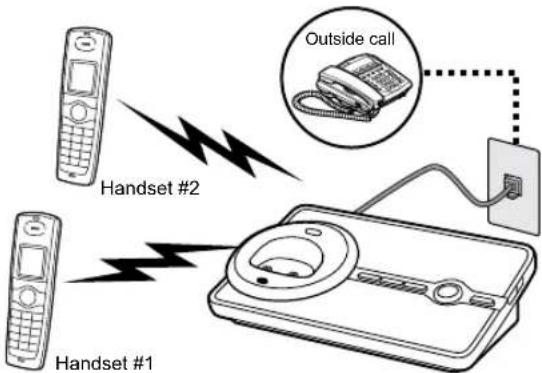
flowchart
graph TD
    A["Handset #1"] --> B["Handset #2"]
    B --> C["Outside call"]
    C --> D["Power outlet"]
    style A fill:#f9f,stroke:#333
    style B fill:#ccf,stroke:#333
    style C stroke-dasharray: 5 5
    style D stroke-dasharray: 5 5
Transferring a Call
You can transfer a call from one handset to another. The handsets must be currently connected to the same base (see page 14).
1) During a call, press [Int'com/clear].
2) Use [▲] or [▼] to select the handset you want to transfer the call to, and then press [Select/menu]. Select ALL to page all other handsets. The call will automatically be placed on hold, and a paging tone sounds. To cancel the transfer, press [/flash] or [■]
3) When another handset accepts the transferred call, you will be disconnected. If you want to rejoin the call, press [[/flash] or [▶)] again.
Answering a transferred call
When a handset receives a call transfer, it sounds a paging tone; handsets also show the ID of the handset that is paging. To accept the call transfer:
1) To answer the page and speak to the transferring handset, press [/flash] or [Int'com/clear].
Note: If AutoTalk is on, the handset will automatically answer the page when you pick up the handset from the cradle. If Any Key Answer is on, you can also press any key on the handset's dial pad.
2) To accept the call and speak to the caller, press[/flash] on the receiving handset.
3) When you accept the transferred call, the transferring handset will be disconnected.
Only the first handset to answer the transfer page will be connected to the call. If the transfer page is not picked up within one minute, the operation will be canceled.
Using Special Features
Privacy Mode
Privacy mode prevents other handsets from interrupting while you're on a call. As long as your handset is in privacy mode, other handsets can't join your call or make any calls of their own: their displays will show UNAVAILABLE.
1) While on a call, press [Select/menu].
2) Select CALL PRIVACY. PRIVACY MODE ON appears in the display for two seconds, P appears and remains in the display until the feature is turned off.
To turn privacy mode off, repeat the procedure listed above. PRIVACY MODE OFF appears.
Using the Intercom
You can use the intercom to talk to another handset without using the phone line. The handsets must be currently connected to the same base (see page 14).
Making an intercom page
1) With the phone in standby, press [Int'com/clear].
2) Use [▲] or [▼] to select the handset you want to talk with, and then press [Select/menu]. Select ALL to page all other handsets.
3) To cancel the intercom page, press [1].
Notes: Intercom paging will be cancelled if any of the following things occur:
- You receive an outside call or an intercom page while selecting the other handset.
- You do not select a handset within thirty seconds.
- Your handset is out of range (OUT OF RANGE appears in the display).
- The party does not answer the page within one minute.
• The party is busy. - The party is out of range (UNAVAILABLE appears in the display).
Answering an intercom page
When the intercom page tone sounds, the display will show the ID of the handset that is paging.
1) Press [/flash] or [Int'com/clear] on the handset.
Note: If AutoTalk is on, the handset will automatically answer the page when you pick up the handset from the cradle. If Any Key Answer is on, you can also press any key on the handset's dial pad.
2) To hang up an intercom call, press [1].
Muting the Microphone
Mute turns off the microphone so the caller can't hear you. This only works while you are on a call.
1) Press [☐/mute]. MUTE ON and 🎨 appear in the display; 🎨 remains while muting is on.
2) To cancel muting, press [Minute] again. MUTE OFF appears.
Tone Dialing Switch Over
If your phone is set to pulse dialing, you can temporarily switch to tone dialing after the call connects. This feature is useful when you need tone dialing to use automated menu systems, such as telephone bank tellers, telephone prescription refills, customer support menus, etc. Make your call normally. Once your call connects, press [*/tone] on the handset. Any digits you enter from then on will be sent with tone dialing. When this particular call ends, the phone automatically returns to pulse dialing.
See Changing the dial mode on page 11 for instructions on setting your phone for pulse or tone dialing.
Using a Voice Mail Service
If you subscribe to a voice mail service, you can use your phone to access your voice mailbox. When there are messages waiting in your voice mailbox, the new message LED on the handset flashes and appears in the handset display.
Note: This notification feature supports the voice mail service that uses Frequency Shift Keying (FSK) for the message notification signal only.
If you store your access number and password (provided by the voice mail service you subscribe to) in your phonebook, you can quickly dial in and retrieve your messages. (See page 24.)
Resetting the voice message waiting indicator
When you receive a new voice mail message, the new message LED on the top of the handset flashes and 📂 appears in the handset display. In the event your message waiting light gets out of sync with your phone company's voice messaging system, you can manually reset it back to the "No messages waiting" state.
1) Press and hold [find] on the base for five seconds.
Note: The handsets connected to the base will start to beep, however, keep pressing for five seconds.
2) A beep sounds on the base and the message alert tone is reset.
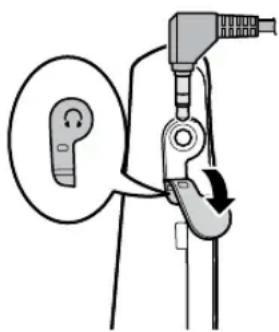
Installing the Optional Headset
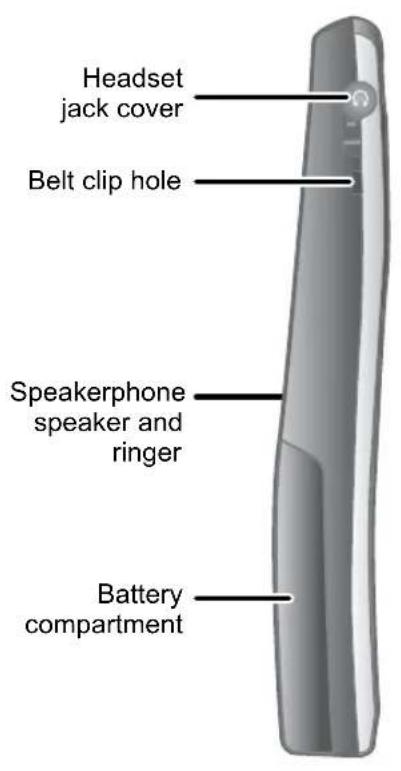
Your phone may be used with an optional headset. To use this feature, insert the headset plug into the headset jack. Your phone is ready for hands-free conversations. (Headsets may be purchased by calling the Uniden Parts Department. See the back cover page for contact information.)
Setting Up the Answering System
You can set up your answering system's features from the handset. Only one handset at a time can access the answering system menus.
Note: If you have multiple bases, select the base with answering system you want to access (see page 14).
Recording a Personal Greeting
Your answering system comes with a pre-recorded outgoing message or greeting that plays when you receive a call: "Hello, no one is available to take your call. Please leave a message after the tone." You can record your own personal outgoing greeting. Your recorded greeting must be between two seconds and thirty seconds long.
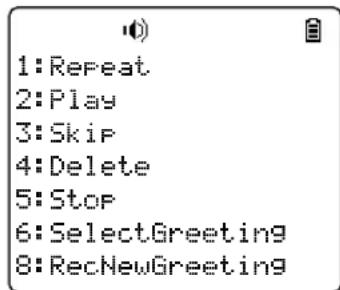
1) Press [dmute]. The system announces the number of new and old messages, then starts to play the messages unless it has no messages.
2) Press [5] to stop the announcements or message playback. You will hear intermittent beeps indicating that the system is in the command waiting mode.
3) Press [8] to start the recording. The system announces, "Record greeting." Begin recording after the announcement.
4) When you finish recording, press [8] again or press [5]. You will hear a confirmation tone, and your recorded greeting plays back for you.
Selecting a Greeting
Once you have recorded a personal greeting, the phone automatically switches to your personal greeting. You can also switch back and forth between the pre-recorded greeting and your own greeting at any time.
1) Press [☑/mute]. The system announces the number of new and old messages, then starts to play the messages unless it has no messages.
2) Press [5] to stop the announcements or message playback. You will hear intermittent beeps indicating that the system is in the command waiting mode.
3) Press [6]. The system plays the current greeting.
4) To keep this greeting: Do nothing.
To switch to the other greeting: Press [6] while the system is playing the current greeting.
5) Each time you press [6], the system switches between the pre-recorded and the personal greeting. The last greeting you hear is used as the current greeting.
Deleting Your Personal Greeting
You can delete your personal greeting from the base. You cannot delete the pre-recorded greeting.
1) Press [☑/mute]. The system announces the number of new and old messages, then starts to play the messages unless it has no messages.
2) Press [5] to stop the announcements or message playback. You will hear intermittent beeps indicating that the system is in the command waiting mode.
3) Press [6]. The system plays the current greeting. Switch to your personal greeting if necessary. (See the previous section to switch the greeting.)
4) While the personal greeting is playing, press [4].
5) The system announces "Greeting has been deleted," and switches back to the pre-recorded greeting.
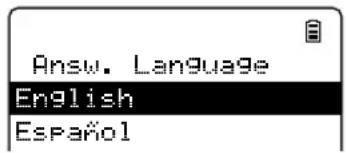
Selecting the Language for Announcements
You can select the language of your answering system announcements. The default system language is English.
1) Press [Select/menu].
2) Select ANSW. SETUP, and then the ANSW. LANGUAGE submenu.
3) Move the cursor to choose a language.
for US models: Choose ENGLISH or ESPAÑOL (Spanish).
for Canadian models: Choose ENGLISH or FRANÇAIS (French).
4) Press [Select/menu]. You will hear a confirmation tone.
Setting the Number of Rings
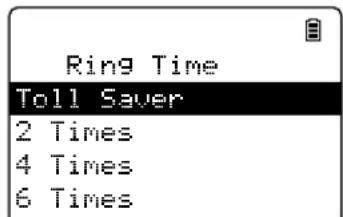
The ring time setting allows you to set the number of rings the caller hears before your answering system plays the outgoing message. You can set the ring time to answer after two, four, or six rings. If you enable the Toll Saver (TS) setting, the answering system picks up after two rings if you have new messages, and after four rings if there are none. This way, if you make a long distance call to check your messages, you can hang up after the third ring to avoid long distance billing charges.
1) Press [Select/menu].
2) Select the ANSW. SETUP menu, and then the RING TIME submenu.
3) Move the cursor to select a ring time (TOLL SAVER, 2 TIMES, 4 TIMES, or 6 TIMES).
4) Press [Select/menu]. You will hear a confirmation tone.
Setting the Record Time (or Announce only)
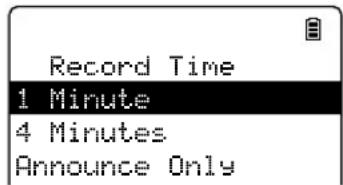
You can choose how long callers have to record a message. Set the record time to 1 MINUTE or 4 MINUTES to limit the time for incoming messages. If you set the record time to ANNOUNCE ONLY, the answering system answers the call but prevents callers from leaving a message.
1) Press [Select/menu].
2) Select the ANSW. SETUP menu, and then the RECORD TIME submenu.
3) Move the cursor to select a record time (1 MINUTE, 4 MINUTES, or ANNOUNCE ONLY).
4) Press [Select/menu]. You will hear a confirmation tone.
While your answering system is set to ANNOUNCE ONLY, the message counter LED on the base displays "A." If you are using the prerecorded greeting, the system automatically switches to the following message: "Hello, no one is available to take your call. Please call again." If you are using a personal greeting, the system continues to use that greeting.
Activating the Message Alert
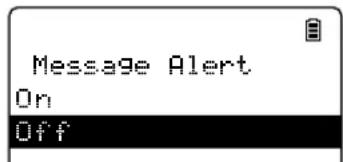
The message alert feature sounds a short alert tone every fifteen seconds whenever you have a new message.
To turn on the message alert:
1) Press [Select/menu].
2) Select the ANSW. SETUP menu, and then the MESSAGE ALERT submenu.
3) Move the cursor to select ON or OFF.
4) Press [Select/menu]. You will hear a confirmation tone.
Activating the Base Call Screen
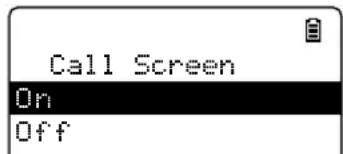
With the call screen feature, you can listen to callers as they leave a message without answering the call.
1) Press [Select/menu].
2) Select the ANSW. SETUP menu and then the CALL SCREEN submenu.
3) Move the cursor to select ON or OFF.
4) Press [Select/menu]. You will hear a confirmation tone.
Using the Answering System
Turning Your Answering System On and Off
| From the base From the handset | ||
| Turning On | 1) With the phone in standby, press [on].2) The system announces “Answering System is on” and plays the current greeting.3) Themessage counterLED displays the number of messages stored in memory. If the counter flashes, then you have new messages waiting. | 1) Press [Select/menu].2) Select the ANSW. SETUP menu, and then the ANSWER SETUP submenu.3) Move the cursor to select ON.4) Press [Select/menu]. You will hear a confirmation tone. |
| Turning Off | 1) With the phone in standby, press [on].2) The phone announces “Answering System is off.”3) Themessage counterLED is no longer illuminated. | 1) Press [Select/menu].2) Select the ANSW. SETUP menu, and then the ANSWER SETUP submenu.3) Move the cursor to select OFF.4) Press [Select/menu]. You will hear a confirmation tone. |
Notes: • If the answering system announces “No remaining time” when you turn it on, the memory is full (the message counter LED also shows FL). The answering system can’t record any new messages until you delete some of the saved ones.
- If you do not set the clock, your messages may not have the correct day and time stamp. To set the clock, see page 22.
Reviewing Messages
The message counter LED on the base displays the number of messages stored in memory. When you have new messages (that you have not listened to yet), the message counter LED on the base and the new message LED on the handset flash. The answering system plays your new messages first. If you have no new messages, the system plays your old messages. You can review your messages from the base or from the handset:
| From the base From the handset | ||
| Playing new messages | Press [ ]/The system announces the number of new and old messages, then plays the first new message followed by the day and time it was received. Then the system plays the new messages in the order they were received. | Press [ ]/the. The system announces the number of new and old messages, then plays the first new message followed by the day and time it was received. Then the system plays the new messages in the order they were received. |
| Repeating a message | Press [ ]/once to go to the beginning of the current message. Press [ ]/epeatedly to go back to a previous message. | Press [1] once to go to the beginning of the current message. Press [1] repeatedly to go back to a previous message. |
| Skipping a message | Press [ ]/to go to the beginning of the next message. | Press [3] to go to the beginning of the next message. |
| Deleting a message | While a message is playing, press [ ]The message is permanently deleted. | While a message is playing, press [4].The message is permanently deleted. |
| Deleting all messages | While the phone is in standby, press [ ]. When the system asks you to confirm, press [ ]again. All messages are permanently deleted. | Not available. |
| Playing old messages | After you listen to your new messages, press [ ]/again to play your old messages. | After you listen to your new messages, press [ ]/again to play your old messages. |
| Ending the message review | Press [ ]/stop the message playback and return to standby. | Press [5] to stop the message playback. Press [ ] to exit the system and return to standby, or press [2] to restart the message playback. |
Screening Calls
| From the base From the handset | |
| While the system is taking the message, simply listen to the caller over the base speaker. (You need to activate the base call screen feature in advance. See page 46.)To mute the call screen and allow the caller to continue leaving the message, press [→]/■ | While the systems is recording the message, press [→/minute]. If another handset is screening a call, you will hear a beep and you will not be able to screen the call.To answer the call and speak to the caller, press [/flash].To mute the call screen and allow the caller to continue leaving the message, press [→] or return the handset to the cradle. |
Turning Off the Message Alert Tone
When all new messages are played back, the message alert tone will automatically deactivate. The tone will not deactivate until all new messages are played back. To quickly turn off the tone, press any key on the base.
Operating the Answering System While You Are Away from Home
When you are away from home, you can operate your answering system with any touch-tone telephone.
Setting a security code or Personal Identification Number (PIN)
To operate your answering system when you are away from home, you will need to enter a two-digit security code or Personal Identification Number (PIN). The default security code is 80.
1) Press [Select/menu].
2) Select the ANSW. SETUP menu, and then the SECURITY CODE submenu.
3) Use the number keypad ([0] through [9]) to enter a two-digit security code (01-99).
4) Press [Select/menu]. You will hear a confirmation tone.
Dialing in to your answering system
Note: If you enter an incorrect security code/PIN three times, you will hear a beep and the answering system will return to standby.
To operate from a remote location, use any touch-tone telephone, and follow these steps:
1) Call your telephone number and wait for the system to answer. If the answering system is off, it will answer after about ten rings and sounds a series of beeps.
2) During the greeting or the beeps (if answering system is off), press [0] and enter your security code/PIN within two seconds.
3) The answering system announces the current time and the number of messages stored in memory. You hear "To play incoming messages, press zero-two. For help, press one-zero" followed by a beep.
4) Enter a remote command from the chart below. You have fifteen seconds to enter the first command; after the first command, you have two seconds to enter each command.
| If you want to Press | If you want to Press | ||
| Play incoming messages | [0] then [2]The answering system plays back messages for four minutes, then waits for another command. To continue playing your messages, press [0] then [2] again. | Stop the current operation to enter a different command. | [0] then [5] |
| Repeat this message | [0] then [1] (after the first four seconds of this message) | Turn the answering system off | [0] then [9] |
| Go back to the previous message | [0] then [1] during the first four seconds of a message | Turn the answering system on | [0] then [6] |
| Skip this message | [0] then [3] | Listen to the help prompts | [1] then [0] |
| Delete this message | [0] then [4] Exit the system Hang up. |
5) When you finish, you will hear intermittent beeps indicating that the system is in the command waiting mode. Enter another command from the chart within fifteen seconds.
6) Hang up to exit the system. The answering system automatically returns to its normal standby setting.
Maintenance
Specifications
| Operating temperature 32°F to 122°F (0°C to 50°C) | |||
| AC adapter | Base Charging cradle | ||
| Part number PS-00 | 09 PS-0007 | ||
| Input voltage 120V | AC, 60 Hz 120V AC, | 60 Hz | |
| Output voltage 9V DC @ 350mA 9V DC | @ 210mA | ||
| Battery pack Part number | BT-1011 | ||
Notes:
- Use only the supplied AC adapters.
- Be sure to use the proper adapter for the base and any chargers.
- Do not place the power cord where it creates a trip hazard or where it could become chafed and create a fire or electrical hazard.
- Do not place the base in direct sunlight or subject it to high temperatures.
Battery Information
Battery life
With average use, your handset battery provides more than ten hours of talk time and approximately seven days of standby time. You can achieve optimum battery life and performance by returning the handset to the base or charging cradle after each use. When your handset is left off of the cradle, the battery will gradually discharge even if the handset is not being used. The actual talk time duration will be reduced in proportion to the amount of time the handset is off of the cradle.
Low battery alert
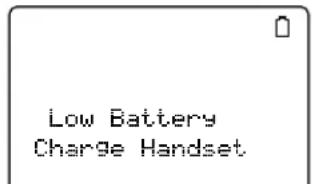
When the battery pack is very low, the phone is programmed to eliminate functions in order to save power. When LOW BATTERY - CHARGE HANDSET appears in the handset display and the phone is in standby, none of the keys will operate. If you are on a call, complete your conversation as quickly as possible, and return the handset to the cradle.
The battery pack needs to be charged when the empty battery icon appears.
Cleaning the charging contacts
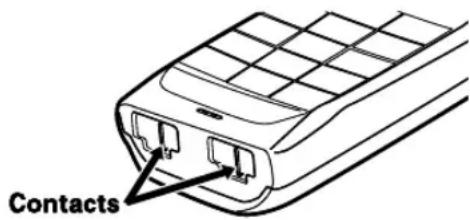
To maintain a good charge, clean the charging contacts on the handset once a month. Dampen a cloth with plain water. Gently rub the damp cloth over the charging contacts until all visible dirt is removed. Dry the contacts thoroughly before returning the handset to the cradle.
Caution: Do not use paint thinner, alcohol, or other chemical products. Doing so may discolor the surface of the telephone and damage the finish.
Battery replacement and handling
With average use, your phone's battery should last approximately one year. To order replacement batteries, please contact Uniden's Parts Department. The contact information is listed on the back cover page.
Caution:
- Use only battery pack BT-1011.
- Do not remove the batteries from the handset to charge them.
- Never throw the battery into a fire, disassemble, or heat them.
- Do not remove or damage the battery casing.
Power Failures
During a power failure, you will not be able to make or receive calls with the phone. To avoid damage from an electrical spike when the power comes back on, we recommend you unplug your phone during power outages.
Troubleshooting
Common Issues
If your phone is not performing to your expectations, please try these simple steps first. If these steps do not solve your problem, please call our Customer Hotline (see the back cover for contact information).
| When you have this problem... | Try... |
| The charge LED won't illuminate when the handset is placed in the cradle. | · Checking the AC adapter connection (see page 7). · Re-seating the handset in the cradle. · Cleaning the charging contacts on the handsets (see page 52). |
| The audio sounds weak. | · Moving the handset closer to the base. · Moving the handset and/or base away from metal objects or appliances and try again. |
| No handsets can make or receive calls. | · Checking the telephone cord connection. If CHECK TEL LINE appears on the handset display, the telephone cord may not be connected correctly (see page 9). · Disconnecting the base AC adapter. Wait a few minutes, then reconnect it (see page 7). · Changing the dial mode (see page 11). |
| A single handset can't make or receive calls (but other handsets can). | · Checking the battery pack connection (see page 6). · Charging the battery for 15 to 20 hours. · Moving the handset closer to the base. · Making sure the line is not in use. If an outside call is already using a line, you cannot use that line to make another outside call. · Resetting the handset (see page 55). |
| A handset can make calls, but it doesn’t ring or receive a page. | • Making sure the ringer isn’t turned off (see page 36). |
| Severe noise interference. | • Keeping all handsets away from microwave ovens, computers, wireless LAN station, remote control toys, wireless microphones, alarm systems, intercoms, room monitors, fluorescent lights, and electrical appliances (see page 5).• Moving the base to another location or turn off the source of interference. |
| The Caller ID does not display. | • Checking to see if the call was placed through a switchboard.• Asking your telephone company to verify your Caller ID service is current. There may be a problem with your Caller ID service. |
| I can’t register the handset at the base. | • Charging the battery for 15 to 20 hours.• Resetting the handset (see page 55). |
| The handset doesn’t communicate with other handsets. | • Register all handsets to the same base, and then select the same base on all handsets (see page 14). |
| I can’t join the conversation. | • Checking to see that there are not two handsets already using the conference feature (see page 38).• Checking to see that another handset is not in privacy mode (see page 40).• Register all handsets to the same base, and then select the same base on all handsets (see page 14). |
| The answering system does not work. | • Checking the AC adapter connection (see page 7).• Checking to see if the answering system is turned on (see page 47). |
| The answering system does not record any messages. | · The memory may be full. Delete some or all of the saved messages (see page 48). · Checking to see that the message record time is not set to announce only (see page 45). |
| The answering system doesn't say what time messages were recorded. | · Checking to see if you have set the time (see page 22). |
| Messages are incomplete. | · The incoming messages may be too long. Ask callers to leave a brief message. · The memory may be full. Delete some or all of the saved messages (see page 48). |
| I can't hear base or handset speaker during call screening or message playback. | · Adjusting the speaker volume on the base or handset (see page 37). · Checking to see if the call screen feature is set to on (see page 46). |
| I can't access answering system from a remote phone. | · Checking to see if you are using the correct PIN number (see page 49). · Checking to see if the touch-tone phone you're using can transmit the tone for at least two seconds. If it cannot, try using a different touch-tone phone. |
Resetting the Handset
You may need to reset your handset in the following instances:
- You lose a handset and purchase a new one.
- You get the message Registration Failed when you try to register the handset.
- You are unable to register any handsets to the base.
- When you register new handsets to the base, the handset IDs do not match. (For example, the handset registers as "Handset #4" but you only have two handsets.)
- When you are instructed to by one of Uniden's call center representatives.
1) Select the base you want to de-register the handset from (see Selecting the Base on page 14).
2) Press and hold [] and [#] for more than five seconds. Select DEREGISTER HS.
3) Select the handset which you are operating, and then press [Select/menu].
4) The phone will ask you to confirm the deregistration. Select YES. The selected handset will clear its registration information only from the base it is currently connected to, and then delete the link to the base from its own memory.
5) When the base information is deleted, the handset displays HANDSET NOT REGISTERED-PLACE HANDSET ON BASE TO REGISTER. SEE YOUR OWNER'S MANUAL FOR HELP.
6) Re-register the handset to the base (see Registering Accessory Handsets on page 12).
If the handset cannot contact the base, it will display OUT OF RANGE. Make sure the handset is in range of the base and the base is connected to power; you can also reset the handset without the base (see the next section).
Resetting the Handset Without the Base
If your original base is not available for some reason, you can still reset the handset and use it with another base.
1) Press and hold [] and [#] for at least five seconds.
2) Move the cursor to select BASE UNAVAILABLE and then press [Select/menu].
3) Select the base which you want to de-register from, and then press [Select/menu]. BASE UNAVAILABLE appears.
4) Move the cursor to select YES, and then press [Select/menu]. You hear a confirmation tone, and the handset deletes its own base information without contacting the base. The handset displays HANDSET NOT REGISTERED-PLACE HANDSET ON BASE TO REGISTER. SEE YOUR OWNER'S MANUAL FOR HELP.
5) Register the handset to the new base (see Registering Accessory Handsets on page 12).
Changing the Line Mode for Multiple Extensions
Line mode refers to the method that telephones use to signal each other that an extension is in use. Customer service may recommend changing the line mode if you have any of the following problems:
- Your phone keeps ringing after someone answers on an extension phone.
- Your answering system doesn't stop recording when you answer on an extension phone.
- Caller ID displays briefly and then clears.
1) If you have multiple bases, select the base that is having problems (see page 14).
2) Press [Select/menu]. Select the GLOBAL SETUP menu, and then the SET LINE MODE submenu.
3) IF INSTRUCTED BY CUSTOMER SERVICE PRESS [SELECT] appears. Press [Select/menu].
4) Move the cursor to select TYPE - A, TYPE - B, or OFF.
5) Press [Select/menu]. You will hear a confirmation tone.
Traveling Out of Range
During a call, if you move your handset too far from your base, noise may increase. If you pass the range limit of the base, the handset will beep, display OUT OF RANGE, and then go to standby. The base will maintain the connection for thirty seconds after the handset goes out of range. If you move the handset back within range of the base within thirty seconds, press [/flash] or [▶] to pick up the call again.
Note: If it is set to automatically select the available base, the handset will begin searching for another base thirty seconds after going out of range. (see Selecting the Base on page 14).
Liquid Damage
Moisture and liquid can damage your cordless phone.
- If the handset or base is exposed to moisture or liquid, but only the exterior plastic housing is affected, wipe off the liquid, and use as normal.
- If moisture or liquid has entered the plastic housing (i.e. liquid can be heard in the phone or liquid has entered the handset battery compartment or vent openings on the base), follow the steps below:
| Handset Base | |
| 1) Remove the battery cover and leave it off for ventilation.2) Disconnect the battery pack. Leave the battery cover off and the battery pack disconnected for at least 3 days.3) Once the handset is completely dry, reconnect the battery pack and the battery cover.4) Recharge the handset's battery pack for 15 to 20 hours before using. | 1) Disconnect the AC adapter from the base, cutting off electrical power.2) Disconnect the telephone cord from the base.3) Let dry for at least 3 days. |
IMPORTANT: You must unplug the telephone line while recharging the battery packs to avoid charge interruption.
CAUTION: DO NOT use a microwave oven to speed up the drying process. This will cause permanent damage to the handset, base and the microwave oven. After following these steps, if your cordless telephone does not work, please call our Customer Service Hotline (see the back cover page).
Precautions!
Before you read anything else, please observe the following:
Warning!
Uniden America Corporation DOES NOT represent this unit to be waterproof. To reduce the risk of fire, electrical shock, or damage to the unit, DO NOT expose this unit to rain or moisture.
Rechargeable Nickel-Metal-Hydride Battery Warning
- This equipment contains a rechargeable Nickel-Metal-Hydride battery.
- The rechargeable batteries contained in this equipment may explode if disposed of in a fire.
- Nickel is a chemical known to state of California to cause cancer.
• Do not short-circuit the battery. - Do not charge the rechargeable battery pack used in this equipment with in any charger other than the one designed to charge this battery pack as specified in the owner's manual. Using another charger may damage the battery pack or cause the battery pack to explode.
Rechargeable Batteries Must Be Recycled or Disposed of Properly.
Uniden works to reduce lead content in our PVC coated cords in our products and accessories.
Warning!
The cords on this product and/or accessories contain lead, a chemical known to the State of California to cause birth defects or other reproductive harm. Wash hands after handling.
Important Safety Instructions
When using your telephone equipment, basic safety precautions should always be followed to reduce the risk of fire, electric shock and injury to persons, including the following:
- Do not use this product near water, for example, near a bath tub, wash bowl, kitchen sink or laundry tub, in a wet basement or near a swimming pool.
- Avoid using a telephone (other than a cordless type) during an electrical storm. There may be a remote risk of electric shock from lightning.
- Do not use the telephone to report a gas leak in the vicinity of the leak.
- Use only the power cord and batteries indicated in this manual. Do not dispose of batteries in a fire. They may explode. Check with local authorities for possible battery disposal instructions.
- Do not disassemble any component of this product.
SAVE THESE INSTRUCTIONS
CAUTION
Risk of explosion if battery is replaced by an incorrect type. Dispose of used batteries according to the instructions. Do not open or mutilate the battery, and disconnect the battery before shipping this product.
The FCC Wants You To Know
This equipment complies with Part 68 of the FCC rules and the requirements adopted by the ACTA. On the bottom of this equipment is a label that contains, among other information, a product identifier in the format US: AAAEQ##TXXXXX. If requested, this number must be provided to the telephone company.
An applicable Universal Service Order Codes (USOC) certification for the jacks used in this equipment is provided (i.e., RJ11C) in the packaging with each piece of approved terminal equipment. A plug and jack used to connect this equipment to the premises wiring and telephone network must comply with the applicable FCC Part 68 rules and requirements adopted by the ACTA. A compliant telephone cord and modular plug is provided with this product. It is designed to be connected to a compatible modular jack that is also compliant. See installation instructions for details.
The REN is used to determine the number of devices that may be connected to a telephone line. Excessive RENs on a telephone line may result in the devices not ringing in response to an incoming call. In most but not all areas, the sum of RENs should not exceed five (5.0). To be certain of the number of devices that may be connected to a line, as determined by the total RENs, contact the telephone provider. For products approved after July 23, 2001, the REN for this product is part of the product identifier that has the format US:AAAEQ##TXXXX. The digits represented by ## are the REN without a decimal point (e.g., 03 is a REN of 0.3). For earlier products, the REN is separately shown on the label.
If this equipment causes harm to the telephone network, the telephone company will notify you in advance that temporary discontinuance of service may be required. But if advance notice isn't practical, the telephone company will notify the customer as soon as possible. Also, you will be advised of your right to file a complaint with the FCC if you believe it is necessary. The telephone company may make changes in its facilities, equipment, operations or procedures that could affect the operation of the equipment. If this happens the telephone company will provide advance notice in order for you to make necessary modifications to maintain uninterrupted service.
Please follow instructions for repairing, if any (e.g. battery replacement section); otherwise do not substitute or repair any parts of the device except as specified in this manual. Connection to party line service is subject to state tariffs. Contact the state public utility commission, public service commission or corporation commission for information. This equipment is hearing aid compatible.
Should you experience trouble with this equipment, please contact Uniden customer service at 800-297-1023. If the equipment is causing harm to the telephone network, the telephone company may request that you disconnect the equipment until the problem is resolved.
NOTICE: According to telephone company reports, AC electrical surges, typically resulting from lightning strikes, are very destructive to telephone equipment connected to AC power sources. To minimize damage from these types of surges, a surge arrestor is recommended.
Changes or modifications to this product not expressly approved by Uniden, or operation of this product in any way other than as detailed by the owner's manual, could void your authority to operate this product.
This device complies with part 15 of the FCC rules. Operation is subject to the following two conditions: (1) This device may not cause harmful interference, and (2) This device must accept any interference received, including interference that may cause undesired operation. Privacy of communications may not be ensured when using this phone.
To insure the safety of users, the FCC has established criteria for the amount of radio frequency energy various products may produce depending on their intended usage. This product has been tested and found to comply with the FCC's exposure criteria. For body worn operation, the FCC RF exposure guidelines were also met when used with the Uniden accessories supplied or designed for this product. Use of other accessories may not ensure compliance with FCC RF exposure guidelines and should be avoided.
The antenna(s) used for the base-unit must be installed to provide a separation distance of at least 20 cm from all persons and must not be collocated or operated in conjunction with any other antenna or transmitter.
If your home has wired alarm equipment connected to a phone line, be
sure that installing the system does not disable your alarm equipment. If you have questions about what will disable alarm equipment, contact your telephone company or a qualified installer.
Radio interference
Radio interference may occasionally cause buzzing and humming in your cordless handset, or clicking noises in the base. This interference is caused by external sources such as TV, refrigerator, vacuum cleaner, fluorescent lighting, or electrical storm. Your unit is NOT DEFECTIVE. If these noises continue and are too distracting, please check around your home to see what appliances may be causing the problem. In addition, we recommend that the base not be plugged into a circuit that also powers a major appliance because of the potential for interference. In the unlikely event that you consistently hear other voices or distracting transmissions on your phone, you may be receiving radio signals from another cordless telephone or other source of interference.
Finally, it should be noted that some cordless telephones operate at frequencies that may cause interference to nearby TVs and VCRs. To minimize or prevent such interference, the base of the cordless telephone should not be placed near or on top of a TV or VCR. If interference is experienced, moving the cordless telephone farther away from the TV or VCR will often reduce or eliminate the interference.
Cordless telephone privacy
Cordless telephones are radio devices. Communications between the handset and base of your cordless telephone are accomplished by means of radio waves which are broadcast over the open airways. Because of the inherent physical properties of radio waves, your communications can be received by radio receiving devices other than your own cordless telephone unit. Consequently, any communications using your cordless telephone may not be private.
I.C. Notice
Terminal equipment
NOTICE: This equipment meets the applicable Industry Canada Terminal Equipment Technical Specifications. This is confirmed by the registration number. The abbreviation, IC, before the registration number signifies that registration was performed based on a Declaration of Conformity indicating that Industry Canada technical specifications were met. It does not imply that Industry Canada approved the equipment.
NOTICE: The Ringer Equivalence Number (REN) for this terminal equipment is marked on the equipment itself. The REN assigned to each terminal equipment provides an indication of the maximum number of terminals allowed to be connected to a telephone interface. The termination on an interface may consist of any combination of devices subject only to the requirement that the sum of the Ringer Equivalence Numbers of all the devices does not exceed five.
Radio equipment
The term "IC:" before the radio certification number only signifies that Industry Canada technical specifications were met.
Operation is subject to the following two conditions: (1) this device may not cause interference, and (2) this device must accept any interference, including interference that may cause undesired operation of the device. "Privacy of communications may not be ensured when using this telephone."
One Year Limited Warranty
Important: Evidence of original purchase is required for warranty service. WARRANTYOR: UNIDEN AMERICA CORPORATION ("Uniden") ELEMENTS OF WARRANTY: Uniden warrants, for one year, to the original retail owner, this Uniden Product to be free from defects in materials and craftsmanship with only the limitations or exclusions set out below. WARRANTY DURATION: This warranty to the original user shall terminate and be of no further effect 12 months after the date of original retail sale. The warranty is invalid if the Product is (A) damaged or not maintained as reasonable or necessary, (B) modified, altered, or used as part of any conversion kits, subassemblies, or any configurations not sold by Uniden, (C) improperly installed, (D) serviced or repaired by someone other than an authorized Uniden service center for a defect or malfunction covered by this warranty, (E)
used in any conjunction with equipment or parts or as part of any system not manufactured by Uniden, or (F) installed or programmed by anyone other than as detailed by the owner's manual for this product. STATEMENT OF REMEDY: In the event that the product does not conform to this warranty at any time while this warranty is in effect, warrantor will either, at its option, repair or replace the defective unit and return it to you without charge for parts, service, or any other cost (except shipping and handling) incurred by warrantor or its representatives in connection with the performance of this warranty. Warrantor, at its option, may replace the unit with a new or refurbished unit. THE LIMITED WARRANTY SET FORTH ABOVE IS THE SOLE AND ENTIRE WARRANTY PERTAINING TO THE PRODUCT AND IS IN LIEU OF AND EXCLUDES ALL OTHER WARRANTIES OF ANY NATURE WHATSOEVER, WHETHER EXPRESS, IMPLIED OR ARISING BY OPERATION OF LAW, INCLUDING, BUT NOT LIMITED TO ANY IMPLIED WARRANTIES OF MERCHANTABILITY OR FITNESS FOR
A PARTICULAR PURPOSE. THIS WARRANTY DOES NOT COVER OR PROVIDE FOR THE REIMBURSEMENT OR PAYMENT OF INCIDENTAL OR CONSEQUENTIAL DAMAGES.
Some states do not allow this exclusion or limitation of incidental or consequential damages so the above limitation or exclusion may not apply to you.
LEGAL REMEDIES: This warranty gives you specific legal rights, and you may also have other rights which vary from state to state. This warranty is void outside the United States of America and Canada. PROCEDURE FOR OBTAINING PERFORMANCE OF WARRANTY: If, after following the instructions in the owner's manual you are certain that the Product is defective, pack the Product carefully (preferably in its original packaging). Disconnect the battery from the Product and separately secure the battery in its own separate packaging within the shipping carton. The Product should include all parts and accessories originally packaged with the Product. Include evidence of original purchase and a note describing the defect that has caused you to return it. The Product should be shipped freight prepaid, by traceable means, to warrantor at:
Uniden America Service
4700 Amon Carter Blvd.
Fort Worth, TX 76155
Index
A
Accessibility 4
Accessory handsets 12
Answering calls.... 31
Answering system Reviewing messages .... 48
Setting up 43
Turning on/off 47
When away from home ..... 49
Any key answer 29
Area code 34
Audio tone 37
AutoTalk 29
B
Banner 28
Base Installing .... 7
Multiple bases 13
Parts of the base 18
Battery Battery life .... 51
Installing 6
Low battery alert.... 52
Replacement and handling ..... 52
Belt clip 11
C
Caller ID.... 33
Deleting Caller ID records ..... 34
Making calls from 33
Call screening 46, 49
Call waiting 35
Chain dialing 32
Color scheme 29
Conferencing 38
D
Day and time 22
Dial mode 11,41
F
FCC statements.... 60
Finding a handset 38
Four-way function key 20
G
Greetings Deleting .... 44 Recording .... 43 Selecting .... 43
H
Handset
Accessory handsets 12
Banner.... 28
Choosing a ringer 28
Color scheme 29
Copying phonebook entries ..... 27
Entering text 21
Finding 38
LCD contrast 30
Parts of the handset 17
Reading the display.... 19
Registering 12, 13
Resetting 55, 56
Wallpaper 30
Hanging up 31
Headset 42
Hold 38
|
Installation 5
Intercom.... 40
K
Key touch tone.... 23
L
Language.... 22
Answering system announcements 44
Display 22
LCD contrast.... 30
Line mode for base 57
Liquid damage 58
Low battery alert 52
M
Maintenance 51
Making calls 31
Using Caller ID 33
Using redial 35
Using the phonebook 32
Message alert 46, 49
Multiple bases.... 13
Mute Microphone .... 41 Ringer.... 36
0
Out of range.... 57
P
Personal color.... 23, 25
Personal identification number (PIN) 49
Personal ring 23, 25
Phonebook 24
Copying entries 27
Creating new entries 24
Deleting entries 26, 27
Editing entries 26
Finding entries.... 25
Making a call from 32
Storing Caller ID or redial numbers 26
Privacy mode 40
Pulse dialing 11,41
R
Redial Deleting a record .... 35 Making a calls with .... 35
Ringer Choosing a handset ringer ..... 28
Muting 36
Personal ring 23, 25
Volume 36
S
Safety notices 59
Screening calls 46, 49
Security code 49
Selecting the base 14
Seven-digit dialing 34
T
Text, entering 21
Tone dialing 11,41
Transferring a call 39
Troubleshooting 53
V
Voice mail service 42
Volume, adjusting 36
W
Wallpaper 30
Warranty 62
Remote Operation Card
CUT
Remote access away from home
-
Call your phone number from a touch-tone phone.
-
During the outgoing message, press 0 and enter your PIN code. The answering system announces the number of messages stored in memory and the voice prompts.
-
To quit, hang up the phone.
Turn on the answering system remotely
- Call your phone and let it ring 10 times until you hear a beep.
- Press 0 and then enter your PIN code.
- Press 0 then 5 to stop the announcement.
- Press 0 then 6 to turn the answering system on.
CUT
Remote access away from home
- Call your phone number from a touch-tone phone.
- During the outgoing message, press 0 and enter your PIN code. The answering system announces the number of messages stored in memory and the voice prompts.
- To quit, hang up the phone.
Turn on the answering system remotely
- Call your phone and let it ring 10 times until you hear a beep.
- Press 0 and then enter your PIN code.
- Press 0 then 5 to stop the announcement.
- Press 0 then 6 to turn the answering system on.
CUT
Remote access away from home
- Call your phone number from a touch-tone phone.
- During the outgoing message, press 0 and enter your PIN code. The answering system announces the number of messages stored in memory and the voice prompts.
- To quit, hang up the phone.
Turn on the answering system remotely
- Call your phone and let it ring 10 times until you hear a beep.
- Press 0 and then enter your PIN code.
- Press 0 then 5 to stop the announcement.
- Press 0 then 6 to turn the answering system on.
CUT
Remote access away from home
- Call your phone number from a touch-tone phone.
- During the outgoing message, press 0 and enter your PIN code. The answering system announces the number of messages stored in memory and the voice prompts.
- To quit, hang up the phone.
Turn on the answering system remotely
- Call your phone and let it ring 10 times until you hear a beep.
- Press 0 and then enter your PIN code.
- Press 0 then 5 to stop the announcement.
- Press 0 then 6 to turn the answering system on.
CUT
CUT
| TaskKey | |
| Repeat a Message | |
| Play Incoming Messages | |
| Skip a Message | |
| Delete a Message | |
| Stop Operation | |
| Answering System On | |
| Answering System Off | |
| Help |
CUT-
| TaskKey | |
| Repeat a Message | |
| Play Incoming Messages | |
| Skip a Message | |
| Delete a Message | |
| Stop Operation | |
| Answering System On | |
| Answering System Off | |
| Help |
.CUT-
| TaskKey | |
| Repeat a Message | |
| Play Incoming Messages | |
| Skip a Message | |
| Delete a Message | |
| Stop Operation | |
| Answering System On | |
| Answering System Off | |
| Help |
TaskKey
| TaskKey | |
| Repeat a Message | |
| Play Incoming Messages | |
| Skip a Message | |
| Delete a Message | |
| Stop Operation | |
| Answering System On | |
| Answering System Off | |
| Help |
Uniden®
VISIT OUR WEBSITE AT WWW.UNIDEN.COM IF YOU...
• ...HAVE A QUESTION OR A PROBLEM.
Or call our Customer Hotline at 1-800-297-1023 during regular business hours.*
• ...ARE LOOKING FOR A PART OR ACCESSORY.
Or call our Parts Department at 1-800-554-3988 during regular business hours.*
- ...NEED SPECIAL ASSISTANCE DUE TO A DISABILITY.
Or call our Accessibility help line at 1-800-874-9314 (voice or TTY).
© 2008 UNIDEN AMERICA CORP.
FORT WORTH, TEXAS. PRINTED IN CHINA.
UCZZ01518BZ(0)
* Central Standard Time. Detailed customer service hours are available at www.uniden.com.
- Table of Contents
- Customizing Your Handsets 28
- Using Your Phone 31
- Using Caller ID, Call Waiting, and Redial Lists ..... 33
- Adjusting the Ringer, Earpiece and Speaker Volume 36
- Finding a Lost Handset 38
- Using Hold, Conference and Transfer 38
- Using Special Features 40
- Setting Up the Answering System 43
- Using the Answering System 47
- Maintenance 51
- Troubleshooting 53
- Precautions! 59
- One Year Limited Warranty 62
- Welcome
- Accessibility
- Installing the Phone
- Choosing the Best Location
- Installing the Battery
- Connecting the AC adapter
- To the base
- To the charging cradle (for multi-handset packs only)
- Charging the Handset
- Connecting to the Phone Line
- Testing the Connection
- Changing the dial mode
- Installing the Belt Clip
- Expanding Your Phone
- Adding accessory handsets
- Registering accessory handsets
- Using Multiple Bases
- Registering the handset to another base
- Selecting the base
- Getting to Know Your New Phone
- Features
- Answering system features
- Manual Conventions
- Using the Interface Reading the Handset Display
- Using the Four-way Function Key
- Using the Handset Menu
- Entering Text from Your Handset
- Basic Setup
- Selecting a Language
- Setting the Day & Time
- Activating Personal Settings
- Activating the Key Touch Tone
- Setting Up the Phonebook
- Creating Phonebook Entries
- Finding a Phonebook Entry
- Editing an Existing Phonebook Entry
- Storing Caller ID or Redial Numbers in the Phonebook
- Deleting a Single Phonebook Entry
- Deleting all Phonebook Entries
- Copying Phonebook Entries to Another Handset
- Customizing Your Handsets
- Changing the Handset Banner
- Selecting a Ringer Tone
- Activating AutoTalk
- Activating Any Key Answer
- Color Scheme
- Wallpaper
- Adjusting the Display (LCD Contrast)
- Making a Call from the Phonebook
- Chain dialing from the phonebook
- Switching to the Handset Speakerphone During a Call
- Using Caller ID, Call Waiting, and Redial Lists
- Using the Caller ID List
- Making a Call from a Caller ID Record
- Seven-digit dialing
- Deleting Caller ID Numbers
- Using Call Waiting
- Redialing a Number
- Deleting a Redial Record
- Adjusting the Ringer, Earpiece and Speaker Volume
- Adjusting the Ringer Volume
- Muting the Ringer (One call only)
- Adjusting the Earpiece Volume
- Adjusting the Speaker Volume
- Handset Speaker:
- Base Speaker:
- Adjusting the Audio Tone
- Finding a Lost Handset
- Using Hold, Conference and Transfer
- Placing a Call on Hold
- Conferencing
- Transferring a Call
- Answering a transferred call
- Using Special Features
- Privacy Mode
- Using the Intercom
- Making an intercom page
- Answering an intercom page
- Muting the Microphone
- Tone Dialing Switch Over
- Using a Voice Mail Service
- Resetting the voice message waiting indicator
- Installing the Optional Headset
- Setting Up the Answering System
- Recording a Personal Greeting
- Selecting a Greeting
- Deleting Your Personal Greeting
- Selecting the Language for Announcements
- Setting the Number of Rings
- Setting the Record Time (or Announce only)
- Activating the Message Alert
- Activating the Base Call Screen
- Using the Answering System
- Reviewing Messages
- Turning Off the Message Alert Tone
- Operating the Answering System While You Are Away from Home
- Setting a security code or Personal Identification Number (PIN)
- Dialing in to your answering system
- Maintenance
- Specifications
- Battery Information
- Battery life
- Low battery alert
- Cleaning the charging contacts
- Battery replacement and handling
- Caution:
- Power Failures
- Troubleshooting
- Common Issues
- Resetting the Handset
- Resetting the Handset Without the Base
- Changing the Line Mode for Multiple Extensions
- Traveling Out of Range
- Liquid Damage
- Precautions!
- Warning!
- Rechargeable Nickel-Metal-Hydride Battery Warning
- Important Safety Instructions
- SAVE THESE INSTRUCTIONS
- CAUTION
- The FCC Wants You To Know
- Radio interference
- Cordless telephone privacy
- I.C. Notice
- Terminal equipment
- Radio equipment
- One Year Limited Warranty
- Uniden America Service
- Index
- A
- B
- C
- D
- F
- G
- H
- Handset
- |
- K
- L
- M
- 0
- P
- R
- S
- T
- V
- W
- Remote Operation Card
- Remote access away from home
- Turn on the answering system remotely
- Uniden®
- VISIT OUR WEBSITE AT WWW.UNIDEN.COM IF YOU...
Brand : UNIDEN
Model : DECT 3080
Category : Phone