
K900 - Mobile Phone LENOVO - Free user manual and instructions
Find the device manual for free K900 LENOVO in PDF.


| Product Type | Mobile Phone |
| Brand | Lenovo |
| Model | K900 |
| Operating System | Android 4.2 |
| Dimensions | 157 mm x 78 mm x 6.9 mm |
| Weight | 162 g |
| Display | 5.5-inch IPS Multi-Touch, FullHD 1080x1920 |
| Processor | Intel dual-core Clover Trail+ 2.0 GHz |
| Storage | 16 GB |
| Rear Camera | 13 MP CMOS |
| Front Camera | 2 MP |
| Battery | 2500 mAh (built-in rechargeable lithium-ion) |
| Standby Time | Up to 290 hours |
| Connectivity | Bluetooth 3.0, WLAN 802.11a/b/g/n, WCDMA, GSM, GPS |
| SIM Card | Micro SIM |
| Charging | Via USB cable and power adapter or computer |
| Headphone Jack | Yes (3.5mm) |
| Special Features | Super Camera, Lenovo Power saving |
| Safety | Refer to Important Product Information Guide for battery safety |
| General Information | First Edition (October 2013) |
Frequently Asked Questions - K900 LENOVO
User questions about K900 LENOVO
0 question about this device. Answer the ones you know or ask your own.
Ask a new question about this device
Download the instructions for your Mobile Phone in PDF format for free! Find your manual K900 - LENOVO and take your electronic device back in hand. On this page are published all the documents necessary for the use of your device. K900 by LENOVO.
USER MANUAL K900 LENOVO
Read this guide carefully before using your phone.
First glance
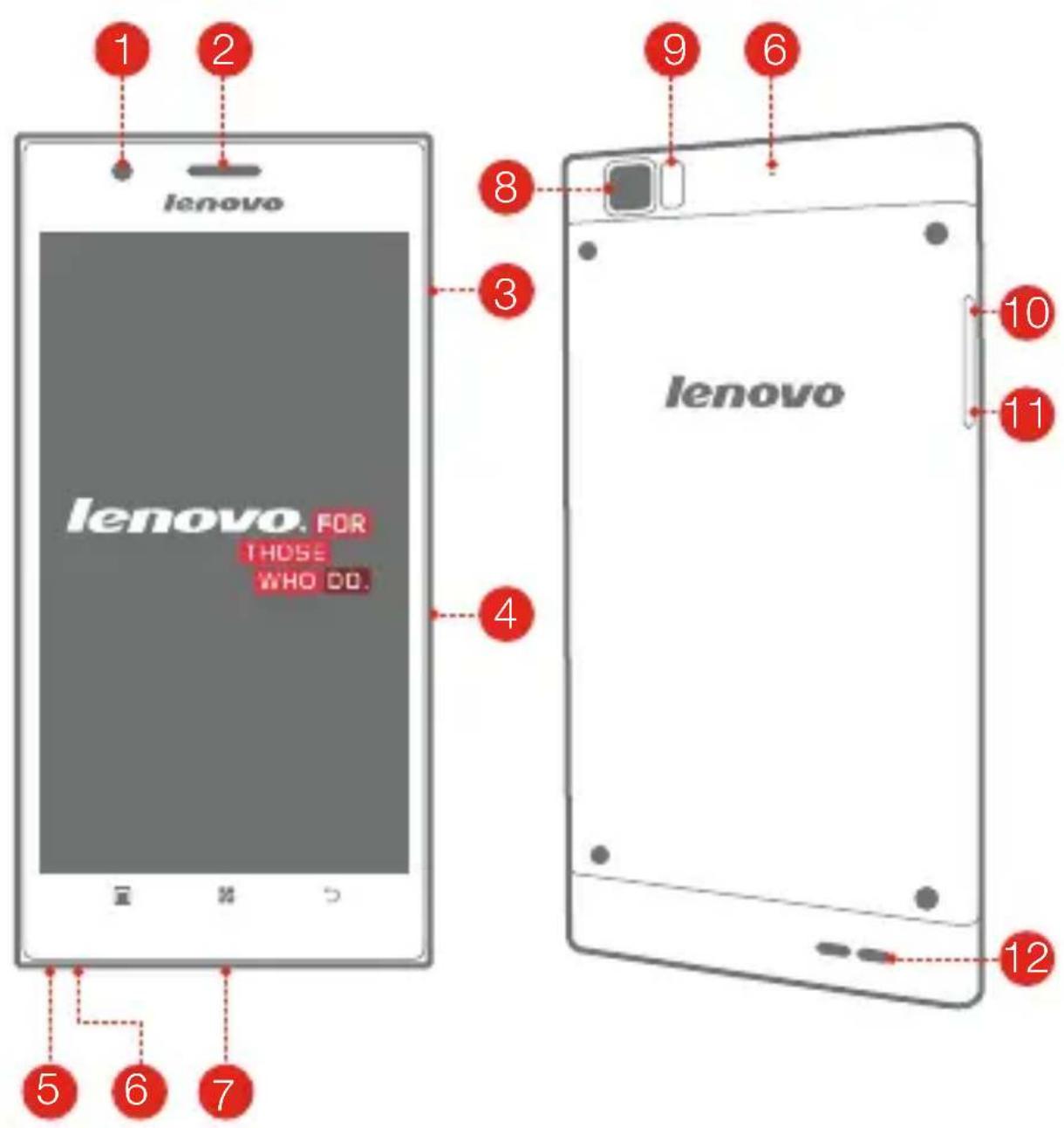
1 Front camera
4
7 Micro USB
10 Volume up
- Receiver
- 3 Power on/off
5 Earphone jackSIM card microphone
8 Back camera 9 Flashlight
11 Volume down 12 Speaker
Technical specifications

Model and System
Model: Lenovo K900
System: Android 4.2

① Size and Weight
Height: 157mm
Width: 78mm
Depth: 6.9mm
Weight: 162g

CPU and Capacity
CPU: Intel dual-core Clover Trail+ (2.0 GHz)
Capacity: 16GB

Camera
Type: CMOS
Pixels: 13Mega (back)+ 2Mega (front)
Power and Battery
①Standby time: maximum 290 hours
Battery: 2500mAh (Built-in rechargeable lithium-ion battery)
Display
Size: 5.5-inch (diagonal)
Screen: Multi-Touch display
Resolution: FullHD 1080X1920
LCD type: IPS

Wireless Communication
②Bluetooth 3.0
WLAN 802.11a/b/g/n
WCDMA, GSM

GPS

① Based on actual measurements.
② You must be within about 30 feet (10 meters) of a Bluetooth device for it to be connected to the phone.
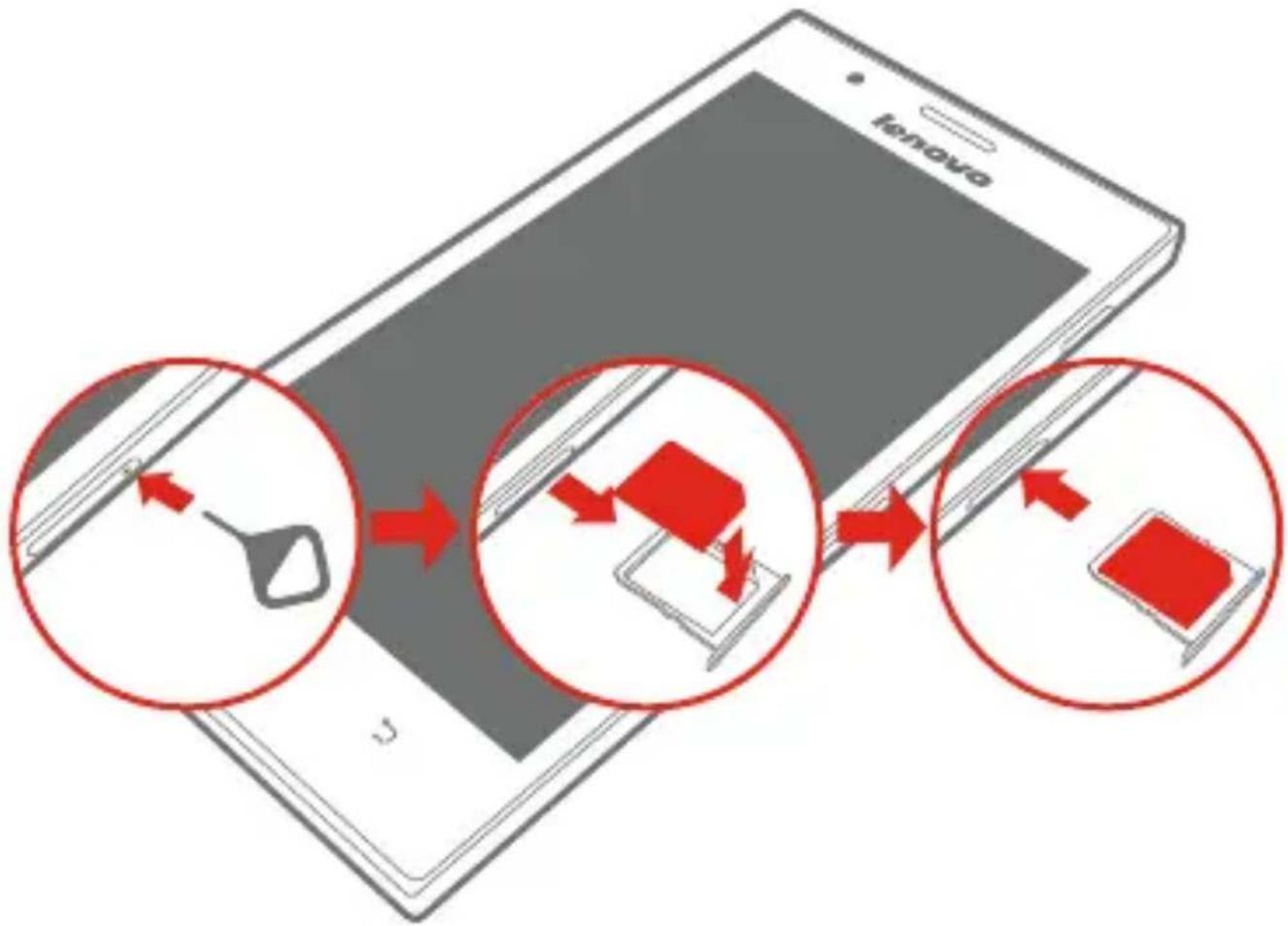
Installing the SIM card
A SIM card provided by your carrier is required in order to use cellular services. Install the SIM card as shown.
flowchart
graph TD
    A["Device 1"] --> B["Device 2"]
    B --> C["Device 3"]
    C --> D["Device 4"]
Step 1. Insert the SIM eject tool into the hole on the SIM card tray.
Step 2. Pull out the SIM card tray and place the SIM card in the tray.
Step 3. Carefully replace the tray.

Only Micro SIM cards work with your phone.
DO NOT insert or remove the SIM card while your phone is turned on.
Doing so may permanently damage your SIM card or phone.
Charging the battery
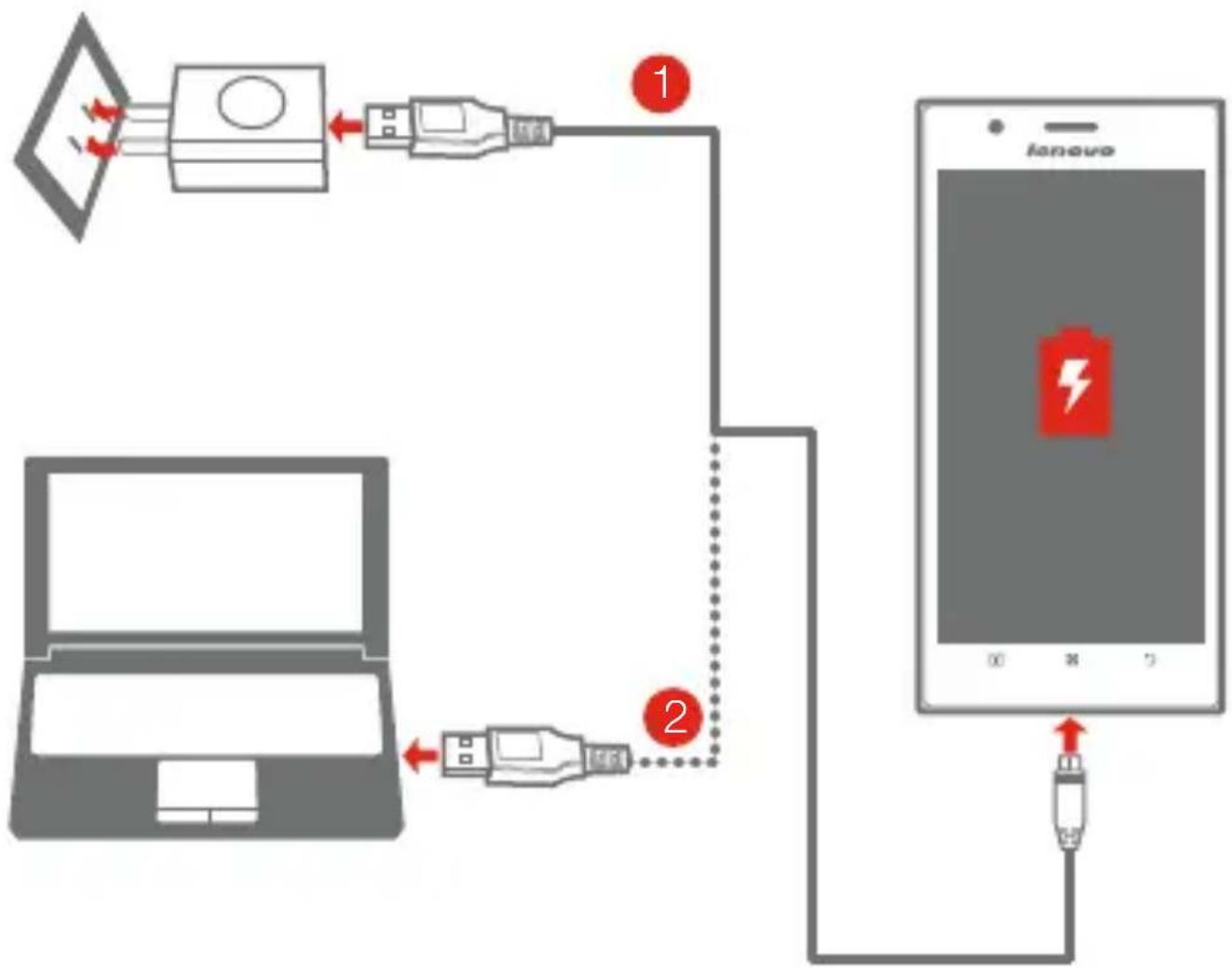
Charge the battery as shown.
flowchart
graph TD
    A["Laptop"] -->|Red Arrow| B["USB Device 1"]
    B --> C["USB Device 2"]
    C --> D["Smartphone"]
Method 1. Connect your phone to a power outlet using the included cable and USB power adapter. or
Method 2. Charge the battery using a computer.

Low battery Fully charged Charging


For more information about battery safety, see the Important Product Information Guide.
Turning the phone on and off
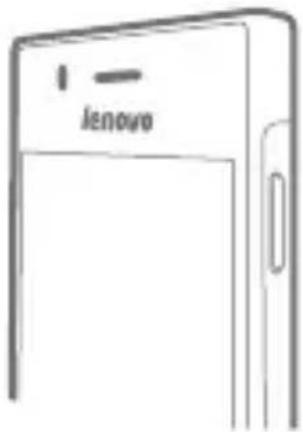
Power on/off
natural_image
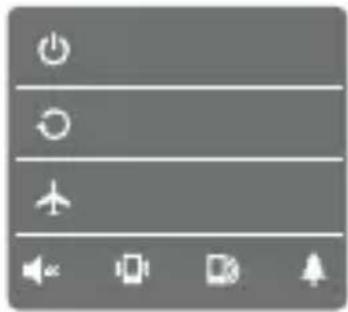
User interface toolbar with navigation icons and menu items (no readable text or symbols)Power on: Press and hold the Power on/off button until the Lenovo logo appears.
Power off, Restart and swich mode: Press and hold the Power on/off button for a few seconds, then tap the Power off, Restart or other mode.
Screen lock/unlock
natural_image
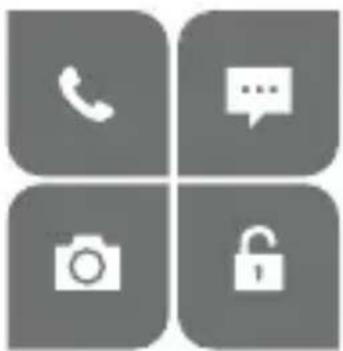
Four gray square icons representing phone, message, camera, and lock functions (no text or symbols)Lock: Press the Power on/off button.
Unlock: Press the Power on/off button, then:
- drag the lock slider to unlock.
- drag the slider to open Super Camera.
- drag the slider to make calls.
- drag the 📄 slider to send and receive messages.

When you're not using the phone you can lock it to turn off the display and save battery power.
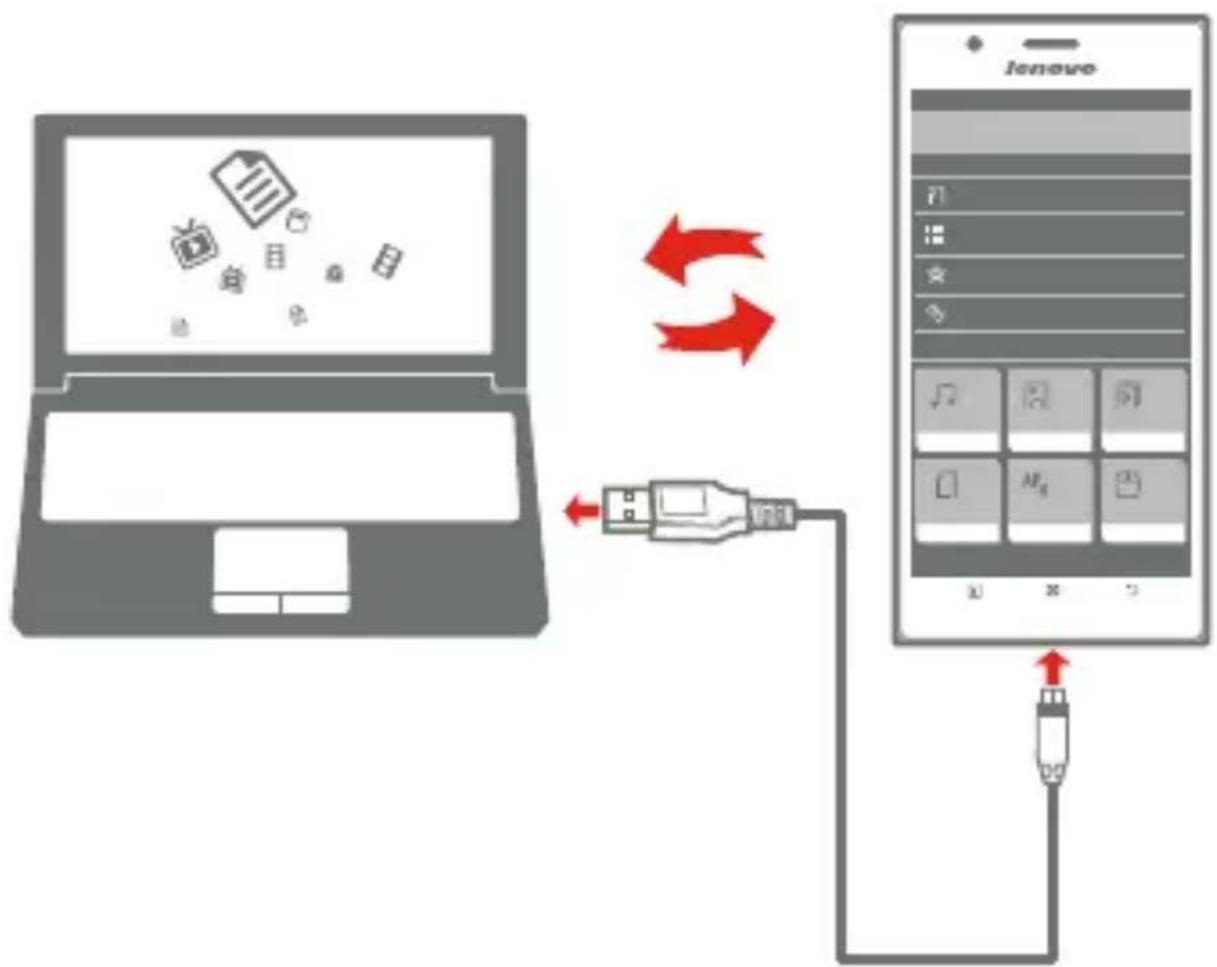
Syncing the phone
Sync your phone with the computer as shown.
flowchart
graph TD
    A["Laptop"] -->|Data Flow| B["USB Cable"]
    B --> C["Lenovo"]
Step 1. Connect the phone to a USB 2.0 or 3.0 port on your computer. Then the screen shows the USB Access Mode.
Step 2. Set USB Access Mode options:
- SelectMTP.
- Select Mass Storage, tap Turn on USB storage.
- Select USB debug mode.
Step 3. Transfer files between the phone and the computer.
Step 4. Manage the files by touching FileBrowser.
Customizing the phone
You can customize the layout of your Apps and Widgets on the Home screen.
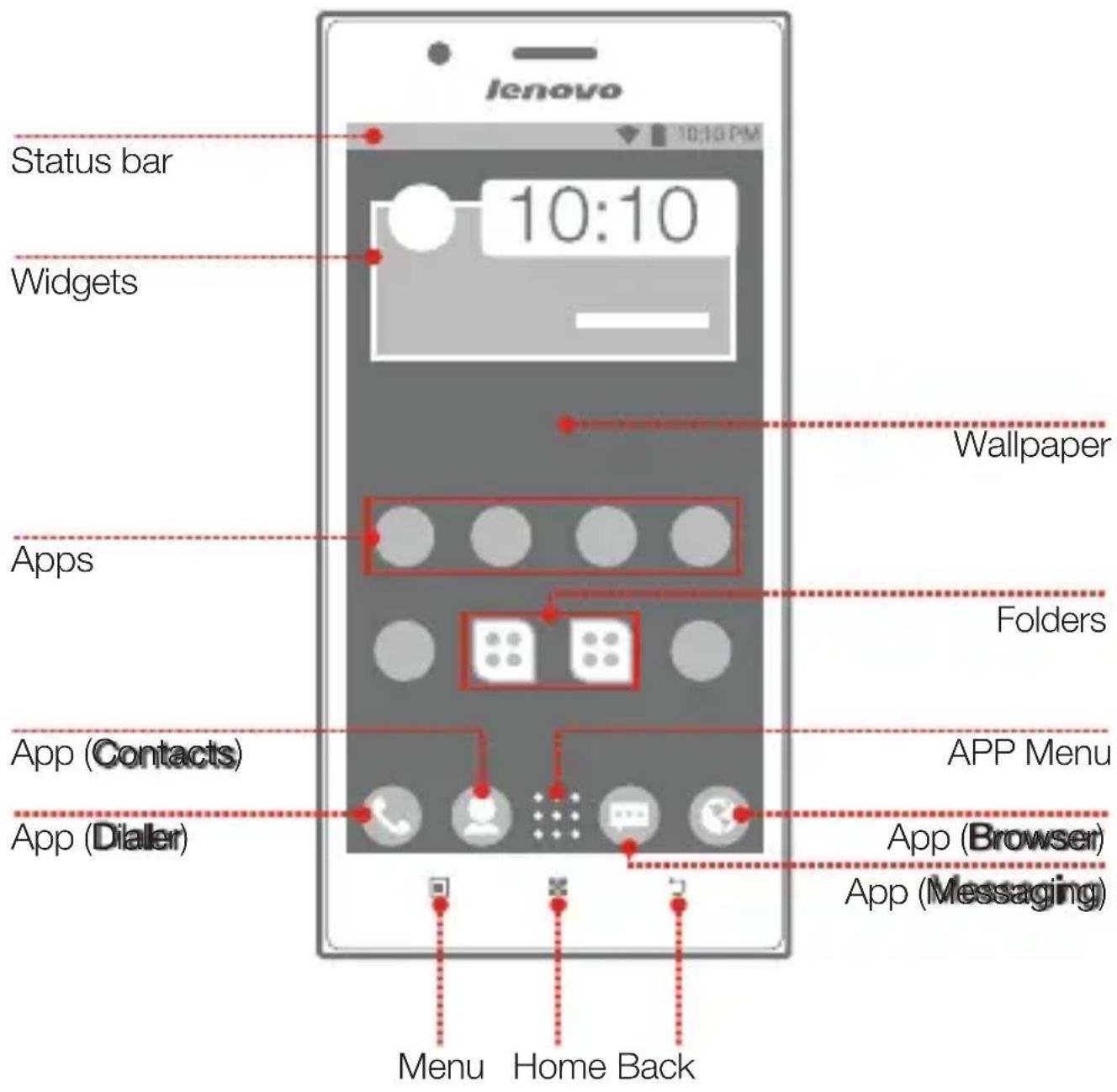
- Rearrange Apps
- Organize Apps in folders
- Change the Wallpaper
• Create a new Home screen - Move an App to another screen
Communicating with people
Calling
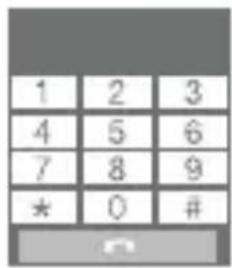
Make calls
Touch > Dieller
Speed Dial
Manage contacts
Send/Receive messages
Touch > Messaging.
Import/Export messages
natural_image
Grid of grayscale UI icons including a person, speech bubble, location pin, group, house, and QR code (no text or symbols)Backup information to SD card
Touch : : : > Backup&Restore > Backup User Data
Restore information from SD card
Touch > Backup&Restore >
This function requires support from your wireless carrier.
Surfing on the Internet
Setting wireless network
Make sure the wireless network is available.
Touch : : : > Settings > ALL SETTINGS > WLAN, Data connection
Webpages
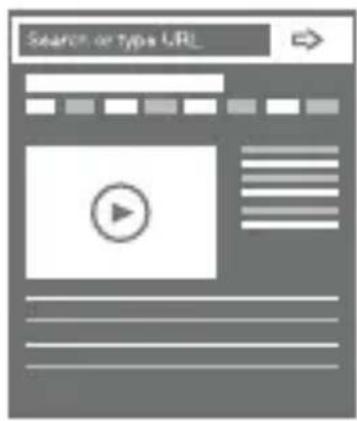
Touch > Browser.
• View a webpage: Tap the address field, enter the URL, then tap Go.
- Close a webpage: Tap 📋, then tap ✗ by the page.
- Save bookmark: Tap, then tap OK.
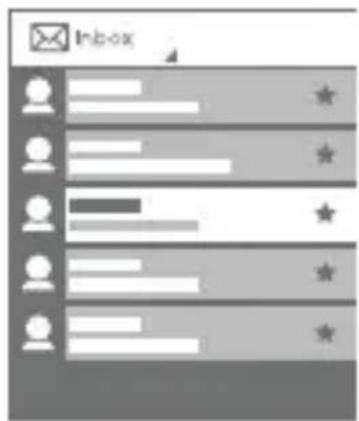
Touch : : : > Email
- Set an account: Before you use it the first time, you need to set an account.
- Search email: Tap 🔒, enter the keywords, then tap 🔒.
- Send email: Tap 📤, enter To, Subject and the email body, then tap ▶.
Personal hotspot

Share your phone's 3G internet connection to your computer and other devices by enabling this function.
Photos and videos
Taking photos and videos
natural_image
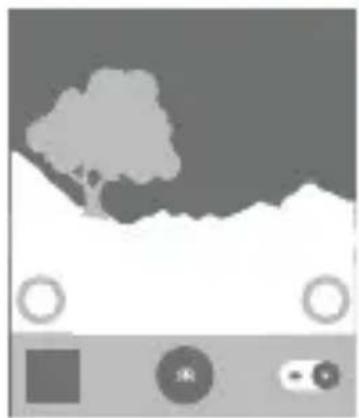
Abstract grayscale landscape with a tree silhouette, hills, and circular icons (no text or symbols)Touch > Super Camera.
To quickly open Super Camera when the phone is locked, swipe 🔒.
Take a photo: Tap 🙏 or press either Volume up button.
Record a video: Switch to tap to start, then tap to finish.
Viewing photos and videos
You can zoom in/out a photo by double-tapping or moving your two fingers apart/together while touching the screen.
Taking screenshot
Press and hold the Power on/off button and the Volume down button at the same time. The screenshot is added to your Super Gallery.
Saving battery power
Use Lenovo power to save battery power and maintain device performance.
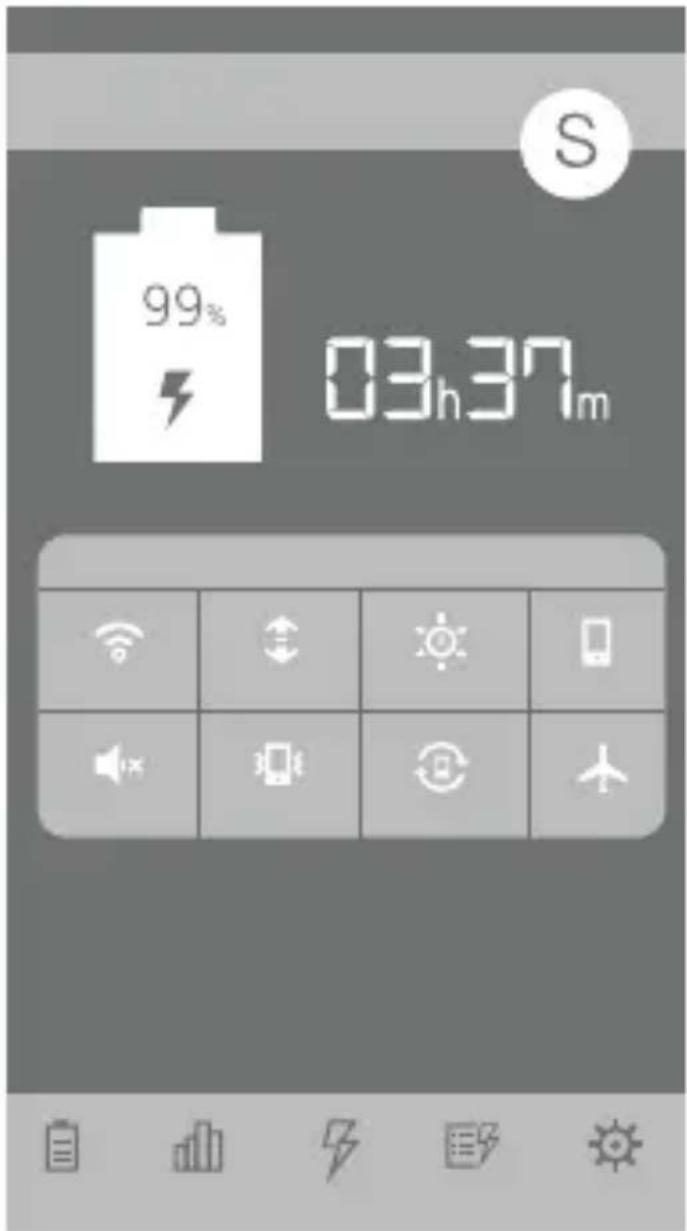
Touch > Lenovo Power.
- Tap 📋 to see the battery usage and adjust the options of the power mode.
- Tap 📁 to see the power usage of Apps in a list.
- Tap 7 when charging the battery to extend battery life.
- Tap ☐ to change the power mode.
- Tap 🔊 and Ⓧ to adjust the Settings.
Notifications panel
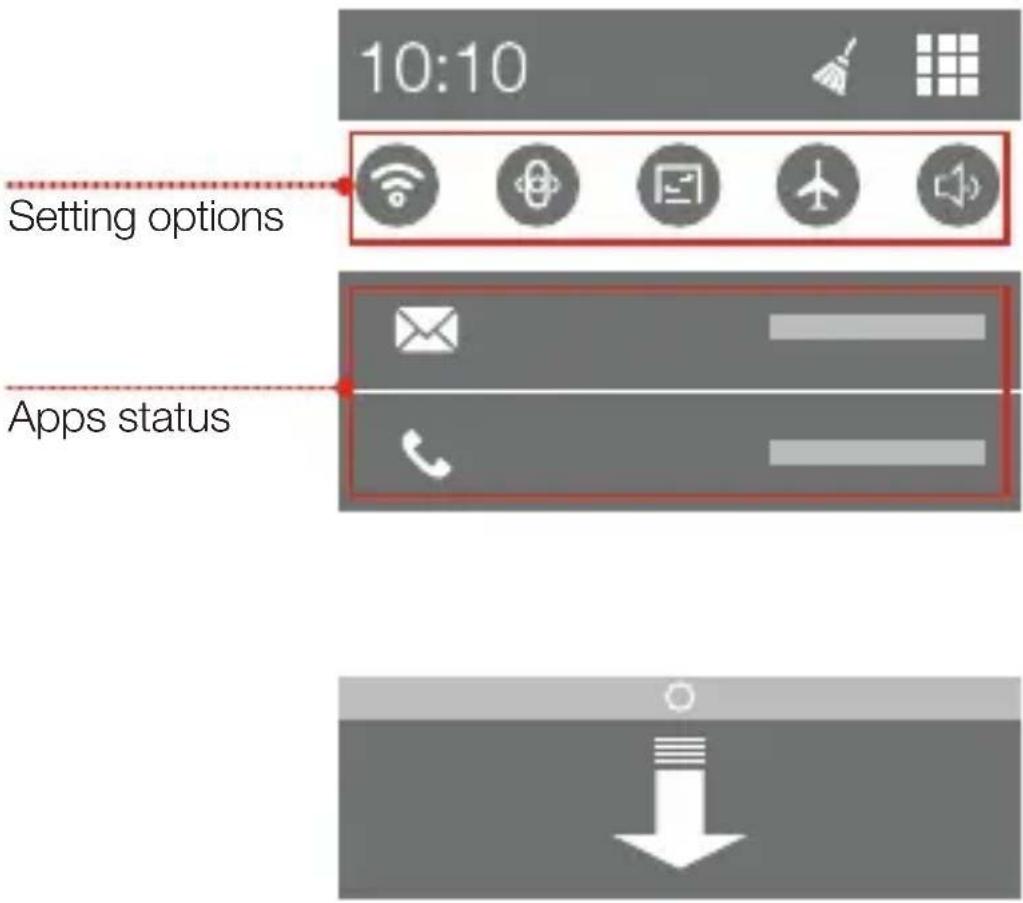
Open the notifications panel
Drag down from the Status bar, you can view the current Apps status and the Setting options.
- Tap to see all the Setting options.
- Tap to clean the Apps status information.
- Tap the App to open it.
Close the notifications panel
Drag up the bar that is on the bottom of the screen.
Legal notices
Lenovo and the Lenovo logo are trademarks of Lenovo in the United States, other countries, or both.
Other company, product, or service names may be trademarks or service marks of others.
First Edition (October 2013)
© Copyright Lenovo 2013.
LIMITED AND RESTRICTED RIGHTS NOTICE: If data or software is delivered pursuant a General Services Administration “GSA” contract, use, reproduction, or disclosure is subject to restrictions set forth in Contract No. GS-35F-05925.
- First glance
- Technical specifications
- Model and System
- ① Size and Weight
- CPU and Capacity
- Camera
- Power and Battery
- Display
- Wireless Communication
- GPS
- Installing the SIM card
- Charging the battery
- Turning the phone on and off
- Power on/off
- Screen lock/unlock
- Syncing the phone
- Customizing the phone
- Communicating with people
- Calling
- Surfing on the Internet
- Setting wireless network
- Webpages
- Personal hotspot
- Photos and videos
- Taking photos and videos
- Viewing photos and videos
- Taking screenshot
- Saving battery power
- Touch > Lenovo Power.
- Notifications panel
- Open the notifications panel
- Close the notifications panel
- Legal notices
Brand : LENOVO
Model : K900
Category : Mobile Phone