22FE502 - Television FUNAI - Free user manual and instructions
Find the device manual for free 22FE502 FUNAI in PDF.


User questions about 22FE502 FUNAI
0 question about this device. Answer the ones you know or ask your own.
Ask a new question about this device
Download the instructions for your Television in PDF format for free! Find your manual 22FE502 - FUNAI and take your electronic device back in hand. On this page are published all the documents necessary for the use of your device. 22FE502 by FUNAI.
USER MANUAL 22FE502 FUNAI
SUPPLIED ACCESSORIES 3
INSTALLING THE BATTERIES .... 3
ATTACHING THE BASE.... 4
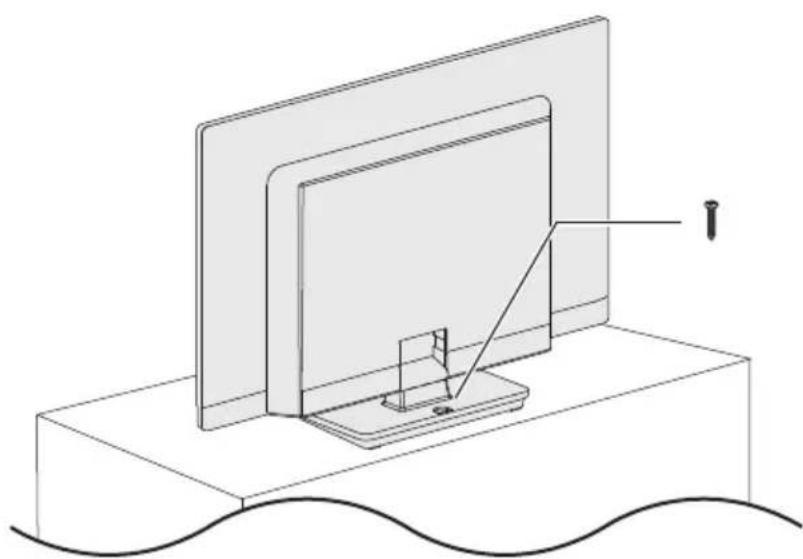
MOUNTING THE UNIT ON YOUR FURNITURE.... 4
SET-UP FOR ANTENNA.... 5
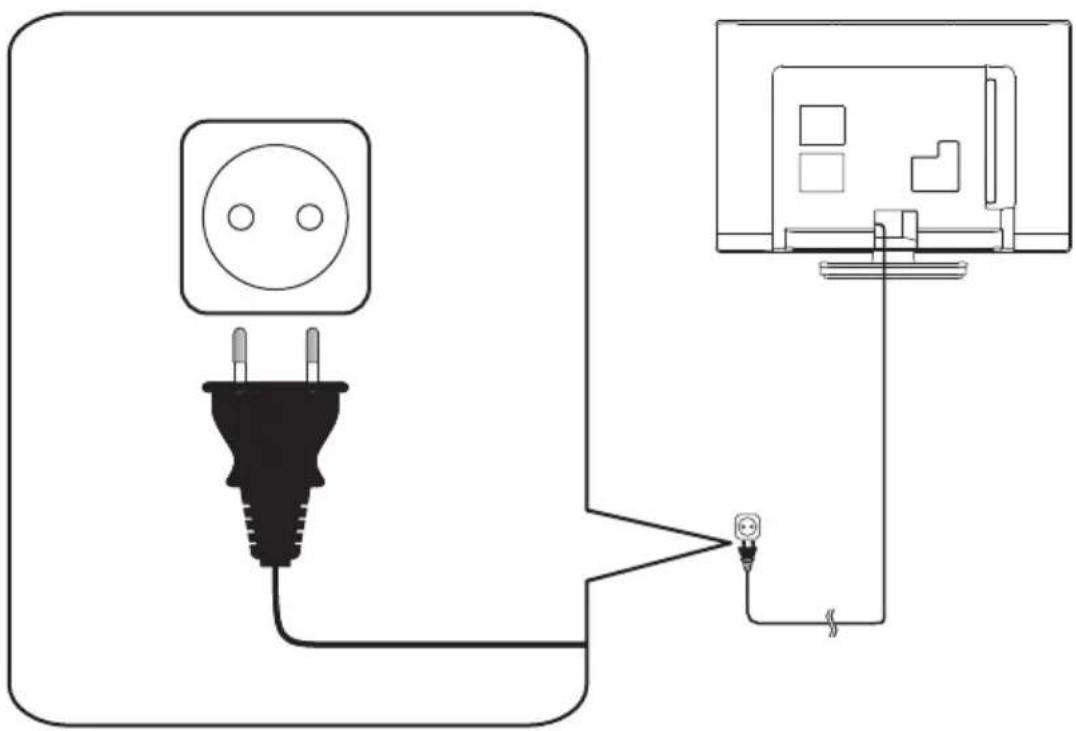
SET-UP FOR AC PLUG 5
TURN ON THE UNIT 6
AUTO TUNING 6
SELECTING A CHANNEL 7
ADJUSTING THE VOLUME....7
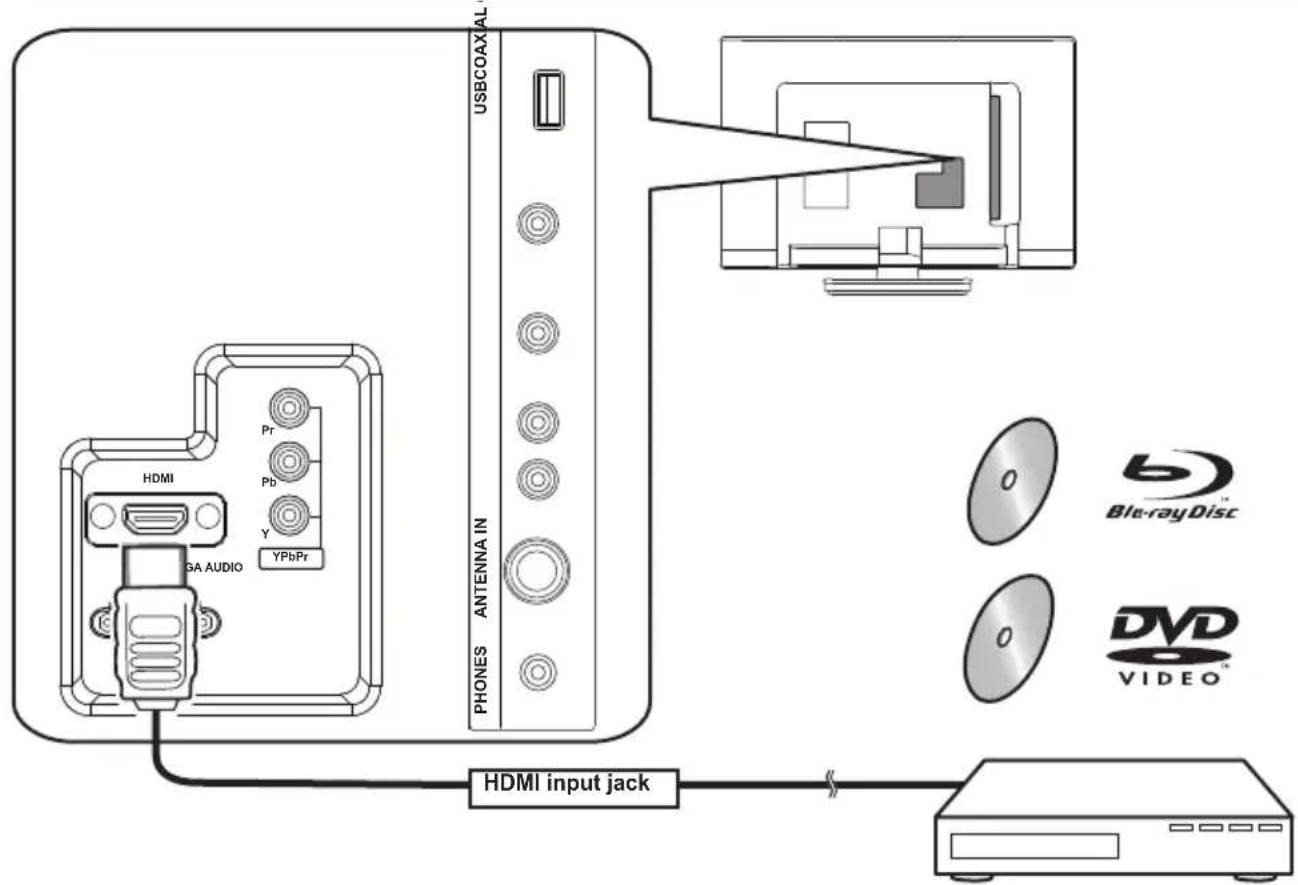
HOOK-UP FOR HDMI 8
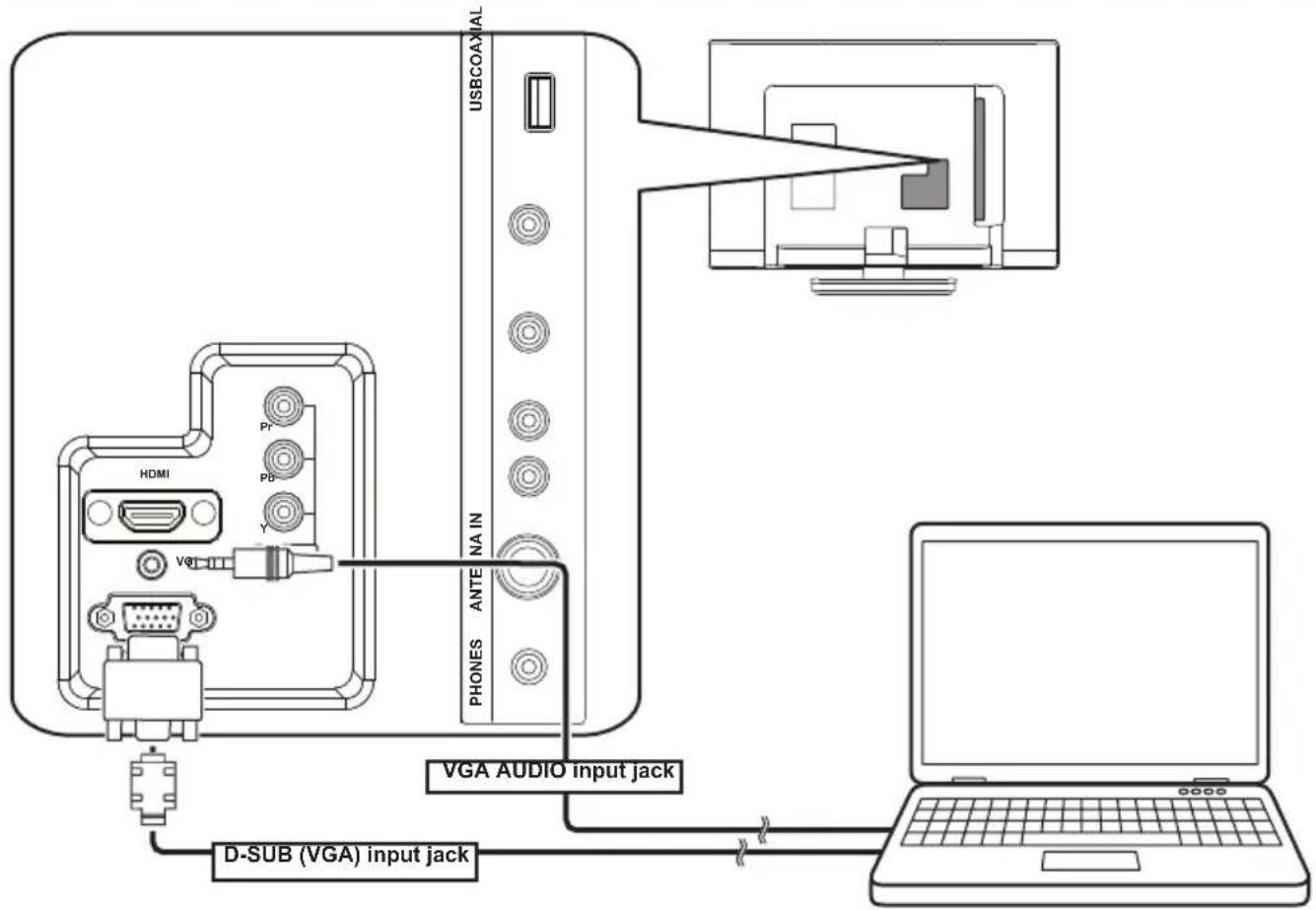
HOOK-UP FOR PC....8
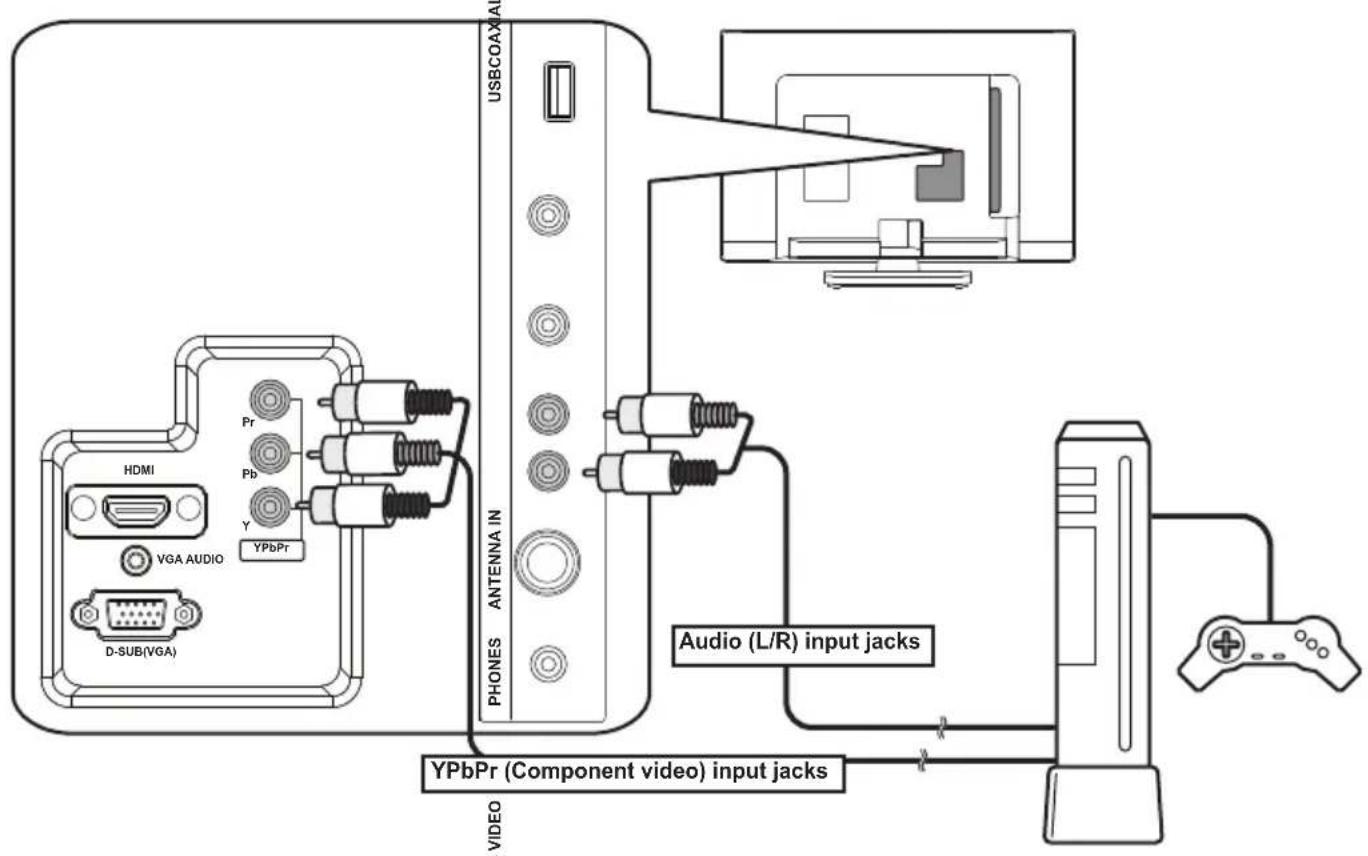
HOOK-UP FOR YPbPr 9
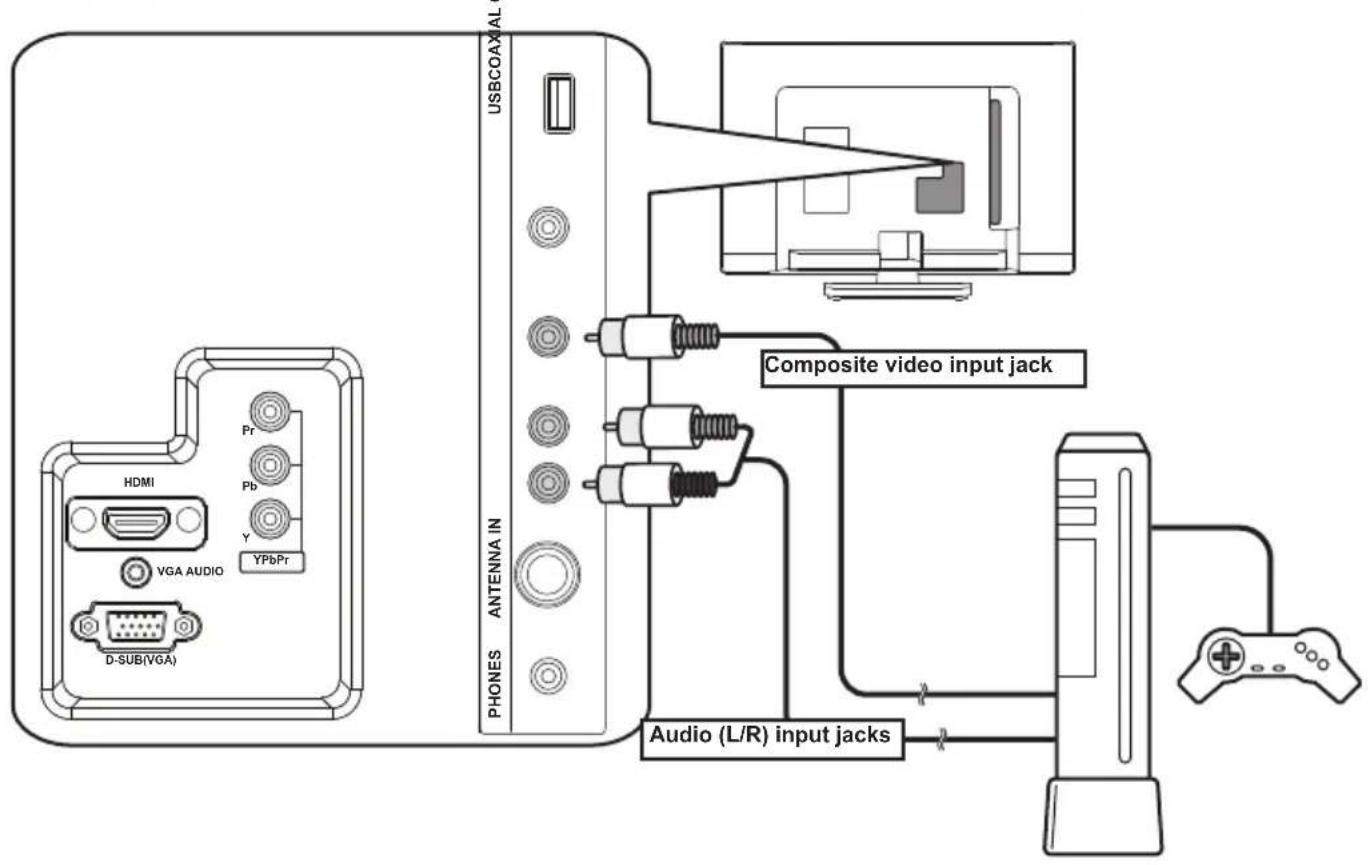
HOOK-UP FOR COMPOSITE 9
HOOK-UP FOR COAXIAL 10
HOOK-UP FOR HEADPHONE.... 10
UNIT INFORMATION ...... 11
OPERATIONS 13
Watching a TV Programme 13
Favorite 13
Sleep Timer 13
Switching the Input Mode 13
Picture Format.... 13
Playback Mode.... 14
DETAIL SETTINGS 18
Channel Settings 18
Screen Settings 18
Picture Adjustment 19
Sound Adjustment 19
Timer Settings 20
Setup Adjustment 21
OTHER INFORMATION 22
Trademark Information 22
Cabinet Cleaning.... 22
Panel Cleaning 22
Servicing.... 22
TROUBLESHOOTING GUIDE ...... 23
SPECIFICATIONS 24
Funai India Pvt Ltd
Toll free telephone : 1-800-419-6708
Email ID : customer.care@funai-india.com
Website : www.funai-india.com
SAFETY INFORMATION
CAUTION
- Do not attempt to open the cabinet. There are no user serviceable parts inside. Refer all servicing to qualified service personnel.
- Slots and openings in the cabinet and the sides or bottom are provided for ventilation. To ensure reliable operation and to protect the unit from overheating, these openings must not be blocked or covered. Avoid installation in enclosed spaces such as bookcases unless proper ventilation is provided.
- Keep the unit away from radiators and other heat sources.
- Do not push objects of any kind into the unit through the cabinet slots or openings as they could touch electrically live parts or short circuit parts resulting in a fire or electric shock.
-
To prevent fire or shock hazard, do not expose this unit to dripping or splashing liquids. No objects filled with liquids, such as vases, should be placed on the unit.
-
Place the unit on a horizontal (flat) surface only.
-
Do not place any combustible objects on the unit (candles, etc.).
-
The LCD panel used in this unit is made of glass. Therefore, it can break when the unit is dropped or applied with impact. Be careful not to be injured by broken glass pieces in case the LCD panel breaks. The LCD panel is a very high technology product with thin film transistors, giving you fine picture details. Occasionally, a few non-active pixels may appear on the TV screen as a fixed point of blue, green or red. Please note that this does not affect the performance of your unit.
-
Disconnect the mains plug to switch off when the unit becomes faulty or not in use.
-
The mains plug shall remain readily operable.
-
Read the instruction manual to ensure correct and safe installation and interconnection of the unit in multimedia systems.
-
Keep a distance of 20cm around the ventilation openings of the unit.
-
Batteries (battery pack or batteries installed) should not be exposed to excessive heat such as sunshine, fire or the like.
POWER SUPPLY
The main power supply is engaged when the main plug is plugged in a 100-240 V\~, 50Hz/60Hz AC outlet. To operate the unit, press (power) to turn on the unit.
WARNING:
• TO REDUCE THE RISK OF FIRE OR ELECTRIC SHOCK, DO NOT EXPOSE THIS APPARATUS TO RAIN OR MOISTURE.
- Do not place the unit on furniture that is capable of being tilted by a child or an adult leaning, pulling, standing or climbing on it. A falling unit can cause a serious injury or even death.
• LIVE PARTS INSIDE. DO NOT REMOVE ANY SCREWS.
- Never use a gas duster on this TV. The gas trapped inside of this unit may cause ignition and explosion.
A Note about Recycling
This unit's packaging materials are recyclable and can be reused. Please dispose of any materials in accordance with your local recycling regulations. This product consists of materials which can be recycled and reused if disassembled specialised company.

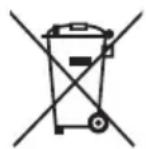
The use of the symbol indicates that this product may not be treated as household waste. By ensuring this product is disposed of correctly, you will help prevent potential negative consequences for the environment and human health, which could otherwise be caused by inappropriate waste handling of this product. For more detailed information about recycling of this product, please contact your local city office, your household waste disposal service or the shop where you purchased the product.
The product is in compliance with RoHS directive (2002/95/EC, 2005/618/EC, 2011/65/EU)
Battery Precautions
- Be sure to follow the correct polarity as indicated in the battery compartment. Reversed batteries may cause damage to the device.
- Do not mix different types of batteries together (e.g. Alkaline and Carbon-Zinc or rechargeable batteries like ni-cad, ni-mh, etc.) or old batteries with fresh ones.
- If the device is not to be used for a long period of time, remove the batteries to prevent damage or injury from possible battery leakage.
- Do not try to recharge batteries; they can overheat and rupture.
SUPPLIED ACCESSORIES
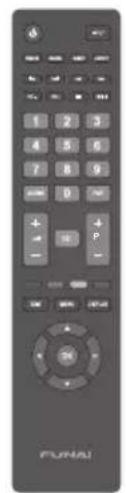
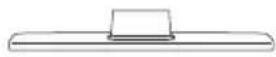
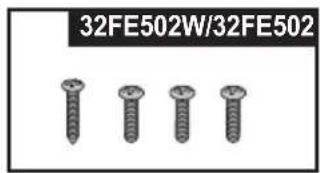
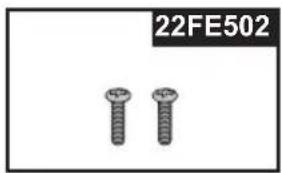
natural_image
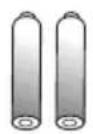
Two screw-like mechanical components with no visible text or symbols•Recommended batteries : AAA, 1.5V x 2
Installation of Wall Mount (Optional)
The Wall Mount Kit can help install the TV on the wall.
For more information about wall mounting, please refer to the instructions provided along with the Wall Mount Kit.
When wall mounting the product, please contact qualified personnel.
If users choose to install the TV on their own, the producer is not responsible for any damages caused either to the product or to the persons.
INSTALLING THE BATTERIES
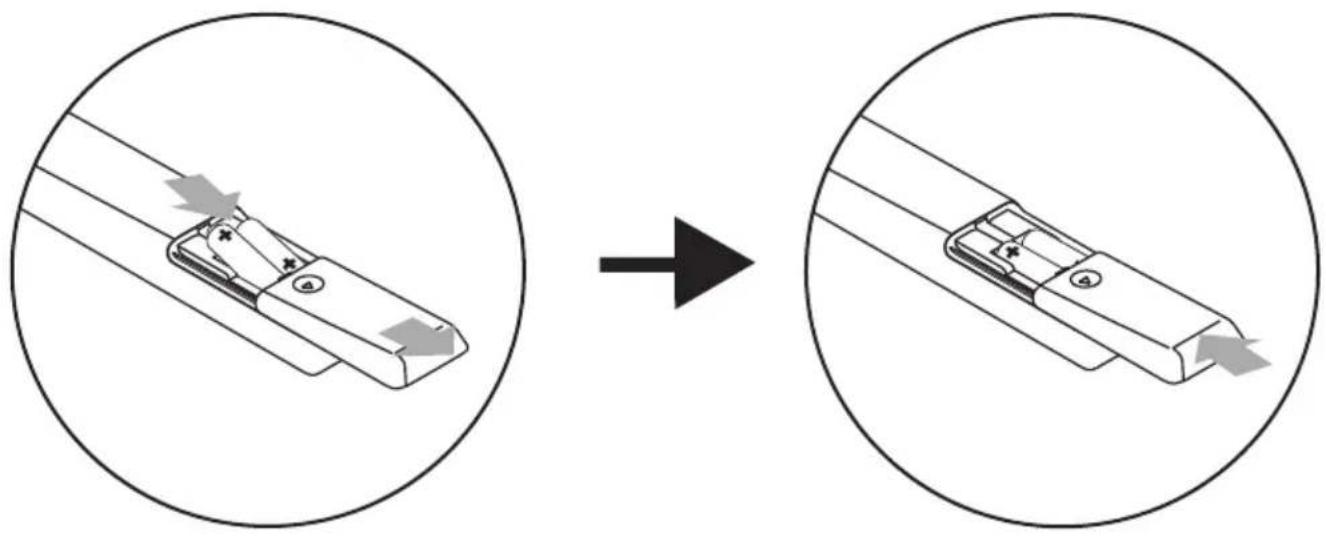
natural_image
Diagram showing a device being processed from a circular component, with arrows indicating process direction (no text or symbols)Please refer to the self explanatory diagram.
ATTACHING THE BASE
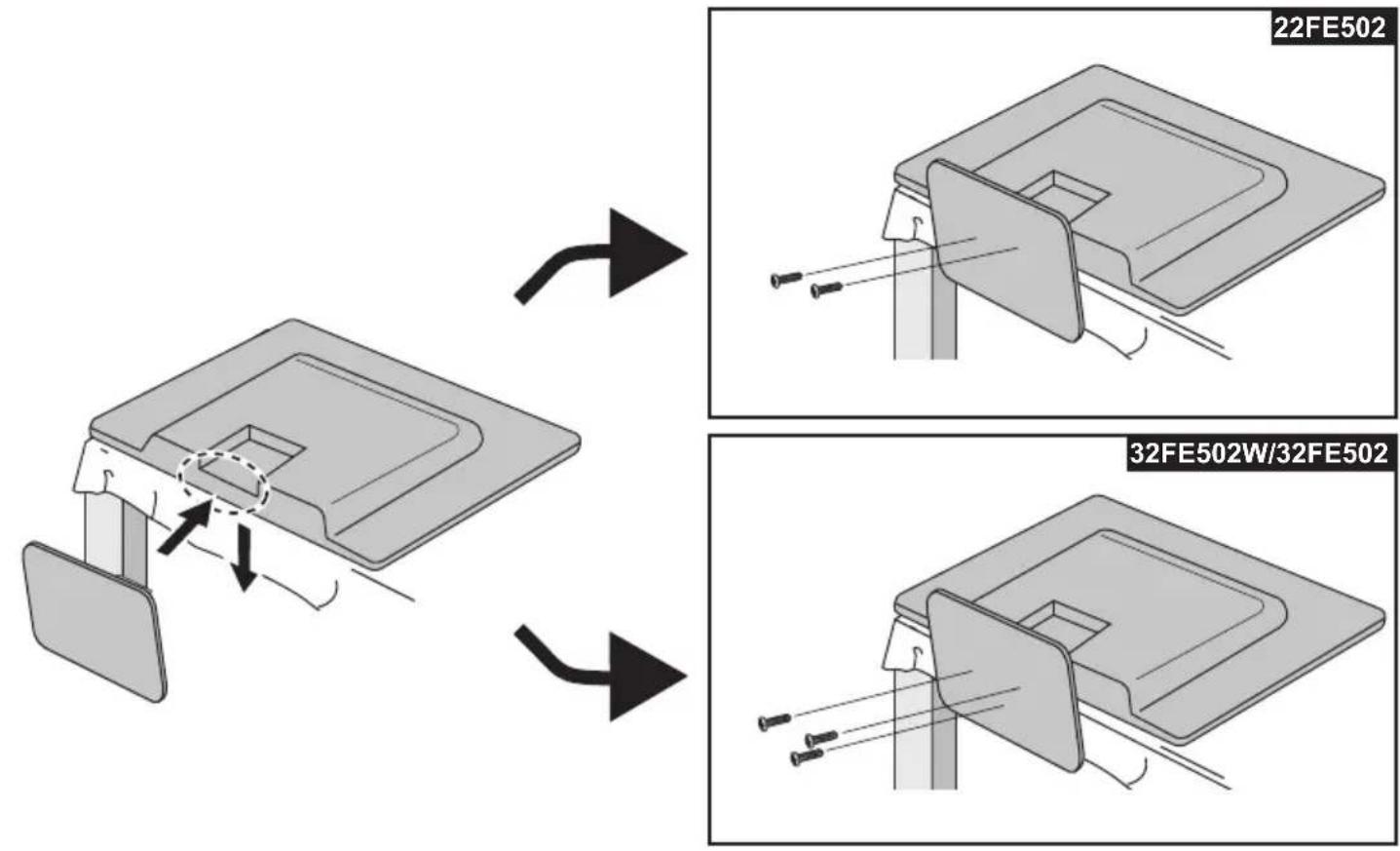
MOUNTING THE UNIT ON YOUR FURNITURE
natural_image
Line drawing of a monitor mounted on a base with cable, showing internal components and a close-up view (no text or symbols)For 32FE502W/32FE502
WARNING
To prevent injury, this television must be securely attached to a TV stand or furniture in accordance with the instructions.
Screw this television on your TV stand or furniture using supplied screw in the hole at the back of the base as shown on the left.
32FE502W/32FE502 : Wood screw is supplied with this unit.
22FE502 : Wood screw is not supplied with this unit. You can mount the unit on your furniture with same dimensional screw.
•Screw dimension : 5.1 x 20 mm
SET-UP FOR ANTENNA
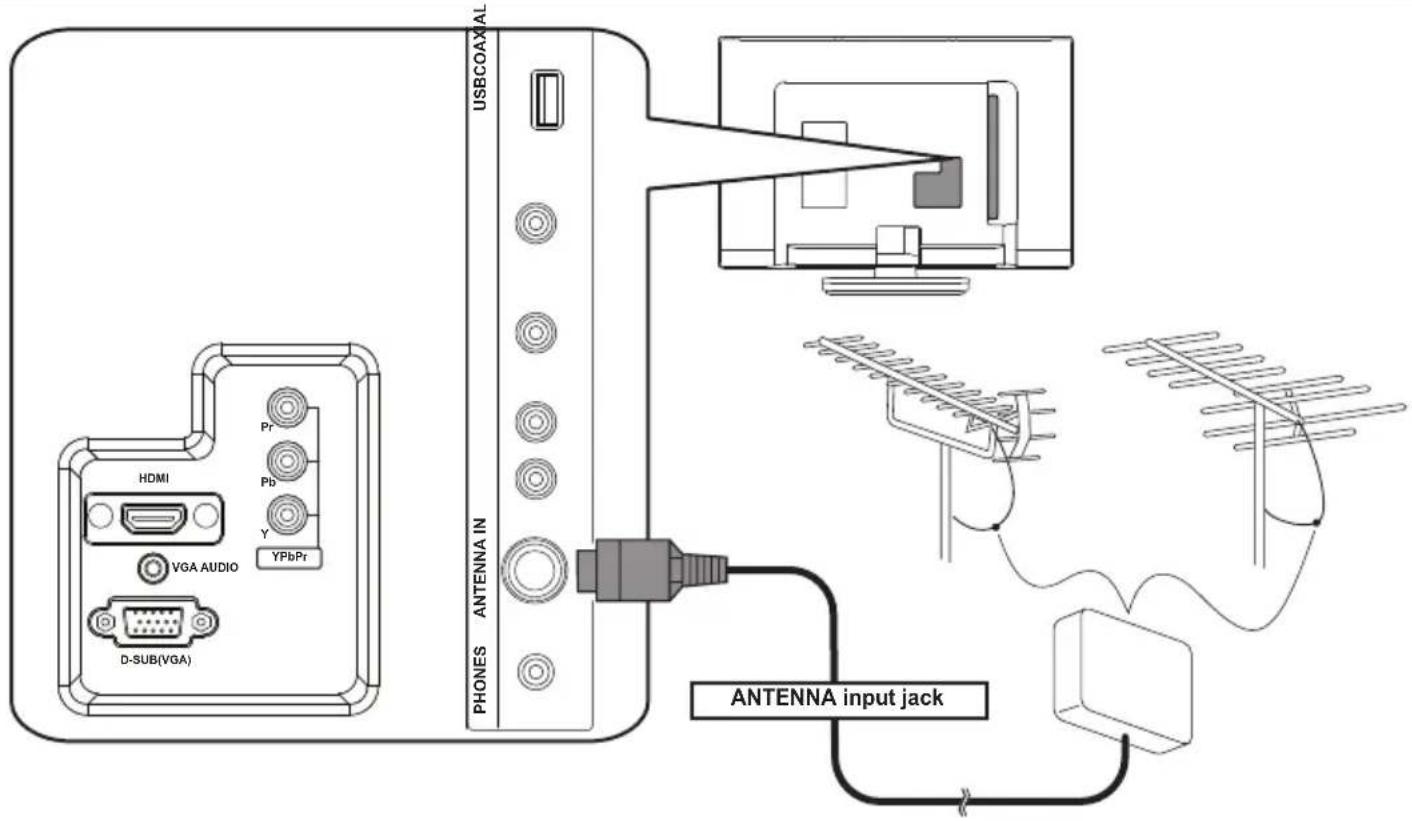
SET-UP FOR AC PLUG
natural_image
Pure electrical circuit lines without any symbolsTURN ON THE UNIT
flowchart
graph TD
    A["Monitor"] --> B["Power Button"]
    C["Remote"] --> D["Input"]
    style A fill:#f9f,stroke:#333
    style B fill:#ccf,stroke:#333
    style C fill:#cfc,stroke:#333
    style D fill:#fcc,stroke:#333
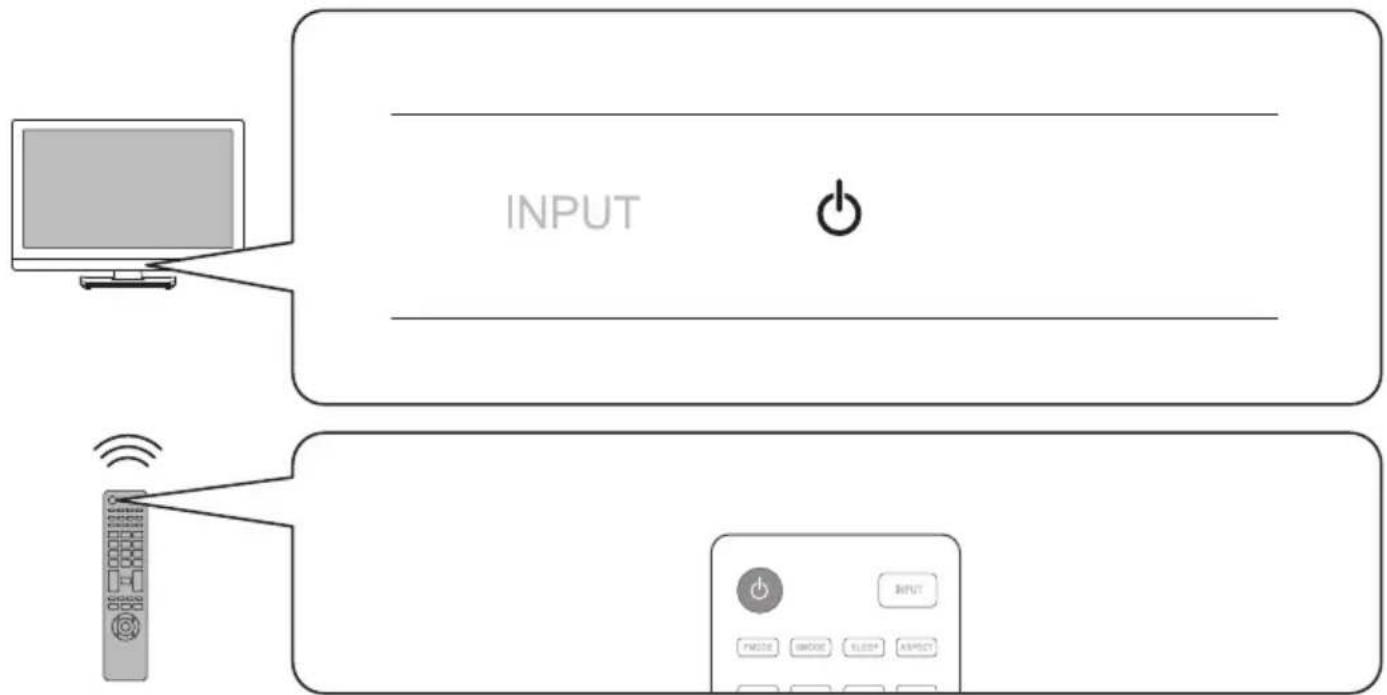
•After plugging in the unit, just press (on the remote or the TV) to turn it on.
AUTO TUNING
You have to setup channels to watch TV.
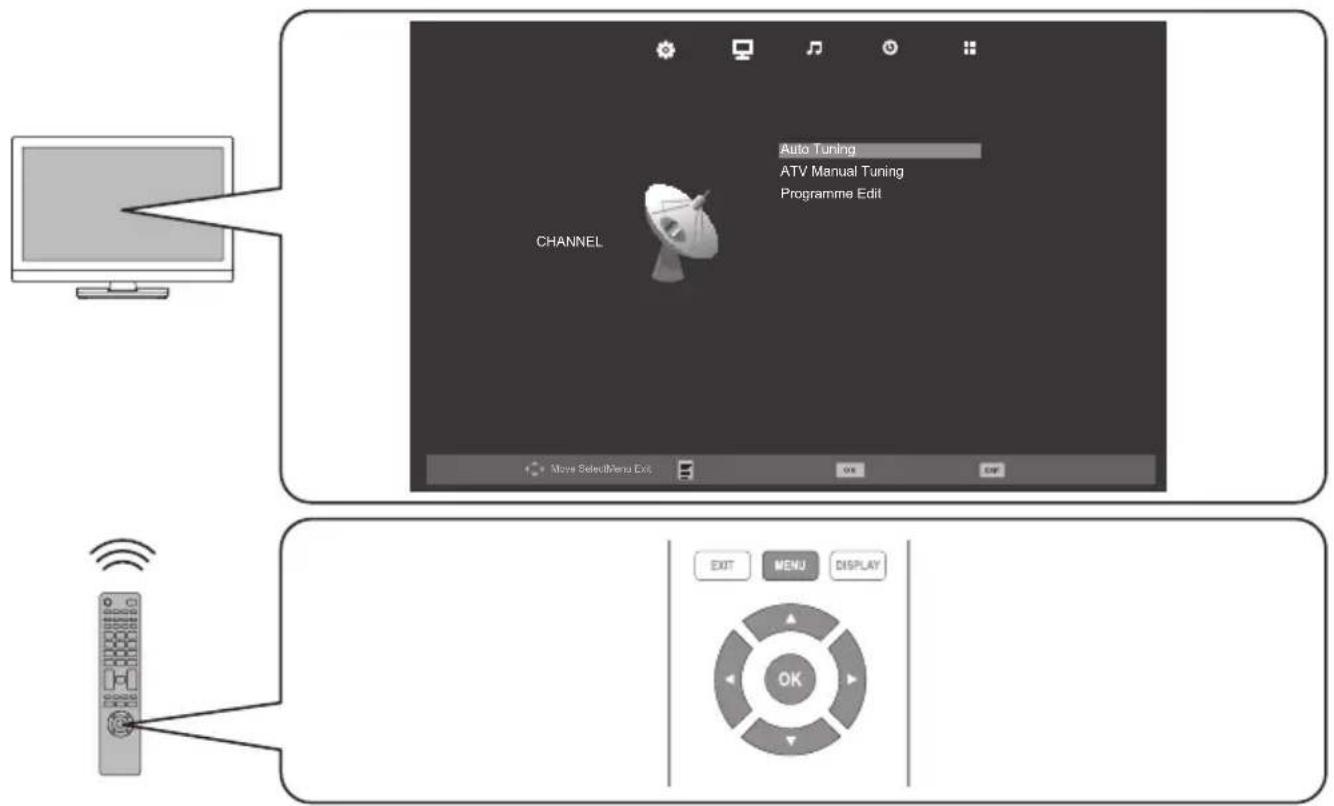
1 Press MENU to display the setup menu.
2 Use ◀ / ▶ to select [CHANNEL] in the setup menu.
3 Use ▲ / ▼ to select [Auto Tuning] in the Channel menu, and press OK to start tuning to setup channels.
- For detailed operation procedure, refer to "Channel Settings" (p. 18).
flowchart
graph TD
    A["Computer"] --> B["CHANNEL"]
    B --> C["Auto Tuning"]
    B --> D["ATV Manual Tuning"]
    B --> E["Programme Edit"]
    B --> F["Move SelectMenu Exit"]
    F --> G["OK"]
    F --> H["EXIT"]
SELECTING A CHANNEL
flowchart
graph TD
    A["Monitor"] -->|CH 111| B["Radio System"]
    C["Remote"] -->|Audi0 0 FAV| D["Television Display"]
    style A fill:#f9f,stroke:#333
    style C fill:#ccf,stroke:#333
    style B fill:#cfc,stroke:#333
    style D fill:#fcc,stroke:#333
ADJUSTING THE VOLUME
flowchart
graph TD
    A["Computer"] --> B["Volume"]
    B --> C["31"]
    D["Remote Control"] --> E["+"]
    D --> F["-"]
    D --> G["P"]
    D --> H["-"]
HOOK-UP FOR HDMI
HOOK-UP FOR PC
HOOK-UP FOR YPbPr
HOOK-UP FOR COMPOSITE
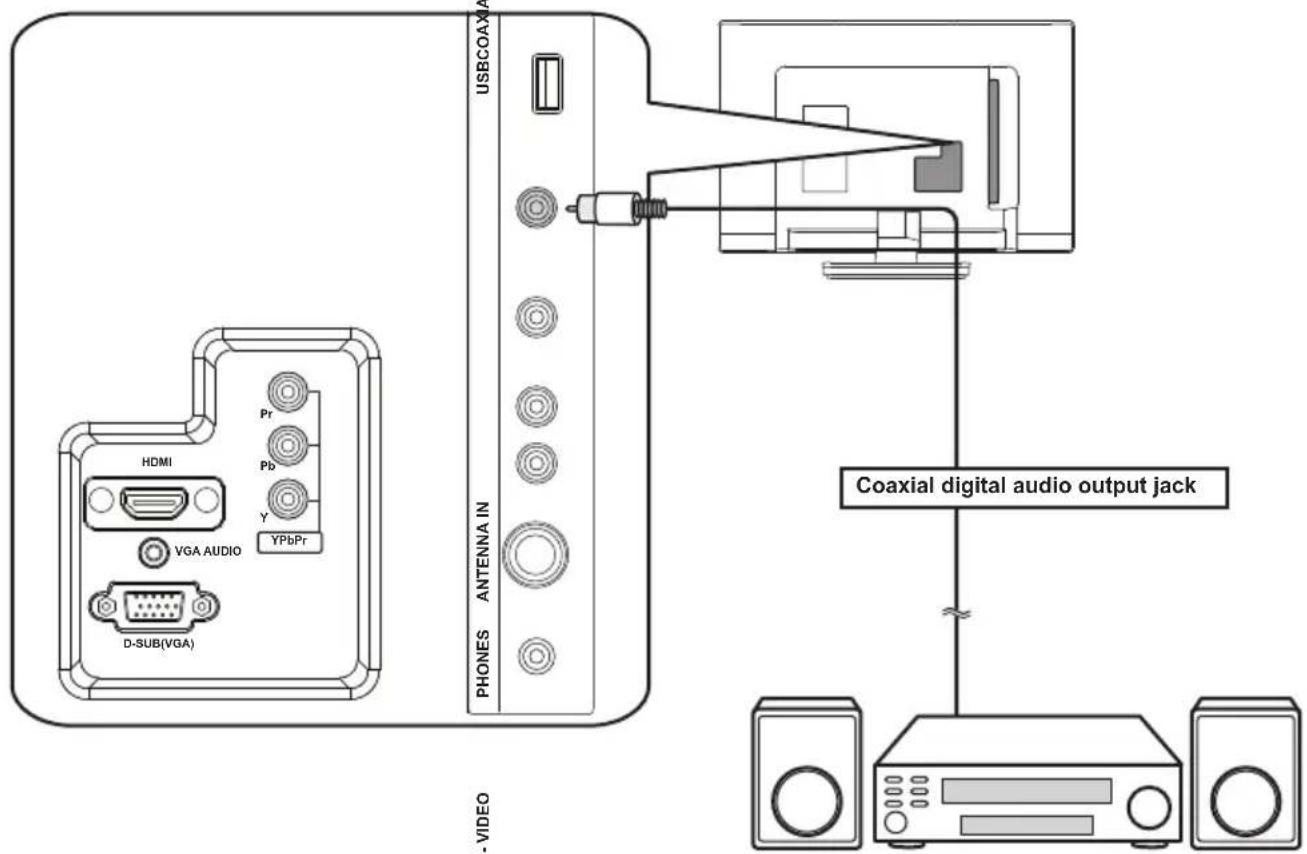
HOOK-UP FOR COAXIAL
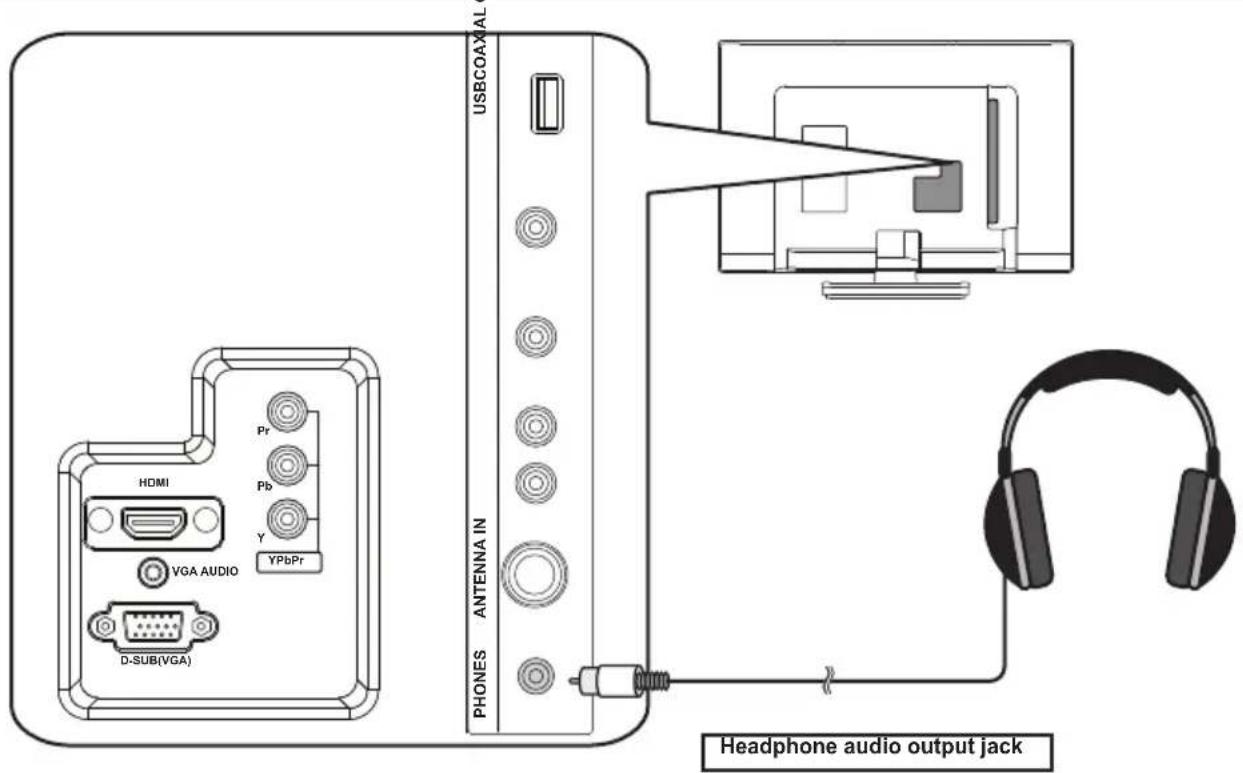
HOOK-UP FOR HEADPHONE
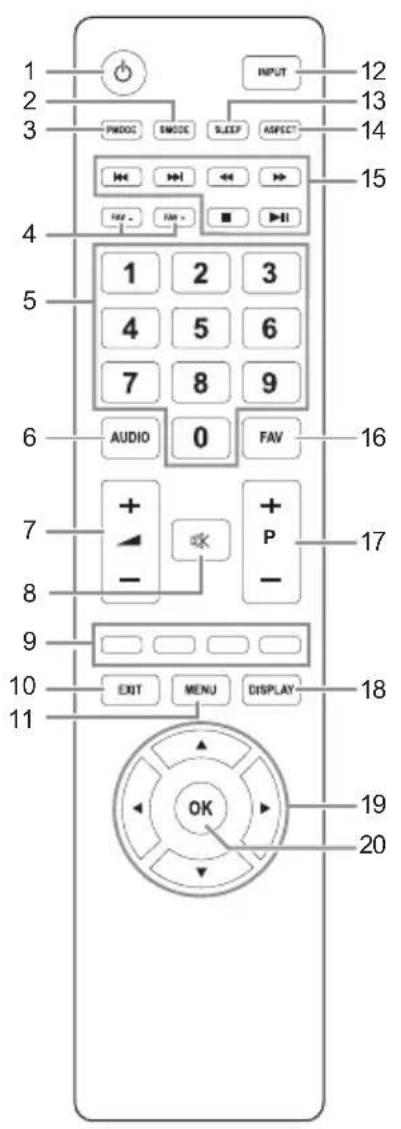
- (Power) (p. 6)
Press once to turn the unit on and press it once more to put the unit into standby mode.
-
S MODE “[Sound Mode]” (p. 19)
-
P MODE “[Picture Mode]” (p. 19)
-
FAV FA¥ / —
-
Number buttons (p. 7)
Selects the desired channel in TV mode.
-
AUDIO
-
(p.48)+ / -
To adjust the volume.
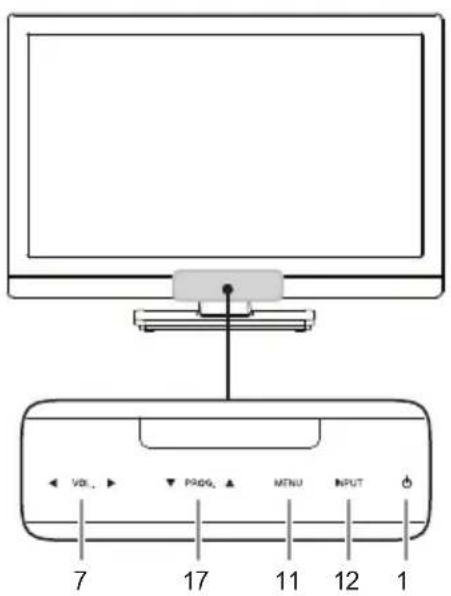
- VOL. ◀ / ▶ (Front panel) works same function as ◀ / ▶ (cursor) on the menu.
-
(Mate) (p. 13)
-
RED / GREEN / YELLOW / BLUE "[Programme Edit]" (p. 18)
-
EXIT (p. 13) Exit the menu.
-
MENU (p. 18)
-
INPUT (p. 13)
- INPUT (Front panel) works same function as OK to determine the setting menu.
-
SLEEP(p. 13)
-
ASPECT(p. 13)
-
(Play / Pause) / (Skip backward) / ▶▶ (Skip forward) / (Stop) / (Rewind) / ▶▶ (Fast-forward)
-
FAV
-
(B.+3) -
To browse a channel.
- PROG. ▲ / ▼ (Front panel) works same function as ▲ / ▼ (cursor) on the menu.
- DISPLAY
Display the channel number or input source.
-
▲ / ▼ / ◀ / ▶ (Cursor) (p. 13)
-
OK
natural_image
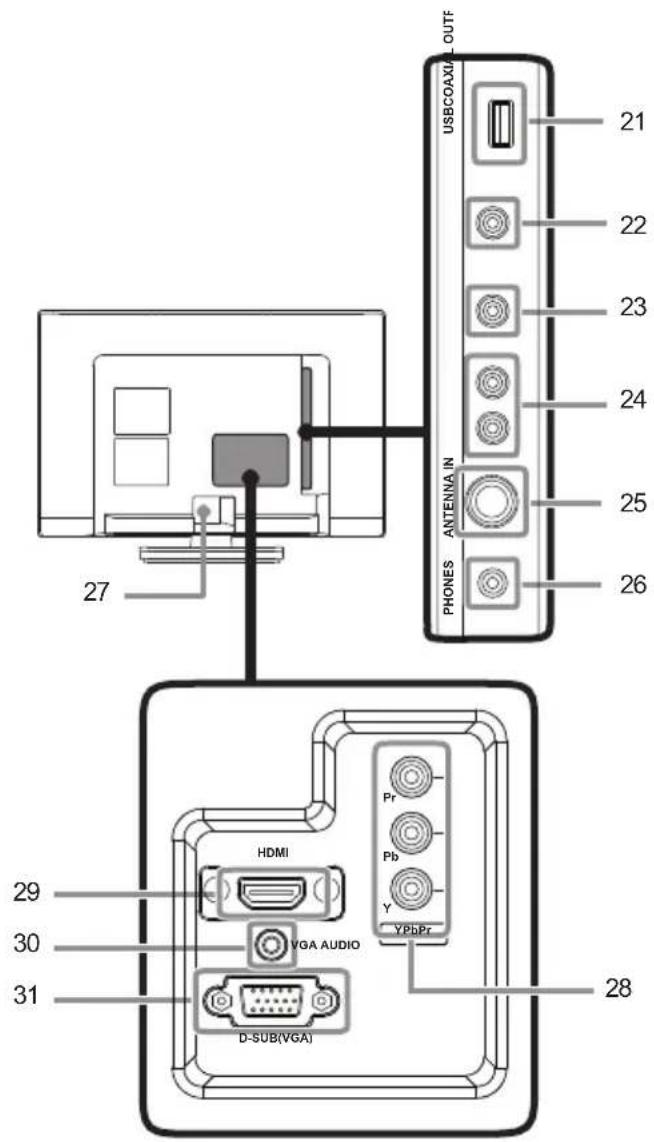
Line drawing of a monitor and a device with a vertical line labeled 32/33 (no text or symbols on the devices themselves)21. USB terminal (p. 14)
• Data input from USB flash memory only.
-User should not connect any devices to the USB terminal such as digital camera, keyboard, mouse, etc. (because these will not work.)
•The software update is, in most cases, handled by an authorised service person or in some circumstances the user may be asked to do the software update themselves.
-
Coaxial digital audio output jack (p. 10)
-
Composite video input jack (p. 9)
-
Audio (L/R) input jacks (p. 9)
-
Antenna input jack (p. 5)
-
Headphone audio output jack
-
AC power cord
-
YPbPr (Component video) input jacks (p. 9)
-
HDMI input jack (p. 8)
- The HDMI socket is guaranteed to be used for single source only. It does not guarantee any adaptor, switches or other connecting device for the purpose of multiple sources. The usage of such device even if it is capable is at customer risk.
-
VGA AUDIO input jack(p. 8)
-
D-SUB (VGA) input jack (p. 8)
-
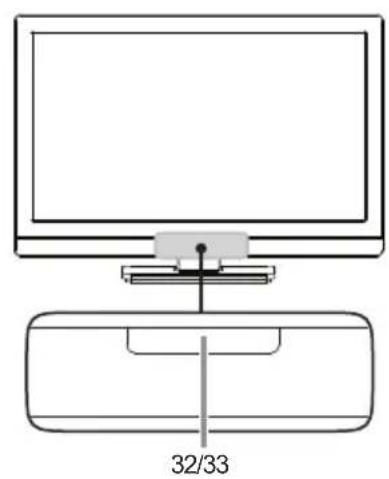
Standby / Power indicator
Lights up red when the unit goes into standby mode.
Light off when power is on.
- Infrared sensor window
Receives the infrared rays transmitted from the remote control.
OPERATIONS
Read this first
These operations are accessible by remote control. Some may also be accessible by controls on the main unit.
Watching a TV Programme
To select a channel
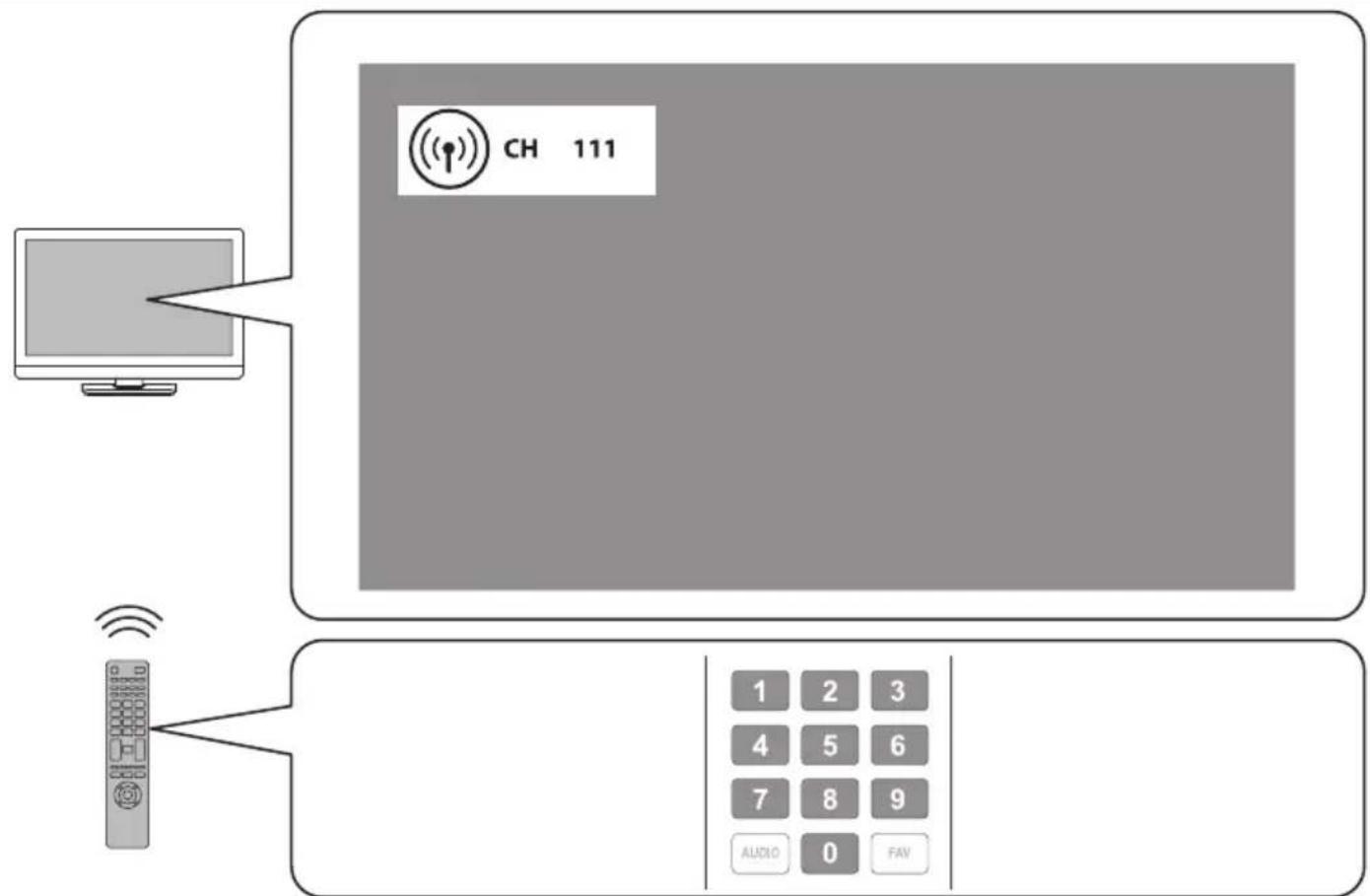
Use Repeatedly to select your desired channel, or use the Number buttons to enter a specific channel number, then press OK for quicker access.
(e.g.) If you want to select the channel 24 without pressing OK, press 2 first, then press 4 within 3 seconds.
To adjust the volume
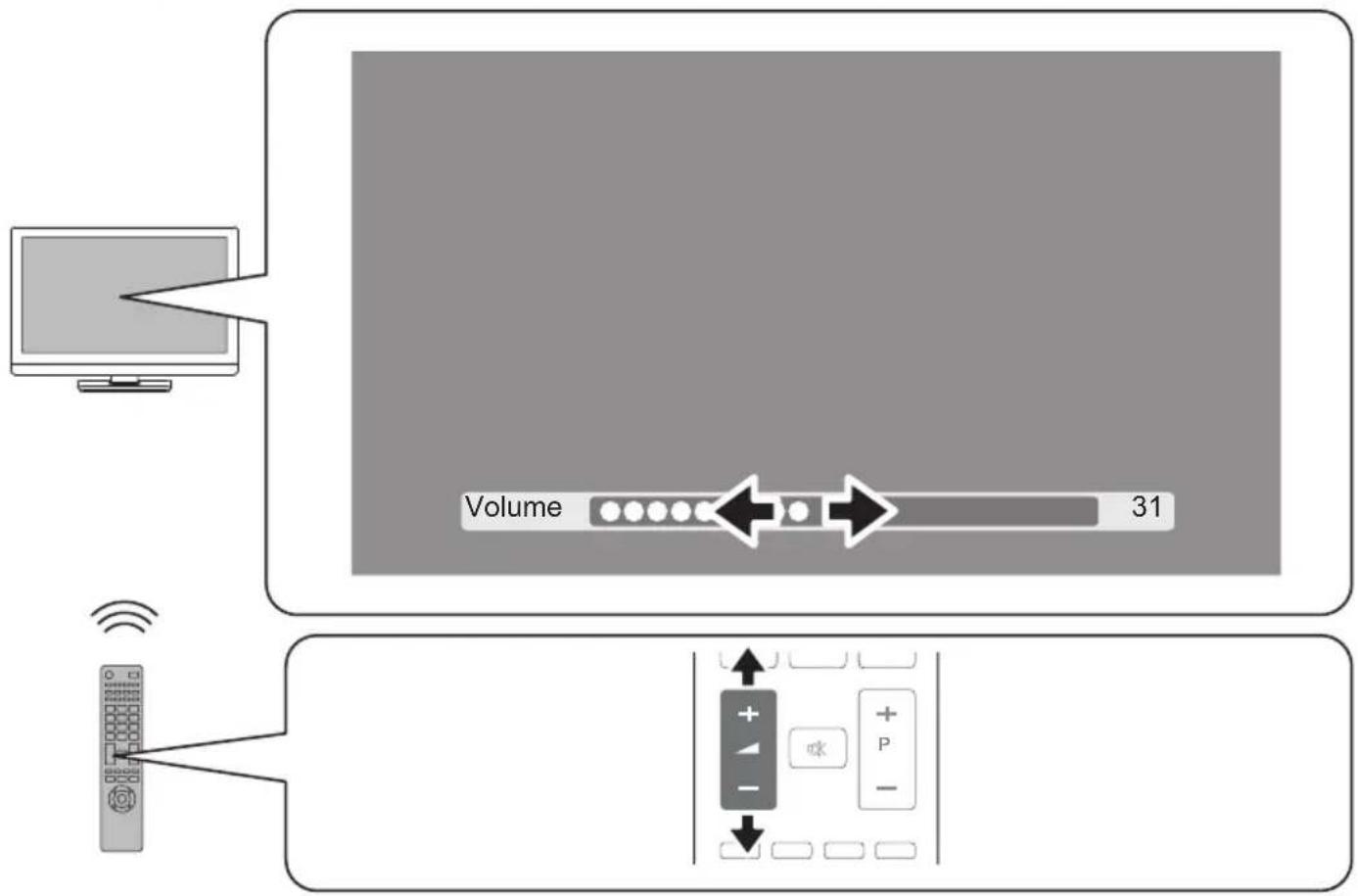
Use to increase / decrease the audio volume.
Press to turn the sound on / off temporarily.
- You can recover the original volume by pressing again or ▲ + / - .
Favorite
You can easily locate a favorite channel.
- You can set favorite channel at “[Programme Edit]” (p. 18).
1 Press FAV while watching a programme to show the favorite channel list.
2 Use ▲ / ▼ to select the channel you want, then press OK.
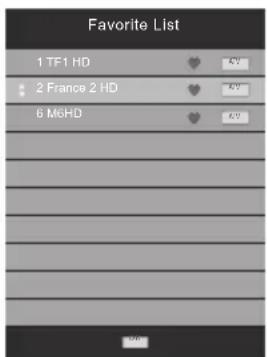
- Use FAV + / — to select the favorite channel while watching a programme.
- Use to move to the previous or next page.
- This unit need few seconds to memorise the favorite setting.
- If you unplug the AC power cord immediately after the setting, It will not be registered in the memory.
3 Press EXIT to exit.
Sleep Timer
The sleep timer can be set for the unit to go to the standby mode after an incremental period of time.
1 Press SLEEP repeatedly to change the sleep time period.
- Each time you press SLEEP, the timer increases from 10 minutes up to 240 minutes.
- Press SLEEP repeatedly until [Off] appears to cancel the sleep timer.
- If the unit goes into standby mode, the sleep timer will be cancelled.
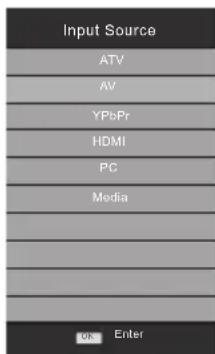
Switching the Input Mode
You can select a desired input mode from available sources.
1 Press INPUT.
2 Use ▲ / ▼ to select the input mode you want, then press OK.
Picture Format
You can select a desired TV screen size. Press ASPECT button repeatedly to switch the TV screen display mode.
Available options are as mentioned below.
| SD:[16:9], [4:3], [Zoom1], [Zoom2] |
| HD:[16:9], [4:3], [Just Scan] |
| PC:[16:9], [4:3] |
- You cannot set screen display mode in playback mode.
- You can set another way at “[Aspect Ratio]” (p. 21).
Playback Mode
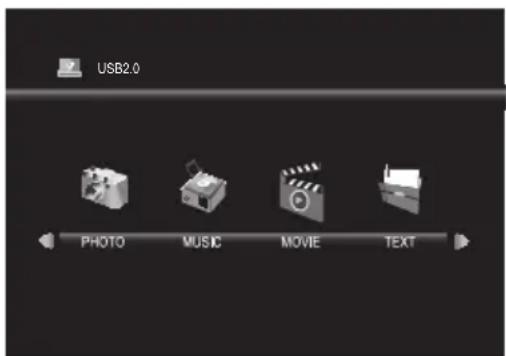
This unit can play JPEG picture, MP3 music and video files from USB flash drive.
Setup for playback
You must connect the USB flash memory to USB terminal of this unit (shown below).
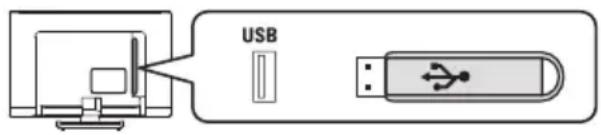
1 Press INPUT to display the input mode and use ▲ / ▼ to select [Media], and then press OK.
- If you want to exit this mode, select any other input mode. Refer to "Switching the Input Mode" (p. 13).
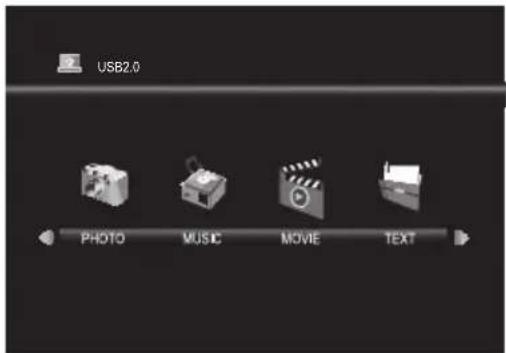
[PHOTO]
2 Use ◀ / ▶ to select [PHOTO] and press OK to enter.
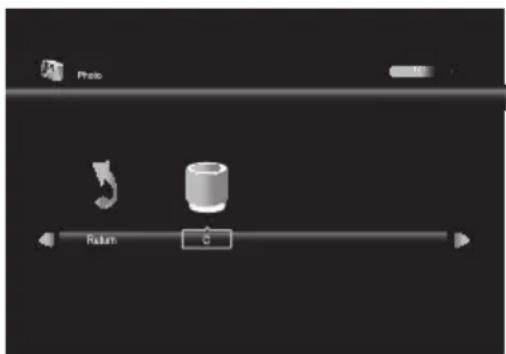
3 Use ◀ / ▶ to select [C] and press OK to enter your file.
4 Use ▲ / ▼ / ◀ / ▶ to select the desired file, then press OK.
![FUNAI 22FE502 - [PHOTO] - 3](/content/2026/06/1146335/images/0ddf44d3db124b12f5b0032f2269c4e21c8b93b084e2d22f0f4b89816b8b5dcd.jpg)
flowchart
graph TD
    A["File"] --> B["Return"]
    B --> C{File}
    C --> D["Delete"]
    C --> E["..."]
    E --> F["..."]
    F --> G["..."]
    G --> H["..."]
    H --> I["..."]
    I --> J["..."]
    J --> K["..."]
    K --> L["..."]
    L --> M["..."]
    M --> N["..."]
    N --> O["..."]
    O --> P["..."]
    P --> Q["..."]
    Q --> R["..."]
    R --> S["..."]
    S --> T["..."]
    T --> U["..."]
    U --> V["..."]
    V --> W["..."]
    W --> X["..."]
    X --> Y["..."]
    Y --> Z["..."]
- The check box is displayed at the right bottom by pressing the OK. The files having the check box are played by pressing ▶ If they are not selected, then all playable files in the folder are played.
- If you put audio files into same folder of picture files, you can play music during the slideshow.
Operation in Slideshow
Press OK or DISPLAY to display the menu.
▶||:
Press to play or pause the slideshow.
/
Press to skip the file backward or forward.
■ :
Press to stop the slideshow.
[Repeat] :
Use ◀ / ▶ and press OK to select the repeat mode; [Repeat None], [Repeat 1] or [Repeat All] in order.
[Music] :
Use ◀ / ▶ to select [Music] and press OK to play, then the music file in the same folder play automatically.
[Playlist] :
Use ◀ / ▶ and press OK to select [Playlist] to show the playlist.
[Info.]:
Use ◀ / ▶ and press OK to select [Info.] to show the details.
[Rotate] :
Use ◀/▶ to select right-handed or left-handed rotate and press OK to turn the picture by 90 degrees.
[Zoom In] :
Use ◀ / ▶ to select [Zoom In] and press OK to zoom in the display.
[Zoom Out] :
Use ◀ / ▶ to select [Zoom Out] and press OK to zoom out the display.
[Move View]:
Use ◀ / ▶ and press OK to select [Move View] to move viewing location during zoom in the display.
| SPECIFICATION | |
| Baseline 15,360 x 8,640 | |
| Progressive 1,024 x 768 | |
| Max Resolution 9,600 x 6,400 | |
| Pixel Depth 1/ 4/ 8/ 16 /24 /32bpp | |
| Non-interlaced 9,600 x | 6,400 |
| Interlaced 1,200 x 800 | |
[MUSIC]
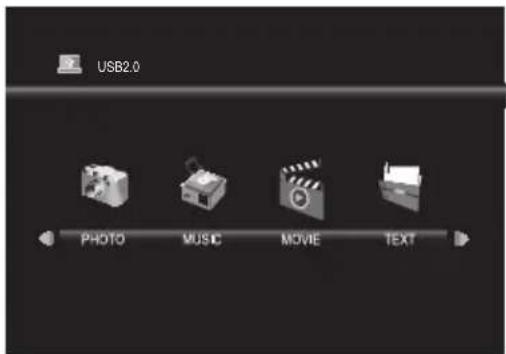
2 Use ◀ / ▶ to select [MUSIC] and press OK to enter.
3 Use ◀ / ▶ to select [C] and press OK to enter your file.
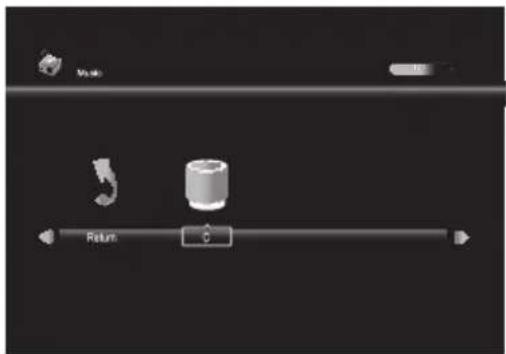
4 Use ▲ / ▼ / ◀ / ▶ to select the desired file, then press OK.
![FUNAI 22FE502 - [MUSIC] - 3](/content/2026/06/1146335/images/f818c08a14d1971359a93308a0ff304d7b6c81e90b3f8901279854abeb6acbe6.jpg)
flowchart
graph TD
    A["Return"] --> B{File Transfer}
    B --> C["Delete"]
    D["File Transfer"] --> E["File Transfer"]
    E --> F["Delete"]
    G["File Transfer"] --> H["File Transfer"]
    H --> I["Delete"]
    J["File Transfer"] --> K["File Transfer"]
    K --> L["Delete"]
- The check box is displayed at the right bottom by pressing the OK. The files having the check box are played by pressing ▶ they are not selected, then all playable files in the folder are played.
Operation in Playback
Press OK or DISPLAY to display the menu.
| ▶II:Press to play or pause the music playback. |
| ◀/ ▶:Press to rewind or fast-forward the music playback. |
| ◀/ ▶!Press to skip backward or forward a music file. |
| ■:Press to stop the music playback. |
| [Repeat]:Use ◀ / ▶ and press OK to select the repeat mode; [Repeat None], [Repeat 1] or [Repeat All] in order. |
| [MUTE]:Use ◀ / ▶ and press OK to select [MUTE] to mute. |
| [Playlist]:Use ◀ / ▶ and press OK to select [Playlist] to show the playlist. |
| [Info.]:Use ◀ / ▶ and press OK to select [Info.] to show the details. |
| [Goto Ti..]:Use ◀ / ▶ and press OK to select [Goto Ti..] to move the time you want in the playback. |
| SPECIFICATION | |
| Sampling frequency 32k - 48kHz | |
| Constant bit rate 32k - | 320kbps |
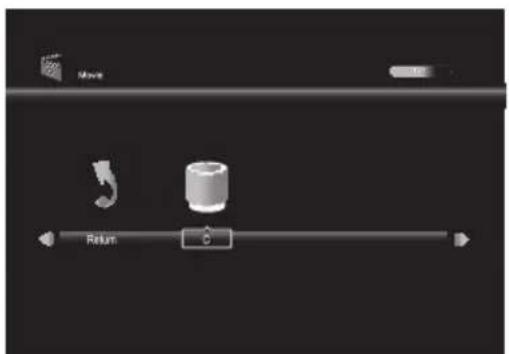
2 Use ◀ / ▶ to select [MOVIE] and press OK to enter.
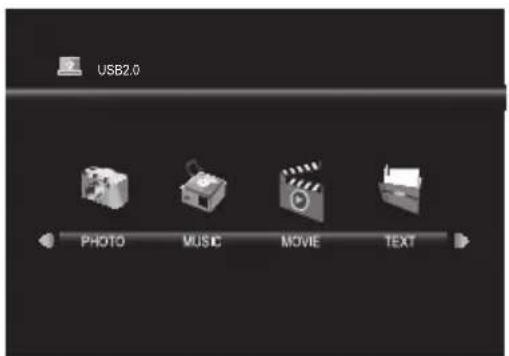
3 Use ◀ / ▶ to select [C] and press OK to enter your file.
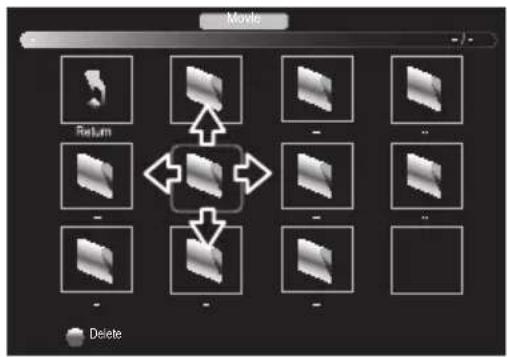
4 Use ▲ / ▼ / ◀ / ▶ to select the desired file, then press OK.
flowchart
graph TD
    A["Return"] --> B{Transfer}
    B --> C["Delete"]
    D["File"] --> E["Transfer"]
    E --> F["Delete"]
    G["File"] --> H["Transfer"]
    H --> I["Delete"]
- The check box is displayed at the right bottom by pressing the OK. The files having the check box are played by pressing ▶ If they are not selected, then all playable files in the folder are played.
Operation in Playback
Press OK or DISPLAY to display the menu.
▶|| :
Press to play or pause the video playback.
◀/▶
Press to rewind or fast-forward the video playback.
/
Press to skip backward or forward a video file.
■
Press to stop the video playback.
[Repeat]:
Use ◀ / ▶ and press OK to select the repeat mode; [Repeat None], [Repeat 1] or [Repeat All] in order.
A-B Repeat :
Use ◀ / ▶ and press OK to select the limited repeat mode; [Set A], [Set B] or [None] in order.
[Playlist]:
Use ◀ / ▶ and press OK to select [Playlist] to show the playlist.
[Info.]:
Use ◀ / ▶ and press OK to select [Info.] to show the details.
[Slow F..]:
Use ◀ / ▶ and press OK to select [Slow F..] to play slow.
[Step Fo..]:
Use ◀ / ▶ and press OK to select [Step Fo..] to play frame-by-frame playback.
[Goto Ti..]:
Use ◀ / ▶ and press OK to select [Goto Ti..] to move the time you want in the playback.
SPECIFICATION
Max Resolution and 720p @30 fps
Frame rate
Max data rate 20Mbps
Max Resolution 352 x 288
Max data rate 20Mbps
Max Resolution 720 x 576
Max data rate 20Mbps
2 Use ◀ / ▶ to select [TEXT] and press OK to enter.
3 Use ◀ / ▶ to select [C] and press OK to enter your file.
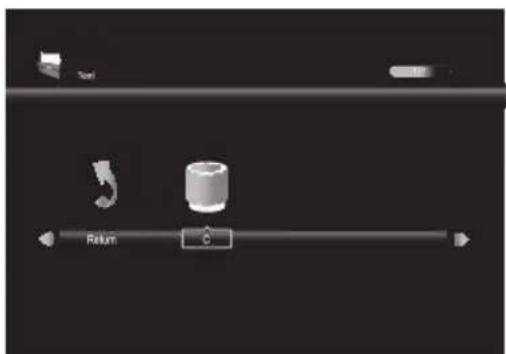
4 Use ▲ / ▼ / ◀ / ▶ to select the desired file, then press OK.
![FUNAI 22FE502 - [Goto Ti..]: - 3](/content/2026/06/1146335/images/eac668d50ea87c81dc45b674a9d10fde7227f36ce96d155cac20dadff9280e61.jpg)
flowchart
graph TD
    A["Input"] --> B["Return"]
    B --> C["Process"]
    C --> D["Output"]
    D --> E["Delete"]
- The check box is displayed at the right bottom by pressing the OK. The files having the check box are played by pressing ▶ If they are not selected, then all playable files in the folder are played.
- If you put audio files into same folder of text files, you can play music during the playback.
Operation in Playback
Press OK or DISPLAY to display the menu.
▶||:
Press to play or pause the playback.
◀/▶
Press to move previous or next page in the file.
/
Press to skip backward or forward the file.
■ :
Press to stop the playback.
[Music]:
Use ◀ / ▶ and press OK to select [Music], then the music file in the same folder play automatically.
[Playlist]:
Use ◀ / ▶ and press OK to select [Playlist] to show the playlist.
[Info.]:
Use ◀ / ▶ and press OK to select [Info.] to show the details.
Note for playback
•The USB flash memory is not supplied with this unit.
•The unit recognises a USB flash memory only.
Do not use a USB hub and an extension cord between the USB flash memory and the unit.
Always connect the USB flash memory to this unit directly.
- It is not guaranteed that all USB flash memory can be supported on this unit.
- FUNAI cannot be held responsible if your USB flash memory is not supported, nor will FUNAI accept any liability for damage or loss of stored data.
- A USB flash memory that required its own driver or the device with a special system such as fingerprint recognition are not supported.
- Be sure to keep a backup copy of the original files on your device before you play them back on this unit. We have no responsibilities for damage or loss of your stored data.
• To avoid damaging the USB flash memory and the unit always turn off the unit before you remove the USB flash memory.
- This unit is not allowed to use the USB flash memory which requires external power supply (500 mA or more).
•The unit can recognise up to 198 files including directories under one directory, and it can recognise the depth of directory up to 30.
- This unit may not be recognised if the length of the file names is too long. Only English characters can be recognised.
- This unit does not support MTP(Media Transfer Protocol) or the file other than FAT and FAT32 file system. If the file is not supported, an error message appears.
- When the unit does not recognise the USB flash memory, try reconnecting it.
- Playing the files recorded with high bit rates, the images can be interrupted in some occasions.
•This unit does not support external subtitles.
- This unit cannot play back a file which goes over the limit of file restriction.
- For USB input the maximum resolution display is 720p.
DETAIL SETTINGS
Read this first
Before adjust each setting, press MENU to display the menu.
To exit the menu, press EXIT.
Channel Settings
You can edit the channel settings.
1 Use ◀ / ▶ to select [CHANNEL].
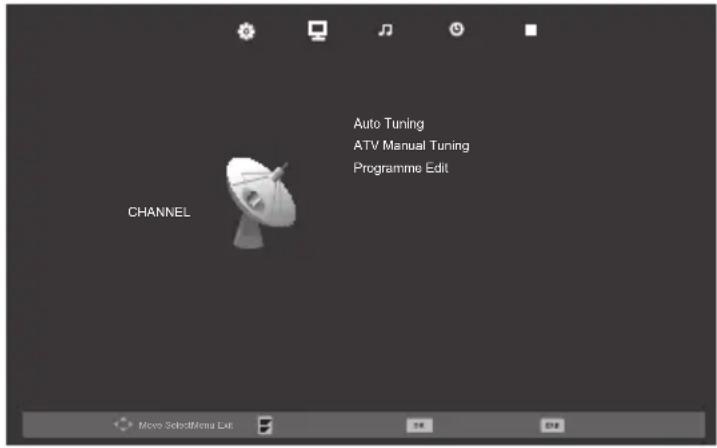
[Auto Tuning]
You can scan the channels in your area automatically.
2 Use ▲ / ▼ to select [Auto Tuning], then press OK to start scanning.
- When the scanning is completed, the lowest memorised analogue channel will be displayed.
- If you press MENU during the scanning, this operation will be stopped and a confirmation display will appear, then you can cancel scanning.
[ATV Manual Tuning]
You can search channels manually in your area.
2 Use ▲ / ▼ to select [ATV Manual Tuning], then press OK.
3 Use ▲ / ▼ to select [Current CH], then use ◀ / ▶ to select the channel you want.
4 Use ▲ / ▼ to select [Color System], then use ◀ / ▶ to select the system you want.
5 Use ▲ / ▼ to select [Sound System], then use ◀ / ▶ to select the system you want.
6 Use ▲ / ▼ to select [Fine Tune], then use ◀ / ▶ to adjust the setting.
7 Use ▲ / ▼ to select [AFC], then use ◀ / ▶ to select [On] or [Off].
- If you set to [On], this unit searches a near channel automatically.
8 Use ▲ / ▼ to select [Search], then use ◀ / ▶ to search a channel.
[Programme Edit]
You can edit the programme settings.
2 Use ▲ / ▼ to select [Programme Edit], then press OK to enter Programme Edit list.
[Delete] (RED) :
Press RED to delete the current channel.
[Rename] (GREEN) :
Press GREEN and use ▲ / ▼ / ◀ / ▶ to change the current channel name.
[Move] (YELLOW) :
Press YELLOW and use ▲ / ▼ to move the current channel.
[Skip] (BLUE) :
Press BLUE to skip the current channel.
[FAV] (FAV) :
Press FAV to register the current channel.
Screen Settings
You can edit the screen settings in PC mode.
1 Use ◀ / ▶ to select [SCREEN].
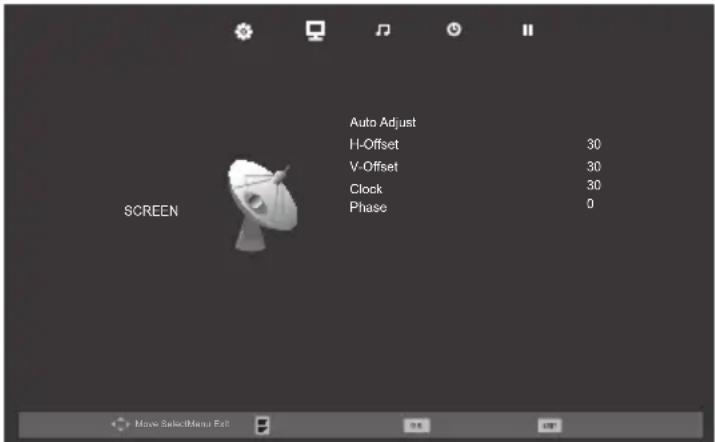
[Auto Adjust]
You can change the screen settings automatically.
2 Use ▲ / ▼ to select [Auto Adjust], then press OK.
You can change the screen settings manually.
2 Use ▲ / ▼ to select the item you want, then press OK, and then appear the setting display, adjust the setting using ◀ / ▶.
- While adjusting each setting, you can change the setting item using ▲ / ▼.
Picture Adjustment
You can adjust the picture settings according to your personal preference.
These settings are automatically stored after exiting the picture menu.
1 Use ◀ / ▶ to select [PICTURE].
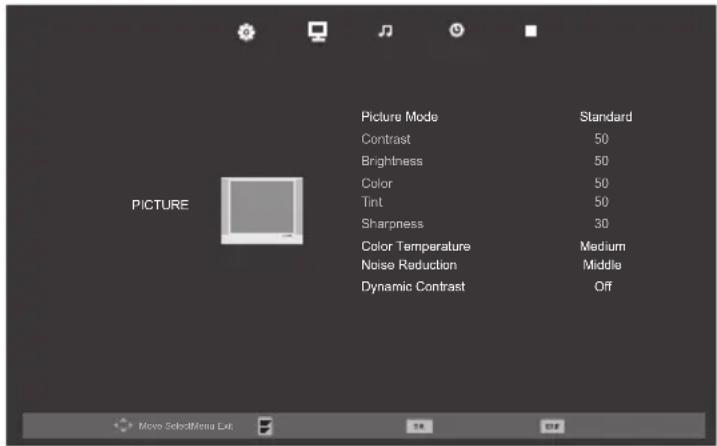
[Picture Mode]
2 Use ▲ / ▼ to select [Picture Mode], then press OK.
3 Use ▲ / ▼ to select [Dynamic], [Standard], [Mild] or [Personal], then press OK.
- You can change picture mode easily using P MODE on the Remote Control. Press P MODE repeatedly to select the picture mode you want. In this function, you can also assign the picture mode individually to each input mode.
[Contrast] / [Brightness] / [Color] / [Tint] / [Sharpness]
2 Use ▲ / ▼ to select the item you want. Then press OK, and the setting display will appear.
3 Adjust the setting using ◀ / ▶.
- You can adjust the settings, if you set [Personal] in [Picture Mode].
- While adjusting each setting, you can change the setting item using ▲ / ▼.
[Color Temperature]
You can change the color tone of the picture.
2 Use ▲ / ▼ to select [Color Temperature], then press OK.
3 Use ▲ / ▼ to select [Cool], [Medium] or [Warm], then press OK.
[Noise Reduction]
You can reduce noise level.
2 Use ▲ / ▼ to select [Noise Reduction], then press OK or ▶.
3 Use ▲ / ▼ to select [Off], [Low], [Middle] or [High], then press OK.
[Dynamic Contrast]
You can set the dynamic contrast mode.
2 Use ▲ / ▼ to select [Dynamic Contrast], then press OK.
3 Use ▲ / ▼ to select [On] or [Off], then press OK.
Sound Adjustment
You can adjust the sound settings according to your personal preferences.
1 Use ◀ / ▶ to select [SOUND].
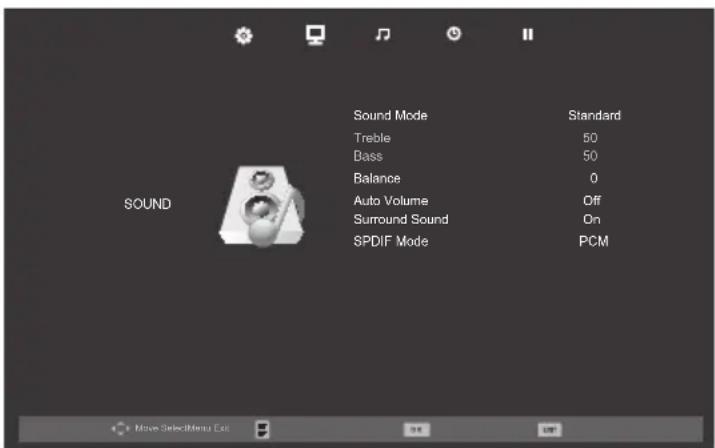
[Sound Mode]
2 Use ▲ / ▼ to select [Sound Mode], then press OK.
3 Use ▲ / ▼ to select [Standard], [Music], [Movie], [Sports] or [Personal], then press OK.
- You can change sound mode easily using S MODE on the Remote Control.
- Press S MODE repeatedly to select the sound mode you want.
- While adjusting each setting, you can change the setting item using ▲ / ▼.
[Treble] / [Bass] / [Balance]
You can set left / right speaker setting.
2 Use ▲ / ▼ to select the item you want. Then press OK, and the setting display will appear.
3 Adjust the setting using ◀ / ▶.
- You can adjust [Treble] and [Bass] settings, if you set [Personal] in [Sound Mode].
- While adjusting each setting, you can change the setting item using ▲ / ▼.
[Auto Volume]
If set to [On], sudden changes in volume will be reduced automatically, for example, during commercials or when switching channels.
2 Use ▲ / ▼ to select [Auto Volume], and then select [On] or [Off] using ◀ / ▶.
[Surround Sound]
You can set to the sound modes for more spatial or surround sound reproduction.
2 Use ▲ / ▼ to select [Surround Sound], and then select [On] or [Off] using ◀ / ▶.
[SPDIF Mode]
2 Use ▲ / ▼ to select [SPDIF Mode] and then select [PCM], [Auto] or [Off] using ◀ / ▶.
AUTO: The SPDIF output is the same with the input sound format.
PCM: The SPDIF output is PCM format, regardless of the input sound format.
OFF: Turn OFF the SPDIF output.
Timer Settings
You can change Timer setting.
1 Use ◀ / ▶ to select [TIMER].
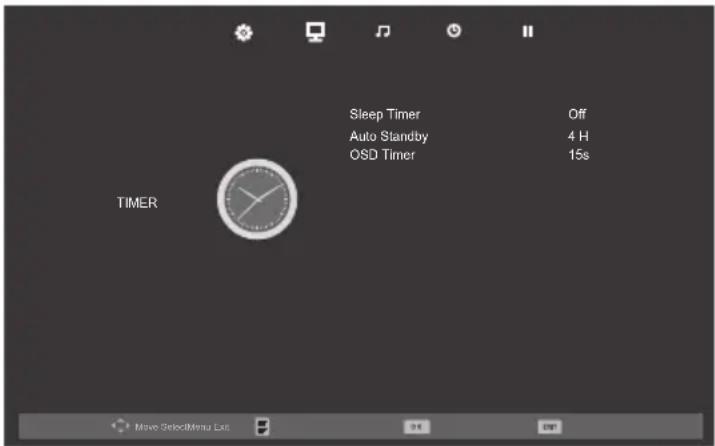
[Sleep Timer]
The sleep timer can be set for the unit to go to the standby mode after an incremental period of time.
2 Use ▲ / ▼ to select [Sleep Timer], then press OK.
3 Use ▲ / ▼ to select the time you want, then press OK.
- You can also set it using the Remote Control. Refer to "Sleep Timer" (p. 13).
[Auto Standby]
You can set the time to turn off the display power automatically.
In spite of this setting, the unit goes into standby mode automatically if there is no signal input from the antenna terminal and no user operation for 15 minutes.
2 Use ▲ / ▼ to select [Auto Standby], then press OK.
3 Use ▲ / ▼ to select the time you want, then press OK.
[OSD Timer]
You can set the time to turn off the OSD display.
2 Use ▲ / ▼ to select [OSD Timer], then press OK.
3 Use ▲ / ▼ to select the time you want, then press OK.
Setup Adjustment
You can change other settings.
1 Use ◀ / ▶ to select [OPTION].
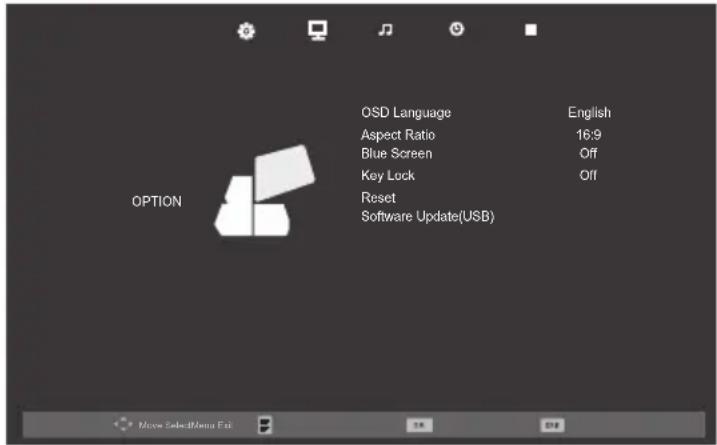
[OSD Language]
You can select the preferred onscreen language.
2 Use ▲ / ▼ to select [OSD Language], then press OK.
[Aspect Ratio]
You can change TV Screen Display mode.
2 Use ▲ / ▼ to select [Aspect Ratio], then press OK.
3 Use ▲ / ▼ to select the display mode you want, then press OK.
• Available options are: [4:3], [16:9], [Zoom1], [Zoom2] and [Just Scan].
[Blue Screen]
If you set to [On], the background screen displays blue, during no input signal.
2 Use ▲ / ▼ to select [Blue Screen], then select [On] or [Off] using ◀ / ▶.
[Key Lock]
If you set to [On], you cannot use the buttons on the unit.
2 Use ▲ / ▼ to select [Key Lock], then select [On] or [Off] using ◀ / ▶.
[Reset]
You can restore the all settings.
2 Use ▲ / ▼ to select [Reset], then press OK.
3 Press ◀ to select Yes to reset the current settings.
- Channel setting has no change before and after reset.
[Software Update(USB)]
It is available to update software using USB.
2 Use ▲ / ▼ to select [Software Update(USB)], then press OK.
- If you use this function, connect USB flash memory with data for update before.
Trademark Information

HIGH-DEFINITION MULTIMEDIA INTERFACE
- The terms HDMI and HDMI High-Definition Multimedia Interface, and the HDMI Logo are trademarks or registered trademarks of HDMI Licensing LLC in the United States and other countries.
Cabinet Cleaning
- Gently wipe the front panel and other exterior surfaces of the unit with a soft cloth.
- Never use a solvent or alcohol. Do not spray insecticide liquid near the unit. Such chemicals may cause damage and discoloration to the exposed surfaces.
Panel Cleaning
- If the LCD panel should require cleaning, wipe it with a cotton or soft cloth. Before cleaning the panel, disconnect the power cord.
Servicing
- Should your unit become inoperative, do not try to correct the problem of your own. There are no user-serviceable parts inside.
Funai India Pvt Ltd
Toll free telephone : 1-800-419-6708
Email ID : customer.care@funai-india.com
Website : www.funai-india.com
TROUBLESHOOTING GUIDE
Sometimes a performance problem can be easily solved by checking seemingly apparent but often overlooked possibilities. Before arranging for service, check these items. It could save you time and money.
| Problem Possible Remedy | |
| Remote Control does not Work | •Is the unit plugged in?•Power at outlet?•Check batteries in the remote control. |
| Bars On TV Screen | •If the outside antenna is being used, check for broken wire.•Check for local interference. |
| Picture Distorted | •Try another channel, if that's OK, then possibly due to poor channel reception.•If the outside antenna is being used, check for broken wire.•Surrounding temperature is too low. |
| Picture Rolls Vertically | •Try another channel, if that's OK, then possibly due to poor channel reception.•If the outside antenna is being used, check for broken wire.•Check for local interference. |
| No color | •Try another channel, if that's OK, then possibly due to poor channel reception.•Is the antenna connected to the terminal on the back of the unit?•If the outside antenna is being used, check for broken wire.•Adjust [Color] control. |
| Poor Reception on Some Channels | •Try another channel, if that's OK, then possibly due to poor channel reception.•Is the antenna connected to the terminal on the back of the unit?•If the outside antenna is being used, check for broken wire.•Check for local interference. |
| Weak Picture | •Try another channel, if that's OK, then possibly due to poor channel reception.•Is the antenna connected to the terminal on the back of the unit?•If the outside antenna is being used, check for broken wire.•Adjust [Contrast] and [Brightness] control.•Surrounding temperature is too low. |
| Lines or Streaks in Picture | •Try another channel, if that's OK, then possibly due to poor channel reception.•If the outside antenna is being used, check for broken wire.•Check for local interference. |
| Ghosts in picture | •Try another channel, if that's OK, then possibly due to poor channel reception.•Is the antenna connected to the terminal on the back of the unit?•If the outside antenna is being used, check for broken wire.•Check for local interference. |
| Picture Blurred | •Try another channel, if that's OK, then possibly due to poor channel reception.•If the outside antenna is being used, check for broken wire. |
| Sound OK, Picture Poor | •Try another channel, if that's OK, then possibly due to poor channel reception.•Is the antenna connected to the terminal on the back of the unit?•If the outside antenna is being used, check for broken wire.•Check for local interference.•Adjust [Contrast] and [Brightness] control. |
| Picture OK, Sound Poor | •Try another channel, if that's OK, then possibly due to poor channel reception.•Check for local interference. |
| No Picture or Sound | •Try another channel, if that's OK, then possibly due to poor channel reception.•Is the unit plugged in?•Power at outlet?•Is the unit's power on?•Is the antenna connected to the terminal on the back of the unit?•If the outside antenna is being used, check for broken wire.•Unplug the AC power cord and wait for about 1 minute. Then plug the AC power cord and turn on the unit again. |
| Different color marks on TV screen | •Try another channel, if that's OK, then possibly due to poor channel reception. |
| Black or Luminous point on TV screen | •It is quality of the LCD Panel. |
SPECIFICATIONS
Panel details
| Screen size 21.6 inches (22FE502) | 31.5 inches (32FE502W/32FE502) |
| Resolution 1366 x 768 | |
| Contrast ratio(Typical) 1,000:1 (22FE502) | 1,100:1 (32FE502W/32FE502) |
| Brightness 250 (22FE502) | 300 (32FE502W/32FE502) |
| Viewing angle 170/160 (22FE502) | 178/178 (32FE502W/32FE502) |
| Picture mode 4 modes | |
| Aspect ratio 4:3/16:9/ Zoom1/Zoom2/Just Scan | |
| Audio | |
| Audio output 2 x 5W (22FE502) | 2 x 10W (32FE502W/32FE502) |
| Bass adjustment Yes | |
| Treble adjustment Yes | |
| Sound mode 5 modes | |
| Connectivity | |
| RF input x 1 | |
| AV IN (Composite) x 1 | |
| Component IN | x 1 |
| HDMI | x 1 |
| USB | x 1 |
| VGA IN | x 1 |
| Audio IN(RCA) | Audio L/R x 1 (3.5mm Pin for PC) |
| Audio OUT(RCA) | No |
| Digital coaxial OUT (SPDIF) | x 1 |
| Phone | x 1 |
| TV system | |
| Number of programme channels | 199 |
| TV system | PAL |
| AV system | B/G, D/K, I, M, N |
| Favorite channel organising sequence | Yes |
Value added features
| Comb filter Yes |
| 3D NR Yes |
| Sleep timer Yes |
| HDTV Compatible(YPbPr) 480p, 720p, 1080i, 1080p |
| PC resolution standards Up to WXGA, 4:3/16:9 |
| OSD Language English |
| Built in tuner Yes |
Multimedia format (VIDEO)
| Formats VIDEO | Codec AUDIO Codec | Max resolution Max bit rate fps (Max) | |||
| .avi Xvid only | (DivX® unsupported) | PCM/MP2/MP3 720p 20Mbit/sec | 30 | ||
| .vob | MPEG-2 | MP2 | 720 x 576 | 20Mbit/sec | 30 |
| .dat | MPEG-1 | MP2 | 352 x 288 | 20Mbit/sec | 30 |
| .mkv | MPEG-4 | PCM/MP2/MP3 | 720p | 20Mbit/sec | 30 |
| .mov | MPEG-4 | PCM/MP2/MP3 | 720p | 20Mbit/sec | 30 |
| .mpeg | MPEG-1MPEG-2 | PCM/MP2/MP3 720p 20Mbit/sec | 30 | ||
Power
| Power supply | AC 100-240V (50/60Hz) + 10% / -10% |
| Power consumption | 35 W (standby: less than 1 W) (22FE502)47 W (standby: less than 1 W) (32FE502W/32FE502) |
Accessories
| Remote control unit | x 1 |
| Table top stand | x 1 |
| Screw (for attaching the base) | x 2 (22FE502) |
| x 3 (32FE502W/32FE502) | |
| Screw (for mounting the unit on the furniture) | x 1 (32FE502W/32FE502) |
| Batteries | 2 x AAA Drycell |
| Instruction manual | x 1 |
Dimensional details (Protruding parts excluded.)
| with base | H:384 mm / W:531 mm / D:136 mm (22FE502) |
| H:518 mm / W:755 mm / D:180 mm (32FE502W/32FE502) | |
| without base | H:347 mm / W:531 mm / D:51 mm (22FE502) |
| H:474 mm / W:755 mm / D:57 mm (32FE502W/32FE502) |
Weight
| with base | 3.52 kg (22FE502) |
| 7.10 kg (32FE502W/32FE502) | |
| without base | 3.38 kg (22FE502) |
| 6.80 kg (32FE502W/32FE502) |
Printed in Thailand
A20F2PT/ A20F1PT/ A2071PT
1EMN29801A