
Co-Star - Streaming audio player VIZIO - Free user manual and instructions
Find the device manual for free Co-Star VIZIO in PDF.


| Product Type | Audio streaming player |
| Brand | VIZIO |
| Model | Co-Star (Google TV) |
| Dimensions (WxHxD) | 4.2 x 1.6 x 4.2 inches |
| Weight | 0.66 lbs (300 g) |
| Power Supply | AC adapter (included) |
| Operating System | Google TV |
| Video Resolution | Up to 1080p; 3D support |
| Audio Pass-Through | Up to 5.1 surround sound |
| Connectivity | HDMI In (1), HDMI Out (1), USB 2.0 (1), Ethernet 10/100, Wi-Fi 802.11n/g/b, Bluetooth |
| Remote Control | Bluetooth with touchpad, QWERTY keyboard, IR blaster |
| Web Browser | Google Chrome with Adobe Flash and HTML5 |
| App Store | Google Play Store (thousands of apps) |
| Storage | Internal (not specified); expandable via USB |
| Warranty | 1 year limited |
| Maintenance | Clean with a dry cloth; unplug before cleaning |
| Safety Features | Overheating protection, ventilation slots, unplug during storms |
| Spare Parts / Accessories | Remote control batteries (AA), power adapter, HDMI cable (sold separately) |
| ENERGY STAR | Qualified in factory default settings |
Frequently Asked Questions - Co-Star VIZIO
User questions about Co-Star VIZIO
0 question about this device. Answer the ones you know or ask your own.
Ask a new question about this device
Download the instructions for your Streaming audio player in PDF format for free! Find your manual Co-Star - VIZIO and take your electronic device back in hand. On this page are published all the documents necessary for the use of your device. Co-Star by VIZIO.
USER MANUAL Co-Star VIZIO
INSTALLING THE CO-STAR
GETTING TO KNOW THE CO-STAR
WATCHING TV ON THE CO-STAR
BROWSING THE WEB
USING THE ON-SCREEN MENU
TROUBLESHOOTING & SUPPORT
SPECIFICATIONS, SAFETY & LEGAL

This product qualifies for ENERGY STAR in the "factory default" setting and this is the setting in which power savings will be achieved. Changing the factory default picture settings or enabling other features will increase power consumption that could exceed the limits necessary to qualify for ENERGY STAR rating.
HDMI®
HDMI, the HDMI logo and High-Definition Multimedia Interface are trademarks or registered trademarks of HDMI Licensing LLC.
Welcome
THANK YOU FOR CHOOSING VIZIO
And congratulations on your new VIZIO Co-Star.
To get the most out of your new VIZIO product, read these instructions before using your product and retain them for future reference. Be sure to inspect the package contents to ensure there are no missing or damaged parts.
PRODUCT REGISTRATION
To purchase or inquire about accessories and installation services for your VIZIO product, visit our website at www.VIZIO.com or call toll free at (877) 878-4946.
We recommend that you either:
• Register your VIZIO product at www.VIZIO.com
• Complete the on-screen registration
Extended Warranties
For peace of mind, and to protect your investment beyond the standard warranty. VIZIO offers on-site extended warranty service plans. These plans provide additional coverage during the standard warranty period. To purchase an extended warranty service plan, visit www.VIZIO.com.
WHEN READING THIS MANUAL

When you see this symbol, please read the accompanying important warning or notice. It is intended to alert you to the presence of important operating instructions.

When you see this symbol, please read the accompanying helpful tip.
Important Safety Warnings
Your Stream Player is designed and manufactured to operate within defined design limits. Misuse may result in electric shock or fire. To prevent your Stream Player from being damaged, the following instructions should be observed for the installation, use, and maintenance of your Stream Player. Read the following safety instructions before operating your Stream Player. Keep these instructions in a safe place for future reference.
To reduce the risk of electric shock or component damage, switch off the power before connecting other components to your Stream Player.
- Read these instructions.
- Keep these instructions.
• Heed all warnings.
• Follow all instructions.
• Do not use this apparatus near water.
• Clean only with a dry cloth. - Do not block any ventilation openings. Install in accordance with the manufacturer's instructions.
- Do not install near any heat sources such as radiators, heat registers, stoves, or other apparatus (including amplifiers) that produce heat.
- Protect the power cord from being walked on or pinched, particularly at plugs, convenience receptacles, and the point where they exit from the apparatus.
- Only use attachments/accessories specified by the manufacturer.
- Use only with the cart, stand, tripod, bracket, or table specified by the manufacturer, or sold with the apparatus. When a cart is used, use caution when moving the cart/apparatus combination to avoid injury from tip-over.
- Unplug this apparatus during lightning storms or when unused for long periods of time.
• Refer all servicing to qualified service personnel.

Servicing is required when the apparatus has been damaged in any way, such as when the power-supply cord or plug is damaged, liquid has been spilled or objects have fallen into the apparatus, the apparatus has been exposed to rain or moisture, does not operate normally or has been dropped.
- Unplug the power cord before cleaning your Stream Player.
- When moving your Stream Player from an area of low temperature to an area of high temperature, condensation may form in the housing. Wait before turning on your Stream Player to avoid causing fire, electric shock, or component damage.
- A distance of at least three feet should be maintained between your Stream Player and any heat source, such as a radiator, heater, oven, amplifier etc. Do not install your Stream Player close to smoke. Operating your Stream Player close to smoke or moisture may cause fire or electric shock.
- Slots and openings in the back and bottom of the cabinet are provided for ventilation. To ensure reliable operation of your Stream Player and to protect it from overheating, be sure these openings are not blocked or covered. Do not place your Stream Player in a bookcase or cabinet unless proper ventilation is provided.
- Never push any object into the slots and openings on your Stream Player cabinet. Do not place any objects on the top of your Stream Player. Doing so could short circuit parts causing a fire or electric shock. Never spill liquids on your Stream Player.
- Your Stream Player should be operated only from the type of power source indicated on the label. If you are not sure of the type of power supplied to your home, consult your dealer or local power company.
Important Safety Warnings
- Do not apply pressure or throw objects at your Stream Player. This may compromise the integrity of the display. The manufacturer's warranty does not cover user abuse or improper installations.
- The power cord must be replaced when using different voltage than the voltage specified. For more information, contact your dealer.
- When connected to a power outlet, power is always flowing into your Stream Player. To totally disconnect power, unplug the power cord.
- The lightning flash with arrowhead symbol within an equilateral triangle is intended to alert the user to the presence of un-isolated, dangerous voltage within the inside of your Stream Player that may be of sufficient magnitude to constitute a risk of electric shock to persons.
- Do not overload power strips and extension cords. Overloading can result in fire or electric shock.
- The wall socket should be installed near your Stream Player and easily accessible.
- Only power of the marked voltage can be used for your Stream Player. Any other voltage than the specified voltage may cause fire or electric shock.
- Do not touch the power cord during lightning. To avoid electric shock, avoid handling the power cord during electrical storms.
- Unplug your Stream Player during a lightning storm or when it will not be used for long period of time. This will protect your Stream Player from damage due to power surges.
-
Do not attempt to repair or service your Stream Player yourself. Opening or removing the back cover may expose you to high voltages, electric shock, and other hazards. If repair is required, contact your dealer and refer all servicing to qualified service personnel.
-
WARNING: Keep your Stream Player away from moisture. Do not expose your Stream Player to rain or moisture. If water penetrates into your Stream Player, unplug the power cord and contact your dealer. Continuous use in this case may result in fire or electric shock.
- Do not use your Stream Player if any abnormality occurs. If any smoke or odor becomes apparent, unplug the power cord and contact your dealer immediately. Do not try to repair your Stream Player yourself.
- Avoid using dropped or damaged appliances. If your Stream Player is dropped and the housing is damaged, the internal components may function abnormally. Unplug the power cord immediately and contact your dealer for repair. Continued use of your Stream Player may cause fire or electric shock.
- Do not install your Stream Player in an area with heavy dust or high humidity. Operating your Stream Player in environments with heavy dust or high humidity may cause fire or electric shock.
- Follow instructions for moving your Stream Player. Ensure that the power cord and any other cables are unplugged before moving your Stream Player.
- When unplugging your Stream Player, hold the AC/DC power adapter, not the cord. Pulling on the power cord may damage the wires inside the cord and cause fire or electric shock. When your Stream Player will not be used for an extended period of time, unplug the power cord.
• To reduce risk of electric shock, do not touch the connector with wet hands. - Insert batteries in accordance with instructions. Incorrect polarities may cause the batteries to leak which can damage the remote control or injure the operator. Do not expose batteries to excessive heat such as sunshine, fire or the like.
Important Safety Warnings
• If any of the following occurs, contact the dealer:
- The power cord fails or frays.
- Liquid sprays or any object drops into your Stream Player.
- Your Stream Player is exposed to rain or other moisture.
- Your Stream Player is dropped or damaged in any way.
- The performance of your Stream Player changes substantially.
- This apparatus shall not be exposed to dripping or splashing and no objects filled with liquids, such as vases, shall be placed on the apparatus.
- The mains plug or appliance coupler is used as the disconnect device, the disconnect device shall remain readily operable.
- CAUTION - These servicing instructions are for use by qualified service personnel only. To reduce the risk of electric shock, do not perform any servicing other than that contained in the operating instructions unless you are qualified to do so.

The lightning flash with arrowhead symbol within an equilateral triangle is intended to alert the user to the presence of uninsulated DANGEROUS VOLTAGE within the product's enclosure that may be of sufficient magnitude to constitute a risk of electrical shock to persons.

The exclamation point within an equilateral triangle is intended to alert the user to the presence of important operating and maintenance (servicing) instructions in the literature accompanying the product.
Table of Contents
What is the Co-Star? 9
A New Kind of Television experience....9
Watch This! 10
Explore & Discover....11
What Sets the Co-Star Apart....12
Have Fun!....13
Installing the Co-Star ....14
Inspecting the Package Contents ....14
First time setup 15
Connecting the Co-Star to Your Home Audio System......19
Using Guided Setup 21
Getting to Know the Co-Star 22
Co-Star (Rear)....22
Resetting the Co-Star 23
Remote Control 25
Remote Control (Continued) 26
Using the Remote 27
Replacing the Batteries 27
Using the Trackpad 28
Getting to know the On-Screen Menu 29
Connecting Additional Accessories 30
Connecting USB Devices 31
Using the On-Screen Menu....32
Navigating the On-Screen Menu 32
Google TV™ & Featured Apps....32
Notifications....33
Accessing and Managing Notifications ....33
Managing Apps 34
Adding and Removing Apps....34
Managing Favorite Apps 35
Creating a Custom Category....36
Removing Apps from a Custom Category ....36
Deleting a Custom Category 36
Using the Settings Menus 37
Using the Guided Setup 37
Adjusting Video Settings....38
Adjusting Basic Video Settings 38
Adjusting Advanced Video Settings ....39
Adjusting Audio Settings....39
Setting up Devices....40
Adding/Removing Video and Audio Devices....40
Adding/Removing a TV (HDMI Out device)....40
Adding/Removing a Bluetooth Device 41
Managing Pointer Devices 42
Enabling/Disabling HDMI CEC 42
Restoring the Co-Star to Factory Default Settings .....43
Application Settings 43
Search Bar Settings....43
Managing Privacy and Safety 44
Managing Accounts....45
Managing Applications....46
Managing Services....46
Accessing Development Tools 47
Reset Applications to Factory Default Settings.....47
Network Settings....48
Manual Ethernet Setup....48
Wi-Fi Setup....49
Manual Wi-Fi Network Setup 49
System Settings....50
Adjusting the Time and Local Settings....50
Using Chrome with the Co-Star....51
Web Browsing with the Co-Star....51
Navigating the Web 52
Using Bookmarks 52
Deleting Browser History ....52
Sharing Web Pages 53
Managing Privacy and Safety....53
Troubleshooting.... 54
Limited Warranty....58
Legal and Compliance....59
What is the Co-Star?
A NEW KIND OF TELEVISION EXPERIENCE
The VIZIO Co-Star merges live TV and streaming entertainment into one experience, bringing apps and full-screen Web browsing to your existing HDTV, all without interrupting what you're watching.
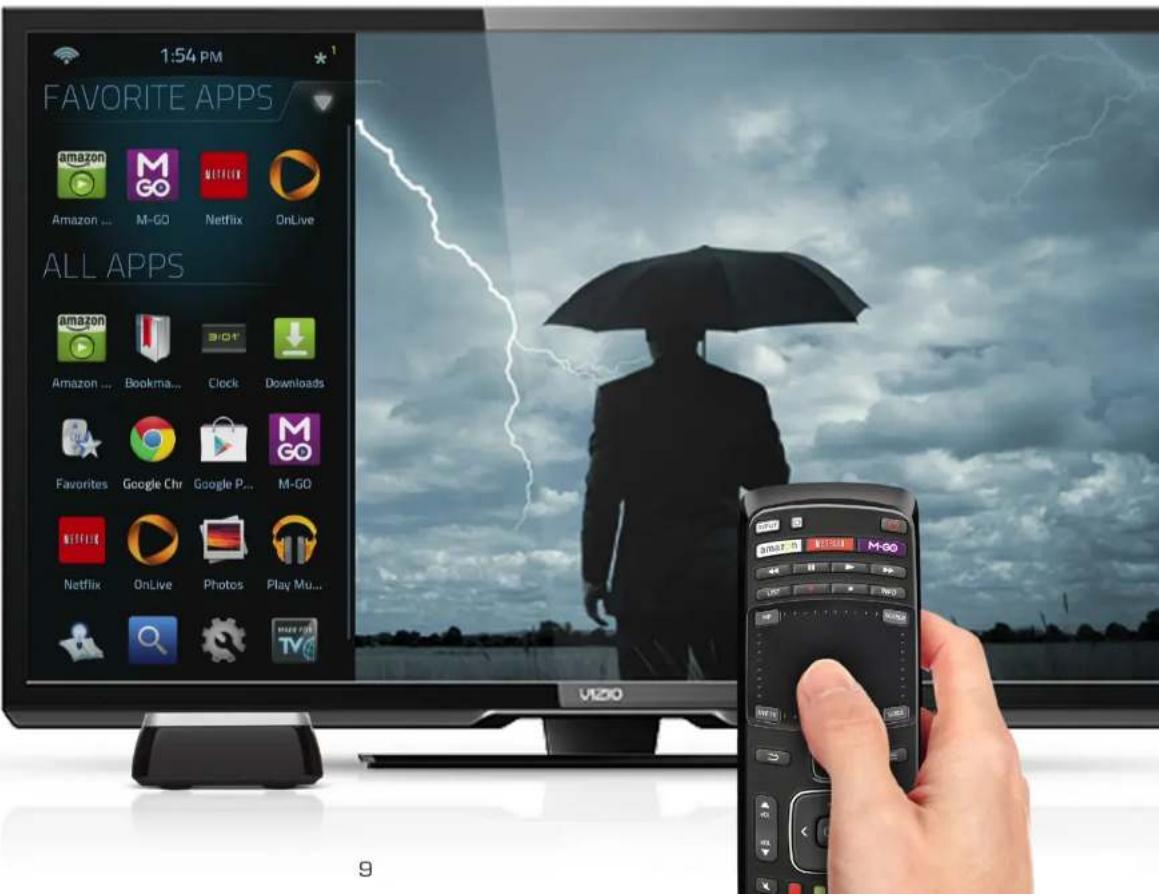
WATCH THIS!
Use the TV & Movies app to easily browse content. Setup the app with your watching preferences, and results will be tailored to your personal tastes.
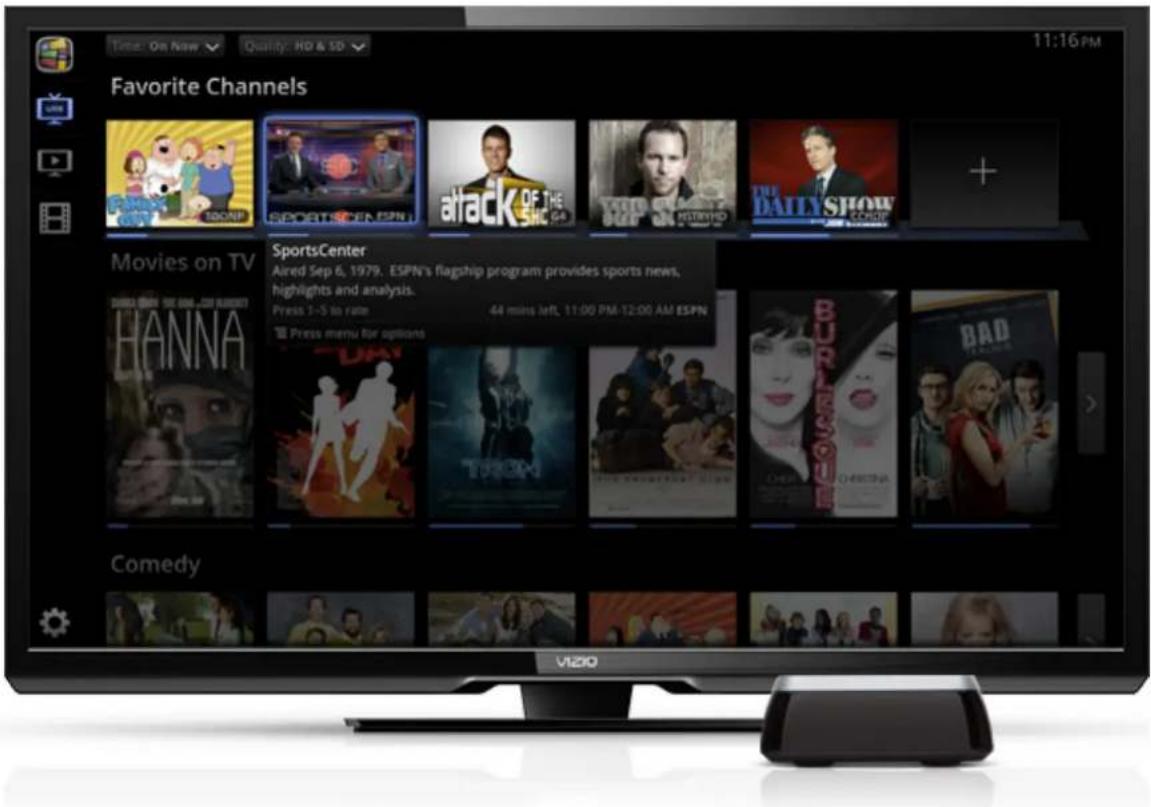
EXPLORE & DISCOVER
We've pre-loaded some of the best apps available, but there are thousands more waiting for you in the Google Play store. Check out its easy-to-use menus to search for new apps, games, and more!
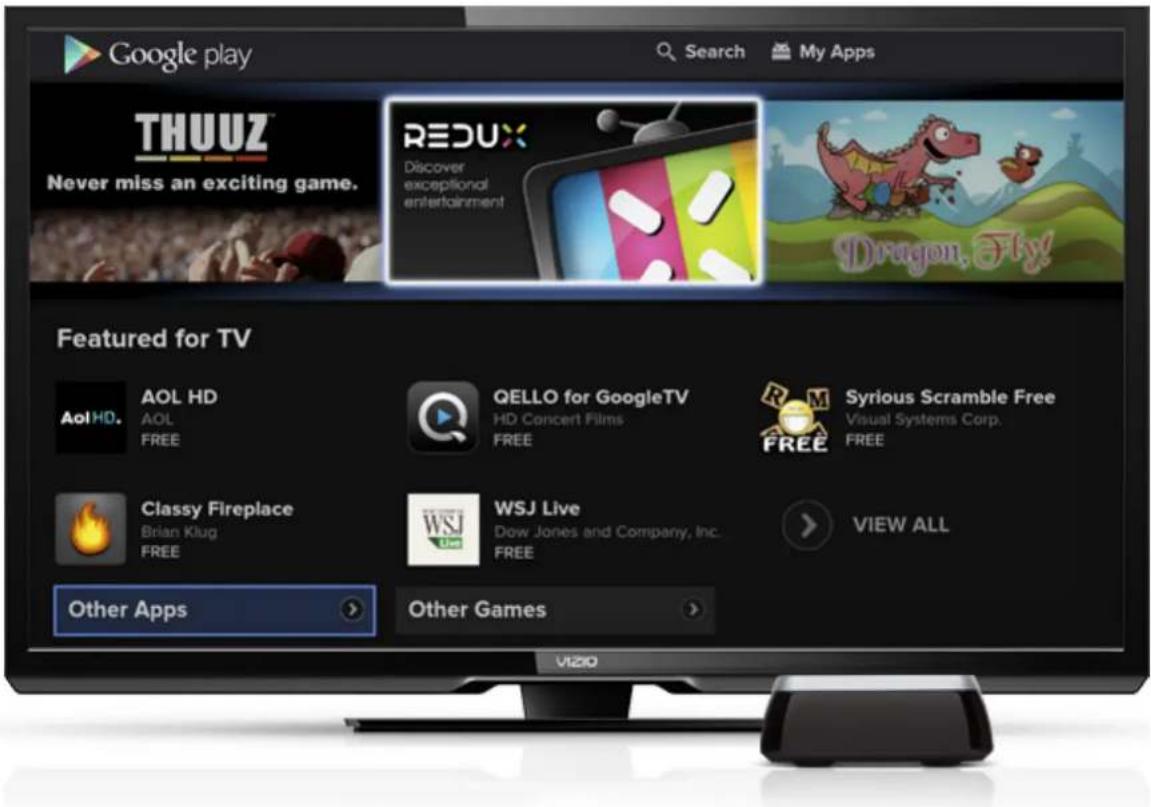
WHAT SETS THE CO-STAR APART


Apps Everywhere
Co-Star takes the app entertainment experience to the next level like no other stream player before. With access to thousands of apps, including favorites like Netflix ® , Amazon Instant Video, and Pandord ® . Co-Star also introduces new app experiences such as the OnLive ® game service, which lets you play top-tier video games from the cloud to your TV.
Remote Control
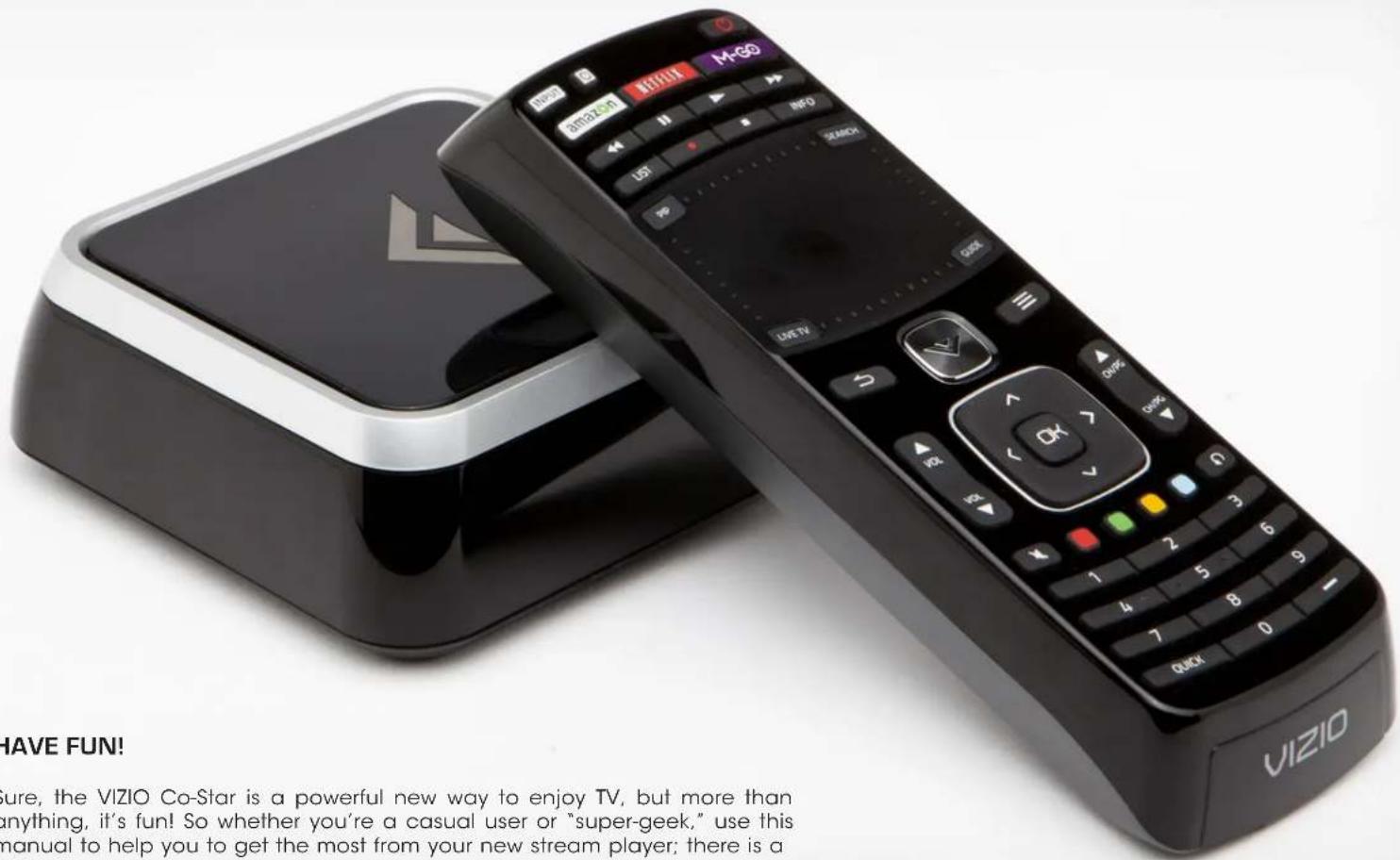
VIZIO Co-Star includes a universal Bluetooth® remote with an innovative touchpad that lets you touch, tap, scroll and drag. A full QWERTY keyboard helps users search for their favorite entertainment. The built-in IR blaster provides universal functionally, making it easy to control all your home entertainment devices with one remote.
Web Surfing
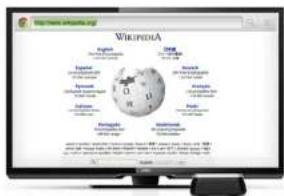
Co-Star is among a few stream players that feature a full Internet browser with the blazing fast Google Chrome. Support for Adobe Flash Player® and HTML 5 means you can access any of the popular Flash or HTML 5 enabled sites without limits.
natural_image
Modern home screen setup with a snowboard flying over the screen, a remote control unit, and a black TV case (no visible text or symbols)Live TV Integration
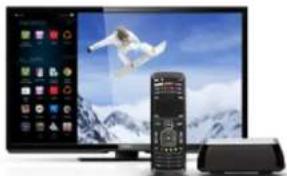
The VIZIO Co-Star™ is unique in that you can connect it to a cable or satellite box. This allows you to enjoy live TV while surfing the web, using apps, gaming online, streaming entertainment—all without interruption. You can even pull search results across apps, the Web, local content and television listings at the same time.
Advanced Technology
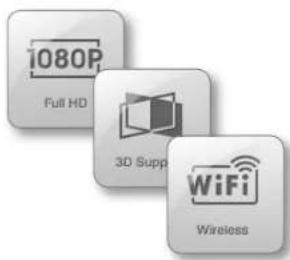
The VIZIO Co-Star incorporates a number of features intended to satisfy power users, including support for 1080p Full HD and 3D entertainment. Built-in 802.11n Wi-Fi provides easy wireless Internet access without unsightly wires, and thanks to the USB port, you can connect storage devices, keyboards and other peripherals. And don't forget, geeks: Using apps from Google Play Store, you can enjoy photos, music, and movies from any DLNA-enabled phone, tablet, or computer.
HAVE FUN!
Sure, the VIZIO Co-Star is a powerful new way to enjoy TV, but more than anything, it's fun! So whether you're a casual user or "super-geek," use this manual to help you to get the most from your new stream player; there is a lot to discover.
Explore and enjoy—and thank you for supporting VIZIO.
Installing the Co-Star
2
INSPECTING THE PACKAGE CONTENTS
Before installing your new Co-Star take a moment to inspect the package contents. Use the images below to ensure nothing is missing or damaged.
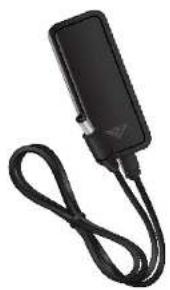
natural_image
Black handheld device with black cable and connector (no visible text or symbols)Power Adapter
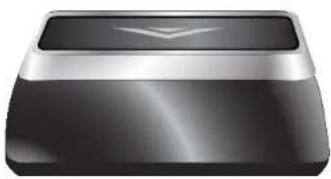
natural_image
Exterior view of a modern office building (no signage)VIZIO Co-Star with Google TV™ Stream Player
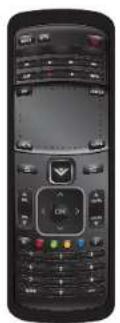
Remote with Batteries
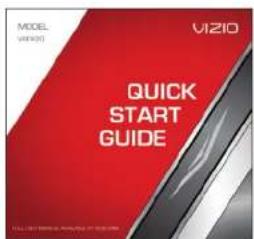
Quick Start Guide
Package Contents
YOU WILL NEED
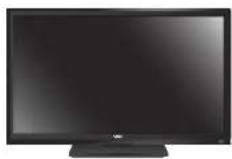
HDTV with an available HDMI input port
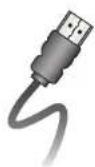
HDMI Cable
natural_image
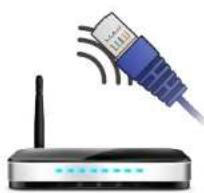
Illustration of a wireless router with a blue USB connector emitting signal waves (no text or symbols)Internet connection (Wired or wireless)

For the best online experience, you should have a high-speed internet connection (Minimum 10 Mbps-higher is better).
FOR THE BEST EXPERIENCE, YOU SHOULD ALSO HAVE
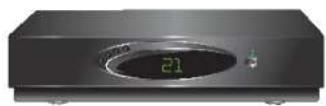
HD Cable or satellite box with an available HDMI port
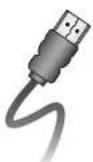
A second HDMI Cable
2
FIRST TIME SETUP
After removing the Co-Star from the box and inspecting the package contents you can begin installing the Co-Star. Before you begin, make sure your TV has an available HDMI port and that all devices are powered off.
1
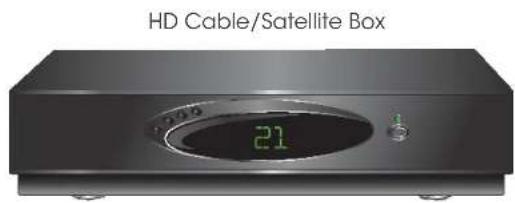
Connect your cable or satellite box to the Stream Player with an HDMI cable.*
The Stream Player can be used without an HD Cable/Satellite Box, but you will not be able to enjoy the TV search, picture-in-picture, and other great features.
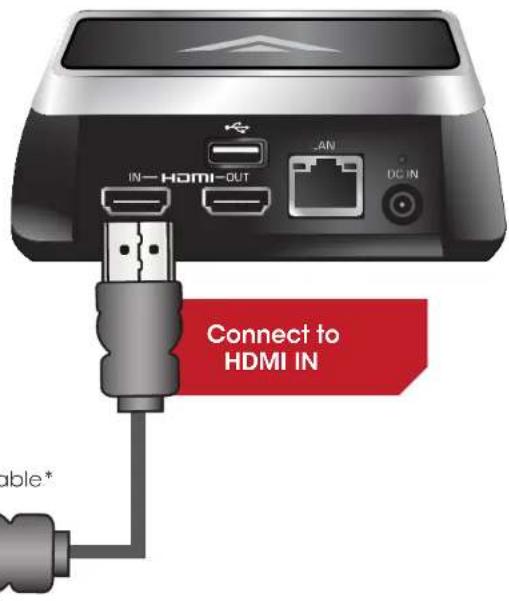
* HDMI Cable sold separately.
Connecting the Co-Star
2
2
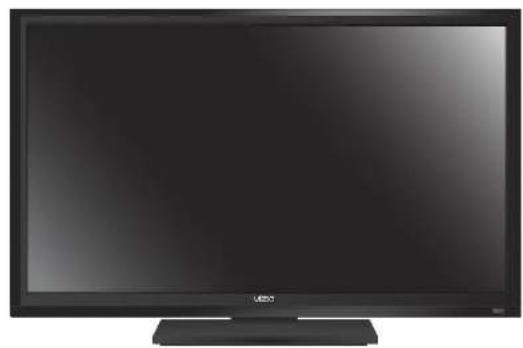
Connect the Stream Player to your TV with an HDMI cable.*
HDTV
natural_image
Front view of a black UBSO TV displaying its blank screen (no text or symbols visible on the screen body)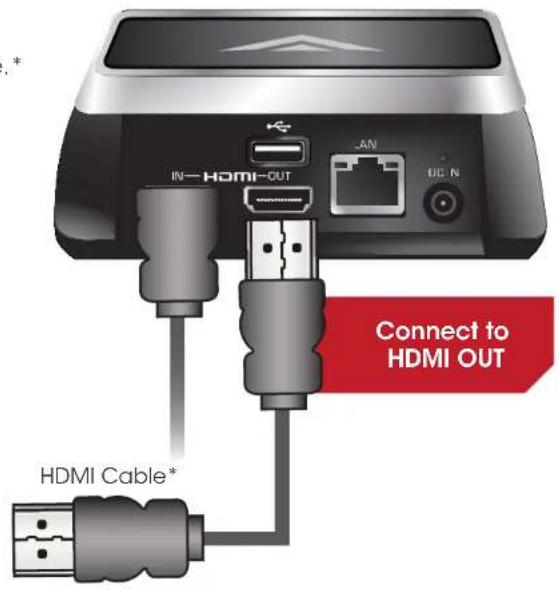
* HDMI Cable sold separately.
Connecting the Co-Star
3
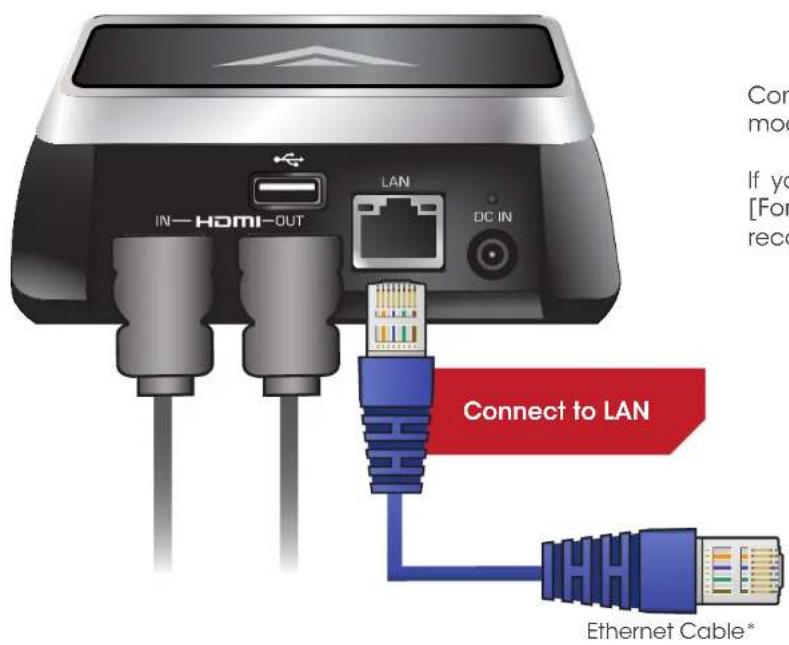
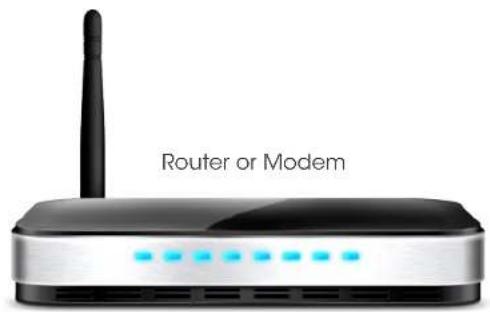
Connect the Stream Player to your router or modem with an Ethernet cable.*
If you want to connect wirelessly, skip this step. [For best experience, wired connection is recommended.]
*Ethernet Cable sold separately.
Connecting the Co-Star
2
4
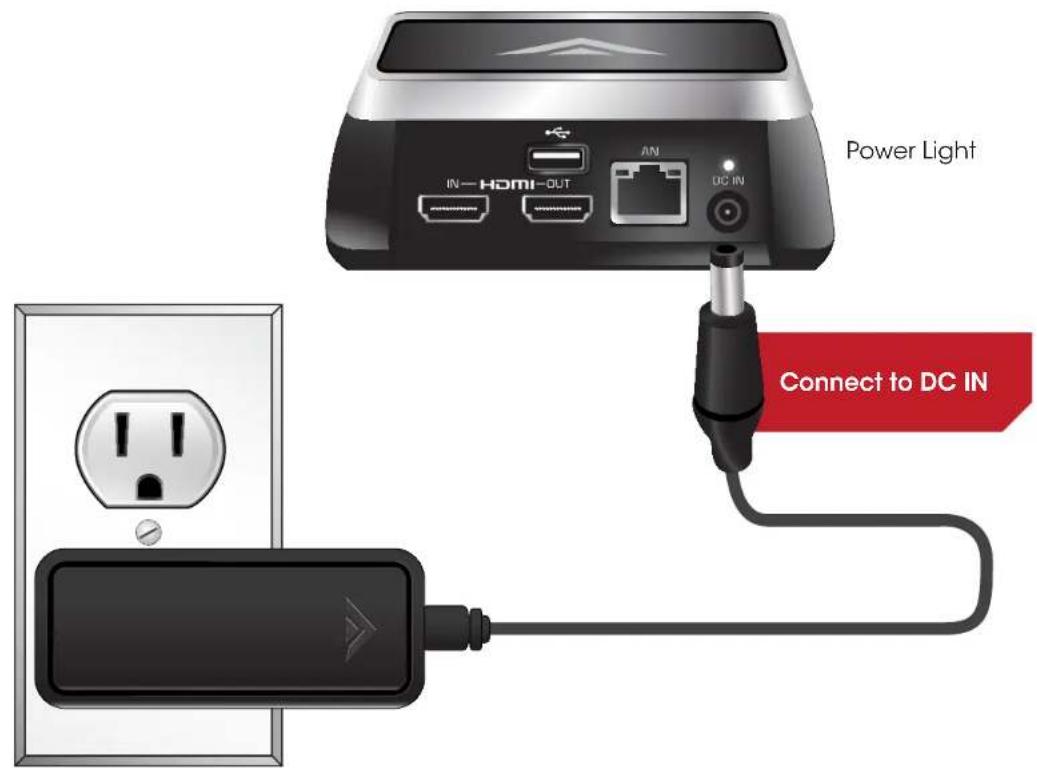
Connect the power adapter to the Stream Player to DC IN as shown. Plug the power adapter into an electrical outlet. The Stream Player powers on.
Connecting Power Cord
CONNECTING THE CO-STAR TO YOUR HOME AUDIO SYSTEM
If you have a home audio system that you would like to use with your Stream Player, use the diagrams below to connect your devices.
2
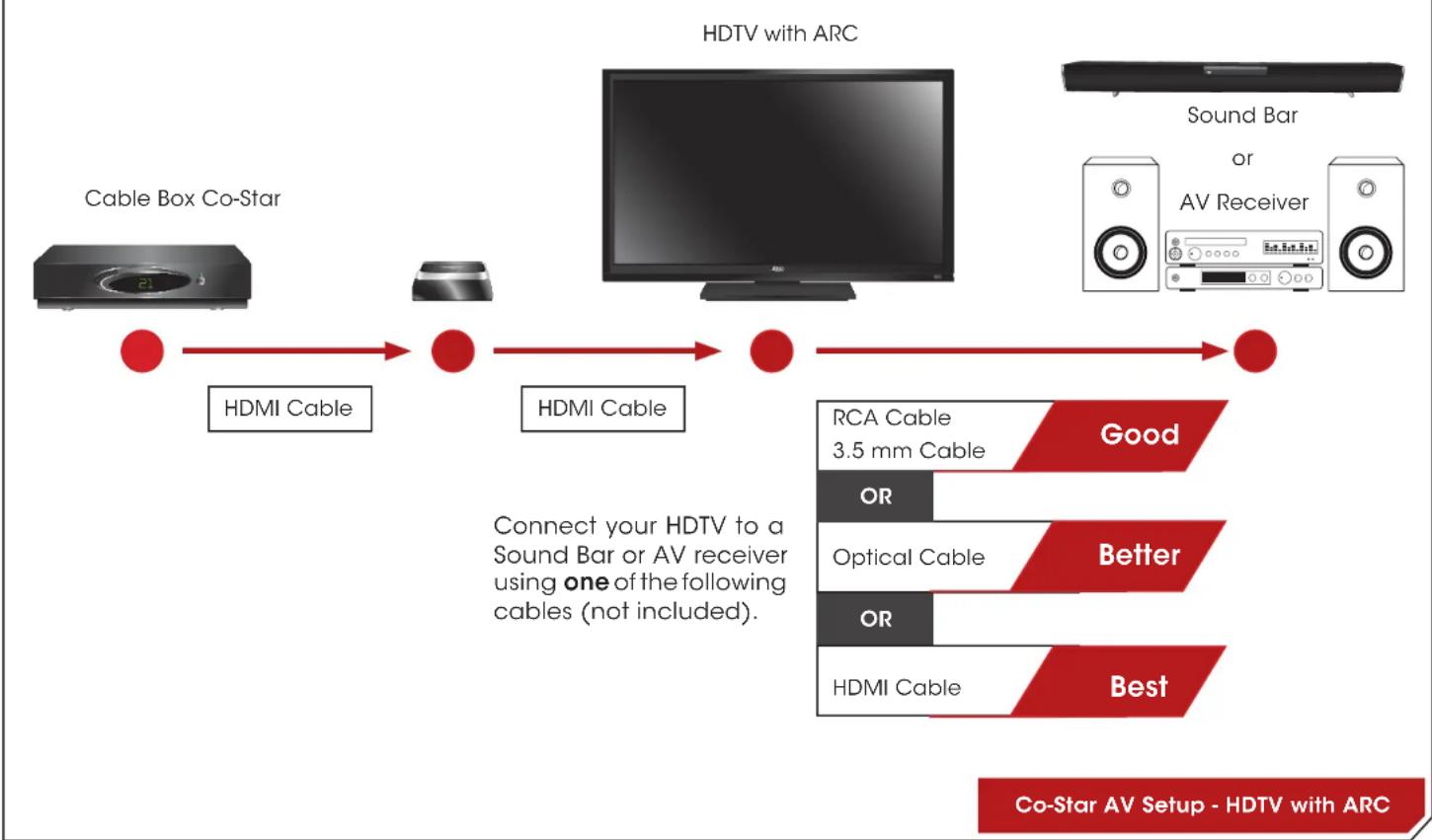
flowchart
graph LR
    A["Cable Box Co-Star"] -->|HDMI Cable| B["CoStar"]
    B -->|HDMI Cable| C["+"]
    C --> D["+"]
    D --> E["+"]
    E --> F["+"]
    F --> G["+"]
    style A fill:#f9f,stroke:#333
    style B fill:#ccf,stroke:#333
    style C fill:#cfc,stroke:#333
    style D fill:#fcc,stroke:#333
    style E fill:#cff,stroke:#333
    style F fill:#ffc,stroke:#333
    style G fill:#fcc,stroke:#333
If you have a VIZIO Sound Bar, or an A/V receiver with HDMI pass-through capability, you can use this setup. Check the User's Guide that came with your audio system to determine if your device has this capability.
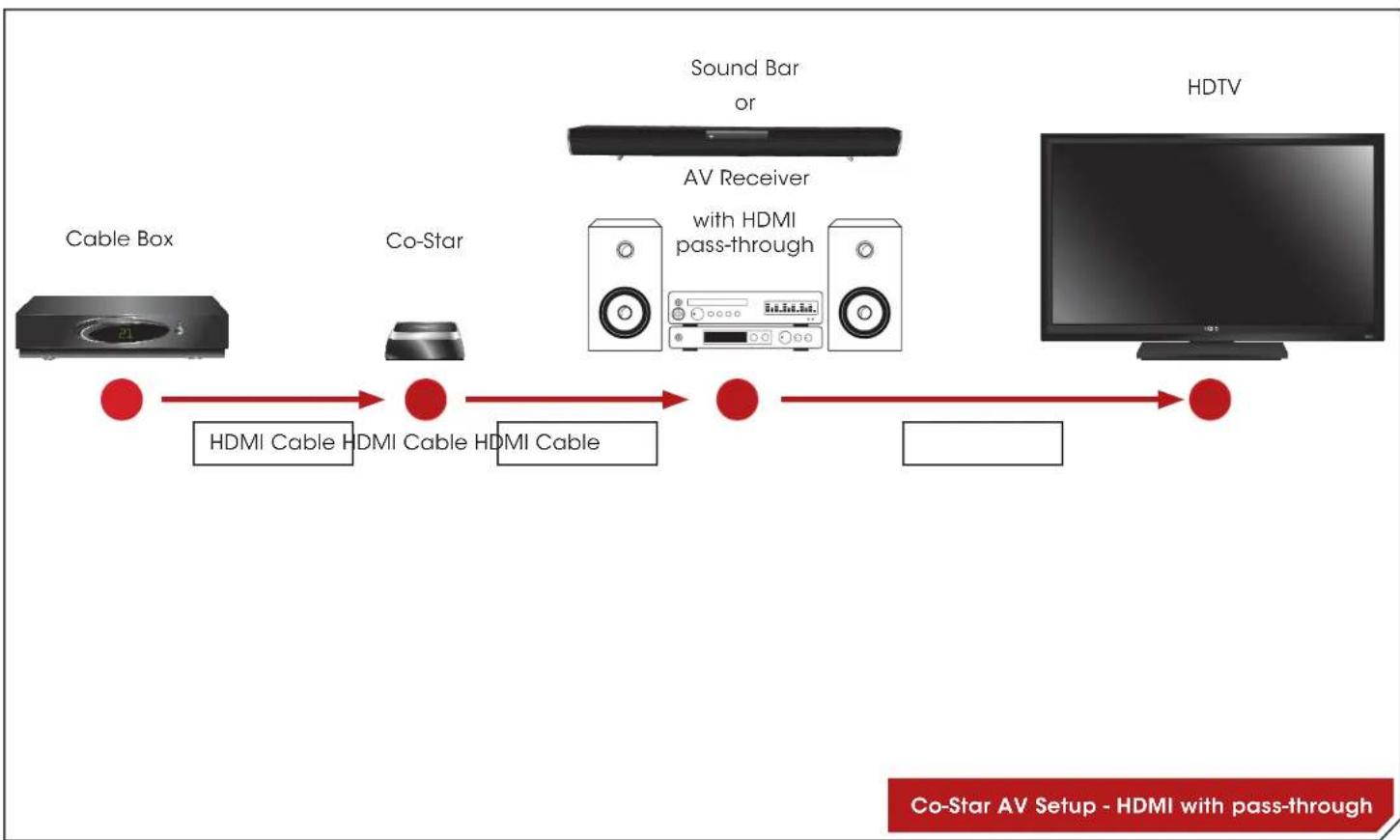
flowchart
graph LR
    A["Cable Box"] --> B["Co-Star"]
    B --> C["AV Receiver with HDMI pass-through"]
    C --> D["HDTV"]
    B -->|HDMI Cable HDMI Cable HDMI Cable| E
    D --> F["Co-Star AV Setup - HDMI with pass-through"]
2
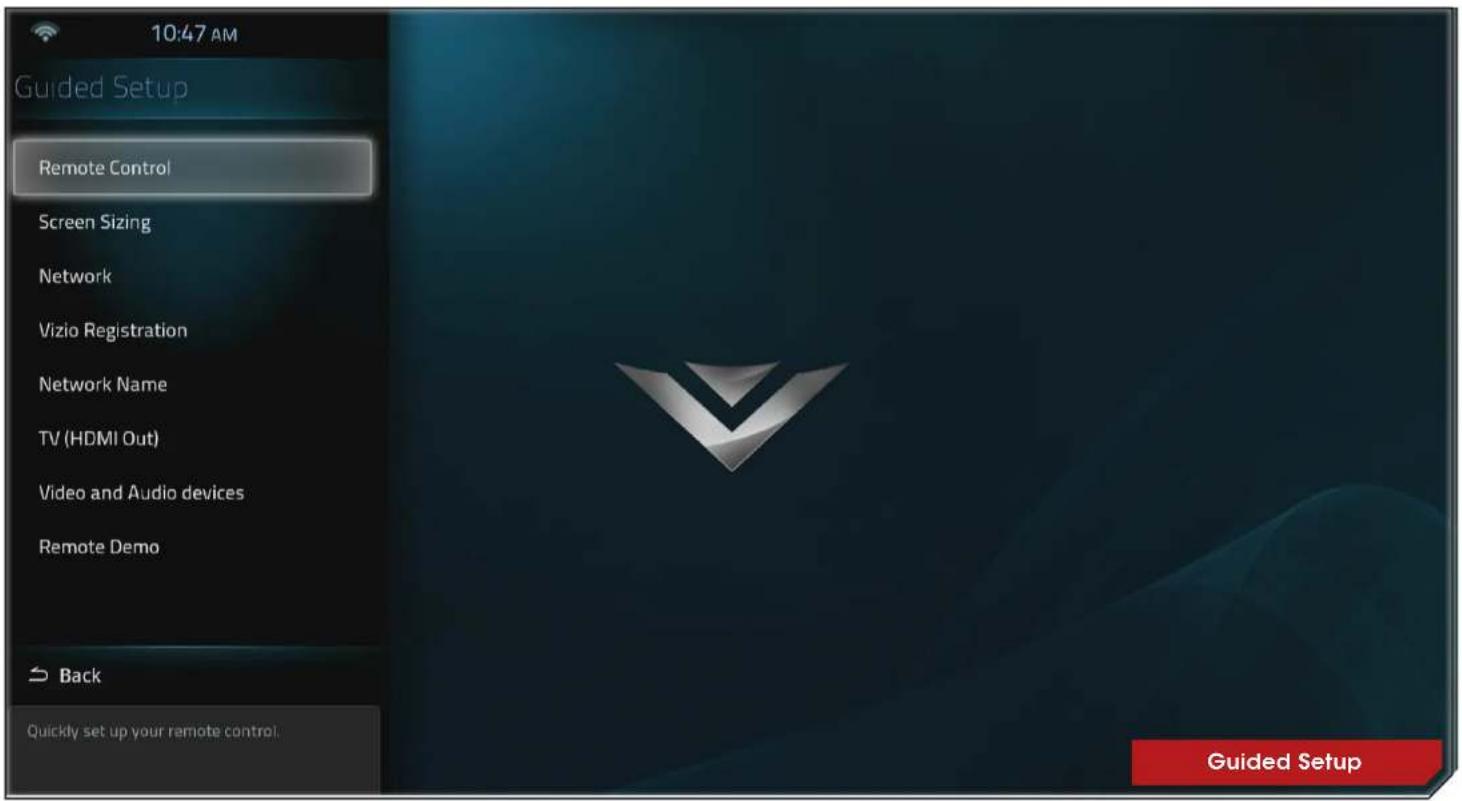
USING GUIDED SETUP
The first time you turn on your Co-Star, it will take you through an on-screen configuration process. Follow the on-screen directions to complete setup. For more information, see "Using the Guided Setup" on page 37.
Getting to Know the Co-Star
3
CO-STAR (REAR)
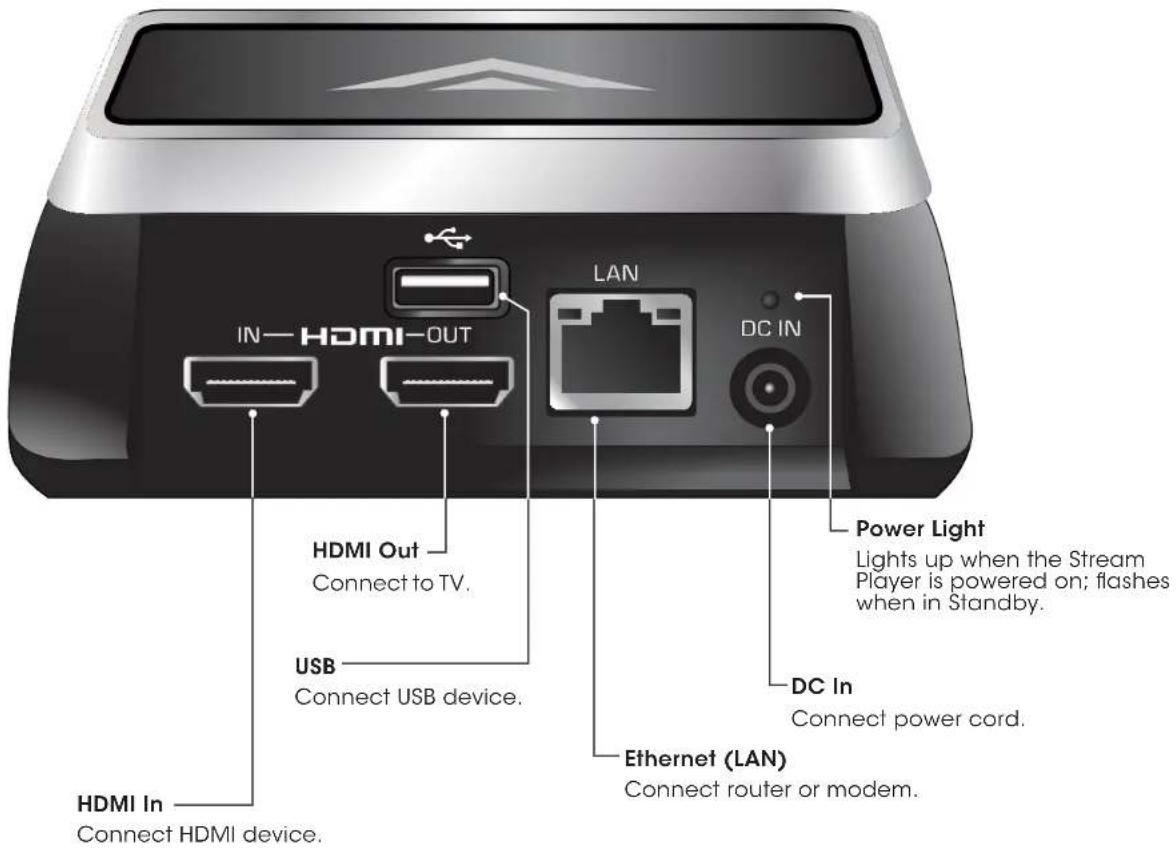
Rear View
Resetting the Co-Star
In the event that you need to restore your Stream Player to its factory default settings:
- Be sure the Stream Player is plugged into an electrical outlet.
- To restore your device to factory settings, insert a paper clip into the hole on the bottom of the device and press for 10 seconds.

WARNING: This will erase any data stored on the device.
For information on restoring your Stream Player to factory default from the on-screen menu, see page 43.
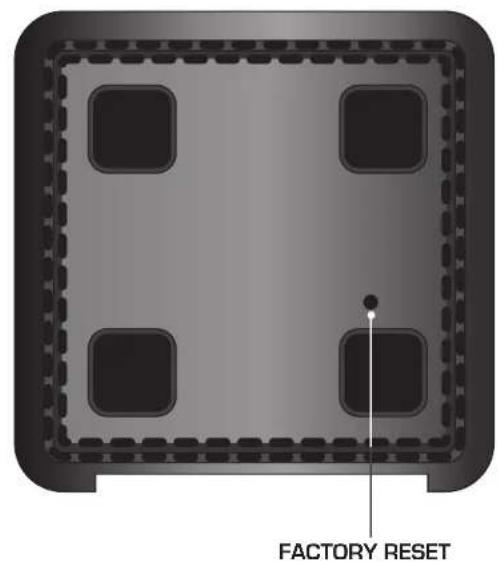
Resetting the Co-Star
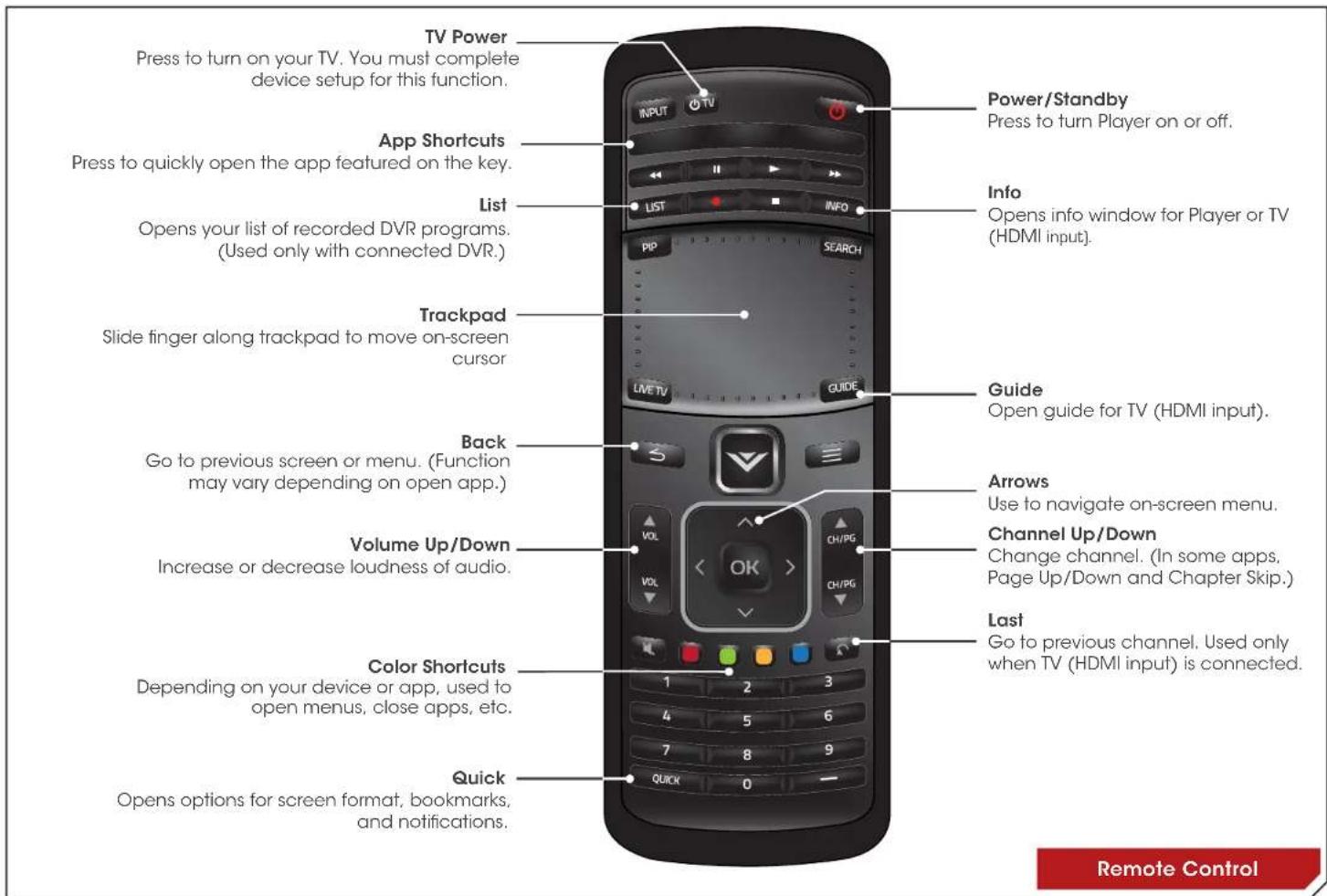
REMOTE CONTROL
The remote is Bluetooth enabled. If you complete device setup, the remote will be paired to the Stream Player. When paired, you do not need to point the remote at the Stream Player.
IMPORTANT: When controlling your cable/satellite box or TV, the remote uses an IR (infrared) signal, so you must point it directly at the cable/satellite box or TV when pressing a button.
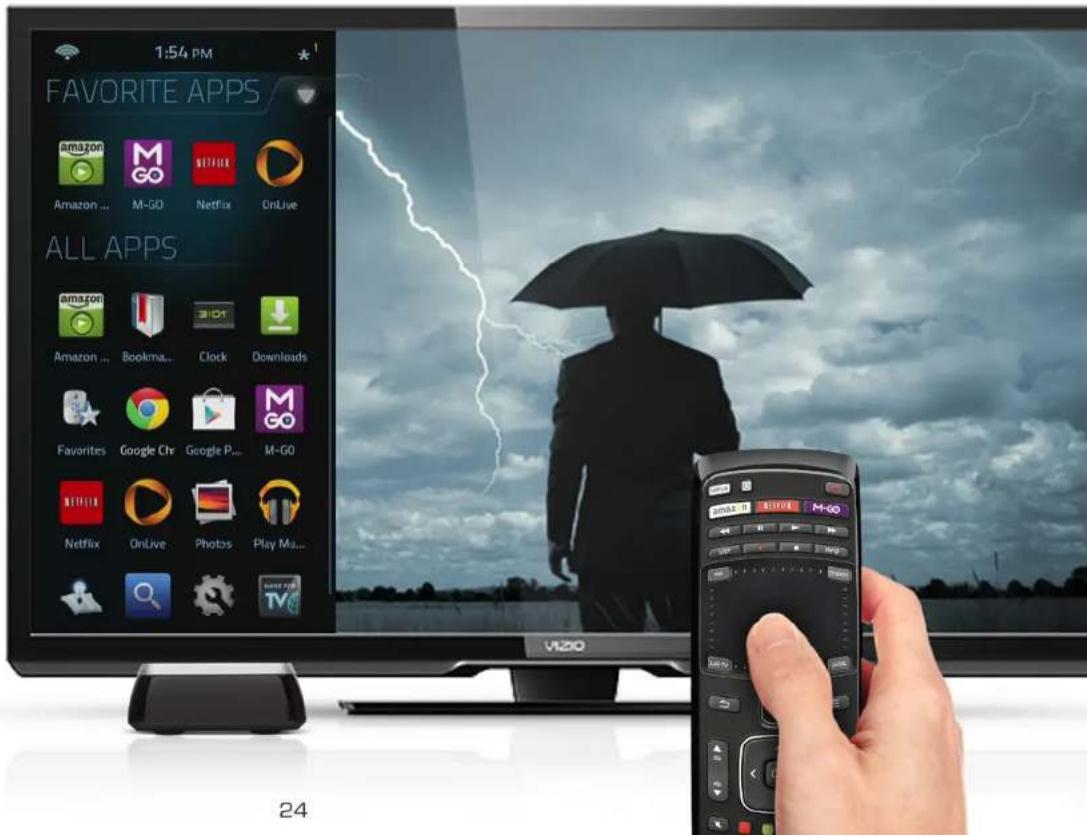
REMOTE CONTROL
REMOTE CONTROL (CONTINUED)
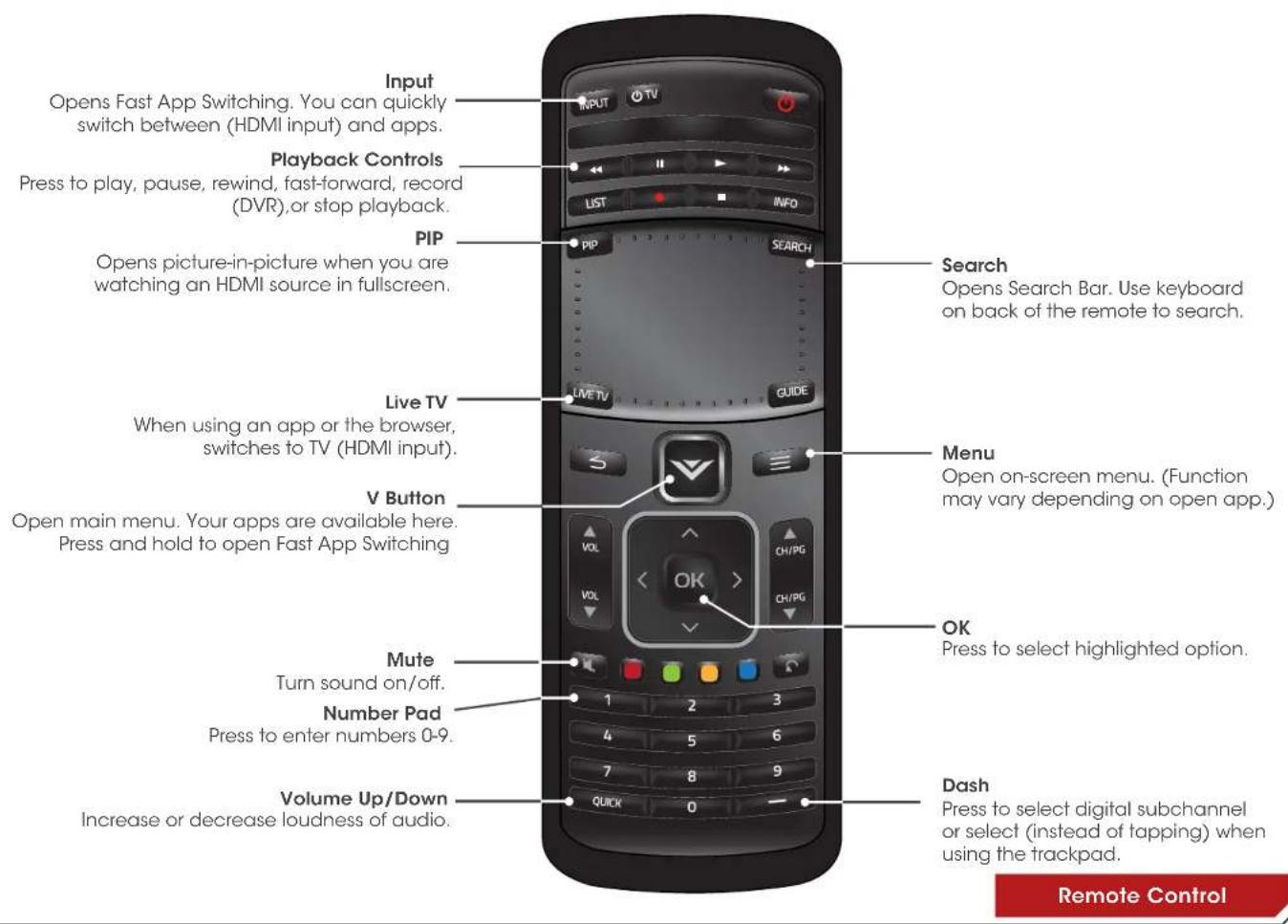
USING THE REMOTE
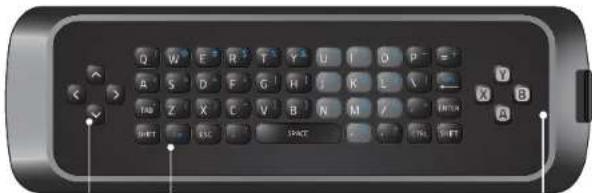
natural_image
Close-up of a black keyboard with control buttons and keyboard layout (no readable text or symbols)Fn (Function) - Use to enter blue characters or numbers on keyboard. For example, press Fn + W to enter the @ symbol.
Arrow - Use to navigate on-screen menus.
Action - Use buttons when playing games or for app shortcuts.
Remote Buttons
Remote Tips:
- Press the RECORD button to bookmark a favorite website while using the Chrome browser.
-
Press and hold the V Button to open Fast App Switching.
• To watch an HDMI source while using apps: -
While watching your HDMI source, press PIP.
- Your last-used app opens fullscreen. If you were not using any app, you can select from the menu normally.
- Press PIP again to watch HDMI fullscreen.
Replacing the Batteries
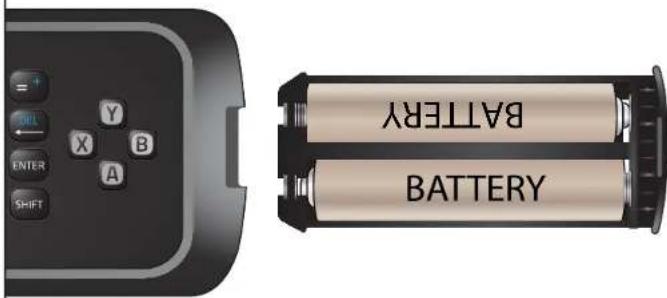
Replacing Batteries
- Remove the battery cover.
- Insert two batteries into the remote control. Make sure that the (+) and (-) symbols on the batteries match the (+) and (-) symbols inside the battery compartment.
- Replace the battery cover.

• Use only good quality batteries.
- Inserting the batteries incorrectly may result in cracking or leakage that may cause a fire or result in injury.
- Dispose of old or dead batteries in accordance with local hazardous waste regulations.
- Keep batteries away from children and pets.
Using the Trackpad
The Co-Star's remote features a trackpad that allows for easier navigation and agility when browsing the web or making the most of your favorite apps. Use the gestures described below to get the most out of your remote control.
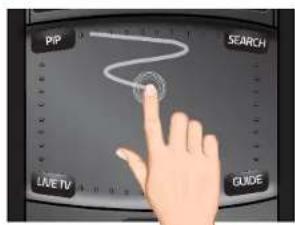
Slide thumb or finger
to move cursor.
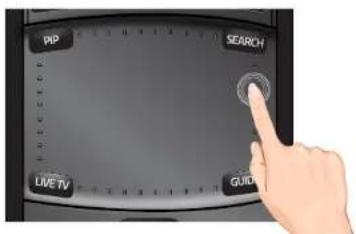
Slide along right edge
to scroll up/down.
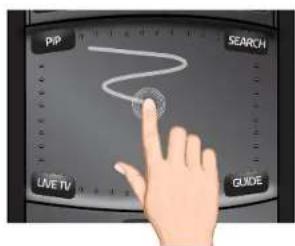
To drag an item, press
and hold DASH key
and slide finger across
trackpad. Release DASH
key to drop.
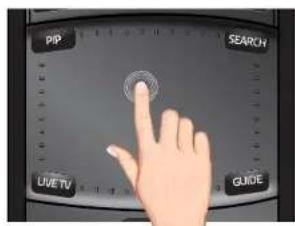
Tap or Double-Tap
to select.
Some apps may not support all of the above gestures.
In addition to double-tapping the trackpad to select items with the remote, you can also use the dash key shown below to make a selection.
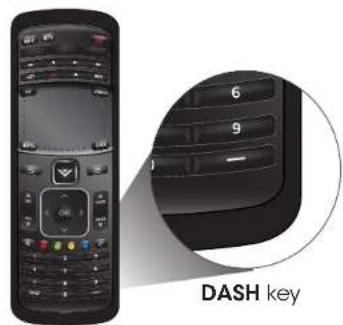
natural_image
Black remote control with a dial key and navigation buttons, shown in two views (no text or symbols on the main device)Remote Gestures
GETTING TO KNOW THE ON-SCREEN MENU
Network Status
If the Stream Player is connected to a wireless network or Ethernet, the signal strength will be displayed here.
For information about connecting wirelessly, see page 49.
Favorite Apps
Add or remove your favorite applications from this list for easy access. For more information, see page 36.
All Apps
Every app that is loaded on the Co-Star will be displayed in this category. For information on managing apps, see page 34.
Google Chrome
Browsing the internet on your TV is a cinch with the Google Chrome browser for Google TV. For more information, page 51.
User's Guide
Access the Co-Star's User's Guide by selecting this icon.
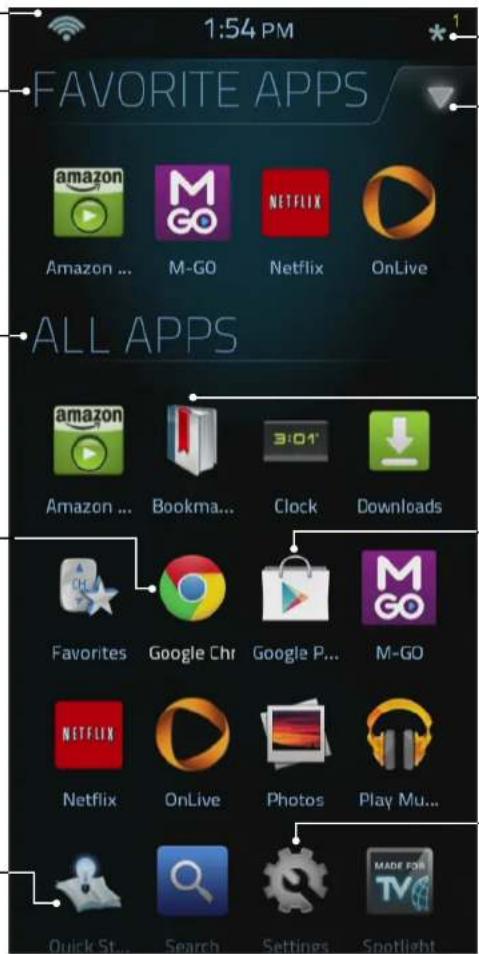
Notifications
Select the * icon to display notifications. The number next to the * indicates the number of notifications there are. For more information, see page 33.
Category Selector
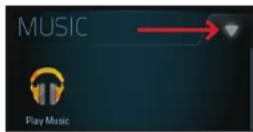
Select this drop-down arrow to select which app category is displayed. Create your own, or choose from Favorite Apps, Games or Movies & TV. For more information, see page 36.
Bookmarks
Access your Chrome bookmarks from this icon. For more information on managing bookmarks, see page 52.
Google Play
Purchase and download apps from the Google Play store to optimize the entertainment potential of your Co-Star. For more information, see page 34.
Settings
Use the Settings menu to configure your Co-Star, manage applications or view network information.
Tip: Add Settings to the Favorite Apps menu for easy access.
For more information on Settings, see page 50.
CONNECTING ADDITIONAL ACCESSORIES
In addition to the remote control included with your Stream Player, you can use the following accessories with your device:
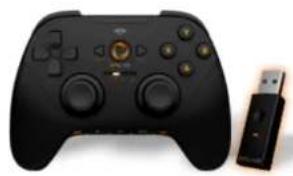
natural_image
Black Sony 8.0x controller with dual ports, no visible text or symbols on the device bodyUniversal OnLive Wireless Controller
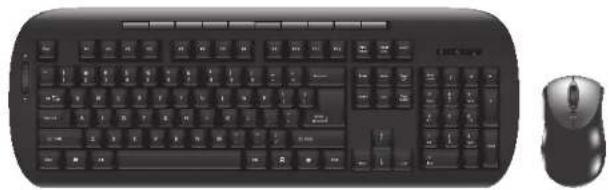
natural_image
Black desktop computer keyboard and mouse (no visible text or symbols)USB Keyboard/Mouse
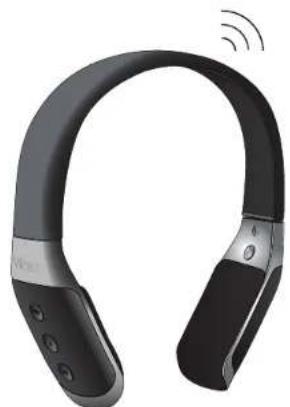
natural_image
Black and silver headband with wireless signal icon (no text or symbols)Bluetooth Headphones
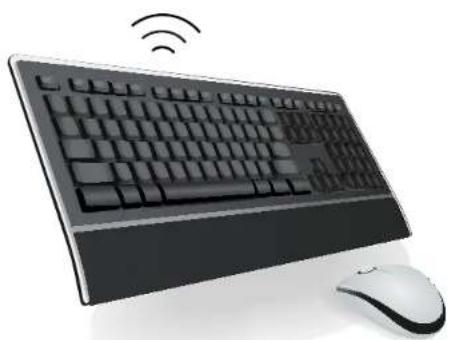
natural_image
Illustration of a desktop computer keyboard with a mouse and wireless signal icon above (no text or symbols)Bluetooth Keyboard/Mouse
Connecting USB Devices
To use a USB accessory with your Stream Player, connect it to the USB port on the back of the device.
Removing a USB Storage Device
When removing a USB storage device, it is important to unmount/eject the drive to prevent damage and/or data loss.
To unmount/eject your USB storage device:
-
Press the V Button on the remote.
-
Use the Arrow buttons or the Trackpad to select the ✗ icon at the top right-hand corner of the on-screen menu, then press OK.
If the notifications are not displayed, select Ongoing to open the notification list.
- Use the Arrow buttons to highlight the name of your USB storage device and press OK.
Your device is ejected. It is safe to disconnect the device.
Using Bluetooth Accessories with the Co-Star
To use a Bluetooth accessory with your Stream Player, you need to pair it with the Stream Player.
To pair your accessory:
- Make sure your accessory is in "discoverable" mode.
- Press the V Button on the remote.
- Select Devices and use the remote to navigate to Bluetooth.
- Select Pair device. The Stream Player will scan for your accessory.
- Select your device from the list to pair it with the Stream Player.

If you are listening to bluetooth headphones and there is no sound, press the V Button and navigate to Settings > Audio and change the HDMI Out setting to PCM.
To disconnect your Bluetooth accessory,
- Press the V Button on the remote.
- Select Devices and use the remote to navigate to Bluetooth.
- Select your device from the list of paired accessories and use the remote to switch the device pairing to Off.

You may need to re-pair your bluetooth device after a period of non-use or once it has been powered off.
Using the On-Screen Menu
4
NAVIGATING THE ON-SCREEN MENU
Use the remote control to navigate the on-screen menu to access different apps and services offered by the Stream Player.
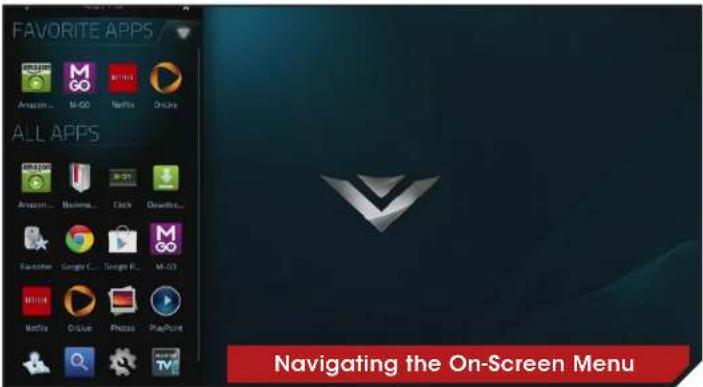
To open the on-screen menu, press the V button on the remote.
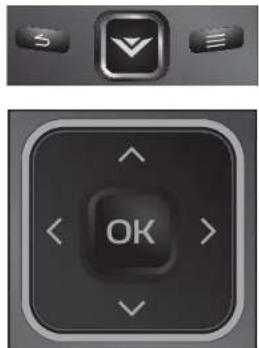
Use the Arrow buttons to navigate and highlight apps, and press the OK button to select them.

While navigating the on-screen menu, you can press the Ⓧ button at any time to return to the previous menu screen.
GOOGLE TV™ & FEATURED APPS

Search
Search makes scrolling through channels a thing of the past. Press the Search key and harness Google's search power to discover TV offerings and web content. Quickly search for online videos, navigate to all of your favorite websites or jump directly to a channel by searching for it by name.
TV & Movies
TV & Movies makes it easy to browse for TV show and movies on live TV, on-demand and on the web. If you're a Netflix subscriber, you'll also enjoy automatic access to content. If you have enhanced DVR integration, you'll find all of your DVR recordings listed in TV & Movies for easy viewing.

YouTube
YouTube brings millions of online videos, including today's most viewed and best-reviewed, letting you play and share them in full-screen high definition - just like watching TV.

Chrome
Experience the power of a full Internet browser on your TV screen with Google's Chrome, powered with the Adobe Flash Player and HTML 5 to make your experience better than ever.

Google Play Store
Google Play brings you easy access to an expansive variety of apps from all around the world developed specifically of the Android platform and Google TV.

Amazon Instant Video
Enjoy new release movies and day-after-air TV shows to rent or buy, plus thousands of videos available to Amazon Prime members at no additional cost.

Netflix®
Instantly watch thousands of TV episodes & movies streaming right to your TV. Watch as much as you want, with no due dates or late fees. Ever.

OnLive®
Play what you want, whenever you want, with no discs and no downloads. OnLive offers hundreds of blockbuster and indie games, along with groundbreaking social features you won't find anywhere else. Demo free. Play instantly. It's that simple.
NOTIFICATIONS
Accessing and Managing Notifications
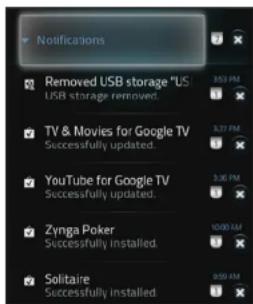
The notifications menu is located in the top right corner of the on-screen menu. Here you can view and manage ongoing and status notifications.

The number of notifications is displayed next to the notifications menu icon.
To access the notifications menu:
- Press the V Button on the remote control. The on-screen menu is displayed.
- Use the Arrow buttons on the remote to highlight the notifications menu icon and press OK. The Notifications menu is displayed.
- Use the Arrow buttons on the remote to highlight Ongoing and press OK. The Ongoing drop down menu is displayed.
Here you can unmount USB devices by using the Arrow buttons on the remote to highlight it and press OK.
- Use the Arrow buttons on the remote control to highlight different notifications under the Notifications drop down menu. To remove them, highlight the X button and press OK. The notification is removed.

MANAGING APPS
Adding and Removing Apps
In addition to the pre-installed apps, you can browse through the Google Play Store for a wide selection of apps.
To download additional apps:
- Press the V Button on the remote. The on-screen menu is displayed.
- Use the Arrow buttons on the remote to highlight the Google Play Store icon and press OK. The Google Play Store is displayed.
- Use the Arrow buttons on the remote to highlight your app of choice and press OK. The app information page is displayed.
- Use the Arrow buttons on the remote to highlight the Install button and press OK, then highlight Install and press OK on the following page.
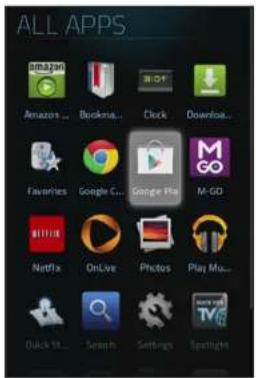
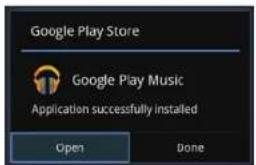
To remove apps:
- Press the V Button on the remote. The on-screen menu is displayed.
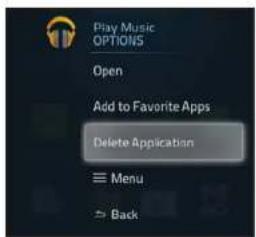
- Use the Arrow buttons on the remote to highlight the app you wish to remove and press the menu button. The app options menu is displayed.
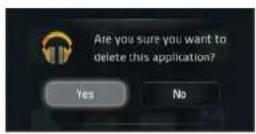
- Use the Arrow buttons on the remote to highlight Delete Application and press OK. Then highlight Yes and press OK.
The app is removed.
Managing Favorite Apps
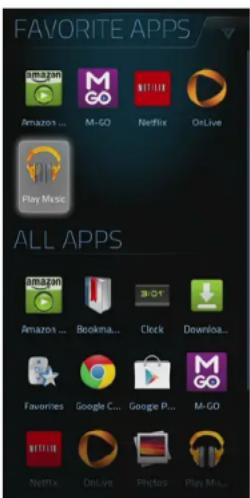
Add your most used apps to the Favorite Apps section in the on-screen menu to access them more quickly.
To add apps to the Favorite Apps section:
- Press the V Button on the remote. The on-screen menu is displayed.
-
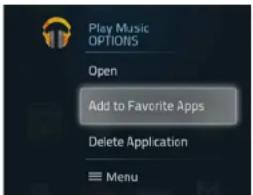
Use the Arrow buttons on the remote to highlight an app that you wish to add to the Favorites section and press the ≡Menu button. The app options menu is displayed.
-
Use the Arrow buttons on the remote to highlight Add to Favorite Apps and press OK.
The app is under the Favorite Apps section.
To remove apps from the Favorite Apps section:
- Press the V Button on the remote. The on-screen menu is displayed.
- Use the Arrow buttons on the remote to highlight an app that you wish to remove from the Favorites section and press the ≡ Menu button. The app options menu is displayed.
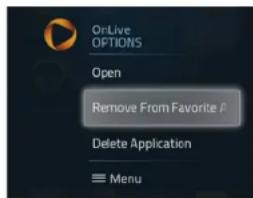
- Use the Arrow buttons on the remote to highlight Remove From Favorite Apps and press OK.
The app is removed from the Favorite Apps section.
Creating a Custom Category
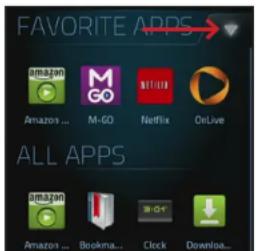
The drop-down arrow on the top right-hand corner of the on-screen menu allows you to select categories to file applications under for easy access. You can create your own custom category for apps to help organize them in the on-screen menu.
To add apps to a custom category:
- Press the V Button on the remote. The on-screen menu is displayed.
-
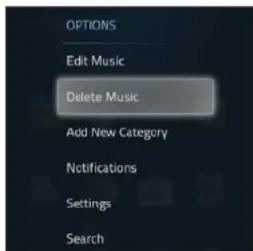
Use the Arrow buttons on the remote to highlight the category selector to the right of the Category title and press the ≡ Menu button. The category options menu is displayed.
-
Highlight Add New Category and press OK.
-
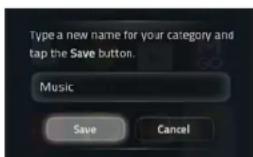
Use the keyboard on the back of the remote to enter a name for your new category. Use the Arrow buttons to highlight Save and press OK.
-
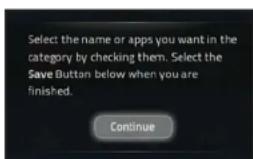
Highlight and check each app you wish to add to the new category. Highlight Save and press OK when you are finished.
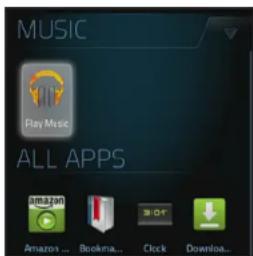
You now see the newly created category with the selected apps in the on-screen menu.
Removing Apps from a Custom Category
To remove apps from a custom category:
-
Press the V Button on the remote. The on-screen menu is displayed.
-
Use the Arrow buttons on the remote to highlight an app you wish to remove and press the ≡ Menu button. The app options menu is displayed.
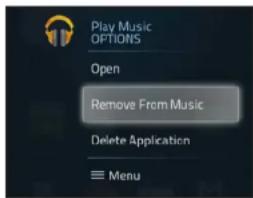
- Highlight Remove From [Category Name] and press OK.
The app is now removed from the category.
Deleting a Custom Category
To delete a custom category:
- Press the V Button on the remote. The on-screen menu is displayed.
-
Use the Arrow buttons on the remote to highlight the category selector to the right of the Category title and press the Menu button. The category options menu is displayed.
-
Highlight Delete [Category Name] and press OK.
The category is removed.
4
USING THE SETTINGS MENUS
Using the Guided Setup
Access these step-by-step guides for help in setting up the main features of the Stream Player.
To access the guided setup:
- Press the V Button on the remote. The on-screen menu is displayed.
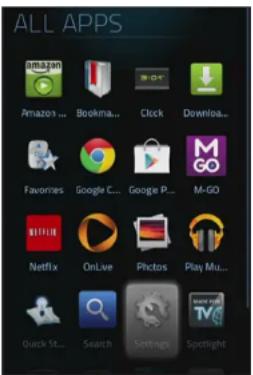
- Use the Arrow buttons on the remote to highlight the Settings icon and press OK. The Settings menu is displayed.
- Use the Arrow buttons on the remote to highlight Guided Setup and press OK. The Guided Setup menu is displayed.
-
Use the Arrow buttons on the remote to highlight the guided setup you wish to view:
-
Remote Control to reset or set up a remote.
• Screen Sizing to adjust the display area to provide the best screen presentation.
• Network to connect to a Wi-Fi/Ethernet network.
• VIZIO Registration to register the Co-Star for warranty purposes.
• Network Name to set up different devices to work with the Co-Star remote control.
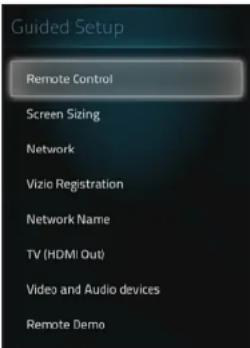
- TV (HDMI Out) to set up control of devices using the HDMI Out port.
• Video and Audio devices to add and remove HDMI-In devices. - Remote Demo to view a demo of the different remote gestures.
4
Adjusting Video Settings
Adjust the display to best fit your preferences and viewing conditions.
To adjust the Video Settings:
- Press the V Button on the remote. The on-screen menu is displayed.
- Use the Arrow buttons on the remote to highlight the Settings icon and press OK. The Settings menu is displayed.
-
Use the Arrow buttons on the remote to highlight Video and press OK. The Video Settings menu is displayed.
-
Use the Arrow buttons to highlight the setting you wish to adjust, then press the Left/Right Arrow to change the Setting:
-
Basic Settings - Adjust primary picture settings.
- Advanced Settings - Adjust advanced picture settings.
- Screen Saver - Adjust the duration of no activity before the screen saver begins. Select Off, 10 min, 30 min, 1 hour, 2 hours, or 3 hours.
• Video Resolution - Adjust the video resolution. Select Auto, 1080p, 1080i, or 720p.
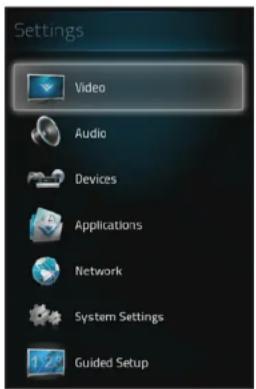
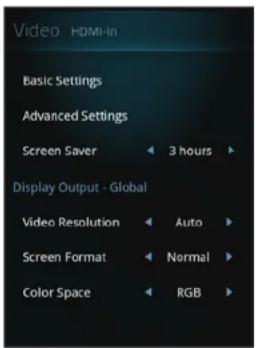
- Screen Format - Adjust the width/height ratio to remove side bars. Select Normal, Wide, Zoom, or Stretch.
• Color Space - Choose a Color Space. Select RGB or YCbCr 4:4:4.
Adjusting Basic Video Settings
See below for Basic Video Settings descriptions:
- Picture Mode - Choose from different video settings to create a custom setting. Select Standard, Movie, Sport, Vivid, Game, or Computer.
- Brightness - Adjusts the brightness to affect the overall brilliance of the picture.
- Contrast - Adjusts the white level of the picture. When this setting is too low, the picture may appear dark. When this setting is too high, the picture may appear faded or washed out. If the setting is too high or too low, details may be difficult to distinguish in dark or bright areas of the picture.
• Color - Adjust the intensity of the picture colors. - Tint - Adjusts the hue of the picture. This setting is useful in adjusting the flesh tones in the picture. If flesh appears too orange, reduce the level of color before adjusting tint.
- Sharpness - Adjusts the edge sharpness of picture elements. It can be used to sharpen non-HD (high definition) content; however, it will not produce detail that does not otherwise exist.
- Noise Reduction - Diminishes artifacts in the image caused by the digitizing of image motion content. Select Off, Low, Medium, or High.
- Reset Video Settings to Default - Reset the input Video settings to the initial factory settings.
Adjusting Advanced Video Settings
See below for Advanced Video Settings descriptions:
- Color Enhancement - Reduces oversaturation of some colors and improves flesh tones. Select Off, Normal, Rich Color, Flesh Tone, or Blue Tone.
- Contrast Enhancement - Reduces background picture noise selecting a level that corrects best based on the content. Select Off, Low, Medium, Strong, or Extend.
Adjusting Audio Settings
Adjust audio for the TV speakers or set up an external audio source such as a Sound Bar or AV receiver.
To adjust the Audio Settings:
- Press the V Button on the remote. The on-screen menu is displayed.
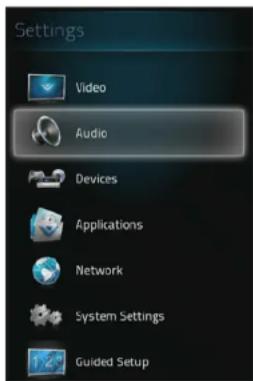
- Use the Arrow buttons on the remote to highlight Settings and press OK. The Settings menu is displayed.
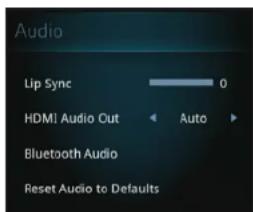
- Use the Arrow buttons on the remote to highlight Audio and press OK. The Audio Settings menu is displayed.
-
Use the Arrow buttons to highlight the setting you wish to adjust, then press the Left/Right Arrow to change the Setting:
-
Lip Sync - Adds delay to audio track to match with the display video.
- HDMI Audio Out - Select Auto to have audio as provided. For audio with system mixing or headphones, select PCM.
- Bluetooth Audio - Pair Bluetooth headset or headphones and turn the audio signal on or off.
- Reset Audio to Defaults - Reset Audio Settings to initial factory defaults.
SETTING UP DEVICES
Adding/Removing Video and Audio Devices
View an editable list of audio and video input devices connected to your Stream Player.
To add/remove devices:
- Press the V Button on the remote. The on-screen menu is displayed.
- Use the Arrow buttons on the remote to highlight Settings and press OK. The Settings menu is displayed.
- Use the Arrow buttons on the remote to highlight Devices and press OK. The Devices menu is displayed.
- Use the Arrow buttons on the remote to highlight Video and Audio Devices and press OK. The Video and Audio Devices menu is displayed.
- Use the Arrow buttons on the remote to highlight Add Device and press OK. The Set Up Your Devices menu is displayed.
- Choose your device from the list and follow the on-screen instructions.
If you can not classify your device, select Other and follow the on-screen instructions to define your device.
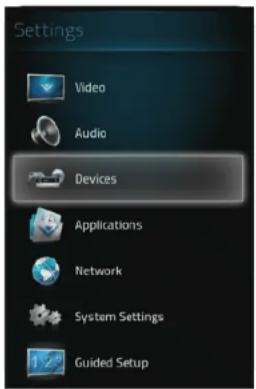
- To remove a device, highlight the device you wish to remove and press OK. The Device Info menu is displayed. Highlight Delete and press OK.
The device is removed.
Adding/Removing a TV (HDMI Out device)
Set up the remote to control a TV or another device.
To add/remove devices:
- Press the V Button on the remote. The on-screen menu is displayed.
- Use the Arrow buttons on the remote to highlight Settings and press OK. The Settings menu is displayed.
- Use the Arrow buttons on the remote to highlight Devices and press OK. The Devices menu is displayed.
- Use the Arrow buttons on the remote to highlight TV (HDMI Out) and press OK. The TV (HDMI Out) menu is displayed.
- Use the Arrow buttons on the remote to highlight Add Device or Delete Device and press OK. Follow the on-screen instructions to Add or Delete a device.
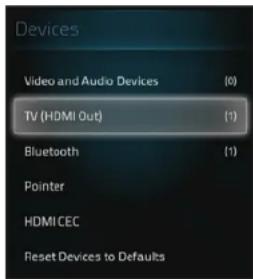
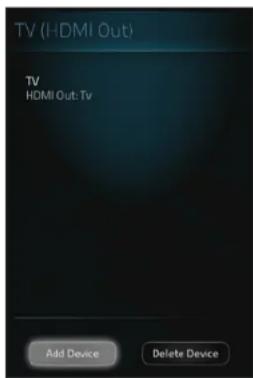
Adding/Removing a Bluetooth Device
Set up control of a TV or add another device connected to the HDMI Out port.

For additional information about pairing your bluetooth device, please refer to the device user manual.
To add a Bluetooth device:
- Press the V Button on the remote. The on-screen menu is displayed.
- Use the Arrow buttons on the remote to highlight Settings and press OK. The Settings menu is displayed.
- Use the Arrow buttons on the remote to highlight Devices and press OK. The Devices menu is displayed.
- Use the Arrow buttons on the remote to highlight Bluetooth and press OK. The Bluetooth menu is displayed.
- Place your device in pairing mode. For VIZIO remotes, press and hold the Record and Blue buttons for five seconds.
- Use the Arrow buttons on the remote to highlight Pair device and press OK. The Co-Star will automatically scan for available Bluetooth devices.
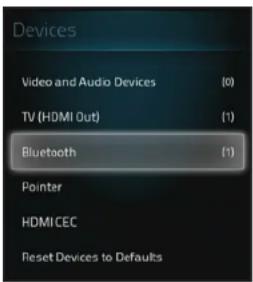
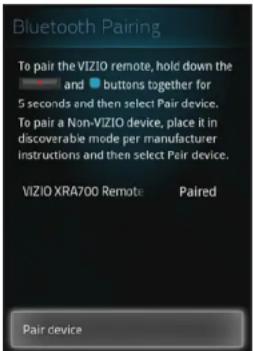
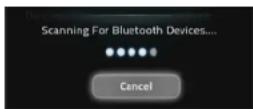
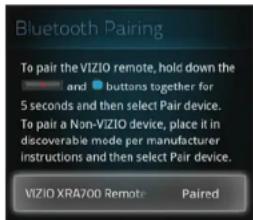
- Highlight the device you wish to pair from the list and press OK.
The device is now paired with your Co-Star.
To remove a Bluetooth device:
- Press the V Button on the remote. The on-screen menu is displayed.
- Use the Arrow buttons on the remote to highlight Settings and press OK. The Settings menu is displayed.
- Use the Arrow buttons on the remote to highlight Devices and press OK. The Devices menu is displayed.
- Use the Arrow buttons on the remote to highlight Bluetooth and press OK. The Bluetooth menu is displayed.
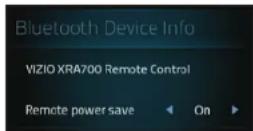
- Use the Arrow buttons on the remote to highlight the device you wish to remove and press OK. The Bluetooth Device Info page is displayed.
- Use the Arrow buttons on the remote to highlight Delete and press OK.
The device is removed.

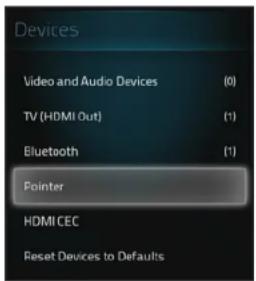
Managing Pointer Devices
Set up a touchpad/mouse or WiFi remote.
To manage Pointer devices:
- Press the V Button on the remote. The on-screen menu is displayed.
- Use the Arrow buttons on the remote tow highlight Settings and press OK. The Settings menu is displayed.
- Use the Arrow buttons on the remote to highlight Devices and press OK. The Devices menu is displayed.
- Use the Arrow buttons on the remote to highlight Pointer and press OK. The Pointer menu is displayed.
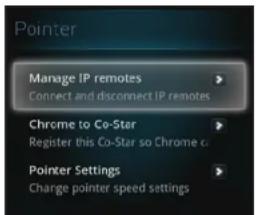
- Use the Arrow buttons on the remote to highlight and set up:
- Manage IP remotes - Connect and disconnect IP remotes.
- Chrome to Co-Star - Register the Co-Star so Google Chrome can share links, maps, and selected text between your computer and TV. (Note: The Chrome browser extension needs to be installed on your computer in order to send links to your TV)
- Point Settings - Adjust the speed and acceleration of the pointing device.
Enabling/Disabling HDMI CEC
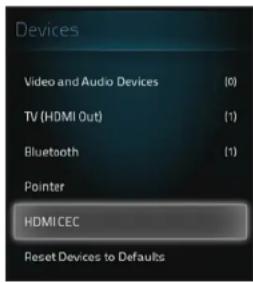
The CEC function on your Stream Player enables you to control HDMI-connected devices with the included remote without any additional programming.
To enable/disable HDMI CEC:
- Press the V Button on the remote. The on-screen menu is displayed.
- Use the Arrow buttons on the remote to highlight Settings and press OK. The Settings menu is displayed.
- Use the Arrow buttons on the remote to highlight Devices and press OK. The Devices menu is displayed.
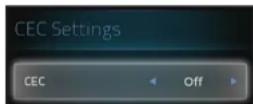
- Use the Arrow buttons on the remote to highlight HDMI CEC and press OK. The HDMI CEC menu is displayed.
- Use the Arrow buttons on the remote to highlight CEC and use the Left/Right Arrow to change the setting. Selecting On enables CEC for all connected devices. Selecting Off disables CEC for all connected devices.
Restoring the Co-Star to Factory Default Settings
The Stream Player can be reset to the factory defaults.

If you restore the Co-Star to the factory default settings, all changes you have made to the settings and all non-default installed apps will be lost!
To restore the Stream Player to its factory default settings:
- Press the V Button on the remote. The on-screen menu is displayed.
- Use the Arrow buttons on the remote to highlight Settings and press OK. The Settings menu is displayed.
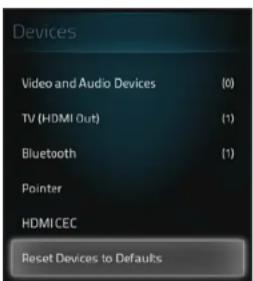
- Use the Arrow buttons on the remote to highlight Devices and press OK. The Devices menu is displayed.
- Use the Arrow buttons on the remote to highlight Reset Devices to Defaults and press OK.
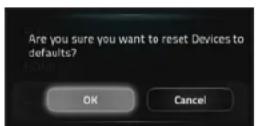
- Use the Arrow buttons on the remote to highlight OK and press OK.
Factory default settings are restored.
APPLICATION SETTINGS
Set up and customize application settings such as user accounts, search, and privacy settings.
Search Bar Settings
To adjust settings for searchable items and shortcuts:
- Press the V Button on the remote. The on-screen menu is displayed.
- Use the Arrow buttons on the remote to highlight Settings and press OK. The Settings menu is displayed.
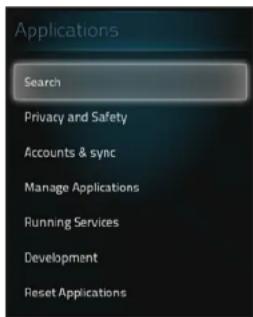
- Use the Arrow buttons on the remote to highlight Applications and press OK. The Applications menu is displayed.
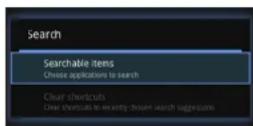
- Use the Arrow buttons on the remote to highlight Search and press OK. The Search menu is displayed.
-
Use the Arrow buttons to highlight the setting you wish to adjust, then press OK to change the Setting:
-
Searchable items - Allow certain apps to be searchable through the search option.
- Clear Shortcuts - Clears the shortcuts to recently chosen search suggestions.
4
Managing Privacy and Safety
You can edit history logs and other tracked usage statistics.
To manage Privacy and Safety options:
- Press the V Button on the remote. The on-screen menu is displayed.
- Use the Arrow buttons on the remote to highlight Settings and press OK. The Settings menu is displayed.
-
Use the Arrow buttons on the remote to highlight Applications and press OK. The Applications menu is displayed.
-
Use the Arrow buttons on the remote to highlight Privacy and Safety and press OK. The Privacy and Safety menu is displayed.
-
Use the Arrow buttons to highlight the setting you wish to adjust, then press OK to change the Setting:
• Reporting - Set whether to send Google TV usage and crash reports to Google.
- Clear video history - Clears history of viewed videos.
- Safe search - Block adult content from appearing in search results.
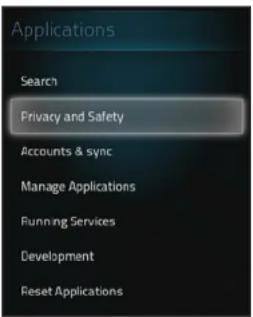
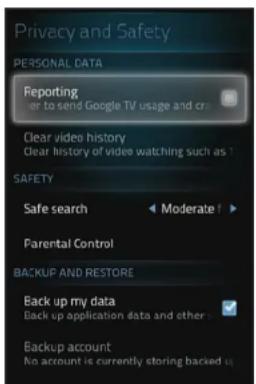
- Parental Control - Set up a PIN for Google Chrome and Google Play Store to restrict access.
- Back up my data - Back up application data and other settings to Google servers.
- Bankup account - Set a backup account to store your settings.
- Automatic restore - Set whether to restore backed up settings or data when reinstalling an application.
4
Managing Accounts
Set up and edit accounts for services provided by Google or other apps.
To manage accounts:
- Press the V Button on the remote. The on-screen menu is displayed.
- Use the Arrow buttons on the remote to highlight Settings and press OK. The Settings menu is displayed.
-
Use the Arrow buttons on the remote to highlight Applications and press OK. The Applications menu is displayed.
-
Use the Arrow buttons on the remote to highlight Accounts and sync and press OK. The Accounts and sync menu is displayed.
-
Use the Arrow buttons to highlight the setting you wish to adjust, then press OK to change the Setting:
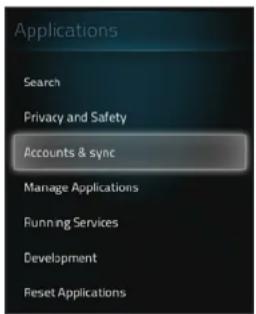
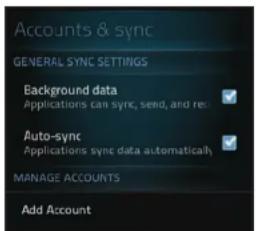
- Background data - Enable to allow applications to sync, send, and receive data at any time.
- Auto-sync - Enable to allow applications to sync data automatically.
To add an account:
- Press the V Button on the remote. The on-screen menu is displayed.
- Use the Arrow buttons on the remote to highlight Settings and press OK. The Settings menu is displayed.
- Use the Arrow buttons on the remote to highlight Applications and press OK. The Applications menu is displayed.
- Use the Arrow buttons on the remote to highlight Accounts and sync and press OK. The Accounts and sync menu is displayed.
- Use the Arrow buttons on the remote to highlight Add Account and press OK. The Google Account Registration page is displayed. Follow the on-screen instructions to register for a new account.
Managing Applications
Edit and remove applications.
To remove an application:
- Press the V Button on the remote. The on-screen menu is displayed.
- Use the Arrow buttons on the remote to highlight Settings and press OK. The Settings menu is displayed.
-
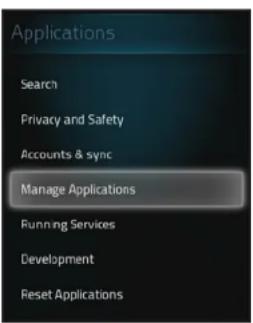
Use the Arrow buttons on the remote to highlight Applications and press OK. The Applications menu is displayed.
-
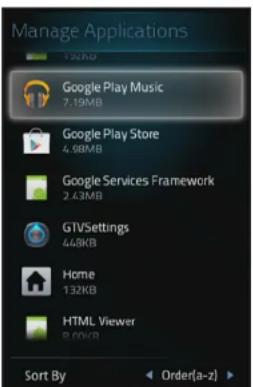
Use the Arrow buttons on the remote to highlight Manage Applications and press OK. The Manage Applications menu is displayed.
-
Use the Arrow buttons on the remote to highlight an app that you installed and press OK.
-
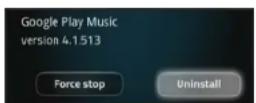
Use the Arrow buttons on the remote to highlight Uninstall and press OK.
-
Highlight OK and press OK.
The app is now removed.
Managing Services
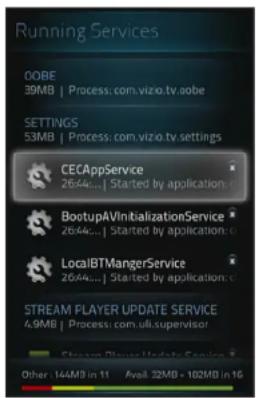
Review and manage currently running services.
To access the running services:
- Press the V Button on the remote. The on-screen menu is displayed.
- Use the Arrow buttons on the remote to highlight Settings and press OK. The Settings menu is displayed.
-
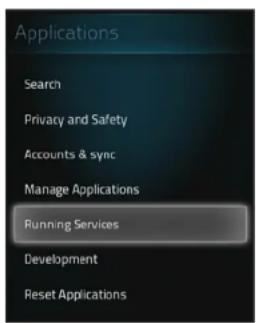
Use the Arrow buttons on the remote to highlight Applications and press OK. The Applications menu is displayed.
-
Use the Arrow buttons on the remote to highlight Running Services and press OK. The Running Services menu is displayed.
-
Use the Arrow buttons on the remote to highlight a running service you wish to stop, and press OK.
-
Use the Arrow buttons on the remote to highlight Stop and press OK.
The service is stopped.
Accessing Development Tools
There are several tools for debugging and testing the system.

Development tools are recommended for advanced users only.
To access development tools:
- Press the V Button on the remote. The on-screen menu is displayed.
- Use the Arrow buttons on the remote to highlight Settings and press OK. The Settings menu is displayed.
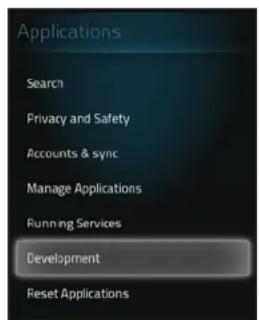
- Use the Arrow buttons on the remote to highlight Applications and press OK. The Applications menu is displayed.
-
Use the Arrow buttons on the remote to highlight Development and press OK. The Development menu is displayed.
-
Use the Arrow buttons to highlight the tool you wish to enable/disable, then press OK:
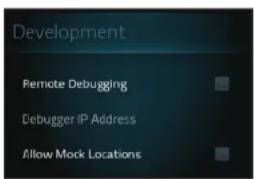
- Remote Debugging - Enable to allow remote connections from debugging tools.
- Remote IP Address - If Remote Debugging is enabled, enter the IP address for remote debugging.
- Allow Mock Locations - Allow mock locations.
Reset Applications to Factory Default Settings
To reset all applications to factory default settings:
- Press the V Button on the remote. The on-screen menu is displayed.
- Use the Arrow buttons on the remote to highlight Settings and press OK. The Settings menu is displayed.
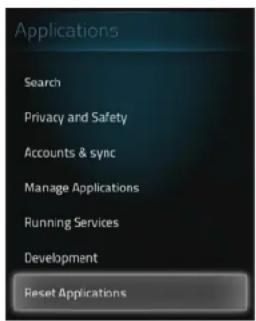
- Use the Arrow buttons on the remote to highlight Applications and press OK. The Applications menu is displayed.
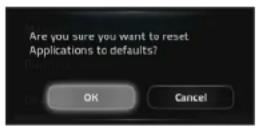
- Use the Arrow buttons on the remote to highlight Reset Applications and press OK.
- Use the Arrow buttons to highlight OK and press OK.
All applications are now reset to the factory default settings and any customization options within the apps have returned to their default.
NETWORK SETTINGS

If you are not an advanced user, use Guided Setup. See page 37.
To set up the Internet connection to the Stream Player:
- Press the V Button on the remote. The on-screen menu is displayed.
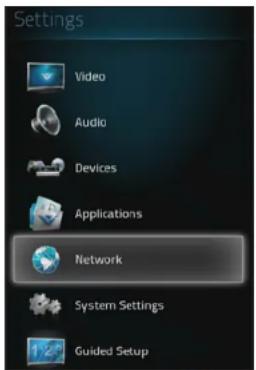
- Use the Arrow buttons on the remote to highlight Settings and press OK. The Settings menu is displayed.
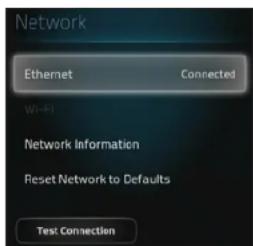
- Use the Arrow buttons on the remote to highlight Network and press OK. The Network menu is displayed.
-
Use the Arrow buttons to highlight the setting you wish to change, then press OK:
-
Ethernet - Set up a wired Ethernet connection.
• Wi-Fi - Set up a Wi-Fi connection.
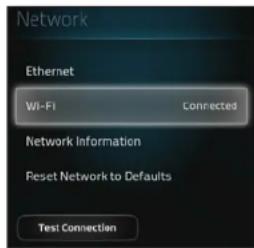
• Network Information - Review network connection information such as IP addresses. - Reset Network to Defaults - Reset network settings to default factory settings.
- Test Connection - Initiate a test of your connection to the Internet to determine speeds and issues.

Manual Ethernet Setup
To manually set up an Ethernet connection to the Stream Player:
- Press the V Button on the remote. The on-screen menu is displayed.
- Use the Arrow buttons on the remote to highlight Settings and press OK. The Settings menu is displayed.
- Use the Arrow buttons on the remote to highlight Network and press OK. The Network menu is displayed.
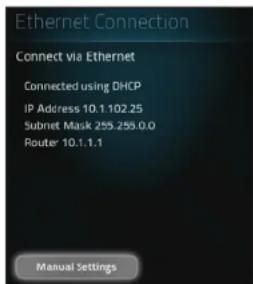
- Use the Arrow buttons on the remote to highlight Ethernet and press OK.
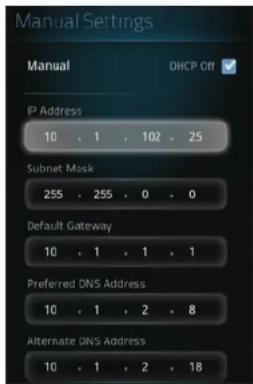
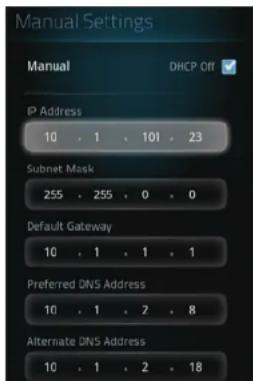
- Use the Arrow buttons to highlight Manual Settings if you wish to manually change the network settings, then press OK. The Manual Settings menu is displayed.
- Use the Arrow buttons on the remote to highlight DHCP Off and press OK. You can now manually enter the IP Address, Subnet Mask, Default Gateway, Preferred DNS Address, and Alternate DNS Address.
Wi-Fi Setup
To set up a Wi-Fi connection to the Stream Player:
- Press the V Button on the remote. The on-screen menu is displayed.
- Use the Arrow buttons on the remote to highlight Settings and press OK. The Settings menu is displayed.
- Use the Arrow buttons on the remote to highlight Network and press OK. The Network menu is displayed.
- Use the Arrow buttons on the remote to highlight Wi-Fi and press OK.
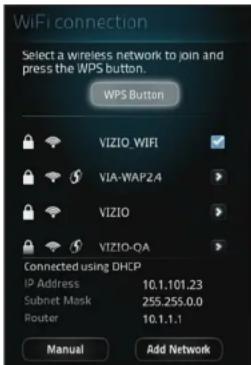
- Use the Arrow buttons to highlight a wireless network you wish to connect to and press OK or WPS (if available).
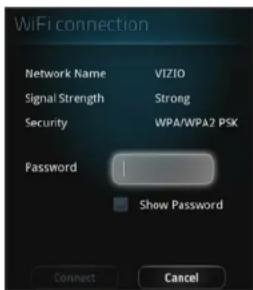
- If required, enter the password.
Manual Wi-Fi Network Setup
To manually add a Wi-Fi network:
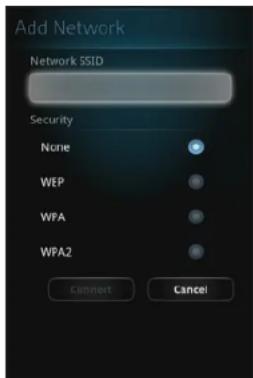
- Use the Arrow buttons on the remote to highlight Add Network and press OK. The Add Network menu is displayed.
- Use the keyboard on the back of the remote to enter the Network SSID you wish to connect to.
- Use the Arrow buttons on the remote to highlight a type of Security you wish to use and press OK.
- Use the Arrow buttons on the remote to highlight Connect and press OK. The Co-Star will now attempt to connect to the network you entered.
To switch to DHCP and STATIC connections:
- Use the Arrow buttons on the remote to highlight Manual and press OK. The Manual Settings menu is displayed.
- Use the Arrow buttons on the remote to highlight DHCP Off and press OK. You can now manally enter the IP Address, Subnet Mask, Default Gateway, Preferred DNS Address, and Alternate DNS Address.
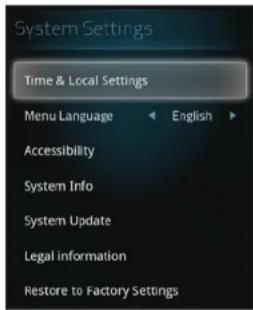
SYSTEM SETTINGS
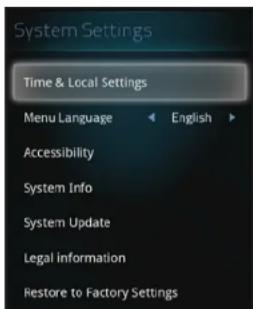
Adjust system settings such as language, time, accessibility, system info, and updates.
To manually add a network:
- Press the V Button on the remote. The on-screen menu is displayed.
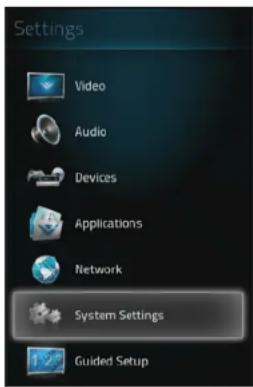
- Use the Arrow buttons on the remote to highlight Settings and press OK. The Settings menu is displayed.
- Use the Arrow buttons to highlight the setting you wish to change, then press OK:
• Time & Local Settings - Adjust the time, date, and location for your Co-Star.
- Menu Language - Select the language for the Co-Star menu display. Select English, French, or Spanish.
- Accessibility - Access tools for supporting sight and hearing impaired.
- System Info - Select to view the system info.
- System Update - Select to launch the system update. (Must be connected to the Internet)
• Legal Information - Select to view legal information.
- Restore to Factory Settings - Reset entire system to initial factory default settings, erasing all data.
Adjusting the Time and Local Settings
To adjust the time or local settings:
- Use the Arrow buttons on the remote to highlight Time & Local Settings. The Time & Settings menu is displayed.
- Use the Arrow buttons to highlight the setting you wish to change, then press OK:
• Automatic - Enable automatic set up of the clock using the network connection
- Use 24-Hour Format - Select between 12 or 24 hour time format.
- Select Date Format - Select date formatting. Select MM-DD-YYYY, DD-MM-YYYY, or YYYY-MM-DD formats.
- Zip Code - Set your preferred ZIP code.
Using Chrome with the Co-Star
5
WEB BROWSING WITH THE CO-STAR
Your Co-Star is designed with easy web browsing in mind. Using Google Chrome, you can easily access your Google account, making it easy to view your Docs, Gmail and Google+ page from the comfort of your couch.
To open Google Chrome:
- Press the V Button on the remote.
- Use the Arrow buttons or Trackpad to highlight the Chrome icon, then press OK.
The browser window is displayed.
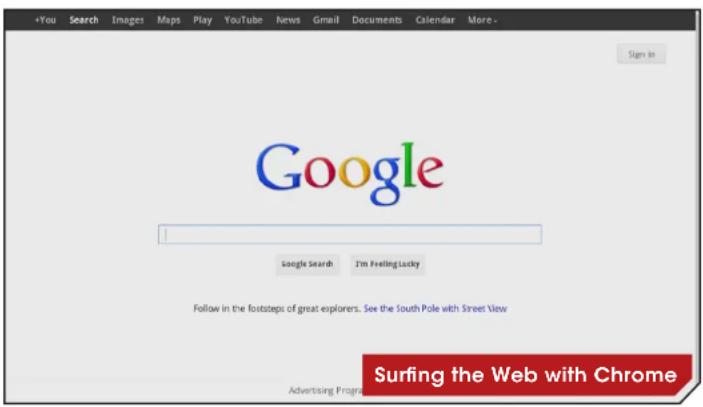
To access the Options menu, press the ≡ Menu button.
The Options menu is displayed.
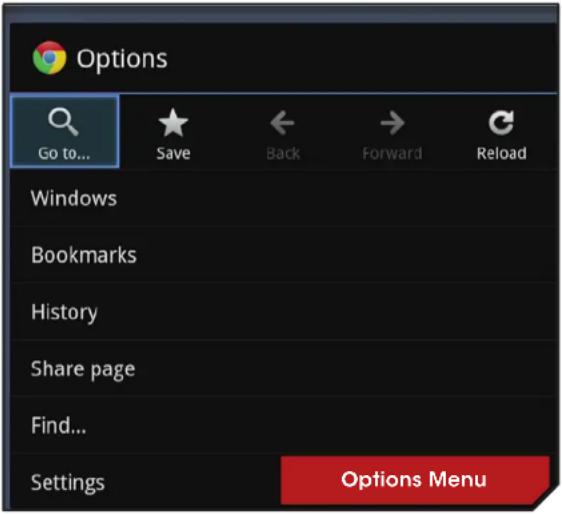
From the Options menu, you can:
- Navigate the Web
- Save Bookmarks
- Delete browser history
- Share pages
• Search web content
• Edit your homepage and privacy settings
NAVIGATING THE WEB
There are several ways to navigate the web using Google Chrome on your Co-Star. You can:
- Enter an address into the URL bar by selecting Go to... from the Options menu.
- Use the Windows menu to view open a new window or view recently closed windows. You can also open an incognito window for private browsing.
- Visit favorite pages by navigating to Bookmarks and selecting a page.
USING BOOKMARKS
A bookmark is used to organize your favorite websites. Using bookmarks allows you to quickly return to a website without having to search for it or enter a URL.
To add a bookmark:
- From the Options menu, press the V Button to open the on-screen menu.
- Select the Chrome icon and press OK.
- Press the ≡ Menu button, and select Bookmarks.
- Enter the information for the website you wish to bookmark and press OK.

Chrome will automatically enter the details for the page you are currently on, so to save time, navigate to the page you wish to bookmark before opening the Options menu.
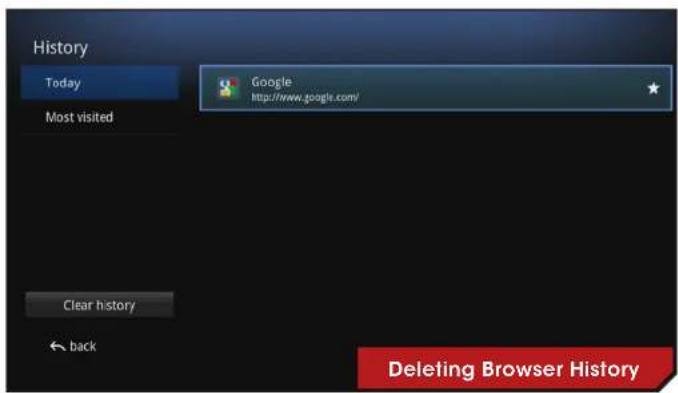
DELETING BROWSER HISTORY
You may wish to delete the history of your browsing.
To delete the browser history:
- Press the V Button.
- Select the Chrome icon.
- Press the ≡ Menu button to open the Options menu.
- Select History.
- Select Clear history.
Your browser's navigation history is deleted.
SHARING WEB PAGES
Some of the apps available from the Google Play store allow you to share content from the Internet.
For example, using the Share Page function from the Chrome Options menu, you can share a link to an article on your favorite social networking site, or you can print a recipe that you found on the Internet.
To share web pages from Chrome:
- Press the ≡ Menu button, select Share page and double-tap or press the OK button.
- Select the app you wish to use to share the web page and double-tap or press the OK button.
The application you selected opens.
SEARCHING WEB CONTENT
To search for a term on a webpage:
- Press the ≡ Menu button.
- Select Find. A search bar appears at the top of the Chrome browser.
- Enter the term you wish to find using the keyboard on the remote. If found, the term you are searching for will be highlighted.
- To go to the next instance of the term on the webpage, select the up or down arrow in the search bar and press OK.
- To exit the search bar, select the X in the right-hand corner of the screen and press the OK button.
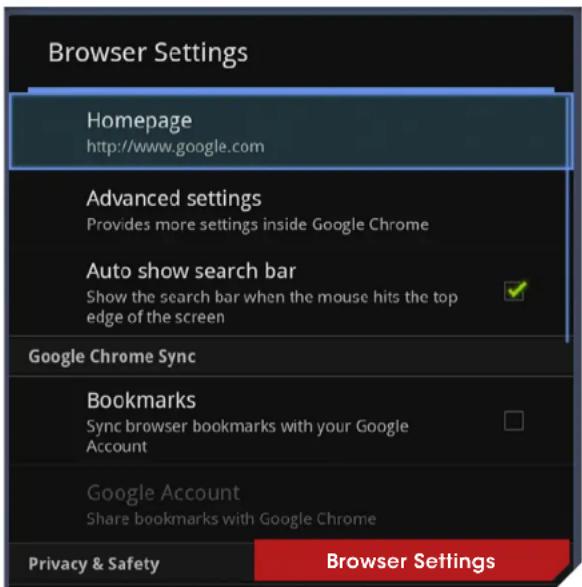
MANAGING PRIVACY AND SAFETY
From the Browser Settings menu, you can set your homepage, sync your bookmarks with your Google Account, configure your privacy settings and clear saved browsing data.
To access the Browser Settings menu, press theMenu button, and select Settings.
The Browser Settings menu appears.
DO YOU HAVE QUESTIONS?
LET US HELP!
YOUR PRODUCT INCLUDES FREE LIFETIME TECH SUPPORT

The VIZIO support team is highly trained and is based in the United States.
We can help with:
- New Product Setup
- Connecting Your Devices
• Technical Problems - And More
Phone: (877) 878-4946 (TOLL-FREE)
Email: techsupport@VIZIO.com
Web: www.VIZIO.com/support
Hours of operation:
Monday - Friday: 5 AM TO 9 PM (PST)
Saturday - Sunday: 8 AM TO 4 PM (PST)
We speak English • Se habla Español • Nous parlons Français
A
How do I add apps to my Co-Star?
- Open the Google Play Store app. This app offers easy access to a wide variety of applications specifically for your device.
I am having trouble connecting to my network.
- If you are using an Ethernet cable, ensure it is securely connected to your router/modem and the Co-Star.
- If you are connecting wirelessly, try repositioning the Co-Star or your router/modem for the best wireless connection.
There is no picture on the TV.
- Ensure all devices are plugged in. Turn all devices on.
- Set your TV input to the HDMI port the Co-Star is connected to.
- Ensure the HDMI cable connected to your TV is connected to the OUT port on the Co-Star. See page 15.
- Press the INPUT button. Select a different app or input source.
There is a picture but no sound.
- Ensure your TV is not set to MUTE.
- Increase the volume on your TV.
- If you are using a cable or satellite box, increase the volume on that device.
- If the issue only happens with one app, try restarting that app or checking the in-app settings.
How do I reset the Co-Star to factory default settings?

WARNING: All of your data will be deleted.
- Press the V Button on your remote.
- Select Settings > System Settings > Restore to Factory Settings.
- Confirm that you wish to reset the unit back to default by selecting RESET.
- The player will reboot. Follow the on-screen instructions.
The remote control is not working.
- Ensure the battery tray is inserted properly. See page 11.
- Place new batteries into the remote.
- TIP: Your Player is also compatible with many USB keyboards and mice. Connect the keyboard or mouse to the USB port on the player to use.
- Your remote should be in IR mode when you remove it from the box, but if this is not the case, simultaneously press the Q key, =, and Space to put it into IR mode.
A
What is a Google account and why do I need one?
- A Google account is a sign-in system that gives you access to Google services such as Gmail e-mail services, Picasa Web album, and iGoogle.
How do I sign up for a Google® account?
- Press the V button on your remote.
- Select Settings > Applications > Accounts & sync > Add Account
- Follow the on-screen instructions to create a Google ® account.
- You can also sign up for an account at http://www.google.com/accounts
Can I use the same Google account on multiple Internet TV devices at the same time?
- Yes, you can use the same Google ® account on different Internet TV devices at the same time.
Does Google® TV require a subscription?
- No, Google ® TV does not require a subscription.
• However many movies on demand, TV on demand services, along with many other content providers require a paid subscription.
Why can't I play Facebook® games?
- Most games on the Facebook ® social networking site require plug-ins that enable the game to operate.
When I try to access Netflix ® I get error code 300 or 600.
- Error code 300 and 600 indicates that Netflix ® is unavailable at the moment. Try to access the service later.
- If the error continues to show, contact Netflix customer support for further assistance.
How do I create a Netflix® account?
- Press the V button on your remote.
- Select the Netflix app and press OK.
- Follow the on-screen instructions to create a Netflix account.
Why does my video feed keep freezing or rebuffering while I'm using Netflix?
- Rebuffering is caused by changes in your Internet connection speed.
- Playing a Netflix movie requires a stable high speed Internet connection to avoid freezing and rebuffering
Should I keep my cable/satellite service?
- The Co-Star should be used as a complement to your existing cable/satellite service, rather than a replacement.
- While many of the latest in entertainment selection is available through the Co-Star, cable/satellite channels still offer a unique range of programming.
SPECIFICATIONS
FEATURES
| Smart TV Platform Google TV | ® |
| App Store Google Play, Access to thousands of apps | |
| Web Browser Chrome web browser with thousands of apps, with Adobe Flash Player and HTML 5 support | |
VIDEO
| Resolution Supported 720p, 1080i, 1080p | |
| 3D Support Yes | |
| Video Playback | H.264, MP4, MKV |
| TV Compatibility | Any high-definition TV with HDMI port |
AUDIO
| Music Playback | MP3, AAC, WMA |
| Audio Features | Up to 5.1 surround sound pass-through |
DIMENSIONS (WXHXD)
| Dimensions | 4.2" x 1.6" x 4.2" |
| Weight 0.66 lbs |
CONNECTIONS
| HDMI In(Connects to Cable/Satellite Box) | 1 |
| HDMI Out(Connects to TV) | 1 |
| USB 2.0 1 |
REMOTE
| Built-In IR Blaster | Yes |
| Bluetooth Yes | |
| Touchpad | Yes |
| Keyboard | Yes |
NETWORKING
| WiFi 802.11n/g/b |
| Bluetooth Yes |
| Ethernet 10/100 Mbps |
WARRANTY
| 1 year |
Limited Warranty

ON PARTS AND LABOR
Covers units purchased as new in United States and Puerto Rico Only
VIZIO provides a warranty to the original purchaser of a new Product against defects in materials and workmanship for a period of one year of non-commercial usage and ninety (90) days of commercial use. If a Product covered by this warranty is determined to be defective within the warranty period, VIZIO will either repair or replace the Product at its sole option and discretion.
To obtain warranty service, contact VIZIO Technical Support via email: TechSupport@VIZIO.com or via phone at 877 MY VIZIO (877.698.4946) from 6:00AM to 9:00PM Monday through Friday and 8:00AM to 4:00PM Saturday and Sunday, Pacific Time, or visit www.VIZIO.com. PRE-AUTHORIZATION MUST BE OBTAINED BEFORE SENDING ANY PRODUCT TO A VIZIO SERVICE CENTER. Proof of purchase in the form of a purchase receipt or copy thereof is required to show that a Product is within the warranty period.
Parts and Labor
There will be no charge for parts or labor during the warranty period. Replacement parts and Products may be new or recertified at VIZIO's option and sole discretion. Replacement parts and Products are warranted for the remaining portion of the original warranty or for ninety (90) days from warranty service or replacement, whichever is greater.
Type of Service
Defective Products must be sent to a VIZIO service center to obtain warranty service. VIZIO is not responsible for transportation costs to the service center, but VIZIO will cover return shipping to the customer. PRE-AUTHORIZATION IS REQUIRED BEFORE SENDING ANY PRODUCT TO A VIZIO SERVICE CENTER FOR WARRANTY SERVICE.
Product returns to VIZIO's service centers must utilize either the original carton box and shipping material or packaging that affords an equal degree of protection. VIZIO Technical Support
will provide instructions for packing and shipping the covered Product to the VIZIO service center.
Limitations and Exclusions
VIZIO's one-year limited warranty only covers defects in materials and workmanship. This warranty does not cover, for example: cosmetic damage, normal wear and tear, improper operation, improper voltage supply or power surges, signal issues, damages from shipping, acts of God, any type of customer misuse, modifications or adjustments, as well as installation and set-up issues or any repairs attempted by anyone other than by a VIZIO authorized service center. Products with unreadable or removed serial numbers, or requiring routine maintenance are not covered. This one year limited warranty does not cover Products sold "AS IS", "FACTORY RECERTIFIED", or by a non-authorized reseller.
THERE ARE NO EXPRESS WARRANTIES OTHER THAN THOSE LISTED OR DESCRIBED ABOVE. ANY IMPLIED WARRANTIES, INCLUDING ANY IMPLIED WARRANTY OF MERCHANTABILITY AND FITNESS FOR A PARTICULAR PURPOSE, SHALL BE LIMITED IN DURATION TO THE PERIOD OF TIME SET FORTH ABOVE. VIZIO'S TOTAL LIABILITY FOR ANY AND ALL LOSSES AND DAMAGES RESULTING FROM ANY CAUSE WHATSOEVER INCLUDING VIZIO'S NEGLIGENCE, ALLEGED DAMAGE, OR DEFECTIVE GOODS, WHETHER SUCH DEFECTS ARE DISCOVERABLE OR LATENT, SHALL IN NO EVENT EXCEED THE PURCHASE PRICE OF THE PRODUCT. VIZIO SHALL NOT BE RESPONSIBLE FOR LOSS OF USE, LOSS OF INFORMATION OR DATA, COMMERCIAL LOSS, LOST REVENUE OR LOST PROFITS, OR OTHER INCIDENTAL OR CONSEQUENTIAL DAMAGES. SOME STATES DO NOT ALLOW LIMITATIONS ON HOW LONG AN IMPLIED WARRANTY LASTS OR THE EXCLUSION OF INCIDENTAL OR CONSEQUENTIAL DAMAGES, SO THE ABOVE LIMITATIONS OR EXCLUSIONS MAY NOT APPLY TO YOU. THIS WARRANTY GIVES YOU SPECIFIC LEGAL RIGHTS, AND YOU MAY ALSO HAVE OTHER RIGHTS, WHICH VARY FROM STATE TO STATE. THIS WARRANTY IS SUBJECT TO CHANGE WITHOUT NOTICE.
CHECK www.VIZIO.com FOR THE MOST CURRENT VERSION.
Legal and Compliance

FCC Class B Radio Interference Statement
NOTE: This equipment has been tested and found to comply with the limits for a Class B digital device, pursuant to Part 15 of the FCC Rules. These limits are designed to provide reasonable protection against harmful interference in a residential installation. This equipment generates, uses and can radiate radio frequency energy, and if not installed and used in accordance with the instructions, may cause harmful interference to radio communications. However, there is no guarantee that interference will not occur in a particular installation. If this equipment does cause harmful interference to radio or television reception, which can be determined by turning the equipment off and on, the user is encouraged to try to correct the interference by one or more of the following measures:
- Reorient or relocate the receiving antenna.
- Increase the separation between the equipment and receiver.
- Connect the equipment into an outlet on a circuit different from that to which the receiver is connected.
- Consult the dealer or an experienced radio/Player technician for help.
Notice:
- The changes or modifications not expressly approved by the party responsible for compliance could void the user's authority to operate the equipment.
- Shielded interface cables and AC power cord, if any, must be used in order to comply with the emission limits.
- The manufacturer is not responsible for any radio or Player interference caused by unauthorized modification to this equipment. It is the responsibilities of the user to correct such interference.
RF Exposure Information
This device meets the government's requirements for exposure to radio waves. This device is designed and manufactured not to exceed the emission limits for exposure to radio frequency (RF) energy set by the Federal Communications Commission of the U.S. Government. This device complies with FCC radiation exposure limits set forth for an uncontrolled environment.
IC Statement
Operation is subject to the following two conditions:
- This device may not cause interference, and
- This device must accept any interference, including interference that may cause undesired operation of the device.
This equipment complies with IC RSS-102 radiation exposure limits set forth for an uncontrolled environment. This equipment should be installed and operated with minimum distance 20cm between the radiator & your body.
Internet Connectivity
High speed internet connectively required and sold separately. Network conditions, environmental and other factors may negatively affect connectivity and the resulting video quality.
VIZIO Internet Applications (VIA) Policy
VIZIO Internet Applications ("VIA") affords the opportunity to access third party Internet product offerings or services ("VIA Services") on certain VIZIO devices incorporating the VIA functionality. The VIA Services accessible herein are provided as per our agreement with these third parties. These agreements are subject to change, interruption, suspension (including termination) at any time and for various reasons. VIZIO makes no warranties or representations that any particular VIA Service
D
will be accessible, available, function in any particular manner or function at all. This Policy, the VIZIO Privacy Policy and the V.I.A. Software License Agreement apply equally to V.I.A. devices and V.I.A. Plus devices.
Internet Access Required for VIA Services; Updates:
To use these VIA Services, you must obtain high-speed/broadband access to the Internet (such as DSL, cable or T1 lines), either directly or through devices that access the Internet and pay any service fees associated with such access. In addition, you must provide all equipment necessary to make such connection to the Internet including a modem or other Internet access device. Each individual third party Internet product may require different minimum Internet connection speed. The usability and availability of a functional VIA device and its Internet connected feature may highly be dependent and varied based on high-speed/broadband internet access, connection speed, bandwidth, other equipment(s), third party applications, firmware updates and other factors outside of VIZIO's control and/or responsibility which may also be independent of the actual operation of the device. It is further understood that VIA enabled devices are integrated with sophisticated technologies (software and hardware) which may exhibit delayed boot-up/shutdown time and/or interrupted services. You further understand that the VIA Services specifications and functionality are constantly evolving and that we may directly, or indirectly via third parties, update or change the VIA Services, in whole or in part, at any time and without notice to you. Such updates may be required for you to use certain aspects of the VIA services or to continue to connect to the VIA Services.
Availability of Content on VIA Services:
VIZIO or said third parties providing VIA Services reserve the right to delete data from their servers, or prevent access to their servers or to change data categories, product offerings or service levels for any reason that VIZIO or said third parties deem sufficient in their sole discretion at any time, without notice. VIZIO may also impose additional or different limits on the use of or access to certain VIA Services, in any case and without notice or liability.
Some or all of the data or functionality of VIA Services may require additional payment and/or subscription by you. However, in no event will you be charged for any VIA Services unless those charges are made known to you in advance. VIZIO makes no warranties or representations of any kind as to the accuracy, currency, or completeness of any information contained on the data servers of such third party providers of any VIA Services. Furthermore, we do not review, control, or endorse the content, products or services of VIA Services or their data servers.
VIA SERVICES ARE PROVIDED "AS IS" AND "AS AVAILABLE," WITHOUT WARRANTY OF ANY KIND (INCLUDING ANY IMPLIED WARRANTY OF MERCHANTABILITY, NON-INFRINGEMENT, OR FITNESS FOR A PARTICULAR PURPOSE), TO THE MAXIMUM EXTENT PERMITTED BY LAW. USE OF THE VIA SERVICES IS AT YOUR SOLE RISK. THIS MEANS, FOR EXAMPLE, THAT VIZIO DOES NOT GUARANTEE THAT THE VIA SERVICES WILL ALWAYS WORK PROPERLY OR WORK AT ALL. THIS ALSO MEANS WE DO NOT GUARANTEE THAT THE VIA SERVICES, CONTENT OR PRODUCTS WILL BE FREE FROM VIRUSES, HACKS, OR OTHER POTENTIALLY HARMFUL INTRUSIONS. PLEASE NOTE THAT SOME STATES DO NOT ALLOW SUCH WARRANTY LIMITATIONS, SO THESE LIMITATIONS MAY NOT APPLY TO YOU.
VIA Services Content Disclaimer:
Certain VIA Services may include materials from third parties or links to certain third party data servers. You acknowledge and agree that VIZIO is not responsible for examining or evaluating the content or accuracy of any VIA Services, their data servers or related third-party materials. VIZIO does not warrant or endorse and does not assume and will not have any liability or responsibility for any third-party materials or web sites, or for any other materials, products, or services of third parties. Links to VIA Services and any associated links to other data servers are provided solely as a convenience to you. To the extent provided, content types or descriptions of VIA Services are provided for convenience, and you acknowledge and agree that VIZIO does not guarantee their accuracy. You understand that by using any of the VIA Services, you may encounter content that may be deemed offensive, indecent, or objectionable, which content may or may not be
D
identified as having explicit language. Nevertheless, you agree to use the VIA Services at your sole risk and that VIZIO shall have no liability to you for content that may be found to be offensive, indecent, or objectionable.
You agree that you will not use any third-party materials in a manner that would infringe or violate the rights of any other party, and that VIZIO is not in any way responsible for any such use by you.
VIZIO Privacy Policy; VIA Software License Agreement:
Your right to use links to access VIA Services is also governed by VIZIO's Privacy Policy and the VIZIO Internet Applications Software License Agreement ("VIA Software License Agreement"), the terms of which are incorporated herein by this reference. The terms of both the Privacy Policy and VIA Software License Agreement may be found in your Product Guide and on VIZIO's website. In the event of a conflict between the VIZIO Internet Applications (VIA) Policy and the VIA Software License Agreement, the VIA Software License Agreement shall control. BY YOUR USE OF THE VIA SERVICES, YOU EXPRESSLY AGREE TO ALL THE TERMS AND CONDITIONS OF THE FOREGOING POLICIES AND AGREEMENT.
VIZIO may change the terms and conditions of this VIA Policy, the VIZIO Privacy Policy and/or the VIA Software License Agreement, at any time and without prior notice. The most up to date versions are available on the Internet at: www.vizio.com. If you do not have Internet access, you should periodically contact our customer service department and we will mail you a current version, free of charge. IF YOU DO NOT AGREE TO ALL OF THE TERMS AND CONDITIONS OF THE VIA POLICY, THE VIZIO PRIVACY POLICY AND/OR THE VIA SOFTWARE LICENSE AGREEMENT OR ANY CHANGES THERETO, YOU MUST IMMEDIATELY CEASE USE OF THE VIA SERVICES.

© 2012 VIZIO INC. ALL RIGHTS RESERVED. 120727CH-NC
- HDMI®
- Welcome
- THANK YOU FOR CHOOSING VIZIO
- PRODUCT REGISTRATION
- Extended Warranties
- WHEN READING THIS MANUAL
- Important Safety Warnings
- Table of Contents
- What is the Co-Star? 9
- Installing the Co-Star ....14
- Getting to Know the Co-Star 22
- Using the On-Screen Menu....32
- What is the Co-Star?
- A NEW KIND OF TELEVISION EXPERIENCE
- WATCH THIS!
- EXPLORE & DISCOVER
- WHAT SETS THE CO-STAR APART
- Apps Everywhere
- Remote Control
- Web Surfing
- Live TV Integration
- Advanced Technology
- HAVE FUN!
- Installing the Co-Star
- INSPECTING THE PACKAGE CONTENTS
- YOU WILL NEED
- FOR THE BEST EXPERIENCE, YOU SHOULD ALSO HAVE
- FIRST TIME SETUP
- CONNECTING THE CO-STAR TO YOUR HOME AUDIO SYSTEM
- USING GUIDED SETUP
- Getting to Know the Co-Star
- Resetting the Co-Star
- REMOTE CONTROL (CONTINUED)
- USING THE REMOTE
- Remote Buttons
- Remote Tips:
- Replacing the Batteries
- Replacing Batteries
- Using the Trackpad
- GETTING TO KNOW THE ON-SCREEN MENU
- Network Status
- Favorite Apps
- All Apps
- Google Chrome
- User's Guide
- Notifications
- Category Selector
- Bookmarks
- Google Play
- Settings
- CONNECTING ADDITIONAL ACCESSORIES
- Connecting USB Devices
- Removing a USB Storage Device
- Using Bluetooth Accessories with the Co-Star
- Using the On-Screen Menu
- NAVIGATING THE ON-SCREEN MENU
- GOOGLE TV™ & FEATURED APPS
- Search
- TV & Movies
- YouTube
- Chrome
- Google Play Store
- Amazon Instant Video
- Netflix®
- OnLive®
- Accessing and Managing Notifications
- MANAGING APPS
- Adding and Removing Apps
- Managing Favorite Apps
- Creating a Custom Category
- Removing Apps from a Custom Category
- Deleting a Custom Category
- 4
- USING THE SETTINGS MENUS
- Using the Guided Setup
- Adjusting Video Settings
- Adjusting Basic Video Settings
- Adjusting Advanced Video Settings
- Adjusting Audio Settings
- SETTING UP DEVICES
- Adding/Removing Video and Audio Devices
- Adding/Removing a TV (HDMI Out device)
- Adding/Removing a Bluetooth Device
- Managing Pointer Devices
- Enabling/Disabling HDMI CEC
- Restoring the Co-Star to Factory Default Settings
- APPLICATION SETTINGS
- Search Bar Settings
- Managing Privacy and Safety
- Managing Accounts
- Managing Applications
- Managing Services
- Accessing Development Tools
- Reset Applications to Factory Default Settings
- NETWORK SETTINGS
- Manual Ethernet Setup
- Wi-Fi Setup
- Manual Wi-Fi Network Setup
- SYSTEM SETTINGS
- Adjusting the Time and Local Settings
- Using Chrome with the Co-Star
- WEB BROWSING WITH THE CO-STAR
- NAVIGATING THE WEB
- USING BOOKMARKS
- DELETING BROWSER HISTORY
- SHARING WEB PAGES
- SEARCHING WEB CONTENT
- DO YOU HAVE QUESTIONS?
- LET US HELP!
- YOUR PRODUCT INCLUDES FREE LIFETIME TECH SUPPORT
- A
- How do I add apps to my Co-Star?
- I am having trouble connecting to my network.
- There is no picture on the TV.
- There is a picture but no sound.
- How do I reset the Co-Star to factory default settings?
- The remote control is not working.
- What is a Google account and why do I need one?
- How do I sign up for a Google® account?
- Can I use the same Google account on multiple Internet TV devices at the same time?
- Does Google® TV require a subscription?
- Why can't I play Facebook® games?
- When I try to access Netflix ® I get error code 300 or 600.
- How do I create a Netflix® account?
- Why does my video feed keep freezing or rebuffering while I'm using Netflix?
- Should I keep my cable/satellite service?
- SPECIFICATIONS
- Limited Warranty
- ON PARTS AND LABOR
- Parts and Labor
- Type of Service
- Limitations and Exclusions
- Legal and Compliance
- FCC Class B Radio Interference Statement
- Notice:
- RF Exposure Information
- IC Statement
- Internet Connectivity
- VIZIO Internet Applications (VIA) Policy
- D
- Internet Access Required for VIA Services; Updates:
- Availability of Content on VIA Services:
- VIA Services Content Disclaimer:
- VIZIO Privacy Policy; VIA Software License Agreement:
Brand : VIZIO
Model : Co-Star
Category : Streaming audio player