
TA760G-M2+ - Motherboard BIOSTAR - Free user manual and instructions
Find the device manual for free TA760G-M2+ BIOSTAR in PDF.


| Product Type | Motherboard |
| Brand | Biostar |
| Model | TA760G-M2+ |
| Chipset | AMD 760G + SB710 |
| CPU Support | AMD Socket AM2/AM2+ processors |
| Memory Support | 2 x DDR2 DIMM slots, dual-channel, up to DDR2-1066 |
| Expansion Slots | 1 x PCIe x16, 2 x PCIe x1, 3 x PCI |
| Storage Interface | 6 x SATA 3Gb/s, 1 x IDE (PATA) |
| Audio | HD Audio (8-channel) via SB710 Azalia |
| LAN | Realtek PCIe Gigabit Ethernet |
| USB | 4 x USB 2.0 rear ports, additional headers |
| BIOS | AMI BIOS with ACPI, PnP, Green PC support |
| Form Factor | ATX (305 mm x 244 mm) |
| Power Connectors | 24-pin ATX main, 4-pin CPU power |
| Overclocking | T-Series menu with Auto/Manual overclock, voltage and frequency adjustments |
Frequently Asked Questions - TA760G-M2+ BIOSTAR
User questions about TA760G-M2+ BIOSTAR
0 question about this device. Answer the ones you know or ask your own.
Ask a new question about this device
Download the instructions for your Motherboard in PDF format for free! Find your manual TA760G-M2+ - BIOSTAR and take your electronic device back in hand. On this page are published all the documents necessary for the use of your device. TA760G-M2+ by BIOSTAR.
USER MANUAL TA760G-M2+ BIOSTAR
The purpose of this manual is to describe the settings in the AMI BIOS Setup program on this motherboard. The Setup program allows users to modify the basic system configuration and save these settings to CMOS RAM. The power of CMOS RAM is supplied by a battery so that it retains the Setup information when the power is turned off.
Basic Input-Output System (BIOS) determines what a computer can do without accessing programs from a disk. This system controls most of the input and output devices such as keyboard, mouse, serial ports and disk drives. BIOS activates at the first stage of the booting process, loading and executing the operating system. Some additional features, such as virus and password protection or chipset fine-tuning options are also included in BIOS.
The rest of this manual will to guide you through the options and settings in BIOS Setup.
Plug and Play Support
This AMI BIOS supports the Plug and Play Version 1.0A specification.
EPA Green PC Support
This AMI BIOS supports Version 1.03 of the EPA Green PC specification.
APM Support
This AMI BIOS supports Version 1.1&1.2 of the Advanced Power Management (APM) speci fication. Power management features are implemented via the System Management Interrupt (SMI). Sleep and Suspend power management modes are supported. Power to the hard disk drives and video monitors can also be managed by this AMI BIOS.
ACPI Support
AMI ACPI BIOS support Version 1.0/2.0 of Advanced Configuration and Power interface specification (ACPI). It provides ASL code for power management and device configuration capabilities as defined in the ACPI specification, developed by Microsoft, Intel and Toshiba.
PCI Bus Support
This AMI BIOS also supports Version 2.3 of the Intel PCI (Peripheral Component Interconnect) local bus specification.
DRAM Support
DDR2 SDRAM (Double Data Rate II Synchronous DRAM) is supported.
Supported CPUs
This AMI BIOS supports the AMD CPU.
Using Setup
When starting up the computer, press during the Power-On Self-Test (POST) to enter the BIOS setup utility. In the BIOS setup utility, you will see General Help description at the top right corner, and this is providing a brief description of the selected item. Navigation Keys for that particular menu are at the bottom right corner, and you can use these keys to select item and change the settings.
![Use [ENTER]. [TAB] or [SHIFT-TAB] to select a field. Use [+] or [-] to configure system Time. General Help Navigation Keys +•• Select Screen †‡ Select Item +• Change Field Tab Select Field F1 General Help F10 Save and Exit ESC Exit](/content/2026/06/1146024/images/0f70b3ec62c7f8549b0b3ae51c9d0b07d5af2e3ac51bf308fd09bc771d3f7739.jpg)
Notice
- The default BIOS settings apply for most conditions to ensure optimum performance of the motherboard. If the system becomes unstable after changing any settings, please load the default settings to ensure system's compatibility and stability. Use Load Setup Default under the Exit Menu.
- For better system performance, the BIOS firmware is being continuously updated. The BIOS information described in this manual is for your reference only. The actual BIOS information and settings on board may be slightly different from this manual.
- The content of this manual is subject to be changed without notice. We will not be responsible for any mistakes found in this user's manual and any system damage that may be caused by wrong-settings.
1 Main Menu
Once you enter AMI BIOS Setup Utility, the Main Menu will appear on the screen providing an overview of the basic system information.
| BIOS SETUP UTILITY Main Advanced PCIPnP Boot Chipset T-Series Exit | |
| System Overview | Use [ENTER], [TAB] or [SHIFT-TAB] to select a field. Use [+] or [-] to configure system Time. |
| AMI BIOS Version :01.01.01 Build Date:01/01/08 | |
| System Time 00 [ :00:00] System Date [Tue 01/01/2008] | |
| Floppy A > IDE Configuration | Select Screen Select Item +- Change Field Tab Select Field F1 General Help F10 Save and Exit ESC Exit |
AMI BIOS
Shows system information including BIOS version and built date.
System Time
Set the system internal clock.
System Date
Set the system date. Note that the 'Day' automatically changes when you set the date.
Floppy A
Select the type of floppy disk drive installed in your system.
Options: 360K, 5.25 in / 1.2M, 5.25 in / 720K, 3.5 in / 1.44M, 3.5 in /
2.88M, 3.5 in / None
IDE Configuration
The BIOS will automatically detect the presence of IDE/SATA devices. There is a sub-menu for each IDE/SATA device. Select a device and press
| Main BIOS SETUP UTILITY | |
| IDE Configuration > Primary IDE Master > Primary IDE Slave > SATA 1 Device > SATA 2 Device > SATA 3 Device > SATA 4 Device > SATA 5 Device > SATA 6 Device | While entering setup, BIOS auto detects the presence of IDE devices. This displays the status of auto detection of IDE devices. Select Screen Select Item EnterGo to Sub Screen F1 General Help F10 Save and Exit ESC Exit |
| Hard Disk Write Protect [Disabled] IDE Detect Time Out (Sec) [35] | |
| vxx.xx (C)\Copyright 1985-200x, American Megatrends, Inc. | |
Primary IDE Master/Slave ; SATA 1/2/3/4/5/6 Device
| Primary IDE Master | Select the type of device connected to the system. | |
| Device : | ||
| Type | [Auto] | |
| LBA/Large Mode | [Auto] | |
| Block (Multi-Sector Transfer) | [Auto] | |
| PIO Mode | [Auto] | |
| DMA Mode | [Auto] | |
| S.M.A.R.T | [Auto] | |
| 32Bit Data Transfer | [Enabled] | |
| Select Screen Select Item + - Change Option F1 General Help F10 Save and Exit ESC Exit | ||
The BIOS detects the information and values of respective devices, and these information and values are shown below to the name of the sub-menu.
Type
Select the type of the IDE/SATA drive.
Options: Auto (Default) / CDROM / ARMD / Not Installed
LBA/Large Mode
Enable or disable the LBA mode.
Options: Auto (Default) / Disabled
Block (Multi-Sector Transfer)
Enable or disable multi-sector trans fer.
Options: Auto (Default) / Disabled
PIO Mode
Select the PIO mode.
Options: Auto (Default) / 0 / 1 / 2 / 3 / 4
DMA Mode
Select the DMA mode.
Options: Auto (Default) / SWDMA0 \~ 2 / MWDMA0 \~ 2 / UDMA0 \~ 5
S.M.A.R.T
Set the Smart Monitoring, Analysis, and Reporting Technology.
Options: Auto (Default) / Disabled / Enabled
32Bit Data Transfer
Enable or disable 32-bit data transfer.
Options: Enabled (Default) / Disabled
Hard Disk Write Protect
Disable or enable device write protection. This will be effective only if the device is accessed through BIOS.
Options: Disabled (Default) / Enabled
IDE Detect Time Out (Sec)
Select the time out value for detecting IDE/SATA devices.
Options: 35 (Default) / 30 / 25 / 20 / 15 / 10 / 5 / 0
2 Advanced Menu
The Advanced Menu allows you to configure the settings of CPU, Super I/O, Power Management, and other system devices.
Notice
- Beware of that setting inappropriate values in items of this menu may cause system to malfunction.
| Main | Bios Setup UTILITY anced PCIPnP Boot Chipset T-Series | Exit |
| Configure CPU.Advanced Settings | ||
| WARNING: Setting wrong values in below sections may cause system to malfunction. | ||
| >CPU Configuration >SuperIO Configuration >Smart Fan Configuration >Hardware Health Configuration >Power Configuration >USB Configuration | ||
| Select Screen Select Item EnterGo to Sub Screen F1 General Help F10 Save and Exit ESC Exit | ||
| vxx.xx (C) Copyright 1985-200x, American Megatrends, Inc. | ||
CPU Configuration
This item shows the CPU information that the BIOS automatically detects.
| BIOS SETUP UTILITY Advanced | |
| CPU Configuration Module Version: AGESA Version: Physical Count: Logical Count: | Enable/Disable Secure Virtual Machine Mode (SVM) |
| AMD CPU Revision: Cache L1: Cache L2: Cache L3: Speed : Able to Change Freq : uCode Patch Level : Secure Virtual Machine Mode [Enabled] PowerNow [Enabled] ACPI SRAT Table [Enabled] CPU Prefetching [Enabled] | Select Screen Select Item Change Option General Help Save and Exit Exit |
Secure Virtual Machine Mode
Virtualization Technology can virtually separate your system resource into several parts, thus enhance the performance when running virtual machines or multi interface systems.
Options: Enabled (Default) / Disabled
PowerNow
This item allows you to enable or disable the PowerNow power saving technology.
Options: Enabled (Default) / Disabled
ACPI SRAT Table
The operating system scans the ACPI SRAT at boot time and uses the information to better allocate memory and schedule software threads for maximum performance. This item controls whether the SRAT is made available to the operating system at boot up, or not.
Options: Enabled (Default) / Disabled
CPU Prefetching
This item allows you to enable or disable CPU Prefetching function.
Options: Enabled (Default) / Disabled
SuperIO Configuration
| BIOS SETUP UTILITY Advanced | |
| Configure ITE8718 Super IO Chipset | |
| Onboard Floppy Controller [Enabled] Serial Port1 Address [3F8/IRQ4] Parallel Port Address [378] Parallel Port Mode [Normal] Parallel Port IRQ [IRQ7] Keyboard PowerOn [Disabled] Mouse PowerOn [Disabled] Restore on AC Power Loss [Power Off] | Allows BIOS to Enable or Disable Floppy Controller Select Screen Select Item +- Change Option F1 General Help F10 Save and Exit ESC Exit |
Onboard Floppy Controller
Select enabled if your system has a floppy disk controller (FDC) installed on the system board and you wish to use it. If you installed another FDC or the system uses no floppy drive, select disabled in this field.
Options: Enabled (Default) / Disabled
Serial Port1 Address
Select an address and corresponding interrupt for the first and second serial ports.
Options: 3F8/IRQ4 (Default) / 2F8/IRQ3 / 3E8/IRQ4 / 2E8/IRQ3 / Disabled
Parallel Port Address
This item allows you to determine access onboard parallel port controller with which I/O Address.
Options: 378 (Default) / 278 / 3BC / Disabled
Parallel Port Mode
This item allows you to determine how the parallel port should function.
Options: Normal (Default) Using Parallel port as Standard Printer Port.
EPP Using Parallel Port as Enhanced Parallel Port.
ECP Using Parallel port as Extended Capabilities Port.
ECP+EPP Using Parallel port as ECP & EPP mode.
ECP Mode DMA Channel
This item allows you to select parallel port ECP DMA.
Options: DMA3 (Default) / DMA0 / DMA1
Parallel Port IRQ
This item allows you to select the IRQ for the onboard parallel port.
Options: IRQ7 (Default) / IRQ5 / Disabled
Keyboard PowerOn
This item allows you to control the keyboard power on function.
Options: Disabled (Default) / Specific Key / Stroke Key
Specific Key Enter
This item will show only when Keyboard PowerOn is set "Specific Key."
Stroke Keys Selected
This item will show only when Keyboard PowerOn is set "Stroke Key."
Options: Ctrl+F1 (Default) / Wake Key / Power Key / Ctrl+F2 / Ctrl+F3 /
Ctrl +F4 / Ctrl+F5 / Ctrl+F6
Mouse PowerOn
This item allows you to control the mouse power on function.
Options: Disabled (Default) / Enabled
Restore on AC Power Loss
This setting specifies how your system should behave after a power fail or interrupts occurs. By choosing Disabled will leave the computer in the power off state. Choosing Enabled will restore the system to the status before power failure or interrupt occurs.
Options: Power Off (Default) / Power ON / Last State
Smart Fan Configuration
| BIOS SETUP UTILITY Advanced | |
| Smart Fan Configuration CPU Smart Fan [Disabled] Smart Fan Calibration Control Mode Fan Ctrl OFF( C) Fan Ctrl On(℃) Fan Ctrl Start value Fan Ctrl Sensitive | When you choice [Auto] ,[3Pin] or [4Pin], please run the calibration to define the Fan parameters for Smart Fan control Select Screen Select Item +- Change Option F1 General Help F10 Save and Exit ESC Exit |
| vxx.xx (C)Copyright 1985-200x, American Megatrends, Inc. | |
CPU Smart Fan
This item allows you to control the CPU Smart Fan function.
Options: Disabled (default) / Auto / 4-pin / 3-pin
Smart Fan Calibration
Choose this item and then the BIOS will auto test and detect the CPU/System fan functions and show CPU/System fan speed.
Control Mode
This item provides several operation modes of the fan.
Options: Quiet / Performance / Manual
Fan Ctrl OFF(°C)
If the CPU/System Temperature is lower than the set value, FAN will turn off.
Options: 0\~127 (°C) (With the interval of 1°C)
Fan Ctrl On(℃)
CPU/System fan starts to work under smart fan function when arrive this set value.
Options: 0\~127 (°C) (With the interval of 1°C)
Fan Ctrl Start Value
When CPU/System temperature arrives to the set value, the CPU/System fan will work under Smart Fan Function mode.
Options: 0\~127 (With the interval of 1)
Fan Ctrl Sensitive
Increasing the value will raise the speed of CPU/System fan.
Options: 1\~127 (With the interval of 1)
Hardware Health Configuration
This item shows the system temperature, fan speed, and voltage information.
| Hardware Health Configuration | Enables Hardware Health Monitoring Device. | |
| H/W Health Function Shutdown Temperature | [Enabled] [Disabled] | |
| SYS Temperature CPU Temperature | ||
| CPU FAN Speed(JCFAN1) SYS FAN Speed(JSFAN1) | ||
| CPU Voltage Chip Voltage +3.30V +5.00V +12.0V DDR Voltage HT Voltage 5VSB | Select Screen Select Item Change Option General Help Save and Exit ESC Exit | |
H/W Health Function
If you computer contains a monitoring system, it will show PC health status during POST stage.
Options: Enabled (Default) / Disabled
Shutdown Temperature
This item allows you to set up the CPU shutdown Temperature. This item is only effective under Windows 98 ACPI mode.
Options: Disabled (Default) / 60°C/140°F / 65°C/149°F / 70°C/158°F / 75°C/167°F / 80°C/176°F / 85°C/185°F / 90°C/194°F
Power Configuration
| BIOS SETUP UTILITY Advanced | ||
| Power Configuration | Select the ACPI state used for System Suspend. | |
| Suspend mode | [S1 (POS)] | |
| ACPI Version Features | [ACPI v1.0] | |
| ACPI APIC support | [Enabled] | |
| AMI OEMB table | [Enabled] | |
| Headless mode | [Disabled] | |
| RTC Resume | [Disabled] | |
| RTC Alarm Date (Days) | ||
| RTC Alarm Time (HH:MM:SS) | ||
| USB Resume from S3/S4 | [Disabled] | Select Screen Select Item EnterGo to Sub Screen F1 General Help F10 Save and Exit ESC Exit |
| Power On by PCIE/Onboard LAN | [Disabled] | |
| Wake Up by PCI | [Disabled] | |
| Wake on Ring | [Disabled] | |
Suspend mode
The item allows you to select the suspend type under the ACPI operating system.
Options: S1 (POS) (Default) Power on Suspend
S3 (STR) Suspend to RAM
S1 & S3 POS+STR
ACPI Version Features
The item allows you to select the version of ACPI.
Options: ACPI v1.0 (Default) / ACPI v2.0 / ACPI v3.0
ACPI APIC support
This item is used to enable or disable the motherboard's APIC (Advanced Programmable Interrupt Controller). The APIC provides multiprocessor support, more IRQs and faster interrupt handling.
Options: Enabled (Default) / Disabled
AMI OEMB table
Set this value to allow the ACPI BIOS to add a pointer to an OEMB table in the Root System Description Table (RSDT) table.
Options: Enabled (Default) / Disabled
Headless mode
This is a server-specific feature. A headless server is one that operates without a keyboard, monitor or mouse. To run in headless mode, both BIOS and operating system (e.g. Windows Server 2003) must support headless operation.
Options: Disabled (Default) / Enabled
RTC Resume
When “Enabled”, you can set the date and time at which the RTC (real-time clock) alarm awakens the system from Suspend mode.
Options: Disabled (Default) / Enabled
RTC Alarm Date (Days)
You can choose which date the system will boot up.
RTC Alarm Time (HH:MM:SS)
You can choose the system boot up time, input hour, minute and second to specify.
USB Resume from S3/S4
This item allows you to enable or disabled the USB resume from S3/S4 function.
Options: Disabled (Default) / Enabled
Power On by PCIE/Onboard LAN
This item allows you control the wake on LAN (WOL) function.
Options: Disabled (Default) / Enabled
Wake Up by PCI
This item allows you control the wakeup by PCI function.
Options: Disabled (Default) / Enabled
Wake On Ring
This item allows you control the wake on ring function.
Options: Disabled (Default) / Enabled
USB Configuration
This item shows the USB controller and using USB device information.
| BIOS SETUP UTILITY Advanced | |
| USB Configuration Module Version - 2.24.2-13.4 USB Devices Enabled: Legacy USB Support [Enabled] USB 2.0 Controller Mode [HiSpeed] BIOS EHCI Hand-Off [Enabled] > USB Mass Storage Device Configuration | Enables support for legacy USB. AUTO option disables legacy support if no USB devices are connected. Select Screen Select Item +- Change Option F1 General Help F10 Save and Exit ESC Exit |
Legacy USB Support
This item determines if the BIOS should provide legacy support for USB devices like the keyboard, mouse, and USB drive. This is a useful feature when using such USB devices with operating systems that do not natively support USB (e.g. Microsoft DOS or Windows NT).
Options: Enabled (Default) / Disabled
USB 2.0 Controller Mode
This item allows you to select the operation mode of the USB 2.0 controller.
Options: HiSpeed (Default) USB 2.0-480Mbps
FullSpeed
USB
1.1-12Mbps
BIOS EHCI Hand-Off
This item allows you to enable support for operating systems without an EHCI hand-off feature.
Options: Enabled (Default) / Disabled
USB Mass Storage Device Configuration
| BIOS SETUP UTILITY Advanced | |
| USB Mass Storage Device Configuration USB Mass Storage Reset Delay [20 Sec] Device # Emulation Type [Auto] | Number of seconds POST waits for the USB mass storage device after start unit command. Select Screen Select Item +- Change Option F1 General Help F10 Save and Exit ESC Exit |
USB Mass Storage Reset Delay
This item allows you to set the reset delay for USB mass storage device.
Options: 20 Sec (Default) / 10 Sec / 30 Sec / 40 Sec
Emulation Type
This item allows you to select the emulation type of the USB mass storage device.
Options: Auto (Default) / Floppy / Forced FDD / Hard Disk / CDROM
3 PCIPnP Menu
This section describes configuring the PCI bus system. PCI, or Personal Computer Interconnect, is a system which allows I/O devices to operate at speeds nearing the speed of the CPU itself uses when communicating with its own special components.
Notice
- Beware of that setting inappropriate values in items of this menu may cause system to malfunction.
| Main Advanced Boot Chipset T-Series BIOS SETUP UTILITY Exit | |
| Advanced PCI/PnP Settings | Clear NVRAM during System Boot. |
| WARNING: Setting wrong values in below sections may cause system to malfunction. | |
| Clear NVRAM [No] | |
| Plug & Play O/S [No] | |
| PCI Latency Timer [64] | |
| Allocate IRQ to PCI VGA [Yes] | |
| Palette Snooping [Disabled] | |
| PCI IDE BusMaster [Enabled] | |
| > PCI Resource | Select Screen Select Item |
| > PCI Express Configuration | + - Change Option F1 General Help F10 Save and Exit ESC Exit |
Clear NVRAM
This item allows you to clear the data in the NVRAM (CMOS) by selecting "Yes". Options: No (Default) / Yes
Plug & Play OS
When set to YES, BIOS will only initialize the PnP cards used for the boot sequence (VGA, IDE, SCSI). The rest of the cards will be initialized by the PnP operating system like Window™ 95. When set to NO, BIOS will initialize all the PnP cards. For non-PnP operating systems (DOS, Netware™), this option must set to NO. Options: No (Default) / Yes
PCI Latency Timer
This item controls how long a PCI device can hold the PCI bus before another takes over. The longer the latency, the longer the PCI device can retain control of the bus before handing it over to another PCI device.
Options: 64 (Default) / 0-255
Allocate IRQ to PCI VGA
This item allows BIOS to choose a IRQ to assign for the PCI VGA card.
Options: Yes (Default) / No
Palette Snooping
Some old graphic controllers need to “snoop” on the VGA palette and then map it to their display as a way to provide boot information and VGA compatibility. This item allows such snooping to take place.
Options: Disabled (Default) / Enabled
PCI IDE BusMaster
This item is a toggle for the built-in driver that allows the onboard IDE controller to perform DMA (Direct Memory Access) transfers.
Options: Enabled (Default) / Disabled
PCI Resource
| PCI Resource | Available: Specified IRQ is available to be used by PCI/PnP devices. Reserved: Specified IRQ is reserved for use by Legacy ISA devices. | |
| IRQ3 | [Available] | |
| IRQ4 | [Available] | |
| IRQ5 | [Available] | |
| IRQ7 | [Available] | |
| IRQ9 | [Available] | |
| IRQ10 | [Available] | |
| IRQ11 | [Available] | |
| IRQ14 | [Available] | |
| IRQ15 | [Available] | |
| DMA Channel 0 | [Available] | Select Screen Select Item +- Change Option F1 General Help F10 Save and Exit ESC Exit |
| DMA Channel 1 | [Available] | |
| DMA Channel 3 | [Available] | |
| DMA Channel 5 | [Available] | |
| DMA Channel 6 | [Available] | |
| DMA Channel 7 | [Available] | |
| Reserved Memory Size | [Disabled] | |
IRQ3/4/5/7/9/10/11/14/15
These items will allow you to assign each system interrupt a type, depending on the type of device using the interrupt. The option “Available” means the IRQ is going to assign automatically.
Options: Available (Default)
DMA Channel 0/1/3/5/6/7
These items will allow you to assign each DMA channel a type, depending on the type of device using the channel. The option “Available” means the channel is going to assign automatically.
Options: Available (Default)
Reserved Memory Size
This item allows BIOS to reserve certain memory size for specific PCI device.
Options: Disabled (Default) / 16K / 32K / 64K
PCI Express Configuration
![PCIPnP BIOS SETUP UTILITY PCI Express Configuration Enable/Disable PCI Express L0s and L1 link power states. Active State Power-Management[Disabled] Select Screen Select Item +- Change Option F1 General Help F10 Save and Exit ESC Exit vxx.xx (C)Copyright 1985-200x, American Megatrends, Inc.](/content/2026/06/1146024/images/38ad776f85b0c88fbe9d76bbfff61e1425a29d66b9f1b210d41547644bc1fa93.jpg)
Active State Power-Management
This item sets the ASPM configuration for the PCI Express devices before the operating system boots. This function is for OS which does not support ASPM.
Options: Disabled (Default) / Enabled
4 Boot Menu
This menu allows you to setup the system boot options.
| Main Advanced PCIPnP BIOS SETUP UTILITY Chisset T-Series Exit | |
| Boot Settings Configuration > Boot Device Priority > Hard Disk Drives > Removable Drives > CD/DVD Drives Quick Boot [ Enabled] Full Screen LOGO Show [ Disabled] AddOn ROM Display Mode [ Force BIOS] Bootup Num-Lock [ ON] Interrupt 19 Capture [ Enabled] Ignore Memory Error Messages [ Disabled] BOOT SUCCESS BEEP [ Enabled] | Specifies the Boot Device Priority sequence. Select Screen Select Item EnterGo to Sub Screen F1 General Help F10 Save and Exit ESC Exit |
Boot Device Priority
Items in this sub-menu specify the boot device priority sequence from the available devices. The number of device items that appears on the screen depends on the number of devices installed in the system.
Options: Removable / Hard Disk / CDROM / Legacy LAN / Disabled
Hard Disk Drives
The BIOS will attempt to arrange the hard disk boot sequence automatically. You can also change the booting sequence. The number of device items that appears on the screen depends on the number of devices installed in the system.
Options: Pri. Master / Pri. Slave / Sec. Master / Sec. Slave / USB HDD0 / USB HDD1 / USB HDD2 / Bootable Add-in Cards
Removable Drives
The BIOS will attempt to arrange the removable drive boot sequence automatically.
You can also change the booting sequence. The number of device items that appears on the screen depends on the number of devices installed in the system.
Options: Floppy Disks / Zip100 / USB-FDD0 / USB-FDD1 / USB-ZIP0 / USB-ZIP1 / LS120
CD/DVD Drives
The BIOS will attempt to arrange the CD/DVD drive boot sequence automatically.
You can also change the booting sequence. The number of device items that appears on the screen depends on the number of devices installed in the system.
Options: Pri. Master / Pri. Slave / Sec. Master / Sec. Slave / USB CDROM0 / USB CDROM 1
Quick Boot
Enabling this option will cause an abridged version of the Power On Self-Test (POST) to execute after you power up the computer.
Options: Enabled (Default) / Disabled
Full Screen LOGO Show
This item allows you to enable/disable Full Screen LOGO Show function.
Options: Disabled (Default) / Enabled
AddOn ROM Display Mode
This item sets the display mode for option ROM.
Options: Force BIOS (Default) / Keep Current
Bootup Num-Lock
Selects the NumLock State after the system switched on.
Options: ON (Default) / OFF
Interrupt 19 Capture
When set to Enabled, this item allows the option ROMs to trap interrupt 19.
Options: Enabled (Default) / Disabled
Ignore Memory Error Messages
When this item is set to Enabled, BIOS will ignore memory error messages.
Options: Disabled (Default) / Enabled
BOOT S UCESS BEEP
When this item is set to Enabled, BIOS will let user know boot success with beep.
Options: Enabled (Default) / Disabled
5 Chipset Menu
This submenu allows you to configure the speci fic features of the chipset installed on your system. This chipset manage bus speeds and access to system memory resources, such as DRAM. It also coordinates communications with the PCI bus.
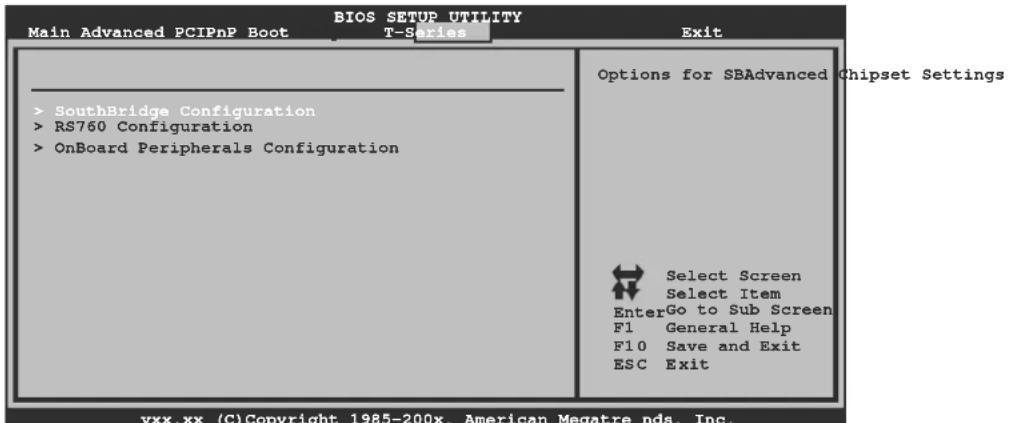
South Bridge Configuration
| SouthBridge Chipset Configuration SB710 CIMx Version : 4.3.0 | Options for SB HD Azal | |
| > SB Azalia Audio Configuration | ||
| OHCI HC(Bus 0 Dev 18 Fn 0) | [Enabled] | |
| OHCI HC(Bus 0 Dev 18 Fn 1) | [Enabled] | |
| EHCI HC(Bus 0 Dev 18 Fn 2) | [Enabled] | |
| OHCI HC(Bus 0 Dev 19 Fn 0) | [Enabled] | |
| OHCI HC(Bus 0 Dev 19 Fn 1) | [Enabled] | |
| EHCI HC(Bus 0 Dev 19 Fn 2) | [Enabled] | |
| OHCI HC(Bus 0 Dev 20 Fn 5) | [Enabled] | |
| OnChip SATA Channel | [Enabled] | Select Screen Select Item EnterGo to Sub Screen F1 General Help F10 Save and Exit ESC Exit |
| OnChip SATA Type | [Native IDE] | |
| SATA IDE Combined Mode | [Enabled] | |
| Power Saving Features | [Disabled] | |
SB Azalia Audio Configuration
![BIOS SETUP UTILITY Chipset HD Audio Azalia Device [Enabled] Azalia Clock Gating [Disabled] Options Auto Disabled Enabled Select Screen Select Item +- Change Option F1 General Help F10 Save and Exit ESC Exit vxx.xx (C) Copyright 1985-200x, American Megatrends, Inc.](/content/2026/06/1146024/images/02de519351047e62482560fc13d163a8ee06f67a56feb85c1d4bf4ab8b1bbb30.jpg)
HD Audio Azalia Device
This item allows you to control the HD audio device.
Options: Enabled (Default) / Auto / Disabled
Azalia Clock Gating
Options: Disabled (Default) / Enabled
OHCI HC(Bus 0 Dev 18/19/20 Fn 0/1/5)
Options: Enabled (Default) / Disabled
EHCI HC(Bus 0 Dev 18/19 Fn 2)
Options: Enabled (Default) / Disabled
OnChip SATA Channel
This option allows you to enable the on-chip Serial ATA.
Options: Enabled (Default) / Disabled
OnChip SATA Type
This option allows you to select the on-chip Serial ATA operation mode.
Options: Native IDE (Default) / RAID / AHCI / Legacy IDE / IDE→AHCI
Option ROM POST Delay
Options: Disabled (Default) / Enabled
SATA IDE Combined Mode
This option controls the SATA/PATA combined mode.
Options: Enabled (Default) / Disabled
Power Saving Features
This option controls the power saving features.
Options: Disabled (Default) / Enabled
RS760 Configuration
| BIOS SETUP UTILITY Chipset | |
| RS760 Chipset Configuration RS760 CIMx Version : 4.4.0 > Internal Graphics Configurat ion > PCI Express Configuration Primary Video Controller [PCI-GFX0-GPP-IGFX] NB Power Management Features [Auto] | Internal Graphics Conf Select Screen Select Item EnterGo to Sub Screen F1 General Help F10 Save and Exit ESC Exit |
Internal Graphics Configuration
| Internal Graphics Configuration | Options | |
| Internal Graphics Mode UMA Frame Buffer Size GFX Engine Clock Override GFX Engine Clock | [UMA] [Auto] [Disable] [500] | Disable UMA Select Screen Select Item +- Change Option F1 General Help F10 Save and Exit ESC Exit |
| Surround View FB Location | [Auto] [Above 4G] | |
| AMD 780 HD Audio | [Enable] | |
Internal Graphics Mode
This item allows you to select the memory mode used for internal graphics device.
Options: UMA (Default) / Disable
UMA Frame Buffer Size
This item allows you to choose the UMA frame buffer size for internal graphics.
Options: Auto (Default) / 32M / 64M / 128M / 256M / 512M
GFX Engine Clock Override
This item allows you to control the internal GFX engine clock override function.
Options: Disabled (Default) / Enabled
GFX Engine Clock
This item allows you to set the internal GFX engine clock.
Options: 500 (Default) / Min: 150, Max: 1000
Surround View
This item allows you to control the Surround View Function.
Options: Auto (Default)
FB Location
This item allows you to set the FB-DIMM location.
Options: Above 4G (Default) / Under 4G
AMD 780 HD Audio
This item allows you to control the northbridge HD azalia (HDMI audio) function.
Options: Enabled (Default) / Disabled
PCI Express Configuration
| BIOS SETUP UTILITY Chipset | |
| PCI Express Configuration | |
| GPP Slots Power Limit, W [ 25 ] > Port #02 Features > NB-SB Port Features | Select Screen Select Item EnterUpdate F1 General Help F10 Save and Exit ESC Exit |
| vxx.xx (C)Copyright 1985-200x, Amer ican Megatre nds, Inc. | |
GPP Slots Power Limit, W
Options: 25 (Default) / 0-255
Port #02 Features
| BIOS SETUP UTILITY Chipset | ||
| Gen2 High Speed Mode | [ Auto] | Auto - RC only advertize Gen2 capability. |
| Link ASPM | [ Disabled] | |
| Link Width | [ Auto] | |
| Slot Power Limit, W | [ 75] | |
| Select Screen Select Item +- Change Option F1 General Help F10 Save and Exit ESC Exit | ||
| vxx.xx (C) Copyright 1985-200x, Amer ican Megatre nds, Inc. | ||
Gen2 High Speed Mode
Options: Disabled (Default) / Auto / Software Initiated / Advertised RC
Link ASPM
Options: Disabled (Default) / L0s / L1 / L0x & L1
Link Width
Options: Auto (Default) / x1 / x2 / x4 / x8 / x16
Slot Power Limit, W
Options: 75 (Default) / 0-255
NB-SB Port Features
![BIOS SETUP UTILITY Chipset NB-SB Link ASPM [Disabled] NP NB-SB VC1 Traffic Support [Disabled] Link Width [Auto] Options Disabled L1 Select Screen Select Item +- Change Option F1 General Help F10 Save and Exit ESC Exit vxx.xx (C)Copyright 1985-200x, American Megatrends, Inc.](/content/2026/06/1146024/images/546eb70f93c77a97bda1f4343c60ebe0371526ece25efb0e37e397326302d9b8.jpg)
NB-SB Link ASPM
Options: Disabled (Default) / L1
NP NB-SB VCI Traffic Support
Options: Disabled (Default) / Enabled
Link Width
Options: Auto (Default) / x1 / x2 / x4
Primary Video Controller
This option allows you to select the video controller in charge.
Options: PCI-GFX0-GPP-IGFX (Default) / GFX0-GPP-IGFX-PCI /
GPP-GFX0-IGFX-PCI / IGFX-GFX0-GPP-PCI
NB Power Management Features
This option controls the NB power management function.
Options: Auto (Default) / Disabled
OnBoard Peripherals Configuration
![BIOS SETUP UTILITY Chipset MAC ID Information Realtek PCIE NIC [Enable] Realtek Option ROM [Disabled] Enable/Disable Onboard RTL8111C PCIE Network Controller Select Screen Select Item +- Change Option F1 General Help F10 Save and Exit ESC Exit vxx.xx (C)Copyright 1985-200x, American Megatrends, Inc.](/content/2026/06/1146024/images/28f55174c763e711d7cee68baf7c2fc9372a97072c8f42523c66a66f23a2cf2d.jpg)
MAC ID Information
This area shows the MAC ID.
Realtek PCIE NIC
This option allows you to control the onboard LAN controller.
Options: Enable (Default) / Disable
Realtek Option ROM
Enable or disable Option ROM for Realtek PCIE Network Controller. This option needs to be enabled for PXE boot support.
Options: Disabled (Default) / Enabled
6 T-Series Menu
This submenu allows you to change voltage and clock of various devices.
(However, we suggest you use the default setting. Changing the voltage and clock improperly may damage the device.)
Notice
- Beware of that setting inappropriate values in items of this menu may cause system to malfunction.
![BIOS SETUP UTILITY Main Advanced PCIPnP Boot Chipset Exit T-Series Settings WARNING: Setting wrong values in below sections may cause system to malfunction. OverClock Navigator [Normal] ==================== Automate OverClock System ==================== Auto OverClock System [V6-Tech Engine] ==================== Manual OverClock System ==================== CPU Overvoltage [StartUp] Memory Overvoltage [1.95V] Chipset Overvoltage [1.15V] HT Overvoltage [1.20V] CPU Frequency [200] > CPU FID/VID Control > DRAM Timing Configuration > Hyper Transport Configuration > Memory Configuration Integrated Memory Test [Disabled] Options Normal Automate OverClock Manual OverClock Select Screen Select Item +- Change Option F1 General Help F10 Save and Exit ESC Exit vxx.xx (C)Copyright 1985-200x, American Megatrends, Inc.](/content/2026/06/1146024/images/d8a4167a2fb56fc03080cfdd9c2a5854291a6b3d7068c55ad43cfaf79c9dbb13.jpg)
OverClock Navigator
OverClock .Navigator is designed for beginners in overclock field.
Based on many test and experiments from Biostar Engineer Team, OverClock Navigator provides 3 default overclock configurations that are able to raise the system performance.
Options: Normal (Default) / Automate OverClock / Manual OverClock
Auto OverClock System
![BIOS SETUP UTILITY Main Advanced PCIPnP Boot Chipset T-Series Settings WARNING: Setting wrong values in below sections may cause system to malfunction. OverClock Navigator [Automate OverClock] ================[Automate OverClock System ================== Auto OverClock System [V6-Tech Engine] ================[Manual OverClock System ================== CPU Overvoltage [StartUp] Memory Overvoltage [1.95V] Chipset Overvoltage [1.15V] HT Overvoltage [1.20V] CPU Frequency [200] > CPU FID/VID Control > DRAM Timing Configuration > Hyper Transport Configuration > Memory Configuration Integrated Memory Test [Disabled] Options Normal Automate OverClock Manual OverClock Select Screen Select Item +- Change Option F1 General Help F10 Save and Exit ESC Exit vxx.xx (C)Copyright 1985-200x, American Megatrends, Inc.](/content/2026/06/1146024/images/b853a2017a5657fb2ab3fdfb628af70e587e6b1bf01d93c3ad6af909753ede9d.jpg)
The Overclock Navigator provides 3 different engines helping you to overclock your system. These engines will boost your system performance to different level.
Options:
V6 Tech Engine
This engine will make a good over-clock performance.
V8 Tech Engine
This engine will make a better over-clock performance.
V12 Tech Engine
This engine will make a best over-clock performance.
Cautions:
-
Not every AMD CPU performs the above overclock setting ideally; the difference may vary with the installed CPU model.
-
From BET experiment, the Atholon64 FX CPU is not suitable for this A.O.S. feature.
Manual Overclock System (M.O.S.)
![BIOS SETUP UTILITY Main Advanced PCIPnP Boot Chipset Exit T-Series Settings WARNING: Setting wrong values in below sections may cause system to malfunction. OverClock Navigator [Manual OverClock] ==================== Automate OverClock System ==================== Auto OverClock System [V6-Tech Engine] ==================== Manual OverClock System ==================== CPU Overvoltage [StartUp] Memory Overvoltage [1.95V] Chipset Overvoltage [1.15V] HT Overvoltage [1.20V] CPU Frequency [200] > CPU FID/VID Control > DRAM Timing Configuration > Hyper Transport Configuration > Memory Configuration Integrated Memory Test [Disabled] Options Normal Automate OverClock Manual OverClock Select Screen Select Item +- Change Option F1 General Help F10 Save and Exit ESC Exit vxx.xx (C)Copyright 1985-200x, American Megatrends, Inc.](/content/2026/06/1146024/images/0854e3cc8f9401053bff7b6f3ac096512f98dd53e024e31b1479dfd9f8188ea6.jpg)
MOS is designed for experienced overclock users.
It allows users to customize personal overclock setting.
CPU Overvoltage
This item allows you to select CPU Voltage Control.
Options: StartUp (Default) / +0.10V / +0.20V / +0.30V
Memory Overvoltage
This item allows you to select DDR Voltage Control.
Options: 1.95V (Default) / 2.05V / 2.15V / 2.25V / 2.35V / 2.45V / 2.55V / 2.65V
Chipset Overvoltage
This item allows you to select NB/SB Voltage Control.
Options: 1.15V (Default) / 1.25V / 1.35V / 1.45V
HT Overvoltage
This item allows you to select HT Voltage Control.
Options: 1.20V (Default) / 1.30V / 1.40V / 1.50V
CPU Frequency
This item allows you to select the CPU Frequency.
Options: 200 (MHz) (Default) / 200-600
CPU FID/VID Control
![BIOS SETUP UTILITY T-Series CPU FID/VID Control Custom P-States [Disabled] Core FID [x11.5 2300MHz] Core DID [Divided by 1] Core VID [1.2500 V] NB FID [2000 Mhz] Options Select Screen Select Item +- Change Option F1 General Help F10 Save and Exit ESC Exit vxx.xx (C) Copyright 1985-200x, American Megatrends, Inc.](/content/2026/06/1146024/images/bd6aa7845f59c10a2368709e59ed17f808250708b04f5c96aa5510dc938bab1e.jpg)
Custom P-States (for AM2+ CPU)
This item allows you to select the P-States controlling.
Options: Disabled (Default) / Enabled
Core FID (for AM2+ CPU)
This item allows you to select the Ratio/Frequency of AM2+ CPU.
Options: x8.0 1600MHz \~ x31.5 6300MHz (Differed by CPU)
Core DID (for AM2+ CPU)
Options: Divided by 1 (Default) / Divided by 2 / Divided by 4 / Divided by 8 / Divided by 16
Core VID (for AM2+ CPU)
This function allows you to adjust the voltage of CPU.
Options: 0.0125V \~ 1.5500V (Differed from CPU).
NB FID (for AM2+ CPU)
This item allows you to select the Frequency of NB chip.
Options: 2000MHz (Default) / 800MHz \~ 7000MHz
DRAM Timing Configuration
| DRAM Timing Configuration | Select the DRAM Frequency programming method. If Auto, the DRAM speed will be based on SPDs. If Limit, the DRAM spe will not exceed the specified value. If Manual, the DRAM speed specified will be programmed regardless. Select Screen Select Item Change Option F1 General Help F10 Save and Exit ESC Exit | |
| Memory Clock Mode | [Auto] | |
| Memclock Value | [DDR2-400] | |
| Memory CLK : | ||
| DRAM Timing Mode | [Auto] | |
| Memory CLK : | ||
| CAS Latency(Tcl) : | ||
| RAS/CAS Delay(Trcd) : | ||
| Row Precharge Time(Trp) : | ||
| Min Active RAS(Tras) : | ||
| RAS/RAS Delay(Trrd) : | ||
| Row Cycle (Trc) : | ||
Memory Clock Mode
This item allows you to control the Memory Clock.
Options: Auto (Default) / Limit / Manual
Memclock Value
This item allows you to set the Memory Clock.
Options: DDR2-400 (Default) / DDR2-533 / DDR2-667 / DDR2-800 / DDR2-1066
DRAM Timing Mode
This item allows you to choose to manually or automatically regulate the DRAM Timing.
Options: Auto (Default) / DCT0 / DCT1(for AM2+ CPU) / Both(for AM2+ CPU)
CAS Latency (CL)
Options: Auto (Default) / 3\~6 CLK / 7CLK DH_Only
2T Command
Options: Auto (Default) / 1T / 2T
TRCD
Options: Auto (Default) / 3\~6 CLK
TRP
Options: Auto (Default) / 3\~6 CLK
tRTP
Options: Auto (Default) / 2-4 CLK / 3-5 CLK
TRAS
Options: Auto (Default) / 5\~18 CLK
TRC
Options: Auto (Default) / 11\~26 CLK
tWR
Options: Auto (Default) / 3\~6 CLK
TR RD
Options: Auto (Default) / 2\~5 CLK
tWTR
Options: Auto (Default) / 1\~3 CLK
tRFC0 / tRFC1 / tRFC2 / tRFC3
Options: Auto (Default) / 75ns / 105ns / 127.5ns / 195ns / 327.5ns
Hyper Transport Configuration
![BIOS SETUP UTILITY T-Series Hyper Transport Configuration NODE0:PCI-X2 HT Link Link Speed [Auto] Link Width [Auto] The Hypertransport link will run at this speed if it is slower than or equal to the system clock and the board is capable. Select Screen Select Item +- Change Option F1 General Help F10 Save and Exit ESC Exit vxx.xx (C)Copyright 1985-200x, American Megatrends, Inc.](/content/2026/06/1146024/images/7cab92938b3675a8a4491e8b985e43ee08b404347aa63d5bc53b01c9838e1355.jpg)
Link Speed
Options: Auto (Default) / 200MHz / 400MHz / 600MHz / 800MHz / 1GHz / 1.2GHz / 1.4GHz / 1.6GHz / 1.8GHz
Link Width
Options: Auto (Default) / 4 Bit / 8 Bit / 16 Bit
Memory Configuration
![BIOS SETUP U TILITY T-Series Memory Configuration Bank Interleaving [Aut o] Channel Interleaving [XOR of Address bit] Enable Clock to All DIMMs [Dis abled] MemClk Tristate C3/ATLVID [Dis abled] Memory Hole Remapping [Ena bled] DCT Unganged Mode [Alw ays] Power Down Enable [Ena bled] Power Down Mode [Cha nnel] > ECC Configuration Enable Bank Memory Interleaving Select Screen Select Item +- Change Option F1 General Help F10 Save and Exit ESC Exit vxx.xx (C)Copyright 1985-200x, American Me gatrends, Inc.](/content/2026/06/1146024/images/e0fd68b42538f25133b82df0fdedd54ae78a3f945c3472ec8745b5f4d0bdca84.jpg)
Bank Interleaving
Bank Interleaving is an advanced chipset technique used to improve memory performance. Memory interleaving increases bandwidth by allowing simultaneous access to more than one piece of memory.
Options: Auto (Default) / Disabled
Channel Interleaving
This item allows you to control the DDR2 dual-channel function.
Options: XOR of Address bits [20:16, 6] (Default) / XOR of Address bits [20:16, 9] / Address bits 6 / Address bits 12 / Disabled
Enable Clock to All DIMMs
This item determines whether the BIOS should actively reduce EMI (Electromagnetic Interference) and reduce power consumption by turning off unoccupied or inactive DIMM slots.
Options: Disabled (Default) / Enabled
MemClk Tristate C3/ATLVID
This item enables or disables the MemClk Tristate function in C3 Mode.
Options: Disabled (Default) / Enabled
Memory Hole Remapping
This item allows you to enable or disable the remapping of the overlapped PCI memory above the total physical memory. Only 64-bit OS supports this function.
Options: Enabled (Default) / Disabled
DCT Unganged Mode
This item controls the DRAM controller ganged (128bit*1) / unganged (64bit*2) dual-channel operation mode. If two DRAM modules with different size are installed, using unganged mode can still make it run in dual-channel operation.
Options: Always (Default) / Auto
Power Down Enable
This item controls the DRAM power down function.
Options: Enabled (Default) / Disabled
Power Down Mode
This item allows you to select the DRAM power down mode.
Options: Channel (Default) / CS
ECC Configuration
![BIOS SETUP UTILITY T-Series ECC Configuration ECC Mode [Disabled] DRAM ECC Enable [Disabled] DRAM SCRUB REDIRECT [Disabled] 4-Bit ECC Mode [Disabled] DRAM BG Scrub [Disabled] Data Cache BG Scrub [Disabled] L2 Cache BG Scrub [Disabled] L3 Cache BG Scrub [Disabled] Set the level of ECC protection. Note: The Super ECC mode dynamically sets the DRAM scrub rate so all of memory is scrubbed in 8 hours. Select Screen Select Item +- Change Option F1 General Help F10 Save and Exit ESC Exit vxx.xx (C) Copyright 1985-200x, American Megatrends, Inc.](/content/2026/06/1146024/images/20c0b81abc5196783bb65bf1b8706571390d074165ec2dc675c7fb8e2054223f.jpg)
ECC Mode
This item allows you to select the DRAM ECC Mode.
Options: Disabled (Default) / Basic / Good / Super / Max / User
DRAM ECC Enabled
Options: Disabled (Default) / Enabled
DRAM Scrub Redirect
Options: Disabled (Default) / Enabled
4-bit ECC Mode
Options: Disabled (Default) / Enabled
DRAM BG Scrub/Data Cache BG Scrub/L2 Cache BG Scrub/L3 Cache BG Scrub
Options: Disabled (Default) / 40ns / 80ns / 160ns / 320ns / 640ns / 1.28us / 2.56us / 5.12us / 10.2us / 20.5us / 41.0us / 81.9us / 163.8us / 327.7us / 655.4us / 1.31ms / 2.62ms / 5.24ms / 10.49ms / 20.97ms / 42.00ms / 84.00ms
Integrated Memory Test
Integrated Memory Test allows users to test memory module compatibilities without additional device or software.
Step 1:
This item is disabled on default; change it to “Enable” to precede memory test.
![BIOS SETUP UTILITY Main Advanced PCIPnP Boot Chipset Exit T-Series Settings WARNING: Setting wrong values in below sections may cause system to malfunction. OverClock Navigator [Normal] ================equal Automation OverClock System =================== Auto OverClock System [V6-Tech Engine] ================equal Manual OverClock System =================== CPU Overvoltage [StartUp] Memory Overvoltage [1.95V] Chipset Overvoltage [1.15V] HT Overvoltage [1.20V] CPU Frequency [200] > CPU FID/VID Control > DRAM Timing Configuration > Hyper Transport Configuration > Memory Configuration Integrated Memory Test [Enabled] Options Normal Automate OverClock Manual OverClock Select Screen Select Item +- Change Option F1 General Help F10 Save and Exit ESC Exit vxx.xx (C)Copyright 1985-200x, American Megatrends, Inc.](/content/2026/06/1146024/images/b224413ef4ead15a39d203385a10760f8fe7d2c3a2a9aa53ce62f7b3266677fa.jpg)
Step 2:
When the process is done, change the setting back from “Enabled” to “Disabled” to complete the test.
![BIOS SETUP UTILITY Main Advanced PCIPnP Boot Chipset Exit T-Series Settings WARNING: Setting wrong values in below sections may cause system to malfunction. OverClock Navigator [Normal] ================equal Automation OverClock System =================== Auto OverClock System [V6-Tech Engine] ================equal Manual OverClock System =================== CPU Overvoltage [StartUp] Memory Overvoltage [1.95V] Chipset Overvoltage [1.15V] HT Overvoltage [1.20V] CPU Frequency [200] > CPU FID/VID Control > DRAM Timing Configuration > Hyper Transport Configuration > Memory Configuration Integrated Memory Test [Disabled] Options Normal Automate OverClock Manual OverClock Select Screen Select Item +- Change Option F1 General Help F10 Save and Exit ESC Exit vxx.xx (C)Copyright 1985-200x, American Megatrends, Inc.](/content/2026/06/1146024/images/e0edccda4a0c1c39030c03cdb91c1e4beec4a433def85c82ca71f503460d72d9.jpg)
7 Exit Menu
This menu allows you to load the optimal default settings, and save or discard the changes to the BIOS items.
| BIOS SETUP UTILITY Main Advanced PCIPnP Boot Chipset T-Series | Exit |
| Exit Options | Exit system setup after saving the changes. F10 key can be used for this operation. |
| Save Changes and Exit Discard Changes and Exit Discard Changes | |
| Load Optimal Defaults | |
| CMOS Backup Function | |
| Security Settings | Select Screen Select Item EnterGo to Sub Screen F1 General Help F10 Save and Exit ESC Exit |
| > Security |
Save Changes and Exit
Save all configuration changes to CMOS RAM and exit setup.
Discard Changes and Exit
Abandon all changes made during the current session and exit setup.
Discard Changes
Abandon all changes made during the current session and restore the previously saved values.
Load Optimal Defaults
This selection allows you to reload the BIOS when problem occurs during system booting sequence. These configurations are factory settings optimized for this system.
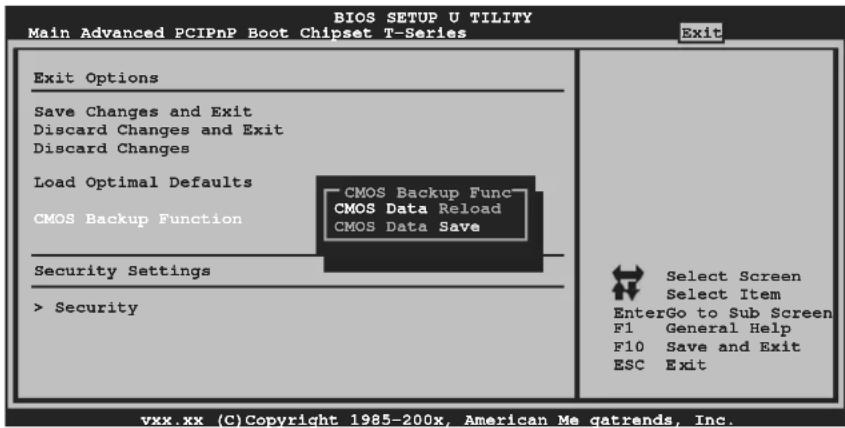
CMOS Backup Function
It allows users to save different CMOS settings into BIOS-ROM and reload any saved CMOS setting for customizing system configurations.
Moreover, users are able to save an ideal overclock setting during overclock operation.
There are 10 sets of record addresses in total, and users are able to name the CMOS data according to personal preference.
Security
This sub-menu allows you to provide/revise supervisor and user password.
| Security Settings | Install or Change the password. |
| Supervisor Password :Not Installed User Password :Not Installed | |
| Change Supervisor Password Change User Password | |
| Boot Sector Virus Protection [Disabled] | |
| Select Screen Select Item EnterChange F1 General Help F10 Save and Exit ESC Exit |
Change Supervisor Password
Setting the supervisor password will prohibit everyone except the supervisor from making changes using the CMOS Setup Utility. You will be prompted with to enter a password.
Change User Password
If the Supervisor Password is not set, then the User Password will function in the same way as the Supervisor Password. If the Supervisor Password is set and the User Password is set, the "User" will only be able to view configurations but will not be able to change them.
Boot Sector Virus Protection
This option allows you to choose the VIRUS Warning feature that is used to protect the IDE Hard Disk boot sector. If this function is enabled and an attempt is made to write to the boot sector, BIOS will display a warning message on the screen and sound an alarm beep.
Options: Disabled (Default) / Enabled
- Plug and Play Support
- EPA Green PC Support
- APM Support
- ACPI Support
- PCI Bus Support
- DRAM Support
- Supported CPUs
- Using Setup
- Notice
- Main Menu
- AMI BIOS
- System Time
- System Date
- Floppy A
- IDE Configuration
- Type
- LBA/Large Mode
- Block (Multi-Sector Transfer)
- PIO Mode
- DMA Mode
- S.M.A.R.T
- 32Bit Data Transfer
- Hard Disk Write Protect
- IDE Detect Time Out (Sec)
- Advanced Menu
- CPU Configuration
- Secure Virtual Machine Mode
- PowerNow
- ACPI SRAT Table
- CPU Prefetching
- SuperIO Configuration
- Onboard Floppy Controller
- Serial Port1 Address
- Parallel Port Address
- Parallel Port Mode
- ECP Mode DMA Channel
- Parallel Port IRQ
- Keyboard PowerOn
- Specific Key Enter
- Stroke Keys Selected
- Mouse PowerOn
- Restore on AC Power Loss
- CPU Smart Fan
- Smart Fan Calibration
- Control Mode
- Fan Ctrl OFF(°C)
- Fan Ctrl On(℃)
- Fan Ctrl Start Value
- Fan Ctrl Sensitive
- Hardware Health Configuration
- H/W Health Function
- Shutdown Temperature
- Power Configuration
- Suspend mode
- ACPI Version Features
- ACPI APIC support
- AMI OEMB table
- Headless mode
- RTC Resume
- RTC Alarm Date (Days)
- RTC Alarm Time (HH:MM:SS)
- USB Resume from S3/S4
- Power On by PCIE/Onboard LAN
- Wake Up by PCI
- Wake On Ring
- USB Configuration
- Legacy USB Support
- USB 2.0 Controller Mode
- BIOS EHCI Hand-Off
- USB Mass Storage Device Configuration
- USB Mass Storage Reset Delay
- Emulation Type
- PCIPnP Menu
- Clear NVRAM
- Plug & Play OS
- PCI Latency Timer
- Allocate IRQ to PCI VGA
- Palette Snooping
- PCI IDE BusMaster
- PCI Resource
- IRQ3/4/5/7/9/10/11/14/15
- DMA Channel 0/1/3/5/6/7
- Reserved Memory Size
- Active State Power-Management
- Boot Menu
- Boot Device Priority
- Hard Disk Drives
- Removable Drives
- CD/DVD Drives
- Quick Boot
- Full Screen LOGO Show
- AddOn ROM Display Mode
- Bootup Num-Lock
- Interrupt 19 Capture
- Ignore Memory Error Messages
- BOOT S UCESS BEEP
- Chipset Menu
- HD Audio Azalia Device
- Azalia Clock Gating
- OHCI HC(Bus 0 Dev 18/19/20 Fn 0/1/5)
- EHCI HC(Bus 0 Dev 18/19 Fn 2)
- OnChip SATA Channel
- OnChip SATA Type
- Option ROM POST Delay
- SATA IDE Combined Mode
- Power Saving Features
- RS760 Configuration
- Internal Graphics Configuration
- Internal Graphics Mode
- UMA Frame Buffer Size
- GFX Engine Clock Override
- GFX Engine Clock
- Surround View
- FB Location
- AMD 780 HD Audio
- PCI Express Configuration
- GPP Slots Power Limit, W
- Port #02 Features
- Gen2 High Speed Mode
- Link ASPM
- Link Width
- Slot Power Limit, W
- NB-SB Link ASPM
- NP NB-SB VCI Traffic Support
- Primary Video Controller
- NB Power Management Features
- OnBoard Peripherals Configuration
- MAC ID Information
- Realtek PCIE NIC
- Realtek Option ROM
- T-Series Menu
- OverClock Navigator
- Auto OverClock System
- Cautions:
- Manual Overclock System (M.O.S.)
- CPU Overvoltage
- Memory Overvoltage
- Chipset Overvoltage
- HT Overvoltage
- CPU Frequency
- CPU FID/VID Control
- Custom P-States (for AM2+ CPU)
- Core FID (for AM2+ CPU)
- Core DID (for AM2+ CPU)
- Core VID (for AM2+ CPU)
- NB FID (for AM2+ CPU)
- DRAM Timing Configuration
- Memory Clock Mode
- Memclock Value
- DRAM Timing Mode
- CAS Latency (CL)
- 2T Command
- TRCD
- TRP
- tRTP
- TRAS
- TRC
- tWR
- TR RD
- tWTR
- tRFC0 / tRFC1 / tRFC2 / tRFC3
- Hyper Transport Configuration
- Link Speed
- Memory Configuration
- Bank Interleaving
- Channel Interleaving
- Enable Clock to All DIMMs
- MemClk Tristate C3/ATLVID
- Memory Hole Remapping
- DCT Unganged Mode
- Power Down Enable
- Power Down Mode
- ECC Configuration
- ECC Mode
- DRAM ECC Enabled
- DRAM Scrub Redirect
- 4-bit ECC Mode
- DRAM BG Scrub/Data Cache BG Scrub/L2 Cache BG Scrub/L3 Cache BG Scrub
- Integrated Memory Test
- Step 1:
- Step 2:
- Exit Menu
- Save Changes and Exit
- Discard Changes and Exit
- Discard Changes
- Load Optimal Defaults
- CMOS Backup Function
- Security
- Change Supervisor Password
- Change User Password
- Boot Sector Virus Protection
Brand : BIOSTAR
Model : TA760G-M2+
Category : Motherboard