US-144 - Controller TEAC - Free user manual and instructions
Find the device manual for free US-144 TEAC in PDF.


User questions about US-144 TEAC
0 question about this device. Answer the ones you know or ask your own.
Ask a new question about this device
Download the instructions for your Controller in PDF format for free! Find your manual US-144 - TEAC and take your electronic device back in hand. On this page are published all the documents necessary for the use of your device. US-144 by TEAC.
USER MANUAL US-144 TEAC
TEAC Professional Division
D00927520A
US-144
USB Audio/MIDI Interface
OWNER'S MANUAL
text_image
LINE OUT MIDI IN MIDI OUT DIGITAL USB US-144 USB2.D Audio/MIDI Interface MIDI IN MIDI OUT USB INPUT MON MIX COMPUTER LINE OUT PHONES MONO OFF ON LINE MIC PHANTOM LINE MIC SIG/DL INPUT L OFF ON SIG/DL INPUT R MIC/ QUITAR LINE TASCAM MIC IN L LINE IN L PHONES LINE/ QUITAR IN R MIC IN RIMPORTANT SAFETY PRECAUTIONS
For U.S.A.
TO THE USER
This equipment has been tested and found to comply with the limits for a Class B digital device, pursuant to Part 15 of the FCC Rules.
These limits are designed to provide reasonable protection against harmful interference in a residential installation. This equipment generates, uses, and can radiate radio frequency energy and, if not installed and used in accordance with the instruction manual, may cause harmful interference to radio communications.
However, there is no guarantee that interference will not occur in a particular installation. If this equipment does cause harmful interference to radio or television reception, which can be determined by turning the equipment off and on, the user is encouraged to try to correct the interference by one or more of the following measures.
a) Reorient or relocate the receiving antenna.
b) Increase the separation between the equipment and receiver.
c) Connect the equipment into an outlet on a circuit different from that to which the receiver is connected.
d) Consult the dealer or an experienced radio/TV technician for help.
CAUTION
Changes or modifications to this equipment not expressly approved by TEAC CORPORATION for compliance could void the user's authority to operate this equipment.
Declaration of Conformity
Model Number: US-144
Trade Name: TASCAM
Responsible party: TEAC AMERICA, INC.
Montebello, California, U.S.A.
Telephone number: 1-213-726-0303
This device complies with Part 15 of the FCC Rules. Operation is subject to the following two conditions:
(1) This device may not cause harmful interference, and
(2) This is device must accept any interferenc received, including interference that cause undesired operation.
This appliance has a serial number located on the rear panel. Please record the model number and serial number and retain the m for your records.
Model number ____ Serial number ____
IMPORTANT SAFETY INSTRUCTIONS
1 Read these instructions.
2 Keep these instructions.
3 Heed all warnings.
4 Follow all instructions.
5 Do not use this apparatus near water.
6 Clean only with dry cloth.
7 Do not block any ventilation openings. Install in accordance with the manufacturer's instructions.
8 Do not install near any heat sources such as radiators, heat registers, stoves, or other apparatus (including amplifiers) that produce heat.
9 Only use attachments/accessories specified by the manufacturer.
10 Use only with the cart, stand, tripod, bracket, or table specified by the manufacturer, or sold with the apparatus. When a cart is used, use caution when moving the cart/ apparatus combination to avoid injury from tip-over.

natural_image
Symbolic icon of a person using a ladder inside a circle (no text or numbers)- Do not expose this apparatus to drips or splashes.
- Do not place any objects filled with liquids, such as vases, on the apparatus.
- Do not install this apparatus in a confined space such as a book case or similar unit.
* Microsoft, Windows, and Windows XP are registered trademarks in the United States and other countries of Microsoft Corporation, USA.
* Pentium is a registered trademark of Intel Corporation, USA.
* MIDI is a registered trademark of the Association of Musical Electronics Industries.
* Other company names and product names in this document are the trademarks or registered trademarks of their respective owners.
Contents
1 Introduction
Overview 5
Features 5
What is in the package .... 5
Conventions used in this manual .... 6
2 Parts of the US-144
Top panel 7
Rear panel 8
Front panel 9
3 Installation
System requirements ...... 10
Windows XP 10
Mac OS X 10
Installing the drivers 11
Installing the drivers for Windows XP ....11
Installing the drivers for Mac OS X 12
Installing Cubase LE 12
Settings on your computer ..... 12
4 Control panel settings
Overview 13
Driver settings 13
Audio Performance 13
Sample Clock Source 13
Digital Output Format ...... 14
5 Connections
USB connections 15
Audio connections 15
MIDI connections ...... 17
6 Recording with Cubase LE
Input setting 18
Recording 19
Mixdown 20
7 Troubleshooting 21
8 MIDI Implementation Chart 23
9 Specifications and performance
Audio specifications 24
Audio performance 25
Other characteristics ...... 25
Physical characteristics ...... 26
Dimensions 26
1 - Introduction
Please read this owner's manual carefully before you begin using the US-144, and use the product correctly as directed in order to ensure long and trouble-free enjoyment of all its functionality.
After you have read this manual, keep it
nearby for reference when required.
We can accept no responsibility for any loss of the data you record using this product onto other MIDI equipment in your system or onto storage devices such as hard disk.
Overview
The US-144 is a USB-based audio interface designed for use with Digital Audio Workstation (DAW) software. It provides a four-input, four-output 24-bit 96 kHz audio interface and a 16-channel MIDI interface. Because the US-144 is USB-based, it is the ideal companion to any desktop- or laptop-based digital recording setup. And since
the US-144 operates using only USB power, you can use it with a laptop computer to create a very compact and portable digital audio workstation system.
The US-144 is also an ideal way to capture analog sources such as records or cassette tapes into your computer and preserve them as audio CDs.
Features
• 24-bit / 96 kHz audio interface.
- Analog input signals (L, R) and digital input signals (L, R) can be input at the same time and recorded simultaneously into your computer via USB.
- Two XLR mic/line inputs (balanced) and two 1/4" phone mic/line inputs (balanced/unbalanced) are provided. One of the 1/4" phone inputs can be switched to allow direct input of an electric guitar or electric bass (R channel only).
- Stereo digital input jack and stereo digital output jack.
- Unbalanced stereo line output (RCA connector) and headphone output.
- MIDI IN/OUT.
- Direct Monitor function allows zero-latency monitoring of the input.
• Power is supplied by the USB connector.
A note about computer operation
If you are unsure about how to perform basic computer operations appearing in this manual, please refer to the owner's manual that came with your computer.
What is in the package
The US-144 package contains the following items.
- US-144 main unit
- USB cable
- Owner's manual (this document)
• CD-ROM (containing drivers and manuals)
- CD-ROM (Gigastudio 3 LE) [Windows only]
• CD-ROM (Cubase LE)
1 - Introduction
Conventions used in this manual
The following conventions are used in this manual:
Front panel keys, knobs, and indicators, and rear panel connectors are designated in all-capital letters.
Example: LINE IN jacks
This typeface is used to designate messages displayed by the software.
Example: Control Surface Protocol
This typeface is used to designate software menu functions and on-screen controllers.
Example: ASIO Device
Top panel

text_image
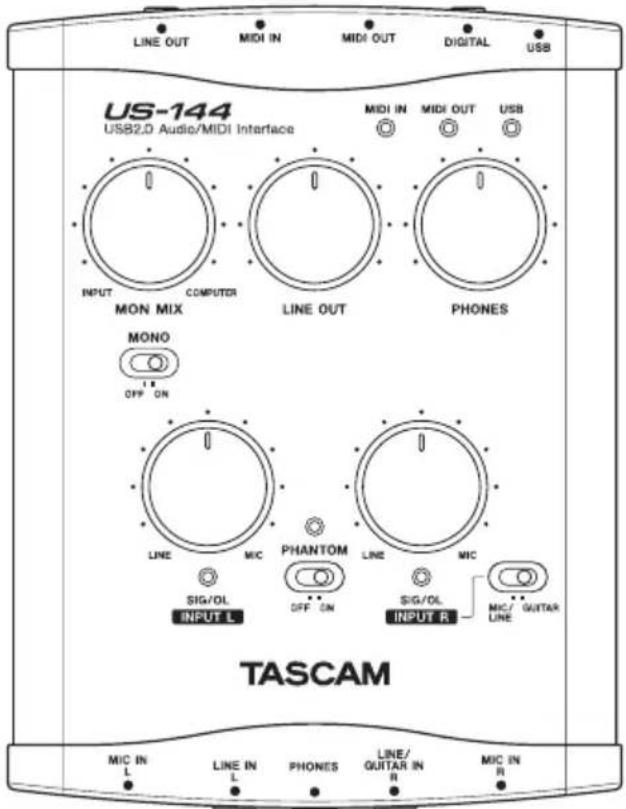
LINE OUT MIDI IN MIDI OUT DIGITAL USB US-144 USB2.0 Audio/MIDI Interface MIDI IN MIDI OUT USB INPUT MON MIX COMPUTER LINE OUT PHONES MONO OFF ON LINE MIC PHANTOM MAC SIG/OL DIFF ON SIG/OL INPUT L INPUT R TASCAM MIC IN L LINE IN L PHONES LINE/ GUTAR IN R MIC IN R ① ② ③ ④ ⑤ ⑥ ⑦ ⑧ ⑨ ⑩① LINE OUT level knob Controls the output level of the LINE OUT jacks.
② PHONES LEVEL knob Controls the output level of the PHONES jack.
③ MIDI IN indicator Lights when MIDI data is being received at the MIDI IN connector.
MIDI OUT indicator Lights when MIDI data is being transmitted from the MIDI OUT connector.
④ USB indicator Lights to indicate a valid USB connection to the host computer.
⑤ MON MIX balance knob Controls the balance of the signal sources being output from the LINE OUT jacks and the PHONES jack. When this knob is turned to the far left, the signal being input to the US-144 (from the XLR jacks, or 1/4" phone jacks) will be output. When this knob is turned to the far right, the output signal received from the computer via USB will be output.
⑥ MONO switch Turn this switch ON if you want to monitor in monaural. This switch affects only the analog input signal.
⑦ INPUT knobs (L, R) Adjust the level of the audio signal being input to the MIC IN jacks and LINE IN jacks.
2 – Parts of the US-144
⑧ SIG/OL indicators Light when signals are being input to the input channels (L, R). They will light green to indicate a signal is present, and will light red immediately before distortion occurs. These indicators apply only to the analog inputs.
NOTE
These indicators will light green when the input signal level is in the range of -30 dBFS to -2 dBFS. The indicators will light red when the input signal level exceeds -2 dBFS.
⑨ MIC/LINE-GUITAR select switch Set this switch as appropriate for the input source you have connected to the LINE IN jack R channel. Use the GUITAR position if you have directly connected an electric guitar or electric bass. Use the MIC/LINE position if you have connected an electronic musical instrument, audio device, or mic.
⑩ PHANTOM switch Turns on the +48V phantom power supplied to the MIC IN jacks.
WARNING
Microphones should not be connected to or disconnected from the US-144 with phantom power switched on. Unbalanced dynamic microphones should never be connected to phantom-powered connectors.
NOTE
Turn this switch on only if you are using condenser microphones that require phantom power.
Please note that if you are operating the unit with a battery-powered laptop computer, the battery life of the computer will be reduced if the PHANTOM switch is on.
Rear panel

text_image
⑪ USB2 VLS1 ⑫ IN OUT ⑫ ⑯ ⑬ L R ⑭ ⑮ ⑯⑪ USB connector Use a USB cable to connect this to the host computer's USB 2.0 port.
NOTE
If the US-144 is operating with a USB 1.1 (Full Speed) connection, only two chan-
nels of recording/playback will be available.
⑫ MIDI OUT connector Transmits MIDI messages.
⑬ MIDI IN connector Receives MIDI messages.
2 - Parts of the US-144
⑭ LINE OUT L/R jacks (RCA connector, unbalanced) These are analog stereo output jacks.
⑮ DIGITAL IN jack This is an RCA connector that inputs a stereo S/PDIF digital signal.
⑯ DIGITAL OUT jack This is an RCA connector that outputs a stereo S/PDIF digital signal.
NOTE
The US-144's DIGITAL IN/OUT jacks allow simultaneous input and output at 24-bit/96 kHz.
Front panel

text_image
17 18 19⑰ MIC IN (L, R) jacks (XLR balanced)
These are analog mic input jacks. The wiring is as follows: pin 1 = ground, pin 2 = hot, pin 3 = cold.
⑱ LINE IN (L, R) jacks (TRS 1/4" phone jacks) These are balanced line input jacks. The R channel also accommodates guitar input. If the top panel MIC/LINE-GUITAR select switch is in the GUITAR position, the
R jack operates as an unbalanced input jack for guitar.
If the MIC/LINE-GUITAR select switch is in the MIC/LINE position, the R jack operates as a balanced input jack. (Sleeve = ground, tip = hot, ring = cold)
⑲ PHONES jack (stereo 1/4" phone) This is a headphone output jack.
System requirements
Windows XP
Supported operating system: Windows XP SP2
Recommended system: Pentium or
Athlon 1 GHz or faster (or equivalent processor), 512 MB or more memory, USB 2.0 port
These requirements are for when using Cubase LE. If you are using other application software, you will need to consult the operating requirements for the software you are using.
NOTE
The number of usable audio tracks will depend on the speed of your hard disk. The faster your hard disk, the better your results will be.
If the US-144 is operating with a USB 1.1 (Full Speed) connection, only two channels of recording/playback will be available.
We recommend that you have at least 256 MB of memory, but when using digital audio application software, the more memory you have the happier you will be.
Although this product has been checked for use with typical computers that meet the above operating requirements, we cannot guarantee that it will operate with all computers that meet these requirements. Please be aware that even under the same conditions, processing capability may vary depending on differences of the design and system.
Mac OS X
• Macintosh computer with a USB 2.0 connector
• Mac OS X 10.3.9 & higher on PowerPC
Mac systems
For Macintosh as well, the more memory you have and the faster your hard disk, the happier you will be when using digital audio application software
Installing the drivers
In order to use the US-144, you must install the appropriate drivers into your computer. As described below, this is an easy process using the CD-ROM included with the US-144.
Drivers are updated from time to time. You can download the most recent version of the drivers from the TASCAM website http://www.tascam.com/.
Do not connect the US-144 to your computer before you have installed the drivers.
CAUTION
Handle the enclosed CD-ROM with care. If the disc becomes scratched or dirty, your computer may be unable to read it and the software cannot be installed. If the disc becomes unreadable, a fee will be charged for its replacement.
WARNING
Never attempt to play the enclosed CD-ROM in a conventional audio CD player, as the resulting noise may damage your speakers or your hearing.
Installing the drivers for Windows XP
The US-144's drivers are provided on the CD-ROM as an executable installer entitled US-122L & US-144 driver x_yy.exe. (x_yy is the version number.)
Installation procedure
1 Make sure that the US-144 is not connected to your computer.
2 Double-click the executable installation file US-122L & US-144 driver x_yy.exe. The installer will start up.
3 Select the desired language from the menu and click the OK button. A dialog box will appear.
4 Click the Install the Driver button. The drivers will be installed.
NOTE
During driver installation, a warning that this software ... has not passed Windows Logo testing will appear. This warning appears when you attempt to install a driver that has not passed Windows Logo testing; however, please be assured that TASCAM has verified that this driver for Windows XP does work correctly.
If this message appears, click Continue to proceed with the installation.
If a message asks you to restart your computer, restart your computer.
After restarting, connect the US-144 to your computer. The Windows Plug and Play system will detect the new USB hardware, and the Add New Hardware wizard will start up. The wizard will automatically find the necessary files. (This will take about 30 to 60 seconds.)
The drivers are now installed, and the US-144 is ready to operate.
3 - Installation
Installing the drivers for Mac OS X
The US-144's drivers are provided on the CD-ROM as a package file entitled US-122L & US-144 driver x_yy.mpkg. (x_yy is the version number.) Simply double-click
on this package file's icon to launch it and follow the directions that appear on your screen.
Installing Cubase LE
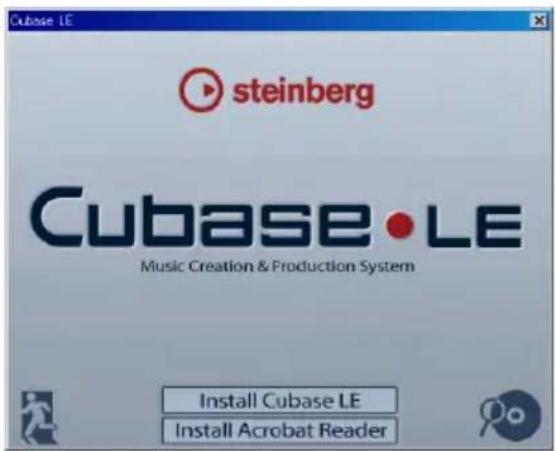
1 Insert the Cubase LE CD-ROM into your computer.
The opening screen will appear.
text_image
Cubase LE steinberg Cubase • LE Music Creation & Production System Install Cubase LE Install Acrobat Reader2 Click the Install Cubase LE button.
3 Enter the serial number of Cubase LE. The Cubase LE serial number is affixed to the soft case of the Cubase LE disc.
4 When you have finished entering the information, click the OK button.
5 Follow the instructions shown on the screen with the installation. When the installation is completed, a dialog box indicating that installation was successful will appear, and then you will return to the opening screen.
6 Close the opening screen.
Settings on your computer
Here are a few basic points to help you set up your computer for best performance with audio applications.
- Do not run other applications. You will probably use your computer for applications other than audio, but we recommend that you avoid running other applications at the same time you are running audio programs. Processing digital audio places a considerable load on your computer.
This means that if you are running other applications (especially graphics or
Internet tools) at the same time as your audio application, the processing may not happen fast enough.
- Certain devices such as network cards or WinModems can cause conflicts with USB processing. If you experience such a conflict, you can use the Device Manager to temporarily disable the offending device.
- If your computer has an IDE hard disk, enabling Direct Memory Addressing (DMA) will improve performance. In Windows XP, this is enabled by default.
4 - Control panel settings
Overview
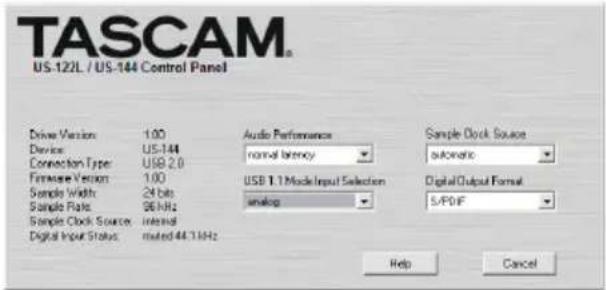
The Control Panel lets you make various settings for the US-144's functionality.
The Control Panel is divided into the following two sections.
Status section
This shows the current status of the driver and the connected hardware.
You cannot edit the settings from this section.
Setting section
Here you can edit the various settings of the driver.
text_image
TASCAM US-122L / US-144 Control Panel Drive Version 1.00 Device US-144 Connection Type USB 2.0 Firmware Version 1.00 Sample Width 24 bits Sample Rate 96 MHz Sample Clock Source internal Digital Input Status mated 44.13kHz Audio Performance normal latency USB 1.1 Mode Input Selection analog Sample Clock Source automatic Digital Output Format S/P0/F Help CancelDriver settings
Audio Performance
The US-144 driver temporarily stores input and output audio samples in buffers.
The Audio Performance setting lets you adjust the buffer size. The Lowest Latency setting is the minimum buffer size, and the Highest Latency setting is the maximum buffer size.
A smaller buffer size will reduce the delay when monitoring the input signal, but will require your computer to perform the pro-
cessing faster. If the processing does not occur in time (e.g., if other system operations are occurring), you may hear clicks, pops, or dropouts in the audio signal.
A larger buffer size provides more safety against such problems caused by other system activities, but will produce greater delay when monitoring the audio signal.
The US-144 lets you select the buffer size that works best for your system.
Sample Clock Source
You can set the clock source to Automatic or Internal.
Automatic (default): If a signal is being input to the DIGITAL IN jack, its clock will be used. If no signal is being input to the
DIGITAL IN jack, the US-144's internal clock will be used.
Internal: The US-144's internal clock will always be used.
4 - Control panel settings
Digital Output Format
This lets you choose either AES/EBU or S/PDIF as the digital output format. Many professional devices use an XLR connector for AES/EBU. Special adapters may be purchased to convert between a digital audio RCA connector and digital audio XLR connector.
USB 1.1 Mode Input Selection
This item is shown only if the US-144 is connected to a USB 1.1 port on the host computer or to a USB 1.1 hub. In this case, the US-144 functions as a 2-in / 2-out audio device, rather than the usual 4-in / 4-out. You can choose either Analog or Digital as the input source.
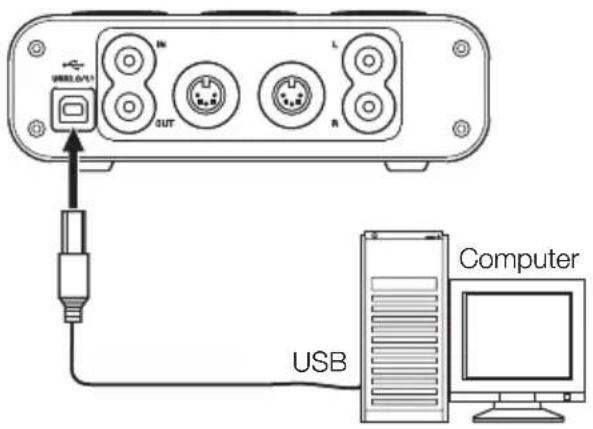
USB connections
Using the included cable, connect the US-144 to your computer as shown in the illustration.
text_image
IN L IN OUT R USB ComputerNOTE
Some USB devices access the USB bus frequently. To avoid dropouts and clicks in the audio signal, we strongly recommend that you do not connect other USB devices to the USB bus used by the US-144.
USB keyboards and mice are exceptions to this, and will probably not cause problems.
Audio connections
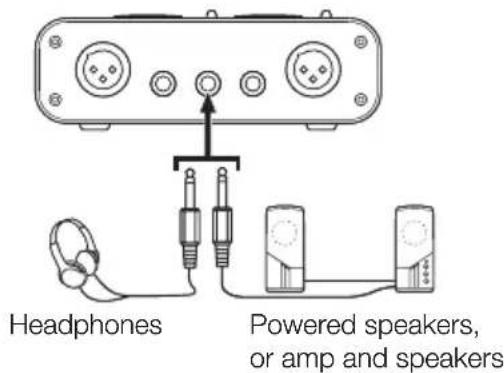
Connect the output signal of your mic, guitar, keyboard, or other audio device to the US-144, where it will be converted into digital audio and sent via USB to your computer. Connect the output of the US-144 to your speakers (via an amp) or headphones, so you will be able to monitor the audio signals coming into the US-144 or being produced by your computer.
NOTE
The US-144 has two input channels (L, R), with a MIC IN jack (XLR) and LINE IN jack (1/4" phone jack) provided for each channel. Do not connect signals to both of these analog input jacks at the same time. If both are connected, the signal will not be correctly input to the US-144.
Mic
Connect your mics to the MIC IN (L, R) jacks (XLR). If you are using a condenser mic that requires phantom power, turn on the phantom power.

text_image
If you're using a condenser mic PHANTOM OFF ON5 - Connections
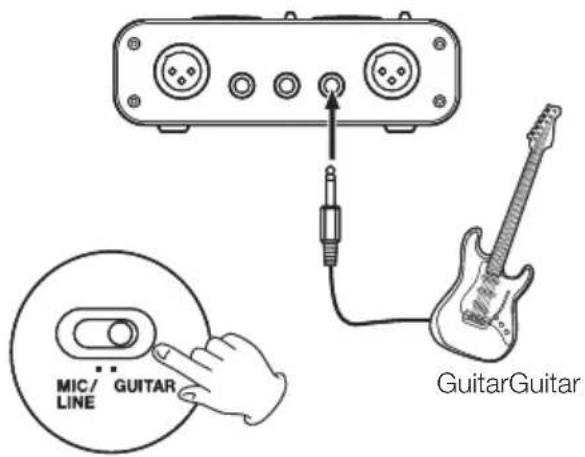
Guitar
Connect your guitar to the R-channel LINE IN jack (1/4" phone jack) and set the MIC/LINE-GUITAR switch to GUITAR.
text_image
MIC/ LINE GUITAR GuitarGuitarKeyboard / drum machine / sound module / cassette deck / MD / CD etc. (analog connection)
Connect the analog audio output of these devices to the LINE IN (L, R) jacks (1/4" phone jack). If you use the R-channel, set the MIC/LINE-GUITAR switch to LINE.

text_image
Keyboard / drum machine / sound module / cassette deck / MD / CD or similar device OUT MIC/ LINE GUITARSound module / MD / CD etc. (digital connection)
Connect the digital audio output of these devices to the DIGITAL IN jack.

text_image
DIGITAL OUT Sound module / MD / CD or similar device DIGITAL INNOTE
The US-144's digital input jack is an RCA connector.
Analog record player
The output of an analog record player cannot be connected directly to the US-144. You must connect a phono amp between your analog record player and the US-144. (Alternatively, you can connect it via an audio amp that has PHONO inputs.)

text_image
OUT Phono amp or amp with PHONO input Analog record playerSpeakers/headphones
text_image
Headphones Powered speakers, or amp and speakersMIDI connections
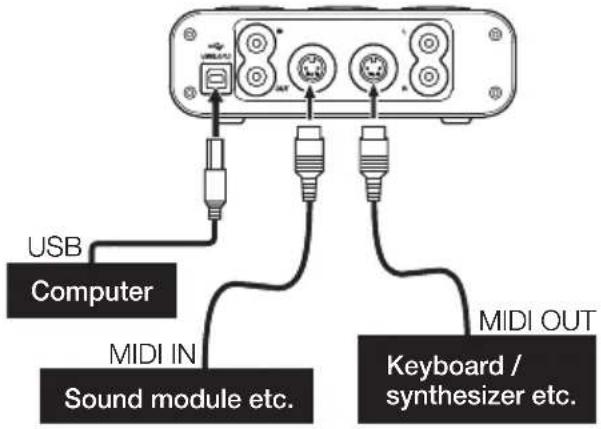
Connect your sound module, keyboard/synthesizer, drum machine, or other MIDI device to the US-144 as shown below.
text_image
USB Computer MIDI IN Sound module etc. MIDI OUT Keyboard / synthesizer etc.You can use the MIDI IN/MIDI OUT connectors to transmit and receive MTC (MIDI Time Code). This allows the MTC-compatible DAW (Digital Audio Workstation) computer application to syn- chronize with your MIDI equipment.

text_image
USB Computer MIDI IN MIDI OUT Sequencer / drum machine etc.6 – Recording with Cubase LE
This chapter explains the basics you will need to understand when using the US-144 with Cubase LE.
This discussion is not intended to replace
the user manual of your software.
If you have questions specific to Cubase LE, please refer to the Cubase LE user manual.
Input setting
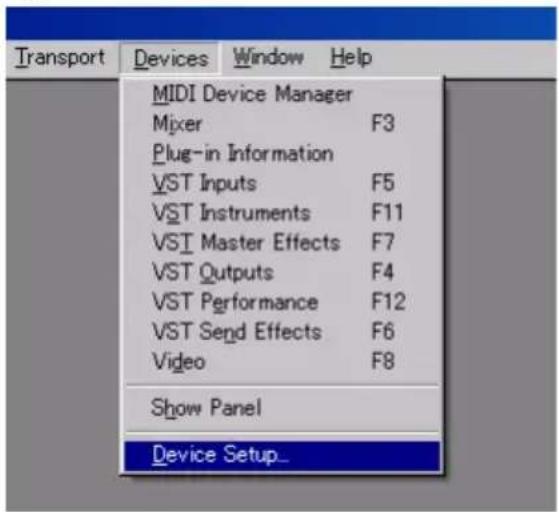
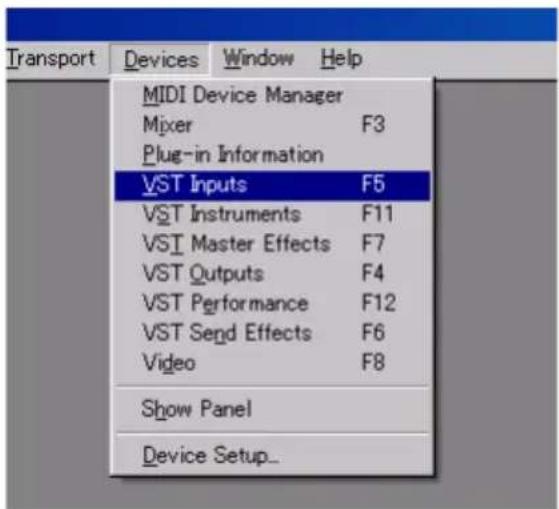
1 Start up Cubase LE. From the Devices menu, choose Device Setup. The Device Setup window will appear.
text_image
Transport Devices Window Help MIDI Device Manager Mixer F3 Plug-in Information VST Inputs F5 VST Instruments F11 VST Master Effects F7 VST Outputs F4 VST Performance F12 VST Send Effects F6 Video F8 Show Panel Device Setup...2 From the device list in the left side of the Device Setup window, choose VST Multitrac.
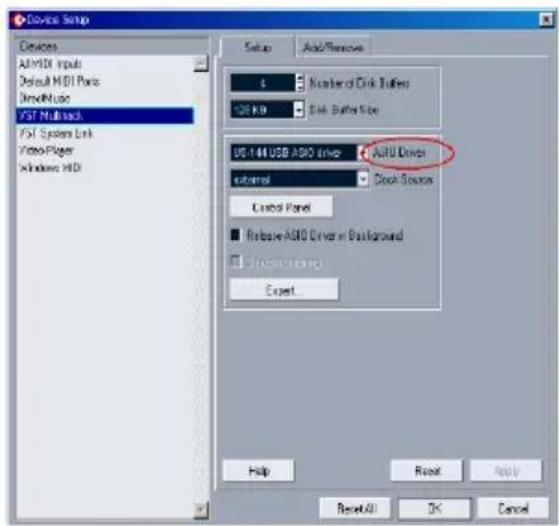
3 In the right side of the window, click the Setup tab, specify the ASIO Driver for the interface that uses an ASIO driver, and click the Apply button. If you have connected the digital input, set the Clock Source to external.
text_image
Device Setup Devices AutoMIDI Inputs Default MBDI Parts DeepMusic VST Multisack PSI System Link Video Player Windows A90 Setup Add/Remove 4 Number of Disk Buffer 128 KB Disk Buffer Size US-144 USB A90 driver AUTO Driver Internal Clock Source Control Panel Rebase A90 Driver in Background Processing Export... Help Reset Apply ResetAll OK Cancel4 From the Devices menu, choose VST Inputs to access the VST Inputs window. Verify that the Port field shows the input name of the audio interface you are using, and that the Active indicator is lit.
text_image
Transport Devices Window Help MIDI Device Manager Mixer F3 Plug-in Information VST Inputs F5 VST Instruments F11 VST Master Effects F7 VST Outputs F4 VST Performance F12 VST Send Effects F6 Video F8 Show Panel Device Setup...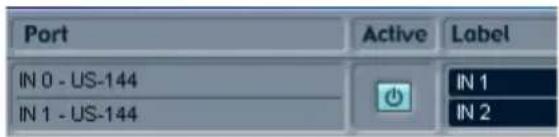
text_image
Port Active Label IN 0 - US-144 IN 1 - US-144 IN 1 IN 26 – Recording with Cubase LE
5 From the File menu, choose New Project. A window will appear, allowing you to choose a template for your new project. Choose the desired template and press the OK button. Specify the location in which to save your project, and the new project will be created.

text_image
Cubase LE File Edit Project Audio MIDI Pool Transport New Project Ctrl+N Open... Ctrl+O Close Ctrl+W Save Ctrl+S Save As... Ctrl+Shift+S Save Project to New Folder
text_image
New Project Templates: Empty 16 Track MIDI Sequenzer 24 Track Audio Recorder Default Music for picture NTSC Music for picture PAL Stereo Mastering Setup OK CancelNow you are ready to begin recording.
Recording
1 As the input for the track you want to record, choose an input channel of the audio interface you are using. Then press the REC FUNCTION button to enable recording for that track.

text_image
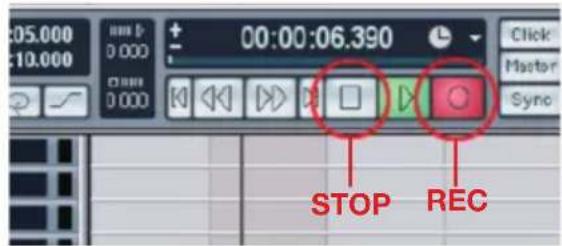
Cubase LE File Edit Project Audio MIDI Pool Transport Devices Cubase LE Project - Untitled No Object Selected Audio 01 REC FUNCTION Audio 012 In the transport, press the REC button to begin recording.
text_image
05.000 10.000 0:00 0:00 0:00 00:00:06.390 Click Master Sync STOP REC3 When you are finished recording, press the STOP button, and then press the REC button to disable recording. Rewind if necessary.
4 Repeat steps 1, 2, and 3 to overdub additional tracks.
6 – Recording with Cubase LE
Mixdown
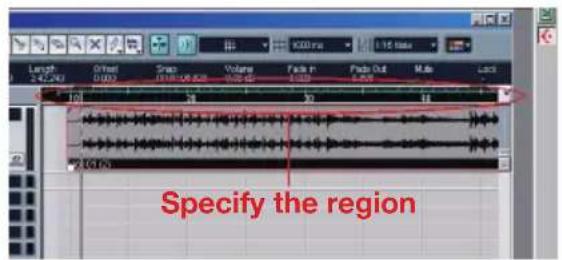
1 Move the left and right locators to specify the region that you want to mix down.
text_image
Length 242.240 Griped 0.000 Snap 1318/126.628 Volume 100.00 Fade in -1.000 Fade Out -1.000 Make Lack Specify the region2 From the File menu, choose Export -> Audio Mixdown.
text_image
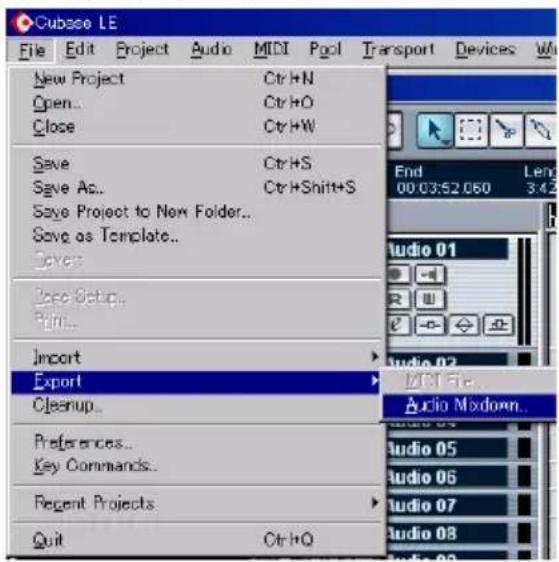
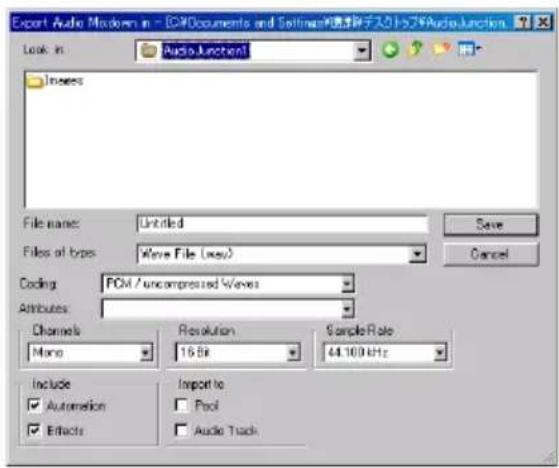
Cubesa LE File Edit Project Audio MIDI Pool Transport Devices Wi New Project Ctrl+N Open... Ctrl+O Close Ctrl+W Save Ctrl+S Save As... Ctrl+Shift+S Save Project to New Folder... Save as Template... Save Base Setup... Print... Import Export Cleanup... Preferences... Key Commands... Regent Projects Quit Ctrl+Q End 00:03:52 060 Length 3.42 Audio 01 Audio 02 Audio Mixdown... Audio 05 Audio 06 Audio 07 Audio 08 Audio 093 In the Export Audio Mixdown dialog box, make the desired settings and then press the Save button.
text_image
Export Audio Modown in - CD/Documents and Settings\Windows NTFS\2.79\Audio-Junction Look in: Audio Junction Images File name: Untitled Files of types: Wave File (exe) Coding: PCM / uncompressed Wave Attributes: Channels Mono Resolution 16 Bit Sample Rate 44.100 kHz Include □ Automation □ Effects Import to □ Pool □ Audio Track7 - Troubleshooting
This chapter lists frequently asked questions related to recording with Cubase LE, with answers to these questions.
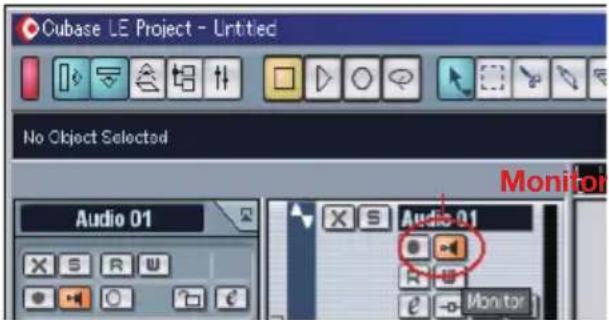
Q. I have finished making input settings, but the meter of the audio track is not moving.
A. Make sure that the monitor button of the track is enabled.
text_image
Cubase LE Project - Untitled No Object Selected Monitor Audio 01 Audio 01 MonitorQ. I would like to record two channels simultaneously for a stereo recording.
A. Before you record, press the stereo/ mono select button of the track so that the yellow indicator is lit. In this case, the track input is shown as ln 1 + ln 2 or a similar indication.

text_image
Cubase LE Project - Untitled No Object Selected Stereo/mono select Audio 01 Audio 01Q. I am trying to use the EQ, but it does not seem to do anything.
A. Check the VST channel settings etc. to make sure that EQ bypass is not enabled.

text_image
Cubase LE Project - Untitled No Object Selected Audio 01 Audio 01Q. I mixed-down a song that was three minutes long, but the result was only ten seconds long.
A. Make sure that the left and right locator region is set to the entire range that you want to mix down.
Q. I cannot set the locator region to more than ten minutes.
A. The default setting is ten minutes. From the Project menu, choose Project Setup and adjust the length of the project.

text_image
Cubase LE File Edit Project Audio MIDI Pool Transport Devices Wind Add Track Remove Selected Tracks Show Used Automation Hide All Automation Pool Ctrl+P Markers Ctrl+N Tempo Track Ctrl+T Beat Calculator.. Notepad Project Setup... Shift+S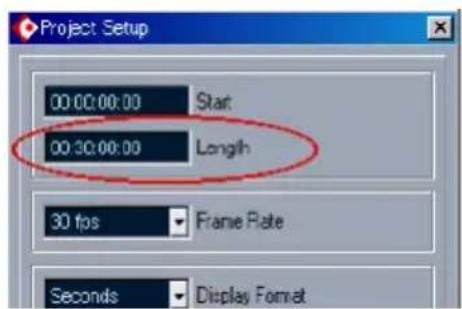
text_image
Project Setup 00:00:00:00 Start 00:30:00:00 Length 30 fps Frame Rate Seconds Display Format7 - Troubleshooting
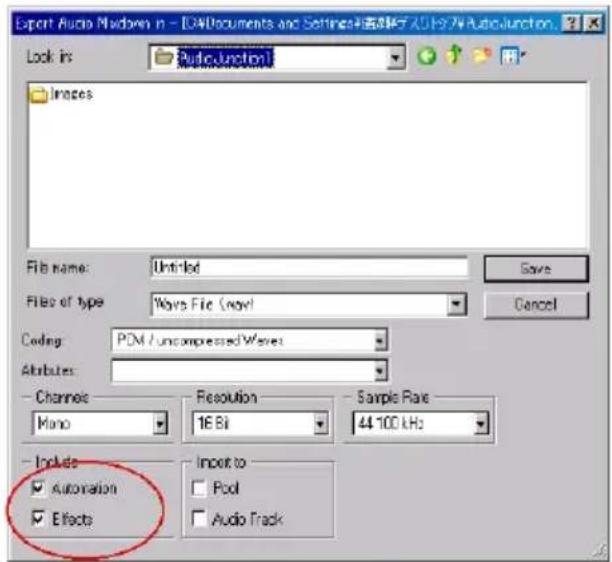
Q. I performed a mixdown, but the automation and effects were not reflected in the mixdown.
A. In the Export Audio Mixdown dialog box, make sure that automation and effects are enabled.
text_image
Export Audio Midown in - [C40Documents and Settings] (第3版) 2019-74 Audiounction Look in: Audiounction Images File name: Untitled File of type: Wave File (new) Coding: PDM / uncompressed/Waves Attributes: Channels Resolution Sample Rate Mono 16 Bit 44.100 kHz Include Import to □ Automation □ Pool □ Effects □ Audio TrackQ. I made a CD using the WAV file I mixed-down, but the speed is obviously different.
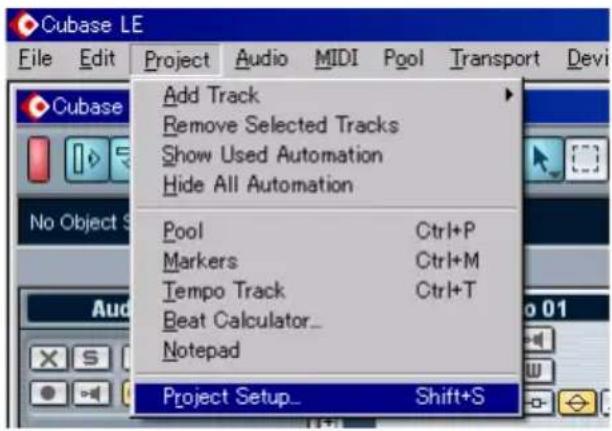
A. Could your project be set to 48 kHz?
If your ultimate objective is to create a CD, we recommend that you work in 44.1 kHz from the beginning.
To specify the sample rate, pull down the Project menu, choose Project Settings, and set the sample rate to 44,100 Hz.
text_image
Cubase LE File Edit Project Audio MIDI Pool Transport Devi Add Track Remove Selected Tracks Show Used Automation Hide All Automation Pool Ctrl+P Markers Ctrl+M Tempo Track Ctrl+T Beat Calculator_ Notepad Project Setup_ Shift+S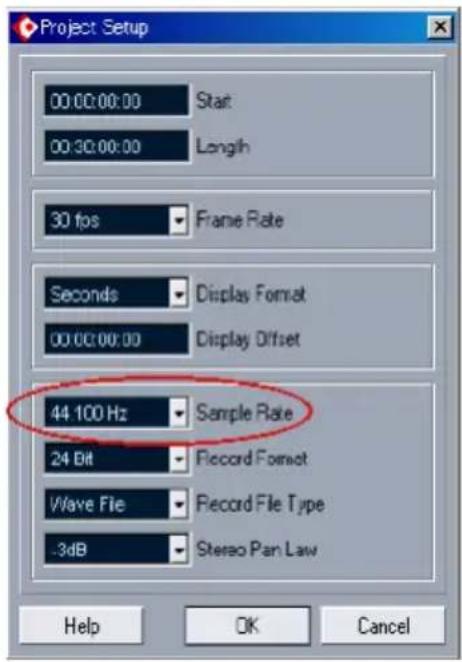
text_image
Project Setup 00:00:00:00 00:30:00:00 Start Longh 30 fps Frame Rate Seconds Display Format 00:00:00:00 Display Offset 44.100 Hz Sample Rate 24 Bit Frecord Format Wave File Frecord File Type -3dB Stereo Pan Law Help OK CancelQ. Using the ReWire protocol, can I record the incoming audio on a track?
A. In Cubase LE, ReWire tracks do not have recording capability.
You will have to export the audio data, and then import it into an audio track.
Q. I have connected an audio source to the US-144, but cannot hear anything.
A. Make sure that the input level is raised appropriately. If the input is analog, the green indicator will light when a signal is being input.
Make sure that the monitor (or headphone) level is raised, and that the connections are correct.
Q. The sound is distorted.
A. Make sure that the signal is not over- loading. The ideal level is when the red indicator lights occasionally.
8 - MIDI Implementation Chart
| Function Transmitted Received Remarks | ||||
| Basic Channel At power ONChanged | X | X | Through | |
| X | X | |||
| Mode At power ON | X | X | Through | |
| X | X | |||
| ********** | ||||
| NoteNumber | X | X Through | ||
| ********** | ||||
| Velocity Note ON | X | X | Through | |
| X | X | |||
| After Touch PolyphonicChannel | X | X | Through | |
| X | X | |||
| Pitch Bender X X Through | ||||
| Control Change X X Through | ||||
| Program Change | X | X Through | ||
| ********** | ||||
| System Exclusive X X Through | ||||
| System Common | X | X | Through | |
| X | X | |||
| X | X | |||
| SystemReal Time | X | X | Through | |
| X | X | |||
| Other | X | X | Through | |
| X | X | |||
| X | X | |||
| X | X | |||
| Notes | ||||
Mode 1: Omni on, Poly
Mode 3: Omni off, Poly
Mode 2: Omni on, Mono
Mode 4: Omni off, Mono
O:Yes
X:No
9 – Specifications and performance
Audio specifications
| Nominal input levels | |
| MIC IN L and R (XLR balanced) -58 dBu (TRIM=max) to -14 dBu (TRIM=min) | |
| MIC/LINE-GUITAR L and R in MIC/LINE position (1/4" jack, unbalanced) | -40 dBu (TRIM=max) to +4 dBu (TRIM=min) |
| MIC/LINE-GUITAR R in GUITAR position (1/4" jack, unbalanced) | -51 dBu (TRIM=max) to -7 dBu (TRIM=min) |
| Maximum input levels | |
| MIC L and R (XLR balanced) +2 dBu (TRIM=min) | |
| MIC/LINE-GUITAR L and R in MIC/LINE position (1/4" jack, unbalanced) | +20 dBu (TRIM=min) |
| MIC/LINE-GUITAR R in GUITAR position (1/4" jack, unbalanced) | +9 dBu (TRIM=min) |
| Input impedance | |
| MIC IN L and R (XLR balanced) | 2.4 kΩ |
| MIC/LINE-GUITAR L and R in MIC/LINE position (1/4" jack, unbalanced) | 10 kΩ |
| MIC/LINE-GUITAR R in GUITAR position (1/4" jack, unbalanced) | 1 MΩ |
| Nominal output level | |
| LINE OUT (RCA unbalanced) | -10 dBV |
| Maximum output level | |
| LINE OUT (RCA unbalanced) | +6 dBV |
| Output impedance | |
| LINE OUT (RCA unbalanced) | 100 Ω |
| Maximum output power | |
| PHONES (1/4" stereo jack) | 14 mW + 14 mW (32 Ω) |
9 – Specifications and performance
Audio performance
| Signal-to-noise ratio | |
| LINE IN (through ADC and DAC) to LINE OUT | >96 dB (A-weighted, TRIM=min., input impedance at 40 Ω) |
| LINE IN (through direct monitor) to LINE OUT | >100 dB (A-weighted, TRIM=min., input impedance 40 Ω) |
| Total harmonic distortion (THD+N, 22 Hz to 22 kHz) | |
| LINE IN (through ADC and DAC) to LINE OUT | <0.006% (1 kHz sine +20 dBu input, TRIM=min.) |
| LINE IN (through direct monitor) to LINE OUT | <0.0.04% (1 kHz sine +20 dBu input, TRIM=min.) |
Other characteristics
| Digital audio | ||
| A/D Conversion (AK5381) 24-bit/96 kHz, 27.6 samples delay | ||
| D/A Conversion (AK4384) 24-bit/96 kHz, 19.3 samples delay | ||
| MIDI | ||
| MIDI IN and MIDI OUT ports (DIN 5-pin) | Conform to MIDI standards | |
| USB | ||
| USB port (down stream connector) | USB 2.0 Format | |
| Host computer compatibility | ||
| Operating system | Windows Windows XP | |
| Macintosh Mac OS 10.3.9 or later | ||
| Communication USB 2.0 | ||
| Audio/MIDI interface protocols | Windows ASIO, ASIO2, GSIF2, WDM | |
| Macintosh CoreAudio, CoreMIDI (OS X) | ||
| Bundled software Cubase LE (for Windows or Macintosh), Gigastudio 3 LE (Windows only) | ||
9 – Specifications and performance
Physical characteristics
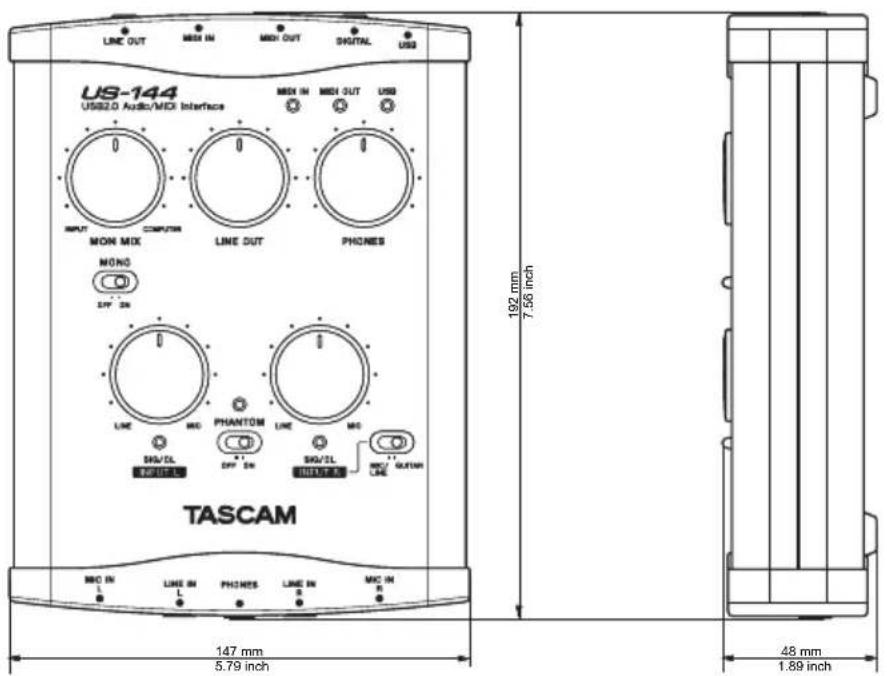
Dimensions
External dimensions (w x h x d) 147 x 192 x 48 mm
Weight 1 Kg
Power
Supplied via USB 5V, maximum current 500 mA
Dimensions
text_image
LINE OUT MEN IN MEDI OUT SIGNAL USB US-144 USB2.0 Audio/MDI Interface MEDI IN MEDI OUT USB INPUT MON MIX CAPTOR LINE OUT PHONES MONO SPY 2N LINE MIO PHANTOM LINE MIO SHV/DL RHO/BLDS SPY 2N SHV/2L RHO/BLDS MIO OUTPUT ONE TASCAM MIO IN LINE IN PHONES LINE IN MIO IN 5.79 inch 192 mm 7.56 inch 48 mm 1.89 inchTASCAM
TEAC Professional Division
US-144
TEAC CORPORATION
Phone: +81-422-52-5082 www.tascam.com
3-7-3, Nakacho, Musashino-shi, Tokyo 180-8550, Japan
TEAC AMERICA, INC.
Phone: +1-323-726-0303 www.tascam.com
7733 Telegraph Road, Montebello, California 90640
TEAC CANADA LTD.
Phone: +1905-890-8008 Facsimile: +1905-890-9888 www.tascam.com
5939 Wallace Street, Mississauga, Ontario L4Z 1Z8, Canada
TEAC MEXICO, S.A. De C.V
Phone: +52-555-581-5500 www.tascam.com
Campesinos No. 184, Colonia Granjes Esmeralda, Delegaacion Iztapalapa CP 09810, Mexico DF
TEAC UK LIMITED
Phone: +44-8451-302511 www.tascam.co.uk
Unit 19 & 20, The Courtyards Hatters Lane, Watford, Hertfordshire. WD18 8TE, U.K.
TEAC EUROPE GmbH
Phone: +49-611-71580 www.tascam.de