USER MANUAL DGX-220 YAMAHA
This product utilizes batteries or an external power supply (adapter). DO NOT connect this product to any power supply or adapter other than one described in the manual, on the name plate, or specifically recommended by Yamaha.
This product should be used only with the components supplied or; a cart, rack, or stand that is recommended by Yamaha. If a cart, etc., is used, please observe all safety markings and instructions that accompany the accessory product.
SPECIFICATIONS SUBJECT TO CHANGE:
The information contained in this manual is believed to be correct at the time of printing. However, Yamaha reserves the right to change or modify any of the specifications without notice or obligation to update existing units.
This product, either alone or in combination with an amplifier and headphones or speaker/s, may be capable of producing sound levels that could cause permanent hearing loss. DO NOT operate for long periods of time at a high volume level or at a level that is uncomfortable. If you experience any hearing loss or ringing in the ears, you should consult an audiologist.
IMPORTANT: The louder the sound, the shorter the time period before damage occurs.
NOTICE:
Service charges incurred due to a lack of knowledge relating to how a function or effect works (when the unit is operating as designed) are not covered by the manufacturer's warranty, and are therefore the owners responsibility. Please study this manual carefully and consult your dealer before requesting service.
ENVIRONMENTAL ISSUES:
Yamaha strives to produce products that are both user safe and environmentally friendly. We sincerely believe that our products and the production methods used to produce them, meet these goals. In keeping with both the letter and the spirit of the law, we want you to be aware of the following:
Battery Notice:
This product MAY contain a small non-rechargeable battery which (if applicable) is soldered in place. The average life span of this type of battery is approximately five years. When replacement becomes necessary, contact a qualified service representative to perform the replacement.
This product may also use "household" type batteries. Some of these may be rechargeable. Make sure that the battery being charged is a rechargeable type and that the charger is intended for the battery being charged.
When installing batteries, do not mix batteries with new, or with batteries of a different type. Batteries MUST be installed correctly. Mismatches or incorrect installation may result in overheating and battery case rupture.
Warning:
Do not attempt to disassemble, or incinerate any battery. Keep all batteries away from children. Dispose of used batteries promptly and as regulated by the laws in your area. Note: Check with any retailer of household type batteries in your area for battery disposal information.
Disposal Notice:
Should this product become damaged beyond repair, or for some reason its useful life is considered to be at an end, please observe all local, state, and federal regulations that relate to the disposal of products that contain lead, batteries, plastics, etc. If your dealer is unable to assist you, please contact Yamaha directly.
NAME PLATE LOCATION:
The name plate is located on the bottom of the product. The model number, serial number, power requirements, etc., are located on this plate. You should record the model number, serial number, and the date of purchase in the spaces provided below and retain this manual as a permanent record of your purchase.
Model
Serial No.
Purchase Date
PLEASE KEEP THIS MANUAL
92-BP (bottom)
1. IMPORTANT NOTICE: DO NOT MODIFY THIS UNIT!
This product, when installed as indicated in the instructions contained in this manual, meets FCC requirements. Modifications not expressly approved by Yamaha may void your authority, granted by the FCC, to use the product.
- IMPORTANT: When connecting this product to accessories and/or another product use only high quality shielded cables. Cable/s supplied with this product MUST be used. Follow all installation instructions. Failure to follow instructions could void your FCC authorization to use this product in the USA.
- NOTE: This product has been tested and found to comply with the requirements listed in FCC Regulations, Part 15 for Class "B" digital devices. Compliance with these requirements provides a reasonable level of assurance that your use of this product in a residential environment will not result in harmful interference with other electronic devices. This equipment generates/uses radio frequencies and, if not installed and used according to the instructions found in the users manual, may cause interference harmful to the operation of other electronic devices. Compliance with FCC regulations does
not guarantee that interference will not occur in all installations. If this product is found to be the source of interference, which can be determined by turning the unit "OFF" and "ON", please try to eliminate the problem by using one of the following measures:
Relocate either this product or the device that is being affected by the interference.
Utilize power outlets that are on different branch (circuit breaker or fuse) circuits or install AC line filter/s.
In the case of radio or TV interference, relocate/reorient the antenna. If the antenna lead-in is 300 ohm ribbon lead, change the lead-in to co-axial type cable.
If these corrective measures do not produce satisfactory results, please contact the local retailer authorized to distribute this type of product. If you can not locate the appropriate retailer, please contact Yamaha Corporation of America, Electronic Service Division, 6600 Orangethorpe Ave, Buena Park, CA90620
The above statements apply ONLY to those products distributed by Yamaha Corporation of America or its subsidiaries.
- This applies only to products distributed by YAMAHA CORPORATION OF AMERICA.
(class B)
OBSERVERA!
Responsible Party : Yamaha Corporation of America
Address: 6600 Orangethorpe Ave., Buena Park, Calif.
90620
Telephone:714-522-9011
Type of Equipment : Electronic Keyboard
Model Name: DGX-220/YPG-225
This device complies with Part 15 of the FCC Rules.
Operation is subject to the following conditions:
1) this device may not cause harmful interference, and
2) this device must accept any interference received including interference that may cause undesired operation.
See user manual instructions if interference to radio reception is suspected.
This applies only to products distributed by
YAMAHA CORPORATION OF AMERICA.
(FCC DoC)
PRECAUTIONS
PLEASE READ CAREFULLY BEFORE PROCEEDING
- Please keep this manual in a safe place for future reference.

WARNING
Always follow the basic precautions listed below to avoid the possibility of serious injury or even death from electrical shock, short-circuiting, damages, fire or other hazards. These precautions include, but are not limited to, the following:
Power supply/AC power adaptor
- Only use the voltage specified as correct for the instrument. The required voltage is printed on the name plate of the instrument.
- Use the specified adaptor (PA-5D or an equivalent recommended by Yamaha) only. Using the wrong adaptor can result in damage to the instrument or overheating.
- Check the electric plug periodically and remove any dirt or dust which may have accumulated on it.
- Do not place the AC adaptor cord near heat sources such as heaters or radiators, and do not excessively bend or otherwise damage the cord, place heavy objects on it, or place it in a position where anyone could walk on, trip over, or roll anything over it.
Do not open
- Do not open the instrument or attempt to disassemble the internal parts or modify them in any way. The instrument contains no user-serviceable parts. If it should appear to be malfunctioning, discontinue use immediately and have it inspected by qualified Yamaha service personnel.
Water warning
- Do not expose the instrument to rain, use it near water or in damp or wet conditions, or place containers on it containing liquids which might spill into any openings.
- Never insert or remove an electric plug with wet hands.
Fire warning
- Do not put burning items, such as candles, on the unit.
A burning item may fall over and cause a fire.
If you notice any abnormality
- If the AC adaptor cord or plug becomes frayed or damaged, or if there is a sudden loss of sound during use of the instrument, or if any unusual smells or smoke should appear to be caused by it, immediately turn off the power switch, disconnect the adaptor plug from the outlet, and have the instrument inspected by qualified Yamaha service personnel.

CAUTION
Always follow the basic precautions listed below to avoid the possibility of physical injury to you or others, or damage to the instrument or other property. These precautions include, but are not limited to, the following:
Power supply/AC power adaptor
- When removing the electric plug from the instrument or an outlet, always hold the plug itself and not the cord.
- Unplug the AC power adaptor when not using the instrument, or during electrical storms.
- Do not connect the instrument to an electrical outlet using a multiple-connector. Doing so can result in lower sound quality, or possibly cause overheating in the outlet.
Battery
Location
- Do not expose the instrument to excessive dust or vibrations, or extreme cold or heat (such as in direct sunlight, near a heater, or in a car during the day) to prevent the possibility of panel disfiguration or damage to the internal components.
- Do not use the instrument in the vicinity of a TV, radio, stereo equipment, mobile phone, or other electric devices. Otherwise, the instrument, TV, or radio may generate noise.
-
Do not place the instrument in an unstable position where it might accidentally fall over.
-
Before moving the instrument, remove all connected adaptor and other cables.
- When setting up the instrument, make sure that the AC outlet you are using is easily accessible. If some trouble or malfunction occurs, immediately turn off the power switch and disconnect the plug from the outlet.
- Use only the stand specified for the instrument. When attaching the stand or rack, use the provided screws only. Failure to do so could cause damage to the internal components or result in the instrument falling over.
Connections
- Before connecting the instrument to other electronic components, turn off the power for all components. Before turning the power on or off for all components, set all volume levels to minimum. Also, be sure to set the volumes of all components at their minimum levels and gradually raise the volume controls while playing the instrument to set the desired listening level.
Maintenance
- When cleaning the instrument, use a soft, dry cloth. Do not use paint thinkers, solvents, cleaning fluids, or chemical-impregnated wiping cloths.
Handling caution
- Do not insert a finger or hand in any gaps on the instrument.
- Never insert or drop paper, metallic, or other objects into the gaps on the panel or keyboard. If this happens, turn off the power immediately and unplug the power cord from the AC outlet. Then have the instrument inspected by qualified Yamaha service personnel.
- Do not place vinyl, plastic or rubber objects on the instrument, since this might discolor the panel or keyboard.
- Do not rest your weight on, or place heavy objects on the instrument, and do not use excessive force on the buttons, switches or connectors.
- Do not operate the instrument for a long period of time at a high or uncomfortable volume level, since this can cause permanent hearing loss. If you experience any hearing loss or ringing in the ears, consult a physician.
Saving data
Saving and backing up your data
The panel settings and some other types of data is lost when you turn off the power to the instrument. Save the data to the Registration Memory (page 73.)
Saved data may be lost due to malfunction or incorrect operation.
Save important data to an external device such as a computer. (page 84.)
- To protect against data loss through media damage, we recommend that you save your important data onto two external media.
Yamaha cannot be held responsible for damage caused by improper use or modifications to the instrument, or data that is lost or destroyed.
Always turn the power off when the instrument is not in use.
When using a power adaptor, even when the power switch is in the "STANDBY" position, electricity is still flowing to the instrument at the minimum level. When you are not using the instrument for a long time, make sure you unplug the AC power adaptor from the wall AC outlet.
Make sure to discard used batteries according to local regulations.
The ilustrations and LCD screens as shown in this owner's manual are for instructional purposes only, and may be different from the ones on your instrument.
Trademarks
- Windows is the registered trademark of Microsoft® Corporation.
The company names and product names in this Owner's Manual are the trademarks or registered trademarks of their respective companies.
Copyright Notice
The following is the title, credits and copyright notices for the song pre-installed in this electronic keyboard:
Mona Lisa
from the Paramount Picture CAPTAIN CAREY, U.S.A.
Words and Music by Jay Livingston and Ray Evans
Copyright © 1949 (Renewed 1976) by Famous Music Corporation
International Copyright Secured All Rights Reserved
Composition Title : Against All Odds
Composer's Name : Collins 0007403
Copyright Owner's Name : EMI MUSIC PUBLISHING LTD /
HIT & RUN MUSIC LTD
Can't Help Falling In Love
from the Paramount Picture BLUE HAWAII
Words and Music by George David Weiss,
Copyright © 1961 by Gladys Music, Inc.
Copyright Renewed and Assigned to Gladys Music
All Rights Administered by Cherry Lane Music Publishing Company, Inc. and Chrysalis Music
International Copyright Secured All Rights Reserved
All Rights Reserved, Unauthorized copying, public performance and broadcasting are strictly prohibited.
This product incorporates and bundles computer programs and contents in which Yamaha owns copyrights or with respect to which it has license to use others' copyrights. Such copyrighted materials include, without limitation, all computer software, style files, MIDI files, WAVE data, musical scores and sound recordings. Any unauthorized use of such programs and contents outside of personal use is not permitted under relevant laws. Any violation of copyright has legal consequences. DON'T MAKE, DISTRIBUTE OR USE ILLEGAL COPIES.
This device is capable of using various types/Formats of music data by optimizing them to the proper format music data for use with the device in advance. As a result, this device may not play them back precisely as their producers or composers originally intended.
Copying of the commercially available musical data including but not limited to MIDI data and/or audio data is strictly prohibited except for your personal use.
Panel Logos
GENERAL

GM System Level 1
"GM System Level 1" is an addition to the MIDI standard which ensures that any GM-compatible music data can be accurately played by any GM-compatible tone generator, regardless of manufacturer. The GM mark is affixed to all software and hardware products that support GM System Level.

XGlite
As its name implies, "XGlite" is a simplified version of Yamaha's high-quality XG tone generation format. Naturally, you can play back any XG song data using an XGlite tone generator. However, keep in mind that some songs may play back differently compared to the original data, due to the reduced set of control parameters and effects.

USB
USB is an abbreviation for Universal Serial Bus. It is a serial interface for connecting a computer with peripheral Devices. It allows "hot swapping" (connecting peripheral devices while the power to the computer is on).

STYLEFILE
The Style File Format is Yamaha's original style file format which uses a unique conversion system to provide high-quality automatic accompaniment based on a wide range of chord types.
Congratulations and thank you for purchasing the Yamaha DGX-220/YPG-225 Portable Grand!
Please read this owner's manual carefully before using the instrument in order to take full advantage of its various features.
Make sure to keep this manual in a safe and handy place even after you finish reading, and refer to it often when you need to better understand an operation or function.
Accessories
The DGX-220/YPG-225 package includes the following items. Please check that you have them all.
- Owner's Manual
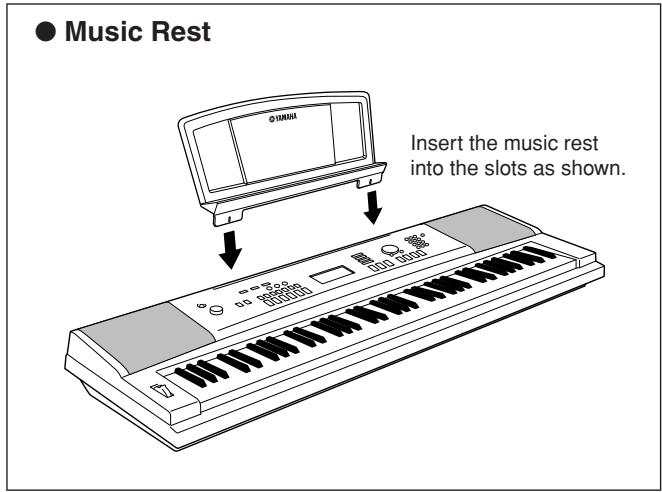
Music rest
- Accessory CD-ROM
Play a Variety of Instrument Voices
Page 14
The instrument voice that sounds when you play the keyboard can be changed to violin, flute, harp, or any of an extensive range of voices. You can change the mood of a song written for piano, for example, by using violin to play it instead. Experience a whole new world of musical variety.

■ Play Along with Styles ▶ Page 19
Want to play with full accompaniment? Try the auto-accompaniment Styles. The accompaniment styles provide the equivalent of a full backing band covering a wide variety of styles from waltzes to 8-beat to euro-trance ... and much more. Select a style that matches the music you want to play, or experiment with new styles to expand your musical horizons.
Page 29
Play along with a song on the instrument's keyboard and produce a perfect performance every time ... even if you play wrong notes! All you have to do is play on the keyboard—alternately on the left- and right-hand ranges of the keyboard, for example—and you'll sound like a pro as long as you play in time with the music.
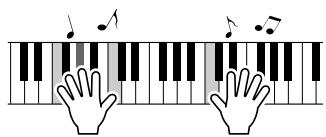
■ Learning Music is Fun ▶ Page 36
This instrument includes a range of songs covering a variety of genres that are enjoyable to listen to, or to play along with. You can start practicing with just one hand, and you can even practice at your own tempo, one note at a time as slowly as you like, until you are able to play at full speed. Song playback will automatically follow your tempo. You can also use songs you have downloaded from the Internet for lessons, so your musical resources are essentially unlimited! The instrument will even evaluate and grade your performance for you!
Exce1Ien
Contents
Copyright Notice 6
Panel Logos 6
Accessories. 7
Special Features of the DGX-220/YPG-225 8
Setting Up 10
Power Requirements 10
Connecting Headphones (PHONES/OUTPUT Jack) 11
Connecting a Footswitch (SUSTAIN Jack) 11
Connecting to a Computer (USB Terminal) 11
Turning the Power On. 11
Panel Controls and Terminals 12
Front Panel 12
Rear Panel. 13
Quick Guide
Try Playing a Variety of Instrument Voices 14
Select and Play a Voice--MAIN 14
Play Two Voices Simultaneously—DUAL 15
Play Different Voices with the Left and Right Hands
—SPLIT 16
Play the Grand Piano Voice. 17
Fun Sounds 18
Drum Kits 18
Sound Effects. 18
Playing Styles 19
Select a Style Rhythm 19
Play Along with a Style 20
Playing Auto-accompany Chords 24
Using Songs 25
Select and Listen to a Song 25
Song Fast Forward, Fast Reverse, and Pause 26
Types of Songs 28
The Easy Way to Play Piano 29
CHORD Type—Play with Both Hands 30
CHD/FREE Type—Applying the Chord Type to the Left Hand Only 32
Change the Song Tempo 35
Select a Song For a Lesson 36
Lesson 1—Waiting. 36
Lesson 2—Your Tempo 39
Lesson 3-Minus One 40
Practice Makes Perfect--Repeat and Learn. 41
Play Using the Music Database 42
Change a Song's Style 43
Listen to the DEMO Song for Easy Song Arranger 43
Using the Easy Song Arranger 43
Track Configuration 45
Recording Procedure 45
Song Clear-Deleting User Songs 48
Track Clear—Deleting a Specified Track from a User Song 48
Backup and Initialization 49
Backup 49
Initialization 49
Basic Operation and Displays 50
Basic Operation 50
Display Items 52
Reference
Adding Effects 53
Harmony. 53
Adding Reverb 54
Adding Chorus 55
The Metronome 56
Tap Start 58
Touch Response Sensitivity 58
Panel Sustain. 59
Pitch Bend. 59
Pitch Controls. 60
One Touch Setting 61
Adjusting the Harmony Volume. 62
Select an EQ Setting for the Best Sound 62
Style (Auto-accompaniment) Functions 63
Pattern Variation (Sections) 63
Adjusting the Style Volume 65
Setting the Split Point 65
Play a Style with Chords but No Rhythm (Stop Accompaniment) 66
Playing Styles Using the Entire Keyboard 66
Loading Style Files 67
Chord Basics 68
Looking Up Chords Using the Chord Dictionary 70
Song Settings 71
Song Volume. 71
A-B Repeat. 71
Muting Independent Song Parts. 72
Change the Melody Voice 72
Memorize Your Favorite Panel Settings 73
Saving to the Registration Memory 73
Recalling a Registration Memory 74
The Functions 75
Selecting and Setting Functions. 75
Connecting to a Computer 78
What Is MIDI? 78
Connecting a Personal Computer 79
Transferring Performance Data to and from a Computer....80
Remote Control of MIDI Devices. 81
Initial Send 82
Transferring Data between the Computer and Instrument...82
Accessory CD-ROM Installation Guide 85
Important Notices about the CD-ROM 85
CD-ROM Contents. 86
System Requirements. 87
Software Installation 87
Appendix
Troubleshooting 92
Scores 94
Voice List 100
Drum Kit List. 104
Style List 106
Music Database List. 107
Songs Provided On the Supplied CD-ROM 108
Effect Type List 109
MIDI Implementation Chart. 110
MIDI Data Format. 112
Specifications 113
Index 114
Be sure to do the following operations BEFORE turning on the power.
Power Requirements
Although the instrument will run either from an optional AC adaptor or batteries, Yamaha recommends use of an AC adaptor whenever possible. An AC adaptor is more environmentally friendly than batteries and does not deplete resources.
Using an AC Power Adaptor
1 Make sure that the [STANDBY/ON] switch of the instrument is set to STANDBY.

WARNING
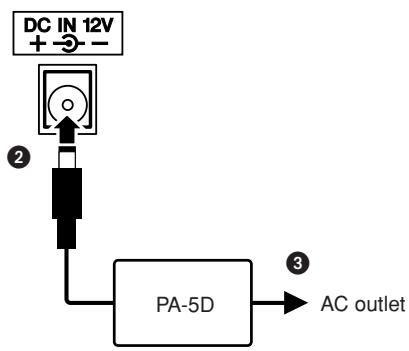
- Use ONLY a Yamaha PA-5D AC Power Adaptor (or other adaptor specifically recommended by Yamaha) to power your instrument from the AC mains. The use of other adaptors may result in irreparable damage to both the adaptor and the instrument.
Connect the AC adaptor (PA-5D or other adaptor specifically recommended by Yamaha) to the power supply jack.
Plug the AC adaptor into an AC outlet.

CAUTION
- Unplug the AC Power Adaptor when not using the instrument, or during electrical storms.
Using Batteries
Open the battery compartment cover located on the instrument's bottom panel.
Insert the six new batteries, being careful to follow the polarity markings on the inside of the compartment.
Replace the compartment cover, making sure that it locks firmly in place.
NOTE
- Connecting the AC power adaptor automatically supplies power from the adaptor and overrides battery power, even when batteries are installed.
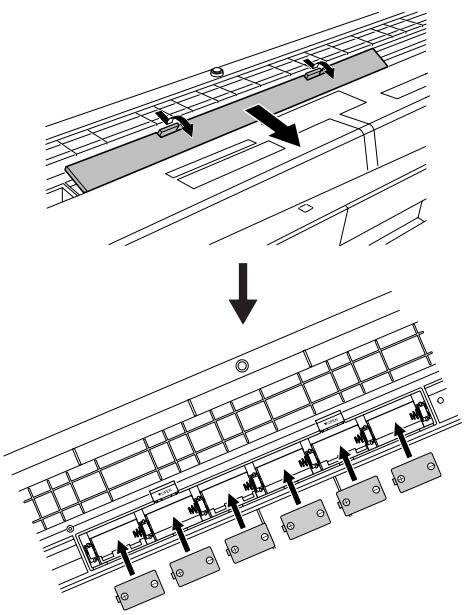
For battery operation the instrument requires six 1.5V "D" size, R20P (LR20) or equivalent batteries. (Alkaline batteries are recommended.) When battery power becomes too low for proper operation, make sure to replace all batteries, following the precautions listed below.
If necessary, also make sure to save all important User data (see page 49), since custom panel settings are lost when the batteries are removed.
CAUTION
- Use only manganese or alkaline batteries for this instrument. Other types of batteries (including rechargeable batteries) may exhibit a sudden drop in power when the batteries are low, possibly resulting in a loss of flash memory data.
- Be sure to install the batteries in the same direction, maintaining the correct polarity (as shown). Incorrect battery installation may result in heat, fire and/or leaking of corrosive chemicals.
- When the batteries run down, replace them with a complete set of six new batteries. NEVER mix old and new batteries. Do not use different kinds of batteries (e.g. alkaline and manganese) at the same time.
- If the instrument will not be used for an extended period of time, remove the batteries to prevent possible fluid leakage.
- Please use the power adaptor when transferring data to flash memory. Batteries (including rechargeable types) can be drained rapidly by this type of operation. If the batteries do become drained during a data transfer, both the data being transferred and the data currently in the transfer destination will be lost.
Make all necessary connections below BEFORE turning the power on.
Connecting Headphones (PHONES/OUTPUT Jack)
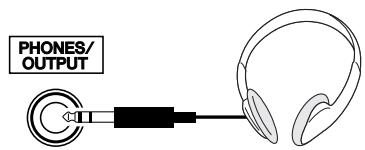
The DGX-220/YPG-225 speakers are automatically shut off when a plug is inserted into this jack.
The PHONES/OUTPUT jack also functions as an external output. You can connect the PHONES/OUTPUT jack to a keyboard amplifier, stereo system, mixer, tape recorder, or other line-level audio device to send the instrument's output signal to that device.

WARNING
- Avoid listening with the headphones at high volume for long periods of time; doing so may not only result in ear fatigue, it may be damaging to your hearing.

CAUTION
- To prevent damage to the speakers, set the volume of the external devices at the minimum setting before connecting them. Failure to observe these cautions may result in electric shock or equipment damage. Also, be sure to set the volumes of all devices at their minimum levels and gradually raise the volume controls while playing the instrument to set the desired listening level.
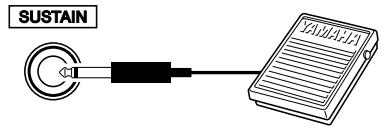
The sustain function lets you produce a natural sustain as you play by pressing a footswitch. Plug the Yamaha FC4 or FC5 footswitch into this jack and use it to switch sustain on and off.
NOTE
- Make sure that the footswitch plug is properly connected to the SUS-TAIN jack before turning on the power.
- Do not press the footswitch while turning the power on. Doing this changes the recognized polarity of the footswitch, resulting in reversed footswitch operation.
Connecting to a Computer (USB Terminal)
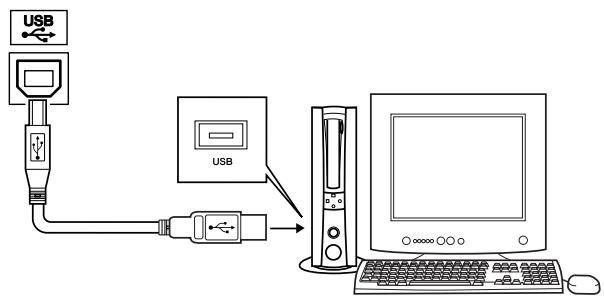
Connect the instrument's USB terminal to the USB terminal of a computer, and you can transfer performance data and song files between the two (page 79). To use the USB data-transfer features you'll need to do the following:
- First, make sure the POWER switch on the instrument is set to OFF, then use a USB cable to connect the instrument to the computer. After making the connections, turn on the power of the instrument.
Install the USB MIDI driver on your computer.
Installation of the USB MIDI driver is described on page 87.
NOTE
- Make sure to purchase a quality USB cable at a musical instrument store, computer store or electrical appliance store.
Turning the Power On
Turn down the volume by turning the [MASTER VOLUME] control to the left and press the [STANDBY/ON] switch to turn on the power. Press the [STANDBY/ON] switch again to turn the power OFF.
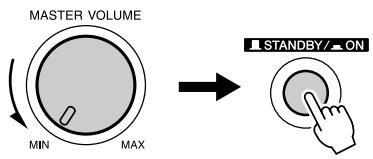
Backup data in the flash memory is loaded to the instrument when the power is turned on. If no backup data exists on flash memory, all instrument settings are restored to the initial factory defaults when the power is turned on.
CAUTION
- Even when the switch is in the "STANDBY" position, electricity is still flowing to the instrument at the minimum level. When you are not using the instrument for a long time, make sure you unplug the AC power adaptor from the wall AC outlet, and/or remove the batteries from the instrument.
CAUTION
- Never attempt to turn the power off when a "WRITING!" message is shown in the display. Doing so can damage the flash memory and result in data loss.
Front Panel
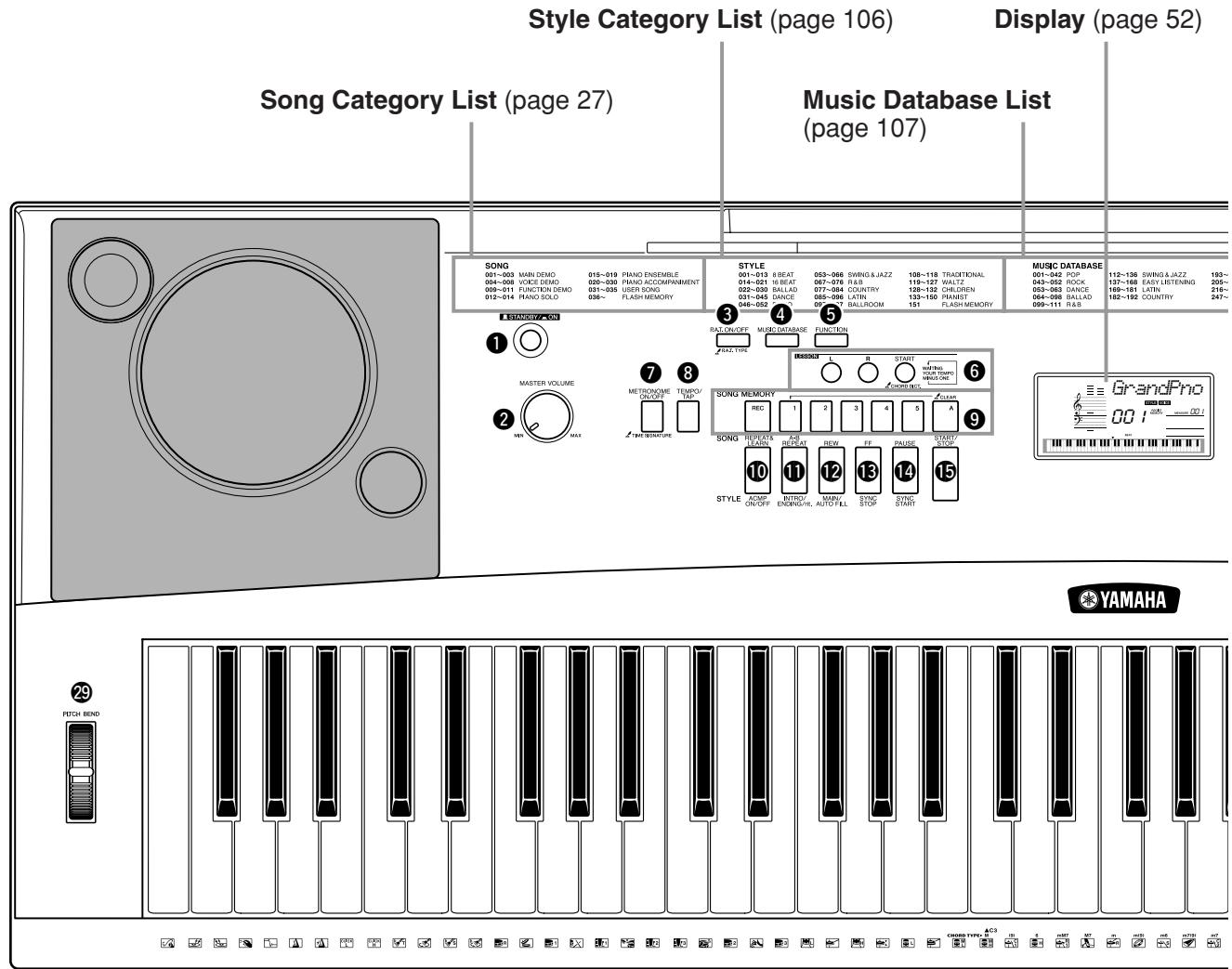
Front Panel
[STANDBY/ON] switch page 11
[MASTER VOLUME] control.... pages 11, 50
[P.A.T. ON/OFF] button.. page 30
4 [MUSIC DATABASE] button...... page 42
[FUNCTION] button page 75
LESSON [L], [R], [START] buttons. page 37
[METRONOME ON/OFF] button .... page 56
[TEMPO/TAP] button.. page 35
SONG MEMORY [REC], [1]–[5], [A] buttons.... page 45
10 [REPEAT & LEARN]/[ACMP ON/OFF] button..... pages 41, 20
[1] [A-B REPEAT]/[INTRO/ENDING/rit.] button .... pages 71, 64
[REW]/ [MAIN/AUTO FILL] button.....pages 26, 64
[FF]/ [SYNC STOP] button.....pages 26, 64
[PAUSE]/ [SYNC START] button.....pages 26, 63
[START/STOP] button ..... pages 19, 26, 51
[SONG] button. page 25
[EASY SONG ARRANGER] button.. page 43
18 [STYLE] button.. page 19
19 [VOICE] button page 14
20 Dial . pages 51, 75
2) CATEGORY [▲] and [▼]
buttons............pages 51, 75
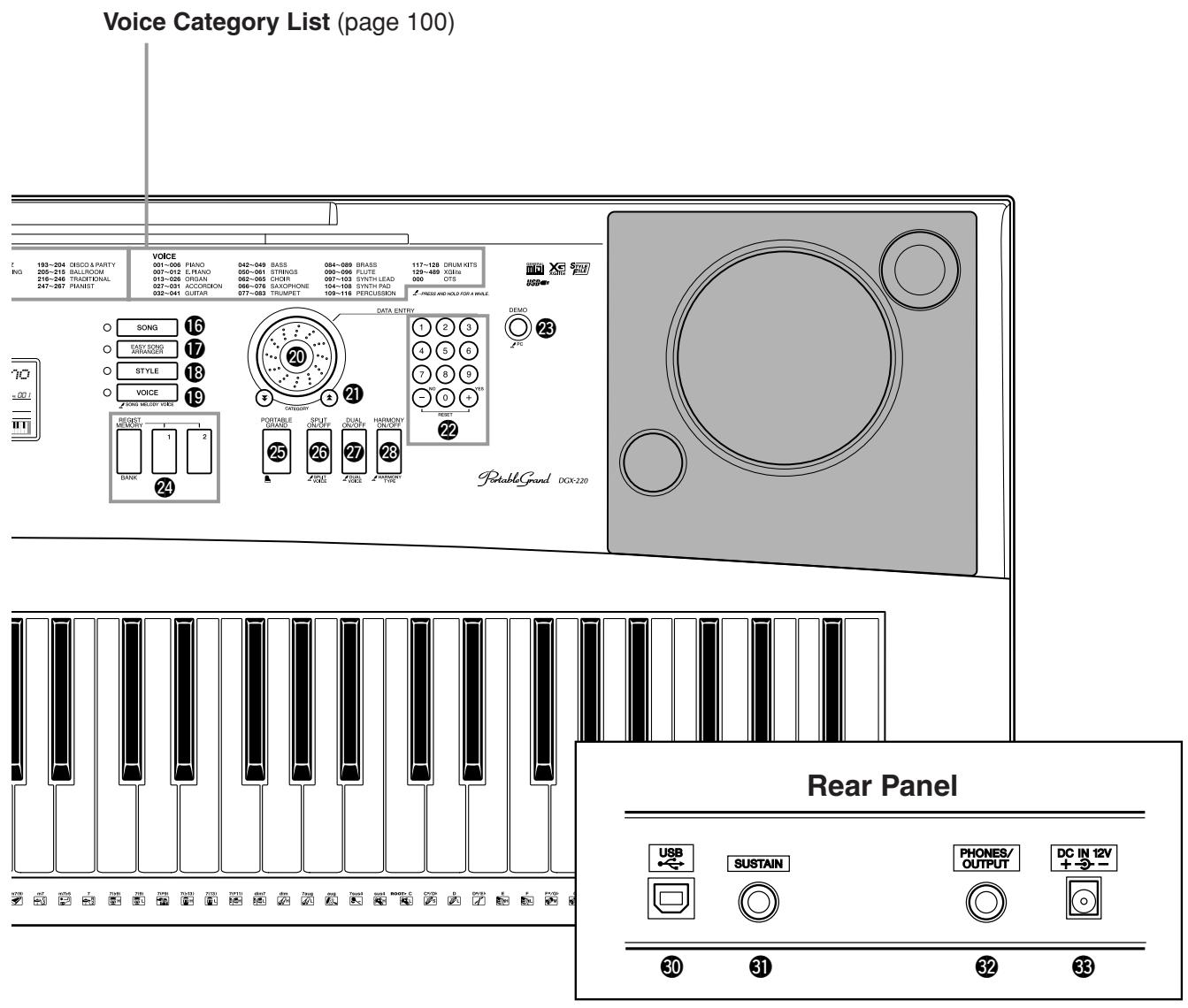
Number buttons [0]-[9], [+] and [-] buttons pages 51, 75
23 [DEMO] button.. page 26
24 REGIST MEMORY [MEMORY/BANK], [1], [2] buttons page 73
[PORTABLE GRAND] button......page 17
[PLIT ON/OFF] button.. page 16
[DOUBLE ON/OFF] button . page 15
[HARMONY ON/OFF] button . page 53
29 PITCH BEND wheel . page 59
Rear Panel
30 USB terminal . pages 11, 79
SUSTAIN jack.. page 11
PHONE/S/OUTPUT jack.. page 11
DC IN 12V jack.. page 10
In addition to piano, organ, and other "standard" keyboard instruments, this instrument has a large range of voices that includes guitar, bass, strings, sax, trumpet, drums and percussion, sound effects ... a wide variety of musical sounds.
Select and Play a Voice—MAIN
This procedure selects the main voice you will play on the keyboard.
![YAMAHA DGX-220 - Press the [VOICE] button. The voice number and name wi - 1](/content/2025/01/114557/images/9108b98fdd029c30cfdac9c7965a21468d39f73750a1c5d8753a3ea4622ae48a.jpg)
![YAMAHA DGX-220 - Press the [VOICE] button. The voice number and name wi - 2](/content/2025/01/114557/images/d1fbf3ce9571bebf5a599d25434a824fd0c7ee035c66d6cdc54214f8a78c5116.jpg)
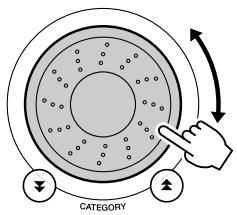
2 Select the voice you want to play.
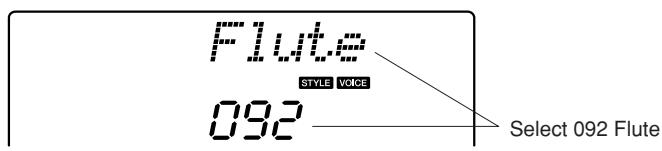
While watching the displayed voice name rotate the dial. The available voices will be selected and displayed in sequence. The voice selected here becomes the main voice.
For this example select the "092 Flute" voice.
NOTE
- You can also select the voice using the CATEGORY [▲] and
[▼] buttons after pressing the [VOICE] button. (page 51)
3 Play the keyboard.
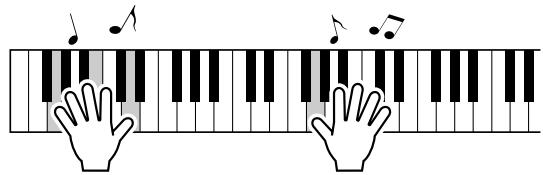
Try selecting and playing a variety of voices.
Play Two Voices Simultaneously—DUAL
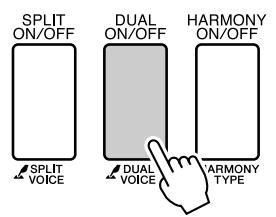
You can select a second voice which will play in addition to the main voice when you play the keyboard. The second voice is known as the "dual" voice.
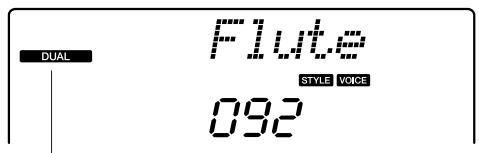
When turned on the dual voice icon will appear in the display. The currently selected dual voice will sound in addition to the main voice when you play the keyboard.
NOTE
- The dual voice feature cannot be used during a song lesson (page 36).
DUAL
Dual voice icon
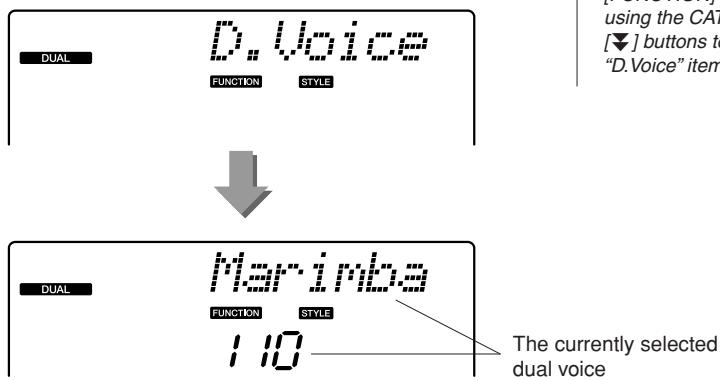
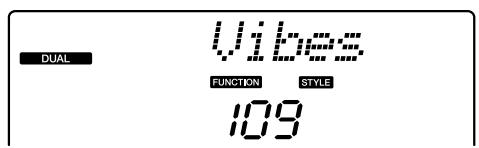
"D.VOIDe" appears in the display for a few seconds, then the currently selected dual voice will be displayed.
NOTE
- You can also select the Dual Voice display by pressing the [FUNCTION] button and then using the CATEGORY [▲] and [▼] buttons to select the "D.Voice" item.
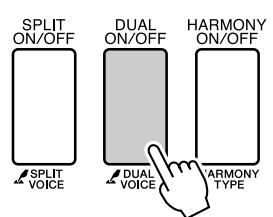
Hold for longer than a second
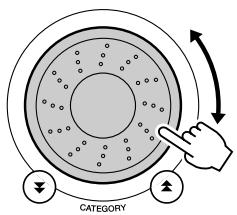
3 Select the desired dual voice. Watch the displayed dual voice and r
Watch the displayed dual voice and rotate the dial until the voice you want to use is selected. The voice selected here becomes the dual voice. For this example try selecting the "109 Vibraphone" voice.
Play the keyboard.
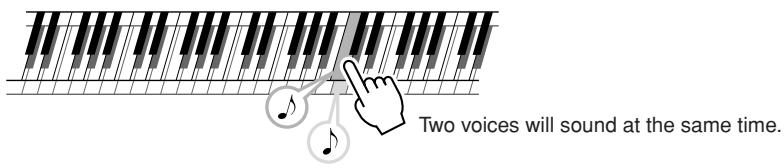
Try selecting and playing a range of dual voices.
Play Different Voices with the Left and Right Hands—SPLIT
In the split mode you can play different voices to the left and right of the keyboard "split point". The main and dual voices can be played to the right of the split point, while the voice played to the left of the split point is known as the "split voice". The split point setting can be changed as required (page 65).
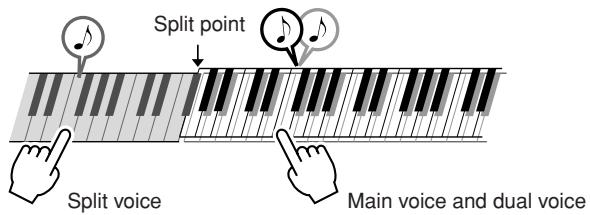
When turned on the split voice icon will appear in the display. The currently selected split voice will sound to the left of the keyboard split point.
NOTE
- The split voice feature cannot be used during a song lesson (page 36).
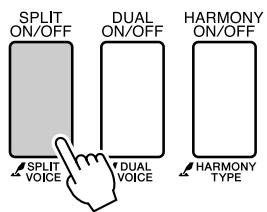
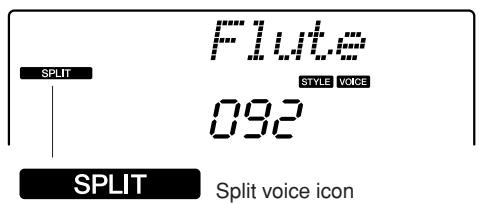
"S.VOIDe" appears in the display for a few seconds, then the currently selected split voice will be displayed.
![YAMAHA DGX-220 - Press and hold the [SPLIT ON/OFF] button for longer than a second. - 1](/content/2025/01/114557/images/bbbda6d9407e30167ef9118fab227029c7dd4f56c4c6fa65eda25184c2948f82.jpg)
![YAMAHA DGX-220 - Press and hold the [SPLIT ON/OFF] button for longer than a second. - 2](/content/2025/01/114557/images/e6b50b8dfe7e804bd9ae1d84b156fedcf0b1e5b9f44e0760a17cbc69621198dc.jpg)
NOTE
- You can also select the Split Voice display by pressing the [FUNCTION] button and then using the CATEGORY [▲] and [▼] buttons to select the "S. Voice" item.
The currently selected SPLIT voice
3 Select the desired split voice. Watch the displayed split voice and r
Watch the displayed split voice and rotate the dial until the voice you want to use is selected. The voice selected here becomes the split voice which will play to the left of the keyboard split point. For this example try selecting the "033 Folk Guitar" voice.
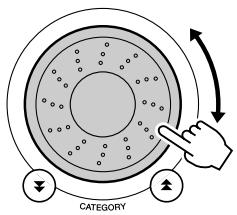
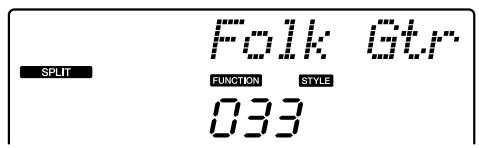
Play the keyboard.
Try selecting and playing a range of split voices.
Play the Grand Piano Voice
When you just want to play piano, all you have to do is press one convenient button.
The "001 Grand Piano" voice will be selected.
![YAMAHA DGX-220 - Press the [PORTABLE GRAND] button. - 1](/content/2025/01/114557/images/311b5804263d2d3a88c5afc8491d05ce839e253fddf3821646a42046773fc693.jpg)
NOTE
- When you press the [PORTABLE GRAND] button all settings other than touch sensitivity are turned off. The dual and split voices will also be turned off, so only the Grand Piano voice will play over the entire keyboard.
Fun Sounds
This instrument includes a range of drum kits and unique sound effects you can use for entertainment. Laughter, babbling brooks, jet fly-bys, eerie effects, and much more. These sounds can be a great way to enhance the mood at parties.
Drum Kits
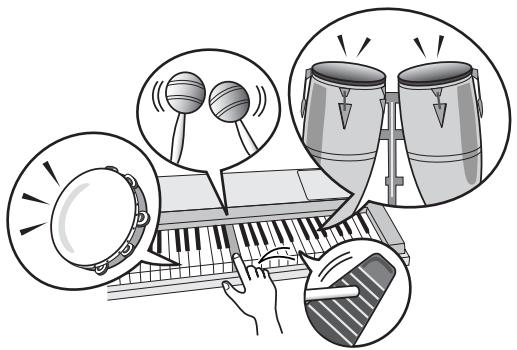
Drum kits are collections of drum and percussion instruments. When you select a violin or other normal instrument main voice, for example, all keys produce the sound of the same violin, only at different pitches. If you select a drum kit as the main voice, however, each key produces the sound of a different drum or percussion instrument.
Drum Kit Selection Procedure (refer to steps 1 and 2 on page 14)
1 Press the [VOICE] button.
Use the dial to select "117 Std.Kit1".
3 Try out each key and enjoy the drum and percussion sounds!
Try out each key and enjoy the drum and percussion sounds! Don't forget the black keys! You'll hear a triangle, maracas, bongos, drums ... a comprehensive variety of drum and percussion sounds. For details on the instruments included in the drum kit voices (voice numbers 117 to 128), see the "Drum Kit List" on page 104.
Sound Effects
The sound effects are included in the drum kit voice group (voice numbers 127 and 128). When either of these voices are selected you will be able to play a range of sound effects on the keyboard.
Sound Effect Selection Procedure (refer to steps 1 and 2 on page 14)
1 Press the [VOICE] button.
Use the dial to select "128 SFX Kit2".
3 Try out each key and enjoy the sound effects!
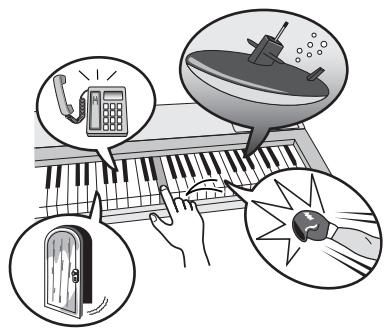
As you try out the various keys you'll hear the sound of a submarine, a telephone bell, a creaking door, laughter, and many other useful effects. "127 SFX Kit1" includes lightning, running water, dogs barking, and others. Some keys do not have assigned sound effects, and will therefore produce no sound. For details on the instruments included in the SFX kit voices, see "SFX Kit 1" and "SFX Kit 2" in the "Drum Kit List" on page 104.
This instrument has an auto accompaniment feature that produces accompaniment (rhythm + bass + chords) in the style you choose to match chords you play with your left hand. You can select from 150 different styles covering a range of musical genres and time signatures (see page 106 for a complete list of the available styles). In this section we'll learn how to use the auto accompaniment features.
Select a Style Rhythm
Most styles include a rhythm part. You can select from a wide variety of rhythmic types—rock, blues, Euro trance, and many, many more. Let's begin by listening to just the basic rhythm. The rhythm part is played using percussion instruments only.
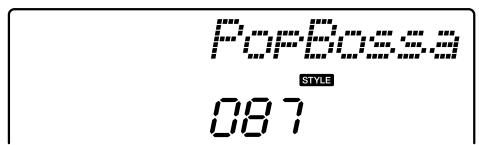
![YAMAHA DGX-220 - Press the [STYLE] button. The style number and name will - 1](/content/2025/01/114557/images/7d44c461927b2808c5d07a6fd616e3160c106710aa8a43cfde7911d38c01fd56.jpg)
![YAMAHA DGX-220 - Press the [STYLE] button. The style number and name will - 2](/content/2025/01/114557/images/0080c7f6f48177ad840a8959747058668cfba5f46adb97a86fa223aa5c6709a1.jpg)
2 Select a style. Use the dial to set
Use the dial to select the style you want to use.
A list of all the available styles is provided on page 106.
Press the [START/STOP] button a second time when you want to stop playback.
![YAMAHA DGX-220 - Press the [START/STOP] button. The style rhythm will start playing. - 1](/content/2025/01/114557/images/3193bb488240fa819da3bdbd987596f057c6ebe38974a6d3a84255e1f89f75d7.jpg)
NOTE
- Style numbers 121, 133-150 have no rhythm part and therefore no rhythm will play if you use them for the above example. For these styles first turn auto accompaniment on as described on page 20, press the [START/STOP] button, and the accompaniment bass and chord parts will begin playing when you play a key to the left of the keyboard split point.
Play Along with a Style
You learned how to select a style rhythm on the preceding page.
Here we'll see how to add bass and chord accompaniment to the basic rhythm to produce a full, rich accompaniment that you can play along with.
1 Press the [STYLE] button and select the desired style.
2 Turn automatic accompaniment on.
Press the [ACMP ON/OFF] button.
Pressing this button a second time will turn automatic accompaniment off.
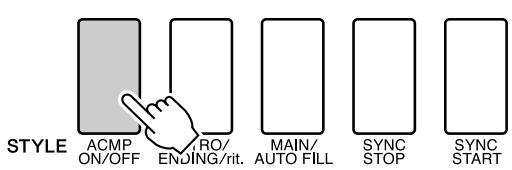
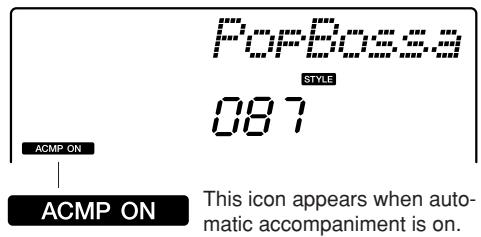
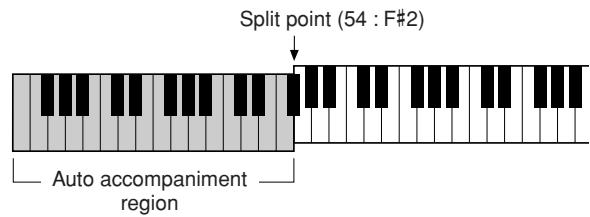
- When automatic accompaniment is on …
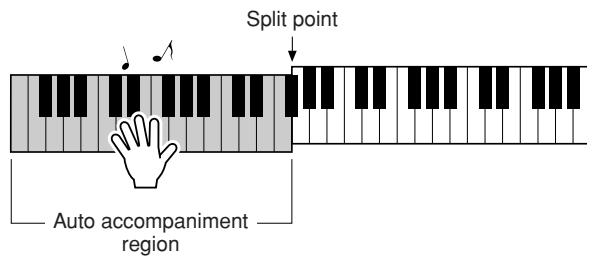
The area of the keyboard to the left of the split point (54 : F#2) becomes the "auto accompaniment region" and is used only for specifying the accompaniment chords.
NOTE
- The keyboard split point can be changed as required: refer to page 65.
3 Turn sync start on. Press the [SYNC STAR
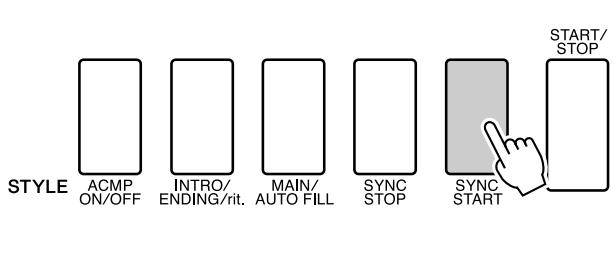
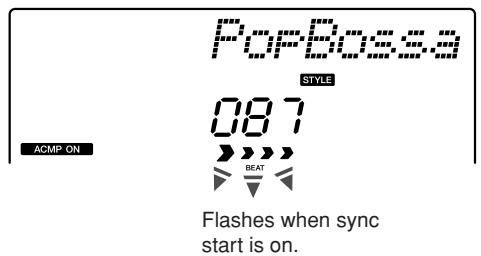
When sync start is on, the bass and chord accompaniment included in a style will start playing as soon as you play a note to left of the keyboard split point. Press the button a second time to turn the sync start function off.
4 Play a left-hand chord to start the style. You can still "play" chords even if you don't act
You can still "play" chords even if you don't actually know any chords. This instrument will recognize even a single note as a chord. Try playing from one to three notes at the same time to the left of the split point. The accompaniment will change according to the left-hand notes you play.
Try this!
Scores for some chord progressions are provided on page 22. These examples should help you get a feel for what types of chord progressions sound good with the styles.
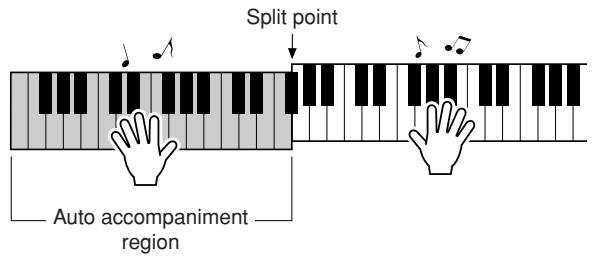
5 Play a variety of left-hand chords while playing a melody with your right hand.
![YAMAHA DGX-220 - Press the [START/STOP] button to stop style playback when you're done. - 1](/content/2025/01/114557/images/4b465e2089df3841650ff5c8569b97f7817a37014b1c948c8153c4ec596ec706.jpg)
You can switch style "sections" to add variety to the accompaniment. Refer to "Pattern Variation (Sections)" on page 63.
Styles Are More Fun When You Understand Chords
Chords, created by playing multiple notes at the same time, are the basis for harmonic accompaniment. In this section we'll take a look at sequences of different chords played one after another, or "chord sequences". Since each chord has its own unique "color"—even if it's different fingerings of the same chord—the chords you choose to use in your chord progressions have a huge influence on the overall feel of the music you play.
On page 20 you learned how to play colorful accompaniments using styles. Chord progressions are vital to creating interesting accompaniments, and with a little chord know-how you should be able to take your accompaniments to a new level.
On these pages we'll introduce three easy-to-use chord progressions. Be sure to try them out with the instrument's accompaniment styles. The style will respond to the chord progression you play, effectively creating a complete song.
■Playing the Chord Progressions
Play the scores with the left hand.
Before playing the scores follow steps 1 through 3 of "Play Along with a Style" on page 20.
- The scores provided here are not standard song scores, but rather simplified scores that indicate which notes to play to produce the chord progressions.
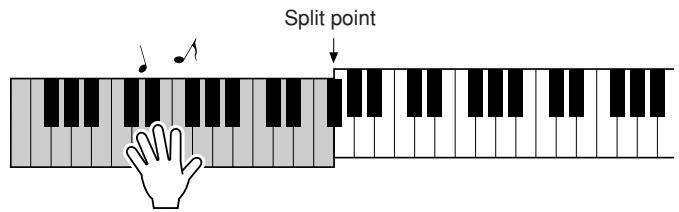
Play to the left of the split point.
Recommended Style
031 Euro Trance
—Dance music with simple chords—
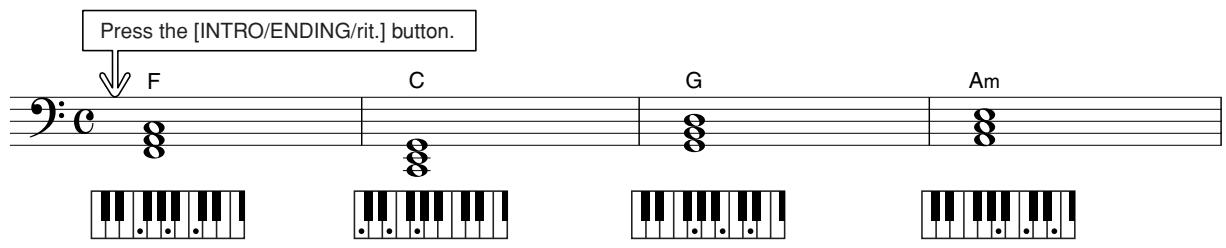
This is a simple-but-effective chord progression. When you play through to the end of the score, start again from the beginning. When you're ready to stop playing press the [INTRO/ENDING/rit.] button and the auto accompaniment function will create a perfect ending.
Recommended Style
138 Piano Boogie
—3-chord boogie-woogie—
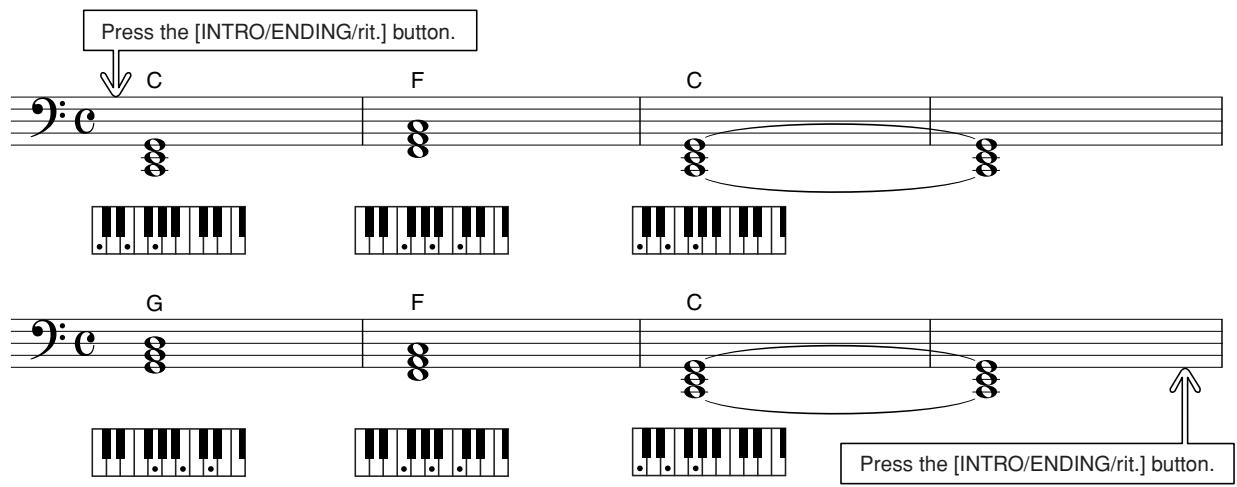
This progression provides varied harmonic backing with just three chords. When you get a feel for the progression in the score, try changing the order of the chords!
Recommended Style
086 Bossa Nova
—Bossa nova with jazz-style chords—
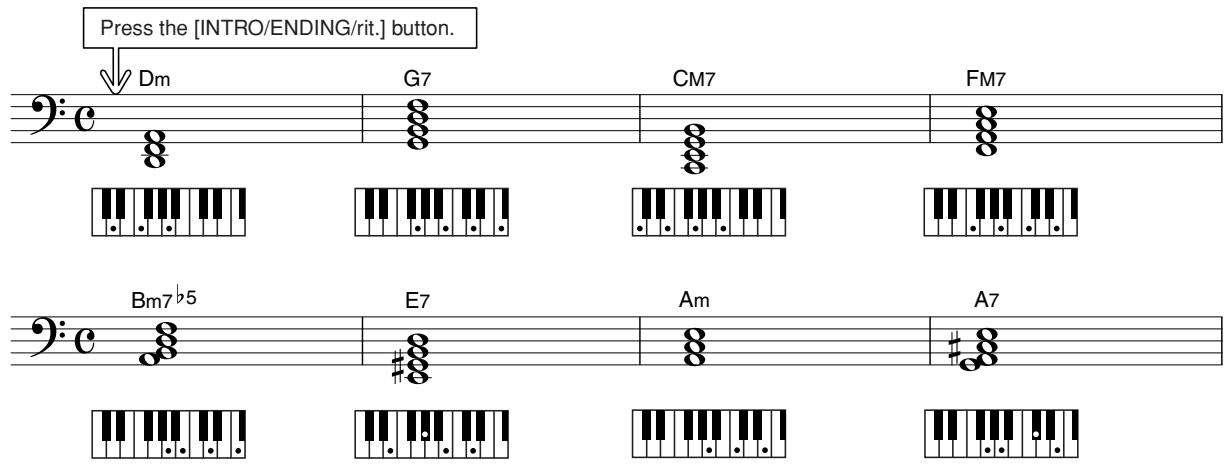
This progression includes jazzy "two-five" (II-V) changes. Try playing it through several times. When you're ready to stop playing press the [INTRO/ENDING/rit.] button.
Playing Auto-accompanyment Chords
There are two ways of playing auto-accompanyment chords:
- Easy Chords
Standard Chords
The instrument will automatically recognize the different chord types. This function is called Multi Fingering.
Press the [ACMP ON/OFF] button to turn auto-accompaniment on (page 20). The keyboard to the left of the split point (default: 54/F#2) becomes the "accompaniment range". Play the accompaniment chords in this area of the keyboard.
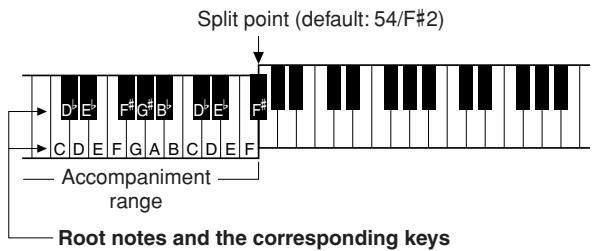
Easy Chords
This method lets you easily play chords in the accompaniment range of the keyboard using only one, two, or three fingers.
To play a major chord
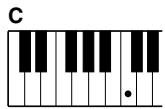
Press the root note of the chord.
- To play a minor chord
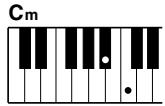
Press the root note together with the nearest black key to the left of it.
To play a seventh chord
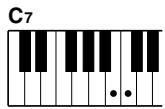
Press the root note together with the nearest white key to the left of it.
To play a minor seventh chord
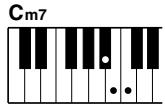
Press the root note together with the nearest white and black keys to the left of it (three keys altogether).
Standard Chords
This method lets you produce accompaniment by playing chords using normal fingerings in the accompaniment range of the keyboard.
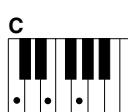
- How to play Standard Chords [Example for "C" chords]
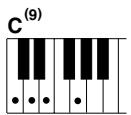
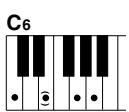
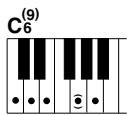
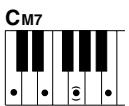
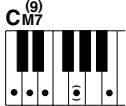
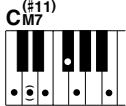
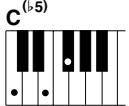
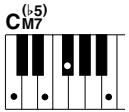
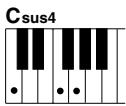
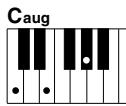
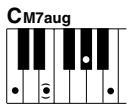
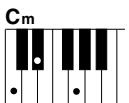
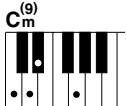
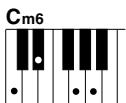
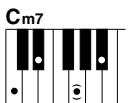
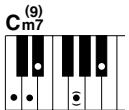
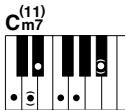
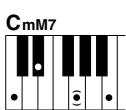
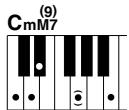
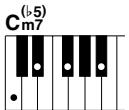
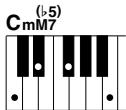
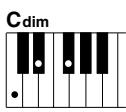
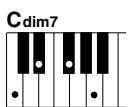
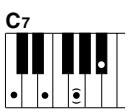
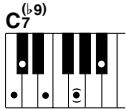
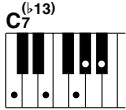
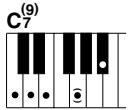
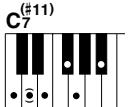
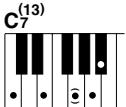
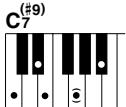
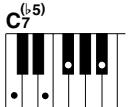
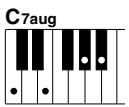
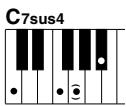
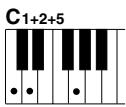
* Notes enclosed in parentheses ( ) are optional; the chords will be recognized without them.
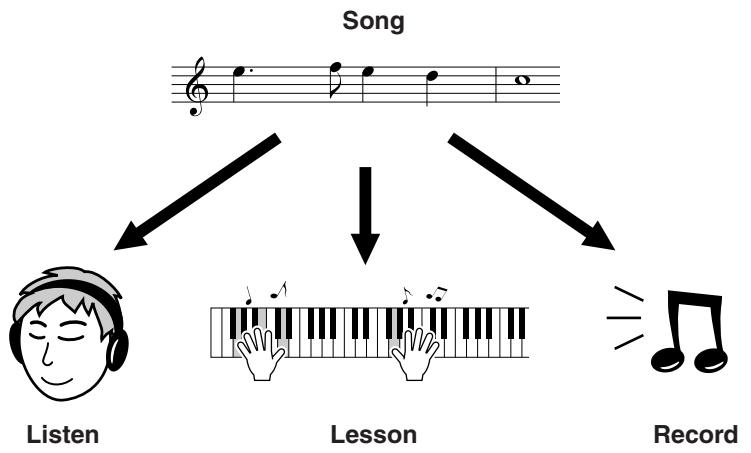
With this instrument the term "song" refers the data that makes up a piece of music. You can simply enjoy listening to the 30 internal songs, or use them with just about any of the many functions provided—the performance assistant technology feature, lessons, and more. The songs are organized by category.
In this section we'll learn how to select and play songs, and briefly describe the 30 songs provided.
Select and Listen to a Song
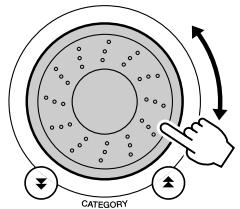
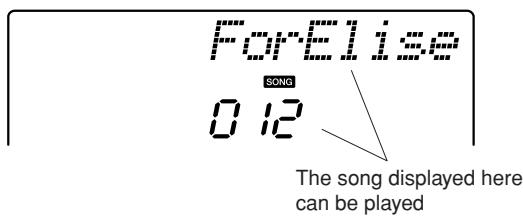
The song number and name will be displayed. You can use the dial to select a different song.
![YAMAHA DGX-220 - Press the [SONG] button. The song number and name will - 1](/content/2025/01/114557/images/150c69ec3ac2ea712d75e343f1a5903b94d06a35364ac1831801dc355393141a.jpg)
![YAMAHA DGX-220 - Press the [SONG] button. The song number and name will - 2](/content/2025/01/114557/images/31d6ced7e367b0d6d3102edf996223b24afb4f4c2d2cdedc4d715b178502c4fe.jpg)
2 Select a song. Select a song after
Select a song after referring to the preset song category list on page 27. Use the dial to select the song you want to listen to.
NOTE
- You can also play songs you have recorded yourself (User Songs) or songs that have been transferred to the instrument from a computer in the same way that you play the internal songs.
| 001–030 | Built in Songs (see next page) |
| 031–035 | User Songs (Songs you record yourself). |
| 036– | Songs transferred from a computer (pages 82–84) |
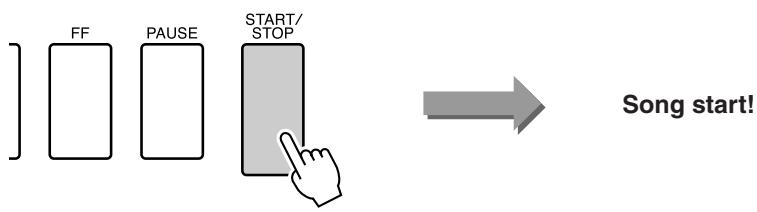
3 Listen to the song. Press the ISTART/STO
Press the [START/STOP] button to begin playback of the selected song. You can stop playback at any time by pressing the [START/STOP] button again.
Press the [DEMO] button to play Songs 001-008 in sequence. Playback will repeat when the end of the sequence is reached, starting again from the first Song (001).
You can select a song by using the [-] and [+] buttons after pressing the [DEMO] button.
You can stop playback at any time by pressing the [DEMO] button.
![YAMAHA DGX-220 - Using the [DEMO] button - 1](/content/2025/01/114557/images/594db81052e464332695a36624adfb3d38e3f72235bc51557412fbff545dd90a.jpg)
Song Fast Forward, Fast Reverse, and Pause
These are just like the transport controls on a cassette deck or CD player, letting you fast forward [FF], rewind [REW] and pause [PAUSE] playback of the song.
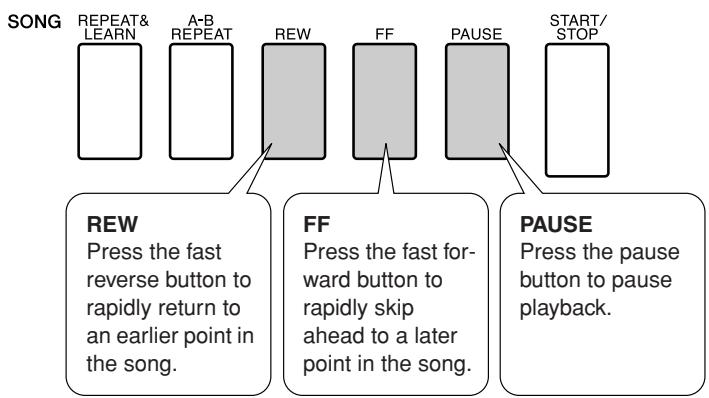
NOTE
- When an A-B repeat range is specified the fast reverse and forward function will only work within that range.
Song List
These 30 songs include songs that effectively demonstrate the instrument's easy song arranger feature, songs that are ideally suited for use with the performance assistant technology feature, and more. The "Suggested Uses" column provides some ideas as to how the songs can most effectively used.
| Category | No. | Name | Suggested Uses |
| Main Demo | 1 CHORD | Magnetic | The songs in this category have been created to give you an idea of the advanced capabilities of this instrument. They're great for listening, or for use with the performance assistant technology feature. |
| 2 CHORD | Jessica |
| 3 CHORD | Winter Serenade |
| Voice Demo | 4 CHORD | Grand Piano Demo | These songs features some of the instrument's many useful voices. They make maximum use of the characteristics of each voice, and might serve as inspiration for your own compositions. |
| 5 CHORD | Sweet! TenorSax Demo |
| 6 CHORD | Cool! RotorOrgan Demo |
| 7 CHORD | Cool Galaxy Electric Piano Demo |
| 8 CHORD | ModernHarp & Sweet Soprano Demo |
| Funciton Demo | 9 CHORD | Hallelujah Chorus | Use these songs to experience some of the instrument's advanced features: song number 9 for the easy song arranger, and songs 10 and 11 for the performance assistant technology feature. |
| 10 CHORD | Ave Maria |
| 11 CHORD | Nocturne op.9-2 |
| Piano Solo | 12 | For Elise | These piano solo pieces are ideally suited for use as lesson songs. |
| 13 | Maple Leaf Rag |
| 14 | Jeanie with the Light Brown Hair |
| Piano Ensemble | 15 CHORD | Amazing Grace | A selection of piano ensemble songs that are also well suited for use as lesson songs. |
| 16 CHORD | Mona Lisa(Jay Livingston and Ray Evans) |
| 17 | Piano Concerto No.21 2nd mov. |
| 18 CHORD | Scarborough Fair |
| 19 CHORD | Old Folks at Home |
| Piano Accompaniment | 20 CHORD | Ac Ballad(Agast All Odds: Collins 0007403) | When you need to practice backing(accompaniment) patterns, these are the songs to do it with. This is ability you'll need if you're invited to play with a band. These songs allow you to practice backing parts one hand at a time, which can be the easiest way to master this important skill. |
| 21 CHORD | Ep Ballad |
| 22 CHORD | Boogie Woogie |
| 23 CHORD | Rock Piano |
| 24 CHORD | Salsa |
| 25 CHORD | Country Piano |
| 26 CHORD | Gospel R&B |
| 27 CHORD | Medium Swing |
| 28 CHORD | Jazz Waltz |
| 29 CHORD | Medium Bossa |
| 30 CHORD | Slow Rock(Can't Help Falling In Love: George David Weiss, Hugo Peretti and Luigi Creatore) |
CHORD : Includes chord data.
The scores for the internal songs—except for songs 1–11, and song 16, 20 and 30 which is copyrighted, are provided in the Song Book on the CD-ROM. The scores for songs 9–11 are provided in this manual.
Some of the classic and/or traditional songs have been edited for length or for ease in learning, and may not be exactly the same as the original.
Types of Songs
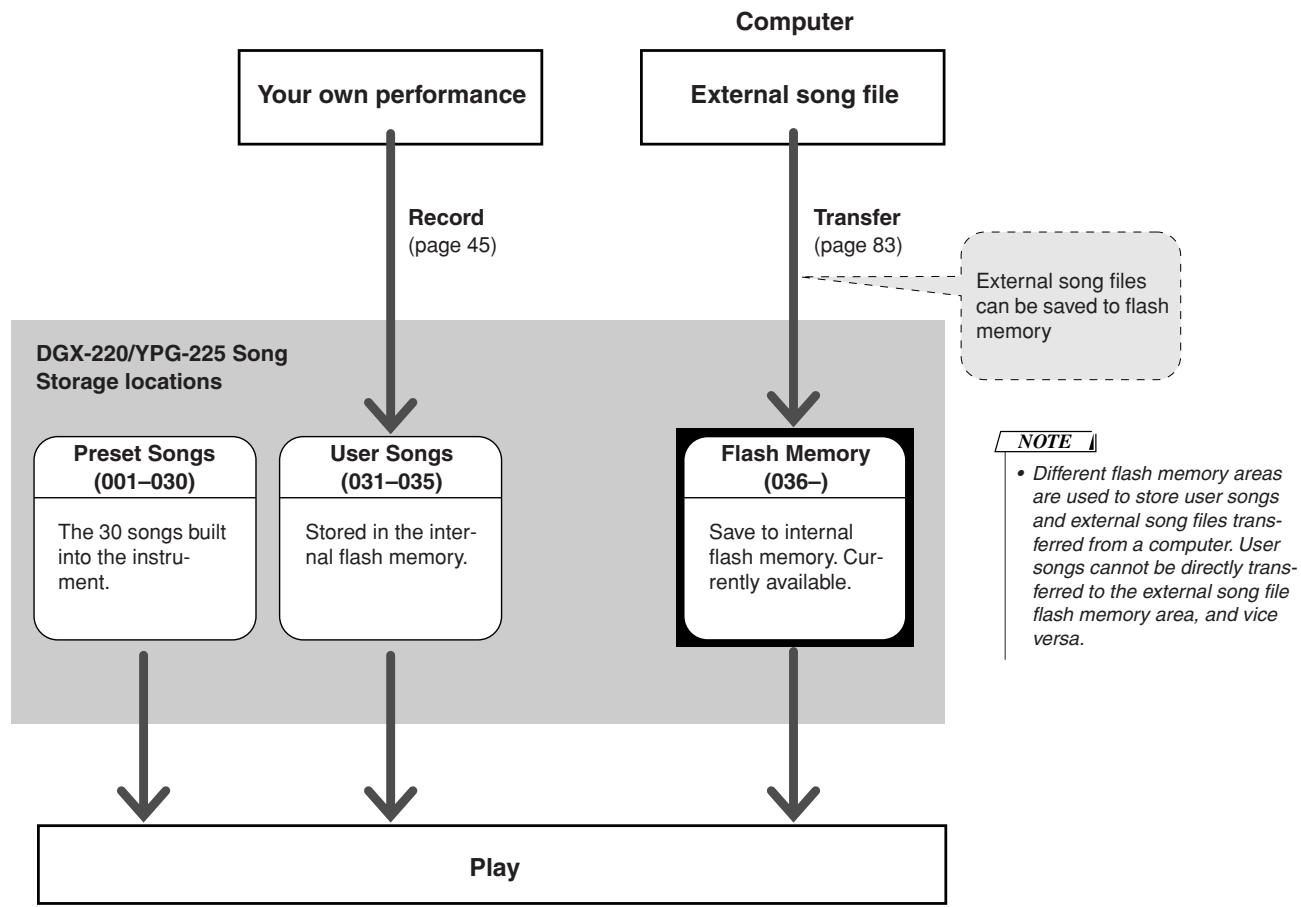
The following three types of songs can be used by the DGX-220/YPG-225.
- Preset Songs (the 30 songs built into the instrument)........Song numbers 001-030.
-
User Songs (recordings of your own performances) .....................Song numbers 031-035.
External song files (song data transferred from a computer*) ...Song numbers 036-.
-
The Accessory CD-ROM includes a selection of 70 MIDI songs. See page 83 for instructions on how to transfer the songs to the instrument.
The chart below shows the basic DGX-220/YPG-225 processes flow for using the preset songs, user songs, and external song files—from storage to playback.
This instrument includes a performance assistant technology feature that lets you play along with a song and sound like a great pianist (even though you might be making lots of mistakes)! In fact, you can play any notes and still sound good! So even if you can't play piano and can't read a note of music, you can have some musical fun.
Performance assistant technology offers two selectable types. Select the type that produces the best results for you.
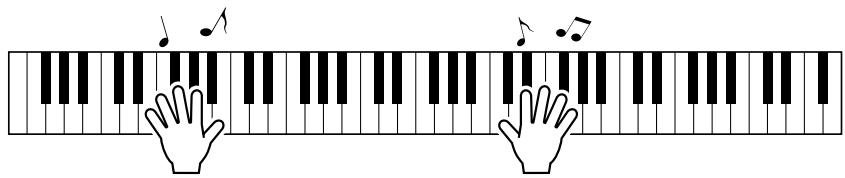
- Chord. No matter where or what you play, the result will be musical, well-balanced sound. This type offers the greatest freedom, allowing you to play anything with both your left and right hands.
- Chord/Free (CHD/FREE)
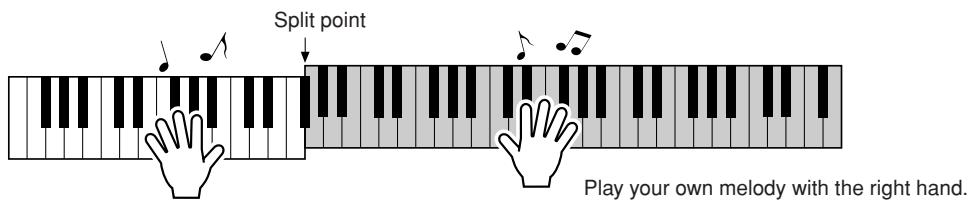
If you can play simple right-hand melodies but have trouble with left-hand chords, this is the type for you. The Chord type applies to only the left-hand section of the keyboard, allowing you to easily play chords to support the melody you are playing with your right hand.
Refer to page 34 for more information on using performance assistant technology to help you play.
CHORD Type—Play with Both Hands
The P.A.T. icon will appear when the performance assistant technology feature is on.
![YAMAHA DGX-220 - Press the [P.A.T. ON/OFF] button. This turns on the performance assistant to - 1](/content/2025/01/114557/images/5b6f14fc5911e8d77fb7483f75eaffe610758694af9601a21fce91f198c17c54.jpg)
2 Select the CHORD type.
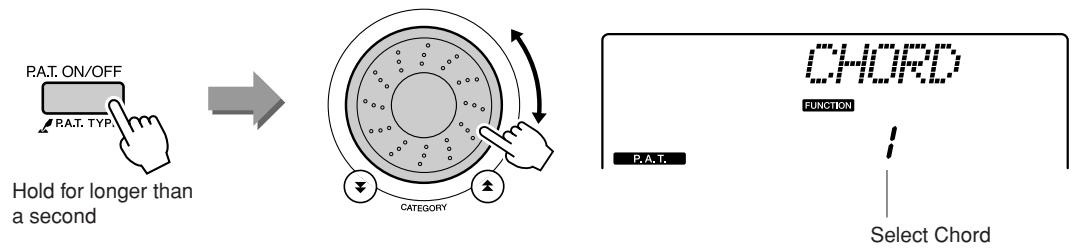
Press and hold the [P.A.T. ON/OFF] button for longer than a second. "PAT Type" appears in the display for a few seconds, then the currently selected performance assistant technology type will be displayed. Select the Chord type by using the dial.
3 Select a song. Press the [SONG]
Press the [SONG] button, and the Song Select display appears. Select a song by using the dial. For this example try selecting the "010 Ave Maria".
![YAMAHA DGX-220 - Select a song. Press the [SONG] - 1](/content/2025/01/114557/images/ab6559134ec2744a320017c1bb2117e5daea67134a0ba0ac14e6f28f86fad4c4.jpg)
![YAMAHA DGX-220 - Select a song. Press the [SONG] - 2](/content/2025/01/114557/images/1c382ed3f08858c60cac630d71e35e01a813fb8352a6315f493ce072f6ef25a4.jpg)
- What is a Song?
You know the normal meaning of this word, but in this instrument the term "Song" refers to the data that makes up a complete song. The performance assistant technology features uses the chord and melody data, and should always be used with a song (page 25).
![YAMAHA DGX-220 - Press the [START/STOP] button. - 1](/content/2025/01/114557/images/da13144fb5dfc0208bcb0b297d3a201b4726a1b2a86a244c0b44157b45d01c87.jpg)
SONG
![YAMAHA DGX-220 - Press the [START/STOP] button. - 2](/content/2025/01/114557/images/97e669e50afd8617b9d9c84c3d96d22e8d67c88626c99b94f4cfd7ec9863d45a.jpg)
![YAMAHA DGX-220 - Press the [START/STOP] button. - 3](/content/2025/01/114557/images/9f263b87ccc314dc28632d8f329f118017c7498376a5a7ab6f492ebfdaf0cd23.jpg)
![YAMAHA DGX-220 - Press the [START/STOP] button. - 4](/content/2025/01/114557/images/41394c97a4751ab113d8f928da7427bfa46f8750348d21316a34b70d077624bf.jpg)
![YAMAHA DGX-220 - Press the [START/STOP] button. - 5](/content/2025/01/114557/images/e0bd92c1333b46224dbade3f1a5cad834e924a4733528ab51234960fc498d246.jpg)
![YAMAHA DGX-220 - Press the [START/STOP] button. - 6](/content/2025/01/114557/images/637c5d981ae9979cba74917f695fade22c7d1bd1cda877354ca6fdde7b006915.jpg)
Song playback will begin.
The basic pattern will play repeatedly. Listen to the basic pattern for four measures while getting a feel for the basic pattern, then begin playing yourself from the fifth measure.
5 Play on the keyboard.
Before
After
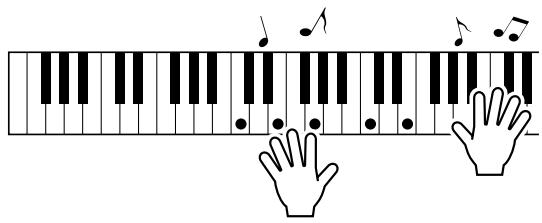
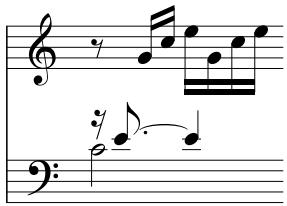
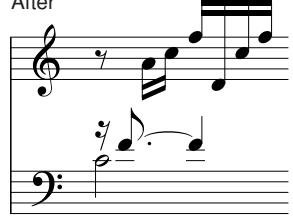
Try playing the score on the left with both hands. You can even play the same keys over and over: C, E, G, C, E, G, C, E. You'll notice that at measure five the notes will come out according to the score on the right. Keep playing, and performance assistant technology Chord type will continue to "correct" the notes that you play.
This is the performance assistant technology Chord type.
You can stop song playback at any time by pressing the [START/STOP] button.
NOTE
The score for Ave Maria is provided on page 96.
CHD/FREE Type—Applying the Chord Type to the Left Hand Only
The P.A.T. icon will appear when the performance assistant technology feature is on.
![YAMAHA DGX-220 - Press the [P.A.T. ON/OFF] button. This turns on the performance assistant to - 1](/content/2025/01/114557/images/76ed4657f102ccca83c2e1e9a7be14a7d9386d9916d3df1360b4f3e9c697ba0e.jpg)
2 Select the CHD/FREE type.
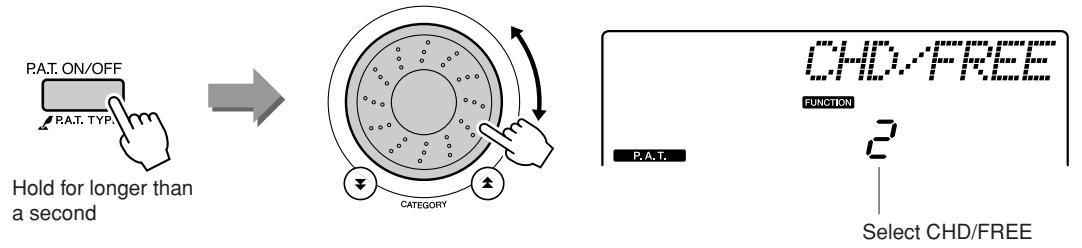
Press and hold the [P.A.T. ON/OFF] button for longer than a second. "PAT Type" appears in the display for a few seconds, then the currently selected performance assistant technology type will be displayed. Select the CHD/FREE type by using the dial.
3 Select a song. Press the [SONG]
Press the [SONG] button, and the Song Select display appears. Select a song by using the dial. For this example try selecting the "011 Nocturne".
![YAMAHA DGX-220 - Select a song. Press the [SONG] - 1](/content/2025/01/114557/images/329238bc0bc753e3fd7c4ec9af7872c4b35a254f7500f55e736e667cd34bca01.jpg)
![YAMAHA DGX-220 - Select a song. Press the [SONG] - 2](/content/2025/01/114557/images/dfcff60905273dcd97606ad1c77b9cb154d42880cc7eaa5fdb78daf97f7c2506.jpg)
![YAMAHA DGX-220 - Press the [START/STOP] button. - 1](/content/2025/01/114557/images/3dc6bc7cde36e504d46719c2472abe99d3b9b1cf1b013b0c62b5812dd77967b9.jpg)
SONG
![YAMAHA DGX-220 - Press the [START/STOP] button. - 2](/content/2025/01/114557/images/50bf176e6ece1a9db92558298a3821a2cbb287359a90f826a828b3094233878a.jpg)
![YAMAHA DGX-220 - Press the [START/STOP] button. - 3](/content/2025/01/114557/images/e1a882e33032c812ae8cae8a31f5091acf23e4134e35b4ab6ae0fadc4c3db3eb.jpg)
![YAMAHA DGX-220 - Press the [START/STOP] button. - 4](/content/2025/01/114557/images/0f979480bc2273bced99867fcc8b14bec47fc4a965b6cf32d32882692ad78e4d.jpg)
![YAMAHA DGX-220 - Press the [START/STOP] button. - 5](/content/2025/01/114557/images/8446d80c00049ae7b68c621070e568b5fff3ead8249db4a932e6f70dbafa6def.jpg)
![YAMAHA DGX-220 - Press the [START/STOP] button. - 6](/content/2025/01/114557/images/ab767045ce6d907adb685e21fe5ba213537f8f7a239fc18bc0d0153ff07d821d.jpg)
Song playback will begin.
5 Play on the keyboard. Play to the right of the split
Play to the right of the split point with your right hand, and to the left of the split point with your left hand.
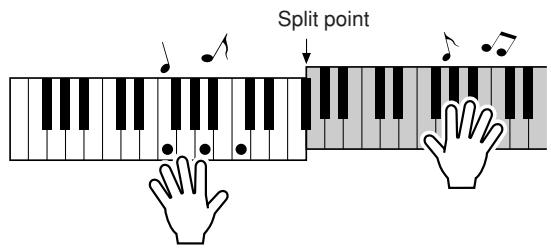
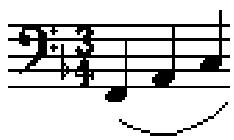
With this type notes played on the left-hand side of the split point will actually sound an octave higher.
Play the Nocturne melody with your right hand. Continually play an F-A-C arpeggio shown in the illustration with your left hand. Although you're repeatedly playing the same notes with your left hand, the actual notes produced will change to match the music.
This is the performance assistant technology CHD/FREE type.
You can stop song playback at any time by pressing the [START/STOP] button.
NOTE
The score for Nocturne is provided on page 98.
Here are a few hints for using the Chord type.
If you select Chord/Free, the left-hand section of the keyboard becomes the Chord type section, so use these hints on the lefthand section of the keyboard.
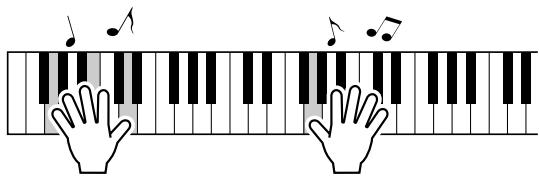
To begin, try to feel the rhythm of the song. Then, with your hands spread as shown in the illustration, simply play the keyboard alternately with your left and right hands (any notes will do).
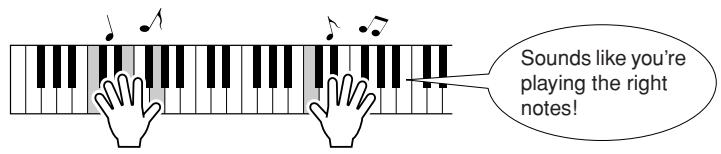
How does it sound? You'll get acceptable results no matter where you play thanks to the performance assistant technology Chord type!
Next try the three playing methods illustrated below. Different ways of playing produce different results.
- Play with the left and right hands at the same timing—type 1.
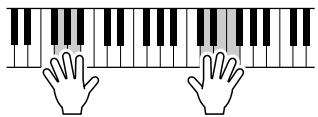
Play 3 notes at once with your right hand.
- Play with the left and right hands at the same timing—type 2.
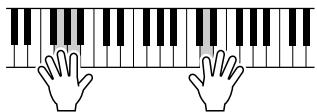
Play 1 note at a time with your right hand (for example: index finger middle finger ring finger).
- Play alternately with the left and right hands—type 3.
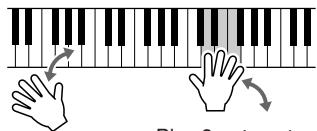
Play 3 notes at once with your right hand.
Once you get a feel for it, try playing chords with your left hand and a melody with your right ... or any other combination.
To use the performance assistant technology feature it is necessary to play a song that includes chord data, or a style with auto accompaniment on.
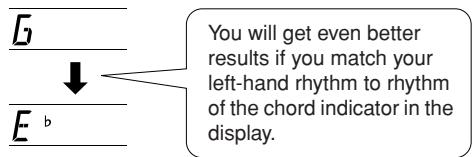
If a song includes the required data, the chords are shown on the right side of the display (page 52).
Change the Song Tempo
When using the performance assistant technology or in other situations in which the tempo of the song is too fast or too slow for you, you can change the tempo as required. Press the [TEMPO/TAP] button. The tempo display will appear and you can use the dial, the [+] and [-] buttons, or the [0] to [9] number buttons to set to tempo to anywhere from 011 and 280 quarter-note beats per minute.
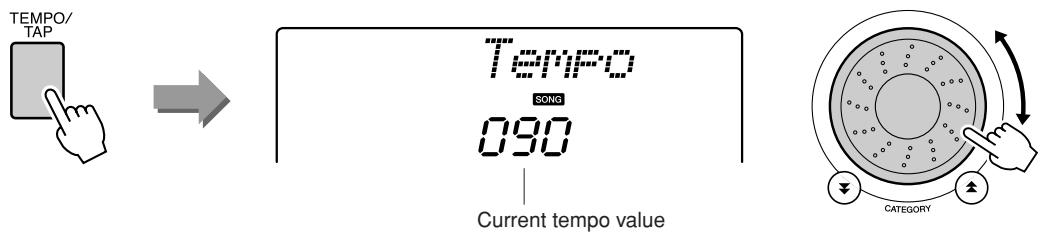
You can return to the original tempo by simultaneously pressing the [+] and [-] buttons.
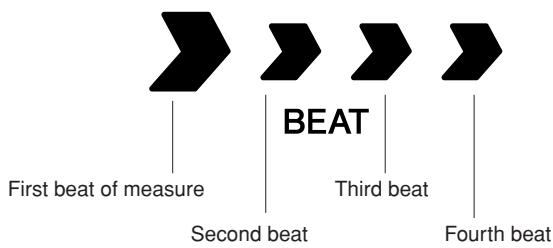
- About the Beat Display
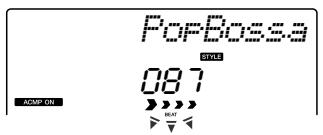
The arrow marks in the beat display flash in time with the rhythm of the song or style.
Yamaha Education Suite
You can select song you like and use it for a left-hand, right-hand, or both-hands lesson. You can also use songs (only SMF format 0) downloaded from the Internet and saved to flash memory. (pages 82-84) During the lesson you can play as slowly as you like, and you can even play wrong notes. Song playback will slow down to a speed you can handle. It's never too late to start learning!
Lesson Flow:
Select a song from the Piano Solo, Piano Ensemble category!

The practice methods:
- Lesson 1 ........ Learn to play the correct notes.
- Lesson 2. Learn to play the correct notes with the correct timing.
- Lesson 3............ Learn to play the correct notes at the correct timing along with the song.
Lesson 1—Waiting
In this lesson, try playing the correct notes. Play the note shown in the display. The song will wait until you play the right note.
Press the [SONG] button, and rotate the dial to select the song you want to use for your lesson. As listed on page 28 there are a variety of song types. For this example try selecting the "012 ForElise".
![YAMAHA DGX-220 - Select a song for your lesson. Press the [SONG] button, and rotate to - 1](/content/2025/01/114557/images/6219f724641877ef6da1e8a4c48b037b59f98b0b2948770122d347f9be1b2f62.jpg)
2 Select the part you want to practice.
Press the [R] button for a right-hand lesson, [L] button for a left-hand lesson, or press both the [R] and [L] buttons simultaneously for a both-hands lesson.
The currently selected part is shown in the display.
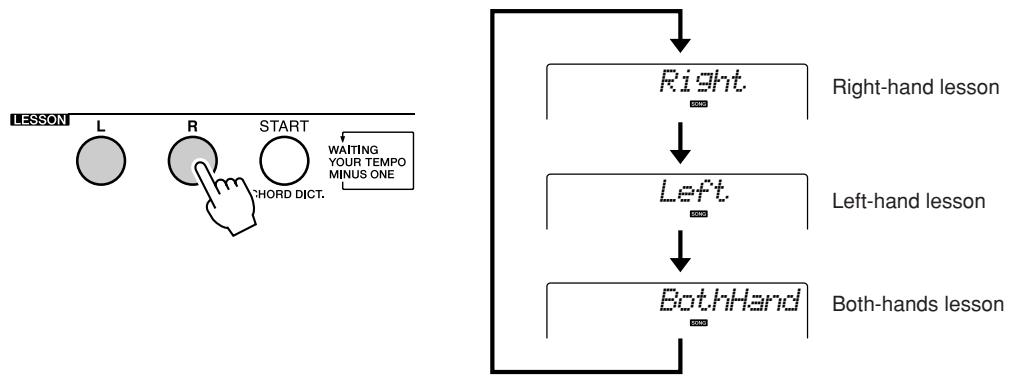
3 Start Lesson 1. Press the LESSON
Press the LESSON [START] button to select Lesson 1. Each time the LESSON [START] button is pressed the lesson modes are selected in sequence: Lesson 1 Lesson 2 Lesson 3 Off Lesson 1 .... The currently selected mode is shown in the display.
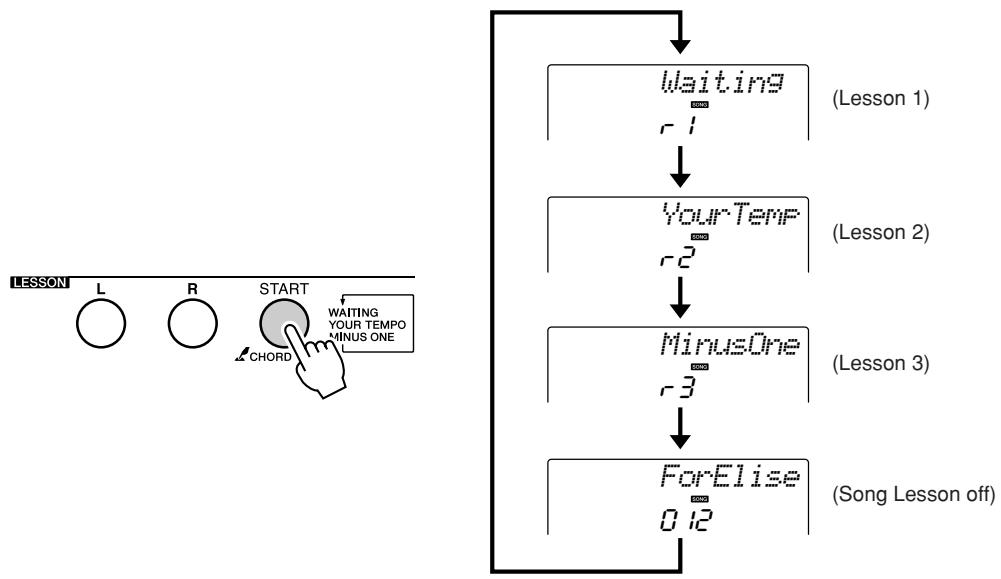
Song playback will begin automatically when you select Lesson 1.

Start the lesson!
Play the note shown in the display. When you play the correct note, the next note you need play is shown. The song will wait until you play the correct note.
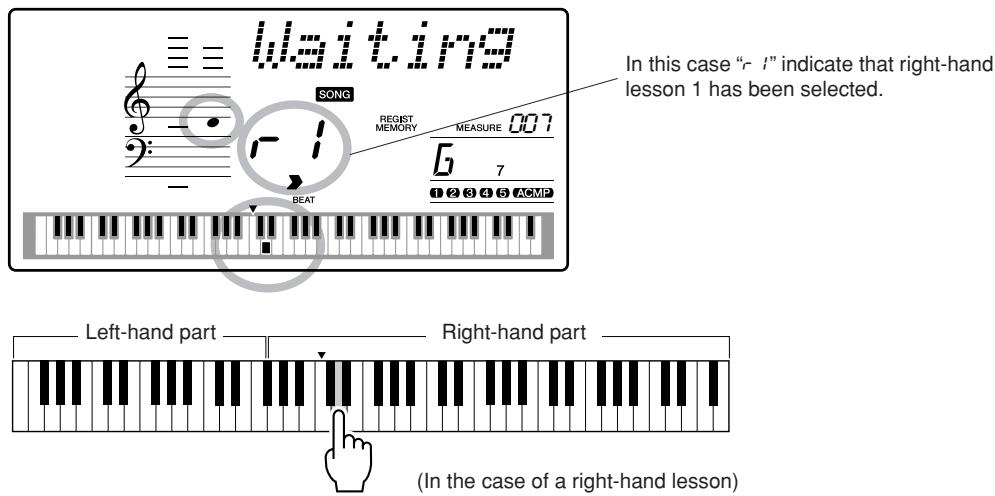
4 Stop the Lesson mode. You can stop the Lesson mode.
You can stop the Lesson mode at any time by pressing the [START/STOP] button.
Once you've mastered Lesson 1, move on to Lesson 2.
■See How You've Done
Excellent
Very Good
Good
OK
When the lesson song has played all the way through your performance will be evaluated in 4 levels: OK, Good, Very Good, or Excellent. "Excellent!" is the highest evaluation.
After the evaluation display has appeared, the lesson will start again from the beginning.
NOTE
- The evaluation feature can be turned off via the FUNCTION Grade item (page 77).
Lesson 2—Your Tempo
Learn to play the correct notes with the correct timing. Song playback tempo will vary to match the speed you are playing at. The song will slow down when you play wrong notes, so you can learn at your own pace.
1 Select the song and part you want to practice (steps 1 and 2 on pages 36, 37).
2 Start Lesson 2. Each time the LFS
Each time the LESSON [START] button is pressed the lesson modes are selected in sequence: Lesson 1 Lesson 2 Lesson 3 Off Lesson 1 ...
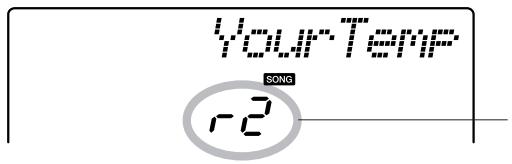
In this case "r2" indicate that right-hand lesson 2 has been selected.
Song playback will begin automatically when Lesson 2 is selected.

Start the lesson!
Play the note shown in the display. Try to play the notes at the correct timing. As you learn to play the right notes at the right timing the tempo will increase until eventually you'll be playing at the song's original tempo.
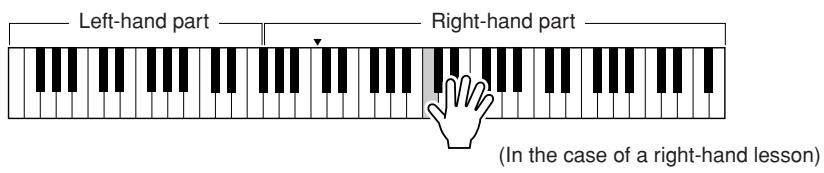
3 Stop the Lesson mode. You can stop the Lesson mode
You can stop the Lesson mode at any time by pressing the [START/STOP] button.
Once you've mastered Lesson 2, move on to Lesson 3.
Lesson 3—Minus One
Here's where you can perfect your technique.
The song will play at the normal tempo, minus the part you have chosen to play. Play along while listening to the song.
1 Select the song and part you want to practice (steps 1 and 2 on pages 36, 37).
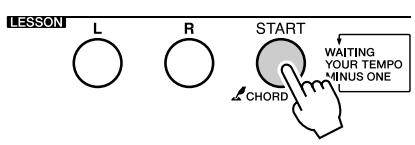
2 Start Lesson 3. Each time the LFS
Each time the LESSON [START] button is pressed the lesson modes are selected in sequence: Lesson 1 Lesson 2 Lesson 3 Off Lesson 1 ...
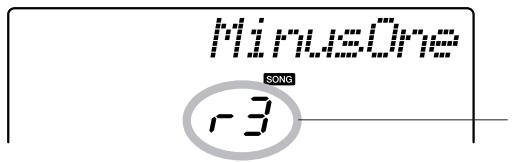
In this case "r 3" indicate that right-hand lesson 3 has been selected.
Song playback will begin automatically when Lesson 3 is selected.

Start the lesson!
Play the note shown in the display.
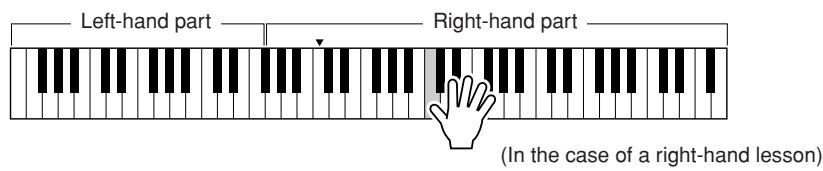
3 Stop the Lesson mode. You can stop the Lesson mo
You can stop the Lesson mode at any time by pressing the [START/STOP] button.
Practice Makes Perfect—Repeat and Learn
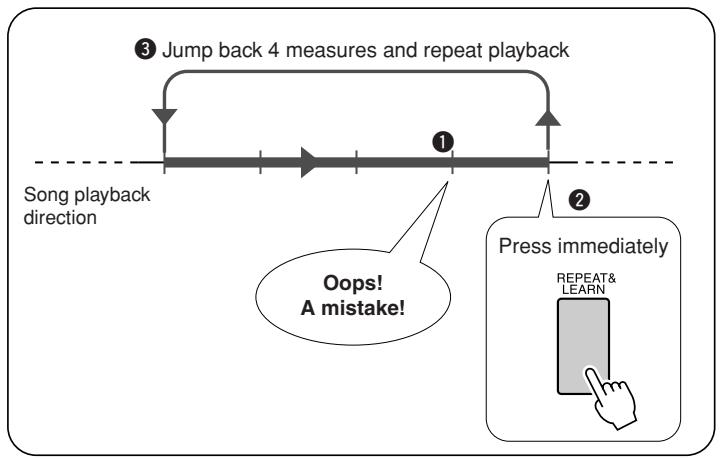
Use this feature when you want to start again just ahead of a section on which you made a mistake, or to repeatedly practice a section you find difficult.
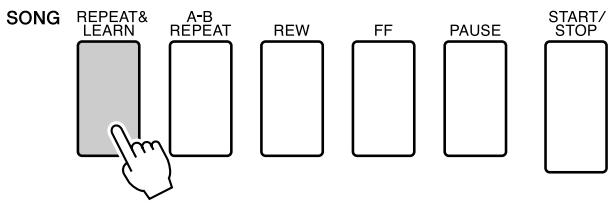
The song location will move back four measures from the point at which you pressed the button, and playback will begin after a one-measure count-in. Playback will continue up to the point at which you pressed the [REPEAT & LEARN] button, and then jump back four measures and begin again after a count-in. This process will repeat, so all you have to do is press the [REPEAT & LEARN] button when you make a mistake in order to repeat practice of that section until you get it right.
NOTE
- You can change the number of measures the Repeat and learn function jumps back by pressing a number button [1]–[9] during repeat playback.
You want to play music in your favorite style, but you're not sure how to select the best voice and style for the type of music you want to play ... simply select the appropriate style from the Music Database. The panel settings will automatically be adjusted for the ideal combination of sounds and style!
![YAMAHA DGX-220 - Press the [MUSIC DATABASE] button. - 1](/content/2025/01/114557/images/b2b2de64d1e03ec6ef45642255b7b951854226f34b0369af65661d967e4c897f.jpg)
![YAMAHA DGX-220 - Press the [MUSIC DATABASE] button. - 2](/content/2025/01/114557/images/a5e1e2c00187a3710c190c5a3fde4b6ef9964c5cd372d7a97db3771a25b4816d.jpg)
A Music Database list will appear in the display.
2 Select a Music Database. Referring to the list on the pane
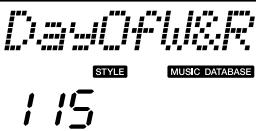
Referring to the list on the panel or Music Database List on page 107 of the manual, use the dial to select a music database. Select one that matches the image of the song you intend to play. For this example select the "115 DayOfW&R".
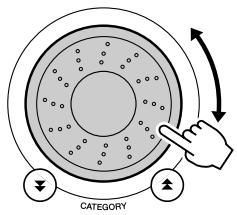
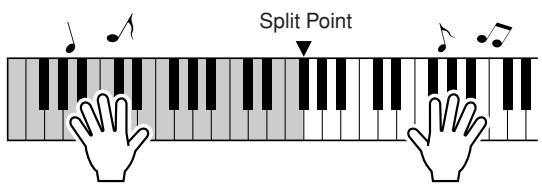
3 Play the chords with your left hand and melody with your right.
The jazz style will start playing when you play a left-hand chord to the left of the split point (page 16). Refer to page 24 for information about playing chords.
Press the [START/STOP] button to stop playback.
In addition to each song's default style, you can select any other style to play the song with the Easy Song Arranger feature. This means that you can play a song that is normally a ballad, for example, as a bossa nova, as a hip-hop tune, etc. You can create totally different arrangements by changing the style with which a song is played.
You can also change the song's melody voice and the keyboard voice for a complete change of image.
Listen to the DEMO Song for Easy Song Arranger
The "Hallelujah Chorus" in the preset songs lets you experience the Easy Song Arranger. Playing it.
Press the [SONG] button, then select a “009 Hallelujah Chorus” by using the dial. Press the [START/STOP] button to play it.
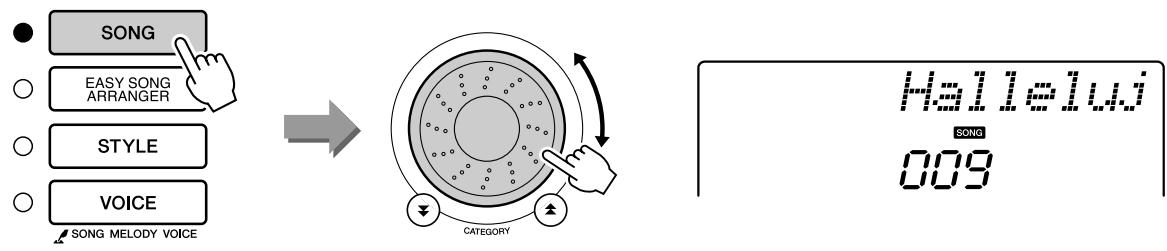
As the song progresses, you will see only the style changes while the song remains the same.
Keep in mind that you can enjoy using Easy Song Arranger with other songs as well—any songs that include chord data.
NOTE
The score for Hallelujah Chorus is provided on page 94.
Using the Easy Song Arranger
The song number and name will be displayed. You can use the dial to select a different song.
![YAMAHA DGX-220 - Press the [EASY SONG ARRANGER] button. - 1](/content/2025/01/114557/images/df341dd842989a03046cd9176e81deb371897dc60d33073dc3e07a3b05d08513.jpg)
![YAMAHA DGX-220 - Press the [EASY SONG ARRANGER] button. - 2](/content/2025/01/114557/images/5be6c708306d7985fe7aba137583ed2ceb66091a6ab911779a7225498026e272.jpg)
2 Select a Song. Use the dial to select the song you want to arrange.
3 Listen to the song. Press the START/STO
Press the [START/STOP] button to begin playback of the song. Move on to the next step while the song is playing.
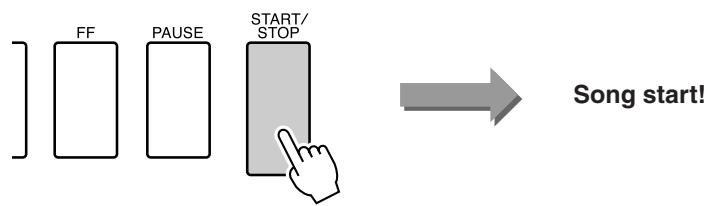
NOTE
- When playing song numbers 010, 011 and 020 to 030 while using the Easy Song Arranger, melody tracks will be automatically muted and no melody will sound. In order to hear the melody tracks you will need to press the SONG MEMORY buttons [3] to [5].
The style number and name will be displayed. You can use the dial to select a different style.
![YAMAHA DGX-220 - Press the [EASY SONG ARRANGER] button. The style number and name will be displayed. You can - 1](/content/2025/01/114557/images/12ec01d01d613442b896762b760183e8b07aa81819cb17a73a31db1f1a03488e.jpg)
![YAMAHA DGX-220 - Press the [EASY SONG ARRANGER] button. The style number and name will be displayed. You can - 2](/content/2025/01/114557/images/3fb3f5a9f3b677a143fcebc32c549d134dc468952967ee52c628c09a68b556ef.jpg)
The currently selected style number and name are displayed here.
5 Select a style. Rotate the dial ap
Rotate the dial and listen to how the song sounds with different styles. As you select different styles the song will remain the same while only the styles change. When you have selected a suitable style move on to the next step while the song is still playing (if you have stopped the song, start it again by pressing the [START/STOP] button).
NOTE
-
Because the Easy Song Arranger uses song data you can't specify chords by playing in the accompaniment range of the keyboard. The [ACMP ON/OFF] button will not function.
-
If the time signature of the song and style are different, the time signature of the song will be used.
Select a voice you want to play as a song melody.
Press the [VOICE] button. The currently selected voice number and name will be displayed. Use the dial to select a different voice.
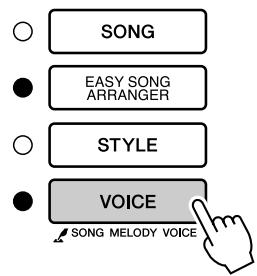
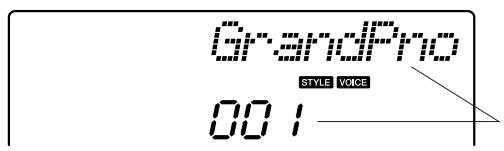
The currently selected voice number and name are displayed here.
Press and hold the [VOICE] button for longer than a second. After SONG MELODY VOICE appears on the display the voice you selected in step 6 becomes the song's melody voice.
![YAMAHA DGX-220 - Change the song's melody voice. Press and hold the [VOICE] button for lo - 1](/content/2025/01/114557/images/b55d495d504d67682d5ba095341b3186c1bb4f3528a5a384fb438d9a66caa27f.jpg)
You can record up to 5 of your own performances and save them as user songs 031 through 035. The recoreded song can be played back on the instrument.
Recordable Data
You can record to a total of 6 tracks: 5 melody tracks and 1 style (chord) track. Each track can be recorded individually.
- Melody Track [1]–[5]. Record the melody parts.
- Style Track [A] .Records the chord part.
NOTE
- Up to approximately 10,000 notes can be recorded if you record only to the melody tracks. Up to approximately 5,500 chord changes can be recorded if you record only to the style track.
Track Configuration
To record your own performance, first use the SONG MEMORY [1]–[5] and [A] buttons to specify the track(s) you want to record on. The track you record on determines the part that plays back later.
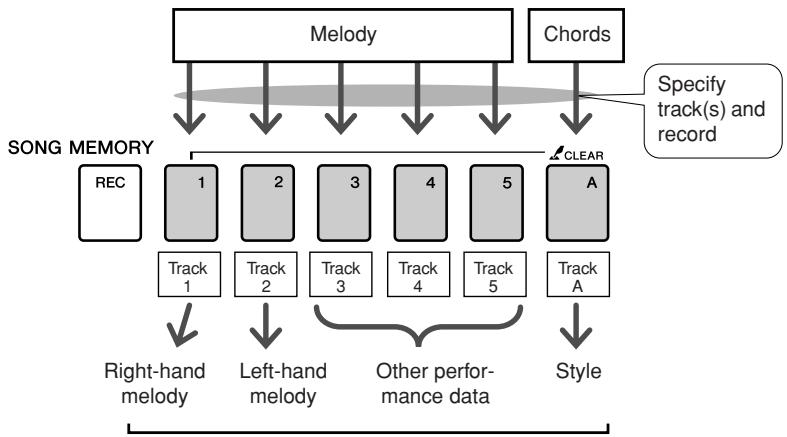
The parts played by each track when a user song is played back.
- Track [1]—Will play back as the right-hand melody part (MELODY R)
- Track [2]—Will play back as the left-hand melody part (MELODY L)
- Tracks [3]-[5]—Will play back as "other" performance data.
- Track [A]—Will play back as the Style (auto-accompaniment) part.
NOTE
- The Difference Between MEODY R and MEODY L ... Songs are a combination of a melody and an auto-accompanyment style. Normally "melody" refers to the right-hand part, but in this instrument "melody" parts are provided for both the right and left hands. MEODY R is the melody part played by the right hand, and MEODY L is the melody part played by the left hand.
Recording Procedure
Press the [SONG] button, then use the dial to select the user song number (031-035) you want to record to.
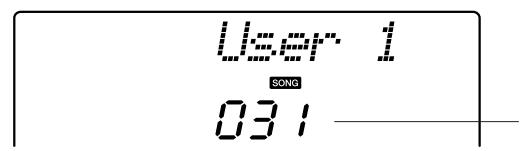
Rotate the dial to select a song number between 031 and 035.
2 Select the track(s) you want to record to and confirm your selection on the display.
Record a Melody Track and the Accompaniment Track Together
Press the melody track button [1]–[5] you want to record to while holding the [REC] button.
Next, press the [A] button while holding the [REC] button.
The selected tracks will flash in the display.


CAUTION
- If you record to a track that contains previously-recorded data the previous data will be overwritten and lost.
NOTE
- Style accompaniment is automatically turned on when you select the style track [A] for recording.
- Style accompaniment cannot turned on or off while recording is in progress.
- If you use a split voice for recording, notes played to the left of the split point will not be recorded.
Record a Melody track
Press the melody track button [1]–[5] you want to record to while holding the [REC] button.
The selected track will flash in the display.


NOTE
- If style accompaniment is on and track [A] has not yet been recorded, the style track [A] will automatically be selected for recording when a melody track is selected. If you only want to record a melody track, be sure to turn the style track [A] off.
To cancel recording to a selected track, press that track button a second time. Style accompaniment cannot be turned on or off while recording is in progress.
3 Recording will start when you play on the keyboard. You can also start recording by pressing the [START/STOP] butt
The current measure will be shown on the display during recording.
![YAMAHA DGX-220 - Recording will start when you play on the keyboard. You can also start recording by pressing the [START/STOP] butt - 1](/content/2025/01/114557/images/1ad5f8c98a3bd2892ef9116408cc612a2dfe1284f3c94b805f928d2c9d2808c8.jpg)
![YAMAHA DGX-220 - Recording will start when you play on the keyboard. You can also start recording by pressing the [START/STOP] butt - 2](/content/2025/01/114557/images/4aebf514f783f7b230f740dae7c4d9704df79a5718567c24f15835a60d160f11.jpg)
NOTE I
- If the memory becomes full during recording a warning message will appear and recording will stop automatically. Use the song clear or track clear (page 48) function to delete unwanted data and make more room available for recording, then do the recording again.
![YAMAHA DGX-220 - Stop recording by pressing the [START/STOP] or [REC] button. - 1](/content/2025/01/114557/images/62fc6003c848dce2abe660a5a738dfea84d202883fd83717b8e94415b01c3cd8.jpg)
If you press the [INTRO/ENDING/rit.] button while recording the style track an appropriate ending pattern will play and then recording will stop. When recording stops the current measure number will return to 001 and the recorded track numbers in the display will light.
To Record Other Tracks
Repeat steps 2 through 4 to record any of the remaining tracks. By selecting an unrecorded track—SONG MEMORY buttons [1]–[5], [A]—you can record the new track while listening to previously recorded tracks (the playback tracks will appear in the display). You can also mute previously recorded tracks (the muted tracks will not appear in the display) while recording new tracks.
To Re-record a Track
Simple select the track you want to re-record for recording in the normal way.
The new material will overwrite the previous data.
5 When the recording is done ...
To Play Back a User Song
User songs are played back in the same way as regular songs (page 25).
1 Press the [SONG] button.
2 The current song number/name will be displayed—use the dial to select the user song (031-035) you want to play.
3 Press the [START/STOP] button to start playback.
Data Recording Limitations
- The split voice cannot be recorded.
- The following data are recorded at the beginning of the track. Changes made during the song will not be recorded.
reverb type, chorus type, time signature, style number, style volume, tempo (When the style track is recorded)
Song Clear—Deleting User Songs
This function clears an entire user song (all tracks).
Press the [SONG] button, then select the user song (031-035) you want to clear.
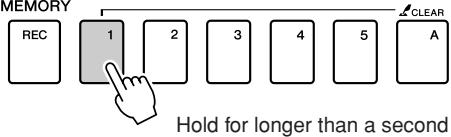
2 Press and hold the SONG MEMORY [1] button for longer than a second while holding the SONG MEMORY [A] button.
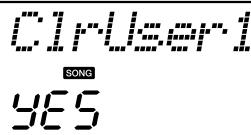
A confirmation message will appear on the display.
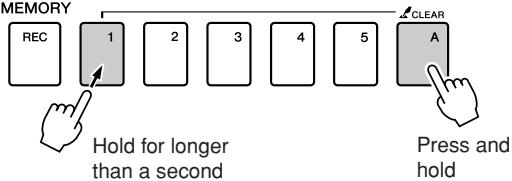
SONG MEMORY
3 Press the [+] button.
A confirmation message will appear on the display.
You can cancel the clear operation by pressing the [-] button.
Press the [+] button to clear the song.
The clear-in-progress message will appear briefly on the display while the song is being cleared.
NOTE
To execute the Song Clear function press the [+] button. Press [-] to cancel the Song Clear operation.
Track Clear—Deleting a Specified Track from a User Song
This function lets you delete a specified track from a user song.
Press the [SONG] button, then select the user song (031-035) you want to clear.
2 Press and hold the SONG MEMORY track button ([1]–[5], [A]) corresponding to the track you want to clear for longer than a second.
A confirmation message will appear on the display.
SONG MEMORY
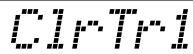

3 Press the [+] button. A confirmation message
A confirmation message will appear on the display.
You can cancel the clear operation by pressing the [-] button.
Press the [+] button to clear the track. The clear-in-progress message will appear brie
The clear-in-progress message will appear briefly on the display while the track is being cleared.
NOTE
To execute the Track Clear function press the [+] button. Press [-] to cancel the Track Clear operation.
Backup
The following settings are always backed up, and are maintained even when the power is turned off. If you want to initialize the settings, use the Initialize operation as explained below.
The Backup Parameters
- User Songs
- Style Files
- Registration Memory
- FUNCTION Settings: Tuning, Split Point, Touch Sensitivity, Style Volume, Song Volume, Metronome Volume, Grade, Demo Cancel, Master EQ type
Initialization
This function erases all backup data in the instrument's flash memory and restores the initial default settings. The following initialization procedures are provided.
■Backup Clear
To clear data backed up to the internal flash memory—panel user setting, registration memory, user songs, style file 151—turn the power on by pressing the [STANDBY/ON] switch while holding the highest white key on the keyboard. The backed up data will be erased and the default values restored.
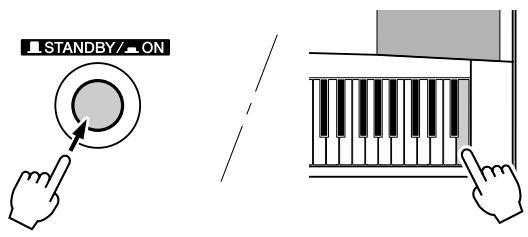
■Flash Clear
To clear song data and style files that have been transferred to the internal flash memory from a computer, turn the power on by pressing the [STANDBY/ON] switch while simultaneously holding the highest white key on the keyboard and the three highest black keys.
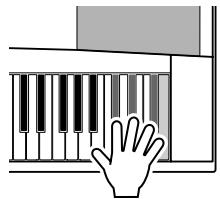
CAUTION
- When you execute the Flash Clear operation, song data you have purchased will also be cleared. Be sure to save data you want to keep to a computer.
Basic Operation
Overall DGX-220/YPG-225 control is based on the following simple operations.
1 Press a button to select a basic function.
2 Use the dial to select an item or value.
3 Start a function.
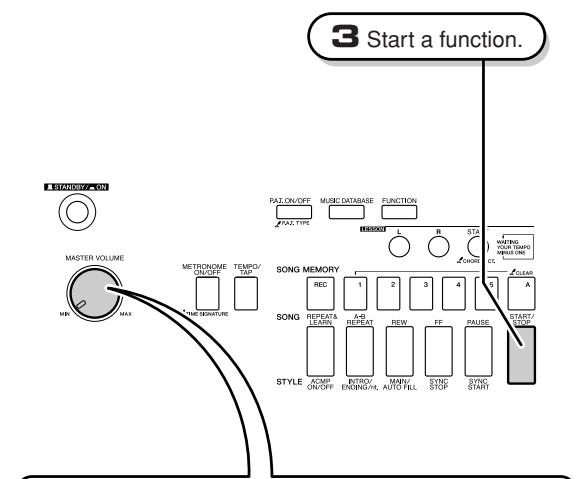
Volume Adjustment
Adjusts the volume of the sound heard via the instrument's speakers or a pair of headphones plugged into the PHONES jack.
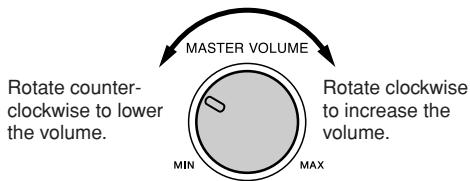
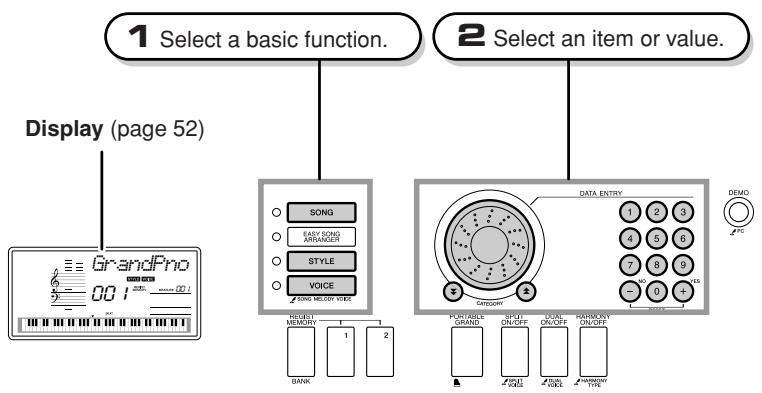
The "Press & Hold" Symbol
The " ” symbol that appears next to some buttons indicates that the button can be pressed and held for longer than a second to call up a related function. This provides convenient direct access to a range of functions.
SONG Select a song you want to listen to or a song you want to use for a lesson.
EASY SONG ARRANGER
O STYLE Select an auto-accompanyiment style.
VOICE Select a voice you want to play on the keyboard. SONG MELODY VOICE
2 Use the dial to select an item or value.
When you select a basic function, the item corresponding to that function will be displayed. You can then use the dial or the number buttons [0]–[9] to select the desired item.
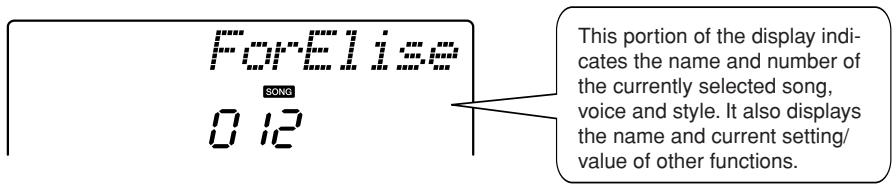
Changing Values.
Dial
Rotate the dial clockwise to increase the value of the selected item, or counterclockwise to decrease its value. Rotate the dial continuously to continuously increase or decrease the value.
Decrease Increase
Press the [+] button briefly to increment the value by 1, or press the [-] button briefly to decrement the value by 1. Press and hold either button to continuously increment or decrement the value in the corresponding direction.
![YAMAHA DGX-220 - - [+] and [-] Buttons - 1](/content/2025/01/114557/images/6e065fd232b0a7a3dd728508153476a7c9a4f8499a6a347e9555281e0f12dc06.jpg)
Press briefly to decrement.
Press briefly to increment.
The number buttons can be used to directly enter a song number or parameter value.
Hundreds or tens digits that are "0" can be omitted (see below).
Example: Song number "003" can be entered in three ways.
- [0] [0] [3]
- [0] [3] ("003" will appear on the display after a brief delay)
[3] ("003" will appear on the display after a brief delay)
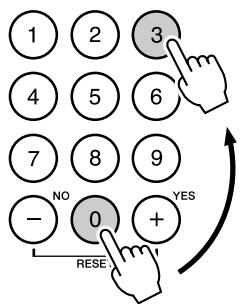
Press number buttons [0], [0], [3].
When selecting a song, style, or voice, you can use these buttons to jump to the first item in the next or previous category.
The CATEGORY [] and [] buttons are useful for selecting categorized items, as in the example below.
![YAMAHA DGX-220 - - CATEGORY [▲] and [▼] buttons - 1](/content/2025/01/114557/images/ab865151eda0d192d3e4db7abce91a0a977bd3f313a61b1951314a340de53028.jpg)
Jump to the first item in the next or previous category.
Example: VOICE SELECT
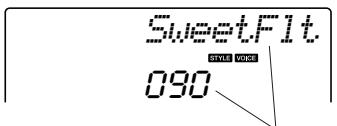
The first voice in the selected category is selected.
In a display in which a category appears, selection is easy if you first use the CATEGORY [A] and [B] buttons to select the category containing the desired item, then use the dial or [+] and [-] buttons to select the item. This can be particularly handy when you have to select from a large number of voices.
In most procedures described throughout this owner's manual the dial is recommended for selection simply because it is the easiest and most intuitive selection method. Please note however, that most items or values that can be selected using the dial can also be selected using the [+] and [-] buttons.
3 Start a function.

START/ STOP
This is the [START/STOP] button.
Press the [START/STOP] button after pressing the [SONG] or [STYLE] button to start playback of the selected song or style (rhythm).
Display Items
The display shows all of the current basic settings: song, style, voice.
It also includes a range of indicators that show the on/off status of a range of functions.
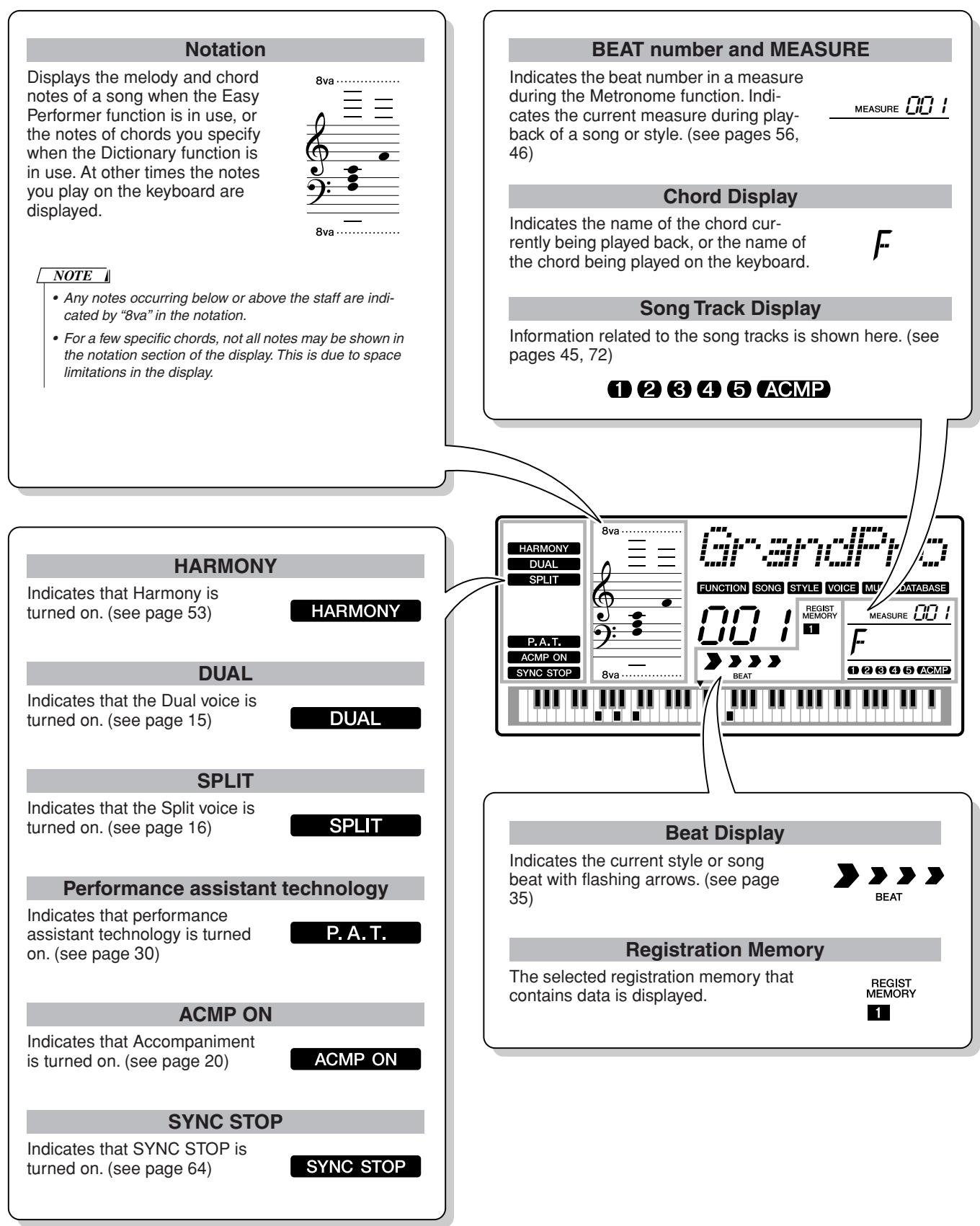
Harmony
This feature adds harmony notes to the main voice.
To turn Harmony off, press the [HARMONY ON/OFF] button again.
![YAMAHA DGX-220 - Press the [HARMONY ON/OFF] button to turn Harmony feature on. - 1](/content/2025/01/114557/images/768ae2bccca4aa5e75f7199d5147bc1b837eeb5544009007e7fc9b8ecd91a43f.jpg)
![YAMAHA DGX-220 - Press the [HARMONY ON/OFF] button to turn Harmony feature on. - 2](/content/2025/01/114557/images/b638cb0b7e6df418b0e53073b7ae20d3262f2304c6549609548cd33f83d91132.jpg)
When you press the [HARMONY ON/OFF] button to turn this feature on, the appropriate harmony type for the currently selected main voice is automatically selected.
"HarmType" appears in the display for a few seconds, and the currently selected harmony type will be displayed. Use the dial to select a different harmony type.
![YAMAHA DGX-220 - Press and hold the [HARMONY ON/ OFF] button for longer than a second so that the Harmony Type item appears. - 1](/content/2025/01/114557/images/1a8d4d845d5901866b1502e6621fd72bbdb55743347464215b952724d62683ff.jpg)
Hold for longer than a second.
![YAMAHA DGX-220 - Press and hold the [HARMONY ON/ OFF] button for longer than a second so that the Harmony Type item appears. - 2](/content/2025/01/114557/images/c6b57a77708a5cb6d01bc5d74b36eb5ae285967352bc788e4d11a584d315e537.jpg)
The currently selected harmony type
- How to sound each Harmony Type
Harmony type 01 to 05
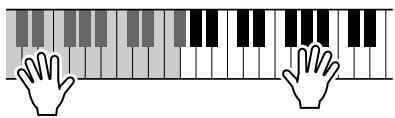
Press the right-hand keys while playing chords in the auto accompaniment range of the keyboard when the Auto Accompaniment is on (page 20).
- Harmony type 06 to 12 (Trill)
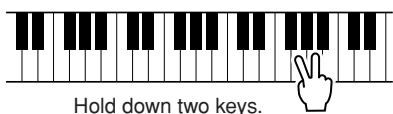
3 Use the dial to select a harmony type.
Refer to the Effect Type List on page 109 for information about the available harmony types. Try playing the keyboard with the harmony function. The effect and operation of each Harmony Type is different-refer to the below section "How to sound each Harmony Type" as well as the Effect Type List for details.
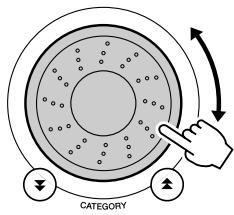
NOTE
- Harmony type 20 to 26 (Echo)
You can adjust the Harmony Volume in the Function Settings (page 62).
Adding Reverb
Reverb lets you play with a rich concert hall type ambience. When you select a style or song the optimum reverb type for the voice used is automatically selected. If you want to select a different reverb type, use the procedure described below.
![YAMAHA DGX-220 - Press the [FUNCTION] button. - 1](/content/2025/01/114557/images/06d868b52a8fc245adf0f188aa2e2e3f3fe2782f252456b1eed0ed1b24f90f26.jpg)
"Reverb" appears in the display for a few seconds, and the currently selected reverb type will be displayed.
![YAMAHA DGX-220 - Use the CATEGORY [▲] and [▼] buttons to select the Reverb Type item. - 1](/content/2025/01/114557/images/1c6bba4c9242cfe67332d490e9d383f6fec148674627fc3626025c35e85f45c8.jpg)
3 Use the dial to select a reverb type.
You can check how the selected reverb type sounds by playing on the keyboard.
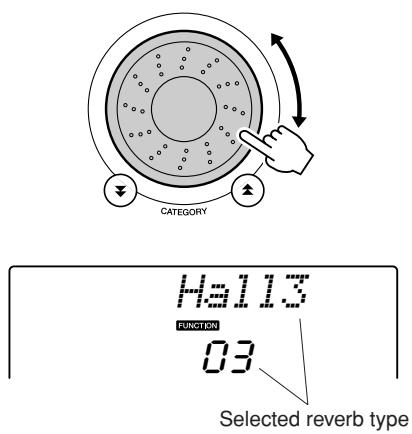
Refer to the Effect Type List on page 109 for information about the available reverb types.
Adjusting the Reverb Level
You can individually adjust the amount of reverb that is applied to the main, dual, and split voices. (See page 76).
Adding Chorus
The chorus effect creates a thick sound that is similar to many of the same voices being played in unison. When you select a style or song the optimum chorus type for the voice used is automatically selected. If you want to select a different chorus type, use the procedure described below.
![YAMAHA DGX-220 - Press the [FUNCTION] button. - 1](/content/2025/01/114557/images/71a5e9550a29bb9fa504976aac00c1082380529fecc61c73a699313e45477e39.jpg)
"Chorus" appears in the display for a few seconds, and the currently selected chorus type will be displayed.
![YAMAHA DGX-220 - Use the CATEGORY [▲] and [▼] buttons to select the Chorus Type item. - 1](/content/2025/01/114557/images/97999715855b47b8bd9b0c52ac0df5d47f91939d36ab46339771fcf1eb629aa1.jpg)
![YAMAHA DGX-220 - Use the CATEGORY [▲] and [▼] buttons to select the Chorus Type item. - 2](/content/2025/01/114557/images/9f67cc4b3b074cf26bf9ff24241441c7302e0688c3e40ccb056aa5f0b93faa4a.jpg)
![YAMAHA DGX-220 - Use the CATEGORY [▲] and [▼] buttons to select the Chorus Type item. - 3](/content/2025/01/114557/images/3890e1fcbbb8f5da17aa37a762c725bd269cf6dadb609667bacbd5c63a61dd25.jpg)
![YAMAHA DGX-220 - Use the CATEGORY [▲] and [▼] buttons to select the Chorus Type item. - 4](/content/2025/01/114557/images/53251d34db261a9ce8a3853336dcbcbd41695af32e384819feb0e9c52a8f414b.jpg)
The currently selected chorus type
3 Use the dial to select a chorus type.
You can check how the selected chorus type sounds by playing on the keyboard.
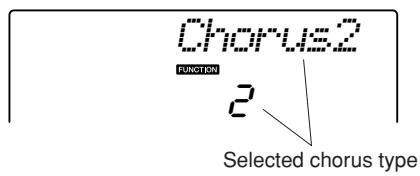
Refer to the Effect Type List on page 109 for information about the available chorus types.
Adjusting the Chorus Level
You can individually adjust the amount of chorus that is applied to the main, dual, and split voices. (See page 76).
The Metronome
The instrument includes a metronome with adjustable tempo and time signature.
Use it to set the tempo that is most comfortable for you.
Start the metronome.
Turn the metronome on and start it by pressing the [METRONOME ON/OFF] button.
To stop the metronome, press the [METRO-NOME ON/OFF] button again.
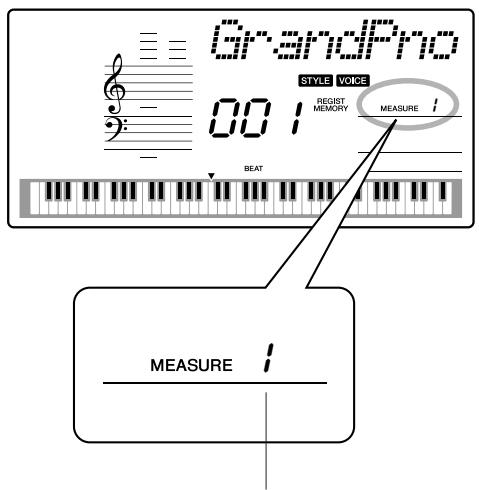
Indicates the beat number in the measure
Adjusting the Metronome Tempo
Press the [TEMPO/TAP] button to call up the tempo setting.
Tempo
090
Current Tempo setting
2 Use the dial to select a tempo from 11 to 280.
Setting the Number of Beats per Measure, and the Length of Each Beat
In this example we'll set up a 5/8 time signature.
Press and hold the [METRONOME ON/OFF] button for longer than a second to select the number of beats per measure function "TimesigN".
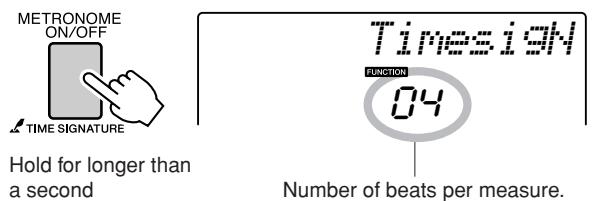
2 Use the dial to select the number of beats per measure.
A chime will sound on the first beat of each measure while the other beats will click. All beats will simply click with no chime at the beginning of each measure if you set this parameter to "00".
The available range is from 0 through 60. Select 5 for this example.
NOTE
- The metronome time signature will synchronize to a style or song that is playing, so these parameters cannot be changed while a style or song is playing.
3 Press the CATEGORY [▲] and [▼] buttons as many times as necessary to select the beat length function "TimesigD".
The currently selected beat length will be displayed.
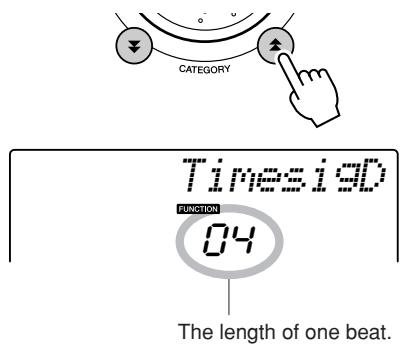
4 Use the dial to select the beat length.
Select the required length for each beat: 2, 4, 8, or 16 (half note, quarter note, eighth note, or 16^th note). Select 8 for this example.
Adjusting the Metronome Volume
Press the [FUNCTION] button.
2 Use the CATEGORY [▲] and [▼] buttons to select the Metronome Volume item.
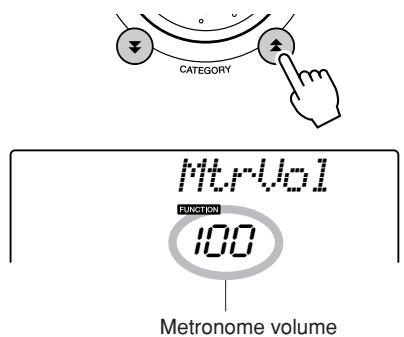
3 Use the dial to set the metronome volume as required.
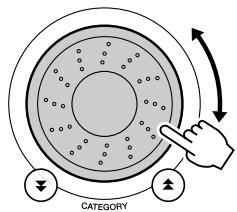
Tap Start
You can start the song/style by simply tapping the [TEMPO/TAP] button at the required tempo—4 times for time signatures in 4, and three times for time signatures in 3. You can change the tempo during song playback by pressing the button just twice.
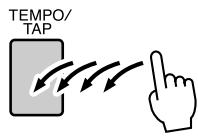
Touch Response Sensitivity
When touch response is on you can adjust the keyboard's sensitivity to dynamics in three steps.
![YAMAHA DGX-220 - Press the [FUNCTION] button. - 1](/content/2025/01/114557/images/74cc8a649159b2a99cfc5630664198d1a04b4775b68843ff10e146465b14e608.jpg)
"TouchSns" appears in the display for a few seconds, and the currently selected touch sensitivity will be displayed.
![YAMAHA DGX-220 - Use the CATEGORY [▲] and [▼] buttons to select the Touch Sensitivity item. - 1](/content/2025/01/114557/images/bb7fb0dc9419aa7d85f59dd207fb1aaa72867ccac2fff8bbcde0f1529b843bec.jpg)
![YAMAHA DGX-220 - Use the CATEGORY [▲] and [▼] buttons to select the Touch Sensitivity item. - 2](/content/2025/01/114557/images/54cd431a8cb3e0afdda162a7b8d1cde8c30023f47f5d1e48c2f4d5ac32fdb3f7.jpg)
![YAMAHA DGX-220 - Use the CATEGORY [▲] and [▼] buttons to select the Touch Sensitivity item. - 3](/content/2025/01/114557/images/d43db0255aa6388323e5f8657c23241edd903a3ad6e5b09a1b88872bd5a01cfa.jpg)
3 Use the dial in response to keyboard dynamics to select a touch sensitivity setting between 1 and 3. Higher values produce greater (easier) volume variation in response to keyboard dynamics—i.e. greater sensitivity.
A setting of "4" results in a fixed touch response, or no level change no matter how hard or how soft you play the keys.
NOTE
- The initial default touch sensitivity setting is "2".
Panel Sustain
This function adds sustain to the keyboard voices. Use it when you want to add sustain to the voices at all times, regardless of footswitch operation. The sustain function does not affect split voice.
![YAMAHA DGX-220 - Press the [FUNCTION] button. - 1](/content/2025/01/114557/images/fbbe6d4b1d46389cbe0fa8657b2500c6719ed25c93d2600cf5716bff32b46b7e.jpg)
The current setting is displayed.
![YAMAHA DGX-220 - Use the CATEGORY [▲] and [▼] buttons to select the Sustain item. - 1](/content/2025/01/114557/images/eb09b5b12e67199cf194bee9f956f04f8eb2335dd9b008508e0b323c375cf625.jpg)
![YAMAHA DGX-220 - Use the CATEGORY [▲] and [▼] buttons to select the Sustain item. - 2](/content/2025/01/114557/images/c7ce8faf0d37fd10e4943620efa4a219e62225ed0883eec653a80f2dd9299783.jpg)
- The sustain of some voices may not be markedly affected when the panel sustain function is turned on.
NOTE
Pitch Bend
The pitch bend wheel can be used to add smooth pitch variations to notes you play on the keyboard. Roll the wheel upward to raise the pitch, or downward to lower the pitch. If you use this feature with a voice such as the "040 Overdriven" guitar voice, you can produce remarkably realistic string-bending effects. You can change the amount of pitch bend produced by the wheel, as described on page 76.
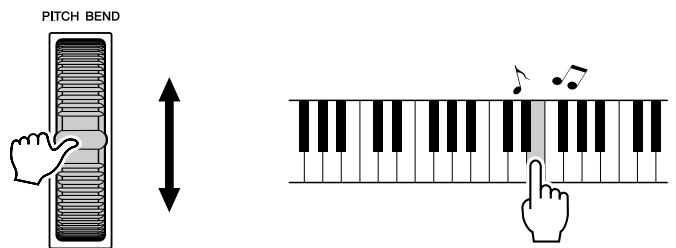
Pitch Controls
Large Pitch Changes (Transpose)
The overall pitch of the instrument can by shifted up or down by a maximum of 1 octave in semitone increments.
![YAMAHA DGX-220 - Press the [FUNCTION] button. - 1](/content/2025/01/114557/images/390a5468fee202432cb583e25ddac6453fb9d9e3cd0238e4615a513d4e2aabe2.jpg)
![YAMAHA DGX-220 - Use the CATEGORY [▲] and [▼] buttons to select the Transpose item. - 1](/content/2025/01/114557/images/1fd6df9cae2d8640119decb5d200c80f143abb1d78978ce563b0b0706c2c4e53.jpg)
3 Use the dial to set the transpose value between -12 and +12 as required.
NOTE
- The pitch of Drum Kits voices cannot be changed.
Small Pitch Changes (Tuning)
The overall tuning of the instrument can by shifted up or down by a maximum of 100 cents in 1-cent increments (100 cents = 1 semitone).
![YAMAHA DGX-220 - Press the [FUNCTION] button. - 1](/content/2025/01/114557/images/ec829d1272531d4e4323b459bc40d37709a1a60172ac75bd31f0a95a2d01639d.jpg)
![YAMAHA DGX-220 - Use the CATEGORY [▲] and [▼] buttons to select the Tuning item. - 1](/content/2025/01/114557/images/03d5a3ffb3a1e0f0c9e387dd83b8f475f356a4a4f106bdc57f791a280ec7843a.jpg)
3 Use the dial to set the tuning value between -100 and +100 as required.
NOTE
- The pitch of Drum Kits voices cannot be changed.
One Touch Setting
Sometimes selecting the ideal voice to play with a song or style can be confusing. The One Touch Setting feature automatically selects a well-balanced voice for you when you select a style or song. Simply select voice number "000" to activate this feature.
1 Select voice number "000" (steps 1 to 2 on page 14).
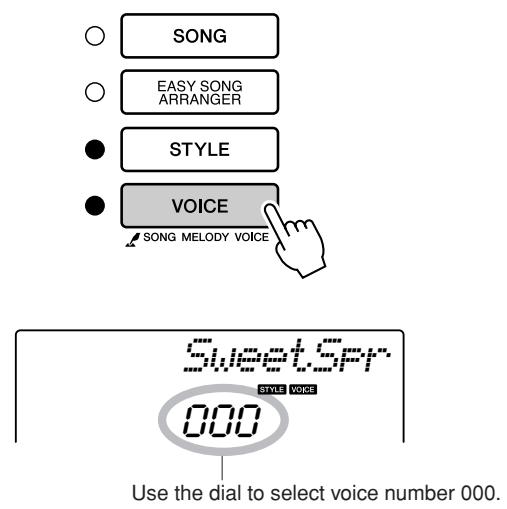
2 Select and play back any song (steps 1 to 3 on page 25).
3 Play the keyboard and remember the sound of the voice.
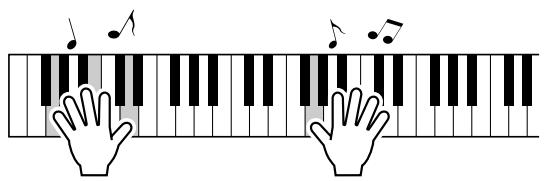
If you have stopped playback at some point during this procedure press the [START/STOP] button to start playback again.
4 Use the dial to change songs, then play the keyboard and listen to the voice.
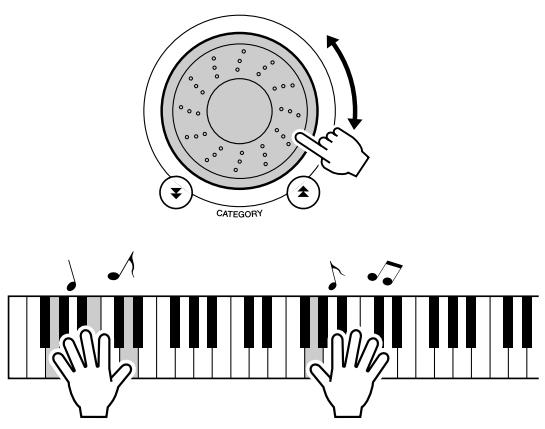
You should hear a different keyboard voice than you played in step 3. Press the [VOICE] button after changing songs to see the name of the voice being used.
Adjusting the Harmony Volume
![YAMAHA DGX-220 - Press the [FUNCTION] button. - 1](/content/2025/01/114557/images/2f78182f219ce47ba6edc009c3aeaca35d16746ff0fcc422162ebbb4f554f3f2.jpg)
![YAMAHA DGX-220 - Use the CATEGORY [▲] and [▼] buttons to select the Harmony Volume item. - 1](/content/2025/01/114557/images/19d1d7abfbdba3703d04b5e27fd7bcd29839c4bcd52cb1e9a356bf698320c07f.jpg)
![YAMAHA DGX-220 - Use the CATEGORY [▲] and [▼] buttons to select the Harmony Volume item. - 2](/content/2025/01/114557/images/a70ac1d6a3f58678171f248d2efaa716b533c7c2681dfa1d31bcb72b7d708513.jpg)
3 Use the dial to set the harmony volume between 000 and 127.
Select an EQ Setting for the Best Sound
Five different master equalizer (EQ) settings are provided to give you the best possible sound when listening through different reproduction systems—the instrument's internal speakers, headphones, or an external speaker system.
The currently selected function will appear in the display.
![YAMAHA DGX-220 - Press the [FUNCTION] button. - 1](/content/2025/01/114557/images/1ef60f3b4d3fb7ebd4f5177e3247d0cfa10ea1e81c7d6215e38598fd0c5b8121.jpg)
"MasterEQ" will be shown in the display for a few seconds, then the currently selected EQ type will appear.
![YAMAHA DGX-220 - Press the CATEGORY [A] and [Y] buttons as many times as necessary to select the master EQ type function "MasterEQ". - 1](/content/2025/01/114557/images/78024184c8fd7ee04906d0323121bb682a6b7c2eaee1c7a716ac6becd8eff1d6.jpg)
![YAMAHA DGX-220 - Press the CATEGORY [A] and [Y] buttons as many times as necessary to select the master EQ type function "MasterEQ". - 2](/content/2025/01/114557/images/d3e506ea24d641c6da97cafa7420941f688d291d3fcec60253487fbf6d7e3e7a.jpg)
3 Use the dial to select the desired Master EQ setting.
Five settings are available: 1-5. Settings 1 and 2 are best for listening via the instrument's built-in speakers, setting 3 is for headphones, and settings 4 and 5 are ideal for listening via external speakers.
Basic operation of the Style (auto-accompanyment) feature is described on page 19 of the Quick Guide.
Here are some other ways you can play the styles, the style volume adjustment procedure, how you can play chords using the styles, and more.
Pattern Variation (Sections)
The DGX-220/YPG-225 features a wide variety of style "sections" that allow you to vary the arrangement of the accompaniment to match the song you are playing.
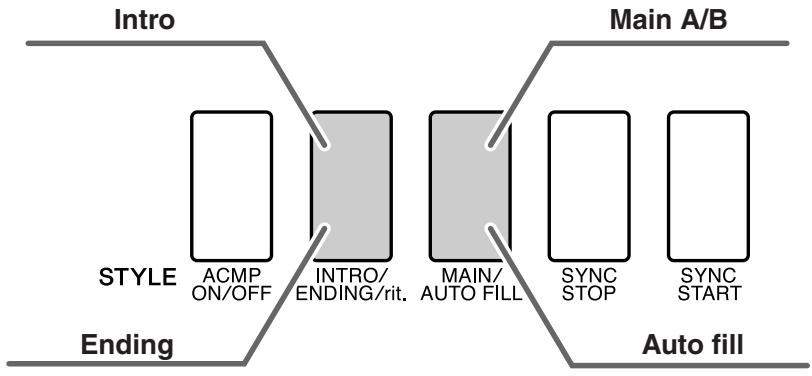
INTRO section
This is used for the beginning of the Song. When the intro finishes playing, accompaniment shifts to the main section. The length of the intro (in measures) differs depending on the selected Style.
MAIN section
This is used for playing the main part of the Song. It plays a main accompaniment pattern, and repeats indefinitely until another section's button is pressed. There are two variations on the basic pattern (A and B), and the Style playback sound changes harmonically based on the chords you play with your left hand.
- Fill-in section
This is automatically added before changing to section A or B.
ENDING section
This is used for the ending of the Song. When the ending is finished, the auto accompaniment stops automatically. The length of the ending (in measures) differs depending on the selected Style.
![YAMAHA DGX-220 - Press the [ACMP ON/OFF] button to turn auto accompaniment on. - 1](/content/2025/01/114557/images/468c0060dd3d5cb12f9900f5a5fb24397957a2082b40be91a551cbb4b9691399.jpg)
![YAMAHA DGX-220 - Press the [SYNC START] button to turn synchro start on. - 1](/content/2025/01/114557/images/0faa647c63cdb0ad76c144053dd6601f2720e22b7b54aea17f3d062fbc77aa7f.jpg)
Synchro Start
When the synchro start standby mode is engaged, style playback will begin as soon as you play a chord in the accompaniment range of the keyboard. You can disengage the synchro-start standby mode by pressing the [SYNC START] button again.
4 Press the [MAIN/AUTO FILL] button.
![YAMAHA DGX-220 - Press the [MAIN/AUTO FILL] button. - 1](/content/2025/01/114557/images/598bd038a8cb5f1256674a4a8609027e2fafa976f4b515c51b4be6944c7f30ce.jpg)
![YAMAHA DGX-220 - Press the [MAIN/AUTO FILL] button. - 2](/content/2025/01/114557/images/6bcdf42fc12a2f5f3dc0eb038e2c1c0db866e732bba6b8fa152b23c81664849b.jpg)
The name of the selected section—MAIN A or MAIN B—will be displayed.
![YAMAHA DGX-220 - Press the [INTRO/ENDING/rit.] button. - 1](/content/2025/01/114557/images/0f58716a9f7588f746f44d118ce5847d2e1e53cb94fd76acbe3af84f94f7de9b.jpg)
![YAMAHA DGX-220 - Press the [INTRO/ENDING/rit.] button. - 2](/content/2025/01/114557/images/f83f442d40f09f2c8bdbb3c2e0bde9e3e9f10e1ec66d45de2f35514c69b0553f.jpg)
You're now ready to play the intro.
As soon as you play a chord with your left hand, the Intro of the selected Style starts.
For this example, play a C major chord (as shown below). For information on how to enter chords, see "Playing Auto-accompaniment Chords" on page 24.
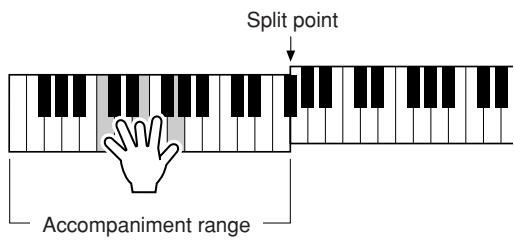
7 Press the [MAIN/AUTO FILL] button.
![YAMAHA DGX-220 - Press the [MAIN/AUTO FILL] button. - 1](/content/2025/01/114557/images/f3860a82adfe8b00df42ad249996da0d81772286a6dd0051a8209d40e4c4b1d5.jpg)
![YAMAHA DGX-220 - Press the [MAIN/AUTO FILL] button. - 2](/content/2025/01/114557/images/f8f2b1ee491c397325f8c6c67e8d9283a68f2237323854e8802f2186a8dfe655.jpg)
When the fill-in is finished, it leads smoothly into the selected main section A/B.
![YAMAHA DGX-220 - Press the [INTRO/ENDING/rit.] button. - 1](/content/2025/01/114557/images/357b9614e644e3804f18c8bc5474e3c767d8a2628664e749c99e5423cc277159.jpg)
This switches to the ending section. When the ending is finished, the auto accompaniment stops automatically. You can have the ending gradually slow down (ritardando) by pressing the [INTRO/ENDING/rit.] button again while the ending is playing back.
Synchro Stop
When this function is selected the accompaniment style will only play while you are playing chords in the accompaniment range of the keyboard. Style playback will stop when you release the keys. To turn the function on, press the [SYNC STOP] button.
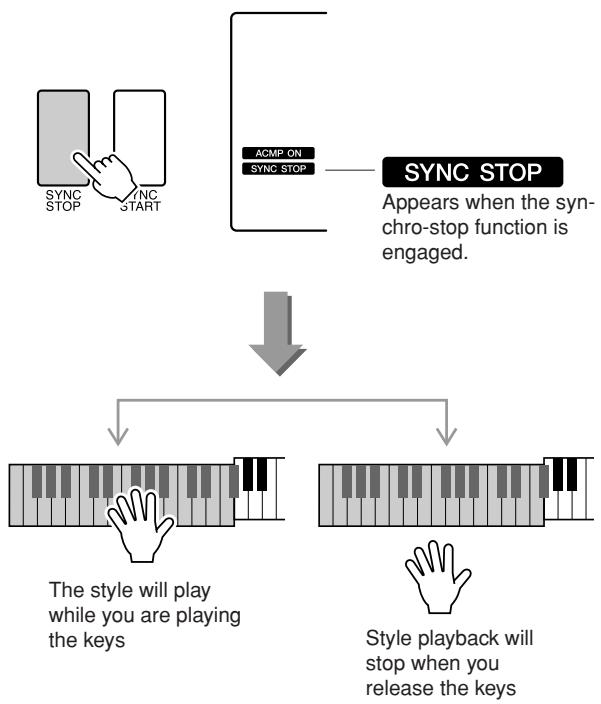
Adjusting the Style Volume
Press the [STYLE] button to engage the style function.
Press the [FUNCTION] button.
2 Use the CATEGORY [▲] and [▼] buttons to select the Style Volume item.
Styleval
INT1ON
100
3 Use the dial to set the style volume between 000 and 127.
Setting the Split Point
The initial default split point is key number 54 (the F#2 key), but you can change it to another key using the procedure described below.
Press the [FUNCTION] button.
2 Use the CATEGORY [▲] and [▼] buttons to select the Split point item.
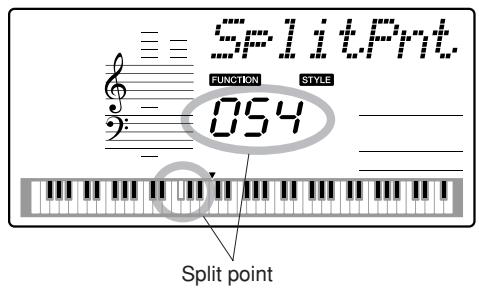
3 Use the dial to set the split point to any key from 000 (C-2) through 127 (G8).
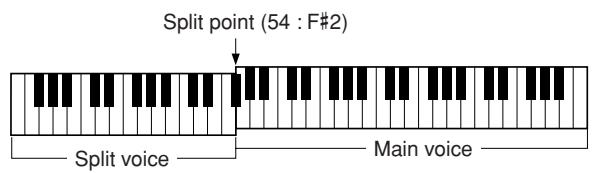
NOTE
- When you change the split point the auto-accompaniment split point also changes.
- The split point cannot be changed during a song lesson.
- The split voice sounds when the split-point key is played.
Play a Style with Chords but No Rhythm (Stop Accompaniment)
When auto accompaniment is on (the ACPI ON icon is showing) and Synchro Start is off, you can play chords in the left-hand accompaniment range of the keyboard while the style is stopped and still hear the accompaniment chords. This is "Stop Accompaniment", and any of the chord fingerings recognized by the instrument can be used (page 24).
![YAMAHA DGX-220 - Press the [STYLE] button to engage the style function, then press the [ACMP ON/OFF] button. - 1](/content/2025/01/114557/images/d76f746914474636aeffa1071653552c91ae476c246534aae6daff909a5cd92d.jpg)
![YAMAHA DGX-220 - Press the [STYLE] button to engage the style function, then press the [ACMP ON/OFF] button. - 2](/content/2025/01/114557/images/7432e0074779916fd0a3e8c72415620d9f2b8734bc7190e9b5ce879db478a085.jpg)
![YAMAHA DGX-220 - Press the [STYLE] button to engage the style function, then press the [ACMP ON/OFF] button. - 3](/content/2025/01/114557/images/4dccfd637771d4bc8024527dd2e36b8901367ae51b8b7d3b8ba3661f533a4333.jpg)
Playing Styles Using the Entire Keyboard
In "Play Along with a Style" on page 20 we described a method of playing styles in which chords were detected only to the left of the keyboard split point. By making the settings described below, however, chord detection for style accompaniment occurs over the entire range of the keyboard, allowing for even more dynamic style performance. In this mode only chords played in the normal way (page 24) can be detected.
![YAMAHA DGX-220 - Press the [FUNCTION] button. - 1](/content/2025/01/114557/images/7d704cbf1be2ce9d15c77fac6637b520ccf0e026cb5370a49b55197fe6274e1d.jpg)
"ChdFing" will be shown in the display for a few seconds, then the currently selected Chord Fingering type will appear.
![YAMAHA DGX-220 - Use the CATEGORY [▲] and [▼] buttons to select the function "Chord Fingering". - 1](/content/2025/01/114557/images/973ef3827774db31e0917968c9f5336e3d2fa0e969524111c7bed321e5bc9b35.jpg)
![YAMAHA DGX-220 - Use the CATEGORY [▲] and [▼] buttons to select the function "Chord Fingering". - 2](/content/2025/01/114557/images/9a5d686daaf27ef0c68ef421dbd14975a03824bb82865c0ffb36d8d3219c796b.jpg)
3 Use the dial to select 2 "FullKbd".
Loading Style Files
This instrument features 150 internal styles, but other styles, such as those provided on the CD-ROM and others that can be obtained from the internet (only styles with the“.sty” suffix), can be loaded into style number 151 and used in the same way as the internal styles.
In order to use the style file load function, the file must already have been transferred from the computer to the instrument. The procedure for transferring files from a computer to the instrument is described on page 82 ("Transferring Data between the Computer and Instrument").
The procedure described below loads a style file that has already been transferred from a computer to the instrument into style number 151.
The currently selected function will appear in the display.
![YAMAHA DGX-220 - Press the [FUNCTION] button. - 1](/content/2025/01/114557/images/ae75f899a5a942a4a1f0f4c819ab9dde59bd0675cca944d786dfae9d5406adfe.jpg)
![YAMAHA DGX-220 - Press the CATEGORY [▲] and [▼] buttons as many times as necessary to select the style file load function "Sff Load". - 1](/content/2025/01/114557/images/b0cd24b4f90f8eb2eaeabc4848532edc4605af03c5935dd2a614c8fcf7be6874.jpg)
After about 2 seconds the name of a loadable style file will appear in the display.
If multiple loadable style files have been transferred to the instrument, you can use the dial or the [+] and [-] buttons to select the other files in sequence.
3 Execute the load operation.
With the name of the style file you want to load shown in the display, press the number [0] button.
![YAMAHA DGX-220 - A confirmation message for the load operation will appear. Press the [+ / YES] button to actually load the file. - 1](/content/2025/01/114557/images/193acd7b639185863acc741a2e8b6ad99203c6b3f0cd719ffc521dfe74469e12.jpg)
Chord Basics
Two or more notes played together constitute a "chord".
The most basic chord type is the "triad" consisting of three notes: the root, third, and fifth degrees of the corresponding scale. A C major triad, for example, is made up of the notes C (the root), E (the third note of the C major scale), and G (the fifth note of the C major scale).
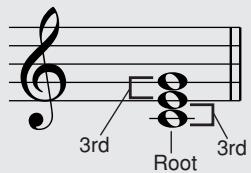
In the C major triad shown above, the lowest note is the "root" of the chord (this is the chord's "root position" ... using other chord notes for
the lowest note results in "inversions"). The root is the central sound of the chord, which supports and anchors the other chord notes.
The distance (interval) between adjacent notes of a triad in root position is either a major or minor third.
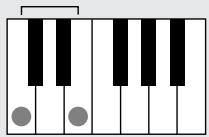
Major third-four half steps (semitones)
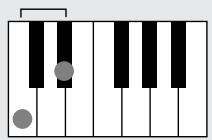
Minor third-three half steps (semitones)
The lowest interval in our root-position triad (between the root and the third) determines whether the triad is a major or minor chord, and we can shift the highest note up or down by a semitone to produce two additional chords, as shown below.
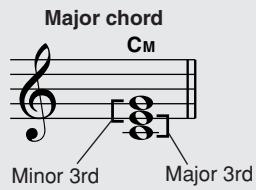
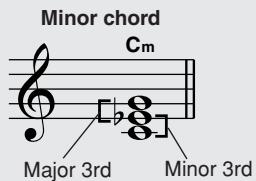
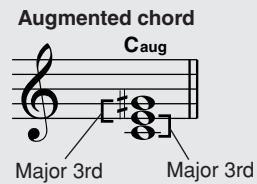
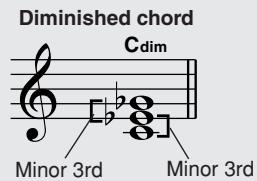
The basic characteristics of the chord sound remain intact even if we change the order of the notes to create different inversions. Successive chords in a chord progression can be smoothly connected, for example, by choosing the appropriate inversions (or chord "voicings").
Reading Chord Names
Chord names tell you just about everything you need to know about a chord (other than the inversion/voicing). The chord name tells you what the root of the chord is, whether it is a major, minor, or diminished chord, whether it requires a major or flatted seventh, what alterations or tensions it uses ... all at a glance.
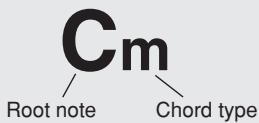
- Some Chord Types (These are just some of the "Standard" chord types recognized by the DGX-220/YPG-225.)
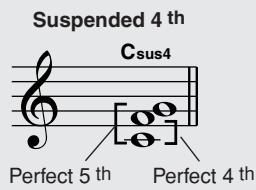
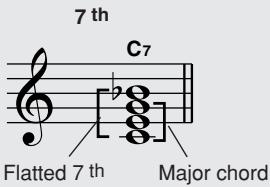
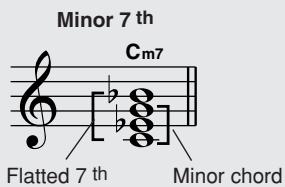
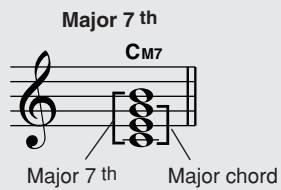
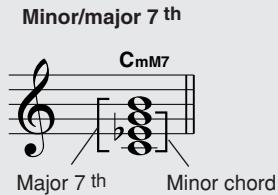
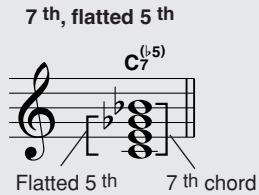
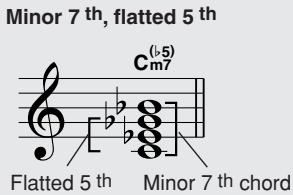
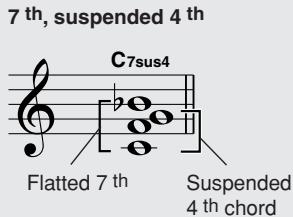
■Recognized Standard Chords.
All chords in the chart are "C-root" chords.
| Chord Name/[Abbreviation] | Normal Voicing | Chord (C) | Display |
| Major [M] | 1 - 3 - 5 | C | C |
| Add ninth [(9)] | 1 - 2 - 3 - 5 | C(9) | C(9) |
| Sixth [6] | 1 - (3) - 5 - 6 | C6 | C6 |
| Sixth ninth [6(9)] | 1 - 2 - 3 - (5) - 6 | C(9) | C6(9)* |
| Major seventh [M7] | 1 - 3 - (5) - 7 or 1 - (3) - 5 - 7 | CM7 | CM7 |
| Major seventh ninth [M7(9)] | 1 - 2 - 3 - (5) - 7 | CM7(9) | CM7(9)* |
| Major seventh add sharp eleventh [M7(#11)] | 1 - (2) - 3 - #4 - 5 - 7 or 1 - 2 - 3 - #4 - (5) - 7 | CM7(11) | CM7(#11)* |
| Flatted fifth [(b5)] | 1 - 3 - b5 | C(b5) | C(b5)* |
| Major seventh flatted fifth [M7b5] | 1 - 3 - b5 - 7 | CM7(5) | CM7b5* |
| Suspended fourth [sus4] | 1 - 4 - 5 | Csus4 | Csus4 |
| Augmented [aug] | 1 - 3 - #5 | Caug | Caug |
| Major seventh augmented [M7aug] | 1 - (3) - #5 - 7 | CM7aug | CM7aug* |
| Minor [m] | 1 - b3 - 5 | Cm | Cm |
| Minor add ninth [m(9)] | 1 - 2 - b3 - 5 | C(9) | Cm(9) |
| Minor sixth [m6] | 1 - b3 - 5 - 6 | Cm6 | Cm6 |
| Minor seventh [m7] | 1 - b3 - (5) - b7 | Cm7 | Cm7 |
| Minor seventh ninth [m7(9)] | 1 - 2 - b3 - (5) - b7 | C(9) | Cm7(9) |
| Minor seventh add eleventh [m7(11)] | 1 - (2) - b3 - 4 - 5 - (b7) | C(11) | Cm7(11)* |
| Minor major seventh [mM7] | 1 - b3 - (5) - 7 | CmM7 | CmM7 |
| Minor major seventh ninth [mM7(9)] | 1 - 2 - b3 - (5) - 7 | C(9) | CmM7(9)* |
| Minor seventh flatted fifth [m7b5] | 1 - b3 - b5 - b7 | C(10) | CmM7b5 |
| Minor major seventh flatted fifth [mM7b5] | 1 - b3 - b5 - 7 | C(10) | CmM7b5* |
| Diminished [dim] | 1 - b3 - b5 | Cdim | Cdim |
| Diminished seventh [dim7] | 1 - b3 - b5 - 6 | Cdim7 | Cdim7 |
| Seventh [7] | 1 - 3 - (5) - b7 or 1 - (3) - 5 - b7 | C7 | C7 |
| Seventh flatted ninth [7(b9)] | 1 - b2 - 3 - (5) - b7 | C(9) | C7(b9) |
| Seventh add flatted thirteenth [7(b13)] | 1 - 3 - 5 - b6 - b7 | C(10) | C7(b13) |
| Seventh ninth [7(9)] | 1 - 2 - 3 - (5) - b7 | C(9) | C7(9) |
| Seventh add sharp eleventh [7(#11)] | 1 - (2) - 3 - #4 - 5 - b7 or 1 - 2 - 3 - #4 - (5) - b7 | C(11) | C7(#11) |
| Seventh add thirteenth [7(13)] | 1 - 3 - (5) - 6 - b7 | C(12) | C7(13) |
| Seventh sharp ninth [7(#9)] | 1 - #2 - 3 - (5) - b7 | C(9) | C7(#9) |
| Seventh flatted fifth [7b5] | 1 - 3 - b5 - b7 | C(10) | C7b5* |
| Seventh augmented [7aug] | 1 - 3 - #5 - b7 | C(11) | C7aug |
| Seventh suspended fourth [7sus4] | 1 - 4 - (5) - b7 | C(12) | C7sus4 |
| One plus two plus five [1+2+5] | 1 - 2 - 5 | C(12) | C(12)* |
- These chords are not shown in the Dictionary function.
NOTE
Notes in parentheses can be omitted.
- Playing two same root keys in the adjacent octaves produces accompaniment based only on the root.
- A perfect fifth (1 + 5) produces accompaniment based only on the root and fifth which can be used with both major and minor chords.
- The chord fingerings listed are all in "root" position, but other inversions can be used—with the following exceptions: m7 , m7 5 , 6, m6, sus4, aug, dim7, 7 5, 6(9), 1+2+5.
NOTE
- Inversion of the 7sus4 and m7(11) chords are not recognized if the notes shown in parentheses are omitted.
- The auto accompaniment will sometimes not change when related chords are played in sequence (e.g. some minor chords followed by the minor seventh).
- Two-note fingerings will produce a chord based on the previously played chord.
Looking Up Chords Using the Chord Dictionary
The Dictionary function is essentially a built-in "chord book" that shows you the individual notes of chords. It is ideal when you know the name of a certain chord and want to quickly learn how to play it.
![YAMAHA DGX-220 - Press and hold the LESSON [START] button for longer than a second. - 1](/content/2025/01/114557/images/f0fed8f53e6cf33e677892e791418c5e99d3f1499b526393784439a3fe4d1dd7.jpg)
Hold for longer than a second
![YAMAHA DGX-220 - Press and hold the LESSON [START] button for longer than a second. - 2](/content/2025/01/114557/images/3e64971771ce4bf1e6d501c8ecd1284f613f3b5672c3ba5894b7df21ab014067.jpg)
2 As an example, we'll learn how to play a GM7 (G major seventh) chord. Press the "G" key in the section of the keyboard labeled "ROOT". (The note doesn't sound.) The root note you set is shown in the display.
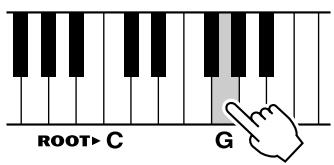
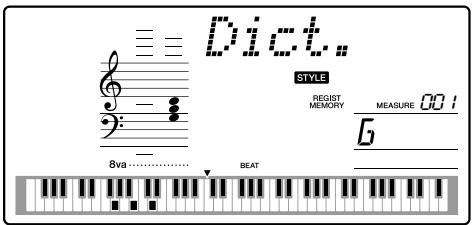
3 Press the "M7" (major seventh) key in the section of the keyboard labeled "CHORD TYPE". (The note doesn't sound.) The notes you should play for the specified chord (root note and chord type) are shown in the display, both as notation and in the keyboard diagram.
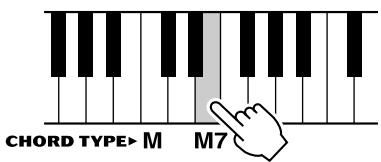
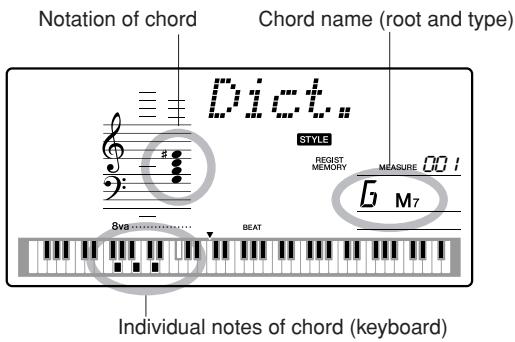
To call up possible inversions of the chord, press the [+]/[-] buttons.
NOTE
- About major chords: Simple major chords are usually indicated only by the root note. For example, "C" refers to C major. However, when specifying major chords here, make sure to select "M" (major) after pressing the root note.
4 Try playing a chord in the auto accompaniment section of the keyboard, checking the indications in the display. When you've played the chord properly, a bell sound signals your success and the chord name in the display flash.
Song Volume
![YAMAHA DGX-220 - Press the [FUNCTION] button. - 1](/content/2025/01/114557/images/4171ff31b6e5e94af68b694e1b53d1c770b40cc74f48b9c2f0ab835f57707cce.jpg)
![YAMAHA DGX-220 - Use the CATEGORY [▲] and [▼] buttons to select the Song Volume item. - 1](/content/2025/01/114557/images/0ce1fcf19c7b7f2f507963503c272513f5bad24b0f4516b54873a428f1aa8858.jpg)
3 Use the dial to set the song volume between 000 and 127.
NOTE -Song volume can be adjusted while a song is selected.
A-B Repeat
You can specify a section of a song—"A" is the start point and "B" is the end point—for repeat playback.
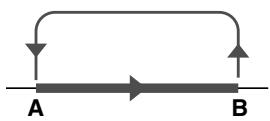
Play the song (page 25) and press the [A-B REPEAT] button at the beginning of the section you want to repeat (the “A” point).
![YAMAHA DGX-220 - Play the song (page 25) and press the [A-B REPEAT] button at the beginning of the section you want to repeat (the “A” point). - 1](/content/2025/01/114557/images/09a9855beeae0025a1eab0920d84e5d8deee0d97da072ba1bd7a031e0797b68f.jpg)
SONG
REPEAT& LEARN
![YAMAHA DGX-220 - Play the song (page 25) and press the [A-B REPEAT] button at the beginning of the section you want to repeat (the “A” point). - 2](/content/2025/01/114557/images/5f99bbfefbe4042aa289bd9dc3ea227c201adbb91b4345d638b35b45e6c3ea02.jpg)
![YAMAHA DGX-220 - Play the song (page 25) and press the [A-B REPEAT] button at the beginning of the section you want to repeat (the “A” point). - 3](/content/2025/01/114557/images/fa086a46fca3739be66e767e3d654de7003db823596c9cf91b944dc3c42b5854.jpg)
![YAMAHA DGX-220 - Play the song (page 25) and press the [A-B REPEAT] button at the beginning of the section you want to repeat (the “A” point). - 4](/content/2025/01/114557/images/fc10eb1791993bbadb71f8418edfb5170734e503edc006e5e3f3ea367a965099.jpg)
![YAMAHA DGX-220 - Play the song (page 25) and press the [A-B REPEAT] button at the beginning of the section you want to repeat (the “A” point). - 5](/content/2025/01/114557/images/cc4719c5298eaea2d2f44f9b6775ce2a3469f022996e320ae5cbc9f72cdef3e1.jpg)
![YAMAHA DGX-220 - Play the song (page 25) and press the [A-B REPEAT] button at the beginning of the section you want to repeat (the “A” point). - 6](/content/2025/01/114557/images/90537c0ba0974f3c59a7102eea685e56b4f1442fe1287ae6eb95eb4932b24380.jpg)
![YAMAHA DGX-220 - Play the song (page 25) and press the [A-B REPEAT] button at the beginning of the section you want to repeat (the “A” point). - 7](/content/2025/01/114557/images/2c9d092b20c52d375c8af68209d73469197ea12f85a5f4c64e2218e1b6d09cfd.jpg)
![YAMAHA DGX-220 - Press the [A-B REPEAT] button a second time at the end of the section you want to repeat (the “B” point). - 1](/content/2025/01/114557/images/93d803e481a786cc61e7955aff32f5a9c7a571af095a4e40dba6e360616314c2.jpg)
SONG
REPEAT& LEADN
![YAMAHA DGX-220 - Press the [A-B REPEAT] button a second time at the end of the section you want to repeat (the “B” point). - 2](/content/2025/01/114557/images/a0955794fab9b323f77ddc2d15cb518e2f9e42b2addcc46e12d07605b672be59.jpg)
A-B
![YAMAHA DGX-220 - Press the [A-B REPEAT] button a second time at the end of the section you want to repeat (the “B” point). - 3](/content/2025/01/114557/images/7404817be50a2ab694b9aa590e7a721a481dfceb0648a60ecf33b5160a047ebc.jpg)
55
![YAMAHA DGX-220 - Press the [A-B REPEAT] button a second time at the end of the section you want to repeat (the “B” point). - 4](/content/2025/01/114557/images/c263f1ebac4c2adc9b0a1e49aabcdcceff154c6fec26b3c1d5853dc935133641.jpg)
PALICE
![YAMAHA DGX-220 - Press the [A-B REPEAT] button a second time at the end of the section you want to repeat (the “B” point). - 5](/content/2025/01/114557/images/013b8e8f4e3cf8a37668daed620077c2e6a8296980ff51872bd058d6a7c20853.jpg)
START/ STOP
3 The specified A-B section of the song will now play repeatedly.
You can stop repeat playback at any time by pressing the [A-B REPEAT] button.
NOTE
- The repeat start and end points can be specified in one-measure increments.
- The current measure number is shown in the display during playback.
- If you want to set the start point "A" at the very beginning of the song press the [A-B REPEAT] button before starting playback of the song.
Muting Independent Song Parts
Each "track" of a song plays a different part of the song—melody, percussion, accompaniment, etc. You can mute individual tracks and play the muted part on the keyboard yourself, or simply mute tracks other than the ones you want to listen to. Use the SONG MEMORY [1]–[5] and [A] buttons to mute or un-mute the corresponding tracks. The track number in the display disappears when that track is muted. Refer to page 45 for information about the song track configuration.
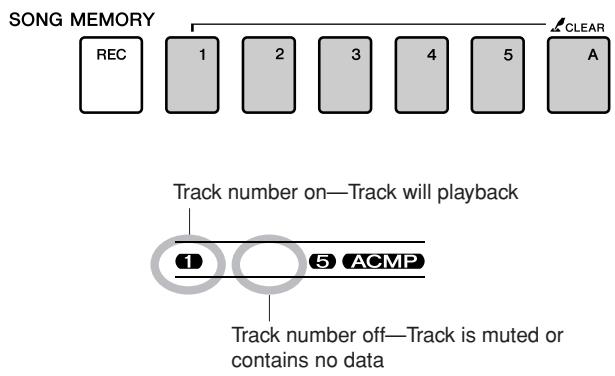
Change the Melody Voice
You can change a song's melody voice to any other voice you prefer.
NOTE
- You cannot change the melody voice of a user song.
1 Select the song and play it.
2 Rotate the dial to select the voice you want to listen to after pressing the [VOICE] button.
3 Press the [VOICE] button for longer than a second.
"SONG MELODY VOICE" appears in the display for a few seconds, indicating that the voice selected in step #2 has replaced the song's original melody voice.
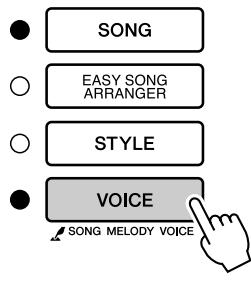
Hold for longer than a second
SONG MEL
This instrument has a Registration Memory feature that lets you save your favorite settings for easy recall whenever they're needed. Up to 16 complete setups can be saved (8 banks of two setups each).
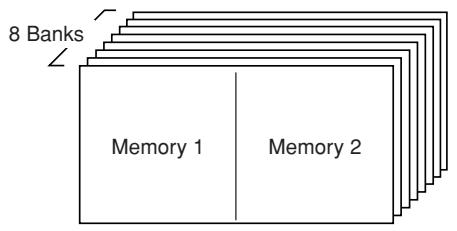
Up to 16 presets (eight banks of two each) can be memorized.
Saving to the Registration Memory
1 Set the panel controls as required—select a voice, accompaniment style, etc.
2 Press the [MEMORY/BANK] button. A bank number will appear in the display when you release the button.
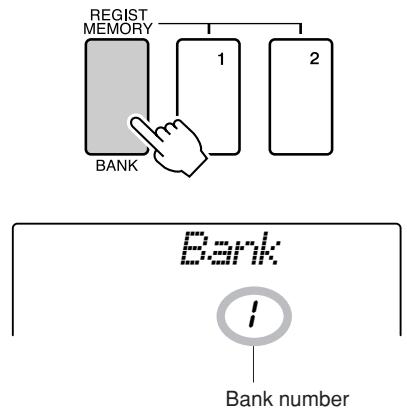
3 Use the dial or the [1]–[8] number buttons to select a bank number from 1 to 8.
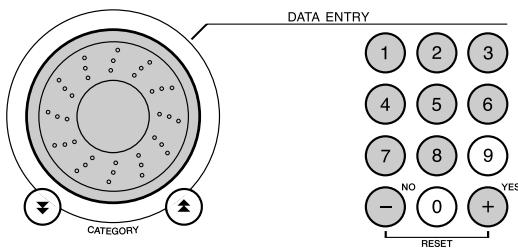
NOTE
- Data cannot be saved to the registration memory during song playback.
4 Press the REGIST MEMORY [1] or [2] button while holding the [MEMORY/ BANK] button to store the current panel settings to the specified registration memory.
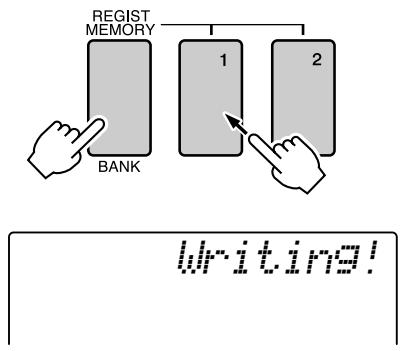
NOTE
- If you select a Registration Memory number that already contains data, the previous data is deleted and overwritten by the new data.
CAUTION
- Do not turn off the power while saving settings to the registration memory, otherwise the data may be damaged or lost.
Recalling a Registration Memory
Press the [MEMORY/BANK] button. A bank number will appear in the display when you release the button.
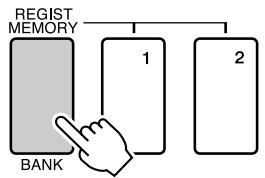
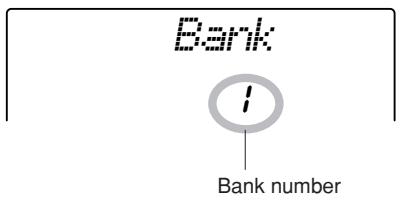
2 Use the dial or the [1]-[8] number buttons to select bank you want to recall.
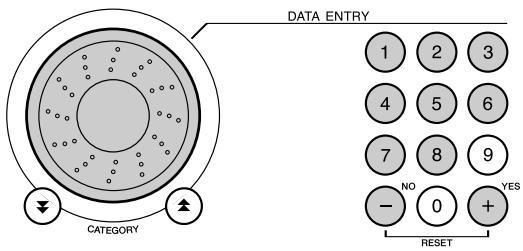
3 Press the REGIST MEMORY button, [1] or [2], containing the settings you want to recall. The recalled REGIST MEMORY number appears in the display for a few seconds. The panel controls will be instantly set accordingly.
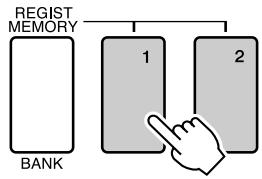
REGIST 1
REGIST MEMORY
- Settings That Can be Saved to the Registration Memory
- Style settings*
Style number, Auto Accompaniment ON/OFF, Split Point, Style settings (Main A/B), Style Volume, Tempo, Chord Fingering
Voice settings
Main Voice setting (Voice number, Volume, Octave, Pan, Reverb Level, Chorus Level), Dual Voice settings (Dual ON/OFF, Voice number, Volume, Octave, Pan, Reverb Level, Chorus Level), Split Voice settings (Split ON/OFF, Voice number, Volume, Octave, Pan, Reverb Level, Chorus Level)
Reverb Type, Chorus Type, Panel Sustain ON/OFF,
Harmony ON/OFF, Harmony Type, Harmony Volume
Transpose, Pitch Bend Range
- Style settings are not available for Registration Memory when using the Song features.
The “Functions” provide access to a range of detailed instrument parameters for tuning, setting the split point, and adjusting the voices and effects. Take a look at the function list starting on the opposite page. There are 47 function parameters in all.
When you locate a function you want to set up, simply select the function's display name (shown to the right of the function name in the list) and adjust as required.
Selecting and Setting Functions
1 Find the function you want to set in the list that begins on page 76.
2 Press the [FUNCTION] button.
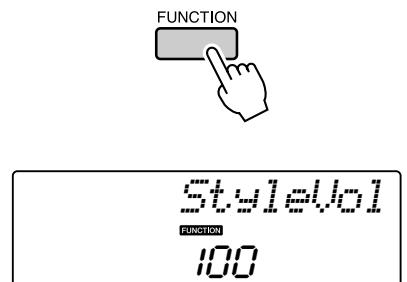
3 Select a function.
Press the CATEGORY [A] and [▼] buttons as many times as necessary until the function's display name appears in the display.
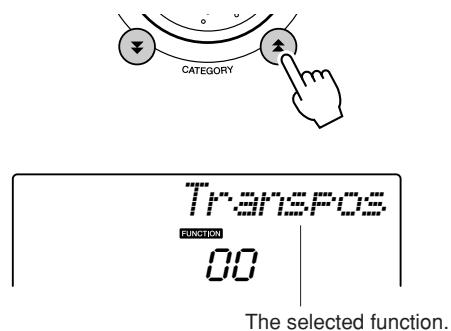
4 Use the dial, the [+] and [-] buttons, or the [0]-[9] number buttons to set the selected function as required.
The [+] and [-] buttons are used to make ON/OFF type settings: [+] = ON , [-] = OFF . In some cases the [+] button will initiate execution of the selected function, and the [-] will cancel the selection.
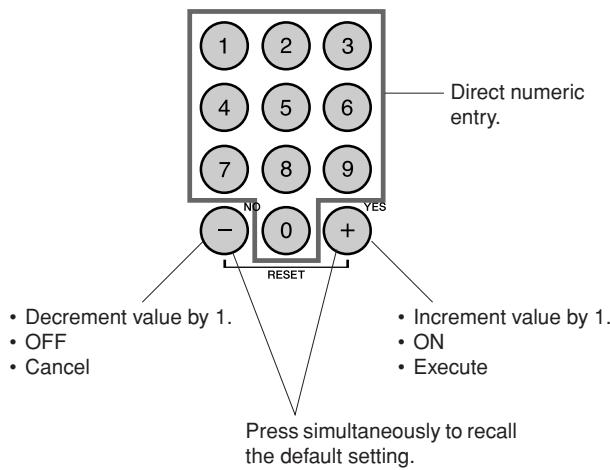
Function settings are stored in memory as soon as they are changed. To restore all initial factor default settings perform the "Backup Clear" procedure described in the "Initialization" section on page 49.
| Setting | Item title | Range/Settings | Description |
| Style Volume | StyleVol | 000-127 | Determines the volume of the Style. |
| Song Volume | SongVol | 000-127 | Determines the volume of the Song. |
| Transpose | Transpos | -12-12 | Determines the pitch of the instrument by semitone increments. |
| Tuning | Tuning | -100-100 | Sets the pitch of the instrument's sound in 1-cent increments. |
| Pitch Bend Range | PBRange | 01-12 | Sets the pitch bend range in semitone increments. |
| Split Point | SplitPnt | 000-127(C-2-G8) | Determines the highest key for the Split voice and sets the Split "point"-in other words, the key that separates the Split (lower) and Main (upper) voices. The Split Point setting and Accompaniment Split Point setting are automatically set to the same value. |
| Touch Sensitivity | TouchSns | 1(Soft),2(Medium),3(Hard),4(Off) | Determines the sensitivity of the feature. |
| Fingering Chord | ChdFing | Multi(1),FullKbd(2) | Sets the chord detection mode. In the Multi Finger mode both standard chords and easy chords played to the left of the split point are detected. In the Full Keyboard mode standard chords played anywhere on the keyboard will be detected, and the notes played will be sound as well. |
| Main Voice Volume | M.Volume | 000-127 | Determines the volume of the Main voice. |
| Main Voice Octave | M.Octave | -2+2 | Determines the octave range for the Main voice. |
| Main Voice Pan | M.Pan | 000 (left)-64 (center)-127 (right) | Determines the pan position of the Main voice in the stereo image. The value "0" results in the sound being panned full left; the value "127" results in the sound being panned full right. |
| Main Voice Reverb Level | M.Reverb | 000-127 | Determines how much of the Main voice's signal is sent to the Reverb effect. |
| Main Voice Chorus Level | M.Chorus | 000-127 | Determines how much of the Main voice's signal is sent to the Chorus effect. |
| Dual Voice | D.Voice | 001-489 | Selects the Dual voice. |
| Dual Voice Volume | D.Volume | 000-127 | Determines the volume of the Dual voice. |
| Dual Voice Octave | D.Octave | -2+2 | Determines the octave range for the Dual voice. |
| Dual Voice Pan | D.Pan | 000 (left)-64 (center)-127 (right) | Determines the pan position of the Dual voice in the stereo image. The value "0" results in the sound being panned full left; the value "127" results in the sound being panned full right. |
| Dual Voice Reverb Level | D.Reverb | 000-127 | Determines how much of the Dual voice's signal is sent to the Reverb effect. |
| Dual Voice Chorus Level | D.Chorus | 000-127 | Determines how much of the Dual voice's signal is sent to the Chorus effect. |
| Split Voice | S.Voice | 001-489 | Selects the Split voice. |
| Split Voice Volume | S.Volume | 000-127 | Determines the volume of the Split voice. |
| Split Voice Octave | S.Octave | -2+2 | Determines the octave range for the Split voice. |
| Split Voice Pan | S.Pan | 000 (left)-64 (center)-127 (right) | Determines the pan position of the Split voice in the stereo image. The value "0" results in the sound being panned full left; the value "127" results in the sound being panned full right. |
| Split Voice Reverb Level | S.Reverb | 000-127 | Determines how much of the Split voice's signal is sent to the Reverb effect. |
| Split Voice Chorus Level | S.Chorus | 000-127 | Determines how much of the Split voice's signal is sent to the Chorus effect. |
| Reverb Type | Reverb | 01-10 | Determines the Reverb type, including off (10). (See the list on page 109) |
| Chorus Type | Chorus | 01-05 | Determines the Chorus type, including off (05). (See the list on page 109) |
| Panel Sustain | Sustain | ON/OFF | Determines whether or not panel sustain is always applied to the MAIN/DUAL voices. Panel sustain is applied continuously when ON, or not applied when OFF. (page 59) |
| Master EQ Type | MasterEQ | Speaker1,Speaker2,Headphone,Line Out1,Line Out2 | Sets the equalizer applied to the speaker output for optimum sound in different listening situations. |
| Harmony Type | HarmType | 01-26 | Determines the Harmony type. (See the list on page 109) |
| Harmony Volume | HarmVol | 000-127 | Determines the volume of the Harmony effect. |
| Performance assistant technology Type | PAT Type | CHORD(1),CHD/FREE(2): | Determines the performance assistant technology type. |
| Style File Load | Sff Load | 001-nnn | Loads a Style file. |
| PC mode | PC mode | PC1/PC2/OFF | Optimizes the MIDI settings when you connect to a computer (page 81). |
| Local On/Off | Local | ON/OFF | Determines whether the instrument's keyboard controls the internal tone generator (ON) or not (OFF). (page 80) |
| External Clock | ExtClock | ON/OFF | Determines whether the instrument synchronizes to the internal clock (OFF) or an external clock (ON). (page 80) |
| Keyboard Out | KbdOut | ON/OFF | Determines whether keyboard performance data of the instrument is transmitted (ON) or not (OFF). |
| Style Out | StyleOut | ON/OFF | Determines whether Style data is transmitted (ON) via USB or not (OFF) during Style playback. |
| Song Out | SongOut | ON/OFF | Determines whether Song data is transmitted (ON) via USB or not (OFF) during Song playback. |
| Initial Send | InitSend | YES/NO | Lets you send the data of the panel settings to a computer. Press [+] to send, or press [-] to cancel. |
| Time Signature Numerator | Timesign | 00-60 | Determines the time signature of the Metronome. |
| Time Signature Denominator | TimesignD | Half note,Quarter note,Eighth note,Sixteenth note | Sets the length of each metronome beat. |
| Metronome Volume | MtrVol | 000-127 | Determines the volume of the Metronome. |
| Lesson Track (R) | R-Part | GuideTrack1-16 | Determines the guide track number for your right hand lesson. The setting is only effective for songs in SMF format 0 transferred from a computer. |
| Lesson Track (L) | L-Part | GuideTrack1-16 | Determines the guide track number for your left hand lesson. The setting is only effective for songs in SMF format 0 transferred from a computer. |
| Grade | Grade | ON/OFF | Determines whether the Grade function is on or off. |
| Demo Cancel | D-Cancel | ON/OFF | Determines whether Demo cancel is enabled or not. When this is set to ON, the Demo Song will not play, even if the [DEMO] button is pressed. |
- All these settings can be conveniently reset to their initial default values by pressing the [+] and [-] buttons simultaneously. (The exception to this is Initial Send, which is an operation, not a setting.)
Nearly all of the electronic musical instruments made today—particularly synthesizers, sequencers and computer music related devices—use MIDI. MIDI is a worldwide standard that allows these devices to send and receive performance and setting data. Naturally, this instrument lets you save or send your keyboard performance as MIDI data, as well as the songs, styles and panel settings.
The potential MIDI holds for your live performances and music creation/production is enormous—simply by connecting this instrument to a computer and transmitting MIDI data. In this section, you'll learn the basics of MIDI and the specific MIDI functions provided by this instrument.
What Is MIDI?
No doubt you have heard the terms "acoustic instrument" and "digital instrument". In the world today, these are the two main categories of instruments. Let's consider a grand piano and a classical guitar as representative acoustic instruments. They are easy to understand. With the piano, you strike a key, and a hammer inside hits some strings and plays a note. With the guitar, you directly pluck a string and the note sounds. But how does a digital instrument go about playing a note?
Acoustic guitar note production
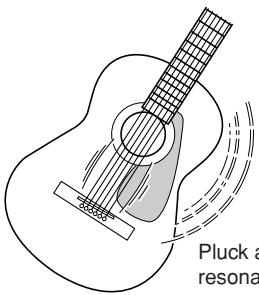
Pluck a string and the body resonates the sound.
Digital instrument note production
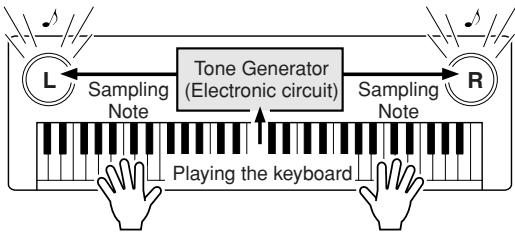
Based on playing information from the keyboard, a sampling note stored in the tone generator is played through the speakers.
As shown in the illustration above, in an electronic instrument the sampling note (previously recorded note) stored in the tone generator section (electronic circuit) is played based on information received from the keyboard. So then what is the information from the keyboard that becomes the basis for note production?
For example, let's say you play a "C" quarter note using the grand piano sound on the instrument. Unlike an acoustic instrument that puts out a resonated note, the electronic instrument puts out information from the keyboard such as "with what voice", "with which key", "about how strong", "when was it pressed", and "when was it released". Then each piece of information is changed into a number value and sent to the tone generator. Using these numbers as a basis, the tone generator plays the stored sampling note.
Example of Keyboard Information
| Voice number (with what voice) | 1 (grand piano) |
| Note number (with which key) | 60 (C3) |
| Note on (when was it pressed) and note off (when was it released) | Timing expressed numerically (quarter note) |
| Velocity (about how strong) | 120 (strong) |
Your keyboard performance and all panel operations of this instrument are processed as MIDI data. The songs, auto accompaniment (styles), and User songs are also made up of MIDI data. MIDI is an acronym that stands for Musical Instrument Digital Interface and it allows different musical instruments and devices to instantly communicate with each other, via digital data. The MIDI standard is used all over the world and was designed to transmit performance data between electronic musical instruments (or computers). Thanks to MIDI, you can control one instrument from another and transmit performance data between the devices-taking your creative and performance potential to even higher levels.
MIDI messages can be divided into two groups: Channel messages and System messages.
- Channel Messages
This instrument is capable of handling 16 MIDI channels simultaneously—meaning it can play up to sixteen different instruments at the same time. Channel messages transmit information such as Note ON/OFF, Program Change, for each of the 16 channels.
| Message Name | Instrument Operation/Panel Setting |
| Note ON/OFF | Performance data of the keyboard (contains note number and velocity data) |
| Program Change | Instrument selection (including bank select MSB/LSB, if necessary) |
| Control Change | Instrument settings (volume, pan, etc.) |
- System Messages
This is data that is used in common by the entire MIDI system. System messages include messages like Exclusive Messages that transmit data unique to each instrument manufacturer and Realtime Messages that control the MIDI device.
| Message Name | Instrument Operation/Panel Setting |
| Exclusive Message | Reverb/chorus settings, etc. |
| Realtime Messages | Start/stop operation |
Connecting a Personal Computer
The following functions become available when this instrument is connected to a computer.
- Performance data can be transferred between the instrument and the computer (page 80).
- Files can be transferred between the instrument and the computer (page 82).
The connection procedure is as follows:
Install the USB-MIDI driver on your computer.
The USB-MIDI driver is included on the CD-ROM. Installation of the USB MIDI driver is described on page 85.
2 Connect the USB terminal of the computer to the USB terminal on the instrument using a standard USB cable (USB cable sold separately).
The supplied CD-ROM also includes a Musicsoft Downloader application that allows you to transfer song files from your computer to the instrument's flash memory. For instructions about how to install Musicsoft Downloader and how to transfer song files, see page 83.
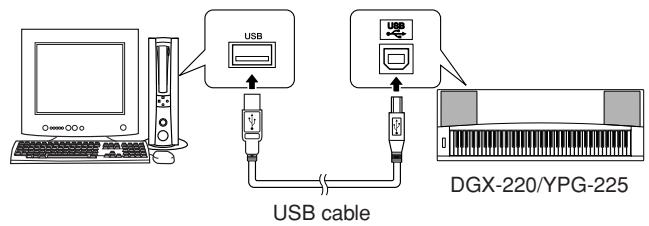
USB Precautions
Please observe the following precautions when connecting the instrument to a computer via a USB cable.
Failure to do so can cause the instrument and/or the computer to hang up (freeze), possibly causing corruption or loss of data.
If the instrument or computer does hang up, turn the power to both devices off and then on again, and restart the computer.
CAUTION
- Wake the computer from a sleep/suspended/standby mode before connecting the USB cable.
- Connect the USB cable to the instrument and computer before turning power to the instrument on.
-
Check the following points before turning the instrument's power on or off, and before plugging or unplugging the USB cable.
-
Quit all applications.
-
Make sure that no data transfer is in progress (data is transferred whenever you play on the keyboard or play a song).
-
Allow at least 6 seconds between turning the instrument's power on and off, and between plugging and unplugging the USB cable.
- Directly connect the instrument to the computer using a single USB cable. Do not use a USB hub.
NOTE
- The Musicsoft Downloader application may not be able to access the instrument in the following cases:
- During style playback.
- During song playback.
By connecting the instrument to a computer, the instrument's performance data can be used on the computer, and performance data from the computer can be played on the instrument.
- When the instrument is connected with computer, it transmits/receives performance data.
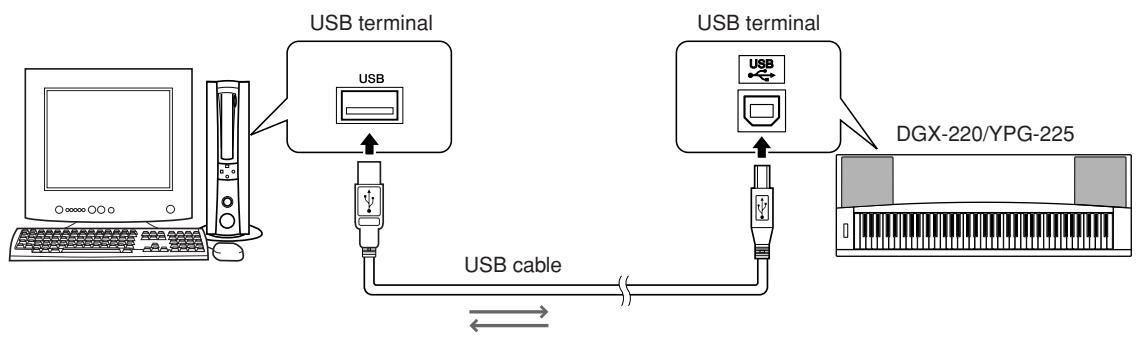
■MIDI settings
These settings pertain to performance data transmission and reception.
| Item | Range/Settings | Description |
| Local | ON/OFF | Local control determines whether or not notes played on the instrument are sounded by its internal tone generator system: the internal tone generator is active when local control is on, and inactive when local control is off. |
| External Clock | ON/OFF | These settings determine whether the instrument is synchronized to its own internal clock (OFF), or to a clock signal from an external device (ON). |
| Keyboard Out | ON/OFF | These settings determine whether keyboard performance data of the instrument is transmitted (ON) or not (OFF). |
| Style Out | ON/OFF | These settings determine whether Style data is transmitted (ON) or not (OFF) during Style playback. |
| Song Out | ON/OFF | These settings determine whether Song data is transmitted (ON) or not (OFF) during Song playback. |
CAUTION
- If you can't get any sound out of the instrument, this may be the most likely cause.
CAUTION
- If External Clock is ON and no clock signal is being received from an external device, the song, style, and metronome functions will not start.
![YAMAHA DGX-220 - Press the [FUNCTION] button. - 1](/content/2025/01/114557/images/5ca68b73db77b1ec8fc99fb397082d22431b852a7a2e389f96bfefc2e64ccb49.jpg)
2 Use the CATEGORY [A] and [Y] buttons to select the item you want to change its value.
![YAMAHA DGX-220 - Press the [FUNCTION] button. - 2](/content/2025/01/114557/images/ff5115e2b187a78019c97127f5eff4a1509925061ee9be4a2170a64d59a82999.jpg)
3 Use the dial to select ON or OFF.
PC Mode
A number of MIDI settings need to be made when you want to transfer performance data between the computer and the instrument. The PC Mode item can conveniently make multiple settings for you in one operation. Three settings are available: PC1, PC2, and OFF.
This setting is not necessary when transferring song or backup files between the computer and the instrument.
- Set the PC mode to PC2 when using Digital Music Notebook.
| PC1 | PC2* | OFF |
| Local | OFF | OFF | ON |
| External Clock | ON | OFF | OFF |
| Song Out | OFF | OFF | OFF |
| Style Out | OFF | OFF | OFF |
| Keyboard Out | OFF | ON | ON |
Press and hold the [DEMO] button for longer than a second so that the PC Mode item appears.
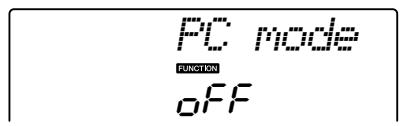
2 Use the dial to select PC1, PC2, or OFF.
NOTE
- When the PC2 setting is selected the instrument's style, song, demo, song recording, and lesson features cannot be used.
NOTE
- You can also access the PC Mode item by first pressing the [FUNCTION] button and then using the CATEGORY [▲] and [▼] buttons to locate it (page 75).
Remote Control of MIDI Devices
You can also use this instrument as a remote control device for the Digital Music Notebook application on your computer (via the USB connection)—controlling playback, stop and transport functions from the panel.
Remote control keys.
To use the remote control functions, simultaneously hold down the lowest two keys on the keyboard (E0 and F#0) and press the appropriate key (shown below).
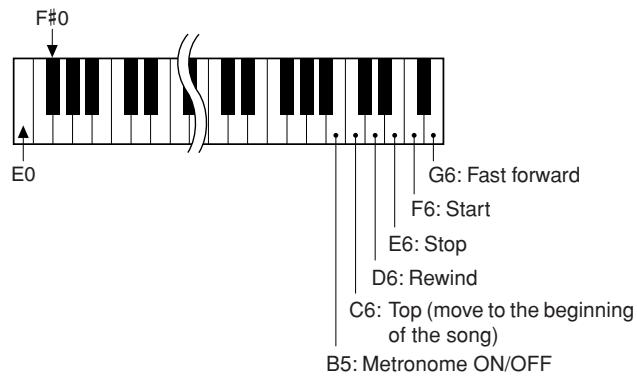
NOTE Remote control of MIDI devices will function independently of the PC2 mode.
Initial Send
This function lets you send the panel setup data to a computer. Before you record performance data to a sequencer application running on your computer, it is a good idea to first send and record the panel setup data before the actual performance data.
![YAMAHA DGX-220 - Press the [FUNCTION] button. - 1](/content/2025/01/114557/images/454a932de3905c1c0834341da698fc82069aeea2897aed90684a342fea14f647.jpg)
![YAMAHA DGX-220 - Use the CATEGORY [A] and [Y] buttons to select the Initial Send item. - 1](/content/2025/01/114557/images/dd917dc7d14eadfa502d67d2a6e9bc24f191e4fb20832ace778391281295b7fc.jpg)
3 Press [+/YES] to send, or press [-/NO] to cancel.
![YAMAHA DGX-220 - Press [+/YES] to send, or press [-/NO] to cancel. - 1](/content/2025/01/114557/images/1799f587718a54a6806ae34e079bf9e163d0120a177992572decd0024f8844c1.jpg)
Transferring Data between the Computer and Instrument
MIDI songs residing on a computer, as well as the 70 MIDI songs and 5 Style files provided on the CD-ROM, can be transferred to the instrument. Backup files can also be transferred from the instrument to the computer and back. Songs and styles transferred to the instrument can be used with the instrument's lesson and other functions. In order to transfer songs between your computer and the instrument you will need to install the Musicsoft Downloader application and the USB-MIDI Driver included on the Accessory CD-ROM on your computer. Refer to the Accessory CD-ROM Installation Guide on page 85 for installation details.
- Data that can be transferred from a computer to this instrument.
- Song Capacity (max.): Flash memory 99 songs (Song 036-)
- Data Capacity: Flash memory 373 kb
- Data Format: SMF format 0, style file (extension:.sty), Backup File (06PG76.BUP)
- What is SMF (Standard MIDI File)?
The SMF (Standard MIDI File) format is one of the most common and widely compatible sequence formats used for storing sequence data. There are two variations: Format 0 and Format 1. A large number of MIDI devices are compatible with SMF Format 0, and most commercially available MIDI sequence data is provided in SMF Format 0.
■With the Musicsoft Downloader You Can
- Transfer MIDI songs you have downloaded from the Internet or created on your computer from the computer to the instrument's flash memory.
refer to the procedure described on page 83.
The procedure for transferring songs included on the Accessory CD-ROM from your computer to the instrument is given as an example.
- Backup files can be transferred from the instrument to a computer and back.
refer to the procedure described on page 84.
Use the Musicsoft Downloader application with Internet Explorer 5.5 or higher.
■Use Musicsoft Downloader To Transfer Songs From the Accessory CD-ROM To the Instrument's flash memory.
NOTE
If a song or style is being played, stop playback before proceeding.
Install the Musicsoft Downloader and USB MIDI driver to your computer, then connect the computer and the instrument (page 87).
2 Insert the included CD-ROM into the CD-ROM drive.
A start window will appear automatically.
3 Double-click the Musicsoft Downloader shortcut icon that is created on the desktop.
This will launch the Musicsoft Downloader application and the main window will appear.
NOTE
- The instrument cannot be operated while the Musicsoft Downloader is running.
4 Click the "Add File" button and the Add File window will appear.
5 Click the button to the right of "Look in" and select the CD-ROM drive from the dropdown menu that appears. Double-click the "SongData" Folder on the window. Select the file you want to transfer to the instrument, and click "Open".
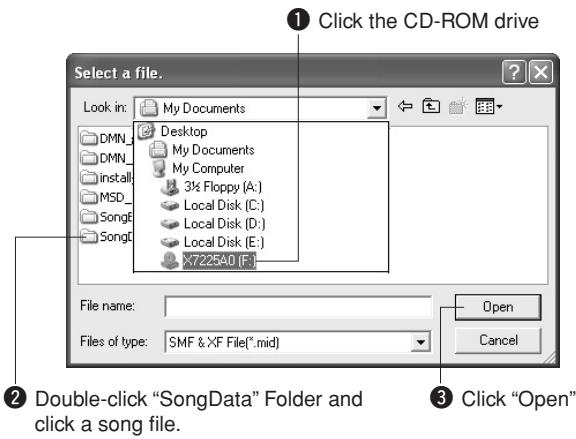
6 A copy of the selected MIDI song file will appear in the "List of files stored temporarily" at the top of the window.
The memory medium will also be displayed at the bottom of the window to specify the destination for the transfer. Click the "Electronic Musical Instruments", and then "Flash memory".
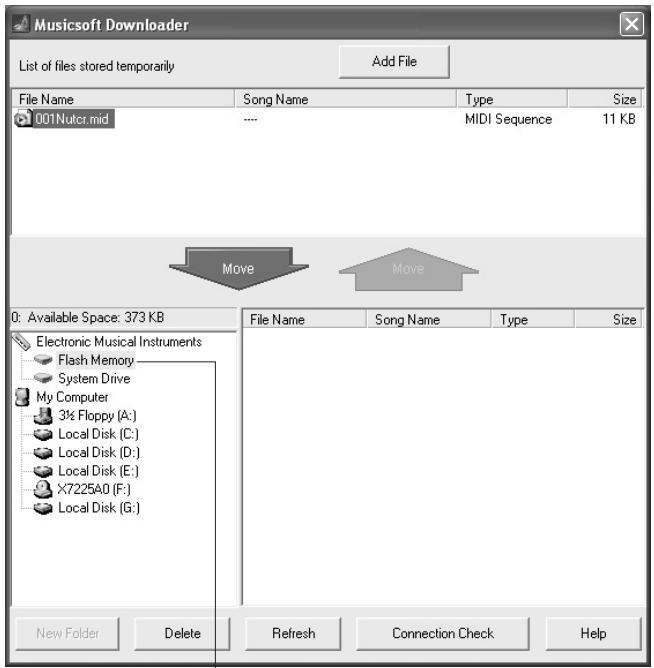
1 Click the "Electronic Musical Instruments", and then "Flash Memory"
7 After selecting the file in the "List of files stored temporarily", click the downward [Move] button and a confirmation message will appear. Click [OK] and the song will be transferred from the "List of files stored temporarily" to the instrument's memory.
8 Close the window to end the Musicsoft Downloader.
NOTE
- End the Musicsoft Downloader to playback the song transferred from your computer.
Style files (files with the“.STY” extension) can be transferred to Flash memory using the same procedure as described above. Style files transferred to the Flash Memory can be loaded into style number 151 and then played (page 67).
CAUTION
- Do not unplug the USB cable during a data transfer. Not only will the data not be transferred and saved, but operation of the memory media may become unstable and its contents may disappear completely when the power is turned on or off.
CAUTION
- Store data can be lost due to equipment malfunction or improper operation. For safety we recommend that you keep a copy of all important data stored on your computer.
- We recommend that you use a power adaptor rather than batteries when transferring data. The data can be corrupted if the batteries fail during the transfer.
To Use transferred Songs For Lessons...
In order to use songs (only SMF format 0) transferred from a computer for lessons it is necessary to specify which channels are to be played back as the right-hand and left-hand parts.
1 Press the [SONG] button and select the song (036-) residing in flash memory for which you want to set the guide track.
2 Press the [FUNCTION] button.
3 Use the CATEGORY [▲] and [▼] buttons to select the R-Part or L-Part item.
4 Use the dial to select the channel you want to play back as the specified right- or left-hand part.
We recommend that you select channel 1 for the right-hand part and channel 2 for the left-hand part.
■Transfer a backup file from the instrument to a computer...
You can use the Musicsoft Downloader to transfer "Backup Files" (page 49) including the five User Songs stored on the instrument, to a computer. If you click "Electronic Musical Instruments" in the Musicsoft Downloader display, and then "System Drive", a file named "06PG76.BUP" will appear in the lower right corner of the Musicsoft Downloader display. This is the backup file. For details about how to transmit backup file using the Musicsoft Downloader application, refer to the Online help in the application.
NOTE
- Preset Song data cannot be transmitted from the instrument.
CAUTION
- The backup data, including the five User Songs is transmitted/ received as a single file. As a result, all backup data will be overwritten every time you transmit or receive. Keep this in mind when transferring data.
CAUTION
- Do not rename the backup file on the computer. If you do so, it will not be recognized when transferred to the instrument.
SPECIALNOTICES
This CD-ROM is copy-protected. Yamaha makes no representations or warranties with regard to any problems while attempting to copy the CD-ROM or software and cannot be held responsible for the results of attempts to copy the data.
- The software and this owner's manual are the exclusive copyrights of Yamaha Corporation.
- Use of the software and this manual is governed by the license agreement which the purchaser fully agrees to upon breaking the seal of the software packaging. (Please read carefully the Software Licensing Agreement at the end of this manual before installing the application.)
- Copying of the software or reproduction of this manual in whole or in part by any means is expressly forbidden without the written consent of the manufacturer.
- Yamaha makes no representations or warranties with regard to the use of the software and documentation and cannot be held responsible for the results of the use of this manual and the software.
- This disk is a CD-ROM. Do not attempt to play the disk on an audio CD player. Doing so may result in irreparable damage to your audio CD player.
- Future upgrades of application and system software and any changes in specifications and functions will be announced separately.
- The screen displays as illustrated in this owner's manual are for instructional purposes, and may appear somewhat different from the screens which appear on your computer.
Important Notices about the CD-ROM
Data Types
This CD-ROM includes application software. Please refer to page 87 for software installation instructions.
CAUTION
- Do not attempt to play this CD-ROM on an audio CD player. The result high-volume noise can potentially cause hearing damage or damage your CD player and speakers.
- Operating System (OS)
The applications in this CD-ROM are provided in versions for Windows operating systems.
CD-ROM Contents
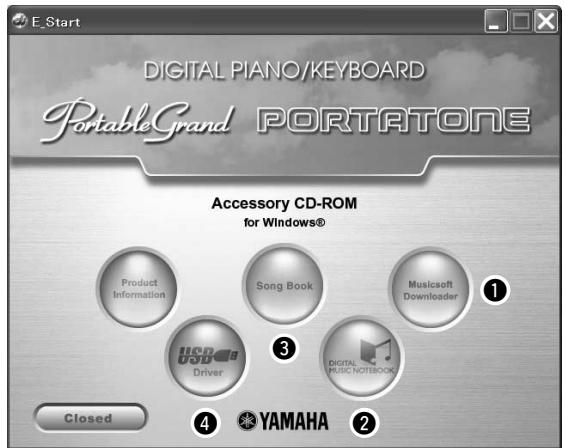
| Folder Name | Application / Data Name | Contents |
| 1 | MSD_ | Musicsoft Downloader | This application can be used to download MIDI song data from the Internet and transfer it from the computer to the instrument's memory. |
| 2 | DMNFLASHDemo | Flash Demo | Digital Music Notebook is an educational content that lets you enjoy music while learning.
Full motion demo software which introduces all features of the Digital Music Notebook. |
| DMN_DemoSong | Demo Song | You can experience Digital Music Notebook functions with the demo song. You need to download and install Digital Music Notebook on your computer prior to using the demo song. |
| 3 | SongBook | Song Book | Includes score data for the 30 internal songs provided on the instrument as well as 70 MIDI songs provided on the CD-ROM. The exceptions are songs 1-11, 16, 20 and song 30 which is copyrighted. The scores for songs 9-11 are provided in this manual beginning on page 94. |
| 4 | | USB-MIDI Driver (Windows 98/Me) | This driver software is necessary to connect MIDI devices to your computer via USB. |
| USBdrv2k | USB-MIDI Driver (Windows 2000/XP) |
| SongData | MIDI 70 songs | These songs can be transferred to the instrument and played or used with the instrument's functions. |
| StyleData | 5 style files | These styles can be transferred to the instrument and played or used with the instrument's functions. |
In order to view PDF scores, you will need to install Adobe Reader in your computer. You can download the Adobe Reader. Please check the following URL: http://www.adobe.com/
Using the CD-ROM
Please read the Software License Agreement on page 91 before opening the CD-ROM package.
1 Check the system requirements to make sure that the software will run on your computer.
2 Insert the included CD-ROM into the CD-ROM drive.
The start window should appear automatically.
3 Install the USB MIDI driver to the computer.
Refer to "Installing the USB-MIDI Driver" on page 87 for installation and setup instructions.
4 Connect the instrument to the computer.
The connection procedure is described on page 79.
5 Install the software.
Musicsoft Downloader:
See page 89.
6 Launch the software.
For further software operation refer to the online help supplied with the software.
Refer to the "Troubleshooting" on page 90 when you have trouble with installing the driver.
System Requirements
| Application/Data | OS | CPU | Memory | Hard Disk | Display |
| Musicsoft Downloader | Windows 98SE/Me/2000/XP Home Edition/XP Professional | 233 MHz or higher; Intel®Pentium®/Celeron®processor family | 64 MB or more(256 MB or moreis recommended) | at least 128 MB offree space (at least512 MB of freespace isrecommended) | 800 x 600HighColor(16-bit) |
| USB Driver for Windows98/Me | Windows 98/Me | 166 MHz or higher; Intel®Pentium®/Celeron®processor family | 32 MB or more(64 MB or more isrecommended) | at least 2 MB of freespace | — |
| USB Driver for Windows2000/XP | Windows 2000/XP HomeEdition/XP Professional |
| Digital Music Notebook | Windows® XPProfessional Edition,SP1a moreWindows® XP HomeEdition, SP1a moreWindows 2000Professional, SP4 more | 400MHz or higher; Intel®Pentium®/Celeron®Processor family (1GHzor more is recommended) | 128 MB or more(256 MB or moreis recommended) | at least 50 MB offree space | 1024 x 768HighColor(16-bit) |
| Digital Music Notebook(Requirements forplaying content withvideo included.) | 1GHz or higher; Intel®Pentium®/Celeron®Processor family (1.4GHzor more is recommended) | 256 MB or more |
Software Installation
- Uninstall (Removing the Software)
Installed software can be removed from your computer as follows:
From the Windows Start menu select Start Settings Control panel Add or Remove
Applications Install and Uninstall. Select the item you want to remove and click [Add or
Remove]. Follow the on-screen instructions to remove the selected software.
NOTE
- The actual names of the menu items and buttons will depend on the OS version you are using.
■Installing the USB-MIDI Driver...
In order to be able to communicate with and use MIDI devices connected to your computer, the appropriate driver software must be properly installed on your computer.
The USB-MIDI driver allows sequence software and similar applications on your computer to transmit and receive MIDI data to and from MIDI devices via a USB cable.
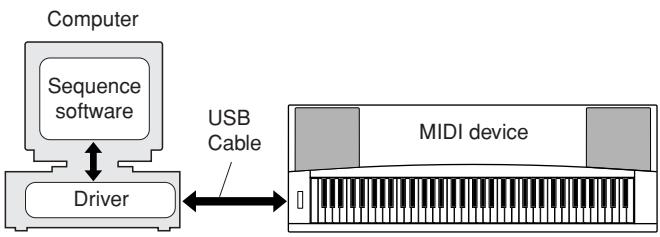
- Windows 98/Me installation page 88.
- Windows 2000 installation page 88.
- Windows XP installation page 89.
Check the drive name of the CD-ROM drive you will be using (D:, E:, Q: etc.) The drive name is displayed beside the CD-ROM icon in your "My Computer" folder. The root directory of the CD-ROM drive will be D:\, E:\, or Q:\, respectively.
Installing the driver on Windows 98/Me
1 Start the computer.
2 Insert the supplied CD-ROM into the CD-ROM drive. A start window will appear automatically.
3 First, make sure the POWER switch on the instrument is set to OFF, then use a USB cable to connect the USB terminal of the computer to the USB connector of the instrument. When the instrument is turned on, the computer automatically displays the "Add New Hardware Wizard. Otherwise, refer to "Troubleshooting" in the "Accessory CD-ROM Installation Guide" section of the Owner's Manual.
For Windows Me users, check the radio button to the left of "Automatic search for a better driver (Recommended)" and click [Next]. The system automatically starts searching and installing the driver. Proceed to Step 8. If the system does not detect the driver, select "Specify the location of the driver (Advanced)" and specify the CD-ROM drive's root directory to install the driver and click [Next]. Execute the installation by following the onscreen instructions and proceed to Step 8.
NOTE
- If you are using Windows Me, skip Step 4-7.
4 Click [Next].
The window enables you to select the search method.
The window enables you to select a location in which to install the driver.
6 Check the "Specify a location" box, click "Browse...", then specify the root directory of the CD-ROM drive and continue the installation. The CD-ROM drive letter may vary depending on your computer's configuration.
7 When the system detects the driver on the CD-ROM and is ready for installation, it is shown as a message on the screen. Make sure that the "YAMAHA USB MIDI Driver" is listed, and click [Next]. The system starts the installation.
8 When installation is complete, a message indicating so appears. Click [Finish].
The driver has been installed.
NOTE
- Some computers may take about ten seconds to show this screen after the installation is complete.
Installing the driver on Windows 2000
1 Start the computer and use the "Administrator" account to log into Windows 2000.
2 Select [My Computer] [Control Panel] [System] [Hardware] [Driver Sign-ing] [File Signature Verification], and check the radio button to the left of "Ignore—Install all files, regardless of file signature" and click [OK].
3 Insert the supplied CD-ROM into the CD-ROM drive. A start window will appear automatically.
4 First, make sure the POWER switch on the MIDI device is set to OFF, then use a USB cable to connect the MIDI device to the computer. After making the connections, turn on the power of the MIDI device. The system automatically launches the Found New Hardware Wizard.
Otherwise, refer to "Troubleshooting" in the "Accessory CD-ROM Installation Guide" section of the Owner's Manual. Click [Next]. (Some computers may take a while to display the Wizard window.)
NOTE
- If the Wizard panel informs you that "The software you are about to install does not contain a Microsoft digital signature", click [Yes].
6 Check the "CD-ROM drives" check box, deselect all other check boxes, then click [Next].
NOTE
- If the system prompts you to insert the Windows CD-ROM during detection of the drivers, point to the "USBdrv2k_ folder (e.g., D:\USBdrv2k_) and continue the installation.
7 Deselect the "Install one of the other drivers", then click [Next].
8 When the installation is complete, the Wizard displays "Completing the Found New Hardware Wizard".
Click [Finish]. (Some computers may take a while to display the Wizard window.)
9 Restart the computer.
The USB-MIDI driver installation is complete.
Installing the driver on Windows XP
1 Start the computer and use the "Administrator" account to log into Windows.
2 Select [Start] [Control Panel]. If the control panel appears as "Pick a category", click "Switch to Classic View" in the upper left of the window. All control panels and icons will be displayed.
3 Go to [System] [Hardware] [Driver Signing Options] and check the radio button to the left of "Ignore" and click [OK].
4 Click the [OK] button to close System Properties, and then click "X" in the upper right of the window to close the Control Panel.
5 Insert the supplied CD-ROM into the CD-ROM drive. A start window will appear automatically.
6 First, make sure the POWER switch on the MIDI device is set to OFF, then use a USB cable to connect the MIDI device to the computer. After making the connections, turn on the power of the MIDI device. The system launches the Found New Hardware Wizard automatically. Otherwise, refer to "Troubleshooting" in the "Accessory CD-ROM Installation Guide" section of the Owner's Manual. If the system displays "Found New Hardware" in the lower right corner, wait until Wizard windows is displayed. (Some computers may take a while to display the window.)
If the Wizard window prompts you to specify whether or not to connect to Windows Update, select the radio button for "No, not this time", then click [Next].
7 Select the radio button for "Install the software automatically (recommended)", then click [Next].
NOTE 1
- If during the installation the system displays "...has not passed Windows Logo testing to verify its compatibility with Windows XP", click [Continue Anyway].
8 When the installation is complete, the Wizard displays "Completing the Found New Hardware Wizard".
Click [Finish]. (Some computers may take a while to display the Wizard window.)
9 Restart the computer.
If the system displays "Found New Hardware" in the lower right corner, wait until the Wizard window is displayed. (Some computers may take a while to display the Wizard window.)
The USB-MIDI driver installation is complete.
■Installing the Musicsoft Downloader and Digital Music Notebook Applications.
IMPORTANT
- You will need to log in with administrator (root) privileges in order to install Musicsoft Downloader on a computer running Windows 2000 or XP.
- You will need to log in with administrator (root) privileges in order to install Digital Music Notebook on a computer running Windows 2000 or XP.
IMPORTANT
- When installing the Digital Music Notebook, make sure that Internet Explorer 6.0 (with SP1) or higher is installed to your computer.
IMPORTANT
- Credit card settlement is required to purchase Digital Music Notebook content. Credit card processing may not be possible for some areas, so please check with your local authorities to make sure that your credit card can be used.
Insert the Accessory CD-ROM into your computer's CD-ROM drive. The start window will appear automatically showing software applications.
NOTE
- If the start window does not appear automatically, double click your "My Computer" folder to open it. Right-click the CD-ROM icon and select "Open" from the pop-up menu. Double click "Start.exe" and proceed to step 2, below.
2 Click [Musicsoft Downloader] or [Digital Music Notebook].
3 Click the [install] button for Musicsoft downloader, or [Digital Music Notebook Download] button for Digital Music Notebook, and follow the on-screen instructions to install the software.
For Digital Music Notebook operating instructions see the help menu: launch the Digital Music Notebook application and click "Help".
For Musicsoft Downloader operating instructions see the Help menu: launch the Musicsoft Downloader application and click "Help".
- You can obtain the latest version of the Musicsoft Downloader at the following Internet URL.
http://music.yamaha.com/download/
IMPORTANT
- Only Musicsoft Downloader can be used to transfer files between this instrument and a computer. No other file transfer application can be used.
Troubleshooting
The driver cannot be installed.
- Is the USB cable connected correctly?
Check the USB cable connection. Disconnect the USB cable, then connect it again.
- Is the USB function enabled on your computer?
When you connect the instrument to the computer for the first time, if the "Add New Hardware Wizard" does not appear, the USB function on the computer may be disabled. Perform the following steps.
1 Select [Control Panel] [System] [Device Manager] (for Windows 98/Me), or select [Control Panel]* [System] [Hardware] [Device Manager] (for Windows 2000/XP).
- Classic View only in Windows XP.
2 Make sure that no “!” or “x” marks appear at “Universal serial bus controller” or “USB Root Hub”. If you see an “!” or “x” mark, the USB controller is disabled.
- Is any unknown device registered?
If driver installation fails, the instrument will be marked as an "Unknown device", and you will not be able to install the driver. Delete the "Unknown device" by following the steps below.
1 Select [Control Panel] [System] [Device Manager] (for Windows 98/Me), or select [Control Panel] [System] [Hardware] [Device Manager] (for Windows 2000/XP).
Classic View only in Windows XP.
2 Look for "Other devices" in the menu "View devices by type".
3 If you find "Other devices", double-click it to extend the tree to look for "Unknown device". If one appears, select it and click the [Remove] button.
4 Remove the USB cable from the instrument, and make the connection again.
5 Install the driver again.
- Windows 98/Me users...... see page 88
- Windows 2000 users...... see page 88
- Windows XP users...... see page 89
When controlling the instrument from your computer via USB, the instrument does not operate correctly or no sound is heard.
- Did you install the driver? (page 87)
- Is the USB cable connected correctly?
- Are the volume settings of the instrument, playback device, and application program set to the appropriate levels?
- Have you selected an appropriate port in the sequence software?
- Are you using the latest USB MIDI driver? The latest driver can be downloaded from the following web site.
http://music.yamaha.com/download/
Playback response is delayed.
- Does your computer satisfy the system requirements?
- Is any other application or device driver running?
Cannot suspend or resume the computer correctly.
- Do not suspend the computer while the MIDI application is running.
If you are using Windows 2000, you may not be able to suspend/resume normally, depending on the particular environment (USB Host
Controller, etc.). Even so, simply disconnecting and connecting the USB cable will allow you to use the instrument functions again.
How can I delete or re-install the driver?
[Windows Me/98]
1 When the instrument is recognized correctly, double-click "System" in the Control Panel to open the System window.
2 Double-click the "Device Manager" tab, select "YAMAHA USB MIDI Driver" and delete it.
3 Use the MS-DOS prompt or Explorer to delete the following three files.
NOTE
-
To delete these files using Explorer, select "Folder Options" from the Tool (View) menu, and select "Show all files" (and folders).
-
[WINDOWS\INF\OTHER\1039.INF]
- |WINDOWS|SYSTEM\Xgusb.drv
- |WINDOWS|SYSTEM|Ymidusb.sys
4 Disconnect the USB cable.
5 Restart the computer.
6 Re-install the driver.
ATTENTION SOFTWARE LICENSE AGREEMENT
PLEASE READ THIS SOFTWARE LICENSE AGREEMENT ("AGREEMENT") CAREFULLY BEFORE USING THIS SOFTWARE. YOU ARE ONLY PERMITTED TO USE THIS SOFTWARE PURSUANT TO THE TERMS AND CONDITIONS OF THIS AGREEMENT. THIS AGREEMENT IS BETWEEN YOU (AS AN INDIVIDUAL OR LEGAL ENTITY) AND YAMAHA CORPORATION ("YAMAHA").
BY BREAKING THE SEAL OF THIS PACKAGE YOU ARE AGREEING TO BE BOUND BY THE TERMS OF THIS LICENSE. IF YOU DO NOT AGREE WITH THE TERMS, DO NOT INSTALL, COPY, OR OTHERWISE USE THIS SOFTWARE.
1. GRANT OF LICENSE AND COPYRIGHT
Yamaha hereby grants you the right to use one copy of the software program(s) and data ("SOFTWARE") accompanying this Agreement. The term SOFTWARE shall encompass any updates to the accompanying software and data. The SOFTWARE is owned by Yamaha and/or Yamaha's licensor(s), and is protected by relevant copyright laws and all applicable treaty provisions. While you are entitled to claim ownership of the data created with the use of SOFTWARE, the SOFTWARE will continue to be protected under relevant copyrights.
- You may use the SOFTWARE on a single computer.
- You may make one copy of the SOFTWARE in machine-readable form for backup purposes only, if the SOFTWARE is on media where such backup copy is permitted. On the backup copy, you must reproduce Yamaha's copyright notice and any other proprietary legends that were on the original copy of the SOFTWARE.
- You may permanently transfer to a third party all your rights in the SOFTWARE, provided that you do not retain any copies and the recipient reads and agrees to the terms of this Agreement.
2. RESTRICTIONS
- You may not engage in reverse engineering, disassembly, decompilation or otherwise deriving a source code form of the SOFTWARE by any method whatsoever.
- You may not reproduce, modify, change, rent, lease, or distribute the SOFTWARE in whole or in part, or create derivative works of the SOFTWARE.
- You may not electronically transmit the SOFTWARE from one computer to another or share the SOFTWARE in a network with other computers.
- You may not use the SOFTWARE to distribute illegal data or data that violates public policy.
- You may not initiate services based on the use of the SOFTWARE without permission by Yamaha Corporation
Copyrighted data, including but not limited to MIDI data for songs, obtained by means of the SOFTWARE, are subject to the following restrictions which you must observe.
- Data received by means of the SOFTWARE may not be used for any commercial purposes without permission of the copyright owner.
- Data received by means of the SOFTWARE may not be duplicated, transferred, or distributed, or played back or performed for listeners in public without permission of the copyright owner.
- The encryption of data received by means of the SOFTWARE may not be removed nor may the electronic watermark be modified without permission of the copyright owner.
3. TERMINATION
This Agreement becomes effective on the day that you receive the SOFTWARE and remains effective until terminated. If any copyright law or provisions of this Agreement is violated, the Agreement shall terminate automatically and immediately without notice from Yamaha. Upon such termination, you must immediately destroy the licensed SOFTWARE, any accompanying written documents and all copies thereof.
As to SOFTWARE sold on tangible media, Yamaha warrants that the tangible media on which the SOFTWARE is recorded will be free from defects in materials and workmanship under normal use for a period of fourteen (14) days from the date of receipt, as evidenced by a copy of the receipt. Yamaha's entire liability and your exclusive remedy will be replacement of the defective media if it is returned to Yamaha or an authorized Yamaha dealer within fourteen days with a copy of the receipt. Yamaha is not responsible for replacing media damaged by accident, abuse or misapplication. TO THE FULLEST EXTENT PERMITTED BY LAW, YAMAMA EXPRESSLY DISCLAIMS ANY IMPLIED WARRANTYES ON THE TANGIBLE MEDIA, INCLUDING THE IMPLIED WARRANTY OF MERCHANTABILITY AND FITNESS FOR A PARTICULAR PURPOSE.
5. DISCLAIMER OF WARRANTY ON SOFTWARE
You expressly acknowledge and agree that use of the SOFTWARE is at your sole risk. The SOFTWARE and related documentation are provided "AS IS" and without warranty of any kind. NOTWITHSTANDING ANY OTHER PROVISION OF THIS AGREEMENT, YAMAHA EXPRESSLY DISCLAIMS ALL WARRANTYES AS TO THE SOFTWARE, EXPRESS, AND IMPLIED, INCLUDING BUT NOT LIMITED TO THE IMPLIED WARRANTYES OF MERCHANTABILITY, FITNESS FOR A PARTICULAR PURPOSE AND NON-INFRINGEMENT OF THIRD PARTY RIGHTS. SPECIFICALLY, BUT WITHOUT LIMITING THE FOREIGNING, YAMAHA DOES NOT WARRANTY THAT THE SOFTWARE WILL MEET YOUR REQUIREMENTS, THAT THE OPERATION OF THE SOFTWARE WILL BE UNINTERRUPTED OR ERROR-FREE, OR THAT DEFECTS IN THE SOFTWARE WILL BE CORRECTED.
6. LIMITATION OF LIABILITY
YAMAHA'S ENTIRE OBLIGATION HEREUNDER SHALL BE TO PERMIT USE OF THE SOFTWARE UNDER THE TERMS HEREOF. IN NO EVENT SHALL YAMAHA BE LIABLE TO YOU OR ANY OTHER PERSON FOR ANY DAMAGES, INCLUDING, WITHOUT LIMITATION, ANY DIRECT, INDIRECT, INCIDENTAL OR CONSEQUENTIAL DAMAGES, EXPENSES, LOST PROFITS, LOST DATA OR OTHER DAMAGES ASING OUT OF THE USE, MISUSE OR INABILITY TO USE THE SOFTWARE, EVEN IF YAMAHA OR AN AUTHORIZED DEALER HAS BEEN ADVISED OF THE POSSIBILITY OF SUCH DAMAGES. In no event shall Yamaha's total liability to you for all damages, losses and causes of action (whether in contract, tort or otherwise) exceed the amount paid for the SOFTWARE.
7. THIRD PARTY SOFTWARE
Third party software and data ("THIRD PARTY SOFTWARE") may be attached to the SOFTWARE. If, in the written materials or the electronic data accompanying the Software, Yamaha identifies any software and data as THIRD PARTY SOFTWARE, you acknowledge and agree that you must abide by the provisions of any Agreement provided with the THIRD PARTY SOFTWARE and that the party providing the THIRD PARTY SOFTWARE is responsible for any warranty or liability related to or arising from the THIRD PARTY SOFTWARE. Yamaha is not responsible in any way for the THIRD PARTY SOFTWARE or your use thereof.
- Yamaha provides no express warranties as to the THIRD PARTY SOFTWARE. IN ADDITION, YAMAHA EXPRESSLY DISCLAIMS ALL IMPLIED WARRANTYES, INCLUDING BUT NOT LIMITED TO THE IMPLIED WARRANTYES OF MERCHANTABILITY AND FITNESS FOR A PARTICULAR PURPOSE, as to the THIRD PARTY SOFTWARE.
- Yamaha shall not provide you with any service or maintenance as to the THIRD PARTY SOFTWARE.
- Yamaha is not liable to you or any other person for any damages, including, without limitation, any direct, indirect, incidental or consequential damages, expenses, lost profits, lost data or other damages arising out of the use, misuse or inability to use the THIRD PARTY SOFTWARE.
8. GENERAL
This Agreement shall be interpreted according to and governed by Japanese law without reference to principles of conflict of laws. Any dispute or procedure shall be heard before the Tokyo District Court in Japan. If for any reason a court of competent jurisdiction finds any portion of this Agreement to be unenforceable, the remainder of this Agreement shall continue in full force and effect.
9. COMPLETE AGREEMENT
This Agreement constitutes the entire agreement between the parties with respect to use of the SOFTWARE and any accompanying written materials and supersedes all prior or contemporaneous understandings or agreements, written or oral, regarding the subject matter of this Agreement. No amendment or revision of this Agreement will be binding unless in writing and signed by a fully authorized representative of Yamaha.
| Problem | Possible Cause and Solution |
| When the instrument is turned on or off, a popping sound is temporarily produced. | This is normal and indicates that the instrument is receiving electrical power. |
| When using a mobile phone, noise is produced. | Using a mobile phone in close proximity to the instrument may produce interference. To prevent this, turn off the mobile phone or use it further away from the instrument. |
| There is no sound even when the keyboard is played or when a song or style is being played back. | Check that nothing is connected to the PHONES/OUTPUT jack on the rear panel. When a set of headphones is plugged into this jack, no sound is output. |
| Check the Local Control on/off. (See page 80.) |
| Playing keys in the right hand area of the keyboard does not produce any sound. | When using the Dictionary function (page 70), the keys in the right hand area are used only for entering the chord root and type. |
| The volume is too soft.
• The sound quality is poor.
• The rhythm stops unexpectedly or will not play.
• The recorded data of the song, etc. does not play correctly.
• The LCD display suddenly goes dark, and all panel settings are reset. | The batteries are low or dead. Replace all six batteries with completely new ones, or use the optional AC adaptor. |
| The style or song does not play back when the [START/STOP] button is pressed. | Is External Clock set to ON? Make sure External Clock is set to OFF; refer to “External Clock” on page 80. |
| The style does not sound properly. | Make sure that the Style Volume (page 76) is set to an appropriate level. |
| Is the split point set at an appropriate key for the cords you are playing? Set the split point at an appropriate key (page 65).
Is the “ACMP ON” indicator showing in the display? If it is not showing press the [ACMP ON/OFF] button so that it does show. |
| No rhythm accompaniment plays when the [START/STOP] button is pressed after selecting style number 121 or a style between 133–150 (Pianist). | This is not a malfunction. Style number 121 and style numbers 133–150 (Pianist) have no rhythm parts, so no rhythm will play. The other parts will begin playing when you play a chord in the accompaniment range of the keyboard if style playback is turned on. |
| Not all of the voices seem to sound, or the sound seems to be cut off. | The instrument is polyphonic up to a maximum of 32 notes. If the Dual voice or Split voice is being used and a style or song is playing back at the same time, some notes/sounds may be omitted (or “stolen”) from the accompaniment or song. |
| The footswitch (for sustain) seems to produce the opposite effect. For example, pressing the footswitch cuts off the sound and releasing it sustains the sounds. | The polarity of the footswitch is reversed. Make sure that the footswitch plug is properly connected to the SUSTAIN jack before turning on the power. |
| The sound of the voice changes from note to note. | This is normal. The AWM tone generation method uses multiple recordings (samples) of an instrument across the range of the keyboard; thus, the actual sound of the voice may be slightly different from note to note. |
| The wrong notes sound when the keyboard is played. | Perhaps the performance assistant technology is turned on.
Press the [PERFORMANCE ASSISTANT] button to turn it off. |
| The ACPI ON indicator does not appear when the [ACMP ON/OFF] button is pressed. | Is the [STYLE] button lit? Always press the [STYLE] button first when you are going to use any style-related function. |
| There is no harmony sound. | The harmony effects (01–26) behave differently according to their type. Types 01–05 function when style playback is on, chords are played in the accompani-ment range of the keyboard, and a melody is played in the right-hand range.
Types 06–26 will function whether style playback is on or off. For types 06 = 12 you need to play two notes at the same time. |
Memo
This demo is an example of how the Easy Song Arranger can be used to change styles throughout a piece.
Song No. 9
(Function Demo for Easy Song Arranger)
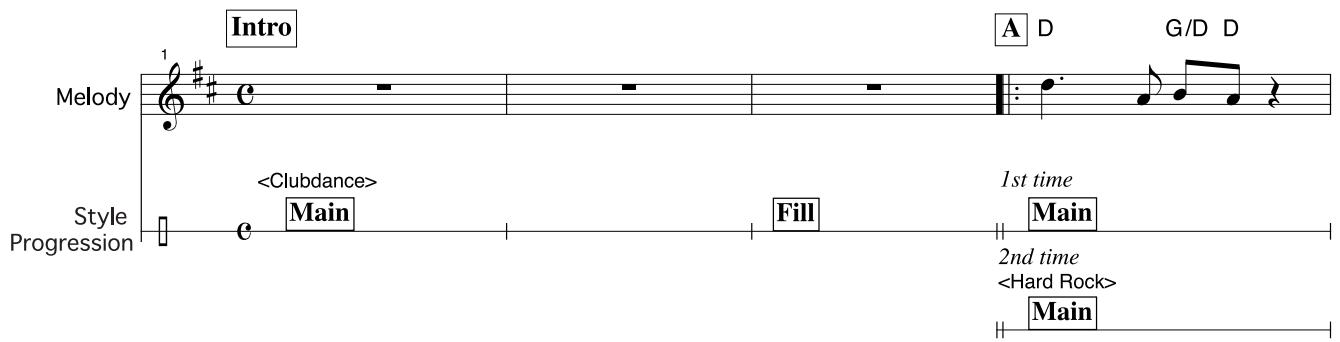
Hallelujah Chorus
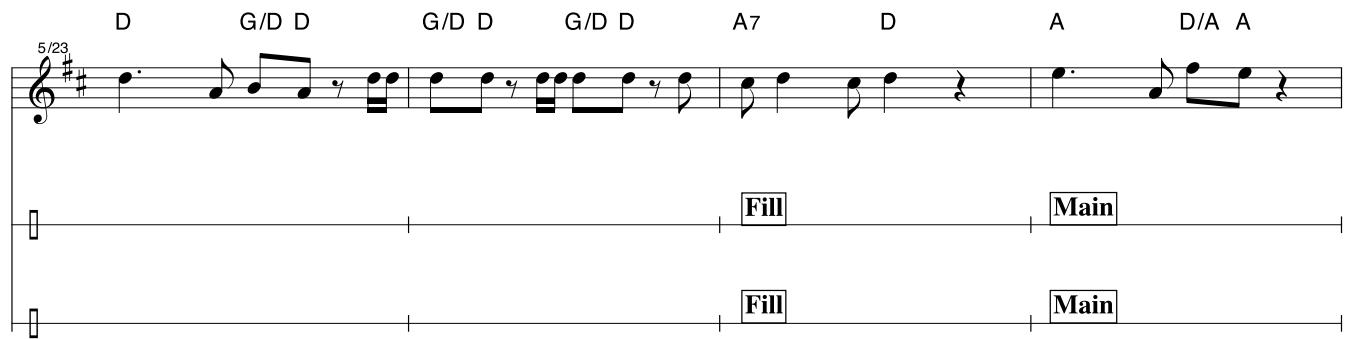
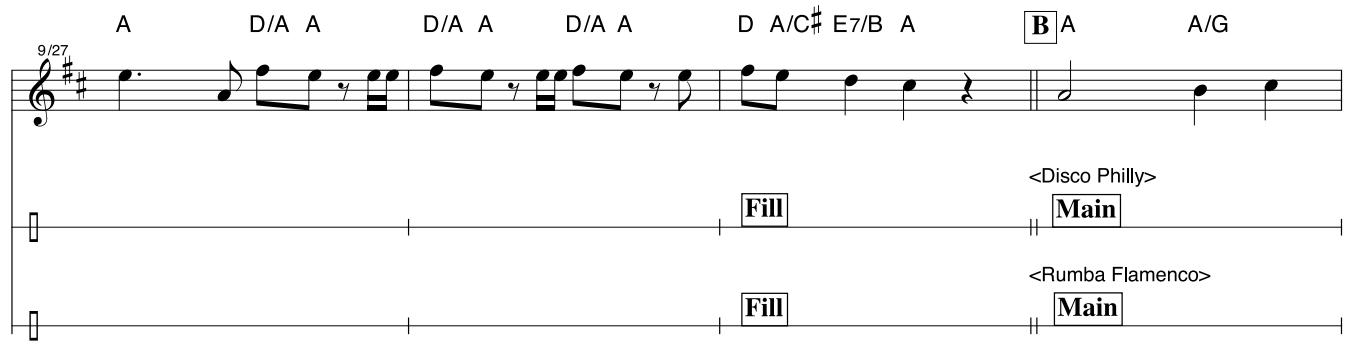
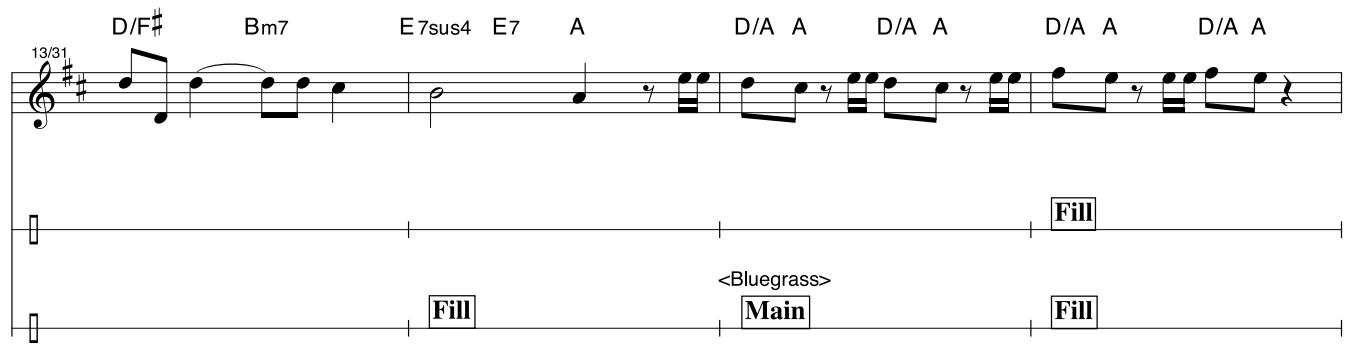
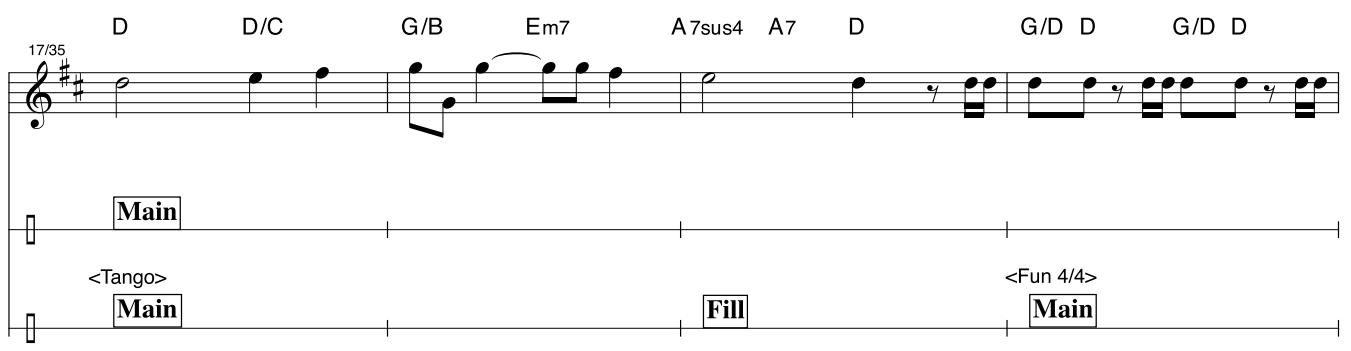
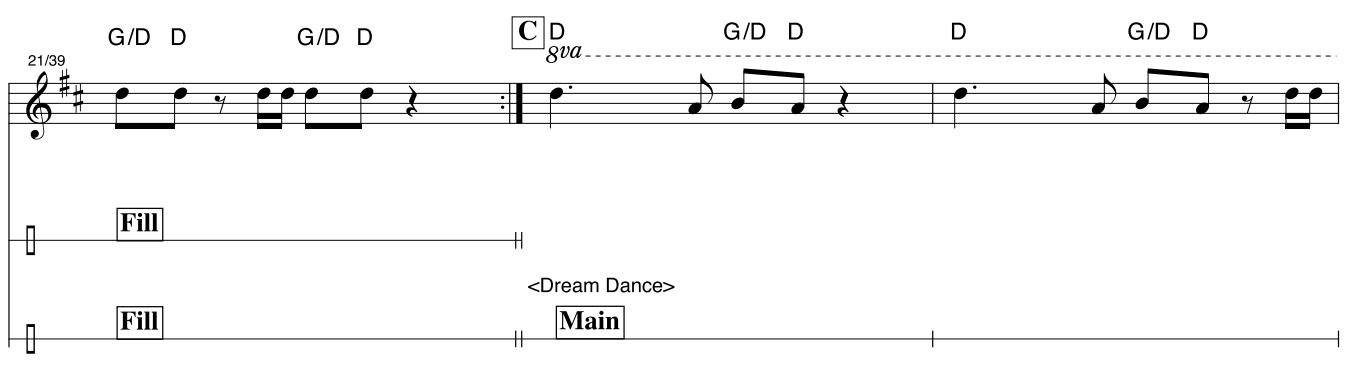

This score is provided with the intent that the pitch will be corrected by the performance assistant technology feature. If you play the "Play These Notes" part using the performance assistant technology feature, the part will be corrected and played so that it matches the backing part.
Song No. 10
=61
(Function Demo for performance assistant technology)
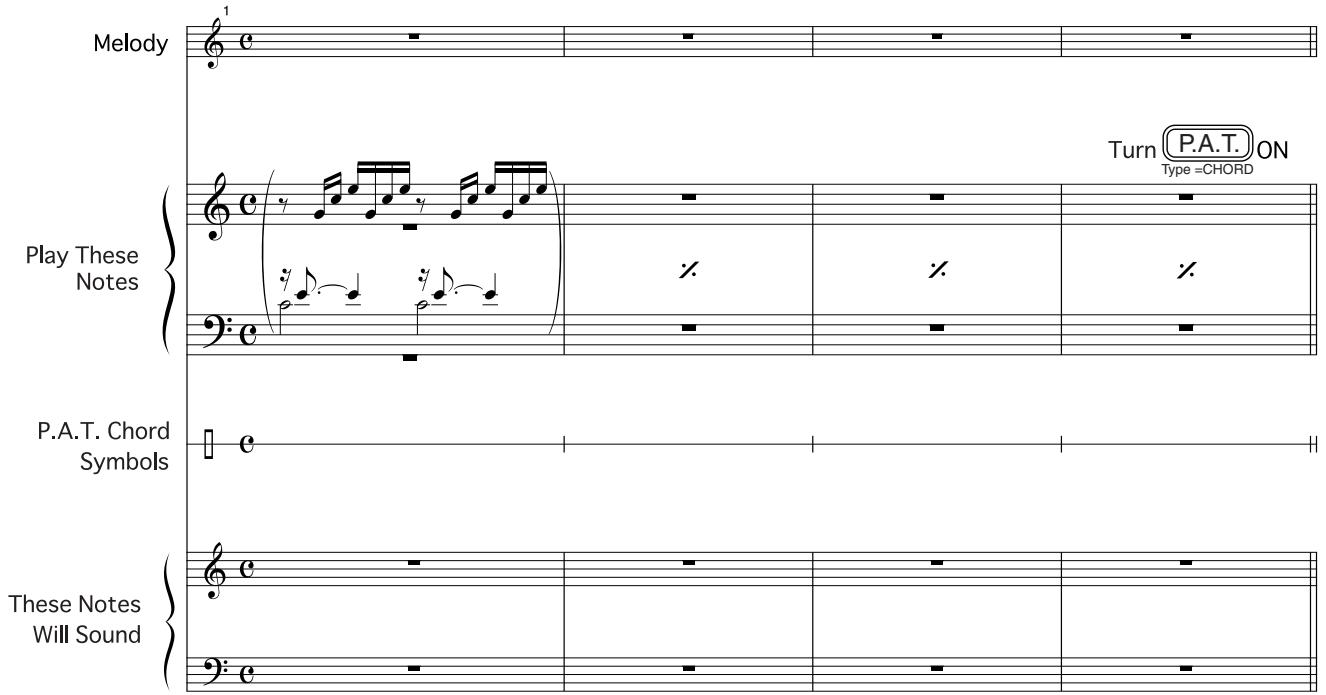
Ave Maria
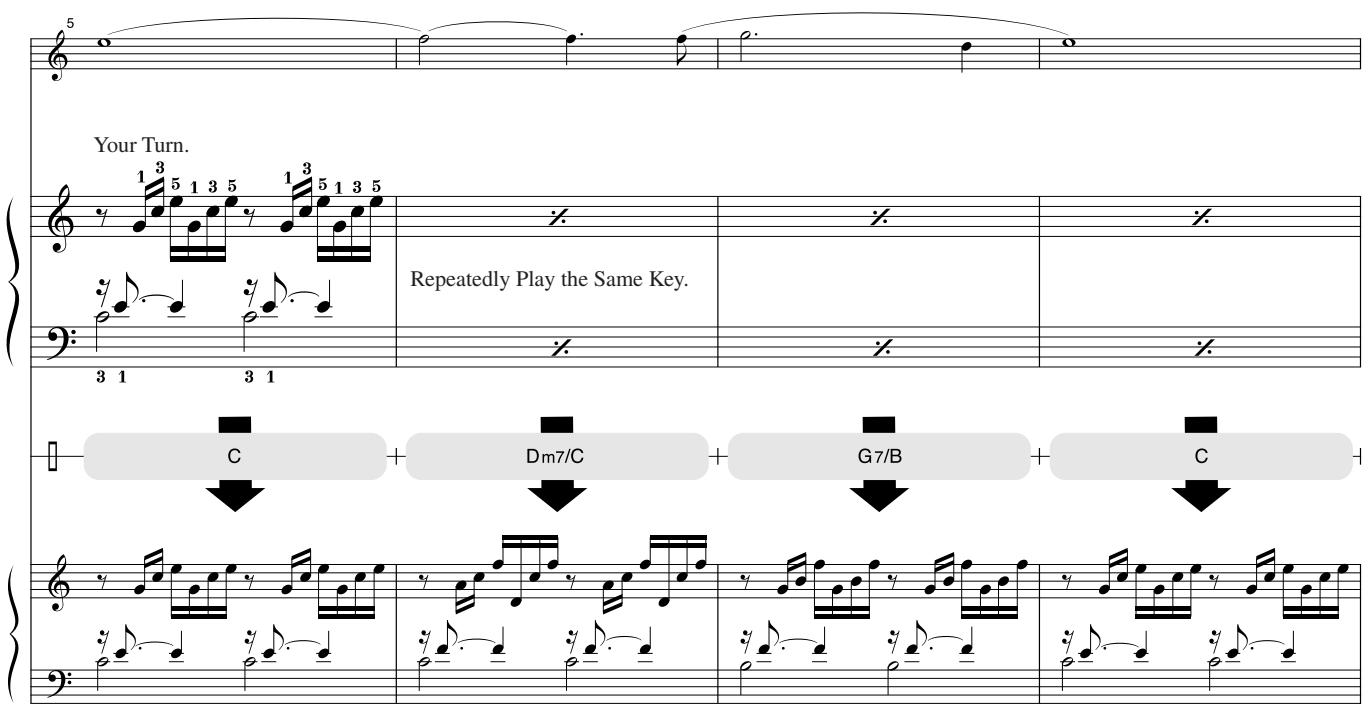
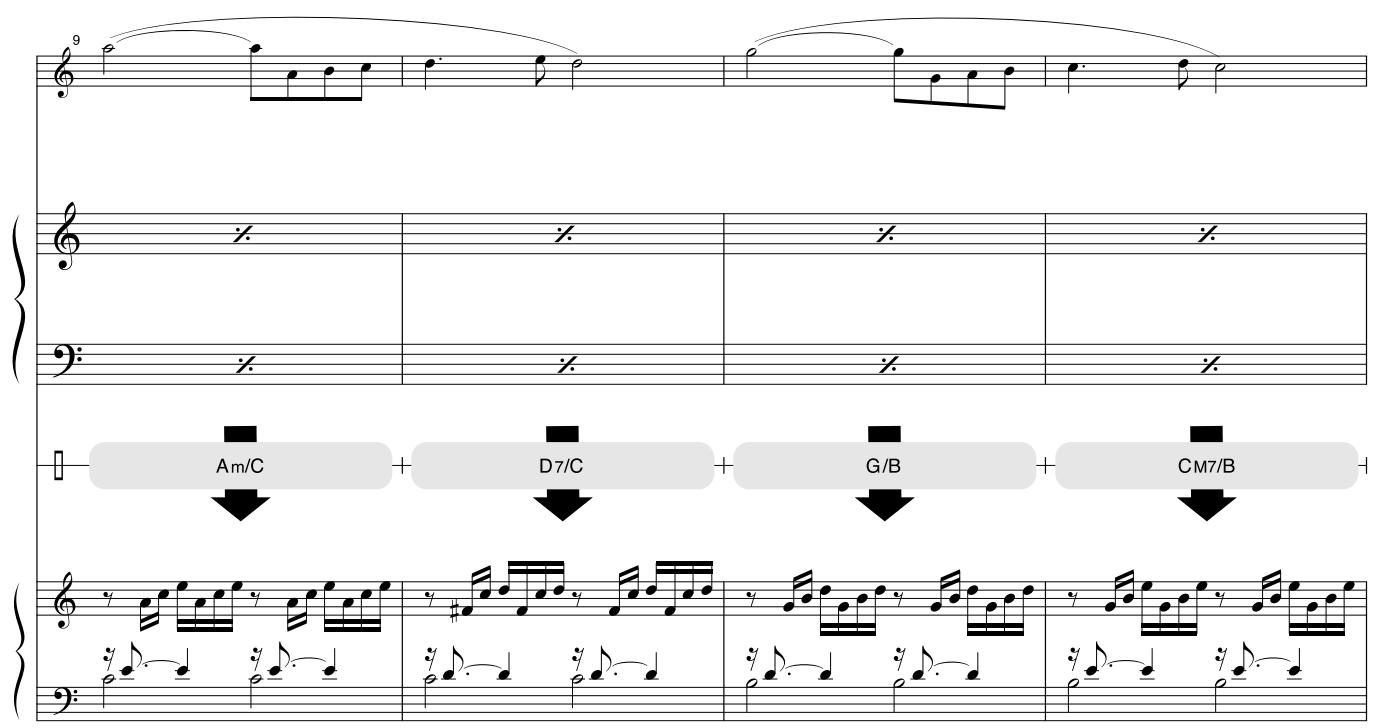
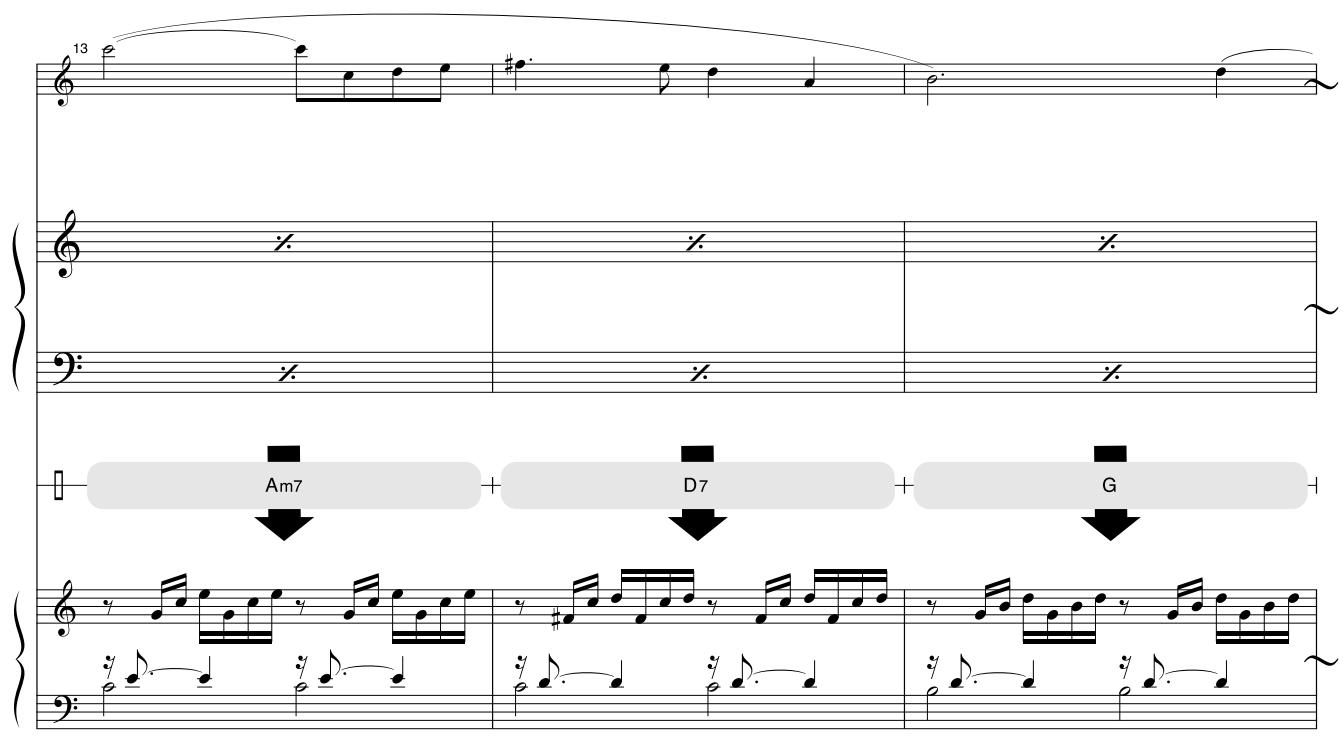
This score is provided with the intent that the pitch will be corrected by the performance assistant technology feature. If you play the "Play These Notes" part using the performance assistant technology feature, the part will be corrected and played so that it matches the backing part.
Song No. 11
(Function Demo for performance assistant technology)
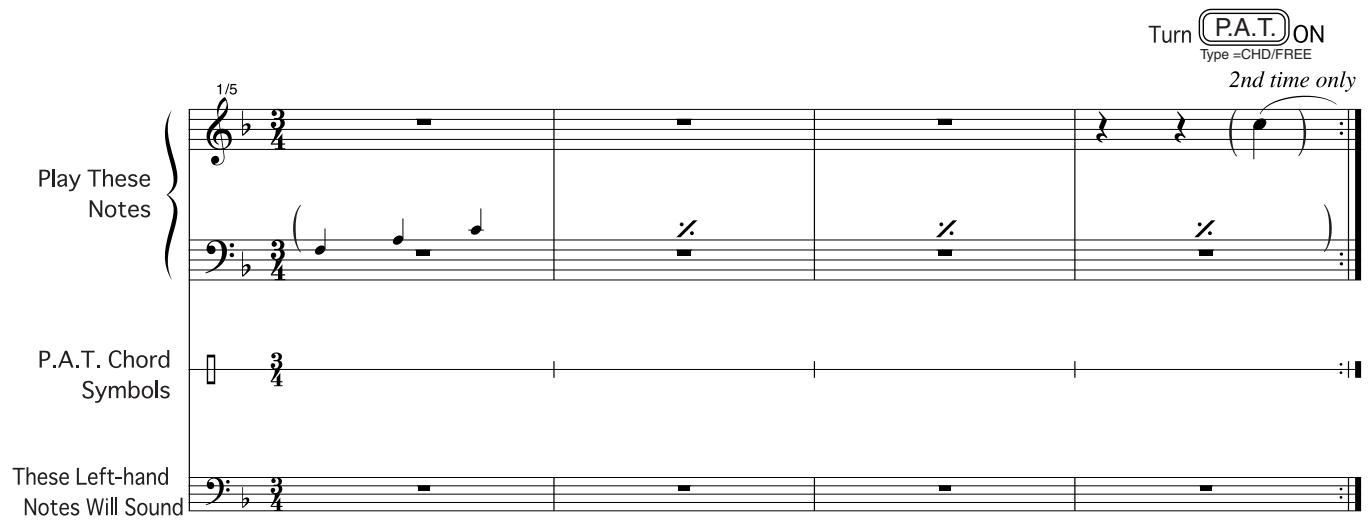
Nocturne op.9-2
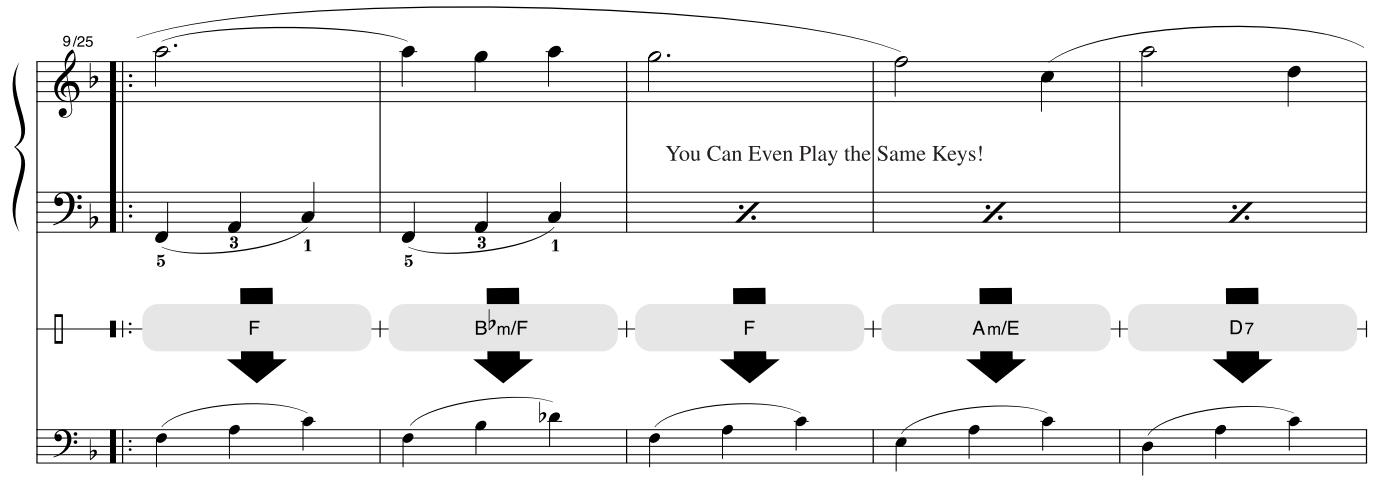
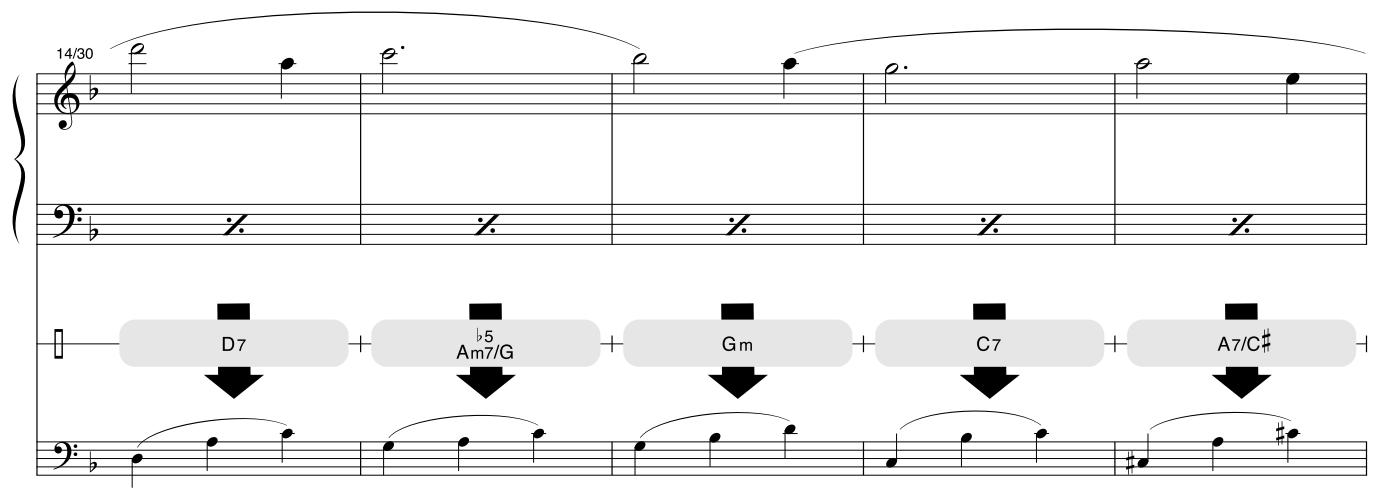
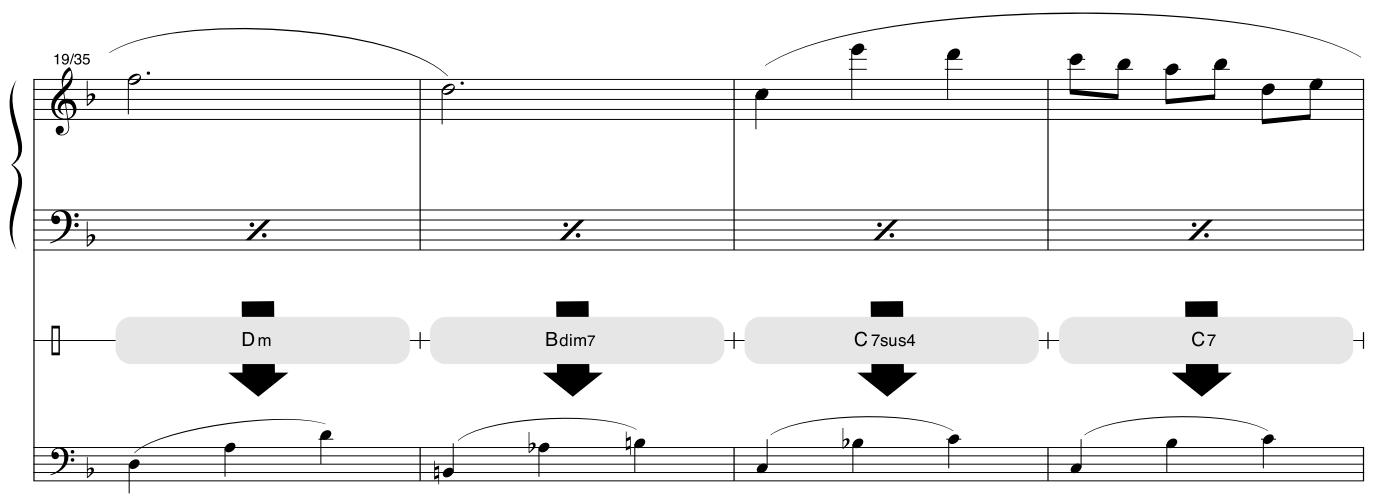
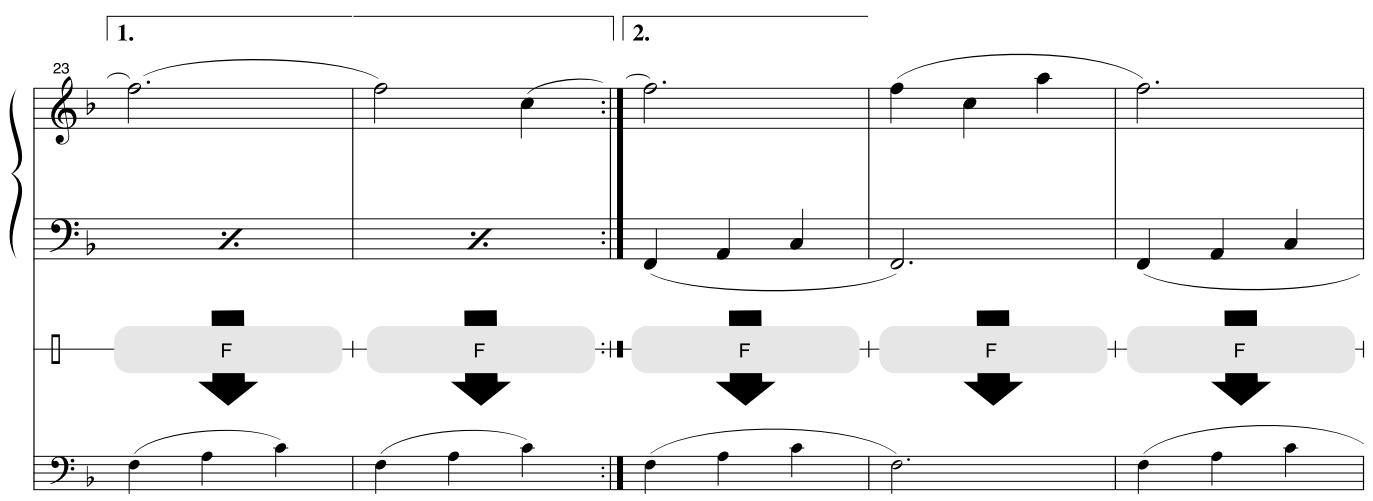
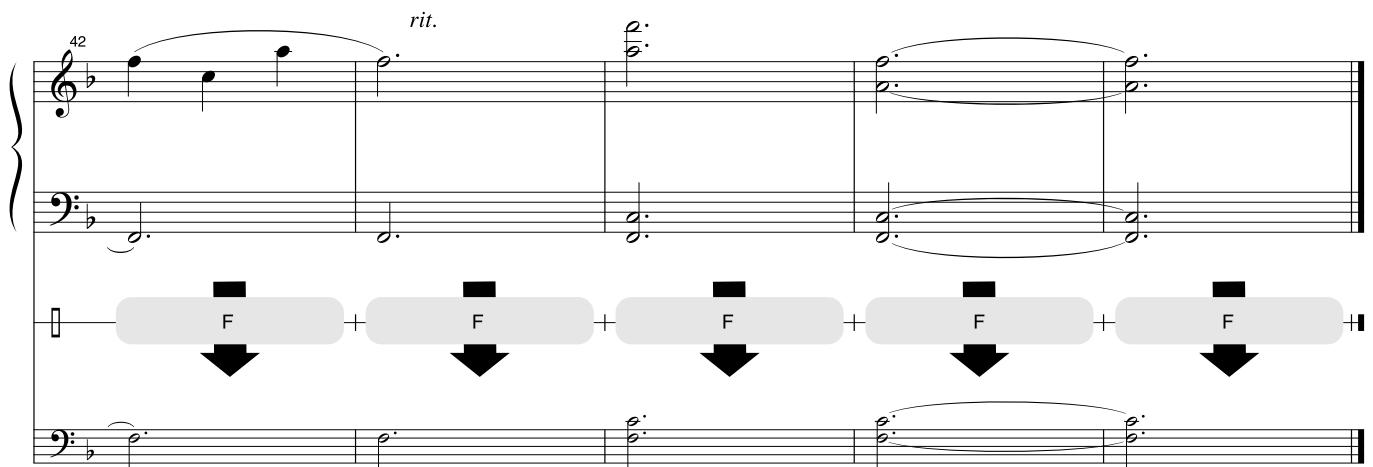
Maximum Polyphony
The instrument has 32-note maximum polyphony. This means that it can play a maximum of up to 32 notes at once, regardless of what functions are used. Auto accompaniment uses a number of the available notes, so when auto accompaniment is used the total number of available notes for playing on the keyboard is correspondingly reduced. The same applies to the Split Voice and Song functions. If the maximum polyphony is exceeded, earlier played notes will be cut off and the most recent notes have priority (last note priority).
NOTE
- The Voice List includes MIDI program change numbers for each voice. Use these program change numbers when playing the instrument via MIDI from an external device.
- Program Numbers 001 to 128 directly relate to MIDI Program Change Numbers 000 to 127. That is, Program Numbers and Program Change Numbers differ by a value of 1. Remember to take this into consideration.
- Some voices may sound continuously or have a long decay after the notes have been released while the sustain pedal (footswitch) is held.
Panel Voice List
| Voice No. | Bank Select | MIDI Program Change# (1-128) | Voice Name |
| MSB (0-127) | LSB (0-127) |
| PIANO |
| 001 | 000 | 112 | 001 | Grand Piano |
| 002 | 000 | 112 | 002 | Bright Piano |
| 003 | 000 | 112 | 007 | Harpsichord |
| 004 | 000 | 112 | 004 | Honky-tonk Piano |
| 005 | 000 | 112 | 003 | MIDI Grand Piano |
| 006 | 000 | 113 | 003 | CP 80 |
| E.PIANO |
| 007 | 000 | 114 | 005 | Cool! Galaxy Electric Piano |
| 008 | 000 | 113 | 006 | Hyper Tines |
| 009 | 000 | 112 | 005 | Funky Electric Piano |
| 010 | 000 | 112 | 006 | DX Modern Electric Piano |
| 011 | 000 | 114 | 006 | Venus Electric Piano |
| 012 | 000 | 112 | 008 | Clavi |
| ORGAN |
| 013 | 000 | 118 | 019 | Cool! Organ |
| 014 | 000 | 117 | 019 | Cool! Rotor Organ |
| 015 | 000 | 112 | 017 | Jazz Organ 1 |
| 016 | 000 | 113 | 017 | Jazz Organ 2 |
| 017 | 000 | 112 | 019 | Rock Organ |
| 018 | 000 | 114 | 019 | Purple Organ |
| 019 | 000 | 112 | 018 | Click Organ |
| 020 | 000 | 116 | 017 | Bright Organ |
| 021 | 000 | 127 | 019 | Theater Organ |
| 022 | 000 | 121 | 020 | 16'+2' Organ |
| 023 | 000 | 120 | 020 | 16'+4' Organ |
| 024 | 000 | 113 | 020 | Chapel Organ |
| 025 | 000 | 112 | 020 | Church Organ |
| 026 | 000 | 112 | 021 | Reed Organ |
| ACCORDION |
| 027 | 000 | 112 | 022 | Musette Accordion |
| 028 | 000 | 113 | 022 | Traditional Accordion |
| 029 | 000 | 113 | 024 | Bandoneon |
| 030 | 000 | 113 | 023 | Modern Harp |
| 031 | 000 | 112 | 023 | Harmonica |
| GUITAR |
| 032 | 000 | 112 | 025 | Classical Guitar |
| 033 | 000 | 112 | 026 | Folk Guitar |
| 034 | 000 | 112 | 027 | Jazz Guitar |
| 035 | 000 | 117 | 028 | 60's Clean Guitar |
| 036 | 000 | 113 | 026 | 12Strings Guitar |
| 037 | 000 | 112 | 028 | Clean Guitar |
| 038 | 000 | 113 | 027 | Octave Guitar |
| 039 | 000 | 112 | 029 | Muted Guitar |
| 040 | 000 | 112 | 030 | Overdriven Guitar |
| 041 | 000 | 112 | 031 | Distortion Guitar |
| BASS |
| 042 | 000 | 112 | 034 | Finger Bass |
| 043 | 000 | 112 | 033 | Acoustic Bass |
| 044 | 000 | 112 | 035 | Pick Bass |
| 045 | 000 | 112 | 036 | Fretless Bass |
| 046 | 000 | 112 | 037 | Slap Bass |
| 047 | 000 | 112 | 039 | Synth Bass |
| 048 | 000 | 113 | 039 | Hi-Q Bass |
| 049 | 000 | 113 | 040 | Dance Bass |
| Voice No. | Bank Select | MIDI Program Change# (1-128) | Voice Name |
| MSB (0-127) | LSB (0-127) |
| STRINGS |
| 050 | 000 | 112 | 049 | String Ensemble |
| 051 | 000 | 112 | 050 | Chamber Strings |
| 052 | 000 | 113 | 050 | Slow Strings |
| 053 | 000 | 112 | 045 | Tremolo Strings |
| 054 | 000 | 112 | 051 | Synth Strings |
| 055 | 000 | 112 | 046 | Pizzicato Strings |
| 056 | 000 | 112 | 041 | Violin |
| 057 | 000 | 112 | 043 | Cello |
| 058 | 000 | 112 | 044 | Contrabass |
| 059 | 000 | 112 | 047 | Harp |
| 060 | 000 | 112 | 106 | Banjo |
| 061 | 000 | 112 | 056 | Orchestra Hit |
| CHOIR |
| 062 | 000 | 112 | 053 | Choir |
| 063 | 000 | 113 | 053 | Vocal Ensemble |
| 064 | 000 | 112 | 055 | Air Choir |
| 065 | 000 | 112 | 054 | Vox Humana |
| SAXOPHONE |
| 066 | 000 | 117 | 067 | Sweet! Tenor Sax |
| 067 | 000 | 113 | 065 | Sweet! Soprano Sax |
| 068 | 000 | 112 | 067 | Tenor Sax |
| 069 | 000 | 112 | 066 | Alto Sax |
| 070 | 000 | 112 | 065 | Soprano Sax |
| 071 | 000 | 112 | 068 | Baritone Sax |
| 072 | 000 | 114 | 067 | Breathy Tenor Sax |
| 073 | 000 | 112 | 072 | Clarinet |
| 074 | 000 | 112 | 069 | Oboe |
| 075 | 000 | 112 | 070 | English Horn |
| 076 | 000 | 112 | 071 | Bassoon |
| TRUMPET |
| 077 | 000 | 115 | 057 | Sweet! Trumpet |
| 078 | 000 | 112 | 057 | Trumpet |
| 079 | 000 | 112 | 058 | Trombone |
| 080 | 000 | 113 | 058 | Trombone Section |
| 081 | 000 | 112 | 060 | Muted Trumpet |
| 082 | 000 | 112 | 061 | French Horn |
| 083 | 000 | 112 | 059 | Tuba |
| BRASS |
| 084 | 000 | 112 | 062 | Brass Section |
| 085 | 000 | 113 | 062 | Big Band Brass |
| 086 | 000 | 113 | 063 | 80's Brass |
| 087 | 000 | 119 | 062 | Mellow Horns |
| 088 | 000 | 114 | 063 | Techno Brass |
| 089 | 000 | 112 | 063 | Synth Brass |
| FLUTE |
| 090 | 000 | 114 | 074 | Sweet! Flute |
| 091 | 000 | 113 | 076 | Sweet! Pan Flute |
| 092 | 000 | 112 | 074 | Flute |
| 093 | 000 | 112 | 073 | Piccolo |
| 094 | 000 | 112 | 076 | Pan Flute |
| 095 | 000 | 112 | 075 | Recorder |
| 096 | 000 | 112 | 080 | Ocarina |
| SYNTH LEAD |
| 097 | 000 | 112 | 081 | Square Lead |
| 098 | 000 | 112 | 082 | Sawtooth Lead |
| 099 | 000 | 115 | 082 | Analogon |
| 100 | 000 | 119 | 082 | Cargo |
| 101 | 000 | 112 | 099 | Star Dust |
| 102 | 000 | 112 | 086 | Voice Lead |
| 103 | 000 | 112 | 101 | Brightness |
| SYNTH PAD |
| 104 | 000 | 112 | 092 | Xenon Pad |
| 105 | 000 | 112 | 095 | Equinox |
| 106 | 000 | 112 | 089 | Fantasia |
| 107 | 000 | 113 | 090 | Dark Moon |
| 108 | 000 | 113 | 101 | Bell Pad |
| PERCUSSION |
| 109 | 000 | 112 | 012 | Vibraphone |
| 110 | 000 | 112 | 013 | Marimba |
| 111 | 000 | 112 | 014 | Xylophone |
| 112 | 000 | 112 | 115 | Steel Drums |
| 113 | 000 | 112 | 009 | Celesta |
| 114 | 000 | 112 | 011 | Music Box |
| 115 | 000 | 112 | 015 | Tubular Bells |
| 116 | 000 | 112 | 048 | Timpani |
| DRUM KITS |
| 117 | 127 | 000 | 001 | Standard Kit 1 |
| 118 | 127 | 000 | 002 | Standard Kit 2 |
| 119 | 127 | 000 | 009 | Room Kit |
| 120 | 127 | 000 | 017 | Rock Kit |
| 121 | 127 | 000 | 025 | Electronic Kit |
| 122 | 127 | 000 | 026 | Analog Kit |
| 123 | 127 | 000 | 113 | Dance Kit |
| 124 | 127 | 000 | 033 | Jazz Kit |
| 125 | 127 | 000 | 041 | Brush Kit |
| 126 | 127 | 000 | 049 | Symphony Kit |
| 127 | 126 | 000 | 001 | SFX Kit 1 |
| 128 | 126 | 000 | 002 | SFX Kit 2 |
XGlite Voice/XGlite Optional Voice* List
| Voice No. | Bank Select | MIDI Program Change# (1-128) | Voice Name |
| MSB (0-127) | LSB (0-127) |
| PIANO |
| 129 | 000 | 000 | 001 | Grand Piano |
| 130 | 000 | 001 | 001 | Grand Piano KSP |
| 131 | 000 | 040 | 001 | Piano Strings |
| 132 | 000 | 041 | 001 | Dream |
| 133 | 000 | 000 | 002 | Bright Piano |
| 134 | 000 | 001 | 002 | Bright Piano KSP |
| 135 | 000 | 000 | 003 | Electric Grand Piano |
| 136 | 000 | 001 | 003 | Electric Grand Piano KSP |
| 137 | 000 | 032 | 003 | Detuned CP80 |
| 138 | 000 | 000 | 004 | Honky-tonk Piano |
| 139 | 000 | 001 | 004 | Honky-tonk Piano KSP |
| 140 | 000 | 000 | 005 | Electric Piano 1 |
| 141 | 000 | 001 | 005 | Electric Piano 1 KSP |
| 142 | 000 | 032 | 005 | Chorus Electric Piano 1 |
| 143 | 000 | 000 | 006 | Electric Piano 2 |
| 144 | 000 | 001 | 006 | Electric Piano 2 KSP |
| *145 | 000 | 032 | 006 | Chorus Electric Piano 2 |
| 146 | 000 | 041 | 006 | DX + Analog Electric Piano |
| 147 | 000 | 000 | 007 | Harpsichord |
| 148 | 000 | 001 | 007 | Harpsichord KSP |
| 149 | 000 | 035 | 007 | Harpsichord 2 |
| 150 | 000 | 000 | 008 | Clavi |
| 151 | 000 | 001 | 008 | Clavi KSP |
| CHROMATIC |
| 152 | 000 | 000 | 009 | Celesta |
| 153 | 000 | 000 | 010 | Glockenspiel |
| 154 | 000 | 000 | 011 | Music Box |
| 155 | 000 | 064 | 011 | Orgel |
| Voice No. | Bank Select | MIDI Program Change# (1-128) | Voice Name |
| MSB (0-127) | LSB (0-127) |
| 156 | 000 | 000 | 012 | Vibraphone |
| 157 | 000 | 001 | 012 | Vibraphone KSP |
| 158 | 000 | 000 | 013 | Marimba |
| 159 | 000 | 001 | 013 | Marimba KSP |
| 160 | 000 | 064 | 013 | Sine Marimba |
| 161 | 000 | 097 | 013 | Balimba |
| 162 | 000 | 098 | 013 | Log Drums |
| 163 | 000 | 000 | 014 | Xylophone |
| 164 | 000 | 000 | 015 | Tubular Bells |
| 165 | 000 | 096 | 015 | Church Bells |
| 166 | 000 | 097 | 015 | Carillon |
| 167 | 000 | 000 | 016 | Dulcimer |
| 168 | 000 | 035 | 016 | Dulcimer 2 |
| 169 | 000 | 096 | 016 | Cimbalom |
| 170 | 000 | 097 | 016 | Santur |
| ORGAN |
| 171 | 000 | 000 | 017 | Drawbar Organ |
| 172 | 000 | 032 | 017 | Detuned Drawbar Organ |
| 173 | 000 | 033 | 017 | 60's Drawbar Organ 1 |
| 174 | 000 | 034 | 017 | 60's Drawbar Organ 2 |
| 175 | 000 | 035 | 017 | 70's Drawbar Organ 1 |
| 176 | 000 | 037 | 017 | 60's Drawbar Organ 3 |
| 177 | 000 | 040 | 017 | 16+2'2/3 |
| 178 | 000 | 064 | 017 | Organ Bass |
| 179 | 000 | 065 | 017 | 70's Drawbar Organ 2 |
| 180 | 000 | 066 | 017 | Cheezy Organ |
| 181 | 000 | 067 | 017 | Drawbar Organ 2 |
| 182 | 000 | 000 | 018 | Percussive Organ |
| 183 | 000 | 024 | 018 | 70's Percussive Organ |
| 184 | 000 | 032 | 018 | Detuned Percussive Organ |
| 185 | 000 | 033 | 018 | Light Organ |
| 186 | 000 | 037 | 018 | Percussive Organ 2 |
| 187 | 000 | 000 | 019 | Rock Organ |
| 188 | 000 | 064 | 019 | Rotary Organ |
| 189 | 000 | 065 | 019 | Slow Rotary |
| 190 | 000 | 066 | 019 | Fast Rotary |
| 191 | 000 | 000 | 020 | Church Organ |
| 192 | 000 | 032 | 020 | Church Organ 3 |
| 193 | 000 | 035 | 020 | Church Organ 2 |
| 194 | 000 | 040 | 020 | Notre Dame |
| 195 | 000 | 064 | 020 | Organ Flute |
| 196 | 000 | 065 | 020 | Tremolo Organ Flute |
| 197 | 000 | 000 | 021 | Reed Organ |
| 198 | 000 | 040 | 021 | Puff Organ |
| 199 | 000 | 000 | 022 | Accordion |
| 200 | 000 | 000 | 023 | Harmonica |
| 201 | 000 | 032 | 023 | Harmonica 2 |
| 202 | 000 | 000 | 024 | Tango Accordion |
| 203 | 000 | 064 | 024 | Tango Accordion 2 |
| GUITAR |
| 204 | 000 | 000 | 025 | Nylon Guitar |
| 205 | 000 | 043 | 025 | Velocity Guitar Harmonics |
| 206 | 000 | 096 | 025 | Ukulele |
| 207 | 000 | 000 | 026 | Steel Guitar |
| 208 | 000 | 035 | 026 | 12-string Guitar |
| 209 | 000 | 040 | 026 | Nylon & Steel Guitar |
| 210 | 000 | 041 | 026 | Steel Guitar with Body Sound |
| 211 | 000 | 096 | 026 | Mandolin |
| 212 | 000 | 000 | 027 | Jazz Guitar |
| 213 | 000 | 032 | 027 | Jazz Amp |
| 214 | 000 | 000 | 028 | Clean Guitar |
| 215 | 000 | 032 | 028 | Chorus Guitar |
| 216 | 000 | 000 | 029 | Muted Guitar |
| 217 | 000 | 040 | 029 | Funk Guitar |
| 218 | 000 | 041 | 029 | Muted Steel Guitar |
| 219 | 000 | 045 | 029 | Jazz Man |
| 220 | 000 | 000 | 030 | Overdriven Guitar |
| 221 | 000 | 043 | 030 | Guitar Pinch |
| 222 | 000 | 000 | 031 | Distortion Guitar |
| 223 | 000 | 040 | 031 | Feedback Guitar |
| 224 | 000 | 041 | 031 | Feedback Guitar 2 |
| BASS |
| 225 | 000 | 000 | 032 | Guitar Harmonics |
| 226 | 000 | 065 | 032 | Guitar Feedback |
| 227 | 000 | 066 | 032 | Guitar Harmonics 2 |
| BASS |
| 228 | 000 | 000 | 033 | Acoustic Bass |
| 229 | 000 | 040 | 033 | Jazz Rhythm |
| 230 | 000 | 045 | 033 | Velocity Crossfade Upright Bass |
| 231 | 000 | 000 | 034 | Finger Bass |
| 232 | 000 | 018 | 034 | Finger Dark |
| 233 | 000 | 040 | 034 | Bass & Distorted Electric Guitar |
| 234 | 000 | 043 | 034 | Finger Slap Bass |
| 235 | 000 | 045 | 034 | Finger Bass 2 |
| 236 | 000 | 065 | 034 | Modulated Bass |
| 237 | 000 | 000 | 035 | Pick Bass |
| 238 | 000 | 028 | 035 | Muted Pick Bass |
| 239 | 000 | 000 | 036 | Fretless Bass |
| 240 | 000 | 032 | 036 | Fretless Bass 2 |
| 241 | 000 | 033 | 036 | Fretless Bass 3 |
| 242 | 000 | 034 | 036 | Fretless Bass 4 |
| 243 | 000 | 000 | 037 | Slap Bass 1 |
| 244 | 000 | 032 | 037 | Punch Thumb Bass |
| 245 | 000 | 000 | 038 | Slap Bass 2 |
| 246 | 000 | 043 | 038 | Velocity Switch Slap |
| 247 | 000 | 000 | 039 | Synth Bass 1 |
| 248 | 000 | 040 | 039 | Techno Synth Bass |
| 249 | 000 | 000 | 040 | Synth Bass 2 |
| 250 | 000 | 006 | 040 | Mellow Synth Bass |
| 251 | 000 | 012 | 040 | Sequenced Bass |
| 252 | 000 | 018 | 040 | Click Synth Bass |
| 253 | 000 | 019 | 040 | Synth Bass 2 Dark |
| *254 | 000 | 040 | 040 | Modular Synth Bass |
| 255 | 000 | 041 | 040 | DX Bass |
| STRINGS |
| 256 | 000 | 000 | 041 | Violin |
| 257 | 000 | 008 | 041 | Slow Violin |
| 258 | 000 | 000 | 042 | Viola |
| 259 | 000 | 000 | 043 | Cello |
| 260 | 000 | 000 | 044 | Contrabass |
| 261 | 000 | 000 | 045 | Tremolo Strings |
| 262 | 000 | 008 | 045 | Slow Tremolo Strings |
| 263 | 000 | 040 | 045 | Suspense Strings |
| 264 | 000 | 000 | 046 | Pizzicato Strings |
| 265 | 000 | 000 | 047 | Orchestral Harp |
| 266 | 000 | 040 | 047 | Yang Chin |
| 267 | 000 | 000 | 048 | Timpani |
| ENSEMBLE |
| 268 | 000 | 000 | 049 | Strings 1 |
| 269 | 000 | 003 | 049 | Stereo Strings |
| 270 | 000 | 008 | 049 | Slow Strings |
| 271 | 000 | 035 | 049 | 60's Strings |
| 272 | 000 | 040 | 049 | Orchestra |
| 273 | 000 | 041 | 049 | Orchestra 2 |
| 274 | 000 | 042 | 049 | Tremolo Orchestra |
| 275 | 000 | 045 | 049 | Velocity Strings |
| 276 | 000 | 000 | 050 | Strings 2 |
| 277 | 000 | 003 | 050 | Stereo Slow Strings |
| 278 | 000 | 008 | 050 | Legato Strings |
| 279 | 000 | 040 | 050 | Warm Strings |
| 280 | 000 | 041 | 050 | Kingdom |
| 281 | 000 | 000 | 051 | Synth Strings 1 |
| 282 | 000 | 000 | 052 | Synth Strings 2 |
| 283 | 000 | 000 | 053 | Choir Aafs |
| 284 | 000 | 003 | 053 | Stereo Choir |
| 285 | 000 | 032 | 053 | Mellow Choir |
| 286 | 000 | 040 | 053 | Choir Strings |
| 287 | 000 | 000 | 054 | Voice Oohs |
| 288 | 000 | 000 | 055 | Synth Voice |
| 289 | 000 | 040 | 055 | Synth Voice 2 |
| 290 | 000 | 041 | 055 | Choral |
| 291 | 000 | 064 | 055 | Analog Voice |
| 292 | 000 | 000 | 056 | Orchestra Hit |
| 293 | 000 | 035 | 056 | Orchestra Hit 2 |
| Voice No. | Bank Select | MIDI Program Change# (1-128) | Voice Name |
| MSB (0-127) | LSB (0-127) |
| 294 | 000 | 064 | 056 | Impact |
| BRASS |
| 295 | 000 | 000 | 057 | Trumpet |
| 296 | 000 | 032 | 057 | Warm Trumpet |
| 297 | 000 | 000 | 058 | Trombone |
| 298 | 000 | 018 | 058 | Trombone 2 |
| 299 | 000 | 000 | 059 | Tuba |
| 300 | 000 | 000 | 060 | Muted Trumpet |
| 301 | 000 | 000 | 061 | French Horn |
| 302 | 000 | 006 | 061 | French Horn Solo |
| 303 | 000 | 032 | 061 | French Horn 2 |
| 304 | 000 | 037 | 061 | Horn Orchestra |
| 305 | 000 | 000 | 062 | Brass Section |
| 306 | 000 | 035 | 062 | Trumpet & Trombone Section |
| 307 | 000 | 000 | 063 | Synth Brass 1 |
| 308 | 000 | 020 | 063 | Resonant Synth Brass |
| 309 | 000 | 000 | 064 | Synth Brass 2 |
| 310 | 000 | 018 | 064 | Soft Brass |
| 311 | 000 | 041 | 064 | Choir Brass |
| REED |
| 312 | 000 | 000 | 065 | Soprano Sax |
| 313 | 000 | 000 | 066 | Alto Sax |
| 314 | 000 | 040 | 066 | Sax Section |
| 315 | 000 | 000 | 067 | Tenor Sax |
| 316 | 000 | 040 | 067 | Breathy Tenor Sax |
| 317 | 000 | 000 | 068 | Baritone Sax |
| 318 | 000 | 000 | 069 | Oboe |
| 319 | 000 | 000 | 070 | English Horn |
| 320 | 000 | 000 | 071 | Bassoon |
| 321 | 000 | 000 | 072 | Clarinet |
| PIPE |
| 322 | 000 | 000 | 073 | Piccolo |
| 323 | 000 | 000 | 074 | Flute |
| 324 | 000 | 000 | 075 | Recorder |
| 325 | 000 | 000 | 076 | Pan Flute |
| 326 | 000 | 000 | 077 | Blown Bottle |
| 327 | 000 | 000 | 078 | Shakuhachi |
| 328 | 000 | 000 | 079 | Whistle |
| 329 | 000 | 000 | 080 | Ocarina |
| SYNTH LEAD |
| 330 | 000 | 000 | 081 | Square Lead |
| 331 | 000 | 006 | 081 | Square Lead 2 |
| 332 | 000 | 008 | 081 | LM Square |
| 333 | 000 | 018 | 081 | Hollow |
| 334 | 000 | 019 | 081 | Shroud |
| 335 | 000 | 064 | 081 | Mellow |
| 336 | 000 | 065 | 081 | Solo Sine |
| 337 | 000 | 066 | 081 | Sine Lead |
| 338 | 000 | 000 | 082 | Sawtooth Lead |
| 339 | 000 | 006 | 082 | Sawtooth Lead 2 |
| 340 | 000 | 008 | 082 | Thick Sawtooth |
| 341 | 000 | 018 | 082 | Dynamic Sawtooth |
| 342 | 000 | 019 | 082 | Digital Sawtooth |
| 343 | 000 | 020 | 082 | Big Lead |
| 344 | 000 | 096 | 082 | Sequenced Analog |
| 345 | 000 | 000 | 083 | Calliope Lead |
| 346 | 000 | 065 | 083 | Pure Lead |
| 347 | 000 | 000 | 084 | Chiff Lead |
| 348 | 000 | 000 | 085 | Charang Lead |
| 349 | 000 | 064 | 085 | Distorted Lead |
| 350 | 000 | 000 | 086 | Voice Lead |
| 351 | 000 | 000 | 087 | Fifths Lead |
| 352 | 000 | 035 | 087 | Big Five |
| 353 | 000 | 000 | 088 | Bass & Lead |
| 354 | 000 | 016 | 088 | Big & Low |
| 355 | 000 | 064 | 088 | Fat & Perky |
| 356 | 000 | 065 | 088 | Soft Whirl |
| SYNTH PAD |
| 357 | 000 | 000 | 089 | New Age Pad |
| 358 | 000 | 064 | 089 | Fantasy |
| 359 | 000 | 000 | 090 | Warm Pad |
| 360 | 000 | 000 | 091 | Poly Synth Pad |
| 361 | 000 | 000 | 092 | Choir Pad |
| 362 | 000 | 066 | 092 | Itopia |
| 363 | 000 | 000 | 093 | Bowed Pad |
| 364 | 000 | 000 | 094 | Metallic Pad |
| 365 | 000 | 000 | 095 | Halo Pad |
| 366 | 000 | 000 | 096 | Sweep Pad |
| SYNTH EFFECTS |
| 367 | 000 | 000 | 097 | Rain |
| 368 | 000 | 065 | 097 | African Wind |
| 369 | 000 | 066 | 097 | Carib |
| 370 | 000 | 000 | 098 | Sound Track |
| 371 | 000 | 027 | 098 | Prologue |
| 372 | 000 | 000 | 099 | Crystal |
| 373 | 000 | 012 | 099 | Synth Drum Comp |
| 374 | 000 | 014 | 099 | Popcorn |
| 375 | 000 | 018 | 099 | Tiny Bells |
| 376 | 000 | 035 | 099 | Round Glockenspiel |
| 377 | 000 | 040 | 099 | Glockenspiel Chimes |
| 378 | 000 | 041 | 099 | Clear Bells |
| 379 | 000 | 042 | 099 | Chorus Bells |
| 380 | 000 | 065 | 099 | Soft Crystal |
| 381 | 000 | 070 | 099 | Air Bells |
| 382 | 000 | 071 | 099 | Bell Harp |
| 383 | 000 | 072 | 099 | Gamelimba |
| 384 | 000 | 000 | 100 | Atmosphere |
| 385 | 000 | 018 | 100 | Warm Atmosphere |
| 386 | 000 | 019 | 100 | Hollow Release |
| 387 | 000 | 040 | 100 | Nylon Electric Piano |
| 388 | 000 | 064 | 100 | Nylon Harp |
| 389 | 000 | 065 | 100 | Harp Vox |
| 390 | 000 | 066 | 100 | Atmosphere Pad |
| 391 | 000 | 000 | 101 | Brightness |
| 392 | 000 | 000 | 102 | Goblins |
| 393 | 000 | 064 | 102 | Goblins Synth |
| 394 | 000 | 065 | 102 | Creeper |
| 395 | 000 | 067 | 102 | Ritual |
| 396 | 000 | 068 | 102 | To Heaven |
| 397 | 000 | 070 | 102 | Night |
| 398 | 000 | 071 | 102 | Glisten |
| 399 | 000 | 096 | 102 | Bell Choir |
| 400 | 000 | 000 | 103 | Echoes |
| 401 | 000 | 000 | 104 | Sci-Fi |
| WORLD |
| 402 | 000 | 000 | 105 | Sitar |
| 403 | 000 | 032 | 105 | Detuned Sitar |
| 404 | 000 | 035 | 105 | Sitar 2 |
| 405 | 000 | 097 | 105 | Tamboura |
| 406 | 000 | 000 | 106 | Banjo |
| 407 | 000 | 028 | 106 | Muted Banjo |
| 408 | 000 | 096 | 106 | Rabab |
| 409 | 000 | 097 | 106 | Gopichant |
| 410 | 000 | 098 | 106 | Oud |
| 411 | 000 | 000 | 107 | Shamisen |
| 412 | 000 | 000 | 108 | Koto |
| 413 | 000 | 096 | 108 | Taisho-kin |
| 414 | 000 | 097 | 108 | Kanoon |
| 415 | 000 | 000 | 109 | Kalimba |
| 416 | 000 | 000 | 110 | Bagpipe |
| 417 | 000 | 000 | 111 | Fiddle |
| 418 | 000 | 000 | 112 | Shanai |
| PERCUSSIVE |
| 419 | 000 | 000 | 113 | Tinkle Bell |
| 420 | 000 | 096 | 113 | Bonang |
| 421 | 000 | 097 | 113 | Altair |
| 422 | 000 | 098 | 113 | Gamelan Gongs |
| 423 | 000 | 099 | 113 | Stereo Gamelan Gongs |
| 424 | 000 | 100 | 113 | Rama Cymbal |
| 425 | 000 | 000 | 114 | Agogo |
| 426 | 000 | 000 | 115 | Steel Drums |
| 427 | 000 | 097 | 115 | Glass Percussion |
| Voice No. | Bank Select | MIDI Program Change# (1-128) | Voice Name |
| MSB (0-127) | LSB (0-127) |
| 428 | 000 | 098 | 115 | Thai Bells |
| 429 | 000 | 000 | 116 | Woodblock |
| 430 | 000 | 096 | 116 | Castanets |
| 431 | 000 | 000 | 117 | Taiko Drum |
| 432 | 000 | 096 | 117 | Gran Cassa |
| 433 | 000 | 000 | 118 | Melodic Tom |
| 434 | 000 | 064 | 118 | Melodic Tom 2 |
| 435 | 000 | 065 | 118 | Real Tom |
| 436 | 000 | 066 | 118 | Rock Tom |
| 437 | 000 | 000 | 119 | Synth Drum |
| 438 | 000 | 064 | 119 | Analog Tom |
| 439 | 000 | 065 | 119 | Electronic Percussion |
| 440 | 000 | 000 | 120 | Reverse Cymbal |
| SOUND EFFECTS |
| 441 | 000 | 000 | 121 | Fret Noise |
| 442 | 000 | 000 | 122 | Breath Noise |
| 443 | 000 | 000 | 123 | Seashore |
| 444 | 000 | 000 | 124 | Bird Tweet |
| 445 | 000 | 000 | 125 | Telephone Ring |
| 446 | 000 | 000 | 126 | Helicopter |
| 447 | 000 | 000 | 127 | Applause |
| 448 | 000 | 000 | 128 | Gunshot |
| 449 | 064 | 000 | 001 | Cutting Noise |
| 450 | 064 | 000 | 002 | Cutting Noise 2 |
| 451 | 064 | 000 | 004 | String Slap |
| 452 | 064 | 000 | 017 | Flute Key Click |
| 453 | 064 | 000 | 033 | Shower |
| 454 | 064 | 000 | 034 | Thunder |
| 455 | 064 | 000 | 035 | Wind |
| 456 | 064 | 000 | 036 | Stream |
| 457 | 064 | 000 | 037 | Bubble |
| 458 | 064 | 000 | 038 | Feed |
| 459 | 064 | 000 | 049 | Dog |
| 460 | 064 | 000 | 050 | Horse |
| 461 | 064 | 000 | 051 | Bird Tweet 2 |
| 462 | 064 | 000 | 056 | Maou |
| 463 | 064 | 000 | 065 | Phone Call |
| 464 | 064 | 000 | 066 | Door Squeak |
| 465 | 064 | 000 | 067 | Door Slam |
| 466 | 064 | 000 | 068 | Scratch Cut |
| 467 | 064 | 000 | 069 | Scratch Split |
| 468 | 064 | 000 | 070 | Wind Chime |
| 469 | 064 | 000 | 071 | Telephone Ring 2 |
| 470 | 064 | 000 | 081 | Car Engine Ignition |
| 471 | 064 | 000 | 082 | Car Tires Squeal |
| 472 | 064 | 000 | 083 | Car Passing |
| 473 | 064 | 000 | 084 | Car Crash |
| 474 | 064 | 000 | 085 | Siren |
| 475 | 064 | 000 | 086 | Train |
| 476 | 064 | 000 | 087 | Jet Plane |
| 477 | 064 | 000 | 088 | Starship |
| 478 | 064 | 000 | 089 | Burst |
| 479 | 064 | 000 | 090 | Roller Coaster |
| 480 | 064 | 000 | 091 | Submarine |
| 481 | 064 | 000 | 097 | Laugh |
| 482 | 064 | 000 | 098 | Scream |
| 483 | 064 | 000 | 099 | Punch |
| 484 | 064 | 000 | 100 | Heartbeat |
| 485 | 064 | 000 | 101 | Footsteps |
| 486 | 064 | 000 | 113 | Machine Gun |
| 487 | 064 | 000 | 114 | Laser Gun |
| 488 | 064 | 000 | 115 | Explosion |
| 489 | 064 | 000 | 116 | Firework |
The voice number with an asterisk (*) is XGlite optional voice.
- " _ " indicates that the drum sound is the same as "Standard Kit 1".
Each percussion voice uses one note.
- The MIDI Note # and Note are actually one octave lower than keyboard Note # and Note. For example, in "117: Standard Kit 1", the "Seq Click H" (Note# 36/Note C1) corresponds to (Note# 24/Note C0).
Key Off: Keys marked "O" stop sounding the instant they are released.
- Voices with the same Alternate Note Number (*1 ... 4) cannot be played simultaneously. (They are designed to be played alternately with each other.)
| E6 | F6 | G6 | H6 | I6 | J6 | K6 | L6 | M6 | N6 | O6 | P6 | Q6 | R6 | S6 | T6 | U6 | V6 |
| | | | | | | | | | | | | | | | | |
| | | | | | | | | | | | | | | | | |
| | | | | | | | | | | | | | | | | |
| | | | | | | | | | | | | | | | | |
| | | | | | | | | | | | | | | | | |
| | | | | | | | | | | | | | | | | A0 |
| | | | | | | | | | | | | | | | | A1 |
| | | | | | | | | | | | | | | | | G0 |
| | | | | | | | | | | | | | | | | G1 |
| | | | | | | | | | | | | | | | | G2 |
| | | | | | | | | | | | | | | | | G3 |
| | | | | | | | | | | | | | | | | E1 |
| | | | | | | | | | | | | | | | | F1 |
| | | | | | | | | | | | | | | | | F2 |
| | | | | | | | | | | | | | | | | F3 |
| | | | | | | | | | | | | | | | | F4 |
| | | | | | | | | | | | | | | | | F5 |
| | | | | | | | | | | | | | | | | F6 |
| | | | | | | | | | | | | | | | | G7 |
| | | | | | | | | | | | | | | | | A2 |
| | | | | | | | | | | | | | | | | A2 |
| | | | | | | | | | | | | | | | | A2 |
| | | | | | | | | | | | | | | | | B2 |
| | | | | | | | | | | | | | | | | B2 |
| | | | | | | | | | | | | | | | | B2 |
| | | | | | | | | | | | | | | | | C3 |
| | | | | | | | | | | | | | | | | C3 |
| | | | | | | | | | | | | | | | | C4 |
| | | | | | | | | | | | | | | | | D3 |
| | | | | | | | | | | | | | | | | D4 |
| | | | | | | | | | | | | | | | | E3 |
| | | | | | | | | | | | | | | | | E4 |
| | | | | | | | | | | | | | | | | E5 |
| | | | | | | | | | | | | | | | | F4 |
| | | | | | | | | | | | | | | | | F5 |
| | | | | | | | | | | | | | | | | G4 |
| | | | | | | | | | | | | | | | | G5 |
| | | | | | | | | | | | | | | | | H4 |
| | | | | | | | | | | | | | | | | I4 |
| | | | | | | | | | | | | | | | | J4 |
| MERS (0-127)/LSI (0-127)/PC (1-129) | | | | | | | | | | | | | | | | | | | | | | | | | | | | | | | | | | | | | | | | | | | | | | | | | | | | | | | | | | | | | | | | | | | | | | | | | | | | | | | | | | | | | | | | | | | | | | | | | | | | | | | | | | | | | | | | | | | | | | | | | | | | | | | | | | | | | | | | | | | | | | | | | | | | | | | | | | | | | | | | | | | | | | | | | | | | | | | | | | | | | | | | | | | | | | | | | | | | | | | | | | | | | | | | | | | | | | | | | | | | | | | | | | | | | | | | | | | | | | | | | | | | | | | | | | | | | | | | | | | | | | | | | | | | | | | | | | | | | | | | | | | | | | | |
| 117 | | | | | | | | | | | | | | | | | | | | | | | | | | | | | | | | | | | | | | | | | | | | | | | | | | | | | | | | | | | | | | | | | | | | | | | | | | | | | | | | | | | | | | | | | | | | | | | | | | | | | | | | | | | | | | | | | | | | | | | | | | | | | | | | | | | | | | | | | | | | | | | | | | | | | | | | | | | | | | | | | | | | | | | | | | | | | | | | | | | | | | | | | | | | | | | | | | | | | | | | | | | | | | | | | | | | | | | | | | | | | | | | | | | | | | | | | | | | | | | | | | | | | | | | | | | | | | | | | | | | | | | | | | | | | | | | | | | | | | | | | | | | | | | | |
| 118 | 127/120/120 | | | | | | | | | | | | | | | | | | | | | | | | | | | | | | | | | | | | | | | | | | | | | | | | | | | | | | | | | | | | | | | | | | | | | | | | | | | | | | | | | | | | | | | | | | | | | | | | | | | | 127/120/120 |
| 119 | | | | | | | | | | | | | | | | | | | | | | | | | | | | | | | | | | | | | | | | | | | | | | | | | | | | | | | | | | | | | | | | | | | | | | | | | | | | | | | | | | | | | | | | | | | | | | | | | | | | | | | | | | | | | | | | | | | | | | | | | | | | | | | | | | | | | | | | | | | | | | | | | | | | | | | | | | | | | | | | | | | | | | | | | | | | | | | | | | | | | | | | | | | | | | | | | | | | | | | | | | | | | | | | | | | | | | | | | | | | | | | | | | | | | | | | | | | | | | | | | | | | | | | | | | | | | | | | | | | | | | | | | | | | | | | | | | | | | | | | | | | | | | | |
| F0 | F#0 | G0 | G#0 | A0 | A#0 | B0 | B#0 | C1 | C#1 | D1 | D#1 | E1 | F1 | F#1 | F#2 | F#3 | F3 | F#4 | F#5 | F#6 |
| G1 | G#1 | A1 | A#1 | B1 | B#1 | C1 | C#1 | D1 | D#1 | E2 | E2 | B2 | B#2 | C2 | C#2 | C#2 | C#2 | C#2 | C#2 | C#2 |
| G2 | G#2 | A2 | A#2 | B2 | B#2 | C2 | C#2 | D2 | D#2 | E2 | E2 | B2 | B#2 | C2 | C#2 | C#2 | C#2 | C#2 | C#2 | C#2 |
| G3 | G#3 | A3 | A#3 | B3 | B#3 | C3 | C#3 | D3 | D#3 | E3 | E3 | B3 | B#3 | C3 | C#3 | C#3 | C#3 | C#3 | C#3 | C#3 |
| G4 | G#4 | A4 | A#4 | B4 | B#4 | C4 | C#4 | D4 | D#4 | E4 | E4 | B4 | B#4 | C4 | C#4 | C#4 | C#4 | C#4 | C#4 | C#4 |
| G5 | G5 | A5 | A#5 | B5 | B#5 | C5 | C#5 | D5 | D#5 | E5 | E5 | B5 | B#5 | C5 | C#5 | D5 | D#5 | E5 | E5 | E5 |
| NBS (0-127)/PC 1-128) | | | | | | | | | | | | | | | | | | | | | | | | | | | | | | | | | | | | | | | | | | | | | | | | | | | | | | | | | | | | | | | | | | | | | | | | | | | | | | | | | | | | | | | | | | | | | | | | | | | | | | | | | | | | | | | | | | | | | | | | | | | | | | | | | | | | | | | | | | | | | | | | | | | | | | | | | | | | | | | | | | | | | | | | | | | | | | | | | | | | | | | | | | | | | | | | | | | | | | | | | | | | | | | | | | | | | | | | | | | | | | | | | | | | | | | | | | | | | | | | | | | | | | | | | | | | | | | | | | | | | | | | | | | | | | | | | | | | | | | | | | | | | | | | | | | | | | | | | | | | | | | | | | | | | | | | | | | | | | | | | | | | | | | | | | | | | | | | | | | | | | | | | | | | | | | | | | | | | | | | | | | | | | | | | | | | | | | | | | | | | | | | | | | | | | | | | | | | | | | | | | | | | | | | | | | | | | | | | | | | | | | | | | | | | | | | | | | | | | | | | | | | | | | | | | | | | | | | | | | | | | | | | | | | | | | | | | | | | | | | | | | | | | | | | | | | | | | | | | | | | | | | | | | | | | | | | | | | | | | | | | | | | | | | | | | | | | | | | | | | | | | | | | | | | | | | | | | | | | | | | | | | | | | | | | | | | | | | | | | | | | | | | | | | | | | | | | | | | | | | | | | | | | | | | | | | | | | | | | | | | | | | | | | | | | | | | | | | | | | | | | | | | | | | | | | | | | | | | | | | | | | | | | | | | | | | | | | | | | | | | | |
| 127 | | | | | | | | | | | | | | | | | | | | | | | | | | | | | | | | | | | | | | | | | | | | | | | | | | | | | | | | | | | | | | | | | | | | | | | | | | | | | | | | | | | | | | | | | | | | | | | | | | | | | | | | | | | | | | | | | | | | | | | | | | | | | | | | | | | | | | | | | | | | | | | | | | | | | | | | | | | | | | | | | | | | | | | | | | | | | | | | | | | | | | | | | | | | | | | | | | | | | | | | | | | | | | | | | | | | | | | | | | | | | | | | | | | | | | | | | | | | | | | | | | | | | | | | | | | | | | | | | | | | | | | | | | | | | | | | | | | | | | | | | | | | | | | | | | | | | | | | | | | | | | | | | | | | | | | | | | | | | | | | | | | | | | | | | | | | | | | | | | | | | | | | | | | | | | | | | | | | | | | | | | | | | | | | | | | | | | | | | | | | | | | | | | | | | | | | | | | | | | | | | | | | | | | | | | | | | | | | | | | | | | | | | | | | | | | | | | | | | | | | | | | | | | | | | | | | | | | | | | | | | | | | | | | | | | | | | | | | | | | | | | | | | | | | | | | | | | | | | | | | | | | | | | | | | | | | | | | | | | | | | | | | | | | | | | | | | | | | | | | | | | | | | | | | | | | | | | | | | | | | | | | | | | | | | | | | | | | | | | | | | | | | | | | | | | | | | | | | | | | | | | | | | | | | | | | | | | | | | | | | | | | | | | | | | | | | | | | | | | | | | | | | | | | | | | | | | | | | | | | | | | | | | | | | | | | | | | | | | | | | | | | |
| 124 | 125 | | | | | | | | | | | | | | | | | | | | | | | | | | | | | | | | | | | | | | | | | | | | | | | | | | | | | | | | | | | | | | | | | | | | | | | | | | | | | | | | | | | | | | | | | | | | | | | | | | | | | | | | | | | | | | | | | | | | | | | | | | | | | | | | | | | | | | | | | | | | | | | | | | | | | | | | | | | | | | | | | | | | | | | | | | | | | | | | | | | | | | | | | | | | | | | | | | | | | | | | | | | | | | | | | | | | | | | | | | | | | | | | | | | | | | | | | | | | | | | | | | | | | | | | | | | | | | | | | | | | | | | | | | | | | | | | | | | | | | | | | | | | | | | | | | | | | | | | | | | | | | | | | | | | | | | | | | | | | | | | | | | | | | | | | | | | | | | | | | | | | | | | | | | | | | | | | | | | | | | | | | | | | | | | | | | | | | | | | | | | | | | | | | | | | | | | | | | | | | | | | | | | | | | | | | | | | | | | | | | | | | | | | | | | | | | | | | | | | | | | | | | | | | | | | | | | | | | | | | | | | | | | | | | | | | | | | | | | | | | | | | | | | | | | | | | | | | | | | | | | | | | | | | | | | | | | | | | | | | | | | | | | | | | | | | | | | | | | | | | | | | | | | | | | | | | | | | | | | | | | | | | | | | | | | | | | | | | | | | | | | | | | | | | | | | | | | | | | | | | | | | | | | | | | | | | | | | | | | | | | | | | | | | | | | | | | | | | | | | | | | | | | | | | | | | | | | | | | | | | | | | | | | | | | | | | | | | | | | | | | |
| | | | | | | | | | | | | | | | | | | | | | | | | | | | | | | | | | | | | | | | | | | | | | | | | | | | | | | | | | | | | | | | | | | | | | | | | | | | | | | | | | | | | | | | | | | | | | | | | | | | | | | | | | | | | | | | | | | | | | | | | | | | | | | | | | | | | | | | | | | | | | | | | | | | | | | | | | | | | | | | | | | | | | | | | | | | | | | | | | | | | | | | | | | | | | | | | | | | | | | | | | | | | | | | | | | | | | | | | | | | | | | | | | | | | | | | | | | | | | | | | | | | | | | | | | | | | | | | | | | | | | | | | | | | | | | | | | | | | | | | | | | | | | | | | | | | | | | | | | | | | | | | | | | | | | | | | | | | | | | | | | | | | | | | | | | | | | | | | | | | | | | | | | | | | | | | | | | | | | | | | | | | | | | | | | | | | | | | | | | | | | | | | | | | | | | | | | | | | | | | | | | | | | | | | | | | | | | | | | | | | | | | | | | | | | | | | | | | | | | | | | | | | | | | | | | | | | | | | | | | | | | | | | | | | | | | | | | | | | | | | | | | | | | | | | | | | | | | | | | | | | | | | | | | | | | | | | | | | | | | | | | | | | | | | | | | | | | | | | | | | | | | | | | | | | | | | | | | | | | | | | | | | | | | | | | | | | | | | | | | | |
| | | | | | | | | | | | | | | | | | | | | | | | | | | | | | | | | | | | | | | | | | | | | | | | | | | | | | | | | | | | | | | | | | | | | | | | | | | | | | | | | | | | | | | | | | | | | | | | | | | | | | | | | | | | | | | | | | | | | | | | | | | | | | | | | | | | | | | | | | | | | | | | | | | | | | | | | | | | | | | | | | | | | | | | | | | | | | | | | | | | | | | | | | | | | | | | | | | | | | | | | | | | | | | | | | | | | | | | | | | | | | | | | | | | | | | | | | | | | | | | | | | | | | | | | | | | | | | | | | | | | | | | | | | | | | | | | | | | | | | | | | | | | | | | | | | | | | | | | | | | | | | | | | | | | | | | | | | | | | | | | | | | | | | | | | | | | | | | | | | | | | | | | | | | | | | | | | | | | | | | | | | | | | | | | | | | | | | | | | | | | | | | | | | | | | | | | | | | | | | | | | | | | | | | | | | | | | | | | | | | | | | | | | | | | | | | | | | | | | | | | | | | | | | | | | | | | | | | | | | | | | | | | | | | | | | | | | | | | | | | | | | | | | | | | | | | | | | | | | | | | | | | | | | | | | | | | | | | | | | | | | | | | | | | | | | | | | | | | | | | | | | | | | | | | | | | | | | | | | | | | | | | | | | | | | | | | | | | | | | | | | | | | | | | | | | | | | | | | | | | | | | | | | | | | | | | | | | | | | | | | | | | | | | | | | | | | | | | | | | | | | | | | | | | | | | | | | | | | | | | | | | | | | | | | | | | | | | | | | | | | | |
| | | | | | | | | | | | | | | | | | | | | | | | | | | | | | | | | | | | | | | | | | | | | | | | | | | | | | | | | | | | | | | | | | | | | | | | | | | | | | | | | | | | | | | | | | | | | | | | | | | | | | | | | | | | | | | | | | | | | | | | | | | | | | | | | | | | | | | | | | | | | | | | | | | | | | | | | | | | | | | | | | | | | | | | | | | | | | | | | | | | | | | | | | | | | | | | | | | | | | | | | | | | | | | | | | | | | | | | | | | | | | | | | | | | | | | | | | | | | | | | | | | | | | | | | | | | | | | | | | | | | | | | | | | | | | | | | | | | | | | | | | | | | | | | | | | | | | | | | | | | | | | | | | | | | | | | | | | | | | | | | | | | | | | | | | | | | | | | | | | | | | | | | | | | | | | | | | | | | | | | | | | | | | | | | | | | | | | | | | | | | | | | | | | | | | | | | | | | | | | | | | | | | | | | | | | | | | | | | | | | | | | | | | | | | | | | | | | | | | | | | | | | | | | | | | | | | | | | | | | | | | | | | | | | | | | | | | | | | | | | | | | | | | | | | | | | | | | | | | | | | | | | | | | | | | | | | | | | | | | | | | | | | | | | | | | | | | | | | | | | | | | | | | | | | | | | | | | | | | | | | | | | | | | | | | | | | | | | | | | | | | | | | | | | | | | | | | | | | | | | | | | | | | | | | | | | | | | | | | | | | | | | | | | | | | | | | | | | | | | | | | | | | | | | | | | | | | | | | | | | | | | | | | | | | | | | | | | | | | | | | | | | | | | | | | | | | | | | | | | |
| | | | | | | | | | | | | | | | | | | | | | | | | | | | | | | | | | | | | | | | | | | | | | | | | | | | | | | | | | | | | | | | | | | | | | | | | | | | | | | | | | | | | | | | | | | | | | | | | | | | | | | | | | | | | | | | | | | | | | | | | | | | | | | | | | | | | | | | | | | | | | | | | | | | | | | | | | | | | | | | | | | | | | | | | | | | | | | | | | | | | | | | | | | | | | | | | | | | | | | | | | | | | | | | | | | | | | | | | | | | | | | | | | | | | | | | | | | | | | | | | | | | | | | | | | | | | | | | | | | | | | | | | | | | | | | | | | | | | | | | | | | | | | | | | | | | | | | | | | | | | | | | | | | | | | | | | | | | | | | | | | | | | | | | | | | | | | | | | | | | | | | | | | | | | | | | | | | | | | | | | | | | | | | | | | | | | | | | | | | | | | | | | | | | | | | | | | | | | | | | | | | | | | | | | | | | | | | | | | | | | | | | | | | | | | | | | | | | | | | | | | | | | | | | | | | | | | | | | | | | | | | | | | | | | | | | | | | | | | | | | | | | | | | | | | | | | | | | | | | | | | | | | | | | | | | | | | | | | | | | | | | | | | | | | | | | | | | | | | | | | | | | | | | | | | | | | | | | | | | | | | | | | | | | | | | | | | | | | | | | | | | | | | | | | | | | | | | | | | | | | | | | | | | | | | | | | | | | | | | | | | | | | | | | | | | | | | | | | | | | | | | | | | | | | | | | | | | | | | | | | | | | | | | | | | | | | | | | | | | | | | | | | | | | | | | | | | | | | | | | | | | | | | |
| | | | | | | | | | | | | | | | | | | | | | | | | | | | | | | | | | | | | | | | | | | | | | | | | | | | | | | | | | | | | | | | | | | | | | | | | | | | | | | | | | | | | | | | | | | | | | | | | | | | | | | | | | | | | | | | | | | | | | | | | | | | | | | | | | | | | | | | | | | | | | | | | | | | | | | | | | | | | | | | | | | | | | | | | | | | | | | | | | | | | | | | | | | | | | | | | | | | | | | | | | | | | | | | | | | | | | | | | | | | | | | | | | | | | | | | | | | | | | | | | | | | | | | | | | | | | | | | | | | | | | | | | | | | | | | | | | | | | | | | | | | | | | | | | | | | | | | | | | | | | | | | | | | | | | | | | | | | | | | | | | | | | | | | | | | | | | | | | | | | | | | | | | | | | | | | | | | | | | | | | | | | | | | | | | | | | | | | | | | | | | | | | | | | | | | | | | | | | | | | | | | | | | | | | | | | | | | | | | | | | | | | | | | | | | | | | | | | | | | | | | | | | | | | | | | | | | | | | | | | | | | | | | | | | | | | | | | | | | | | | | | | | | | | | | | | | | | | | | | | | | | | | | | | | | | | | | | | | | | | | | | | | | | | | | | | | | | | | | | | | | | | | | | | | | | | | | | | | | | | | | | | | | | | | | | | | | | | | | | | | | | | | | | | | | | | | | | | | | | | | | | | | | | | | | | | | | | | | | | | | | | | | | | | | | | | | | | | | | | | | | | | | | | | | | | | | | | | | | | | | | | | | | | | | | | | | | | | | | | | | | | | | | | | | | | | | | | | | | | | | | | | | | | | | | | | | | | | | | | | |
| | | | | | | | | | | | | | | | | | | | | | | | | | | | | | | | | | | | | | | | | | | | | | | | | | | | | | | | | | | | | | | | | | | | | | | | | | | | | | | | | | | | | | | | | | | | | | | | | | | | | | | | | | | | | | | | | | | | | | | | | | | | | | | | | | | | | | | | | | | | | | | | | | | | | | | | | | | | | | | | | | | | | | | | | | | | | | | | | | | | | | | | | | | | | | | | | | | | | | | | | | | | | | | | | | | | | | | | | | | | | | | | | | | | | | | | | | | | | | | | | | | | | | | | | | | | | | | | | | | | | | | | | | | | | | | | | | | | | | | | | | | | | | | | | | | | | | | | | | | | | | | | | | | | | | | | | | | | | | | | | | | | | | | | | | | | | | | | | | | | | | | | | | | | | | | | | | | | | | | | | | | | | | | | | | | | | | | | | | | | | | | | | | | | | | | | | | | | | | | | | | | | | | | | | | | | | | | | | | | | | | | | | | | | | | | | | | | | | | | | | | | | | | | | | | | | | | | | | | | | | | | | | | | | | | | | | | | | | | | | | | | | | | | | | | | | | | | | | | | | | | | | | | | | | | | | | | | | | | | | | | | | | | | | | | | | | | | | | | | | | | | | | | | | | | | | | | | | | | | | | | | | | | | | | | | | | | | | | | | | | | | | | | | | | | | | | | | | | | | | | | | | | | | | | | | | | | | | | | | | | | | | | | | | | | | | | | | | | | | | | | | | | | | | | | | | | | | | | | | | | | | | | | | | | | | | | | | | | | | | | | | | | | | | | | | | | | | | | | | | | | | | | | | | | | | | | | | | | | | | | | | | |
| | | | | | | | | | | | | | | | | | | | | | | | | | | | | | | | | | | | | | | | | | | | | | | | | | | | | | | | | | | | | | | | | | | | | | | | | | | | | | | | | | | | | | | | | | | | | | | | | | | | | | | | | | | | | | | | | | | | | | | | | | | | | | | | | | | | | | | | | | | | | | | | | | | | | | | | | | | | | | | | | | | | | | | | | | | | | | | | | | | | | | | | | | | | | | | | | | | | | | | | | | | | | | | | | | | | | | | | | | | | | | | | | | | | | | | | | | | | | | | | | | | | | | | | | | | | | | | | | | | | | | | | | | | | | | | | | | | | | | | | | | | | | | | | | | | | | | | | | | | | | | | | | | | | | | | | | | | | | | | | | | | | | | | | | | | | | | | | | | | | | | | | | | | | | | | | | | | | | | | | | | | | | | | | | | | | | | | | | | | | | | | | | | | | | | | | | | | | | | | | | | | | | | | | | | | | | | | | | | | | | | | | | | | | | | | | | | | | | | | | | | | | | | | | | | | | | | | | | | | | | | | | | | | | | | | | | | | | | | | | | | | | | | | | | | | | | | | | | | | | | | | | | | | | | | | | | | | | | | | | | | | | | | | | | | | | | | | | | | | | | | | | | | | | | | | | | | | | | | | | | | | | | | | | | | | | | | | | | | | | | | | | | | | | | | | | | | | | | | | | | | | | | | | | | | | | | | | | | | | | | | | | | | | | | | | | | | | | | | | | | | | | | | | | | | | | | | | | | | | | | | | | | | | | | | | | | | | | | | | | | | | | | | | | | | | | | | | | | | | | | | | | | | | | | | | | | | | | | | | | | | | | | | | |
| | | | | | | | | | | | | | | | | | | | | | | | | | | | | | | | | | | | | | | | | | | | | | | | | | | | | | | | | | | | | | | | | | | | | | | | | | | | | | | | | | | | | | | | | | | | | | | | | | | | | | | | | | | | | | | | | | | | | | | | | | | | | | | | | | | | | | | | | | | | | | | | | | | | | | | | | | | | | | | | | | | | | | | | | | | | | | | | | | | | | | | | | | | | | | | | | | | | | | | | | | | | | | | | | | | | | | | | | | | | | | | | | | | | | | | | | | | | | | | | | | | | | | | | | | | | | | | | | | | | | | | | | | | | | | | | | | | | | | | | | | | | | | | | | | | | | | | | | | | | | | | | | | | | | | | | | | | | | | | | | | | | | | | | | | | | | | | | | | | | | | | | | | | | | | | | | | | | | | | | | | | | | | | | | | | | | | | | | | | | | | | | | | | | | | | | | | | | | | | | | | | | | | | | | | | | | | | | | | | | | | | | | | | | | | | | | | | | | | | | | | | | | | | | | | | | | | | | | | | | | | | | | | | | | | | | | | | | | | | | | | | | | | | | | | | | | | | | | | | | | | | | | | | | | | | | | | | | | | | | | | | | | | | | | | | | | | | | | | | | | | | | | | | | | | | | | | | | | | | | | | | | | | | | | | | | | | | | | | | | | | | | | | | | | | | | | | | | | | | | | | | | | | | | | | | | | | | | | | | | | | | | | | | | | | | | | | | | | | | | | | | | | | | | | | | | | | | | | | | | | | | | | | | | | | | | | | | | | | | | | | | | | | | | | | | | | | | | | | | | | | | | | | | | | | | | | | | | | | | | | | | | | | | | | | | |
| | | | | | | | | | | | | | | | | | | | | | | | | | | | | | | | | | | | | | | | | | | | | | | | | | | | | | | | | | | | | | | | | | | | | | | | | | | | | | | | | | | | | | | | | | | | | | | | | | | | | | | | | | | | | | | | | | | | | | | | | | | | | | | | | | | | | | | | | | | | | | | | | | | | | | | | | | | | | | | | | | | | | | | | | | | | | | | | | | | | | | | | | | | | | | | | | | | | | | | | | | | | | | | | | | | | | | | | | | | | | | | | | | | | | | | | | | | | | | | | | | | | | | | | | | | | | | | | | | | | | | | | | | | | | | | | | | | | | | | | | | | | | | | | | | | | | | | | | | | | | | | | | | | | | | | | | | | | | | | | | | | | | | | | | | | | | | | | | | | | | | | | | | | | | | | | | | | | | | | | | | | | | | | | | | | | | | | | | | | | | | | | | | | | | | | | | | | | | | | | | | | | | | | | | | | | | | | | | | | | | | | | | | | | | | | | | | | | | | | | | | | | | | | | | | | | | | | | | | | | | | | | | | | | | | | | | | | | | | | | | | | | | | | | | | | | | | | | | | | | | | | | | | | | | | | | | | | | | | | | | | | | | | | | | | | | | | | | | | | | | | | | | | | | | | | | | | | | | | | | | | | | | | | | | | | | | | | | | | | | | | | | | | | | | | | | | | | | | | | | | | | | | | | | | | | | | | | | | | | | | | | | | | | | | | | | | | | | | | | | | | | | | | | | | | | | | | | | | | | | | | | | | | | | | | | | | | | | | | | | | | | | | | | | | | | | | | | | | | | | | | | | | | | | | | | | | | | | | | | | | | | | | | | | | | | | | | |
| | | | | | | | | | | | | | | | | | | | | | | | | | | | | | | | | | | | | | | | | | | | | | | | | | | | | | | | | | | | | | | | | | | | | | | | | | | | | | | | | | | | | | | | | | | | | | | | | | | | | | | | | | | | | | | | | | | | | | | | | | | | | | | | | | | | | | | | | | | | | | | | | | | | | | | | | | | | | | | | | | | | | | | | | | | | | | | | | | | | | | | | | | | | | | | | | | | | | | | | | | | | | | | | | | | | | | | | | | | | | | | | | | | | | | | | | | | | | | | | | | | | | | | | | | | | | | | | | | | | | | | | | | | | | | | | | | | | | | | | | | | | | | | | | | | | | | | | | | | | | | | | | | | | | | | | | | | | | | | | | | | | | | | | | | | | | | | | | | | | | | | | | | | | | | | | | | | | | | | | | | | | | | | | | | | | | | | | | | | | | | | | | | | | | | | | | | | | | | | | | | | | | | | | | | | | | | | | | | | | | | | | | | | | | | | | | | | | | | | | | | | | | | | | | | | | | | | | | | | | | | | | | | | | | | | | | | | | | | | | | | | | | | | | | | | | | | | | | | | | | | | | | | | | | | | | | | | | | | | | | | | | | | | | | | | | | | | | | | | | | | | | | | | | | | | | | | | | | | | | | | | | | | | | | | | | | | | | | | | | | | | | | | | | | | | | | | | | | | | | | | | | | | | | | | | | | | | | | | | | | | | | | | | | | | | | | | | | | | | | | | | | | | | | | | | | | | | | | | | | | | | | | | | | | | | | | | | | | | | | | | | | | | | | | | | | | | | | | | | | | | | | | | | | | | | | | | | | | | | | | | | | | | | | | | | | | | |
| | | | | | | | | | | | | | | | | | | | | | | | | | | | | | | | | | | | | | | | | | | | | | | | | | | | | | | | | | | | | | | | | | | | | | | | | | | | | | | | | | | | | | | | | | | | | | | | | | | | | | | | | | | | | | | | | | | | | | | | | | | | | | | | | | | | | | | | | | | | | | | | | | | | | | | | | | | | | | | | | | | | | | | | | | | | | | | | | | | | | | | | | | | | | | | | | | | | | | | | | | | | | | | | | | | | | | | | | | | | | | | | | | | | | | | | | | | | | | | | | | | | | | | | | | | | | | | | | | | | | | | | | | | | | | | | | | | | | | | | | | | | | | | | | | | | | | | | | | | | | | | | | | | | | | | | | | | | | | | | | | | | | | | | | | | | | | | | | | | | | | | | | | | | | | | | | | | | | | | | | | | | | | | | | | | | | | | | | | | | | | | | | | | | | | | | | | | | | | | | | | | | | | | | | | | | | | | | | | | | | | | | | | | | | | | | | | | | | | | | | | | | | | | | | | | | | | | | | | | | | | | | | | | | | | | | | | | | | | | | | | | | | | | | | | | | | | | | | | | | | | | | | | | | | | | | | | | | | | | | | | | | | | | | | | | | | | | | | | | | | | | | | | | | | | | | | | | | | | | | | | | | | | | | | | | | | | | | | | | | | | | | | | | | | | | | | | | | | | | | | | | | | | | | | | | | | | | | | | | | | | | | | | | | | | | | | | | | | | | | | | | | | | | | | | | | | | | | | | | | | | | | | | | | | | | | | | | | | | | | | | | | | | | | | | | | | | | | | | | | | | | | | | | | | | | | | | | | | | | | | | | | | | | | | | | | | | | |
| | | | | | | | | | | | | | | | | | | | | | | | | | | | | | | | | | | | | | | | | | | | | | | | | | | | | | | | | | | | | | | | | | | | | | | | | | | | | | | | | | | | | | | | | | | | | | | | | | | | | | | | | | | | | | | | | | | | | | | | | | | | | | | | | | | | | | | | | | | | | | | | | | | | | | | | | | | | | | | | | | | | | | | | | | | | | | | | | | | | | | | | | | | | | | | | | | | | | | | | | | | | | | | | | | | | | | | | | | | | | | | | | | | | | | | | | | | | | | | | | | | | | | | | | | | | | | | | | | | | | | | | | | | | | | | | | | | | | | | | | | | | | | | | | | | | | | | | | | | | | | | | | | | | | | | | | | | | | | | | | | | | | | | | | | | | | | | | | | | | | | | | | | | | | | | | | | | | | | | | | | | | | | | | | | | | | | | | | | | | | | | | | | | | | | | | | | | | | | | | | | | | | | | | | | | | | | | | | | | | | | | | | | | | | | | | | | | | | | | | | | | | | | | | | | | | | | | | | | | | | | | | | | | | | | | | | | | | | | | | | | | | | | | | | | | | | | | | | | | | | | | | | | | | | | | | | | | | | | | | | | | | | | | | | | | | | | | | | | | | | | | | | | | | | | | | | | | | | | | | | | | | | | | | | | | | | | | | | | | | | | | | | | | | | | | | | | | | | | | | | | | | | | | | | | | | | | | | | | | | | | | | | | | | | | | | | | | | | | | | | | | | | | | | | | | | | | | | | | | | | | | | | | | | | | | | | | | | | | | | | | | | | | | | | | | | | | | | | | | | | | | | | | | | | | | | | | | | | | | | | | | | | | | | | | | | | | | | | | | |
| | | | | | | | | | | | | | | | | | | | | | | | | | | | | | | | | | | | | | | | | | | | | | | | | | | | | | | | | | | | | | | | | | | | | | | | | | | | | | | | | | | | | | | | | | | | | | | | | | | | | | | | | | | | | | | | | | | | | | | | | | | | | | | | | | | | | | | | | | | | | | | | | | | | | | | | | | | | | | | | | | | | | | | | | | | | | | | | | | | | | | | | | | | | | | | | | | | | | | | | | | | | | | | | | | | | | | | | | | | | | | | | | | | | | | | | | | | | | | | | | | | | | | | | | | | | | | | | | | | | | | | | | | | | | | | | | | | | | | | | | | | | | | | | | | | | | | | | | | | | | | | | | | | | | | | | | | | | | | | | | | | | | | | | | | | | | | | | | | | | | | | | | | | | | | | | | | | | | | | | | | | | | | | | | | | | | | | | | | | | | | | | | | | | | | | | | | | | | | | | | | | | | | | | | | | | | | | | | | | | | | | | | | | | | | | | | | | | | | | | | | | | | | | | | | | | | | | | | | | | | | | | | | | | | | | | | | | | | | | | | | | | | | | | | | | | | | | | | | | | | | | | | | | | | | | | | | | | | | | | | | | | | | | | | | | | | | | | | | | | | | | | | | | | | | | | | | | | | | | | | | | | | | | | | | | | | | | | | | | | | | | | | | | | | | | | | | | | | | | | | | | | | | | | | | | | | | | | | | | | | | | | | | | | | | | | | | | | | | | | | | | | | | | | | | | | | | | | | | | | | | | | | | | | | | | | | | | | | | | | | | | | | | | | | | | | | | | | | | | | | | | | | | | | | | | | | | | | | | | | | | | | | | | | | | | | | | | | | | | | | | |
| | | | | | | | | | | | | | | | | | | | | | | | | | | | | | | | | | | | | | | | | | | | | | | | | | | | | | | | | | | | | | | | | | | | | | | | | | | | | | | | | | | | | | | | | | | | | | | | | | | | | | | | | | | | | | | | | | | | | | | | | | | | | | | | | | | | | | | | | | | | | | | | | | | | | | | | | | | | | | | | | | | | | | | | | | | | | | | | | | | | | | | | | | | | | | | | | | | | | | | | | | | | | | | | | | | | | | | | | | | | | | | | | | | | | | | | | | | | | | | | | | | | | | | | | | | | | | | | | | | | | | | | | | | | | | | | | | | | | | | | | | | | | | | | | | | | | | | | | | | | | | | | | | | | | | | | | | | | | | | | | | | | | | | | | | | | | | | | | | | | | | | | | | | | | | | | | | | | | | | | | | | | | | | | | | | | | | | | | | | | | | | | | | | | | | | | | | | | | | | | | | | | | | | | | | | | | | | | | | | | | | | | | | | | | | | | | | | | | | | | | | | | | | | | | | | | | | | | | | | | | | | | | | | | | | | | | | | | | | | | | | | | | | | | | | | | | | | | | | | | | | | | | | | | | | | | | | | | | | | | | | | | | | | | | | | | | | | | | | | | | | | | | | | | | | | | | | | | | | | | | | | | | | | | | | | | | | | | | | | | | | | | | | | | | | | | | | | | | | | | | | | | | | | | | | | | | | | | | | | | | | | | | | | | | | | | | | | | | | | | | | | | | | | | | | | | | | | | | | | | | | | | | | | | | | | | | | | | | | | | | | | | | | | | | | | | | | | | | | | | | | | | | | | | | | | | | | | | | | | | | | | | | | | | | | | | | | | | | | | | | | | | | |
| | | | | | | | | | | | | | | | | | | | | | | | | | | | | | | | | | | | | | | | | | | | | | | | | | | | | | | | | | | | | | | | | | | | | | | | | | | | | | | | | | | | | | | | | | | | | | | | | | | | | | | | | | | | | | | | | | | | | | | | | | | | | | | | | | | | | | | | | | | | | | | | | | | | | | | | | | | | | | | | | | | | | | | | | | | | | | | | | | | | | | | | | | | | | | | | | | | | | | | | | | | | | | | | | | | | | | | | | | | | | | | | | | | | | | | | | | | | | | | | | | | | | | | | | | | | | | | | | | | | | | | | | | | | | | | | | | | | | | | | | | | | | | | | | | | | | | | | | | | | | | | | | | | | | | | | | | | | | | | | | | | | | | | | | | | | | | | | | | | | | | | | | | | | | | | | | | | | | | | | | | | | | | | | | | | | | | | | | | | | | | | | | | | | | | | | | | | | | | | | | | | | | | | | | | | | | | | | | | | | | | | | | | | | | | | | | | | | | | | | | | | | | | | | | | | | | | | | | | | | | | | | | | | | | | | | | | | | | | | | | | | | | | | | | | | | | | | | | | | | | | | | | | | | | | | | | | | | | | | | | | | | | | | | | | | | | | | | | | | | | | | | | | | | | | | | | | | | | | | | | | | | | | | | | | | | | | | | | | | | | | | | | | | | | | | | | | | | | | | | | | | | | | | | | | | | | | | | | | | | | | | | | | | | | | | | | | | | | | | | | | | | | | | | | | | | | | | | | | | | | | | | | | | | | | | | | | | | | | | | | | | | | | | | | | | | | | | | | | | | | | | | | | | | | | | | | | | | | | | | | | | | | | | | | | | | | | | | | | | | | | | | | |
| | | | | | | | | | | | | | | | | | | | | | | | | | | | | | | | | | | | | | | | | | | | | | | | | | | | | | | | | | | | | | | | | | | | | | | | | | | | | | | | | | | | | | | | | | | | | | | | | | | | | | | | | | | | | | | | | | | | | | | | | | | | | | | | | | | | | | | | | | | | | | | | | | | | | | | | | | | | | | | | | | | | | | | | | | | | | | | | | | | | | | | | | | | | | | | | | | | | | | | | | | | | | | | | | | | | | | | | | | | | | | | | | | | | | | | | | | | | | | | | | | | | | | | | | | | | | | | | | | | | | | | | | | | | | | | | | | | | | | | | | | | | | | | | | | | | | | | | | | | | | | | | | | | | | | | | | | | | | | | | | | | | | | | | | | | | | | | | | | | | | | | | | | | | | | | | | | | | | | | | | | | | | | | | | | | | | | | | | | | | | | | | | | | | | | | | | | | | | | | | | | | | | | | | | | | | | | | | | | | | | | | | | | | | | | | | | | | | | | | | | | | | | | | | | | | | | | | | | | | | | | | | | | | | | | | | | | | | | | | | | | | | | | | | | | | | | | | | | | | | | | | | | | | | | | | | | | | | | | | | | | | | | | | | | | | | | | | | | | | | | | | | | | | | | | | | | | | | | | | | | | | | | | | | | | | | | | | | | | | | | | | | | | | | | | | | | | | | | | | | | | | | | | | | | | | | | | | | | | | | | | | | | | | | | | | | | | | | | | | | | | | | | | | | | | | | | | | | | | | | | | | | | | | | | | | | | | | | | | | | | | | | | | | | | | | | | | | | | | | | | | | | | | | | | | | | | | | | | | | | | | | | | | | | | | | | | | | | | | | | | | | | | | | | |
| | | | | | | | | | | | | | | | | | | | | | | | | | | | | | | | | | | | | | | | | | | | | | | | | | | | | | | | | | | | | | | | | | | | | | | | | | | | | | | | | | | | | | | | | | | | | | | | | | | | | | | | | | | | | | | | | | | | | | | | | | | | | | | | | | | | | | | | | | | | | | | | | | | | | | | | | | | | | | | | | | | | | | | | | | | | | | | | | | | | | | | | | | | | | | | | | | | | | | | | | | | | | | | | | | | | | | | | | | | | | | | | | | | | | | | | | | | | | | | | | | | | | | | | | | | | | | | | | | | | | | | | | | | | | | | | | | | | | | | | | | | | | | | | | | | | | | | | | | | | | | | | | | | | | | | | | | | | | | | | | | | | | | | | | | | | | | | | | | | | | | | | | | | | | | | | | | | | | | | | | | | | | | | | | | | | | | | | | | | | | | | | | | | | | | | | | | | | | | | | | | | | | | | | | | | | | | | | | | | | | | | | | | | | | | | | | | | | | | | | | | | | | | | | | | | | | | | | | | | | | | | | | | | | | | | | | | | | | | | | | | | | | | | | | | | | | | | | | | | | | | | | | | | | | | | | | | | | | | | | | | | | | | | | | | | | | | | | | | | | | | | | | | | | | | | | | | | | | | | | | | | | | | | | | | | | | | | | | | | | | | | | | | | | | | | | | | | | | | | | | | | | | | | | | | | | | | | | | | | | | | | | | | | | | | | | | | | | | | | | | | | | | | | | | | | | | | | | | | | | | | | | | | | | | | | | | | | | | | | | | | | | | | | | | | | | | | | | | | | | | | | | | | | | | | | | | | | | | | | | | | | | | | | | | | | | | | | | | | | | | | | | | | | | | | | |
| | | | | | | | | | | | | | | | | | | | | | | | | | | | | | | | | | | | | | | | | | | | | | | | | | | | | | | | | | | | | | | | | | | | | | | | | | | | | | | | | | | | | | | | | | | | | | | | | | | | | | | | | | | | | | | | | | | | | | | | | | | | | | | | | | | | | | | | | | | | | | | | | | | | | | | | | | | | | | | | | | | | | | | | | | | | | | | | | | | | | | | | | | | | | | | | | | | | | | | | | | | | | | | | | | | | | | | | | | | | | | | | | | | | | | | | | | | | | | | | | | | | | | | | | | | | | | | | | | | | | | | | | | | | | | | | | | | | | | | | | | | | | | | | | | | | | | | | | | | | | | | | | | | | | | | | | | | | | | | | | | | | | | | | | | | | | | | | | | | | | | | | | | | | | | | | | | | | | | | | | | | | | | | | | | | | | | | | | | | | | | | | | | | | | | | | | | | | | | | | | | | | | | | | | | | | | | | | | | | | | | | | | | | | | | | | | | | | | | | | | | | | | | | | | | | | | | | | | | | | | | | | | | | | | | | | | | | | | | | | | | | | | | | | | | | | | | | | | | | | | | | | | | | | | | | | | | | | | | | | | | | | | | | | | | | | | | | | | | | | | | | | | | | | | | | | | | | | | | | | | | | | | | | | | | | | | | | | | | | | | | | | | | | | | | | | | | | | | | | | | | | | | | | | | | | | | | | | | | | | | | | | | | | | | | | | | | | | | | | | | | | | | | | | | | | | | | | | | | | | | | | | | | | | | | | | | | | | | | | | | | | | | | | | | | | | | | | | | | | | | | | | | | | | | | | | | | | | | | | | | | | | | | | | | | | | | | | | | | | | | | | | | | | | | | | |
| | | | | | | | | | | | | | | | | | | | | | | | | | | | | | | | | | | | | | | | | | | | | | | | | | | | | | | | | | | | | | | | | | | | | | | | | | | | | | | | | | | | | | | | | | | | | | | | | | | | | | | | | | | | | | | | | | | | | | | | | | | | | | | | | | | | | | | | | | | | | | | | | | | | | | | | | | | | | | | | | | | | | | | | | | | | | | | | | | | | | | | | | | | | | | | | | | | | | | | | | | | | | | | | | | | | | | | | | | | | | | | | | | | | | | | | | | | | | | | | | | | | | | | | | | | | | | | | | | | | | | | | | | | | | | | | | | | | | | | | | | | | | | | | | | | | | | | | | | | | | | | | | | | | | | | | | | | | | | | | | | | | | | | | | | | | | | | | | | | | | | | | | | | | | | | | | | | | | | | | | | | | | | | | | | | | | | | | | | | | | | | | | | | | | | | | | | | | | | | | | | | | | | | | | | | | | | | | | | | | | | | | | | | | | | | | | | | | | | | | | | | | | | | | | | | | | | | | | | | | | | | | | | | | | | | | | | | | | | | | | | | | | | | | | | | | | | | | | | | | | | | | | | | | | | | | | | | | | | | | | | | | | | | | | | | | | | | | | | | | | | | | | | | | | | | | | | | | | | | | | | | | | | | | | | | | | | | | | | | | | | | | | | | | | | | | | | | | | | | | | | | | | | | | | | | | | | | | | | | | | | | | | | | | | | | | | | | | | | | | | | | | | | | | | | | | | | | | | | | | | | | | | | | | | | | | | | | | | | | | | | | | | | | | | | | | | | | | | | | | | | | | | | | | | | | | | | | | | | | | | | | | | | | | | | | | | | | | | | | | | | | | | | | | | | | |
| | | | | | | | | | | | | | | | | | | | | | | | | | | | | | | | | | | | | | | | | | | | | | | | | | | | | | | | | | | | | | | | | | | | | | | | | | | | | | | | | | | | | | | | | | | | | | | | | | | | | | | | | | | | | | | | | | | | | | | | | | | | | | | | | | | | | | | | | | | | | | | | | | | | | | | | | | | | | | | | | | | | | | | | | | | | | | | | | | | | | | | | | | | | | | | | | | | | | | | | | | | | | | | | | | | | | | | | | | | | | | | | | | | | | | | | | | | | | | | | | | | | | | | | | | | | | | | | | | | | | | | | | | | | | | | | | | | | | | | | | | | | | | | | | | | | | | | | | | | | | | | | | | | | | | | | | | | | | | | | | | | | | | | | | | | | | | | | | | | | | | | | | | | | | | | | | | | | | | | | | | | | | | | | | | | | | | | | | | | | | | | | | | | | | | | | | | | | | | | | | | | | | | | | | | | | | | | | | | | | | | | | | | | | | | | | | | | | | | | | | | | | | | | | | | | | | | | | | | | | | | | | | | | | | | | | | | | | | | | | | | | | | | | | | | | | | | | | | | | | | | | | | | | | | | | | | | | | | | | | | | | | | | | | | | | | | | | | | | | | | | | | | | | | | | | | | | | | | | | | | | | | | | | | | | | | | | | | | | | | | | | | | | | | | | | | | | | | | | | | | | | | | | | | | | | | | | | | | | | | | | | | | | | | | | | | | | | | | | | | | | | | | | | | | | | | | | | | | | | | | | | | | | | | | | | | | | | | | | | | | | | | | | | | | | | | | | | | | | | | | | | | | | | | | | | | | | | | | | | | | | | | | | | | | | | | | | | | | | | | | | | | | | | | | | | |
| | | | | | | | | | | | | | | | | | | | | | | | | | | | | | | | | | | | | | | | | | | | | | | | | | | | | | | | | | | | | | | | | | | | | | | | | | | | | | | | | | | | | | | | | | | | | | | | | | | | | | | | | | | | | | | | | | | | | | | | | | | | | | | | | | | | | | | | | | | | | | | | | | | | | | | | | | | | | | | | | | | | | | | | | | | | | | | | | | | | | | | | | | | | | | | | | | | | | | | | | | | | | | | | | | | | | | | | | | | | | | | | | | | | | | | | | | | | | | | | | | | | | | | | | | | | | | | | | | | | | | | | | | | | | | | | | | | | | | | | | | | | | | | | | | | | | | | | | | | | | | | | | | | | | | | | | | | | | | | | | | | | | | | | | | | | | | | | | | | | | | | | | | | | | | | | | | | | | | | | | | | | | | | | | | | | | | | | | | | | | | | | | | | | | | | | | | | | | | | | | | | | | | | | | | | | | | | | | | | | | | | | | | | | | | | | | | | | | | | | | | | | | | | | | | | | | | | | | | | | | | | | | | | | | | | | | | | | | | | | | | | | | | | | | | | | | | | | | | | | | | | | | | | | | | | | | | | | | | | | | | | | | | | | | | | | | | | | | | | | | | | | | | | | | | | | | | | | | | | | | | | | | | | | | | | | | | | | | | | | | | | | | | | | | | | | | | | | | | | | | | | | | | | | | | | | | | | | | | | | | | | | | | | | | | | | | | | | | | | | | | | | | | | | | | | | | | | | | | | | | | | | | | | | | | | | | | | | | | | | | | | | | | | | | | | | | | | | | | | | | | | | | | | | | | | | | | | | | | | | | | | | | | | | | | | | | | | | | | | | | | | | | | | | | | | |
| | | | | | | | | | | | | | | | | | | | | | | | | | | | | | | | | | | | | | | | | | | | | | | | | | | | | | | | | | | | | | | | | | | | | | | | | | | | | | | | | | | | | | | | | | | | | | | | | | | | | | | | | | | | | | | | | | | | | | | | | | | | | | | | | | | | | | | | | | | | | | | | | | | | | | | | | | | | | | | | | | | | | | | | | | | | | | | | | | | | | | | | | | | | | | | | | | | | | | | | | | | | | | | | | | | | | | | | | | | | | | | | | | | | | | | | | | | | | | | | | | | | | | | | | | | | | | | | | | | | | | | | | | | | | | | | | | | | | | | | | | | | | | | | | | | | | | | | | | | | | | | | | | | | | | | | | | | | | | | | | | | | | | | | | | | | | | | | | | | | | | | | | | | | | | | | | | | | | | | | | | | | | | | | | | | | | | | | | | | | | | | | | | | | | | | | | | | | | | | | | | | | | | | | | | | | | | | | | | | | | | | | | | | | | | | | | | | | | | | | | | | | | | | | | | | | | | | | | | | | | | | | | | | | | | | | | | | | | | | | | | | | | | | | | | | | | | | | | | | | | | | | | | | | | | | | | | | | | | | | | | | | | | | | | | | | | | | | | | | | | | | | | | | | | | | | | | | | | | | | | | | | | | | | | | | | | | | | | | | | | | | | | | | | | | | | | | | | | | | | | | | | | | | | | | | | | | | | | | | | | | | | | | | | | | | | | | | | | | | | | | | | | | | | | | | | | | | | | | | | | | | | | | | | | | | | | | | | | | | | | | | | | | | | | | | | | | | | | | | | | | | | | | | | | | | | | | | | | | | | | | | | | | | | | | | | | | | | | | | | | | | | | | | | | | | |
| 73 | 74 | 4 | 62 | D | 3 | Conj. H | Conj. A | Conj. M | Conj. A | Conj. M | Conj. A | Conj. M | Conj. A | Conj. M | Conj. A | Conj. M | Conj. A | Conj. M | Conj. A | Conj. M | Conj. A | Conj. M | Conj. A | Conj. M | Conj. A | Conj. M | ConJ. A | ConJ. M | ConJ. A | ConJ. M | ConJ. A | ConJ. M | ConJ. A | ConJ. M | ConJ. A | ConJ. M | ConJ. A | ConJ. M | ConJ. A | ConJ. M | ConJ. A | ConJ. M | ConJ. A | ConJ. M | ConJ. A | ConJ. M | ConJ. A | Con J. M | ConJ. A | ConJ. M | ConJ. A | ConJ. M | ConJ. A | ConJ. M | ConJ. A | ConJ. M | ConJ. A | ConJ. M | ConJ. A | ConJ. M | ConJ. A | ConJ. M | ConJ. A | ConJ. M | ConJ. A | ConJ. M | ConJ. A | ConJI. M | ConJI. A | ConJI. M | ConJI. A | ConJI. M | ConJI. A | ConJI. M | ConJI. A | ConJI. M | ConJI. A | ConJI. M | ConJI. A | ConJI. M | ConJI. A | ConJI. M | ConJI. A | ConJI. M | ConJI. A | ConJI. M | ConJI. A | ConJI. M | ConJ. A | ConJ. M | ConJ. A | ConJ. M | ConJ. A | ConJ. M | ConJ. A | ConJ. M | ConJ. A | ConJ. M | ConJ. A | ConJ. M | ConJ. A | ConJ. M | ConJ. A | ConJ. M | ConJ. A | ConJ. M | ConJ. A | ConJO. A | ConJO. A | ConJO. A | ConJO. A | ConJO. A | ConJO. A | ConJO. A | ConJO. A | ConJO. A | ConJO. A | ConJO. A | ConJO. A | ConJO. A | ConJO. A | ConJO. A | ConJO. A | ConJO. A | ConJO. A | ConJO. A | ConJO. A | ConJ. A | ConJ. M | ConJ. A | ConJ. M | ConJ. A | ConJ. M | ConJ. A | ConJ. M | ConJ. A | ConJ. M | ConJ. A | ConJ. M | ConJ. A | ConJ. M | ConJ. A | ConJ. M | ConJ. A | ConJ. M | ConJ. A | ConJ. N | ConJ. A | ConJ. M | ConJ. A | ConJ. M | ConJ. A | ConJ. M | ConJ. A | ConJ. M | ConJ. A | ConJ. M | ConJ. A | ConJ. M | ConJ. A | ConJ. M | ConJ. A | ConJ. M | ConJ. A | ConJ. M | ConJ. A | ConJ. m | ConJ. M | ConJ. A | ConJ. M | ConJ. A | ConJ. M | ConJ. A | ConJ. M | ConJ. A | ConJ. M | ConJ. A | ConJ. M | ConJ. A | ConJ. M | ConJ. A | ConJ. M | ConJ. A | ConJ. M | ConJ. A | ConJ. M | ConJ. a | ConJ. M | ConJ. A | ConJ. M | ConJ. A | ConJ. M | ConJ. A | ConJ. M | ConJ. A | ConJ. M | ConJ. A | ConJ. M | ConJ. A | ConJ. M | ConJ. A | ConJ. M | ConJ. A | ConJ. M | ConJ. A | ConJ. M | ConJ. M | ConJ. A | ConJ. M | ConJ. A | ConJ. M | ConJ. A | ConJ. M | ConJ. A | ConJ. M | ConJ. A | ConJ. M | ConJ. A | ConJ. M | ConJ. A | ConJ. M | ConJ. A | ConJ. M | ConJ. A | ConJ. M | ConJ. 1 | ConJ. M | ConJ. A | ConJ. M | ConJ. A | ConJ. M | ConJ. A | ConJ. M | ConJ. A | ConJ. M | ConJ. A | ConJ. M | ConJ. A | ConJ. M | ConJ. A | ConJ. M | ConJ. A | ConJ. M | ConJ. A | ConJ. M | ConJ. I | ConJ. M | ConJ. A | ConJ. M | ConJ. A | ConJ. M | ConJ. A | ConJ. M | ConJ. A | ConJ. M | ConJ. A | ConJ. M | ConJ. A | ConJ. M | ConJ. A | ConJ. M | ConJ. A | ConJ. M | ConJ. A | ConJ. M | ConJ. B | ConJ. M | ConJ. A | ConJ. M | ConJ. A | ConJ. M | ConJ. A | ConJ. M | ConJ. A | ConJ. M | ConJ. A | ConJ. M | ConJ. A | ConJ. M | ConJ. A | ConJ. M | ConJ. A | ConJ. M | ConJ. A | ConJ. M | ConJ. | ConJ. M | ConJ. A | ConJ. M | ConJ. A | ConJ. M | ConJ. A | ConJ. M | ConJ. A | ConJ. M | ConJ. A | ConJ. M | ConJ. A | ConJ. M | ConJ. A | ConJ. M | ConJ. A | ConJ. M | ConJ. A | ConJ. M | ConJ. R | ConJ. M | ConJ. A | ConJ. M | ConJ. A | ConJ. M | ConJ. A | ConJ. M | ConJ. A | ConJ. M | ConJ. A | ConJ. M | ConJ. A | ConJ. M | ConJ. A | ConJ. M | ConJ. A | ConJ. M | ConJ. A | ConJ. M | ConJ. r | ConJ. M | ConJ. A | ConJ. M | ConJ. A | ConJ. M | ConJ. A | ConJ. M | ConJ. A | ConJ. M | ConJ. A | ConJ. M | ConJ. A | ConJ. M | ConJ. A | ConJ. M | ConJ. A | ConJ. M | ConJ. A | ConJ. M | ConJ. l | ConJ. M | ConJ. A | ConJ. M | ConJ. A | ConJ. M | ConJ. A | ConJ. M | ConJ. A | ConJ. M | ConJ. A | ConJ. M | ConJ. A | ConJ. M | ConJ. A | ConJ. M | ConJ. A | ConJ. M | ConJ. A | ConJ. M | ConJ. L | ConJ. M | ConJ. A | ConJ. M | ConJ. A | ConJ. M | ConJ. A | ConJ. M | ConJ. A | ConJ. M | ConJ. A | ConJ. M | ConJ. A | ConJ. M | ConJ. A | ConJ. M | ConJ. A | ConJ. M | ConJ. A | ConJ. M | ConJ. t | ConJ. M | ConJ. A | ConJ. M | ConJ. A | ConJ. M | ConJ. A | ConJ. M | ConJ. A | ConJ. M | ConJ. A | ConJ. M | ConJ. A | ConJ. M | ConJ. A | ConJ. M | ConJ. A | ConJ. M | ConJ. A | ConJ. M | ConJ. s | ConJ. M | ConJ. A | ConJ. M | ConJ. A | ConJ. M | ConJ. A | ConJ. M | ConJ. A | ConJ. M | ConJ. A | ConJ. M | ConJ. A | ConJ. M | ConJ. A | ConJ. M | ConJ. A | ConJ. M | ConJ. A | ConJ. M | ConJ. d | ConJ. M | ConJ. A | ConJ. M | ConJ. A | ConJ. M | ConJ. A | ConJ. M | ConJ. A | ConJ. M | ConJ. A | ConJ. M | ConJ. A | ConJ. M | ConJ. A | ConJ. M | ConJ. A | ConJ. M | ConJ. A | ConJ. M | ConJ. D | ConJ. M | ConJ. A | ConJ. M | ConJ. A | ConJ. M | ConJ. A | ConJ. M | ConJ. A | ConJ. M | ConJ. A | ConJ. M | ConJ. A | ConJ. M | ConJ. A | ConJ. M | ConJ. A | ConJ. M | ConJ. A | ConJ. M | ConJ. b | ConJ. M | ConJ. A | ConJ. M | ConJ. A | ConJ. M | ConJ. A | ConJ. M | ConJ. A | ConJ. M | ConJ. A | ConJ. M | ConJ. A | ConJ. M | ConJ. A | ConJ. M | ConJ. A | ConJ. M | ConJ. A | ConJ. M | ConJ. c | ConJ. M | ConJ. A | ConJ. M | ConJ. A | ConJ. M | ConJ. A | ConJ. M | ConJ. A | ConJ. M | ConJ. A | ConJ. M | ConJ. A | ConJ. M | ConJ. A | ConJ. M | ConJ. A | ConJ. M | ConJ. A | ConJ. M | ConJ. C | ConJ. M | ConJ. A | ConJ. M | ConJ. A | ConJ. M | ConJ. A | ConJ. M | ConJ. A | ConJ. M | ConJ. A | ConJ. M | ConJ. A | ConJ. M | ConJ. A | ConJ. M | ConJ. A | ConJ. M | ConJ. A | ConJ. M | ConJ. G | ConJ. M | ConJ. A | ConJ. M | ConJ. A | ConJ. M | ConJ. A | ConJ. M | ConJ. A | ConJ. M | ConJ. A | ConJ. M | ConJ. A | ConJ. M | ConJ. A | ConJ. M | ConJ. A | ConJ. M | ConJ. A | ConJ. M | ConJ. g | ConJ. M | ConJ. A | ConJ. M | ConJ. A | ConJ. M | ConJ. A | ConJ. M | ConJ. A | ConJ. M | ConJ. A | ConJ. M | ConJ. A | ConJ. M | ConJ. A | ConJ. M | ConJ. A | ConJ. M | ConJ. A | ConJ. M | ConJ. f | ConJ. M | ConJ. A | ConJ. M | ConJ. A | ConJ. M | ConJ. A | ConJ. M | ConJ. A | ConJ. M | ConJ. A | ConJ. M | ConJ. A | ConJ. M | ConJ. A | ConJ. M | ConJ. A | ConJ. M | ConJ. A | ConJ. M | ConJ. F | ConJ. M | ConJ. A | ConJ. M | ConJ. A | ConJ. M | ConJ. A | ConJ. M | ConJ. A | ConJ. M | ConJ. A | ConJ. M | ConJ. A | ConJ. M | ConJ. A | ConJ. M | ConJ. A | ConJ. M | ConJ. A | ConJ. M | ConJ. E | ConJ. M | ConJ. A | ConJ. M | ConJ. A | ConJ. M | ConJ. A | ConJ. M | ConJ. A | ConJ. M | ConJ. A | ConJ. M | ConJ. A | ConJ. M | ConJ. A | ConJ. M | ConJ. A | ConJ. M | ConJ. A | ConJ. M | ConJ. S | ConJ. M | ConJ. A | ConJ. M | ConJ. A | ConJ. M | ConJ. A | ConJ. M | ConJ. A | ConJ. M | ConJ. A | ConJ. M | ConJ. A | ConJ. M | ConJ. A | ConJ. M | ConJ. A | ConJ. M | ConJ. A | ConJ. M | ConJ. T | ConJ. M | ConJ. A | ConJ. M | ConJ. A | ConJ. M | ConJ. A | ConJ. M | ConJ. A | ConJ. M | ConJ. A | ConJ. M | ConJ. A | ConJ. M | ConJ. A | ConJ. M | ConJ. A | ConJ. M | ConJ. A | ConJ. M | ConJ. P | ConJ. M | ConJ. A | ConJ. M | ConJ. A | ConJ. M | ConJ. A | ConJ. M | ConJ. A | ConJ. M | ConJ. A | ConJ. M | ConJ. A | ConJ. M | ConJ. A | ConJ. M | ConJ. A | ConJ. M | ConJ. A | ConJ. M | ConJ. p | ConJ. M | ConJ. A | ConJ. M | ConJ. A | ConJ. M | ConJ. A | ConJ. M | ConJ. A | ConJ. M | ConJ. A | ConJ. M | ConJ. A | ConJ. M | ConJ. A | ConJ. M | ConJ. A | ConJ. M | ConJ. A | ConJ. M | ConJ. k | ConJ. M | ConJ. A | ConJ. M | ConJ. A | ConJ. M | ConJ. A | ConJ. M | ConJ. A | ConJ. M | ConJ. A | ConJ. M | ConJ. A | ConJ. M | ConJ. A | ConJ. M | ConJ. A | ConJ. M | ConJ. A | ConJ. M | ConJ. K | ConJ. M | ConJ. A | ConJ. M | ConJ. A | ConJ. M | ConJ. A | ConJ. M | ConJ. A | ConJ. M | ConJ. A | ConJ. M | ConJ. A | ConJ. M | ConJ. A | ConJ. M | ConJ. A | ConJ. M | ConJ. A | ConJ. M | ConJ. h | ConJ. M | ConJ. A | ConJ. M | ConJ. A | ConJ. M | ConJ. A | ConJ. M | ConJ. A | ConJ. M | ConJ. A | ConJ. M | ConJ. A | ConJ. M | ConJ. A | ConJ. M | ConJ. A | ConJ. M | CONJ. 10000000000000000000000000000000000000000000000000000000000000000000000000000000000000000000000000000100000000000000000000000000000000000000000000000000000000000000000000000000000000000000000000000000110000000000000000000000000000000000000000000000000000000000000000000000000000000000000000000000000021111111111111111111111111111111111111111111111111111111111111111111111111111111111111111111111111111 |
| Style No. | Style Name |
| 8BEAT |
| 001 | 8BeatModern |
| 002 | Cool8Beat |
| 003 | 60'sGuitarPop |
| 004 | 8BeatAdria |
| 005 | 60's8Beat |
| 006 | BubblegumPop |
| 007 | BritPopSwing |
| 008 | 8Beat |
| 009 | OffBeat |
| 010 | 60'sRock |
| 011 | HardRock |
| 012 | RockShuffle |
| 013 | 8BeatRock |
| 16BEAT |
| 014 | 16Beat |
| 015 | PopShuffle1 |
| 016 | PopShuffle2 |
| 017 | GuitarPop |
| 018 | 16BeatUptempo |
| 019 | KoolShuffle |
| 020 | JazzRock |
| 021 | HipHopLight |
| BALLAD |
| 022 | PianoBallad |
| 023 | LoveSong |
| 024 | 6/8ModernEP |
| 025 | 6/8SlowRock |
| 026 | 6/8OrchBallad |
| 027 | OrganBallad |
| 028 | PopBallad |
| 029 | 16BeatBallad1 |
| 030 | 16BeatBallad2 |
| DANCE |
| 031 | EuroTrance |
| 032 | Ibiza |
| 033 | DreamDance |
| 034 | HouseMusik |
| 035 | SwingHouse |
| 036 | TechnoPolis |
| 037 | Clubdance |
| 038 | ClubLatin |
| 039 | Garage1 |
| 040 | Garage2 |
| 041 | TechnoParty |
| 042 | UKPop |
| 043 | HipHopGroove |
| 044 | HipShuffle |
| 045 | HipHopPop |
| DISCO |
| 046 | 70'sDisco1 |
| 047 | 70'sDisco2 |
| 048 | LatinDisco |
| 049 | DiscoPhilly |
| 050 | SaturdayNight |
| 051 | DiscoChocolate |
| 052 | DiscoHands |
| Style No. | Style Name |
| SWING&JAZZ |
| 053 | BigBandFast |
| 054 | BigBandMedium |
| 055 | BigBandBallad |
| 056 | BigBandShuffle |
| 057 | JazzClub |
| 058 | Swing1 |
| 059 | Swing2 |
| 060 | OrchestraSwing |
| 061 | Five/Four |
| 062 | JazzBallad |
| 063 | Dixieland |
| 064 | Ragtime |
| 065 | AfroCuban |
| 066 | Charleston |
| R&B |
| 067 | Soul |
| 068 | DetroitPop1 |
| 069 | 60'sRock&Roll |
| 070 | 6/8Soul |
| 071 | CrocoTwist |
| 072 | Rock&Roll |
| 073 | DetroitPop2 |
| 074 | BoogieWoogie |
| 075 | ComboBoogie |
| 076 | 6/8Blues |
| COUNTRY |
| 077 | Country8Beat |
| 078 | CountryPop |
| 079 | CountrySwing |
| 080 | CountryBallad |
| 081 | Country2/4 |
| 082 | CowboyBoogie |
| 083 | CountryShuffle |
| 084 | Bluegrass |
| LATIN |
| 085 | BrazilianSamba |
| 086 | BossaNova |
| 087 | PopBossa |
| 088 | Tijuana |
| 089 | DiscoLatin |
| 090 | Mambo |
| 091 | Salsa |
| 092 | Beguine |
| 093 | GuitarRumba |
| 094 | RumbaFlamenco |
| 095 | Rumbalsland |
| 096 | Reggae |
| BALLROOM |
| 097 | VienneseWaltz |
| 098 | EnglishWaltz |
| 099 | Slowfox |
| 100 | Foxtrot |
| 101 | Quickstep |
| 102 | Tango |
| 103 | Pasodoble |
| 104 | Samba |
| Style No. | Style Name |
| 105 | ChaChaCha |
| 106 | Rumba |
| 107 | Jive |
| TRADITIONAL |
| 108 | USMarch |
| 109 | 6/8March |
| 110 | GermanMarch |
| 111 | PolkaPop |
| 112 | OberPolka |
| 113 | Tarantella |
| 114 | Showtune |
| 115 | ChristmasSwing |
| 116 | ChristmasWaltz |
| 117 | ScottishReel |
| 118 | Hawaiian |
| WALTZ |
| 119 | ItalianWaltz |
| 120 | MariachiWaltz |
| 121 | GuitarSerenade |
| 122 | SwingWaltz |
| 123 | JazzWaltz1 |
| 124 | JazzWaltz2 |
| 125 | CountryWaltz |
| 126 | OberWaltzer |
| 127 | Musette |
| CHILDREN |
| 128 | Learning2/4 |
| 129 | Learning4/4 |
| 130 | Learning6/8 |
| 131 | Fun 3/4 |
| 132 | Fun 4/4 |
| PIANIST |
| 133 | Stride |
| 134 | PianoBlues1 |
| 135 | PianoBlues2 |
| 136 | PianoRag |
| 137 | PianoRock&Roll |
| 138 | PianoBoogie |
| 139 | PianoJazzWaltz |
| 140 | PianoJazzBld |
| 141 | Arpeggio |
| 142 | Musical |
| 143 | Habanera |
| 144 | SlowRock |
| 145 | 8Bt PianoBallad |
| 146 | PianoMarch |
| 147 | 6/8 PianoMarch |
| 148 | PianoWaltz |
| 149 | PianoBeguine |
| 150 | PianoSwing |
| MDB No. | Song Name |
| POP |
| 001 | AlvFever |
| 002 | CoinLane |
| 003 | Croco Rk |
| 004 | DayPdisse |
| 005 | DwnTown |
| 006 | EasySday |
| 007 | GoMyWay |
| 008 | HowDeep! |
| 009 | HurryLuv |
| 010 | I breath |
| 011 | I'IBther |
| 012 | I'm Torn |
| 013 | Imagine |
| 014 | ISurvive |
| 015 | JustCall |
| 016 | JustWay |
| 017 | LeadPack |
| 018 | LoveFeel |
| 019 | LoveMeT |
| 020 | LveMeDo |
| 021 | Mi Shell |
| 022 | My Baby |
| 023 | NikitTrp |
| 024 | NoMatter |
| 025 | ProudGtr |
| 026 | RainOnMe |
| 027 | SailingSx |
| 028 | SeeAgain |
| 029 | Sept.Pop |
| 030 | SultanSw |
| 031 | SweetLrd |
| 032 | ThnkMsic |
| 033 | TitanicH |
| 034 | UNeedLv |
| 035 | UptnGirl |
| 036 | WantToBe |
| 037 | WatchGrl |
| 038 | WhatALoo |
| 039 | WhitePle |
| 040 | Woman |
| 041 | YellowSub |
| 042 | Yesterday |
| ROCK |
| 043 | DavAgain |
| 044 | JumpRock |
| 045 | OyComCha |
| 046 | PickUpPc |
| 047 | RdRiverR |
| 048 | SatsfyGt |
| 049 | Sheriff |
| 050 | SmokeWtr |
| 051 | TwistAgn |
| 052 | VenusPop |
| DANCE |
| 053 | 2 of Us |
| 054 | B Leave |
| 055 | Back St |
| 056 | Crockett |
| 057 | DsrtRose |
| 058 | FunkyTwn |
| 059 | Kids |
| 060 | KillSoft |
| 061 | Nine PM |
| 062 | SingBack |
| 063 | StrandD |
| BALLAD |
| 064 | AdelineB |
| 065 | ArgenCry |
| 066 | BeautyBdy |
| MDB No. | Song Name |
| 067 | BI Bayou |
| 068 | CatMemry |
| 069 | CavaSolo |
| 070 | E Weiss |
| 071 | ElizSere |
| 072 | ElvGhett |
| 073 | Feeling |
| 074 | Fly Away |
| 075 | Fnl Date |
| 076 | GreenSlv |
| 077 | GtCncert |
| 078 | HrdToSay |
| 079 | LonlyPan |
| 080 | MBoxDnce |
| 081 | Mn Rivr |
| 082 | My Song |
| 083 | NorwWood |
| 084 | OnMyMnd |
| 085 | OverRbow |
| 086 | Red Lady |
| 087 | ReleSeMe |
| 088 | SavingLv |
| 089 | Shore CI |
| 090 | SierraMd |
| 091 | SilverMn |
| 092 | SmokyEye |
| 093 | SndOfSil |
| 094 | SumerPlc |
| 095 | TblWater |
| 096 | WhereLov |
| 097 | WhisprSx |
| 098 | WomanLov |
| R & B |
| 099 | AmazingG |
| 100 | BoogiePf |
| 101 | Clock Rk |
| 102 | CU later |
| 103 | GreenDor |
| 104 | HappyDay |
| 105 | JohnnyB |
| 106 | MercySax |
| 107 | RisingSn |
| 108 | S Preems |
| 109 | SuperStv |
| 110 | TeddyBer |
| 111 | Yeh Orgn |
| SWING & JAZZ |
| 112 | Alex Rag |
| 113 | Blue Set |
| 114 | ChooChoo |
| 115 | DayOfW&R |
| 116 | HighMoon |
| 117 | InMood |
| 118 | MisJones |
| 119 | MistySax |
| 120 | MoonLit |
| 121 | New York |
| 122 | PanthrSw |
| 123 | PetiteCI |
| 124 | RedRoses |
| 125 | SaintMch |
| 126 | SatinDII |
| 127 | SF Heart |
| 128 | ShearJz |
| 129 | SplnkyBr |
| 130 | SunnySde |
| 131 | TstHoney |
| 132 | Tunisia |
| 133 | TwoFoot5 |
| 134 | USPatrol |
| MDB No. | Song Name |
| 135 | WhatsNew |
| 136 | Wild Cat |
| EASY LISTENING |
| 137 | BlackFst |
| 138 | ByeBlues |
| 139 | CaliBlue |
| 140 | CiaoCpri |
| 141 | Close2U |
| 142 | DAmorStr |
| 143 | DolanesM |
| 144 | ElCondor |
| 145 | Enttain |
| 146 | Frippers |
| 147 | LoveLove |
| 148 | LuckySax |
| 149 | LuvStory |
| 150 | MyPrince |
| 151 | OSoleMio |
| 152 | PuppetStr |
| 153 | Raindrop |
| 154 | RedMouln |
| 155 | R'ticGtr |
| 156 | Schiwago |
| 157 | ShadowGt |
| 158 | SingRain |
| 159 | SmallWid |
| 160 | SpkSoft |
| 161 | SpanishEy |
| 162 | StrangeN |
| 163 | TieRibbn |
| 164 | TimeGoes |
| 165 | WhiteXmas |
| 166 | WishStar |
| 167 | WonderN |
| 168 | WondrWid |
| LATIN |
| 169 | BambaLa |
| 170 | BeHappy! |
| 171 | CopaLola |
| 172 | DayNight |
| 173 | Ipanema |
| 174 | JamboMbo |
| 175 | MarinaAc |
| 176 | MuchoTrp |
| 177 | SmoothLt |
| 178 | SunOfLif |
| 179 | Sunshine |
| 180 | Tico Org |
| 181 | TribWave |
| COUNTRY |
| 182 | ABitMore |
| 183 | BlownWnd |
| 184 | Bonanza |
| 185 | BoxerFlt |
| 186 | CntryRds |
| 187 | GreenGrs |
| 188 | Jambala |
| 189 | LondonSt |
| 190 | LooseEL |
| 191 | TopWorld |
| 192 | YlwRose |
| DISCO & PARTY |
| 193 | AlhHwaii |
| 194 | Babylon |
| 195 | Barbados |
| 196 | DnceBird |
| 197 | FestaMex |
| 198 | HandsPty |
| 199 | LuvTheme |
| 200 | ModrnTlk |
| MDB No. | Song Name |
| 201 | NxtAlice |
| 202 | PalomaFl |
| 203 | Tijuana |
| 204 | Why MCA? |
| BALLROOM |
| 205 | BrazilBr |
| 206 | CherryTp |
| 207 | DanubeWv |
| 208 | MantoStr |
| 209 | SandmnFx |
| 210 | SpainTwn |
| 211 | SundyNvr |
| 212 | TangoAc |
| 213 | Tea4Two |
| 214 | TulipWtz |
| 215 | YesSirQk |
| TRADITIONAL |
| 216 | AlpenTri |
| 217 | AnchorAw |
| 218 | Balalaik |
| 219 | BlkSheep |
| 220 | CampRace |
| 221 | Ceilidh |
| 222 | Cielito |
| 223 | CielPari |
| 224 | CI Polka |
| 225 | Comrades |
| 226 | DAmorCl |
| 227 | FrogSong |
| 228 | Funiculi |
| 229 | GrndClok |
| 230 | HappyPlk |
| 231 | Herzlin |
| 232 | HornPipe |
| 233 | JacknJil |
| 234 | JinglBel |
| 235 | Kufstein |
| 236 | MexiHat |
| 237 | MickMrch |
| 238 | RkABaby |
| 239 | RIBarrel |
| 240 | Showbiz |
| 241 | SnowWtz |
| 242 | StarMrch |
| 243 | WashPost |
| 244 | WdCuttrs |
| 245 | XmasWalz |
| 246 | YankDood |
| PIANIST |
| 247 | CatMemry |
| 248 | DoReMi |
| 249 | Entrtain |
| 250 | Extra |
| 251 | Favorite |
| 252 | FineRmce |
| 253 | Foggy |
| 254 | I Woman |
| 255 | JBGood |
| 256 | NitTrain |
| 257 | Obaladi |
| 258 | OldHouse |
| 259 | PubPiano |
| 260 | RinSpain |
| 261 | Sera |
| 262 | ShookUp |
| 263 | Swonder |
| 264 | TedPicnc |
| 265 | Twirler |
| 266 | WayWere |
| 267 | YesterPf |
| File Name | Song Name | Composer |
| 001Nutcr.mid | Danse des Mirlitons from "The Nutcracker" | P.I. Tchaikovsky |
| 002Orphe.mid | "Orphée aux Enfers" Ouverture | J. Offenbach |
| 003Slavo.mid | Slavonic Dances op.72-2 | A. Dvořák |
| 004Prima.mid | La Primavera (from Le Quattro Stagioni) | A. Vivaldi |
| 005Edit.mid | Méditation (Thaïs) | J. Massenet |
| 006Guill.mid | Guillaume Tell | G. Rossini |
| 007Fruhl.mid | Frühlingslied | F. Mendelssohn |
| 008Ungar.mid | Ungarische Tänze Nr.5 | J. Brahms |
| 009Fruhl.mid | Fruhlingsstimmten | J. Strauss II |
| 010Dolly.mid | Dolly's Dreaming and Awakening | T.Oesten |
| 011Cande.mid | La Candeur | J.F.Burgmüller |
| 012Arabe.mid | Arabesque | J.F.Burgmüller |
| 013Pasto.mid | Pastorale | J.F.Burgmüller |
| 014Petit.mid | Petite Réunion | J.F.Burgmüller |
| 015Innoc.mid | Innocence | J.F.Burgmüller |
| 016Progr.mid | Progrès | J.F.Burgmüller |
| 017Taren.mid | Tarentelle | J.F.Burgmüller |
| 018Cheva.mid | La Chevaleresque | J.F.Burgmüller |
| 019Etude.mid | Etude op.10-3 "Chanson de l'adieu" | F.Chopin |
| 020Marci.mid | Marcia alla Turca | L.v. Beethoven |
| 021Turki.mid | Turkish March | W.A. Mozart |
| 022Valse.mid | Valse op.64-1 "Petit Chien" | F.Chopin |
| 023Menue.mid | Menuett | L. Boccherini |
| 024Momen.mid | Moments Musicaux op.94-3 | F. Schubert |
| 025Enter.mid | The Entertainer | S. Joplin |
| 026Prelu.mid | Prelude (Wohltemperierte Klavier 1-1) | J.S. Bach |
| 027Violl.mid | La Viollette | L.Streabbog |
| 028Angel.mid | Angels Serenade | Traditional |
| 029Saraf.mid | Krasnyj Sarafan | Traditional |
| 030Ameri.mid | America the Beautiful | S.A. Ward |
| 031Brown.mid | Little Brown Jug | Traditional |
| 032Lomon.mid | Loch Lomond | Traditional |
| 033Bonni.mid | My Bonnie | Traditional |
| 034Londo.mid | Londonderry Air | Traditional |
| 035Banjo.mid | Ring de Banjo | S.C. Foster |
| 036Vogle.mid | Wenn ich ein Vöglein wär ? | Traditional |
| 037Lorel.mid | Die Lorelei | F. Silcher |
| 038Funic.mid | Funiculi Funicula | L. Denza |
| 039Turke.mid | Turkey in the Straw | Traditional |
| 040Campt.mid | Camptown Races | S.C. Foster |
| 041Jingl.mid | Jingle Bells | J.S. Pierpont |
| 042Muss.mid | Muss i dann | F. Silcher |
| 043Liebe.mid | Liebesträume Nr.3 | F. Liszt |
| 044Jesu.mid | Jesu, Joy Of Man's Desiring | J.S. Bach |
| 045Joy.mid | Ode to Joy | L.v. Beethoven |
| 046Pearl.mid | Pearl Fisher | G. Bizet |
| 047Gavot.mid | Gavotte | F.J. Gossec |
| 048Seren.mid | Serenade/Haydn | F.J. Haydn |
| 049Menue.mid | Menuett BWV. Anh.114 | J.S. Bach |
| 050Canon.mid | Canon in D | J. Pachelbel |
| 051Vogel.mid | Der Vogelfanger Bin Ich Ja "Die Xauberflote" | W.A Mozart |
| 052Piano.mid | Piano Sonata No.14 op.27-2 "Mondschein" | L.v. Beethoven |
| 053Surpr.mid | The "Surprise" Symphony No.94 | F.J. Haydn |
| 054WildR.mid | To a Wild Rose | E.A. MacDowell |
| 055Chans.mid | Chanson du Toreador | G. Bizet |
| 056Babbii.mid | O Mio Babbino Caro | G. Puccini |
| 057RowRo.mid | Row Row Row Your Boat (DUET) | Traditional |
| 058Smoky.mid | On Top of Old Smoky (DUET) | Traditional |
| 059WeWis.mid | We Wish You A Merry Christmas (DUET) | Traditional |
| 060Imai.mid | Im Mai (DUET) | Traditional |
| 061Chris.mid | O Christmas Tree (DUET) | Traditional |
| 062MaryH.mid | Mary Had a Little Lamb (DUET) | Traditional |
| 063TenLi.mid | Ten Little Indians (DUET) | Septimus Winner |
| 064PopGo.mid | Pop Goes The Weasel (DUET) | Traditional |
| 065Twink.mid | Twinkle Twinkle Little Star (DUET) | Traditional |
| 066Close.mid | Close Your Hands, Open Your Hands (DUET) | J.J. Rousseau |
| 067Cucko.mid | The Cuckoo (DUET) | Traditional |
| 068Augus.mid | O du lieber Augustin (DUET) | Traditional |
| 069Londo.mid | London Bridge (DUET) | Traditional |
| 070Three.mid | Three Blind Mice (DUET) | Traditional |
The easy song arranger can only be used with songs that include chord data.
Harmony Types
| No. | Harmony Type | Description |
| 01 | Duet | Harmony types 01–05 are pitch-based and add one-, two- or three-note harmonies to the single-note melody played in the right hand. These types sound when chords are played in the auto accompaniment range of the keyboard. These Harmony types will also work when playing songs that contain chord data. |
| 02 | Trio |
| 03 | Block |
| 04 | Country |
| 05 | Octave |
| 06 | Trill 1/4 note | 3 | Types 6–26 are rhythm-based effects and add embellishments or delayed repeats in time with the auto accompaniment. These types sound whether the auto accompani-ment is on or not; however, the actual speed of the effect depends on the Tempo set-ting (page 35). The individual note values in each type let you synchronize the effect precisely to the rhythm. Triplet settings are also available: 1/6 = quarter-note triplets, 1/12 = eighth-note triplets, 1/24 = sixteenth-note triplets.
• The Trill effect Types (06–12) create two-note trills (alternating notes) when two notes are held.
• The Tremolo effect Types (13–19) repeat all held notes (up to four).
• The Echo effect Types (20–26) create delayed repeats of each note played. |
| 07 | Trill 1/6 note |
| 08 | Trill 1/8 note | 3 |
| 09 | Trill 1/12 note | 3 |
| 10 | Trill 1/16 note | 3 |
| 11 | Trill 1/24 note | 3 |
| 12 | Trill 1/32 note | 3 |
| 13 | Tremolo 1/4 note | 3 |
| 14 | Tremolo 1/6 note | 3 |
| 15 | Tremolo 1/8 note | 3 |
| 16 | Tremolo 1/12 note | 3 |
| 17 | Tremolo 1/16 note | 3 |
| 18 | Tremolo 1/24 note | 3 |
| 19 | Tremolo 1/32 note | 3 |
| 20 | Echo 1/4 note | 3 |
| 21 | Echo 1/6 note | 3 |
| 22 | Echo 1/8 note | 3 |
| 23 | Echo 1/12 note | 3 |
| 24 | Echo 1/16 note | 3 |
| 25 | Echo 1/24 note | 3 |
| 26 | Echo 1/32 note | 3 |
| No. | Reverb Type | Description |
| 01–03 | Hall 1–3 | Concert hall reverb. |
| 04–05 | Room 1–2 | Small room reverb. |
| 06–07 | Stage 1–2 | Reverb for solo instruments. |
| 08–09 | Plate 1–2 | Simulated steel plate reverb. |
| 10 | Off | No effect. |
Chorus Types
| No. | Chorus Type | Description |
| 01–02 | Chorus 1–2 | Conventional chorus program with rich, warm chorusing. |
| 03–04 | Flanger 1–2 | Pronounced three-phase modulation with a slight metallic sound. |
| 05 | Off | No effect. |
YAMAHA [Portable Grand] Date:17-NOV-2005 Model DGX-220/YPG-225 MIDI Implementation Chart Version:1.0
| Function... | Transmitted | Recognized | Remarks |
| Basic Channel | Default Changed | 1 - 16x | 1 - 16x | |
| Mode | Default Messages Altered | 3x********** | 3x | |
| ********** | x | |
| Note Number : True voice | 0 - 127********** | 0 - 1270 - 127 | |
| Velocity | Note ON Note OFF | o 9nH,v=1-127x 9nH,v=0 | o 9nH,v=1-127x | |
| After Touch | Key's Ch's | x x | x x | |
| Pitch Bend | o 0-24 semi | o 0-24 semi | |
| Control Change | 0,321,11,846,387,10647172737491,9396-97100-101 | ○× *1○○○○○○○○○○○○○○○○○○○○○○○○○○○○○○○○○○○○○○○○○○○○○○○○○○○○○○○○○○○○○○○○○○○○○○○○○○○○○○○○○○○○○○○○○○○○○○○○○○○○ | ○○○○○○○○○○○○○○○○○○○○○○○○○○○○○○○○○○○○○○○○○○○○○○○○○○○○○○○○○○○○○○○○○○○○○○○○○○○○○○○○○○○○○○○○○○○○○○○○○○○ | |
| Prog
Change : True # | ○ 0 - 127
********** | ○ 0 - 127 | |
| System Exclusive | ○ | ○ | |
| : Song Pos.
Common : Song Sel.
: Tune | x
x
x | x
x
x | |
| System : Clock
Real Time: Commands | ○
○ | ○
○ | |
| Aux :All Sound OFF
:Reset All Cntrls
:Local ON/OFF
:All Notes OFF
Mes- :Active Sense
sages:Reset | x
x
x
x
○
x | ○(120,126,127)
○(121)
○(122)
○(123-125)
○
x | |
*1 Refer to #2 on page 112.
Mode 1 : OMNI ON , POLY ® Mode 2 : OMNI ON ,MONO
Mode 3 : OMNI OFF, POLY Mode 4 : OMNI OFF, MONO
NOTE:
1 By default (factory settings) the instrument ordinarily functions as a 16-channel multi-timbral tone generator, and incoming data does not affect the panel voices or panel settings. However, the MIDI messages listed below do affect the panel voices, auto accompaniment, and songs.
MIDI Master Tuning
- System exclusive messages for changing the Reverb Type and Chorus Type.
2 Messages for these control change numbers cannot be transmitted from the instrument itself. However, they may be transmitted when playing the accompaniment, song or using the Harmony effect.
3 Exclusive
F0H, 7EH, 7FH, 09H, 01H, F7H
- This message automatically restores all default settings for the instrument, with the exception of MIDI Master Tuning.
F0H, 7FH, 7FH, 04H, 01H, II, mm, F7H
- This message allows the volume of all channels to be changed simultaneously (Universal System Exclusive).
- The values of "mm" is used for MIDI Master Volume. (Values for "Il" are ignored.)
F0H, 43H, 1nH, 27H, 30H, 00H, 00H, mm, II, cc, F7H
- This message simultaneously changes the tuning value of all channels.
- The values of "mm" and "ill" are used for MIDI Master Tuning.
- The default value of "mm" and "ill" are 08H and 00H, respectively. Any values can be used for "n" and "cc".
- mm : Reverb Type MSB
- II:Reverb Type LSB
Refer to the Effect Map (page 112) for details.
- mm : Chorus Type MSB
- II:Chorus Type LSB
Refer to the Effect Map (page 112) for details.
4 When the accompaniment is started, an FAH message is transmitted. When accompaniment is stopped, an FCH message is transmitted. When the clock is set to External, both FAH (accompaniment start) and FCH (accompaniment stop) are recognized.
5 Local ON/OFF
Bn, 7A, 7F
Bn, 7A, 00
Value for "n" is ignored.
Effect map
- When a Type LSB value is received that corresponds to no effect type, a value corresponding to the effect type (coming the closest to the specified value) is automatically set.
- The numbers in parentheses in front of the Effect Type names correspond to the number indicated in the display.
REVERB
| TYPEMSB | TYPE LSB |
| 00 | 01 | 02 | 08 | 16 | 17 | 18 | 19 | 20 |
| 000 | No Effect | | | | | | | | |
| 001 | (01)Hall1 | | | | (02)Hall2 | (03)Hall3 | | | |
| 002 | Room | | | | | (04)Room1 | | (05)Room2 | |
| 003 | Stage | | | | (06)Stage1 | (07)Stage2 | | | |
| 004 | Plate | | | | (08)Plate1 | (09)Plate2 | | | |
| 005...127 | No Effect | | | | | | | | |
CHORUS
| TYPE MSB | TYPE LSB |
| 00 | 01 | 02 | 08 | 16 | 17 | 18 | 19 | 20 |
| 000...063 | No Effect | | | | | | | | |
| 064 | Thru | | | | | | | | |
| 065 | Chorus | | (02)Chorus2 | | | | | | |
| 066 | Celeste | | | | | (01)Chorus1 | | | |
| 067 | Flanger | | | (03)Flanger1 | | (04)Flanger2 | | | |
| 068...127 | No Effect | | | | | | | | |
Keyboards
- 76 box type keys (E0-G6), with Touch Response.
Display
Setup
STANDBY/ON
- MASTER VOLUME: MIN-MAX
Panel Controls
- SONG, VOICE, STYLE, EASY SONG ARRANGER, P.A.T. ON/OFF, LESSON L, LESSON R, LESSON START, METRONOME ON/OFF, PORTABLE GRAND, DEMO, FUNCTION, MUSIC DATABASE, HARMONY ON/OFF, DUAL ON/OFF, SPLIT ON/OFF, TEMPO/TAP, [0]–[9], [+], [-], CATEGORY, Dial, REPEAT & LEARN (ACMP ON/OFF), A-B REPEAT (INTRO/ENDING/rit.), PAUSE (SYNC START), START/STOP, REW (MAIN/AUTO FILL), FF (SYNC STOP), REGIST MEMORY ([MEMORY/BANK], [1], [2]), SONG MEMORY (REC, [1]–[5], [A])
Realtime Control
Voice
116 panel voices + 12 drum/SFX kits + 361 XGlite voices
- Polyphony: 32
DUAL
SPLIT
Style
- 150 Preset Styles + 1 User Style File
- Style Control: ACMP ON/OFF, SYNC STOP, SYNC START, START/STOP, INTRO/ENDING/rit., MAIN/AUTO FILL
- Fingering: Multi Finger, Full Keyboard
- Style Volume
Music Database
267
Education Feature
- Dictionary
- Lesson 1-3, Repeat & Learn
Registration Memory
Function
- VOLUME: Style Volume, Song Volume
- OVERALL: Tuning, Transpose, Split Point, Touch Sensitivity, Pitch Bend Range, Chord Fingering
- MAIN VOICE: Volume, Octave, Pan, Reverb Level, Chorus Level
DUAL VOICE: Voice, Volume, Octave, Pan, Reverb Level, Chorus Level
- SPLIT VOICE: Voice, Volume, Octave, Pan, Reverb Level, Chorus Level
- EFFECT: Reverb Type, Chorus Type, Master EQ Type, Sustain
HARMONY: Harmony Type, Harmony Volume
- Performance assistant technology:
Performance assistant technology Type
- SFF Load: Style File Load
PC: PC Mode
- MIDI: Local On/Off, External Clock, Initial Send, Keyboard Out, Style Out, Song Out
- METRONOME: Time Signature Numerator, Time Signature Denominator, Metronome Volume
- LESSON: Lesson Track (R), Lesson Track (L), Grade
- UTILITY: Demo Cancel
Effects
- Reverb: 9 types
- Chorus: 4 types
Harmony: 26 types
Song
- 30 Preset Songs + 5 User Songs + Accessory CD-ROM Songs (70)
Song Clear, Track Clear
Song Volume
- Song Control: REPEAT & LEARN, A-B REPEAT, PAUSE, REW, FF, START/STOP
Recording
Song
User Song: 5 Songs
Recording Tracks: 1, 2, 3, 4, 5, STYLE
MIDI
- Local On/Off - Initial Send - External Clock
- Keyboard Out - Style Out - Song Out
Auxiliary jacks
- PHONES/OUTPUT, DC IN 12V, USB, SUSTAIN
Amplifier
Speakers
Power Consumption
20W
Power Supply
Adaptor: Yamaha PA-5D AC power adaptor
- Batteries: Six "D" size, R20P (LR20) or equivalent batteries
Dimensions (W x D x H)
- 1,178 x 412 x 137 mm (46-3/8" x 16-1/4" x 5-3/8")
Weight
- 8.3kg (18 lbs. 5 oz.) (not including batteries)
Supplied Accessories
Music Rest
- Accessory CD-ROM
- Owner's Manual
Optional Accessories
- AC Power Adaptor: PA-5D
Footswitch: FC4/FC5
- Keyboard Stand: LW-16
- Headphones: HPE-150
Panel controls and terminals
+/- 13,51
A 50
0-9 13,51
A-B REPEAT 12,71
ACMP ON/OFF 12,20
CATEGORY [▲] and [▼] 12, 51
DC IN 12V 10,13
DEMO 13,26
Dial 12,51
DUAL ON/OFF 13, 15
EASY SONG ARRANGER 12,43
FF 12,26
FUNCTION 12,75
HARMONY ON/OFF 13,53
INTRO/ENDING/rit. 12,63
LESSON L/R 12,37
LESSON START 12,37
MAIN/AUTO FILL 12,63
MASTER VOLUME 12,50
MEMORY/BANK, 1, 2 13, 73
METRONOME ON/OFF 12,56
MUSIC DATABASE 12,42
P.A.T. ON/OFF 12, 29
PAUSE 12,26
PHONES/OUTPUT 11, 13
PITCH BEND wheel 13,59
PORTABLE GRAND 13, 17
REC, 1-5, A 12, 45
REGIST. MEMORY 13, 73
REPEAT & LEARN 12,41
REW 12, 26
SONG 12,25
SONG MEMORY 12,45
SPLIT ON/OFF 13,16
STANDBY/ON 11-12
START/STOP 12,51
STYLE 12, 19
SYNC START 12,63
SYNC STOP 12,64
TEMPO/TAP 12,35
USB TO HOST 13,79
VOICE 12,14
Alphabetical order
A
A-B Repeat 71
Accessories 7
ACMP 20
Auto Accompaniment Range 20
Auto-Accompaniment 20
B
Backup 49
C
CD-ROM 85
Channel Message 79
Chord 22-24,68-69
Chord Dictionary 70
Chord Fingering 66
CHORDROOT 70
CHORD TYPE 70
Chorus 55
Chorus Type 109
Computer 79
D
Default Setting 75
Delete (Song Track) 48
Delete (User Song) 48
Demo 26
Demo Cancel 77
Display 52
Drum Kit 18
Drum Kit List 104
Dual Voice 15
Dual Voice Chorus Level 76
Dual Voice Octave 76
Dual Voice Pan 76
Dual Voice Reverb Level 76
Dual Voice Volume 76
E
Easy Chords 24
Easy Song Arranger 43
Effect Map 112
Effect Type List 109
External Clock 80
External Song 28
F
Flash Memory 28
Foot Switch 11
Function 75-77
G
Grade 38
H
Harmony 53
Harmony Type 53, 109
Harmony Volume 77
Headphones 11
1
Initial Send 77,82
Initialization 49
K
Keyboard Out 80
L
Lesson 36
Load SFF 67
Local 80
L-Part 84
M
Main Voice 14
Main Voice Chorus Level 76
Main Voice Octave 76
Main Voice Pan 76
Main Voice Reverb Level 76
Main Voice Volume 76
Master EQ Type 62
Measure 52
Melody Voice 44, 72
Metronome 56
MIDI 78
MIDI Data Format 112
MIDI Implementation Chart 110
Music Database 42
Music Database List 107
Music Rest 7
Mute 72
N notation 52
0 One Touch Setting 61
P Panel Sustain 59
PC Mode 81
Performance assistant technology 29
Pitch Bend Range 76
Power Adaptor 10
Preset Song 25, 27-28
R Recording 45
Registration Memory 73
Remote control 81
Repeat 41
Reverb 54
Reverb Type 109
R-Part 84
Save (Panel Setting) 73
Score 94-99
SMF (Standard MIDI File) 82
Software Licensing Agreement 91
Song 25
Song Clear 48
Song List 27
Song Memory 45
Song Out 80
Song Volume 71
Specifications 113
Split Point 16, 65
Split Voice 16
Split Voice Chorus Level 76
Split Voice Octave 76
Split Voice Pan 76
Split Voice Reverb Level 76
Split Voice Volume 76
Standard Chords 24
Style 19-23,63
Style File 67
StyleList 106
Style Out 80
Style Volume 65
Sustain (Footswitch) 11
Synchro Start 20,63
Synchro Stop 64
System Message 79
T Tempo 35
Time Signature (Denominator, Numerator) 56
Touch Response 58
Touch Sensitivity 58
Track 45-48
Track Clear 48
Transfer 82-84
Transpose 60
Troubleshooting (Installation) 90
Troubleshooting (instrument) 92
Tuning 60
USB 79
USB MIDI Driver 88-89
User Song 45
V Voice 14
Voice List 100
X XGlite 6
Limited Warranty
90 DAYS LABOR
1 YEAR PARTS
Yamaha Corporation of America, hereafter referred to as Yamaha, warrants to the original consumer of a product included in the categories listed below, that the product will be free of defects in materials and/or workmanship for the periods indicated. This warranty is applicable to all models included in the following series of products:
DGX, YPG SERIES OF Portable Grand ELECTRONIC KEYBOARD
If during the first 90 days that immediately follows the purchase date, your new Yamaha product covered by this warranty is found to have a defect in material and/or workmanship, Yamaha and/or its authorized representative will repair such defect without charge for parts or labor.
If parts should be required after this 90 day period but within the one year period that immediately follows the purchase date, Yamaha will, subject to the terms of this warranty, supply these parts without charge. However, charges for labor, and/or any miscellaneous expenses incurred are the consumers responsibility. Yamaha reserves the right to utilize reconditioned parts in repairing these products and/or to use reconditioned units as warranty replacements.
THIS WARRANTY IS THE ONLY EXPRESS WARRANTY WHICH YAMAHA MAKES IN CONNECTION WITH THESE PRODUCTS. ANY IMPLIED WARRANTY APPLICABLE TO THE PRODUCT, INCLUDING THE WARRANTY OF MERCHANT ABILITIES LIMITED TO THE DURATION OF THE EXPRESS WARRANTY. YAMAHA EXCUSES AND SHALL NOT BE LIABLE IN ANY EVENT FOR INCIDENTAL OR CONSEQUENTIAL DAMAGES.
Some states do not allow limitations that relate to implied warranties and/or the exclusion of incidental or consequential damages. Therefore, these limitations and exclusions may not apply to you.
This warranty gives you specific legal rights. You may also have other rights which vary from state to state.
CONSUMERS RESPONSIBILITIES
If warranty service should be required, it is necessary that the consumer assume certain responsibilities:
- Contact the Customer Service Department of the retailer selling the product, or any retail outlet authorized by Yamaha to sell the product for assistance. You may also contact Yamaha directly at the address provided below.
- Deliver the unit to be serviced under warranty to: the retailer selling the product, an authorized service center, or to Yamaha with an explanation of the problem. Please be prepared to provide proof purchase date (sales receipt, credit card copy, etc.) when requesting service and/or parts under warranty.
- Shipping and/or insurance costs are the consumers responsibility. Units shipped for service should be packed securely.
Repaired units will be returned PREPAID if warranty service is required within the first 90 days.
IMPORTANT: Do NOT ship anything to ANY location without prior authorization. A Return Authorization (RA) will be issued that has a tracking number assigned that will expedite the servicing of your unit and provide a tracking system if needed.
- Your owners manual contains important safety and operating instructions. It is your responsibility to be aware of the contents of this manual and to follow all safety precautions.
EXCLUSIONS
This warranty does not apply to units whose trade name, trademark, and/or ID numbers have been altered, defaced, exchanged removed, or to failures and/or damages that may occur as a result of:
- Neglect, abuse, abnormal strain, modification or exposure to extremes in temperature or humidity.
- Improper repair or maintenance by any person who is not a service representative of a retail outlet authorized by Yamaha to sell the product, an authorized service center, or an authorized service representative of Yamaha.
- This warranty is applicable only to units sold by retailers authorized by Yamaha to sell these products in the U.S.A., the District of Columbia, and Puerto Rico. This warranty is not applicable in other possessions or territories of the U.S.A. or in any other country.
Please record the model and serial number of the product you have purchased in the spaces provided below.
Model
Serial #
Sales Slip #
Purchased from (Retailer)
Date_
YAMAHA CORPORATION OF AMERICA
Electronic Service Division
6600 Orangethorpe Avenue
Buena Park, CA 90620
KEEP THIS DOCUMENT FOR YOUR RECORDS. DO NOT MAIL!
For details of products, please contact your nearest Yamaha representative or the authorized distributor listed below.
Yamaha Canada Music Ltd.
135 Milner Avenue, Scarborough, Ontario,
M1S 3R1, Canada
Tel: 416-298-1311
U.S.A.
Yamaha Corporation of America
6600 Orangethorpe Ave., Buena Park, Calif. 90620,
U.S.A.
Tel: 714-522-9011
CENTRAL & SOUTH AMERICA
MEXICO
Yamaha de Mexico S.A. de C.V.
Calz.Javier Rojo Gomez #1149
Col. Guadalupe del Moral
C.P.09300, Mexico,D.F.,Mexico
Tel: 55-5804-0600
BRAZIL
PANAMA AND OTHER LATIN
AMERICAN COUNTRIES/
CARIBBEAN COUNTRIES
Yamaha Music Latin America, S.A.
Torre Banco General, Piso 7, Urbanizacion Marbella,
Sherbourne Drive, Tilbrook, Milton Keynes,
MK7 8BL, England
Tel: 01908-366700
IRELAND
Danfay Ltd.
61D, Sallynoggin Road, Dun Laoghaire, Co. Dublin
Tel: 01-2859177
GERMANY
Yamaha Music Central Europe GmbH
Siemensstraße 22-34, 25462 Rellingen, Germany
Tel: 04101-3030
Branch Austria, CEE Department
Schleiergasse 20, A-1100 Wien, Austria
Tel: 01-602039025
POLAND
Yamaha Music Central Europe GmbH
147 Skiathou Street, 112-55 Athens, Greece
Tel: 01-228 2160
SWEDEN
Yamaha Scandinavia AB
J. A. Wettergrens Gata 1
Box 30053
S-400 43 Göteborg, Sweden
Tel: 031 89 34 00
DENMARK
YS Copenhagen Liaison Office
Generatorvej 6A
DK-2730 Herlev, Denmark
Tel: 44 92 49 00
FINLAND
F-Musiikki Oy
Kluuvikatu 6, P.O. Box 260,
SF-00101 Helsinki, Finland
Tel: 09 618511
NORWAY
N-1345 Østerås, Norway
Tel: 67 16 77 70
ICELAND
Skifan HF
Skeifan 17 P.O. Box 8120
IS-128 Reykjavik, Iceland
Tel: 525 5000
OTHER EUROPEAN COUNTRIES
Yamaha Music Central Europe GmbH
Siemensstraße 22-34, 25462 Rellingen, Germany
Tel: +49-4101-3030
AFRICA
Yamaha Corporation,
Asia-Pacific Music Marketing Group
Nakazawa-cho 10-1, Hamamatsu, Japan 430-8650
Tel: +81-53-460-2312
MIDDLE EAST
TURKEY/CYPRUS
Yamaha Music Central Europe GmbH
Siemensstraße 22-34, 25462 Rellingen, Germany
Tel: 04101-3030
OTHER COUNTRIES
Yamaha Music Gulf FZE
LB21-128 Jebel Ali Freezone
P.O.Box 17328, Dubai, U.A.E.
Tel: +971-4-881-5868
ASIA
THE PEOPLE'S REPUBLIC OF CHINA
Yamaha Music & Electronics (China) Co., Ltd.
25/F., United Plaza, 1468 Nanjing Road (West),
Jingan, Shanghai, China
Tel: 021-6247-2211
HONG KONG
Tom Lee Music Co., Ltd.
11/F., Silvercord Tower 1, 30 Canton Road,
Tsimshatsui, Kowloon, Hong Kong
Tel: 2737-7688
INDONESIA
PT. Yamaha Music Indonesia (Distributor)
PT. Nusantik
Gedung Yamaha Music Center, Jalan Jend. Gatot
SubROTO Kav. 4, Jakarta 12930, Indonesia
Tel: 21-520-2577
KOREA
Yamaha Music Korea Ltd.
Tong-Yang Securities Bldg. 16F 23-8 Yoido-dong,
Youngdungpo-ku, Seoul, Korea
Tel: 02-3770-0660
MALAYSIA
Yamaha Music Malaysia, Sdn., Bhd.
Lot 8, Jalan Perbandaran, 47301 Kelana Jaya,
Petaling Jaya, Selangor, Malaysia
Tel: 3-78030900
PHILIPPINES
Yupangco Music Corporation
339 Gil J. Puyat Avenue, P.O. Box 885 MCPO,
Makati, Metro Manila, Philippines
Tel: 819-7551
SINGAPORE
Yamaha Music Asia Pte., Ltd.
03-11 A-Z Building
140 Paya Lebor Road, Singapore 409015
Tel: 747-4374
TAIWAN
Yamaha KHS Music Co., Ltd.
3F, #6, Sec.2, Nan Jing E. Rd. Taipei.
Taiwan 104, R.O.C.
Tel: 02-2511-8688
THAILAND
Siam Music Yamaha Co., Ltd.
891/1 Siam Motors Building, 15-16 floor
Rama 1 road, Wangmai, Pathumwan
Bangkok 10330, Thailand
Tel: 02-215-2626
OTHER ASIAN COUNTRIES
Yamaha Corporation,
Asia-Pacific Music Marketing Group
Nakazawa-cho 10-1, Hamamatsu, Japan 430-8650
Tel: +81-53-460-2317
OCEANIA
AUSTRALIA
Yamaha Music Australia Pty. Ltd.
Level 1, 99 Queensbridge Street, Southbank,
Victoria 3006, Australia
Tel: 3-9693-5111
NEW ZEALAND
Music Houses of N.Z. Ltd.
146/148 Captain Springs Road, Te Papapa,
Auckland, New Zealand
Tel: 9-634-0099
COUNTRIES AND TRUST
TERRITORIES IN PACIFIC OCEAN
Yamaha Corporation,
Asia-Pacific Music Marketing Group
Nakazawa-cho 10-1, Hamamatsu, Japan 430-8650
Tel: +81-53-460-2312

YAMAHA
Yamaha Home Keyboards Home Page (English Only)
http://music.yamaha.com/homekeyboard
Yamaha Manual Library http://www.yamaha.co.jp/manual/