SUKBC113 - Keyboard Sandstrøm - Free user manual and instructions
Find the device manual for free SUKBC113 Sandstrøm in PDF.


| Brand | Sandstrøm |
| Model | SUKBC113 |
| Product Type | Wired Keyboard |
| Layout | Full-size with numeric keypad (104 keys) |
| Connection | USB-A |
| Cable Length | Approx. 1.5 m |
| Dimensions (L x W x H) | 440 x 140 x 30 mm |
| Weight | Approx. 500 g |
| Color | Black |
| Material | Plastic |
| Power Source | USB bus-powered |
| Compatibility | Windows, macOS, Linux |
| Key Switch Type | Membrane |
| Key Rollover | 2-key rollover |
| Special Features | Quiet key operation, spill-resistant design |
| Maintenance | Wipe with a soft, dry cloth. Do not use liquid cleaners. |
| Safety | Keep away from liquids and moisture. Do not disassemble. |
| Spare Parts & Repairability | Not user-repairable; dispose of properly. |
| General Information | User manual available for free download in PDF. |
Frequently Asked Questions - SUKBC113 Sandstrøm
User questions about SUKBC113 Sandstrøm
0 question about this device. Answer the ones you know or ask your own.
Ask a new question about this device
Download the instructions for your Keyboard in PDF format for free! Find your manual SUKBC113 - Sandstrøm and take your electronic device back in hand. On this page are published all the documents necessary for the use of your device. SUKBC113 by Sandstrøm.
USER MANUAL SUKBC113 Sandstrøm
natural_image
Laptop with keyboard and app icons displayed on screen (no readable text or symbols)Sandstrøm
Contents
Safety Warnings....3
Unpacking....4
Product Overview....5
Charging the keyboard 6
Switching On/Off 7
Pairing the keyboard....7
Using the keyboard case....8
Function Keys....9
Shortcut Function Keys....9
Other Function Keys....10
Specifications....11
Safety Warnings
- Read all the instructions carefully before using the unit and keep them for future reference.
- Retain the manual. If you pass the unit onto a third party, make sure to include this manual.
Wireless Devices:
Before boarding any aircraft or packing a wireless device in luggage that will be checked in, remove the batteries from the wireless device.
Wireless devices can transmit radio frequency (RF) energy, whenever batteries are installed and the wireless device is turned on (If it has an On/Off switch).
Battery-Powered Devices:
Improper use of batteries may result in battery fluid leakage, overheating, or explosion.
Released battery fluid is corrosive and may be toxic. It can cause skin and eye burns, and is harmful if swallowed.
- Don't disassemble the keyboard or remove any parts.
- Don't immerse the keyboard in water or any liquid.
- Don't use the keyboard close to heat sources or expose to high temperatures.
- Don’t use the keyboard where strong electromagnetic waves are present. Strong electromagnetic waves will cause damage to the keyboard.
- Keep the keyboard away from direct sunlight, moisture, dirt or abrasive chemical products (cleaning products etc).
Unpacking
Remove all packaging from the unit. Retain the packaging. If you dispose of it please do so according to local regulations.
The following items are included:

natural_image
Line drawing of a rectangular electronic device casing with internal components and mounting holes (no text or symbols)
natural_image
Two identical line drawings of a 3D mechanical bracket or bracket (no text or symbols)Tablet velcro corners x4

natural_image
Four 3D rectangular blocks arranged in a scattered pattern (no text or symbols)Smartphone velcro corners x4
![Sandstrøm Pair.ON/CIIE & - 1 @ 2 € £ 3 £ 4 % 5 % 6 & 7 7 * 8 9 ( 9 ) * 0 - - + = ← tab Q W E R T Y U 4 | 5 O 6 P - ( ) [ ] | caps lock A S D F G H J 1 K 2 L 3 : " , enter return shift Z X C V B N M 0 < > ? / ▲ shift control fn alt option unused unmust alt option control <▼ ►](/content/2026/05/1144554/images/9f2cff3465d21e4840e5f4a4711ff8fdbebdbf38518ec125c09f2de90d686d83.jpg)
Bluetooth Keyboard

natural_image
Line drawing of two USB connectors with black cables (no text or symbols)USB Charging Cable
Product Overview
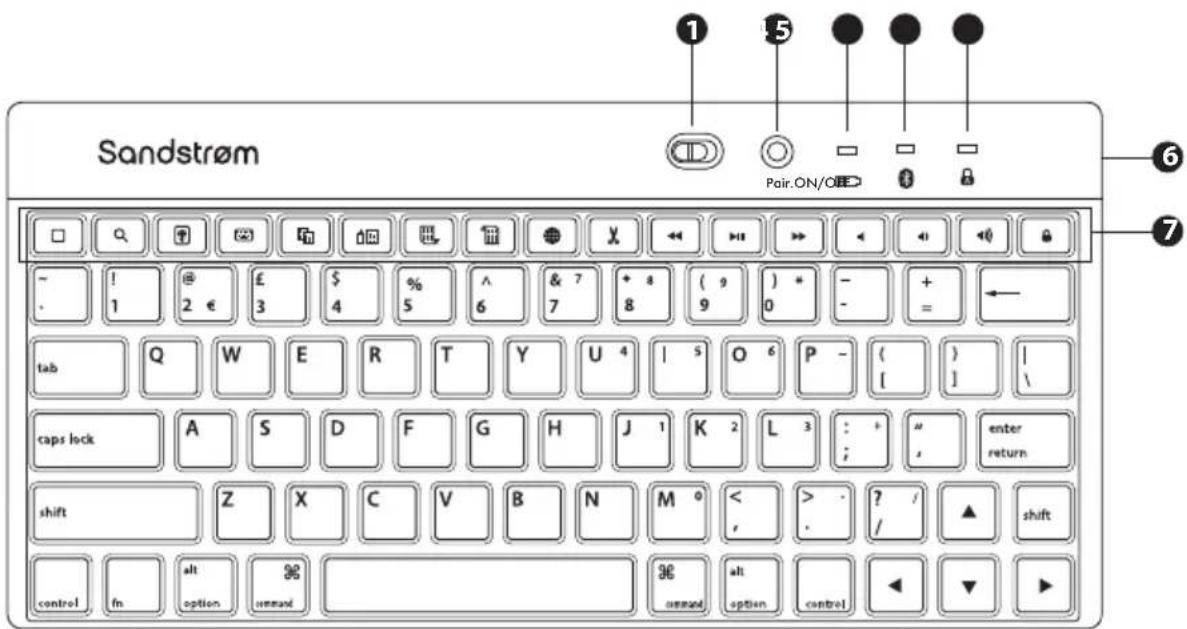
- ON/OFF button
- Paring button
- Battery power indicator
-
Paring indicator
-
Caps Lock indicator
Press the caps lock button and the green indicator light will switch on.
- Micro USB socket
- Function keys x17

natural_image
Line drawing of a laptop with a keyboard and stand (no text or symbols)Tablet not included
Charging the Keyboard
- Your keyboard will need charging before you can use it.

- Connect the USB charging cable to the keyboard.
- Connect the other end of the USB charging cable to a powered USB device.
- The Red indicator light will switch on to show the keyboard is charging. It will be fully charged in 3 hours. The indicator light will turn off when the keyboard is fully charged. If the battery indicator starts to flash the battery power is getting low. Charge the keyboard as shown above.
Switching On/Off
- Slide the Power Switch to ON. The Bluetooth indicator light will flash once.
- To switch the keyboard off slide the Power Switch to OFF.
The keyboard will automatically power down when it is not in use. To wake it up press any key.

Pairing the Keyboard
Your keyboard can be paired to a smartphone or tablet.
- Switch on your smartphone/tablet, and turn on bluetooth.
- Switch the keyboard on.
-
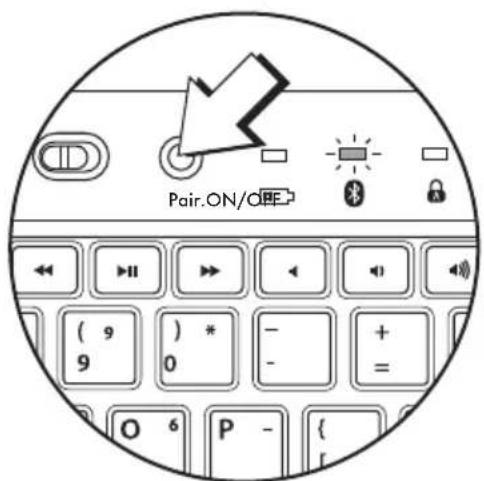
Press the PAIRING button, the bluetooth indicator light will start to flash. The keyboard is now in pairing mode.
-
On your smartphone/tablet search for a new bluetooth device, select the Bluetooth 3.0 keyboard. You will be asked to type in a code. Use the keyboard to type in the code. Then press the ENTER/RETURN key. Your keyboard will now be paired with your smartphone/tablet.
![P - { } | [ ] | 3 : + " ; , enter return ? / / shift](/content/2026/05/1144554/images/dcf3e34a15e194e0842d143c2d39f4fad9a1e1282c293cf9d752f089d6a52a69.jpg)
Using the Keyboard Case
The case has two sets of velcro corners to hold either smartphones or tablets. The small corners are for smartphones and the large corners are for tablets.
Open the case like this

Tablets

natural_image
Line drawing of a laptop with a black screen and keyboard (no text or symbols)
natural_image
Line drawing of a tablet device with keyboard and stand (no text or symbols)Smartphones

natural_image
Line drawing of a laptop with a black octagonal icon on the screen (no text or symbols on the main body)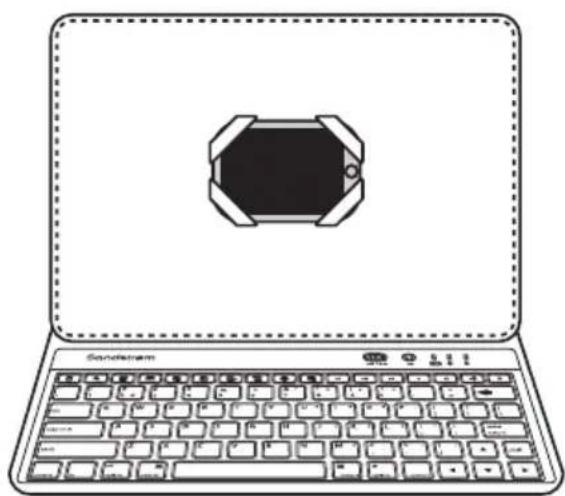
natural_image
Line drawing of a laptop with a black octagonal screen on the front panel (no text or symbols on the main body)Function Keys
Shortcut Function Keys
The keyboard has 17 shortcut function keys* which can be used as shortcuts when using the keyboard.
Press to return to the Home screen
Press to open up Search
Press to start a Picture Frame presentation
Press to activate the On Screen Keyboard
Press to Copy text
Press to Paste text
Press to Skip to the start of a document
Press to Skip to the end of a document
(if more than 1 keyboard language has been added)
Keyboard language selection
Press to remove the current selection and place it on the clipboard
Backwards skip music/films, hold to search backwards
Play/Pause music/films
Forward skip music/films, hold to search forwards
Mute sound
Decrease the Volume
Increase the Volume
Press to Lock the screen






Other Function Keys
To access other function keys (highlighted in a different colour on the keyboard), press both the "fn" button and the desired function key*.
Example:


* Some function keys may not be available depending on operating system.
Specifications
| Model SUKBC113 | |
| Shortcut Function Keys 17 | (some may not be available depending on operating system) |
| Power Consumption DC 3.7V +/-5%Active: 3mAIdle: 1mASleep: 400uA | |
| Battery Type Li-Polymer | |
| Charger Type Micro USB cable | |
| Weight 710g | |
| Dimensions closed 270mm(H) x 198mm(W) x 40mm(D) | |
| Tablet/Smartphone Operating Systems | Android / Windows Mobile / iOS |
| Interface Bluetooth 3.0 | |

Visit Partmaster.co.uk today for the easiest way to buy electrical spares and accessories. With over 1 million spares and accessories available we can deliver direct to your door the very next day. Visit www.partmaster.co.uk or call 0844 800 3456 (UK customers only) Calls charged at National Rate.
Rovi Proprietary Rights
This item incorporates copy protection technology that is protected by U.S. patents and other intellectual property rights of Rovi Corporation. Reverse engineering and disassembly are prohibited.
Restriction on Use & Rovi Trade Mark Rights
Use of the copyright protection technology contained in this product must be authorised by Rovi Corporation and is intended for home and other limited viewing uses only unless otherwise authorised by Rovi Corporation. The names "Rovi Corporation" and "Macrovision" are protected by trademarks.
Notes for battery disposal
The batteries used with this product contain chemicals that are harmful to the environment. To preserve our environment, dispose of used batteries according to your local laws or regulations. Do not dispose of batteries with normal household waste.
For more information, please contact the local authority or your retailer where you purchased the product.
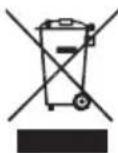
This symbol on the product or in the instructions means that your electrical and electronic equipment should be disposed at the end of its life separately from your household waste. There are separate collection systems for recycling in the EU.
For more information, please contact the local authority or your retailer where you purchased the product.
All trademarks are the property of their respective owners and all rights are acknowledged.
DSG Retail Ltd. (co. no. 504877)
Maylands Avenue, Hemel Hempstead, Herts., HP2 7TG, UK
- Contents
- Safety Warnings
- Wireless Devices:
- Battery-Powered Devices:
- Unpacking
- Product Overview
- Charging the Keyboard
- Switching On/Off
- Pairing the Keyboard
- Using the Keyboard Case
- Function Keys
- Shortcut Function Keys
- Other Function Keys
- Specifications
- Rovi Proprietary Rights
- Restriction on Use & Rovi Trade Mark Rights
- Notes for battery disposal
Brand : Sandstrøm
Model : SUKBC113
Category : Keyboard