HDMI-3D-OPT-RX150RA - Audiovisual Equipment Lightware - Free user manual and instructions
Find the device manual for free HDMI-3D-OPT-RX150RA Lightware in PDF.


| Product Type | HDMI 3D Optical Receiver |
| Model | HDMI-3D-OPT-RX150RA |
| Brand | Lightware |
| Dimensions (L x W x H) | 100 x 80 x 25 mm |
| Weight | 150 g |
| Power Supply | 5V DC, 1A |
| Input | 1 x LC fiber optic |
| Output | 1 x HDMI Type A |
| Max Resolution | 1920x1080p @ 60Hz (3D supported) |
| Supported 3D Formats | Frame packing, side-by-side, top-bottom |
| Fiber Type | Multi-mode LC |
| Max Distance | Up to 300 meters |
| EDID Management | Built-in EDID emulation |
| Operating Temperature | 0°C to 50°C |
| Storage Temperature | -20°C to 70°C |
| Humidity | 10% to 90% non-condensing |
| Cleaning | Wipe with dry cloth; avoid liquids |
| Safety | Use only provided power adapter; do not expose to moisture |
| Spare Parts | Power adapter, fiber optic cables (sold separately) |
| Repairability | Professional repair only; no user-serviceable parts |
| Certifications | CE, FCC, RoHS |
Frequently Asked Questions - HDMI-3D-OPT-RX150RA Lightware
User questions about HDMI-3D-OPT-RX150RA Lightware
0 question about this device. Answer the ones you know or ask your own.
Ask a new question about this device
Download the instructions for your Audiovisual Equipment in PDF format for free! Find your manual HDMI-3D-OPT-RX150RA - Lightware and take your electronic device back in hand. On this page are published all the documents necessary for the use of your device. HDMI-3D-OPT-RX150RA by Lightware.
USER MANUAL HDMI-3D-OPT-RX150RA Lightware
HDMI-3D-OPT-TX210A
HDMI-3D-OPT-TX210RAK
SW4-OPT-TX240RAK
HDMI-3D-OPT-RX150RA
Fiber Optical Multimedia Extender
Important Safety Instructions
Class II apparatus construction.
The equipment should be operated only from the power source indicated on the product.
To disconnect the equipment safely from power, remove the power cord from the rear of the equipment, or from the power source. The MAINS plug is used as the disconnect device, the disconnect device shall remain readily operable.
There are no user-serviceable parts inside of the unit. Removal of the cover will expose dangerous voltages. To avoid personal injury, do not remove the cover. Do not operate the unit without the cover installed.
The appliance must be safely connected to multimedia systems. Follow instructions described in this manual.
Ventilation
For the correct ventilation and to avoid overheating ensure enough free space around the appliance. Do not cover the appliance, let the ventilation holes free and never block or bypass the ventilators (if any).
WARNING
To prevent injury, the apparatus is recommended to securely attach to the floor/wall or mount in accordance with the installation instructions. The apparatus shall not be exposed to dripping or splashing and that no objects filled with liquids, such as vases, shall be placed on the apparatus. No naked flame sources, such as lighted candles, should be placed on the apparatus.
Waste Electrical & Electronic Equipment WEEE
This marking shown on the product or its literature, indicates that it should not be disposed with other household wastes at the end of its working life. To prevent possible harm to the environment or human health from uncontrolled waste disposal, please separate this from other types of wastes and recycle it responsibly to promote the sustainable reuse of material resources. Household users should contact either the retailer where they purchased this product, or their local government office, for details of where and how they can take this item for environmentally safe recycling. Business users should contact their supplier and check the terms and conditions of the purchase contract. This product should not be mixed with other commercial wastes for disposal.
Caution: Laser product


Common Safety Symbols
| Symbol Description | |
| [HA42] | Direct current |
 | Alternating current |
| [0HW0] | Double insulation |
 | Caution, possibility of eletric shock |
| -ZAT4 | Caution |
| [976D] | Laser radiation |


HDMI-3D-OPT series - User's Manual 3
Symbol Legend
The following symbols and markings are used in the document:
WARNING! Safety-related information which is highly recommended to read and keep in every case!
ATTENTION! Useful information to perform a successful procedure; it is recommended to read.
INFO: A notice which may contain additional information. Procedure can be successful without reading it.
DEFINITION: The short description of a feature or a function.
TIPS AND TRICKS: Ideas which you may have not known yet but can be useful.
Navigation Buttons
Go back to the previous page. If you clicked on a link previously, you can go back to the source page by clicking the button.
Navigate to the Table of Contents.
Step back one page.
Step forward to the next page.
Document Information
This User's Manual applies to the following versions of the mentioned software, firmware, and hardware:
| Item Version | |
| Lightware Device Controller (LDC) software 1.18.0b6 | |
| Lightware Device Updater (LDU) software 1.5.0b8 | |
| Controller firmware - Transmitters 1.1.0 | |
| Controller firmware - Receiver 2.0.0 | |
| Hardware - Transmitters 1.1 | |
| Hardware - Receiver 1.3 |
Document revision: 2.1
Release date: 31-10-2018
Editor: Laszlo Zsedenyi
Table of Contents
- INTRODUCTION....7
1.1. DESCRIPTION....7 1.2. PAY CONSTITUTE....7
1.2. BOX CONTENTS ....7 1.3. COMBATIBLE DEVICES ....7
1.4 FEATURES 8
1.5. MODEL COMPARISON OF THE TRANSMITTERS....8
1.6. TYPICAL APPLICATION ....8 - INSTALLATION....10
2.1. MOUNTING OPTIONS 10
2.1.1. 1U High Rack Shelf.... 10
2.1.2. Under-desk Mounting Kit 10
2.1.3. Under-desk Double Mounting Kit 10
2.2. CONNECTING STEPS....11
2.2.1. Receiver....11
2.2.2. Transmittel....11 - PRODUCT OVERVIEW 12
3.1. FRONT VIEW - TRANSMITTER 12
3.2. REAR VIEW - TRANSMITTER....13
3.3. FRONT AND REAR VIEW - RECEIVER 13
3.4.1. EV DC Connection 12
3.4.1. 3V DC connection 10 3.4.2. HDMI Connector 14
3.4.3. DVI-I Connector 14
3.4.4. DisplayPort Connector 14
3.4.5. SC Fiber Optical Connector....14
3.4.6. Analog Stereo Audio Connector (3.5 mm Jack).... 14
3.4.7. Analog Stereo Audio Connector (5-pole Phoenix)....14
3.4.8.S/PDIF Connector 14
3.4.9. RS-232 Connector (3-pole Phoenix) 14
3.4.10. RS-232 Connector (D-sub) 14
3.4.11. Ethernet Connector 15
3.4.12 USB Mini Connector 15
3.4.13. USB Connector for KVM....15
3.4.14. GPIO - General Purpose Input/Output Ports 15
3.5. OPTICAL EXTENDER CONCEPT 15
3.5.1. Transmitter....15
3.5.2. Receiver....16
3.6. PORT DIAGRAMS 16
3.7. AUDIO INTERFACE....17
3.7.1. Audio Inputs and Modes - Transmitter.... 1/
3.7.2. Audio Outputs and Modes - Receiver 17
3.7.3. Audio Options - Example 18
3.8. VIDEO INTERFACE 18
3.9. THE AUTOSELECT FEATURE....18
3.10. USB KVM FUNCTION 19
3.11. CONTROLING STATUS 28
3.11.1 Serial Interface 20
3.11.2. CBIO Interface 20
3.11.2. USB Control Interface 22
3.11.4 Ethernet Control Interface 22
3.12 Further Built-in Features 22
0.12. FORHER DOYF IN FEATURES:
3.12.1. Automatically Launched Actions - The Event Manager ..... 22
3.12.2. Advanced EDID Management....22
3.12.3. Extender Cloning - Configuration Backup and Restore ..... 22
4. OPERATION 23
4.1. FRONT PANEL LEDs - TRANSMITTER 23
4.1.1. Video Input LEDs 23
4.1.2. Audio Input LEDs 23
4.1.3.HDCP LED 23
4.1.4. USB LED 23
4.1.5. Autoselect LED 23
4.2. FRONT PANEL BUTTONS - TRANSMITTER 23
4.2.1. Video Select Button 23
4.2.2. Audio Select Button 24
4.2.3. Programmable Show Me Button 24
4.3. SPECIAL FUNCTIONS - TRANSMITTER....24
4.3.1. Enable DHCP (Dynamic) IP Address 24
4.3.2. Reset to Factory Default Settings 24
4.3.3. Control Lock 24
4.3.4. Resetting the Device 24
4.3.5. Entering Firmware Upgrade Mode 24
4.4. REAR PANEL STATUS LEDs - TRANSMITTER 24
4.4.1. LIVE LED 24
4.4.2. LASER ACTIVE LED 24
4.4.3. FIBER LINK LED 25
4.4.4.RS-232LED 25
4.5. FRONT PANEL LEDs - RECEIVER 25
4.5.1 POWER LED 25
4.5.2 Status LEDs 25
4.6. SPECIAL FUNCTIONS - RECEIVER 25
4.6.1. Reset to Factory Default Settings 25
4.6.2. Entering Firmware Upgrade Mode 25
4.7. SOFTWARE CONTROL MODES 26
- SOFTWARE CONTROL - LIGHTWARE DEVICE CONTROLLER ....27
5.1. INSTALL AND UPGRADE 27
5.2. ESTABLISHING THE CONNECTION....27
5.3. CROSSPOINT / PORT CONTROL MENU 28
5.4. PORT PROPERTIES WINDOWS....29
5.4.1. Video Inputs 29
5.4.2. Digital Audio Inputs 29
5.4.3 Analon Audio Inputs 30
5.4.4 Video Outputs 30
5.4.5 Digital Audio Outputs 31
5.4.6 Analog Audio Output 31
5.5. DIAGNOSTIC TOOLS 31
5.5.1 Frame Detector 31
5.5.2 No Sync Screen (Test Pattern) 32
5.6 USB KVM 32
5.6.1 USB KVM in the Receiver 32
5.6.2 USB KVM in the Transmitter 32
5.7 EDID MENU 22
5.7.1 EDID Operations 32
5.7.2 EDID Summary Window 34
5.7.3 Editing an EDID 34
6.7.3. Cutting on EPID .... 24 5.7.4. Creating an EPID... Easy EPID Creator .... 25
6.7.4. Creating an EBIT - Easy EBIT creator .... 55
5.8. CONTROL / DEVICE CONTROL MENU 35
5.8.1. R3-252.... 55 5.9.2.010.... 26
5.8.2. GMO 30
5.8.3. Eulemet 36
5.9. EVENT MANAGER....37
5.9.1. Create or Modify an Event....38
5.9.2. Special Tools and Accessories....38
5.9.3. Clear One or More Event(s)....39
5.9.4. Export and Import Events 39
5.9.5. Event Creating - Example 39
5.10. SETTINGS MENU....40
5.10.1. Status 40
5.10.2 Network 40
5.10.3. Backup 40
5.10.4 System 41
5.11. CONFIGURATION CLONING (BACKUP TAB)....41
5.11.1. Steps in a Nutshell 41
5.11.2. Save the Settings of a Device (Backup) 42
5.11.3. Upload the Settings to a Device (Restore) 42
5.12. ADVANCED VIEW WINDOW 42
Table of Contents
- LW2 PROGRAMMER'S REFERENCE....43
6.1. LW2 PROTOCOL DESCRIPTION....43
6.2. GENERAL LW2 COMMANDS....43
6.2.1. View Product Type....43
6.2.2. Query Control Protocol 43
6.2.3. View Firmware Version of the CPU 44
6.2.4. Connection test....44
6.2.5. View Serial Number 44
6.2.6. Compile Time....44
6.2.7. View Installed Board 44
6.2.B. View Firmware for All Controllers....44
6.2.9. Restart the Device 44
6.2.10. Query Health Status 44
6.2.11. Restore Factory Default Settings....44
6.3. A/V PORT SETTINGS....45
6.3.1. Switch an Input to the Outputs 45
6.3.2. Mute Output 45
6.3.3. Unmute Output 45
6.3.4. Lock Output 45
6.3.5. Unlock Output 45
6.3.6. View Connection State on the Output 46
6.3.7. View Crosspoint Size 46
6.3.8. Change Video Autoselect Mode 46
6.3.9. Change Audio Autoselect Mode 46
6.3.10. Change the Video Input Priorities....47
6.3.11. Change the Audio Input Priorities 47
6.4. NETWORK CONFIGURATION 47
6.4.1. Query the Current IP Status 47
6.4.2. Set the IP Address 47
6.4.3. Set the Subnet Mask 47
6.4.4. Set the Gateway Address 48
6.4.5. Apply Network Settings....48
6.5. GPIO CONFIGURATION....48
6.5.1. Set Level and Direction for Each Pins 48
6.6. LW2 COMMANDS - QUICK SUMMARY 49
-
LIME PROGRAMMER REFERENCE
-
LW3 PROGRAMMER'S REFERENCE....50
7.1. OVERVIEW 50
7.1.1. Elements of the Tree Structure 50
7.1.2. Escaping....52
7.1.3. Error Messages....52
7.1.4. Prefix Summary 52
7.2. THE TREE STRUCTURE OF THE TRANSMITTER 52
7.3. LW3 COMMANDS....53
7.3.1. Get Command....53
7.3.2. Set Command 54
7.3.3. Invocation 54
7.3.4.Manual 55
7.3.5. Signature 55
7.3.6. Subscription 55
7.3.7. Notifications about the Changes of the Properties 56
7.4. FORMAL DEFINITIONS....56
7.5. SYSTEM COMMANDS....57
7.5.1. Query the Product Name 57
7.5.2. Set the Device Label 57
7.5.3. Query the Serial Number 57
7.5.4. Query the Firmware Version 57
7.5.5. Resetting the Device....57
7.5.6. Restore the Factory Default Settings 57
7.6. VIDEO PORT SETTINGS....58
7.6.1. Query the Status of Source Ports 58
7.6.2. Query the Status of Destination Port 59
7.6.3. Query the Video Crosspoint Setting 59
7.6.4. Switching Video Input 59
7.6.5. Query the Video Autoselect Settings.... 59
7.6.6. Change the Autoselect Mode 59
7.6.7. Query the Input Port Priority 60
7.6.8. Change the Input Port Priority 60
7.6.9. Mute an Input Port 60
7.6.10. Unmute an Input Port 60
7.6.11. Lock an Input Port 60
7.6.12. Unlock an Input Port 60
7.6.13. Mute Output 60
7.6.14. Unmute Output 61
7.6.15. Lock Output 61
7.6.16. Unlock Output 61
7.6.17. HDCP Setting (Input Port) 61
7.6.18. HDCP Setting (Output Port) 61
7.6.19. Test Pattern Generator 61
7.6.20. HDMI Mode Settings (Output Port) 62
7.7. AUDIO PORT SETTINGS....63
7.7.1. Query the Status of Source Ports 63
7.7.2. Query the Status of Destination Port 63
7.7.3. Query the Audio Crosspoint Setting 64
7.7.4. Switching Audio Input 64
7.7.5. Query the Audio Autoselect Settings 64
7.7.6. Change the Autoselect Mode 64
7.7.7. Query the Input Port Priority 65
7.7.8. Change the Input Port Priority 65
7.7.9. Mute an Audio Input 65
7.7.10. Unmute an Audio Input 65
7.7.11. Lock an Input Port 65
7.7.12. Unlock an Input Port 65
7.7.13. Mute Audio Output 65
7.7.14. Unmute Audio Output 66
7.7.15. Lock Output 66
7.7.16. Unlock Output 66
7.7.17. Analog Audio Input Level Settings 66
7.7.18. Analog Audio Input Level Settings by Steps 67
7.7.19. Analog Audio Output Level Settings 67
7.7.20. Analog Audio Output Level Settings by Steps 68
7.8. NETWORK CONFIGURATION....68
7.8.1. Query the DHCP State 68
7.8.2. Change the DHCP State 68
7.8.3. Query the IP Address 68
7.8.4. Change the IP Address (Static) 68
7.8.5. Query the Subnet Mask 68
7.8.6. Change the Subnet Mask (Static)....68
7.8.7. Query the Gateway Address 69
7.8.8. Change the Gateway Address (Static) 69
7.8.9. Apply Network Settings....69
7.9. RS-232 PORT CONFIGURATION....69
7.9.1. Protocol Setting 69
7.9.2. BAUD Rate Setting 69
7.9.3. Databit Setting 69
7.9.4. Stopbits Setting 69
7.9.5. Parity Setting....70
7.9.6. RS-232 Operation Mode 70
7.10. SENDING MESSAGE VIA THE COMMUNICATION PORTS .....70
7.10.1. Sending Message via TCP Port 70
7.10.2. Sending Message via UDP Port....71
7.10.3. Sending Message via an RS-232 Port 71
7.11. GPIO PORT CONFIGURATION....72
7.11.1. Set the Direction of a GPIO Pin....72
7.11.2. Set the Output Level of a GPIO Pin....72
7.11.3. Toggle the Level of a GPIO Pin 72
7.12. EDID MANAGEMENT....72
7.12.1. Query the Emulated EDIDs....72
7.12.2. Query the Validity of a Dynamic EDID 72


HDMI-3D-OPT series - User's Manual 6
Table of Contents
7.12.3. Query the Preferred Resolution of an User EDID....72
7.12.4. Emulating an EDID to an Input Port 72
7.12.5. Emulating an EDID to All Input Ports....73 7.12.6. Conv on EDID to User Memory....72
7.12.6. Copy an EDID to User Memory 73
7.12.7. Deleting an EDID from User Memory 73
7.12.8. Resetting the Emulated EDIDs.... 73
7.13. LW3 COMMANDS - QUICK SUMMARY 74
- FIRMWARE UPGRADE 77
8.1. ABOUT THE FIRMWARE PACKAGE (LFP FILE)....77
8.2. SHORT INSTRUCTIONS....77
8.3. INSTALL AND UPGRADE 77
8.4. DETAILED INSTRUCTIONS....78 8.4.1. Establish the Connection....79
8.4.1. Establish the Connection....78 8.4.2. Prepare the Firmware Upgrade in LDC....78
8.4.2. Prepare the Firmware Upgrade in EDC....78 8.4.3. Start the LDU and Follow the Instructions....78
8.5. KEEPING THE CONFIGURATION SETTINGS 82
- TROUBLESHOOTING....83
9.1. USE CASE STUDIES 83
9.2. HOW TO SPEED UP THE TROUBLESHOOTING PROCESS ....85
- TECHNOLOGIES......86
10.1. EDID MANAGEMENT....86
10.1.1. Understanding the EDID....86
10.1.2. Advanced EDID Management 86
10.2. HDCP MANAGEMENT....87
10.2.1. Protected and Unprotected Content 87 10.3.2. Disable Unnecessary Encryption 87
10.2.2. Disable Onnecessary Encryption....87 10.3. PIXEL ACCURATE RECLOCKING....99
10.3. PIXEL ACCURATE RECLOCKING ....68 44. ARDENDIY ....92
- APPENDIX 89
11.1. SPECIFICATION....89
11.1.1. HDMI-3D-OPT-TX200 series Transmitters 89 11.1.2. HDMI-3D-OPTRX150RA Receiver 90
11.1.2. HDMI-SD-OP-TRXT50RA Receiver 90 11.2. INPUT/OUTPUT PORT NUMBERING 91
11.3. FACTORY DEFAULT SETTINGS....92
11.3.1. Transmitter 92
11.3.2. Receiver 92
11.4. CONTENT OF BACKUP FILE....93 11.5. MAINTEN FEETT CARLE EXTERIOR....92
11.5. MAXIMUM FIBER CABLE EXTENSIONS....93 11.6. NETWORK REVENUES....84
11.6. MECHANICAL DRAWINGS 94 11.6.1. Transmitter 94
11.6.1. Transmittel 94 11.6.2. Receiver 94
11.7. AUDIO CABLE WIRING GUIDE 95
11.8. FACTORY EDID LIST 96
11.9. FURTHER INFORMATION....97
1
Introduction
Thank You for choosing Lightware's HDMI-3D-OPT series device. In the first chapter we would like to introduce the device highlighting the most important features in the below listed sections:
▶DESCRIPTION
BOX CONTENTS
▶COMPATIBLE DEVICES
FEATURES
▶MODEL COMPARISON OF THE TRANSMITTERS
▶TYPICAL APPLICATION
1.1. Description
HDMI-3D-OPT series transmitters and receivers extend HDMI 1.4, DVI 1.0, HDCP and bi-directional RS-232 signals over one multi-mode fiber and transmit video signal with embedded audio to a distance of up to 2500 meters.
The extender was designed to handle HDMI 1.4 and DP 1.1 digital video signals and analog stereo audio from local inputs or HDMI embedded audio up to eight-channel PCM or HBR audio. Analog audio is converted into digital format. The device has a local HDMI video output for monitoring. The video and the embedded audio of the local output is the same as the one transmitted via the OPT link. The HDMI-3D-OPT series extenders handles HDCP encryption.
Using the factory, custom or transparent EDID emulation the user can fix and lock EDID data on each input connector. Advanced EDID Management forces the required resolution from any video source and fixes the output format conforming to the system requirements. The unit offers bi-directional and transparent RS 232.
All devices can be mounted on a rack shelf or used standalone. HDMI-3D-OPT series extenders are compatible with both OPT series extenders and matrix switchers.
The device features Pixel Accurate Reclocking, a Lightware technology to eliminate jitter and skew generated by low quality sources and multiple daisy-chained devices.
Single fiber technology makes these units fully HDMI and HDCP compliant without a need of a second fiber cable or copper connections. The bi-directional communication required for HDCP handshaking is performed via the same fiber core that transmits the video signal.
Galvanic isolation between source and display helps avoiding ground loops and hum effects. No delay occurs in the signal during optical conversion, the video image is transported without frame latency. This feature is crucial in 3D applications and systems where audio is processed separately.
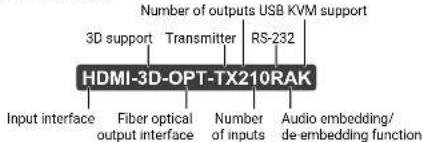
Model Denomination
1.2. Box Contents
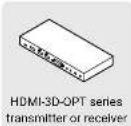
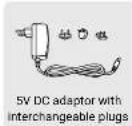
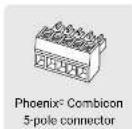

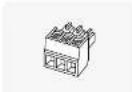
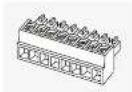
* Only for HDMI-3D-OPT series transmitters.
** Only for SW4-OPT-TX240RAK model.
1.3. Compatible Devices
Transmitter
The transmitters are compatible with the following receivers and input boards:
• HDMI-3D-OPT-RX150RA receiver;
- MX modular frames with MX-DVI-OPT-IB and MX-HDMI-OPT-IB cards.
Receiver
The receiver is compatible with the following transmitters and output boards:
• HDMI-3D-OPT series transmitters;
- UMX-OPT-TX150R transmitter;
• HDMI-OPT series transmitters;
- MX modular frames with MX-DVI-OPT-OB and MX-HDMI-OPT-OB cards.
1.4. Features

3D and 4K Support
High bandwidth allows extension of resolutions up to 4K and even 3D sources and displays are supported.

Signal Transmission up to 2500 m
Video and audio signal transmission (DVI, HDMI or DisplayPort, and RS-232) over one multi-mode fiber optical cable.

Deep Color Support and Conversion
It is possible to transmit the highest quality 36-bit video streams for perfect color reproduction.

Autoselect Function for Video Inputs
The Autoselect feature can sense the port status on the video input ports and select automatically one of them. Priority number can be set for each input port and the feature allows to set various modes for the automatic input selection (First detect, Last detect, Priority mode).

HDCP-compliant
The receiver fulfills the HDCP standard. HDCP capability on the digital video inputs can be disabled when non-protected content is extended.

Built-in Event Manager
The Event Manager tool takes care of all the necessary control in a smaller configuration by performing predefined actions in response to device status changes. Hence, in a less complex environment, there is no need to invest in additional control solutions, which makes the receiver the best choice for numerous applications.

Pixel Accurate Reclocking
Each output has a clean, jitter free signal, eliminating signal instability and distortion caused by long cables or connector reflections.

USB KVM
Connected USB HID devices (e.g. keyboard, mouse, USB HUB) are extended from transmitter to receiver thus a computer can be remote controlled.

Bi-directional RS-232 Pass-through
AV systems can also contain serial port controllers and controlled devices. Serial port pass-through supports any unit that works with standard RS-232.

GPIO Control Port
7 GPIO pins operating at TTL digital signal levels and can be controlled with both LW2 and LW3 commands.
1.5. Model Comparison of the Transmitters
The available models have different features depending on their design. The following table contains the most important differences between the models:
| Ports | Optical output | ||||||||||
| Video ports Audio | ports Interface ports | ||||||||||
| HDMI input | DVI-D input | DP input | HDMI output | Jack 3.5 input | Phoenix input | RS-232 | Ethernet GPIO | Serial comm. | USB KVM | ||
| HDMI-3D-OPT-TX210A | √ | - | - | √ | √√ | √√ | √√ | - | - | C | - |
| HDMI-3D-OPT-TX210RAK | √ | - | - | √ | √√ | √√ | √√ | - | - | C PT | √ |
| SW4-OPT-TX240RAK | √ | √ | √ | √ | √ | √ | √ | √ | √ | C PT CI | √ |
C = Control mode, PT = Pass-through mode, CI = Command injection mode. See more information about serial interface modes in the Serial Interface section.
1.6. Typical Application
Application Diagram - HDMI-3D-OPT-TX210A
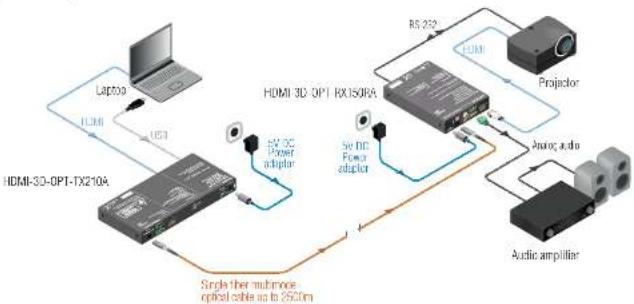
- Introduction HDMI-3D-OPT series - User's Manual 9
Application Diagram - HDMI-3D-OPT-TX210RAK
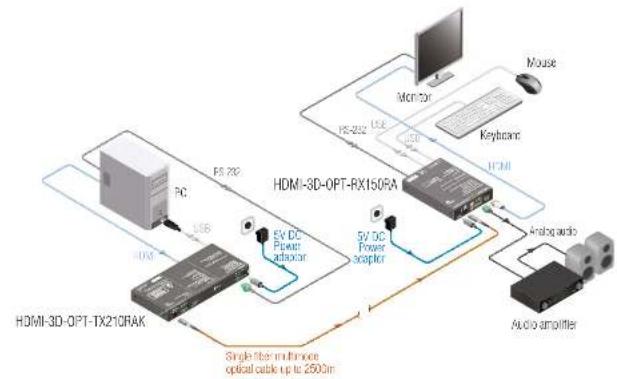
flowchart
graph TD
    A["HDMI-3D-OPT-TX210RAK"] -->|USB| B["PC"]
    B --> C["FS 720"]
    C --> D["EV DC Power analyzer"]
    D --> E["5V DC Power analyzer"]
    E --> F["Monitor"]
    F --> G["Mouse"]
    F --> H["Keyboard"]
    H --> I["AFM"]
    I --> J["Analog audio"]
    J --> K["Audio amplifier"]
    K --> L["Single fiber multihome optical cable up to 2500m"]
    style A fill:#f9f,stroke:#333
    style B fill:#ccf,stroke:#333
    style C fill:#cfc,stroke:#333
    style D fill:#fcc,stroke:#333
    style E fill:#cff,stroke:#333
    style F fill:#ffc,stroke:#333
    style G fill:#fcc,stroke:#333
    style H fill:#fcc,stroke:#333
    style I fill:#fcc,stroke:#333
    style J fill:#fcc,stroke:#333
    style K fill:#fcc,stroke:#333
    style L fill:#fcc,stroke:#333
Integrated System Diagram - SW4-OPT-TX240RAK
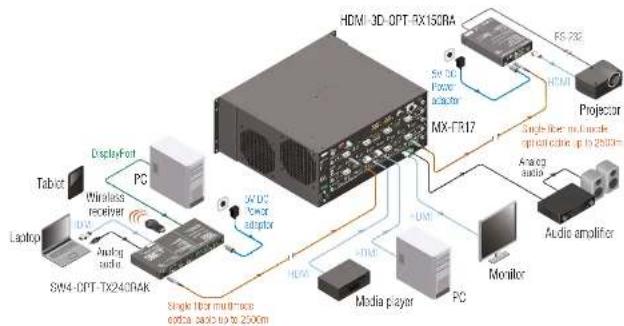
flowchart
graph TD
    A["Smartphone"] --> B["Display-Fort"]
    B --> C["PC"]
    C --> D["Wireless receiver"]
    D --> E["Laptop"]
    E --> F["Audio audio"]
    F --> G["SW4-OPT-TX240RAK"]
    G --> H["Single fiber multi-trace optical audio to 2500mA"]
    I["HDMI 3D-OPT-RX150RA"] --> J["MIX-FR17"]
    J --> K["FX 782"]
    K --> L["Projector"]
    L --> M["Audio amplifier"]
    M --> N["Monitor"]
    N --> O["PC"]
    O --> P["Media player"]
    P --> Q["Analog audio"]
    Q --> R["Single fiber multi-trace optical audio to 2500mA"]
Application Diagram - SW4-OPT-TX240RAK
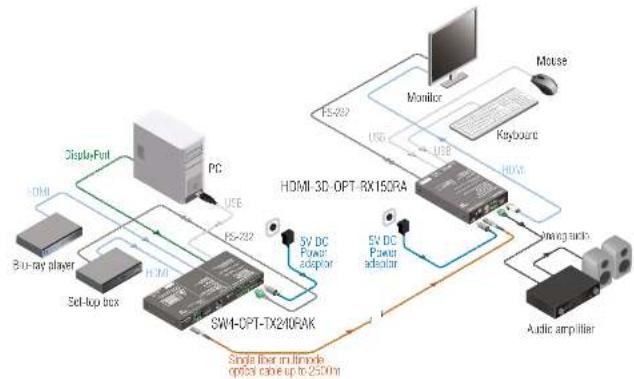
flowchart
graph TD
    A["PC"] -->|Display-Font| B["BU-ray player"]
    A -->|USB| C["Set-up box"]
    A -->|FS-282| D["SWI-OPT-TX240RAK"]
    D -->|Single fiber multimode optics cable up to 250nm| E["Audio amplifier"]
    D -->|SV DC Power adaptor| F["HDMI 3D-OPT-RX150RA"]
    F -->|USB| G["Monitor"]
    F -->|USB| H["Keyboard"]
    F -->|FS-282| I["Mouse"]
    F -->|USB| J["Switch"]
    F -->|FS-282| K["Switch"]
2
Installation
The chapter is about the installation of the device and connecting to other appliances, presenting also the mounting options and further assembly steps:
▶MOUNTING OPTIONS
▶ CONNECTING STEPS
2.1. Mounting Options
To mount the transmitter Lightware supplies optional accessories for different usage. There are two kinds of mounting kits with similar fixing method. The device has two mounting holes with inner thread on the bottom side; see the bottom view in the Mechanical Drawings section. Fasten the device by the screws enclosed to the accessory;

Under-desk mounting kit Under-desk double mounting kit

10 high rack shelf
The Under-desk double mounting kit makes easy to mount a single device on any flat surface, e.g. furniture. 1U high rack shelf provides mounting holes for fastening two half-rack or four quarter-rack sized units. Pocket-sized devices can also be fastened on the shelf. To order mounting accessories please contact sales@lightware.com.
WARNING! Always use the supplied screws. Using different (e.g. longer) ones may cause damage to the device.
INFO: The transmitters are half-rack sized, the receiver is quarter-rack sized..
2.1.1. 1U High Rack Shelf
Allows rack mounting for half-rack, quarter-rack and pocket sized units.
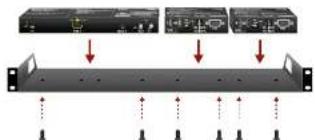
natural_image
Diagram showing three electronic devices connected to a rack with red arrows indicating force or connection points (no text or symbols present)1U high rack shelf provides mounting holes for fastening two half-rack or four quarter-rack sized units. Pocket sized devices can also be fastened on the self.
2.1.2. Under-desk Mounting Kit
The UD kit allows a receiver to be easily mounted on any flat surface (e.g. furniture). Only quarter-rack sized units (HDMI-3D-OPT-RX150RA receiver) can be installed to the kit.
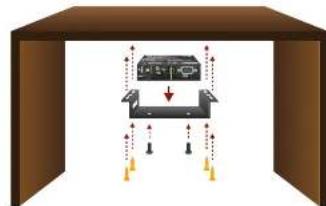
flowchart
graph TD
    A["Device"] --> B["Component 1"]
    A --> C["Component 2"]
    B --> D["Output"]
    C --> D
    style A fill:#f9f,stroke:#333
    style B fill:#ccf,stroke:#333
    style C fill:#cfc,stroke:#333
    style D fill:#fcc,stroke:#333
INFO: The chipboard screws are not supplied with the mounting kit.
2.1.3. Under-desk Double Mounting Kit
The UD-kit double makes it easy to mount a single transmitter or multiple receivers on any flat surface (e.g. furniture).
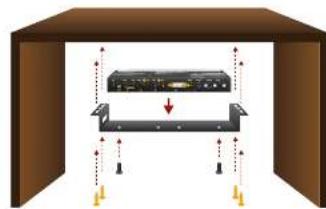
INFO: The chipboard screws are not supplied with the mounting kit.
2.2. Connecting Steps
2.2.1. Receiver
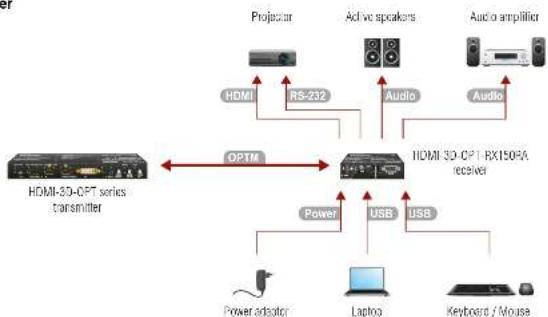
flowchart
graph TD
    A["HDMI-3D-CPT series transmitter"] -->|OPTM| B["controller"]
    B --> C["Projector"]
    B --> D["Active speakers"]
    B --> E["Audio amplifier"]
    B --> F["Power adaptor"]
    B --> G["Laptop"]
    B --> H["Keyboard / Mouse"]
    B --> I["USB"]
    B --> J["USB"]
    B --> K["RS-232"]
    B --> L["Audio"]
    B --> M["HDMI 3D-CPT RX150RA receiver"]
| OPTM | Connect the receiver and the compatible transmitter (e.g. a HDMI-3D-OPT series transmitter) or matrix output board using a multimode single fiber optical cable. |
| HDMI | Connect the sink device (e.g. a projector) to the HDMI output port by an HDMI cable. |
| RS-232 | Optionally for RS-232 control: connect a controller/controlled device (e.g. projector) to the RS-232 port. |
| Audio | Optionally connect an analog audio device with balanced audio signal (e.g. active speakers) to the 5-pole Phoenix audio output port. See the Audio Cable Wiring Guide for the correct wiring. |
| Audio | Optionally connect a digital audio device (e.g. an audio amplifier) to the S/PDIF audio output port. |
| USB | Optionally for USB control: connect the receiver to the controller device (e.g. laptop) by a USB mini B-type cable. |
| USB | Optionally for USB HID extension: connect at least one USB HID device (e.g. keyboard and/or mouse) to the receiver. |
| Power | Connect the power adaptor to the DC input of the receiver first, then to the AC power socket. |
ATTENTION: Only HID-compliant devices are supported by the extenders. Non-HID devices (USB sticks, webcams, etc) will not be working with the receiver.
2.2.2. Transmitter
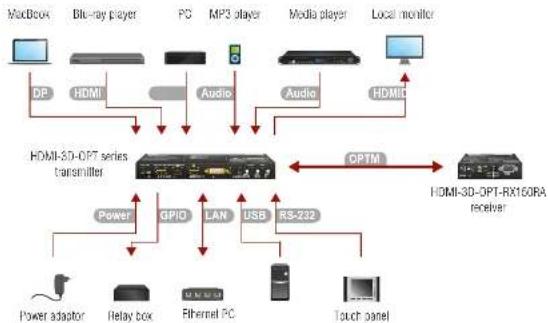
flowchart
graph TD
    A["MacBox"] -->|DP| B["HDMI"]
    C["Bit-ray player"] -->|Audio| D["HDMI-SD-OPT series transmitter"]
    E["PC"] -->|Audio| D
    F["MP3 player"] -->|Audio| D
    G["Media player"] -->|Audio| D
    H["Local monitor"] -->|HDMI| D
    I["HDMI-SD-OPT series transmitter"] -->|DPTM| J["HDMI-3D-OPT-RX160RA receiver"]
    K["Power"] --> L["GPIO"]
    M["LAN"] --> N["USB"]
    O["Power adaptor"] --> P["Relay box"]
    Q["Ethernet PC"] --> R["USB"]
    S["Touch panel"] --> T["USB"]
    U["Radio"] --> V["RS-232"]
    W["Computer"] --> X["HDMI"]
| OPTM | Connect the transmitter and the compatible receiver (e.g. a HDMI-3D-OPT-RX150RA) or matrix input board using a multimode single fiber optical cable. |
| DP HDMI DVI-D | Connect the source(s) (e.g. a MacBook / Blu-ray player / PC) to the input port(s) of the transmitter by a DP / DVI-D / HDMI cable(s). |
| Audio | Optionally connect an asymmetric audio device with unbalanced audio signal (e.g. an MP3 player) to the 2.5" TRS (jack) audio input port. |
| Audio | Optionally connect a symmetric audio device with balanced audio signal (e.g. a media player) to the 5-pole Phoenix audio input port. See the Audio Cable Wiring Guide for the correct wiring. |
| HDMI | Connect the local sink device (e.g. a monitor) to the HDMI output port by an HDMI cable. |
| USB | Optionally for USB HID extension: connect the transmitter to the computer by the USB mini B-type cable. |
| RS-232 | Optionally for RS-232 control: connect a controller/controlled device (e.g. a touch panel) to the RS-232 port. |
| LAN | Optionally connect the switcher to a LAN network in order to control the device. |
| GPIO | Optionally connect a controller/controlled device (e.g. relay box) to the GPIO port. |
| Power | Connect the power adaptor to the DC input of the transmitter first, then to the AC power socket. |
3
Product Overview
The following sections are about the physical structure of the device, input/output ports and connectors:
▶FRONT VIEW - TRANSMITTER
▶ REAR VIEW - TRANSMITTER
▶FRONT AND REAR VIEW - RECEIVER
▶ELECTRICAL CONNECTIONS
▶OPTICAL EXTENDER CONCEPT
▶PORT DIAGRAMS
▶AUDIO INTERFACE
▶VIDEO INTERFACE
THE AUTOSELECT FEATURE
USB KVM FUNCTION
▶CONTROLLING FEATURES
▶FURTHER BUILT-IN FEATURES
3.1. Front View - Transmitter
HDMI-3D-OPT-TX210A
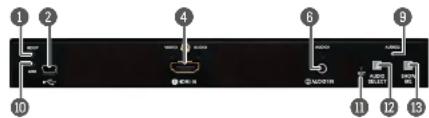
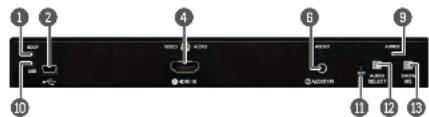
HDMI-3D-OPT-TX210RAK
SW4-OPT-TX240RAK
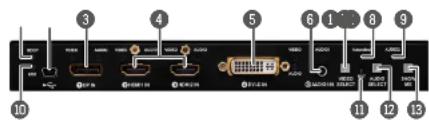
① HDCP status LED LED gives feedback about the HDCP status of the video output signal. See details in the HDCP LED section.
2 USB connector USB interface for LDC connection, firmware upgrade purpose, and USB KVM function.
3 DisplayPort input DisplayPort connector for DisplayPort audio/video signal.
4 HDMI input HDMI connector for DVI video or HDMI video and audio.
5 DVI-D input DVI-I connector for DVI-D video and audio.
6 Audio1 input 3.5 mm Jack connector for asymmetric analog audio input signal.
7 Video Select button Button for switching between video sources. See the details in the Video Select Button section.
8 Autoselect status LED gives feedback about the status of Autoselect feature. See the details in the Autoselect LED section.
9 Audio2 status LED gives feedback about actual connection status of Audio2 input port (on the rear side of device).
10 USB LED LED gives feedback about the status of USB operations (LDC control, firmware upgrade, and USB KVM function). See the details in the USB LED section.
11 Reset button Reset button reboots the extender. This is the same as disconnecting the device from the power source and reconnecting it again.
12 Audio Select button Button for switching between audio sources. See the details in the Audio Select Button section.
13 Show Me button Special functions are available with this button (switch to bootload mode, enable DHCP, restore factory default settings, condition launching in Event Manager). For the details about special functions see the Special Functions - Transmitter section.
INFO: Operation of the audio and video status LEDs can be found in the Video Input LEDs and the Audio Input LEDs sections.
3.2. Rear View - Transmitter
HDMI-3D-OPT-TX210A
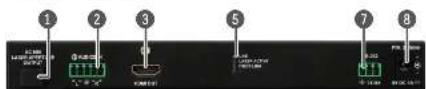
HDMI-3D-OPT-TX210RAK
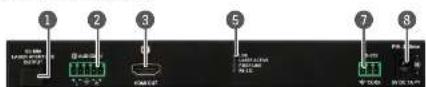
SW4-OPT-TX240RAK
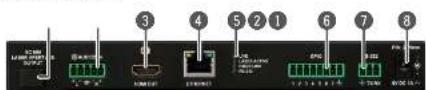
SC fiber output Connect a multimode single fiber optical cable between the transmitter and the receiver unit. Maximum fiber cable distances can be found in the Maximum Fiber Cable Extensions section.
2 Audio2 input 5-pole Phoenix connector for balanced analog audio input signal. Pin assignment can be found in the Analog Stereo Audio Connector (5-pole Phoenix) section.
3 HDMI output Local HDMI output with the same A/V content as the fiber optical output.
4 Ethernet Locking RJ45 connector for configuring the device using Lightware Device Controller (LDC). Any third-party control system can use this port to control the device.
5 Status LEDs
6 GPIO
7 RS-232
6 5V DC input
The LEDs give immediate feedback about actual state of the device. See the details in the Rear Panel Status LEDs - Transmitter section.
8-pole Phoenix connector for configurable general purpose input/output ports. Pin assignment can be found in the GPIO - General Purpose Input/Output Ports section.
3-pole Phoenix connector for RS-232 serial port. Pin assignment can be found in the RS-232 Connector (3-pole Phoenix) section.
Local power in; connect the output of the supplied 5V DC power adaptor. For more information see the 5V DC Connection section.
3.3. Front and Rear View - Receiver
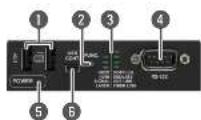
1 USB KVM ports
2 Power LED
3 USB control port
4 Function button
USB KVM ports for HID-compatible devices (preferably keyboard and mouse). See more information in the USB KVM Function section.
The LED indicates the power status of the device. See the details in the POWER LED section.
USB interface for LDC connection, and firmware upgrade purpose.
Factory default settings and bootload mode can be called using the button. See the details in the Special Functions - Receiver section.
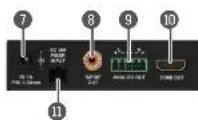
5 Status LEDs
G RS-232
7 5V DC input
8 SC fiber input
9 S/PDIF output
10 Analog audio output
11 HDMI output
The LEDs give immediate feedback about actual state of the device. See the details in the Status LEDs section.
D-sub connector for RS-232 serial port.
Local power in; connect the output of the supplied 5V DC power adaptor. For more information see the 5V DC Connection section.
Connect a multi-mode single fiber optical cable between the receiver and the transmitter unit. Maximum fiber cable distances can be found in the Maximum Fiber Cable Extensions section.
S/PDIF connector for digital audio output signal.
5-pole Phoenix connector for balanced analog audio output signal. Pin assignment can be found in the Analog Stereo Audio Connector (5-pole Phoenix) section.
HDMI connector for DVI video or HDMI video and audio.
3.4. Electrical Connections
3.4.1. 5V DC Connection
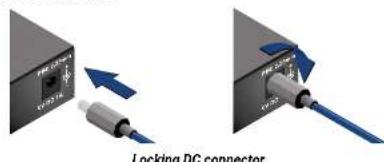
The extenders are built with locking 5V DC connector. Do not forget to
turn the plug clockwise direction before disconnecting the power adaptor.
WARNING! Always use the supplied 5V power adaptor. Warranty void if damage occurs due to use of a different power source.
3.4.2. HDMI Connector
The extenders provide standard 19-pole HDMI connector for input and output. Always use high-quality HDMI cable for connecting sources and displays.

3.4.3. DVI-I Connector
SW4-OPT-TX240RAK transmitter provides 29-pole "digital only" DVI-Dual-Link connectors (only digital pins are internally connected) for input and local output. This way, users can plug in any DVI connector, but keep in mind that analog signals (such as VGA or RGBHV) are not processed.
Always use high-quality DVI cable for connecting sources and displays.

| Pin Signal Pin Signal | |||
| 1 TMDS Data2- 16 Hot Plug Detect | |||
| 2 TMDS Data2+ 17 TMDS Data0- | |||
| 3 TMDS Data2 Shield 18 TMDS Data0+ | |||
| 4 | Not connected | 19 | TMDS Data0 Shield |
| 5 | Not connected | 20 | Not connected |
| 6 | DDC Clock | 21 | Not connected |
| 7 | DDC Data | 22 | TMDS Clock Shield |
| 8 | Not connected | 23 | TMDS Clock+ |
| 9 TMDS Data1- 24 TMDS Clock- | |||
| 10 | TMDS Data1+ | C1 | Not connected |
| 11 | TMDS Data1 Shield | C2 | Not connected |
| 12 | Not connected | C3 | Not connected |
| 13 | Not connected | C4 | Not connected |
| 14 | +5V Power | C5 | GND |
| 15 | GND (for +5V) | ||
3.4.4. DisplayPort Connector
SW4-OPT-TX240RAK transmitter provides standard 20-pole DisplayPort connector for input. Always use high quality DP cable for connecting DisplayPort devices.

3.4.5. SC Fiber Optical Connector
HDMI-3D-OPT series transmitters and receivers provide multimode SC fiber optical input and output connectors.

Maximum fiber cable distances can be found in the Maximum Fiber Cable Extensions section.
WARNING! Please do not look directly into the SC fiber optical connector if the cable is connected to the transmitter only and the laser is active.
3.4.6. Analog Stereo Audio Connector (3.5 mm Jack)
The connector is used for receiving unbalanced analog audio signal. It is also known as (3.5 mm or approx. 1/8") audio jack, phone jack, phone plug and mini-jack plug.


Jack audio plug pin assignments
You can find more information about audio functions in the Audio Interface section.
3.4.7. Analog Stereo Audio Connector (5-pole Phoenix)
5-pole Phoenix connector is used for balanced analog audio output. Unbalanced audio signals can be connected as well. For unbalanced output connect + and ground to the source and connect - to the ground.
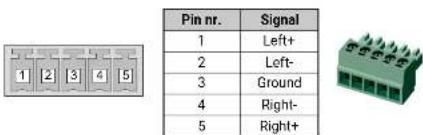
Analog audio connector and plug pin assignments
Compatible Plug Type
Phoenix® Combicon series (3.5mm pitch, 5-pole), type: MC 1.5/5-ST-3.5.
You can find more information about analog audio function in the Audio Interface section. Audio cable wiring guide is in the Audio Cable Wiring Guide section.
3.4.8. S/PDIF Connector
HDMI-3D-OPT-RX150RA receiver provides standard RCA receptacles for digital coaxial audio outputs.

You can find more information about audio functions in the Audio Interface section.
3.4.9. RS-232 Connector (3-pole Phoenix)
The extender contains a 3-pole Phoenix connector which is used for RS-232 serial connection.


| Pin nr. | Signal |
| 1 | Ground |
| 2 | TX data |
| 3 | RX data |

RS-232 connector pin assignments
Compatible Plug Type
Phoenix® Combicon series (3.5mm pitch, 3-pole), type: MC 1.5/3-ST-3.5. You can find more information about RS-232 interface in the Serial Interface section.
3.4.10. RS-232 Connector (D-sub)
HDMI-3D-OPT-RX150RA receiver contains RS-232 port which can be connected by an industry standard 9-pole D-sub female connector.
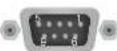
| Pin nr. | RS-232 pin-out |
| 1 | Not connected |
| 2 | TX data transmit (output) |
| 3 | RX data receive (input) |
| 4 | DTR (Internally connected to Pin 6) |
| 5 | GND signal ground (shield) |
| 6 | DSR (Internally connected to Pin 4) |
| 7 | RTS (Internally connected to Pin 8) |
| 8 | CTS (Internally connected to Pin 7) |
| 9 | Not connected |
You can find more information about RS-232 interface in the Serial Interface section.
3.4.11. Ethernet Connector
The extender provides standard RJ45 connectors for LAN port. Always use high quality Ethernet cable for connecting transmitters and receivers.

Wiring LAN Cables
Lightware recommends the termination of LAN cables on the basis of TIA/EIA T 568 A or TIA/EIA T 568 B standards.

Top

Bottom

Side
| Pin | TIA/EIA T568 A | Color and name | TIA/EIA T568 B | Color and name |
| 1 | white/green stripe | white/orange stripe | ||
| 2 | green solid | orange solid | ||
| 3 | white/orange stripe | white/green stripe | ||
| 4 | blue solid | blue solid | ||
| 5 | white/blue stripe | white/blue stripe | ||
| 6 | orange solid | green solid | ||
| 7 | white/brown stripe | white/brown stripe | ||
| 8 | brown solid | brown solid |
Pin assignments of RJ45 connector types
3.4.12. USB Mini Connector
The extenders provide standard USB mini B-type connector for software control and USB KVM purposes.

You can find more information about USB KVM function in the USB KVM Function section.
3.4.13. USB Connector for KVM
HDMI-3D-OPT-RX150RA receiver provides USB 2.0 connectors for KVM function supporting purpose. The unit has 2x USB 2.0 A-type connectors.

You can find more information about USB KVM function in the USB KVM Function section.
3.4.14. GPIO - General Purpose Input/Output Ports
SW4-OPT-TX240RAK transmitter contains a 8-pole Phoenix connector with seven GPIO pins, which operates at TTL digital signal levels and can be set to high or low level (Push-Pull). The direction of the pins can be input or output (adjustable). Voltage ranges for GPIO inputs are the following:
| Input voltage [V] | Max. current [mA] | |
| Logical low level | 0 - 0,8 | 30 |
| Logical high level | 2 - 5 | 18 |
INFO: The maximum total current for the seven GPIO pins is 180 mA.
| Pin nr. | Level and direction |
| 1 | Configurable |
| 2 | |
| 3 | |
| 4 | |
| 5 | |
| 6 | |
| 7 | |
| Ground | |
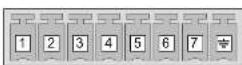
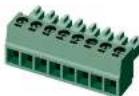
GPIO connector and plug pin assignments
Compatible plug type
Phoenix® Combicon series(3.5mmpitch 8-pole), type:MC 1.5/8-ST-3.5. You can find more information about GPIO interface in the GPIO Interface section.
3.5. Optical Extender Concept
3.5.1. Transmitter
HDMI-3D-OPT-TX200 series transmitters have a multimode single fiber output interface which is able to transmit different type of signals at the same time. The transmitter accepts digital video (DP, HDMI, and DVI-D) and analog audio sources (Jack and 5-pole Phoenix). The device can be controlled over LAN, RS-232 (3-pole Phoenix), and USB interfaces. The transmitter is able control third-party devices using the built-in GPIO ports. The transmitter also has USB KVM function.
Interfaces of HDMI-3D-OPT-TX210A
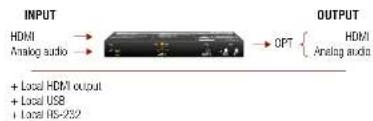
flowchart
graph LR
    A["INPUT"] --> B["HDMI"]
    B --> C["Analog audio"]
    C --> D["OUTPUT"]
    D --> E["OPT"]
    E --> F["HDMI"]
    F --> G["Analog audio"]
    style A fill:#f9f,stroke:#333
    style B fill:#ccf,stroke:#333
    style C fill:#cfc,stroke:#333
    style D fill:#fcc,stroke:#333
    style E fill:#cff,stroke:#333
    style F fill:#ffc,stroke:#333
    note1["+ Local HDMI output"]
    note2["+ Local USB"]
    note3["+ Local RS-232"]
Interfaces of HDMI-3D-OPT-TX210RAK
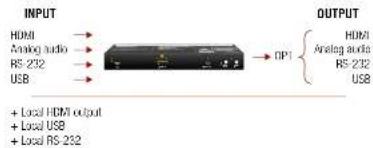
Interfaces of SW4-OPT-TX240RAK
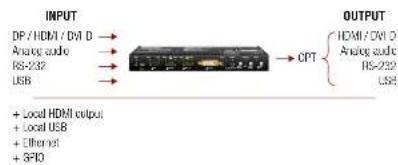
flowchart
graph LR
    A["Input"] --> B["Analog audio RS-232 USB"]
    B --> C["OPT"]
    C --> D["Output"]
    E["+ Local HDMI output"] --> F["Local USB"]
    G["+ Ethernet"] --> H["+ SPIO"]
    I["+ HDMI / OVI D"] --> J["Analog audio RS-232 USB"]


- Product Overview HDMI-3D-OPT series - User's Manual 16
3.5.2. Receiver
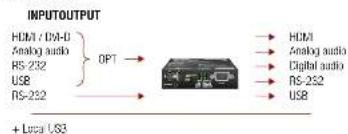
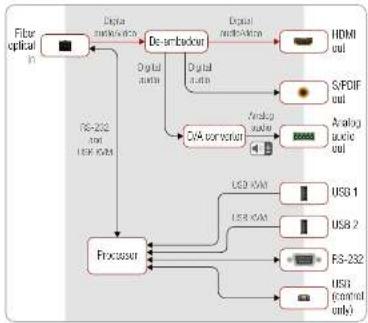
HDMI-3D-OPT-RX150RA receiver has a multi-mode single fiber input interface which is able to receive different type of signals at the same time. The device accepts digital video and digital/analog audio, RS-232, and USB KVM signals over a single fiber cable. The device is able to deem the audio signal to the analog (5-pole Phoenix) and the digital (S/PDIF) ports and transmit it to the audio source devices. The unit can be controlled USB interface (USB mini B-type) and built with a bidirectional RS-232 port (D-sub). The device also has USB KVM function.
Interfaces of HDMI-3D-OPT-RX150RA
flowchart
graph LR
    A["HOM / DNA-D\nAnalog audio\nRS-232"] -->|OPT| B["Device"]
    C["+ Local US3"] --> B
    B --> D["HOM\nAnalog audio\nDigital audio\nRS-232\nUSB"]
3.6. Port Diagrams
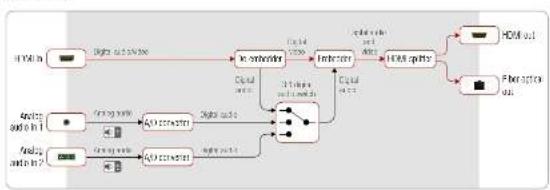
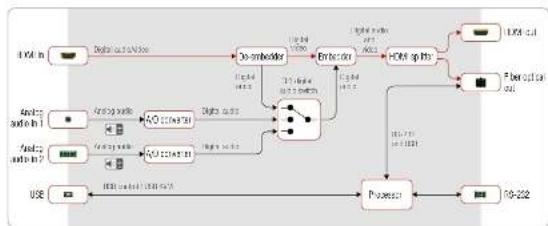
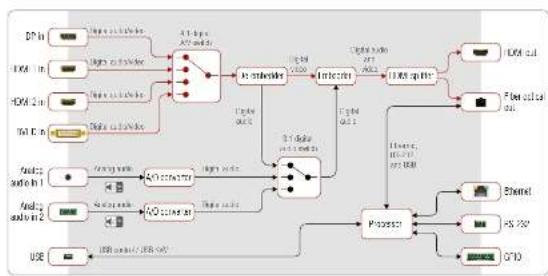
The following diagrams introduce the route of the different signal types (including the audio/video and control signals as well) from the input to the output ports in the device.
HDMI-3D-OPT-TX210A
flowchart
graph LR
    A["HYB in"] --> B["Digital output"]
    B --> C["Inverter"]
    C --> D["Inverter"]
    D --> E["EAR splitter"]
    E --> F["HDMI out"]
    G["Splice output in 1"] --> H["AFD output"]
    I["Splice output in 2"] --> J["AFD output"]
    H --> K["Digital output"]
    J --> L["Digital output"]
    K --> M["Central grid"]
    L --> M
    M --> N["Central grid"]
    N --> O["Central grid"]
    O --> P["Central grid"]
    P --> Q["Central grid"]
    Q --> R["Central grid"]
    R --> S["Central grid"]
    S --> T["Central grid"]
    T --> U["Central grid"]
    U --> V["Central grid"]
    V --> W["Central grid"]
    W --> X["Central grid"]
    X --> Y["Central grid"]
    Y --> Z["Central grid"]
    Z --> AA["Central grid"]
    AA --> AB["Central grid"]
    AB --> AC["Central grid"]
    AC --> AD["Central grid"]
    AD --> AE["Central grid"]
    AE --> AF["Central grid"]
    AF --> AG["Central grid"]
    AG --> AH["Central grid"]
    AH --> AI["Central grid"]
    AI --> AJ["Central grid"]
    AJ --> AK["Central grid"]
    AK --> AL["Central grid"]
    AL --> AM["Central grid"]
    AM --> AN["Central grid"]
    AN --> AO["Central grid"]
    AO --> AP["Central grid"]
    AP --> AQ["Central grid"]
    AQ --> AR["Central grid"]
    AR --> AS["Central grid"]
    AS --> AT["Central grid"]
    AT --> AU["Central grid"]
    AU --> AV["Central grid"]
    AV --> AW["Central grid"]
    AW --> AX["Central grid"]
    AX --> AY["Central grid"]
    AY --> AZ["Central grid"]
    AZ --> BA["Central grid"]
    BA --> BB["Central grid"]
    BB --> BC["Central grid"]
    BC --> BD["Central grid"]
    BD --> BE["Central grid"]
    BE --> BF["Central grid"]
    BF --> BG["Central grid"]
    BG --> BH["Central grid"]
    BH --> BI["Central grid"]
    BI --> BJ["Central grid"]
    BJ --> BK["Central grid"]
    BK --> BL["Central grid"]
    BL --> BM["Central grid"]
    BM --> BN["Central grid"]
    BN --> BO["Central grid"]
    BO --> BP["Central grid"]
    BP --> BQ["Central grid"]
    BQ --> BR["Central grid"]
    BR --> BS["Central grid"]
    BS --> BT["Central grid"]
    BT --> BU["Central grid"]
    BU --> BV["Central grid"]
    BV --> BW["Central grid"]
    BW --> BX["Central grid"]
    BX --> BY["Central grid"]
    BY --> BZ["Central grid"]
    BZ --> CA["Central grid"]
    CA --> CB["Central grid"]
    CB --> CC["Central grid"]
    CC --> CD["Central grid"]
    CD --> CE["Central grid"]
    CE --> CF["Central grid"]
    CF --> CG["Central grid"]
    CG --> CH["Central grid"]
    CH --> CI["Central grid"]
    CI --> CJ["Central grid"]
    CJ --> CK["Central grid"]
    CK --> CR["Central grid"]
    CR --> CS["Central grid"]
    CS --> CT["Central grid"]
    CT --> CU["Central grid"]
    CU --> CV["Central grid"]
    CV --> CW["Central grid"]
    CW --> CX["Central grid"]
    CX --> CY["Central grid"]
    CY --> CZ["Central grid"]
    CZ --> DA["Central grid"]
    DA --> DB["Central grid"]
    DB --> DC["Central grid"]
    DC --> DD["Central grid"]
    DD --> DE["Central grid"]
    DE --> DF["Central grid"]
    DF --> DG["Central grid"]
    DG --> DH["Central grid"]
    DH --> DI["Central grid"]
    DI --> DJ["Central grid"]
    DJ --> DK["Central grid"]
    DK --> DL["Central grid"]
    DL --> DV["Central grid"]
    DV --> DW["Central grid"]
    DW --> DX["Central grid"]
    DX --> DXB["Central grid"]
HDMI-3D-OPT-TX210RAK
flowchart
graph LR
    A["USB Input"] --> B["Digital output/IO"]
    B --> C["Over-embedder"]
    C --> D["Internal"]
    D --> E["Hardware"]
    E --> F["LED output"]
    F --> G["Power output"]
    G --> H["Process1"]
    H --> I["USB"]
    J["USB Input"] --> K["Digital output/IO"]
    K --> L["O-I/O-I/O-I"]
    L --> M["Digital output"]
    M --> N["High output"]
    N --> O["High output"]
    O --> P["High output"]
    P --> Q["High output"]
    Q --> R["High output"]
    R --> S["High output"]
    S --> T["High output"]
    T --> U["High output"]
    U --> V["High output"]
    V --> W["High output"]
    W --> X["High output"]
    X --> Y["High output"]
    Y --> Z["High output"]
    Z --> AA["High output"]
    AA --> AB["High output"]
    AB --> AC["High output"]
    AC --> AD["High output"]
    AD --> AE["High output"]
    AE --> AF["High output"]
    AF --> AG["High output"]
    AG --> AH["High output"]
    AH --> AI["High output"]
    AI --> AJ["High output"]
    AJ --> AK["High output"]
    AK --> AL["High output"]
    AL --> AM["High output"]
    AM --> AN["High output"]
    AN --> AO["High output"]
    AO --> AP["High output"]
    AP --> AQ["High output"]
    AQ --> AR["High output"]
    AR --> AS["High output"]
    AS --> AT["High output"]
    AT --> AU["High output"]
    AU --> AV["High output"]
    AV --> AW["High output"]
    AW --> AX["High output"]
    AX --> AY["High output"]
    AY --> AZ["High output"]
    AZ --> BA["High output"]
    BA --> BB["High output"]
    BB --> BC["High output"]
    BC --> BD["High output"]
    BD --> BE["High output"]
    BE --> BF["High output"]
    BF --> BG["High output"]
    BG --> BH["High output"]
    BH --> BI["High output"]
    BI --> BJ["High output"]
    BJ --> BK["High output"]
    BK --> BL["High output"]
    BL --> BM["High output"]
    BM --> BN["High output"]
    BN --> BO["High output"]
    BO --> BP["High output"]
    BP --> BQ["High output"]
    BQ --> BR["High output"]
    BR --> BS["High output"]
    BS --> BT["High output"]
    BT --> BU["High output"]
    BU --> BV["High output"]
    BV --> BW["High output"]
    BW --> BX["High output"]
    BX --> BY["High output"]
    BY --> BZ["High output"]
    BZ --> CA["High output"]
    CA --> CB["High output"]
    CB --> CC["High output"]
    CC --> CD["High output"]
    CD --> CE["High output"]
    CE --> CF["High output"]
    CF --> CG["High output"]
    CG --> CH["High output"]
    CH --> CI["High output"]
    CI --> CJ["High output"]
    CJ --> CK["High output"]
    CK --> CR["High output"]
    CR --> CS["High output"]
    CS --> CT["High output"]
    CT --> CU["High output"]
    CU --> CV["High output"]
    CV --> CW["High output"]
    CW --> CX["High output"]
    CX --> CY["High output"]
    CY --> CZ["High output"]
    CZ --> DA["High output"]
    DA --> DB["High output"]
    DB --> DC["High output"]
    DC --> DD["High output"]
    DD --> DE["High output"]
    DE --> DF["High output"]
    DF --> DG["High output"]
    DG --> DH["High output"]
    DH --> DI["High output"]
    DI --> DJ["High output"]
    DJ --> DK["High output"]
SW4-OPT-TX240RAK
flowchart
graph TD
    A["DR"] --> B["8.4 Mbps"]
    C["10M"] --> D["8.4 Mbps"]
    E["10M 2.1"] --> F["8.4 Mbps"]
    G["TM"] --> H["8.4 Mbps"]
    I["USB"] --> J["USB port/USB port"]
    K["Android port/1"] --> L["Android port"]
    M["Android port/2"] --> N["Android port"]
    O["USB"] --> P["USB port/USB port"]
    Q["3.5 Mbps port/USB port"] --> R["3.5 Mbps port/USB port"]
    S["Internal"] --> T["Internal"]
    U["External"] --> V["External"]
    W["Processed"] --> X["Processed"]
    Y["G10"] --> Z["G10"]
    AA["External"] --> AB["External"]
    AC["External"] --> AD["External"]
    AE["External"] --> AF["External"]
    AG["External"] --> AH["External"]
    AI["External"] --> AJ["External"]
    AK["External"] --> AL["External"]
    AM["External"] --> AN["External"]
    AO["External"] --> AP["External"]
    AQ["External"] --> AR["External"]
    AS["External"] --> AT["External"]
    AU["External"] --> AV["External"]
    AW["External"] --> AX["External"]
    AY["DDR"] --> AZ["8.4 Mbps"]
    BA["10M"] --> BB["8.4 Mbps"]
    BC["10M 2.1"] --> BD["8.4 Mbps"]
    BE["TM"] --> BF["8.4 Mbps"]
    BG["Android 2.1"] --> BH["8.4 Mbps"]
    BI["TM"] --> BJ["8.4 Mbps"]
    BK["Android 2.1"] --> BL["8.4 Mbps"]
    BM["USB"] --> BN["USB port/USB port"]
    BO["Android port/1"] --> BP["Android port"]
    BQ["Android port/2"] --> BR["Android port"]
    BS["Internal"] --> BT["Internal"]
    BU["I/O port/AT"] --> BV["I/O port/AT"]
    BW["I/O port/AT"] --> BX["I/O port/AT"]
    BY["I/O port/AT"] --> BZ["I/O port/AT"]
    CA["I/O port/AT"] --> CB["I/O port/AT"]
    CC["I/O port/AT"] --> CD["I/O port/AT"]
    CE["I/O port/AT"] --> CF["I/O port/AT"]
    CG["I/O port/AT"] --> CH["I/O port/AT"]
    CI["I/O port/AT"] --> CJ["I/O port/AT"]
    CK["I/O port/AT"] --> CL["I/O port/AT"]
    CM["I/O port/AT"] --> CN["I/O port/AT"]
    CO["I/O port/AT"] --> CP["I/O port/AT"]
    CS["I/O port/AT"] --> CT["I/O port/AT"]
    CU["I/O port/AT"] --> CV["I/O port/AT"]
    CW["I/O port/AT"] --> CX["I/O port/AT"]
    CY["I/O port/AT"] --> CZ["I/O port/AT"]
    DA["I/O port/AT"] --> DB["I/O port/AT"]
    DC["I/O port/AT"] --> DD["I/O port/AT"]
    DX["I/O port/AT"] --> DY["I/O port/AT"]
HDMI-3D-OPT-RX150RA
flowchart
graph TD
    A["Fiber optical input"] --> B["De-archBackour"]
    B --> C["HDM out"]
    B --> D["Digital audio"]
    B --> E["Digital audio"]
    B --> F["CNA conversion"]
    F --> G["S/PDIF out"]
    F --> H["Analog audio"]
    F --> I["USB 1"]
    F --> J["USB 2"]
    F --> K["FS-232"]
    F --> L["USB (control only)"]
    B --> M["Processor"]
    M --> N["USI 1"]
    M --> O["USI 2"]
3.7. Audio Interface
3.7.1. Audio Inputs and Modes - Transmitter
The transmitter can receive audio from two type of sources:
• Embedded (2x HDMI, 1x DP, 1x DVI-D);
• Analog audio sources (1x Jack and 1x 5-pole Phoenix).
The audio coming from the analog inputs can be assigned to any video input. The gain levels of the analog audio input and the volume of the analog audio output ports are adjustable.
Audio Embedding – Allowed Connections
When the desired video signal is selected, the audio of the transmitted signal can be:
• The audio of the original signal, or
• The analog audio signal
INFO: In case of SW4-OPT-TX240RAK model the audio of the HDMI 2 input can be embedded only in the original video stream. The audio of HDMI1 input cannot be mixed with the video of HDMI 2 input and vice versa.
3.7.2. Audio Outputs and Modes - Receiver
The receiver can transmit audio on three types of audio ports:
- Embedded (HDMI);
• Digital audio (S/PDIF);
• Analog balanced audio (5-pole Phoenix).
The digital audio signal coming from the the optical input port can be transmitted on any audio output ports: HDMI, S/PDIF, or the analog audio output port. The volume and balance levels are adjustable on the analog output port.
Supported Audio Formats
The table below shows the supported audio formats by output ports.
| Audio formats | Audio outputs | ||
| Embedded audio S/PDIF output Analog audio output | |||
| Multichannel PCM | Max 8 channel(up to 192 kHz) | Stereo PCM(up to 48 kHz) | Stereo PCM(up to 48 kHz) |
| Dolby Digital 2.1 | √ | √ | - |
| Dolby Digital 5.1 | √ | √ | - |
| Dolby Digital 7.1 | √ | √ | - |
| DTS 2.1 | √ | √ | - |
| DTS 5.1 | √ | √ | - |
| DTS 7.1 | √ | √ | - |
| Dolby TrueHD (HBR) | √ | - | - |
| DTS-HD (HBR) | √ | - | - |
| DTS-HD Master Audio (HBR) | √ | - | - |
| All other HDMI specified standards | √ | - | - |
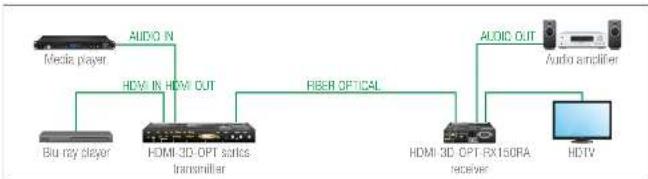
3.7.3. Audio Options - Example
flowchart
graph LR
    A["Media player"] -->|AUDIO IN| B["HDMI 3D OPT transceiver"]
    B -->|HDMI OUT| C["RIBER OPTICAL"]
    C -->|AUDIO OUT| D["Audio amplifier"]
    B --> E["Bu ray slayer"]
    D --> F["HD TV"]
    B --> G["HDMI 3D OPT transceiver"]
    G --> H["HDMI 3D OPT RX150RA receiver"]
The Concept
Two audio source devices are connected to the transmitter: a Blu-ray player which has embedded digital audio on HDMI; and a media player which sends analog audio to the transmitter. On the receiver's side there is two audio source device: an HDTV which can receive digital audio on HDMI; and an audio amplifier which can receive analog or digital audio signals as well.
As the transmitter is able to embed the analog audio signal to the HDMI signal, the user can transmit the audio of the Blu-ray player or the audio of the media player as well.
INFO: One audio (embedded or analog) and one video signals can be transmitted via the optical output at the same time.
The receiver has built-in de-embedder function so the user can transmit audio signal to the audio amplifier and HDTV as well.
All related audio settings are available in the Lightware Device Controller software, see the Port Properties Windows section.
3.8. Video Interface
Transmitter
The video crosspoint settings can be controlled by any of the following ways:
- Pressing Video Select button on the device.
• Using Lightware Device Controller (LDC), - Sending LW2 or LW3 protocol commands, or
• Using the Autoselect function.
INFO: The audio/video signal on the local HDMI output port is always the same as on the optical output port.
Direct Selection on SW4-OPT-TX240RAK Transmitter
Desired video input can be selected by the Video select button, the order is the following:

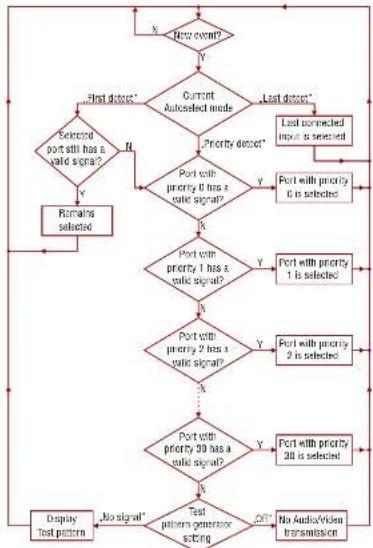
3.9. The Autoselect Feature
Beside of manual selecting of crosspoints you can choose the Autoselect option both in case of audio and video ports.
There are three types of Autoselect as follows.
- First detect mode: selected input port is kept connected to the output while it has an active signal.
- Priority detect mode: always the highest priority active input is selected to transmit.
- Last detect mode: always the last attached input is selected to transmit.
flowchart
graph TD
    A["New event"] --> B{Current Autoselected mode}
    B -->|Yes| C["Port with priority 0 has a valid sign?"]
    B -->|No| D["Port with priority 1 has a valid sign?"]
    C --> E["Port with priority 2 has a valid sign?"]
    D --> F["Port with priority 3 has a valid sign?"]
    E --> G["Port with priority 4 is selected"]
    F --> H["Port with priority 5 is selected"]
    G --> I["Display Test pattern: No signal*"]
    H --> I
    I --> J["Display Test pattern: No signal*"]
    J --> K["End"]
    style A fill:#f9f,stroke:#333
    style K fill:#f9f,stroke:#333
Flowchart of Autoselection modes
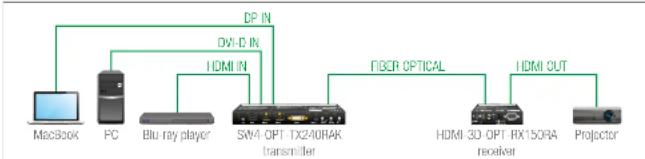
Automatic Input Selection - Example
flowchart
graph TD
    A["MacBook"] --> B["FC"]
    B --> C["Blu-ray player"]
    C --> D["5V4-OPT-TX240RAK transmitter"]
    D --> E["FIBER OPTICAL"]
    E --> F["HDMI 3D-OPT-RX15ORA receiver"]
    F --> G["Projection"]
    D --> H["DVI-D IN"]
    D --> I["DP IN"]
    D --> J["HDMI IN"]
    E --> K["HDMI OUT"]
The Concept
If there is no other source connected to the transmitter, but the MacBook, DP input will be automatically switched to the optical output. If the MacBook and the PC are also connected to the transmitter, DVI-D input will be switched to the optical output. If the Blu-ray player is connected on the HDMI input of the transmitter, it will be switched to the optical output – independently of the presence of other video signals.
Settings
- Optical output: Set the Autoselect to Enabled. Set Autoselect mode to Priority detect. The priorities are the following (the lowest number means the highest priority): The priorities are the followings:
| Source device Input port Priority | ||
| MacBook I1 (DP IN) | 2 | |
| PC I4 (DVI-D IN) | 1 | |
| Blu-ray player I2 (HDMI IN) | 0 | |
Priorities can be set in Lightware Device Controller software, see related settings in the Video Outputs and Digital Audio Outputs sections.
3.10. USB KVM Function
HDMI-3D-OPT-TX210RAK, SW4-OPT-TX240RAK, and the HDMI-3D-OPT-RX250RA extenders support HID-compliant (Human Interface Device) devices to transmit USB signal between the source and sink devices. The transmitter connects to the controlled device (e.g. PC) and the controlling devices (e.g. computer mouse, keyboard, touch panel) are connected to the receiver.
ATTENTION! Only HID-compliant devices are supported by the extenders. Non-HID devices (USB sticks, webcams, etc) will not be working with the extenders.
USB KVM function can be used in two different modes: Transparent and Composite mode. The following sections show the difference between the two modes:
Transparent Mode
Transparent mode is a simple USB data transmission between the extenders. The same data is transmitted on the TX side which is received on the RX side. The content of the transmitted packets are unknown to the Lightware infrastructure so that the data is not modified by any means during the transmission.
Key Features:
• Supports all HID-compliant devices.
- Driver software for all connected USB devices has to be installed on the controlled computer. When you switch a crosspoint between two sources, the connected mouse and keyboard will be detected as a new hardware in the operating system.
Composite Mode
The composite mode is an advanced data transmission method, recommended for most users. The devices use their own data packets during data transmission. Thus, the content of the transmitted packets is known to the Lightware infrastructure.
Key Features:
- Supports the following HID-compliant devices: computer mouse, keyboard built with 107 keys and/or specific multimedia keys.
- No driver software is needed for the connected devices. The operating system uses the driver of the extender to establish the connection for the USB devices.
- Supports the following HID-compliant devices: computer mouse, keyboard built with 107 keys and/or specific multimedia keys.
- No driver software is needed for the connected devices. The operating system uses the driver of the extender to establish the connection for the USB devices.
INFO: You can find the related settings for Lightware Device Controller software in the USB KVM section.
USB KVM - Example 1

flowchart
graph LR
    PC -->|USB| HDMI-3D-OPT Series Transmitter
    HDMI-3D-OPT Series Transmitter -->|FIBER OPTICAL| HDMI-3D-OPT-RX150RA Receiver
    HDMI-3D-OPT-RX150RA Receiver -->|USB| Keyboard / Mouse
The Concept
The PC is connected to the transmitter with a USB cable. The signal is transmitted over the fiber optical line from the receiver which is connected to the controller devices (to the keyboard and the mouse) to the transmitter. The physical distance between the controlled PC and the controller devices can be up to 2500 meters.
USB KVM - Example 2
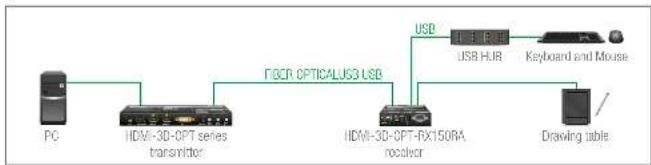
flowchart
graph LR
    PC --> HDMI-3D-OPTSeriesTransmitter
    HDMI-3D-OPTSeriesTransmitter --> HDMI-3D-OPT-RX150RAReceiver
    HDMI-3D-OPT-RX150RAReceiver --> USB_HJB
    USB_HJB --> KeyboardandMouse
    USB_HJB --> DrawingTable
    HDMI-3D-OPT-RX150RAReceiver --> FOCR_OPTICALUS3_USB
The Concept
Two devices are connected to the USB ports of the Receiver:
A Drawing table;
- A USB HUB which has four USB ports - a Keyboard and a Mouse are connected to the HUB.
The PC can be controlled by the keyboard and the mouse, as well as the drawing table is also working as an input device beside of them.
Settings:
- Keyboard and mouse (via the USB HUB): the devices need to be set to Composite mode. The extenders can handle both of them if the devices are HID-compliant computer mouse and/or keyboard built with 107 keys and/or specific multimedia keys.
- Drawing table: the device needs to be set to Transparent mode because this kind of devices may have special functions which cannot be supported by the composite mode.
All related settings are available in the LDC software, see the USB KVM section.
INFO: The extenders support up to 8 physical USB HUB ports.
3.11. Controlling Features
The interfaces of the HDMI-3D-OPT series extenders can be used to install the device at various points of a complex A/V system. Besides, the transmitter and the receiver are able to handle controlling functions. This section is about to present the possibilities through the control ports built-in the the extenders.
3.11.1. Serial Interface
INFO: Only HDMI-3D-OPT-TX210RAK and SW4-OPT-TX240RAK transmitters, and HDMI-3D-OPT-RX150RA receiver have RS-232 interface.
Technical Background
Serial data communication can be established via the local RS-232 port (Phoenix connector) or via the optical line. The RS-232 ports – which are connected to the processor (CPU) – can be configured separately (e.g. if the Baud rales are different, the microcontroller does the conversion automatically between the ports). The RS-232 port can be switched to Control mode, Command injection mode, or can be Pass-through mode; see the following figure.
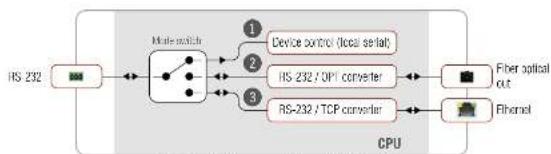
flowchart
graph LR
    A["RS-232"] --> B["Device control (local serial)"]
    B --> C["RS-232 / OP1 converter"]
    B --> D["RS-232 / TCP converter"]
    C --> E["Fiber optical out"]
    D --> F["Ethernet"]
    E --> G["CPU"]
    F --> G
    style A fill:#f9f,stroke:#333
    style B fill:#ccf,stroke:#333
    style C fill:#cfc,stroke:#333
    style D fill:#fcc,stroke:#333
    style E fill:#ffc,stroke:#333
    style F fill:#fcc,stroke:#333
    style G fill:#cff,stroke:#333
The block diagram of the serial interface
The following settings are defined:

The Local serial port is in Control mode.

The Local serial port is in Pass-through mode.

The Local serial port is in Command Injection mode.
All settings are available in the LDC software, see settings in the RS-232 section.
Control Mode
The incoming data from the given port is processed and interpreted by the CPU. The mode allows to control the matrix directly. LW2 or LW3 protocol commands are accepted – depending on the current port setting.
Pass-through Mode
In pass-through mode, the given device forwards the data that is coming from one of its ports to another same type of port. The command is not processed by the CPU. Incomming serial data is forwarded from one port to another port inside the extender.
Command Injection Mode
INFO: HDMI-3D-OPT-RX150RA receiver has no command injection mode.
In this mode, the extender works as a TCP/IP RS-232 bidirectional converter. The TCP/IP data signal is converted to RS-232 data and vice versa. TCP/IP port numbers are defined for the serial ports (optical link and local) for this purpose. E.g. the default Command Injection port number of the local RS-232 port is 8001. If data is coming from the optical interface which addresses to the port no. 8001, it will be transmitted to the Tx pin of the local RS-232 port. That also works in the opposite direction of course and the method is the same on the serial interface of the optical port as well.
RS-232 Signal Transmission - Example 1
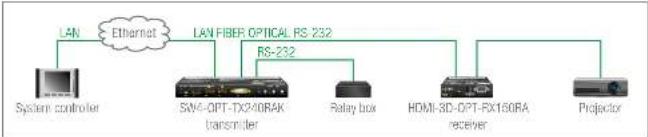
flowchart
graph LR
    A["LAN"] --> B["Ethernet"]
    B --> C["LAN FIBER OPTICAL RS 232"]
    C --> D["RS-232"]
    D --> E["Switch controller"]
    D --> F["SW-OPT-TX240RAK transmitter"]
    D --> G["Relay box"]
    D --> H["HDMI-3D-OPT-FX160RA receiver"]
    D --> I["Projector"]
The following ways are available for controlling the devices:
- The System controller can communicate with the Transmitter by LW2/LW3 protocol commands sent to the local IP:port address.
- The System controller can communicate directly with the Projector or an Extender via their IP:port address.
- The System controller can communicate directly with the RS-232 Relay box connected to the Transmitter. In this case, Command Injection mode has to be enabled on the local RS-232 port.
- The Transmitter can send a command (e.g. as an action by the Event Manager) to the IP:port address of the Projector or the Receiver by using LW3 protocol methods.
Command Sending
- You can send LW3 protocol commands to the 192.168.0.100:6107 port to control the transmitter.
- You can send LW2 protocol commands to the 192.168.0.100:10001 port to control the transmitter.
- You can send commands to the 192.168.0.100:8001 port to control the projector. This port number means the RS-232 interface of the optical output port (01).
INFO: Above values are examples and based on factory default settings.
INFO: Only SW4-OPT-TX240RAK model has Ethernet LAN port.
RS-232 Signal Transmission - Example 2

flowchart
graph LR
    A["System controller"] -->|RS-232| B["HDMI 3D OPT TX210V/4K transmitter"]
    B -->|HDMI 3D OPT TX150PA receiver| C["Projector"]
    B -->|HDMI 3D OPT TX210V/4K | D["FSOET OPTICAL"]
    D -->|RS-232| E["Projector"]
The Concept
You can control the Projector over the extenders with the System controller. The controller is connected to the local RS-232 port of the Transmitter which transmits the signal toward the Receiver over the fiber optical line. The Projector is connected to the local RS-232 port of the Receiver. The serial connection is bidirectional which means the controller gets back the responses of the projector.
In this case the RS-232 port of the transmitter and receiver either has to be set to Pass-through mode.
3.11.2. GPIO Interface
INFO: Only SW4-OPT-TX240RAK model has GPIO interface.
The GPIO (General Purpose Input/Output) port is a multifunctional input/output interface to control the SW4-OPT-TX240RAK transmitter or third-party devices and peripherals. You can establish connection between the controller/controllable device and the transmitter by the 8-pole Phoenix connector. The derivation of the seven pin is configurable independently based on the purpose of the application.
GPIO Options - Example
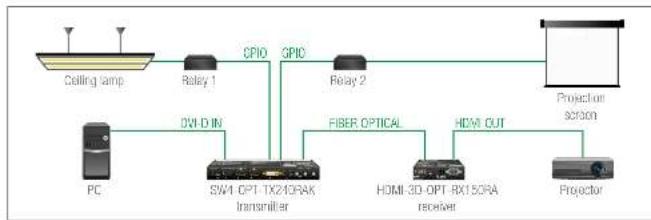
flowchart
graph LR
    A["Ceiling lamp"] --> B["Relay 1"]
    B --> C["CPIC"]
    C --> D["CPIC"]
    D --> E["Relay 2"]
    E --> F["Projection section"]
    G["PC"] --> H["DWI-D IN"]
    H --> I["SW1 OPT-TX240RA transmitter"]
    I --> J["FIBER OPTICAL"]
    J --> K["HDMI 3D OPT-RX15ORA receiver"]
    K --> L["HDMI OUT"]
    L --> M["Projection"]
The Concept
Ceiling lamp is turned off by Relay 1 and projection screen is rolled down by Relay 2 when signal received from the PC over the DVI-D input. Both relays are controlled by the GPIO port.
Settings of the Transmitter
- For Relay 1: create an event in Event Manager: when signal is present on Input 1 (I1) then set GPIO pins to low level for Relay 1 opening. Also create another event when signal is not present on Input 1 (I1) then set GPIO pins to high level for Relay 1 closing.
- For Relay 2: create an event in Event Manager when signal is present on Input 1 (I1) then set GPIO pins to high level for Relay 2 closing. Also create another event when signal is not present on Input 1 (I1) then set GPIO pins to low level for Relay 2 opening.
When the PC starts to play the video presentation, the signal is received over the DVI-D input so GPIO pins send signal to Relay 1 to open which results turning off the lights. Furthermore GPIO pins also send signal to Relay 2 to close and the projection screen is rolled down. When the presentation is ended, signal ceases on the DVI-D input, so GPIO pins send signal to Relay 1 to close which results turning on the lights and sends signal to Relay 2 to open so projection screen returns to its enclosure.
ATTENTION! Please always check the electrical parameters of the devices what you want to control. The maximum current of one GPIO pin is 30 mA, the maximum total current for the seven pins is 180 mA.
See the LDC settings for GPIO port in the GPIO section. See also the details about the Event Manager settings in the Event Manager section.


- Product Overview HDMI-3D-OPT series - User's Manual 22
3.11.3. USB Control Interface
The device can be controlled over front panel USB mini B-type connector. This interface only supports LW3 protocol. The interface can be used to establish the connection to Lightware Device Controller software.
3.11.4. Ethernet Control Interface
INFO: Only SW4-OPT-TX240RAK model has Ethernet control interface.
The device can be controlled over rear panel standard RJ45 connector. The interface can be used to establish the connection to Lightware Device Controller software.
3.12. Further Built-in Features
3.12.1. Automatically Launched Actions - The Event Manager
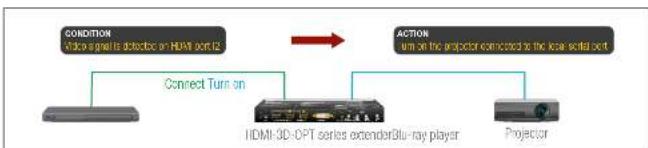
The Event Manager feature means that the device can sense changes on its ports and is able to react according to the pre-defined settings. Lightware Device Controlle contains a user-friendly software tool and allows to create Events by defining a Condition and an Action.

EVENT MANAGER
flowchart
graph LR
    A["CONDITION"] --> B["Connect Turn-on"]
    B --> C["HDMI-3D-OPT series extension Blu-ray player"]
    C --> D["ACTION"]
    D --> E["Projector"]
    E --> C
    style A fill:#ccc,stroke:#333
    style B fill:#ccc,stroke:#333
    style C fill:#ccc,stroke:#333
    style D fill:#ccc,stroke:#333
    style E fill:#ccc,stroke:#333
Event Manager example
See more information about the settings in the Event Manager section.
3.12.2. Advanced EDID Management
Factory Preset EDIDs
The factory EDIDs (F1-F136) are factory preprogrammed and cannot be modified. These are the most common resolutions. They are specially provided to force graphic cards to output only the exact pixel resolution and refresh rate.
Universal EDID allows multiple resolutions including all common VESA defined resolutions. The use of universal EDID is recommended for fast and easy system setup.
Sources and Destinations
The EDID memory consists of four parts:
- Factory EDID list shows the pre-programmed EDIDs (F1-F136).
- Dynamic EDID list shows the display device connected to the device's outputs. The unit stores the last display devices' EDID on either output, so there is an EDID shown even if there is no display device attached to the output port at the moment.
- User memory locations (U1 - U14 for the transmitter; U1 - U15 for the receiver) can be used to save custom EDIDs.
- Emulated EDID list shows the currently emulated EDID for the inputs. The source column displays the memory location that the current EDID was routed from.
The source reads the EDID from the Emulated EDID memory on the INPUT port. Any EDID from any of the User/Factory/Dynamic EDID lists can be copied to the user memory.
There are two types of emulation: static and dynamic.
- Static EDID emulation: an EDID from the Factory or User EDID list is selected. Thus, the Emulated EDID remains the same until the user emulates another EDID.
- Dynamic EDID emulation: it can be enabled by selecting D1 or D2 EDID memory. The attached monitor's EDID is copied to the input; if a new monitor is attached to the output, the emulated EDID changes automatically.
See more information about the settings in the EDID Menu section.
3.12.3. Extender Cloning - Configuration Backup and Restore
flowchart
graph LR
    A["Input Device"] --> C["Laptop"]
    C --> D["Output Device 1"]
    C --> E["Output Device 2"]
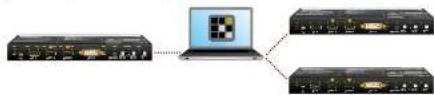
The configuration cloning of HDMI-3D-OPT series devices is a simple method that eliminates the need to repeatedly configure certain devices to have identical (non-factory) settings. If the devices are installed in the same type of system multiple times then it is enough to set up only one device to fit the user's needs and then copy those settings to the others, thus saving time and resources.
See more information about the settings in the Configuration Cloning (Backup Tab) section.
4
Operation
This chapter is about the powering and operating of the device describing the functions which are available by the front/rear controls:
▶FRONT PANEL LEDs - TRANSMITTER
▶FRONT PANEL BUTTONS - TRANSMITTER
▶SPECIAL FUNCTIONS - TRANSMITTER
REAR PANEL STATUS LEDs - TRANSMITTER
▶FRONT PANEL LEDS - RECEIVER
▶SPECIAL FUNCTIONS - RECEIVER
▶SOFTWARE CONTROL MODES
4.1. Front Panel LEDs - Transmitter
4.1.1. Video Input LEDs

OFF: The video source is not selected.
BLINKING: The video source is selected but signal is not detected.
ON: The video source is selected and signal is detected.
INFO: When Autoselect is enabled and video signal is not present at all, video LEDs blink.
4.1.2. Audio Input LEDs

OFF: The audio source is not selected.
BLINKING: The audio source is selected but no signal is detected, regardless of the output mode (e.g. DVI EDID is emulated on the port with HDMI signal).
ON (with short pause): Audio source is selected, the audio is embedded to the output video stream.
ON (continuously): Audio source is selected, the port is active but audio is not embedded in the video stream (e.g. the output mode is DVI).
4.1.3. HDCP LED

OFF: Video output signal is not encrypted with HDCP.
ON: Video output signal is encrypted with HDCP.
4.1.4. USB LED

HDMI-3D-OPT-TX210A
OFF: USB is disconnected or there is no USB data transfer over the port.
BLINKING (green): USB connection is established between the transmitter and the computer.
HDMI-3D-OPT-TX210RAK / SW4-OPT-TX240RAK
OFF: USB is disconnected or there is no USB data transfer over the port.
ON (green): USB KVM: composite mode is active. ON (yellow): USB KVM: transparent mode is active
4.1.5. Autoselect LED

OFF: Autoselect function is disabled.
BLINKING: Autoselect function is enabled, searching for signal (the video input LEDs are also blinking)
ON: Autoselect function is enabled, the active video signal is found (the selected video input's LED is also ON).
4.2. Front Panel Buttons - Transmitter
4.2.1. Video Select Button

Only for SW4-OPT-TX240RAK model: desired video input can be selected by the Video Select button from the front panel. The selection order of the inputs is the following:
SW4-OPT-TX240RAK:



- Operation HDMI-3D-OPT series - User's Manual 24
4.2.2. Audio Select Button

Desired audio input can be selected by the Audio Select button from the front panel. The selection order of the inputs depends on the model as follows:
| HDMI-3D-OPT-TX210A: | → Embedded → Analog audio 1 → Analog audio 2 |
| HDMI-3D-OPT-TX210RAK: | audio (2.5" Jack) (Phoenix) |
| SW4-OPT-TX240RAK: | No audio ← |
4.2.3. Programmable Show Me Button

Action or an operation can be assigned to the Show Me button. "Show Me button pressed" is a condition that can be selected in the Event Manager. See more details in the Event Manager section.
4.3. Special Functions - Transmitter
4.3.1. Enable DHCP (Dynamic) IP Address
INFO: This function is available for the SW4-OPT-TX240RAK model only.

The device has a static IP address as a factory default setting. If this setting does not fit to the circumstances during install or usage, DHCP can be enabled from the front panel:
Step 1. Make sure the device is powered on and operational.
Step 2. Press and keep pressed the Show Me button for 5 seconds.
Step 3. After 5 seconds front panel LEDs start blinking; release the button and press it 3 times again quickly (within 3 seconds).
Step 4. The LEDs get dark, DHCP gets enabled.
4.3.2. Reset to Factory Default Settings

To restore factory default values, do the following steps:
Step 1. Make sure the device is powered on and operational.
Step 2. Press and keep pressed the Show Me button for 10 seconds. After 5 seconds front panel LEDs start blinking but keep on pressing the button.
Step 3. After 10 seconds the LEDs start blinking faster, release the button and press it 3 times again quickly (within 3 seconds).
Step 4. The LEDs get dark, the device restores the factory default settings and reboots.
Factory default settings are listed in the Factory Default Settings section.
4.3.3. Control Lock

Press the Audio Select and Show Me buttons together (within 100 ms) to disable/enable front panel buttons; front panel LEDs blink 4 times when locking/unlocking. If the control lock is enabled and a button is pressed, front panel LEDs blink 3 times quickly.
4.3.4. Resetting the Device

In few cases (after firmware upgrade, etc) you may need to reset the device. Pushing the reset button results the same as you disconnect and reconnect the power adaptor to the transmitter. To resetting the device follow the steps:
Step 1. Push the button with a thin object for a second.
Step 2. Wait until the device reboots. You can use the transmitter when the LIVE LED is blinking slowly again.
ATTENTION! Resetting the device does not reset the settings to factory defaults. To reset factory default settings see previous section.
4.3.5. Entering Firmware Upgrade Mode

It may happen that the firmware upgrade process is not successful and the device cannot be switched to bootload mode automatically. In this case, the device can be forced into firmware upgrade mode as follows:
Step 1. Make sure the transmitter is powered off.
Step 2. Press and keep pressed the Show Me button.
Step 3. Power on the transmitter while the Show Me button is being pressed. If the device is switched to firmware upgrade mode the LIVE LED is blinking quickly (less than 500 ms duty cycle). The other LEDs are off.
The procedure of firmware upgrade can be found in the Firmware Upgrade chapter.
4.4. Rear Panel Status LEDs - Transmitter
4.4.1. LIVE LED

ON (yellow): The device is powered but not operational.
BLINKING (green): The device is powered and operational.
BLINKING (red): Alert is detected.
BLINKING (yellow): Firmware upgrade mode, device is in bootload mode.
OFF: The device is not powered.
4.4.2. LASER ACTIVE LED

ON(red):
Laser transmission is enabled.


- Operation HDMI-3D-OPT series - User's Manual 25
4.4.3. FIBER LINK LED

ON: Fiber link is established.
OFF: No fiber link between the transmitter and the receiver.
4.4.4. RS-232 LED

ON: RS-232 ports (local and link) are in Control Mode.
BLINKING: Command Injection Mode is active. (only in case of SW4-OPT-TX240RAK model)
OFF: RS-232 ports (local and link) are in Pass-through Mode.
INFO: Only HDMI-3D-OPT-TX210RAK and SW4-OPT-TX240RAK models has RS-232 LED.
4.5. Front Panel LEDs - Receiver
4.5.1. POWER LED
ON: The receiver is powered.
4.5.2. Status LEDs
HDCP
ON: Video input signal is encrypted with HDCP.
OFF: Video input signal is not encrypted with HDCP
HDMI
ON: The input and output signal type is HDMI.
BLINKING: The input signal type is HDMI but the output signal is DVI.
OFF: The input signal type is DVI.
SIGNAL
ON: A valid video clock signal is present on the fiber input port of the receiver.
LASER
ON: The laser signal of a connected transmitter is detected on the fiber input port.
HOTPLUG
ON: A powered sink device is connected to the HDMI OUT port and sends hotplug signal.
EMULATE
ON: Composite port is active in the USB KVM crosspoint.
OFF: No port is active or transparens port is active in the USB KVM crosspoint.
USB LINK
ON: USB KVM signal is detected on the fiber input port.
FIBER LINK
ON: A powered transmitter is connected to the receiver and they can communicate over the fiber optical cable.
4.6. Special Functions - Receiver
4.6.1. Reset to Factory Default Settings
To restore factory default values, do the following steps:
Step 1. Make sure the device is powered on and operational.
Step 2. Press and keep pressed the Show Me button for 10 seconds. After 5 seconds front panel LEDs start blinking but keep on pressing the button.
Step 3. After 10 seconds the LEDs start blinking faster; release the button and press it 3 times again quickly (within 3 seconds).
Step 4. The LEDs get dark, the device restores the factory default settings and reboots.
Factory default settings are listed in the Factory Default Settings section.
4.6.2. Entering Firmware Upgrade Mode
It may happen that the firmware upgrade process is not successful and the device cannot be switched to bootload mode automatically. In this case, the device can be forced into firmware upgrade mode as follows:
Step 1. Make sure the receiver is powered off.
Step 2. Press and keep pressed the Function button.
Step 3. Power on the receiver. If the device is switched to bootload mode the Status LEDs are blinking quickly (less than 500 ms duty cycle).
The procedure of firmware upgrade can be found in the Firmware Upgrade chapter.
4.7. Software Control Modes
User has more possibilities to control the device besides the front panel buttons. The following list contains the software control modes:
- Lightware Device Controller (LDC) - you can connect to the device via our control software using Ethernet or RS-232 interface and control or configure the device as you wish. For the details see the Software Control - Lightware Device Controller chapter
- LW2 protocol commands: you can configure the device by using the reduced command set of LW2 protocol. For more details see the LW2 Programmer's Reference chapter.
- LW3 protocol commands: you can configure the device by using the full-range command set of LW3 protocol. For more details see the LW3 Programmer's Reference chapter.


- Software Control - Lightware Device Controller HDMI-3D-OPT series - User's Manual 27
5
Software Control - Lightware Device Controller
The device can be controlled by a computer through USB, RS-232, and Ethernet (only for SW4-OPT-TX240RAK model) interfaces by the Lightware Device Controller (LDC). The software can be installed on a Windows PC or Mac OS X. The application and the User's Manual can be downloaded from www.lightware.com.
INSTALL AND UPGRADE
▶ESTABLISHING THE CONNECTION
▶ CROSSPOINT / PORT CONTROL MENU
▶PORT PROPERTIES WINDOWS
▶DIAGNOSTIC TOOLS
USB KVM
▶EDID MENU
▶CONTROL / DEVICE CONTROL MENU
▶EVENT MANAGER
▶ SETTINGS MENU
▶ CONFIGURATION CLONING (BACKUP TAB)
▶ADVANCED VIEW WINDOW
5.1. Install and Upgrade
INFO: After the installation, the Windows and the Mac application has the same look and functionality. This type of the installer is equal with the Normal install in case of Windows and results an updatable version with the same attributes.
Installation for Windows OS
Run the installer. If the User Account Control drops a pop-up message click Yes.
During the installation you will be prompted to select the type of the installation: normal and the snapshot install:
| Normal install Snapshot install | |
| Available for Windows and Mac OS X Available for Windows | |
| The installer can update only this instance Cannot be updated | |
| Only one updateable instance can existfor all users | More than one different versioncan be installed for all users |
Comparison of installation types
ATTENTION! Using the Normal install as the default choice is highly recommended.
Installation for Mac OS X
Mount the DMG file with double clicking on it and drag the LDC icon over the Applications icon to copy the program into the Applications folder. If you want to copy the LDC into another location just drag the icon over the desired folder.
Upgrading of LDC
Step 1. Run the application.
The Device Discovery window appears automatically and the program checks the available updates on Lightware's website and opens the update window if the LDC found updates.
The current and the update version number can be seen at the top of the window and they are shown in this window even with the snapshot
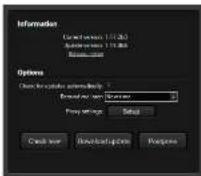
install.
The Update window can also be opened by clicking the About icon and the Update button.
Step 2. Set the desired update setting in the Options section.
- If you do not want to check for the updates automatically, uncheck the circle, which contains the green tick.
- If you want to postpone the update, a reminder can be set with different delays from the drop down list.
- If the proxy settings traverse the update process, set the proper values then click the OK button.
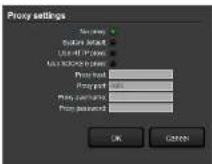
Step 3. Click the Download update button to start the upgrading.
The updates can be checked manually by clicking the Check now button.
5.2. Establishing the Connection
Step 1. Connect the device to a computer via USB, RS-232, or Ethernet. Step 2. Run the controller software; device discovery window appears automatically.
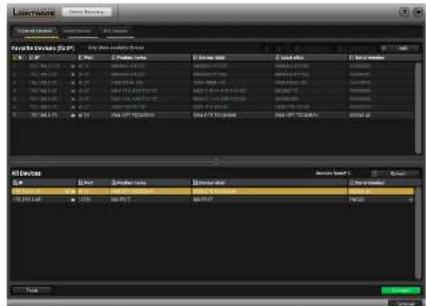
Device discovery window in LDC


- Software Control - Lightware Device Controller HDMI-3D-OPT series - User's Manual 28
Change IP Address

To modify IP address settings quickly it is not necessary to enter the device's settings/network menu, you can set them by clicking the pencil icon beside the IP address.
You can see the new settings only in this window.
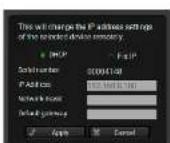
Step 3. Select the unit from the discovered Ethernet devices or under Serial devices; when the device is connected through RS-232 click on the Query button next to the desired serial port to display the device's name and serial number. Double click on the transmitter or select the device and click on the Connect button.
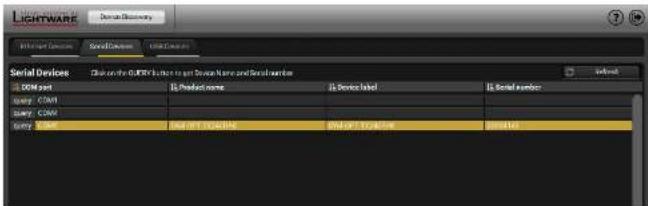
Serial devices tab in LDC
ATTENTION! Before the device is connected via the local RS-232 port, make sure that Control mode and LW3 protocol are set on the serial port.
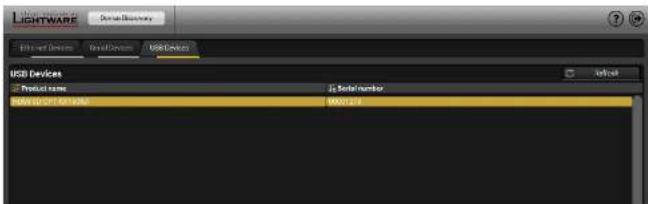
USB tab in LDC
5.3. Crosspoint / Port Control Menu
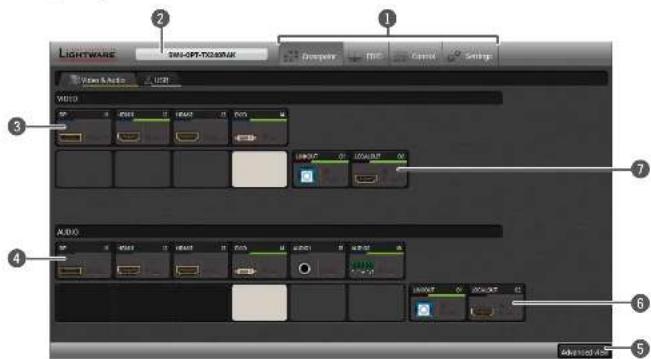
1 Main menu The available menu items are displayed. The active one is showed with dark grey background color.
2 Information ribbon The label shows the device label which can be edited in the Settings menu - Status tab. Device discovery window can be displayed by clicking on this ribbon.
3 Video input ports Each tile represents a video input port. The tile below the port shows the current crosspoint setting; if the port is switched to the output, the color of the tile is white, otherwise grey.
4 Audio input ports Each tile represents an audio input port. The tile below the port shows current crosspoint setting; if the port is switched to the output, the color of the tile is white, otherwise grey. Dark grey means the audio port is not allowed to embed in the current video input port.
5 Advanced view Displaying the Advanced View Window, showing the Terminal window and the LW3 protocol tree.
6 Audio output ports The audio output of the optical link and local HDMI out ports. Clicking on the tile opens the Digital Audio Outputs port properties window.
7 Video output ports The video output of the optical link and local HDMI out ports. Clicking on the tile opens the Video Outputs port properties window.


- Software Control - Lightware Device Controller HDMI-3D-OPT series - User's Manual 29
Port Tiles
The colors of the port tiles and the displayed icons represent different states and information:
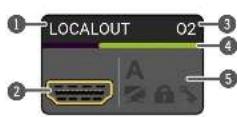
1
Port name
2
Port icon
③
Port number
4
Signal present indicator green: present grey: not present
5
State indicators
State Indicators
Following icons display different states of the port/signal:
| Icon Icon is grey Icon is black Icon is green | |||
| Signal is not encrypted with HDCP | Signal is encrypted with HDCP | - | |
| Port is unmuted Port is muted - | |||
| Port is unlocked Port is locked - | |||
| A | Autoselect is disabled | - | Autoselect is enabled |
5.4. Port Properties Windows
Clicking on the port tile opens the Port properties window. This section shows the available settings and status information by port types.
5.4.1. Video Inputs
Clicking on the HDMI, DisplayPort, or DVI-D video input port icon results opening the Port properties window. The most important information and settings are available from the panel.
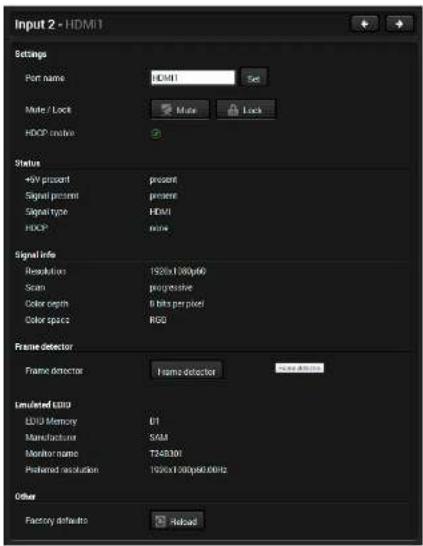
Port properties window of the HDMI video input
Available settings:
- Mute/unmute the port;
- Lock/unlock the port;
• HDCP setting (enable / disable); - Frame Detector;
- Reloading factory default settings for the selected port.
5.4.2. Digital Audio Inputs
Clicking on the HDMI, DisplayPort, or DVI-D audio input port icon results opening the Port properties window. The most important information and settings are available from the panel.
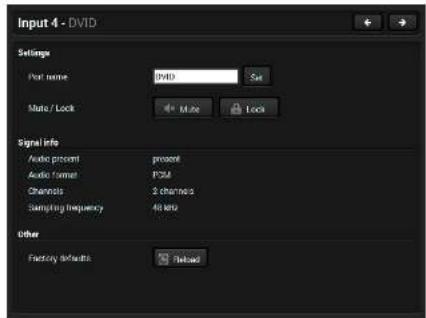
Port properties window of the DVI-D audio input
Certain parameters of the embedded audio input signal can be set as follows:
- Mute/unmute the port;
- Lock/unlock the port;
- Reloading factory default settings for the selected port.
5.4.3. Analog Audio Inputs
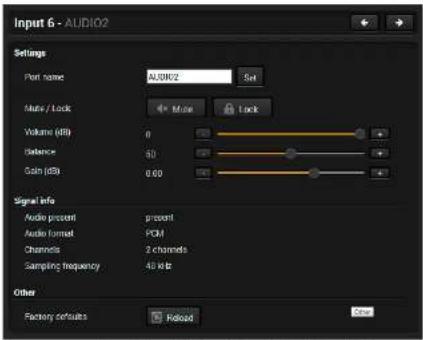
Port properties window of the Analog Audio 2 (Phoenix) input
Certain parameters of the analog audio input signal can be set as follows:
- Mute/unmute the port;
- Lock/unlock the port;
• Volume: from 0 dB to -95.62 dB, in step 0.375 dB (default is 0 dB);
• Balance: from 0 to 100, in step 1 (default is 50 = center);
• Gain: -12 to 6 dB, in step 3 dB (default is 0 dB); - Reloading factory default settings for the selected port.
5.4.4. Video Outputs
Click on the output port to display its properties. The most important information and settings are available from the panel.
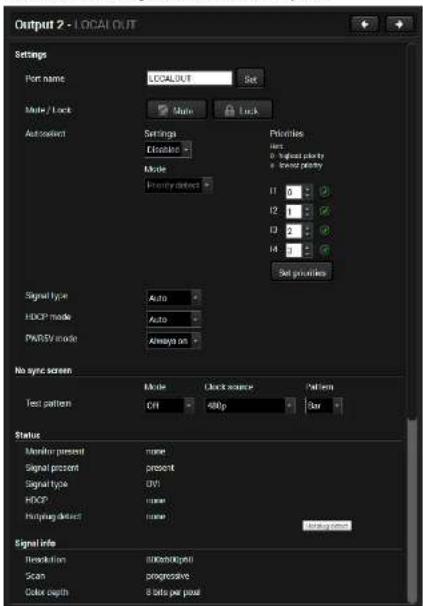
Port properties window of the local HDMI video output
Available settings:
- Mute/unmute the port;
- Lock/unlock the port;
- Autoselect settings: enable / disable, mode, and priorities. (See more details about the feature in The Autoselect Feature section);
- Signal type: Auto / DVI / HDMI - The outgoing signal format can be selected by a drop-down menu;
- HDCP mode: Auto / Always - The transmitter forces the source sent the signal without encryption if the content allows when Auto mode is selected;
- Power 5V mode: Auto / Always on / Always off - The setting lets the source and the sink devices be connected - independently from the transmitted signal;
-
Laser enable:
-
On: high-speed (AV signal) and low-speed (serial, USB) communications are transmitted.
- Standby: only low-speed (serial, USB) communication is transmitted.
- No sync screen: configuration settings of the test pattern. See more details in the No Sync Screen (Test Pattern) section.
• Frame Detector; - Reloading factory default settings for the selected port.
5.4.5. Digital Audio Outputs
Click on the output port to display its properties. The most important information and settings are available from the panel.
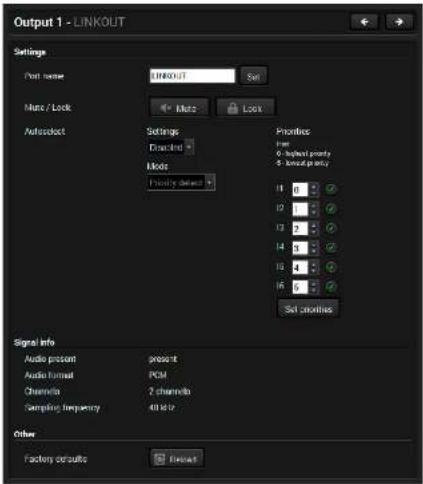
Port properties window of the optical link audio output
Available settings:
- Mute/unmute the port;
- Lock/unlock the port:
- Autoselect settings: enable / disable, mode, and priorities. (See more details about the feature in The Autoselect Feature section);
- Reloading factory default settings for the selected port.
5.4.6. Analog Audio Output
Click on the output port to display its properties. The most important information and settings are available from the panel.
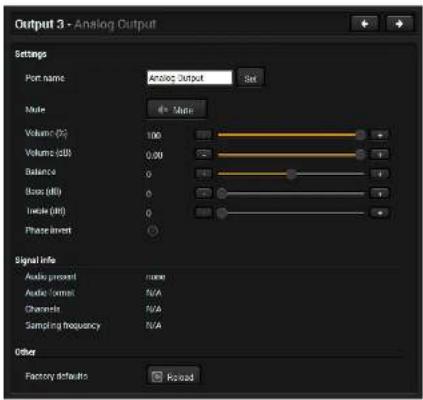
Port properties window of the analog audio output
Certain parameters of the analog audio output signal can be set as follows:
- Mute/unmute the port;
- Lock/unlock the port;
• Volume (%): from 100% to 0%, in step 1% (default is 100%);
• Volume (dB): from 0 dB to -63 dB, in step 1 dB (default is 0 dB);
• Balance: from -100 to 100, in step 1 (default is 0 = center); - Bass (dB): from 0 dB to 24 dB, in step 2 dB (default is 0 dB);
- Treble (dB): from 0 dB to 6 dB, in step 2 dB (default is 0 dB);
• Phase invert: enable / disable; - Reloading factory default settings for the selected port.
5.5. Diagnostic Tools
5.5.1. Frame Detector
The ports can show detailed information about the signal like full size and active video resolution. This feature is a good troubleshooter if compatibility problems occur during system installation. To access this function, open the port properties window and click on Frame detector button.
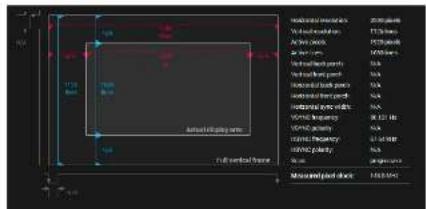
Lightware's Frame Detector function works like a signal analyzer and makes possible to determine the exact video format that is present on the port, thus helps to identify many problems. E.g. actual timing parameters may differ from the expected and this may cause some displays to drop the picture.
Frame Detector measures detailed timings on the video signals just like a built-in oscilloscope, but it is much more easy to use. Actual display area shows the active video size (light grey). Dark grey area of the full frame is the blanking interval which can contain the info frames and embedded audio data for HDMI signals. Shown values are measured actually on the signal and not retrieved only from the HDMI info frames.
5.5.2. No Sync Screen (Test Pattern)

Test pattern options in the port properties window of the optical output
The No sync screen feature generates an image which can be displayed when there is no incoming signal on the port. The following settings can be set for the Test Pattern function:
Mode
- On: the video output port always transmits the test pattern.
- No signal: the video output port transmits the test pattern if there is no incoming signal on the selected input port.
- Off: the test pattern function is disabled, the video output port transmits the video signal of the selected input port.
Clock Source
· 480p
• 576p
• Original video signal
Pattern
• Red
- Green
- Blue
- Black
- White
- Ramp
- Chess
• Bar
- Cycle

5.6. USB KVM
5.6.1. USB KVM in the Receiver
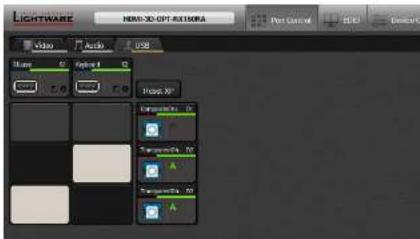
USB KVM layer in the Receiver
Two USB modes can be set on the USB KVM tab: Transparent and Composite. For the detailed information about the these modes see the USB KVM Function section.
You can use the crosspoint selectors for switching between the USB modes. The factory default settings is the Autoselect (indicated with green A on the output side) which means the extender recognizes the attached USB HID devices and sets the mode automatically. In this case the A icon is highlighted in green on the output ports.
You can recall the default crosspoint settings by clicking on the Reset XP button.
Port Properties
Click on the output port to open the port properties window. The most important status information is displayed on the panel and the Autoselect mode and the priorities can be set.
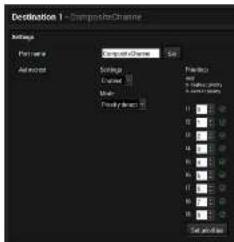
Using of USB HUBs
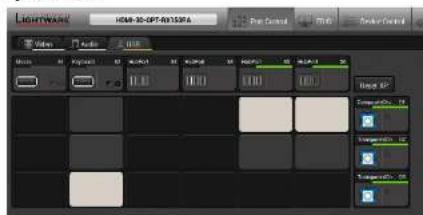
USB KVM layer in case of a connected 4-port USB HUB
The receiver built with two physical USB ports but the users are able to extend the number of the handled HID-compliant devices using USB HUBs. The extender can handle up to 5 USB ports.
ATTENTION! The transparent channels can handle one USB device only, the composite channel can handle more HID-compliant devices.
5.6.2. USB KVM in the Transmitter
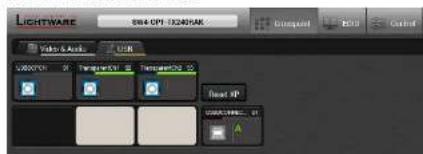
USB KVM layer in the Transmitter
The crosspoint status can be set on the USB KVM tab. USB mode can be Transparent or Composite, see the details in the USB KVM Function section. The green highlights indicate the active USB mode. The USB KVM function works only if crosspoint is set to the active USB channel. You can recall the default crosspoint settings by clicking on the Reset XP button.
INFO: Crosspoint switching in the transmitter between the composite and transparent channels will be successful only in the case of presence of active USB devices on the receiver side.


- Software Control - Lightware Device Controller HDMI-3D-OPT series - User's Manual 33
5.7. EDID Menu
Advanced EDID Management can be accessed by selecting the EDID menu. There are two panels: left one contains Source EDIDs, right one contains Destination places where the EDIDs can be emulated or copied.
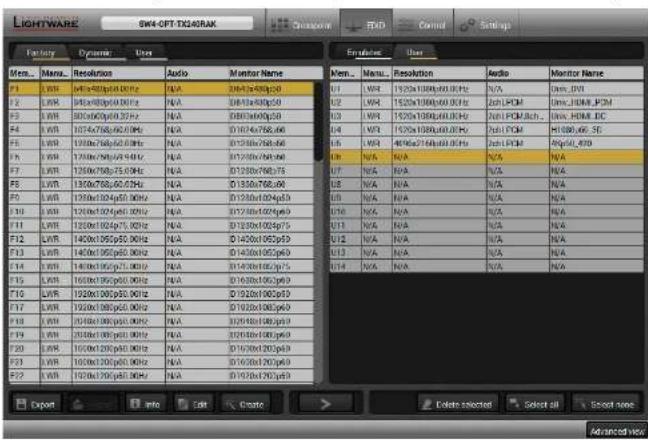
Control Buttons


EDID menu
Exporting an EDID (save to a file)
Importing an EDID (load from a file)
Display EDID Summary window
Opening Advanced EDID Editor with the selected EDID
Opening Easy EDID Creator





Transfer button: executing
EDID emulation or copying
Deleting EDID (from User memory)
Selecting all memory places in the right panel
Selecting none of the memory places in the right panel
5.7.1. EDID Operations
Changing Emulated EDID
Step 1. Choose the desired EDID list on the source panel and select an EDID.
Step 2. Press the Emulated button on the top of the Destination panel.
Step 3. Select the desired port on the right panel (one or more ports can be selected); the EDID(s) will be highlighted with a yellow cursor.
Step 4. Press the Transfer button to change the emulated EDID.
Learning an EDID
The process is the same as changing the emulated EDID; the only difference is the Destination panel: press the User button. Thus, one or more EDIDs can be copied into the user memory either from the factory memory or from a connected sink (Dynamic).
Exporting an EDID
ATTENTION! This function is working on Windows and Mac OS X operating systems and under Firefox or Chrome web browsers only.
Source EDID can be downloaded as a file (*.bin, *.dat or *.edid) to the computer.
Step 1. Select the desired EDID from the Source panel (line will be highlighted with yellow).
Step 2. Press the Export button to open the dialog box and save the file to the computer.
Importing an EDID
Previously saved EDID (*.bin, *.dat or *.edid file) can be uploaded to the user memory:
Step 1. Press the User button on the top of the Source panel and select a memory slot.
Step 2. Press the Import button below the Source panel.
Step 3. Browse the file in the opening window then press the Open button. Browsed EDID is imported into the selected User memory.
ATTENTION! The imported EDID overwrites the selected memory place even if it is not empty.
Deleting EDID(s)
The EDID(s) from User memory can be deleted as follows:
Step 1. Press User button on the top of the Destination panel.
Step 2. Select the desired memory slot(s); one or more can be selected ("Select All" and "Select None" buttons can be used). The EDID(s) will be highlighted with yellow.
Step 3. Press the Delete selected button to delete the EDID(s).







- Software Control - Lightware Device Controller HDMI-3D-OPT series - User's Manual 34
5.7.2. EDID Summary Window
Select an EDID from Source panel and press Info button to display EDID summary.

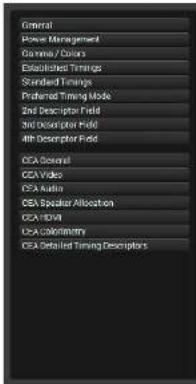
General
FDD version:
EDID revision:
Manufacturer ID: SAM (Samsung Electric Company)
Product ID: 0009
Monitor serial number: Not present
Year of manufacture 2012
Week of manufacture 9
Signal interface Digital
Separate Sync H&V:
Composite sync on H.
Sync on green:
Sentation on VS
Color depth: Undetined
Interface standard: Not defined
Color spaces: RGB 4:4:4 & YC06 4:4:4
Aspect ratio: 0.56
Display size 52 cm X 29 cm
EDID summary window
5.7.3. Editing an EDID
Select an EDID from Source panel and press Edit button to display Advanced EDID Editor window. The editor can read and write all descriptors, which are defined in the standards, including the additional CEA extensions. Any EDID from the device's memory or a saved EDID file can be loaded into the editor. The software resolves the raw EDID and displays it as readable information to the user. All descriptors can be edited, and saved in an EDID file, or uploaded to the User memory. For more details about EDID Editor please visit our website (www.lightware.com) and download EDID Editor user's manual.
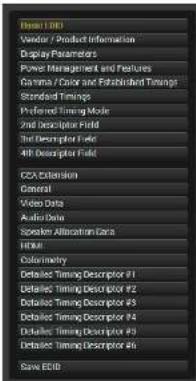
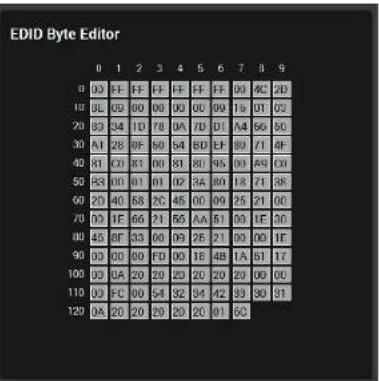
EDID Editor window


- Software Control - Lightware Device Controller HDMI-3D-OPT series - User's Manual 35
5.7.4. Creating an EDID - Easy EDID Creator
Since above mentioned Advanced EDID Editor needs more complex knowledge about EDID, Lightware introduced a wizard-like interface for fast and easy EDID creation. With Easy EDID Creator It is possible to create custom EDIDs in four simple steps. By clicking on the Create button below Source panel, Easy EDID Creator is opened in a new window. For more details about EDID Editor please visit our website (www.lightware.com) and download EDID Editor user's manual.
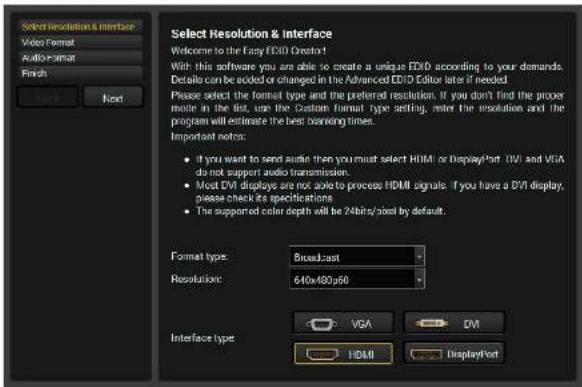
EDID Creator window
5.8. Control / Device Control Menu
5.8.1. RS-232
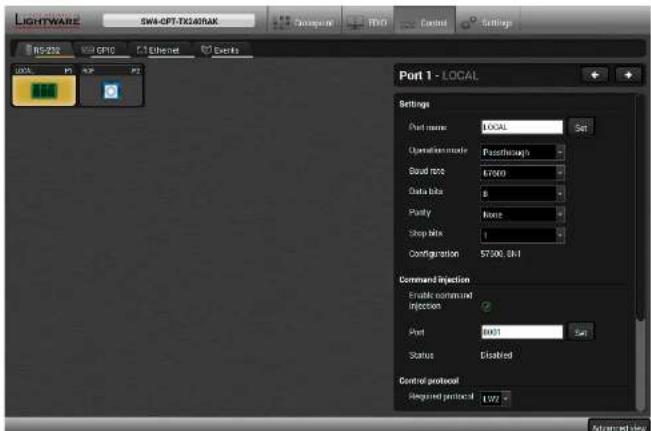
RS-232 tab in Control menu
The following settings and functions are available on the local and optical link RS-232 port:
- Operation mode: Control, Pass-through, and Command Injection (for more details about serial interface modes see the Serial Interface section);
• Baud rate: 4800, 7200, 9600, 14400, 19200, 38400, 57600, 115200; - Data bits: 8 or 9;
- Parity: None, Odd, or Even;
- Stop bits: 1, 1.5, or 2;
• Command injection: enable or disable;
• Command injection port number;
• Control protocol: LW2 or LW3; - Message sending via serial port;
- Reloading the Factory Default Settings.


- Software Control - Lightware Device Controller HDMI-3D-OPT series - User's Manual 36
5.8.2. GPIO
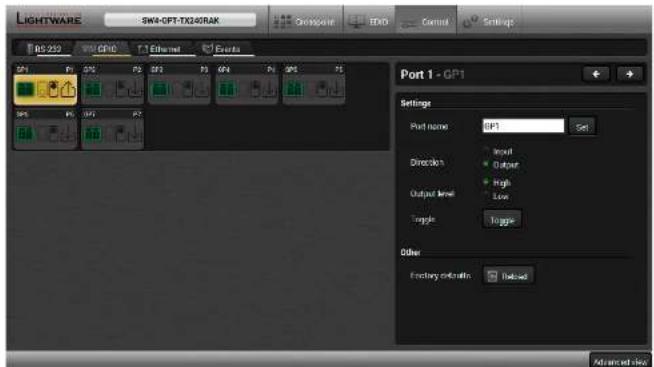
GPIO tab in Control menu
The GPIO port has 7 pins, which operate at TTL digital signal levels and can be controlled by LDC or protocol commands. Select a GPIO pin and under the Port settings section; the settings (pin direction and input level) are displayed on the port tiles as well:
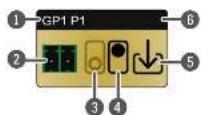

GPIO pin name

High level indicator *

GPIO port icon

Pin direction:

Low level indicator

GPIO port number
* Highlighted with black means the current setting.
INFO: Output level can be set only in case of setting the pin direction to Output. In case of input direction the output level setting and the Toggle button is not available.
For more details about GPIO interface see the GPIO Interface section.
5.8.3. Ethernet
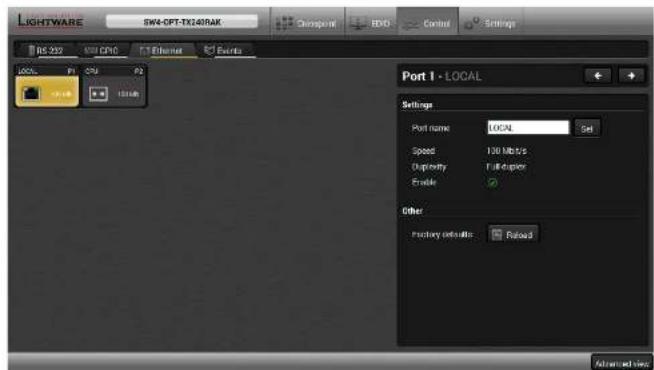
Ethernet tab in Control menu
Two ports are displayed in the Ethernet settings: Local and CPU. You can check the status of the Ethernet line by each ports: the speed and the duplexity of the connection.
The following settings are available for the local port:
- Enable / disable the port;
- Reloading factory defaults.
ATTENTION! If the Ethernet port is set to disabled, this may break the connection with the device.
INFO: CPU Ethernet port cannot be disabled.


- Software Control - Lightware Device Controller HDMI-3D-OPT series - User's Manual 37
5.9. Event Manager
The feature means that the device can sense changes on its ports and able to react according to the pre-defined settings. The development idea of the Event manager is based on users' feedbacks. In many cases internal events (such as signal present or HDCP active) are necessary to display but it is not easy when the device is hard

EVENT MANAGER
to access (e.g. built under the desk). For more details and examples about Event Manager please visit our website (www.lightware.com) and download Event Manager user's guide in the Downloads section.
The Event manager can be configured to perform an action if a condition has been detected. E.g. the desired setup is that after a certain type of signal has been detected on 11 port, the port has to be switched to 01. The settings can be done via the LDC in the Control/Events tab, or by LW3 protocol commands. Configurable events number depends on the device what you are using actually.
Numerous new ideas and requests have been received in connection with the features and settings of the Event manager since the first release. Therefore, the user interface has been re-designed and many new functions implemented. The Event editor can be opened by pressing the Edit button at each Event.
There is a grey bar on the left of the Event panel in each line. If a condition and an action are set and the Event is enabled, the bar is displayed in green.
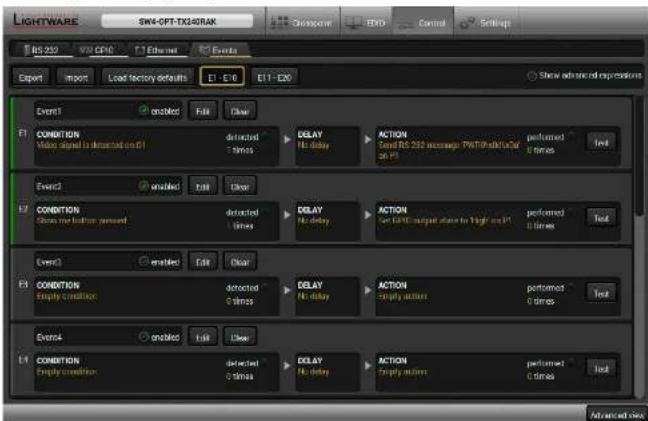
Control menu, Event Manager tab
The Event Editor
Press the Edit button in the desired Event line to open the Event editor window.

Event header The name of the Event is displayed. Type the desired name and press the Set name button. The Event can be cleared by the Clear button. Use the tick mark to enable/disable the Event.
2 Condition header If the condition is set, the description (white colored text) and the exact LW3 protocol expression (yellow colored text) can be seen. If the advanced mode was used the description is "Custom condition".
3 Condition panel The Wizard, the Advanced or the Link tool is available to set the condition. The parameters and settings are displayed below the buttons.
4 Condition test The set condition can be tested to see the working method in the practice.
5 Delay settings The action can be scheduled to follow the condition after the set time value.
6 Action header If the action is set, the description (white colored text) and the exact LW3 protocol expression (yellow colored text) can be seen. If the advanced mode was used the description is "Custom action".
7 Action panel The Wizard, the Advanced or the Link tool is available to set the action. The parameters and settings are displayed below the buttons.
8 Action test The set action can be tested to see the working method in the practice.
5.9.1. Create or Modify an Event
Wizard Mode
The wizard mode lists the most common conditions and actions, so the user does not have to look for LW3 nodes and properties.
Step 1. Click on the Edit button of the desired Event; the Event editor is displayed.
Step 2. The wizard mode is displayed as default. Select the desired Category first (e.g. Audio or Video).
Step 3. Select the desired Expression from the drop-down menu. If any other parameter is necessary to set, it is going to be displayed.
Step 4. Press the Apply button to store the settings of the Condition.
Advanced Mode
The goal of this mode is the same as of the wizard: set the properties and methods for conditions and actions. The difference is the number of the available and usable properties and methods of the LW3 protocol. Advanced mode allows almost all of it.
Step 1. Click on the Edit button of the desired Event; the Event editor is displayed.
Step 2. The wizard mode is the default, press the Advanced button. The LW3 protocol tree is displayed showing the list of the properties in the drop-down menu. Navigate to the desired node.
Step 3. Select the desired Property from the menu. The manual of the property is displayed below to help to select the necessary property and to set the value.
Step 4. Set the desired value and operator, then press the Apply button to store settings.
The Link Tool
The new interface allows creating more actions to the same condition. In that case, a condition can trigger more actions. To set such an Event, the Link tool has been introduced.
Step 1. Click on the Edit button of the desired Event; the Event editor is displayed.
Step 2. The wizard mode is displayed as default, press the Link button.
Step 3. All the saved Events are analyzed and the conditions are listed (it takes some seconds to finish). The Show advanced expressions option allows showing the exact path and set the value of the given property
Step 4. Select the desired Condition and press the Apply button to store the settings.
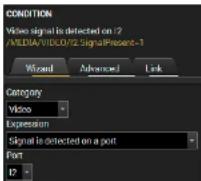
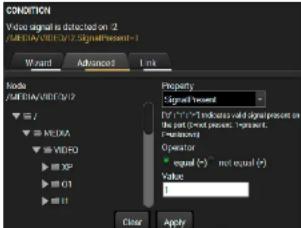
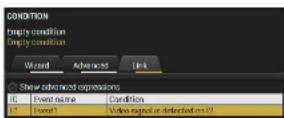
5.9.2. Special Tools and Accessories
The Name of the Event
The name of a port can be changed by typing the new name and clicking the Set button. The following characters are allowed when naming:
Letters (A-Z) and (a-z), numbers (0-9), special characters: hyphen (-), underscore (_), and space ().
Enable or Disable an Event
The set Event can be enabled or disabled in the Event list, or directly in the Event editor window by setting the tick mark beside the name.
Testing the Condition
When the desired Condition is arranged, the setting can be tested. The Event list and the Event editor contains a small panel that shows if the set condition is detected and how many times. The Counter can be reset by the button in Event editor. If the Condition is true, the detected mark turns green for two seconds and the Counter is increased.
Testing the Action
The method is the same as testing the Condition, but in this case, the Action can be triggered manually by pressing the Test button.
TIPS AND TRICKS: The Test button is also placed on the Action panel in the Event list. Thus, you can check the Actions without opening the Event editor.
Delay the Action
In most cases the Action is performed immediately after the Condition is detected. But sometimes a delay is necessary between the Condition and the Action. Therefore, the new Event manager contains the Delay panel which allows that feature with below settings:
- No delay: when the Condition is detected, the Action is launched.
- Simple delay: when the Condition is detected, the Action is launched after the set time interval.
- Still exists: when the Condition is detected, the Action is launched after the set time int
- Continuously exists: when the Condition is detected, the Action is launched after the set time interval only if the Condition has been existing continuously.
TIPS AND TRICKS: Show advanced expressions option is a useful tool when you look for the path or value of a property. The option is available in the Event list window or when Link tool is used.
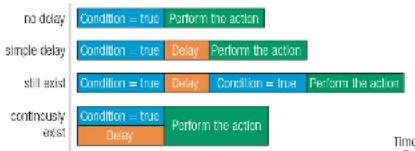
Time


- Software Control - Lightware Device Controller HDMI-3D-OPT series - User's Manual 39
5.9.3. Clear One or More Event(s)
Clear an Event
Press the Clear button in the Event list or in the header section in the Event editor.
Clear all Events
When all the Events must be cleared press the Load factory defaults button above the Event list. You will be prompted to confirm the process.
5.9.4. Export and Import Events
The feature allows saving all the Events. The backup file can be uploaded to another HDMI-3D-OPT series extender.
Export all the Events
Step 1. Press the Export button above the Event list.
Step 2. The Save as dialog box will appear. Set the desired folder and file name, then press the Save button.
The generated file is a simple text file which contains LW3 protocol commands. The file can be viewed by a simple text editor, e.g. Notepad.
ATTENTION! Editing the file is recommended only for expert users.
Import all the Events
Step 1. Press the Import button above the Event list.
Step 2. The Open dialog box will appear. Select the desired folder and file, then press the Open button.
5.9.5. Event Creating - Example
The following example shows you on a real-life situation how to set up an Event.
The Concept
The SW4-OPT-TX240RAK is connected to a projector by the optical output port. The transmitter is also connected to the projector by the RS-232 port and can send commands via the serial line.
The task is to turn on the projector when signal is detected on the optical output port.
CONDITION
Signal is detected
on the optical output


ACTION

Turn on the projector
RS-232 Settings
Make sure that the serial line is established between the transmitter and the projector. Check that the RS-232 settings of the transmitter is set exactly the same which required for the projector: baud rate, data bits, parity, stop bits. The transmitter needs to be set to: Control protocol: LW3; and RS-232 mode: Pass-through. See the relevant LDC settings in the RS-232 section.
Setting the Event
You can create the Event in the Wizard in few simple steps:
Step 1. Set the condition.
Select the required parameters to set the condition:
- Category: Video;
• Expression: Signal is detected on a port; - Port 01
Click on the Apply button to complete the procedure. When it is done, the condition appears on the upper side in textual and LW3 command format as well.
Step 2. Set the action.
If the condition is fulfilled, the following action needs to be launched: the receiver sends a command to the projector over the serial line:
- Power on - the required command which is accepted by the projector: PWRO
For this instance the command has to be closed with the
In the current case the command is: PWR0\x0d\x0a
Select the required parameters to set the action:
- Category: RS-232;
• Expression: Send RS-232 message; - Port P1;
Message: PWR0\x0d\x0a
Step 3. Enable the Event.
Select the E1 enabled pipe in upper left corner to set the Event as launched.
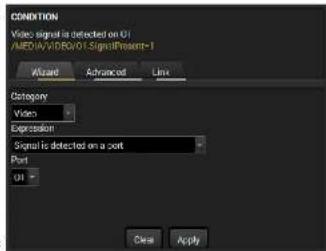
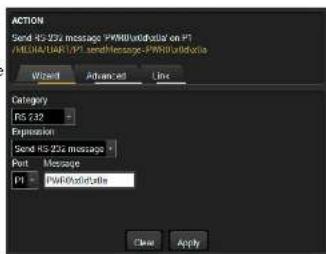
INFO: If you do not find the required category/expression/etc what you need, choose the Advanced mode in the Wizard where the entire LW3 structure tree is available. For example instead of signal detection you can set a specified resolution or color range either as a condition.


- Software Control - Lightware Device Controller HDMI-3D-OPT series - User's Manual 40
5.10. Settings Menu
5.10.1. Status
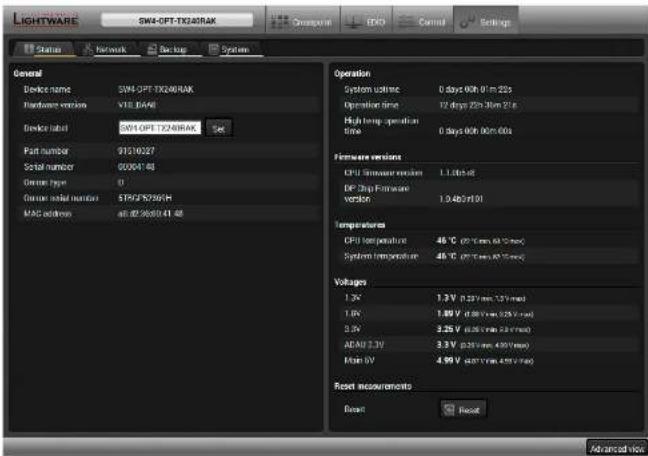
Status tab in Settings menu
The most important hardware and software related information can be found on this tab: hardware and firmware version, serial numbers, temperatures, operation time, and voltage information. Device label can be changed to unique description by the Set button.
5.10.2. Network
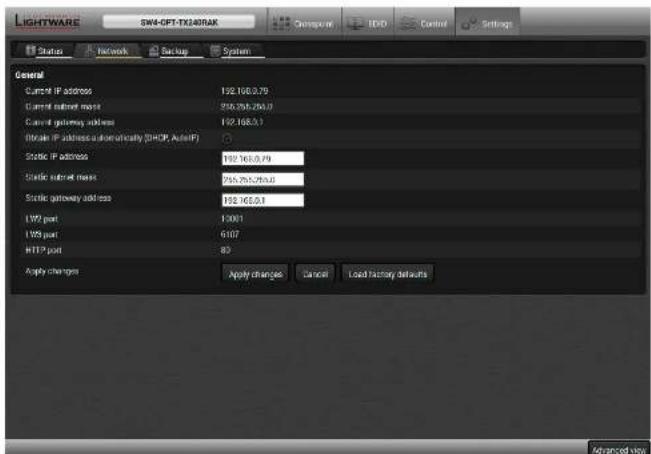
Network tab in Settings menu
IP address and DHCP settings can be set on this tab. Always press the Apply settings button to save changes. Factory defaults settings can be recalled with a dedicated button.
5.10.3. Backup
Details about this function can be found in the Configuration Cloning (Backup Tab) section.


- Software Control - Lightware Device Controller HDMI-3D-OPT series - User's Manual 41
5.10.4. System
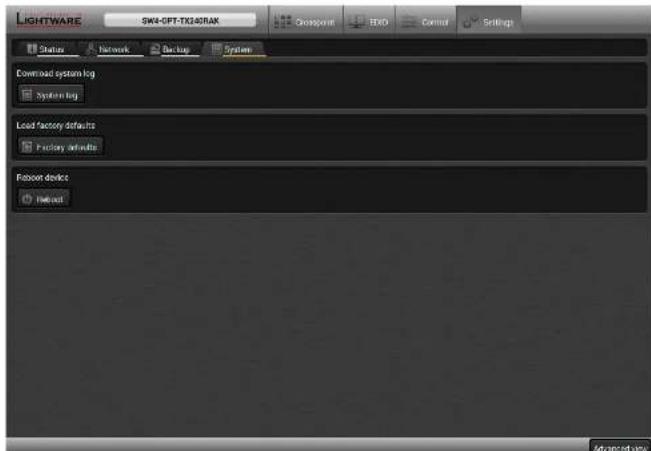
System tab in Settings menu
Three functions are available under System tab:
- Download system log - saving the file of the device.
- Load factory defaults - recalling factory defaults settings and values. All factory default settings are listed in the Factory Default Settings section.
- Reboot - rebooting the system.
5.11. Configuration Cloning (Backup Tab)
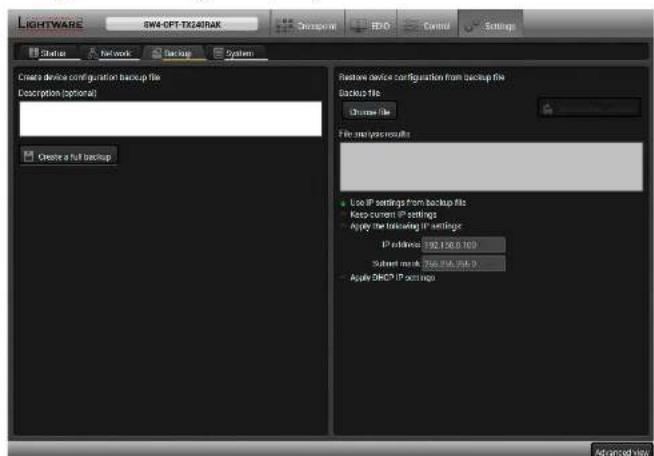
Backup tab in Settings menu
Configuration cloning of Lightware LW3 devices is a simple method that eliminates the need to repeatedly configure certain devices to have identical (non-factory) settings. If the devices are installed in the same type of system multiple times then it is enough to set up only one device to fit the user's needs and then copy those settings to the others, thus saving time and resources.
5.11.1. Steps in a Nutshell
Installing multiple devices with the same customized configuration settings can be done in a few easy steps: Step 1. Configure one device with all your desired settings using the LDC software.
Step 2. Backup the full configuration file to your computer.
Step 3. If needed, make some modifications to the configuration file using a text editor (e.g. Notepad). E.g. modifying the static IP address is necessary when DHCP is not used.
Step 4. Connect to the other device which has to be configured and upload (restore) your configuration file.
Step 5. Done! You can have as many totally identical, customized devices as you like.


- Software Control - Lightware Device Controller HDMI-3D-OPT series - User's Manual 42
5.11.2. Save the Settings of a Device (Backup)
Step 1. Apply the desired settings in the transmitter (port parameters, crosspoint, etc.)
Step 2. Select the Settings / Backup tab from the menu.
Step 3. Write a short description in the text box on the left (optional).
Step 4. Press the Create a full backup button. You will be prompted to save the file to the computer. The default file name is the following:
BACKUP
Step 5. Set the desired file name, select the folder and save the file.
TIPS AND TRICKS: Using the exact product type in the filename is recommended since it makes the file usage more comfortable.
About the Backup File
The backup file is a simple text file which contains LW3 protocol commands. The first line is the description and the further lines are the commands which will be executed during the restore process. The file can be viewed (and/or edited) by a simple text editor, e.g. Notepad.
See the entire list of saved data in the Content of Backup File section.
ATTENTION! Editing the command lines is only recommended for expert users.
5.11.3. Upload the Settings to a Device (Restore)
WARNING! Please note that the settings will be permanently overwritten with the restored parameters in the device. Undo is not available.
ATTENTION! The cloning is successful when the backup file is downloaded from the same type of source device as the destination device.
The Restoring Process
Step 1. Select the Settings / Backup tab from the menu.
Step 2. Click on the Choose file button on the right panel and browse to the desired file.
Step 3. The file is verified and the result will be displayed in the textbox below. If the file is correct, then the settings can be restored.
Step 4. Choose IP settings what you want to use after backup. You can apply settings from the backup file, keep actual settings, set it manually in a dialog box or apply DHCP.
Step 5. Press the Start restore process button and click on the Yes button when asked.
Step 6. Reboot the device to apply the network settings after finishing.
5.12. Advanced View Window
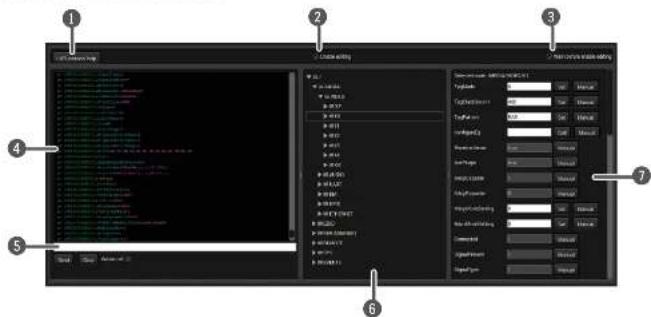
1 LW3 protocol help Pushing the button results a help window opening which describes the most important information about LW3 protocol commands in HTML format.
2 Edit mode The default appearance is the read-only mode. If you want to modify the values or parameters, tick the option. You will be prompted to confirm your selection.
3 Warning mode If this pipe checked in, a warning window pops up when you enable Edit mode.
4 Terminal window Commands and responses with time and date are listed in this window. Sent command starts with 'x' character, received response starts with 'c' character. The color of each item depends on the type of the command and response. The content of the window can be emptied by the Clear button. If the Autoscroll option is ticked, the list is scrolled automatically when a new line is added.
5 Command line Type the desired command and execute it by the Send button. Clear all current commands and responses in the Terminal window by the Clear button.
6 Protocol tree LW3 protocol tree; select an item to see its content.
7 Node list Correspondent parameters and nodes are shown which are connected to the selected item in the protocol tree.
Manual button: Manual (short description) of the node can be called and displayed in the terminal window.
Set button: Saves the value/parameter typed in the textbox.
Call button: Calls the method, e.g. reloads factory default settings.

LW2 Programmer's Reference
The device can be controlled through a reduced command set of LW2 protocol commands to ensure the compatibility with other Lightware products. The supported LW2 commands are described in this chapter.
▶LW2 PROTOCOL DESCRIPTION
▶GENERAL LW2 COMMANDS
▶A/V PORT SETTINGS
▶NETWORK CONFIGURATION
▶GPIO CONFIGURATION
▶LW2 COMMANDS – QUICK SUMMARY
6.1. LW2 Protocol Description
The device accepts commands surrounded by curly brackets - {} - and responds data surrounded by round brackets - () - only if a command was successfully executed.
| Format Explanation | |
| Input number in 1 or 2 digit ASCII format (01, 5, 07, 16, etc.) | |
| Output number in 1 or 2 digit ASCII format | |
| Input number in 2 digit ASCII format (01, 02, 10, 12 etc.) | |
| Output number in 2 digit ASCII format (01, 02, 10, 12 etc.) | |
| Location number in 1, 2 or 3 digit ASCII format | |
| id number in 1 or 2 digit ASCII format | |
| id number in 2 digit ASCII format | |
| Crlf Carriage return, Line feed (0x0D, 0x0A) | |
| • | Space character (0x20) |
| Each command issued by the controller | |
| Each response received from the router | |
6.2. General LW2 Commands
6.2.1. View Product Type
Description: The device responds its name.
| Format Example | |
| Command {}Response (I:)CrLf | → {i}← (I:SW4-OPT-TX240RAK) |
Explanation: The connected device is a SW4-OPT-TX240RAK.
Legend:
6.2.2. Query Control Protocol
Description: The device can be controlled with different control protocols. This command queries the active protocol of the currently used control interface.
| Format Example | |
| Command {P_2}Response (CURRENT●PROTOCOL●=●#<protocol>)Crlf | → (p_2)← (CURRENT PROTOCOL = #1) |
Explanation: The device communicates with LW2 protocol.


- LW2 Programmer's Reference HDMI-3D-OPT series - User's Manual 44
6.2.3. View Firmware Version of the CPU
Description: View the CPU firmware revision.
| Format Example | |
| Command {f}Response (FW:CrLf | → {f}← (FW:1.1.0b5 r8) |
Legend: string which may indicate special versions.
6.2.4. Connection Test
Description: Simple test to see if the connection is established successfully.
| Format Example | |
| Command {PING}Response {PONG!}CrLf | → {ping}← {PONG!} |
6.2.5. View Serial Number
Description: The device responds its 8-digit serial number.
| Format Example | |
| Command {s}Response {SN:}CrLf | → {s}← {SN:5A003192} |
6.2.6. Compile Time
Description: Returns the date, when the microcontroller firmware was compiled.
| Format Example | |
| Command {CT}Response (Complied:.)CrLf | → {ct}← (Compiled: Jul 13 2017 11:17:56) |
6.2.7. View Installed Board
Description: Shows the hardware name and revision of the installed card.
| Format Example | |
| Command {js}Response (SL#•0•<MB_DESC>)CrLf(SL•END)CrLf | {is} (SL# 0 SW4-OPT-TX240RAK V11_DAA0) (SL END) |
Explanation: The device reports its motherboard (slot 0).
6.2.8. View Firmware for All Controllers
Description: Shows the firmware versions of all installed controllers.
| Format Example | |
| Command {FC}Response (CF•)CrLf(CF•)CrLf(CF END)CrLf | → {fc}← (CF SW4-OPT-TX240RAK 1.1.0b5 r8)← (SL END) |
Explanation: The device has one control panel.
6.2.9. Restart the Device
Description: The device can be restarted without unplugging power.
| Format Example | |
| Command {RST}Response | → (rst) |
Explanation: The device reboots; no response is sent in this case.
6.2.10. Query Health Status
Description: Internal voltages and measured temperature values are shown.
| Format Example | |
| Command{ST}Response(ST•<DESC>)CrLf | →{st}←(ST CPU 1.29V 1.89V 3.25V 3.30V 4.99V 47.44C 47.43C) |
6.2.11. Restore Factory Default Settings
Description: Settings can be reset to factory default values as follows:
| Format Example | |
| Command {FACTORY=ALL}Response (FACTORY ALL...)CrLf | → (factory=all)← (FACTORY ALL...) |
Explanation: All settings and parameters are reset to factory default, see the table in the Factory Default Settings section.
6.3. A/V Port Settings
6.3.1. Switch an Input to the Outputs
Following commands with option can take effect in multiple layers, according to their parameters. Depending on 'A' or 'V' it can change only the Audio or only the Video layer; or 'AV' changes both.
Description: Switch input
| Format Example | |
| Command@●Response (O●●CrLf | → {2@1 AV}← {001 102 AV} |
Explanation: I2 audio and I2 video input ports are switched to O1 output port.
Legend:
| Layer | |
| A Audio layer | |
| V Video layer | |
| AV (or nothing) Audio & Video layer | |
ATTENTION! The response of this command does not show if the output is muted. To check the mute status a separate query has to be used like (VC).
ATTENTION! Analog video inputs does not contain embedded audio. If you use the AV option in case of VGA input (I1) the audio will be switched to the analog audio input 1 (I1) and in case of DVI-A input (I5) the audio will be switched to the analog audio input 2 (I5).
6.3.2. Mute Output
Description: Mute output
| Format Example | |
| Command {#●Response (1MT●Crlf | → (#01 A)← (1MT01 A) |
Explanation: 01 audio port is muted.
ATTENTION! Muting does not change the crosspoint's state but disables the output itself. This way the last connection can be easily restored with an unmute command. Switching a muted output does not unmute the output.
6.3.3. Unmute Output
Description: Unmute output
| Format Example | |
| Command {+●●Response (0MT●●CrLf | → (+01 V)← (0MT01 V) |
Explanation: 01 video port is unmuted.
INFO: Unmuting an output makes the previous connection active as the crosspoint state has not been changed by the muting command, only the output was disabled.
6.3.4. Lock Output
Description: Lock an output port. Output's state cannot be changed until unlocking
| Format Example | |
| Command {#}Response {1LO}CrLf | → {#>01 A}← (1LO01 A) |
Explanation: 01 audio output port is locked.
6.3.5. Unlock Output
Description: Unlock an output port. The connection on output can be changed.
| Format Example | |
| Command {+<<out>●}Response (0LO<out2>●<layer>)CrLf | → {(+<01 V)}← (0LO01 V) |
Explanation: 01 video output port is unlocked.
INFO: The device issues the above response regardless of the previous state of the output (either it was locked or unlocked).
6.3.6. View Connection State on the Output
Description: Viewing the crosspoint state of the device; showing the input port numbers connected to the outputs.
| Format Example | |
| Command {VC•Response (ALL•<001•<002>)CrLf | → {VC AV}← {(ALLV 04 04)}← {(ALLA 06 06)} |
Legend: 001 shows the corresponding output's connection state.
| Layer | ||
| A Audio layer | ||
| V Video layer | ||
| AV * Audio & Video layer |
* AV is not used in the response. When AV is typed in the commands, the response will result two lines, one for the Video and one for the Audio port states.
State letters:
| Letter State Example | |
| L Output is locked L01 | |
| M Output is muted M01 | |
| U Output is locked and muted U01 | |
Explanation: 14 video input port is connected to the video output ports and 16 audio input port is connected to the audio output ports.
6.3.7. View Crosspoint Size
Description: Shows the physical crosspoint size.
| Format | Example |
| Command {getsize••}Response {SIZE=••}CrLf | → {GETSIZE AV}← {SIZE=4x2 V}← {SIZE=6x2 A} |
Legend:
Explanation: The device reports that it has a video crosspoint with 4 inputs and 2 outputs and an audio crosspoint with 6 inputs and 2 outputs.
6.3.8. Change Video Autoselect Mode
Description: The autoselect mode of the video outputs can be changed.
| Format Example | |
| Command{AS_V<=<state><mode>}Response{AS_V<=<state><mode>}CrLf | {as_v1=E;P} (AS_V1=E;P) (AS_V2=E;P) |
Legend: The output port numbers are listed in Input/Output Port Numbering section.
| Letter | |
| F | First detect mode |
| P | Priority detect mode |
| L Last detect mode | |
| Letter | |
| E | Autoselect mode is enabled |
| D | Autoselect mode is disabled |
Explanation: The Autoselect mode of video output 1 and output 2 is enabled and set to Priority mode.
INFO: The Autoselect mode can be queried by typing the "as_v
6.3.9. Change Audio Autoselect Mode
Description: The autoselect mode of the audio outputs can be changed.
| Format Example | |
| Command{AS_A<=<state><mode>}Response{AS_A<=<state><mode>}CrLf | {as_a1=E;P} {(AS_A1=E;P)} {(AS_A2=E;P)} |
Legend: The output port numbers are listed in Input/Output Port Numbering section.
| Letter | |
| F | First detect mode |
| P | Priority detect mode |
| L Last detect mode | |
| Letter | |
| E | Autoselect mode is enabled |
| D | Autoselect mode is disabled |
Explanation: The Autoselect mode of audio output 1 and output 2 is enabled and set to Priority mode.
INFO: The Autoselect mode can be queried by typing the "as_v
6.3.10. Change the Video Input Priorities
Description: The settings of video input priority can be changed as follows.
| Format Example | |
| Command {PRIO_V<=<in1_prio>;<in2_prio>;<in4_prio>}Response {PRIO_V<=<in1_prio>;<in2_prio>;<in4_prio>》Crlf | {prio_v1=1;0;2;3}← {PRIO_V1=1;0;2;3} |
Legend:
about port numbering in the Input/Output Port
Numbering section.
Explanation: Input 2 has the highest priority (0), Input 1 has the second highest (1). Input 4 has the lowest priority (3).
ATTENTION! Always set all the priority of the ports when changing, otherwise, the change will not be executed and the response will be the current setting (like querying the priority setting).
INFO: In this case, the outputs are linked; the change will affect both local and fiber optical output ports.
INFO: The video priorities can be queried by typing the "prio_v
6.3.11. Change the Audio Input Priorities
Description: The settings of video input priority can be changed as follows.
| Format Example | |
| Command{PRIO_A _prio ;<in2_prio>......<in3_prio>}Response{PRIO_A _prio ;<in2_prio>......<in3_prio>}Crlf | →{prio_a1=1;0;2;3;4;5}←{PRIO_A1=1;0;2;3;4;5} |
Legend:
about port numbering in the Input/Output Port
Numbering section.
Explanation: Input 2 has the highest priority (0), Input 1 has the second highest (1). Input 6 has the lowest priority (5).
ATTENTION! Always set all the priority of the ports when changing, otherwise, the change will not be executed and the response will be the current setting (like querying the priority setting).
INFO: In this case, the outputs are linked; the change will affect both local and fiber optical output ports.
INFO: The audio priorities can be queried by typing the "prio_a
6.4. Network Configuration
6.4.1. Query the Current IP Status
Description: IP address settings can be queried as follows.
| Format Example | |
| Command {IP_STAT=?}Response (IP_STAT=<type><ip_address;<subnet_mask><gateway_addr>)Crlf | {ip_stat=?} {IP_STAT=0;192.168.0.100;255.255.255.0;192.168.0.1} |
Legend:
Explanation: The device has a static (fix) IP address: 192.168.0.100; the subnet mask is 255.255.255.0, the gateway address is 192.168.0.1.
6.4.2. Set the IP Address
Description: IP address can be set as follows.
| Format Example | |
| Command {IP_ADDRESS=<type>;<ip_address>}Response {IP_ADDRESS=<type>;<ip_address>}CrLf | {ip_address=0;192.168.0.110} {IP_ADDRESS=0;192.168.0.110} |
Legend:
INFO: The IP address can be queried by typing the "ip_address=?" command. The response contains the fix IP address that is stored in the device even if DHCP is enabled; in this case, this IP address is not valid
Set the Subnet Mask
Description: Subnet mask can be set as follows.
| Format Example | |
| Command{IP_NETMASK=<subnet_mask>}Response{IP_NETMASK=<subnet_mask>}CrLf | →{ip_netmask=255.255.255.0}←{IP_NETMASK=255.255.255.0} |
Legend:
INFO: The subnet mask can be queried by typing the "ip_address?" command. The response contains the fix IP subnet mask that is stored in the device even if DHCP is enabled; in this case, this IP subnet mask is not valid.


- LW2 Programmer's Reference HDMI-3D-OPT series - User's Manual 48
6.4.4. Set the Gateway Address
Description: Gateway address can be set as follows.
| Format Example | |
| Command{IP_GATEWAY=<gateway_addr)}>Response{IP_GATEWAY=<gateway_addr>)CrLf | {ip_gateway=192.168.0.50} {IP_GATEWAY=192.168.0.50} |
Legend:
INFO: The gateway address can be queried by typing the "ip_gateway=?" command. The response contains the static IP gateway address that is stored in the device even if DHCP is enabled. In that case, the latest valid gateway address (for static IP) is stored.
6.4.5. Apply Network Settings
Description: Apply the network settings and restart the network interface.
| Format Example | |
| Command {ip_apply}Response {IP_APPLY}CrLf | → {ip_apply}← {IP_APPLY} |
6.5. GPIO Configuration
6.5.1. Set Level and Direction for Each Pins
Description: GPIO pins can be configured as follows. See more details about GPIO connector in the section and about the interface in the section.
| Format Example | |
| Command {GPIO==;}Response {GPIO<=;Crlf | → {gpio1=0;H}← {GPIO1=0;H} |
Legend:
The direction of the communication, it can be input or output.
The level of the pin, it can be low or high.
| ParameterDescription | |
| I Input | |
| O Output | |
| ParameterDescription | |
| L Low | |
| H High | |
| T Toggle | |
Explanation: GPIO pin 1 is set to output with high level.
INFO: The current GPIO pin configuration can be queried by typing the {GPIO
6.6. LW2 Commands - Quick Summary
General LW2 Commands
| Operation | See In section | Command |
| View Product Type 6.2.1 {I} | ||
| Query Control Protocol 6.2.2 {P_?} | ||
| View Firmware Version of the CPU 6.2.3 {F} | ||
| Connection Test 6.2.4 {PING} | ||
| View Serial Number 6.2.5 {S} | ||
| Compile Time 6.2.6 {CT} | ||
| View Installed Board 6.2.7 {IS} | ||
| View Firmware for All Controllers 6.2.8 {FC} | ||
| Restart the Device 6.2.9 {RST} | ||
| Query Health Status 6.2.10 {ST} | ||
| Restore Factory Default Settings | 6.2.11 {FACTORY=ALL} |
A/V Port Settings
| Operation | See in section | Command |
| Switch an Input to the Outputs | 6.3.1 | {@<out>•<layer} |
| Mute Output | 6.3.2 | {#<out>•<layer} |
| Unmute Output | 6.3.3 | {+<out>•<layer} |
| Lock Output | 6.3.4 | {#><out>•<layer} |
| Unlock Output | 6.3.5 | {+<out>•<layer} |
| View Connection State on the Output | 6.3.6 | {VC•<layer} |
| View Crosspoint Size | 6.3.7 | {GETSIZE•<layer} |
| Change Video Autoselect Mode | 6.3.8 | {AS_V<out>==state>,<mode>;<no_signal>} |
| Change Audio Autoselect Mode | 6.3.9 | {AS_A<out>==state>,<mode>;<no_signal>} |
| Change the Video Input Priorities | 6.3.10 | {PRIO_V<out>=<in_prio>;<in_prio>} |
| Change the Audio Input Priorities | 6.3.11 | {PRIO_A<out>=<in_prio>;<in_prio>} |
Network Configuration
| Operation | See In section | Command |
| Query the Current IP Status | 6.4.1 | {IP_STAT=?} |
| Set the IP Address | 6.4.2 {IP_ADDRESS=;IP_ADDRESS} | |
| Set the Subnet Mask | 6.4.3 {IP NETMASK=} | |
| Set the Gateway Address | 6.4.4 | {IP_GATEWAY=} |
| Apply Network Settings | 6.4.5 | {IP_APPLY} |
GPIO Configuration
| Operation | See in section | Command |
| Set Level and Direction for Each Pins | 6.5.1 | {GPIO=;} |
7
LW3 Programmer's Reference
The device can be controlled through Lightware 3 (LW3) protocol commands to ensure the compatibility with other Lightware products. The supported LW3 commands are described in this chapter.
▶ OVERVIEW
▶THE TREE STRUCTURE OF THE TRANSMITTER
LW3 COMMANDS
▶FORMAL DEFINITIONS
▶SYSTEM COMMANDS
▶VIDEO PORT SETTINGS
▶AUDIO PORT SETTINGS
▶NETWORK CONFIGURATION
▶RS-232 PORT CONFIGURATION
▶SENDING MESSAGE VIA THE COMMUNICATION PORTS
▶GPIO PORT CONFIGURATION
▶EDID MANAGEMENT
▶LW3 COMMANDS - QUICK SUMMARY
7.1. Overview
Lightware 3 (LW3) protocol is used by the 25G hybrid matrix, the MODEX family and the new series of Lightware TPS and OPT products, including the HDMI-3D-OPT series extenders. The protocol (LW3) is ASCII-based and all commands are terminated with a carriage return (Cr, 'r') and line feed (Lf, 'n') pair. It is organized as a tree structure that provides outstanding flexibility for implementing a human readable, but programmatically still ease to parse, which is suitable for different products with a different feature list. In order to implement a flexible, easy-to-use protocol that is straightforward to adapt to new devices and provides outstanding scalability and sustainability, we decided to organize all settings, parameters and properties of the device to a tree structure with 'nodes', 'properties' and 'methods'.
7.1.1. Elements of the Tree Structure
ATTENTION! All names and values are case-sensitive. The space character is replaced by the '•' character in the elements and commands descriptions.
7.1.1.1. Node
• The basic building block of the tree structure is the 'node'.
- The node can have multiple child nodes, but only one parent.
• The tree has only one root the 'root node'.
- The leaves of the tree are also nodes, which do not have child nodes.
• The nodes are separated by a slash (/') character
- All the slashes are 'right slashes', no backslash is used.
- The identifier of the root node is a slash (')
- The node name can contain the elements of the English alphabet and numbers.
• Recommended convention for case sensitivity:
- Fix nodes (that cannot be altered) are capitalized.
— User created nodes can contain both lowercase and capital letters, no restrictions.
The path of a node has to contain all parent nodes from the root node.
Format: (the root node): nX•/
Path: nX•/[nodeName]/[nodeName]/[nodeName]
Legend:
n: node
'X' can be:
∵: default for a node.
'm': this is a manual for the node.
'E': this is an error message for the node.
's': this is a symlink node.
V: this node has virtual children.
'r': this is a remote node.
INFO: All parent nodes must be listed in the path of a node.
Following example presents the structure of the tree traversal:
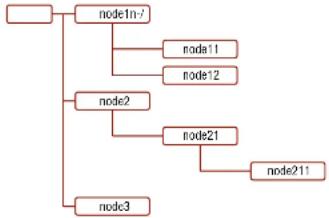
flowchart
graph TD
    A[" "] --> B["node1n-7"]
    A --> C["node2"]
    A --> D["node3"]
    B --> E["node11"]
    B --> F["node12"]
    C --> G["node21"]
    C --> H["node211"]
Tree structure of the nodes
Path of the nodes:
n-/node1
n-/node1/node11
n-/node1/node12
n-/node2
n-/node2/node21
n-/node2/node21/node211
n-/node3
7.1.1.2. Property
The 'property' in the LW3 protocol is basically a leaf, which has a well-defined value.
• A property has a value.
• A property cannot have child nodes or child properties. It is always a leaf.
- A node can have any number of properties (may not have any).
- A property is referenced with a dot ('.) after the node name.
- The properties' name can contain the elements of the English alphabet, numbers and underscore ('_) character.
- By convention, properties are beginning with a capital letter, all other characters are lowercase ones. In the case of compound words, all words are beginning with a capital letter (CamelCase).
• The value of the property can contain any readable ASCII character.
• A property can be read-only or read/write.
Format: pX•/[nodeName].[propertyName]=[propertyValue]
Legend:
p: property
'X' can be:
'Y': if the property is read-only.
'w': if the property is readable, writable.
'm': the manual of the property.
'E': error message for the property.
V: virtual node property: contains a node path to a node which will be linked to the property's parent node.
Example:
The following two ones are read-only properties:
pr•/node1/node12.ReadOnlyProperty=value1
pr•/.DeviceName=25G Hybrid Device
The following two ones are read-write properties:
pw•/node1/node12.ReadWriteProperty=value2
pw•/.DeviceNickName=John
7.1.1.3. Method
The 'method' in the LW3 protocol is also a leaf. It cannot have a value, such as the properties, but it can be invoked with a parameter with the help of a special 'CALL' command.
- A method cannot have child nodes or child methods. It is always a leaf.
- A node can have any number of methods (may not have any).
- A method is referenced with a colon (‘:’) after the node.
- The methods' name can contain the elements of the English alphabet, numbers and underscore (_) character.
- By convention, methods are beginning with lowercase letter. In case of compound words, the very first letter is lowercase, and the first letter of each other words are capitalized (lowerCamelCase).
- The parameter of the method can contain any readable ASCII character.
- The method always has a return 'state' if the method could be executed. The state could be either 'OK' or 'FAILED'.
- The method does not necessarily have a return 'value'. If it does, it can contain additional information, which is always specific to the current case (the return value can specify why the execution failed).
- When the method cannot be executed (e.g. the parameter list is illegal), there is an error message.
Format: mX•/[nodeName];[methodName]=[returnValue]
Legend:
m: method
'X' can be:
'O': when the execution of the method was successful (OK).
'F': when the execution of the method failed.
'm': the manual of the method.
'E': error message for the method.
Example:
m0•/node1/node12:method1
m0•/MEDIA/VIDEO/XP:switch
mE•%E001:Syntax error
mm•/MEDIA/VIDEO/XP:lockSource:Lock one or more source ports


- LW3 Programmer's Reference HDMI-3D-OPT series - User's Manual 52
7.1.2. Escaping
Property values and method parameters can contain characters that are used as control characters in the protocol. They must be escaped. The escape character is the backslash ('') and escaping means injecting a backslash before the character that should be escaped (like in C language).
Control characters are the followings: # % ()
Example:
The original text: John●(Doe).●#3;●5%2=1●node1\node11
The escaped text: John● Doe .●#3:●5%2=1●node1\node11
7.1.3. Error Messages
There are several error messages defined in the LW3 protocol, all of them have a unique error number.
Format: XE●[primitive]●%EYYY:●[Error message]
Legend:
'X' can be:
- syntax error. Cannot parse the command at all.
'n': node error.
'p': property error
'm': method error.
YYY: error code, which can be one of the followings:
| YYY: error code Name Default text | ||
| 000 Lw3ErrorCodes_None | ||
| 001 Lw3ErrorCodes_Syntax Syntax error | ||
| 002 Lw3ErrorCodes_NotFound Not found | ||
| 003 Lw3ErrorCodes_AlreadyExists Already exists | ||
| 004 Lw3ErrorCodes_InvalidValue Invalid value | ||
| 005 Lw3ErrorCodes_IllegalParamCount | Illegal parameter count | |
| 006 Lw3ErrorCodes_IllegalOperation | Illegal operation | |
| 007 Lw3ErrorCodes_AccessDenied | Access denied | |
| 008 Lw3ErrorCodes_Timeout | Timeout | |
| 009 Lw3ErrorCodes_CommandTooLong | Command too long | |
| 010 Lw3ErrorCodes_InternalError | Internal error | |
| 011 Lw3ErrorCodes_NotImplemented | Not implemented | |
7.1.4. Prefix Summary
The following prefixes are defined in the LW3 protocol:
'n-': a node,
'nE': an error for a node,
'nm': a manual for a node,
'pr': a read-only property,
'pw': read-write property,
'pE': an error for the property,
'pm': a manual for the property,
'm-': a method,
'mO': a response after a success method execution,
'mF': a response after a failed method execution,
'mE': an error for a method,
'mm': a manual for a method.
7.2. The Tree Structure of the Transmitter
INFO: The tree structure is available in the Advanced View Window of LDC.
The /MEDIA node is used by the LDC to connect input ports to output ports on different layers. Each subnode of /MEDIA is representing a layer, e.g. video (/MEDIA/VIDEO), audio (/MEDIA/AUDIO) or RS-232 (/MEDIA/UART). Each layer has a crosspoint to define connections between the ports associated with the layer, all of them are represented by a specific node. E.g. the video layer node is /MEDIA/VIDEO: under the video layer node, the video crosspoint node (XP) and the video ports (11, 12, ...) are located.
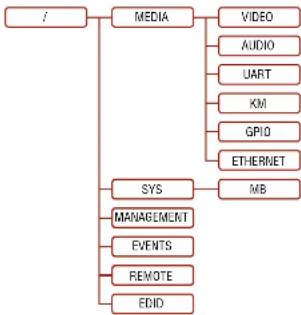
flowchart
graph TD
    A["/"] --> B["MEDIA"]
    B --> C["VIDEO"]
    B --> D["AUDIO"]
    B --> E["UART"]
    B --> F["KM"]
    B --> G["GPIO"]
    B --> H["ETHERMET"]
    B --> I["SYS"]
    I --> J["MB"]
    B --> K["MANAGEMENT"]
    B --> L["EVENTS"]
    B --> M["REMOTE"]
    B --> N["EDIO"]


- LW3 Programmer's Reference HDMI-3D-OPT series - User's Manual 53
7.3. LW3 Commands
7.3.1. Get Command
The 'GET' command can be used to get the child nodes, properties and methods of a specific node. It can also be used to get the value of a property.
The Response Format
The first two characters of a response unambiguously identify the type of the element that the response line concerns. The first character is the type of the element (node, property or method), the second is for miscellaneous information (e.g. read/write rights).
The defined prefixes are:
'n-': node
'pr': property - only readable
'pw': property - writable, readable
'm-': method executable
After the prefix, the response contains the full path of the node, property or method after a space character.
Get All Children of a Node
Get all of the child nodes of a parent node, with one GET command.
Command format: GET•[nodePath]
Response format: n-•[nodePath]
Example:
GET /MEDIA
< n-/MEDIA/VIDEO
< n-/MEDIA/AUDIO
< n-/MEDIA/UART
< n-/MEDIA/KM
< n- /MEDIA/GPIO
n-/MEDIA/ETHERNET
Get All Properties and Methods of a Node
Get all properties and methods of a node, with one GET command and asterisk character.
Command format: GET•[nodePath].*
Response format: (for properties)
pX•[nodePath].[propertyName]=[parameter]
Legend:
X can be:
'r': read-only
read-write
Response format: (for methods)
m-•[nodePath]:[methodName]
Example:
GET /EDID.*
< pr /EDID.EdidStatus=D1:E1;D1:E2;D1:E3;D1:E4
< m-/EDID:switch
< m- /EDID:switchAll
< m- /EDID:copy
< m-/EDID:delete
< m- /EDID:reset
Get All Child Nodes, Properties and Methods of a Node
Get all child nodes, properties and methods of a node with one command, without using a wild card.
Command format: GETALL•[nodePath]
Response format: (for nodes)
n-•[nodePath]
Response format: (for properties)
pX•[nodePath].[propertyName]=[parameter]
Legend:
X can be:
'r': read-only
read-write
Response format: (for methods)
m-•[nodePath]:[methodName]


- LW3 Programmer's Reference HDMI-3D-OPT series - User's Manual 54
Example:
GETALL /EDID
< n-/EDID/F
< n-/EDID/D
< n-/EDID/U
< n-/EDID/E
< pr /EDID.EdidStatus=D1:E1;D1:E2;D1:E3;D1:E4
< m-/EDID:switch
< m-/EDID:switchAll
< m-/EDID:copy
< m-/EDID:delete
< m-/EDID:reset
7.3.2. Set Command
The setter command can be used to modify the value of a property.
Command format: SET•[nodePath].[propertyName]=[newPropertyValue]
Response format:
The response for setting a property to a new value is the same as the response for the 'GET' command. The value in the response is the new value if the execution of the 'SET' command was successful, otherwise the unmodified 'old value' with an error message.
pw•[nodePath].[propertyName]=[newPropertyValue]
Example:
SET /SYS/NB/RS232/LOCAL.RS232Mode-1
< pw /SYS/MB/RS232/LOCAL.Rs232Mode-1
Error response format:
If there were errors during setting a property, an error message follows the unmodified property value.
pE•[nodePath].[propertyName]=[umodifiedValue]•%EXXX:Error message
Legend: XXX: error number.
Examples:
SET /SYS/MB/RS232/LOCAL.Rs232Mode=11
< pE /SYS/MB/RS232/LOCAL.Rs232Mode %E005:Invalid valueSET /SYS/MB/RS232/LOCAL.ActiveProtocol-LW3
< pE %E004:Writing read-only property
7.3.3. Invocation
A method can be invoked with the help of the 'CALL' command.
Command format: CALL•[nodePath]:methodName
Response format:
The response for a method execution is a state and a value. The state is mandatory and always defined if the method could be executed. It can be either a success or a failure. The value is optional and it can contain additional information, such as the reason why the state is a failure or a specific value when the state is success that the client can process. It is also possible to get an error message when the method could not be executed – e.g. the parameter was illegal - and hence not even the state of the execution could be specified.
mX•[nodePath]:[methodName]=Y
Legend:
X can be:
'O': if the execution is successful.
'F': if the execution is failed, but the method could be executed.
'E': if the method could not be executed: e.g. illegal parameter count.
Y can be:
• The return value of the method if any.
- It is valid that a method does not have any return value. In this case, the equal sign (‘=’) can be omitted.
Example:
CALL /EDID:switch(D1:E1)
< mO /EDID:switch
Error resp
If there were errors during the execution, an error message is received, which follows the method name.
mE•[nodePath]:[methodName]•%EXXX:Error message
Example:
CALL /EDID:switch(D1;R1)
< mE %E001:Syntax error


- LW3 Programmer's Reference HDMI-3D-OPT series - User's Manual 55
7.3.4. Manual
For every node, property and method in the tree there is a manual. The manual is a human readable text that describes the syntax and provides a hint for how to use the primitives.
Command format:
for nodes: MAN•[nodePath]
for property: MAN•[nodePath].[propertyName]
for method: MAN•[nodePath]:[methodName]
Response format:
The human readable manual is separated by a space ( ^* ) character from the primitives.
for nodes: nm•[nodePath]•Human readable manual
for property: pm•[nodePath].[propertyName]•Human readable manual
for method: mm•[nodePath]:[methodName]•Human readable manual
Example: (for a property)
MAN /SYS/MB/RS232/LOCAL.ActiveProtocol
< pm /SYS/MB/RS232/LOCAL.ActiveProtocol ["LW2" | "LW3"] Active Protocol
Example: (for a method)
MAN /SYS/MB/RS232/LOCAL:factoryDefaults
< mm /SYS/MB/RS232/LOCAL:factoryDefaults [] Restore factory default settings
7.3.5. Signature
For some command, the response can contain multiple lines. Each line is terminated with a carriage return (Cr, 'ir') and line feed (Lf, '\n') characters. In several cases the number of the lines in the response cannot be determined in advance, e.g. the client is intended waiting for the whole response and also wants to be sure, that the received lines belong together and to the same command. In these cases, a special feature the 'signature' can be used.
The signature is a four-digit long hexadecimal value that can be optionally placed before every command. In that case, the response to that particular command will also be preceded by the signature, and the corresponding lines will be between brackets.
Command format: XXXX#[command]
Legend: xxxx: 4-digit long hexadecimal value.
Response format:
{XXXX
[command lines]
}
Example:
1103#GET /MEDIA/UART.*
< {1103
< pr /MEDIA/UART.PortCount=1
< pr /MEDIA/UART.PortUI-P1:12209
< pr /MEDIA/UART.P1-Local
< }
INFO: The lines of the signature are also Cr and Lf terminated.
7.3.6. Subscription
A user can subscribe to any node. Subscribe to a node means that the user will get a notification if any of the properties of the node is changed. These notifications are asynchronous messages - such as the ones described above - and hence, they are useful to keep the client application up-to-date, without receiving any unwanted information. When the user does not want to be informed about the changes anymore, he can simply unsubscribe from the node.
ATTENTION: The subscriptions are handled separately for connections. Hence, if the connection is terminated all registered subscriptions are deleted. After closing a connection the subscribe command has to be sent in order to get the notifications of the changes on that connection.
Subscribe to a Node
Command format: OPEN•[nodePath]
Response format: o-•[nodePath]
Example:
Subscribe to Multiple Nodes
In order to subscribe to multiple nodes, the asterisk wild card can be used.
Command format: OPEN•[nodePath]/*
Response format: o-•[nodePath]/*
Example:
- LW3 Programmer's Reference HDMI-3D-OPT series - User's Manual 56
Get the Active Subscriptions for the Current Connection
Command format: OPEN
Response format: c-■[nodePath]
Example:
> OPEN
< o-/MEDIA/VIDEO
< o-/EDID
< o-/LOG
Unsubscribe from a Node
Command format: CLOSE•[nodePath]
Response format: c-•[nodePath]
Example:
CLOSE /MEDIA/VIDEO
< C-/MEDIA/VIDEO
Unsubscribe from Multiple Nodes
Command format: CLOSE•[nodePath]/*
Response format: c-•[nodePath]/*
Example:
7.3.7. Notifications about the Changes of the Properties
When the value of a property is changed and the user is subscribed to the node, which the property belongs to, an asynchronous notification is generated. This is notification is called as the 'change message'. The format of such a message is very similar to the response for the 'GET' command.
Format: CHG•[nodePath].[propertyName]=[newPropertyValue]
Example:
< CHG /EDID.EdidStatus=D1:E1;D1:E2;D1:E3;D1:E4
A Short Example of How to Use the Subscription
In the following, an example is presented, how the subscriptions are working and how to use them. In the example, there are two independent users controlling the device through two independent connections ('Connection #1' and 'Connection #2'). The events in the rows occur after each other.
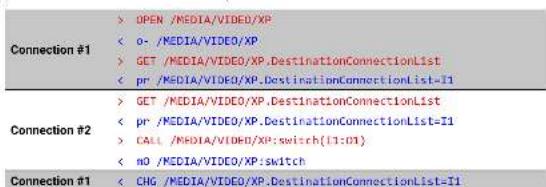
Explanation: The first user (Connection #1) set a subscription to a node. Later the other user (Connection #2) made a change, and thanks for the subscription, the first user got a notification about the change.
7.4. Formal Definitions
Method parameters and property values are specified in a modified version of Backus Naur Form (BNF). The syntax is the following:
"Literal" literals are quoted
<expression1>|<expression2> vertical bars denote alternatives
[<expression> expressions in square brackets are optional
<number>|<expression> expression is repeated at least <number> times
• [<expression> : <number> may be omitted, in this case number defaults to 0
<number>|<expression> : expressions in curly brackets are repeated exactly <number> times
-n Input port number
On Output port number


- LW3 Programmer's Reference HDMI-3D-OPT series - User's Manual 57
7.5. System Commands
7.5.1. Query the Product Name
The name of the product is a read-only parameter and cannot be modified.
Command format: GET•/.ProductName
Response format: pr•/.ProductName=
Example:
GET /.ProductName
< pr /.ProductName-SW4-OPT-TX248RAK
7.5.2. Set the Device Label
ATTENTION! The device label can be changed to a custom text in the Status tab of the LDC software. This
writable parameter is not the same as the ProductName parameter.
Command format: SET•/MANAGEMENT/UID/DeviceLabel=
Response format: pw•/MANAGEMENT/UID/DeviceLabel=
The Device Label can be 39 character length and ASCII characters are allowed. Longer names are truncated.
Example:
SET /MANAGEMENT/UID.DeviceLabel=SW4-OPT Control room
< pw /MANAGEMENT/UID.DeviceLabel-SW4-OPT_Control_room
7.5.3. Query the Serial Number
Command format: GET•/.SerialNumber
Response format: pr•/.SerialNumber=
Example:
GET /.SerialNumber
< pr /.SerialNumber-87654321
7.5.4. Query the Firmware Version
Command format: GET-/SYS/MB.FirmwareVersion
Response format: pr•/SYS/MB.FirmwareVersion=
GET /SYS/MB.FirmwareVersion
< pr /SYS/MB.FirmwareVersion=1.1.0b5 r8
7.5.5. Resetting the Device
The transmitter can be restarted – the current connections (LAN, RS-232) will be terminated.
Command format: CALL•/SYS:reset()
Response format: m0*/SYS:reset=
Example:
CALL /SYS:reset()
< m0 /SYS:reset-
7.5.6. Restore the Factory Default Settings
Command format: CALL•/SYS:factoryDefaults()
Response format: m0#/SYS.factoryDefaults=
Example:
CALL /SYS:factoryDefaults()
< mO /SYS:factoryDefaults=
The device is restarted, current connections are terminated, and the default settings are restored. See the complete list in the Factory Default Settings section.


- LW3 Programmer's Reference HDMI-3D-OPT series - User's Manual 58
7.6. Video Port Settings
INFO: Video port numbering can be found in the Input/Output Port Numbering section.
7.6.1. Query the Status of Source Ports
Command format: GET•/MEDIA/VIDEO/XP.SourcePortStatus
Response format: pr•/MEDIA/VIDEO/XP.SourcePortStatus=[<|1>|<|2|>...<|1|>]
The response contains 5 ASCII characters for each port. The first character indicates the mute/lock state, the next four characters represent a 2-byte HEX code showing the current state of the input ports.
Example:
| Letter (Character 1) | ||
| Mute state Lock state | ||
| T | Unmuted Unlocked | |
| L | Unmuted | Locked |
| M | Muted | Unlocked |
| U | Muted | Locked |
| Byte 1 | Byte 2 | |||||||
| Character 2 | Character 3 | Character 4 | Character 5 | |||||
| BIT 7-6 | BIT 5-4 | BIT 3-2 | BIT 1-0 | BIT 7-6 | BIT 5-4 | BIT 3-2 | BIT 1-0 | |
| Reserved Reserved | Reserved Reserved | Embedded audio status | HDCP status | Signal present status | Connection status | |||
| 0 0 | Reserved | Reserved | Reserved | Reserved | Unknown | |||
| 0 1 | Reserved | |||||||
| 1 0 | No embedded audio | Not encrypted | No signal | Not connected | ||||
| 1 1 | Embedded audio presents | Encrypted | Signal presents | Connected | ||||
Example and Explanation (for input 2, T00EF):
| TODEF | |||||||||
| Unlocked, Unmuted | 00000 | 0011101 | 11 | ||||||
| Reserved | Reserved | Reserved | Reserved | Embedded audio presents | Not encrypted | Signal presents | Connected | ||
The Most Common Received Port Status Responses
| T00AA | T | 0 | 0 | A | A | ||||
| Unlocked, Unmutated | 0 0 | 0 0 | 0 0 | 0 0 | 1 0 | 1 0 | 1 0 | 1 0 | |
| Reserved | Reserved | Reserved | Reserved | No embedded audio | Not encrypted | No signal | Not connected | ||
| T00AB | T | 0 | 0 | A | B | ||||
| Unlocked, Unmutated | 0 0 | 0 0 | 0 0 | 0 0 | 1 0 | 1 0 | 1 0 | 1 1 | |
| Reserved | Reserved | Reserved | Reserved | No embedded audio | Not encrypted | No signal | Connected | ||
| T00AF | T | 0 | 0 | A | F | ||||
| Unlocked, Unmutated | 0 0 | 0 0 | 0 0 | 0 0 | 1 0 | 1 0 | 1 1 | 1 1 | |
| Reserved | Reserved | Reserved | Reserved | No embedded audio | Not encrypted | Signal presents | Connected | ||
| T00EF | T | 0 | 0 | E | F | ||||
| Unlocked, Unmutated | 0 0 | 0 0 | 0 0 | 0 0 | 1 1 | 1 0 | 1 1 | 1 1 | |
| Reserved | Reserved | Reserved | Reserved | Embedded audio presents | Not encrypted | Signal presents | Connected | ||
| T00BF | T | 0 | 0 | B | F | ||||
| Unlocked, Unmutated | 0 0 | 0 0 | 0 0 | 0 0 | 1 0 | 1 1 | 1 1 | 1 1 | |
| Reserved | Reserved | Reserved | Reserved | No embedded audio | Encrypted | Signal presents | Connected | ||
| T00FF | T | 0 | 0 | F | F | ||||
| Unlocked, Unmutated | 0 0 | 0 0 | 0 0 | 0 0 | 1 1 | 1 1 | 1 1 | 1 1 | |
| Reserved | Reserved | Reserved | Reserved | Embedded audio presents | Encrypted | Signal presents | Connected | ||


- LW3 Programmer's Reference HDMI-3D-OPT series - User's Manual 59
7.6.2. Query the Status of Destination Port
Command format: GET•/MEDIA/VIDEO/XP.DestinationPortStatus
Response format: pr•/MEDIA/VIDEO/XP.DestinationPortStatus=<0>
The response contains 5 ASCII characters for each port. The first character indicates the mute/lock state, the next 2-byte long HEX code showing the current state of the output ports.
Example:
| >GET /MEDIA/VIDEO/XP.DestinationPortStatus< pr /MEDIA/VIDEO/XP.DestinationPortStatus=M00BF;T00EF |
Legend: See at previous section
Example and Explanation (for output 1, M00BF):
| M 0 0 B F | |||||||||
| Unlocked, Muted | 0 0 0 0 0 | 0 0 1 0 1 1 1 | 1 1 | ||||||
| Reserved Reserved | Reserved | Reserved | No embedded audio | Encrypted | Signal presents | Connected | |||
7.6.3. Query the Video Crosspoint Setting
Command format: GET•/MEDIA/VIDEO/XP.DestinationConnectionList
Response format: pr•/MEDIA/VIDEO/XP.DestinationConnectionList=
Legend:

Video input port number
Example:
| >GET /MEDIA/VIDEO/XP.DestinationConnectionList< pr /MEDIA/VIDEO/XP.DestinationConnectionList-I1 |
Explanation: I1 input port is connected to the output port.
7.6.4. Switching Video Input
Command format: CALL•/MEDIA/VIDEO/XP:switch(
Response format: mO•/MEDIA/VIDEO/XP:switch
Example:
CALL /MEDIA/VIDEO/XP:switch(12:01)
< mO /MEDIA/VIDEO/XP:switch
Explanation: 12 port is connected to 01 port.
7.6.5. Query the Video Autoselect Settings
Command format: GET•/MEDIA/VIDEO/XP.DestinationPortAutoselect
Response format: pr•/MEDIA/VIDEO/XP.DestinationPortAutoselect=
The response shows the settings of each output one by one.
Legend:
| Letter | Explanation | |
| 1^st letter | E: | Autoselect is enabled. |
| D: | Autoselect is disabled. | |
| 2^nd letter | F: | First detect mode: the first active video input is selected. |
| P: | Priority detect mode: always the highest priority active video input will be selected. | |
| L: | Last detect mode: always the last attached input is switched to the output automatically. | |
Example:
| >GET /MEDIA/VIDEO/XP.DestinationPortAutoselect |
| < pr /MEDIA/VIDEO/XP.DestinationPortAutoselect-EL |
Explanation:
EL: the Autoselect is Enabled on output, selected mode is Last detect.
INFO: For more information about the Autoselect feature see The Autoselect Feature section.
7.6.6. Change the Autoselect Mode
Command format: CALL•/MEDIA/VIDEO/XP.setDestinationPortAutoselect(<0><0_set>)
Response format: mO•/MEDIA/VIDEO/XP.setDestinationPortAutoselect
Legend: see previous section.
Example1:
| > CALL /MEDIA/VIDEO/XP:setDestinationPortAutoselect(O1:EPM) |
| < mO /MEDIA/VIDEO/XP:setDestinationPortAutoselect |
Explanation1: The setting is changed to "EPM": Autoselect is enabled (E); the mode is set to "priority detect" (P), and the port will be disconnected if a higher priority port becomes active (M).
Example2:
| > CALL /MEDIA/VIDEO/XP:setDestinationPortAutoselect(O1:D) |
| < mO /MEDIA/VIDEO/XP:setDestinationPortAutoselect |
Explanation2: The setting is changed to "DPM": Autoselect is disabled (D). The other settings remain unchanged. Since the outputs are linked, the change will affect local and link out.


- LW3 Programmer's Reference HDMI-3D-OPT series - User's Manual 60
7.6.7. Query the Input Port Priority
Command format: GET•/MEDIA/VIDEO/XP.PortPriorityList
Response format: pr•/MEDIA/VIDEO/XP.PortPriorityList=
The response shows the priority of each output one after another. The priority number can be from 0 to 31; 0 is the highest- and 30 is the lowest priority. 31 means that the port will be skipped from the priority list.
Legend:
< 0 _list> The input port priority order of the given output port: <1 ,>,
Example:
> GET /MEDIA/VIDEO/XP.PortPriorityList
< pr /MEDIA/VIDEO/XP.PortPriorityList-0,1,2,3,4,5
Explanation:
| Priority 0 1 ... | x | |||
| Video input port | I1 | I2 | ... | Im |
Highest priority is assigned to I1 port.
ATTENTION! The same priority number can be set to different input ports. When the priority numbers match, the input port with the lowest port number will have the highest priority.
7.6.8. Change the Input Port Priority
Command format: CALL•/MEDIA/VIDEO/XP:setAutoselectionPriority(<|>(<0,>:
Response format: mO•/MEDIA/VIDEO/XP:setAutoselectionPriority
Legend:
An input port priority can be set on an output port. Many settings can be executed by separating a semicolon (no space), see the example below.
Example:
> CALL /MEDIA/VIDEO/XP:setAutoselectionPriority(I1\01\):3;I2\01\):3)
< mO /MEDIA/VIDEO/XP:setAutoselectionPriority
Explanation:
The priority number of input 1 and Input 2 has been set to 3 on output 1. The example shows that certain control characters have been escaped: the backslash "Y" character is inserted before the "(and")" characters. See more information about the escaping in the Escaping section.
7.6.9. Mute an Input Port
Command format: CALL•/MEDIA/VIDEO/XP:muteSource(
Response format: m0•/MEDIA/VIDEO/XP:muteSource
Example:
> CALL /MEDIA/VIDEO/XP:muteSource(I1)
< m0 /MEDIA/VIDEO/XP:muteSource
7.6.10. Unmute an Input Port
Command format: CALL•/MEDIA/VIDEO/XP:unmuteSource(<1,>)
Response format: mO•/MEDIA/VIDEO/XP:unmuteSource
Example:
> CALL /MEDIA/VIDEO/XP:unmuteSource(I1)
< mO /MEDIA/VIDEO/XP:unmuteSource
7.6.11. Lock an Input Port
Command format: CALL•/MEDIA/VIDEO/XP:lockSource(
Response format: m0•/MEDIA/VIDEO/XP:lockSource
Example:
> CALL /MEDIA/VIDEO/XP:lockSource(I1)
< mO /MEDIA/VIDEO/XP:lockSource
7.6.12. Unlock an Input Port
Command format: CALL♦/MEDIA/VIDEO/XP:unlockSource(<I_)
Response format: m0•/MEDIA/VIDEO/XP:unlockSource
Example:
> CALL /MEDIA/VIDEO/XP:unlockSource(I1)
< m0 /MEDIA/VIDEO/XP:unlockSource
7.6.13. Mute Output
Command format: CALL•/MEDIA/VIDEO/XP:muteDestination(
Response format: mO•/MEDIA/VIDEO/XP:muteDestination
Example:
> CALL /MEDIA/VIDEO/XP:muteDestination(01)
< mO /MEDIA/VIDEO/XP:muteDestination


7.6.14. Unmute Output
Command format: CALL•/MEDIA/VIDEO/XP:unmuteDestination(
Response format: mO•/MEDIA/VIDEO/XP:unmuteDestination
Example:
CALL /MEDIA/VIDEO/XP:unmuteDestination(01)
< mO /MEDIA/VIDEO/XP:unmuteDestination
7.6.15. Lock Output
Command format: CALL•/MEDIA/VIDEO/XP:lockDestination(<0,>)
Response format: m0•/MEDIA/VIDEO/XP:lockDestination
Example:
CALL /MEDIA/VIDEO/XP:lockDestination(D1)
< mO /MEDIA/VIDEO/XP:lockDestination
7.6.16. Unlock Output
Command format: CALL•/MEDIA/VIDEO/XP:unlockDestination(
Response format: mO•/MEDIA/VIDEO/XP:unlockDestination
Example:
CALL /MEDIA/VIDEO/XP:unlockDestination(01)
< mO /MEDIA/VIDEO/XP:unlockDestination
7.6.17. HDCP Setting (Input Port)
HDCP capability can be enabled/disabled on the input ports, thus, non-encrypted content can be seen on a non-HDCP compliant display. See more information in the HDCP Management section.
Command format: SET•/MEDIA/VIDEO/.HdcpEnable=true|false
Response format: pw•/MEDIA/VIDEO/.HdcpEnable=true|false
Example:
SET /MEDIA/VIDEO/12.HdcpEnable=true
< pw /MEDIA/VIDEO/I2.HdcpEnable=true
7.6.18. HDCP Setting (Output Port)
HDCP capability can be set to Auto/Always on the output ports, thus, non-encrypted content can be transmitted to a non-HDCP compliant display. See more information in the HDCP Management section.
Command format: SET•/MEDIA/VIDEO/<0 >.HdcpModeSetting=0|1
Response format: pw•/MEDIA/VIDEO/<0 >.HdcpModeSetting=0|1
Parameters:
| .HdcpModeSetting 0 1 | |
| HDCP mode Auto Always |
Example
SET /MEDIA/VIDEO/01.HdcpModeSetting-0
< pw /MEDIA/VIDEO/01.HdcpModeSetting=0
7.6.19. Test Pattern Generator
The output ports can send a special image towards the sink devices for testing purposes. The setting is available on output ports with the below-listed parameters.
ATTENTION! The Mode can be set individually on each port, but the Clock source and the Pattern settings are common on the optical and HDMI output ports (01 and 02).
Test Pattern Generator Mode Setting:
Command format: SET•/MEDIA/VIDEO/<0 > TpgMode=0|1|2
Response format: pw•/MEDIA/VIDEO/<0 >.TpgMode=0|1|2
Parameters
| .TpgMode 0 1 | 2 | ||
| Test pattern generator mode | DisabledThe test pattern is not displayed on the output | EnabledThe test pattern is displayed on the output | No signal modeThe test pattern is displayed if there is no signal on the output port |
Example:
SET /MEDIA/VIDEO/01.TpgMode-2
- LW3 Programmer's Reference HDMI-3D-OPT series - User's Manual 62
Clock Source - The Clock Frequency of the Test Pattern
Command format: SET•/MEDIA/VIDEO/<0 >.TpgClockSource=480|576|EXT
Response format: pw•/MEDIA/VIDEO/<0 >.TpgClockSource=480|576|EXT
Parameters
| .TpgClockSource 480 576 EXT | ||
| Clock frequency 480p 576p External clock (from actual TMDS source) | ||
Example:
SET /MEDIA/VIDEO/01.TpgClockSource=576
< pw /MEDIA/VIDEO/01.TpgClockSource=576
Test Pattern
Command format: SET•/MEDIA/VIDEO/<0 >.TpgPattern=
Response format: pw•/MEDIA/VIDEO/<0 >.TpgPattern=
Parameters:
| RED | GREEN | BLUE | BLACK | WHITE | RAMP | CHESS | BAR | CYCLE |
Cycle setting means all the patterns are changed sequentially approx. in every 2 seconds.

Example:
SET /MEDIA/VIDED/01.TpgPattern=GREEN
< pw /MEDIA/VIDEO/01.TpgPattern-GREEN
7.6.20. HDMI Mode Settings (Output Port)
Command format: SET•/MEDIA/VIDEO/<0 >.HdmiModeSetting=0|1|2
Response format: pw•/MEDIA/VIDEO/<0 >.HdmiModeSetting=0|1|2
Parameters
| .HdmiModeSetting | 0 | 1 | 2 |
| HDMI mode | Auto | DVI | HDMI |
Example:
SET /MEDIA/VIDEO/01.HdmiModeSetting=2
pw / MEDIA/VIDEO/O1.HdmiModeSetting=2


- LW3 Programmer's Reference HDMI-3D-OPT series - User's Manual 63
7.7. Audio Port Settings
INFO: Audio port numbering can be found in the Input/Output Port Numbering section.
7.7.1. Query the Status of Source Ports
Command format: GET•/MEDIA/AUDIO/XP.SourcePortStatus
Response format: pr•/MEDIA/AUDIO/XP.SourcePortStatus=[<|>,<|>,...;<|>
The response contains 5 ASCII characters for each port. The first character indicates the mute/lock state, the next four characters represent a 2-byte HEX code showing the current state of the input ports.
Example:
| >GET /MEDIA/AUDIO/XP.SourcePortStatus |
| < pr /MEDIA/AUDIO/XP.SourcePortLStatus-T000F;M000B;T000A;T000A;T000F;T000F |
Legend:
| Letter (Character 1) | ||
| Muto state | Lock state | |
| T | Unmuted | Unlocked |
| L | Unmuted | Locked |
| M | Muted | Unlocked |
| U | Muted | Locked |
| Letter | Mule / Lock status |
| Byte 1 | Reserved character, always 0. |
| Reserved character, always 0. | |
| Byte 2 | Reserved character, always 0. |
| Signal present / Connection status |
| Byte 1 | Byte 2 | |||||||
| Character 2 | Character 3 | Character 4 | Character 5 | |||||
| BIT 7-6 | BIT 5-4 | BIT 3-2 | BIT 1-0 | BIT 7-6 | BIT 5-4 | BIT 3-2 | BIT 1-0 | |
| Reserved | Reserved | Reserved | Reserved | Reserved | Reserved | Signal present status | Connection status | |
| 0 0 | Reserved | Reserved | Reserved | Reserved | Reserved | Reserved | Unknown | |
| 0 1 | Reserved | |||||||
| 1 0 | No signal | Not connected | ||||||
| 1 1 | Signal presents | Connected | ||||||
Example and Explanation (for input 2, M000B):
| M 0 0 0 B | ||||||||
| Unlocked,Mutled | 0 0 0 0 0 | 0 0 0 0 0 1 | 0 1 1 | |||||
| Reserved | Reserved | Reserved | Reserved | Reserved | Reserved | No signal | Connected | |
The Most Common Received Port Status Responses
| T000A | T | 0 | 0 | 0 | A | ||||
| Unlocked, Unmuted | 0 0 | 0 0 | 0 0 | 0 0 | 0 0 | 0 0 | 1 0 | 1 0 | |
| Reserved | Reserved | Reserved | Reserved | Reserved | Reserved | No signal | Not connected | ||
| T000B | T | 0 | 0 | 0 | B | ||||
| Unlocked, Unmuted | 0 0 | 0 0 | 0 0 | 0 0 | 0 0 | 0 0 | 1 0 | 1 1 | |
| Reserved | Reserved | Reserved | Reserved | Reserved | Reserved | No signal | Connected | ||
| T000F | T | 0 | 0 | 0 | F | ||||
| Unlocked, Unmuted | 0 0 | 0 0 | 0 0 | 0 0 | 0 0 | 0 0 | 1 1 | 1 1 | |
| Reserved | Reserved | Reserved | Reserved | Reserved | Reserved | Signal presents | Connected | ||
Only for Phoenix audio port: Character 5 is C (11 00) which means signal is present but the cable connection status is unknown. The explanation is Phoenix connector has no pin which can indicate the connection status so this is always unknown.
| T000C | T | 0 | 0 | 0 | C | ||||
| Unlocked, Unmuted | 0 0 | 0 0 | 0 0 | 0 0 | 0 0 | 0 0 | 1 1 | 0 0 | |
| Reserved | Reserved | Reserved | Reserved | Reserved | Reserved | Signal presents | Unknown | ||
7.7.2. Query the Status of Destination Port
Command format: GET•/MEDIA/AUDIO/XP.DestinationPortStatus
Response format: pr•/MEDIA/AUDIO/XP.DestinationPortStatus=
The response contains 5 ASCII characters for each port. The first character indicates the mute/lock state, the next 2-byte long HEX code showing the current state of the output ports.
Example:
| >GET /MEDIA/AUDIO/XP.DestinationPortStatus |
| < pr /MEDIA/AUDIO/XP.DestinationPortStatus-T000F;T000A |
Legend: See at previous section.
Example and Explanation (for output 1, T000F):
| T | 0 0 0 F | |||||||
| Unlocked, Unmuted | 0 0 0 0 0 0 0 0 0 0 1 | 1 1 | ||||||
| Reserved Reserved Reserved | Reserved Reserved Reserved | Signal presents | Connected | |||||


- LW3 Programmer's Reference HDMI-3D-OPT series - User's Manual 64
7.7.3. Query the Audio Crosspoint Setting
Command format: GET•/MEDIA/AUDIO/XP.DestinationConnectionList
Response format: pr•/MEDIA/AUDIO/XP.DestinationConnectionList=
Legend:
: Audio input port number
Example:
GET /MEDIA/AUDIO/XP.DestinationConnectionList
< pr /MEDIA/AUDIO/XP.DestinationConnectionList=I1
Explanation: I1 input port is connected to the output port.
7.7.4. Switching Audio Input
Command format: CALL•/MEDIA/AUDIO/XP:switch(
Response format: mO•/MEDIA/AUDIO/XP:switch
Example:
CALL /MEDIA/AUDIO/XP:switch(I2:01)
< mO /MEDIA/AUDIO/XP:switch
Explanation: 12 port is connected to 01 port.
7.7.5. Query the Audio Autoselect Settings
Command format: GET•/MEDIA/AUDIO/XP.DestinationPortAutoselect
Response format: pro/MEDIA/AUDIO/XP.DestinationPortAutoselect=
The response shows the settings of each output one by one.
Legend:
< 0 _set> Two-letter code of the Autoselect settings:
| Letter | Explanation | |
| 1^st letter | E: | Autoselect is enabled. |
| D: | Autoselect is disabled. | |
| 2^nd letter | F: | First detect mode: the first active audio input is selected. |
| P: | Priority detect mode: always the highest priority active audio input will be selected. | |
| L: | Last detect mode: always the last attached input is switched to the output automatically. | |
| S: | Static mode: the audio input follows the selected video if the video signal contains embedded audio. | |
Example:
GET /MEDIA/AUDIO/XP.DestinationPortAutoselect
< pr /MEDIA/AUDIO/XP.DestinationPortAutoselect-EL
Explanation:
EL: the Autoselect is Enabled on output, selected mode is Last detect.
INFO: For more information about the Autoselect feature see The Autoselect Feature section.
7.7.6. Change the Autoselect Mode
Command format: CALL•/MEDIA/AUDIO/XP:setDestinationPortAutoselect(
Response format: mO•/MEDIA/AUDIO/XP.setDestinationPortAutoselect
Legend: See at previous section.
Example1:
CALL /MEDIA/AUDIO/XP;setDestinationPortAutoselect(01:EPM)
< mO /MEDIA/AUDIO/XP:setDestinationPortAutoselect
Explanation1: The setting is changed to "EPM": Autoselect is enabled (E); the mode is set to "priority detect"
(P), and the port will be disconnected if a higher priority port becomes active (M).
Example2:
CALL /MEDIA/AUDIO/XP:setDestinationPortAutoselect(01:D)
< mO /MEDIA/AUDIO/XP:setDestinationPortAutoselect
Explanation2: The setting is changed to "DPM": Autoselect is disabled (D). The other settings remain unchanged. Since the outputs are linked, the change will affect local and link out.
INFO: For more information about the Autoselect feature see The Autoselect Feature section.


- LW3 Programmer's Reference HDMI-3D-OPT series - User's Manual 65
7.7.7. Query the Input Port Priority
Command format: GET•/MEDIA/AUDIO/XP.PortPriorityList
Response format: pr•/MEDIA/AUDIO/XP.PortPriorityList=
The response shows the priority of each output one after another. The priority number can be from 0 to 31; 0 is the highest- and 30 is the lowest priority. 31 means that the port will be skipped from the priority list.
Legend:
< 0 _list> The input port priority order of the given output port: <1 ,>,
Example:
> GET /MEDIA/AUDIO/XP.PortPriorityList
< pr /MEDIA/AUDIO/XP.PortPriorityList-0,1,2,3,4
Explanation:
| Priority 0 1 ... | x | |||
| Video input port | I1 | I2 | ... | Im |
Highest priority is assigned to I1 port.
ATTENTION! The same priority number can be set to different input ports. When the priority numbers match, the input port with the lowest port number will have the highest priority.
7.7.8. Change the Input Port Priority
Command format: CALL•/MEDIA/AUDIO/XP:setAutoselectionPriority((
Response format: mO•/MEDIA/AUDIO/XP-setAutoselectionPriority
Legend:
An input port priority can be set on an output port. Many settings can be executed by separating a semicolon (no space), see the example below.
Example:
> CALL /MEDIA/VIDEO/XP:setAutoselectionPriority(I1\01\):4;I2\01\):4)
< mO /MEDIA/VIDEO/XP:setAutoselectionPriority
Explanation:
The priority number of input 1 and Input 2 has been set to 4 on output 1. The example shows that certain control characters have been escaped: the backslash "\" character is inserted before the "\" and\"" characters. See more information about the escaping in the Escaping section.
7.7.9. Mute an Audio Input
Command format: CALL•/MEDIA/AUDIO/XP:muteSource(<|n>)
Response format: mO•/MEDIA/AUDIO/XP:muteSource
Example:
> CALL /MEDIA/AUDIO/XP:muteSource(I1)
< m0 /MEDIA/AUDIO/XP:muteSource
7.7.10. Unmute an Audio Input
Command format: CALL•/MEDIA/AUDIO/XP:unmuteSource(<1,>)
Response format: mO•/MEDIA/AUDIO/XP:unmuteSource
Example:
> CALL /MEDIA/AUDIO/XP:unmuteSource(I1)
< mO /MEDIA/AUDIO/XP:unmuteSource
7.7.11. Lock an Input Port
Command format: CALL•/MEDIA/AUDIO/XP:lockSource(
Response format: m0•/MEDIA/AUDIO/XP:lockSource
Example:
> CALL /MEDIA/AUDIO/XP:lockSource(I1)
< mO /MEDIA/AUDIO/XP:lockSource
7.7.12. Unlock an Input Port
Command format: CALL•/MEDIA/AUDIO/XP:unlockSource(<I_)
Response format: m0•/MEDIA/AUDIO/XP:unlockSource
Example:
> CALL /MEDIA/AUDIO/XP:unlockSource(I1)
< m0 /MEDIA/AUDIO/XP:unlockSource
7.7.13. Mute Audio Output
Command format: CALL•/MEDIA/AUDIO/XP:muteDestination(
Response format: mO•/MEDIA/AUDIO/XP:muteDestination
Example:
> CALL /MEDIA/AUDIO/XP:muteDestination(01)
< mO /MEDIA/AUDIO/XP:muteDestination


- LW3 Programmer's Reference HDMI-3D-OPT series - User's Manual 66
7.7.14. Unmute Audio Output
Command format: CALL•/MEDIA/AUDIO/XP:unmuteDestination(<O _n )
Response format: m0•/MEDIA/AUDIO/XP:unmuteDestination
Example:
CALL /MEDIA/AUDIO/XP:unmuteDestination(01)
< mO /MEDIA/AUDIO/XP:unmuteDestination
7.7.15. Lock Output
Command format: CALL•/MEDIA/AUDIO/XP:lockDestination(<0,>)
Response format: mO•/MEDIA/AUDIO/XP:lockDestination
Example:
CALL /MEDIA/AUDIO/XP:lockDestination(D1)
< mO /MEDIA/AUDIO/XP:lockDestination
7.7.16. Unlock Output
Command format: CALL•/MEDIA/AUDIO/XP:unlockDestination(
Response format: mO•/MEDIA/AUDIO/XP:unlockDestination
Example:
CALL /MEDIA/AUDIO/XP:unlockDestination(01)
< mO /MEDIA/AUDIO/XP:unlockDestination
7.7.17. Analog Audio Input Level Settings
INFO: The following settings are valid only for analog audio input ports of the transmitters.
Volume (dB)
Command format: SET•/MEDIA/AUDIO/.VolumedB=
Response format: pw•/MEDIA/AUDIO/.VolumedB=
Parameters
Example:
SET /MEDIA/AUDIO/15.VolumedB--15
<pw /MEDIA/AUDIO/15.VolumedB=-15.80
Volume (Percent)
Command format: SET•/MEDIA/AUDIO/.VolumePercent=
Response format: pw•/MEDIA/AUDIO/.VolumePercent=
Parameters
Example:
SET /MEDIA/AUDIO/I6.VolumePercent=50 < pw /MEDIA/AUDIO/I6.VolumePercent=50.00
Balance
Command format: SET•/MEDIA/AUDIO/<0 >.Balance=
Response format: pw•/MEDIA/AUDIO/<0 >.Balance=
Parameters:
Example:
SET /MEDIA/AUDIO/16.Balance-0
< pw /MEDIA/AUDIO/16.Balance-0
Gain
Command format: SET•/MEDIA/AUDIO/<1>.Gain=
Response format: pw•/MEDIA/AUDIO/.Gain=
Parameters
Example:
SET /MEDIA/AUDIO/15.Gain=3
< pw /MEDIA/AUDIO/15.Gain=3


- LW3 Programmer's Reference HDMI-3D-OPT series - User's Manual 67
7.7.18. Analog Audio Input Level Settings by Steps
INFO: The following settings are valid only for analog audio input ports of the transmitters.
Volume in dB
Command format: CALL•/MEDIA/AUDIO/.stepVolumedB=
Response format: m0*/MEDIA/AUDIO/.stepVolumedB=
Parameters:
Example:
CALL /MEDIA/AUDIO/15:stepVolumedB(-1)
< m0 /MEDIA/AUDIO/I5:stepVolumedB
Explanation: The volume is decreased with 1 dB, the current volume is -1 dB which means 91.21% in percent.
Volume in Percent
Command format: CALL•/MEDIA/AUDIO/.stepVolumePercent=
Response format: m0•/MEDIA/AUDIO/.stepVolumePercent=
Parameters:
Example:
CALL /MEDIA/AUDIO/I5:stepVolumePercent(5)
< m0 /MEDIA/AUDIO/I5:stepVolumePercent
Explanation: The volume is increased with 5%, the current volume is -0.83 dB which means 95% in percent.
Balance
Command format: CALL•/MEDIA/AUDIO/.stepBalance=
Response format: m0*/MEDIA/AUDIO/
Parameters:
left balance, 100 means right balance, step is 1. Center is 0 (default).
Example:
CALL /MEDIA/AUDIO/I5:stepBalance(1)
< m0 /MEDIA/AUDIO/I5:stepBalance
Explanation: The balance is shifted to right with 1 step.
7.7.19. Analog Audio Output Level Settings
INFO: The following settings are valid only for analog audio output port of the receiver.
Volume (dB)
Command format: SET•/MEDIA/AUDIO/<0 >.VolumedB=
Response format: pw•/MEDIA/AUDIO/
Parameters:
Example:
SET /MEDIA/AUDIO/03.VolumedB=-15
< pw /MEDIA/AUDIO/03.VolumedB--15.00
Volume (Percent)
Command format: SET•/MEDIA/AUDIO/<0 .VolumePercent=
Response format: pw*/MEDIA/AUDIO/<0 >.VolumePercent=
Parameters:
The value is rounded up if necessary to match with the step value.
Example:
SET /MEDIA/AUDIO/03.VolumePercent=50
< pw /MEDIA/AUDIO/03.VolumePercent-50.00
Balance
Command format: SET•/MEDIA/AUDIO/<0 >.Balance=
Response format: pw•/MEDIA/AUDIO/
Parameters:
is 1. Center is 0 (default).
Example:
SET /MEDIA/AUDIO/03.Balance=0
< pw /MEDIA/AUDIO/03.Balance-0


- LW3 Programmer's Reference HDMI-3D-OPT series - User's Manual 68
7.7.20. Analog Audio Output Level Settings by Steps
INFO: The following settings are valid only for analog audio output port of the receiver.
Volume in dB
Command format: CALL•/MEDIA/AUDIO/<0 >.stepVolumedB=
Response format: m0*/MEDIA/AUDIO/<0 >.stepVolumedB=
Parameters:
Example:
CALL /MEDIA/AUDIO/03:stepVolumedB(-1)
< m0 /MEDIA/AUDIO/03:stepVolumedB
Explanation:
The volume is decreased with 1 dB, the current volume is -1.95 dB which means 77.84% in percent.
Volume in Percent
Command format: CALL•/MEDIA/AUDIO/<0 >.stepVolumePercent=
Response format: m0•/MEDIA/AUDIO/<0 >.stepVolumePercent=
Parameters:
Example:
CALL /MEDIA/AUDIO/03:stepVolumePercent(5)
< m0 /MEDIA/AUDIO/03:stepVolumePercent
Explanation:
The volume is increased with 5%, the current volume is -1.52 dB which means 82.84% in percent.
7.8. Network Configuration
7.8.1. Query the DHCP State
Command format: GET•/MANAGEMENT/NETWORK.DhcpEnabled
Response format: pw•/MANAGEMENT/NETWORK.DhcpEnabled=true|false
Example:
GET /MANAGEMENT/NETWORK.DhcpEnabled
< pw /MANAGEMENT/NETWORK.DhcpEnabled=true
7.8.2. Change the DHCP State
Command format: SET•/MANAGEMENT/NETWORK.DhcpEnabled=true|false
Response format: pw*/MANAGEMENT/NETWORK.DhcpEnabled=true|false
Example:
SET /MANAGEMENT/NETWORK.DhcpEnabled=false
< pw /MANAGEMENT/NETWORK.DhcpEnabled=false
7.8.3. Query the IP Address
Command format: GET•/MANAGEMENT/NETWORKIpAddress
Response format: pr*/MANAGEMENT/NETWORK.IpAddress=
Example:
GET /MANAGEMENT/NETWORK.IpAddress
< pr /MANAGEMENT/NETWORK.IpAddress-192.168.0.100
7.8.4. Change the IP Address (Static)
Command format: SET•/MANAGEMENT/NETWORK.StaticIpAddress=
Response format: pw•/MANAGEMENT/NETWORK.StaticIpAddress=
Example:
SET /MANAGEMENT/NETWORK.StaticIpAddress=192.168.0.85
< pw /MANAGEMENT/NETWORK.StaticIpAddress=192.168.0.85
7.8.5. Query the Subnet Mask
Command format: GET•/MANAGEMENT/NETWORK.NetworkMask
Response format: pr•/MANAGEMENT/NETWORK.NetworkMask=
Example:
GET /MANAGEMENT/NETWORK.NetworkMask
< pr /MANAGEMENT/NETWORK.NetworkMask=255.255.255.0
7.8.6. Change the Subnet Mask (Static)
Command format: SET•/MANAGEMENT/NETWORK.StaticNetworkMask=
Response format: pw*/MANAGEMENT/NETWORK.StaticNetworkMask=
Example:
SET /MANAGEMENT/NETWORK.StaticNetworkMask=255.255.255.0
< pw /MANAGEMENT/NETWORK.StaticNetworkMask=255.255.255.0


- LW3 Programmer's Reference HDMI-3D-OPT series - User's Manual 69
7.8.7. Query the Gateway Address
Command format: GET•/MANAGEMENT/NETWORK.GatewayAddress
Response format: pr•/MANAGEMENT/NETWORK.GatewayAddress=
Example:
> GET /MANAGEMENT/NETWORK.GatewayAddress
< pr /MANAGEMENT/NETWORK.GatewayAddress=192.168.0.1
7.8.8. Change the Gateway Address (Static)
Command format: SET•/MANAGEMENT/NETWORK.StaticGatewayAddress=
Response format: pw*/MANAGEMENT/NETWORK.StaticGatewayAddress=
Example:
> SET /MANAGEMENT/NETWORK.StaticGatewayAddress=192.168.0.5
< pw /MANAGEMENT/NETWORK.StaticGatewayAddress=192.168.0.5
7.8.9. Apply Network Settings
Command format: CALL•/MANAGEMENT/NETWORK:ApplySettings()
Response format: m0■/MANAGEMENT/NETWORK: ApplySettings
Example:
> CALL /MANAGEMENT/NETWORK:ApplySettings()
< m0 /MANAGEMENT/NETWORK:ApplySettings
Explanation: All network settings which are changed have been applied.
7.9. RS-232 Port Configuration
INFO: RS-232 port numbering can be found in the Input/Output Port Numbering section.
7.9.1. Protocol Setting
Command format: SET•/MEDIA/UART/
.ControlProtocol=0|1
Response format: pw•/MEDIA/UART/
.ControlProtocol=0|1
Parameters
| .ControlProtocol 0 1 | ||
| RS-232 protocol mode | LW2 LW3 |
Example:
> SET /MEDIA/UART/P1.ControlProtocol-1
< pw /MEDIA/UART/P1.ControlProtocol-1
7.9.2. BAUD Rate Setting
Command format: SET•/MEDIA/UART/
.Baudrate=0|1|2|3|4|5|6|7
Response format: pw•/MEDIA/UART/
.Baudrate=0|1|2|3|4|5|6|7
Parameters
| .Baudrate | 0 | 1 | 2 | 3 | 4 | 5 | 6 | 7 |
| BAUD rate value | 4800 | 7200 | 9600 | 14400 | 19200 | 38400 | 57600 | 115200 |
Example:
> SET /MEDIA/UART/P1.Baudrate=2
< pw /MEDIA/UART/P1.Baudrate=2
7.9.3. Databit Setting
Command format: SET•/MEDIA/UART/
.DataBits=8|9
Response format: pw•/MEDIA/UART/
.DataBits=8|9
Example:
> SET /MEDIA/UART/P1.DataBits-8
< pw /MEDIA/UART/P1.DataBits-8
7.9.4. Stopbits Setting
Command format: SET•/MEDIA/UART/
.StopBits=0|1|2
Response format: pw•/MEDIA/UART/
.StopBits=0|1|2
Parameters
| .StopBits | 0 1 2 | ||
| Stopbit value | 1 | 1,5 | 2 |
Example:
SET /MEDIA/UART/P1.StopBits-0
< pw /MEDIA/UART/P1.StopBits=0


- LW3 Programmer's Reference HDMI-3D-OPT series - User's Manual 70
7.9.5. Parity Setting
Command format: SET•/MEDIA/UART/
.Parity=0|1|2
Response format: pw*/MEDIA/UART/
.Parity=0|1|2
Parameters.
| .Parity 0 1 2 | |||
| Parity setting no parity odd even | |||
Example:
| > SET /MEDIA/UART/P1.Parity=0 |
| < pw /MEDIA/UART/P1.Parity=0 |
7.9.6. RS-232 Operation Mode
Command format: SET•/MEDIA/UART/
.Rs232Mode=0|1|2
Response format: pw•/MEDIA/UART/
.Rs232Mode=0|1|2
Parameters.
| .Rs232Mode 0 1 2 | |||
| RS-232 operation mode | Pass-through | Control | Command injection |
Example:
| > SET /MEDIA/UART/P1.Rs232Mode=1 |
| < pw /MEDIA/UART/P1.Rs232Mode=1 |
INFO: See more information about RS-232 modes in the Serial Interface section.
Command Injection Mode
Command format: SET•/MEDIA/UART/
.CommandInjectionEnable=true|false
Response format: pw•/MEDIA/UART/
.CommandInjectionEnable=true|false
Example:
| > SET /MEDIA/UART/P1.CommandInjectionEnable=true |
| < pw /MEDIA/UART/P1.CommandInjectionEnable=true |
ATTENTION! The Command injection status is stored in another read-only property: /MEDIA/UART/
.CommandInjectionStatus.
7.10. Sending Message via the Communication Ports
7.10.1. Sending Message via TCP Port
The device can be used for sending a message to a certain IP:port address. The three different commands allow controlling the connected (third-party) devices.
Sending TCP Message
The command is for sending a command messages in ASCII format with an option for escaping special characters.
Command format: CALL•/MEDIA/ETHERNET.tcpMessage(
Response format: m0•/MEDIA/ETHERNET:tcpMessage
Example:
| > CALL /MEDIA/ETHERNET.tcpMessage(192.168.0.20:5555=PWR0\x0d\x0a) |
| < mO /MEDIA/ETHERNET.tcpMessage |
Escaping in the Message
When commands need to be separated by
Sending Text Message
The command is for sending a text message in ASCII-format.
INFO: Escaping will not be processed using the lcpText command.
Command format: CALL•/MEDIA/ETHERNET.tcpText(
Response format: mO•/MEDIA/ETHERNET:tcpText
Example:
| > CALL /MEDIA/ETHERNET.tcpText(192.168.0.28:5555=pwr_on) |
| < mO /MEDIA/ETHERNET:tcpText |
Sending Binary Message
The command is for sending a binary message in HEX format.
INFO: Escaping will not be processed using the tcpBinary command.
Command format: CALL•/MEDIA/ETHERNET.tcpBinary(
Response format: mO•/MEDIA/ETHERNET:tcpBinary
Example:
| > CALL /MEDIA/ETHERNET.tcpBinary(192.168.0.20:5555-010000006162000cdcc2c40) |
| < mO /MEDIA/ETHERNET:tcpBinary |


- LW3 Programmer's Reference HDMI-3D-OPT series - User's Manual 71
7.10.2. Sending Message via UDP Port
The device can be used for sending a message to a certain IP:port address. The three different commands allow controlling the connected (third-party) devices.
Sending UDP Message
The command is for sending a command messages in ASCII-format with an option for escaping special characters.
Command format: CALL•/MEDIA/ETHERNET.udpMessage(
Response format: mO•/MEDIA/ETHERNET:udpMessage
Example:
CALL /MEDIA/ETHERNET.udpMessage(192.168.0.20:5555=PWR0\x0d\x0a)
< mO /MEDIA/ETHERNET:udpMessage
Escaping in the Message
When commands need to be separated by
Sending Text Message
The command is for sending a text message in ASCII-format.
INFO: Escaping will not be processed using the udpText command.
Command format: CALL#/MEDIA/ETHERNET.udpText(
Response format: mO•/MEDIA/ETHERNET:udpText
Example:
CALL /MEDIA/ETHERNET.udpText(192.168.0.20:5555-pwr_on)
mO /MEDIA/ETHERNET:udpText
Sending Binary Message
The command is for sending a binary message in HEX format.
INFO: Escaping will not be processed using the udpBinary command.
Command format: CALL•/MEDIA/ETHERNET.udpBinary(
Response format: mO•/MEDIA/ETHERNET:udpBinary
Example:
CALL /MEDIA/ETHERNET.udpBinary(192.168.0.20:5555=0100000061620000cdcc2c40)
< mO /MEDIA/ETHERNET:udpBinary
7.10.3. Sending Message via an RS-232 Port
The RS-232 ports can be used for sending a command message to a device which can be controlled over serial port. Both local RS-232 and extended link RS-232 ports can be used. The three different commands allow to use different message formats.
Sending Message
The command is for sending a command messages in ASCII-format with an option for escaping special characters.
Command format: CALL•/MEDIA/UART/
.sendMessage(
Response format: mO•/MEDIA/UART/
:sendMessage
Example:
CALL /MEDIA/UART/P1.sendMessage(PWR0\x0d\x0a)
< m0 /MEDIA/UART/P1: sendMessage
Escaping in the Message
When commands need to be separated by
Sending Text Message
The command is for sending a text message in ASCII-format.
INFO: Escaping will not be processed using the sendText command.
Command format: CALL•/MEDIA/UART/
.sendText(
Response format: mO•/MEDIA/UART/
:sendText
Example:
CALL /MEDIA/UART/P1.sendText(pwr_on)
< mO /MEDIA/UART/P1:sendText
Sending Binary Message
The command is for sending a binary message in HEX format.
INFO: Escaping will not be processed using the sendBinaryMessage command.
Command format: CALL•/MEDIA/UART/
.sendBinaryMessage(
Response format: mO•/MEDIA/UART/
:sendBinaryMessage
Example:
CALL /MEDIA/UART/P1.sendBinaryMessage(010000006162000cdcc2c40)
< mO /MEDIA/UART/P1:sendBinaryMessage


- LW3 Programmer's Reference HDMI-3D-OPT series - User's Manual 72
7.11. GPIO Port Configuration
INFO: Use the GET command to query a parameter.
7.11.1. Set the Direction of a GPIO Pin
Command format: SET•/MEDIA/GPIO/P .Direction=
Response format: pw•/MEDIA/GPIO/P .Direction=
Legend:
Example:
SET /MEDIA/GPIO/P1.Direction=I
< pw /MEDIA/GPIO/P1.Direction=I
7.11.2. Set the Output Level of a GPIO Pin
Command format: SET•/MEDIA/GPIO/P Output=
Response format: pw•/MEDIA/GPIO/P .Output=
Legend:
Example:
SET /MEDIA/GPIO/P1.Output
< pw /MEDIA/GPIO/P1.Output=H
7.11.3. Toggle the Level of a GPIO Pin
Command format: CALL•/MEDIA/GPIO/P _:toggle()
Response format: pw•/MEDIA/GPIO/P ;toggle
CALL•/MEDIA/GPIO/P1:toggle()
< mO /MEDIA/GPIO/P1:toggle
Explanation: If the direction of the pin is input: the output value is toggled.
If the direction of the pin is output: the output value and the input value are toggled.
7.12. EDID Management
7.12.1. Query the Emulated EDIDs
Command format: GET■/EDID.EdidStatus
Response format: pr•/EDID.EdidStatus=
Example:
> GET /EDID.EdidStatus
< pr /EDID.EdidStatus=D1:E1;D1:E2;D1:E3;D1:E4
Explanation: Emulated EDID memory for input port is listed with the EDID number that is currently emulated on the input.
7.12.2. Query the Validity of a Dynamic EDID
Command format: GET•/EDID/D/D _.Validity
Response format: pr•/EDID/D/D .Validity=true|false
Example:
> GET /EDID/D/D1. Validity
< pr /EDID/D/D1. Validity=true
Explanation: The 'Validity' property is true, valid EDID is stored in D1 memory place.
7.12.3. Query the Preferred Resolution of an User EDID
Command format: GET•/EDID/U/U .PreferredResolution
Response format: pr•/EDID/U/U .PreferredResolution=
Example:
> GET /EDID/U/U2.PreferredResolution
< pr /EDID/U/U2.PreferredResolution=1920x1080p60.00Hz
INFO: Use the 'Manufacturer' property to query the manufacturer and the 'MonitorName' property to query the name of the monitor.
7.12.4. Emulating an EDID to an Input Port
Command format: CALL♦/EDID:switch(
Response format: mO•/EDID:switch
Example:
> CALL /EDID:switch(F49:E2)
< mO /EDID:switch
Legend:


- LW3 Programmer's Reference HDMI-3D-OPT series - User's Manual 73
7.12.5. Emulating an EDID to All Input Ports
Command format: CALL•/EDID:switchAll(
Response format: mO•/EDID:switchAll
Example:
> CALL /EDID:switchAll(F47)
< mO /EDID:switchAll
Legend:
7.12.6. Copy an EDID to User Memory
Command format: CALL*/EDID:copy(
Response format: mO•/EDID:copy
Example:
> CALL /EDID:copy(D1:U1)
< mO /EDID:copy
Explanation: The EDID of the last connected sink of D1 (Output 1) has been copied to U1.
7.12.7. Deleting an EDID from User Memory
Command format: CALL•/EDID:delete(
Response format: mO•/EDID:delete
Example:
> CALL /EDID:delete(U1)
< mO /EDID:delete
7.12.8. Resetting the Emulated EDIDs
Command format: CALL•/EDID:reset()
Response format: mO•/EDID:reset
Example:
> CALL /EDID:reset()
< mO /EDID:reset
Explanation: Calling this method switches all emulated EDIDs to factory default one. See the table in the Factory EDID List section.
7.13. LW3 Commands - Quick Summary
System Commands
| Operation / Path | |
| 7.5.1 | Query the Product Name |
| /.ProductName | |
| 7.5.2 | Set the Device Label |
| /MANAGEMENT/UID.DeviceLabel | |
| 7.5.3 | Query the Serial Number |
| /.SerialNumber | |
| 7.5.4 | Query the Firmware Version |
| /SYS/MB.FirmwareVersion | |
| 7.5.5 | Resetting the Device |
| /SYS:reset() | |
| 7.5.6 | Restore the Factory Default Settings |
| /SYS:factoryDefaults() | |
Video Port Settings
| Operation / Path | |
| 7.6.1 | Query the Status of Source Ports/MEDIA/VIDEO/XP.SourcePortStatus |
| 7.6.2 | Query the Status of Destination Port/MEDIA/VIDEO/XP.DestinationPortStatus |
| 7.6.3 | Query the Video Crosspoint Setting/MEDIA/VIDEO/XP.DestinationConnectionList |
| 7.6.4 | Switching Video Input/MEDIA/VIDEO/XP.switch() |
| 7.6.5 | Query the Video Autoselect Settings/MEDIA/VIDEO/XP.DestinationPortAutoselect |
| 7.6.6 | Change the Autoselect Mode/MEDIA/VIDEO/XP.setDestinationPortAutoselect() |
| 7.6.7 | Query the Input Port Priority/MEDIA/VIDEO/XP.PortPriorityList |
| Operation / Path | |
| 7.6.8 | Change the Input Port Priority |
| /MEDIA/VIDEO/XP:setAutoselectionPriority():) | |
| 7.6.9 | Mute an Input Port |
| /MEDIA/VIDEO/XP.muteSource() | |
| 7.6.10 | Unmute an Input Port |
| /MEDIA/VIDEO/XP:unmuteSource() | |
| 7.6.11 | Lock an Input Port |
| /MEDIA/VIDEO/XP:lockSource() | |
| 7.6.12 | Unlock an Input Port |
| /MEDIA/VIDEO/XP:unlockSource() | |
| 7.6.13 | Mute Output |
| /MEDIA/VIDEO/XP:muteDestination() | |
| 7.6.14 | Unmute Output |
| /MEDIA/VIDEO/XP:unmuteDestination() | |
| 7.6.15 | Lock Output |
| /MEDIA/VIDEO/XP:lockDestination() | |
| 7.6.16 | Unlock Output |
| /MEDIA/VIDEO/XP:unlockDestination() | |
| 7.6.17 | HDCP Setting (Input Port) |
| /MEDIA/VIDEO/...HdcpEnable | |
| 7.6.18 | HDCP Setting (Output Port) |
| /MEDIA/VIDEO/...HdcpModeSetting | |
| 7.6.19 | Test Pattern Generator |
| /MEDIA/VIDEO/...TpgMode|TpgClockSource|TpgPattern | |
| 7.6.20 | HDMI Mode Settings (Output Port) |
| /MEDIA/VIDEO/...HdmiModeSetting | |
Audio Port Settings
| Operation / Path | |
| 7.7.1 | Query the Status of Source Ports |
| /MEDIA/AUDIO/XP.SourcePortStatus | |
| 7.7.2 | Query the Status of Destination Port |
| /MEDIA/AUDIO/XP.DestinationPortStatus | |
| 7.7.3 | Query the Audio Crosspoint Setting |
| /MEDIA/AUDIO/XP.DestinationConnectionList | |
| 7.7.4 | Switching Audio Input |
| /MEDIA/AUDIO/XP:switch() | |
| 7.7.5 | Query the Audio Autoselect Settings |
| /MEDIA/AUDIO/XP.DestinationPortAutoselect | |
| 7.7.6 | Change the Autoselect Mode |
| /MEDIA/AUDIO/XP:setDestinationPortAutoselect() | |
| 7.7.7 | Query the Input Port Priority |
| /MEDIA/AUDIO/XP PortPriorityList | |
| 7.7.8 | Change the Input Port Priority |
| /MEDIA/AUDIO/XP:setAutoselectionPriority():) | |
| 7.7.9 | Mute an Audio Input |
| /MEDIA/AUDIO/XP:muteSource() | |
| 7.7.10 | Unmute an Audio Input |
| /MEDIA/AUDIO/XP:unmuteSource() | |
| 7.7.11 | Lock an Input Port |
| /MEDIA/AUDIO/XP:lockSource() | |
| 7.7.12 | Unlock an Input Port |
| /MEDIA/AUDIO/XP:unlockSource() | |
| 7.7.13 | Mute Audio Output |
| /MEDIA/AUDIO/XP:muteDestination() | |
| 7.7.14 | Unmute Audio Output |
| /MEDIA/AUDIO/XP:unmuteDestination() | |
| 7.7.15 | Lock Output |
| /MEDIA/AUDIO/XP:lockDestination() | |
| Operation / Path | |
| 7.7.16 | Unlock Output |
| /MEDIA/AUDIO/XP:unlockDestination() | |
| 7.7.17 | Analog Audio Input Level Settings |
| /MEDIA/AUDIO/VolumedB|VolumePercent|Balance|Gain | |
| 7.7.18 | Analog Audio Input Level Settings by Steps |
| /MEDIA/AUDIO/stepVolumedB|stepVolumePercent|stepBalance | |
| 7.7.19 | Analog Audio Output Level Settings |
| /MEDIA/AUDIO/VolumedB|VolumePercent|Balance | |
| 7.7.20 | Analog Audio Output Level Settings by Steps |
| /MEDIA/AUDIO/stepVolumedB|stepVolumePercent | |
Network Configuration
| Operation / Path | |
| 7.8.1 | Query the DHCP State |
| /MANAGEMENT/NETWORK.DhcpEnabled | |
| 7.8.2 | Change the DHCP State |
| /MANAGEMENT/NETWORK.DhcpEnabled | |
| 7.8.3 | Query the IP Address |
| /MANAGEMENT/NETWORK.IpAddress | |
| 7.8.4 | Change the IP Address (Static) |
| /MANAGEMENT/NETWORK.StaticIpAddress | |
| 7.8.5 | Query the Subnet Mask |
| MANAGEMENT/NETWORK.NetworkMask | |
| 7.8.6 | Change the Subnet Mask (Static) |
| /MANAGEMENT/NETWORK.StaticNetworkMask | |
| 7.8.7 | Query the Gateway Address |
| /MANAGEMENT/NETWORK.GatewayAddress | |
| 7.8.8 | Change the Gateway Address (Static) |
| /MANAGEMENT/NETWORK.StaticGatewayAddress | |
| 7.8.9 | Apply Network Settings |
| /MANAGEMENT/NETWORK:ApplySettings() | |
RS-232 Port Configuration
| Operation / Path | |
| 7.9.1 | Protocol Setting |
| /MEDIA/UART/ControlProtocol | |
| 7.9.2 | BAUD Rate Setting |
| /MEDIA/UART/Baudrate | |
| 7.9.3 | Databit Setting |
| /MEDIA/UART/DataBits | |
| 7.9.4 | Stopbits Setting |
| /MEDIA/UART/StopBits | |
| 7.9.5 | Panty Setting |
| /MEDIA/UART/Parity | |
| 7.9.6 | RS-232 Operation Mode |
| /MEDIA/UART/Rs232Mode | |
Sending Message via the Communication Ports
| Operation / Path | |
| 7.10.1 | Sending Message via TCP Port |
| /MEDIA/ETHERNET.tcpText|tcpMessage|tcpBinary | |
| 7.10.2 | Sending Message via UDP Port |
| /MEDIA/ETHERNET.udpText|udpMessage|udpBinary | |
| 7.10.3 | Sending Message via an RS-232 Port |
| /MEDIA/UART/{<port_no>.sendText|sendMessage|sendBinaryMessage | |
GPIO Port Configuration
| Operation / Path | |
| 7.11.1 | Set the Direction of a GPIO Pin |
| /MEDIA/GPIO/Direction | |
| 7.11.2 | Set the Output Level of a GPIO Pin |
| /MEDIA/GPIO/Output | |
| 7.11.3 | Toggle the Level of a GPIO Pin |
| /MEDIA/GPIO/toggle() | |
EDID Management
| Operation / Path | |
| 7.12.1 | Query the Emulated EDIDs |
| /EDID.EdidStatus | |
| 7.12.2 | Query the Validity of a Dynamic EDID |
| /EDID/D/Validity | |
| 7.12.3 | Query the Preferred Resolution of an User EDID |
| /EDID/U/PreferredResolution | |
| 7.12.4 | Emulating an EDID to an Input Port |
| /EDID:switch(>.) | |
| 7.12.5 | Emulating an EDID to All Input Ports |
| /EDID:switchAll() | |
| 7.12.6 | Copy an EDID to User Memory |
| /EDID:copy(>.) | |
| 7.12.7 | Deleting an EDID from User Memory |
| /EDID:delete(>.) | |
| 7.12.8 | Resetting the Emulated EDIDs |
| /EDID:reset() | |

Firmware Upgrade
The extender can be upgraded by using Lightware Device Updater (LDU) software over USB. The firmware pack with the necessary components (*.Ifp file) for your specific product, the LDU application, and the User's manual can be downloaded from the Support page of our website www.lightware.com.
▶ ABOUT THE FIRMWARE PACKAGE (LFP FILE)
▶SHORT INSTRUCTIONS
INSTALL AND UPGRADE
▶DETAILED INSTRUCTIONS
KEeping the CONFIGURATION SETTINGS
ATTENTION! While the firmware is being upgraded, the normal operation mode is suspended as the transmitter is switched to bootload mode. Signal processing is not performed. Do not interrupt the firmware upgrade. If any problem occurs, reboot the device and restart the process.
ATTENTION! The firmware upgrade process has an effect on the configuration and the settings of the device. For more details, please see the Keeping the Configuration Settings section before the upgrade.
8.1. About the Firmware Package (LFP file)
The firmware files are packed in one package which is called LFP file. You need only this file to do the upgrade on your device.
- The package contains all the necessary components, binary, and other files; You do not have to get further files.
- There is a descriptor file in the package that contains each firmware with version number and a list showing the compatible devices. The descriptor is displayed after loaded the LFP file in the LDU.
8.2. Short Instructions
Step 1. Get the firmware pack and the Lightware Device Updater (LDU) application.
Step 2. Install the LDU application.
Step 3. Establish the connection between the computer and the device(s).
Step 4. Start the LDU and follow the instructions shown on the screen.
8.3. Install and Upgrade
Installation for Windows OS
INFO: The application can be installed under Windows XP or above. Run the installer. If the User Account Control drops a pop-up message click Yes. During the installation you will be prompted to select the type of the installation:
| Normal install Snapshot install | |
| Available for Windows and Mac OS X Available for Windows | |
| The installer can update only this instance | Cannot be updated |
| Only one updateable instance can exist for all users | More than one different version can be installed for all users |
Comparison of install types
ATTENTION! Using the Normal install as the default value is highly recommended.
Installation for Mac OS X
INFO After the installation the Windows and the Mac application has the same look and functionality. This type of the installer is equal with the Normal install in case of Windows and results an updateable version with the same attributes.
Mount the DMG file with double clicking on it and drag the LDU icon over the Applications icon to copy the program into the Applications folder. If you want to copy the LDU into another location just drag the icon over the desired folder.
LDU Upgrade
Step 1. Run the application. In the welcome screen click on the button in the top right corner; the About window will appear. Click on the Check now button. The program checks the available updates on Lightware website and shows its version.
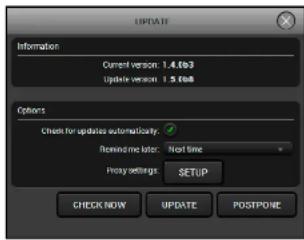


- Firmware Upgrade HDMI-3D-OPT series - User's Manual 78
8.4. Detailed Instructions
8.4.1. Establish the Connection
Make sure that the computer and the device are connected via an USB mini cable and the connection is established between them.
8.4.2. Prepare the Firmware Upgrade in LDC
The device can be upgraded over USB in case of the USB crosspoint is set to the Composite channel only. Start the Lightware Device Controller (LDC) software and navigate to the Crosspoint menu - USB tab. Check the crosspoint state and set it to the Composite channel.
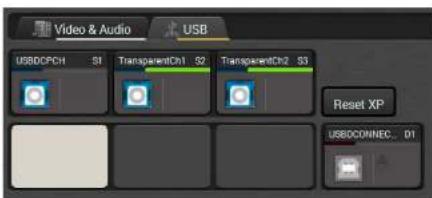
USB crosspoint - Composite mode in LDC
ATTENTION! After the setting is done it is highly recommended to close the LDC software to avoid the possible connection problem between the device and the LDU software.
8.4.3. Start the LDU and Follow the Instructions
After launching LDU welcome screen appears:
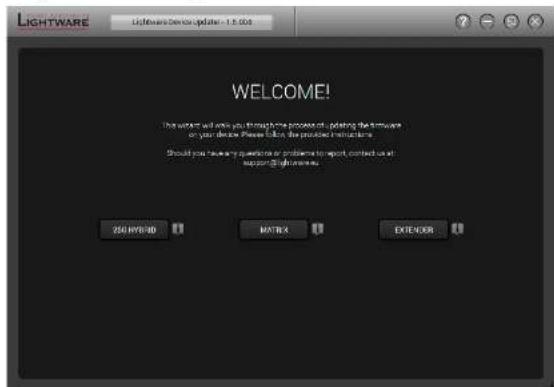
After pressing the button a list will appear showing the supported devices:
Click on the Extender button on the main screen.


- Firmware Upgrade HDMI-3D-OPT series - User's Manual 79
Step 1. Select the package.
Click on the Browse button and select the *.Ifp* file that will be used for the upgrade.
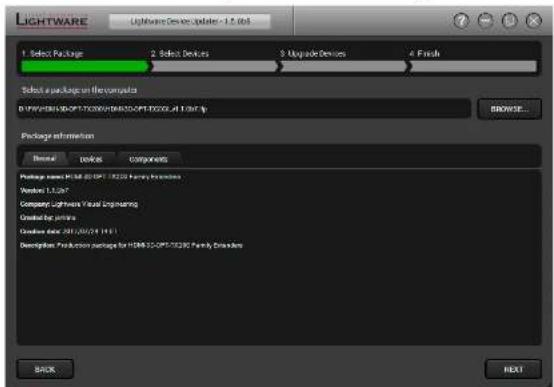
The package information is displayed:
- General version info, creation date, short description,
• Devices which are compatible with the firmware, - Components in the package with release notes.
Click on the Next button and follow the instructions.
TIPS AND TRICKS: Files with ".Ifp" extension are associated to LDU during installation. If you double click on the ".Ifp" file, the application is launched, the package is loaded automatically and the screen above is shown.
Step 2. Select a device.
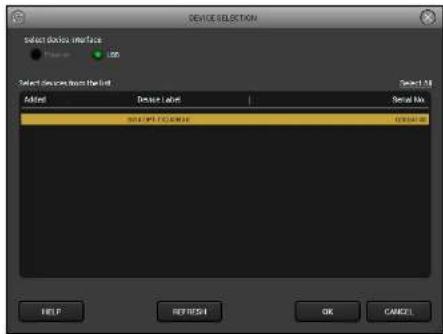
The next step is to select the desired device(s). The available and supported devices are searched for and listed automatically. If the desired device is not listed, update the list by clicking the Refresh button. Select the desired device by highlighted them: highlight them with a yellow cursor, then click OK.
A tick mark can be seen in the Added column if the device was added by the user previously.


- Firmware Upgrade HDMI-3D-OPT series - User's Manual 80
Firmware Components
The components of the installed and update firmware version for the selected devices are listed on the following screen. (Update version will be uploaded to the device.)
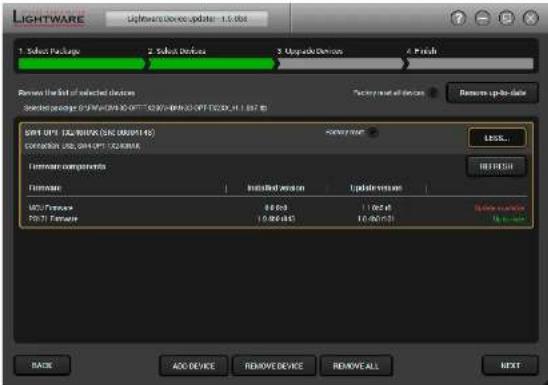
Add a device by clicking on the Add device button. The previous screen will be shown; select the desired device(s) and click OK.
Remove a device by selecting it (highlight with yellow) and clicking on the Remove device button, or by clicking on Remove all button to clear the list.
Enabling Factory reset will perform factory default values for all settings in the device. Three different status can exist:
- Enabled by user: all settings will set to factory default values.
- Disabled by user: your settings will be saved and restored after upgrading.
- Enabled by default and not changeable by user: firmware upgrade must perform a factory reset to apply all changes coming with the new firmware version.
Click on the Next button to continue
Step 3. Upgrade the device.
Click on the Start button to start the upgrade process.
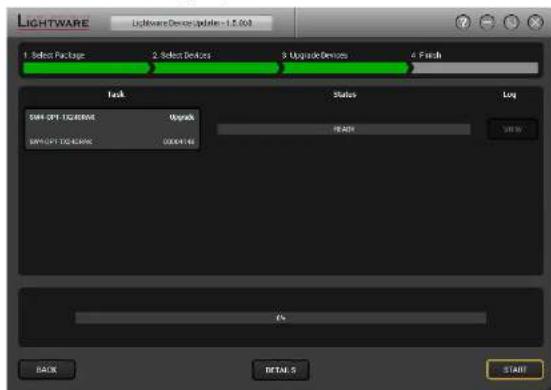
Two warning windows will pop up before upgrading the device:
- Do not power off the device or unplug the USB cable while the upgrade is in progress. Click OK to continue.
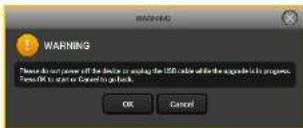
• The device presets will be lost after the upgrade.
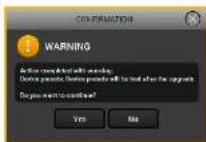


- Firmware Upgrade HDMI-3D-OPT series - User's Manual 81
After you confirmed the warnings and clicked on the Start button, the upgrade process starts immediately.
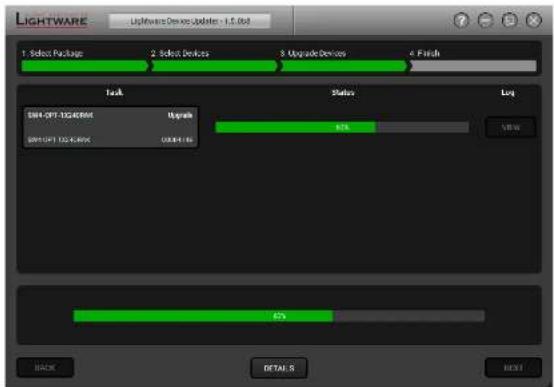
Details button opens a new window where the process is logged – see below.
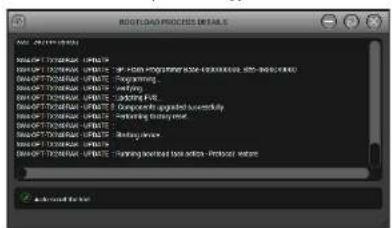
Step 4. Finish.
If the upgrade of a device is finished, the log can be opened by the View button on the right. When all the tasks are finished, a window appears. Click OK to close and Next to display the summary page.
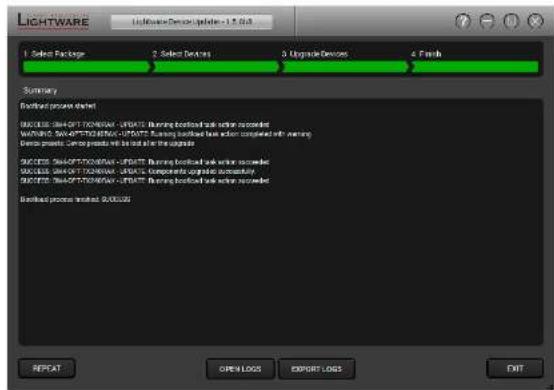
Clicking on the Repeat button starts the process again with the selected device(s).
The Open logs button opens the temporary folder where the logs can be found.
Export logs by saving the files as a zipped file.
Press Exit to close the program.
If the upgrade fails, the progress bar of the device turns to red. Restart the device(s) and repeat the process.
ATTENTION! Although the device is rebooted after the firmware upgrade, switching it off and on again is recommended.


- Firmware Upgrade HDMI-3D-OPT series - User's Manual 82
8.5. Keeping the Configuration Settings
User can keep all configuration settings and restore to the device after firmware upgrading or can choose to perform a factory reset – it means all settings will be erased in the device. For the detailed information about saved data refer to Content of Backup File section.
The following flow chart demonstrates how this function works in the background.

The flow chart of the firmware upgrade procedure
The details about the procedure: when firmware upgrade starts, the first step is making a backup of the settings of the device. The firmware package checks the backup data and if it is needed, a conversion is applied to avoid incompatibility problems between the firmware versions. If you do not want to keep configuration settings, you can set the Factory reset option enabled.
The instruction in the firmware package of the device will inform you about this function availability, reading it is highly recommended in every case.
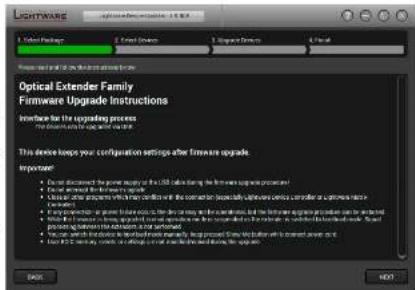
Instructions page in the optical extender firmware package
ATTENTION! In specific cases restoring cannot be applied fully and certain settings are not copied back to the device. If a warning message appears, user can get back the original data from the backup. Logs of the upgrade procedure contain all backup data, it can be exported at the end of the upgrade procedure. In case of any question, please contact support@lightware.com.
ATTENTION! In certain cases, the new firmware version requires setting all parameters to set factory defaults. In this case, the "Factory reset" option is enabled by default and not changeable by the user, see details in the Firmware Components section.
ATTENTION! The feature is only supported by LDU version 1.3.0 and above.

Troubleshooting
Usually, if the system seems not to transport the signal as expected, the best strategy for troubleshooting is to check signal integrity through the whole signal chain starting from source side and moving forward to the receiver end.
Link to connections/cabling section.
Link to front panel operation section.
Link to LDC software section.
Link to LW2 protocol commands section.
Link to LW3 protocol commands section.
9.1. Use Case Studies
At first, check front panel LEDs and take the necessary steps according to their states. For more information about status, LEDs refer to Rear Panel Status LEDs - Transmitter and Front Panel LEDs - Receiver sections.
| Symptom Root cause Action Refer to | |||
| Video signal | |||
| No picture on the video output | Device or devices are not powered properly | Check the extenders and the other devices if they are properly powered; try to unplug and reconnect them. | 3.4 |
| Cable connection problem | Cables must fit very well, check all the connectors (video and optical cables). | 3.4 | |
| Optical cable became contaminated | Use special fiber optical cable cleaning equipment to clean it carefully. | ||
| No incoming signal (transmitter) | No video signal is present on the HDMI/ DVI-D/DP input ports. Check the source device and the HDMI/DVI/DP cable(s). | 3.4 | |
| No incoming signal (receiver) | If the Signal LED does not light, no signal is present on the optical input port. Check the source device and the fiber cable. | 3.4 | |
| The input port is muted Check the mute state of input port. | 5.4.17.6.1 | ||
| The output port is muted Check the mute state of output port. | 5.4.46.3.67.6.2 | ||
| Display is not able to receive the video format | Check the emulated EDID; select another (e.g. emulate the display's EDID on the input port). | 5.77.12 | |
| HDCP is disabled Enable | HDCP on the input and output ports. | 5.4.15.4.47.6.177.6.18 | |
| Not the desired picture displayed on the video output | Video output is set to test pattern (no sync screen) statically | Check test pattern settings in the properties of the output ports. | 5.5.27.6.19 |
| Video output is set to test pattern (no sync screen) as there is no picture on video source | Check video settings of the source. | ||
| Audio signal | |||
| No audio is present on output | Source audio volume is low or muted | Check the audio settings of the source. | |
| Audio input port is muted | Check the audio input port properties | 5.4.25.4.37.7.1 | |
| Audio output port is muted | Check the output port properties. | 5.4.56.3.67.7.2 | |
| Analog audio input: volume is set very low (TX) | Check the Analog audio input port settings (Volume). | 5.4.37.7.177.7.18 | |
| Analog audio output: volume is set very low (RX) | Check the Analog audio output port settings (Volume). | 5.4.67.7.197.7.20 | |
| HDMI output signal contains no audio | HDMI mode was set to DVI | Check the properties of the output port and set the signal type to HDMI or Auto. | 5.4.47.6.20 |
| DVI EDID is emulated Check the EDID and select and HDMI EDID to emulate. | 5.77.12 | ||
| RS-232 signal | |||
| Connected serial device does not respond | Cable connection problem | Check the connectors to fit well; check the wiring of the plugs. | 3.4.93.4.10 |
| RS-232 settings are different | Check the port settings of the extender and the connected serial device(s). | 5.8.17.9 | |
| RS-232 mode is not right Check the RS-232 mode settings (control, pass-through, or command injection) | 5.8.17.9.6 | ||
| Symptom Root cause Action Refer to | |||
| Ethernet (only for SW4-OPT-TX240RAK) | |||
| No LAN connection can be established | Incorrect IP address is set (fix IP) | Use dynamic IP address by enabling DHCP option. | 4.3.15.10.27.8.2 |
| Restore the factory default settings (with fix IP). | 4.3.25.10.46.2.117.5.6 | ||
| IP address conflict Check | the IP address of the other devices, too. | ||
| USB KVM | |||
| USB device does not operate | Cables are not connected on both sides | Check the USB cable between TX and the computer. | |
| Not supported USB device is connected | Keyboard, mouse (USB HID devices) are supported mostly, check your device type | ||
| USB crosspoint set to the non-active channel | Check the USB mode in the transmitter in LDC and change to the active channel. | 5.6.2 | |
| Incorrect USB mode is set | Check the USB mode in the receiver in LDC and change to Composite or Transparent mode. | 5.6.1 | |
| GPIO | |||
| Connected device does not respond | Cable connection problem | Check the connectors to fit well; check the wiring of the plugs. | 3.4.14 |
| Output level cannot be changed | The direction of the selected pin is set to input | Check and modify the direction setting of the desired pin | 5.8.26.5.17.11 |
| Miscellaneous | |||
| Front panel buttons are out of operation | Buttons are locked Unlock | the buttons | 4.3.3 |
| Error messages received continuously | Different protocol is set | Check the port protocol settings (LW2 / LW3) and use the proper protocol commands. | 5.8.17.9.1 |
9.2. How to Speed Up the Troubleshooting Process
Lightware's technical support team is always working hard to provide the fastest support possible. Our team's response time is one of the best in the industry and in the toughest of cases we can directly consult with the hardware or software engineer who designed the product to get the information from the most reliable source.
However, the troubleshooting process can be even faster... with your help.
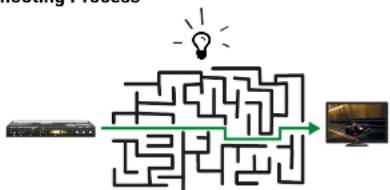
flowchart
graph TD
    A["Device"] --> B["Maze"]
    B --> C["Lightbulb"]
    C --> D["Monitor"]
There are certain pieces of information that push us in the right direction to finding the root cause of the problem. If we receive most of this information in the first e-mail or it is gathered at the time when you call us, then there is a pretty high chance that we will be able to respond with the final solution right away.
This information is the following:
- Schematic (a pdf version is preferred, but a hand drawing is sufficient).
- Serial number(s) of the device(s) (it is either printed somewhere on the box or you can query it in the Device Controller software or on the built-in website).
- Firmware versions of the devices (please note that there may be multiple CPUs or controllers in the device and we need to know all of their firmware versions, a screenshot is the best option).
- Cable lengths and types (in our experience, it's usually the cable).
- Patch panels, gender changers or anything else in the signal path that can affect the transmission.
• Signal type (resolution, refresh rate, color space, deep color).
• Emulated EDID(s) (please save them as file and send them to us).
- Actions to take in order to re-create the problem (if we cannot reproduce the problem, it is hard for us to find the cause).
- Photo or video about the problem ('image noise' can mean many different things, it's better if we see it too).
- Error logs from the Device Controller software.
- In the case of Event Manager issue the event file and/or backup file from the Device Controller software.
The more of the above information you can give us the better. Please send these information to the Lightware Support Team (support@lightware.com) to speed up the troubleshooting process.


- Technologies HDMI-3D-OPT series - User's Manual 86
10
Technologies
The following sections contain descriptions and useful technical information how the devices work in the background. The content is based on experiences and cases we met in the practice. These sections help to understand features and technical standards like the followings:
▶EDID MANAGEMENT
HDCP MANAGEMENT
▶PIXEL ACCURATE RECLOCKING
10.1. EDID Management
10.1.1. Understanding the EDID
The Extended Display Identification Data (EDID) is the passport of display devices (monitors, TV sets, projectors). It contains information about the capabilities of the display, such as supported resolutions, refresh rates (these are called Detailed Timings), the type and manufacturer of the display device, etc.
After connecting a source to a display (DVI, HDMI, DP), the source reads out the EDID to determine the resolution and refresh rate of the image to be transmitted.
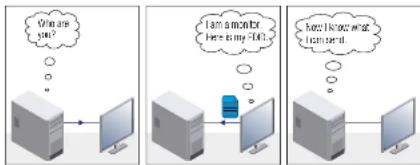
EDID Communication
Most DVI computer displays have 128-byte long EDID structure. However, Digital Televisions and HDMI capable displays may have another 128 bytes, which is called E-EDID and defined by CEA (Consumer Electronics Association). This extension contains information about additional Detailed Timings, audio capabilities, speaker allocation and HDMI capabilities. It is important to know that all HDMI capable devices must have CEA extension, but not all devices with CEA extension are HDMI capable.
Common Problems Related to EDID
Problem: "My system consists of the following: a computer, a Lightware device, a WUXGA (1920x1200) LCD monitor, and an SXGA (1280x1024) projector. I would like to see the same image on the monitor and the projector. What EDID should I choose on the Lightware device?"
Solution: If you want to see the image on both displays, you need to select the resolution of the smaller display (in this case SXGA), otherwise the smaller display may not show the higher resolution image.
Problem: "I have changed to a different EDID on an input port of the Lightware device to have a different resolution but nothing happens."
Solution: Some graphics cards and video sources read out the EDID only after power-up and later they do not sense that EDID has been changed. You need to restart your source to make it read out the EDID again.
10.1.2. Advanced EDID Management
Each DVI sink (e.g. monitors, projectors, plasma displays, etc...) must support the EDID data structure. Source BIOS and operating systems are likely to query the sink using DDC2B protocol to determine what pixel formats and interface are supported. DVI standard uses EDID data structure to identify the monitor type and capabilities. Most DVI sources (VGA cards, set top boxes, etc.) will output DVI signal after accepting the connected sink's EDID information. In the case of EDID readout failure or missing EDID, the source will not output DVI video signal.
Lightware devices provide the Advanced EDID Management function that helps system integration. The built-in EDID Router can store and emulate factory pre-programmed- and User programmable EDIDs. The EDID of the attached monitors or projectors for each output are stored in a non-volatile memory. This way the EDID of a monitor is available when the monitor is unplugged or switched off.
Any EDID can be emulated on any input. An emulated EDID can be copied from the EDID router's memory (static EDID emulation), or from the last attached monitor's memory (dynamic EDID emulation). For example, the Lightware device can be set up to emulate a sink device, which is connected to one of the outputs. In this case, the EDID automatically changes, if the monitor is replaced with another display device (as long as it has a valid EDID).
EDID is independently programmable for all inputs without affecting each other. All inputs have their own EDID circuit.
INFO: The user is not required to disconnect the video cable to change an EDID as opposed to other manufacturer's products. EDID can be changed even if a source is connected to the input and powered ON.
INFO: When EDID has been changed, the router toggles the HOTPLUG signal for 2 seconds. Some sources do not sense this signal. In such cases, the source device must be restarted or powered OFF and ON again.


- Technologies HDMI-3D-OPT series - User's Manual 87
10.2. HDCP Management
Lightware Visual Engineering is a legal HDCP adopter. Several functions have been developed which helps to solve HDCP related problems. Complex AV systems often have both HDCP and non-HDCP components. The transmitter allows transmitting HDCP encrypted and unencrypted signals. The devices will be still HDCP compliant as they will never output an encrypted signal to a non-HDCP compliant display device. If an encrypted signal is switched to a non-compliant output, a red screen alert or muted screen will appear.
10.2.1. Protected and Unprotected Content
Many video sources send HDCP protected signal if they detect that the sink is HDCP capable – even if the content is not copyrighted. This can cause trouble if an HDCP capable device is connected between the source and the display. In this case, the content cannot be viewed on non-HDCP capable displays and interfaces like event controllers. Rental and staging technicians often complain about certain laptops, which are always sending HDCP encrypted signals if the receiver device (display, matrix router, etc.) reports HDCP compliancy. However, HDCP encryption is not required all the time e.g. computer desktop image, certain laptops still do that.
To avoid unnecessary HDCP encryption, Lightware introduced the HDCP enabling/disabling function: the HDCP capability can be disabled in the Lightware device. If HDCP is disabled, the connected source will detect that the sink is not HDCP capable, and turn off authentication.
10.2.2. Disable Unnecessary Encryption
HDCP Compliant Sink

flowchart
graph LR
    A["Protected content"] -->|Encrypted signal HDM/VOV/OP cable| B["HDMI-3D-OPT-TX200 series transmitter"]
    B -->|Optical cable| C["HDMI-3D-OPT-RX150RA receiver"]
    C -->|Encrypted signal HDMI cable| D["HDCP-compliant sink"]
All the devices are HDCP-compliant, no manual setting is required, both protected and unprotected contents are transmitted and displayed on the sink.
Not HDCP-compliant Sink 1.

flowchart
graph LR
    A["Unprotected content"] -->|Non-encrypted signal| B["HDMI/VDI/DP cable"]
    B --> C["HDMI-3D-OPT-TX200 series transmitter"]
    C -->|Optical cable| D["HDMI-3D-OPT-RX150RA receiver"]
    D -->|Non-encrypted signal| E["Non-HDCP compliant sink"]
    E --> F["HDMI cable"]
Not-HDCP compliant sink is connected to the receiver. Some sources (e.g. computers) always send HDCP encrypted signals if the receiver device reports HDCP compliancy, however, HDCP encryption is not required all the time (e.g. computer desktop image). If HDCP is enabled in the transmitter, the image will not be displayed on the sink.
Setting the HDCP parameter to Auto on the output port and disable HDCP on the input port, the transmitted signal will not be encrypted if the content is not protected. Thus, non-HDCP compliant sinks will display non-encrypted signal.
Not HDCP-compliant Sink 2.

flowchart
graph LR
    A["Protected content"] -->|Encrypted signal HDMI/DMI/DP cable| B["HDMI-3D-OPT-TX200 series transmitter"]
    B -->|Optical cable| C["HDMI-3D-OPT-RX150RA receiver"]
    C -->|HDMI cable| D["Non-HDCP compliant sink"]
The layout is the same as in the previous case: non-HDCP compliant display device is connected to the receiver but the source would send protected content with encryption. If HDCP is enabled on the input port of the transmitter, the source will send encrypted signal. The sink is not HDCP compliant, thus, it will not display the video signal (but blank/red/muted/etc. screen). If HDCP is disabled on the input port of the transmitter, the source will not send the signal. The solution is to replace the display device to an HDCP-capable one.


- Technologies HDMI-3D-OPT series - User's Manual 88
10.3. Pixel Accurate Reclocking
Signal reclocking is an essential important procedure in digital signal transmission. After passing the reclocking circuit, the signal becomes stable, jitter-free, and can be transmitted over more equipment like processors, or event controllers. Without reclocking, sparkles, noise, and jaggies appear on the image.
Lightware's sophisticated Pixel Accurate Reclocking technology fixes more problems than general TMDS reclocking. It removes not only intra-pair skew but inter-pair skew as well. The Pixel Accurate Reclocking circuit eliminates the following errors:
Intra-pair skew
Skew between the + and - wires within a differential wire pair (e.g. Data2- and Data2+). It's caused by different wire lengths or slightly different wire construction (impedance mismatch) in DVI cable. It results in jitter.
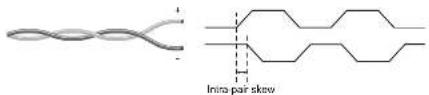
Inter-pair skew
Skew between two differential wire pairs in a cable. It is caused by different wire pair lengths or different number of twists in the DVI cable. Too much inter-pair skew results color shift in the picture or sync loss.
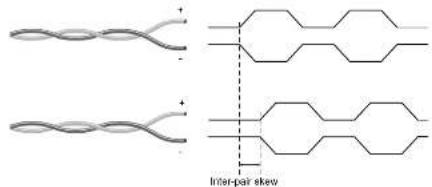
chemical
Diagram illustrating inter-pair skewing with two identical molecular conformations and a central hexagonal ring structureJitter
Signal instability in the time domain. The time difference between two signal transitions should be a fixed value, but noise and other effects cause variations.
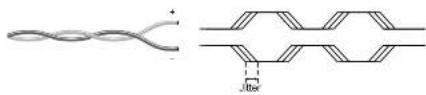
chemical
Diagram of a twisted polymer structure with labeled intermolecular distance JitterNoise
Electromagnetic interference between other electronic devices such as mobile phones, motors, etc. and the DVI cable are coupled onto the signal. Too much noise results in increased jitter.

11
Appendix
Tables, drawings, guides, and technical details as follows:
▶SPECIFICATION
▶INPUT/OUTPUT PORT NUMBERING
▶FACTORY DEFAULT SETTINGS
▶ CONTENT OF BACKUP FILE
▶MAXIMUM FIBER CABLE EXTENSIONS
▶MECHANICAL DRAWINGS
▶AUDIO CABLE WIRING GUIDE
FACTORY EDID LIST
▶FURTHER INFORMATION
11.1. Specification
11.1.1. HDMI-3D-OPT-TX200 series Transmitters
General
Compliance......CE
EMC compliance - emission......EN 55032:2015
EMC compliance - immunity....EN 55024:2011
Warranty 3 years
Cooling....Passive
Operating temperature 0 to +55°C (+32 to +122°F)
Operating humidity 10% to 90%, non-condensing
Power
Power supply....External power adaptor
Power adaptor.....In 100-240 V AC 50/60 Hz, Out 5V DC, 1 A
Power connector.... Locking DC connector (2.35 mm pin)
Power consumption (HDMI-3D-OPT-TX210A) 2,5 W (typ)
Power consumption (HDMI-3D-OPT-TX210RAK)....3 W (typ)
Power consumption (SW4-OPT-TX240RAK) 6 W (typ)
Enclosure
Rack mountable....Yes
Material....1 mm steel
Dimensions in mm....221W x 100.4D x 26H
Dimensions in inch 8.7 W x 3.95 D x 1.02 H
Weight (HDMI-3D-OPT-TX210A) 605 g
Weight (HDMI-3D-OPT-TX210RAK)....605 g
Weight (SW4-OPT-TX240RAK) 627 g
EDID Management
EDID emulation ....Yes
EDID memory 84 factory presets, 14 user programmable
Video Inputs
DisplayPort input
DisplayPort connector type....20-pole, DP 1.1a receptacle
Color depth....Deep color support up to 36 bits, 12 bit/color
Color space....RGB, YCbCr 4:4:4, YCbCr 4:2:2, YCbCr 4:2:0
Video delay....0 frame
Max. resolutions 2560x1600@60 Hz
1920x1080@120 Hz, 8 bit/color
.4096x2160@30 Hz
3D support.....Yes
HDCP 1.4 compliant ....Yes
HDMI input
HDMI connector type....19-pole HDMI Type A receptacle
Standard DVI 1.0, HDMI 1.4
Color depth....Deep color support up to 36 bits, 12 bit/color
Color space....RGB, YCbCr 4:4:4, YCbCr 4:2:2, YCbCr 4:2:0
Video delay 0 frame
Max. resolutions 1600x1200@60 Hz, 36 bit
.1920x1080@120 Hz
.3840x2160@30 Hz, 24 bit
Reclocking....Pixel Accurate Reclocking
HDCP 1.4 compliant Yes
DVI-I input with DVI-D support
Connector type....29-pole, DVI-1
Standard DVI 1.0, HDMI 1.4
Color depth....Deep color support up to 36 bits, 12 bit/color
Color space....RGB, YCbCr 4:4:4, YCbCr 4:2:2, YCbCr 4:2:0
Video delay....0 frame
Max. resolutions 1600x1200@60 Hz, 36 bit
1920x1080@120 Hz
.3840x2160@60 Hz, 24 bit
Reclocking....Pixel Accurate Reclocking


- Appendix HDMI-3D-OPT series - User's Manual 90
3D support.....Yes
HDCP 1.4 compliant Yes
Audio Inputs
Embedded audio signal
Supported on....DP, DVI-D, HDMI ports
Supported audio formats ....PCM (up to 192 kHz), MPCM (up to 8 channels)
Analog audio input
Signal type.....PCM, Compressed, DSD, High Bitrate
Sampling frequency....48 kHz
Volume....-78 dB - 0 dB
Balance....0 - 100 (50 = center)
Gain.... 0 dB - 6 dB
Connector 3.5 mm Jack, 5-pole Phoenix connector
RS-232 Control
Serial port connector 3-pole Phoenix connector
Available Baud rates.....between 4800 and 115200
GPIO
Port connector 8-pole Phoenix connector
Port direction.... Input or output
USB
Fiber type..... 50/125 SC Multimode (preferred), 62.5/125 SC Multimode
Laser wavelengths.....High speed lanes: 778; 800; 825; 850 nm
Low speed lane: 911; 980 nm
Laser class specification....Class 3R
11.1.2. HDMI-3D-OPT-RX150RA Receiver
General
Compliance......CE
EMC compliance (emission/ immunity)....EN 55032:2015 / EN
55024:2011
Warranty 3 years
Cooling....Passive
Operating temperature 0 to +55°C (+32 to +122°F)
Operating humidity 10% to 90%, non-condensing
Power
Power supply....External power adaptor
Power adaptor.....In 100-240 V AC 50/60 Hz, Out 5V DC, 1 A
Power connector....Locking DC connector (2.35 mm pin)
Power consumption....3,9 W (typ); 6,5 W (max)
Enclosure
Rack mountable .... Yes
Material....1 mm steel
Dimensions in mm....100.4W x 131.9D x 26H
Dimensions in inch 8.7 W x 3.95 D x 1.02 H
Weight 430 g
HDMI Output
HDMI connector type....19-pole HDMI Type A receptacle
Standard DVI 1.0, HDMI 1.4
Color depth....Deep color support up to 36 bits, 12 bit/color
Color space....RGB, YCbCr 4:4:4, YCbCr 4:2:2, YCbCr 4:2:0
Video delay....0 frame
Max. resolutions 1600x1200@60 Hz, 36 bit
1920x1080@120 Hz, 24 bit
3840x2160@30 Hz, 24 bit
HDCP 1.4 compliant Yes
Audio Outputs
Embedded audio signal
Supported on....DP, DVI-D, HDMI ports
Supported audio formats....PCM (up to 192 kHz)
MPCM (up to 8 channels)
Analog audio output
Connector type....5-pole Phoenix connector
Signal type....PCM, Compressed, DSD, High Bitrate
Sampling frequency....48 kHz
Volume....-78 dB - 0 dB
Balance....-100 - 100 (0 = center)
S/PDIF output
Audio format S/PDIF
Supported sample rates....16 to 48 kHz
AES/EBU compatibility No
Bit depths Up to 24 bits
Optical
Fiber type..... 50/125 SC Multimode (preferred), 62.5/125 SC Multimode
Laser wavelengths....High speed lanes: 778; 800; 825; 850 nm
Low speed lane: 911; 980 nm
Laser class specification....Class 3R
RS-232 Control
Serial port connector 9-pole D-sub
Available Baud rates ...... between 4800 and 115200
Signal type.... RX/TX bidirectional
USB for KVM
Connector type....2 x USB-A female
USB 2.0 compliance....Yes
USB Control
The following tables contain the input and output ports with their ID numbers which shall be used when protocol command sending or in Lightware Device Controller.
HDMI-3D-OPT-TX210A
Audio/Video Ports
| Port name | Video port nr. (LW2 / LW3) | Emulated EDID memory | Audio port nr. (LW2 / LW3) |
| HDMI in I1 E1 I1 | |||
| Audio1 in --I2 | |||
| Audio2 in --I3 | |||
| Optical link out O1 - O1 | |||
| Local HDMI out O2 - O2 |
HDMI-3D-OPT-TX210RAK
Audio/Video Ports
| Port name | Video port nr. (LW2 / LW3) | Emulated EDID memory | Audio port nr. (LW2 / LW3) |
| HDMI in I1 E1 I1 | |||
| Audio1 in --I2 | |||
| Audio2 in --I3 | |||
| Optical link out 01- | 01 | ||
| Local HDMI out 02- | 02 |
USB Ports
| Port name Port nr. (LW3) | |
| USB connector D1 | |
| USB Composite channel S1 | |
| USB Transparent channel 1 | S2 |
| USB Transparent channel 2 | S3 |
RS-232 Ports
| Port name | Port nr. (LW2 / LW3) |
| Local serial port | P1 |
| Optical serial link | P2 |
SW4-OPT-TX240RAK
Audio/Video Ports
| Port name | Video port nr. (LW2 / LW3) | Emulated EDID memory | Audio port nr. (LW2 / LW3) |
| DP in | I1 E1 | I1 | |
| HDMI1 in | I2 E2 | I2 | |
| HDMI2 in | I3 E3 | I3 | |
| DVI-D in I4 E4 I4 | |||
| Audio1 in -- I5 | |||
| Audio2 in -- I6 | |||
| Optical link out O1 - | O1 | ||
| Local HDMI out O2 - | O2 |
USB Ports
| Port name Port nr. (LW3) | |
| USB connector D1 | |
| USB Composite channel S1 | |
| USB Transparent channel 1 | S2 |
| USB Transparent channel 2 | S3 |
RS-232 Ports
| Port name | Port nr. (LW2 / LW3) |
| Local serial port | P1 |
| Optical serial link | P2 |
HDMI-3D-OPT-RX150RA
Audio/Video Ports
| Port name | Video port nr. (LW2 / LW3) | Emulated EDID memory | Audio port nr. (LW2 / LW3) |
| Optical link in | I1 E1 | I1 | |
| HDMI out | 01 - 01 | ||
| S/PDIF audio out | -- 02 | ||
| Analog audio out | -- | 03 |
USB Ports
| Port name Port nr. (LW3) | |
| USB connector - Mouse | S1 |
| USB connector - Keyboard | S2 |
| USB Composite channel | D1 |
| USB Transparent channel 1 | D2 |
| USB Transparent channel 2 | D3 |
RS-232 Ports
| Port name | Port nr. (LW2 / LW3) |
| Local serial port | P1 |
| Optical serial link | P2 |
11.3. Factory Default Settings
11.3.1. Transmitter
| Parameter Setting/Value | |
| Crosspoint settings * | |
| Video I1 (DisplayPort) | |
| Audio I1 (DisplayPort) | |
| Video input port settings (DP*, HDMI, DVI-D*) | |
| HDCP Enabled | |
| Video output port settings (optical link and local HDMI) | |
| HDCP mode Enabled | |
| Autoselect * Disabled | |
| Autoselect mode * Priority detect | |
| Autoselect video priority * 0=DP, 1=HDMI, 2=HDMI2, 3=DVI-D | |
| Test pattern mode Off | |
| Test pattern resolution 480p | |
| Test pattern Bar | |
| Signal type Auto | |
| HDCP mode Auto | |
| Laser enable On | |
| Analog audio input port properties | |
| Volume | 0.00 dB |
| Balance | 0 (center) |
| Gain | 0.00 dB |
| Audio output port settings (optical link and local HDMI) | |
| Autoselect * Disabled | |
| Autoselect mode * Priority detect | |
| Autoselect video priority * | 0=DP, 1=HDMI, 2=HDMI2, 3=DVI-D, 4=Analog 1 (Jack), 5=Analog 2 (Phoenix) |
| Network settings * | |
| IP address | 192.168.0.100 |
| Subnet mask | 255.255.255.0 |
| Static gateway | 192.168.0.1 |
| DHCP Disabled | |
| LW2 / LW3 port number | 10001 |
| Parameter Setting/Value | |
| RS-232 settings | |
| Control protocol | LW2 |
| Baud rate / Databits / Parity / Stopbits | 57600 / 8 / No / 1 |
| Operation mode | Pass-through |
| Command injection port nr. | 8001 |
| GPIO port settings * | |
| Direction | Input |
| Output level | High |
* Only for SW4-OPT-TX240RAK model.
11.3.2. Receiver
| Parameter Setting/Value | |
| Optical input port properties | |
| HDCP Enabled | |
| HDMI output port properties | |
| Signal type Auto | |
| HDCP mode Auto | |
| Power 5V mode | Always on |
| Test pattern mode Off | |
| Test pattern resolution 480p | |
| Test pattern Bar | |
| Analog audio output port properties | |
| Volume | 0.00 dB (100%) |
| Balance | 0 (center) |
| Bass | 0.00 dB |
| Treble | 0.00 dB |
| Phase invert | Disabled |
| RS-232 settings | |
| Control protocol | LW2 |
| Baud rate / Databits / Parity / Stopbits | 57600 / 8 / No / 1 |
| Operation mode | Pass-through |
For the procedure of reloading factory default values in LDC software see the System section, or using the function buttons see in the Reset to Factory Default Settings section for the transmitter and the Reset to Factory Default Settings section for the receiver.
11.4. Content of Backup File
The backup file contains numerous settings and parameters saved from the device. When the file is uploaded to a device, the followings will be overwritten:
| HDMI input port(s) |
| Video port name, Audio port name, HDCP setting |
| DP input port |
| Video port name, Audio port name, HDCP setting |
| DVI-D input port |
| Video port name, Audio port name, HDCP setting |
| Analog audio input ports |
| Volume, Balance, Gain, Port name |
| Crosspoint settings |
| Audio autoselect settings, Mute ports, Lock ports, Switch ports |
| Video autoselect settings, Mute ports, Lock ports, Switch ports |
| Optical output port |
| Video port name, Audio port name |
| Test pattern mode, clock source, and type |
| HDCP mode, HDMI mode |
| RS 232 mode, Control protocol, CI port number, Port name |
| Remote port name, Enabled/Disabled setting |
| Local output port |
| Port name, HDCP mode, HDMI mode, Power +5V mode |
| Test pattern mode, clock source, and type |
| Serial port |
| RS 232 mode, Control protocol, Baud rate, Data bits, Stop bits, Parity |
| Port name and CI (Command Injection) port number |
| Network settings (only for SW4-OPT-TX240RAK model) |
| DHCP status (enable / disable) |
| Static IP address, Network mask, Gateway address |
| Further settings |
| GPIO port names, directions (input/output), and levels (high/low) |
| User EDID data (Transmitter: U1-U14; Receiver: U1-U15) |
| Event manager: settings of all Events (E1-E20) |
For the description of backup/restore procedure see the Configuration Cloning (Backup Tab) section.
11.5. Maximum Fiber Cable Extensions
| OM1 OM2 OM3 OM4 | ||||
| (62.5/125) (50/125) (50/125) (50/125) | ||||
| 1080p@60Hz 24 bpp 250 m 600 m | 1200 m 2500 m | |||
| 1080p@60Hz 36 bpp 150 m 400 m | 800 m 1300 m | |||
| 4096x2048@30Hz 24 bpp Not supported | 350 m 700 m 1100 m | |||


- Appendix HDMI-3D-OPT series - User's Manual 94
11.6. Mechanical Drawings
11.6.1. Transmitter
SW4-OPT-TX240RAK can be seen in the pictures but the dimensions are valid for all the models. Dimensions are in mm.
Bottom View
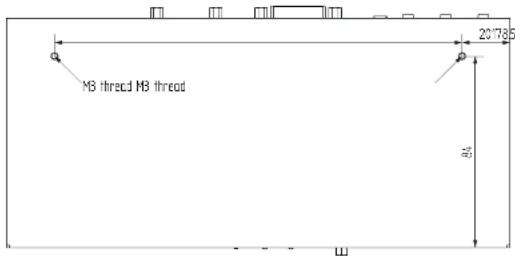
Front View

Top View
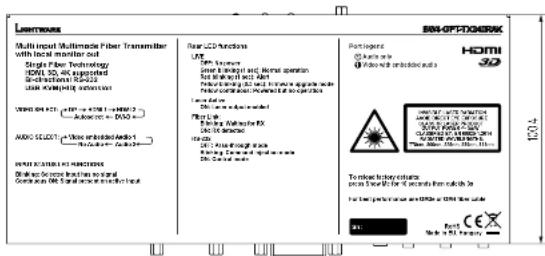
Rear View

Side View
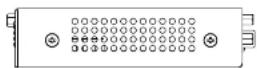
11.6.2. Receiver
The following drawings present the physical dimensions of the HDMI-3D-OPT-RX150RA receiver. Dimensions are in mm.
Front View Rear View
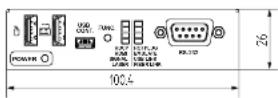
Bottom View Top View
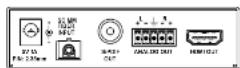
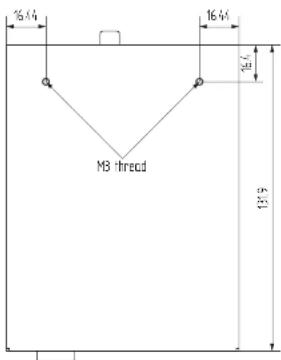
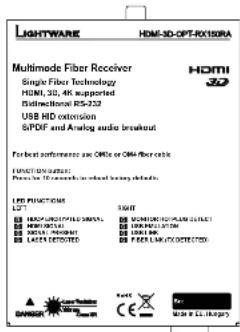
11.7. Audio Cable Wiring Guide
Inputs and outputs of audio devices are symmetric or asymmetric. The main advantage of the symmetric lines is the better protection against the noise therefore, they are widely used in the professional audio industry. Symmetric audio is most often referred to as balanced audio, as opposed to asymmetric, which is referred to as unbalanced audio. Lighware products are usually built with 5-pole Phoenix connectors so we would like to help users assembling their own audio cables. See the most common cases below.
ATTENTION! Symmetric and asymmetric lines can be linked with passive accessories (e.g. special cables), but in this case half of the line level is lost.
ATTENTION! There are numerous types of regularly used connector and cable types to connect audio devices. Please always make sure that a connector or cable fits your system before use.
ATTENTION! Never join the phase-inverted (negative, cold or -) poles (either right and left) to the ground or to each other on the output side, as this can damage the unit.
INFO: Use a galvanic isolation in case of a ground loop.
The Pinout of the 5-pole Phoenix Connector
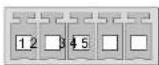
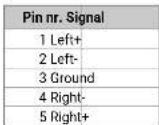
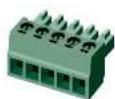
Compatible Plug Type
Phoenix® Combicon series (3.5mm pitch, 5-pole), type: MC 1.5/5-ST-3.5.
From Unbalanced Output to Balanced Input
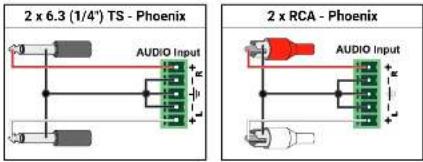
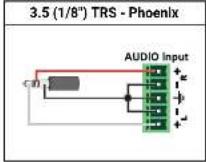
From Balanced Output to Unbalanced Input
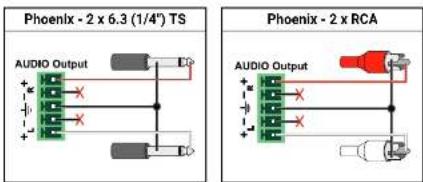
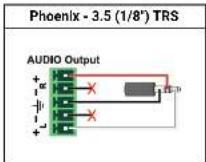
From Balanced Output to Balanced Input
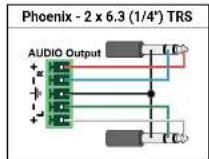
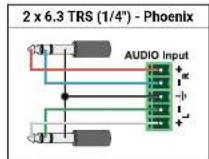
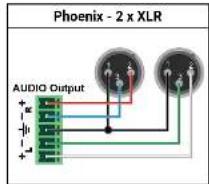
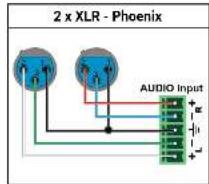
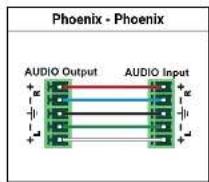
11.8. Factory EDID List
| Mem. Resolution Type Mem. Resolution Type | ||||||||||
| F1 | 640 x | 480 @ 60.00 | Hz | D | F34 | 720 x | 576 @ 50.00 | Hz | H | |
| F2 | 848 x | 480 @ 60.00 | Hz | D | F35 | 1280 x | 720 @ 50.00 | Hz | H | |
| F3 800 x 600 @ 60.32 Hz D F36 1280 x 720 @ 60.00 Hz H | ||||||||||
| F4 | 1024 x | 768 @ 60.00 | Hz | D | F37 | 1920 x | 1080 @ 50.04 | Hz | H | |
| F5 | 1280 x | 768 @ 50.00 | Hz | D | F38 | 1920 x | 1080 @ 50.00 | Hz | H | |
| F6 | 1280 x | 768 @ 59.94 | Hz | D | F39 | 1920 x | 1080 @ 60.05 | Hz | H | |
| F7 | 1280 x | 768 @ 75.00 | Hz | D | F40 | 1920 x | 1080 @ 60.05 | Hz | H | |
| F8 | 1360 x | 768 @ 60.02 | Hz | D | F41 | 1920 x | 1080 @ 24.00 | Hz | H | |
| F9 | 1280 x | 1024 @ 50.00 | Hz | D | F42 | 1920 x | 1080 @ 25.00 | Hz | H | |
| F10 | 1280 x | 1024 @ 60.02 | Hz | D | F43 | 1920 x | 1080 @ 30.00 | Hz | H | |
| F11 | 1280 x | 1024 @ 75.02 | Hz | D | F44 | 1920 x | 1080 @ 50.00 | Hz | H | |
| F12 | 1400 x | 1050 @ 50.00 | Hz | D | F45 | 1920 x | 1080 @ 60.00 | Hz | H | |
| F13 | 1400 x | 1050 @ 60.00 | Hz | D | F46 | 1920 x | 1080 @ 60.00 | Hz | H | |
| F14 | 1400 x | 1050 @ 75.00 | Hz | D | F47 | Universal_HDMI_PCM | H | |||
| F15 | 1680 x | 1050 @ 60.00 | Hz | D | F48 | Universal_HDMI_ALL | H | |||
| F16 | 1920 x | 1080 @ 50.00 | Hz | D | F49 | Universal_HDMI_DC | H | |||
| F17 | 1920 x | 1080 @ 60.00 | Hz | D | F50-F89 | Reserved | ||||
| F18 | 2048 x | 1080 @ 50.00 | Hz | D | F90 | 1920 x | 2160 @ 59.99 | Hz | D | |
| F19 | 2048 x | 1080 @ 60.00 | Hz | D | F91 | 1024 x | 2400 @ 60.01 | Hz | D | |
| F20 | 1600 x | 1200 @ 50.00 | Hz | D | F92-F93 | Reserved | ||||
| F21 | 1600 x | 1200 @ 60.00 | Hz | D | F94 | 2048 x | 1536 @ 60.00 | Hz | D | |
| F22 | 1920 x | 1200 @ 50.00 | Hz | D | F95 | Reserved | ||||
| F23 | 1920 x | 1200 @ 59.56 | Hz | D | F96 | 2560 x | 1600 @ 59.86 | Hz | D | |
| F24 | 2048 x | 1200 @ 59.96 | Hz | D | F97 | 3840 x | 2400 @ 24.00 | Hz | D | |
| F25-F28 | Reserved | D | F98 | 1280 x | 720 @ 60.00 | Hz | H3D | |||
| F29 | Universal_DVI | D | F99 | 1920 x | 1080 @ 60.00 | Hz | H3D | |||
| F30 | 1440 x | 480 @ 60.05 | Hz | H | F100 | 1024 x | 768 @ 60.00 | Hz | H | |
| F31 | 1440 x | 576 @ 50.08 | Hz | H | F101 | 1280 x | 1024 @ 50.00 | Hz | H | |
| F32 | 640 x | 480 @ 59.95 | Hz | H | F102 | 1280 x | 1024 @ 60.02 | Hz | H | |
| F33 | 720 x | 480 @ 59.94 | Hz | H | F103 | 1280 x | 1024 @ 75.02 | Hz | H | |
| Mem. | Resolution | Type | Mem. | Resolution | Type | ||||||
| F104 | 1600 x | 1200 @ 50.00 Hz | H | F123 | 1280 x | 800 @ 59.91 Hz | H | ||||
| F105 | 1600 x | 1200 @ 60.00 Hz | H | F124 | 1440 x | 900 @ 59.90 Hz | H | ||||
| F106 | 1920 x | 1200 @ 59.56 Hz | H | F125 | 1368 x | 768 @ 59.85 Hz | H | ||||
| F107 | 2560 x | 1440 @ 59.95 Hz | H | F126 | 1600 x | 900 @ 59.98 Hz | H | ||||
| F108 | 2560 x | 1500 @ 59.86 Hz | H | F127 | 2048 x | 1080 @ 60.00 Hz | H | ||||
| F109 | 3840 x | 2400 @ 24.00 Hz | H | F128 | 2560 x | 1080 @ 60.00 Hz | H | ||||
| F110 | 3840 x | 2160 @ 24.00 Hz | H | F129 | 3440 x | 1440 @ 24.99 Hz | H | ||||
| F111 | 3840 x | 2160 @ 25.00 Hz | H | F130 | 3440 x | 1440 @ 29.99 Hz | H | ||||
| F112 | 3840 x | 2160 @ 30.00 Hz | H | F131 | 4096 x | 2160 @ 25.00 Hz | H | ||||
| F113-F117 | Reserved | F132 | 4096 x | 2160 @ 30.00 Hz | H | ||||||
| F118 | Universal_4K_PCM | H4K | F133 | 4096 x | 2160 @ 60.00 Hz | H4K | |||||
| F119 | Universal_4K_ALL | H4K | F134 | 3440 x | 1440 @ 23.99 Hz | H | |||||
| F120 | 3840 x | 2160 @ 60.00 Hz | H4K | F135 | 4096 x | 2160 @ 24.00 Hz | H | ||||
| F121 | 1440 x | 1080 @ 59.91 Hz | H | F136 | 3840 x | 2400 @ 29.99 Hz | H | ||||
| F122 | 2560 x | 2048 @ 59.98 Hz | H | ||||||||
Legend
| Type | Description |
| D | DVI EDID |
| H | HDMI EDID |
| A | Analog EDID |
| DL | Dual-Link DVI EDID |
| H3D | HDMI EDID with 3D support |
| H4K | HDMI EDID with 4K resolution support |


- Appendix HDMI-3D-OPT series - User's Manual 97
11.9. Further Information
Limited Warranty Statement
- Lightware Visual Engineering LLC (Lightware) warrants to all trade and end user customers that any Lightware product purchased will be free from manufacturing defects in both material and workmanship for three (3) years from purchase unless stated otherwise below. The warranty period will begin on the latest possible date where proof of purchase/delivery can be provided by the customer. In the event that no proof can be provided (empty 'Date of purchase' field or a copy of invoice), the warranty period will begin from the point of delivery from Lightware.
1.1. 25G and MODEX product series will be subject to a seven (7) year warranty period under the same terms as outlined in this document.
1.2. If during the first three (3) months of purchase, the customer is unhappy with any aspect of a Lightware product, Lightware will accept a return for full credit.
1.3. Any product that fails in the first six (6) months of the warranty period will automatically be eligible for replacement and advanced replacement where available. Any replacements provided will be warranted for the remainder of the original unit's warranty period.
1.4. Product failures from six (6) months to the end of the warranty period will either be repaired or replaced at the discretion of Lightware. If Lightware chooses to replace the product then the replacement will be warranted for the remainder of the original unit's warranty period.
- The above-stated warranty and procedures will not apply to any product that has been:
2.1. Modified, repaired or altered by anyone other than a certified Lightware engineer unless expressly agreed beforehand.
2.2. Used in any application other than that for which it was intended.
2.3. Subjected to any mechanical or electrical abuse or accidental damage.
2.4. Any costs incurred for repair/replacement of goods that fall into the above categories (2.1., 2.2., 2.3.) will be borne by the customer at a pre-agreed figure.
- All products to be returned to Lightware require a return material authorization number (RMA) prior to shipment and this number must be clearly marked on the box. If an RMA number is not obtained or is not clearly marked on the box, Lightware will refuse the shipment.
3.1. The customer will be responsible for in-bound and Lightware will be responsible for out-bound shipping costs.
3.2. Newly repaired or replaced products will be warranted to the end of the originally purchased products warranty period.
Document Revision History
| Rev. | Release date | Changes Editor | |
| 1.0 31-08-2016 Initial version | Tamas Forgacs | ||
| 1.1 01-08-2017 | Minor updates to rmware v1.1.0 (transmitter) and rmware v2.0.0 (receiver), added USB KVM function, added HDMI-3D-OP1RX150RA receiver to the device list, updated safety information | Tamas Forgacs | |
| 2.0 13-10-2017 | New document format, updated USB KVM sections, updated LW3 prog. ref. chapter | Tamas Forgacs | |
| 2.1 31-10-2018 | 1080p120Hz signal support info added | Laszlo Zsedenyi | |
Contact Us
sales@lightware.com
+36 1 255 3800
support@lightware.com
+36 1 255 3810
Lightware Visual Engineering LLC,
Peterdy 15, Budapest H-1071, Hungary
www.lightware.com
©2018 Lightware Visual Engineering. All rights reserved. All trademarks mentioned are the property of their respective owners. Specifications subject to change without notice.